Identity management and single sign-on
- Step 1 · Open Security and sign-in
- Step 2 · Fill in your provider's details
- Step 3 · Choose the domains and who may come in
- Step 4 · Prove the domain is yours
- Step 5 · Whoever was not invited does not get in
- Step 6 · This is how a colleague signs in
- Step 7 · Signing in at the provider
- Step 8 · Back in the portal, already a member
- Step 9 · Also people in a group
- Step 10 · A colleague from the group comes in
Who may get in, and who decides? With single sign-on your own identity provider decides (Entra ID, Google, Okta, Keycloak …): whoever leaves there can no longer get into Flow either. You connect the provider to your organisation in the portal, under Security and sign-in, and see how a colleague on your domain is sent there when signing in.
Open Security and sign-in
Click your organisation's name at the top left and choose Security and sign-in; only owners see this. At Signing in through your company, choose Connect. On the right, step by step, is how to register Flow in Entra ID, with the redirect address you fill in there.
- Click De Wit Bikes

- Click Security and sign-in

- Click Connect


Fill in your provider's details
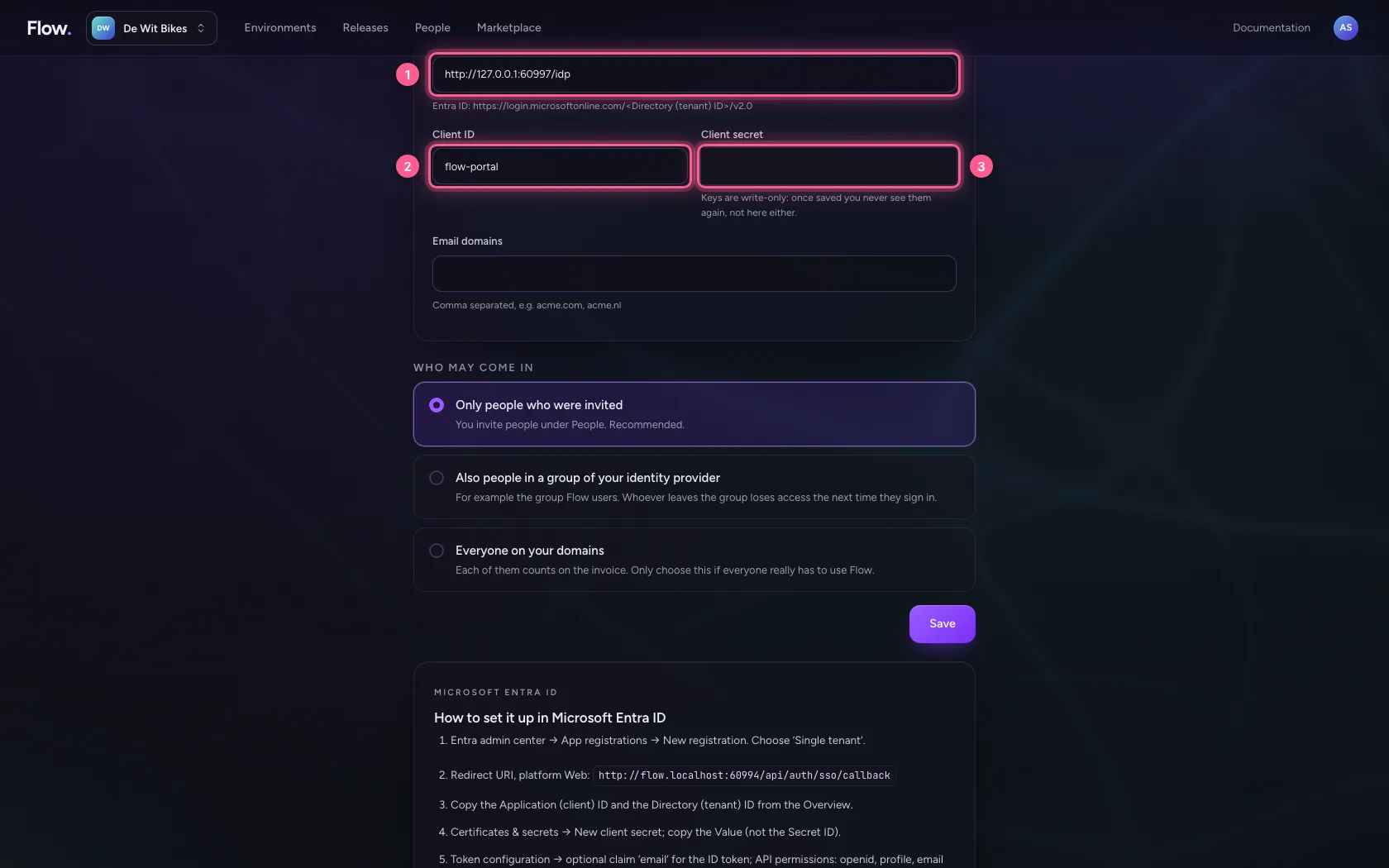
The issuer URL is your provider's address; Flow reads the OpenID configuration there and refuses an address without a provider. Client ID and client secret come from the app registration; the secret can only be written, never read back.
- In Issuer URL, type
http://127.0.0.1:60997/idp - In Client ID, type
flow-portal - In Client secret, type
••••••••
Choose the domains and who may come in
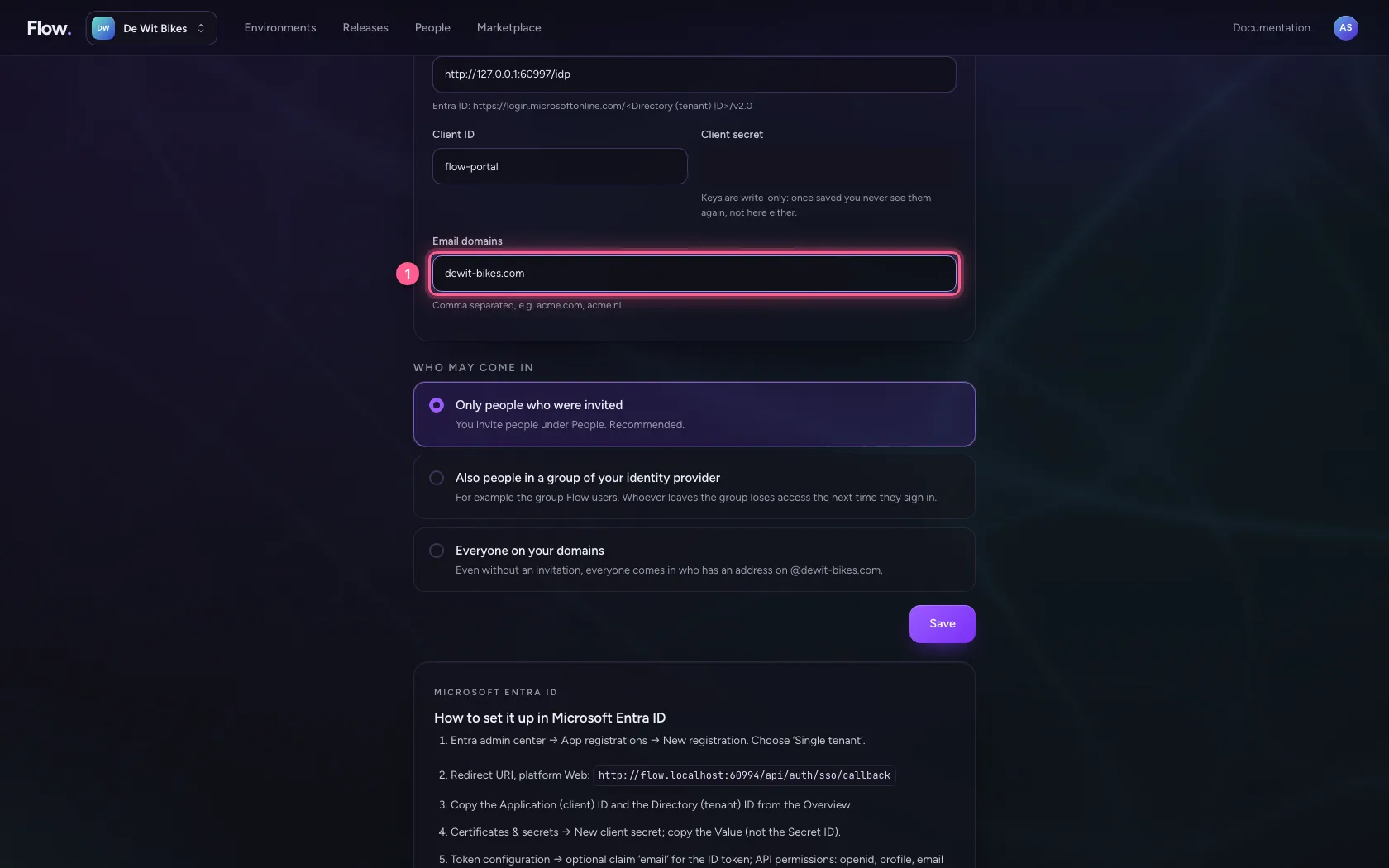
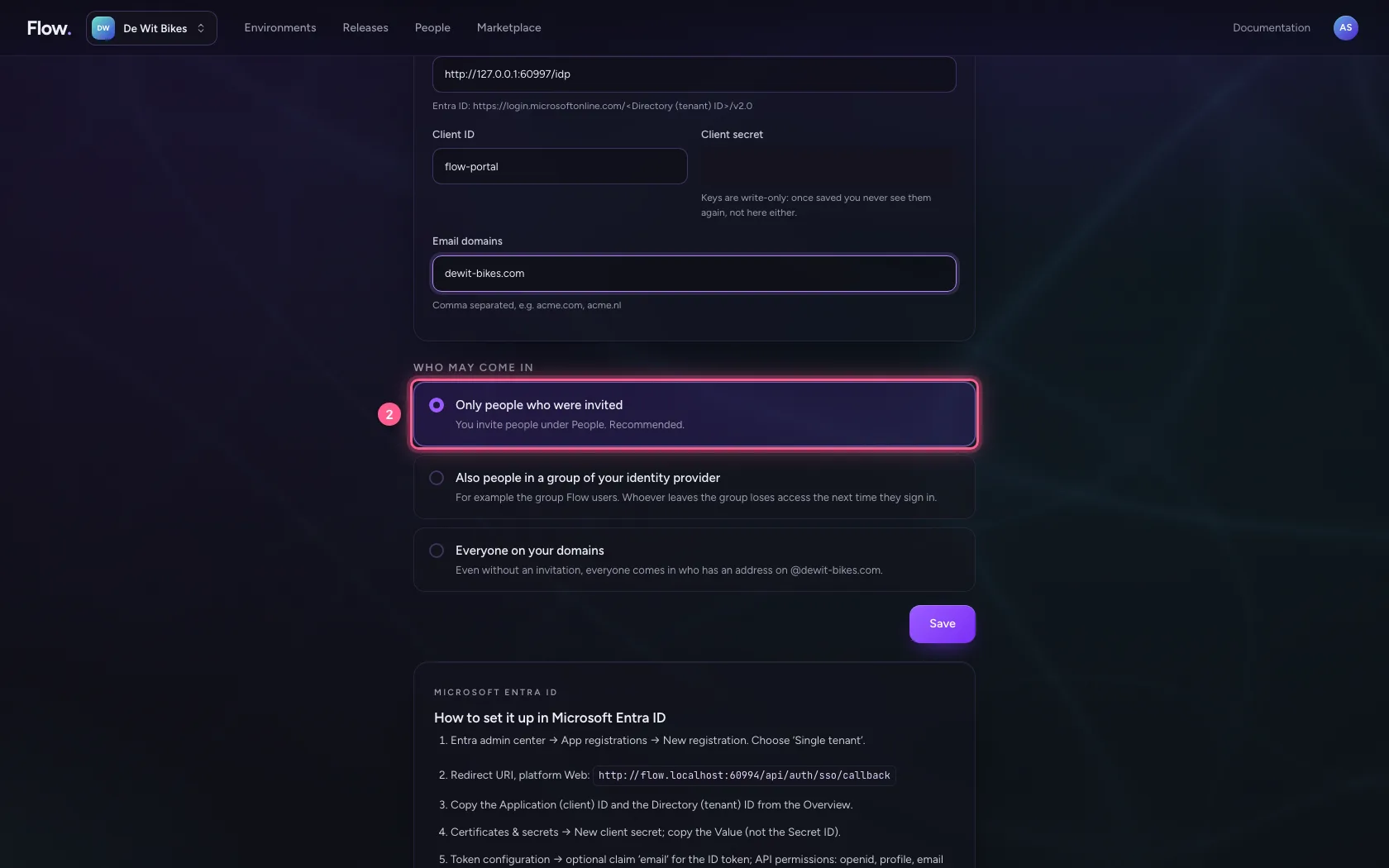
People with an email address on these domains sign in through the provider; the provider handles two-step verification. Working at your organisation is not access yet: choose Only people who were invited and invite people under People. Only when really everyone needs Flow do you let in the whole domain — everyone then counts on the invoice.
- In Email domains, type
dewit-bikes.com
- Click Only people who were invited You invite people under People. Recommended.
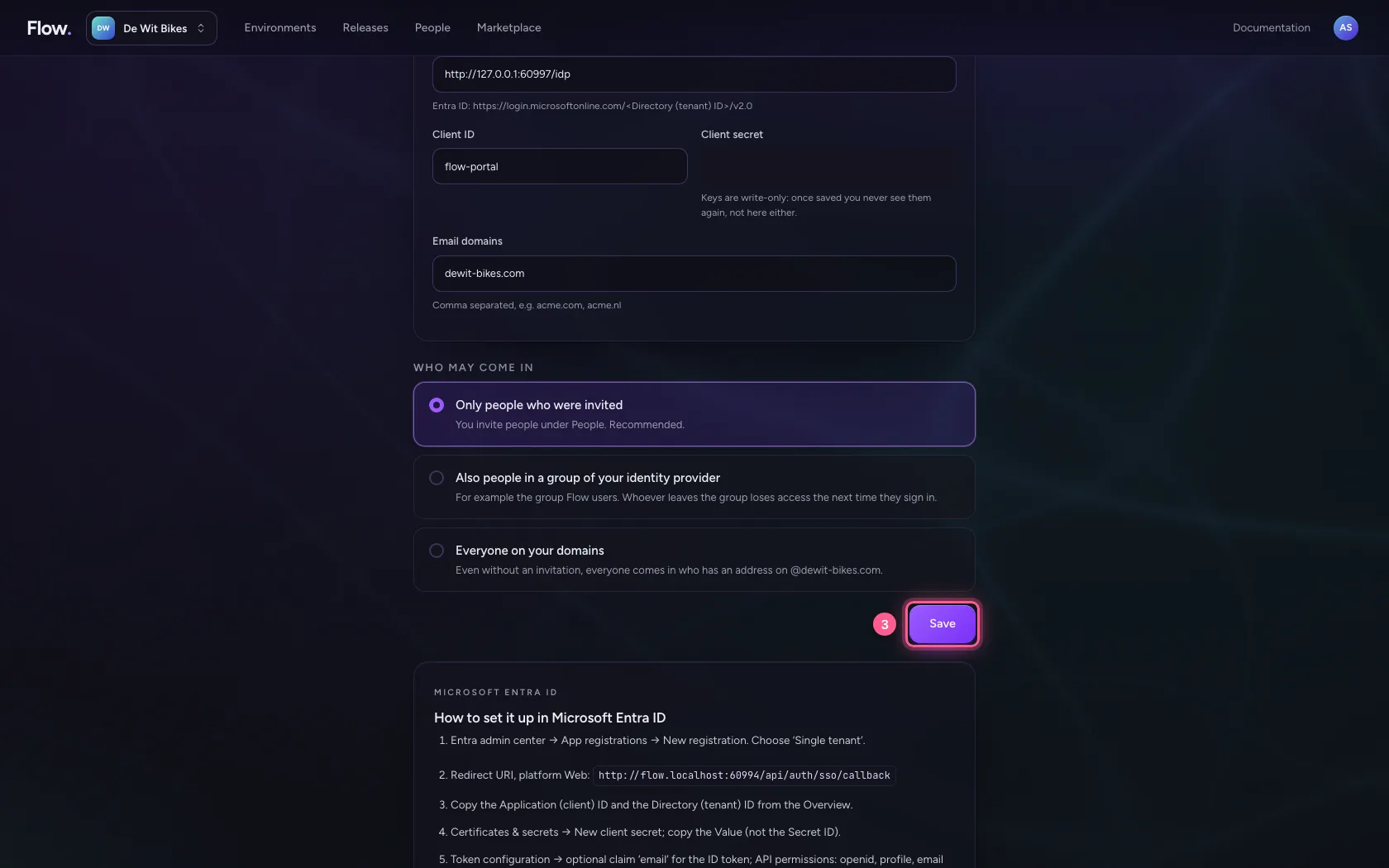
- Click Save
Prove the domain is yours
Flow only sends people to your provider once DNS shows the domain belongs to your organisation; that way nobody else can claim your domain. Below the form is a TXT record: set it at your DNS provider (click the name or the value to copy it) and choose Check. Until then nobody signs in through this domain.
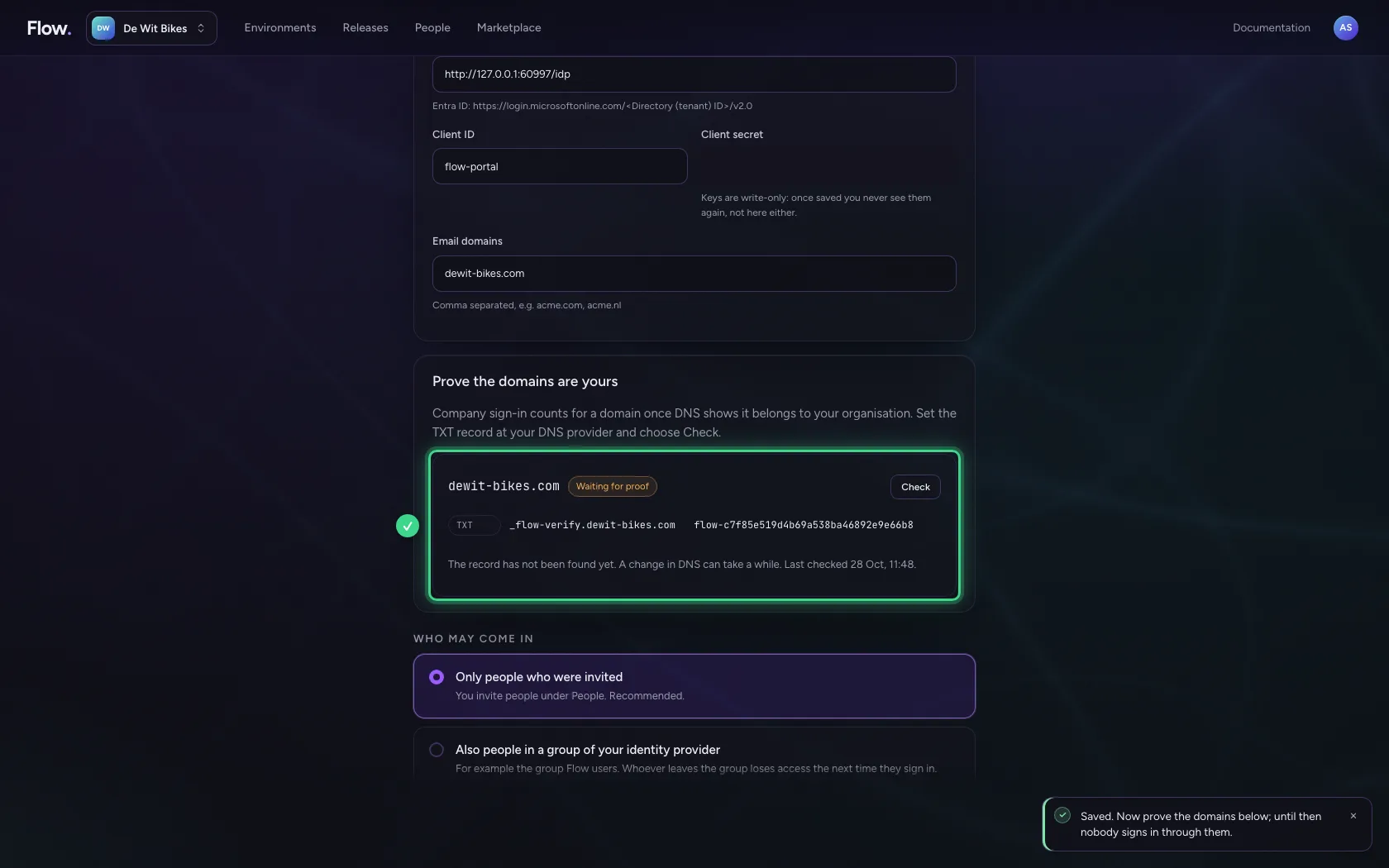
- Click Check
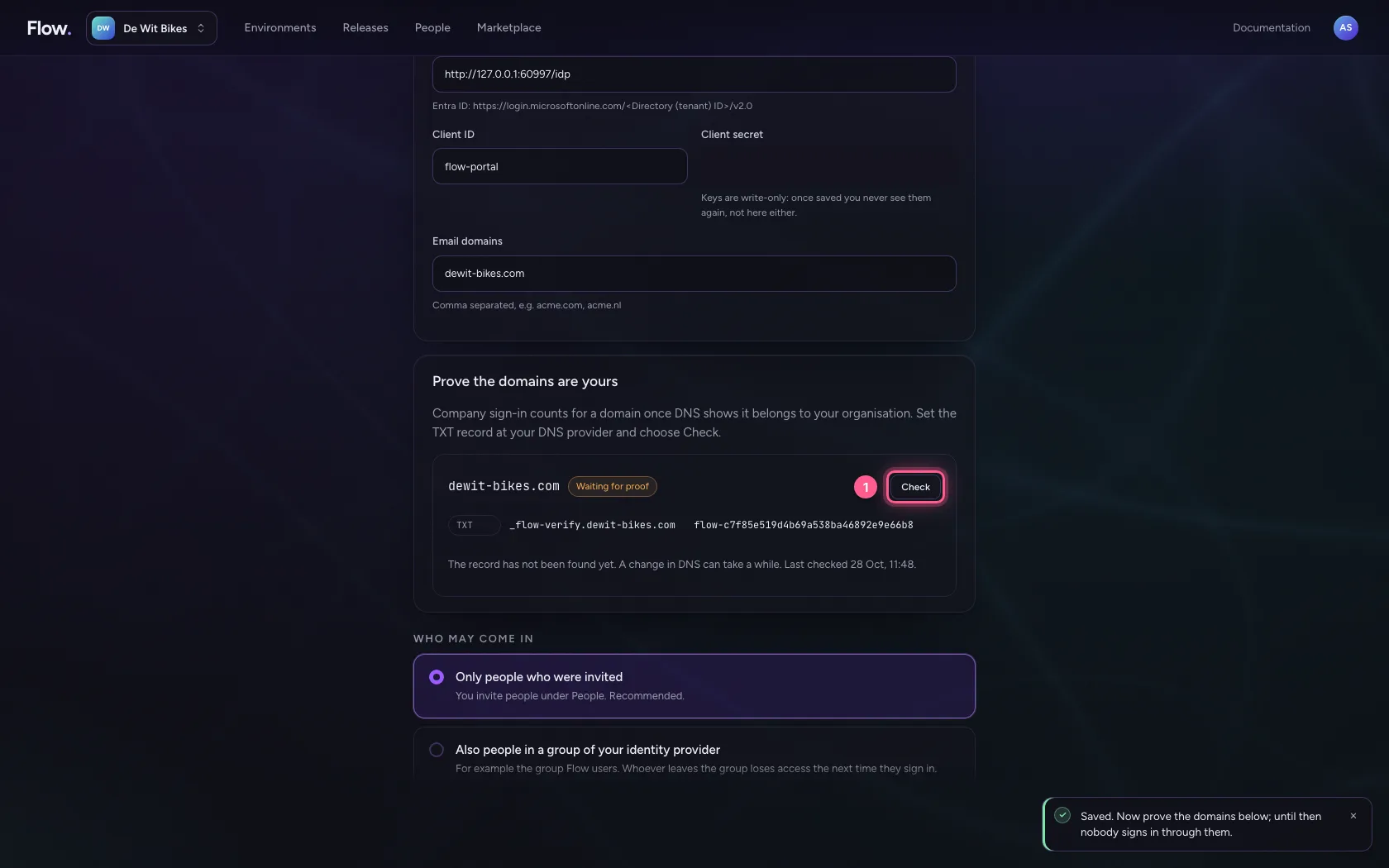
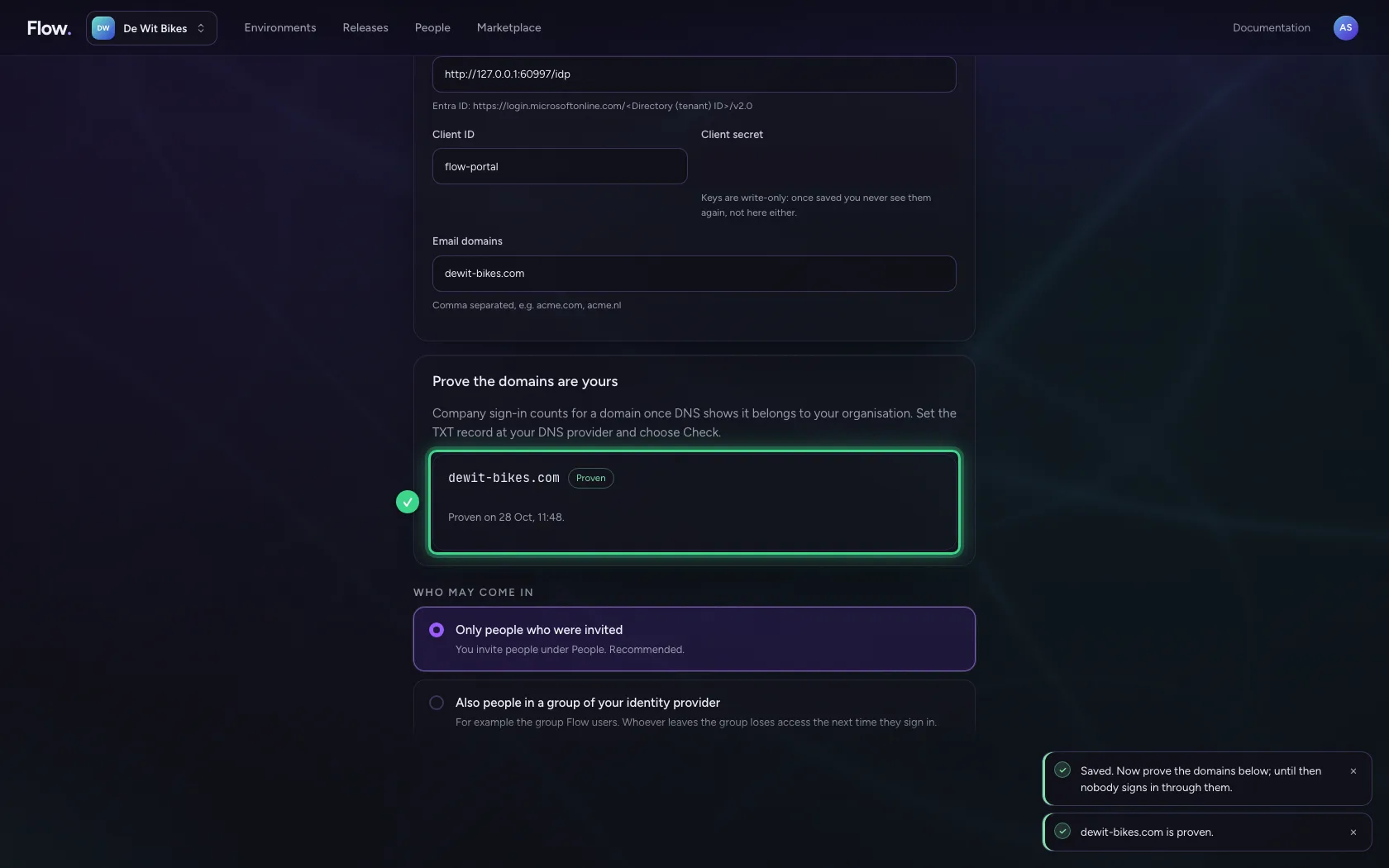
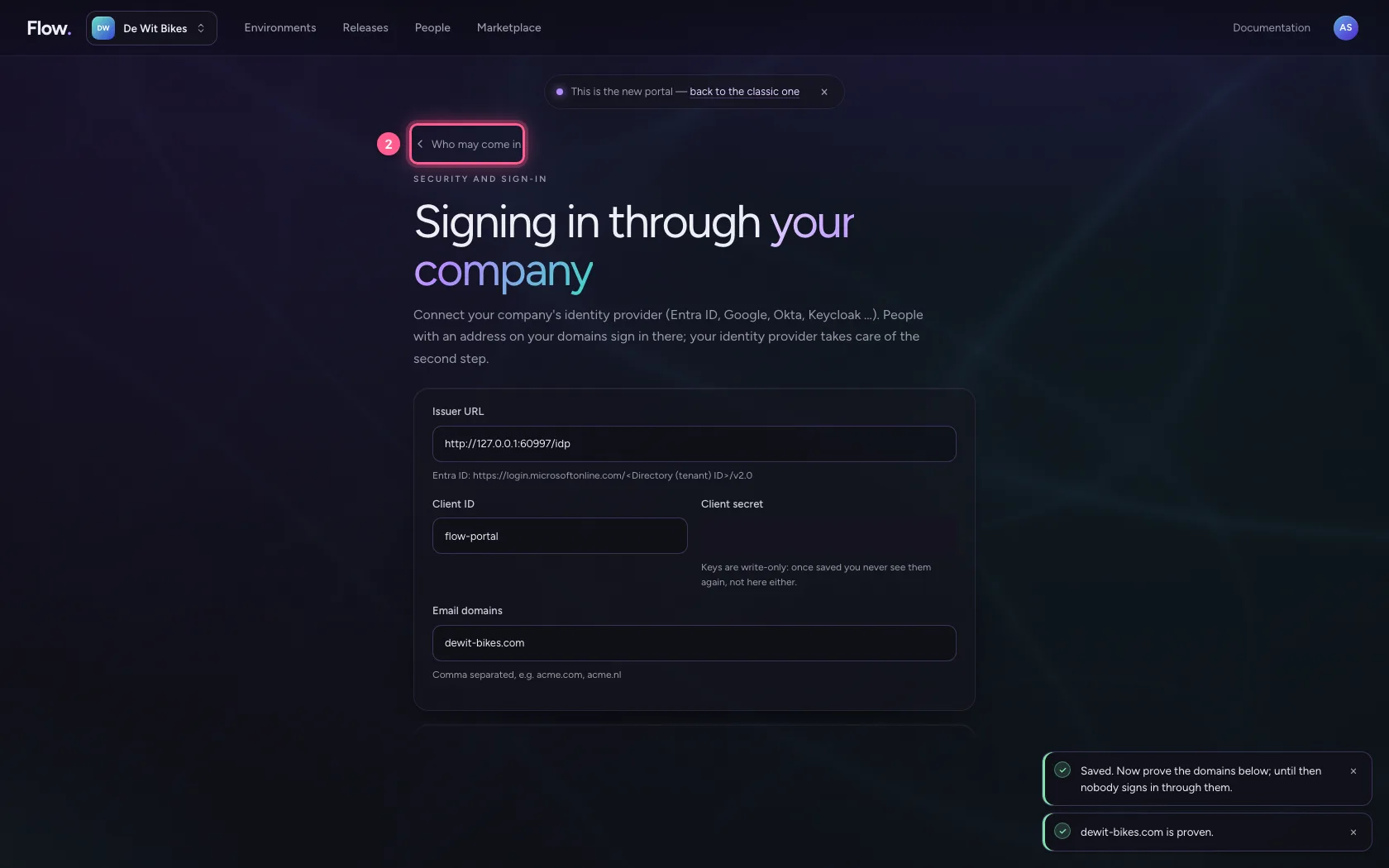
- Click Who may come in

Whoever was not invited does not get in
Piet works at your company and signs in at the provider just fine. But he was not invited: the portal does not let him in and says why. Nothing of him is kept.

This is how a colleague signs in
Anna was invited. She types her work email address on the sign-in screen. The portal recognises the domain and immediately offers to continue with your organisation's sign-in: no Flow password, no second code from Flow.
- In Email address, type
anna@dewit-bikes.com
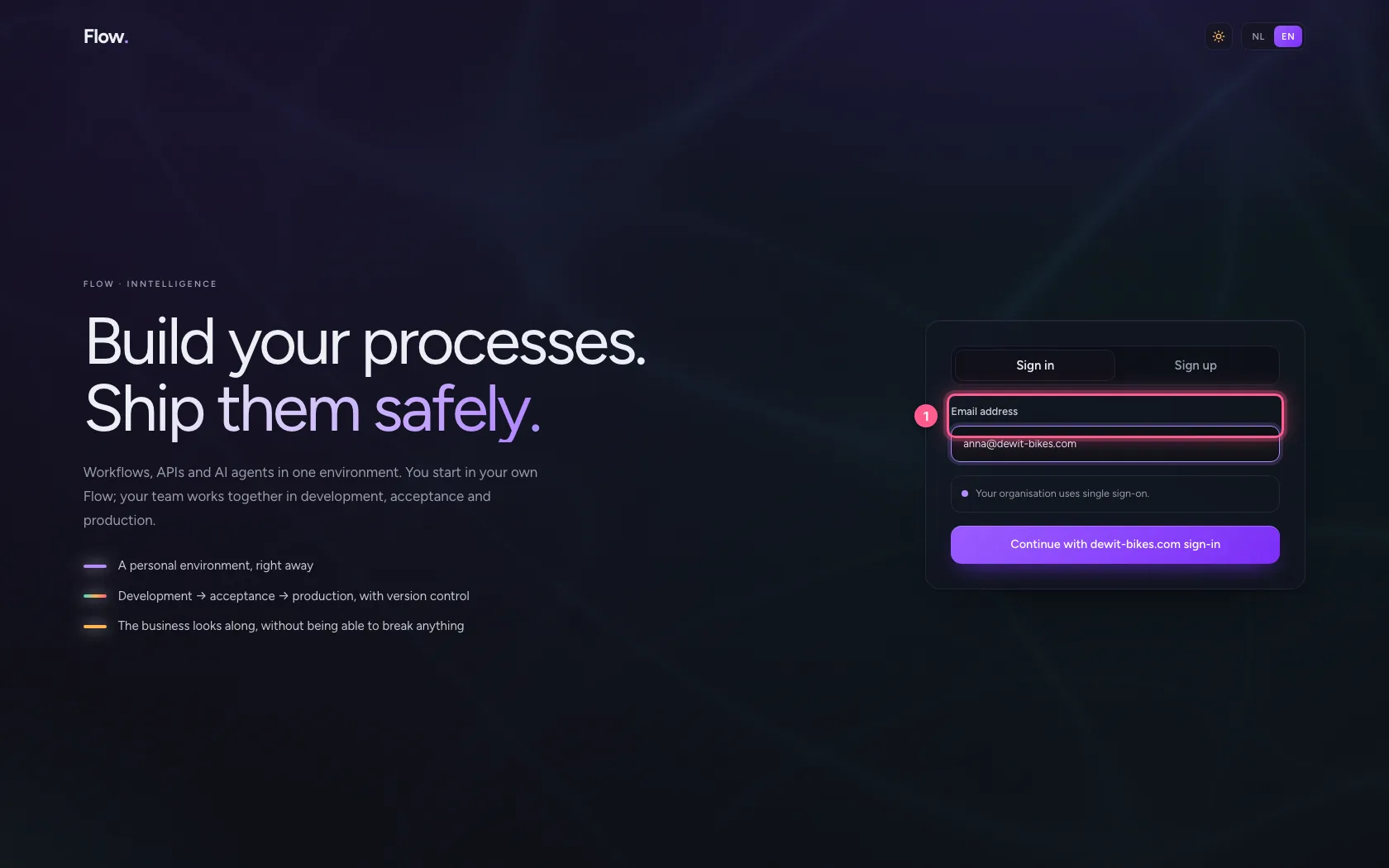

- Click Continue with dewit-bikes.com sign-in

Signing in at the provider
The colleague lands on your provider's sign-in page, with the email address already filled in, and signs in there as always: with the provider's password and two-step verification. Flow sees neither.

- In Name, type
Anna de Wit

- Click Sign in

Back in the portal, already a member
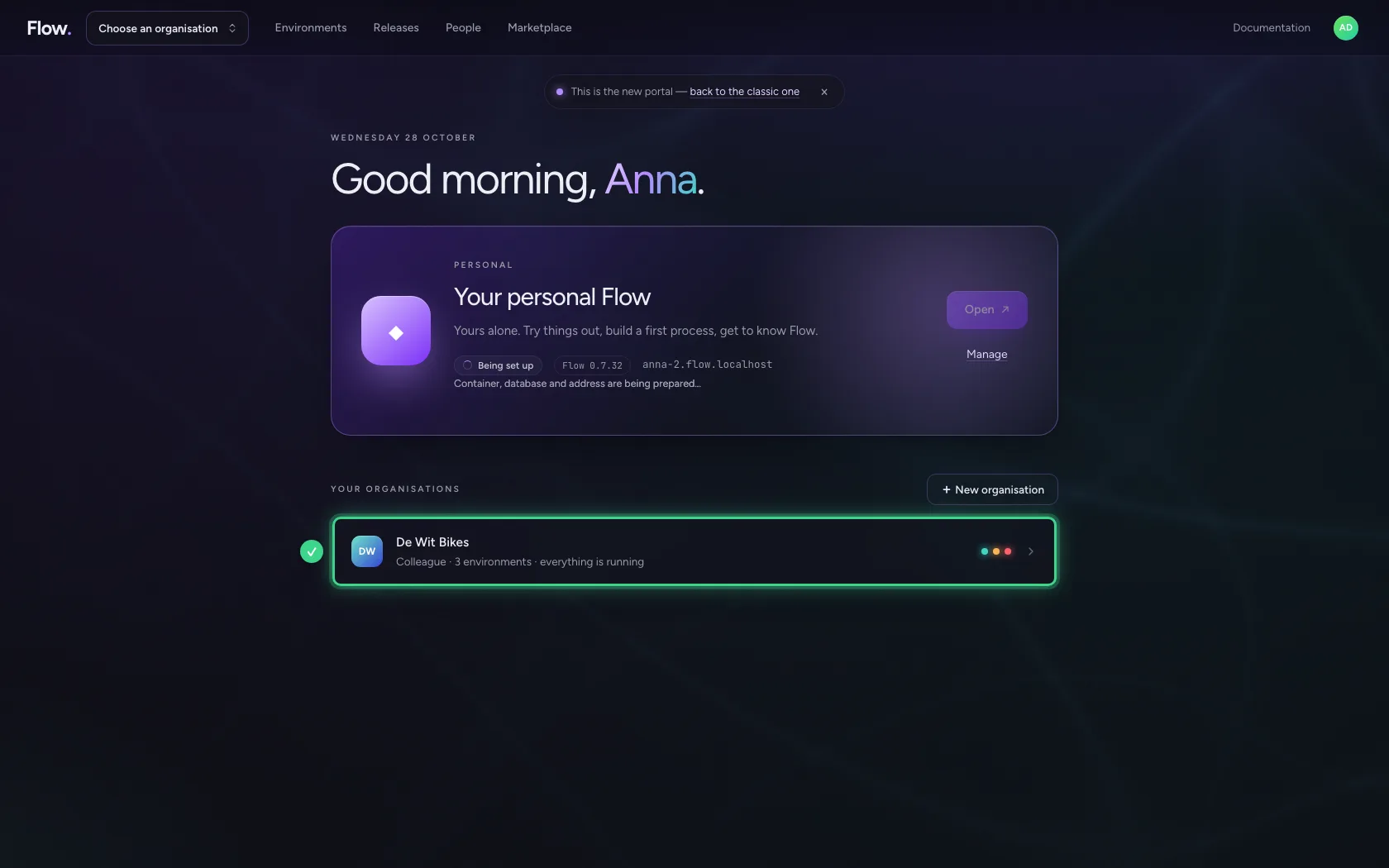
The provider sends Anna back to the portal, which checks the sign-in and uses her invitation: she gets an account and is a member of your organisation straight away, with the role from the invitation.
Also people in a group
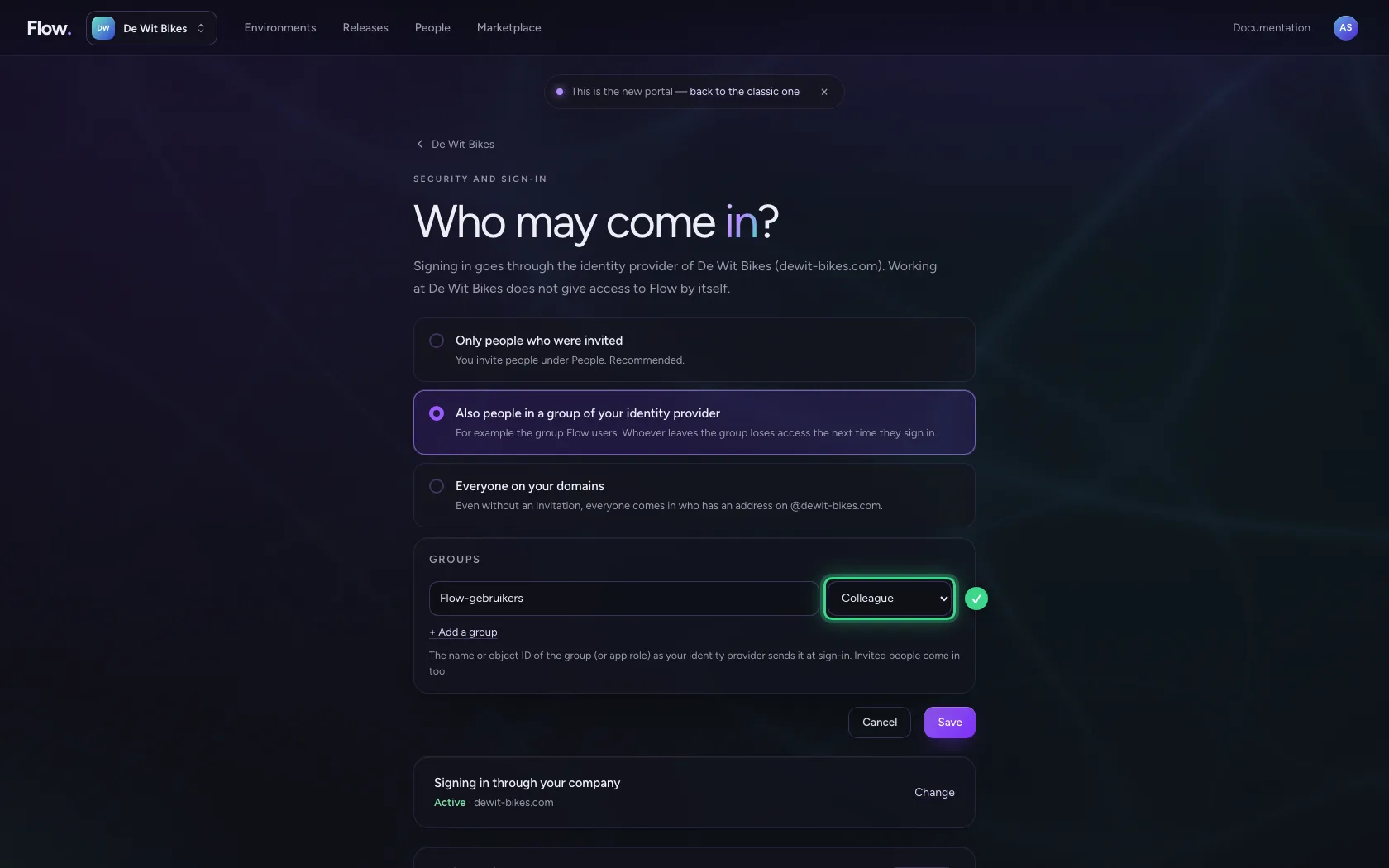
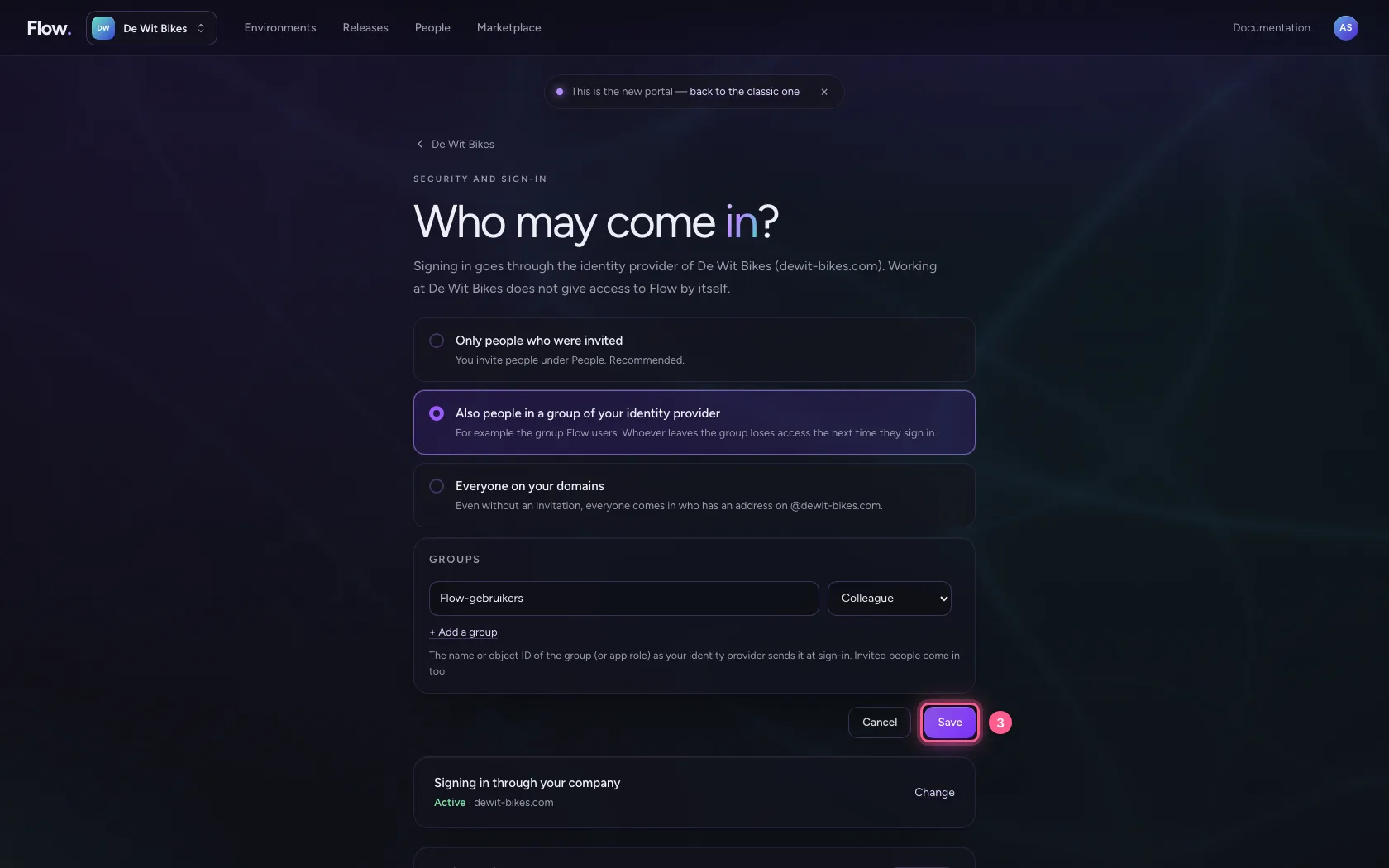
Inviting everyone separately is a lot of work when a whole department uses Flow. Then choose, under Security and sign-in, ‘Also people in a group of your identity provider’ and name the group (the name or object ID from Entra ID, or an app role), with the role the group gives. Invited people still come in; the rest of the company does not.
- Click Also people in a group of your identity provider For example the group Flow user
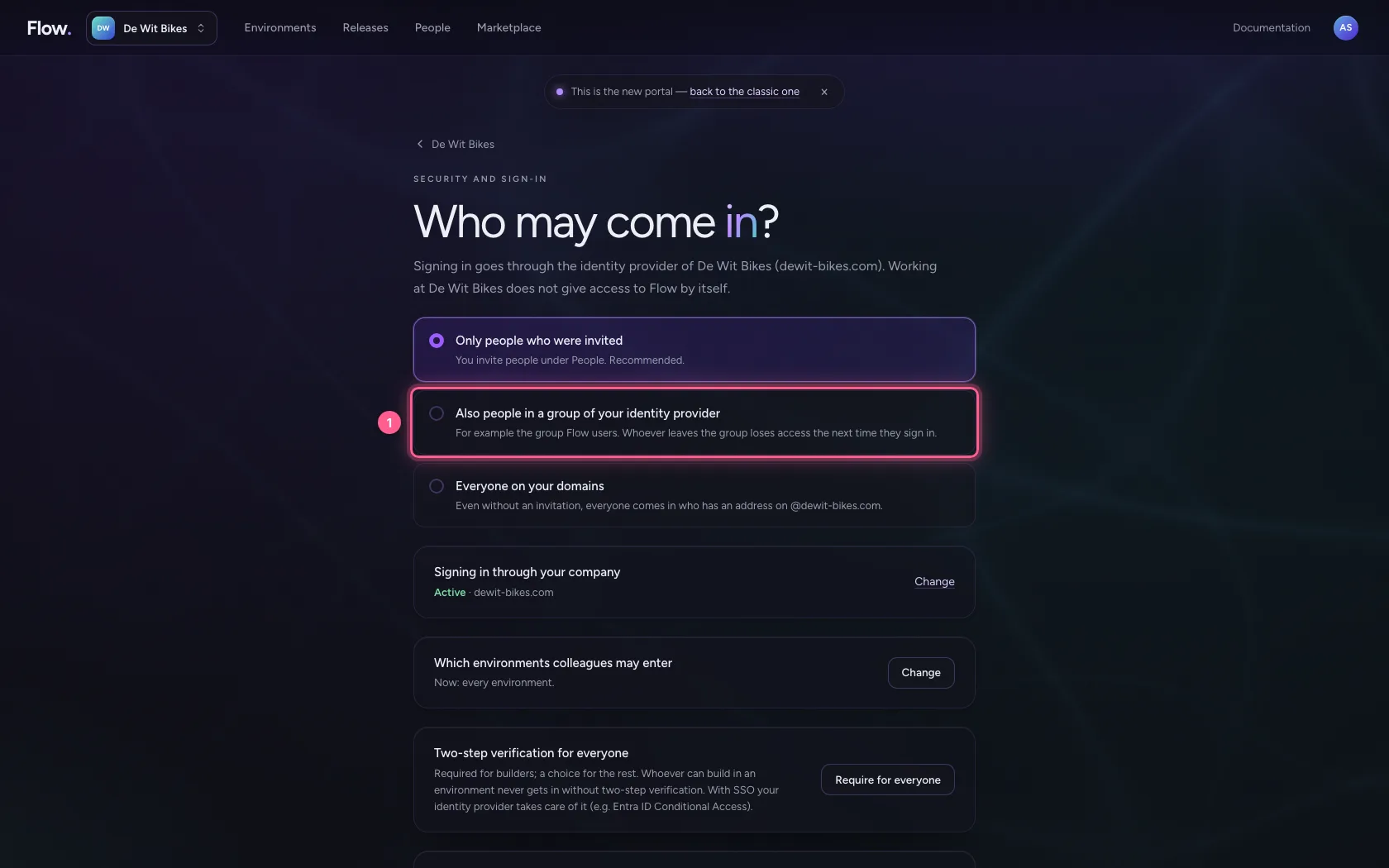
- In Name or ID of group 1, type
Flow-gebruikers
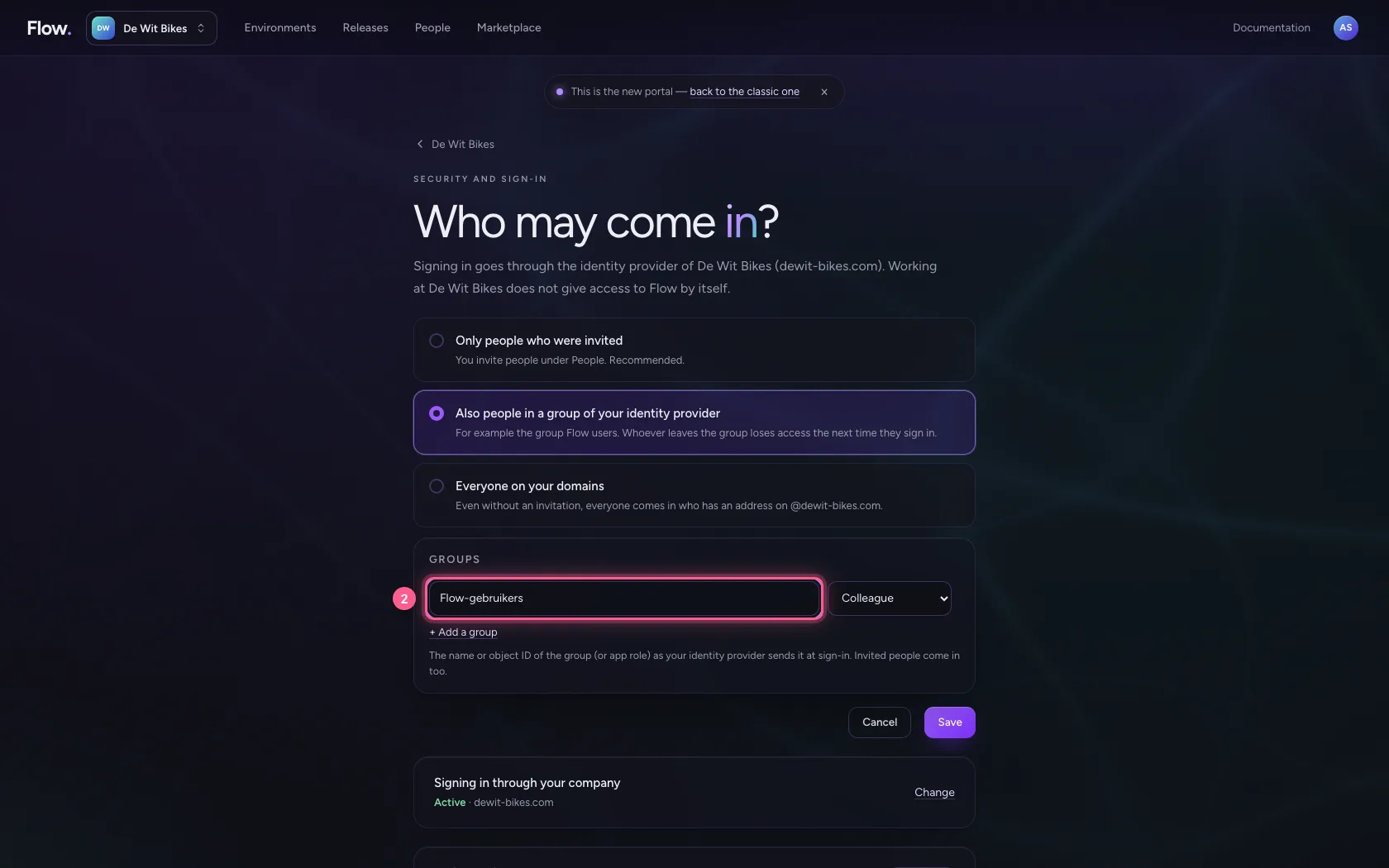
- Click Save
A colleague from the group comes in
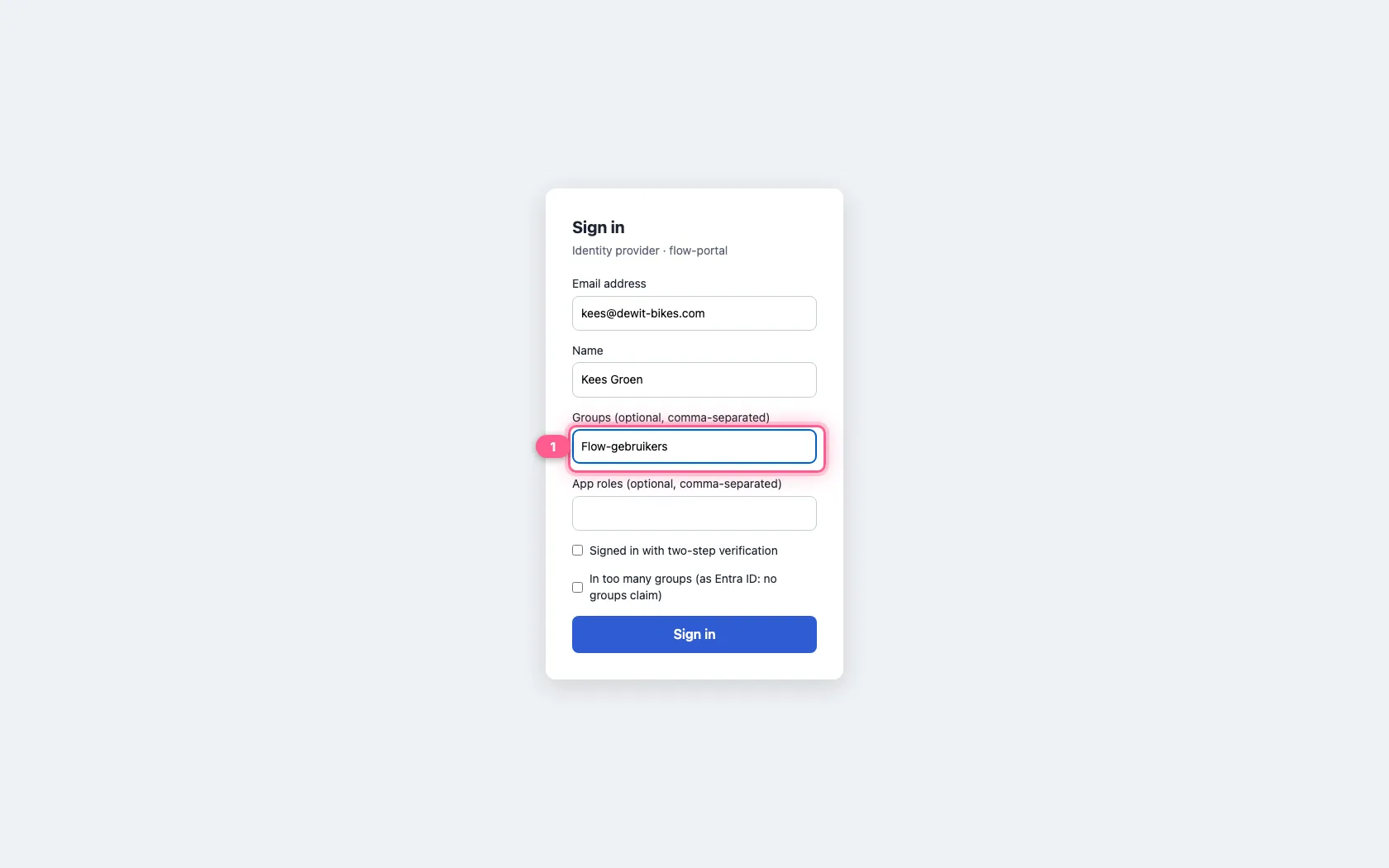
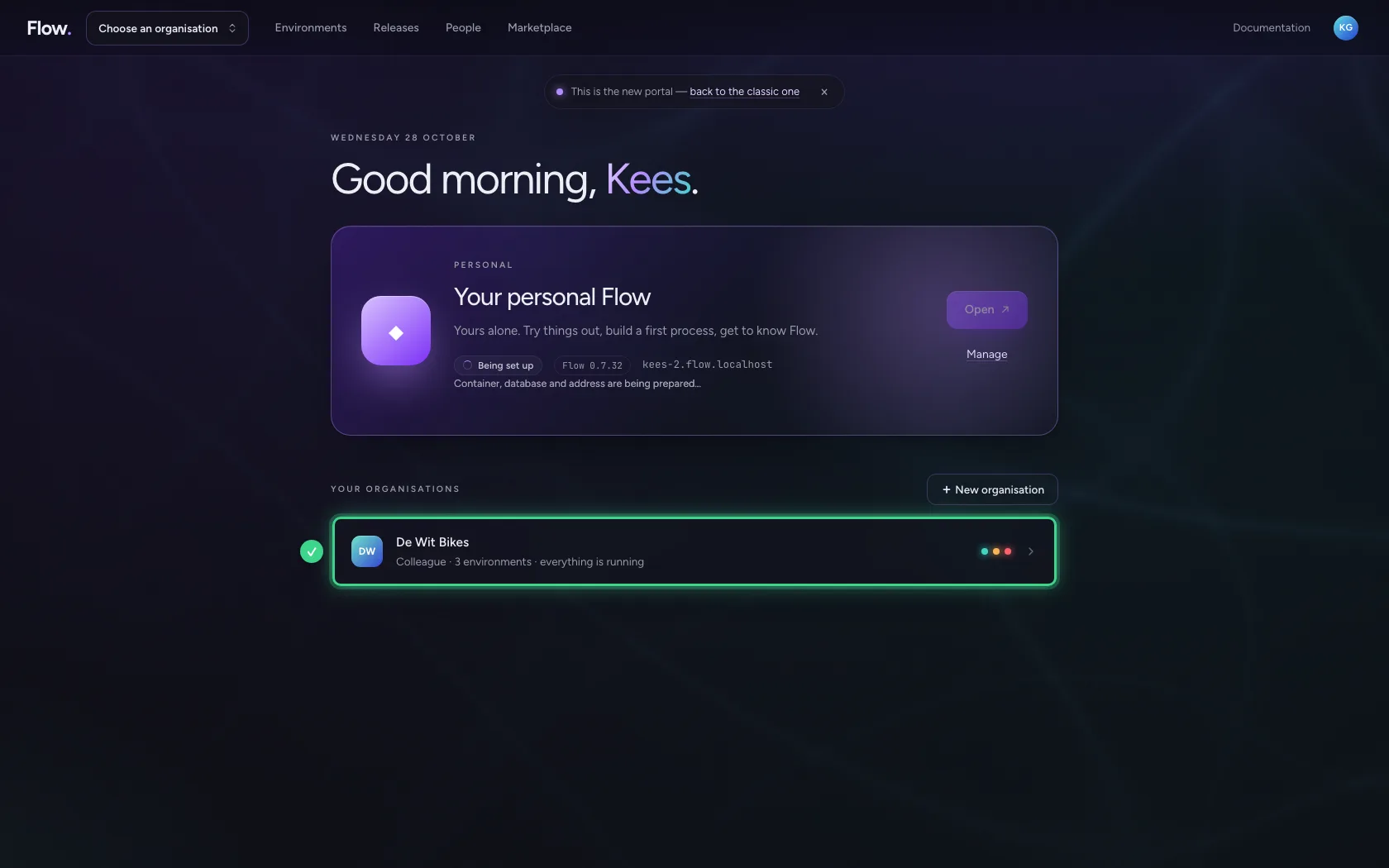
Kees was not invited, but is in the group Flow-gebruikers. He signs in at the provider and is a member straight away, with the group's role. If he leaves the group, he loses access at his next sign-in; if you remove the group here, at once.
- In Groups (optional, comma-separated), type
Flow-gebruikers
- Click Sign in

This guide was carried out step by step on 28 Oct 2026 by an automated test on Flow (version 96971699).