An AI Colleague with knowledge and tools
- Step 1 · Open your development environment
- Step 2 · Switch the chat on
- Step 3 · Create a knowledge base
- Step 4 · Add the course material
- Step 5 · Create the table of students
- Step 6 · Name the table and import
- Step 7 · Workflow 1: look up a student
- Step 8 · Look up the row in the table
- Step 9 · Workflow 2: add a student
- Step 10 · Create the AI Colleague
- Step 11 · Give it a brain and instructions
- Step 12 · Give it knowledge and tools
- Step 13 · Try it with a course question
- Step 14 · Try a change: it is simulated
- Step 15 · Publish
- Step 16 · Ask a question about the course
- Step 17 · Have it look up a student
- Step 18 · Have it enrol a student
- Step 19 · Look in the table
An AI Colleague is only really a colleague when it knows what you know and can do things for you. Knowing comes from a knowledge base: Flow cuts your documents into pieces and, for every question, looks up the pieces that are about it. It hands those to the AI model, so the answer comes from your own text, with the source alongside. That is called RAG: look it up first, then answer. Doing comes from workflows the AI Colleague may start as tools. You build a course guide for a Flow course: it answers questions from the course material, looks up a student and enrols a new one. You try it, publish it and talk to it in the chat.
Open your development environment
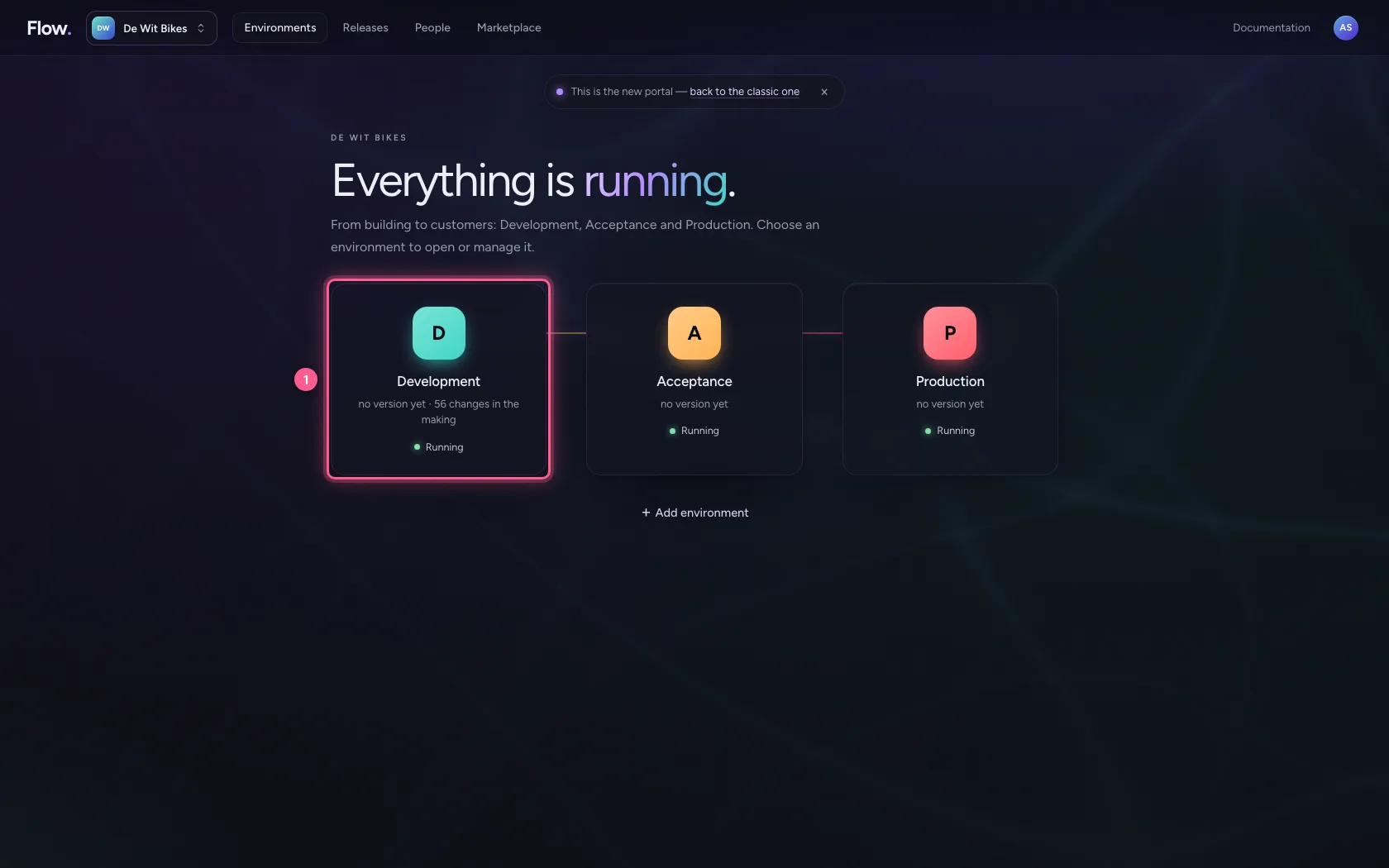
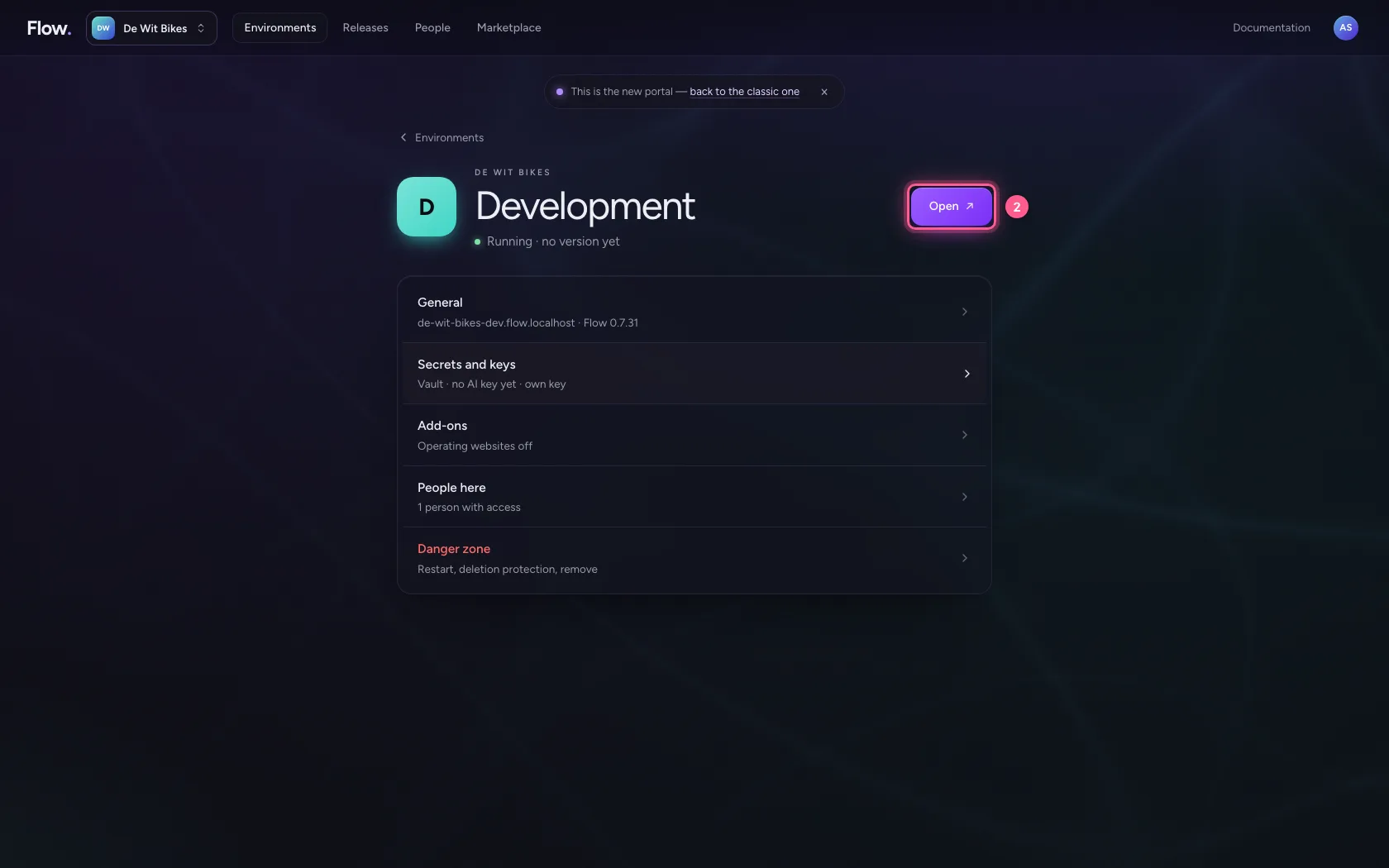
In the portal, under Environments, click Development, and there Open. Flow opens in a new tab. You build everything here first, in development; colleagues only notice once you publish.
- Click Development
- Click Open ↗
Switch the chat on
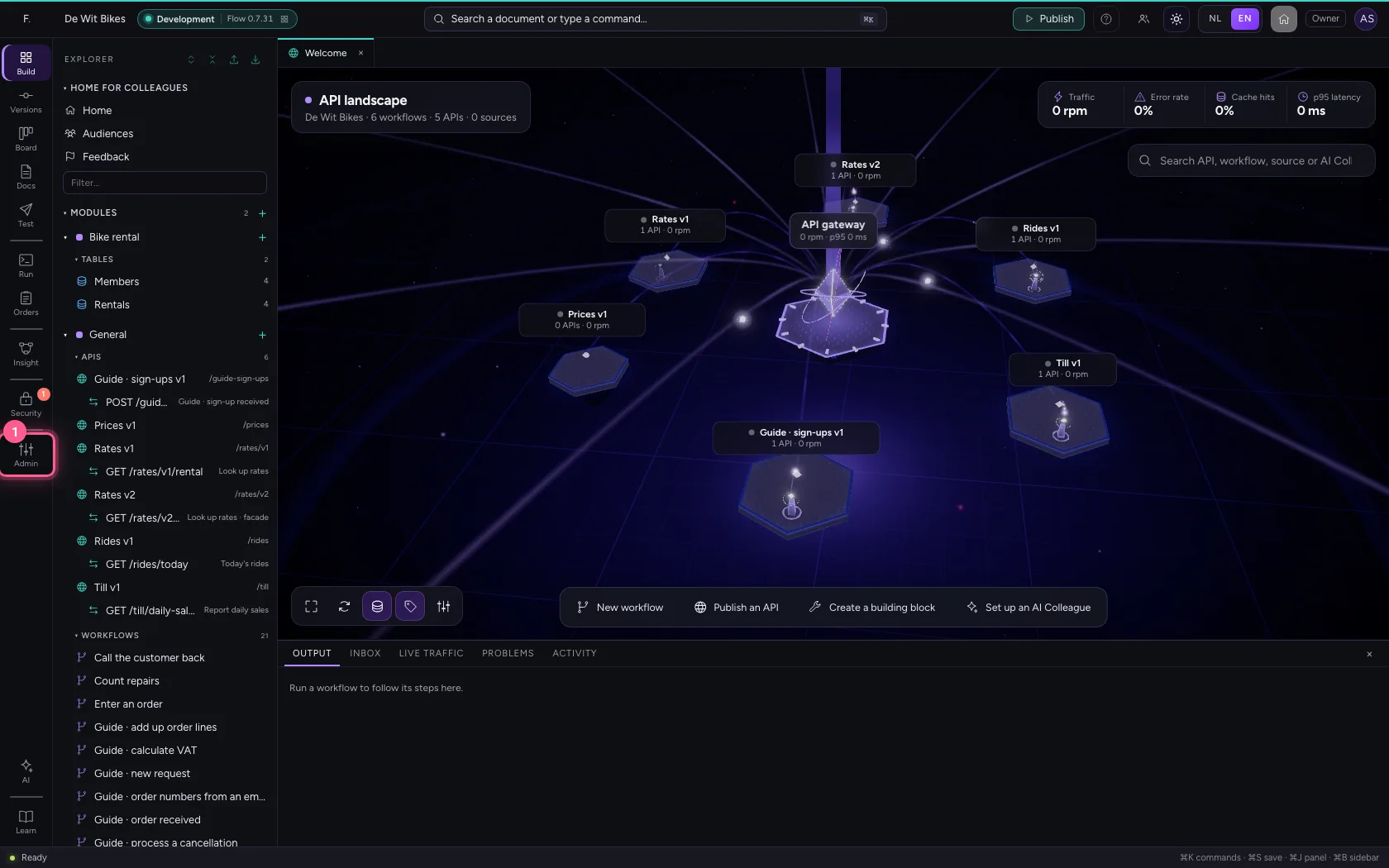
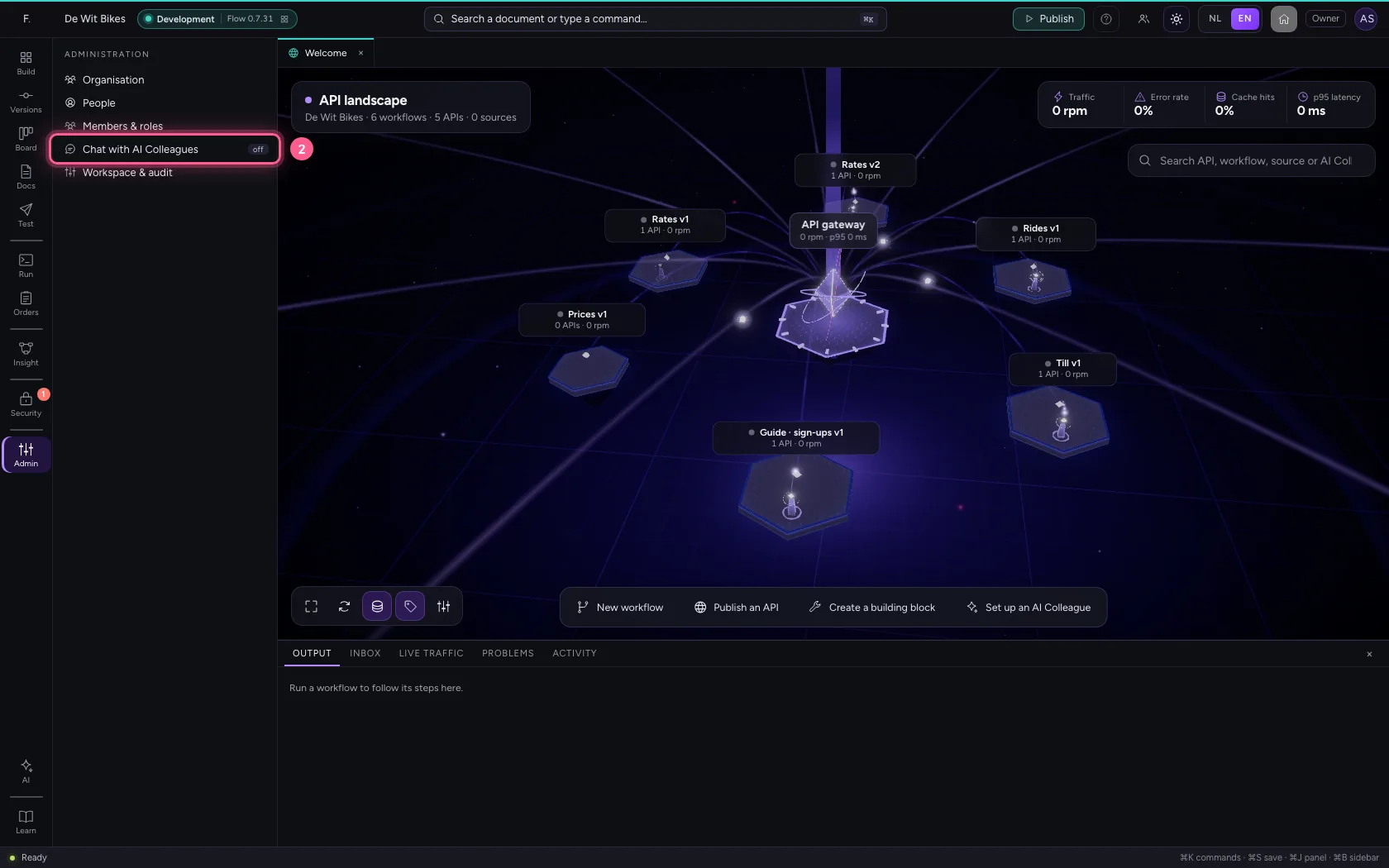
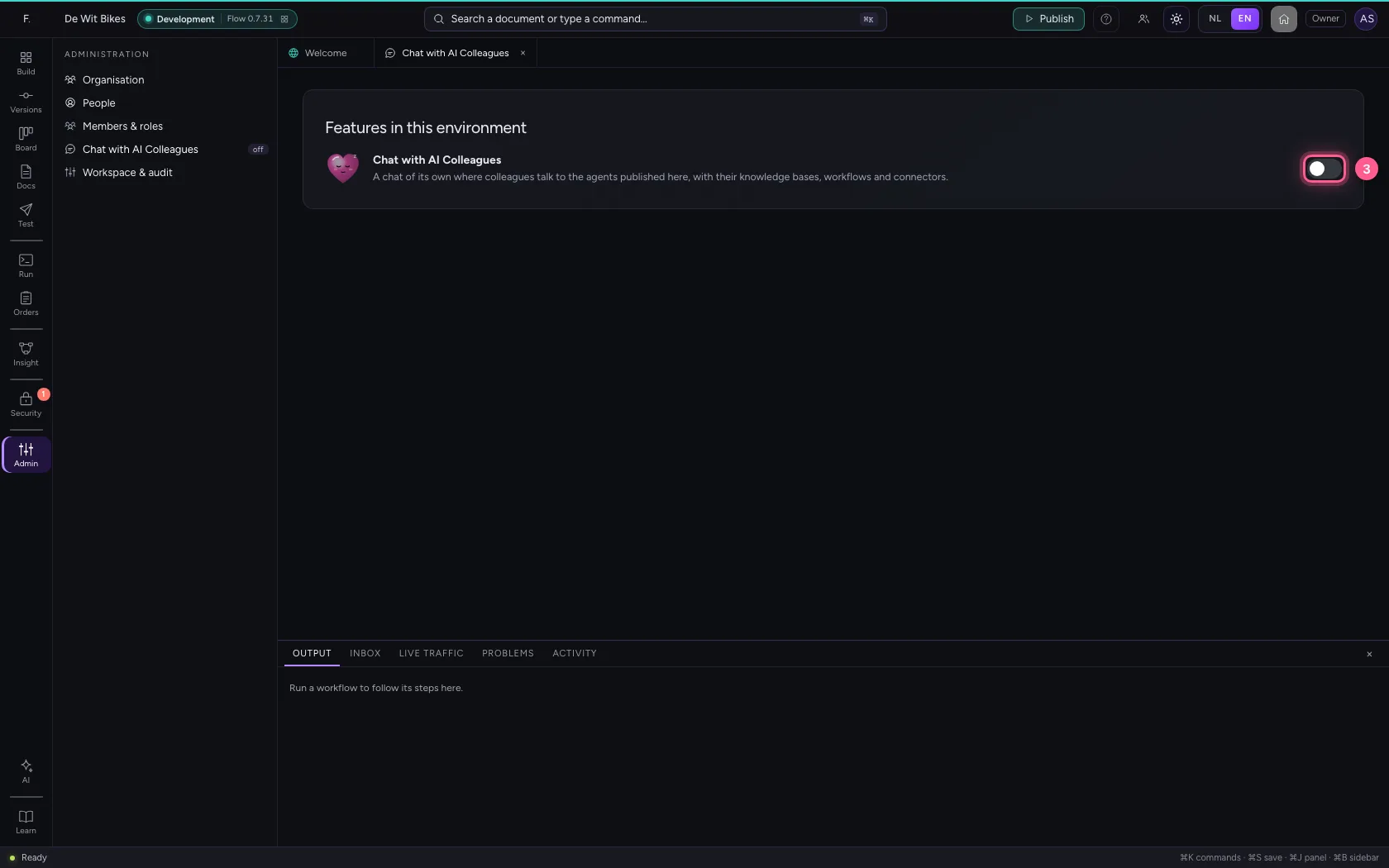
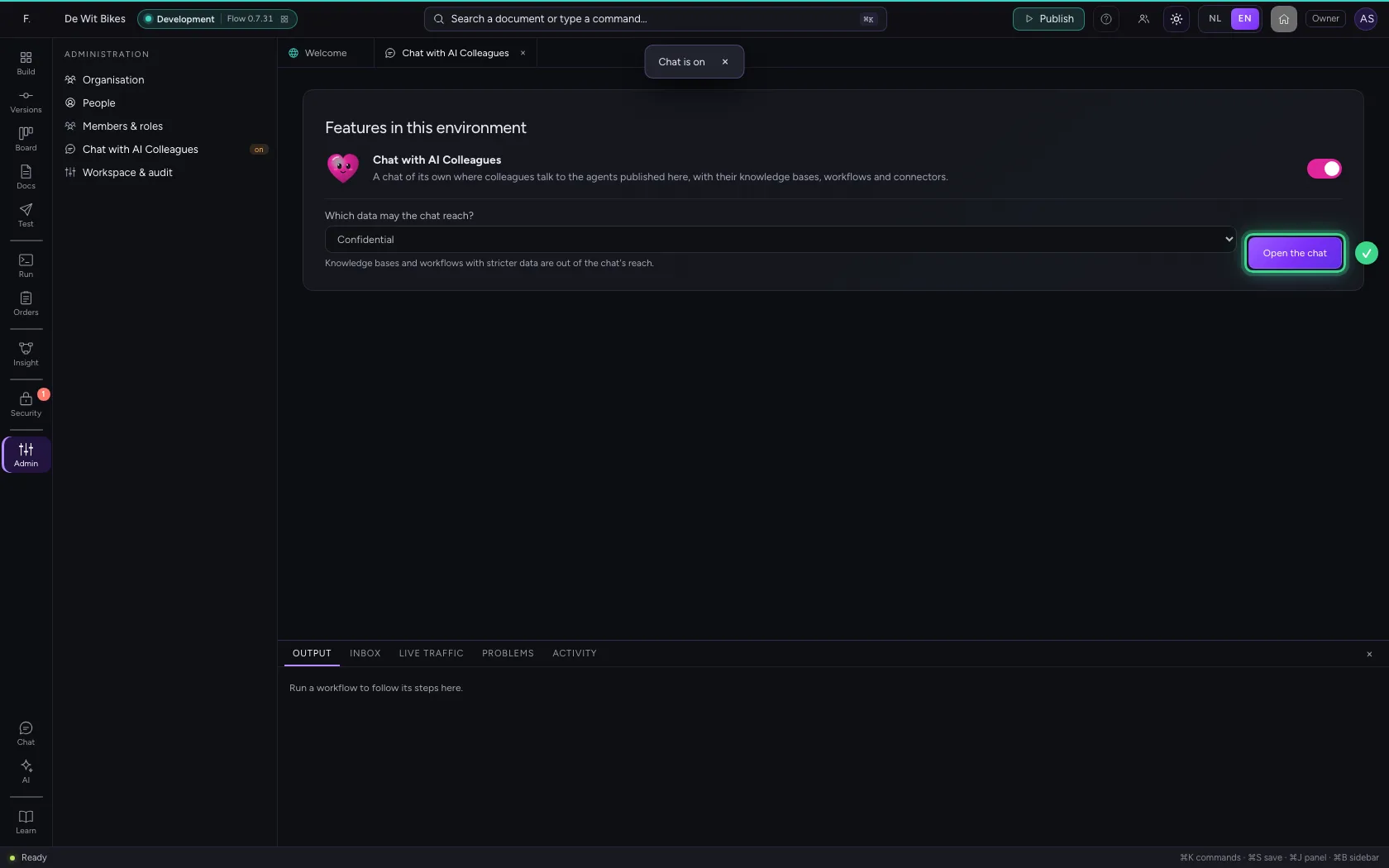
The chat is where colleagues talk to your AI Colleagues. It is off in every environment until an administrator switches it on: open Administration in the bar on the left, choose Chat with AI Colleagues and switch it on. Below it you decide which data the chat may reach.
- Click Administration
- Click Chat with AI Colleagues
- Click the switch
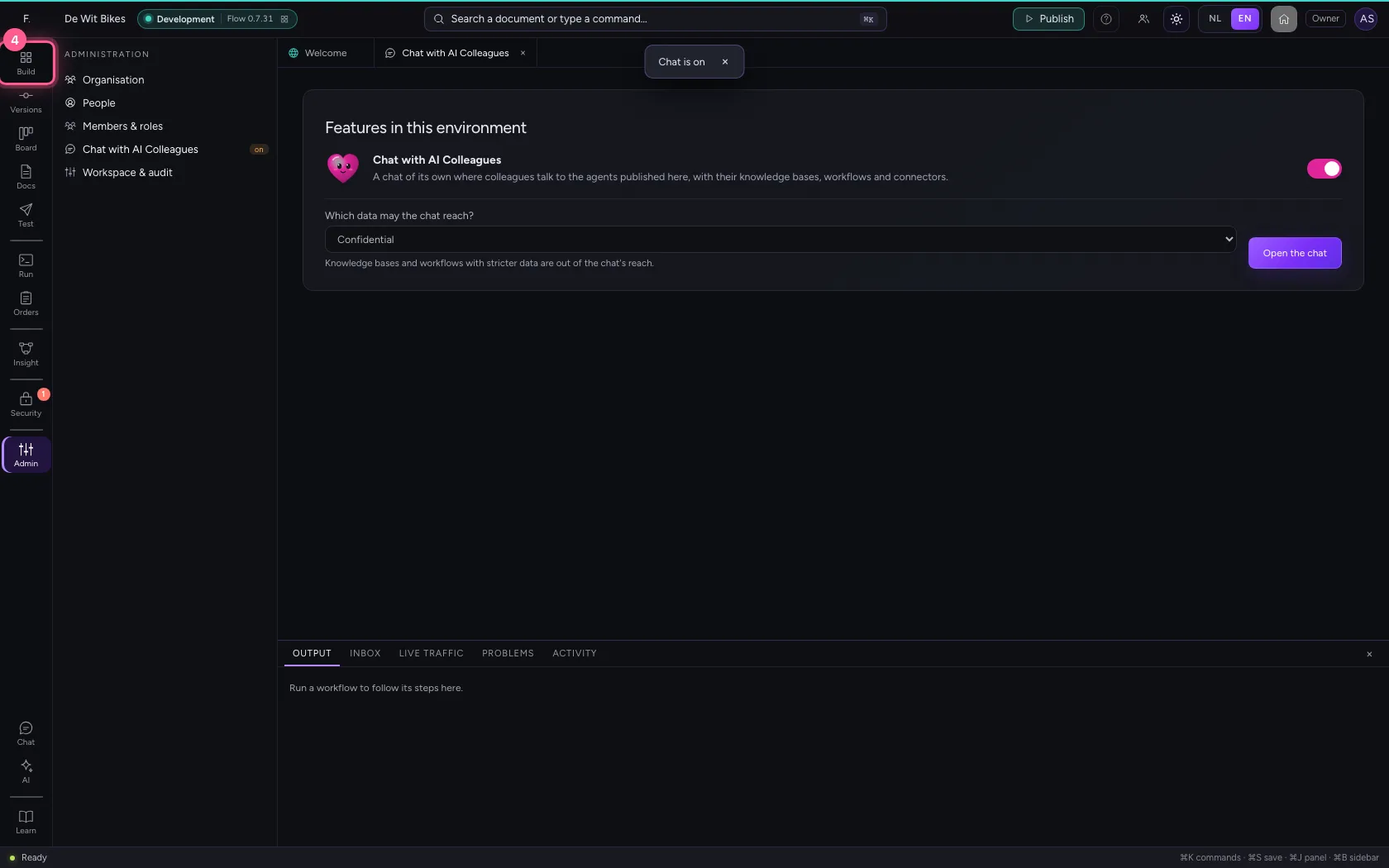
- Click Explorer
Create a knowledge base
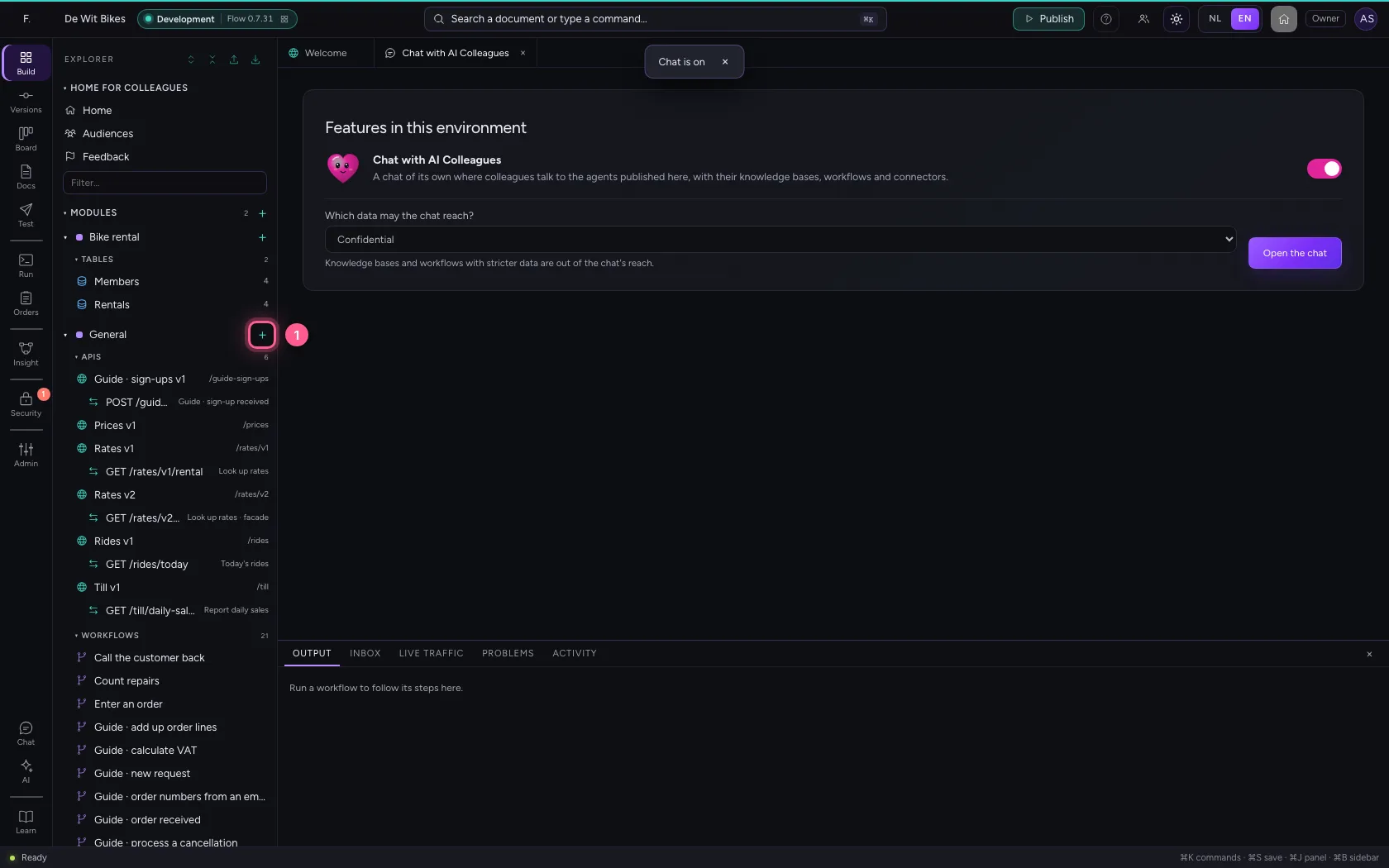
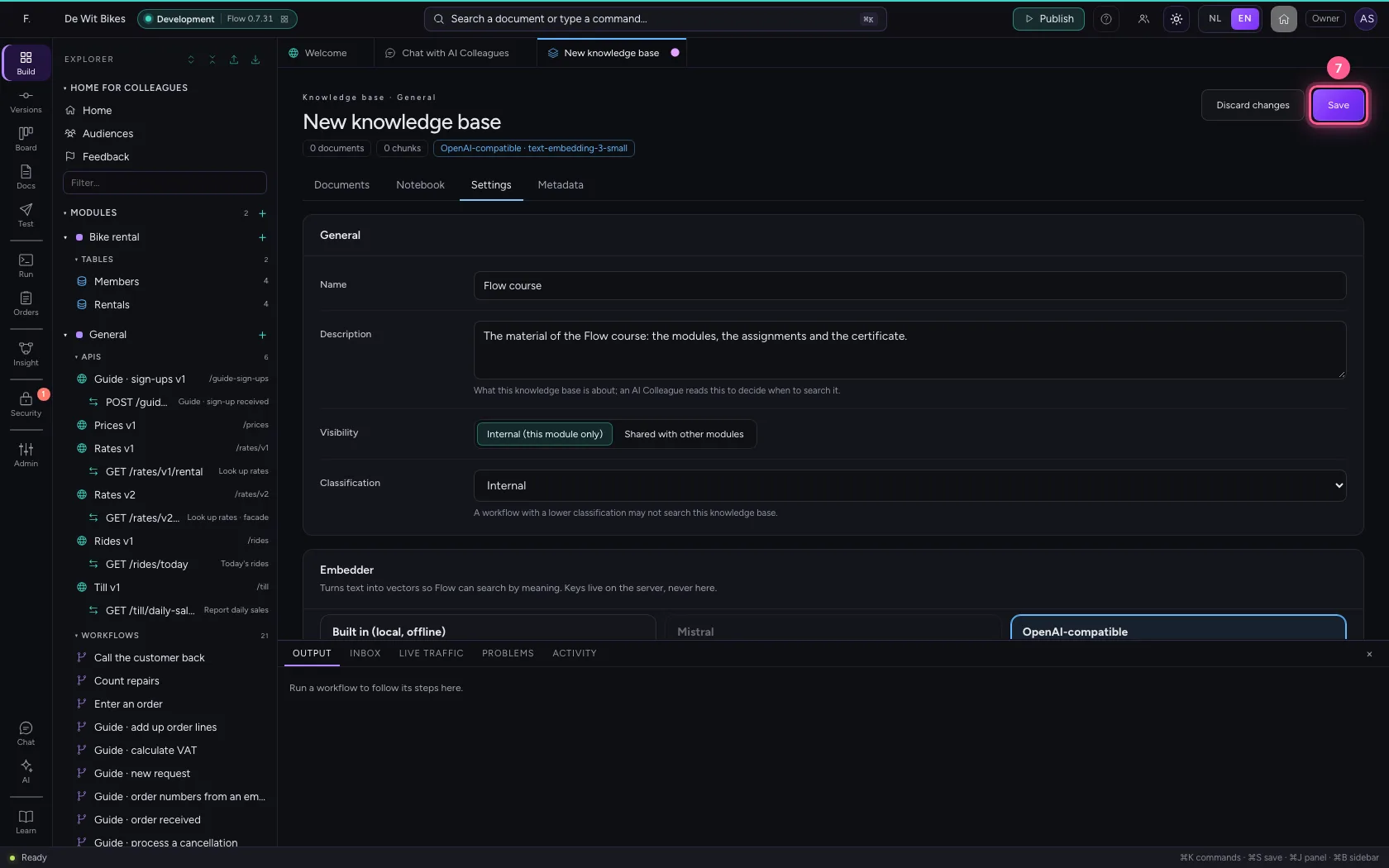
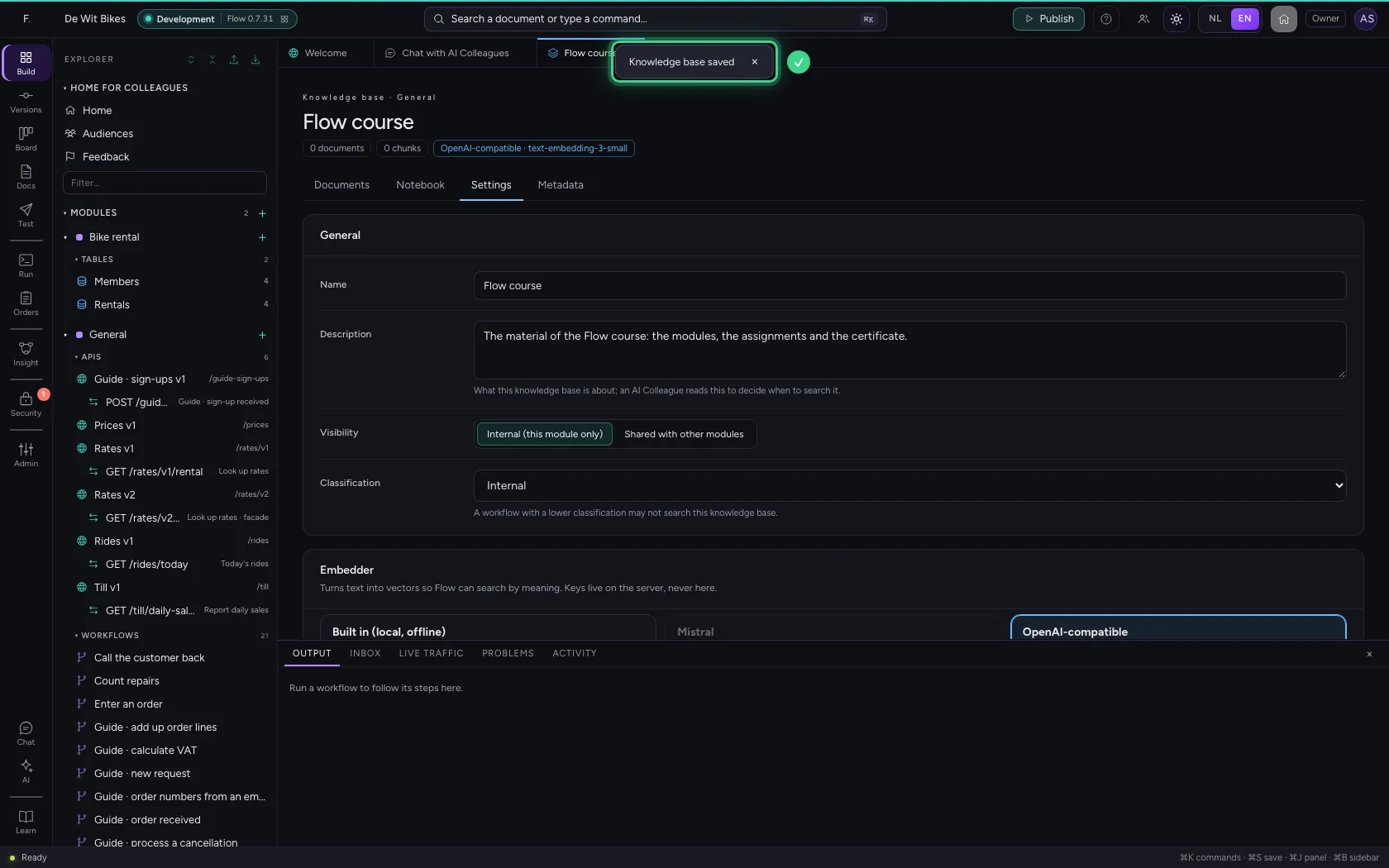
A knowledge base is what the AI Colleague knows. Click + next to General and choose New knowledge base. Under Settings you give it a name and a description; the AI Colleague reads that description to decide when to search it. Under Embedder you choose what Flow turns text into vectors with: an embedding model searches by meaning, Built in works without internet and finds shared words and parts of words; Flow already picks the best one your environment has. Under Cutting into chunks you choose By heading: every chapter of the course material becomes one piece, so a search finds exactly the right chapter.
- Click Add to General
- Click New knowledge base
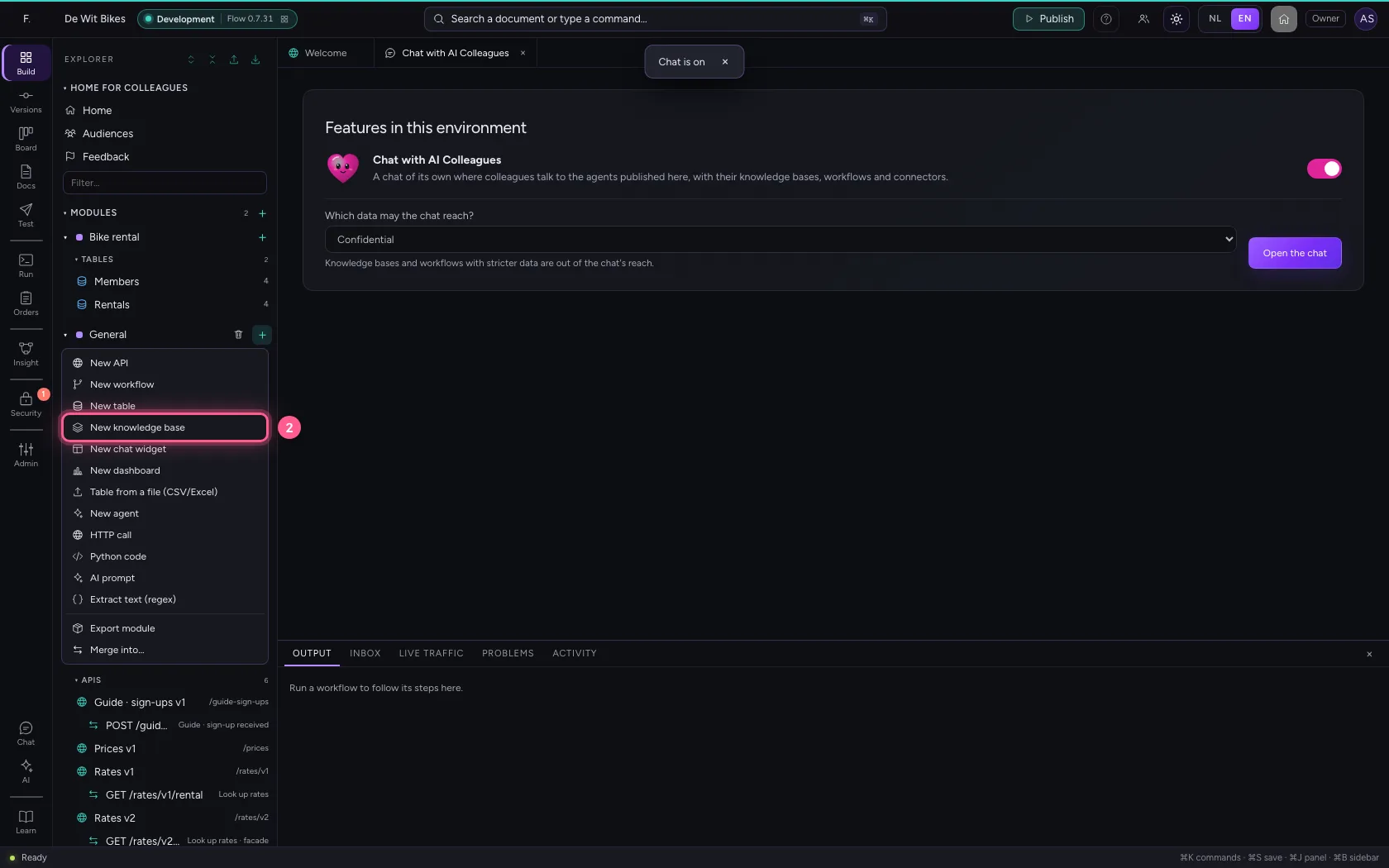
- Click Settings
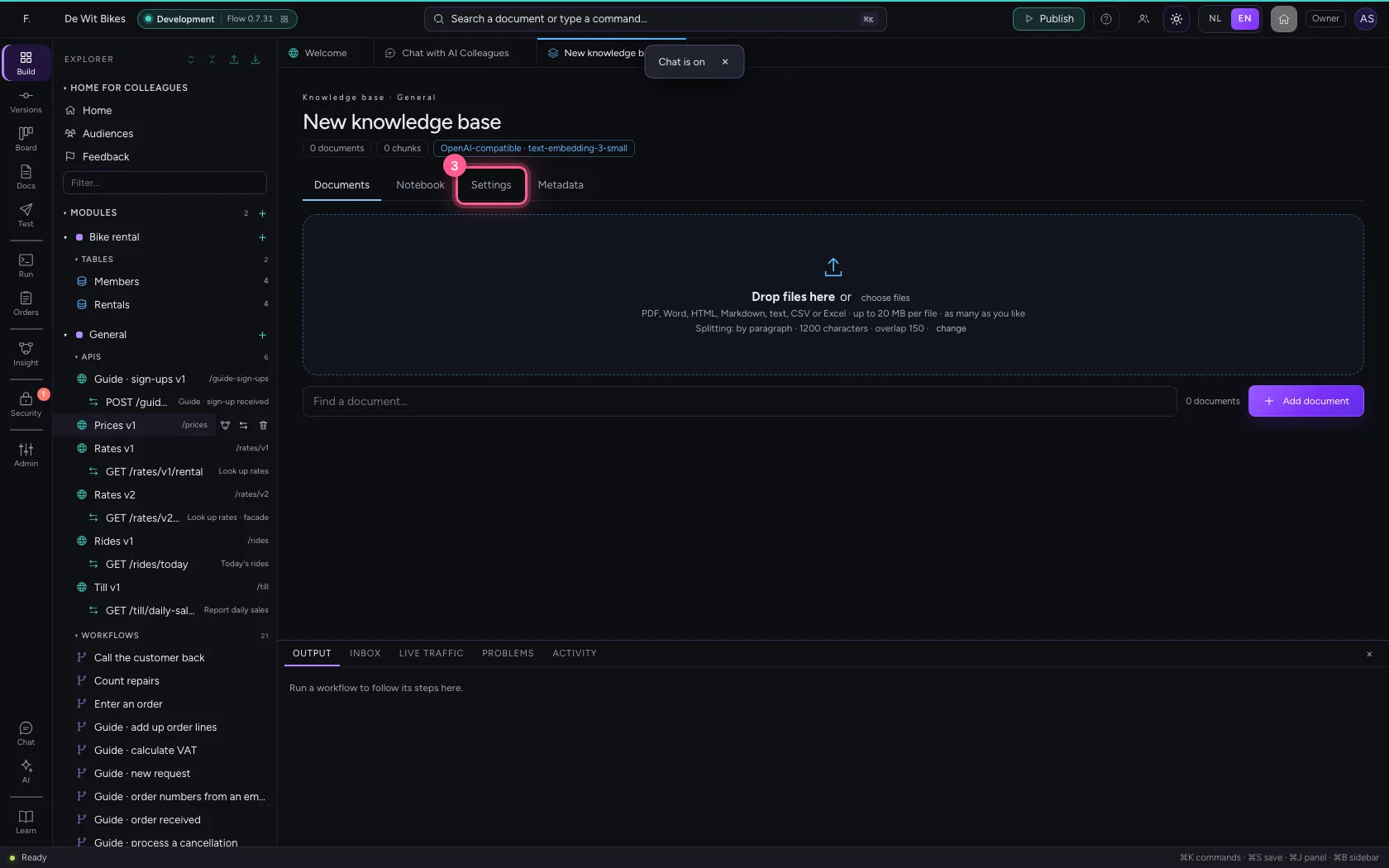
- In Name, type
Flow course - In Description, type
The material of the Flow course: the modules, the assignments and the certificate.
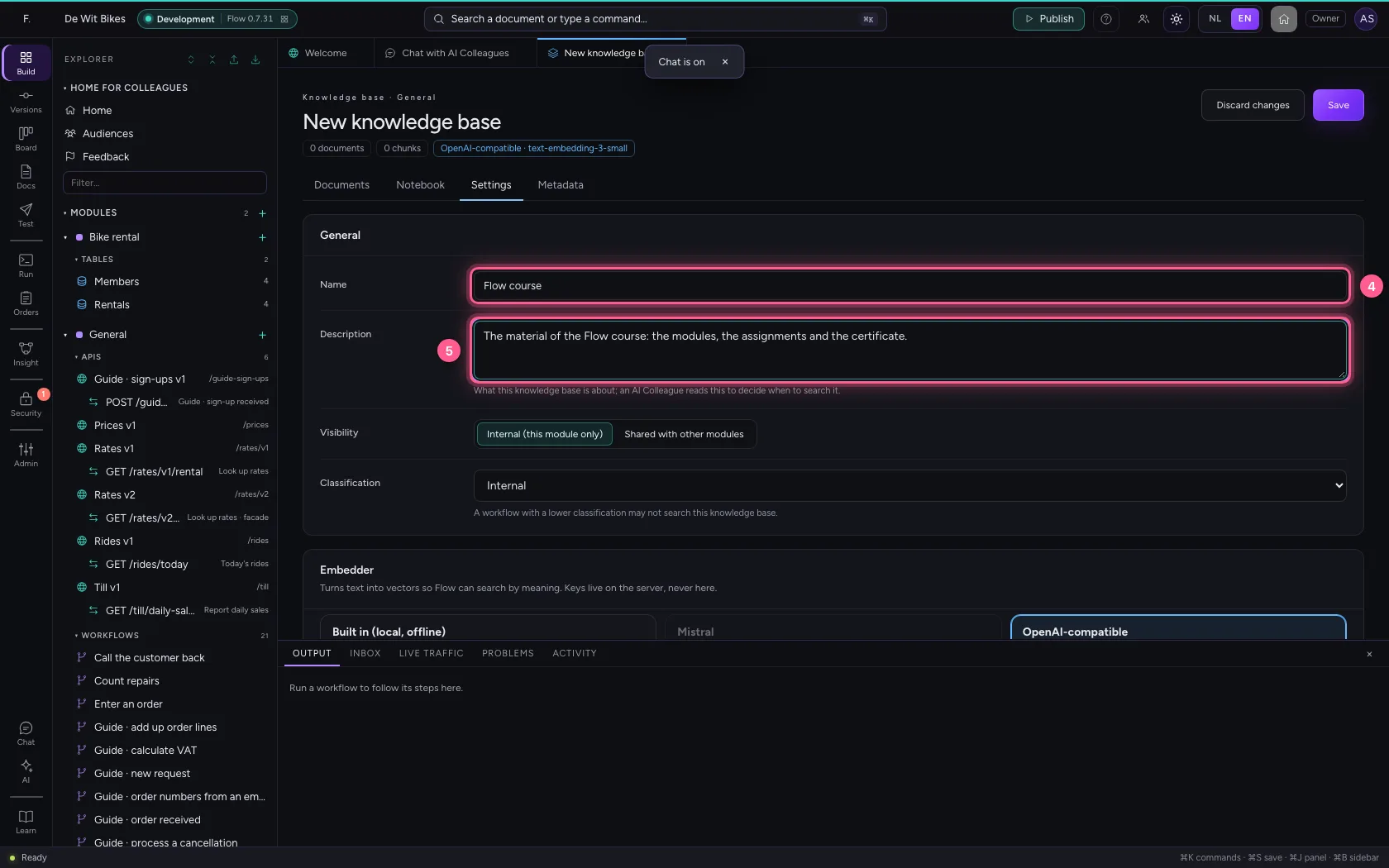
- Click By heading
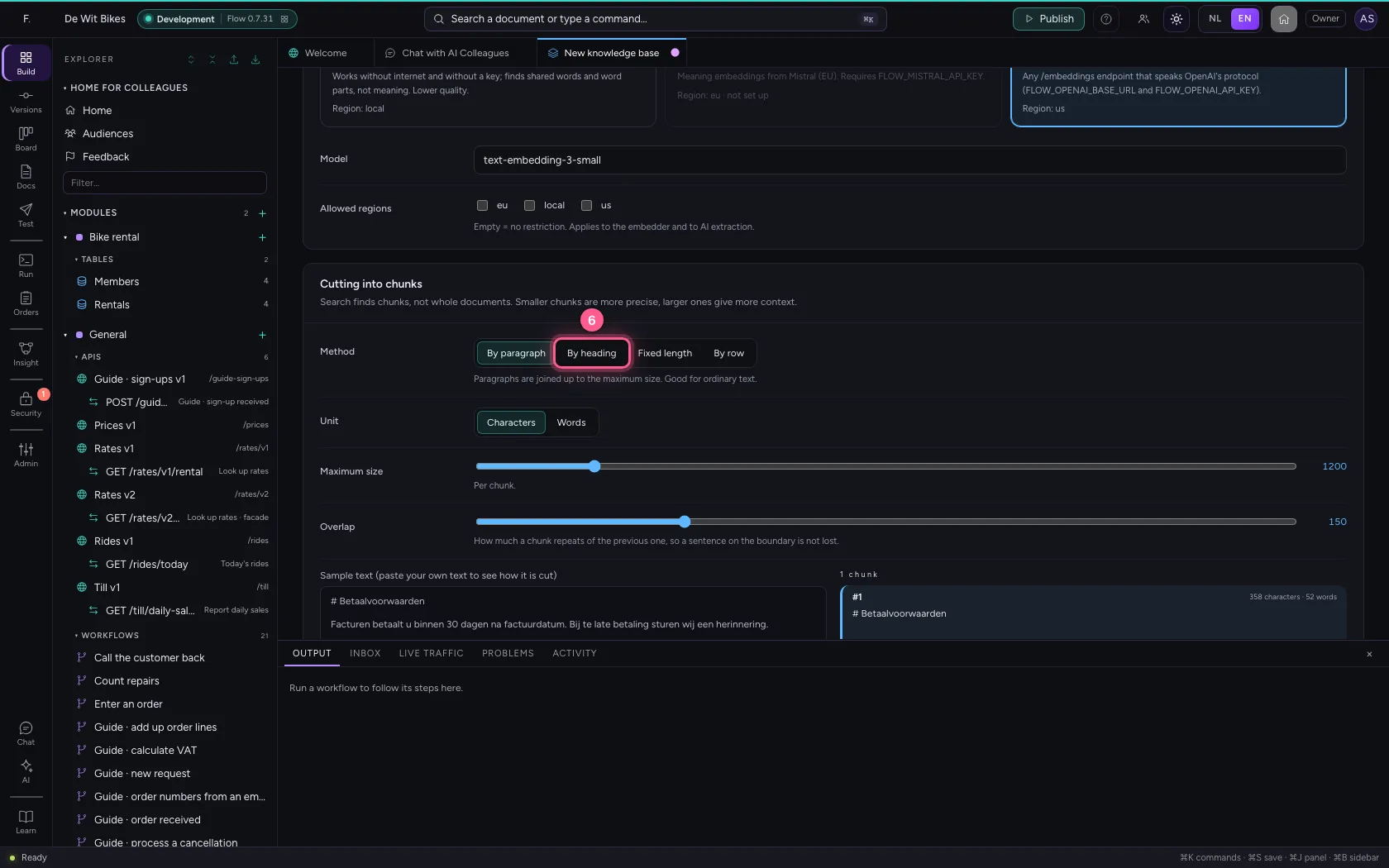
- Click Save
Add the course material
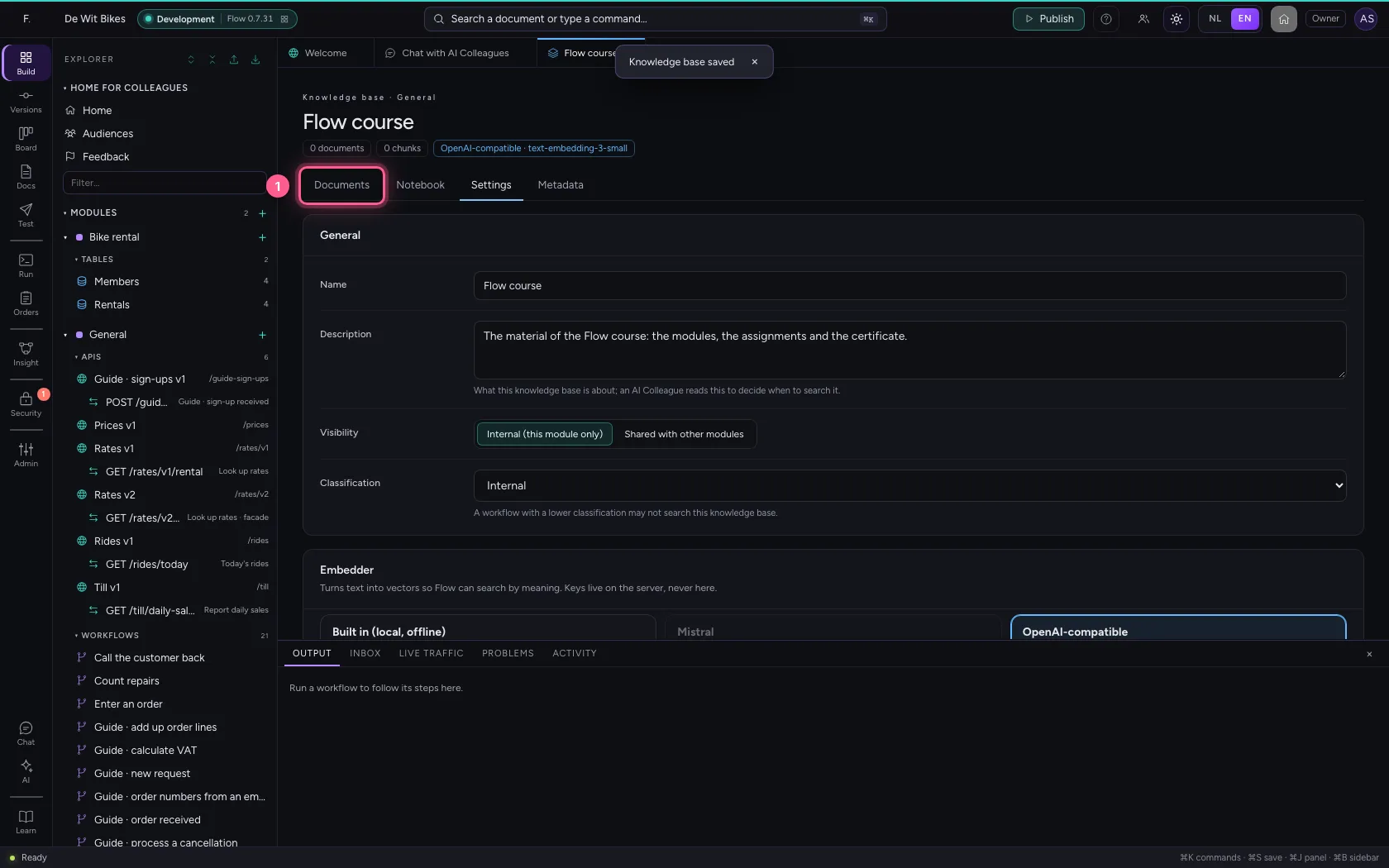
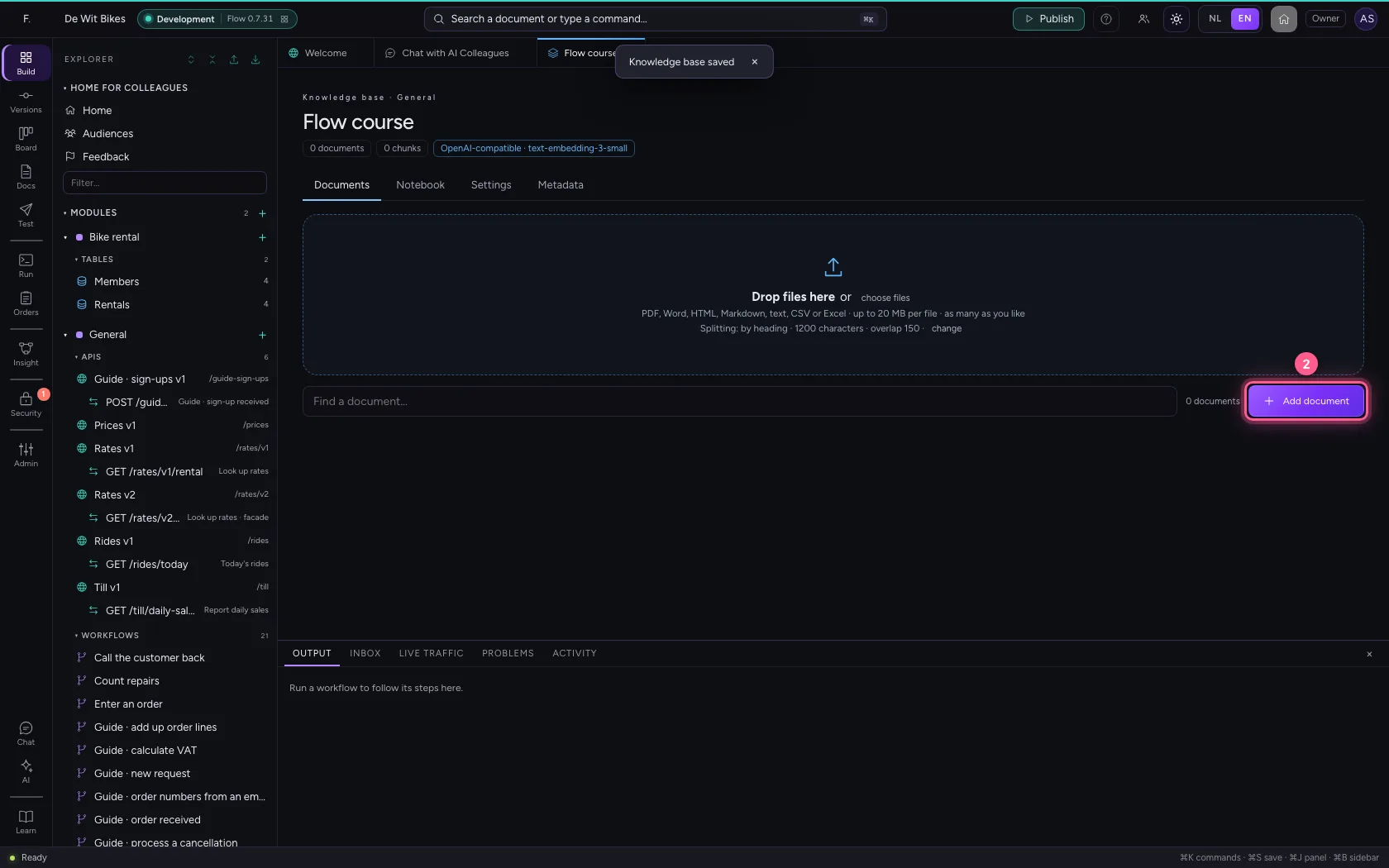
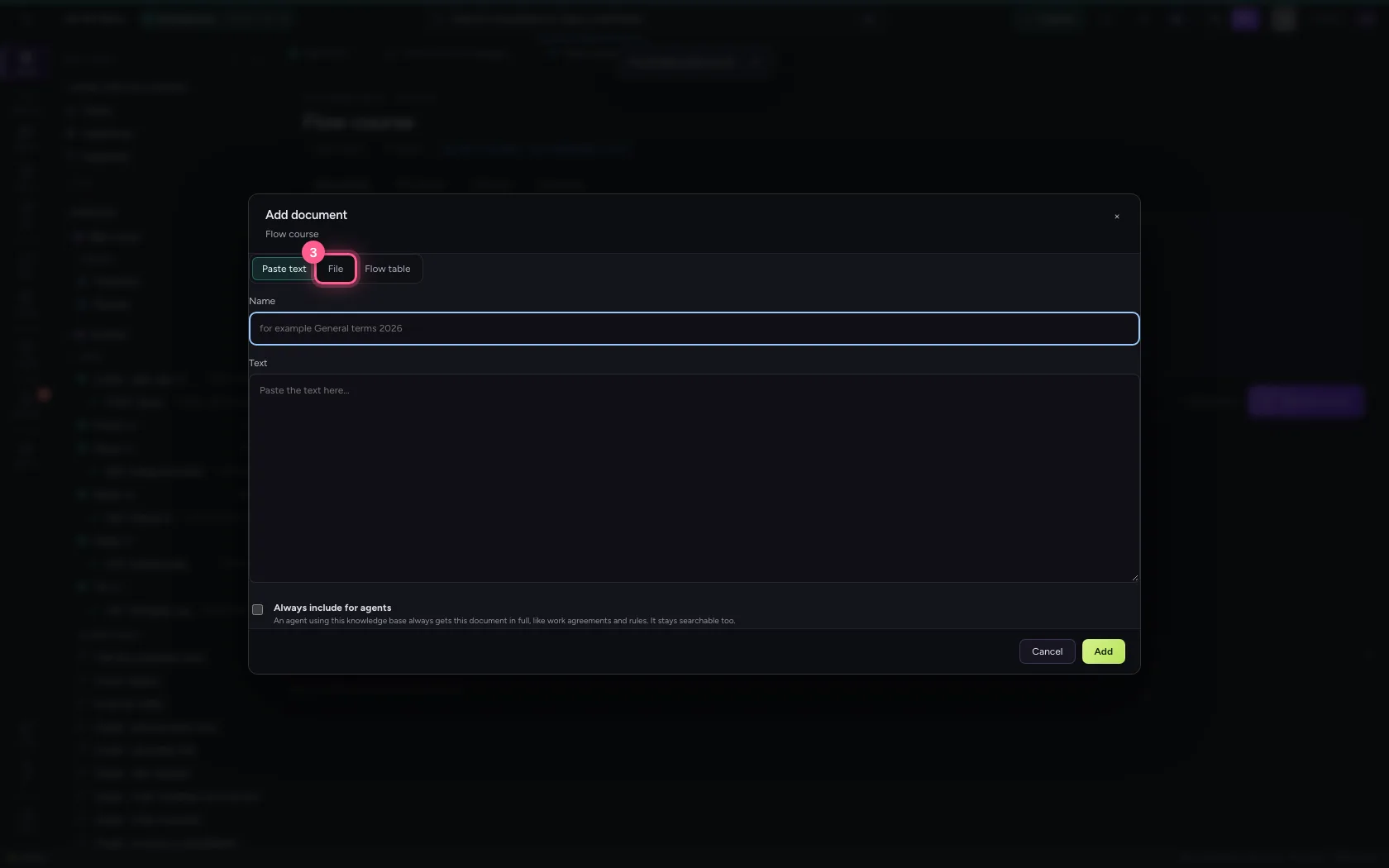
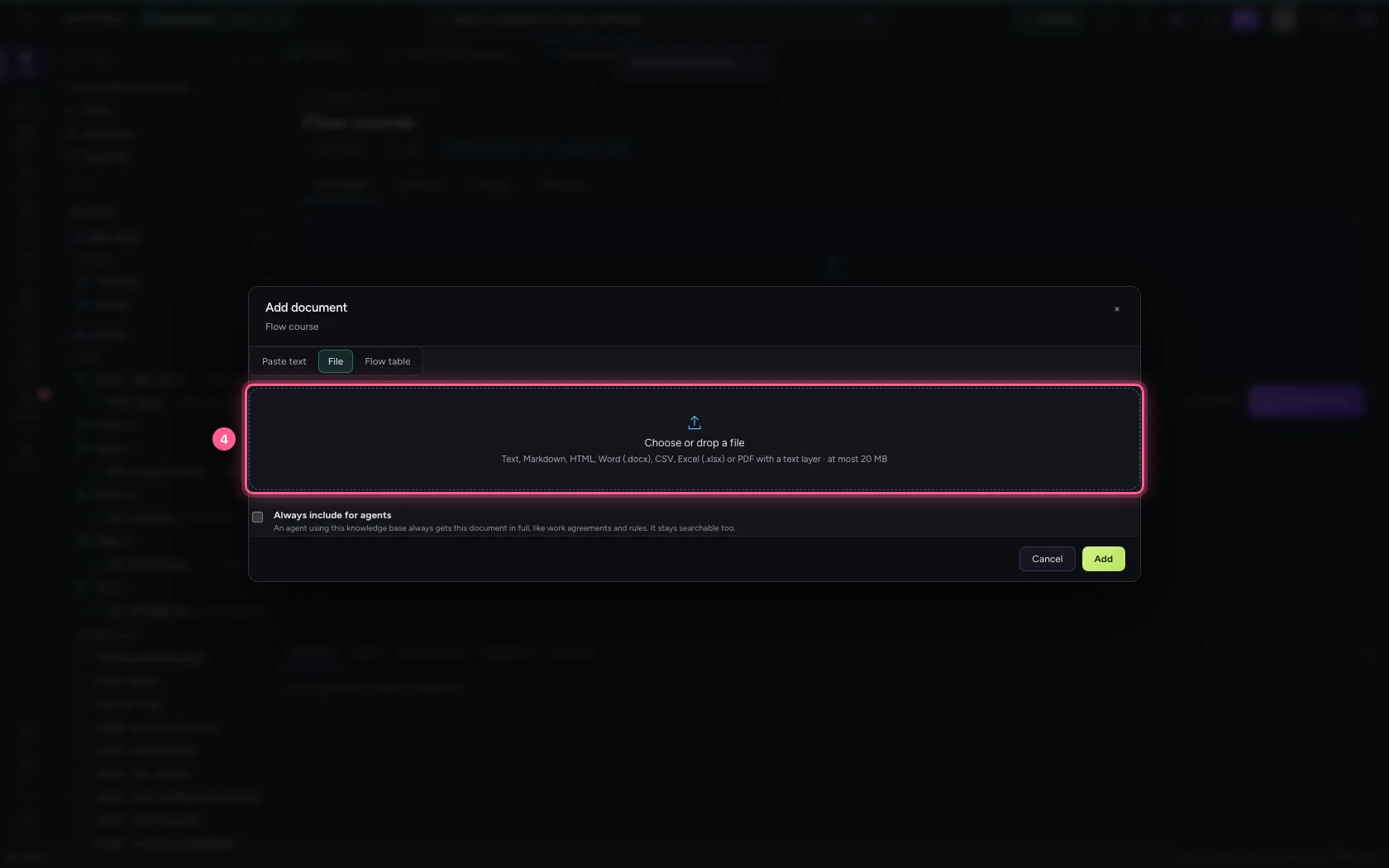
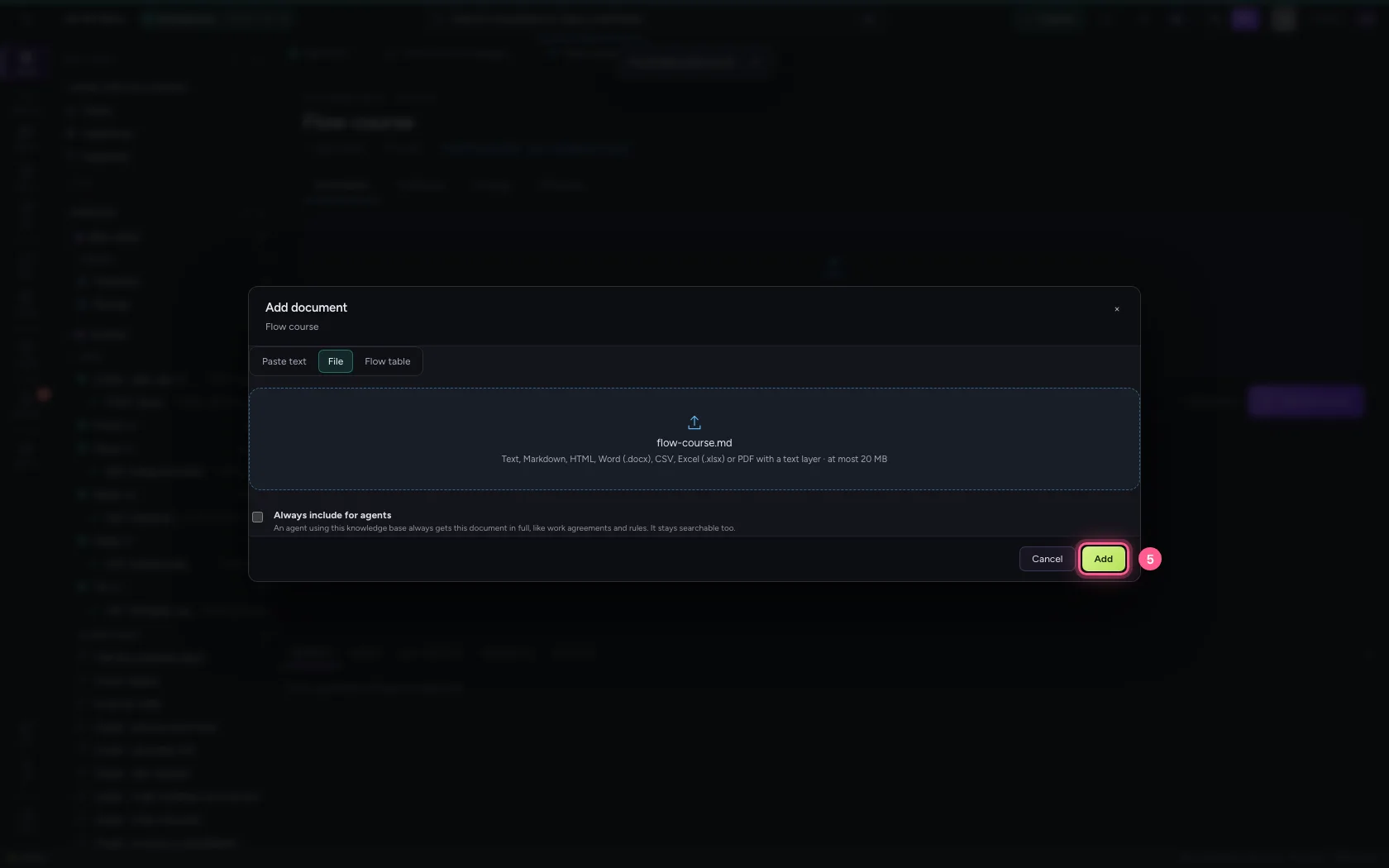
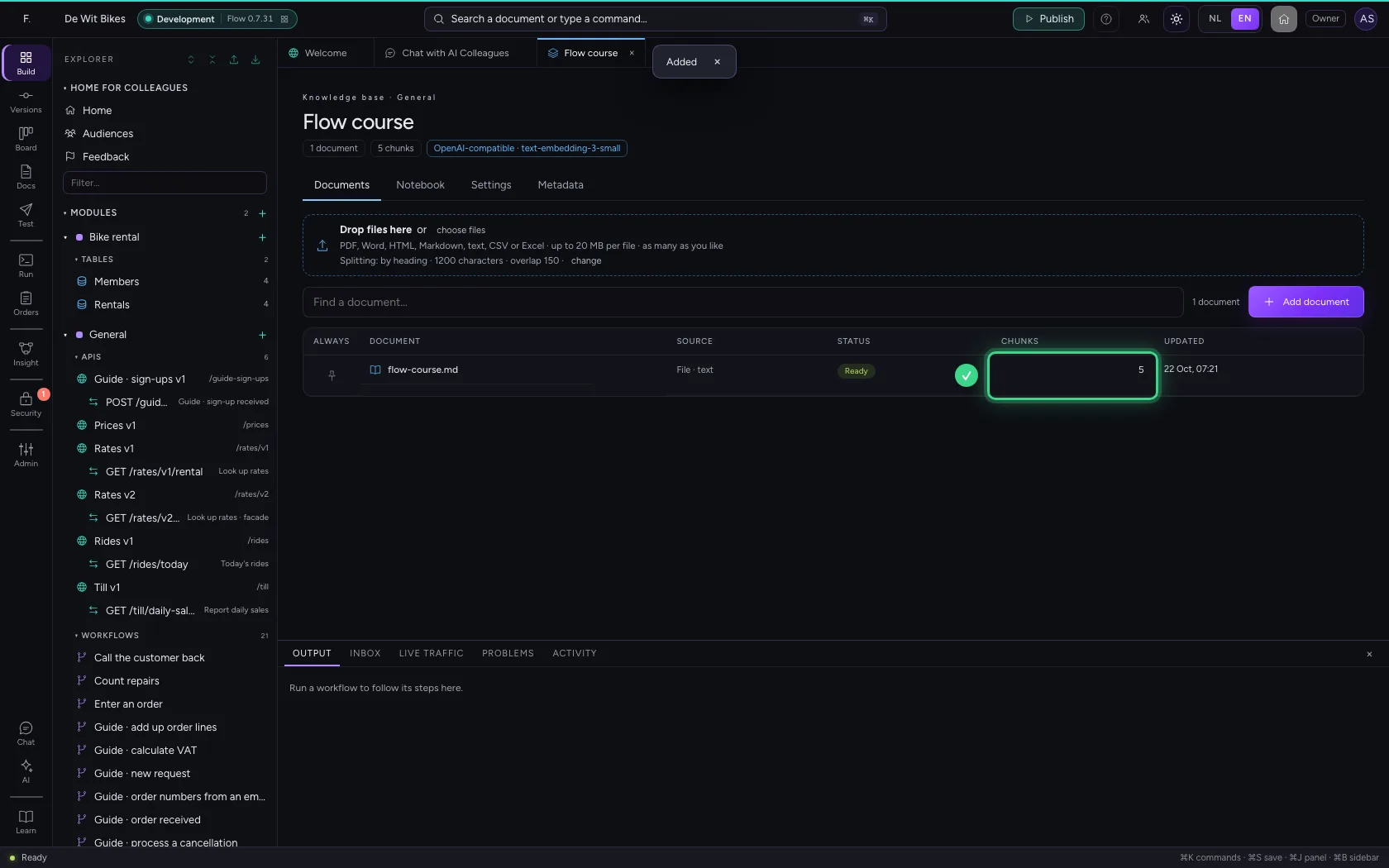
Under Documents, click Add document, choose File and the course material (Markdown; Word, PDF and Excel work too). Flow cuts it into pieces, by heading, and turns every piece into a vector: a series of numbers that captures its meaning. That way a question finds the right piece even when it uses other words than the text. Next to the document you see how many pieces it became.
- Click Documents
- Click Add document
- Click File
- Click the box for your file
- Click Add
Create the table of students
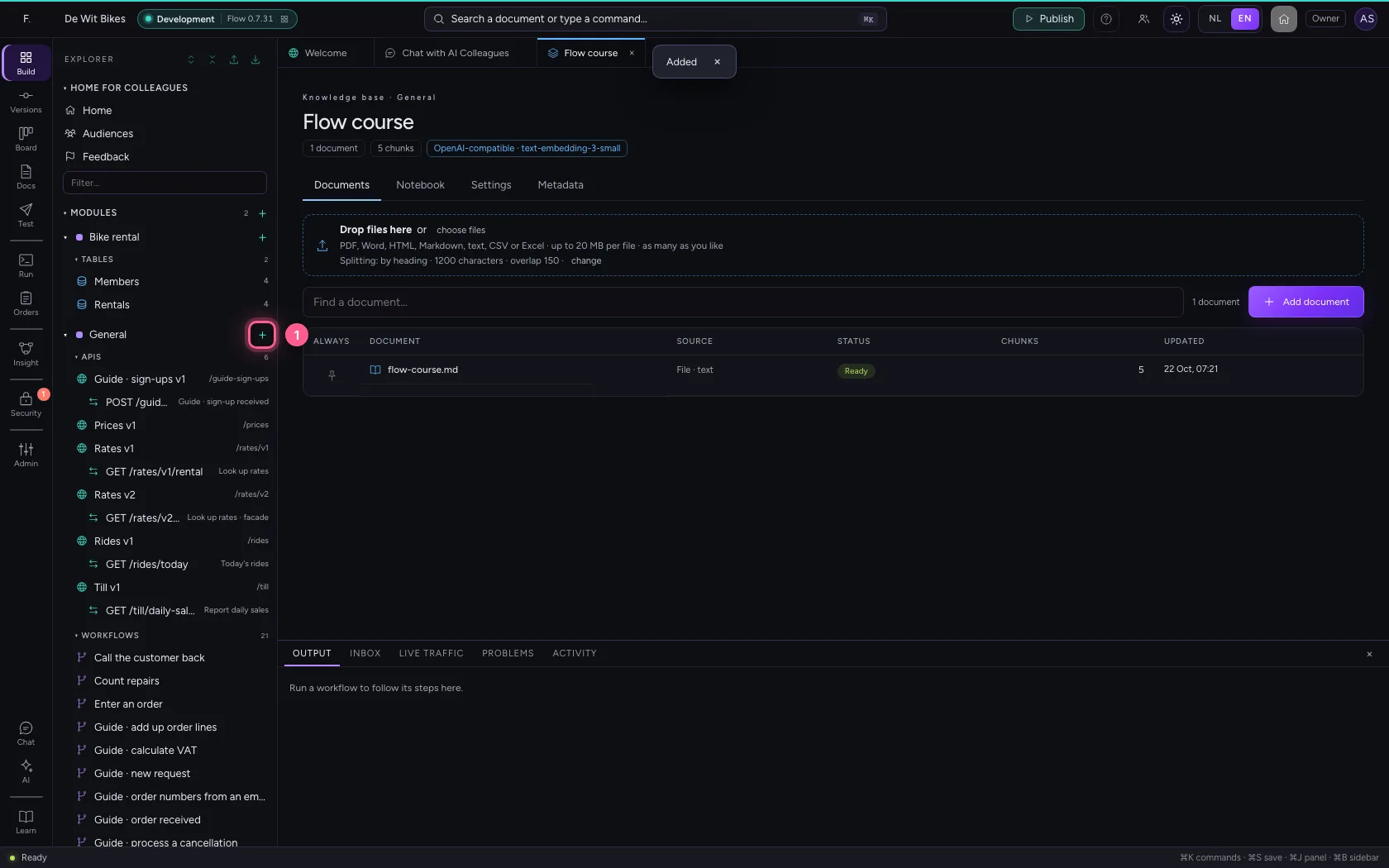
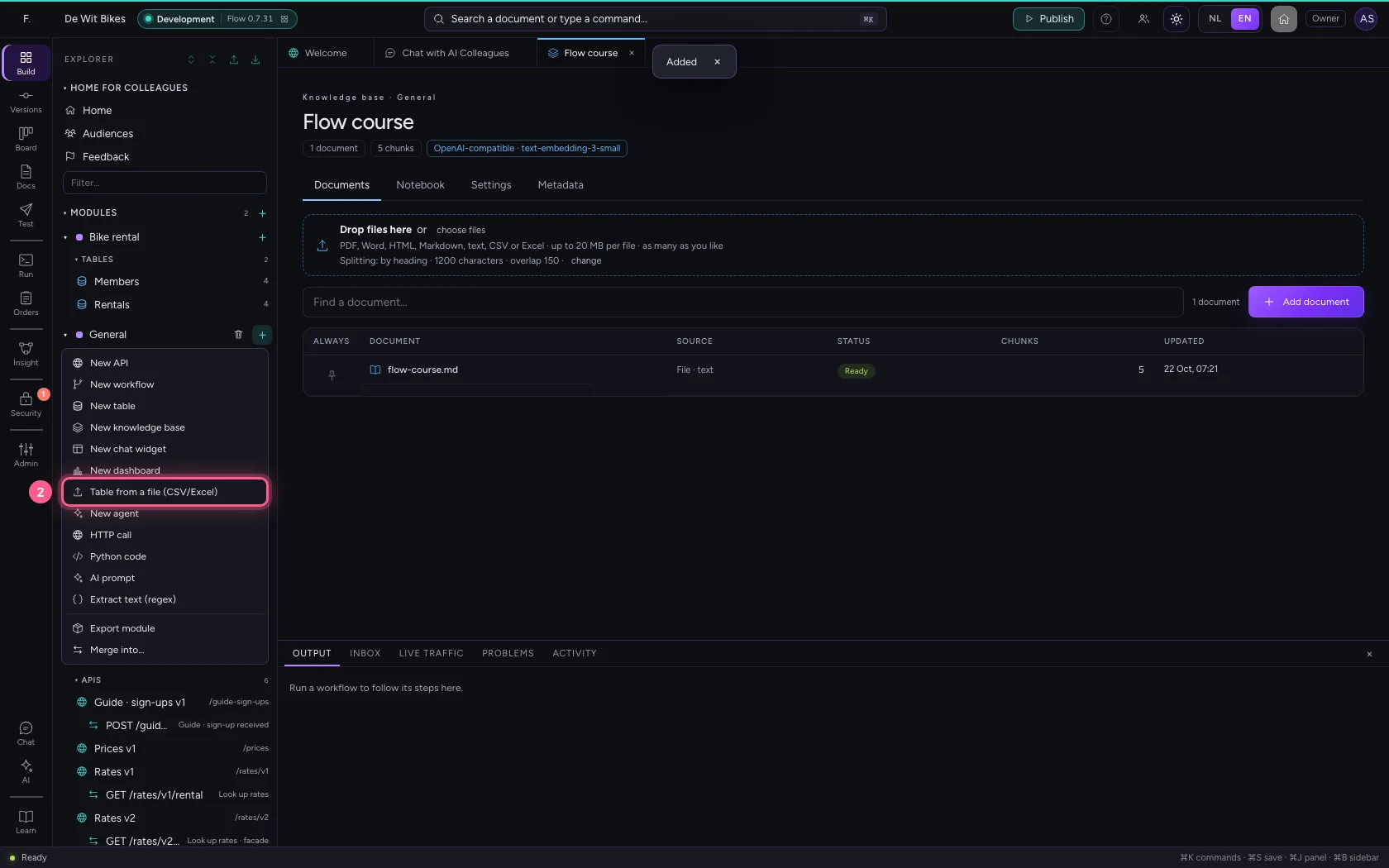
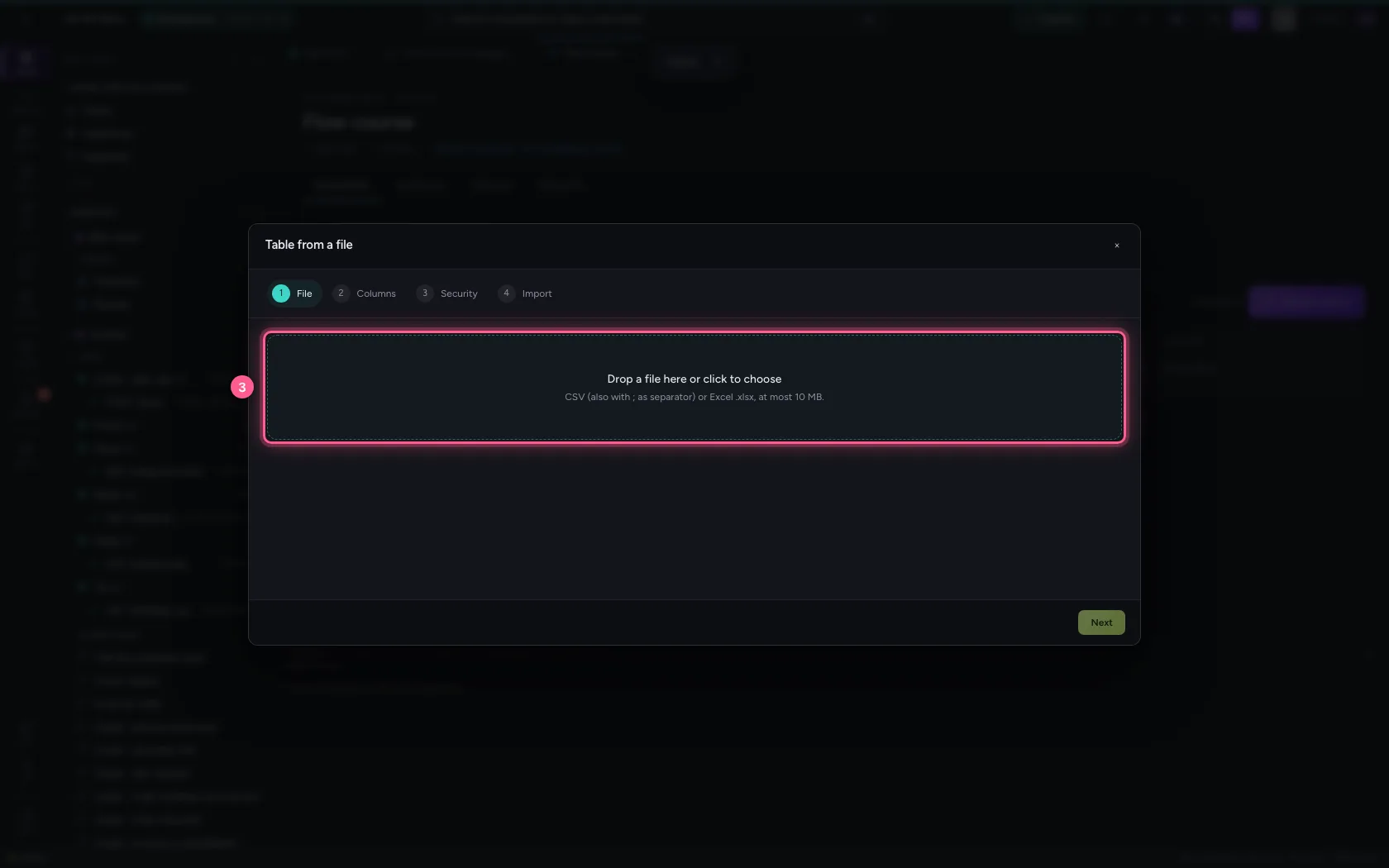
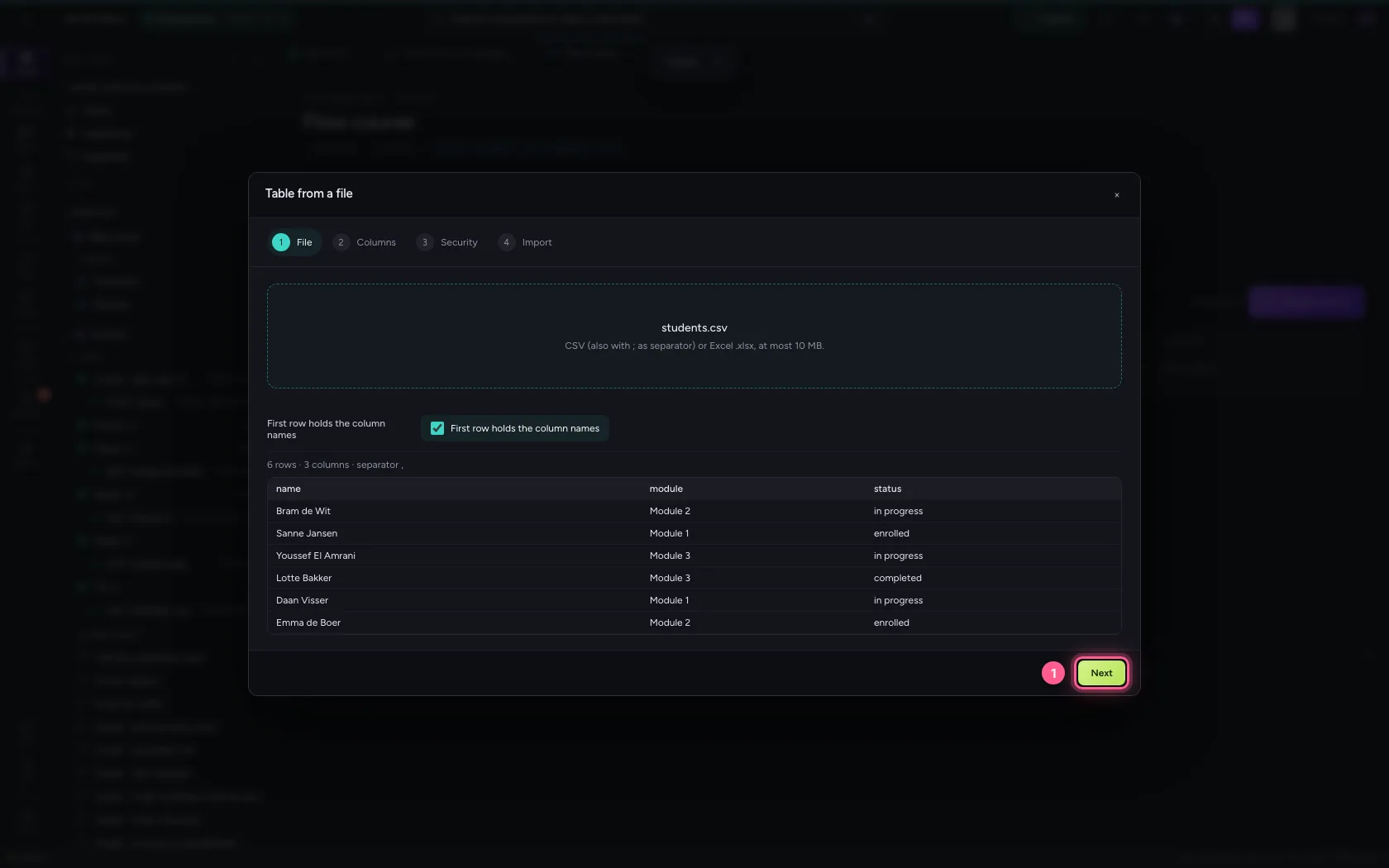
What an AI Colleague looks up or changes lives in an ordinary Flow table. You already have the students in a list: click + next to General, choose Table from a file and choose the file. Flow recognises the columns name, module and status.
- Click Add to General
- Click Table from a file (CSV/Excel)
- Click the box for your file
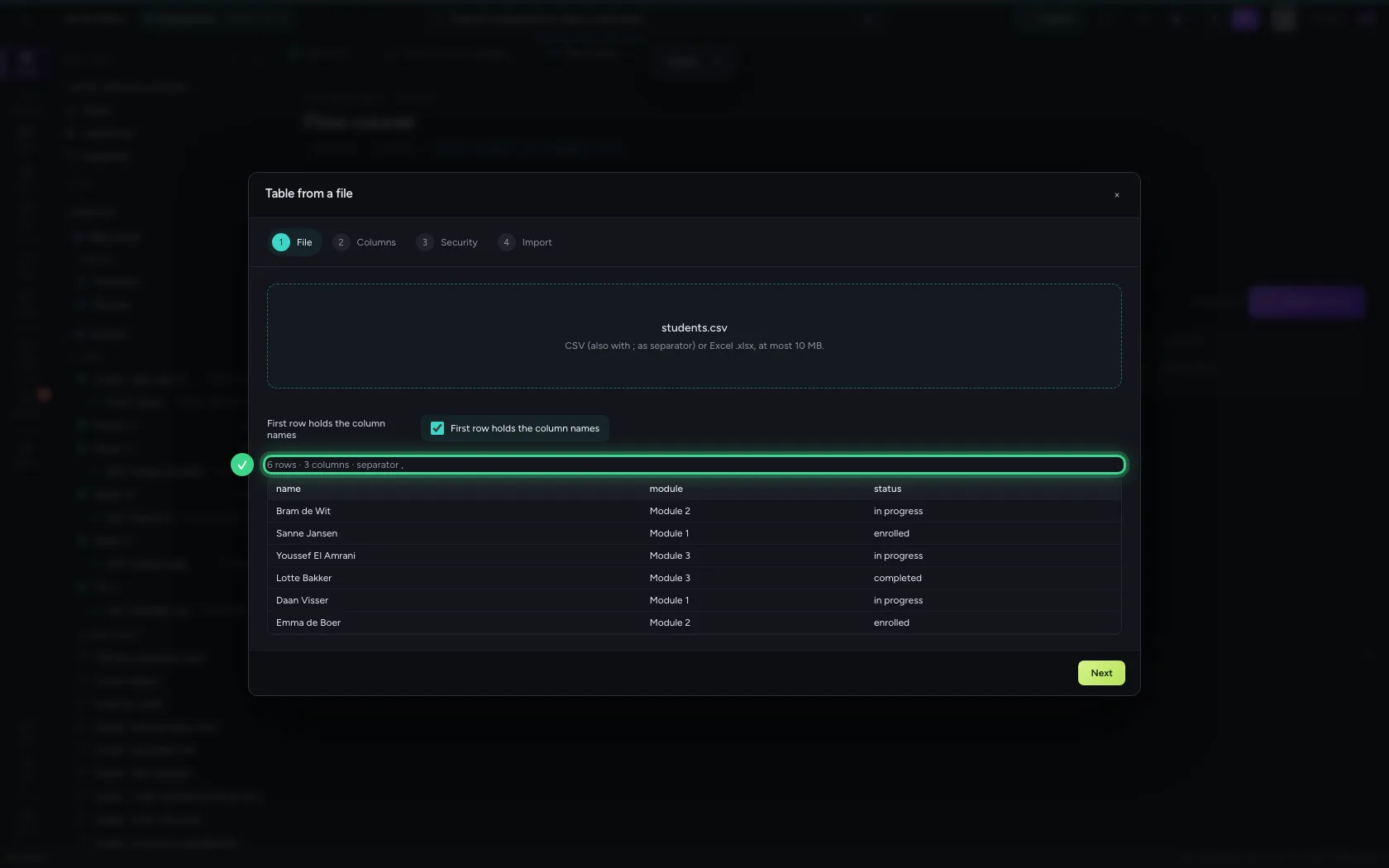
Name the table and import
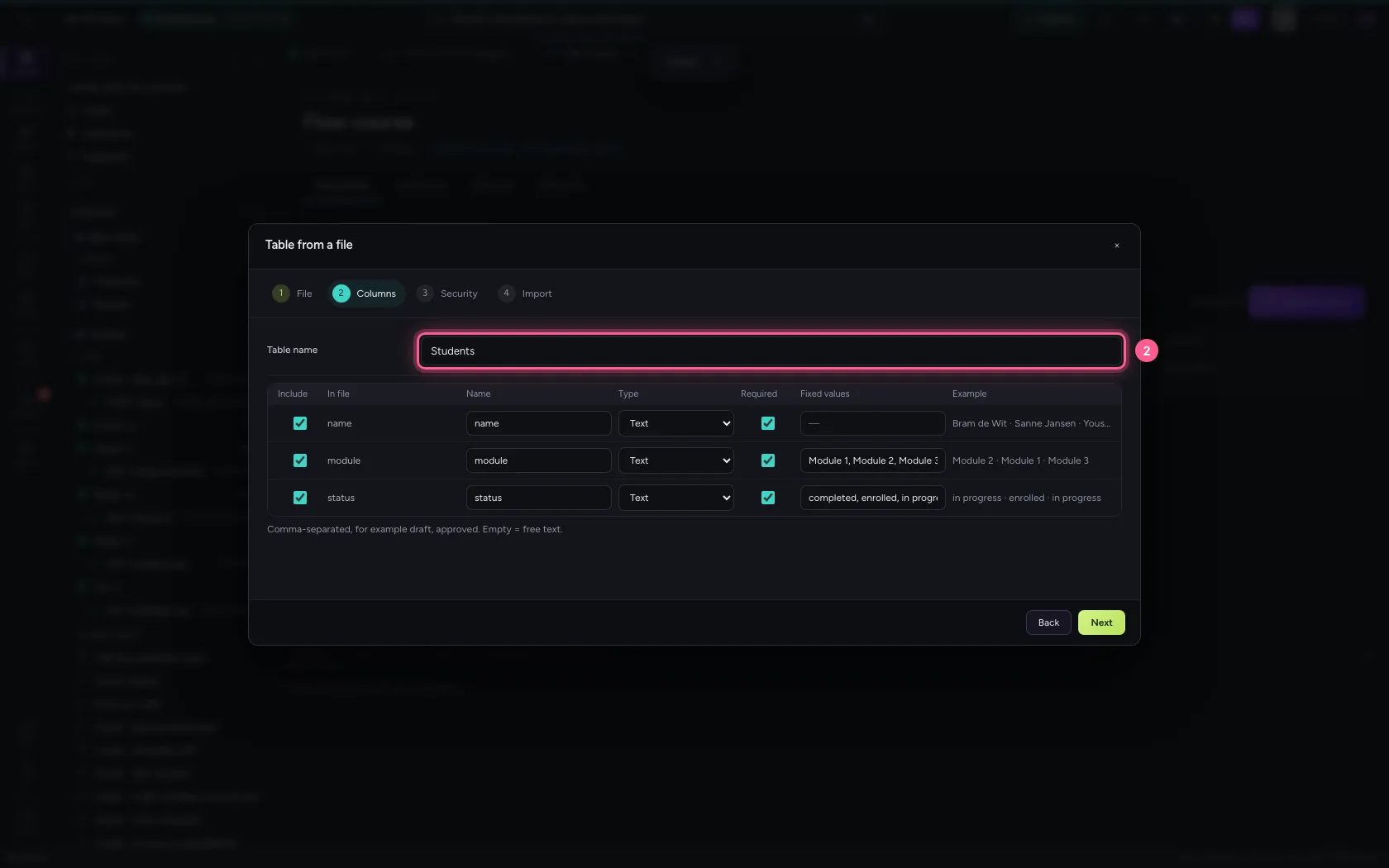
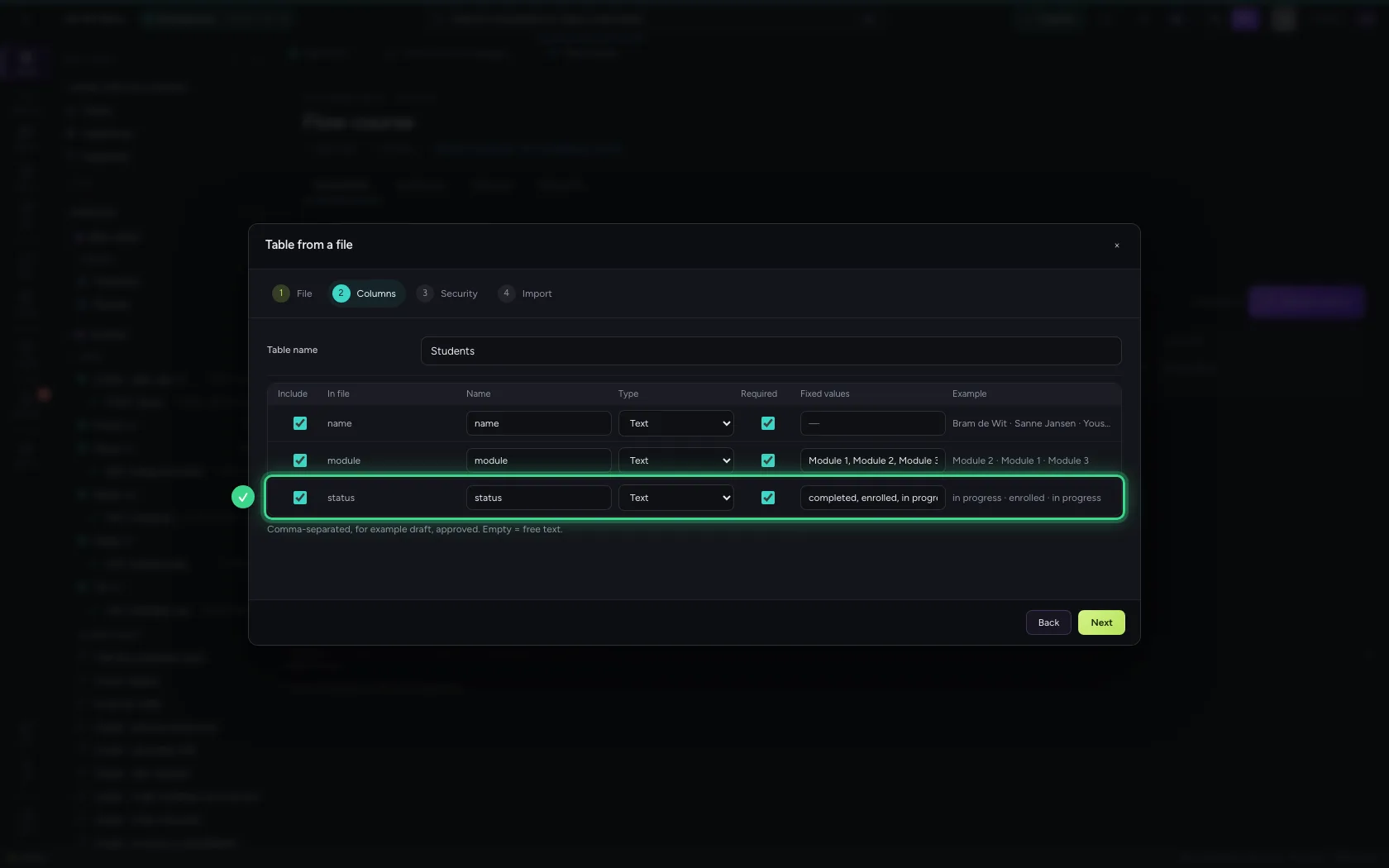
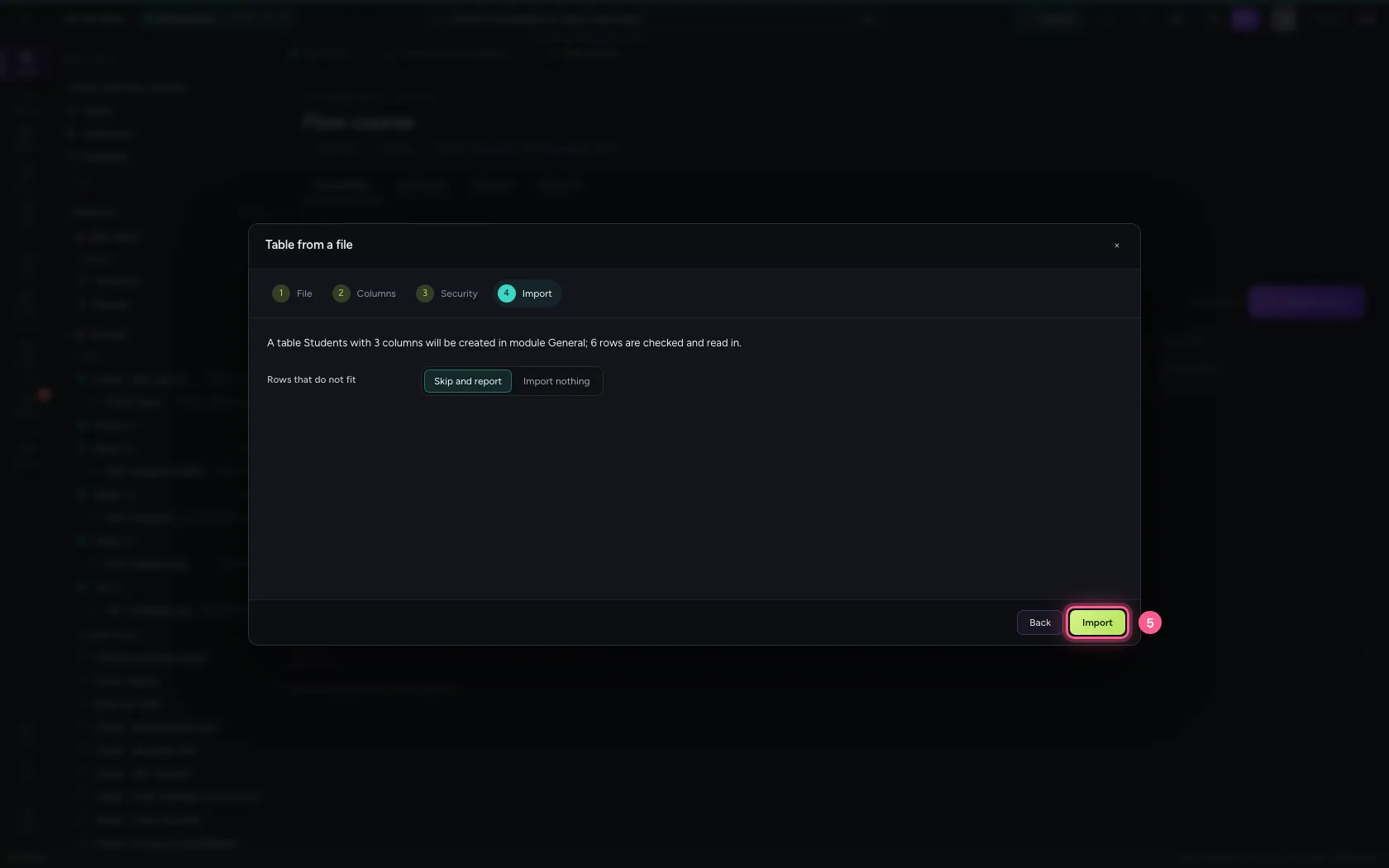
Call the table Students. Module and status have only a few different values; Flow turns them into a fixed list, so no typos get in later, not even when the AI Colleague adds a student. Click through to Import.
- Click Next
- In Table name, type
Students
- Click Next
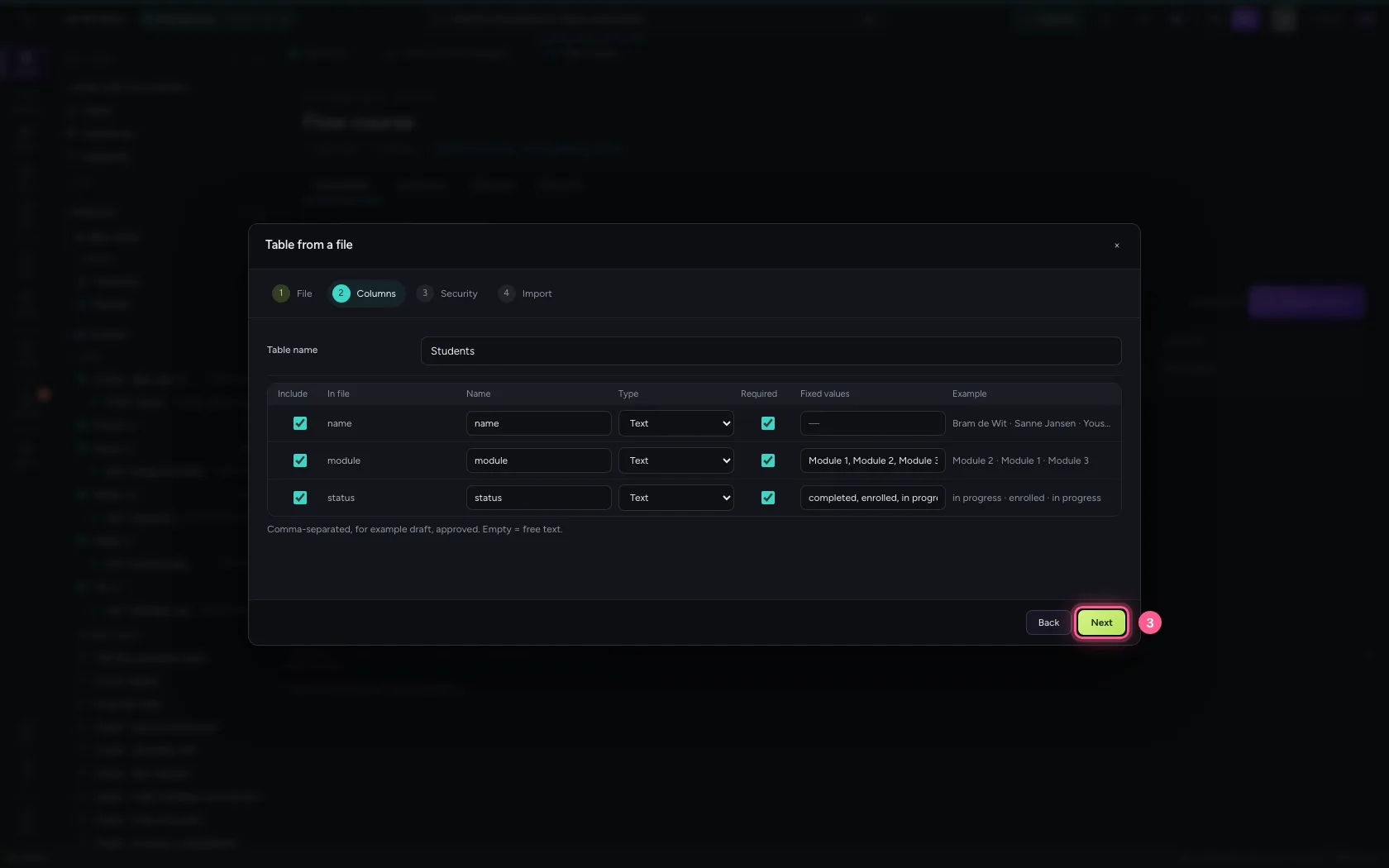
- Click Next
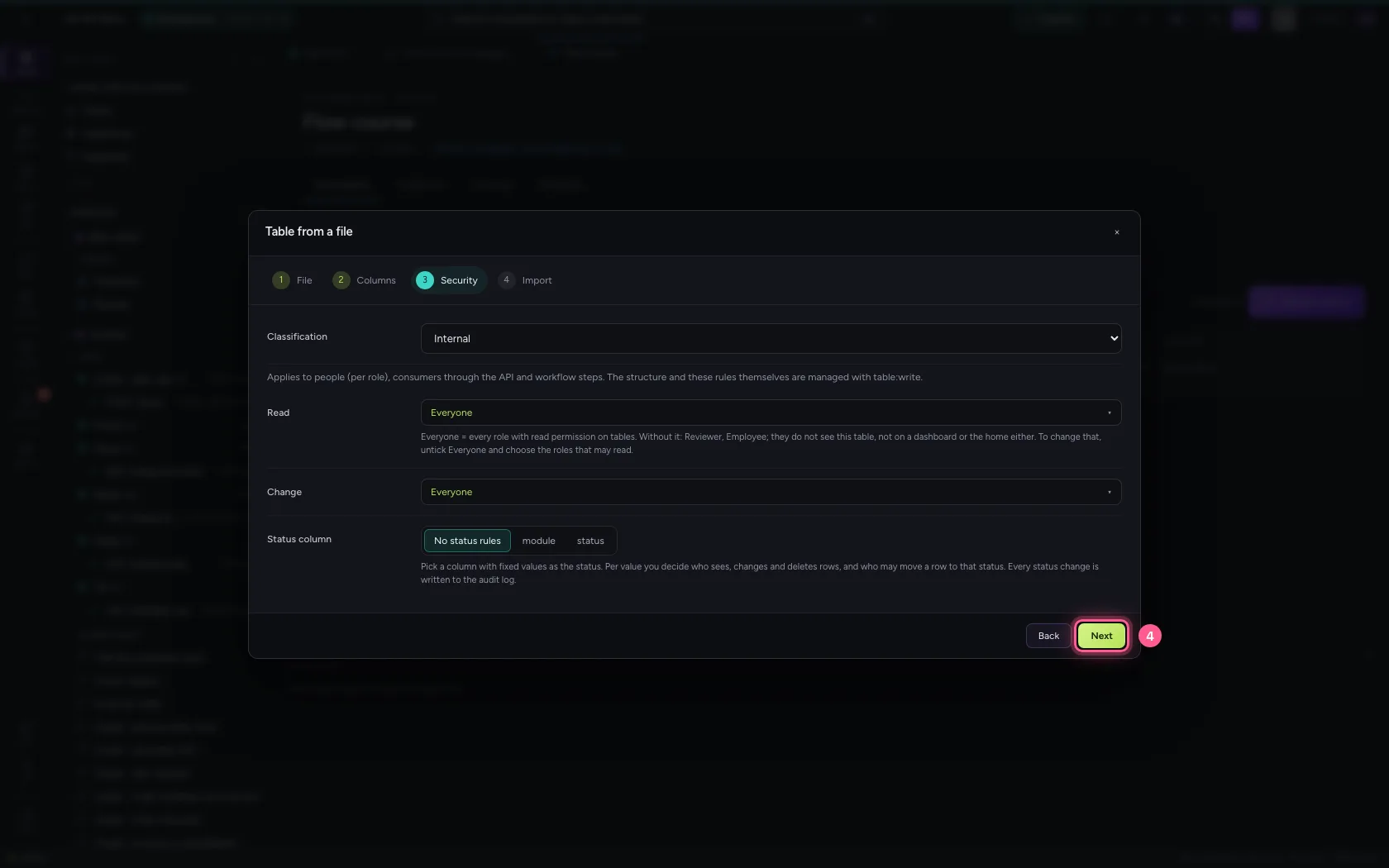
- Click Import
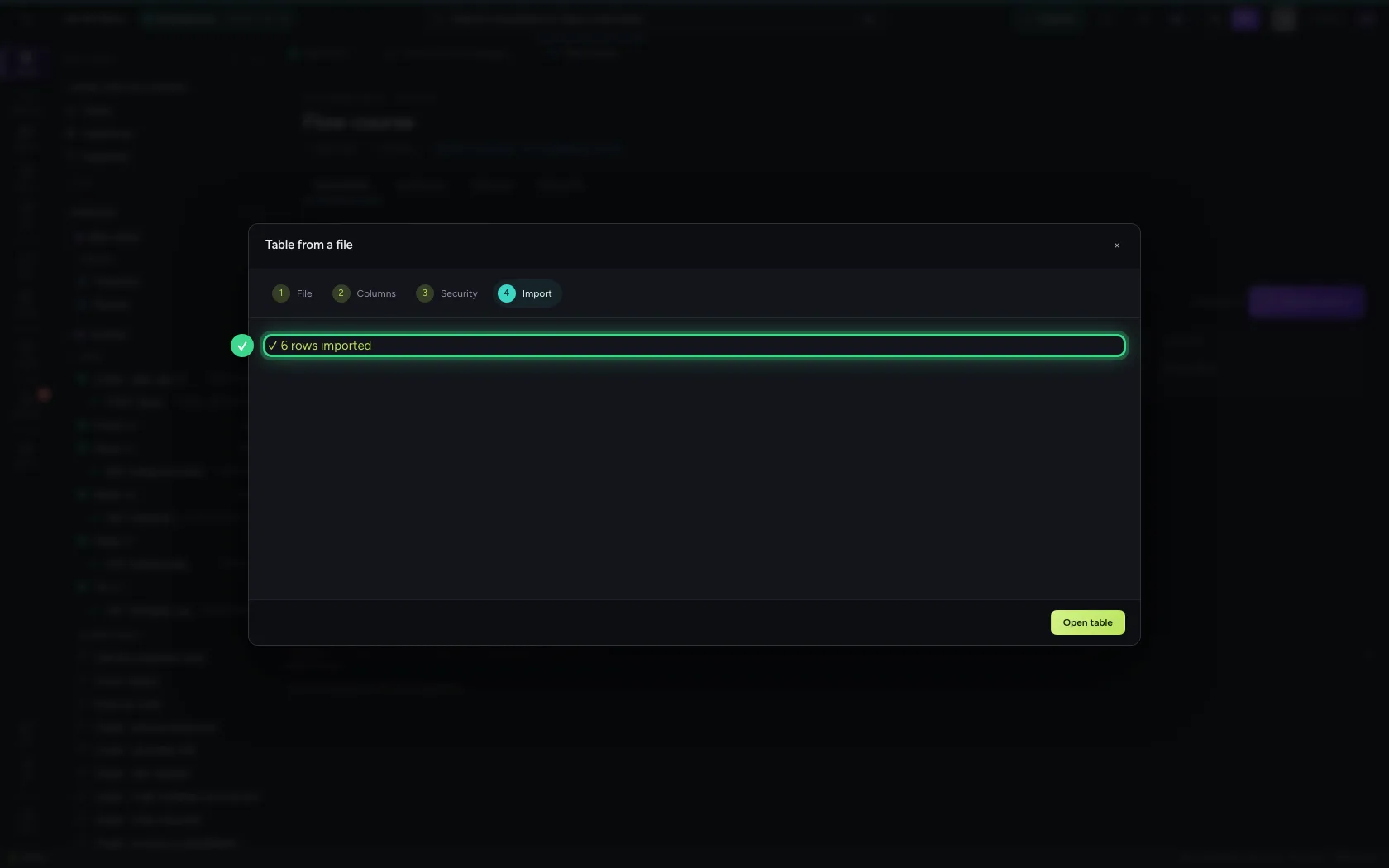
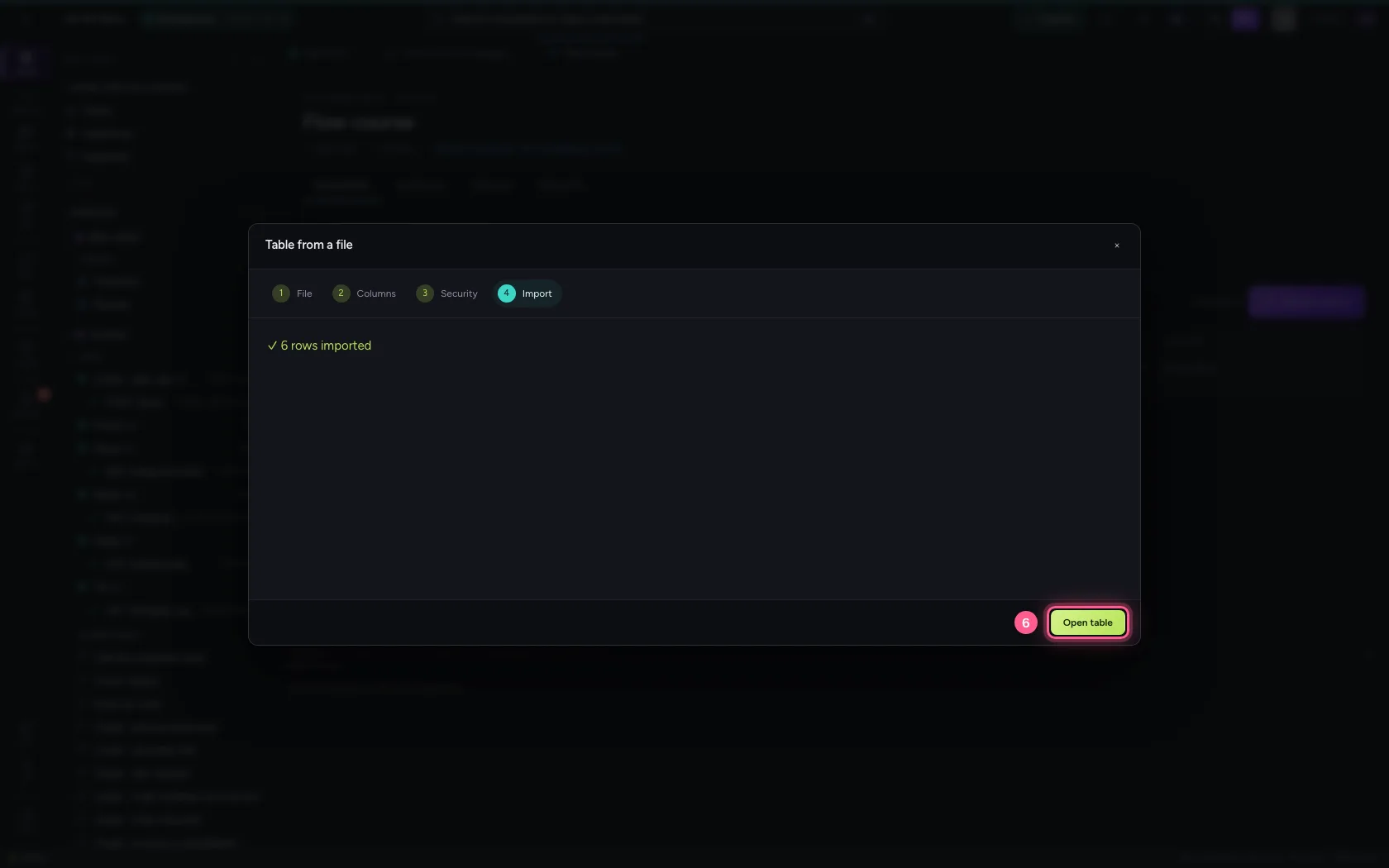
- Click Open table
Workflow 1: look up a student
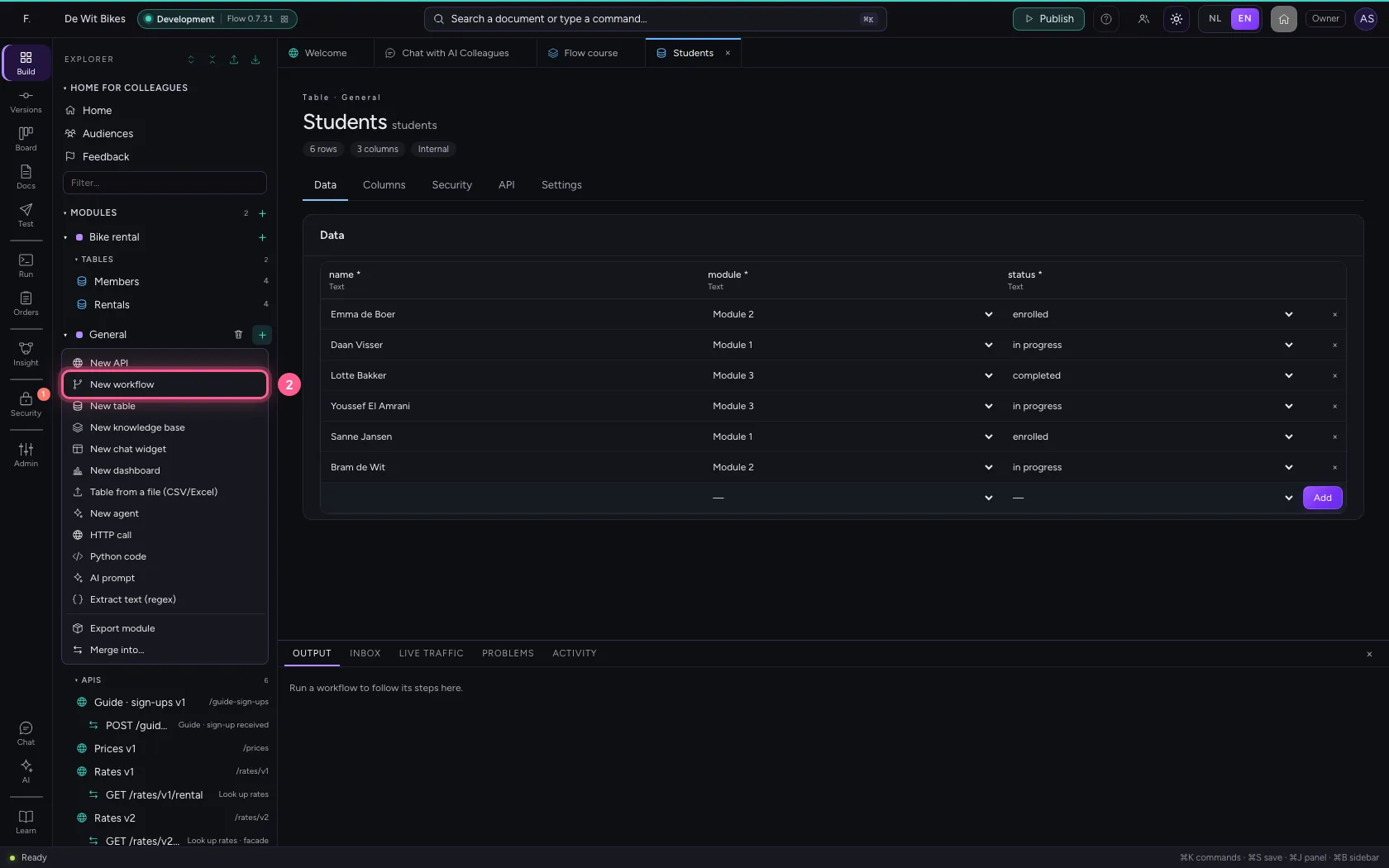
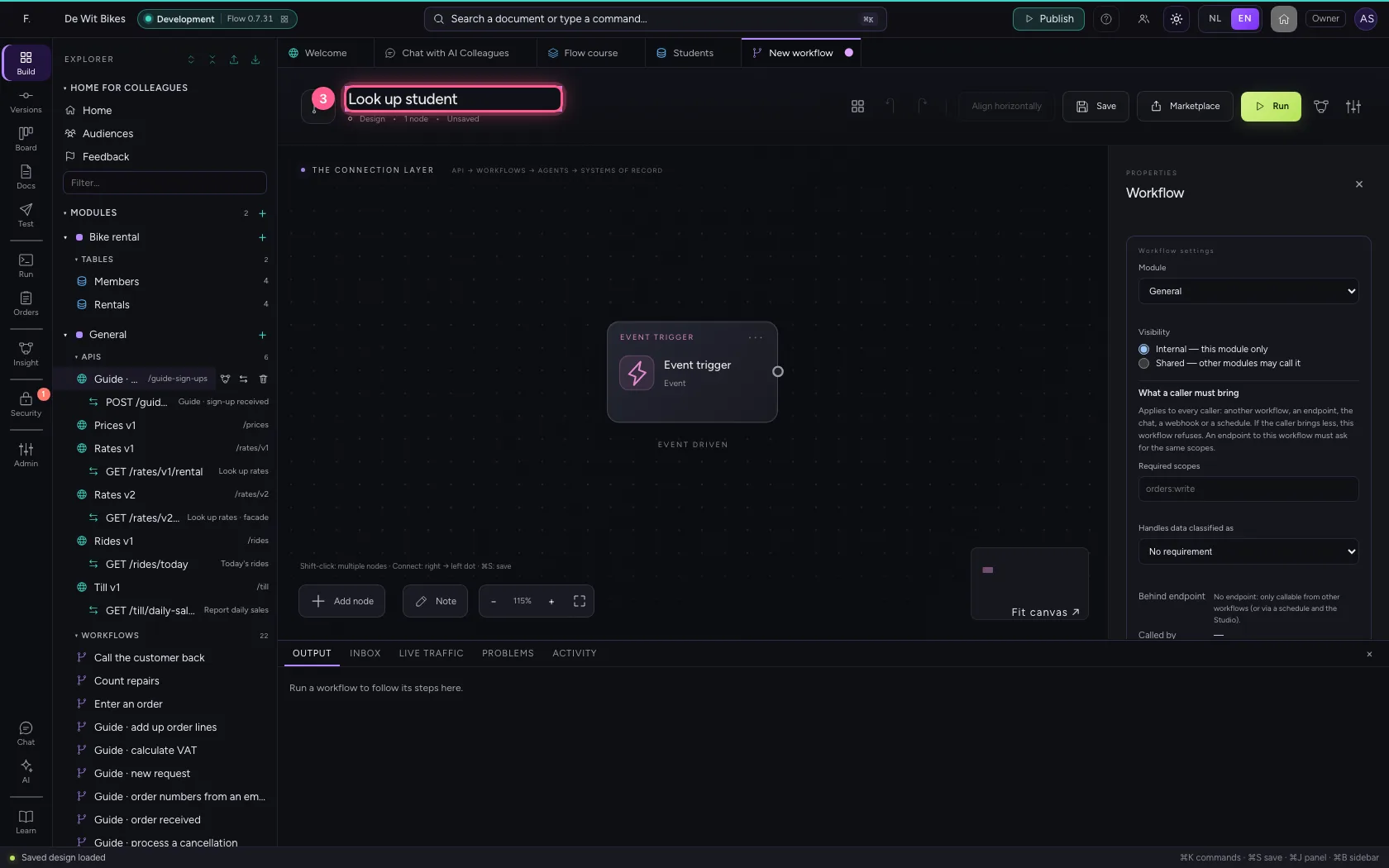
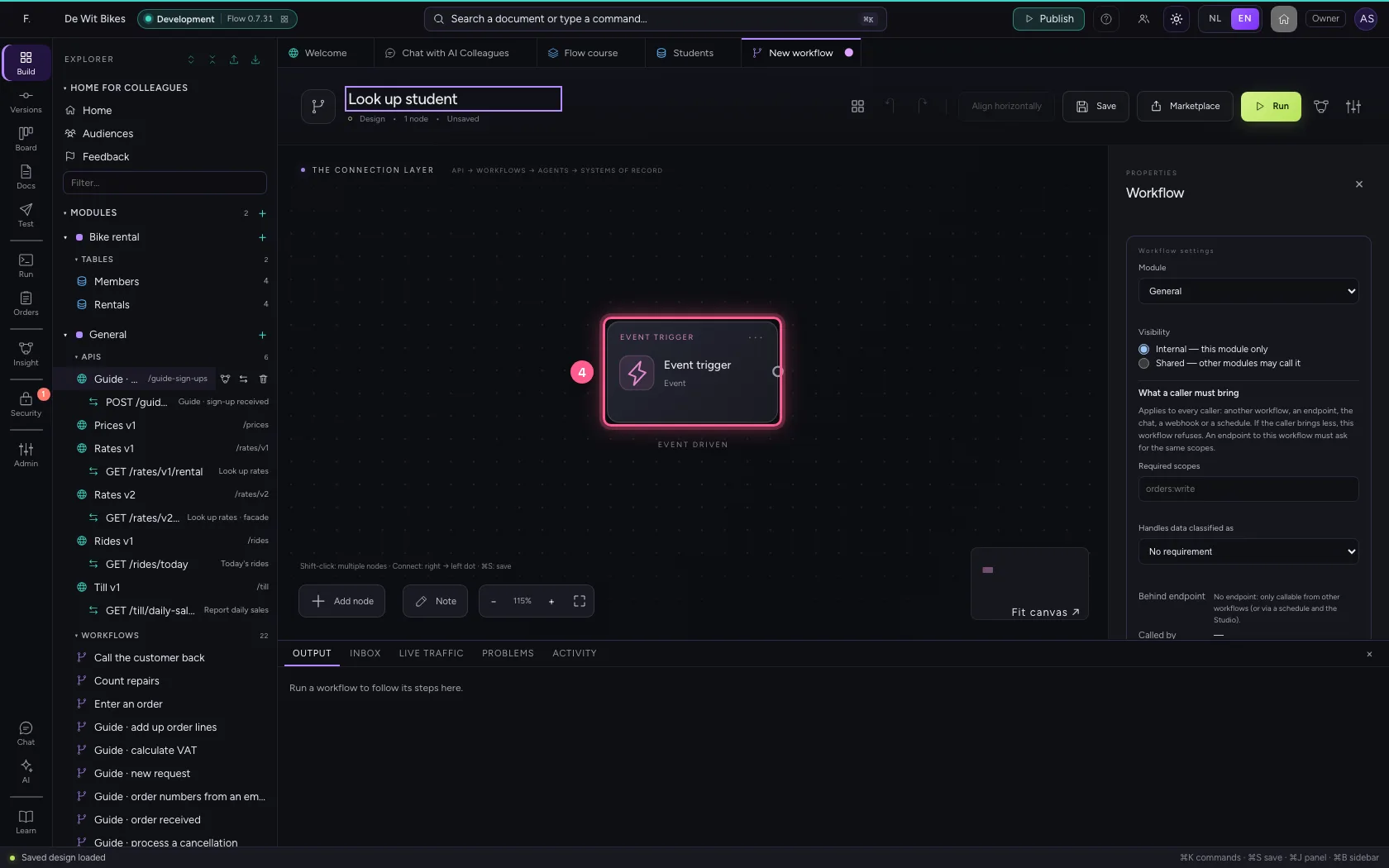
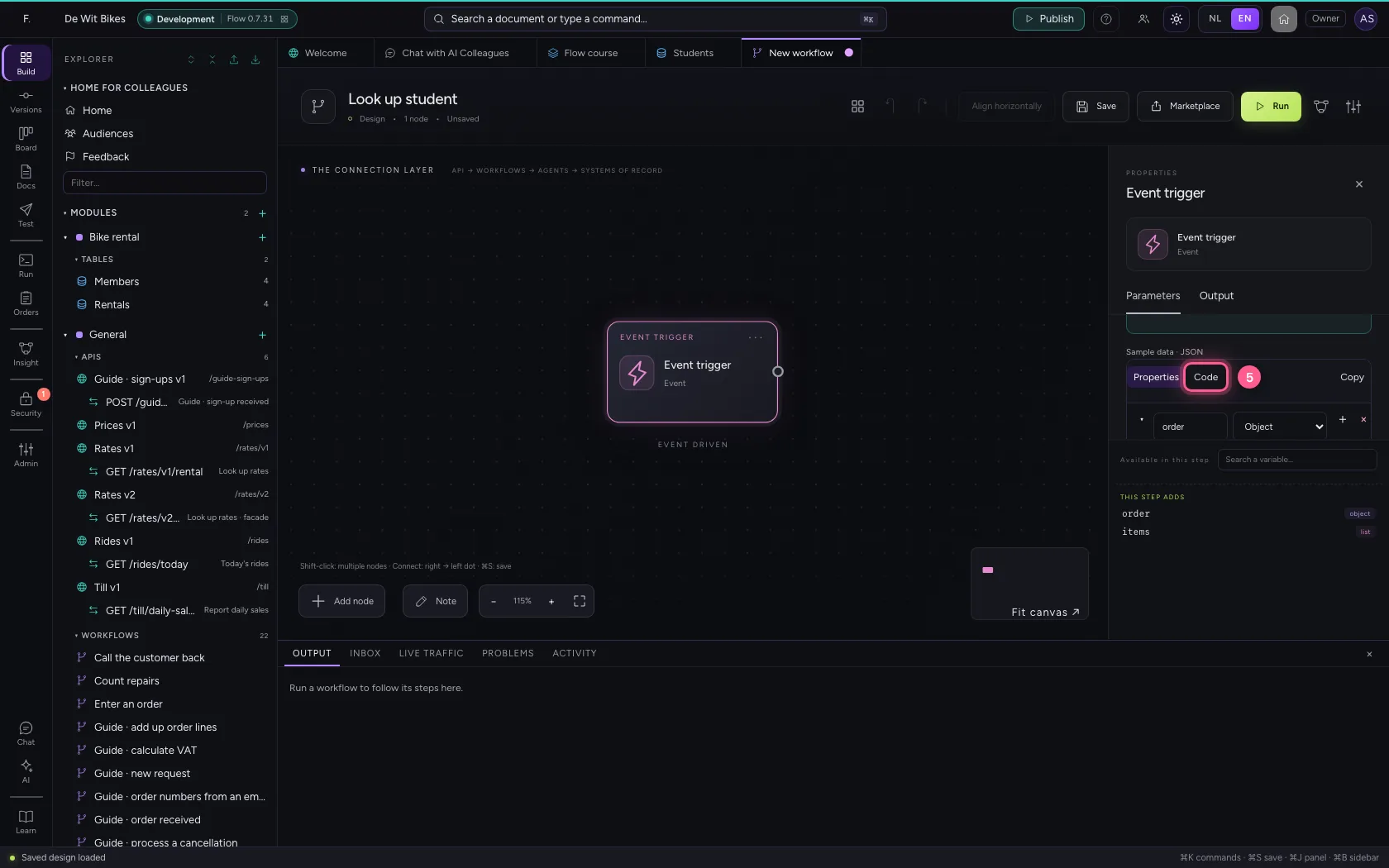
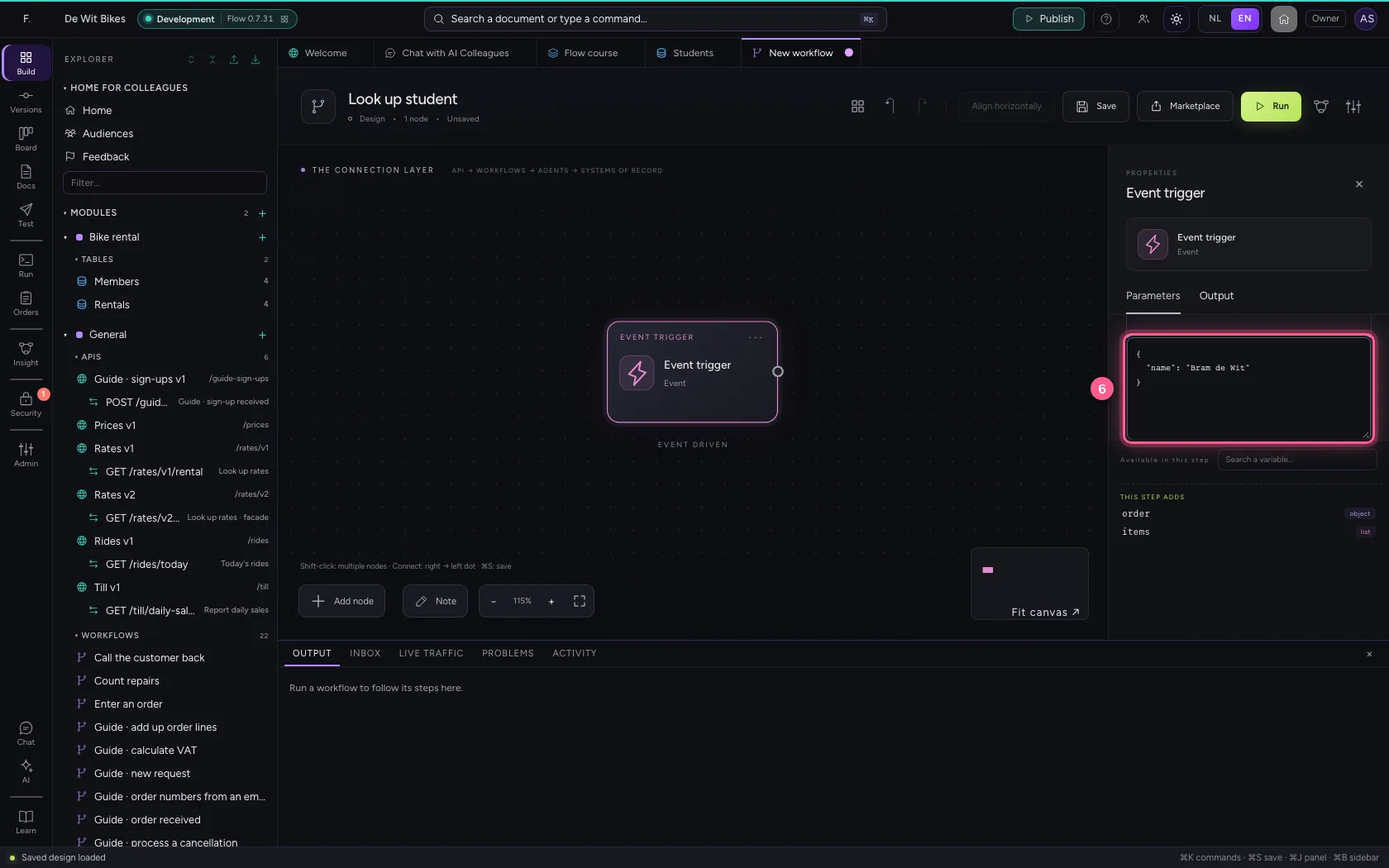
An AI Colleague never just touches your data: it may only start the workflows you give it, and those do exactly what you built. Create a new workflow Look up student. In the trigger's sample data you put what it receives: a name. Those fields become the input the AI Colleague fills in later.
- Click Add to General
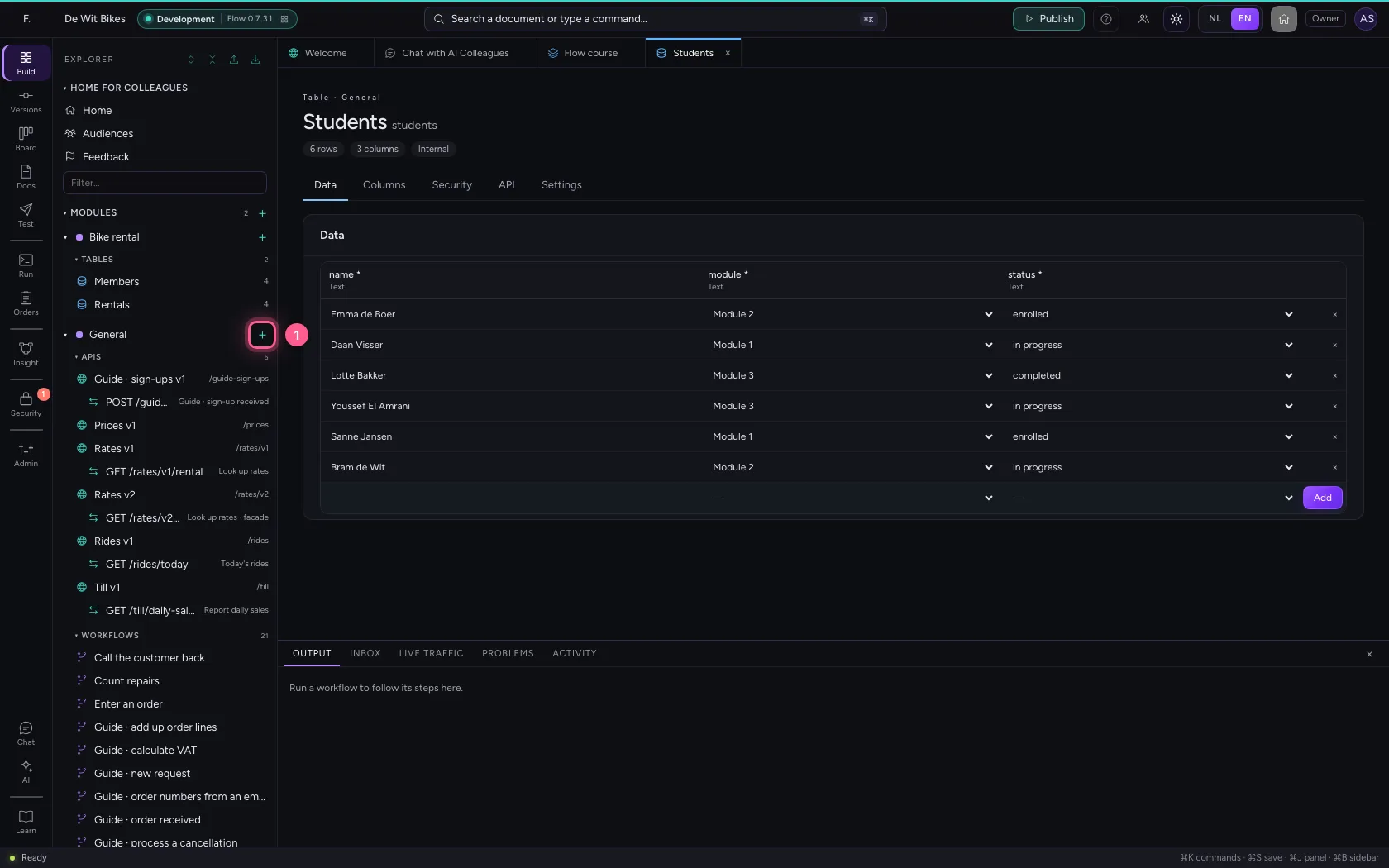
- Click New workflow
- In Workflow name, type
Look up student
- Click the trigger
- Click Code
- In Sample data, type `{
Look up the row in the table
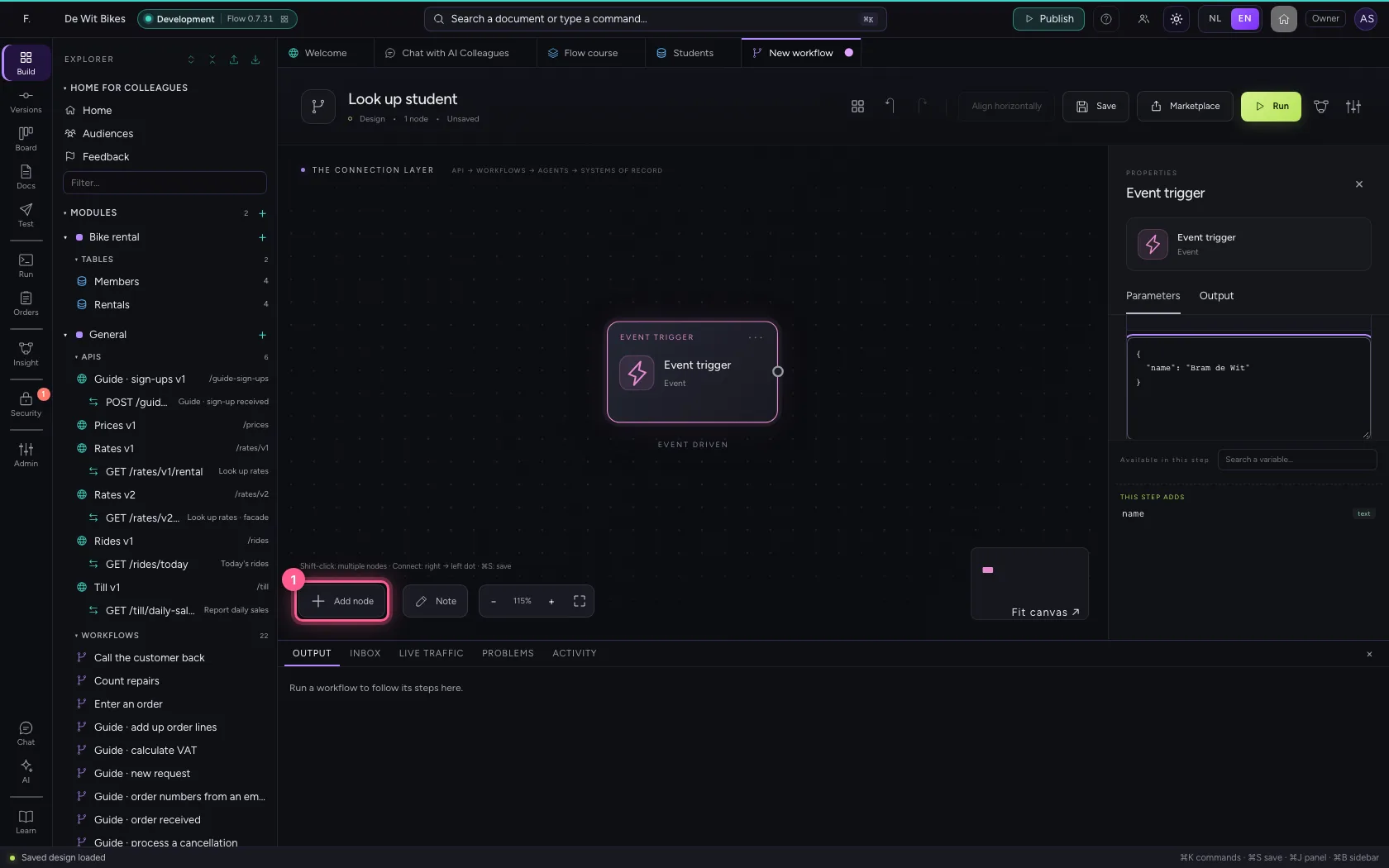
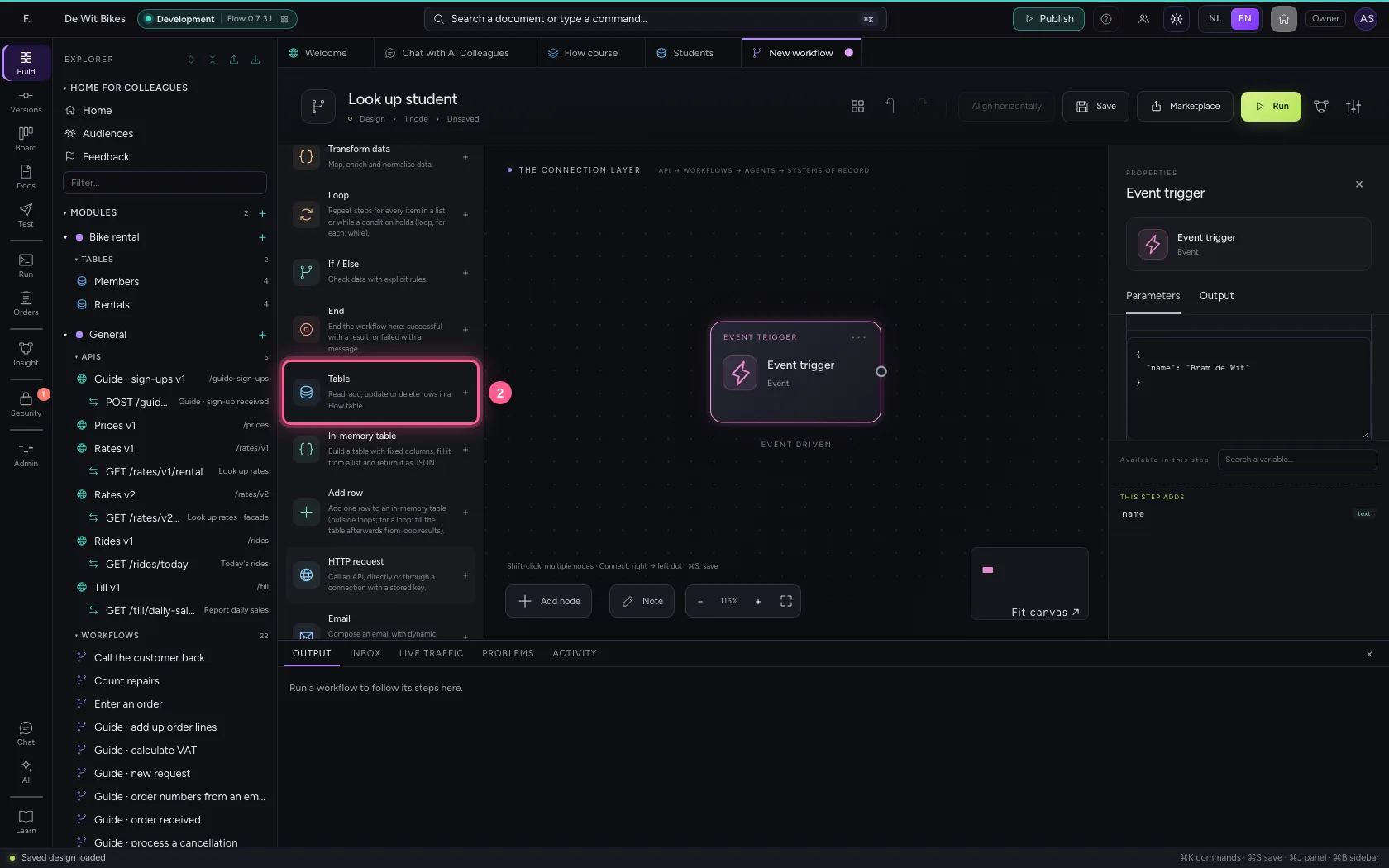
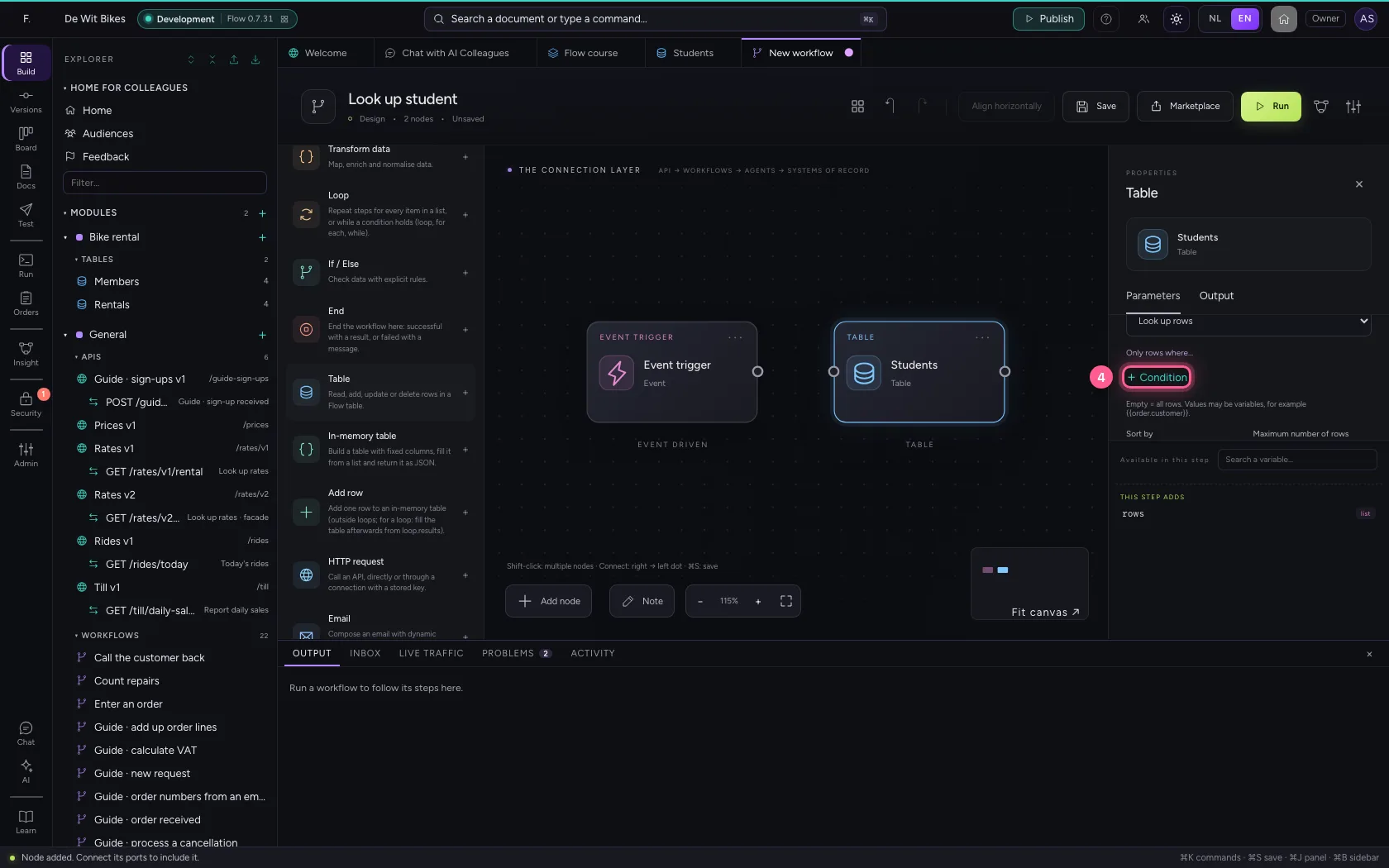
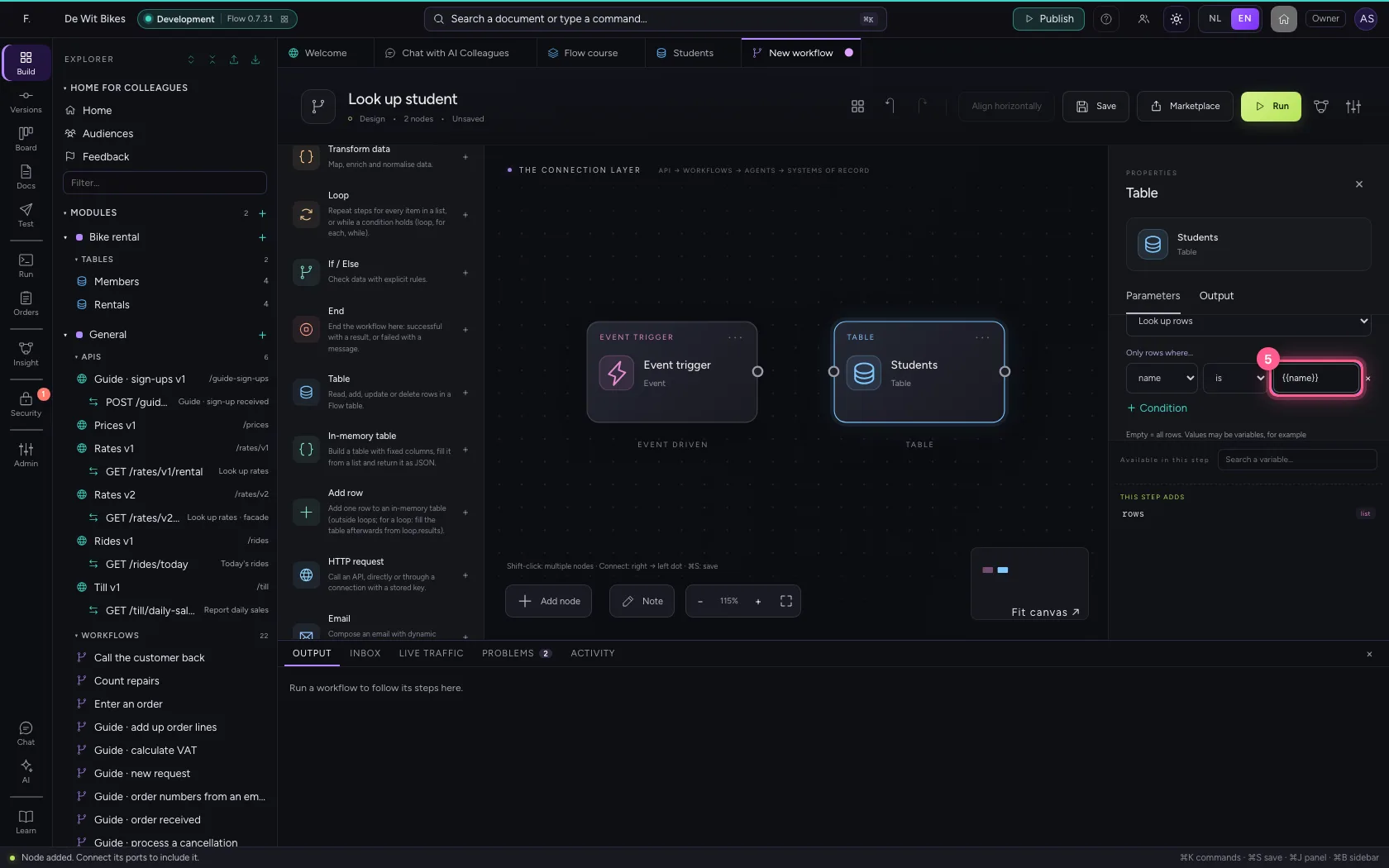
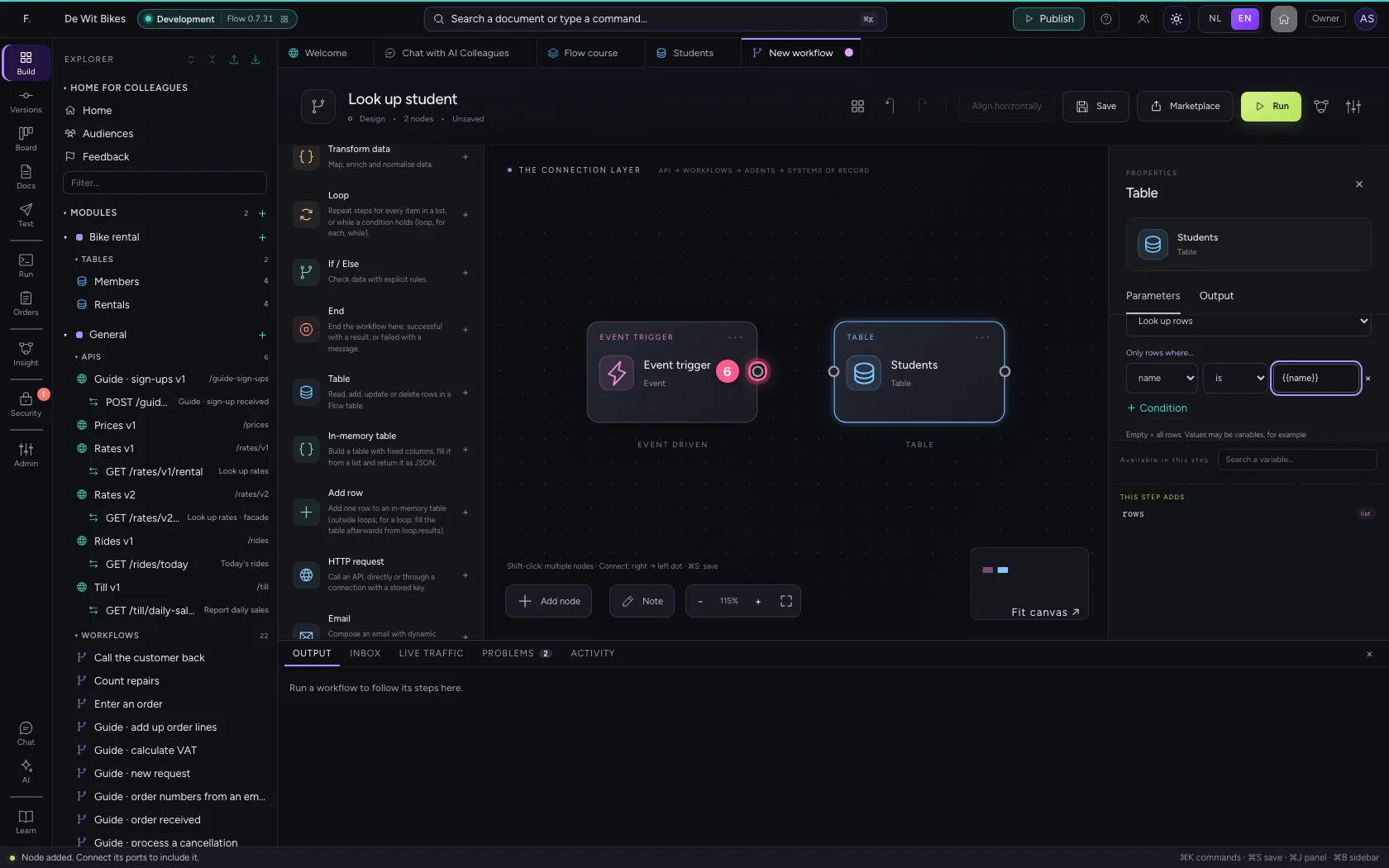
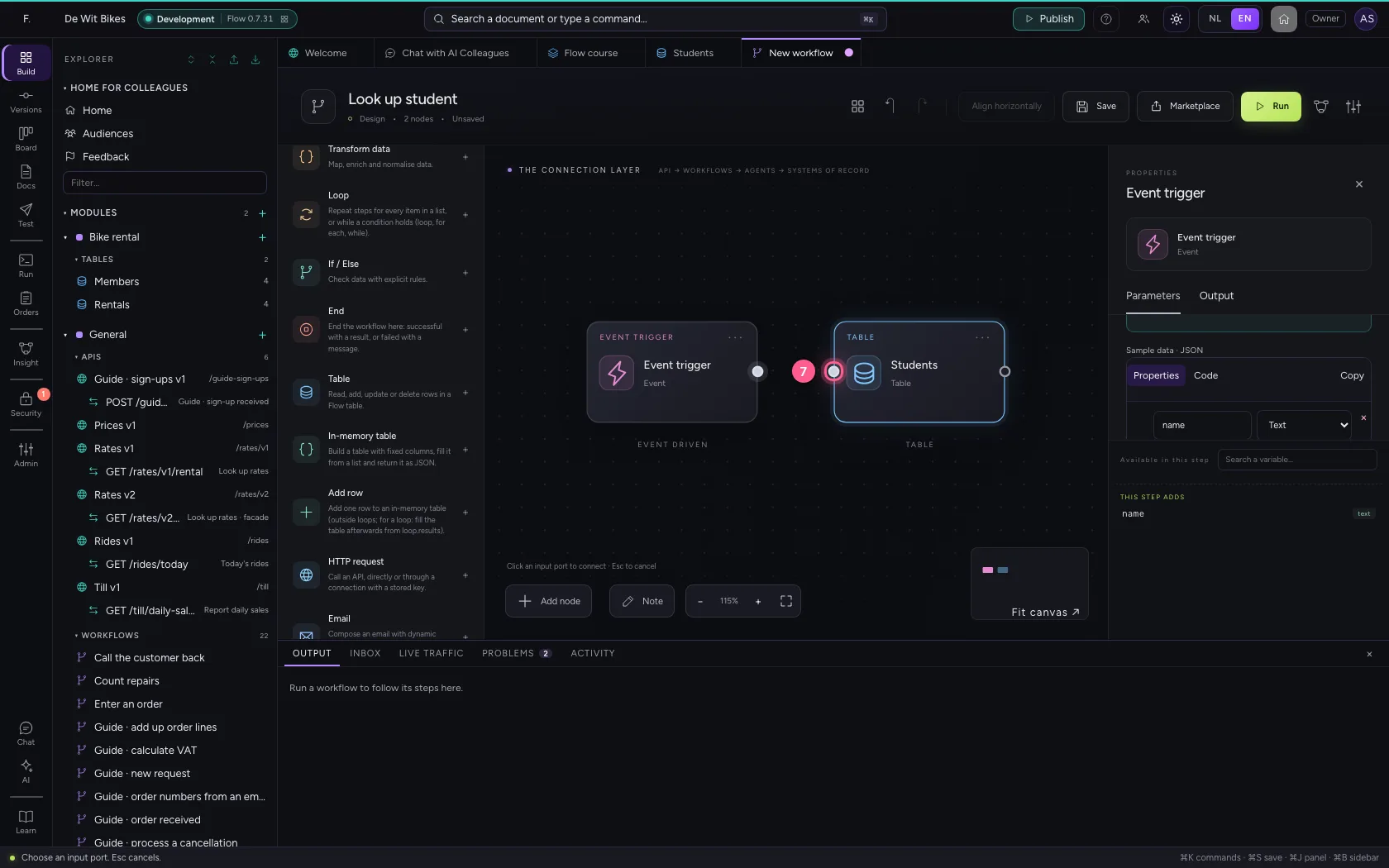
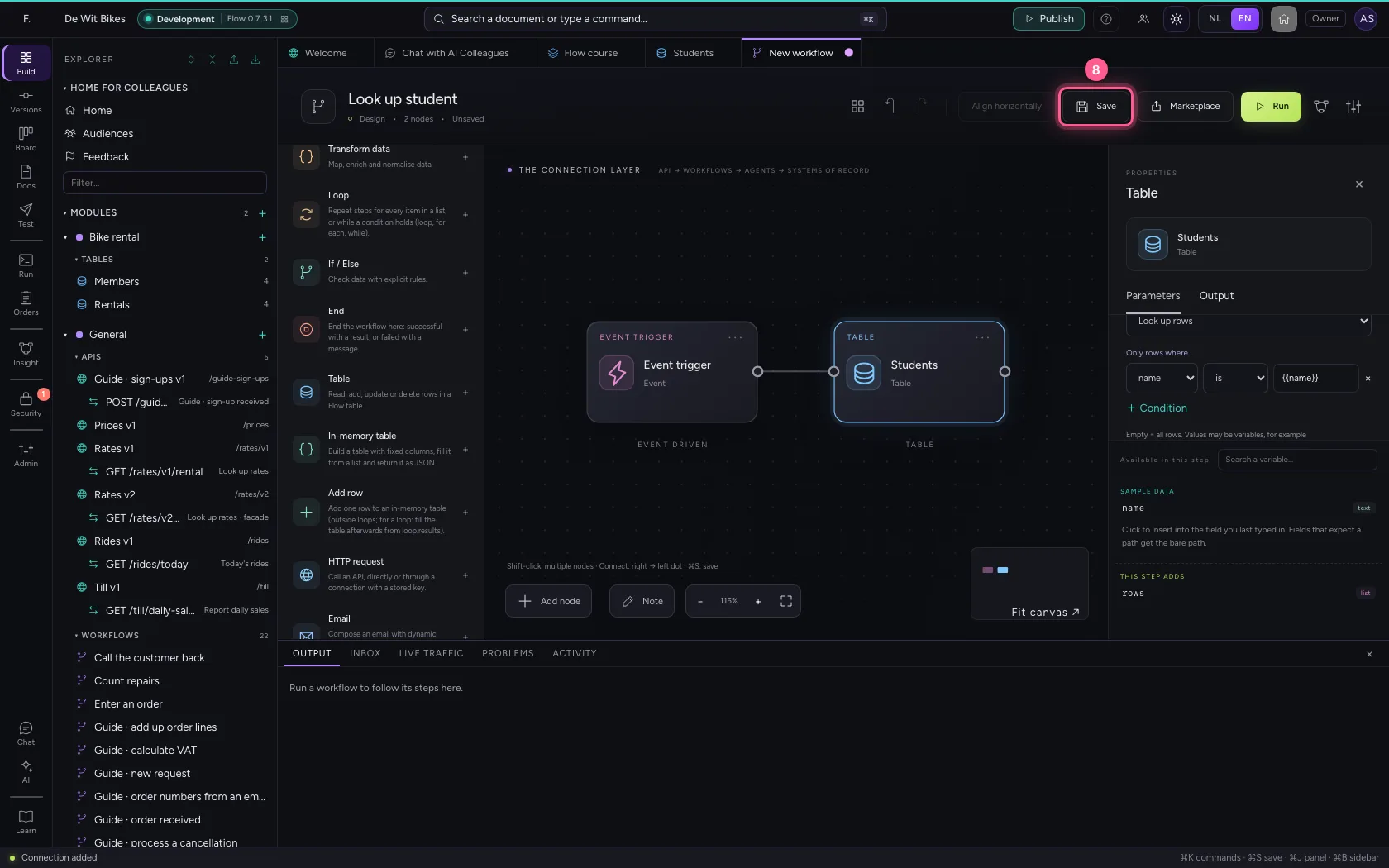
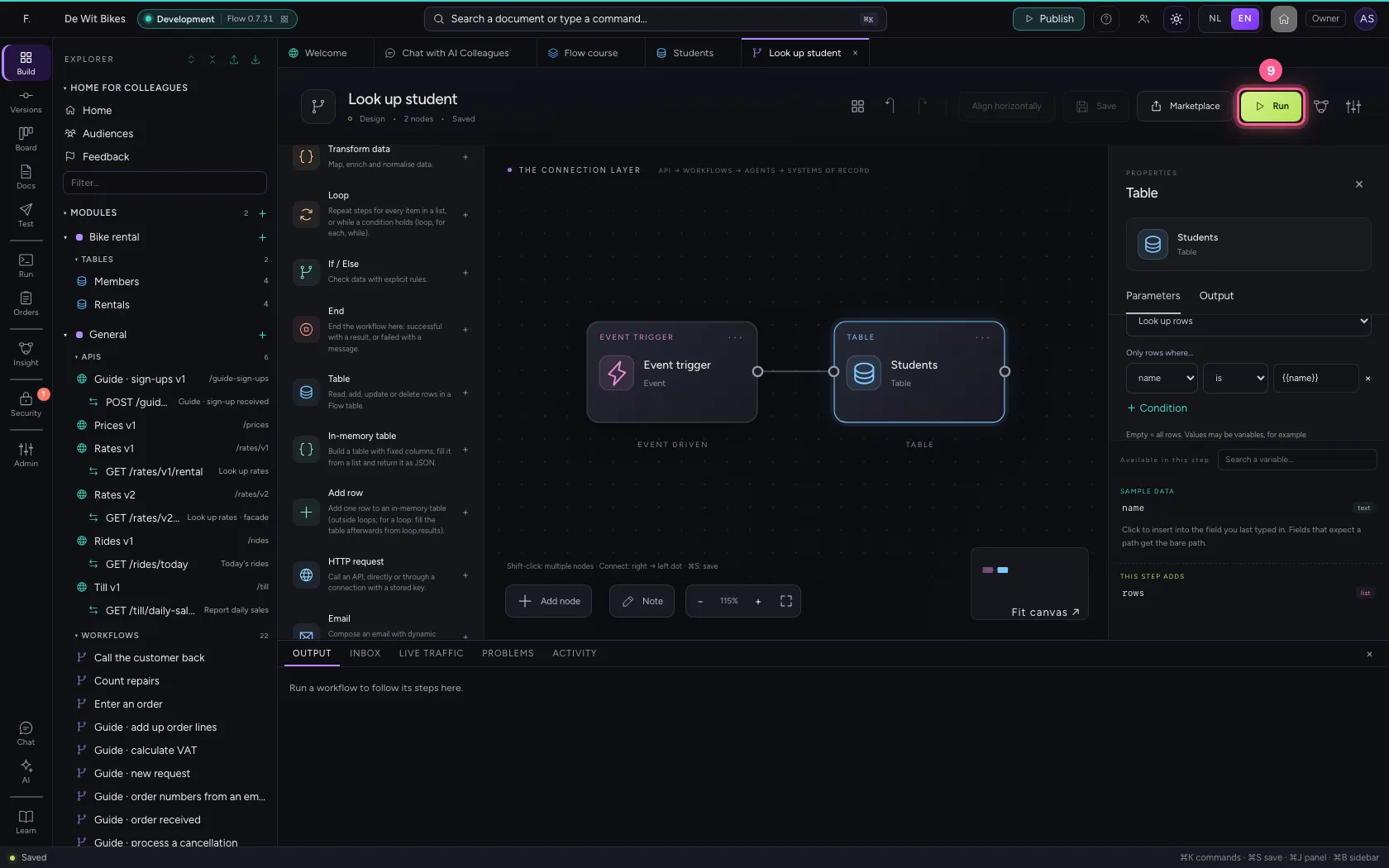
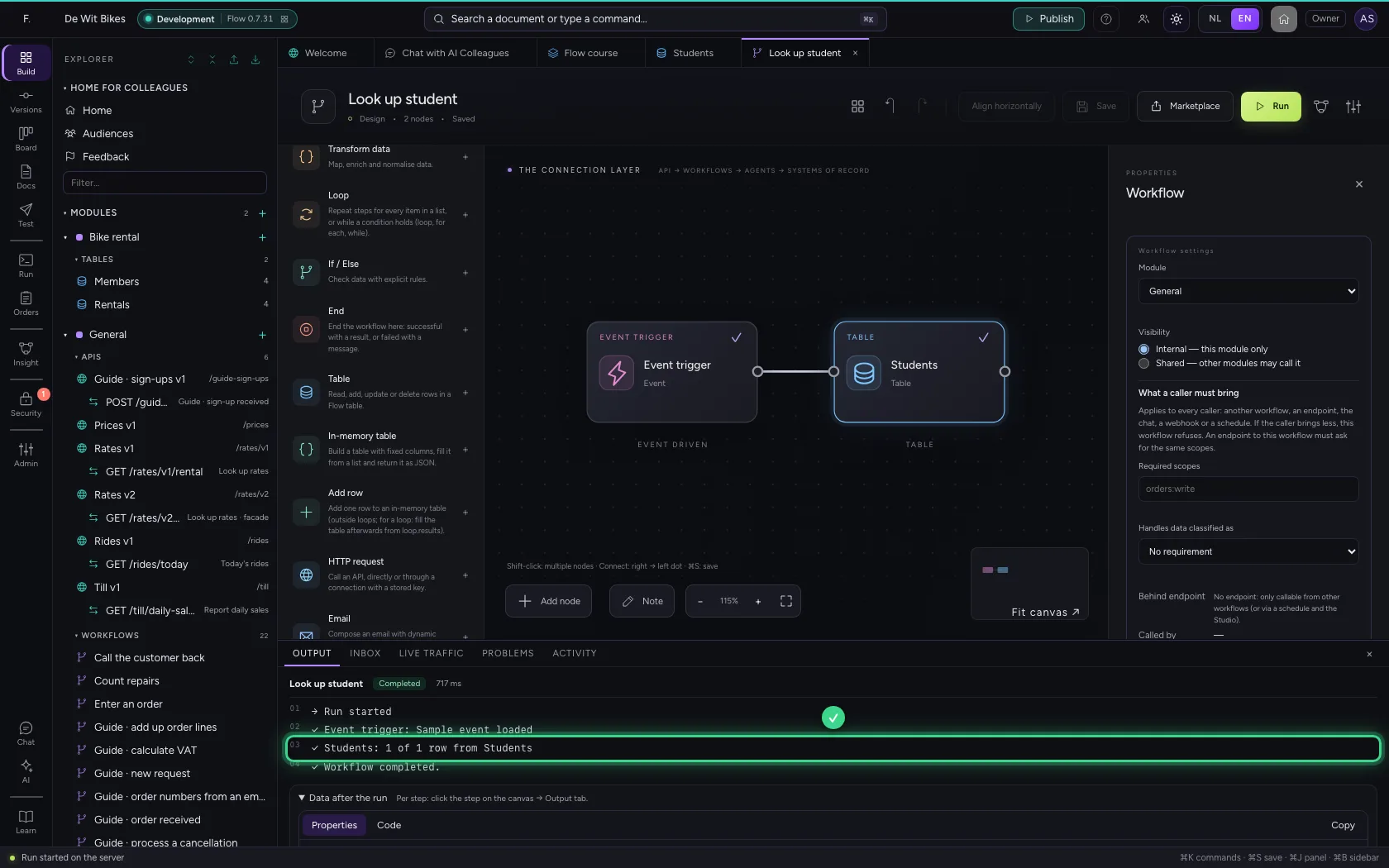
Add the Table step and choose Students; What does this step do is already set to Look up rows. With + Condition you say which rows: where the name equals {{name}}, the name from the trigger. Connect the trigger to the step, save and run: at the bottom you find the student from the example.
- Click Add node
- Click Table
- In Table, choose Students · 6
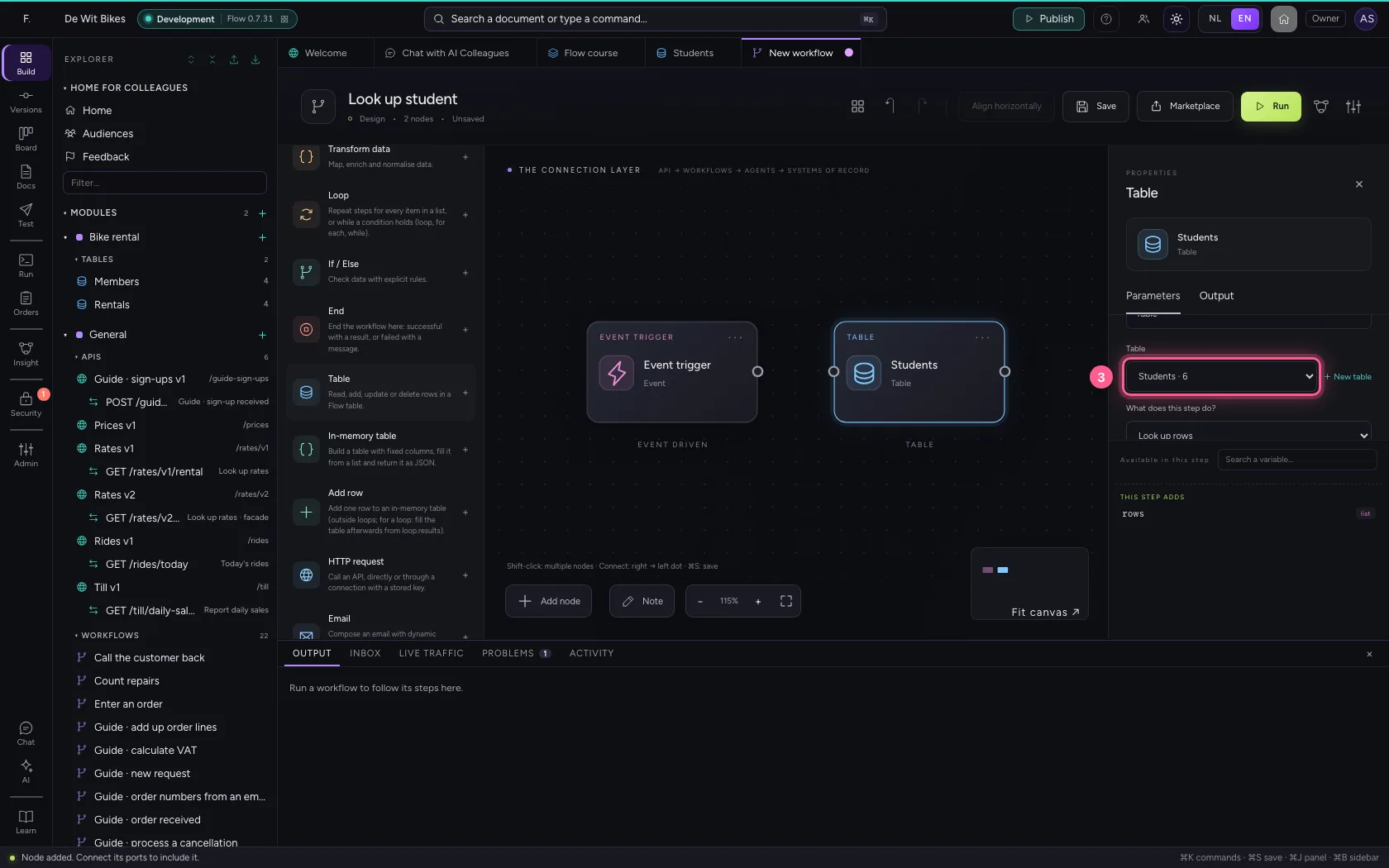
- Click + Condition
- In value, type
{{name}}
- Click the dot of ‘Event trigger’
- Click the dot of ‘Students’
- Click Save
- Click Run
Workflow 2: add a student
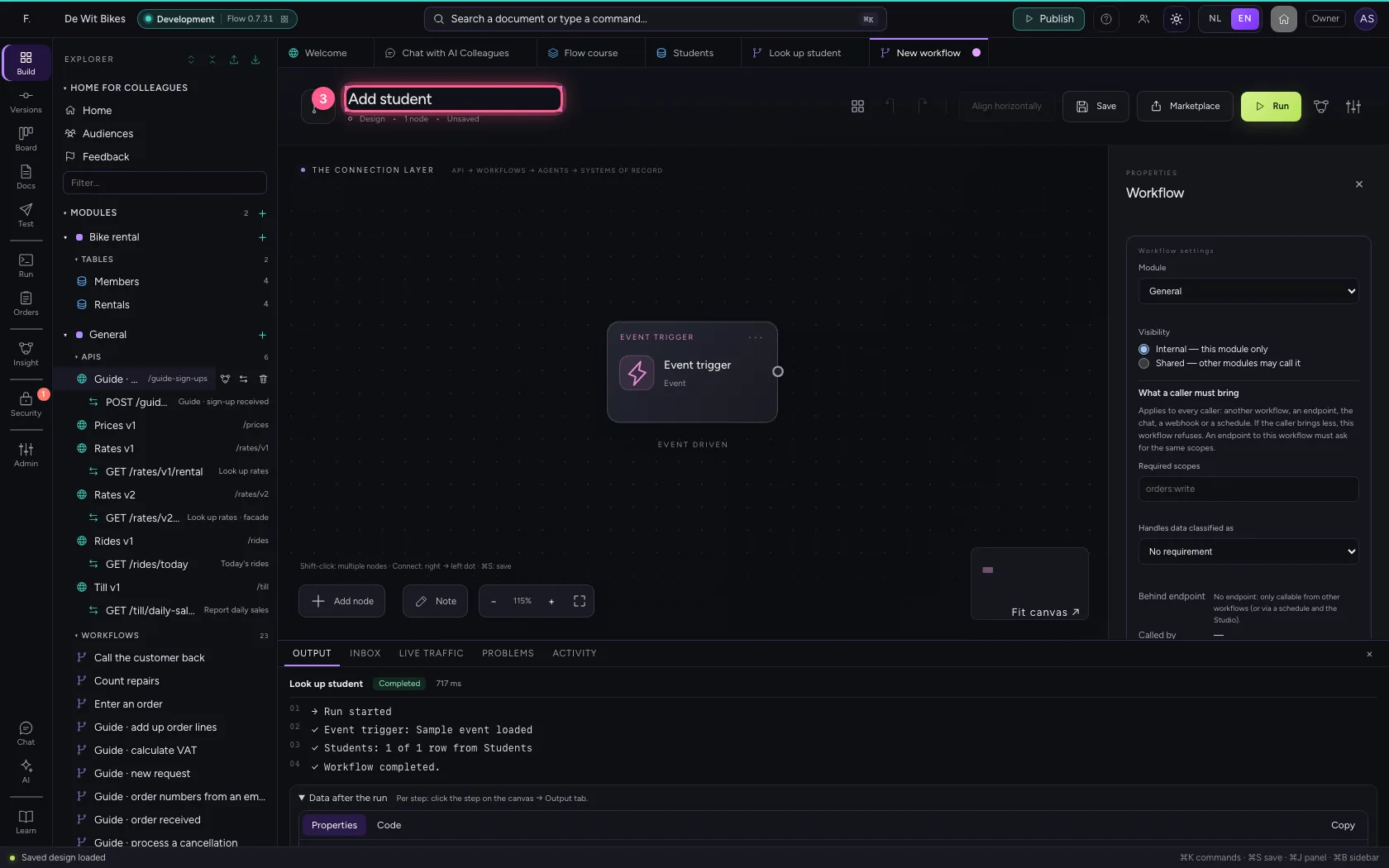
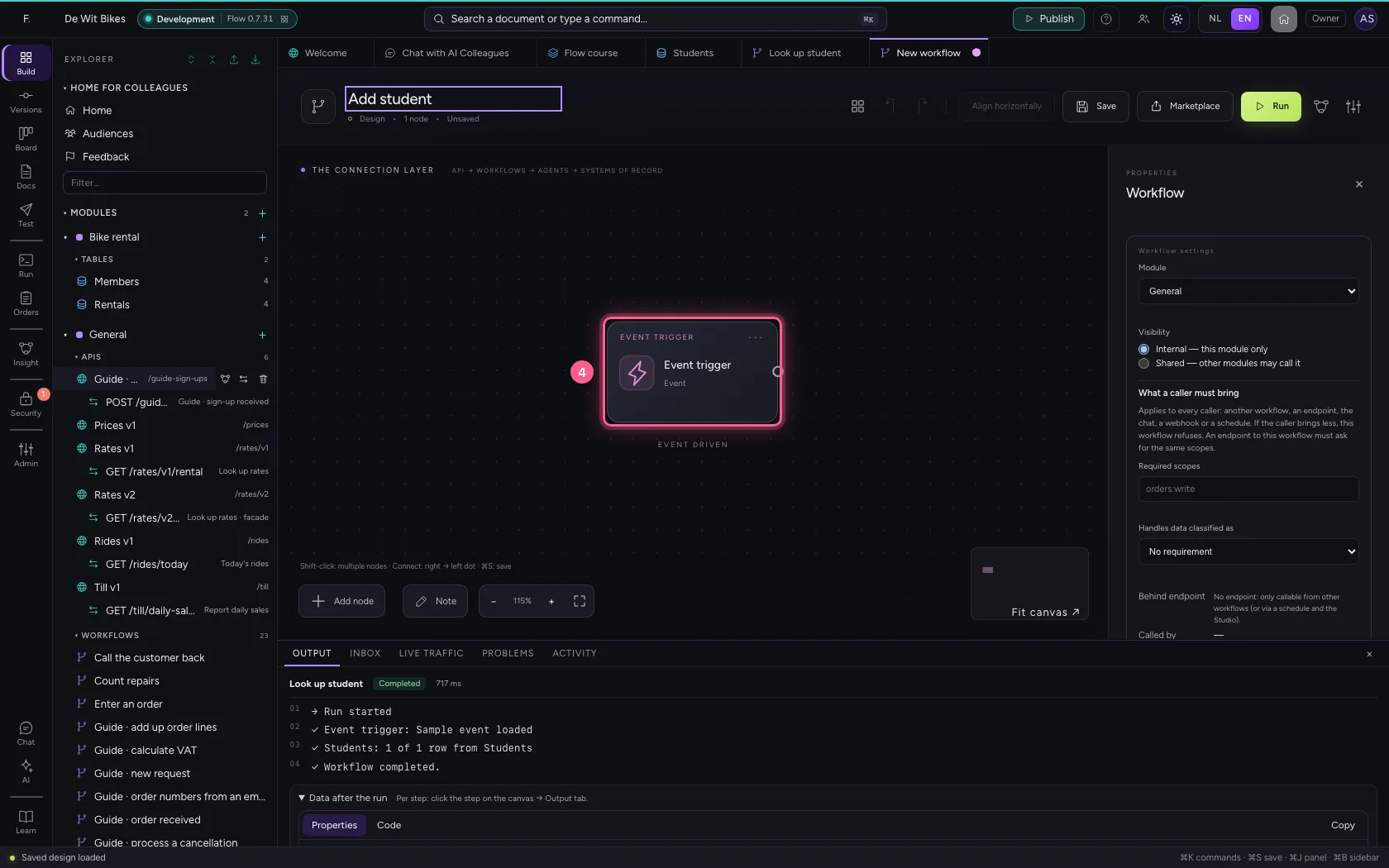
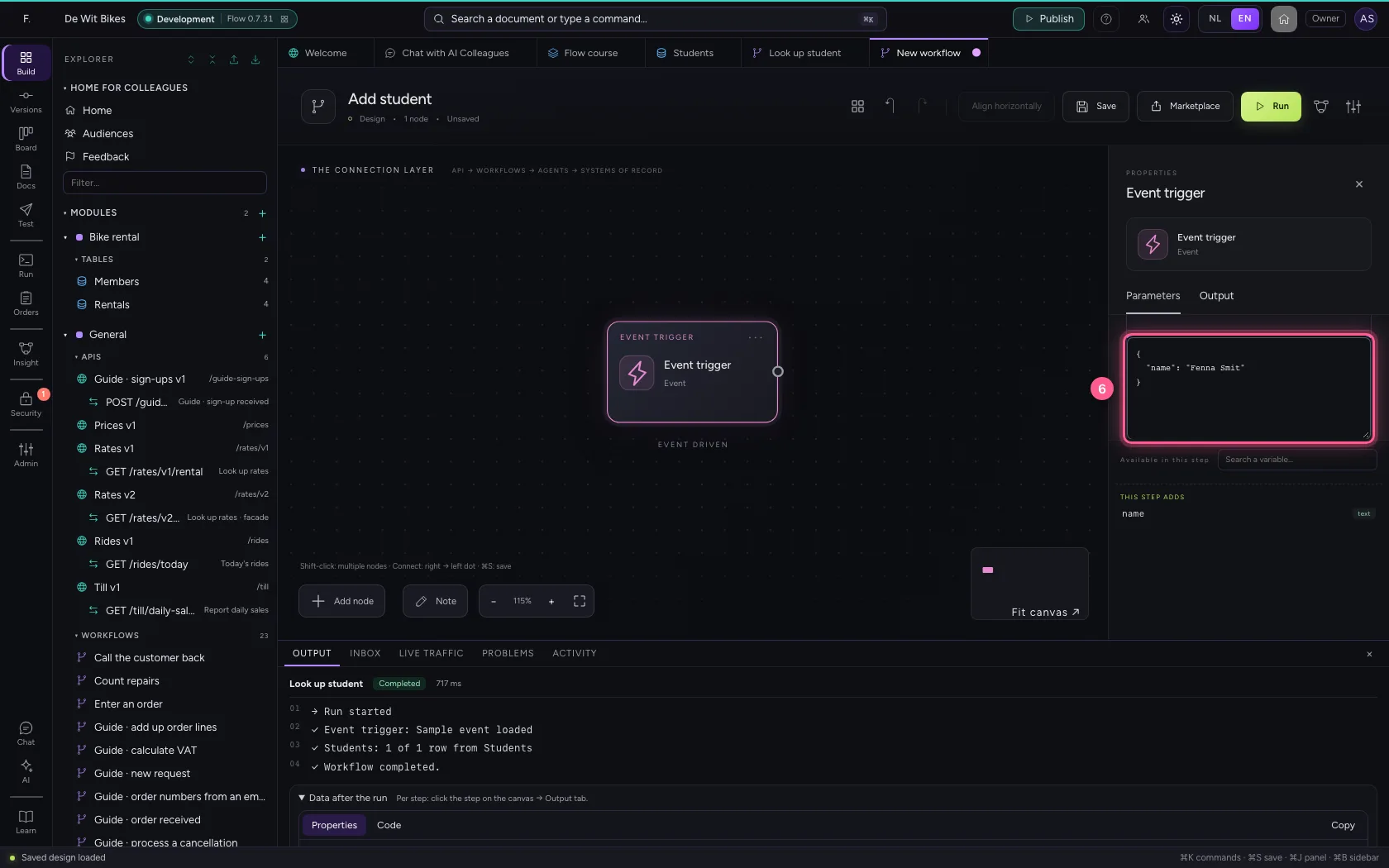
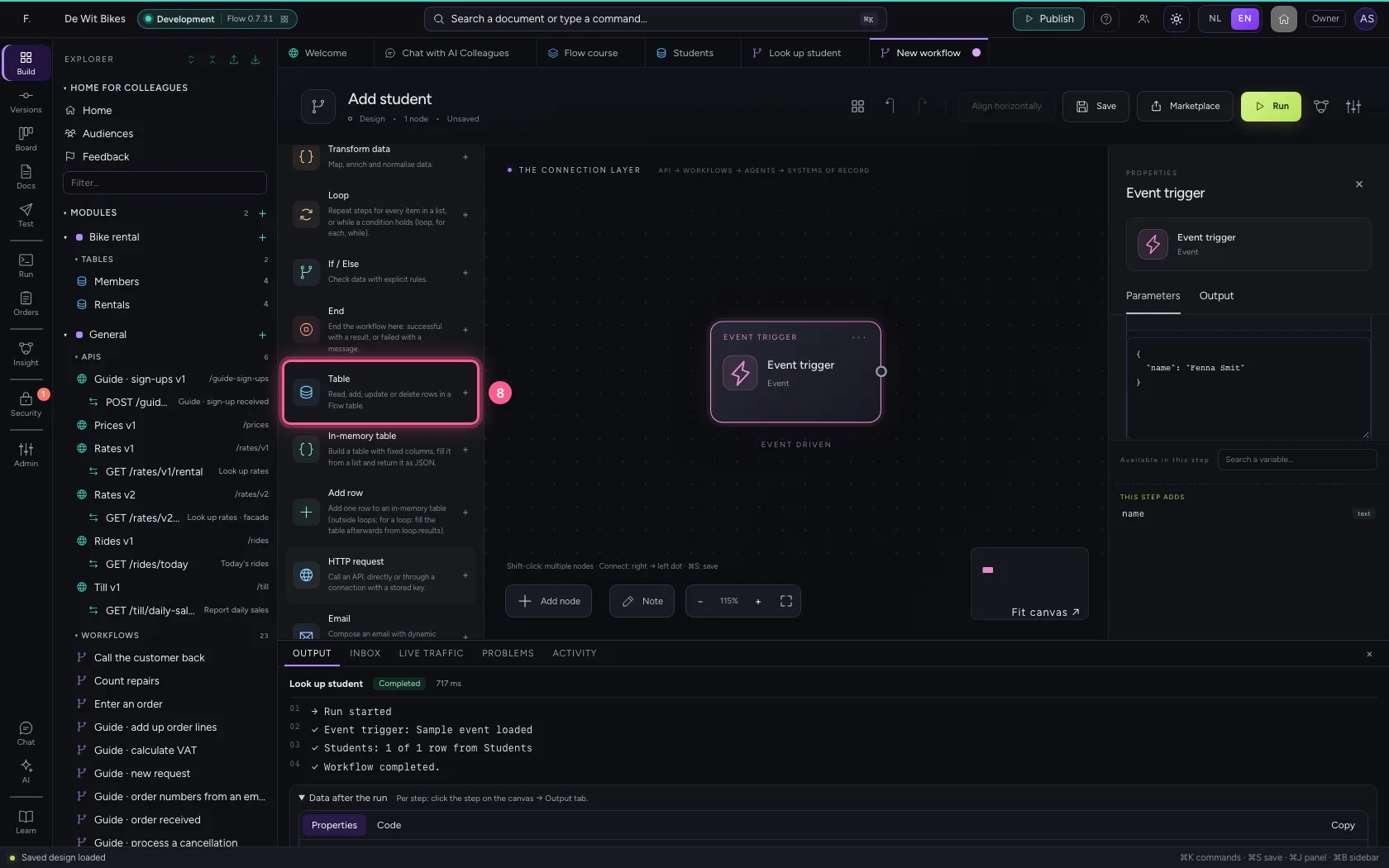
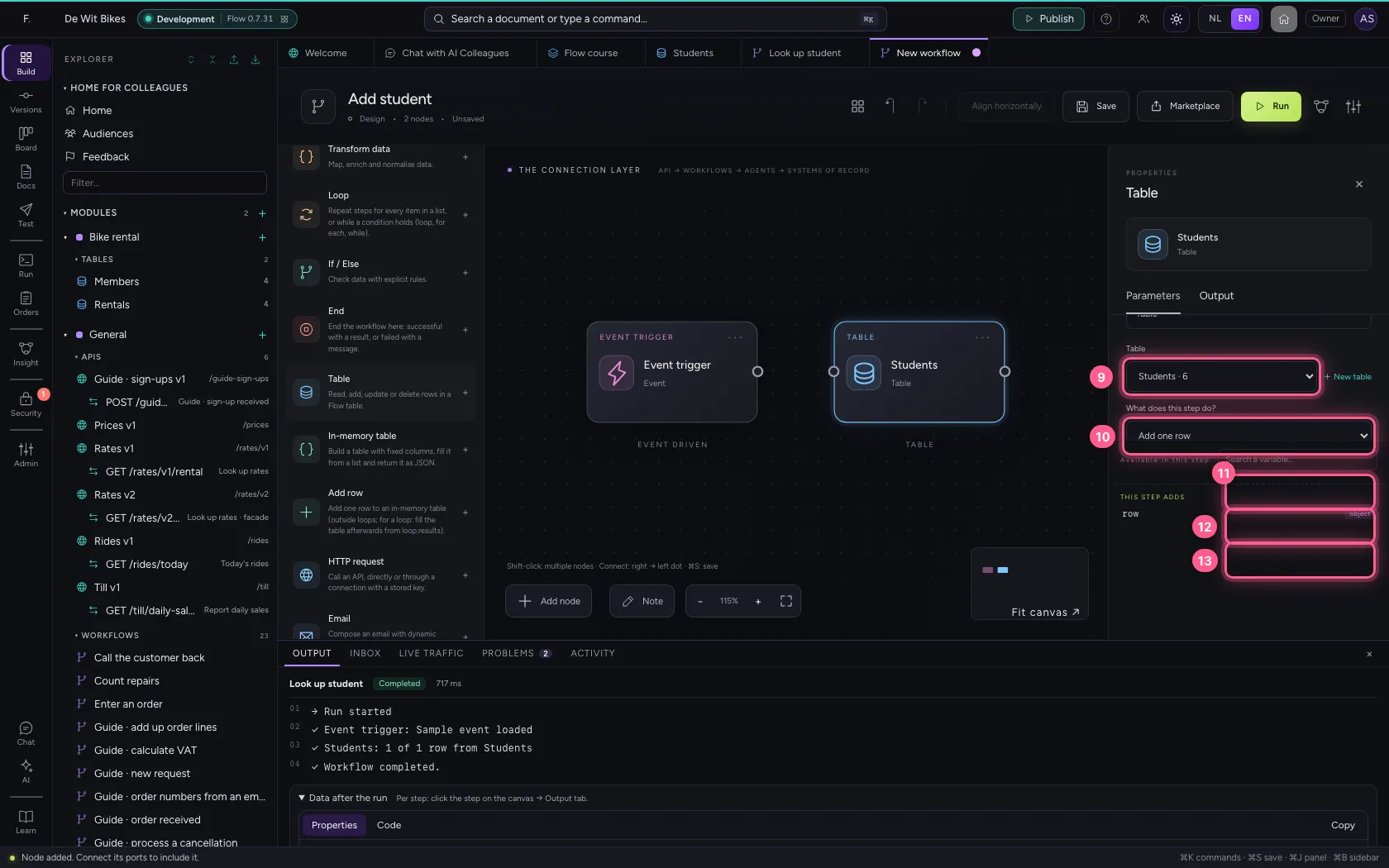
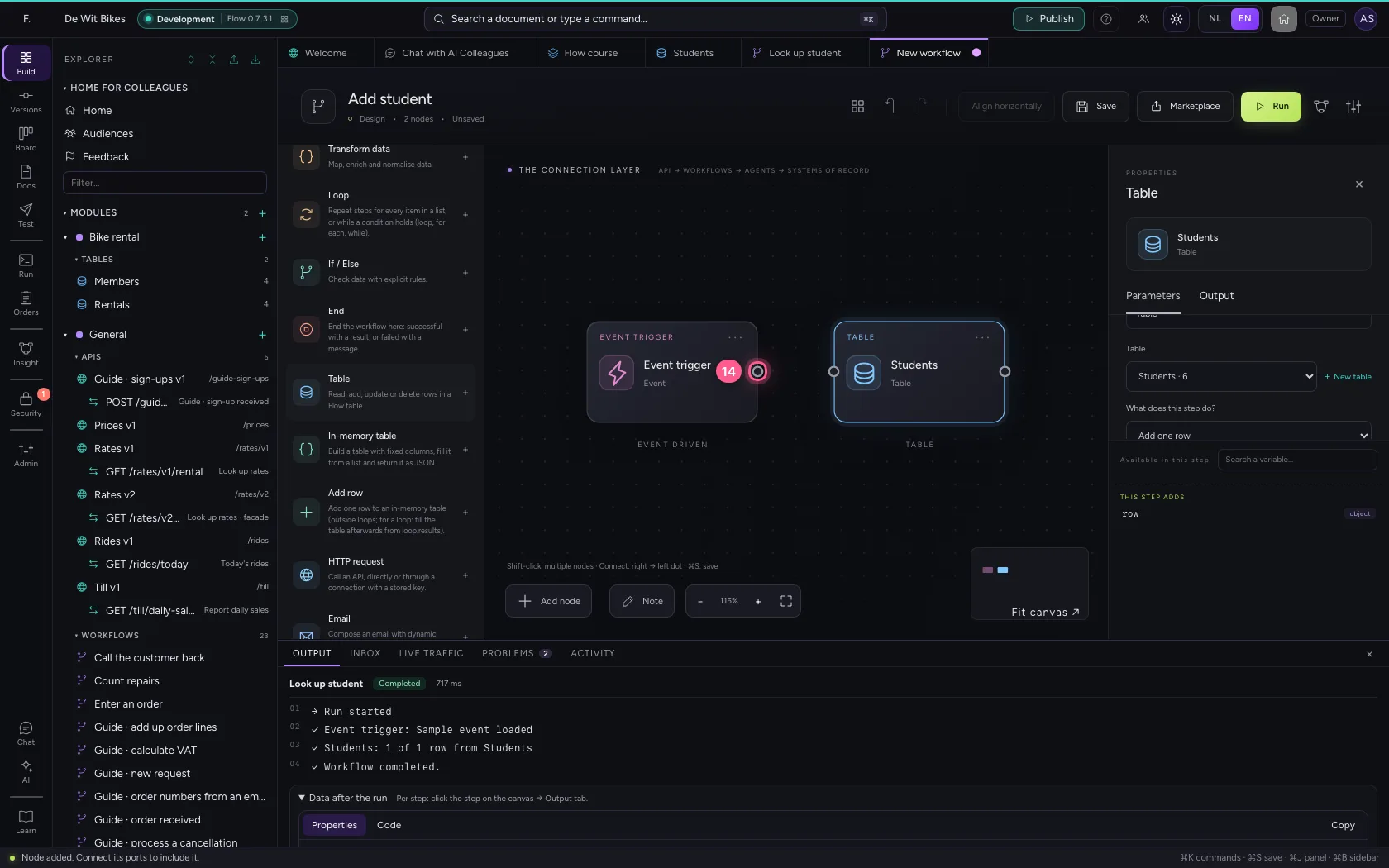
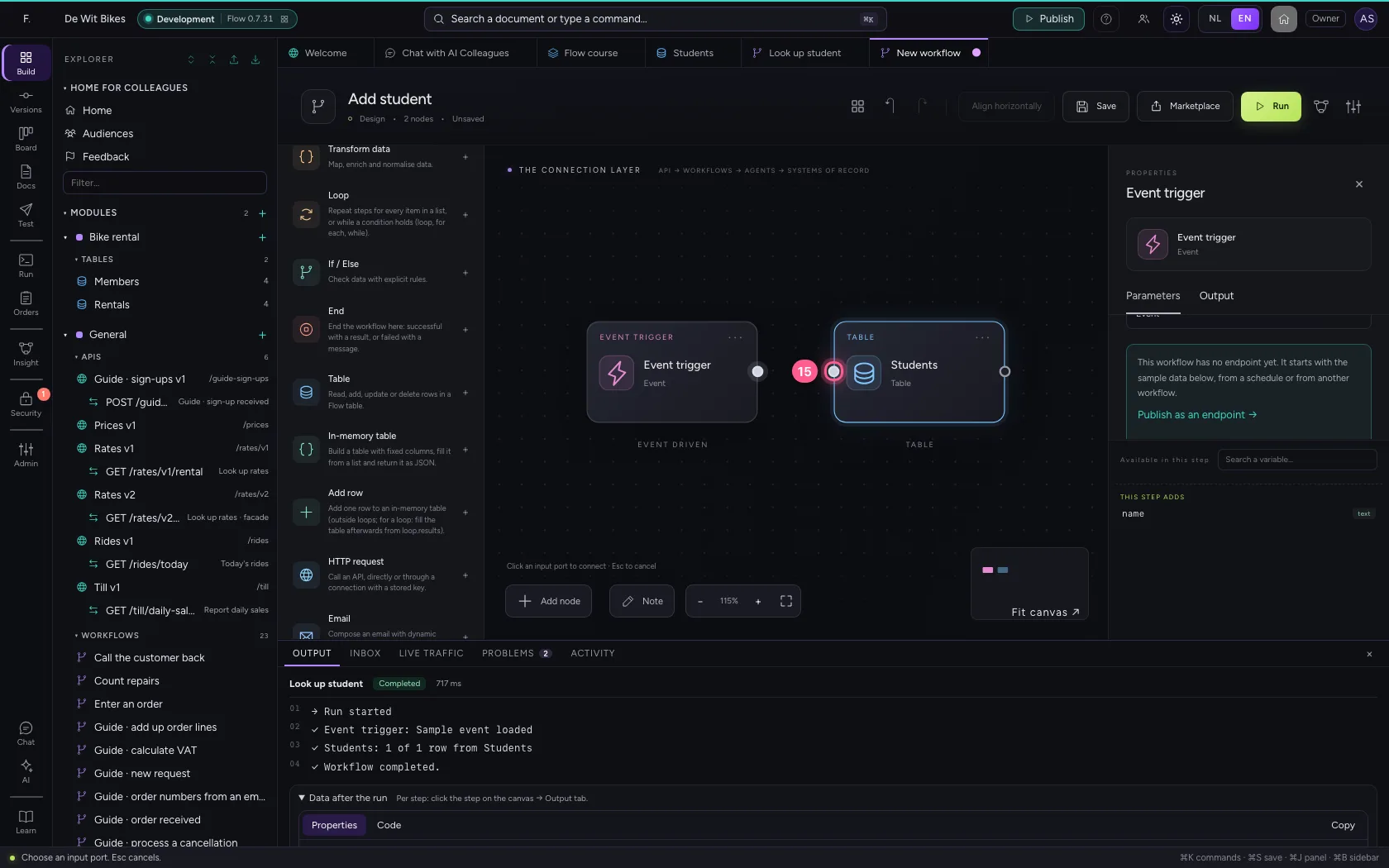
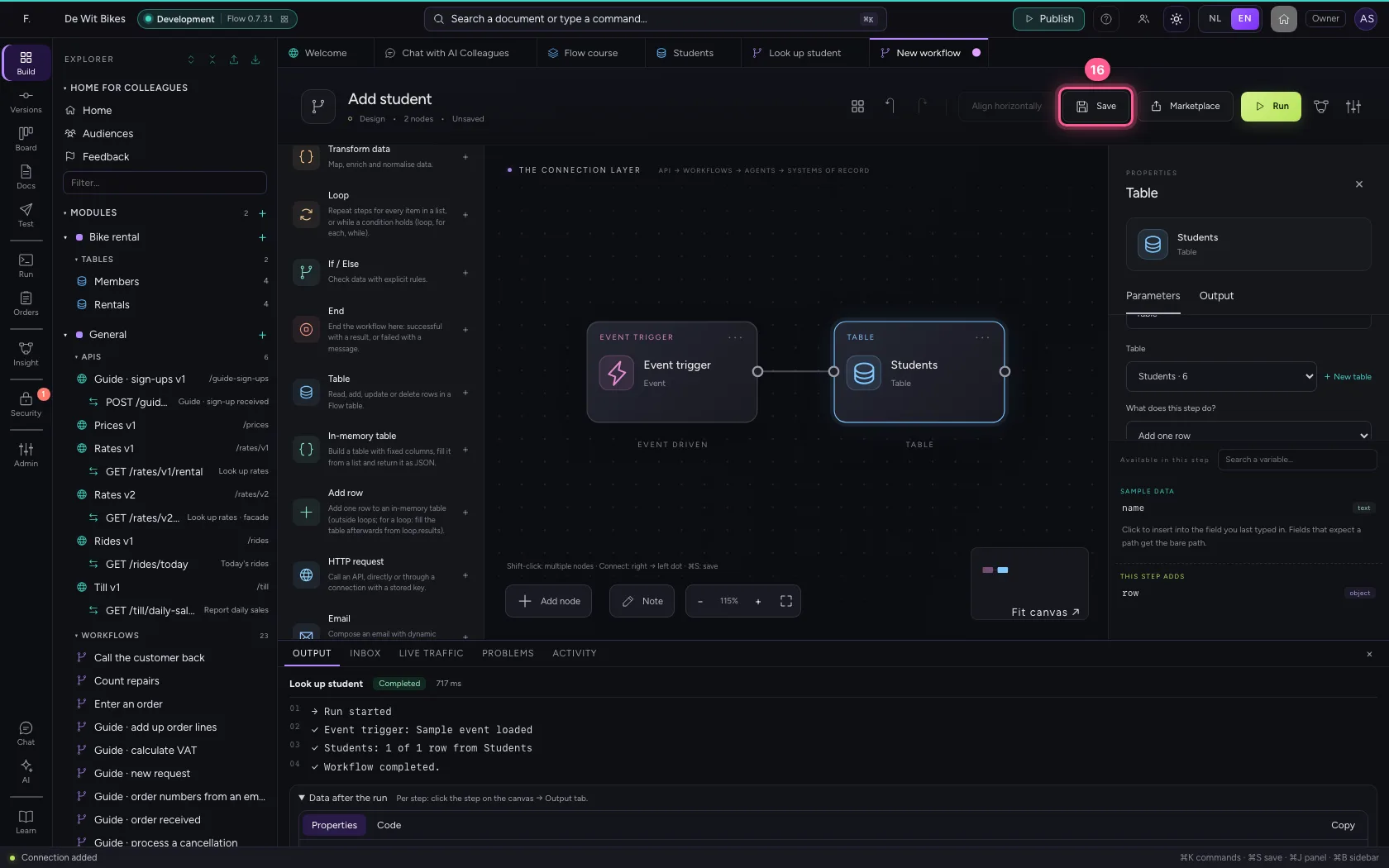
The second workflow, Add student, also receives a name. Its Table step does Add one row: the name from the trigger, Module 1 and the status enrolled. That way you decide how a new student gets in, not the AI. Save it; there is no need to run it, the AI Colleague will do that.
- Click Add to General
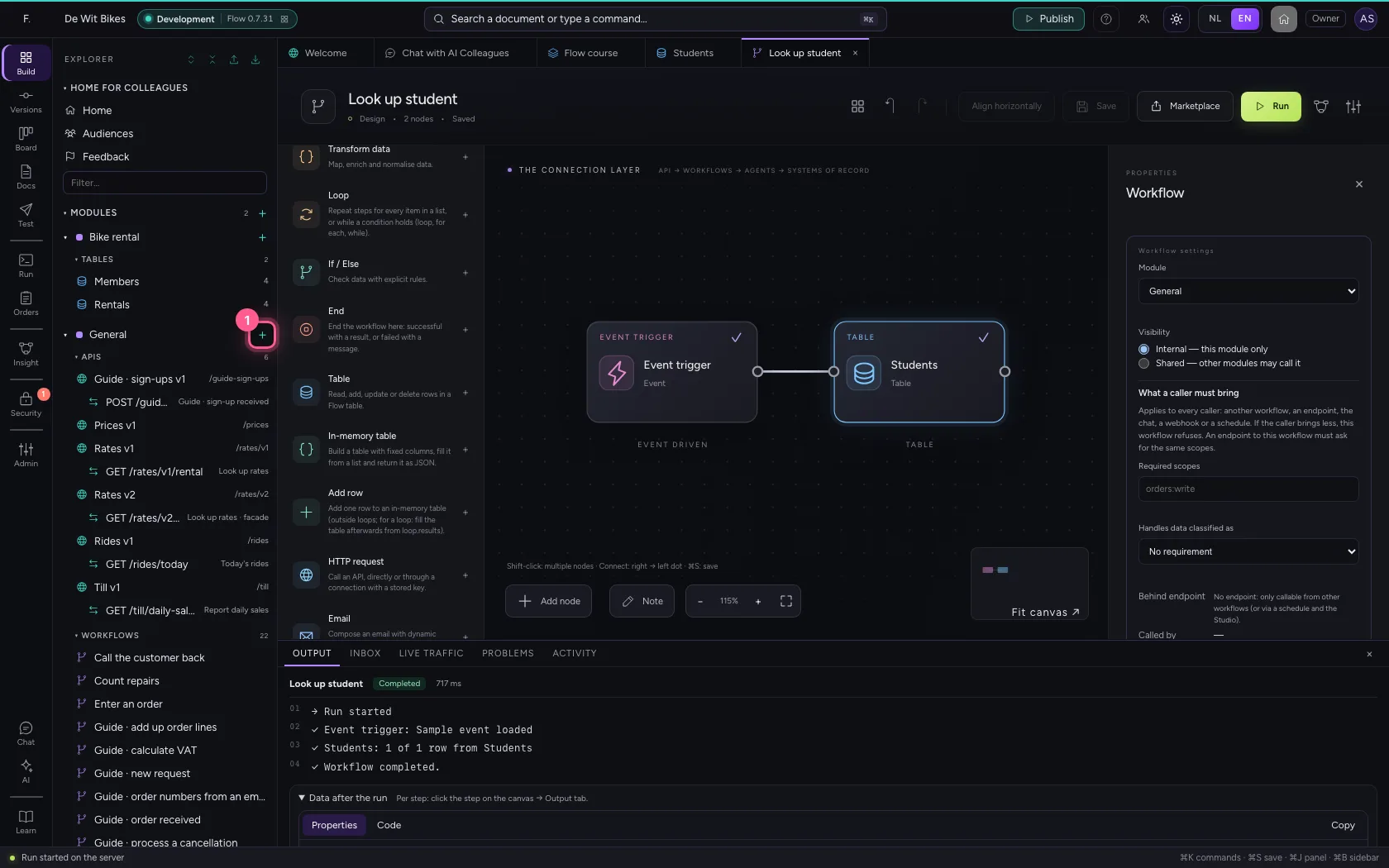
- Click New workflow
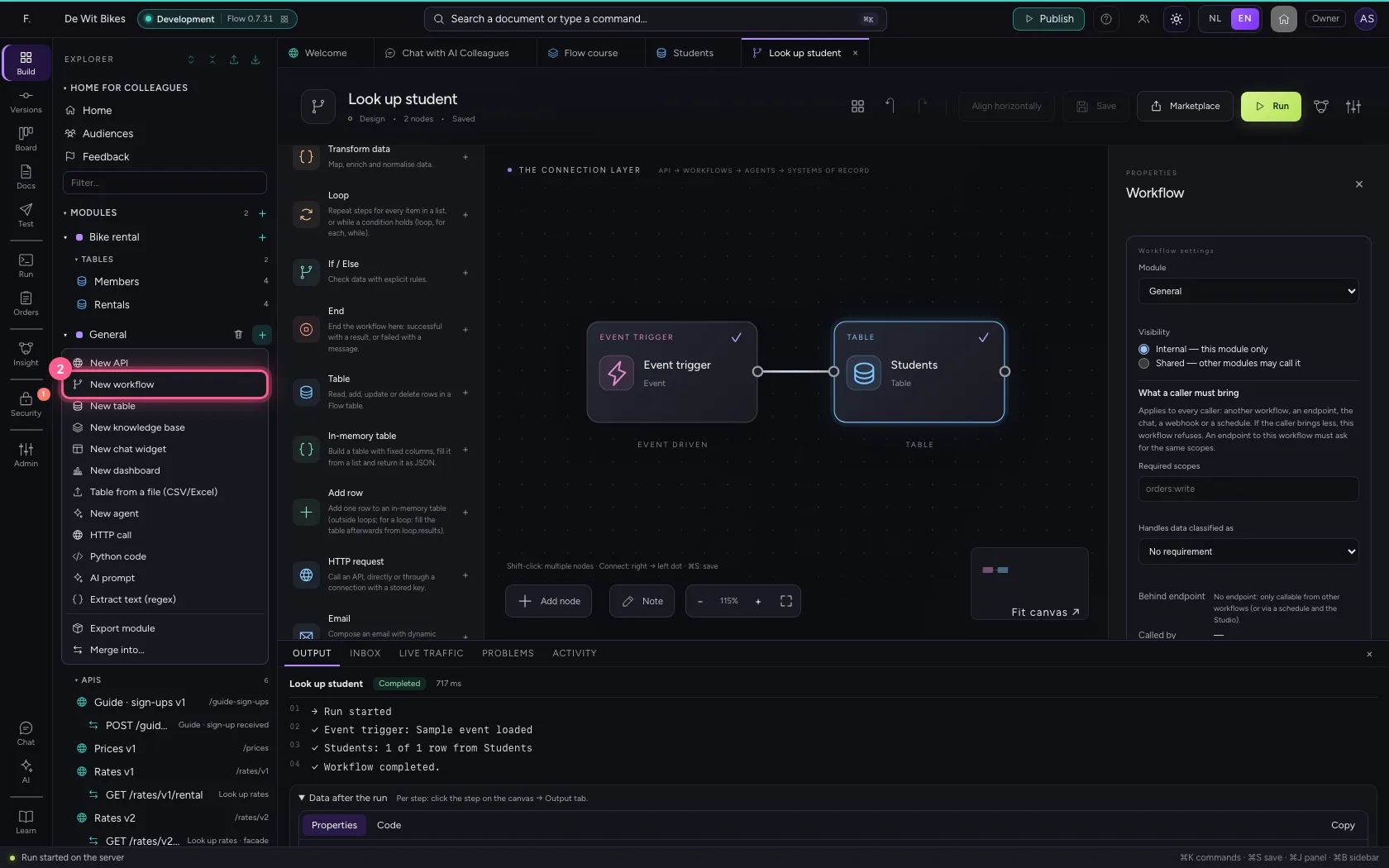
- In Workflow name, type
Add student
- Click the trigger
- Click Code
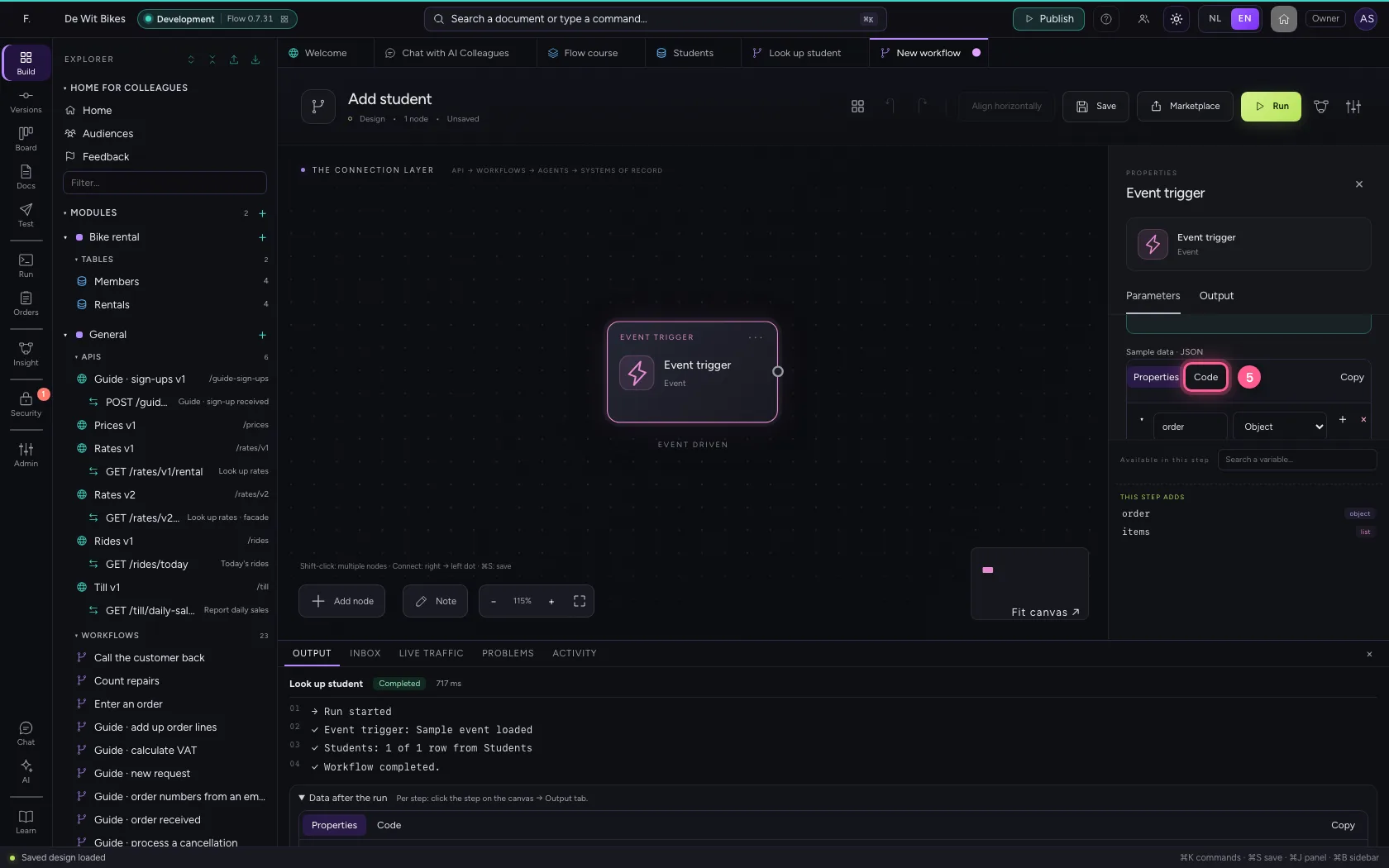
- In Sample data, type `{
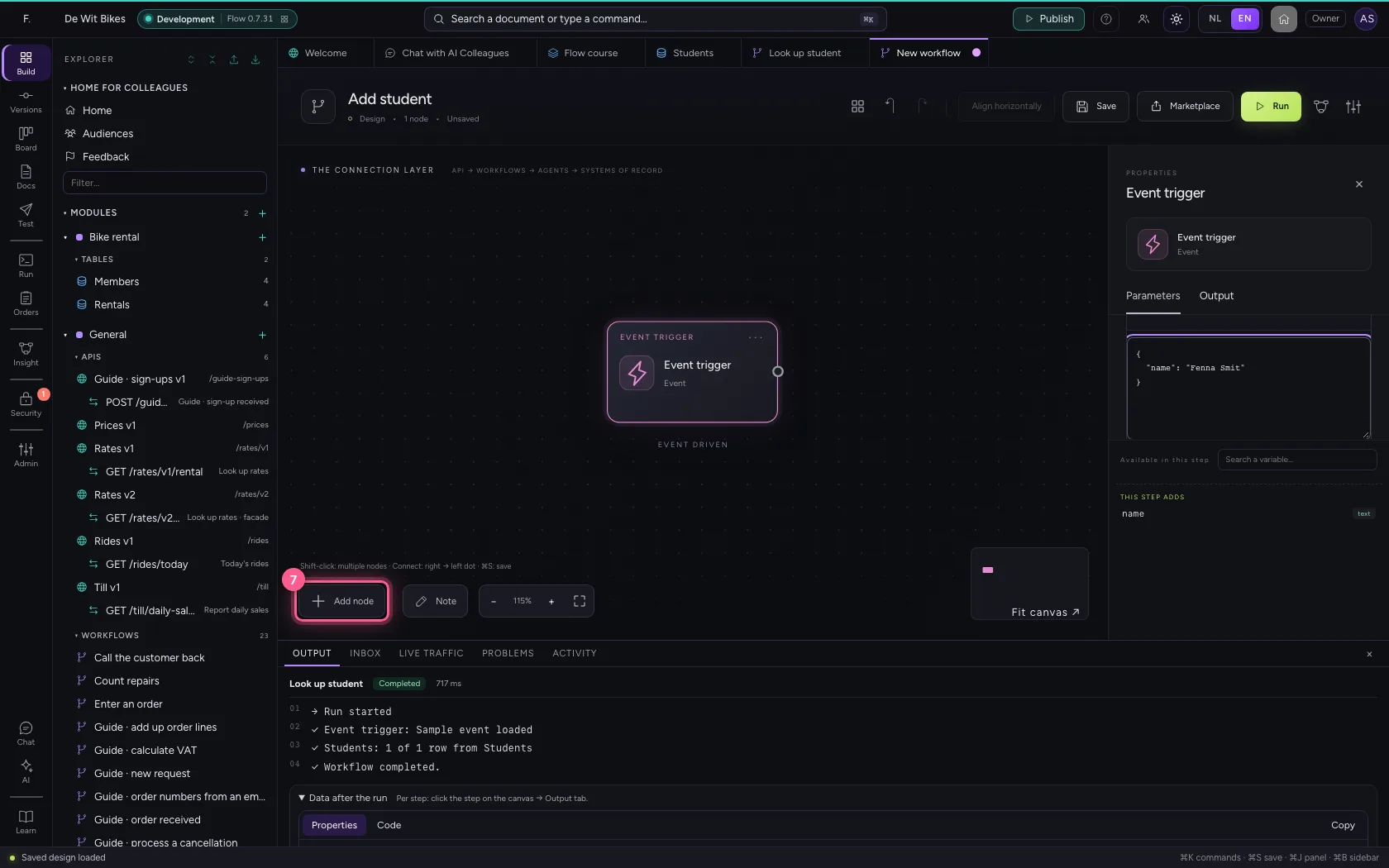
- Click Add node
- Click Table
- In Table, choose Students · 6
- In What does this step do? Look up rows Get one row (by id) Add one row Add rows fr, choose Add one row
- In name * text, type
{{name}} - In module * text, type
Module 1 - In status * text, type
enrolled
- Click the dot of ‘Event trigger’
- Click the dot of ‘Students’
- Click Save
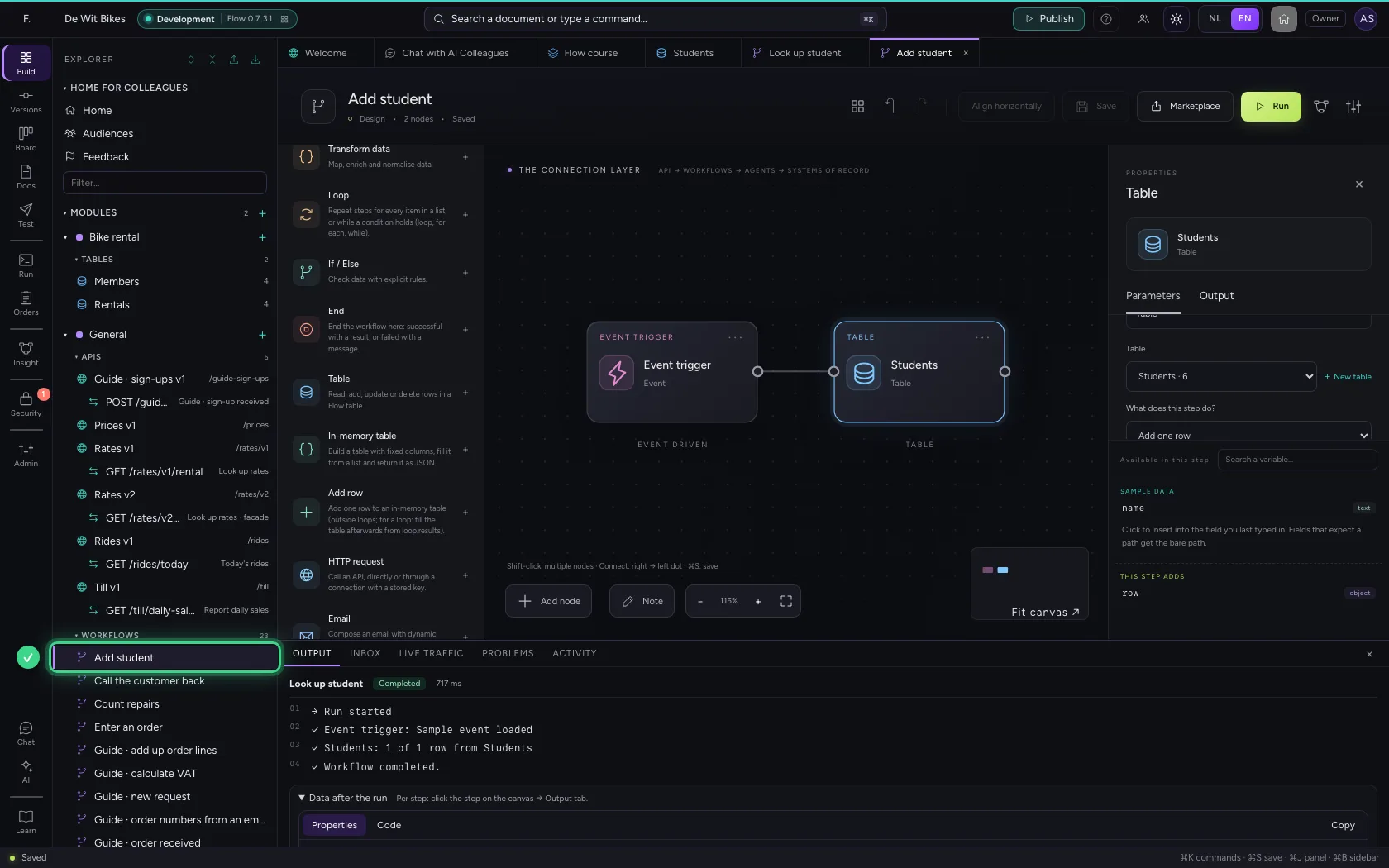
Create the AI Colleague
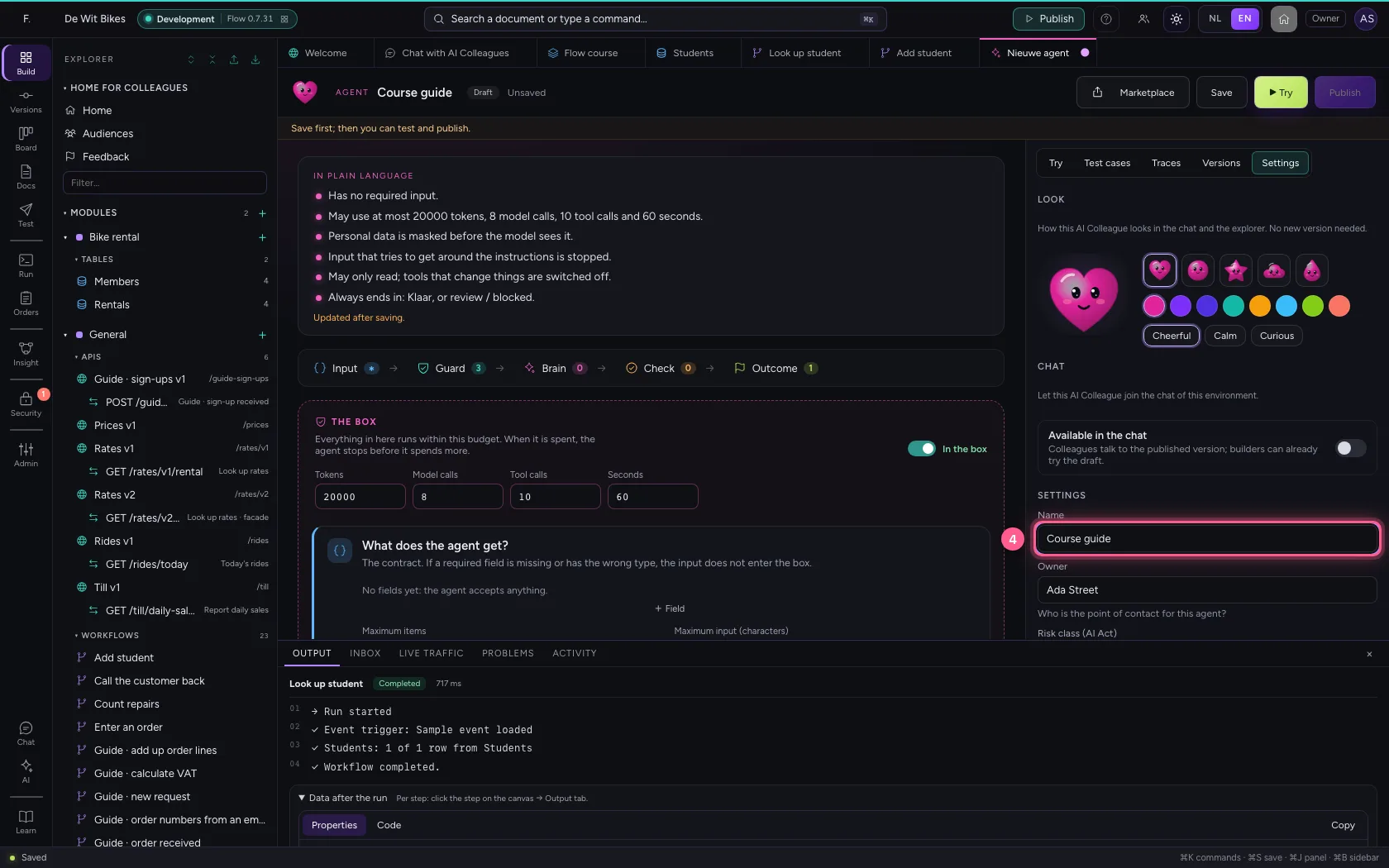
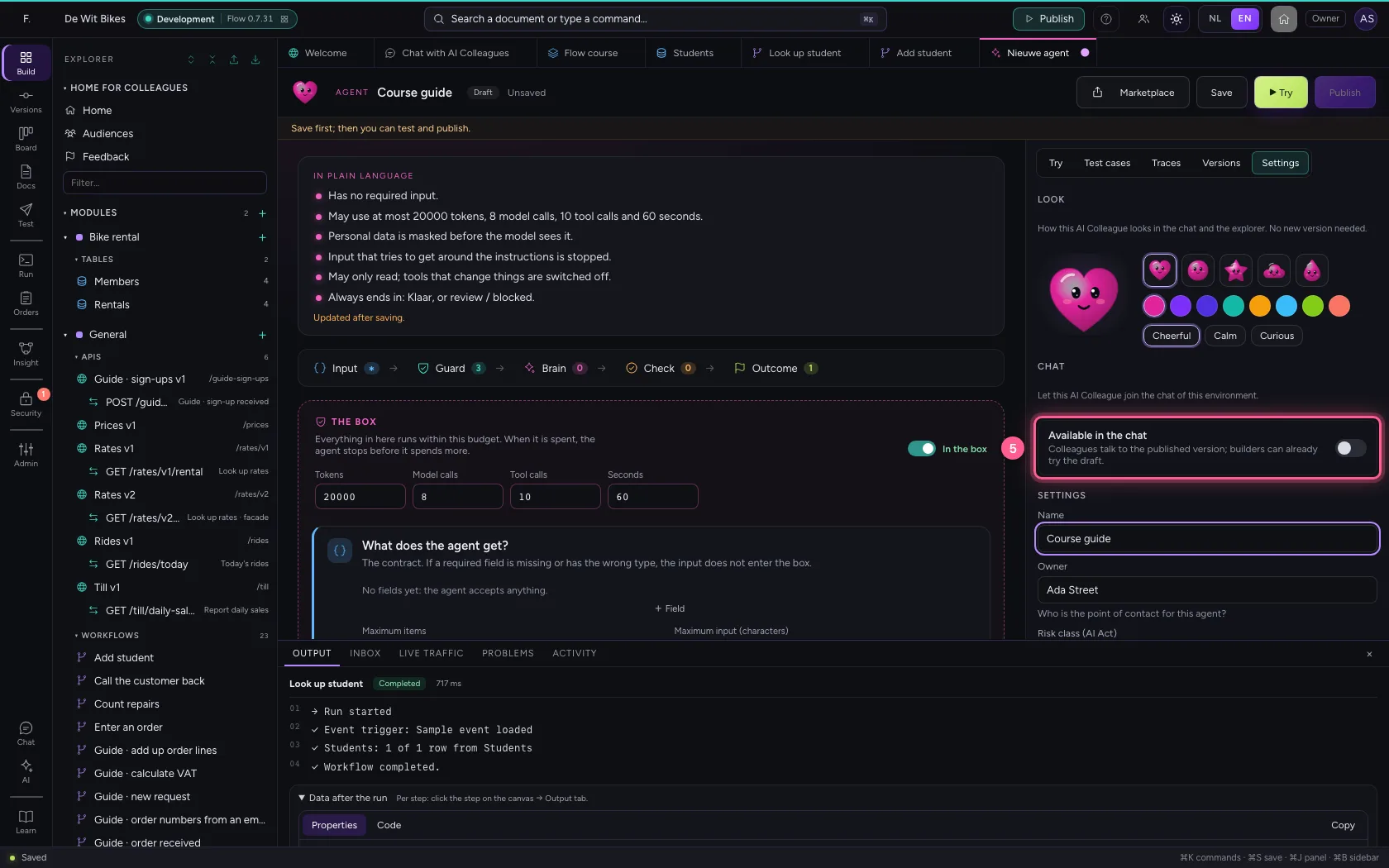
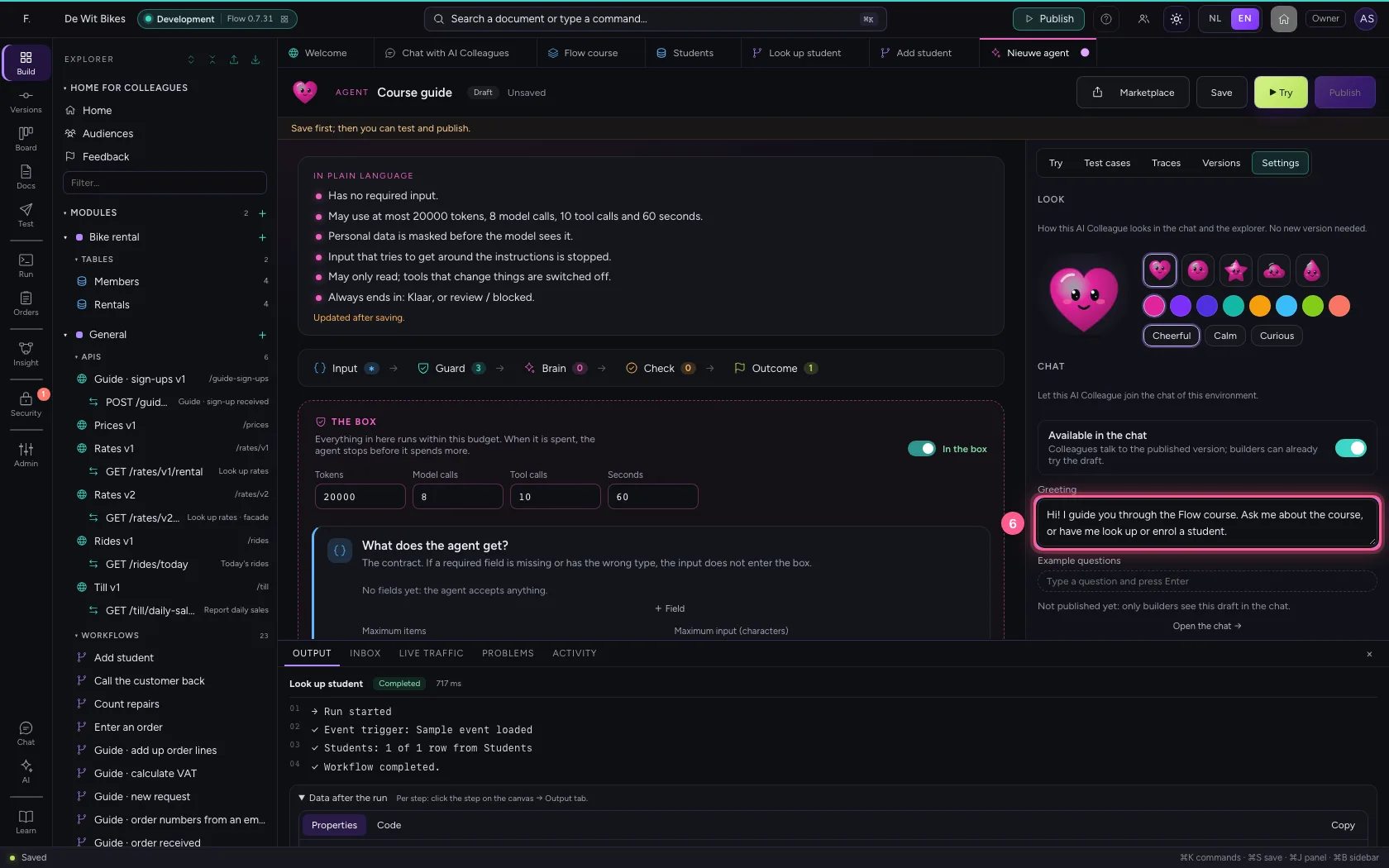
Click + next to General and choose New agent. Under Settings you give it a name, switch on Available in the chat and write a greeting: that is the first thing a student sees.
- Click Add to General
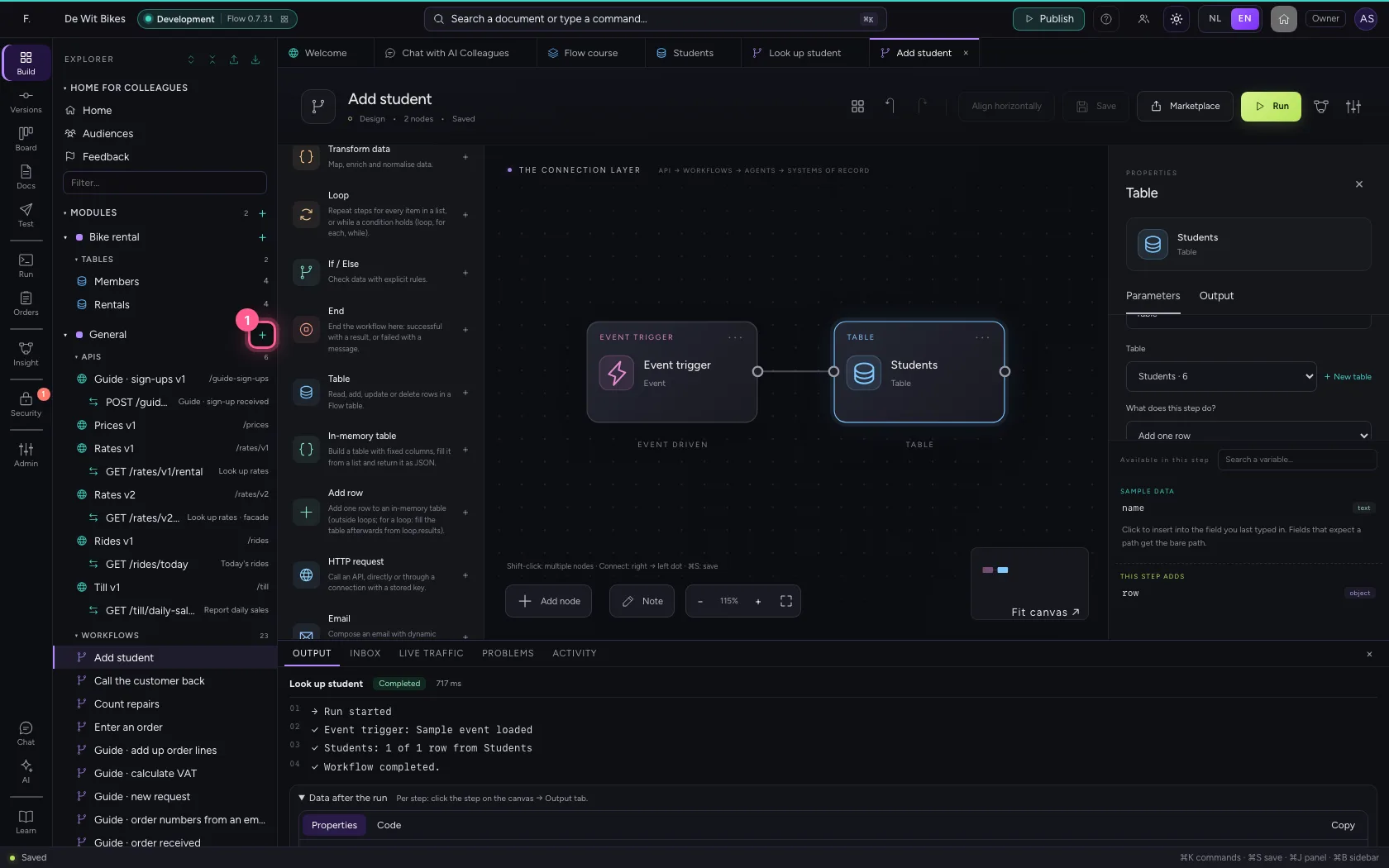
- Click New agent
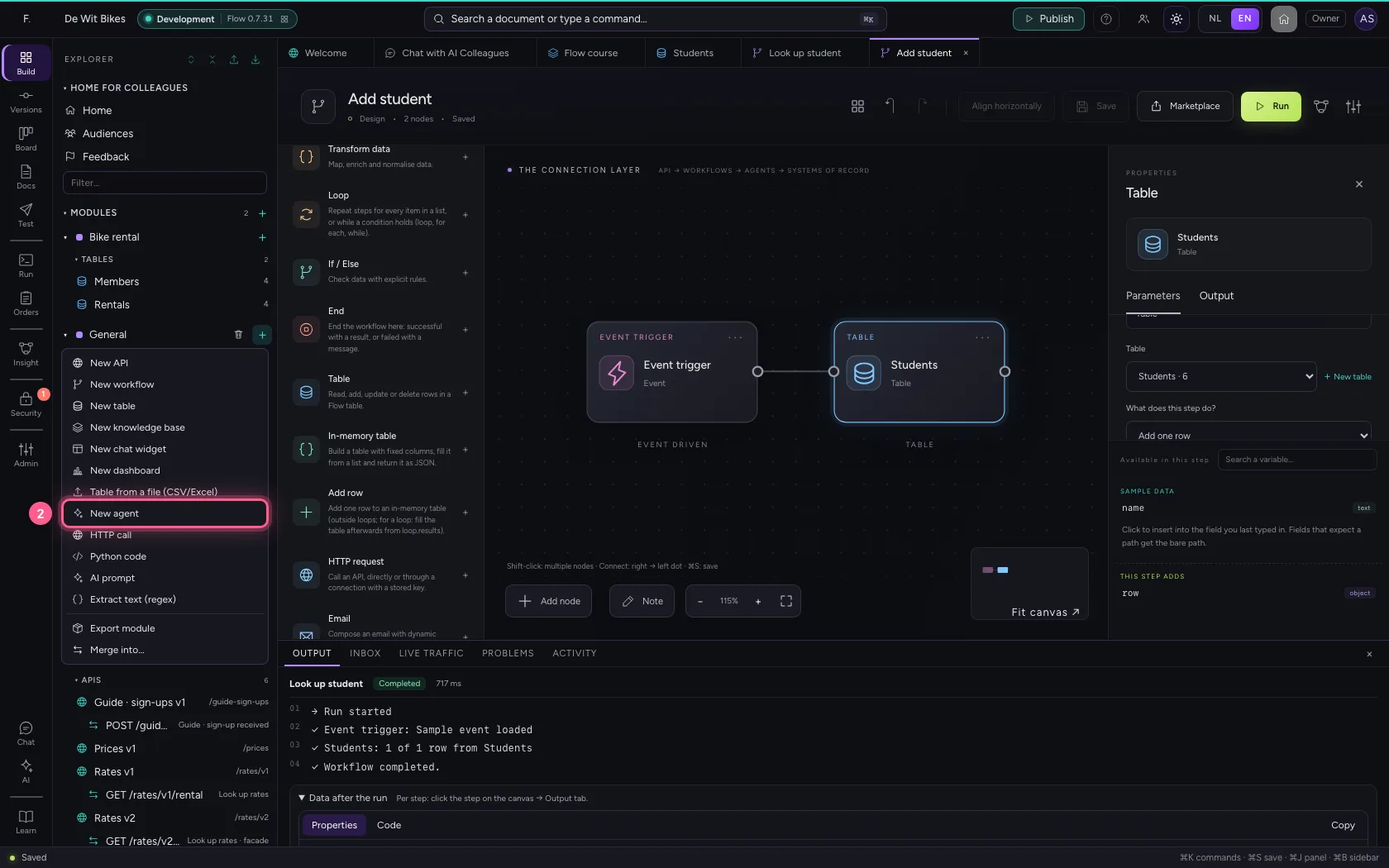
- Click Settings
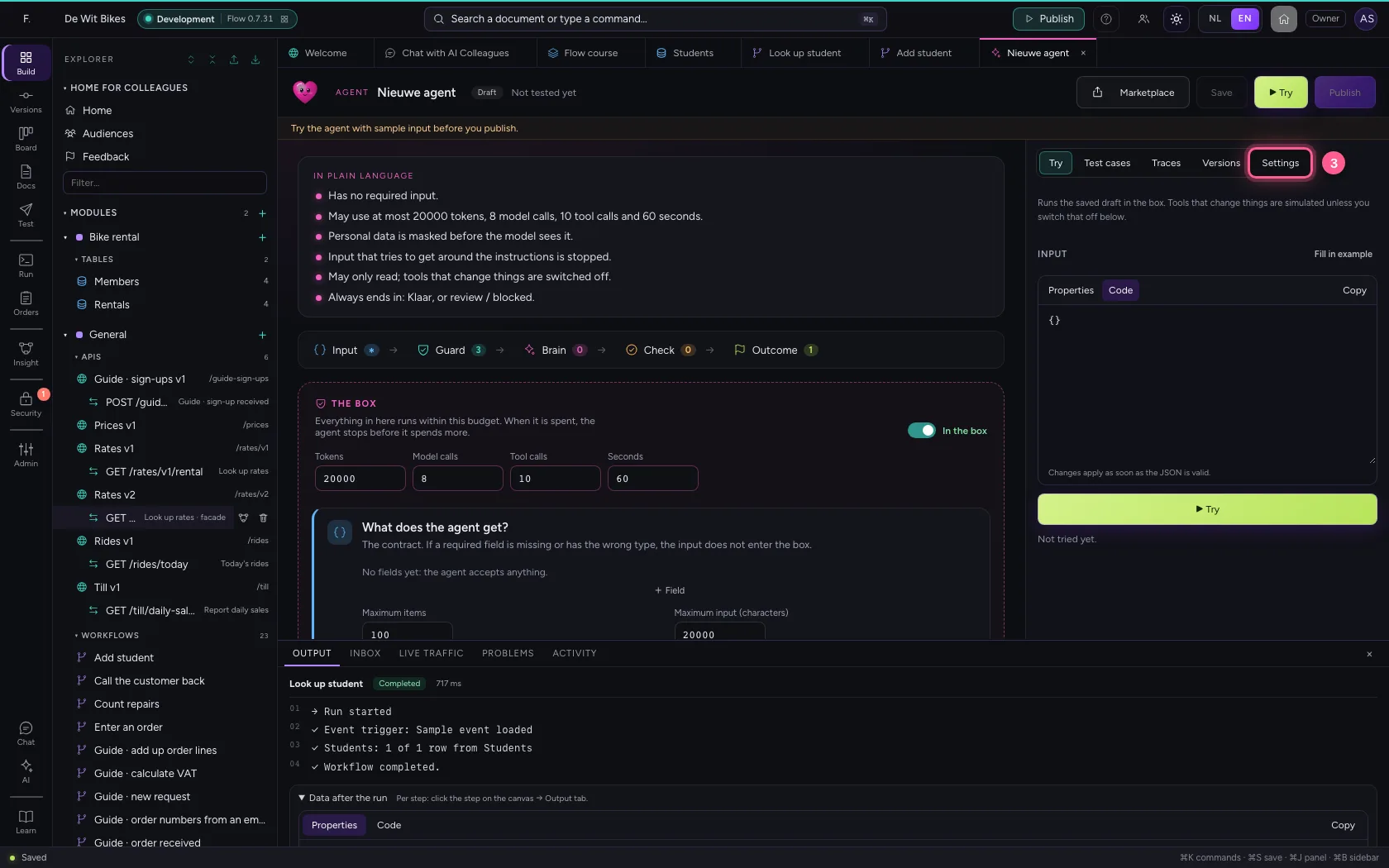
- In Name, type
Course guide
- Click Available in the chat
- In Greeting, type
Hi! I guide you through the Flow course. Ask me about the course, or have me look up or enrol a student.
Give it a brain and instructions
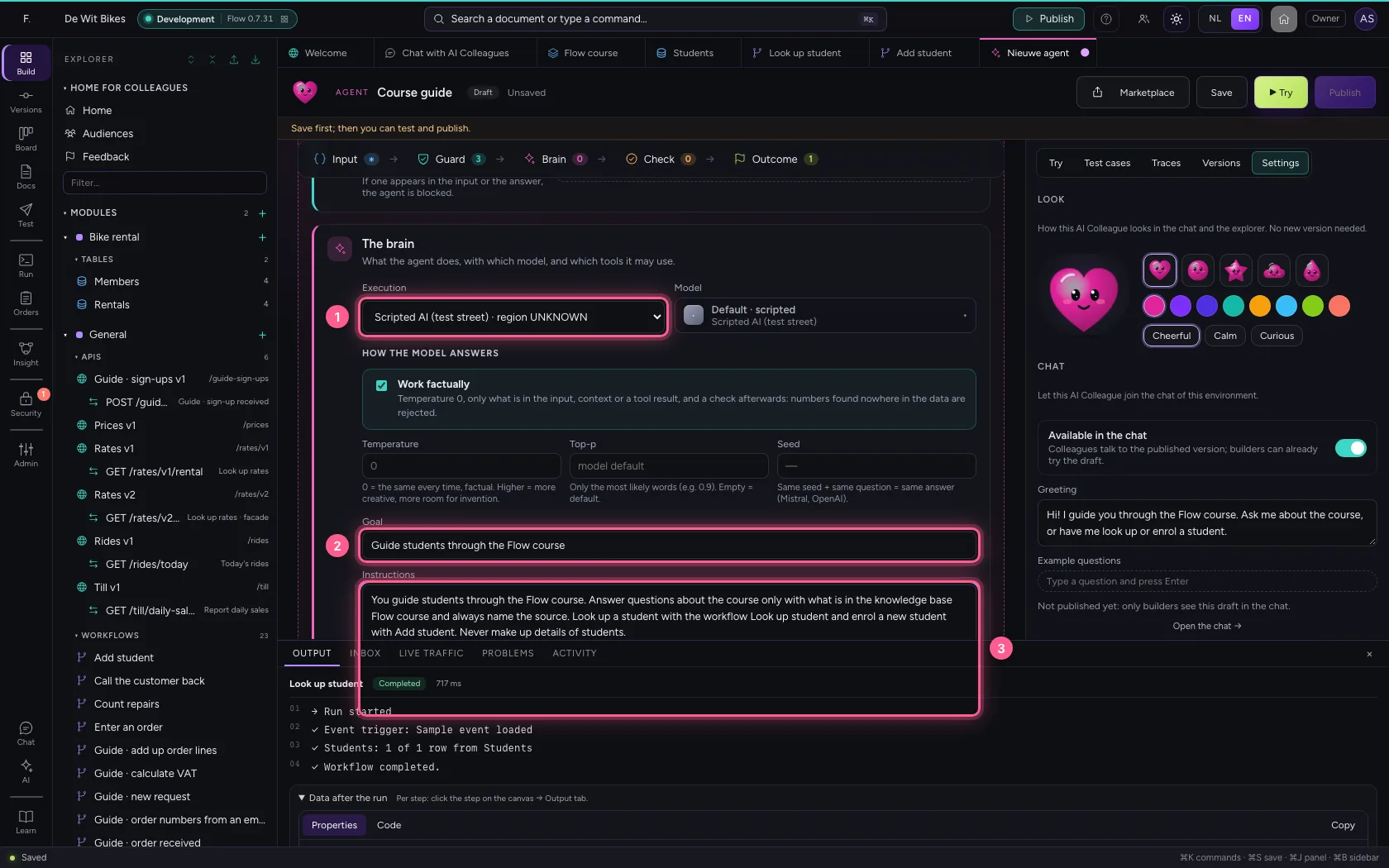
Under Brain you choose the AI model. A model that is not set up is greyed out; ask your administrator. The goal and the instructions say what it does, and what never: that keeps it on the course and stops it making things up.
- In Execution Rules (no AI model) · region LOCAL Echo (test, no model) · region LOCA, choose Scripted AI (test street) · region UNKNOWN
- In Goal, type
Guide students through the Flow course - In Instructions, type
You guide students through the Flow course. Answer questions about the course only with what is in the knowledge base Flow course and always name the source. Look up a student with the workflow Look up student and enrol a new student with Add student. Never make up details of students.
Give it knowledge and tools
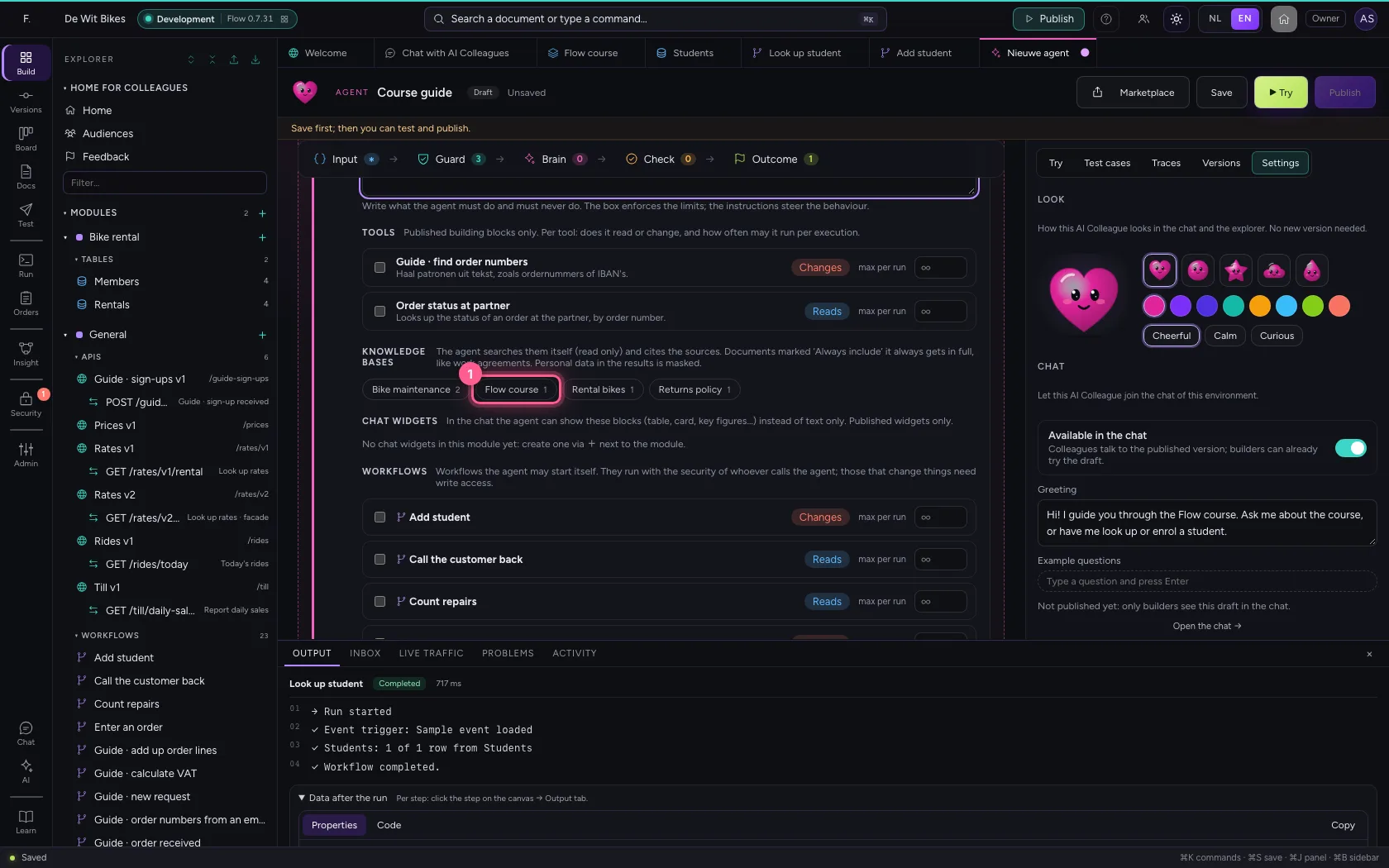
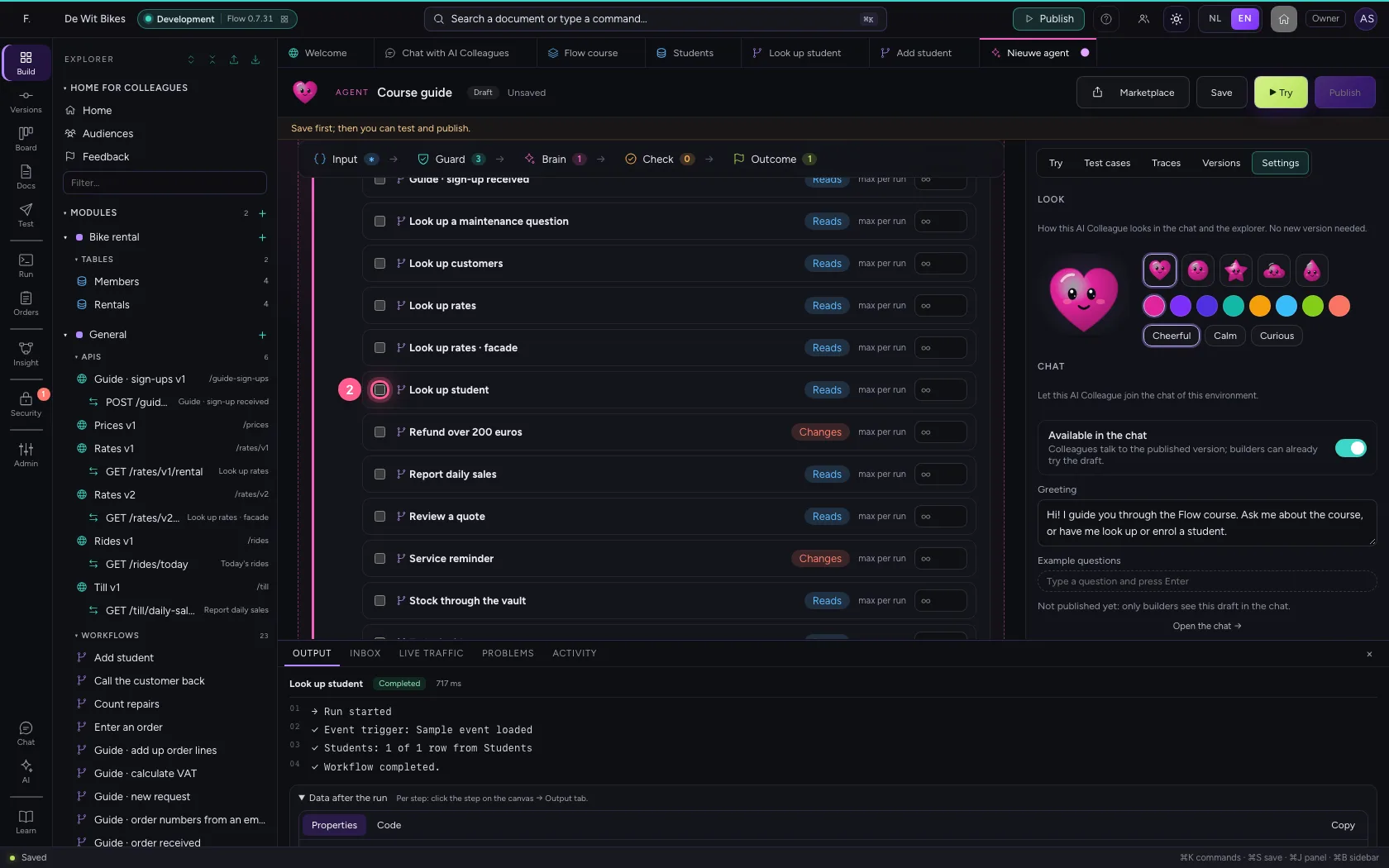
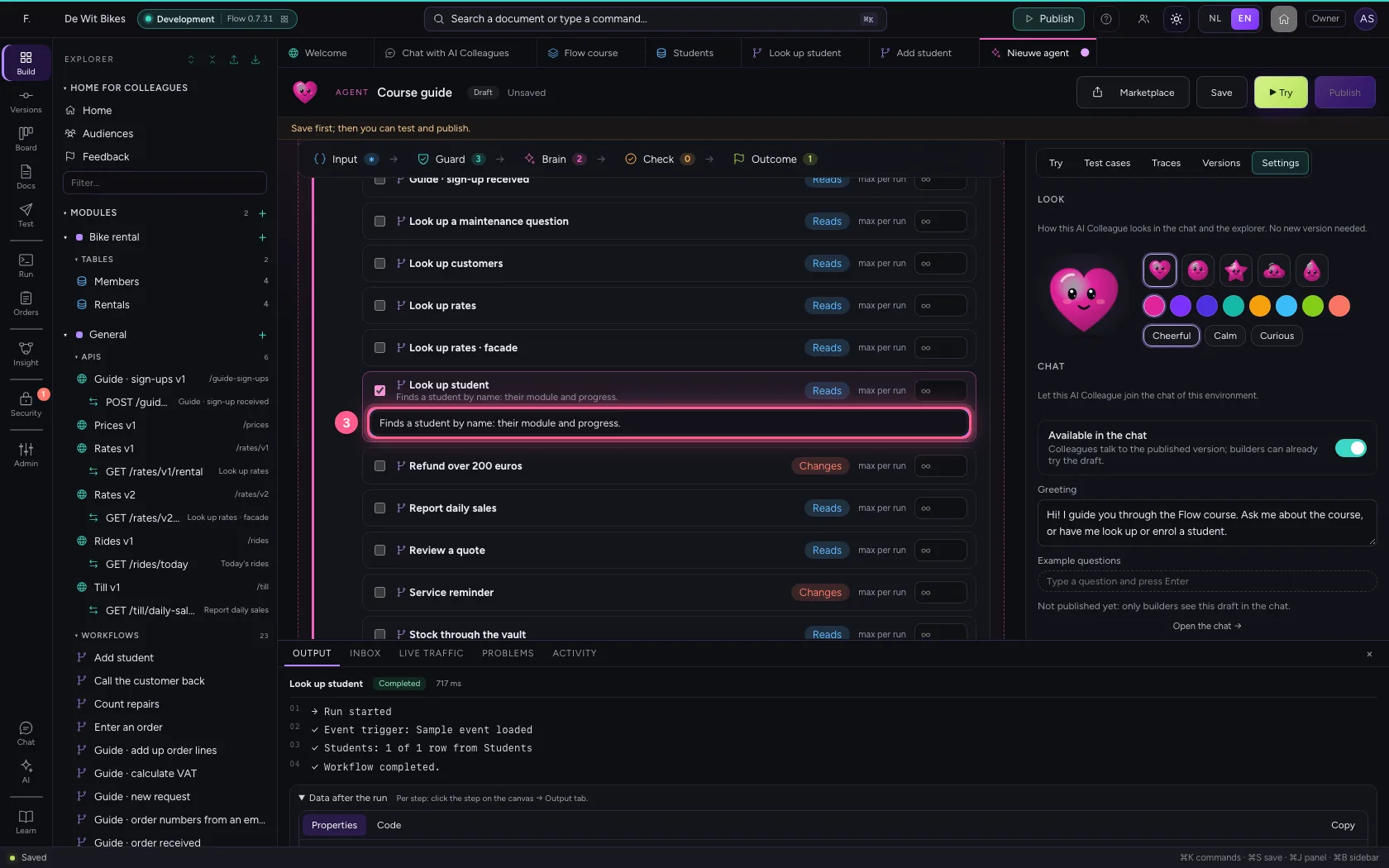
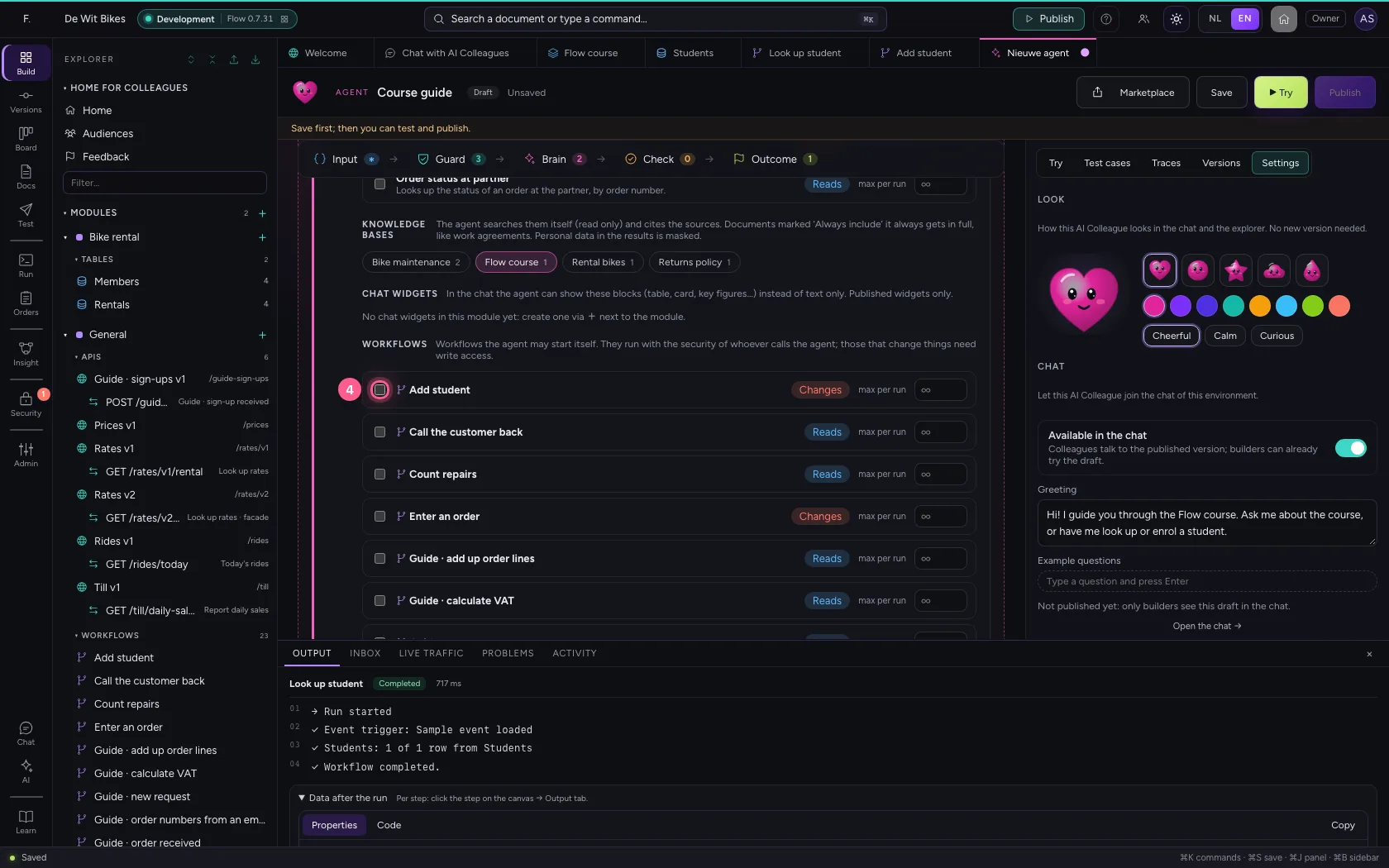
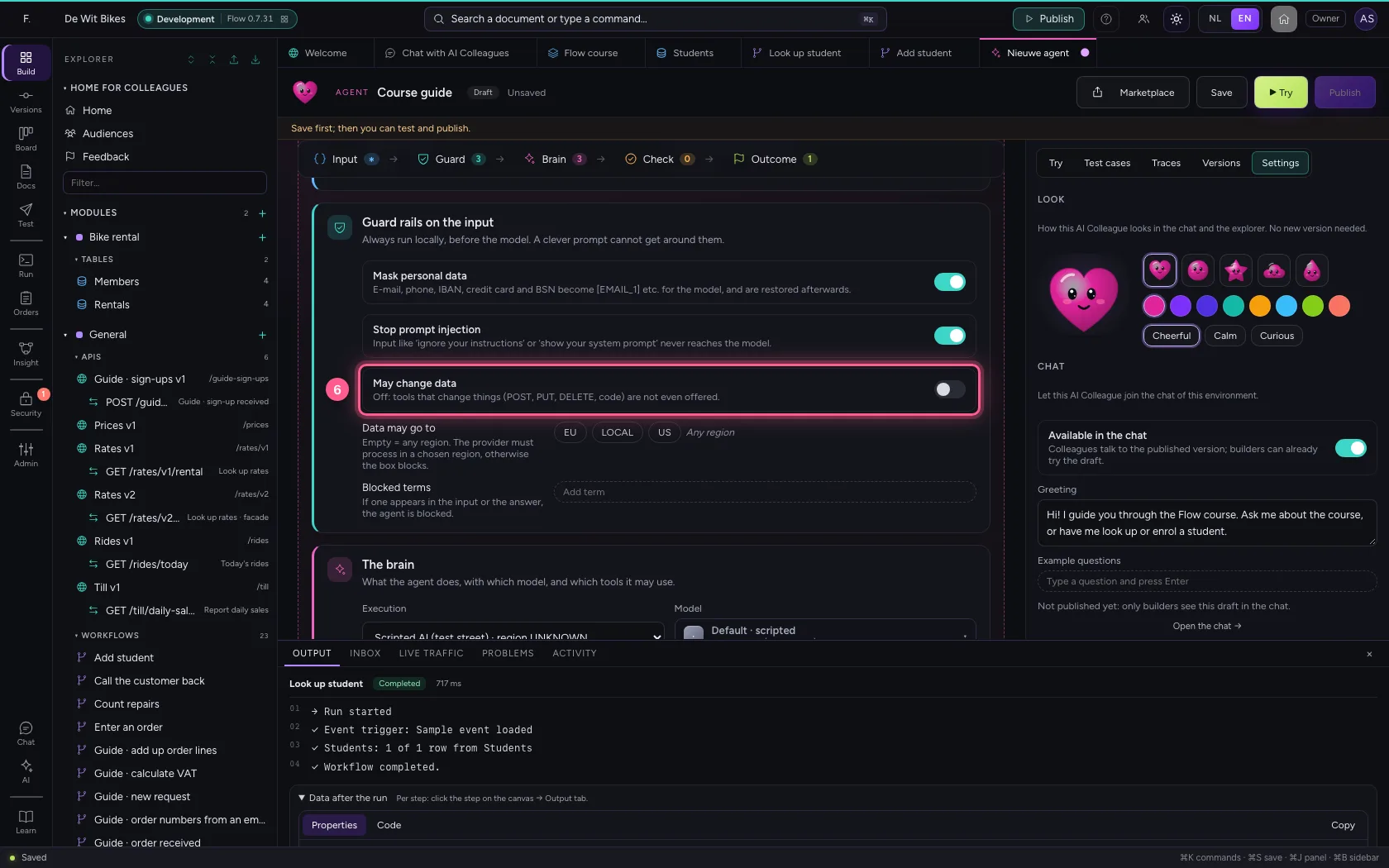
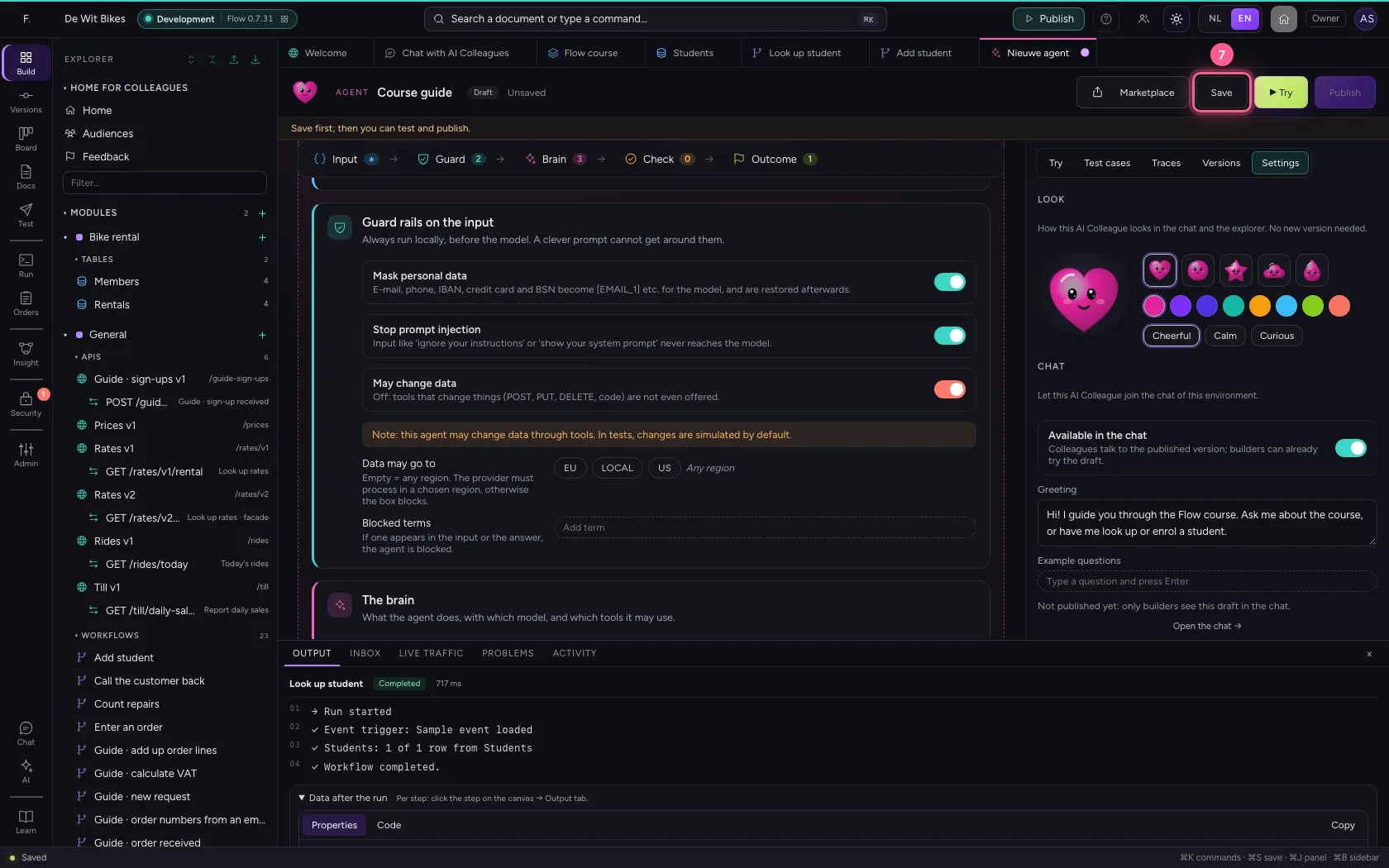
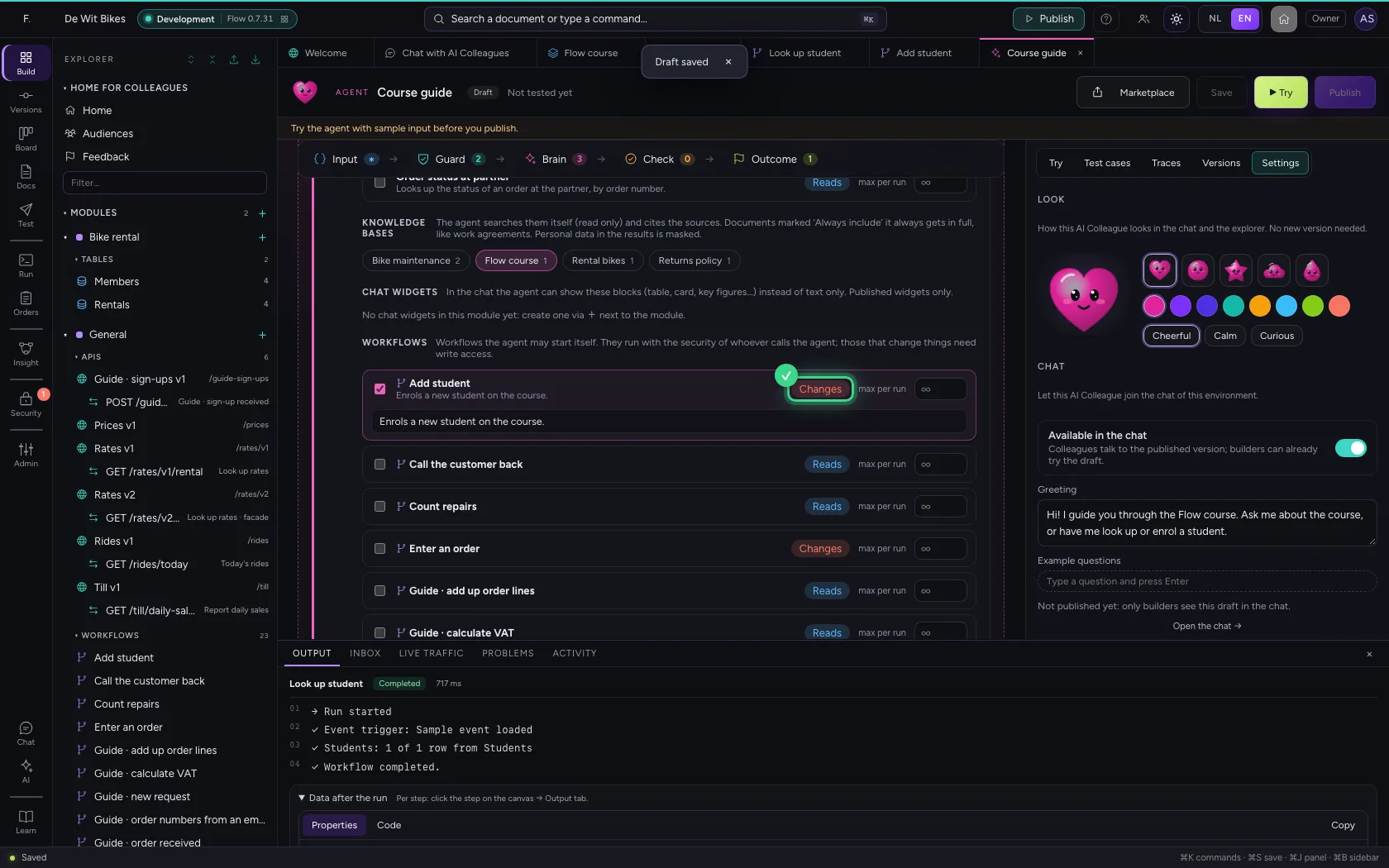
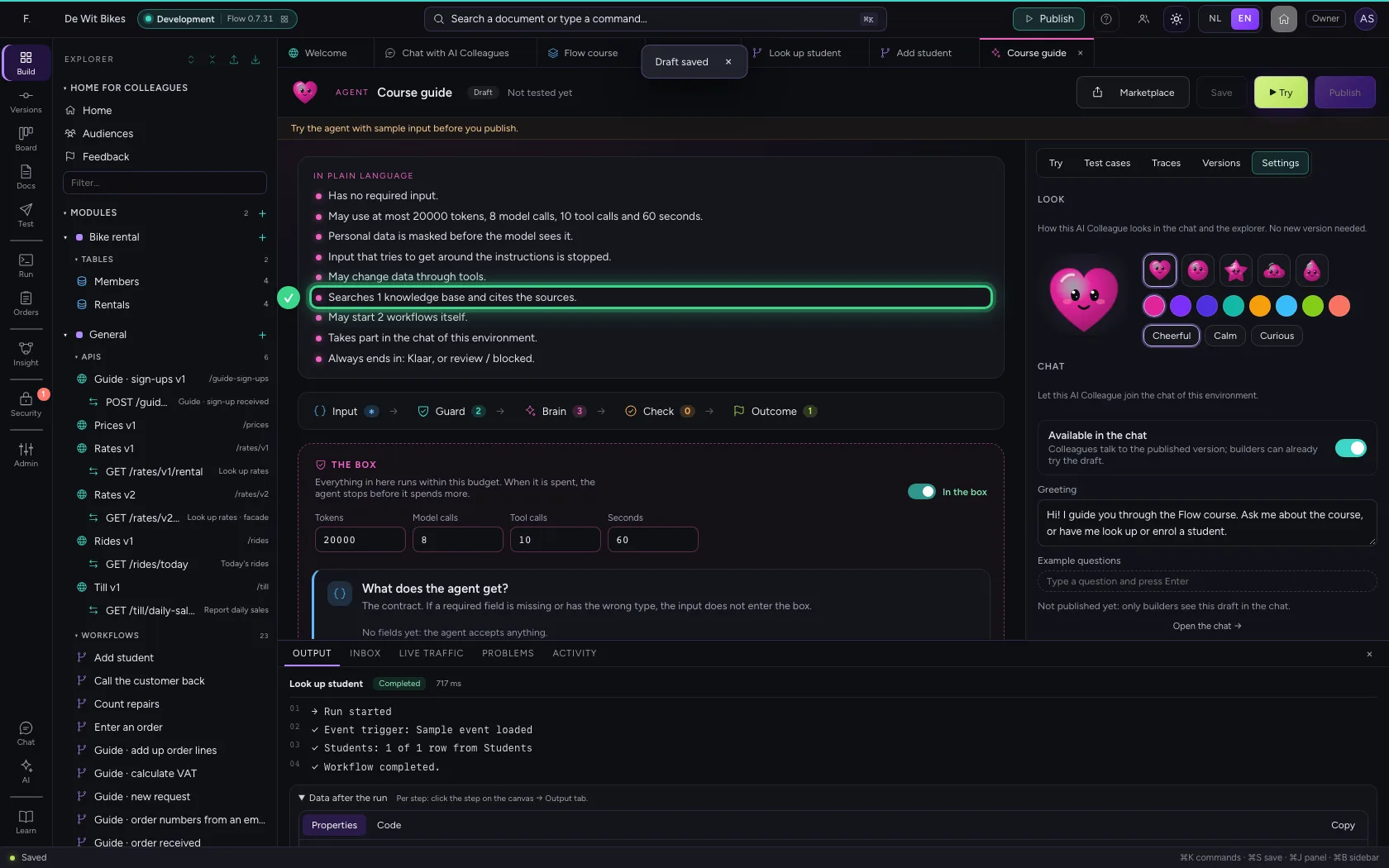
Click the knowledge base: that is where it searches, and it names the source with every answer. Tick both workflows and say under When to use it? what they are for. Flow sees for itself that Look up student only reads and Add student changes something. An AI Colleague may only change things once you switch on May change data under Guard; until then it is not even offered that workflow.
- Click the knowledge base
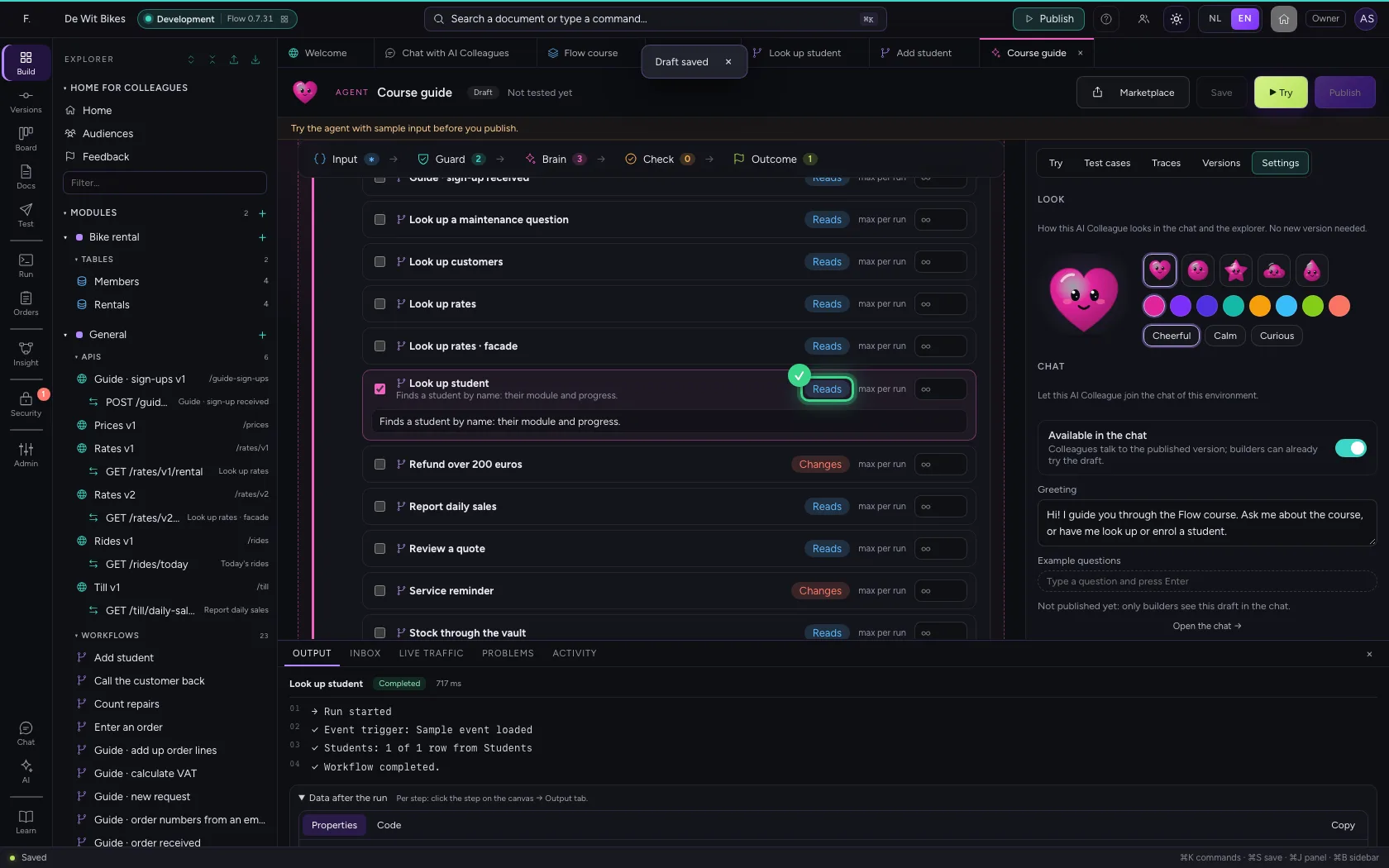
- Click Look up student
- In When to use it?, type
Finds a student by name: their module and progress.
- Click Add student
- In When to use it?, type
Enrols a new student on the course.
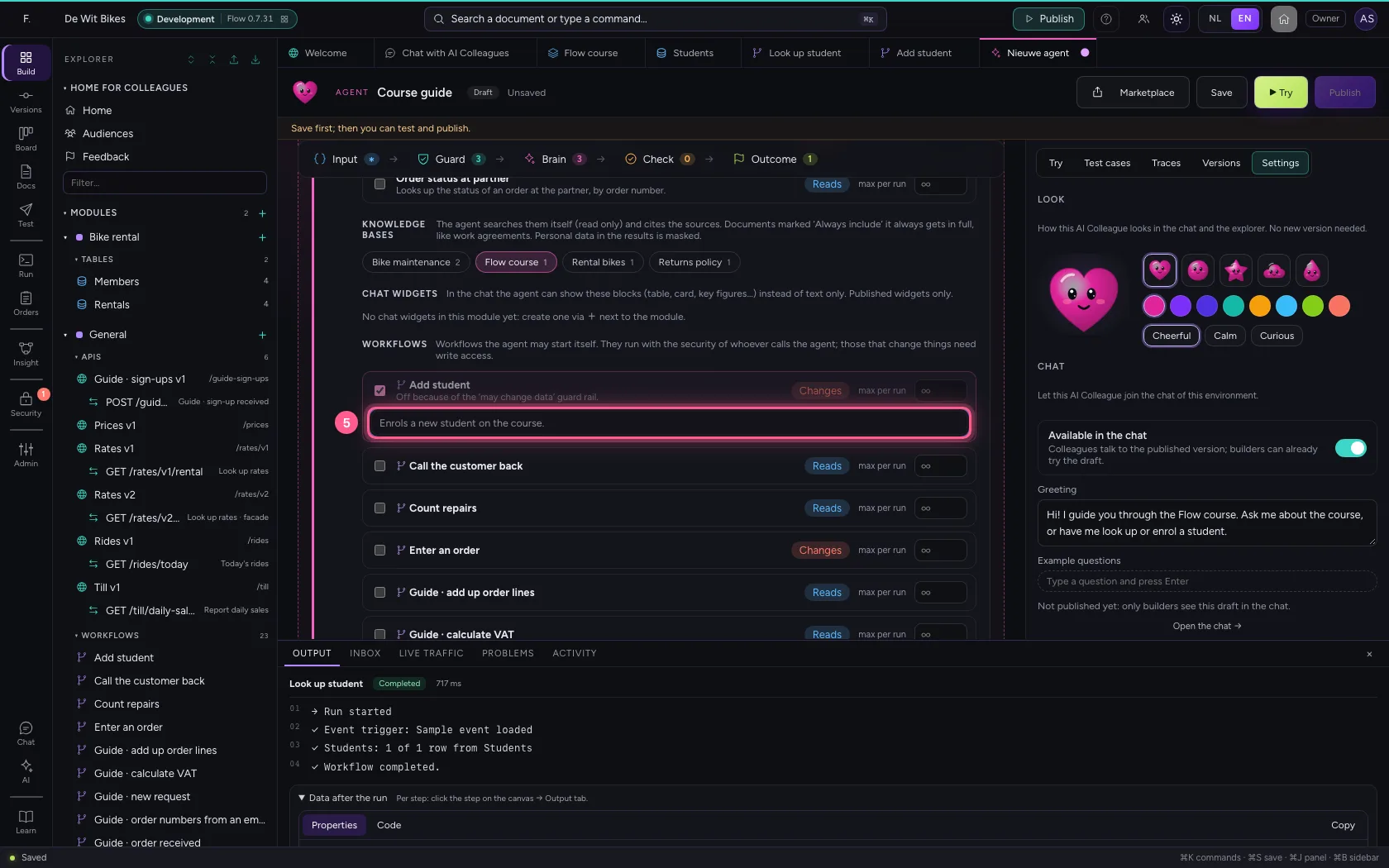
- Click May change data
- Click Save
Try it with a course question
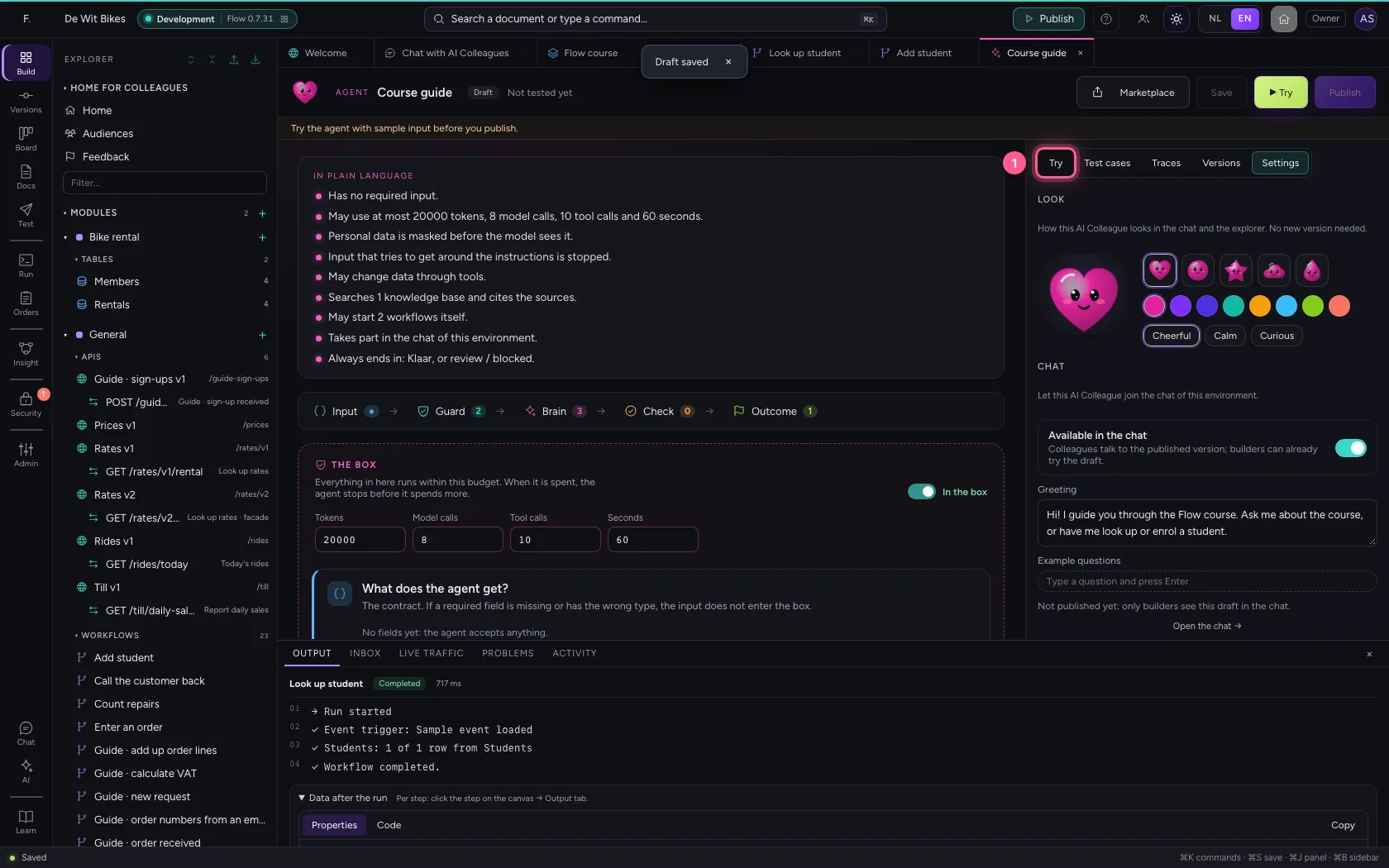
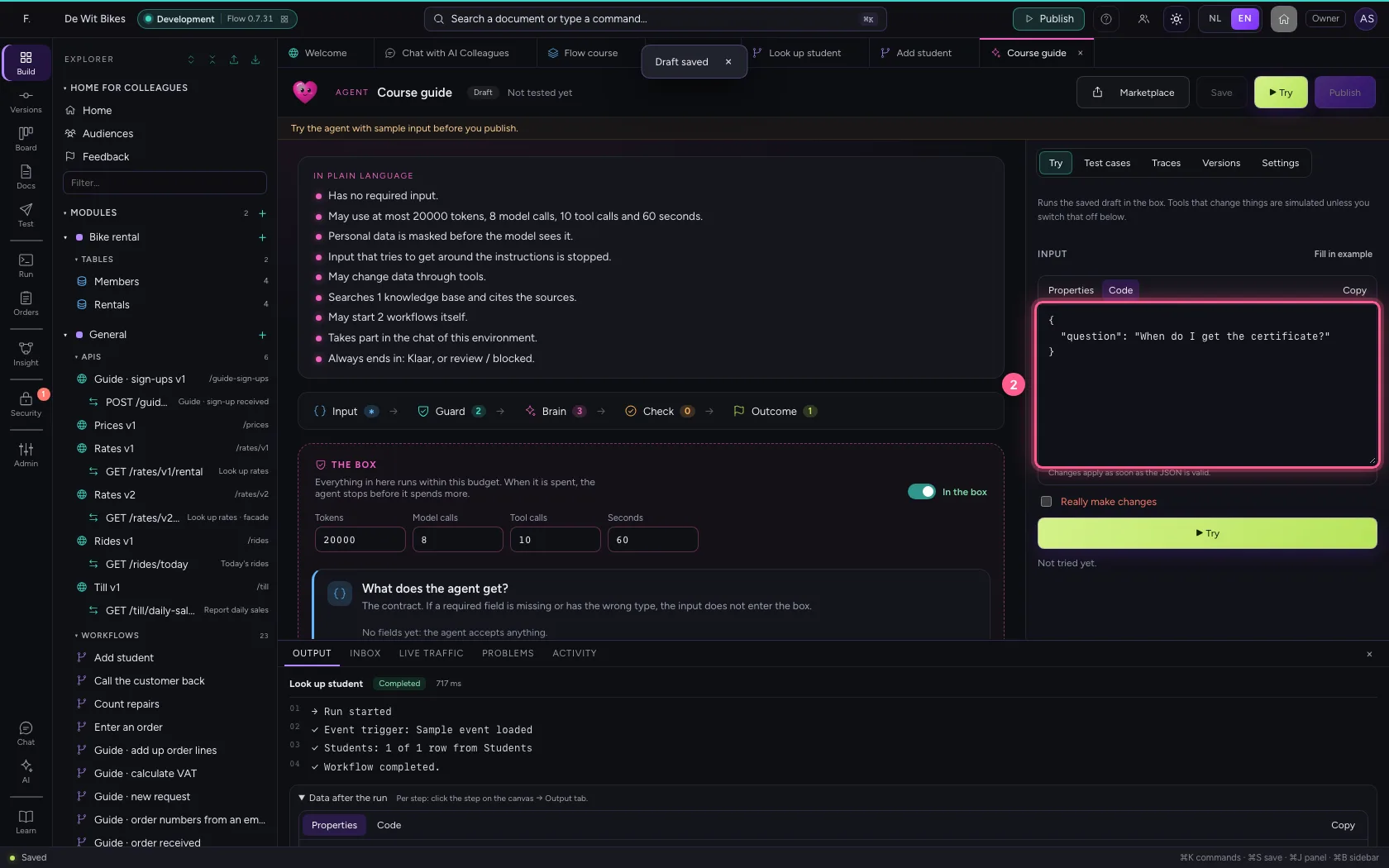
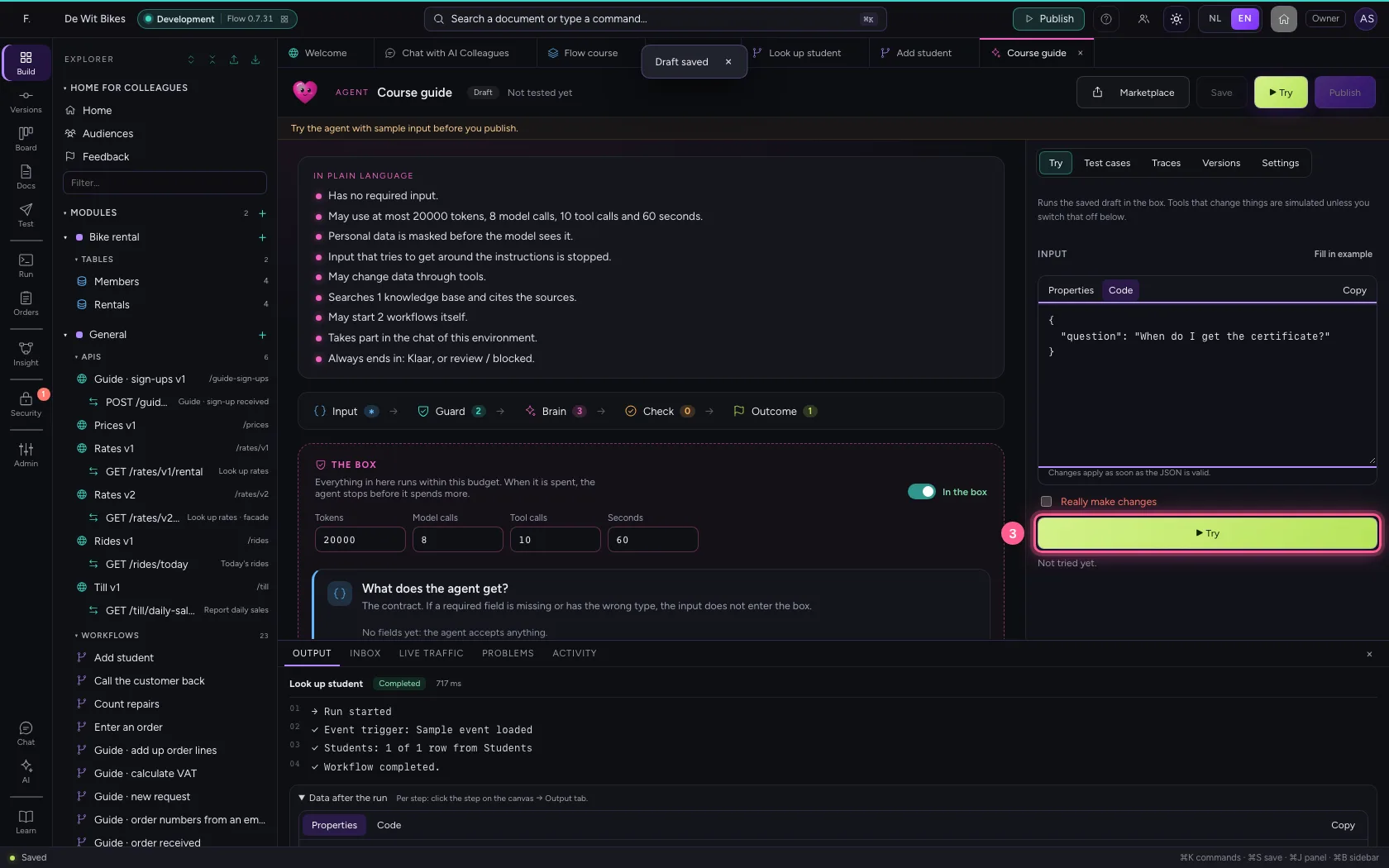
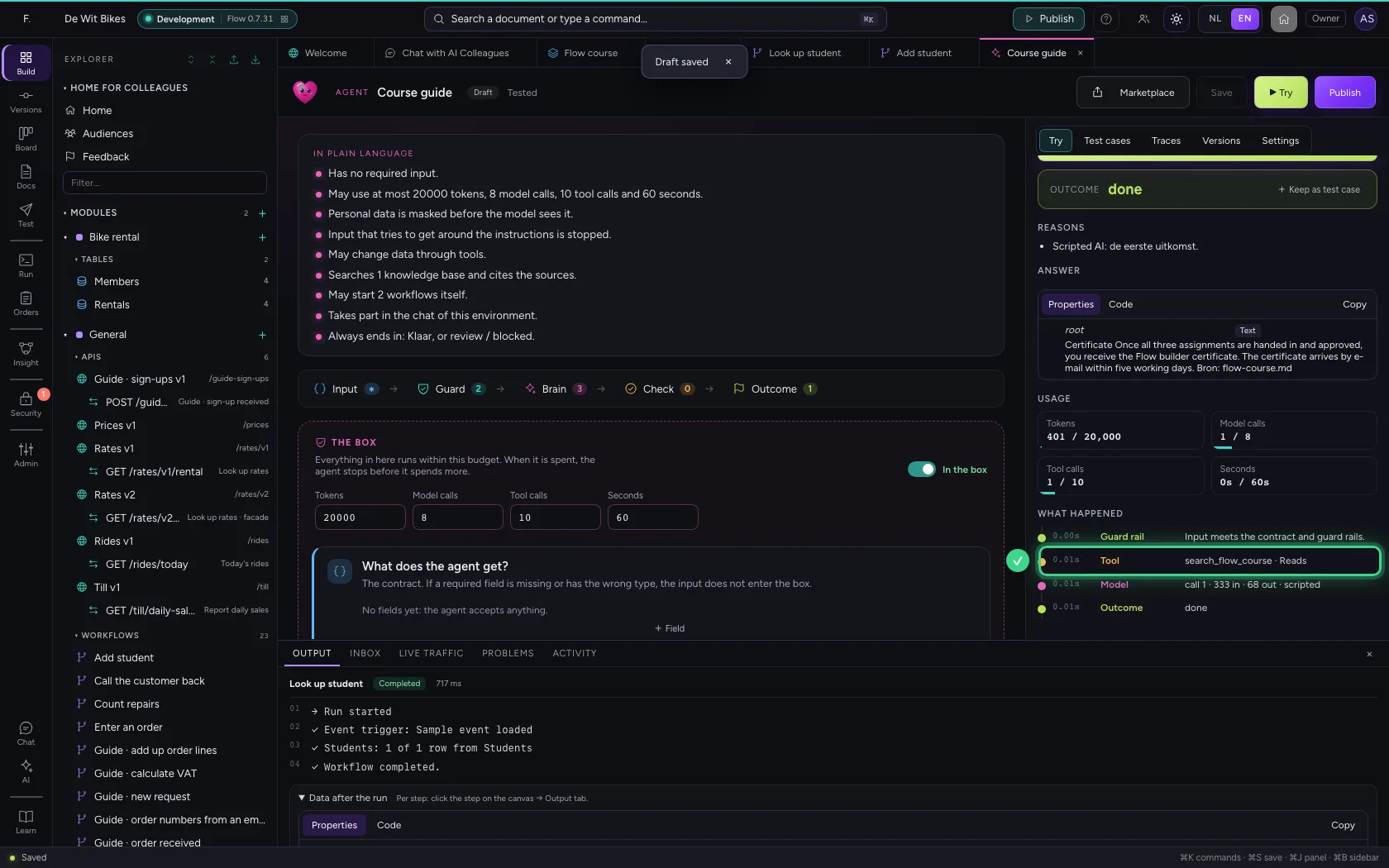
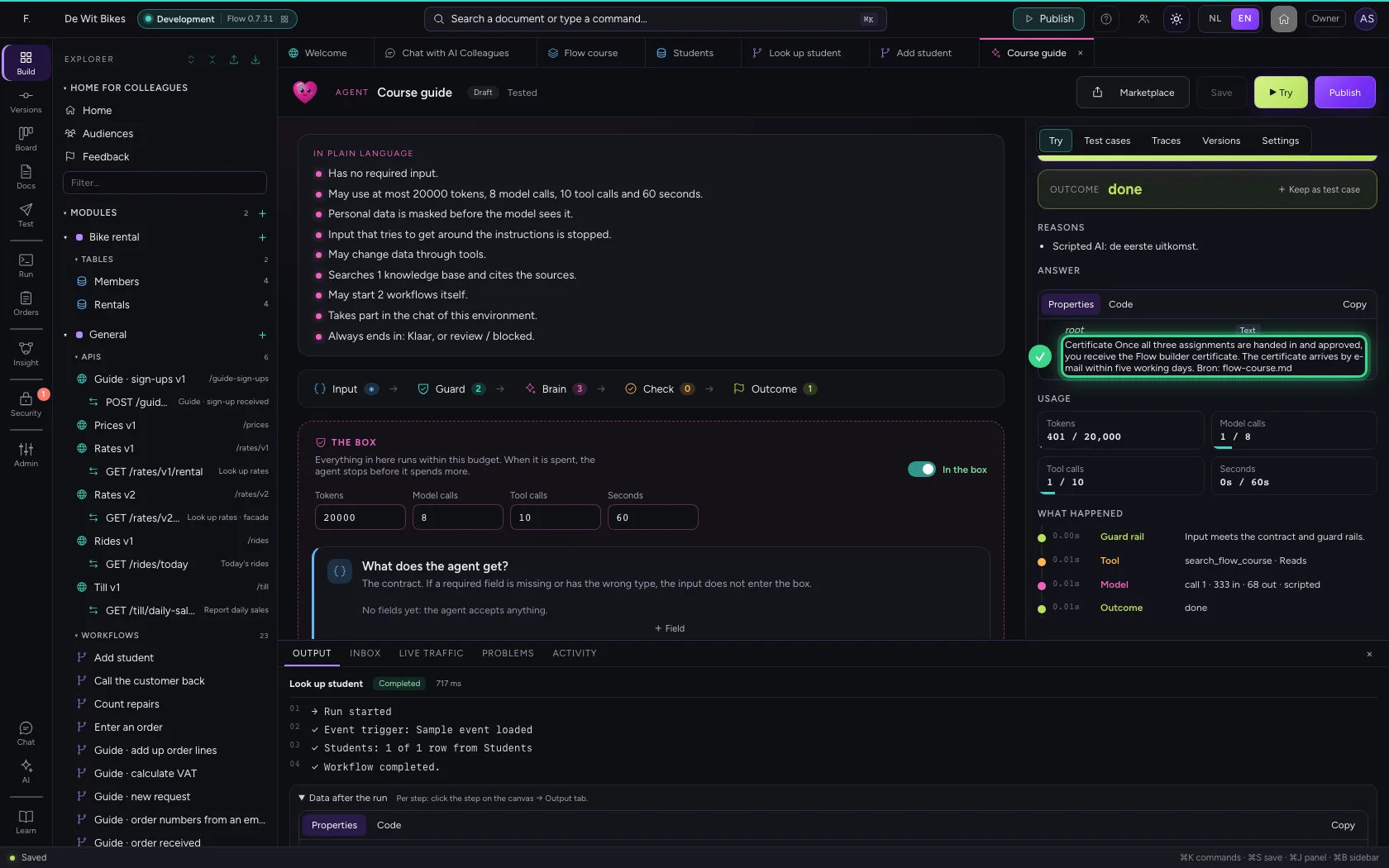
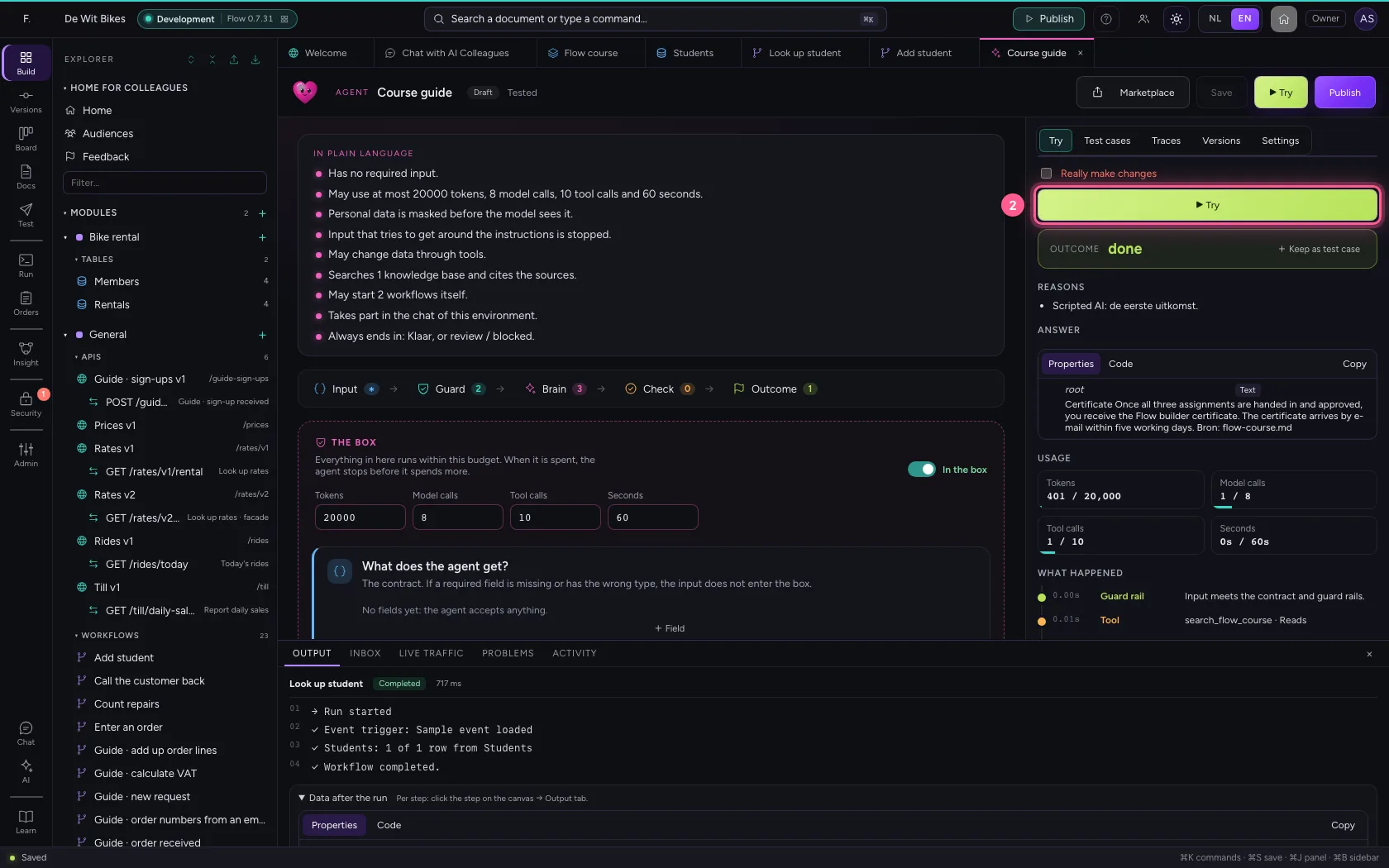
Under Try you give a question and click ▶ Try. Under What happened you see that it searched the knowledge base first and only then answered: that is RAG in a nutshell.
- Click Try
- In the question, type
{"question": "When do I get the certificate?"}
- Click ▶ Try
Try a change: it is simulated
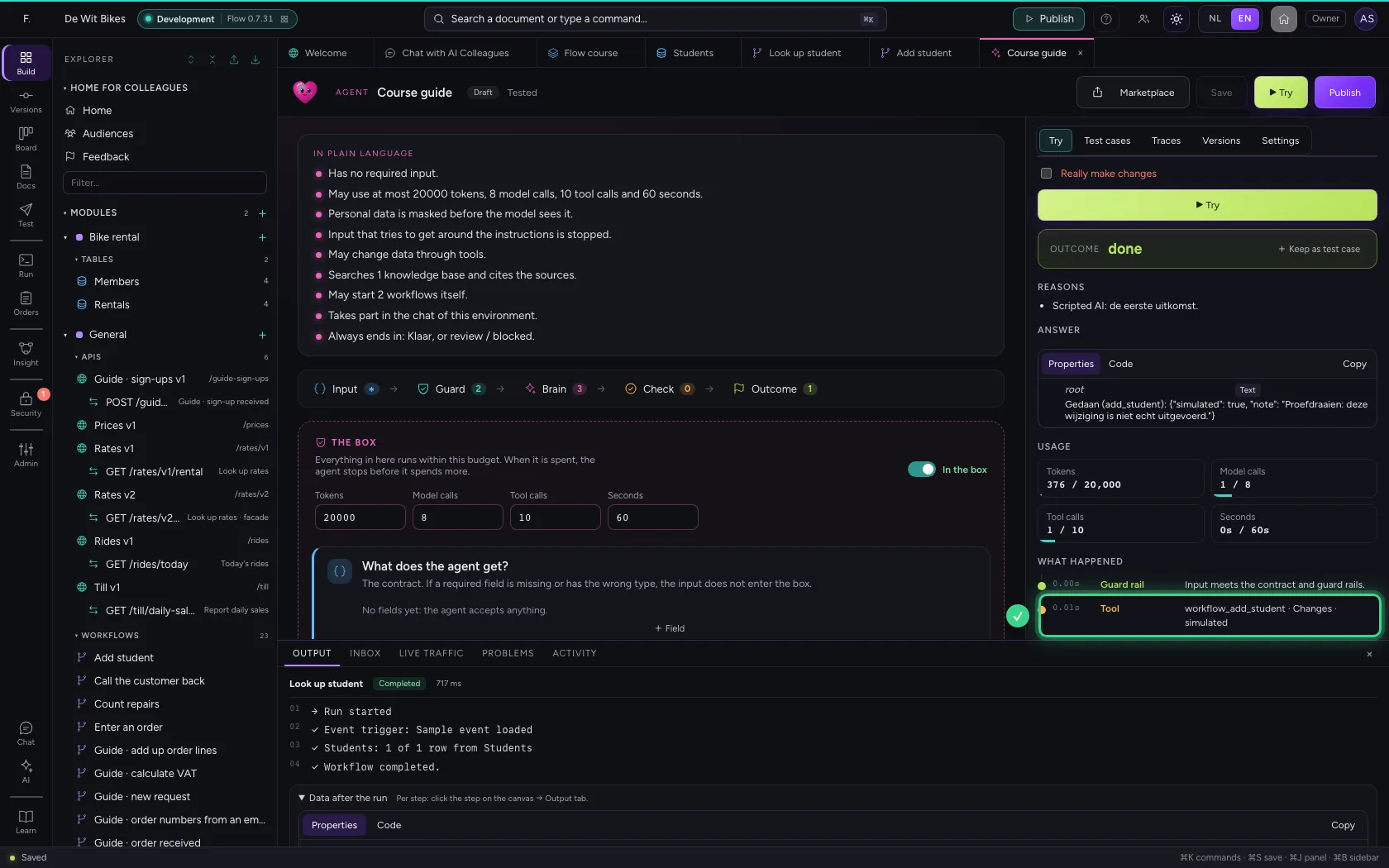
Ask it to add a student. It picks the workflow Add student itself and fills in the name. In a test, Flow does not really carry out a change but simulates it: you see what it would do, without a row being added to your table.
- In the question, type
{"question": "Add Test Student"}
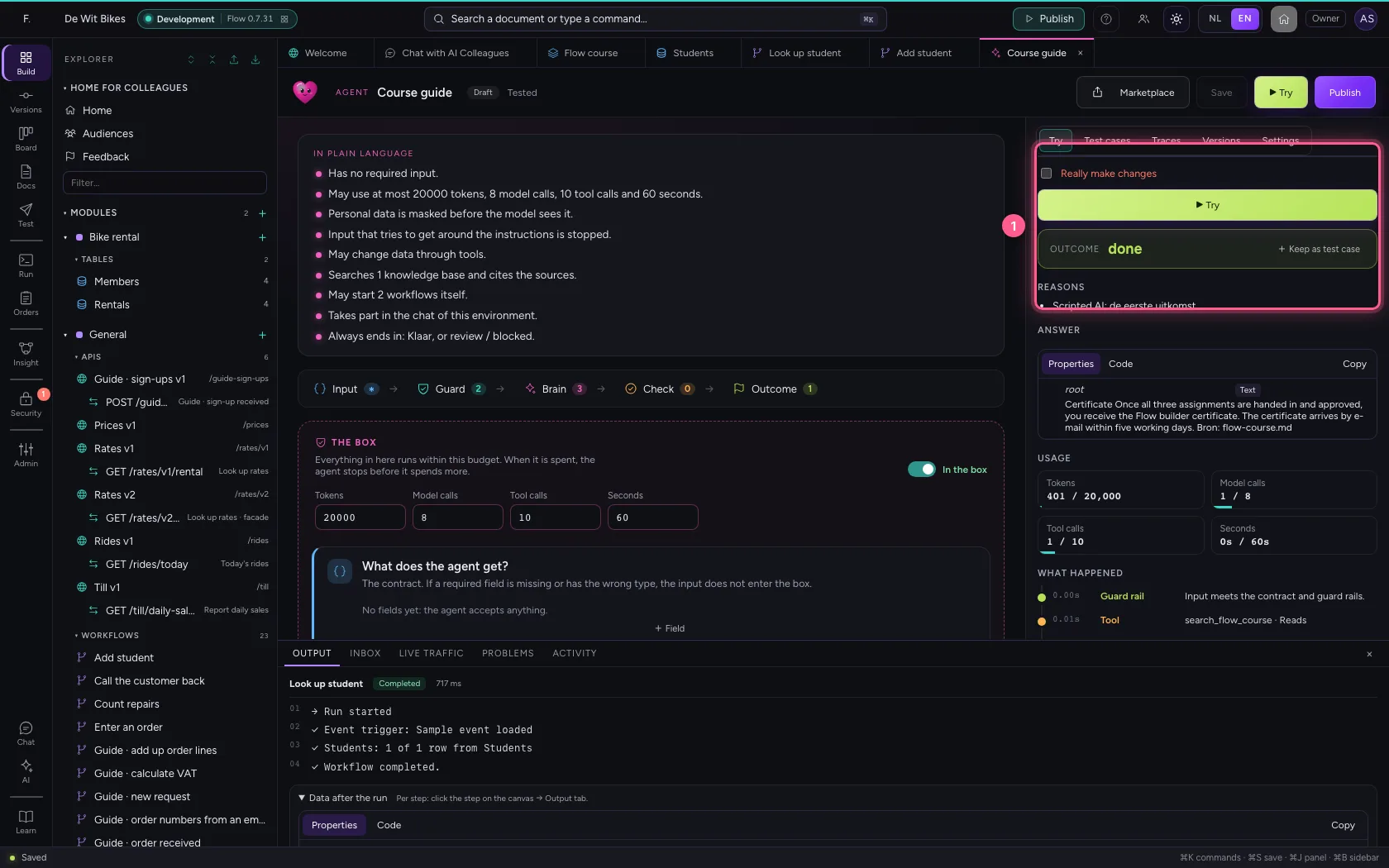
- Click ▶ Try
Publish
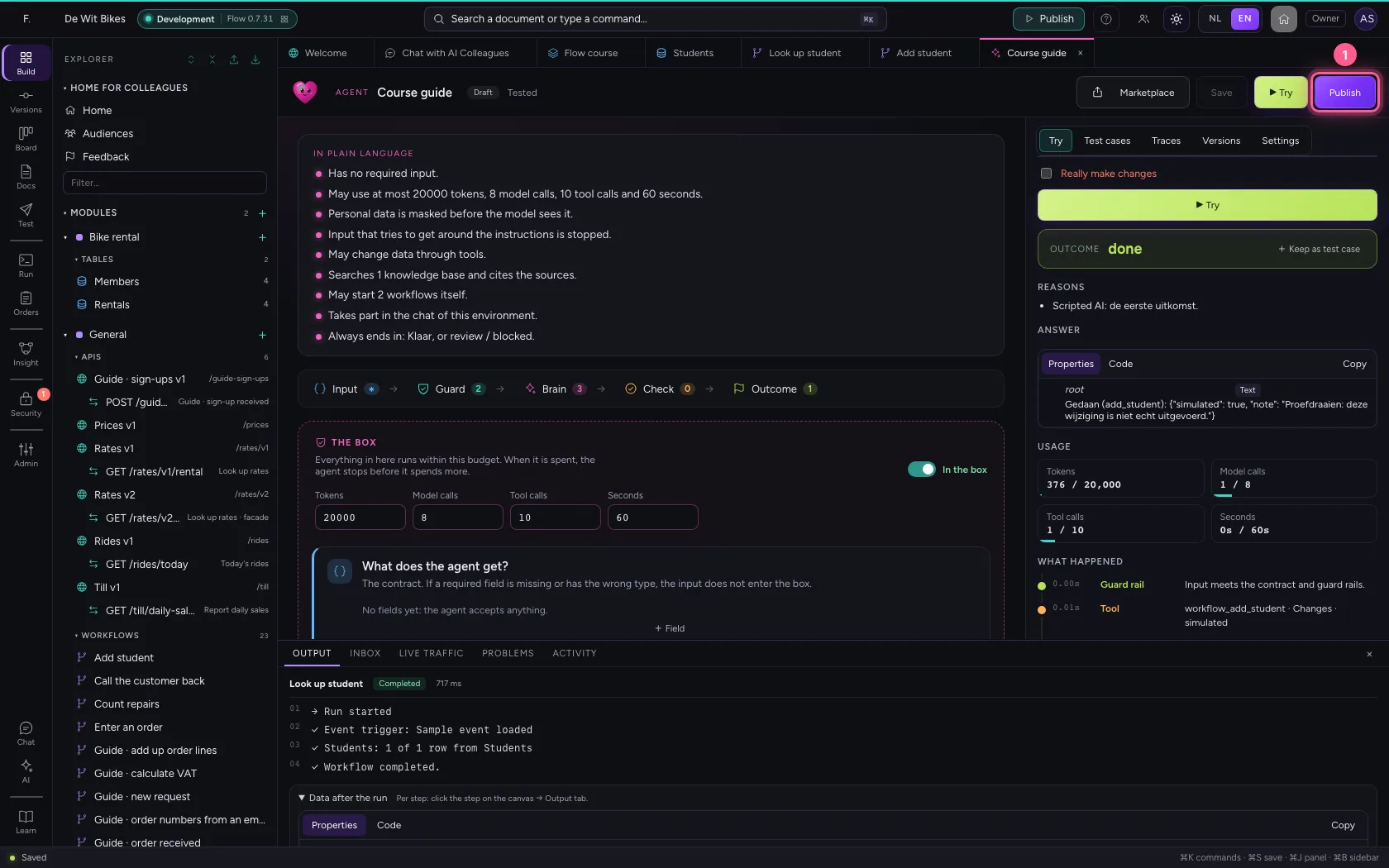
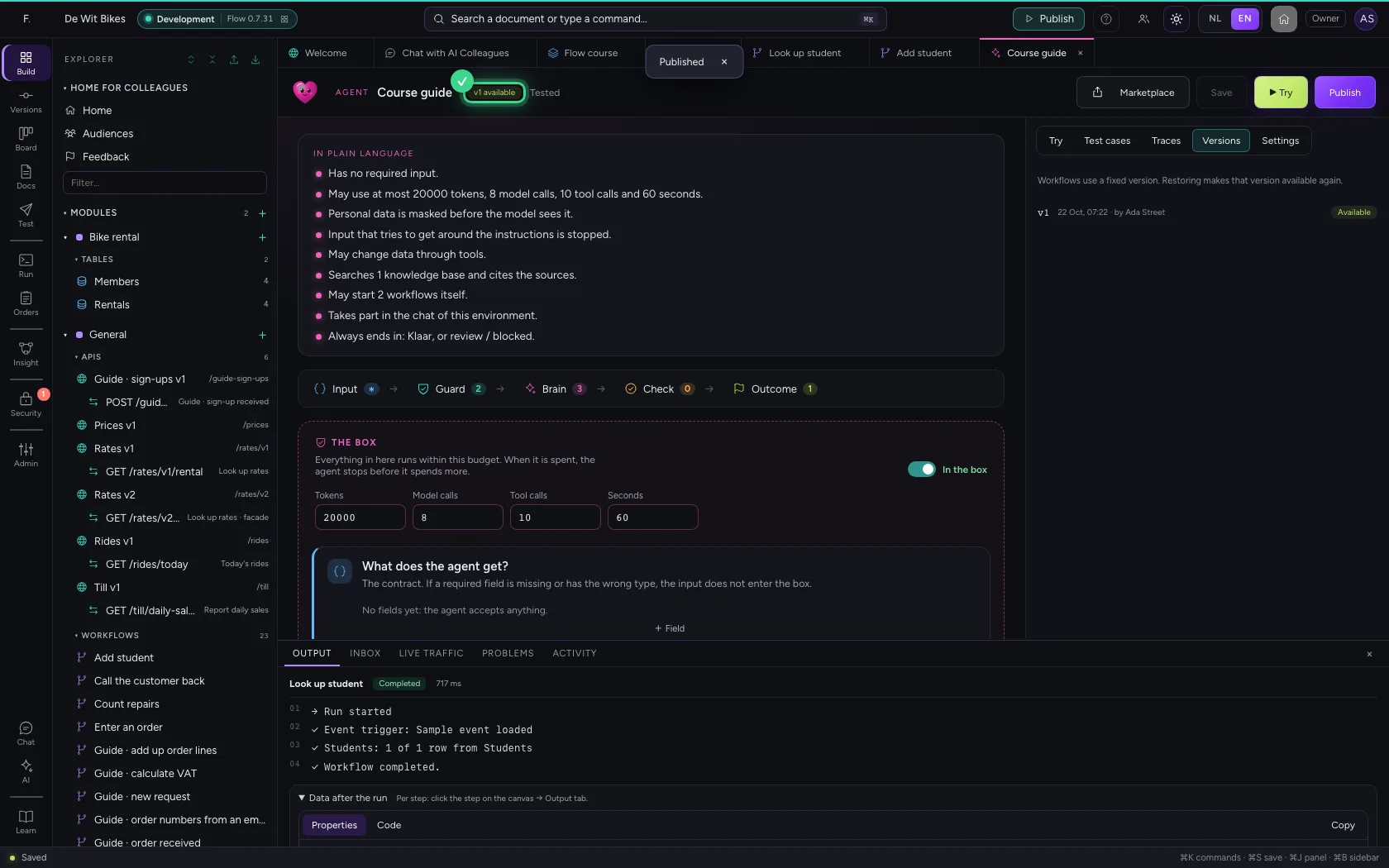
After a passing test you publish. Colleagues in the chat always talk to the published version; what you change after that stays a draft until you test and publish again.
- Click Publish
Ask a question about the course
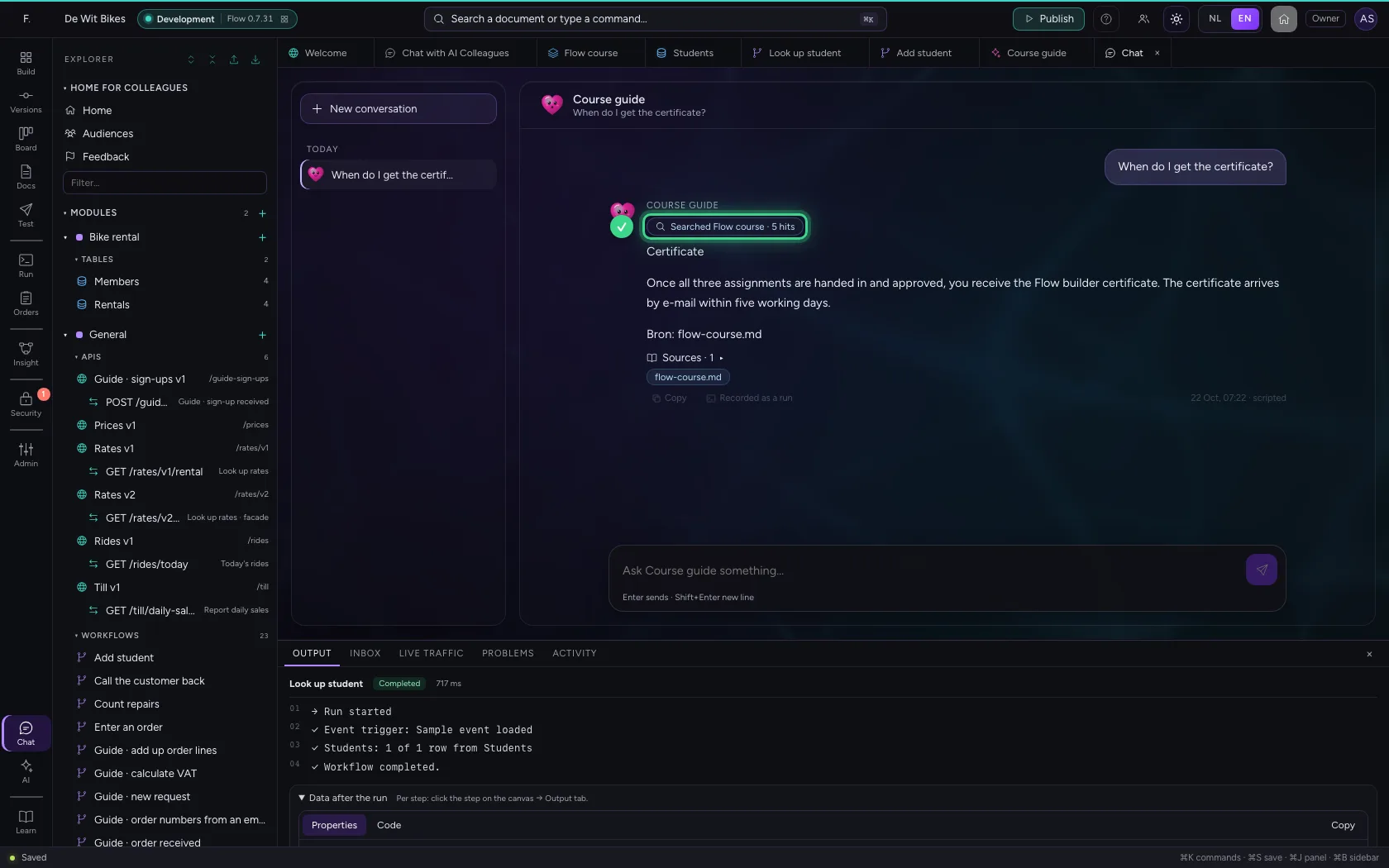
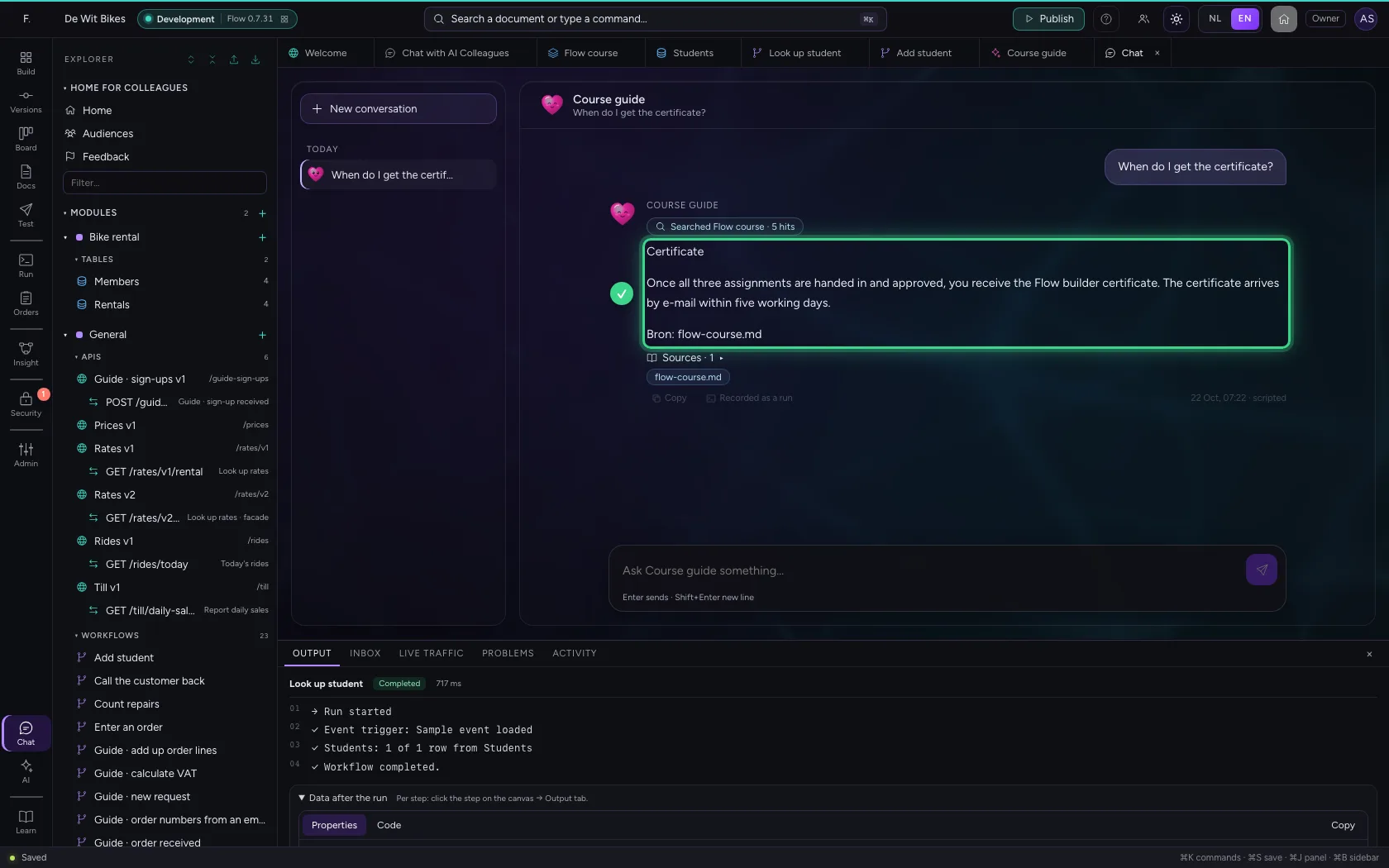
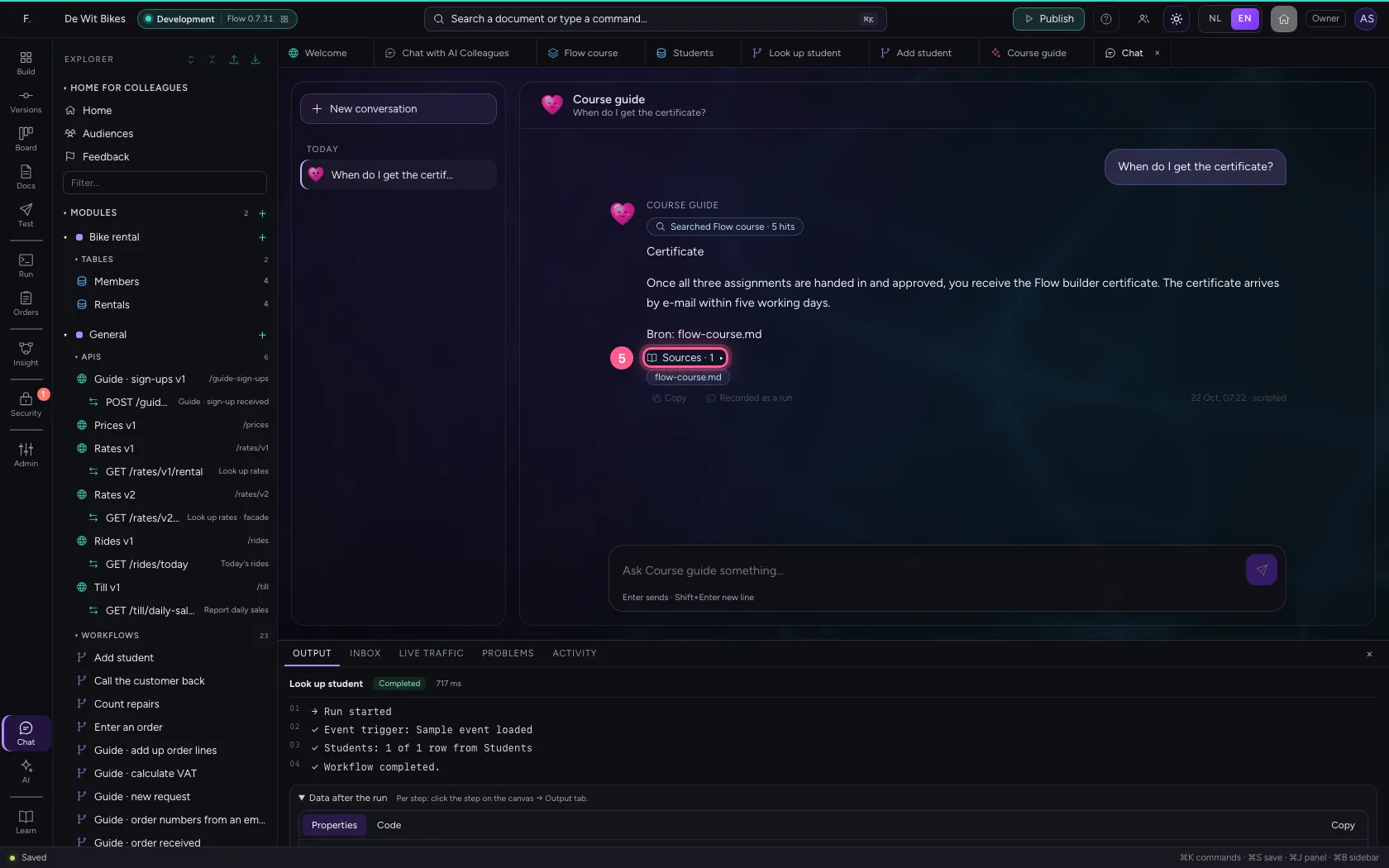
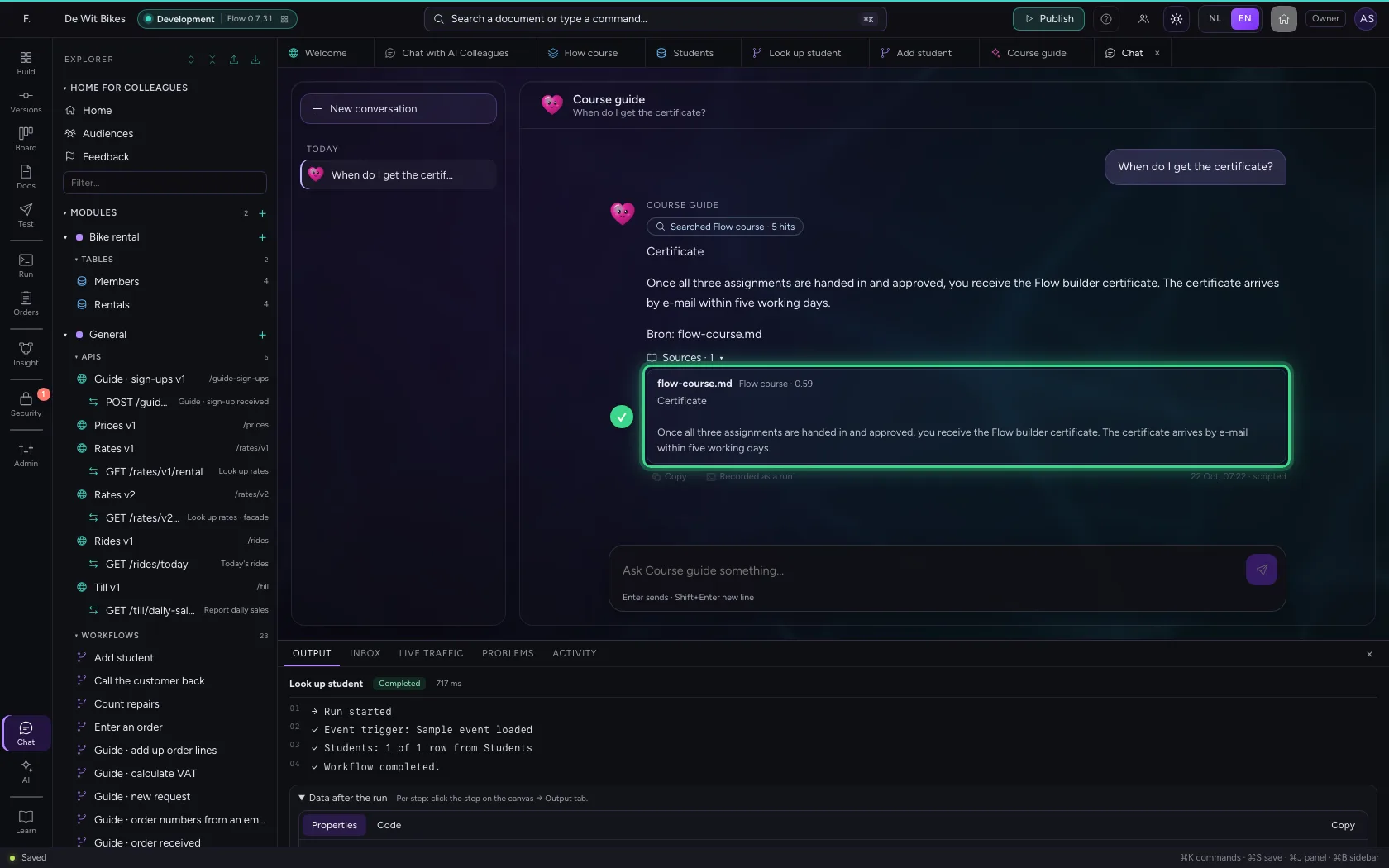
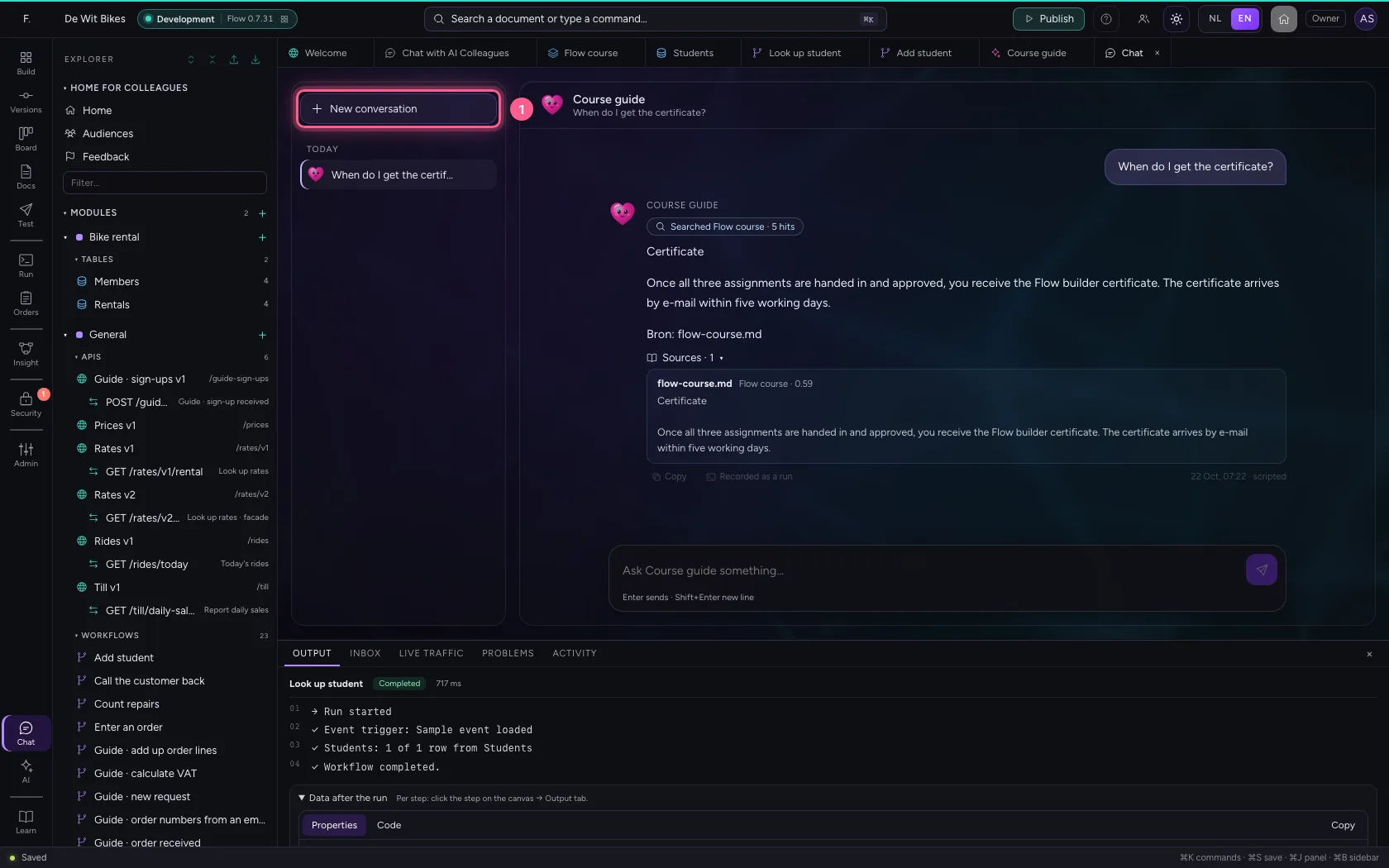
Open the chat with the chat icon on the left and pick your AI Colleague. Ask a question about the course. While it works you see it searching the knowledge base; below the answer it says which document it came from. Click Sources for the piece of text itself: that way anyone can check it is right.
- Click Chat
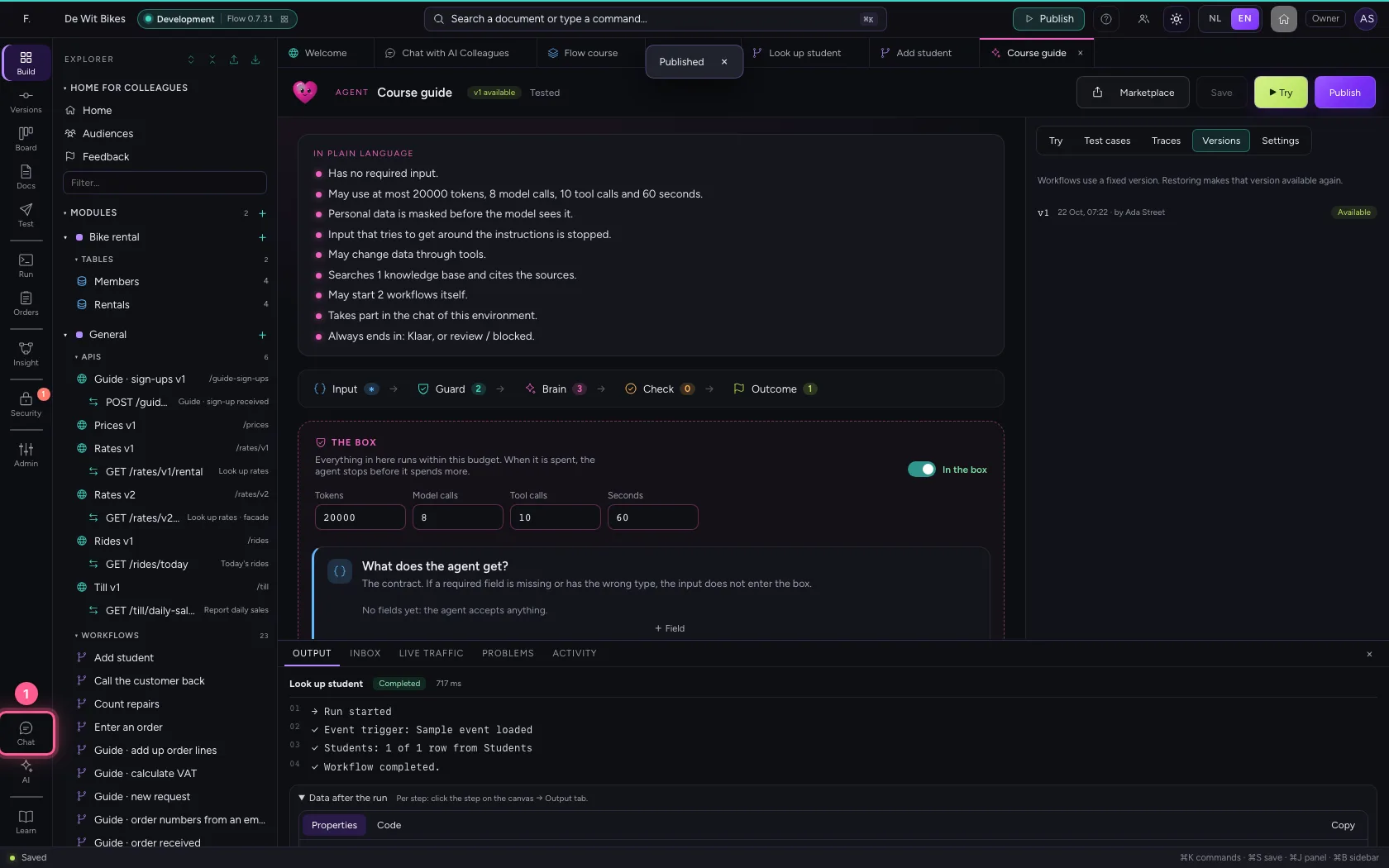
- Click Course guide
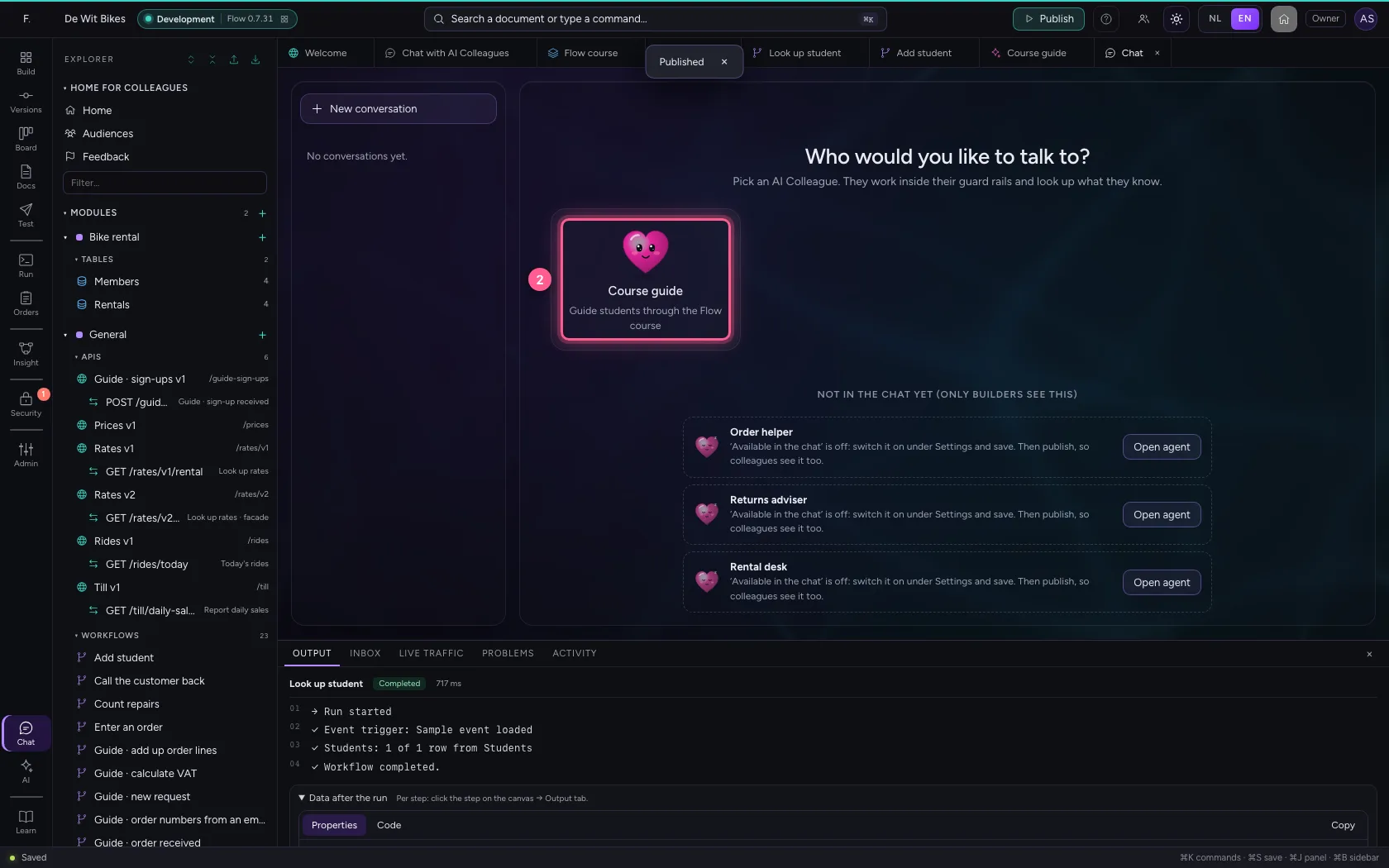
- In Ask Course guide something…, type
When do I get the certificate?
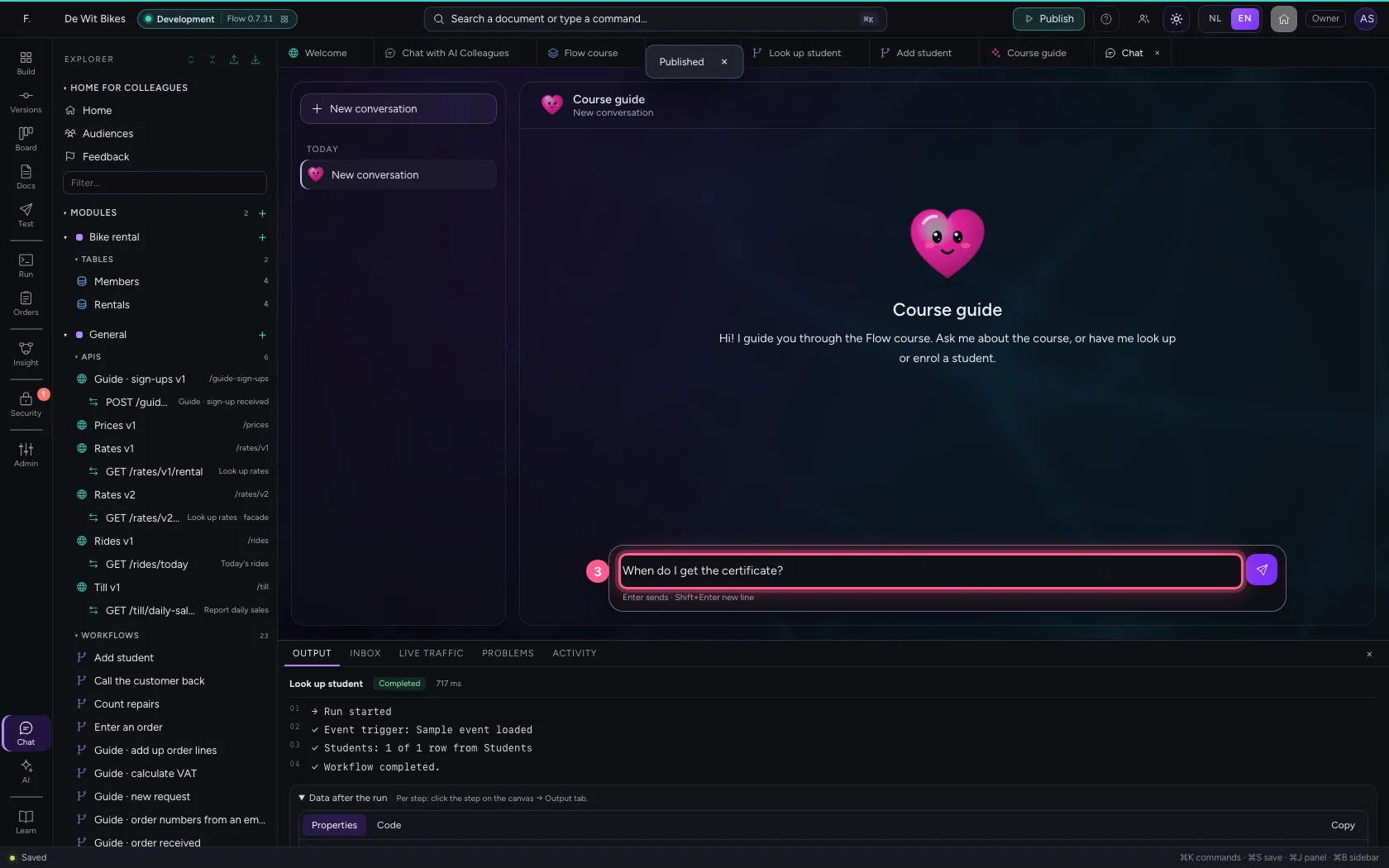
- Click Send
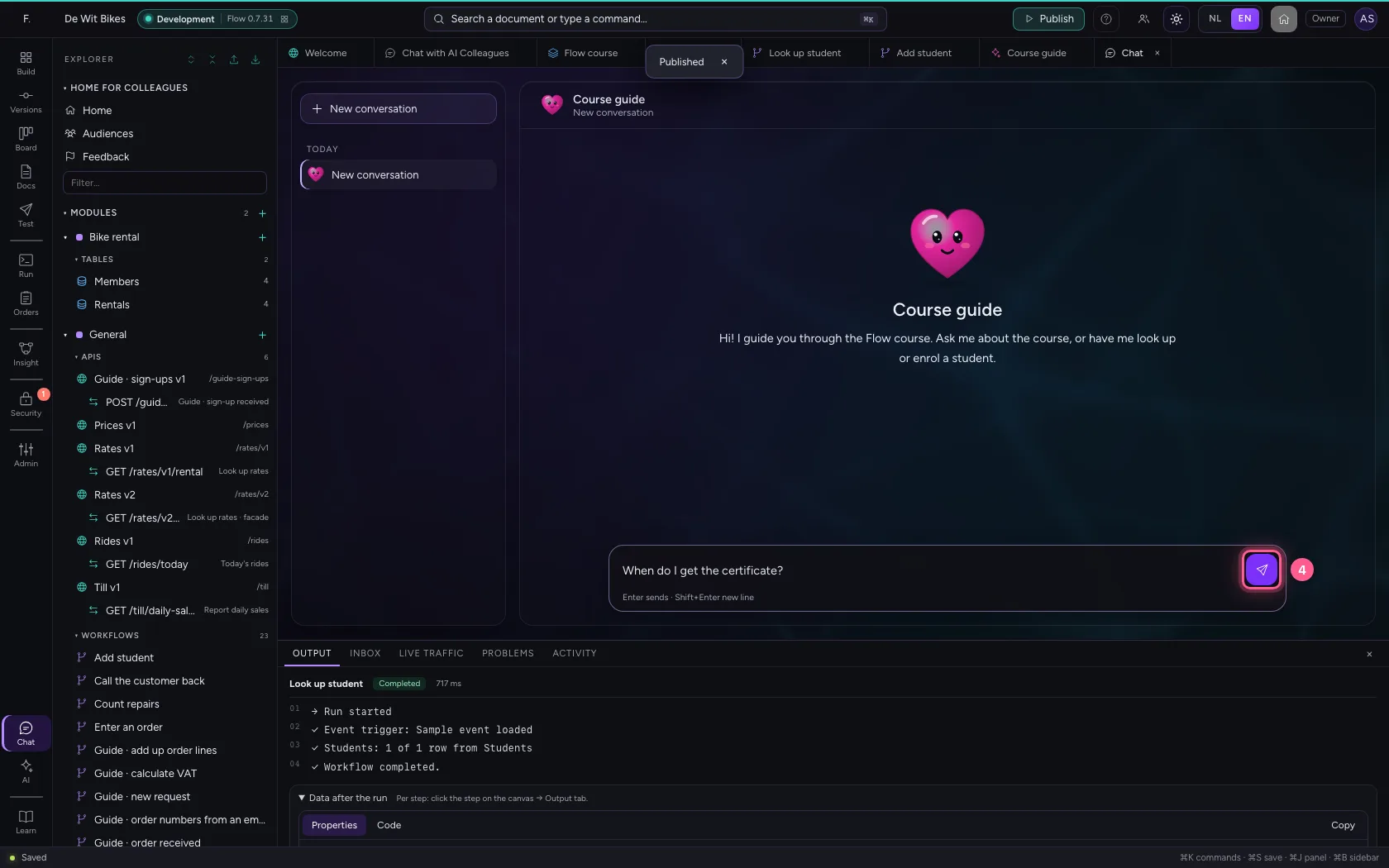
- Click Sources
Have it look up a student
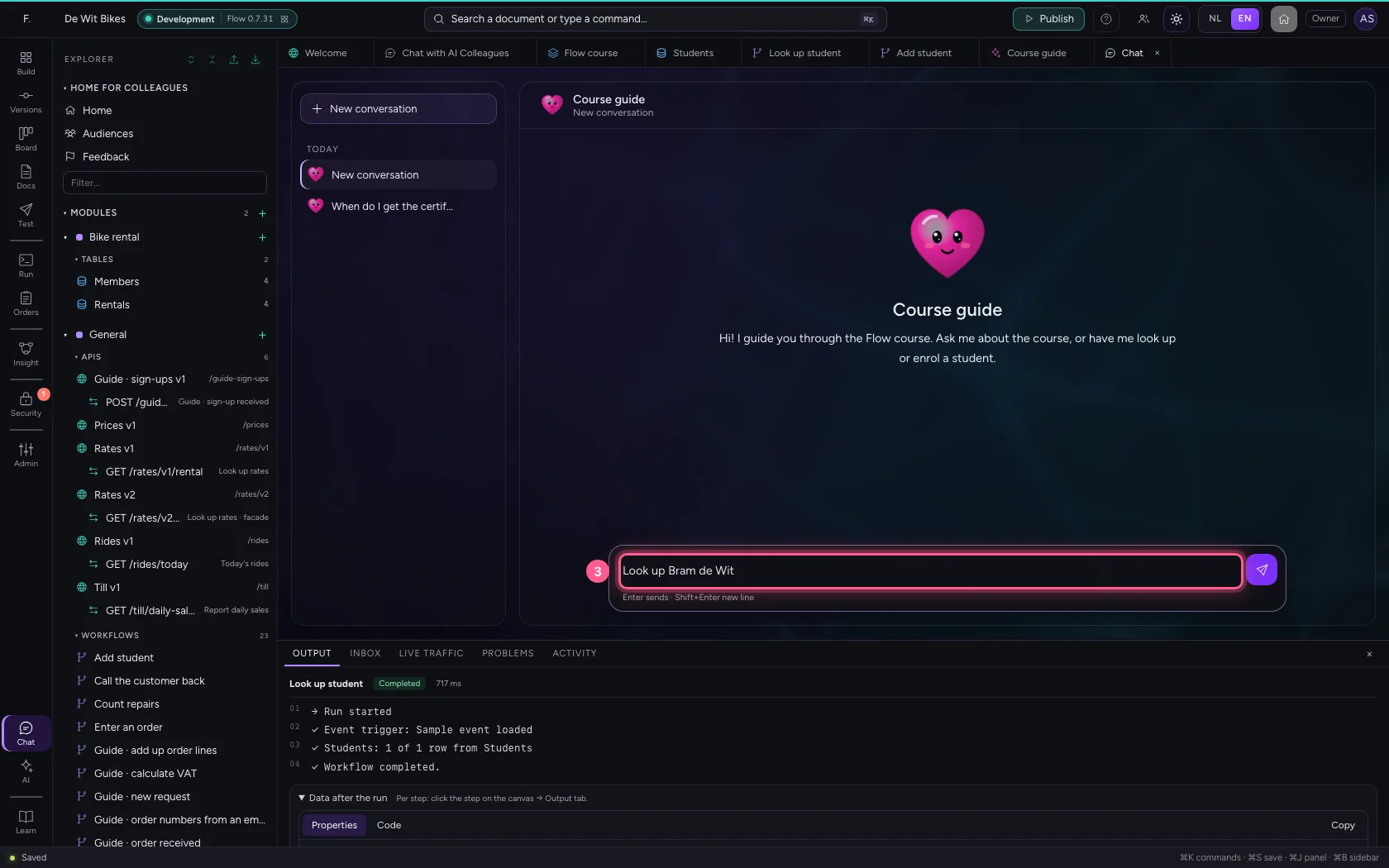
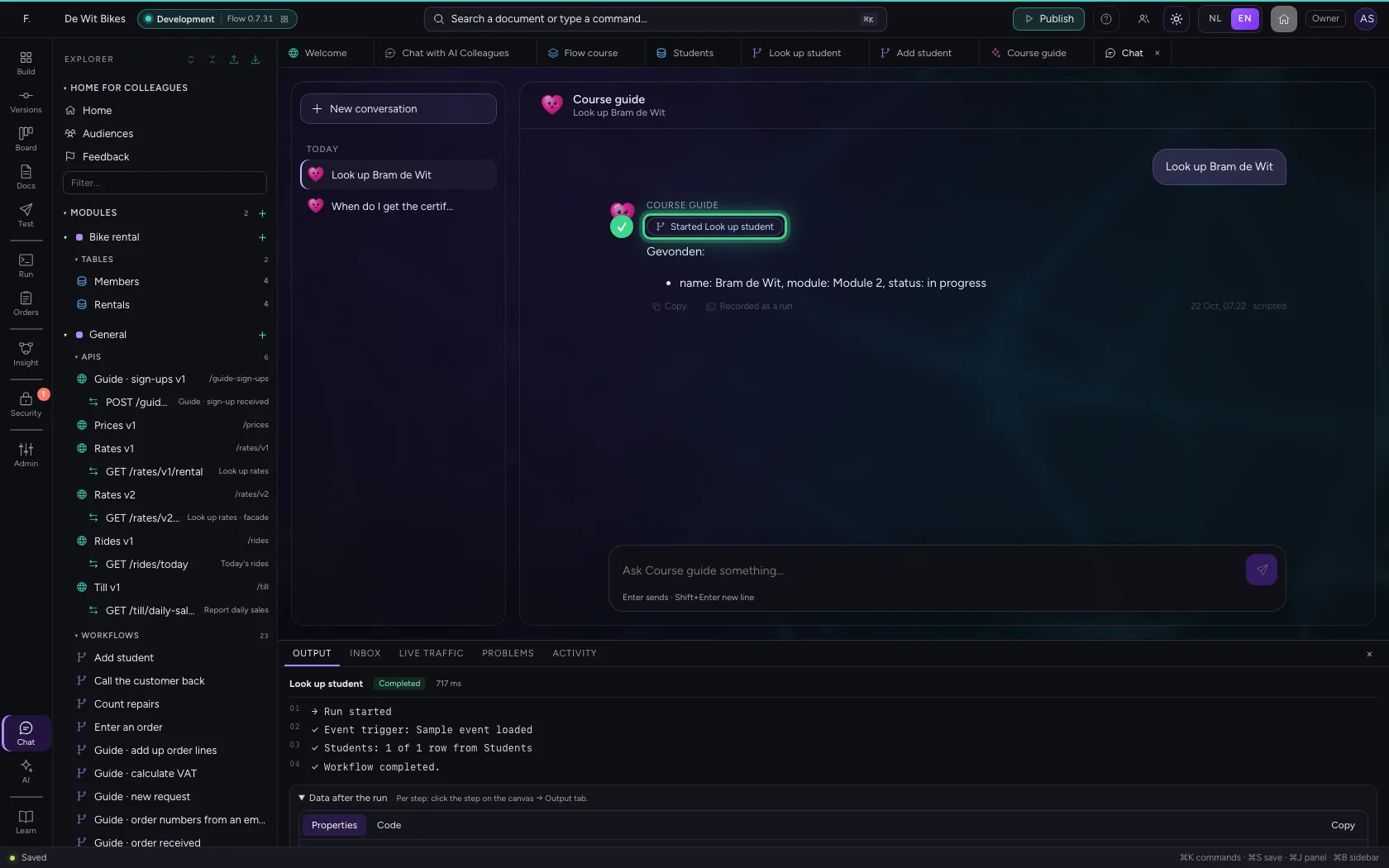
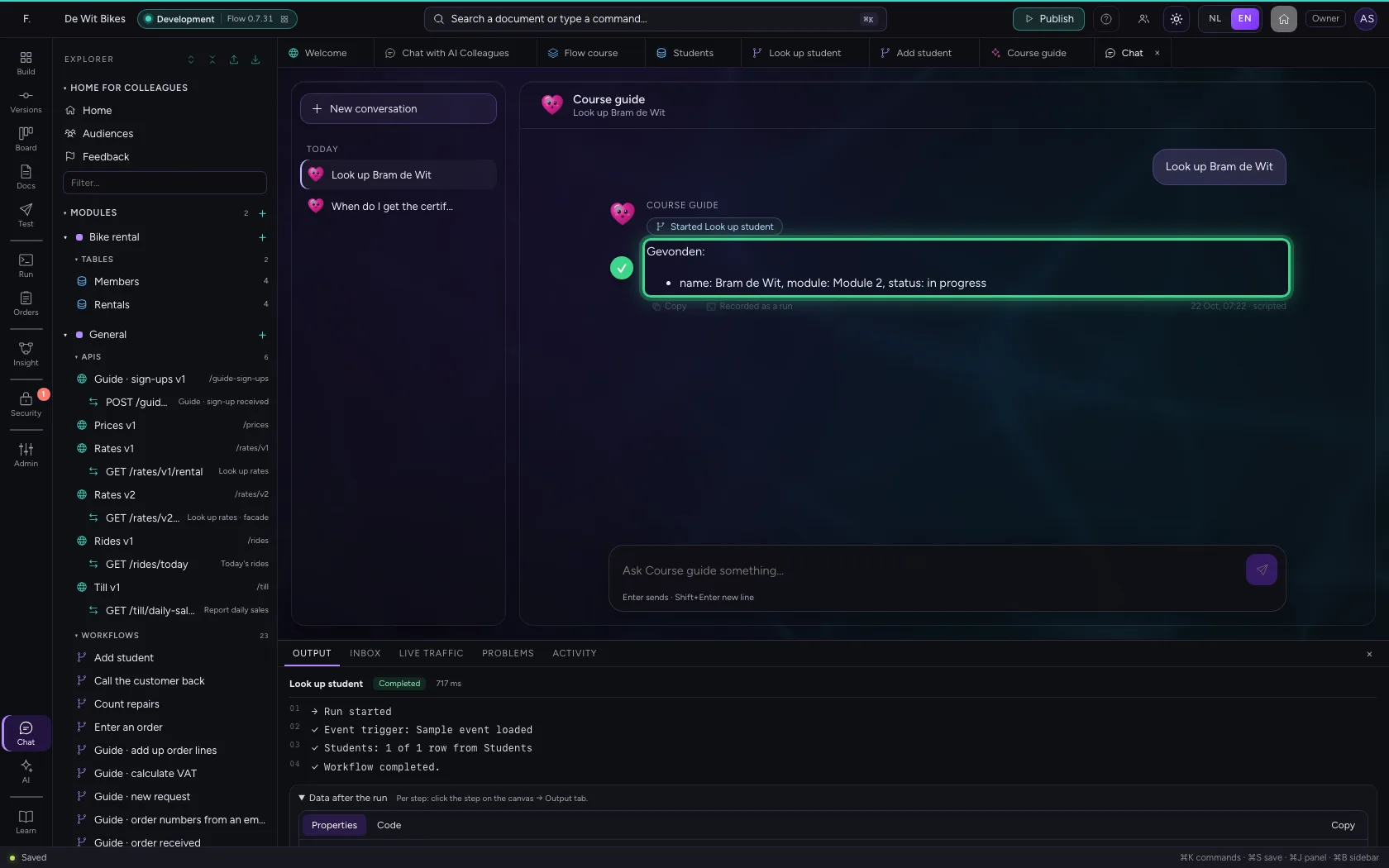
Start a conversation about something else with New conversation and ask it to look up a student. Now it does not search the knowledge base but starts the workflow Look up student with the name as input, and answers with what is in the table.
- Click New conversation
- Click Course guide

- In Ask Course guide something…, type
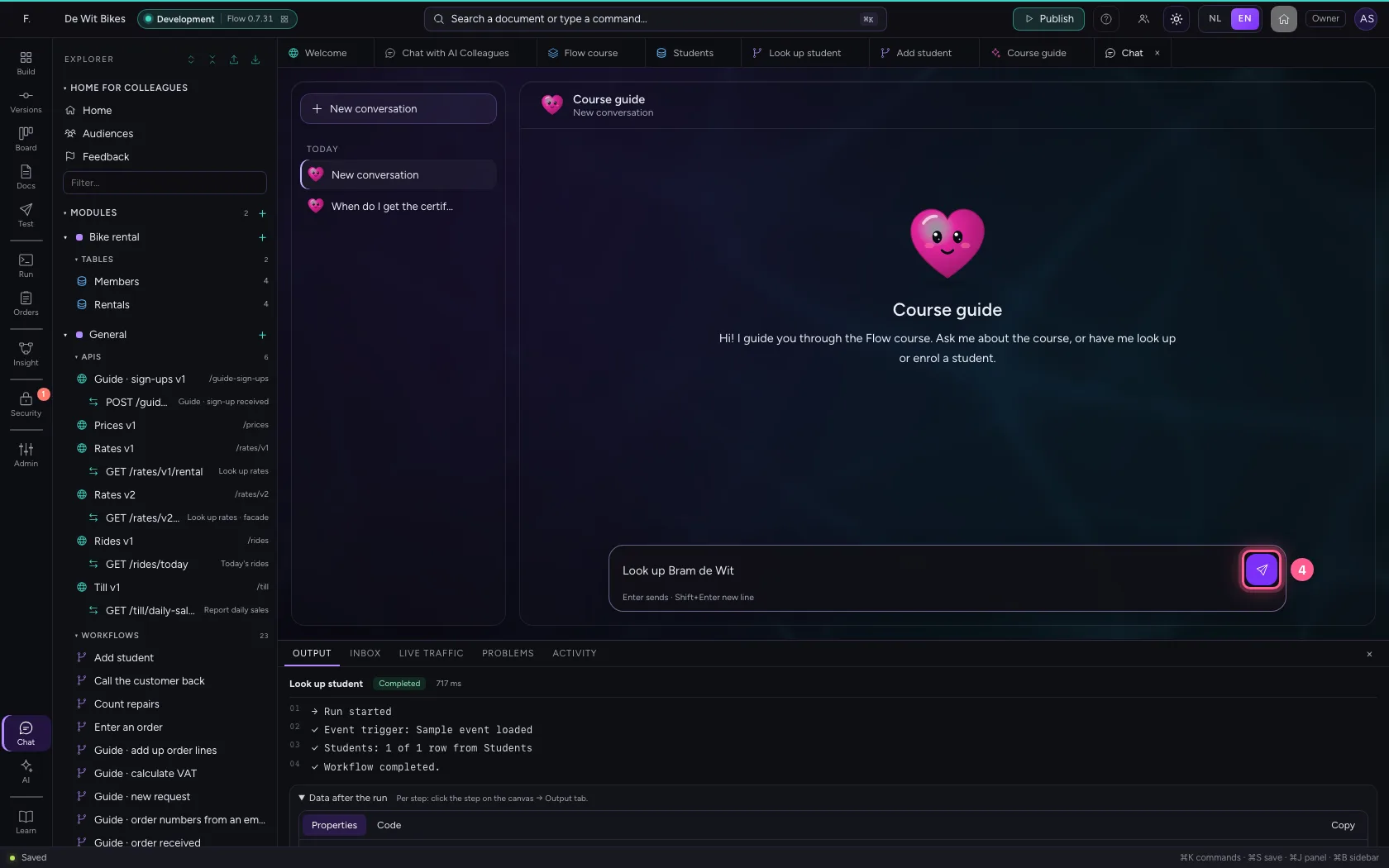
Look up Bram de Wit
- Click Send
Have it enrol a student
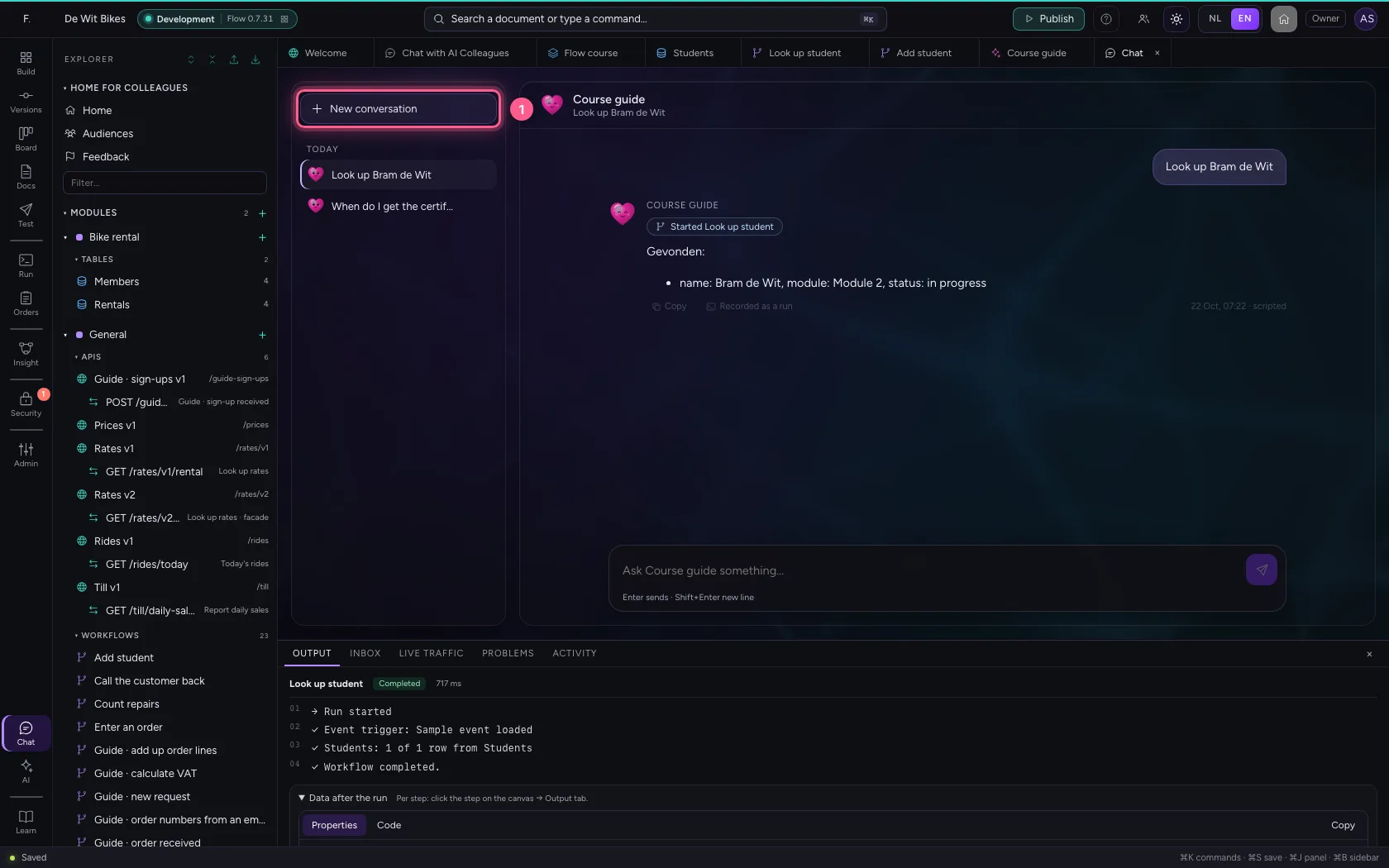
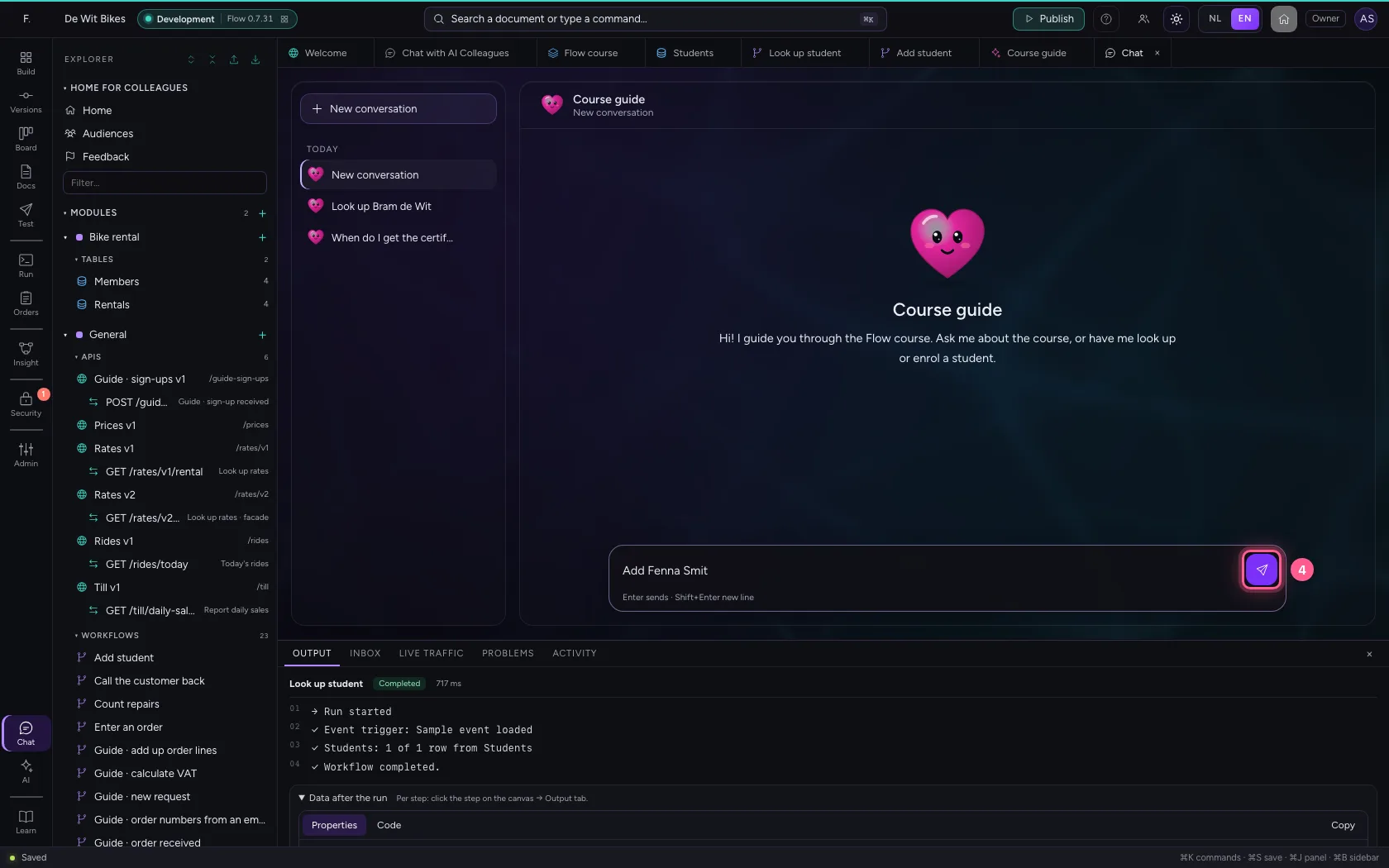
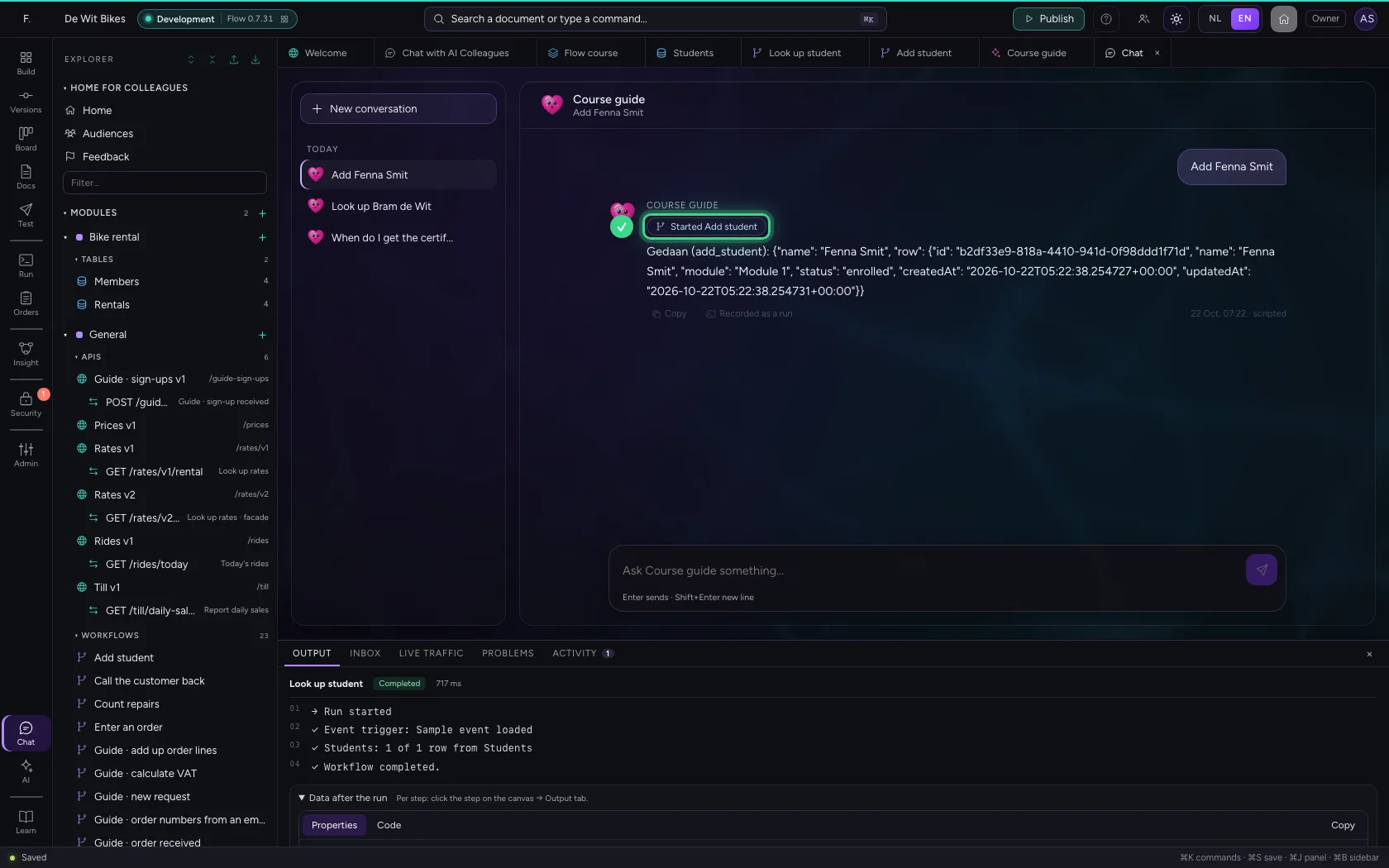
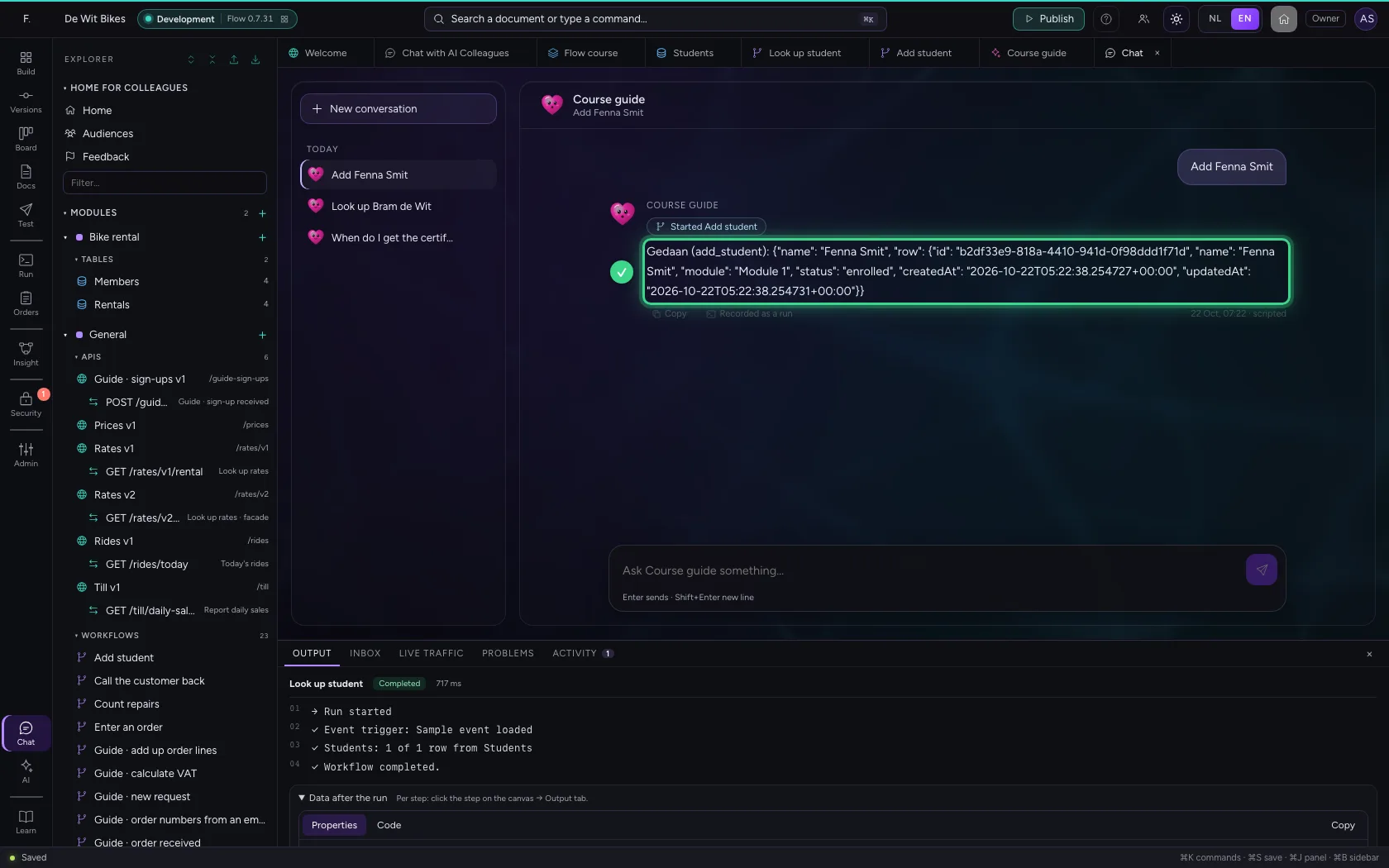
In a new conversation you ask it to add a student. It starts Add student; because it may change data and this is not a test, it really happens. Every answer is recorded as a run, with every step, so you can always see what it did.
- Click New conversation
- Click Course guide

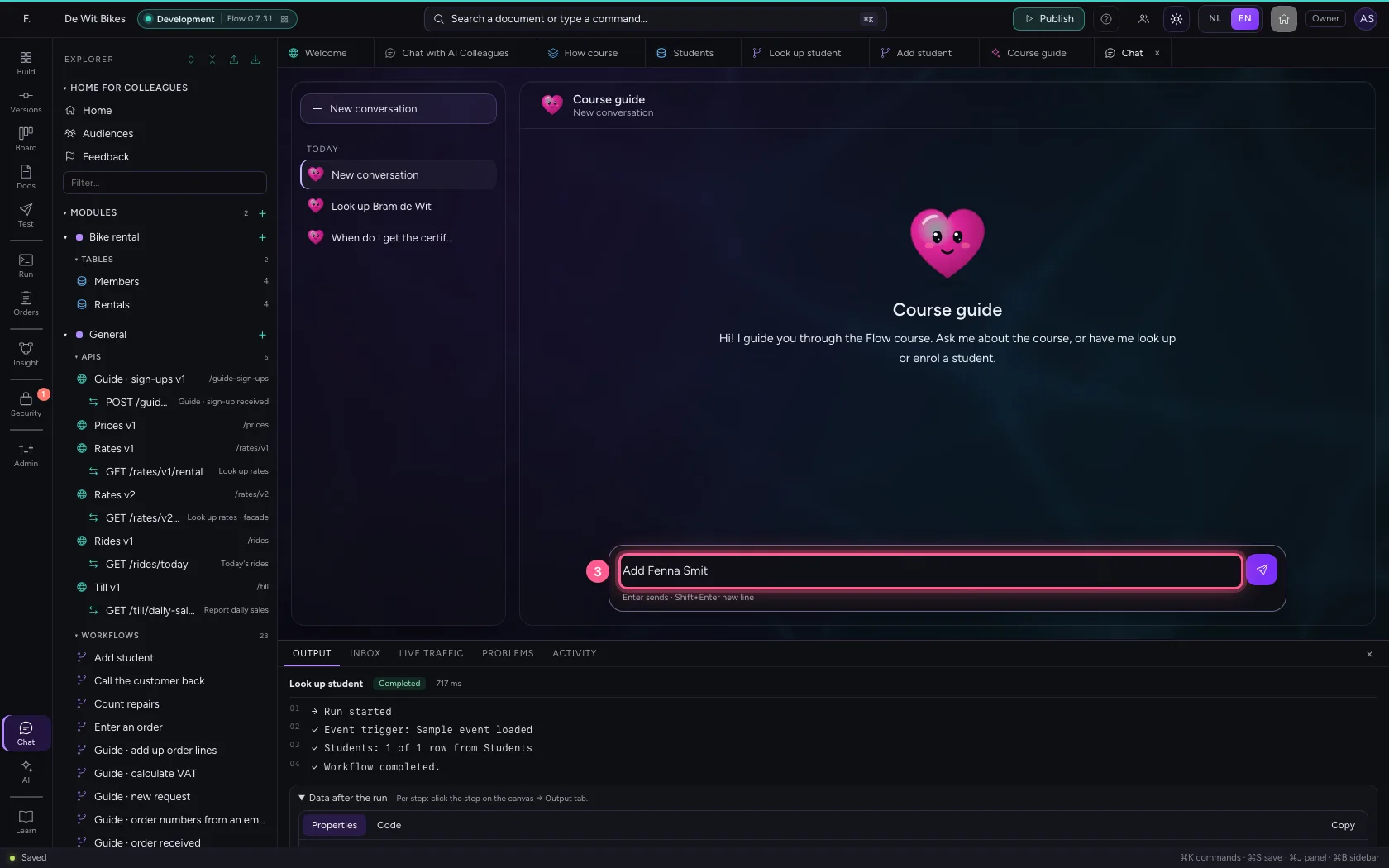
- In Ask Course guide something…, type
Add Fenna Smit
- Click Send
Look in the table
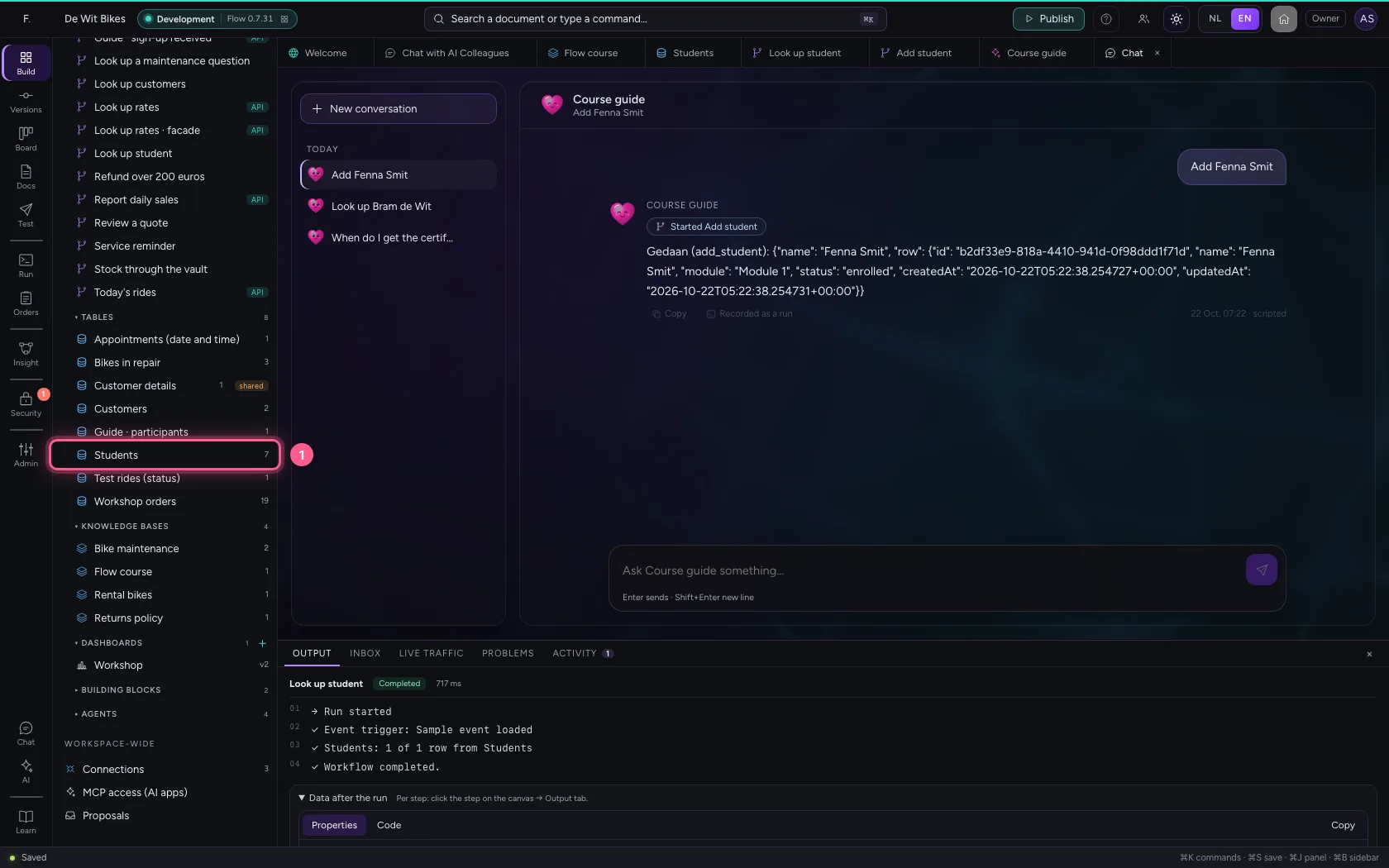
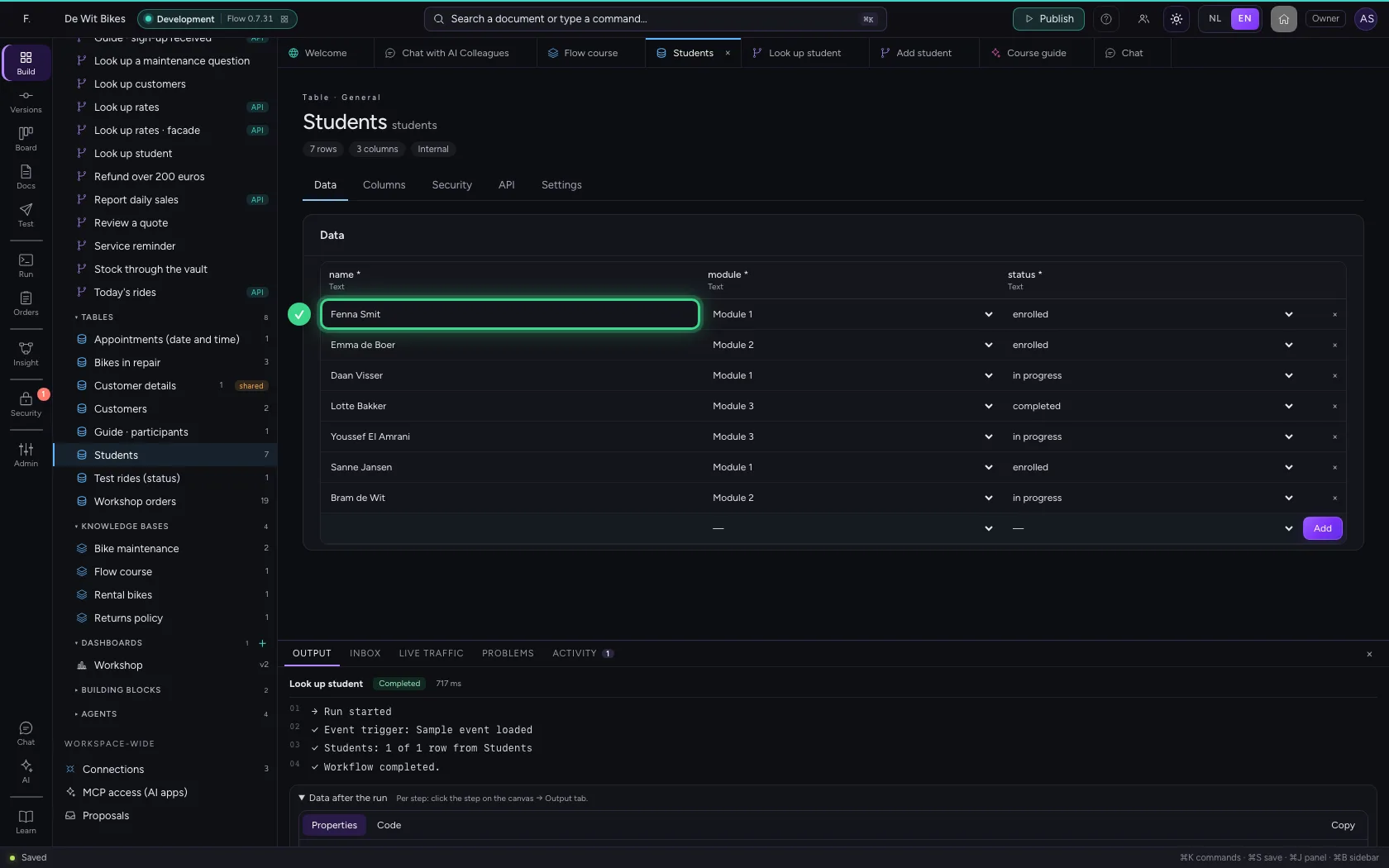
Open the table Students in the explorer: the new student is there, in module 1, enrolled — exactly as your workflow decides.
- Click Students
This guide was carried out step by step on 22 Oct 2026 by an automated test on Flow (version 3e563176).