From a CSV to personal e-mails
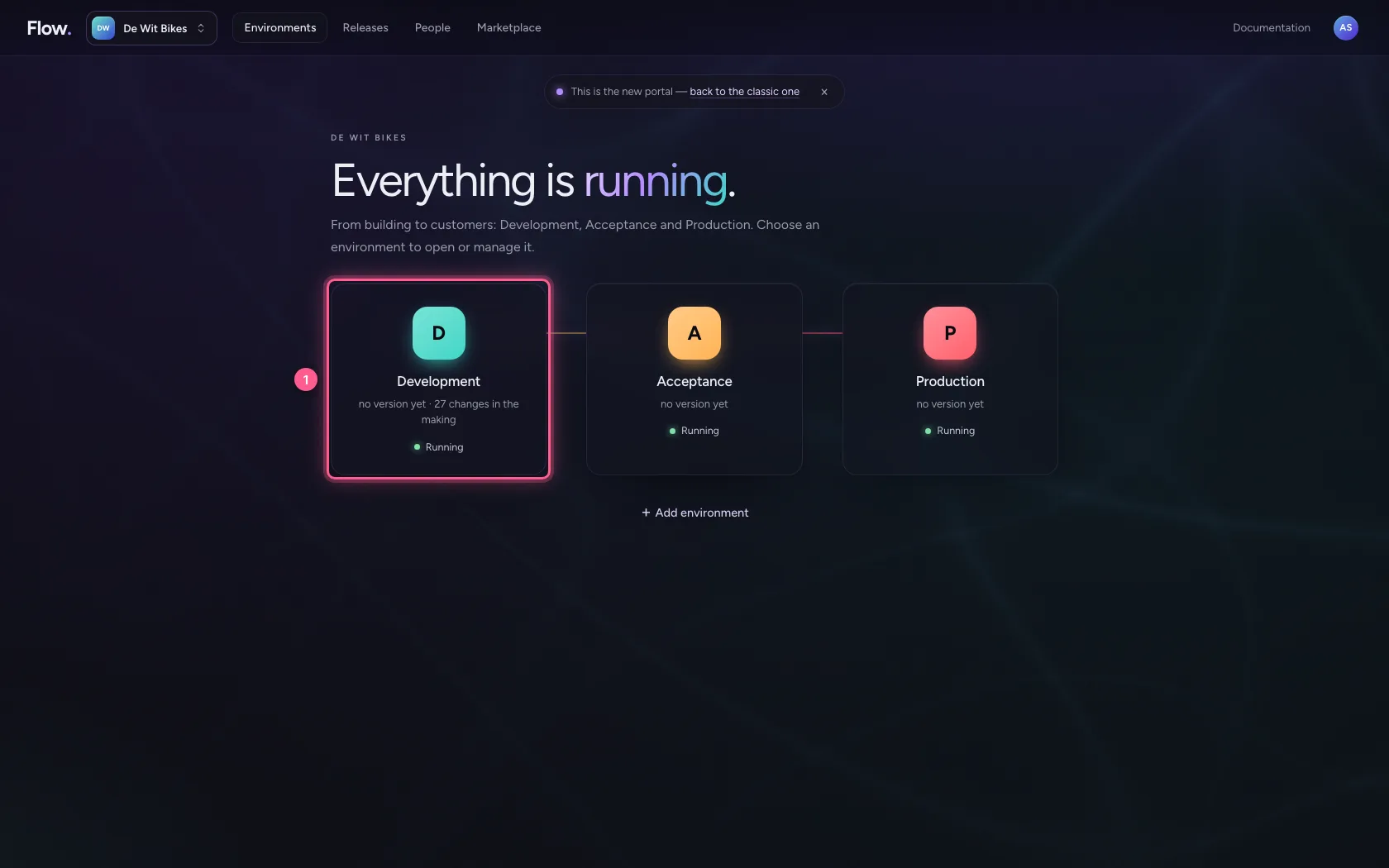
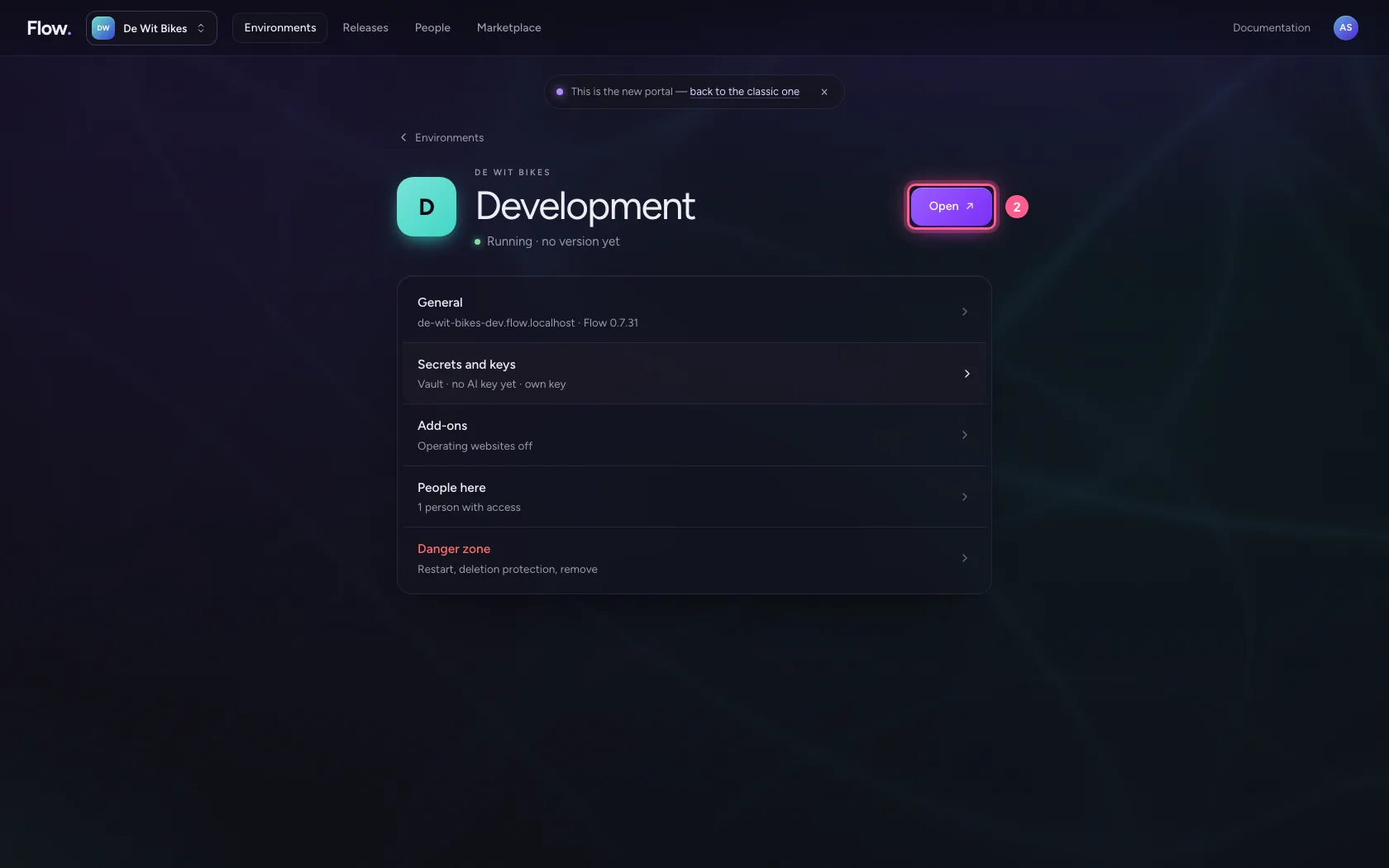
- Step 1 · Open your development environment
- Step 2 · Put your CSV in a table
- Step 3 · Name the table and check the columns
- Step 4 · Import the rows
- Step 5 · Connect Microsoft 365
- Step 6 · Fill in your app registration
- Step 7 · Create a workflow that fetches the contacts
- Step 8 · Show the list as a chat widget
- Step 9 · Go through the contacts one by one
- Step 10 · Let an AI Colleague write the mail per contact
- Step 11 · Give the agent only what it needs
- Step 12 · Send the mail with Outlook
- Step 13 · Save and run
- Step 14 · See what was sent
You have a list of contacts in Excel or as a CSV, and everyone should get their own personal e-mail. In this path you put the list in a table, show it as a chat widget, let a workflow go through the rows one by one, have an AI Colleague write each mail and let Outlook send it. Along the way you connect Microsoft 365. You need: a CSV file and an app registration in Microsoft Entra ID (tenant ID, client ID and client secret).
Open your development environment
In the portal, under Environments, click Development, and there Open. Flow opens in a new tab and you are signed in straight away.
- Click Development
- Click Open ↗
Put your CSV in a table
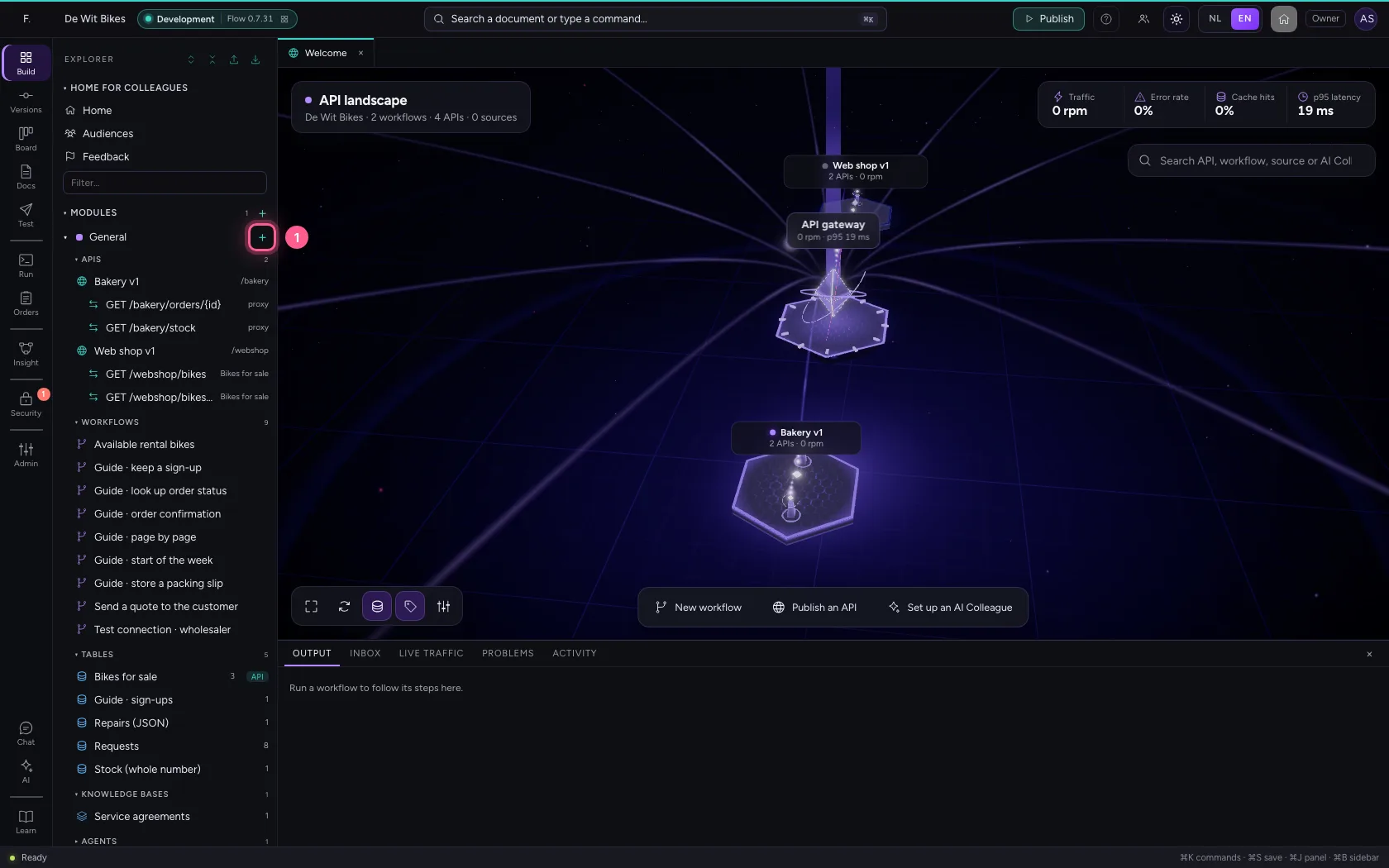
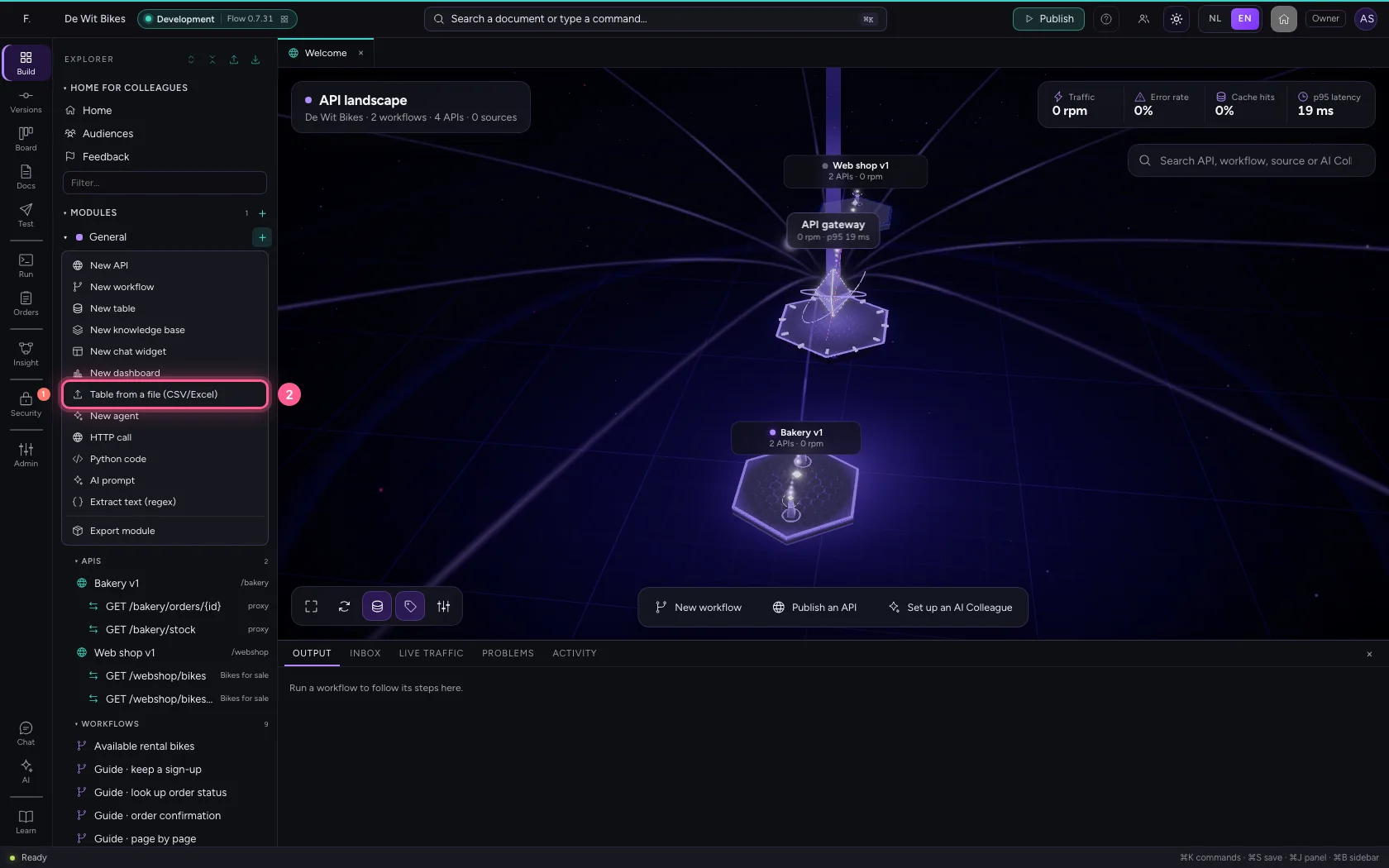
Click + next to General and choose Table from a file. Drop your CSV in the window or click to pick it. Flow recognises the separator and the column names, and shows the first rows before anything is stored.
- Click Add to General
- Click Table from a file (CSV/Excel)
- Click the box for your file
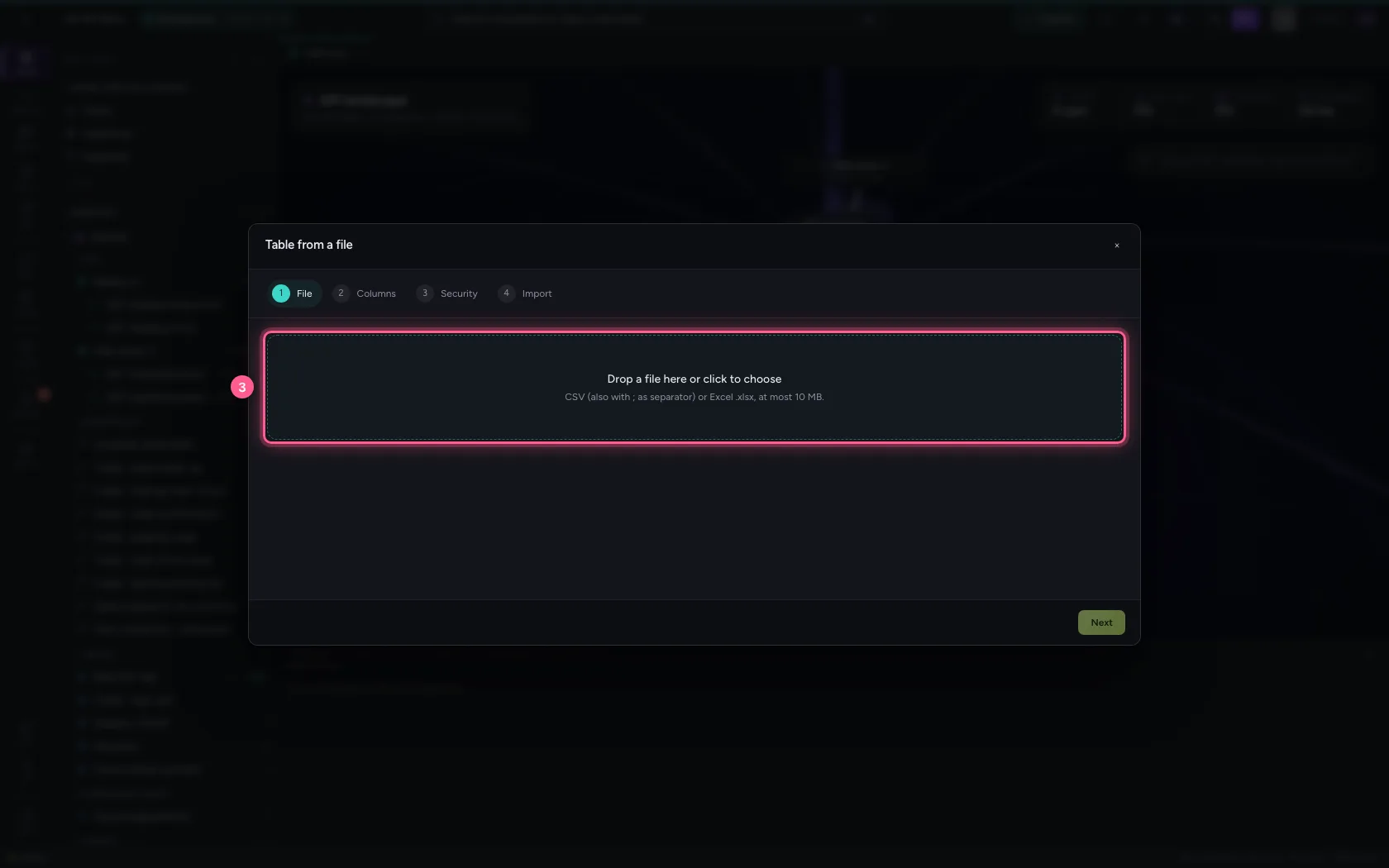
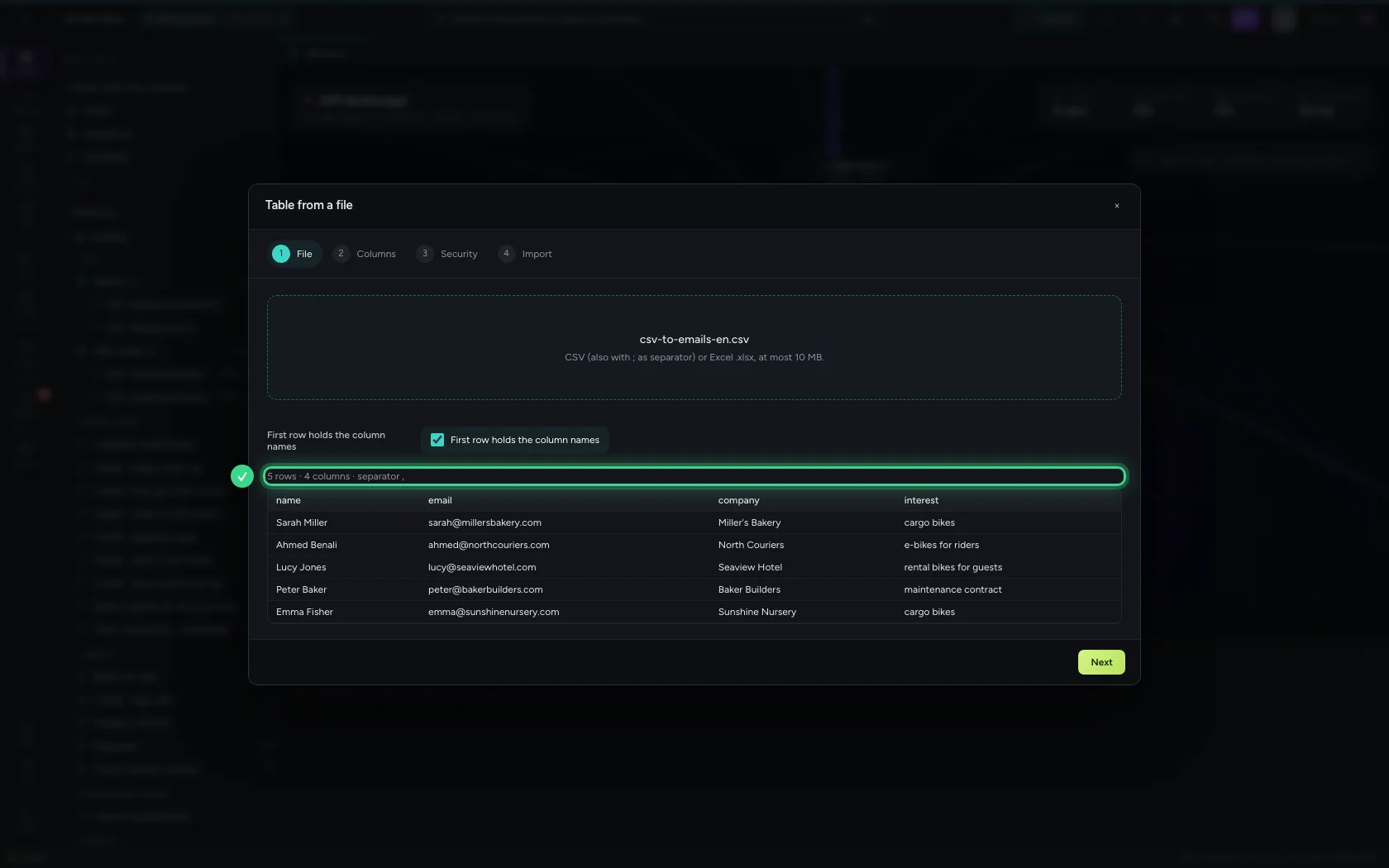
- Click Next
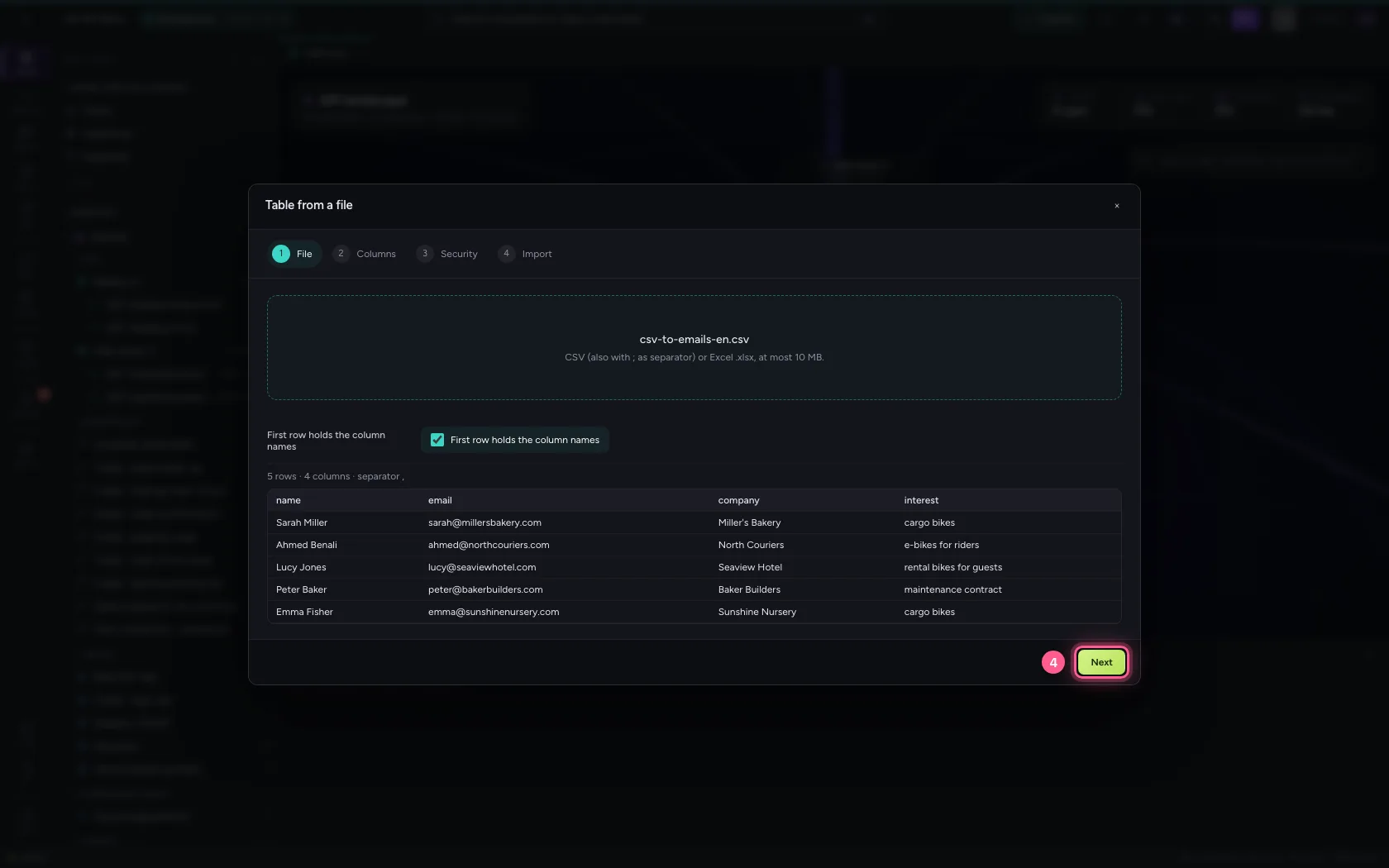
Name the table and check the columns
Flow proposes a type per column from what is in it. Untick columns you do not need. That way every next step knows exactly which fields there are.
- In Table name, type
Mailing contacts
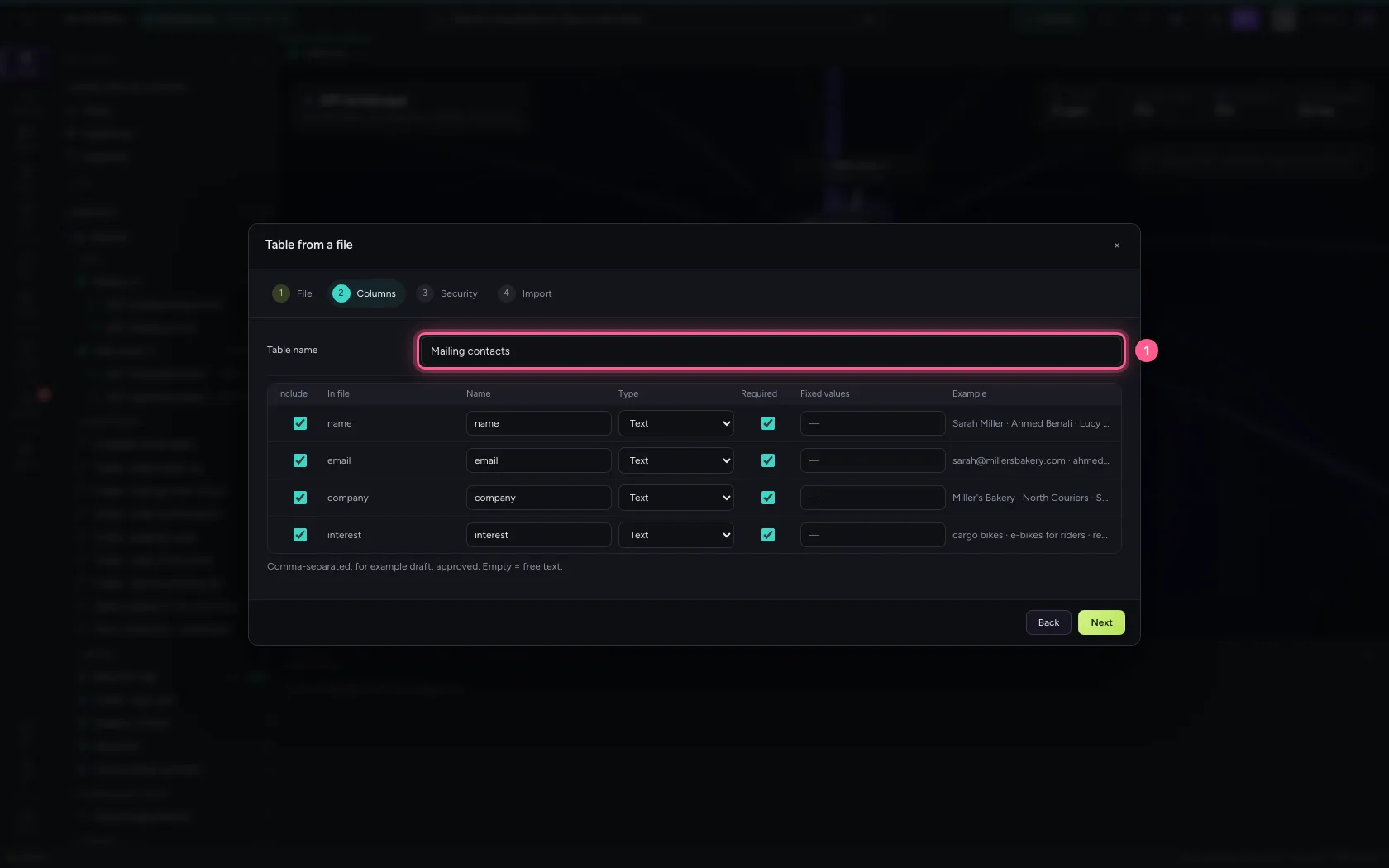
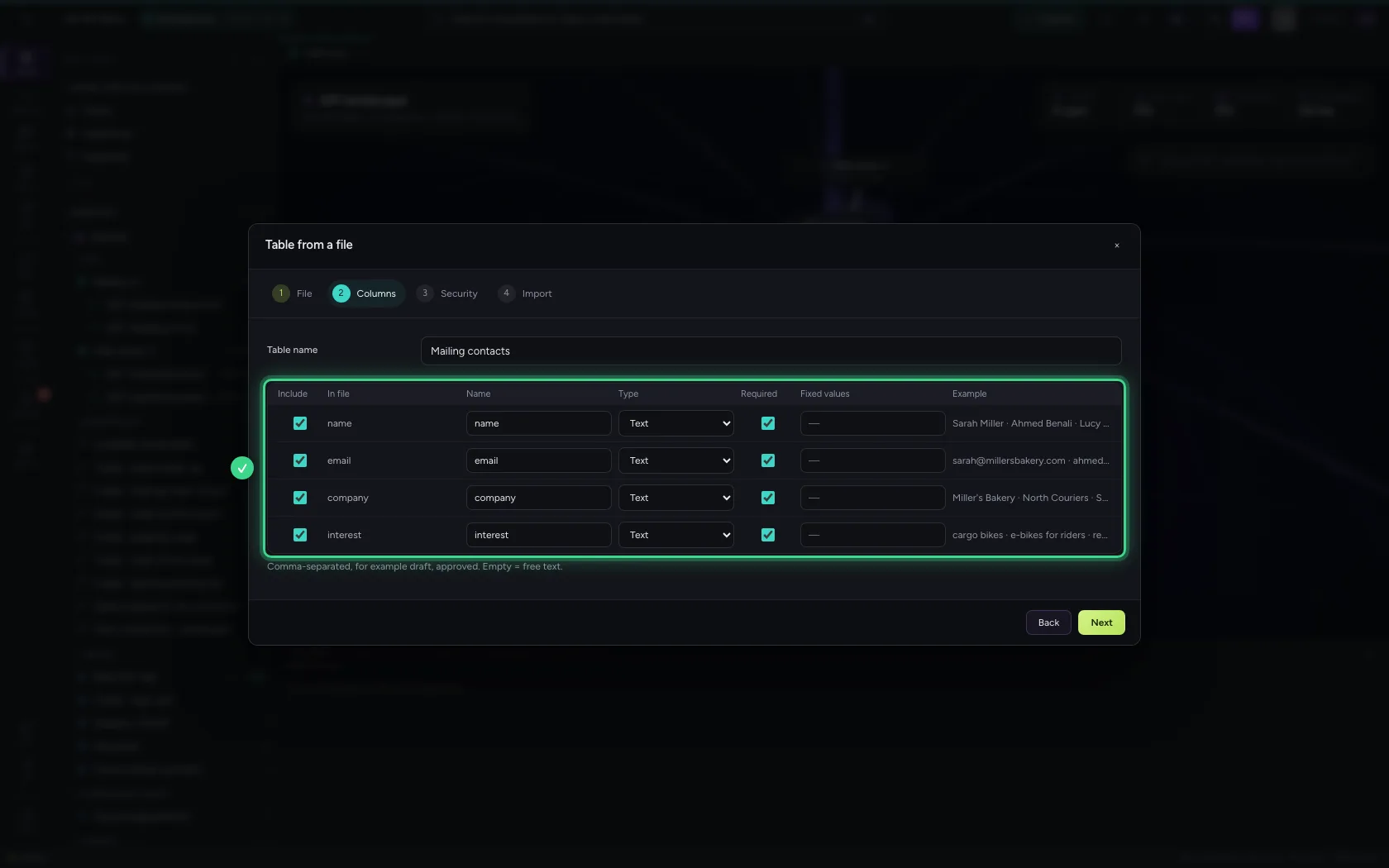
- Click Next
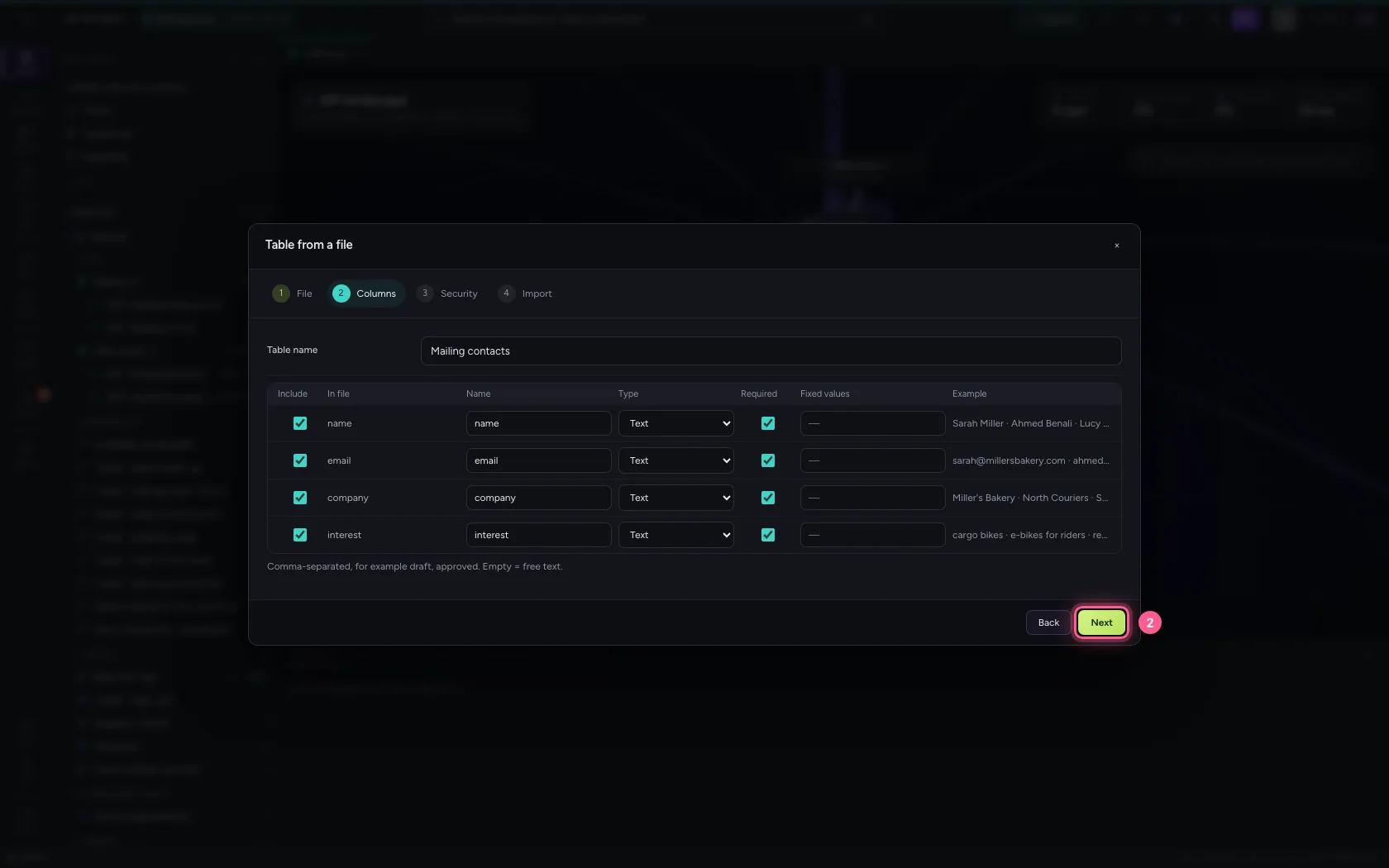
Import the rows
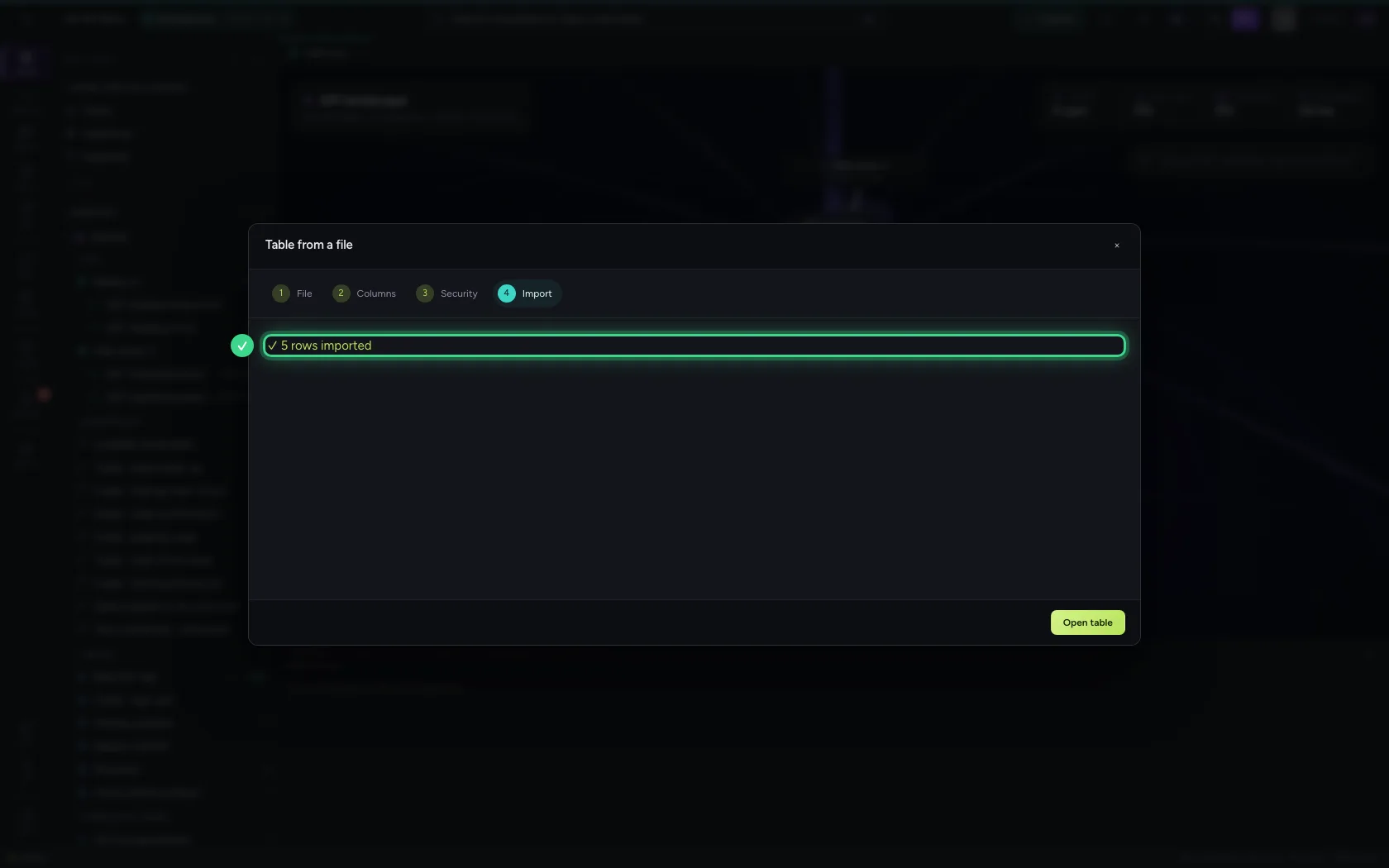
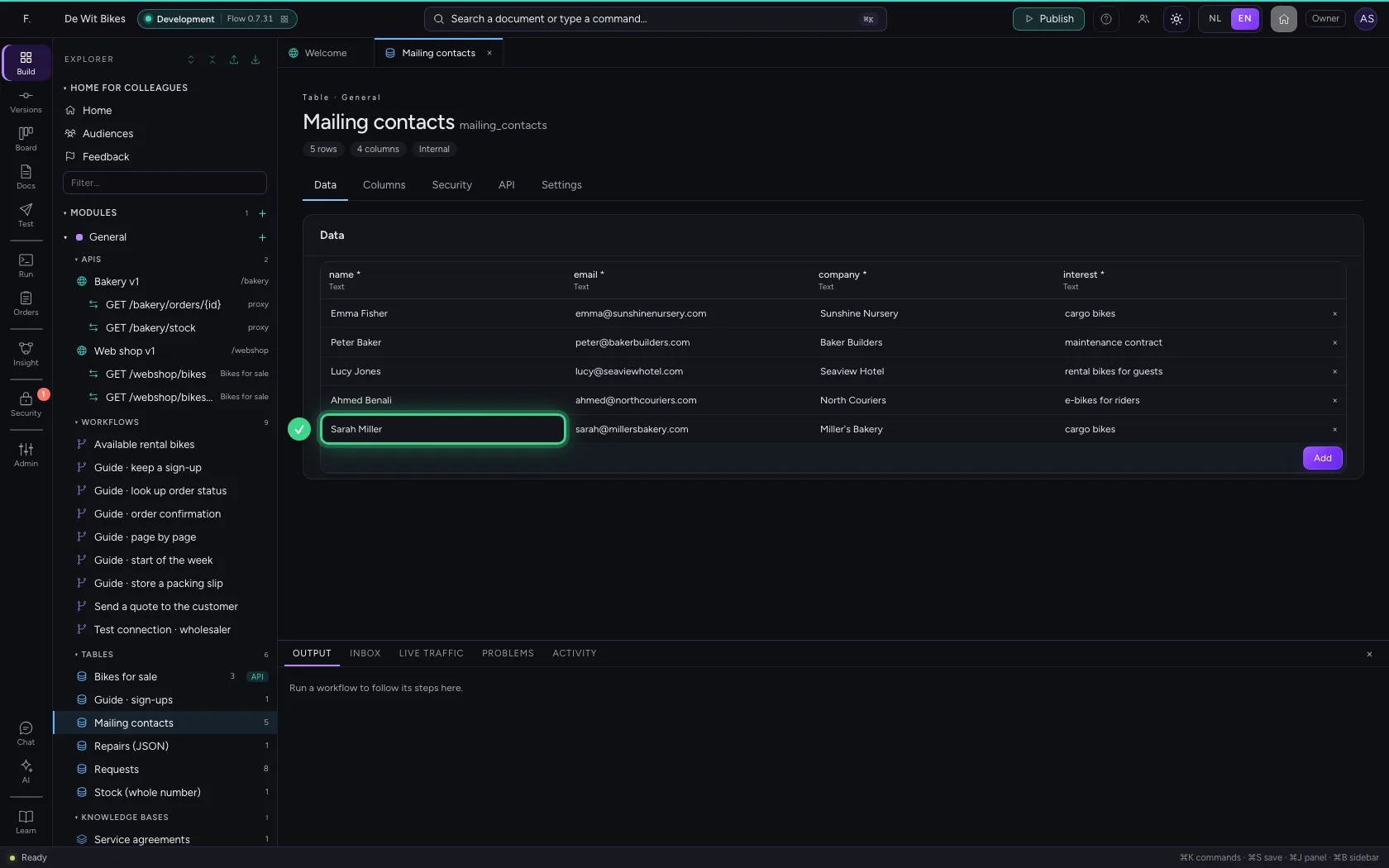
Under Security you decide who may see the data; for now you leave it as it is. On Import, Flow checks every row before it goes in. Rows that do not fit are skipped and reported.
- Click Next
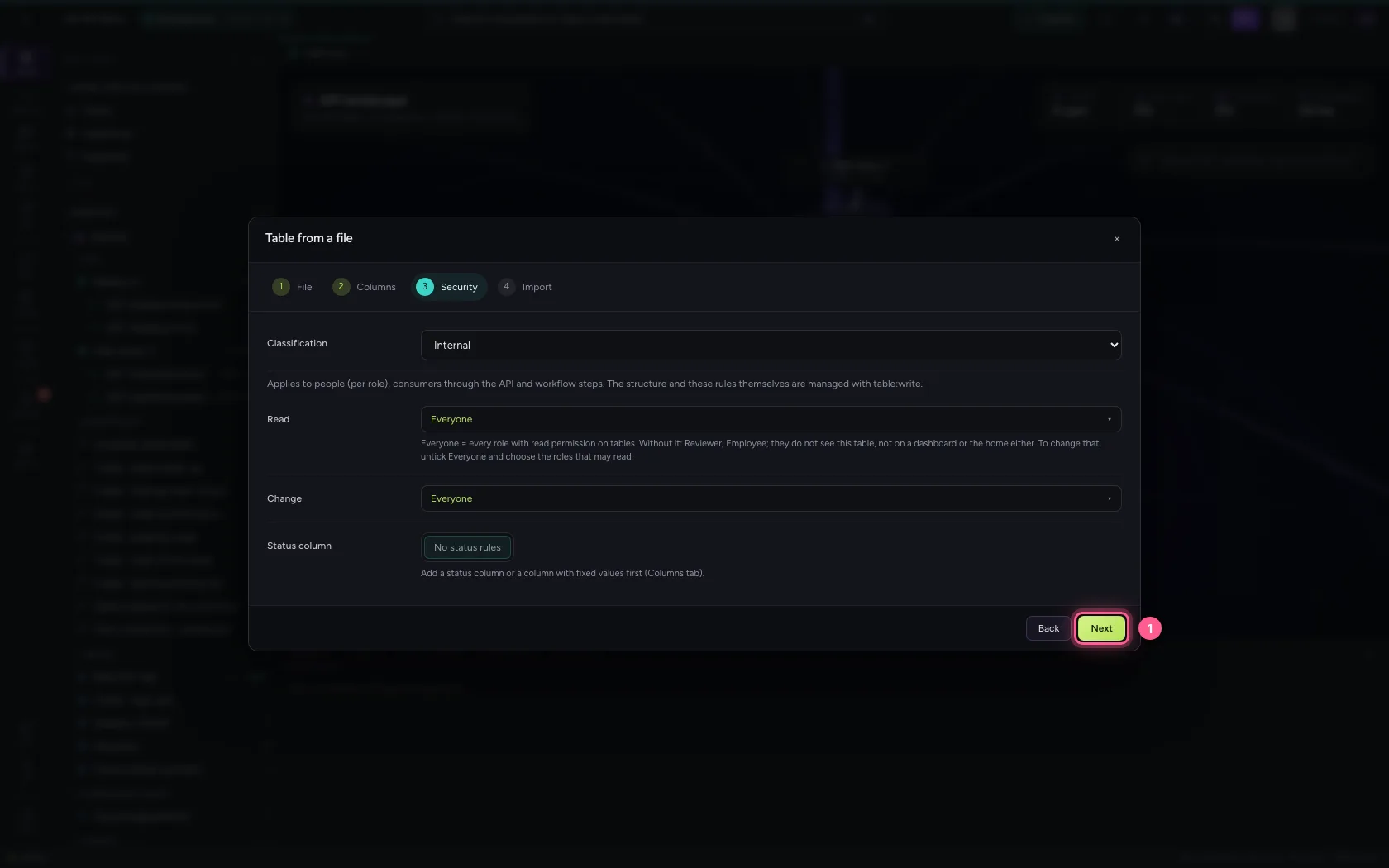
- Click Import
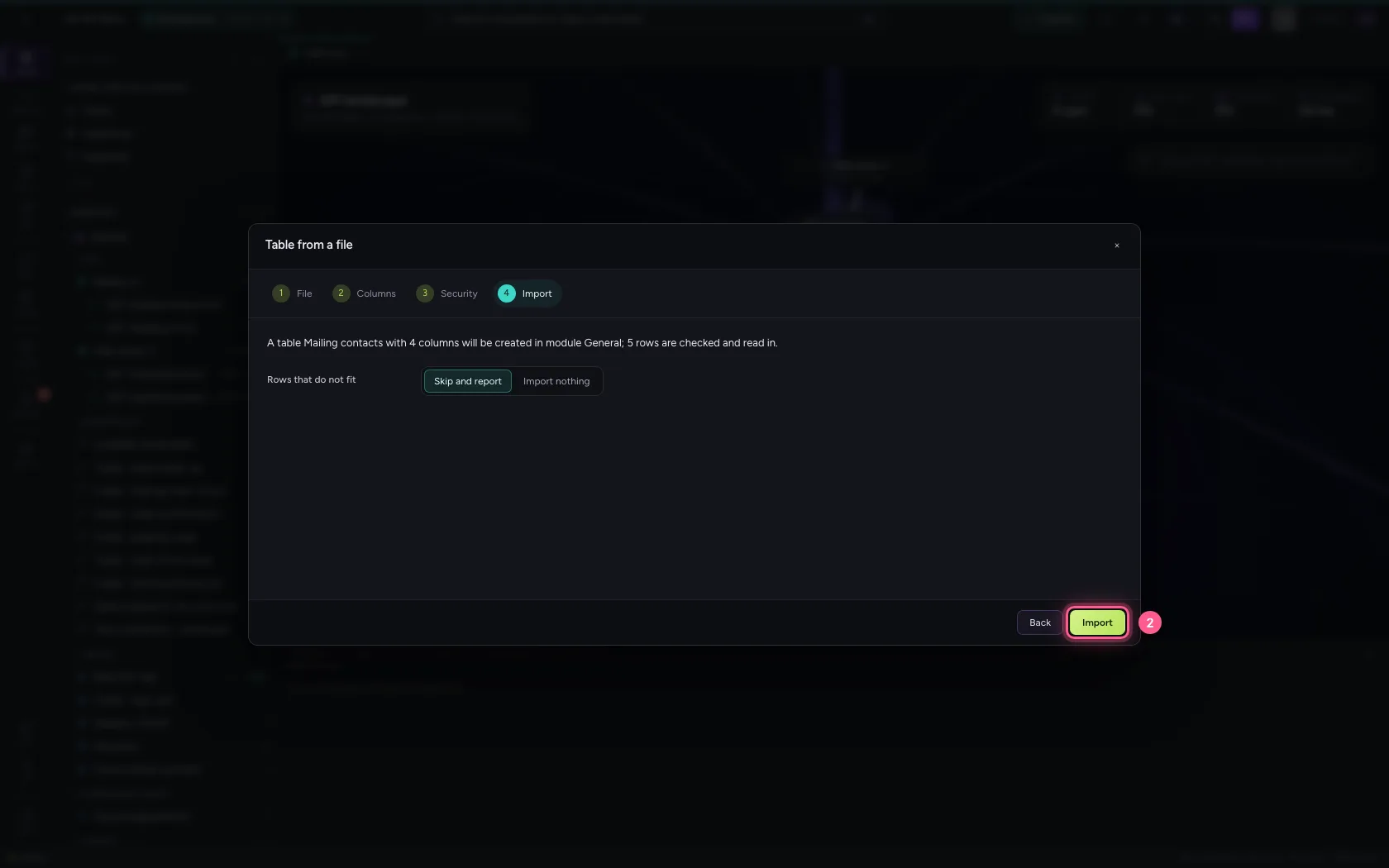
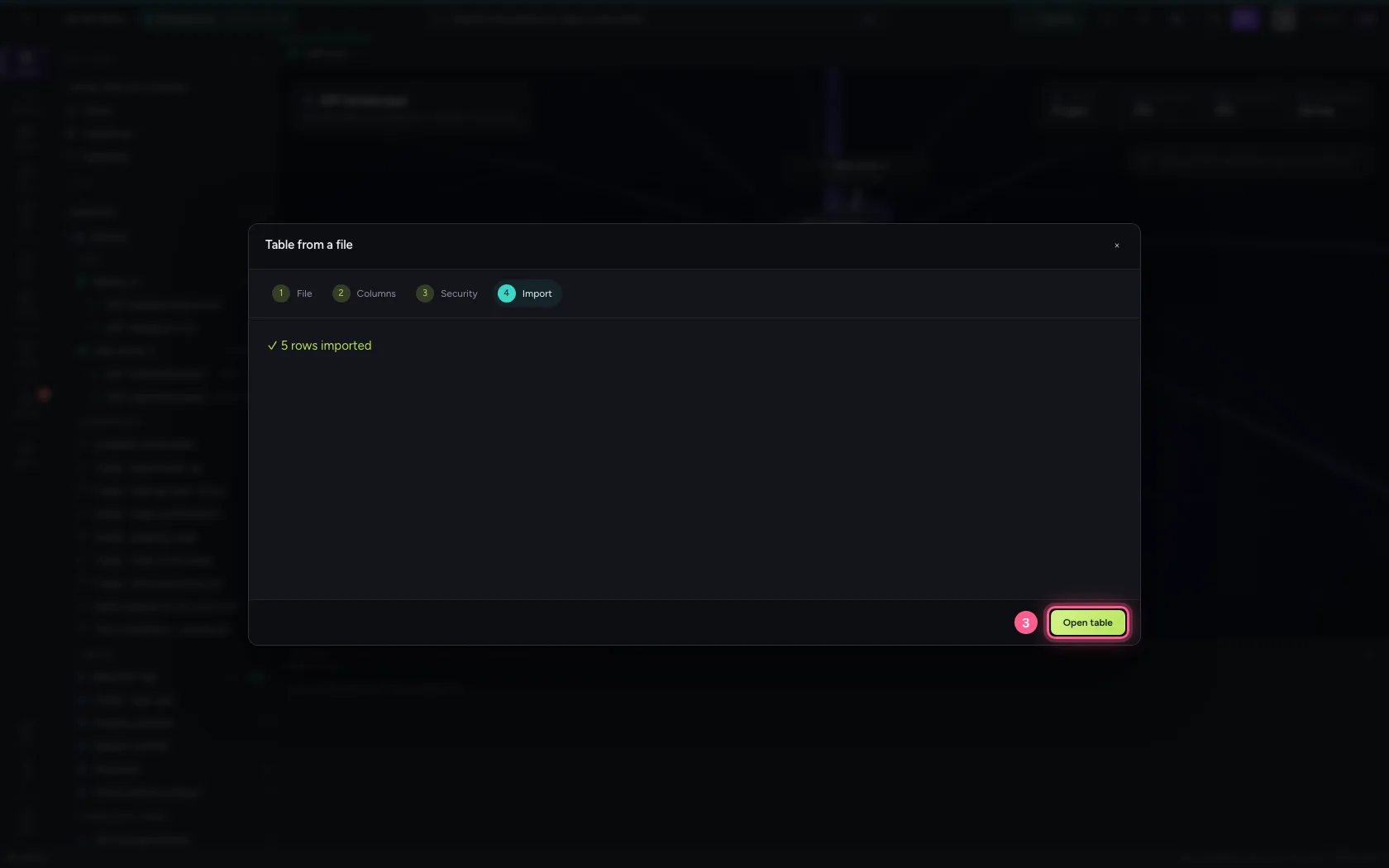
- Click Open table
Connect Microsoft 365
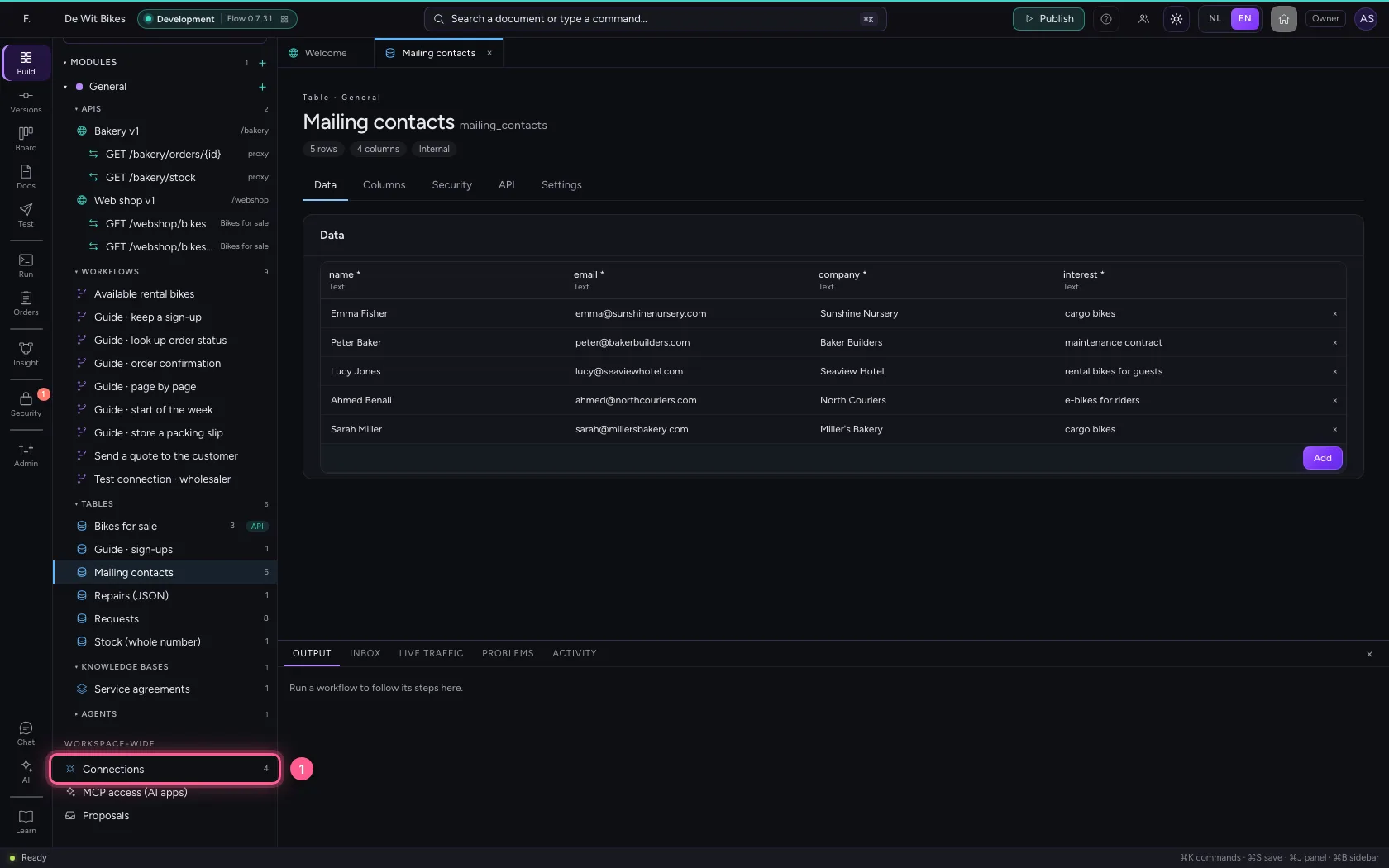
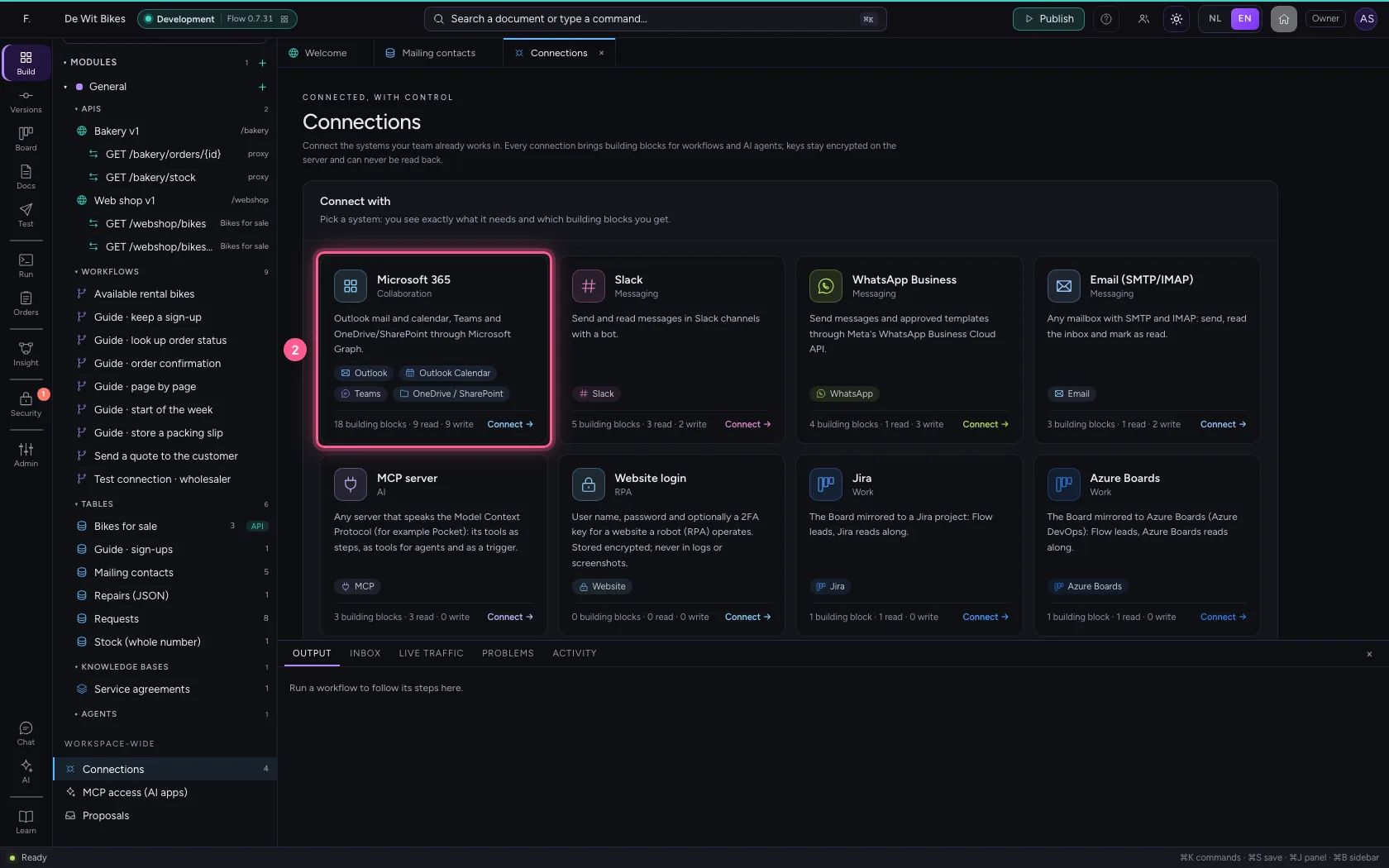
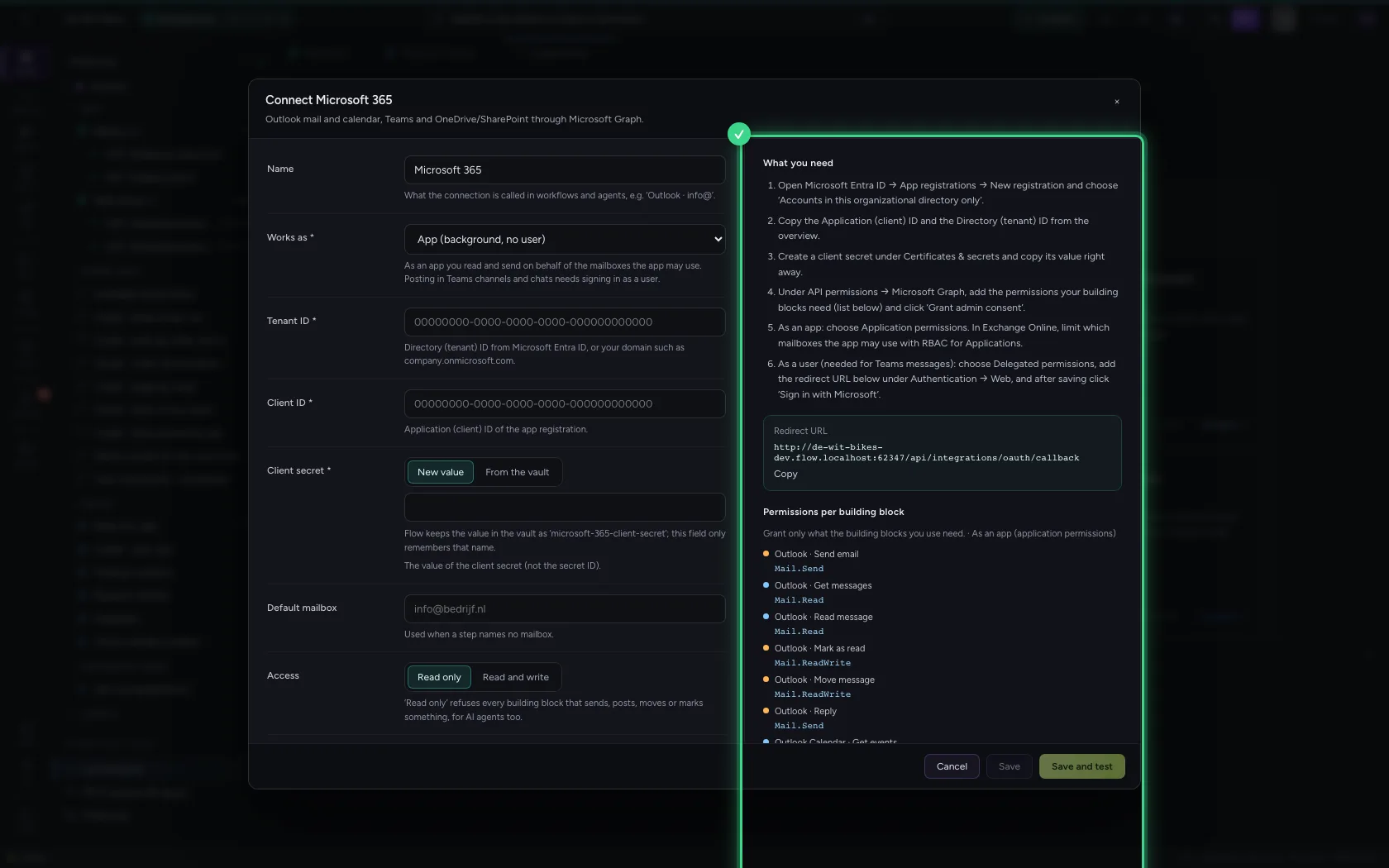
Connections are at the bottom of the explorer. Choose Microsoft 365: on the right you see exactly what to arrange in Microsoft Entra ID and which permissions each building block needs. Sending needs Mail.Send.
- Click Connections
- Click Microsoft 365
Fill in your app registration
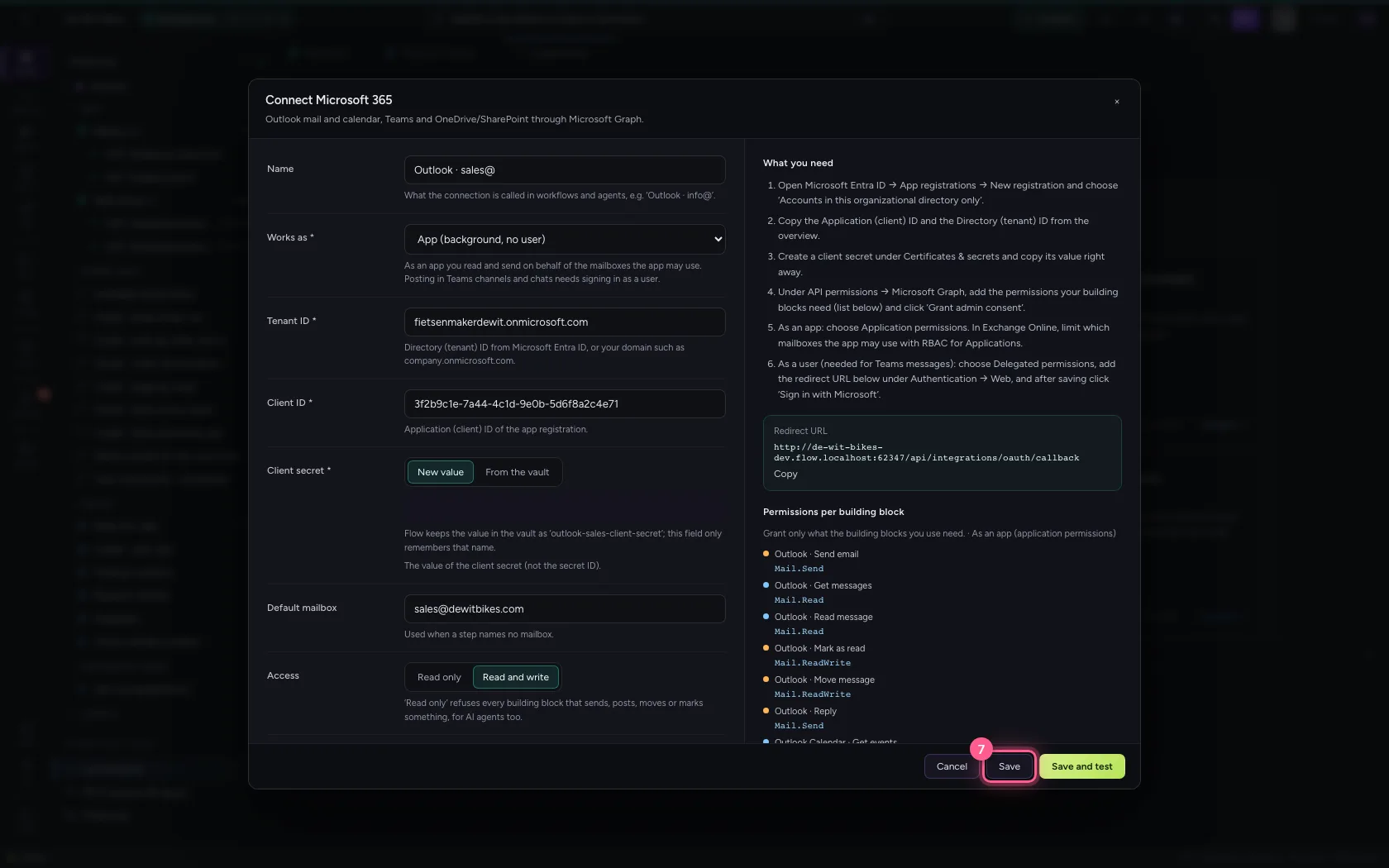
As an app, Flow sends mail on behalf of a mailbox the app may use, without anyone having to be signed in. The client secret is stored encrypted and can never be read back. Choose Read and write: with read only, Flow refuses every step that sends something.
- In Name, type
Outlook · sales@ - In **Tenant ID ***, type
fietsenmakerdewit.onmicrosoft.com - In **Client ID ***, type
3f2b9c1e-7a44-4c1d-9e0b-5d6f8a2c4e71 - In **Client secret ***, type
•••••••• - In Default mailbox, type
sales@dewitbikes.com
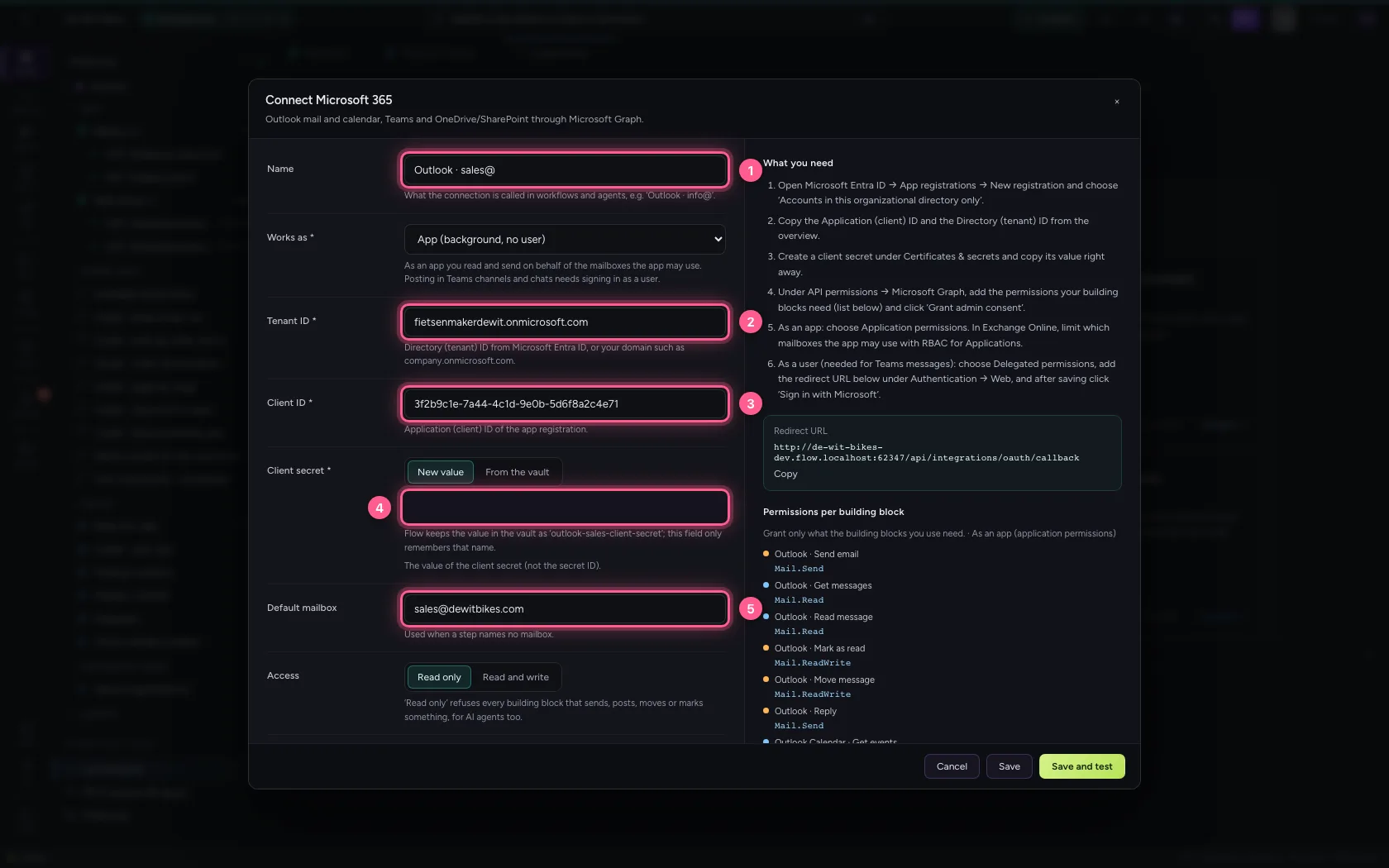
- Click Read and write
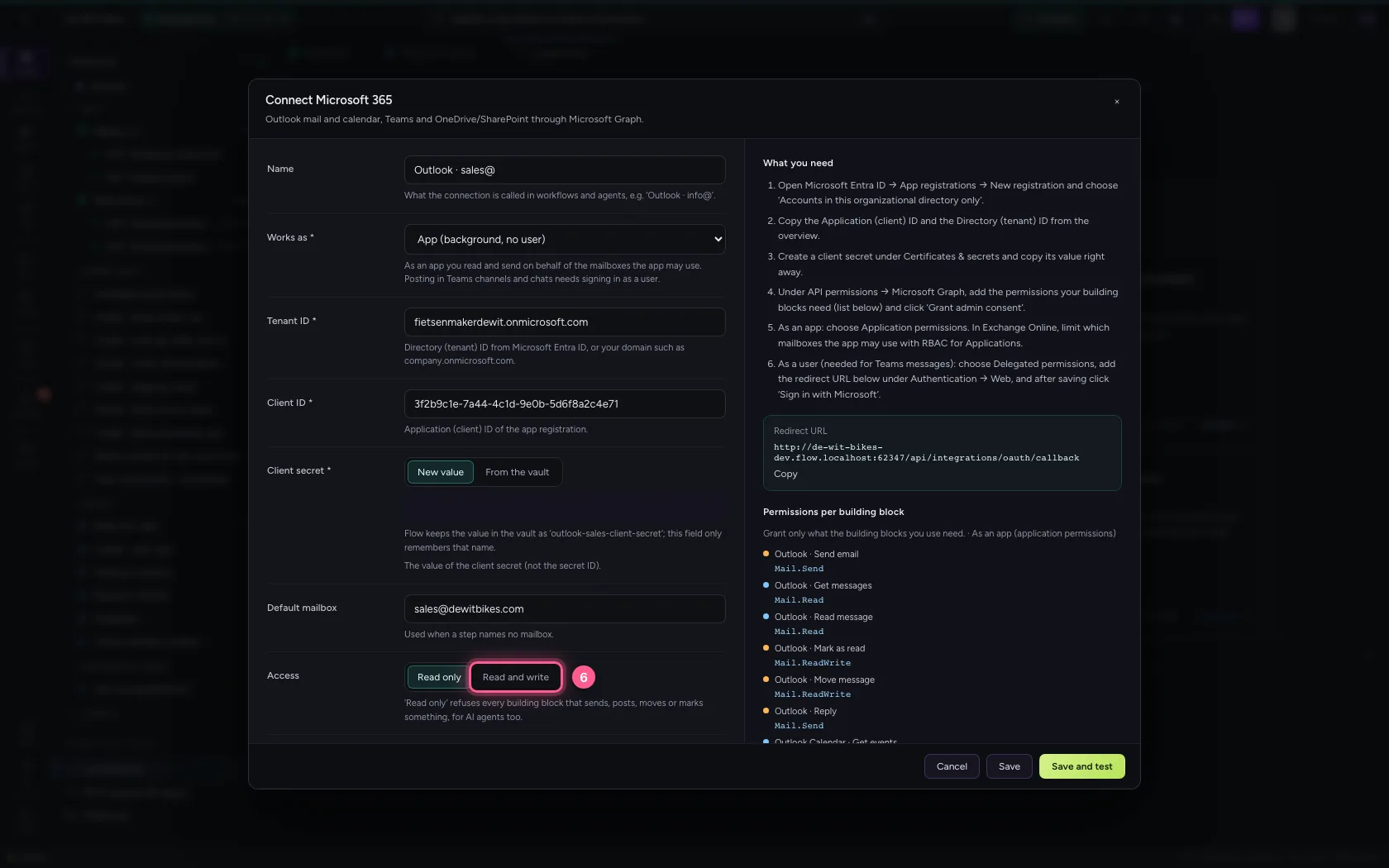
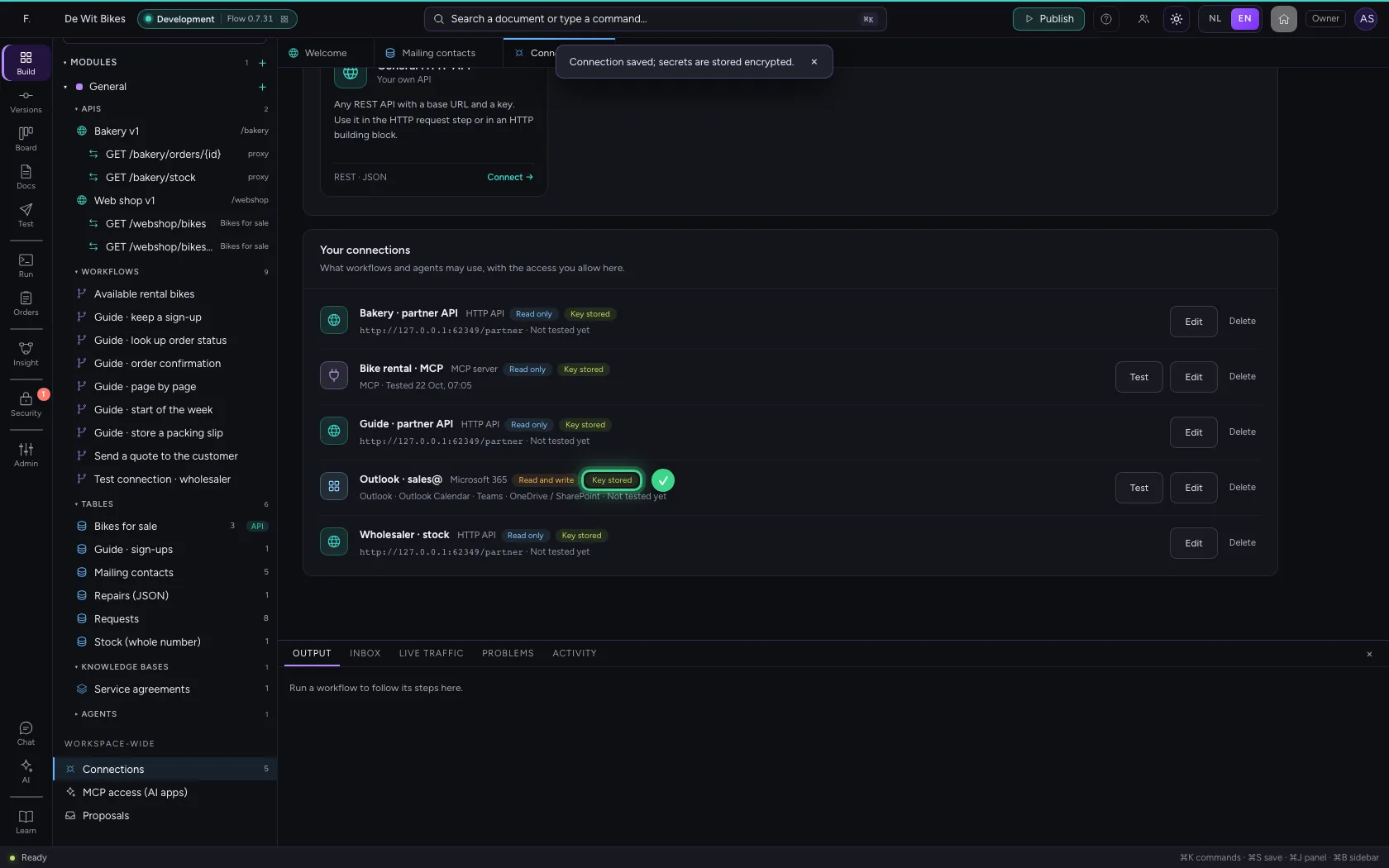
- Click Save
Create a workflow that fetches the contacts
A new workflow starts with a trigger. Add the Table step and choose your contacts table: it looks up every row and passes them on as rows.
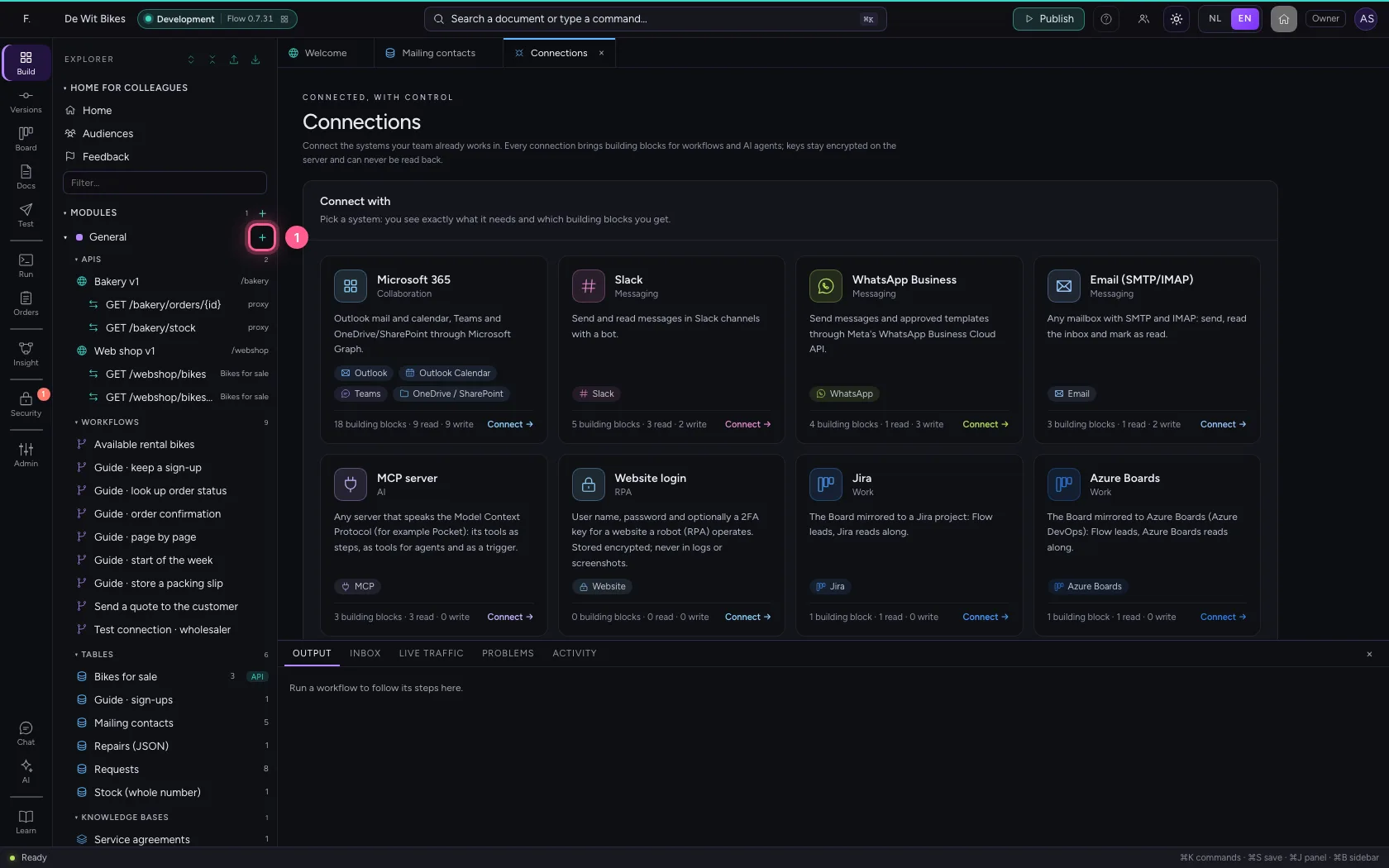
- Click Add to General
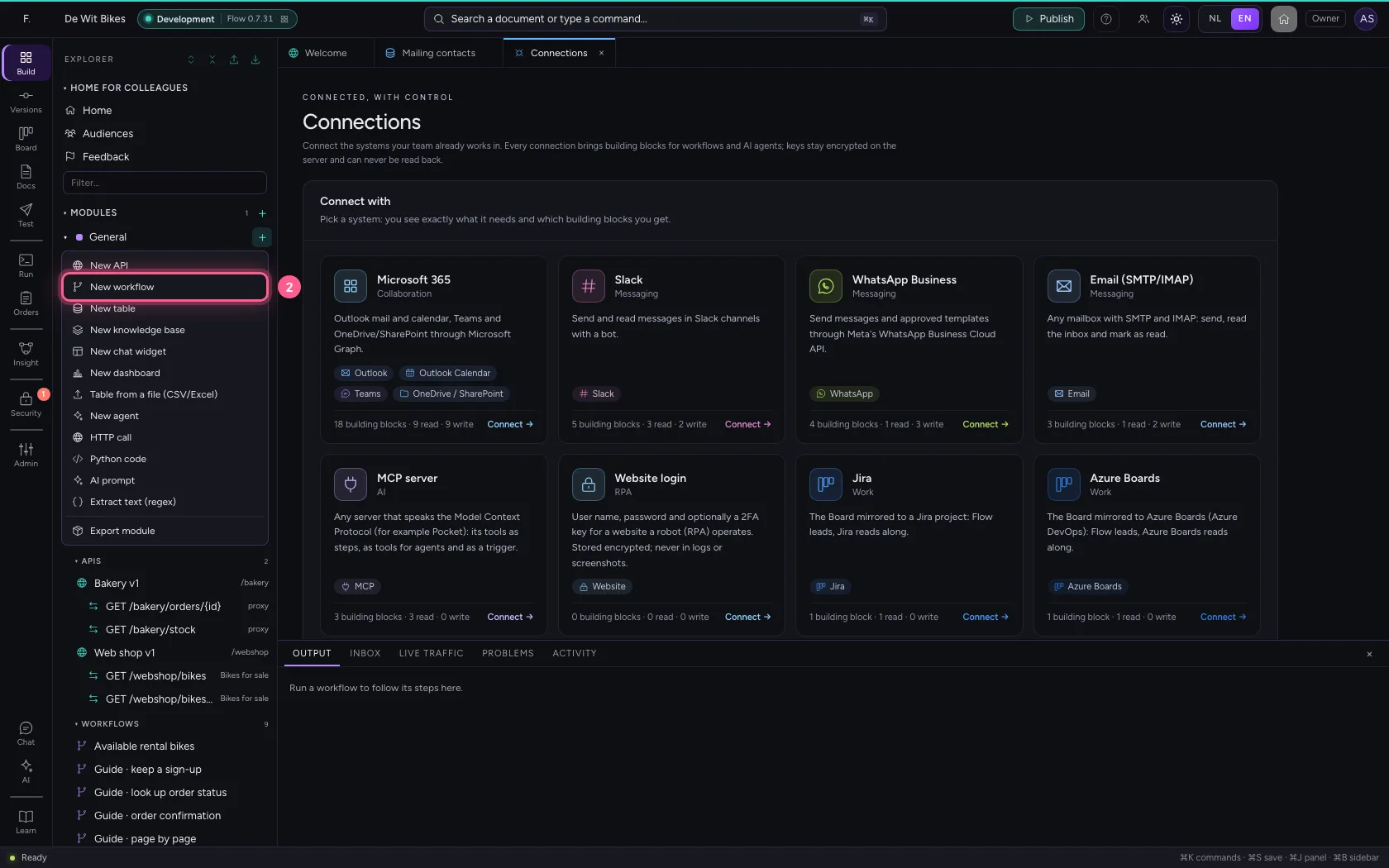
- Click New workflow
- In Workflow name, type
Mailing to contacts
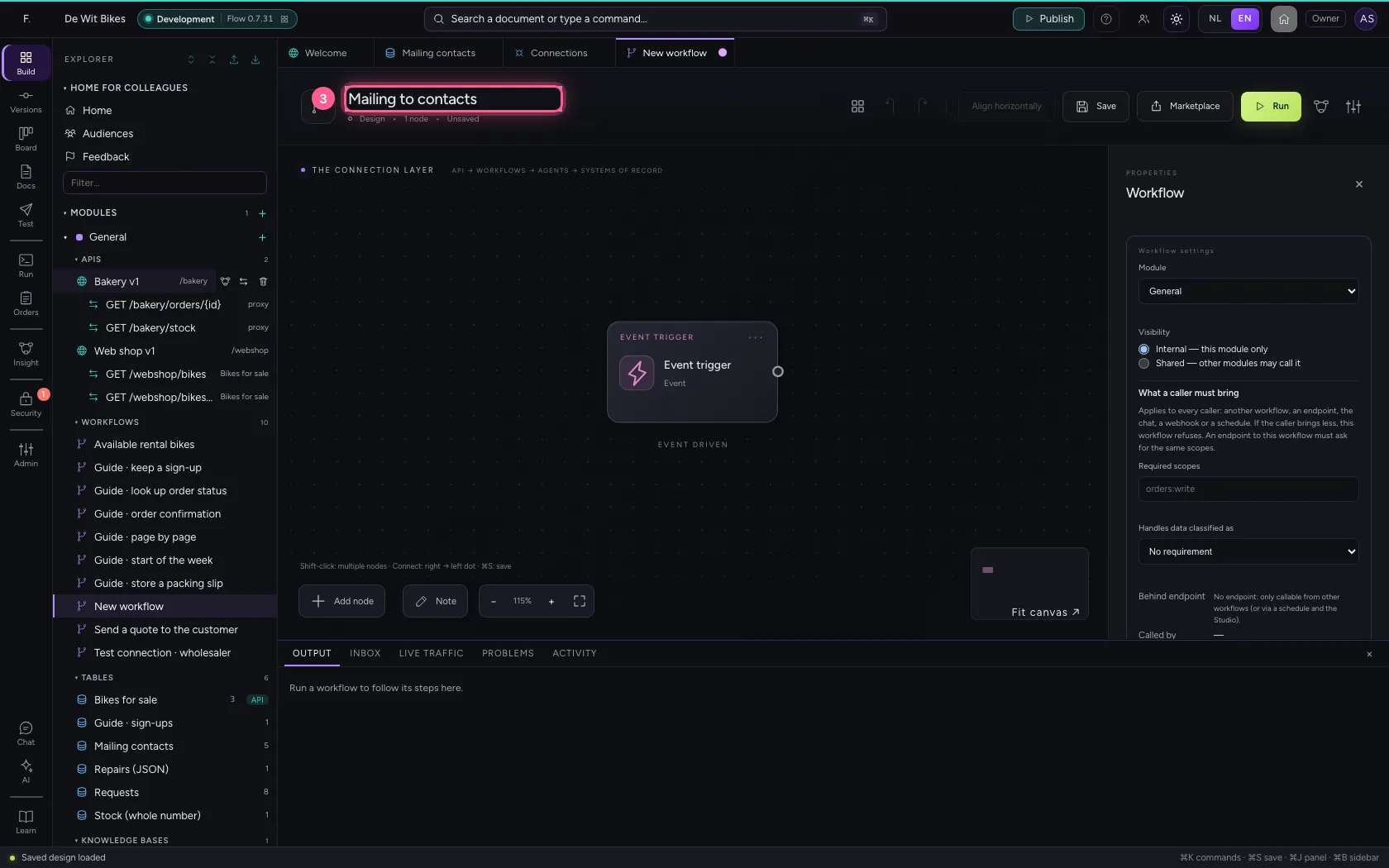
- Click Add node
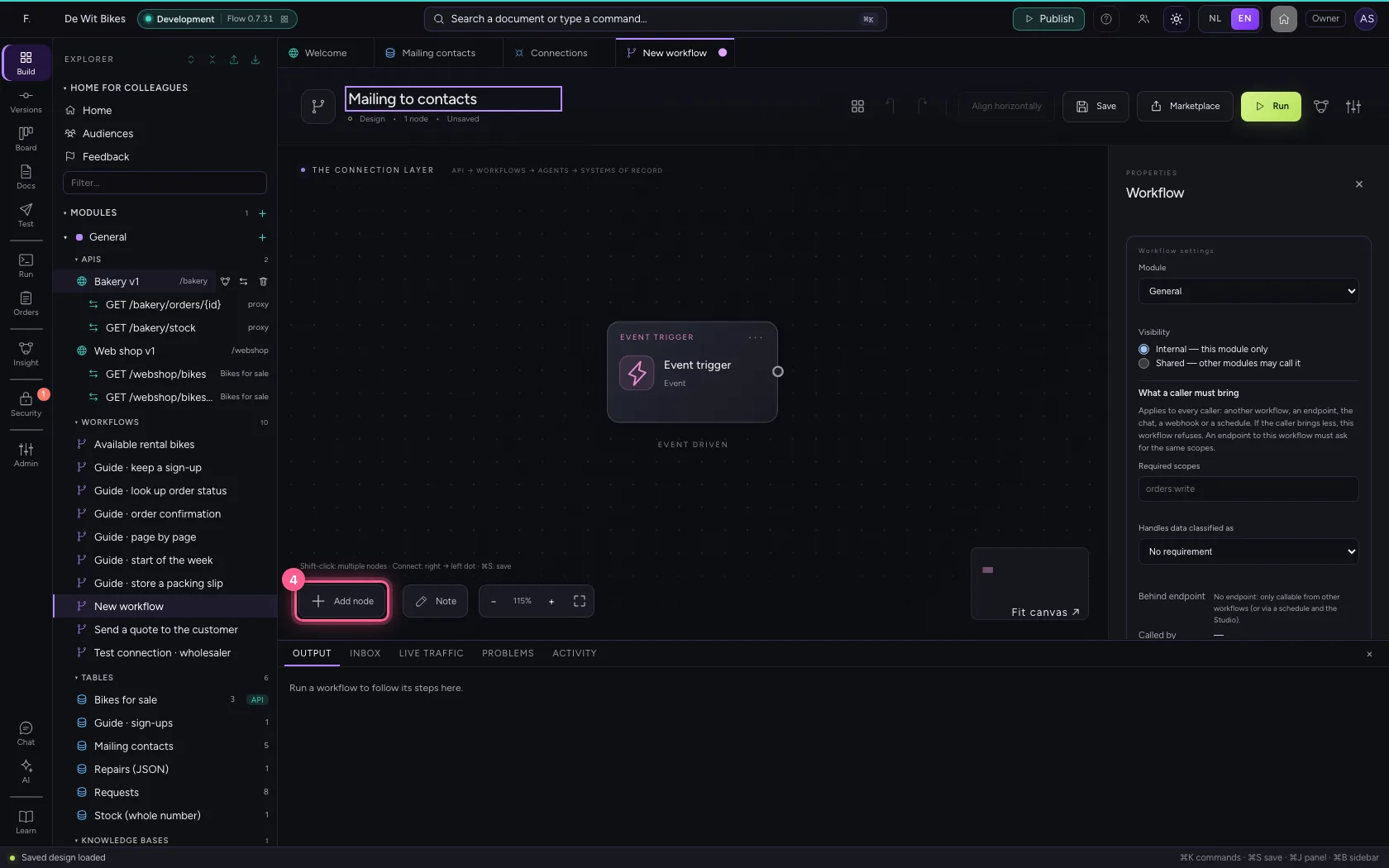
- Click Table
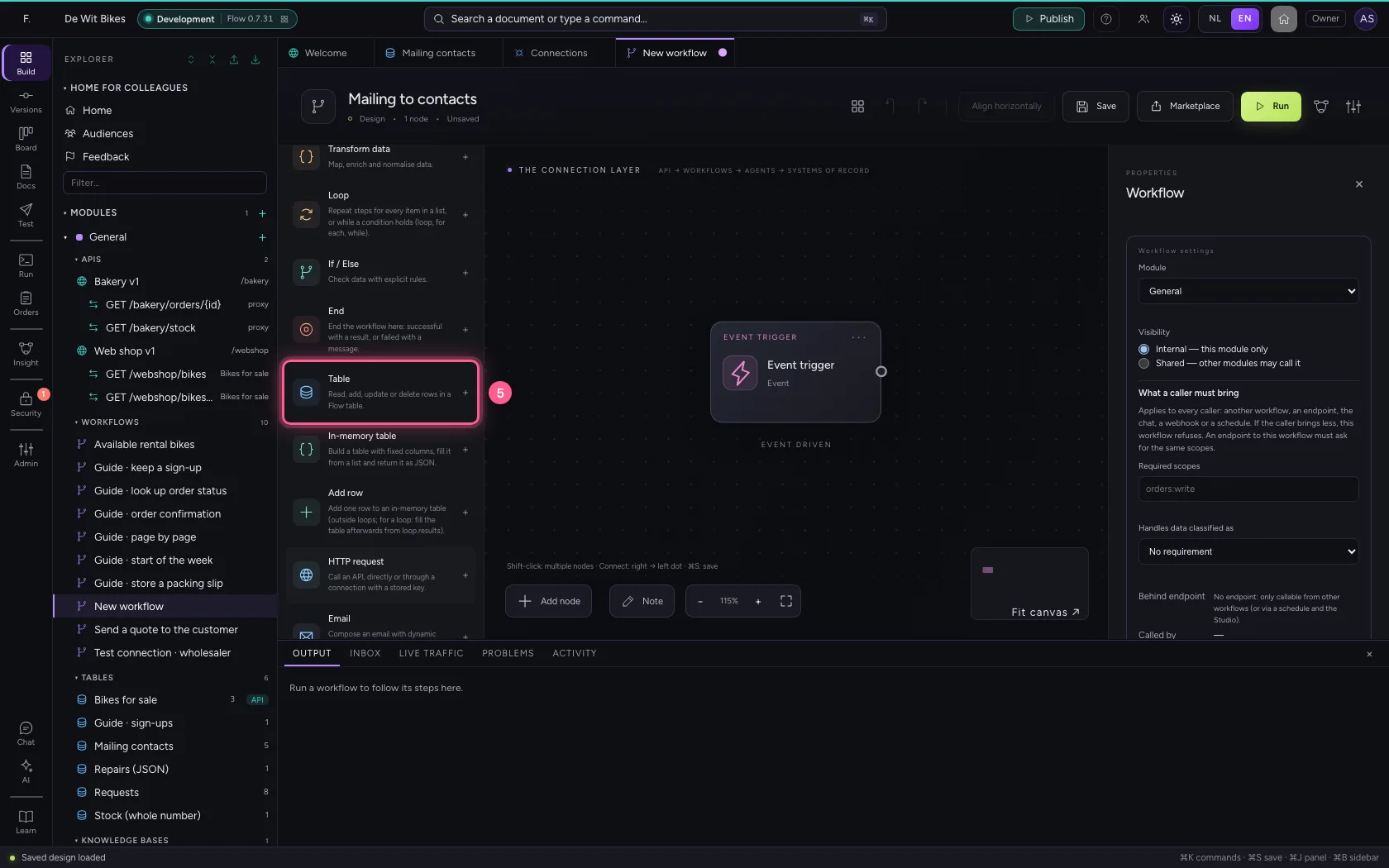
- In Table, choose Mailing contacts · 5
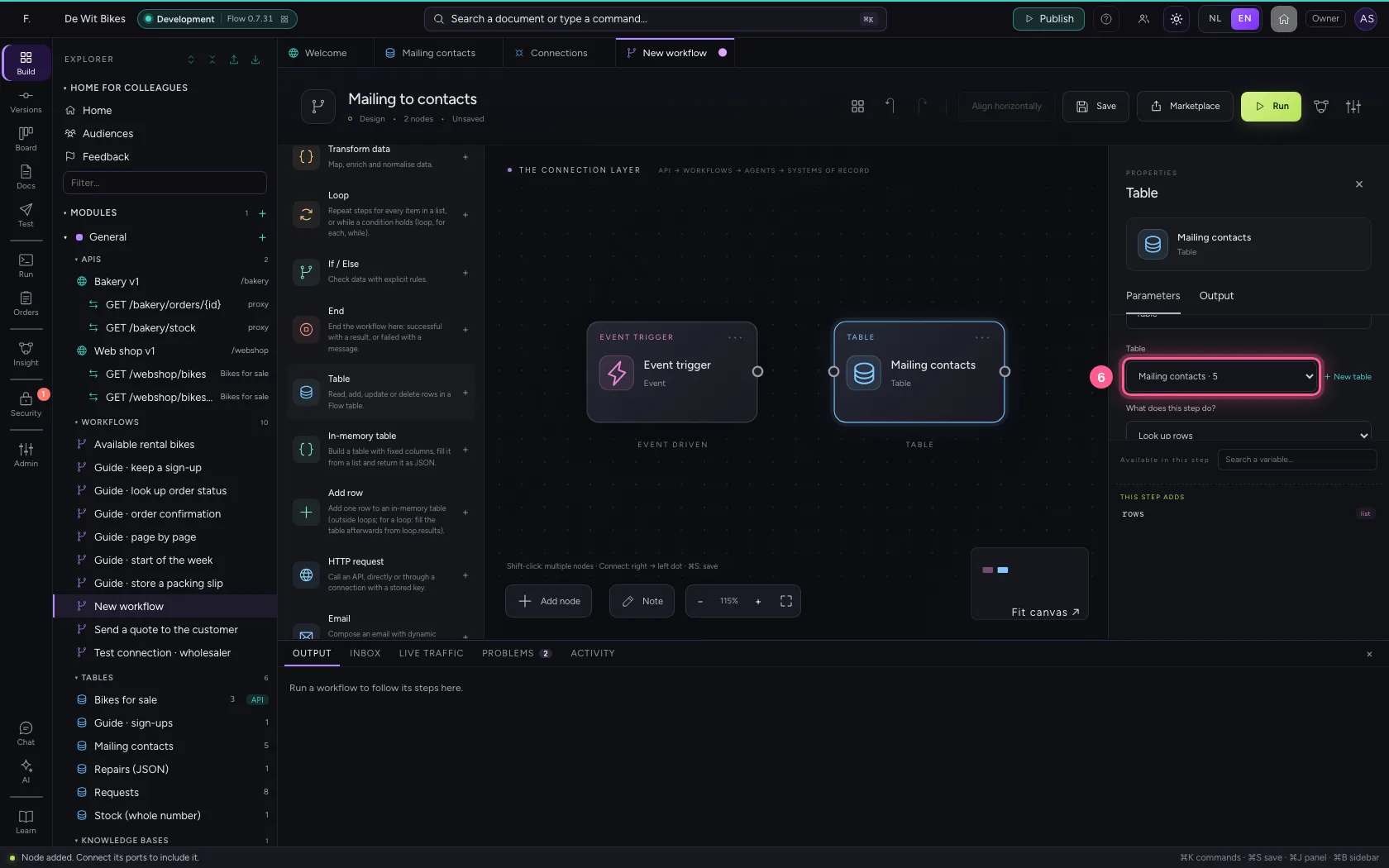
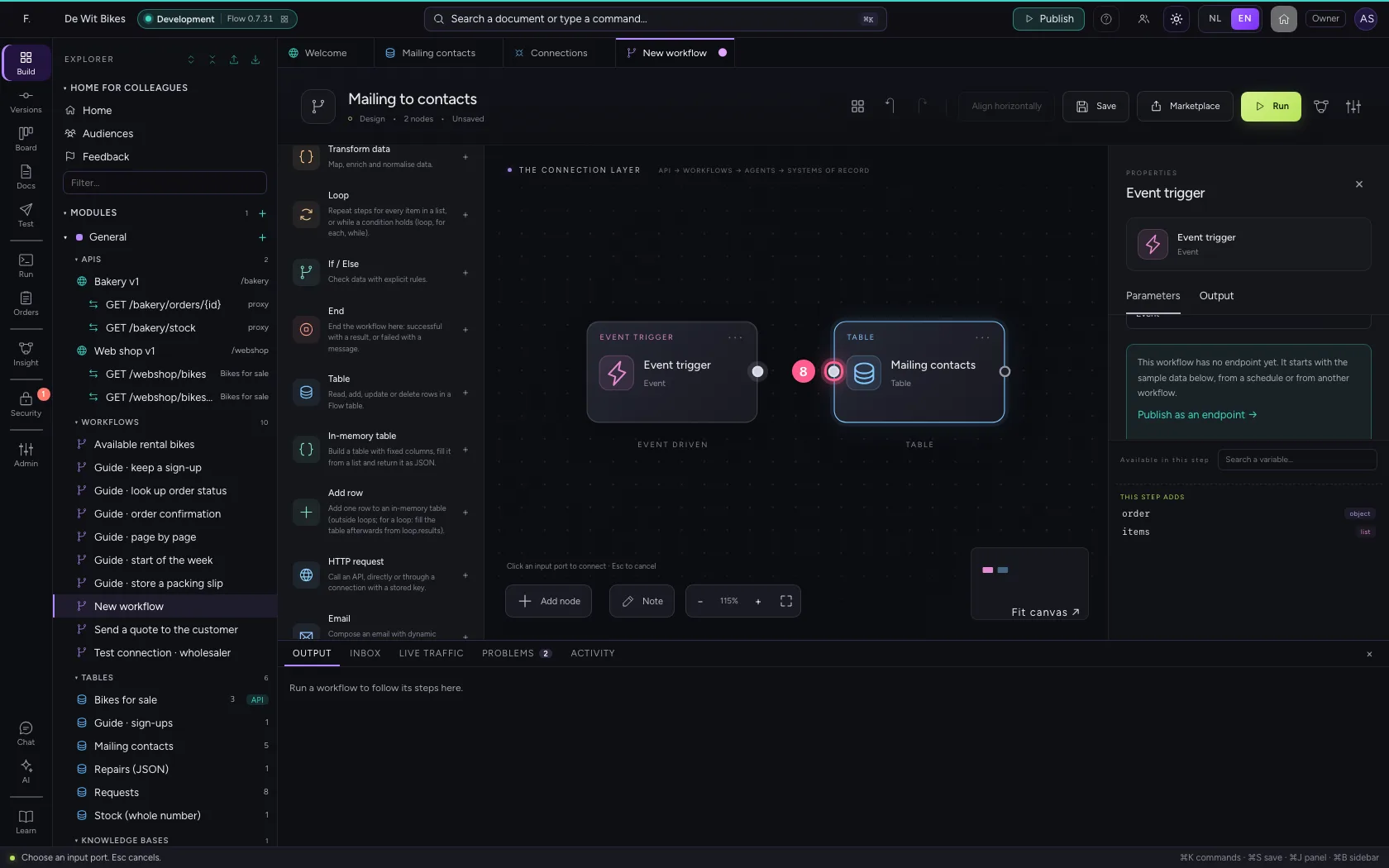
- Click the dot of ‘Event trigger’
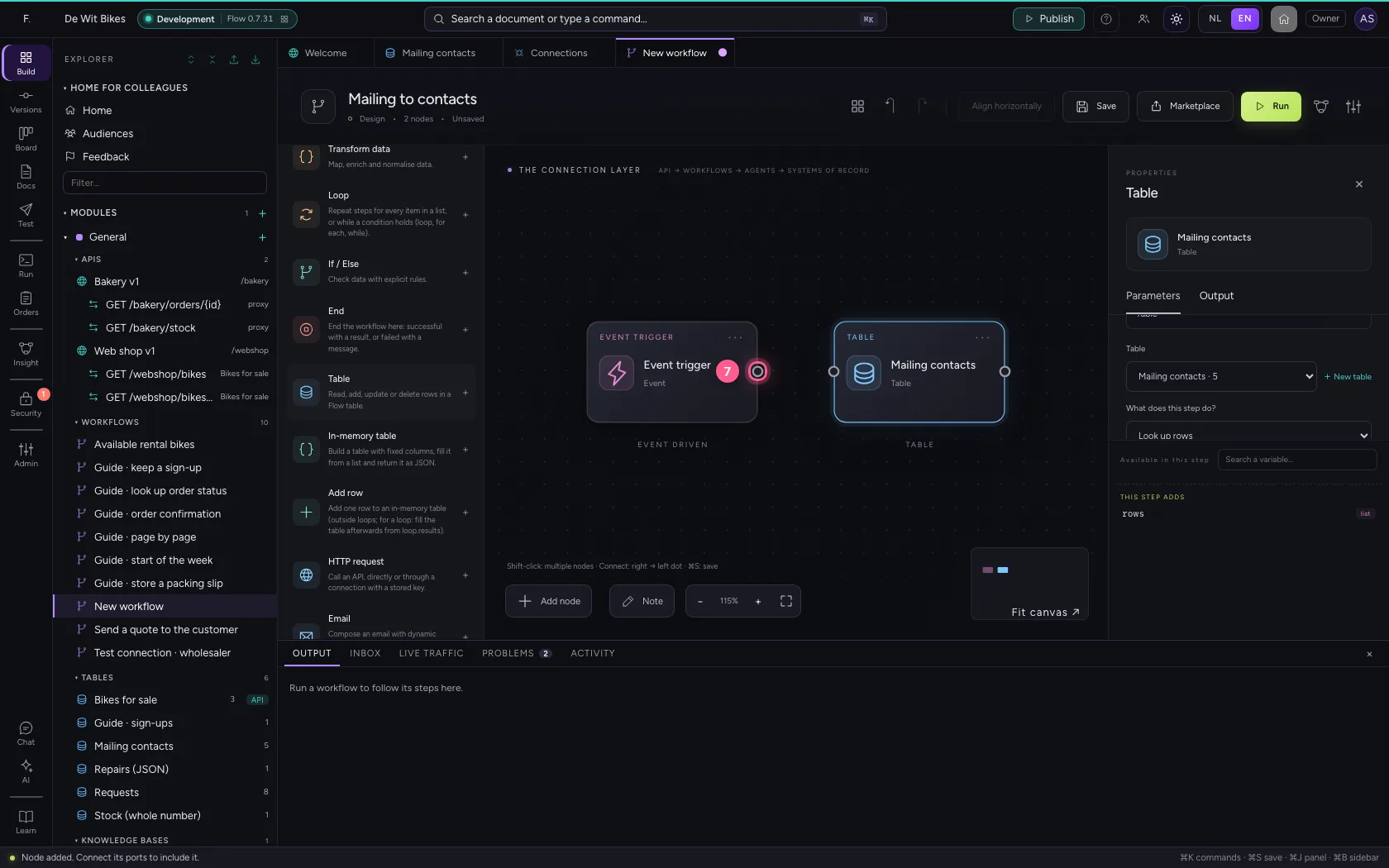
- Click the dot of ‘Mailing contacts’
Show the list as a chat widget
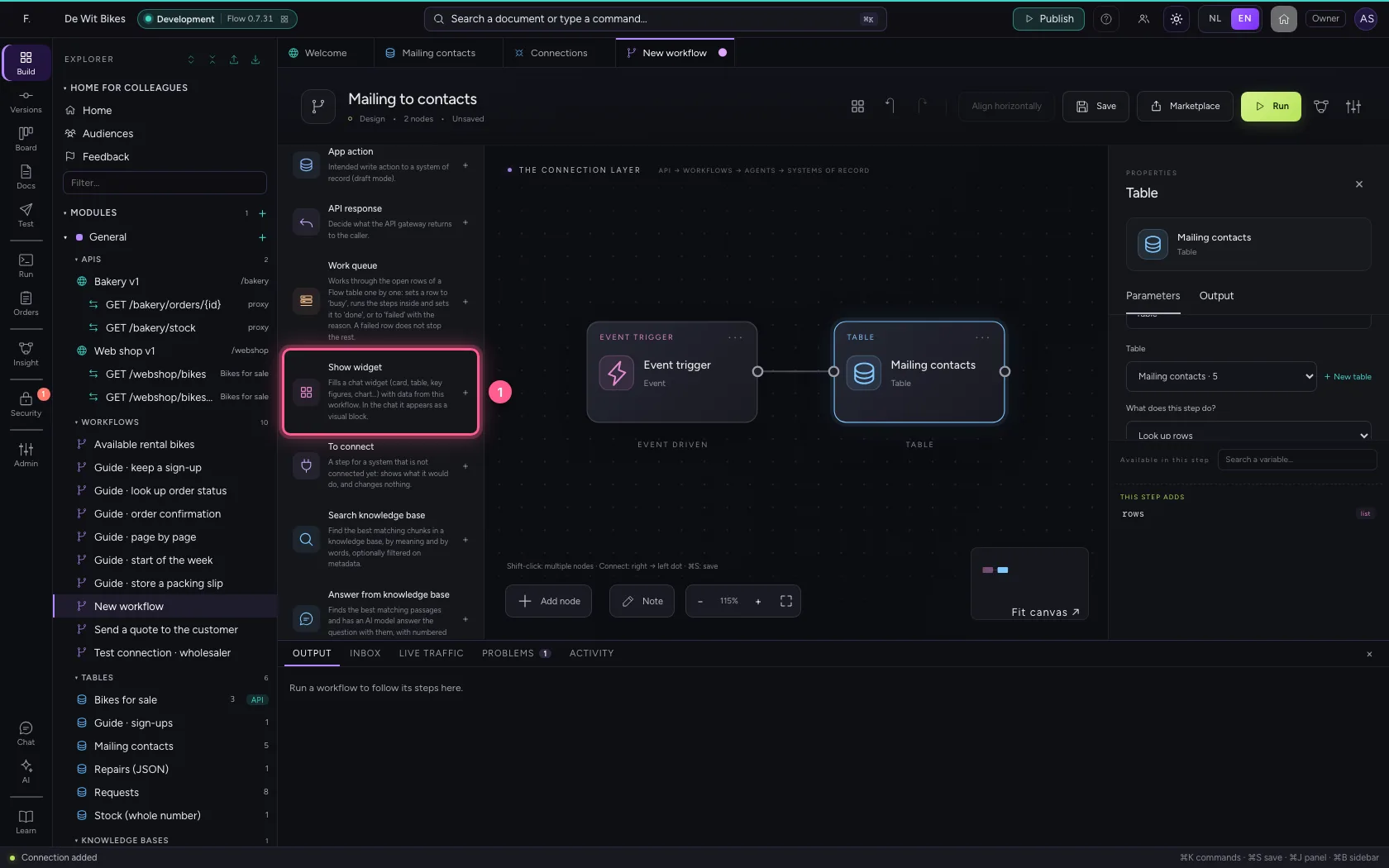
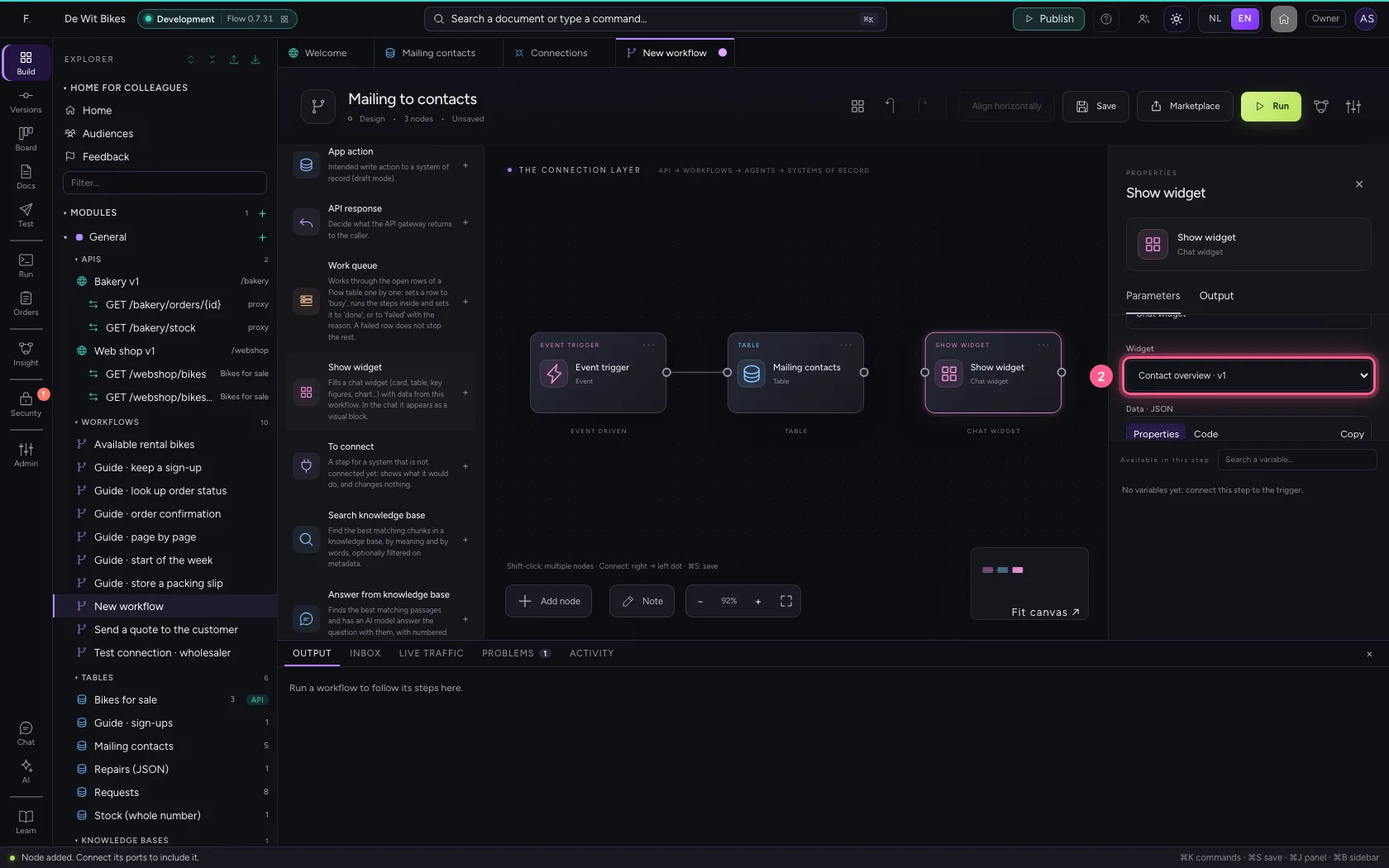
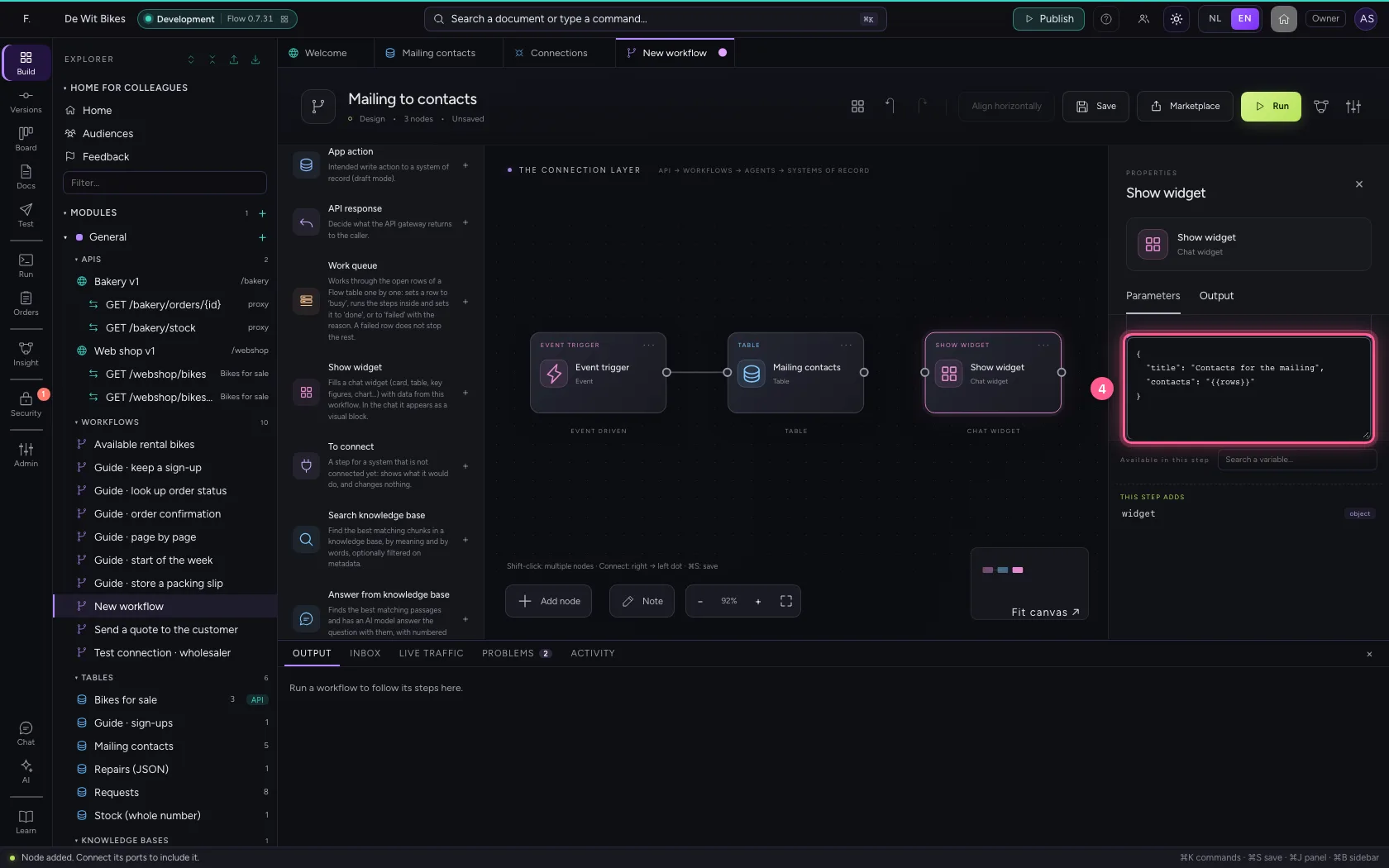
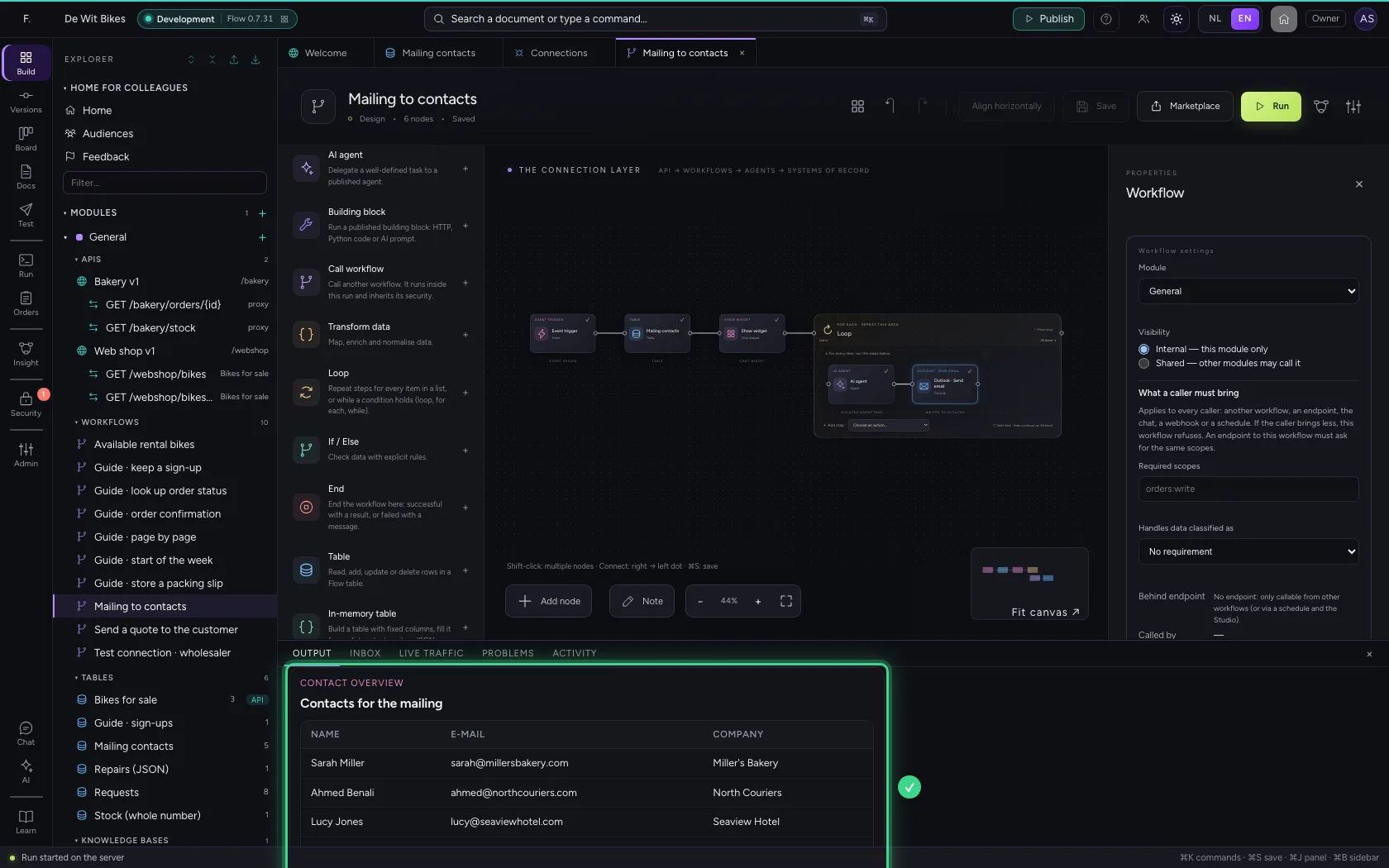
The Show widget step fills a chat widget with data from the workflow. Give the widget the rows from the table; in the chat, and at the bottom under Output, a neat table then appears instead of raw data.
- Click Show widget
- In Widget, choose Contact overview · v1
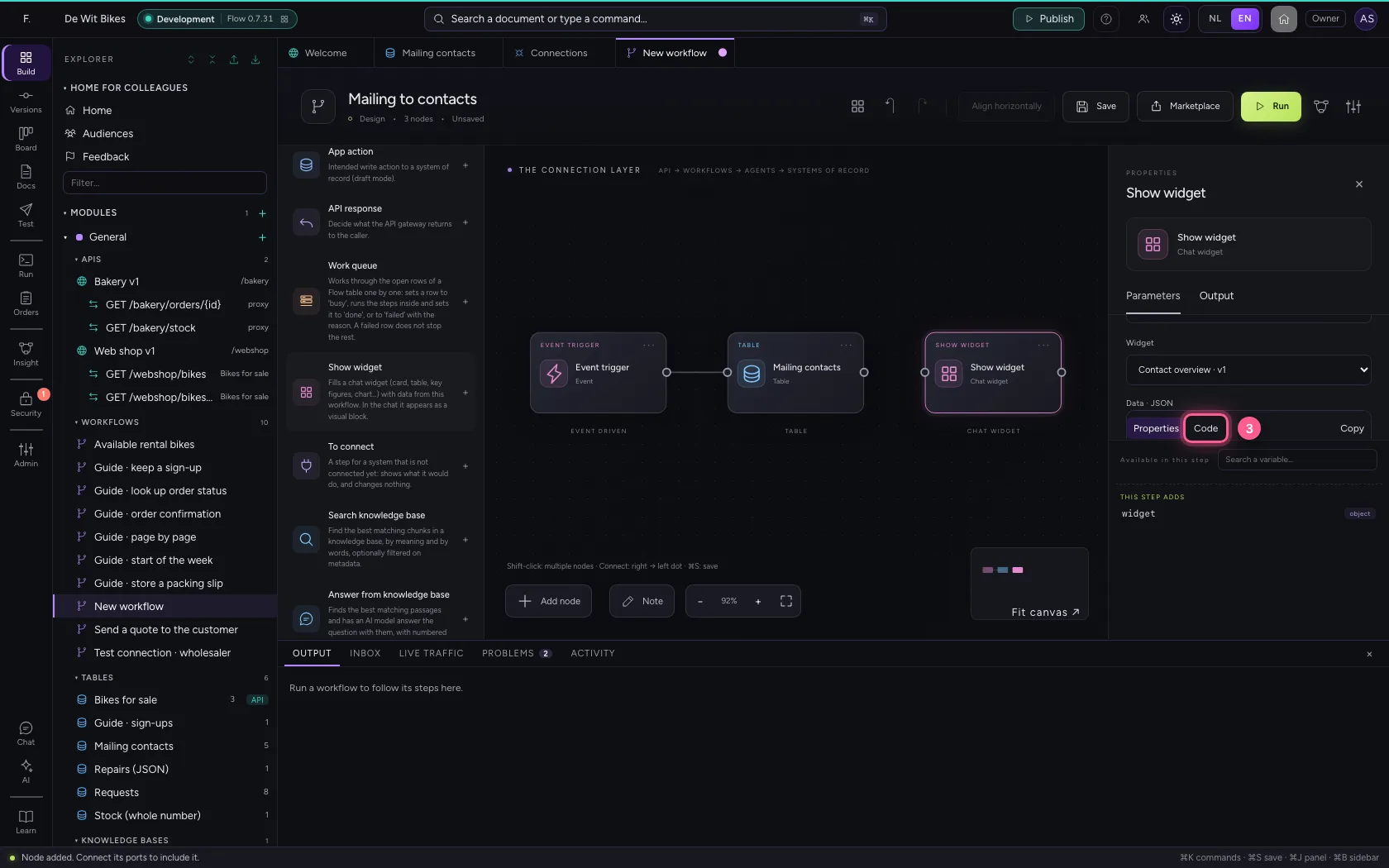
- Click Code
- In Data for the widget, type `{
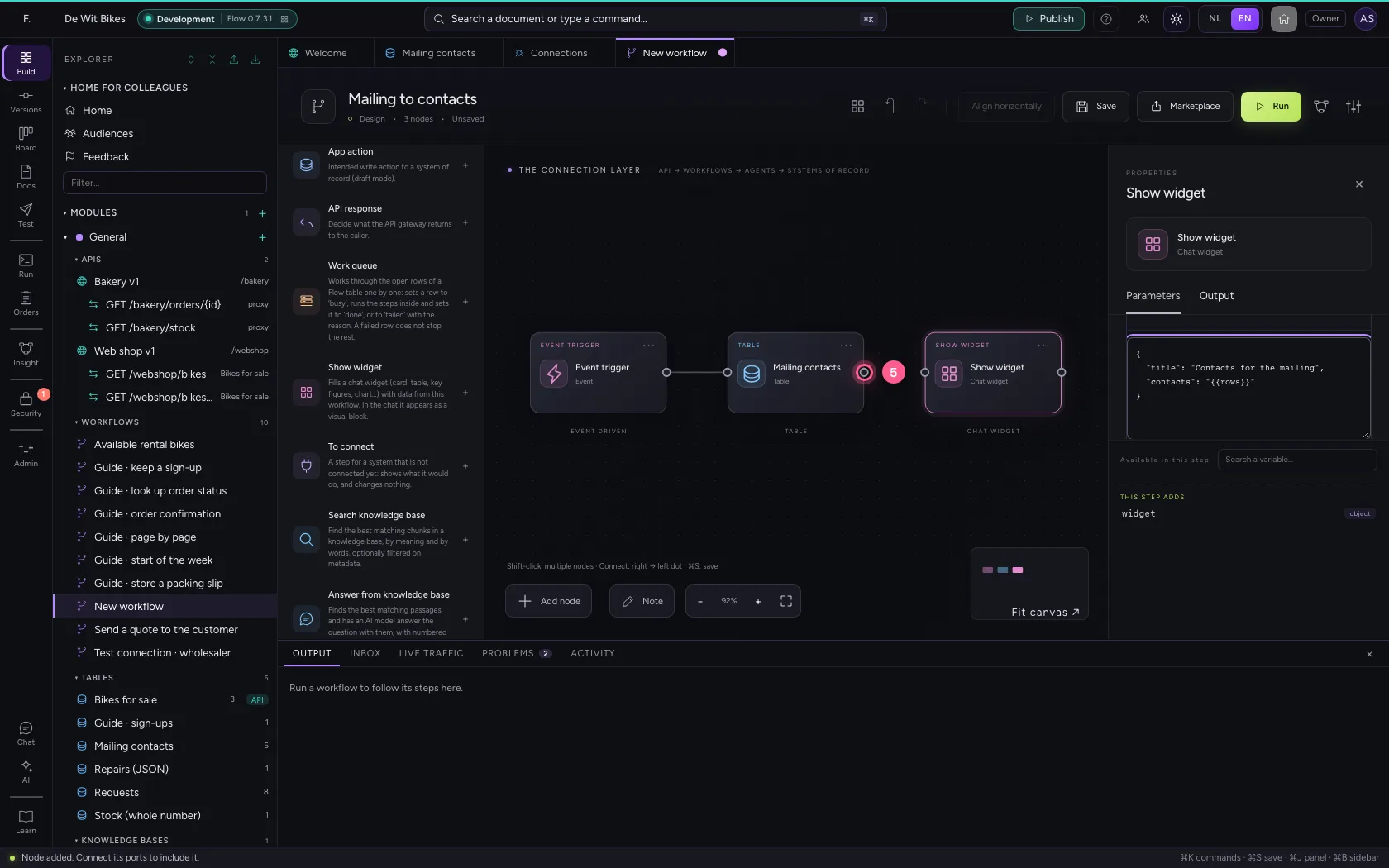
- Click the dot of ‘Mailing contacts’
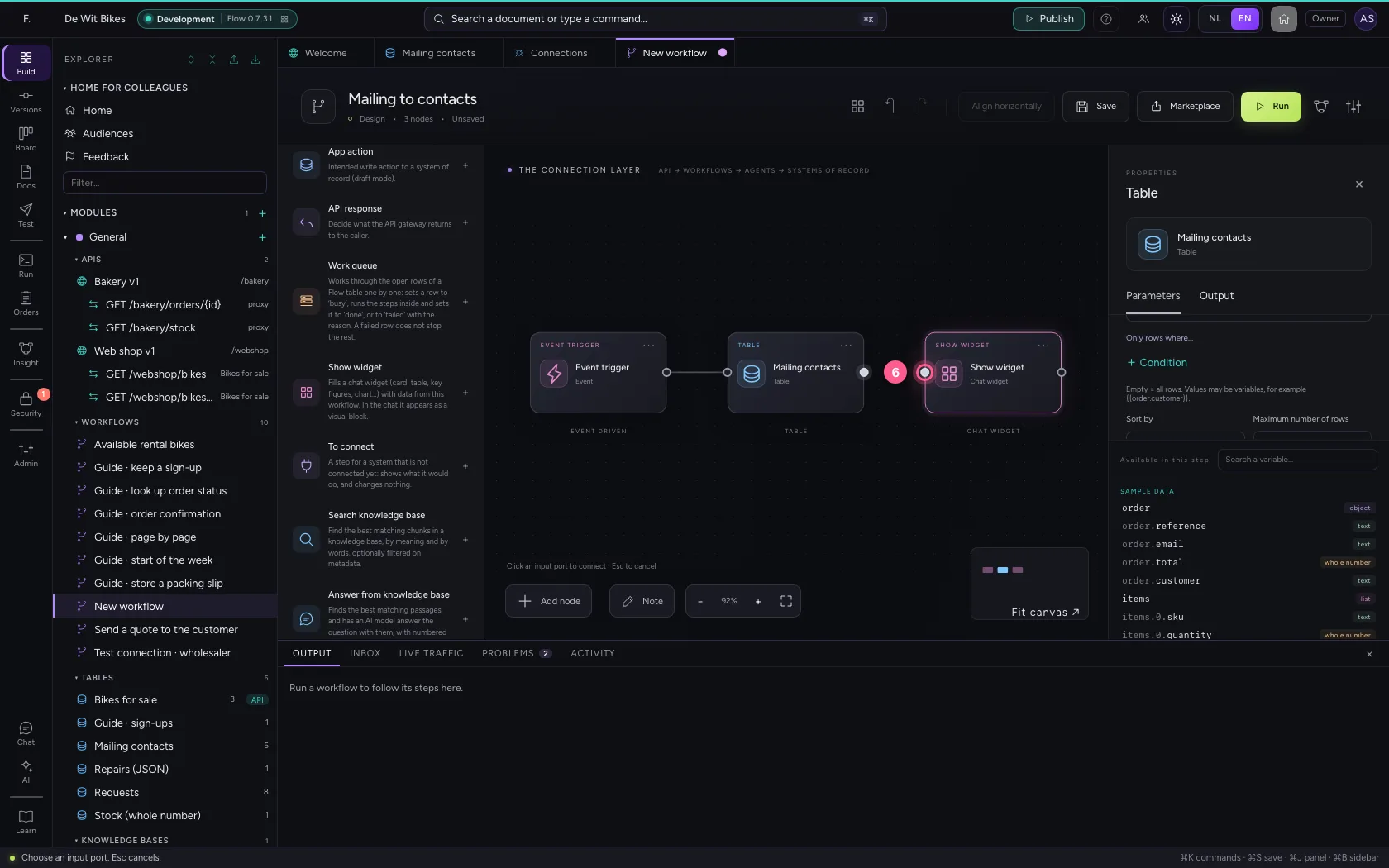
- Click the dot of ‘Show widget’
Go through the contacts one by one
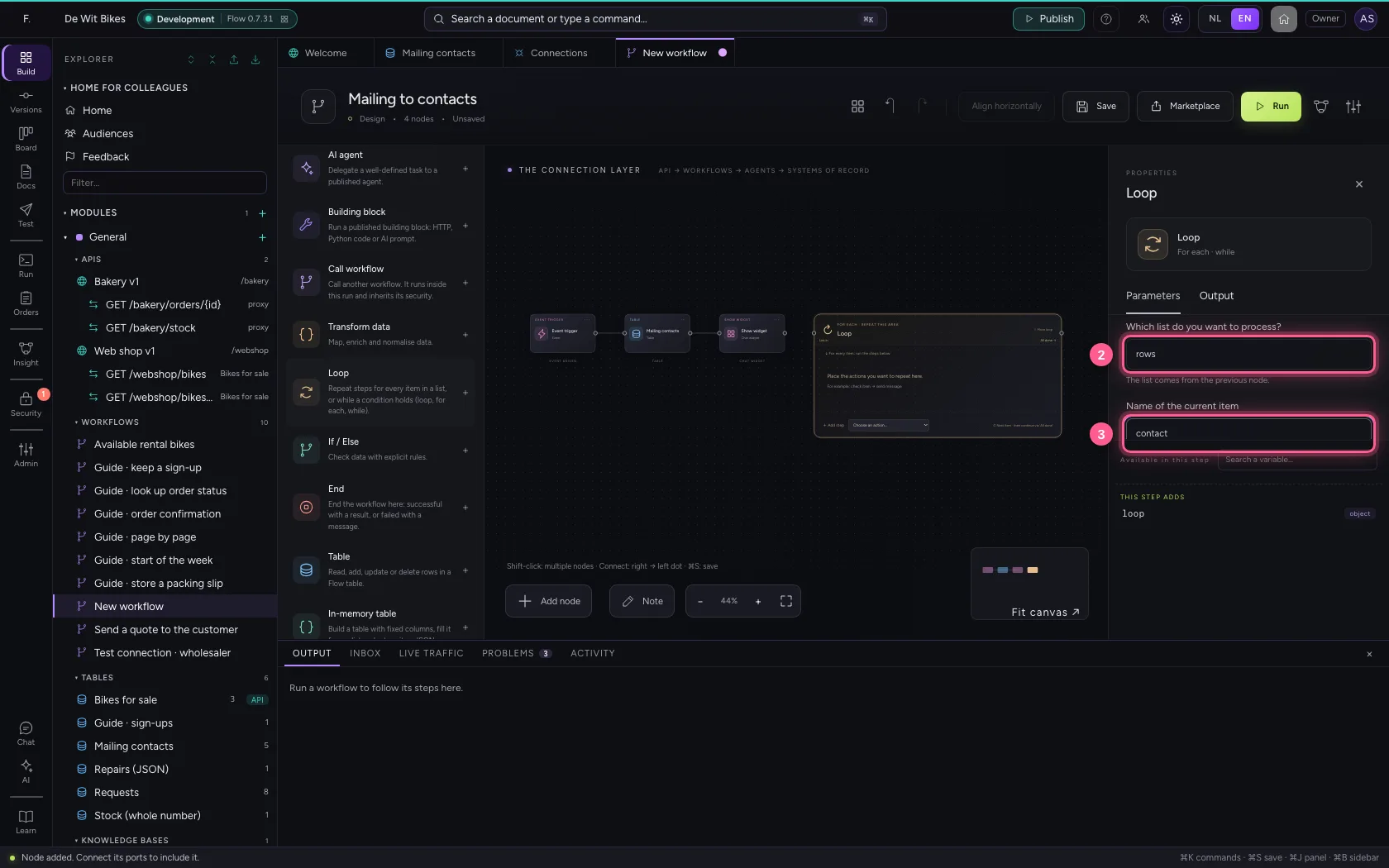
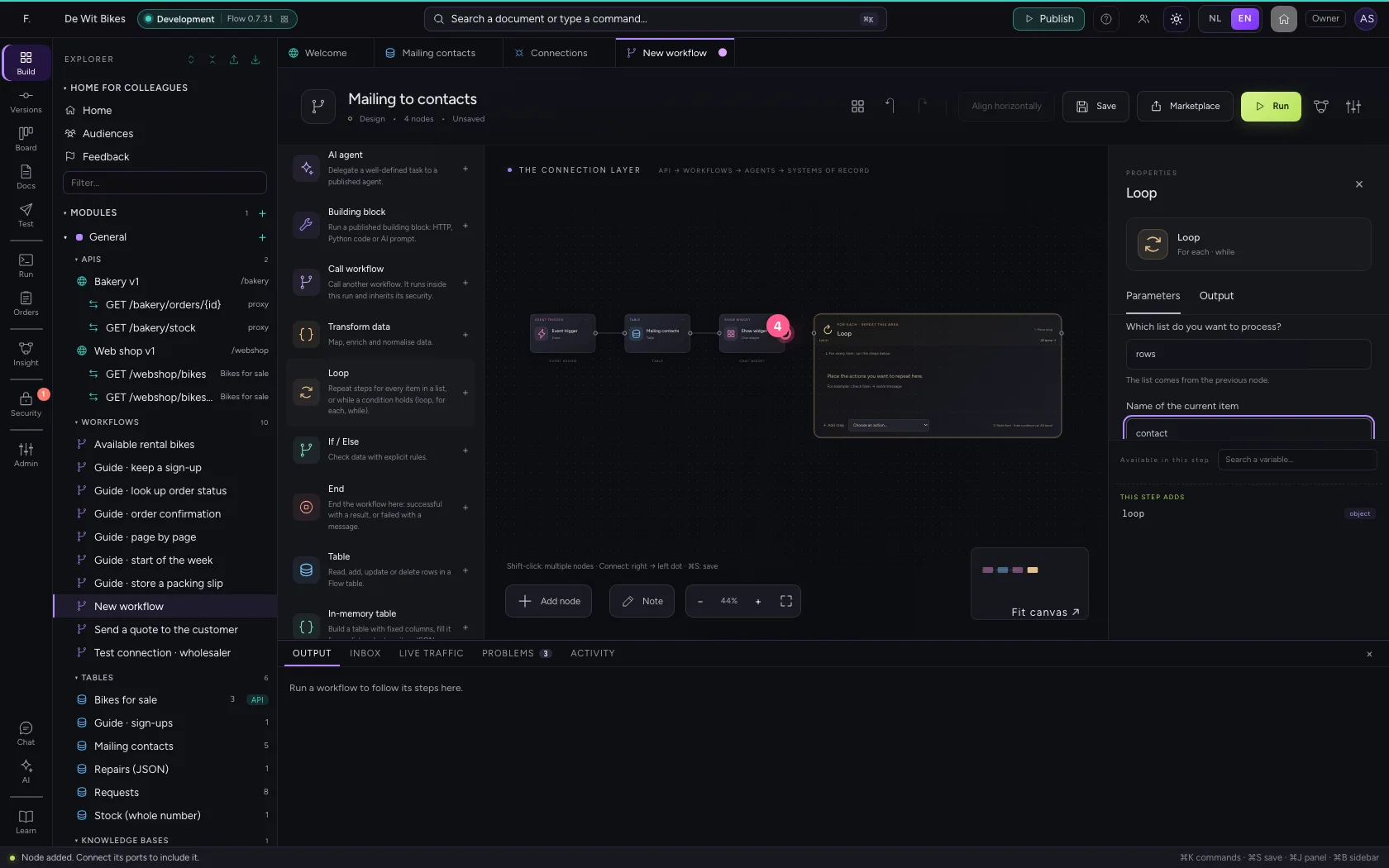
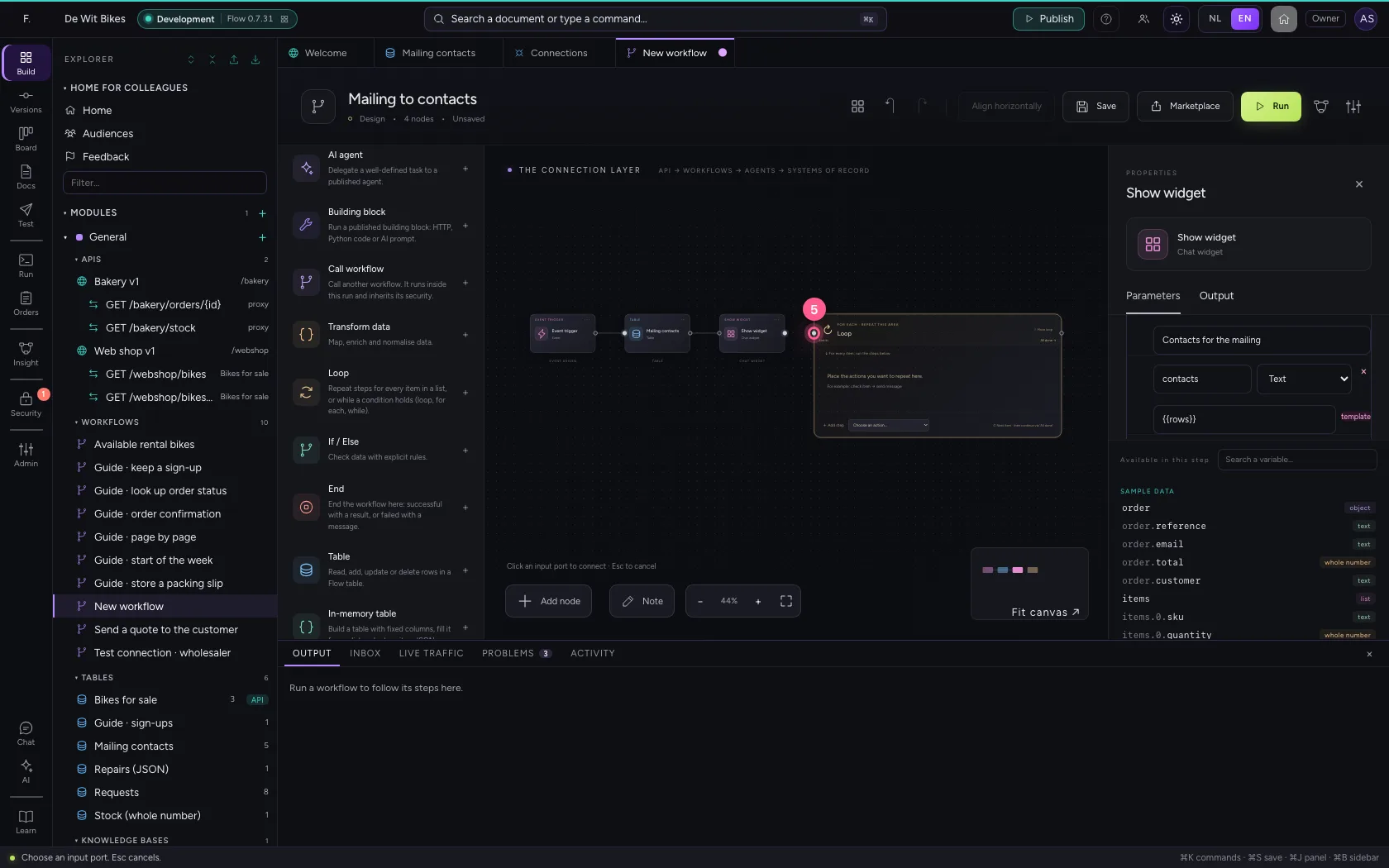
A Loop repeats the steps in its area for every item in a list. Choose the list rows and call the current item contact: inside the loop the steps then read {{contact.email}} and {{contact.name}}.
- Click Loop
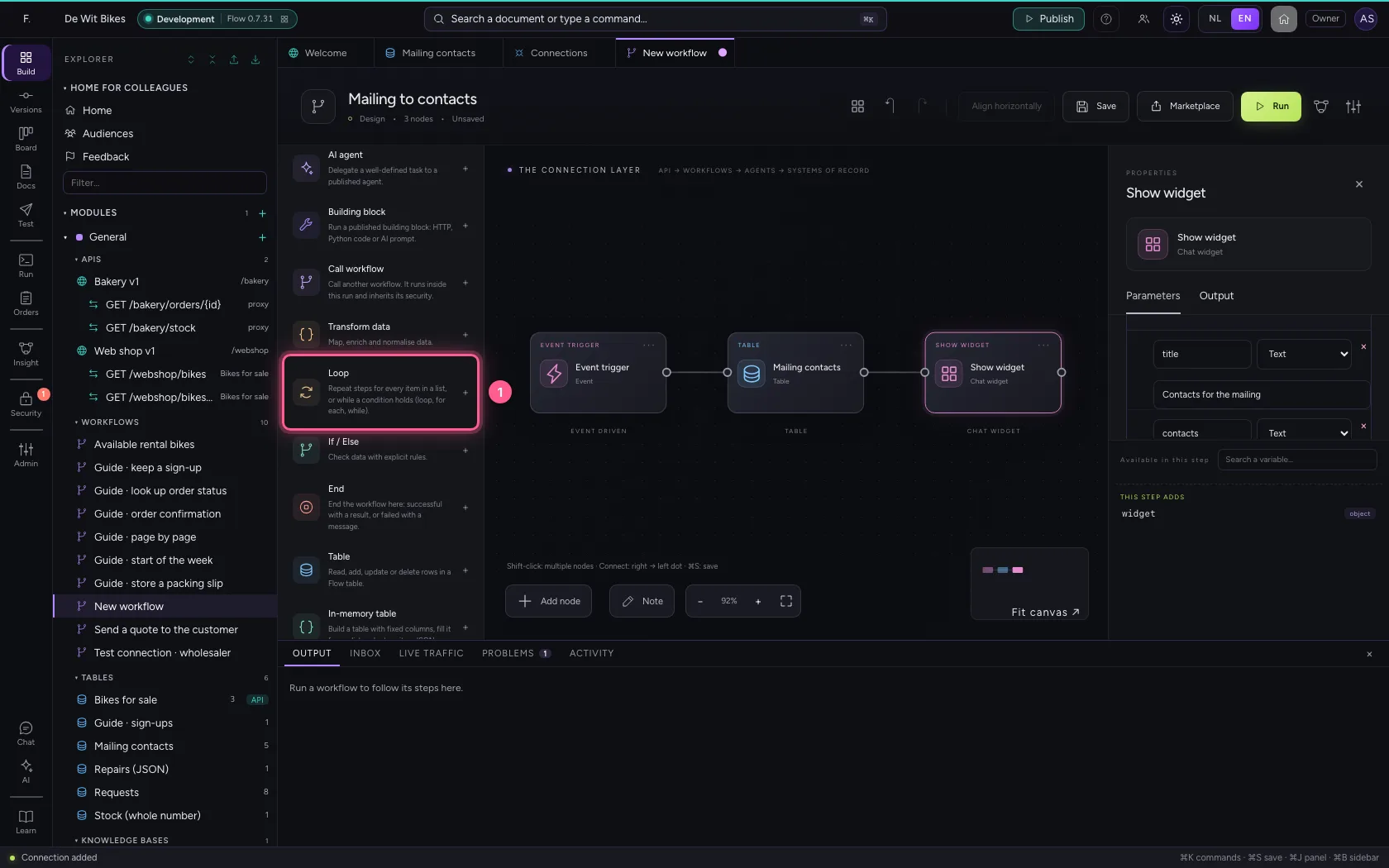
- In Which list do you want to process? The list comes from the previous node., type
rows - In Name of the current item Steps read the item as {{contact.naam}}., type
contact
- Click the dot of ‘Show widget’
- Click the dot of ‘Loop’
Let an AI Colleague write the mail per contact
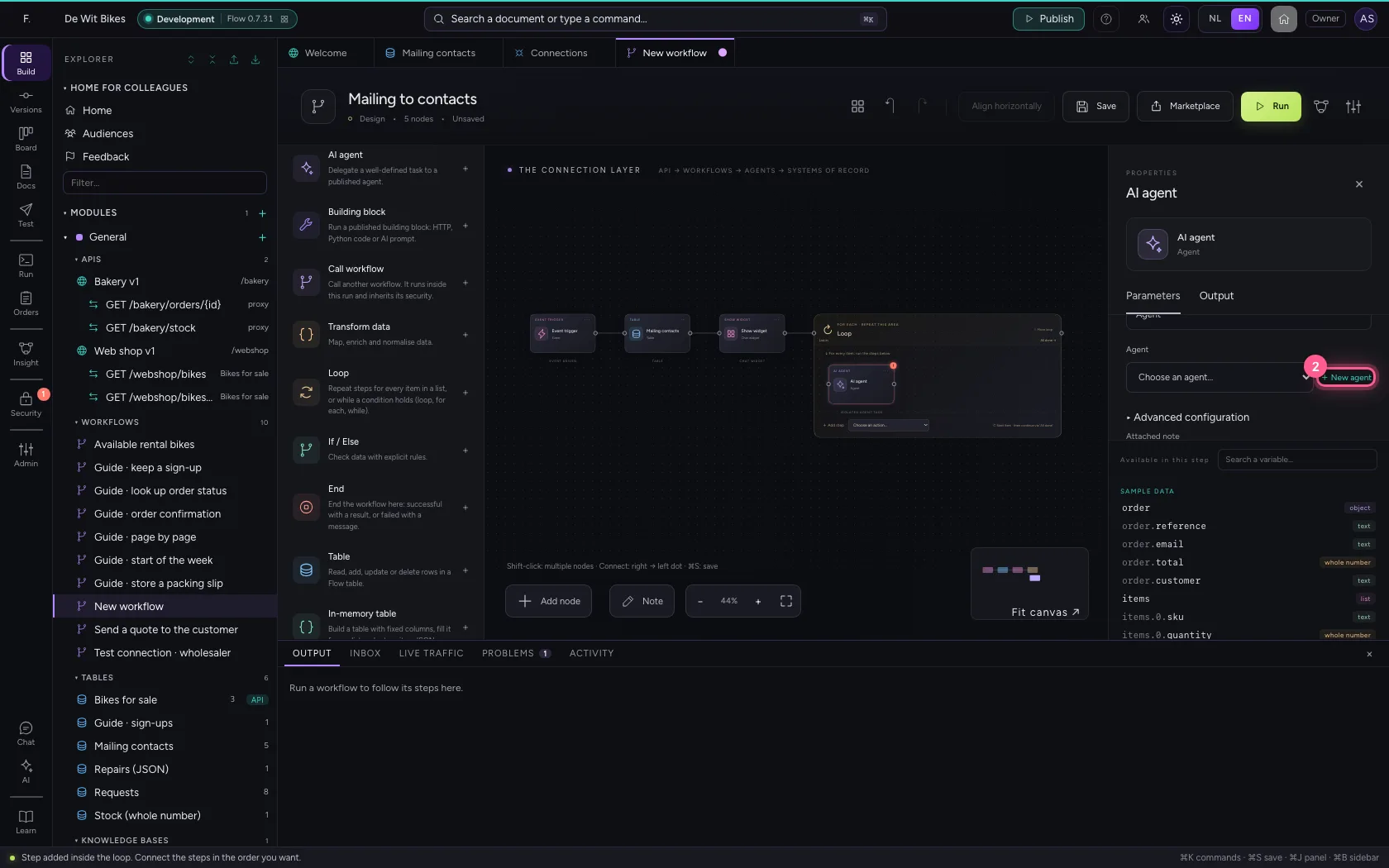
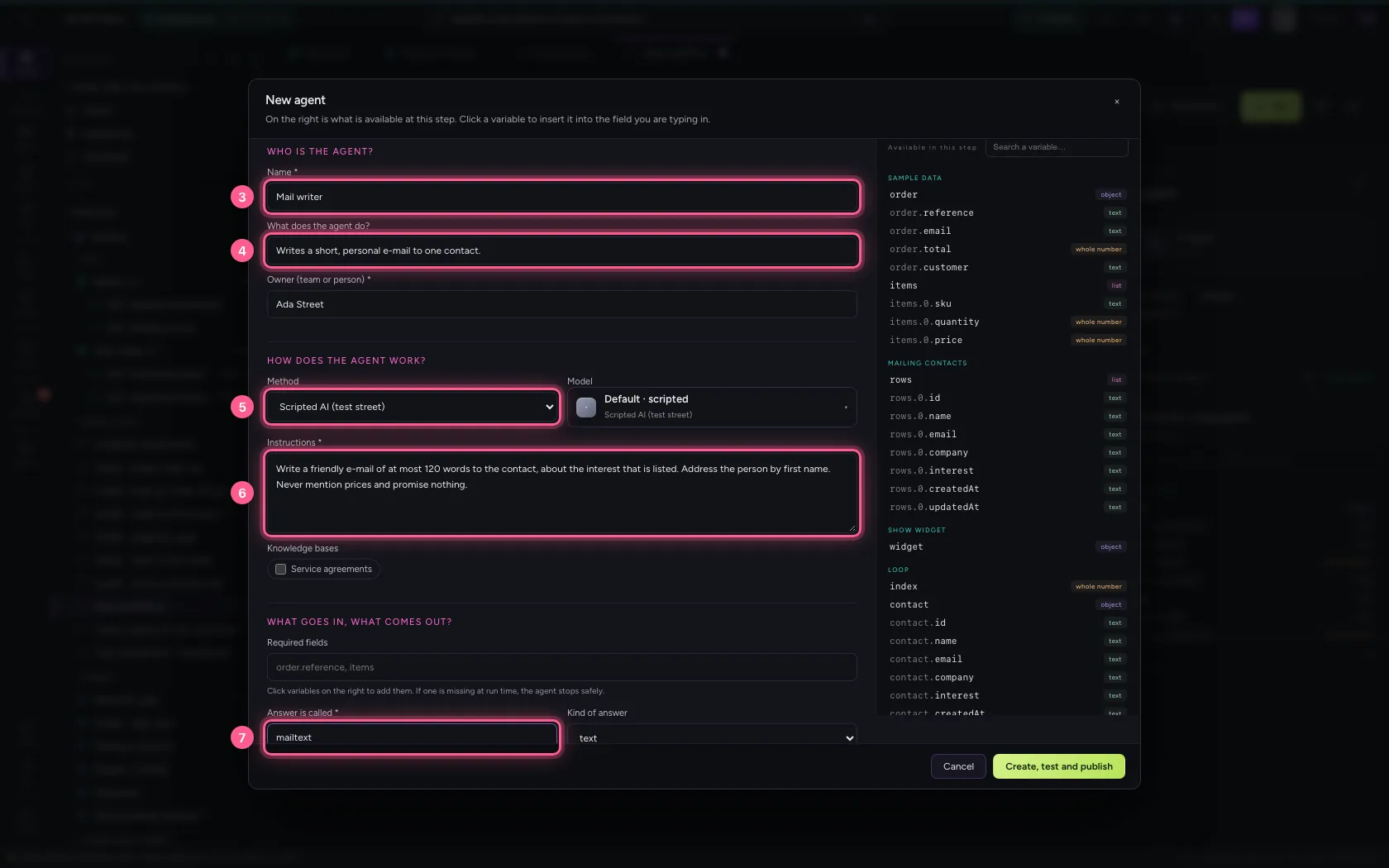
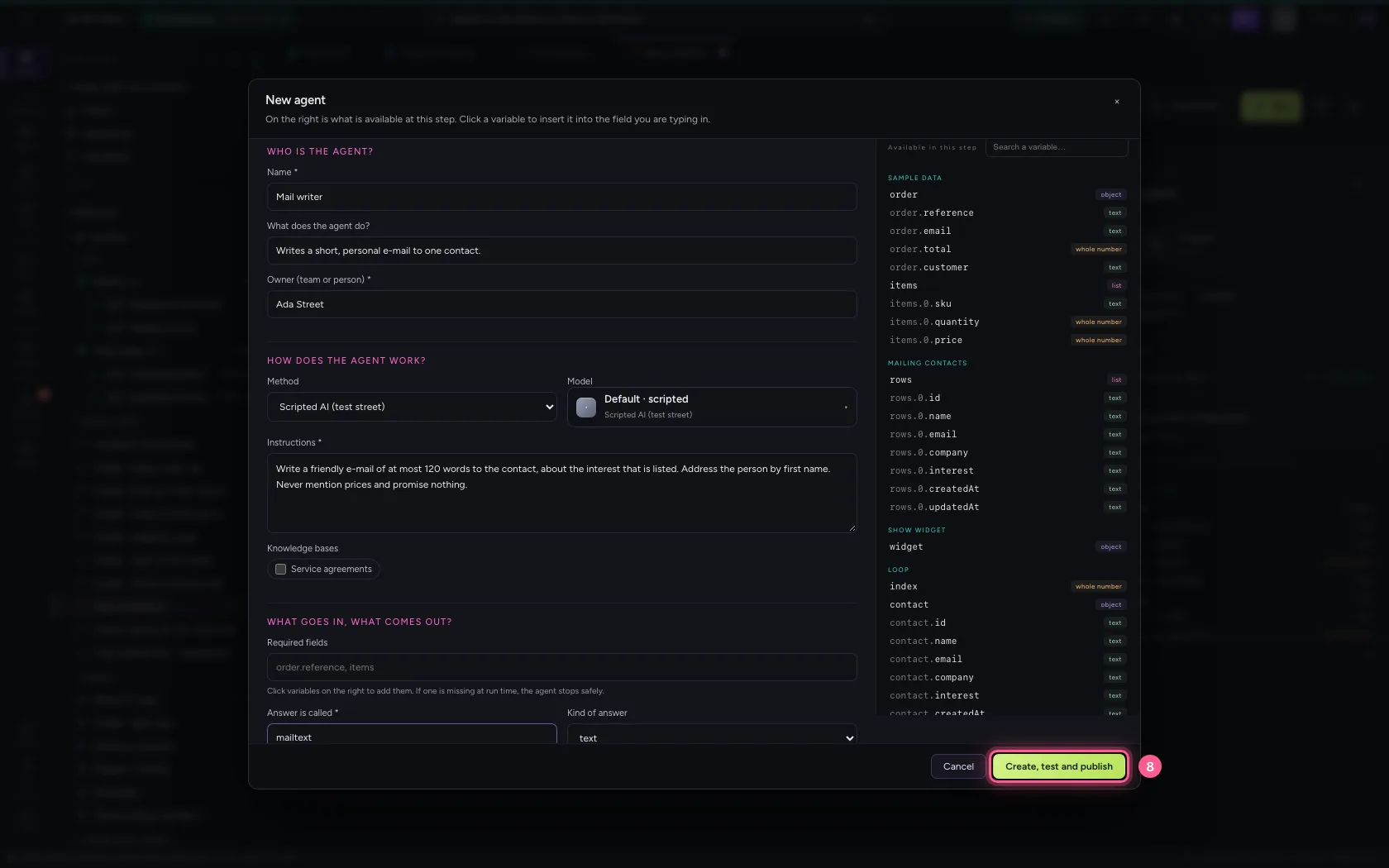
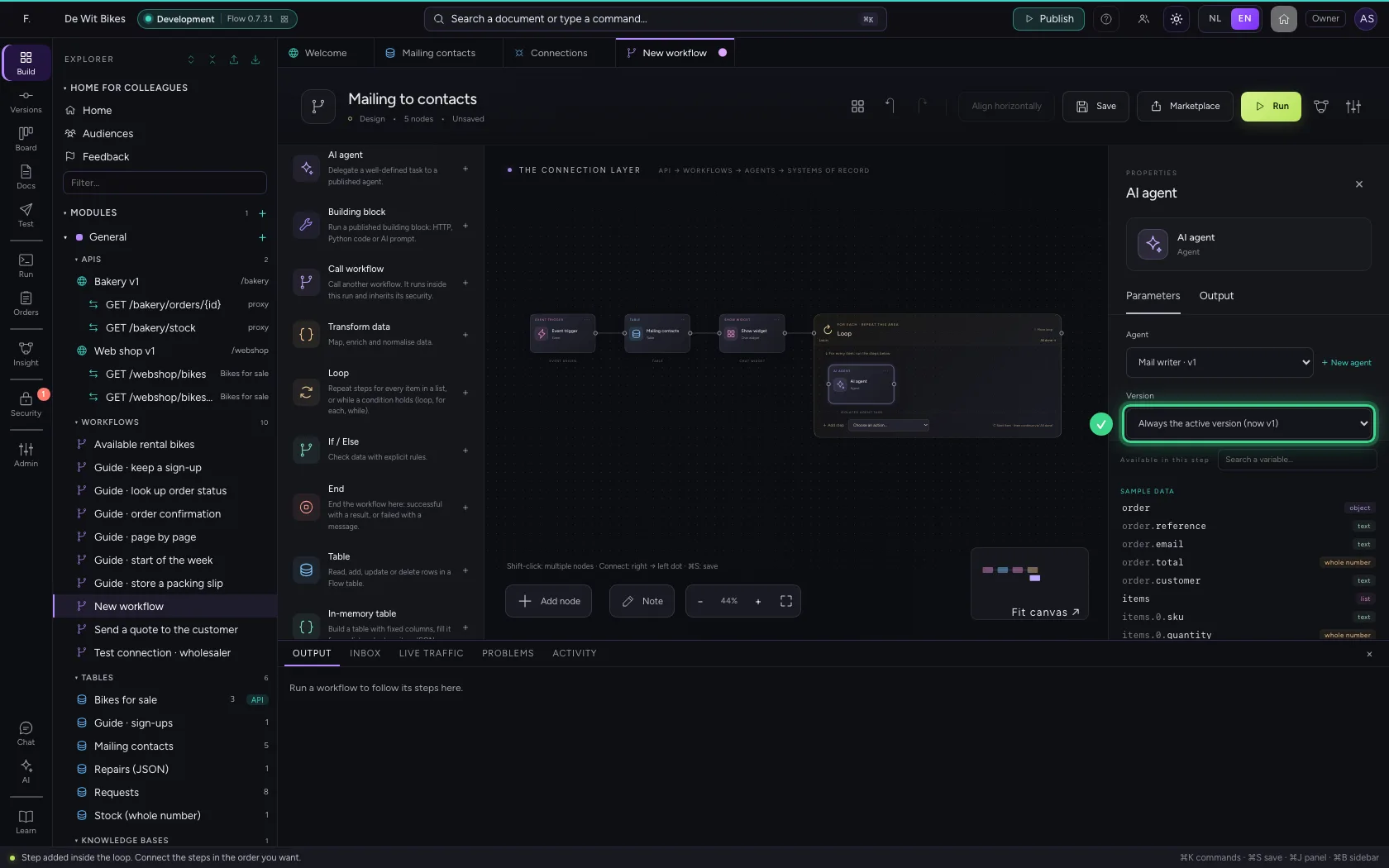
Inside the loop choose Add step → AI agent, and create the writer right away with + New agent. Describe in the instructions what a good mail is, and what is never allowed. Flow tests the agent with sample data and publishes it; workflows always use a published version.
- In AI agent, choose AI agent
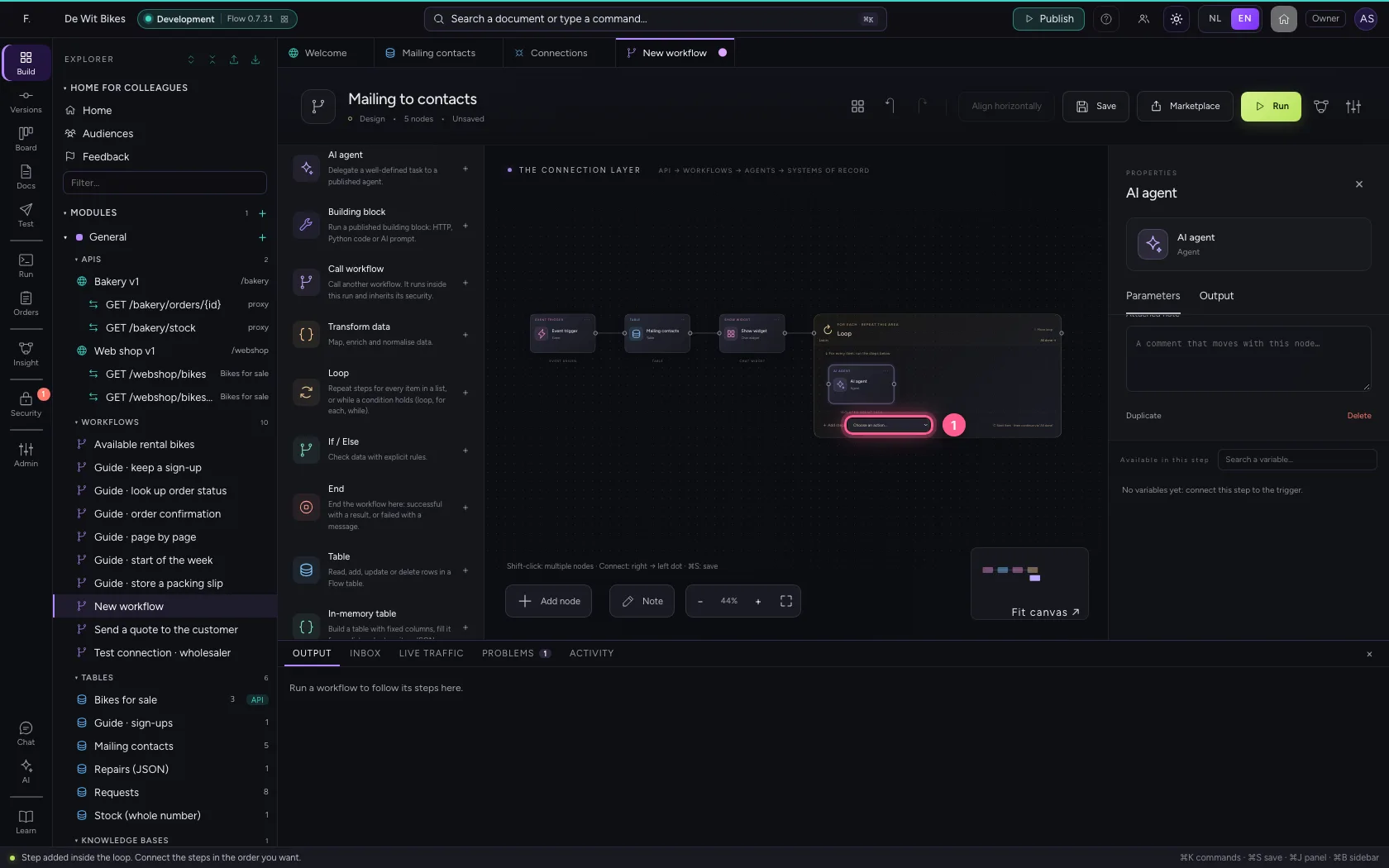
- Click + New agent
- In **Name ***, type
Mail writer - In What does the agent do?, type
Writes a short, personal e-mail to one contact. - In Method Rules (no AI model) Echo (test, no model) Anthropic Claude · not configur, choose Scripted AI (test street)
- In **Instructions ***, type
Write a friendly e-mail of at most 120 words to the contact, about the interest that is listed. Address the person by first name. Never mention prices and promise nothing. - In **Answer is called ***, type
mailtext
- Click Create, test and publish
Give the agent only what it needs
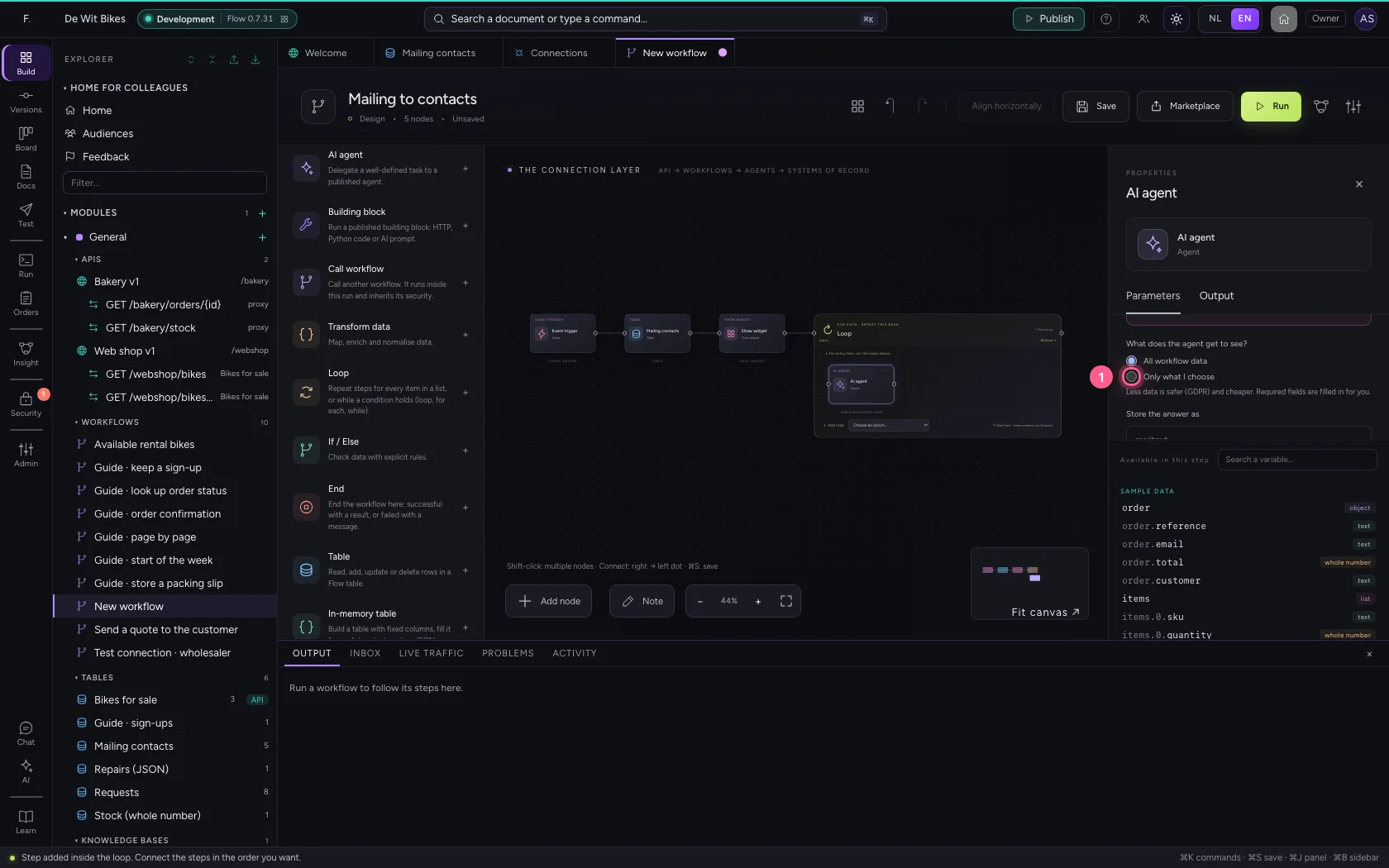
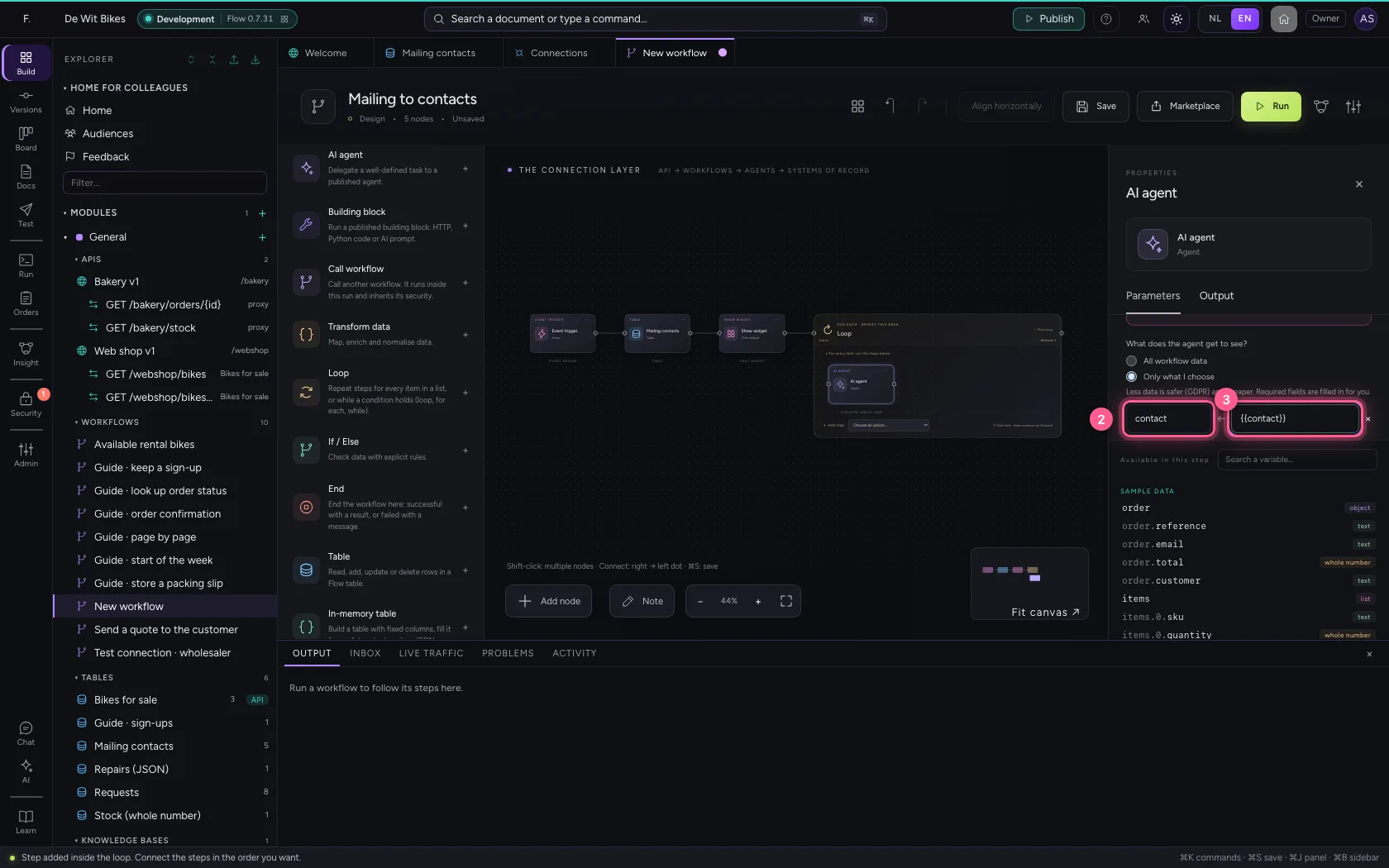
By default an agent sees all the workflow's data. Choose Only what I choose and pass on just the current contact: less data is safer (GDPR) and cheaper.
- Click Only what I choose
- In Field, type
contact - In value, type
{{contact}}
Send the mail with Outlook
Inside the loop add Outlook · Send email and choose your Microsoft 365 connection. To becomes the contact's e-mail address, the message is what the agent wrote: the answer in mailtext.answer (next to .outcome, the box's outcome). Leave Mailbox empty: Flow then sends from the default mailbox.
- In Outlook · Send email, choose Outlook · Send email
- In Connection Choose a connection… Outlook · sales@ + New connection, choose Outlook · sales@
- In To * One or more addresses, separated by commas., type
{{contact.email}} - In **Subject ***, type
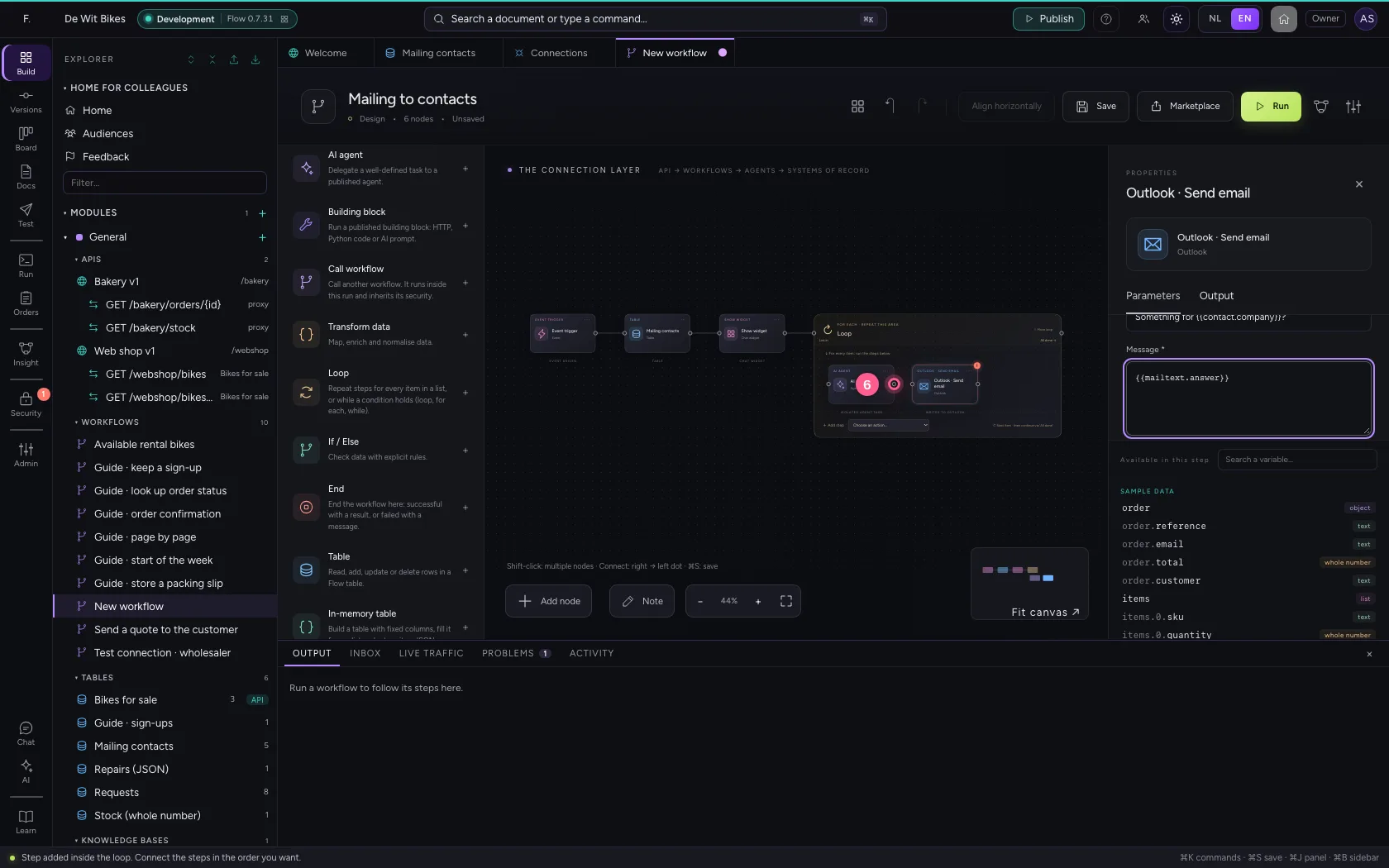
Something for {{contact.company}}? - In **Message ***, type
{{mailtext.answer}}
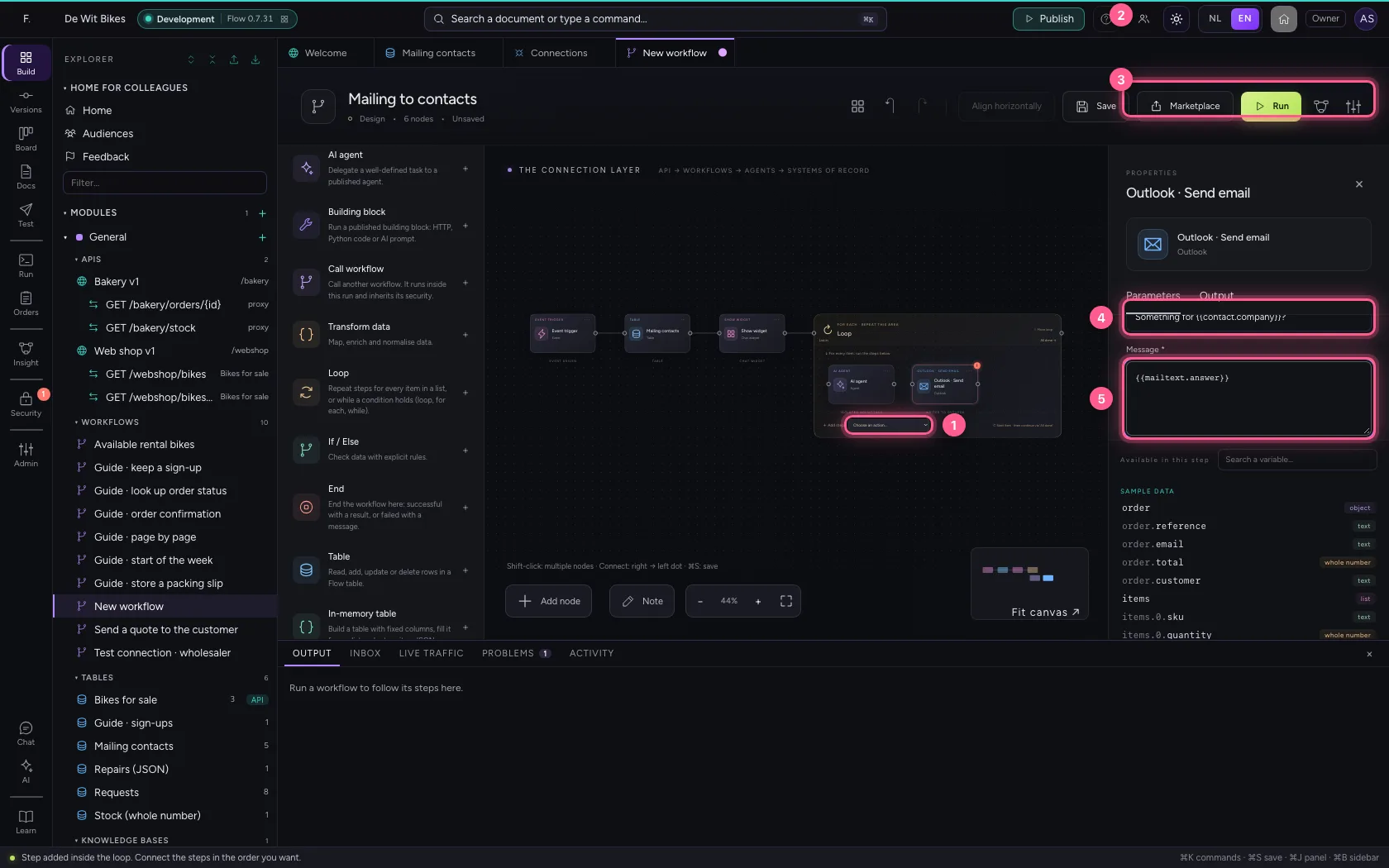
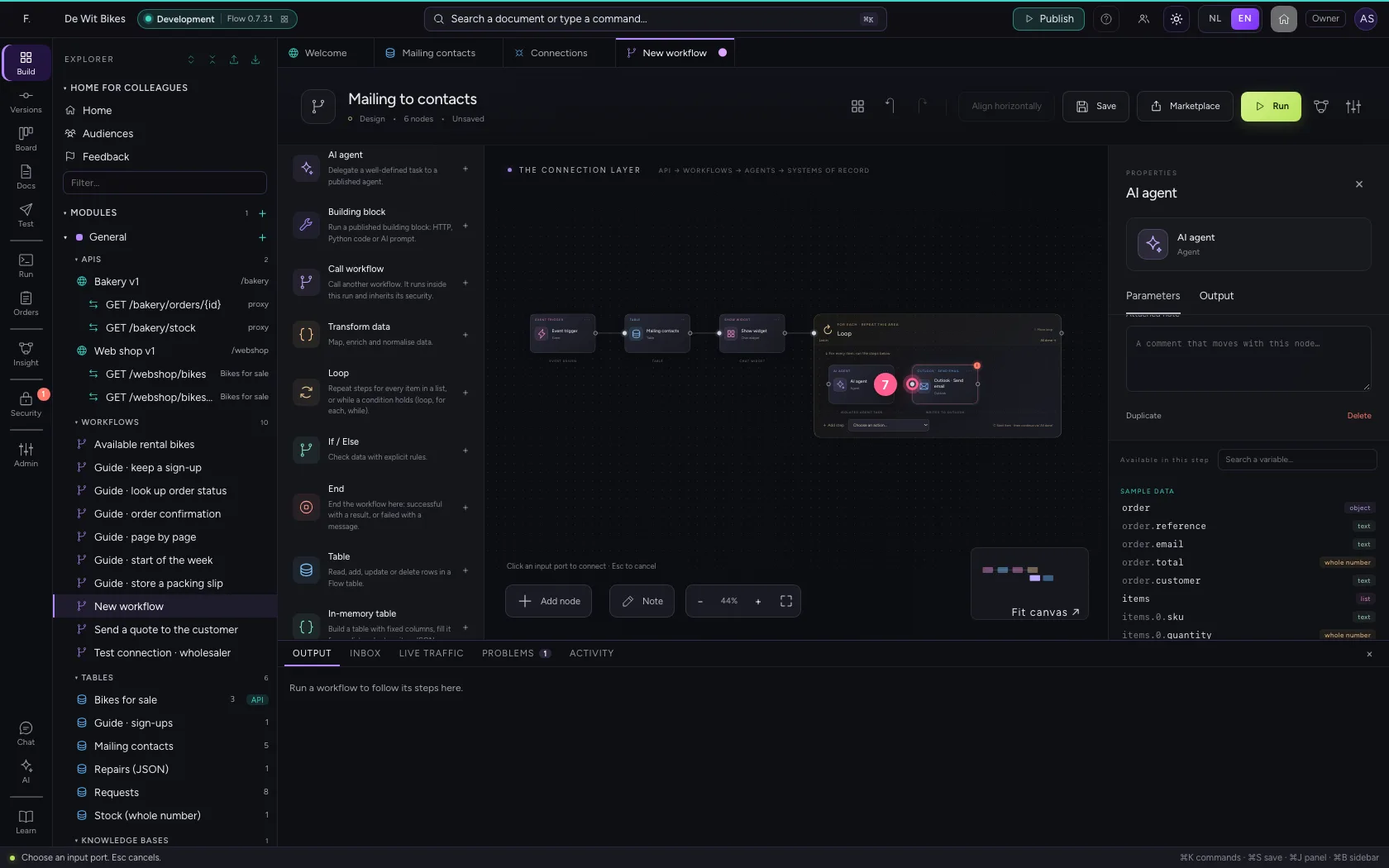
- Click the dot of ‘AI agent’
- Click the dot of ‘Outlook · Send email’
Save and run
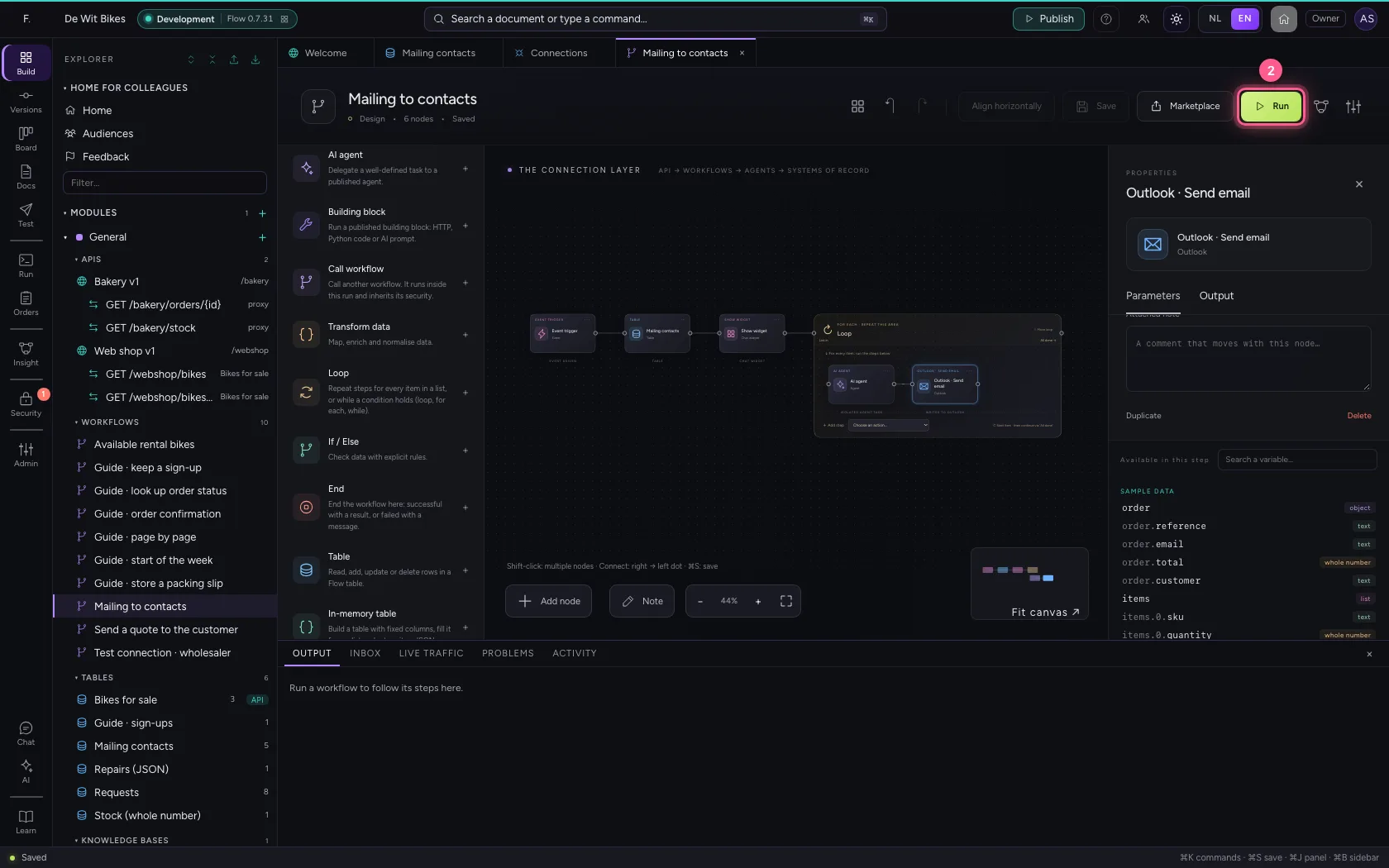
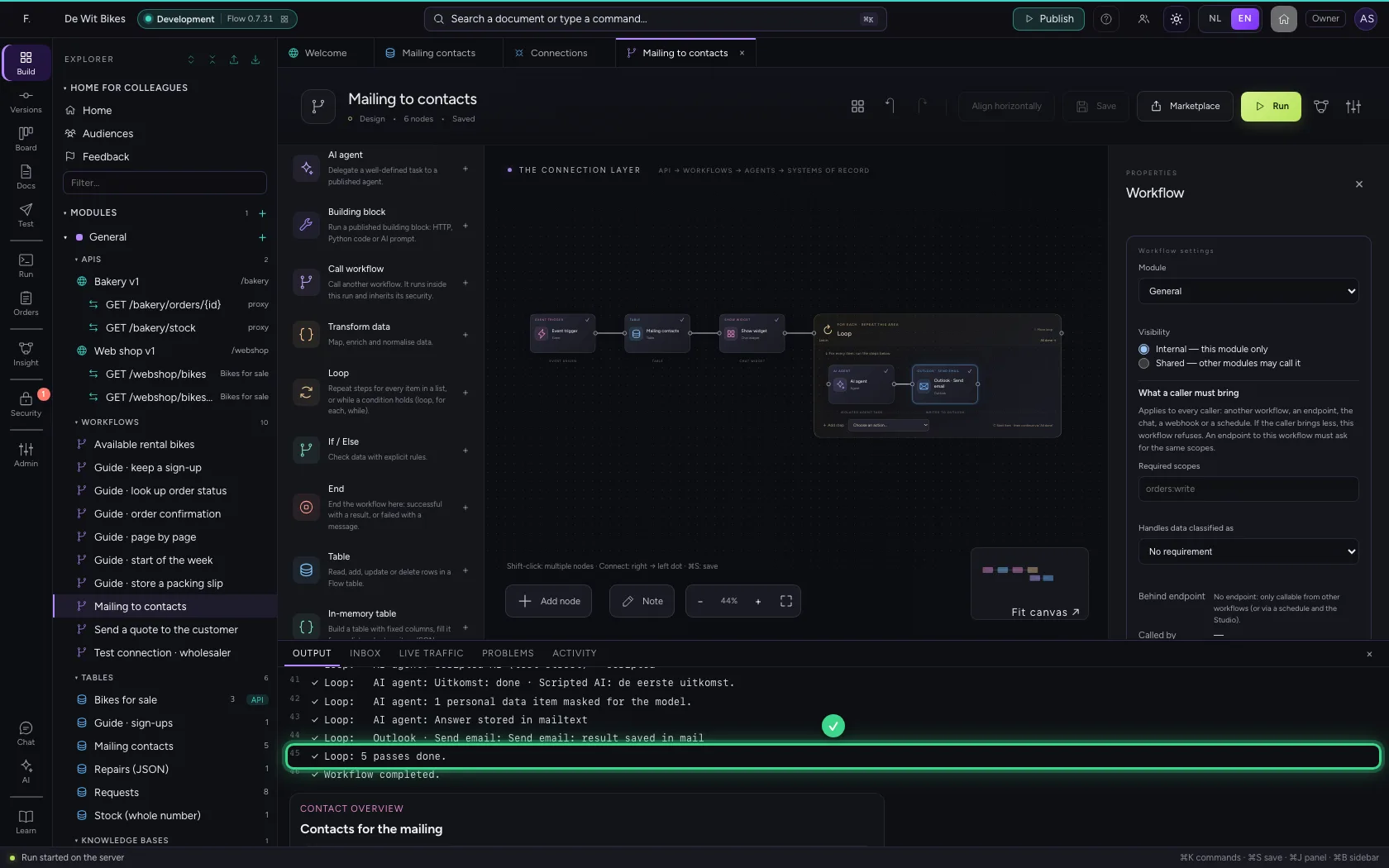
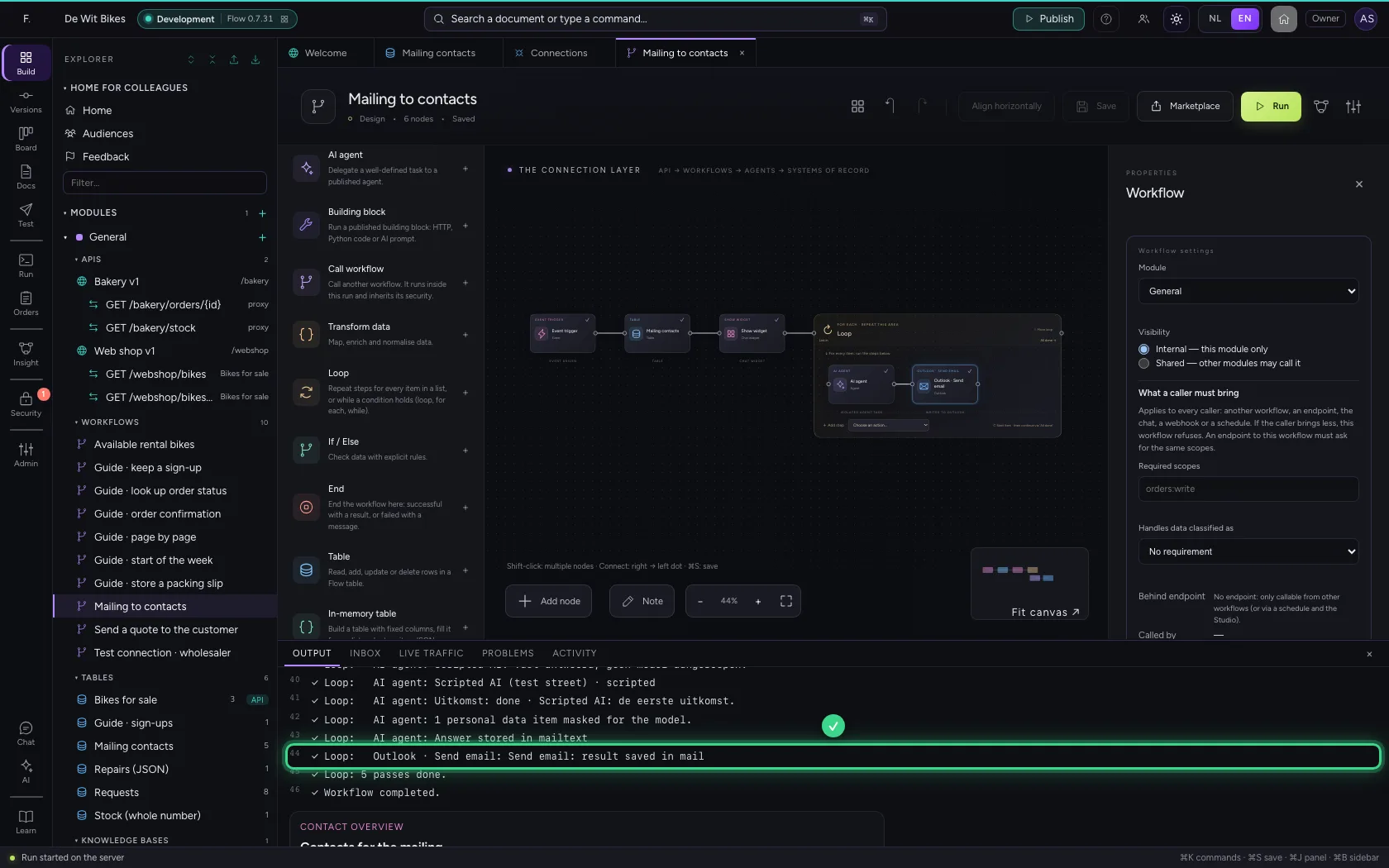
At the bottom, under Output, you follow every pass: which contact, what the agent wrote and that Outlook sent the mail. The chat widget is there too, exactly as it appears in the chat.
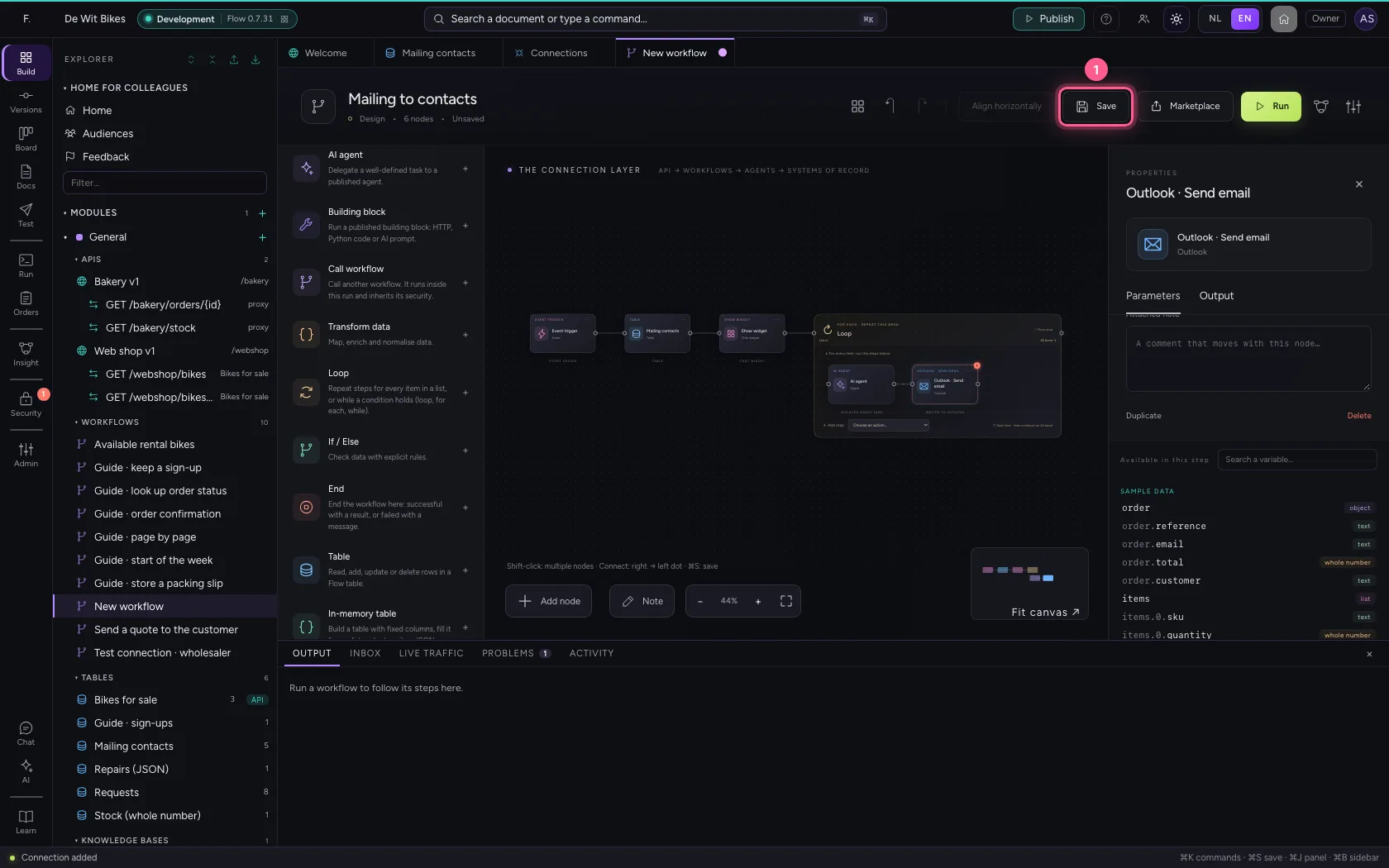
- Click Save
- Click Run
See what was sent
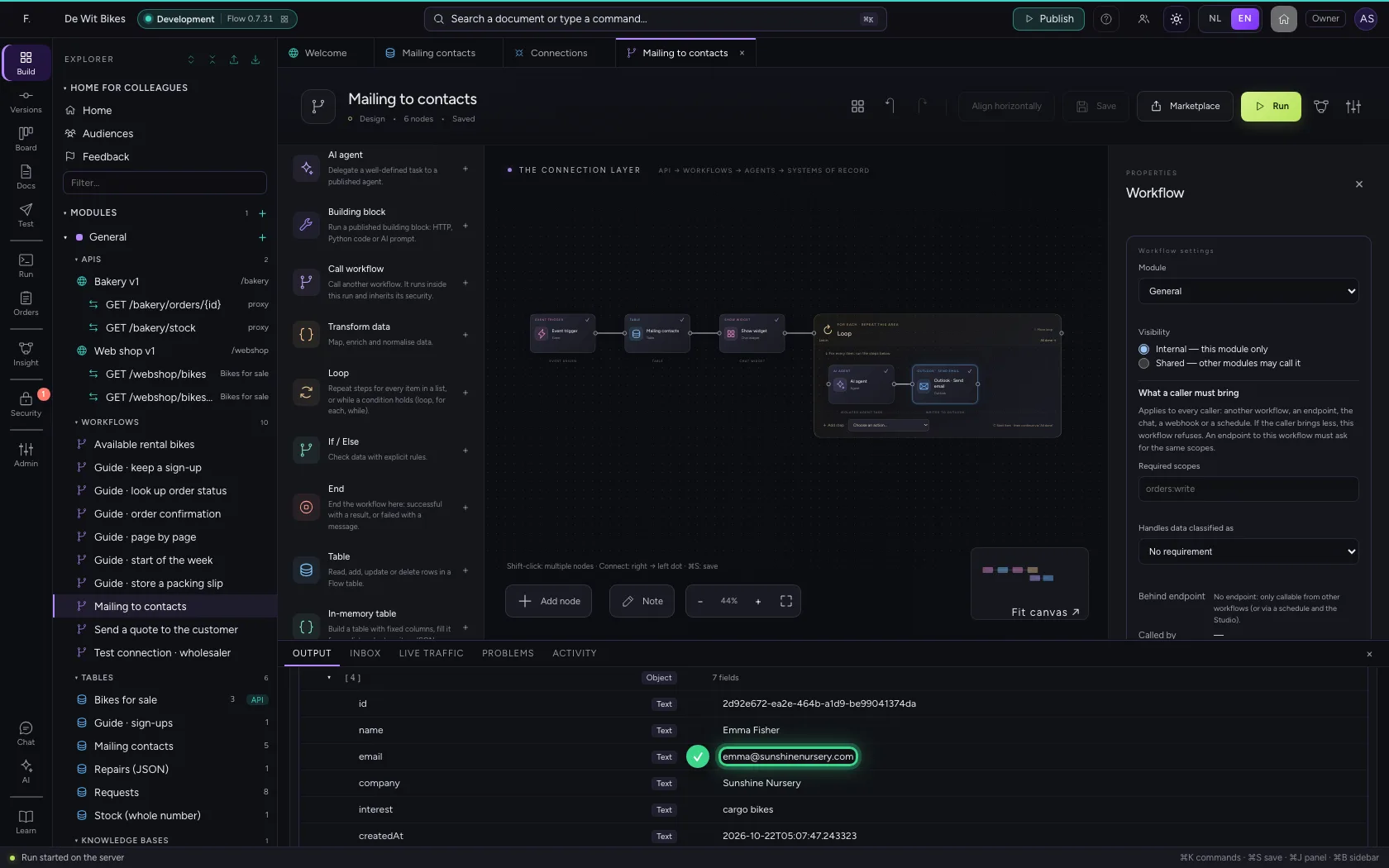
Every pass says the mail was sent; under Data after the run you find the result per contact. In Outlook the mails are in the mailbox's Sent Items.
This guide was carried out step by step on 22 Oct 2026 by an automated test on Flow (version 3e563176).