Publish an API with keys
You create an API with one endpoint that runs a workflow, and give a consumer a key that opens only this API and has only the permission the endpoint asks for. Then you call the endpoint the way the consumer does. Every call can be traced to a consumer, with a key that expires.
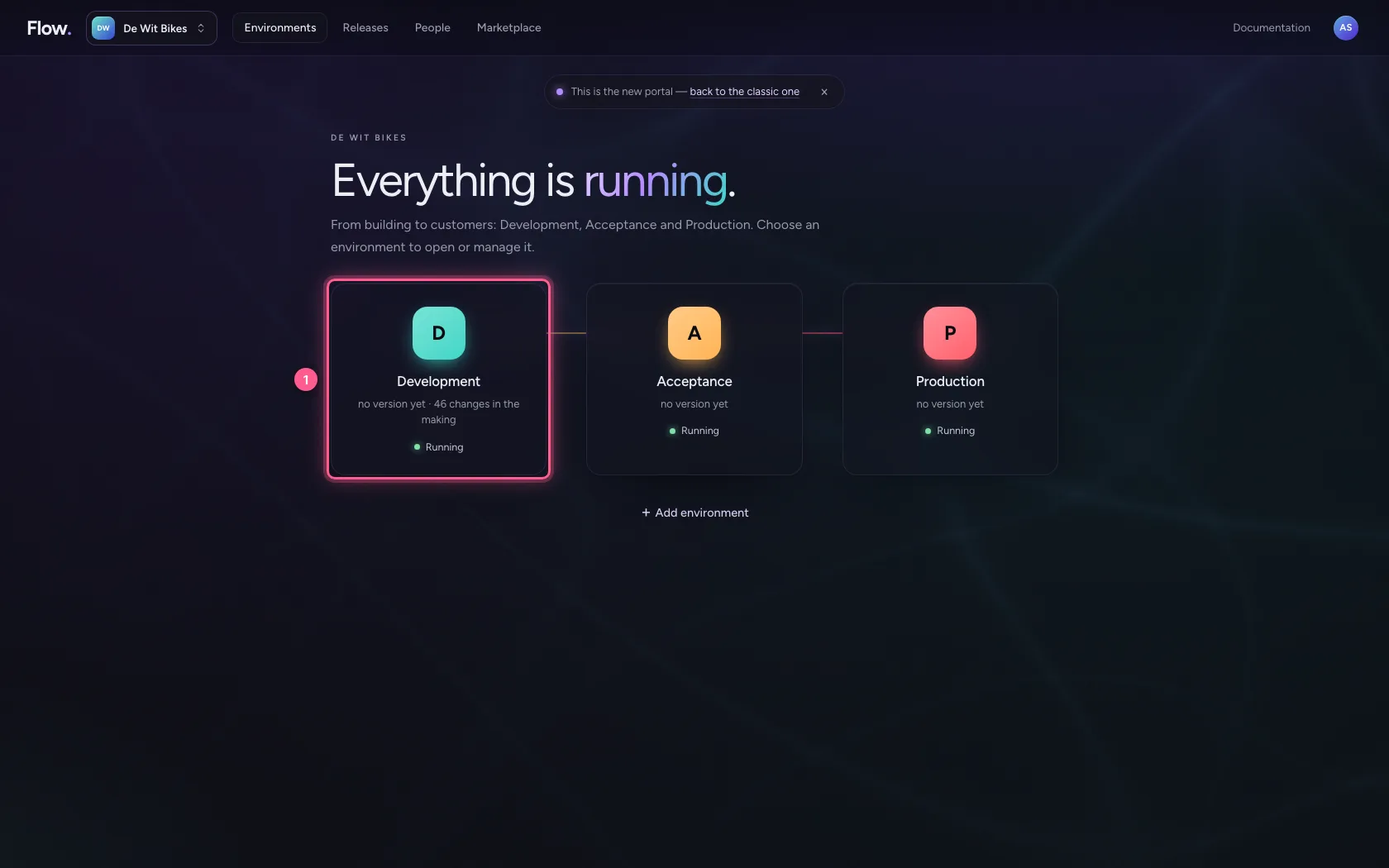
Open your development environment
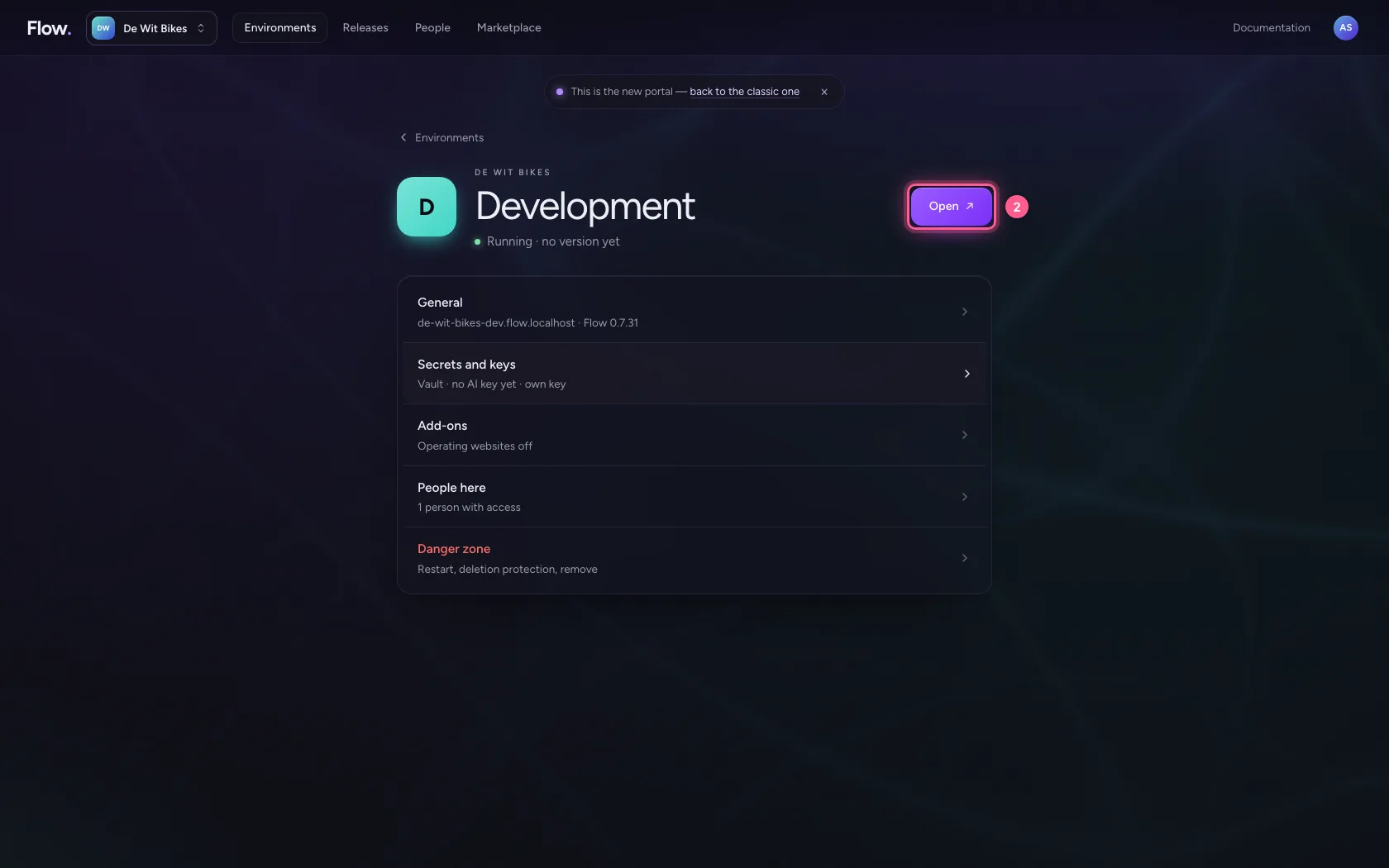
In the portal, under Environments, click Development, and there Open. Flow opens in a new tab and you are signed in straight away.
- Click Development
- Click Open ↗
Create an API
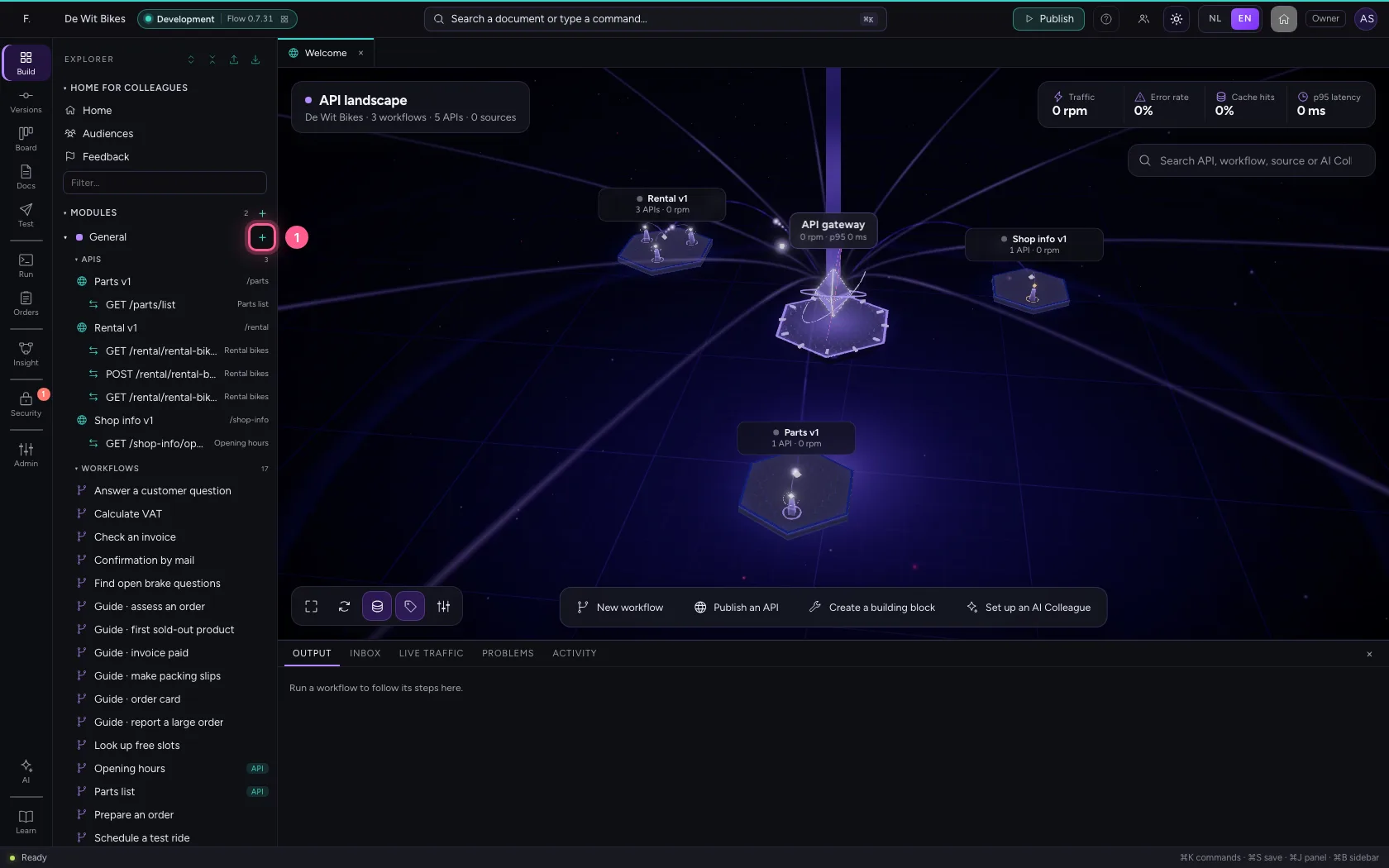
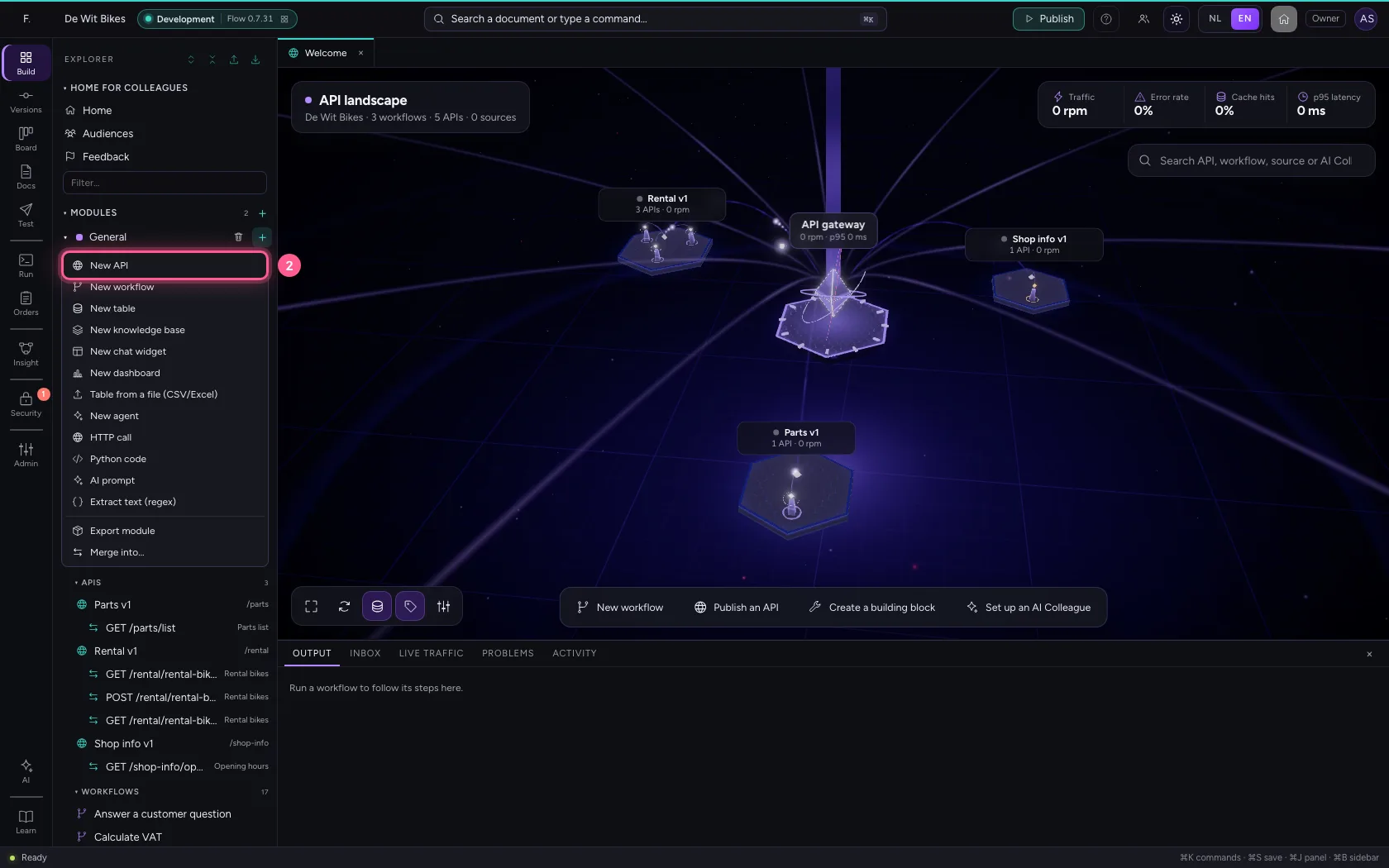
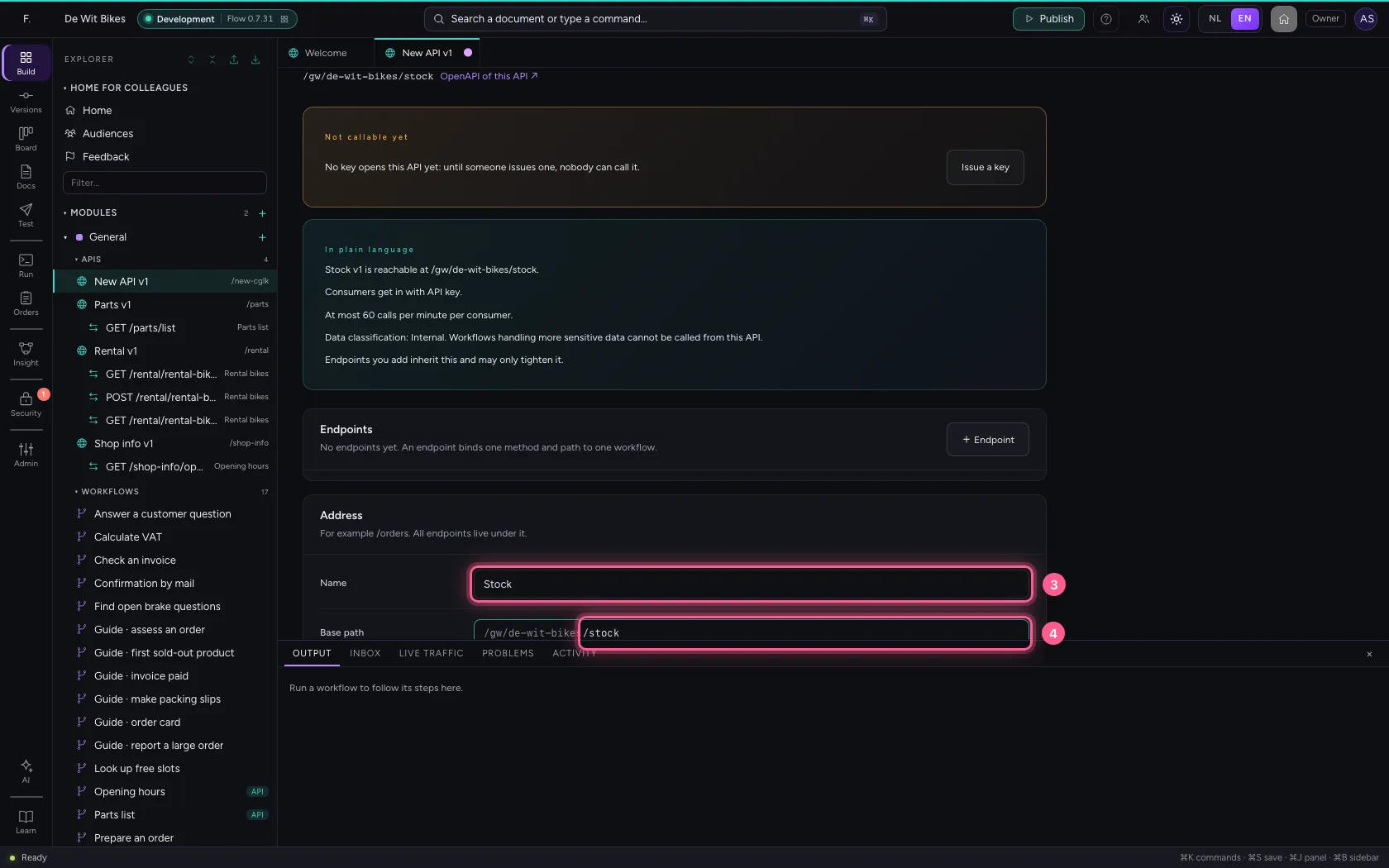
Click + next to General and choose New API. An API is a base path with one security policy; every endpoint lives under it and inherits that policy. By default it asks for an API key.
- Click Add to General
- Click New API
- In Name, type
Stock - In Base path, type
/stock
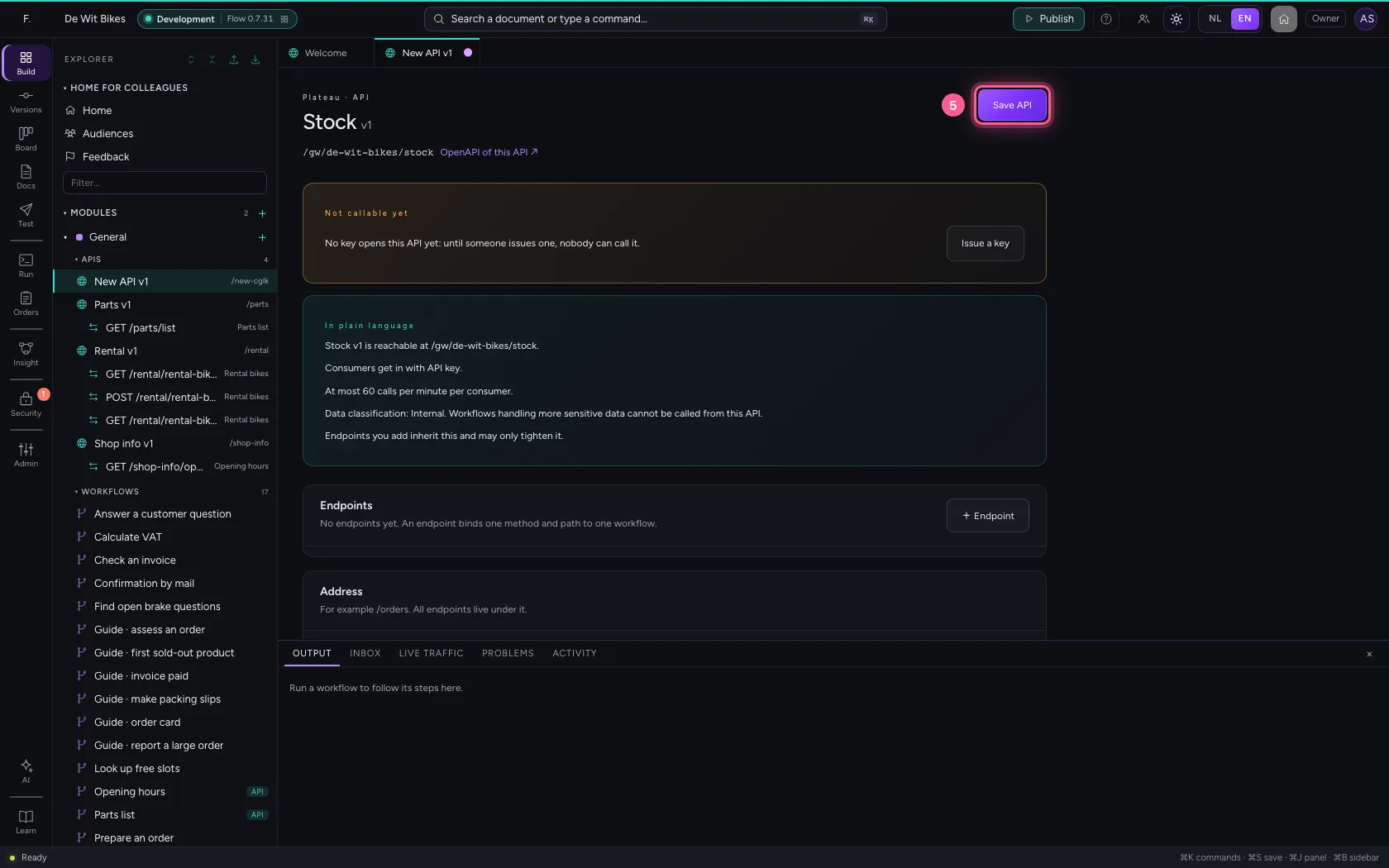
- Click Save API
Add an endpoint
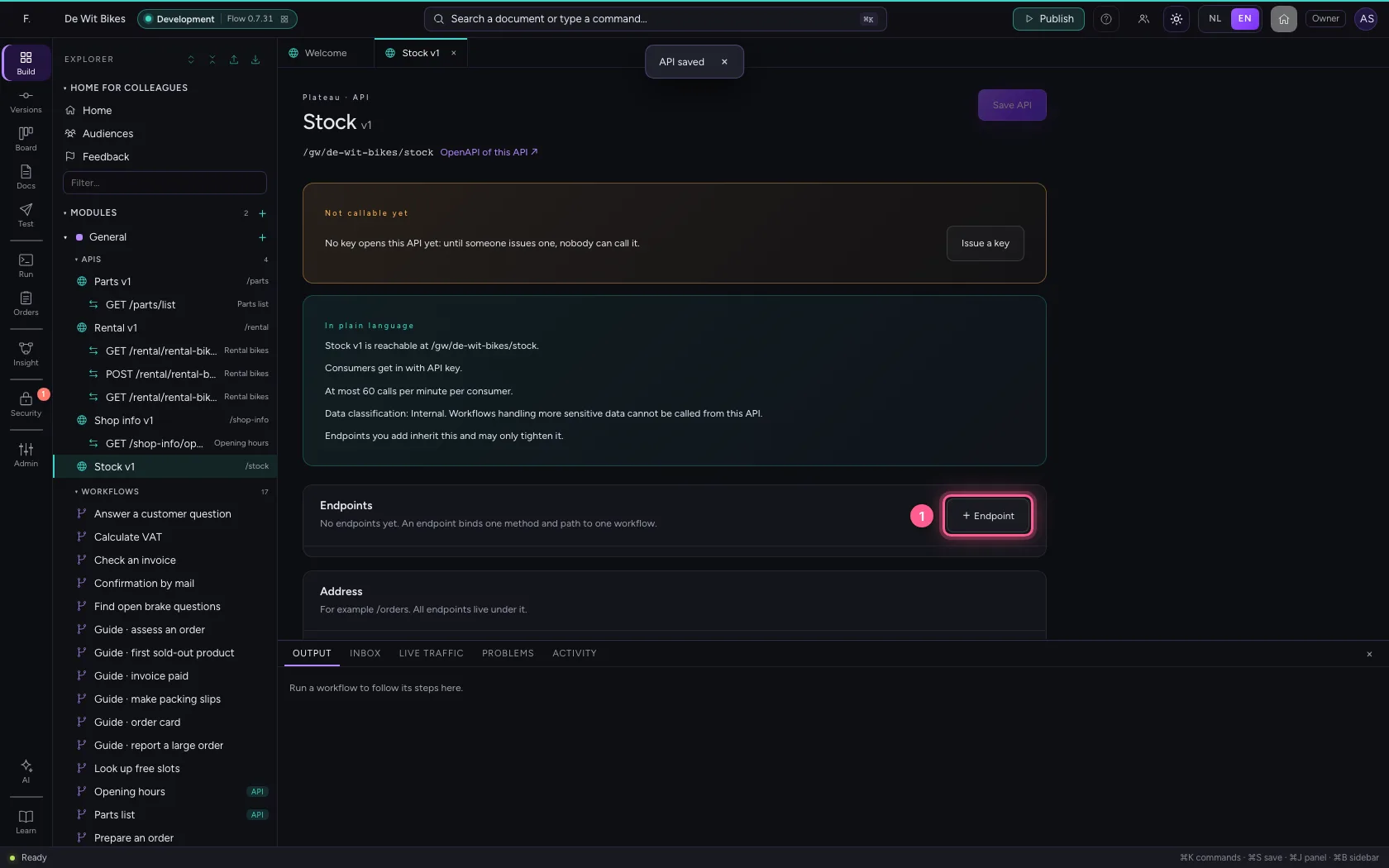
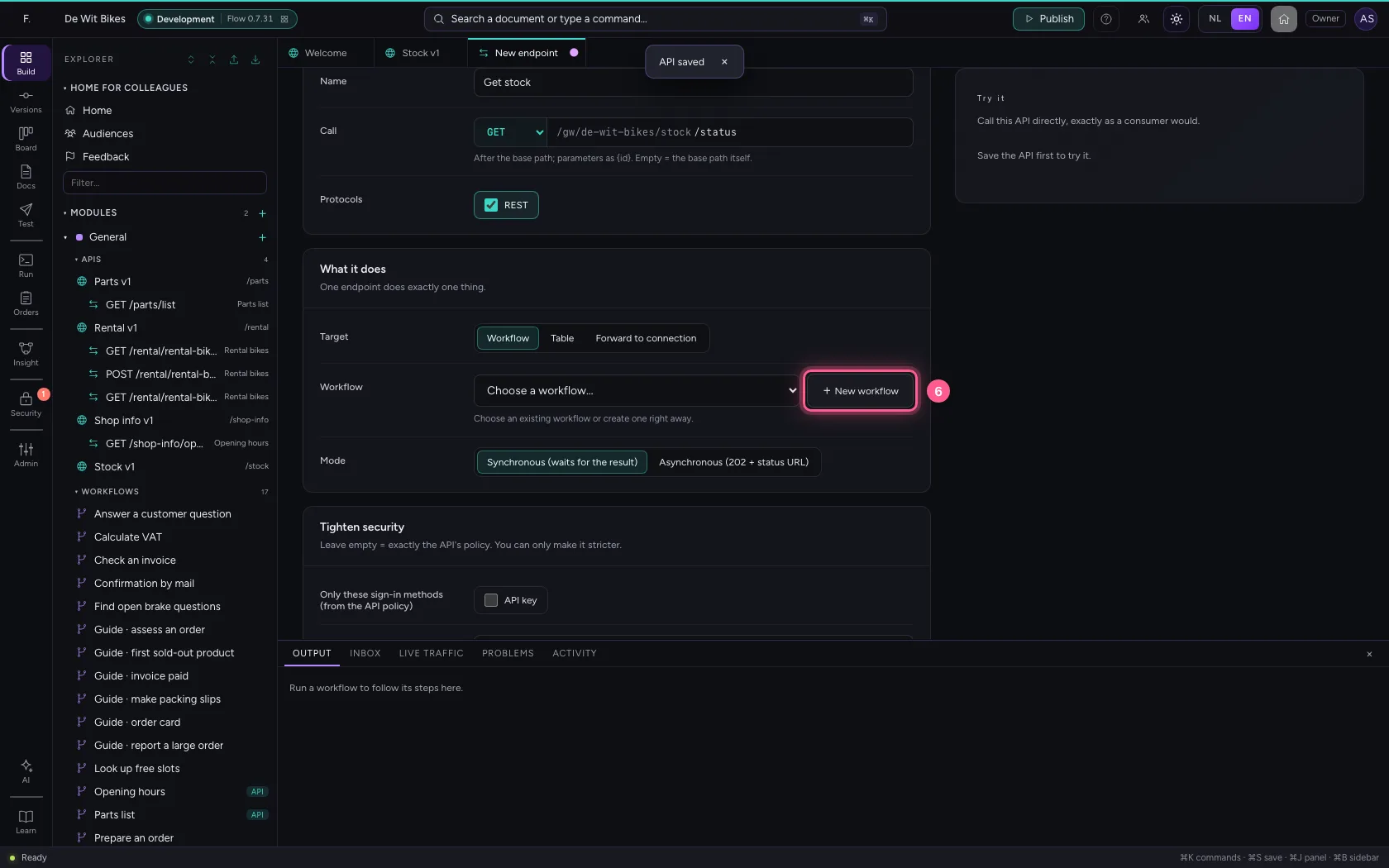
An endpoint binds one method and path to one workflow. Ask for an extra permission (scope) here: only keys with that permission get through. With + New workflow, Flow creates the workflow behind it right away and opens it.
- Click + Endpoint
- In Name, type
Get stock - In Method, choose GET
- In Path, type
/status - In Additional required scopes, type
stock:read
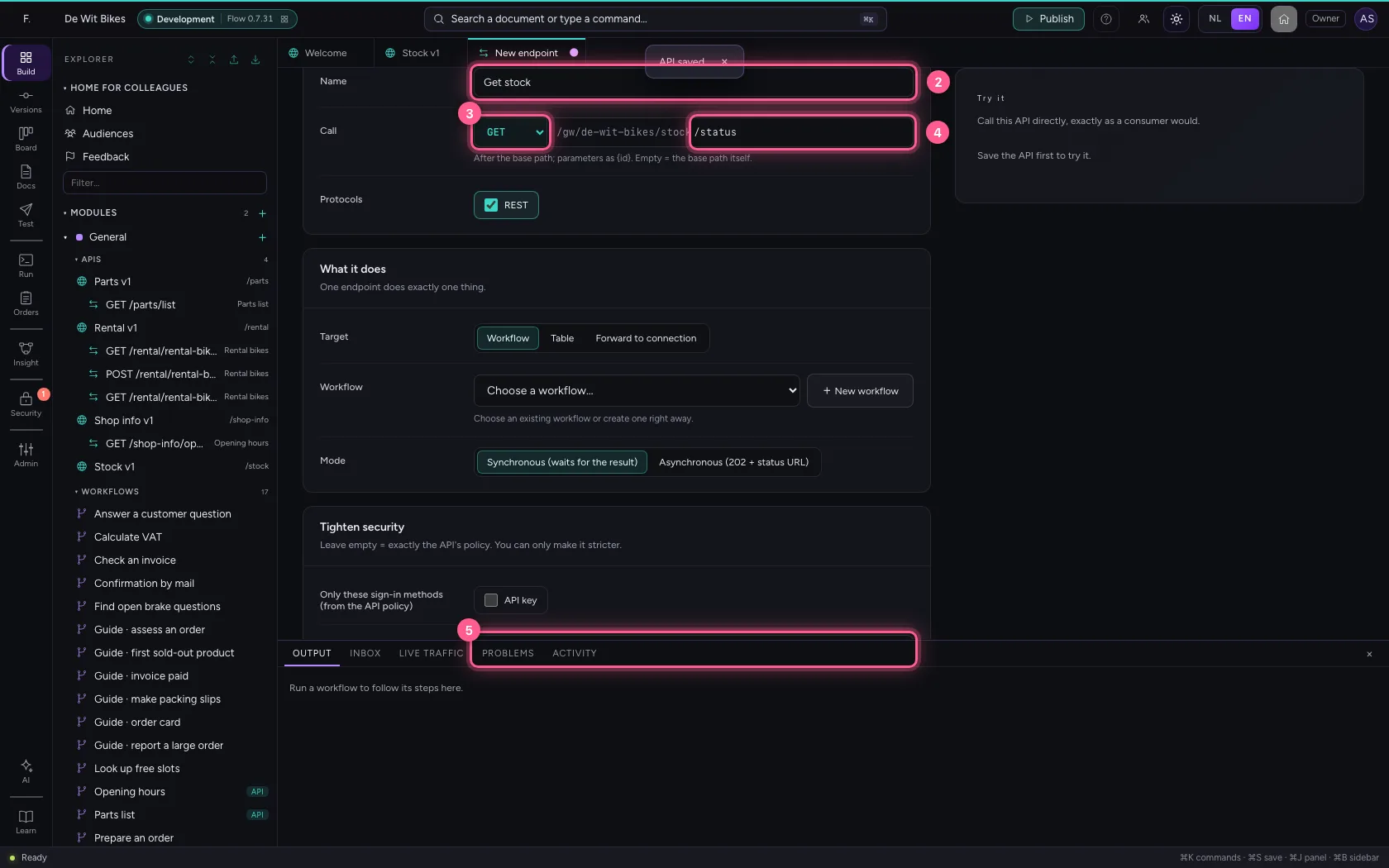
- Click + New workflow
Decide the answer
The new workflow runs from the trigger to API response. Click API response and put in the body what the consumer gets back. Here it is fixed; in real life it comes from a table or another system.
- Click the step ‘API response’
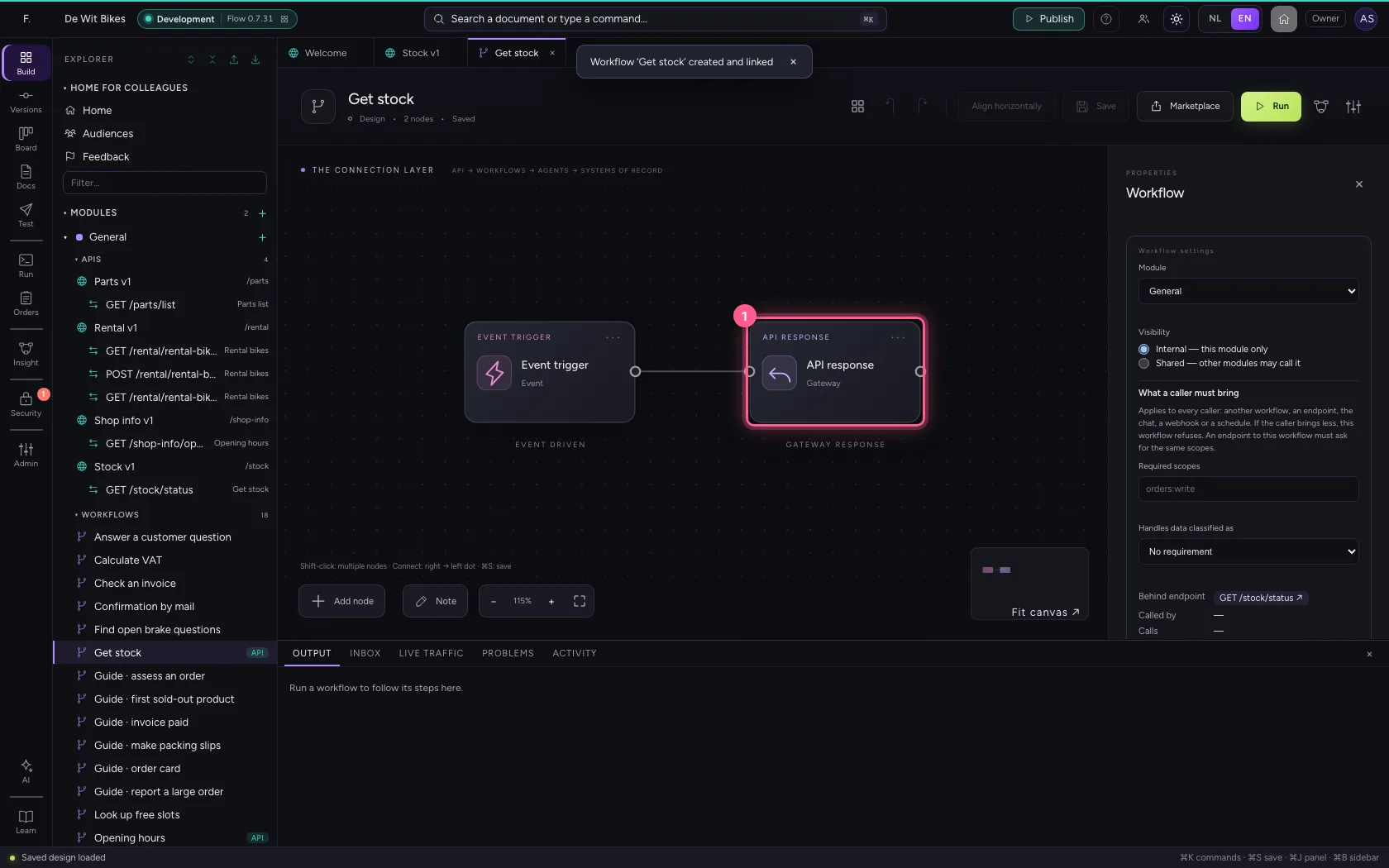
- Click Code
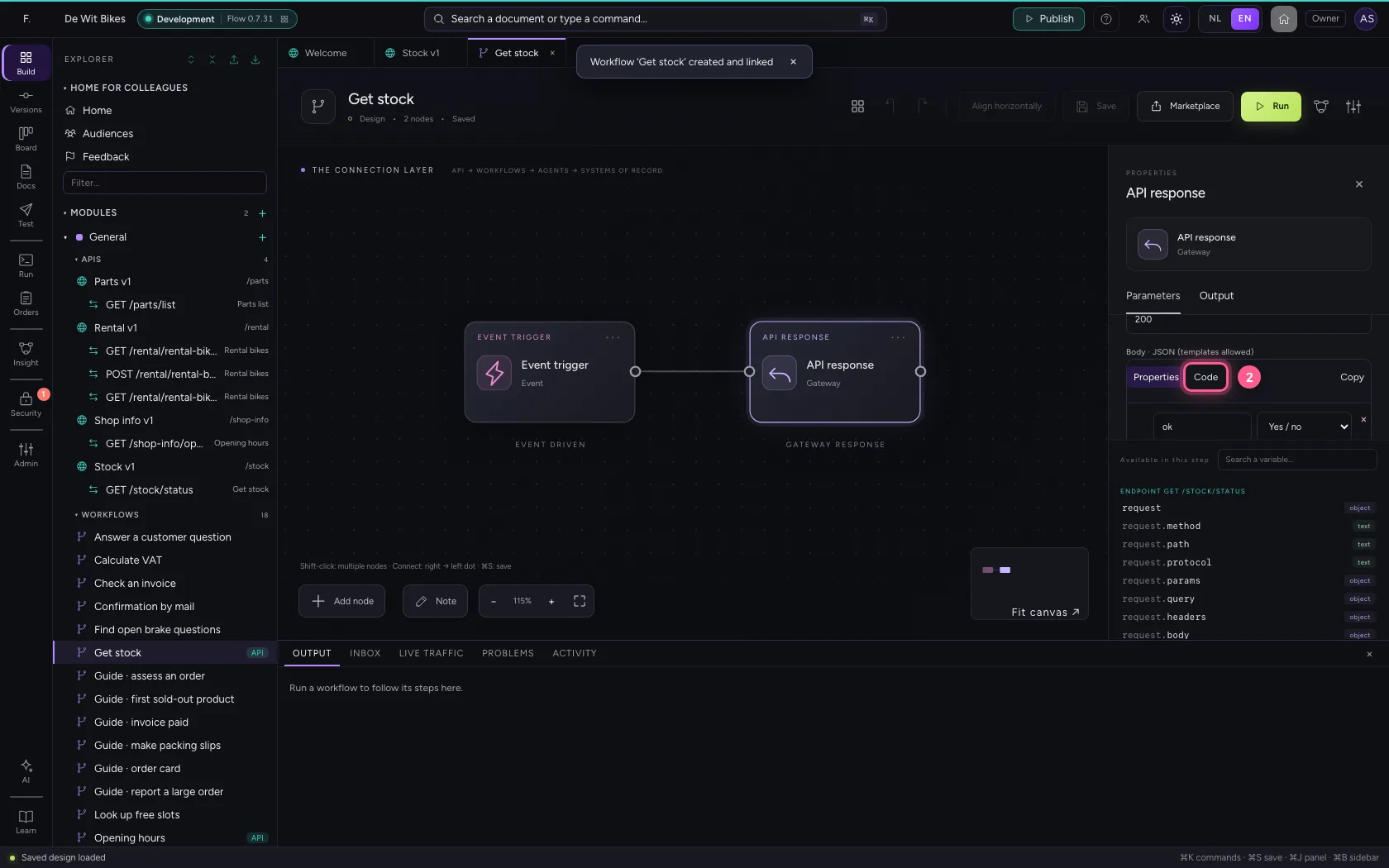
- In Body, type `{
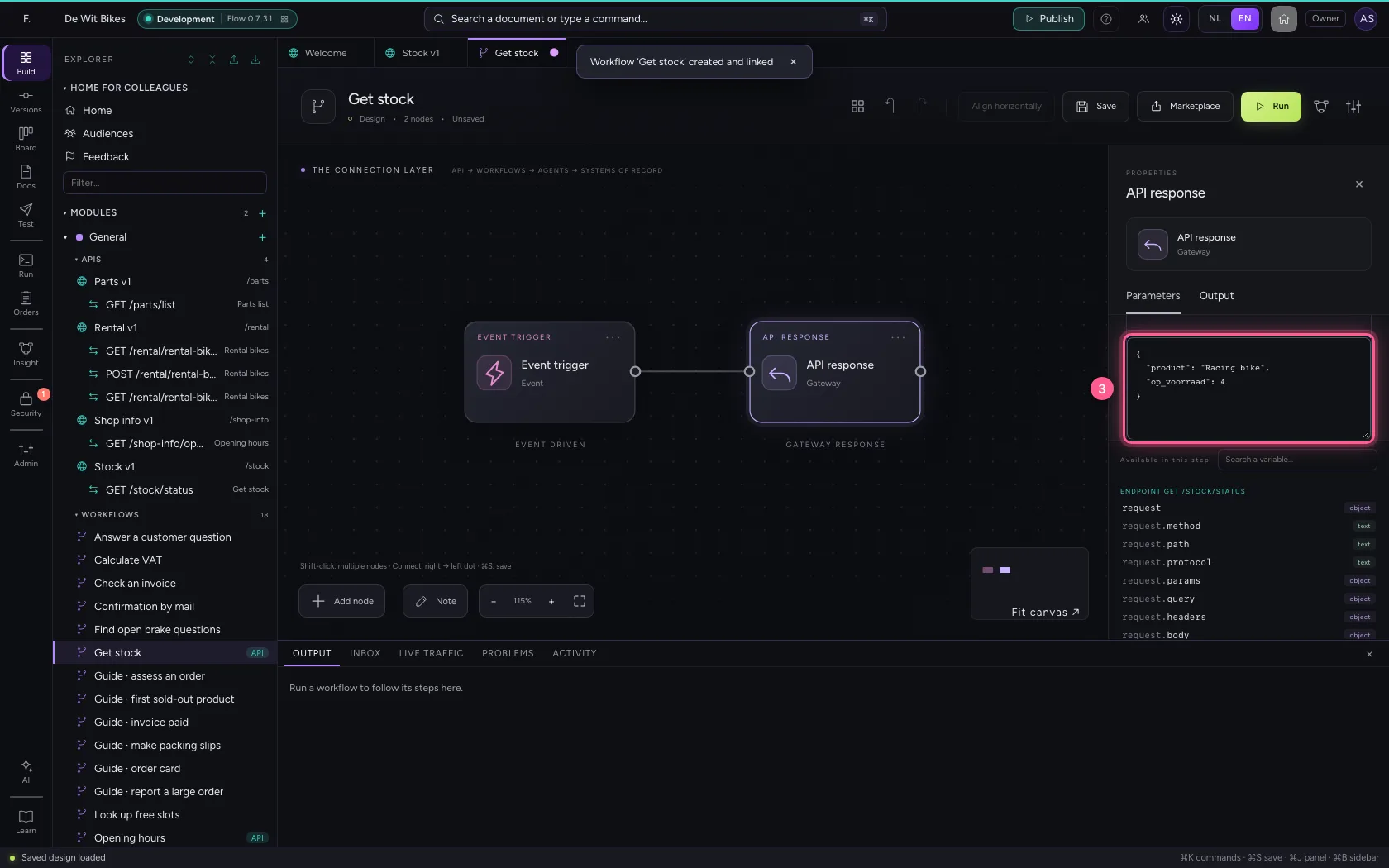
- Click Save
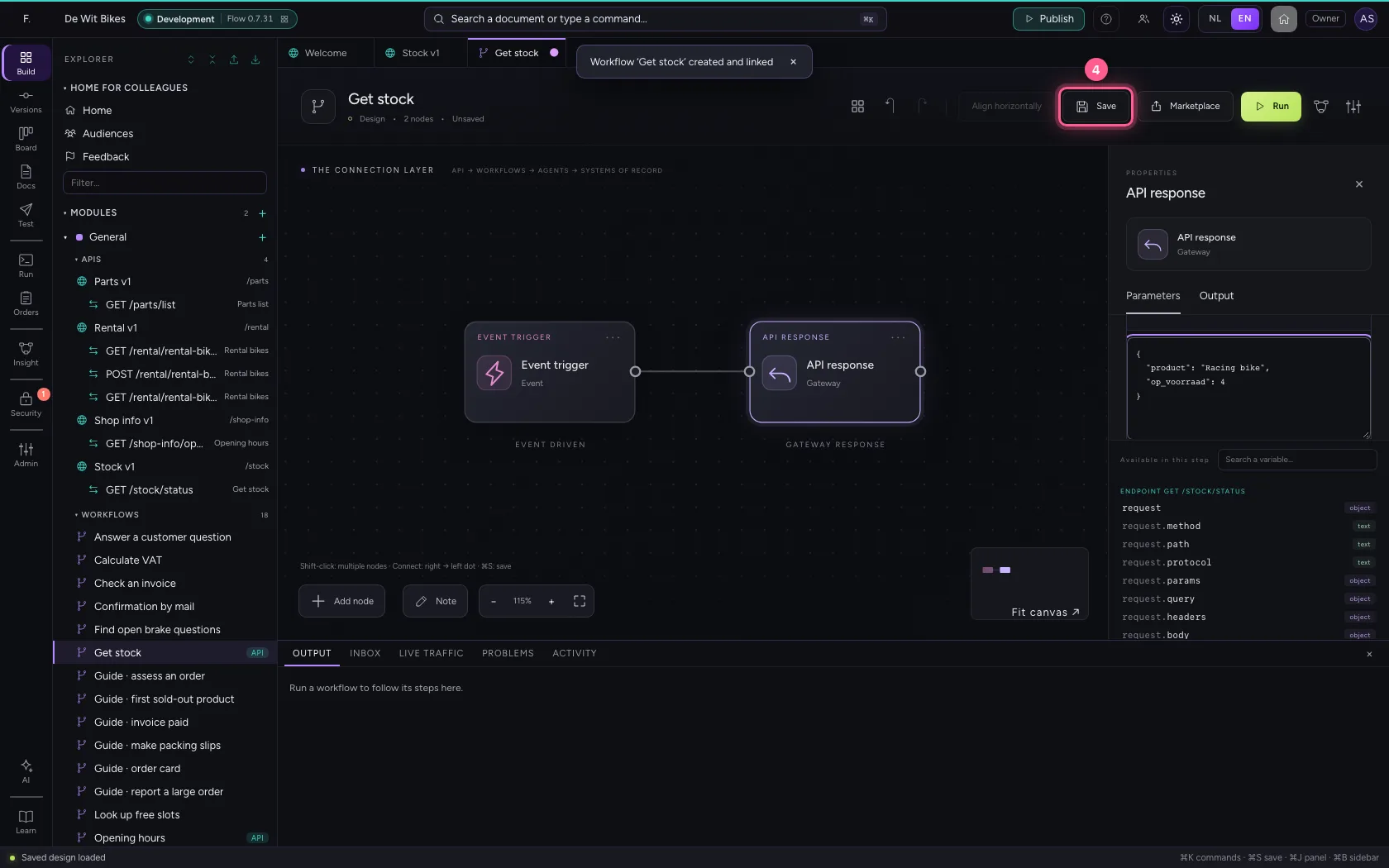
Issue a key
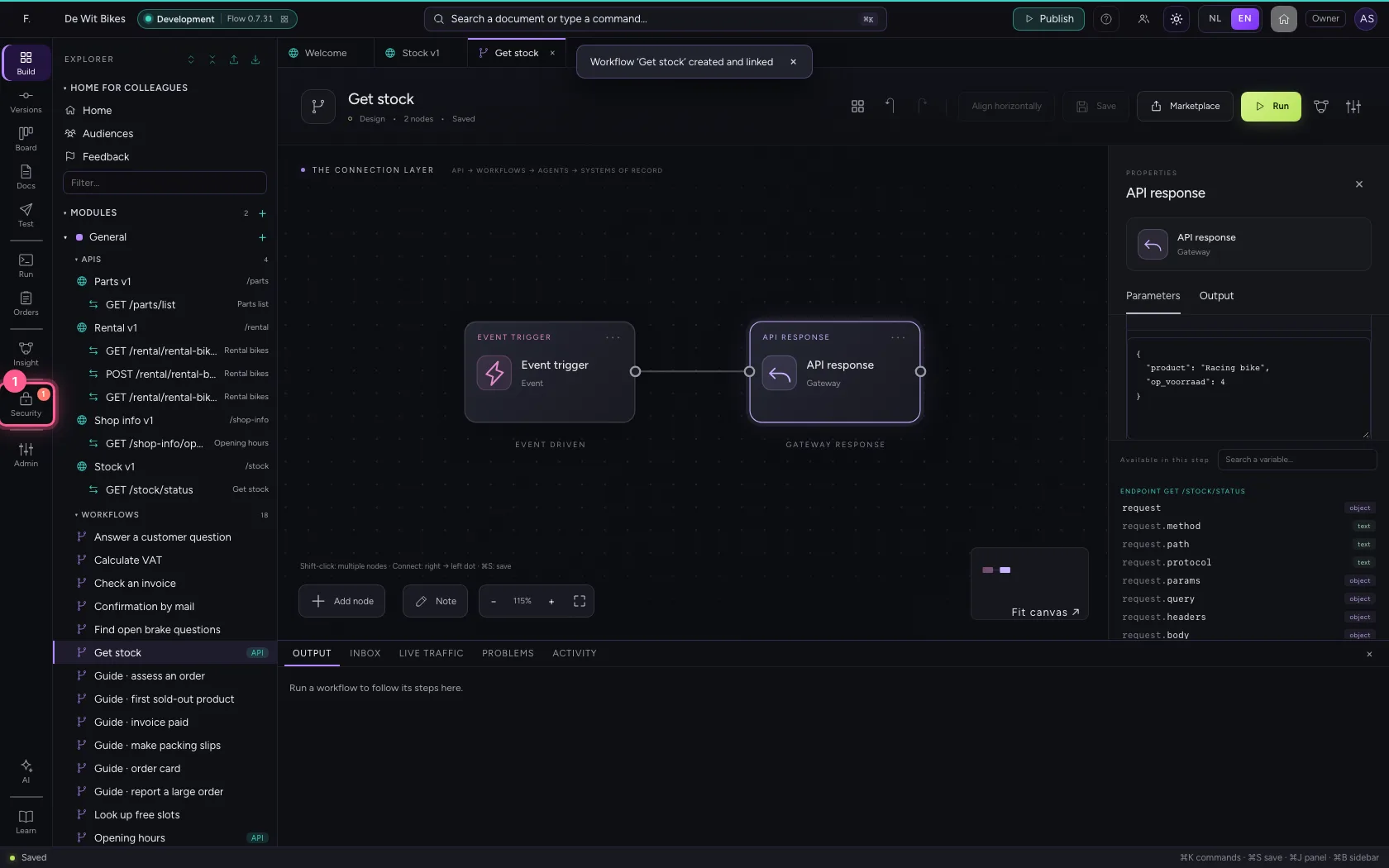
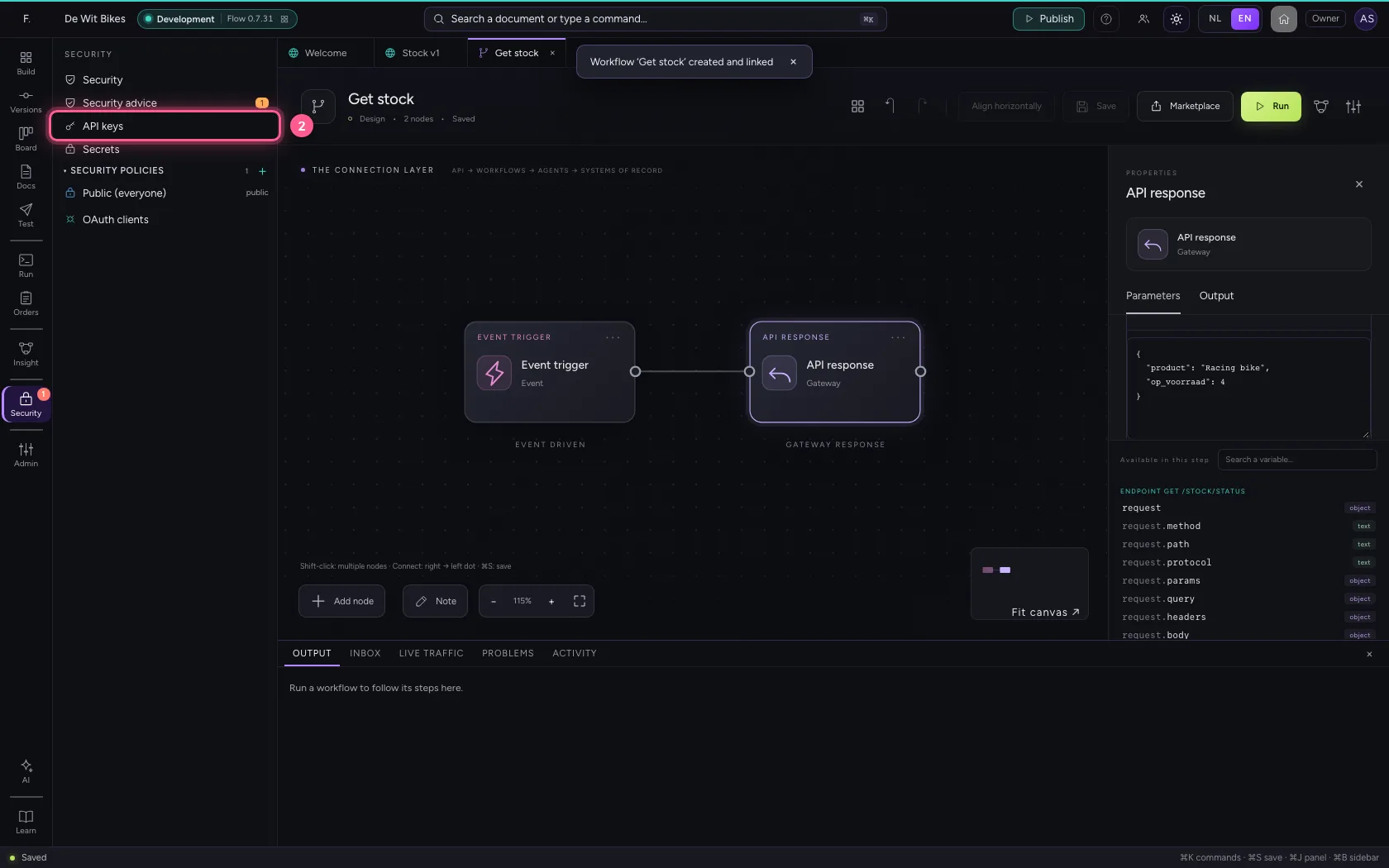
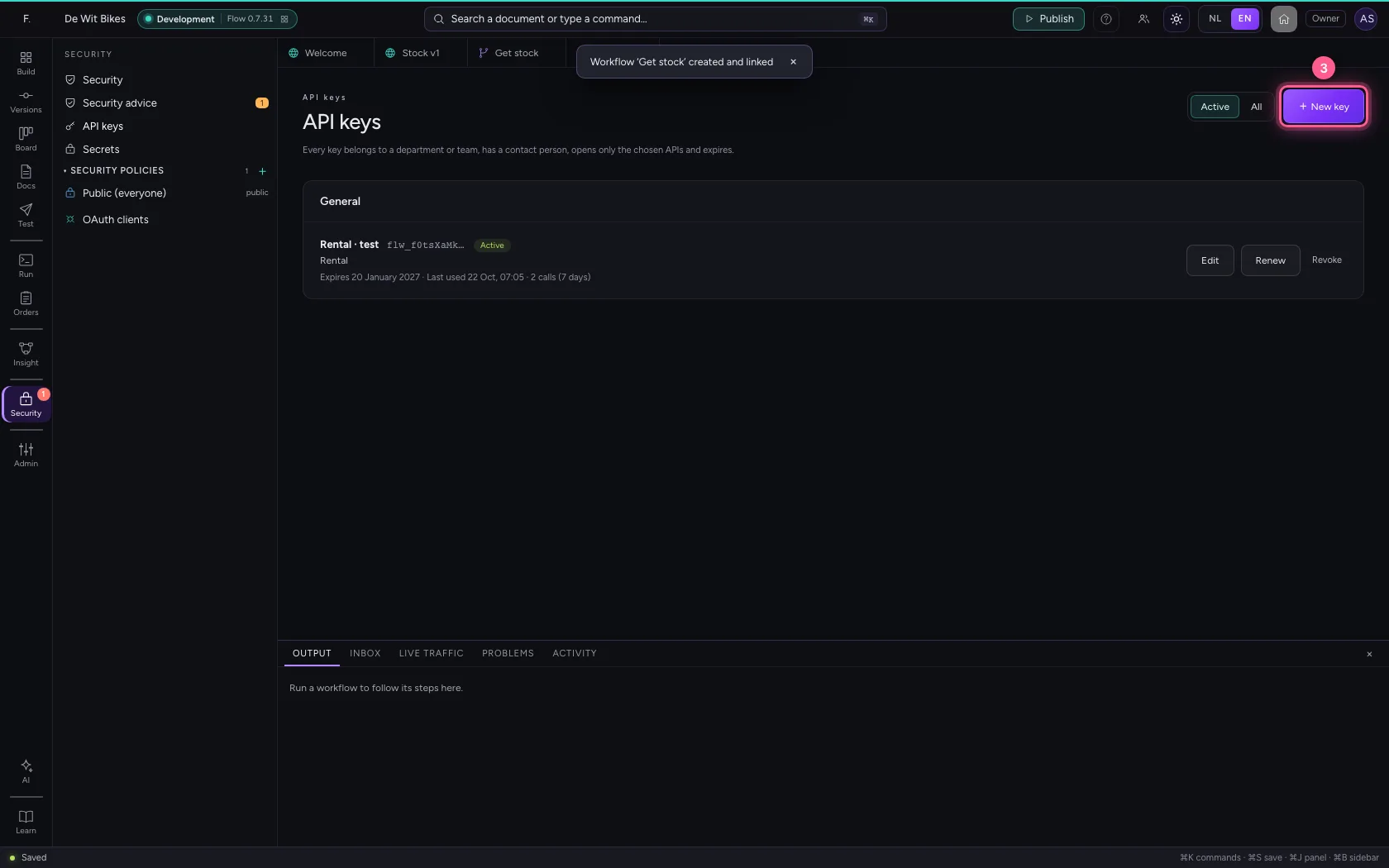
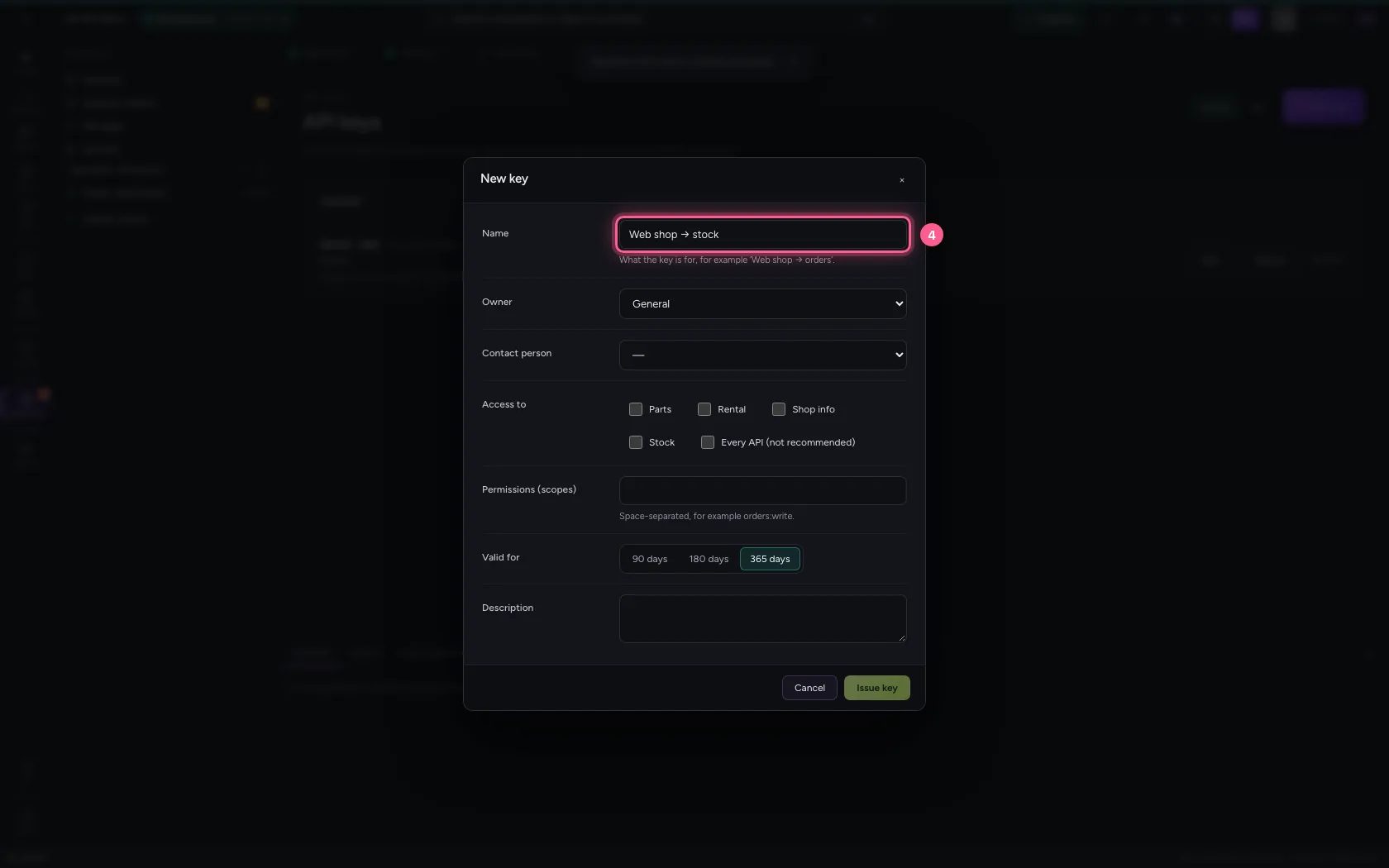
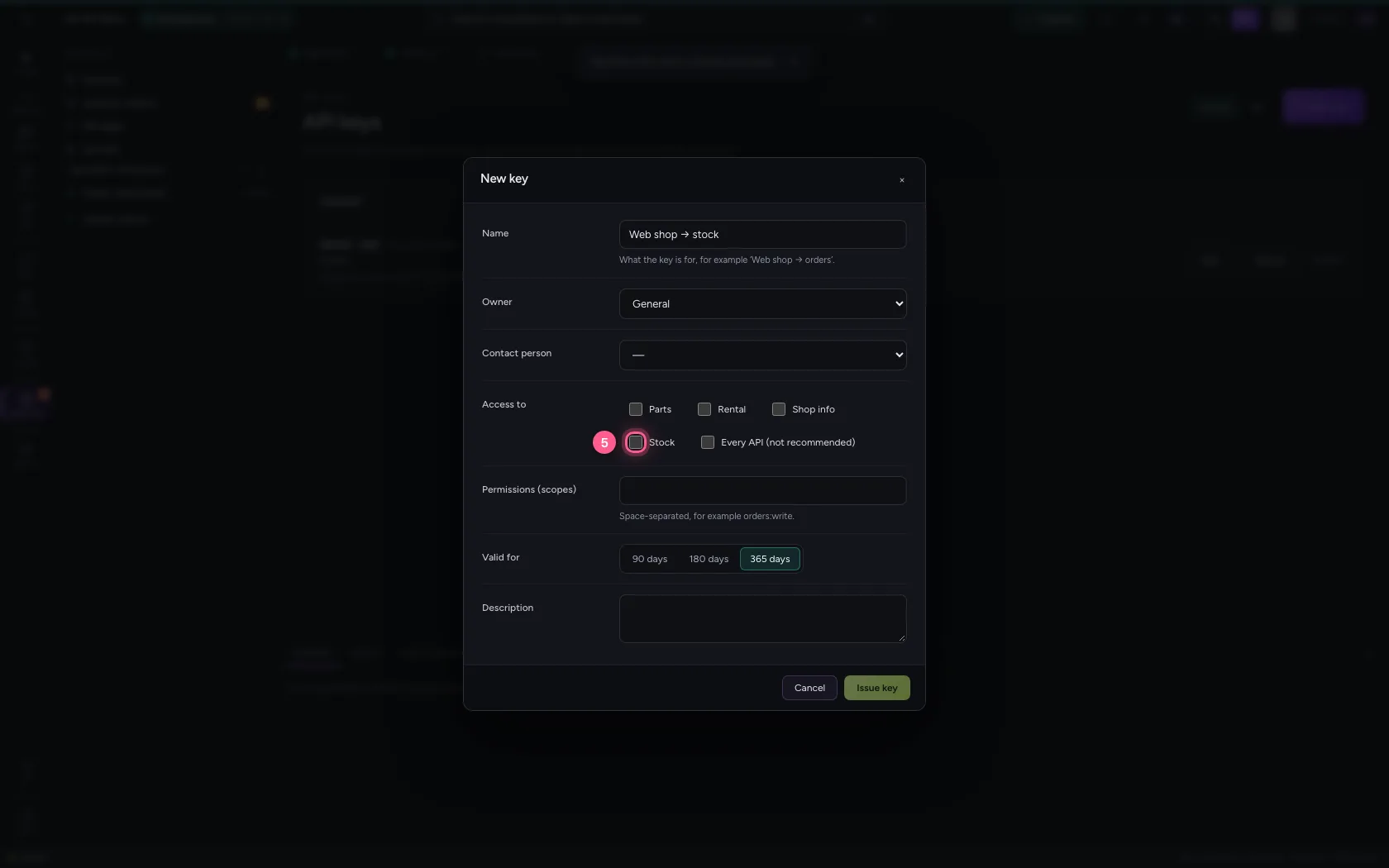
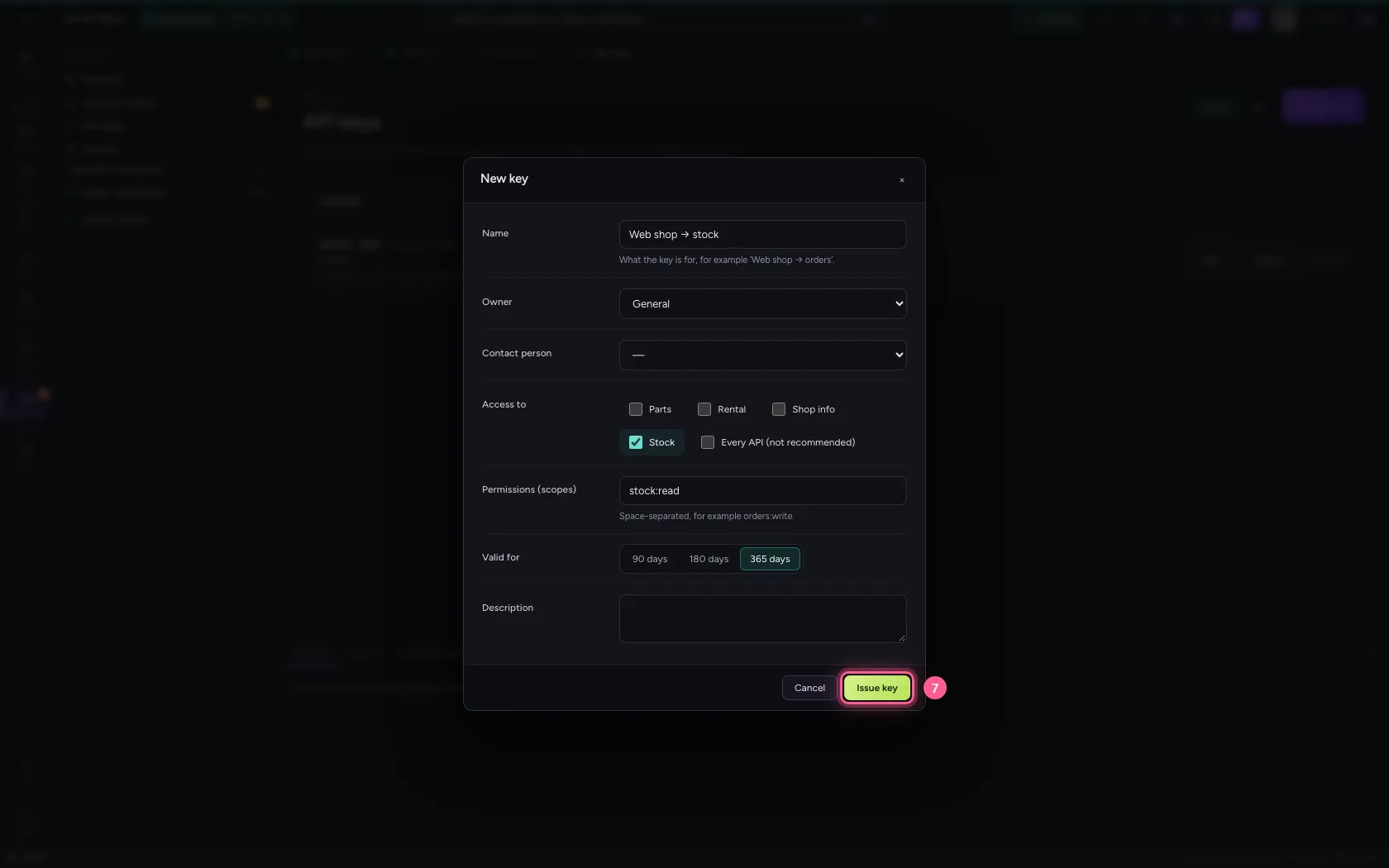
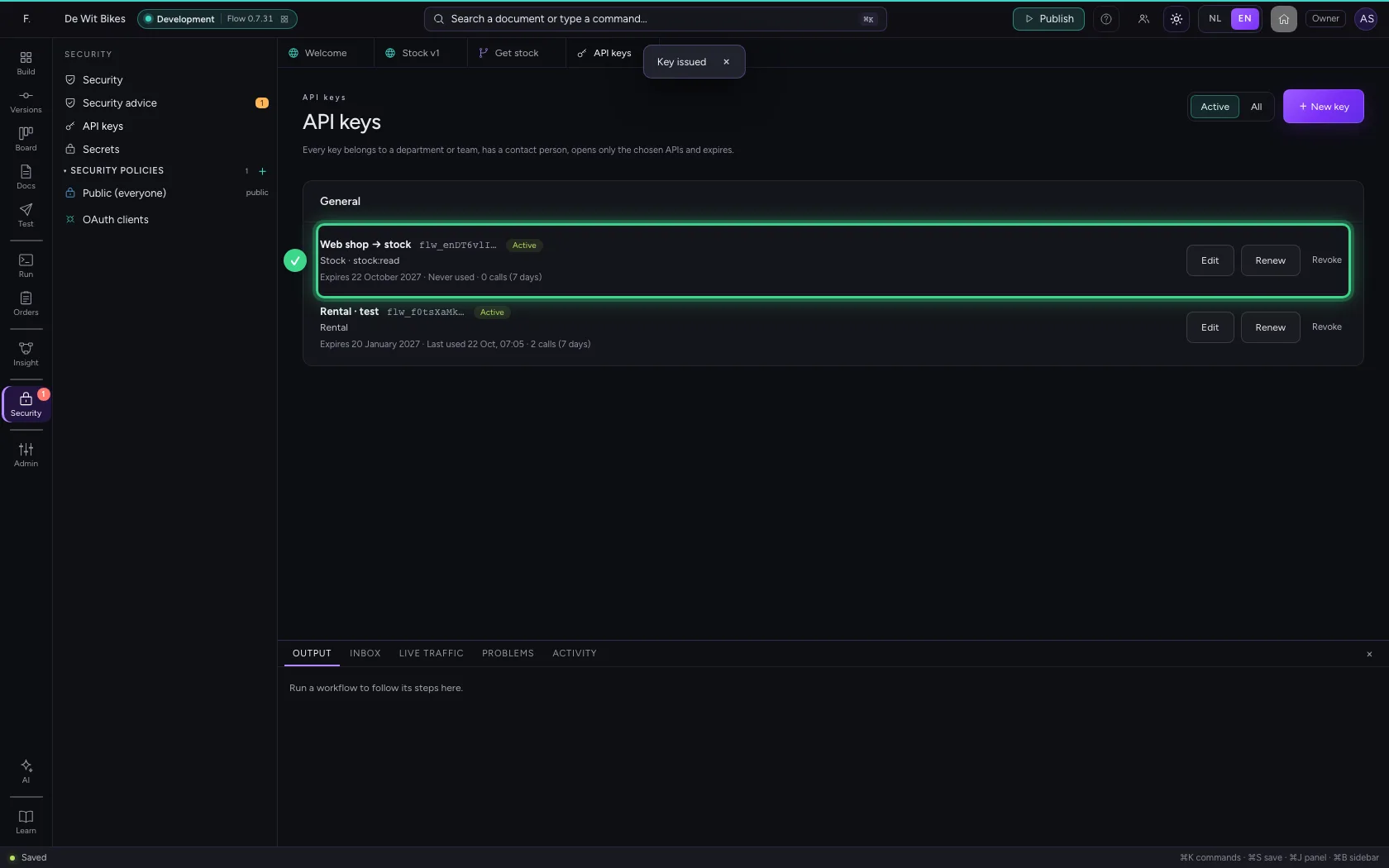
Under Security → API keys you give a consumer a key. It belongs to a department, opens only the API you tick, has only the permissions you name and expires by itself.
- Click Security
- Click API keys
- Click + New key
- In Name, type
Web shop → stock
- Click Stock
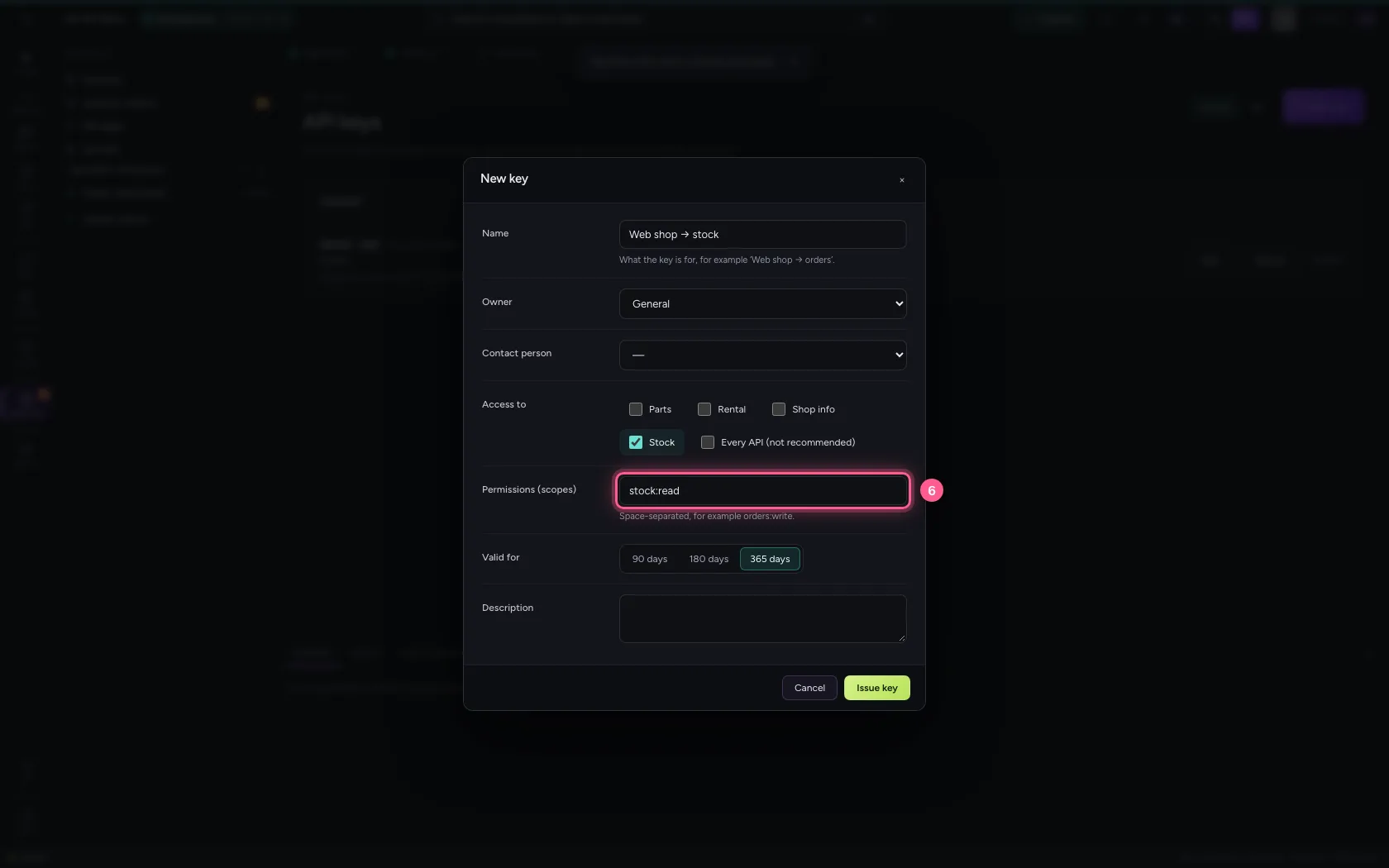
- In Permissions (scopes), type
stock:read
- Click Issue key
Store the key
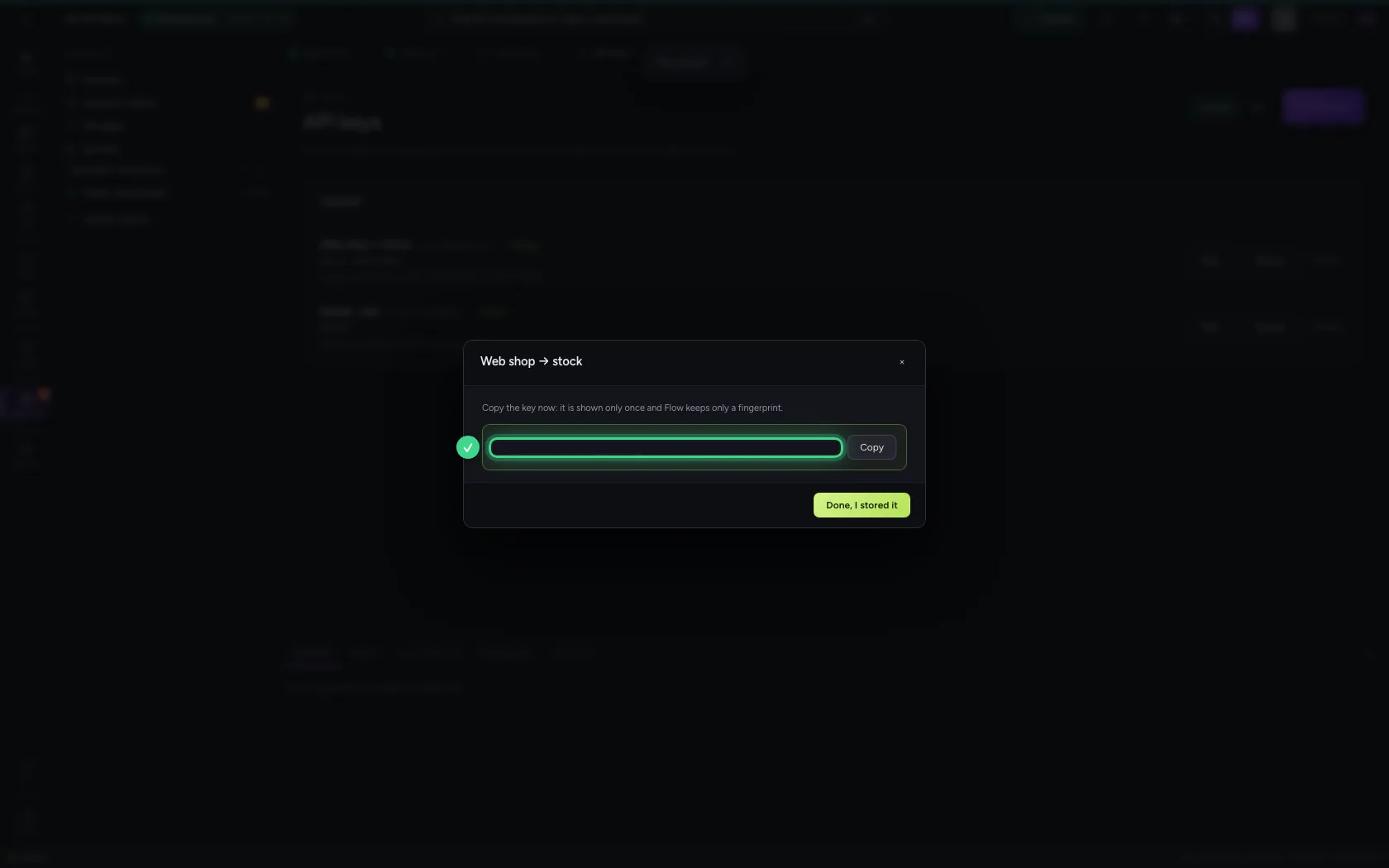
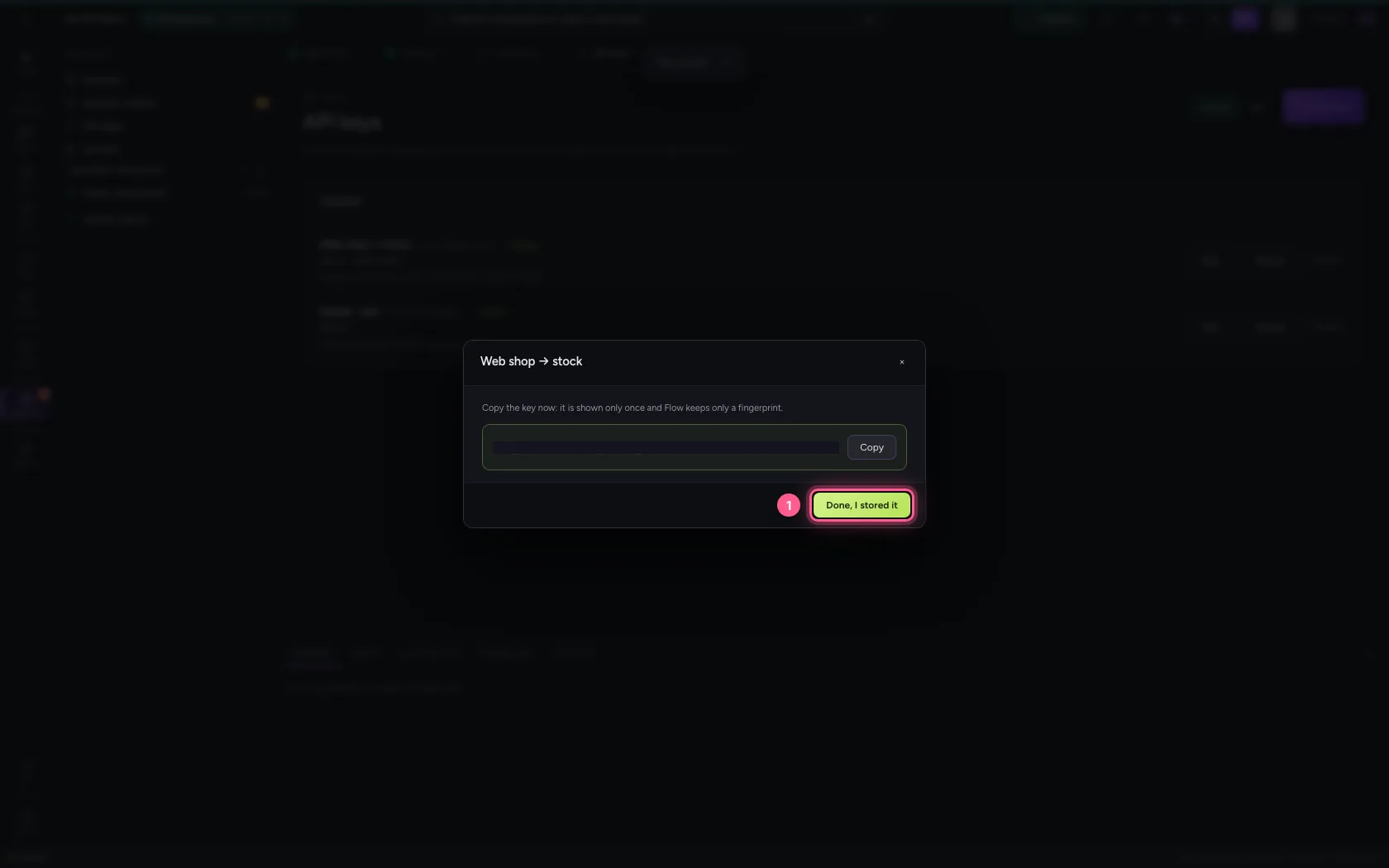
You see the key only once: Flow keeps only a fingerprint. Copy it into the consumer's password vault (covered up in this guide).
- Click Done, I stored it
Call the endpoint
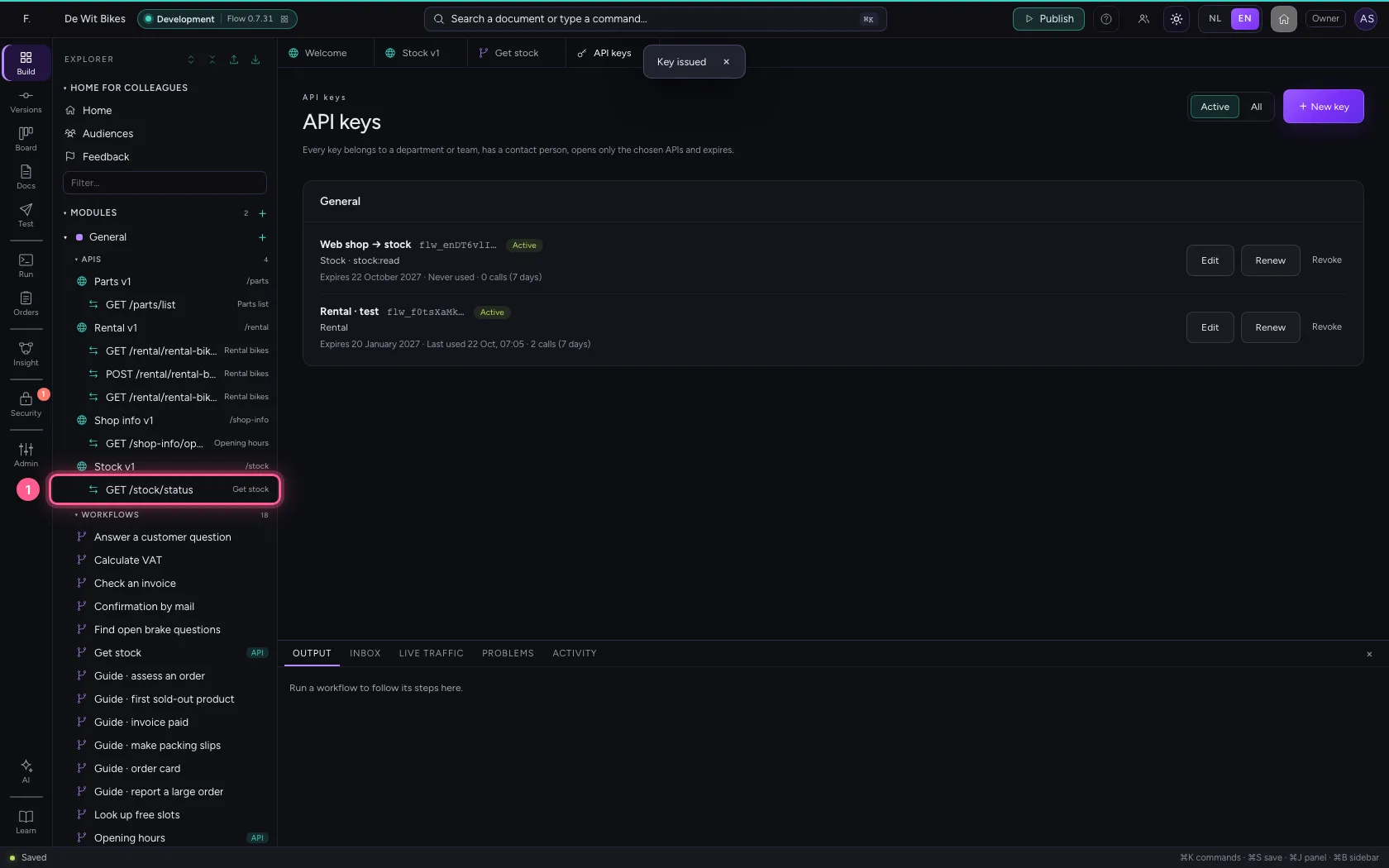
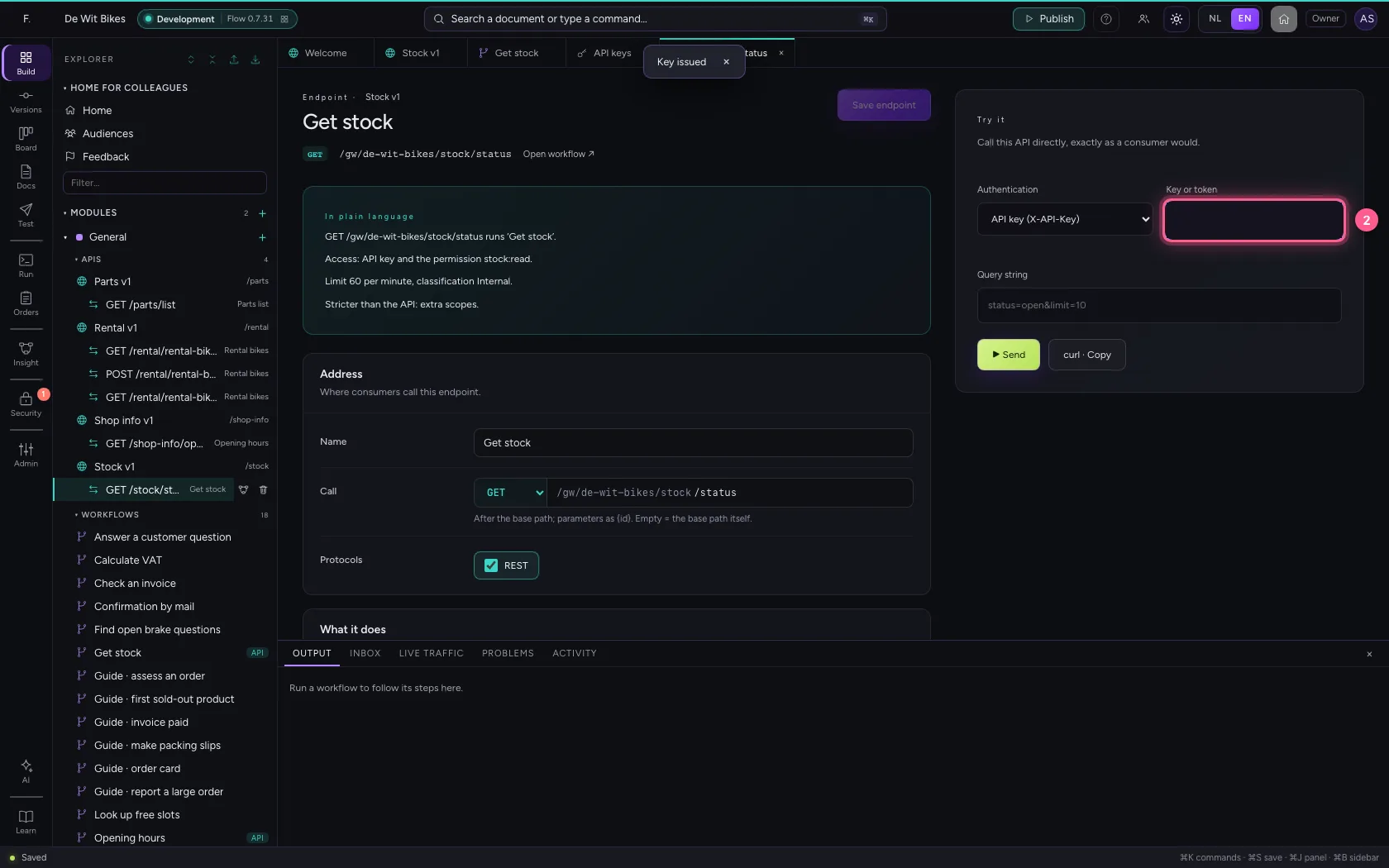
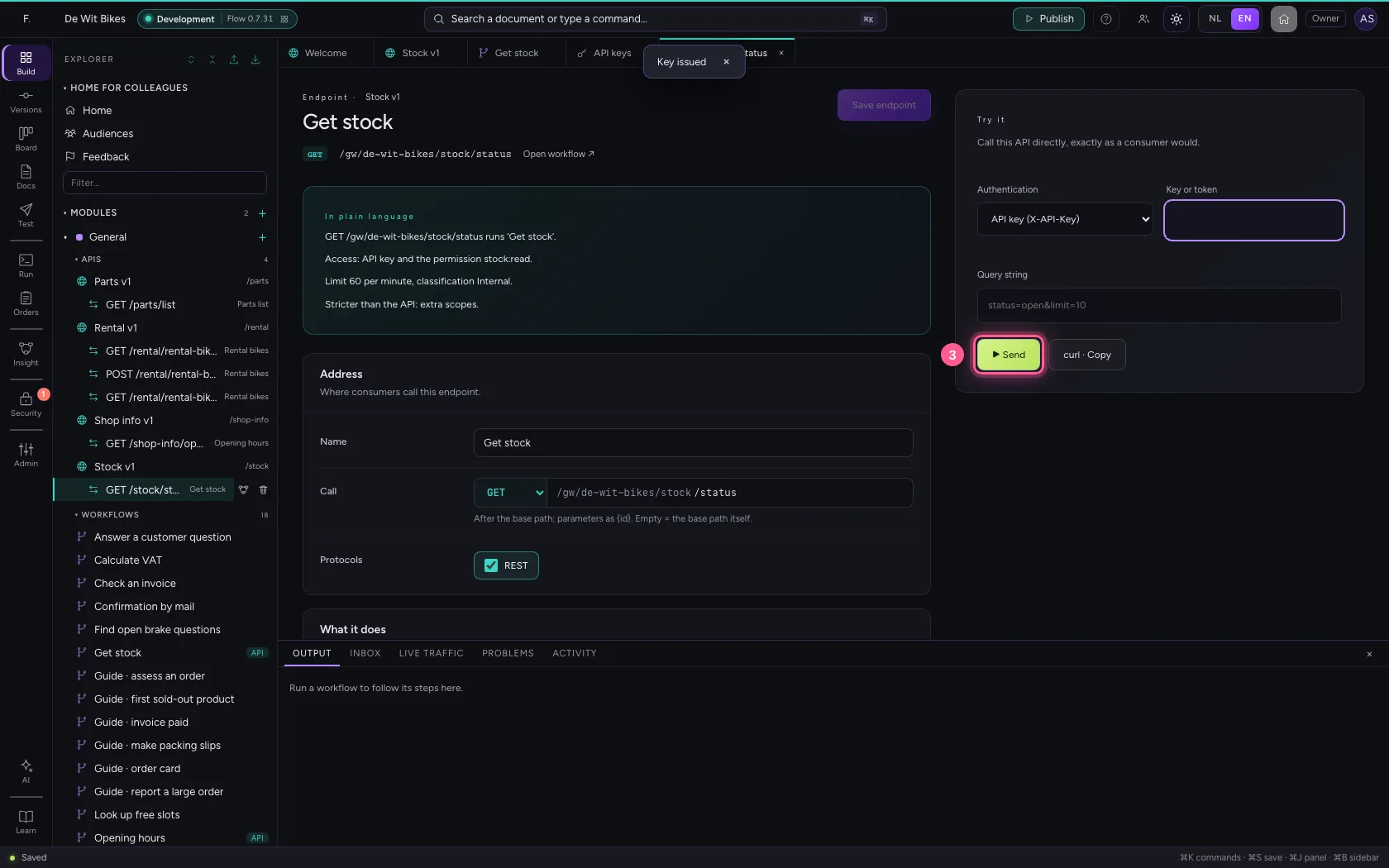
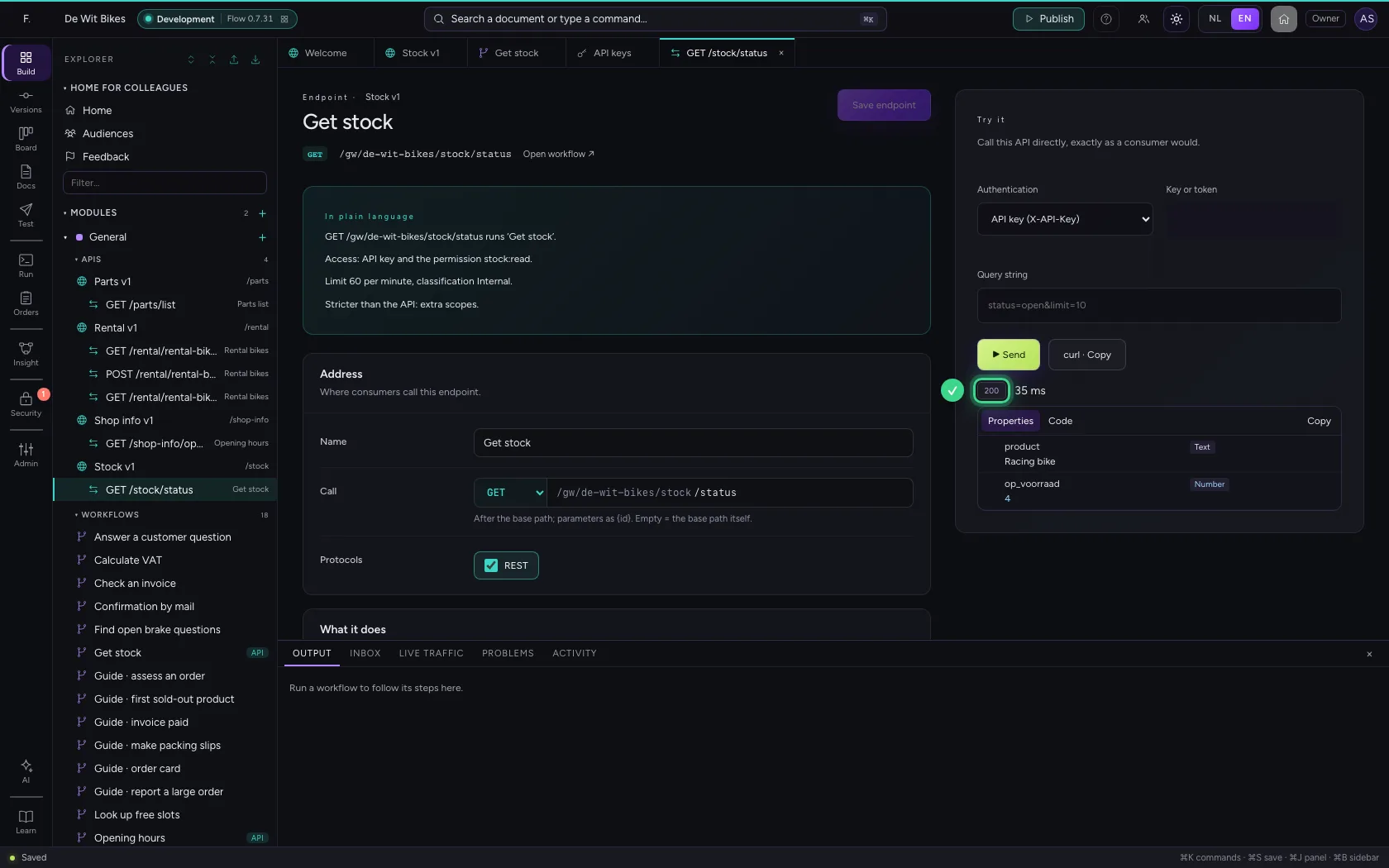
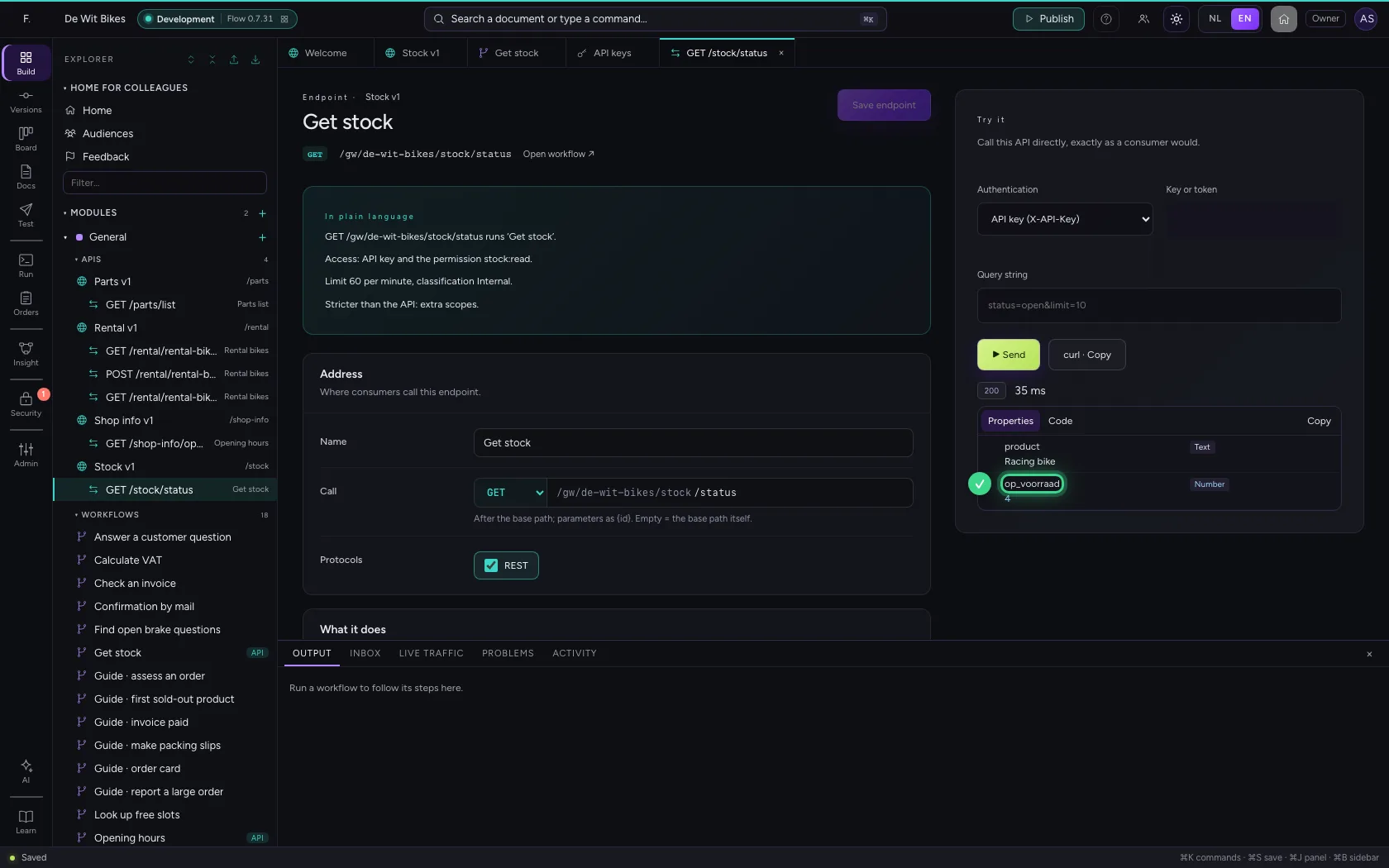
Open the endpoint. On the right is Try it: it calls the API exactly as a consumer would, with the key in the X-API-Key header. You see the status code, the time and the answer.
- Click the endpoint
- In Key or token, type
••••••••
- Click ▶ Send
This guide was carried out step by step on 22 Oct 2026 by an automated test on Flow (version 3e563176).