Operating a website with browser steps (RPA)
- Step 1 · Open Development and create a workflow
- Step 2 · Add a browser session
- Step 3 · Switch operating websites on, right there
- Step 4 · Say which site the session may visit
- Step 5 · Fill in the customer number
- Step 6 · Click Search
- Step 7 · Read the table of invoices
- Step 8 · Put the steps in order
- Step 9 · Save and run
- Step 10 · See what the browser saw
Not every system has an API. A supplier portal where you look up invoices every week, Flow can operate like a person too: fill in, click, read a table. You build a browser session on a demo portal (if operating websites is still off, you switch it on at the step itself) and look at the screenshots Flow keeps with the run.
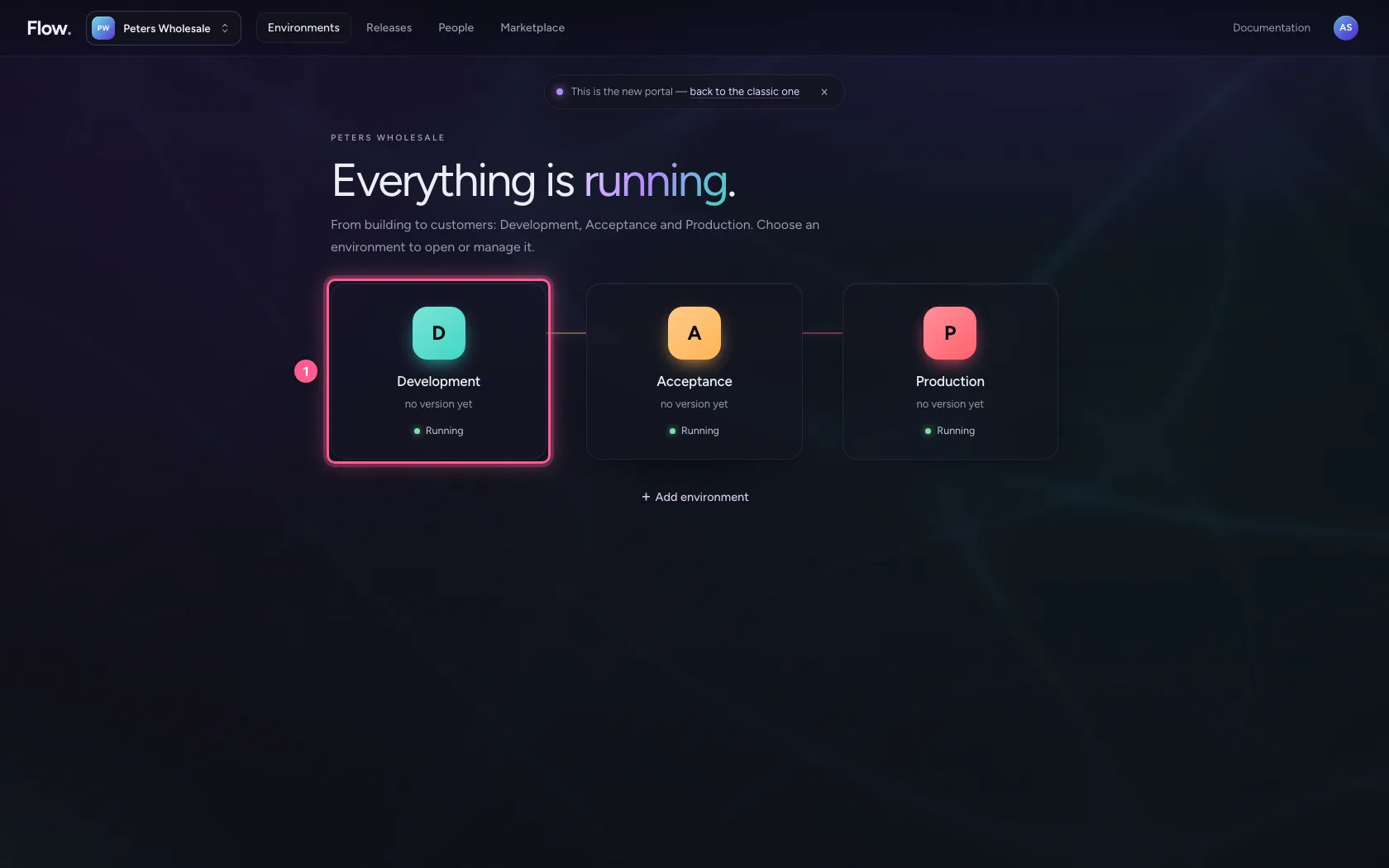
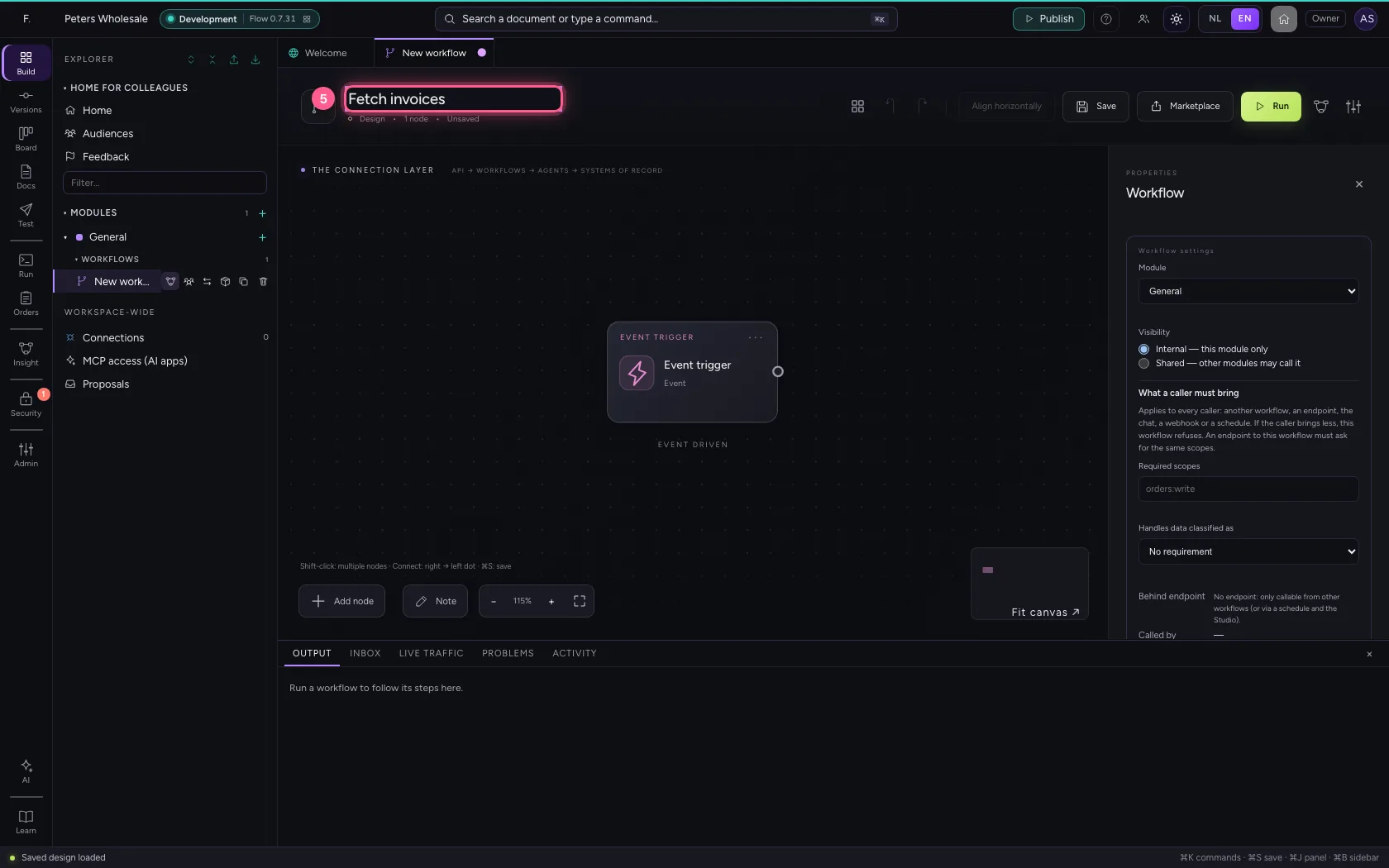
Open Development and create a workflow
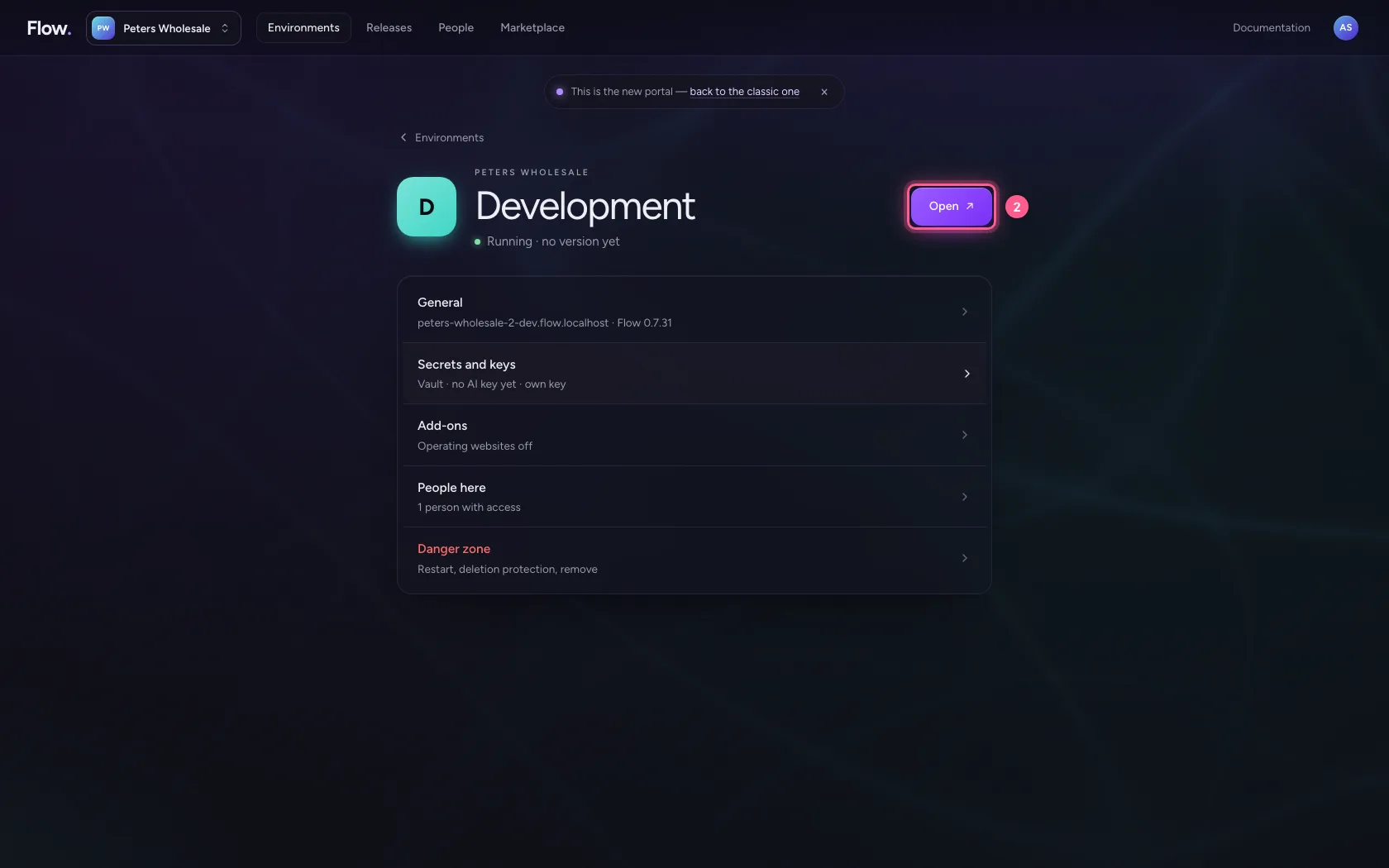
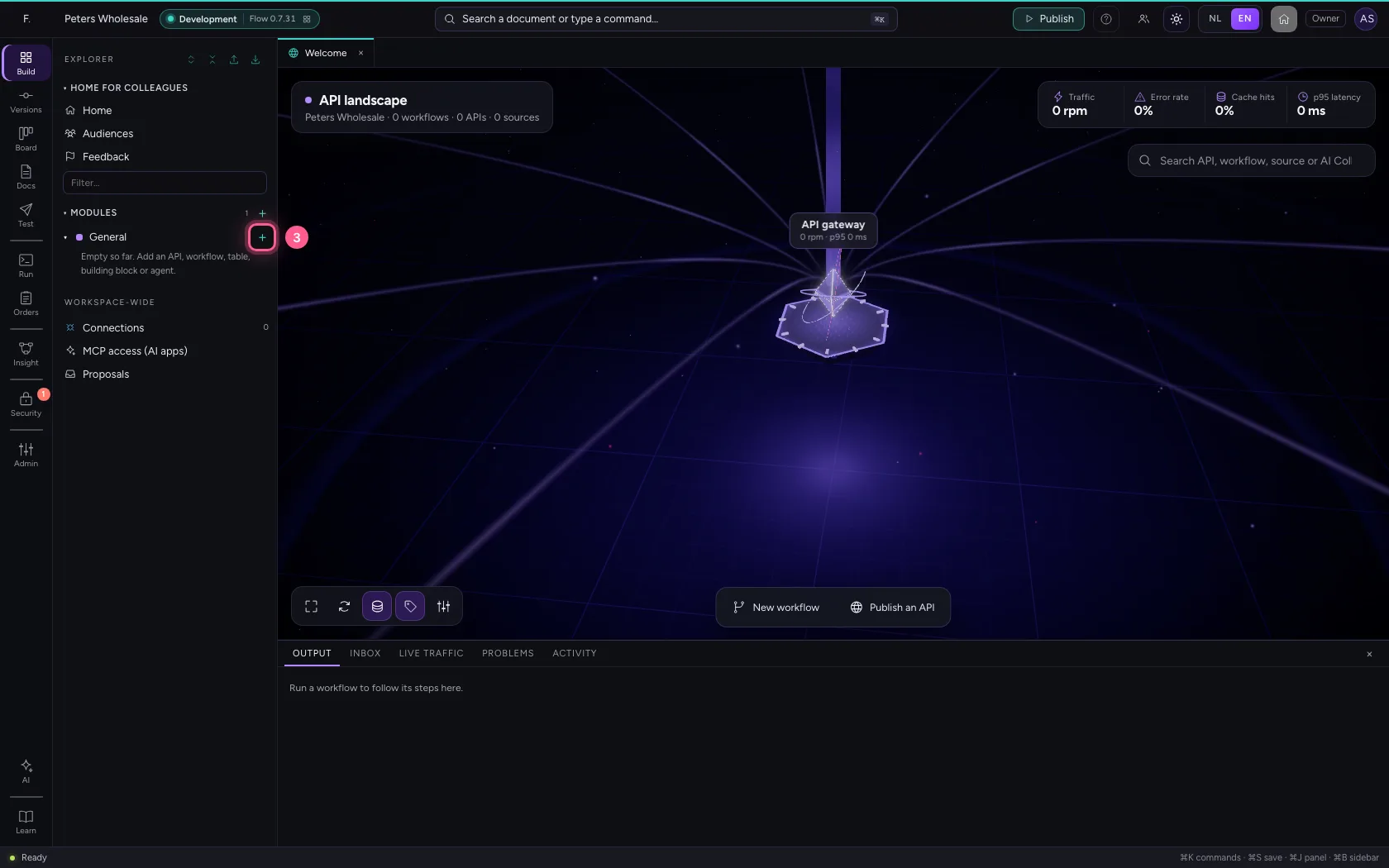
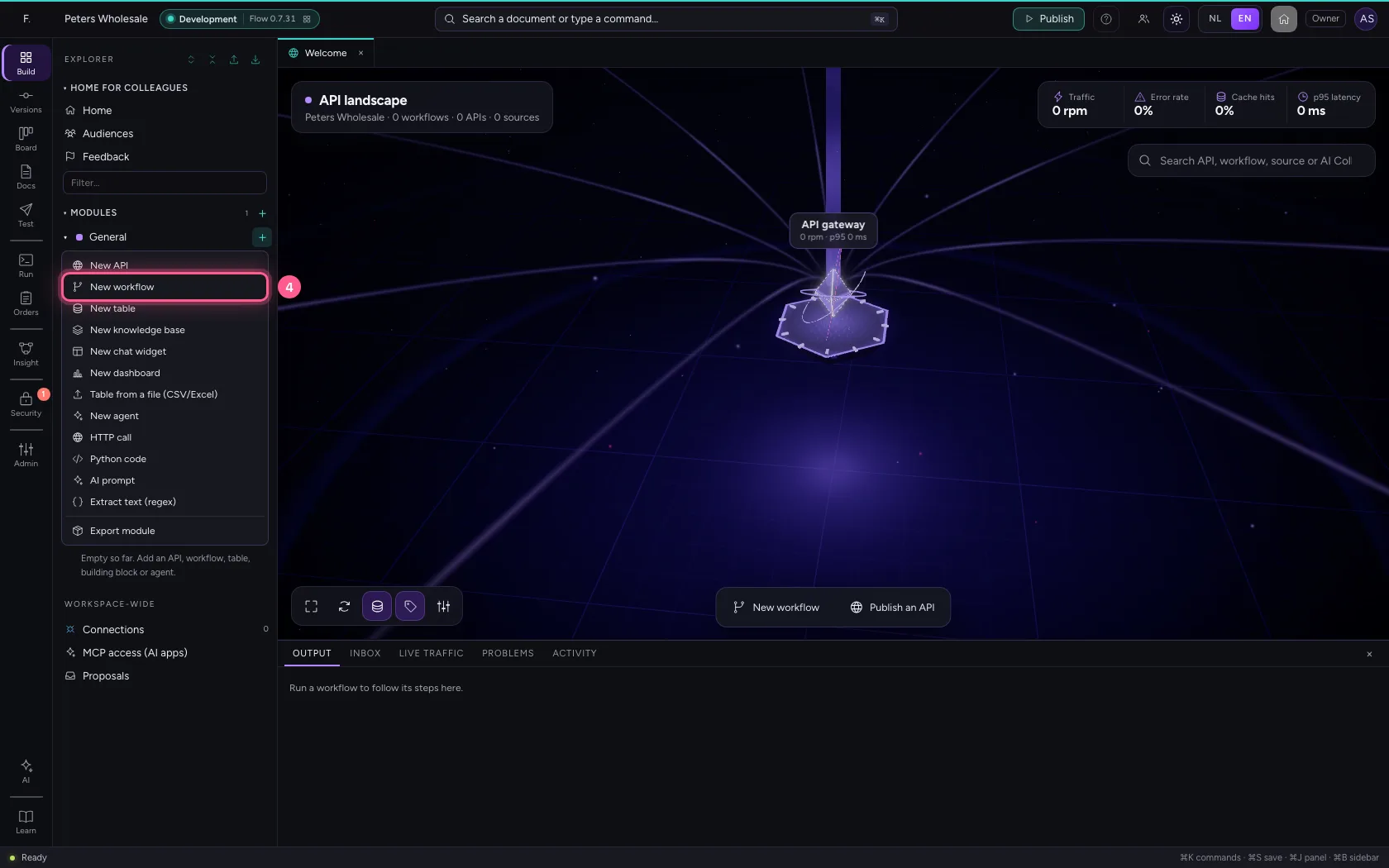
In the portal, under Environments, click Development, and there Open. Create a new workflow in the module General.
- Click Development
- Click Open ↗
- Click Add to General
- Click New workflow
- In Workflow name, type
Fetch invoices
Add a browser session
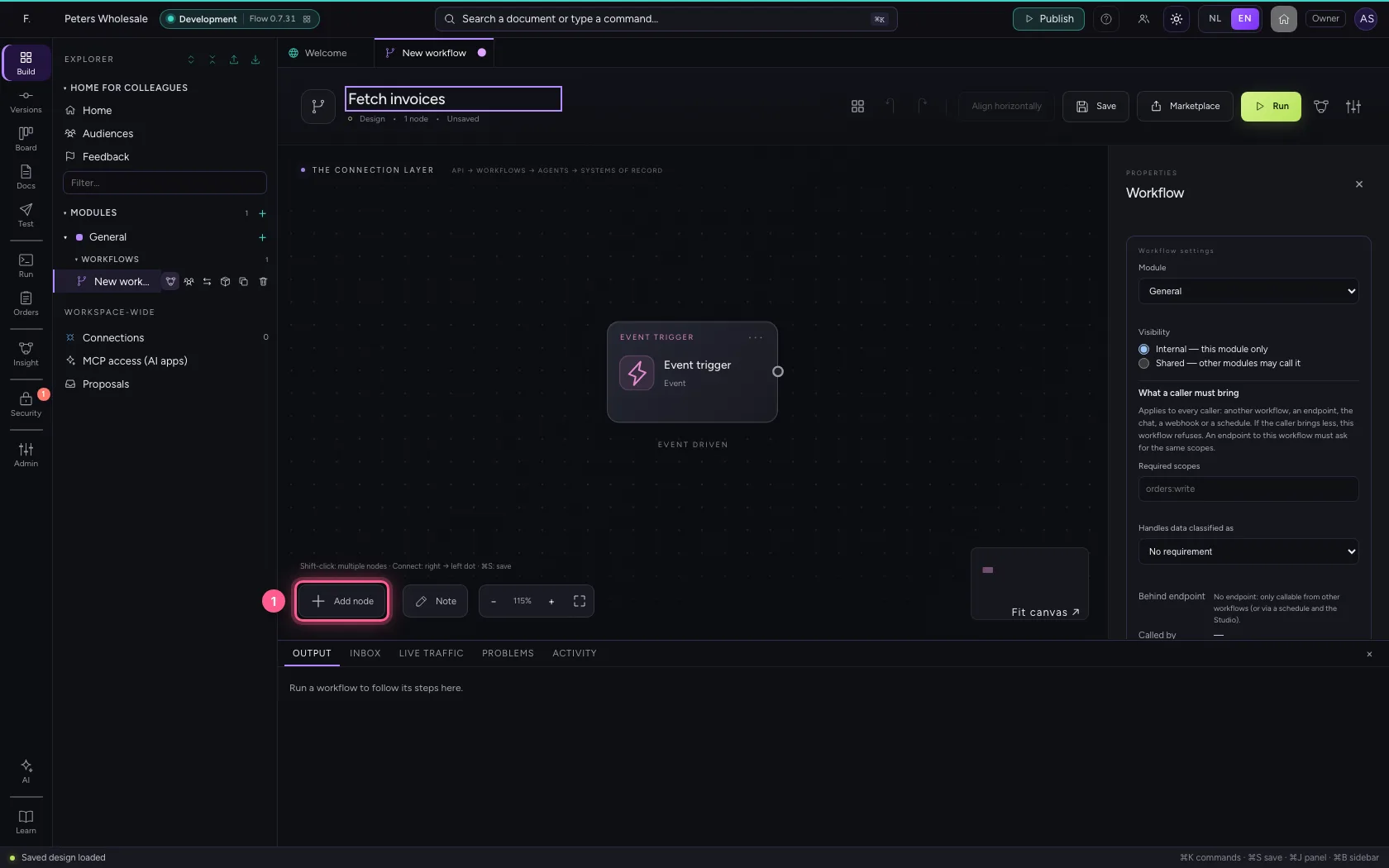
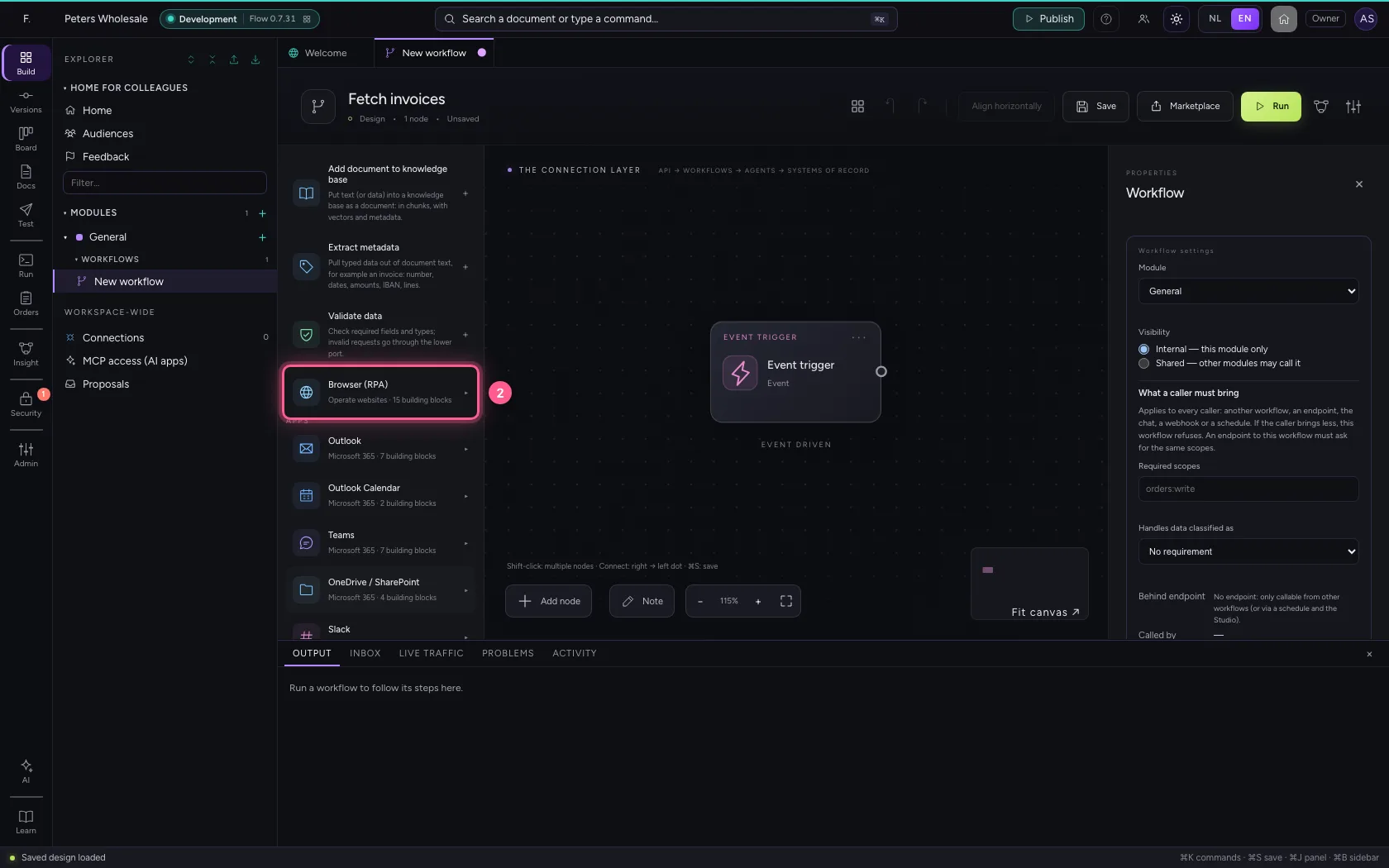
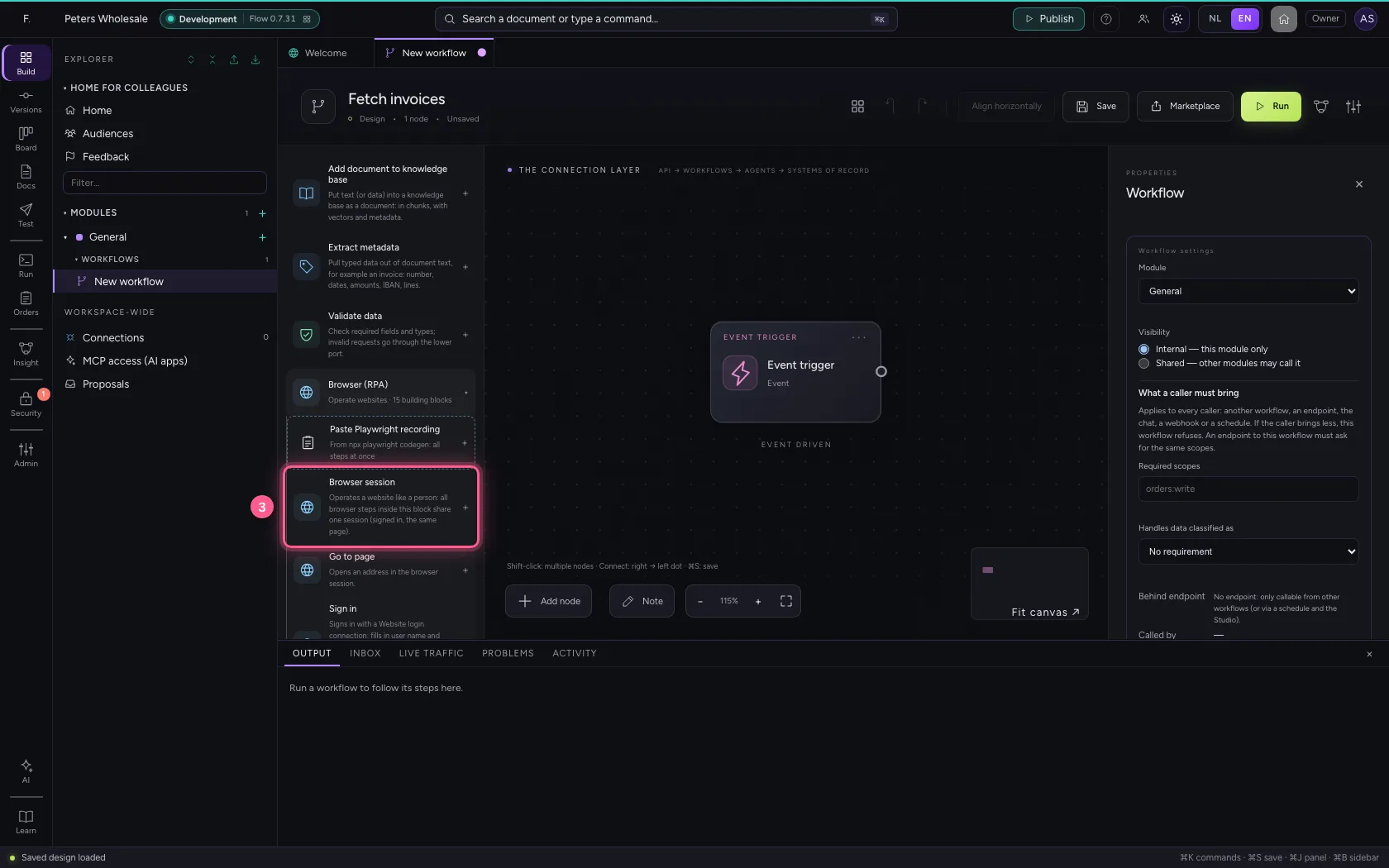
In the library the browser steps are grouped under Browser (RPA). Start with Browser session: an area in which all steps share the same browser — the same sign-in, the same page. After the area, the browser closes.
- Click Add node
- Click Browser (RPA) Operate websites · 15 building blocks ▸
- Click Browser session
Switch operating websites on, right there
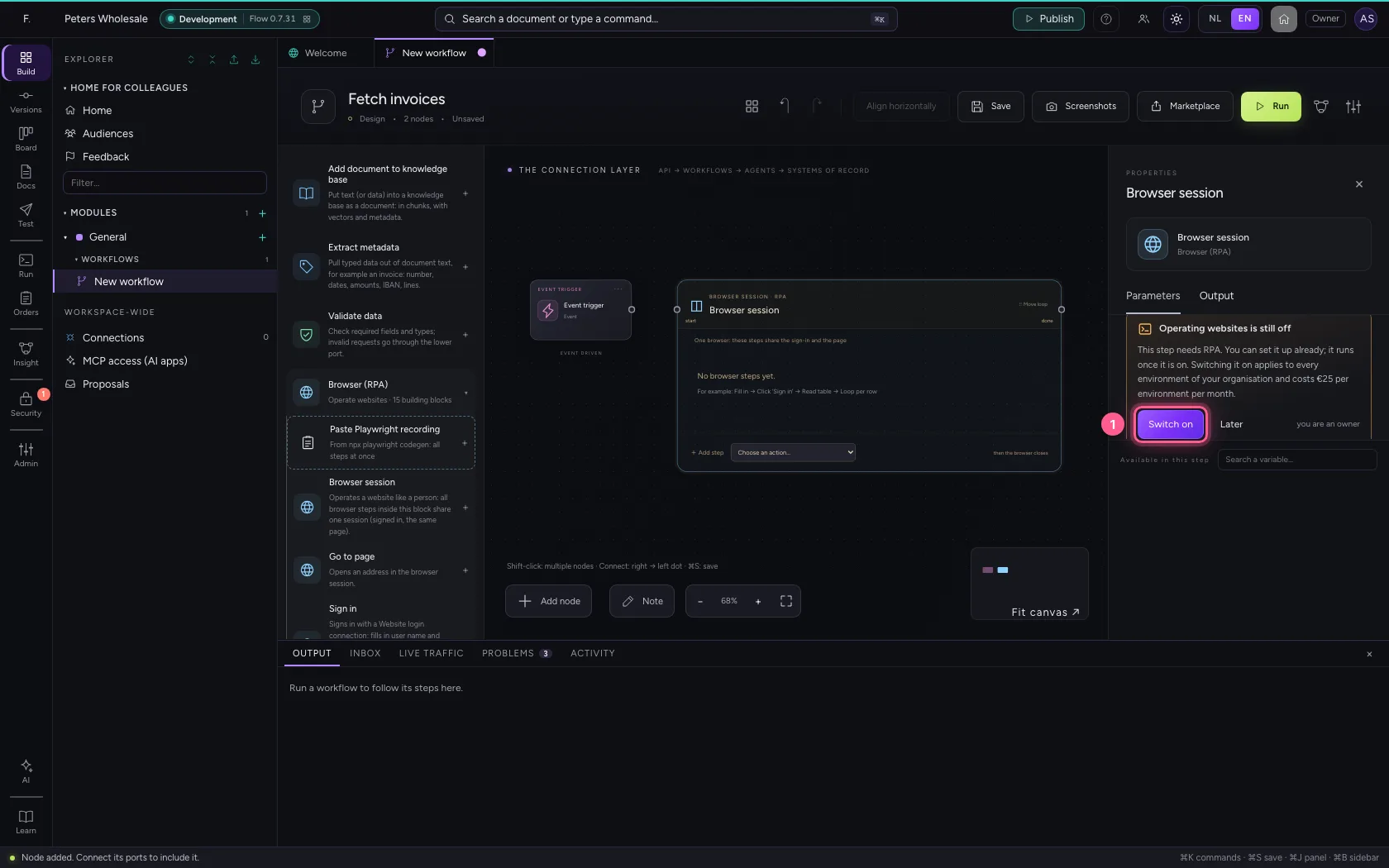
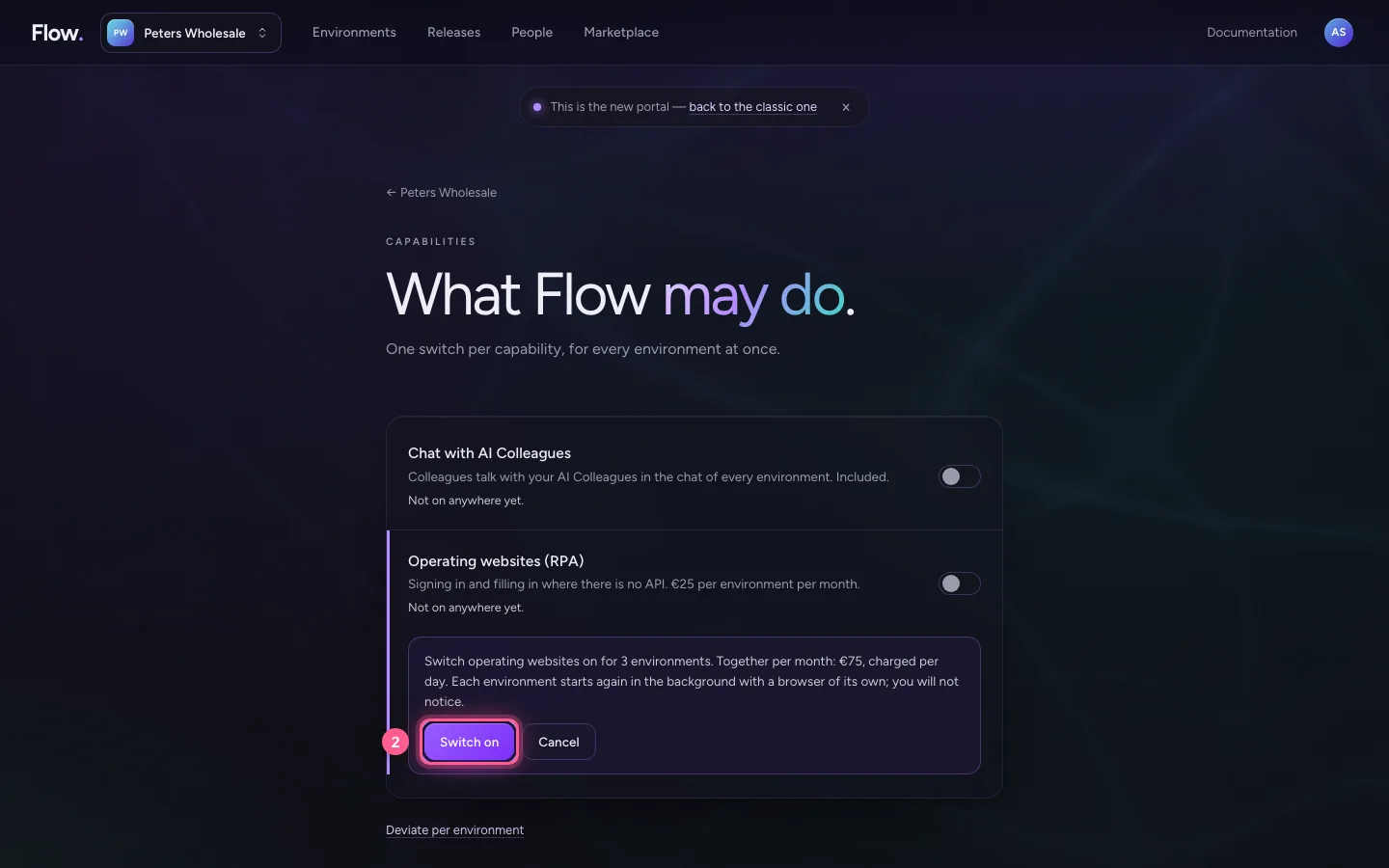
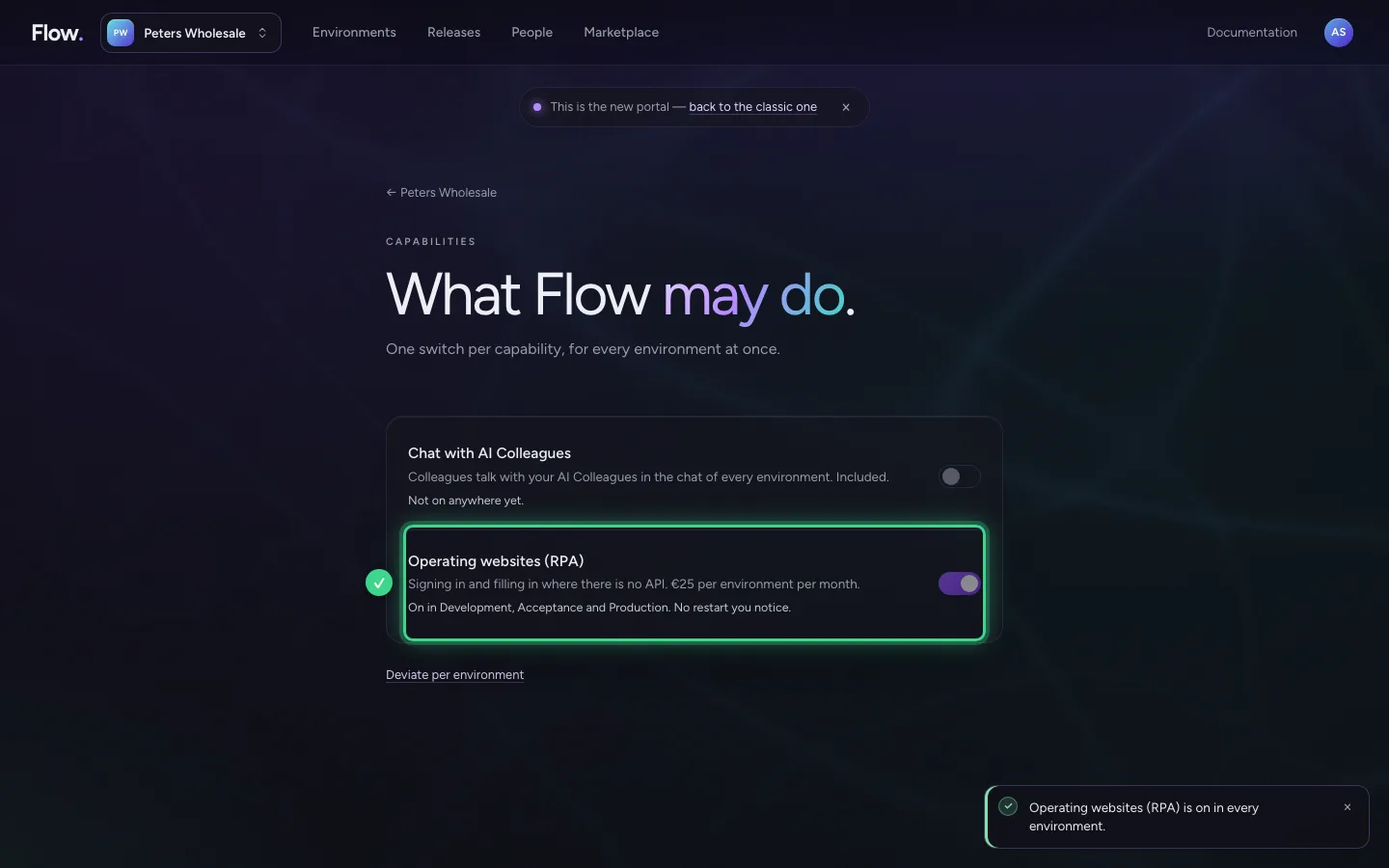
Browser steps run in a browser of their own next to the environment, shielded from everything else. If that is still off, the step says so itself, with what it costs. As an owner you click Switch on: the portal opens at that one switch and you confirm with Switch on. It applies to every environment of your organisation at once; each environment starts again in the background with a browser of its own. If you are not an owner, it says Ask the owner: the owners get your request in the portal and by e-mail.
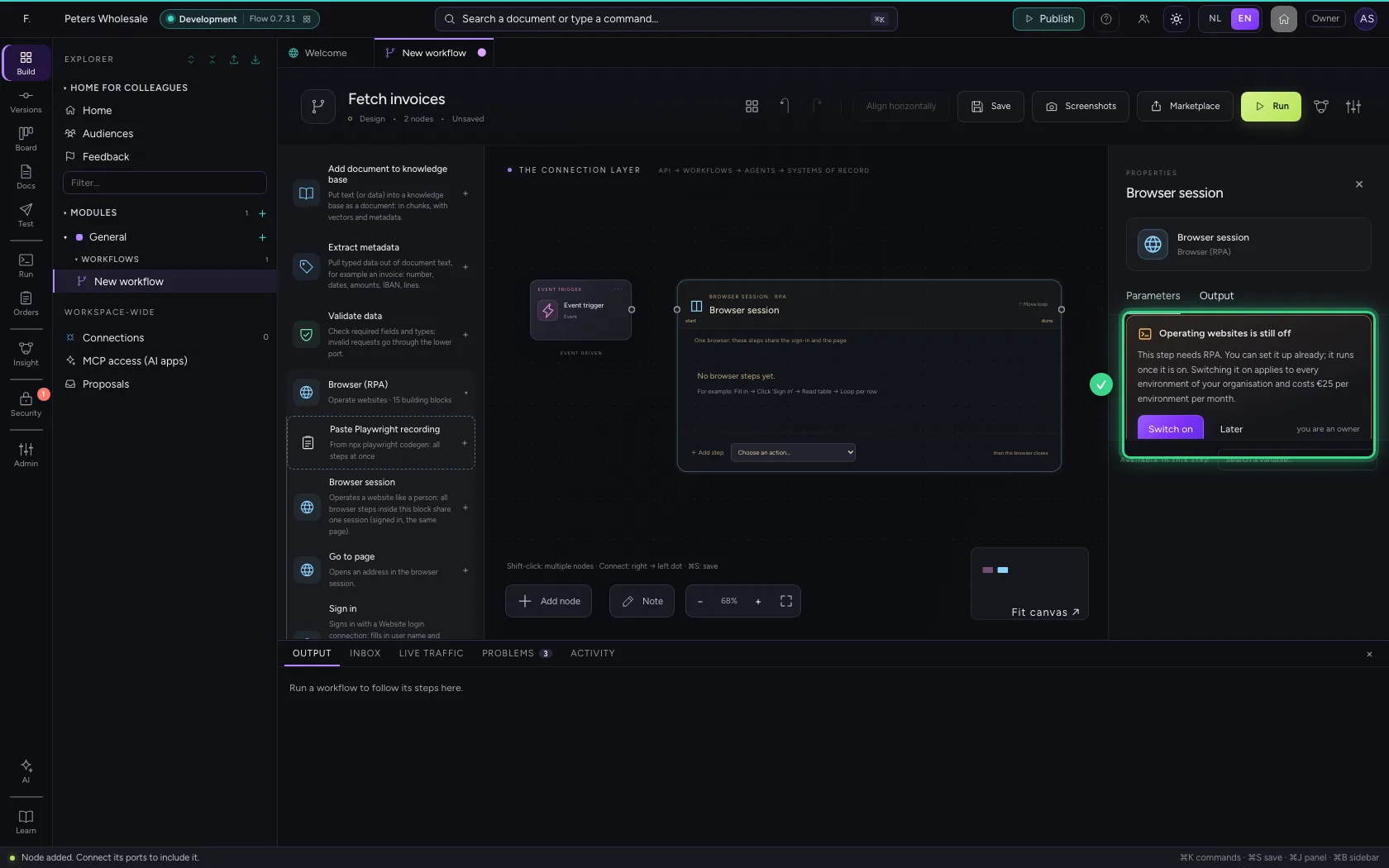
- Click Switch on
- Click Switch on in the portal
Say which site the session may visit
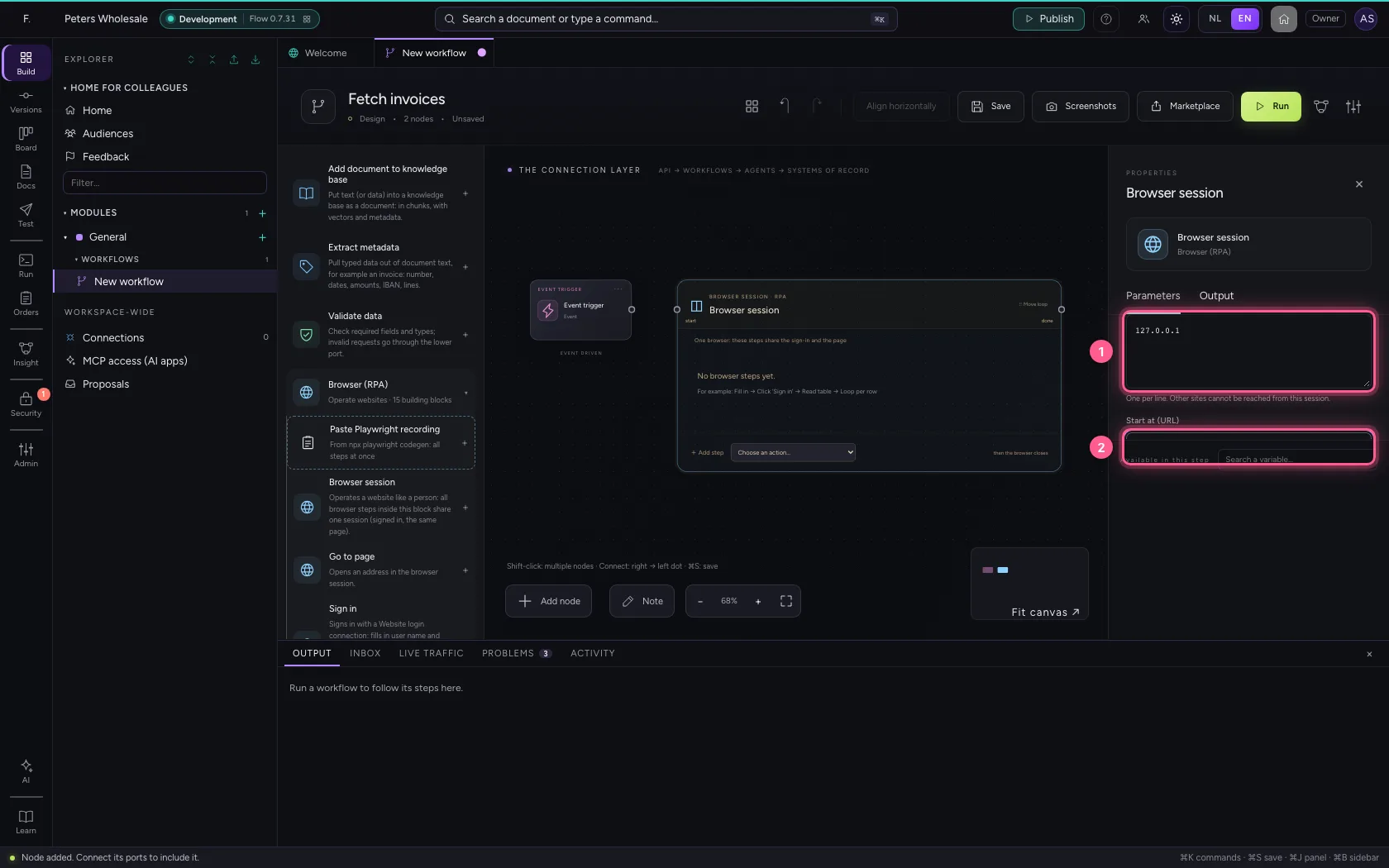
Only the sites you list here can be reached; every other request the page makes is blocked. Start at is the page where the browser opens. Screenshots after every step are on by default. Then connect the trigger to the session.
- In Allowed sites, type
127.0.0.1 - In Start at (URL), type
http://127.0.0.1:52545/rpa-browser-demo.html?lang=en
- Click the trigger's dot
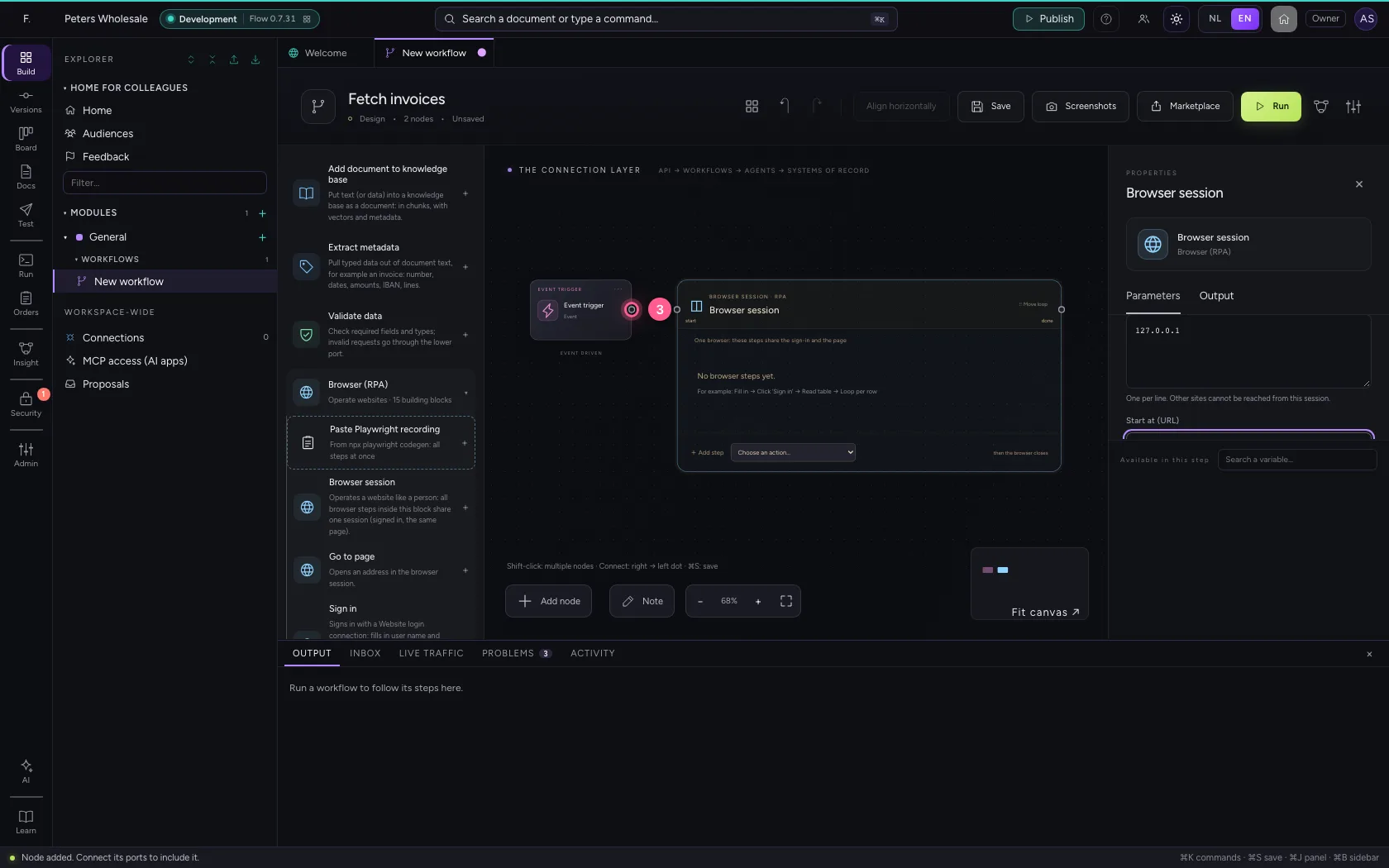
- Click the session's dot
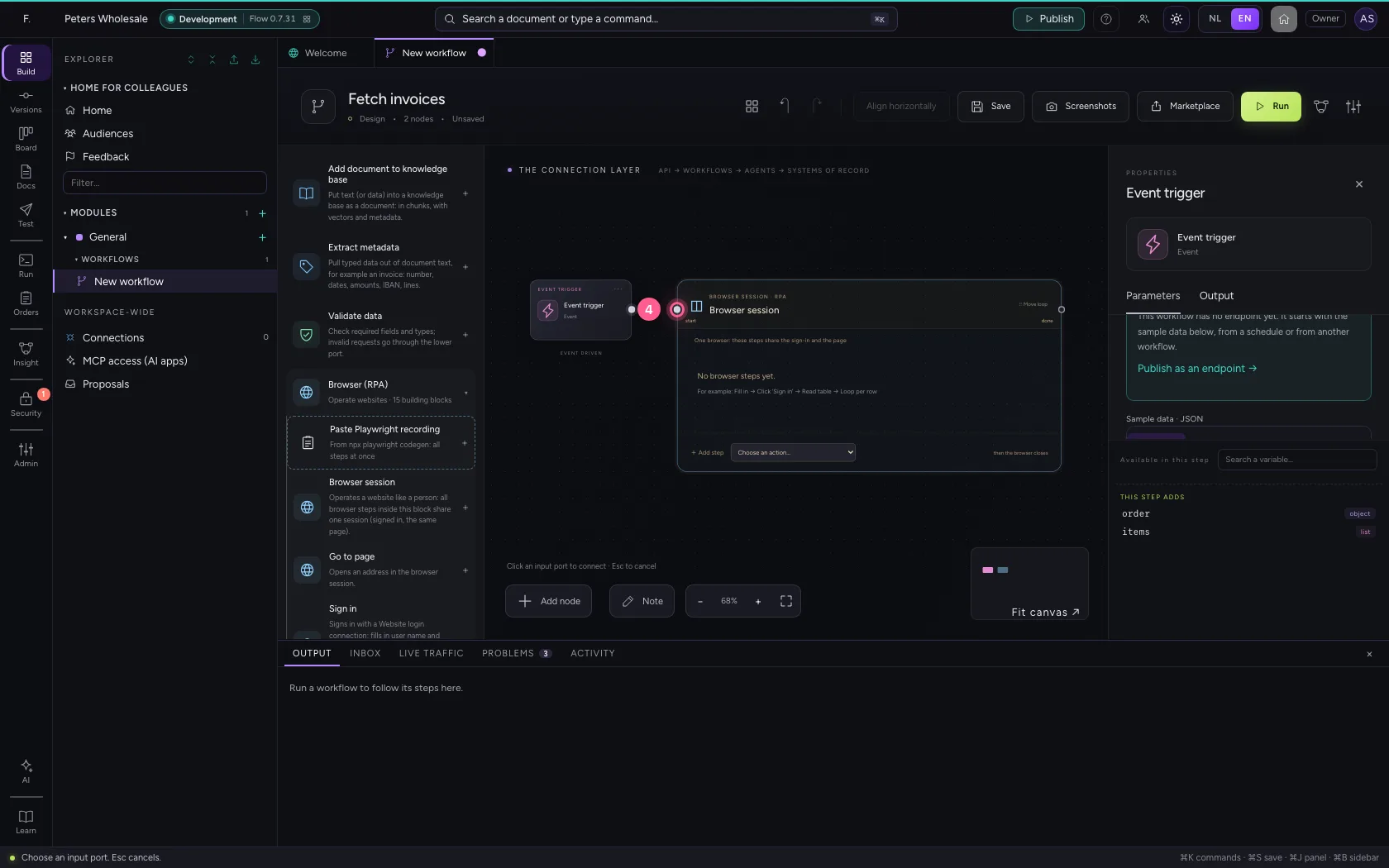
Fill in the customer number
With Add step in the area you choose Fill in. You point at the field the way a person sees it: by its label Customer number. That way the step keeps working when the site's layout changes.
- In + Add step Choose an action… Go to page Sign in Click Fill in Choose from list C, choose Fill in
- In Find element by, choose Label
- In Element, type
Customer number - In Value, type
K-1001

Click Search
A Click step on the button named Search: role button, name as written on the button. The step waits by itself until the button is there.
- In + Add step Choose an action… Go to page Sign in Click Fill in Choose from list C, choose Click
- In Element, type
button - In Name (with role), type
Search

Read the table of invoices
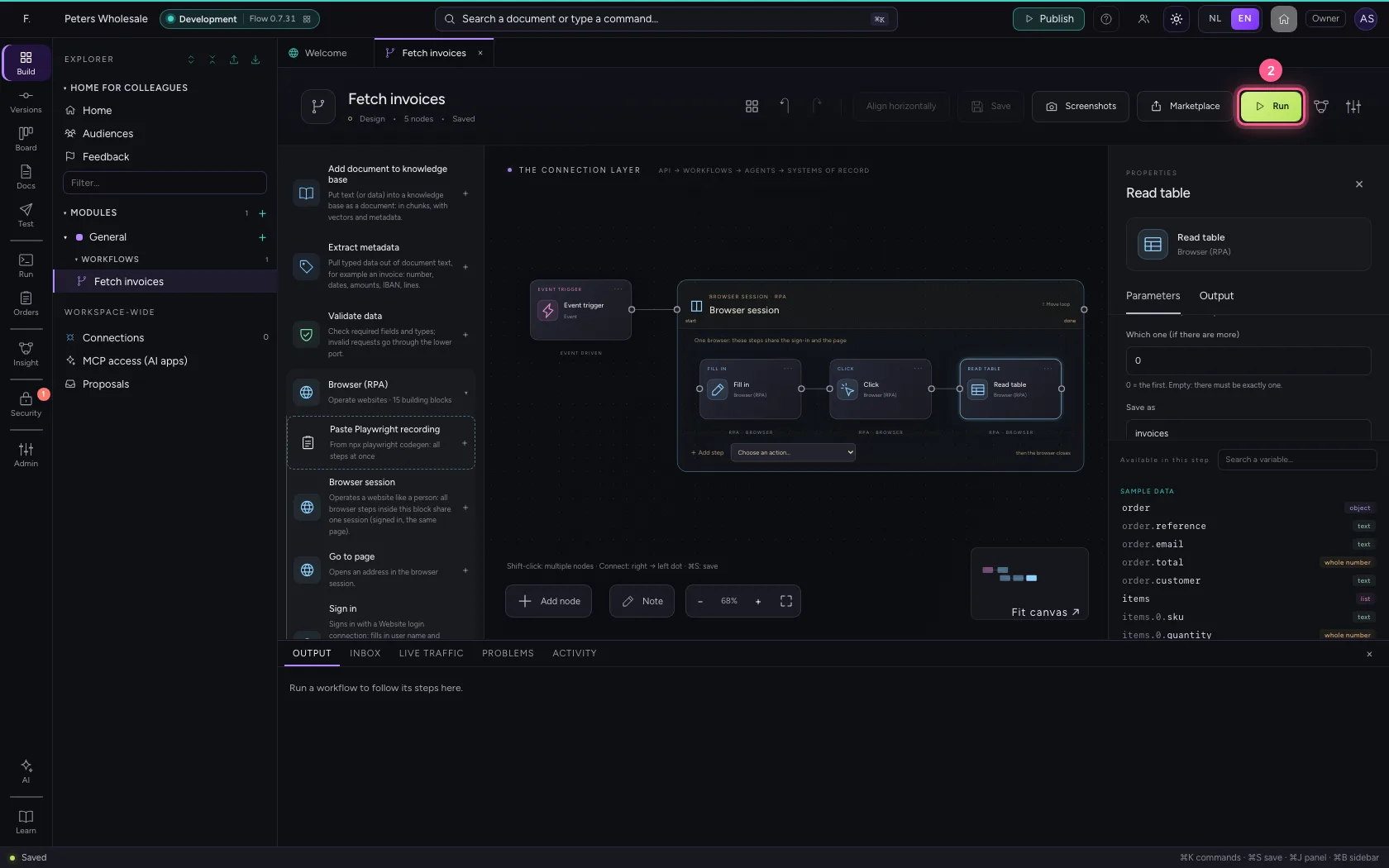
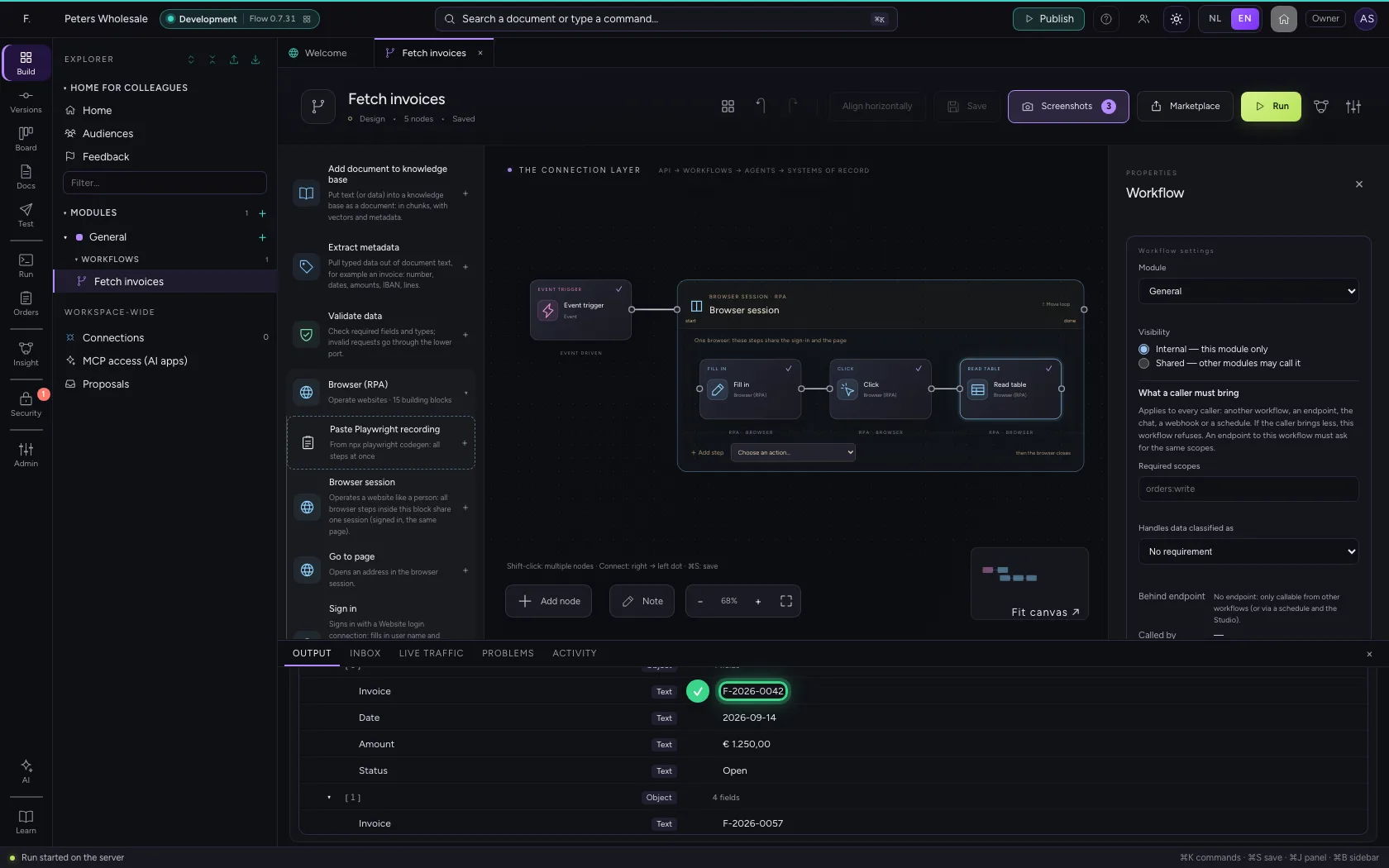
Read table turns a table on the page into a list: one item per row, with the column headings as fields. Store it as invoices; next steps (a loop, a Flow table) simply carry on with it.
- In + Add step Choose an action… Go to page Sign in Click Fill in Choose from list C, choose Read table
- In Find element by, choose Role and name (recommended)
- In Element, type
table - In Name (with role), type
Open invoices - In Save as, type
invoices

Put the steps in order
Inside the area the steps run in the order of their connections: fill in, click, read.
- Click out: Fill in
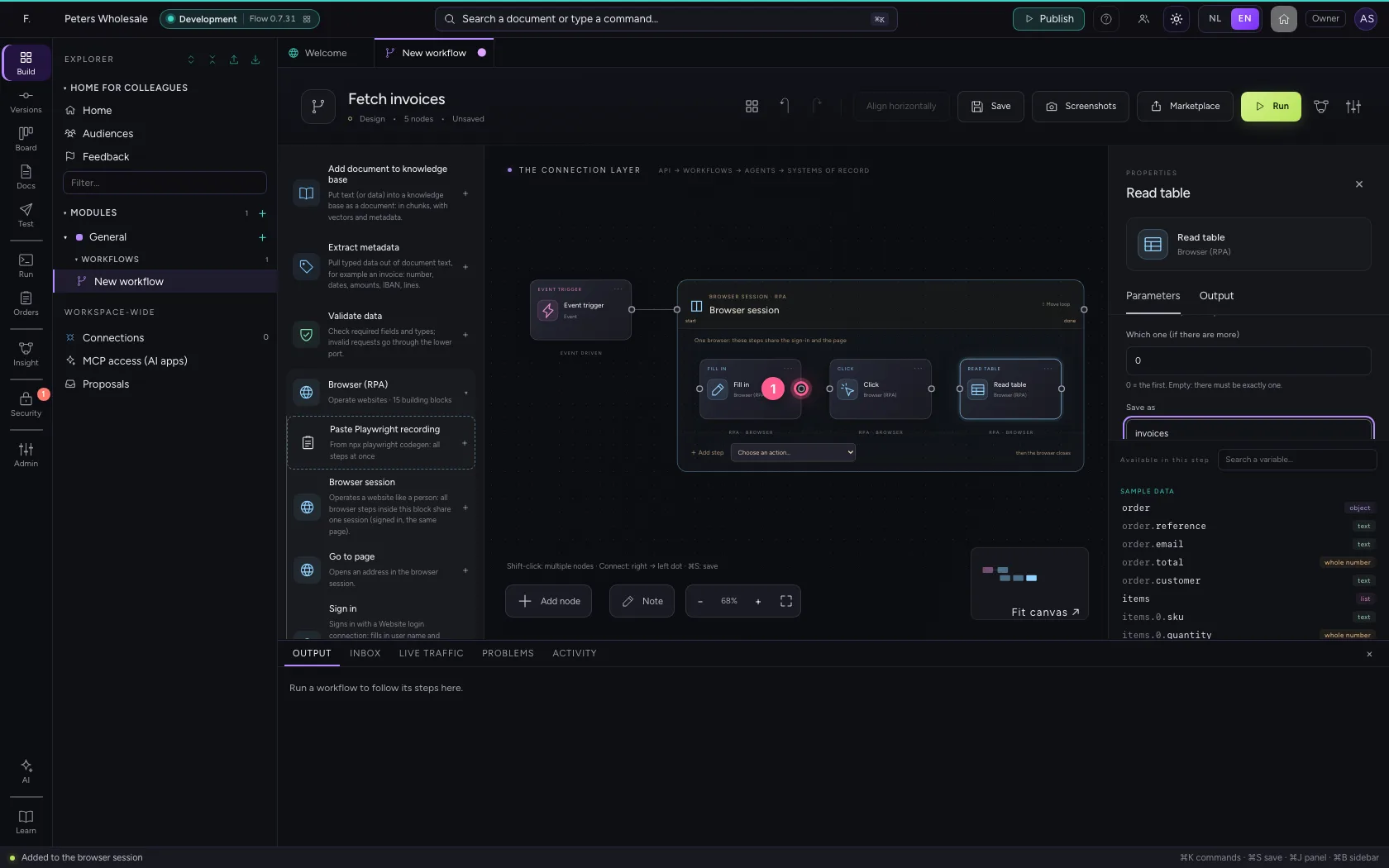
- Click in: Click
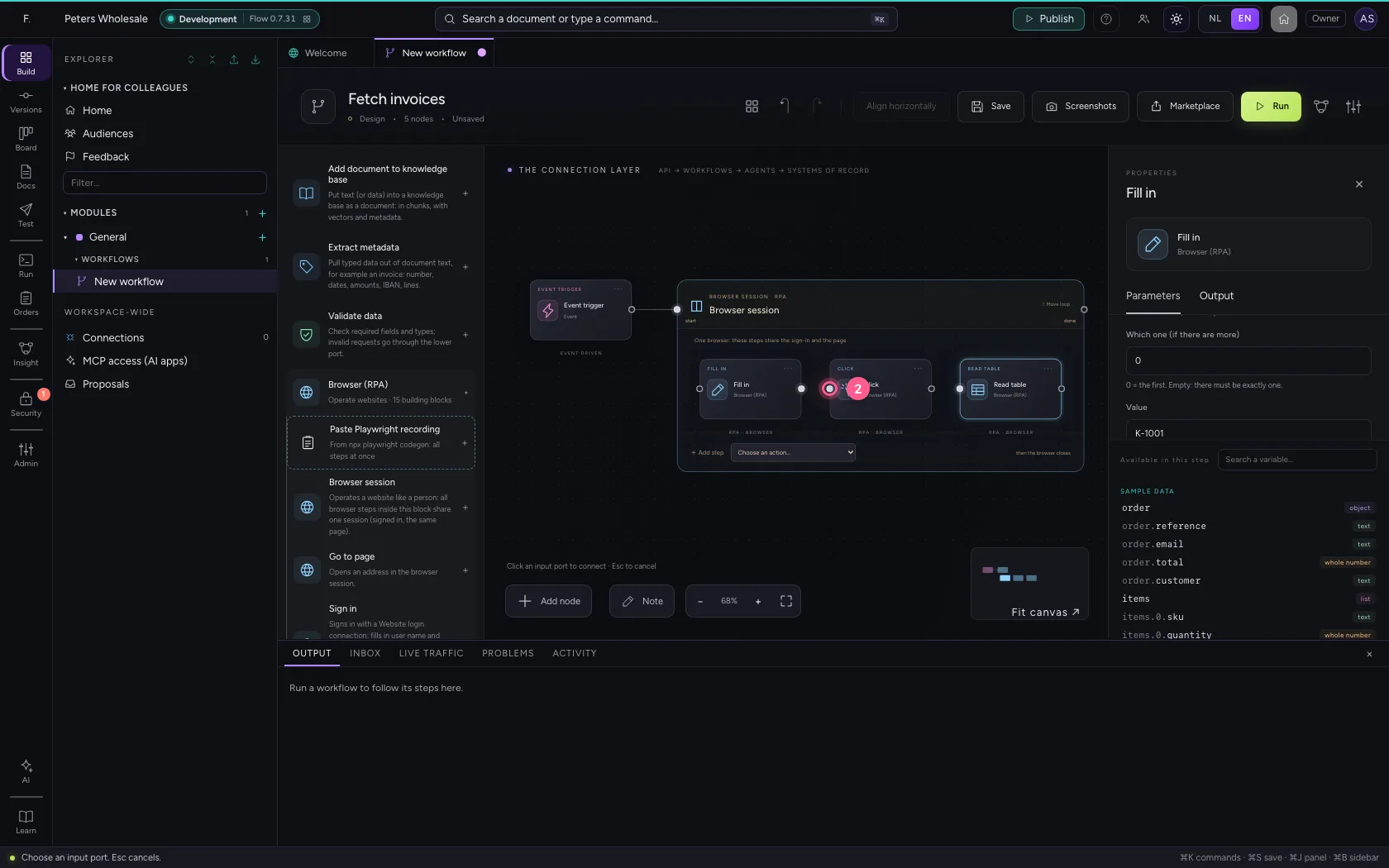
- Click out: Click
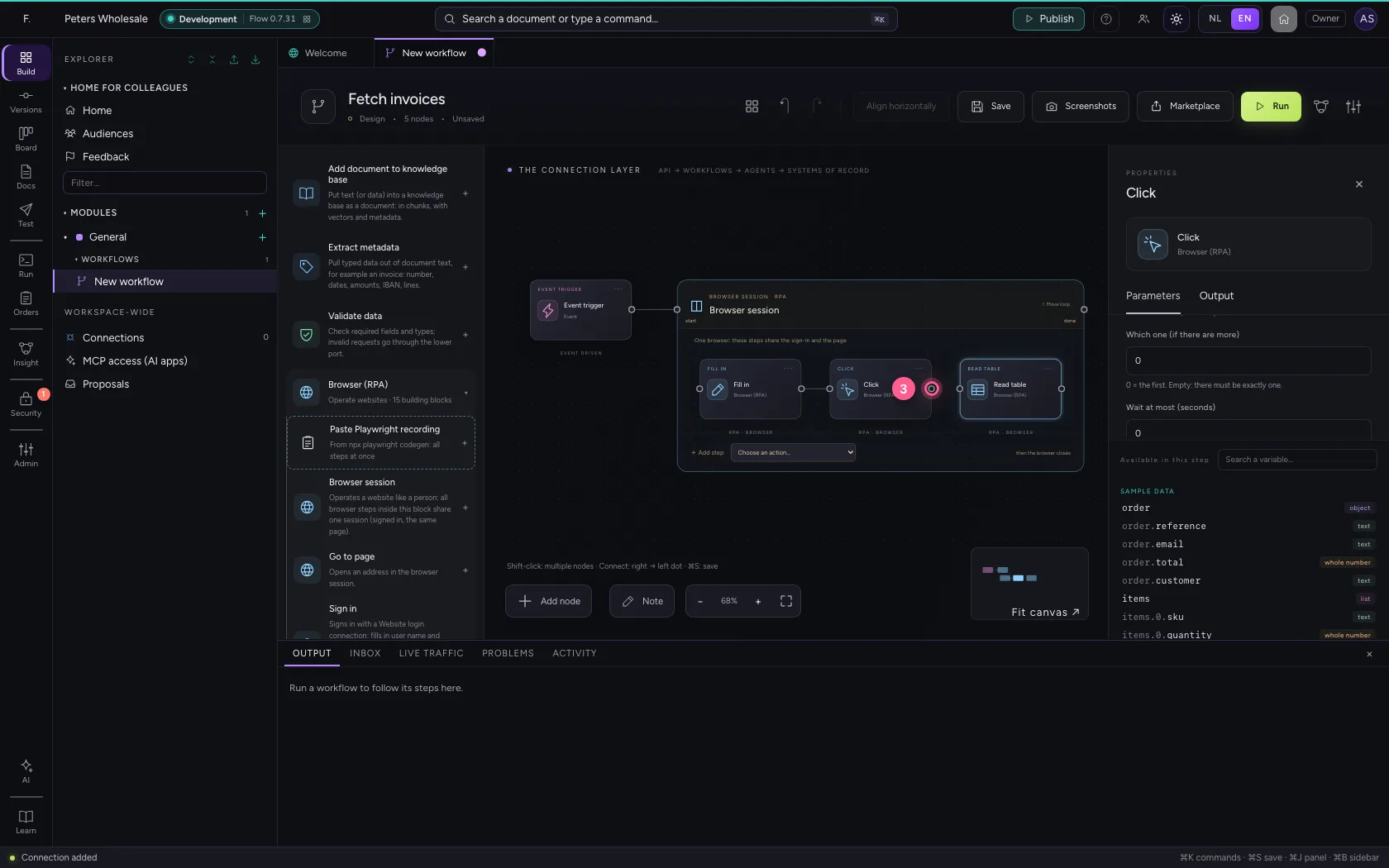
- Click in: Read table
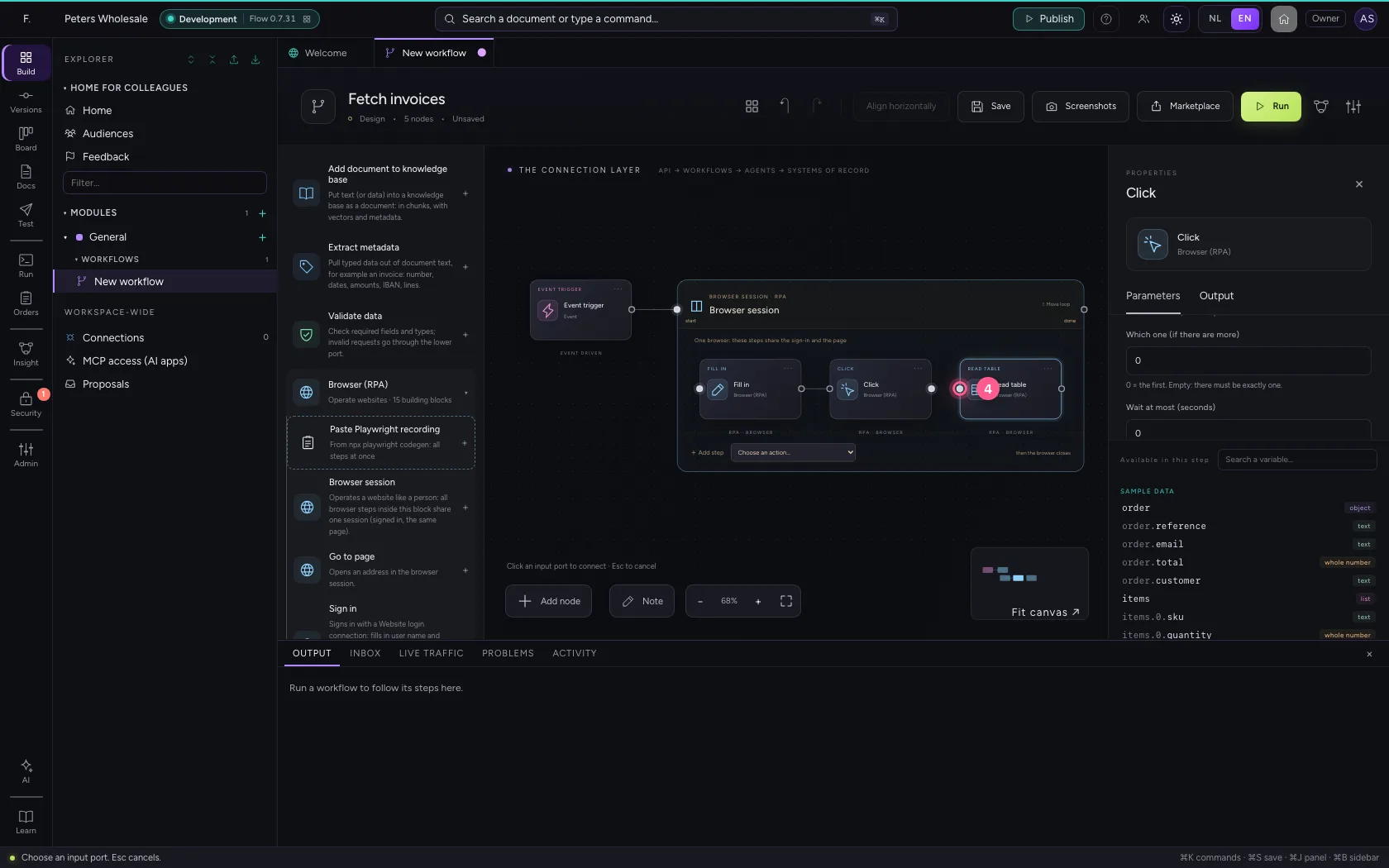
Save and run
Flow opens the browser, goes through the steps and closes it again. At the bottom you see every step; the invoices are in the data after the run.
- Click Save
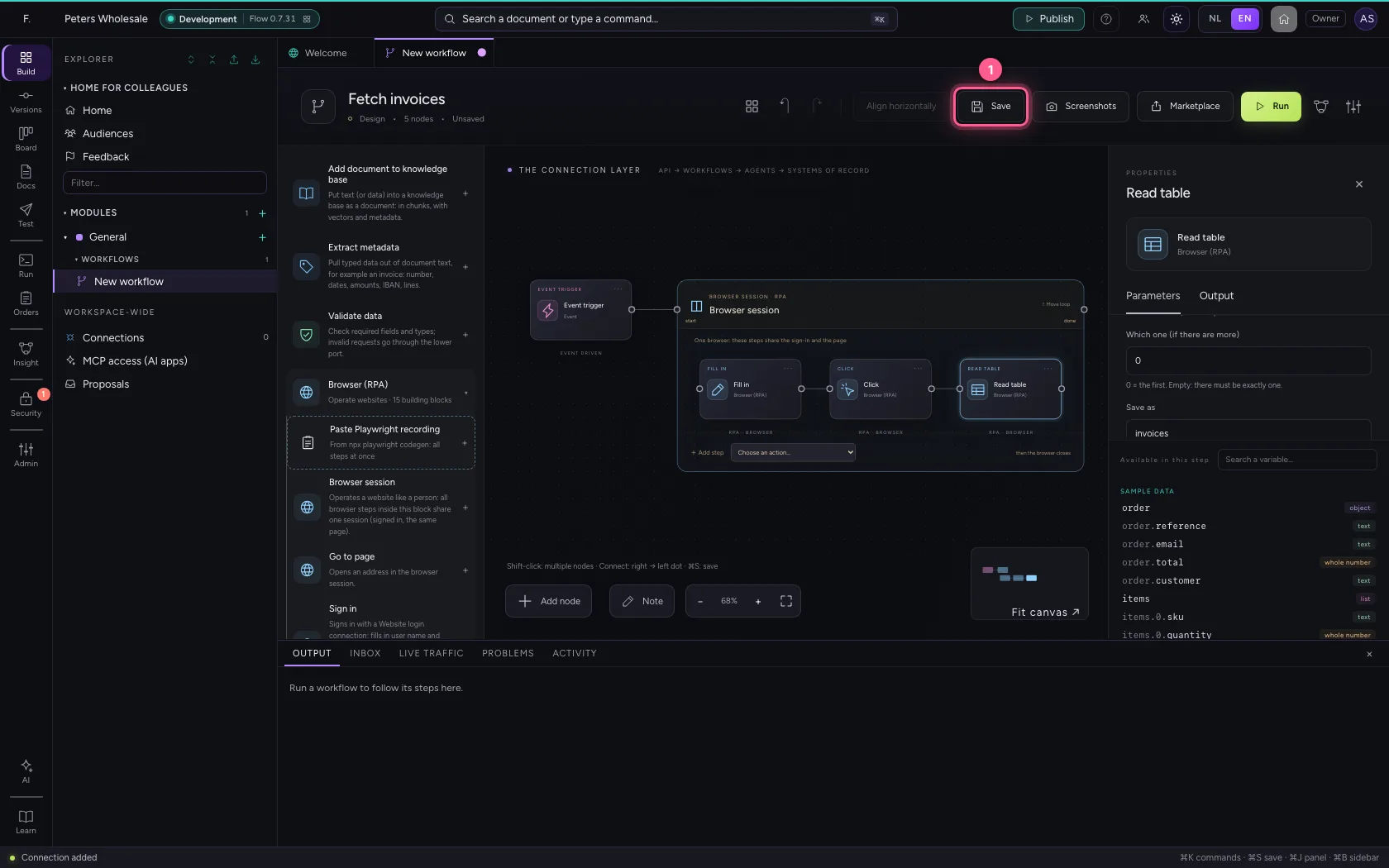
- Click Run
See what the browser saw
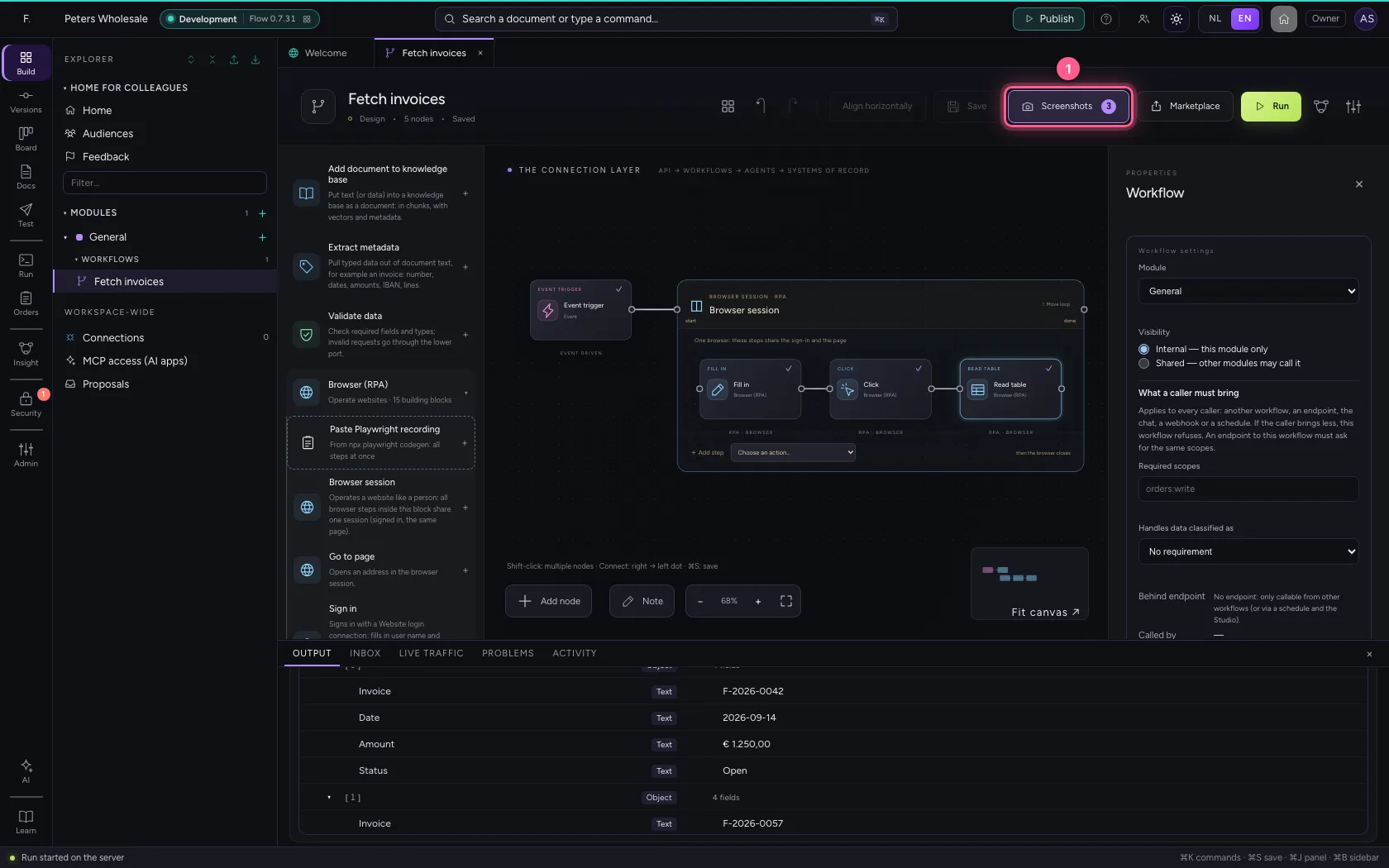
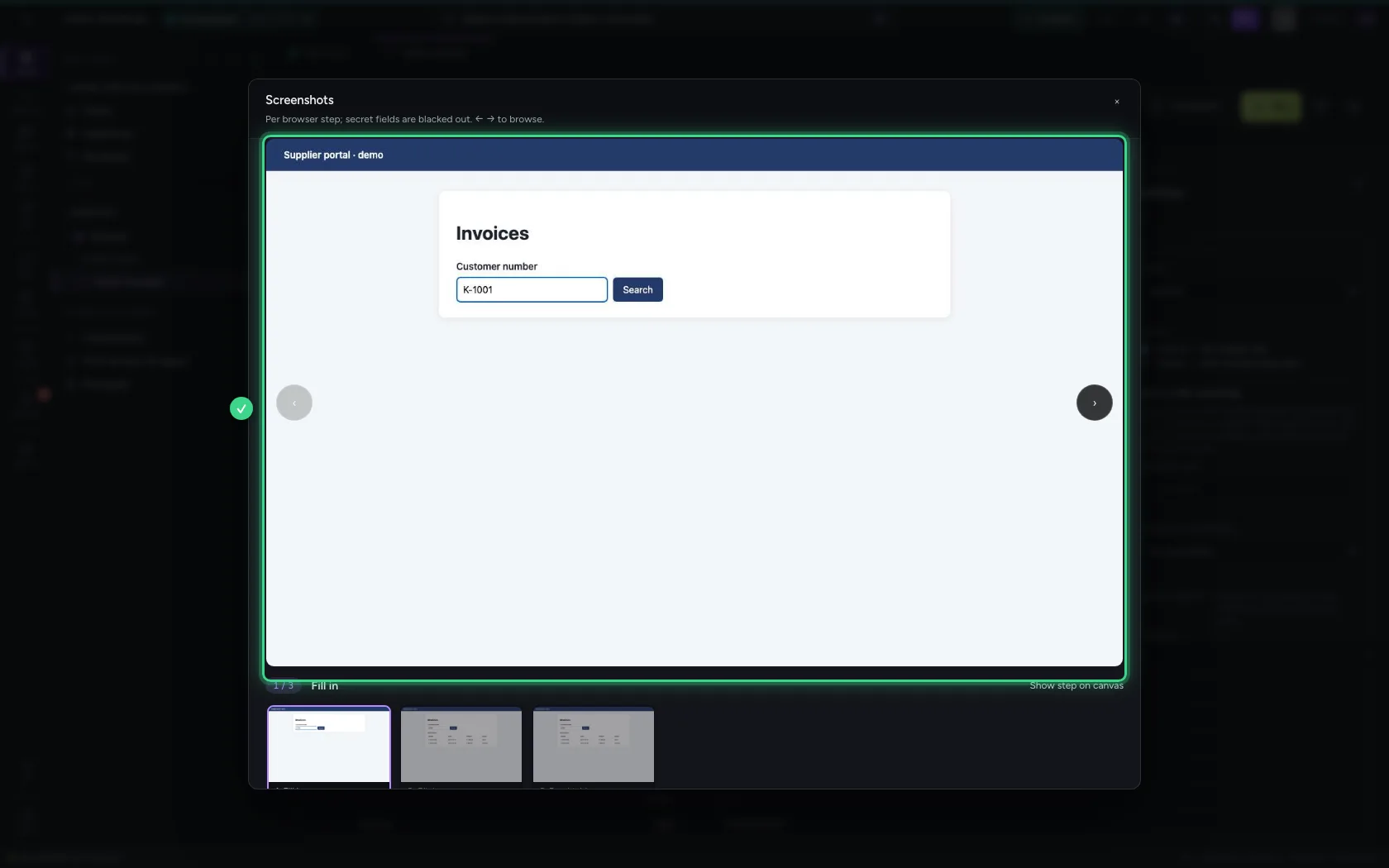
Screenshots in the toolbar shows per step what was on the screen. Fields you mark as secret (a password) are blacked out. When a step fails, Flow also keeps a trace to replay it.
- Click Screenshots
This guide was carried out step by step on 22 Oct 2026 by an automated test on Flow (version 3e563176).