Chat with your AI Colleague
Every environment has a chat of its own, where colleagues talk to the AI Colleagues you publish. You put your agent in the chat (if the chat is still off, you switch it on in the same place), publish it and ask a question. With the answer you see where it searched and which document it came from. You start where 'Your first AI Colleague with a knowledge base' ended.
Open your development environment
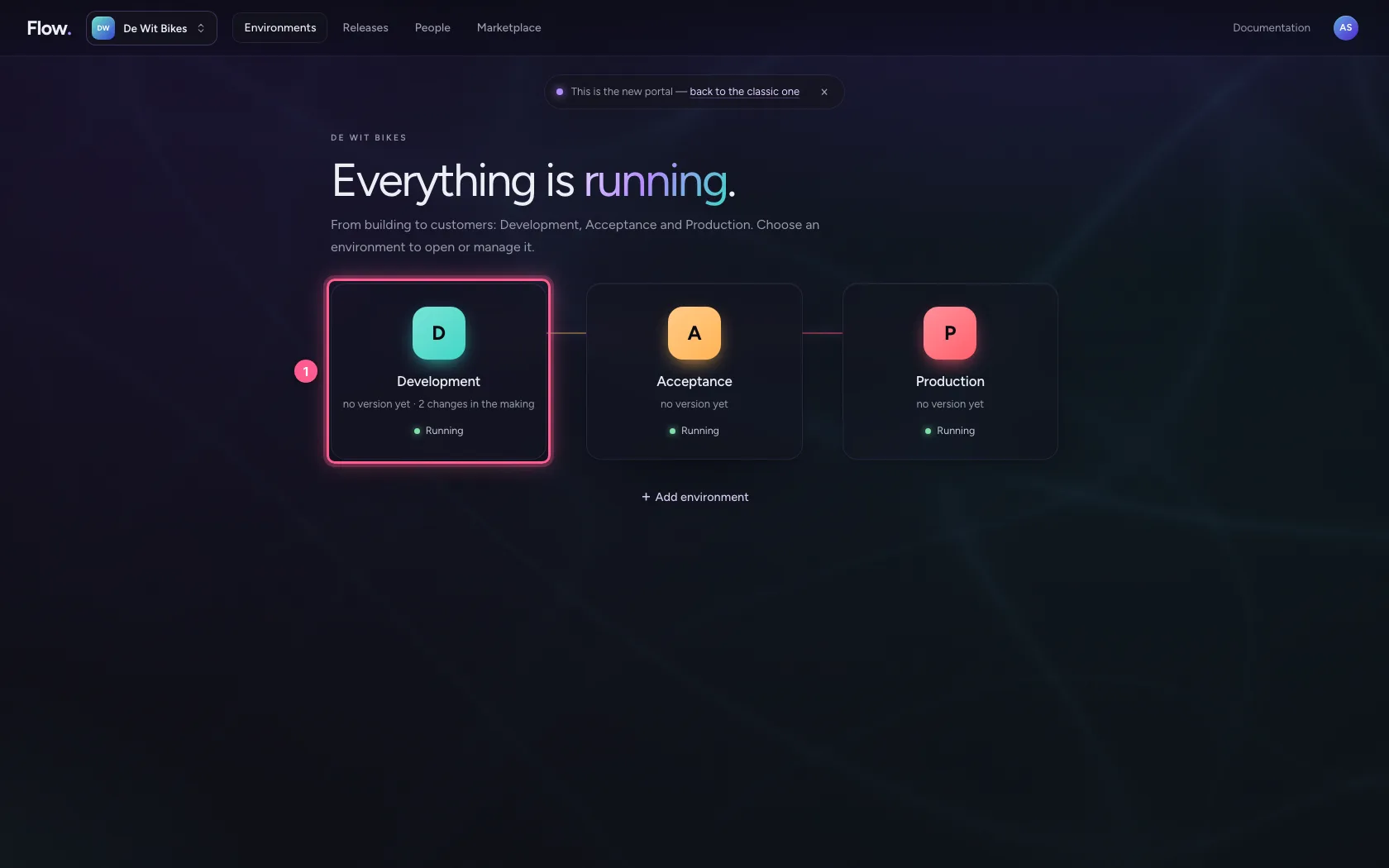
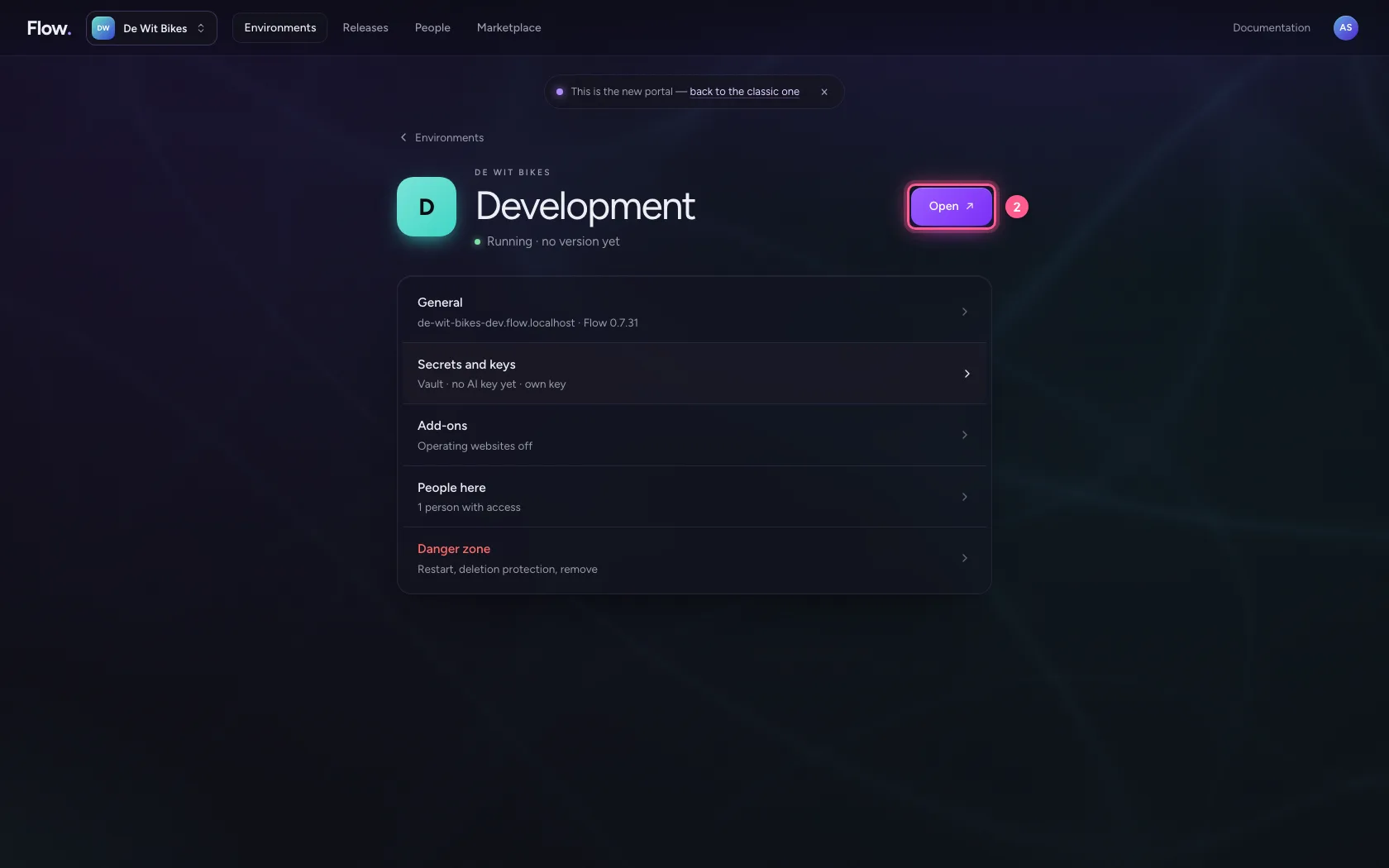
In the portal, under Environments, click Development, and there Open. Flow opens in a new tab.
- Click Development
- Click Open ↗
Open your agent
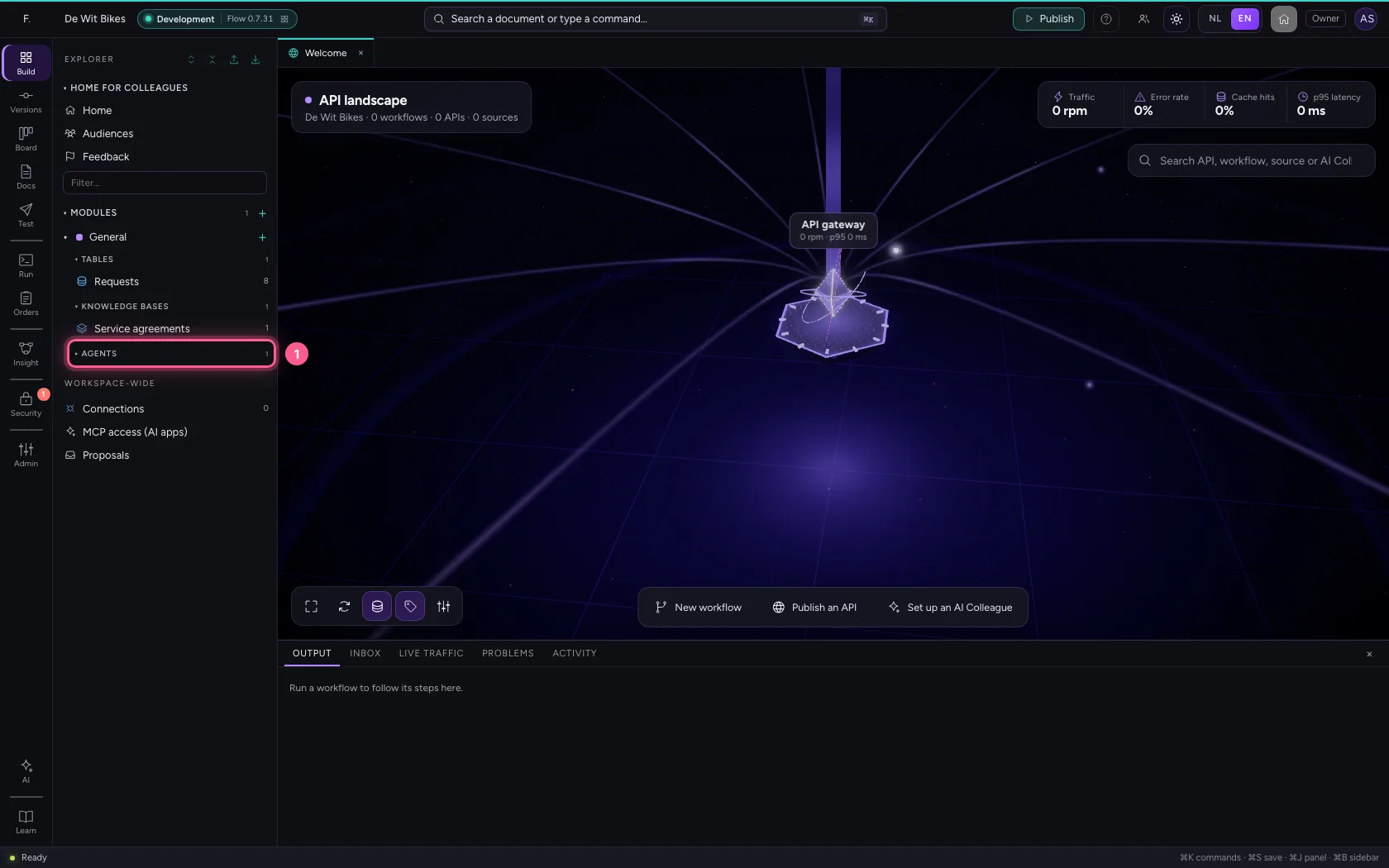
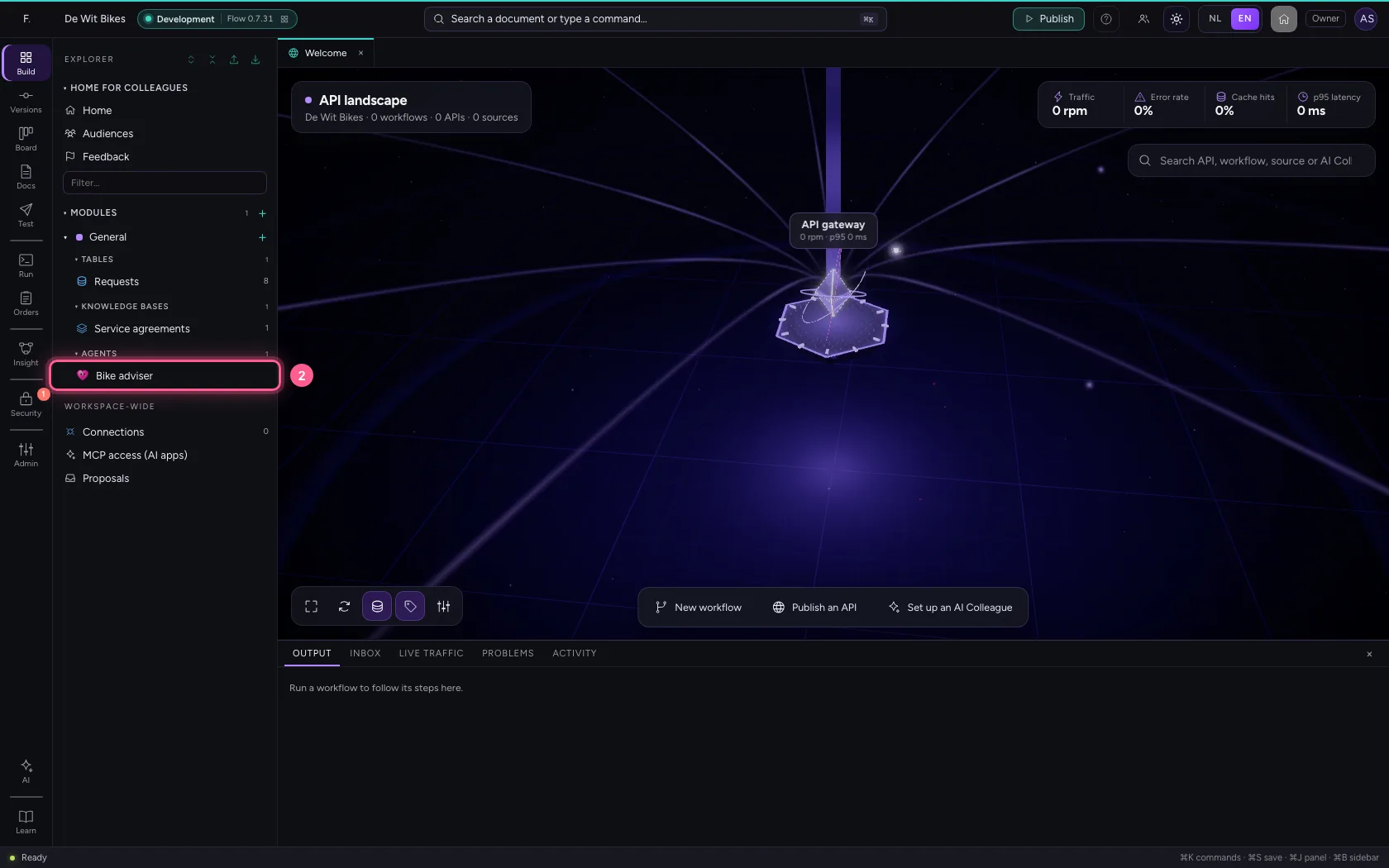
In the explorer, open the Agents group under General and click your agent.
- Click Agents
- Click Bike adviser
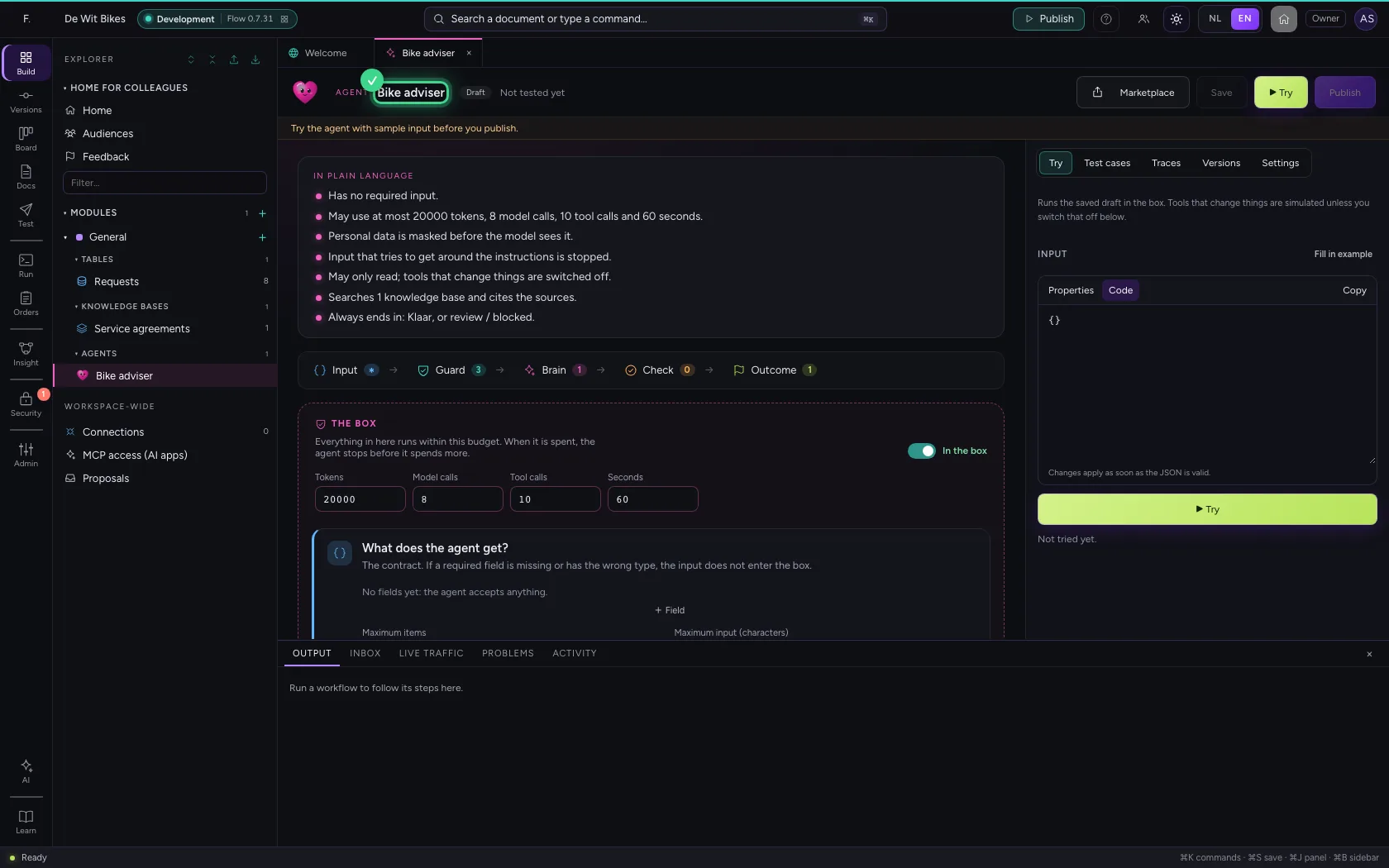
Put it in the chat
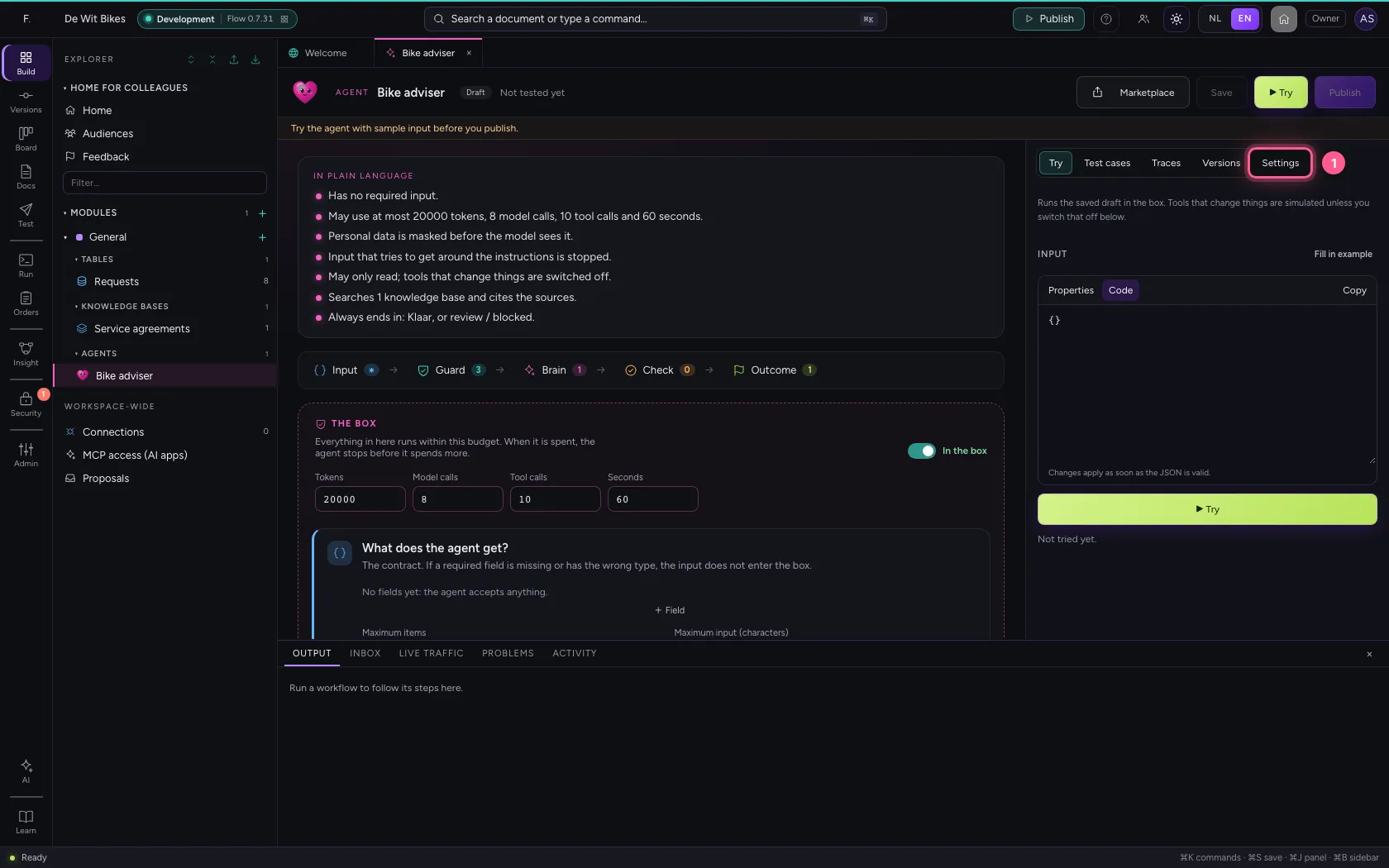
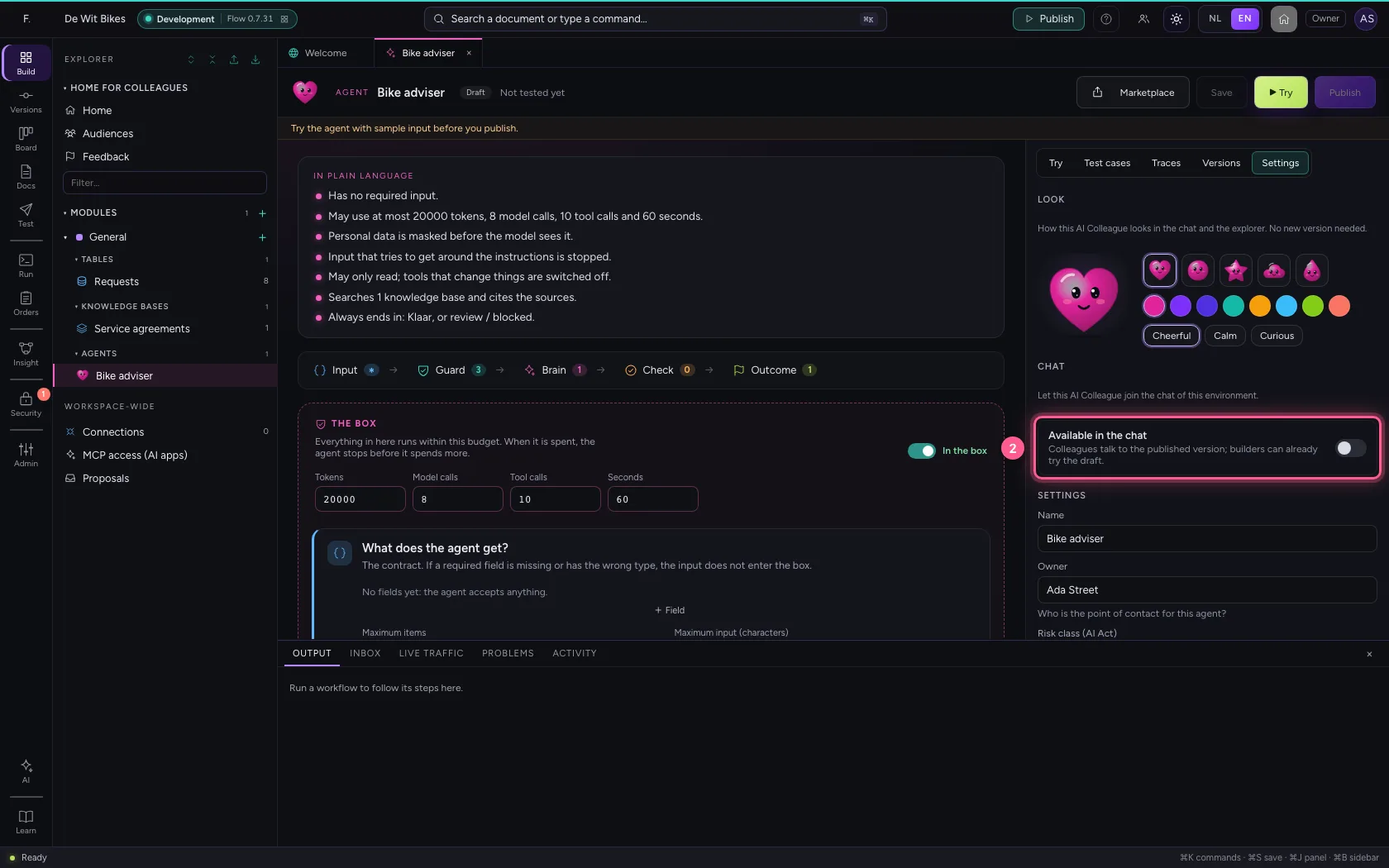
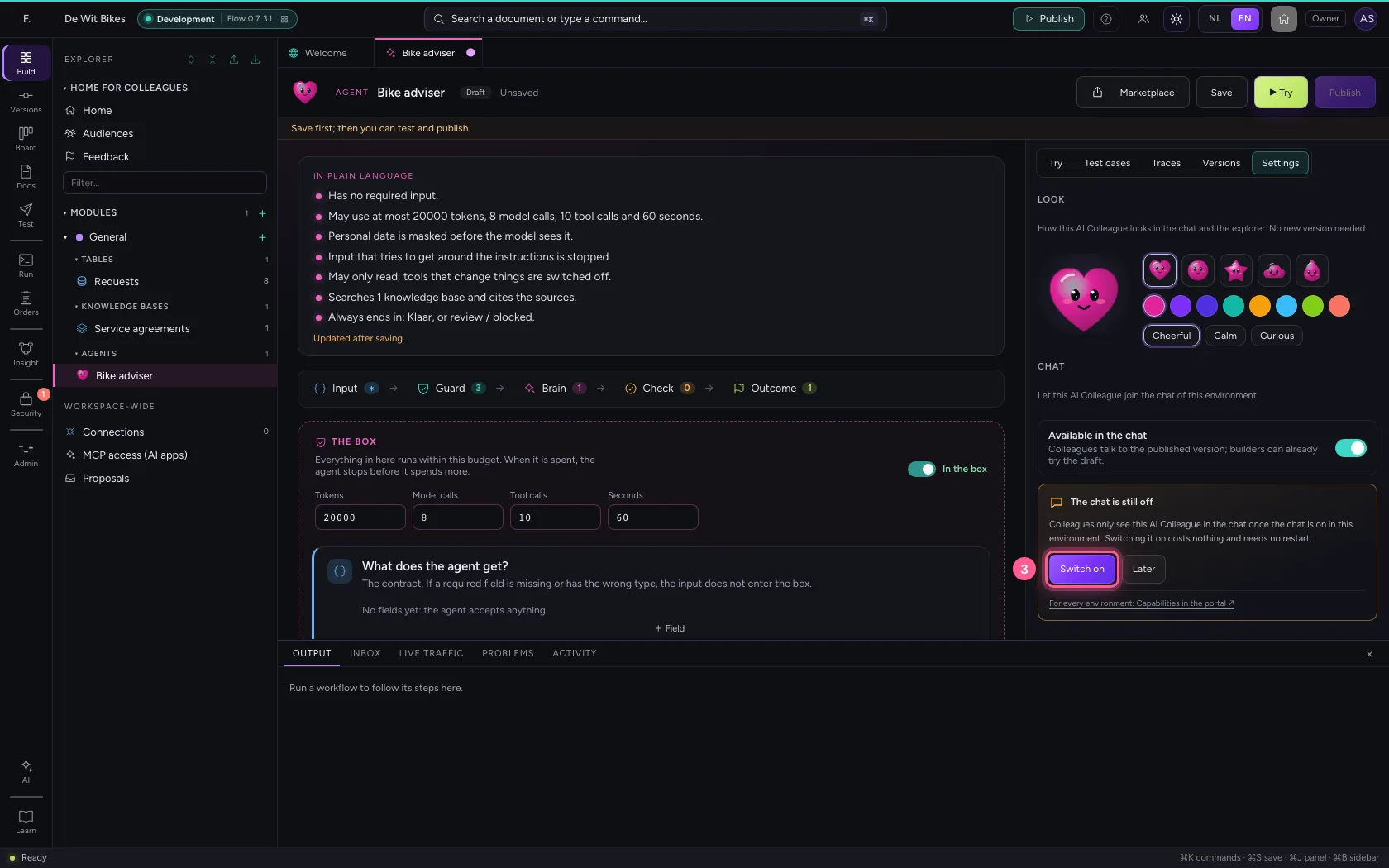
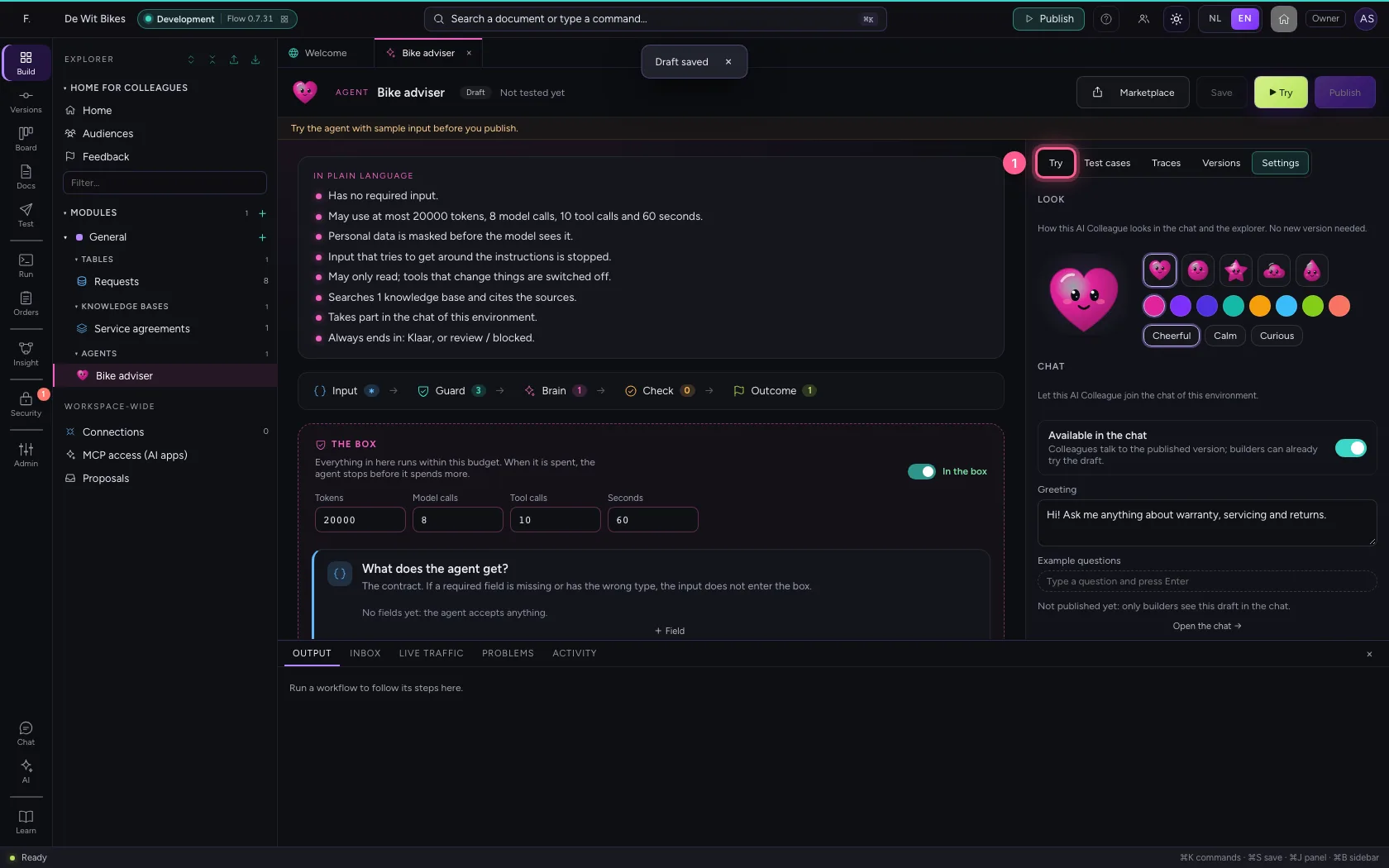
Under Settings, switch on Available in the chat. If the chat is still off in this environment, Flow says so right there: Switch on turns it on, at once and without a restart. A greeting helps colleagues get started. Then save.
- Click Settings
- Click Available in the chat
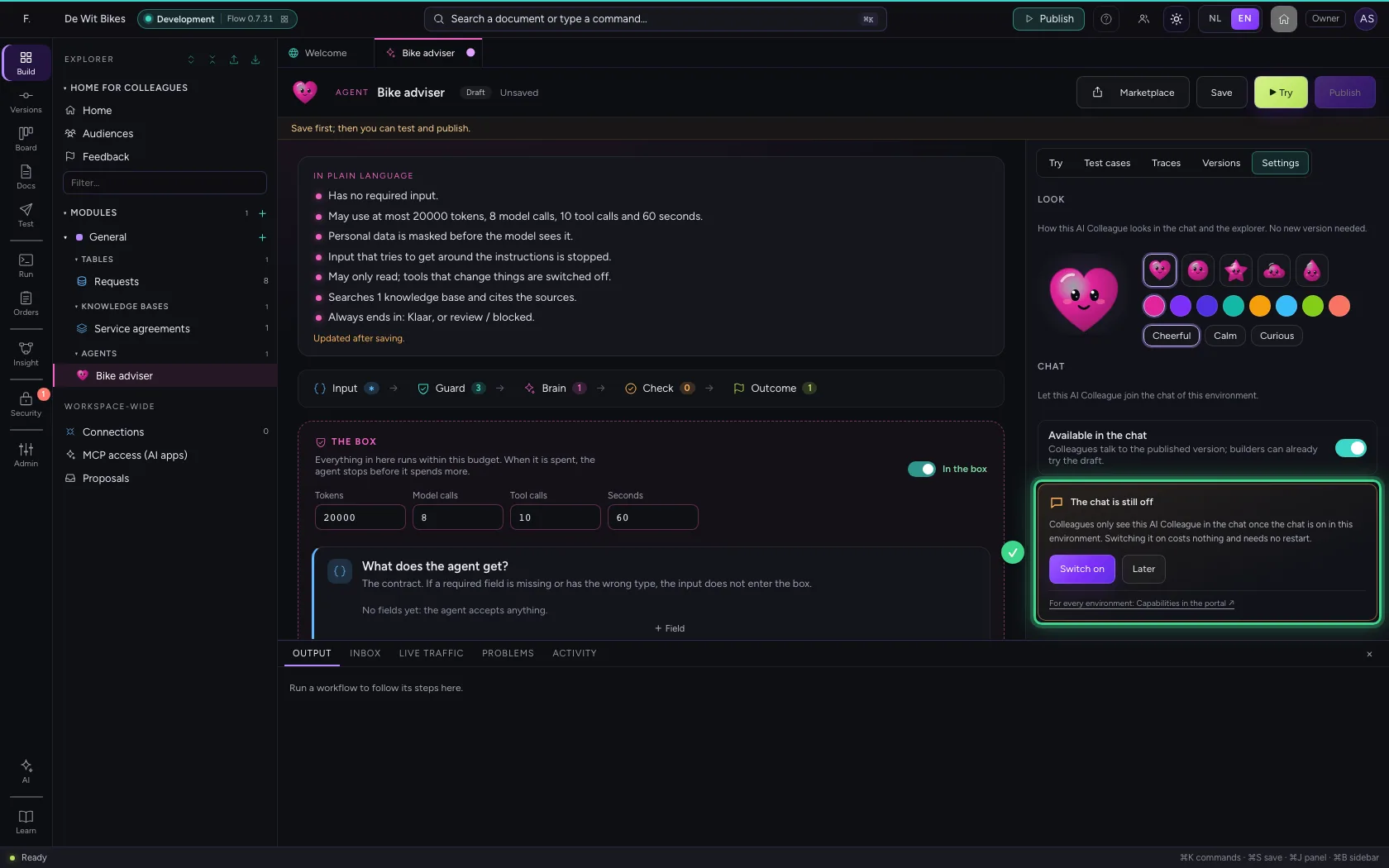
- Click Switch on
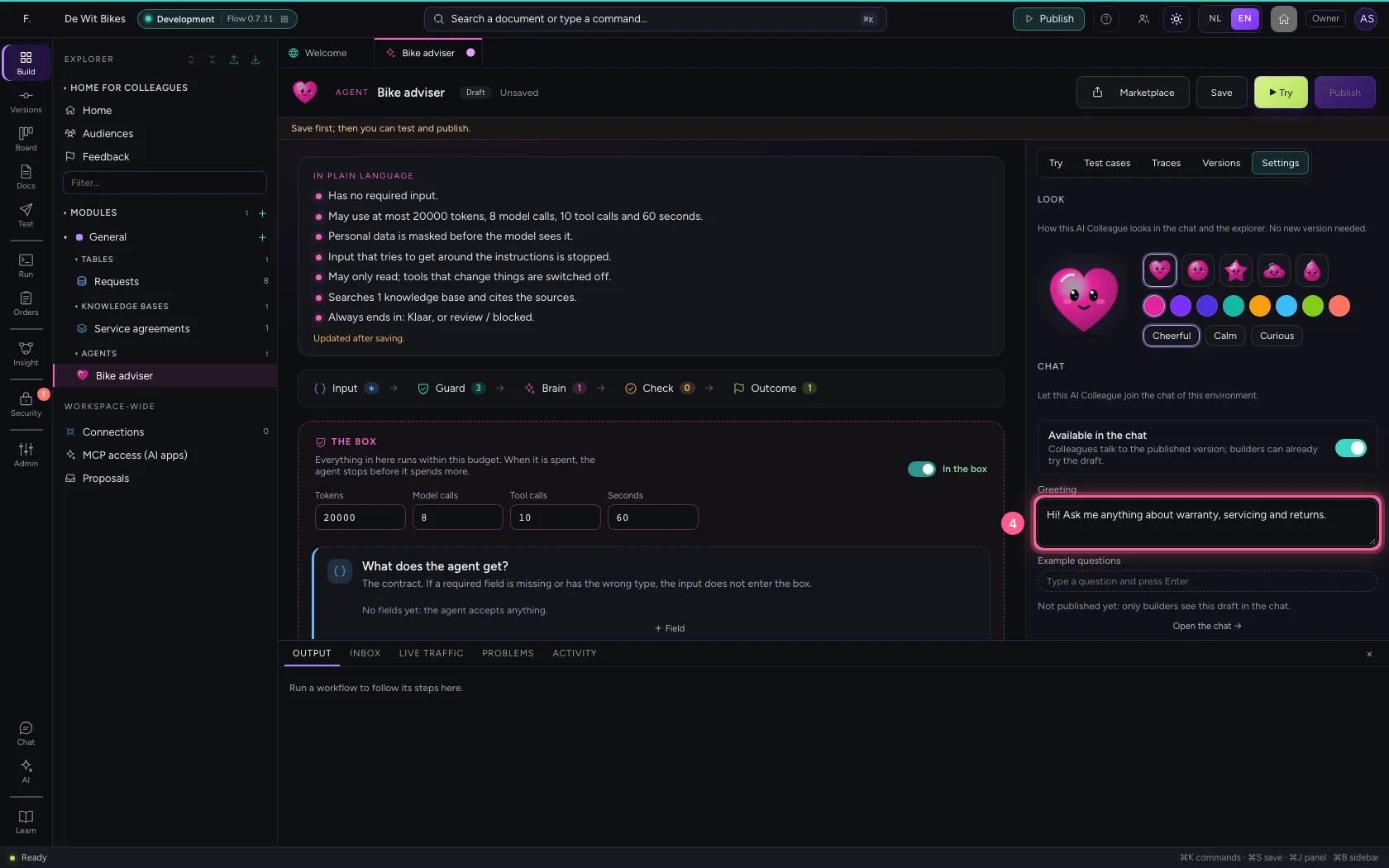
- In Greeting, type
Hi! Ask me anything about warranty, servicing and returns.
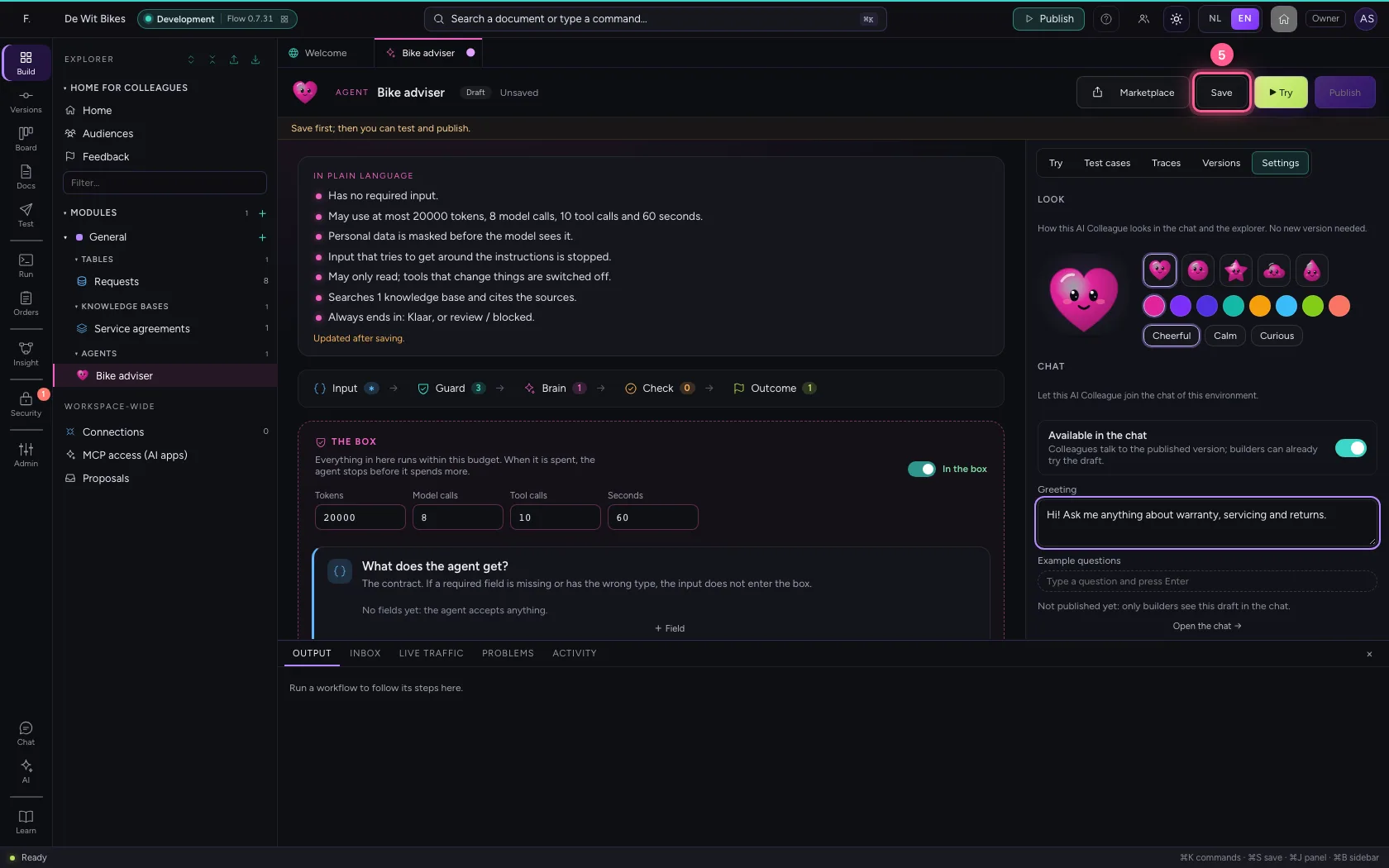
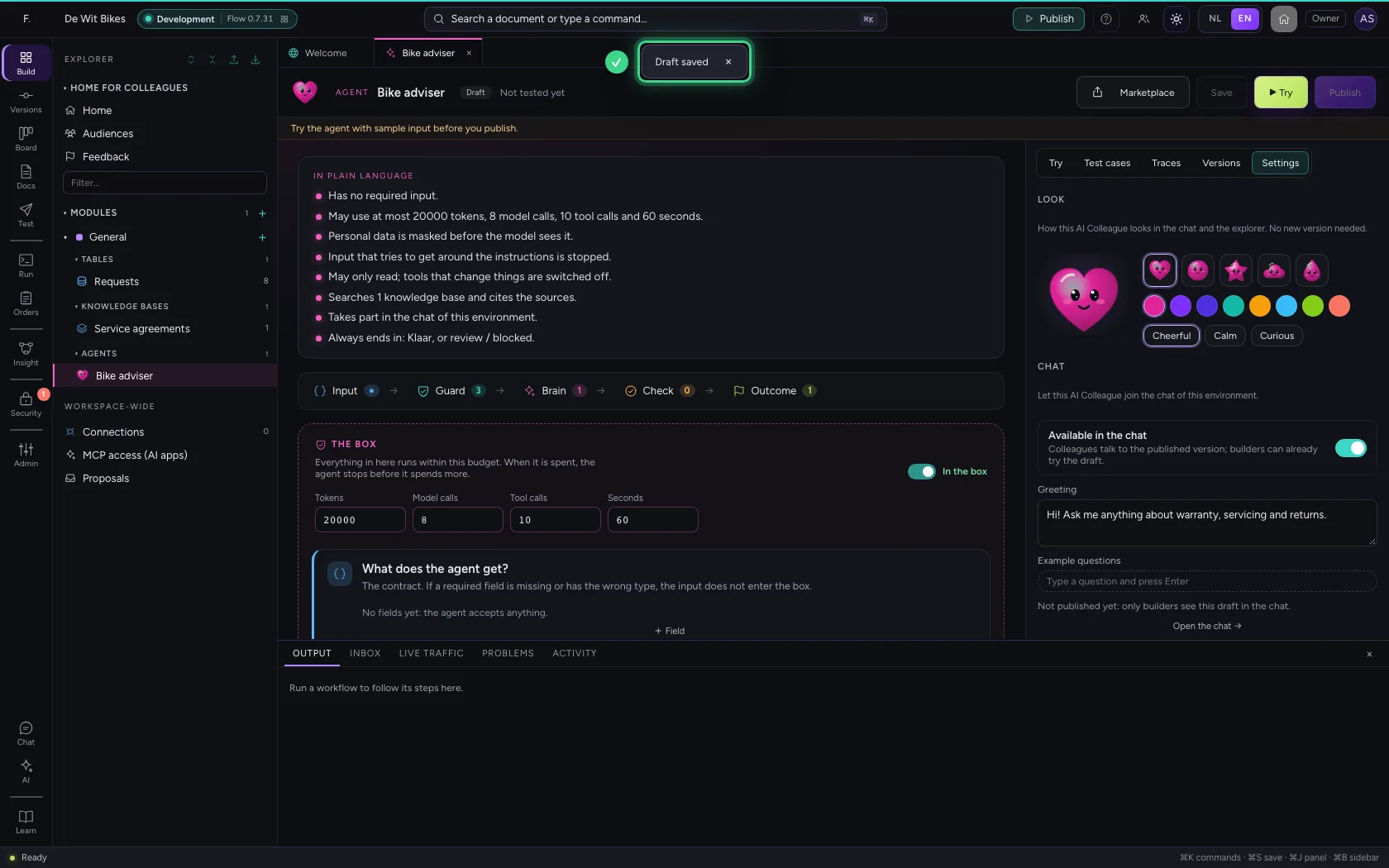
- Click Save
Test and publish
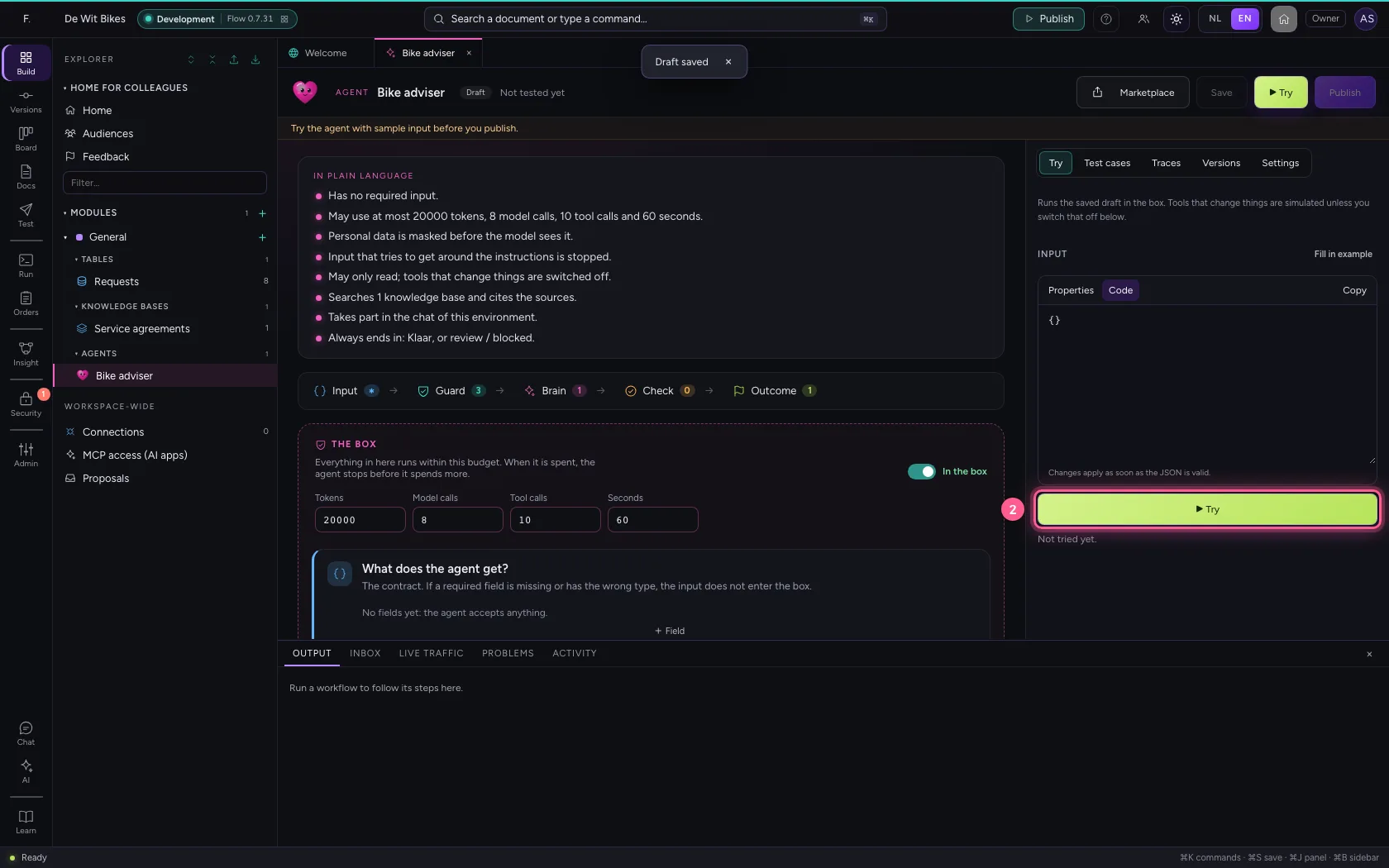
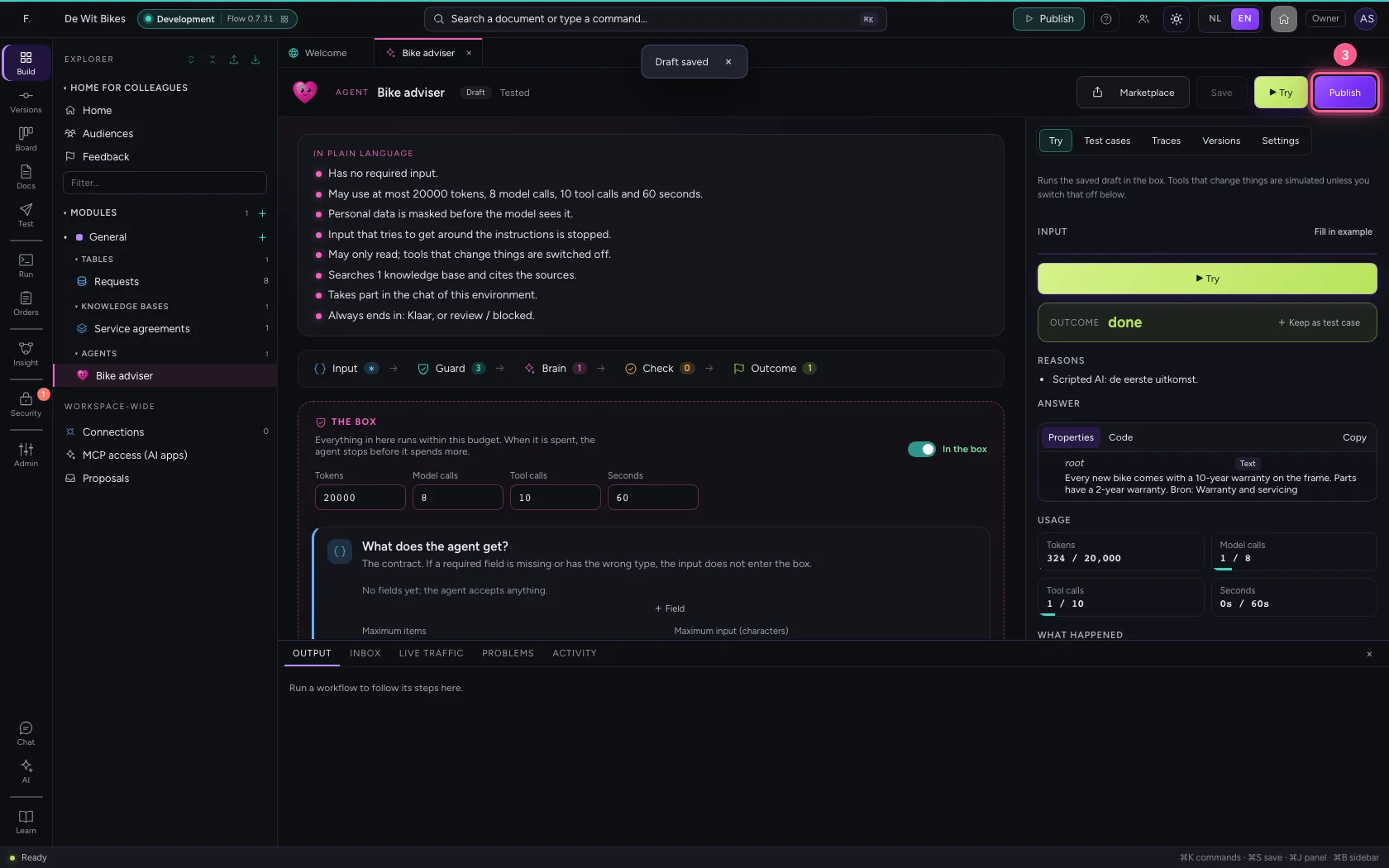
After every change you test again: Publish only works once the latest version has passed a test. What you publish is a fixed version; colleagues always talk to that version, even while you keep building.
- Click Try
- Click ▶ Try
- Click Publish
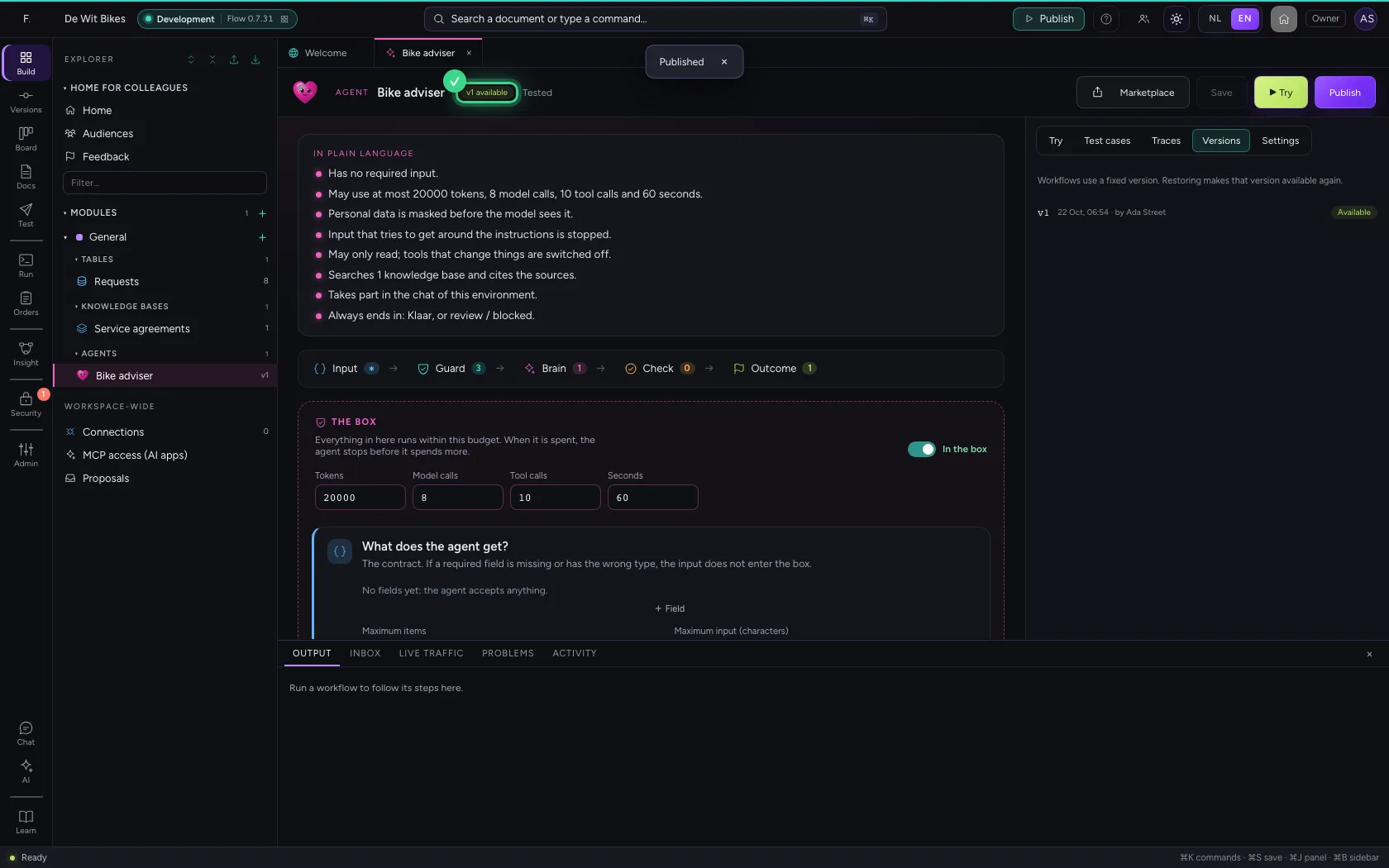
Open the chat
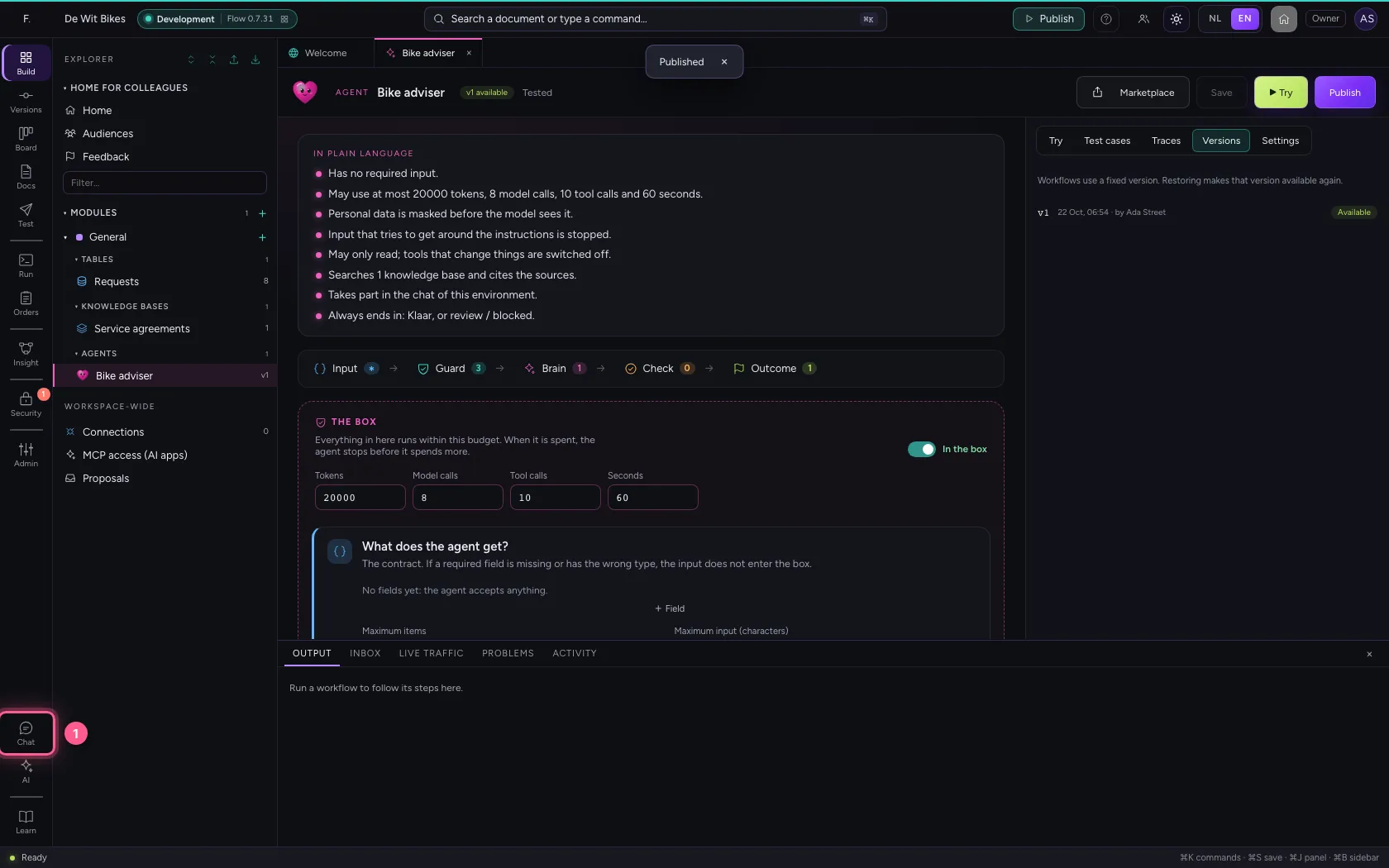
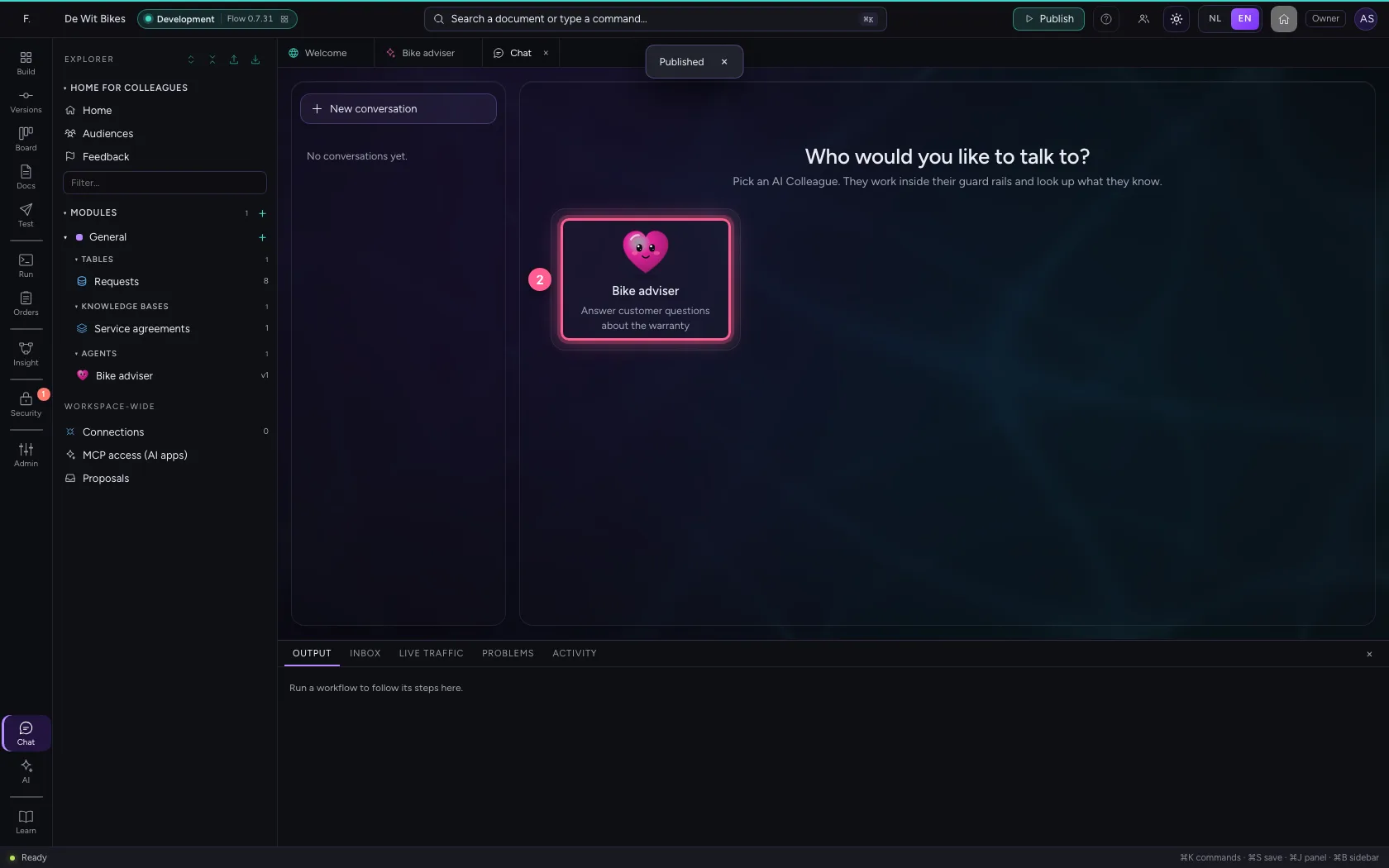
Chat at the bottom of the bar on the left opens the chat. You see the AI Colleagues you may talk to; pick yours.
- Click Chat
- Click Bike adviser
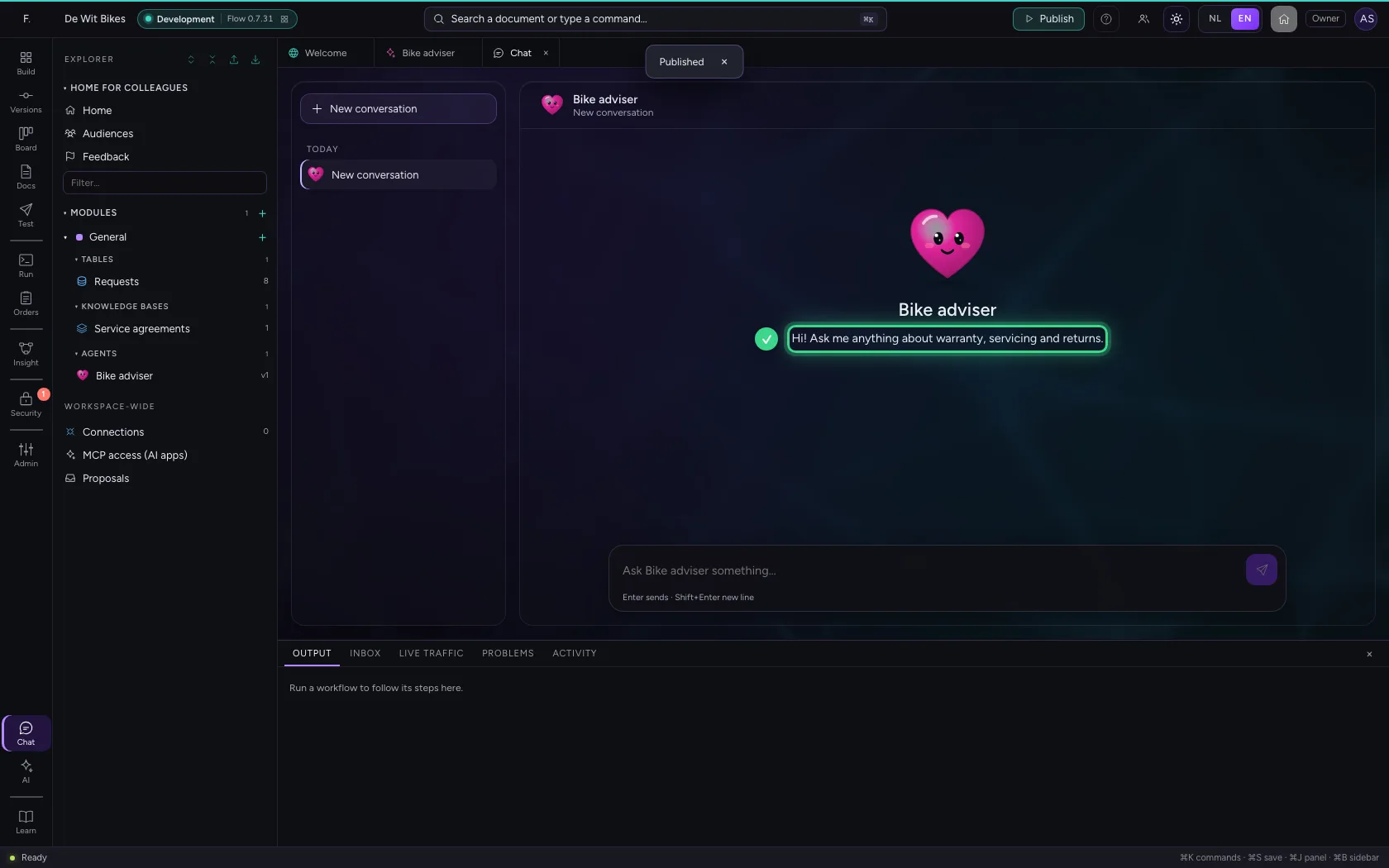
Ask a question
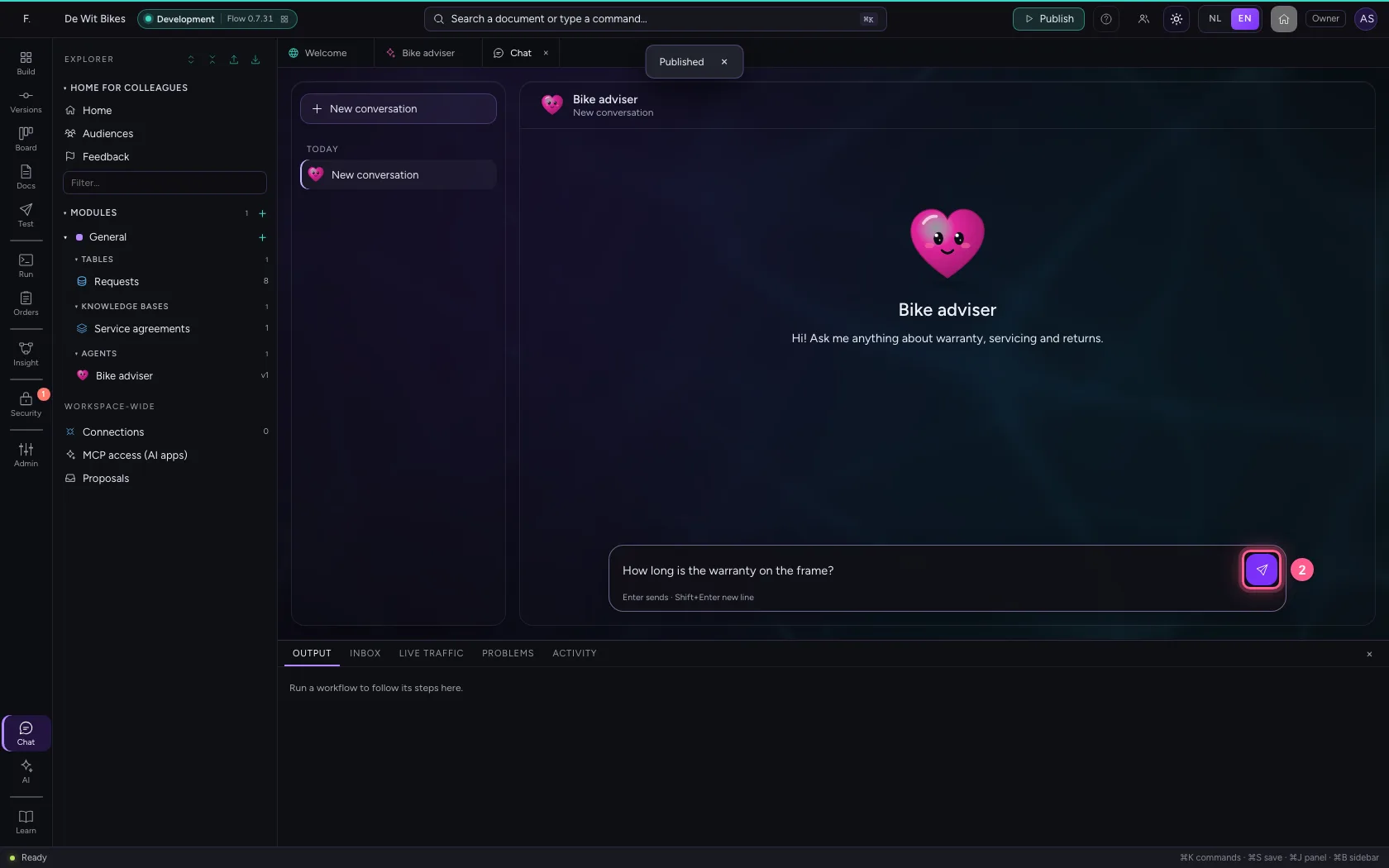
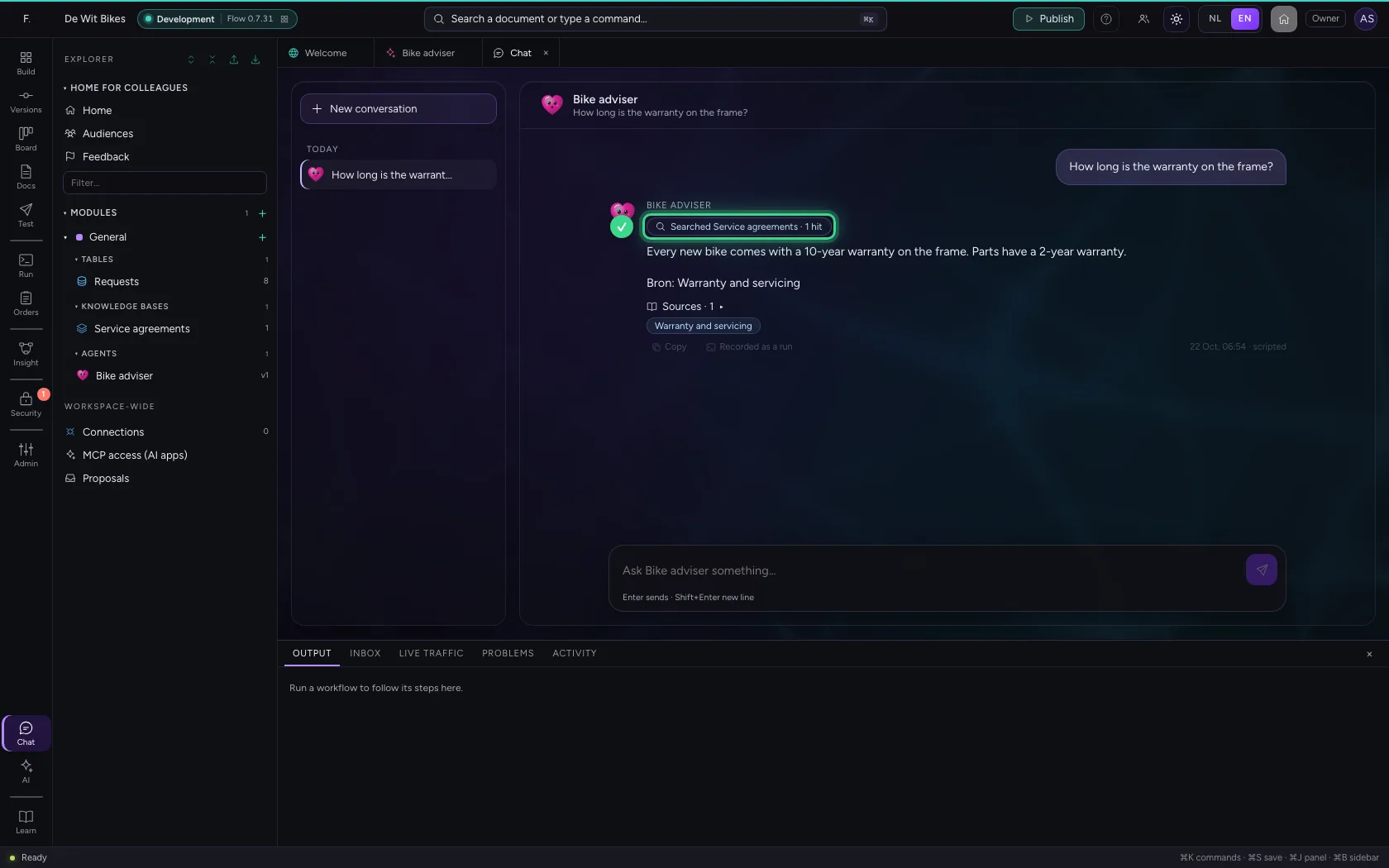
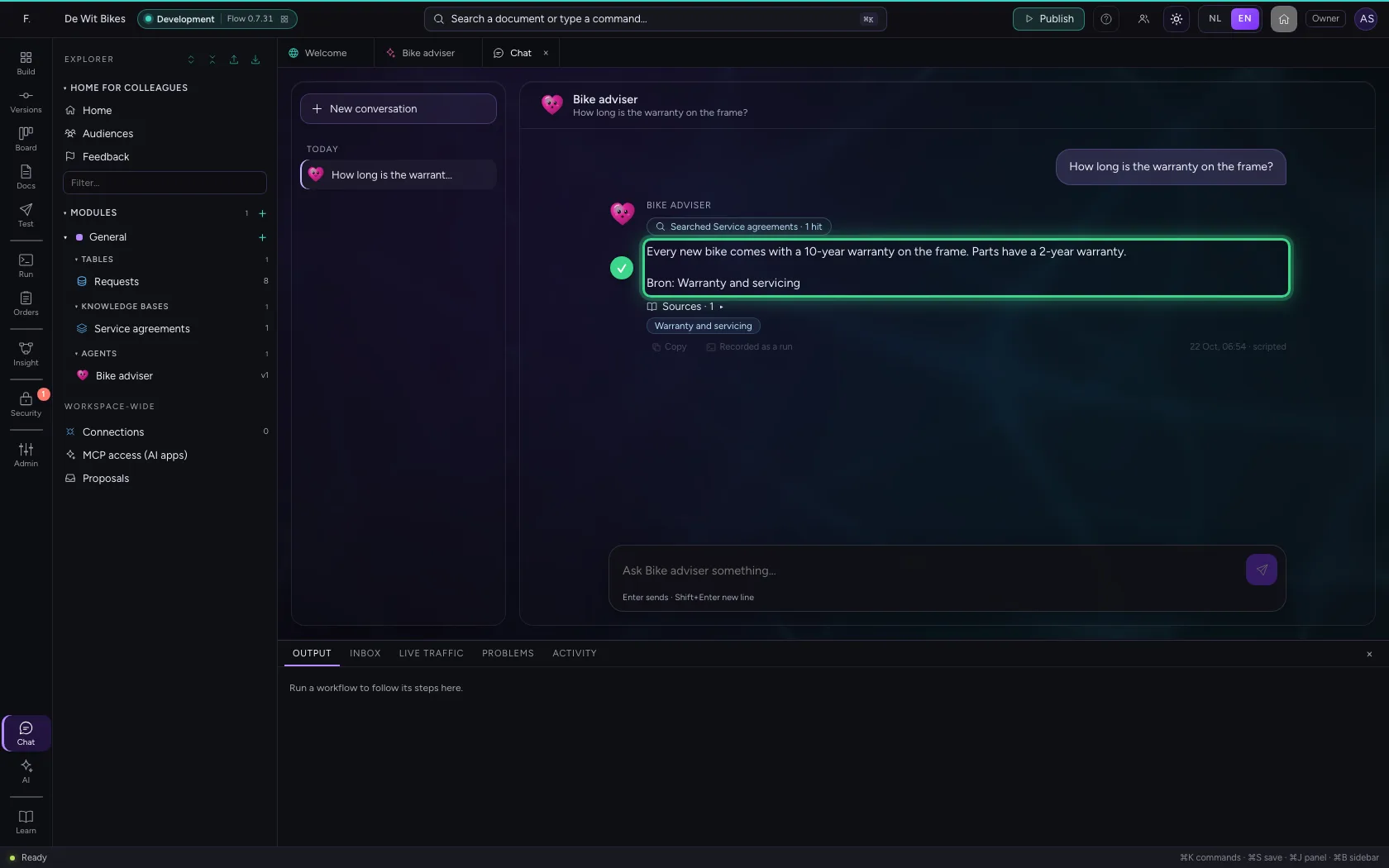
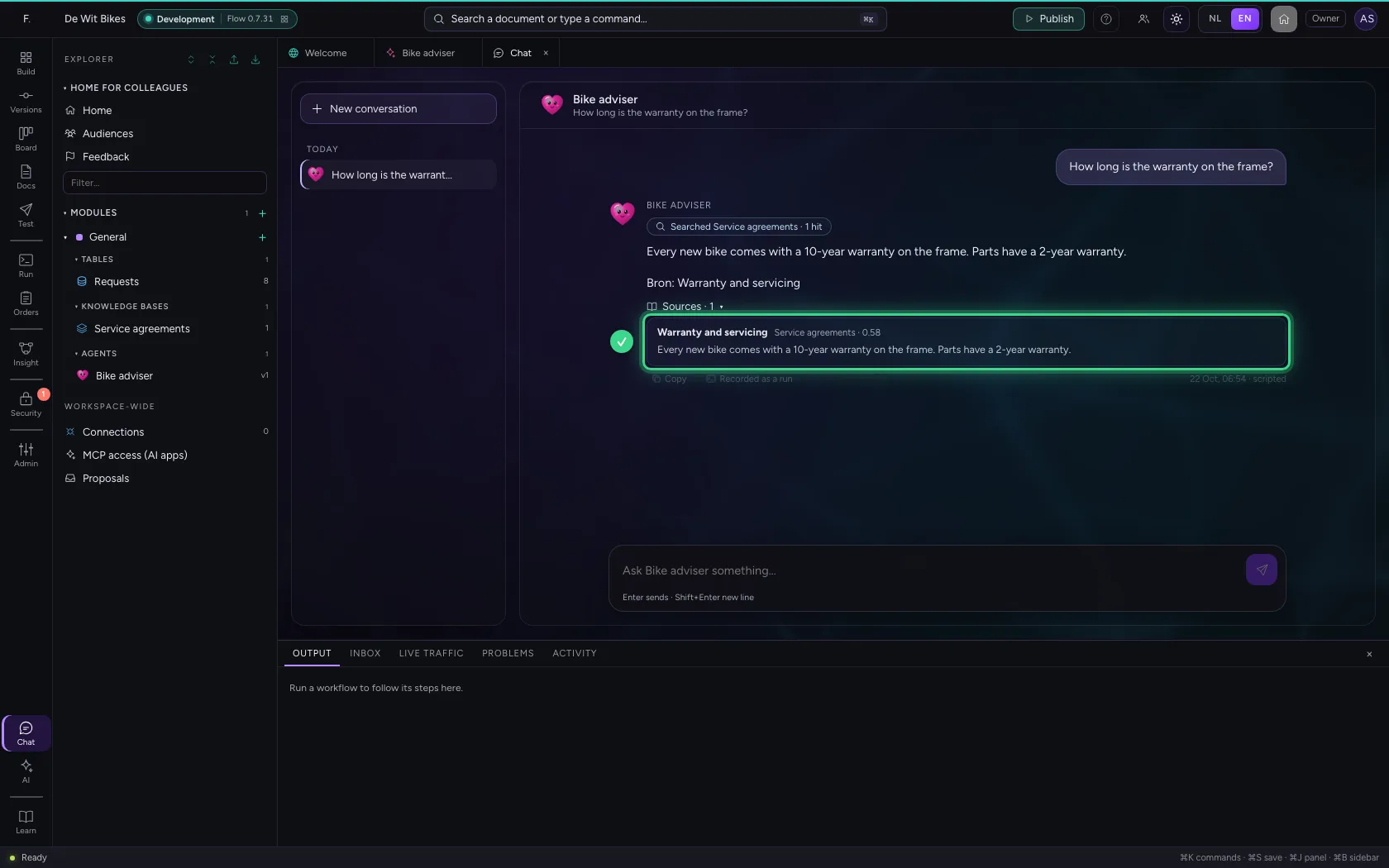
Type your question and press Enter or the send button. While the agent works, you see what it does: here it searches your knowledge base.
- In Ask Bike adviser something…, type
How long is the warranty on the frame?
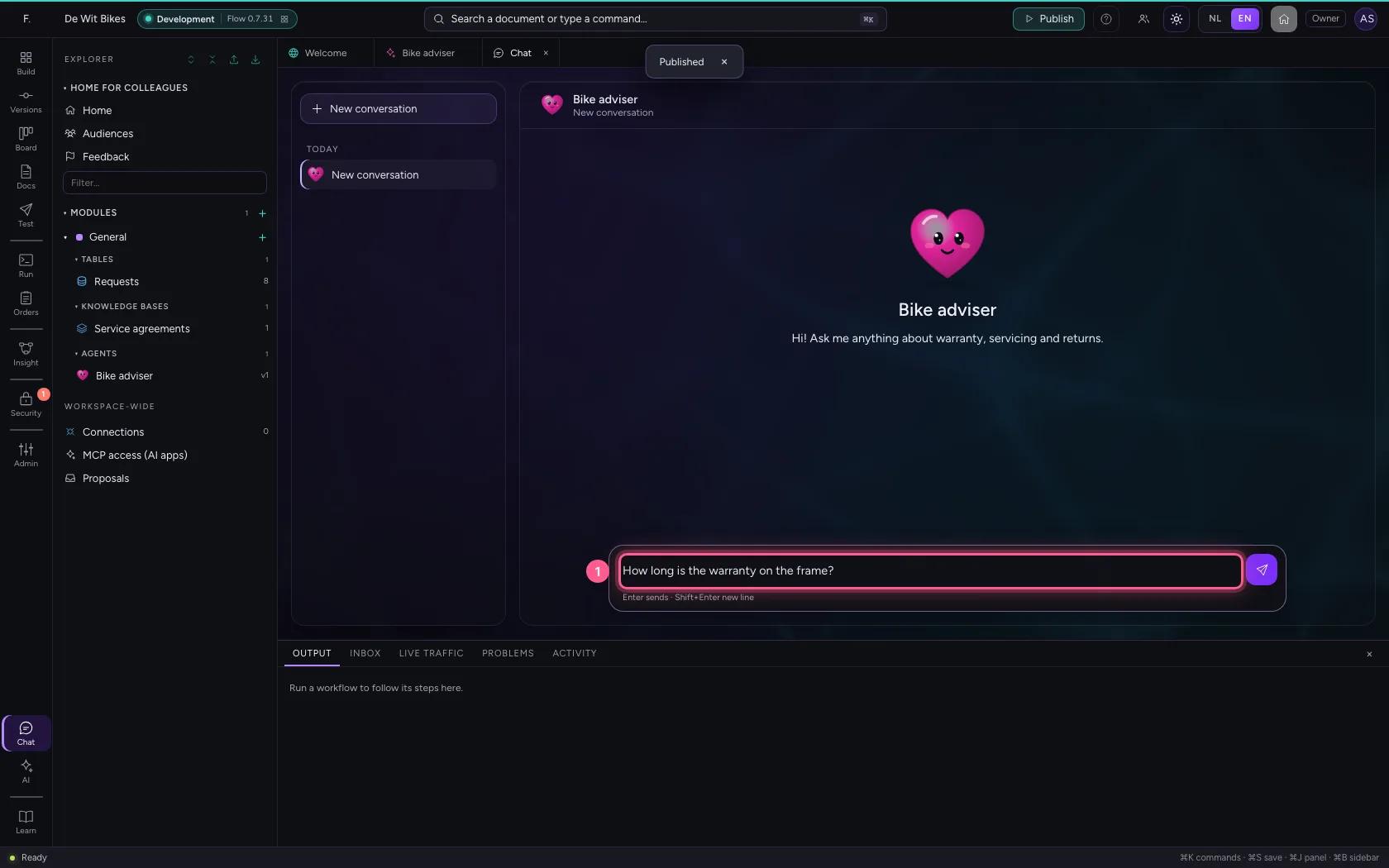
- Click Send
Look at the source
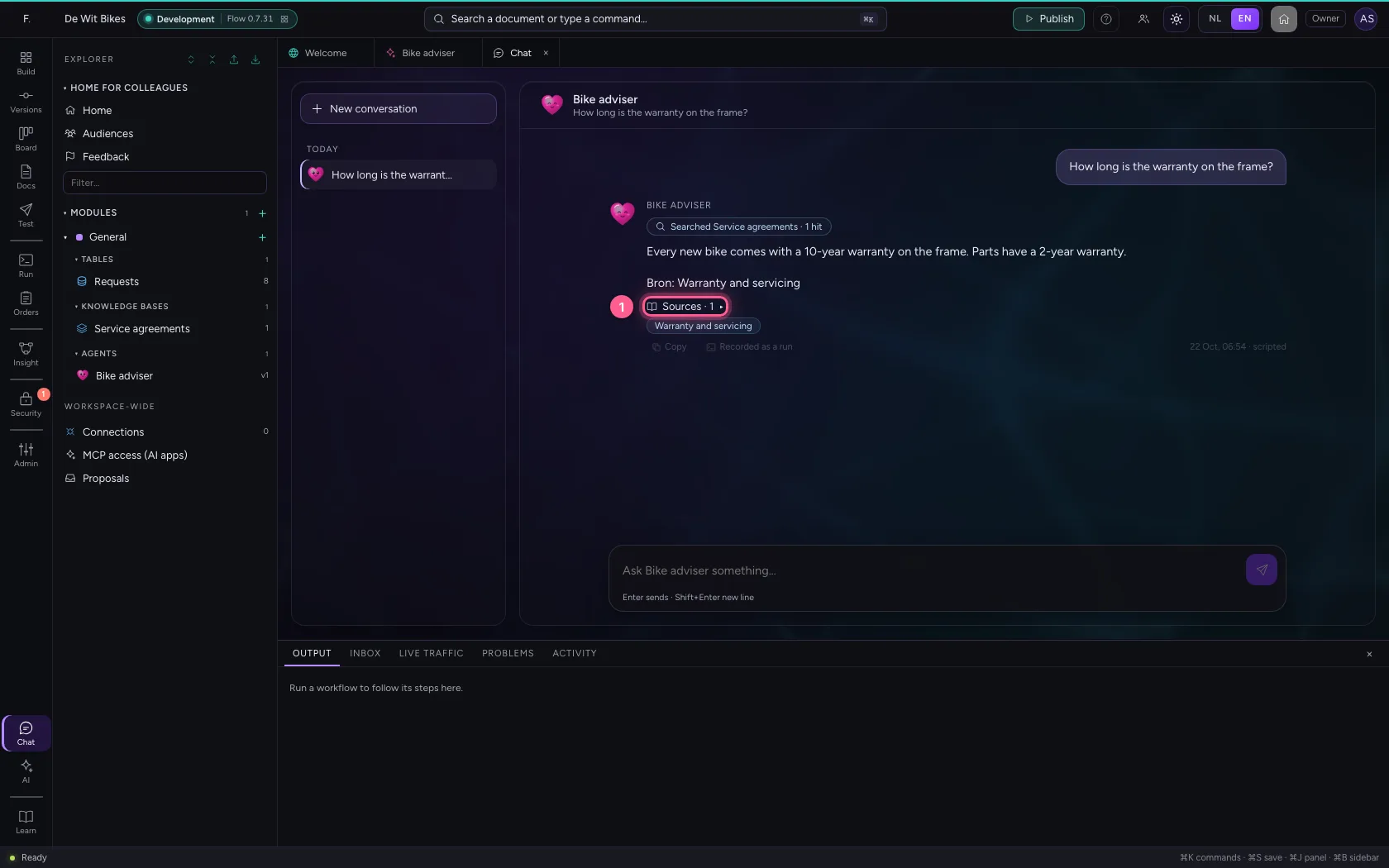
Below the answer it says which document it came from. Click Sources for the piece of text itself: that way you can always check whether the answer is right.
- Click Sources
This guide was carried out step by step on 22 Oct 2026 by an automated test on Flow (version 3e563176).