Update Flow
There is a new version of Flow. You move all your environments to it with one button. It goes one after another, Production last. If an environment does not come up healthy, it goes back and it stops before Production.
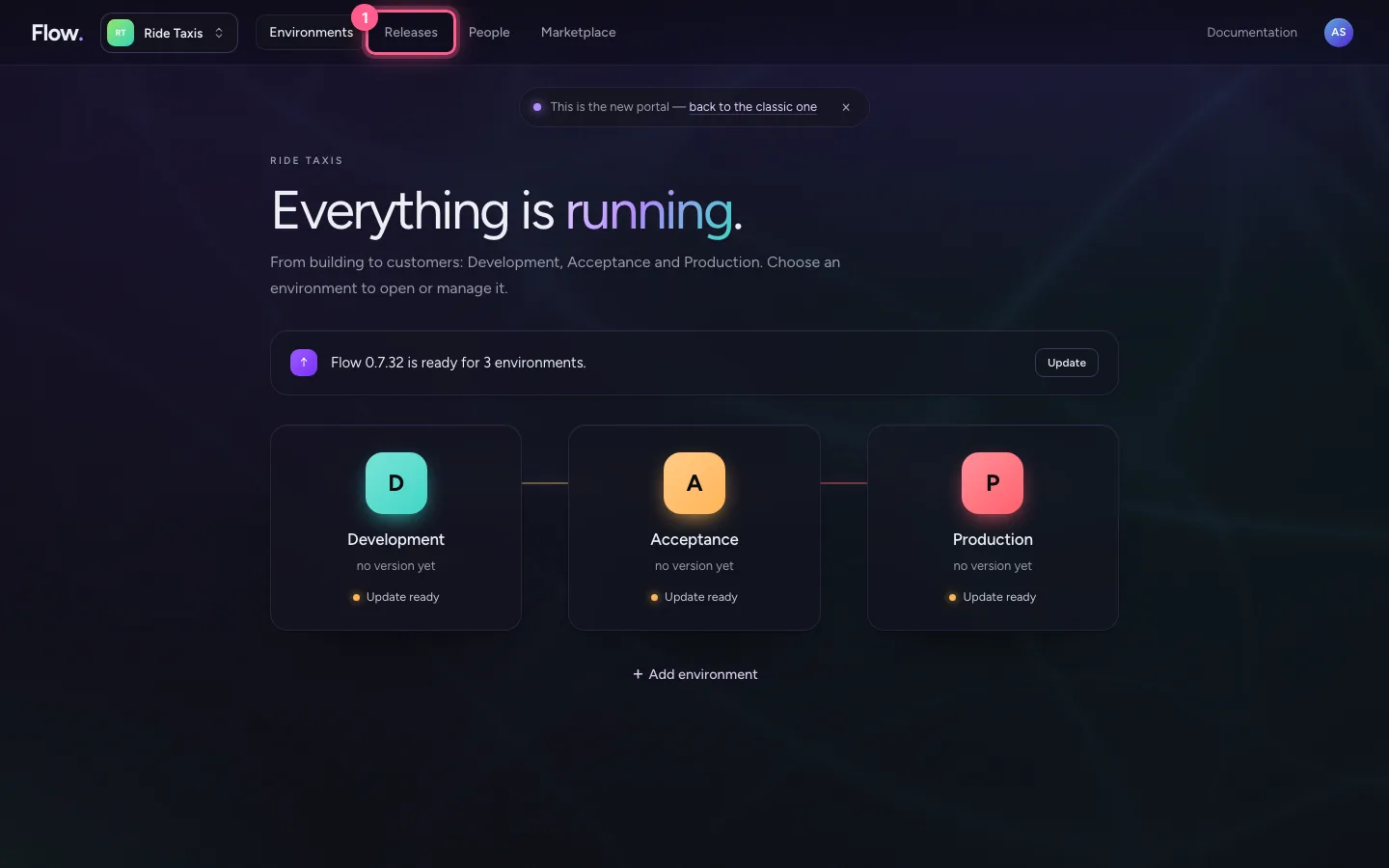
Open Releases
Click Releases at the top. At the bottom are Platform updates: the newest version of Flow, what is new and which environments already run it.
- Click Releases
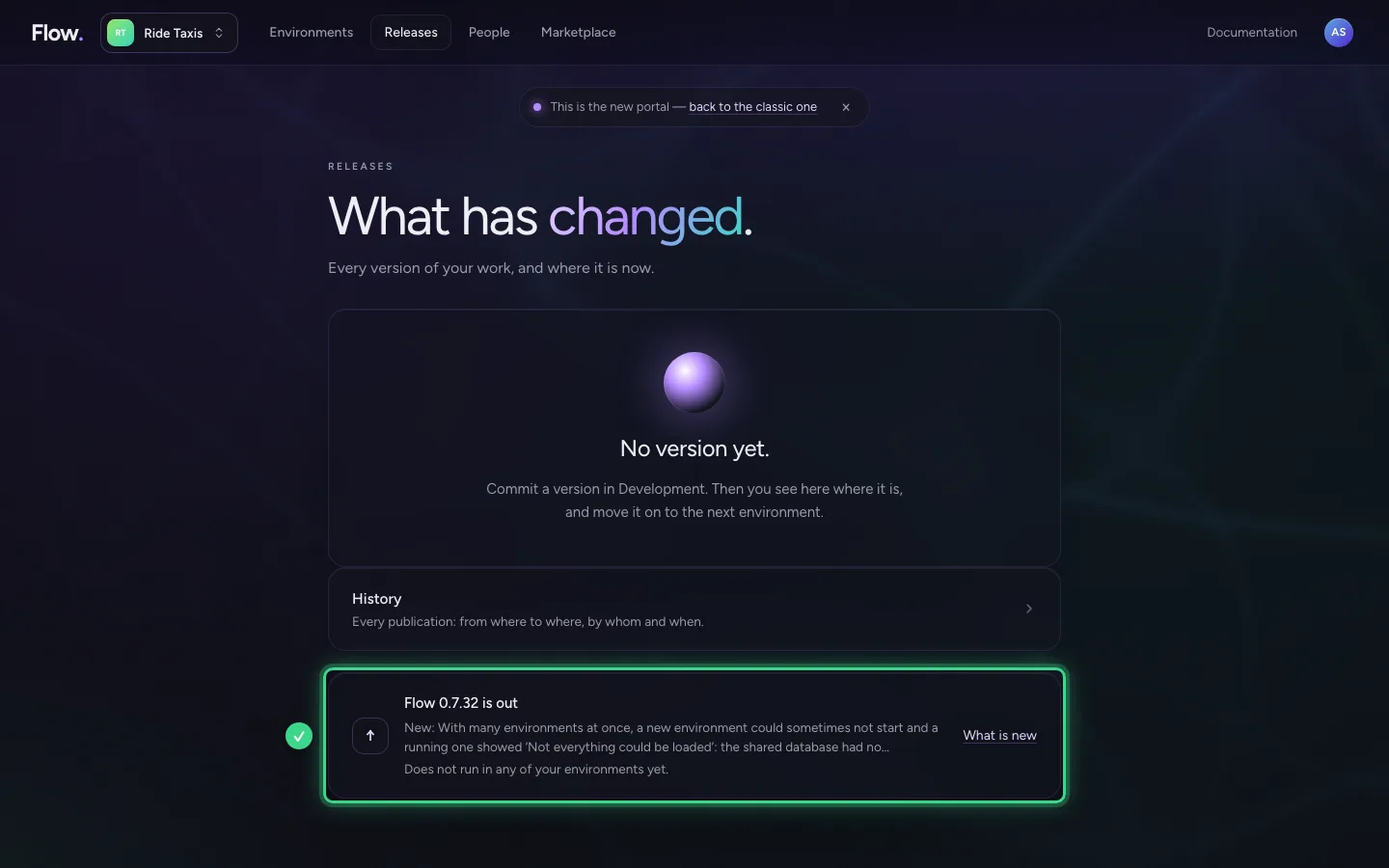
Open Platform updates
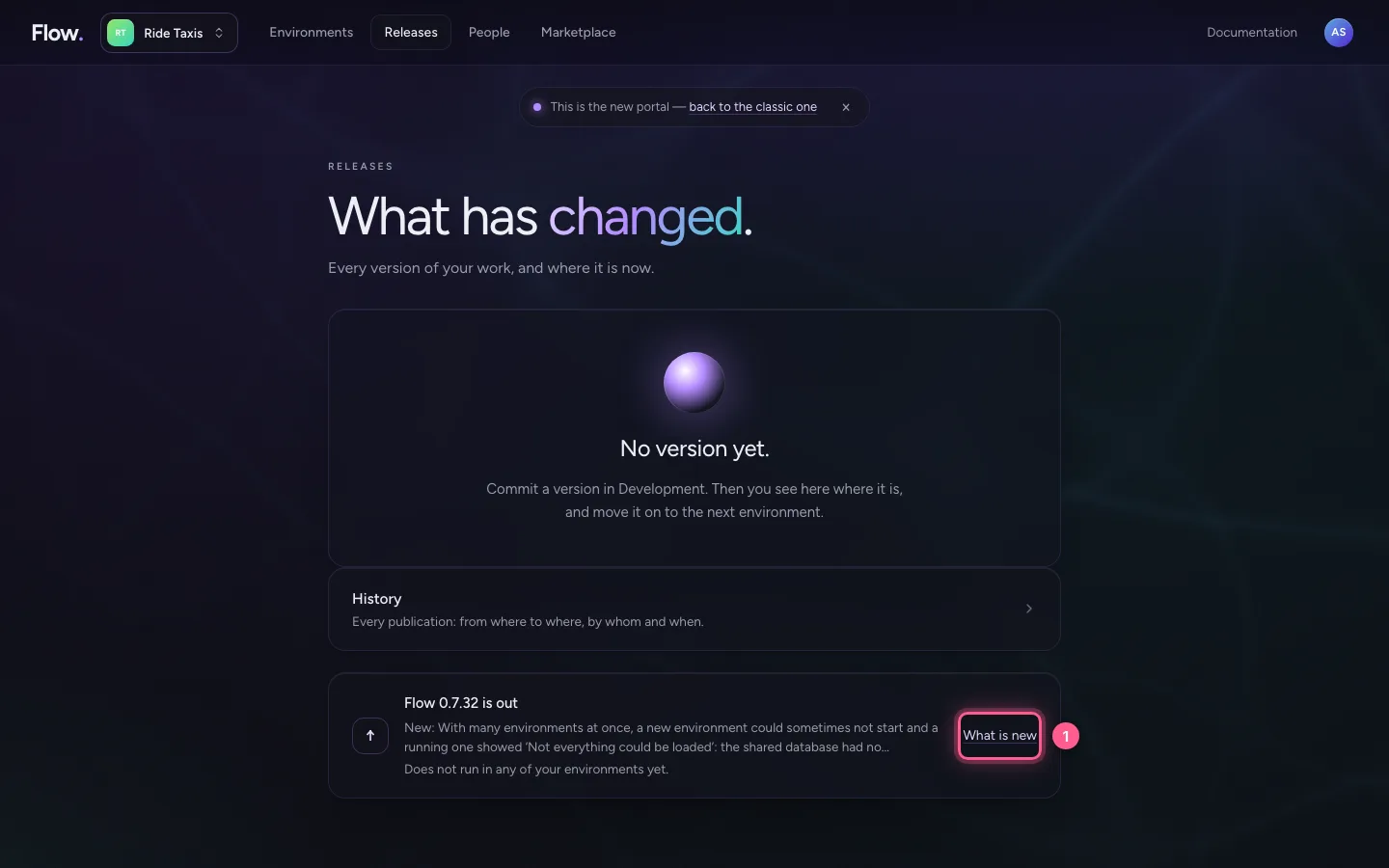
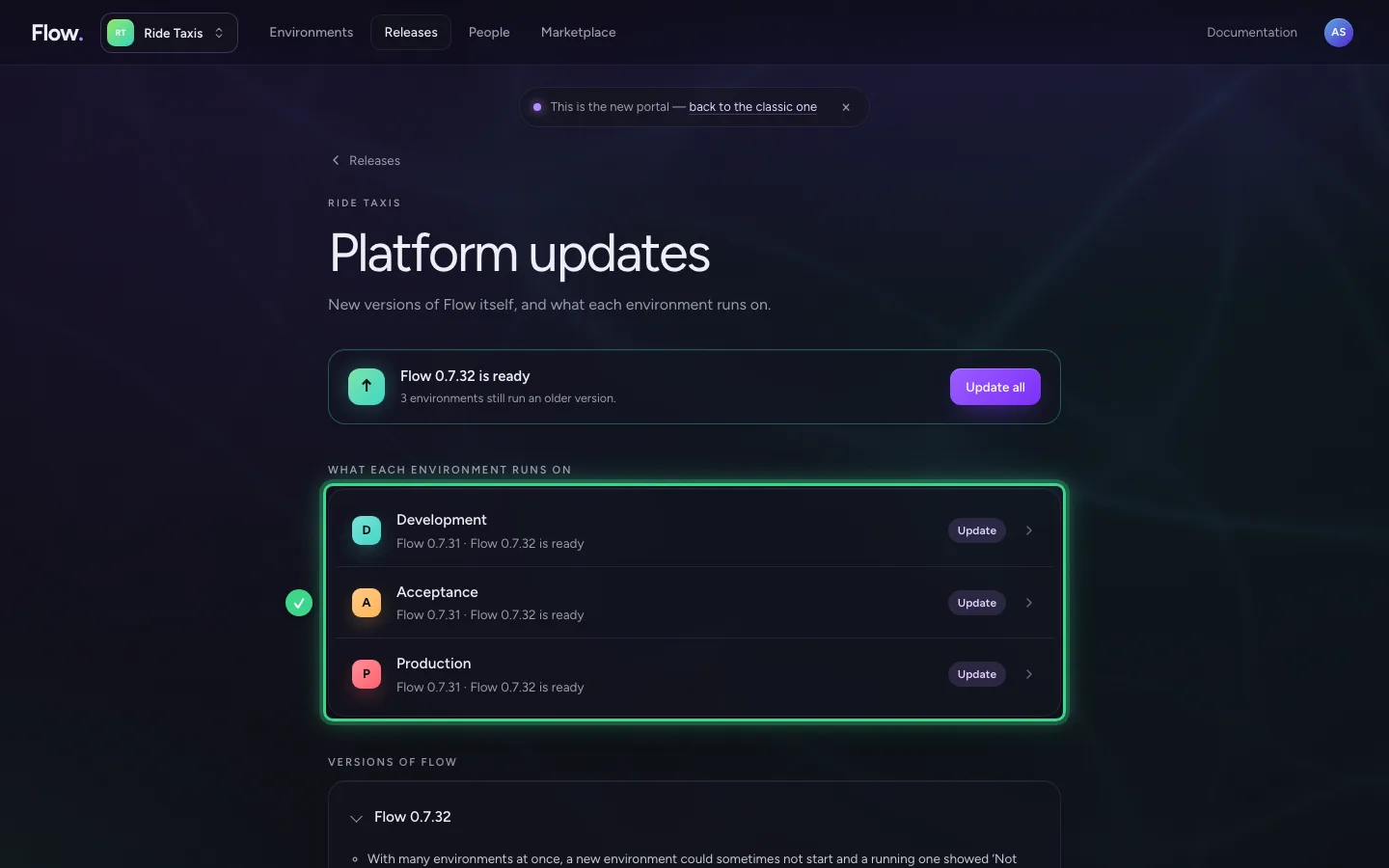
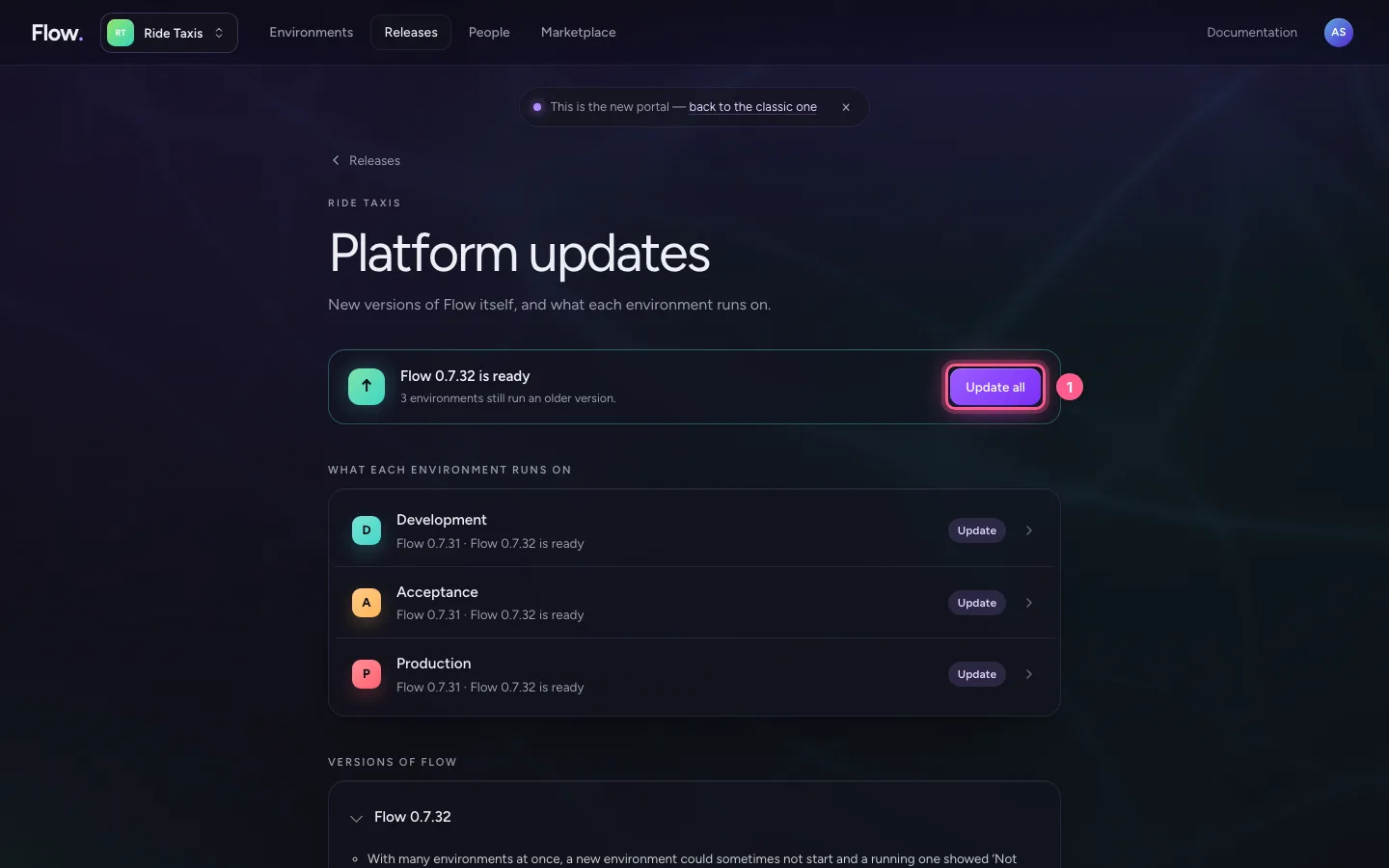
Choose What is new. You see what each environment runs on, and for each version of Flow what changed. At the top it says a new Flow is ready for your environments.
- Click What is new
Choose Update all
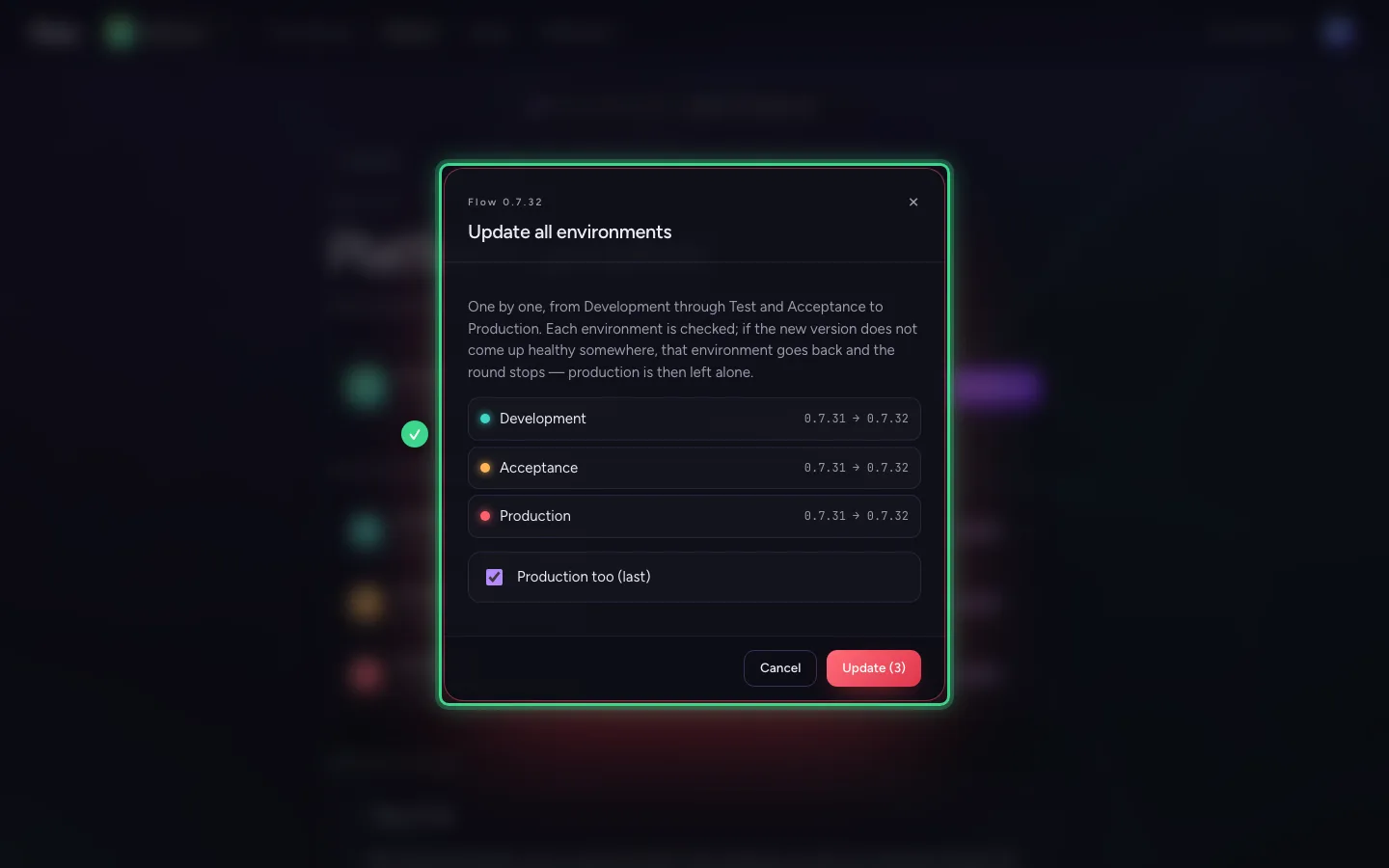
Choose Update all. You see which environments take part, in which order, from which version to which. Want to skip Production for now? Switch off Production too.
- Click Update all
Update and follow the round
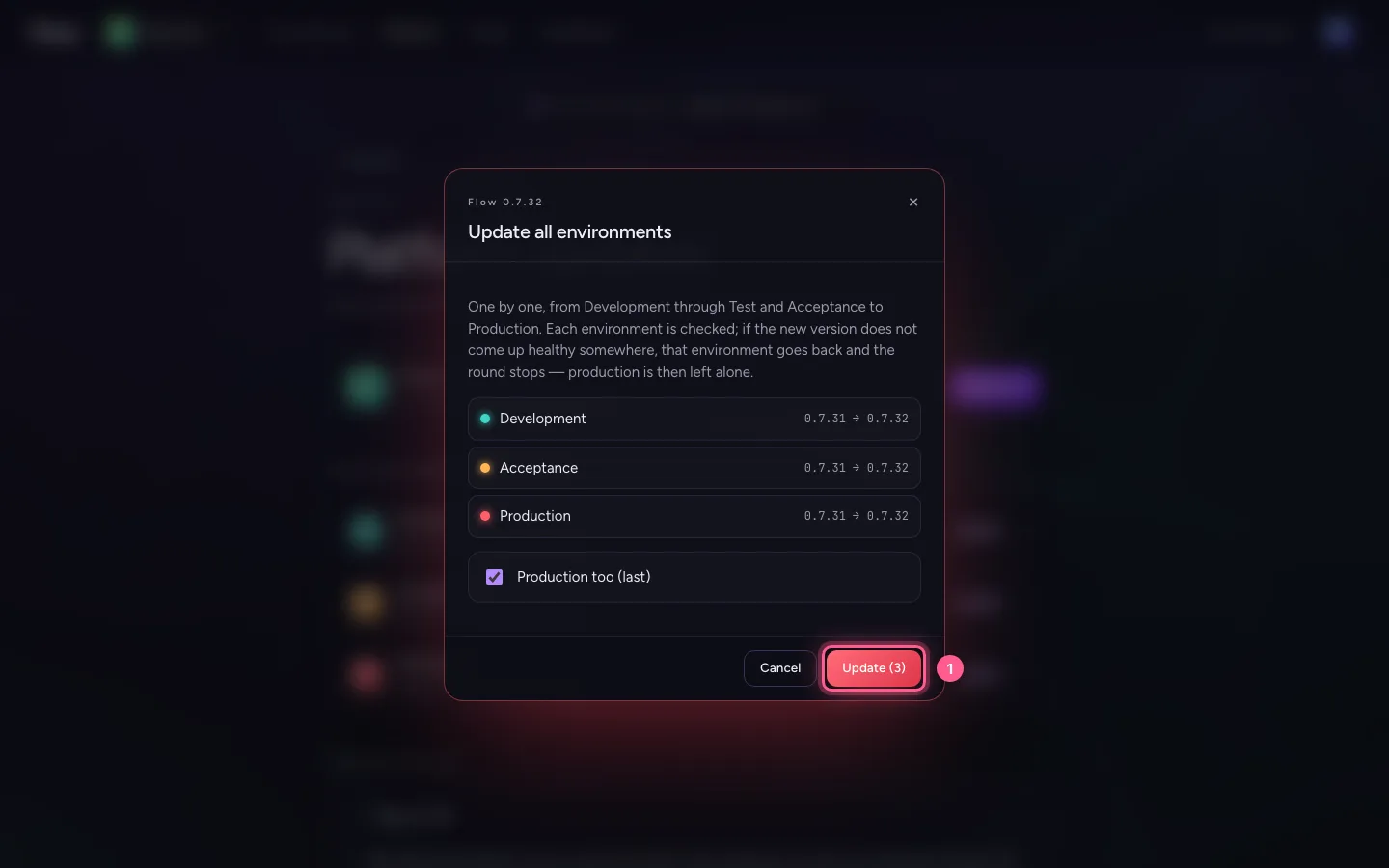
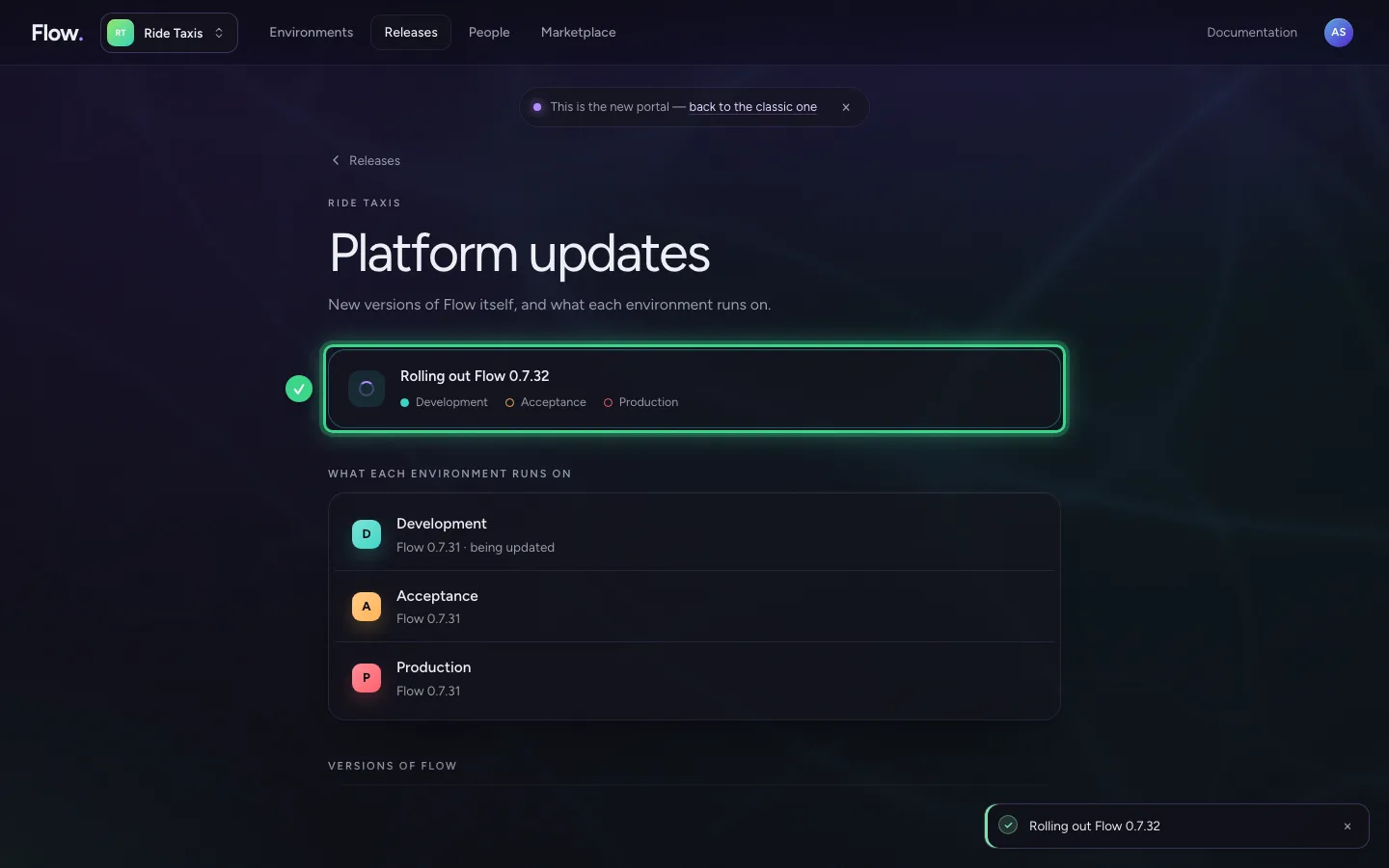
Choose Update. The portal updates the environments one by one and checks each one. Only when it is healthy does the next one go. Your data stays as it is.
- Click Update (3)
This guide was carried out step by step on 28 Oct 2026 by an automated test on Flow (version 96971699).