Your account and your organisation
You create an account in the portal, secure it with a second step, and set up an organisation. You then have three environments — Development, Acceptance and Production — each its own Flow with its own database. You need an authenticator app on your phone (for example Microsoft Authenticator or 1Password).
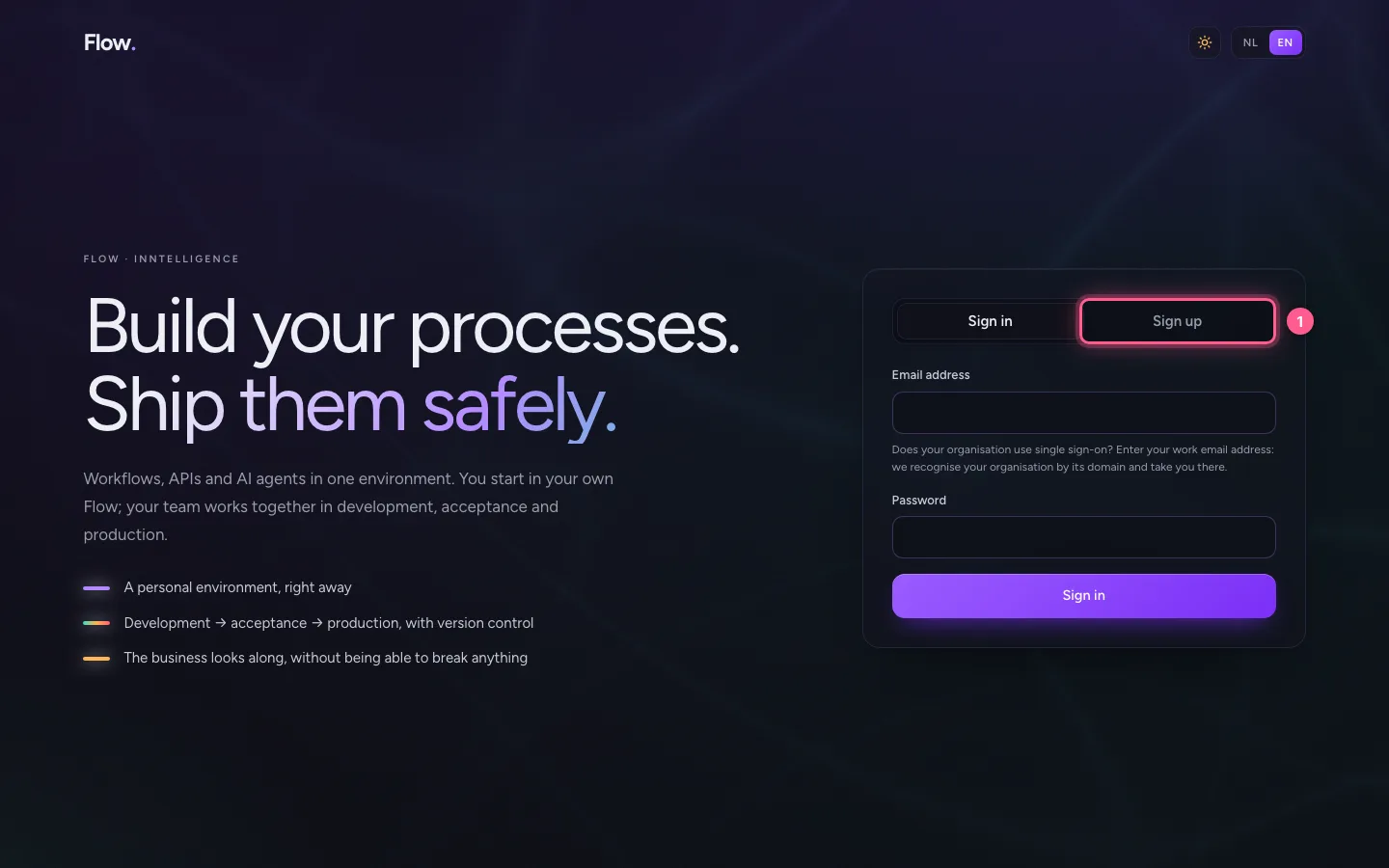
Open the portal and choose Sign up
The portal is where your account, your organisations and your environments live. Building happens in Flow itself, later.
- Click Sign up
Fill in your details
Your name, your work email address and a password of at least ten characters.
- In Name, type
Ada Street - In Email address, type
ada@acme.com - In Password, type
••••••••
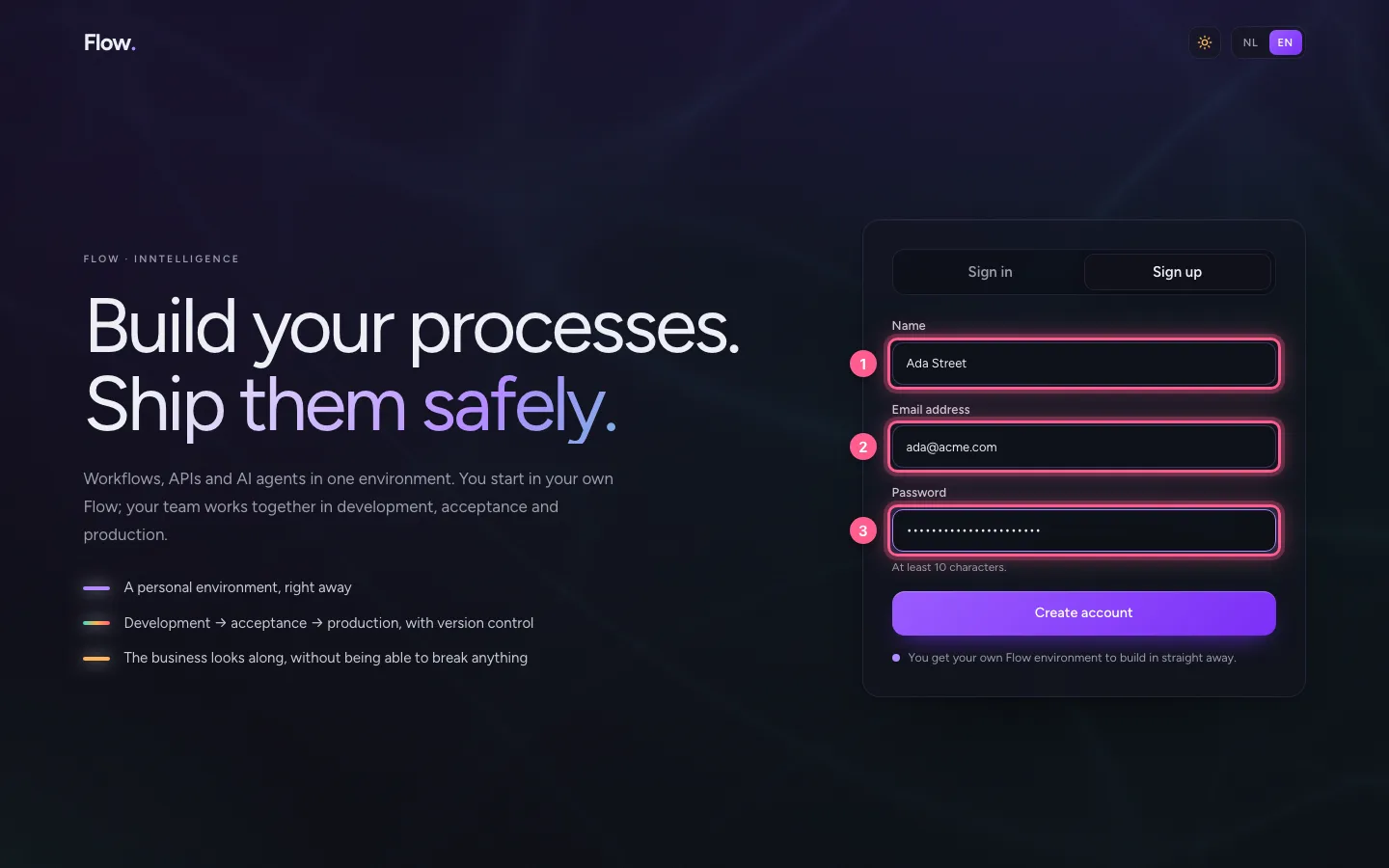
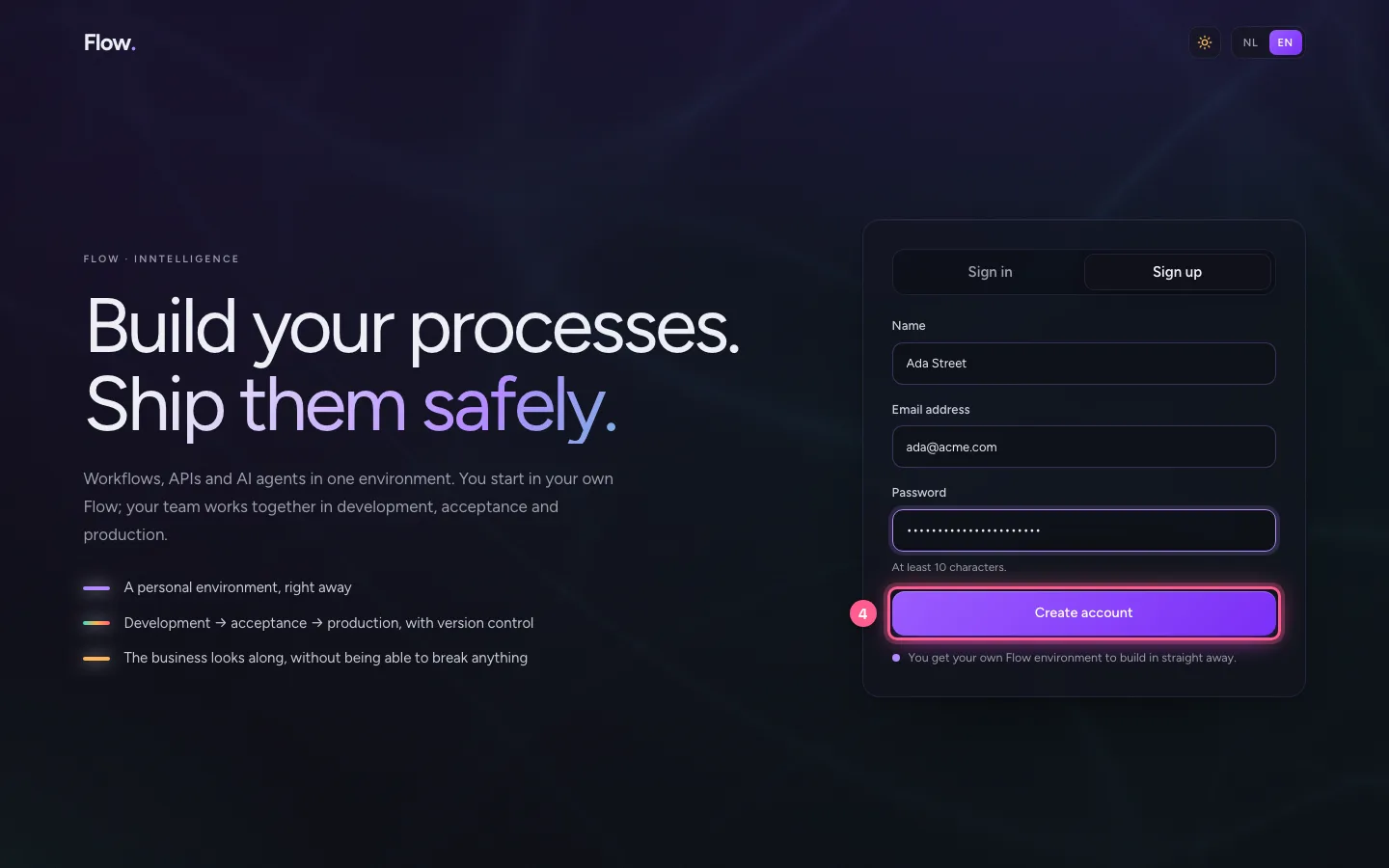
- Click Create account
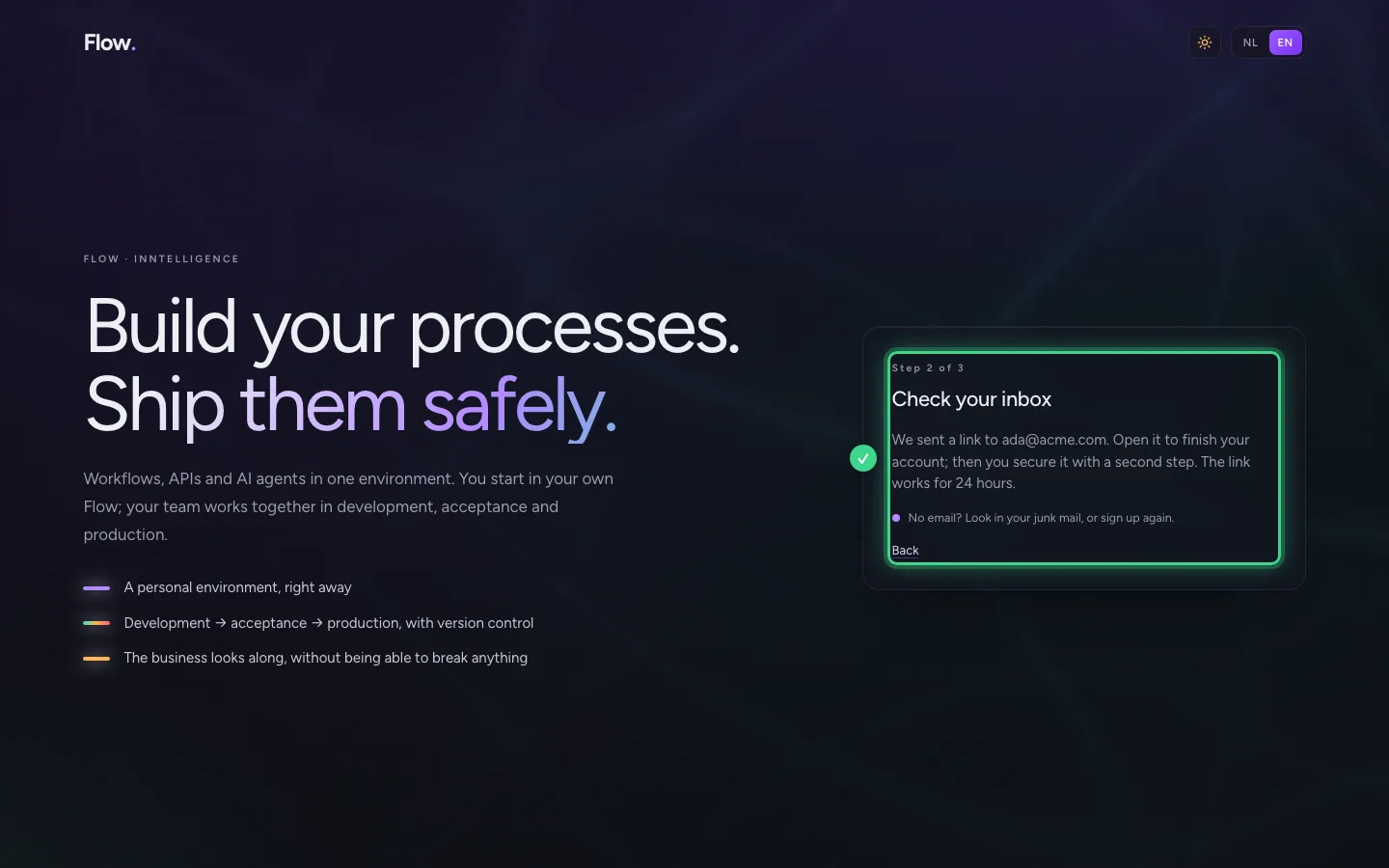
Confirm your email address
Flow sends an email to the address you entered. Open the link in it (it works for 24 hours): that way Flow knows the address is yours, and nobody else can make an account on your address.
Secure your account with a second step
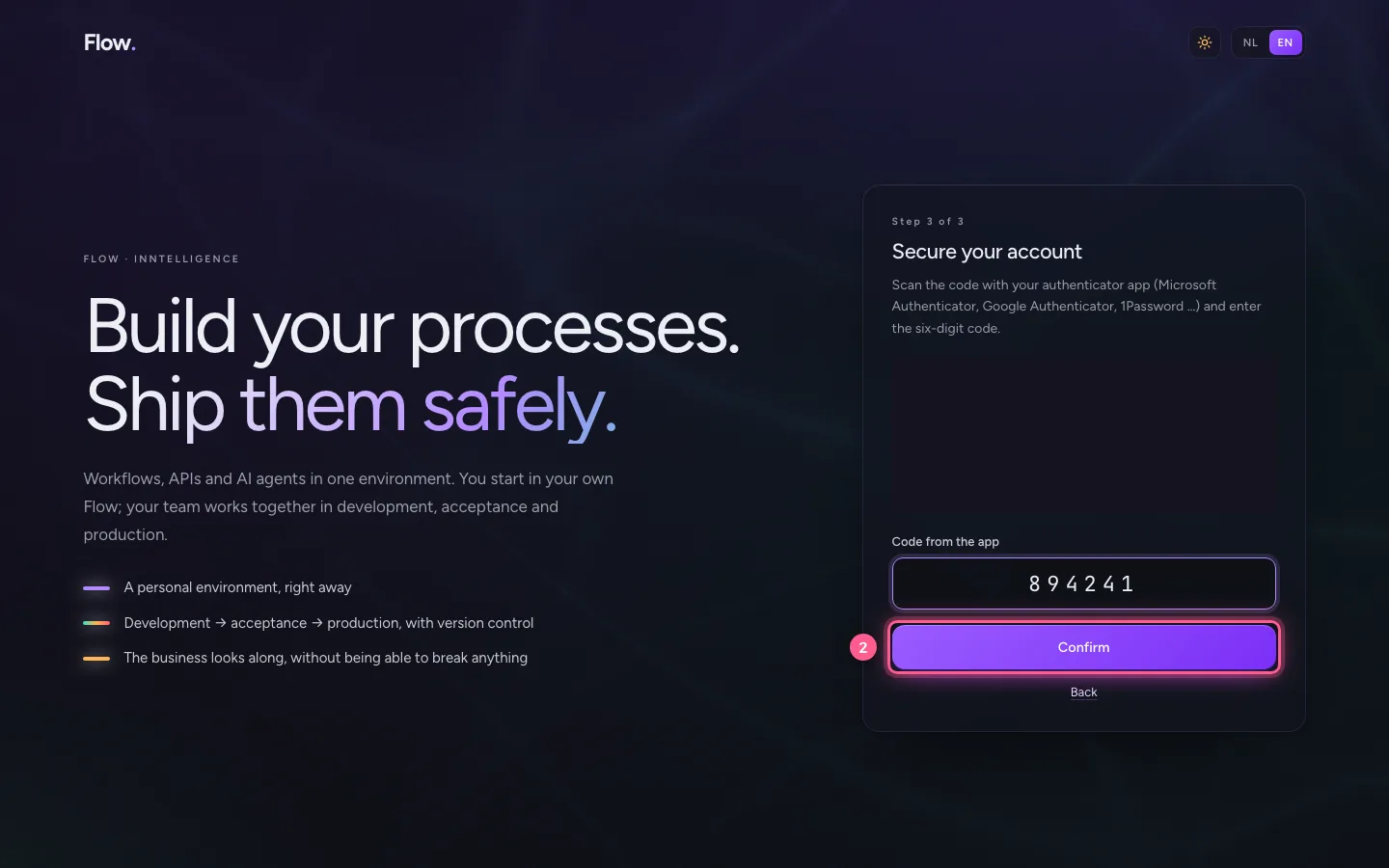
Scan the QR code with your authenticator app. It then shows a new six-digit code every thirty seconds; enter the one you see now. Without this second step nobody can sign in, not even with your password.
- In Code from the app, type
the six digits from your app
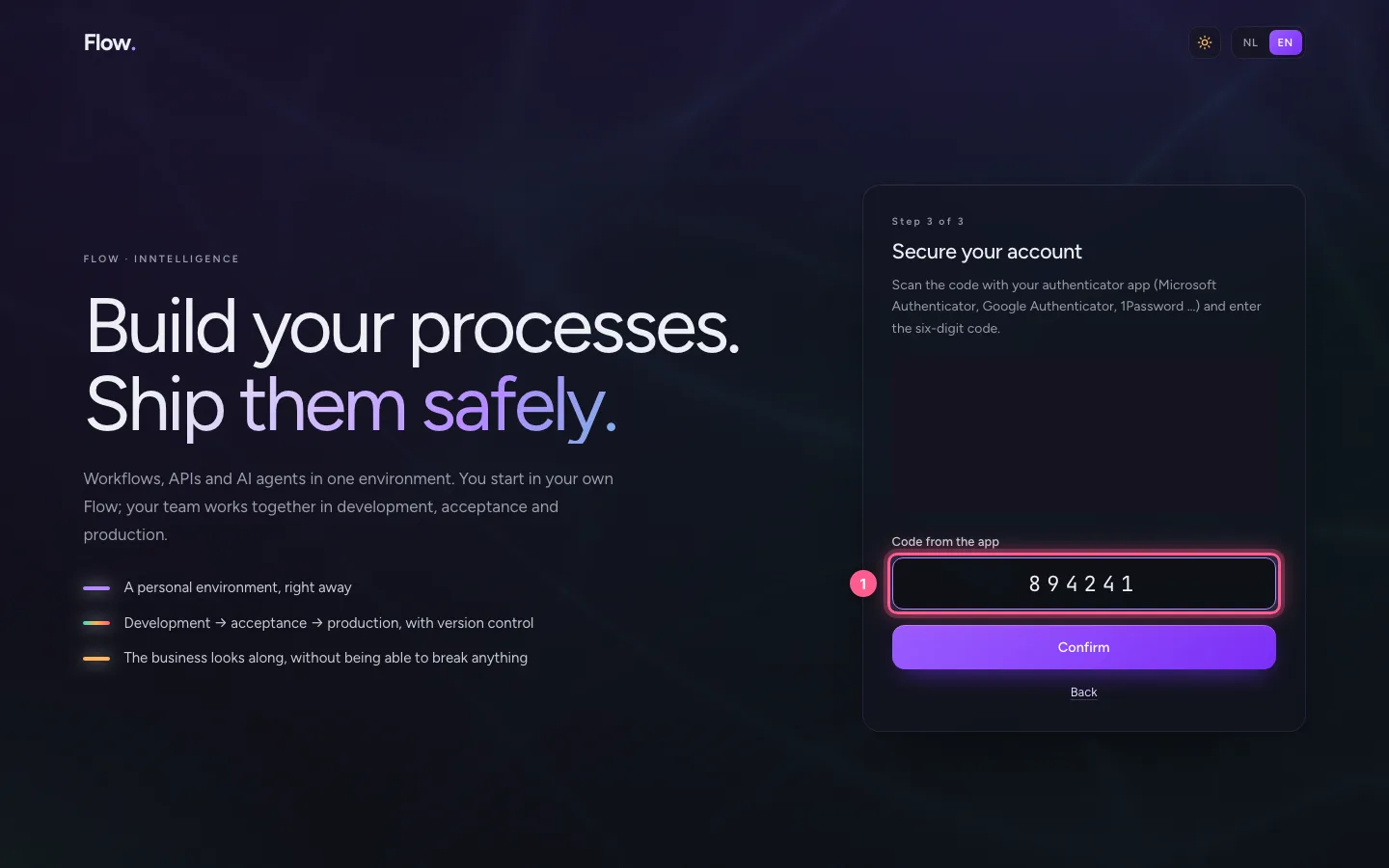
- Click Confirm
Keep your recovery codes
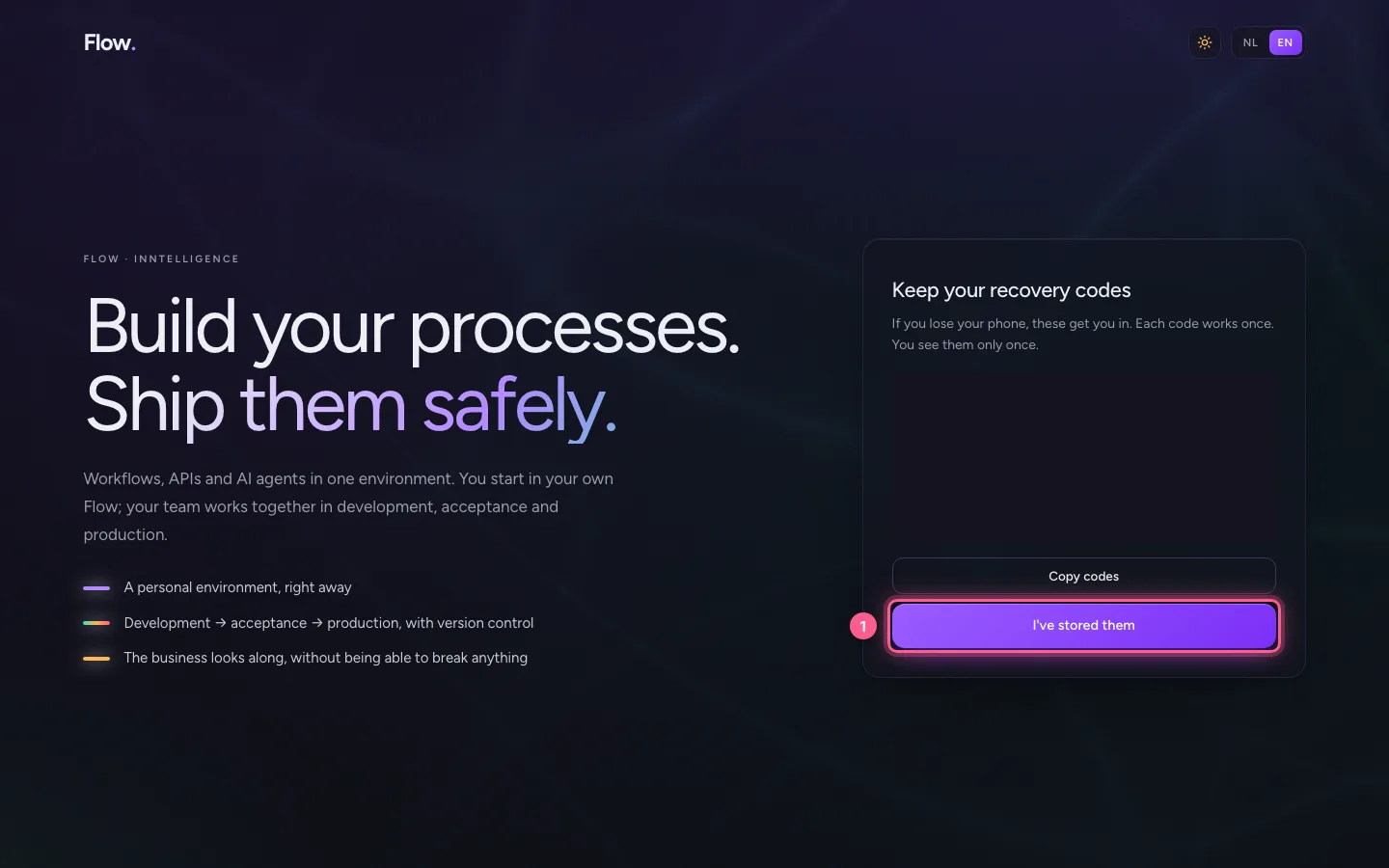
If you lose your phone, a recovery code gets you in. Each code works once and you see them only once: copy them into your password vault.
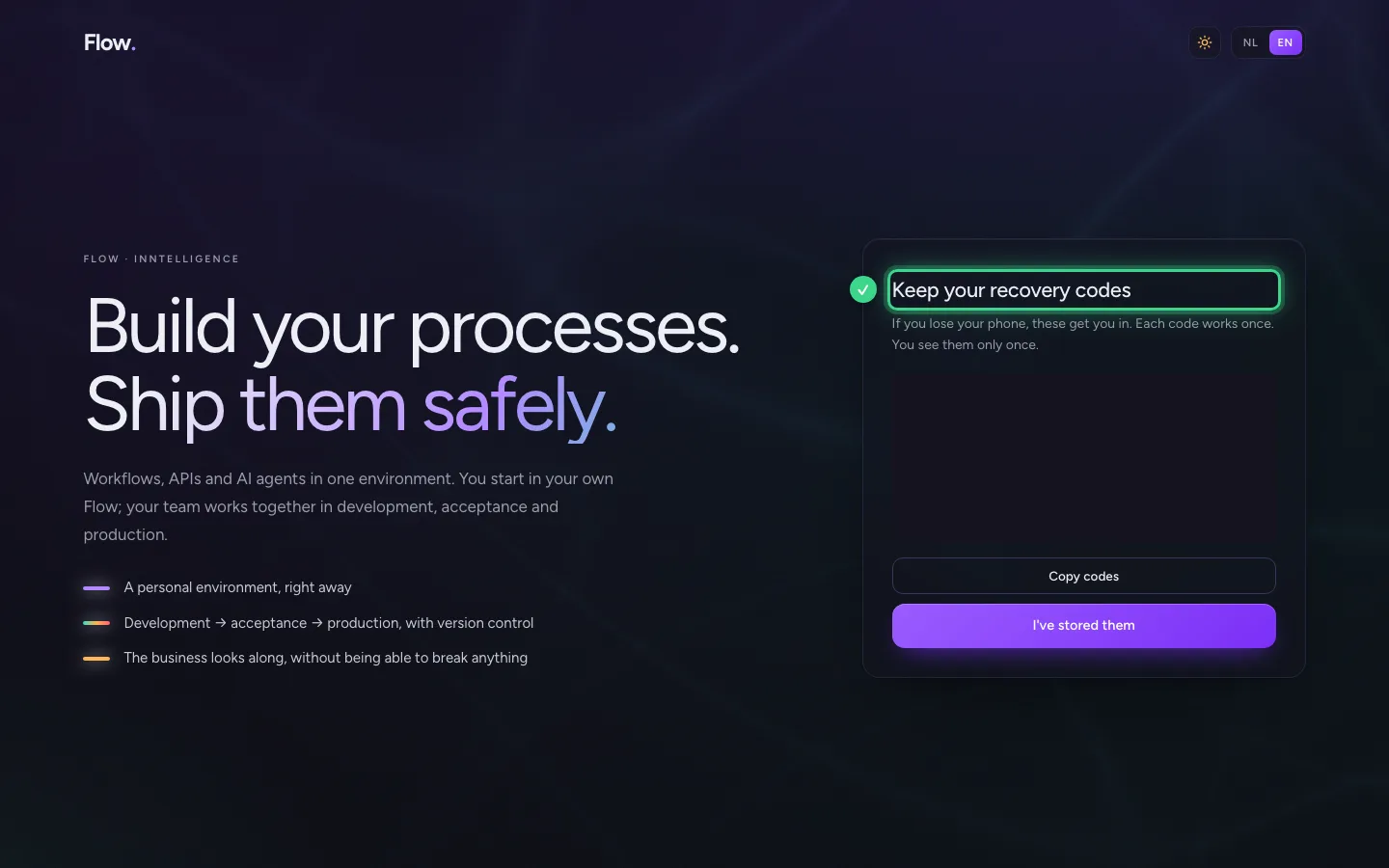
- Click I've stored them
Your personal Flow
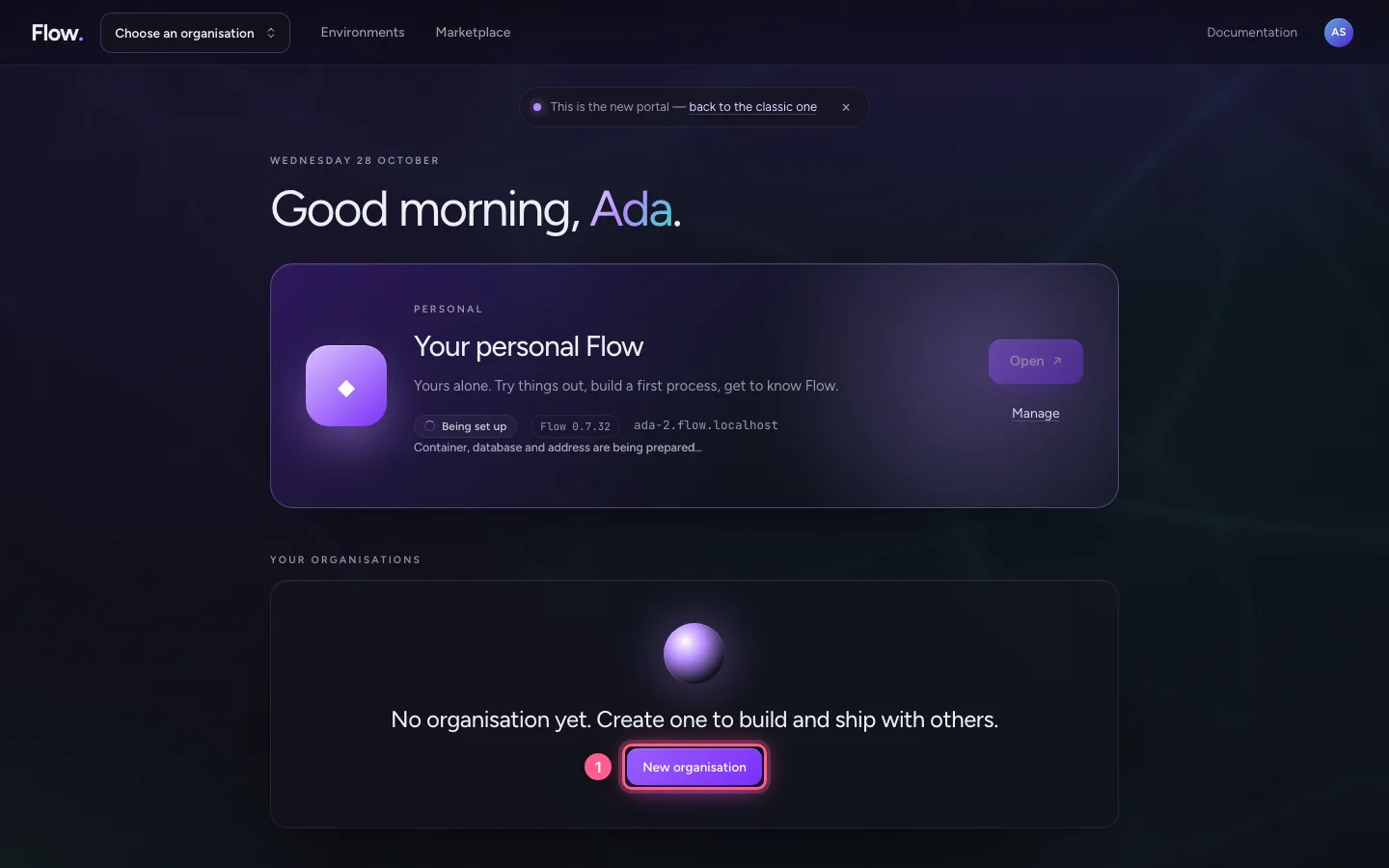
You arrive at Start. Your personal Flow is set up straight away: the violet card, yours alone, to try things out. To build and ship together, you create an organisation.
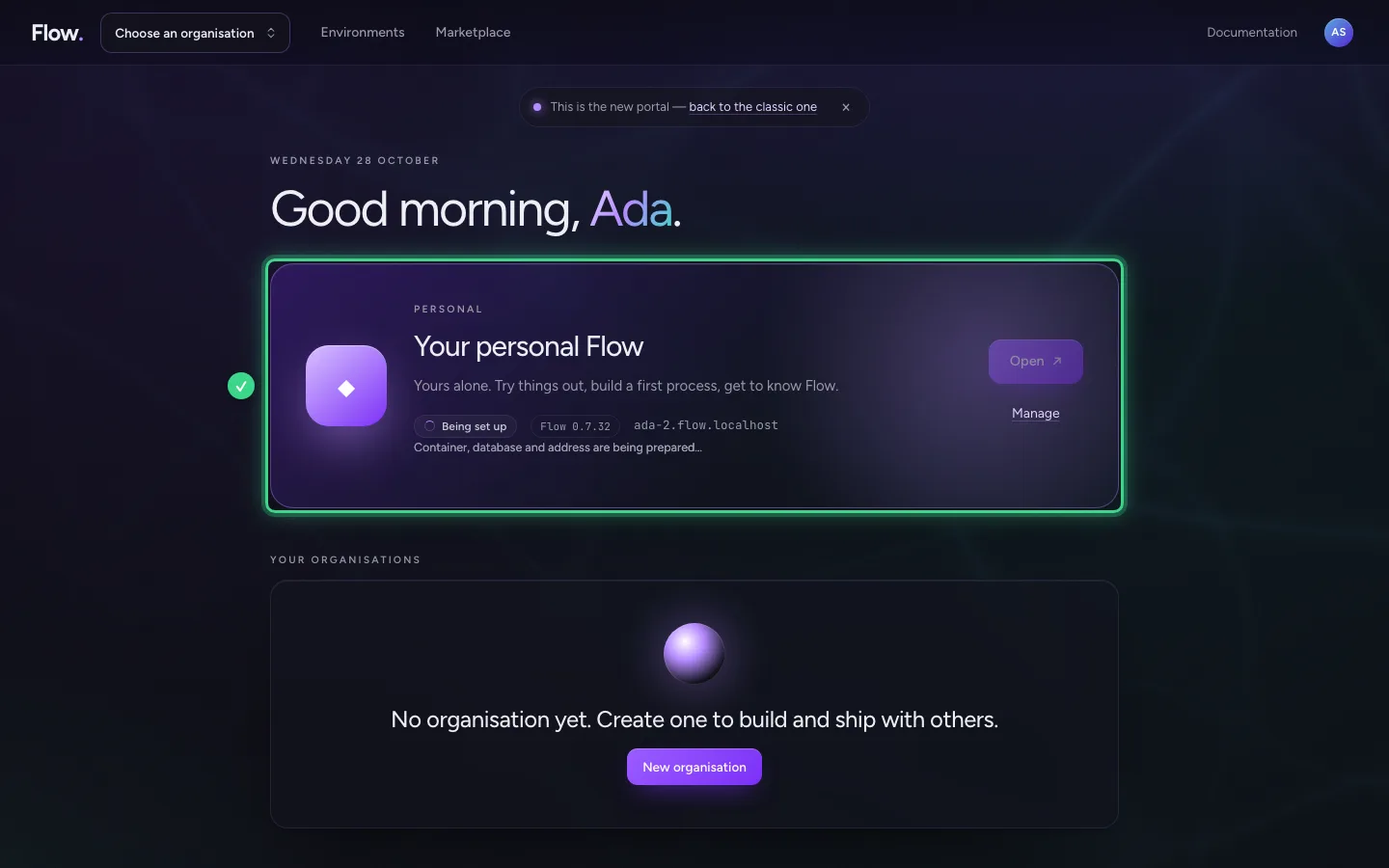
- Click New organisation
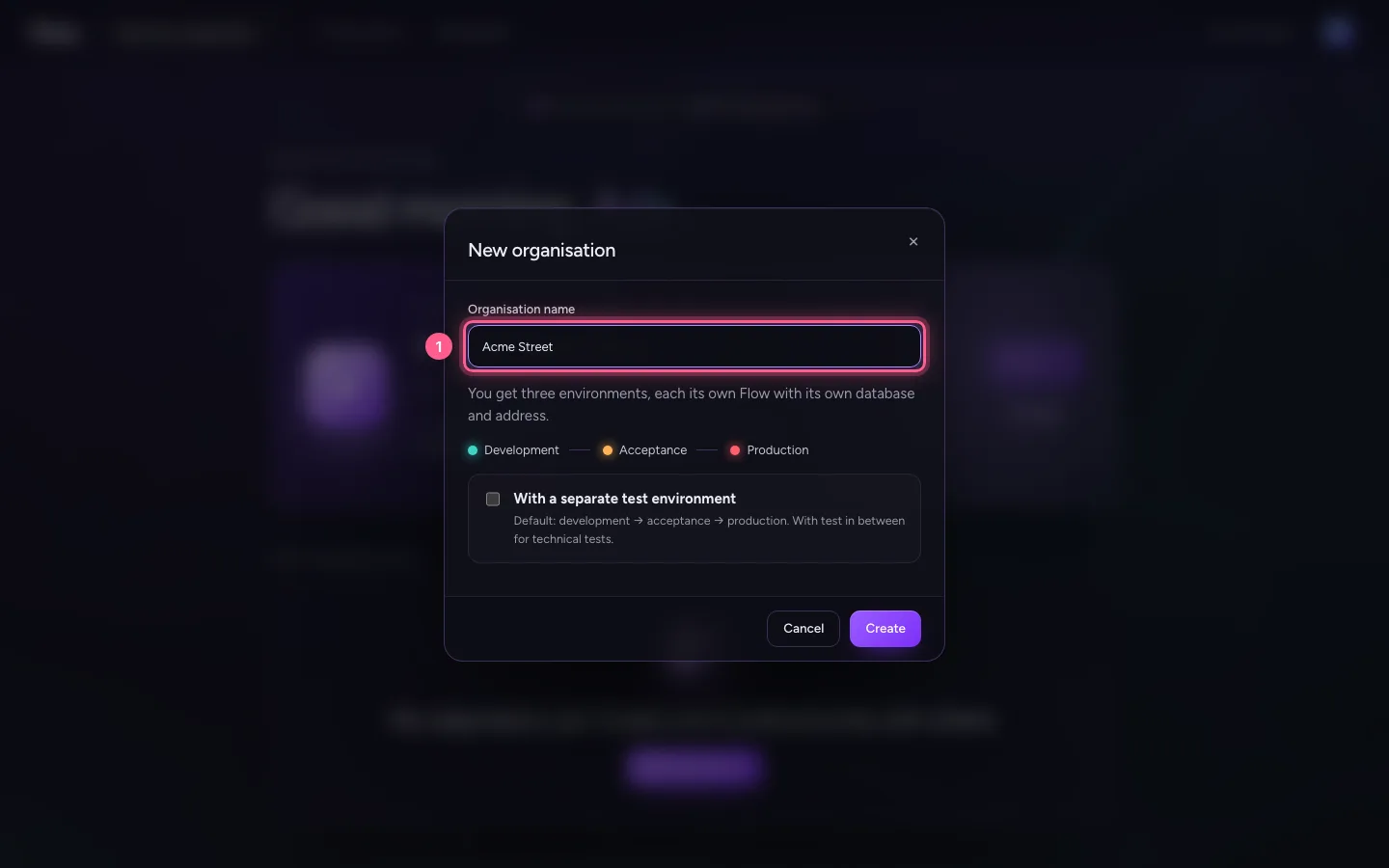
Name your organisation
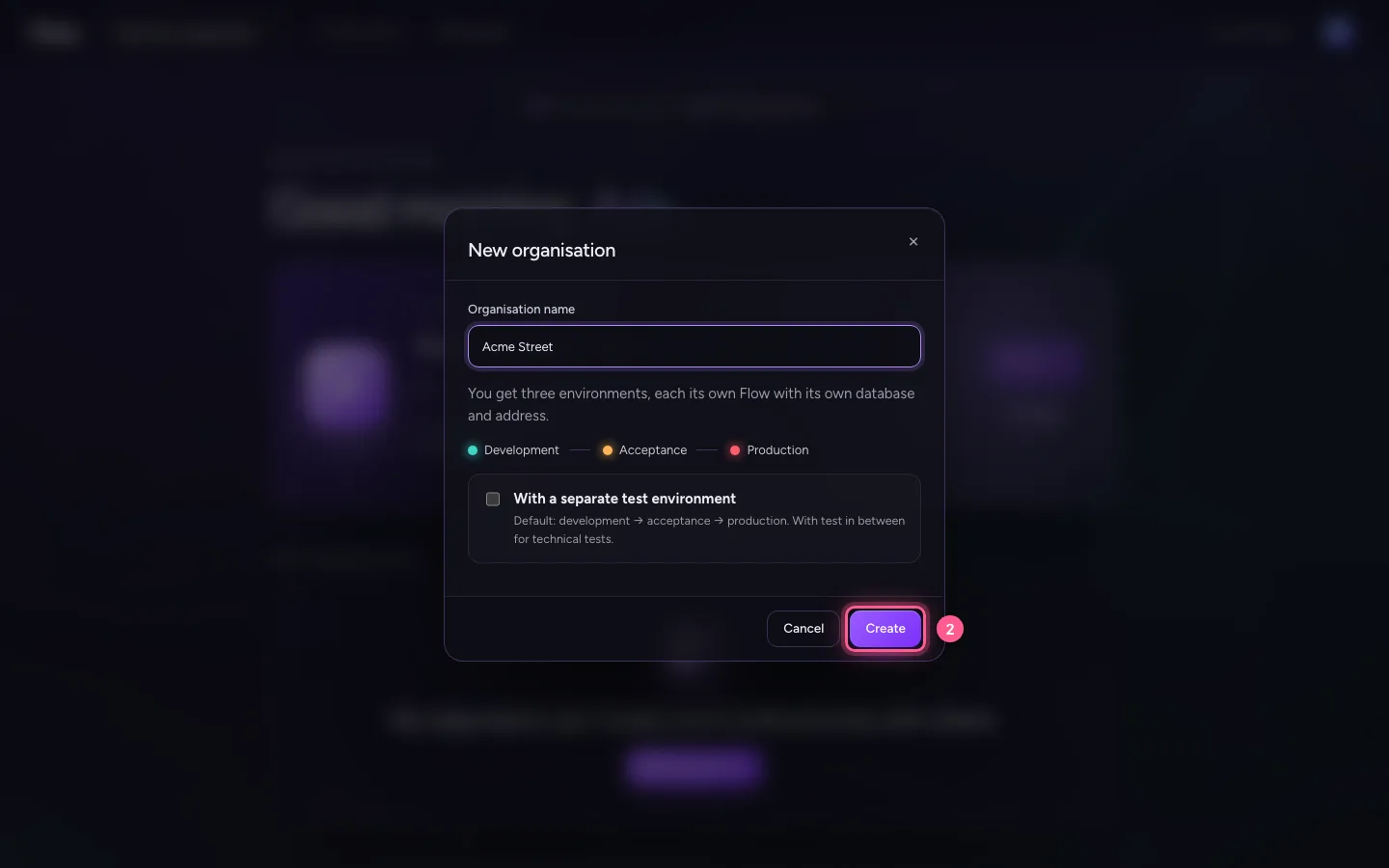
The name also becomes the address of your environments. You can add a separate test environment now or later.
- In Organisation name, type
Acme Street
- Click Create
Wait until your environments run
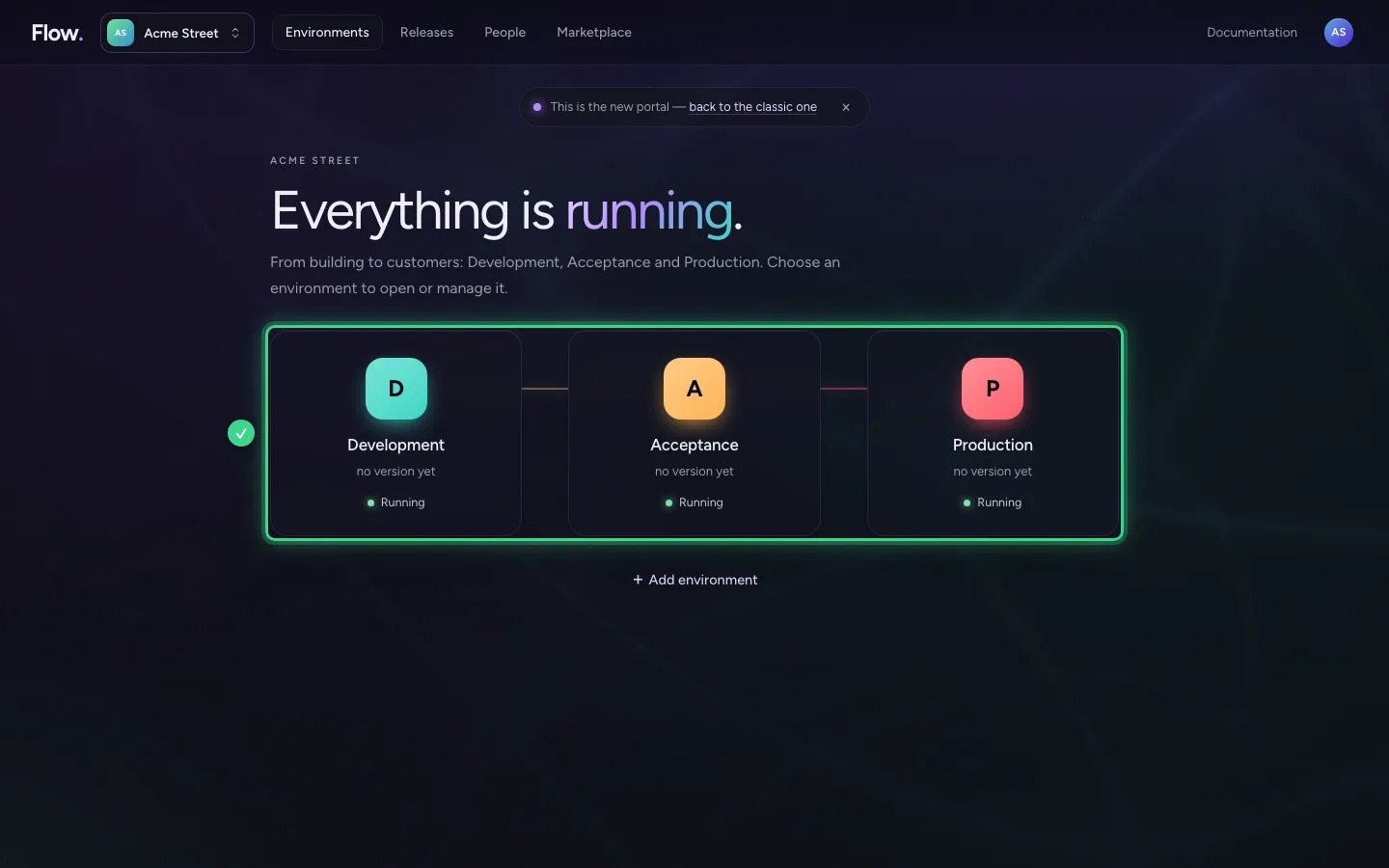
You arrive at Environments. Each environment is its own Flow with its own database and address: Development is where you build; Acceptance and Production are read-only: only what you publish arrives there. Setting up usually takes less than a minute; then it says Everything is running.
This guide was carried out step by step on 28 Oct 2026 by an automated test on Flow (version 96971699).