Flow.Documentation
Professional

A funnel with statuses and rules

7 steps± 5 minVideoVerified 22 Oct 2026
  1. Step 1 · Open your development environment
  2. Step 2 · Create a table for the requests
  3. Step 3 · Add a status column
  4. Step 4 · Record the flow
  5. Step 5 · Decide who may do what per status
  6. Step 6 · Add a request
  7. Step 7 · Move the request through the funnel

Quote requests go from request to quote and then to accepted or rejected. With a status column you record which step may follow which, and with rules per status who may see a row, change it or move it to a status. Flow enforces that for people, APIs and workflows, and writes every status change to the audit log.

Watch the whole guide as a video7 steps in one film
Step 1 / 7

Open your development environment

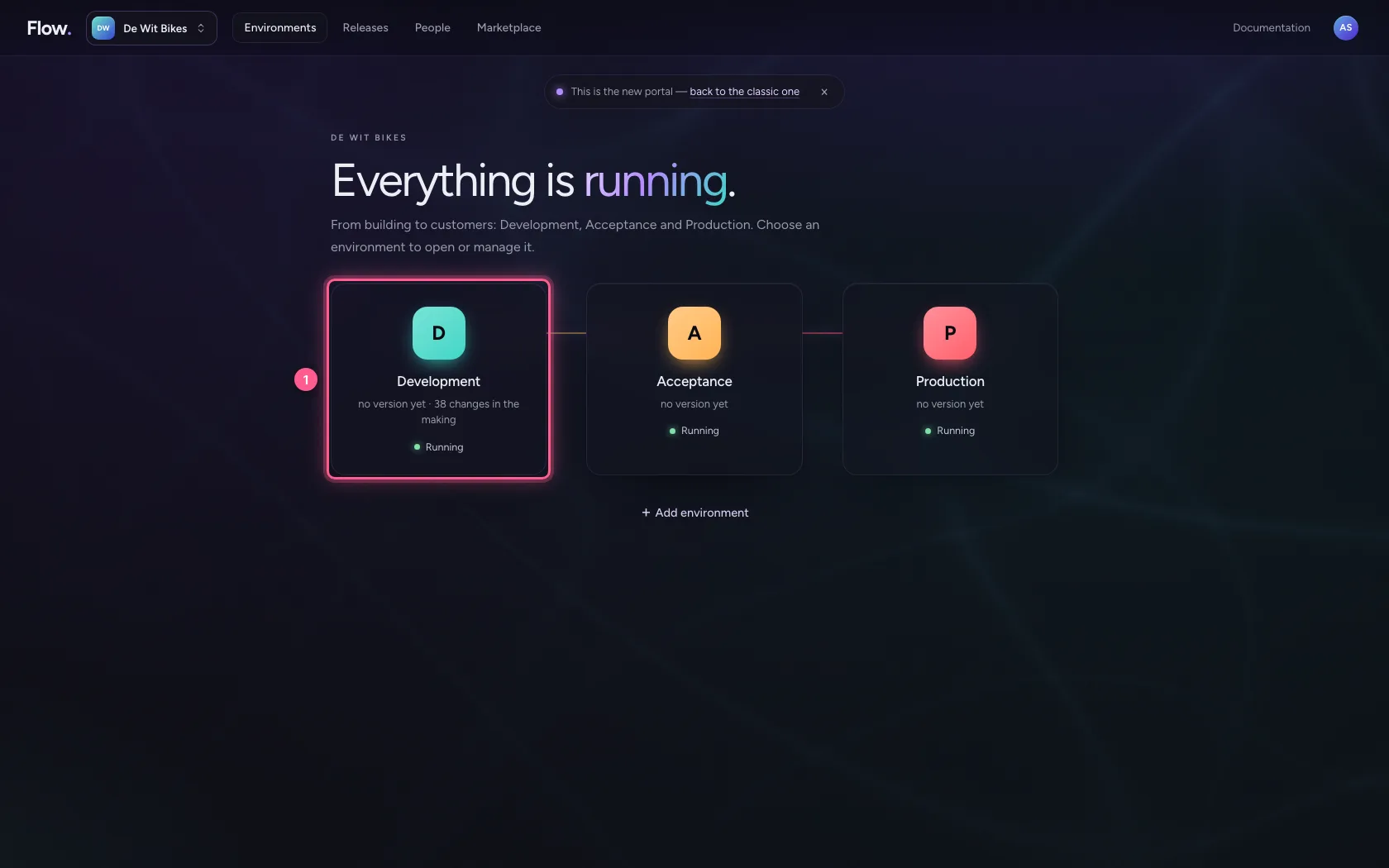
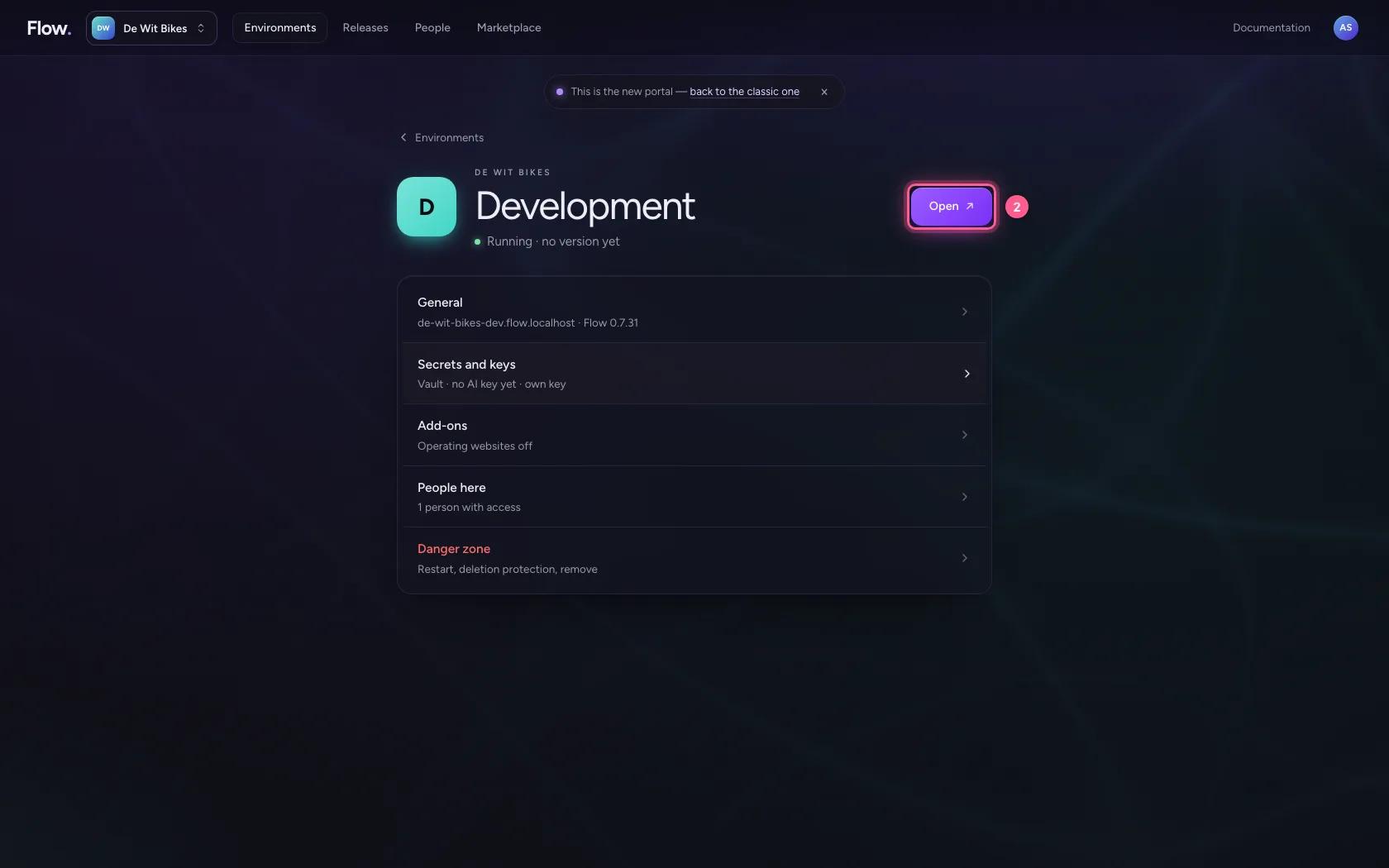
In the portal, under Environments, click Development, and there Open. Flow opens in a new tab and you are signed in straight away.

  1. Click Development
Open your development environment · Click Development
  1. Click Open ↗
Open your development environment · Click Open ↗
Step 2 / 7

Create a table for the requests

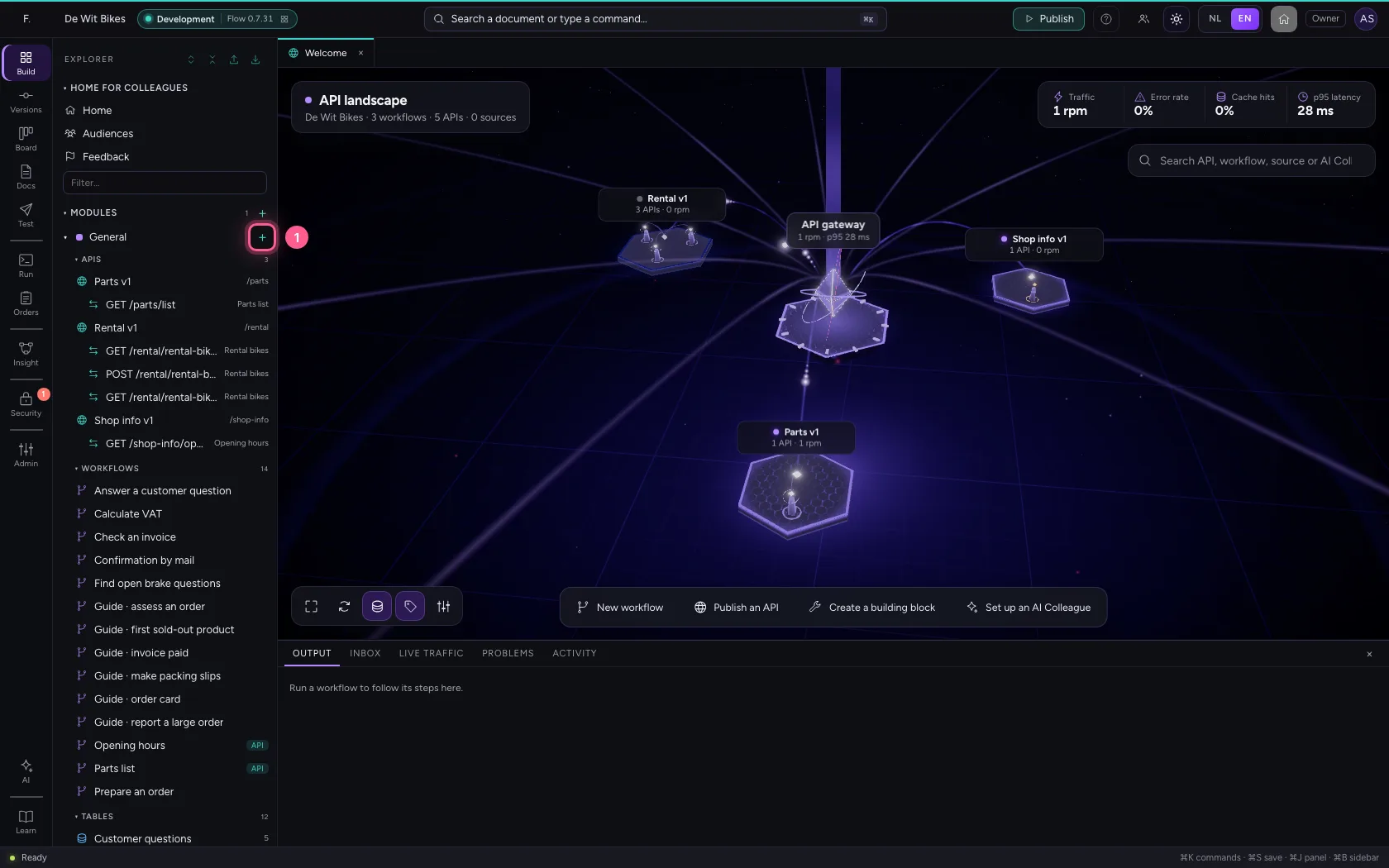
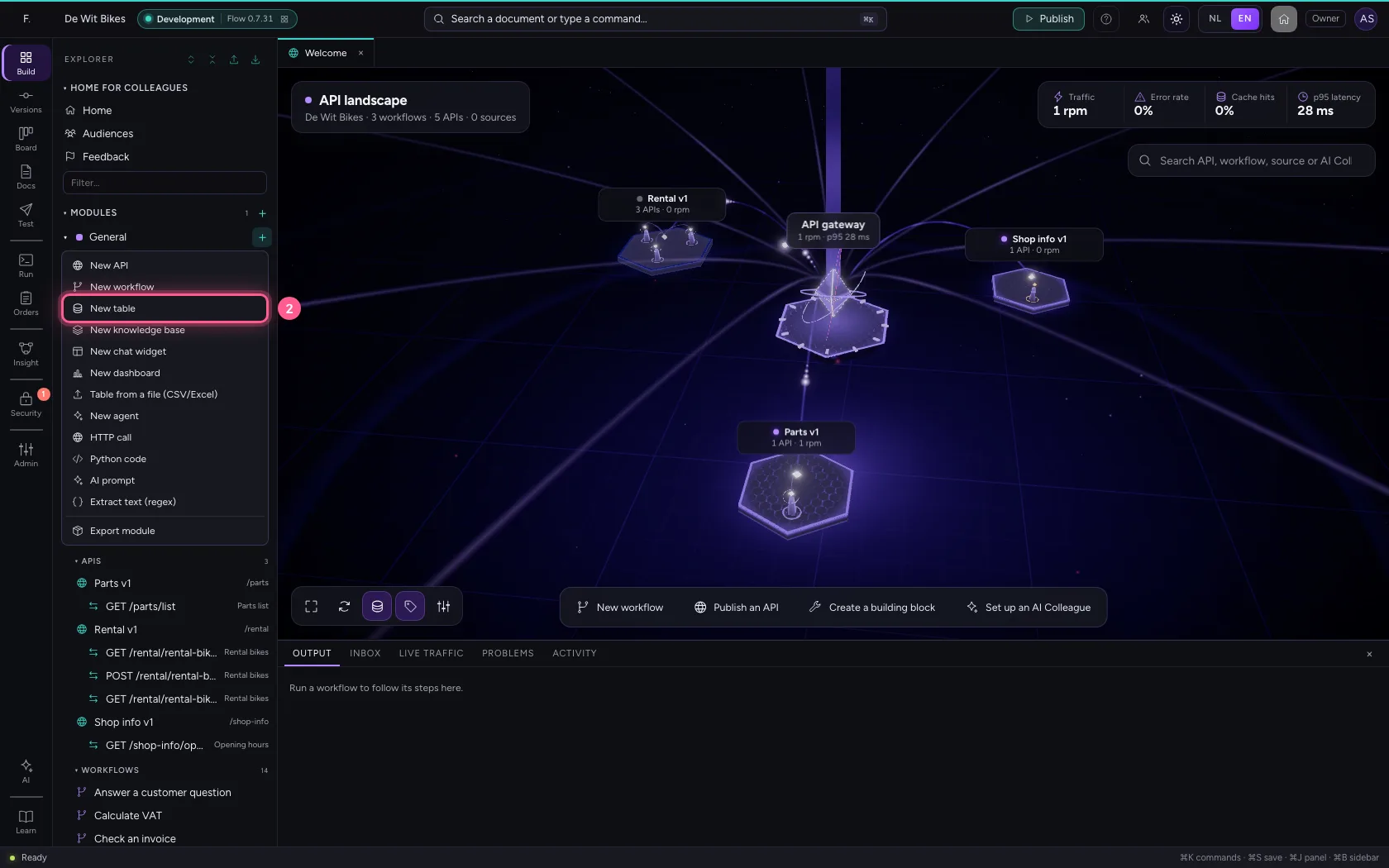
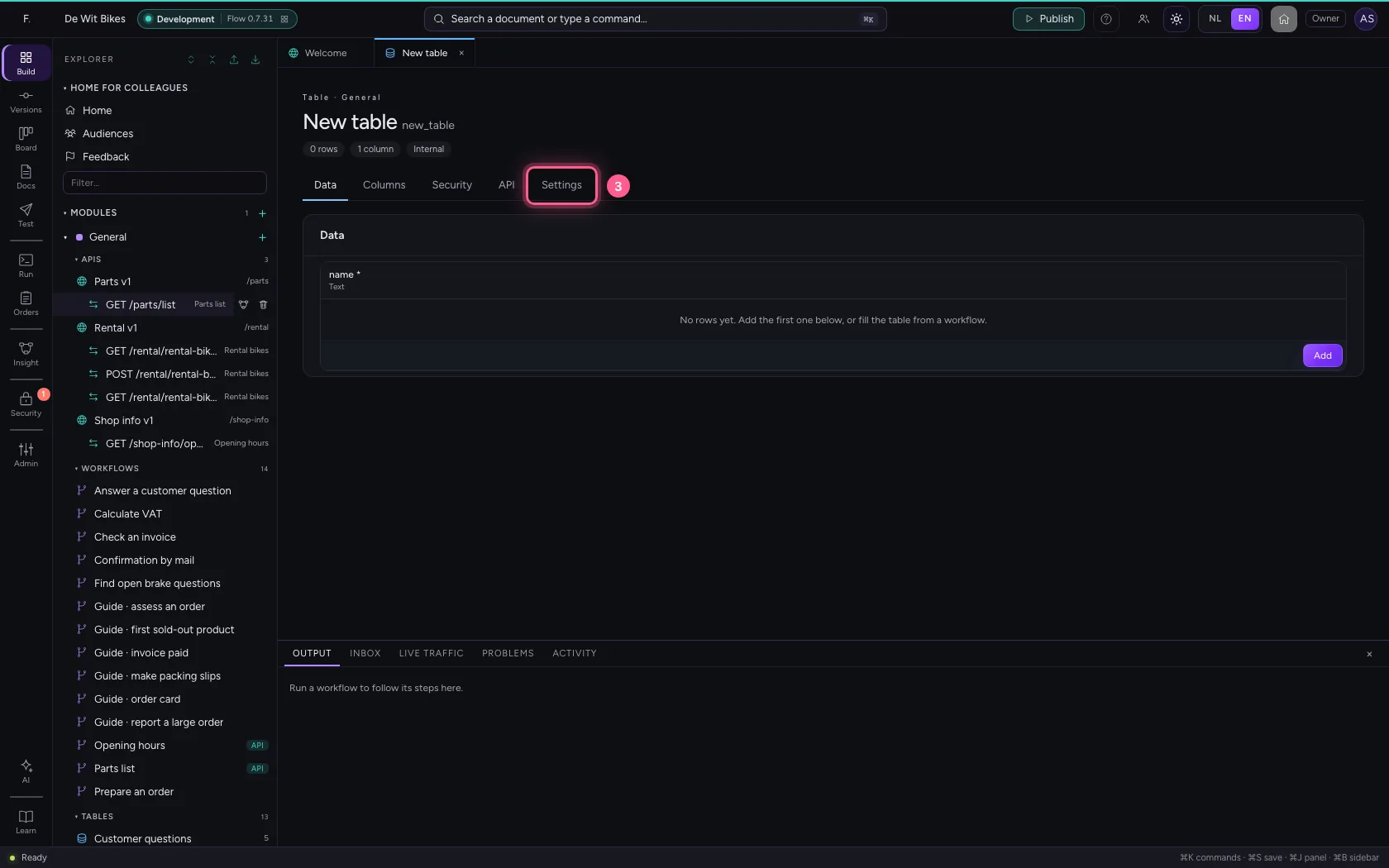
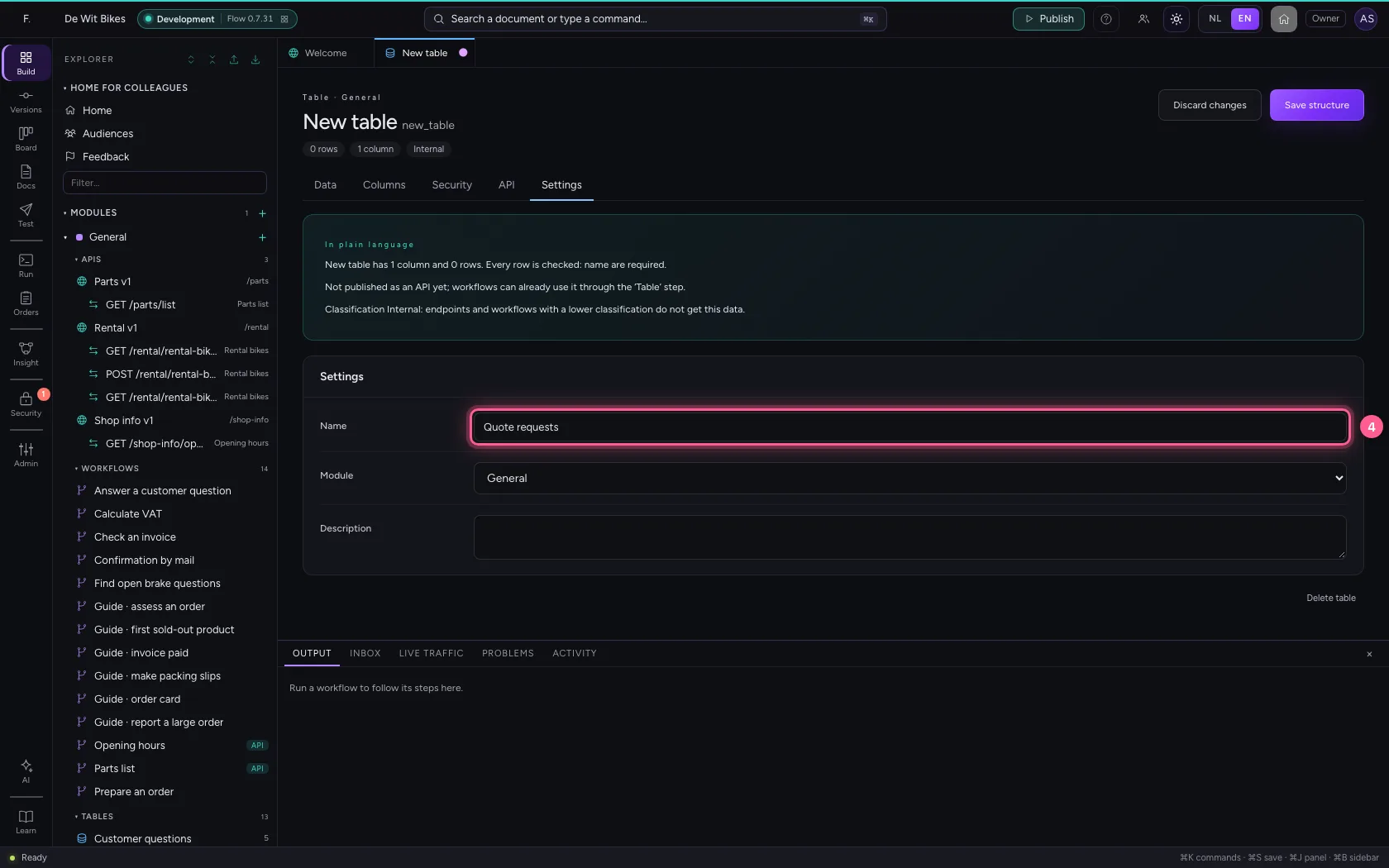
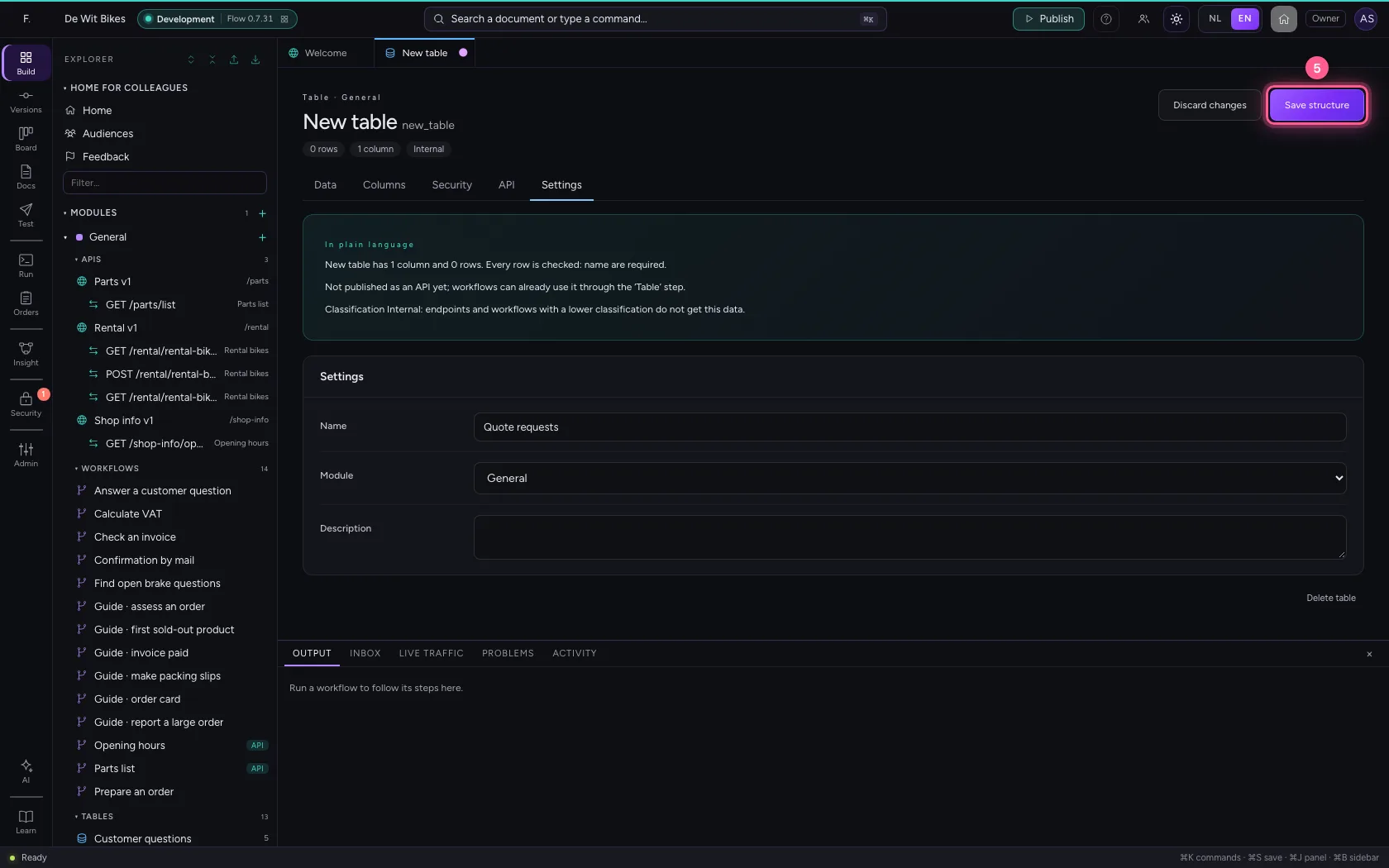
Click + next to General and choose New table. Name it under Settings and save.

  1. Click Add to General
Create a table for the requests · Click Add to General
  1. Click New table
Create a table for the requests · Click New table
  1. Click Settings
Create a table for the requests · Click Settings
  1. In Name, type Quote requests
Create a table for the requests · In Name, type Quote requests
  1. Click Save structure
Create a table for the requests · Click Save structure
Step 3 / 7

Add a status column

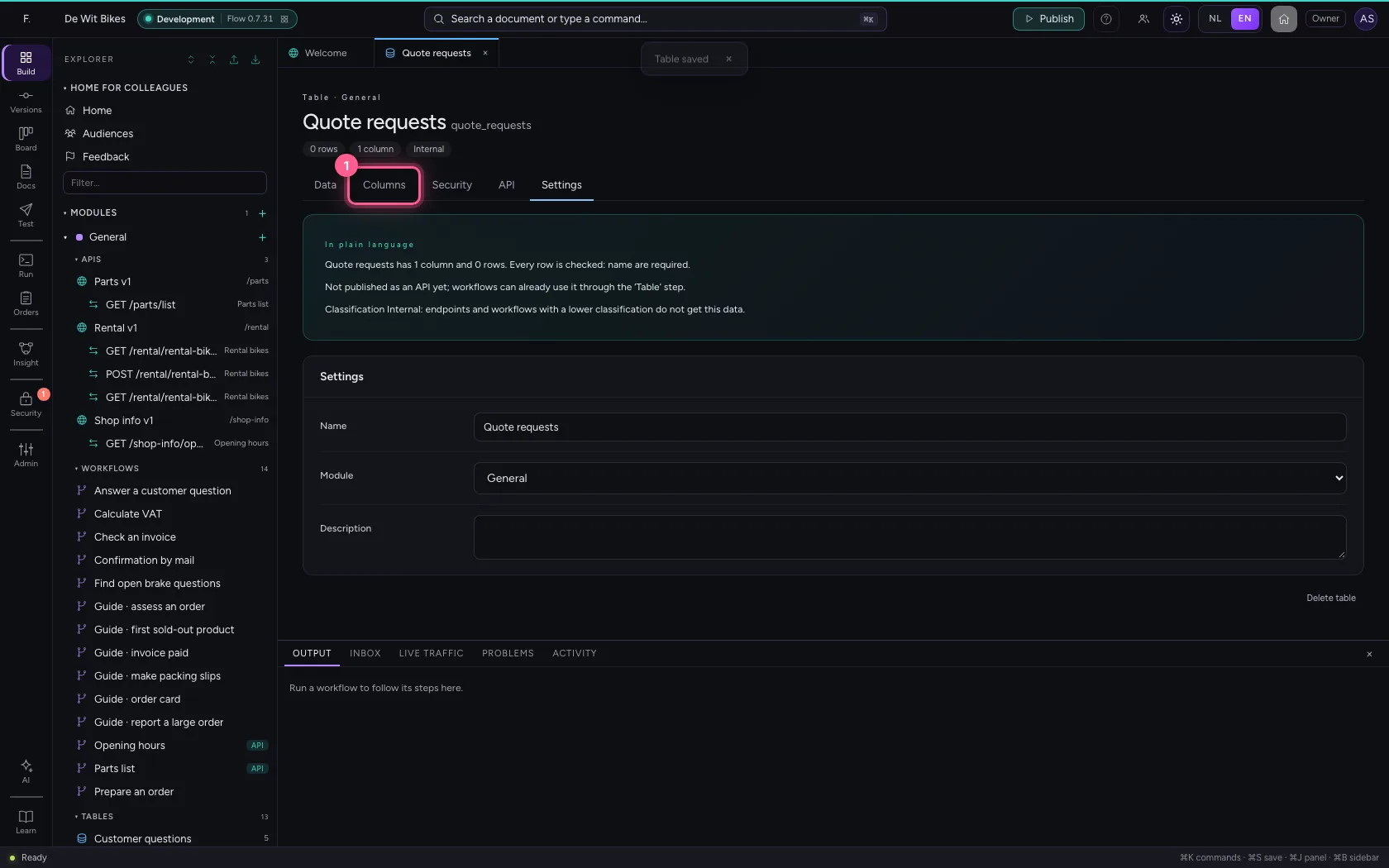
Under Columns you add a column of type Status, with the steps of your funnel as fixed values, separated by commas. A new row always starts at the first one.

  1. Click Columns
Add a status column · Click Columns
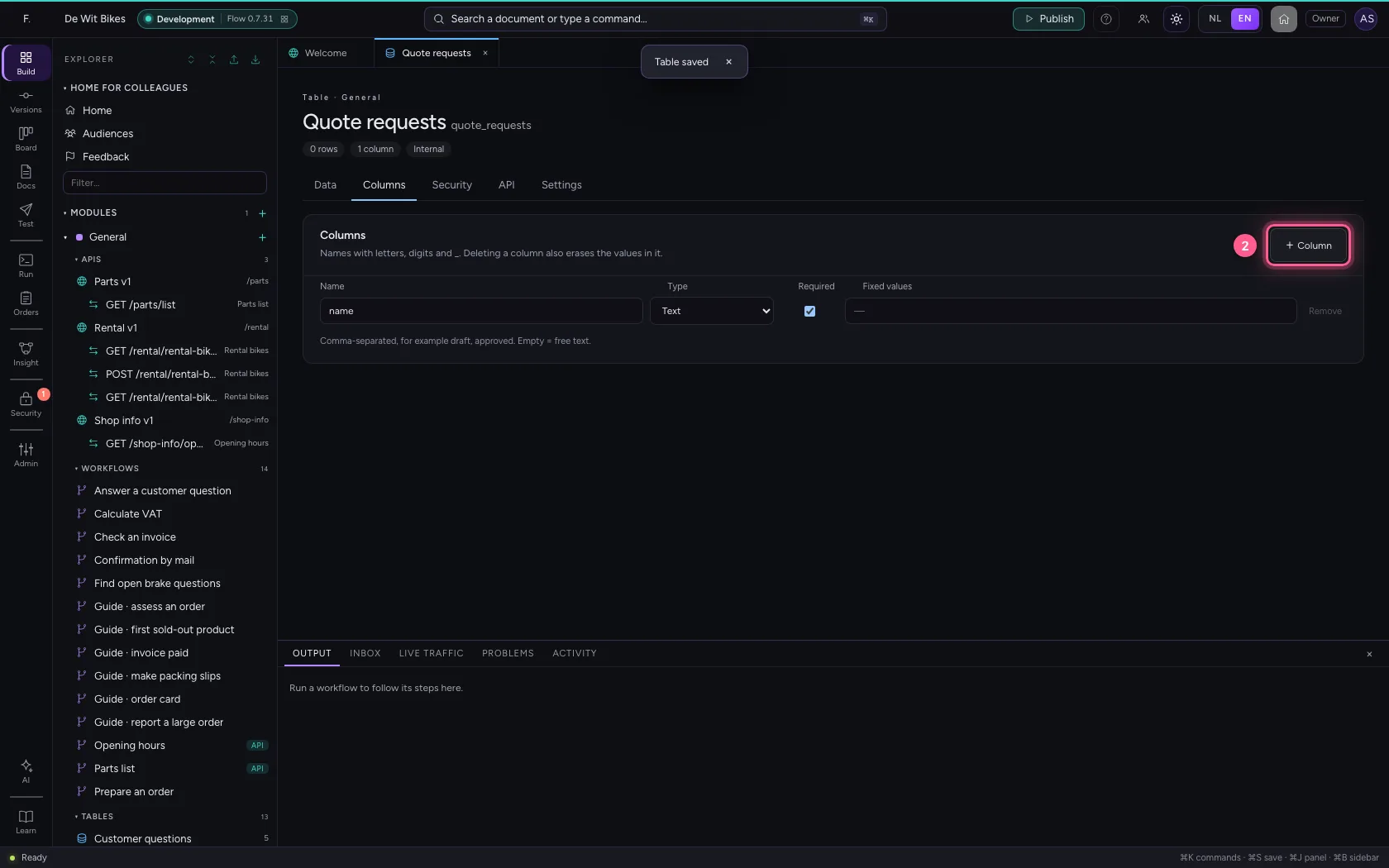
  1. Click + Column
Add a status column · Click + Column
  1. In Name, type stage
  2. In Type, choose Status
  3. In Fixed values, type request, quote, accepted, rejected
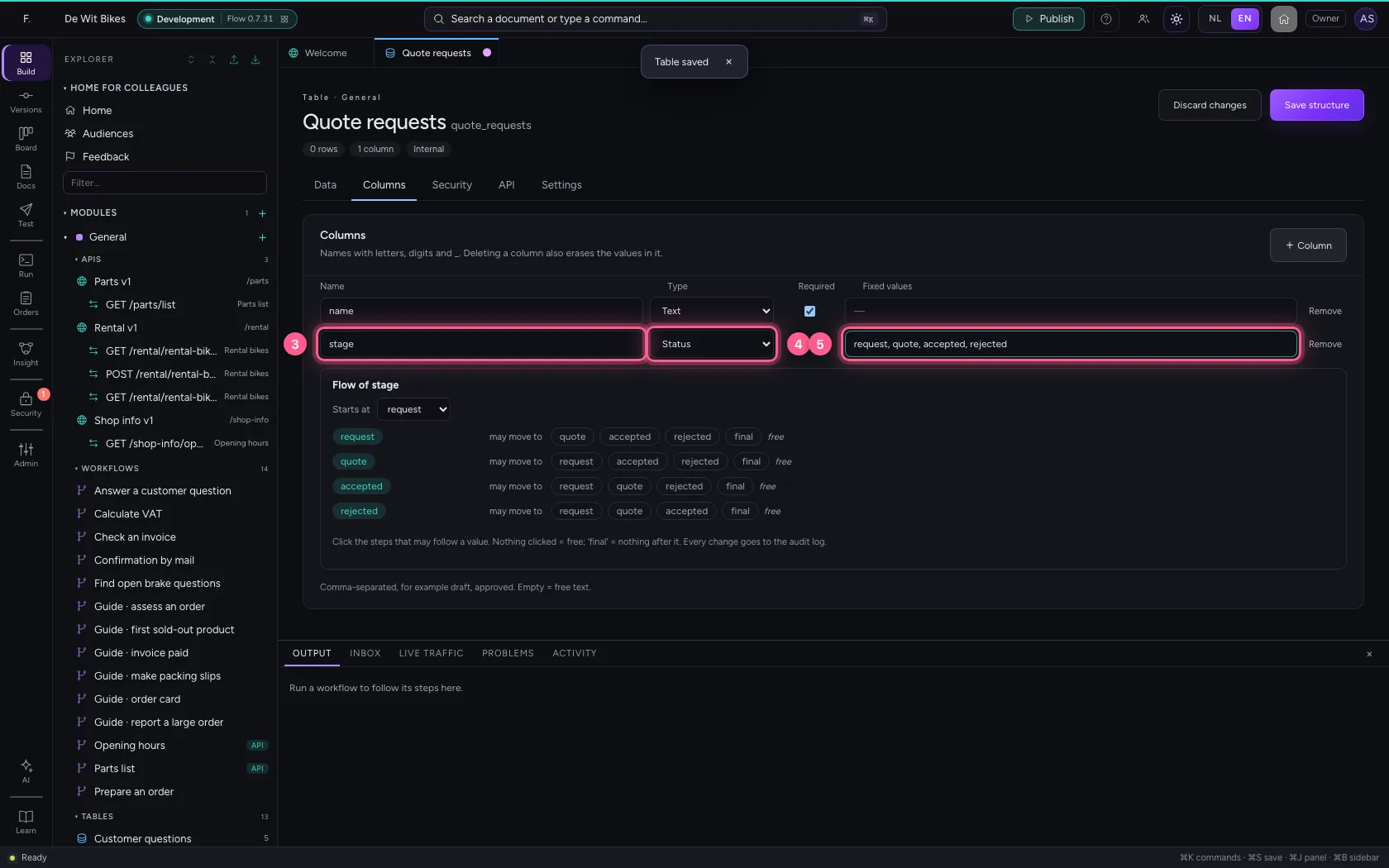
Add a status column · In Name, type stage; In Type, choose Status; In Fixed values, type request, quote, accepted, rejected
Step 4 / 7

Record the flow

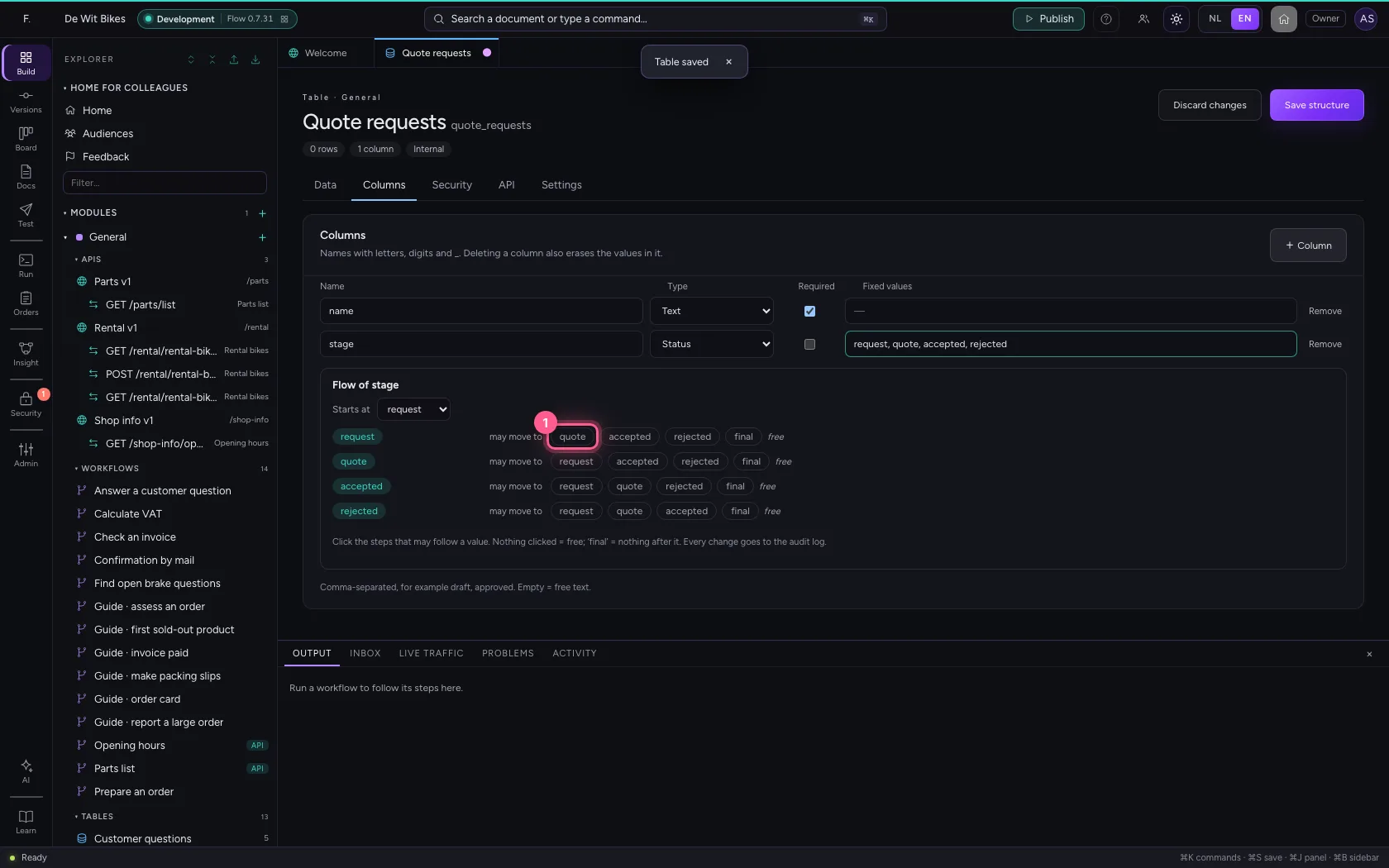
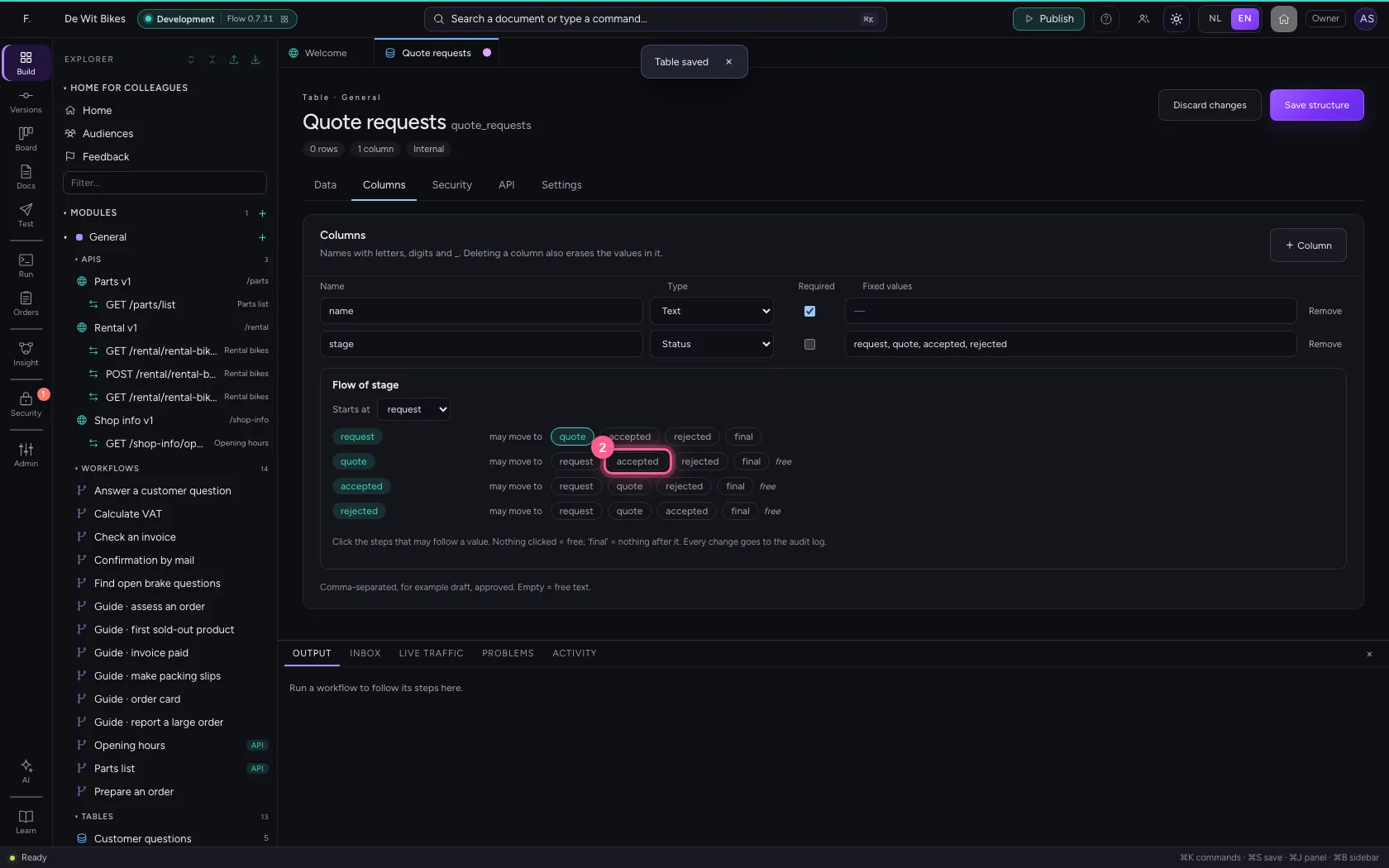
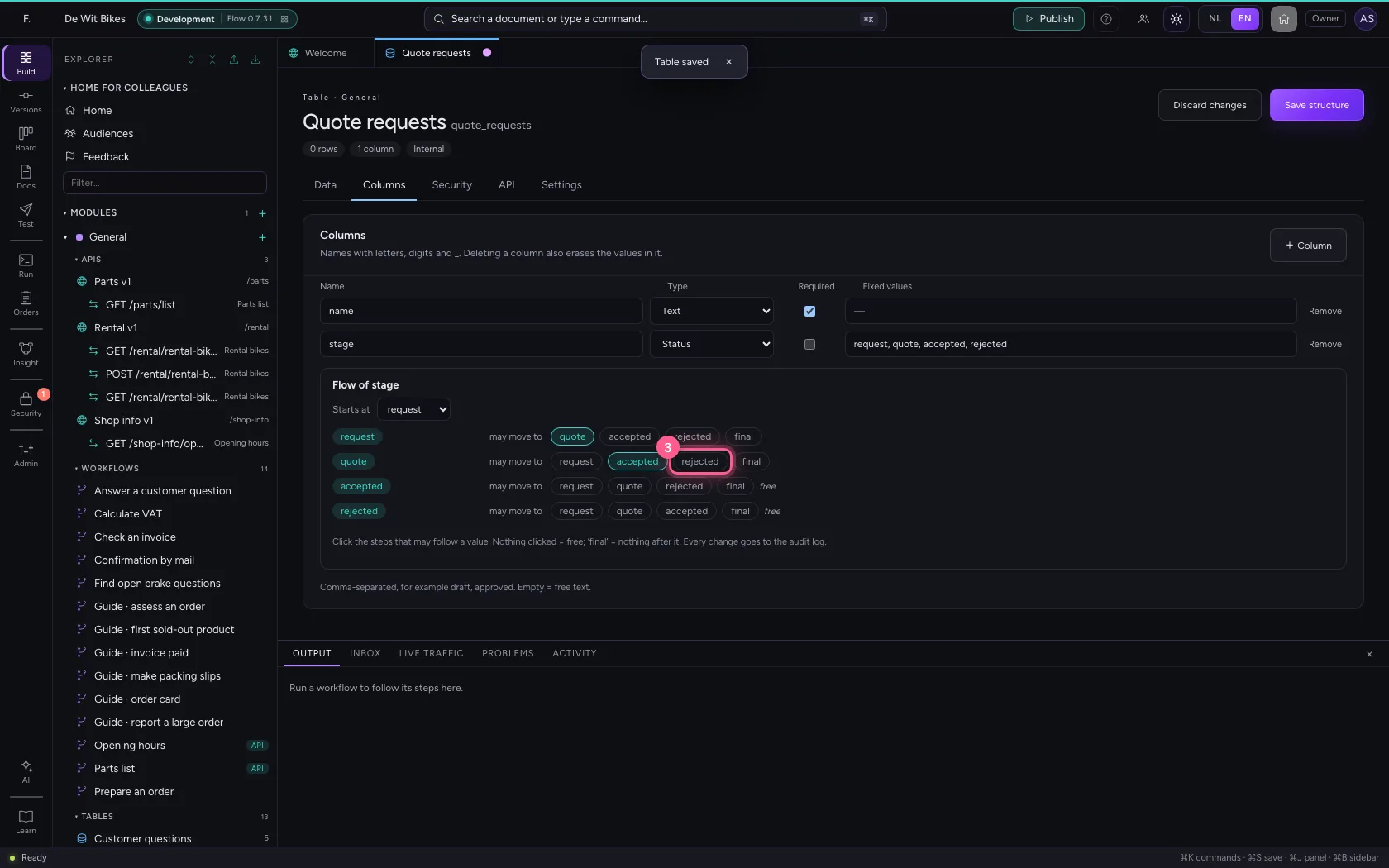
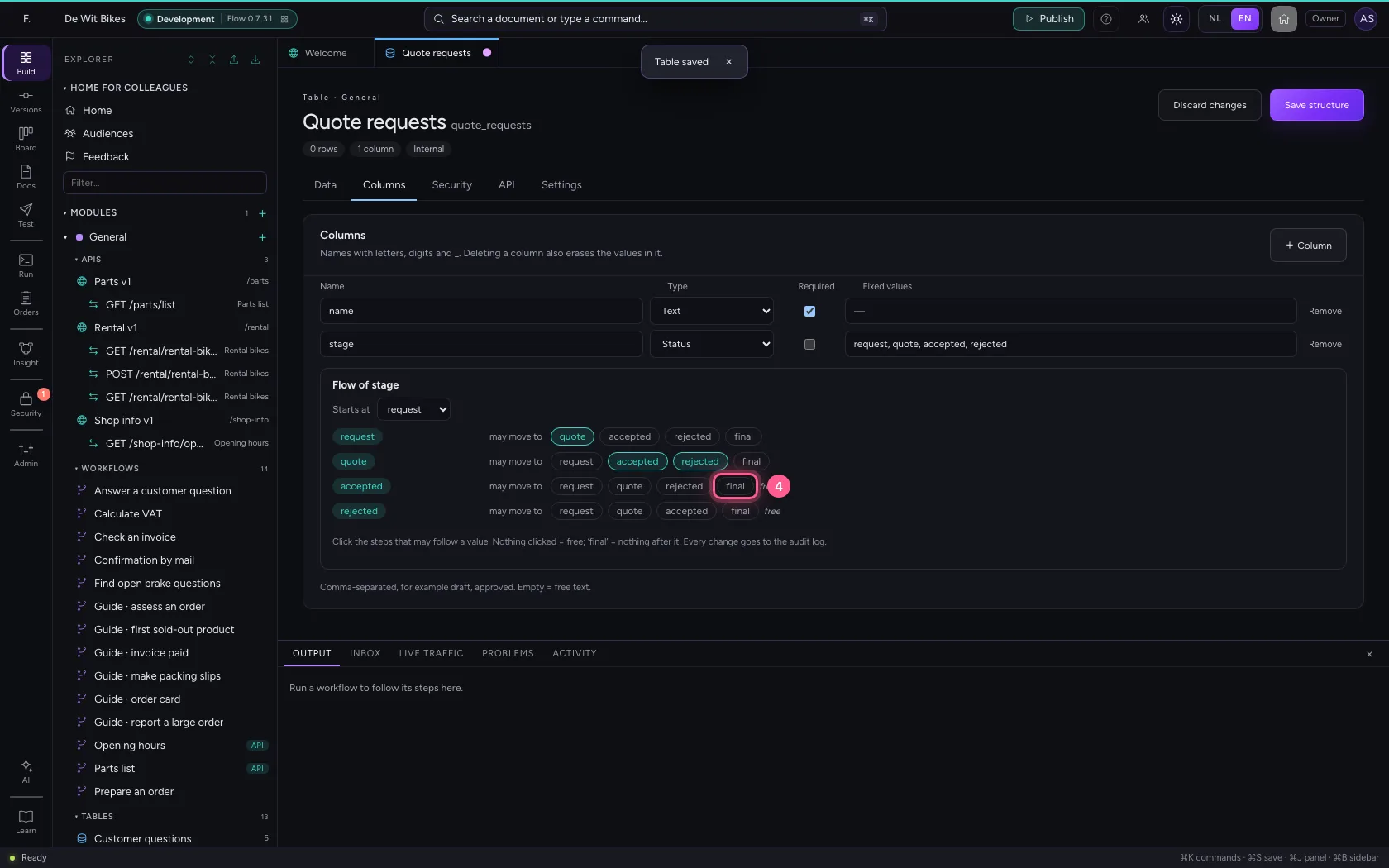
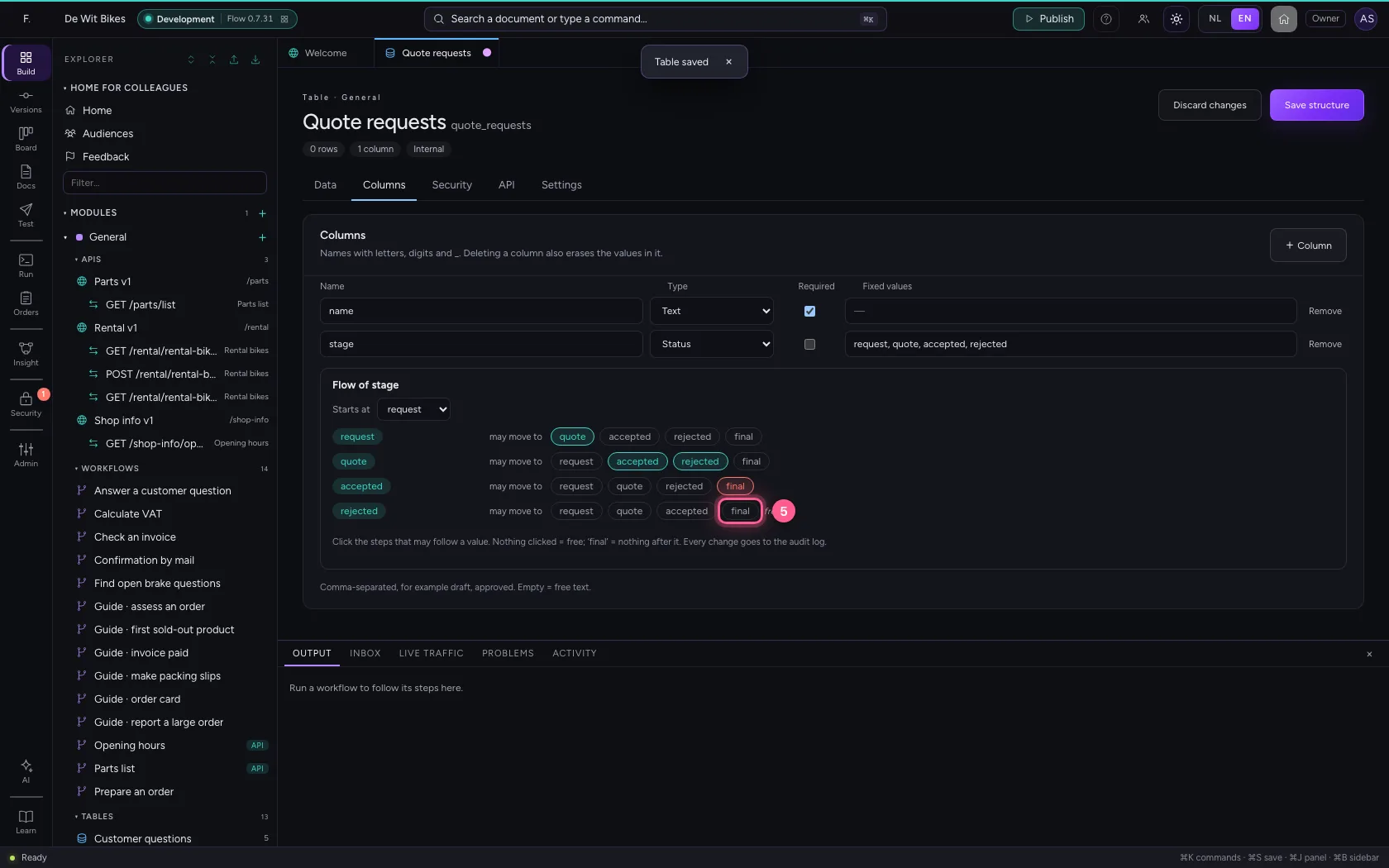
Below the columns the flow appears. Per status, click which step may come next; final means nothing can follow. Nothing clicked means free.

  1. Click request → quote
Record the flow · Click request → quote
  1. Click quote → accepted
Record the flow · Click quote → accepted
  1. Click quote → rejected
Record the flow · Click quote → rejected
  1. Click accepted: final
Record the flow · Click accepted: final
  1. Click rejected: final
Record the flow · Click rejected: final
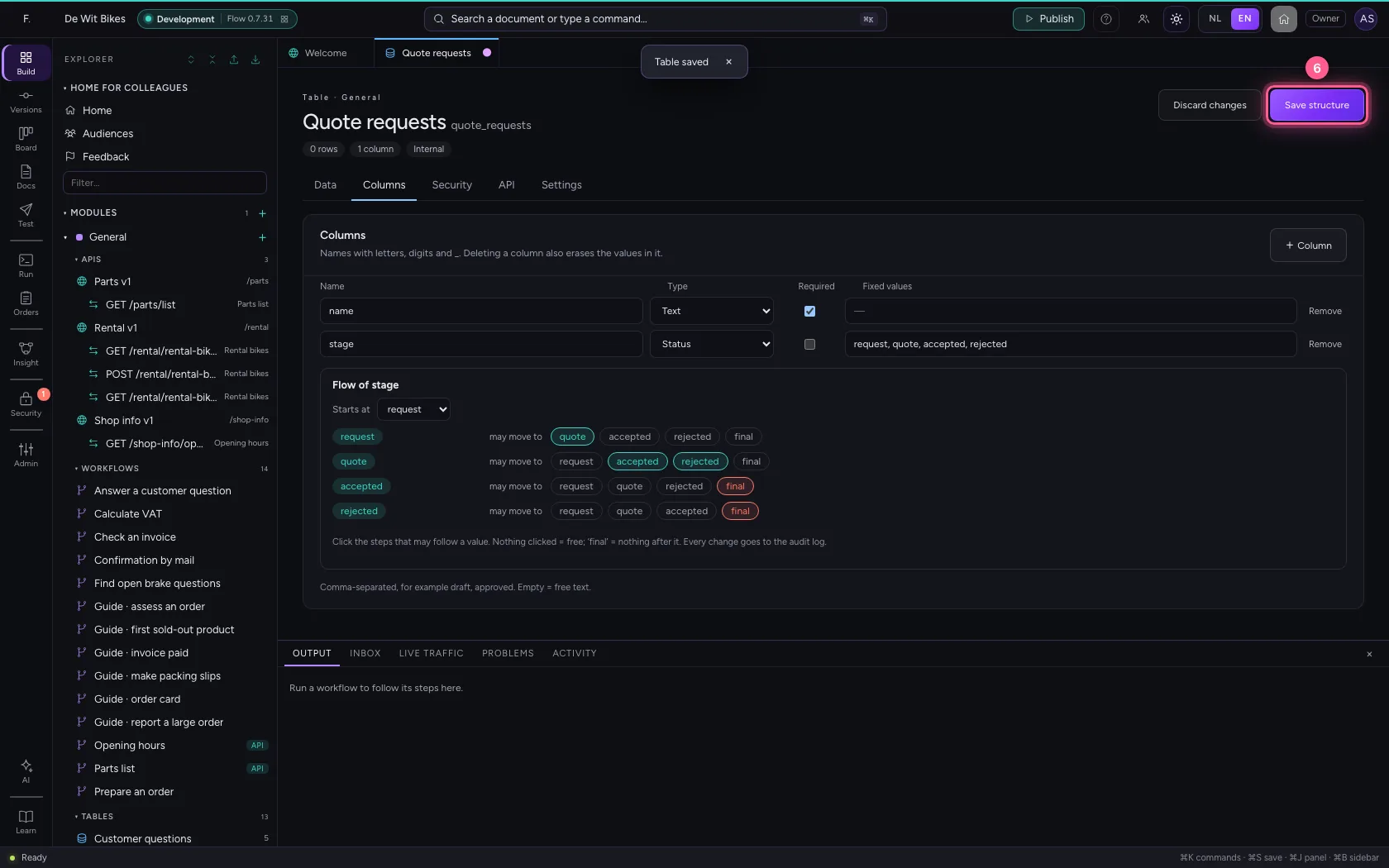
  1. Click Save structure
Record the flow · Click Save structure
Step 5 / 7

Decide who may do what per status

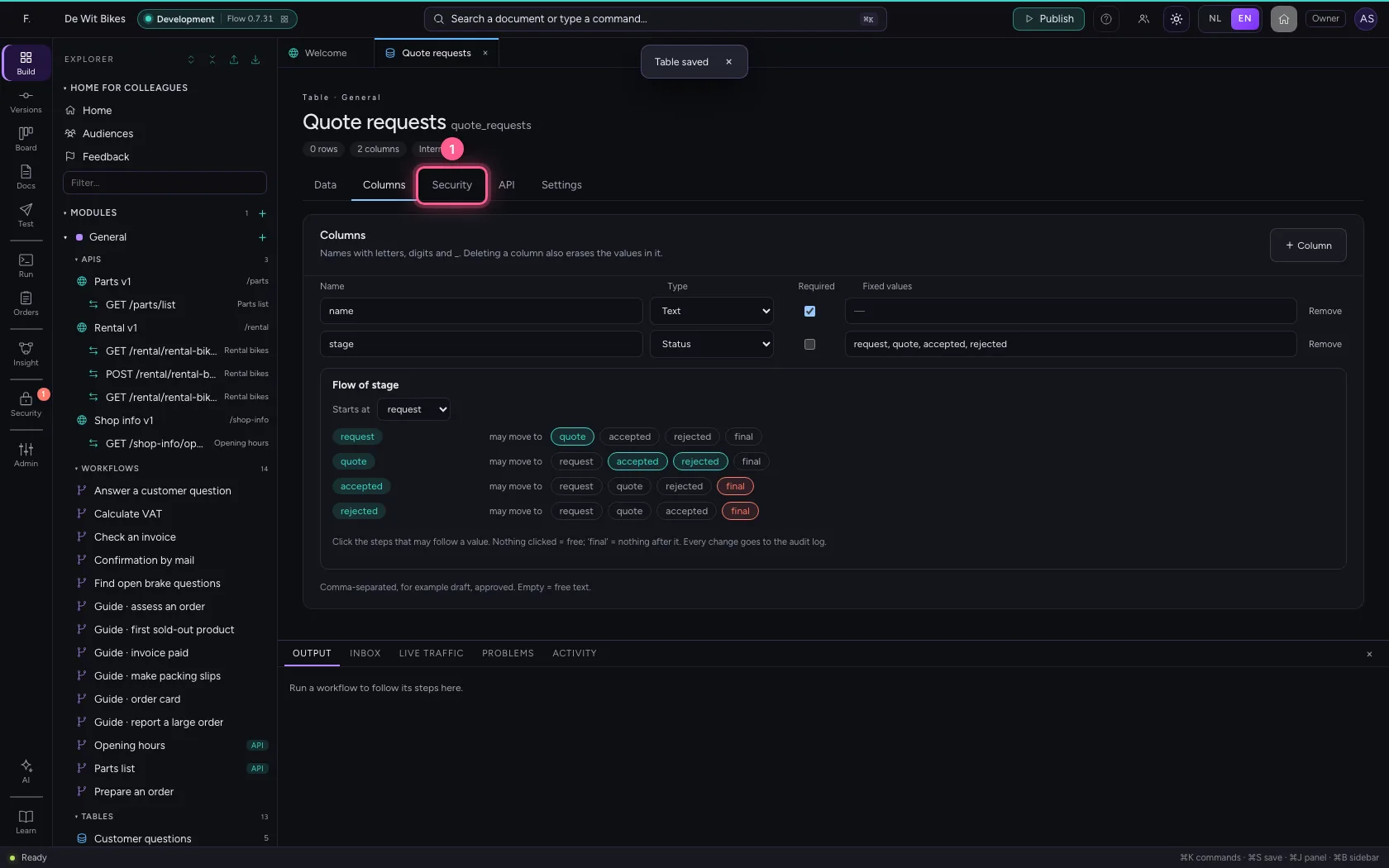
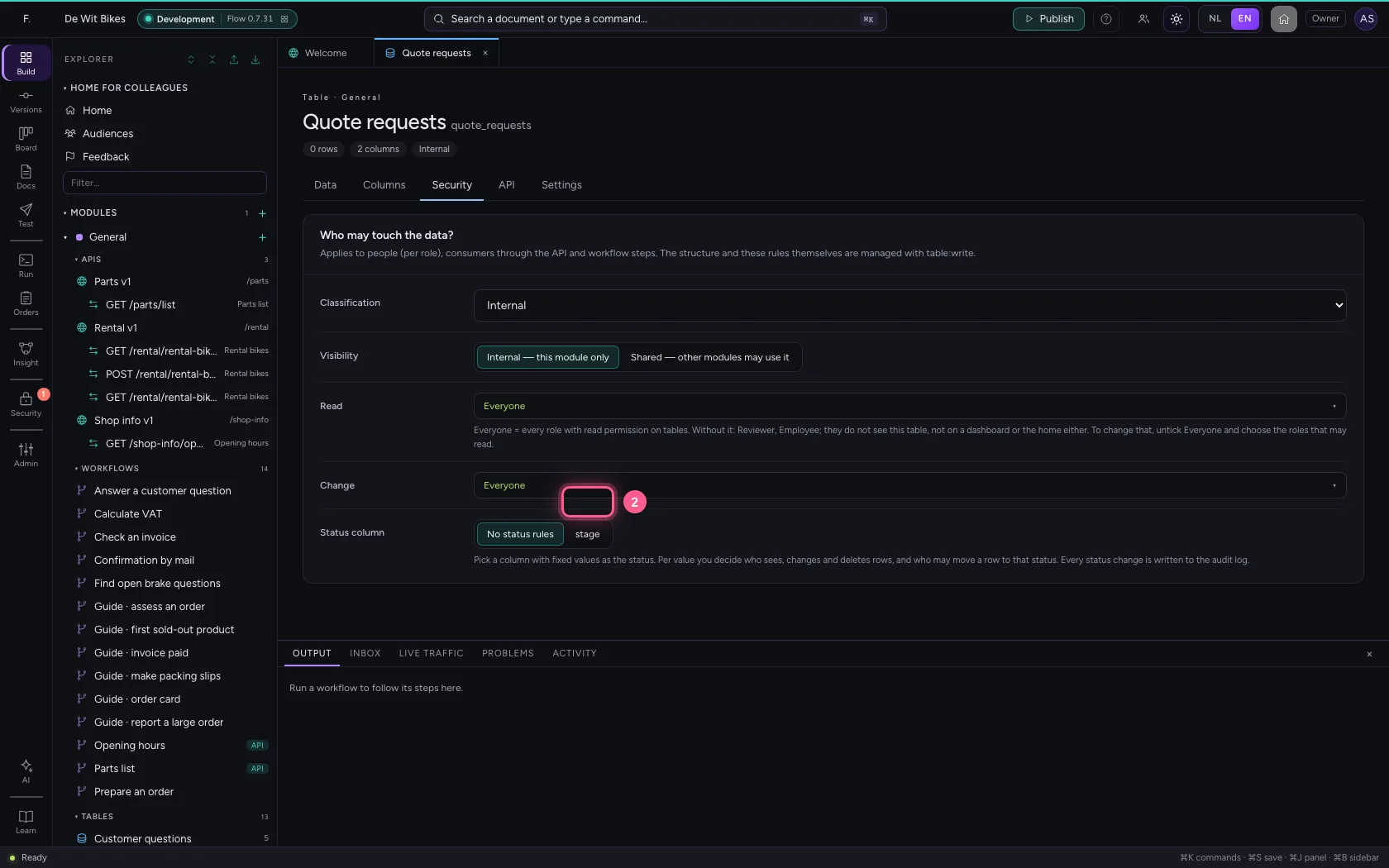
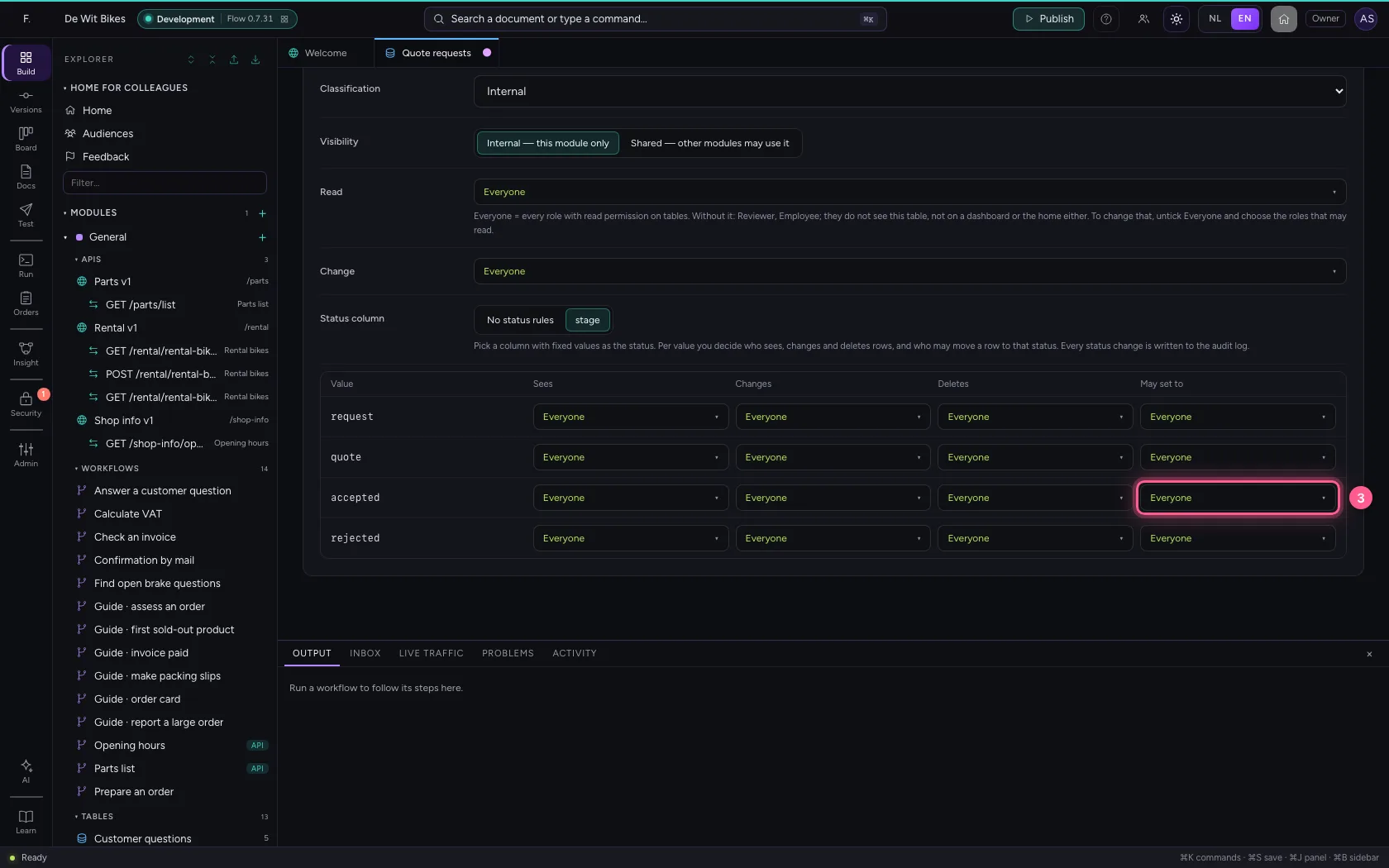
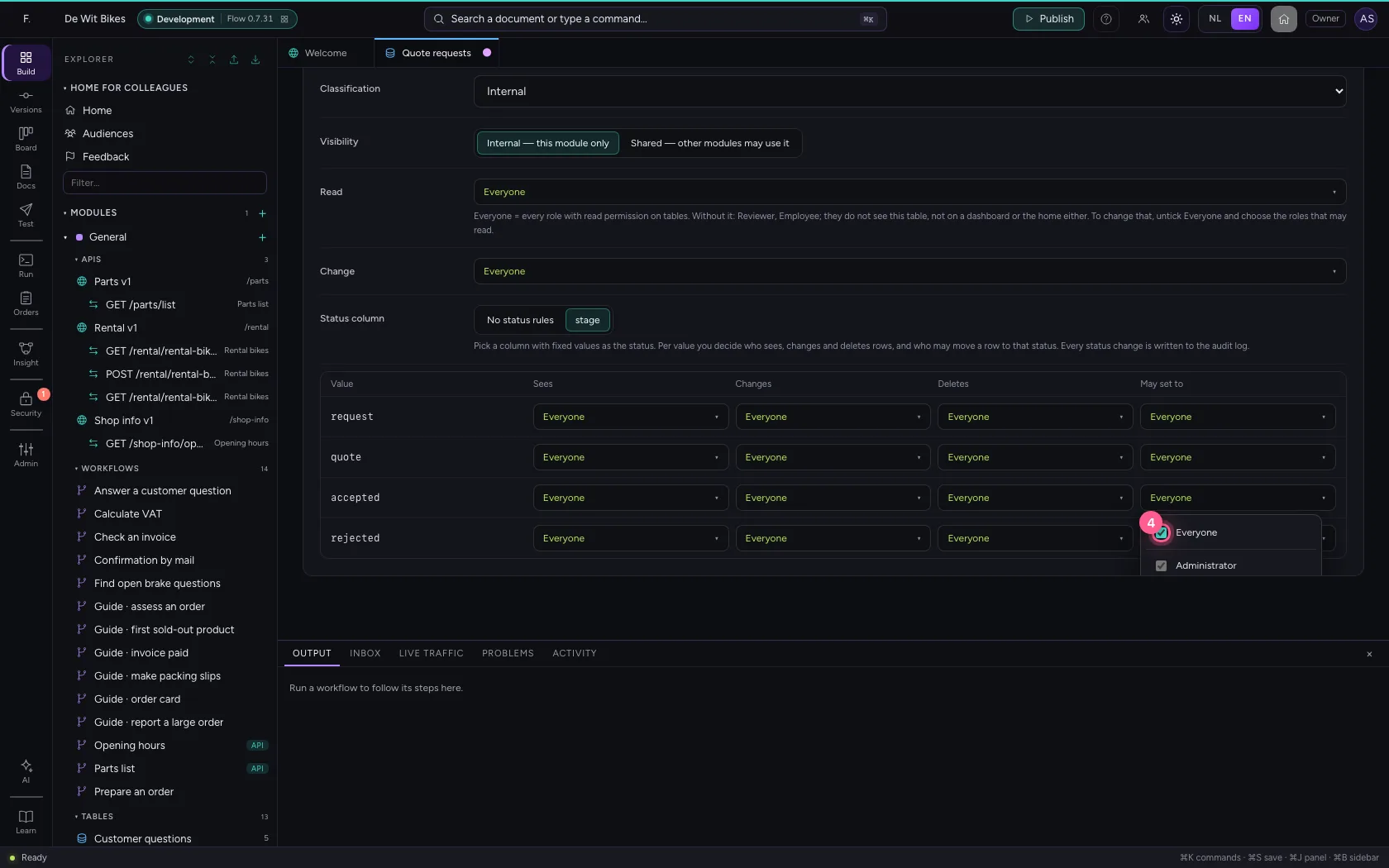
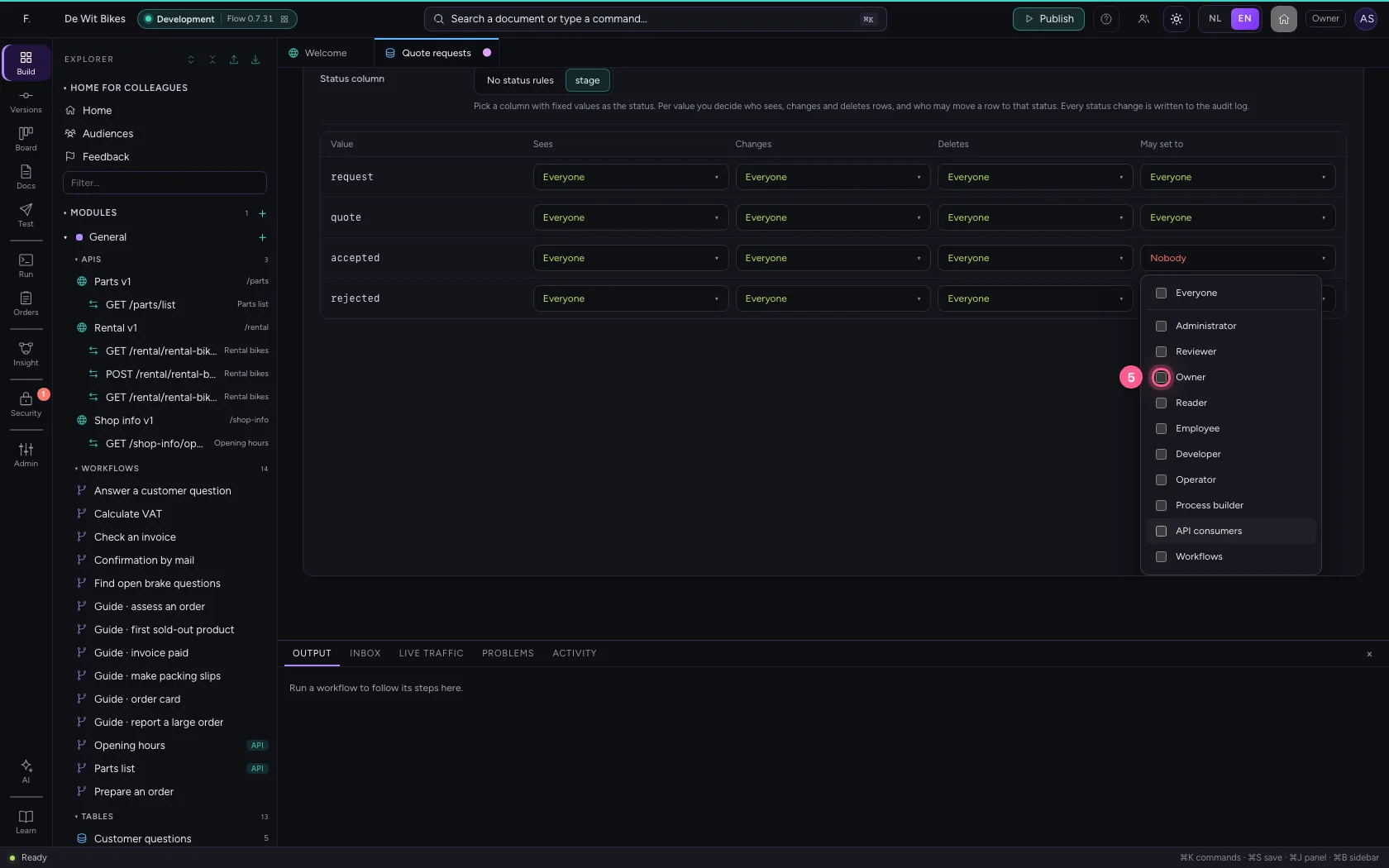
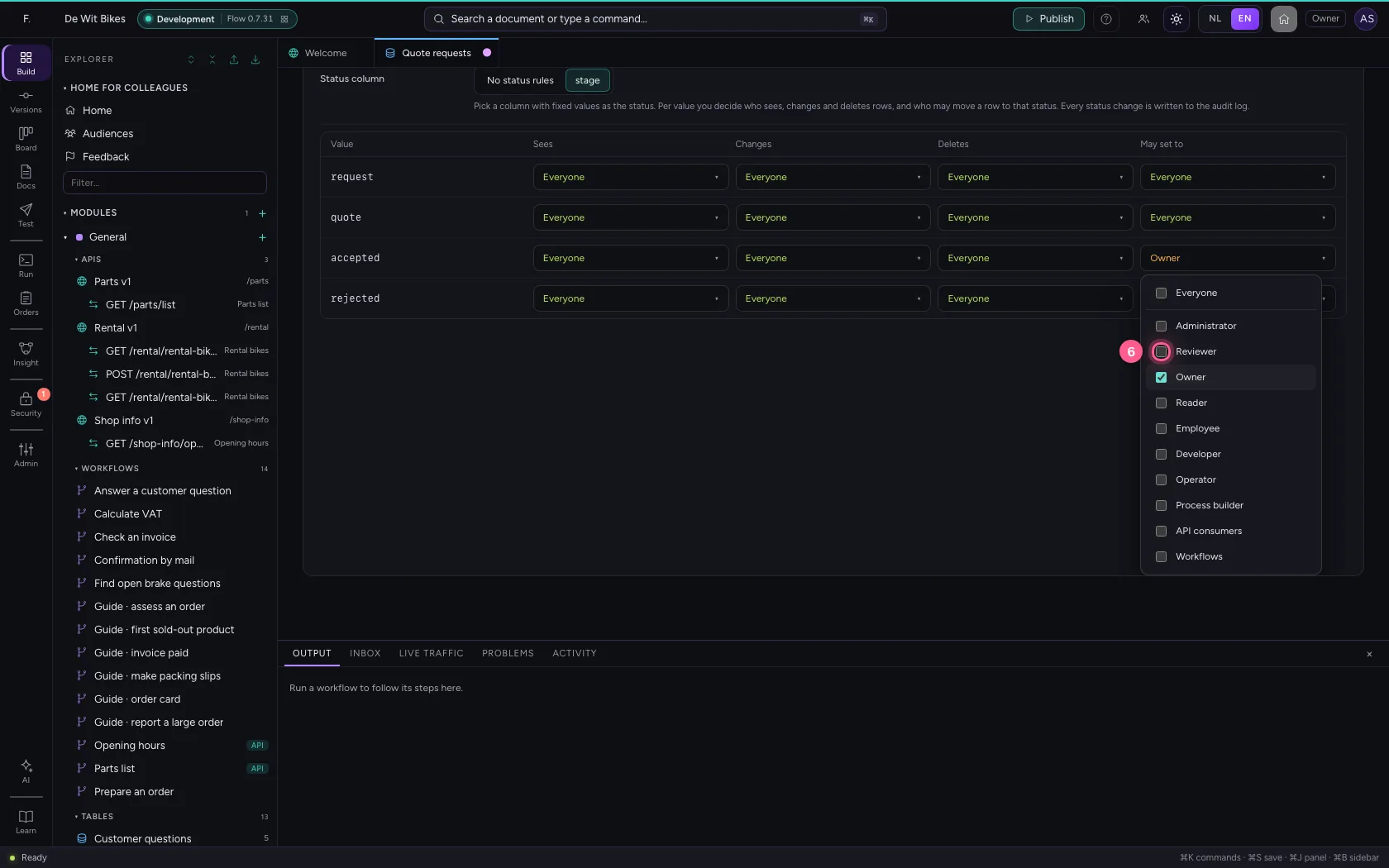
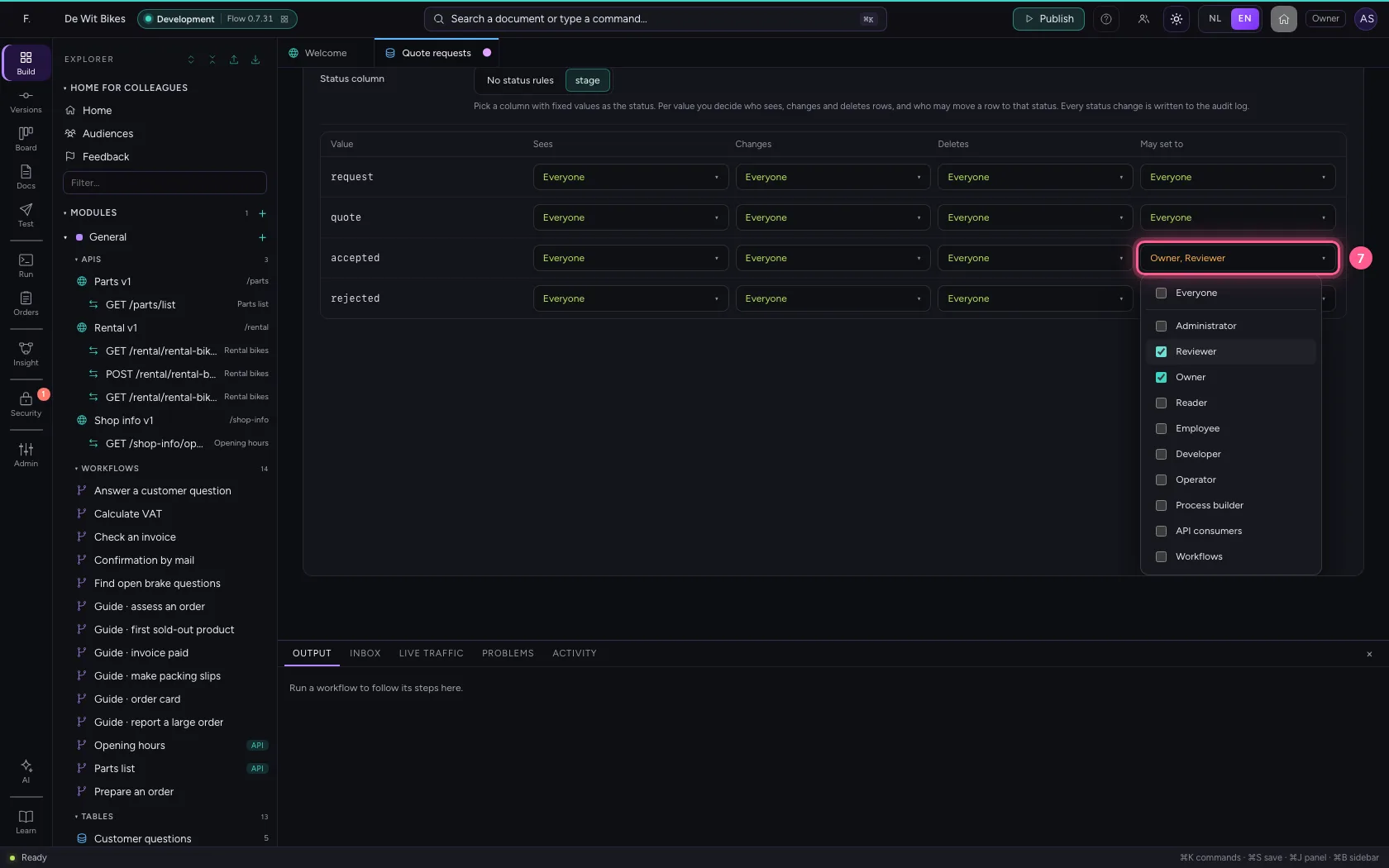
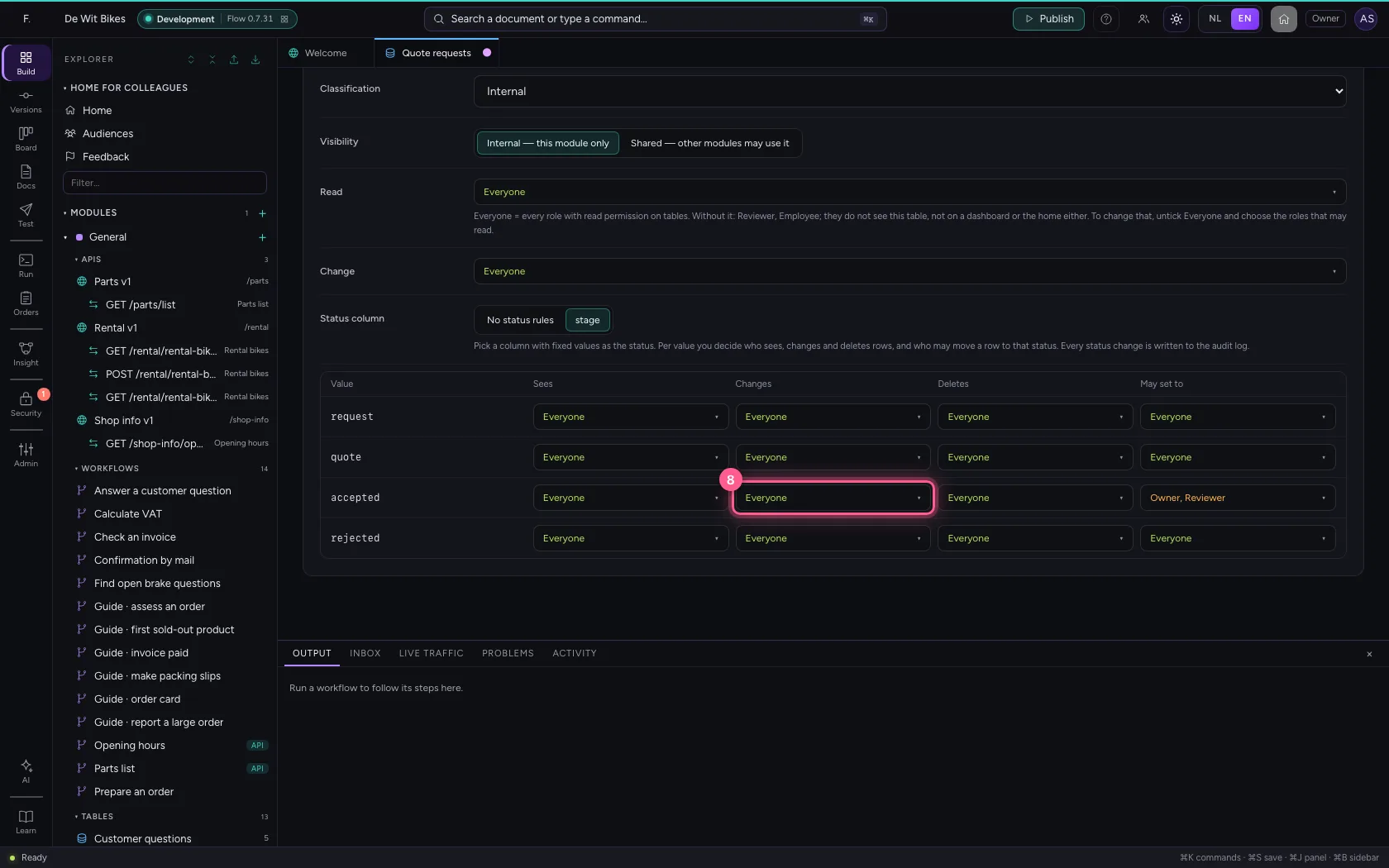
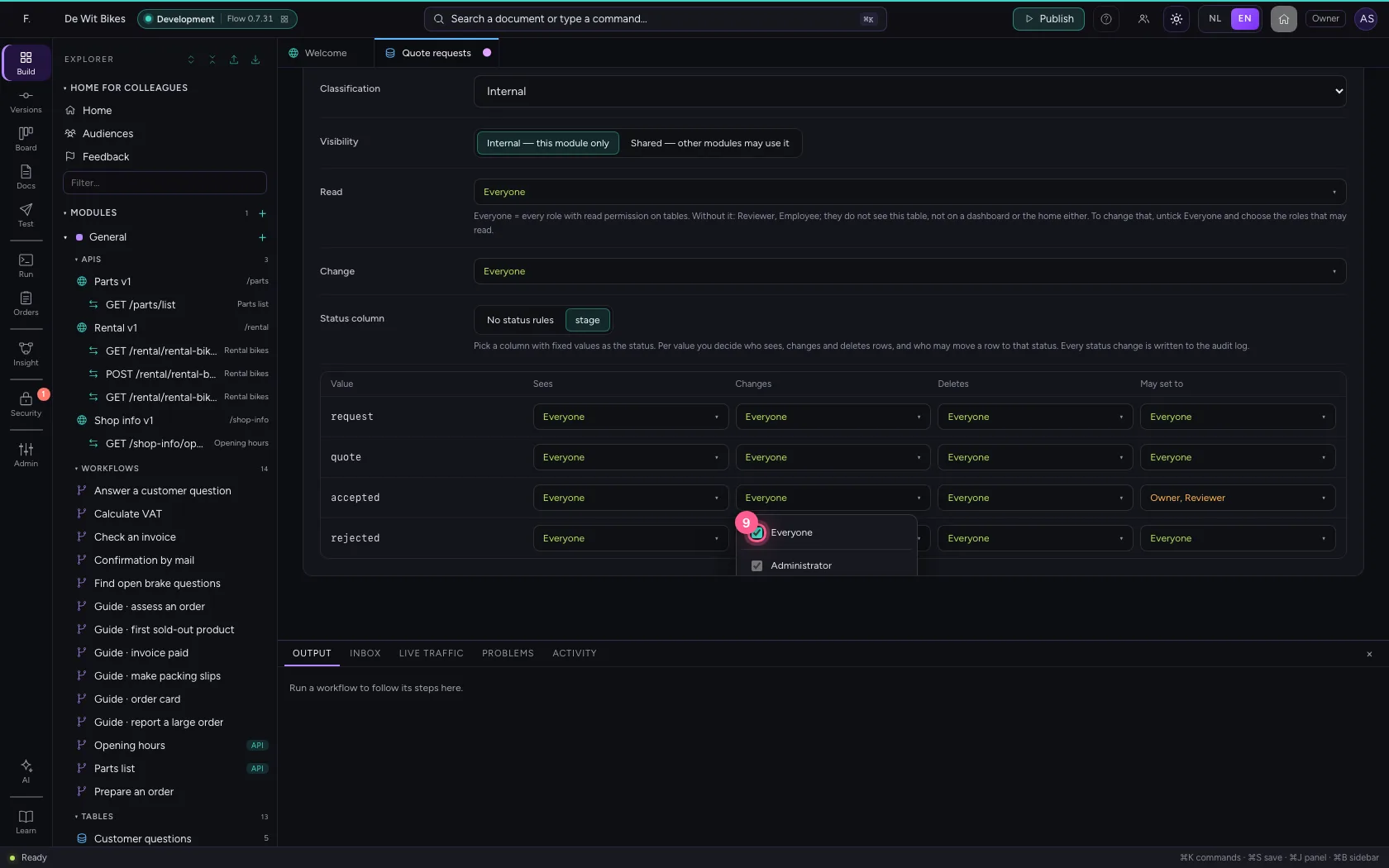
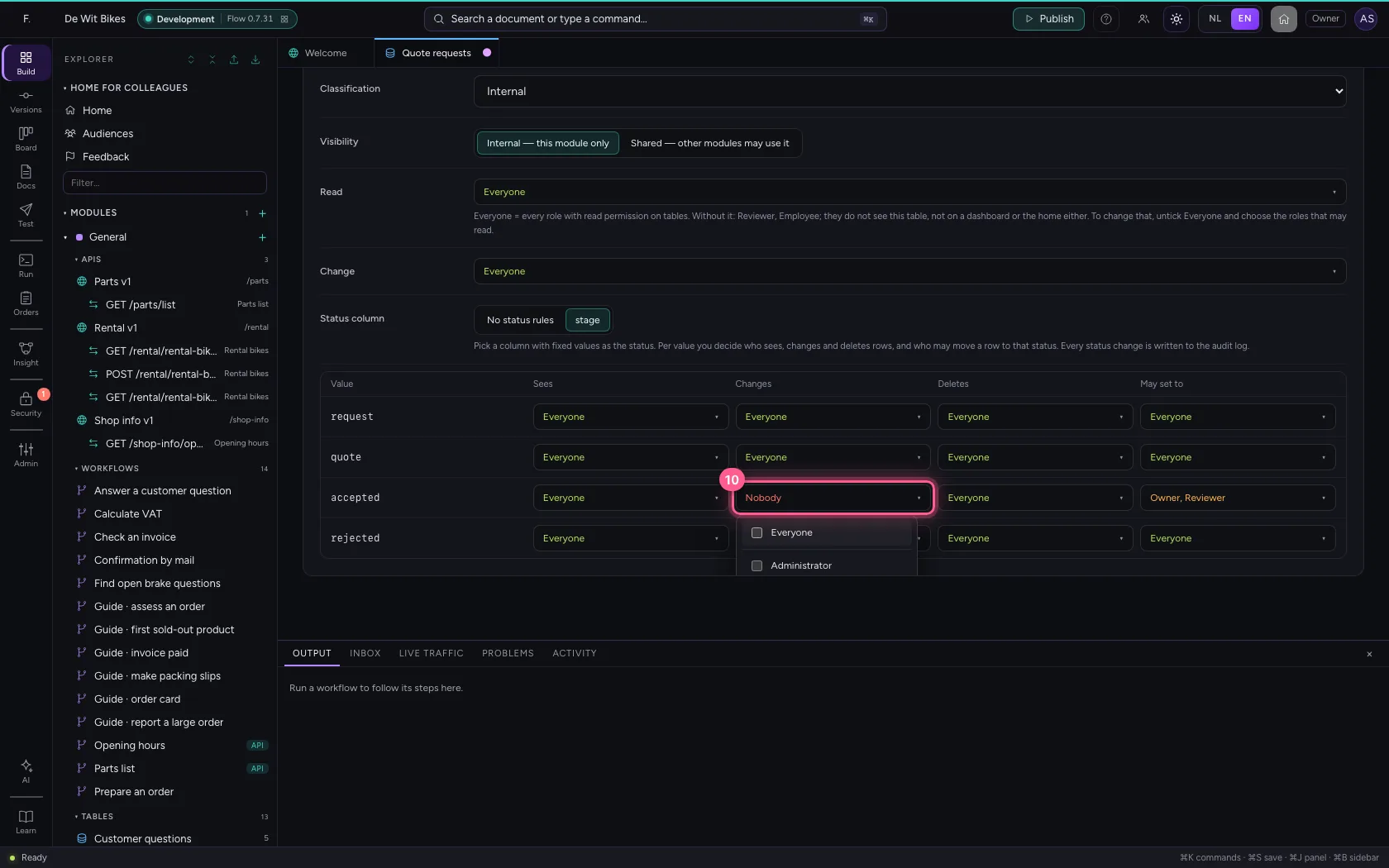
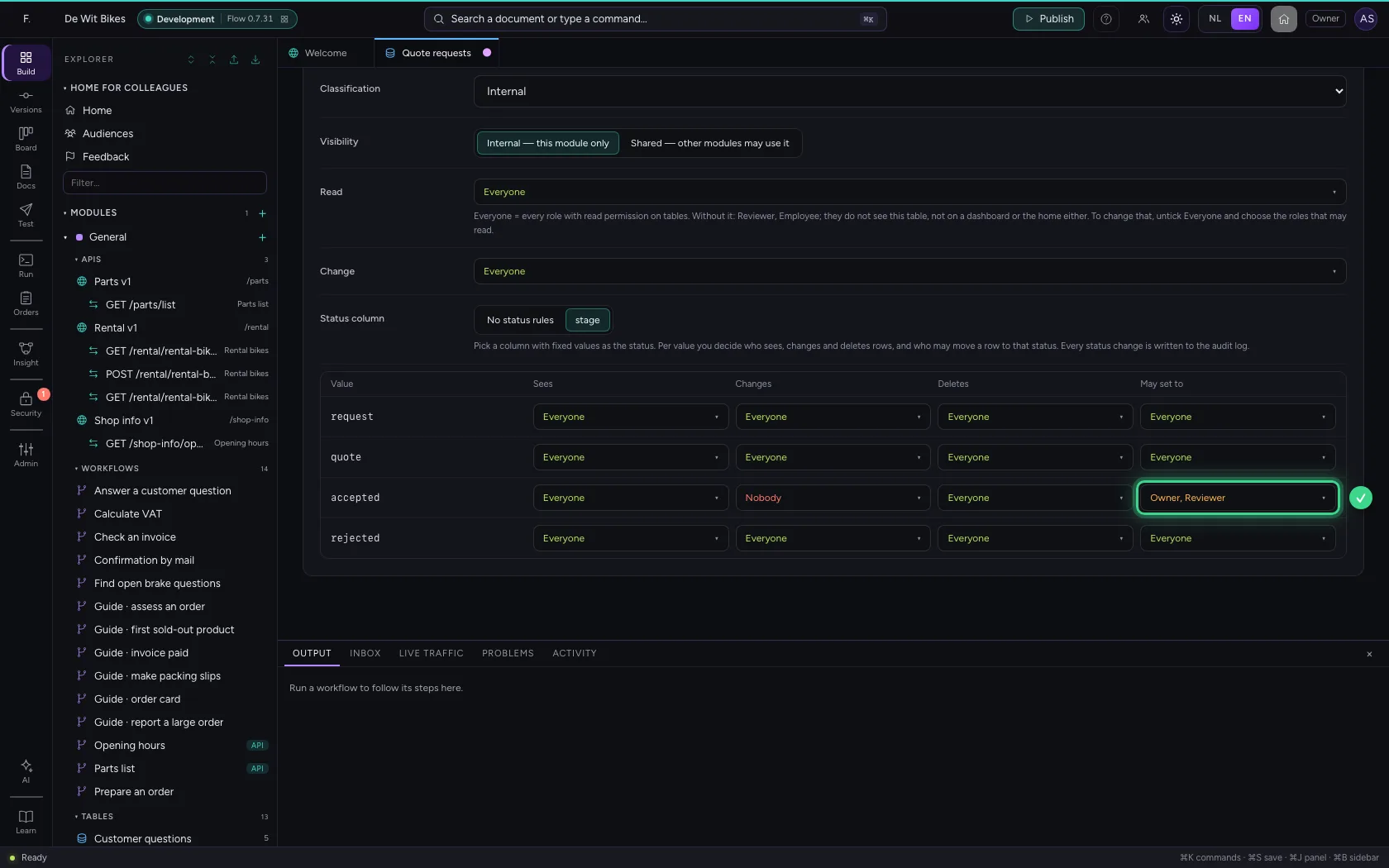
Under Security you choose the status column. Per status you see who sees, changes and deletes rows, and who may move a row to that status. Here only the owner and a reviewer may move a request to accepted, and after that nobody changes it any more.

  1. Click Security
Decide who may do what per status · Click Security
  1. Click stage
Decide who may do what per status · Click stage
  1. Click accepted · May set to
Decide who may do what per status · Click accepted · May set to
  1. Click Everyone
Decide who may do what per status · Click Everyone
  1. Click Owner
Decide who may do what per status · Click Owner
  1. Click Reviewer
Decide who may do what per status · Click Reviewer
  1. Click accepted · May set to
Decide who may do what per status · Click accepted · May set to
  1. Click accepted · Changes
Decide who may do what per status · Click accepted · Changes
  1. Click Everyone
Decide who may do what per status · Click Everyone
  1. Click accepted · Changes
Decide who may do what per status · Click accepted · Changes
Decide who may do what per status · Move to accepted: Owner and Reviewer only.
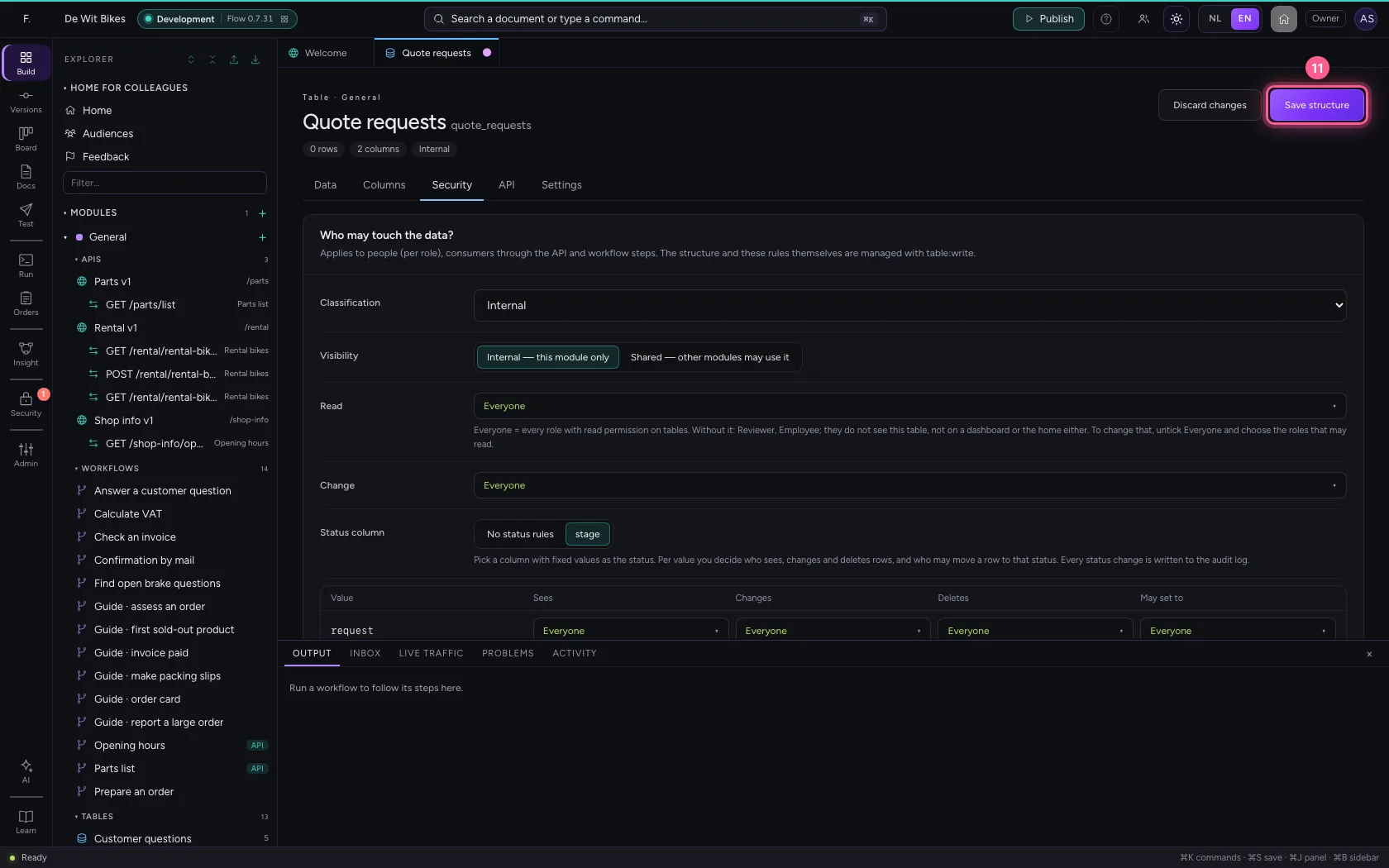
  1. Click Save structure
Decide who may do what per status · Click Save structure
Step 6 / 7

Add a request

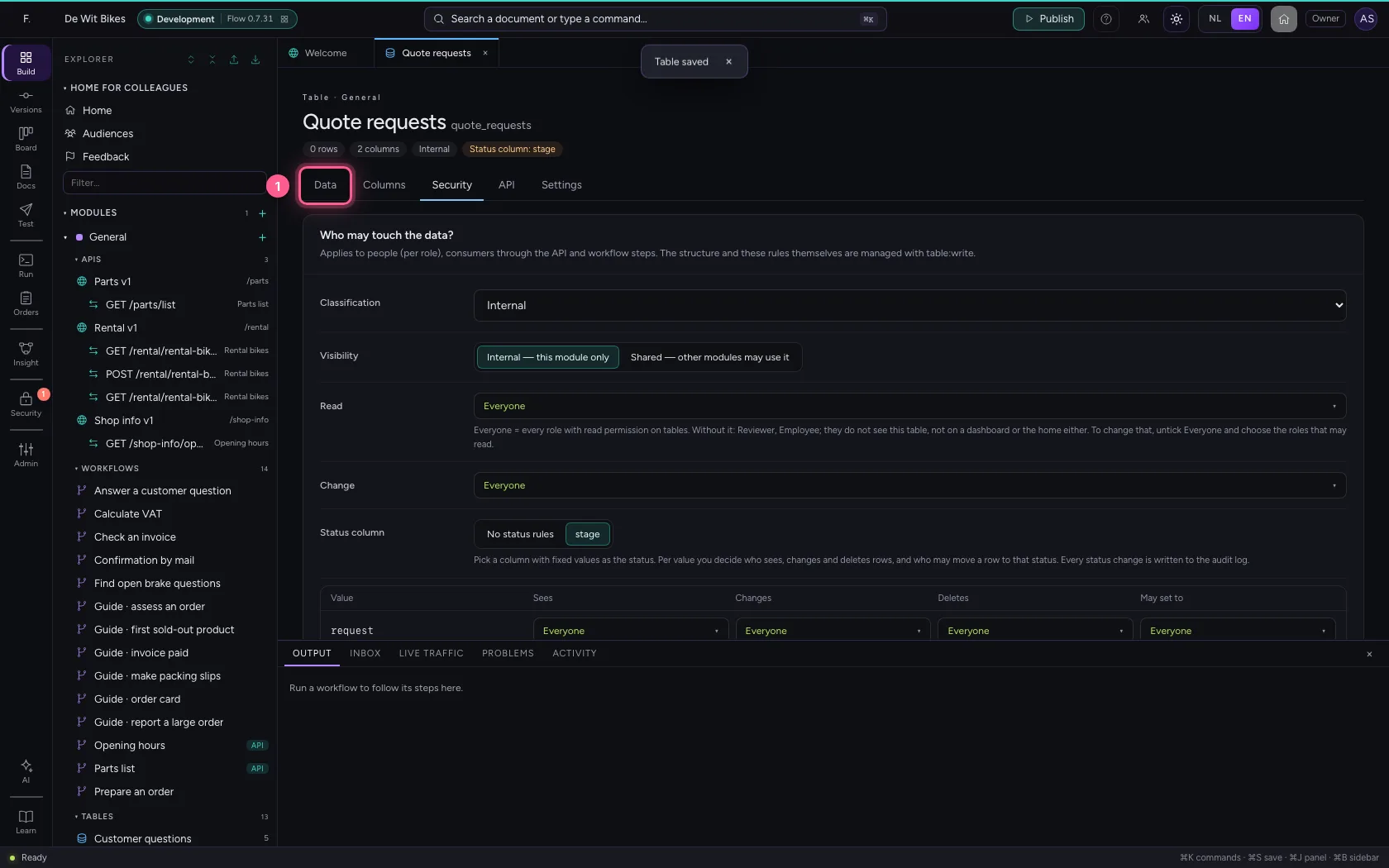
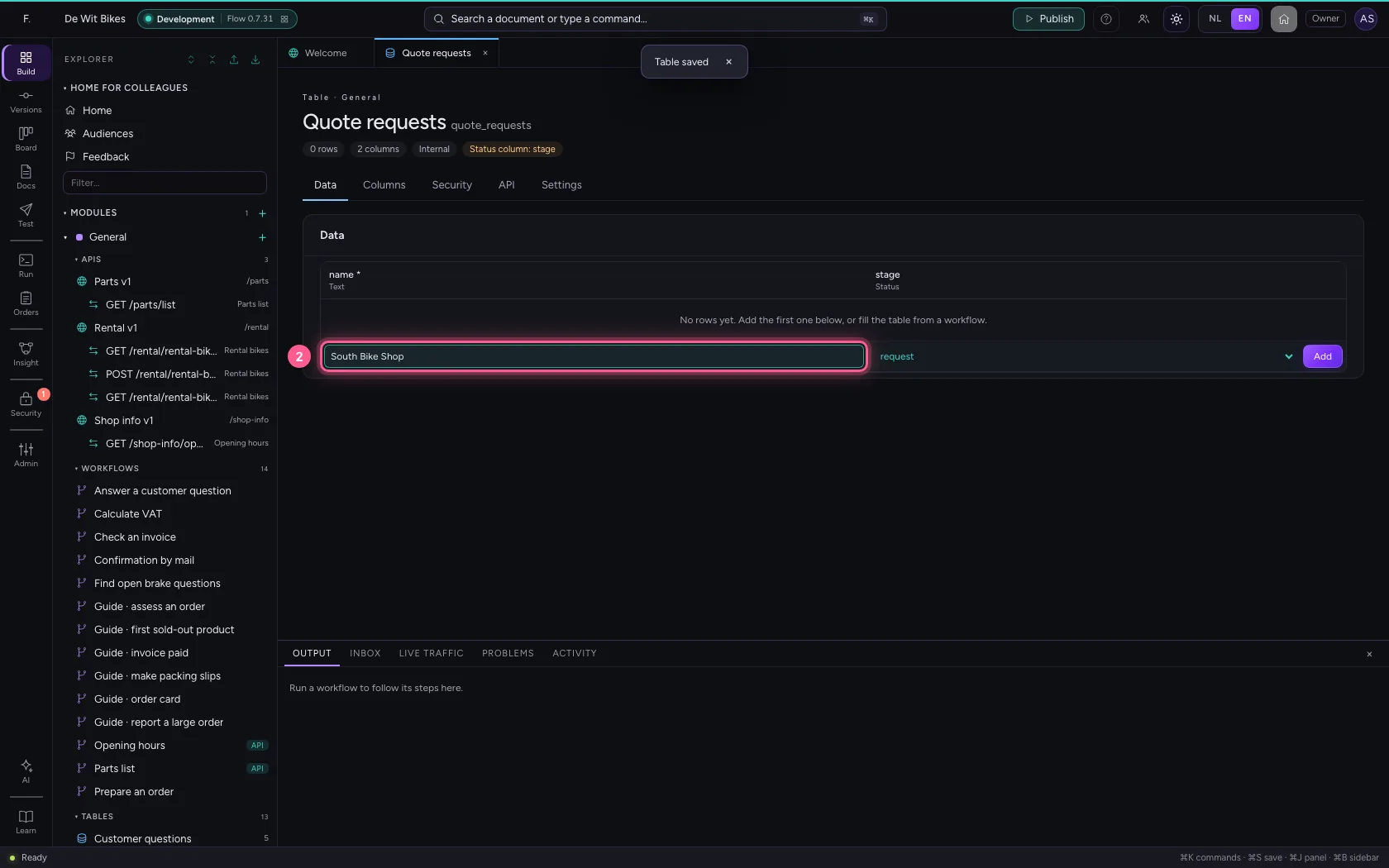
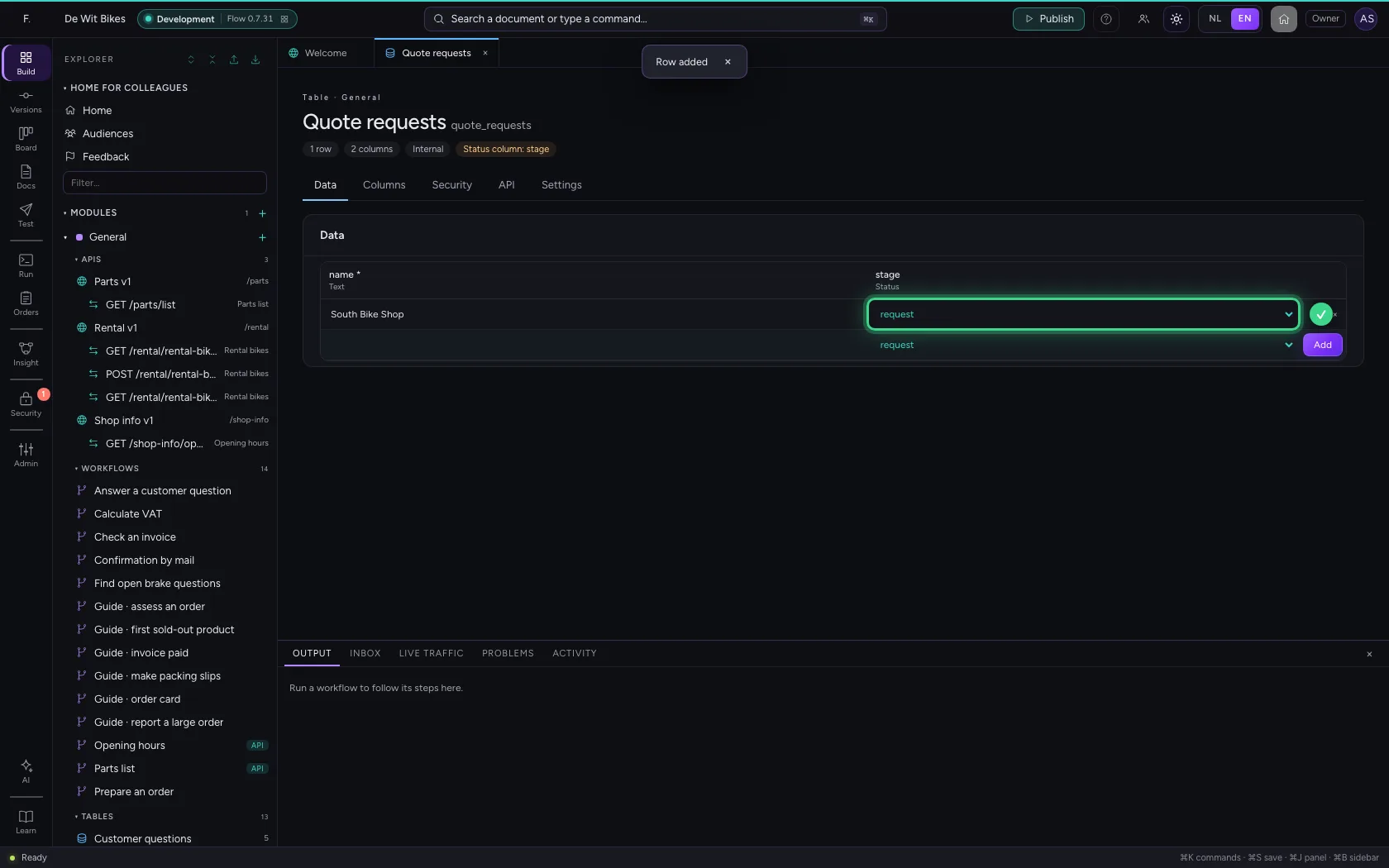
Under Data you add a row. You do not have to choose the status: a new request starts at the first step.

  1. Click Data
Add a request · Click Data
  1. In name, type South Bike Shop
Add a request · In name, type South Bike Shop
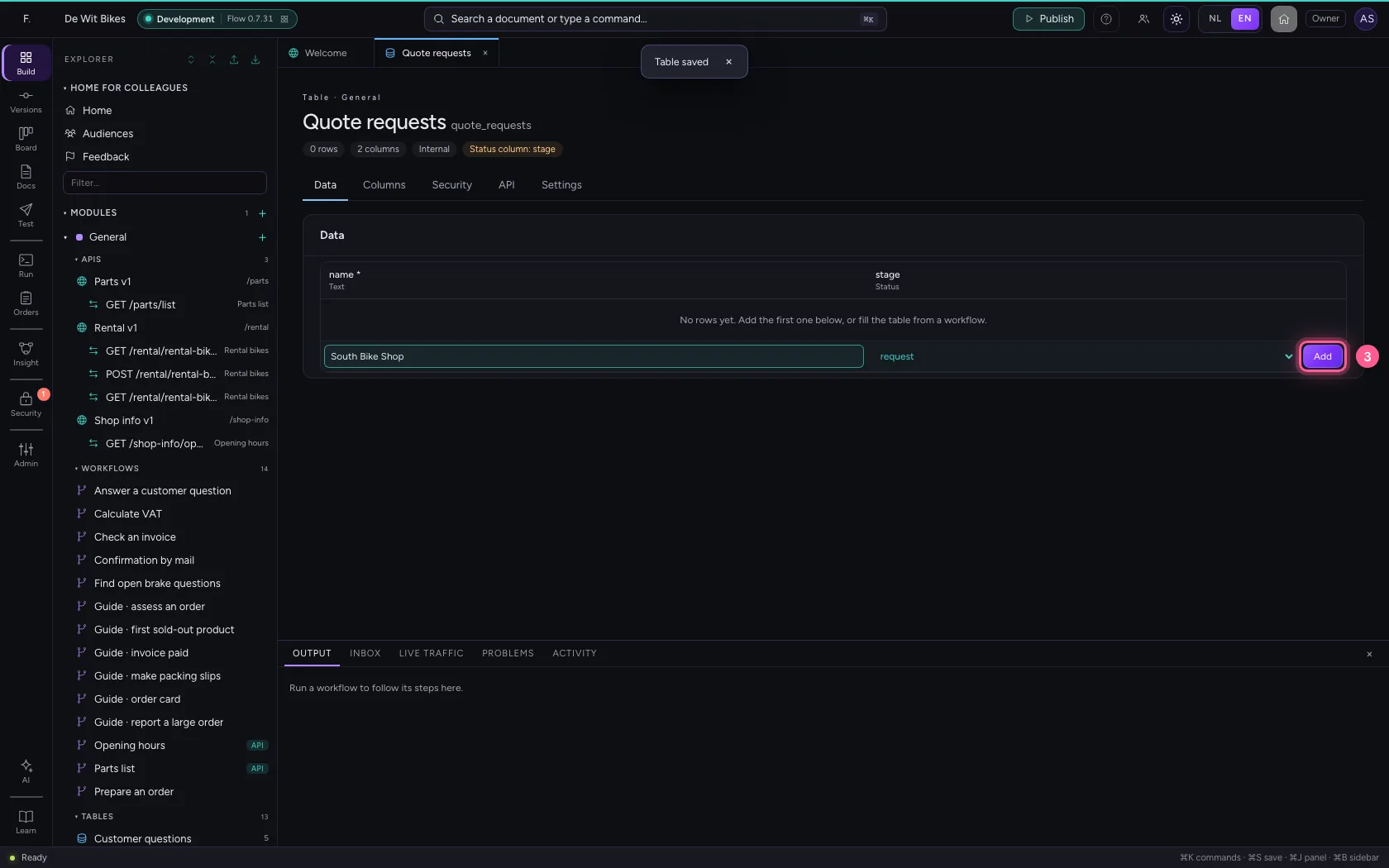
  1. Click Add
Add a request · Click Add
Add a request · The request is at request.
Step 7 / 7

Move the request through the funnel

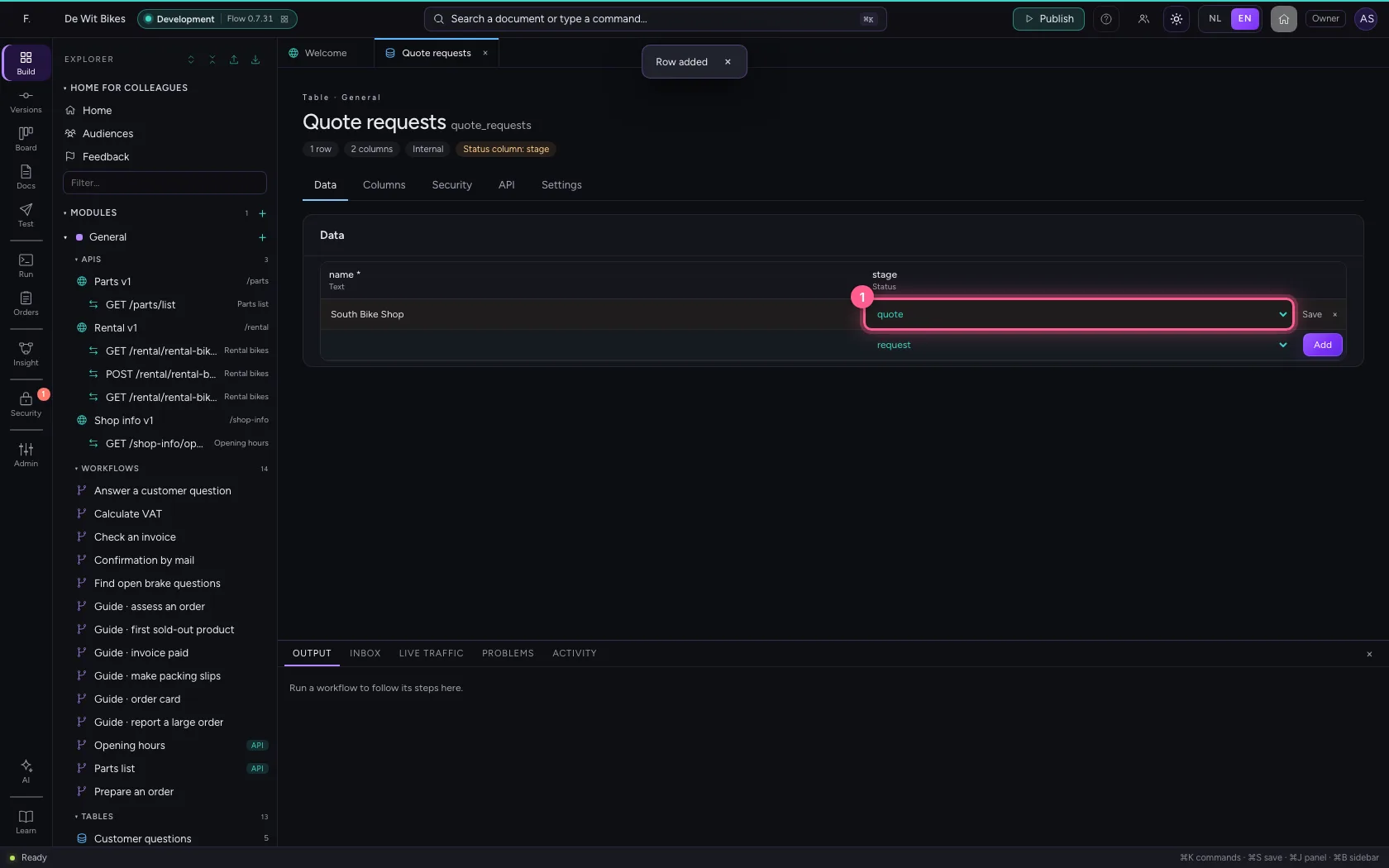
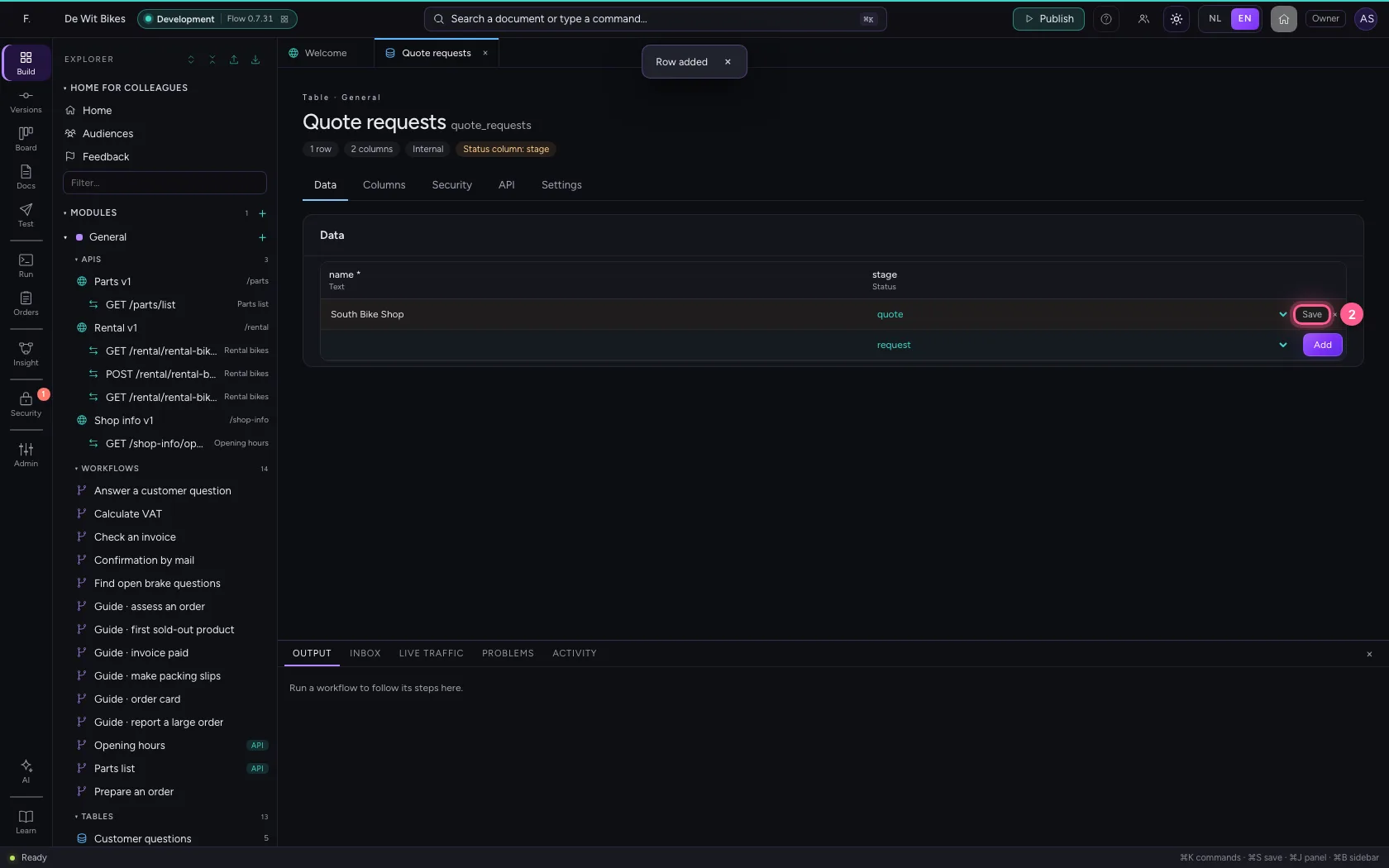
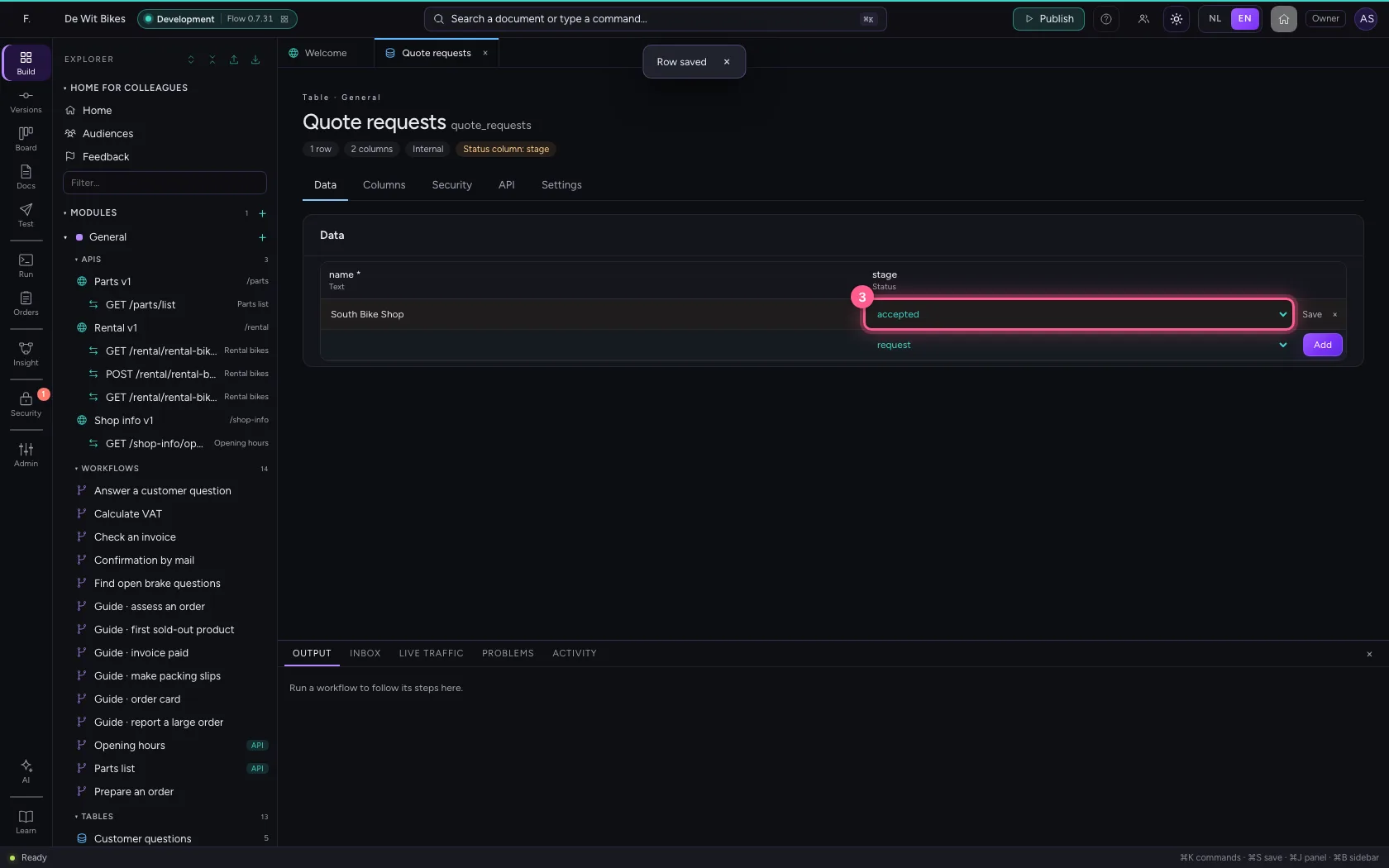
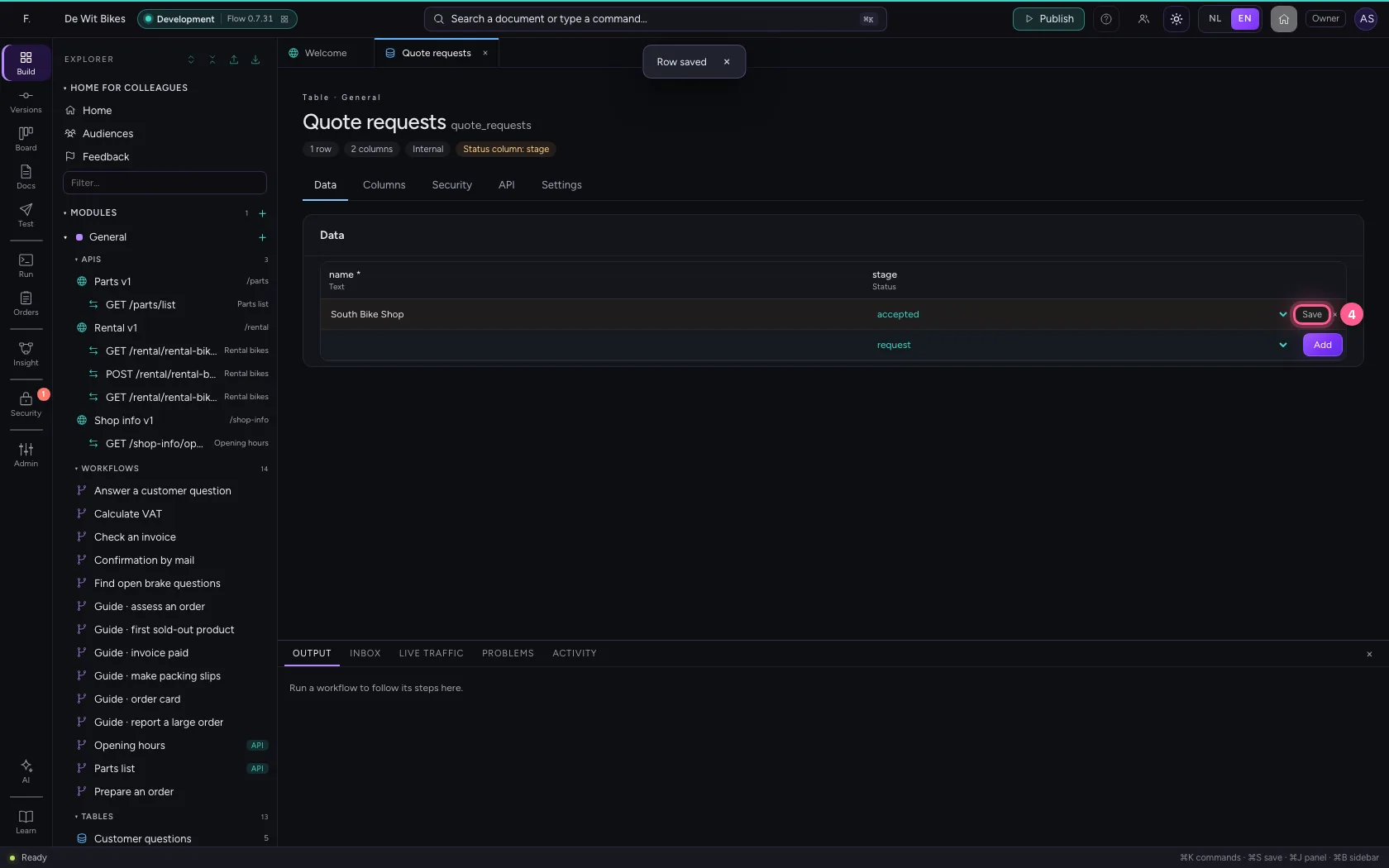
The status picker only offers the steps allowed from here. Choose the next status and click Save on the row. Every step goes to the audit log: who, when, from what to what.

  1. In status, choose quote
Move the request through the funnel · In status, choose quote
  1. Click Save
Move the request through the funnel · Click Save
  1. In status, choose accepted
Move the request through the funnel · In status, choose accepted
  1. Click Save
Move the request through the funnel · Click Save
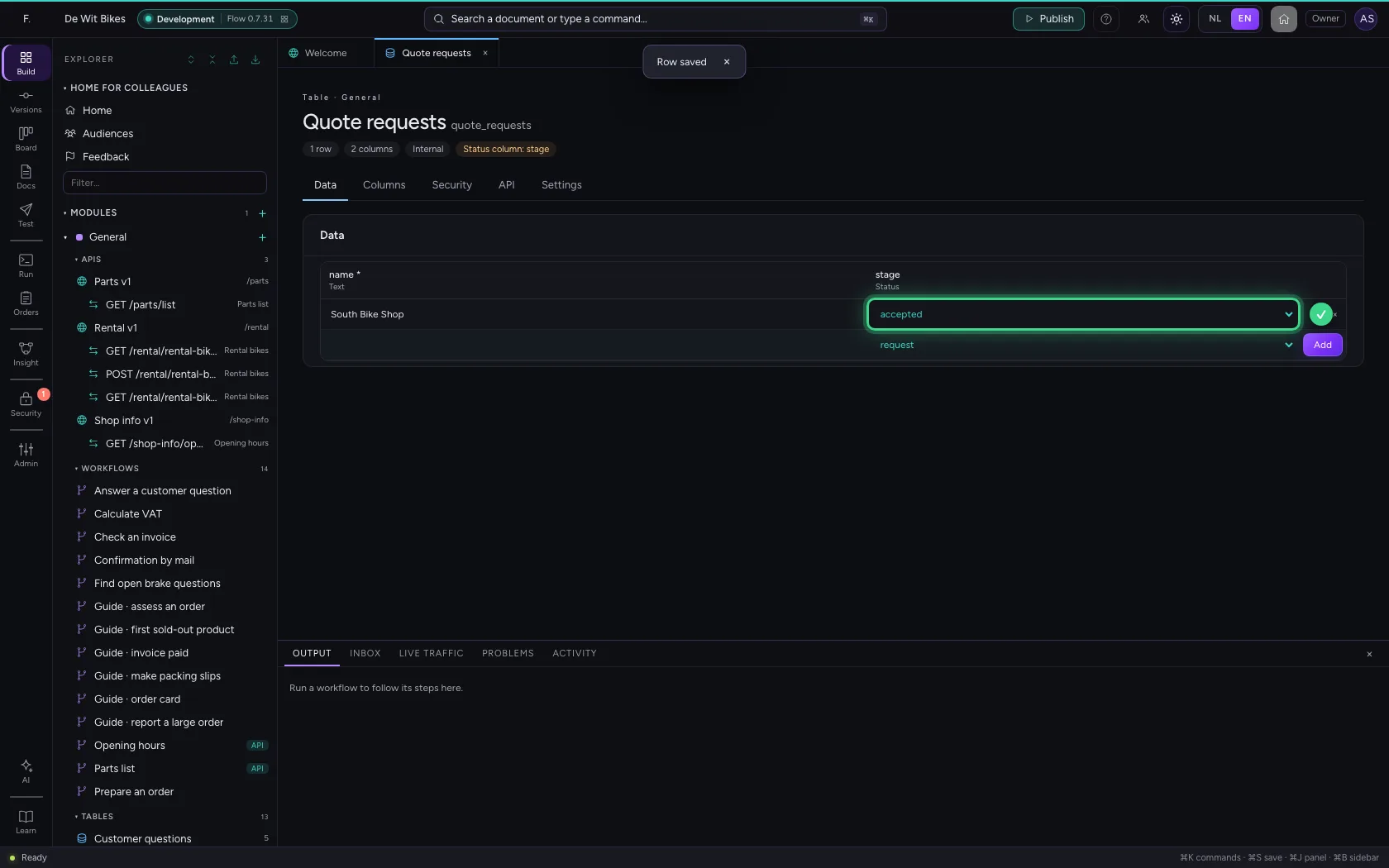
Move the request through the funnel · The request is at accepted: a final status, there is nothing left to choose.

This guide was carried out step by step on 22 Oct 2026 by an automated test on Flow (version 3e563176).