The portal on your phone
The portal also works on your phone. You see the same screens, one below the other. That way you check on the go whether everything runs, open an environment or see who may do what.
Start on your phone
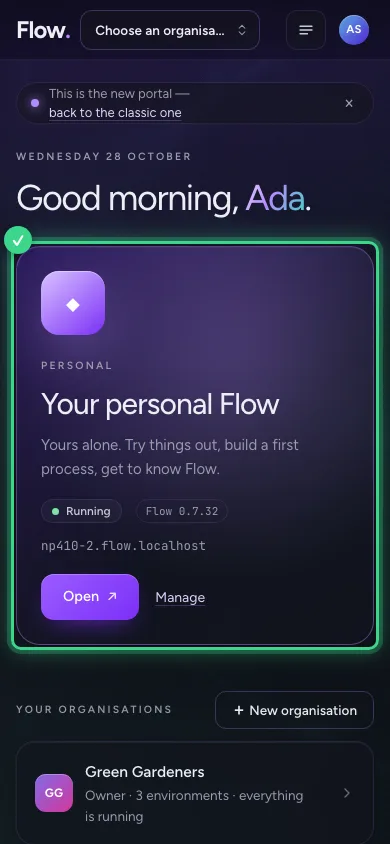
After signing in you also see your personal Flow first on your phone, and your organisations below it. At the top there are only Flow, your organisation's name, Menu and your account.
The menu
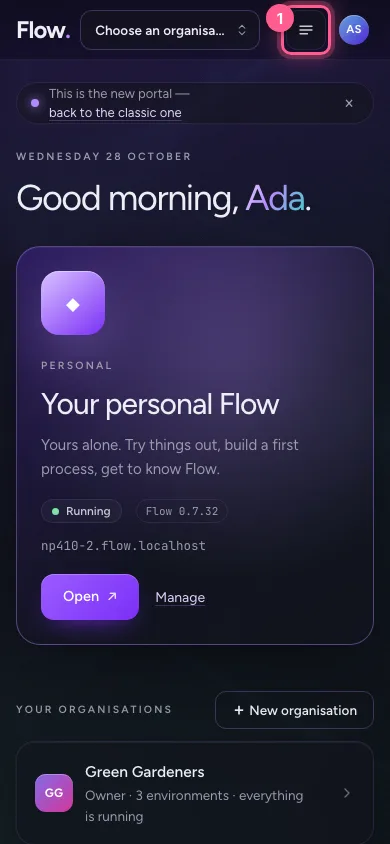
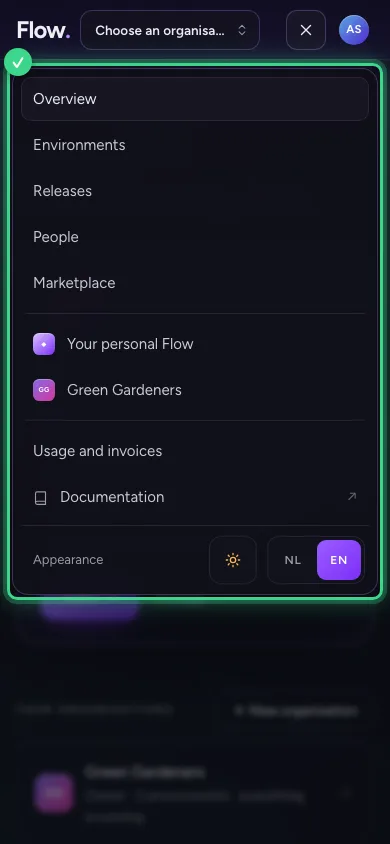
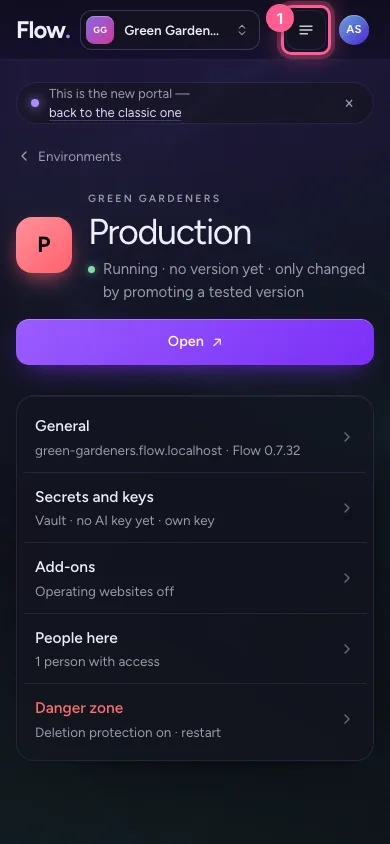
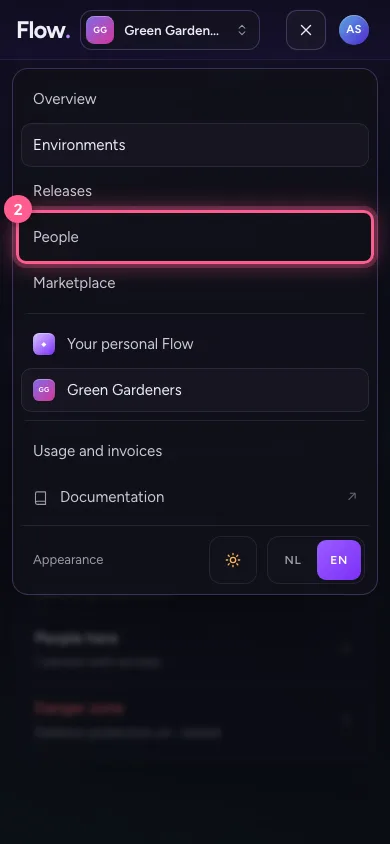
Tap Menu at the top right. There you find Environments, Releases, People and Marketplace, your organisations, Usage and invoices, the documentation, and light or dark and the language.
- Click Menu
Is everything running?
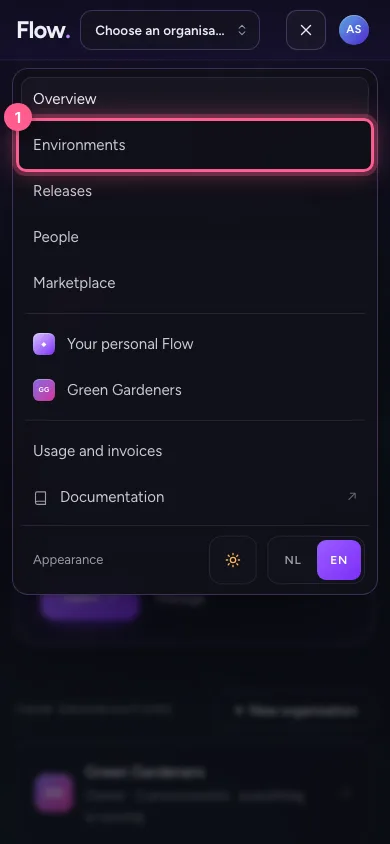
Tap Environments. You see your environments one below the other, from Development to Production, with what waits for you at the top.
- Click Environments
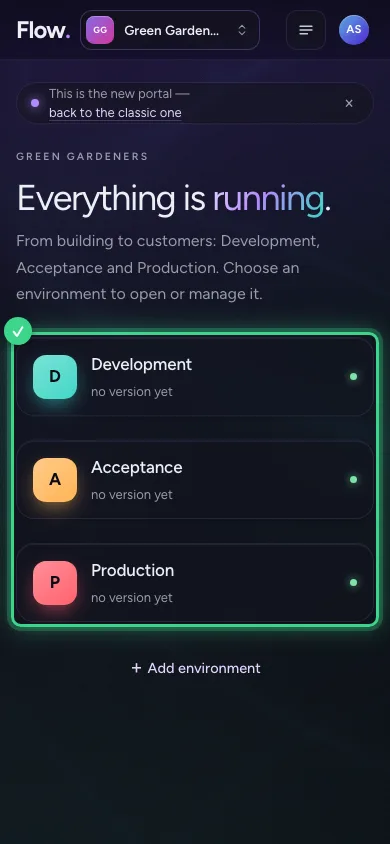
One environment
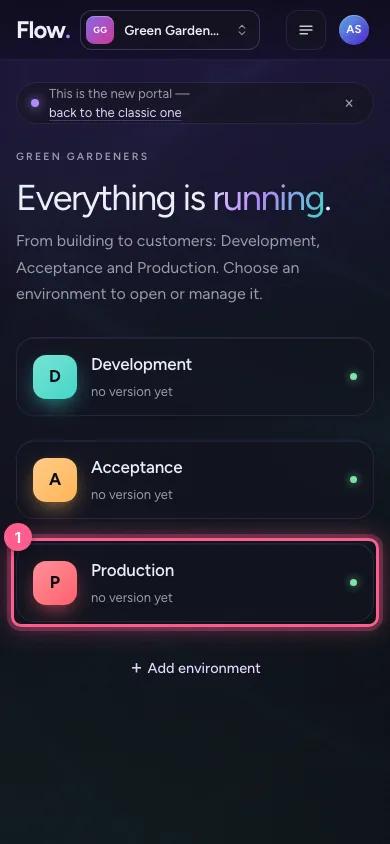
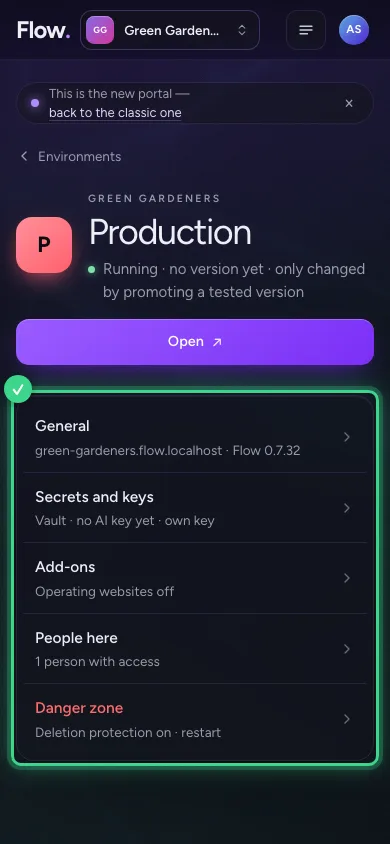
Tap Production. You see whether it runs, the Open button, and the short list of settings.
- Click P Production no version yet Running
Who may do what
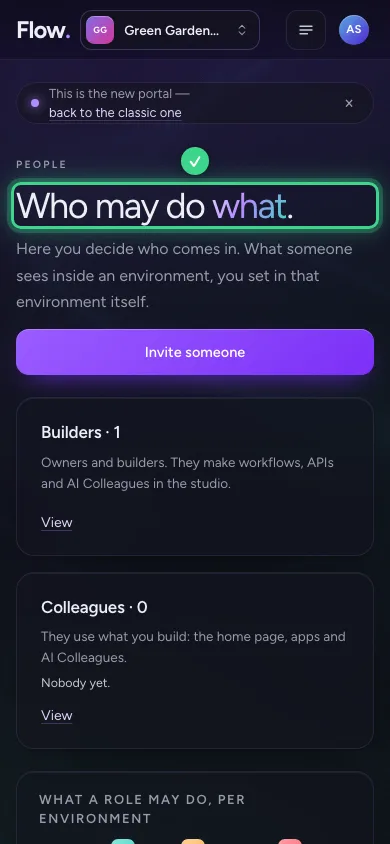
Through Menu you also reach People: builders and colleagues, and the table of what each role may do.
- Click Menu
- Click People
Switch organisation
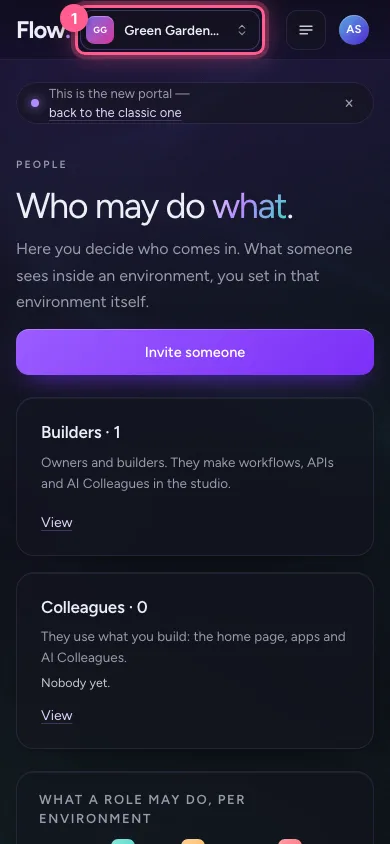
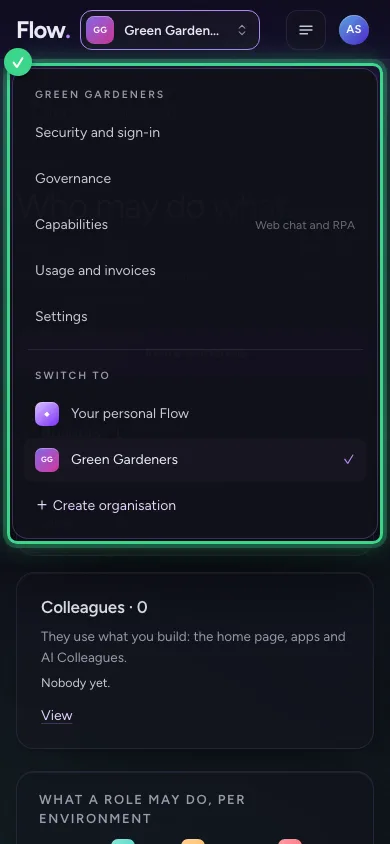
Your organisation's name at the top left works the same on your phone: behind it you arrange the organisation and switch to another one.
- Click Green Gardeners
This guide was carried out step by step on 28 Oct 2026 by an automated test on Flow (version 96971699).