Your team and their roles
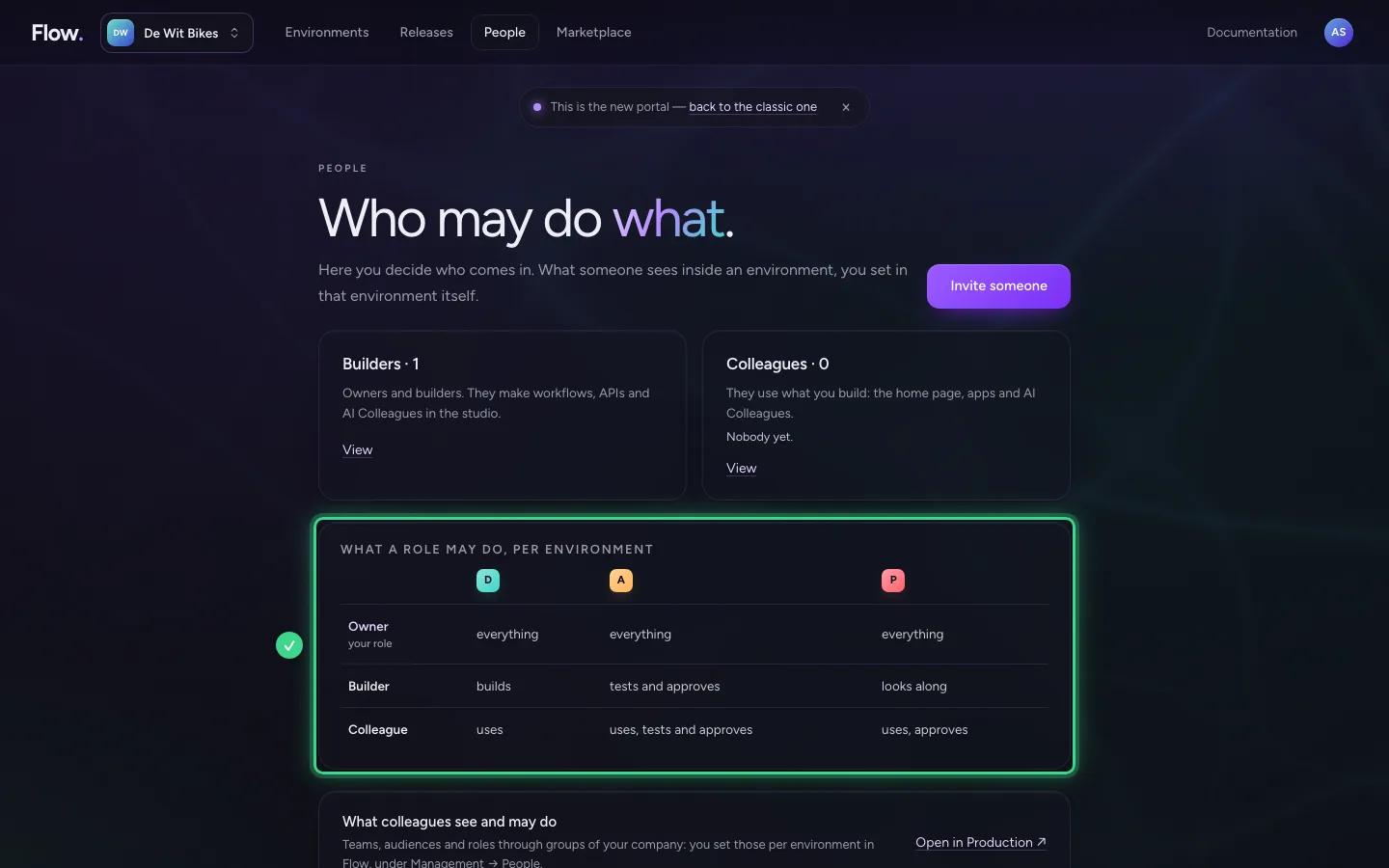
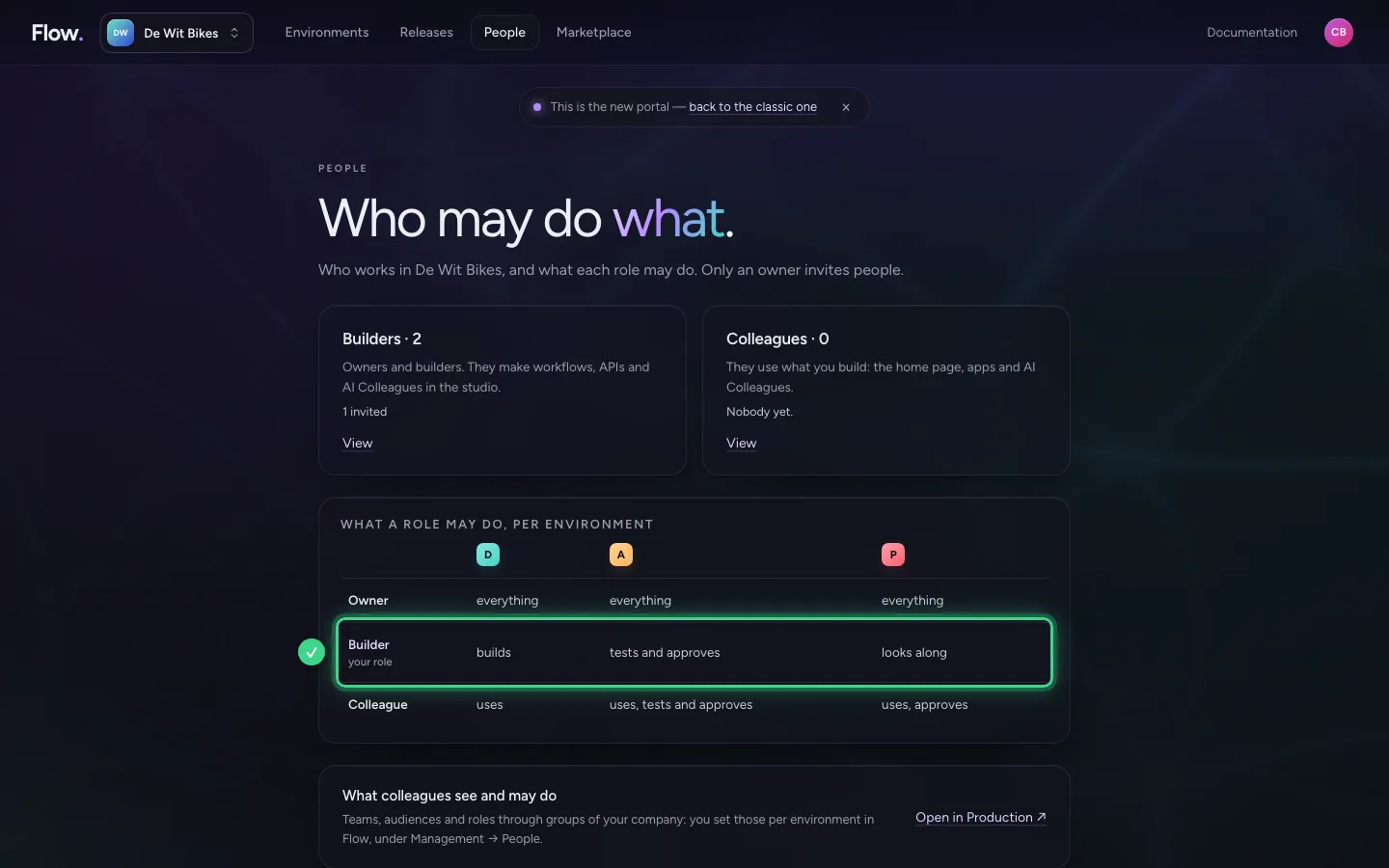
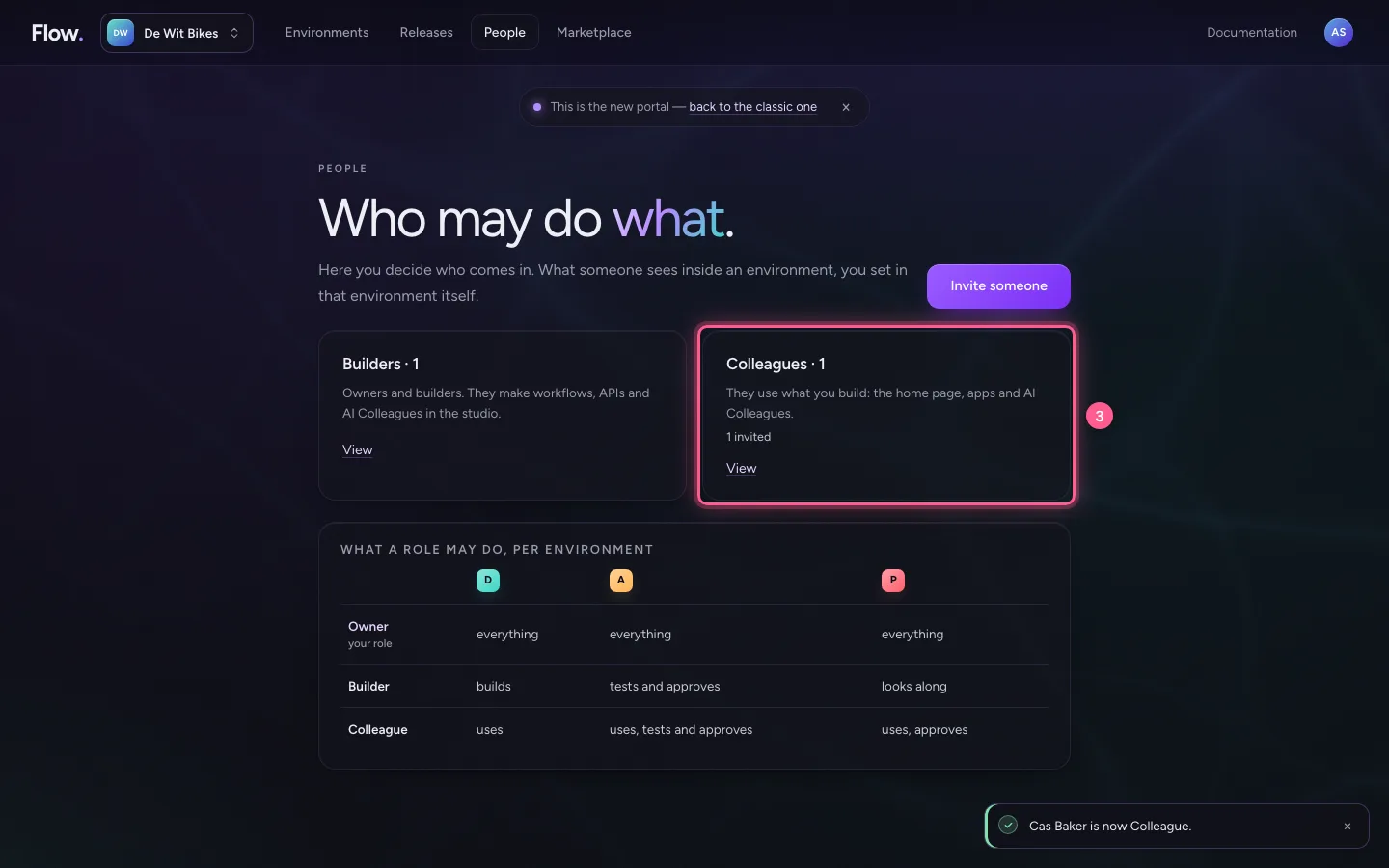
In the portal you invite people to your organisation, each with a role. A builder builds in Development and publishes up to Acceptance; a colleague uses what has been built and tests and approves; the owner manages everything. You see per environment what a role may do, and how your colleague gets in.
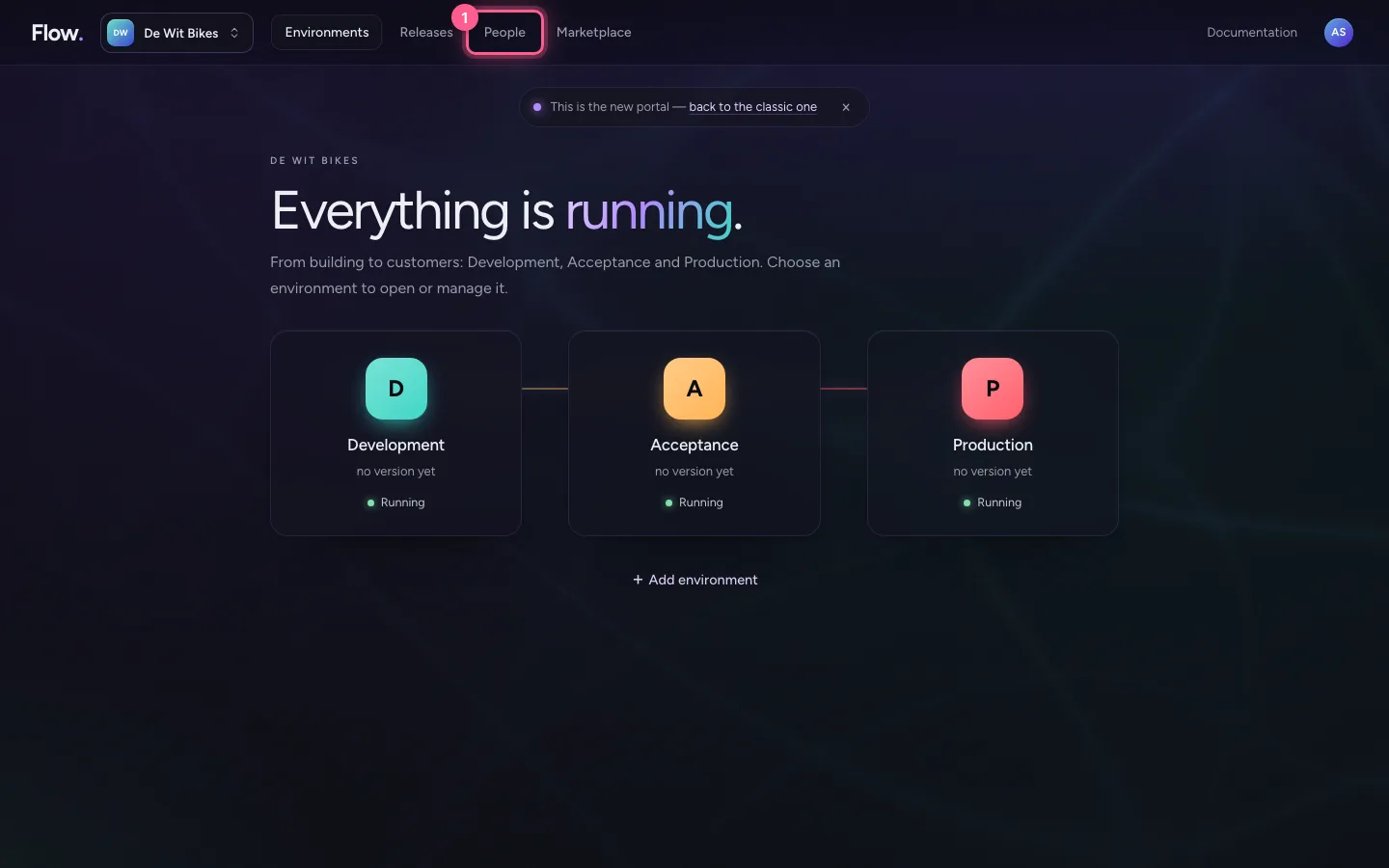
Open People
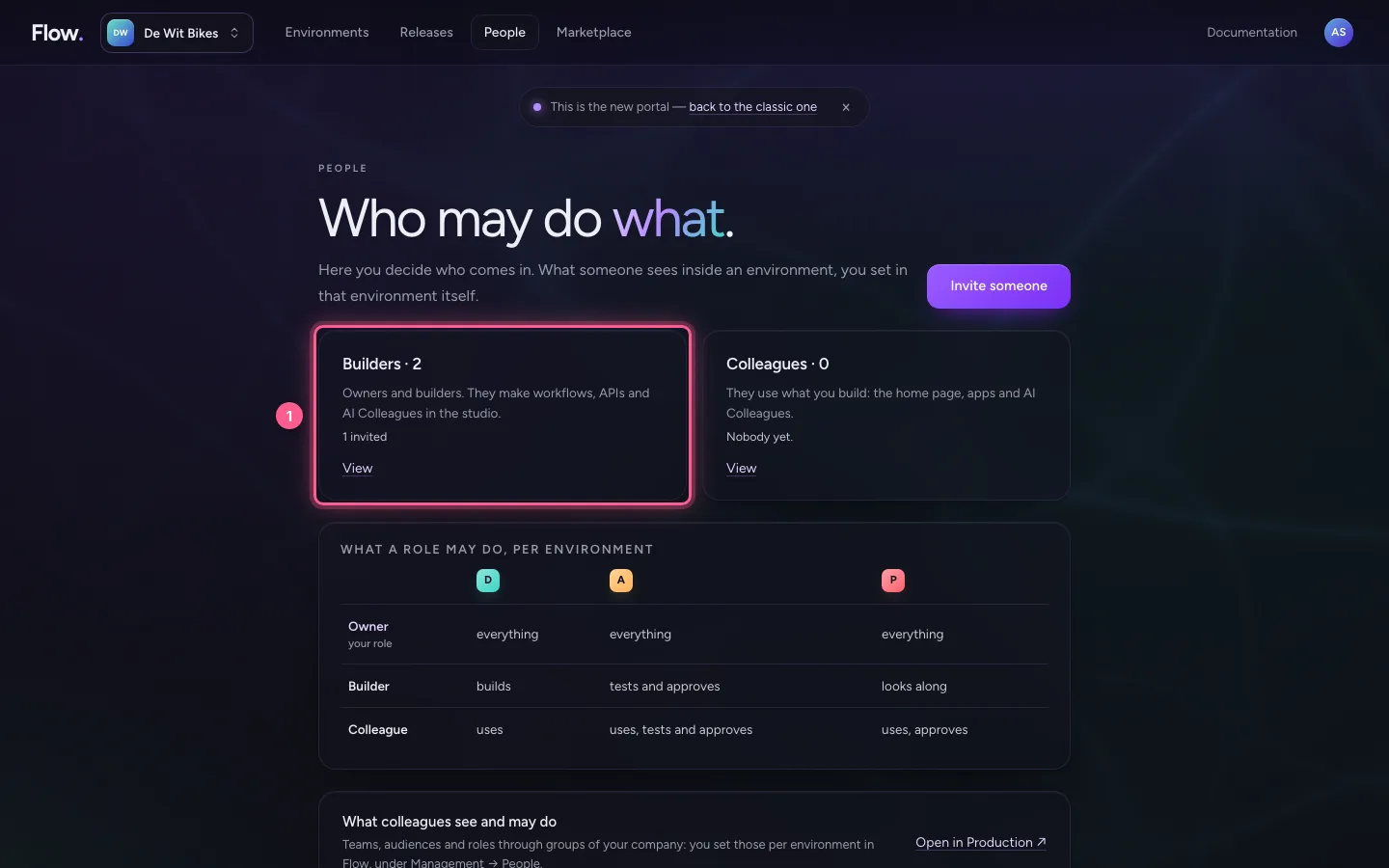
Click People at the top. This screen's question: who may do what? Everyone sees the same environments, but with the rights that come with their role. The table shows per environment what each role may do.
- Click People
Invite a colleague
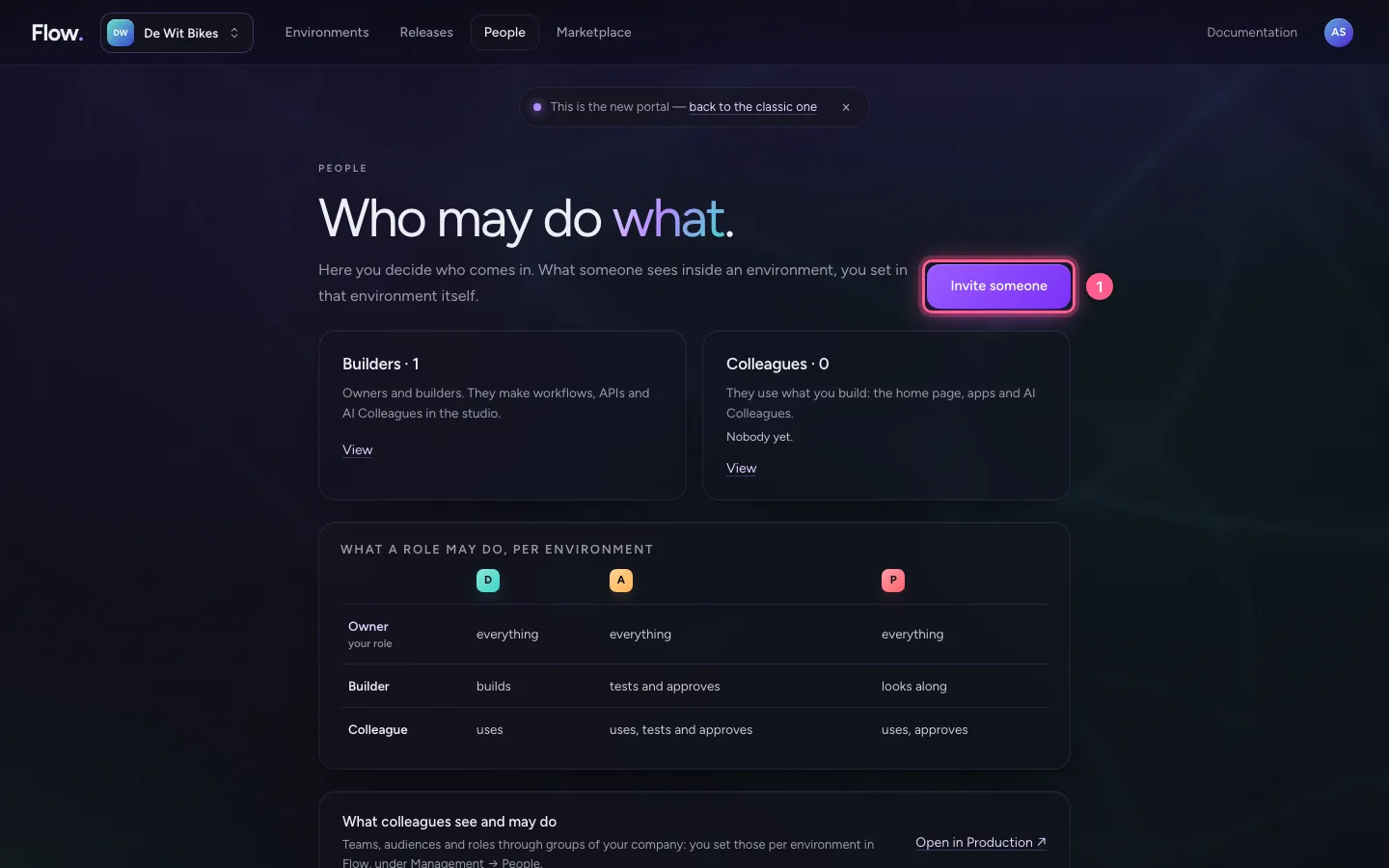
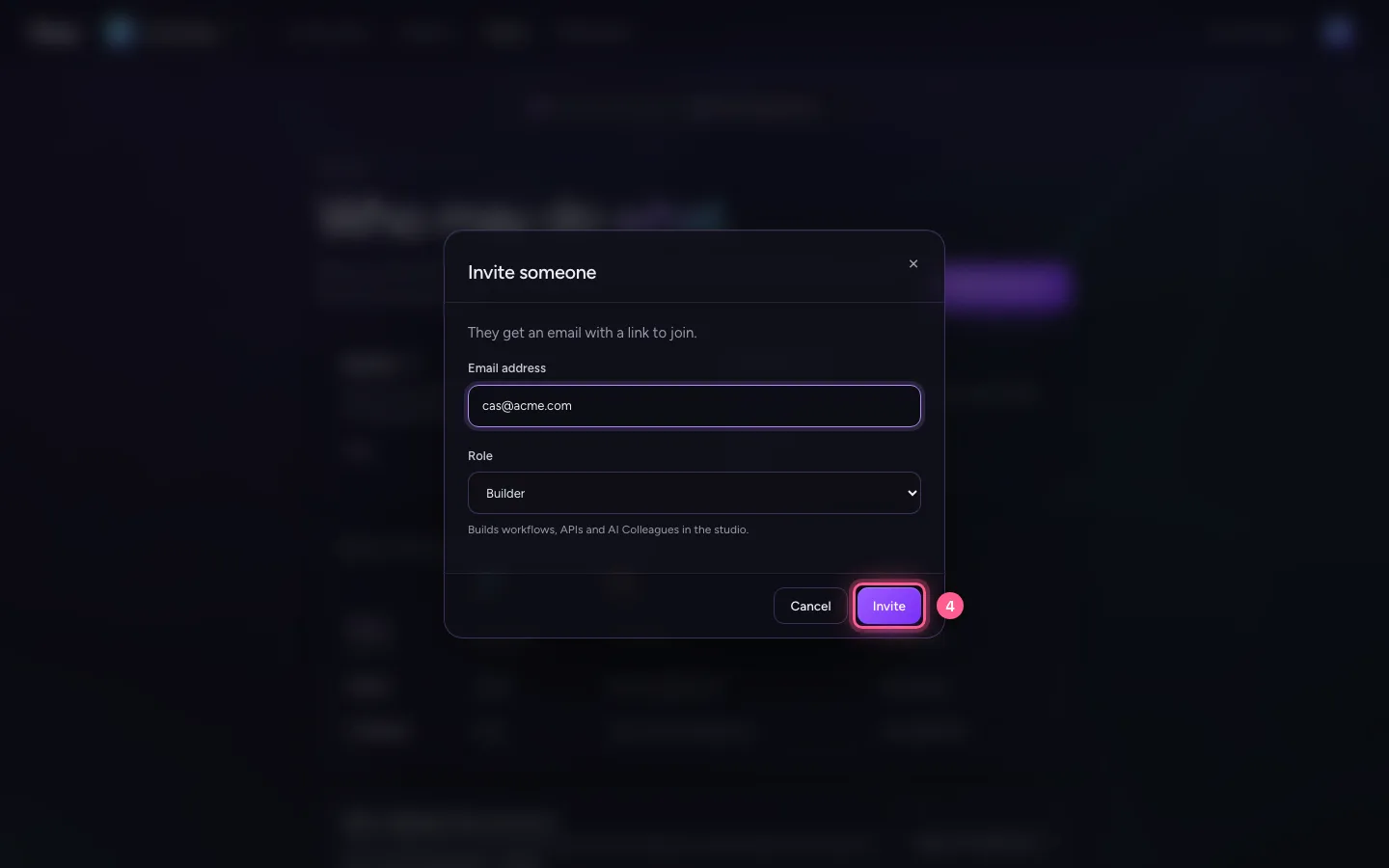
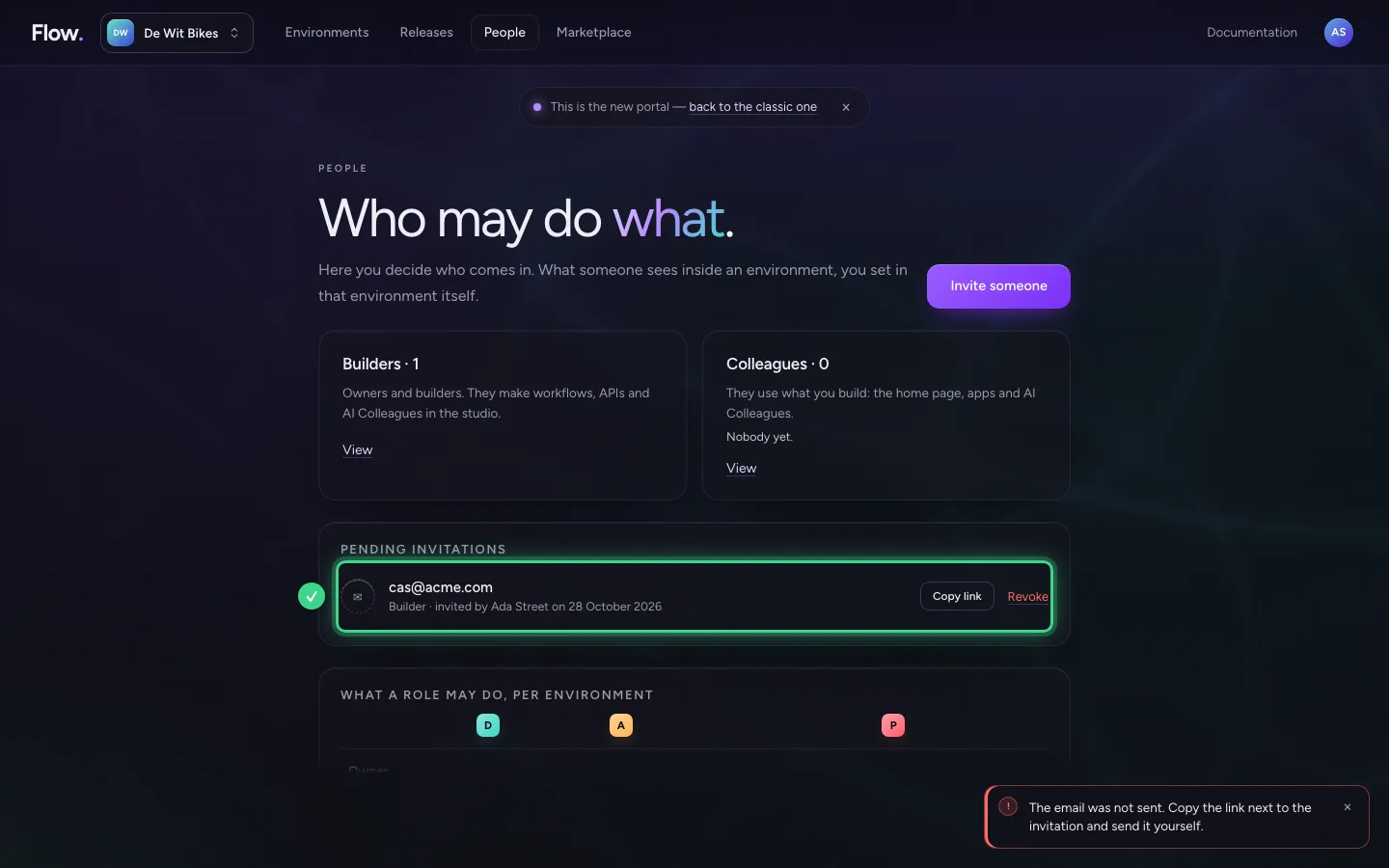
Choose Invite someone, fill in the e-mail address and choose the role. Your colleague gets an invitation by e-mail; if mailing does not work, you copy the link and share it yourself.
- Click Invite someone
- In Email address, type
cas@acme.com - In Role, choose Builder
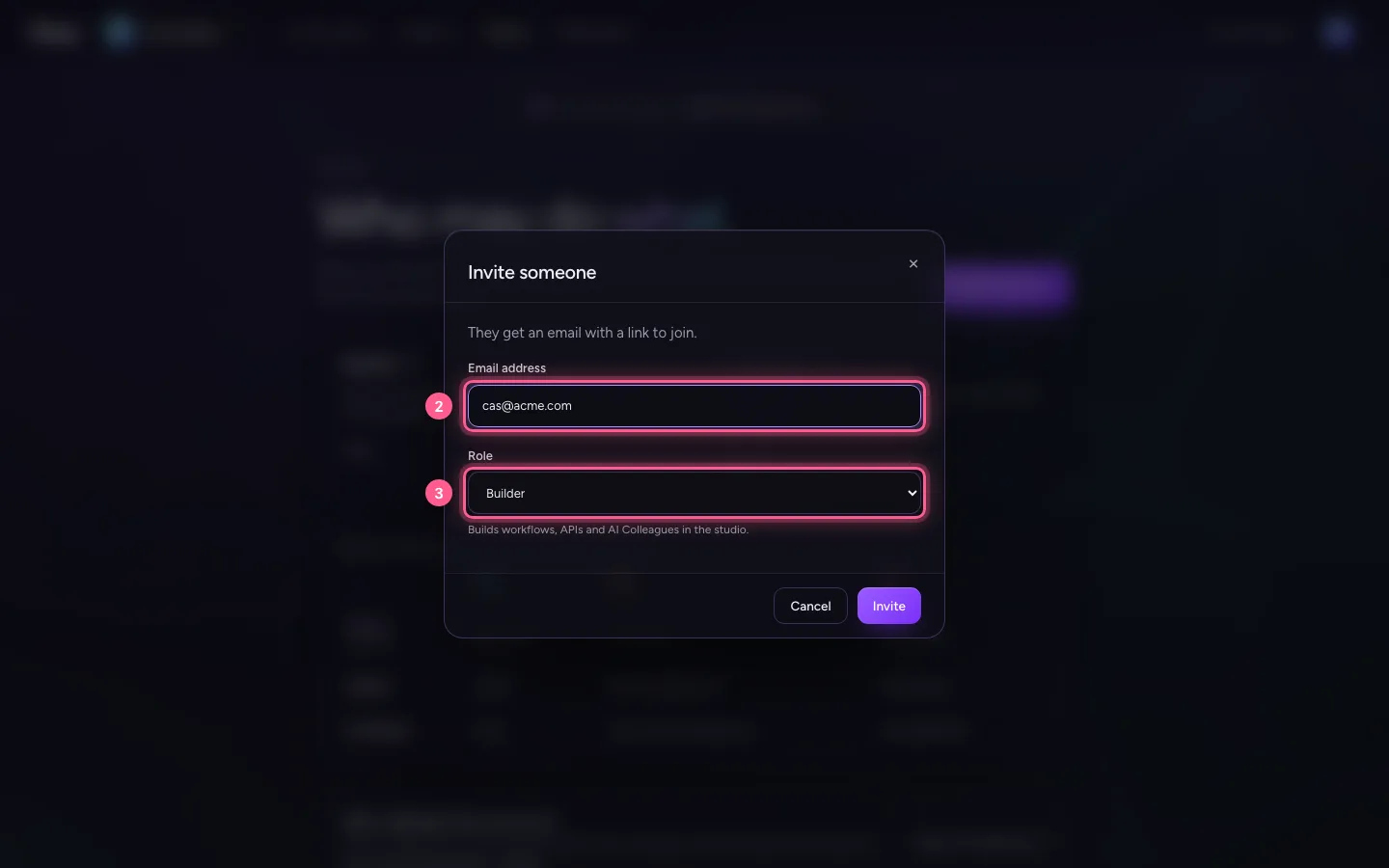
- Click Invite
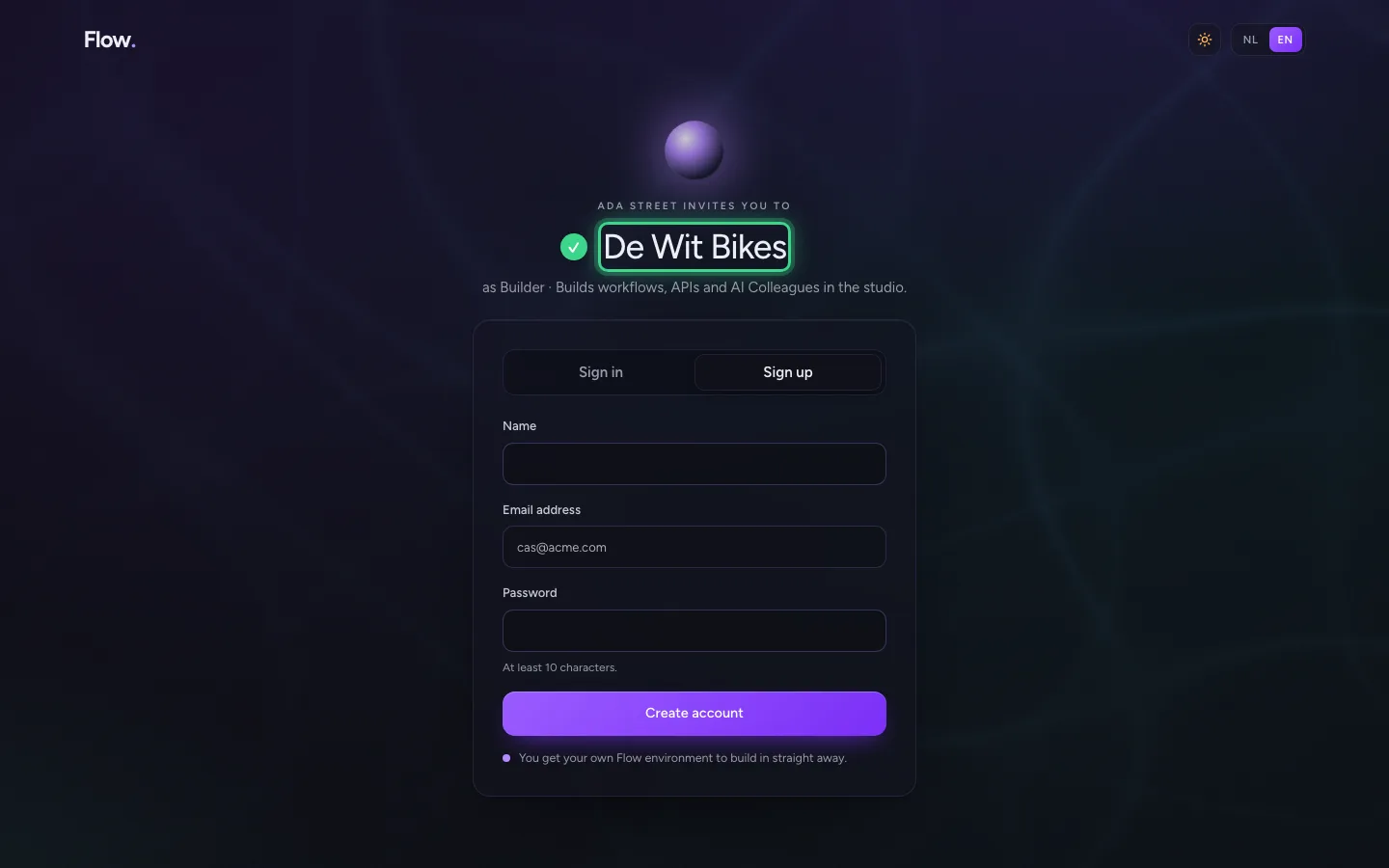
Your colleague opens the invitation
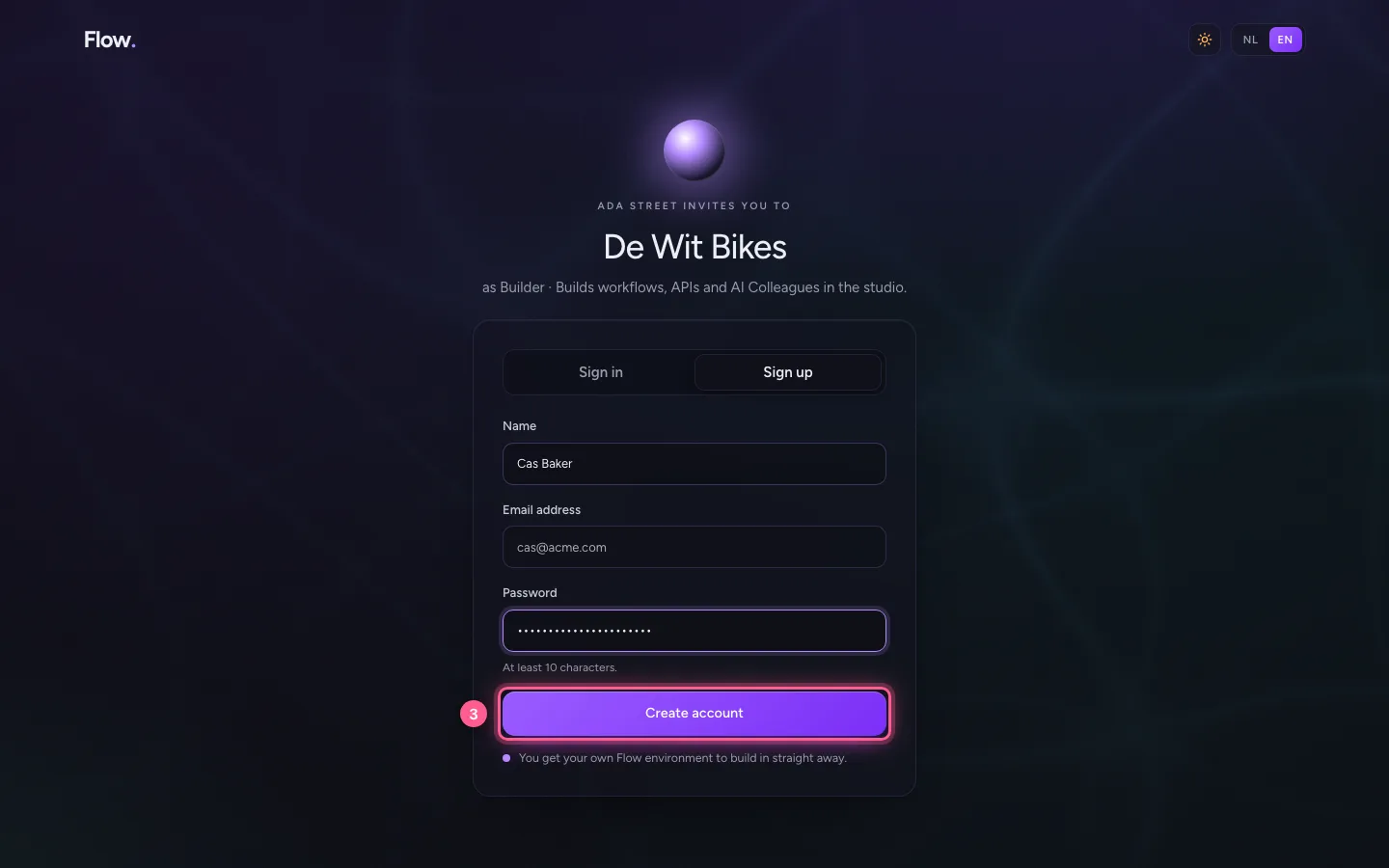
The link shows who invites, for which organisation and with which role. Anyone without an account creates one here, with a second step like everyone.
- In Name, type
Cas Baker - In Password, type
••••••••
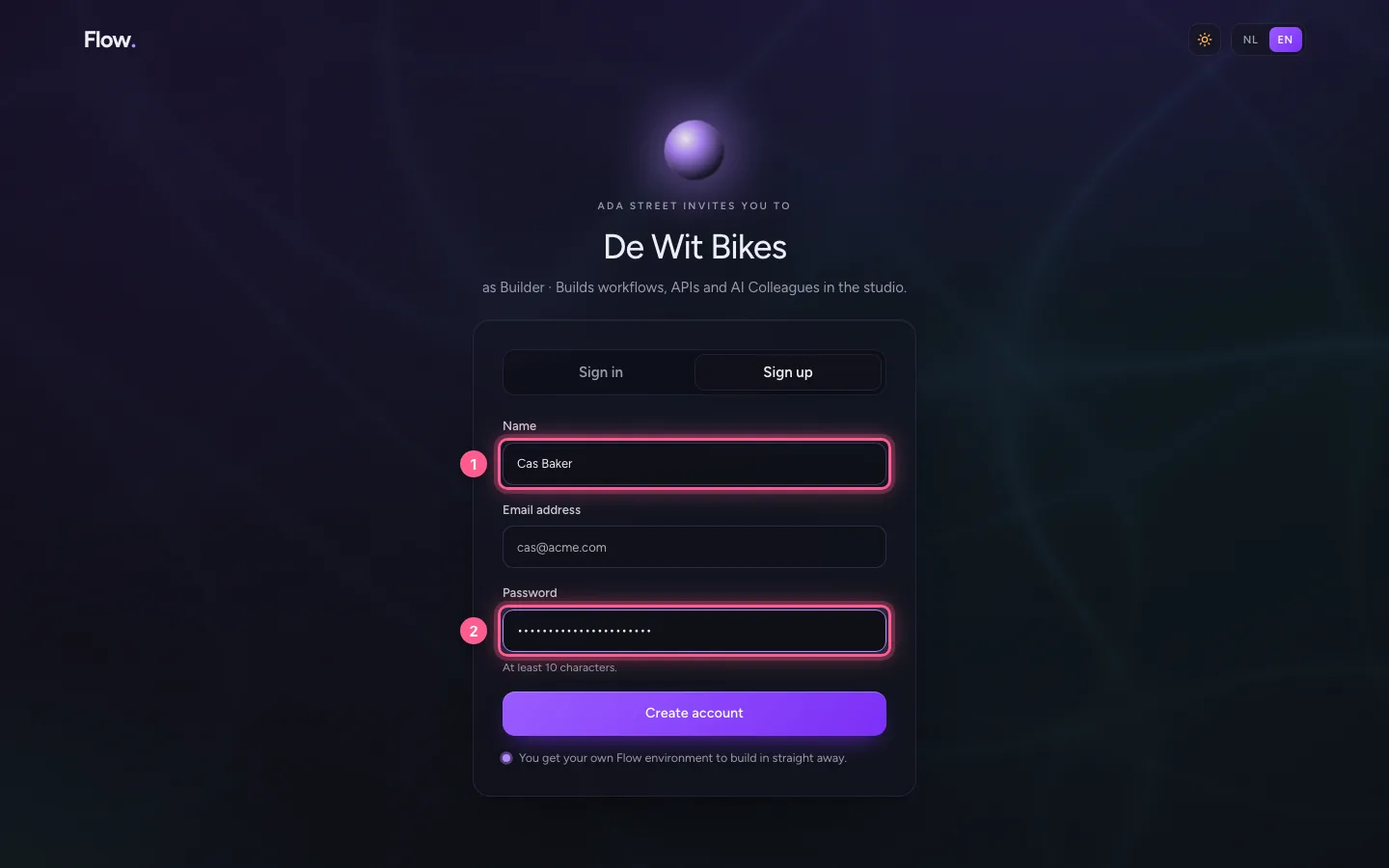
- Click Create account
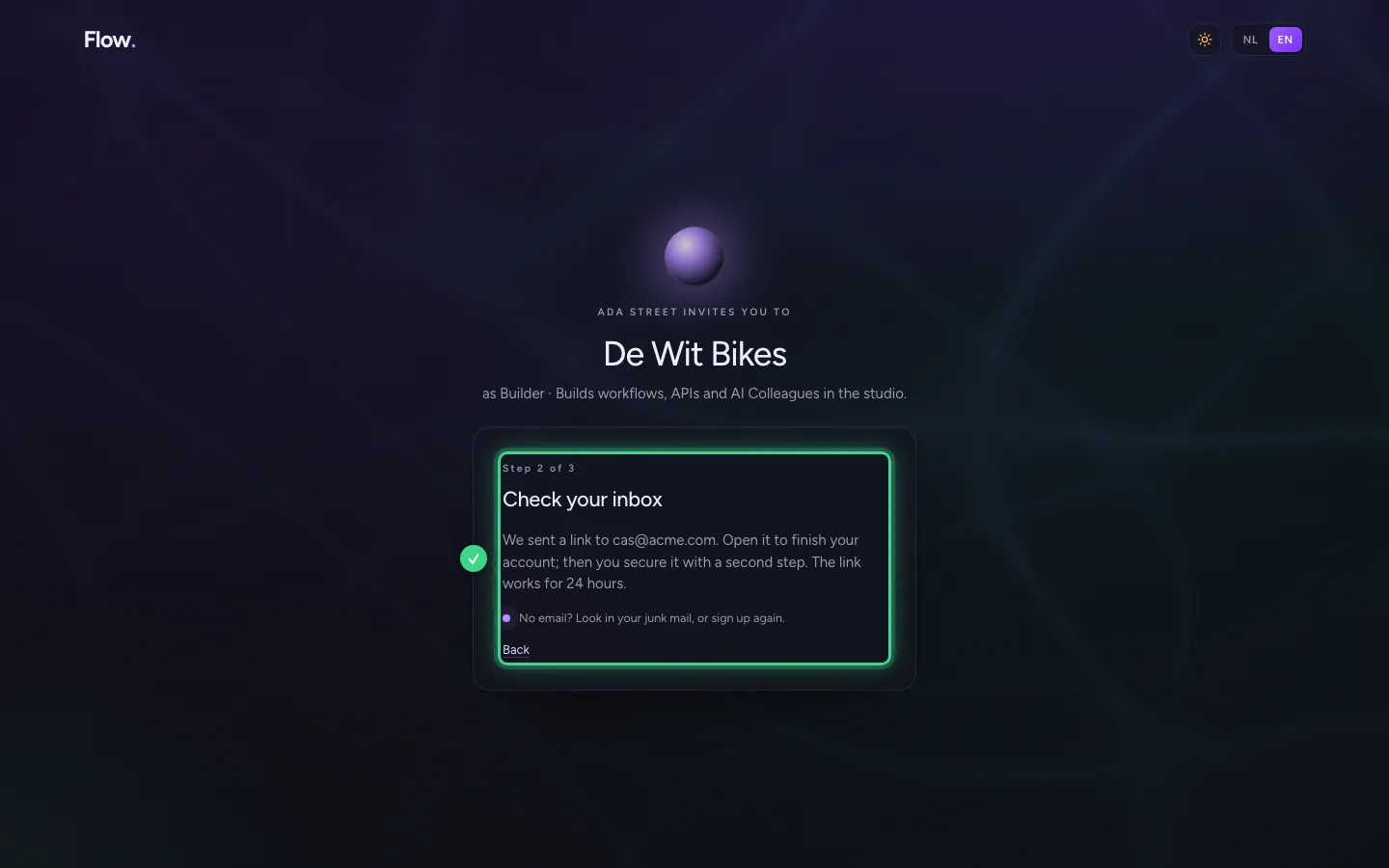
Your colleague confirms the email address
Your colleague also gets an email with a link first: with it she proves the address is hers. That way nobody else can use the invitation to make an account on her address.
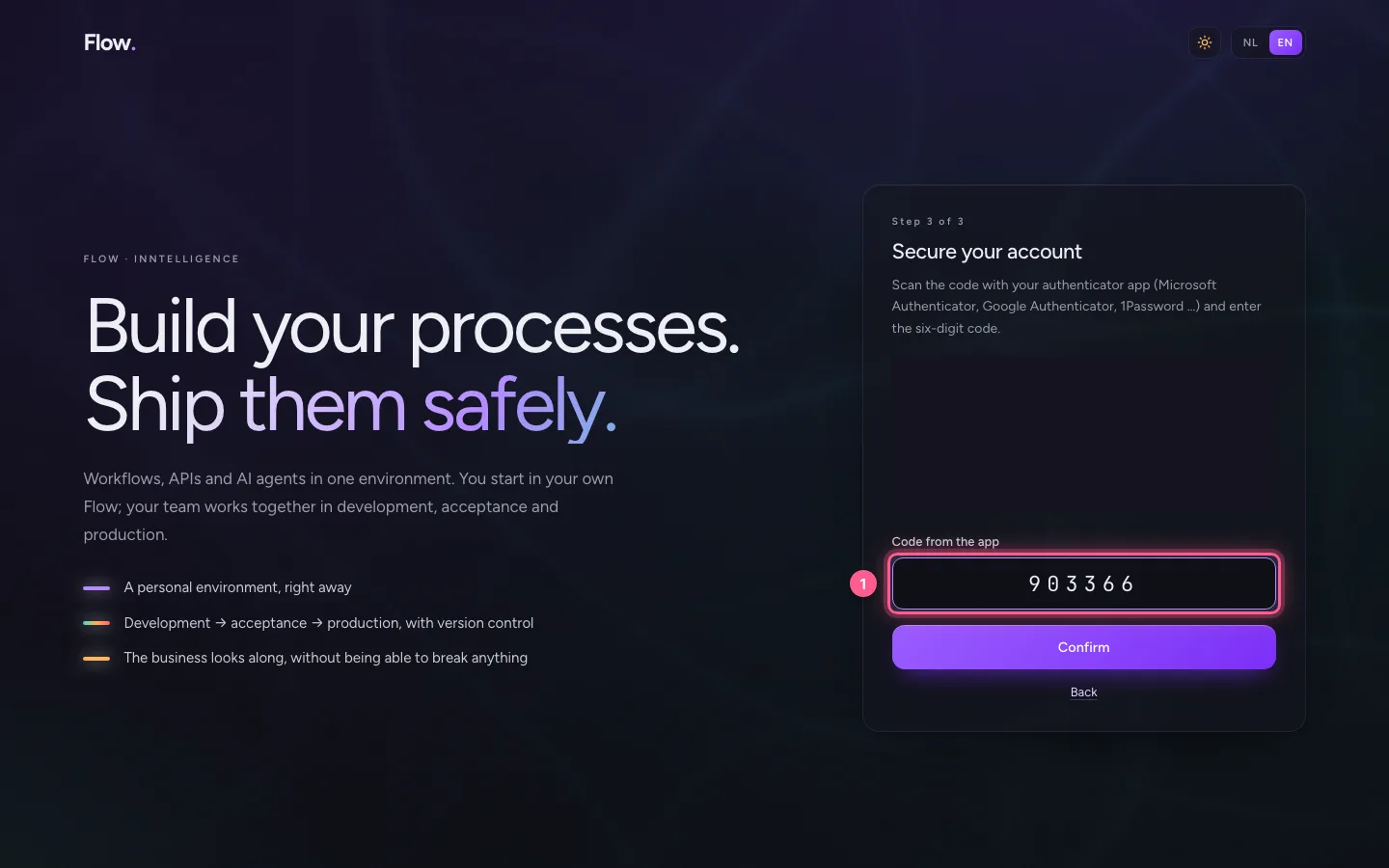
Your colleague secures the account
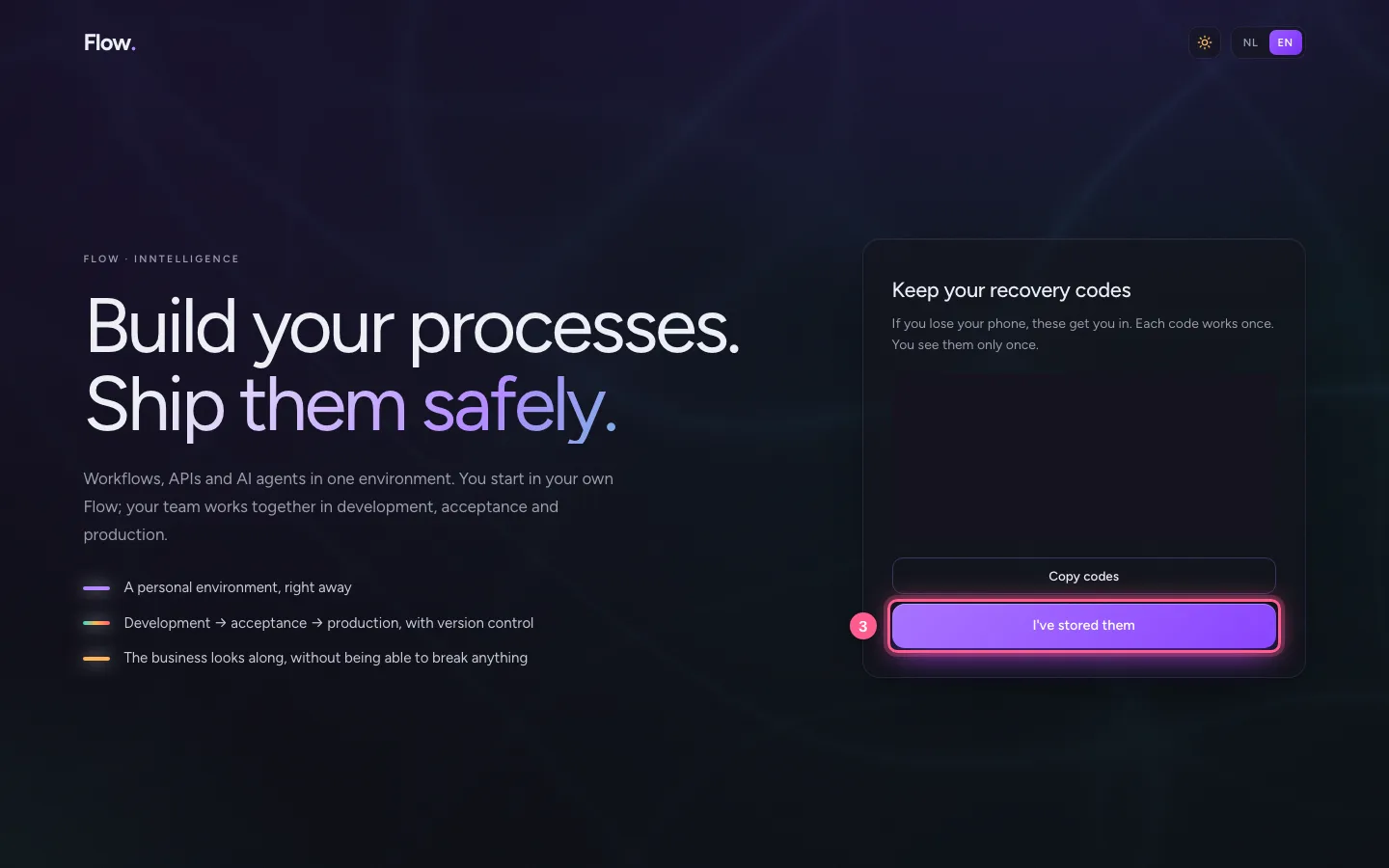
An invited colleague also scans the QR code with an authenticator app and keeps the recovery codes. Without that second step nobody gets in.
- In Code from the app, type
the six digits from the app
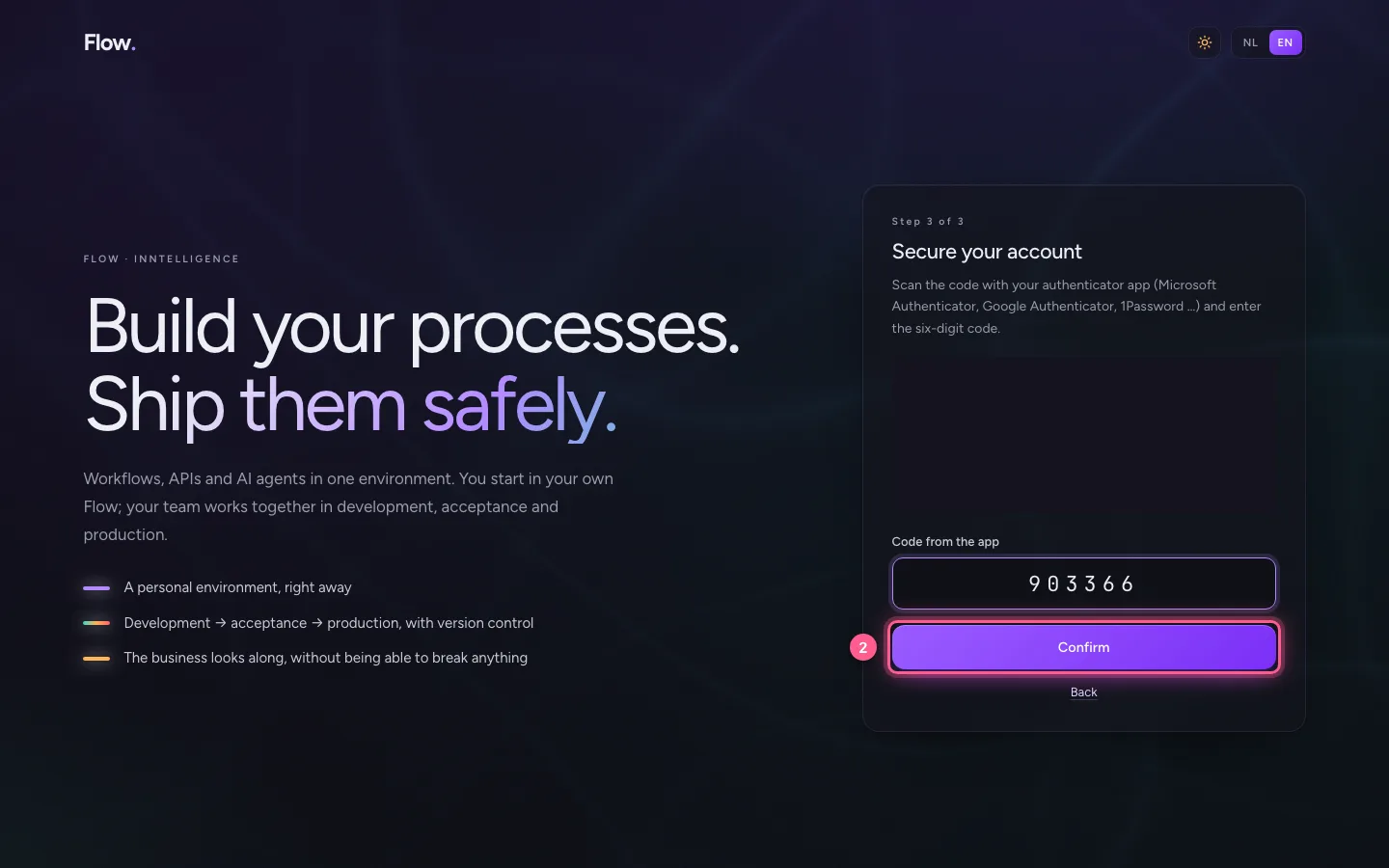
- Click Confirm
- Click I've stored them
Your colleague is in
With the account secured, your colleague is a member of your organisation and lands in it straight away. Under People, your colleague's role says your role: as a builder they build in Development.
Change a role
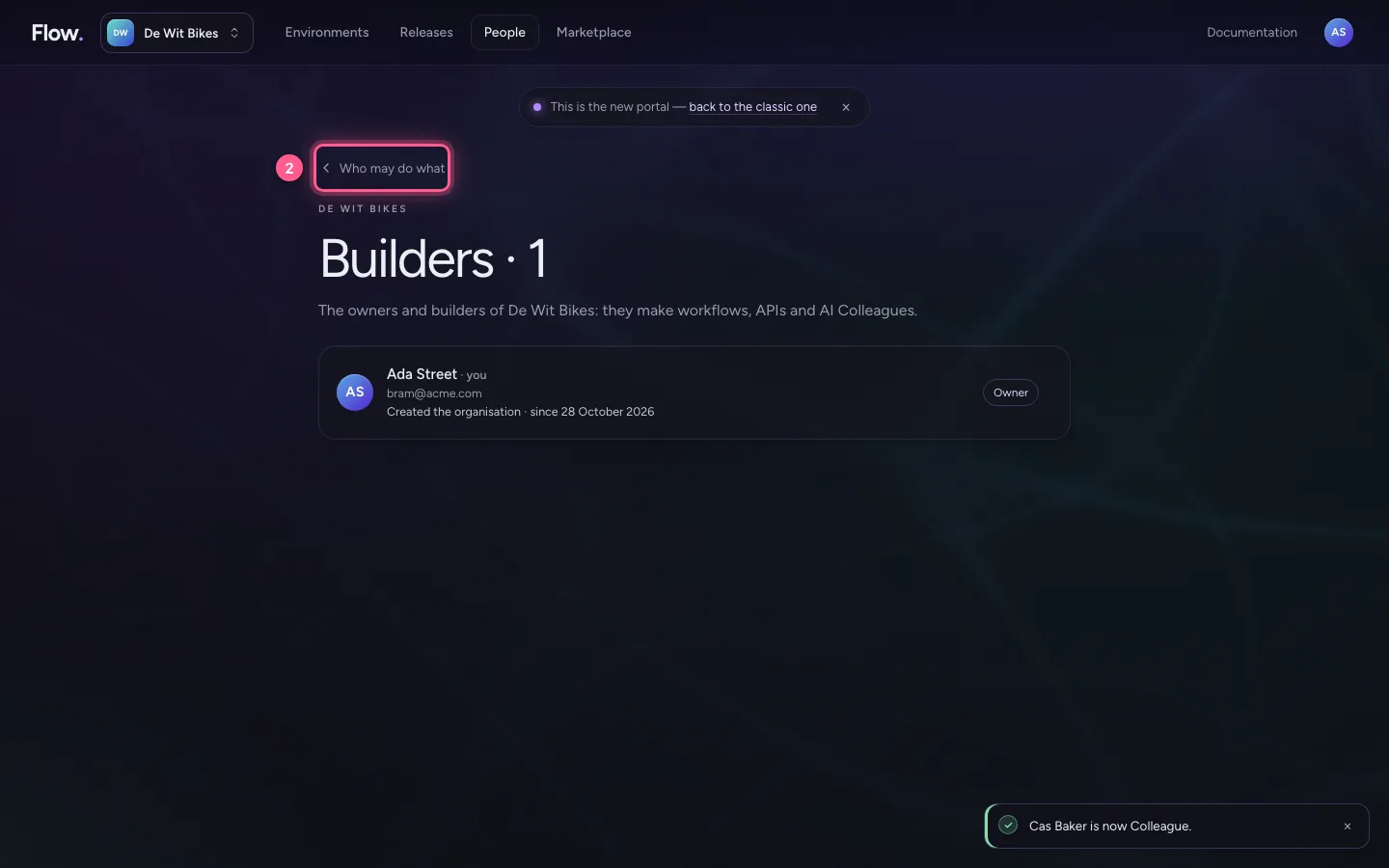
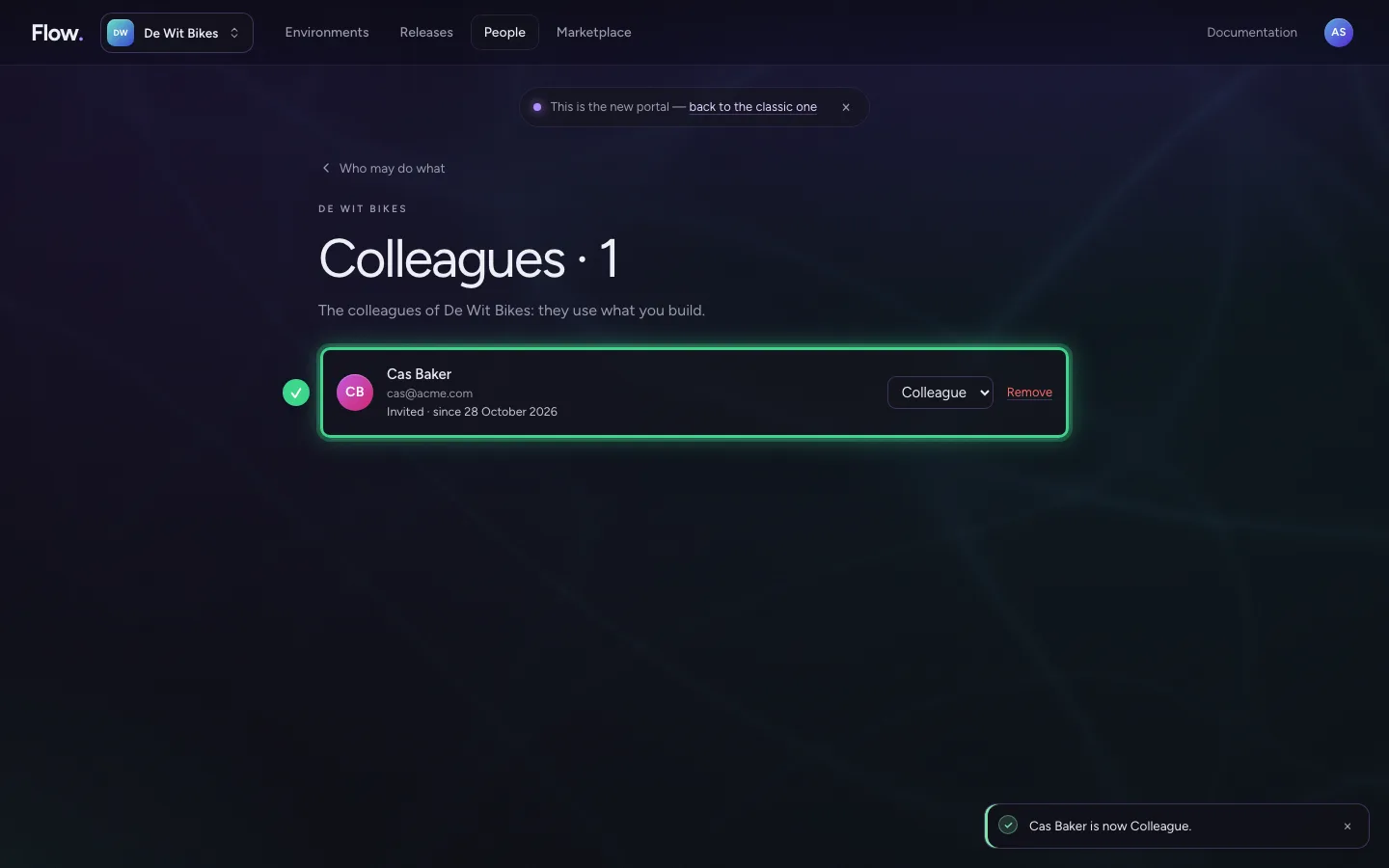
As the owner you change anyone's role: choose Builders and then another role next to the name. It applies straight away, in every environment of the organisation. Set your colleague to Colleague, for example, when they only test and approve.
- Click Builders · 2 Owners and builders. They make workflows, APIs and AI Colleagues in
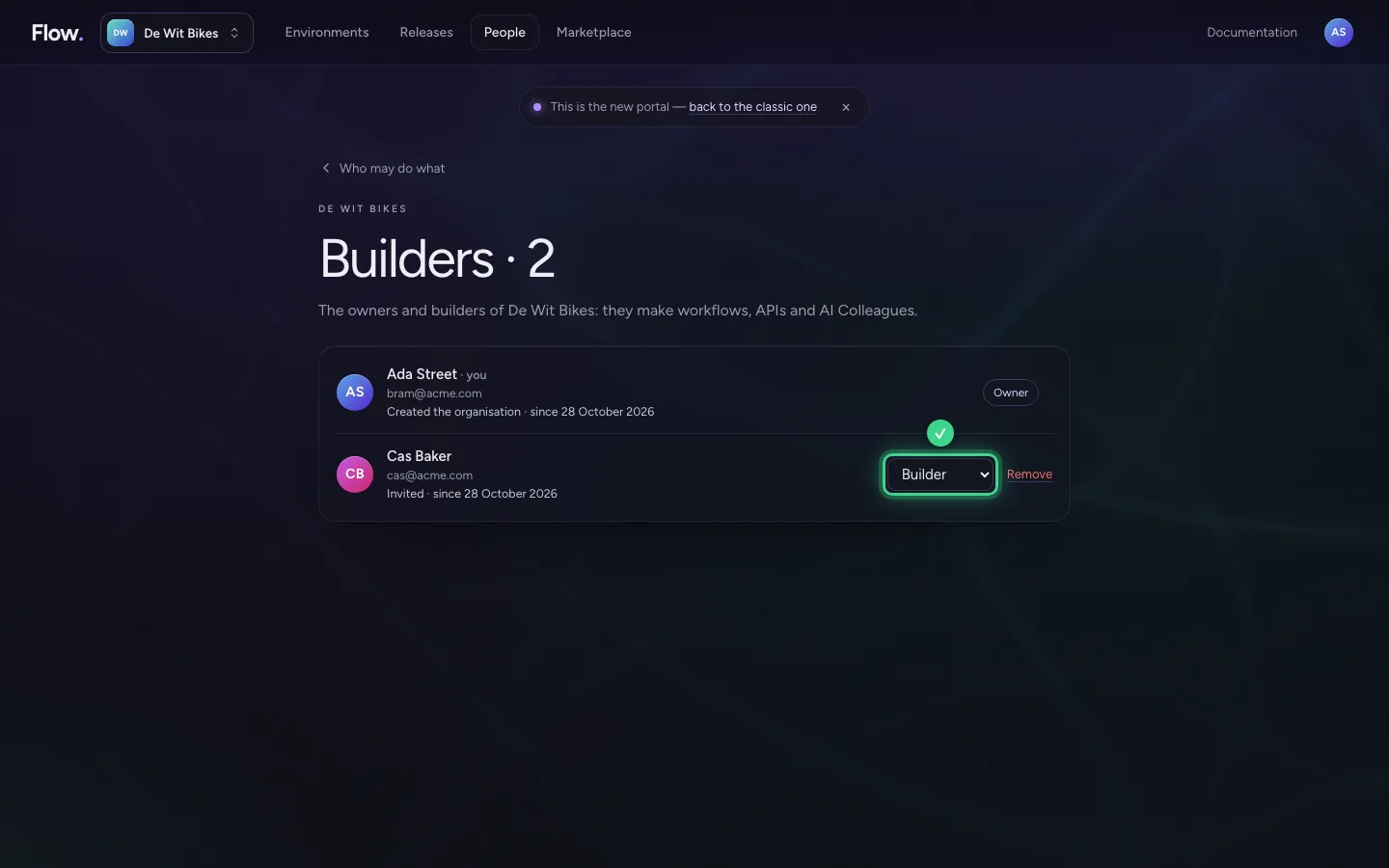
- Click Who may do what
- Click Colleagues · 1 They use what you build: the home page, apps and AI Colleagues. 1
This guide was carried out step by step on 28 Oct 2026 by an automated test on Flow (version 96971699).