The security model: classification, visibility and requirements
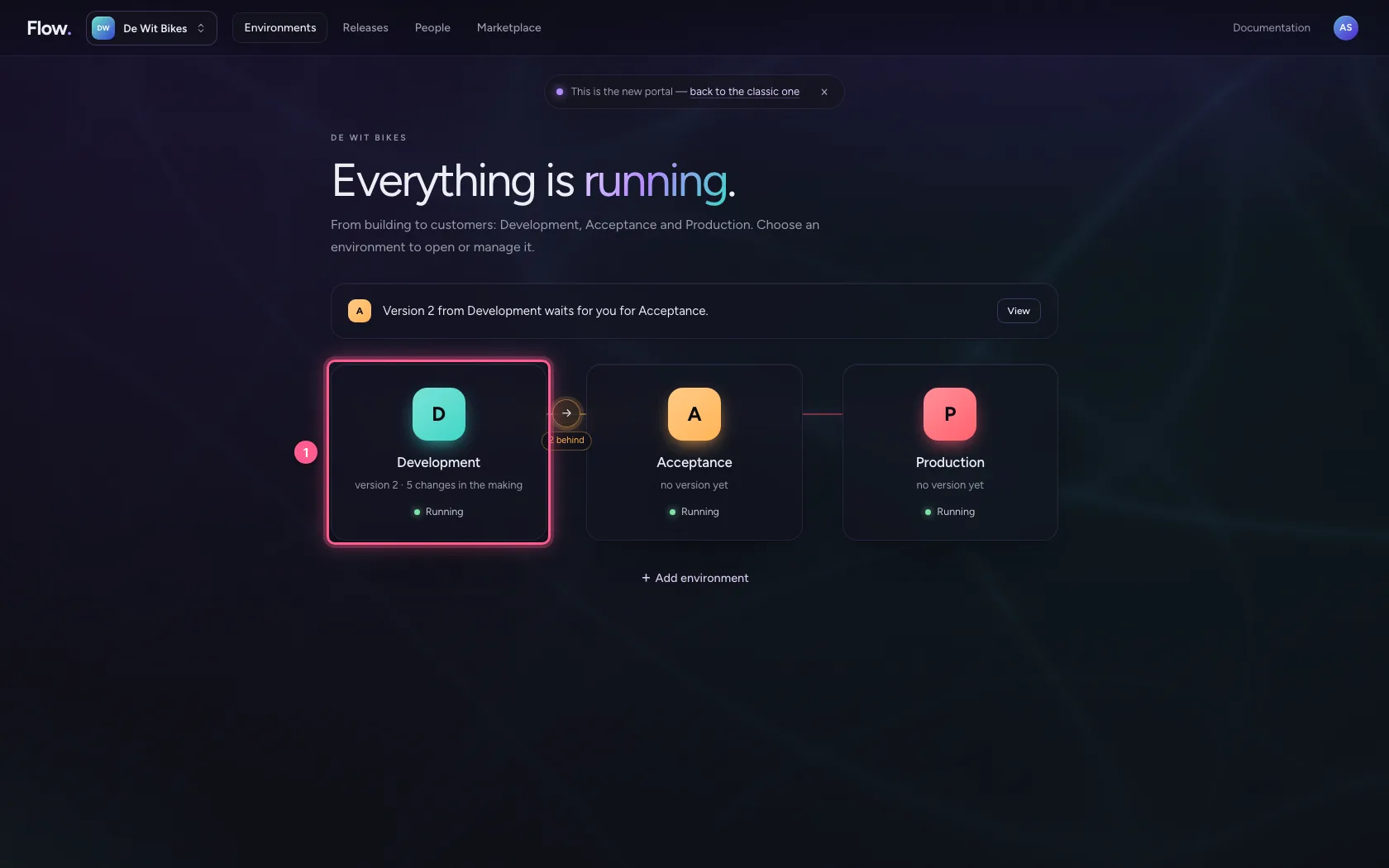
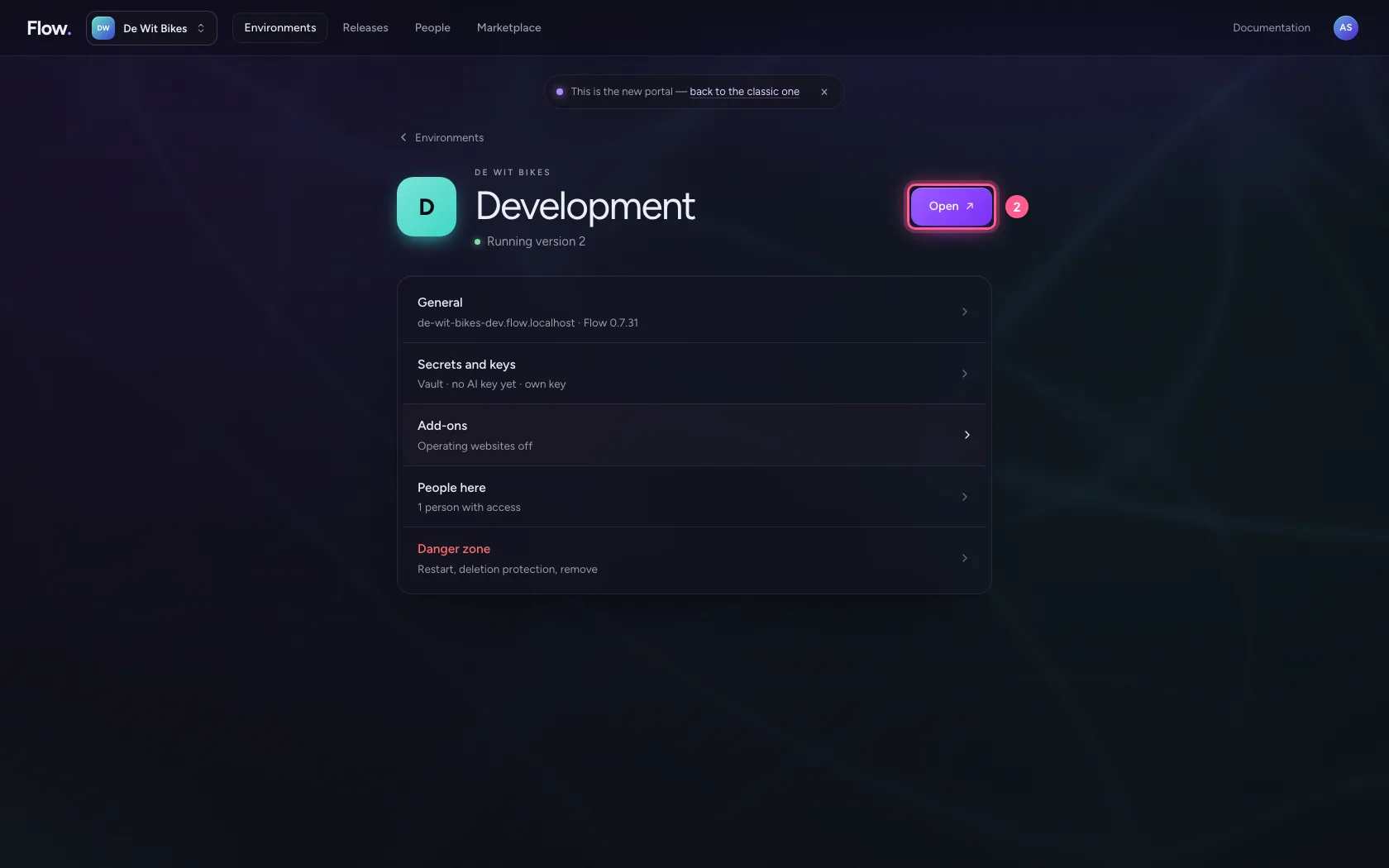
- Step 1 · Open your development environment
- Step 2 · Create a table for salaries
- Step 3 · Classify the data
- Step 4 · Create a workflow and say what a caller must bring
- Step 5 · Let the workflow read the table
- Step 6 · Create an API for HR
- Step 7 · Put the workflow behind an endpoint — without the permission
- Step 8 · Demand the permission on the endpoint
Flow does not secure per screen but per item: a table knows how sensitive its data is, a workflow says what a caller must bring, and an endpoint may only make security stricter. In this guide you create a table with personal data, a workflow that reads it, and you see an endpoint with too few rights being refused — and how to put it right.
Open your development environment
You set up security where you build: in Development. When you publish, it travels along to the next environments.
- Click Development
- Click Open ↗
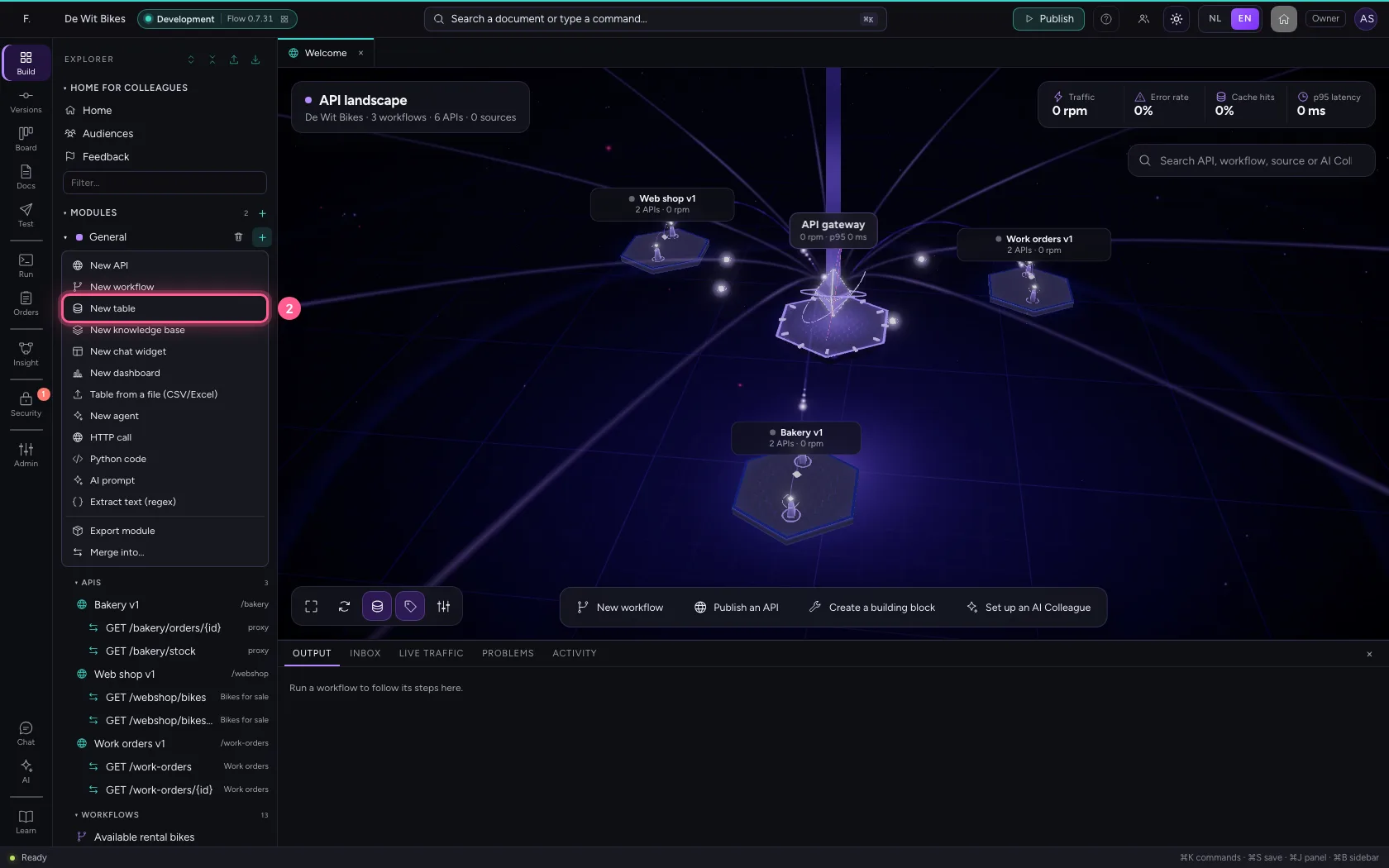
Create a table for salaries
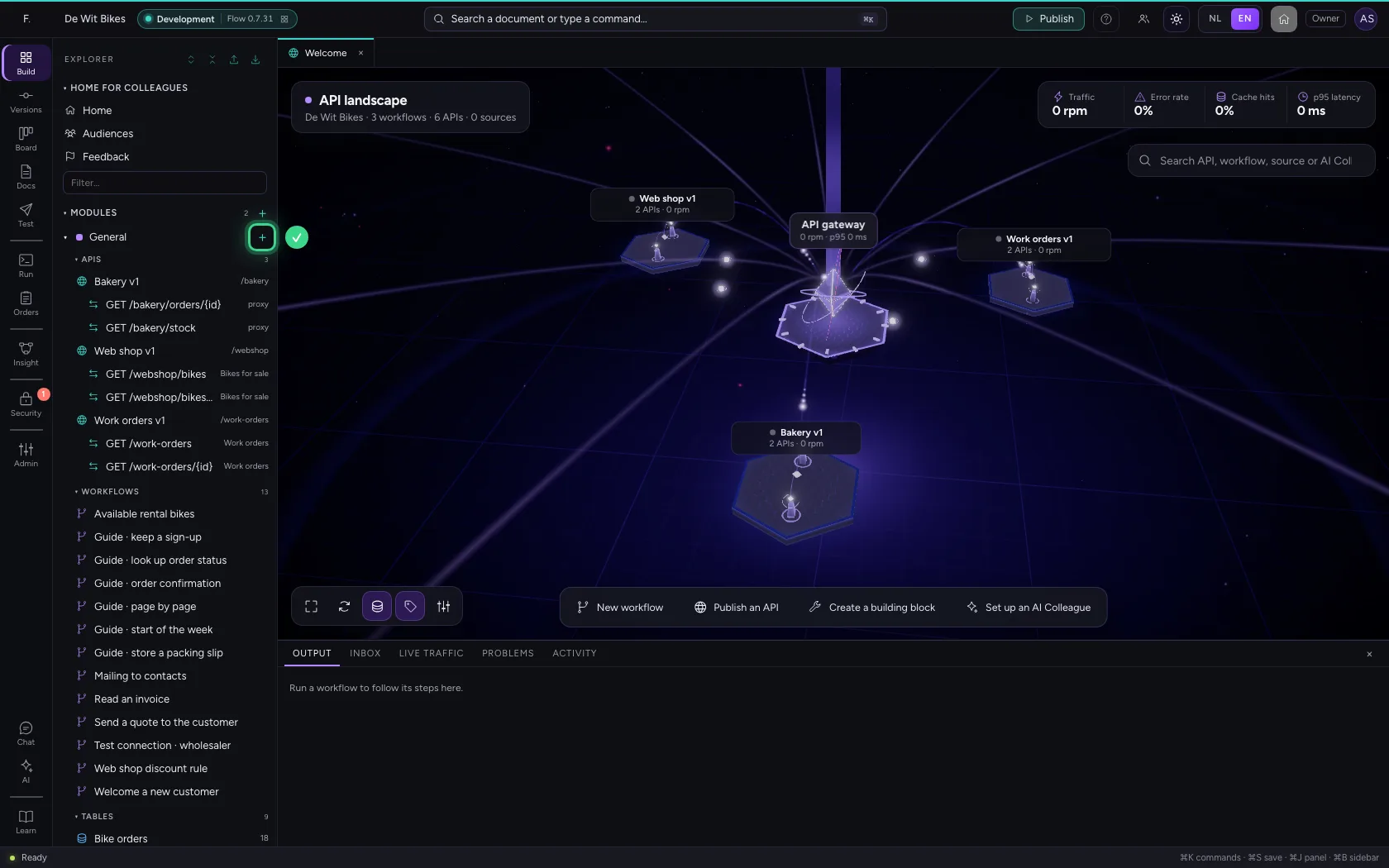
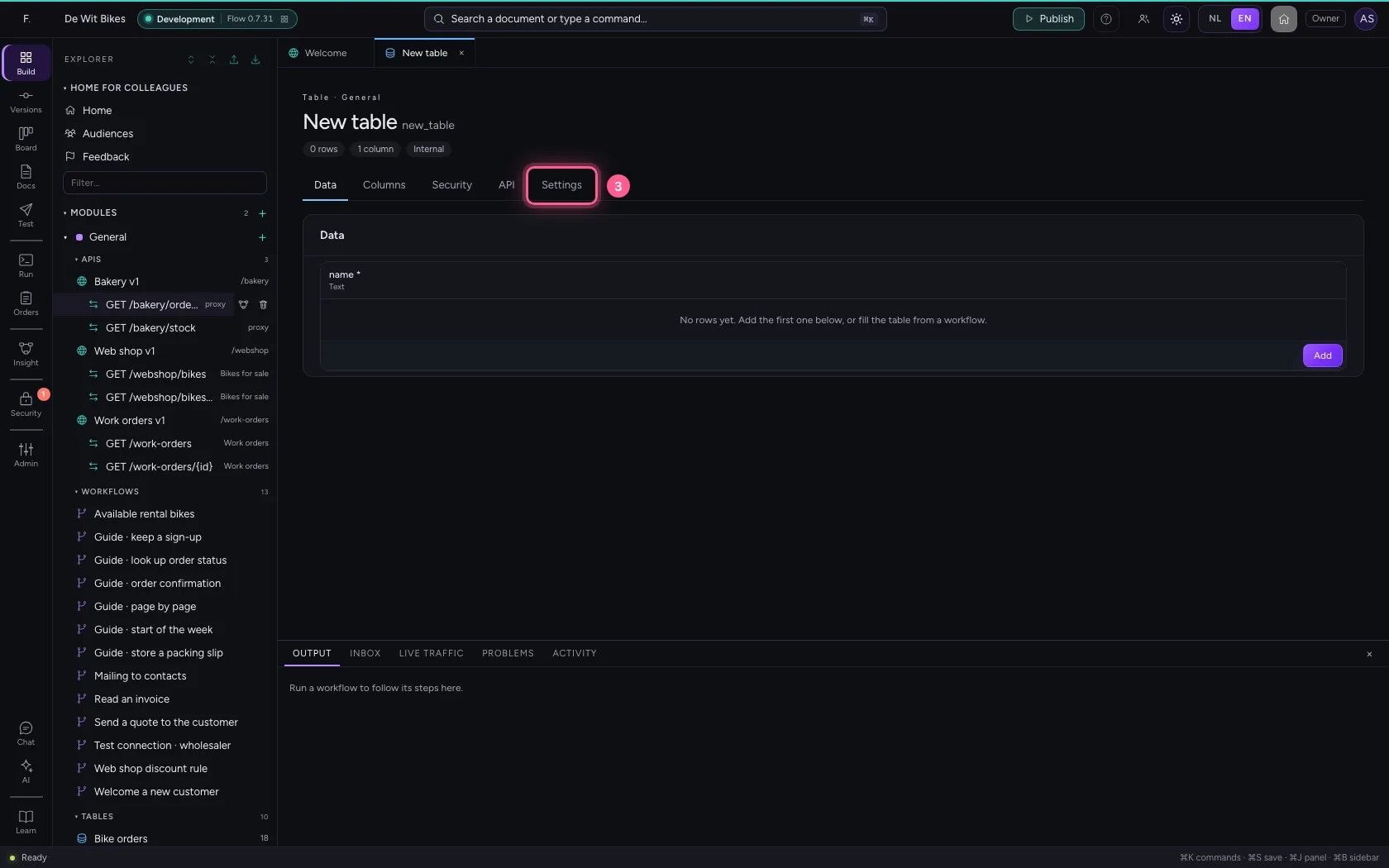
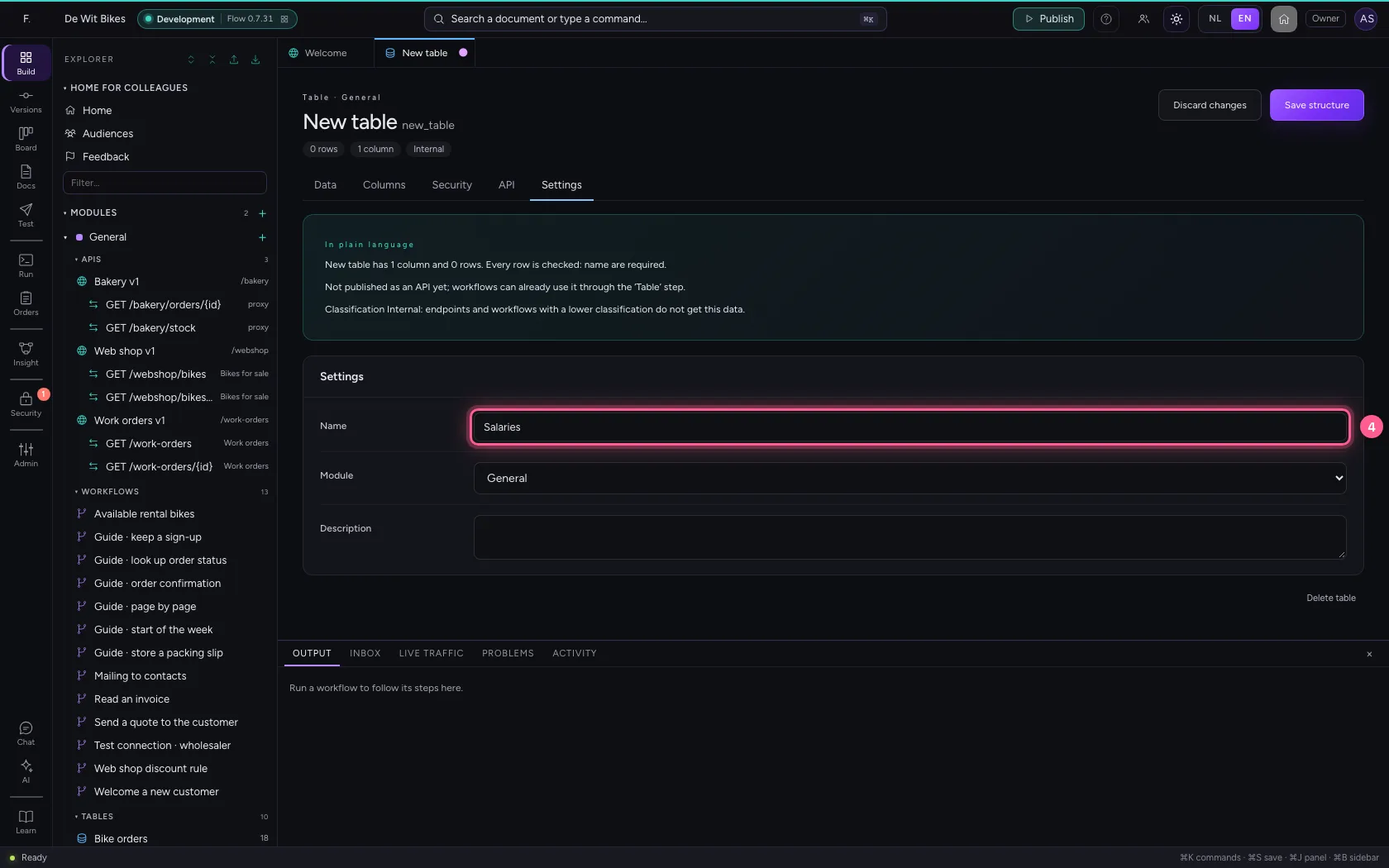
A new table in the module General. Give it a name under Settings.
- Click Add to General
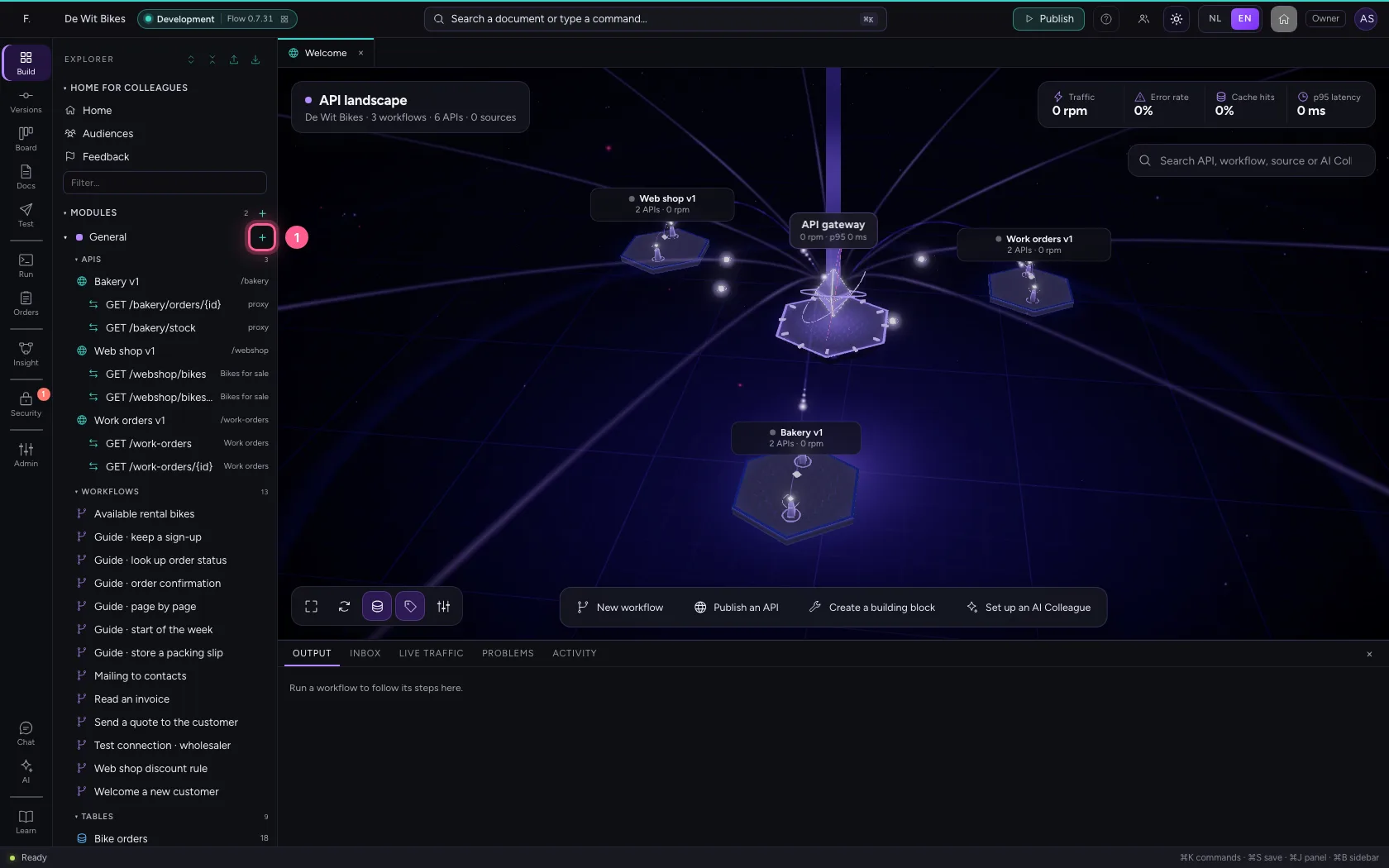
- Click New table
- Click Settings
- In Name, type
Salaries
Classify the data
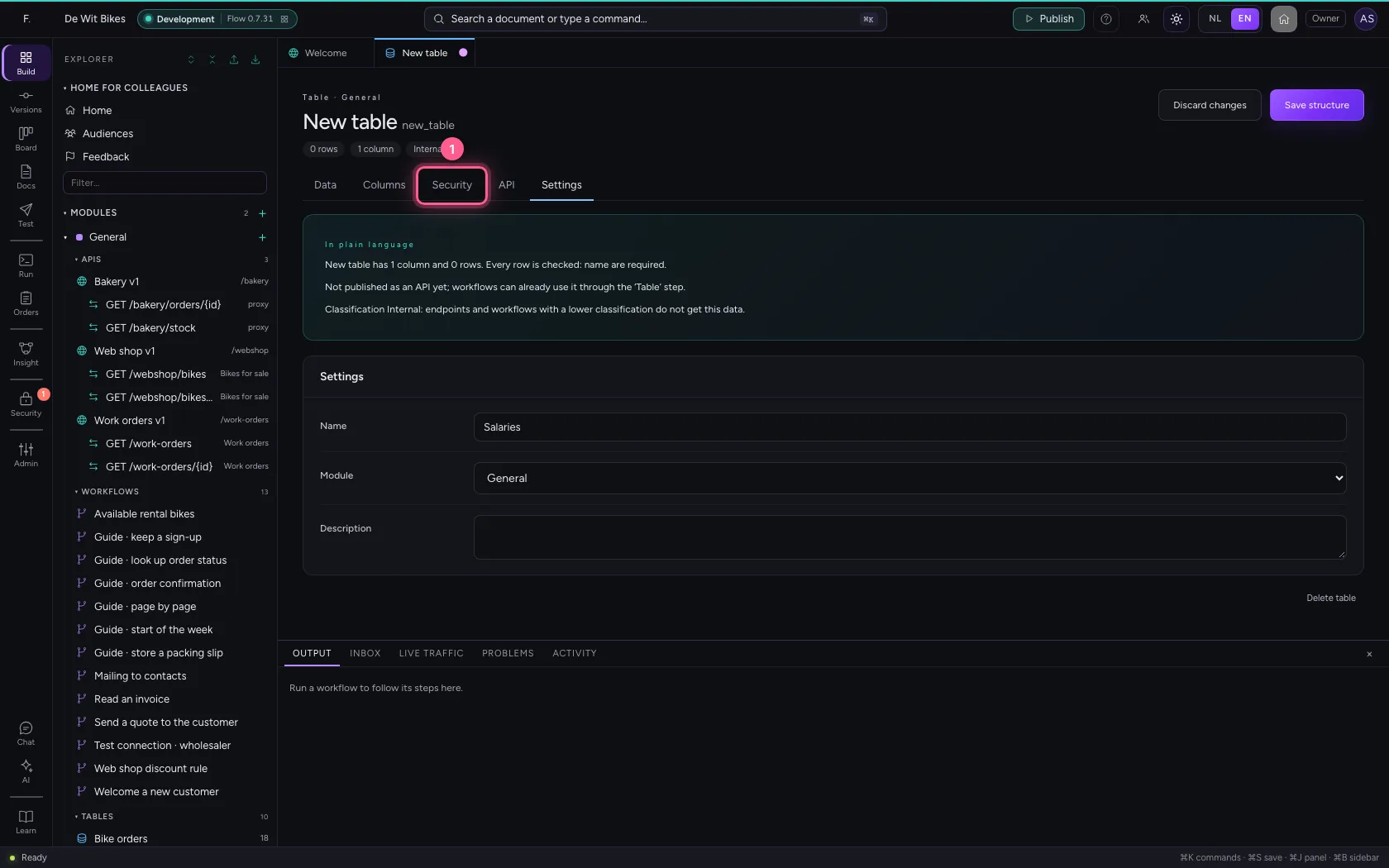
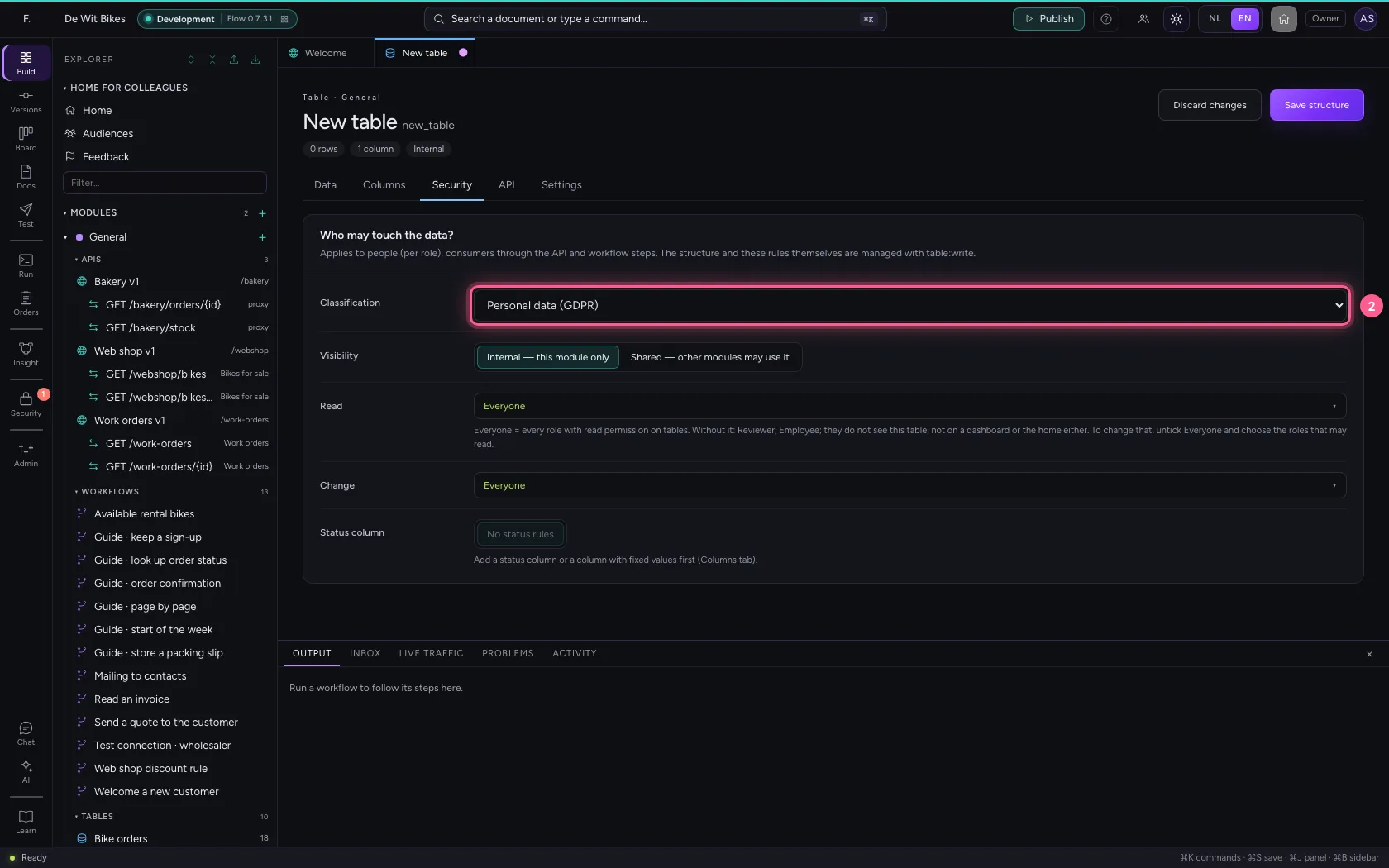
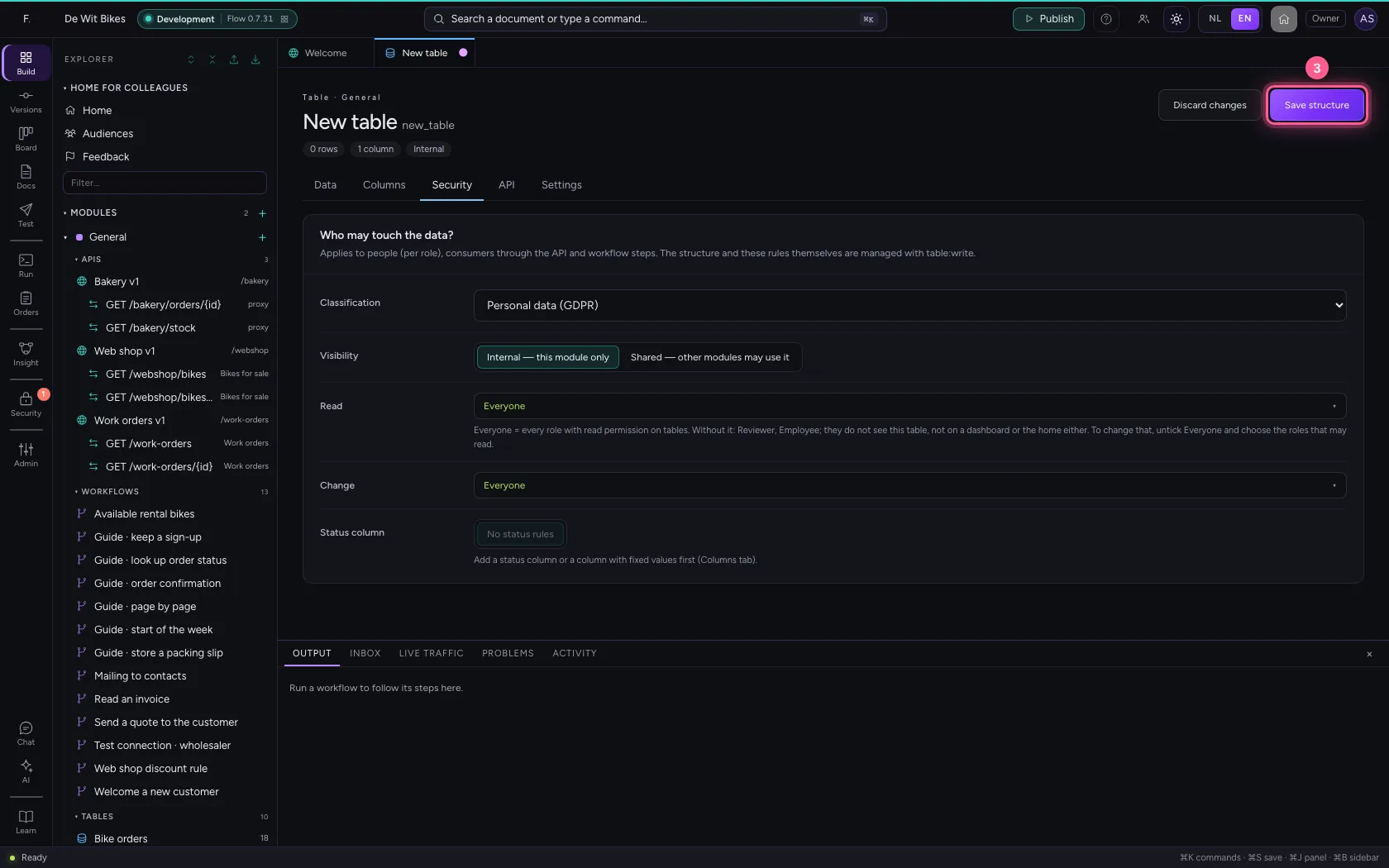
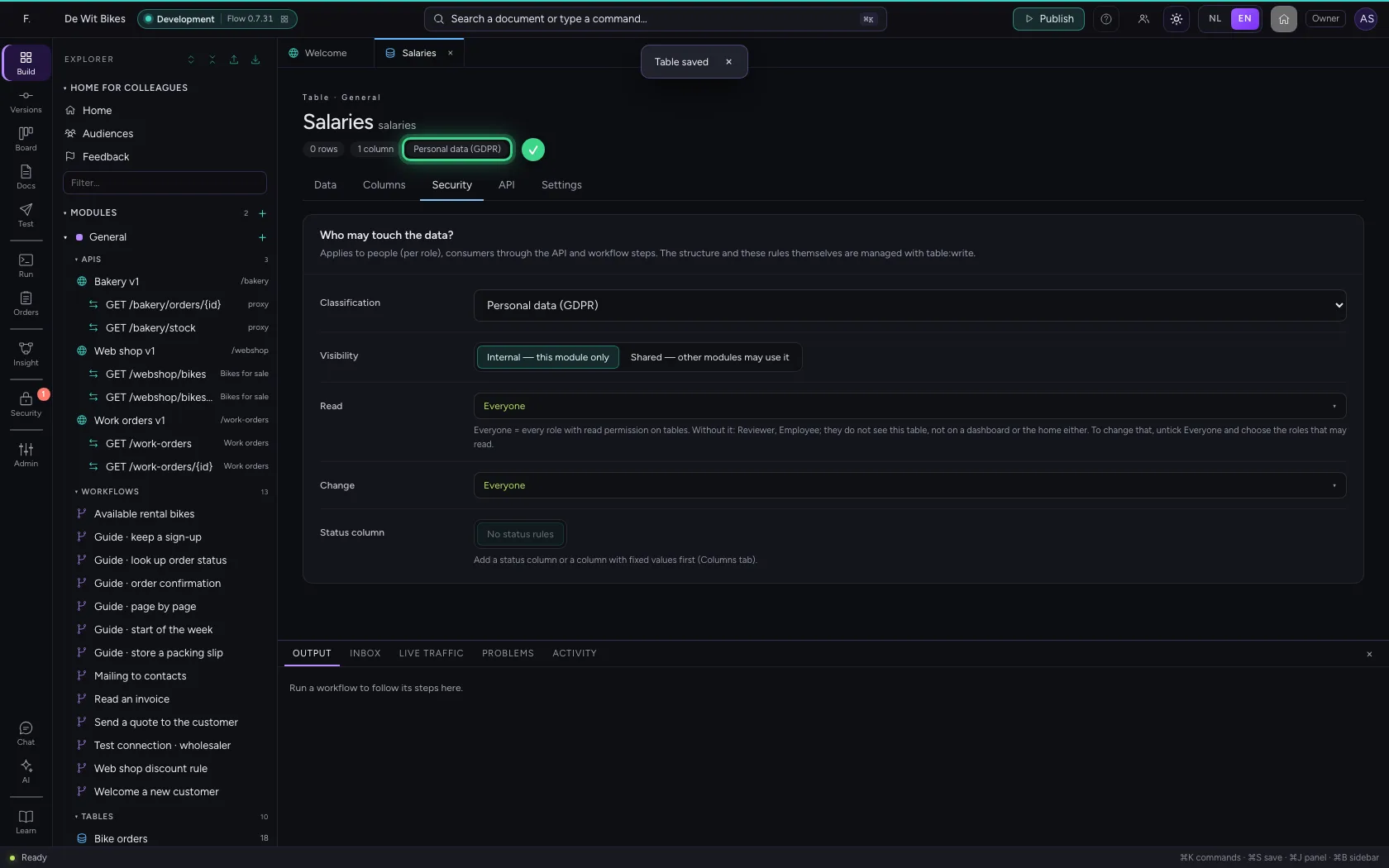
Under Security you say how sensitive the data is. Salaries are personal data. From now on no endpoint, workflow or chat with a lower classification gets to see these rows: data never becomes less protected because someone reuses it.
- Click Security
- In Classification, choose Personal data (GDPR)
- Click Save structure
Create a workflow and say what a caller must bring
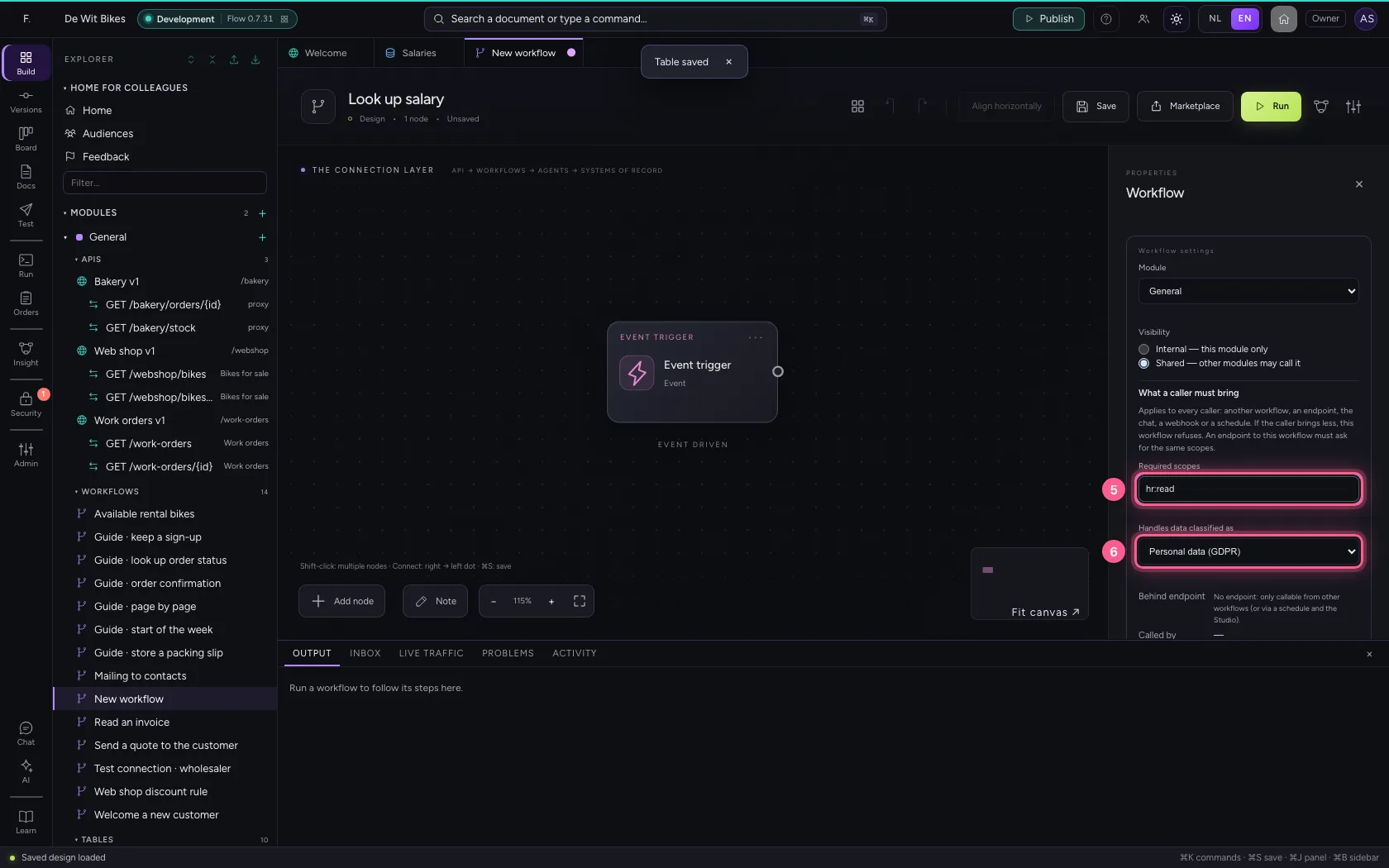
A new workflow shows its settings on the right. Set it to Shared, so other modules may call it. Because it handles personal data, you demand the permission hr:read and the classification personal data from every caller. These demands travel along: whoever calls the workflow — an API, another workflow, an agent — must meet them.
- Click Add to General
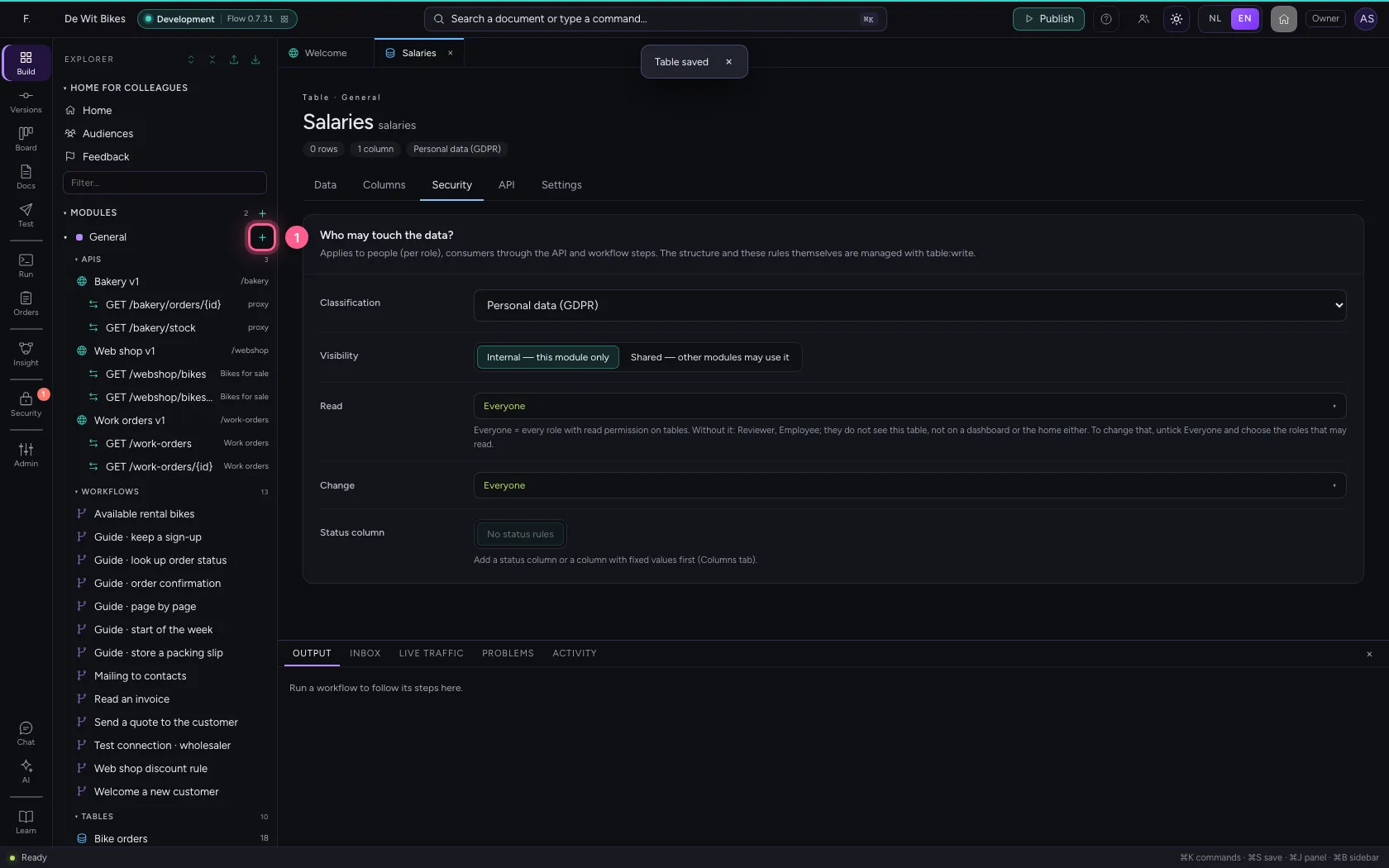
- Click New workflow
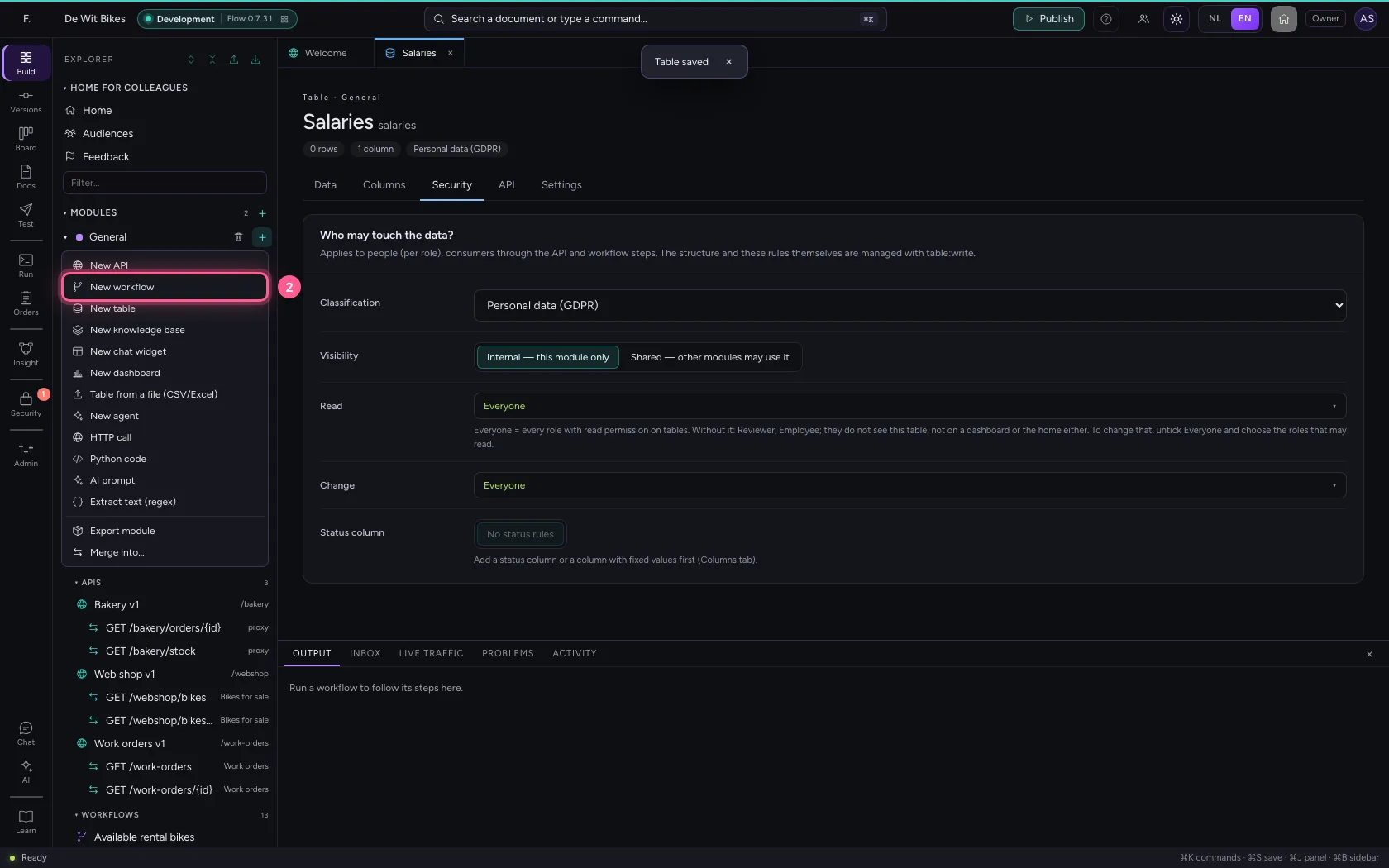
- In Workflow name, type
Look up salary
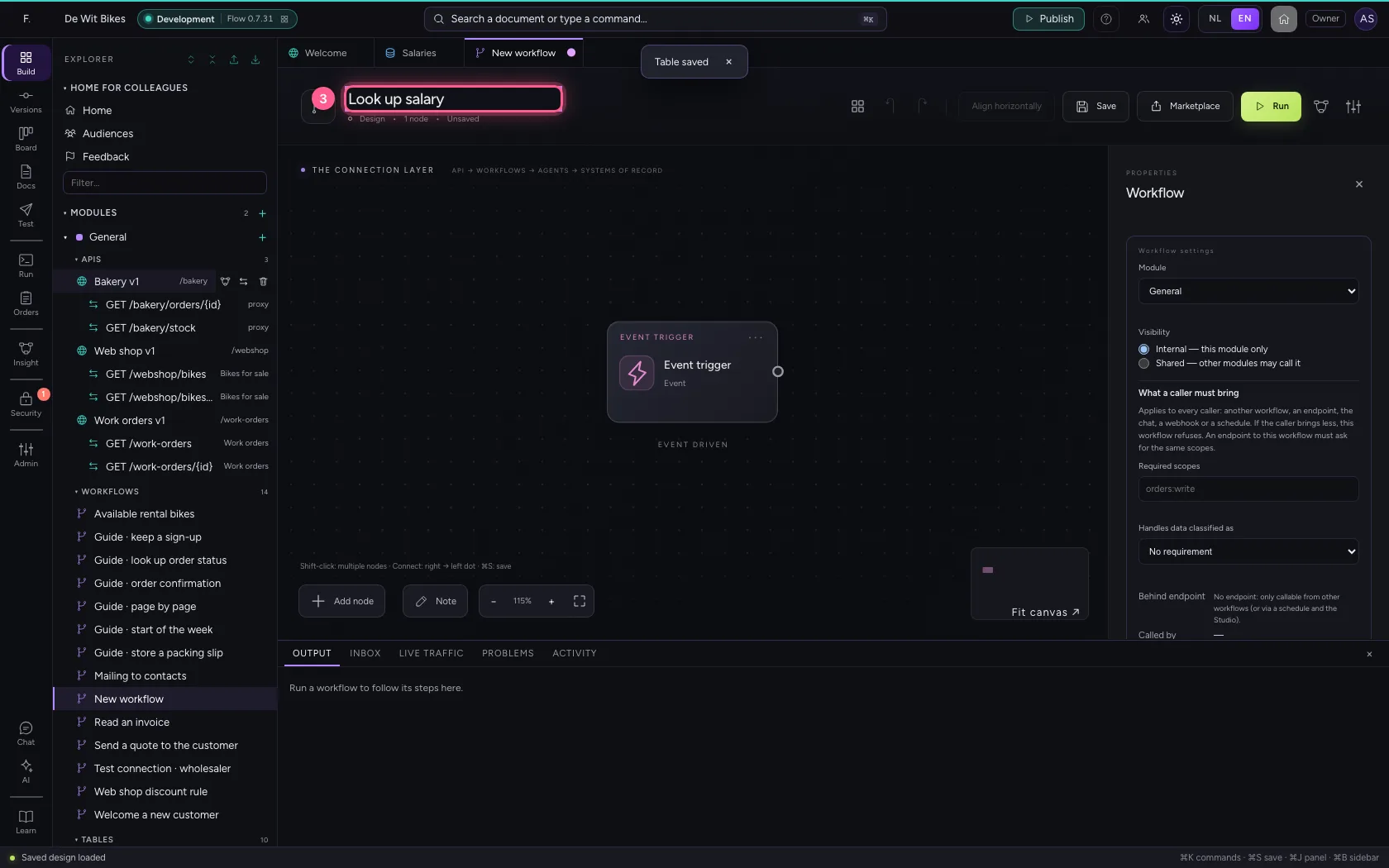
- Click Shared — other modules may call it
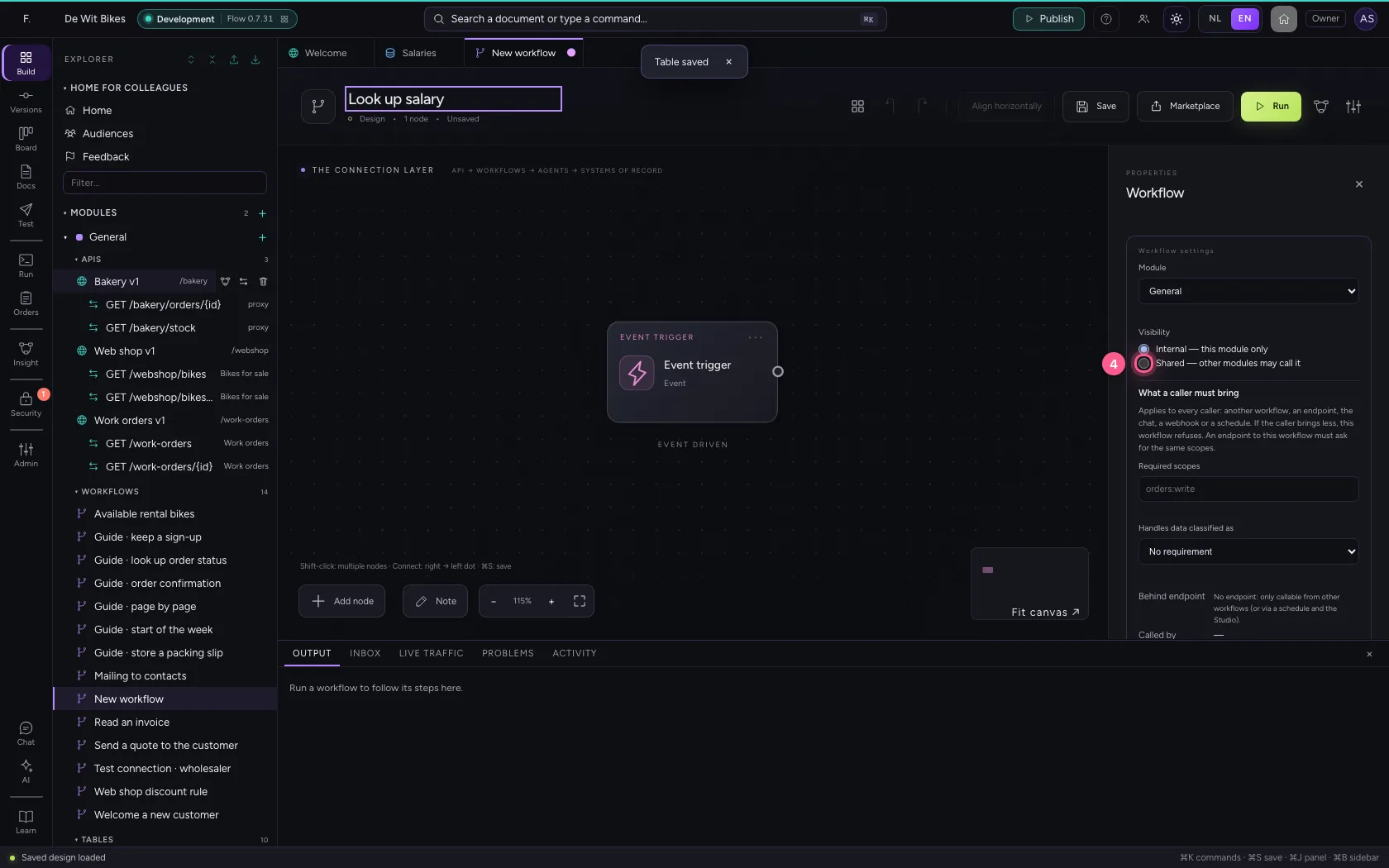
- In Required scopes, type
hr:read - In **Handles data classified as No requirement Public Internal Confidential Personal **, choose Personal data (GDPR)
Let the workflow read the table
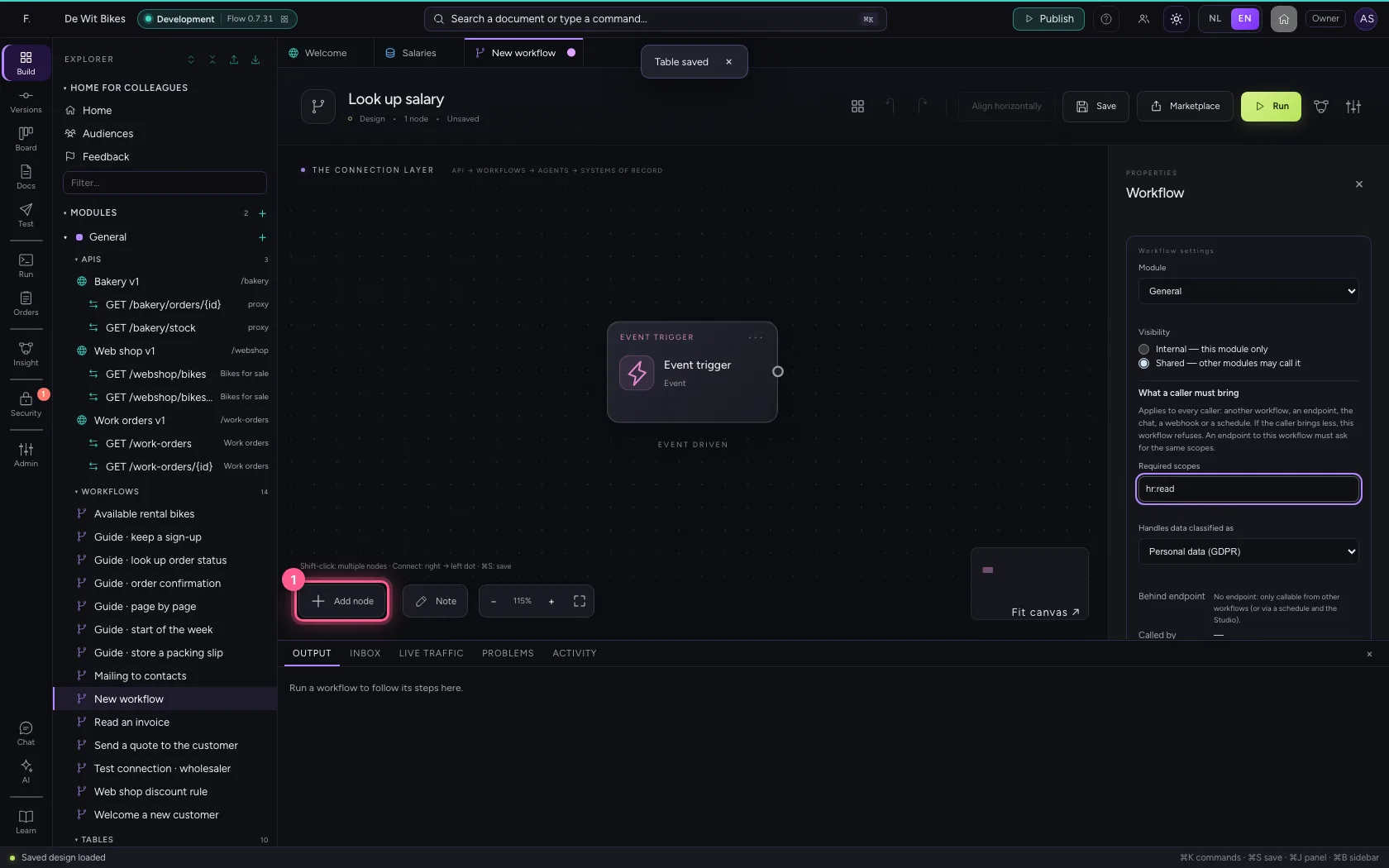
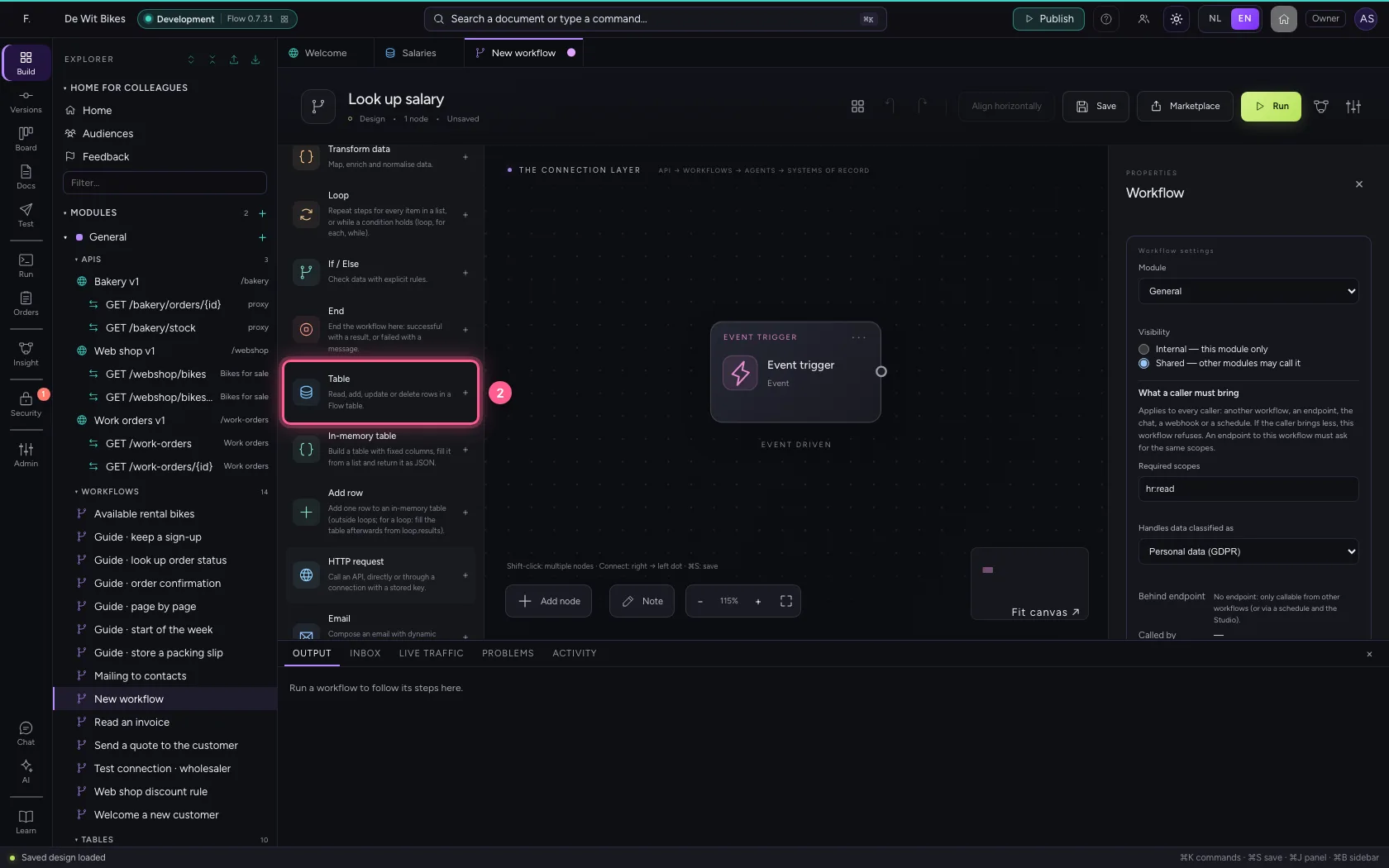
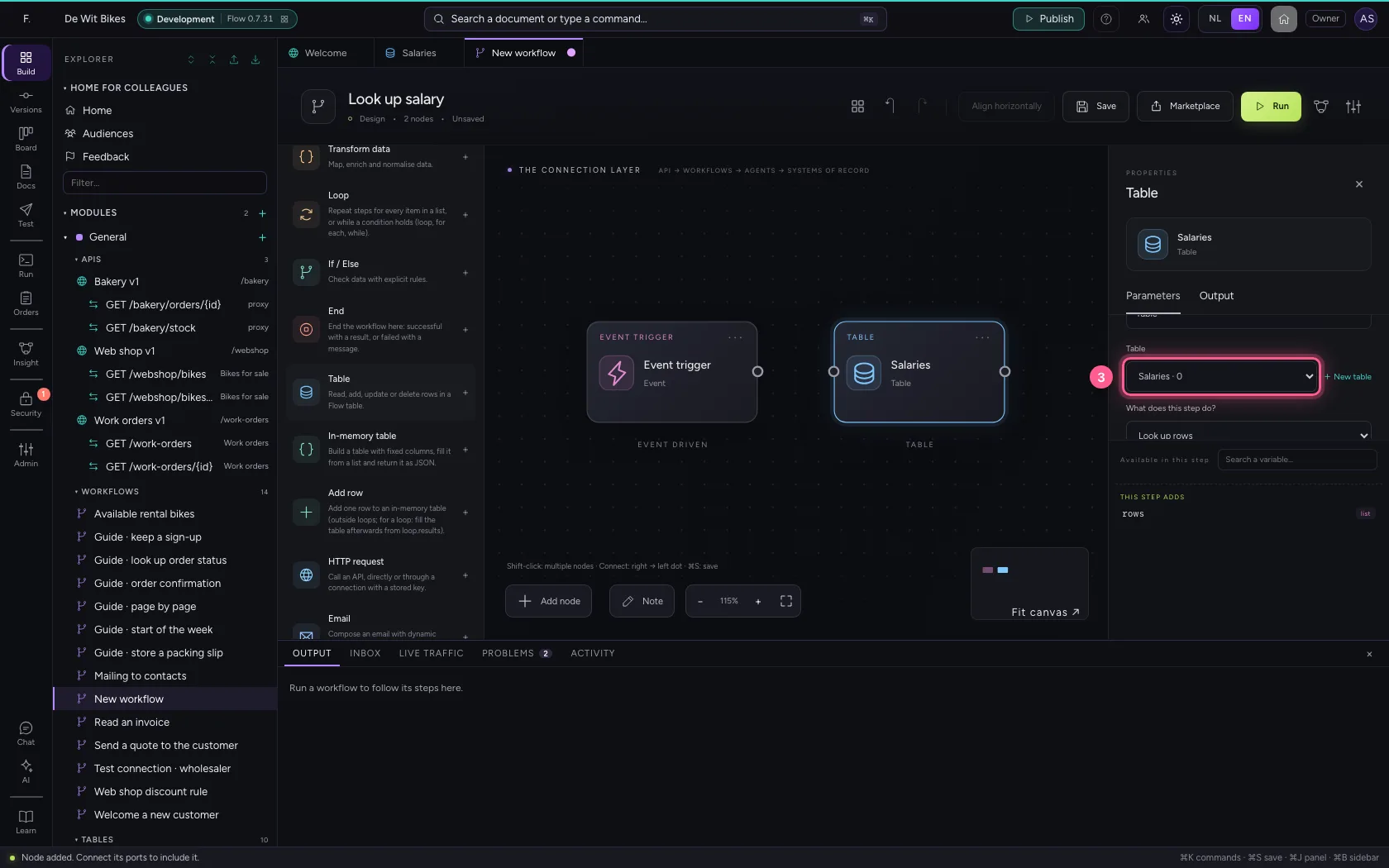
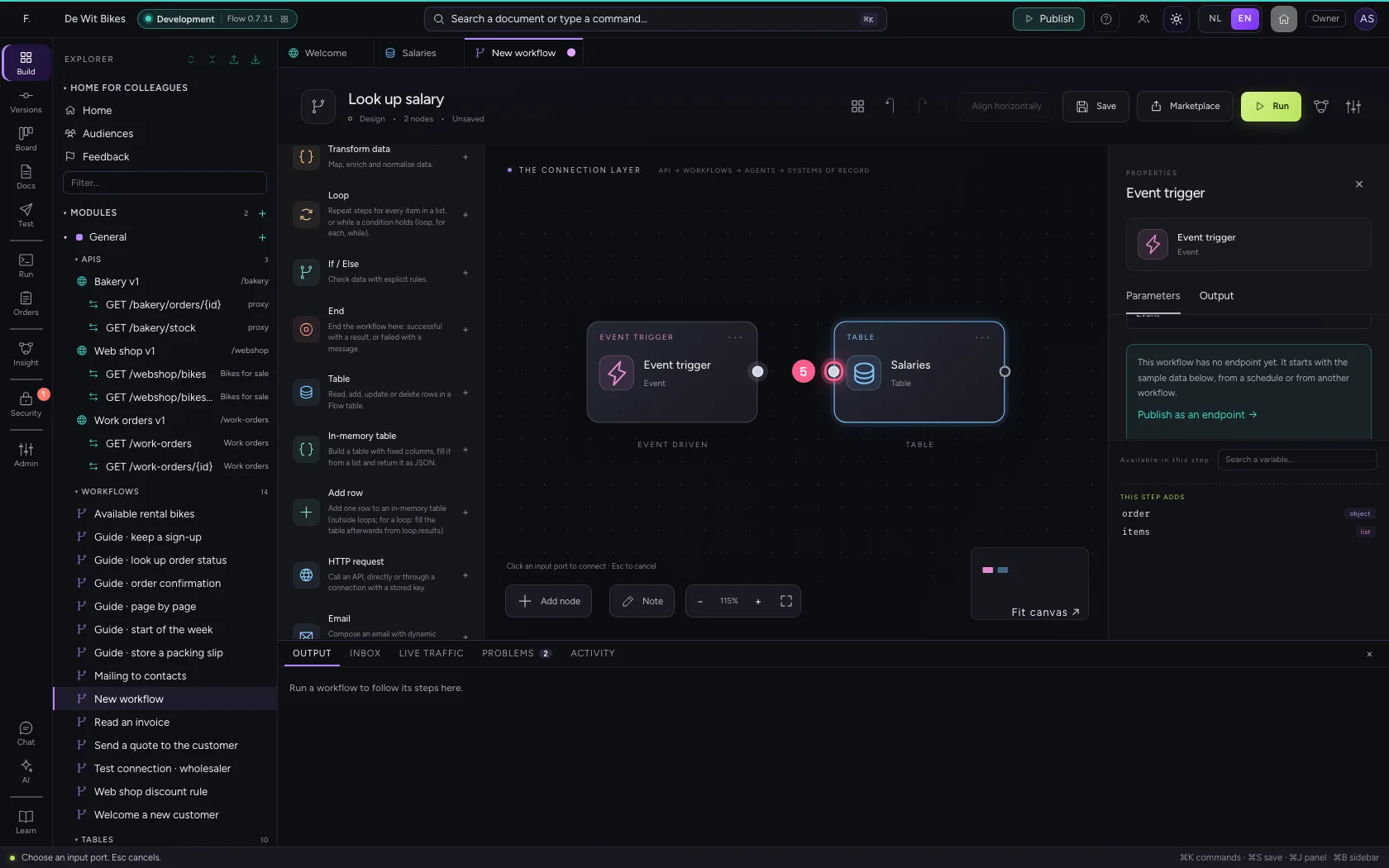
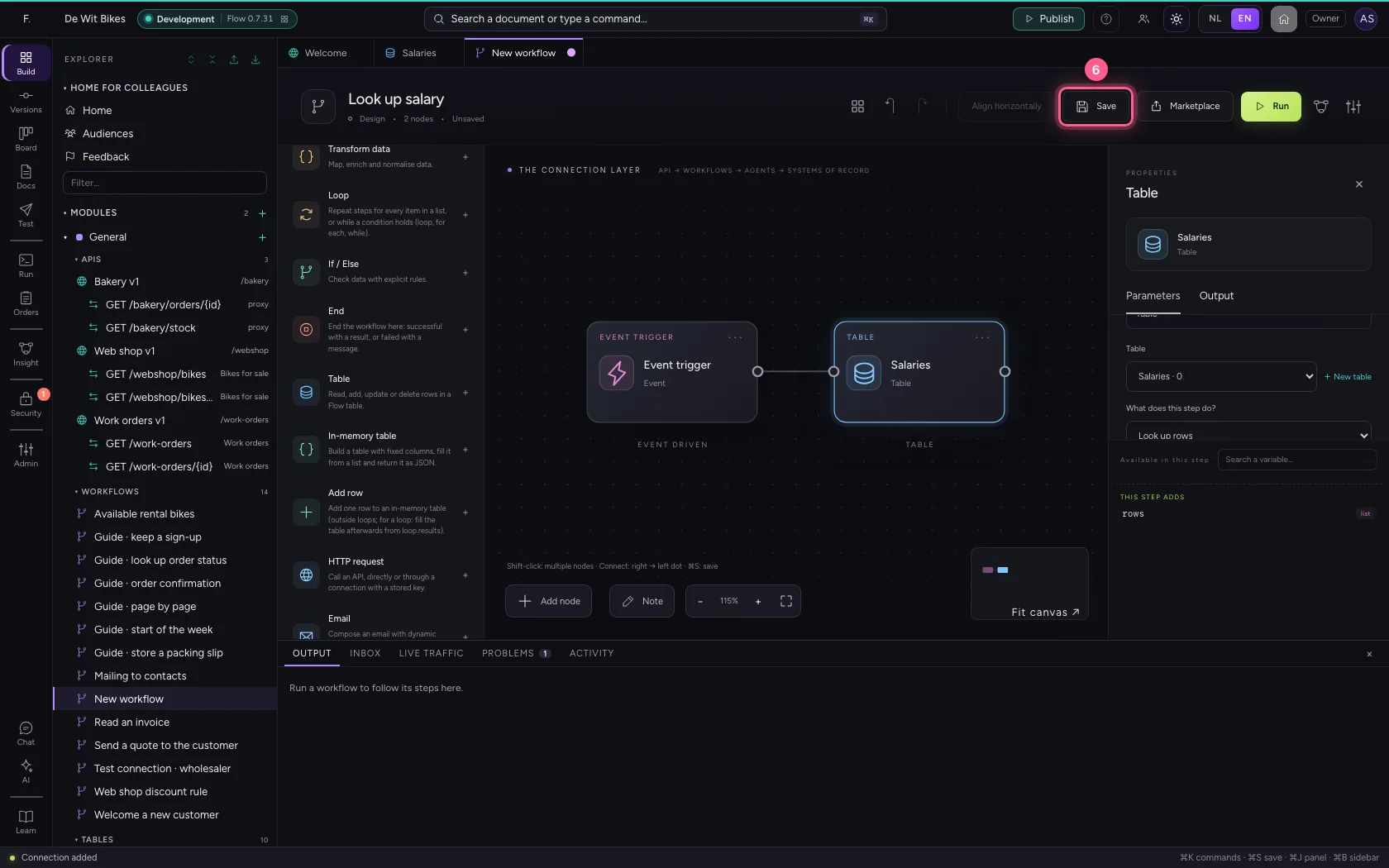
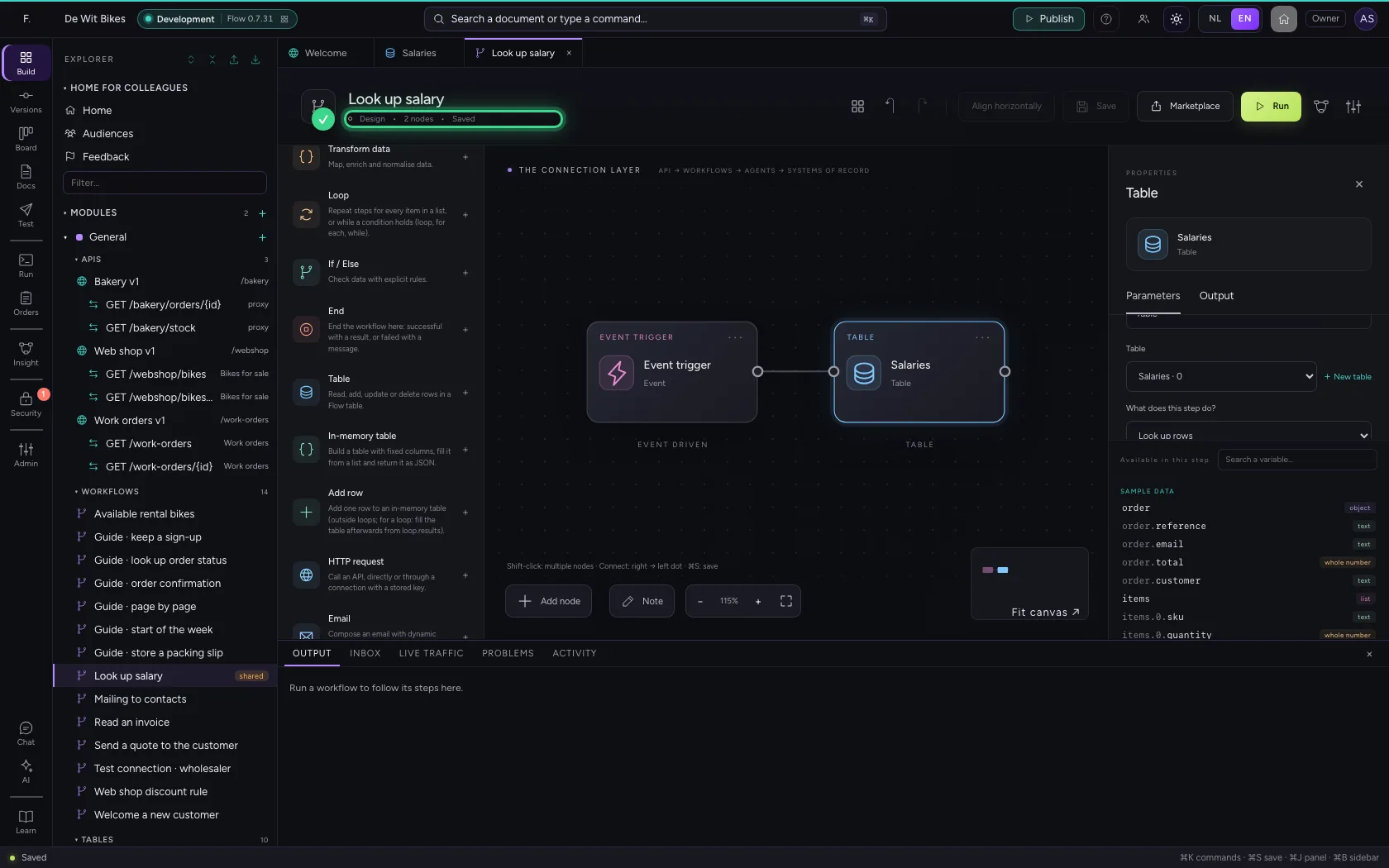
Add a Table step, choose the salaries and connect the trigger to the step. Then save. On every run the step checks that the caller has at least the table's classification.
- Click Add node
- Click Table
- In Table, choose Salaries · 0
- Click the trigger's dot
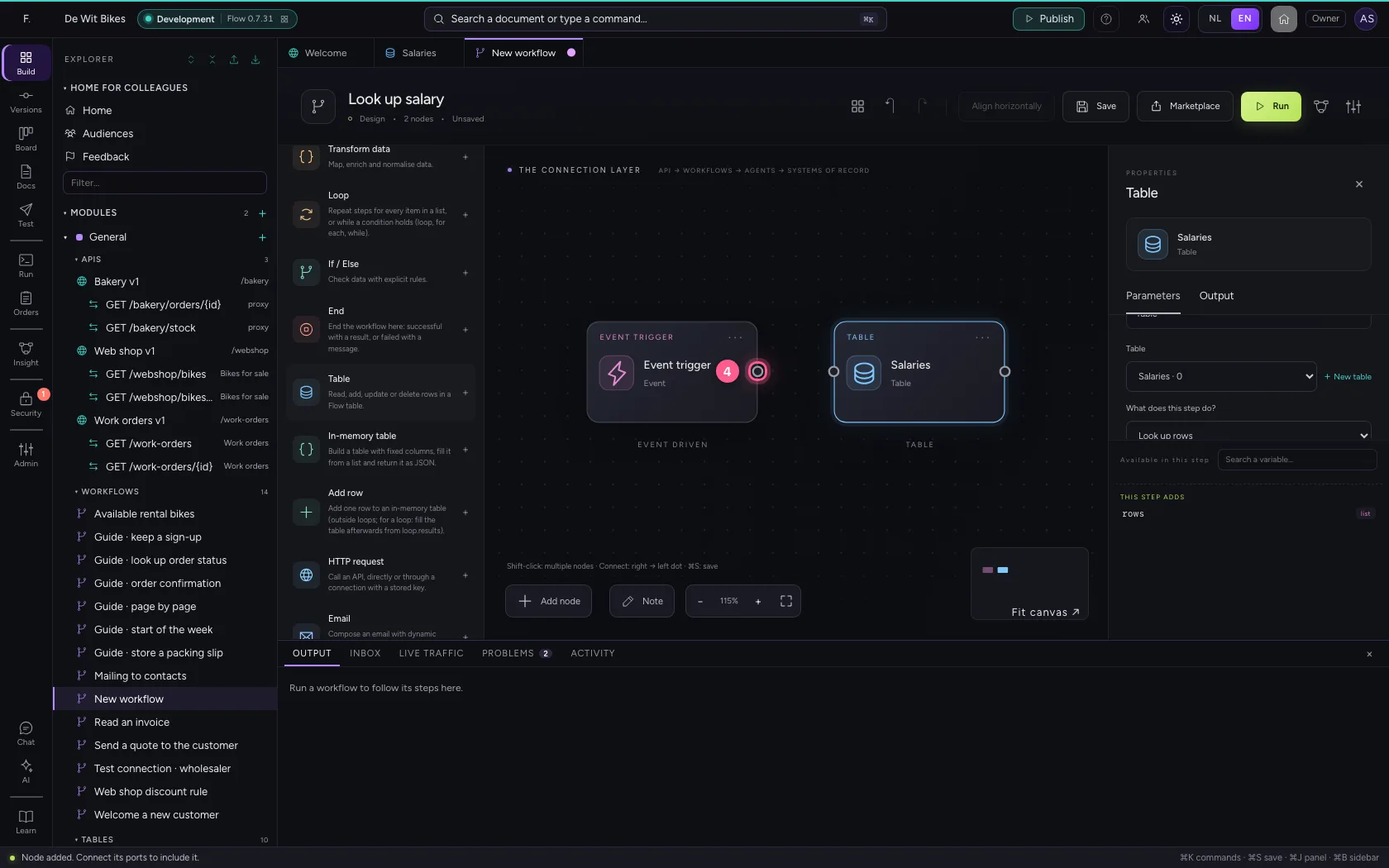
- Click the step's dot
- Click Save
Create an API for HR
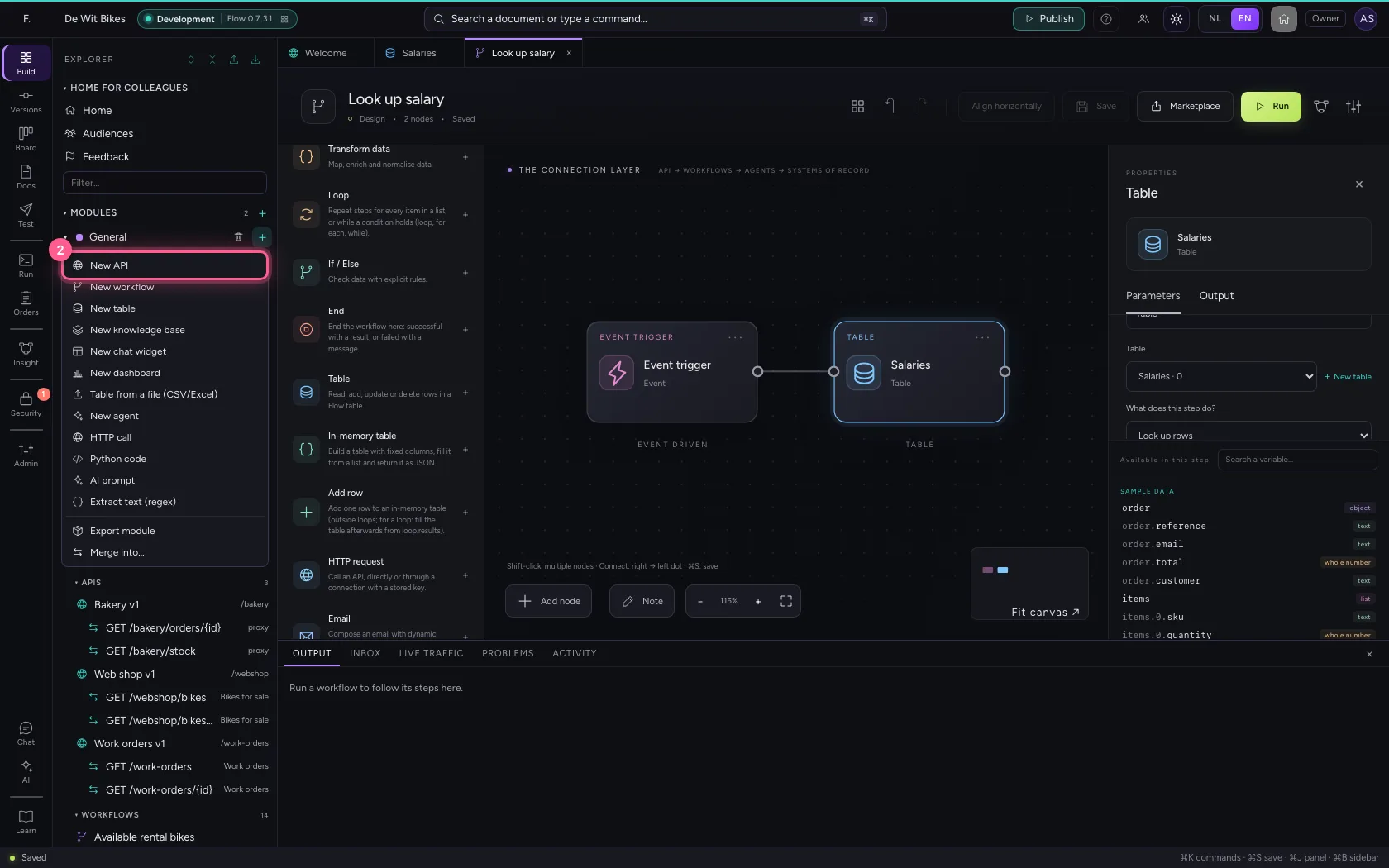
An API is the front door: one base path, one security policy. By default a consumer only gets in with an API key.
- Click Add to General
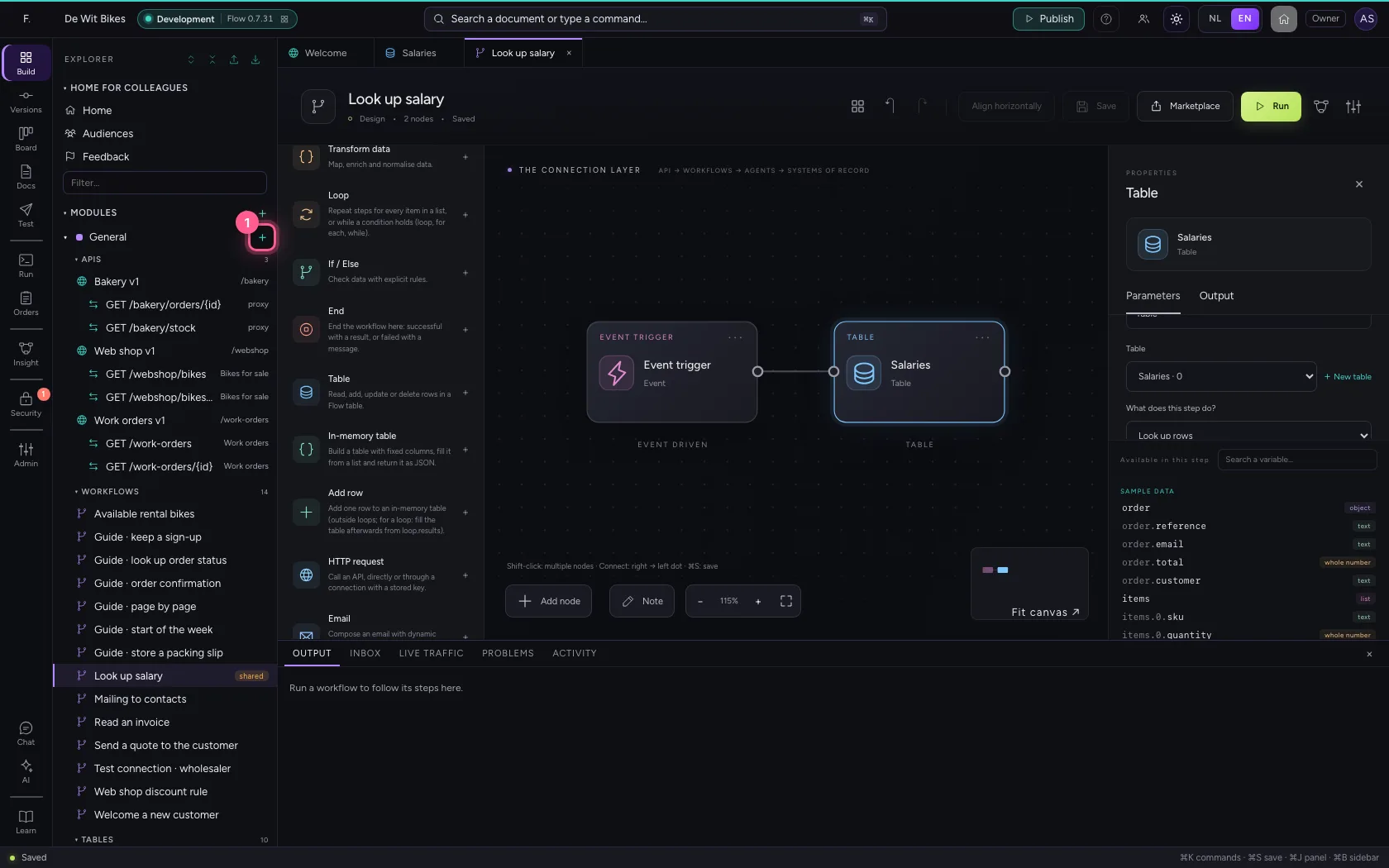
- Click New API
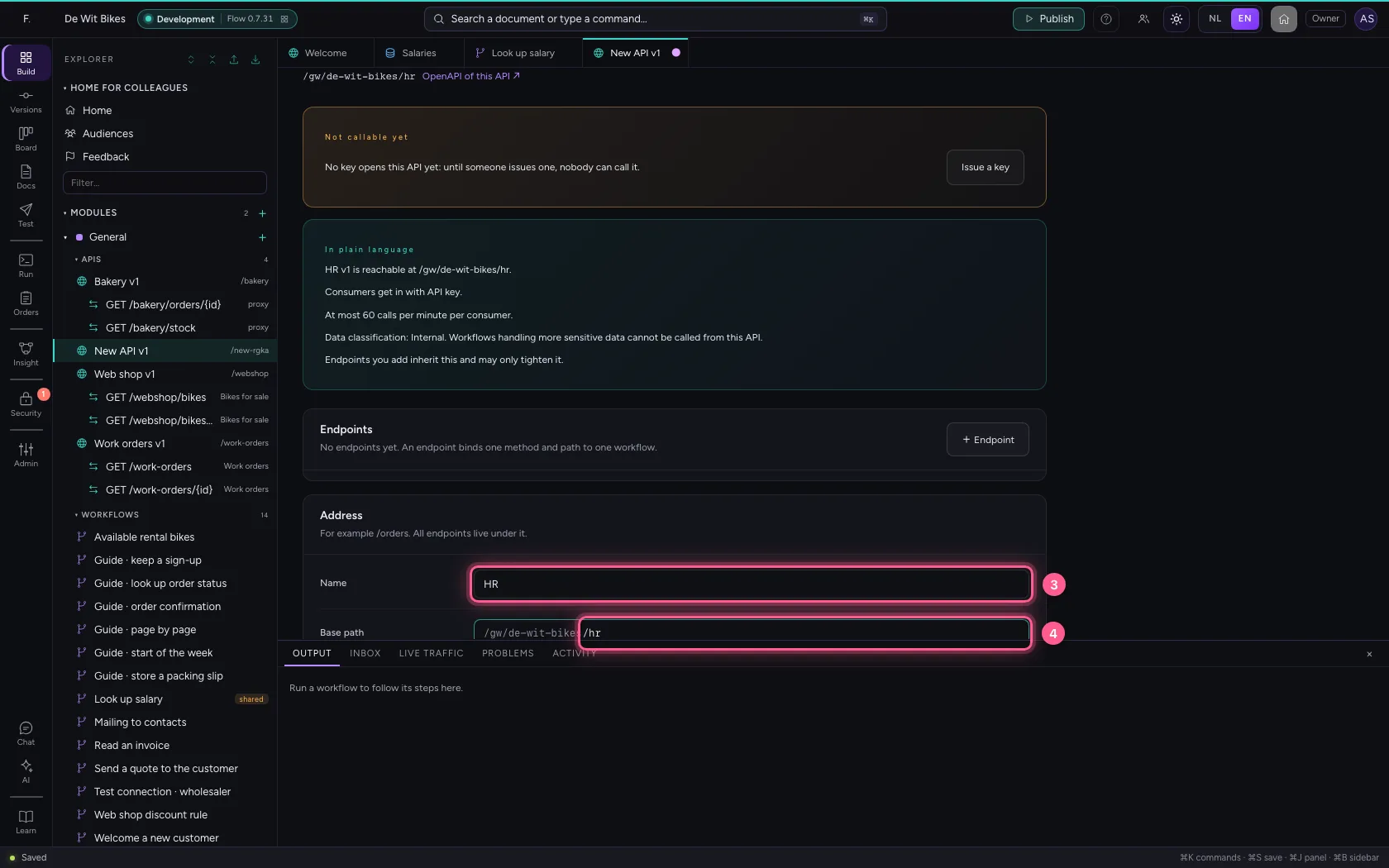
- In Name, type
HR - In Base path, type
/hr
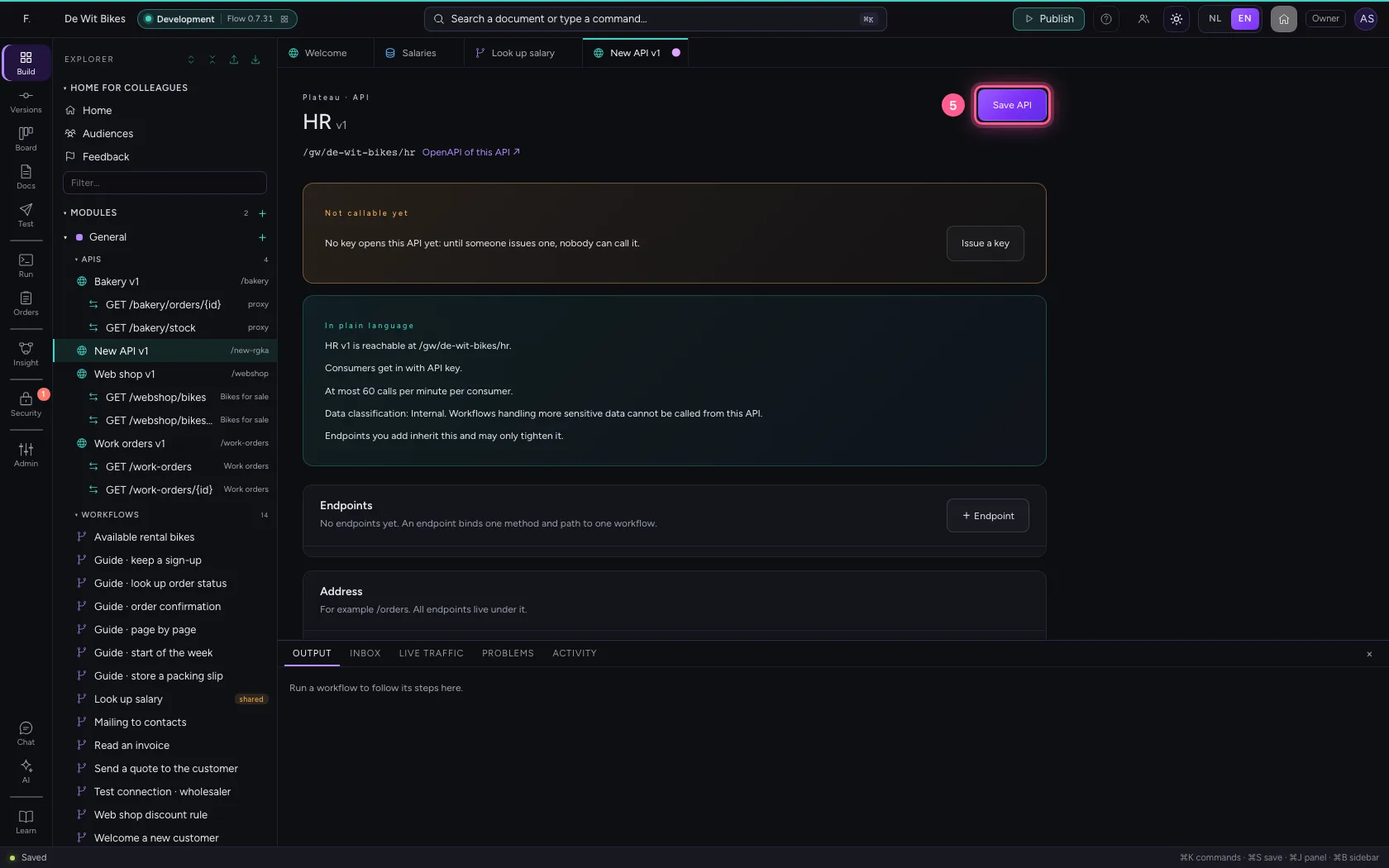
- Click Save API
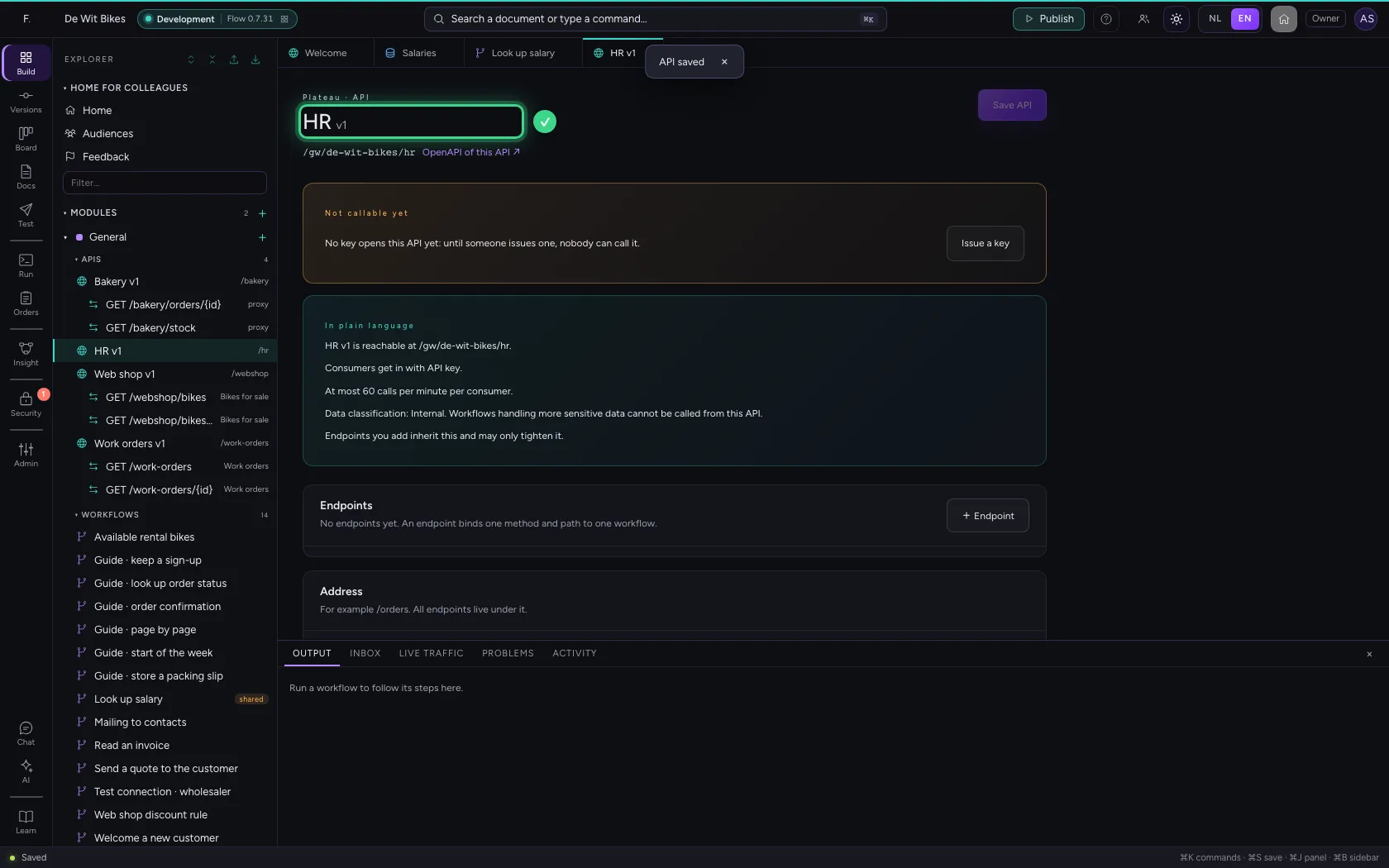
Put the workflow behind an endpoint — without the permission
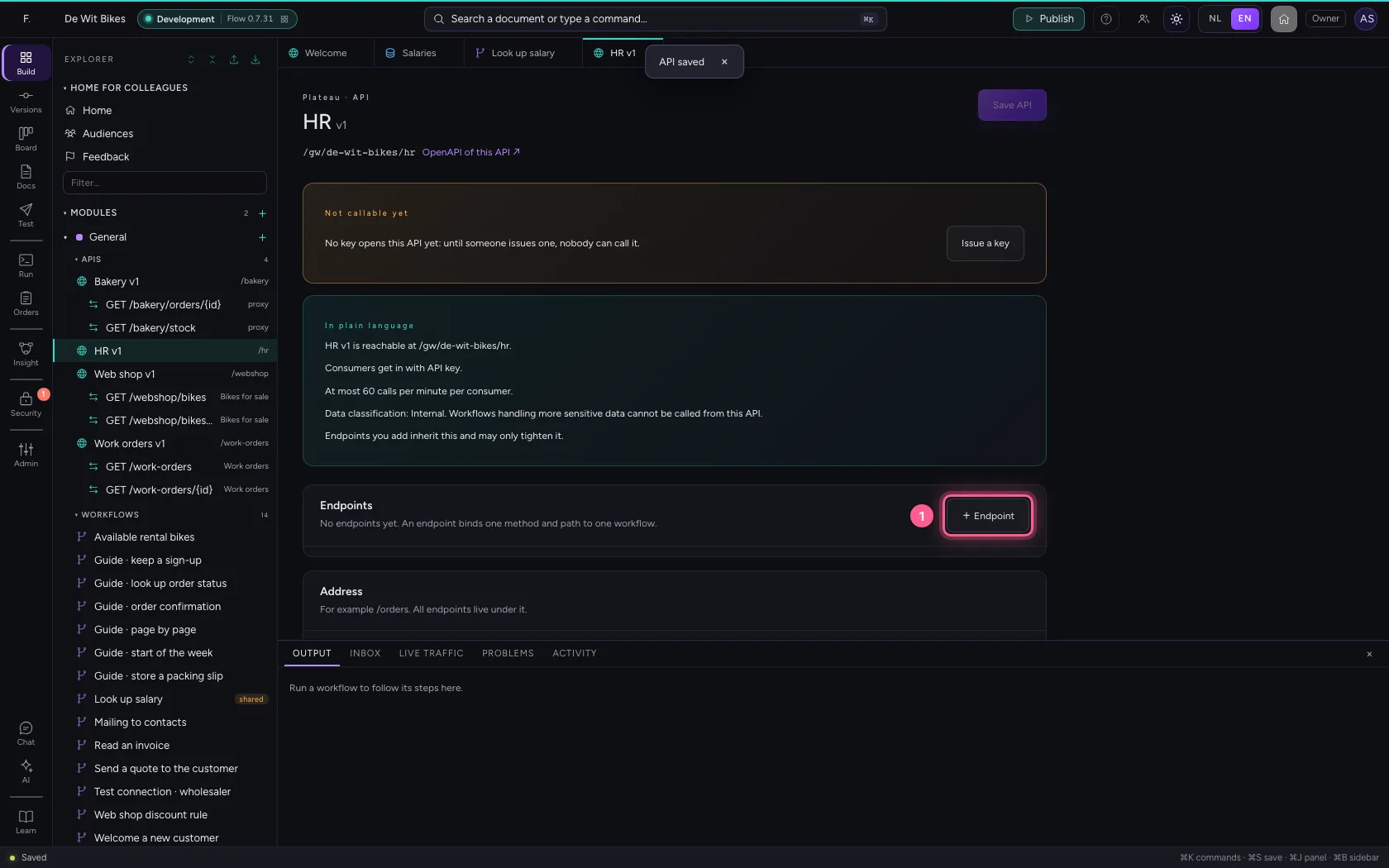
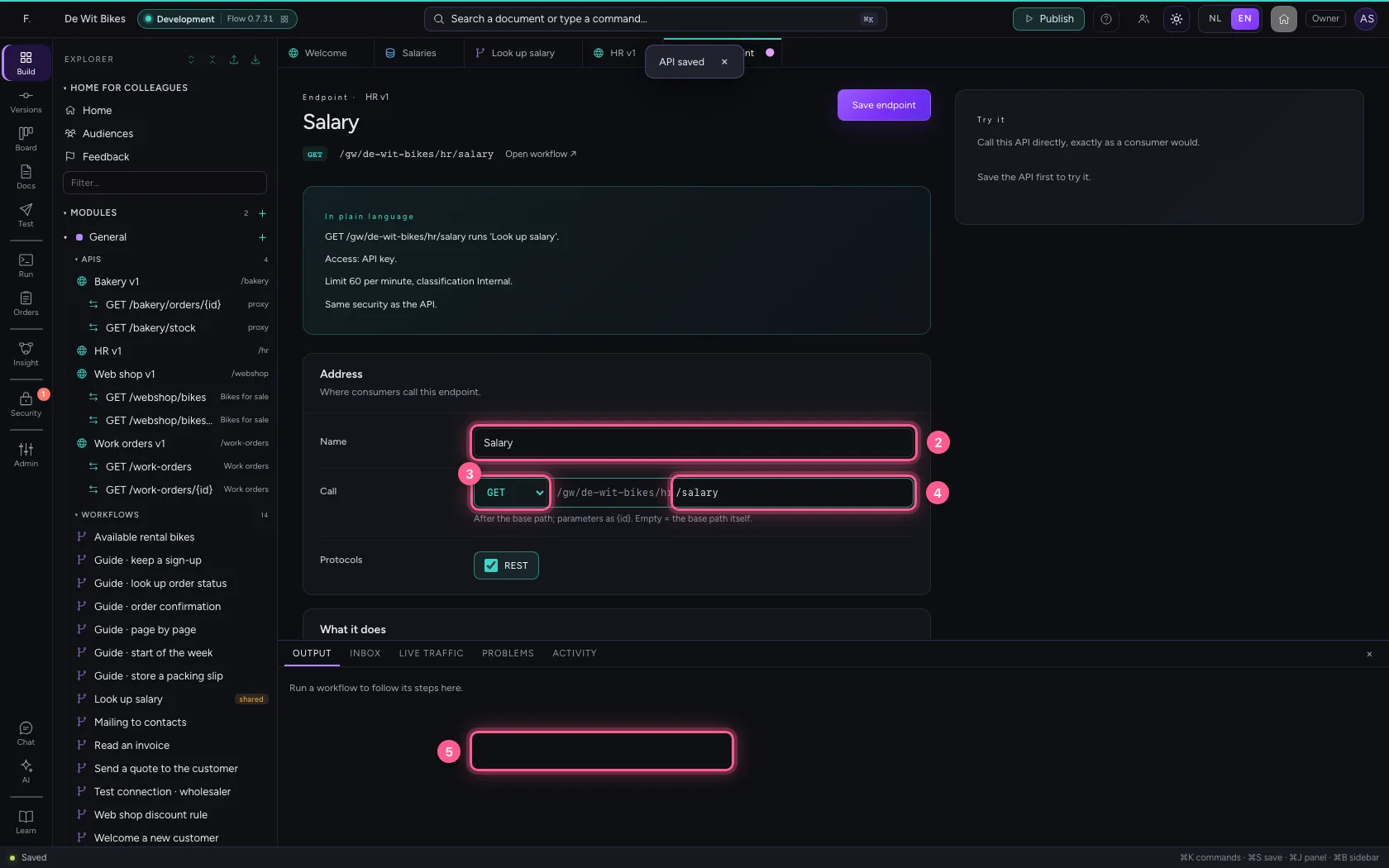
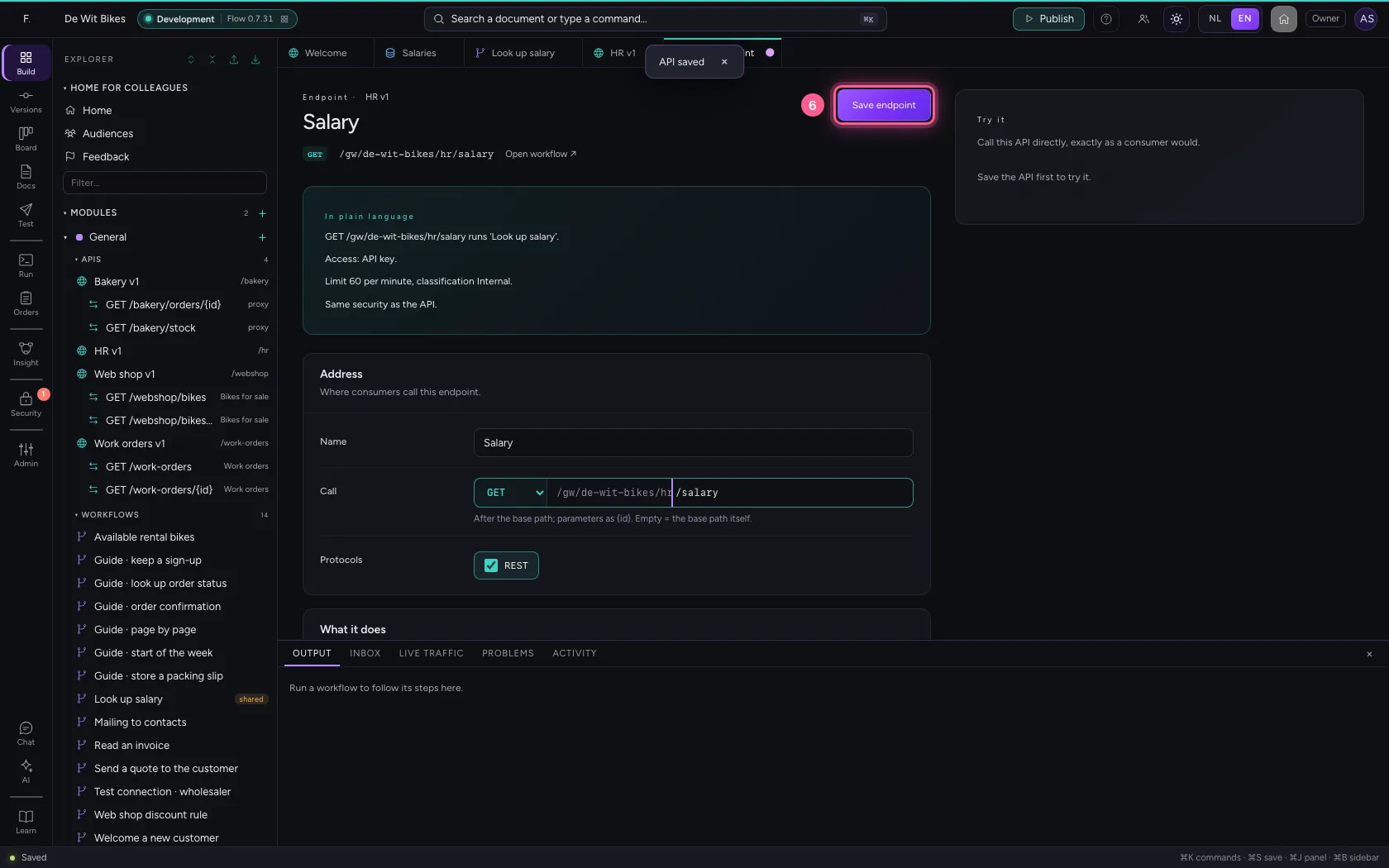
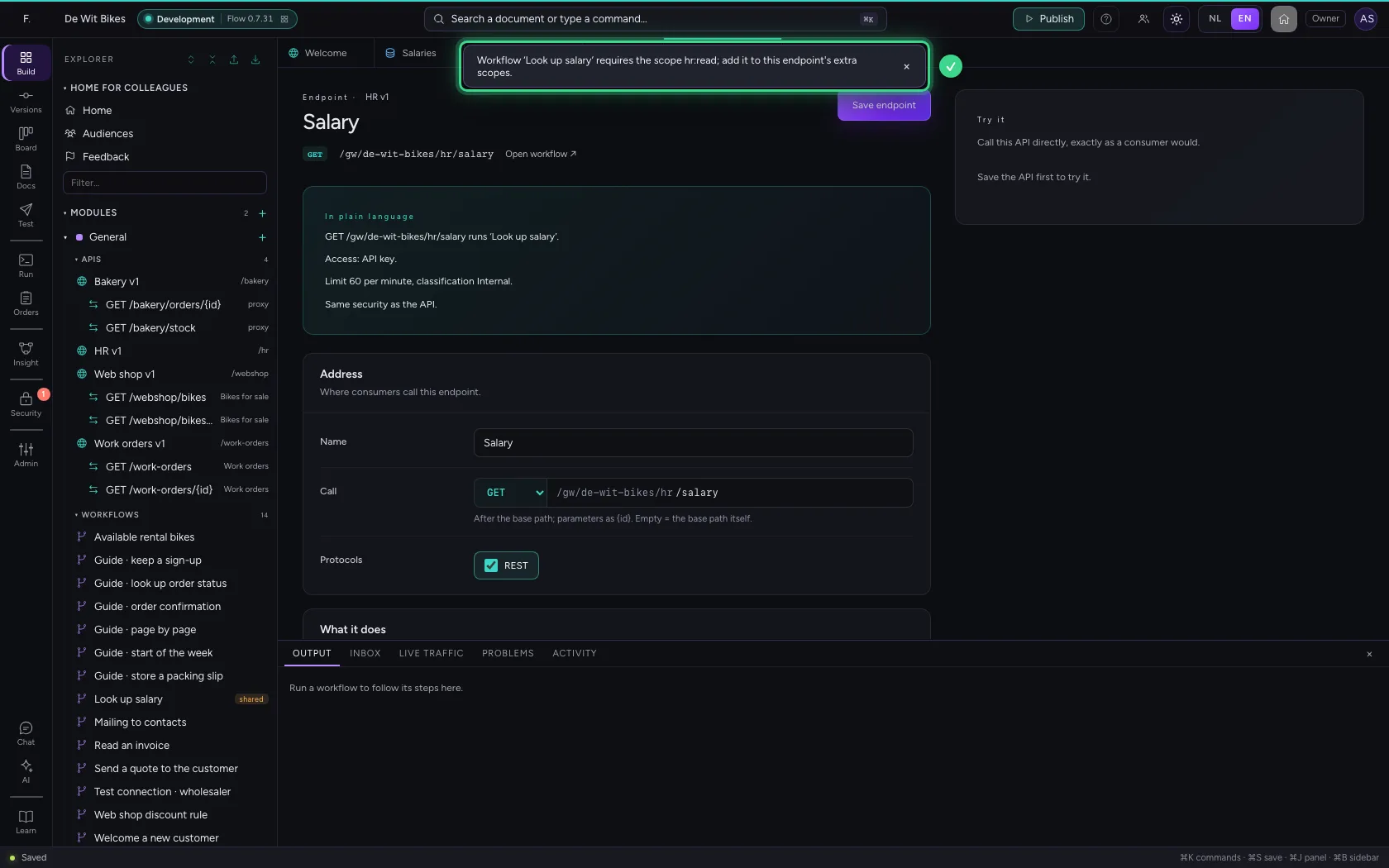
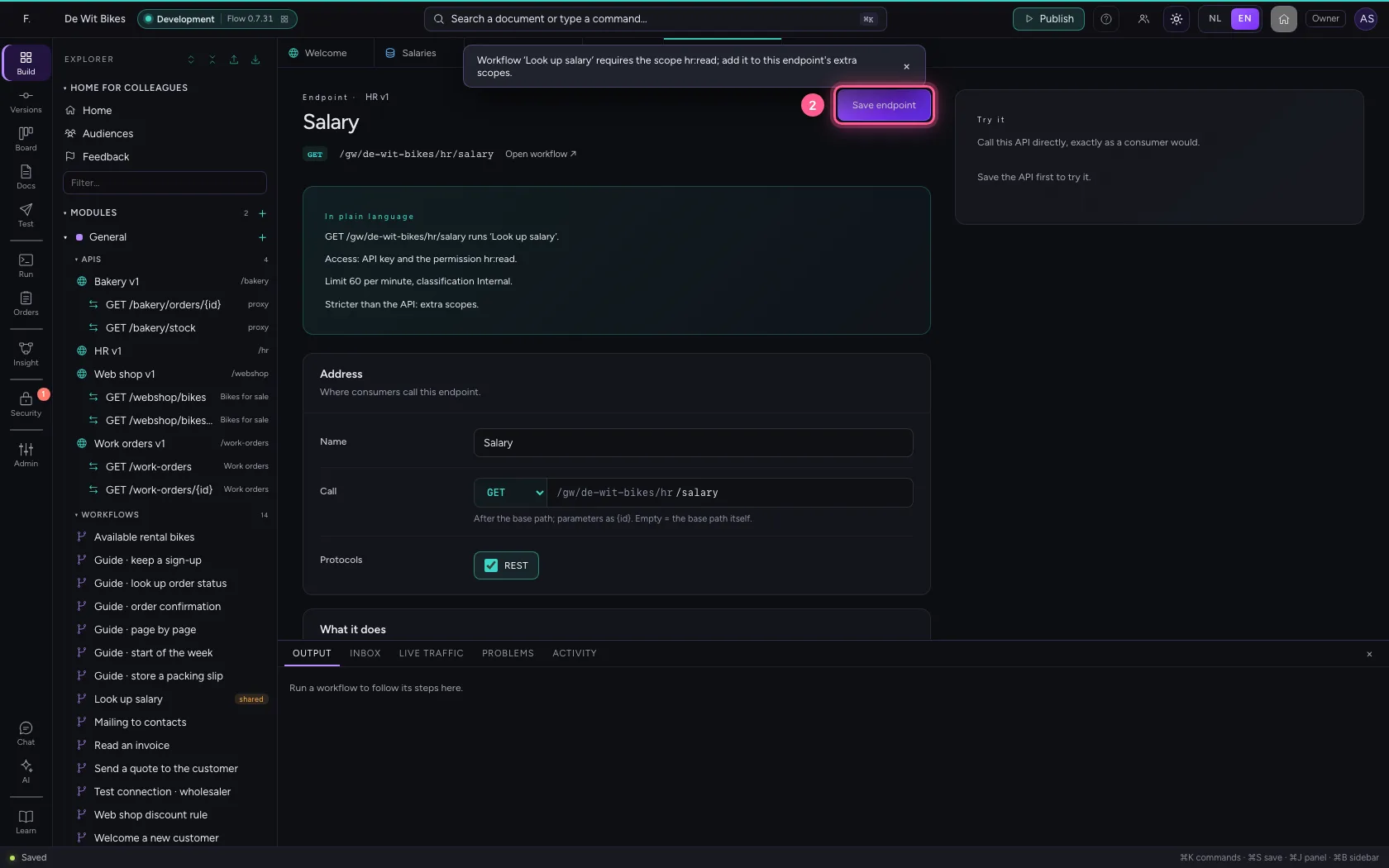
An endpoint binds one method and path to one workflow. Choose the salary workflow and save, without extra permissions. Flow refuses: this endpoint would open the workflow to consumers who do not have hr:read.
- Click + Endpoint
- In Name, type
Salary - In Method, choose GET
- In Path, type
/salary - In Workflow, choose Look up salary
- Click Save endpoint
Demand the permission on the endpoint
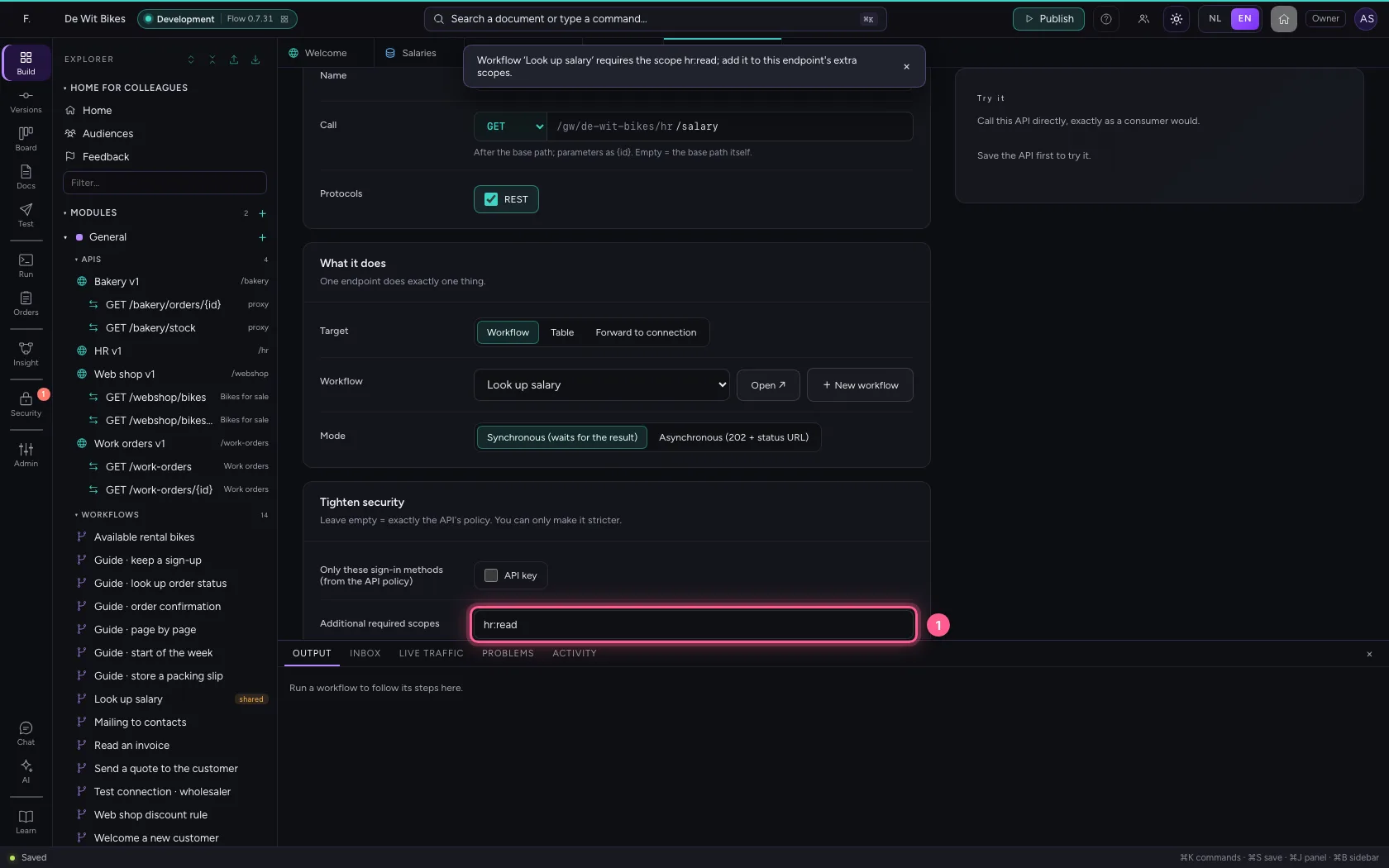
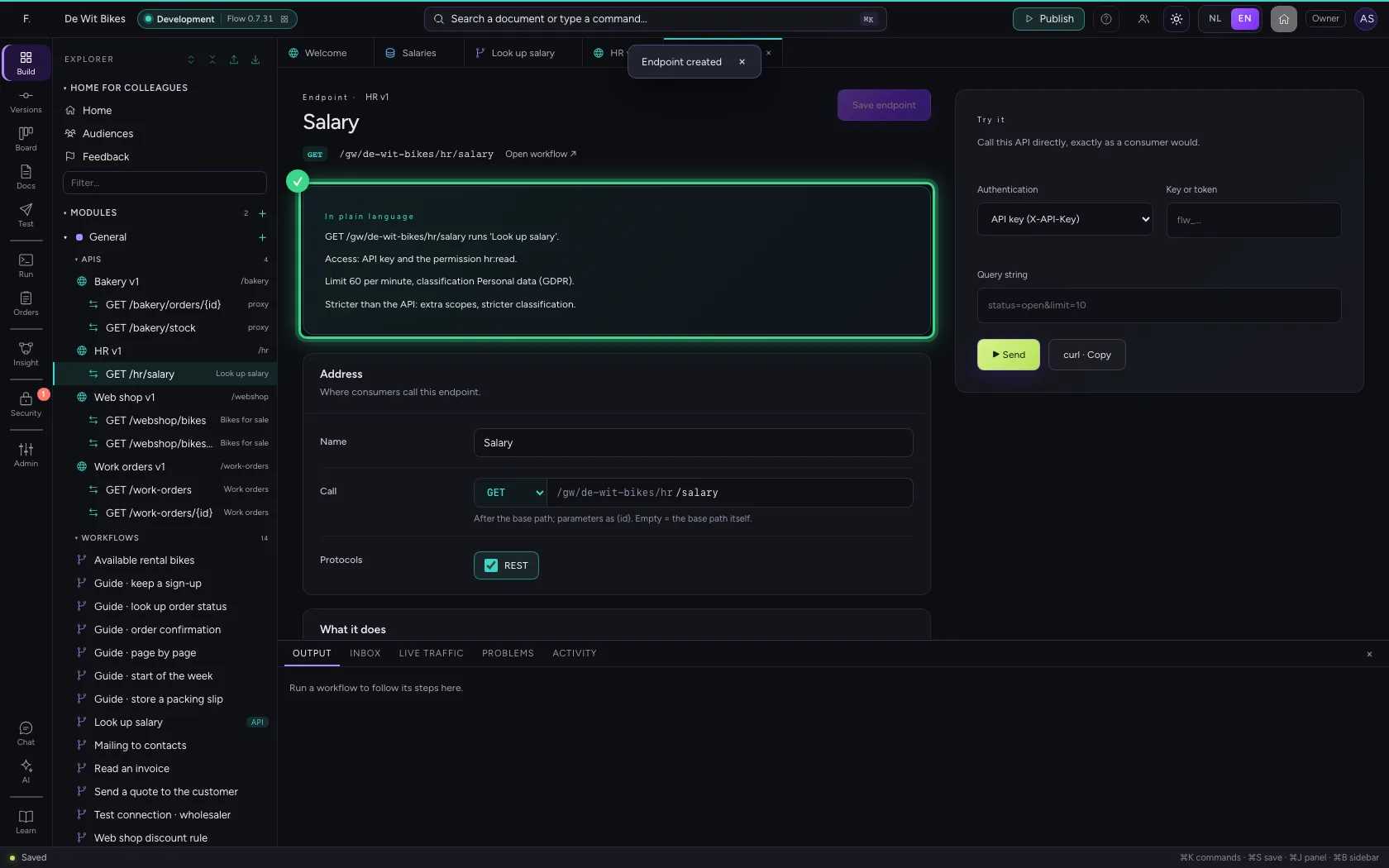
Fill in hr:read under Additional required scopes and save again. Now it works. The endpoint also takes over the workflow's classification: personal data never opens without signing in and a permission. The plain-language summary says this endpoint is stricter than the API.
- In Additional required scopes, type
hr:read
- Click Save endpoint
This guide was carried out step by step on 22 Oct 2026 by an automated test on Flow (version 3e563176).