Your own key vault (Azure, AWS or Google Cloud)
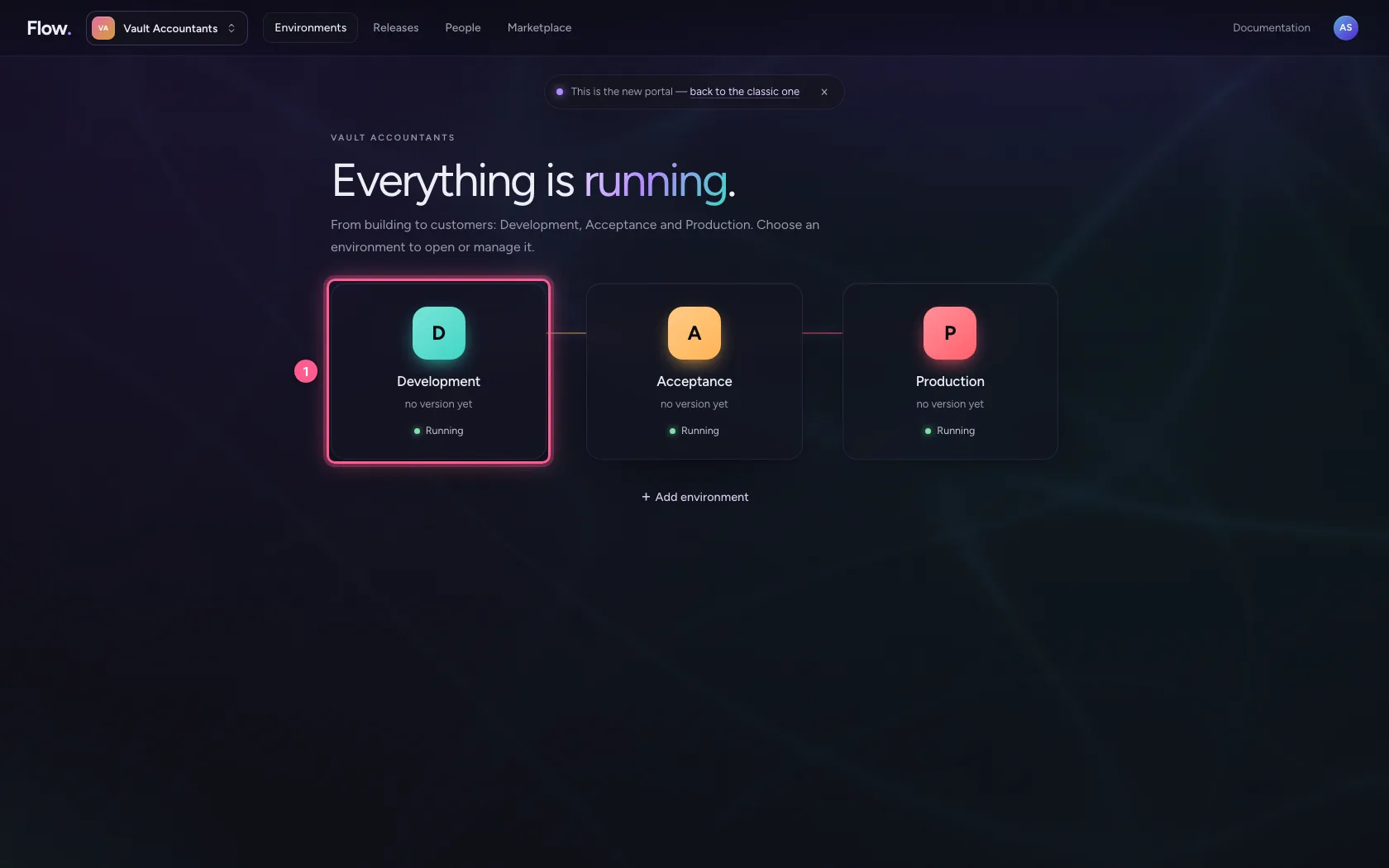
- Step 1 · Open the secrets of Development
- Step 2 · Test Flow's own vault
- Step 3 · Propose AWS Secrets Manager
- Step 4 · Set up AWS with the portal's steps
- Step 5 · Test the new vault
- Step 6 · Approve the switch
- Step 7 · Check the vault
- Step 8 · Choose Google Cloud for Production
- Step 9 · Set up Google Cloud and test
- Step 10 · Approve: Production reads from Google Cloud
Passwords and keys Flow uses are kept encrypted in Flow's own vault by default. If you want to keep them in your own cloud, in Azure Key Vault, AWS Secrets Manager or Google Cloud Secret Manager, you choose that per environment in the portal. Workflows refer to a secret by its name; which vault looks that name up is up to the environment. So Test reads Test's vault and Production reads Production's, with the same workflow. Another vault is an access change: an owner approves it, and Flow never copies values — you put them in the new vault yourself.
Open the secrets of Development
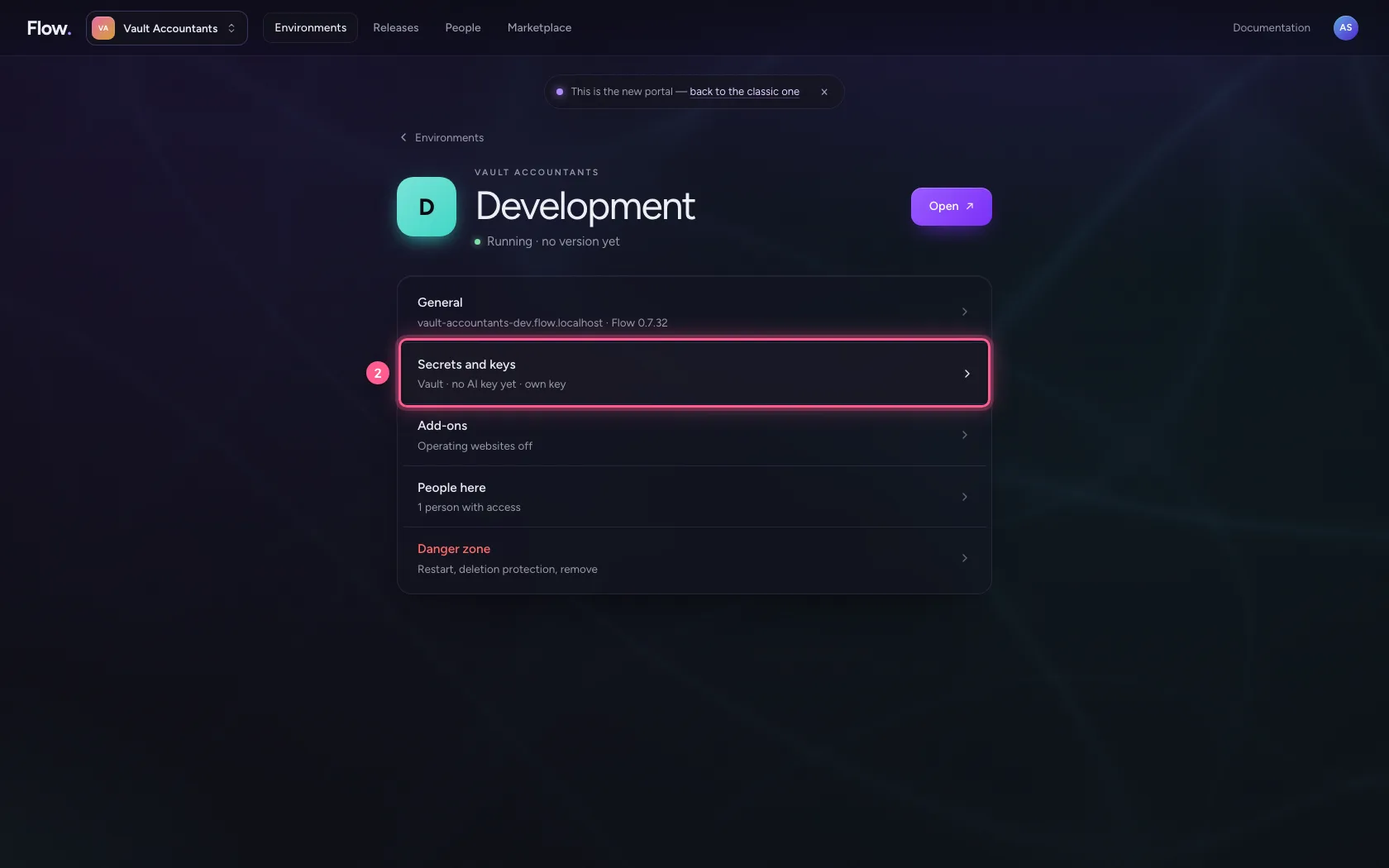
Under Environments, click Development and choose Secrets and keys: there you see where this environment's secrets live and whether the vault works. A new environment uses Flow's own vault: encrypted in its own database.
- Click Development
- Click Secrets and keys Vault · no AI key yet · own key
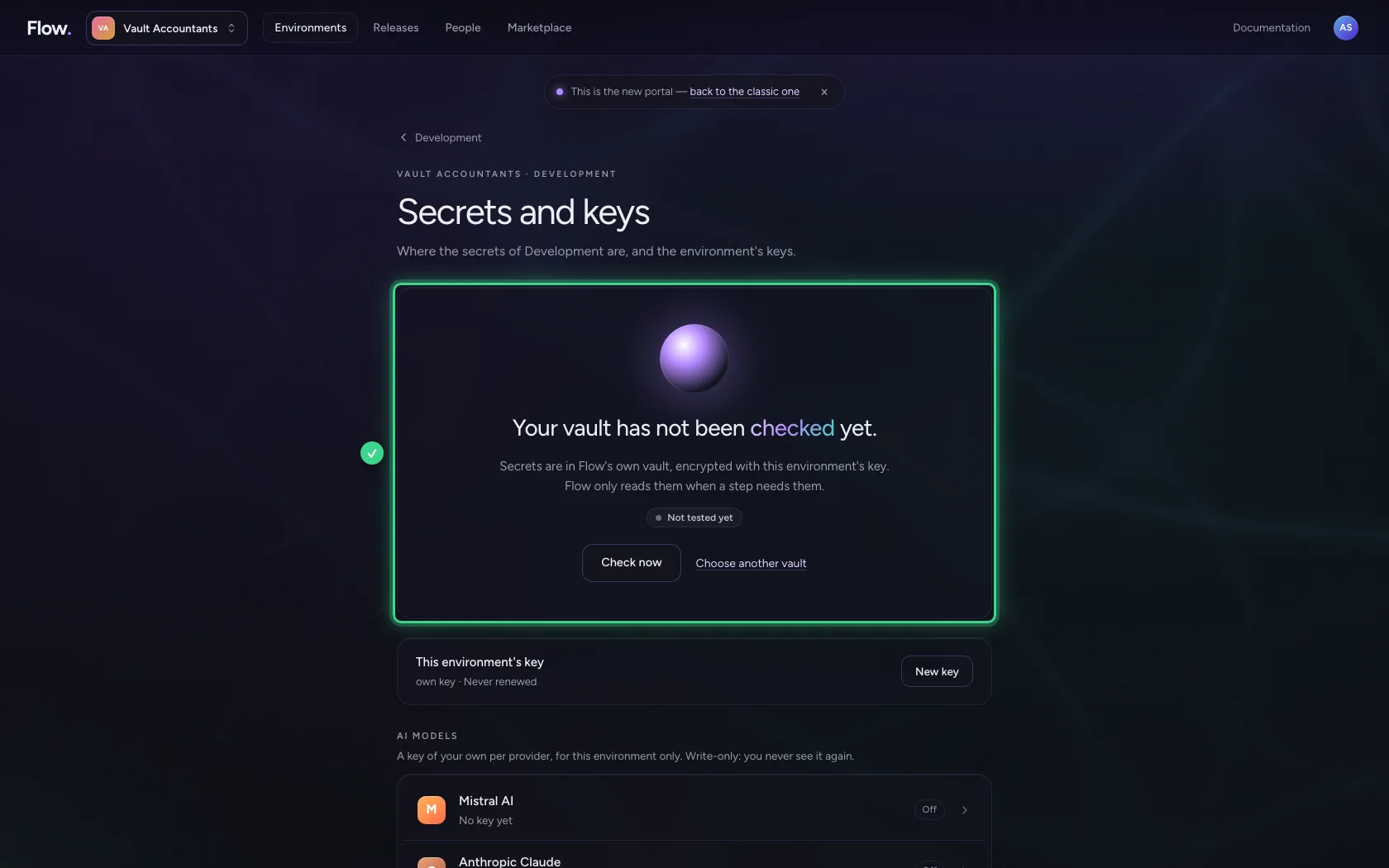
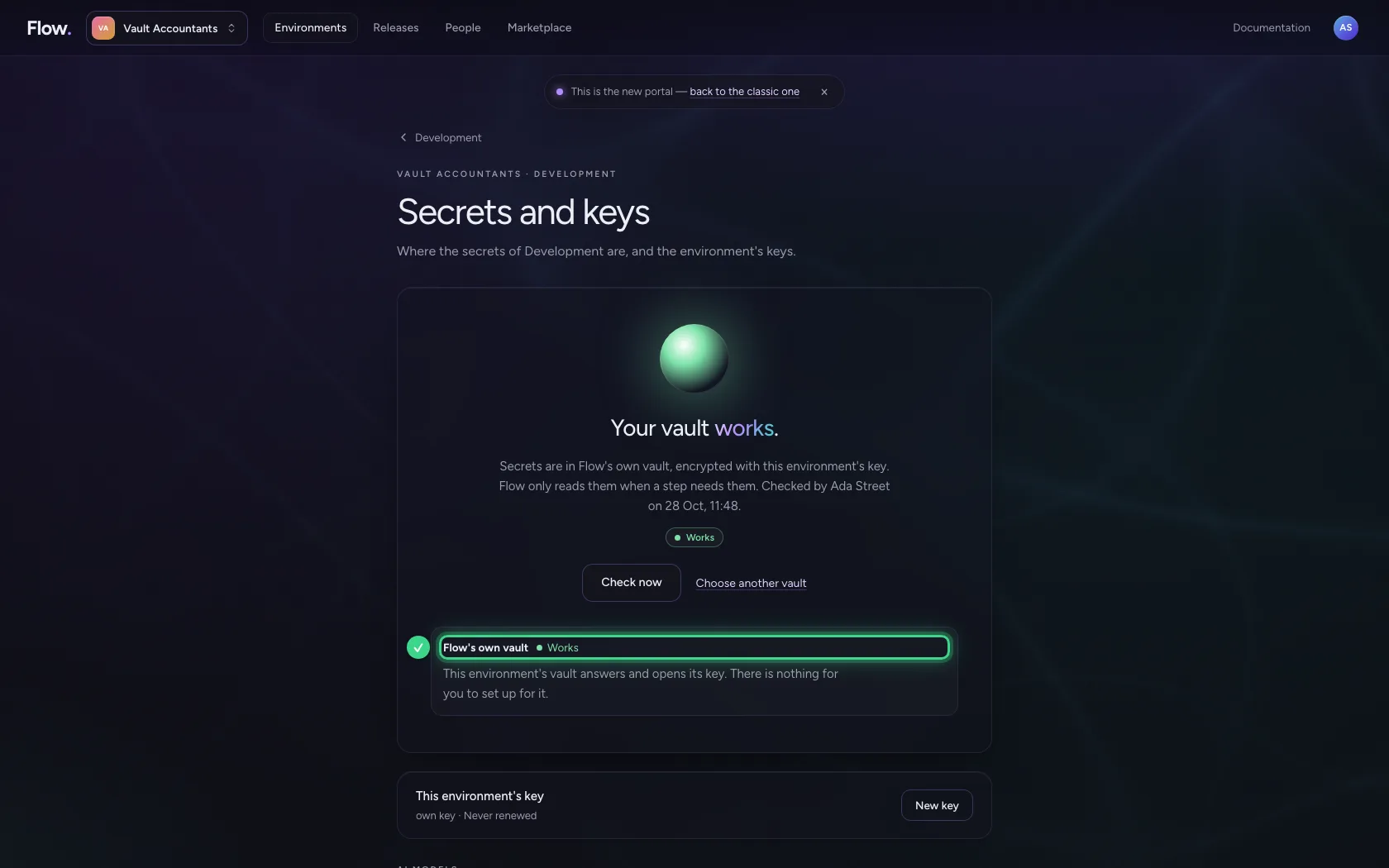
Test Flow's own vault
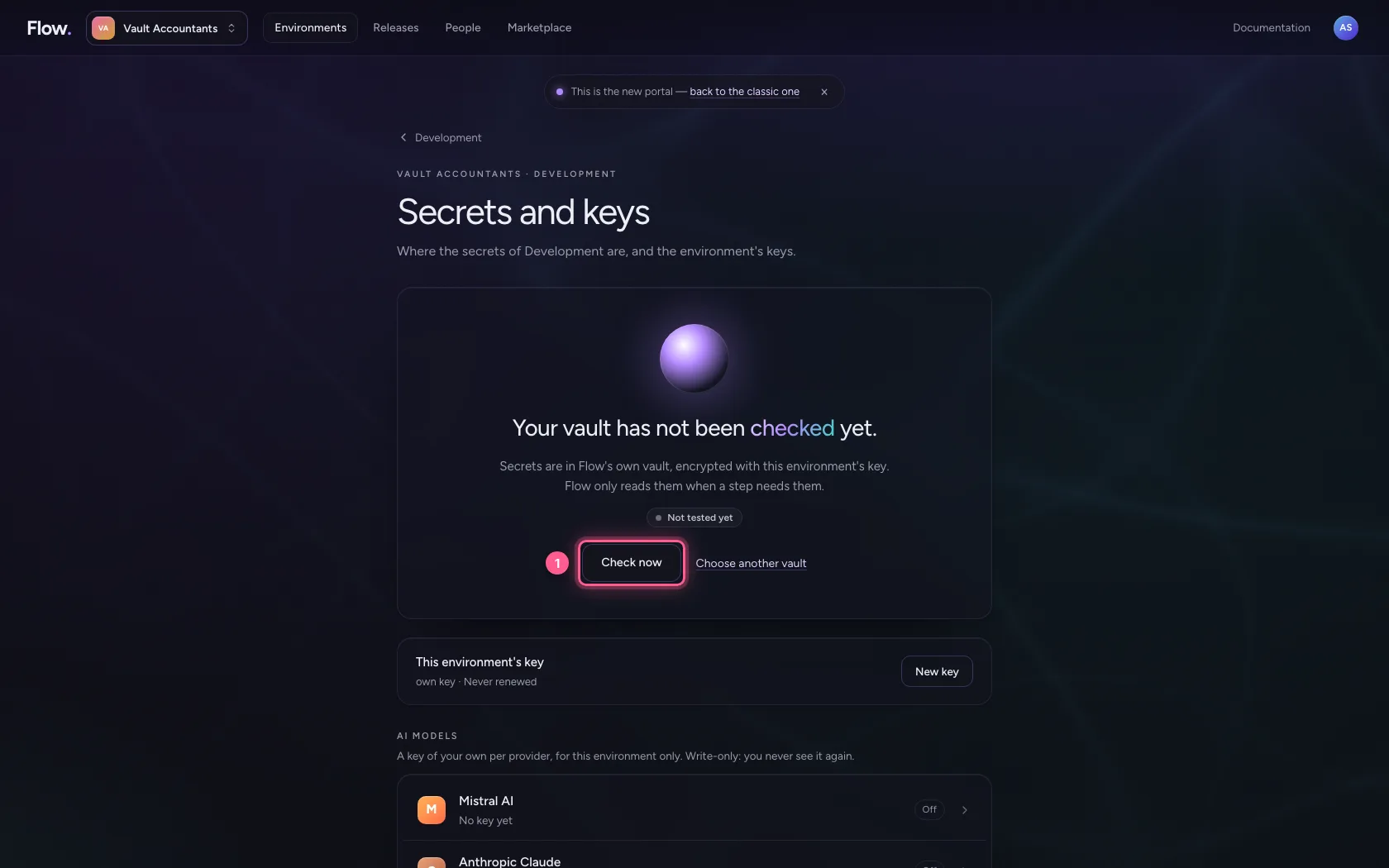
Check now checks that this environment's vault answers: that it can open its key and read the names Flow uses. For Flow's own vault there is nothing to set up — no rights, no test secret. If a name a workflow or connection uses is missing, you see that here too.
- Click Check now
Propose AWS Secrets Manager
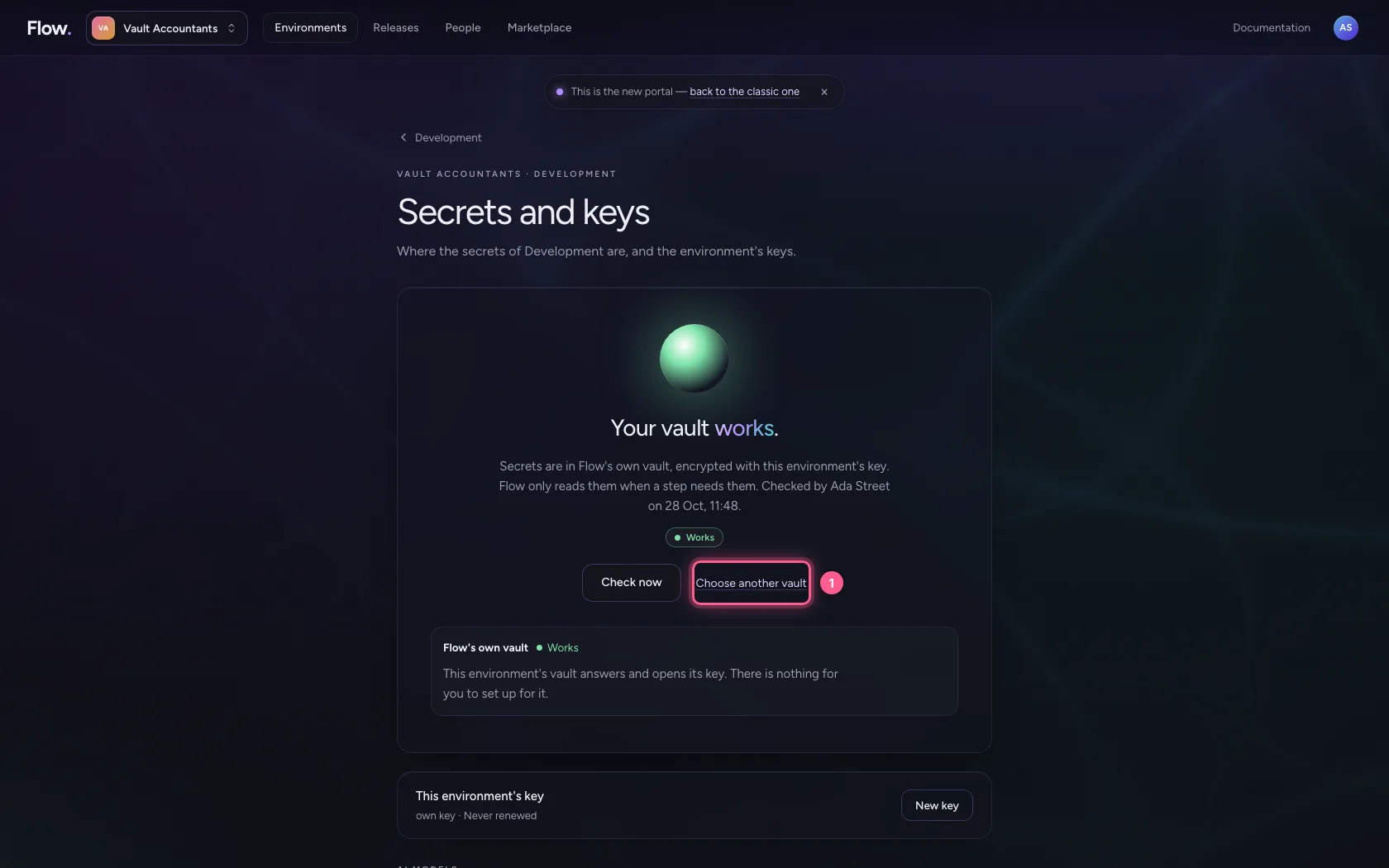
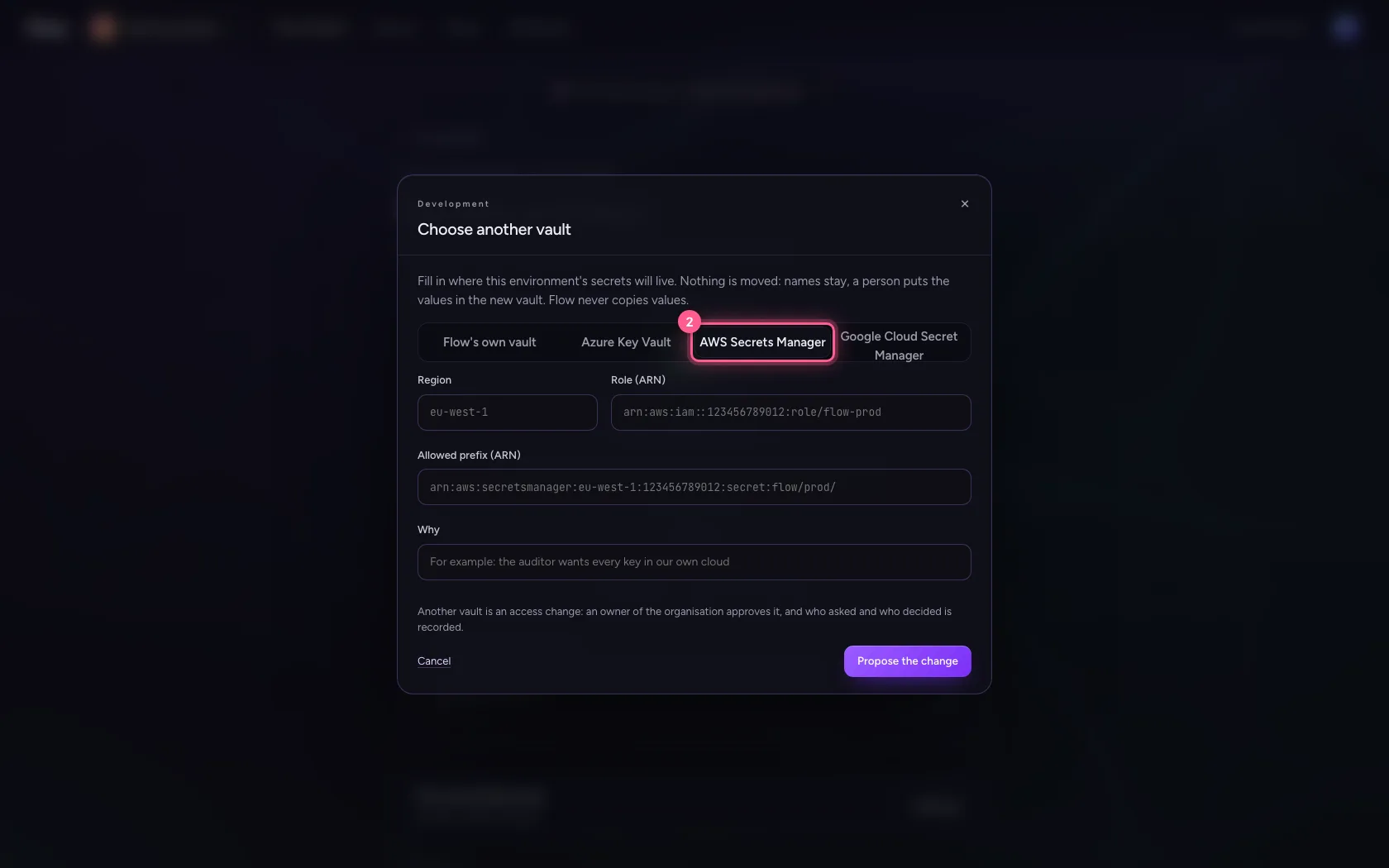
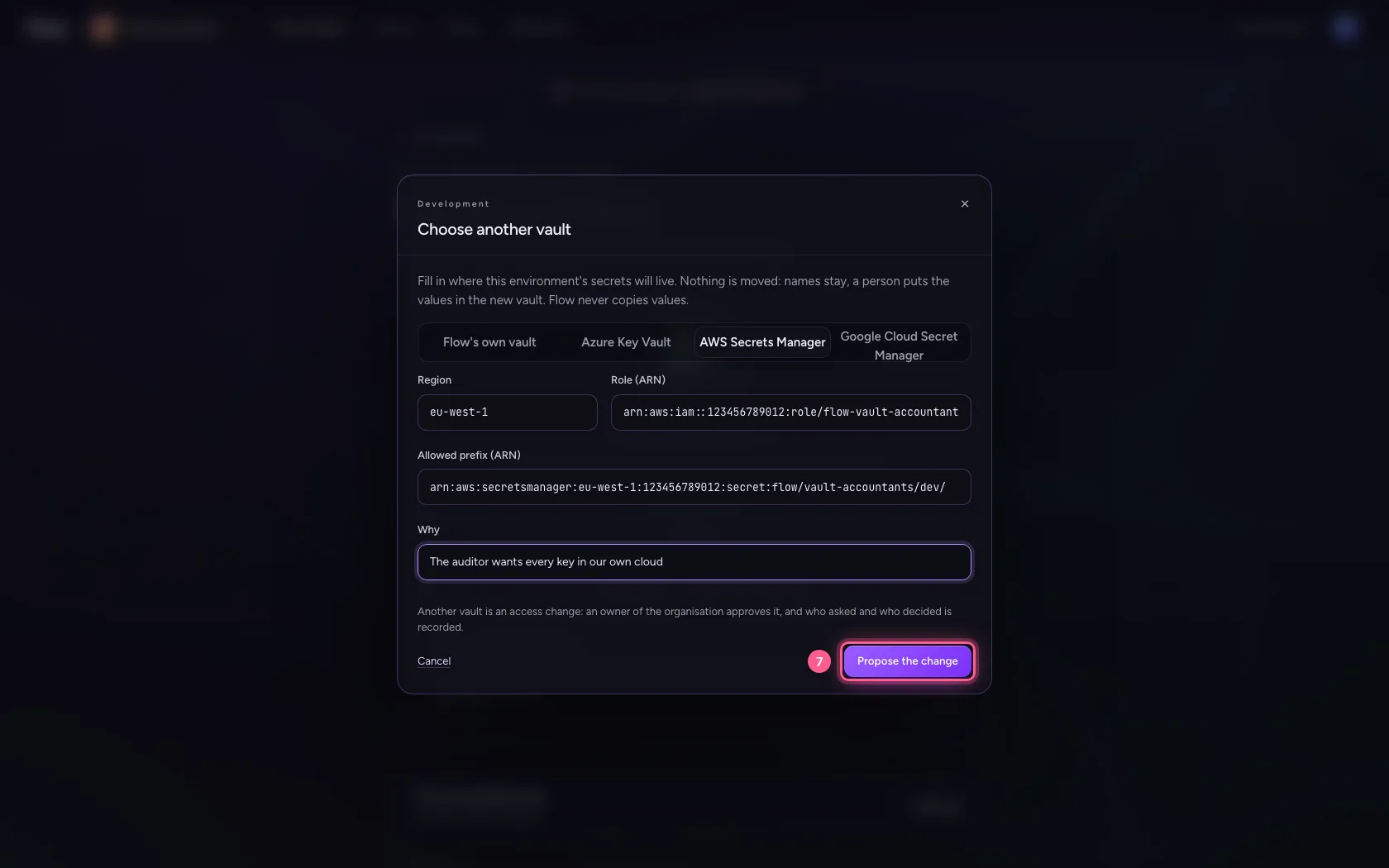
Choose another vault and fill in where the secrets will live: the region, the role Flow assumes and the prefix under which this environment may read — every environment a prefix of its own, so Development can never reach Production's secrets. A developer may propose this too; only an owner approves it.
- Click Choose another vault
- Click AWS Secrets Manager
- In Region, type
eu-west-1 - In Role (ARN), type
arn:aws:iam::123456789012:role/flow-vault-accountants-dev - In Allowed prefix (ARN), type
arn:aws:secretsmanager:eu-west-1:123456789012:secret:flow/vault-accountants/dev/ - In Why, type
The auditor wants every key in our own cloud
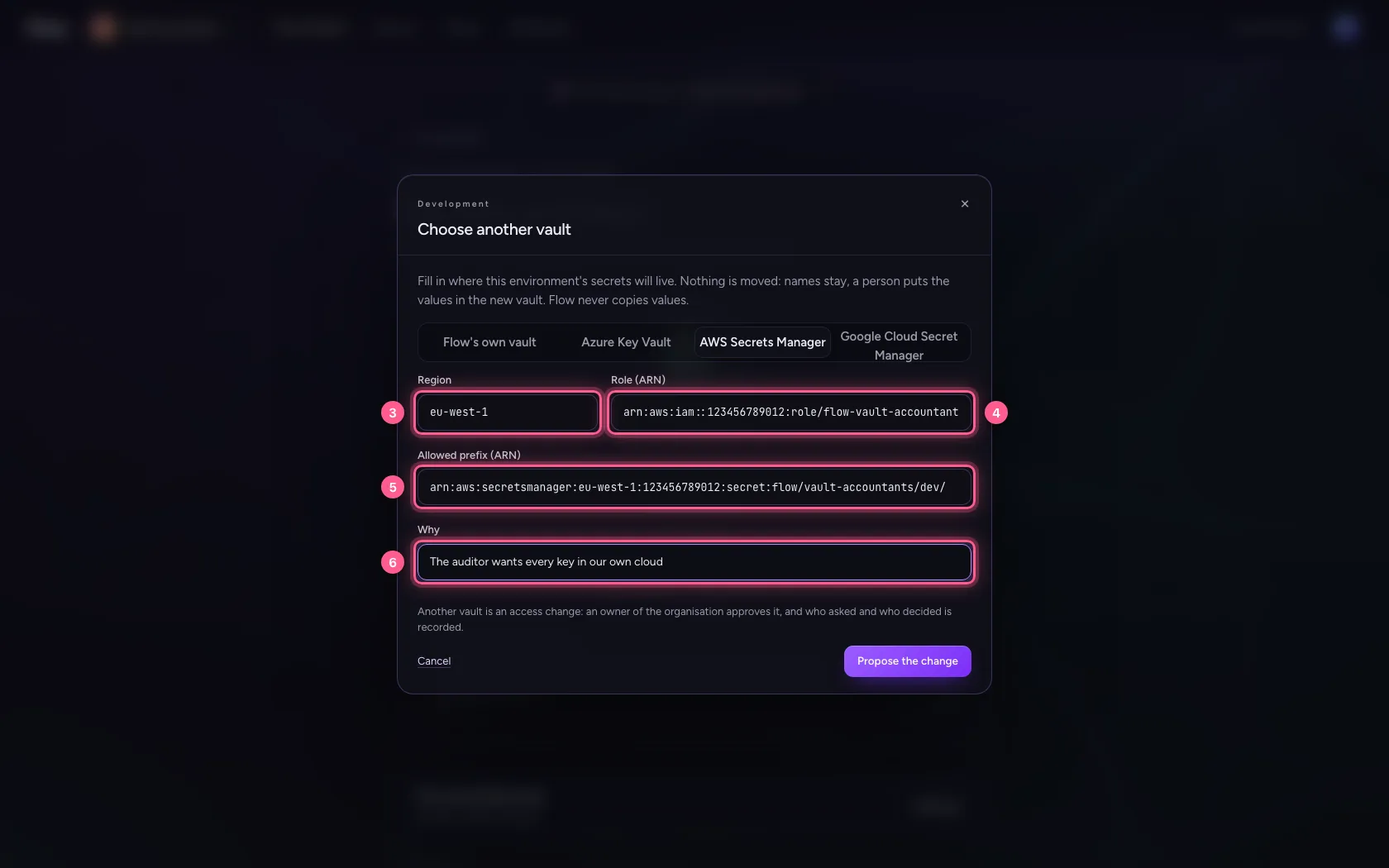
- Click Propose the change
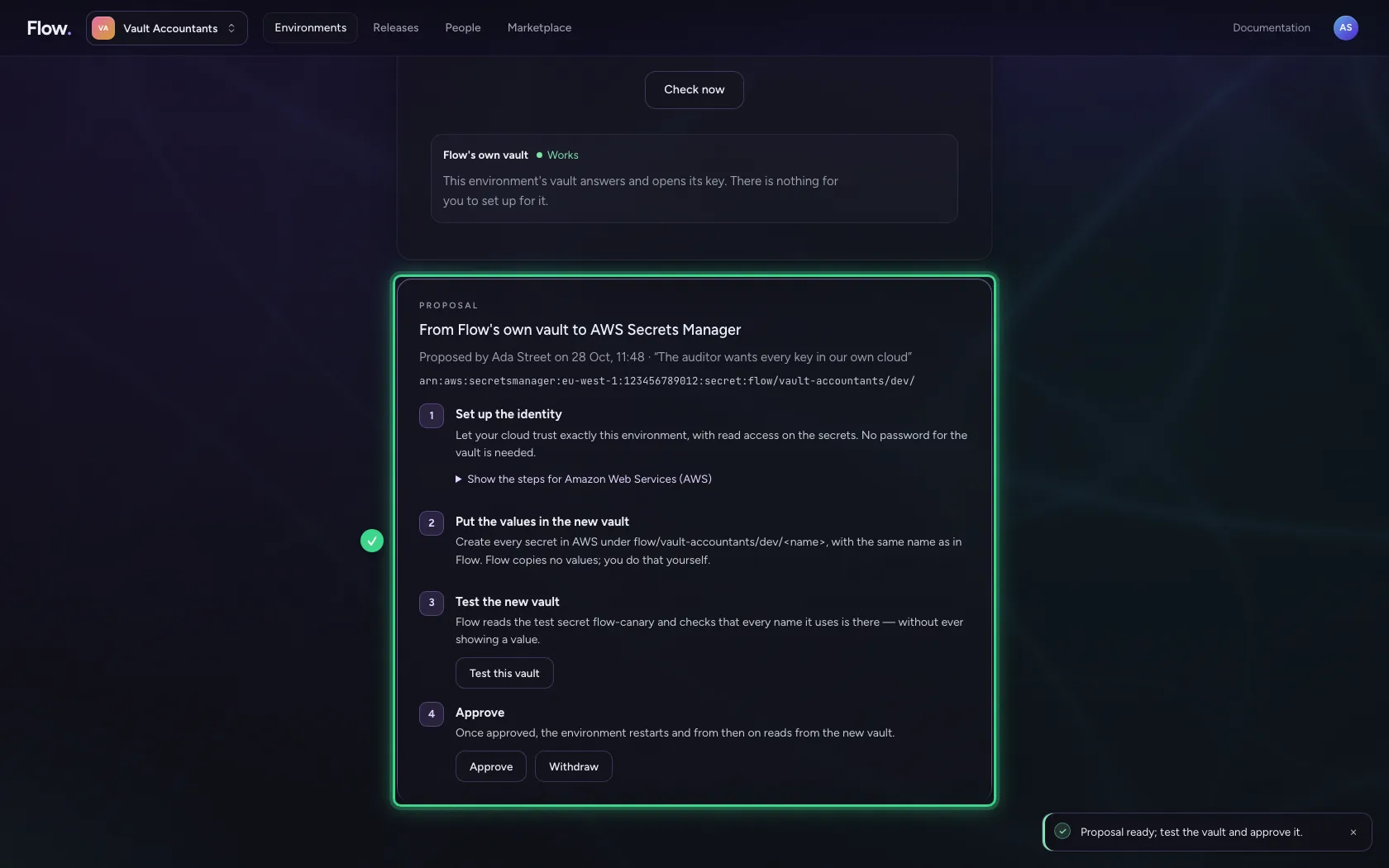
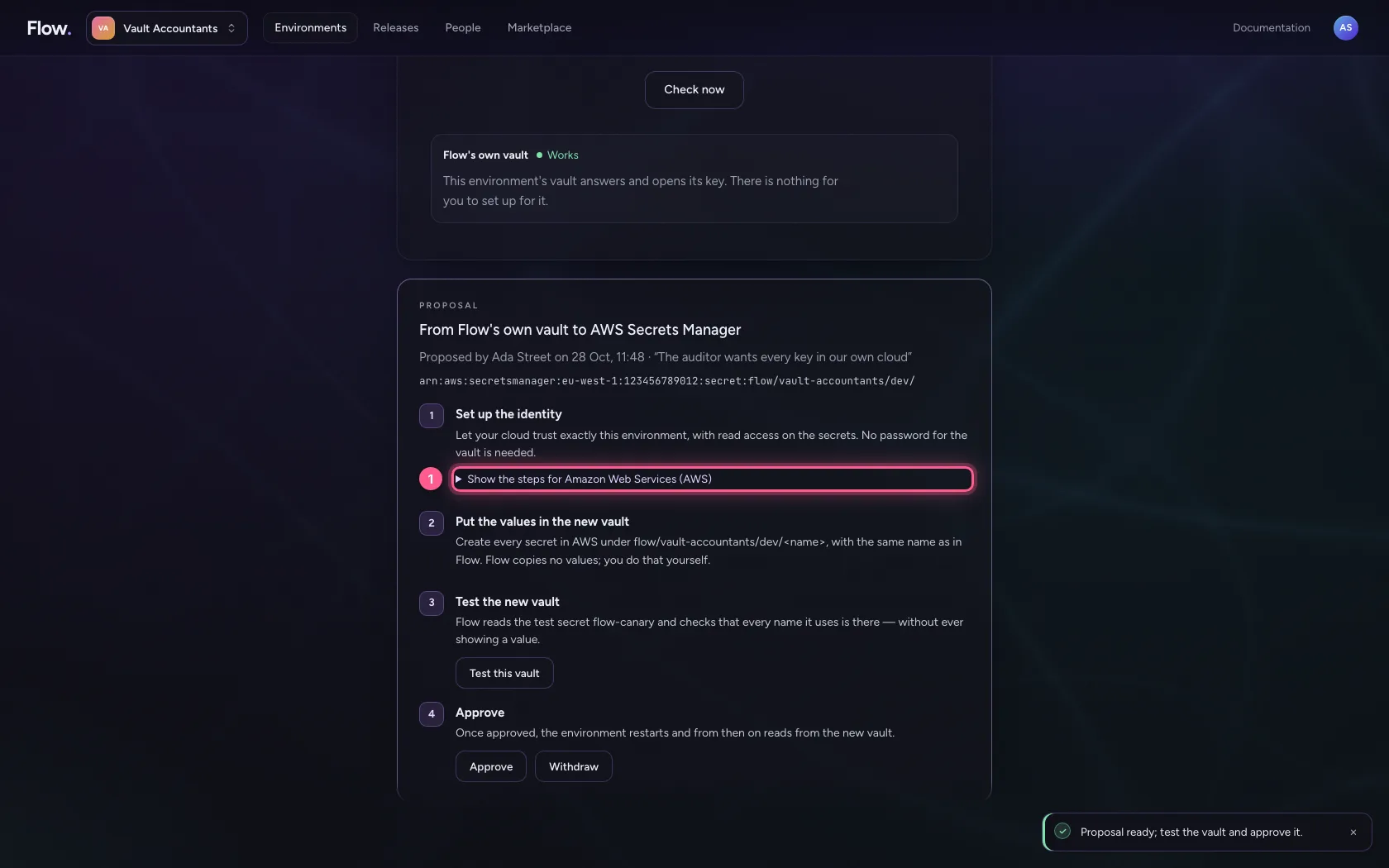
Set up AWS with the portal's steps
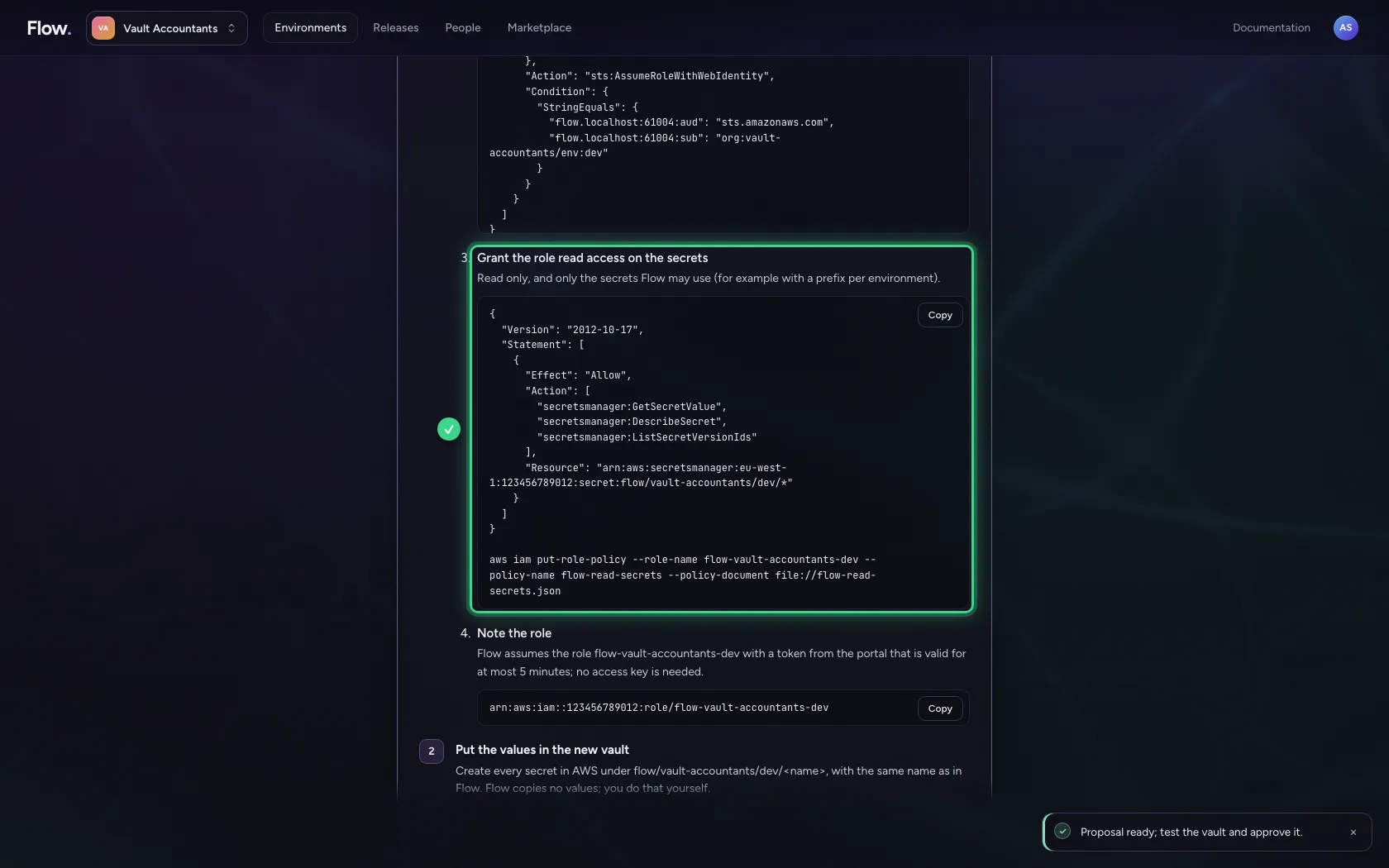
The portal writes out exactly what you set up in AWS, with this environment's values already filled in: the portal as identity provider, a role that trusts only this environment, and read access under the prefix. No access key is needed. Then put the values in Secrets Manager under their workspace's name —
- Click Show the steps for Amazon Web Services (AWS)
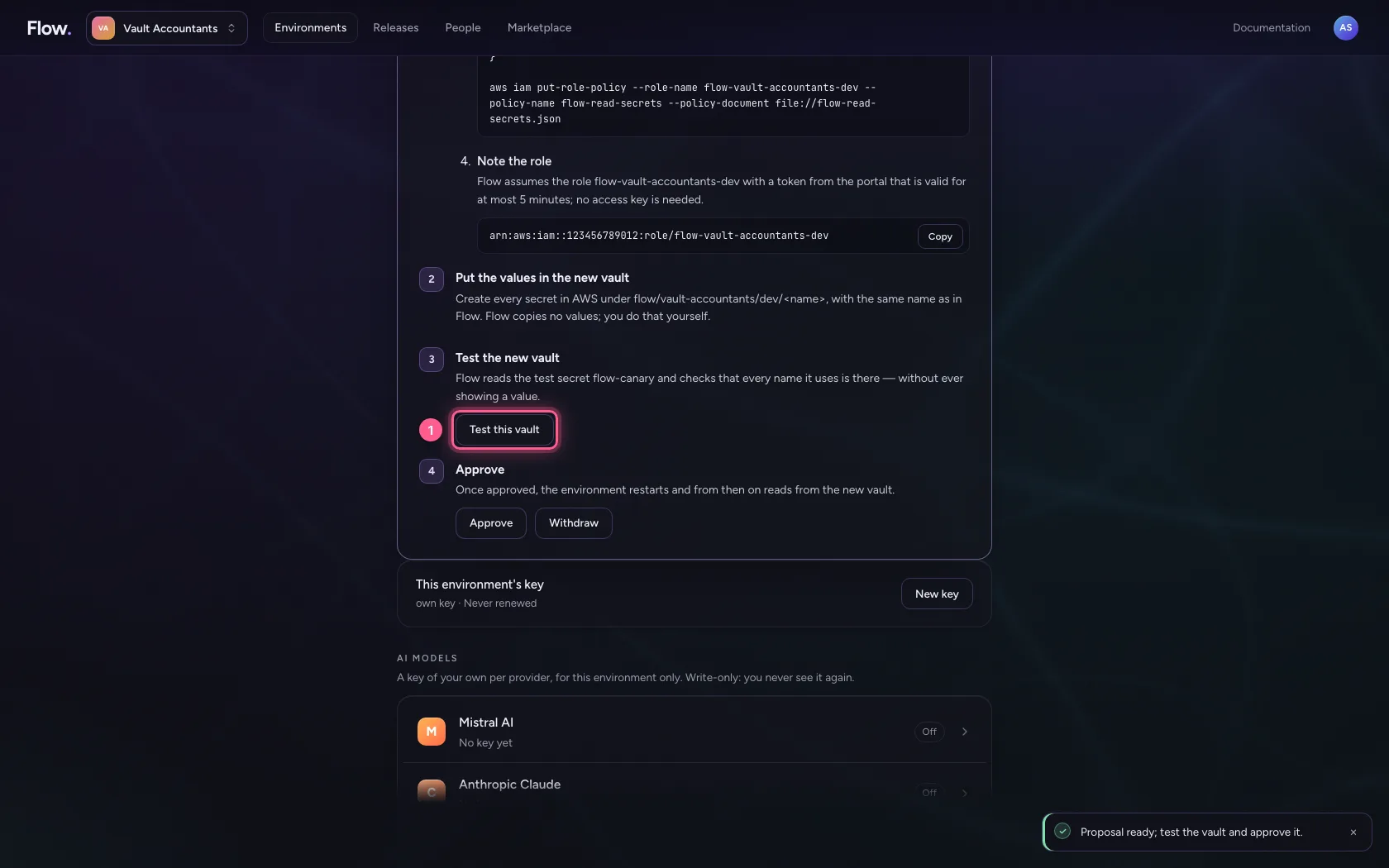
Test the new vault
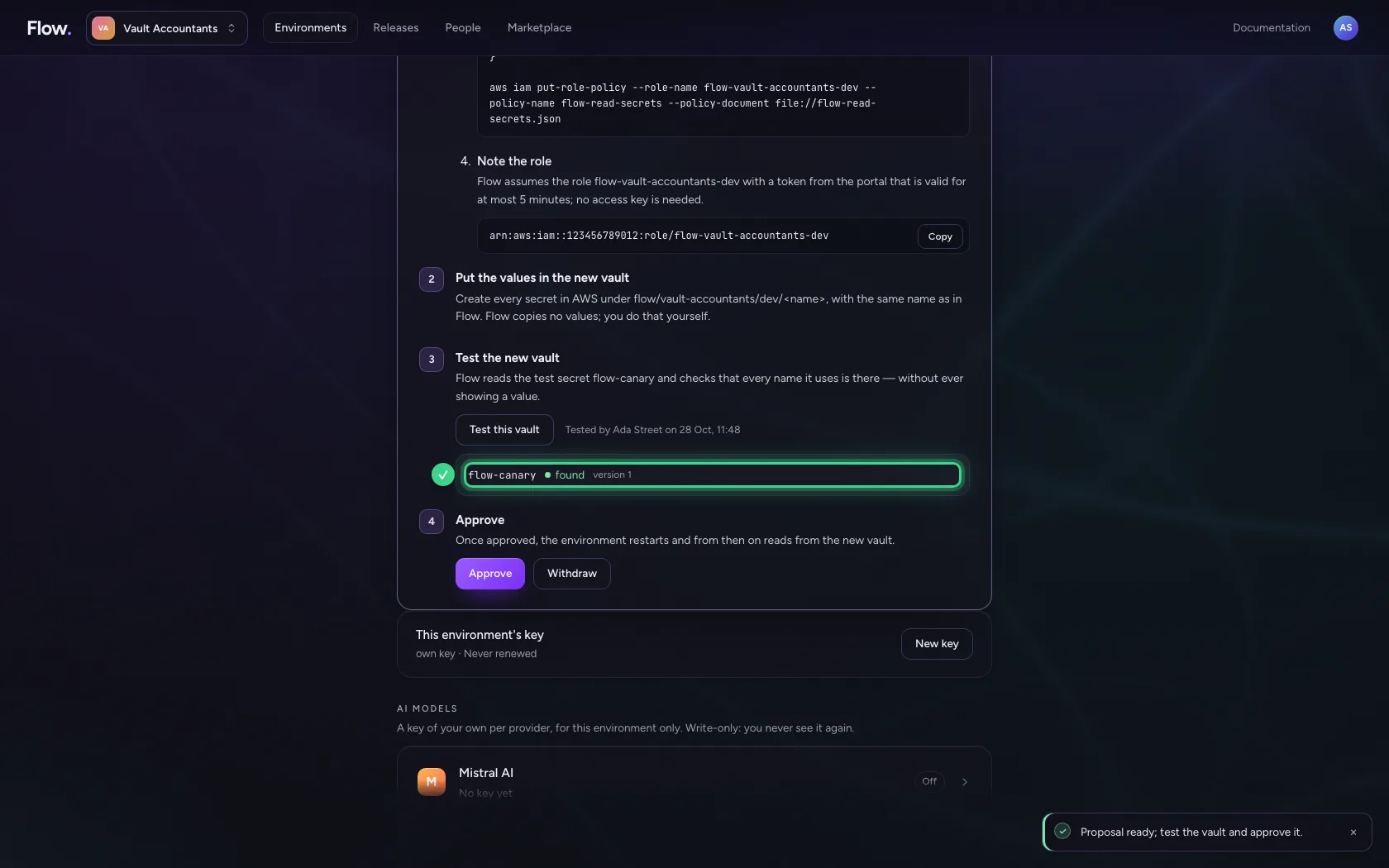
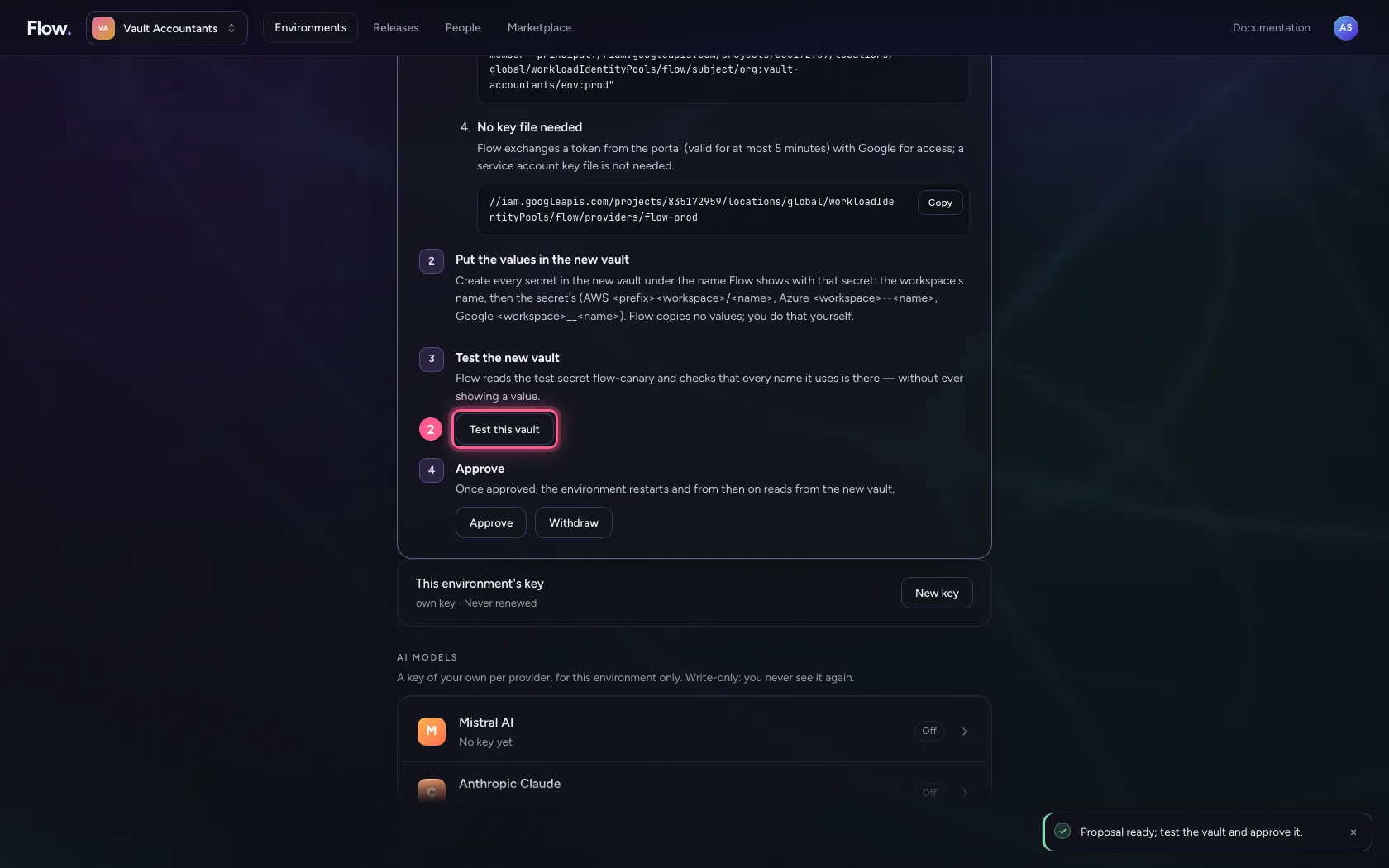
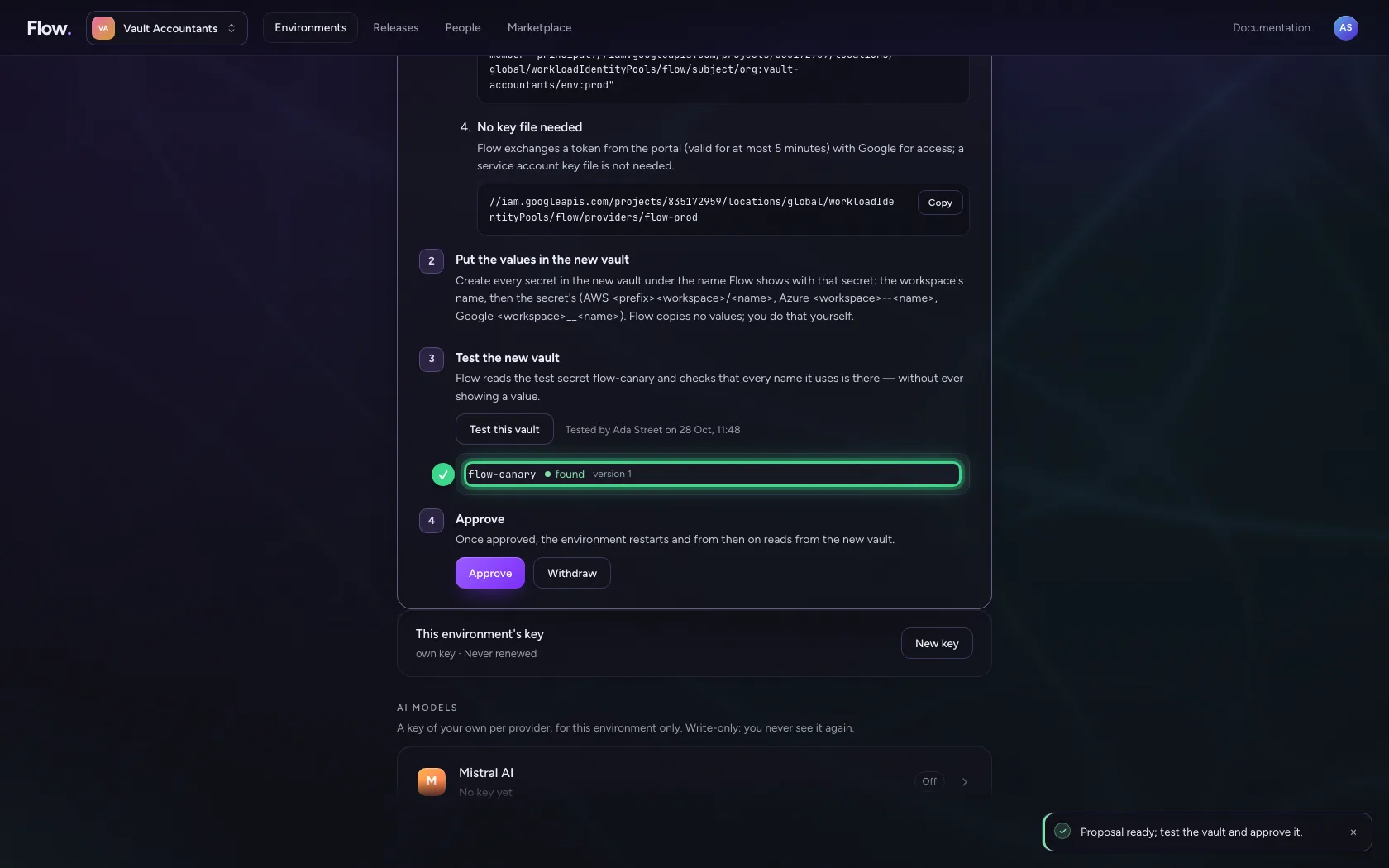
Before anyone approves, the environment reads the test secret flow-canary from the proposed vault — with its own identity, as it will for real — and checks that every name it uses is there. You see what was found, never a value.
- Click Test this vault
Approve the switch
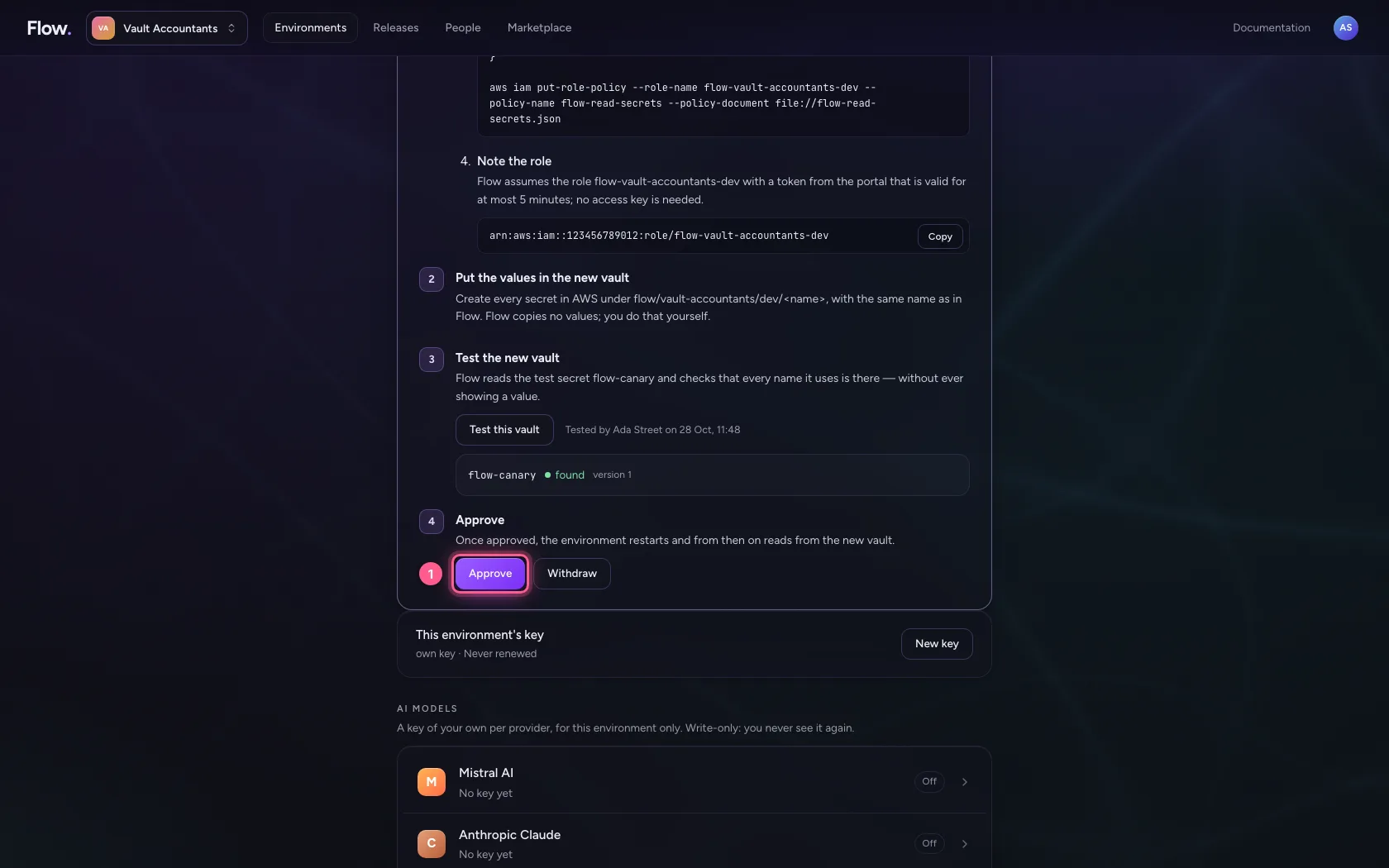
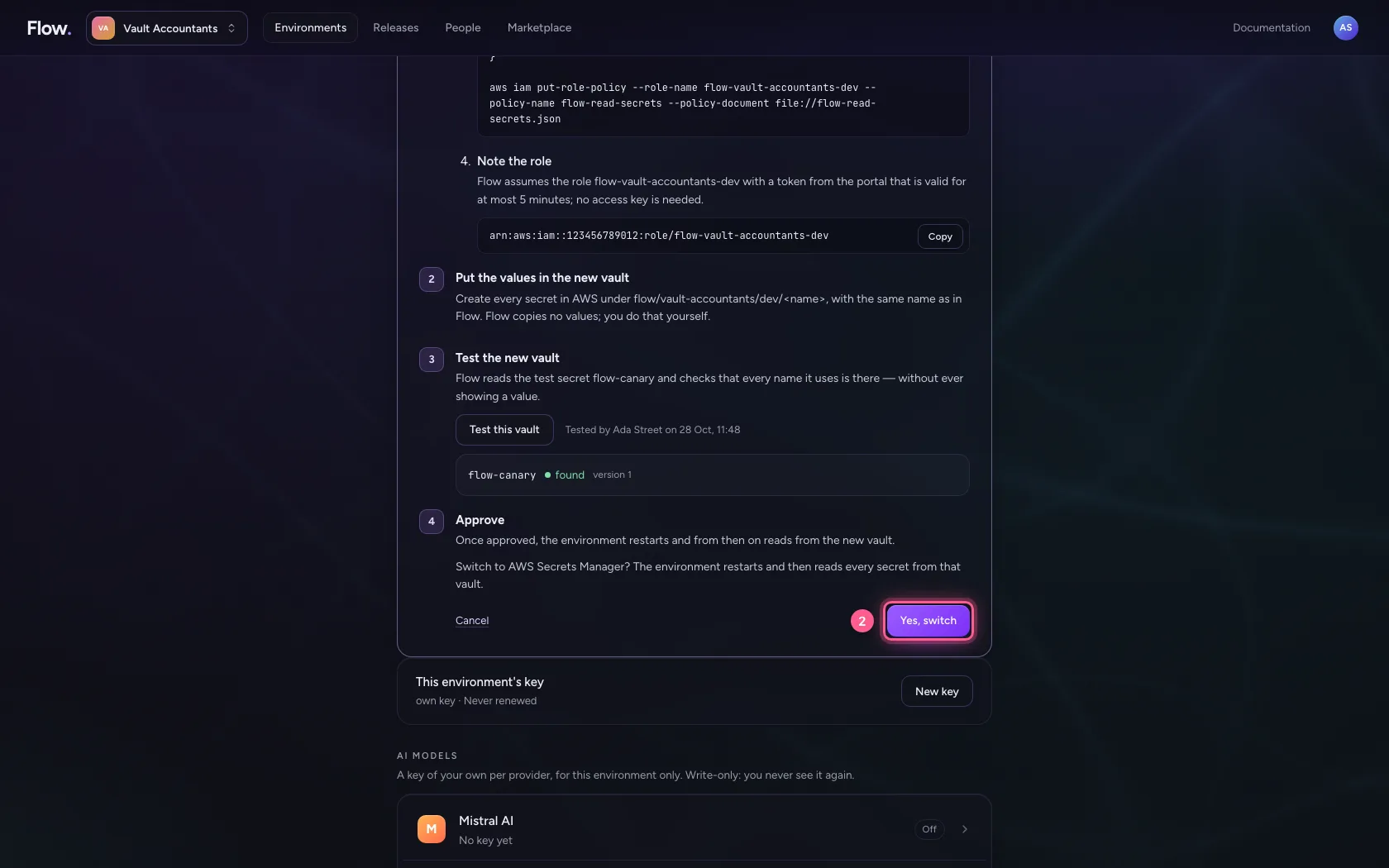
An owner approves; who asked and who decided is recorded. The environment restarts and from then on reads from AWS. The same workflows keep working: the names stayed the same.
- Click Approve
- Click Yes, switch
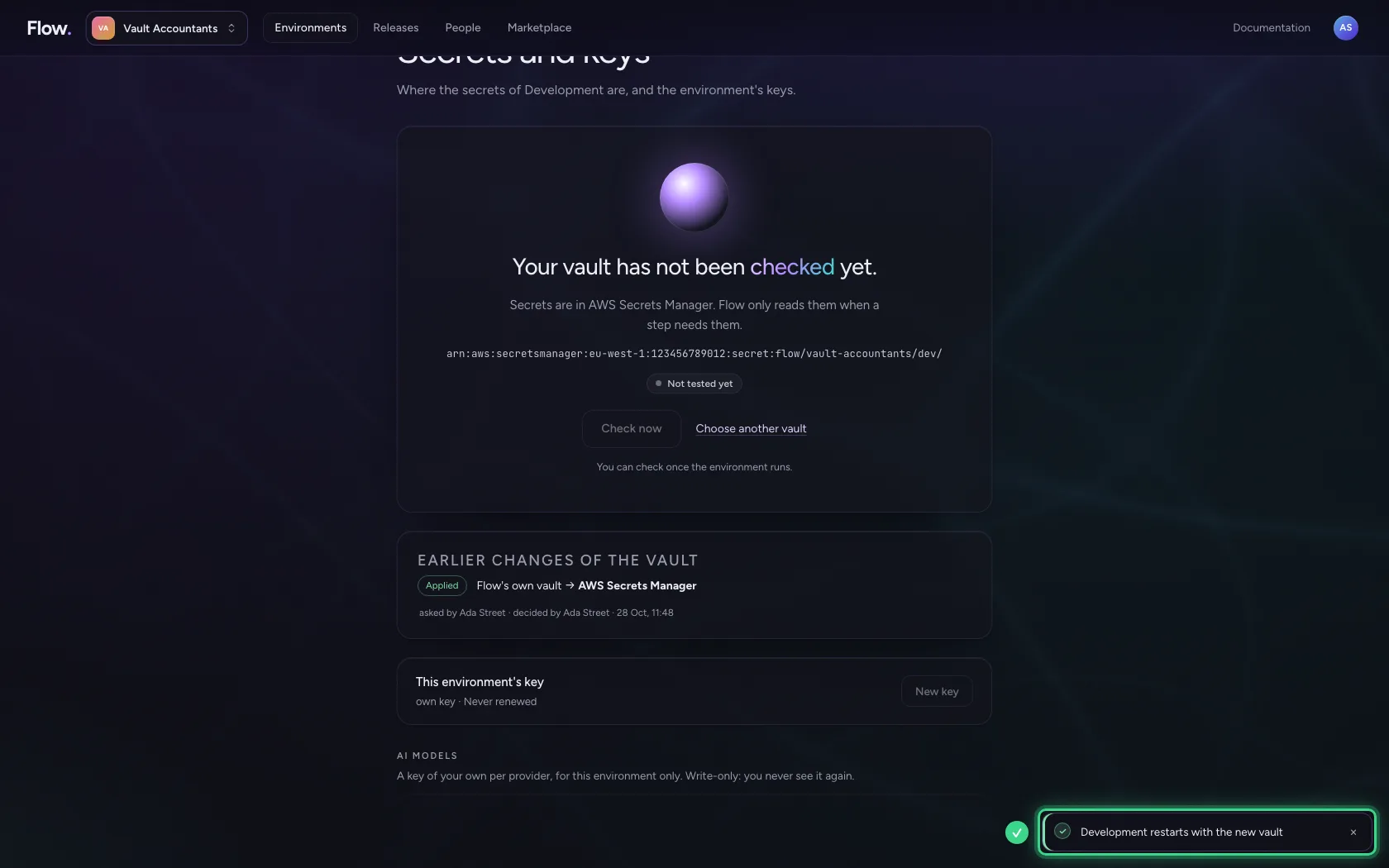
Check the vault
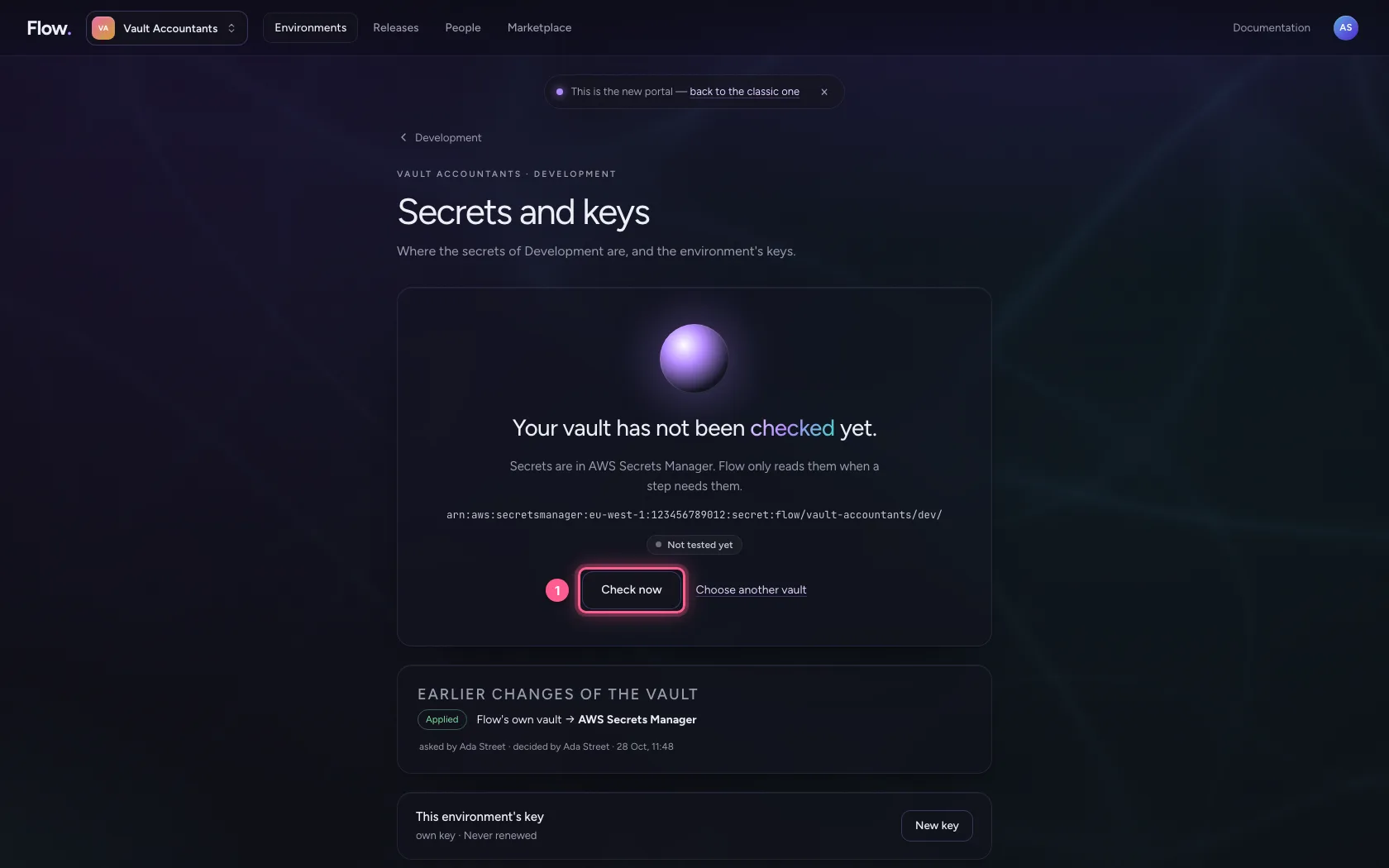
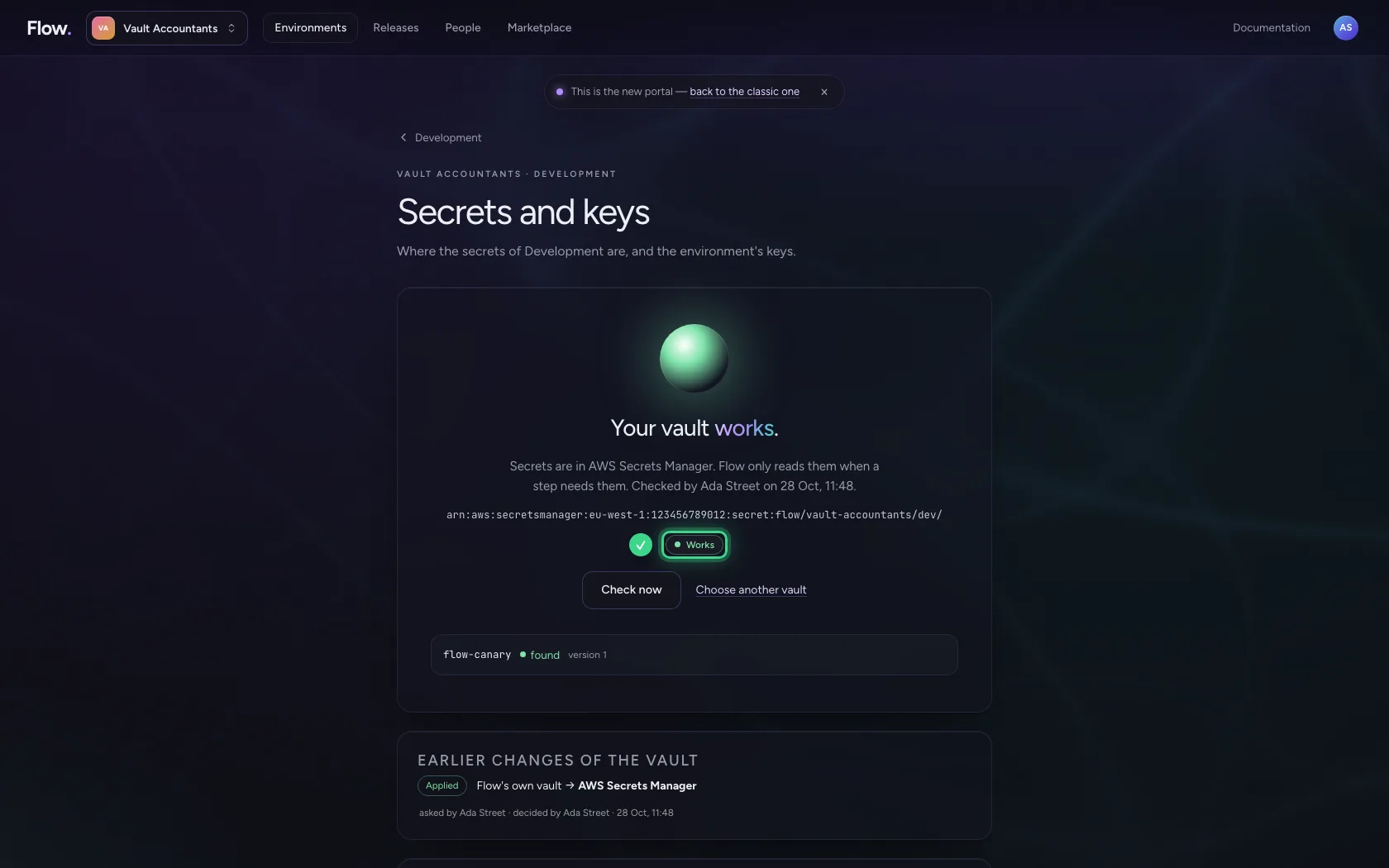
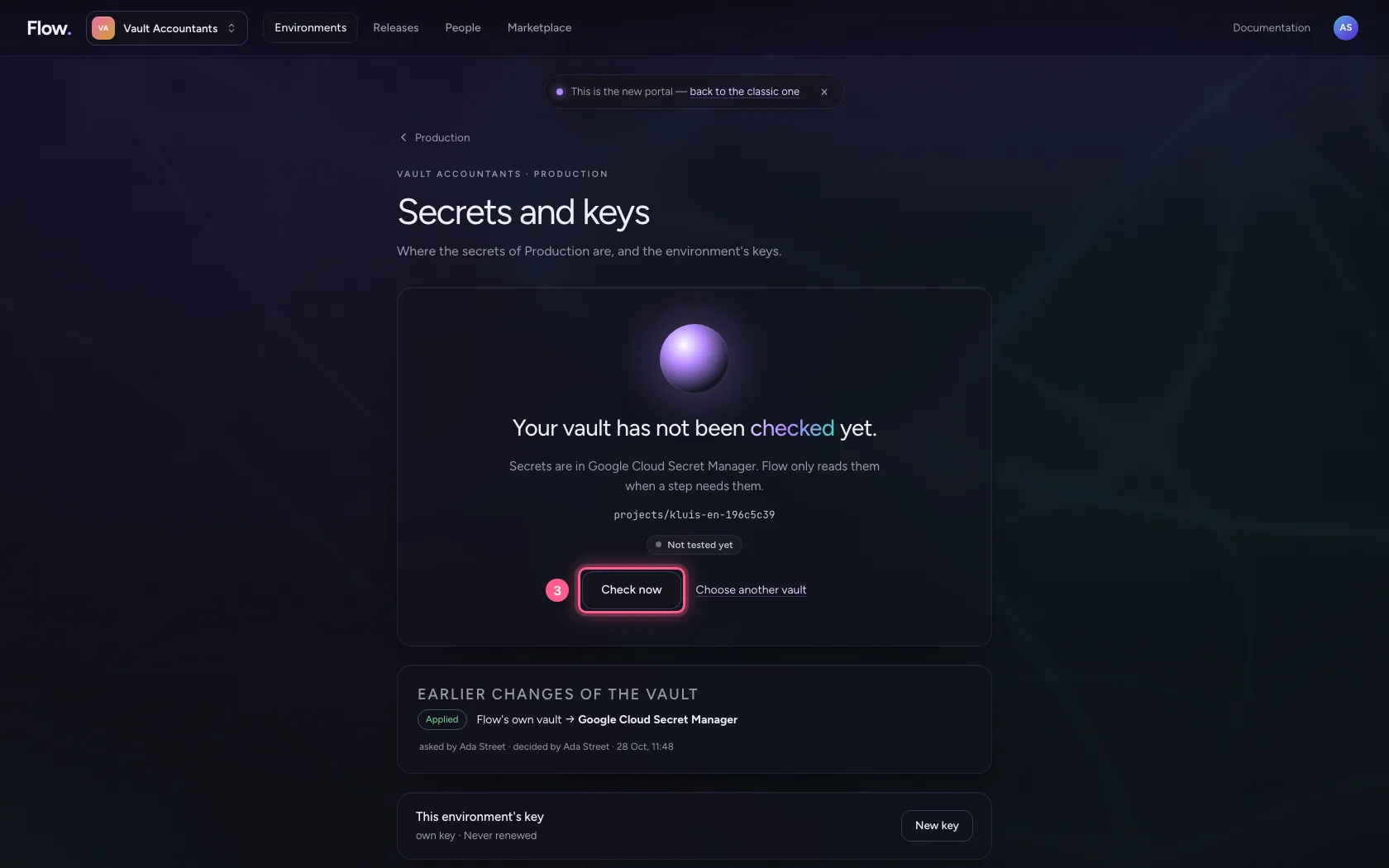
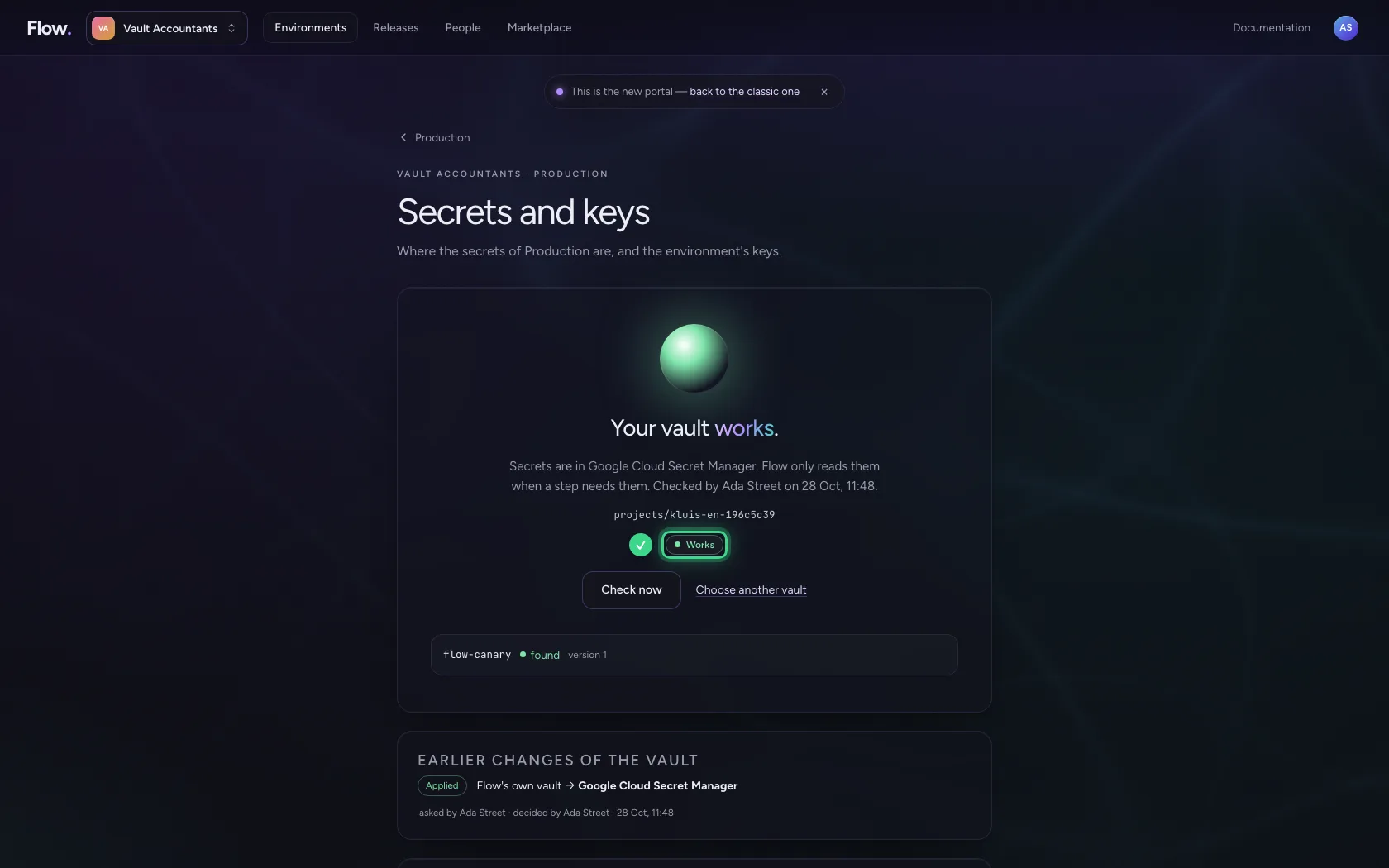
Once the environment runs again, AWS Secrets Manager is at the top, with the prefix. Check now reads the test secret from the environment's own vault; the result stays as its health, with who tested and when. An error stays visible until a later test succeeds.
- Click Check now
Choose Google Cloud for Production
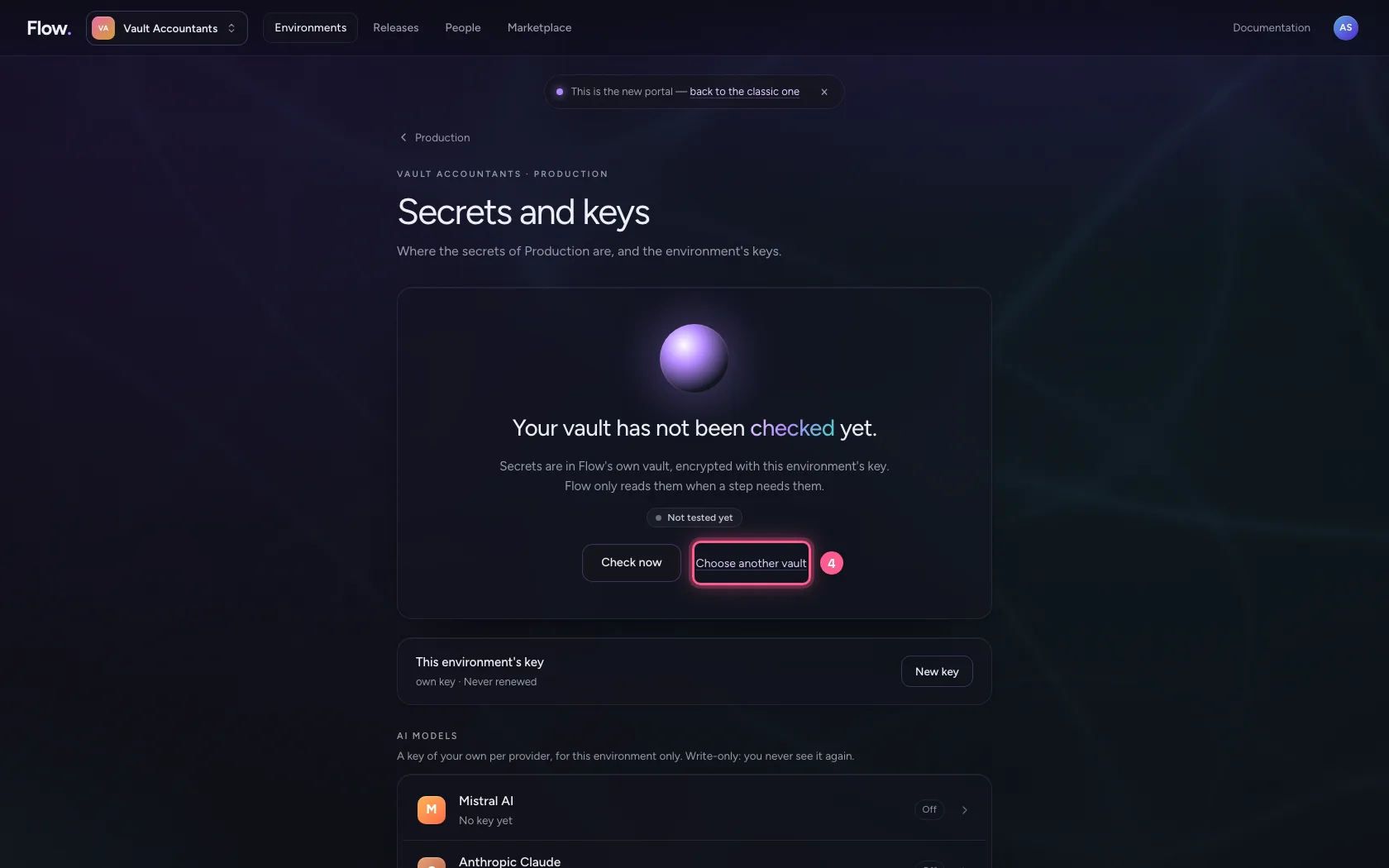
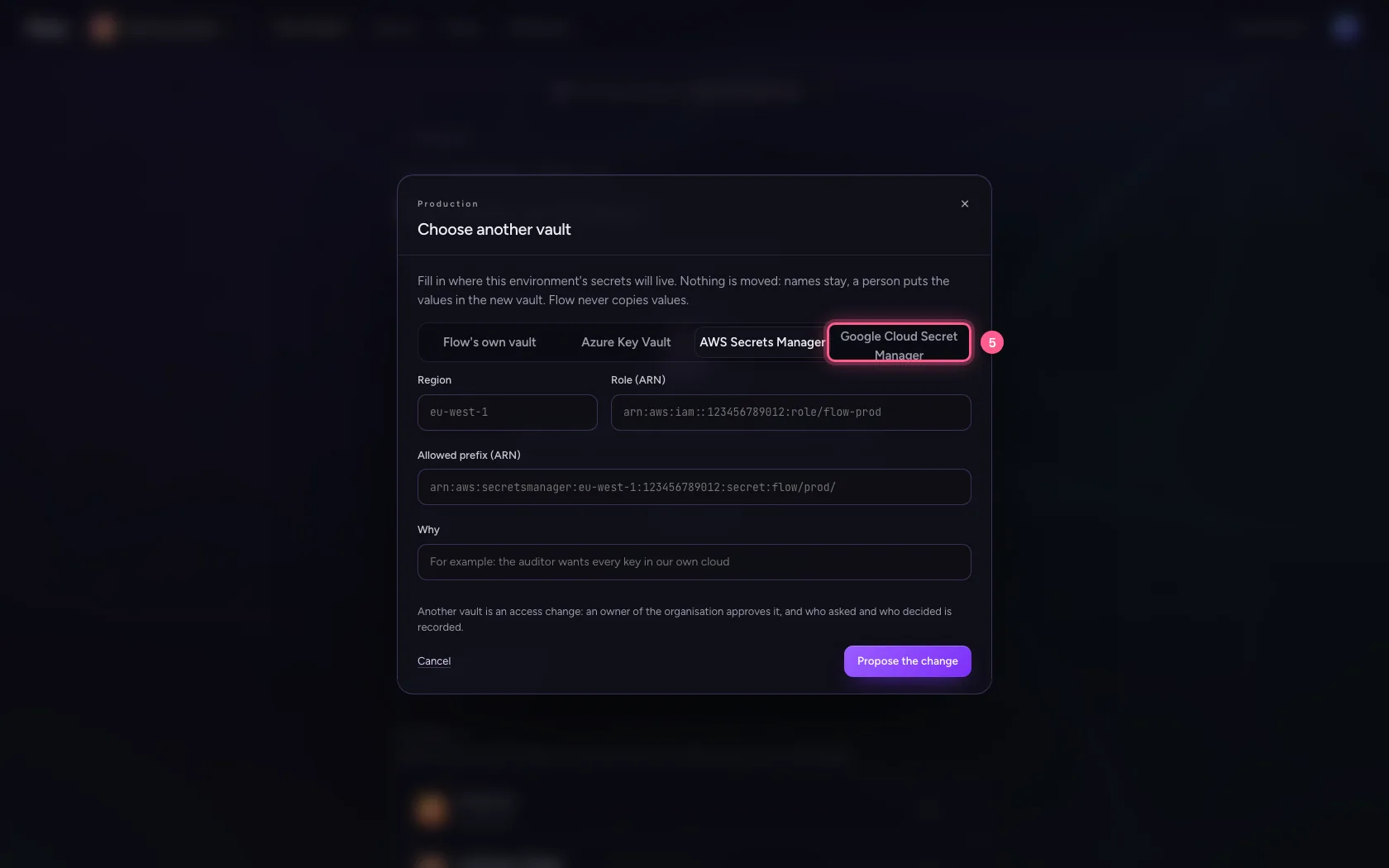
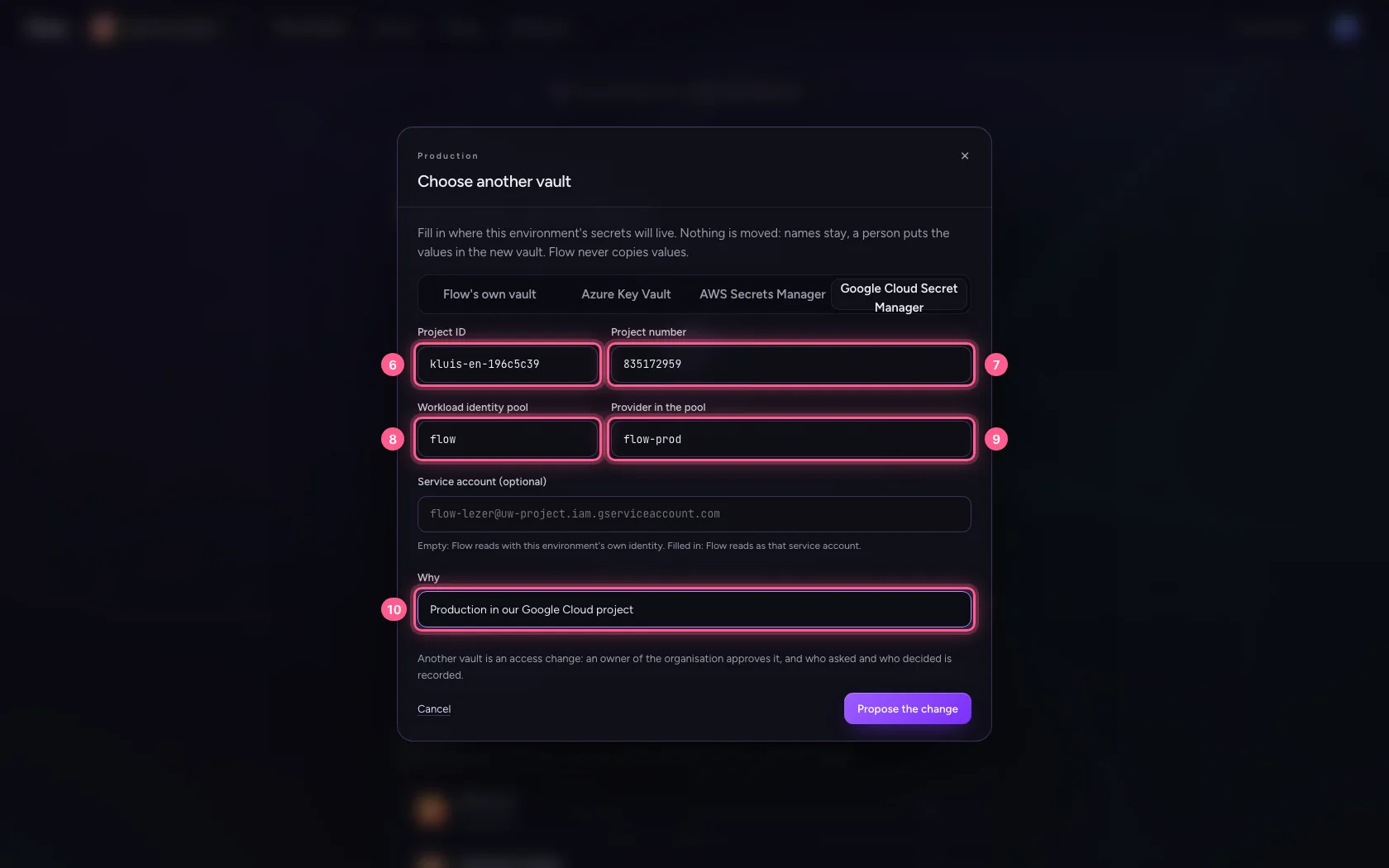
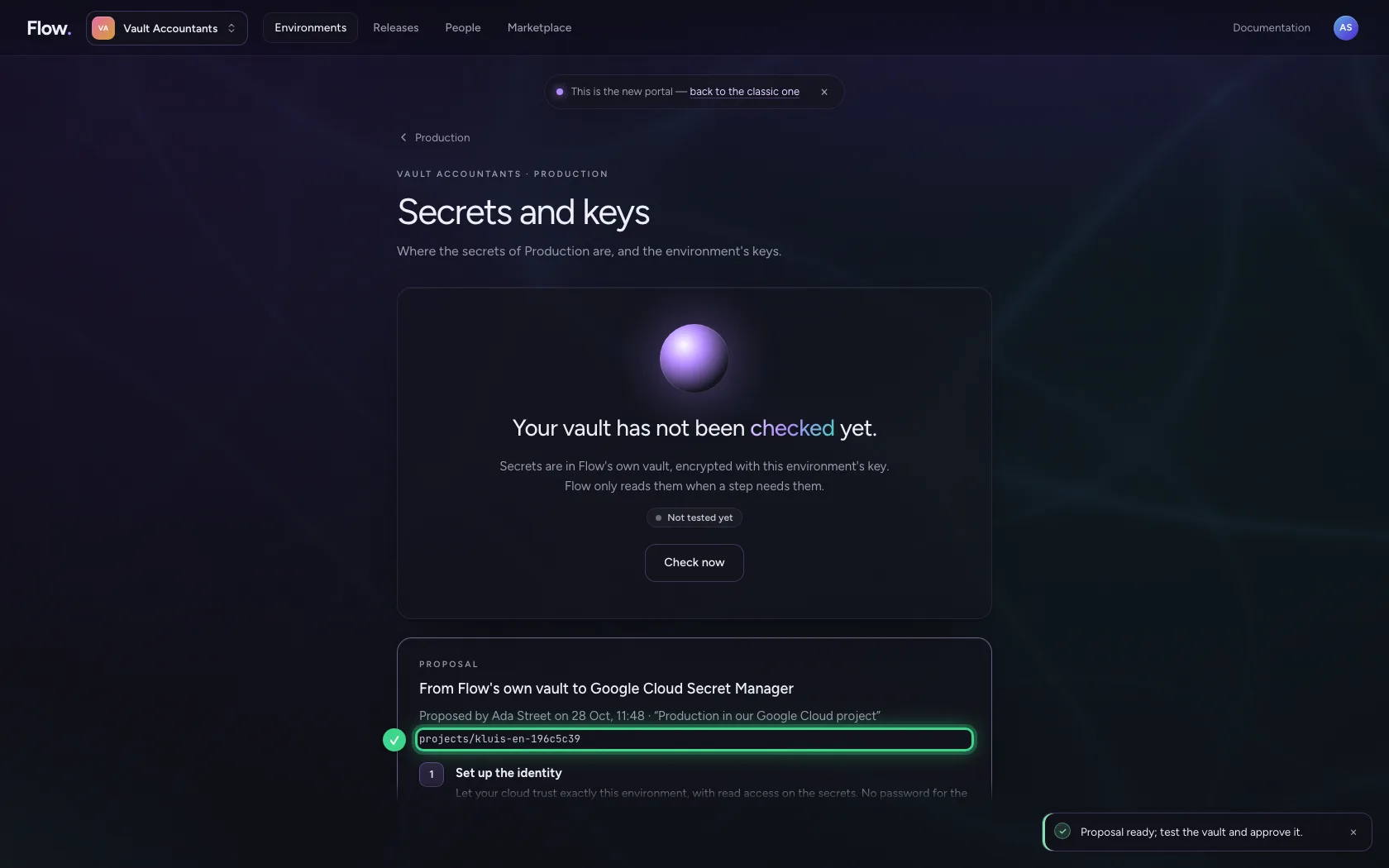
Every environment chooses its own vault. Open Production and propose Google Cloud Secret Manager: the project ID that holds the secrets, the project number, the workload identity pool and the provider in it. A service account is not needed: left empty, Flow reads with the environment's own identity, without a key file.
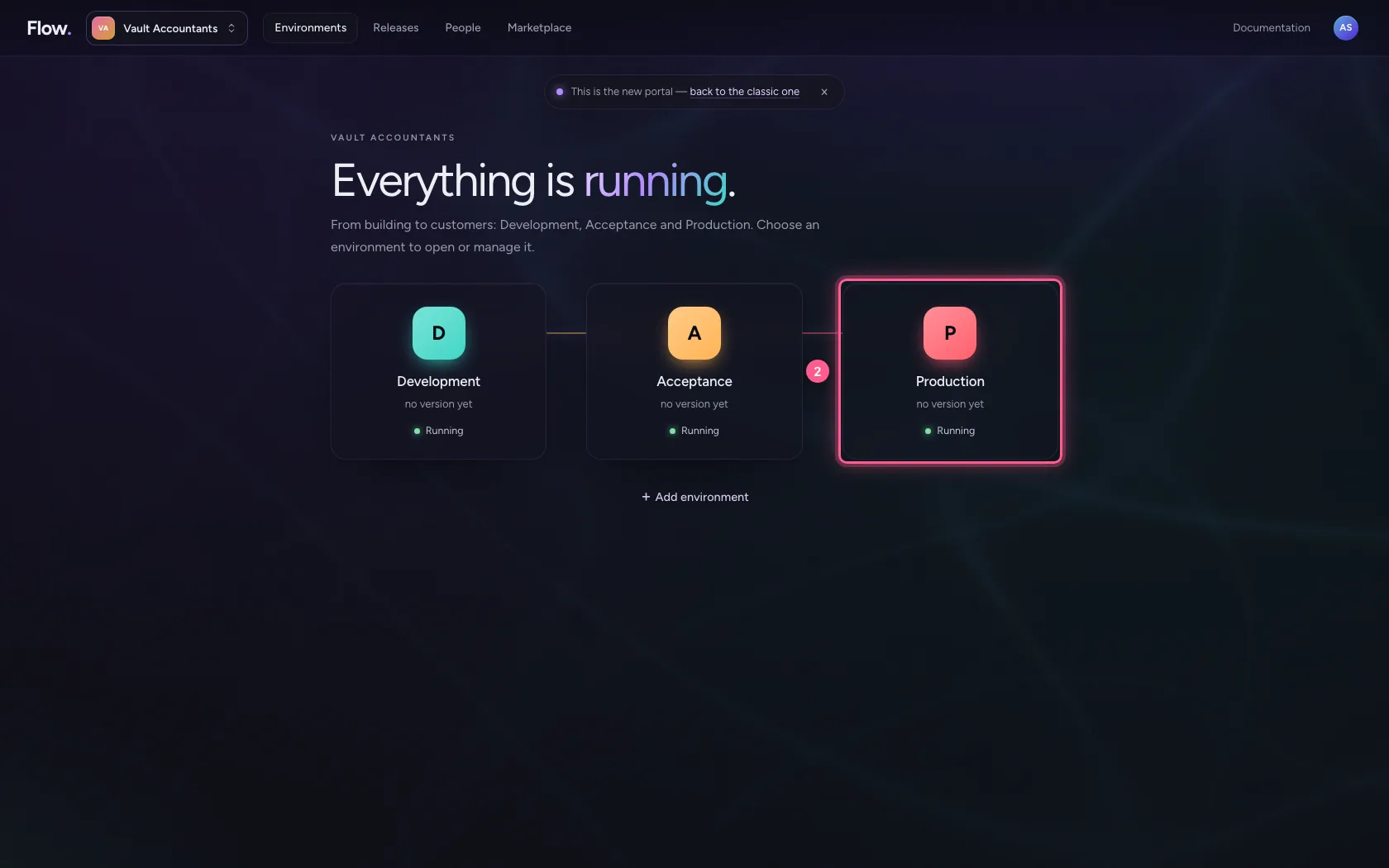
- Click Environments
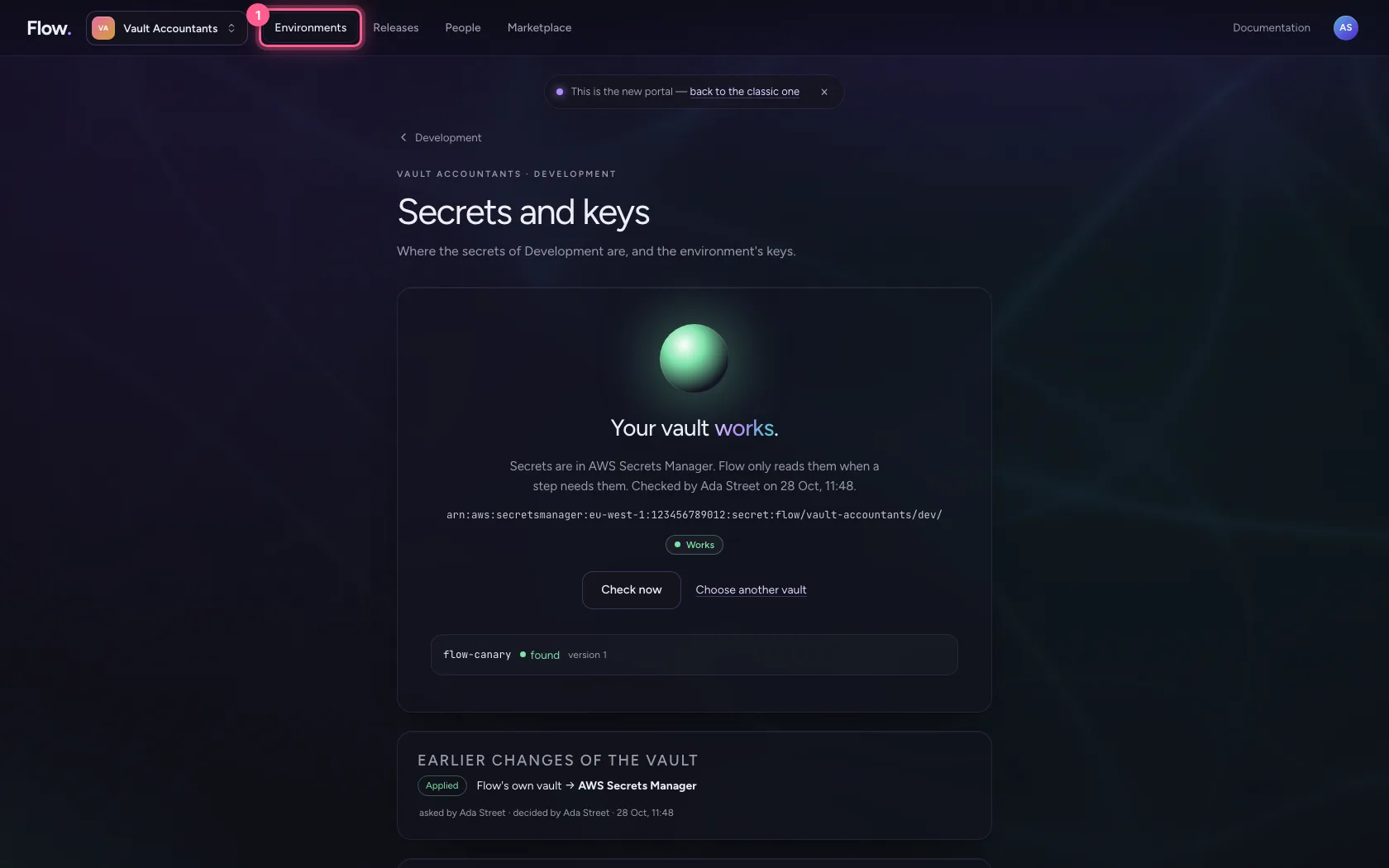
- Click Production
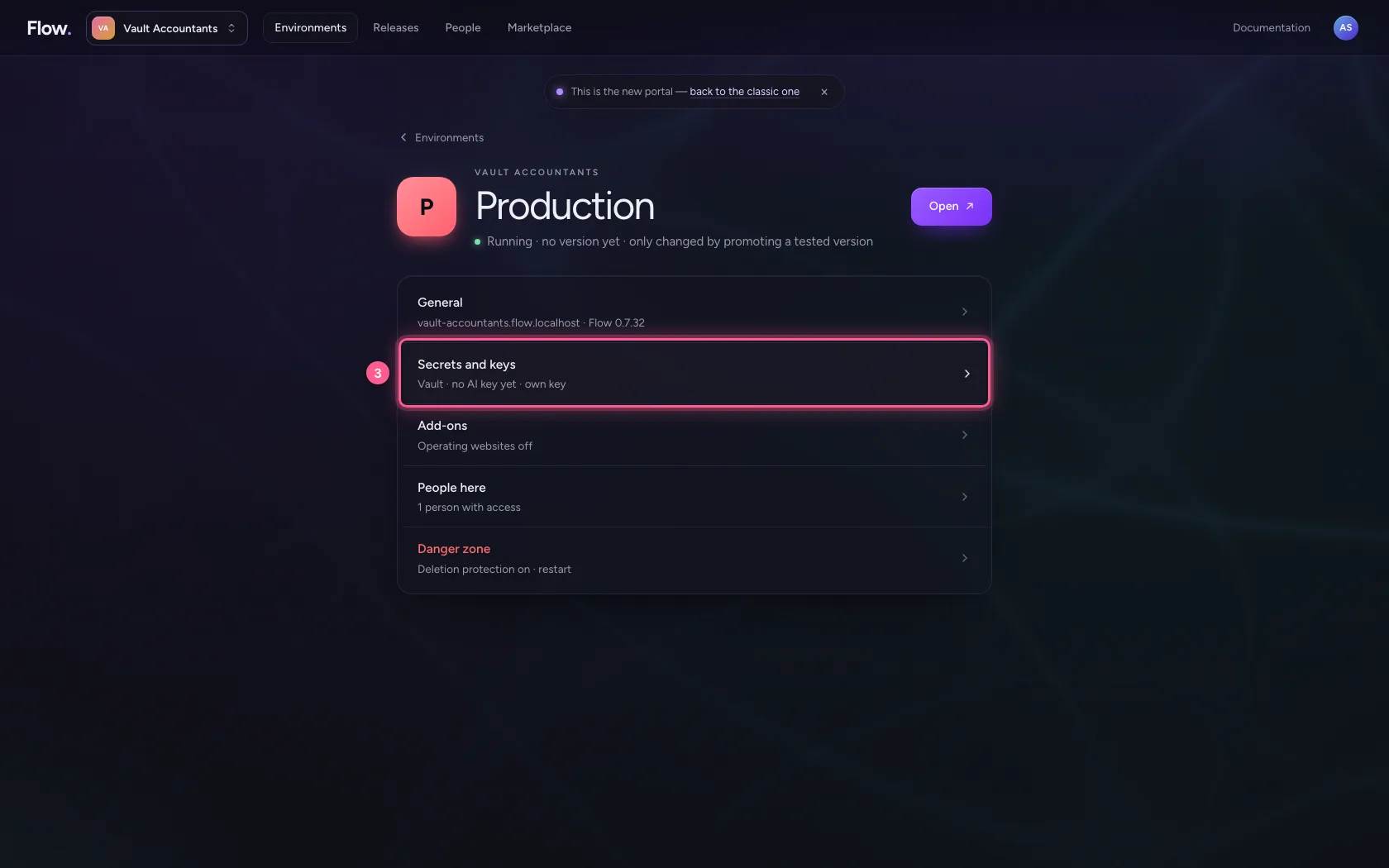
- Click Secrets and keys Vault · no AI key yet · own key
- Click Choose another vault
- Click Google Cloud Secret Manager
- In Project ID, type
kluis-en-196c5c39 - In Project number, type
835172959 - In Workload identity pool, type
flow - In Provider in the pool, type
flow-prod - In Why, type
Production in our Google Cloud project
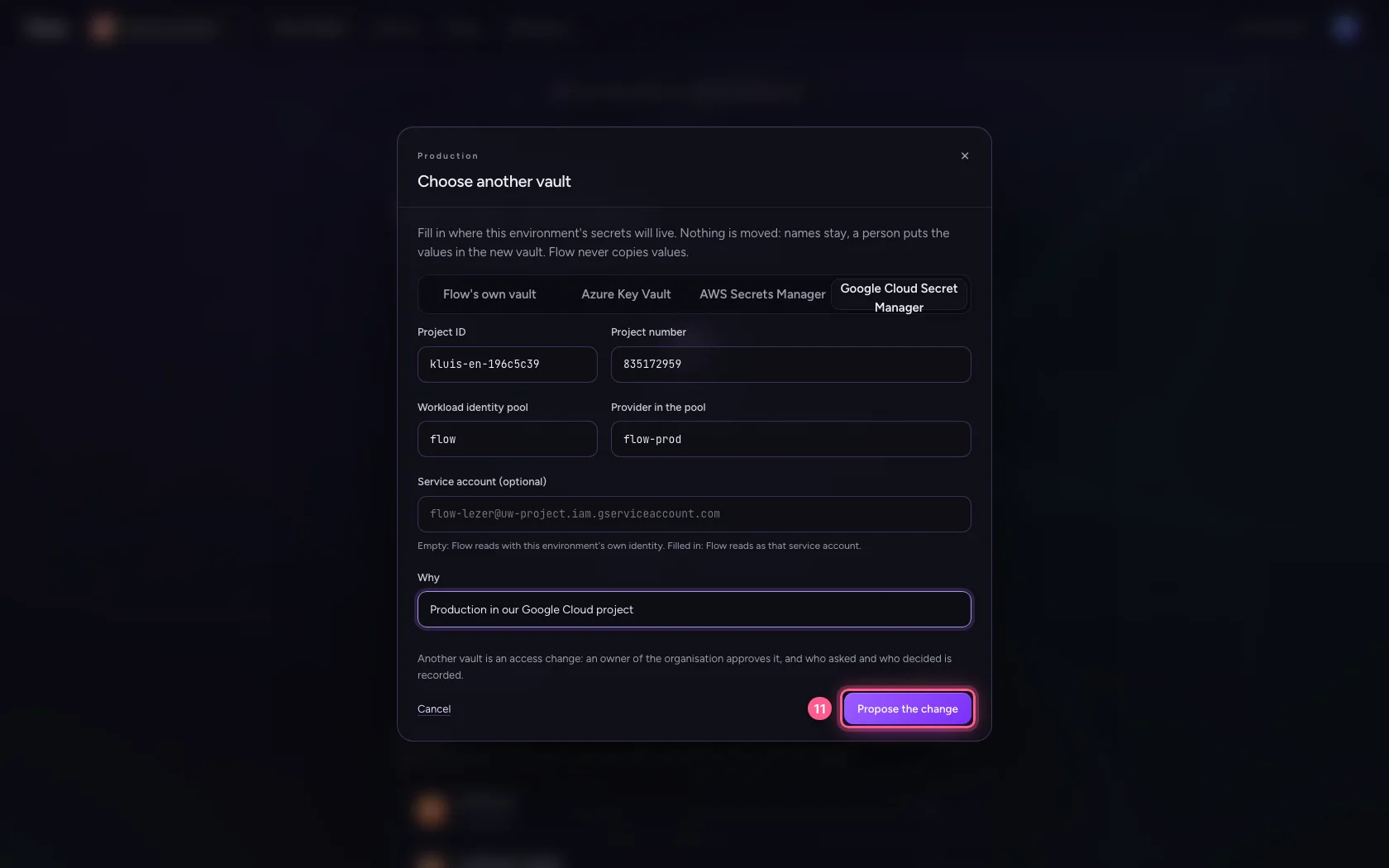
- Click Propose the change
Set up Google Cloud and test
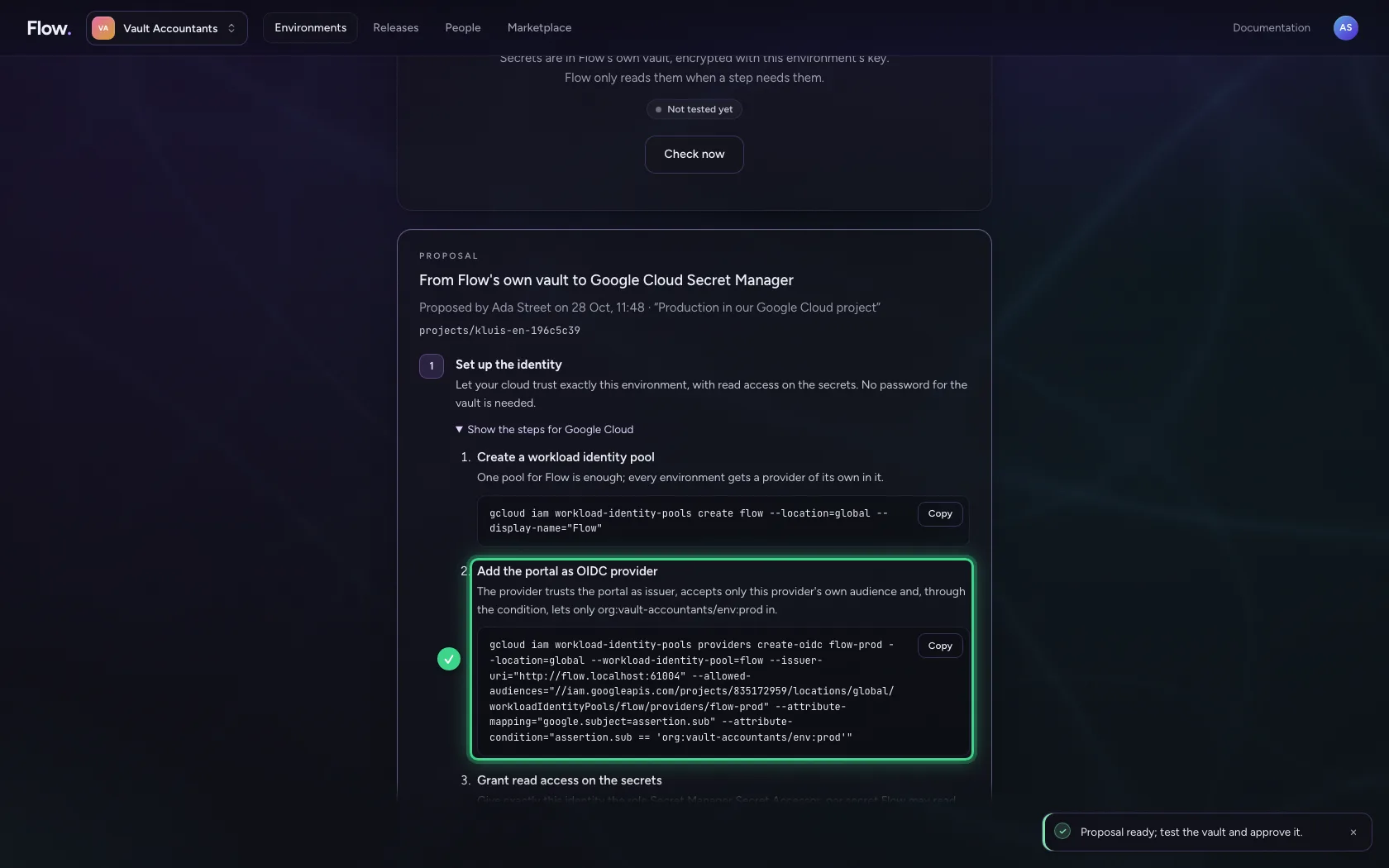
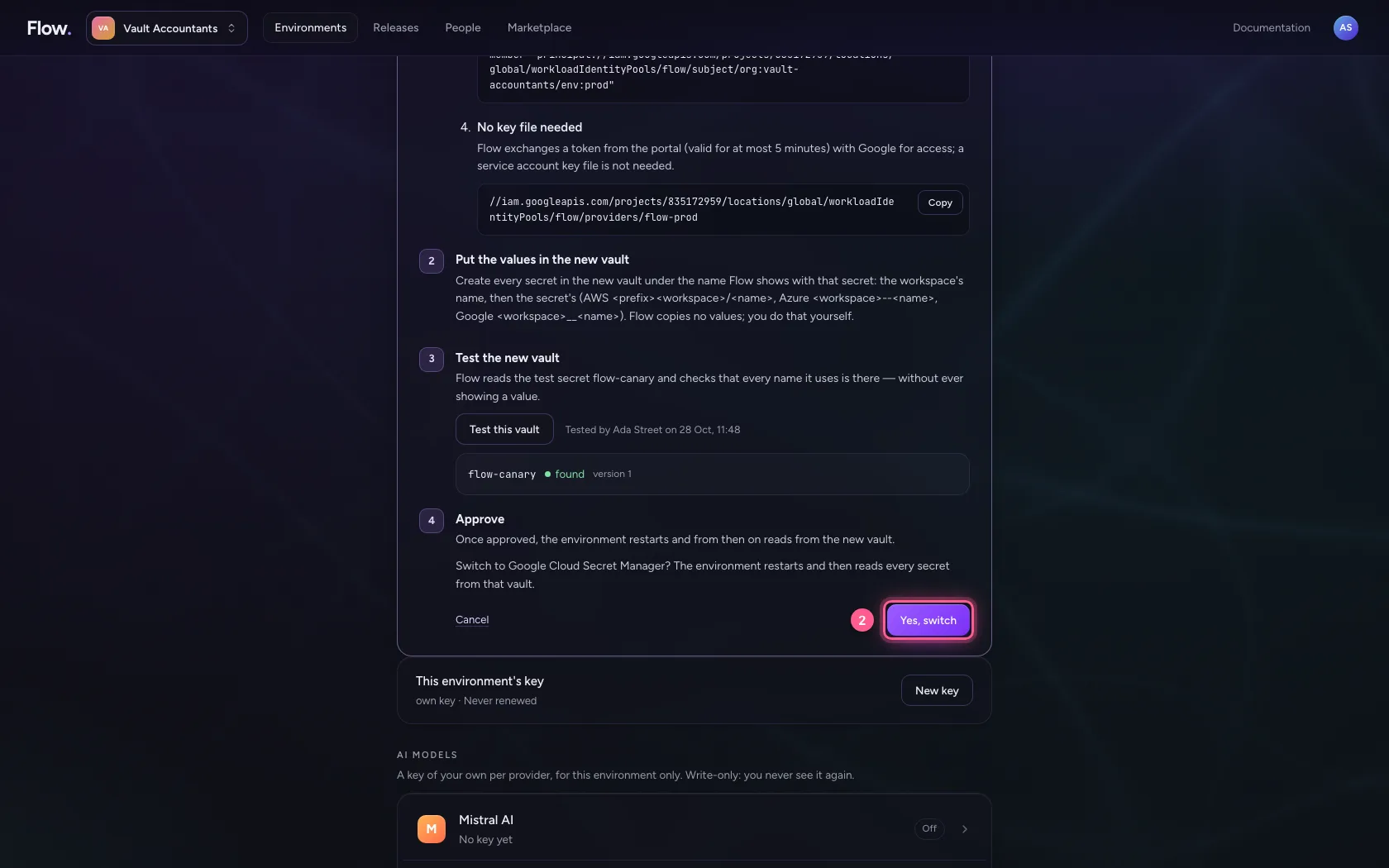
The steps in the portal already name your project number, pool and provider: create the pool, add the portal as OIDC provider with the condition that lets only Production in, and give that identity the role Secret Manager Secret Accessor. Put the values in Secret Manager under their workspace's name,
- Click Show the steps for Google Cloud
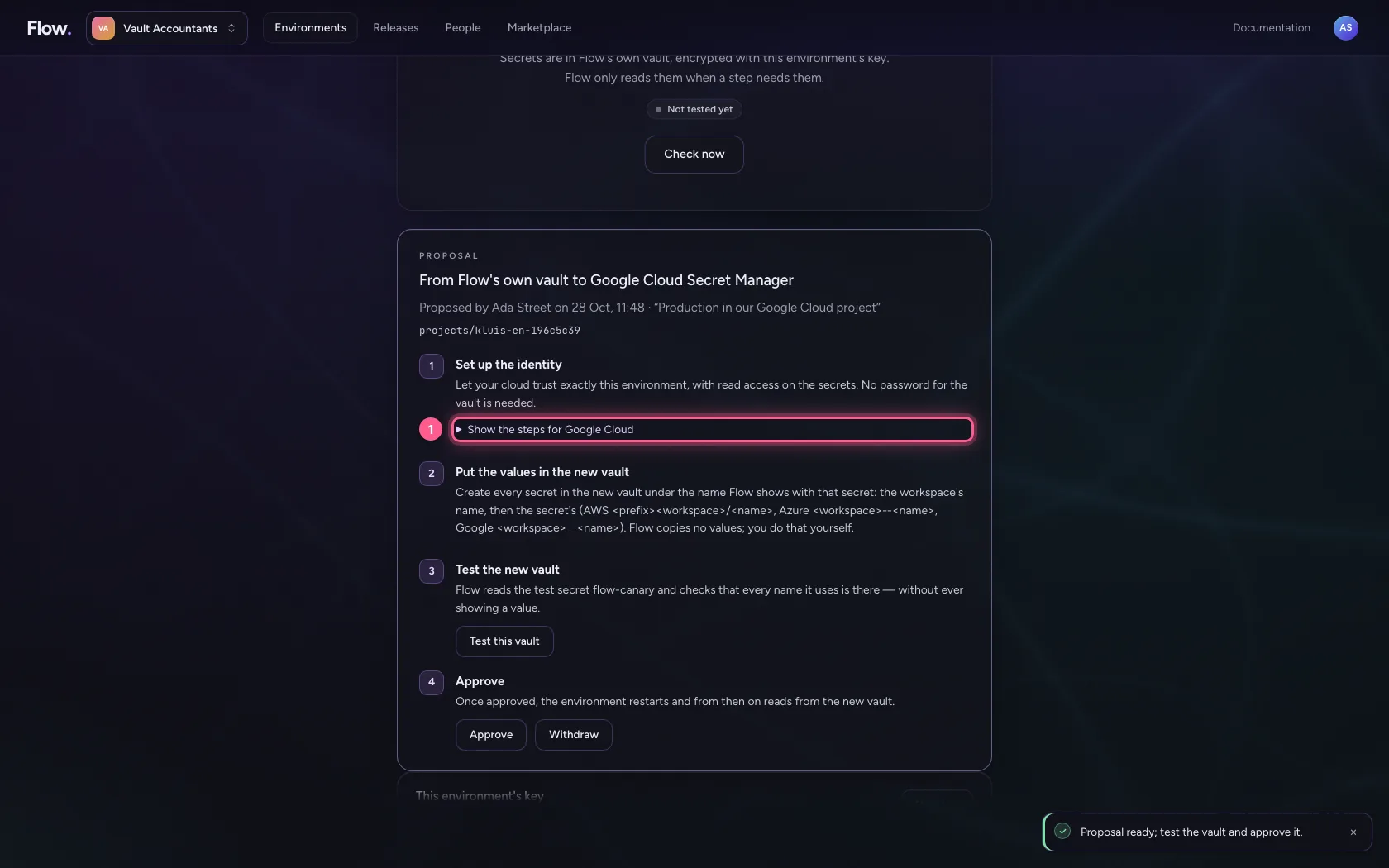
- Click Test this vault
Approve: Production reads from Google Cloud
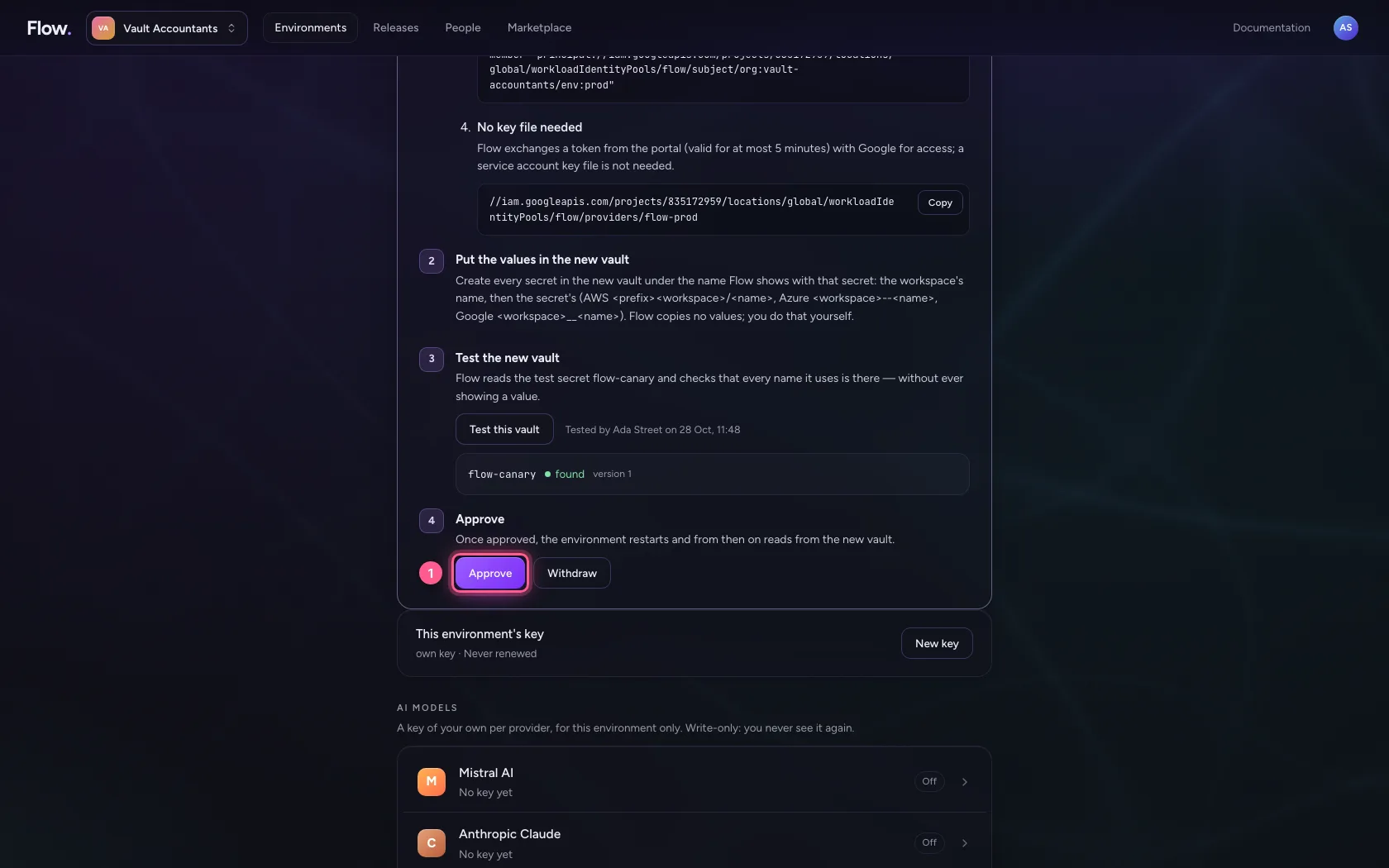
After approval Production restarts and from then on reads from Secret Manager; Development stays on AWS. The same workflow looks up the same name, each in its own vault. Check now proves it.
- Click Approve
- Click Yes, switch
- Click Check now
This guide was carried out step by step on 28 Oct 2026 by an automated test on Flow (version 96971699).