Set up signing in through your company
Your colleagues sign in with their work account, as with Microsoft. You connect your company's sign-in service once and choose who may come in. Only an owner does this.
Open Security and sign-in
Click your organisation's name at the top left and choose Security and sign-in.
- Click Switch organisation or open the organisation's settings

- Click Security and sign-in

Connect your company's sign-in service
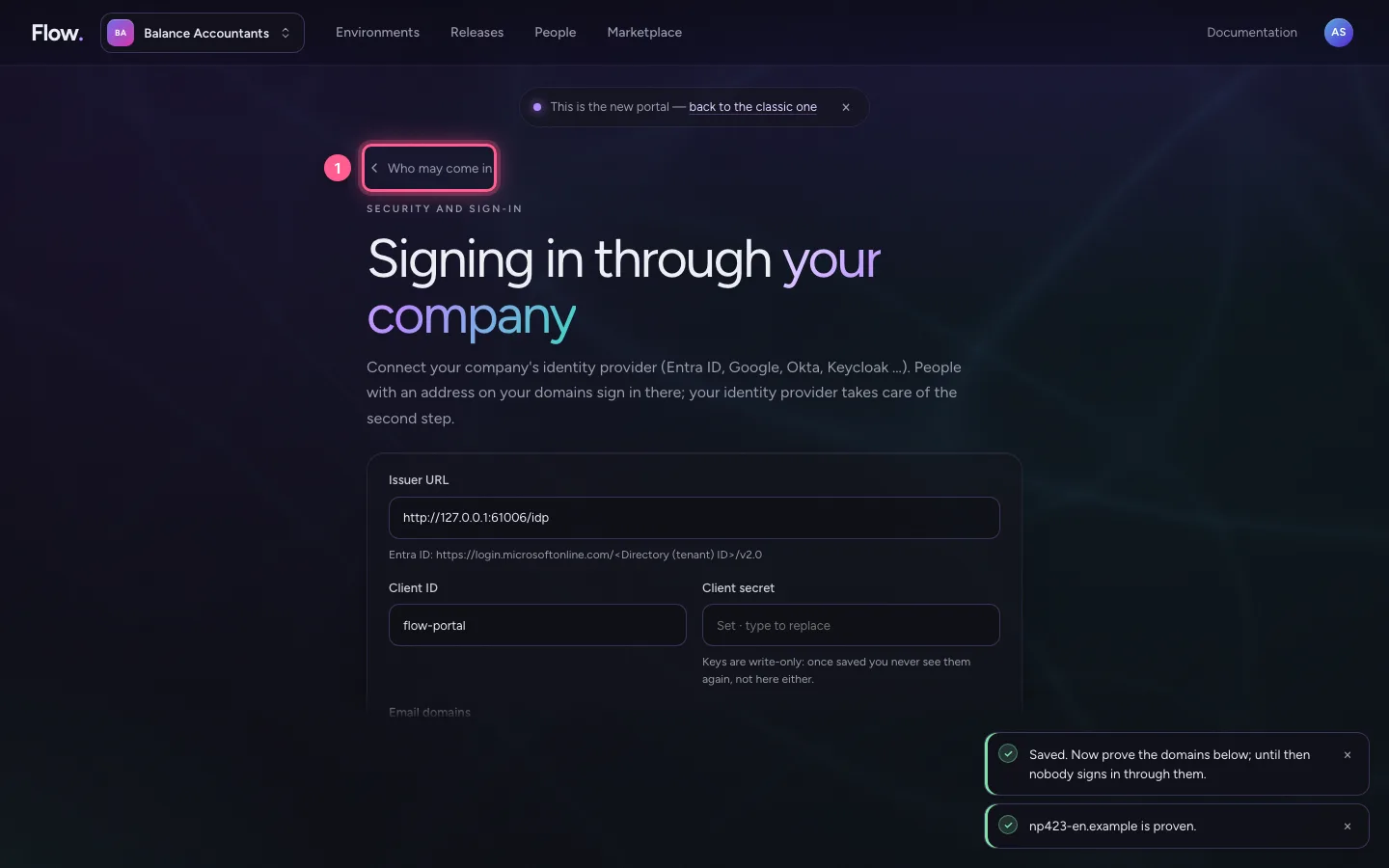
Choose Connect. Fill in the address of your sign-in service, the app's code and the secret you made there, and your company's email domain. The portal shows what to set up at your sign-in service.
- Click Connect

- In Issuer URL, type
http://127.0.0.1:61006/idp - In Client ID, type
flow-portal - In Client secret, type
•••••••• - In Email domains, type
np423-en.example

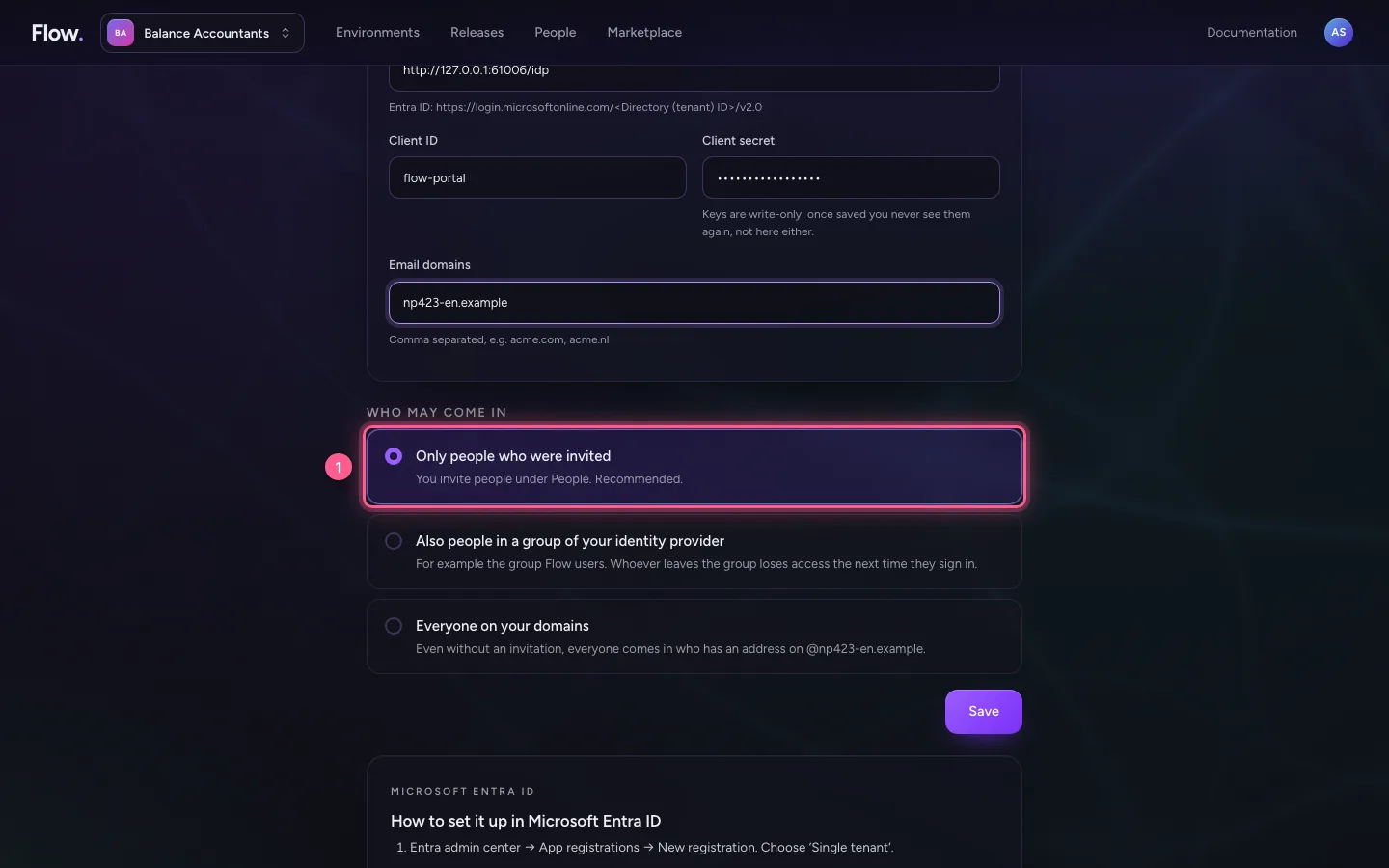
Choose who may come in
Leave Only people who were invited, unless everyone at your company really has to use Flow. Whoever you invite then signs in through your company.
- Click Only people who were invited You invite people under People. Recommended.
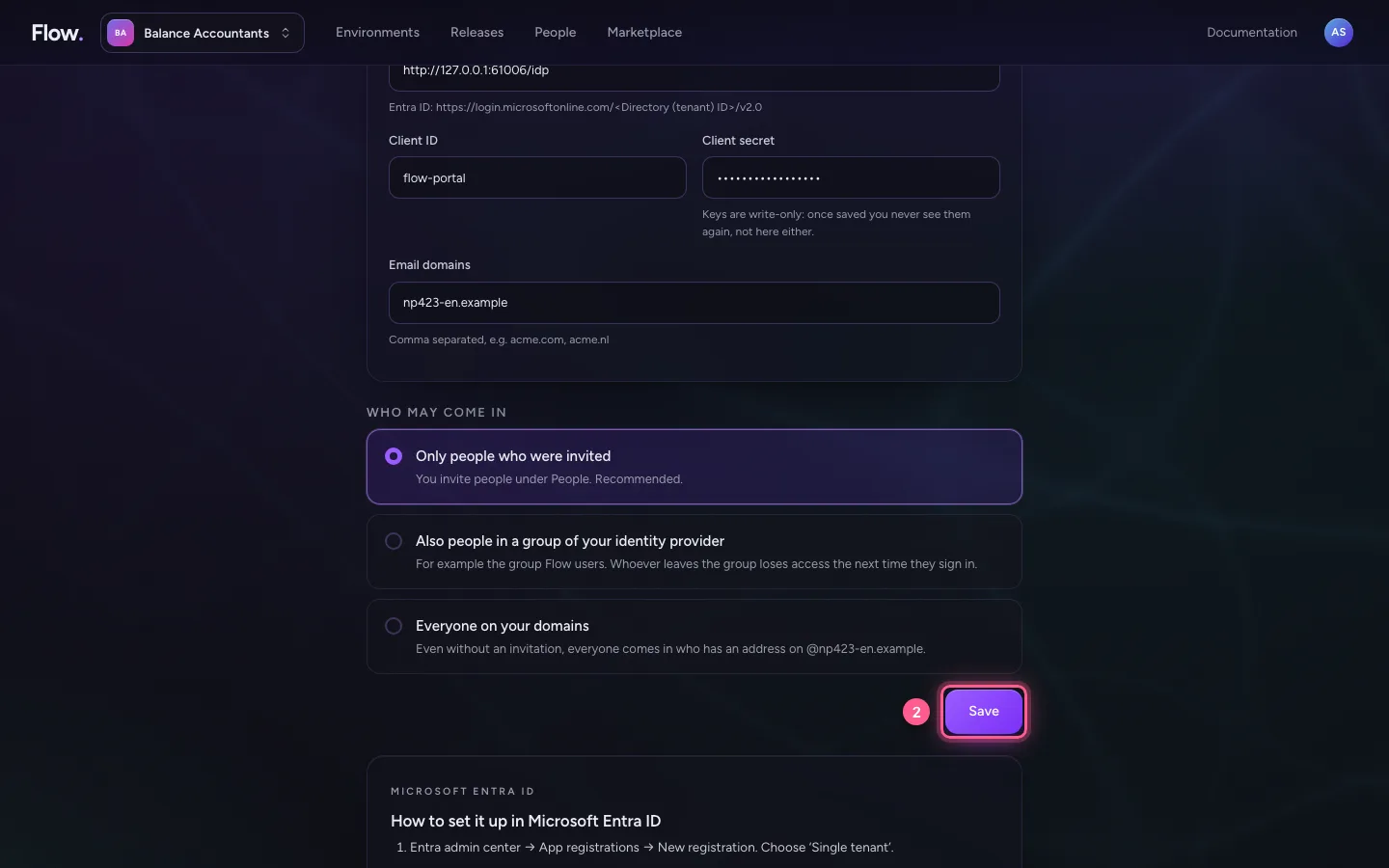
- Click Save
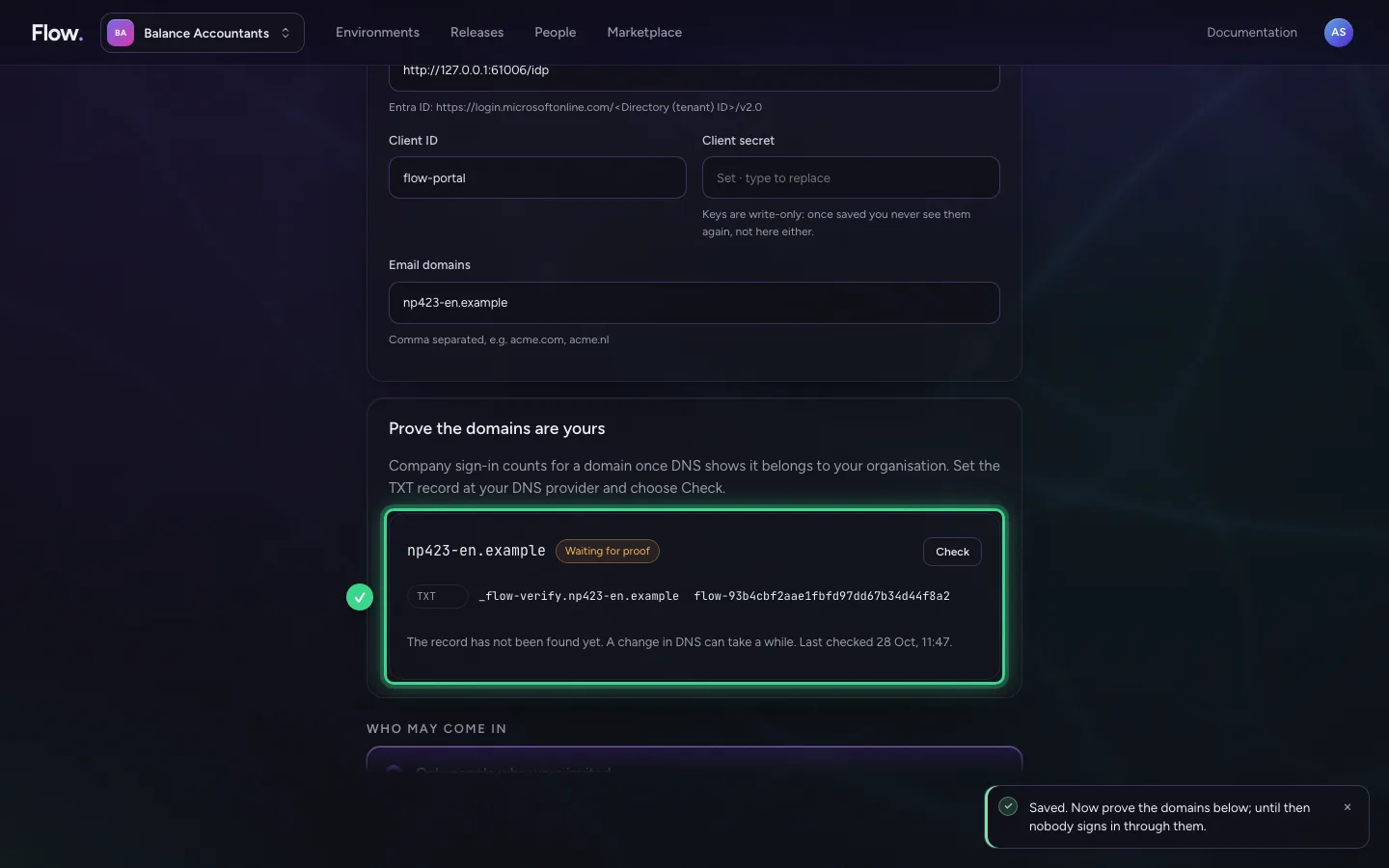
Prove the domain is yours
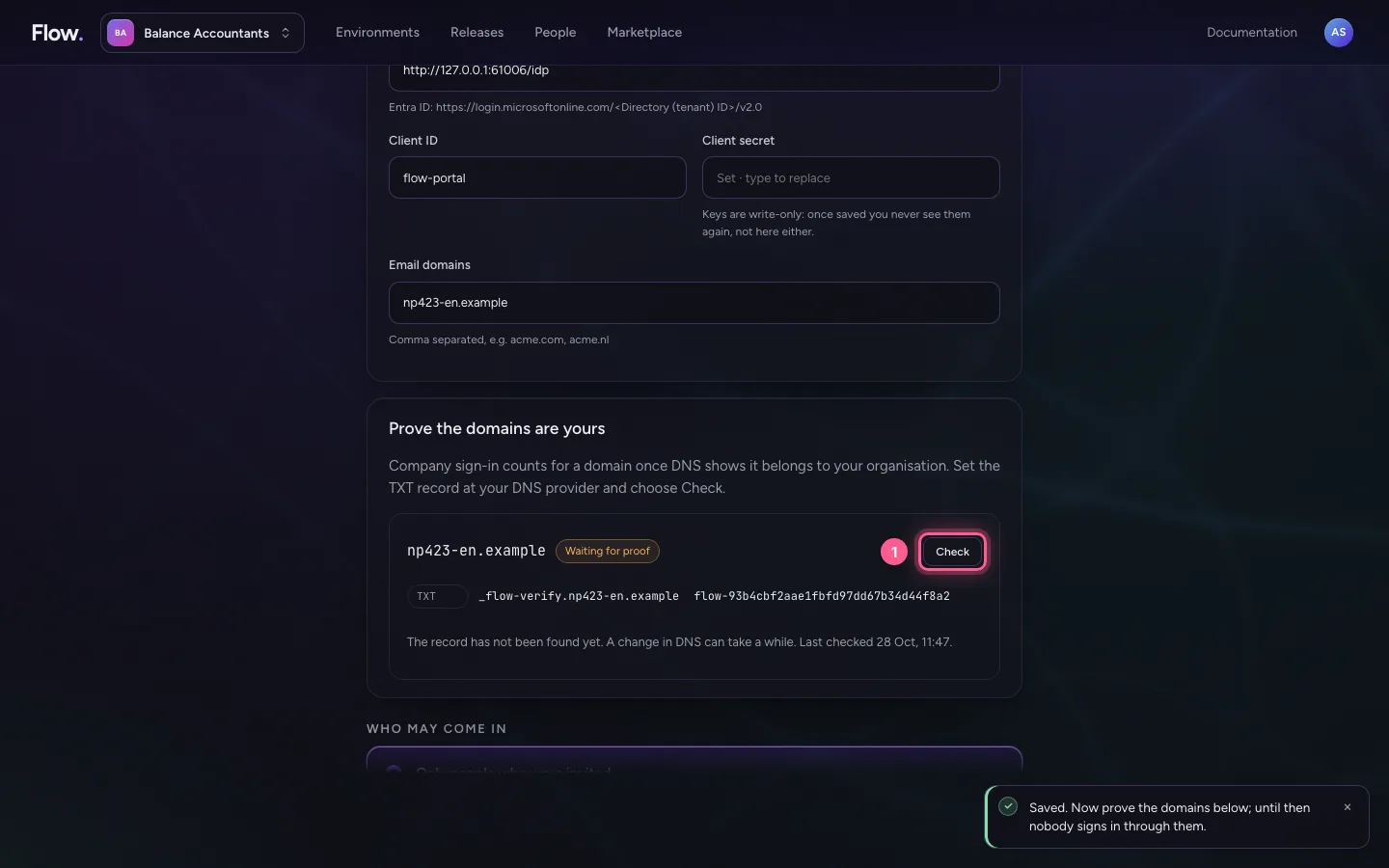
Flow only sends people to your sign-in service once DNS shows the domain belongs to your organisation; that way nobody else can claim your domain. Set the TXT record the portal shows at your DNS provider and choose Check.
- Click Check

Check that it is on
Go back to Who may come in. Signing in through your company says Active, with your domain.
- Click Who may come in

This guide was carried out step by step on 28 Oct 2026 by an automated test on Flow (version 96971699).