Releases
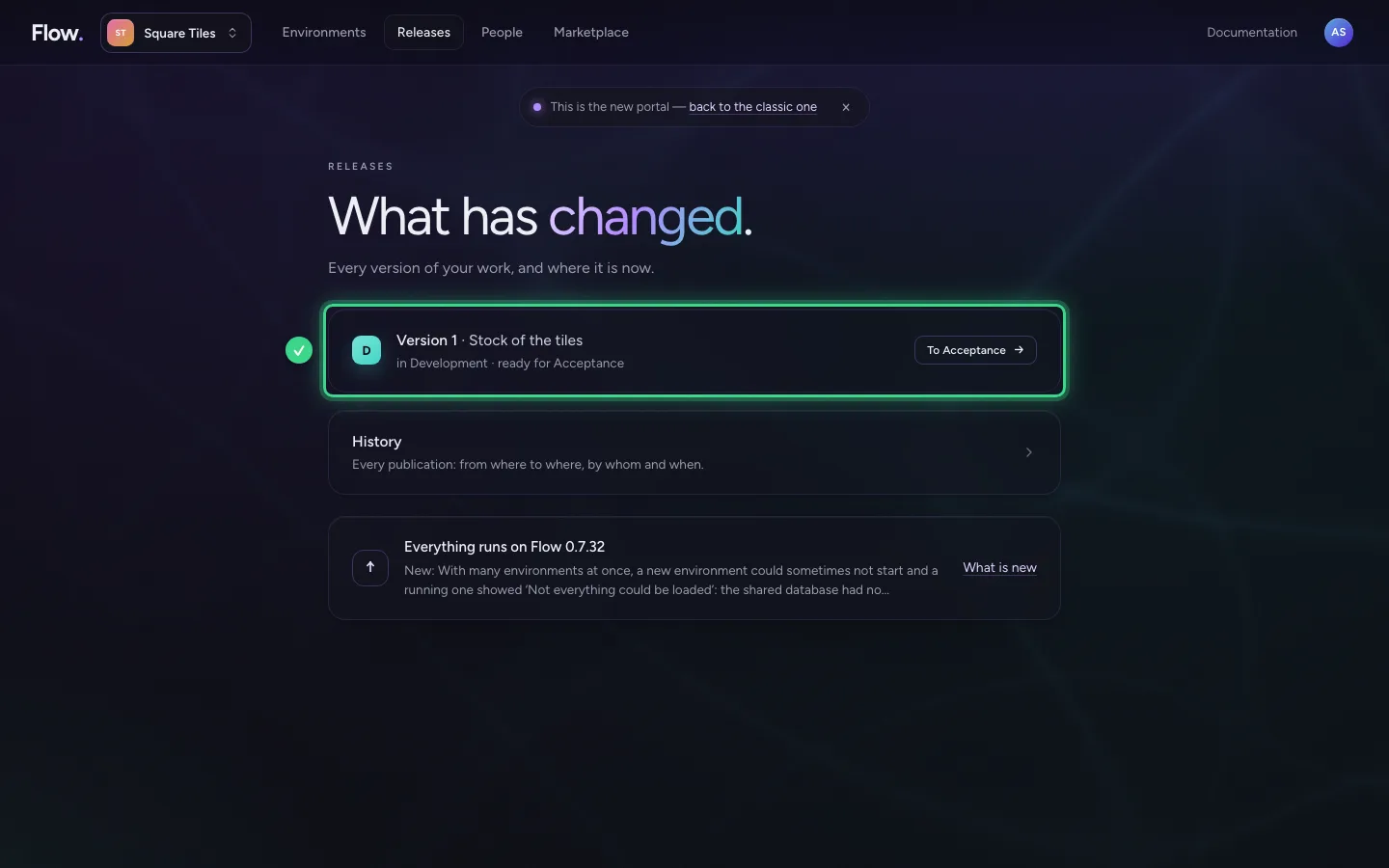
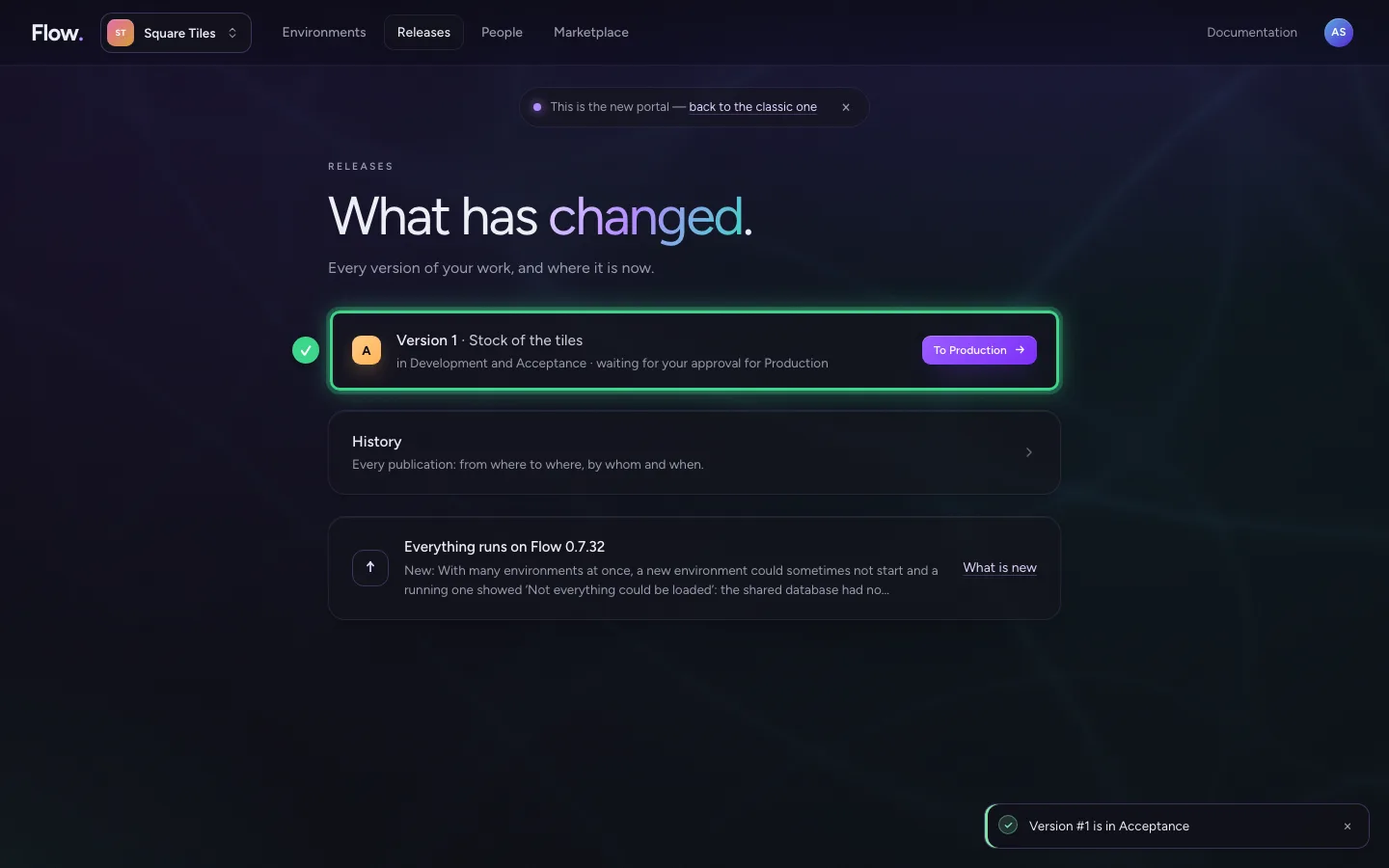
Releases shows what changed: every version of your work, and which environment it is in now. You also move a version on to the next environment here. At the bottom it says when there is a new version of Flow itself.
Open Releases
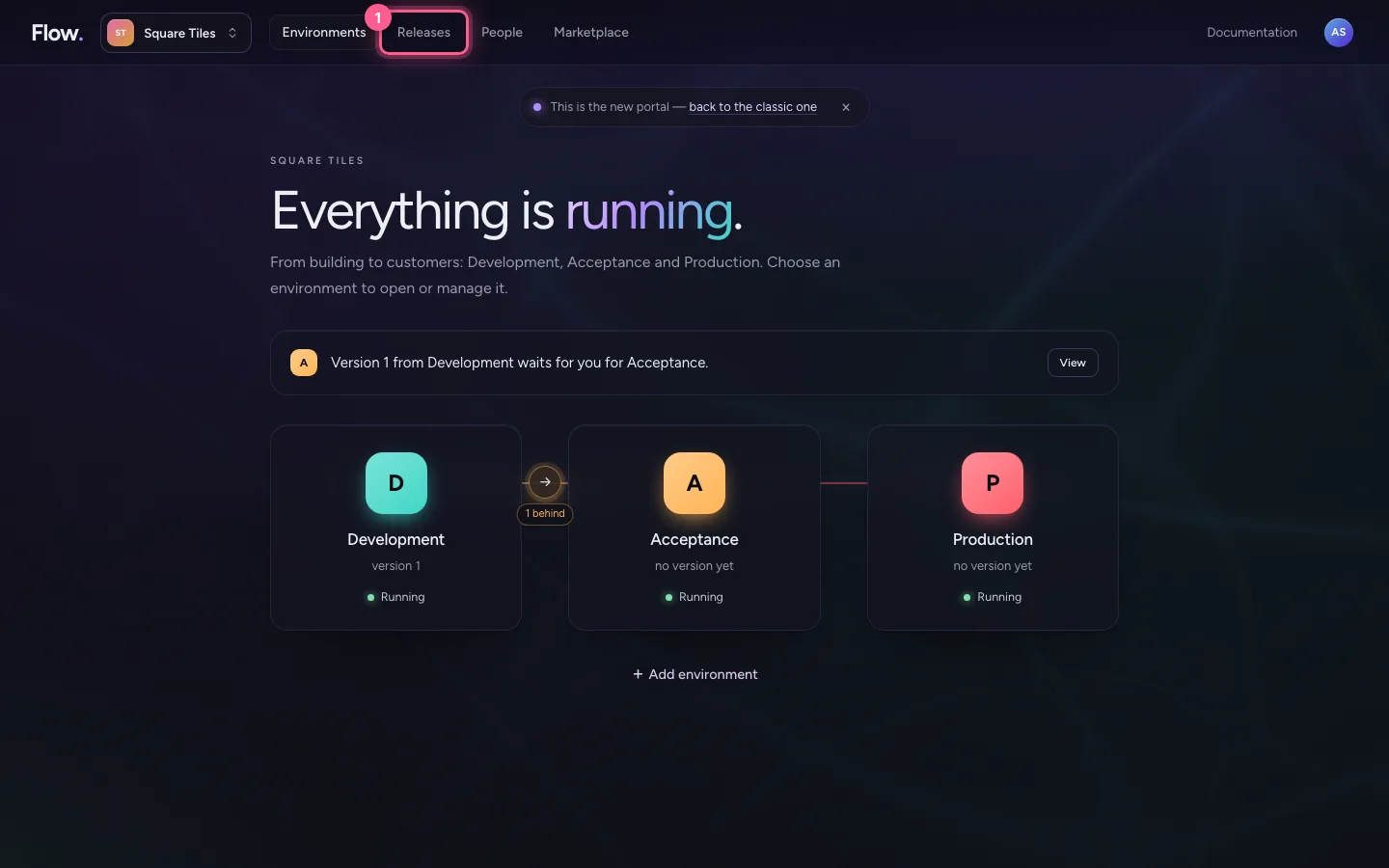
Click Releases at the top. Every version of your work is on one line, the newest at the top. The coloured block says how far the version has come: D for Development, T for Test, A for Acceptance, P for Production.
- Click Releases
Move a version on
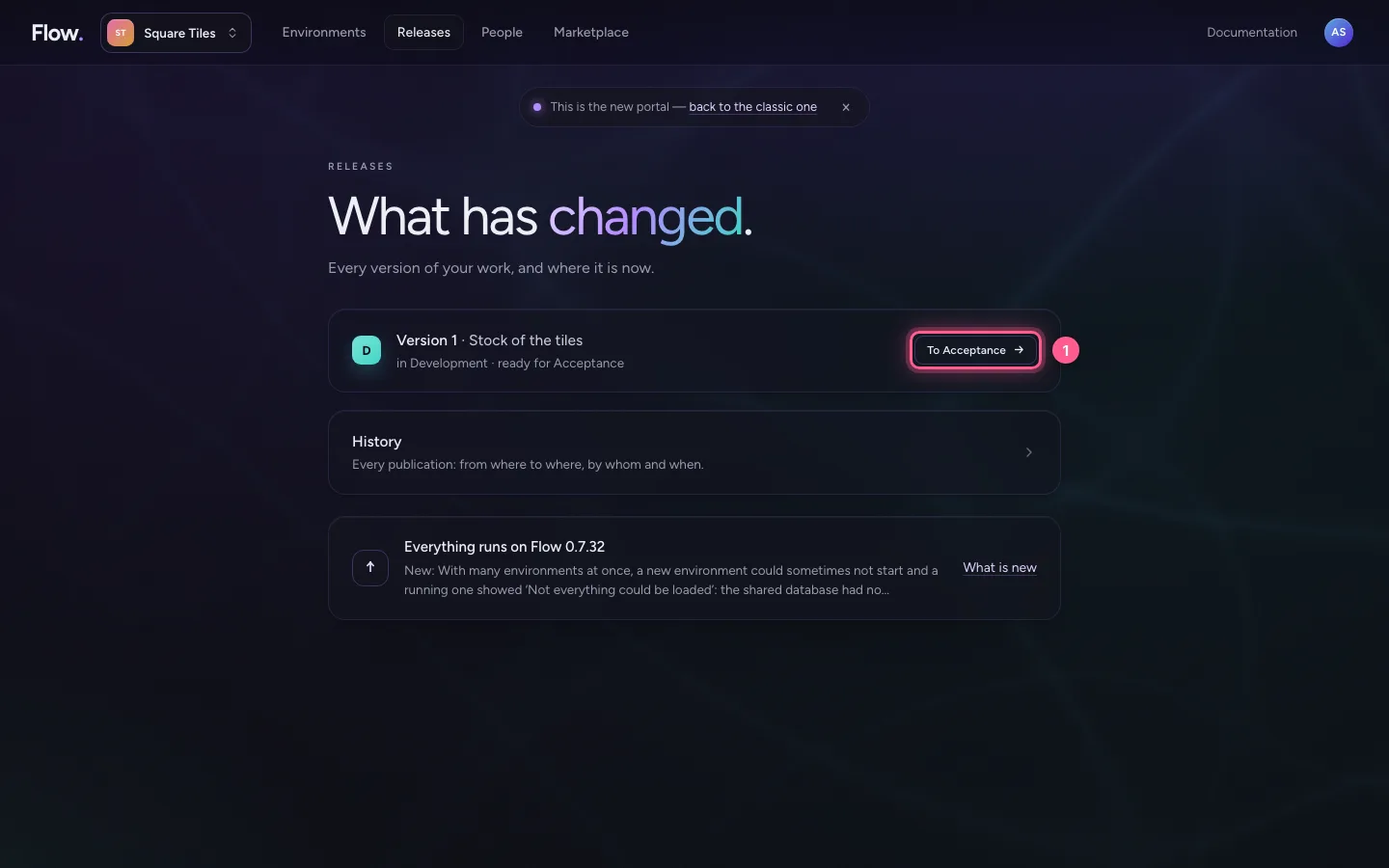
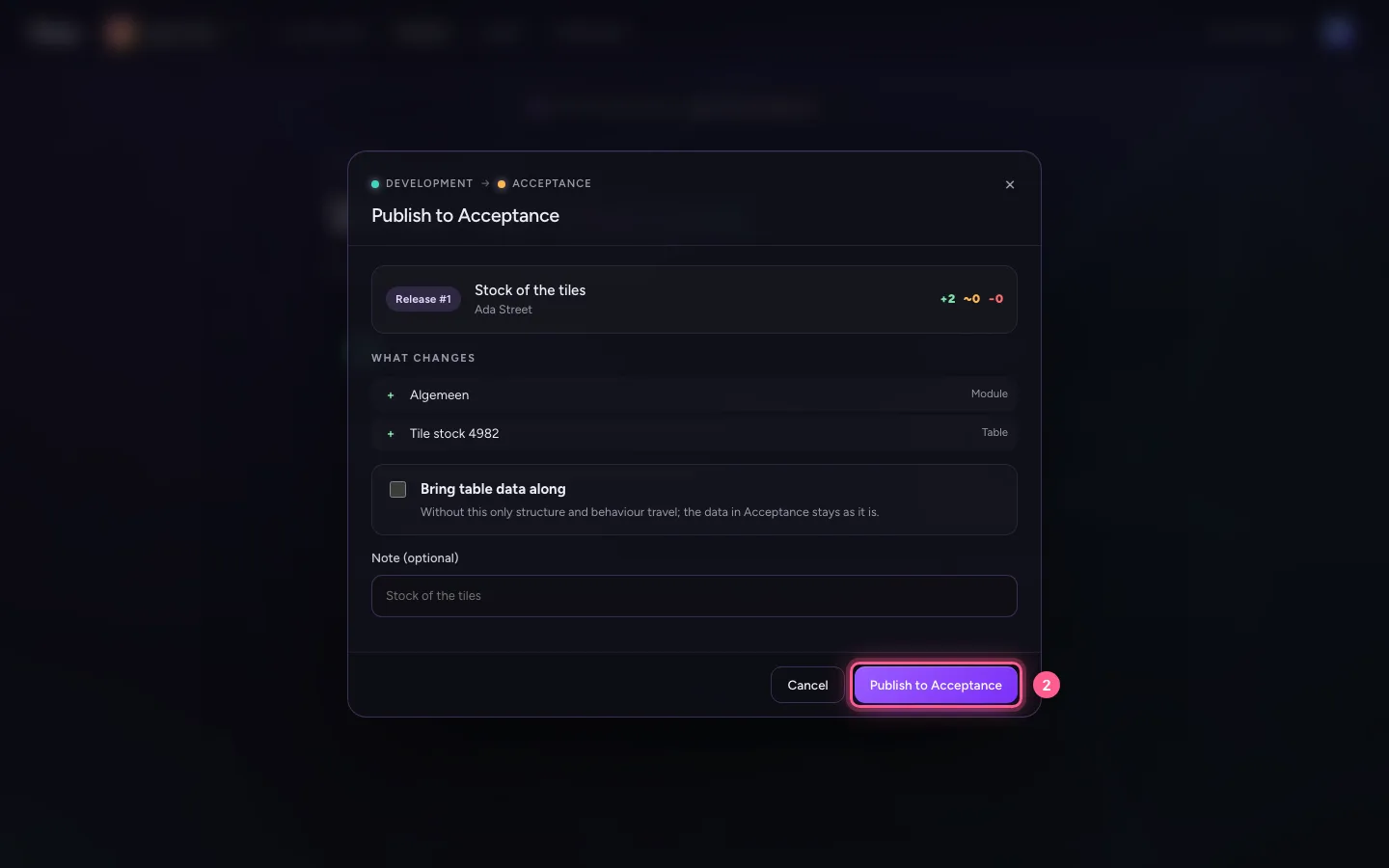
Click To Acceptance. First you see what changes: what is added, what is different and what goes. Then click Publish to Acceptance. A builder moves versions up to Acceptance; an owner moves them into Production.
- Click To Acceptance →
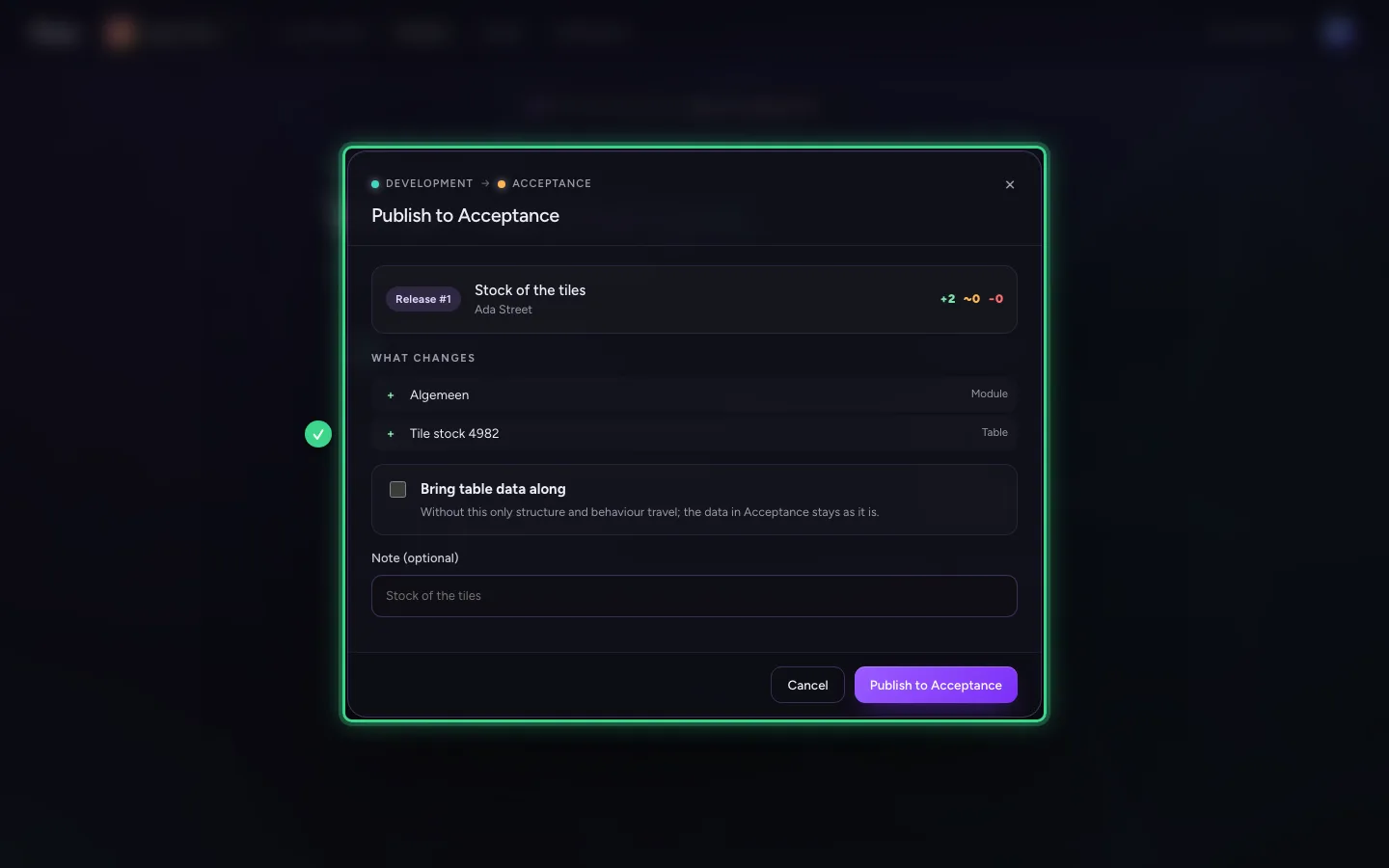
- Click Publish to Acceptance
The history
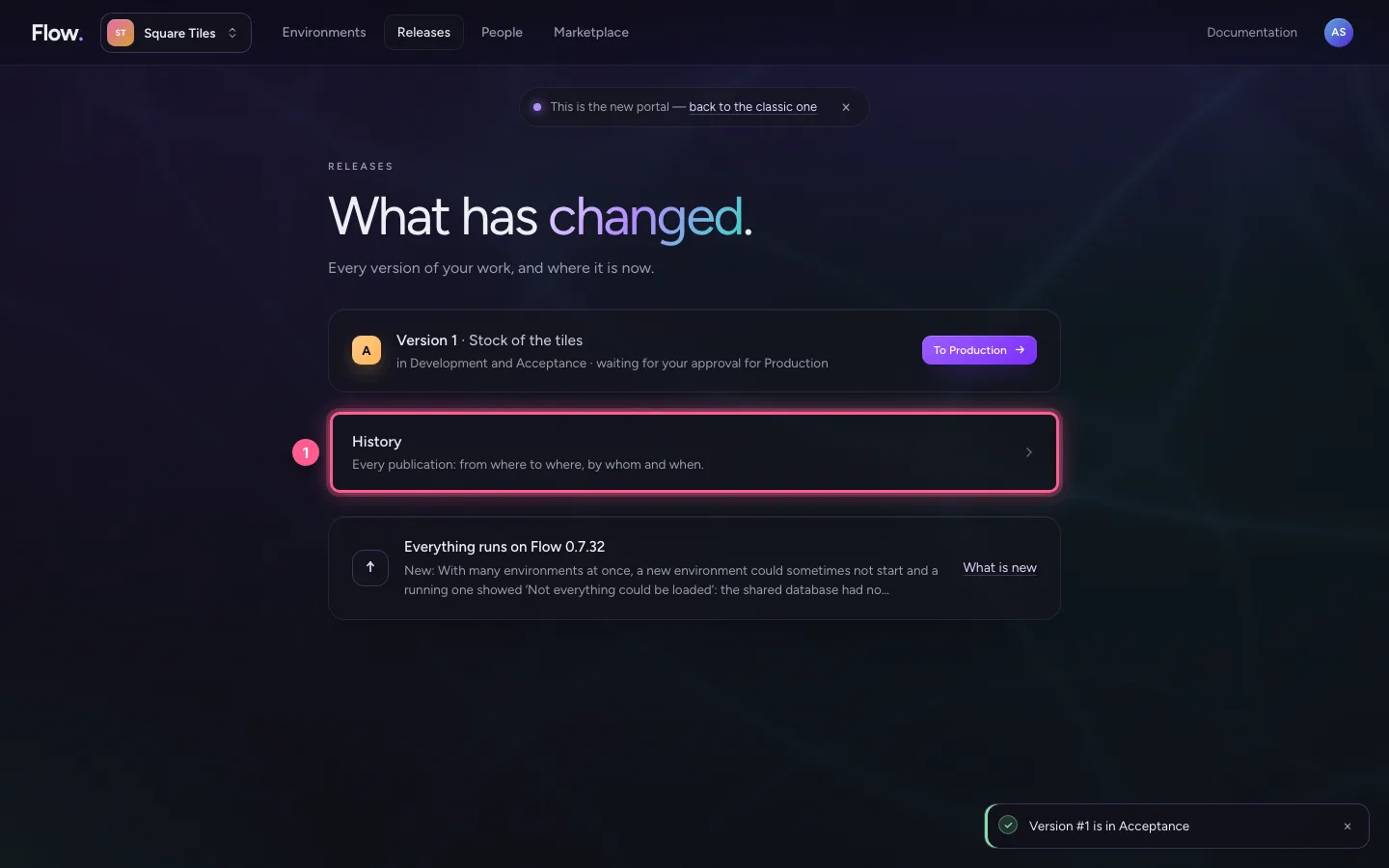
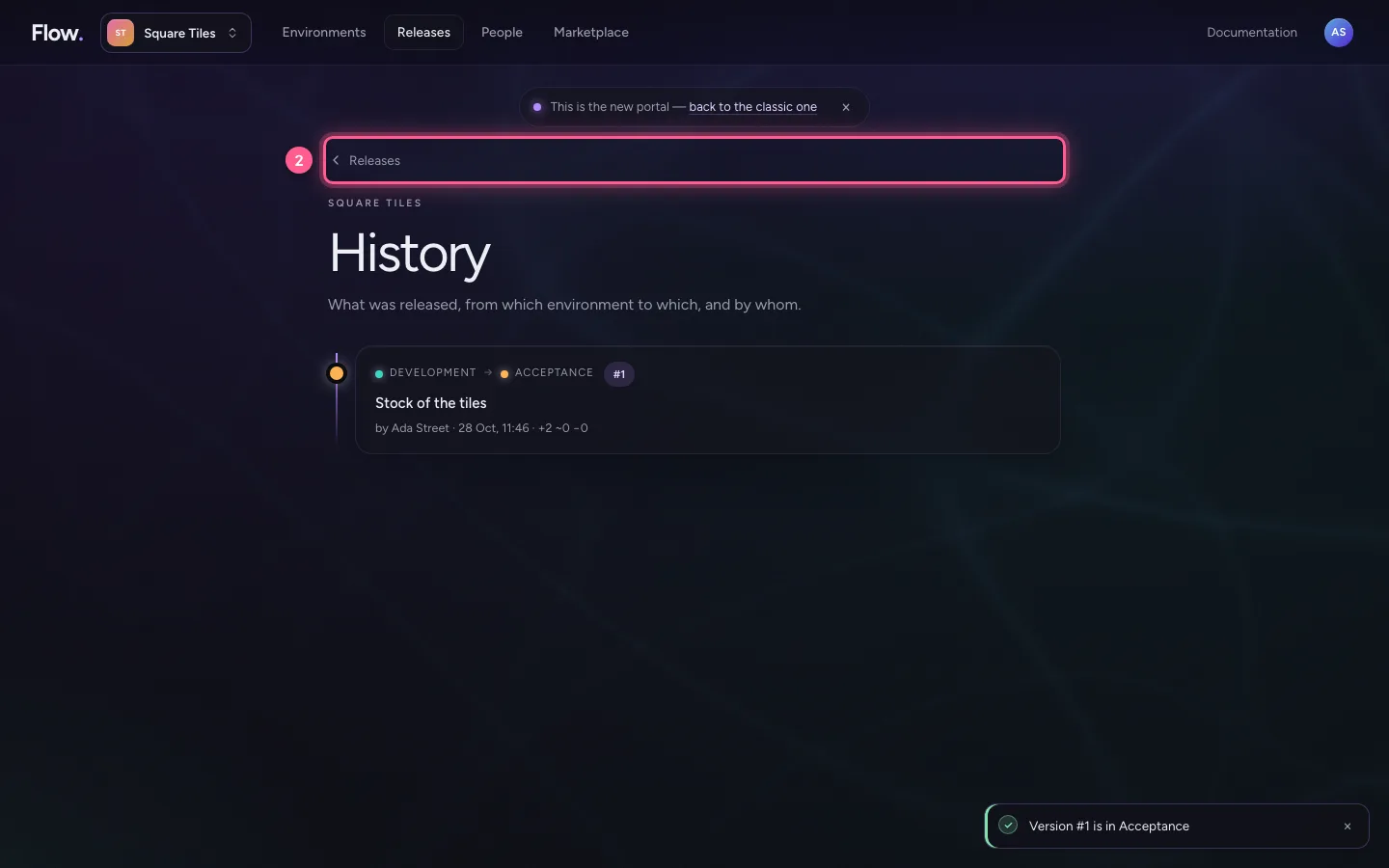
Below the versions is History. It lists every publication: from which environment to which, by whom, when and what changed.
- Click History Every publication: from where to where, by whom and when.
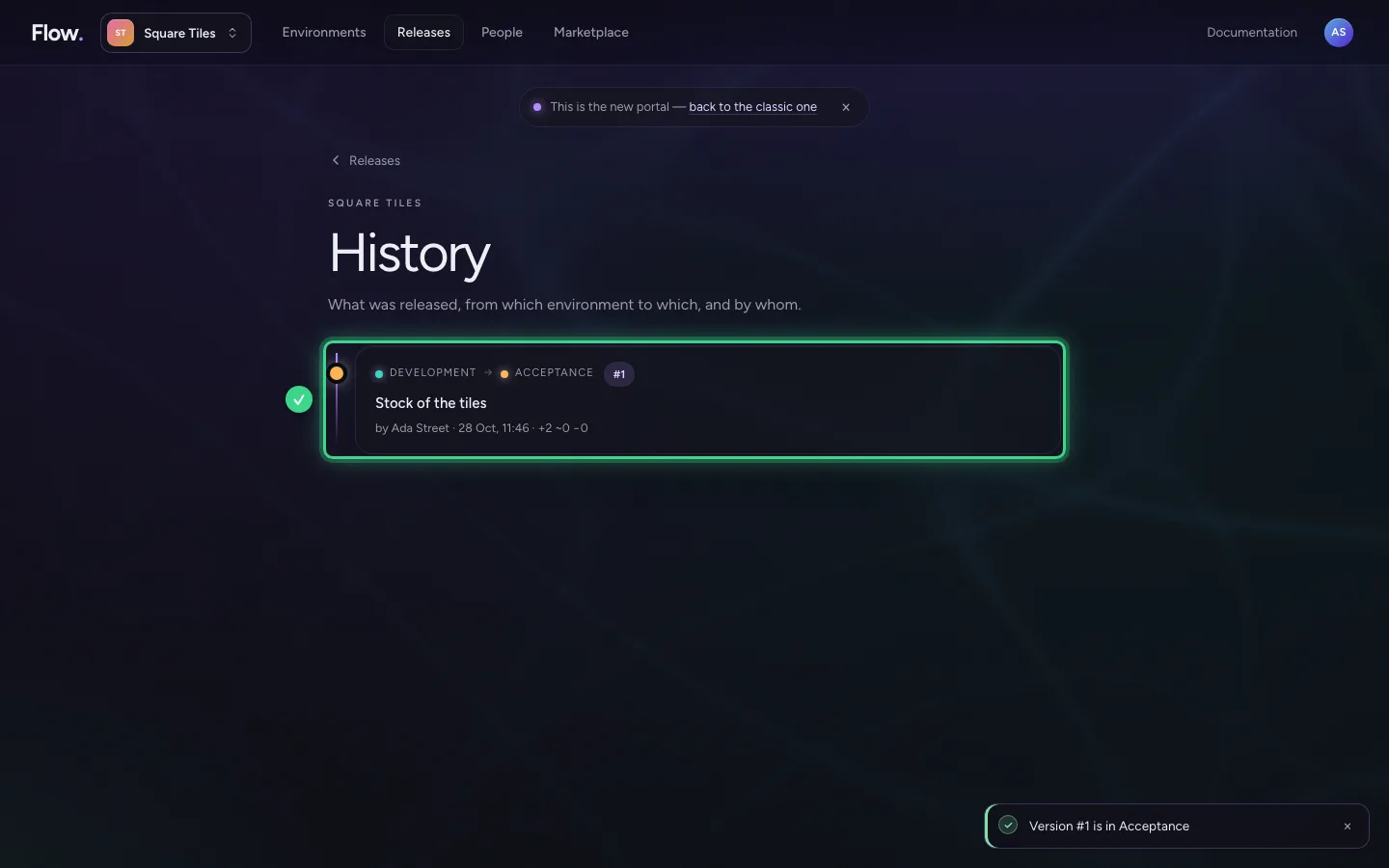
- Click Back to Releases
A new Flow
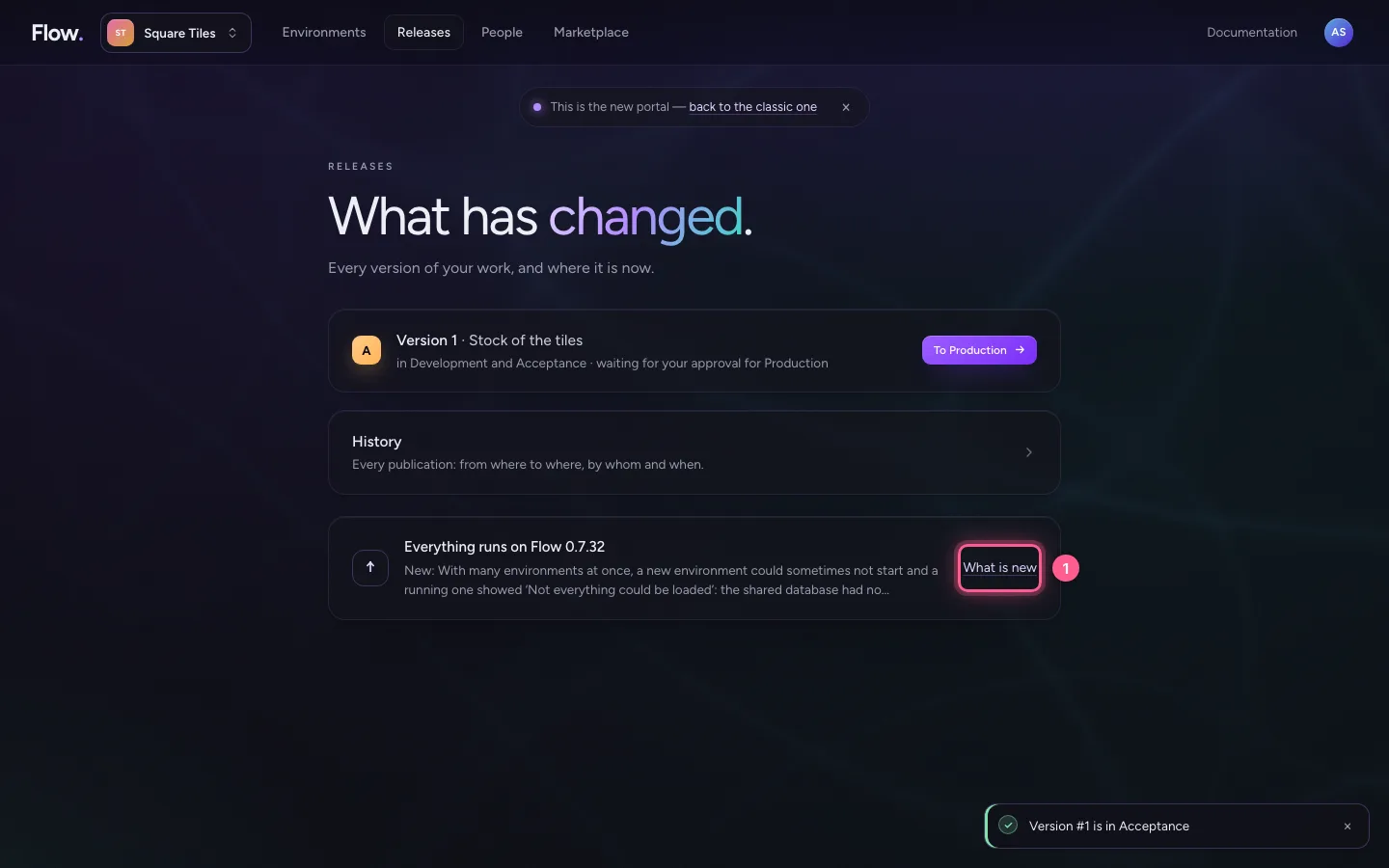
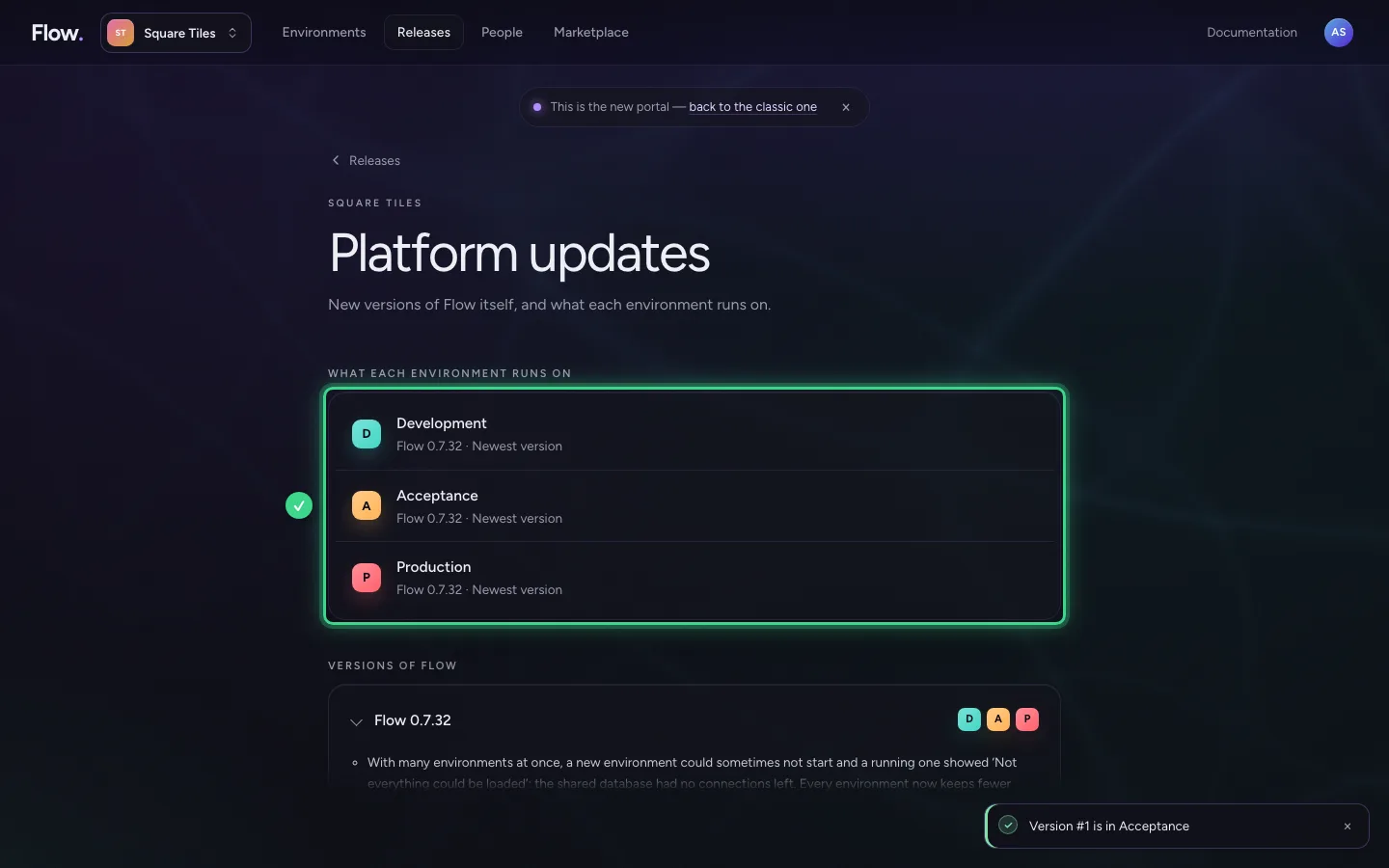
At the bottom is the newest version of Flow itself, with what is new and where it already runs. Click What is new: you see what each environment runs on and every version of Flow with its changes. When two or more environments run an older Flow, an owner moves them to the newest one here with Update all, one after another.
- Click What is new
This guide was carried out step by step on 28 Oct 2026 by an automated test on Flow (version 96971699).