Compare and restore versions
Version control keeps track of what changes in your environment. You commit a version, change something, see line by line what is different, and restore one item to an earlier version without touching the rest. Restoring is itself a change you commit: history is never lost.
Open your development environment
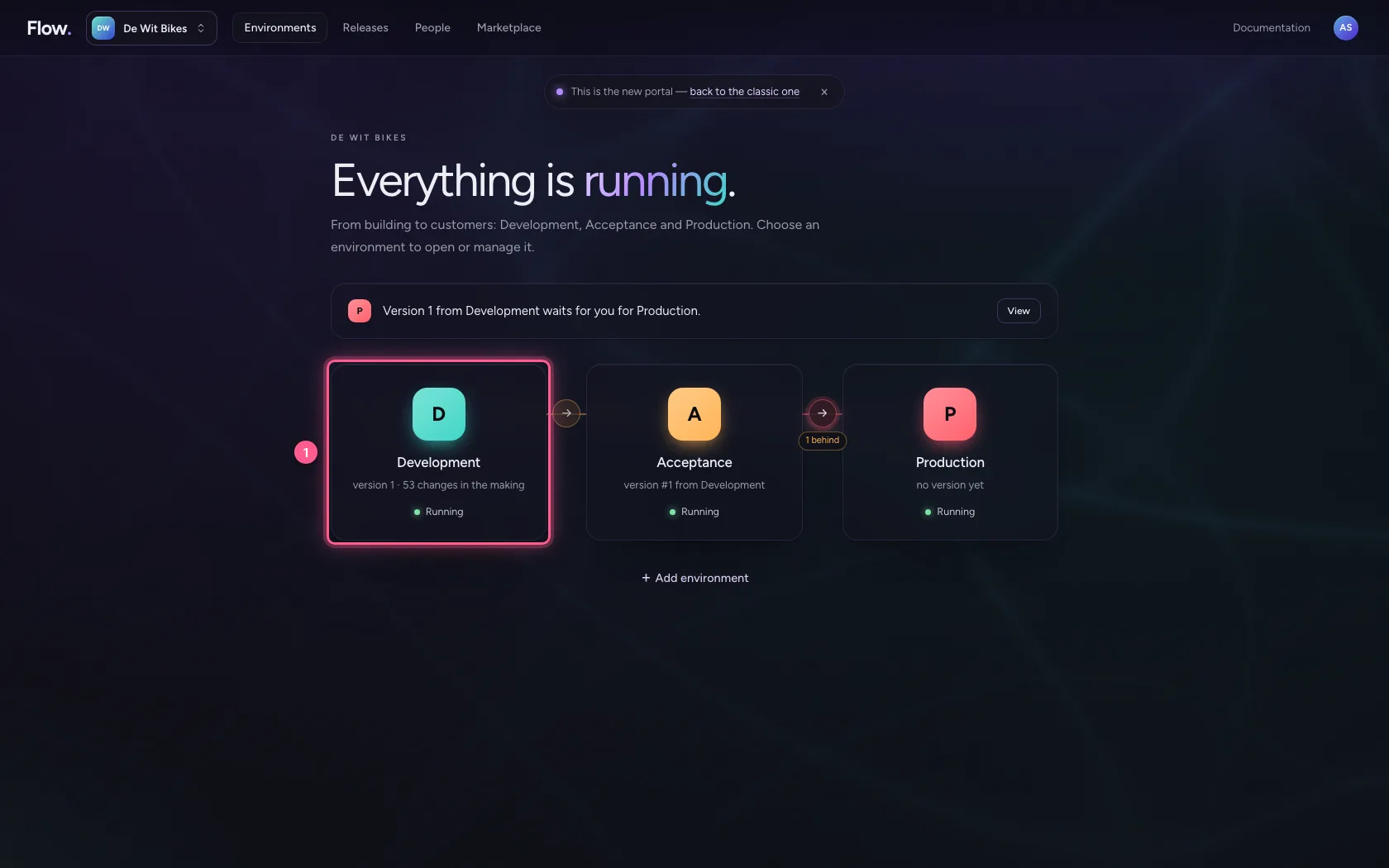
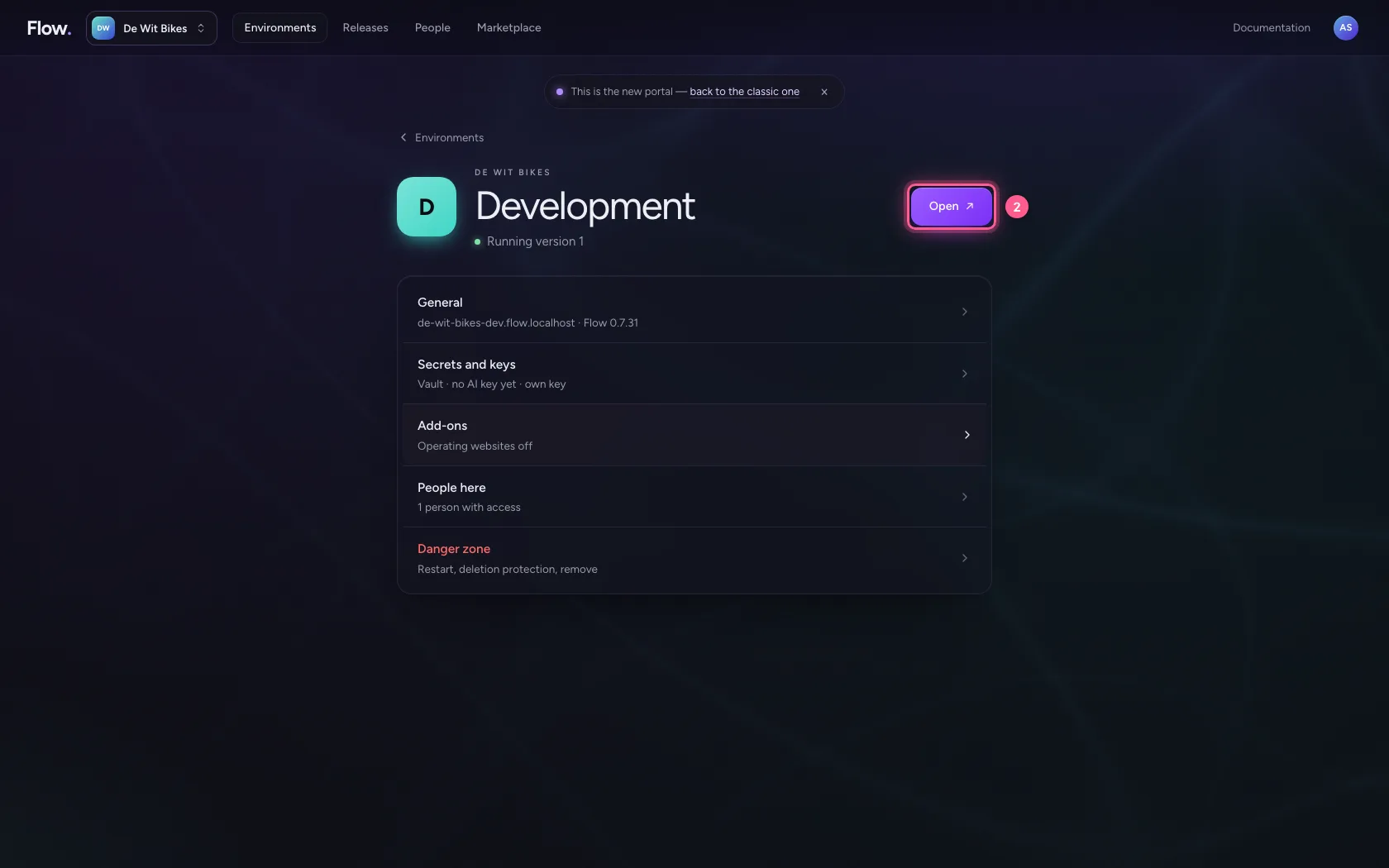
In the portal, under Environments, click Development, and there Open. Flow opens in a new tab and you are signed in straight away.
- Click Development
- Click Open ↗
Commit a version
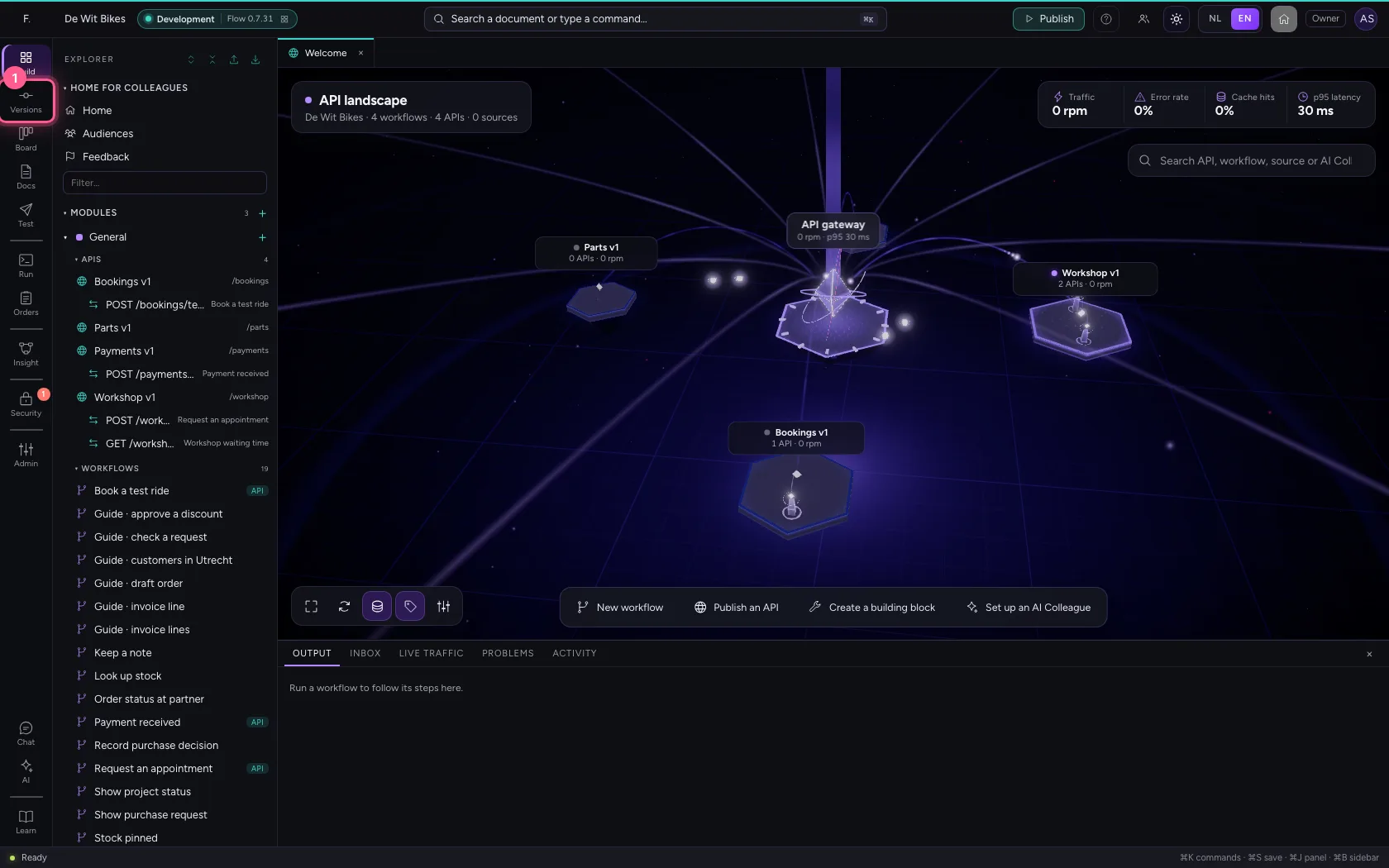
Click Versions (version control) in the bar on the left. Under Changes is everything that is new or different since the previous version, like the price list. Describe in one sentence what you changed and commit it.
- Click Version control
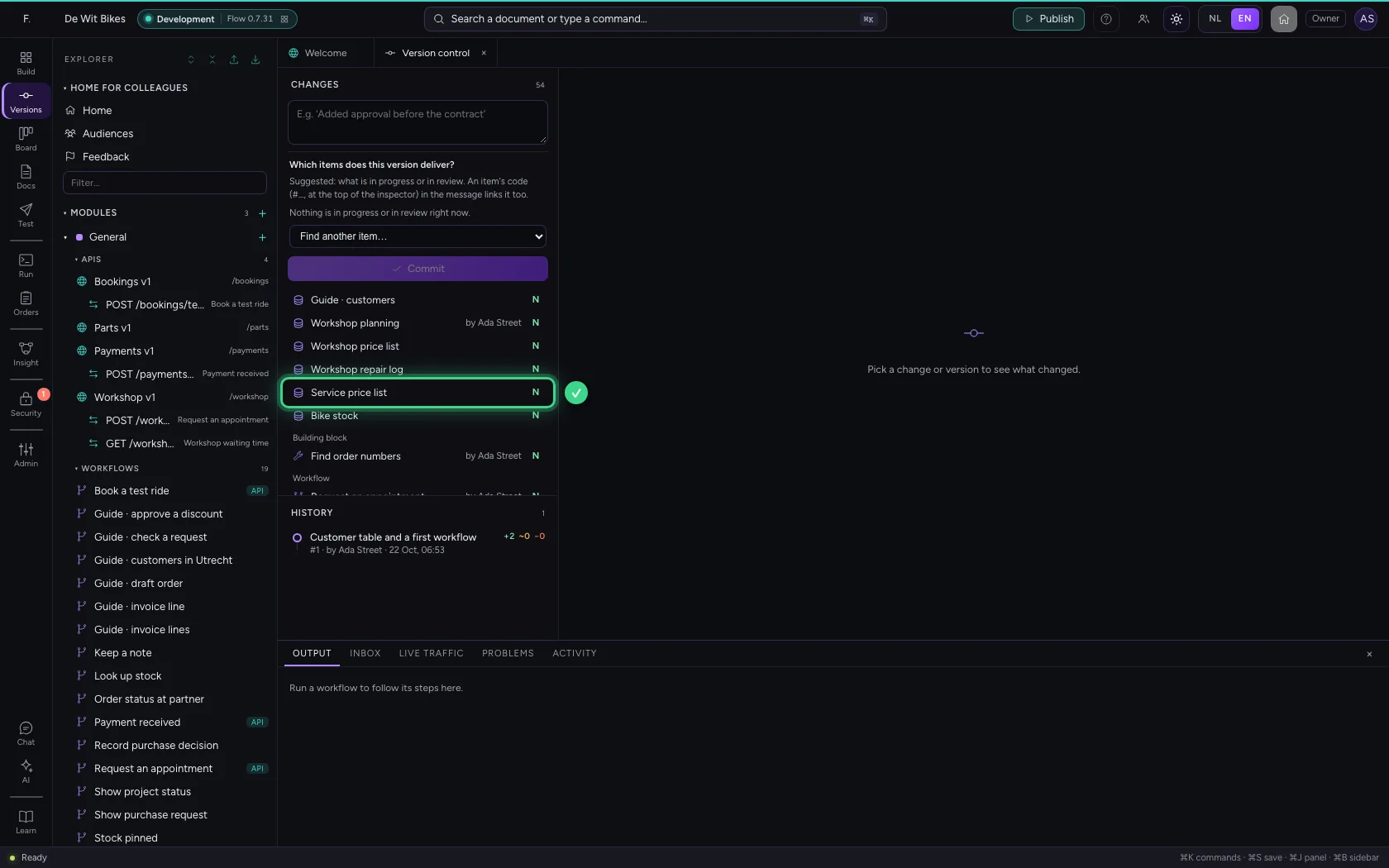
- In What did you change?, type
Price list for servicing
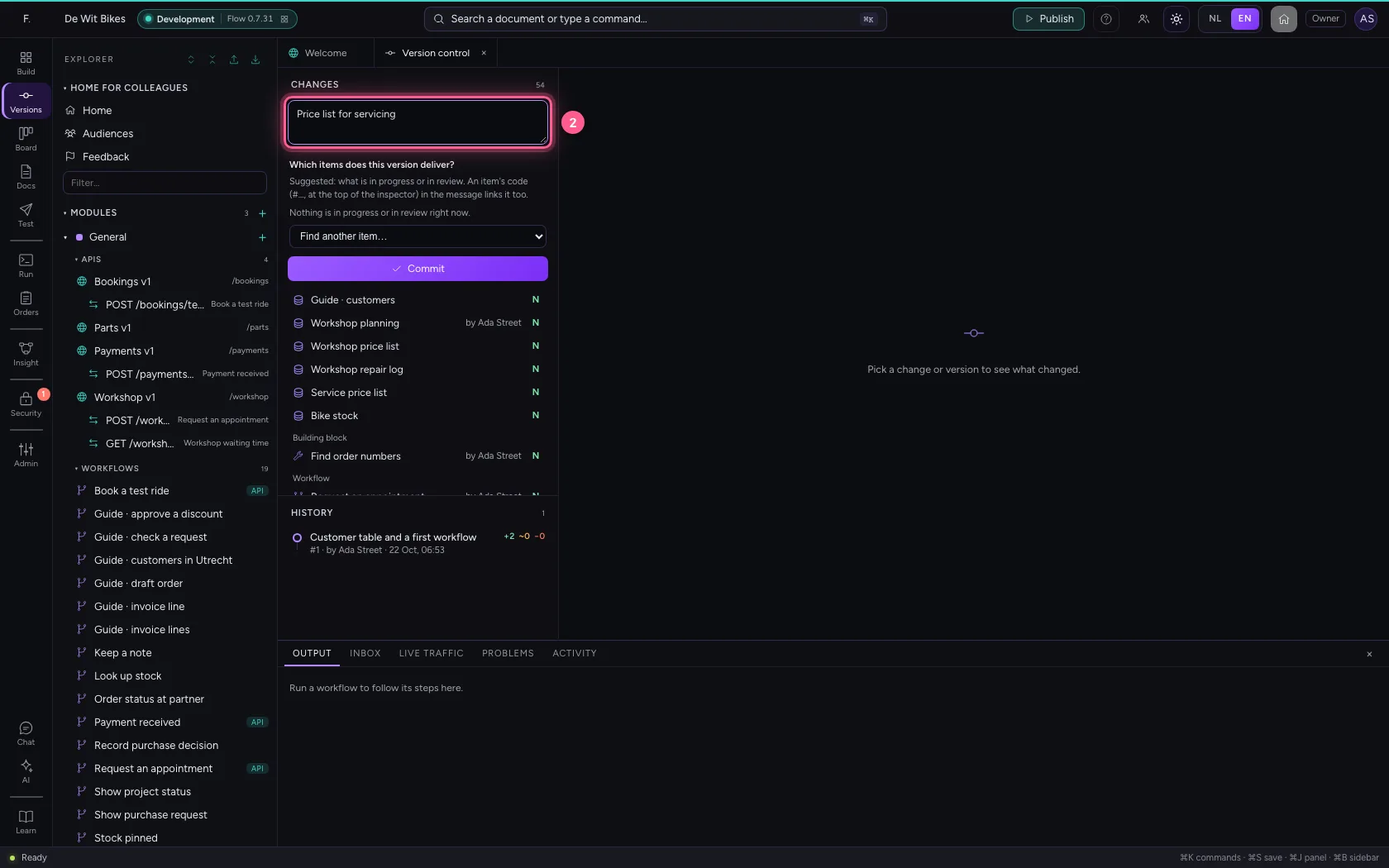
- Click Commit
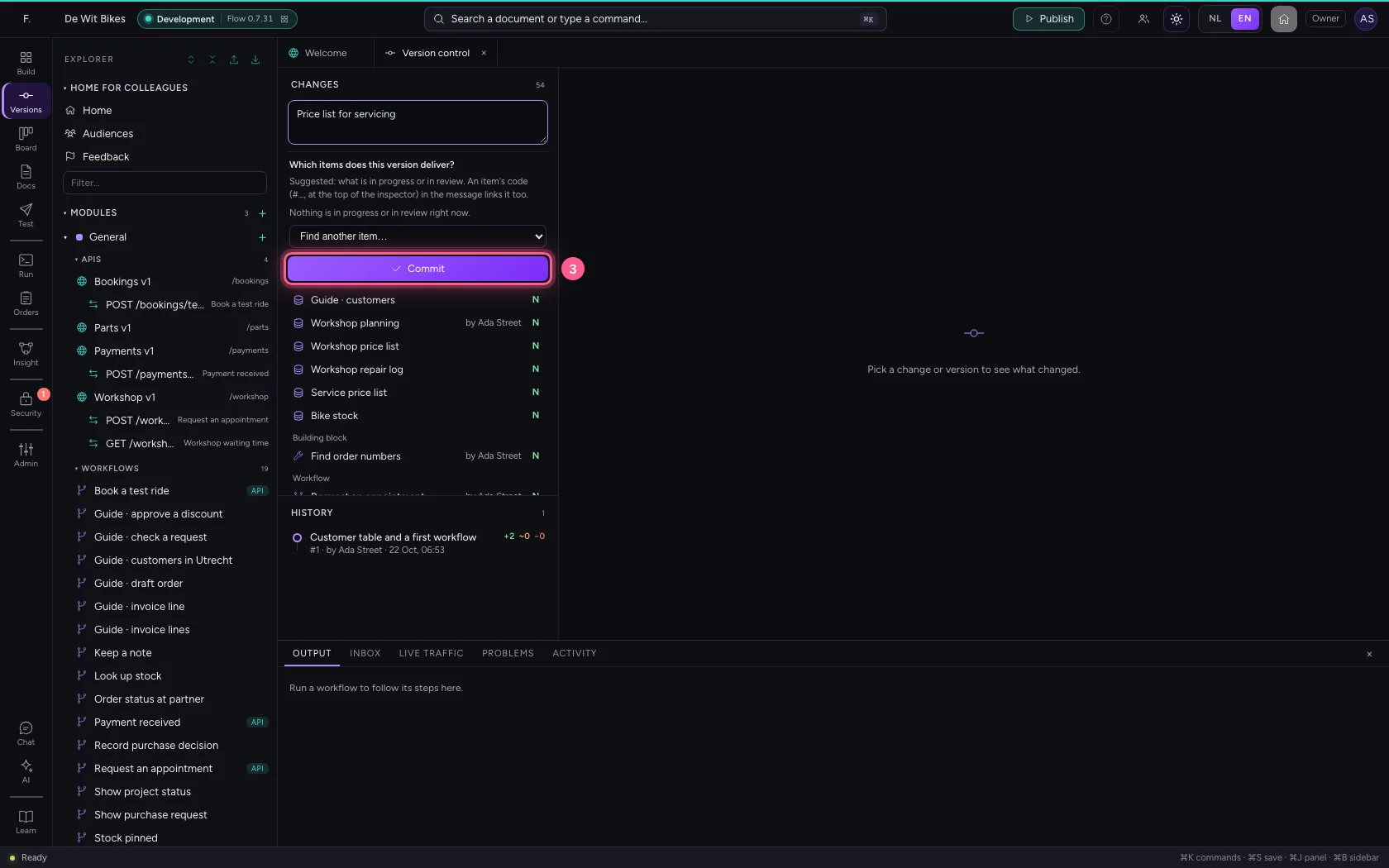
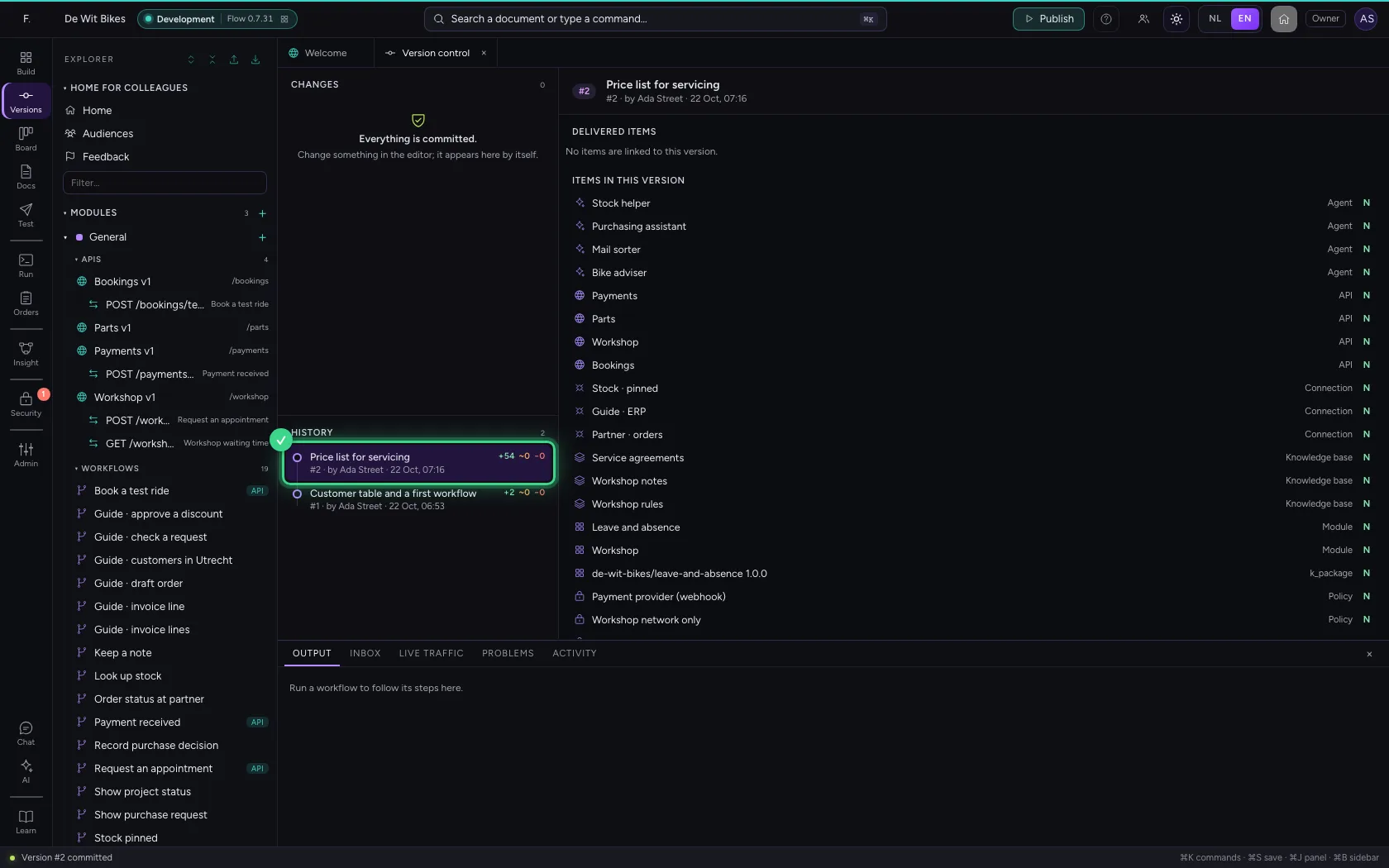
Change the table
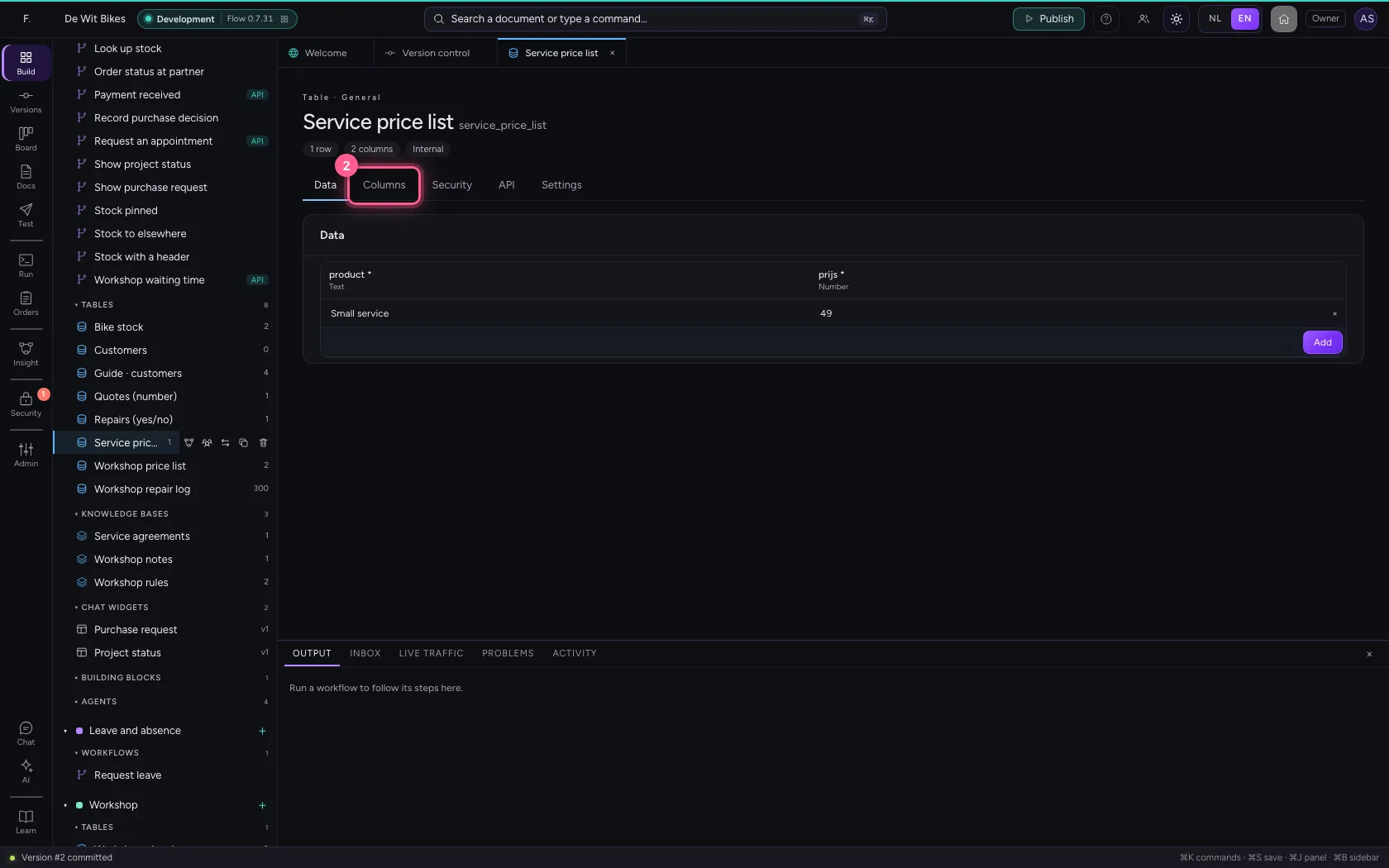
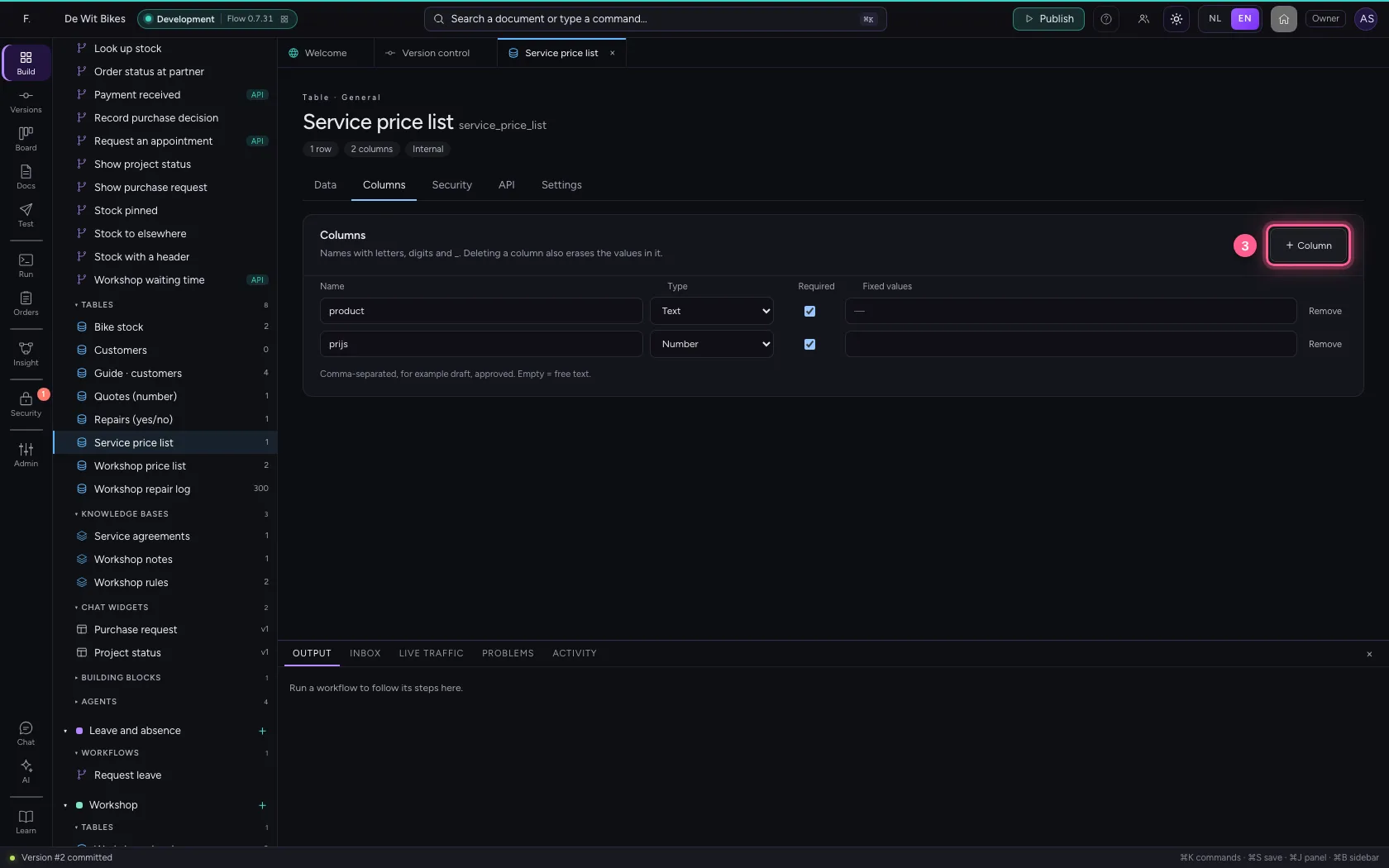
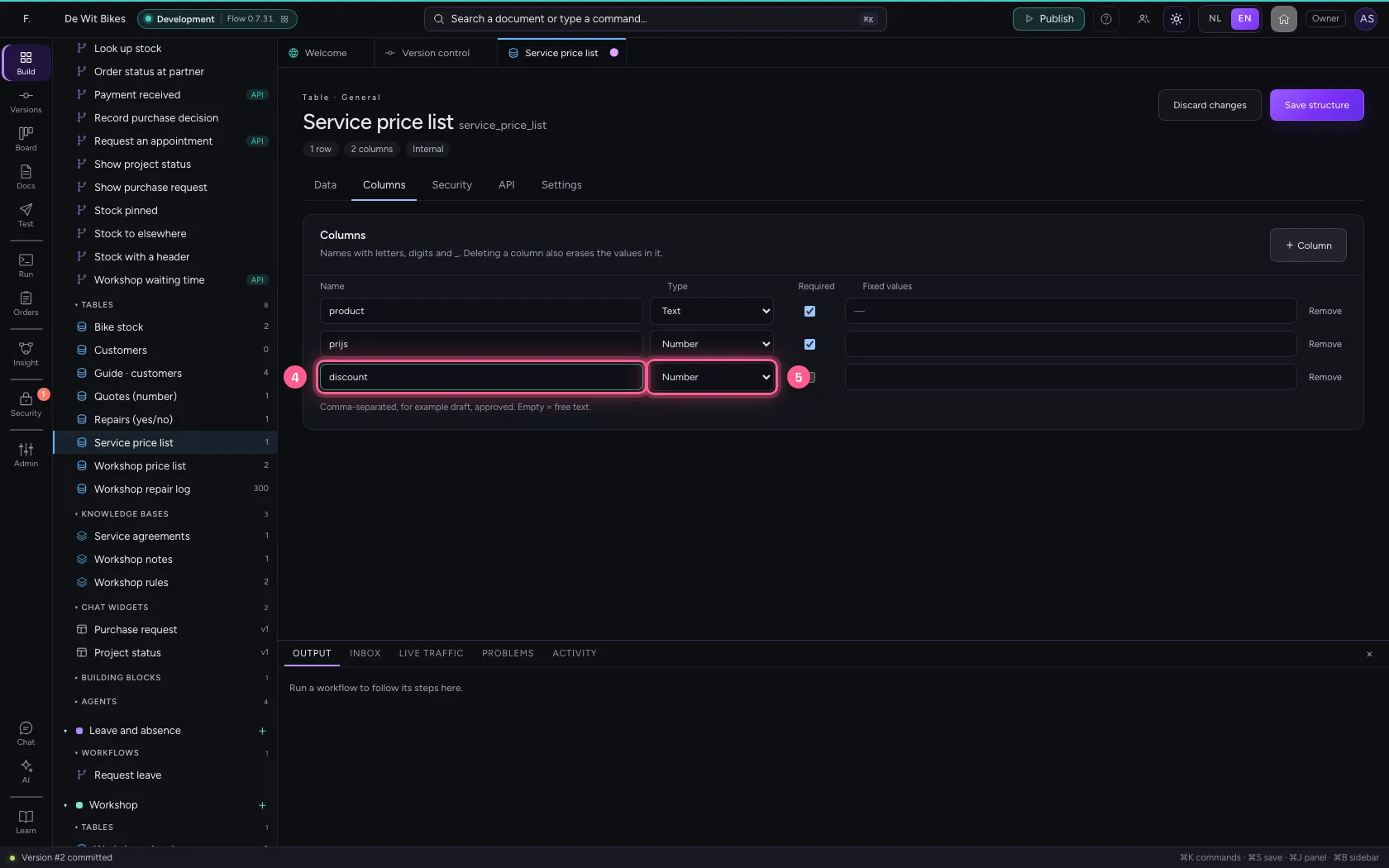
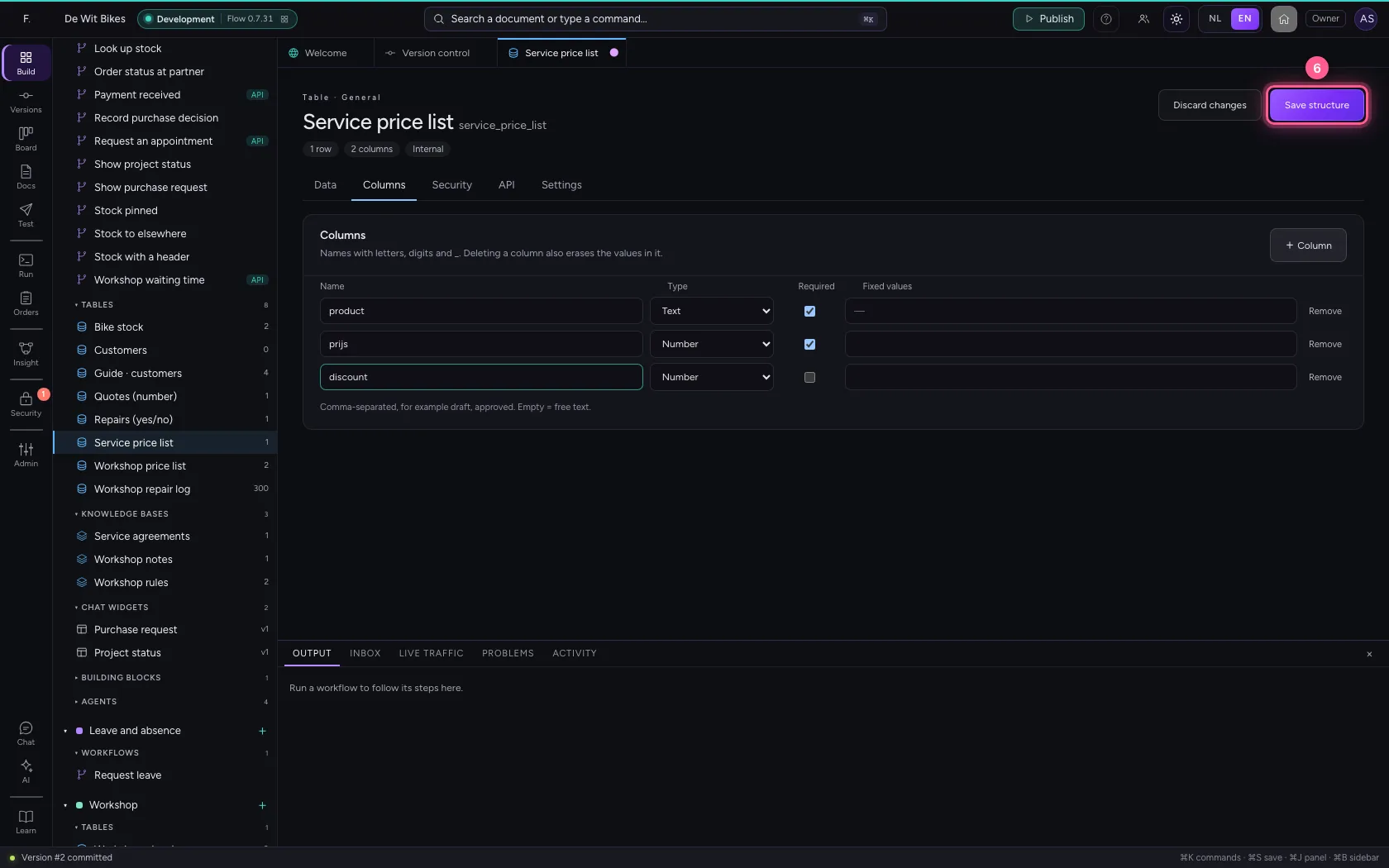
Open the price list and add a discount column of type Number under Columns. Save the structure.
- Click the price list
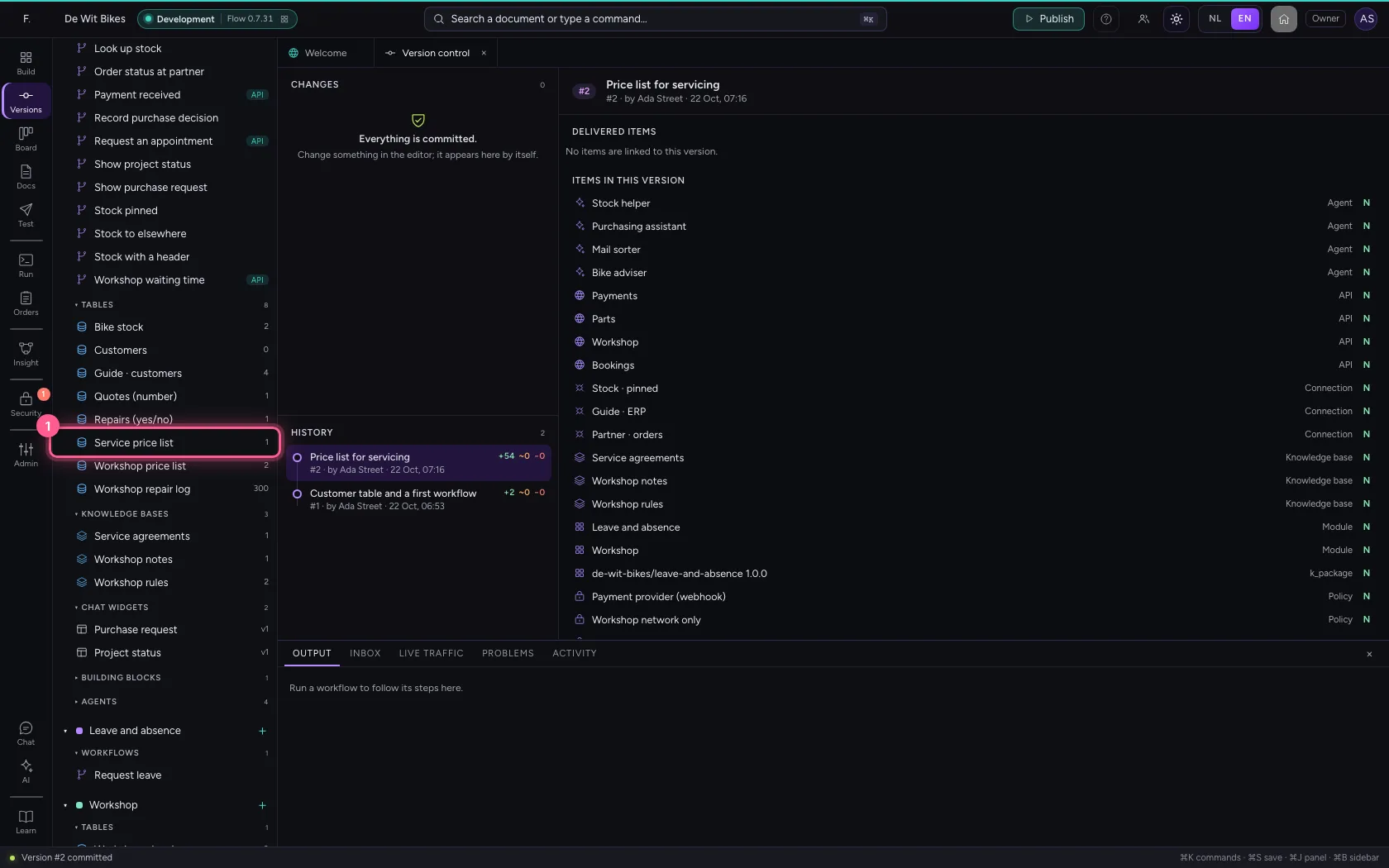
- Click Columns
- Click + Column
- In Name, type
discount - In Type, choose Number
- Click Save structure
See what changed
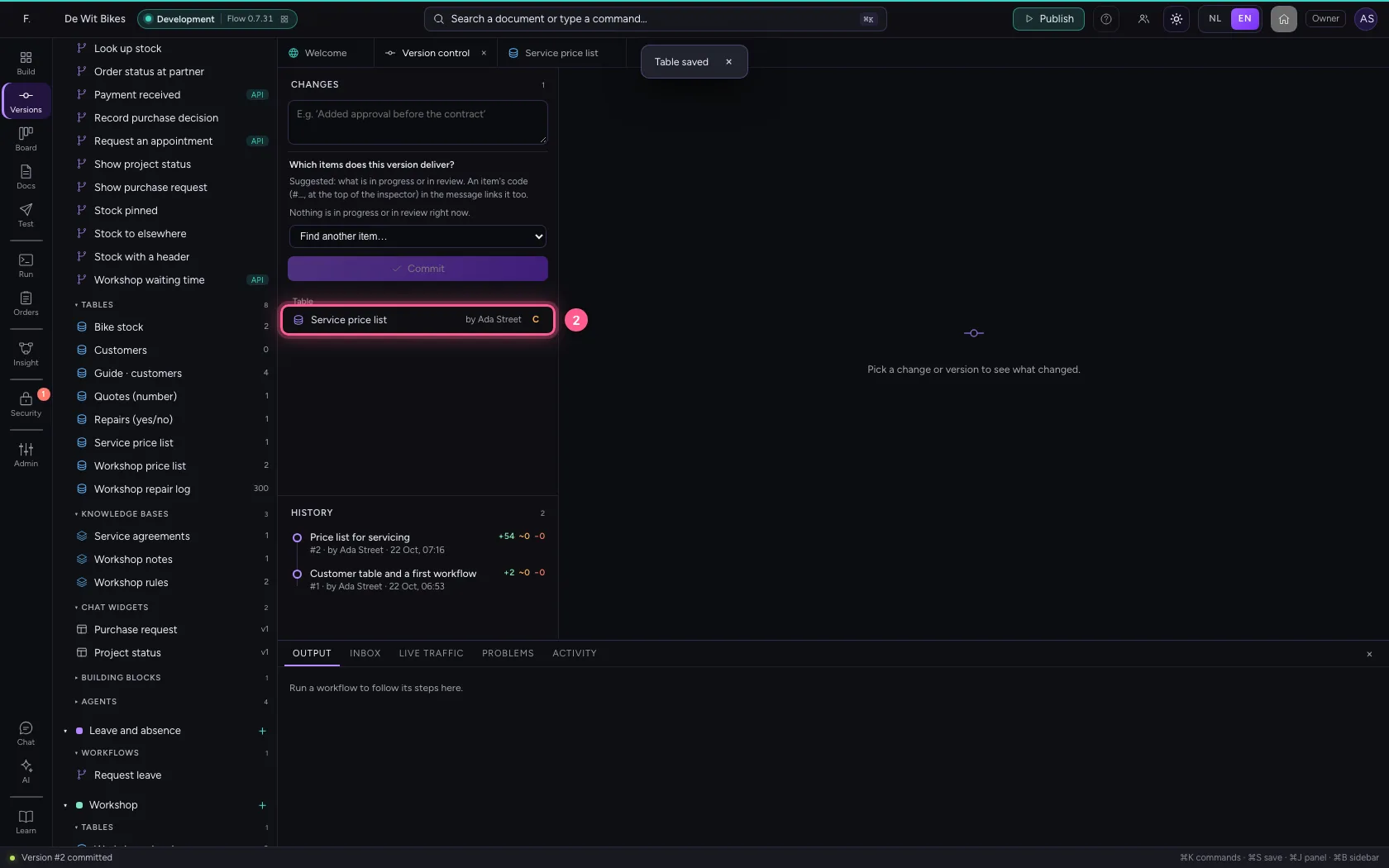
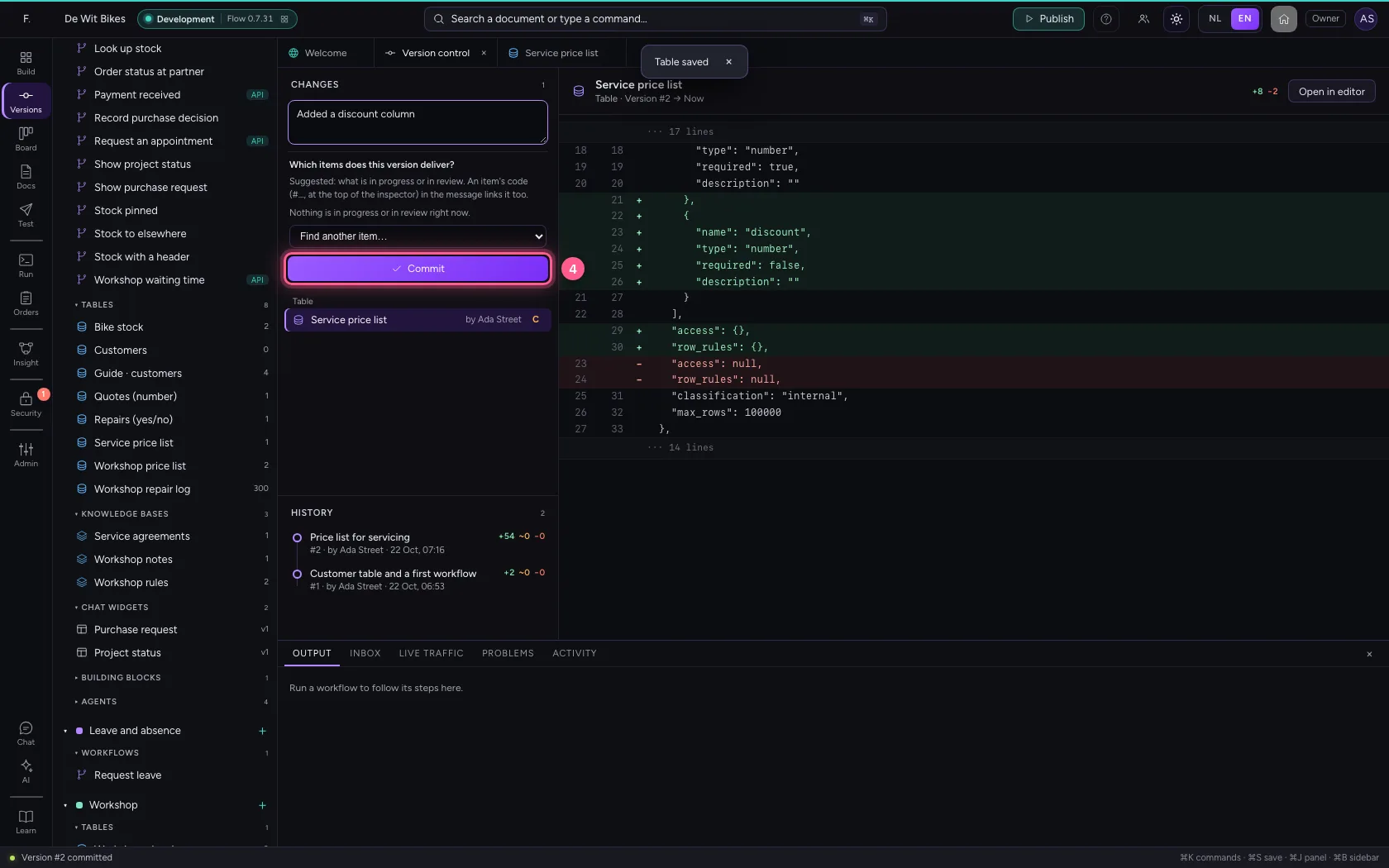
Back in Version control the price list is among the changes again. Click it: you see the previous version next to now, with what was added in green and what disappeared in red.
- Click Version control
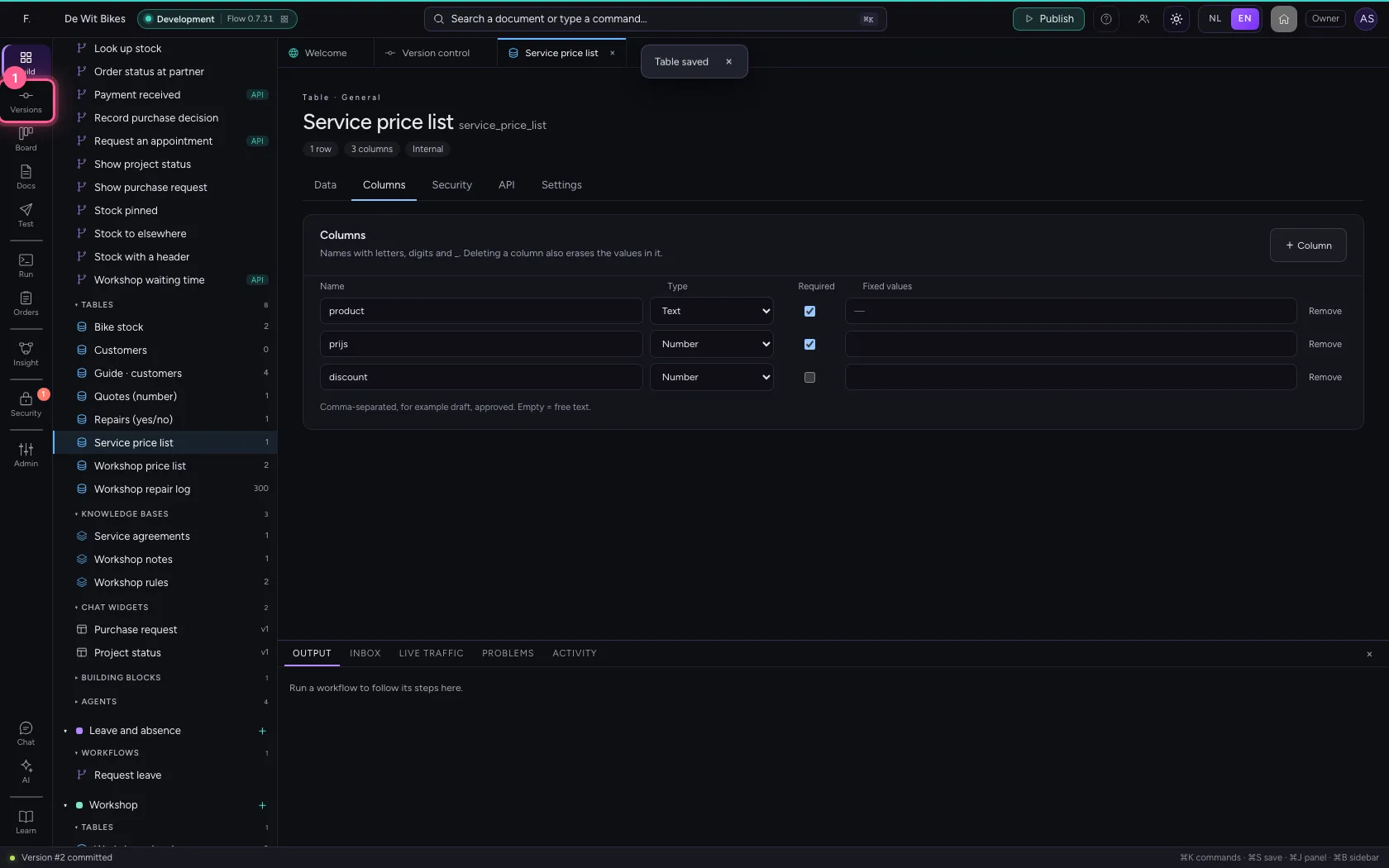
- Click the price list
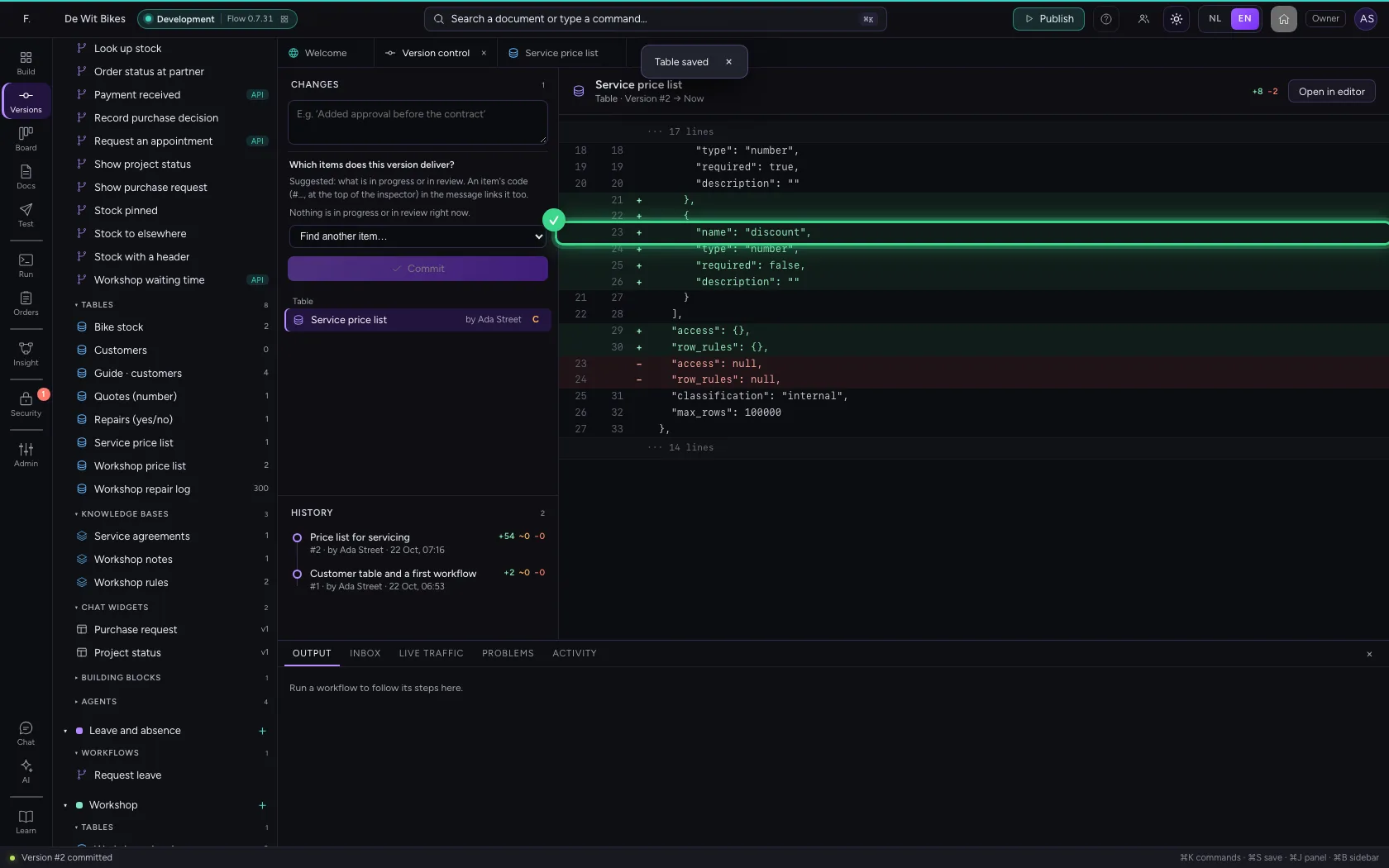
- In What did you change?, type
Added a discount column
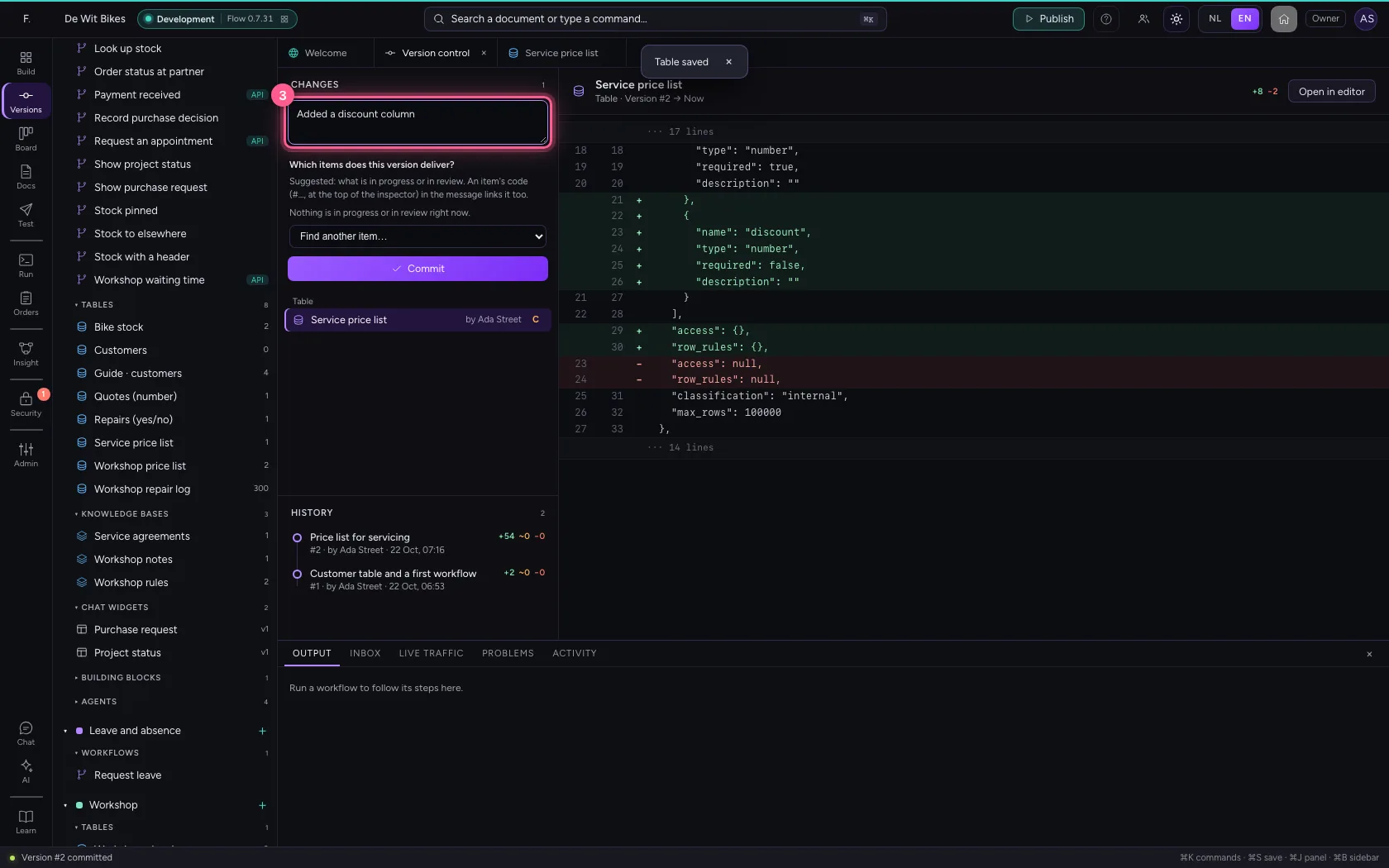
- Click Commit
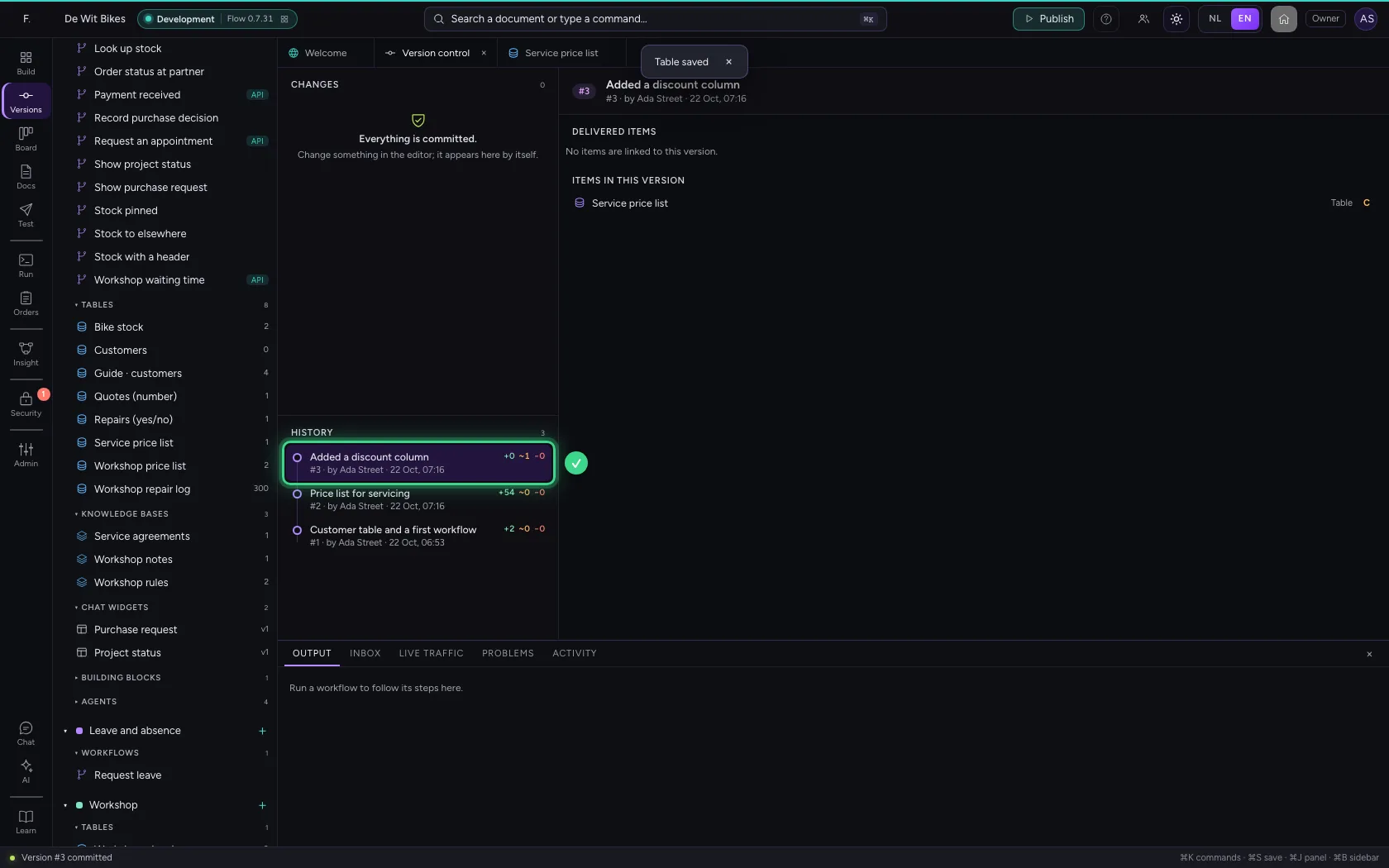
Restore the price list
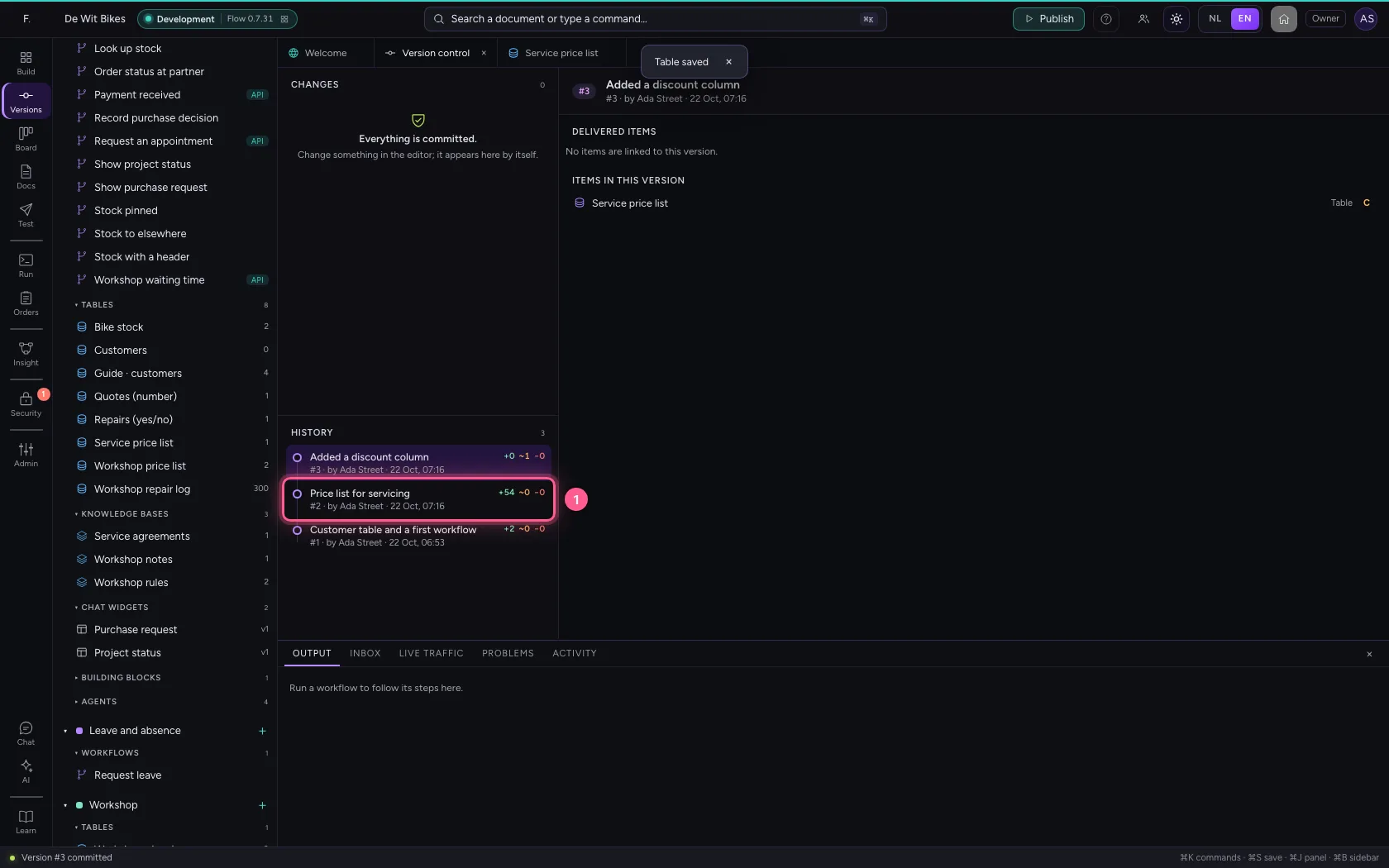
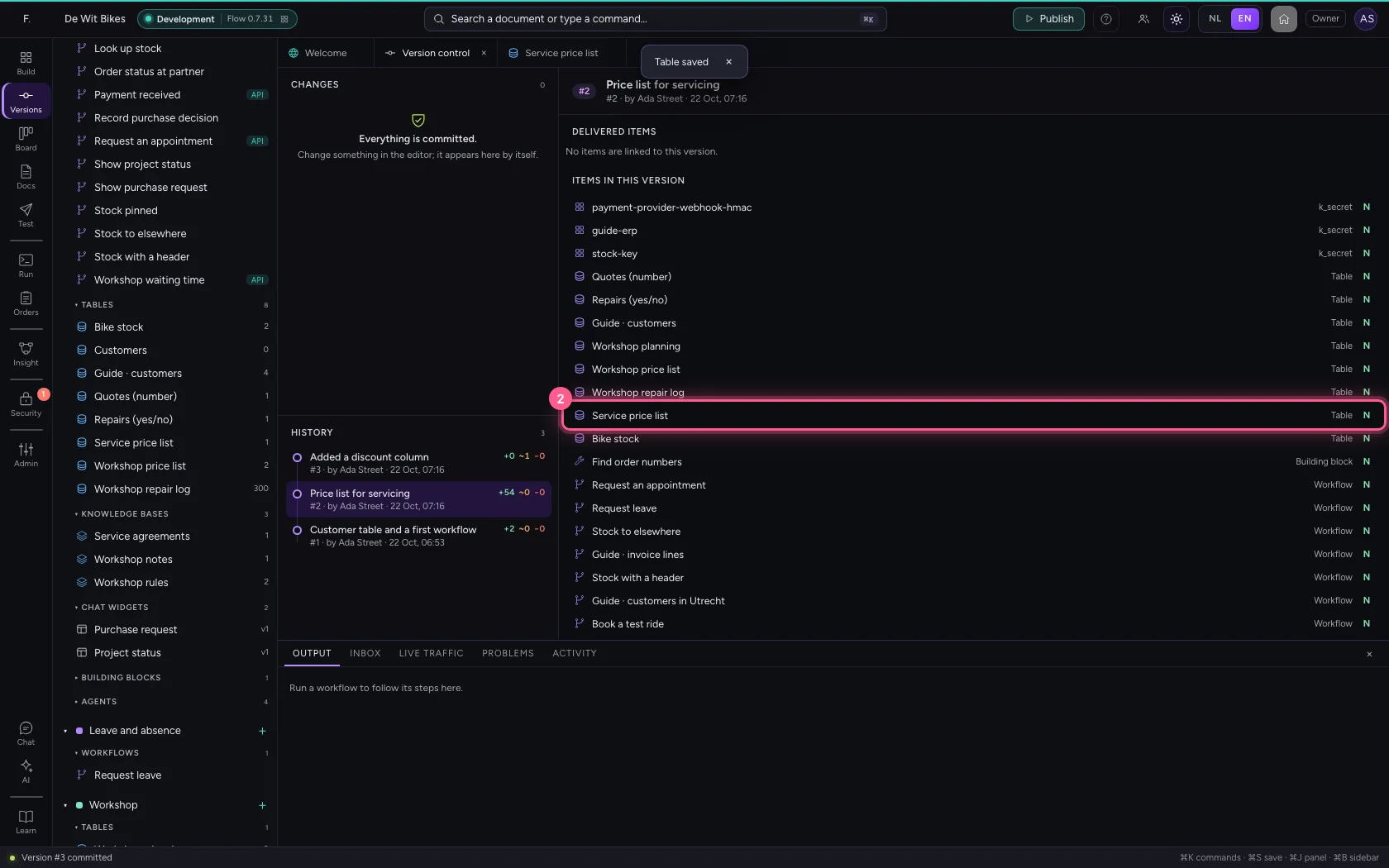
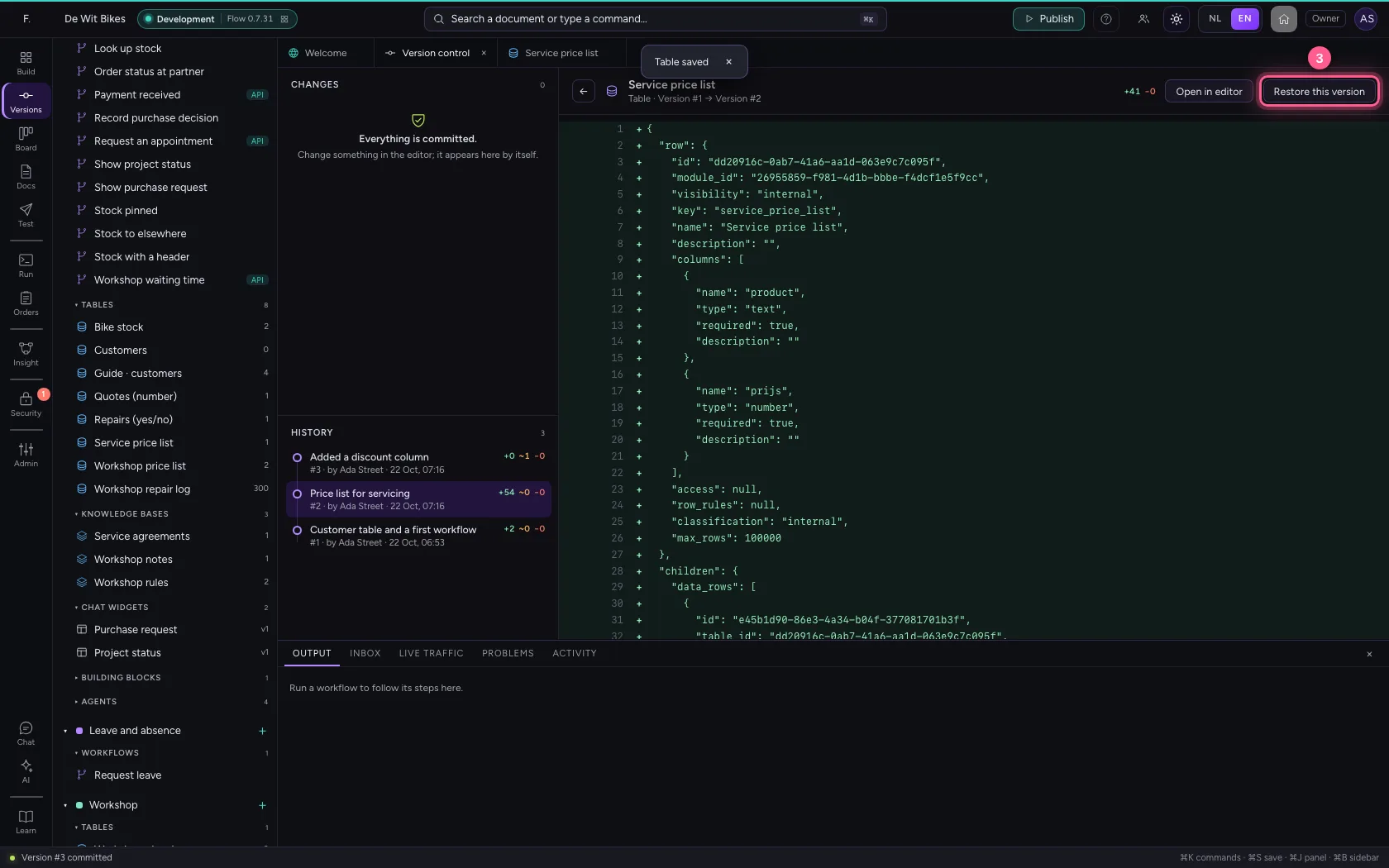
In the history, click the first version and then the price list. Restore this version gives only the price list its old content back; the rest of your environment stays as it is.
- Click the first version
- Click the price list
- Click Restore this version
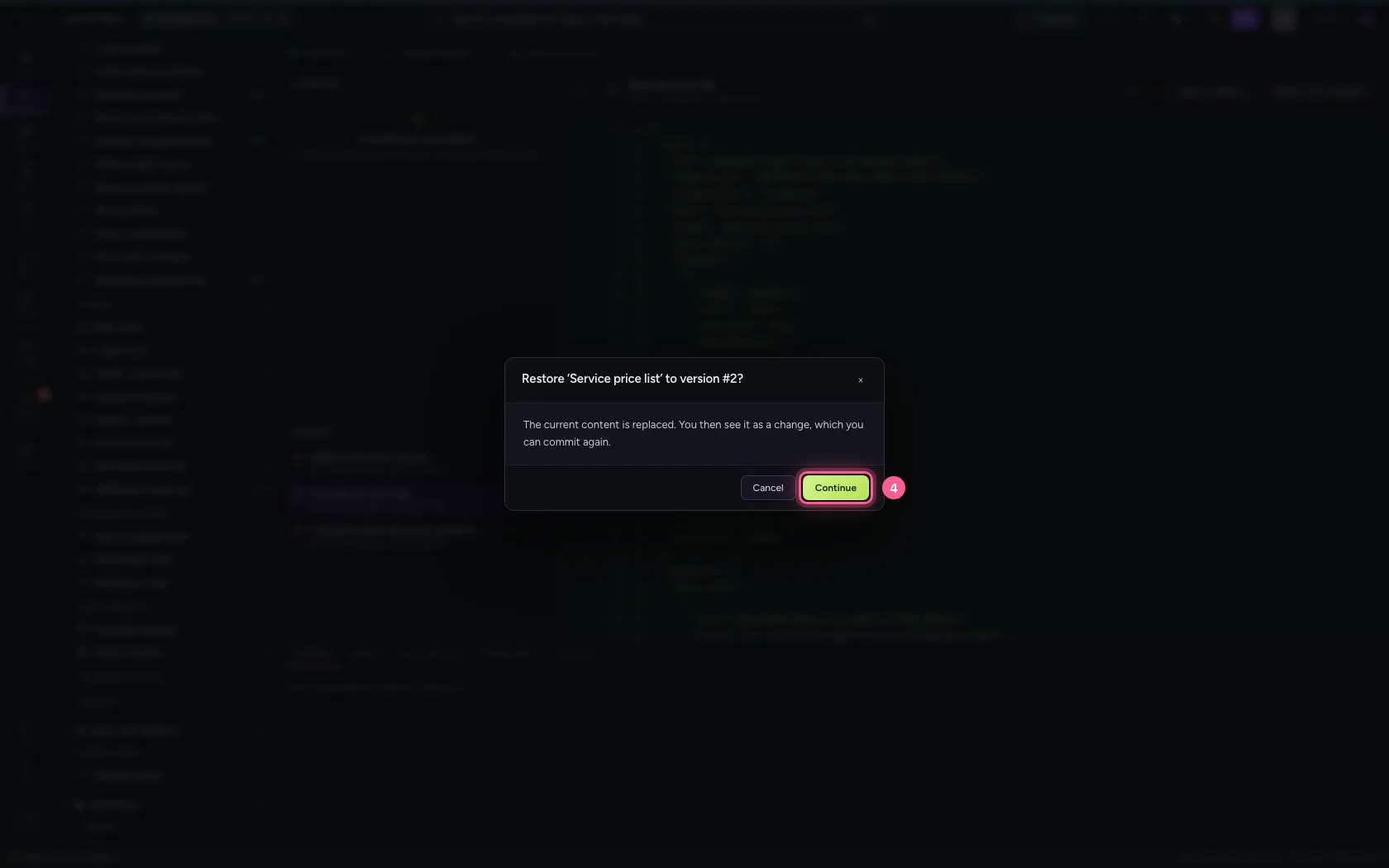
- Click Continue
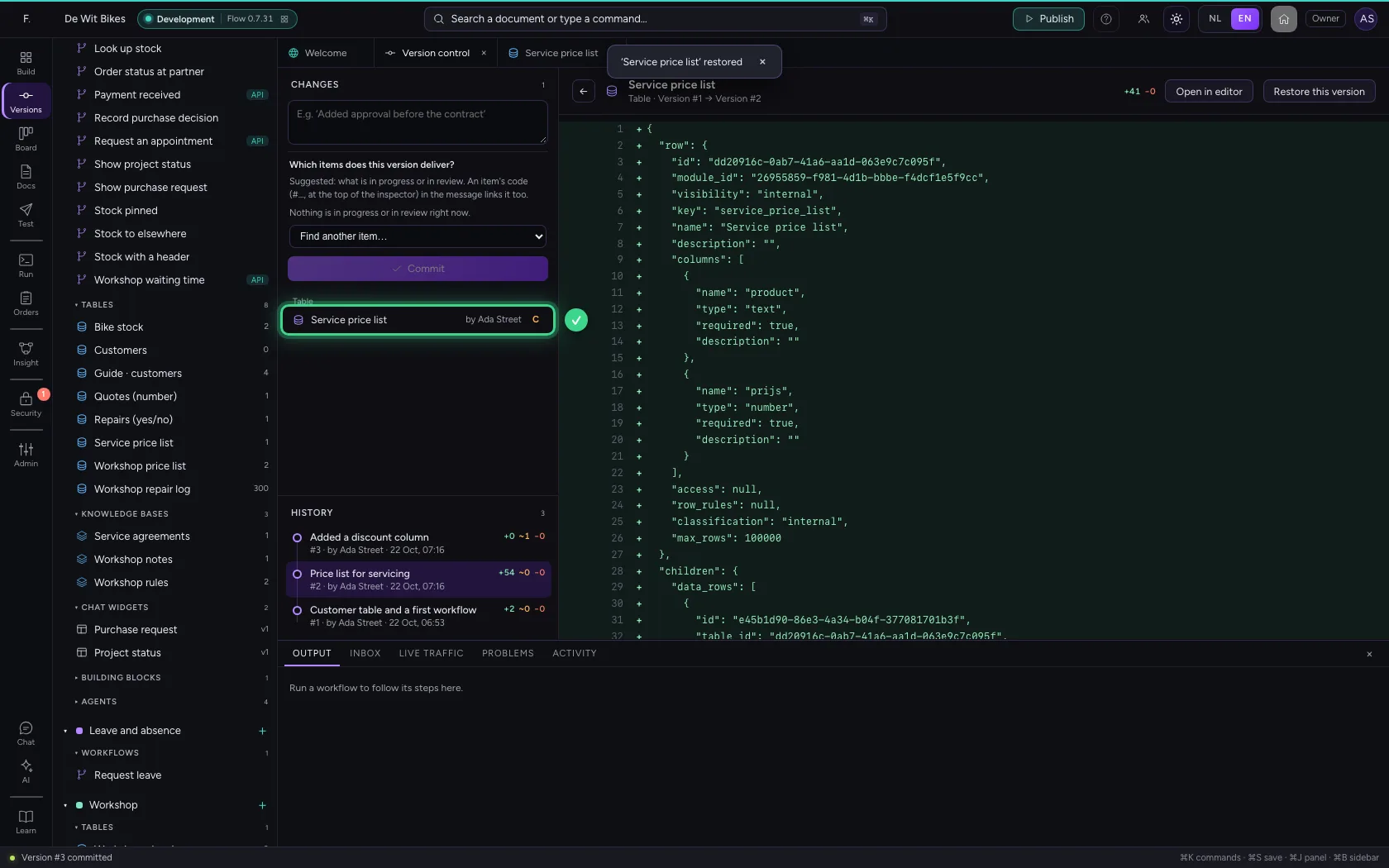
Commit the restore
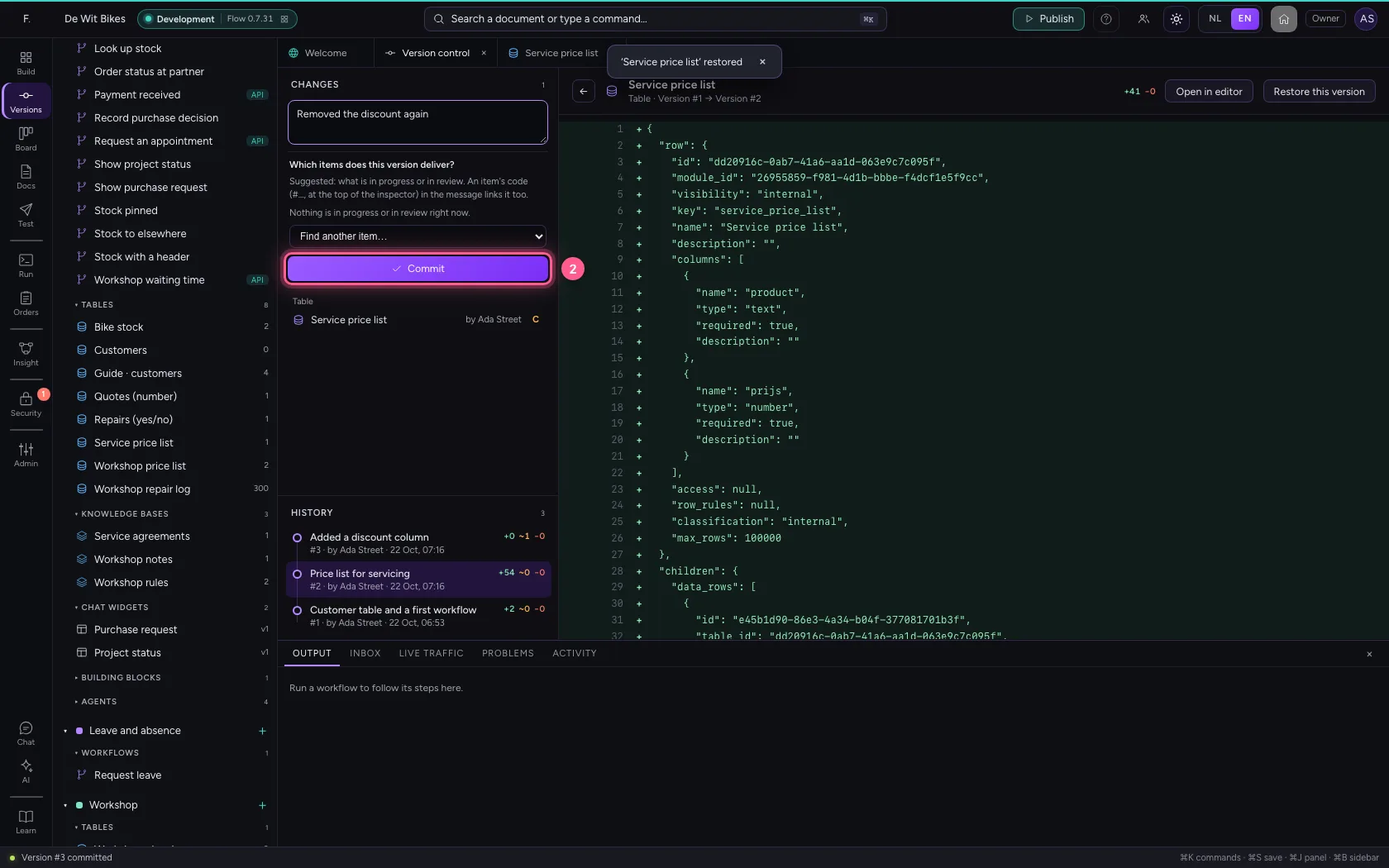
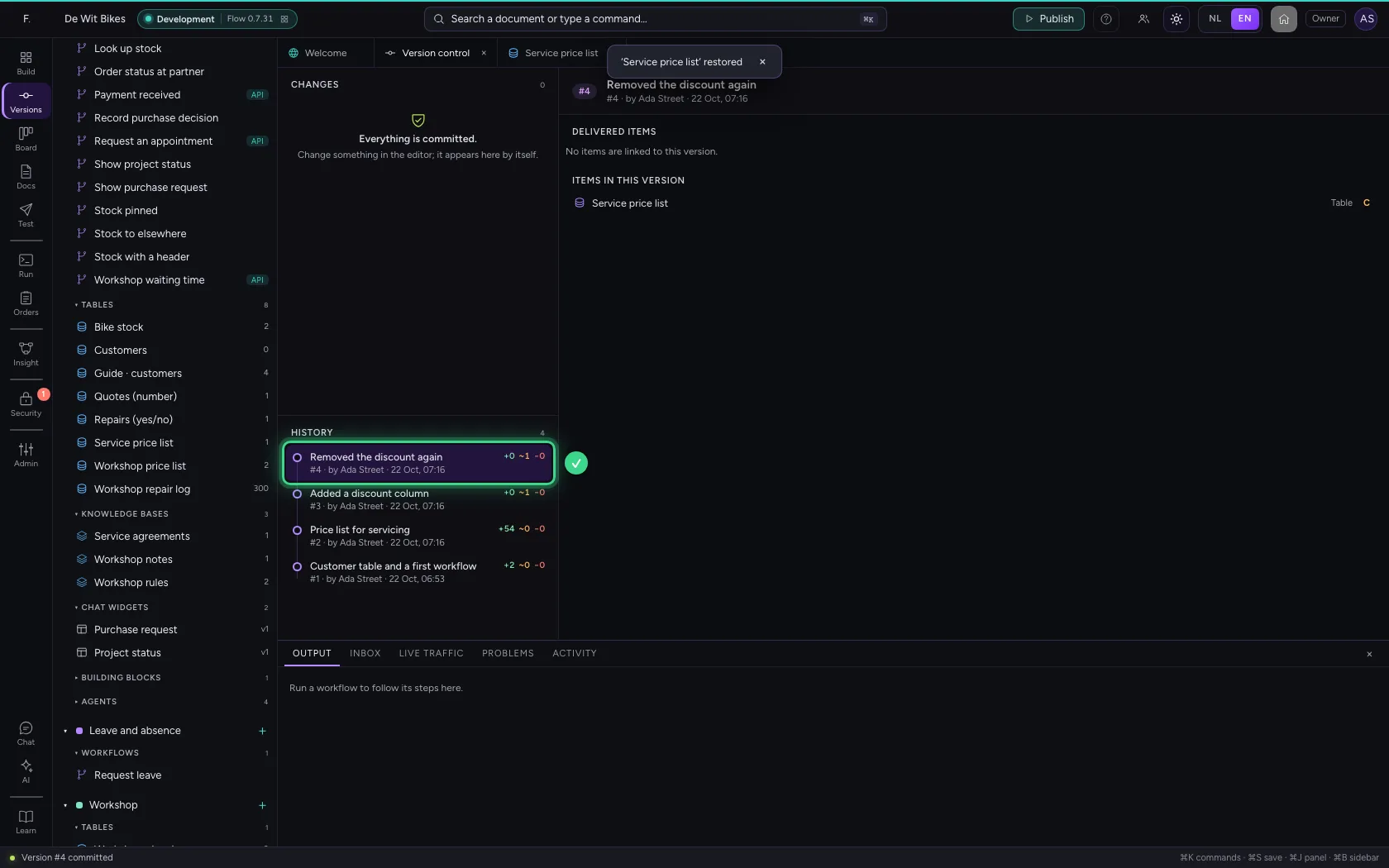
You commit a restore too, with a sentence saying why. That way it stays visible that the discount was there for a while, and who removed it.
- In What did you change?, type
Removed the discount again
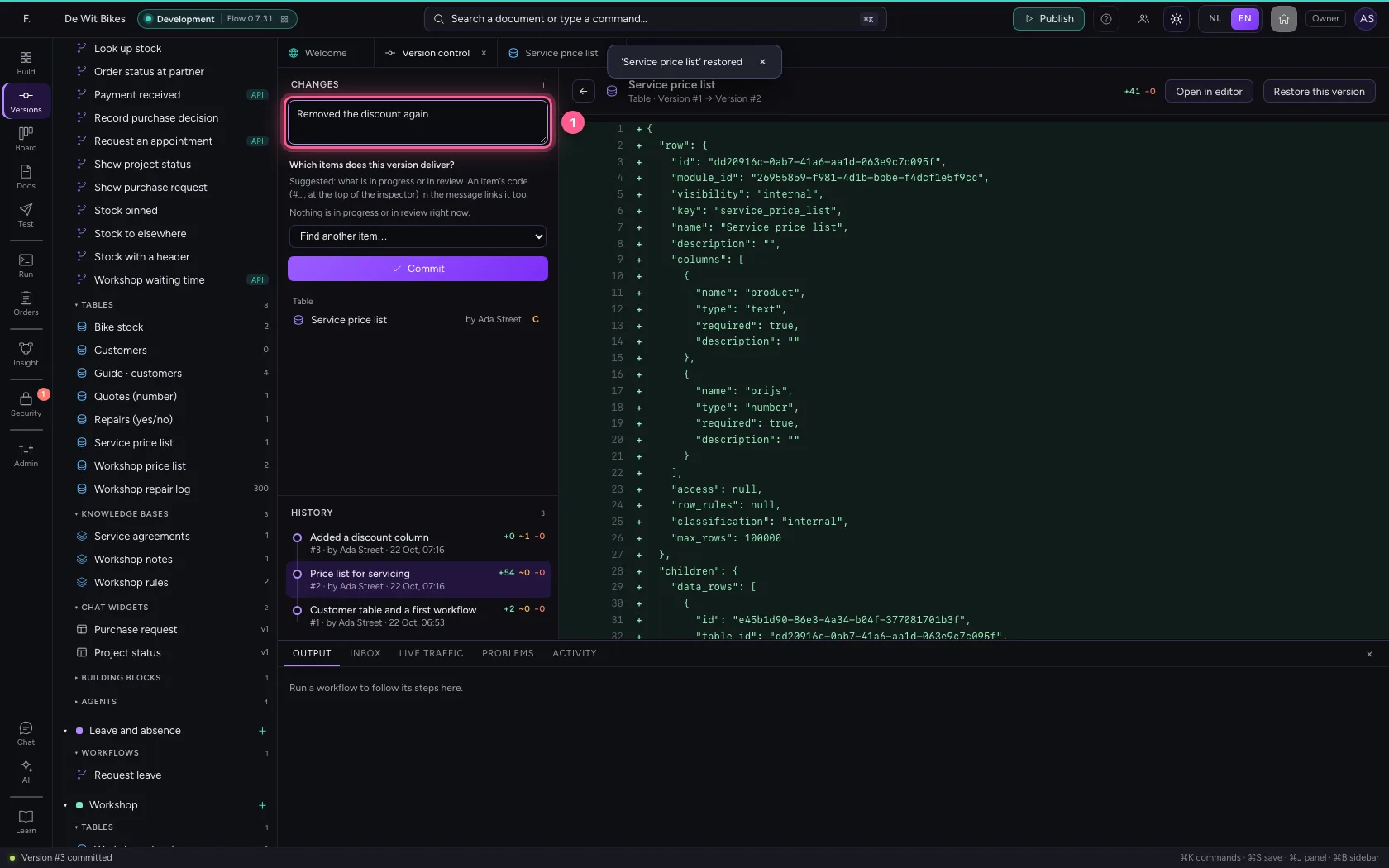
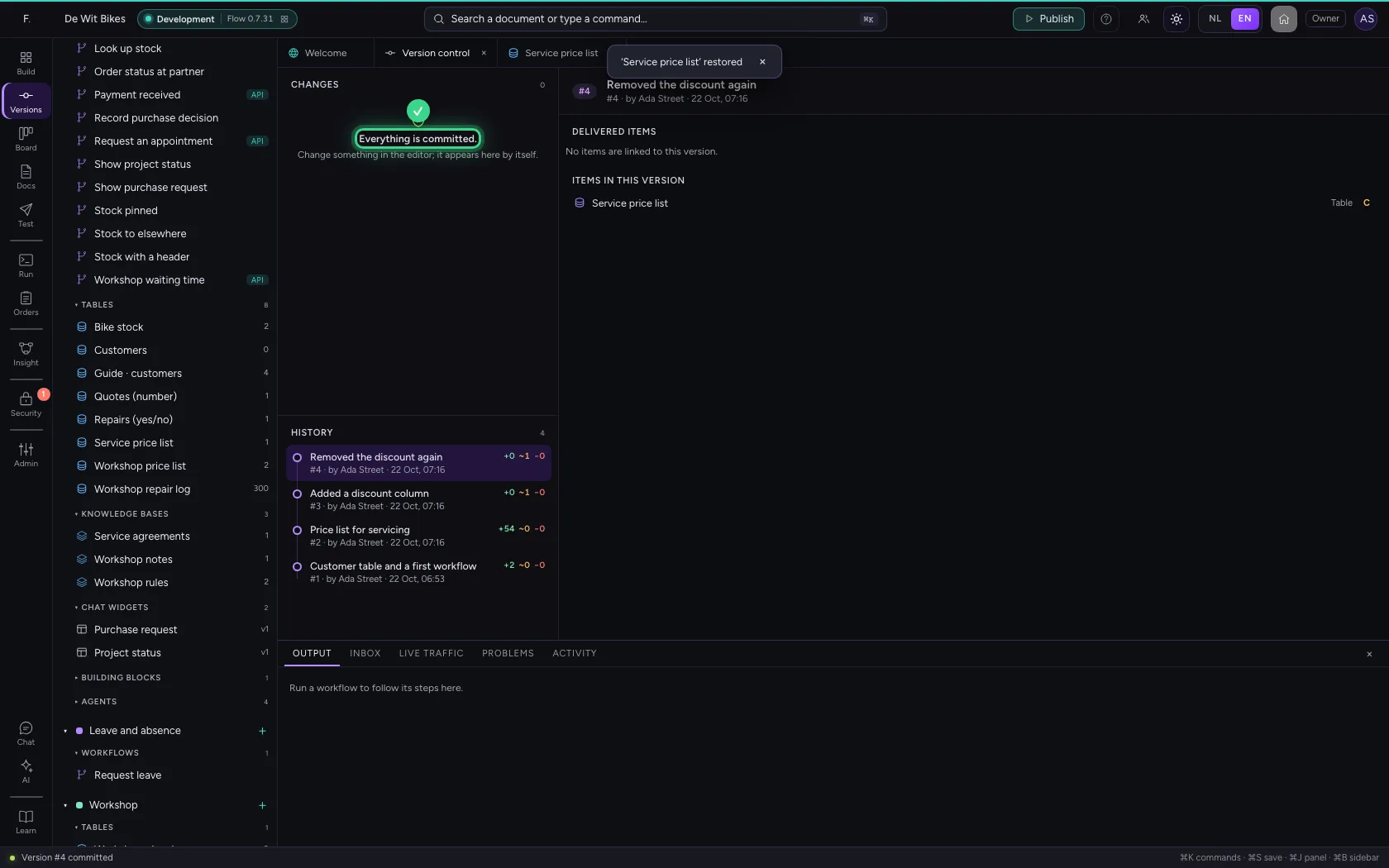
- Click Commit
This guide was carried out step by step on 22 Oct 2026 by an automated test on Flow (version 3e563176).