An AI Colleague that uses workflows
An AI Colleague can start a workflow itself when it needs one, for example to look up the stock. You choose which workflows it may use, whether they only read or change something, and how often per run. You try it out and see exactly which tool it called, before you publish it.
Open your development environment
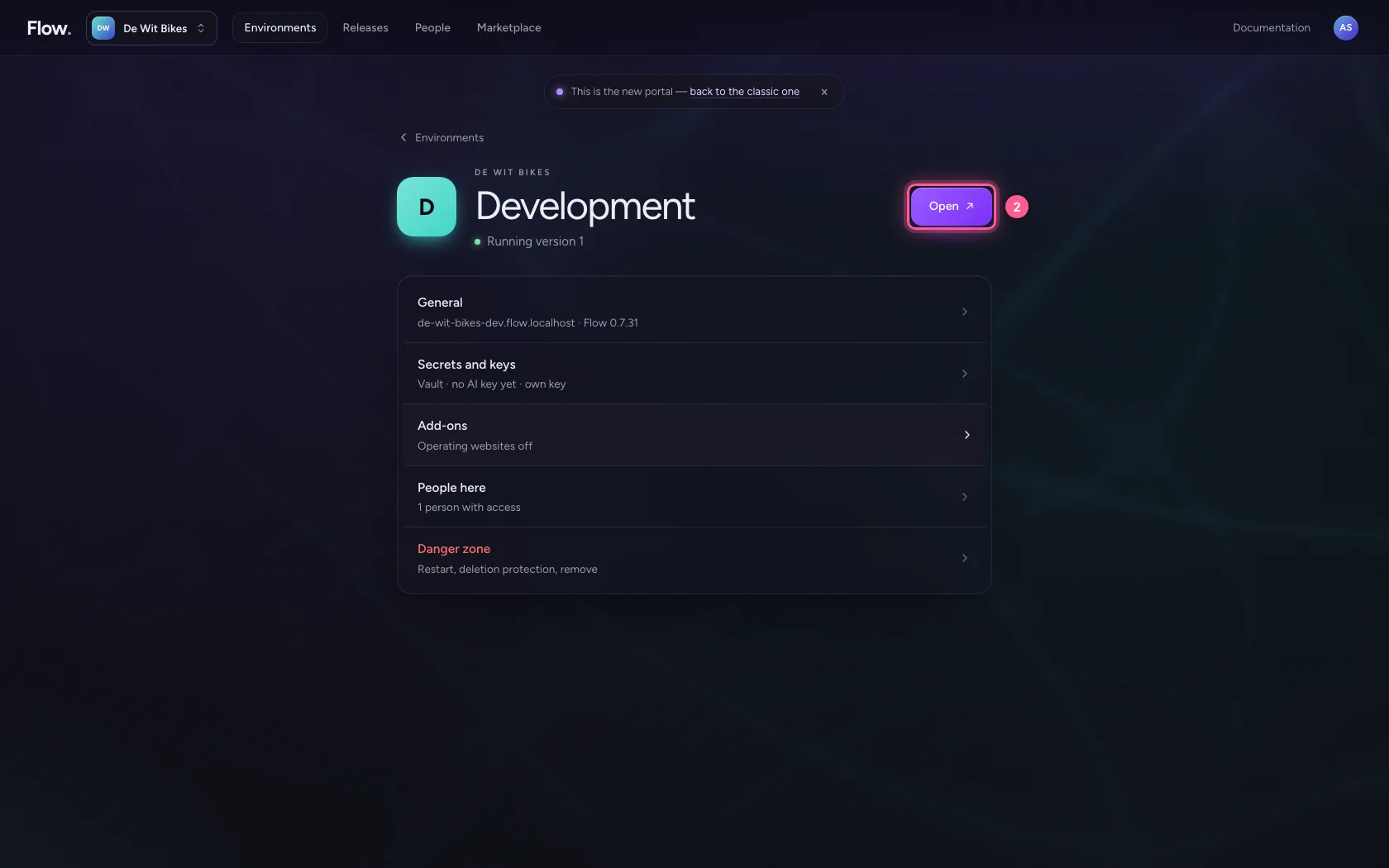
In the portal, under Environments, click Development, and there Open. Flow opens in a new tab and you are signed in straight away.
- Click Development
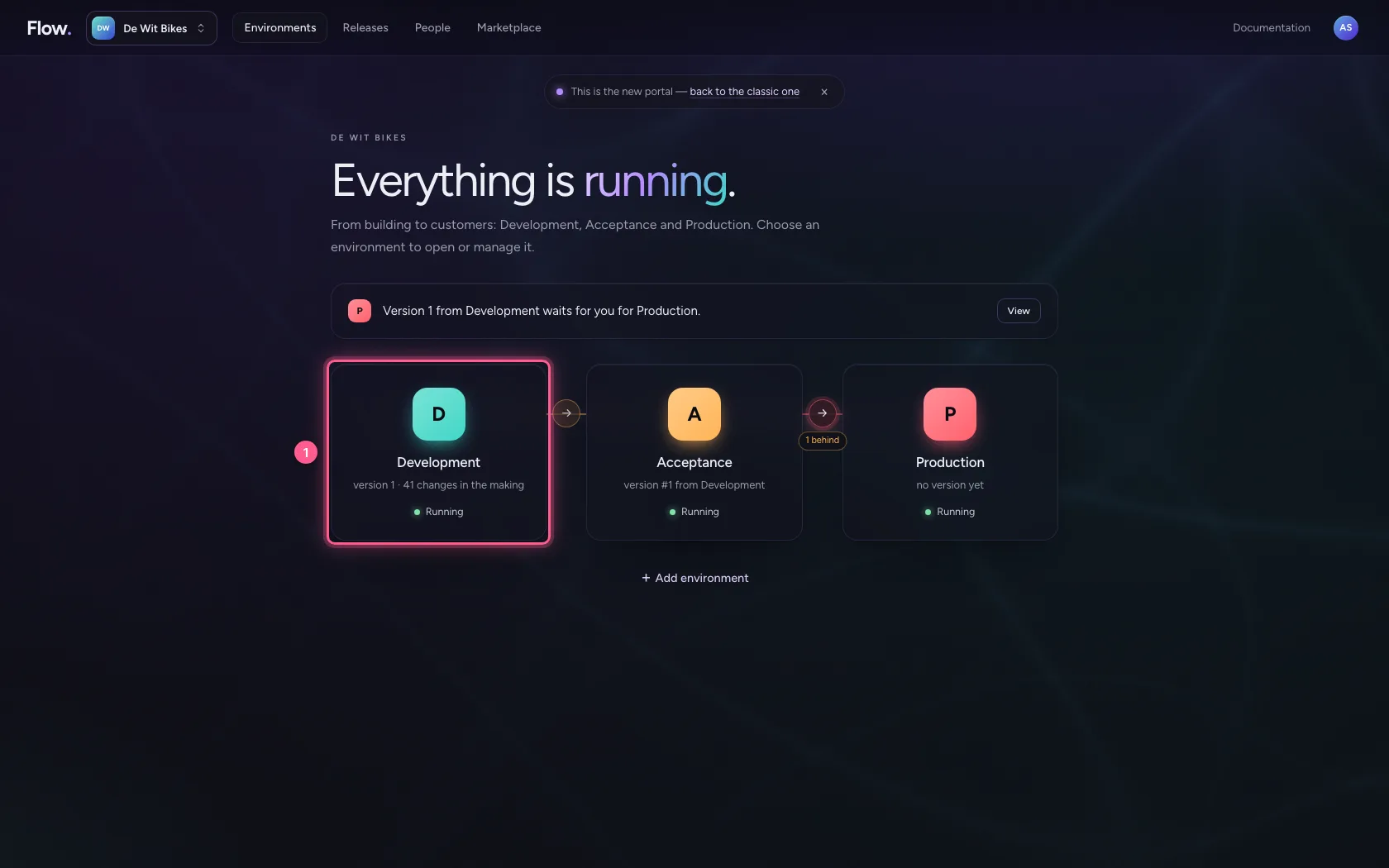
- Click Open ↗
Create an agent
Click + next to General and choose New agent. You see the agent as a box: input, guard, brain, check and outcome. Everything it does happens within the budget and guard rails you set here.
- Click Add to General
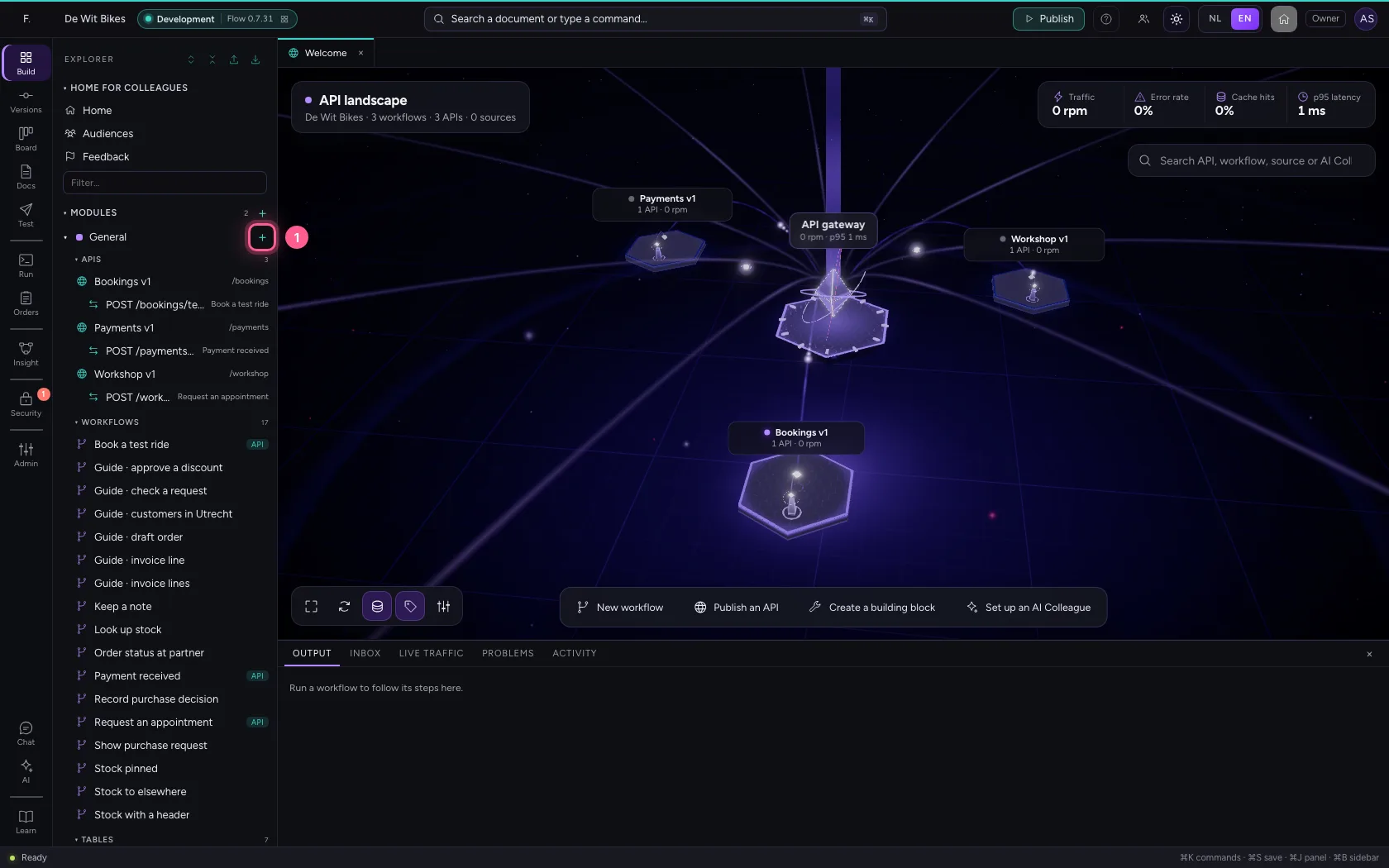
- Click New agent
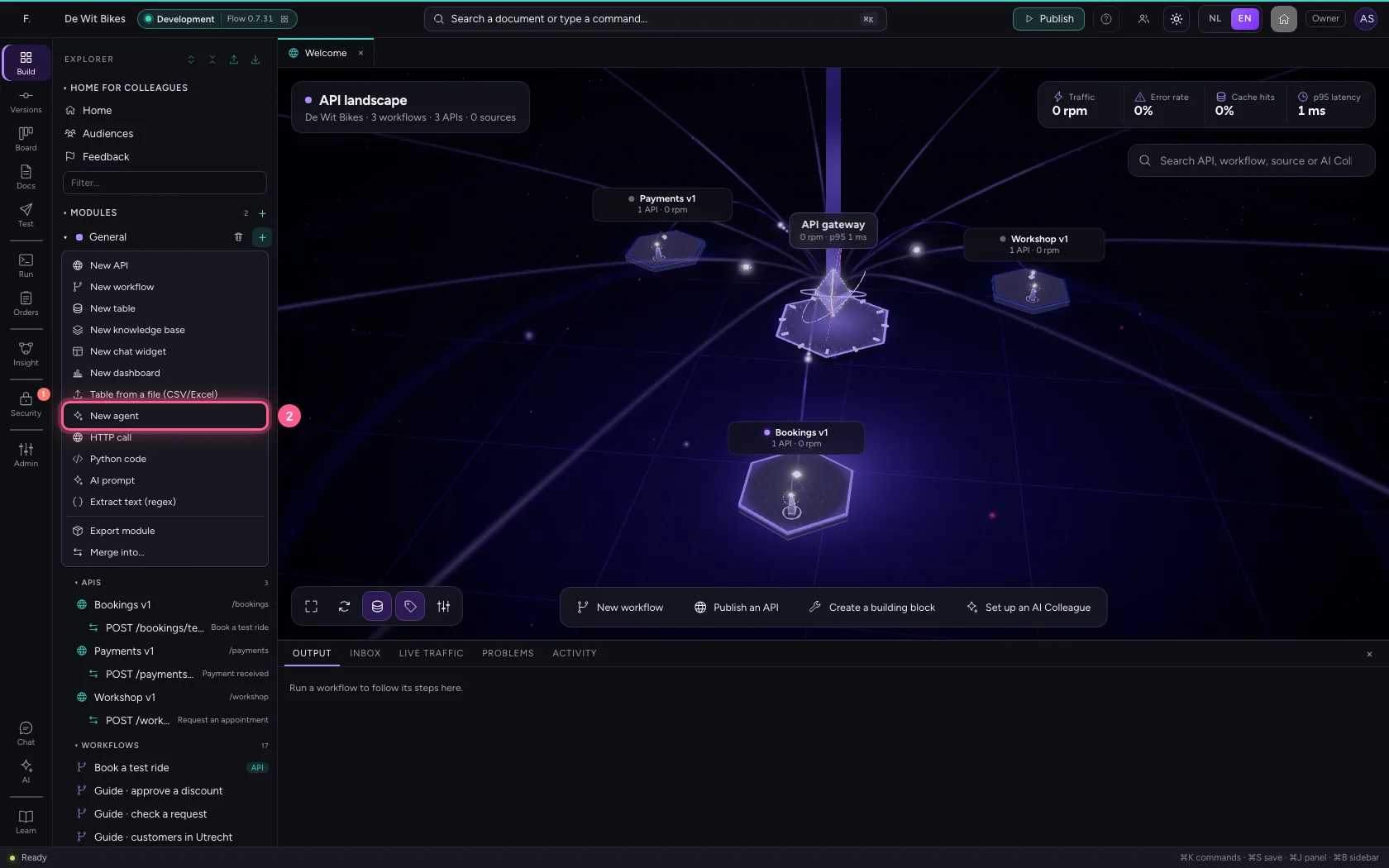
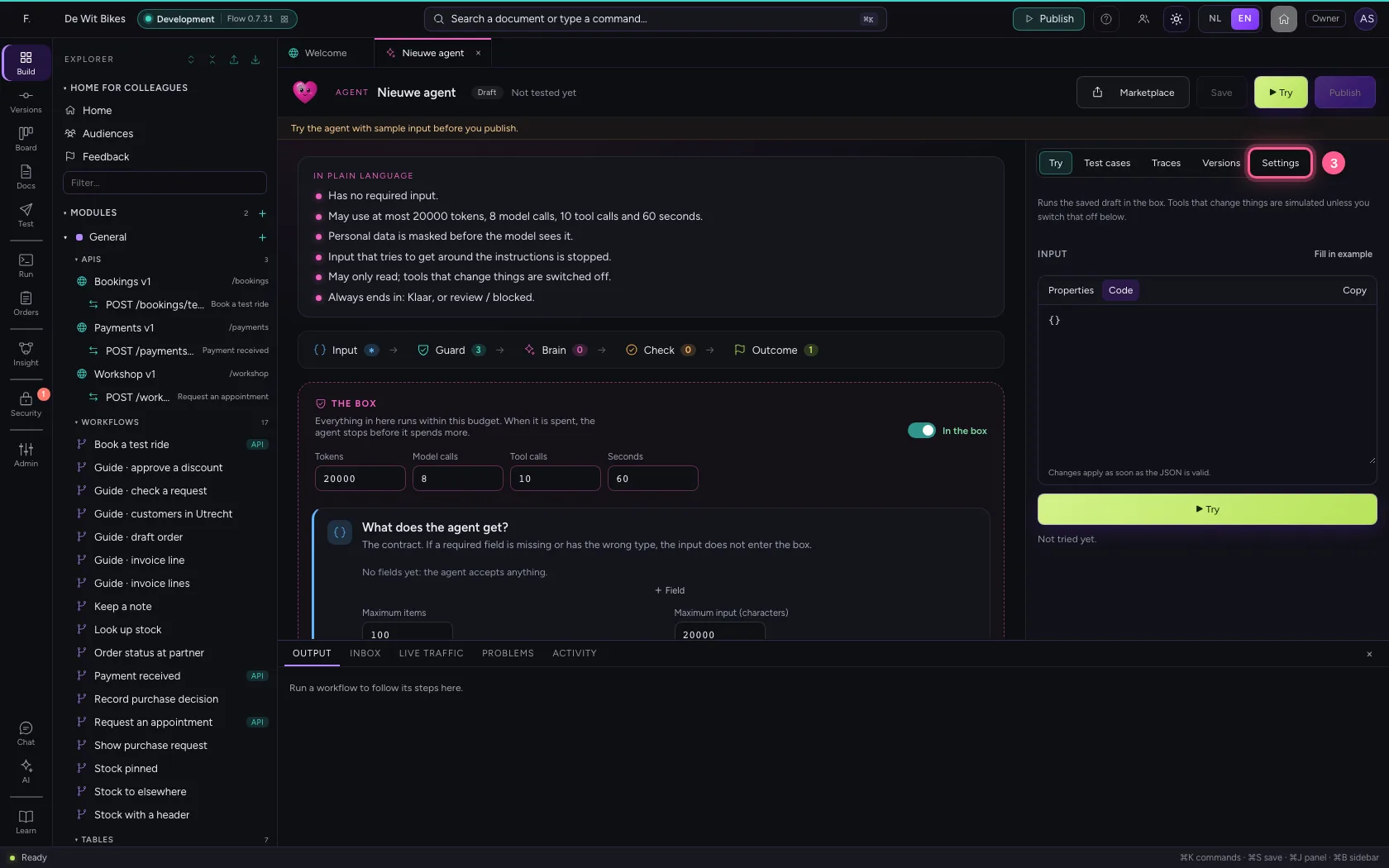
- Click Settings
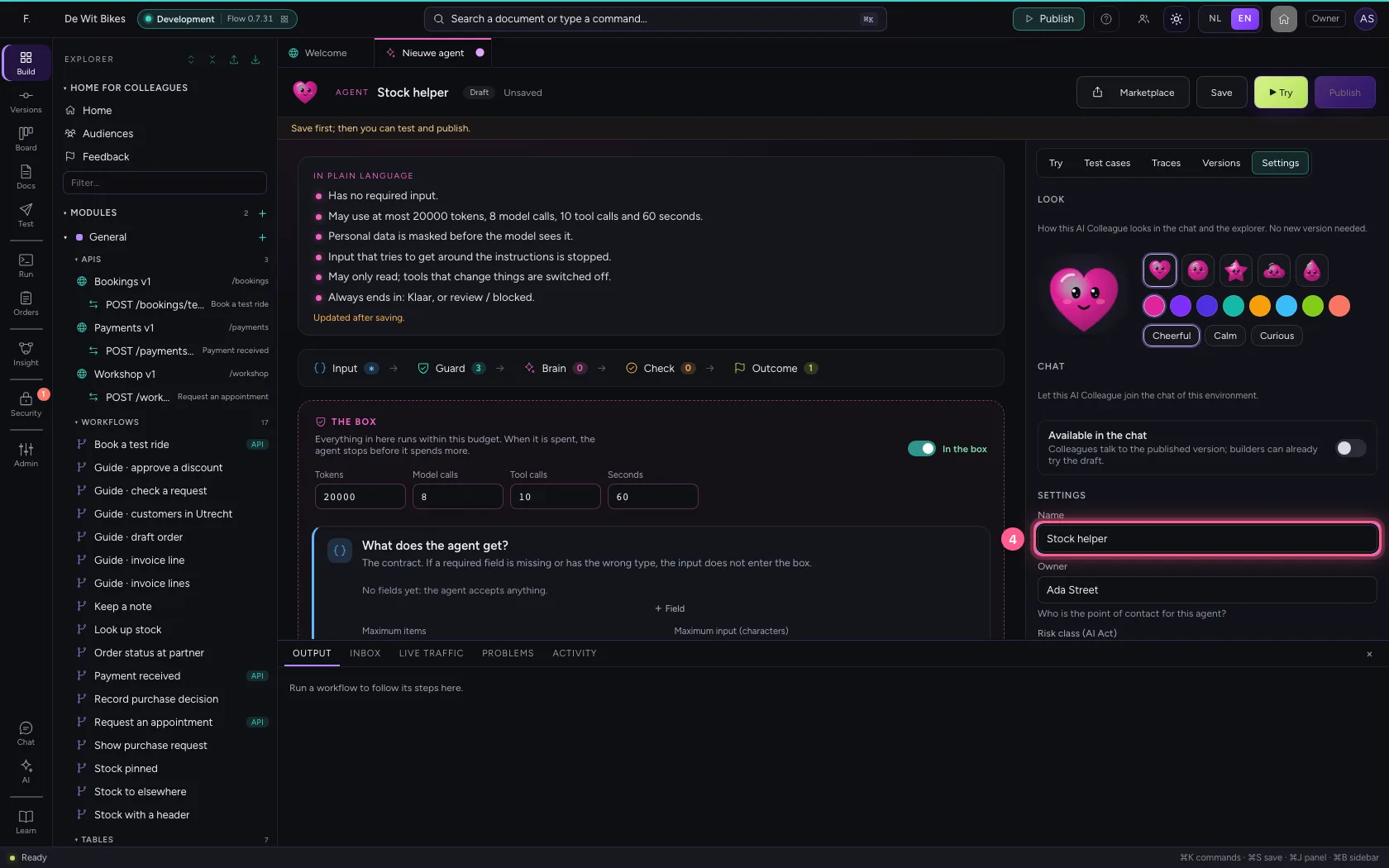
- In Name, type
Stock helper
Give the agent a brain
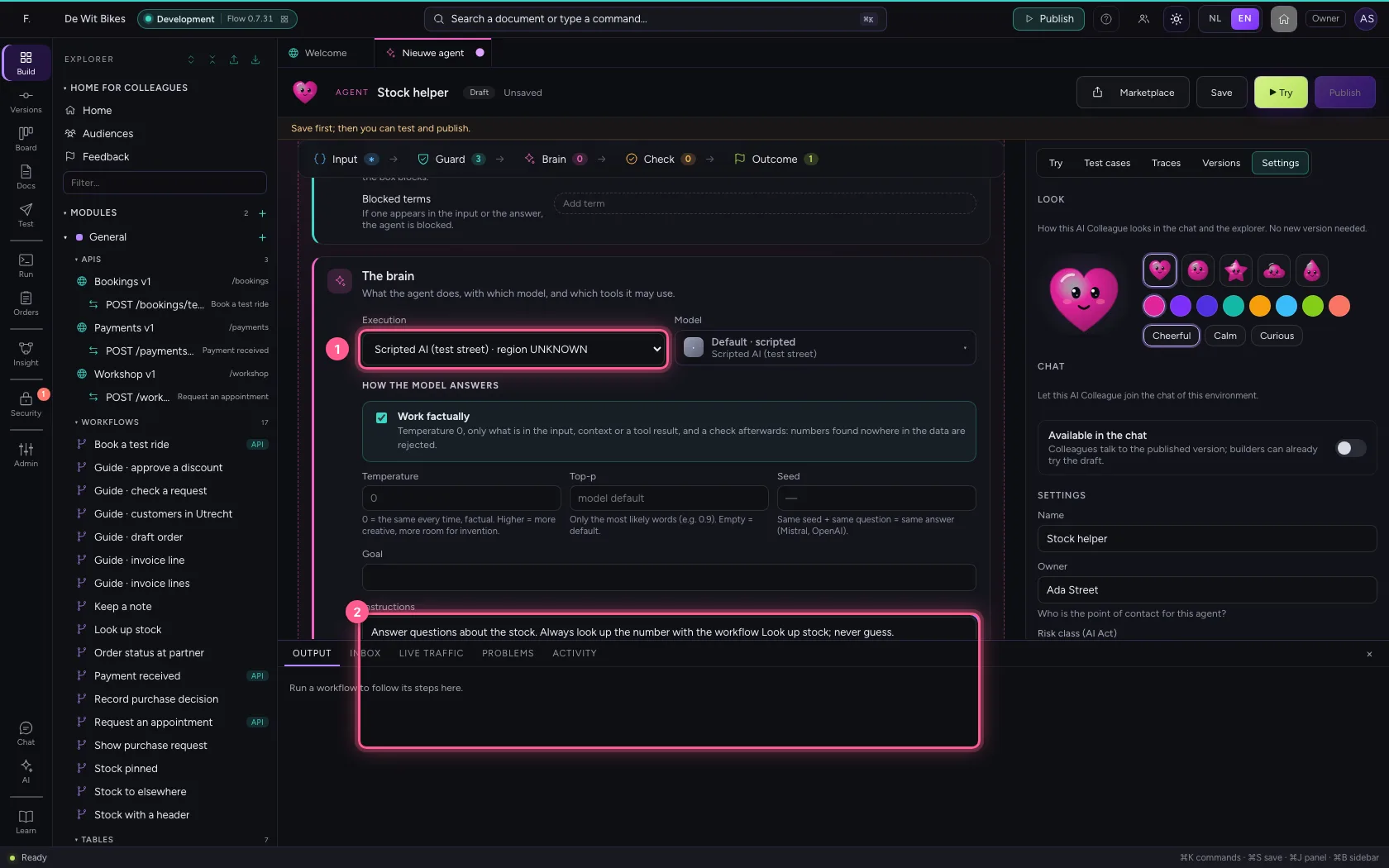
Under Execution choose an AI model and write in the instructions what the agent must do, and what never. Without a model an agent works with fixed rules and cannot use tools.
- In Execution Rules (no AI model) · region LOCAL Echo (test, no model) · region LOCA, choose Scripted AI (test street) · region UNKNOWN
- In Instructions, type
Answer questions about the stock. Always look up the number with the workflow Look up stock; never guess.
Give the agent a workflow as a tool
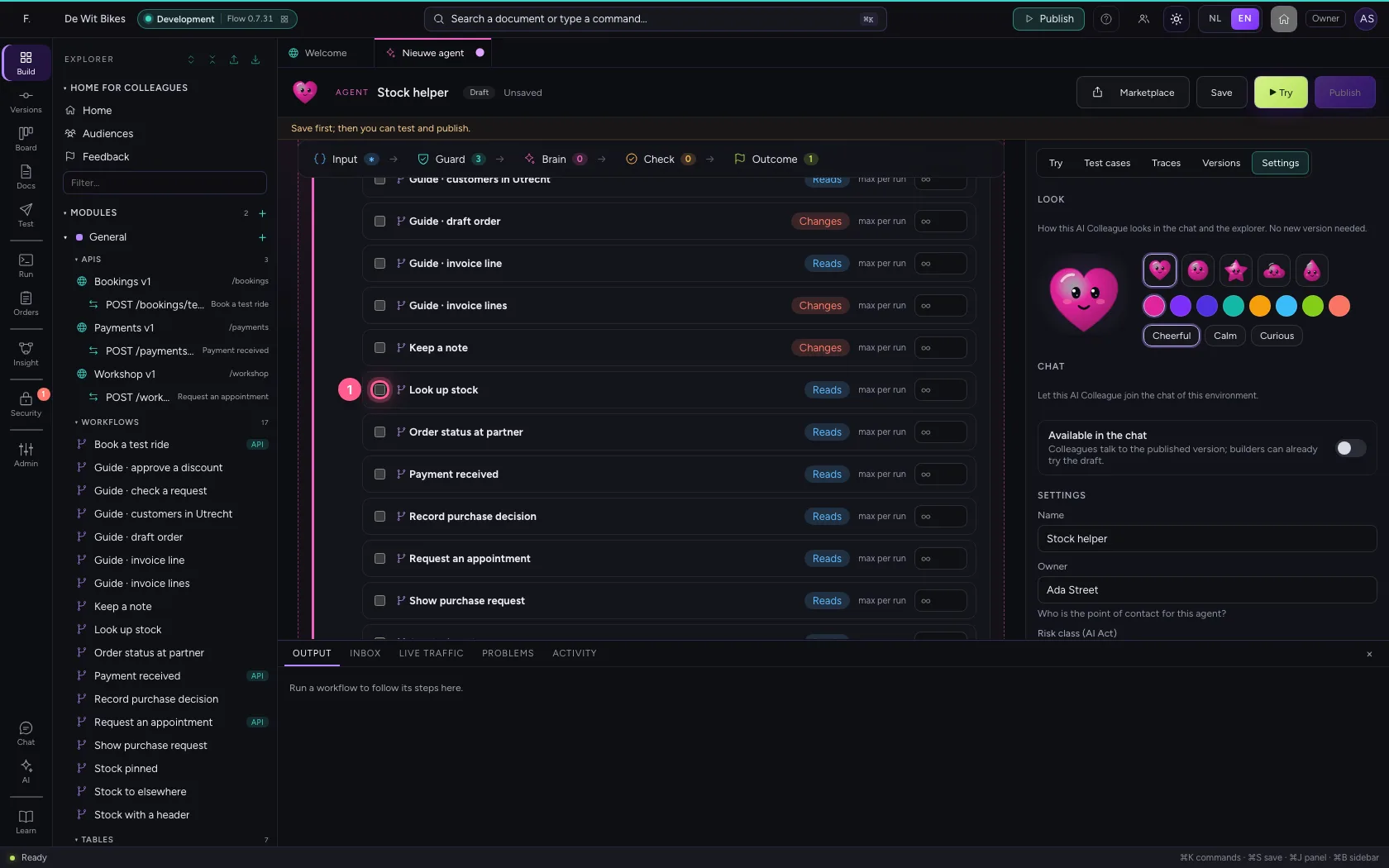
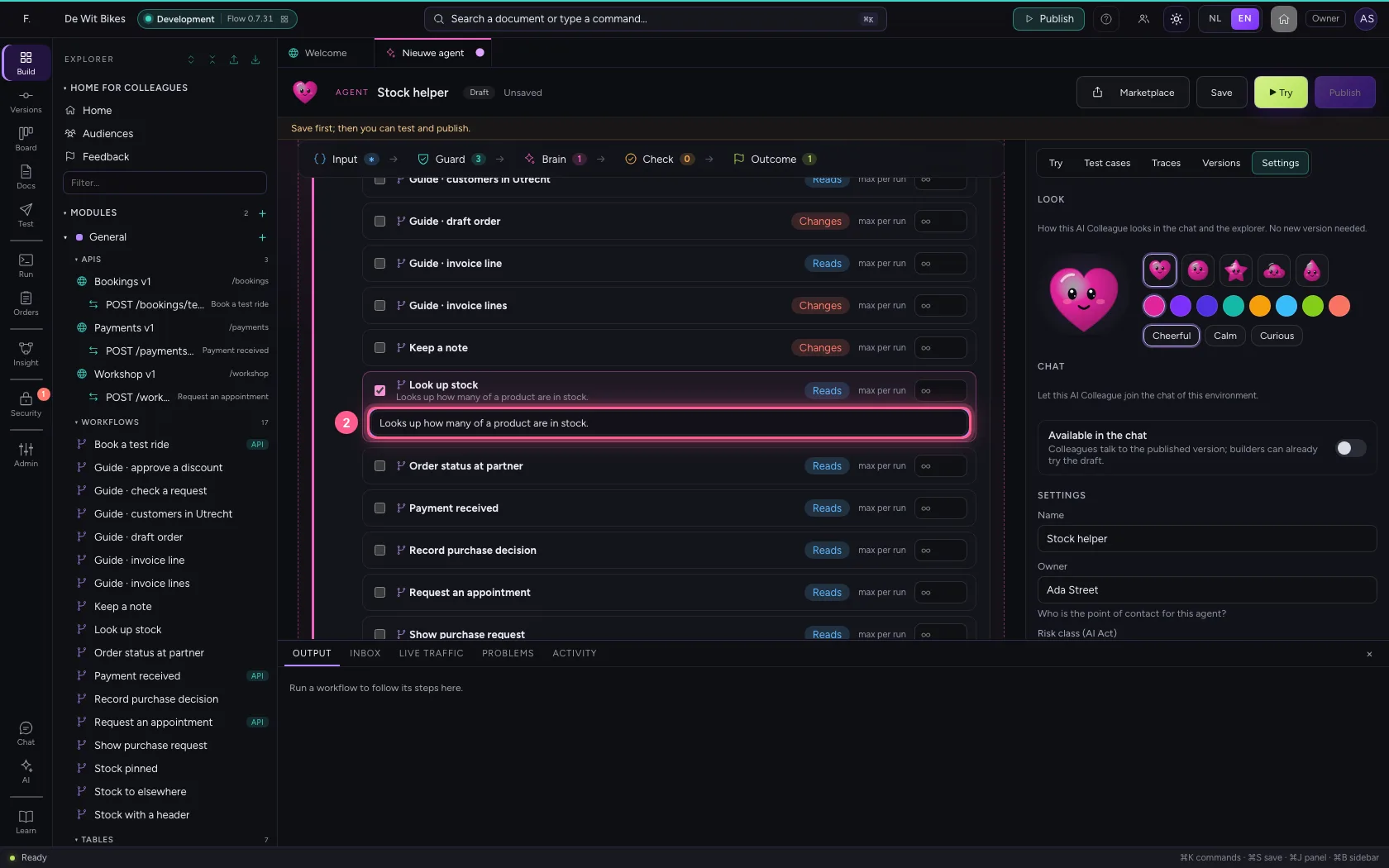
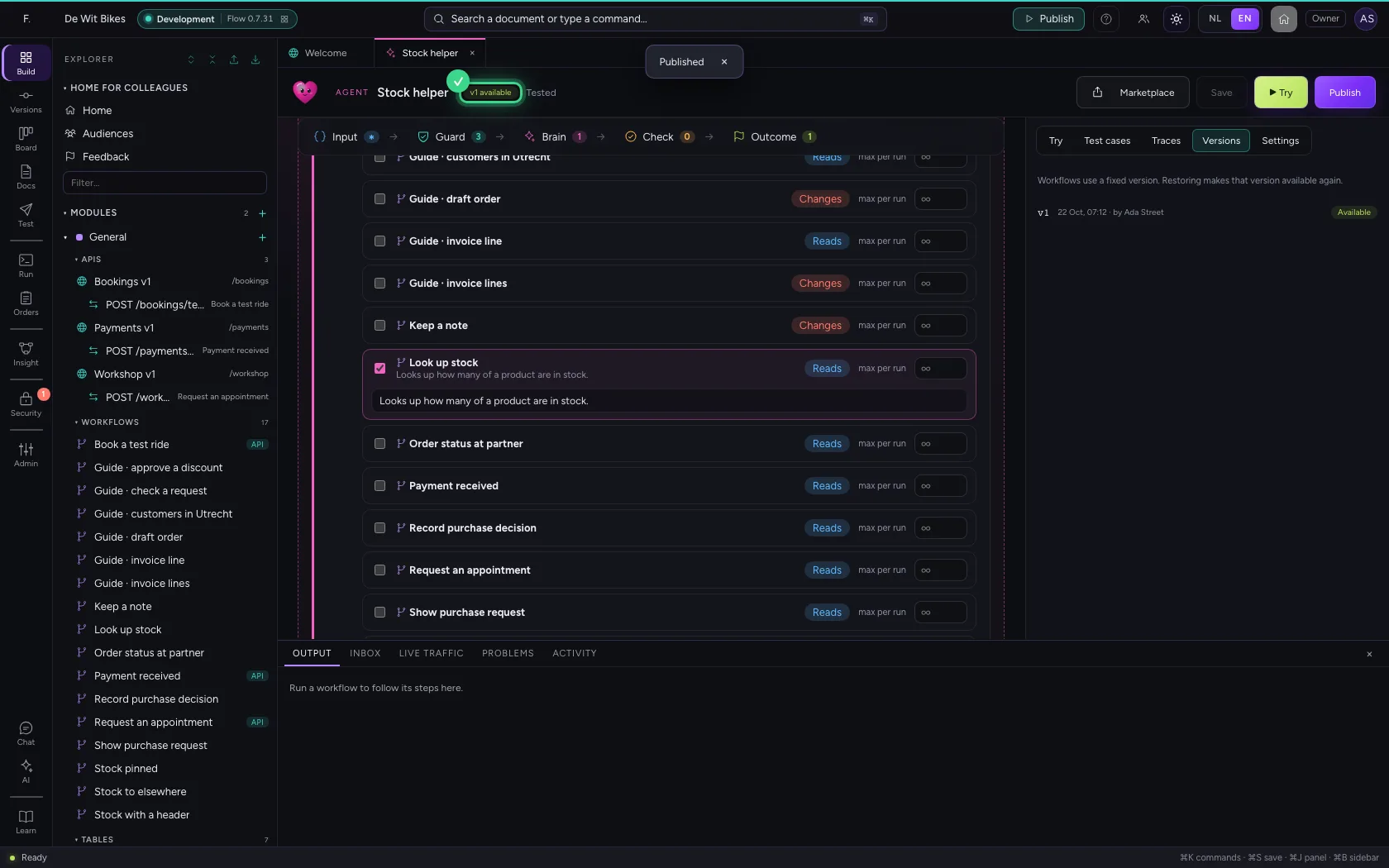
Under Workflows you tick which workflows the agent may start itself, and say when it uses them. Flow sees for itself that this workflow only looks things up and sets it to Reads; if that is wrong, click it to switch. As long as the agent may not change data, it is only offered tools that read.
- Click Look up stock
- In When to use it?, type
Looks up how many of a product are in stock.
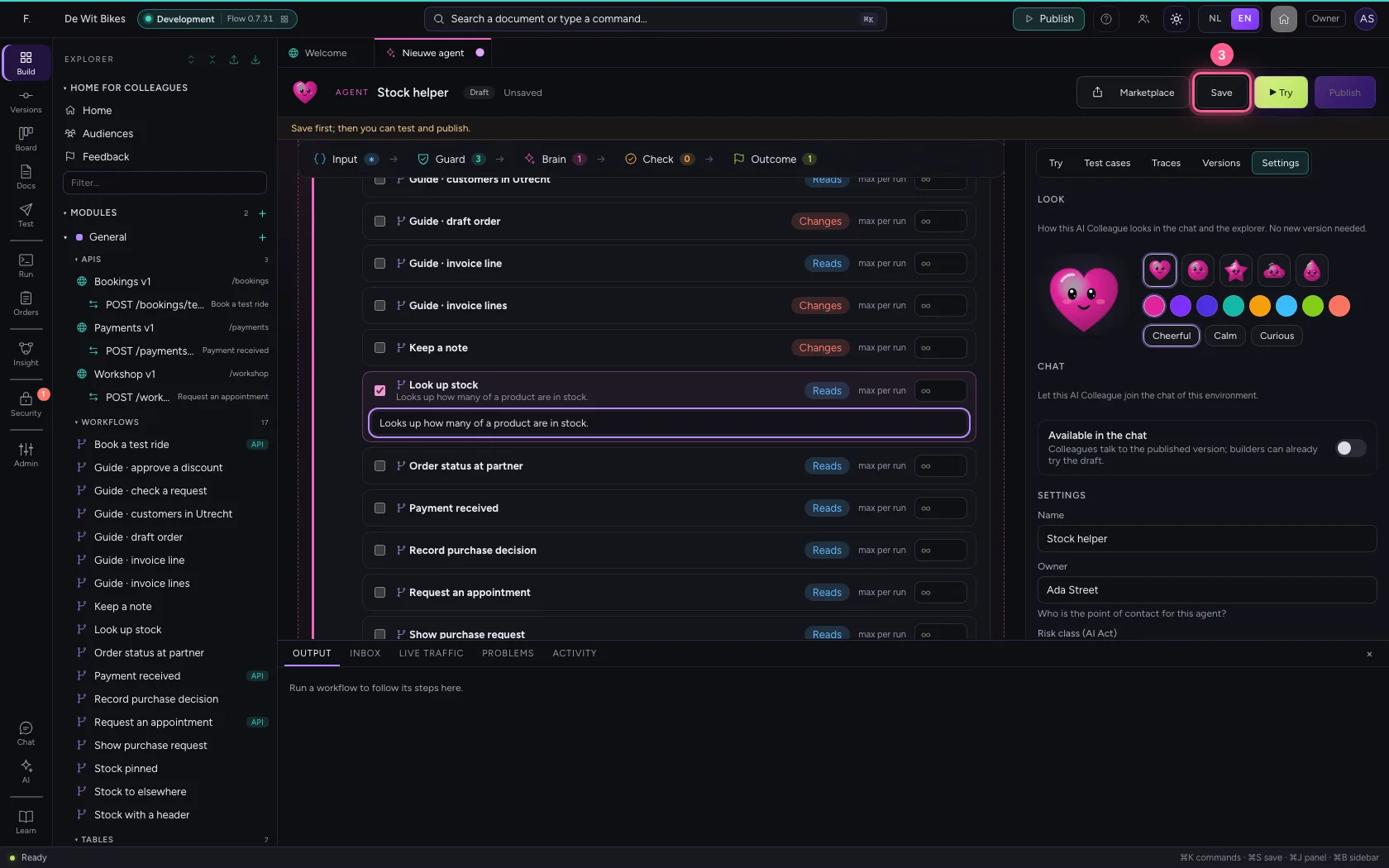
- Click Save
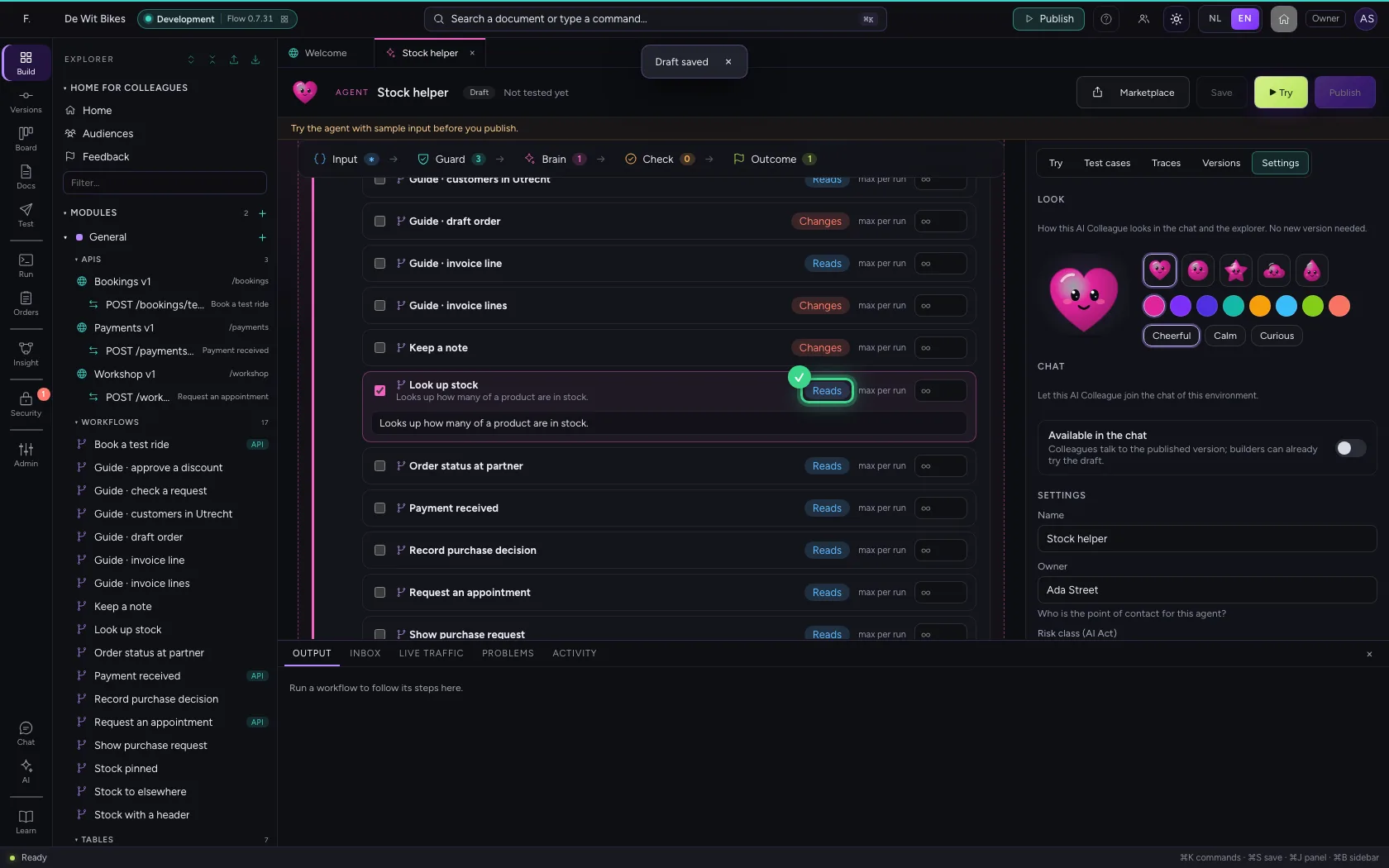
Try the agent
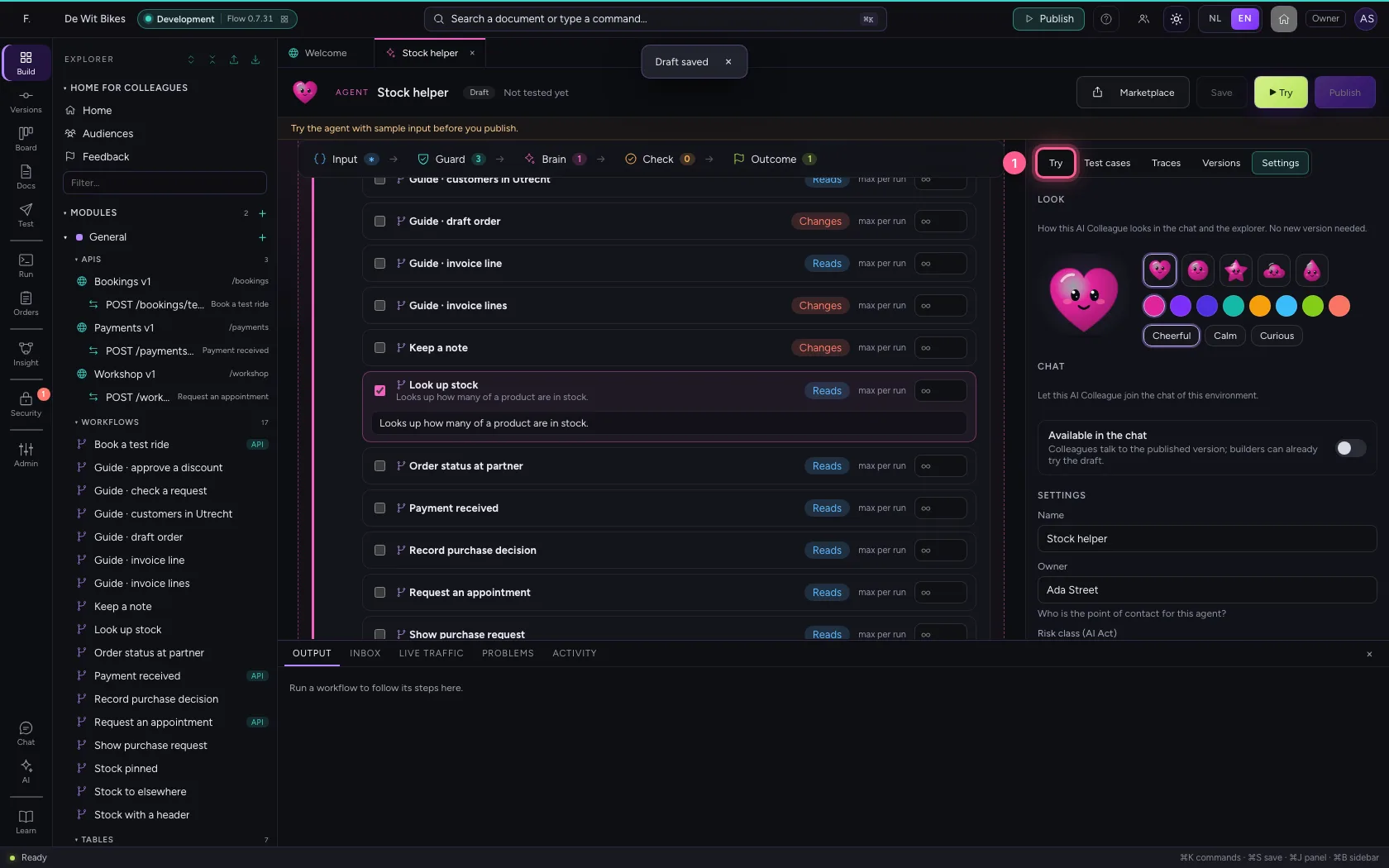
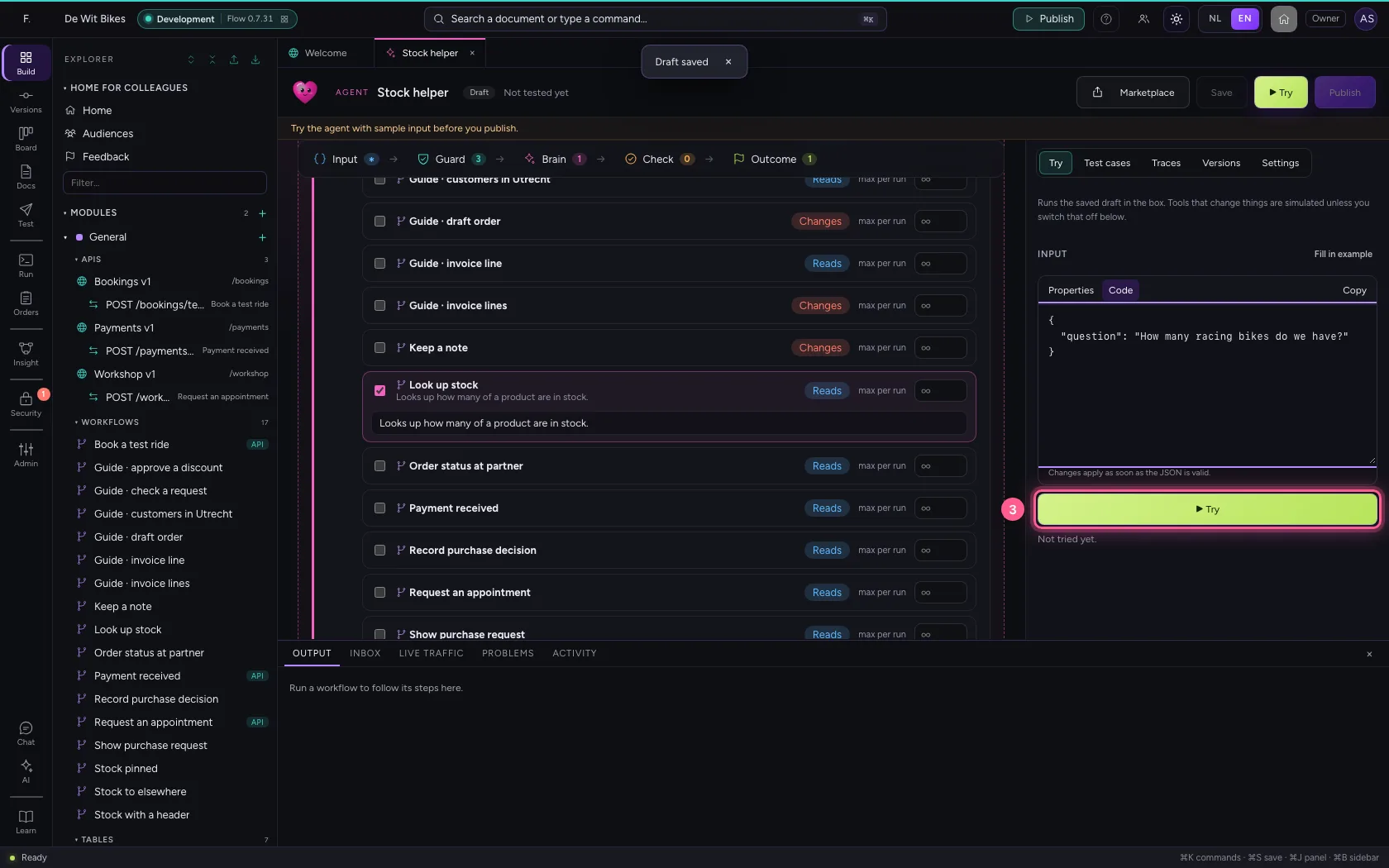
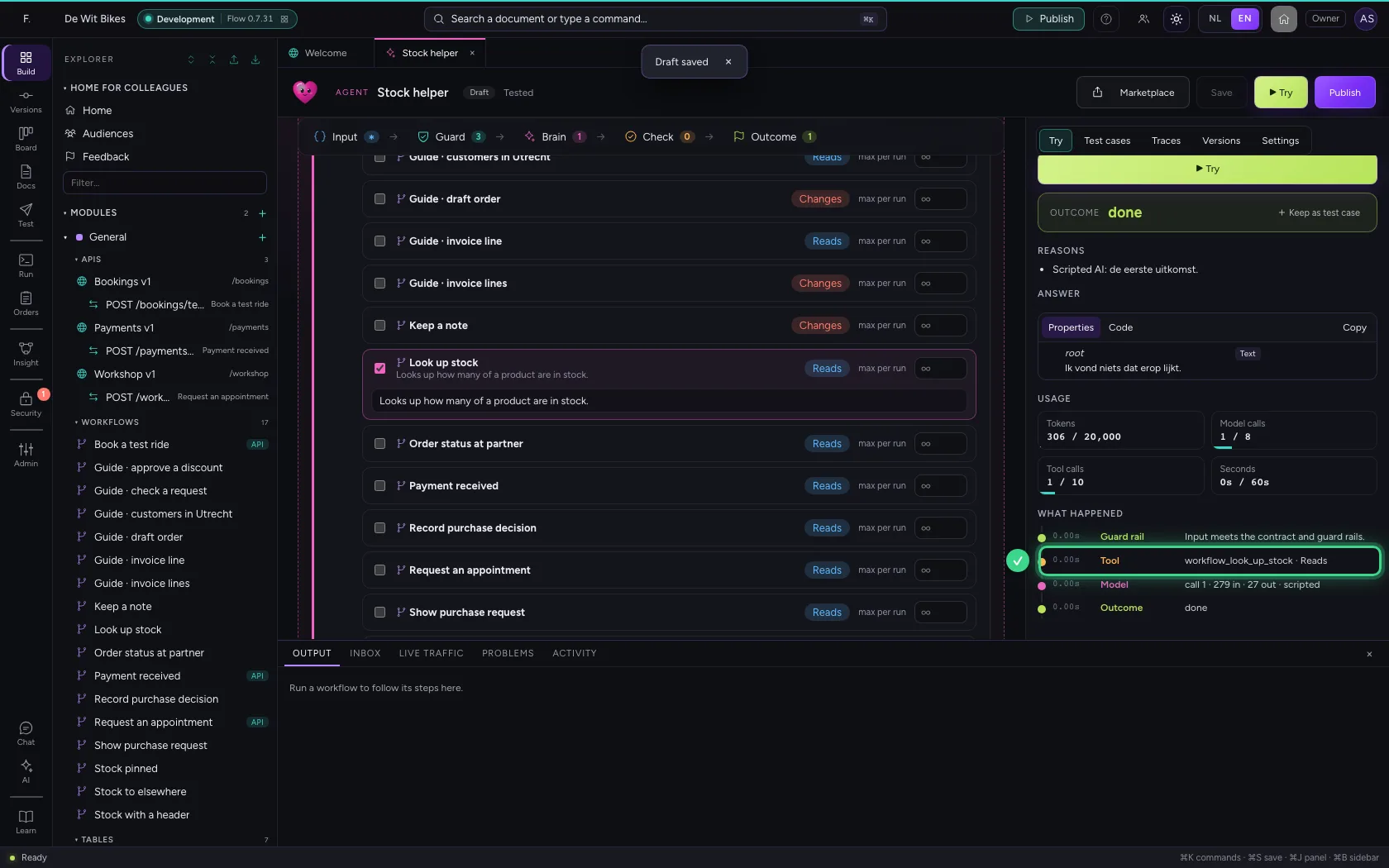
Under Try you give sample input and click Try. Under What happened you see every step in the box: the guard rails, every model call and every tool the agent used, with what it got back.
- Click Try
- In Input, type
{"question": "How many racing bikes do we have?"}
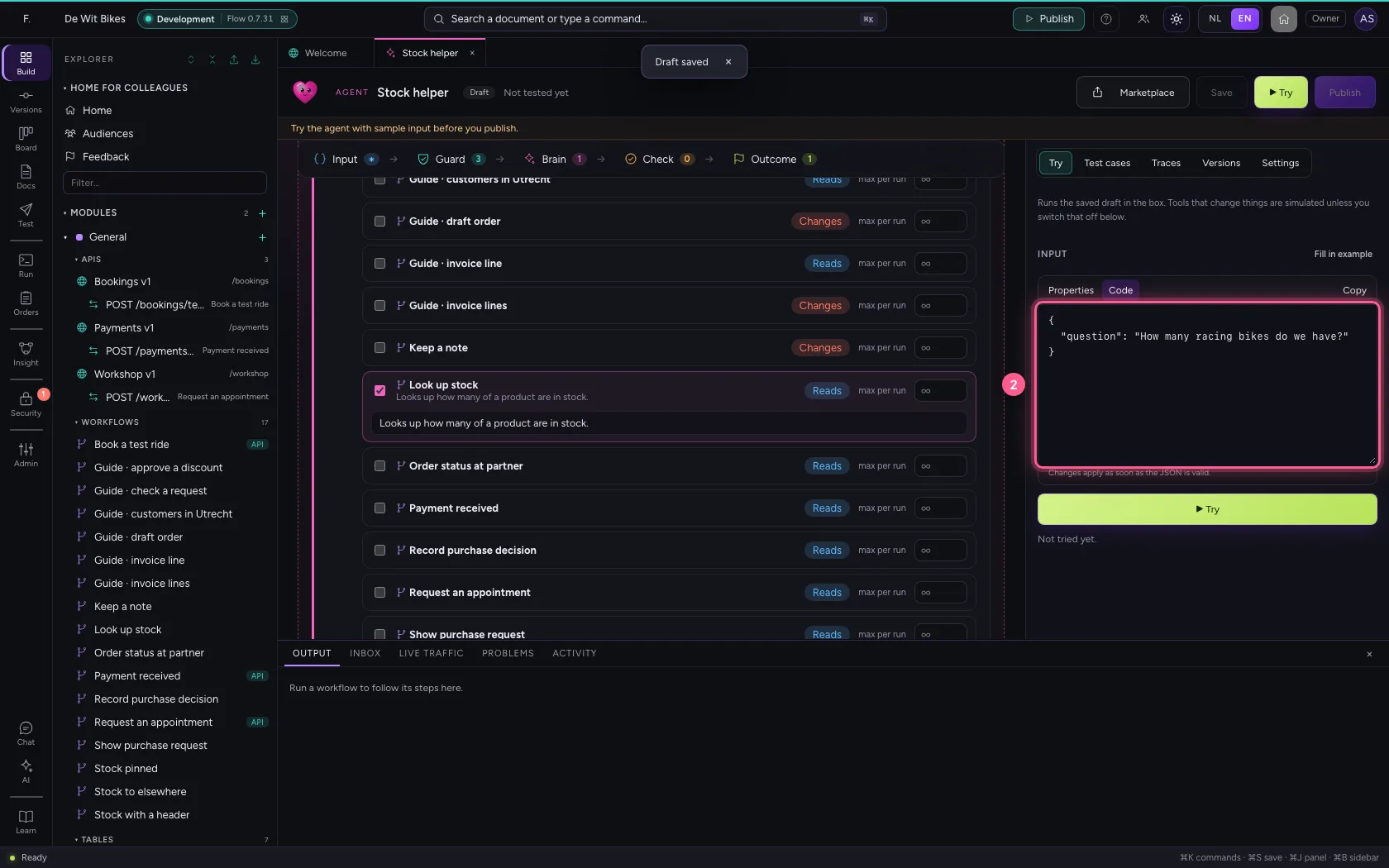
- Click ▶ Try
Publish the agent
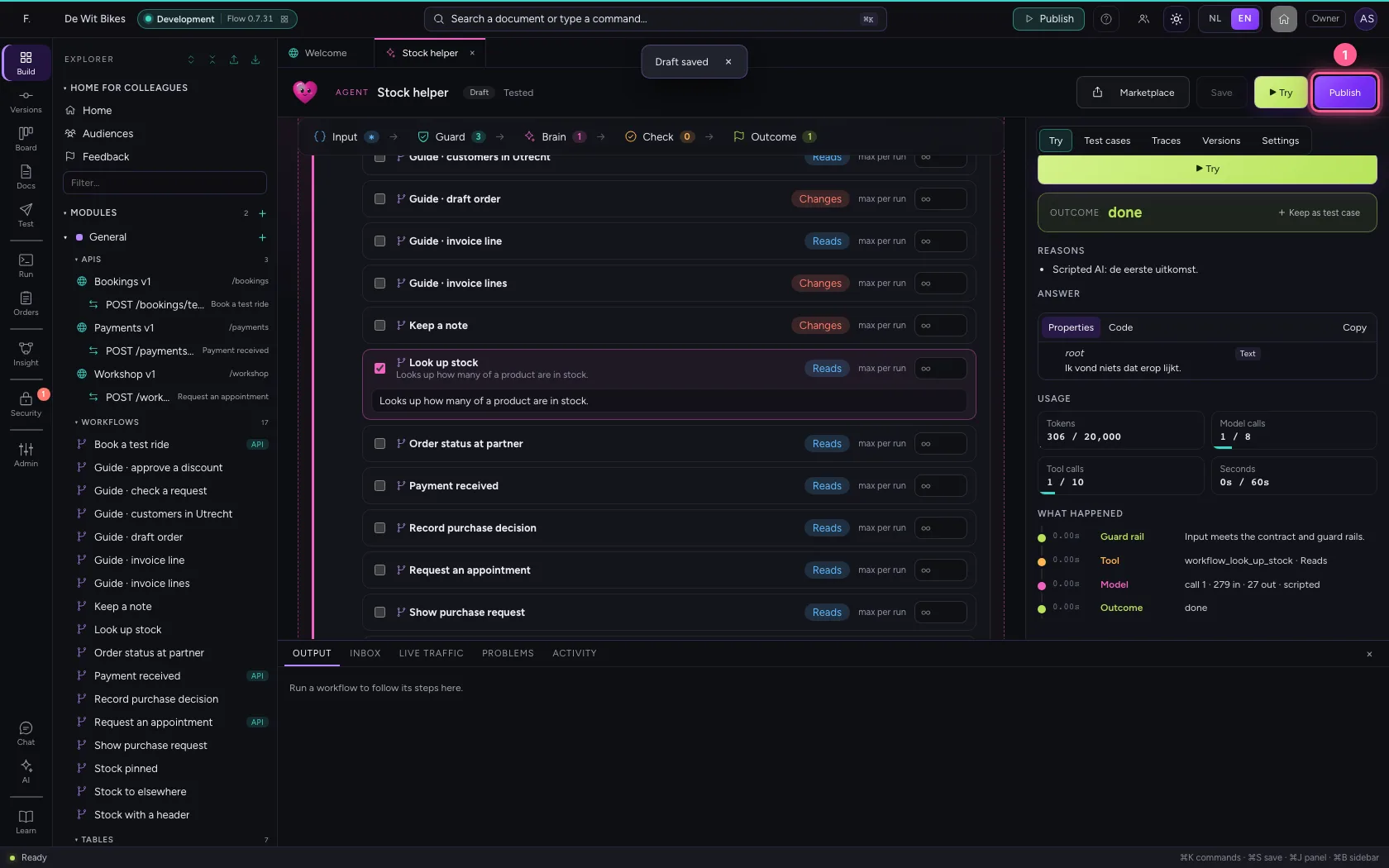
After a passing test you can publish. Workflows and the chat use the published version; what you change after that stays a draft until you publish again.
- Click Publish
This guide was carried out step by step on 22 Oct 2026 by an automated test on Flow (version 3e563176).