Connect a partner's API
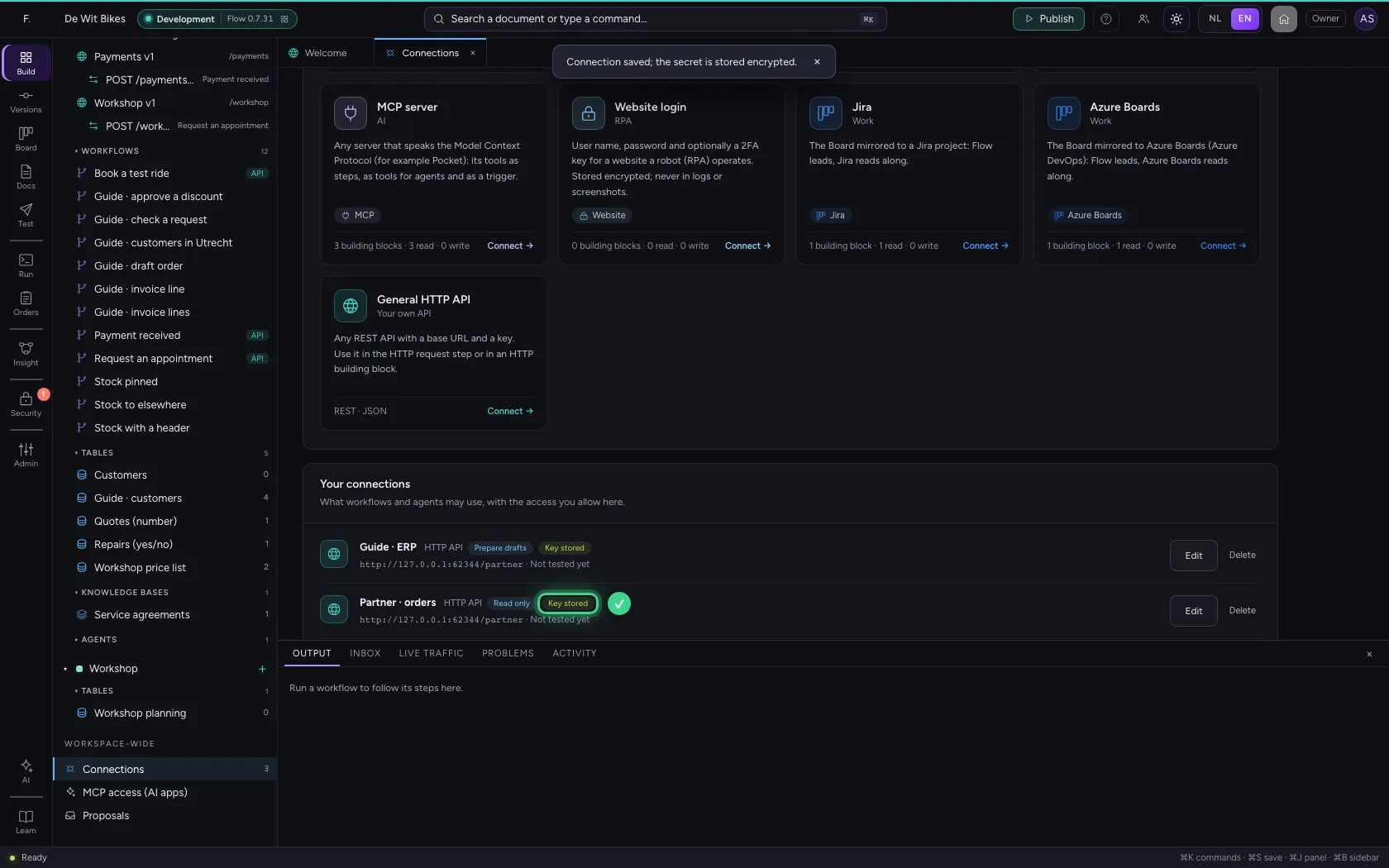
Your supplier or partner has a REST API with a base address and a key. You record it once as a connection; the key stays encrypted on the server. From then on any workflow calls the API with just a path, without ever seeing the key. You need: the API's base address and a bearer token.
Open your development environment
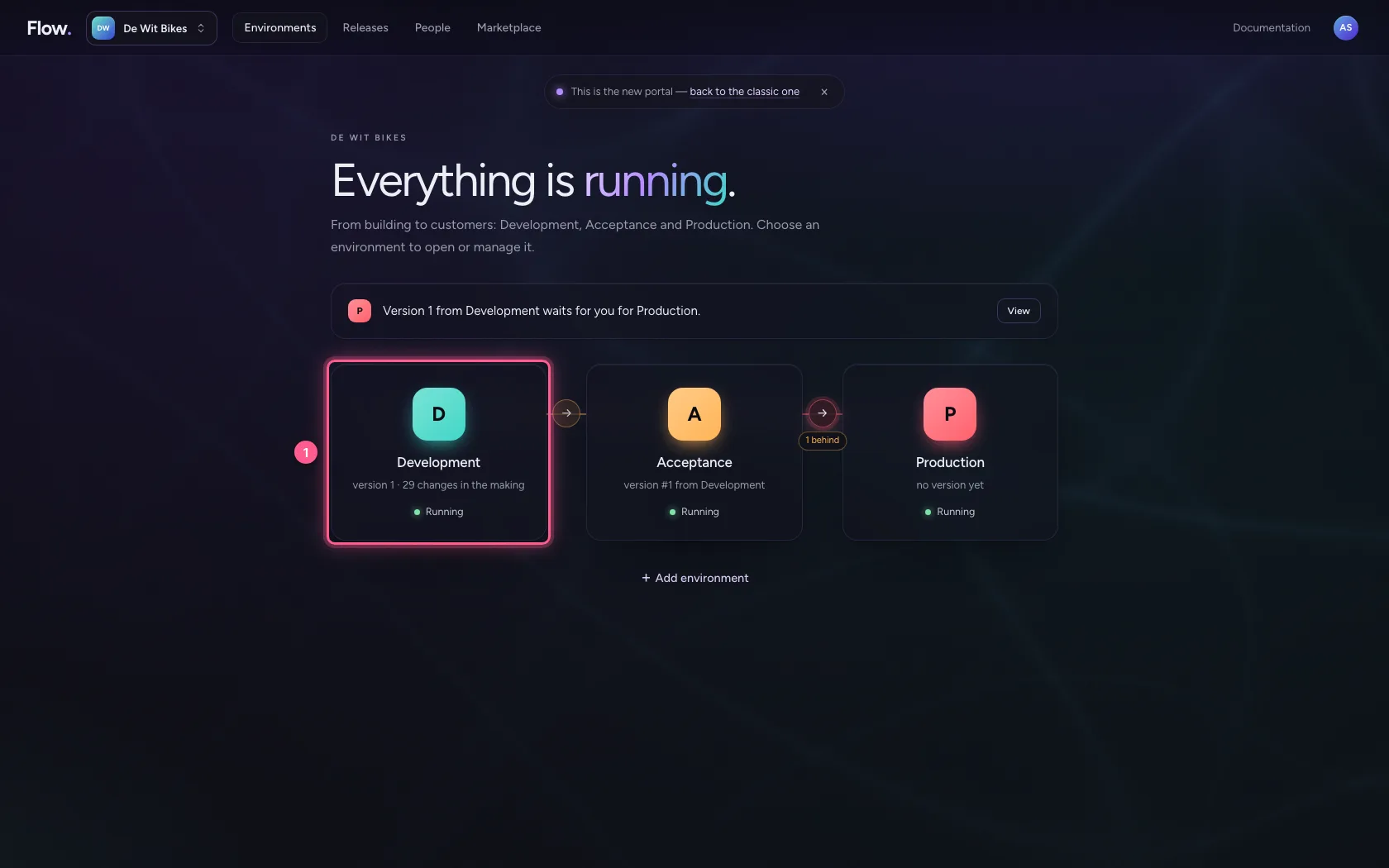
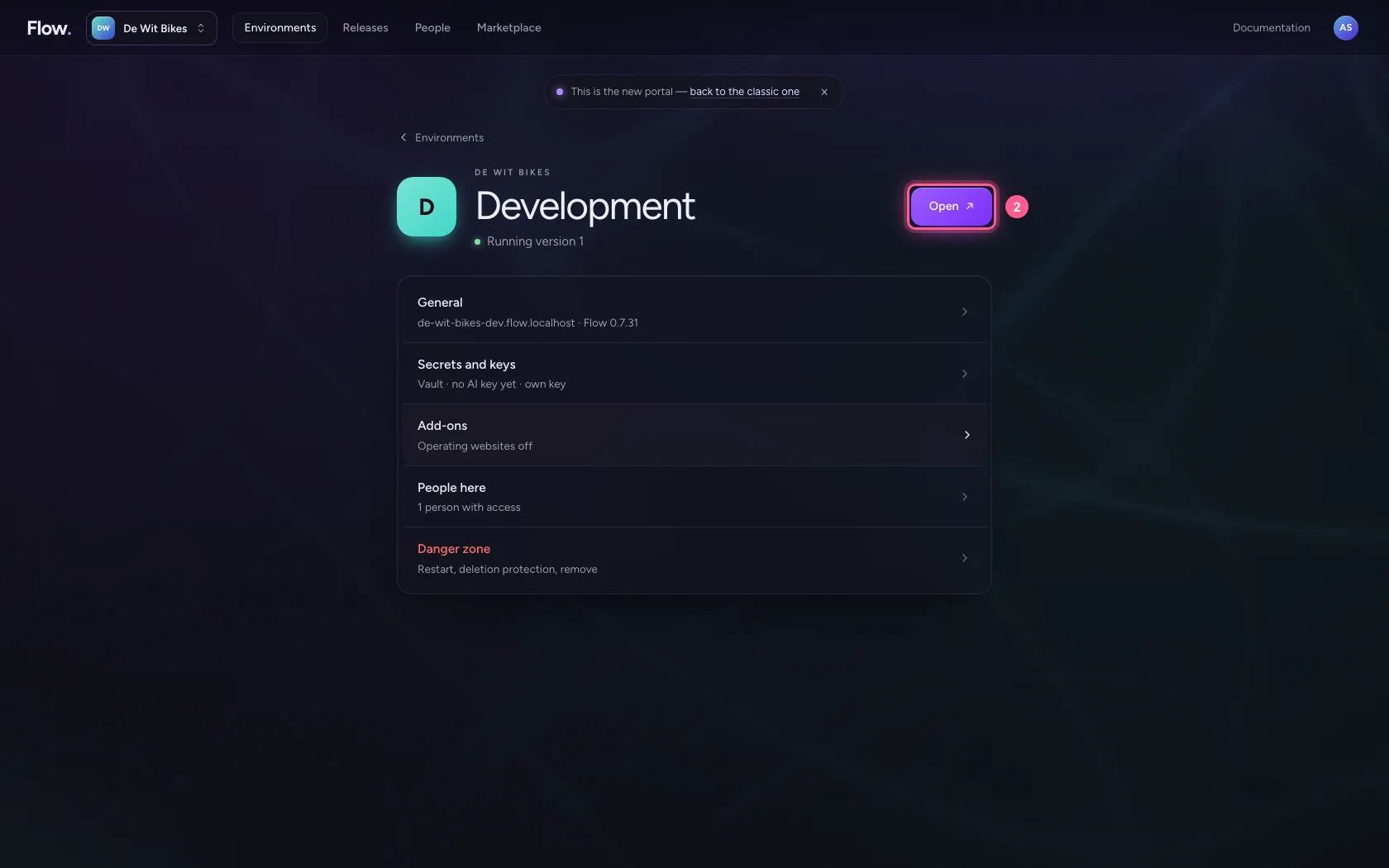
In the portal, under Environments, click Development, and there Open. Flow opens in a new tab and you are signed in straight away.
- Click Development
- Click Open ↗
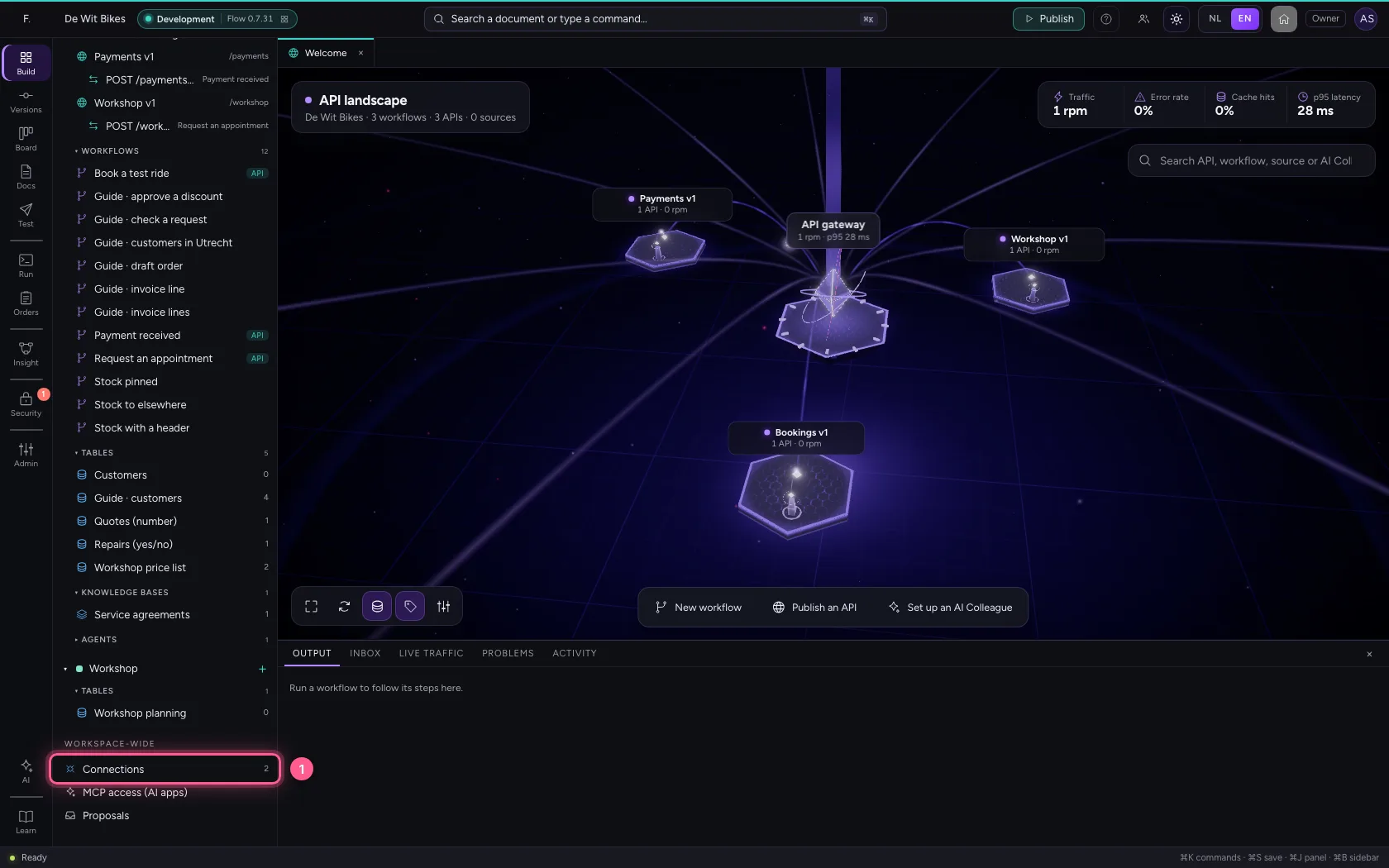
Open Connections
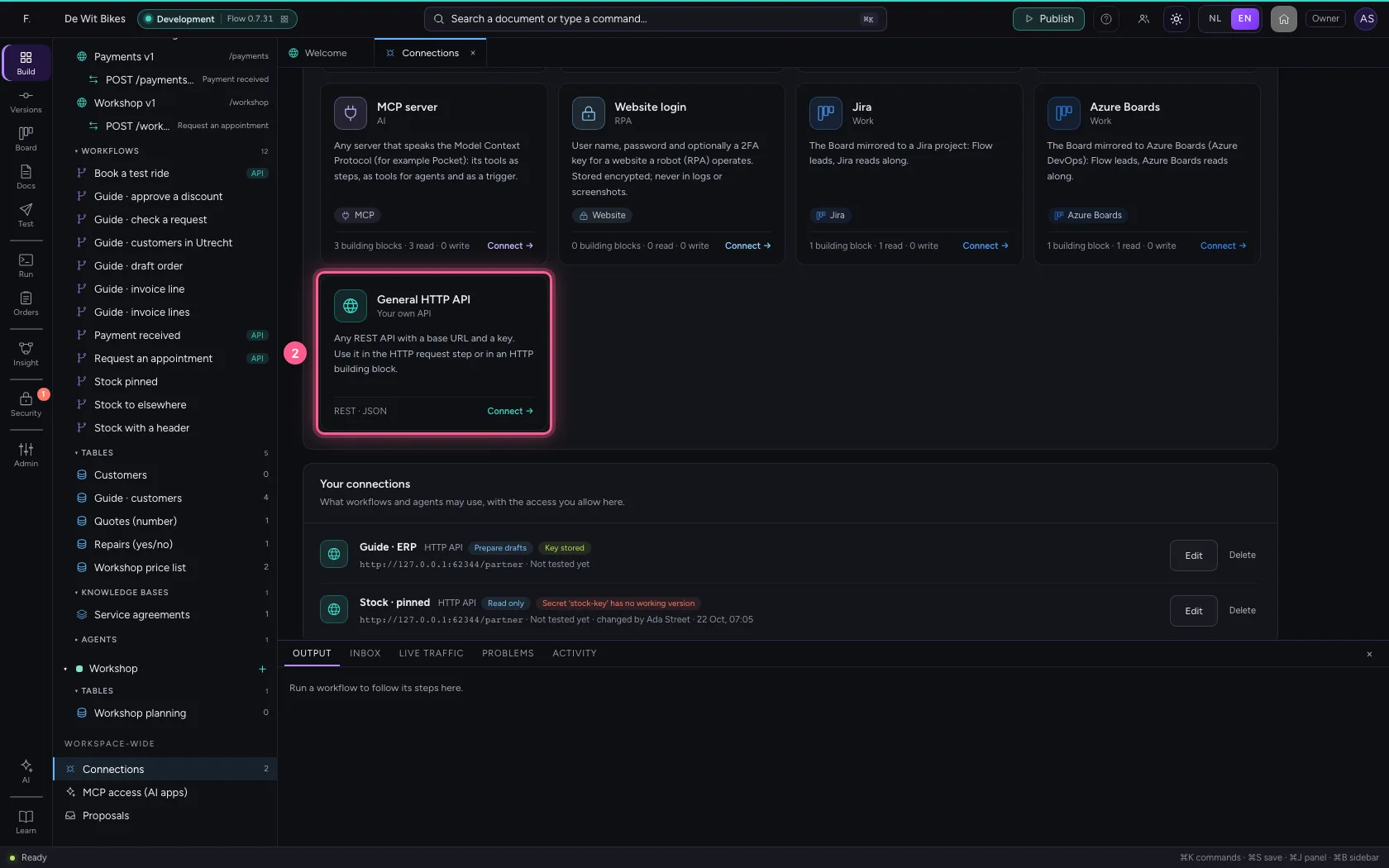
Connections are at the bottom of the explorer, for the whole workspace. At the top are the systems Flow has a ready-made connector for; for any other REST API you choose General HTTP API.
- Click Connections
- Click General HTTP API
Fill in the address and the key
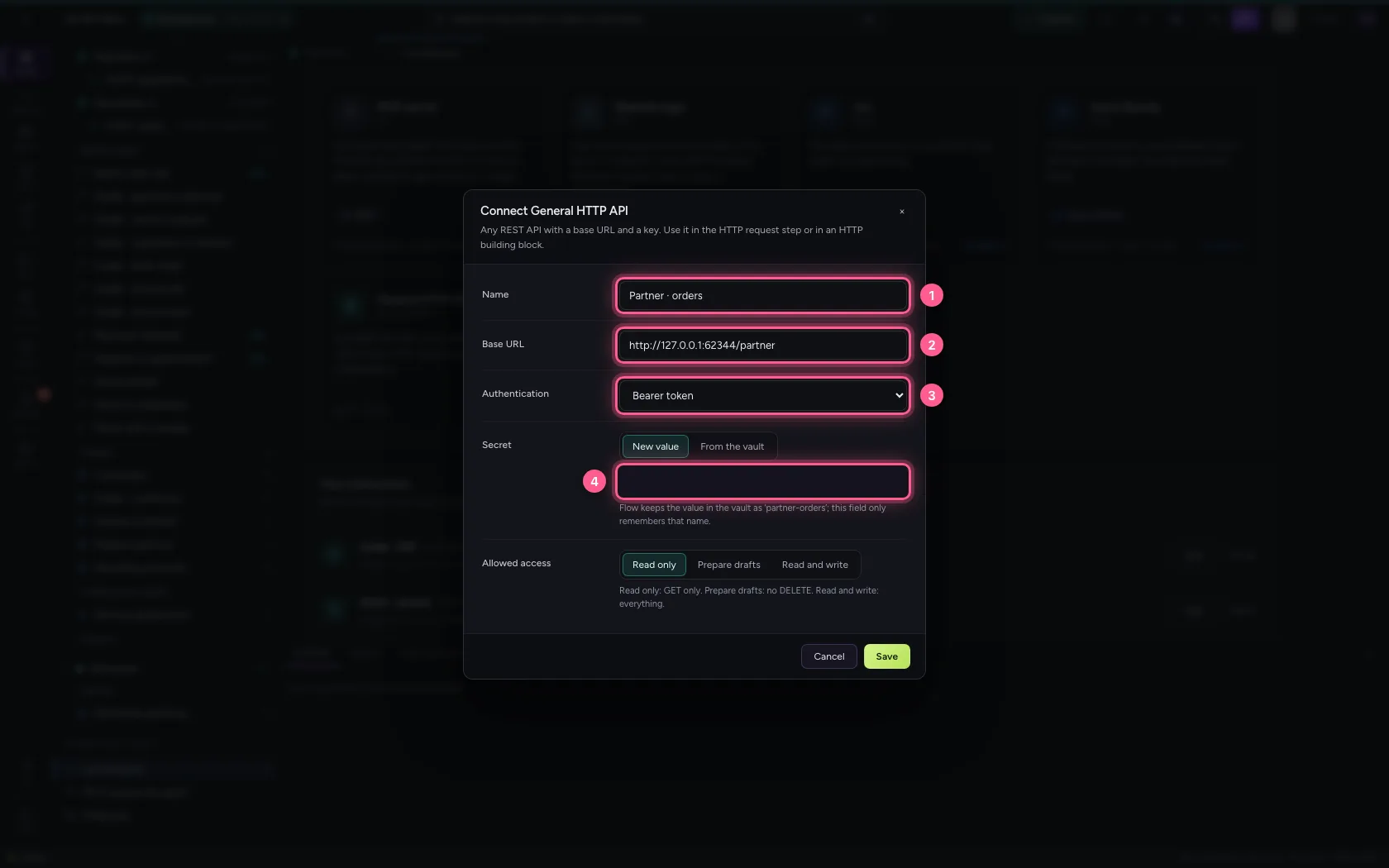
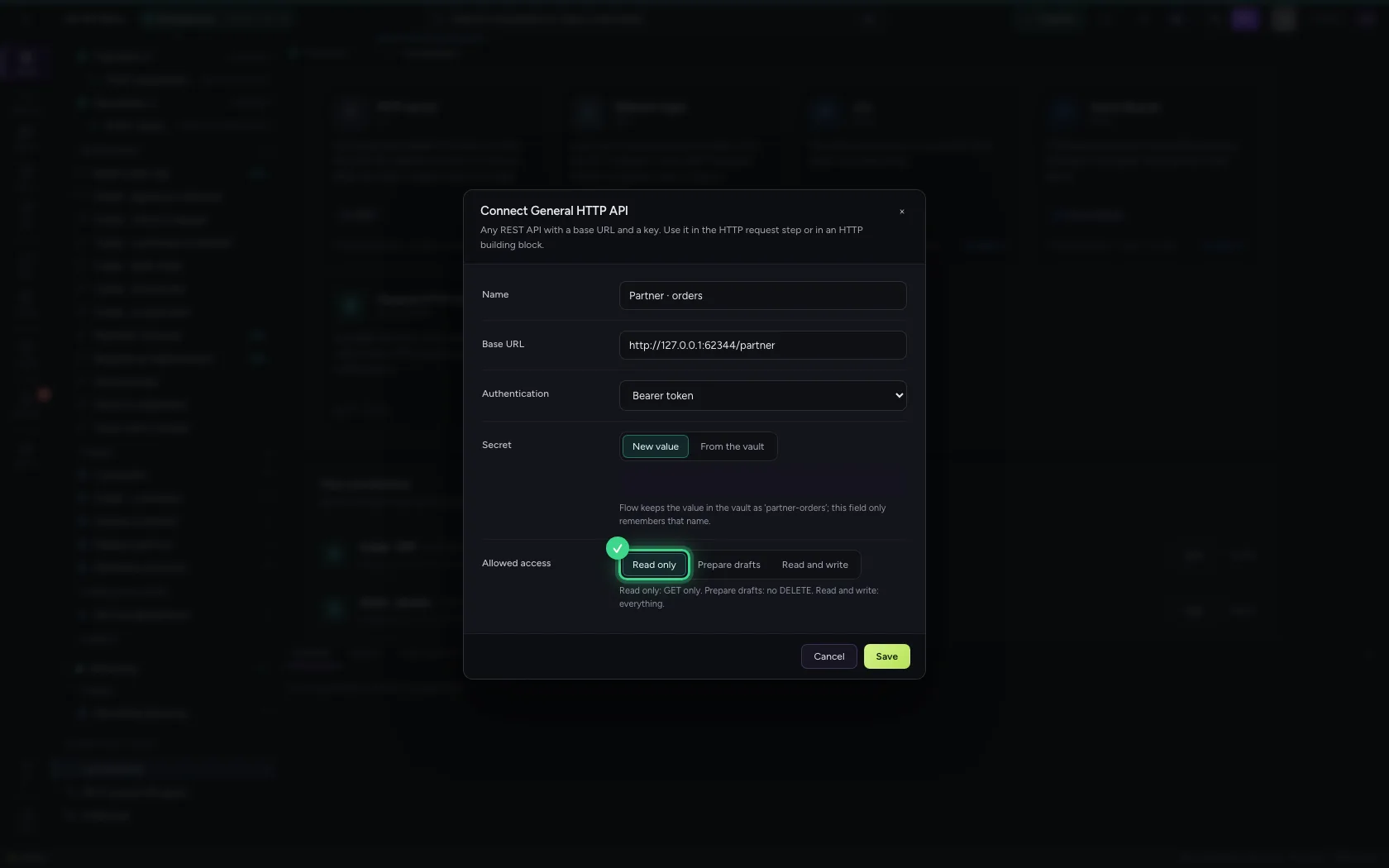
The base URL is the part that is the same for every call. With Bearer token, Flow sends the key along as the Authorization header. Leave access on Read only if you only fetch data: Flow then refuses any call that would change something, even when a workflow or AI Colleague tries.
- In Name, type
Partner · orders - In Base URL, type
http://127.0.0.1:62344/partner - In Authentication, choose Bearer token
- In Secret, type
••••••••
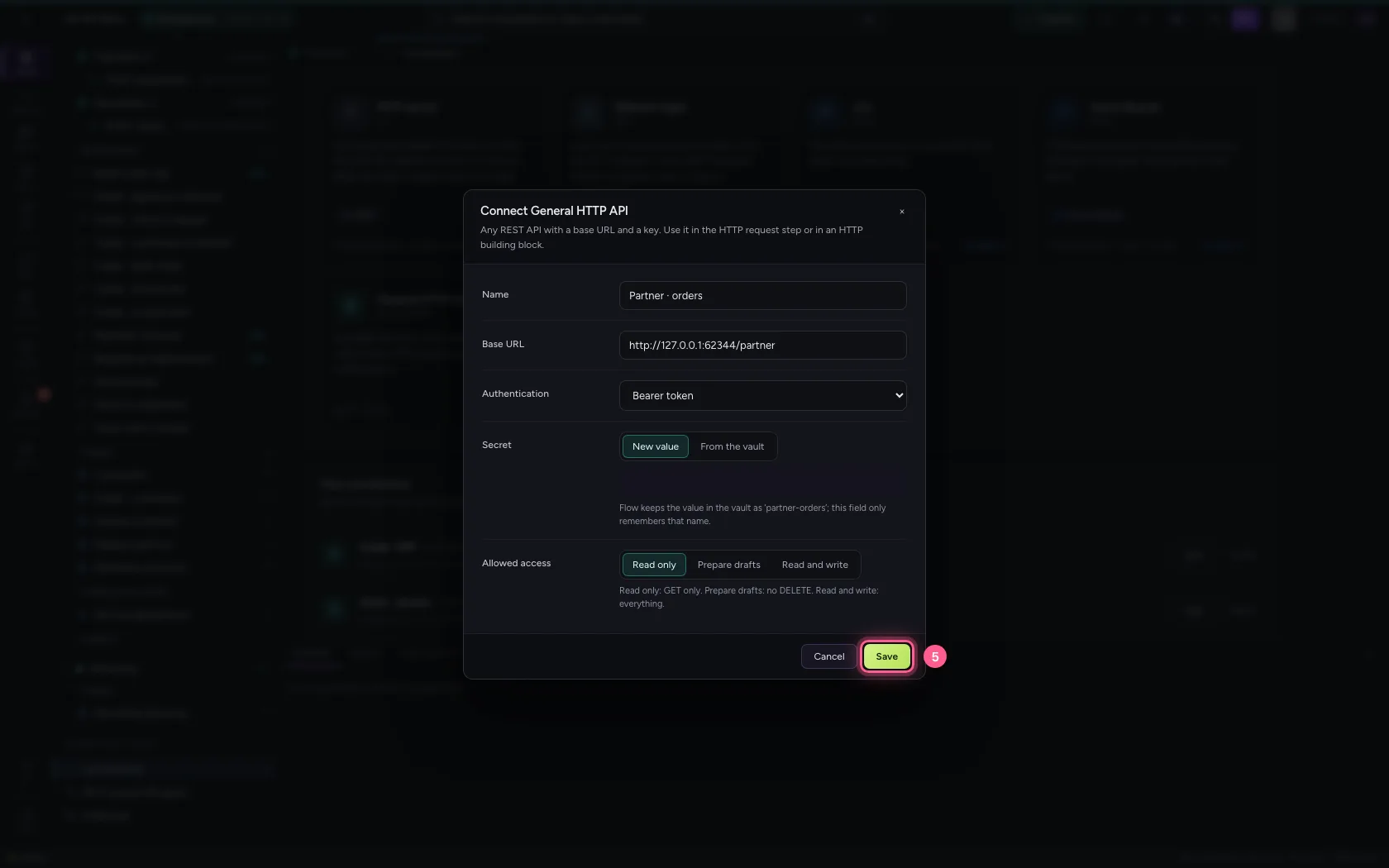
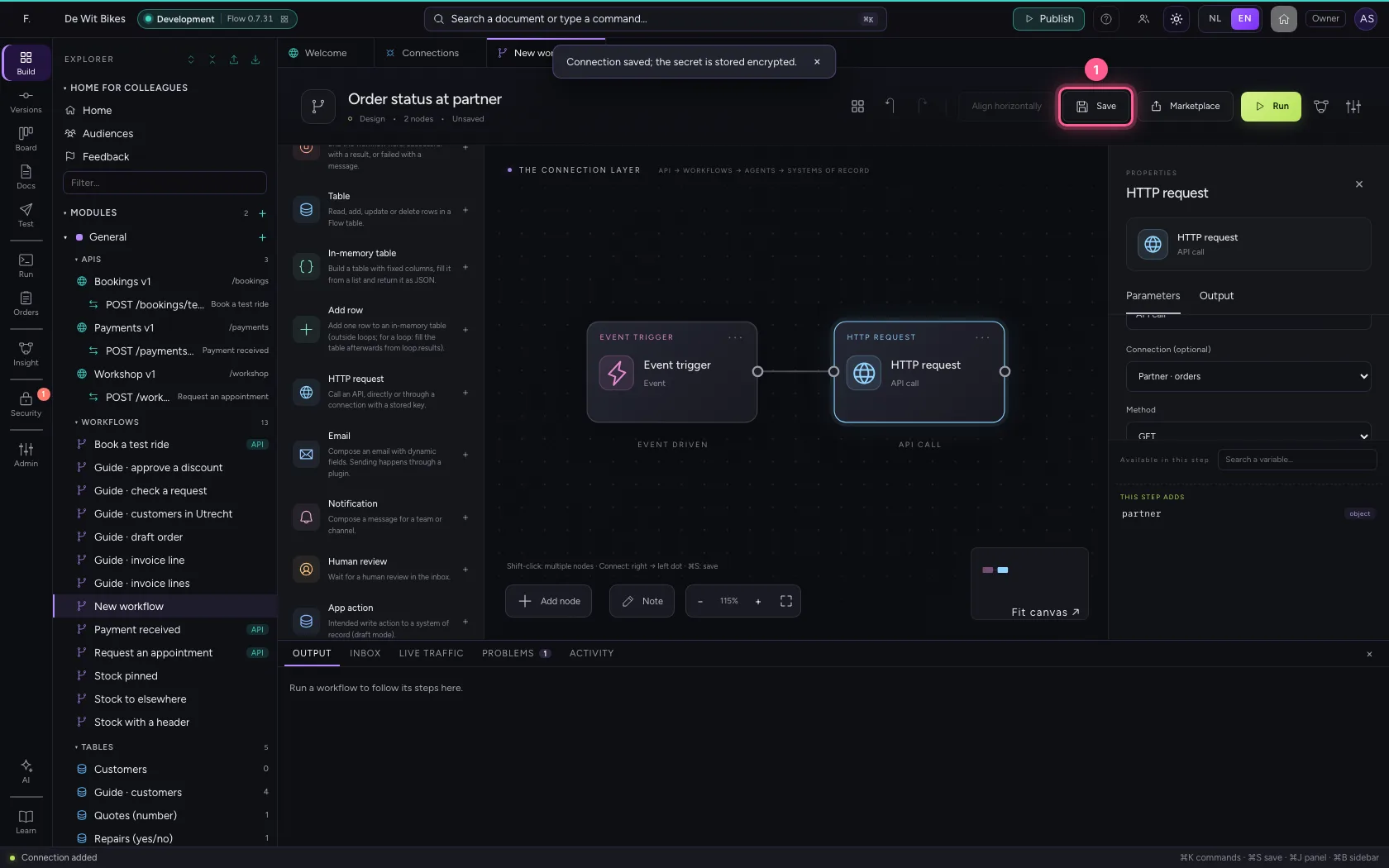
- Click Save
Create a workflow with an HTTP step
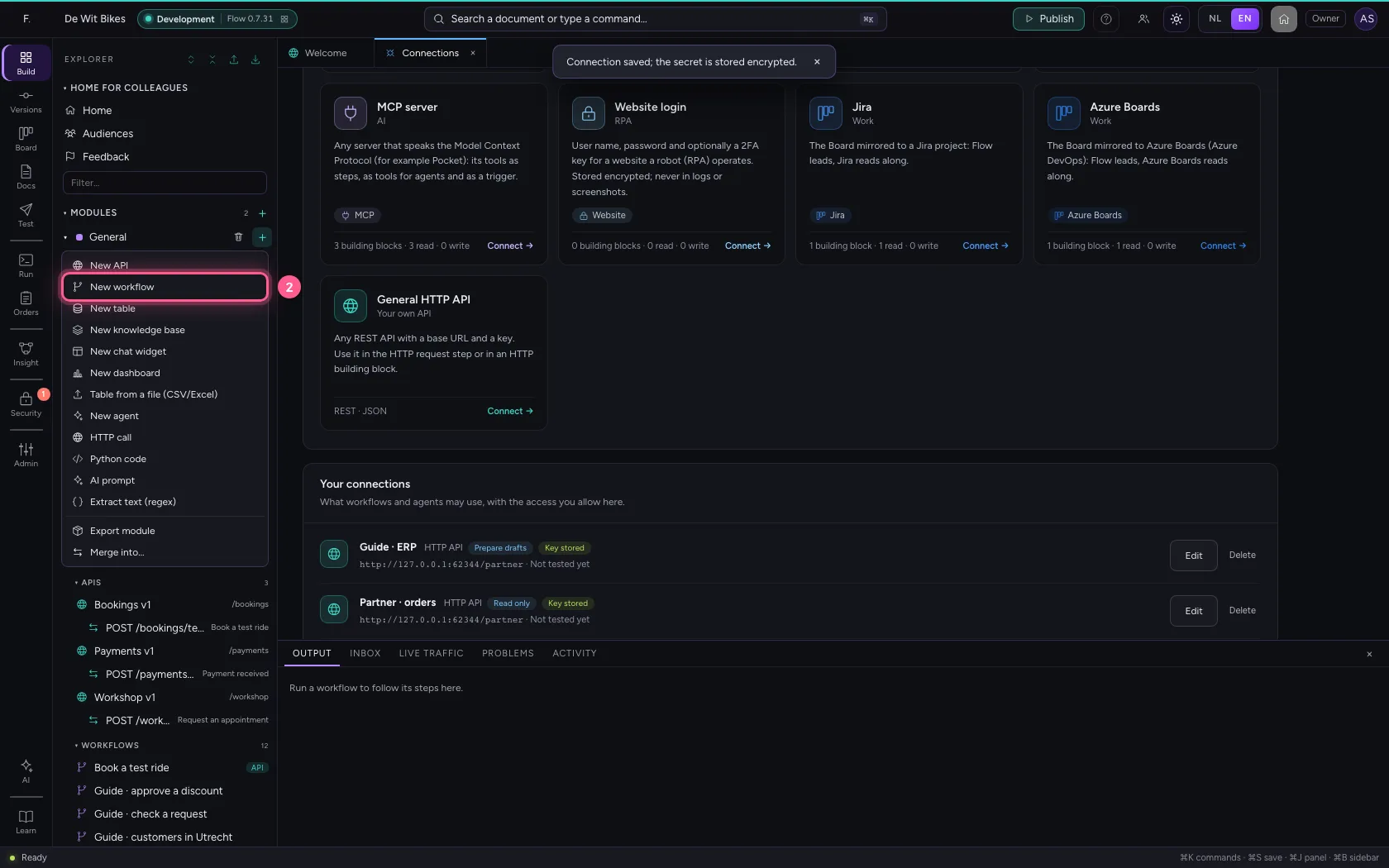
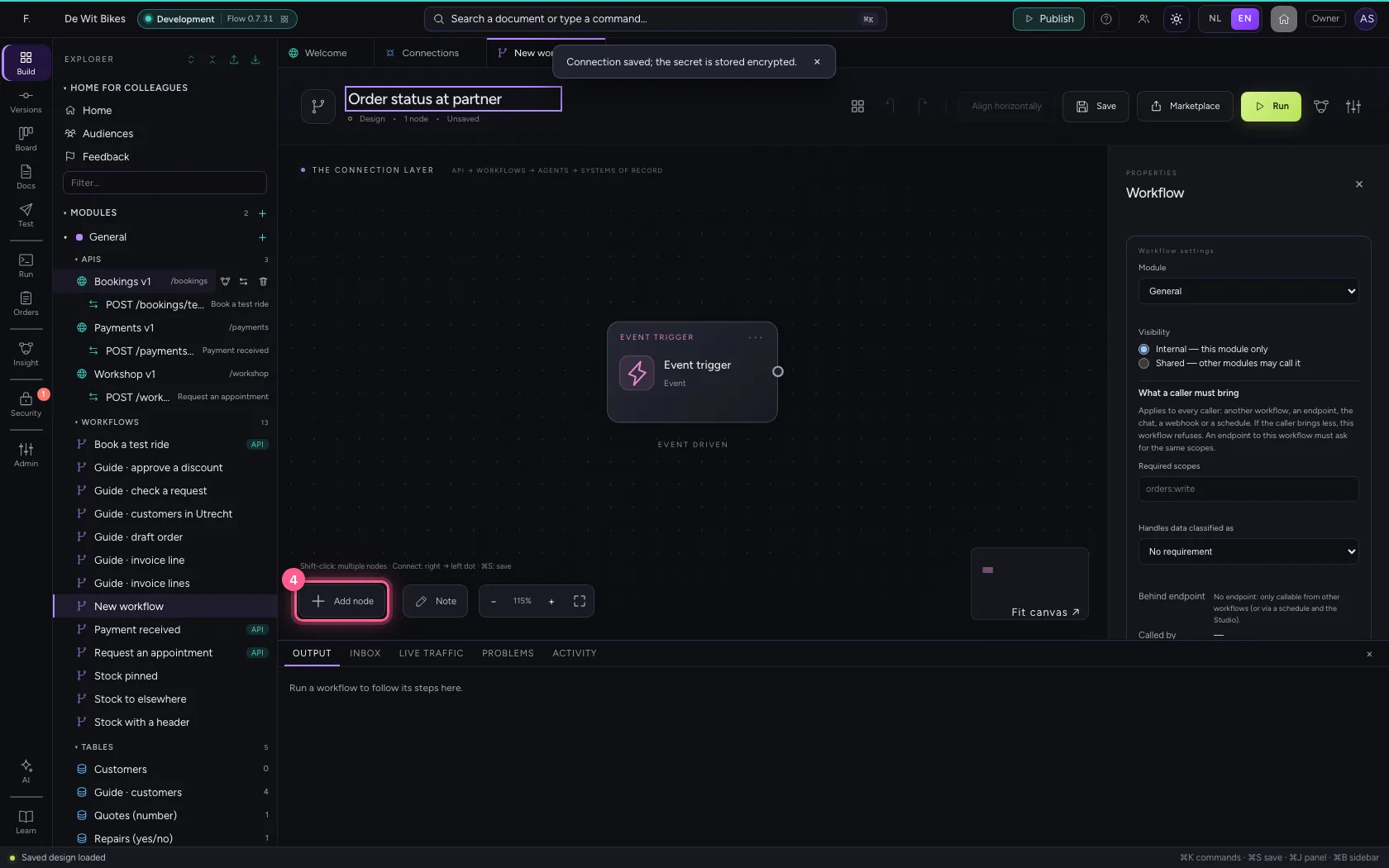
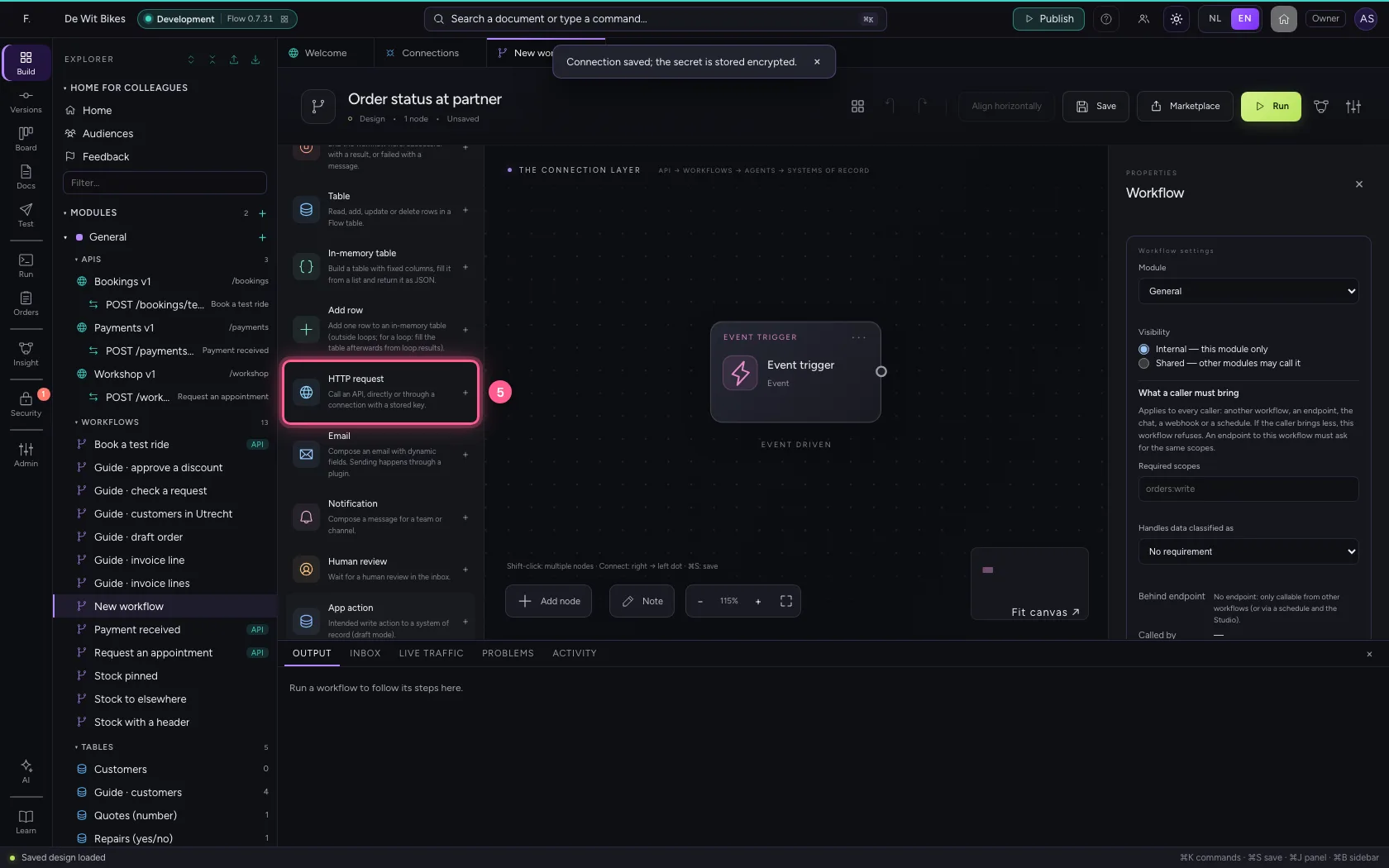
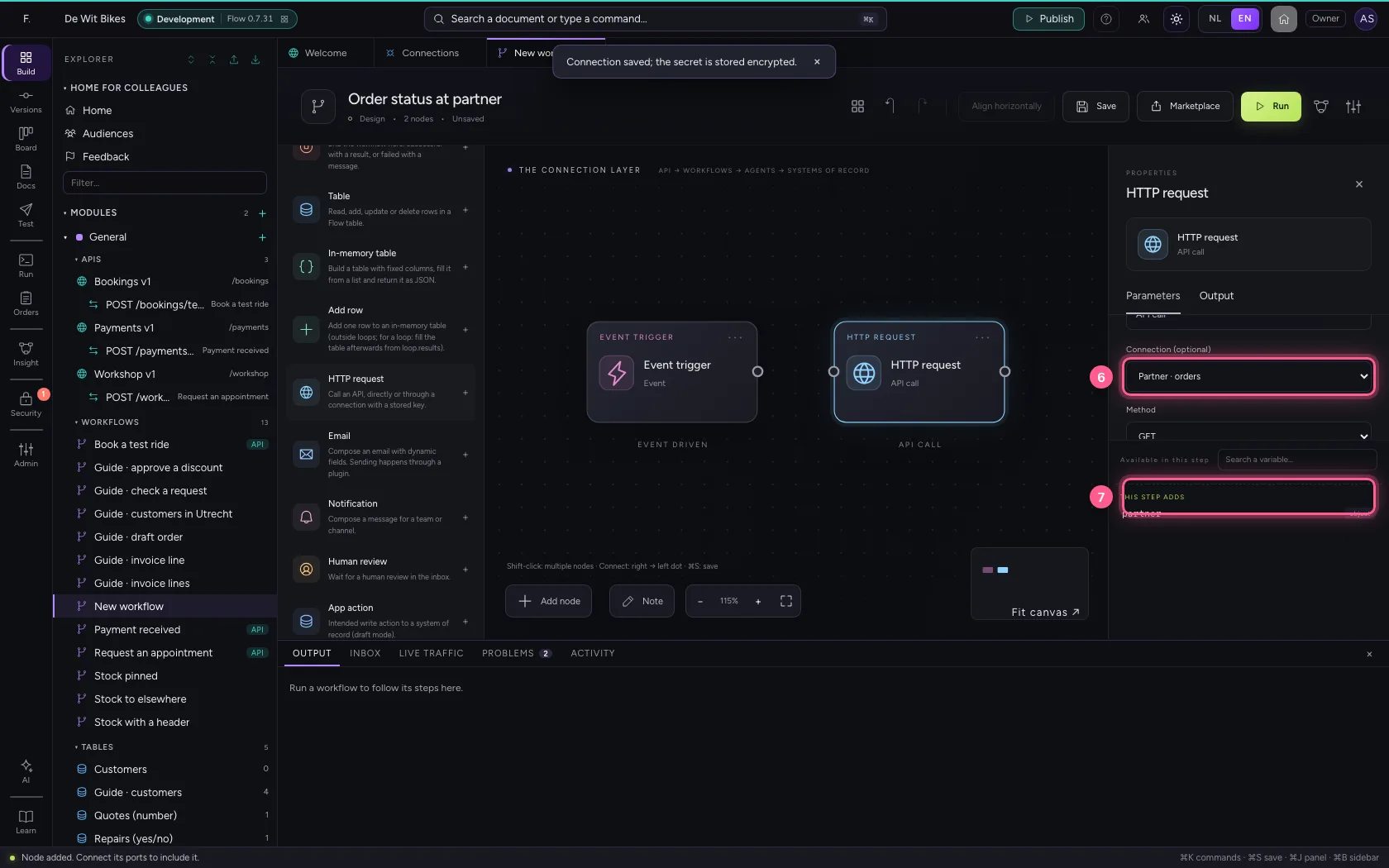
Create a new workflow and add HTTP request. Choose your connection: the URL field then becomes the path after the base URL, and the key goes along by itself. Under Store the result as you name the answer.
- Click Add to General
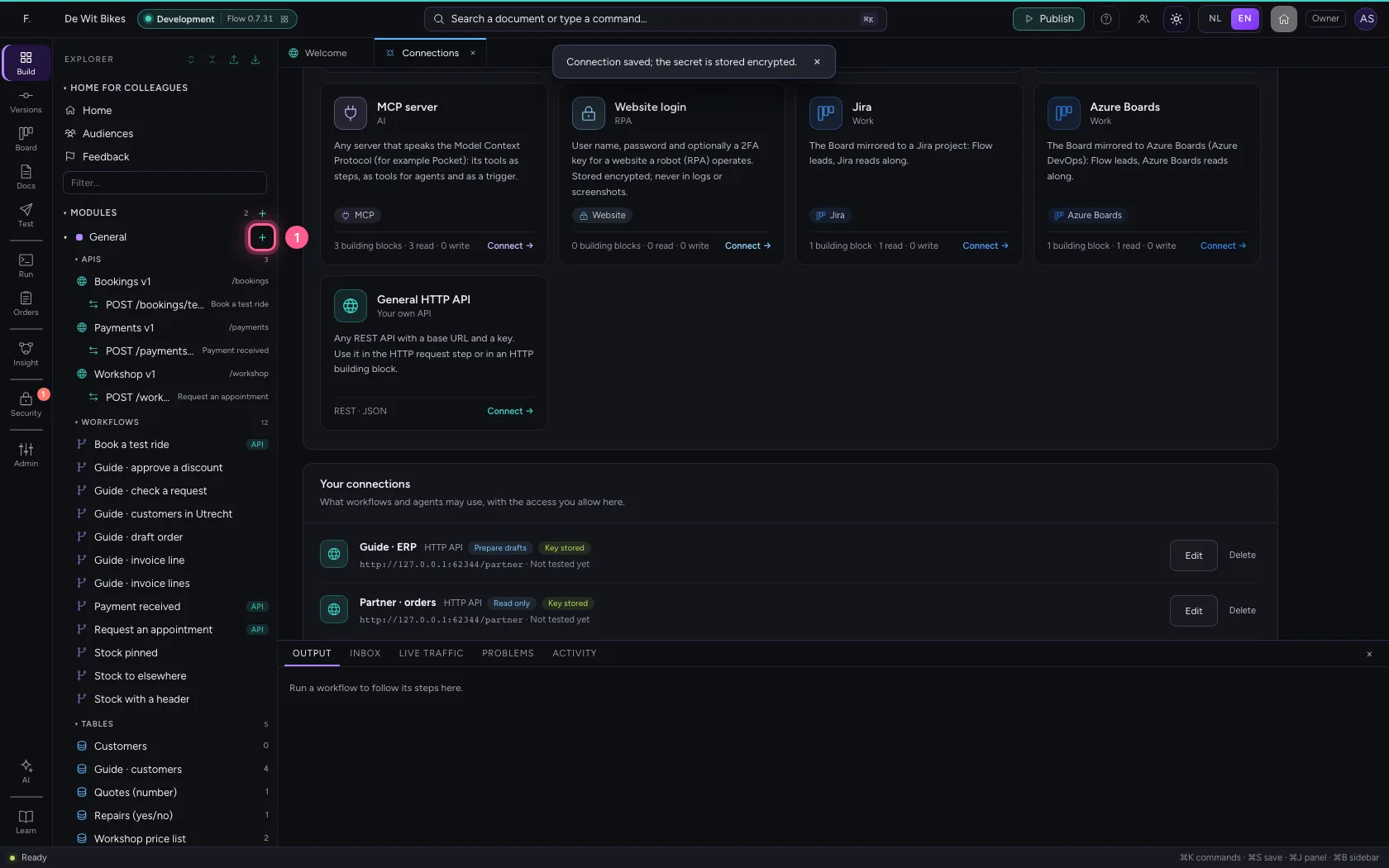
- Click New workflow
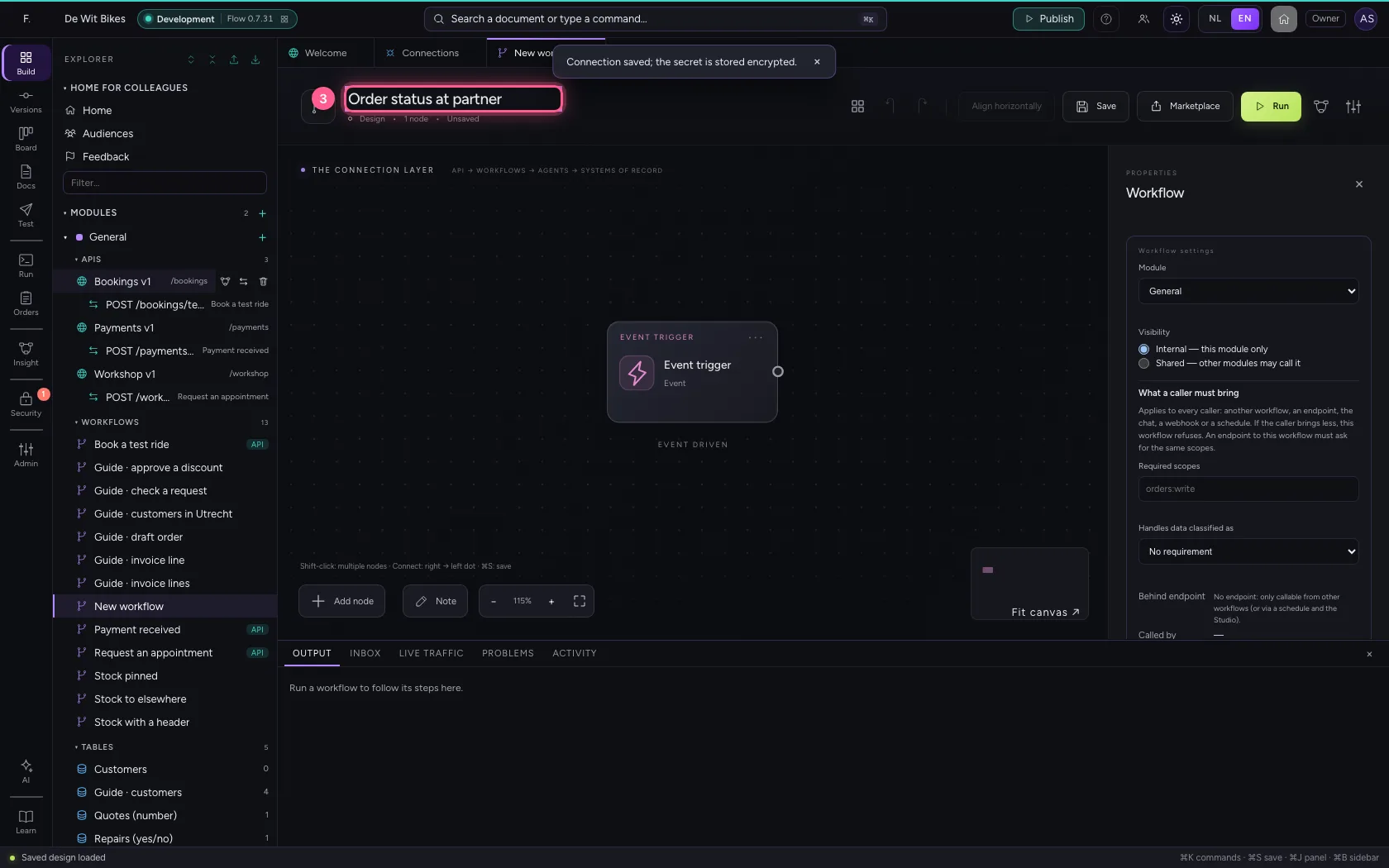
- In Workflow name, type
Order status at partner
- Click Add node
- Click HTTP request
- In Connection, choose Partner · orders
- In URL or path, type
/orders/1042 - In Store the result as, type
partner
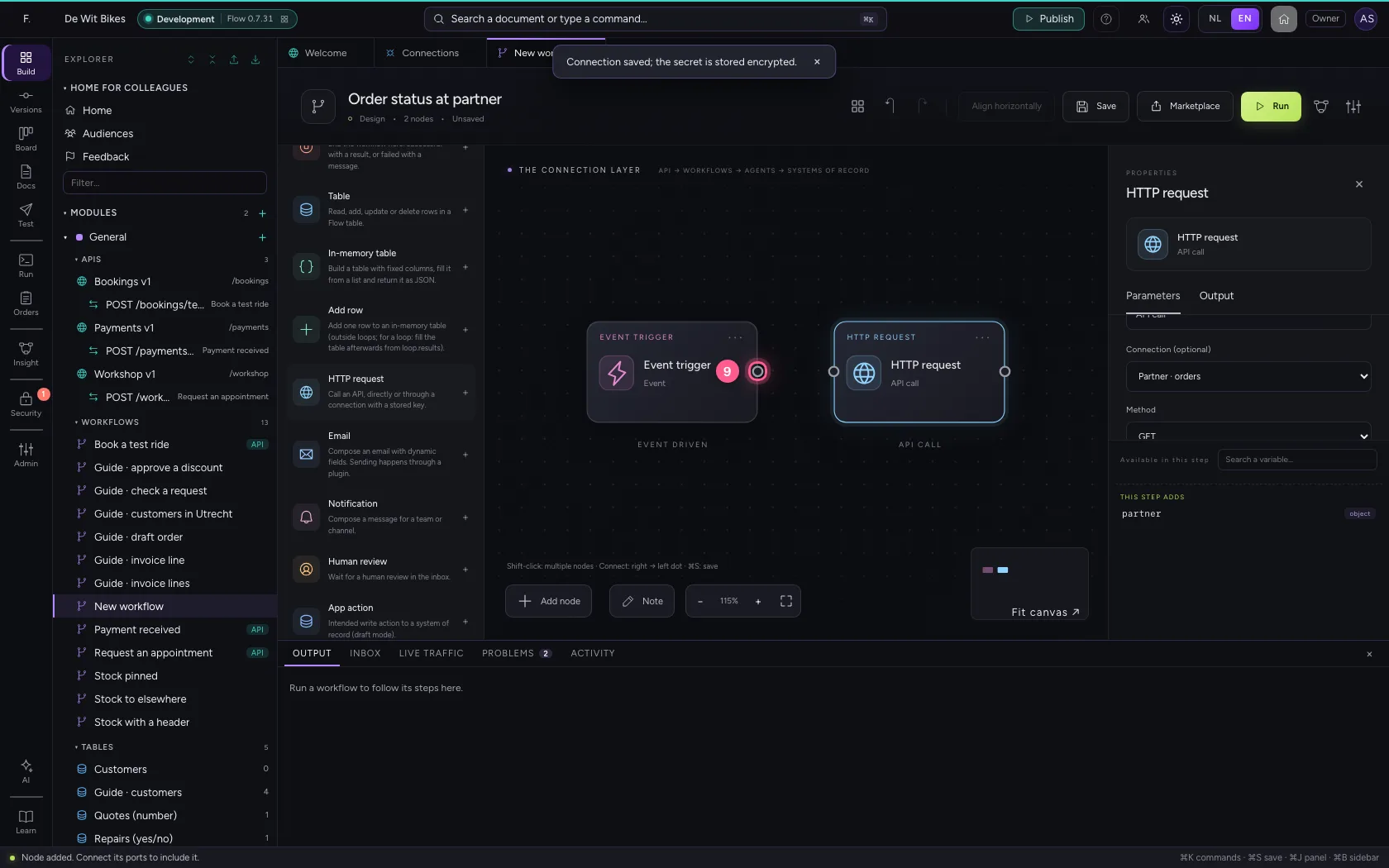
- Click the dot of ‘Event trigger’
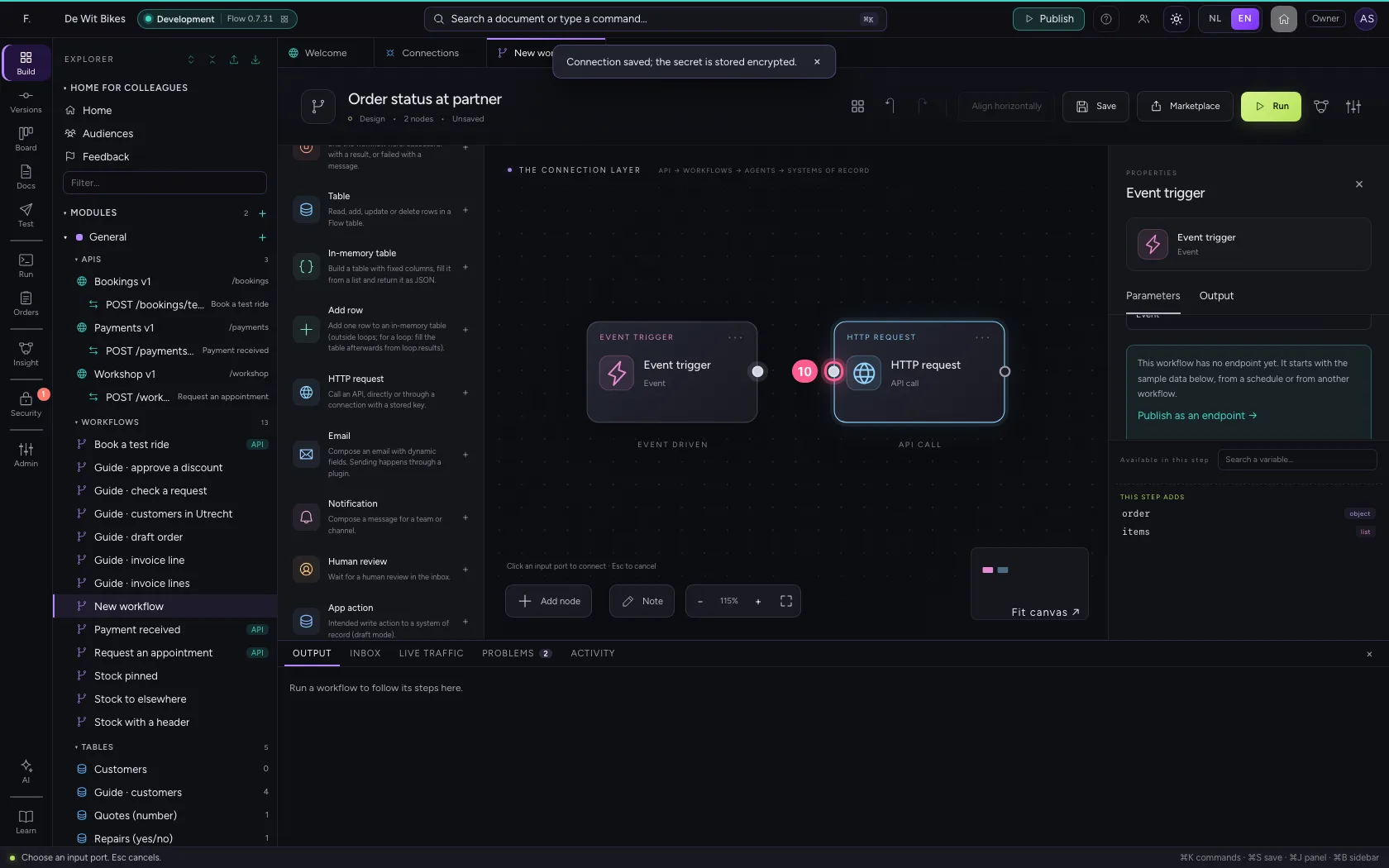
- Click the dot of ‘HTTP request’
Run and read the answer
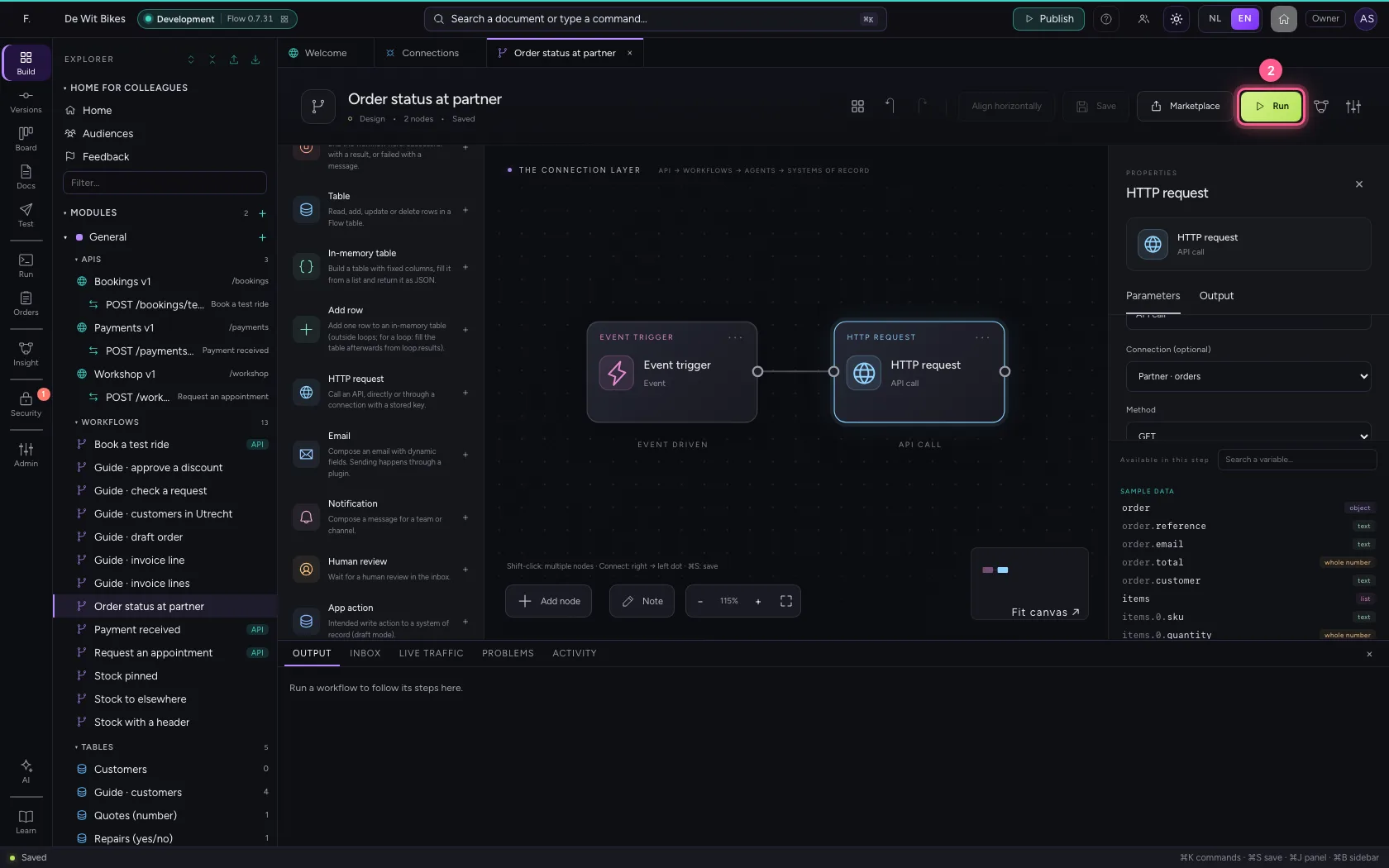
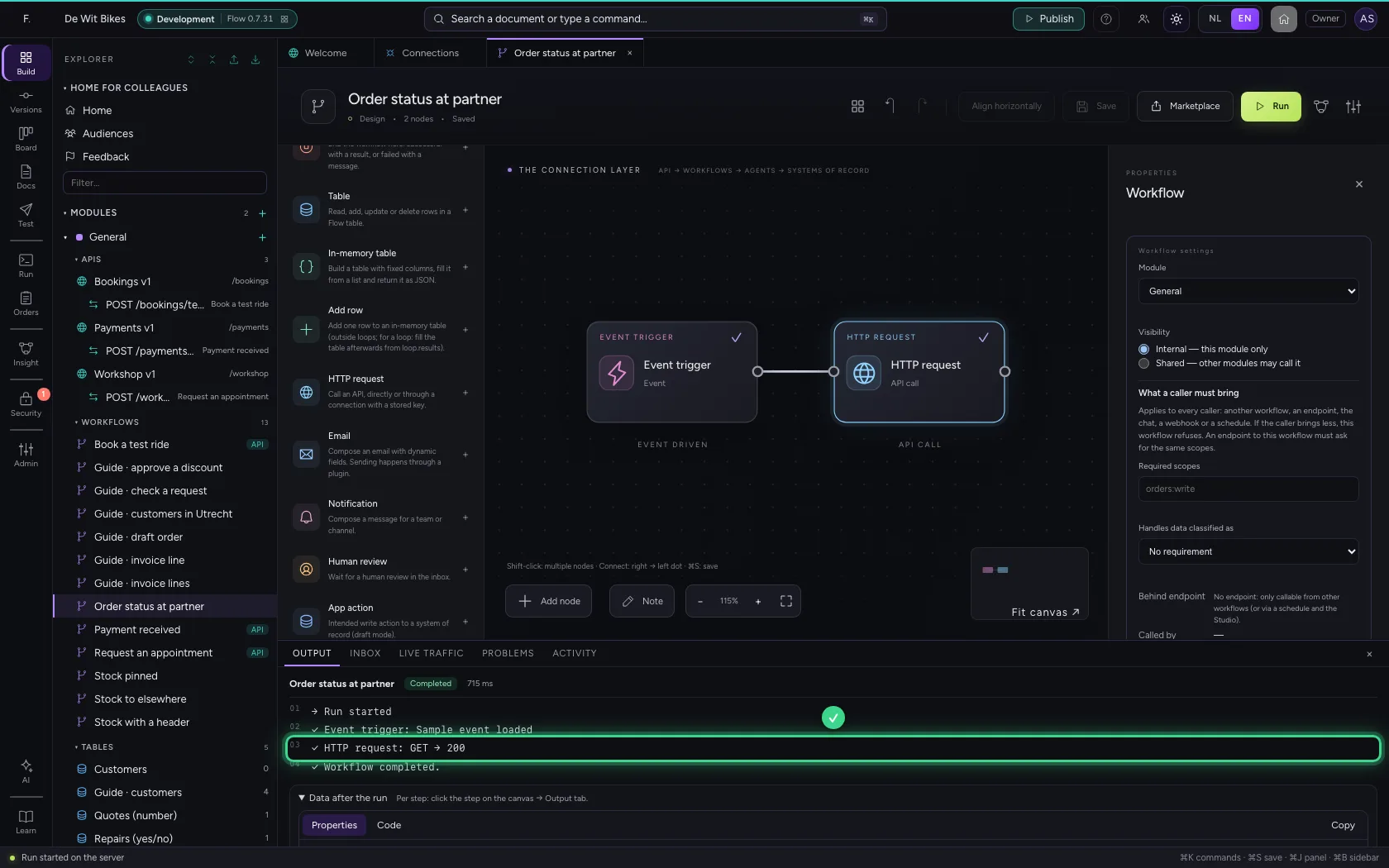
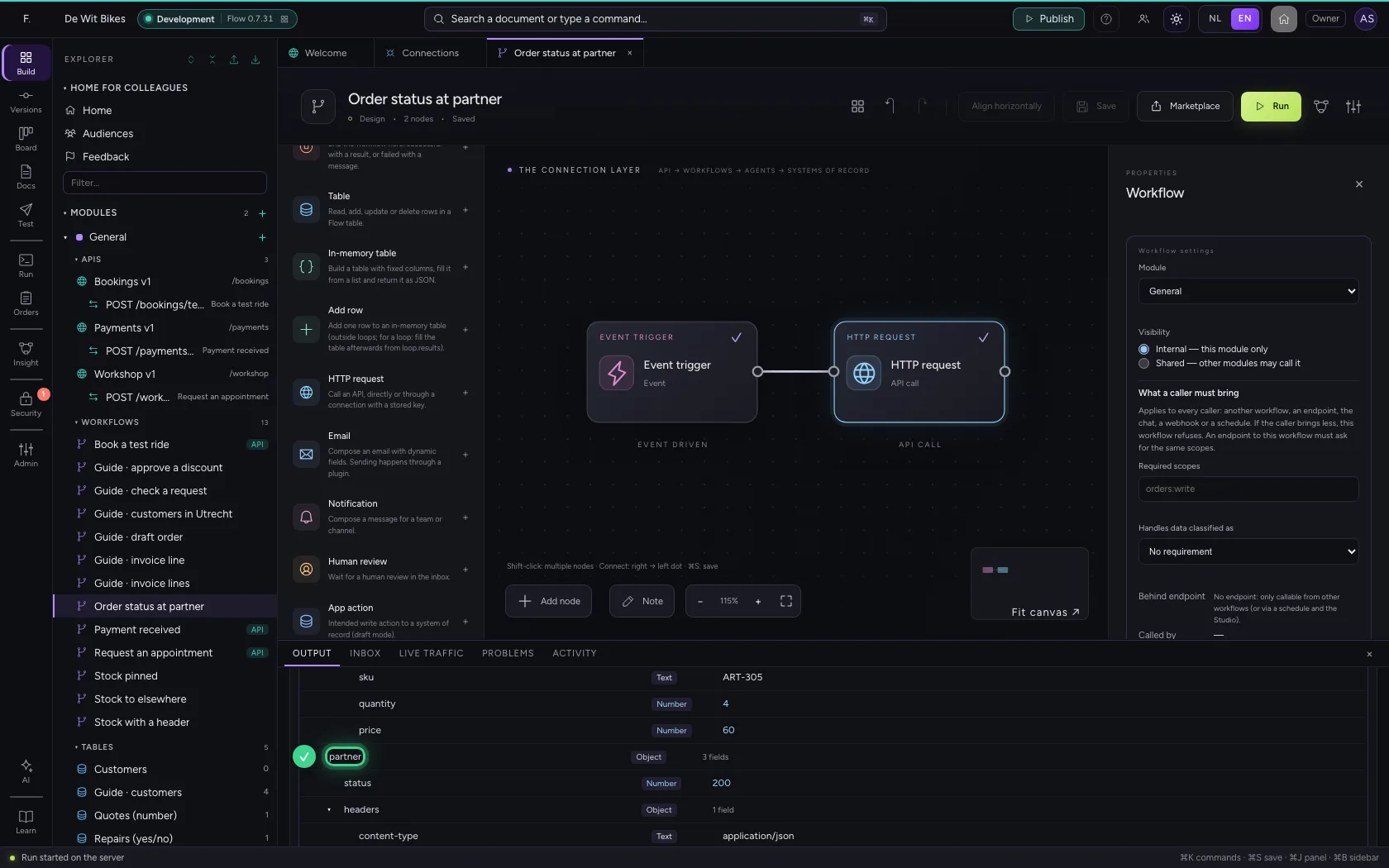
At the bottom you see the call and the status code; under Data after the run the answer is in partner.status and partner.body. Next steps read it as {{partner.body.…}}.
- Click Save
- Click Run
This guide was carried out step by step on 22 Oct 2026 by an automated test on Flow (version 3e563176).