Publish to acceptance
What you build in Development moves on step by step: first to Acceptance, where the business tests it, later to Production. You commit a version in Flow, click Publish and finish in the portal. You start where 'Your first table and workflow' ended.
Open your development environment
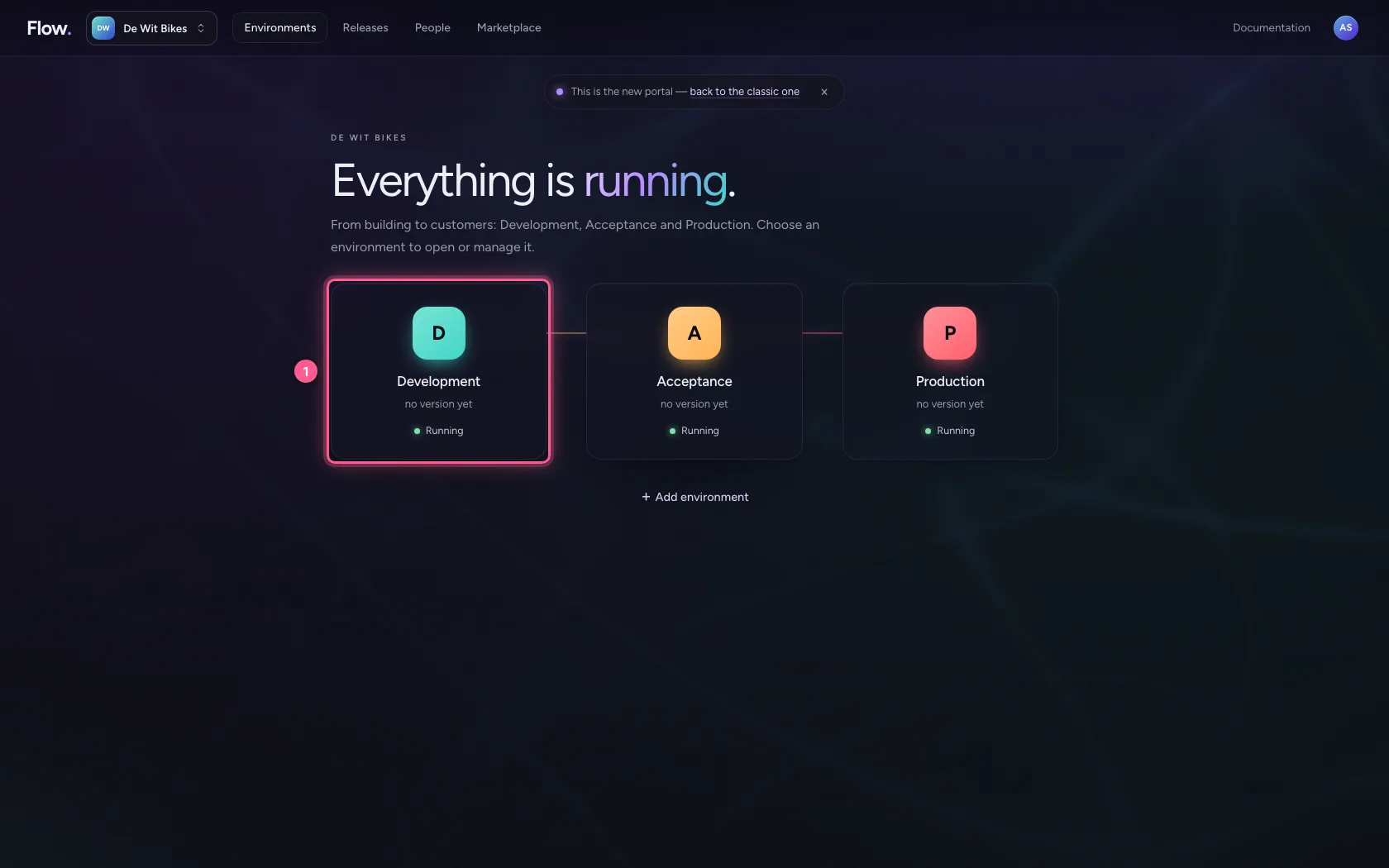
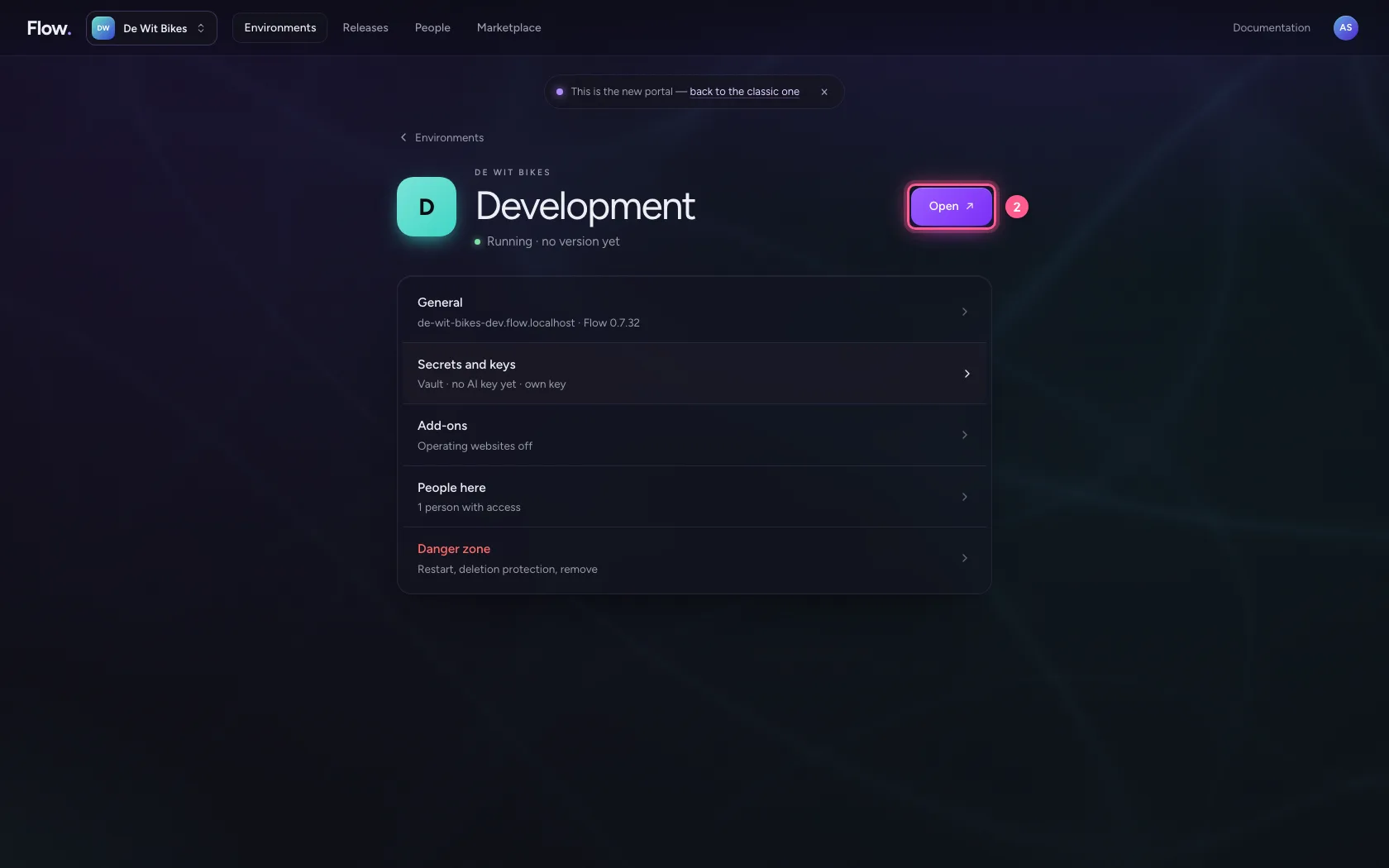
In the portal, under Environments: click Development and there Open.
- Click Development
- Click Open ↗
Commit a version
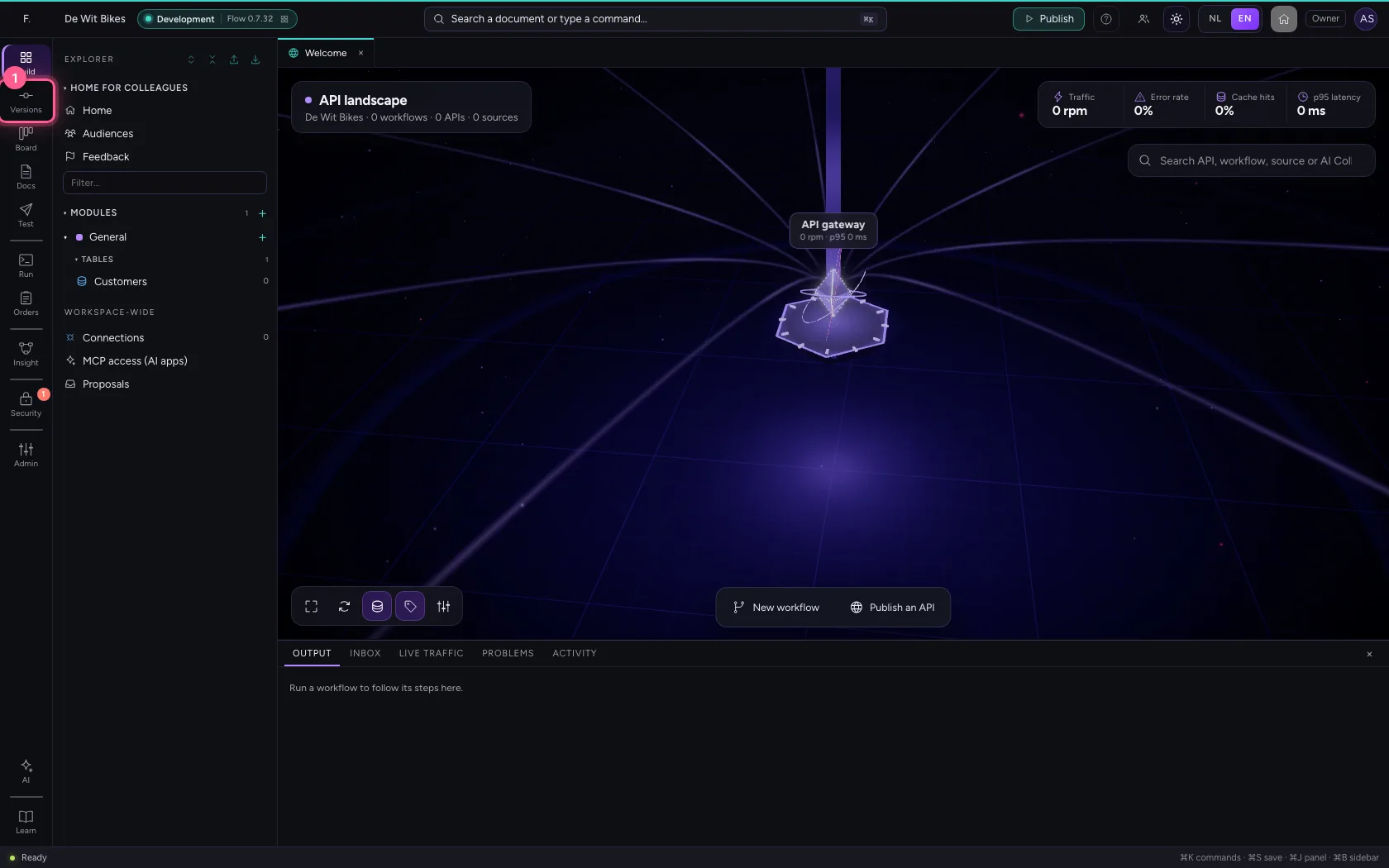
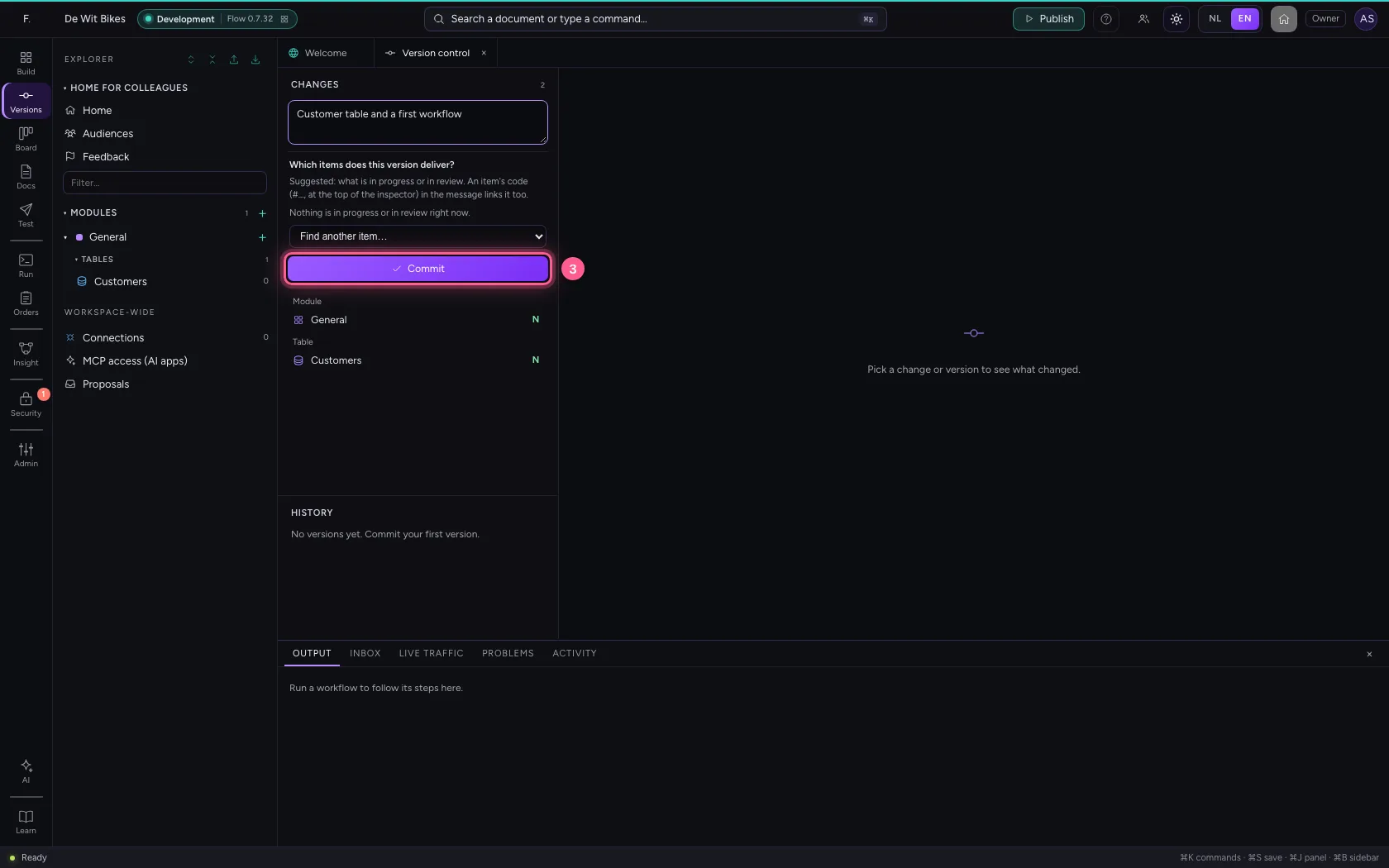
You always publish a committed version: a snapshot of everything in this environment, with a sentence about what you changed. Click Versions (version control) in the bar on the left; you see what changed since the previous version.
- Click Version control
- In What did you change?, type
Customer table and a first workflow
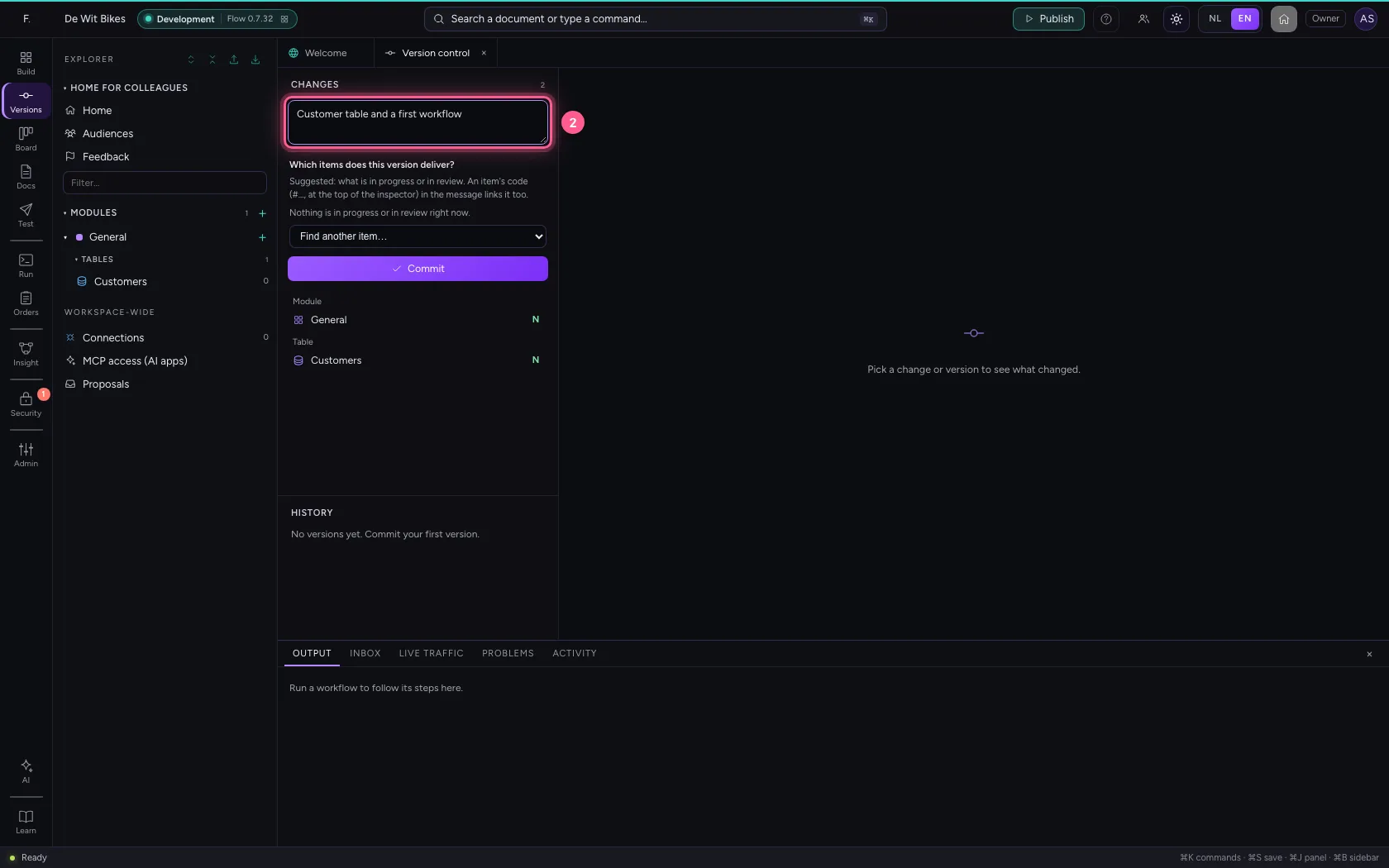
- Click Commit
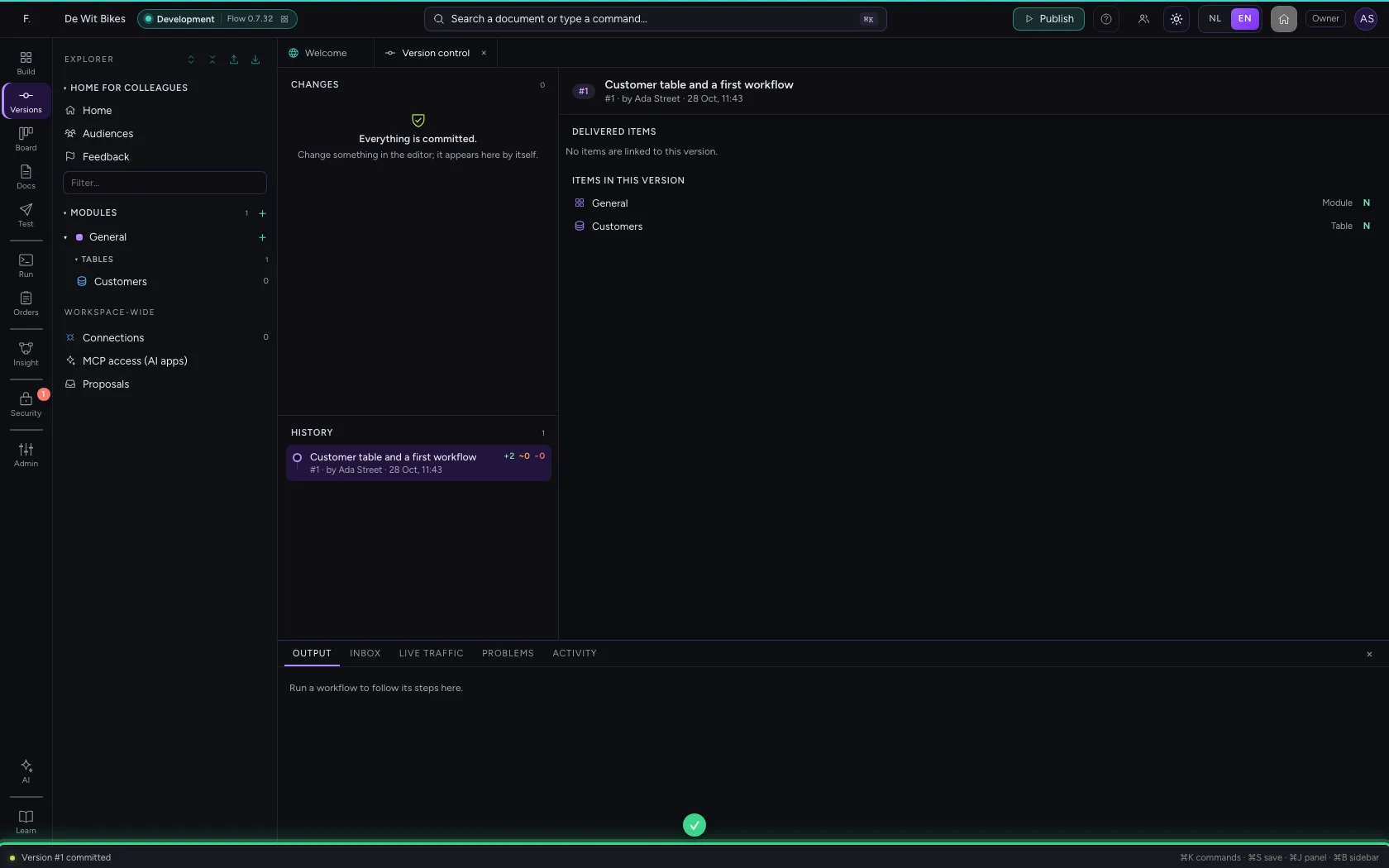
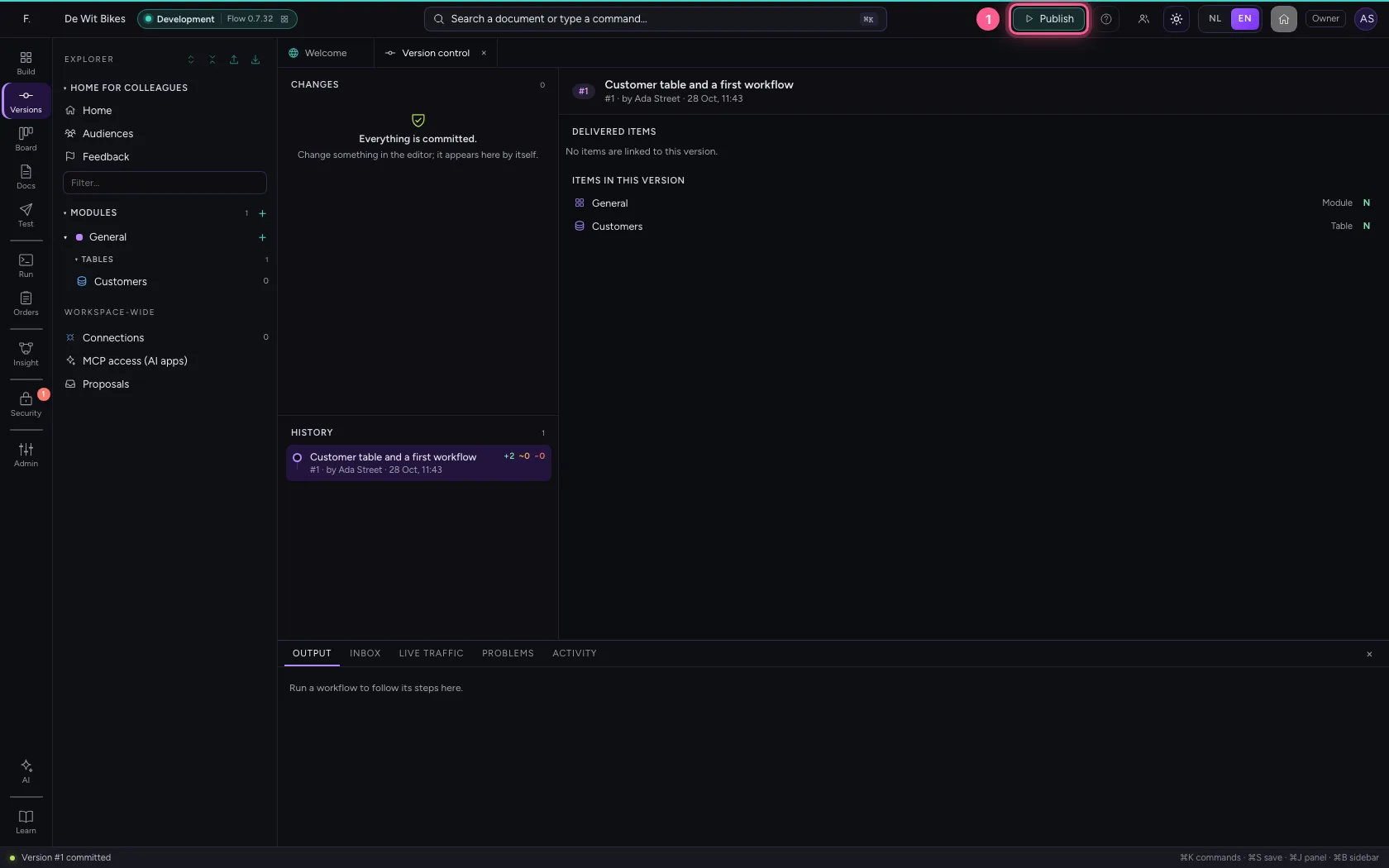
Click Publish
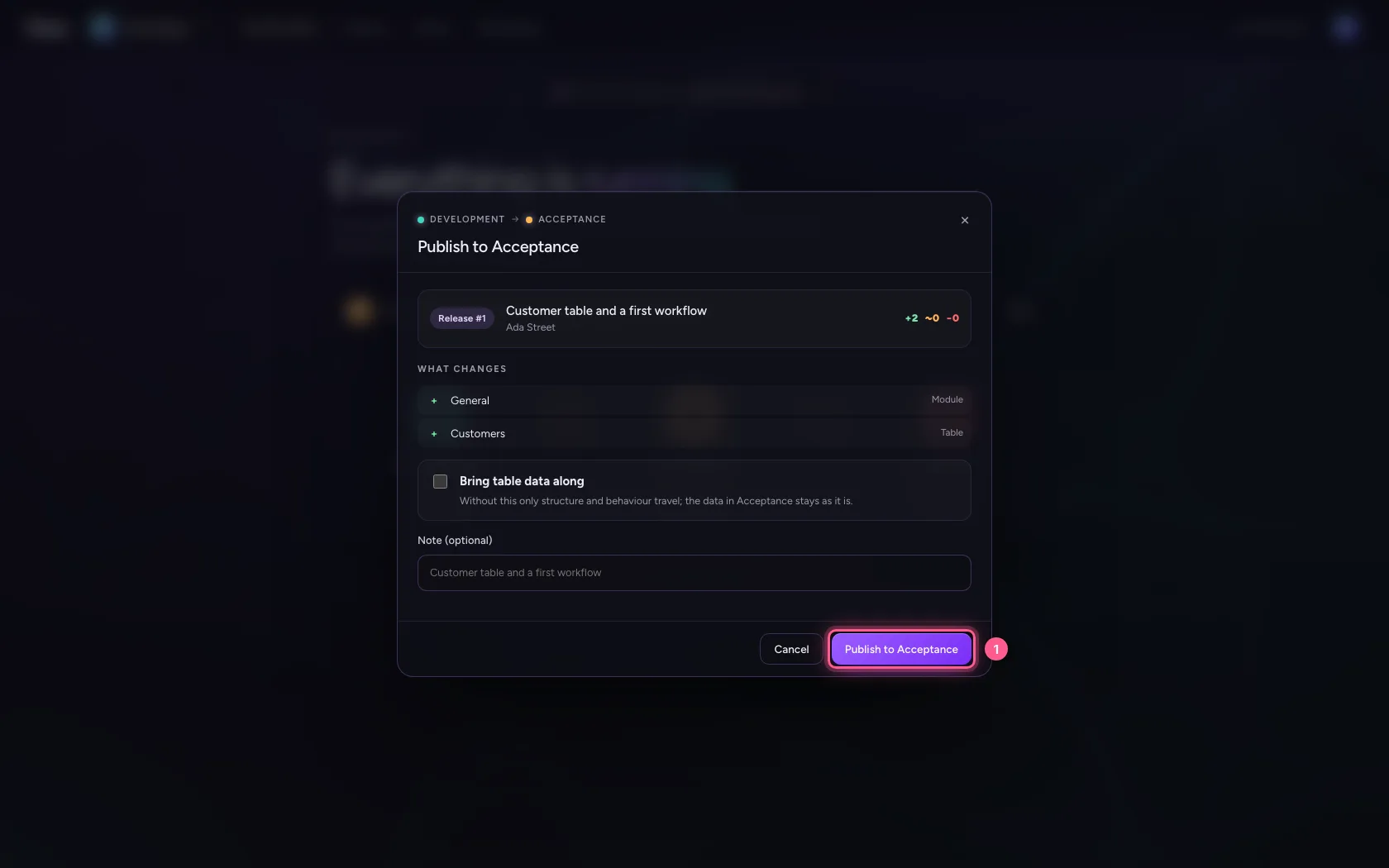
Publish, top right, opens the portal with the step from Development to Acceptance ready. The portal asks Development what would change and shows it before anything happens.
- Click Publish
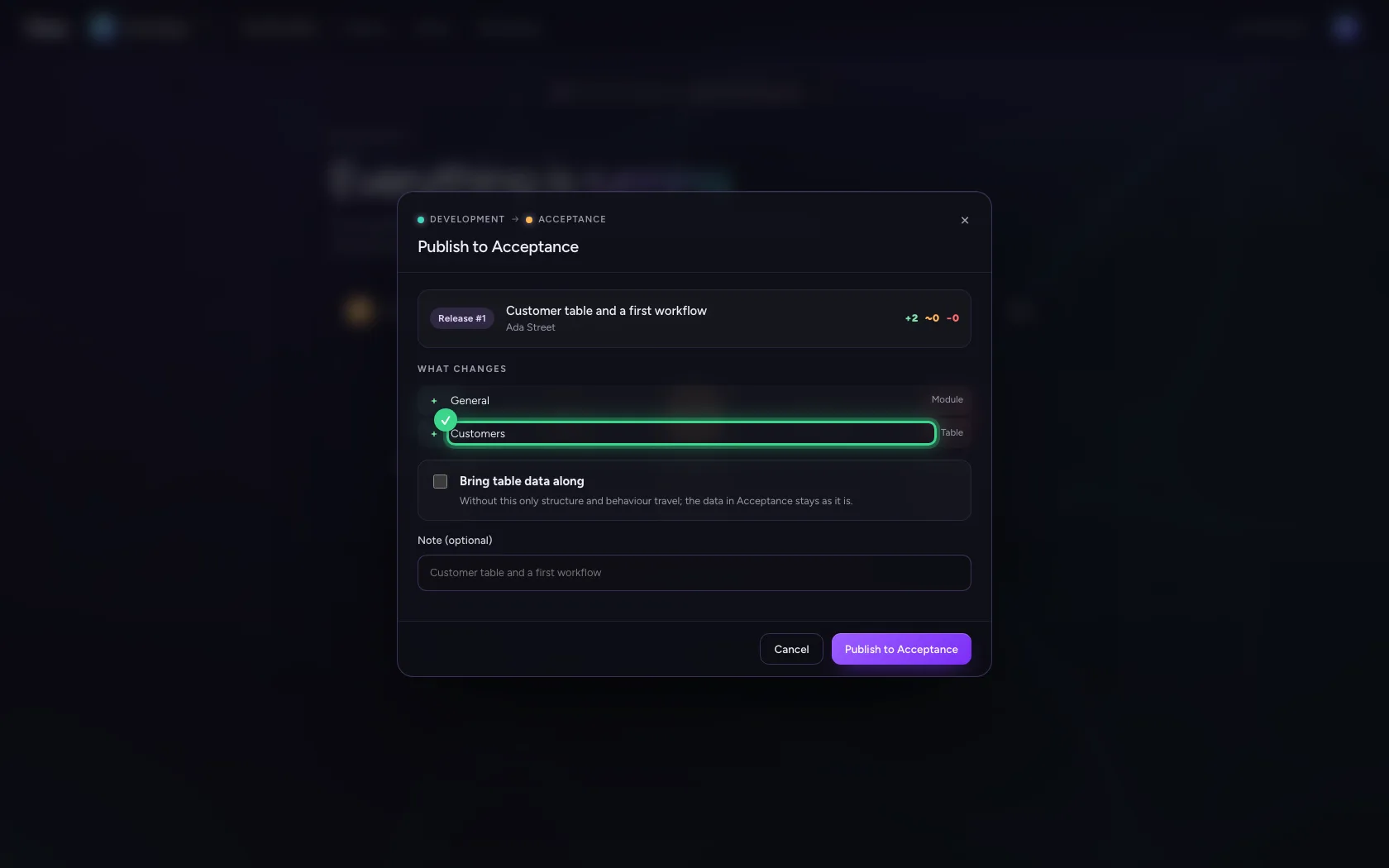
Publish to Acceptance
Table data does not go along by default: Acceptance keeps its own data. Confirm, and the version flows on.
- Click Publish to Acceptance
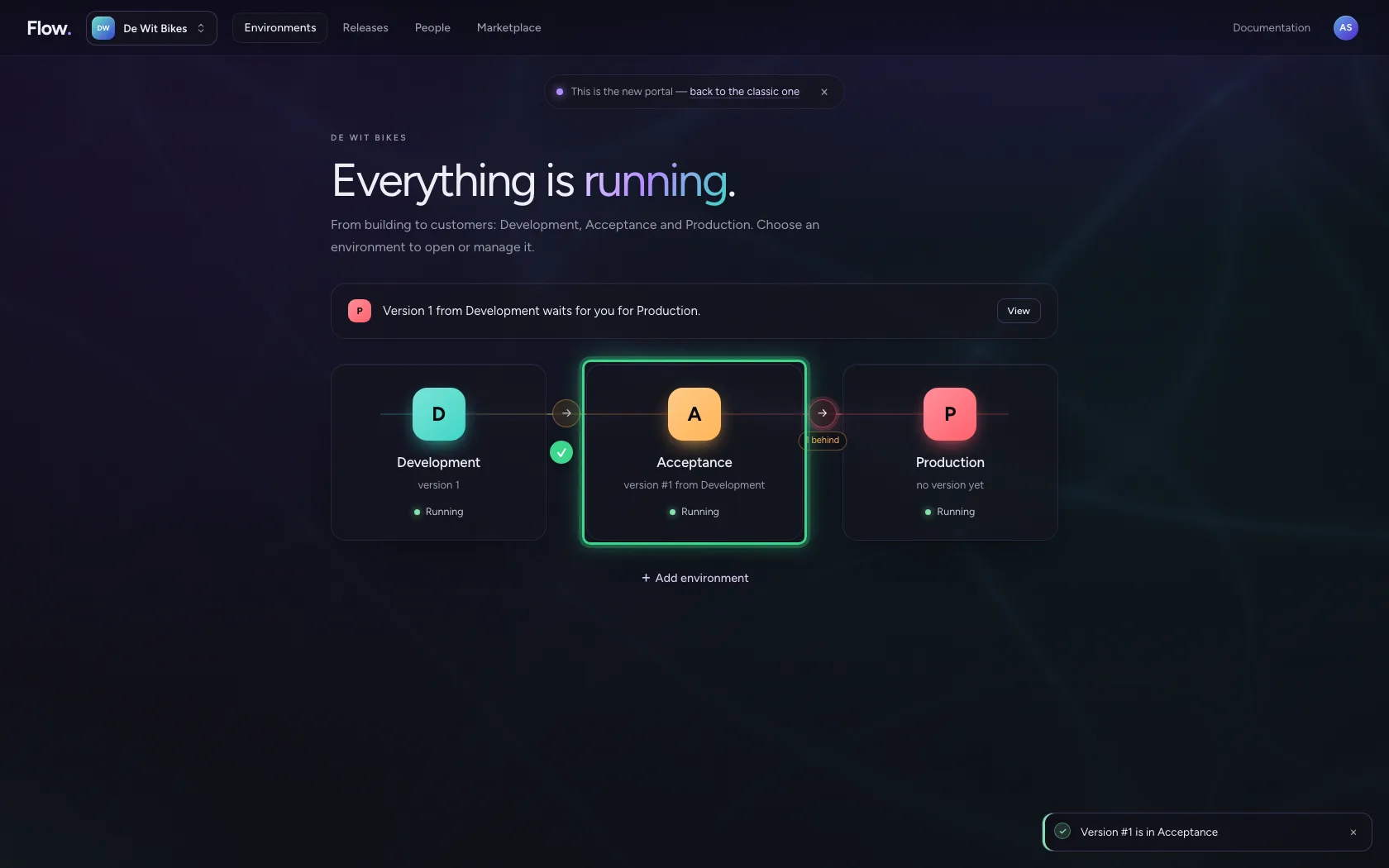
Look in Acceptance
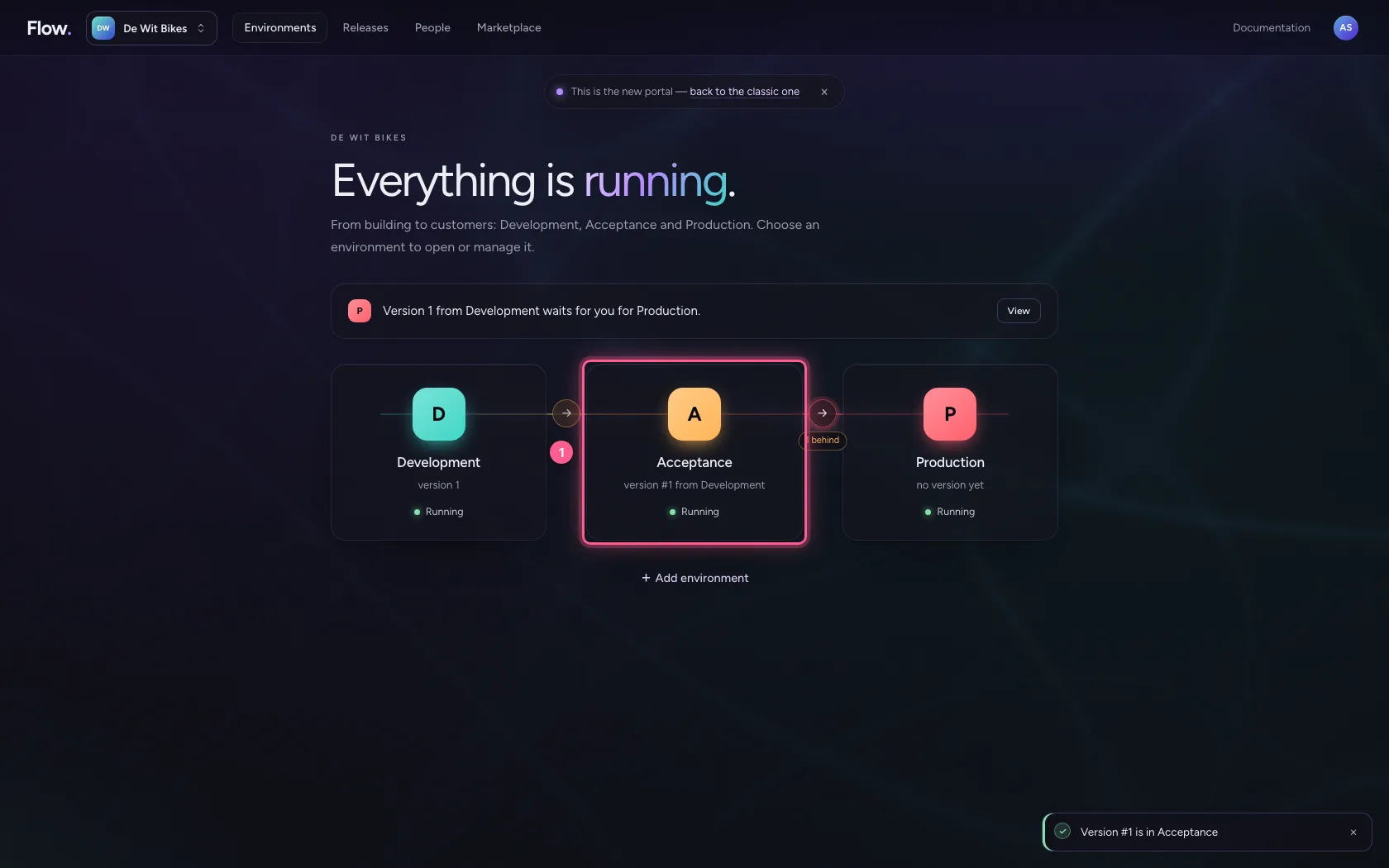
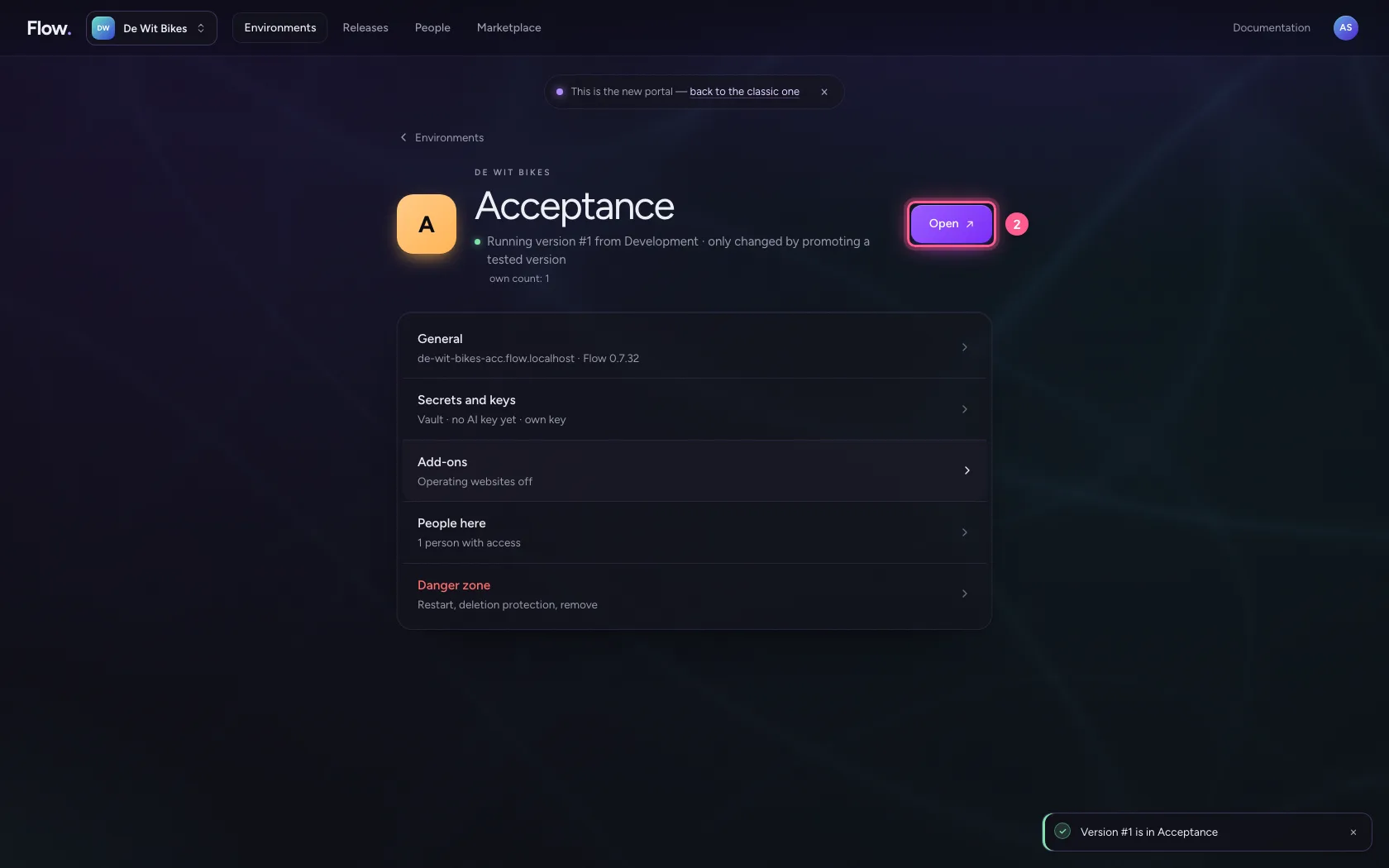
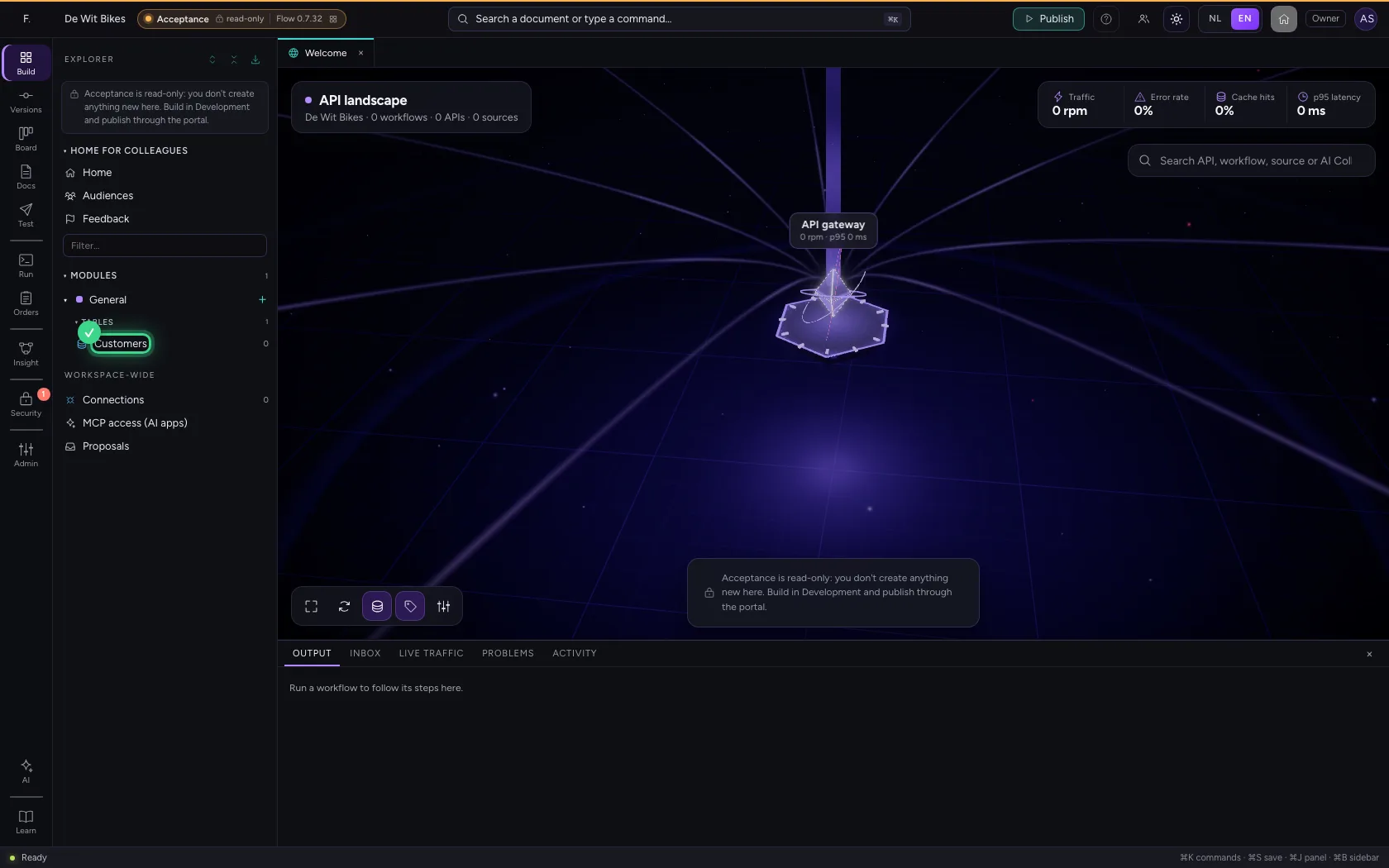
Click Acceptance and there Open: your table and workflow are there, read-only. You make changes in Development, and then publish again.
- Click Acceptance
- Click Open ↗
This guide was carried out step by step on 28 Oct 2026 by an automated test on Flow (version 96971699).