Your first table and workflow
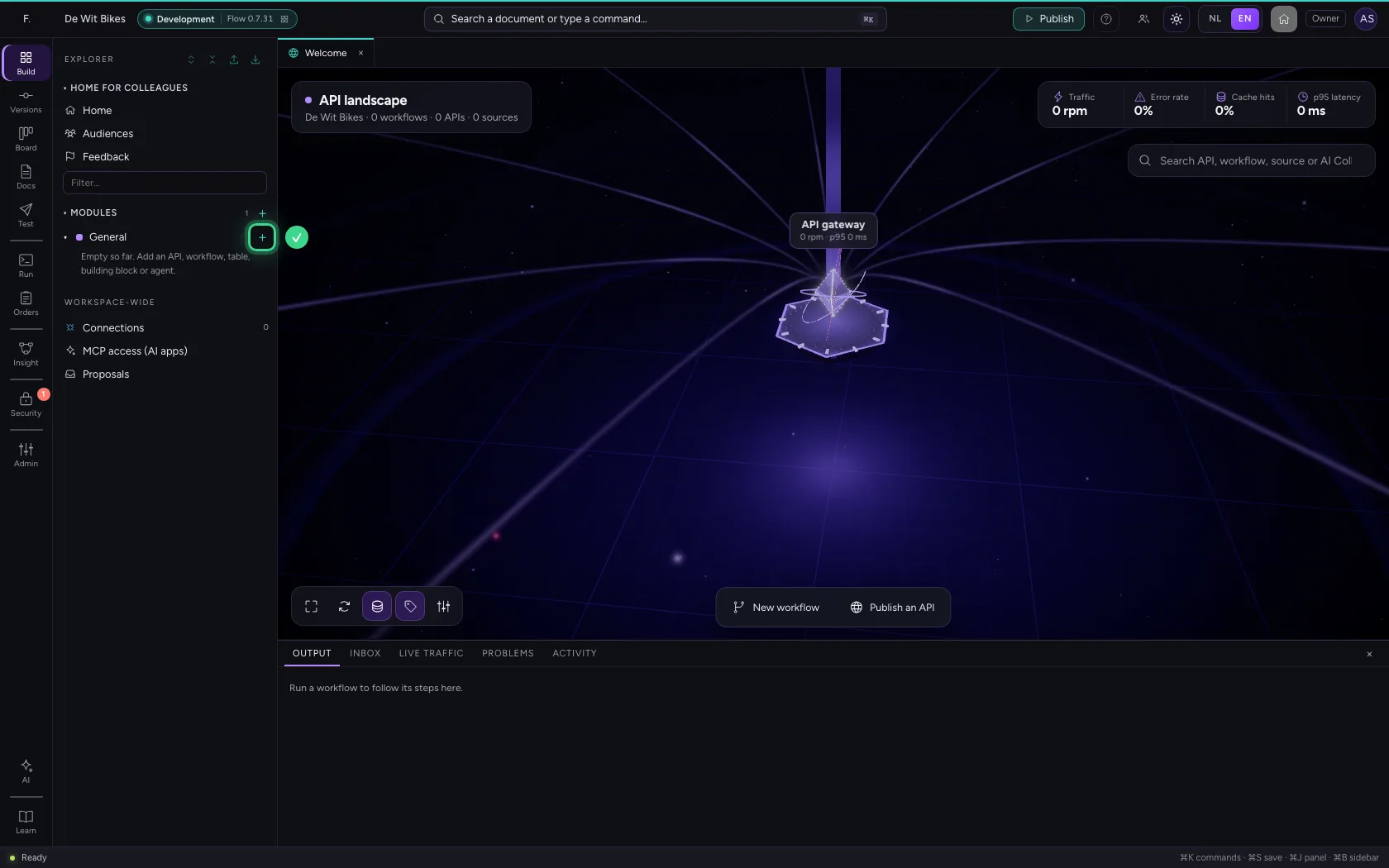
In the development environment you create a table of customers and a workflow that looks them up. You see how Flow works: the explorer with your modules on the left, what you have open in the middle, and at the bottom what happens when something runs. You start in the portal, at your organisation (see 'Your account and your organisation').
Open your development environment
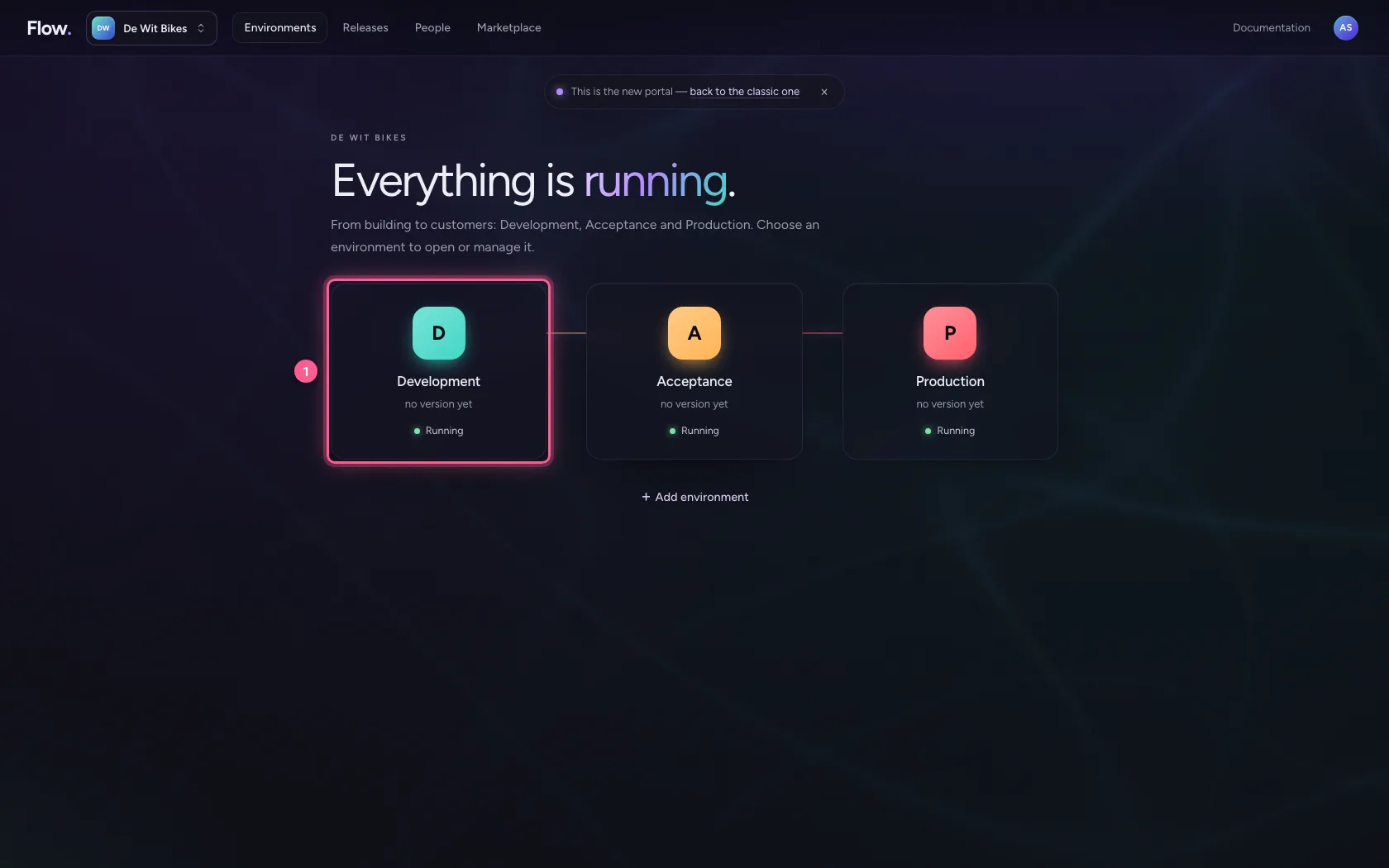
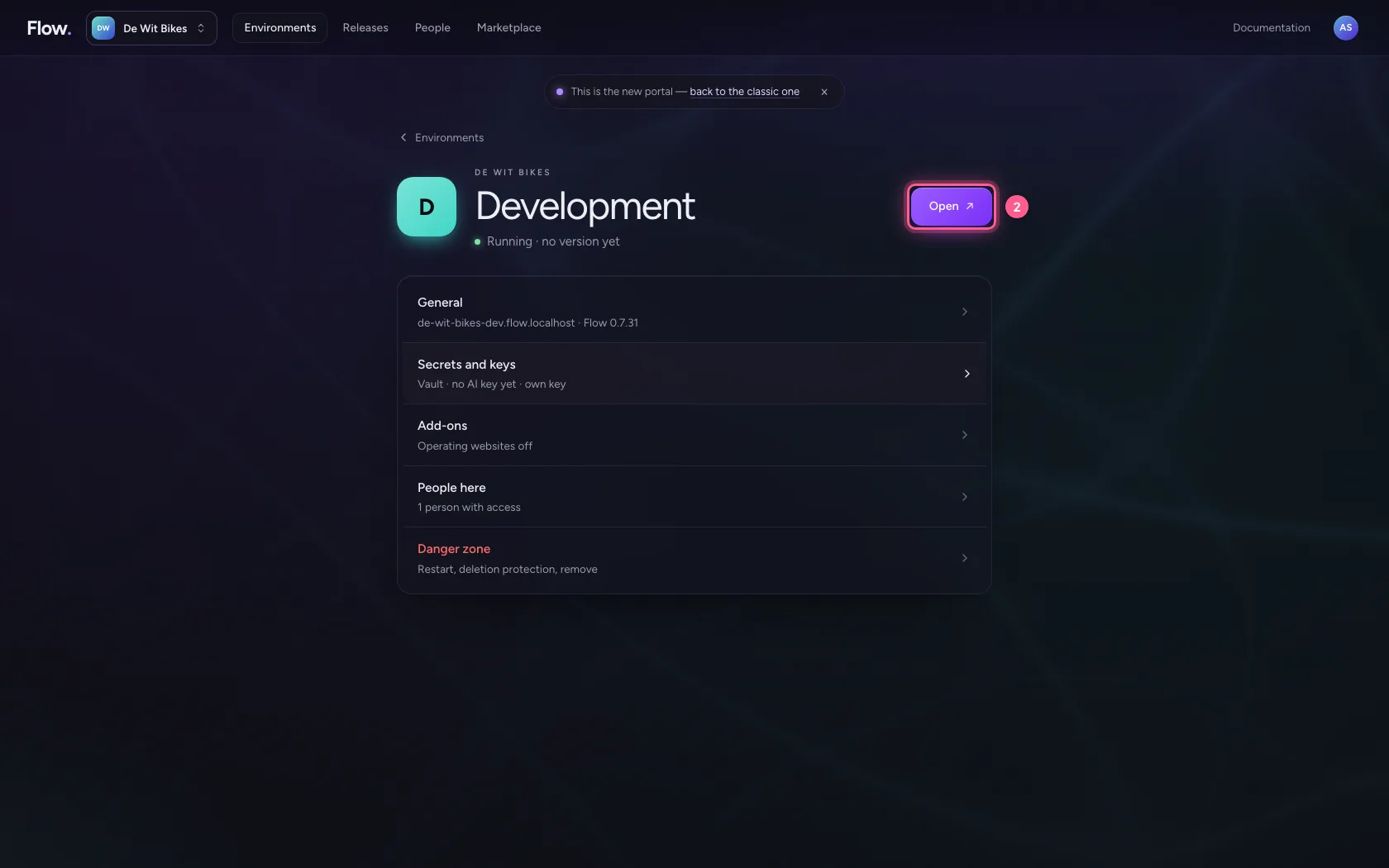
In the portal, under Environments, click Development, and there Open. Flow opens in a new tab; you are signed in straight away, because the portal knows who you are.
- Click Development
- Click Open ↗
Create a table
Everything you build lives in a module. Click + next to General and choose New table.
- Click Add to General
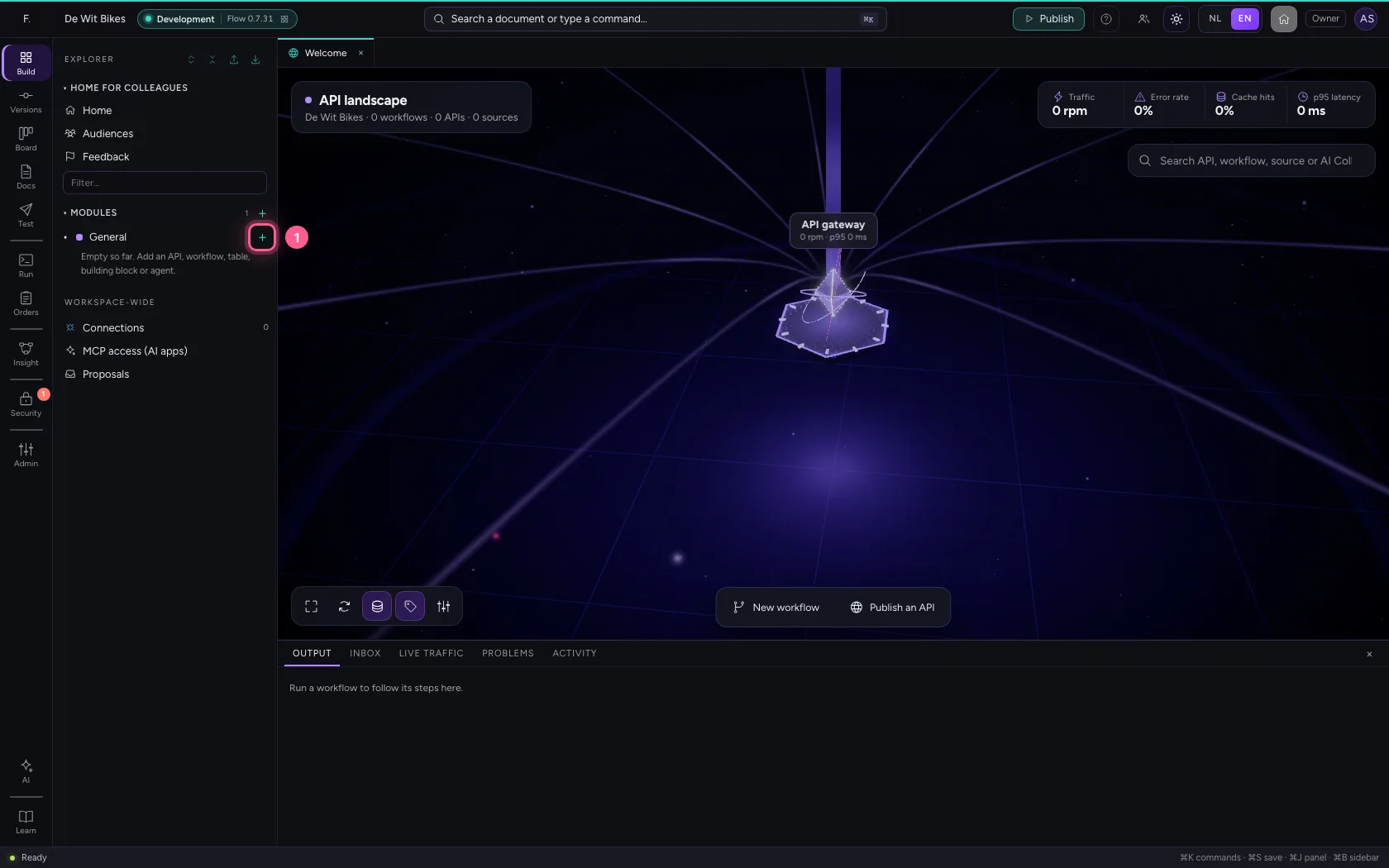
- Click New table
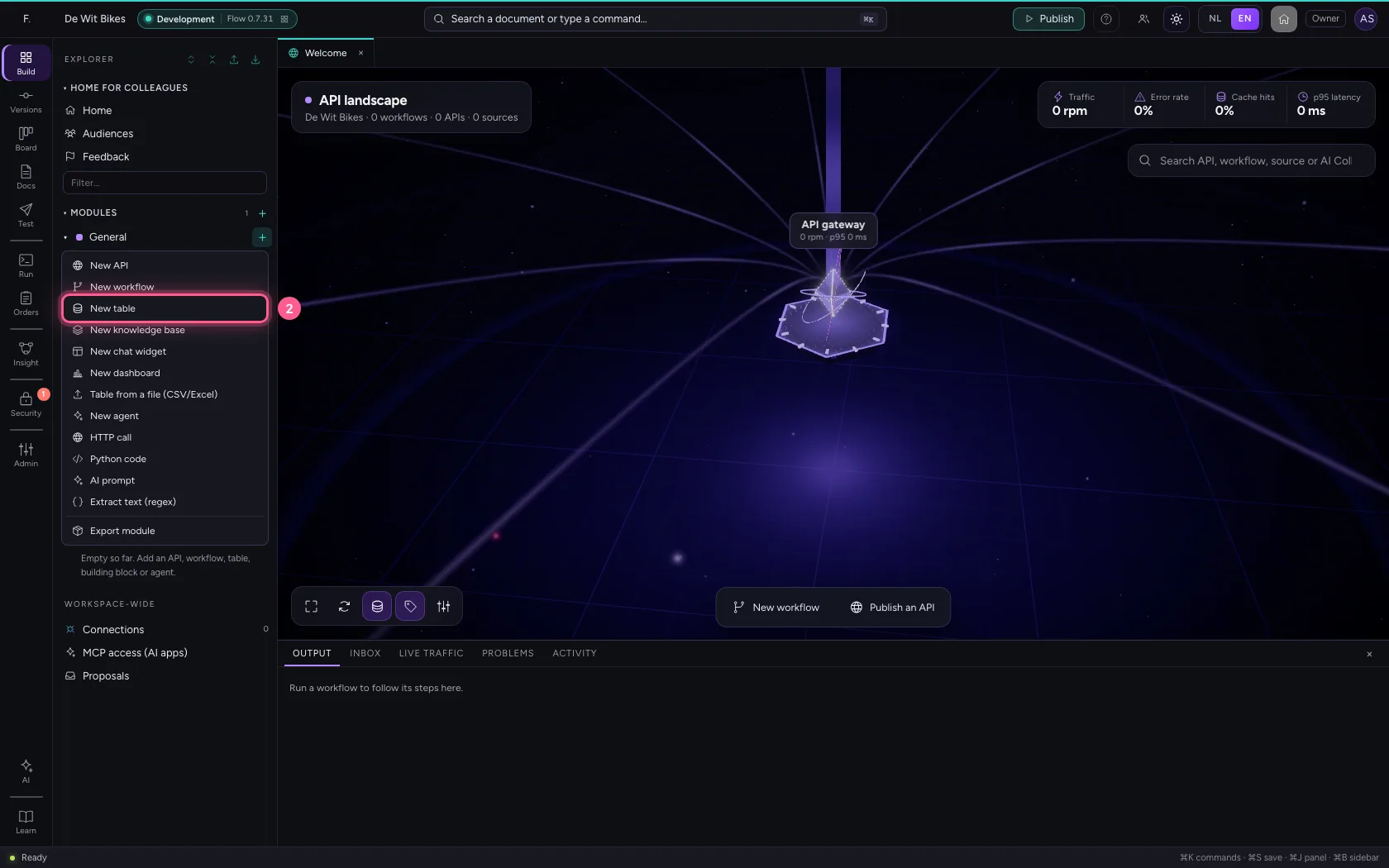
Name the table
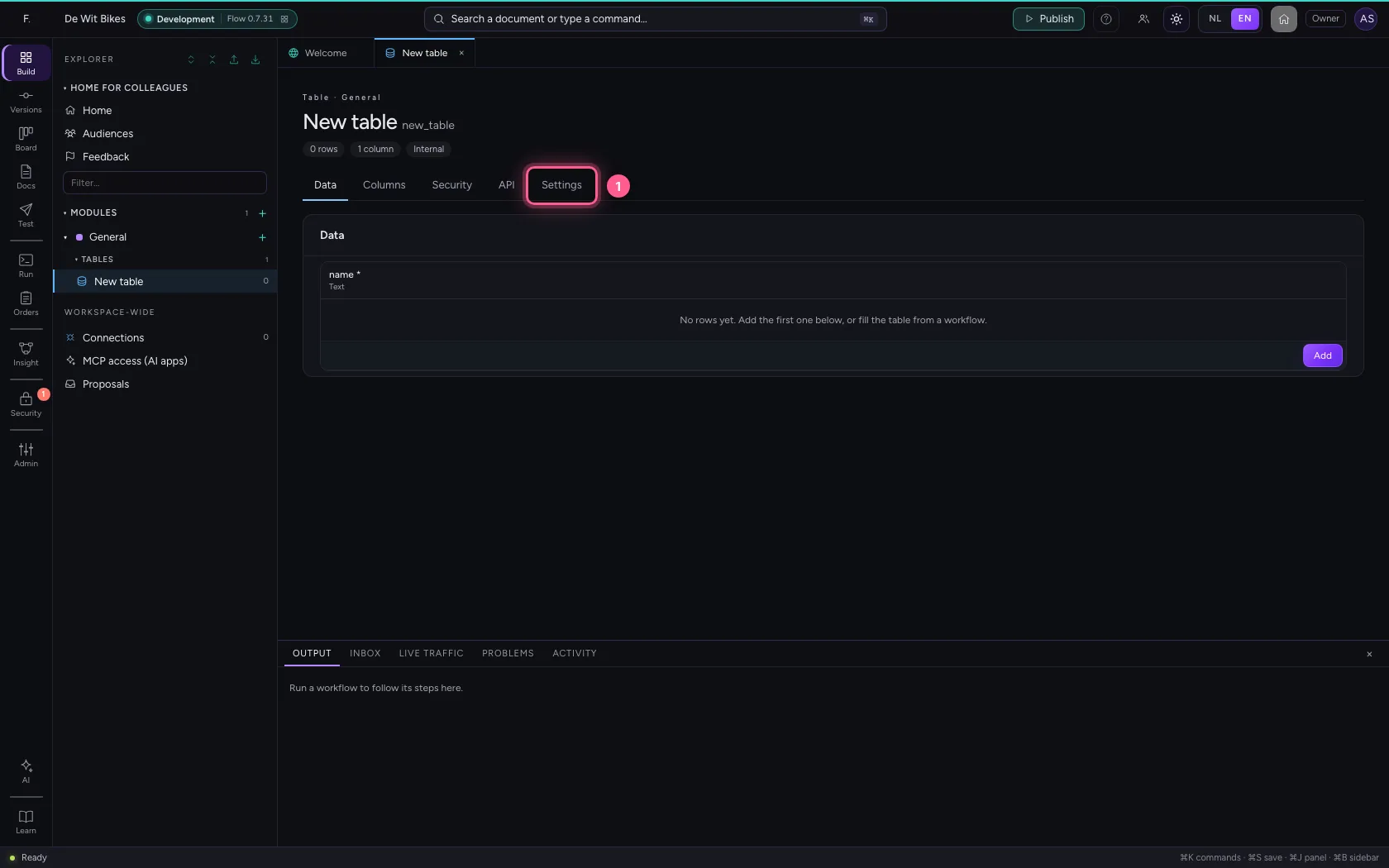
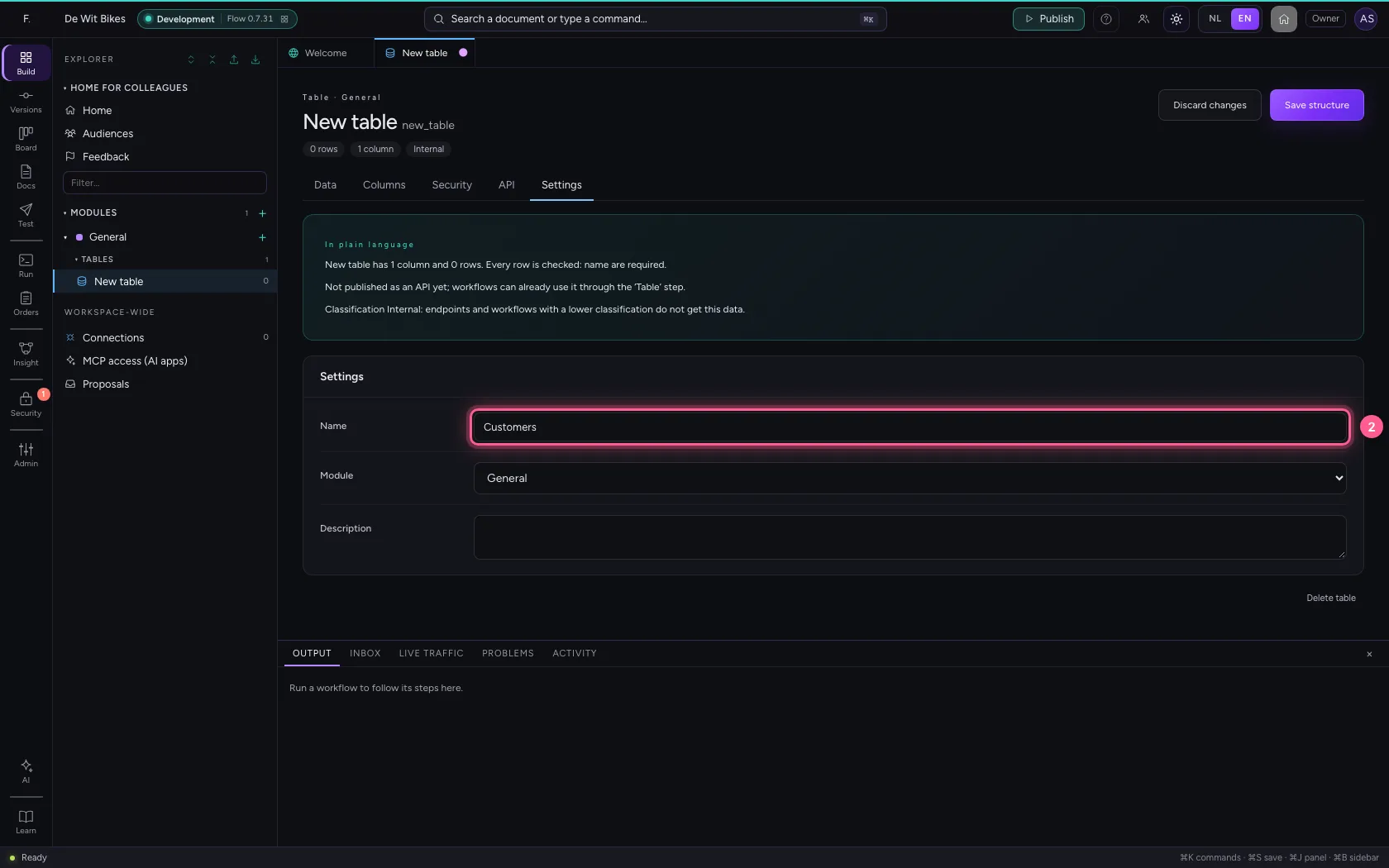
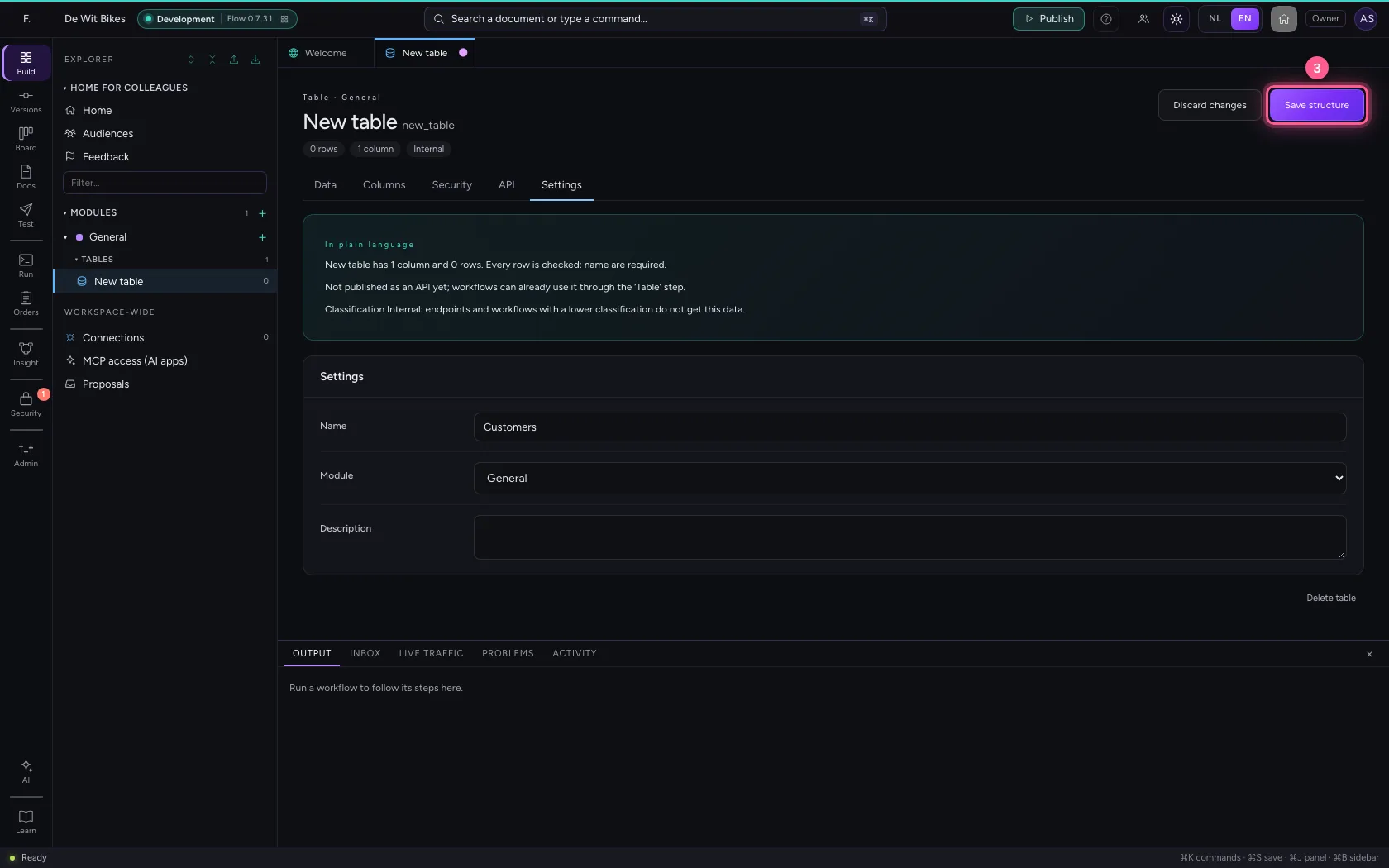
Under Settings you give the table a name that says what it holds, and save the structure.
- Click Settings
- In Name, type
Customers
- Click Save structure
Add customers
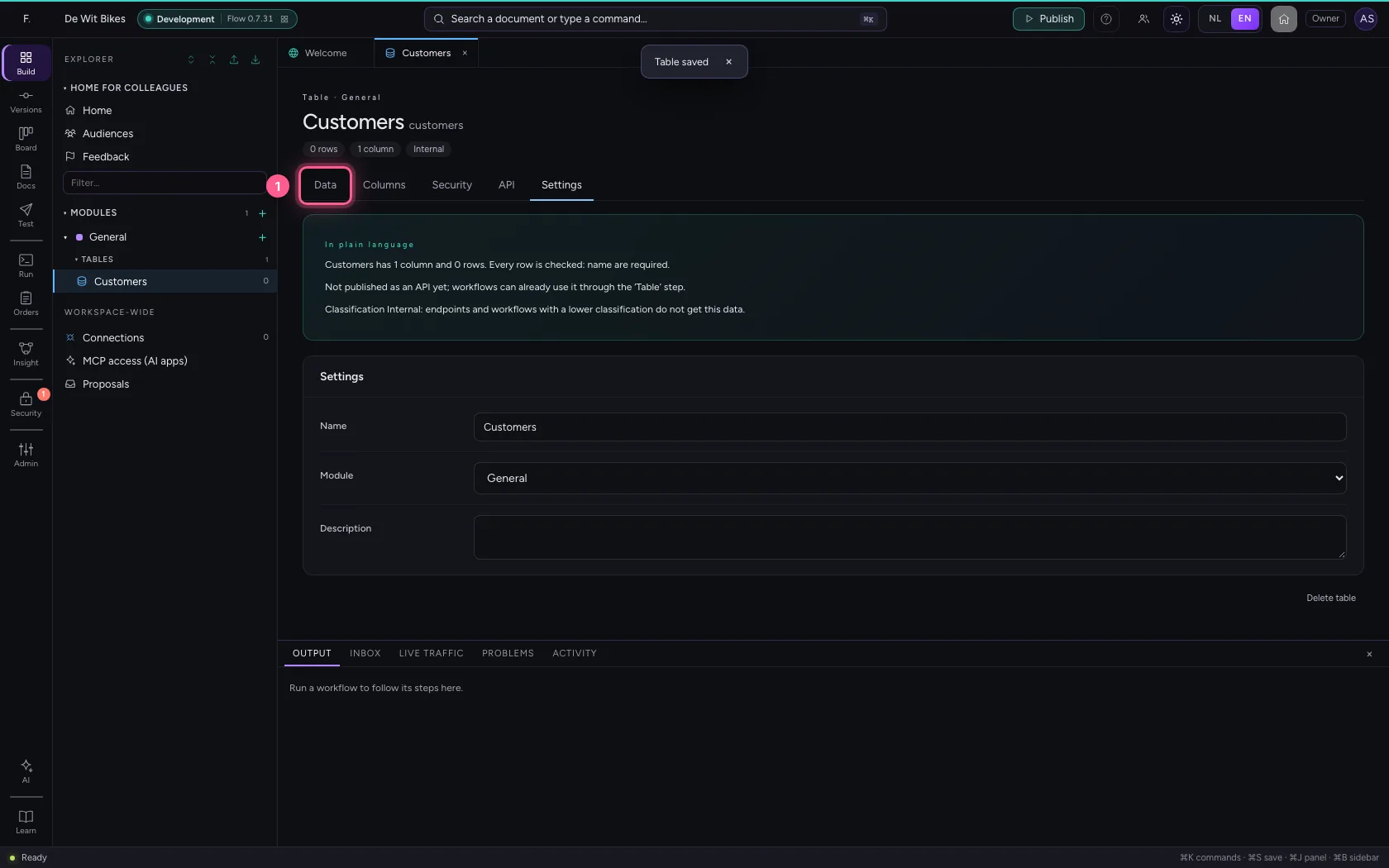
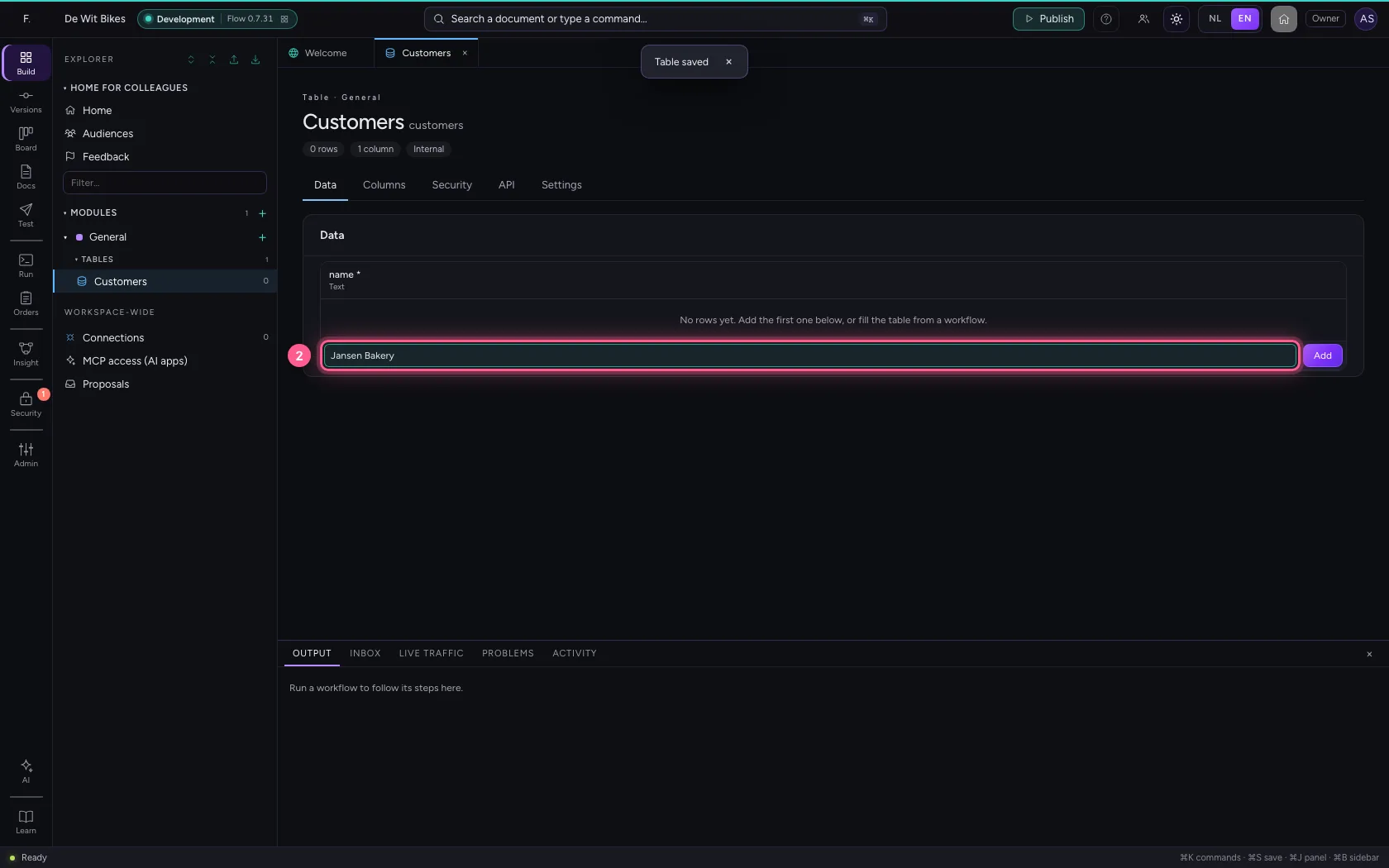
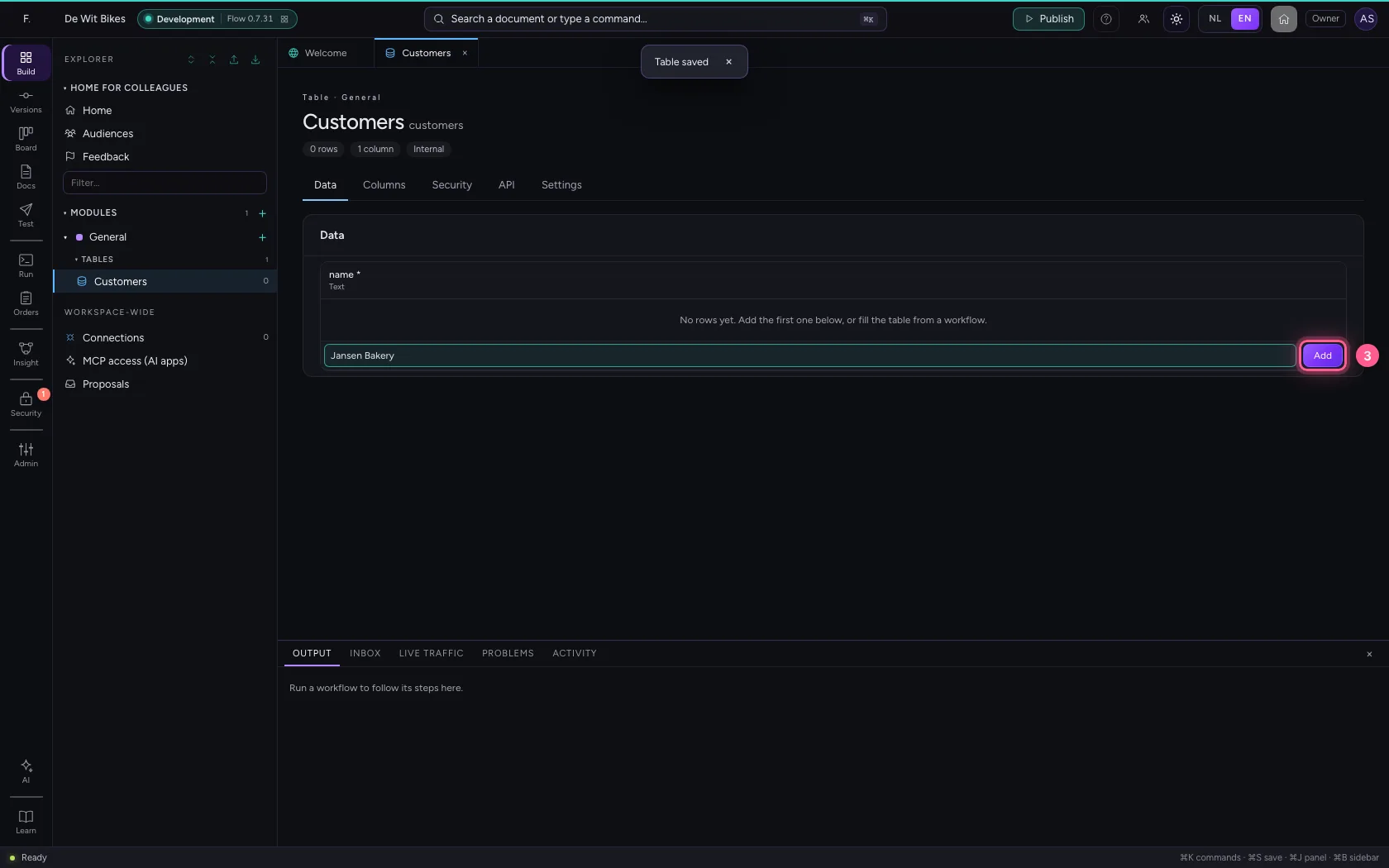
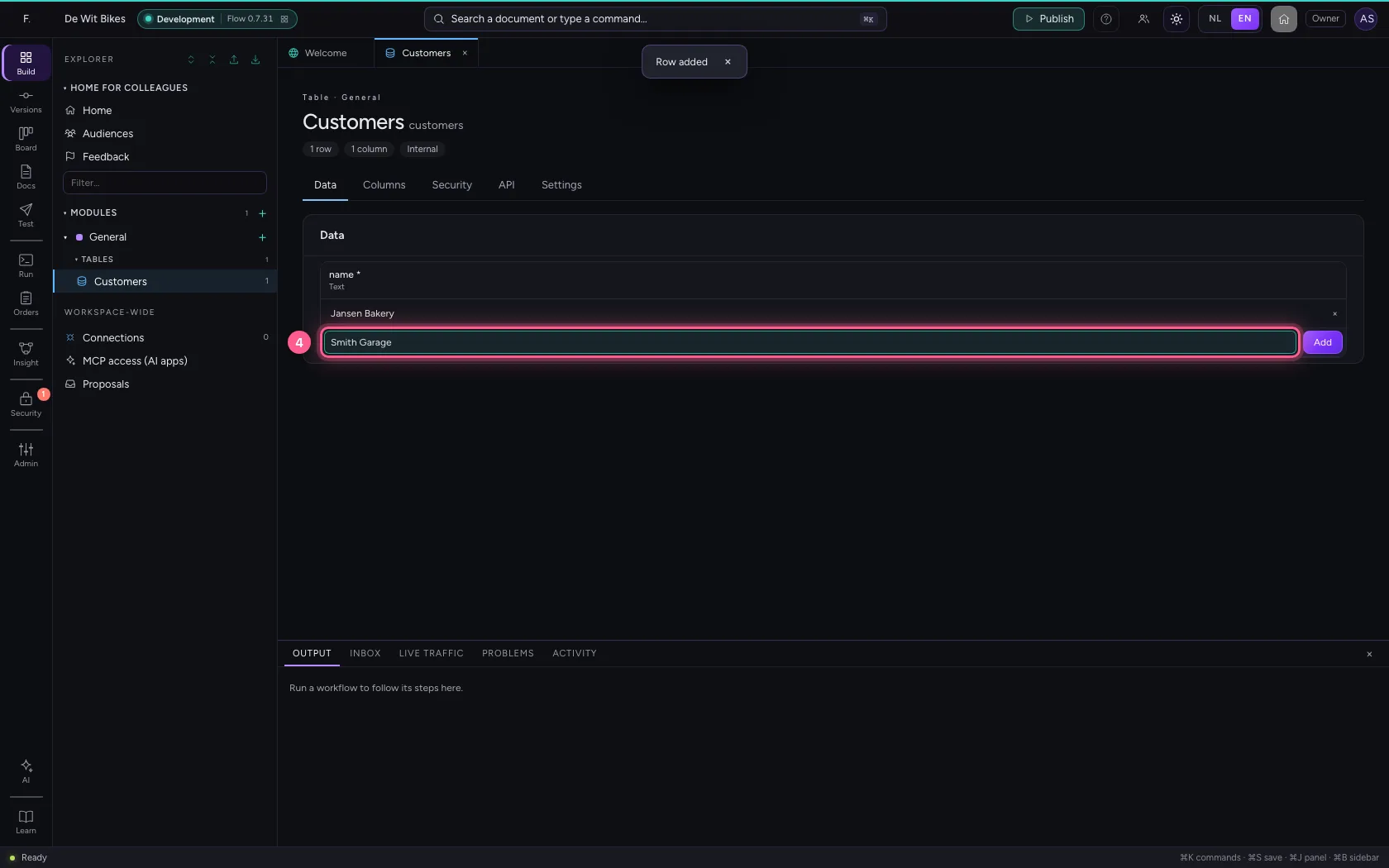
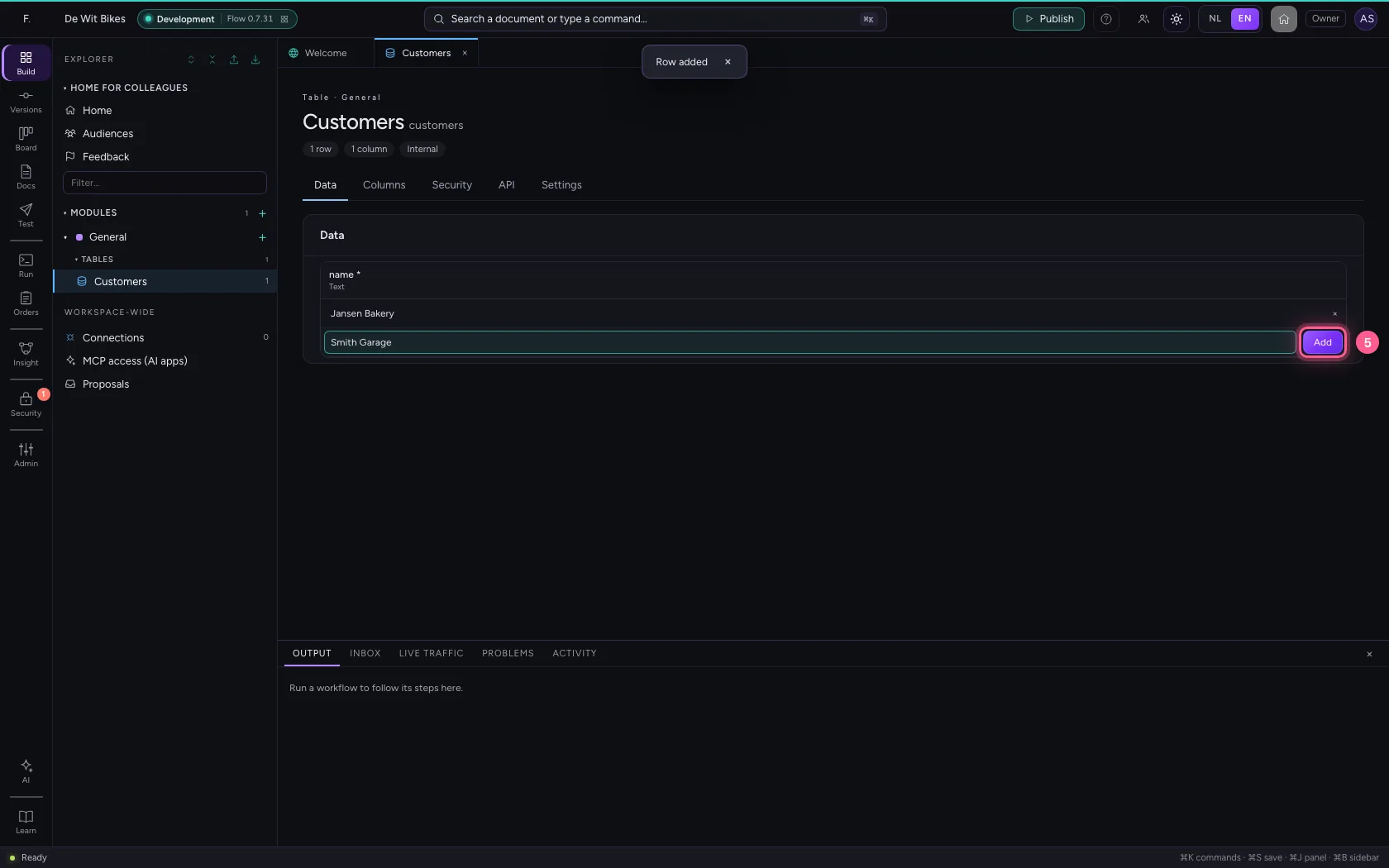
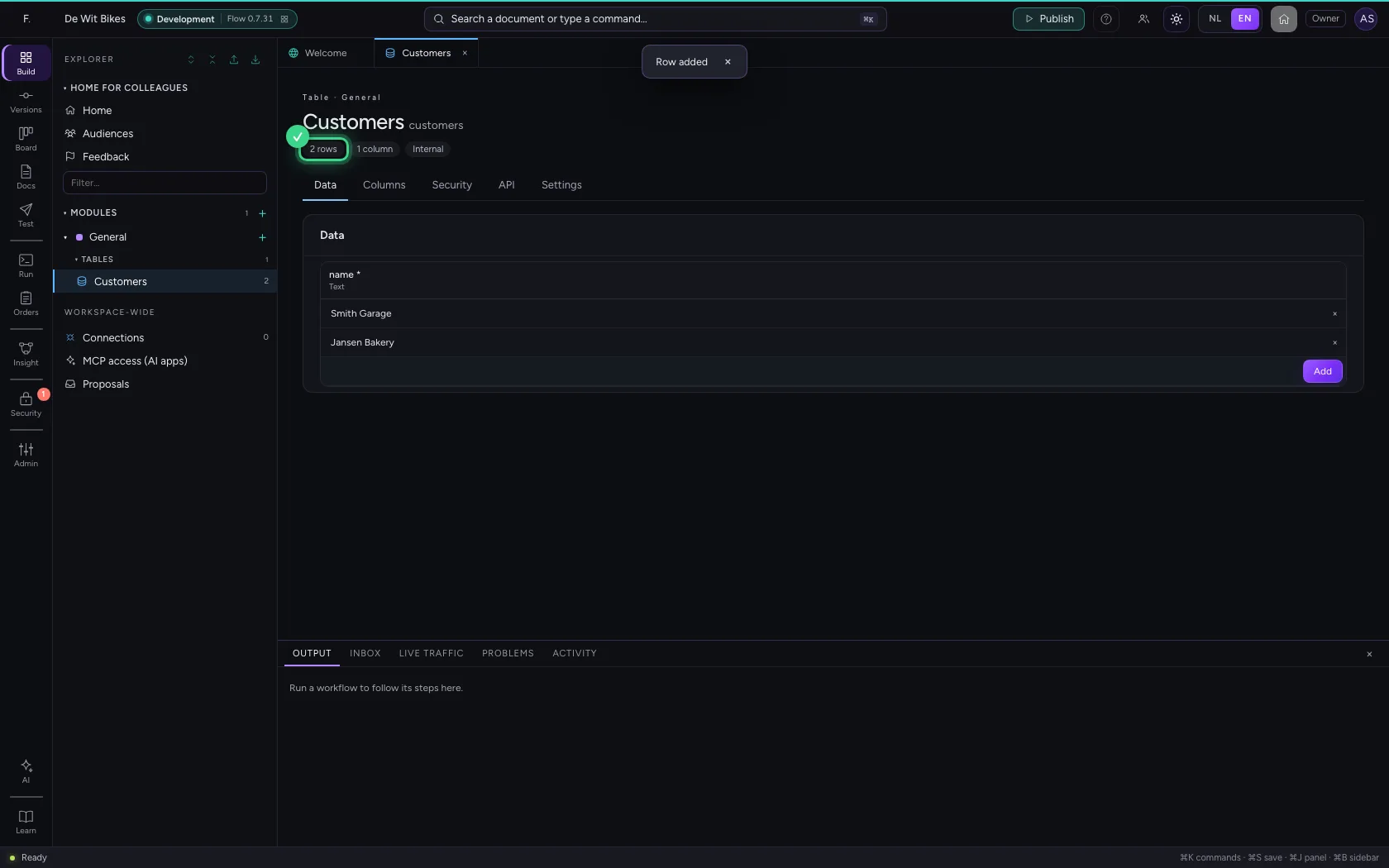
Under Data you type a row in the bottom line and click Add. That is how you fill a table by hand; later, workflows do it for you.
- Click Data
- In the new row, type
Jansen Bakery
- Click Add
- In the new row, type
Smith Garage
- Click Add
Create a workflow
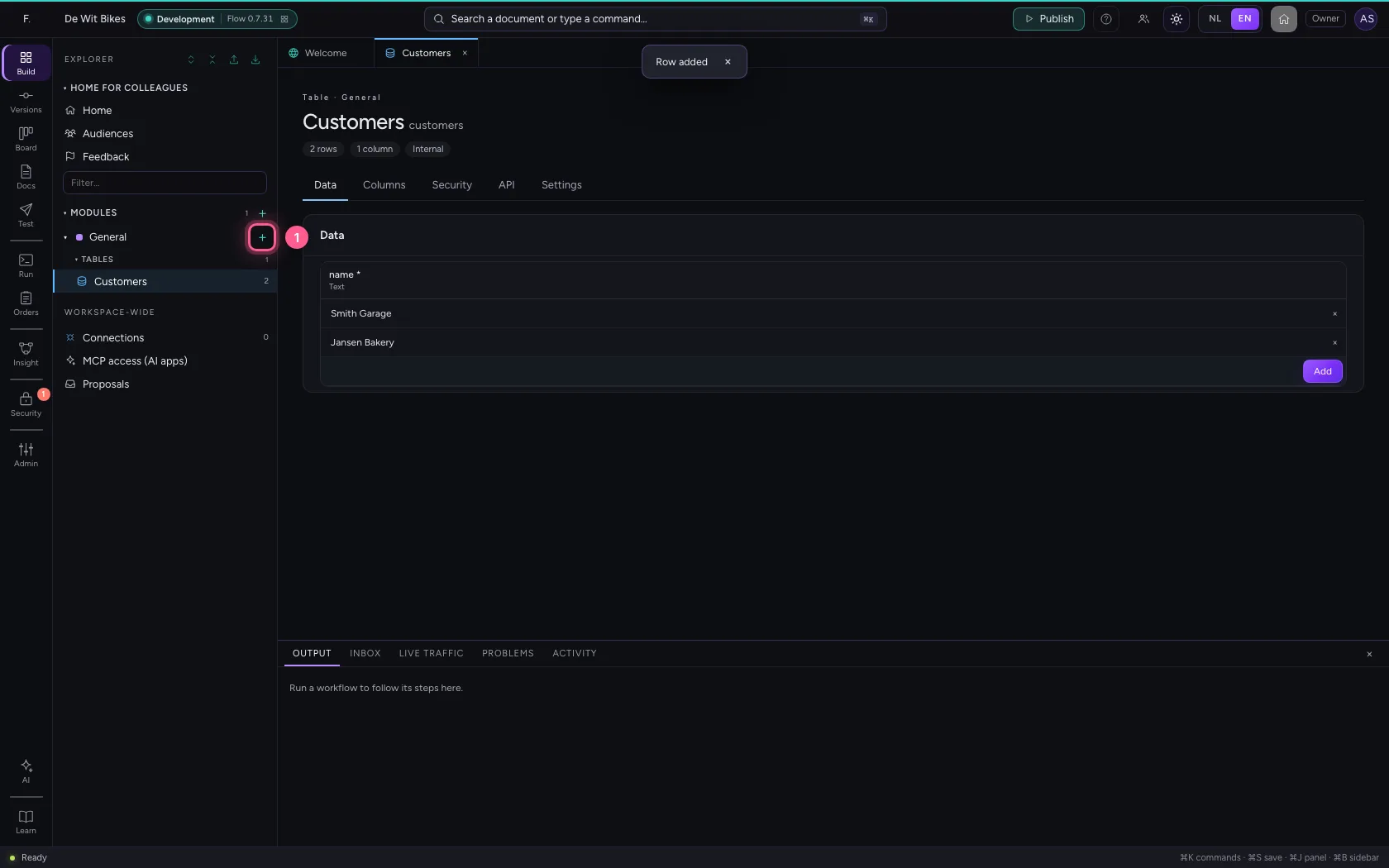
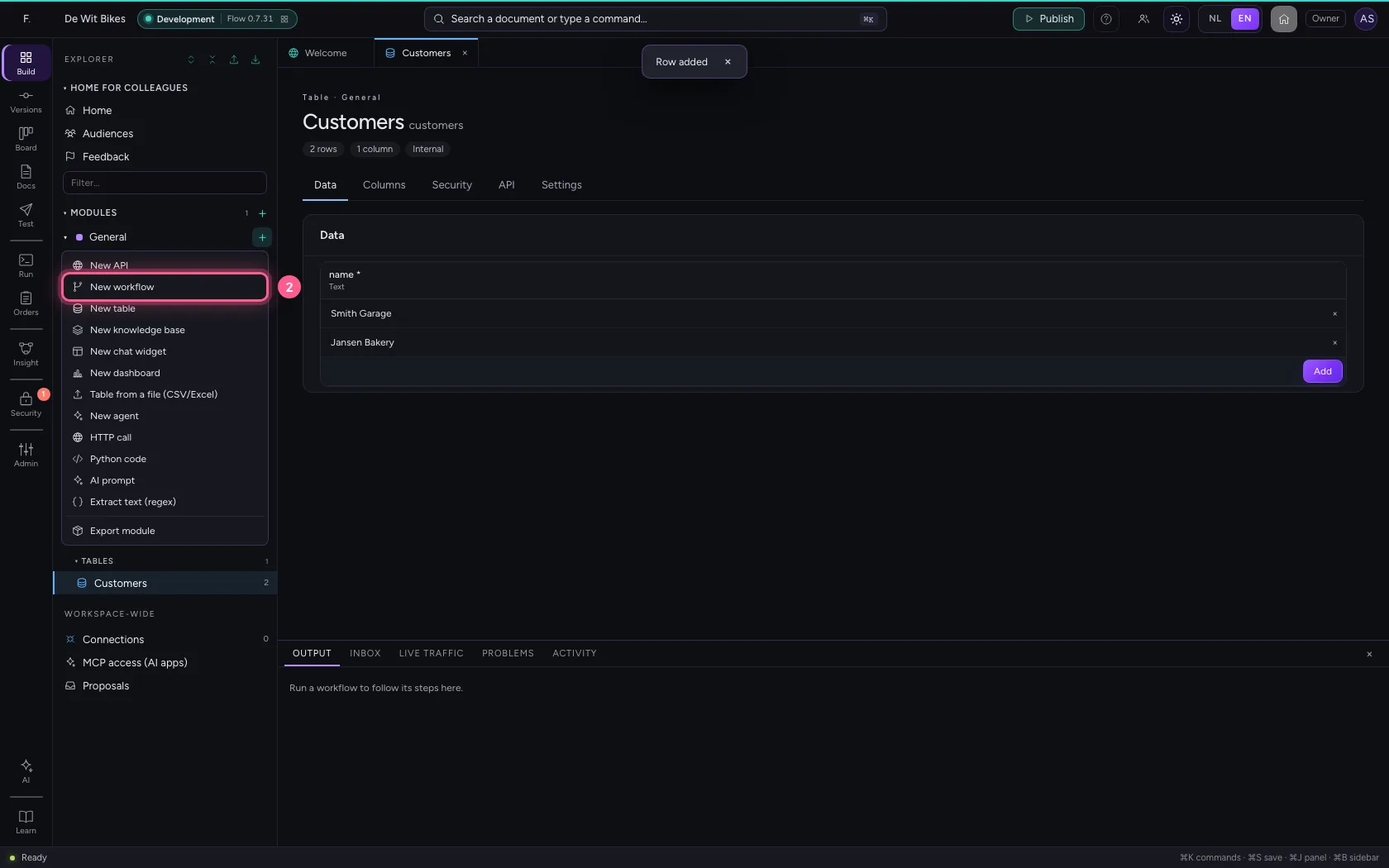
A workflow is a series of steps Flow carries out for you. Click + next to General again and choose New workflow. It starts with a trigger: the moment it begins.
- Click Add to General
- Click New workflow
- In Workflow name, type
Look up customers
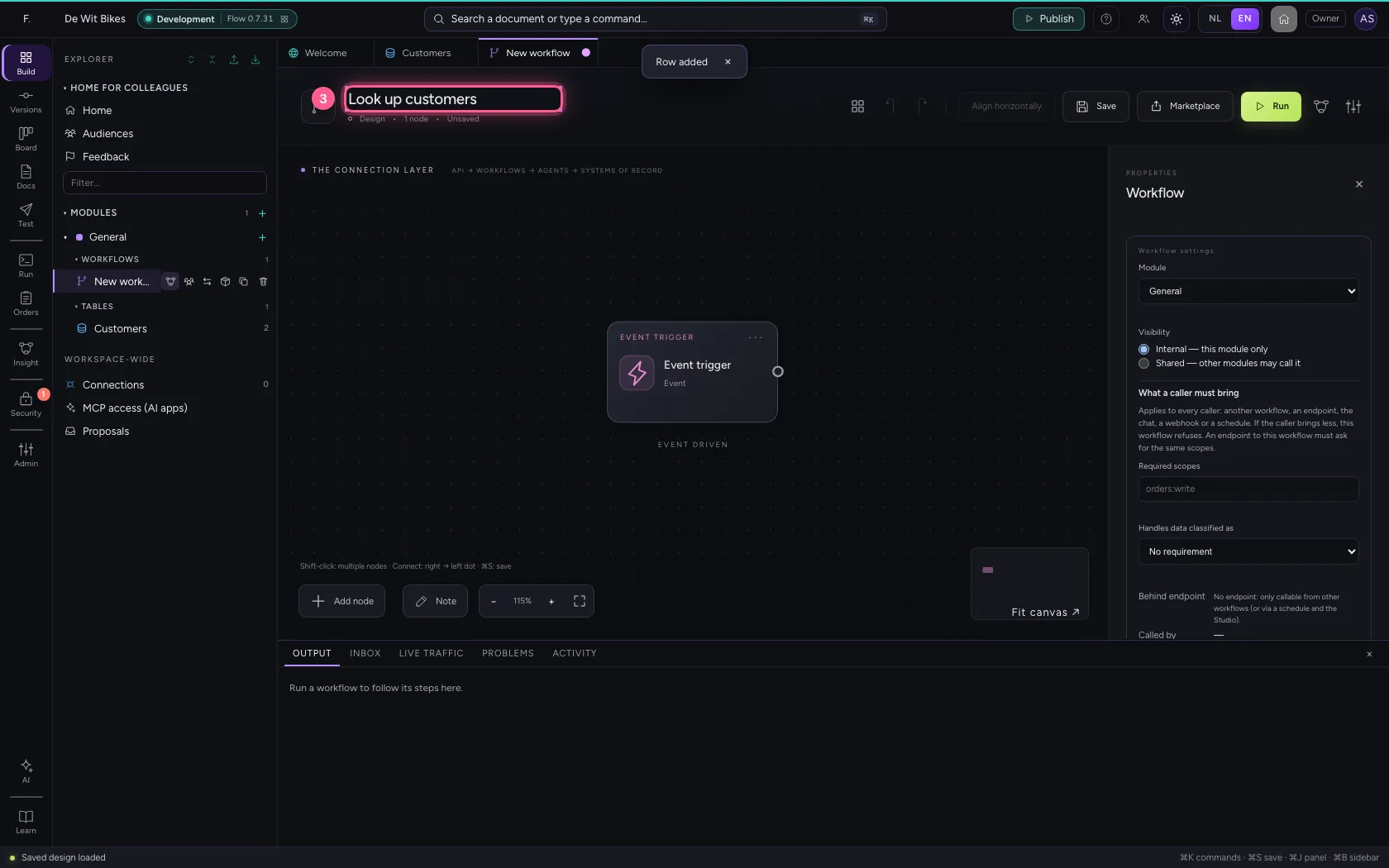
Add a Table step
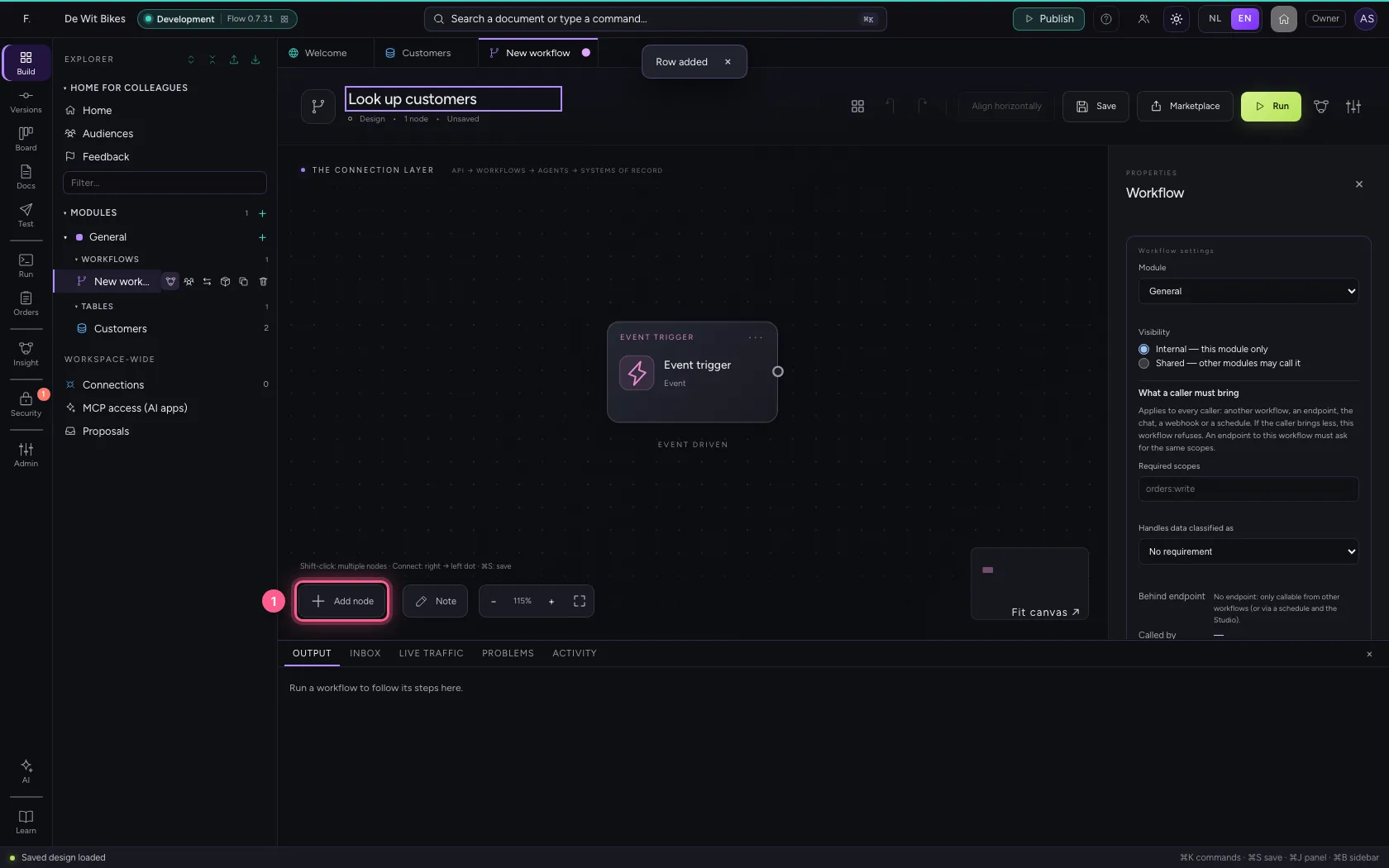
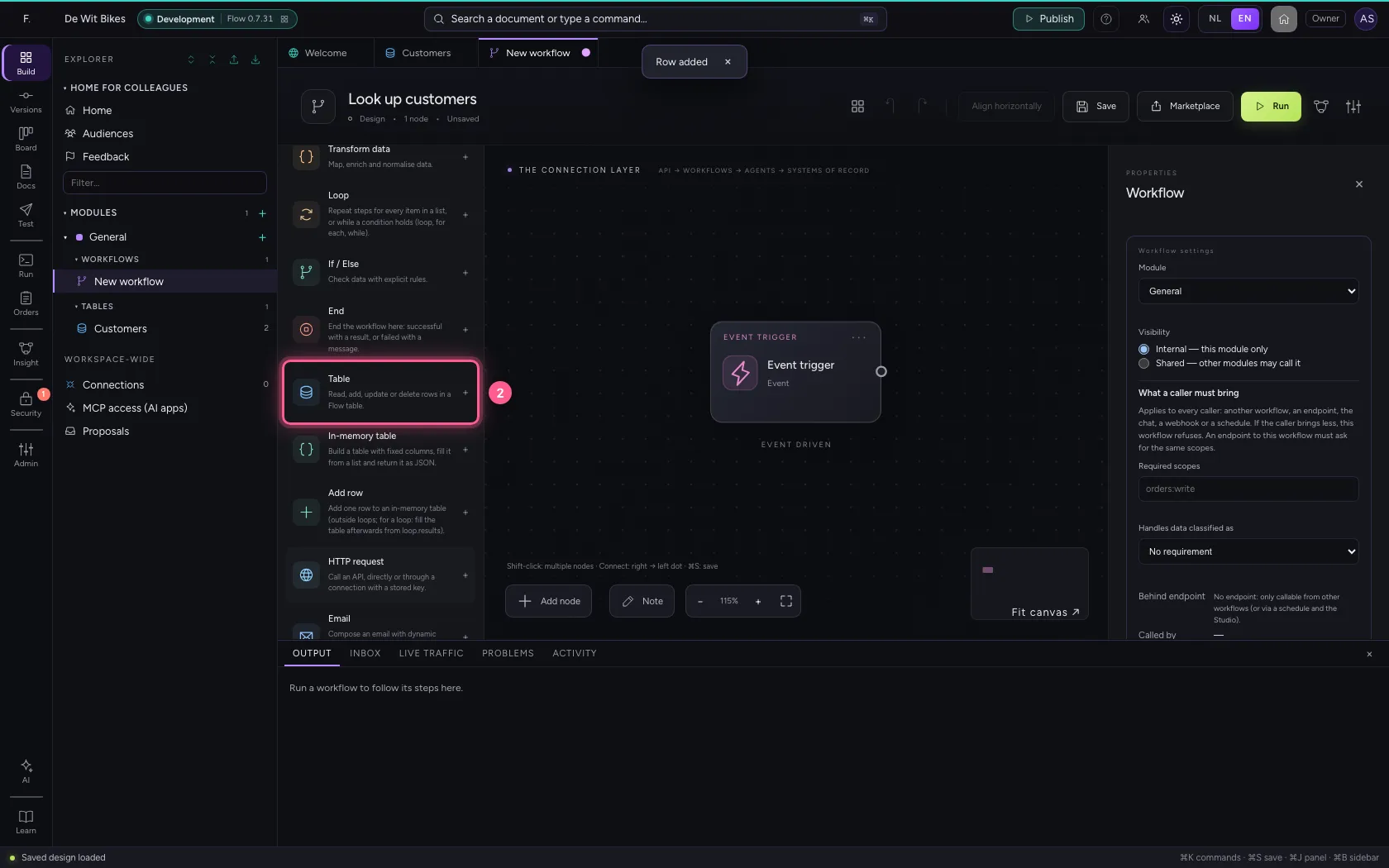
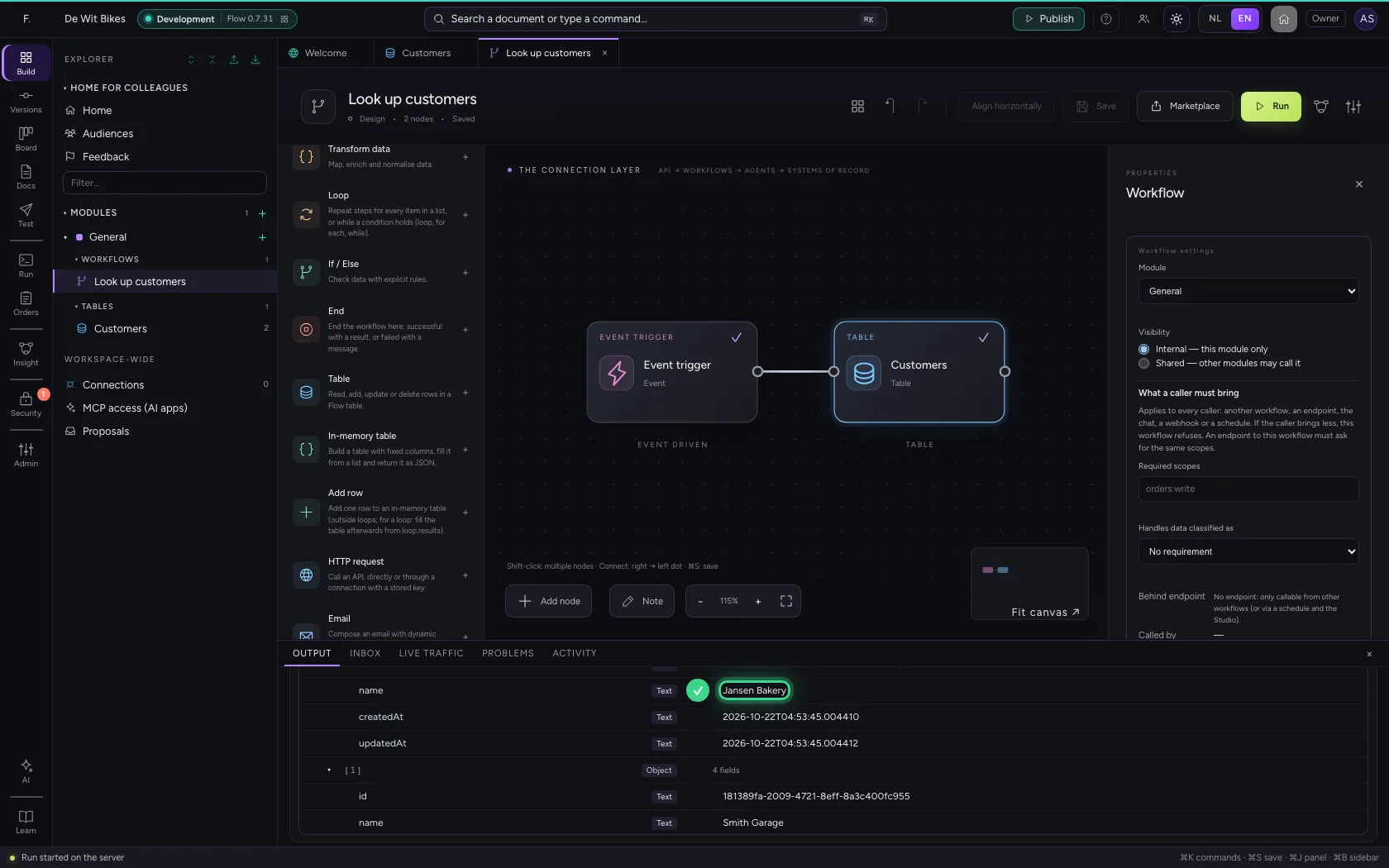
Add node opens the library with every kind of step. Choose Table: it reads, writes or changes rows in a Flow table. On the right you choose which table.
- Click Add node
- Click Table
- In Table, choose Customers · 2
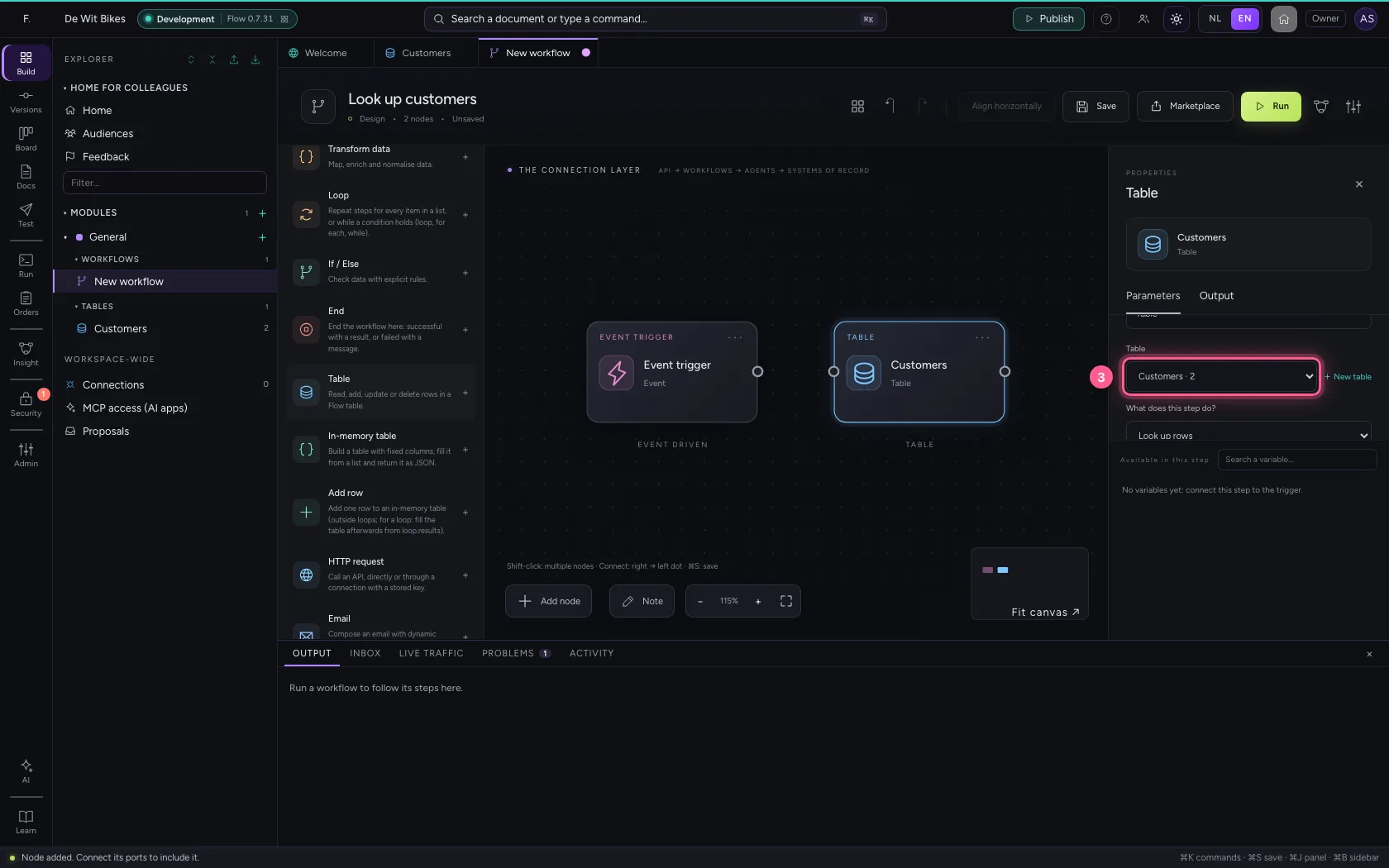
Connect the trigger to the step
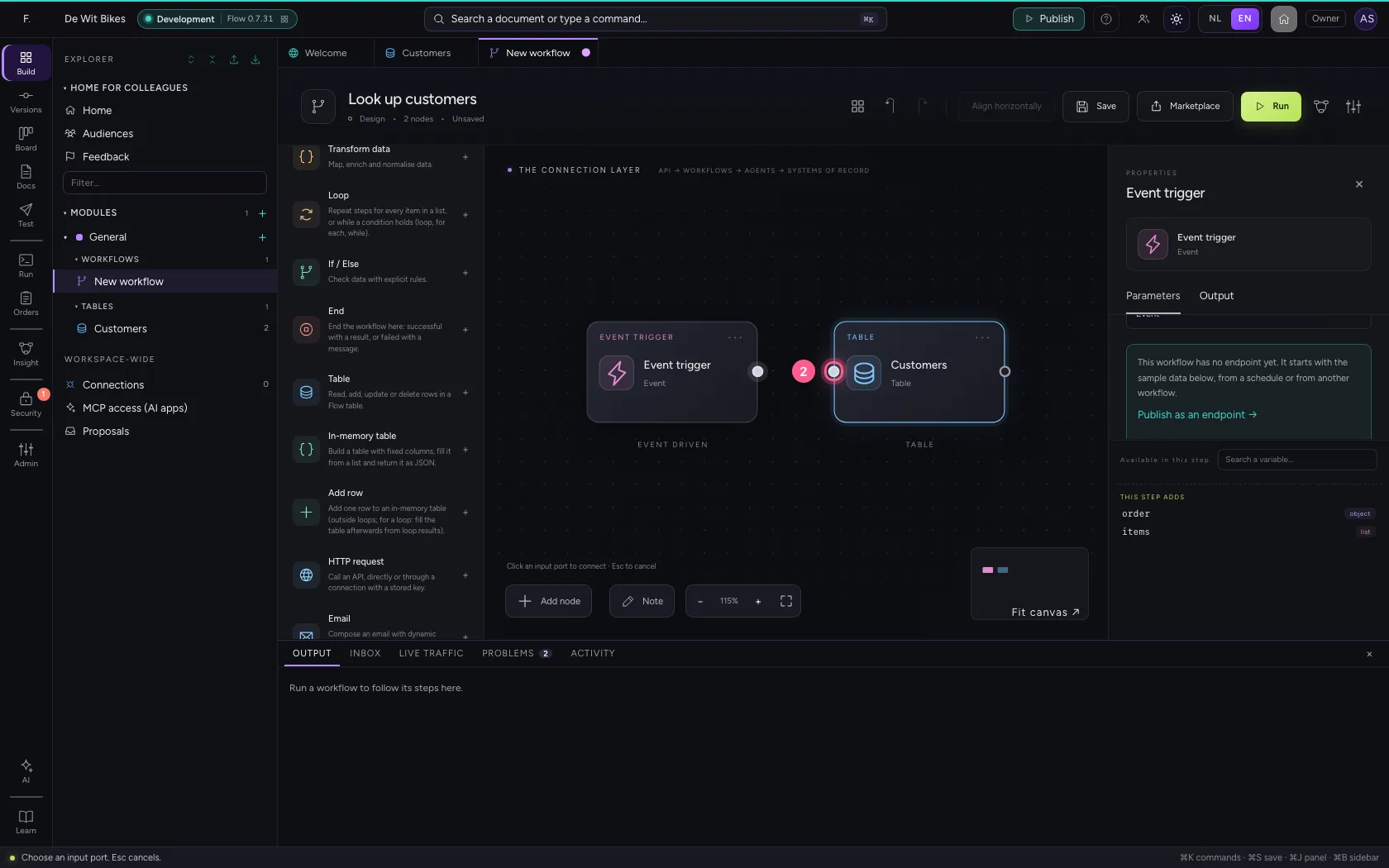
The step is now named after your table. Steps run in the order of their connections: click the dot on the right of the trigger, then the dot on the left of the step.
- Click the trigger's dot
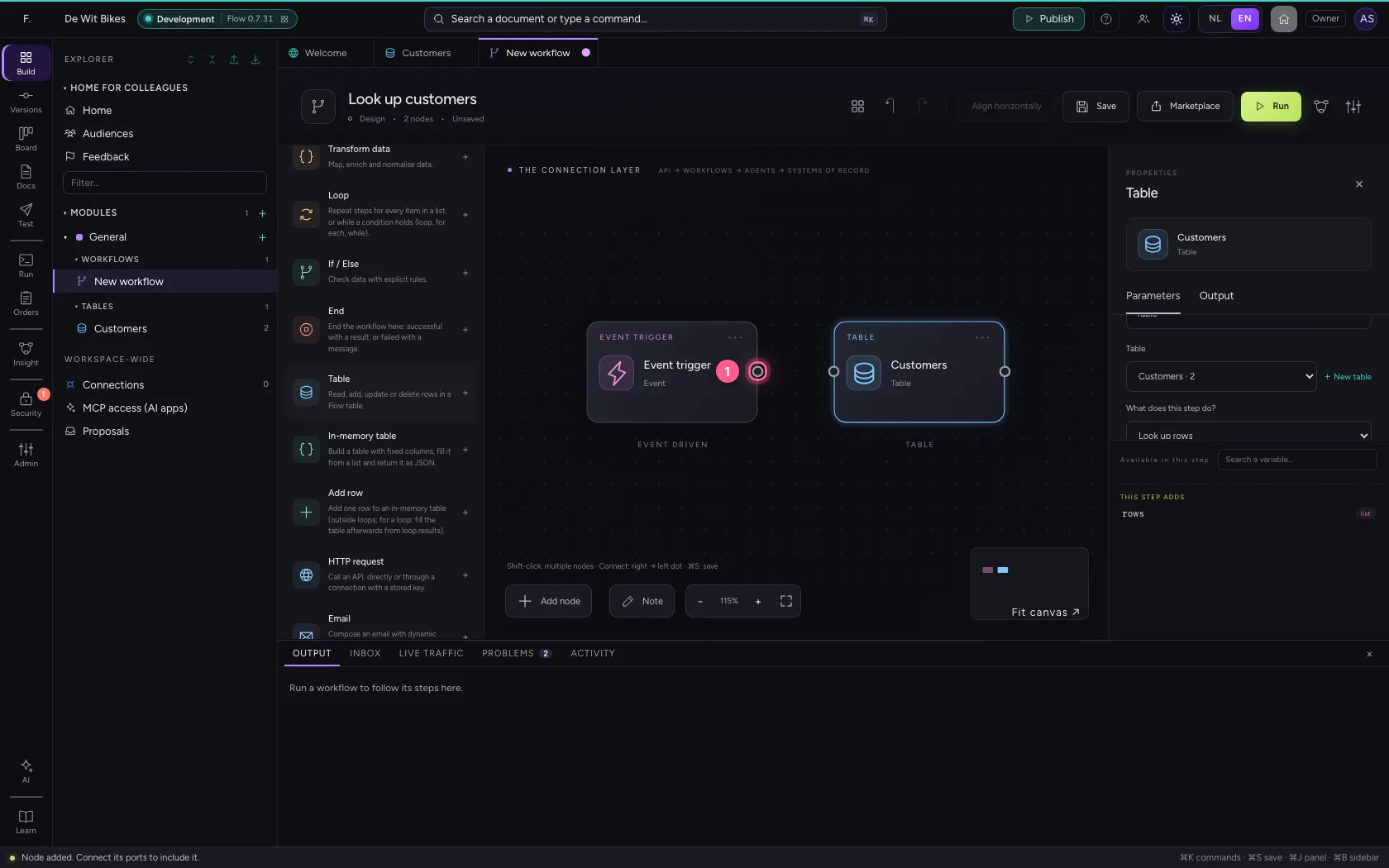
- Click the step's dot
Save and run
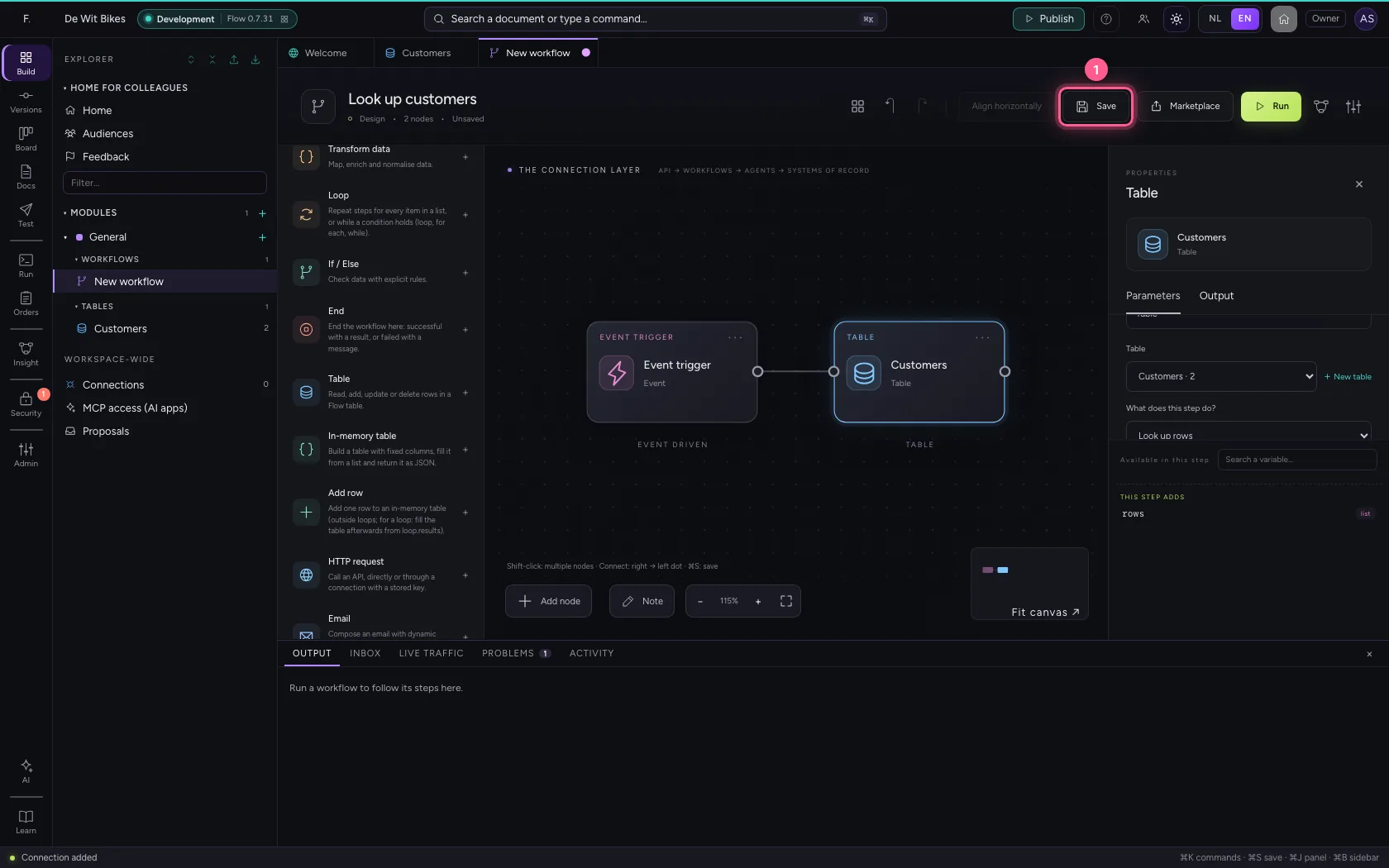
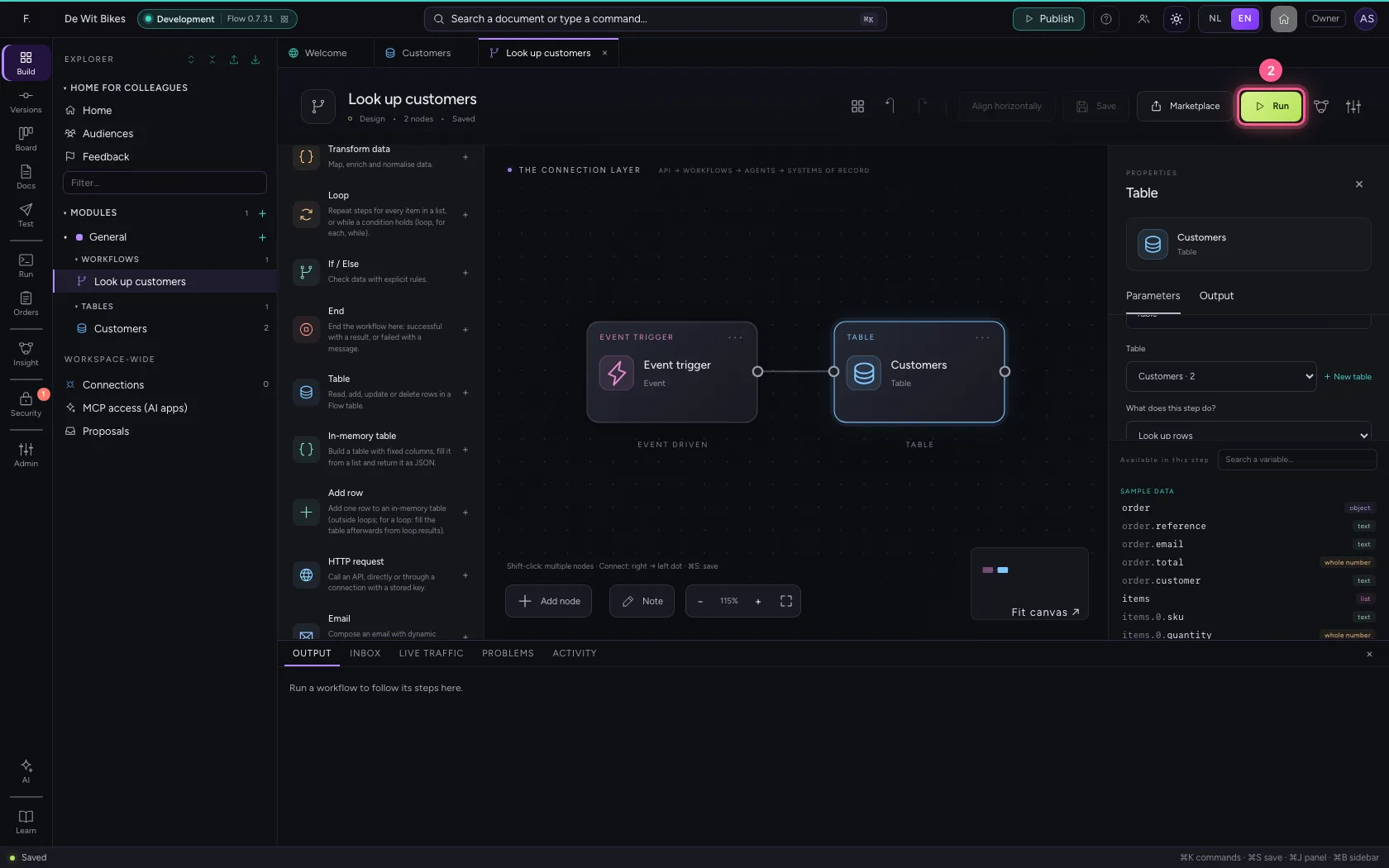
Save keeps your design; Run starts the workflow straight away, with an example as input. At the bottom, under Output, you see every step and what it produced.
- Click Save
- Click Run
This guide was carried out step by step on 22 Oct 2026 by an automated test on Flow (version 3e563176).