Runs and problems
Everyone makes a typo now and then. Flow helps you find it: Problems lists what is already wrong right now, and Runs tells you for every run what went in, what came out and where it went wrong. You build a small workflow with a mistake in it on purpose, see it fail, find out why and fix it.
Open your development environment
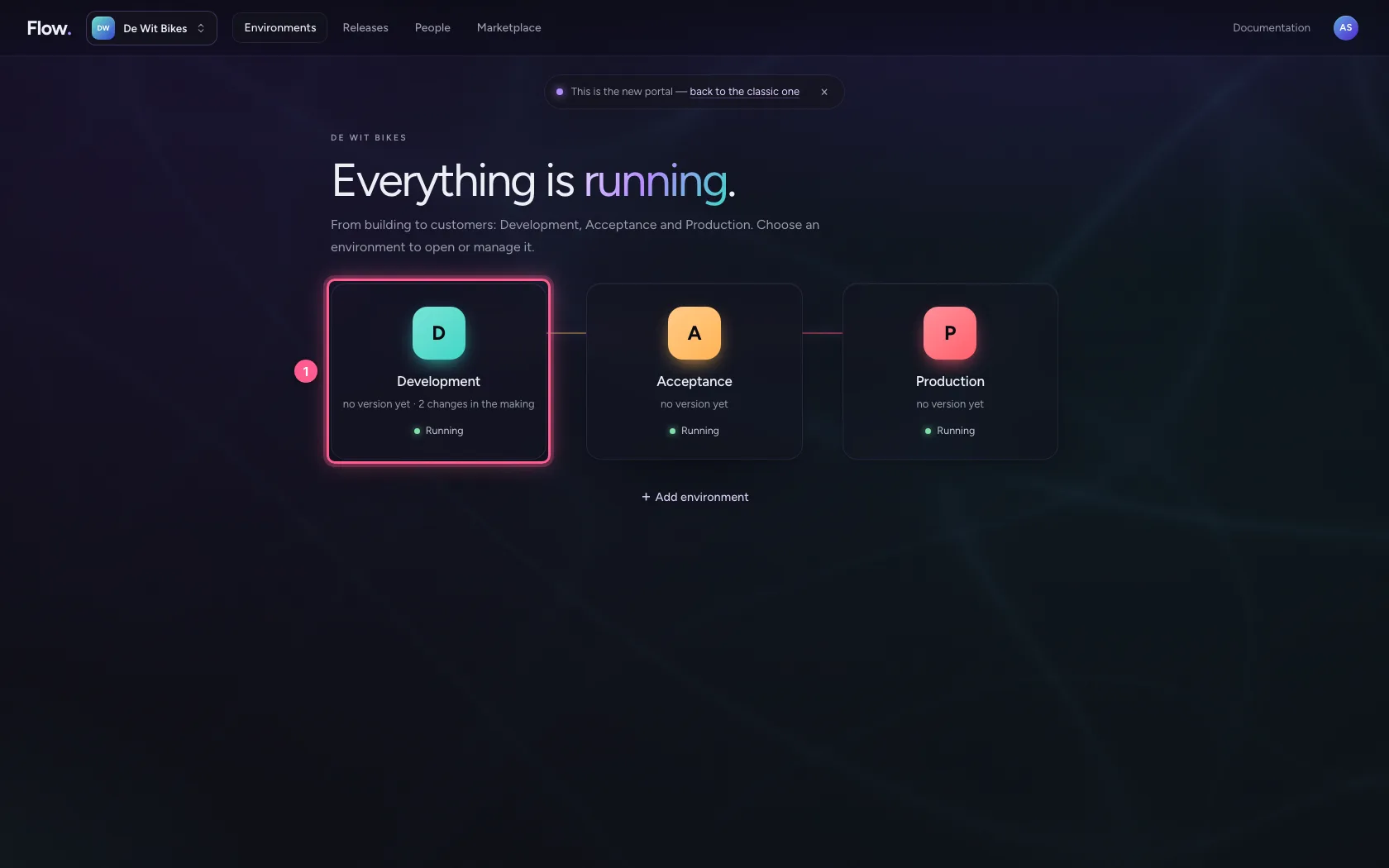
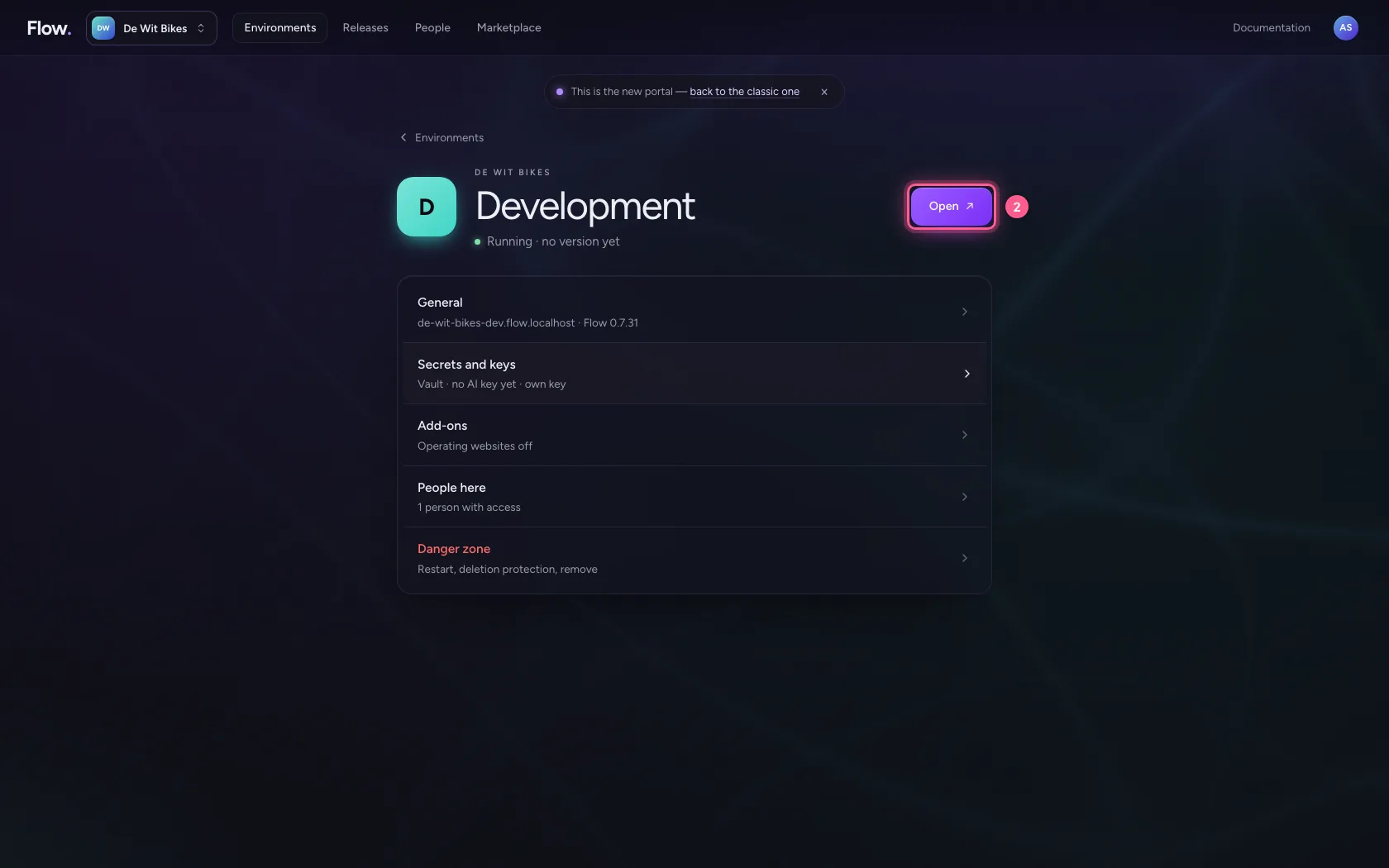
In the portal, under Environments, click Development, and there Open. Flow opens in a new tab.
- Click Development
- Click Open ↗
Create a workflow with sample data
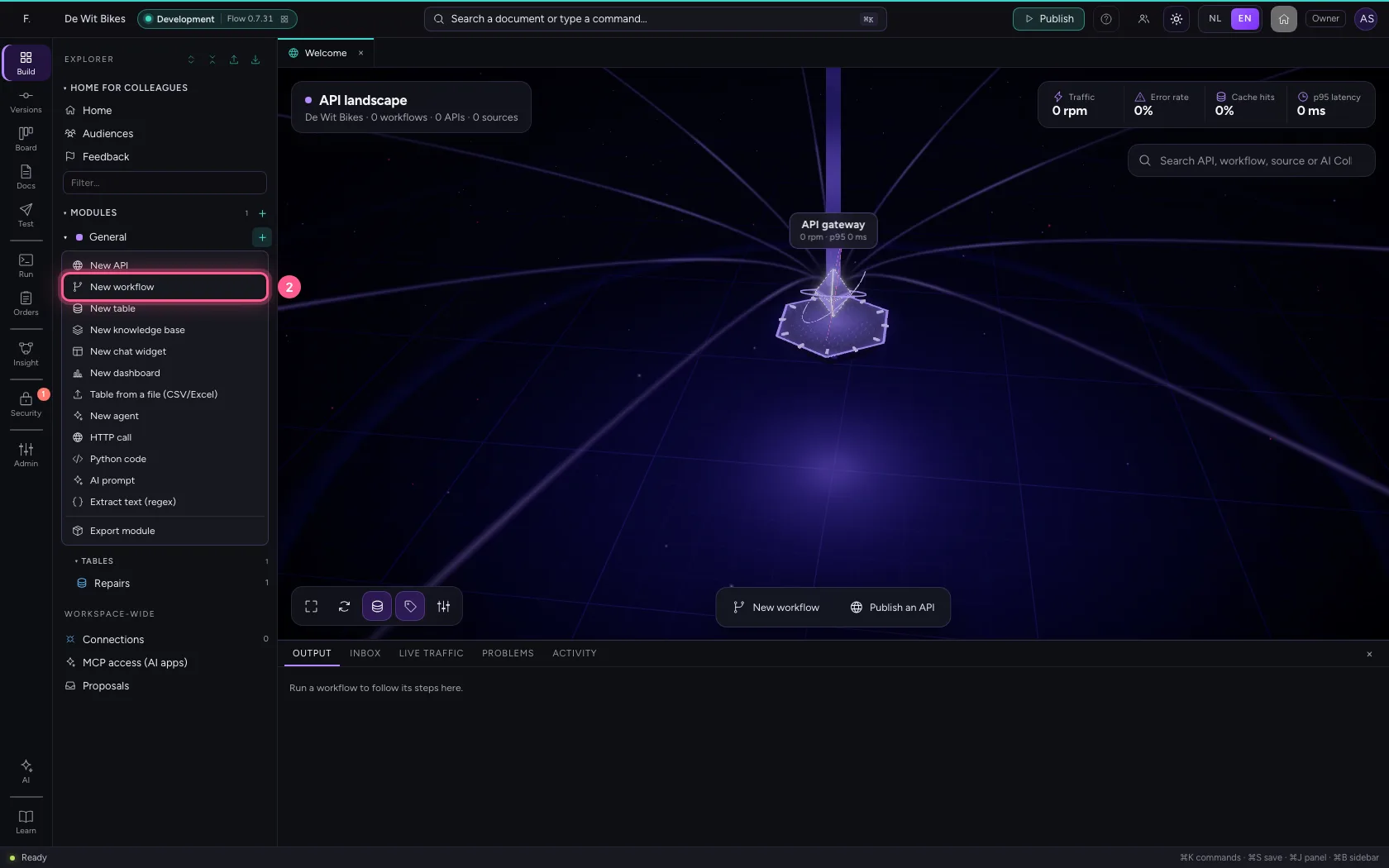
A new workflow, with an invoice as its example: a number, a supplier and a total.
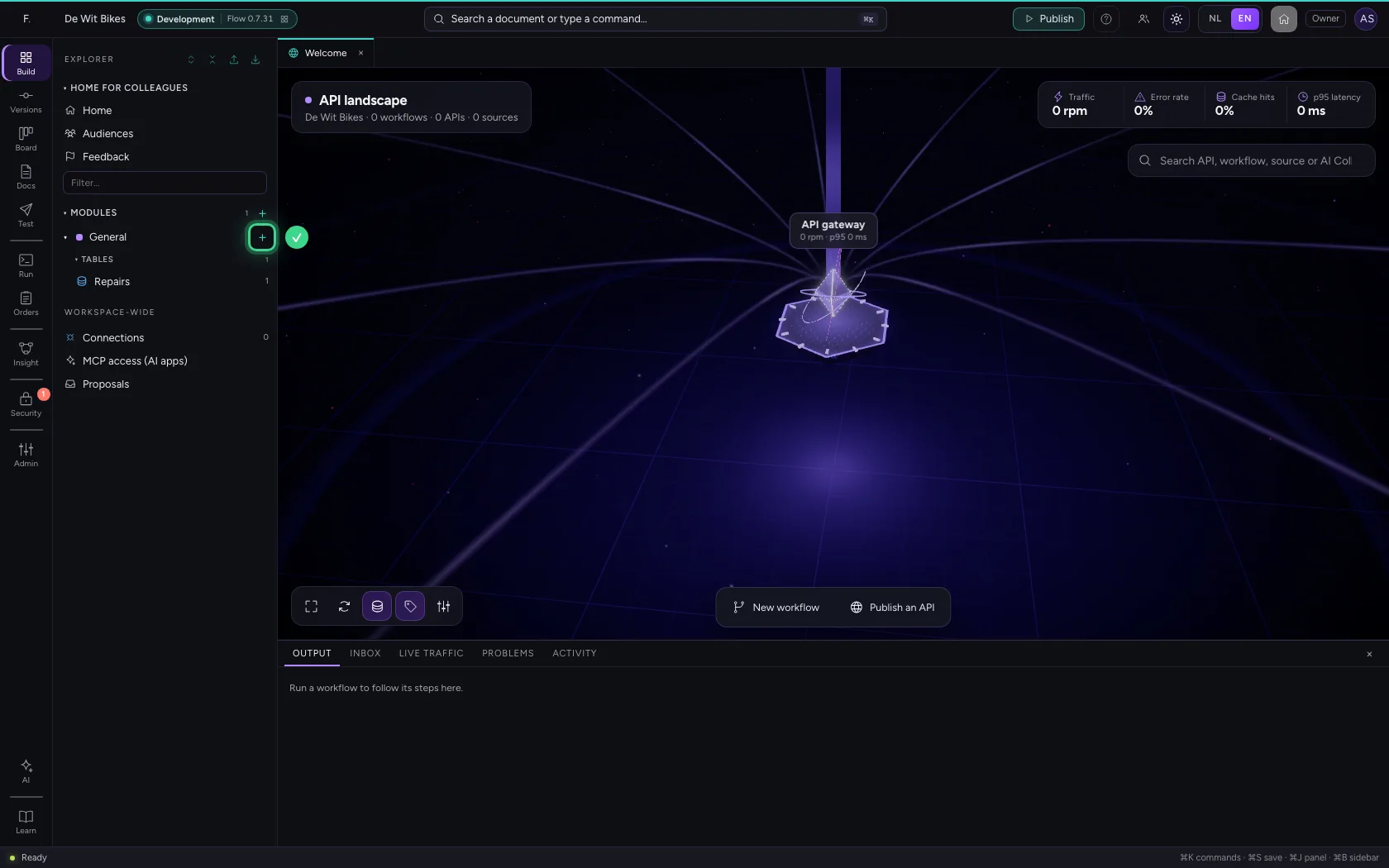
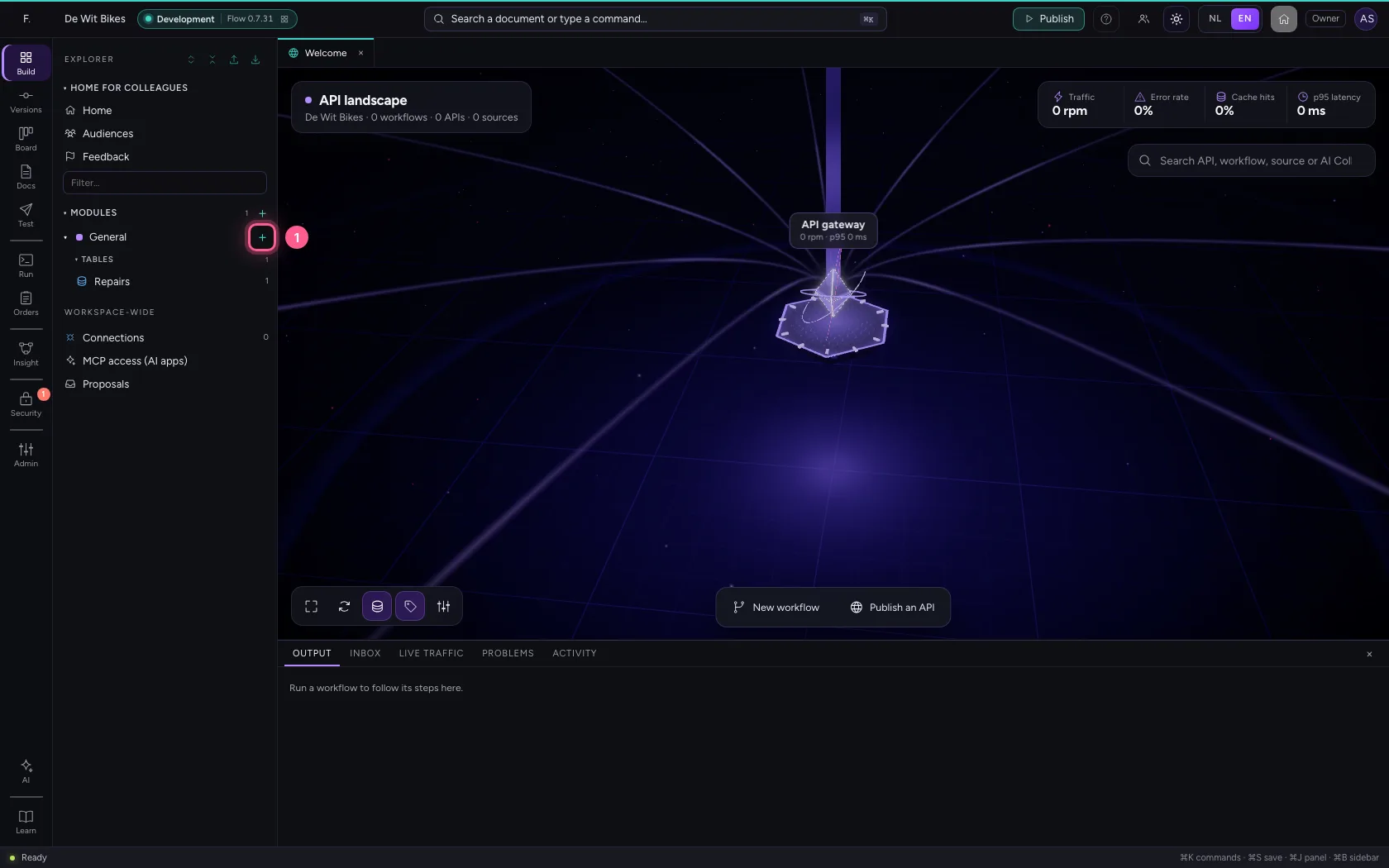
- Click Add to General
- Click New workflow
- In Workflow name, type
Check an invoice
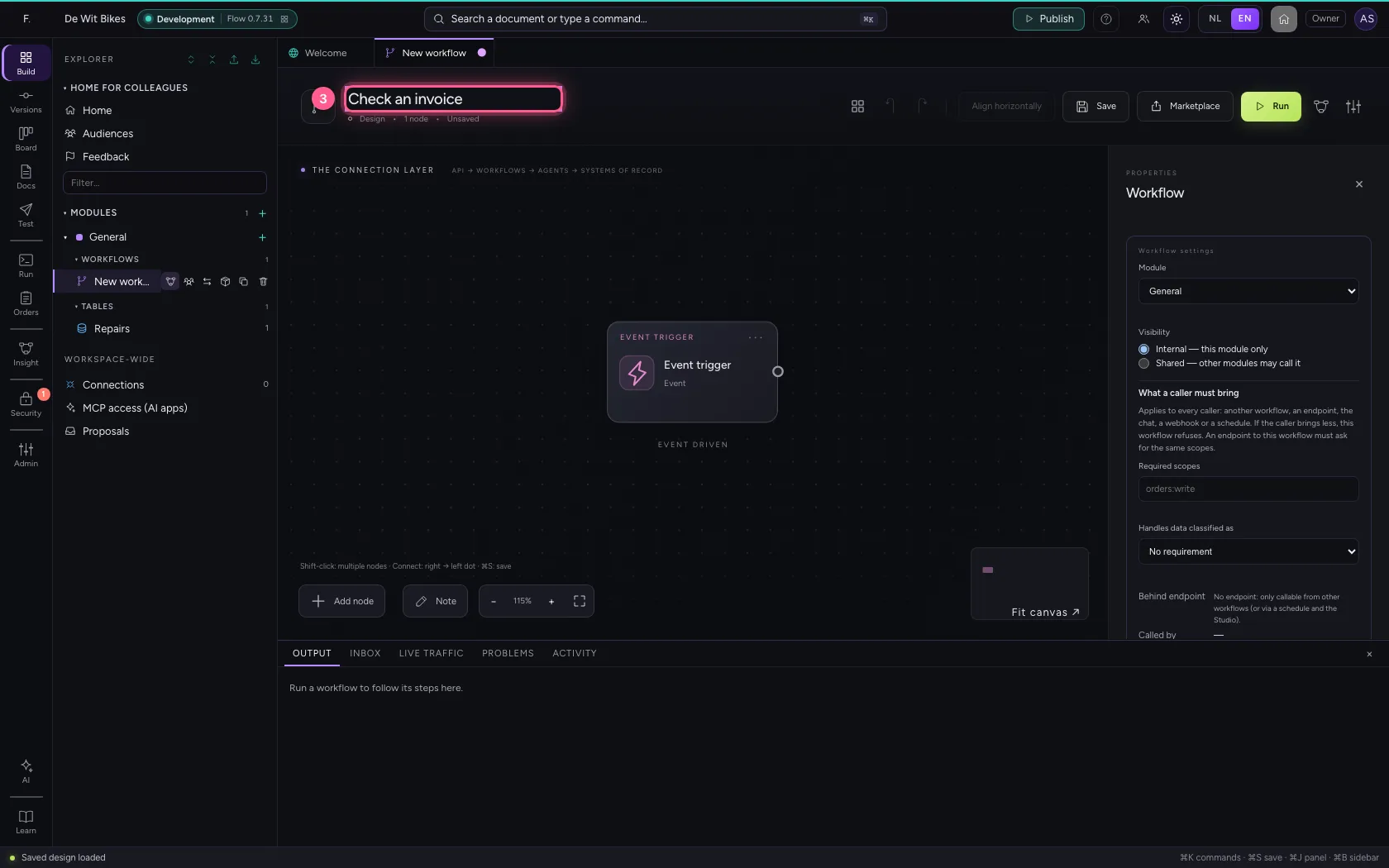
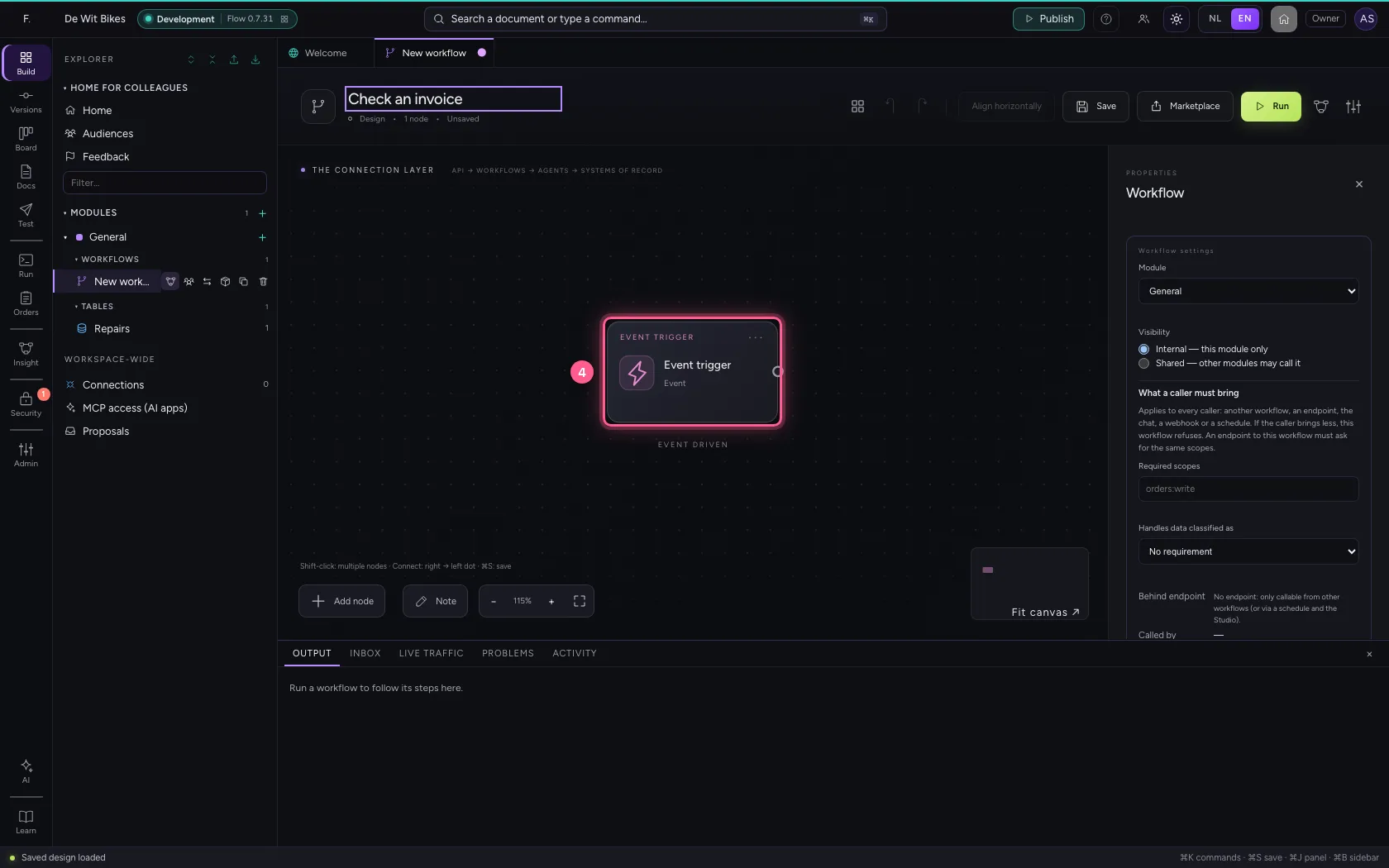
- Click the trigger
- Click Code
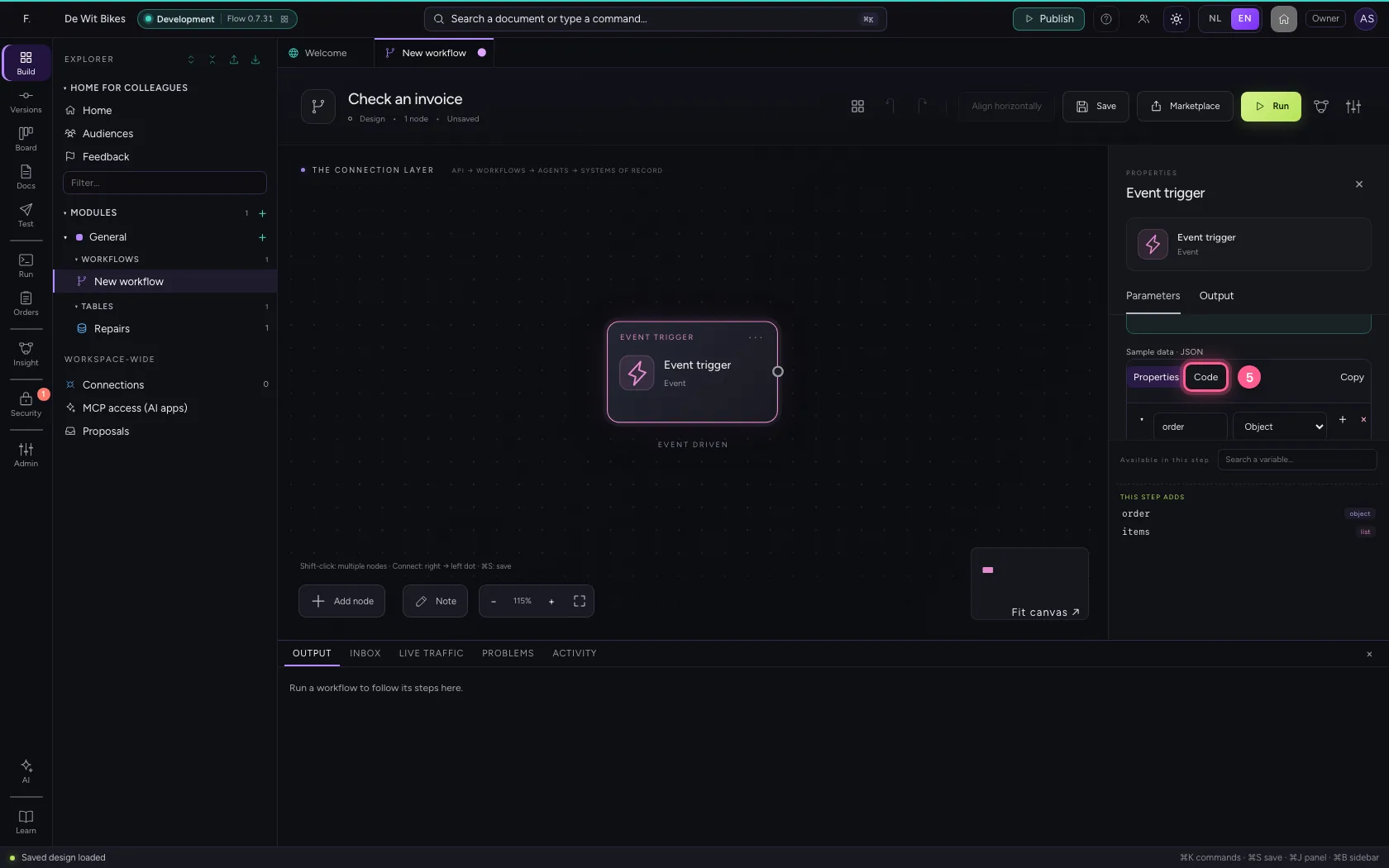
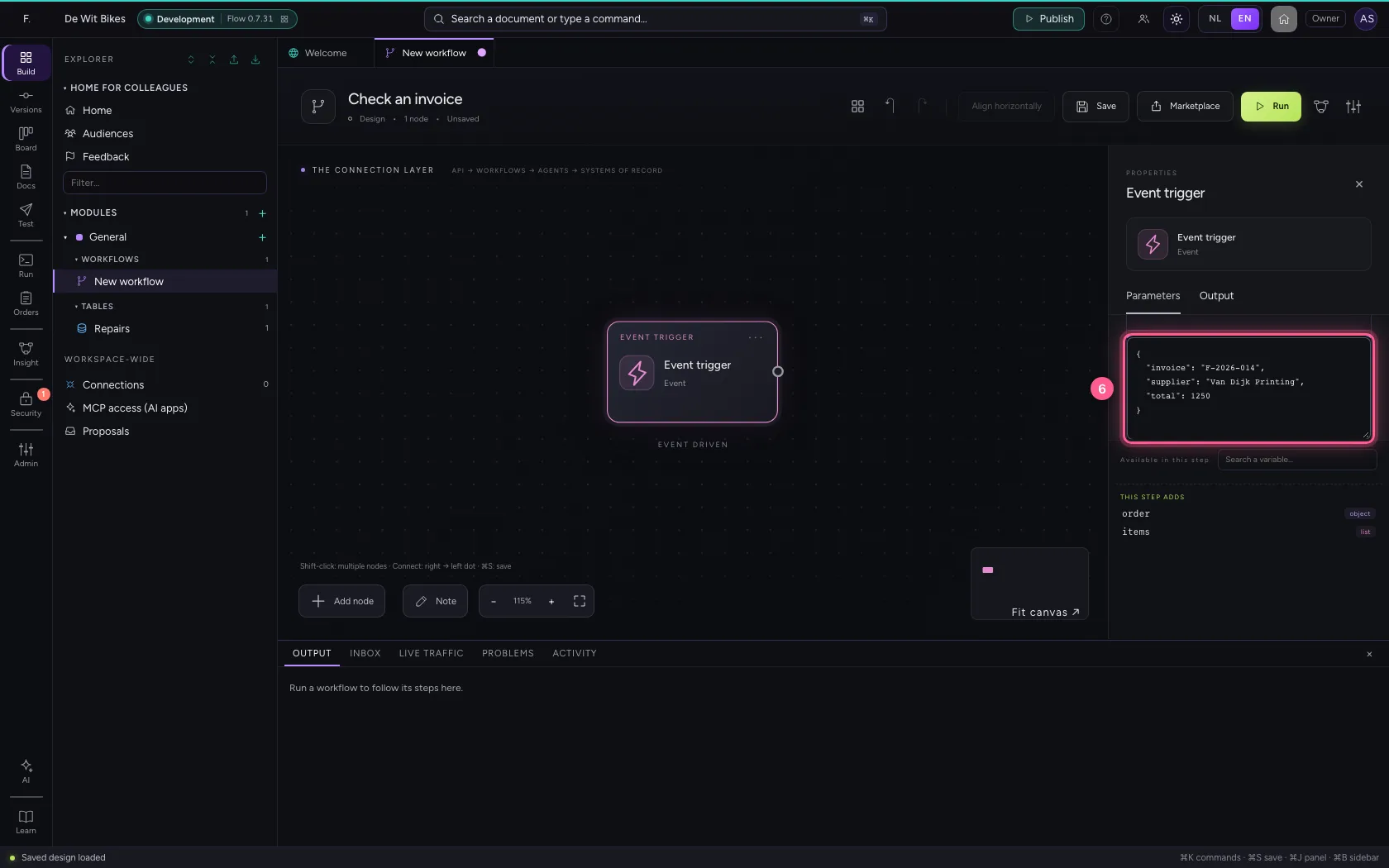
- In the sample data, type
{"invoice": "F-2026-014", "supplier": "Van Dijk Printing", "total": 1250}
A rule — with a typo
Add an If / Else that checks whether the invoice is over 1000 euros. We type the wrong field on purpose: amount instead of total. Exactly the kind of mistake that happens for real.
- Click Add node
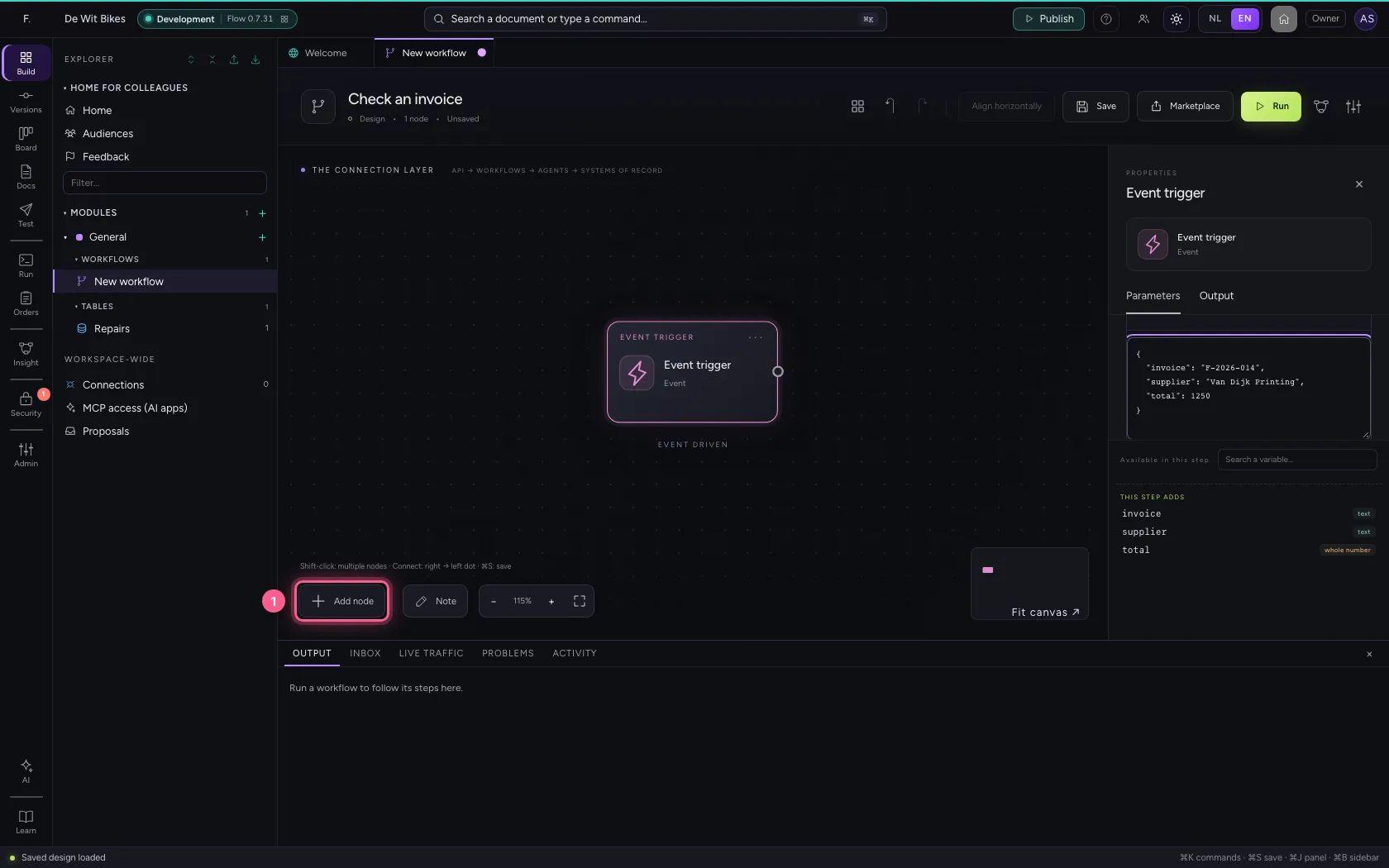
- Click If / Else
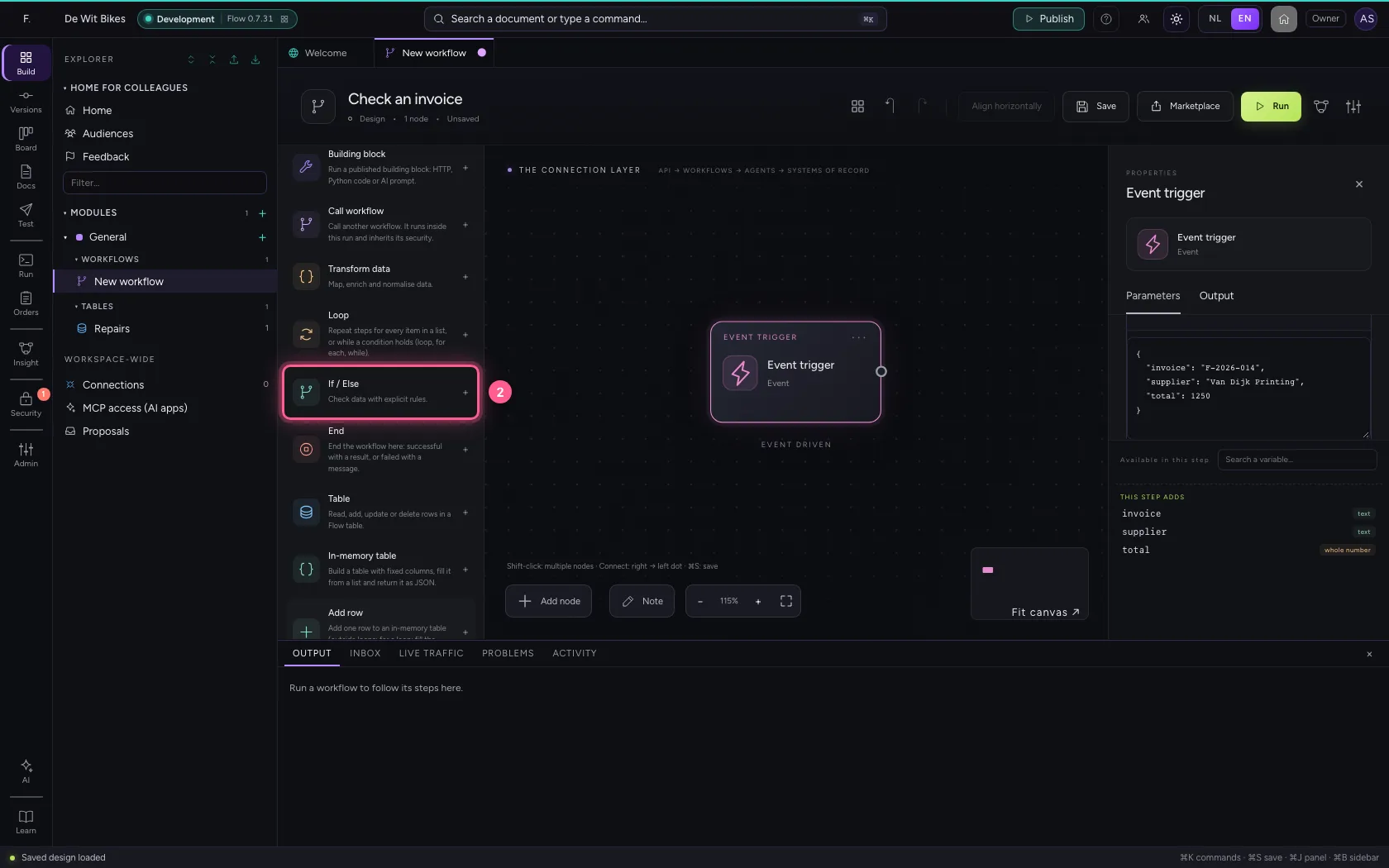
- In Name, type
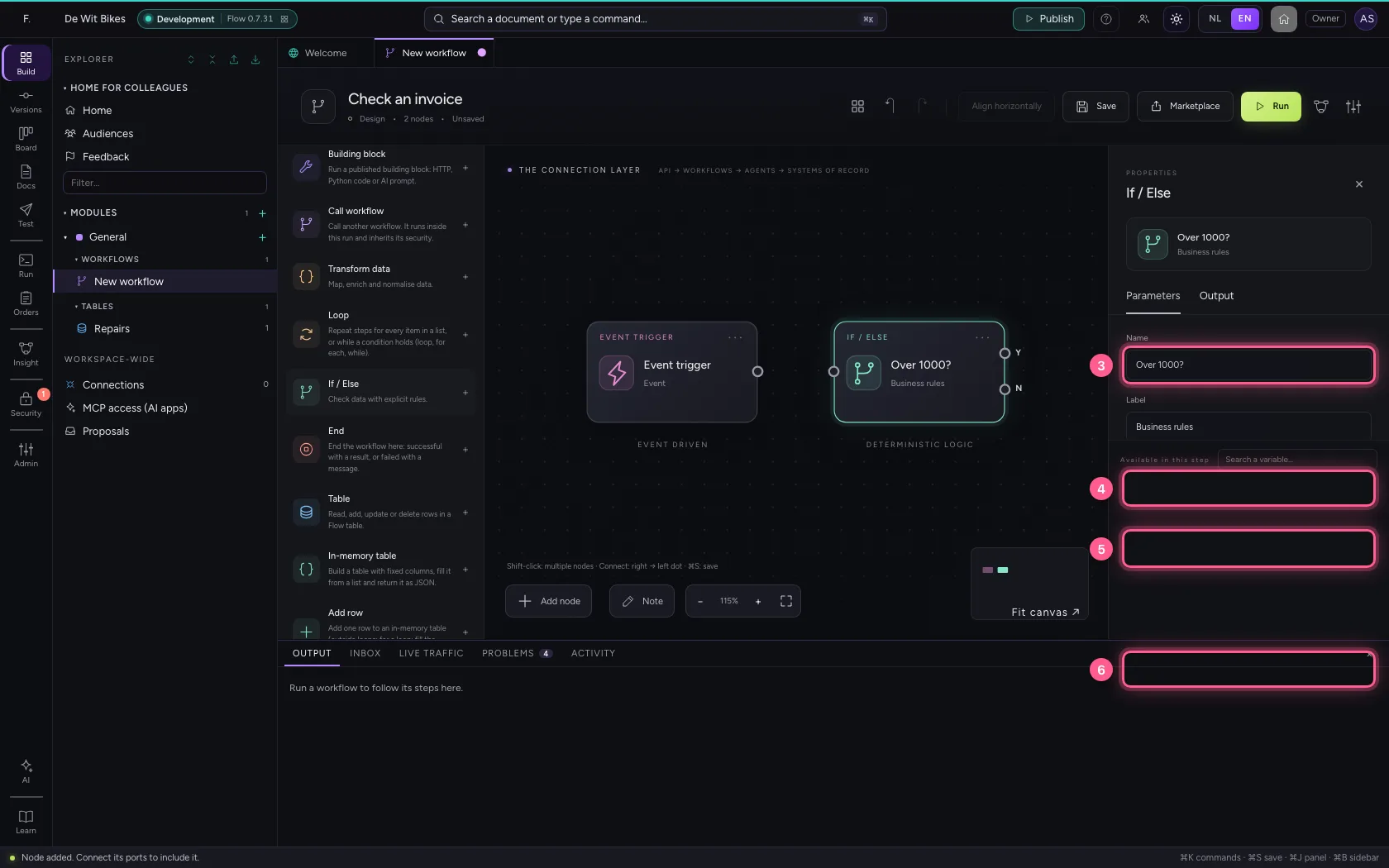
Over 1000? - In Which field to check?, type
amount - In **Comparison Equals Does not equal Is greater than Is greater than or equal to Is **, choose Is greater than
- In Value, type
1000
Two ends and the connections
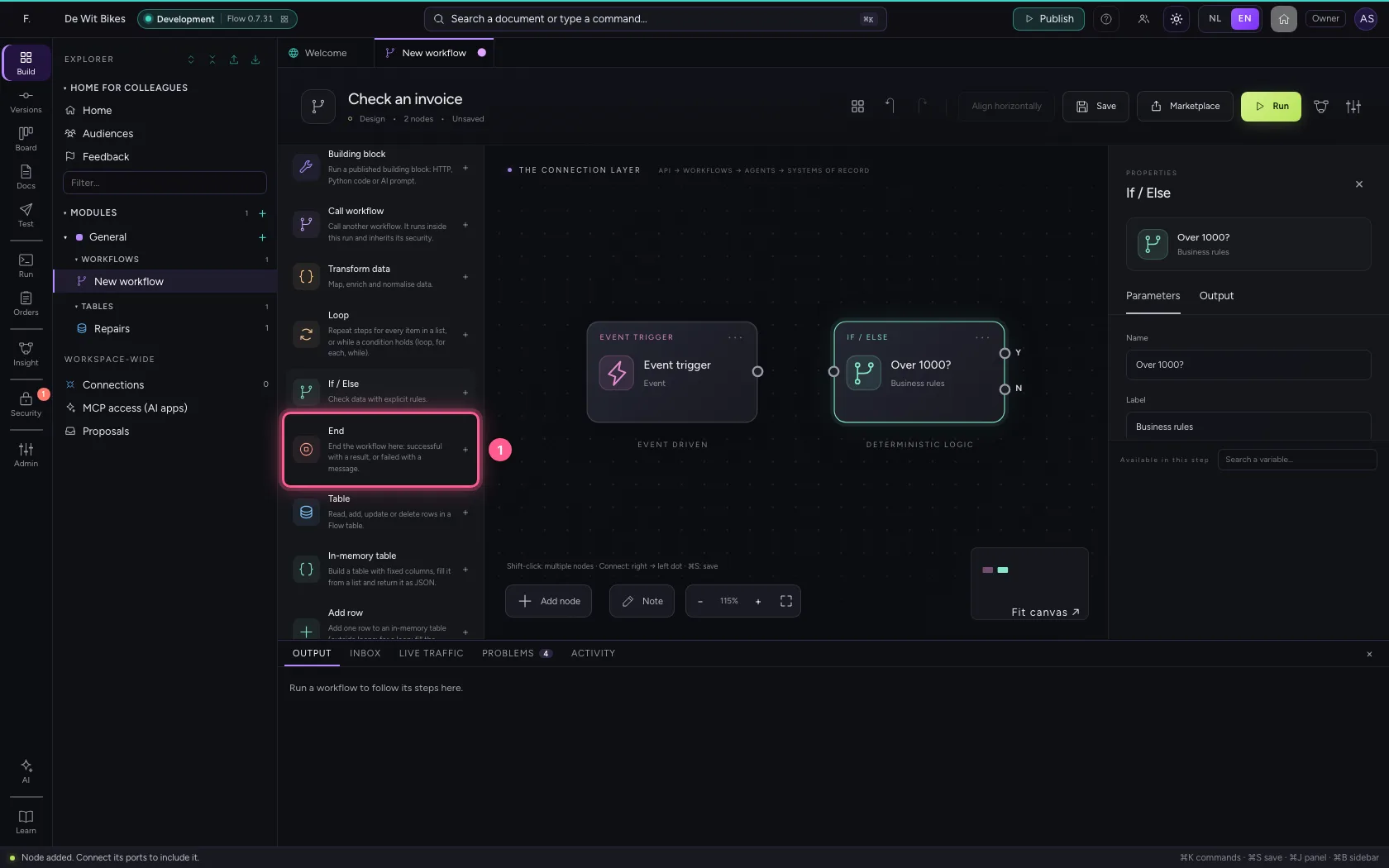
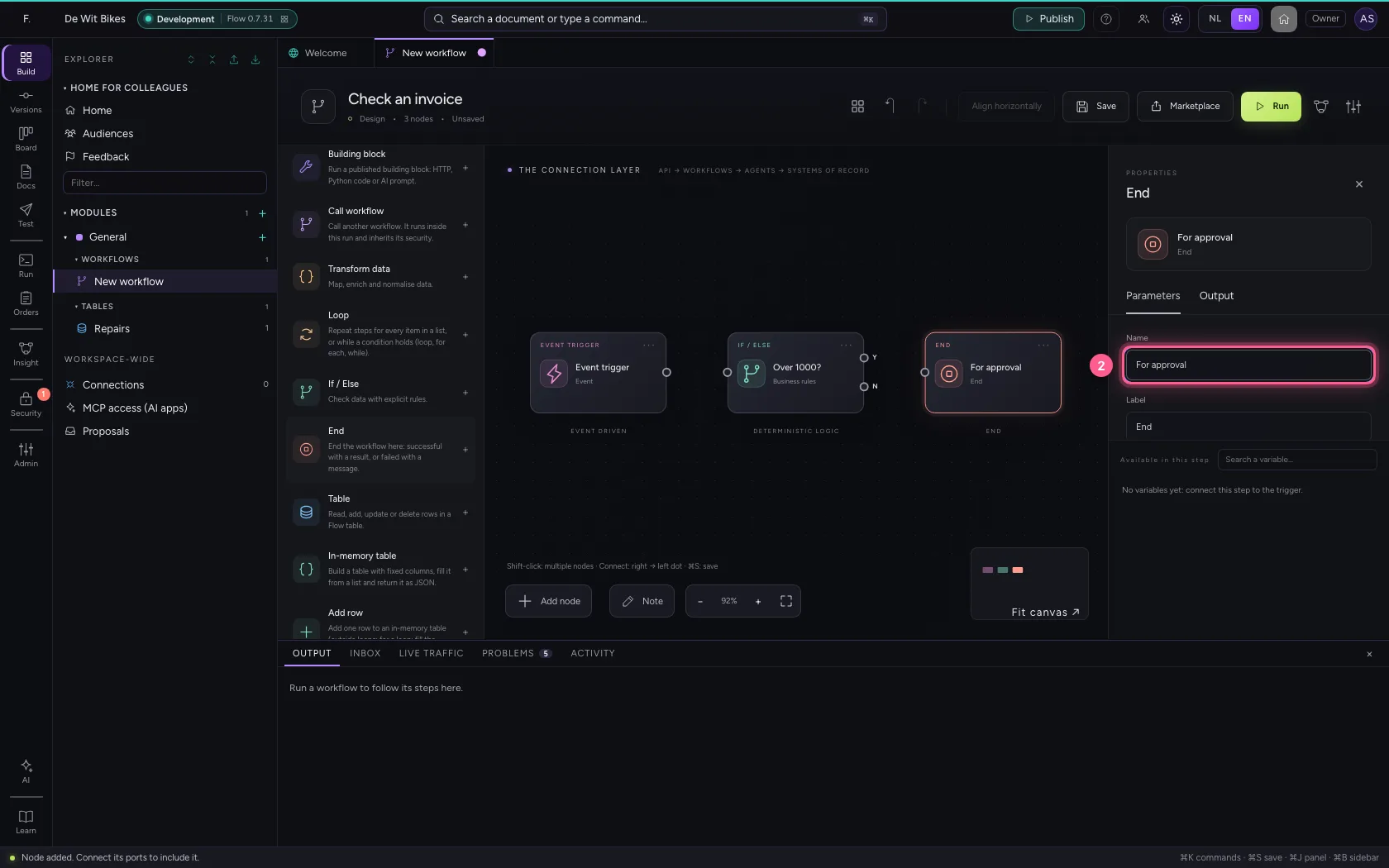
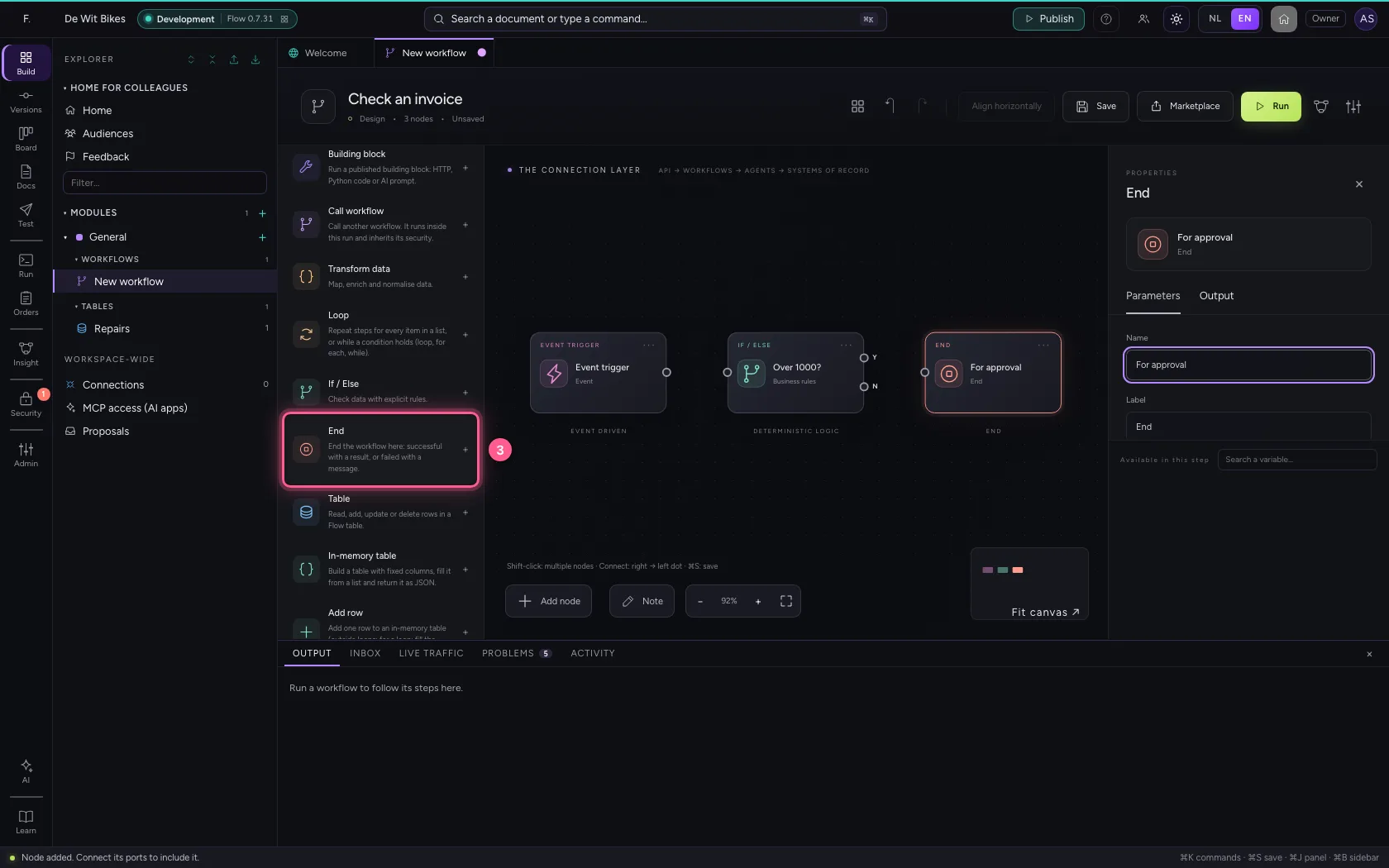
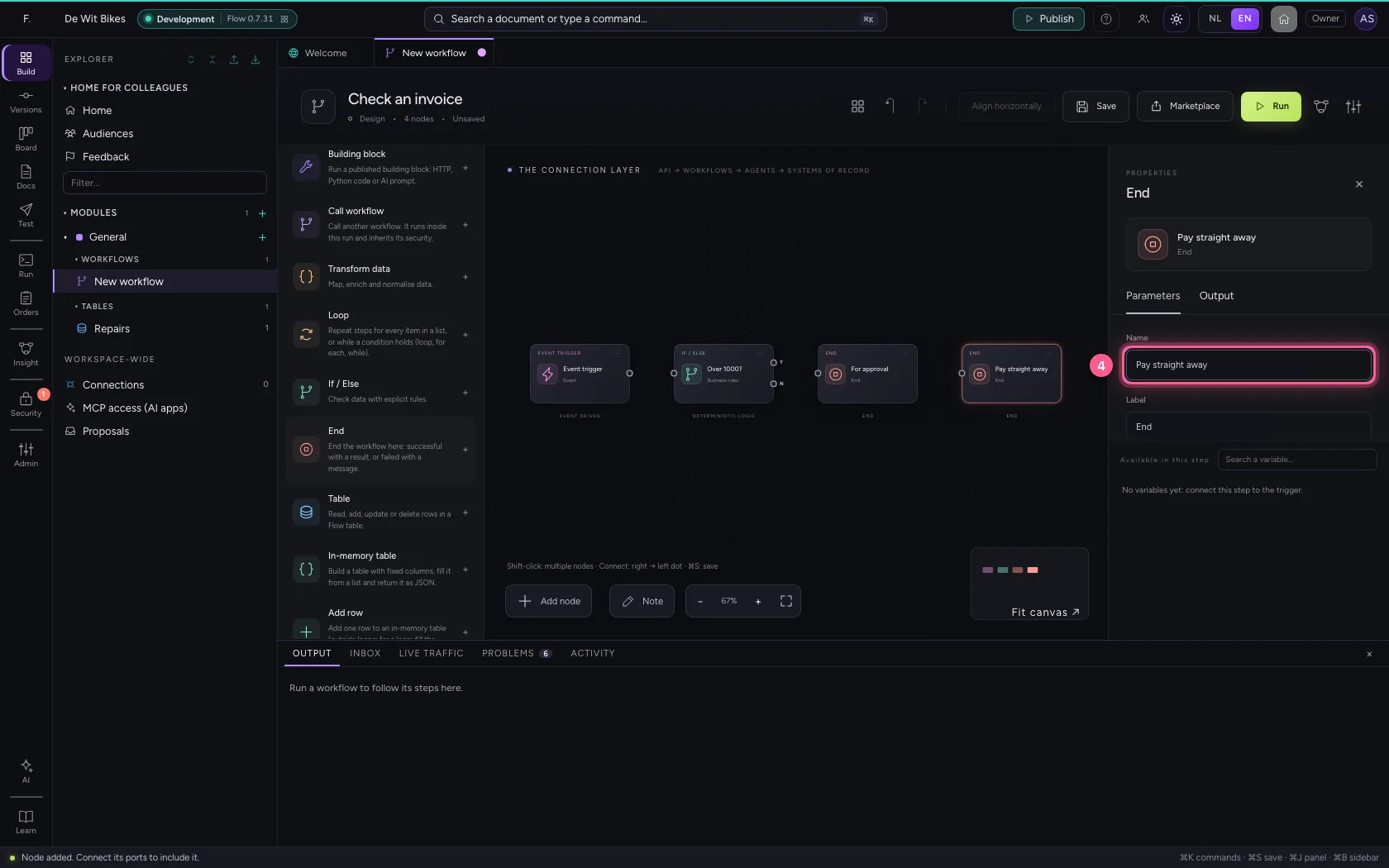
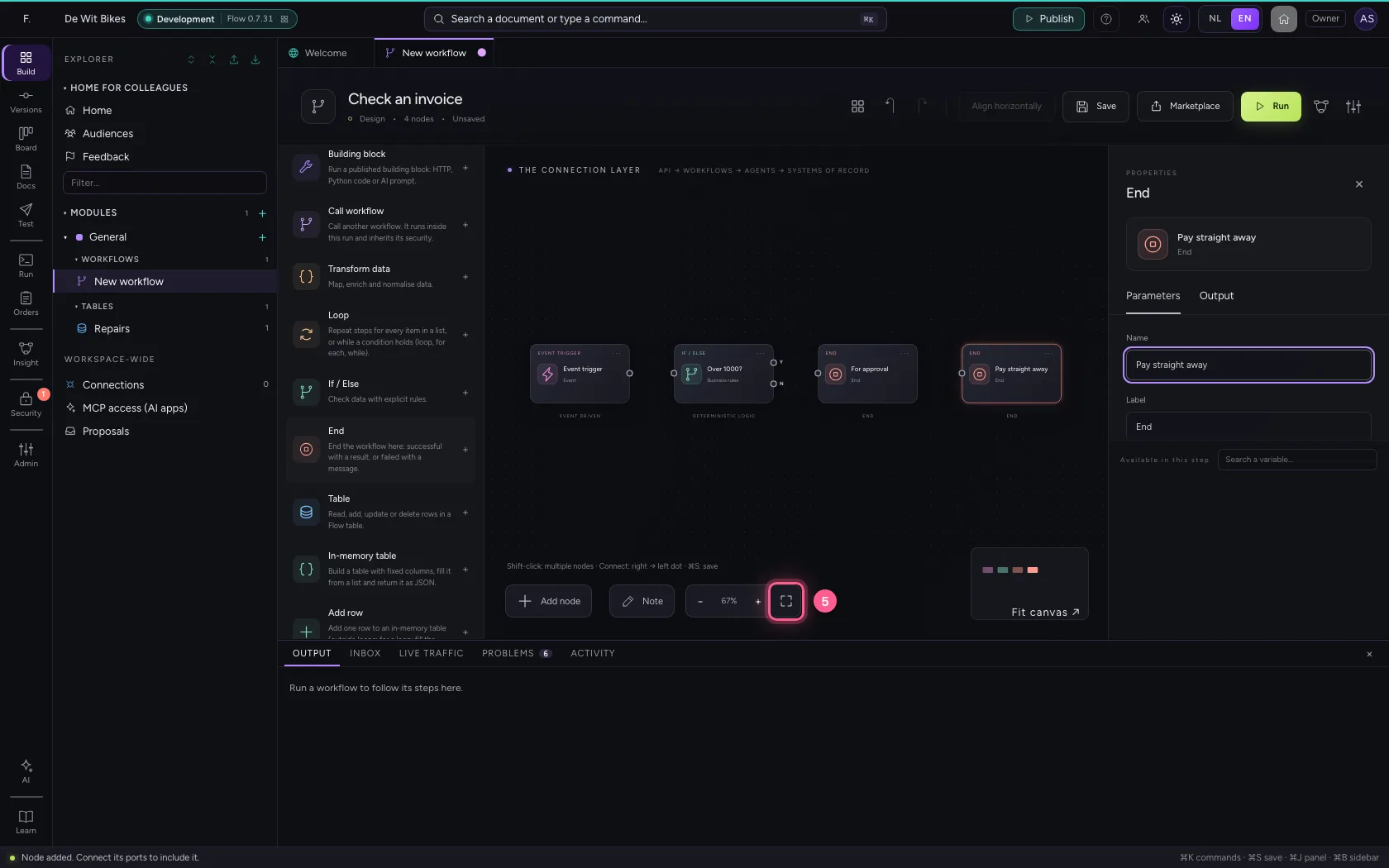
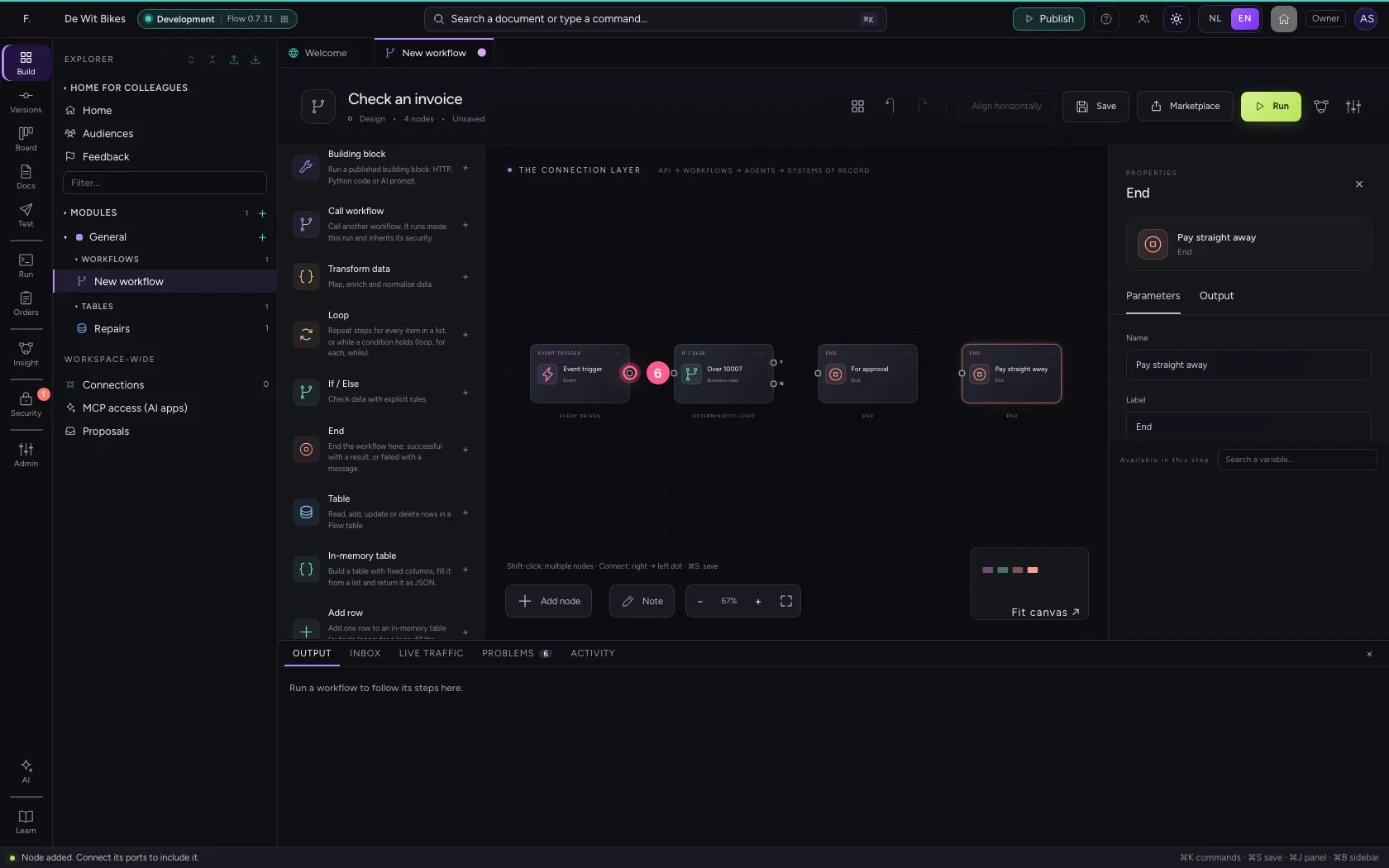
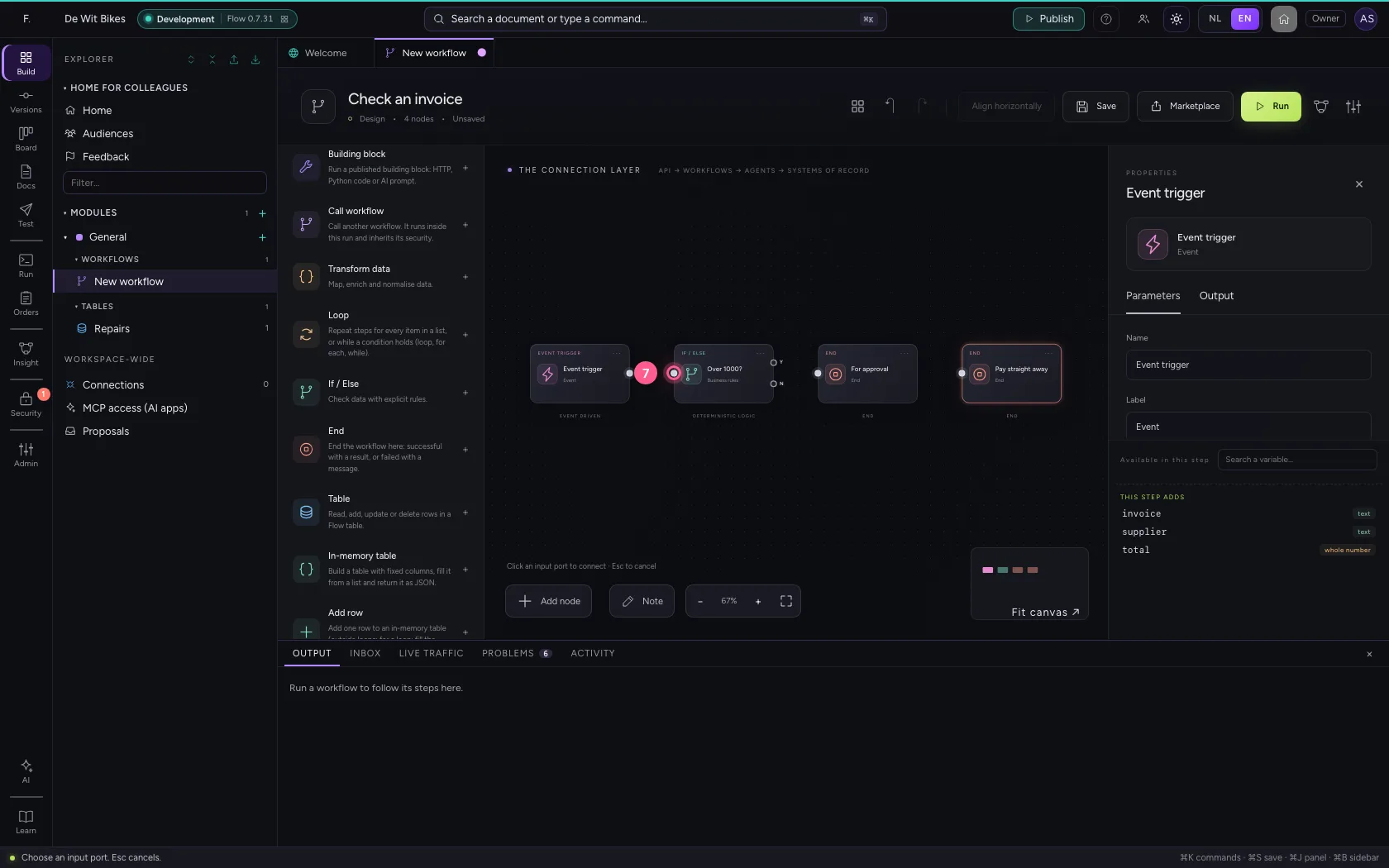
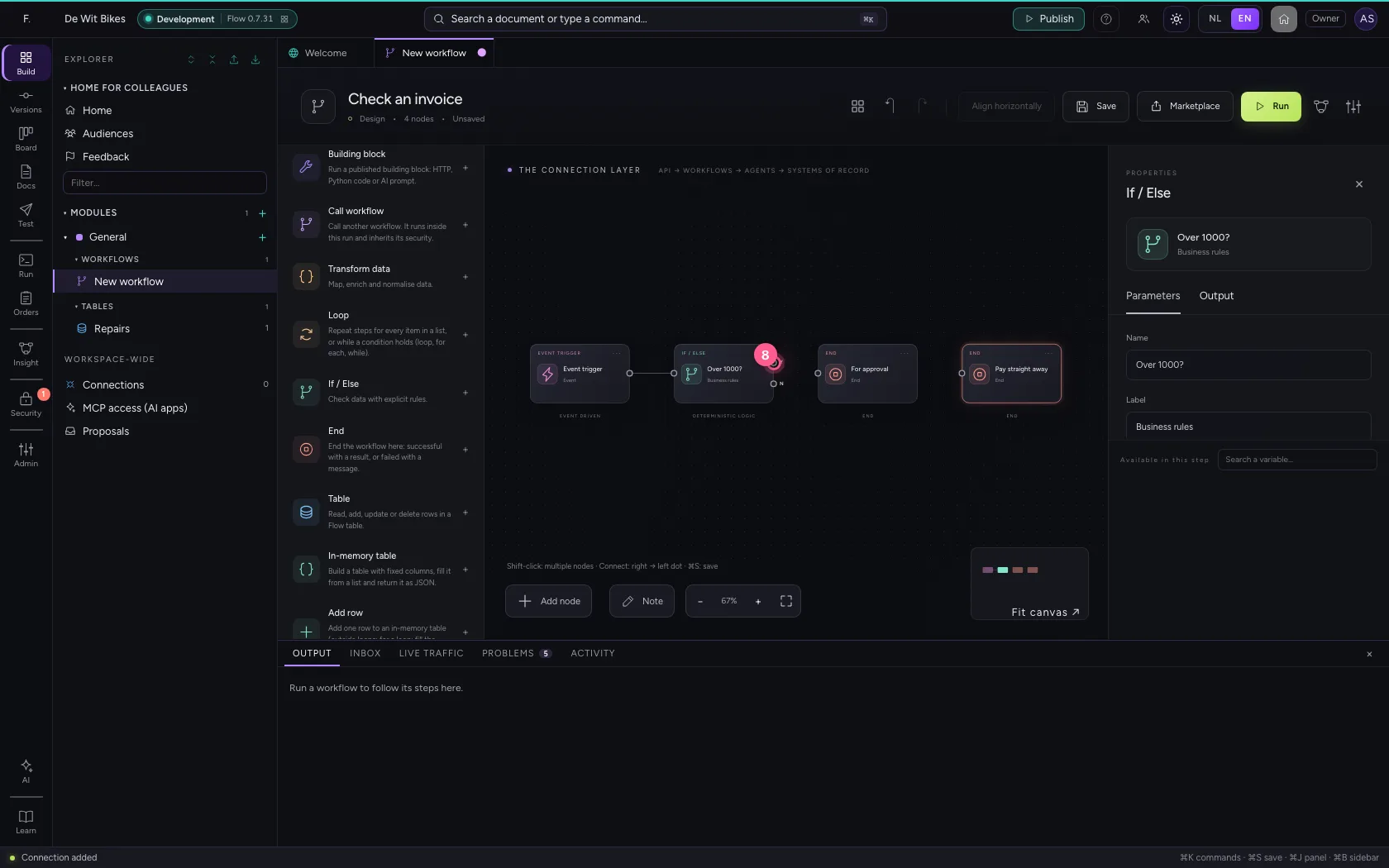
Over 1000 the invoice goes for approval, otherwise it is paid straight away. Add End twice, name them and connect trigger → rule, Yes → for approval and No → pay straight away.
- Click End
- In Name, type
For approval
- Click End
- In Name, type
Pay straight away
- Click Fit to view
- Click Event trigger
- Click Over 1000?
- Click Over 1000? — Yes
- Click For approval
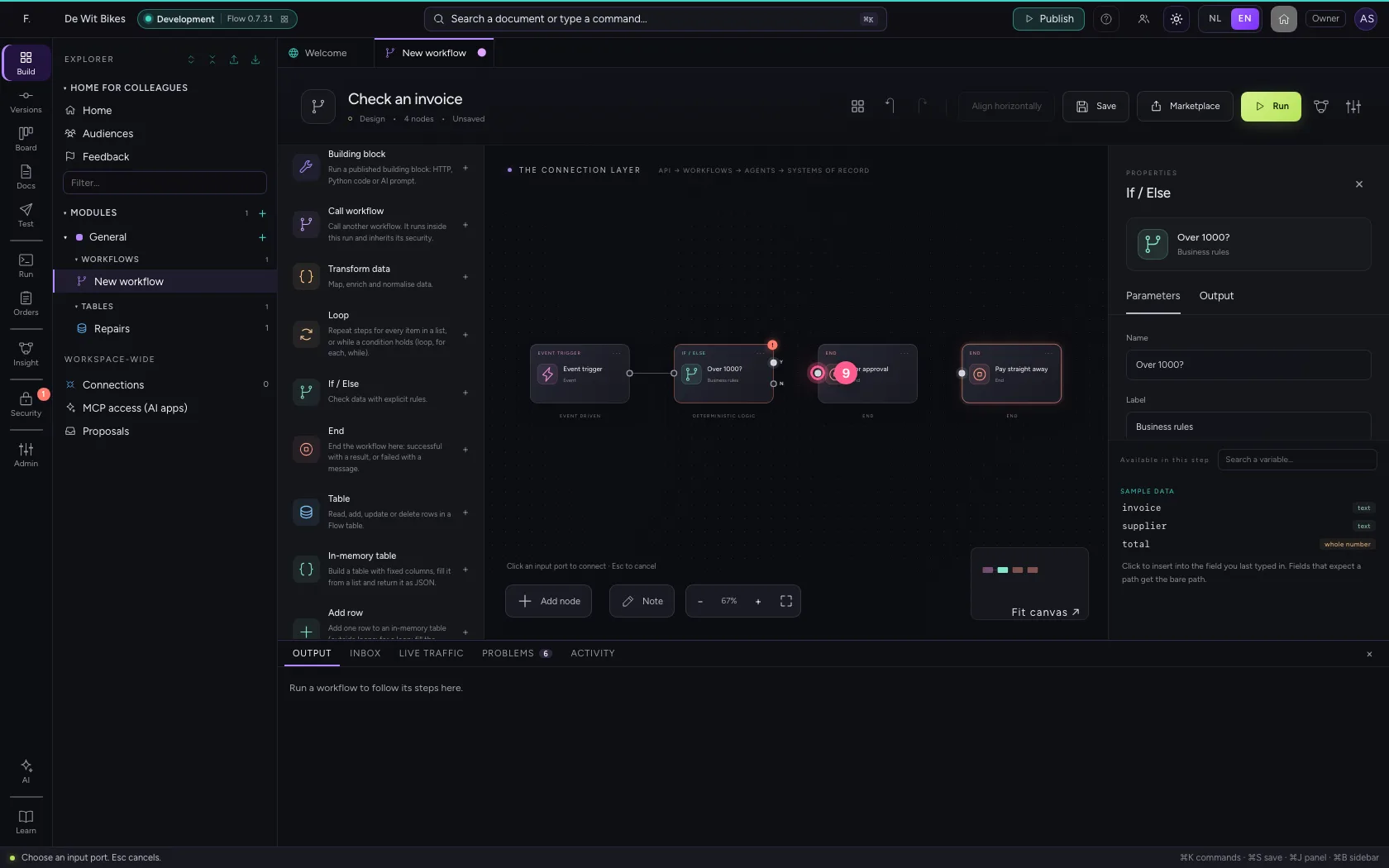
- Click Over 1000? — No
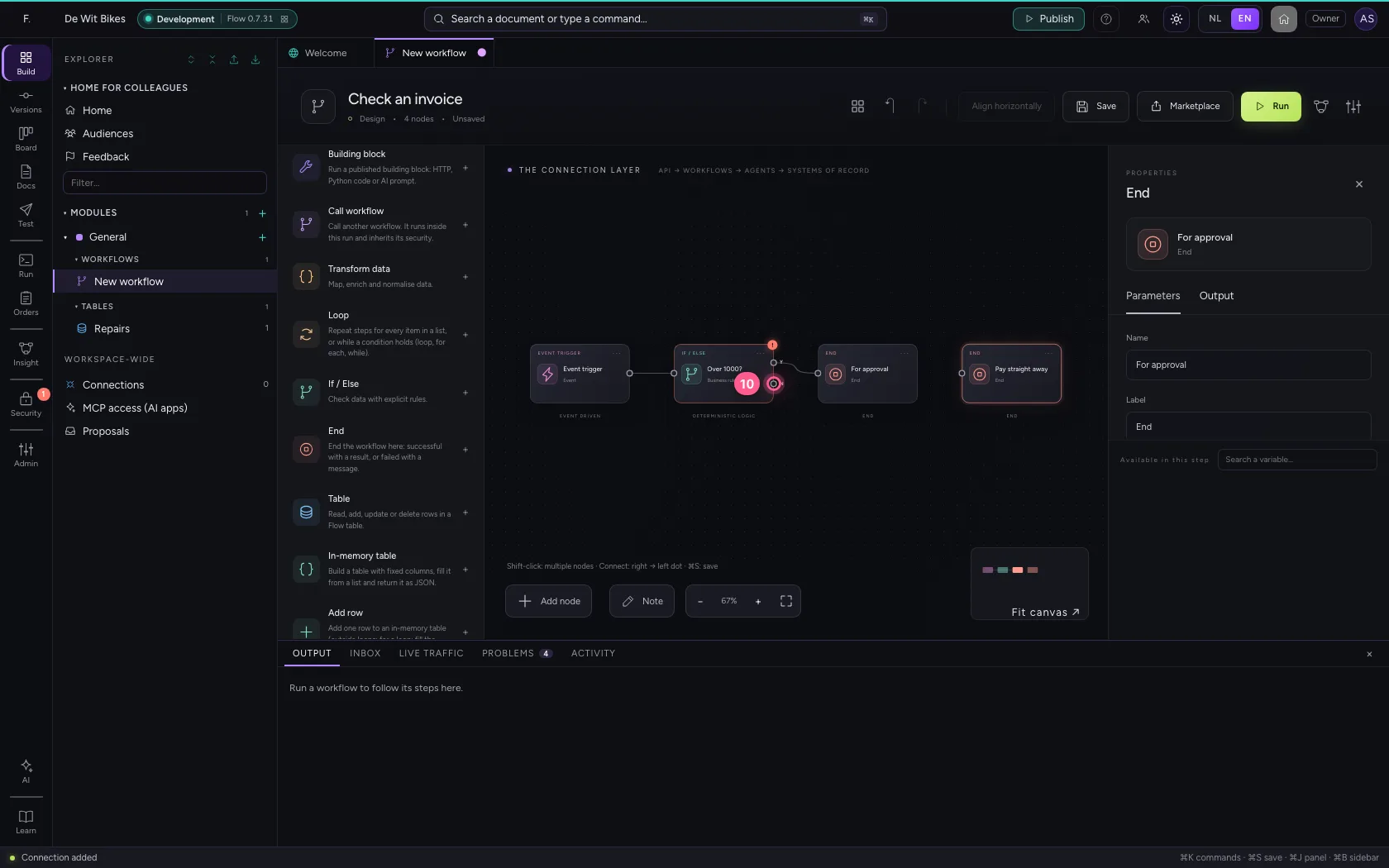
- Click Pay straight away
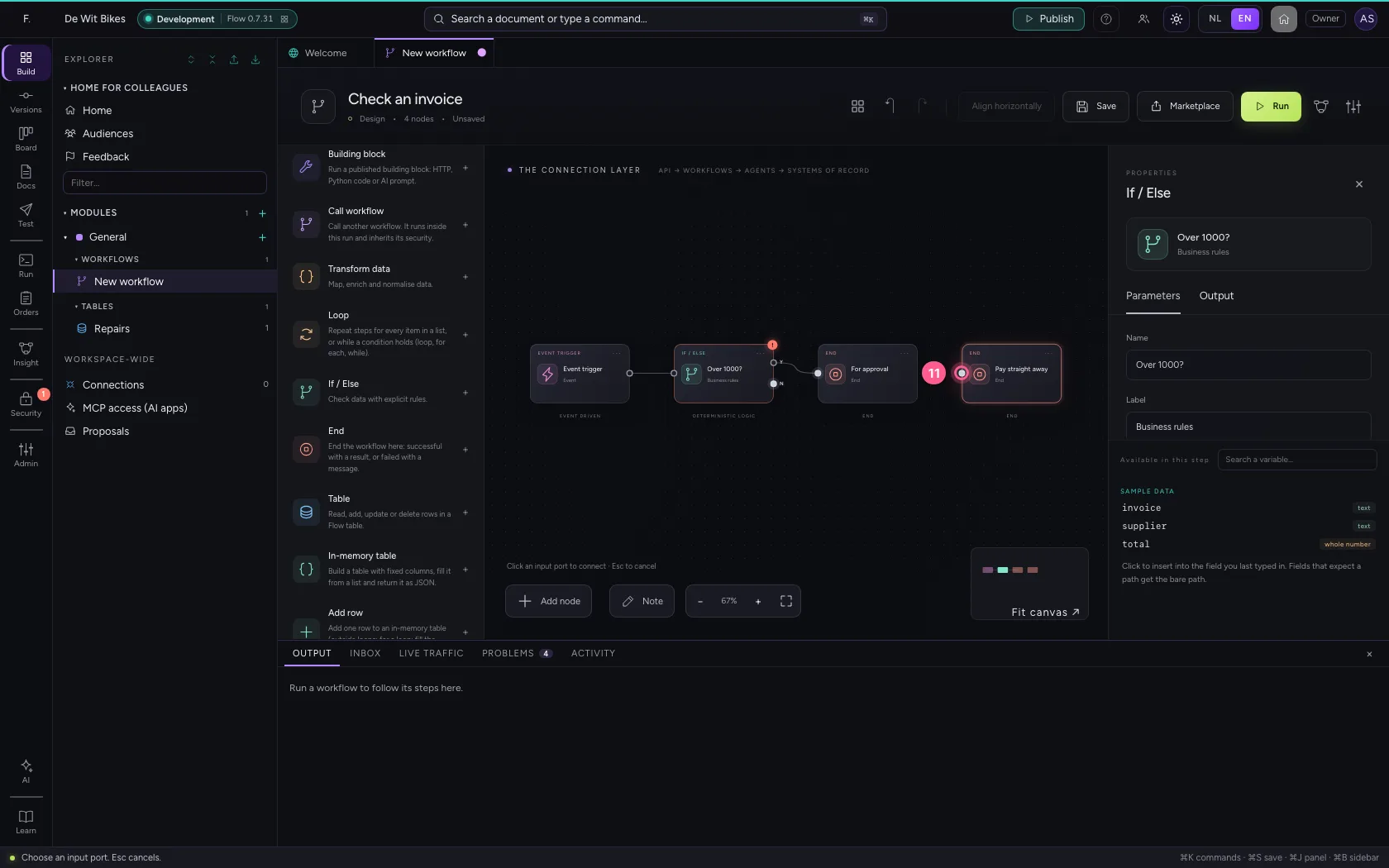
- Click Save
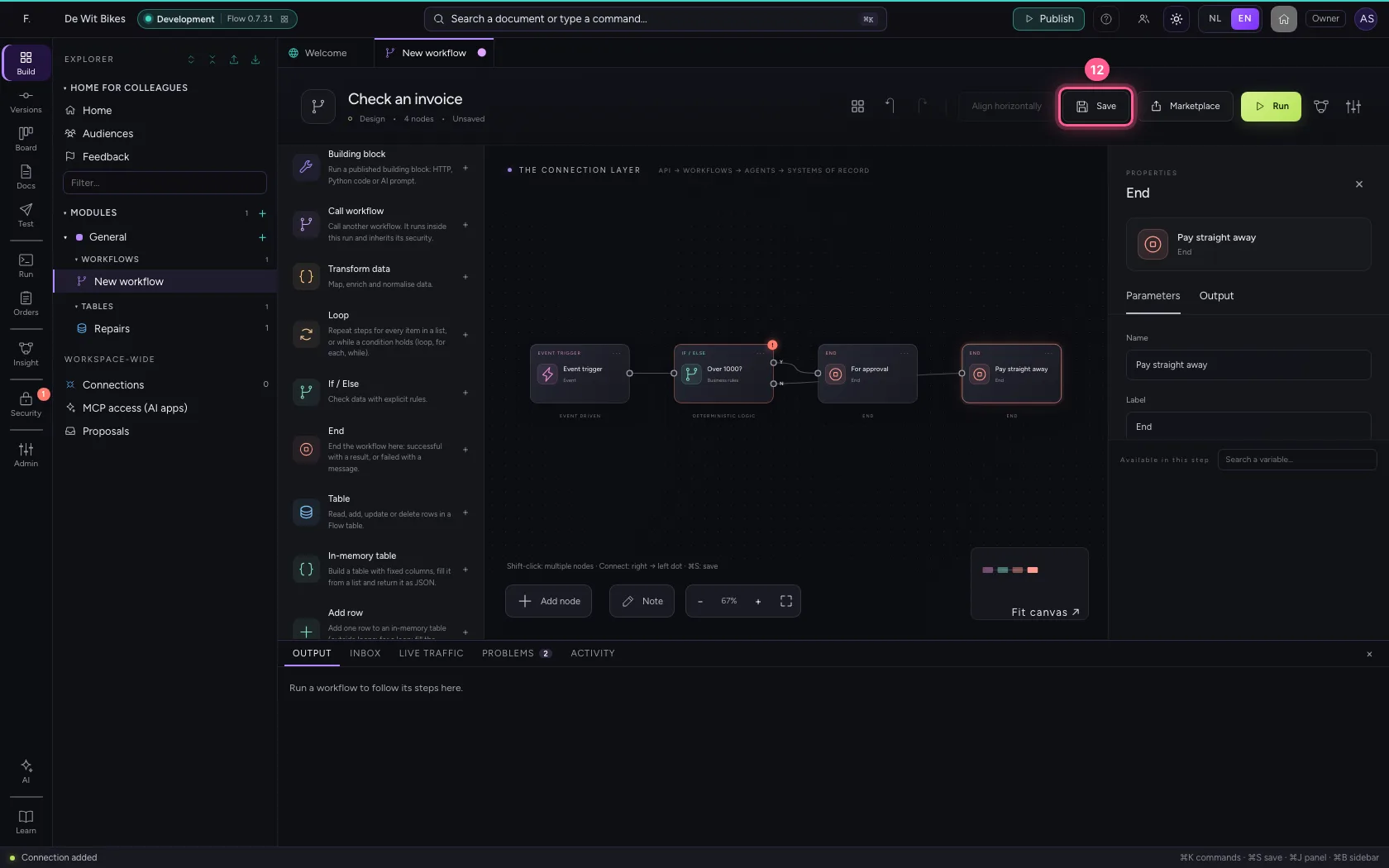
Look under Problems
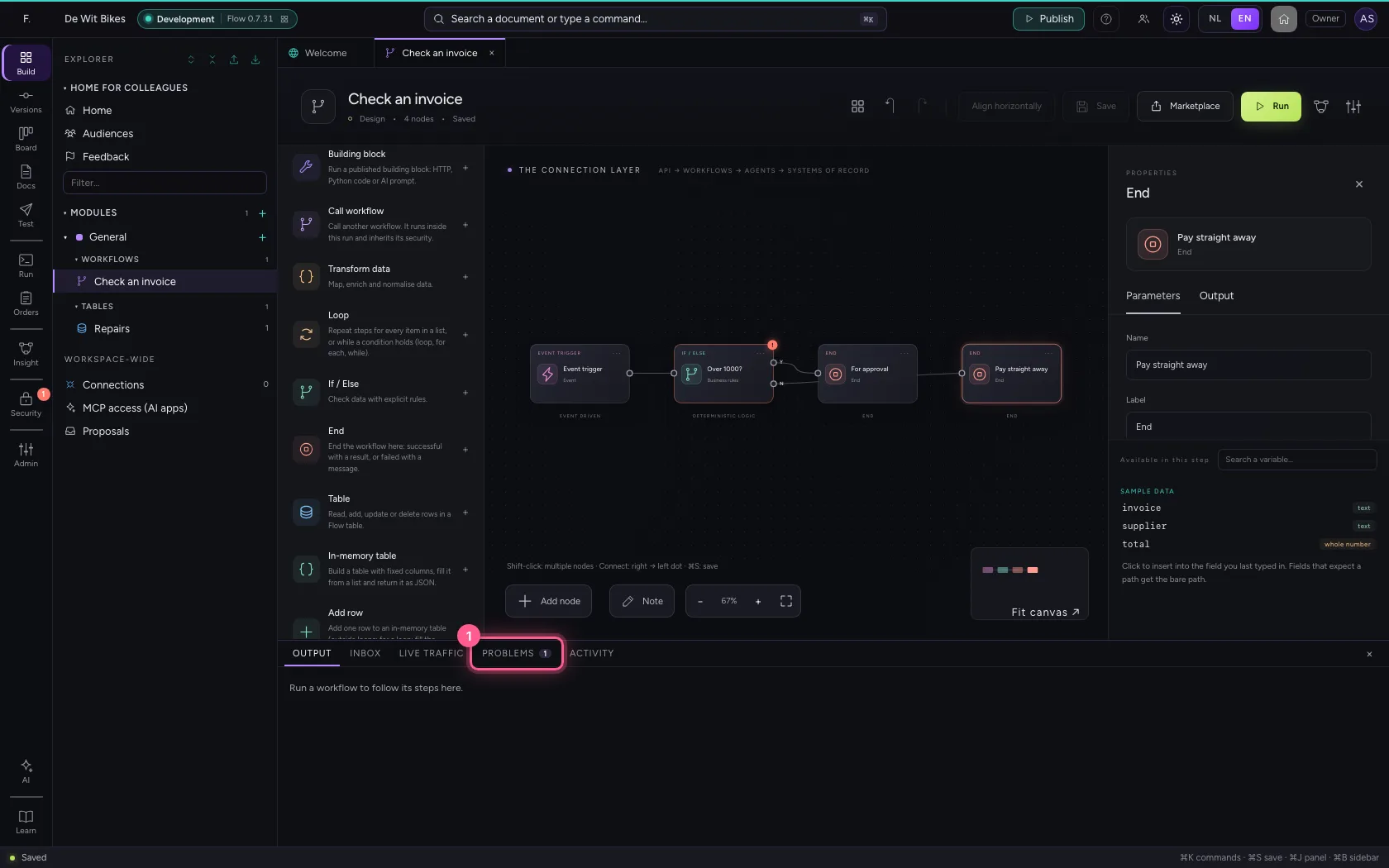
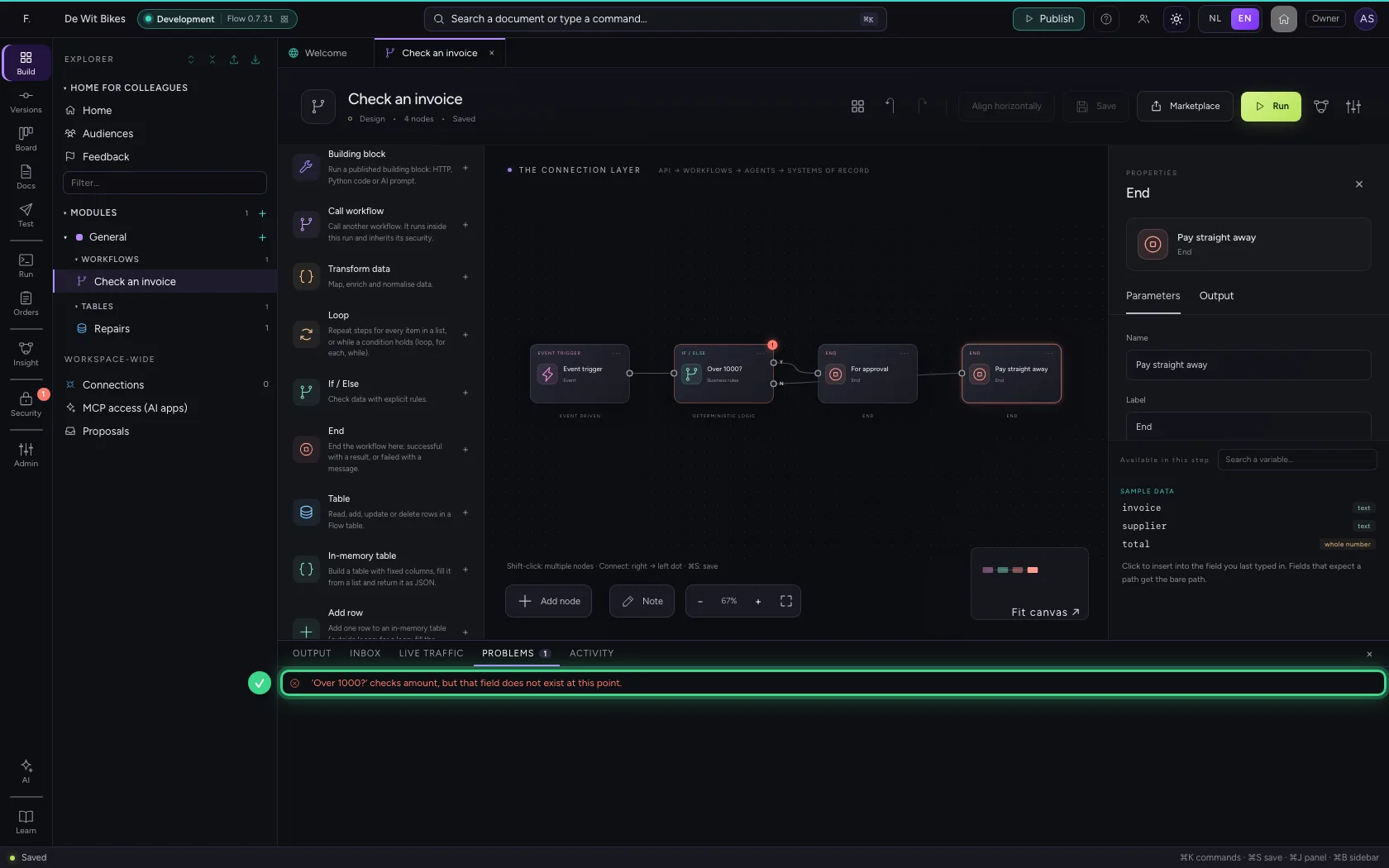
At the bottom is the Problems tab, with a number when something is wrong. Flow looks along while you build: the field the rule checks does not exist in the data. The step itself also gets a red exclamation mark.
- Click PROBLEMS1
Run anyway
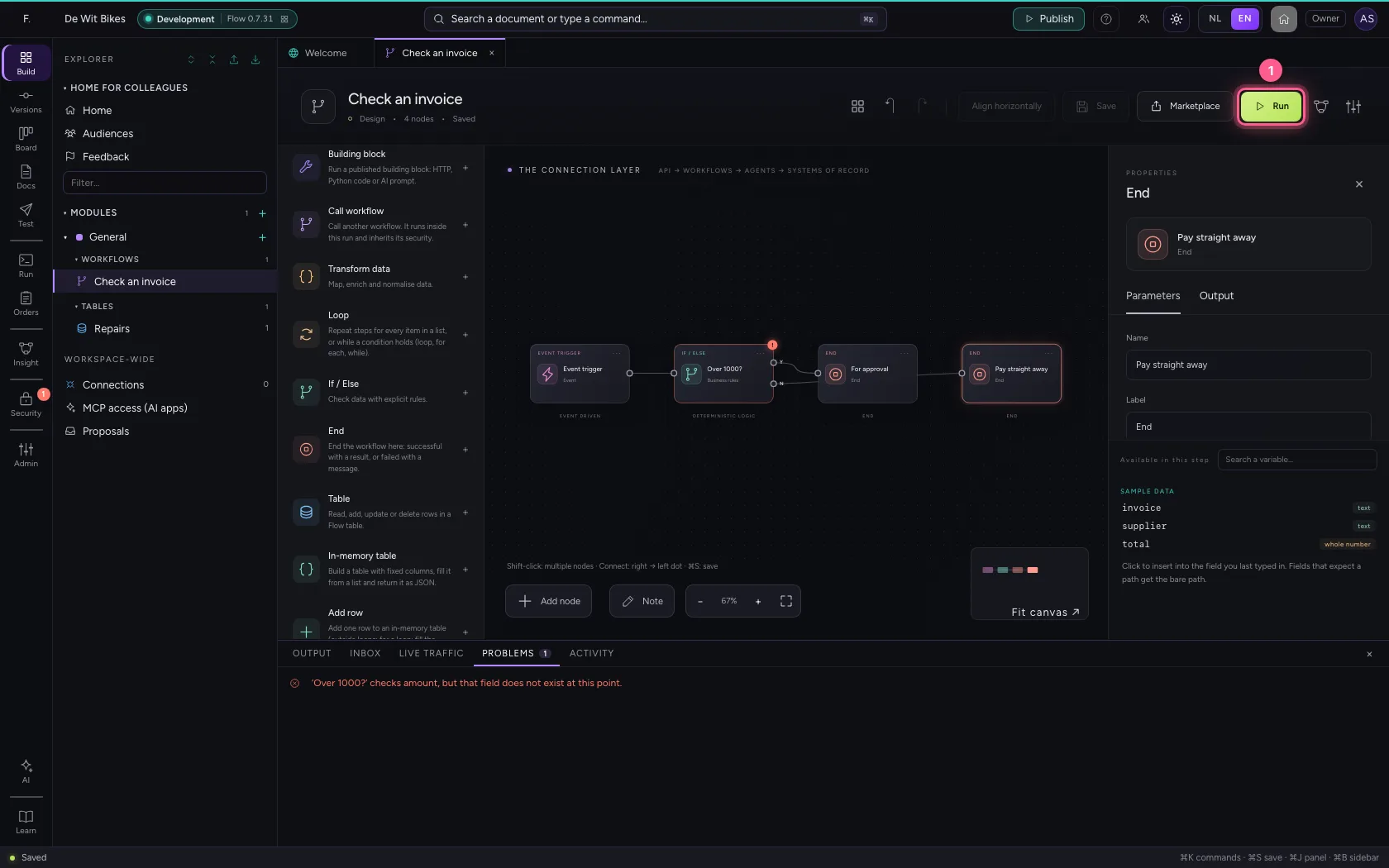
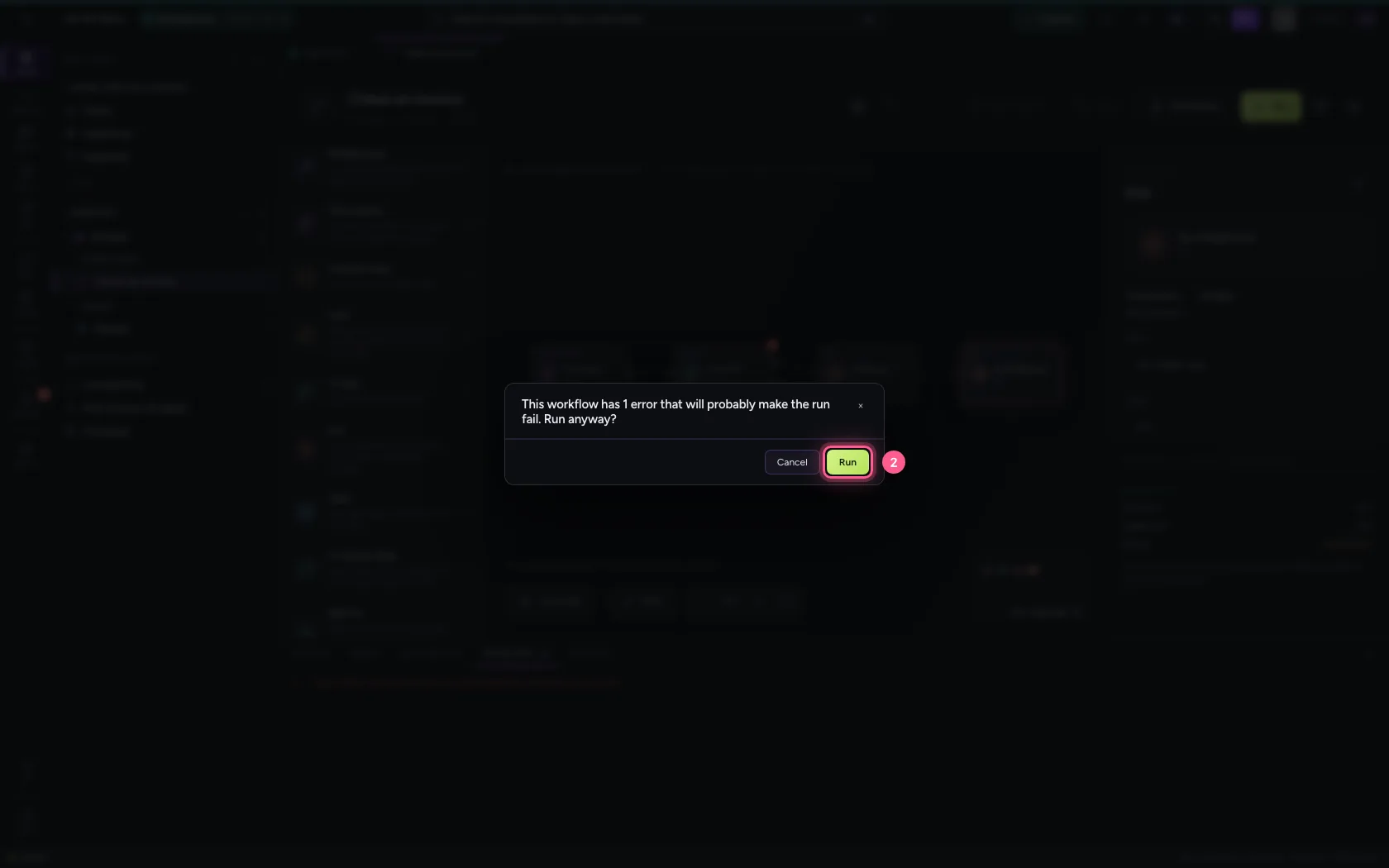
Click Run. Flow first asks whether you are sure, because the workflow will probably fail. We do it anyway, to see what a failed run looks like.
- Click Run
- Click Run
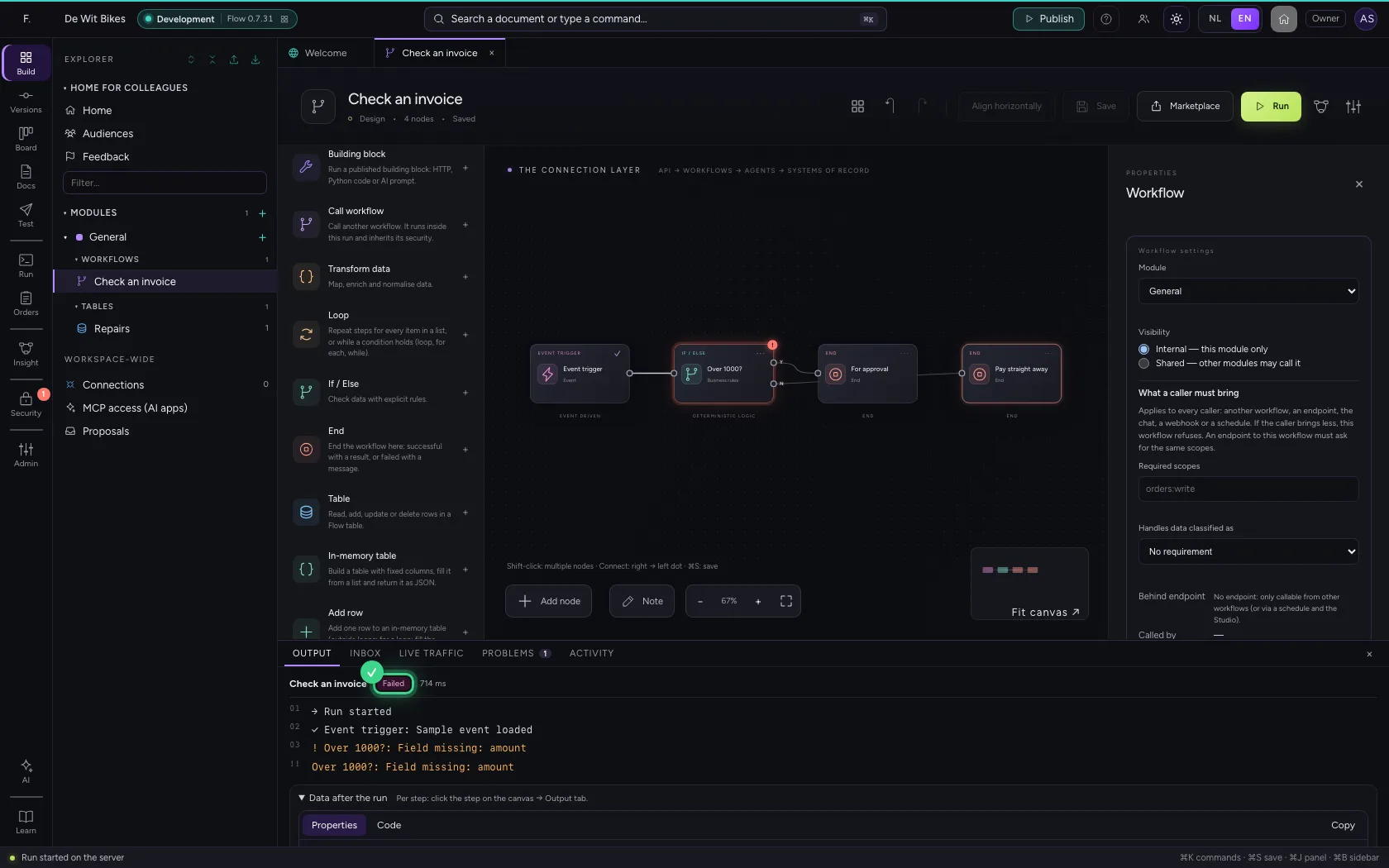
Read back what happened
Click Run in the bar on the left, then Runs and the run. You see the input, the output, every step and the error: the field is missing. That is also how you find out later what happened with a real request.
- Click Runs
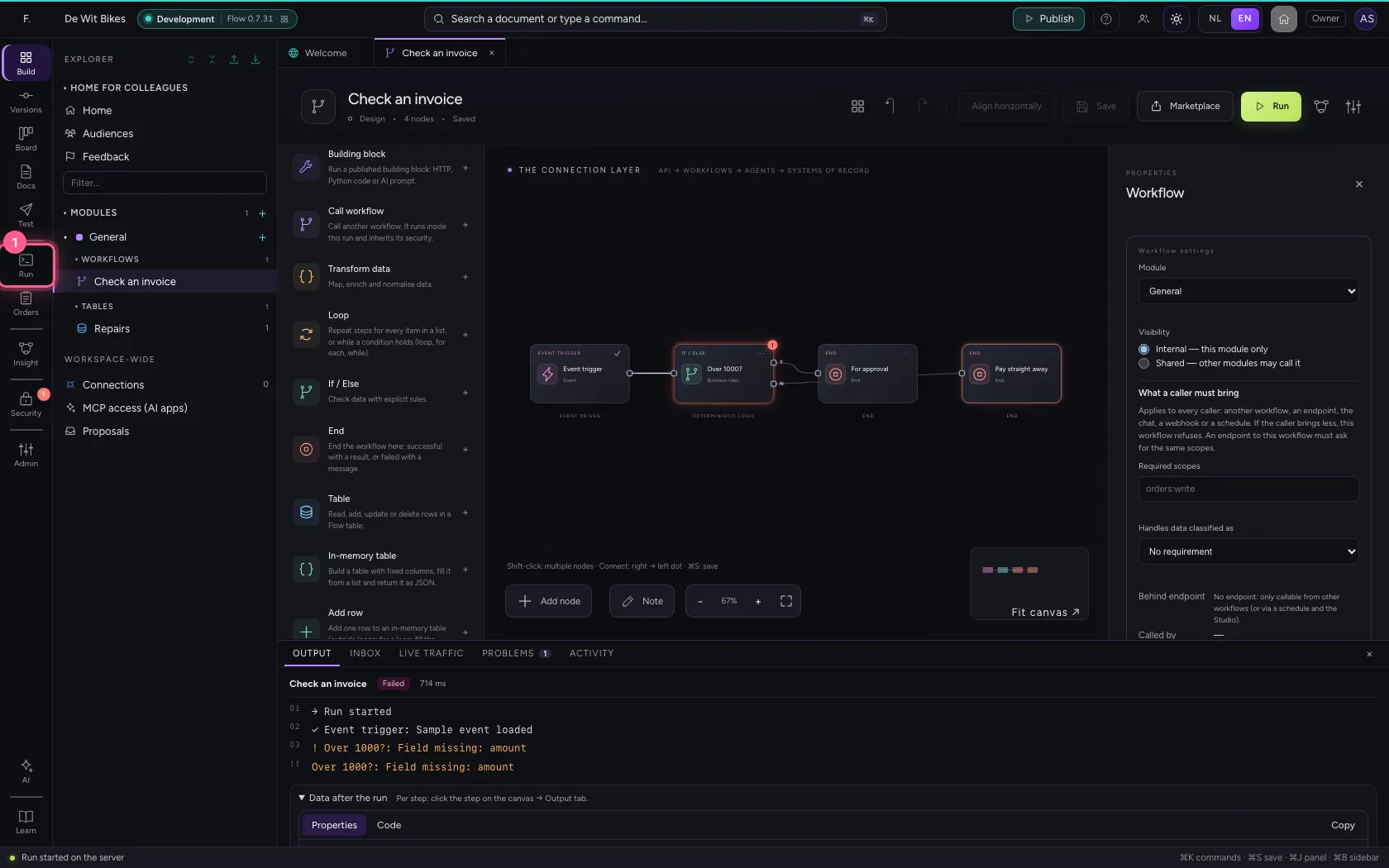
- Click Runs
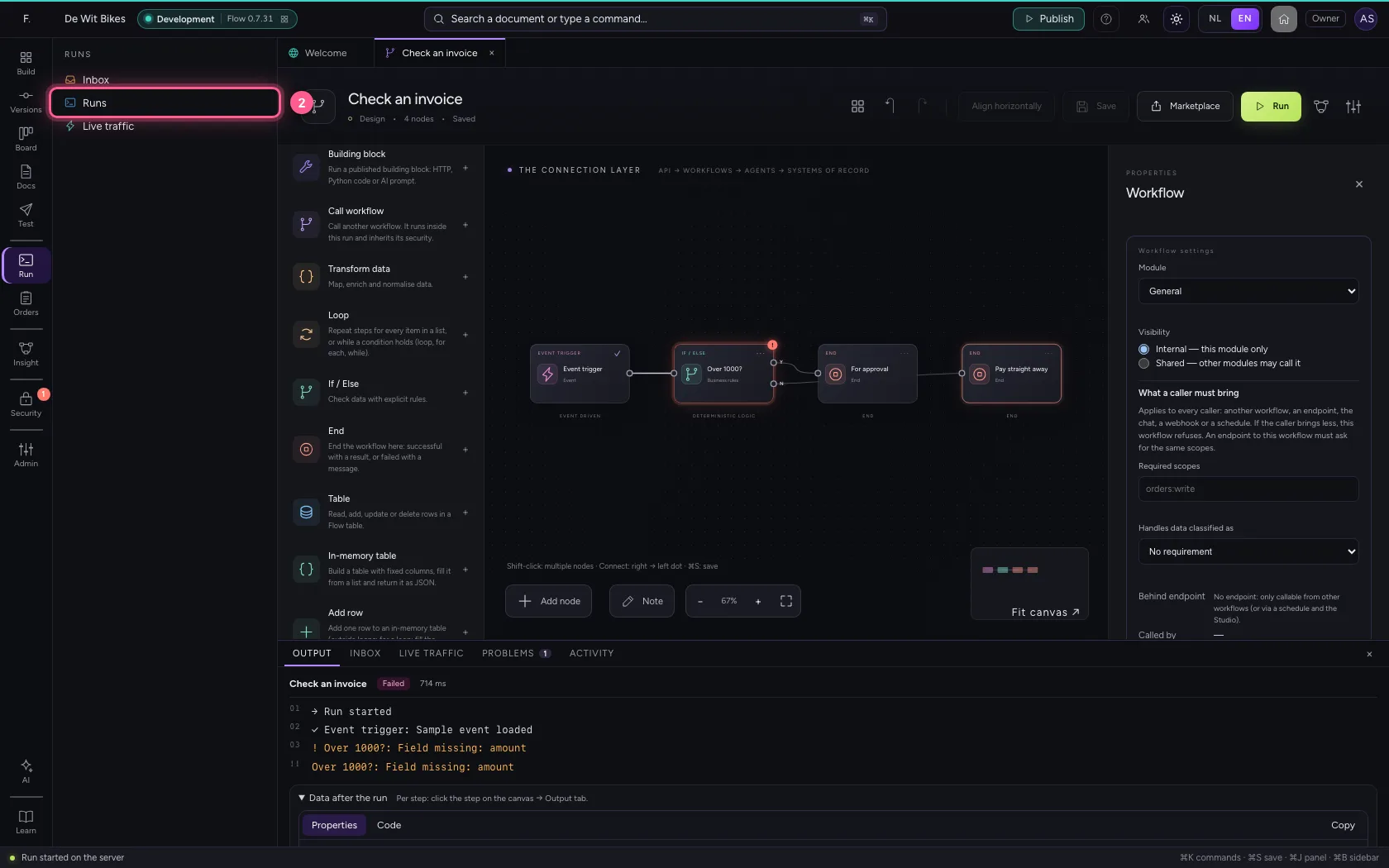
- Click the failed run
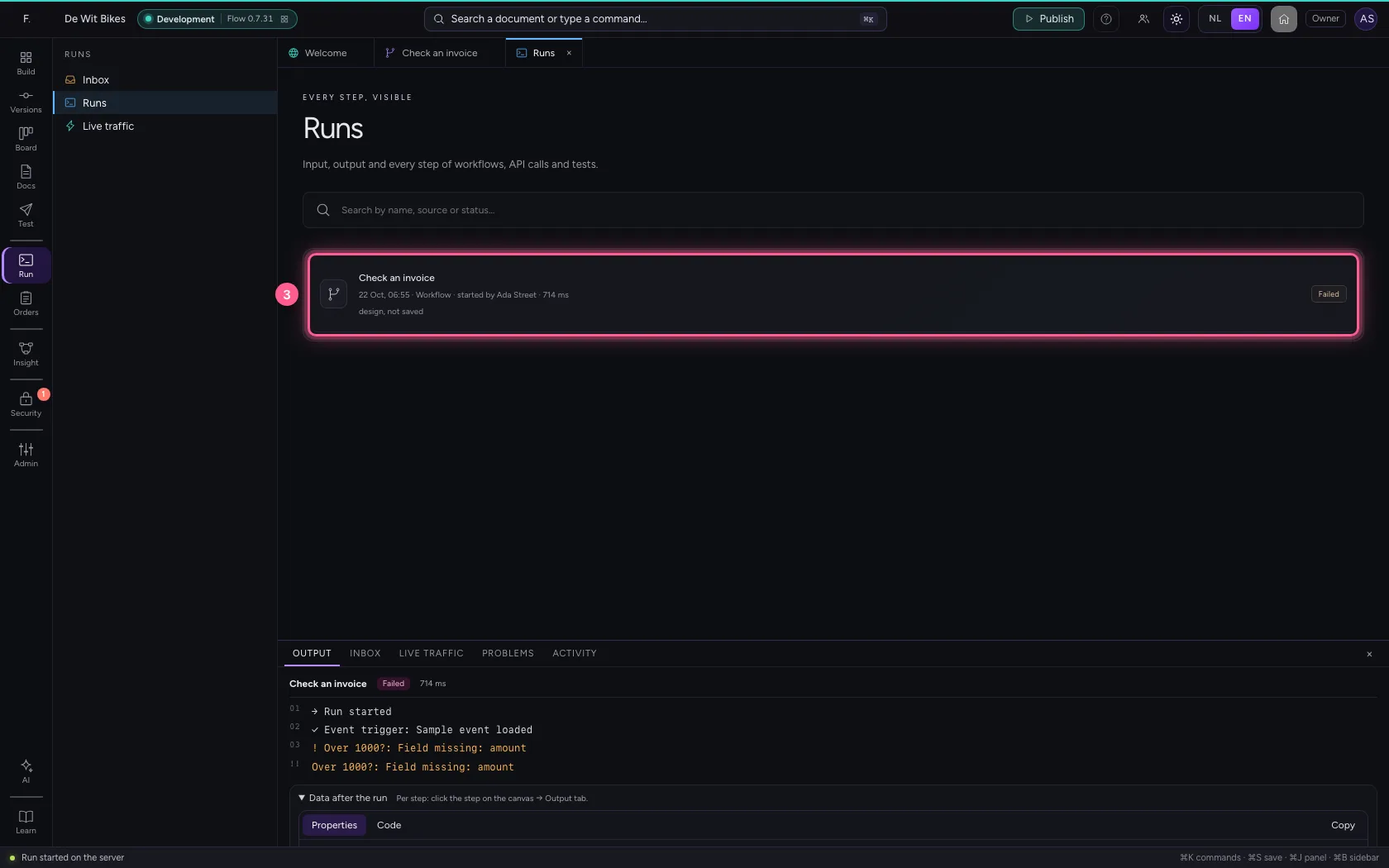
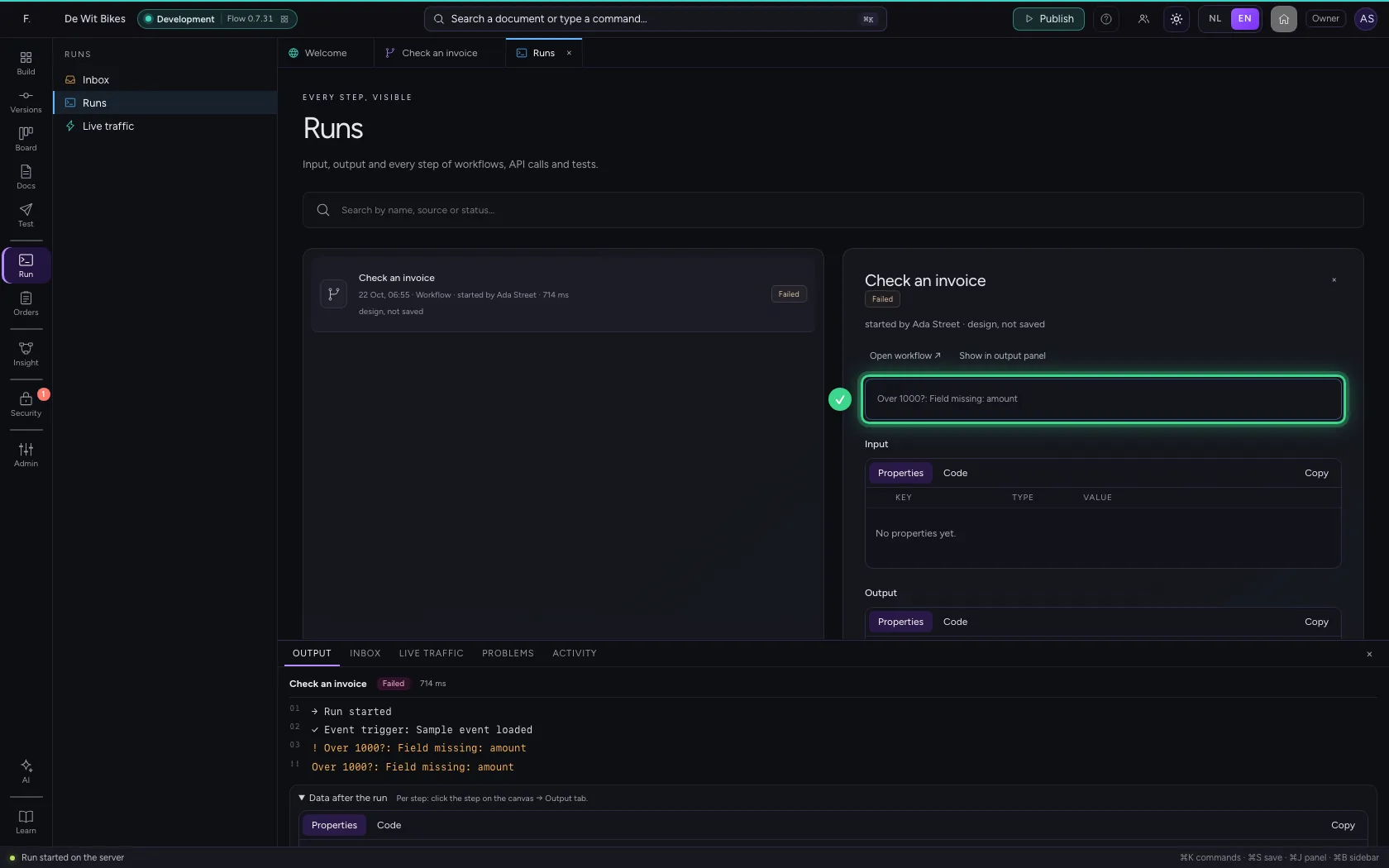
Fix the rule
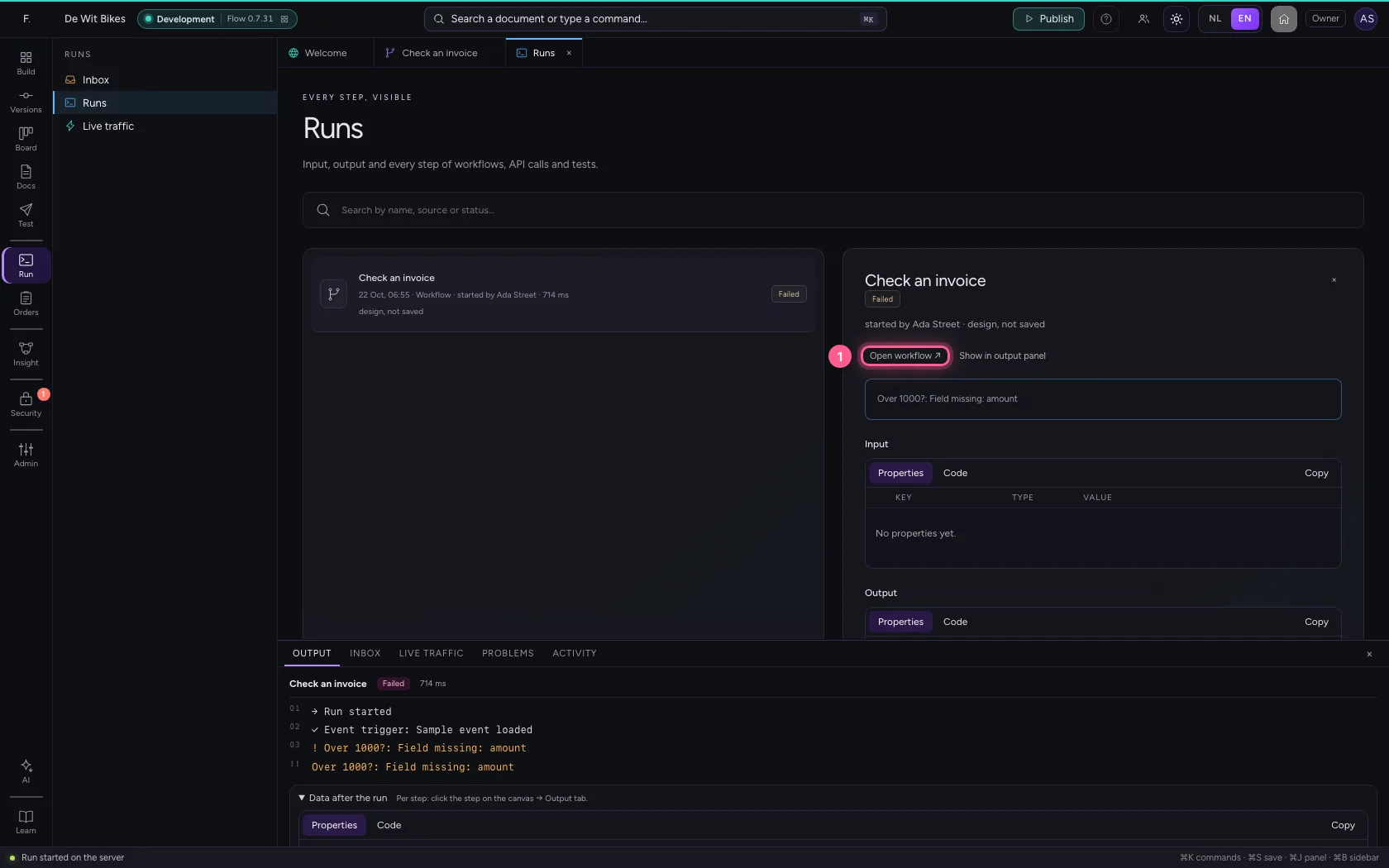
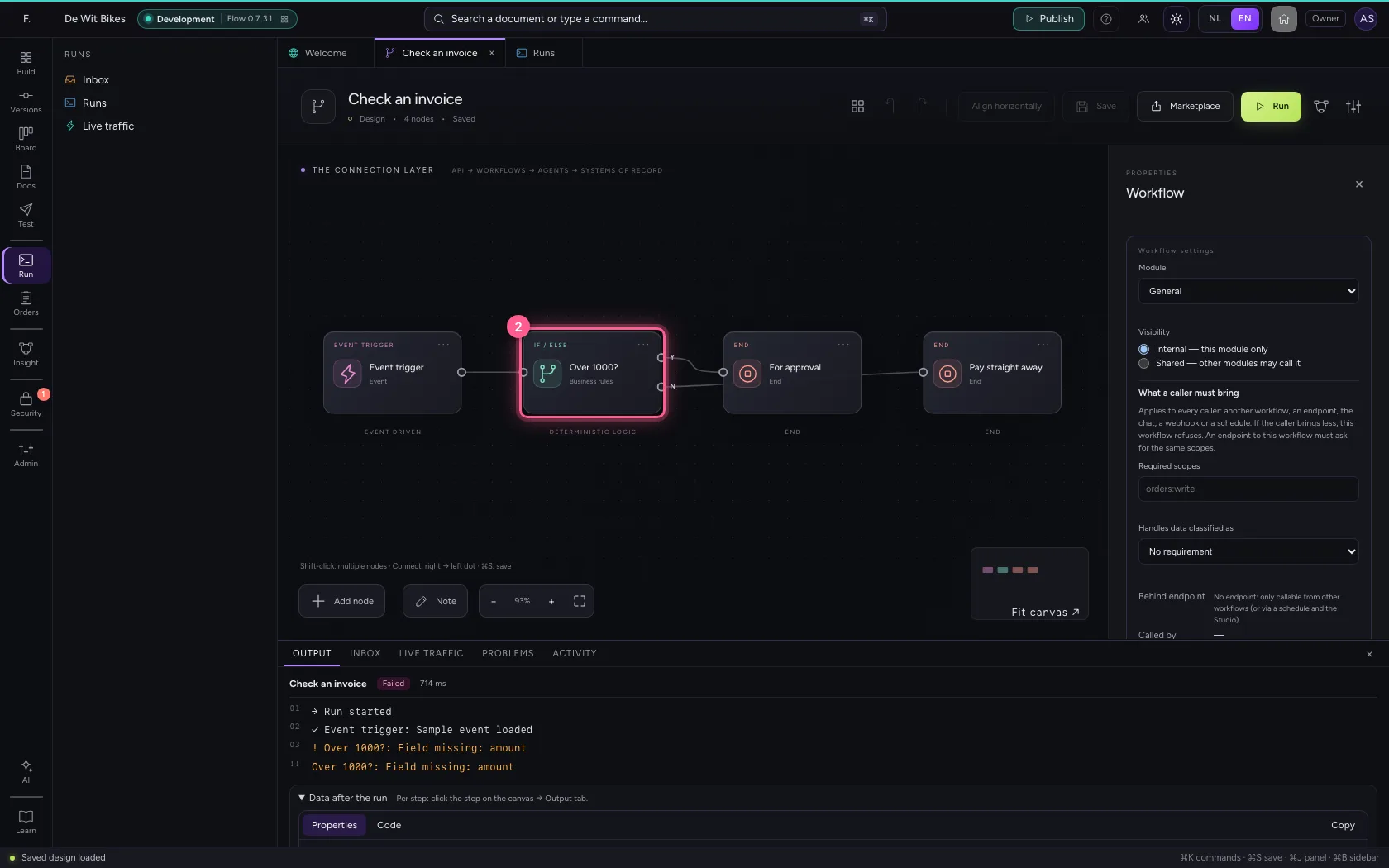
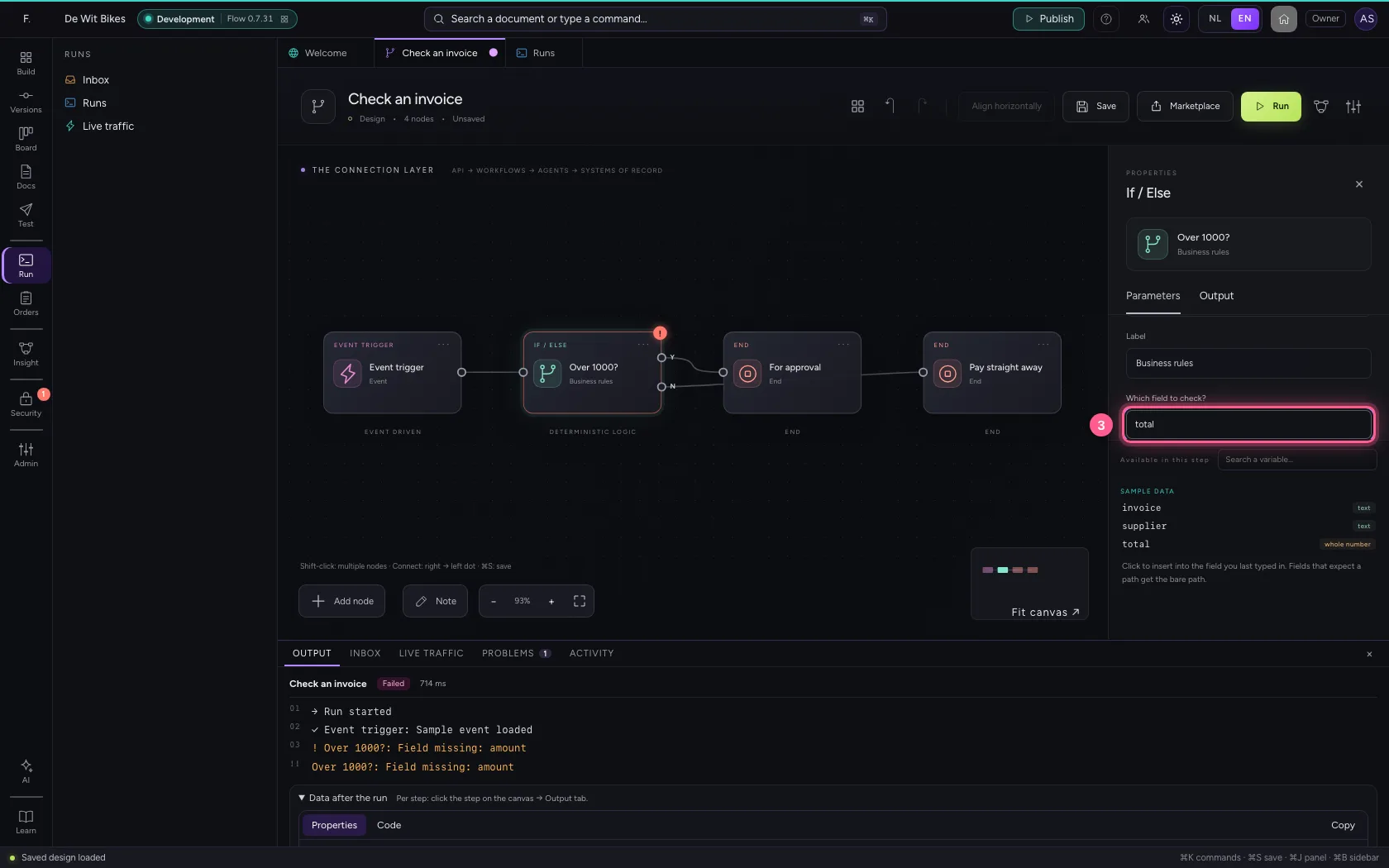
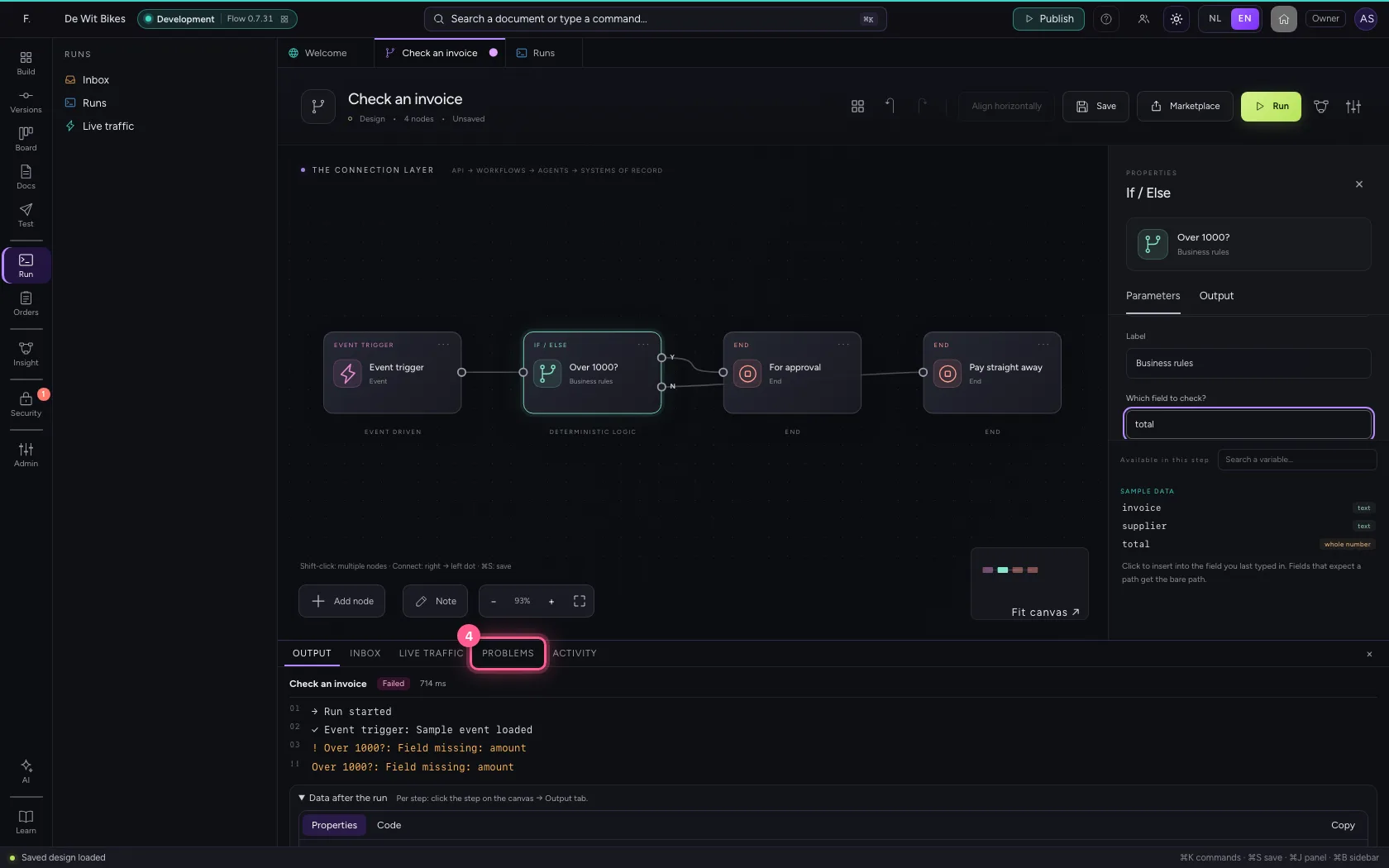
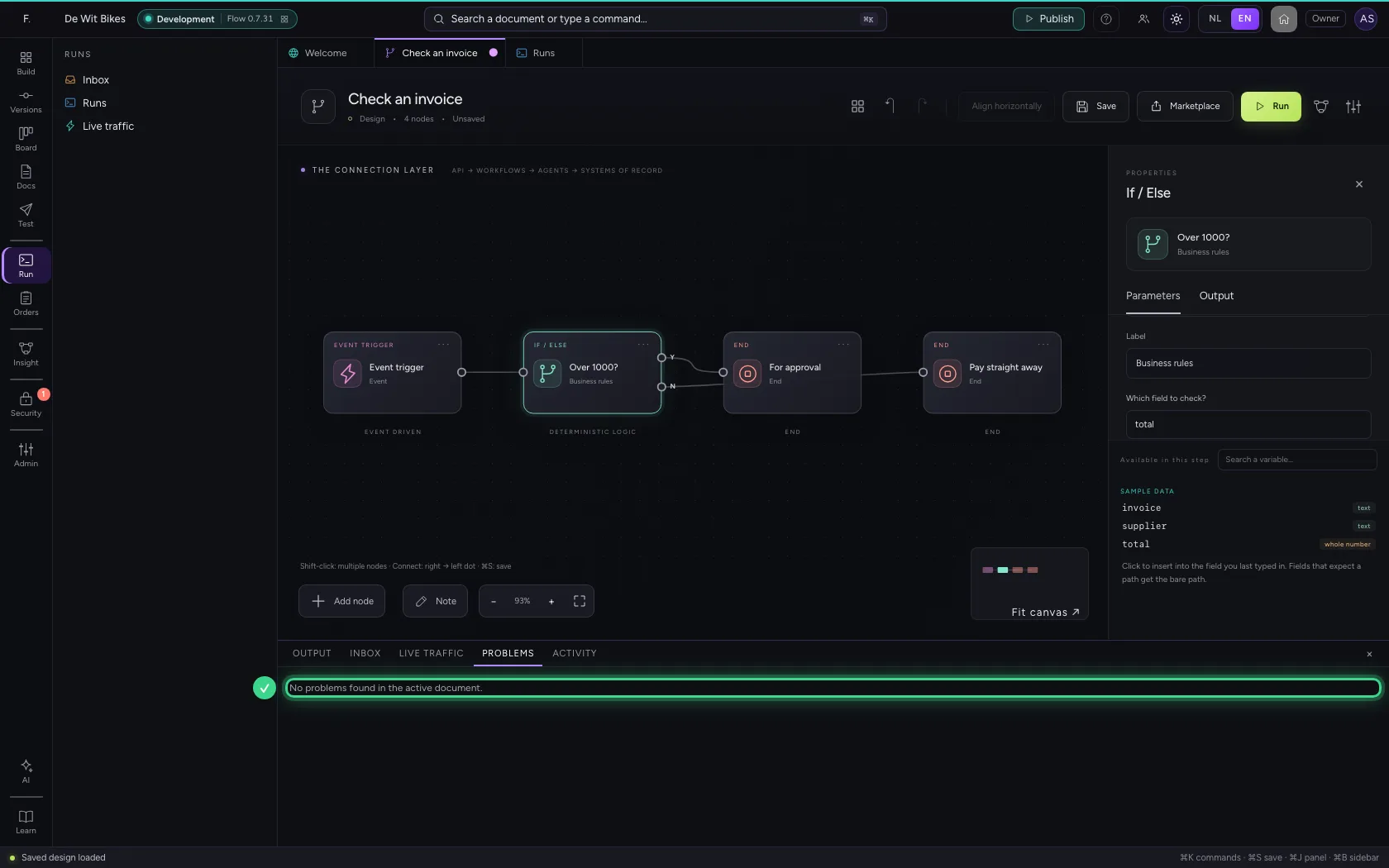
Open workflow takes you back to the canvas. Click the rule and change the field to total. Under Problems the message is gone straight away.
- Click Open workflow ↗
- Click Over 1000?
- In Which field to check?, type
total
- Click PROBLEMS
Save and run again
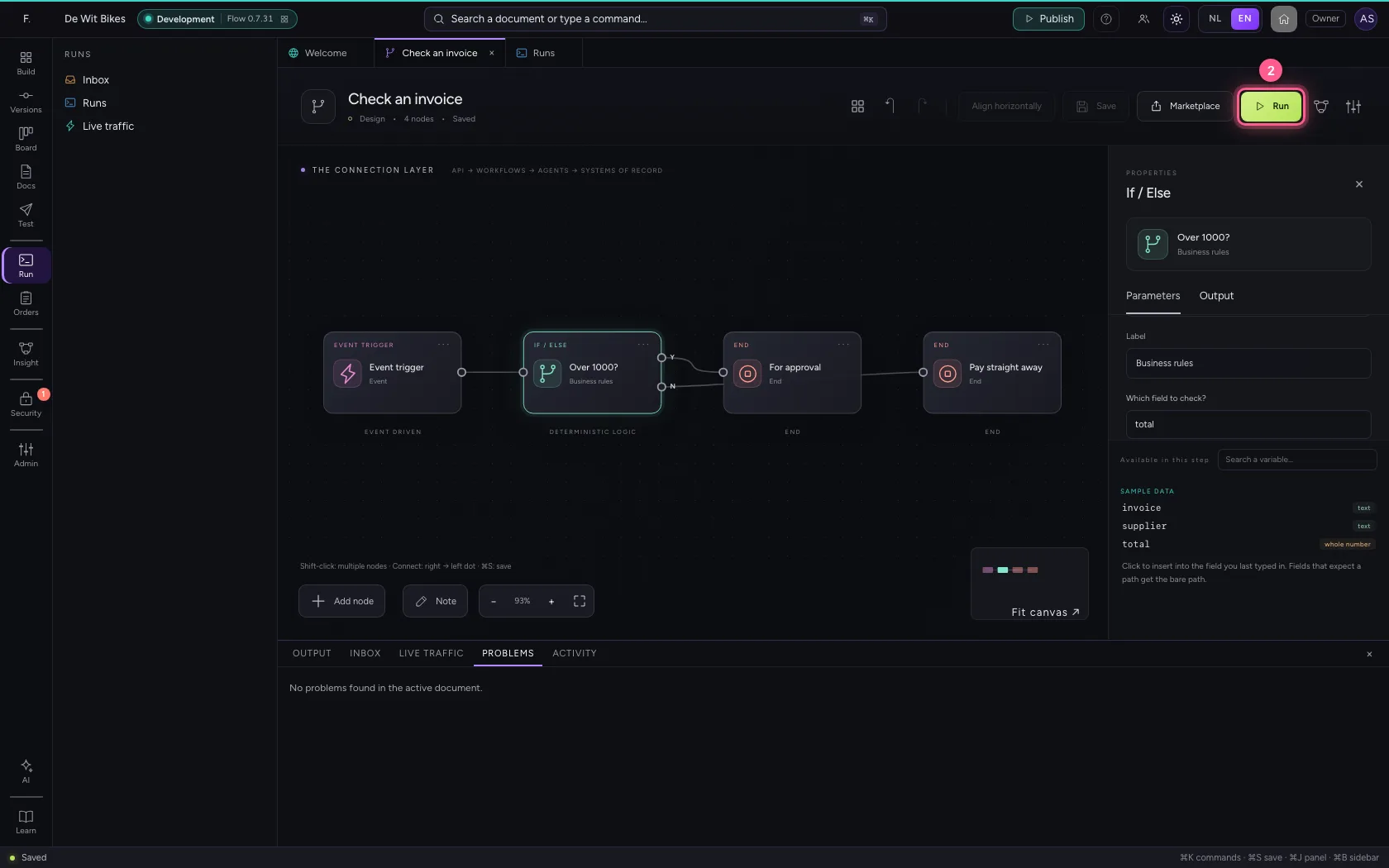
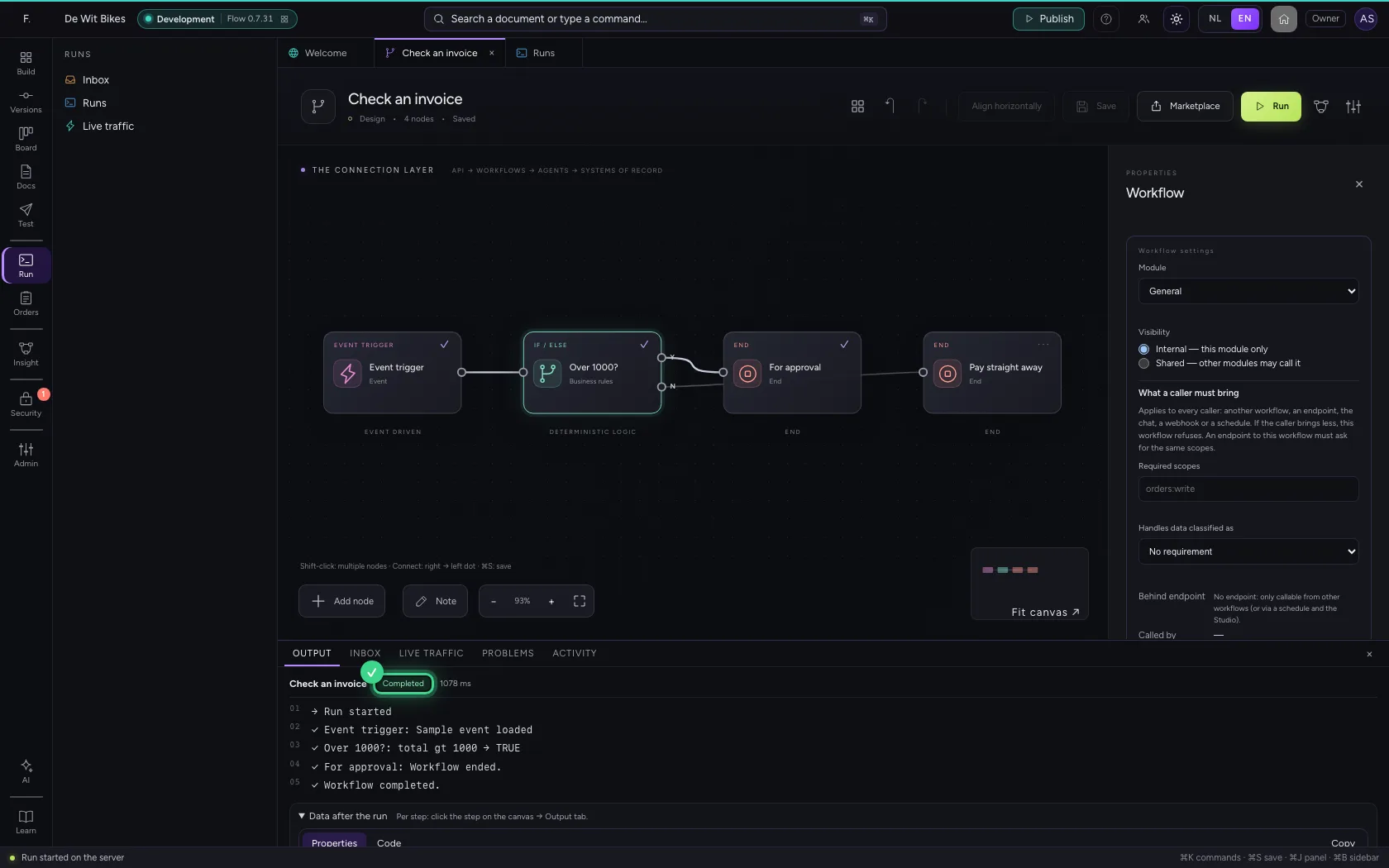
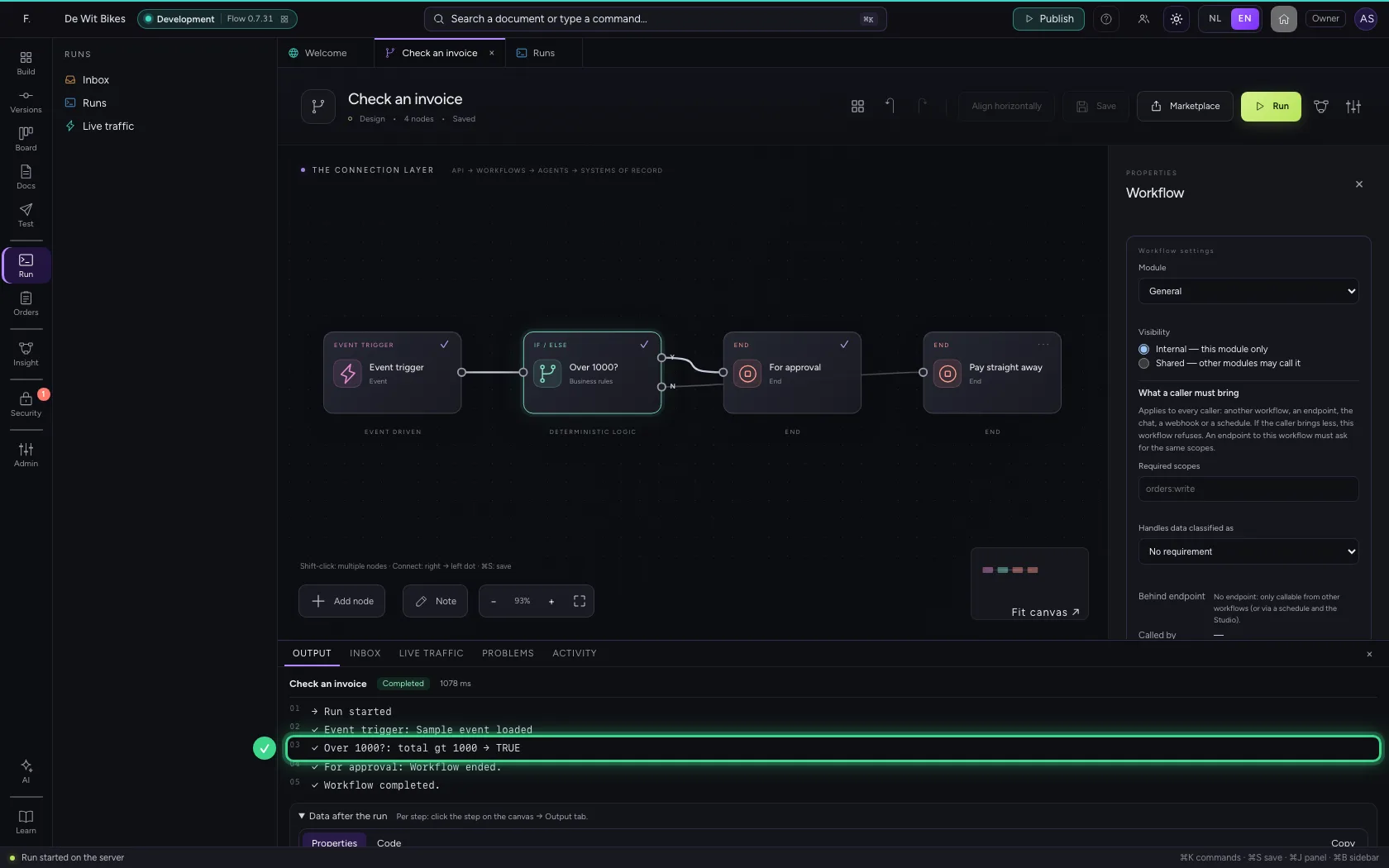
Now the run succeeds: the total is 1250, so the invoice goes for approval. The failed run simply stays in Runs — history is never rewritten.
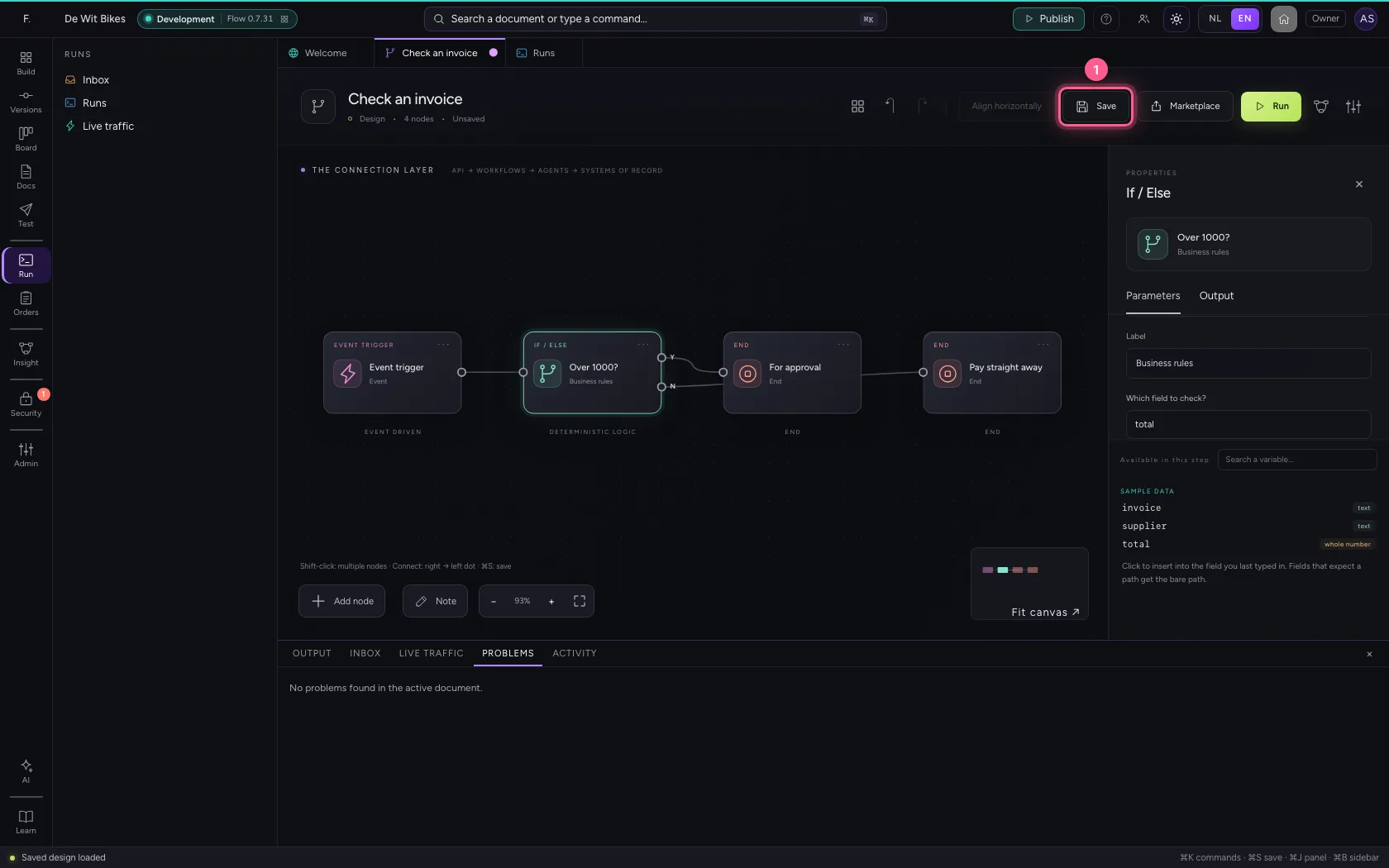
- Click Save
- Click Run
This guide was carried out step by step on 22 Oct 2026 by an automated test on Flow (version 3e563176).