People and ‘Who may do what’
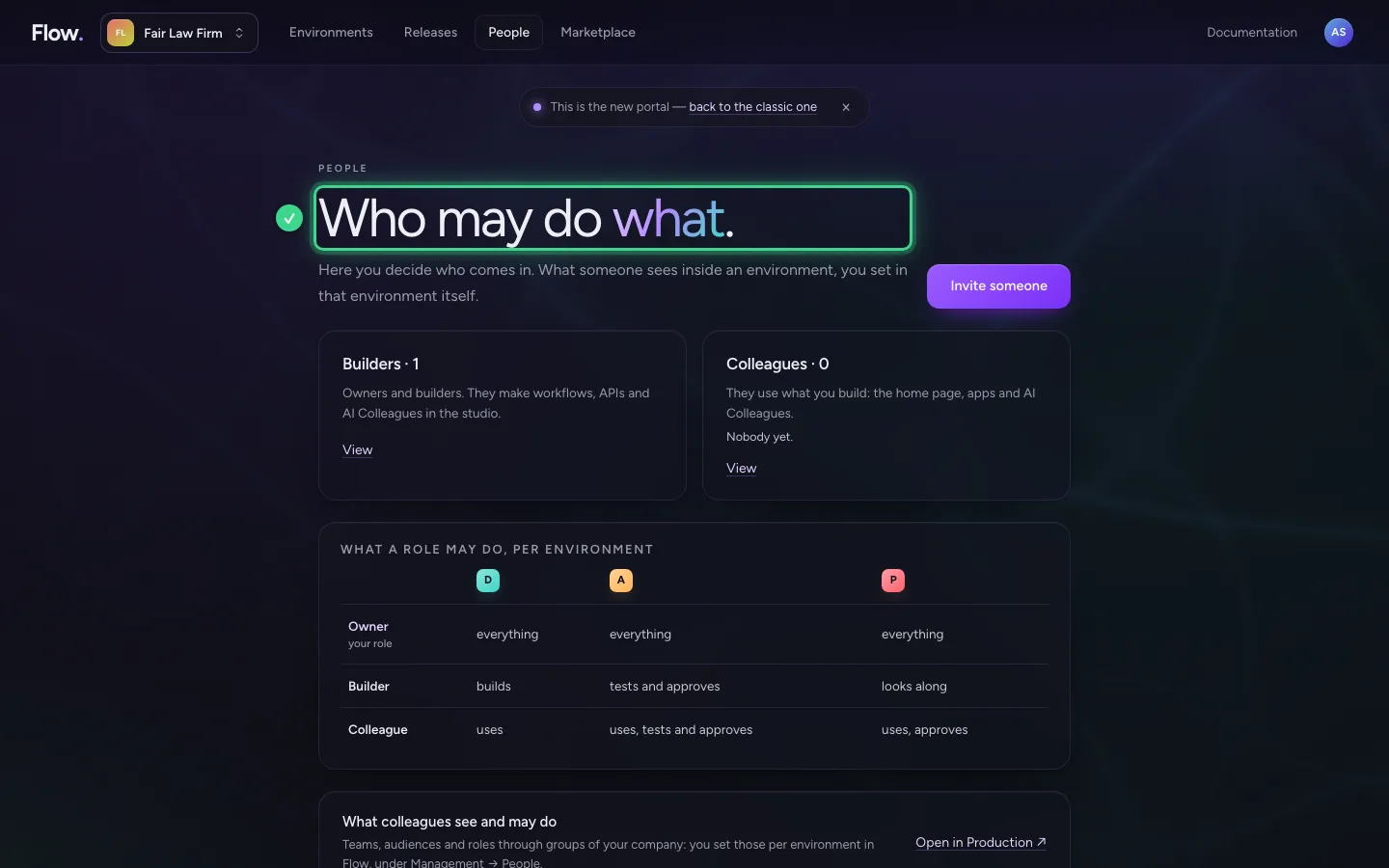
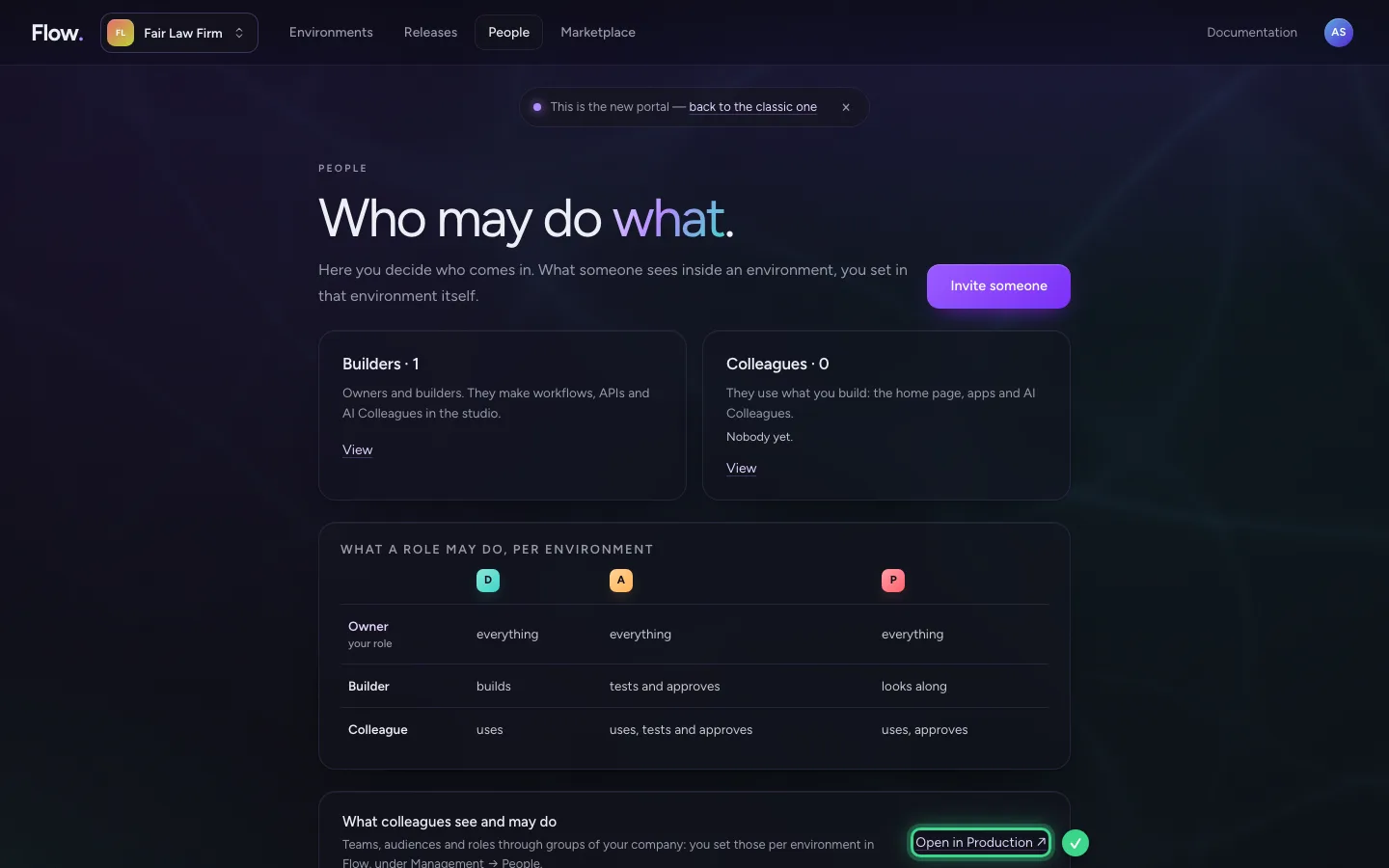
People answers the question who may do what. There are two kinds of people: builders, who work in the studio, and colleagues, who use what has been built. A small table shows per environment what each role may do.
Open People
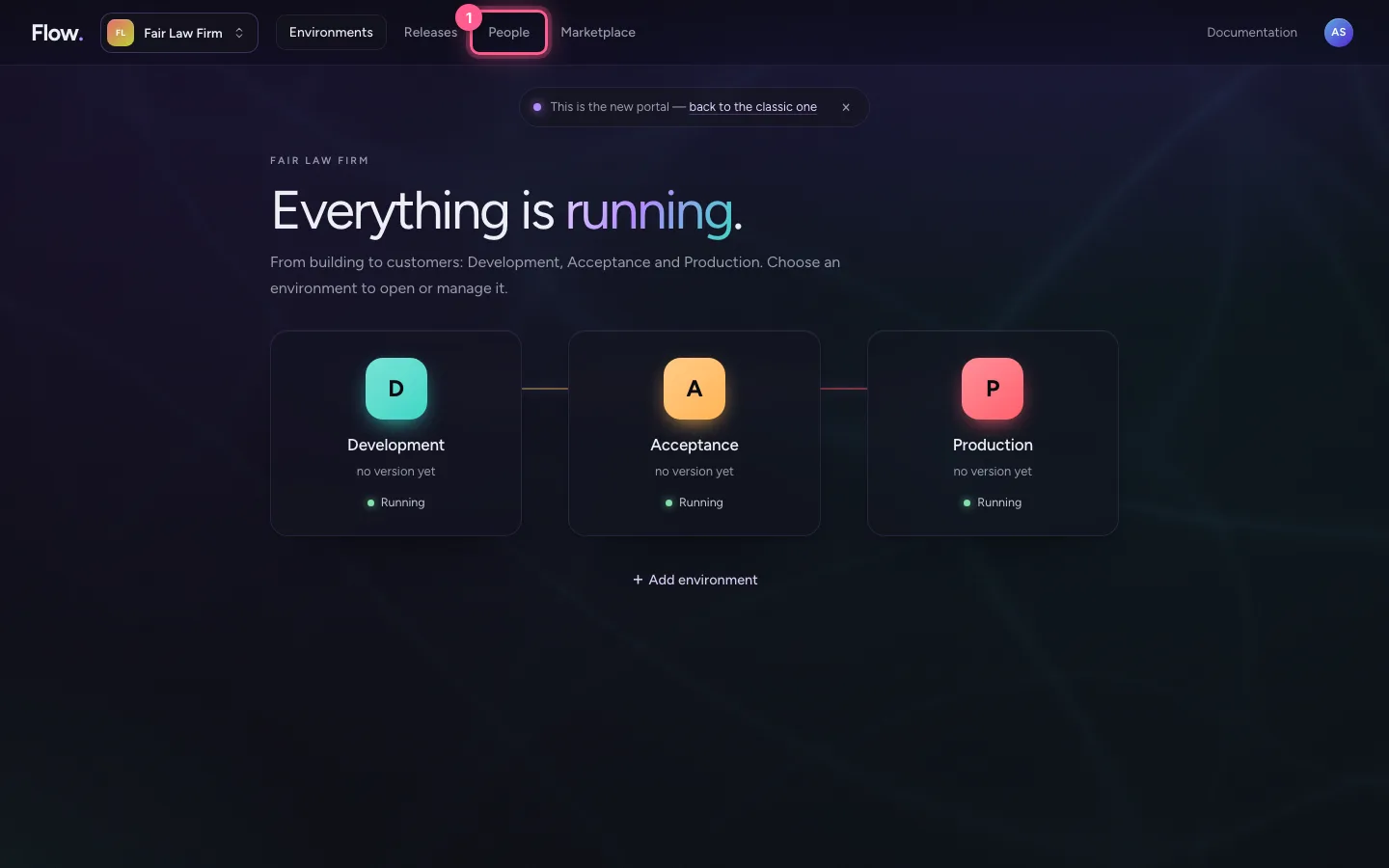
Click People at the top. On the left are the builders: owners and builders, who make workflows, APIs and AI Colleagues. On the right are the colleagues: they use the home page, apps and AI Colleagues.
- Click People
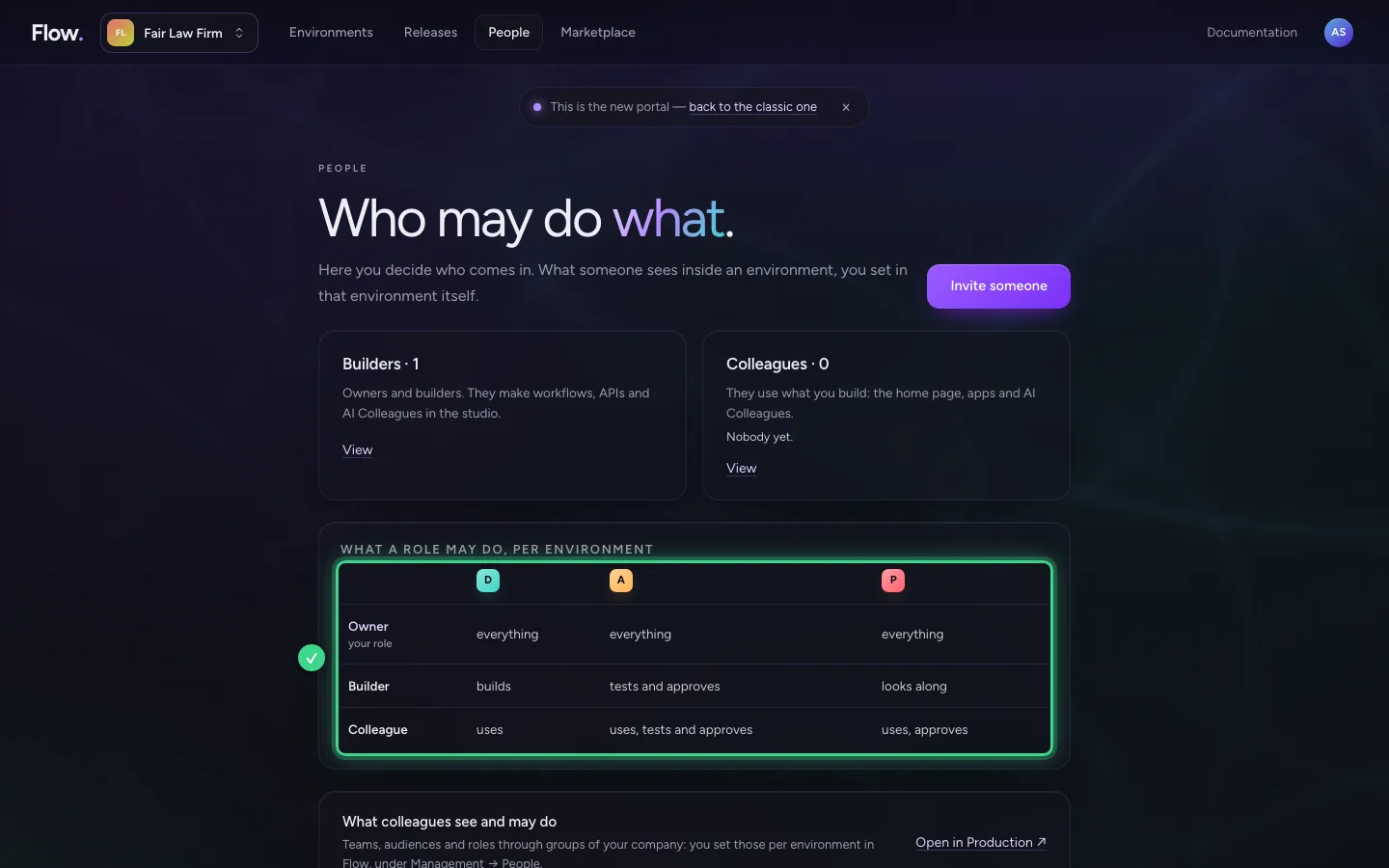
What each role may do
The table has a column per environment: D, T, A and P. An owner may do everything everywhere. A builder builds in Development and Test, tests and approves in Acceptance, and looks along in Production. A colleague uses what is there, and tests and approves where needed.
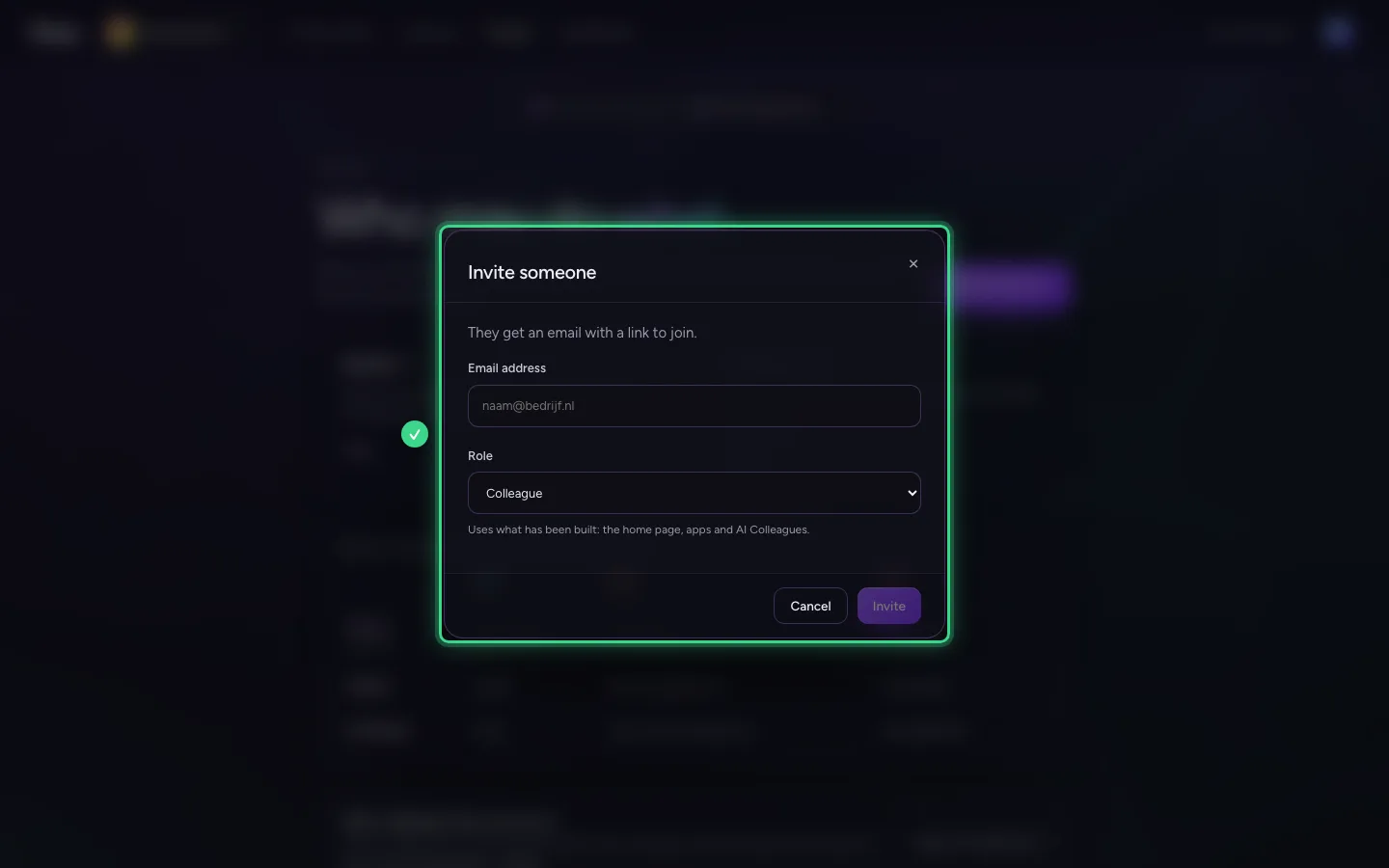
Invite someone
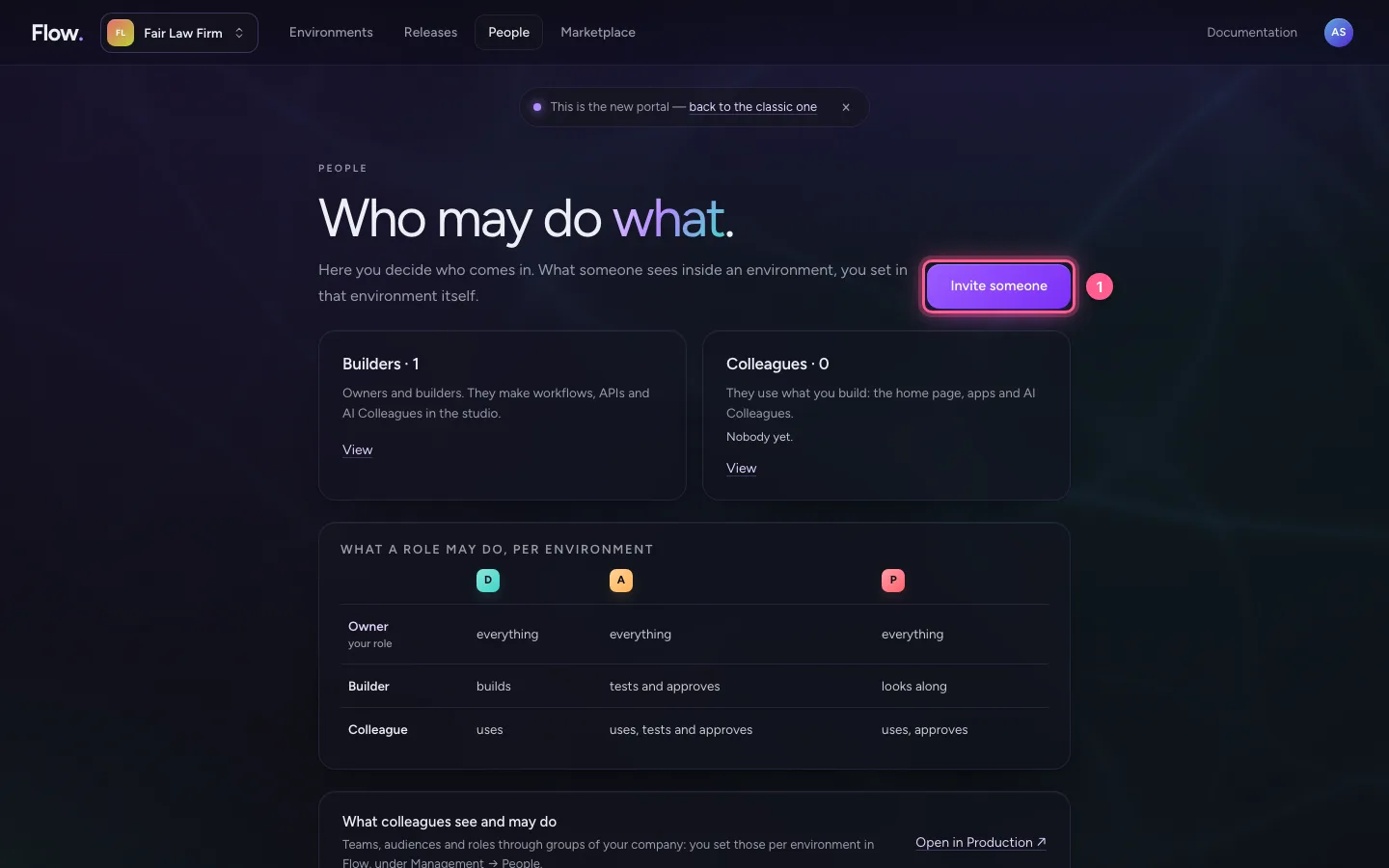
Inviting someone is the main button of this screen. You enter an email address and choose a role. They get an email with a link.
- Click Invite someone
What colleagues see is set in Flow
Teams, audiences and roles through groups in your company are set per environment, in Flow itself, under Management → People. The Open in Production button takes you there.
This guide was carried out step by step on 28 Oct 2026 by an automated test on Flow (version 96971699).