BeginnerTables
Column: yes / no
A Yes / no column is a tick box per row: under warranty or not, paid or not, newsletter or not. You record for repairs whether they fall under the warranty.
Step 1 / 3
Open your development environment
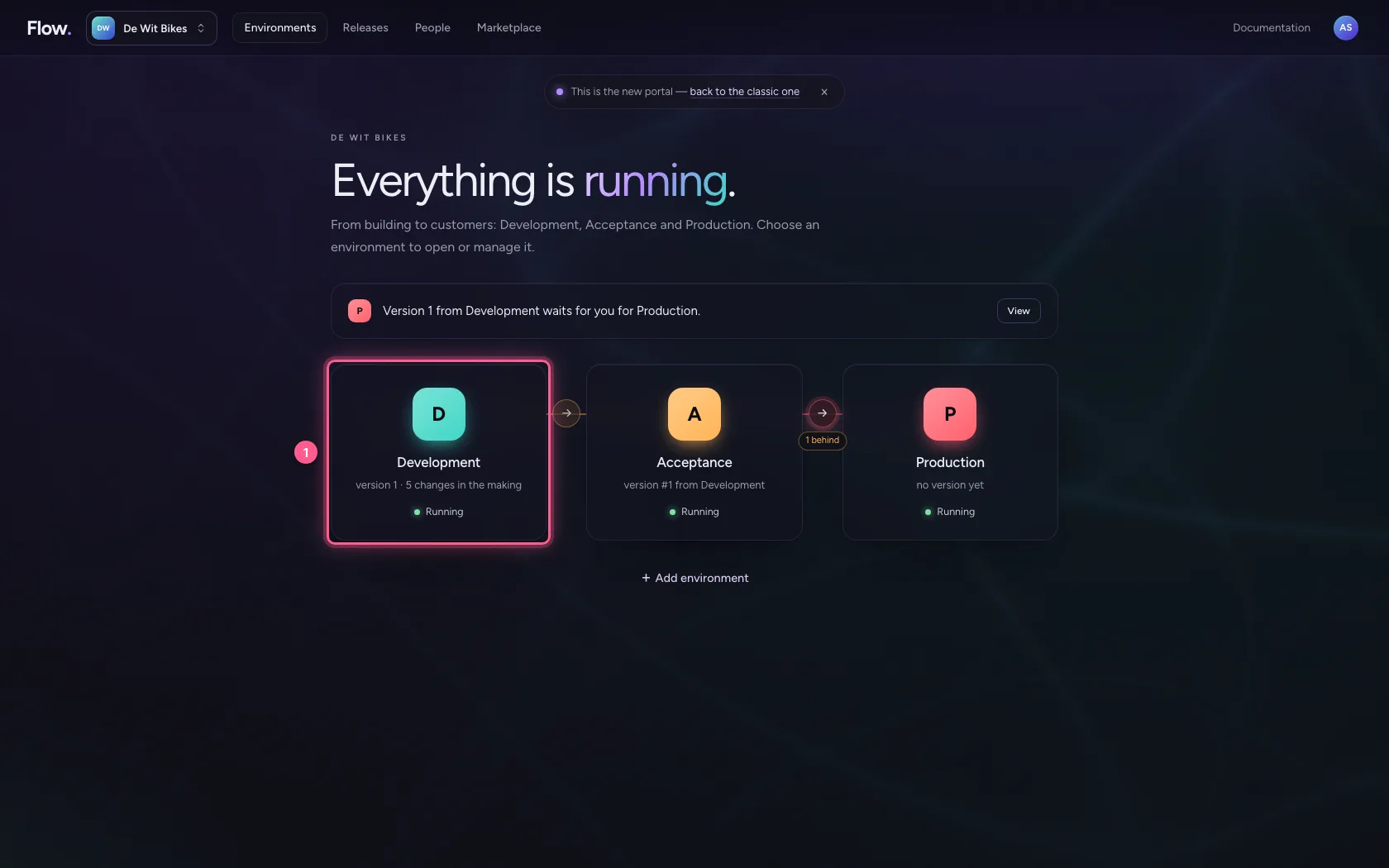
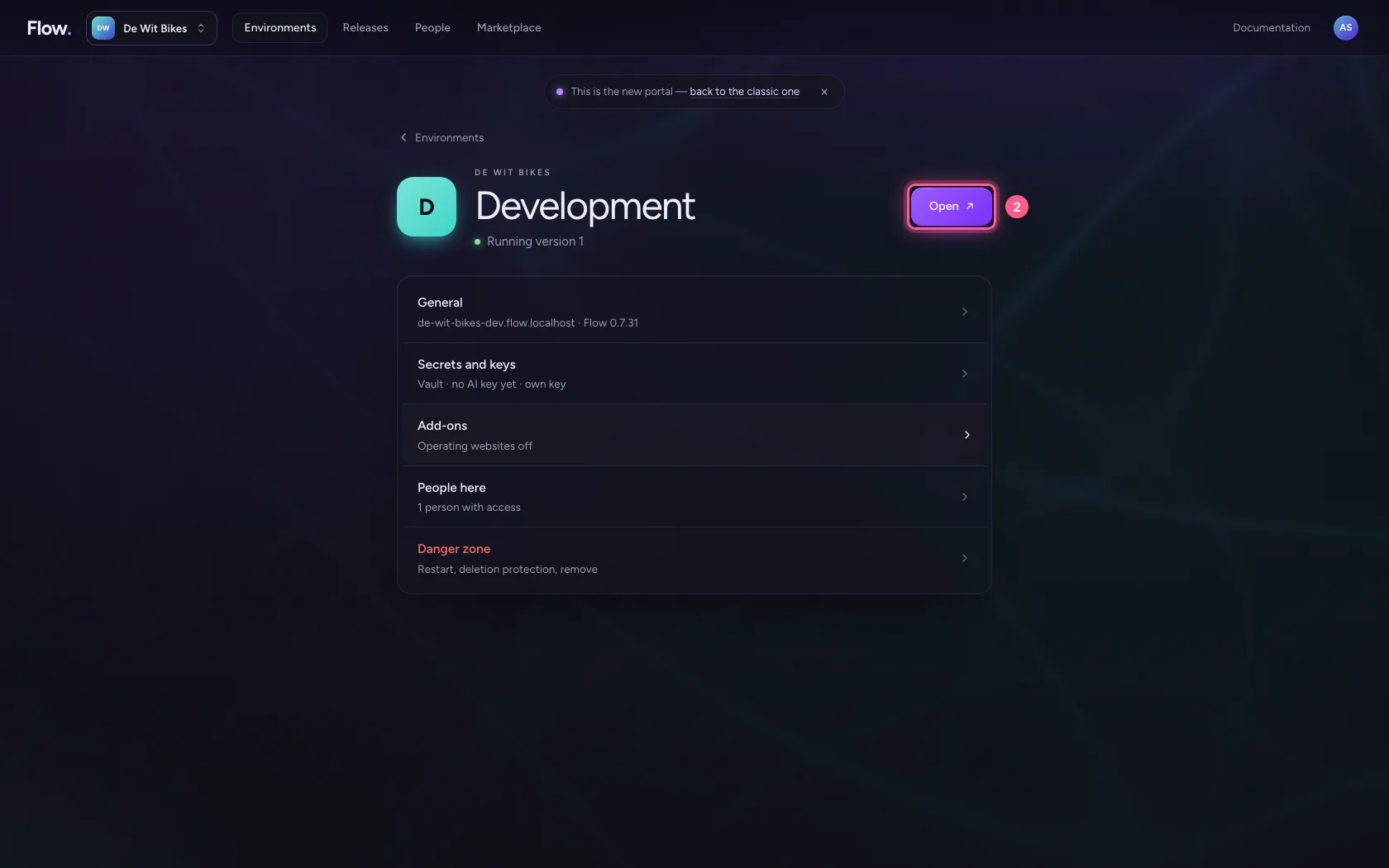
In the portal, under Environments, click Development, and there Open. Flow opens in a new tab and you are signed in straight away.
- Click Development
- Click Open ↗
Step 2 / 3
Add a yes/no column
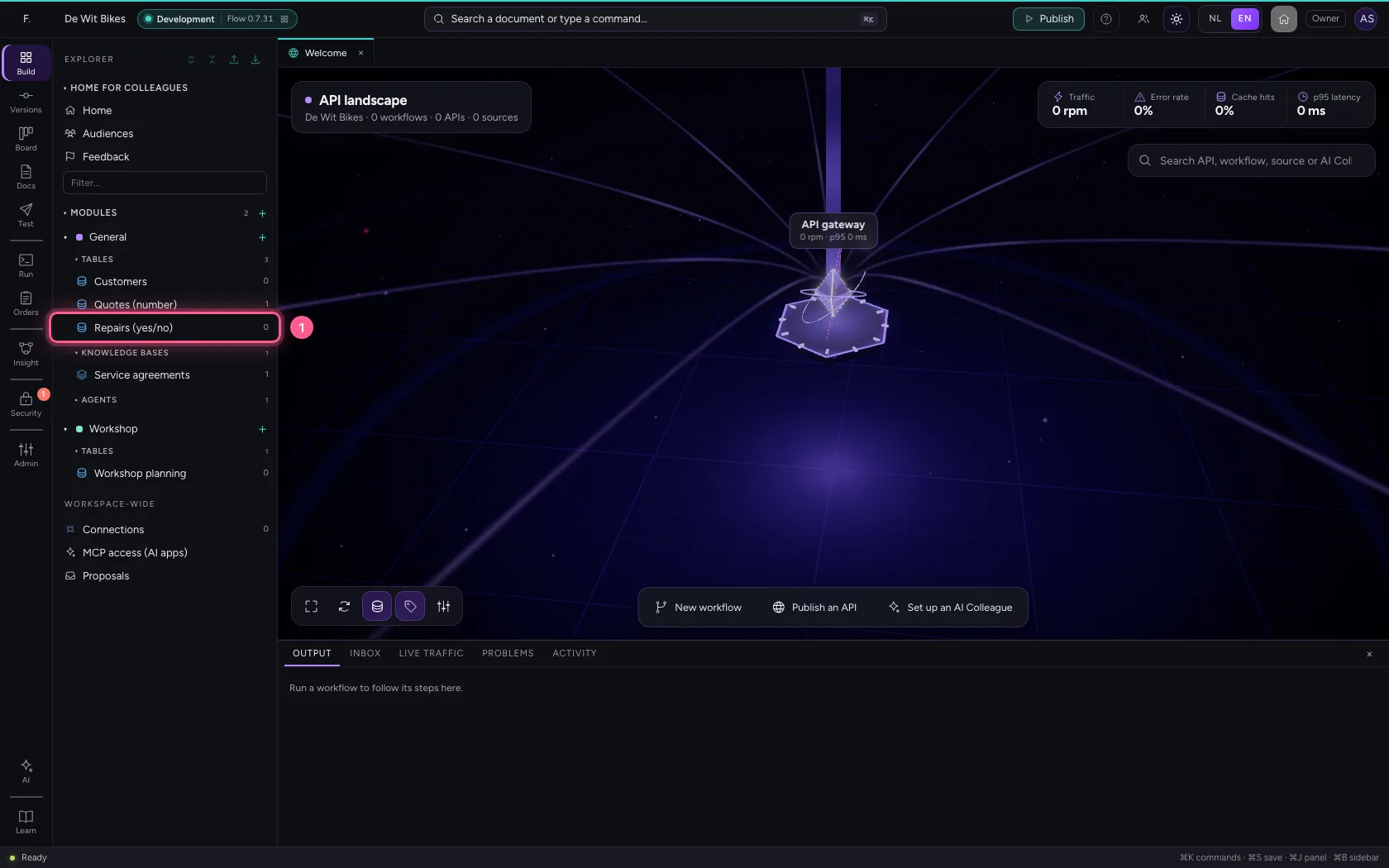
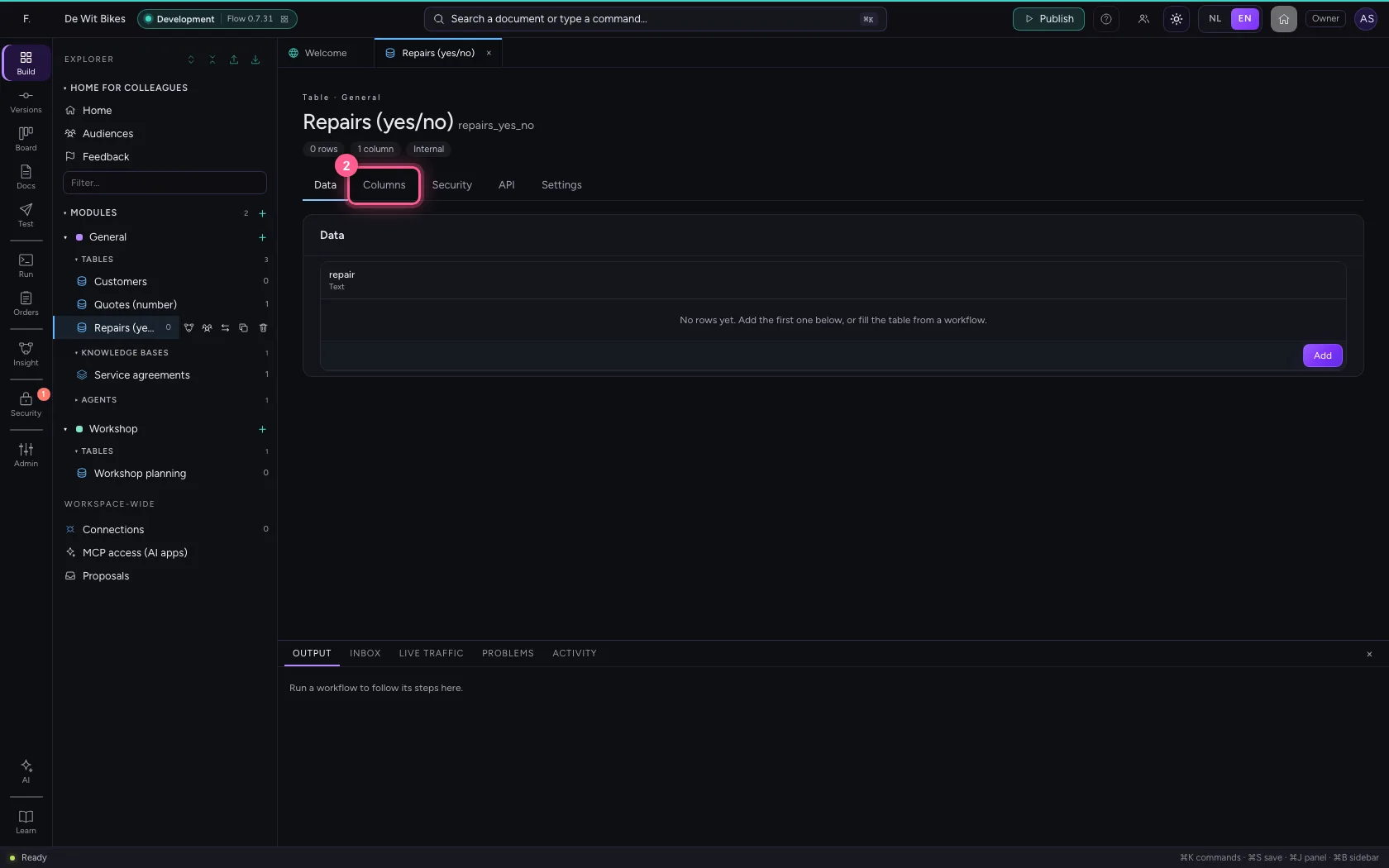
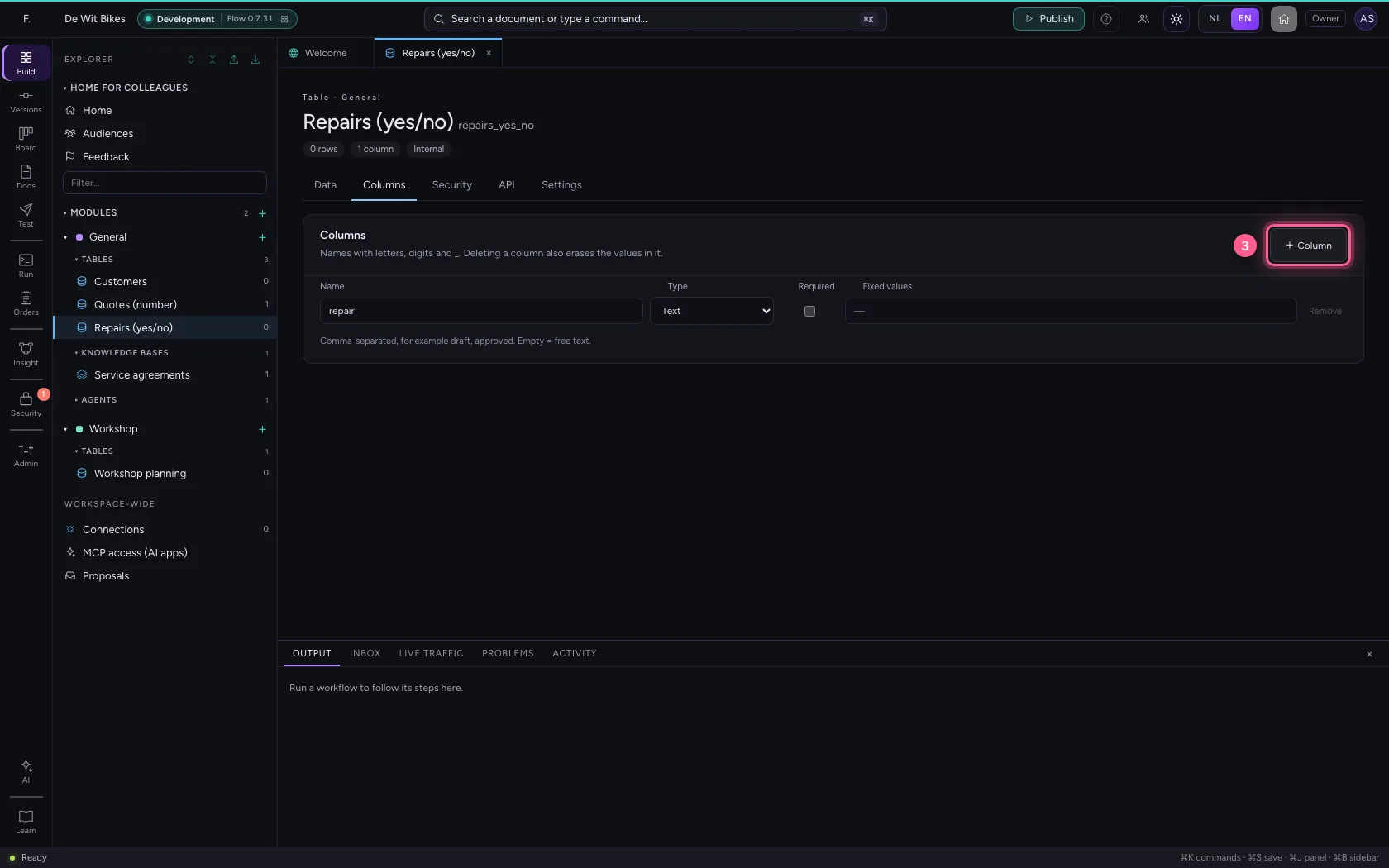
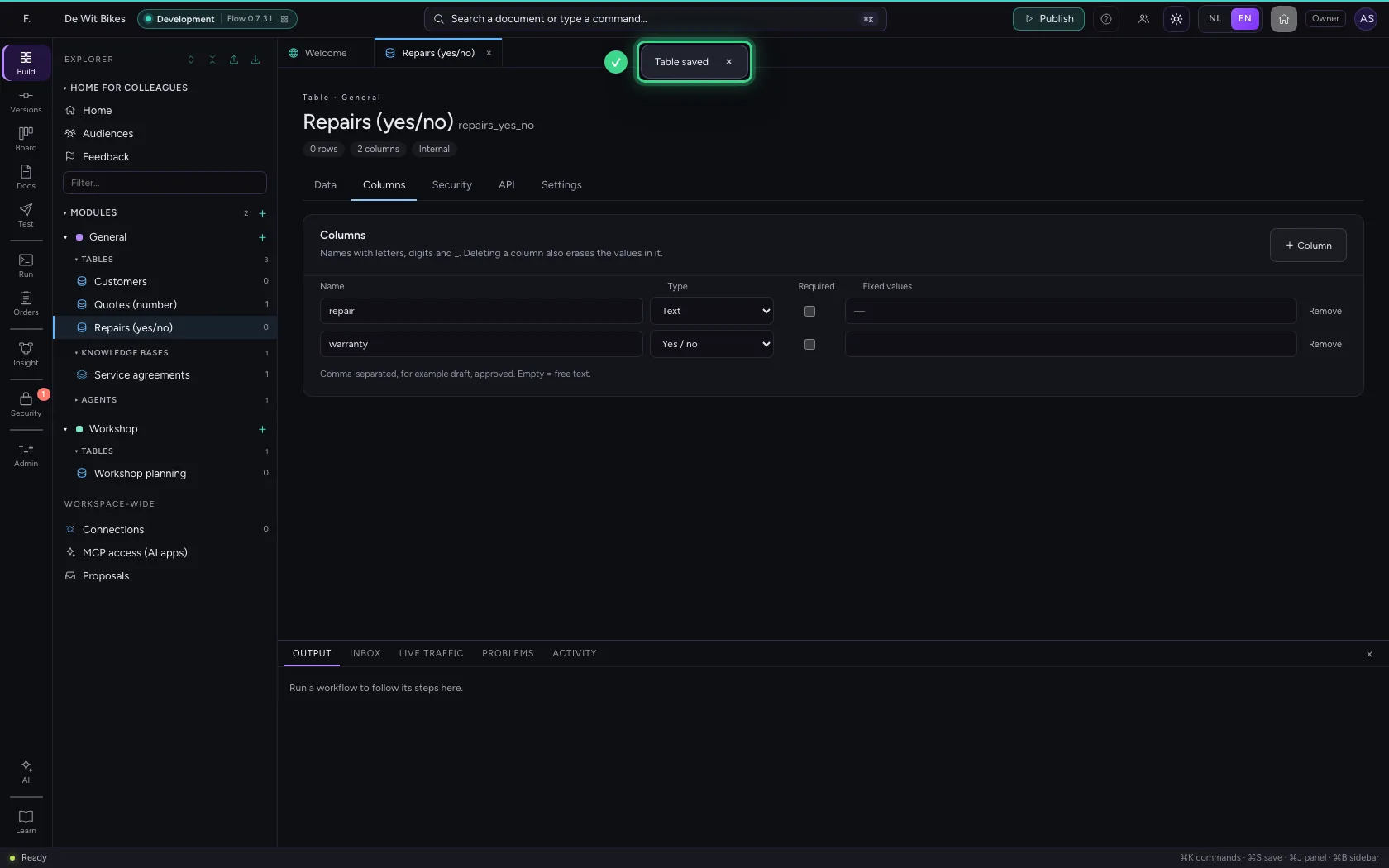
Open the table, go to Columns, click + Column and choose Yes / no under Type.
- Click the table ‘Repairs (yes/no)’
- Click Columns
- Click + Column
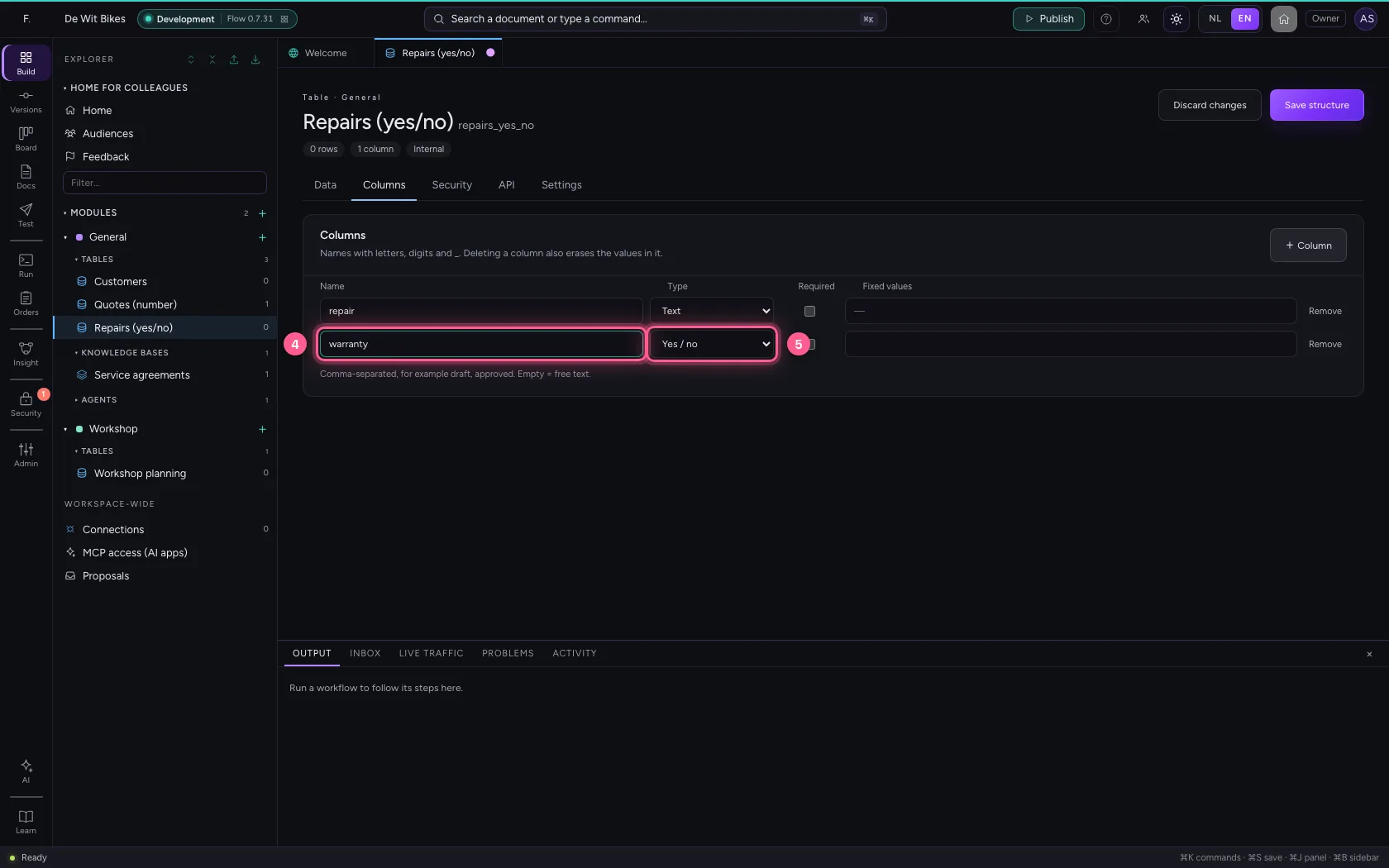
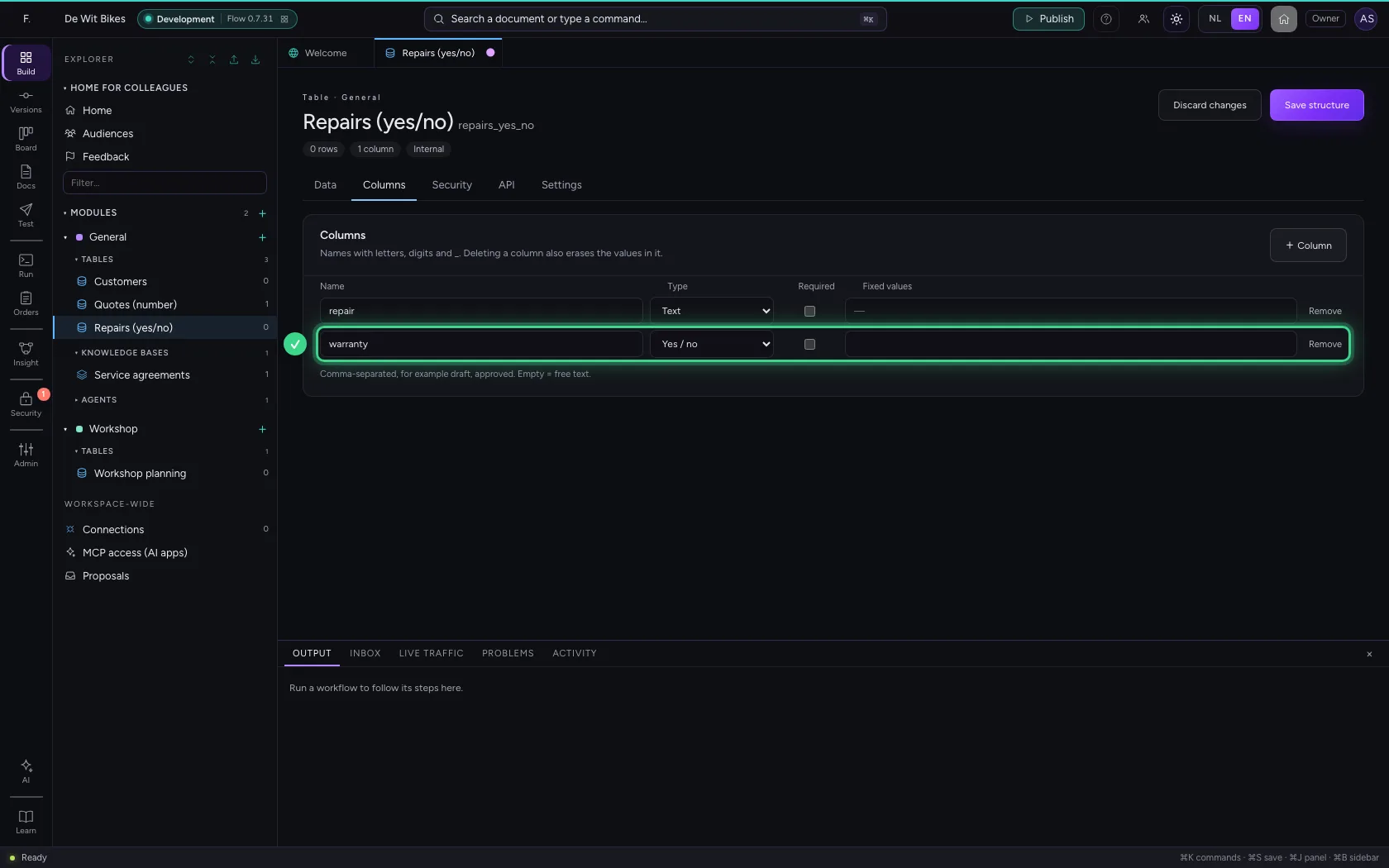
- In Name, type
warranty - In Type, choose Yes / no
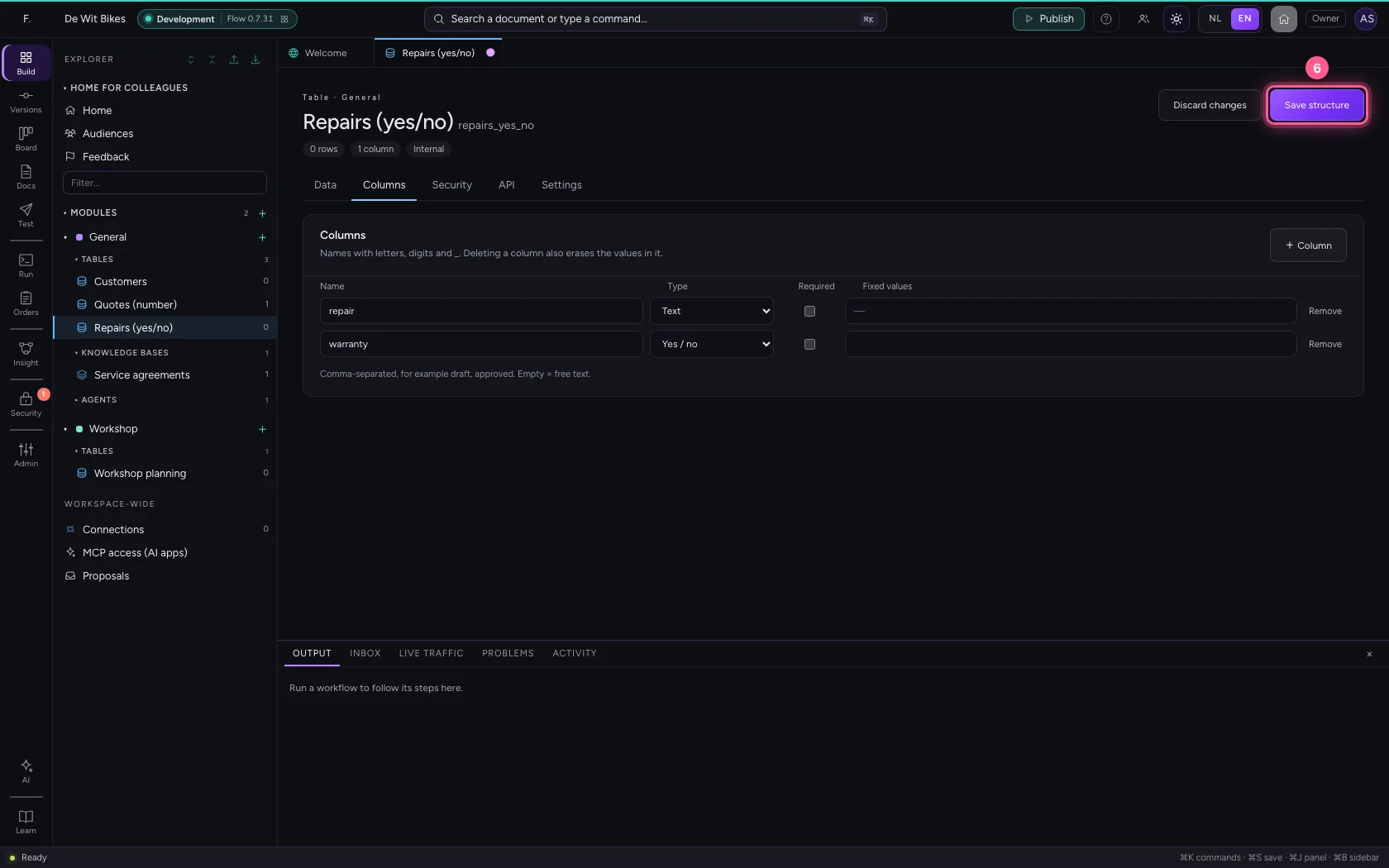
- Click Save structure
Step 3 / 3
Tick the box
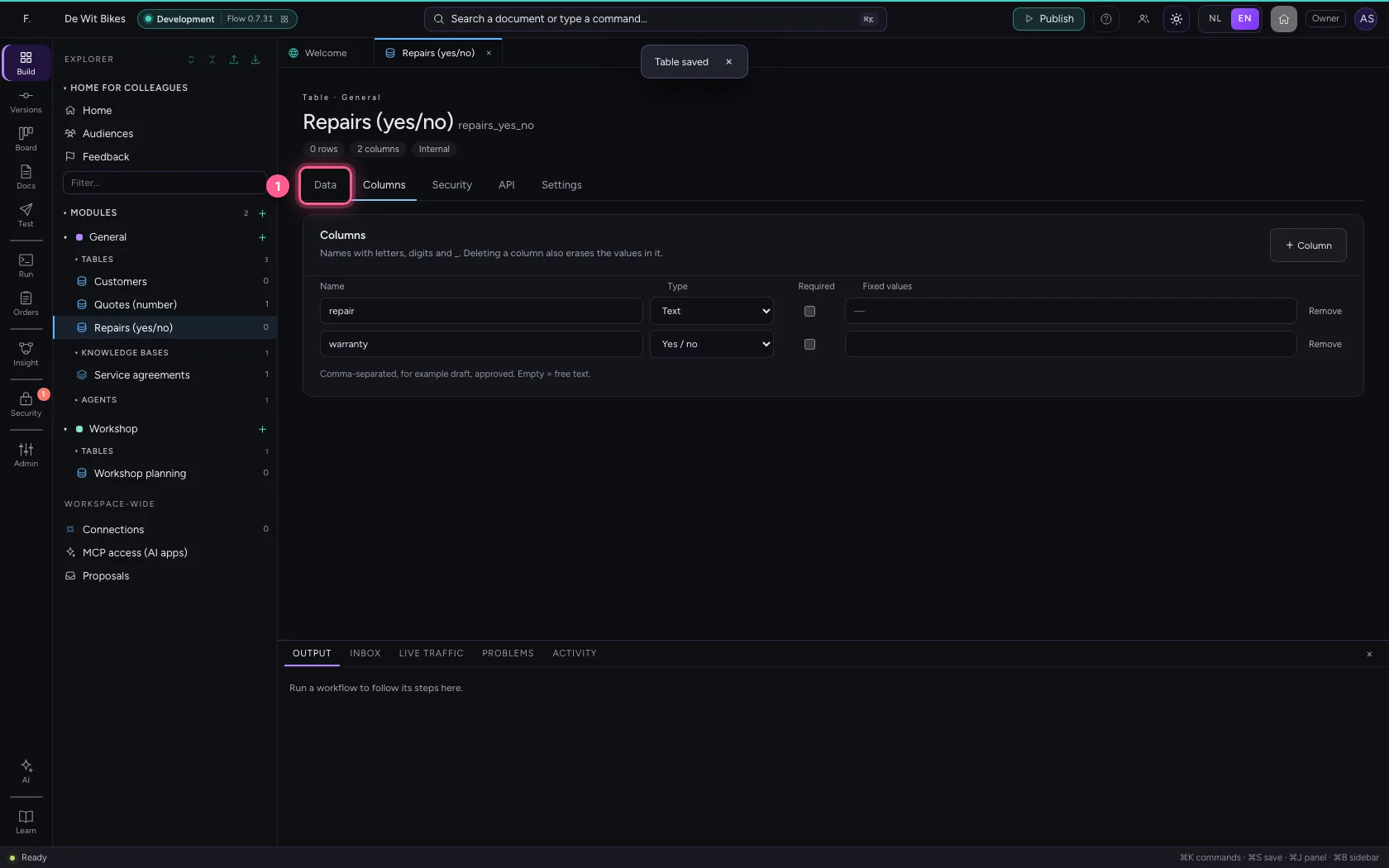
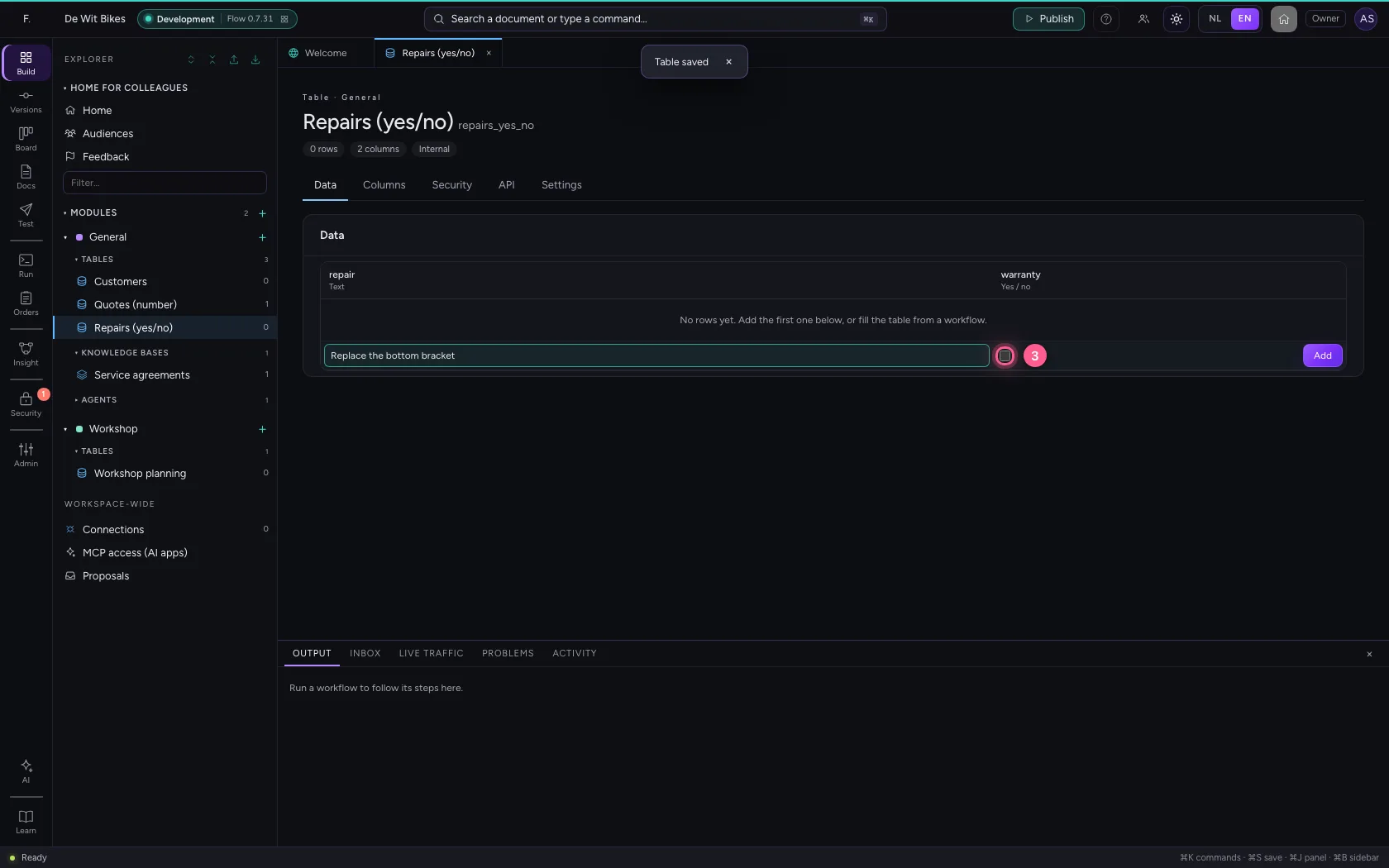
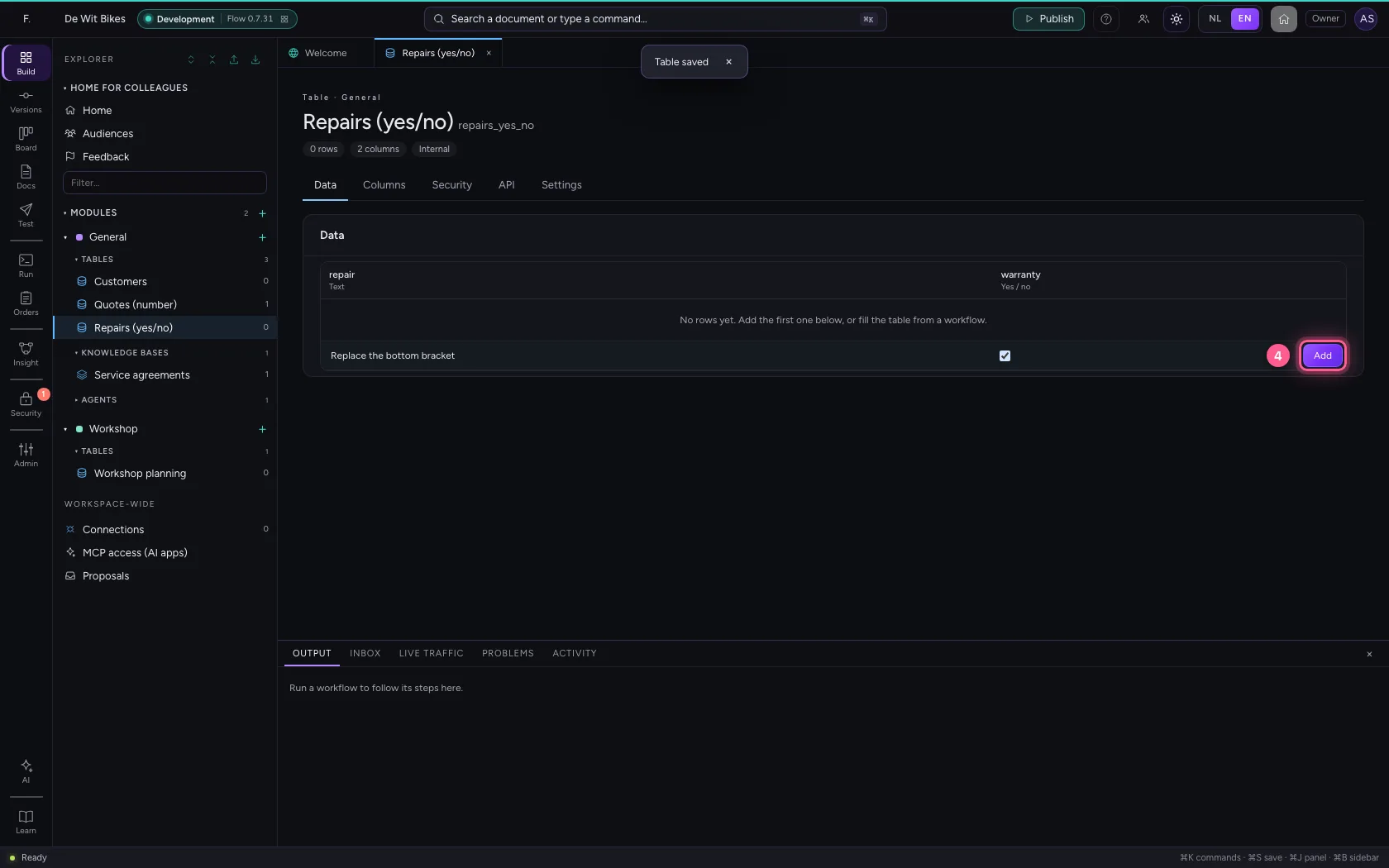
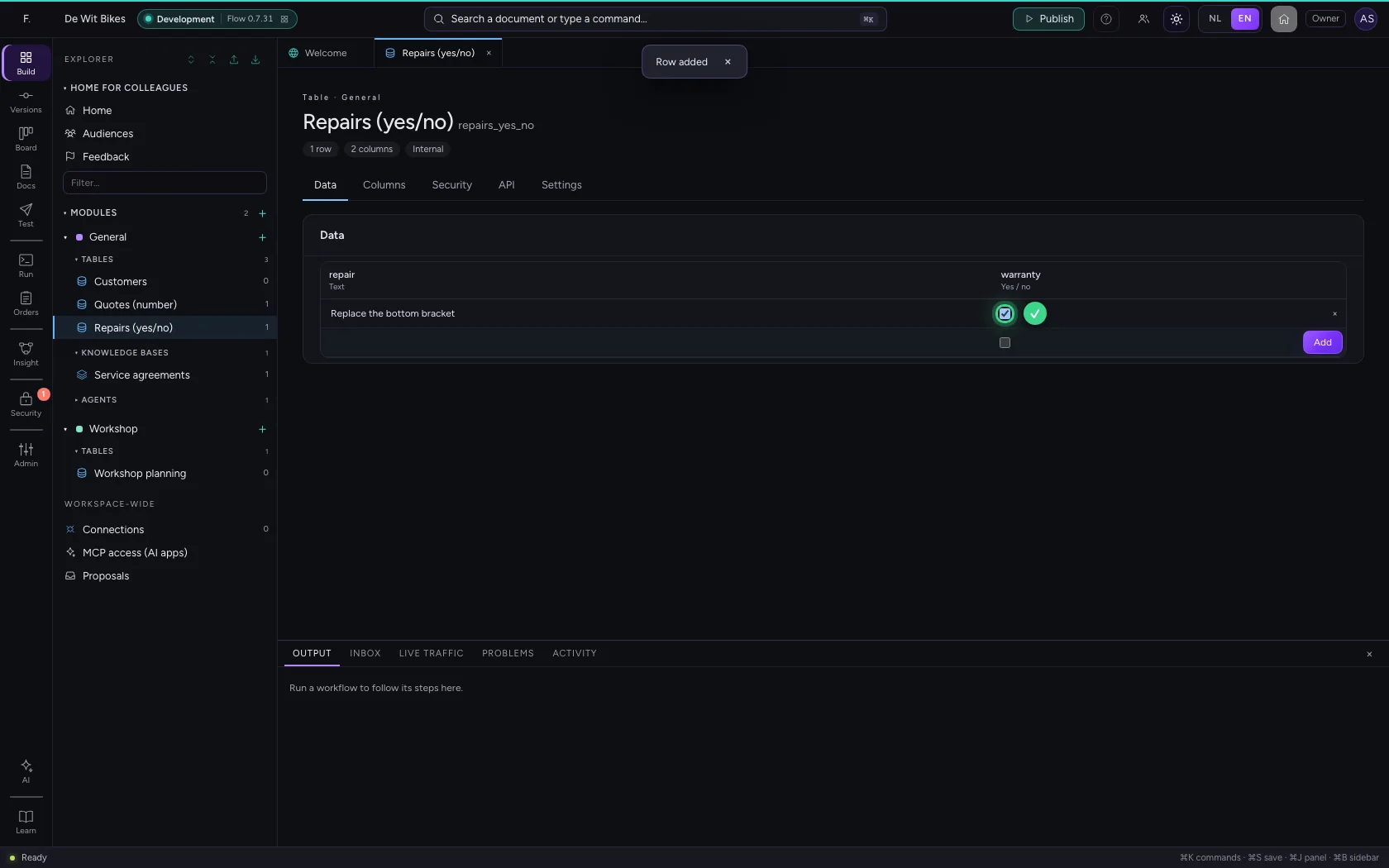
Under Data the column is a tick box. Ticked means yes; workflows and your API see true or false.
- Click Data
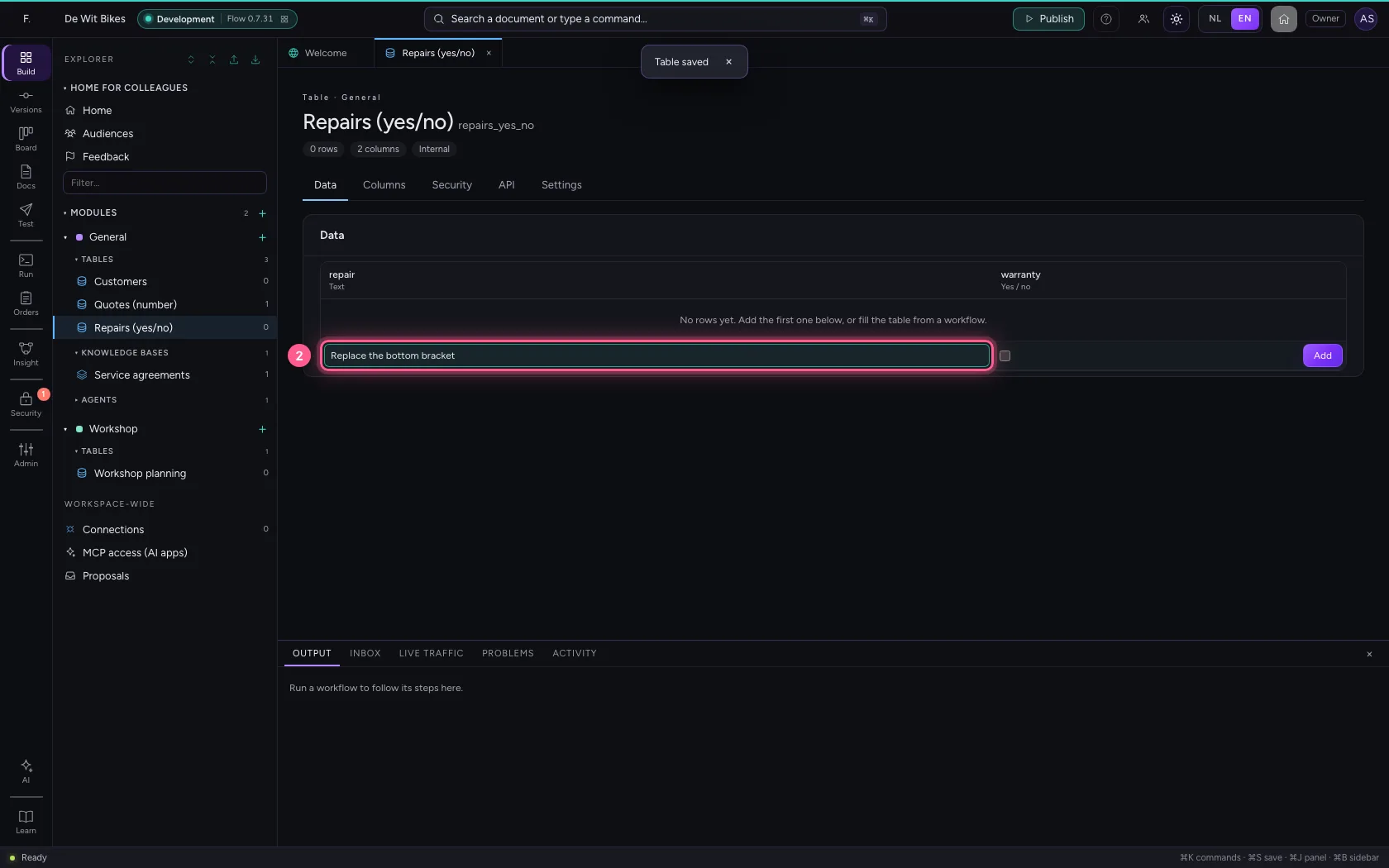
- In repair, type
Replace the bottom bracket
- Click warranty
- Click Add
This guide was carried out step by step on 22 Oct 2026 by an automated test on Flow (version 3e563176).