Table: look up rows
With the Table step a workflow works with the data in your Flow tables. Look up rows fetches the rows that meet your conditions, sorted the way you want, and passes them on as a list. A next step carries on with it: a loop per row, an answer to the caller, a message.
Open Flow and create a workflow
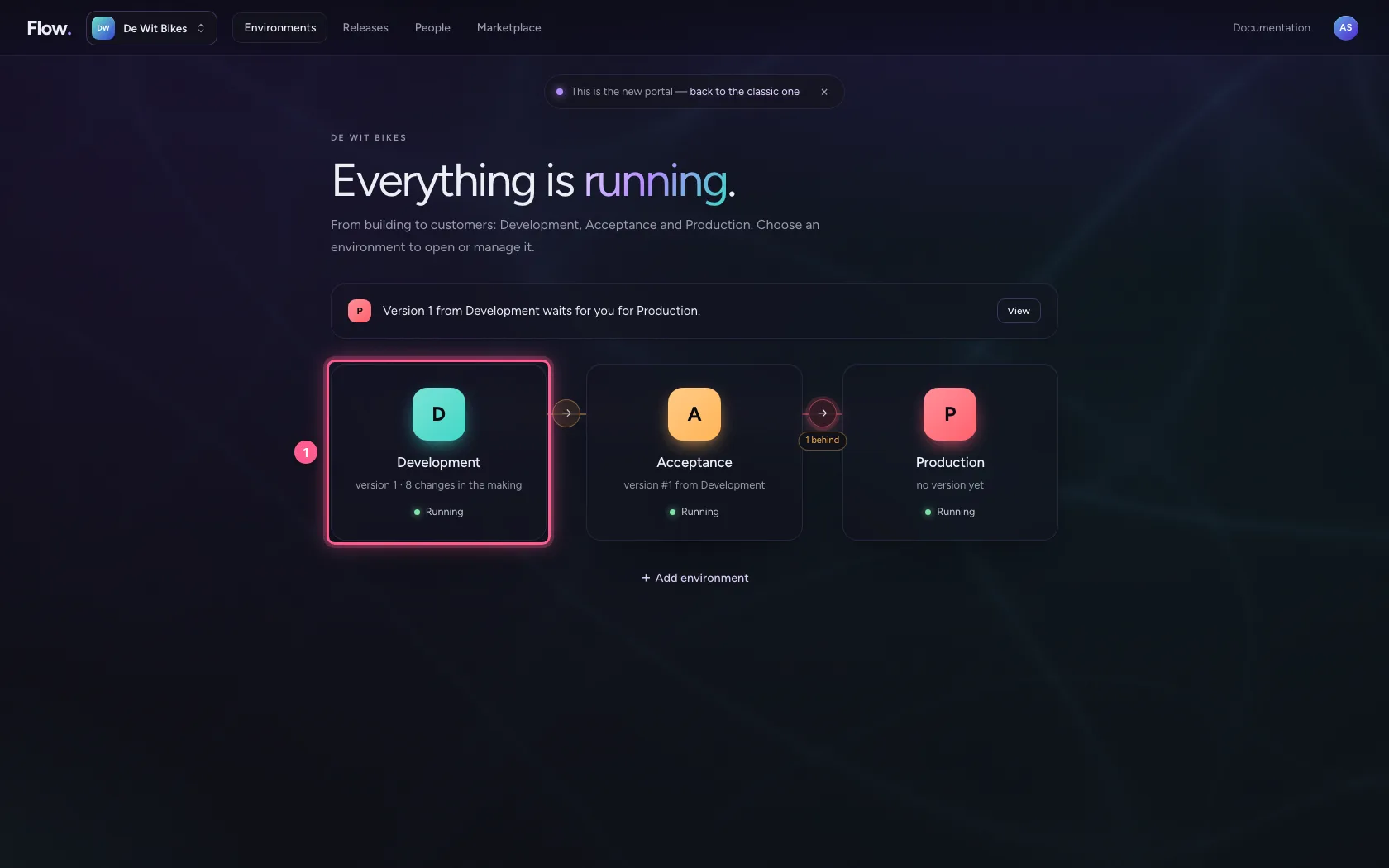
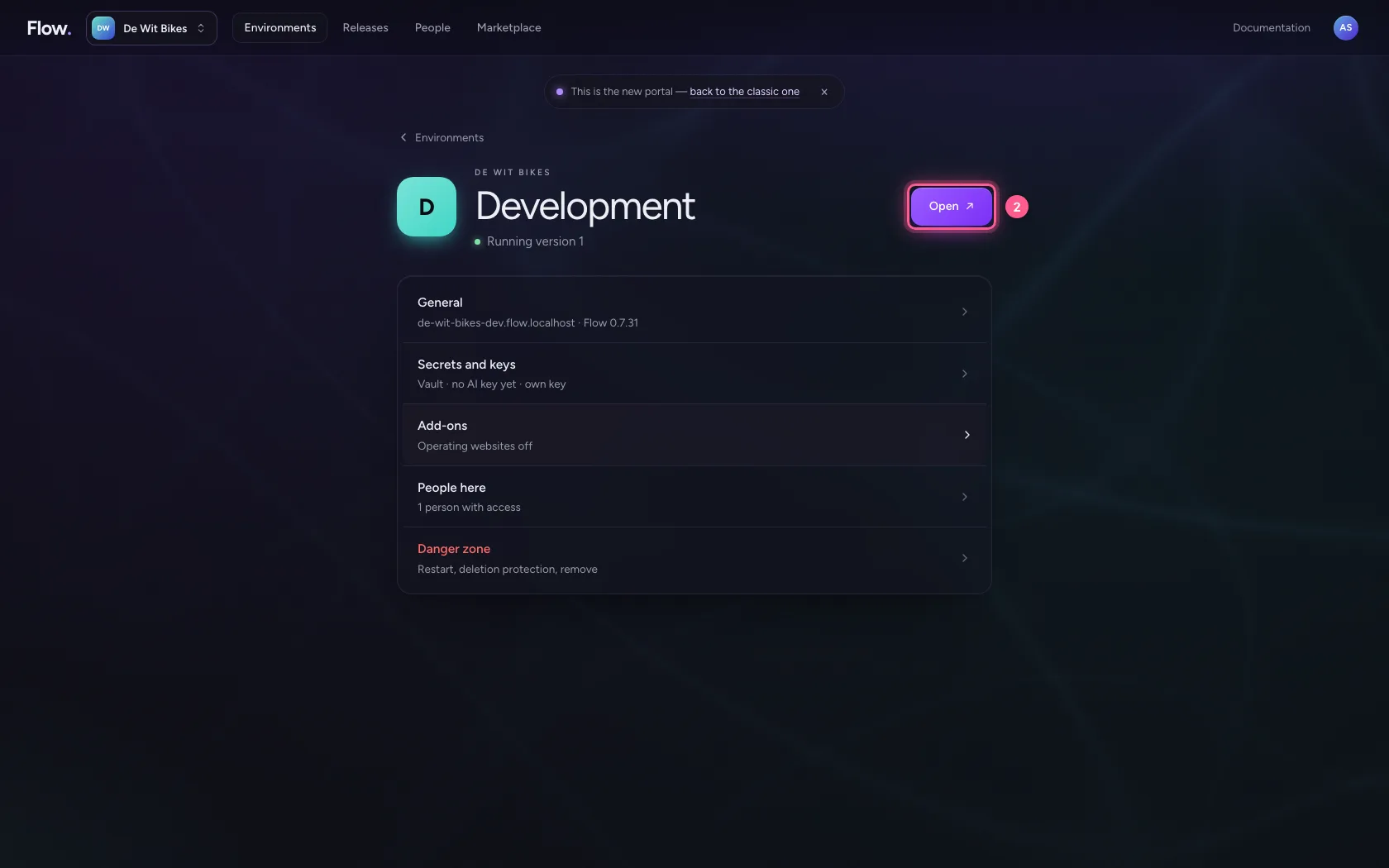
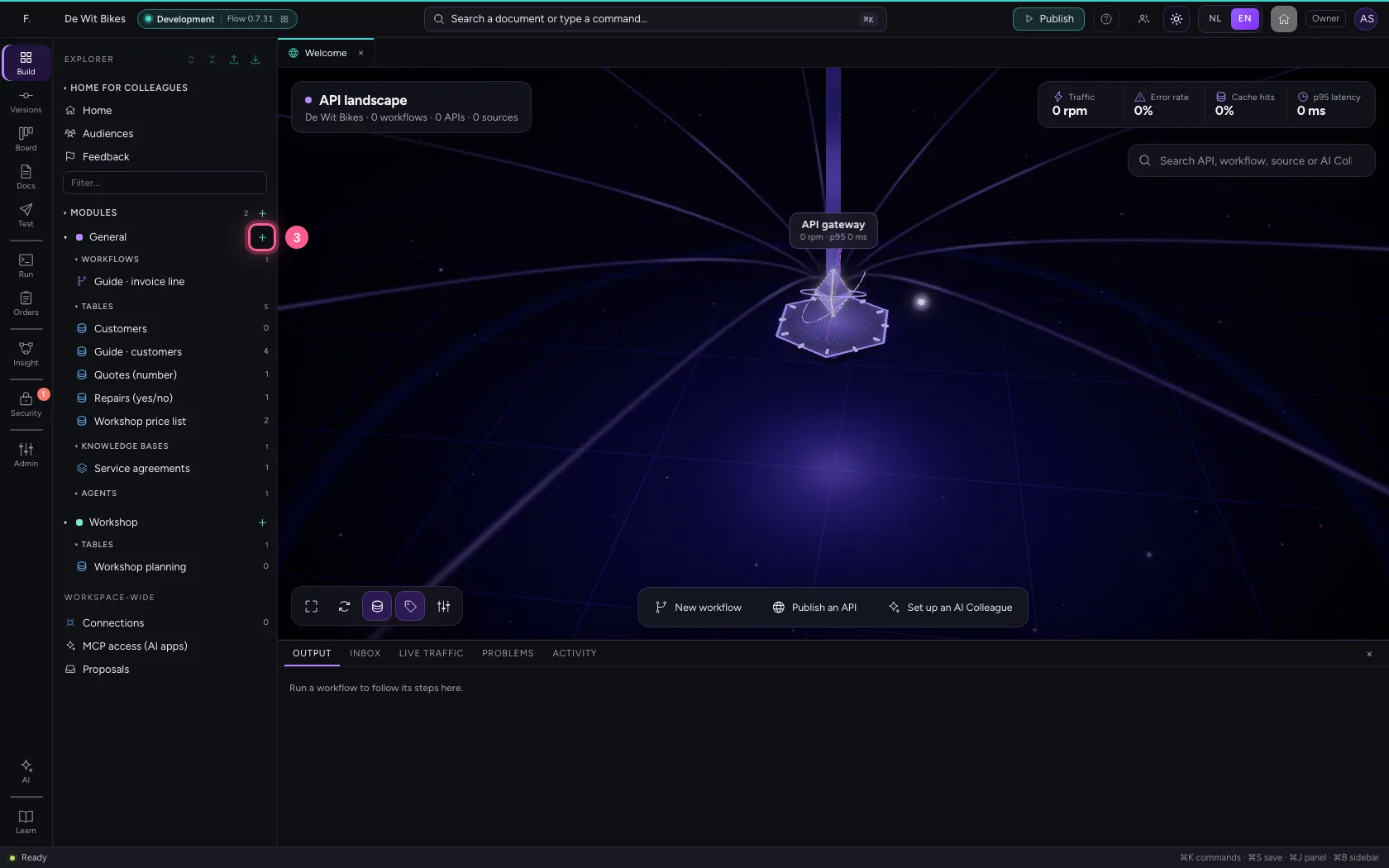
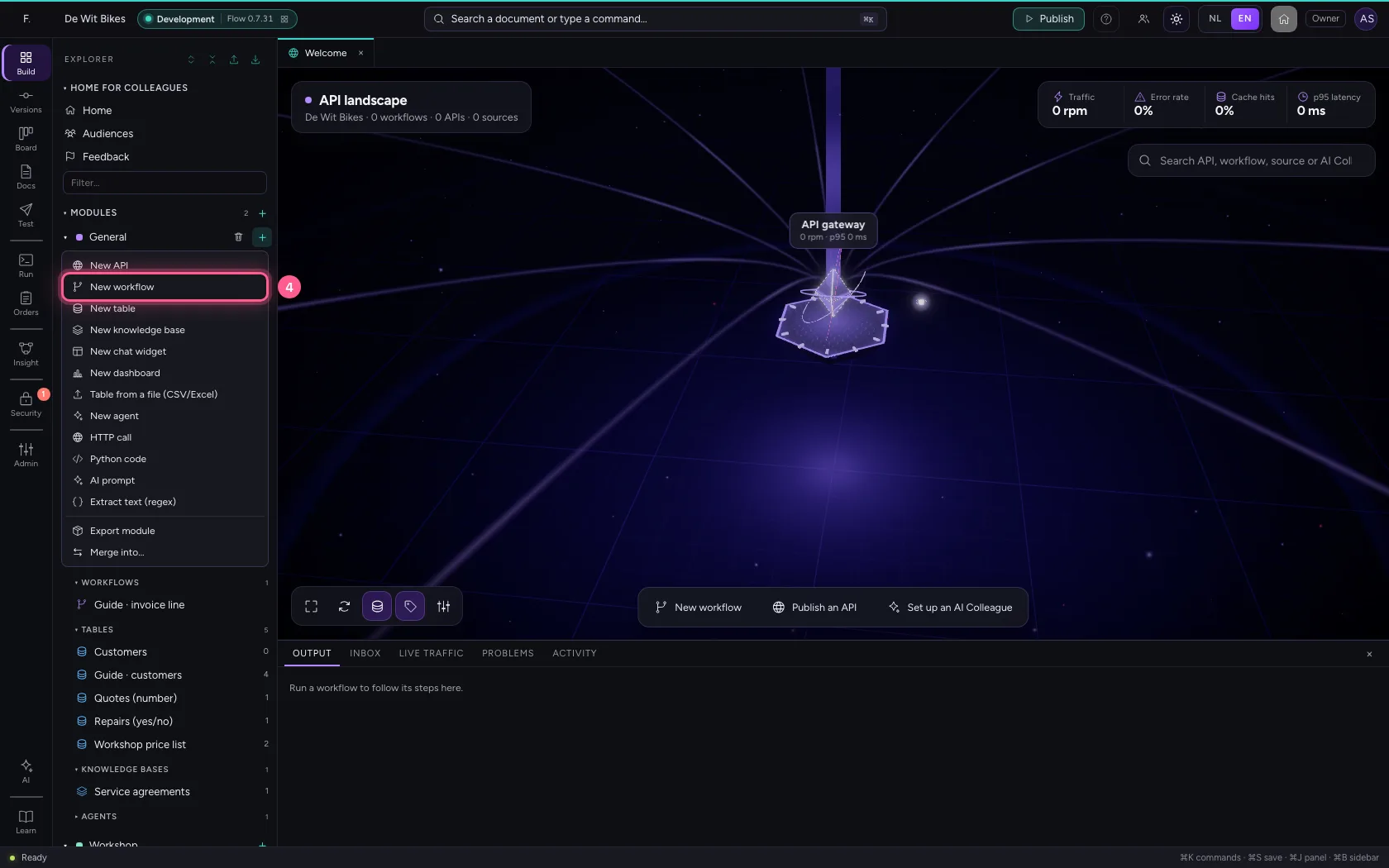
In the portal, under Environments, click Development and there Open; Flow opens in a new tab. There, click + next to General, choose New workflow and give it a name. A new workflow starts with an Event trigger: the point where it begins.
- Click Development
- Click Open ↗
- Click Add to General
- Click New workflow
- In Workflow name, type
Guide · customers in Utrecht
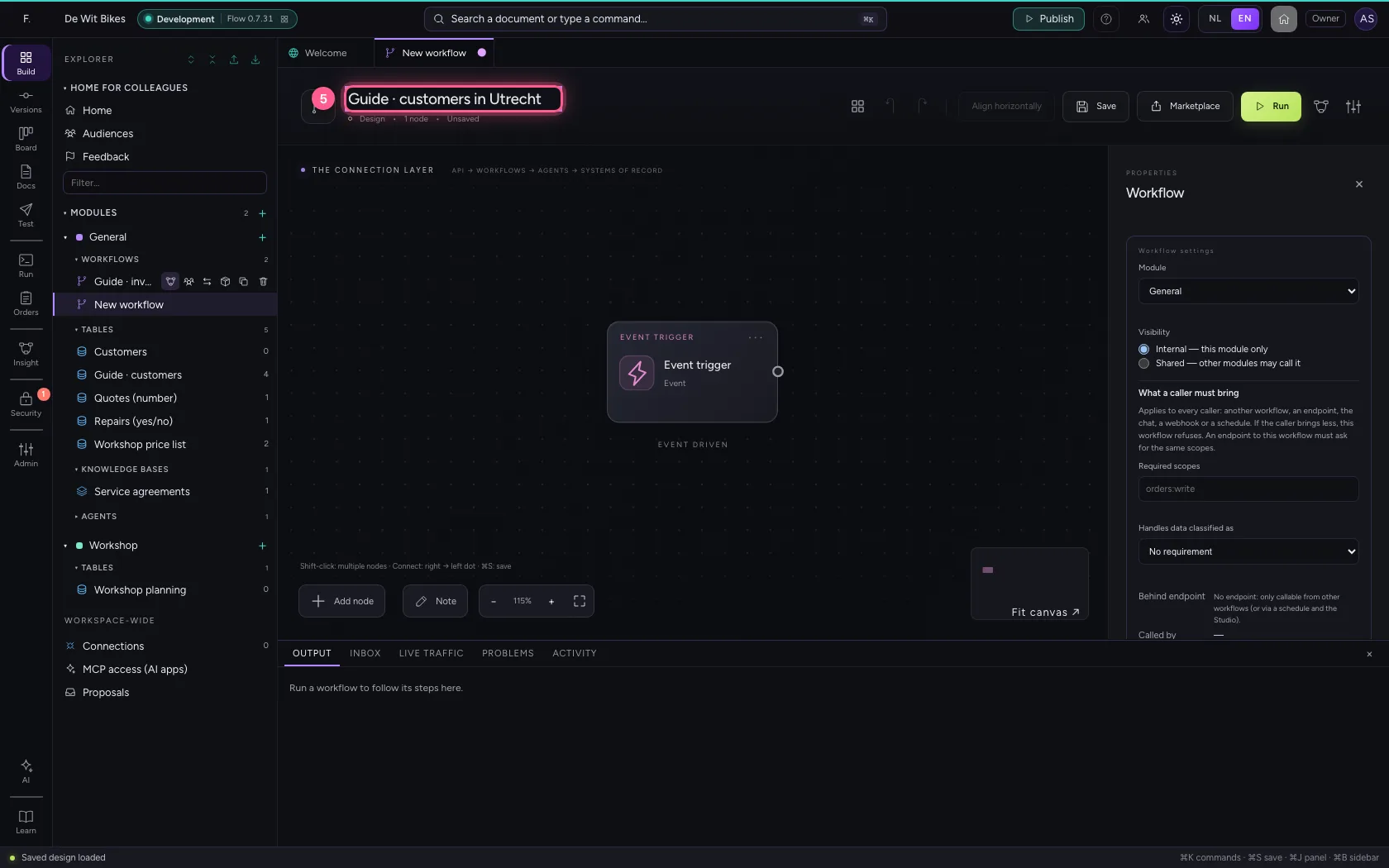
Choose the table
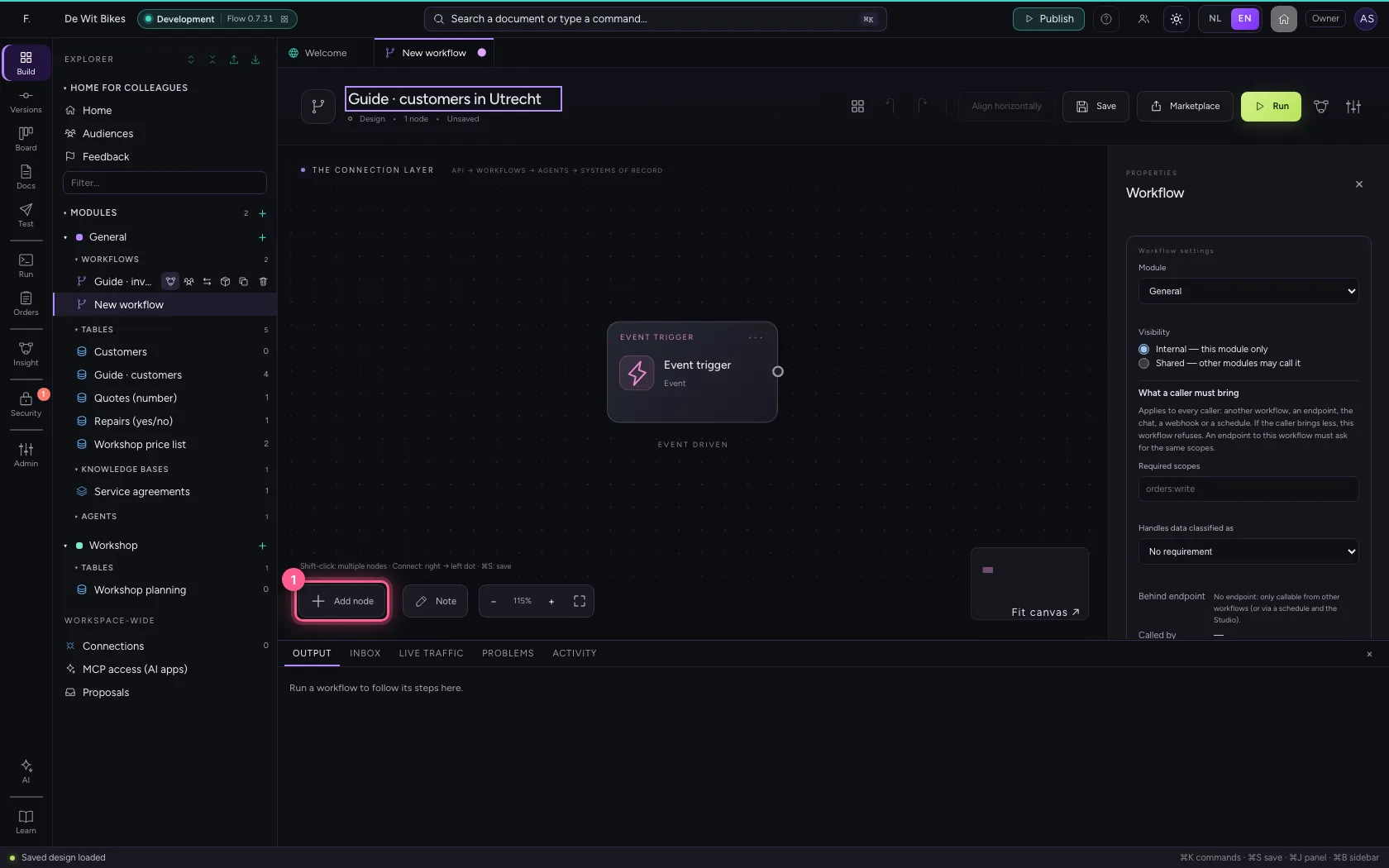
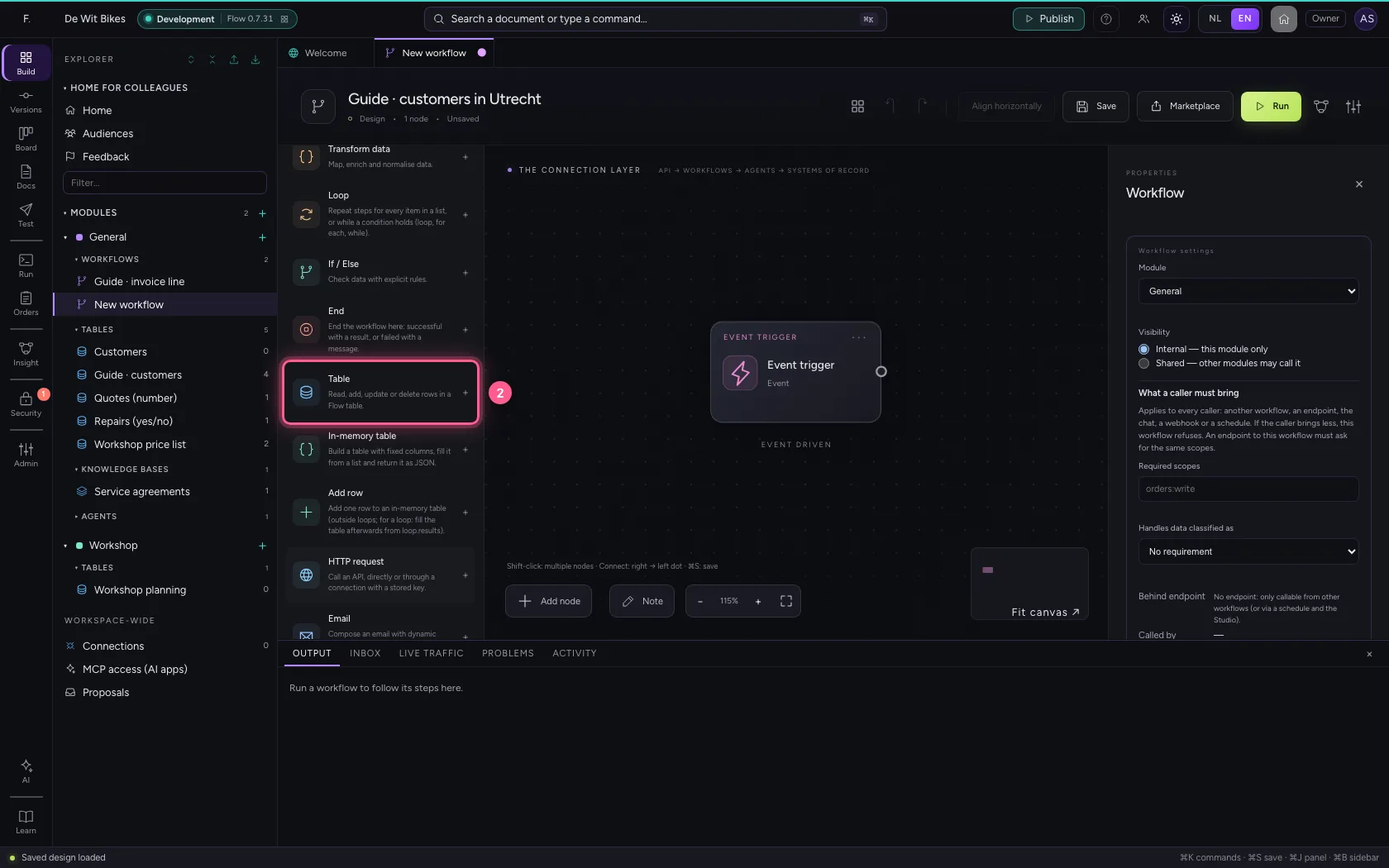
Add the Table step and choose the table. After the name is how many rows it has. What does this step do is set to Look up rows: that is what you want here.
- Click Add node
- Click Table
- In Table, choose Guide · customers · 4
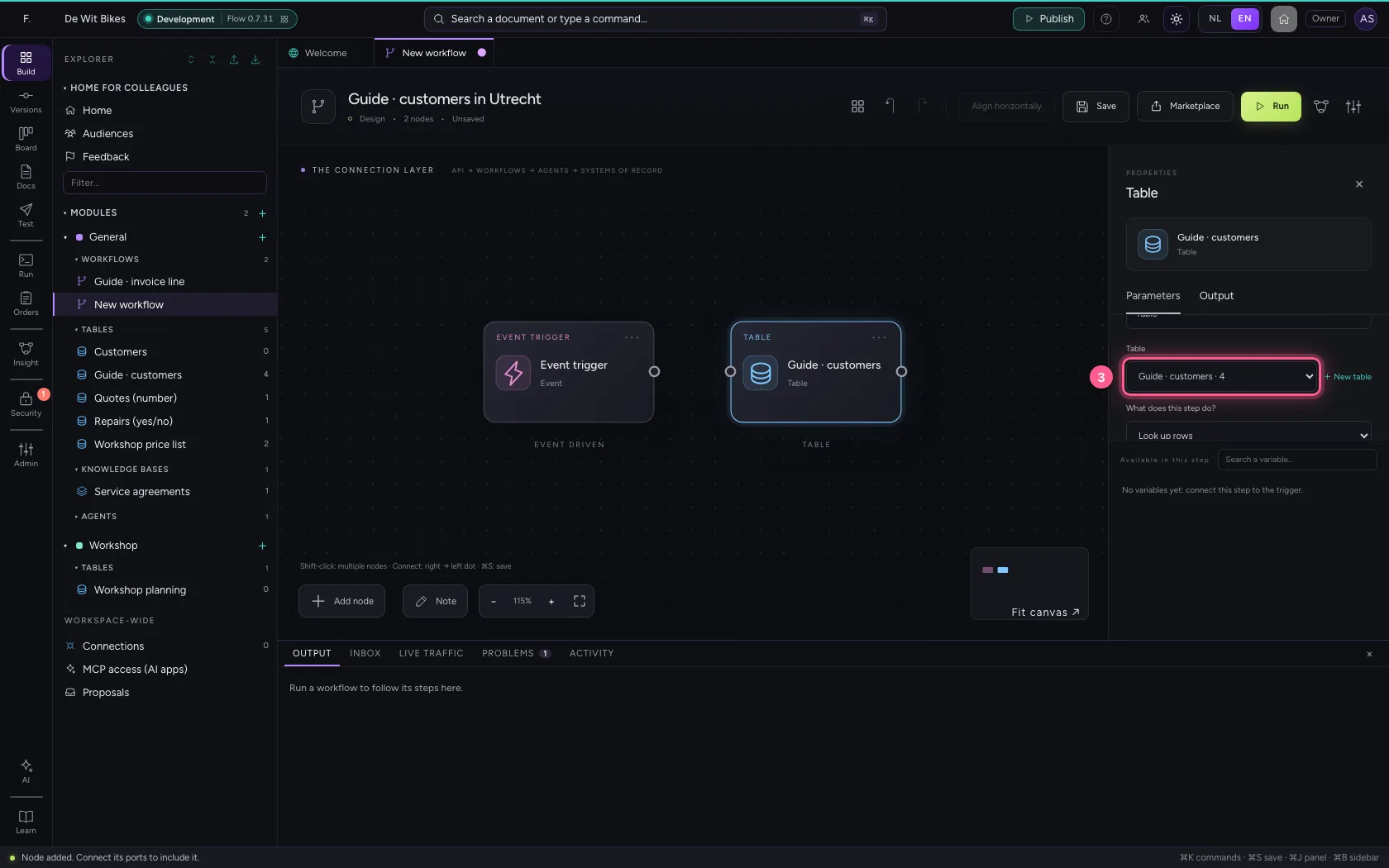
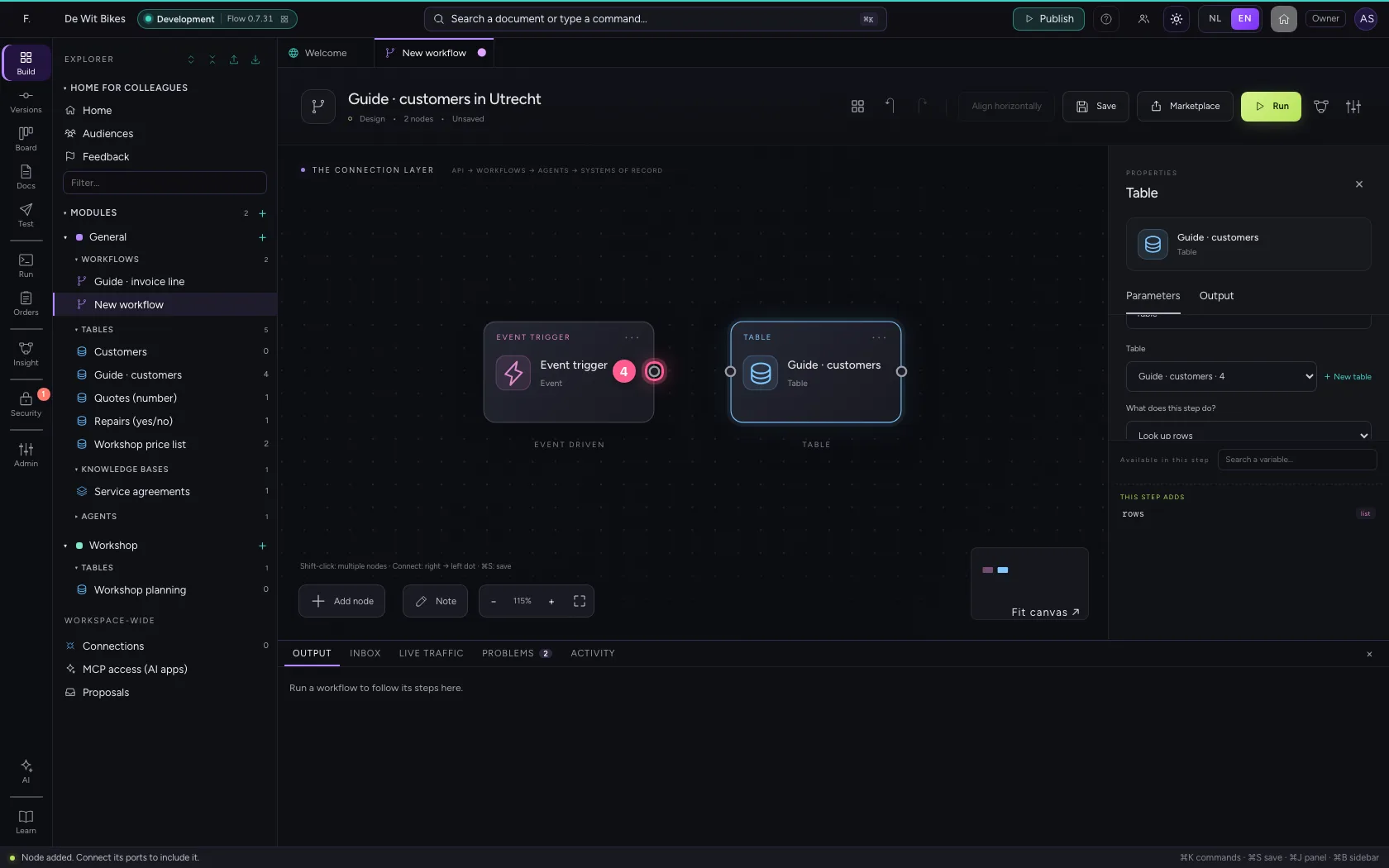
- Click the dot of ‘Event trigger’
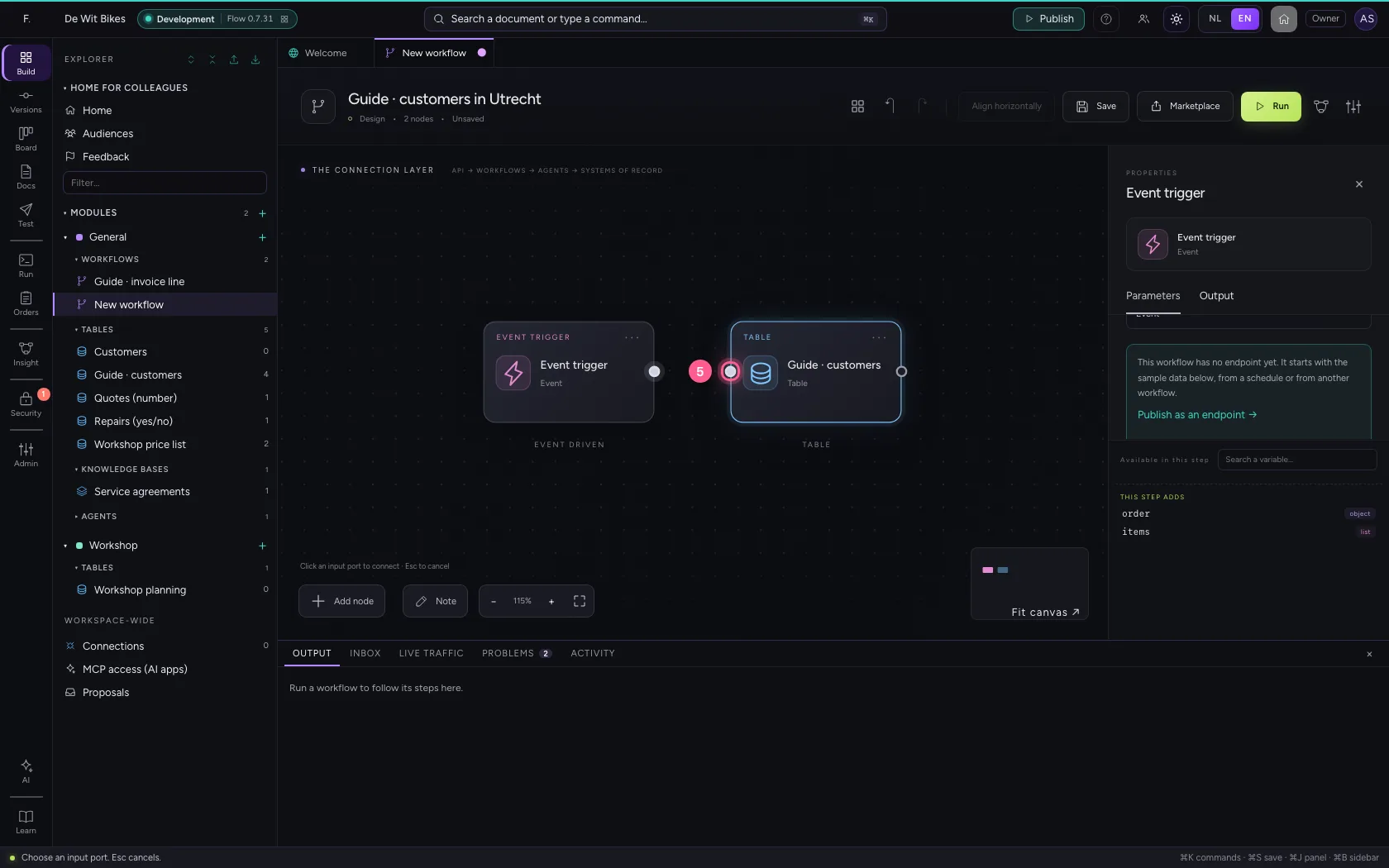
- Click the dot of ‘Guide · customers’
Only the rows you need
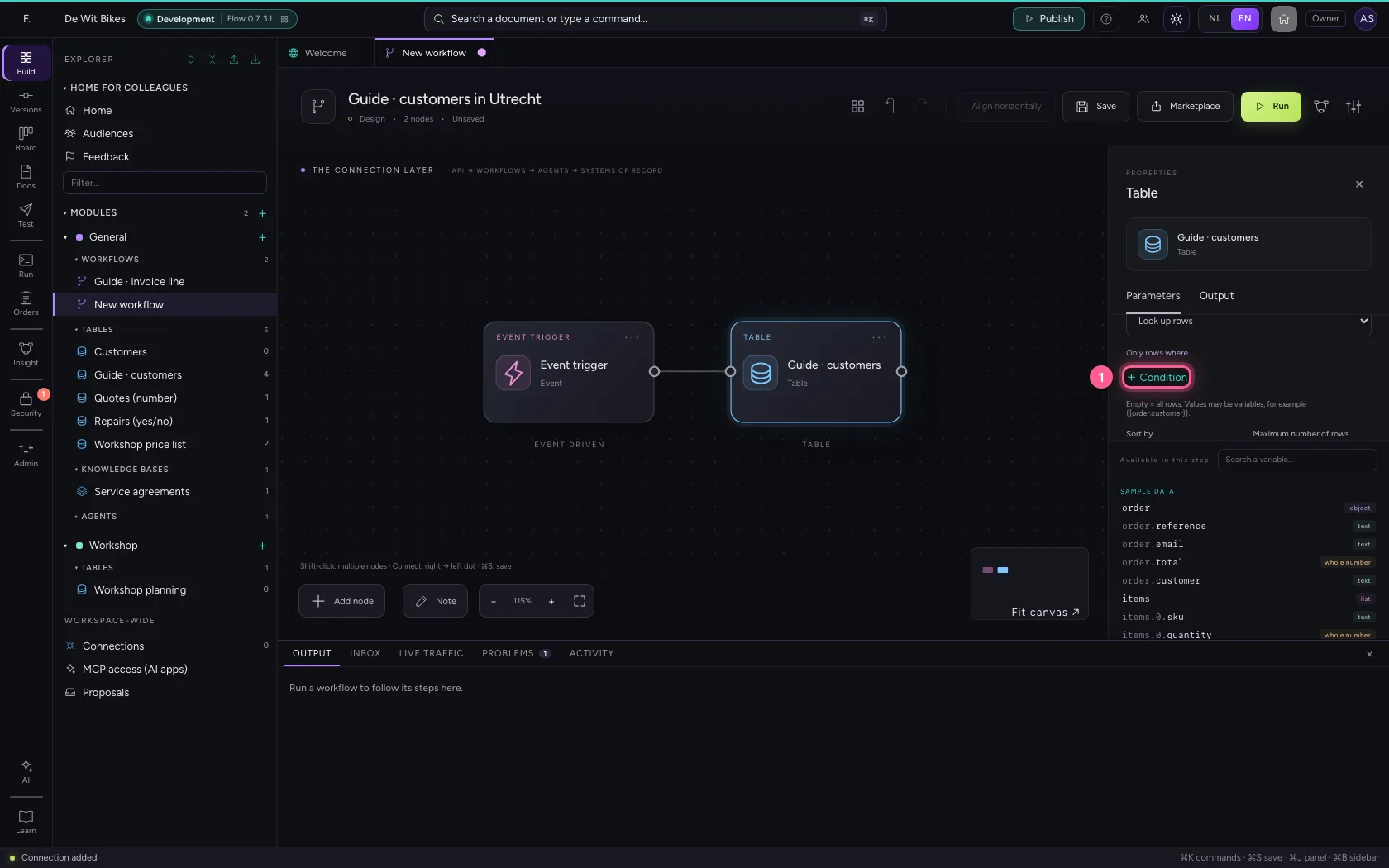
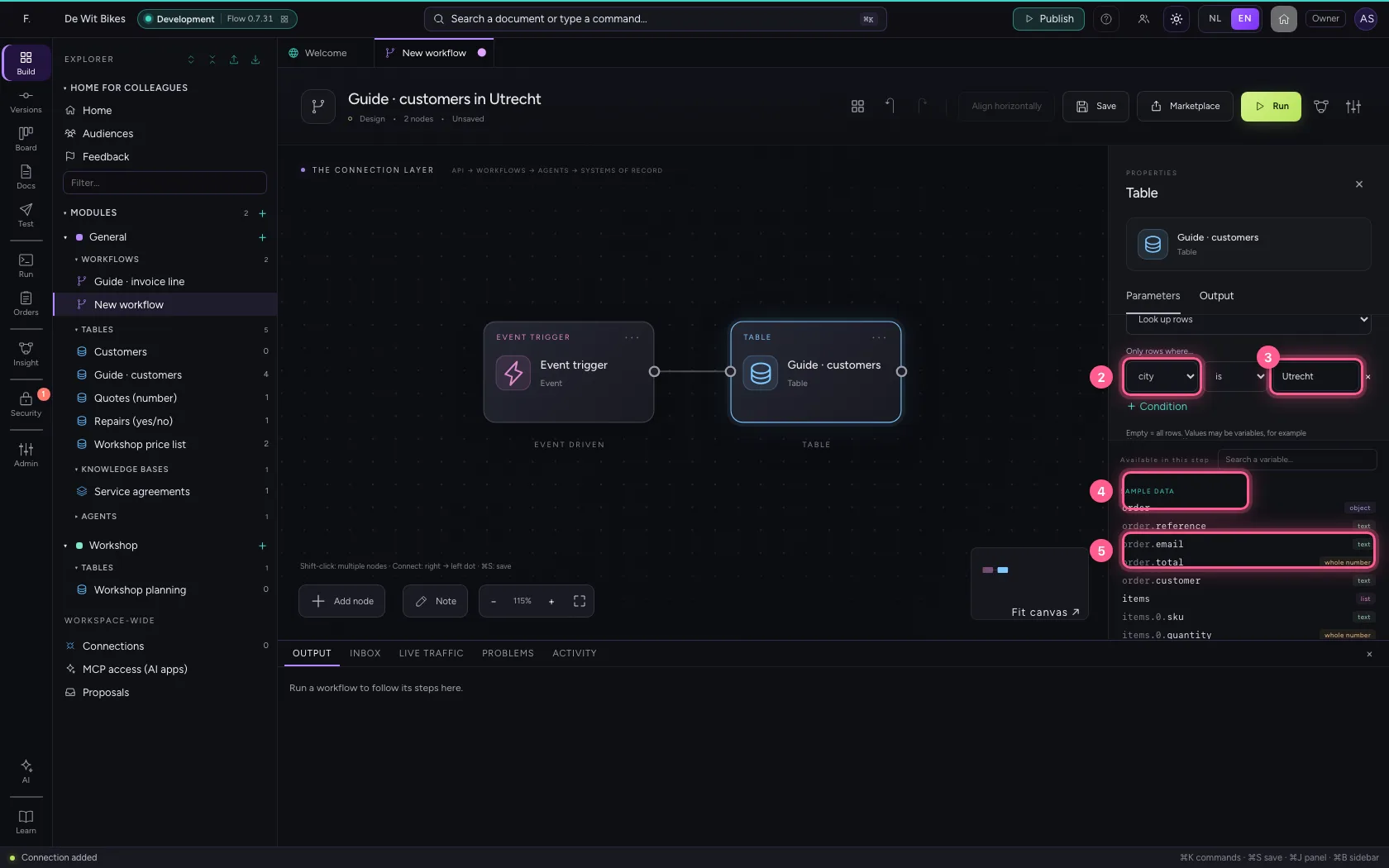
Under Only rows where… you add a condition: choose the column and fill in the value; it may also be a variable, such as {{city}} from the request. Sort by revenue, the largest first, and call the result customers.
- Click + Condition
- In column, choose city
- In value, type
Utrecht - In **Sort by Newest first name · ascending name · descending city · ascending city · **, choose revenue · descending
- In Store the result as Next steps read this as {{customers}}., type
customers
Put the steps in one line and save
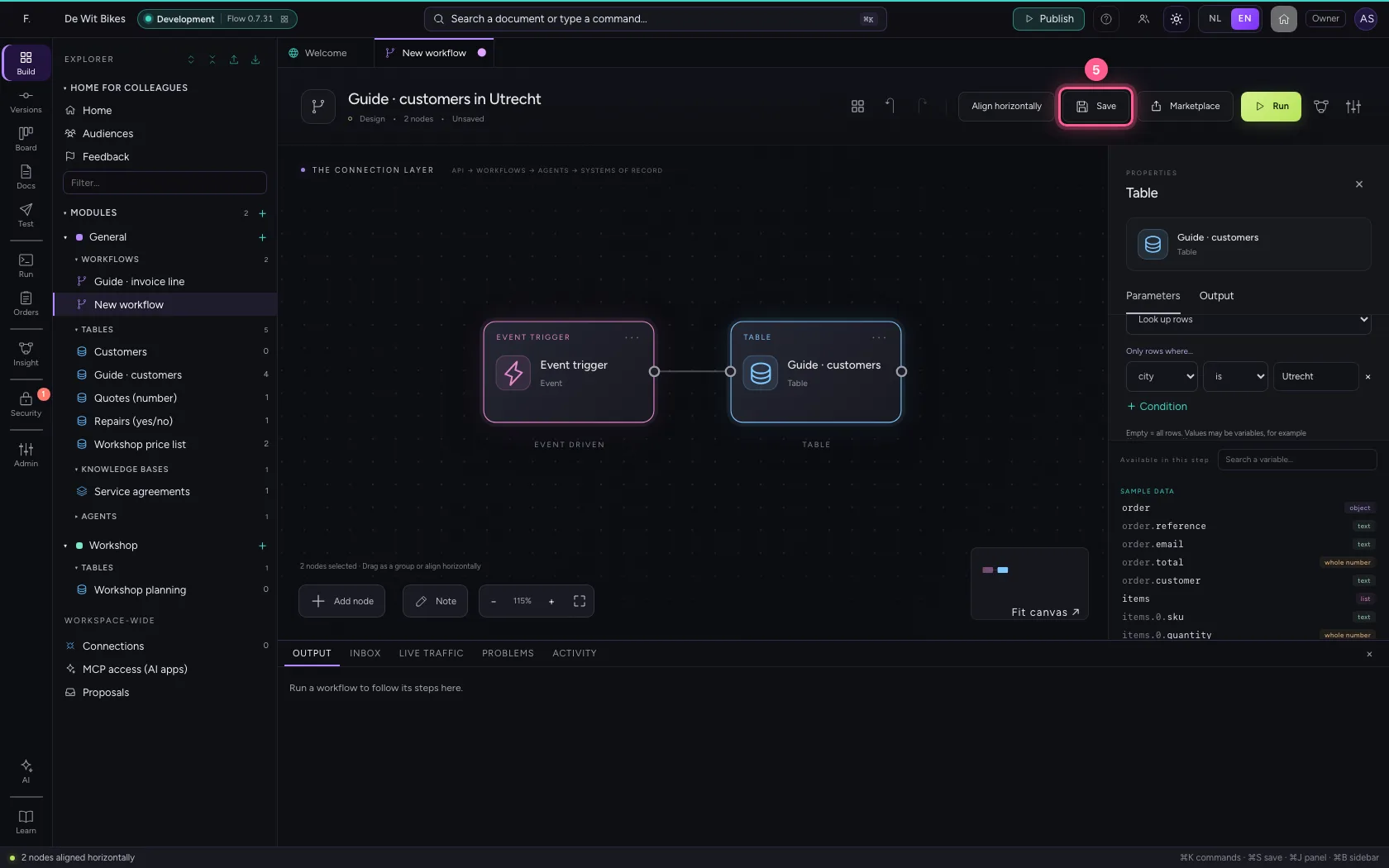
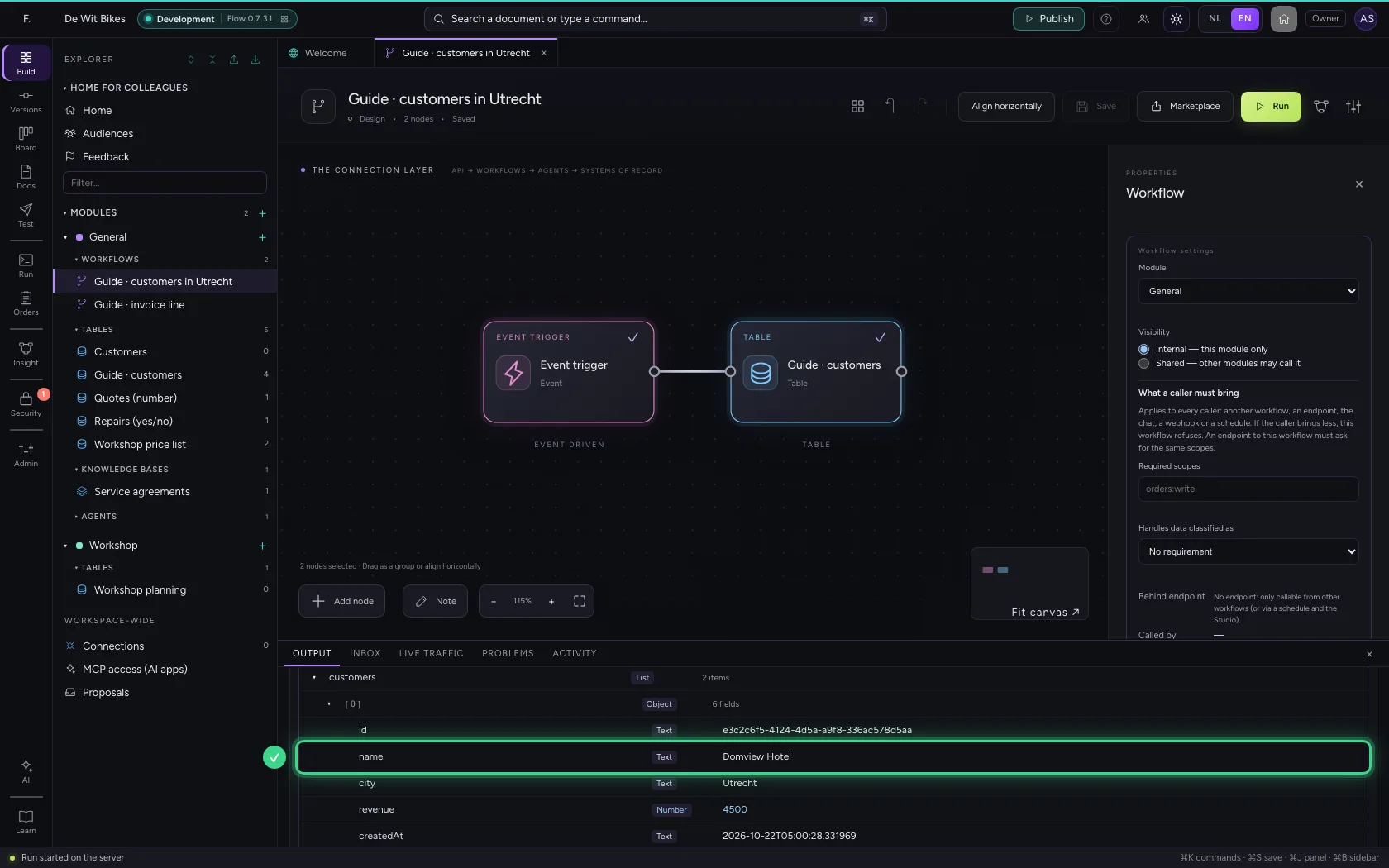
Select the steps (click the first, and the others while holding Shift) and click Align horizontally: they then stand in one line and you read the workflow from left to right; a branch (such as No of an If / Else) gets its own row below. Fit to view puts everything in sight; then Save.
- Click ‘Event trigger’
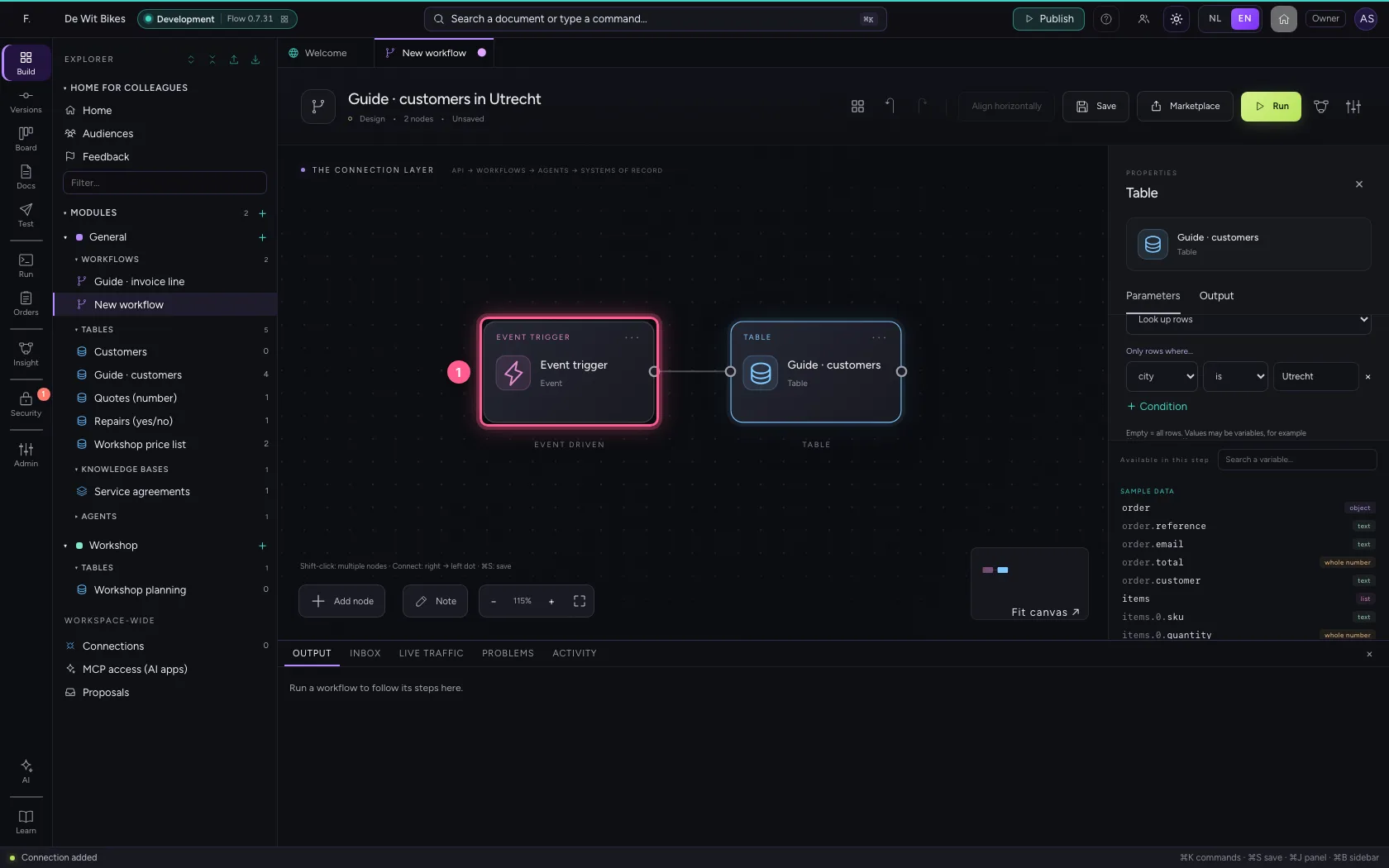
- Click ‘Guide · customers’ while holding Shift
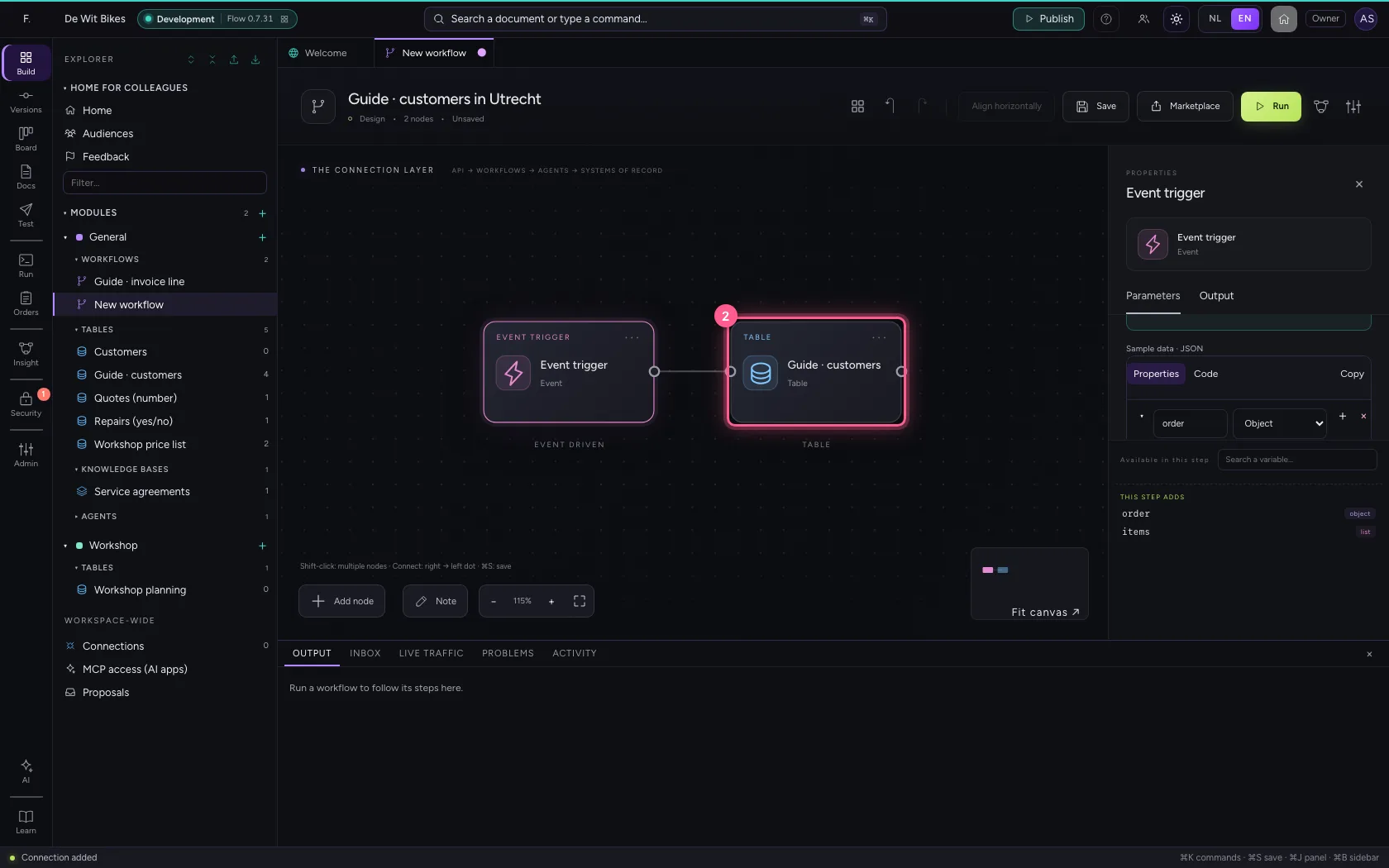
- Click Align horizontally
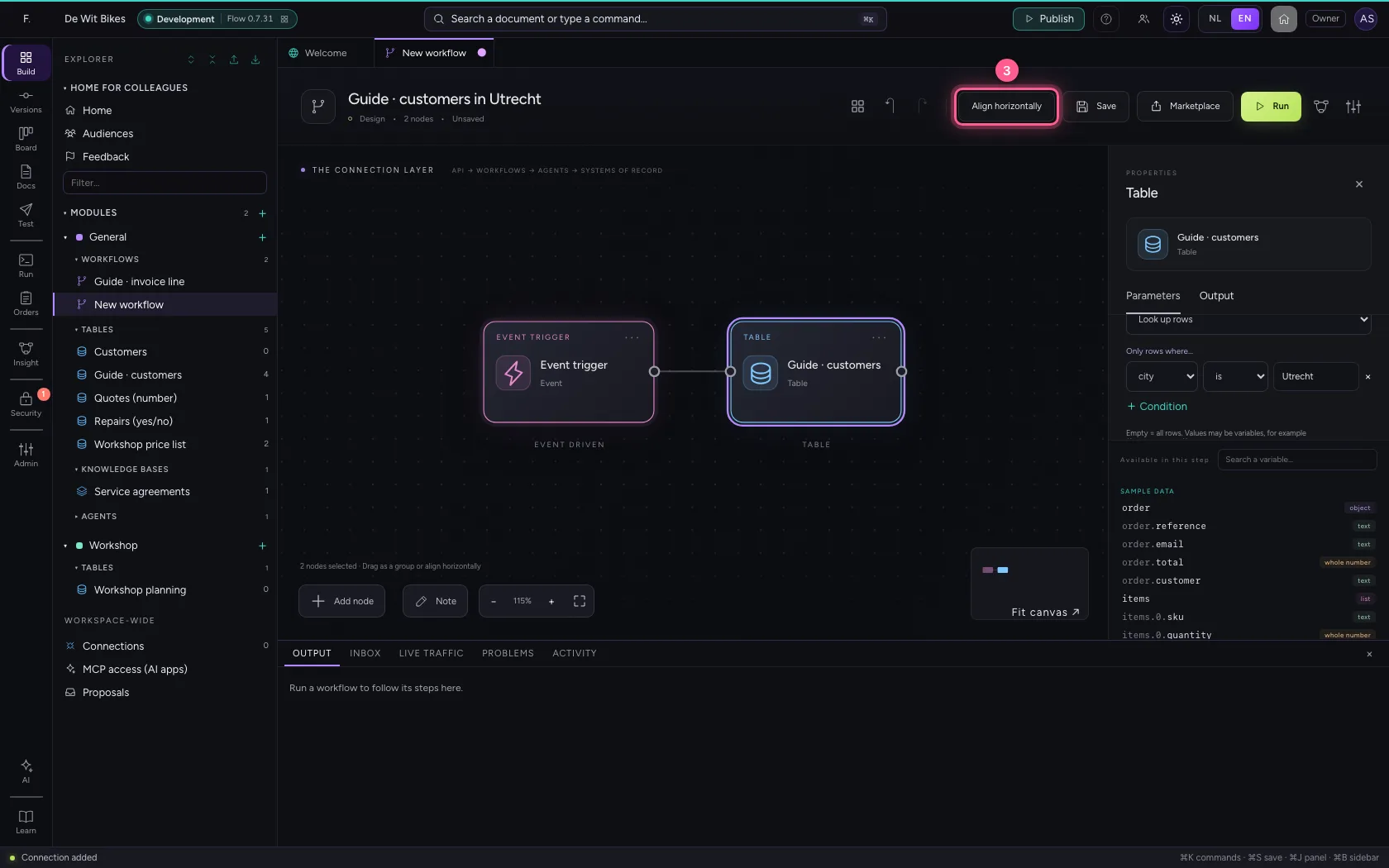
- Click Fit to view
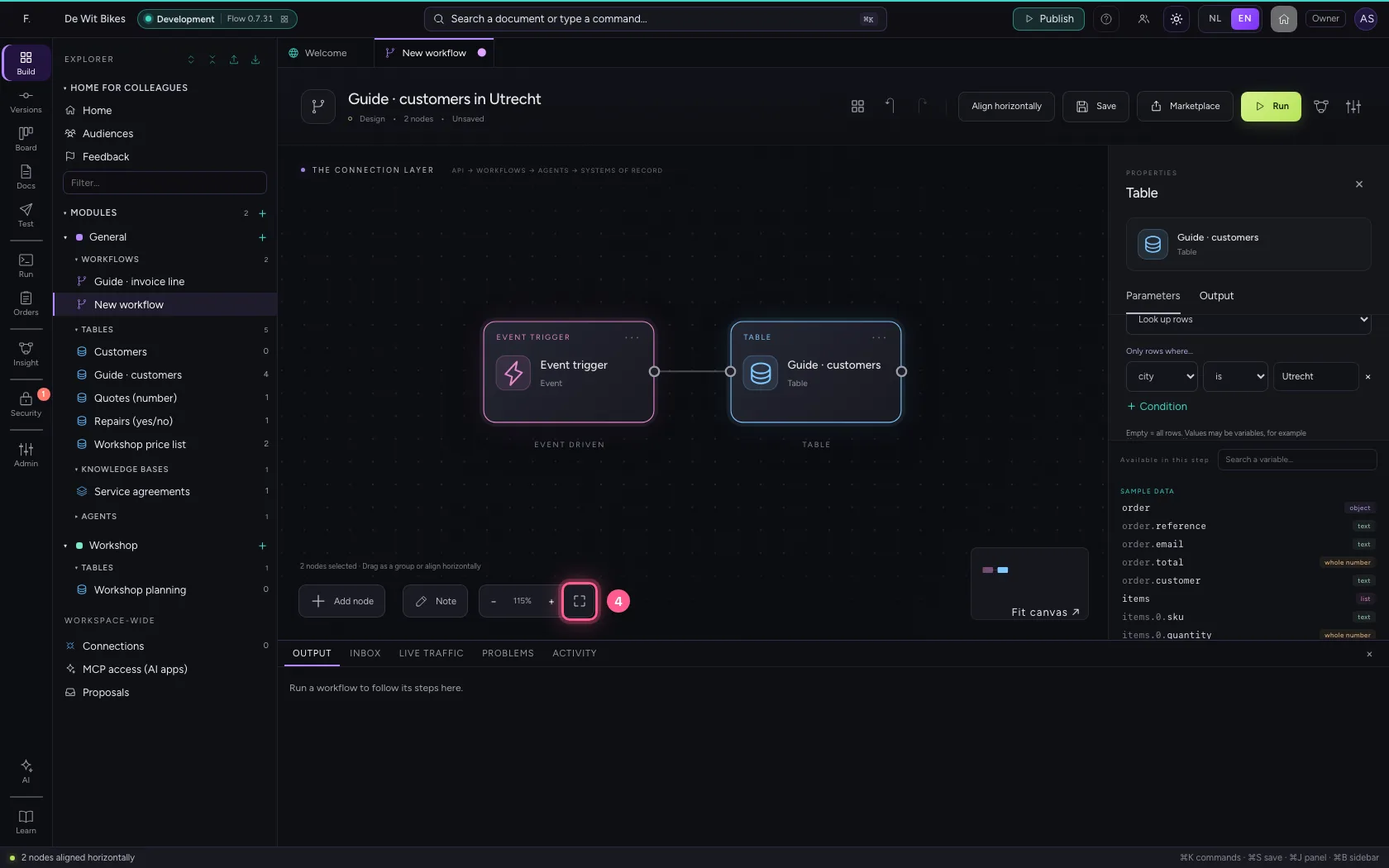
- Click Save
Run
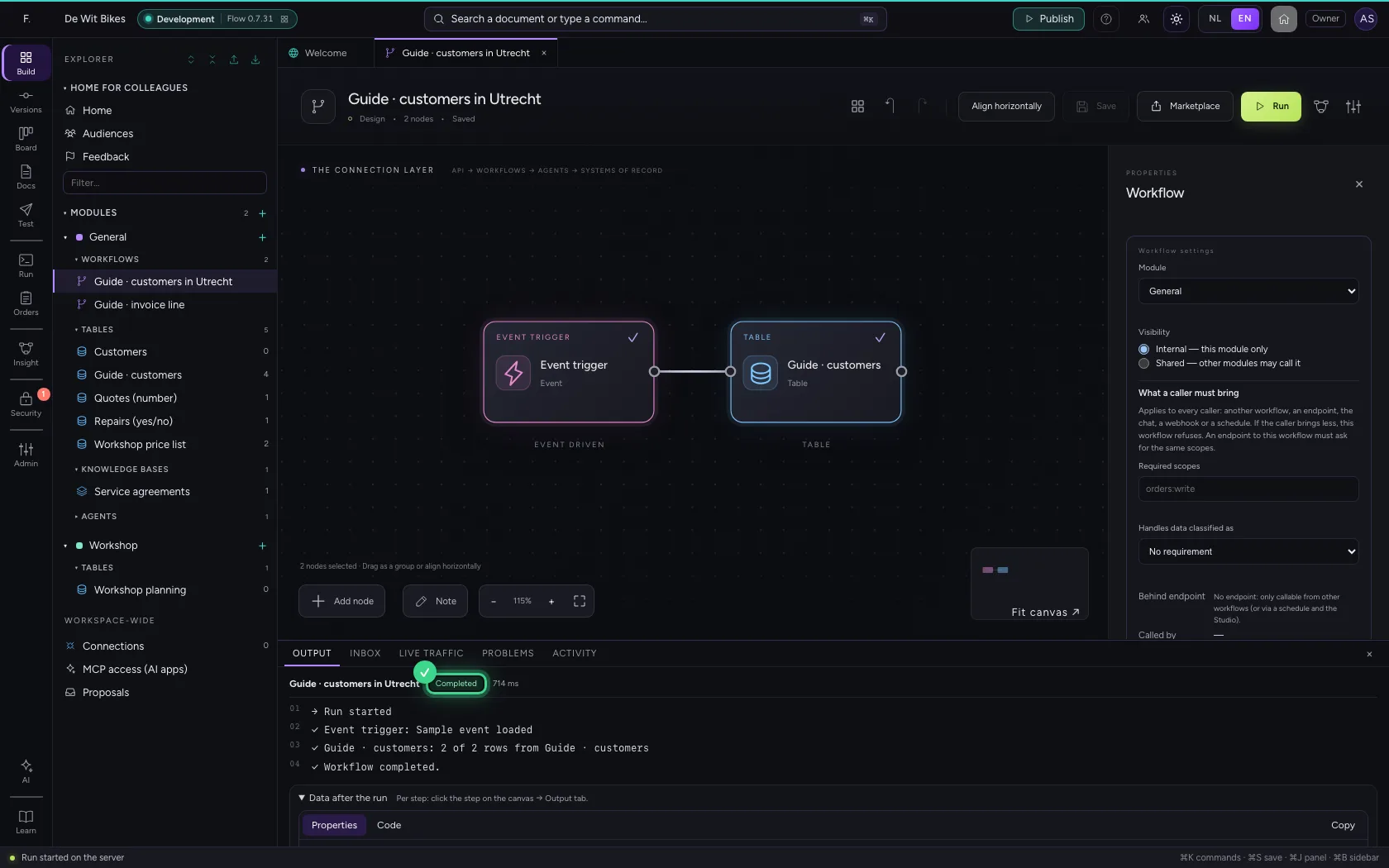
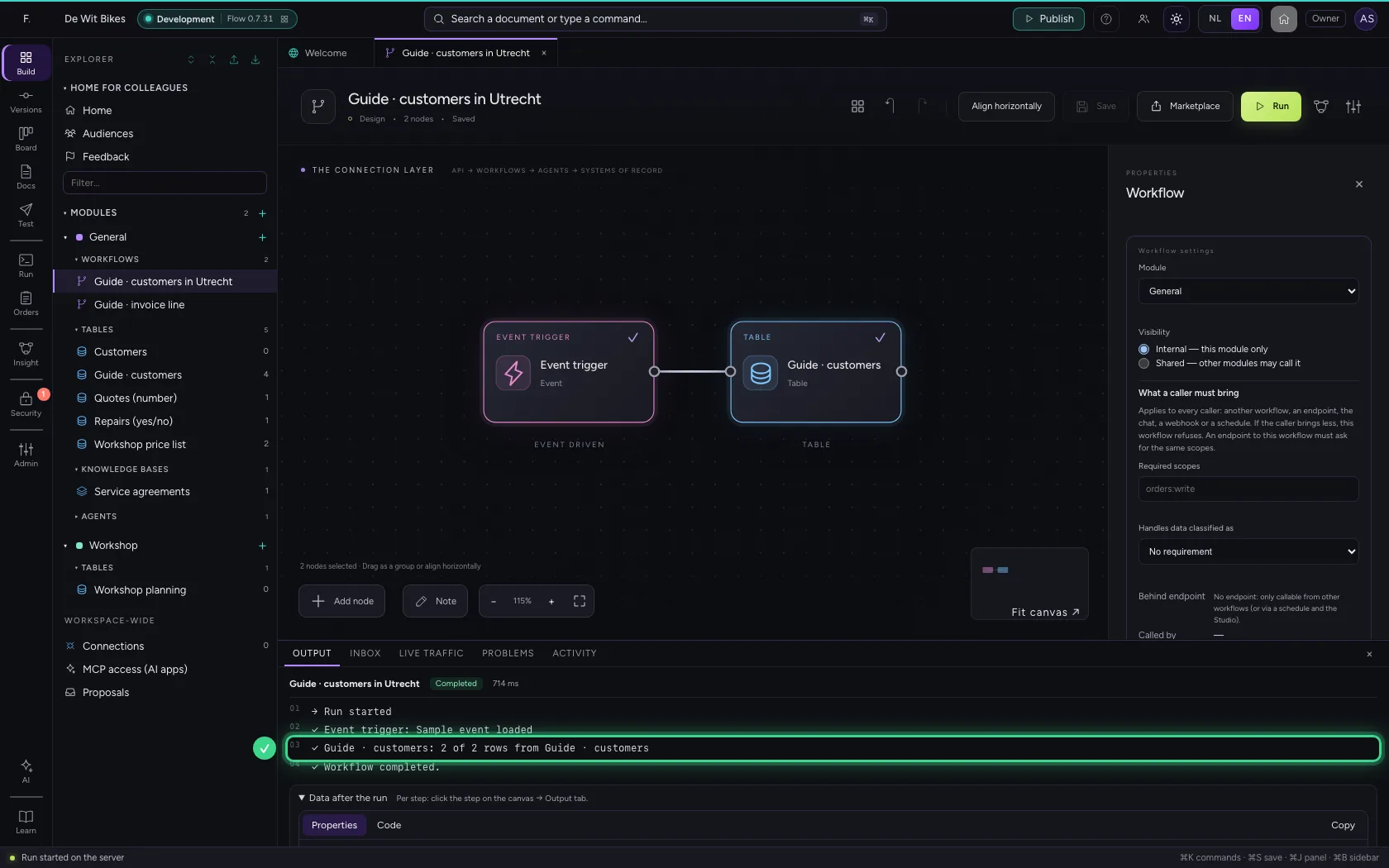
At the bottom you see how many rows the step found: 2 of the 4, only those in Utrecht. Under Data after the run is the list customers, with the hotel at the top. Every row also has its id, for when you want to update it later.
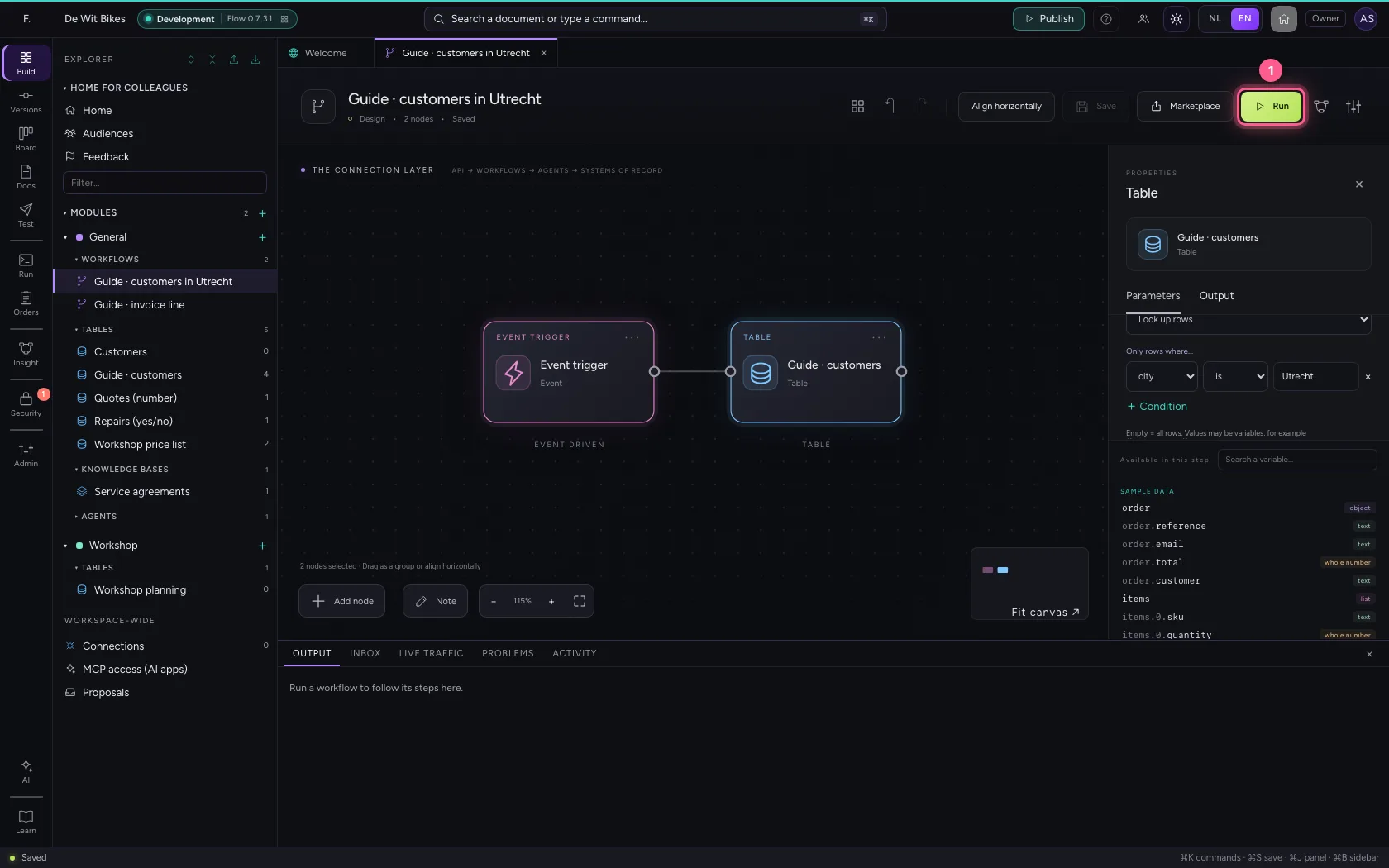
- Click Run
This guide was carried out step by step on 22 Oct 2026 by an automated test on Flow (version 3e563176).