Compare two versions
In Version control every committed version is in the history. You pick a version, see which items changed in it and compare one item line by line with the version before. That is how you find out afterwards when a rule or setting changed, and who changed it.
Open your development environment
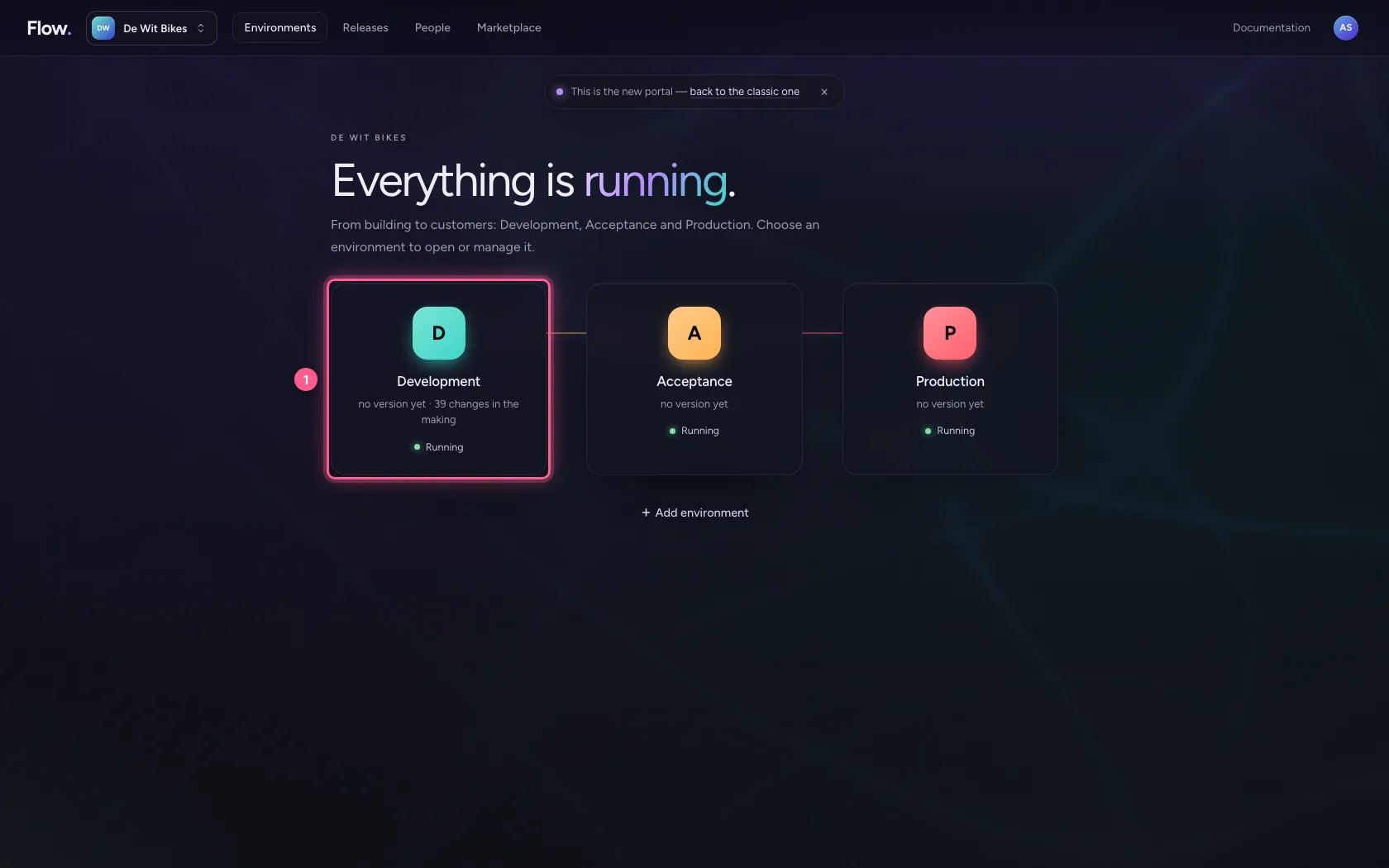
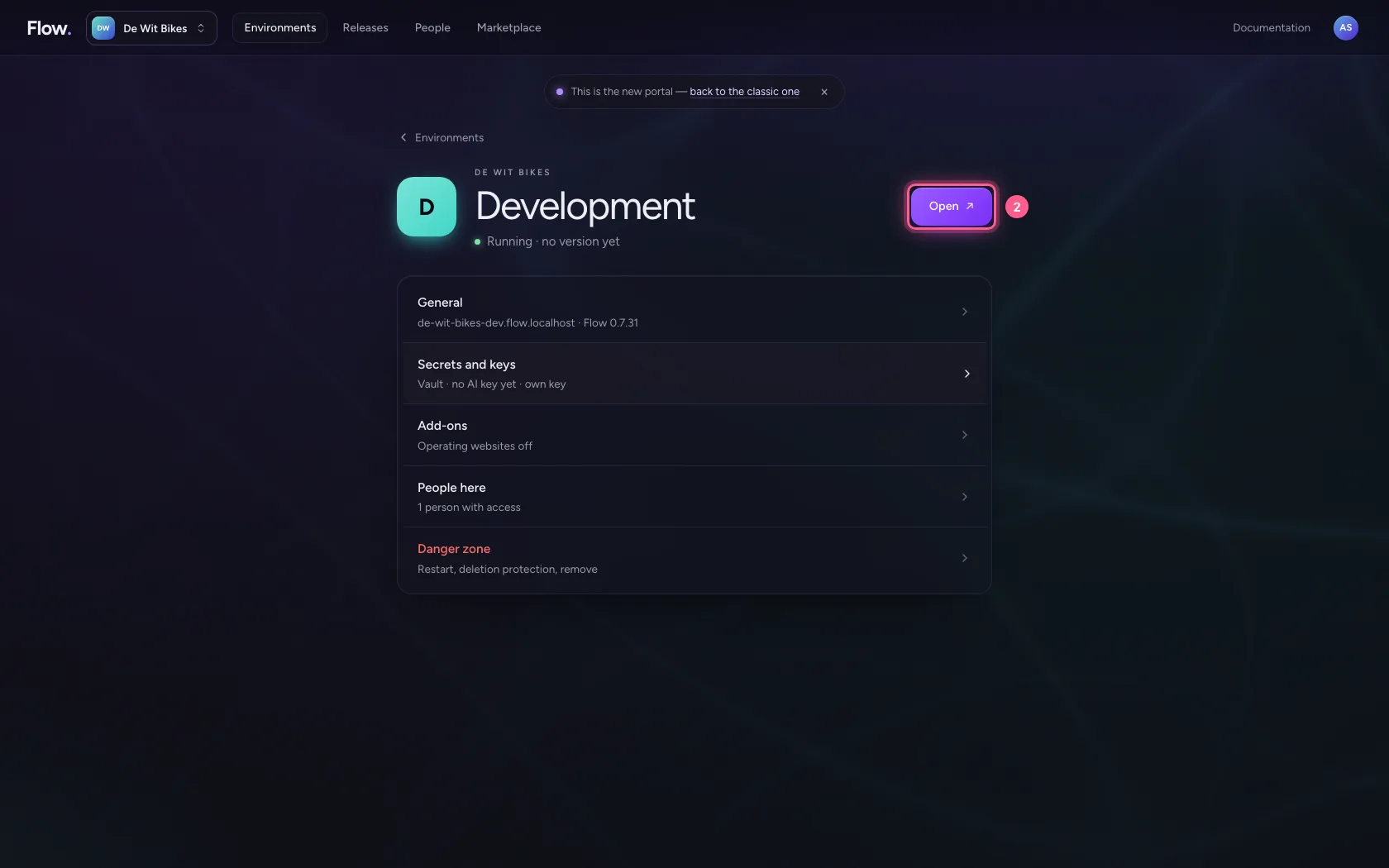
In the portal, under Environments, click Development, and there Open. Flow opens in a new tab and you are signed in straight away.
- Click Development
- Click Open ↗
Open the history
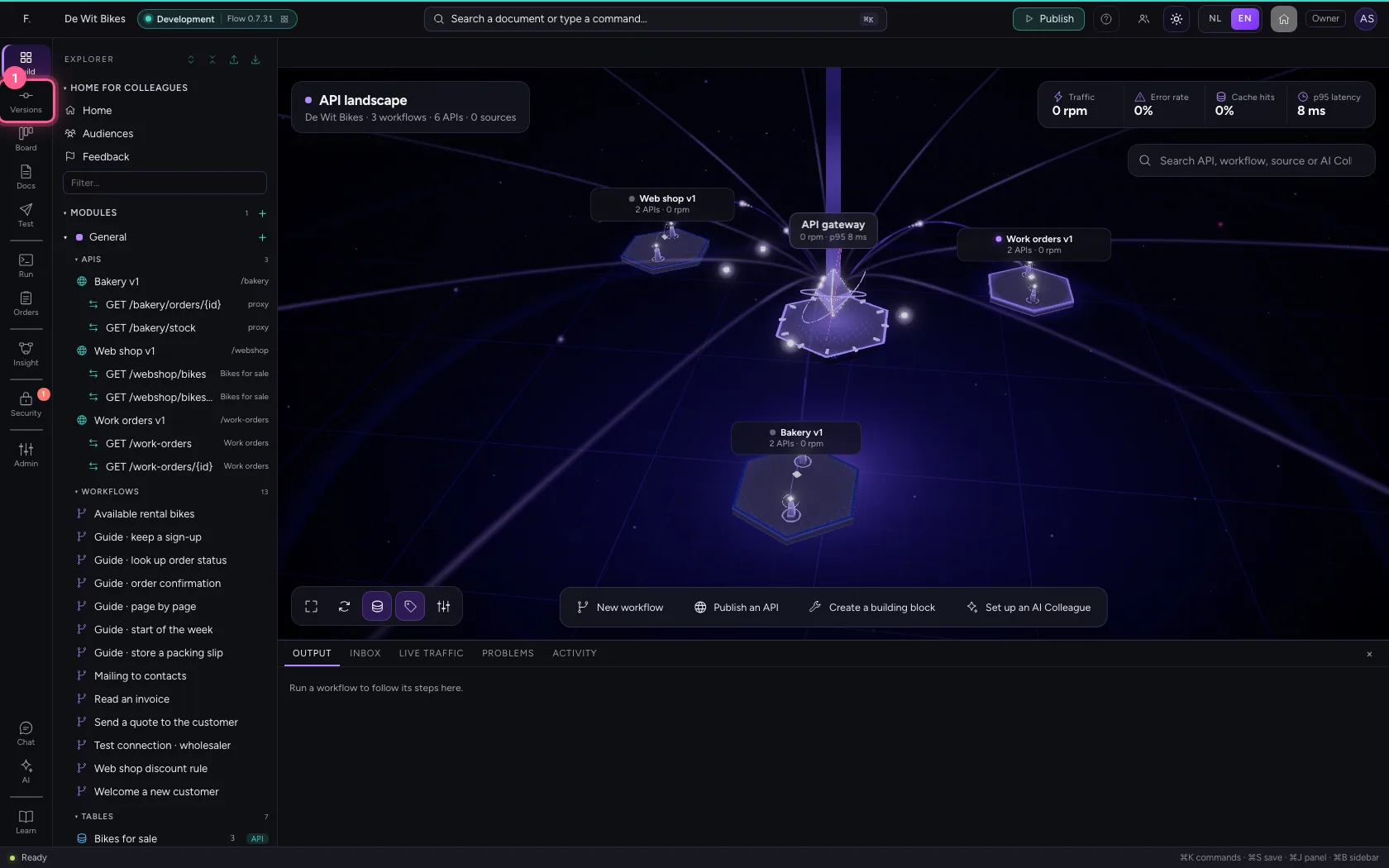
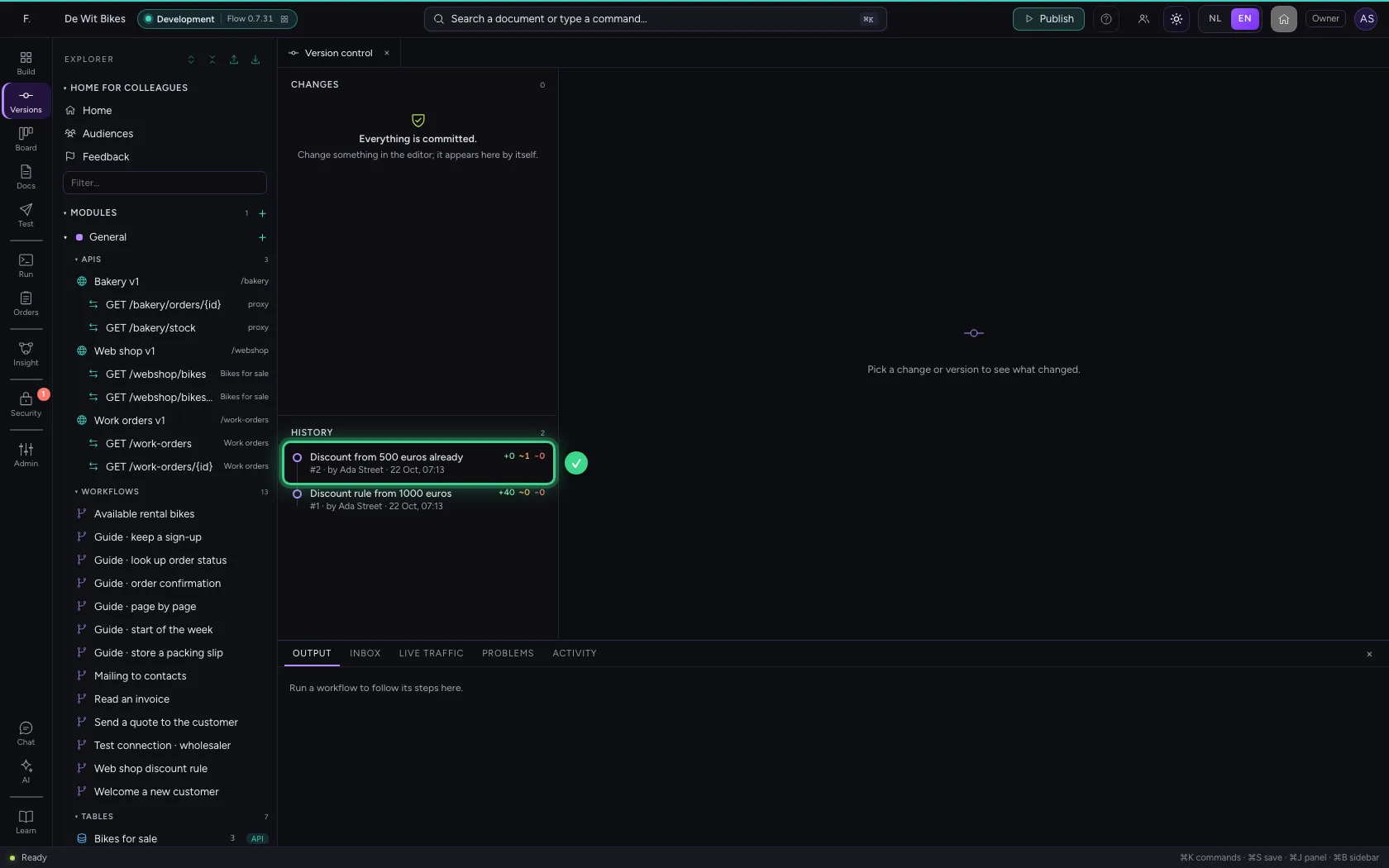
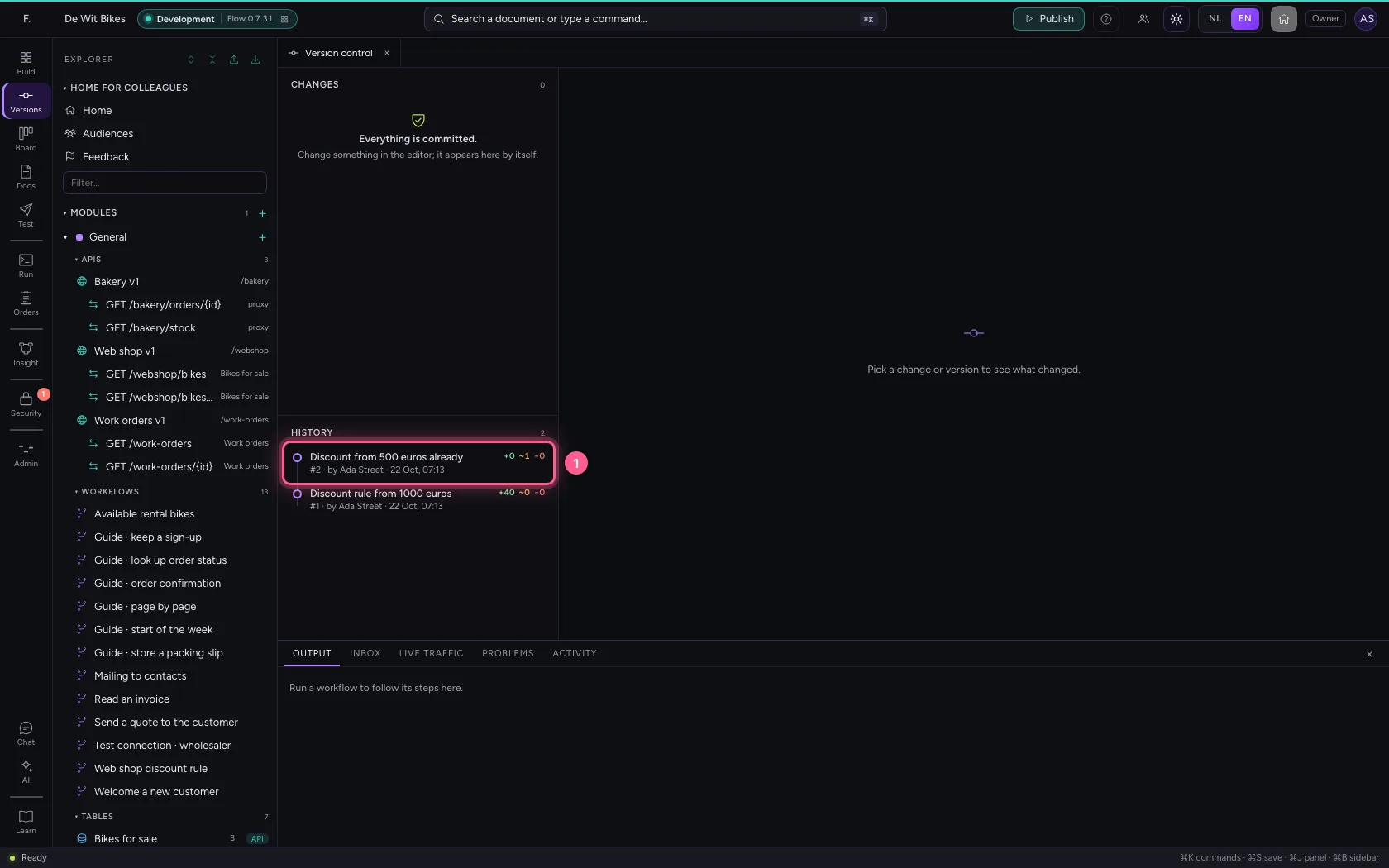
Click Version control in the bar on the left. Under History are all committed versions, the newest at the top, with who committed them and how many items were added (+), changed (~) or removed (−).
- Click Version control
Pick a version
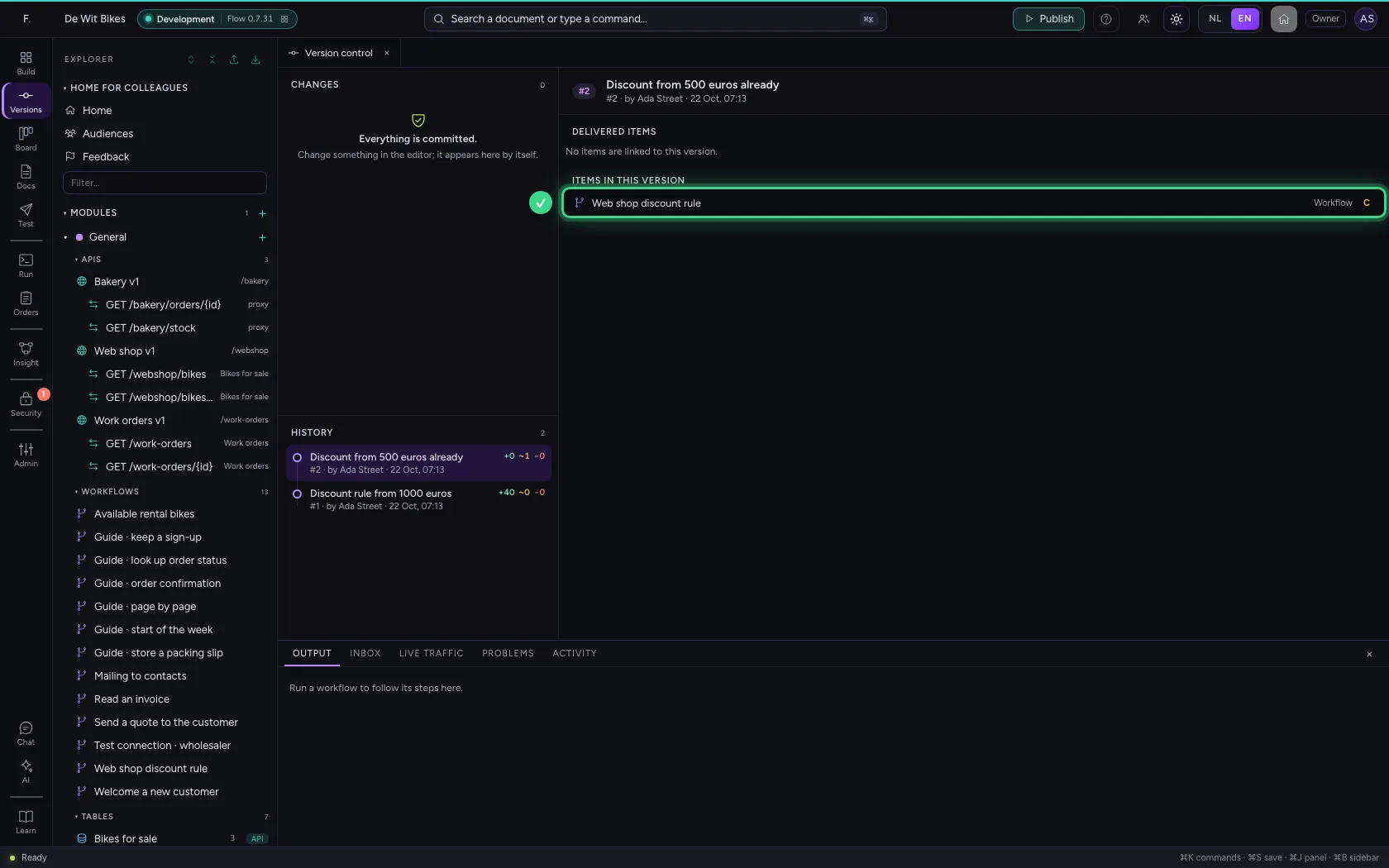
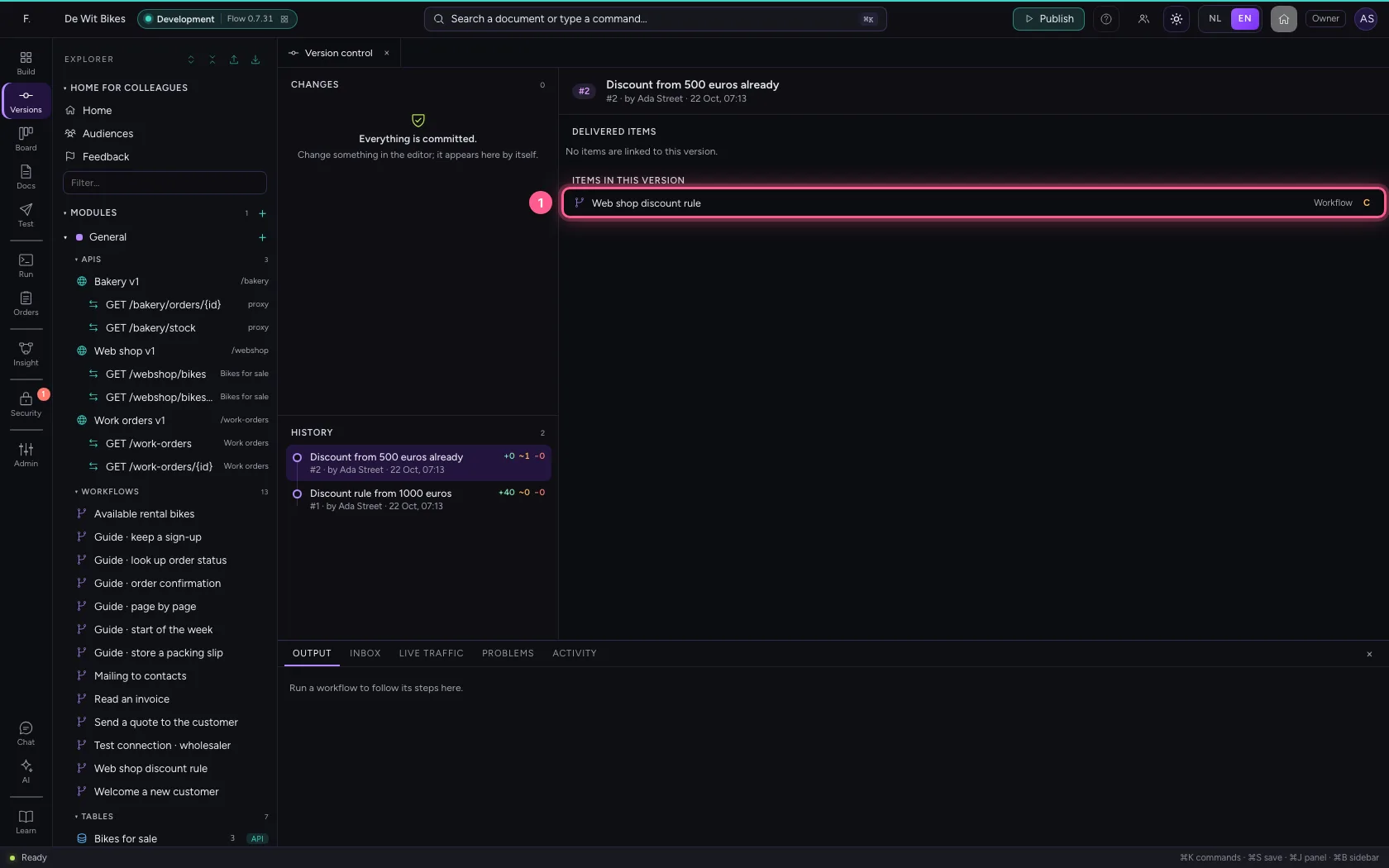
Click the version you want to look at. On the right you see its description and, under Items in this version, what changed then. The coloured letter after it says whether it is new, changed or removed; point at it for the explanation.
- Click the newest version
Compare with the version before
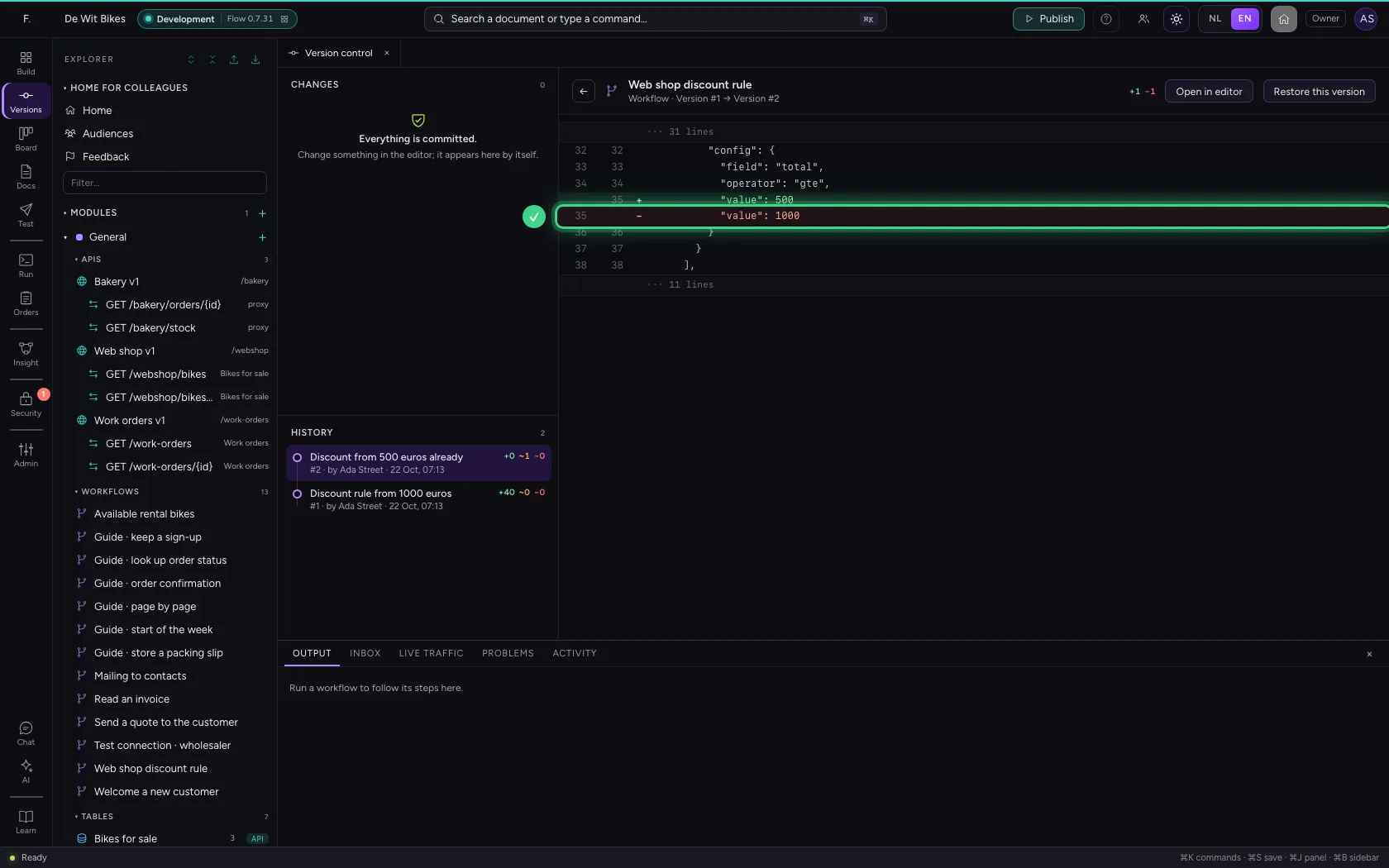
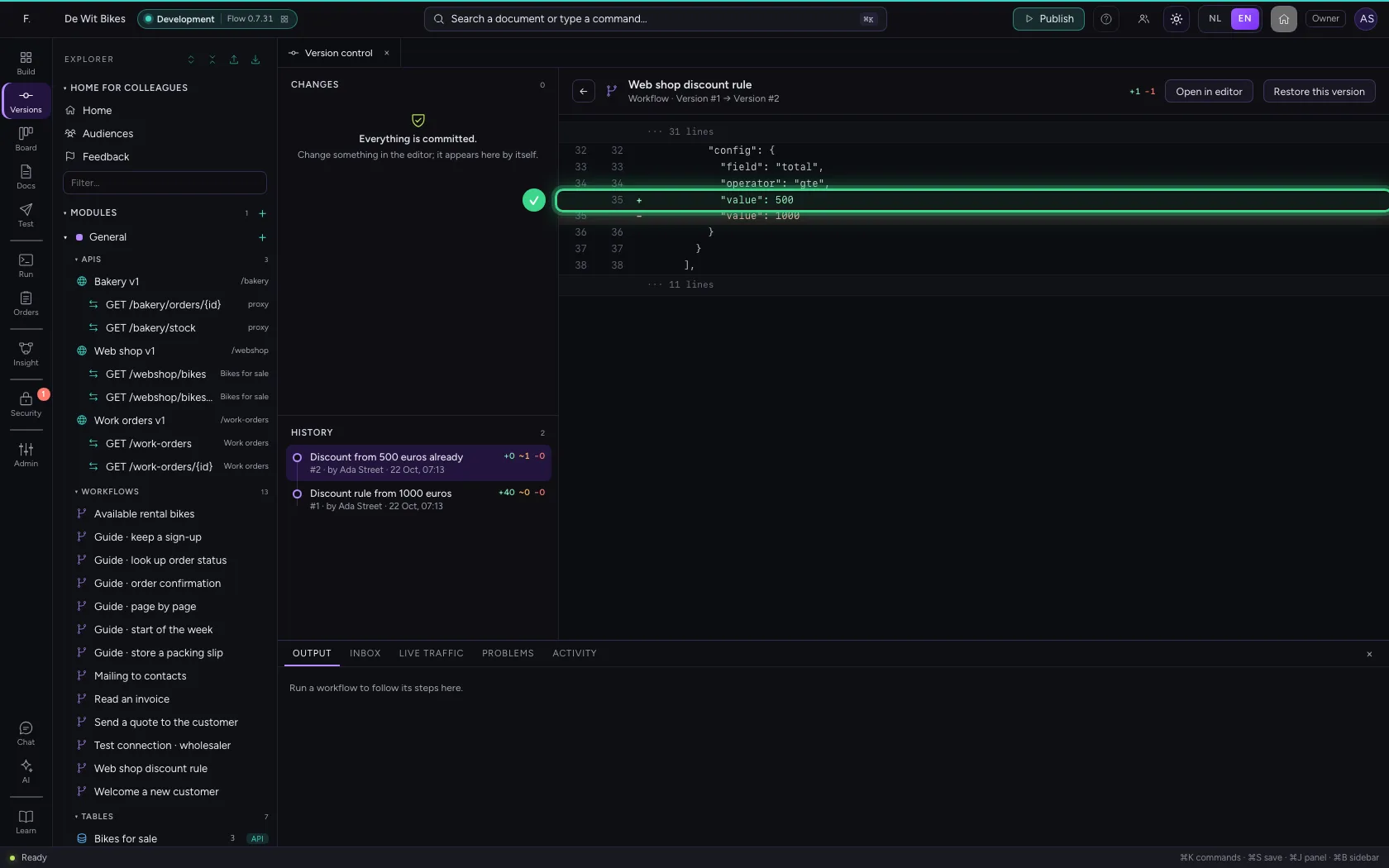
Click the item. You see the version before next to this version: what went in red, what came in green. Unchanged stretches are folded away, so you only see what matters — here the discount threshold.
- Click the discount rule
Open the item
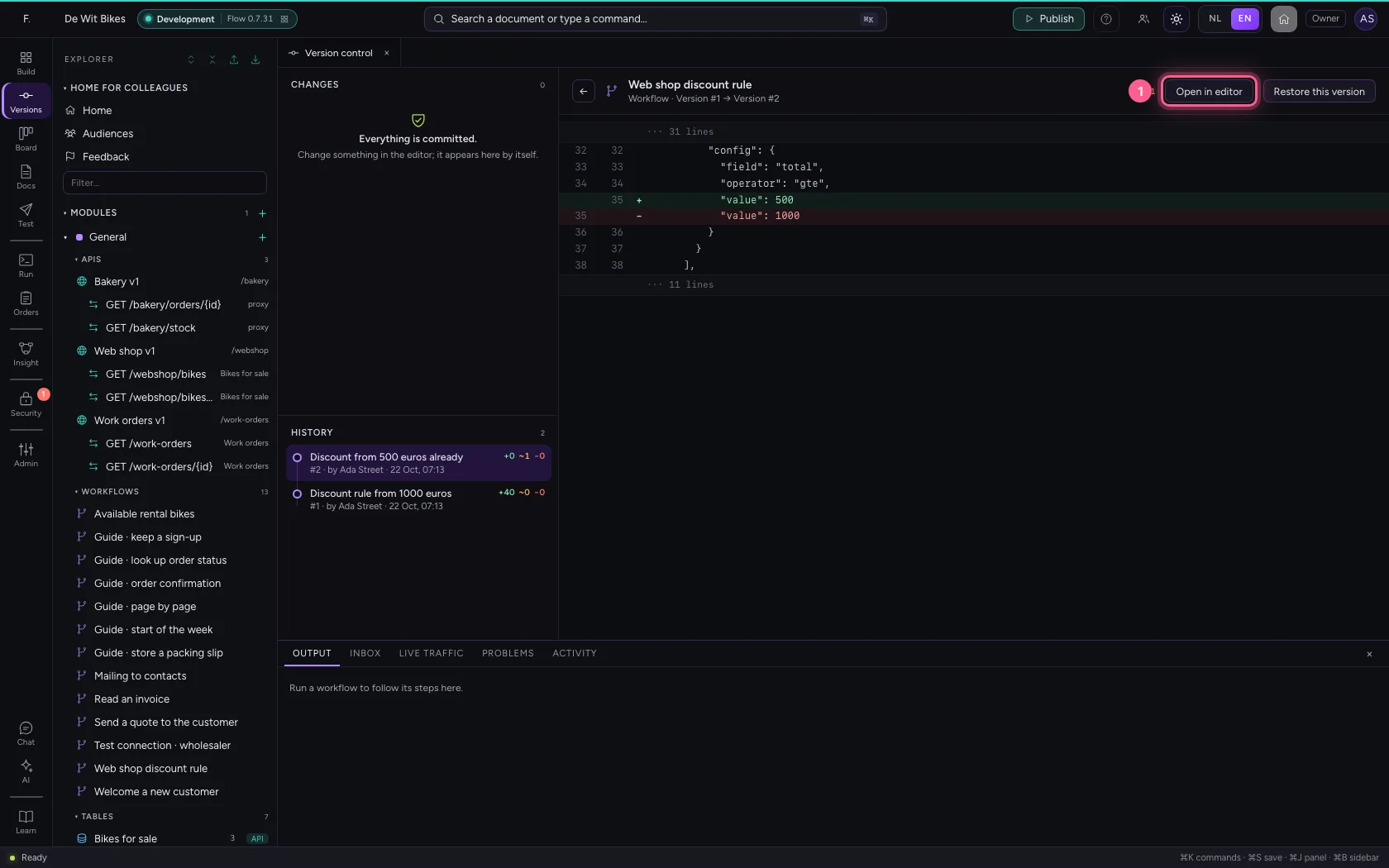
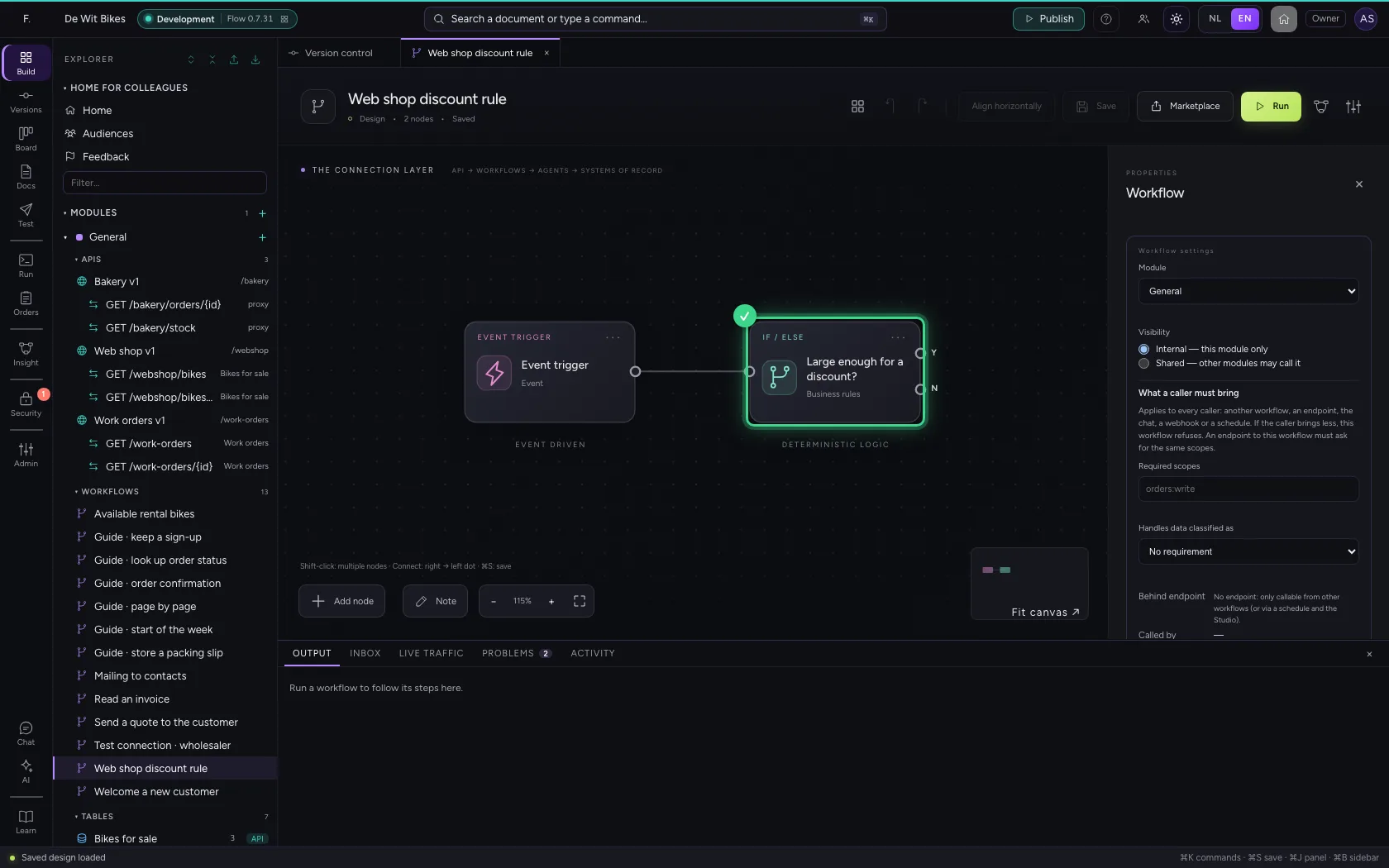
To look further or change something, click Open in editor. You land in the workflow as it is now.
- Click Open in editor
This guide was carried out step by step on 22 Oct 2026 by an automated test on Flow (version 3e563176).