Create a role of your own and give it
A role is a bundle of permissions: what someone may see and do in this environment. Flow has fixed roles, such as Developer and Reviewer; which fixed role someone has follows from their role in the portal. If none of them fits, you create a role of your own with exactly the permissions needed — and no more — and give it to a colleague. The server checks those permissions on every request.
Open your development environment
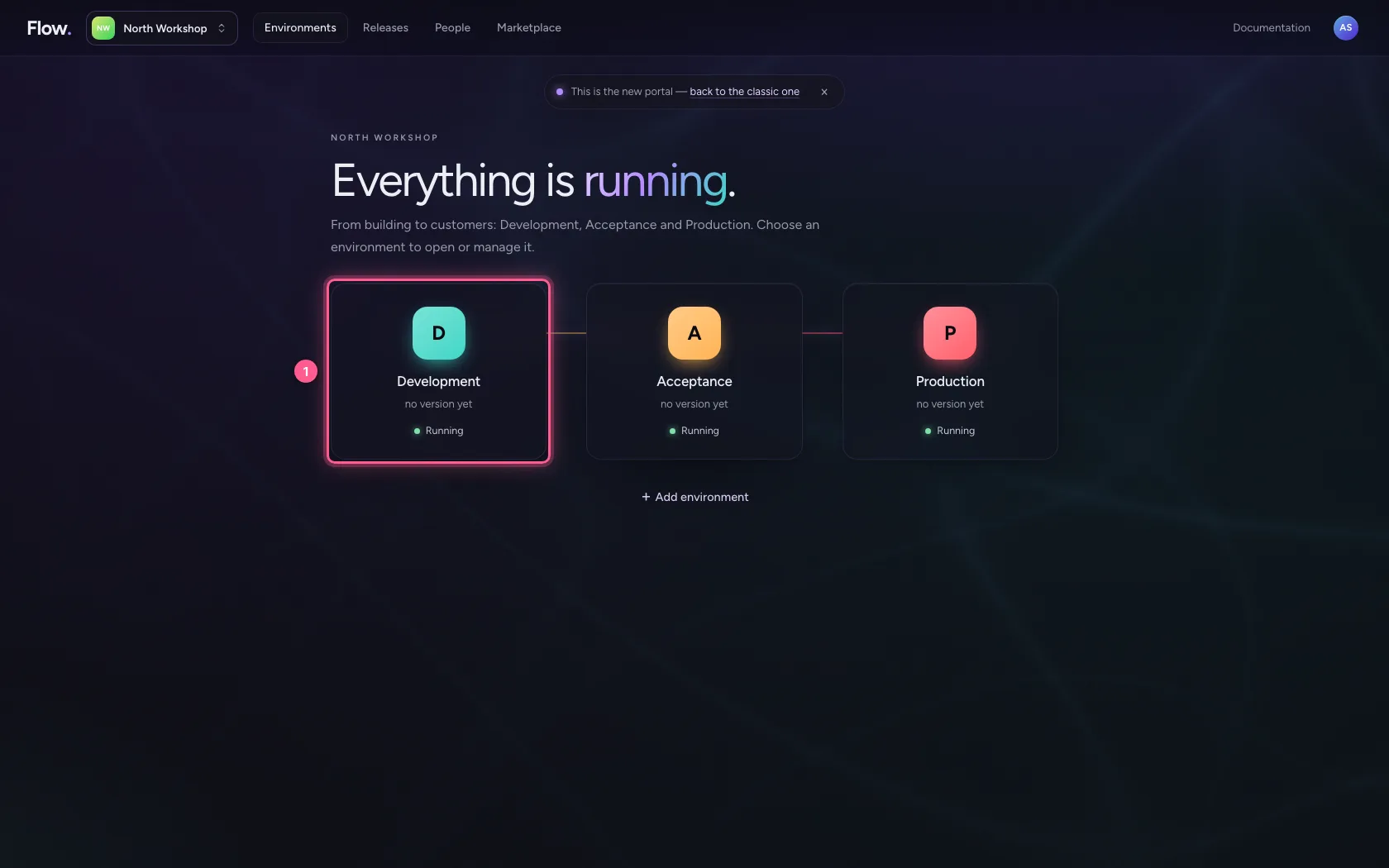
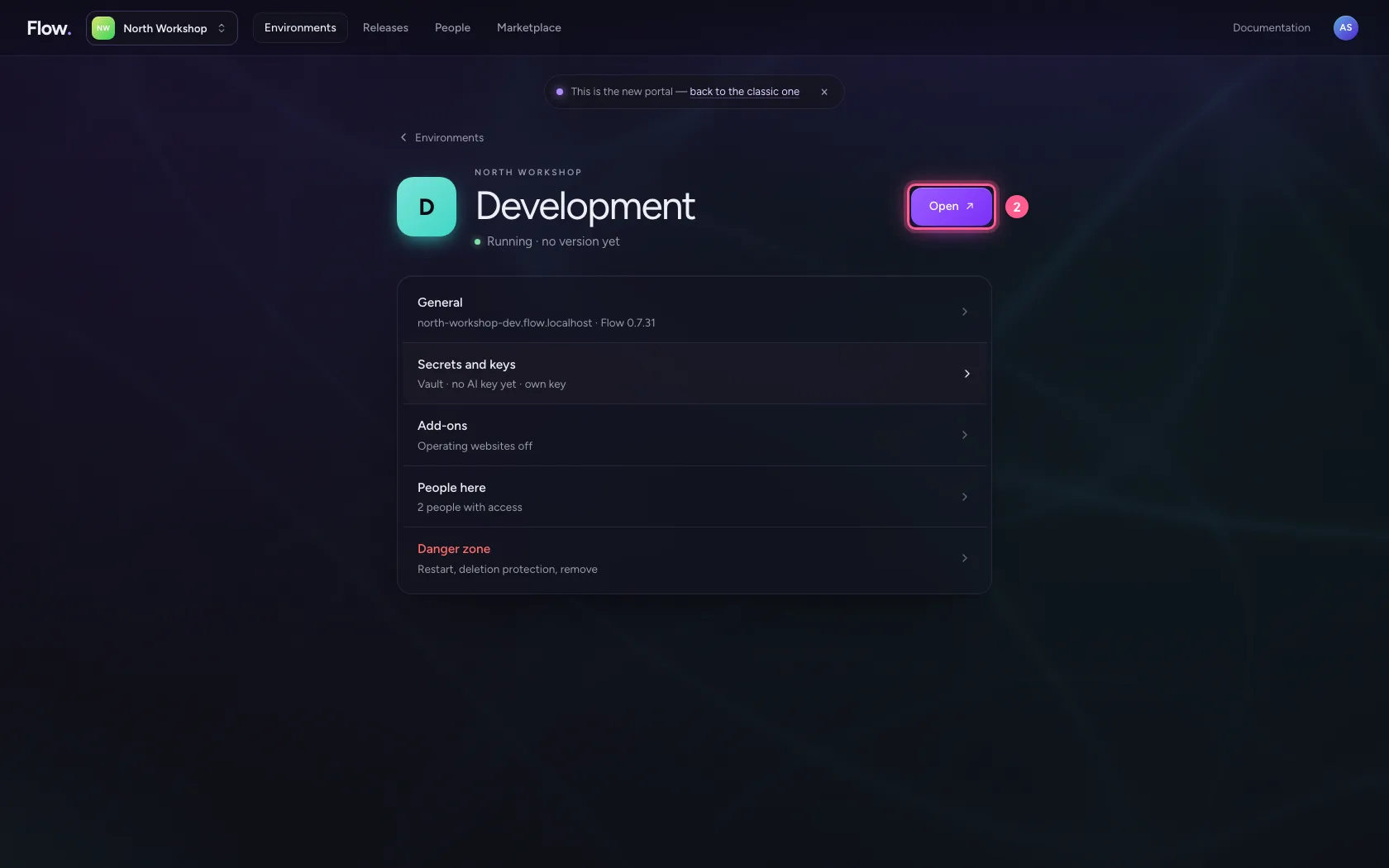
In the portal, under Environments, click Development, and there Open. Flow opens in a new tab and you are signed in straight away.
- Click Development
- Click Open ↗
Open Members & roles
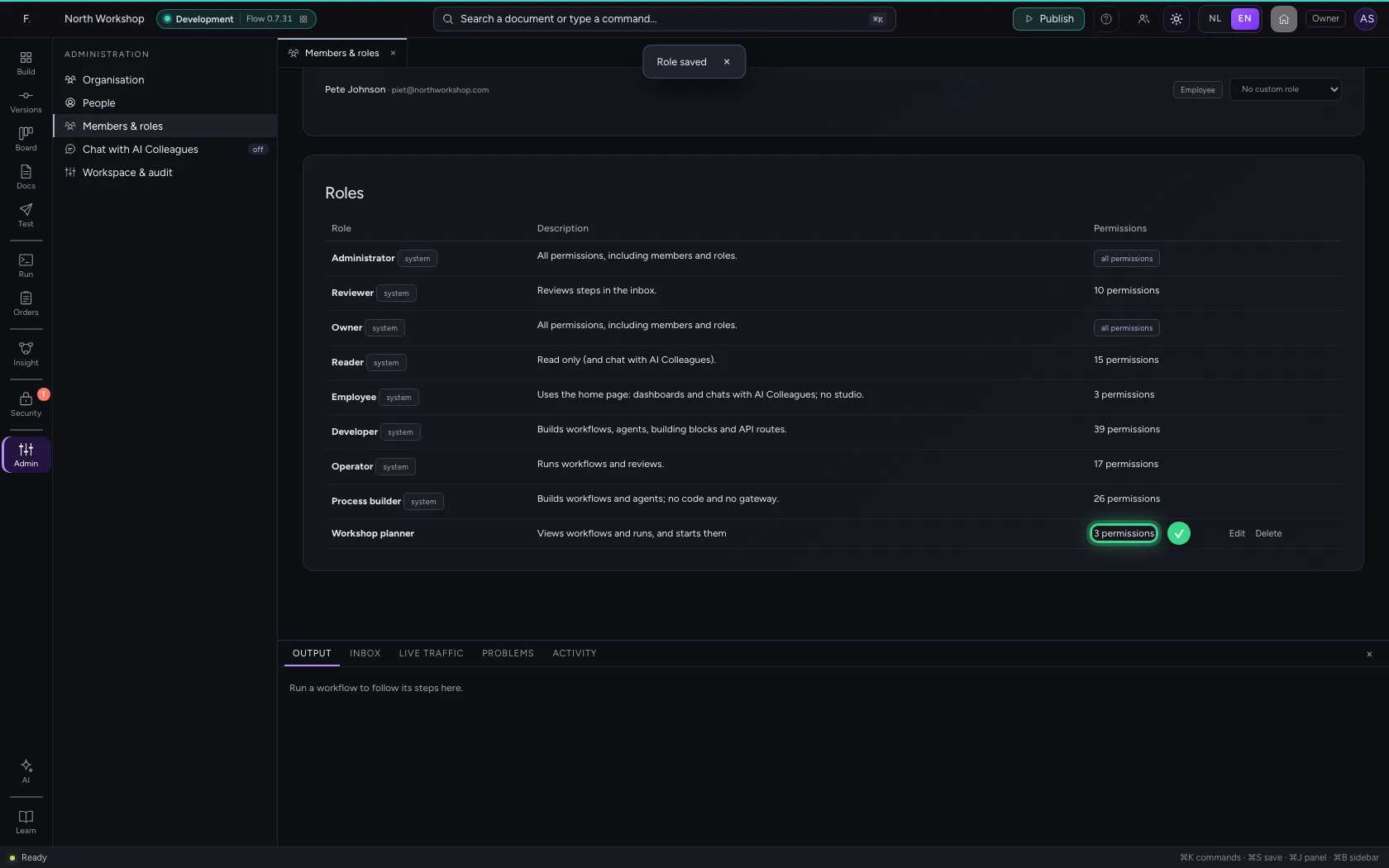
Click Administration in the bar on the left and choose Members & roles. At the top are the members of this environment, each with the role the portal gives. Below are the roles, each with a short description and the number of permissions.
- Click Administration
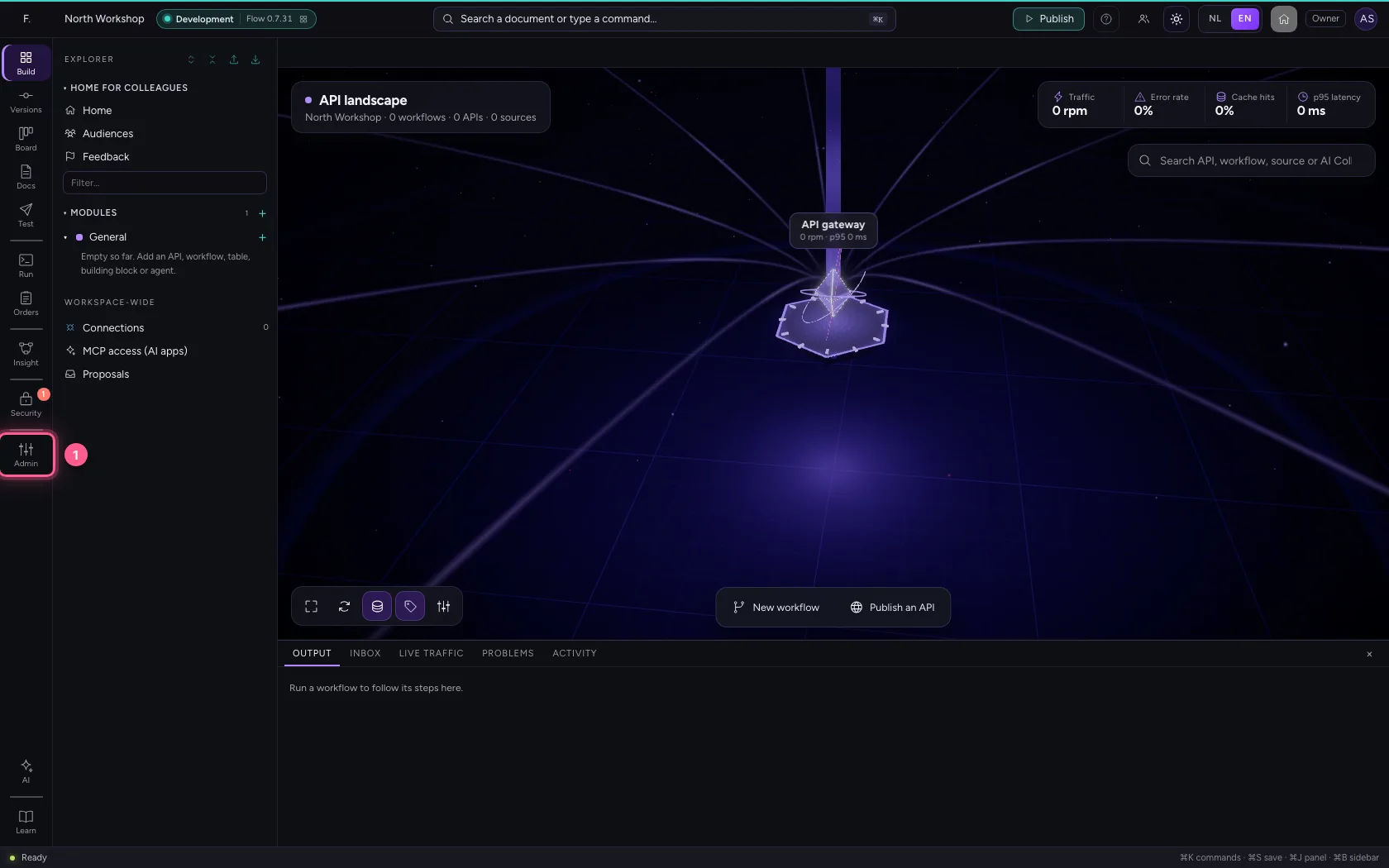
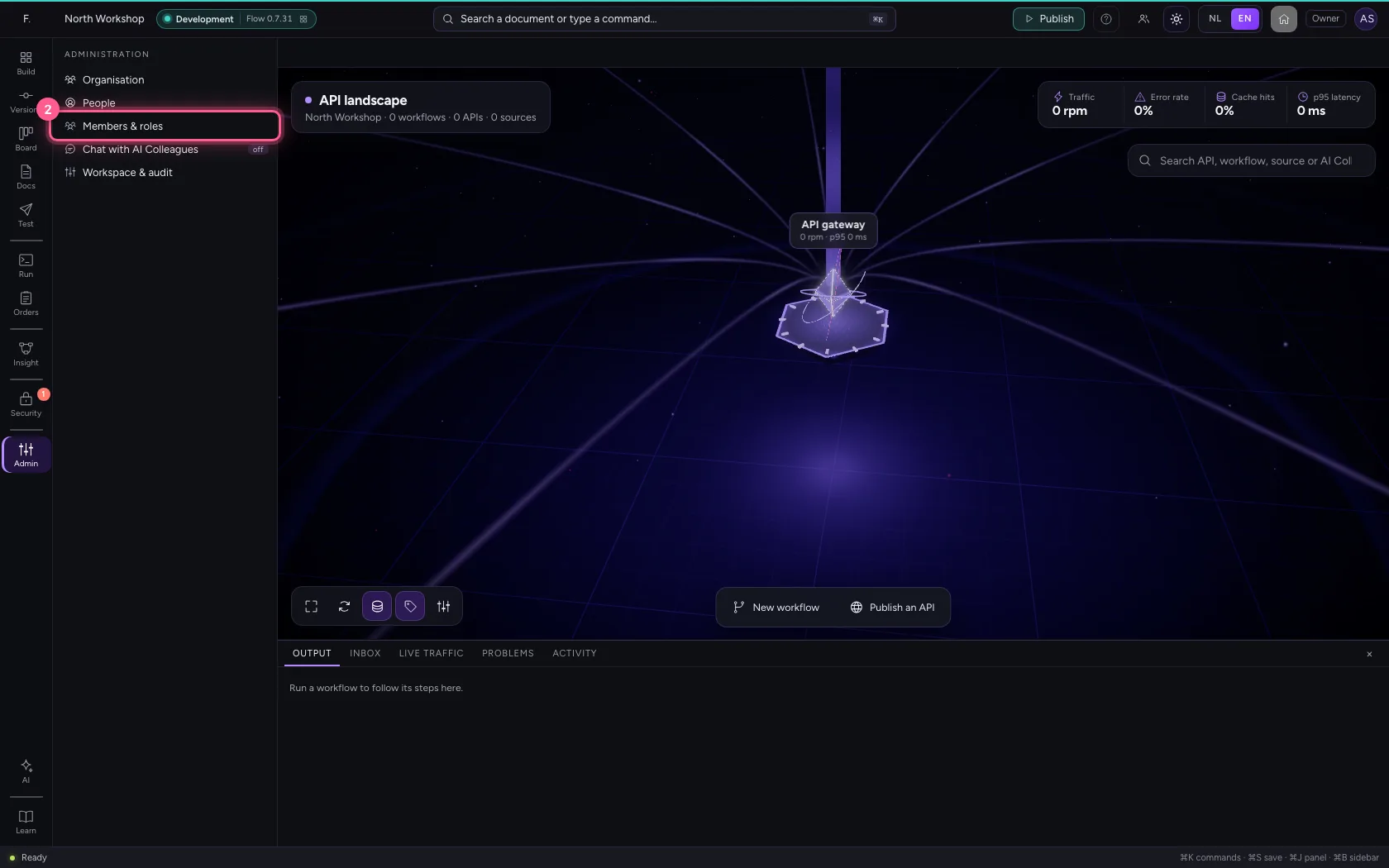
- Click Members & roles
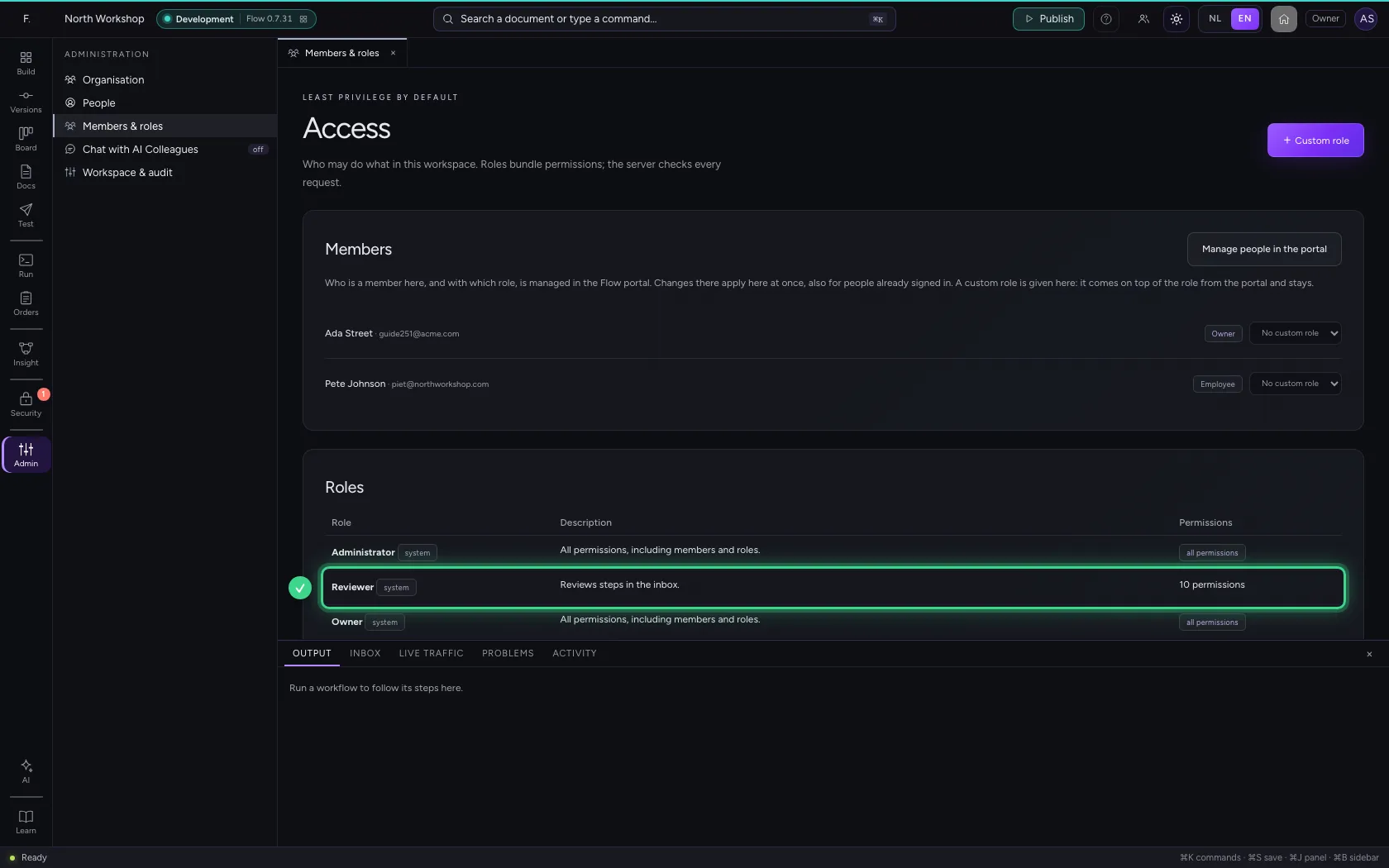
Create a role of your own
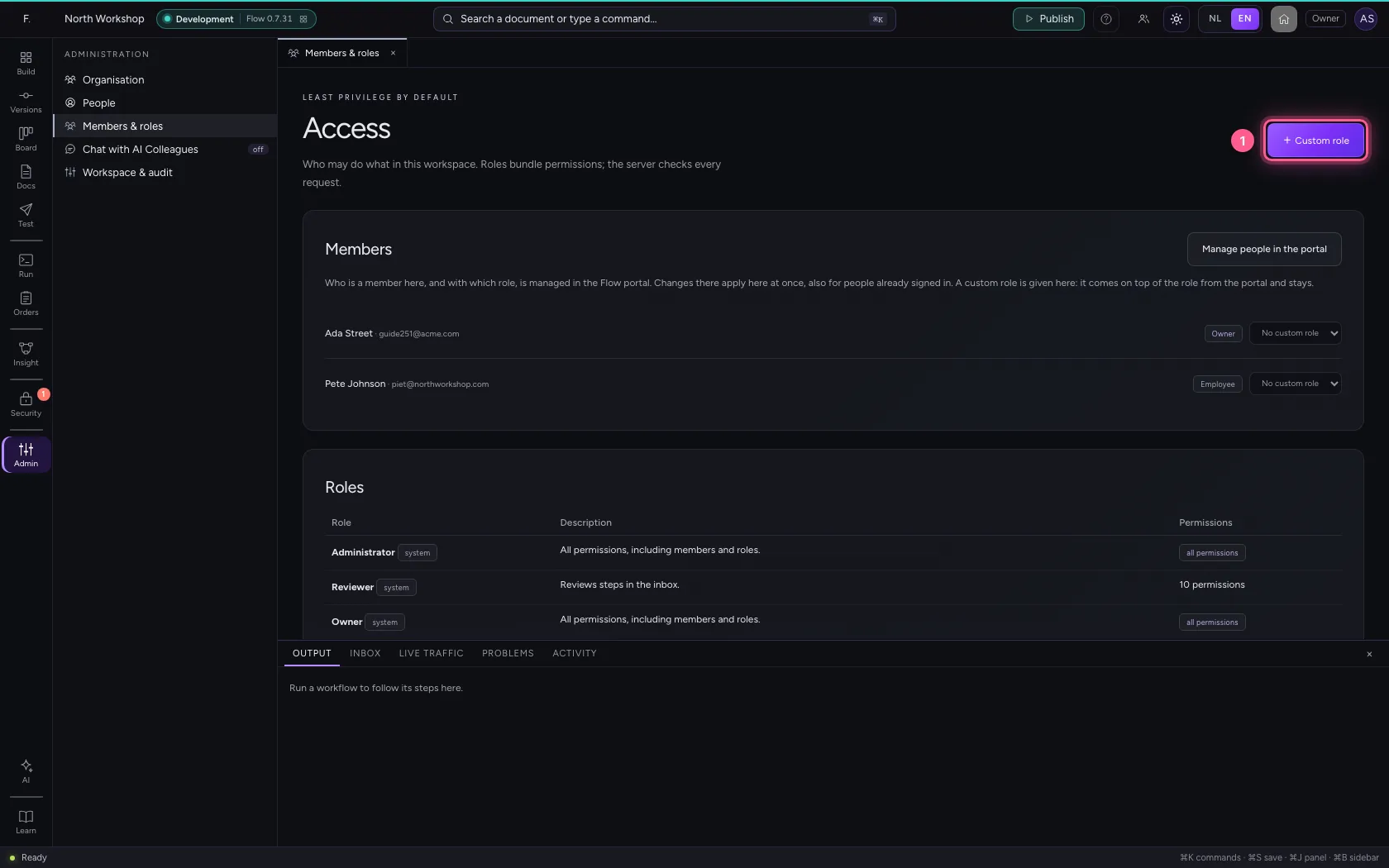
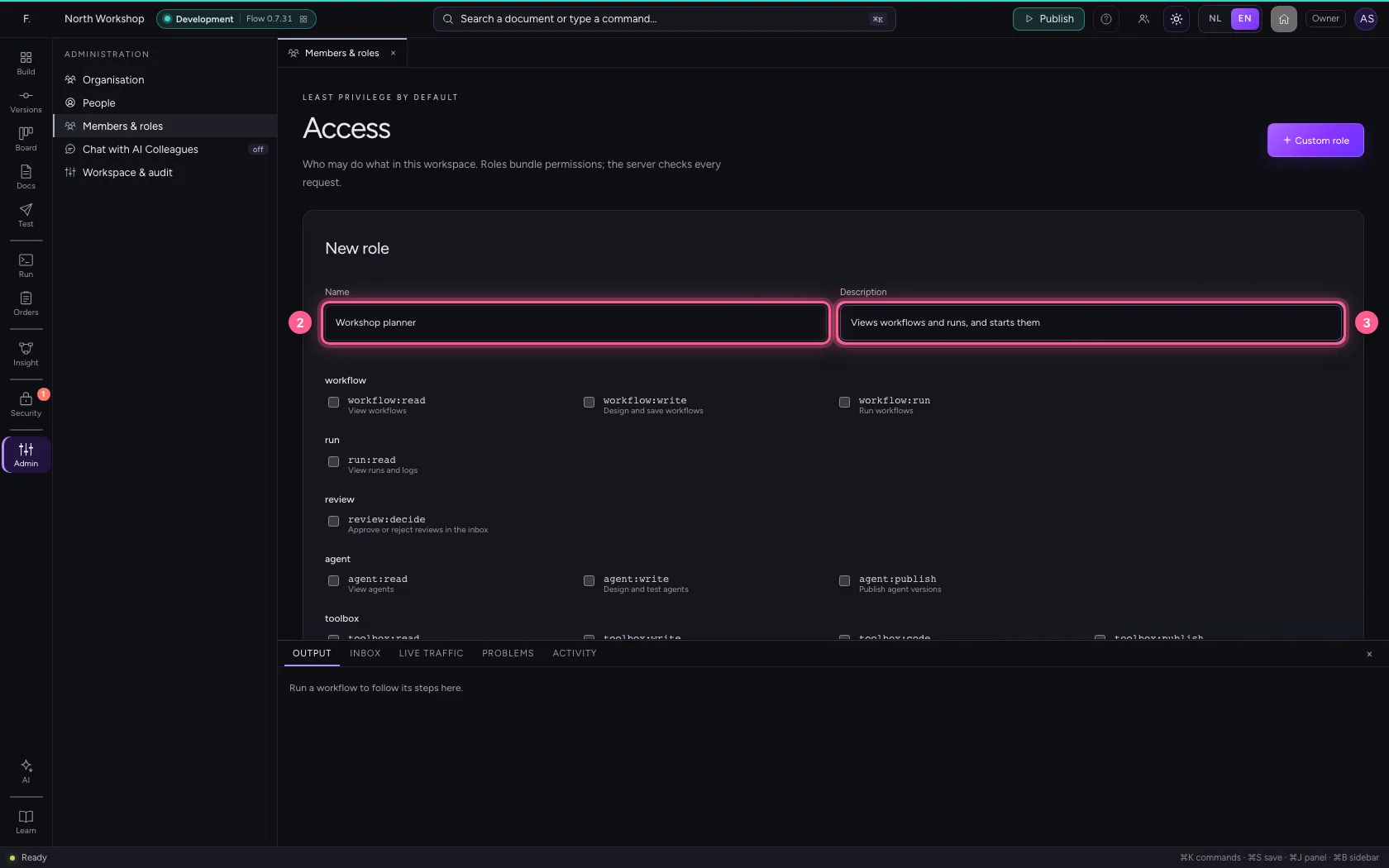
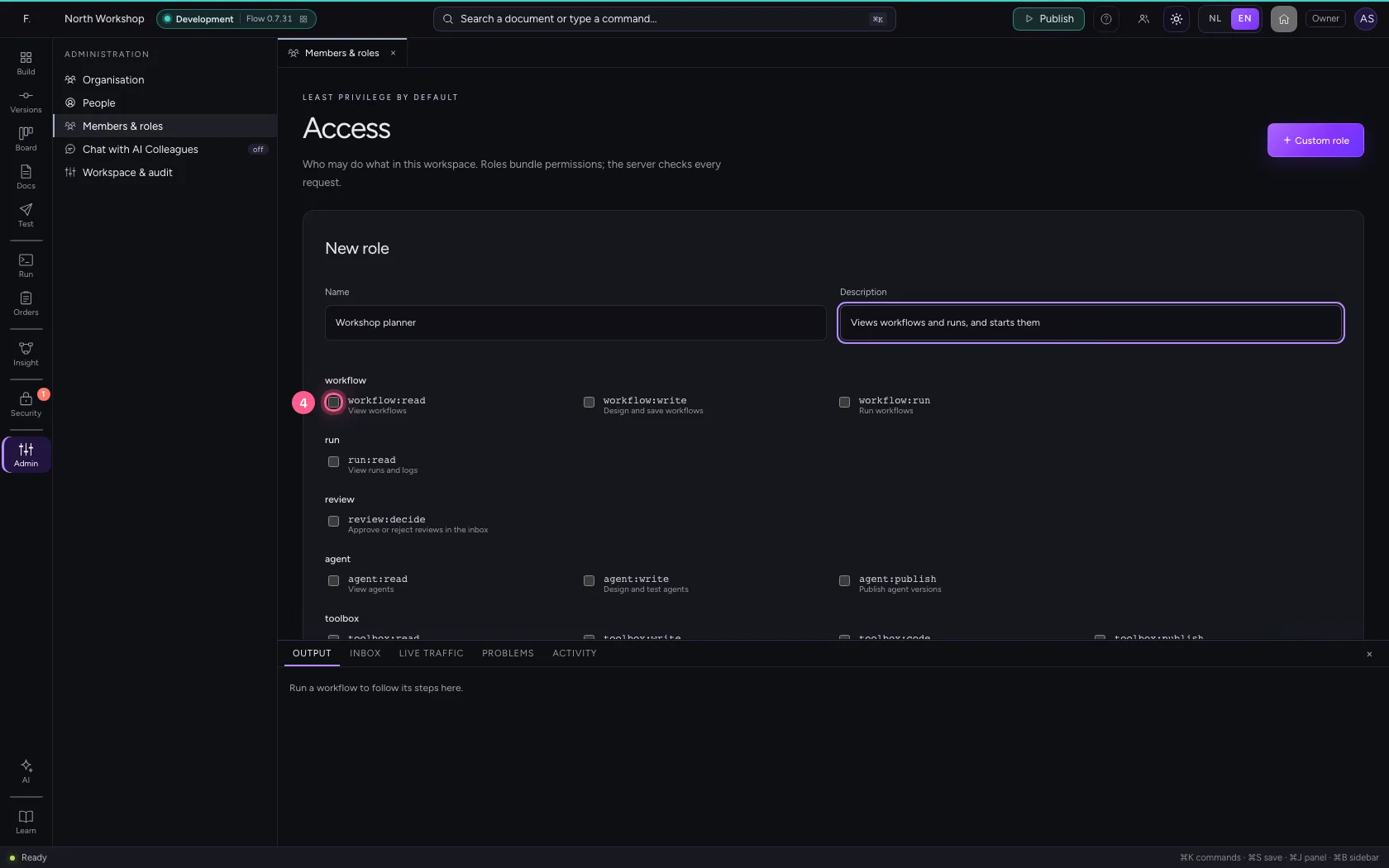
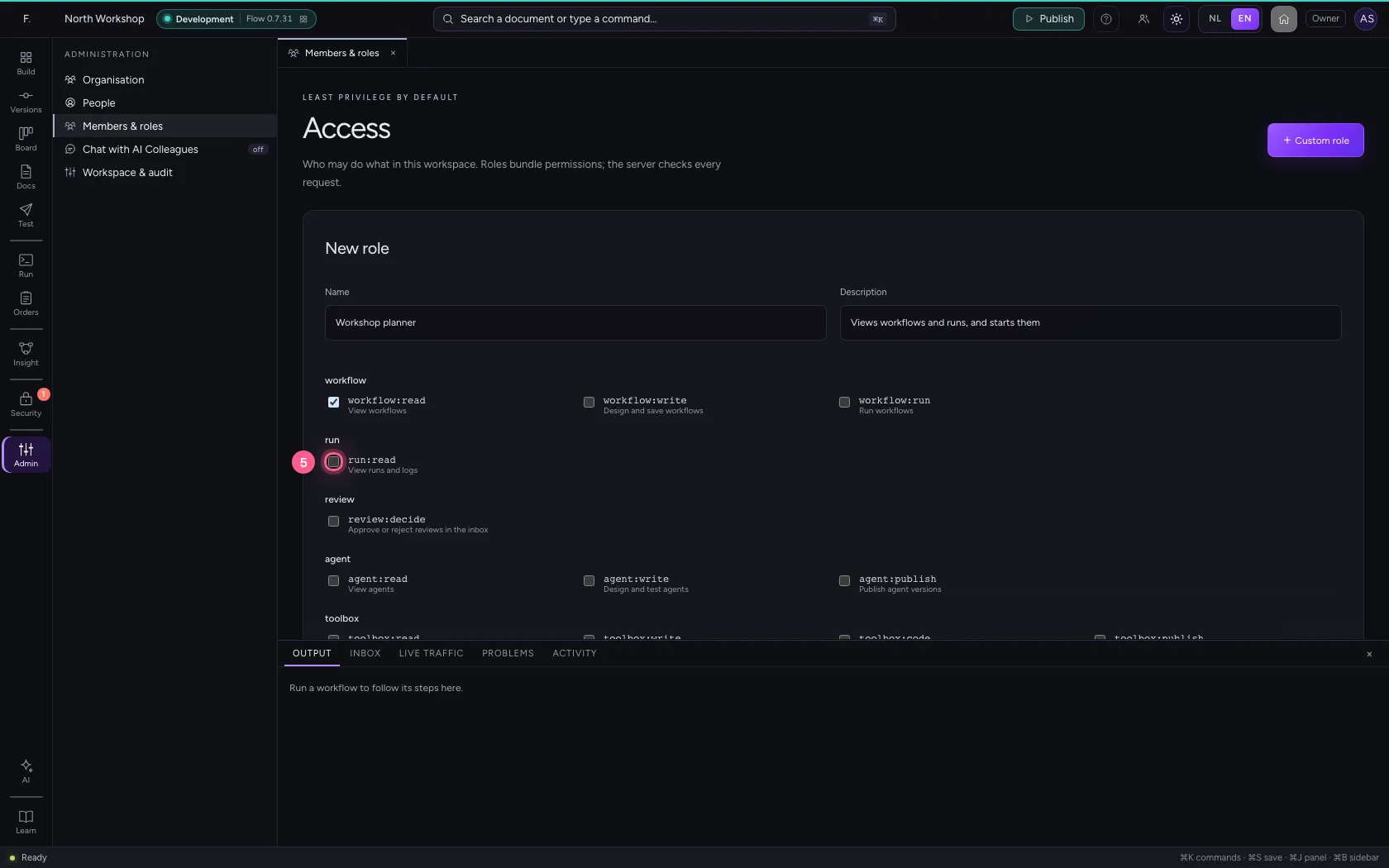
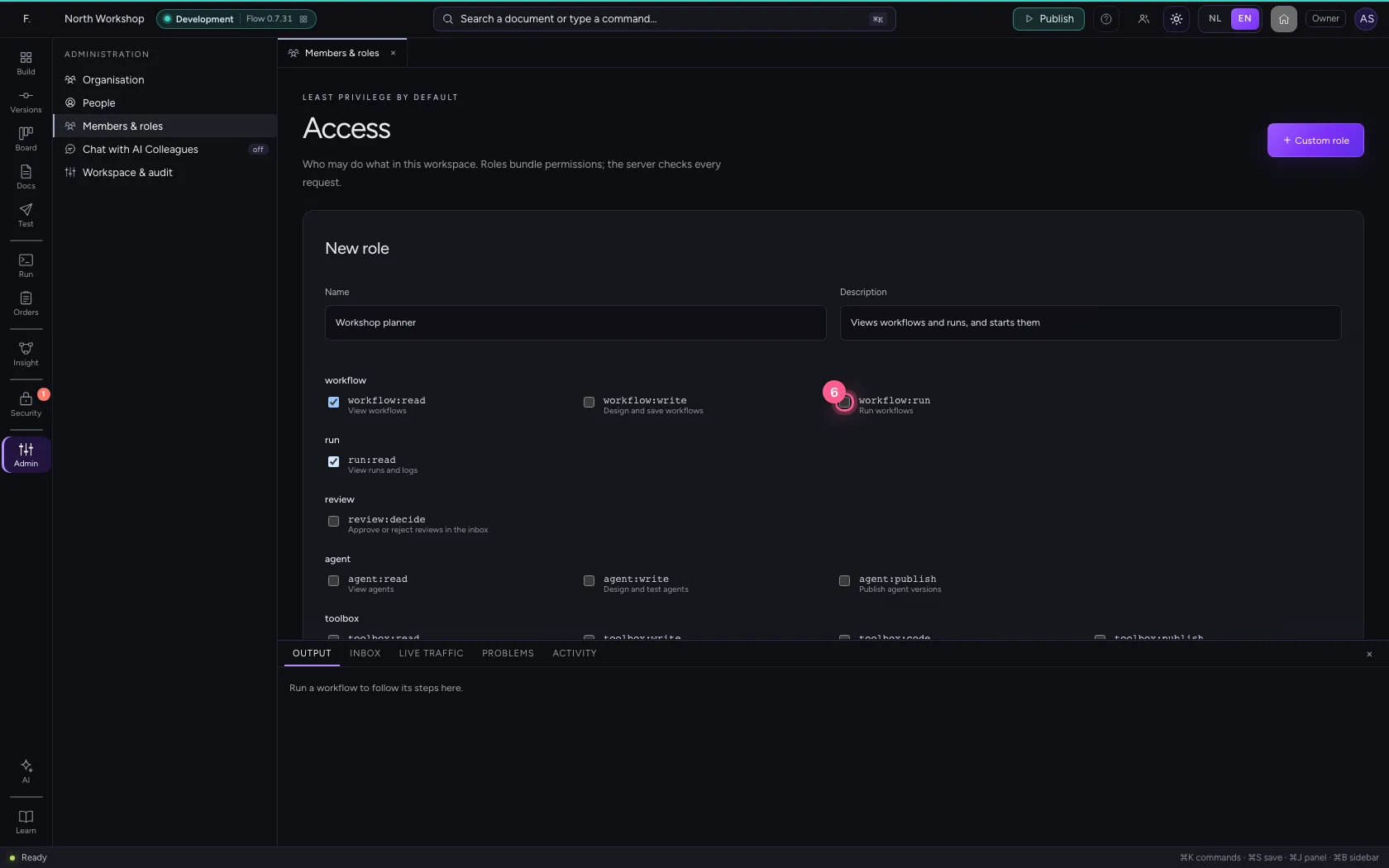
Click + Custom role. Give the role a name and a description that says who it is for. Then tick only the permissions these people really need: here view workflows, view runs and run workflows.
- Click + Custom role
- In Name, type
Workshop planner - In Description, type
Views workflows and runs, and starts them
- Click workflow:read
- Click run:read
- Click workflow:run
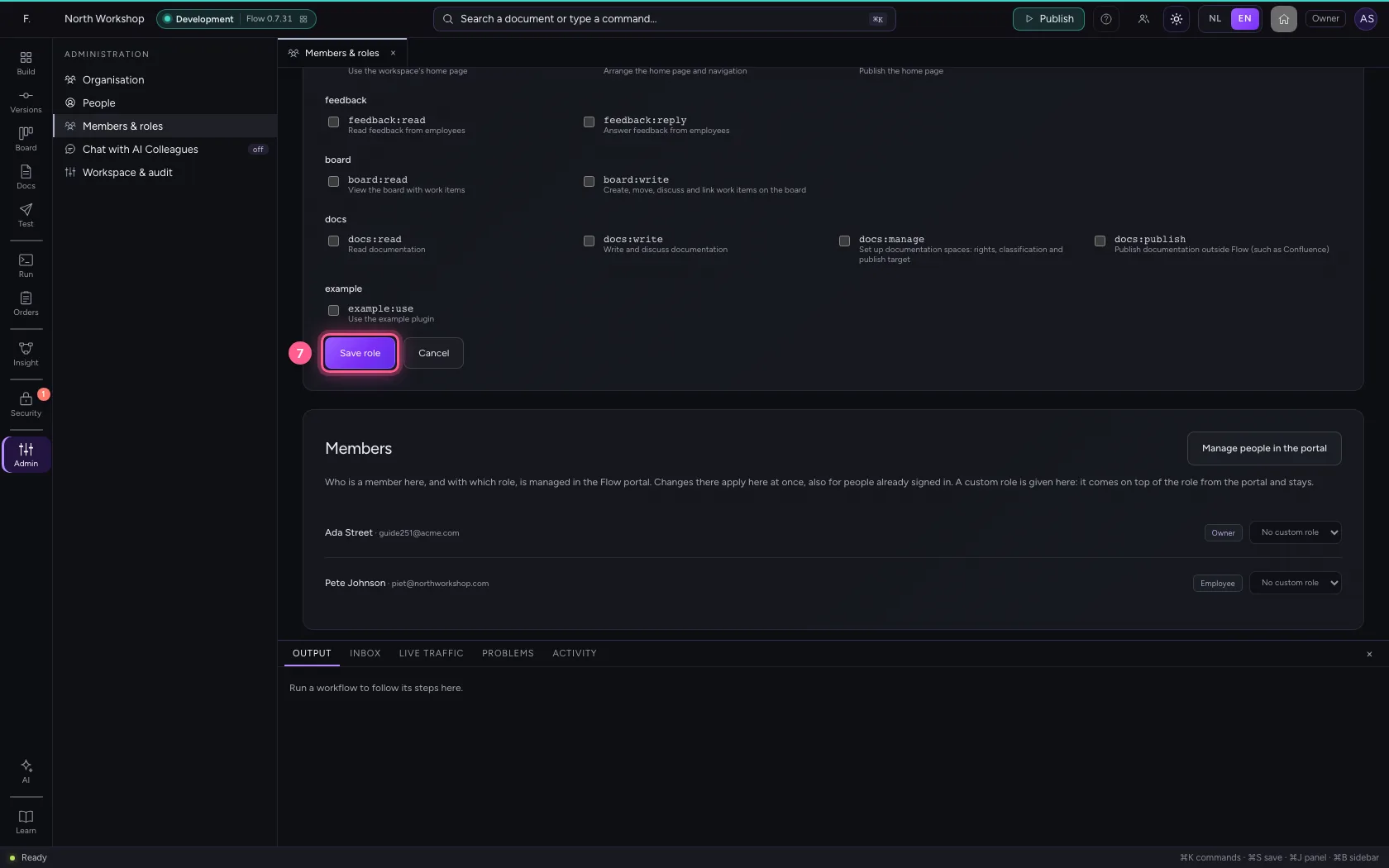
- Click Save role
Adjust the role later
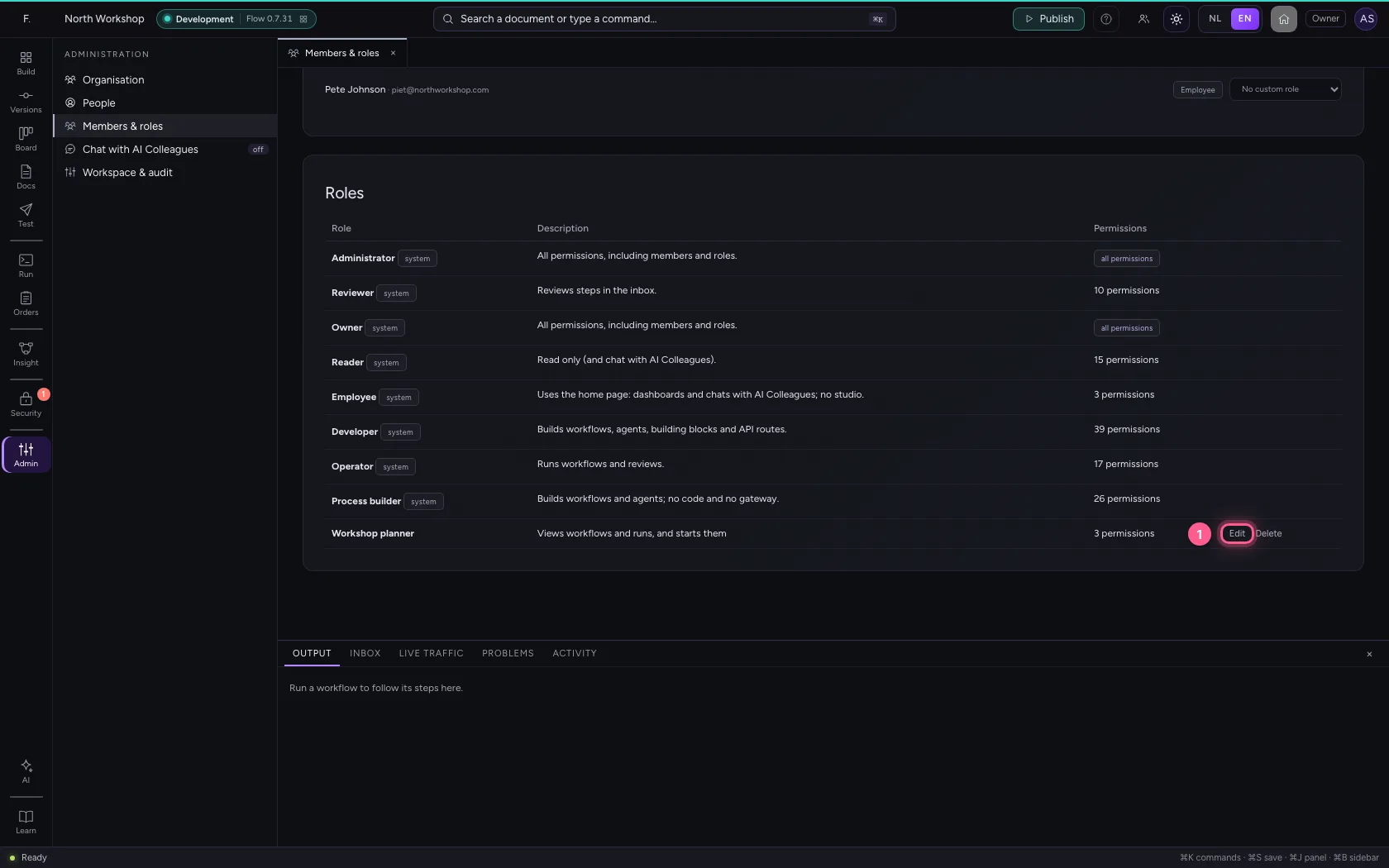
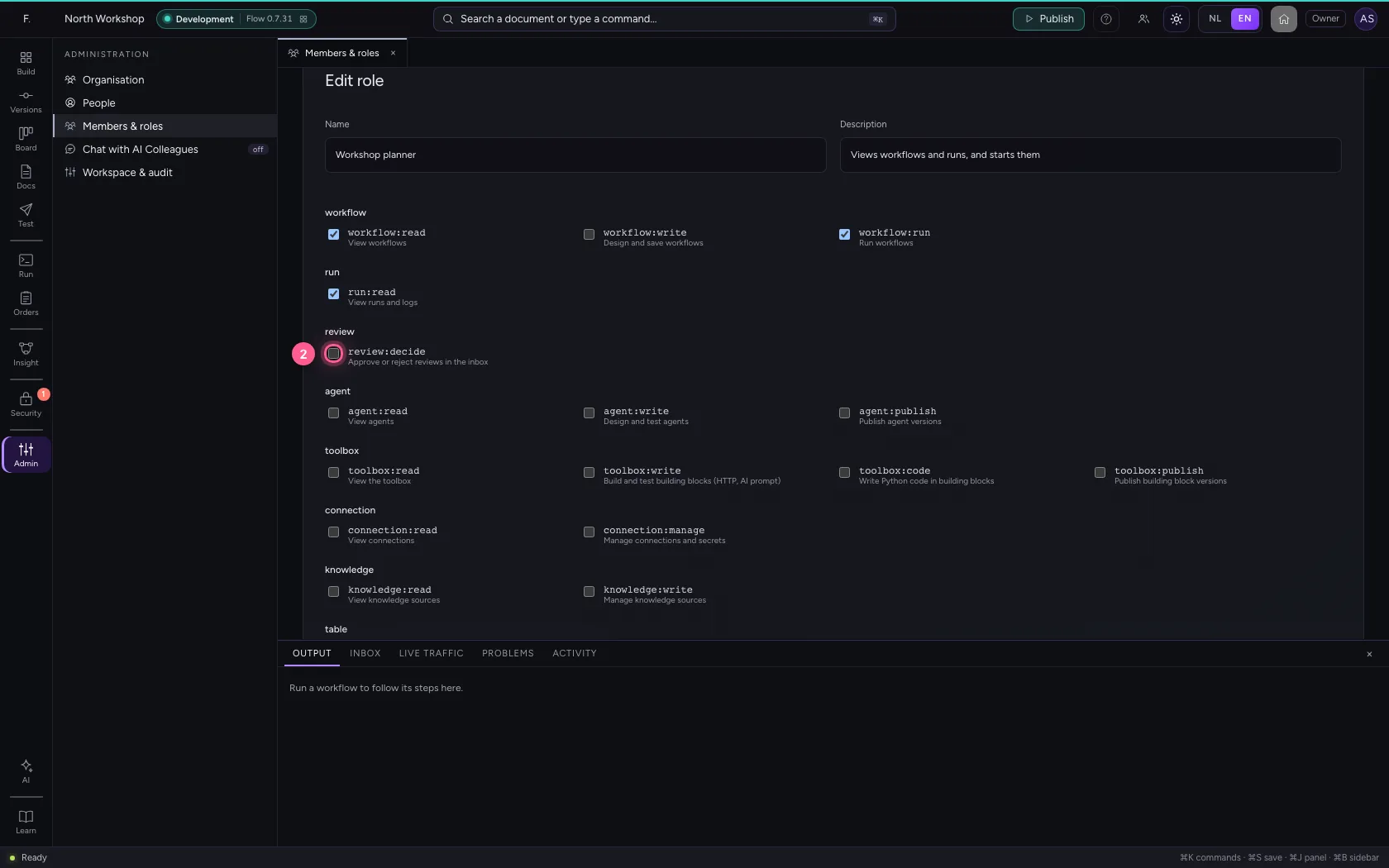
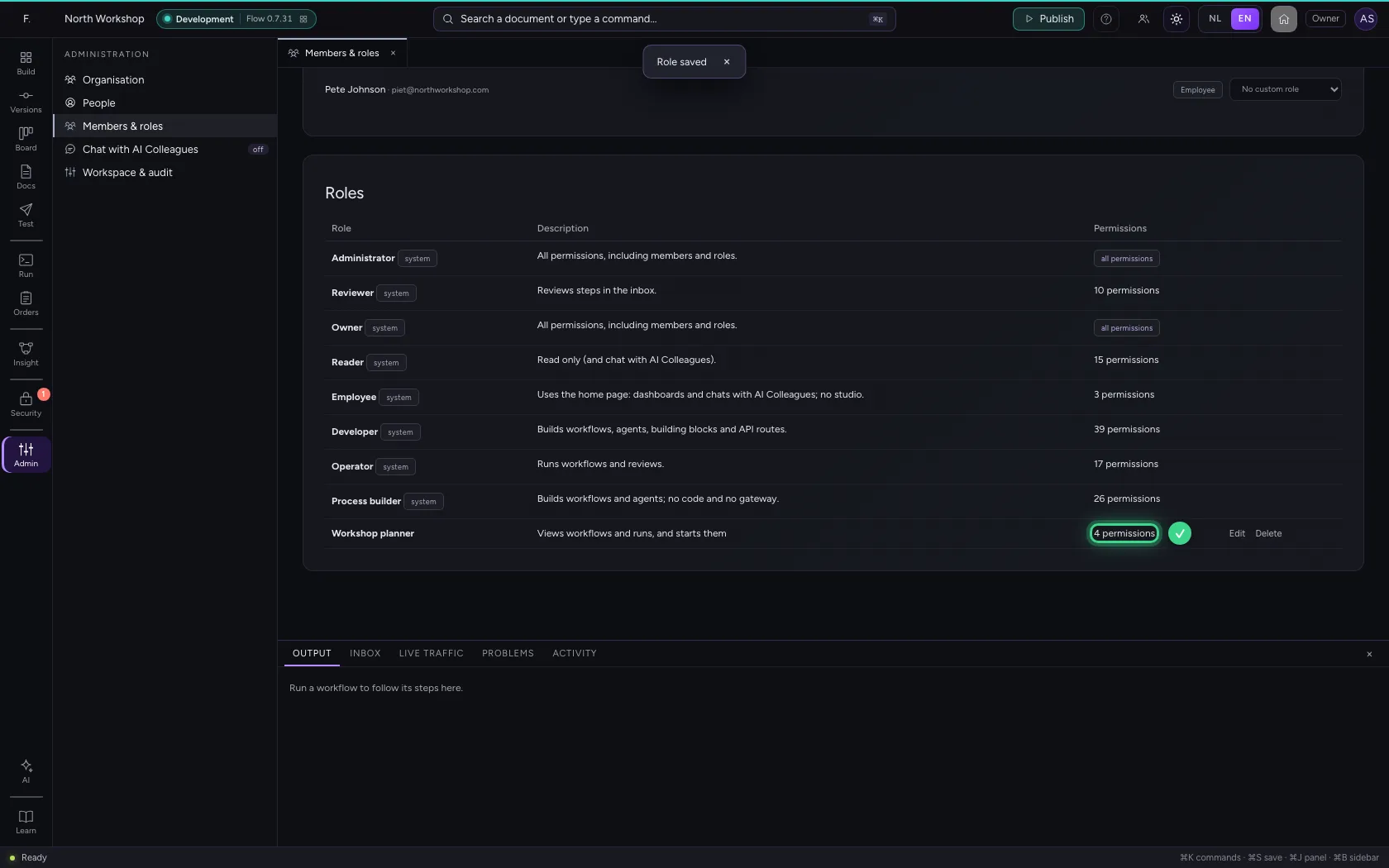
You can always edit a role of your own. If the planners must also handle reviews in the inbox, you tick that permission as well and save the role again.
- Click Edit
- Click review:decide
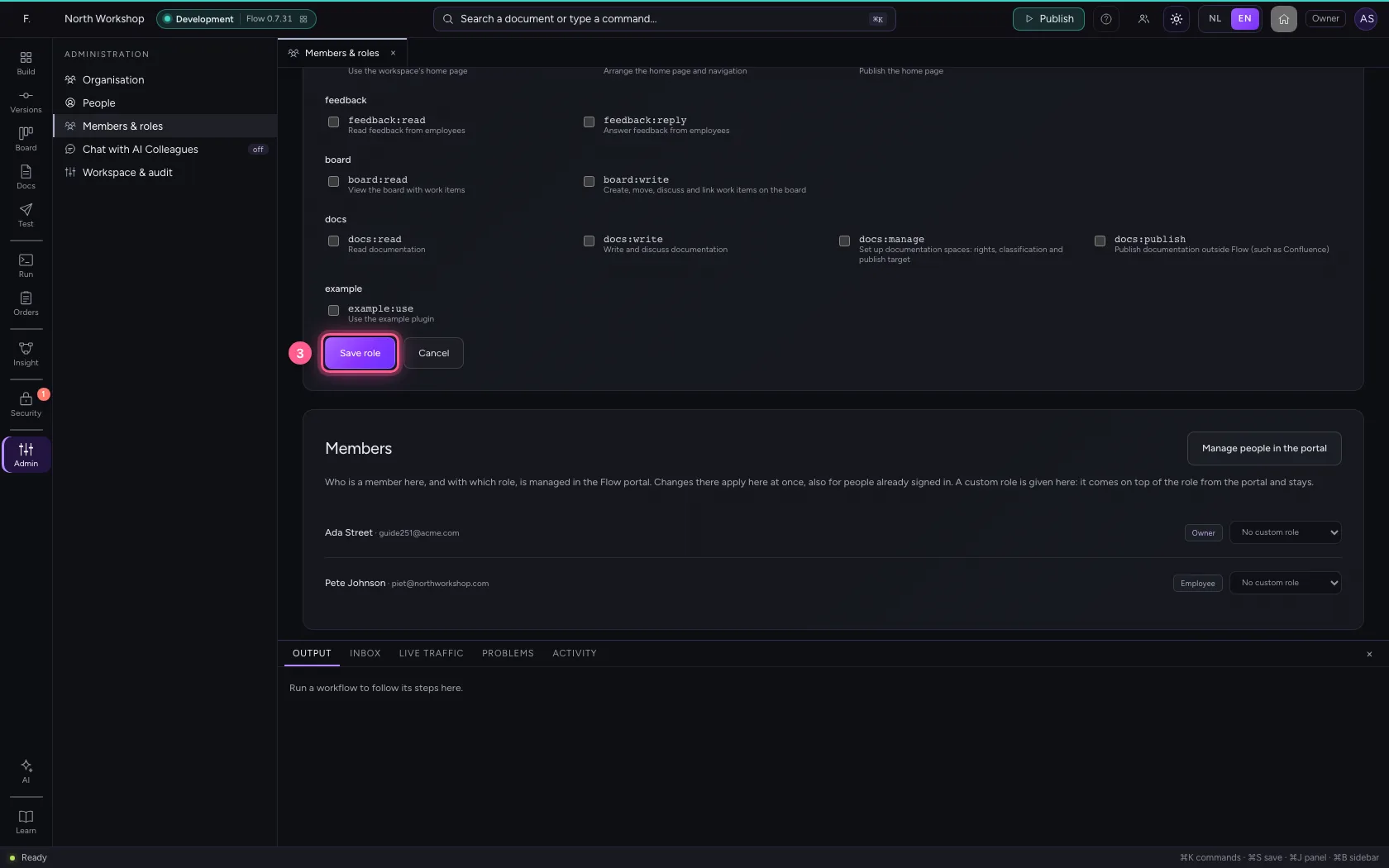
- Click Save role
Give a colleague the role
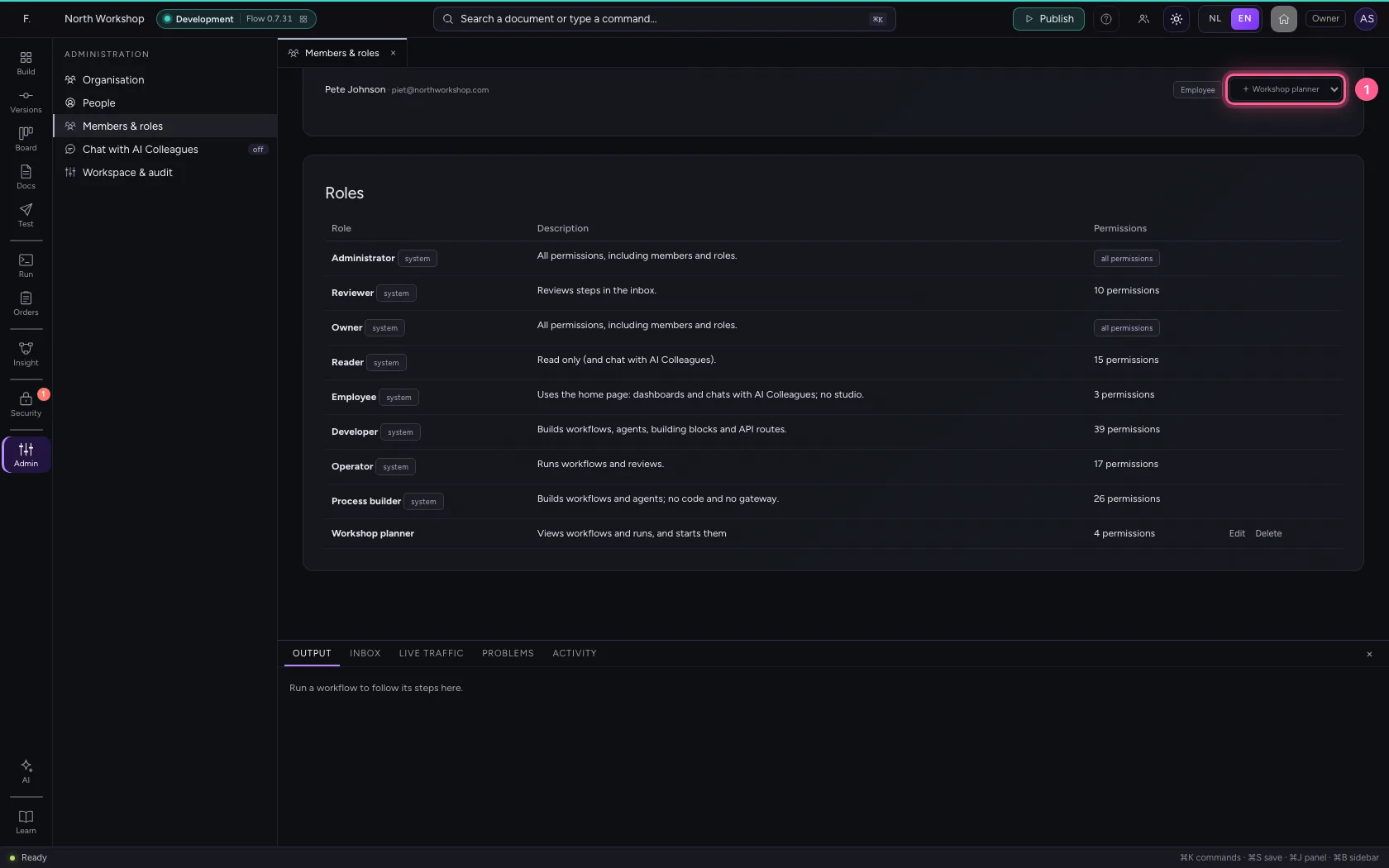
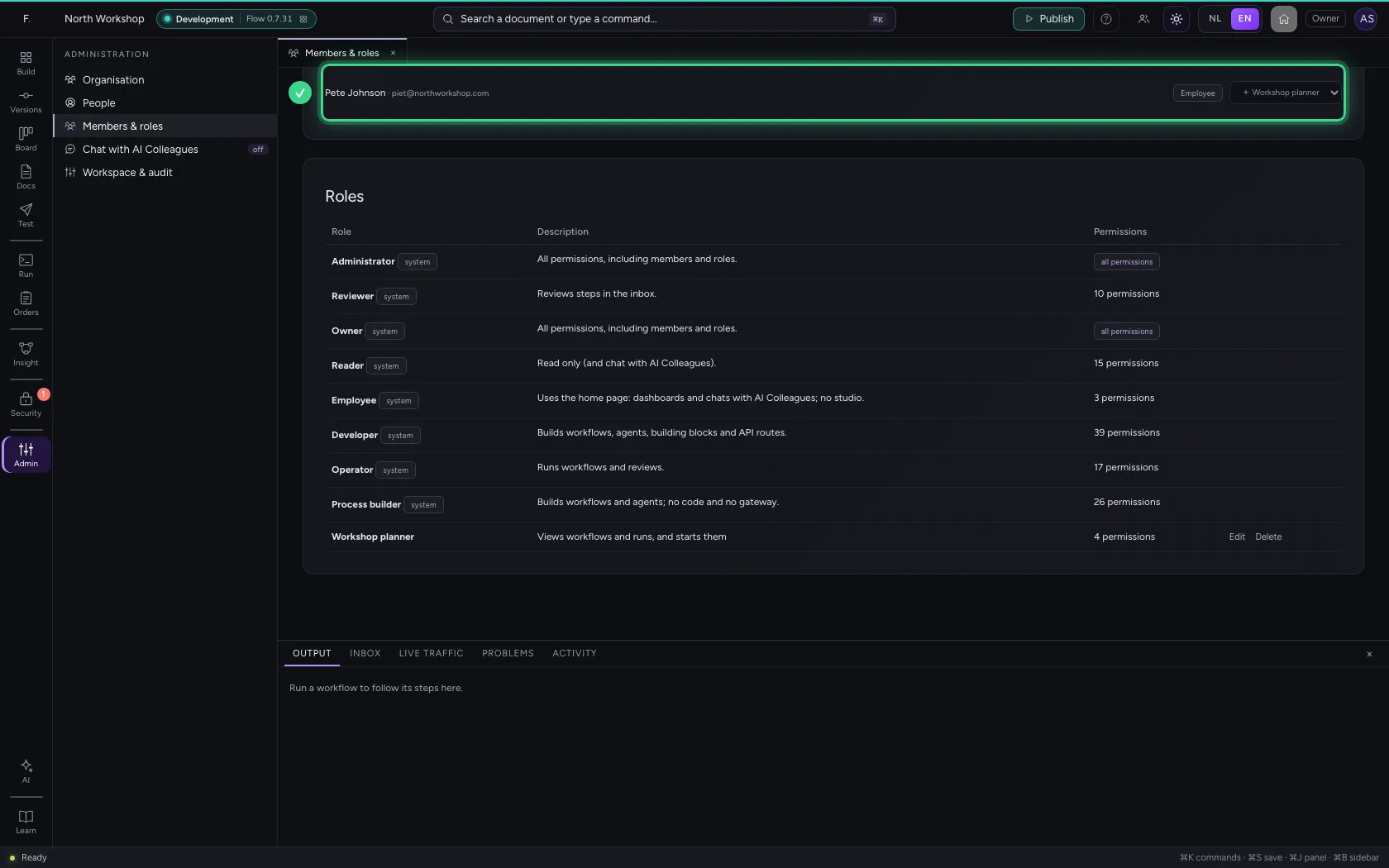
Under Members, choose the role of your own for a member. Pete Johnson works as Business in the portal and is therefore an Employee here: the home, no studio. With the role on top, he may do exactly what the role says: view workflows and runs, start workflows and review, and nothing more. Only owners and admins give a role of your own, and the audit log records who did.
- In Role of Pete Johnson, choose + Workshop planner
See where the role comes from
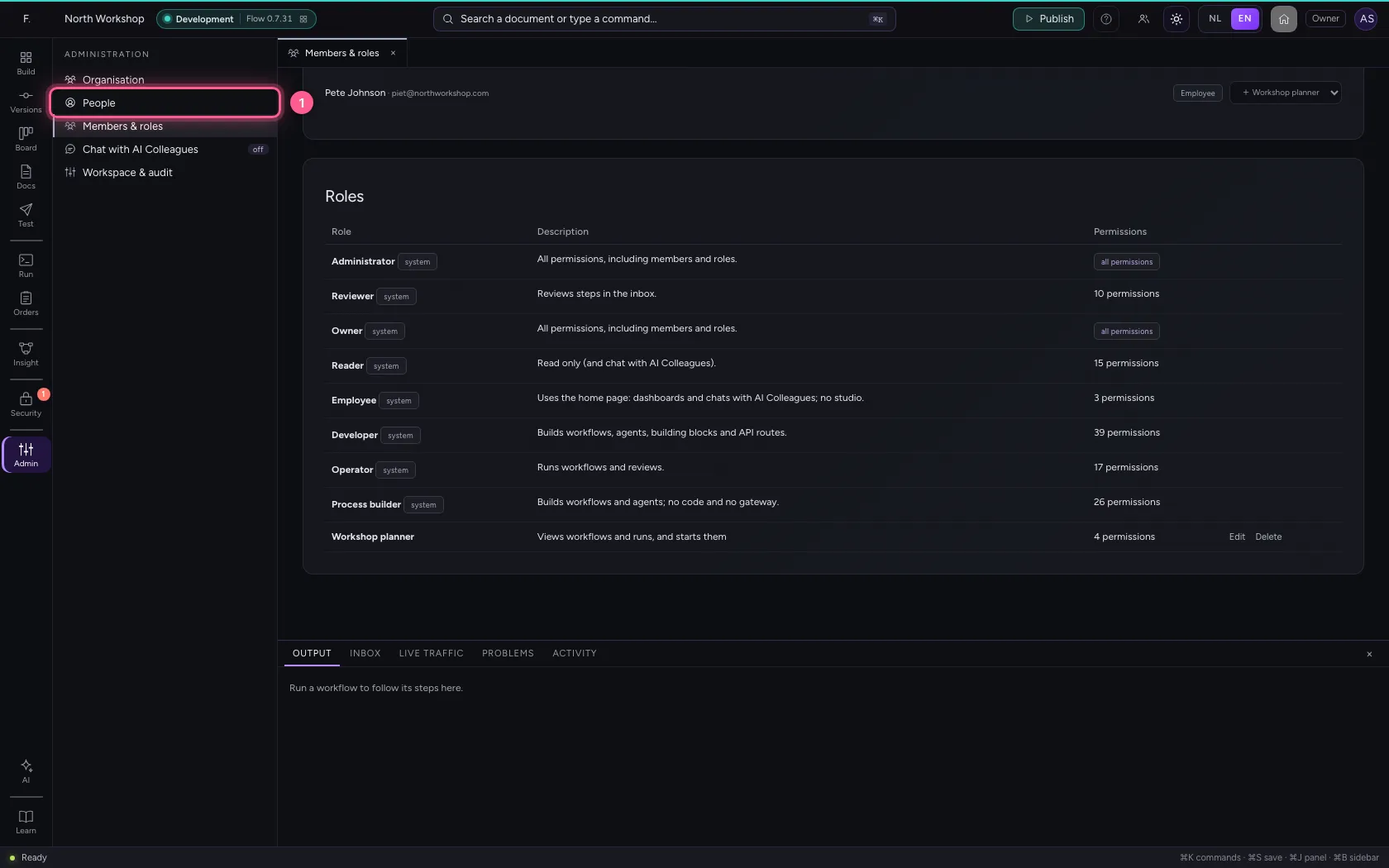
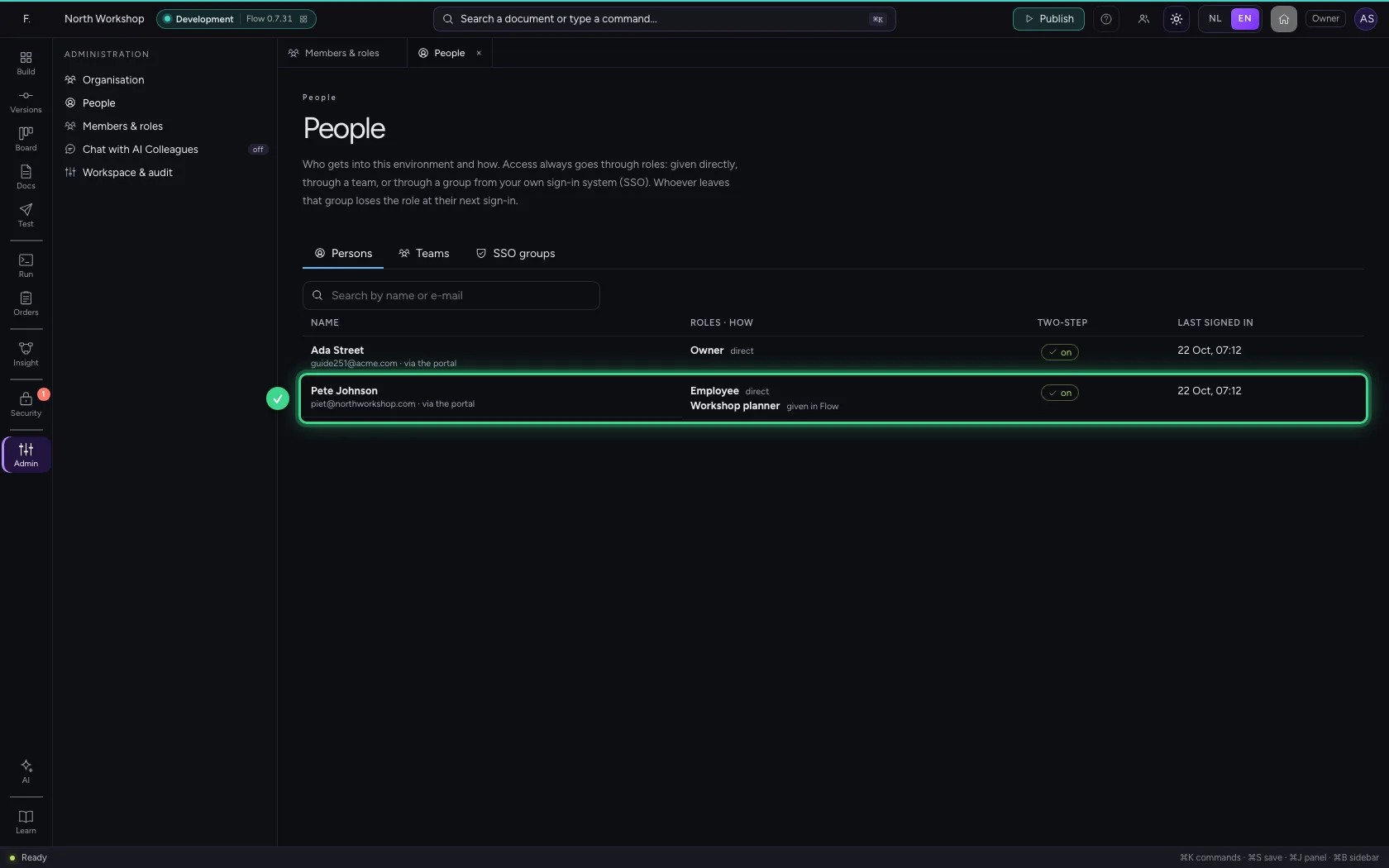
Under Administration → People, each person shows how they got every role. Next to the role of your own it says: given in Flow. So you always see where a right comes from.
- Click People
This guide was carried out step by step on 22 Oct 2026 by an automated test on Flow (version 3e563176).