An endpoint that runs a workflow
An API is a base path with one security policy; an endpoint binds one method and path to one workflow. What the consumer sends in the body is ready in the workflow as {{field}}; the step API response decides the status code and what they get back. You create an API with a POST endpoint, the workflow behind it, and call it.
Open your development environment
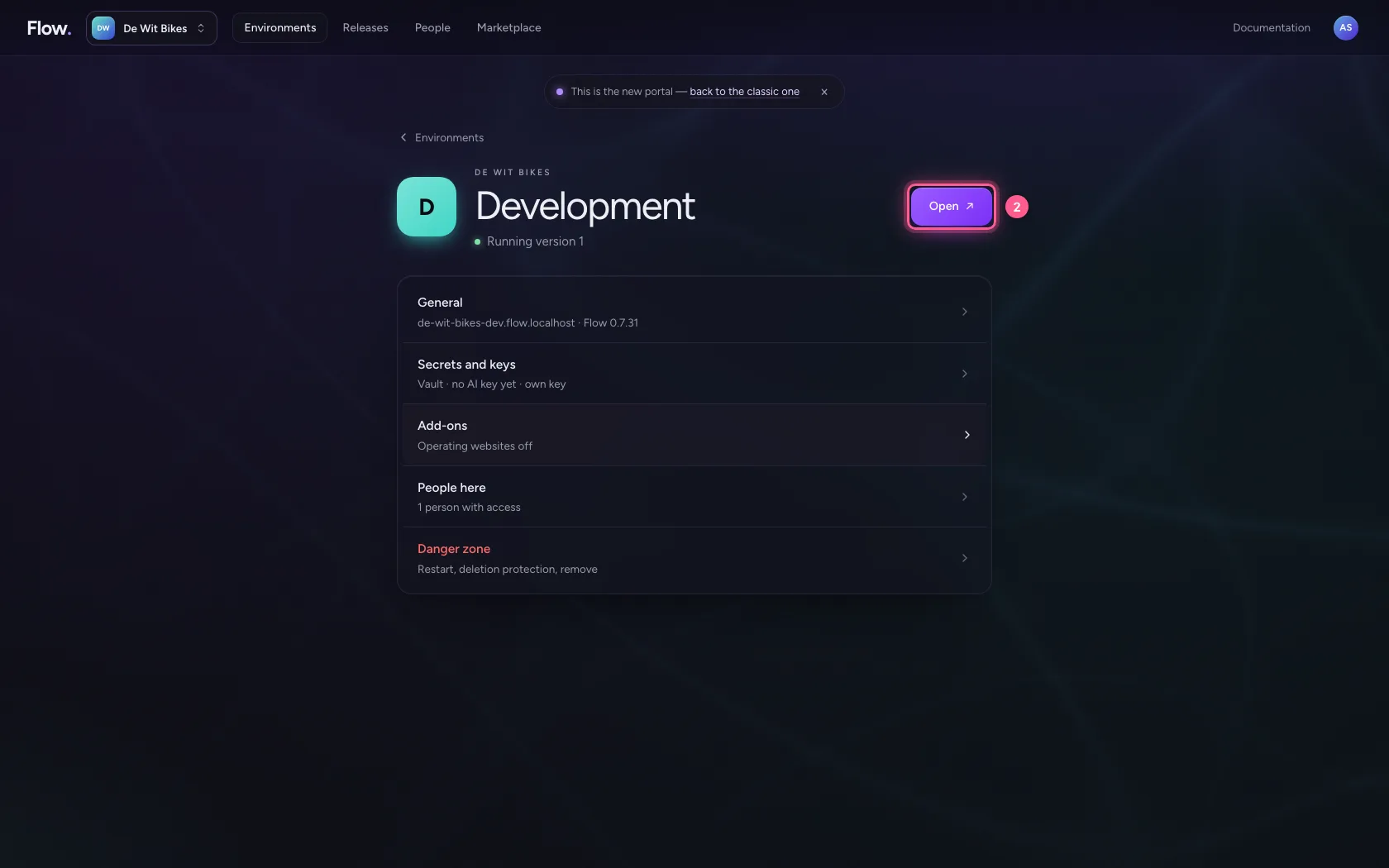
In the portal, under Environments, click Development, and there Open. Flow opens in a new tab and you are signed in straight away.
- Click Development
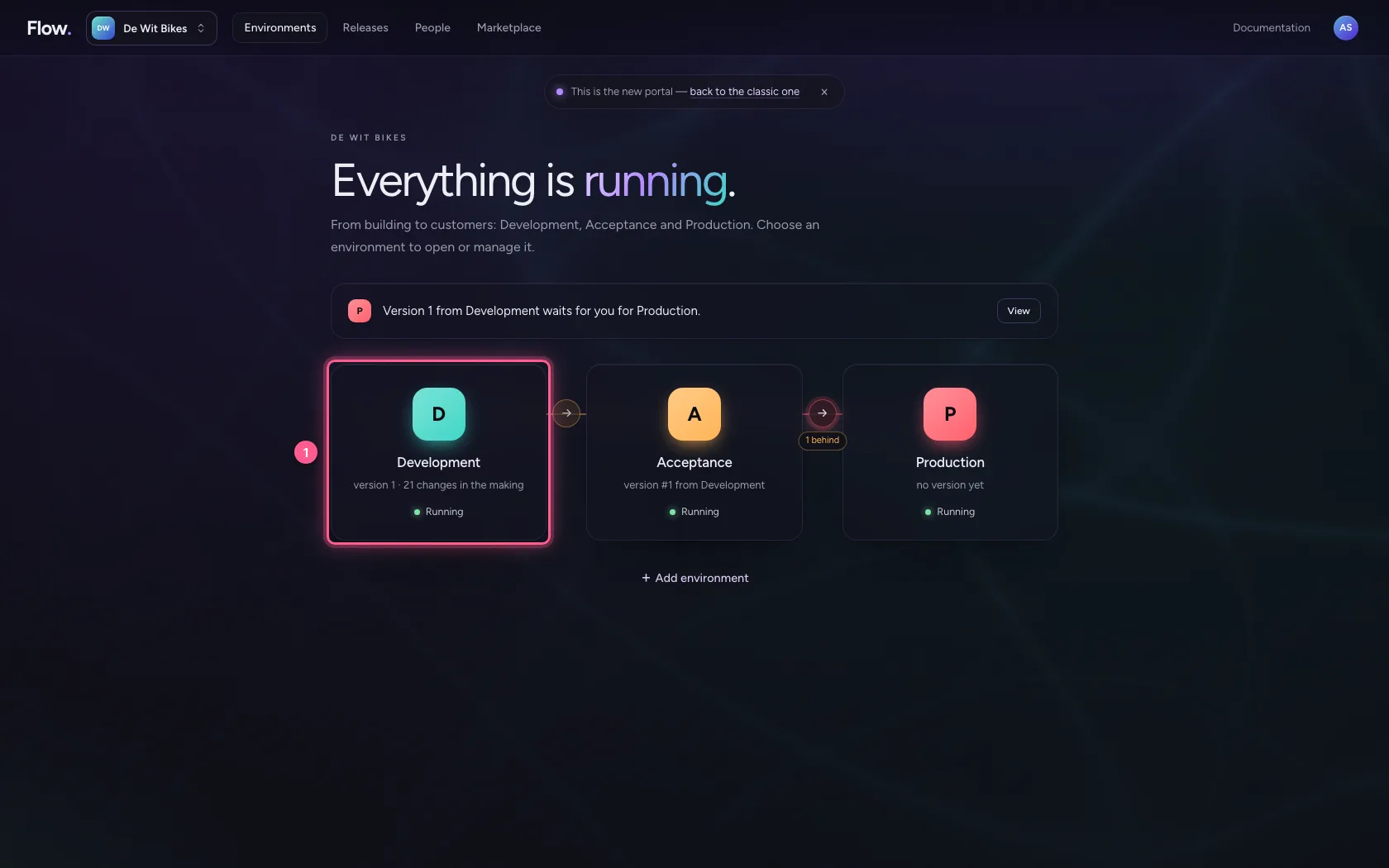
- Click Open ↗
Create an API
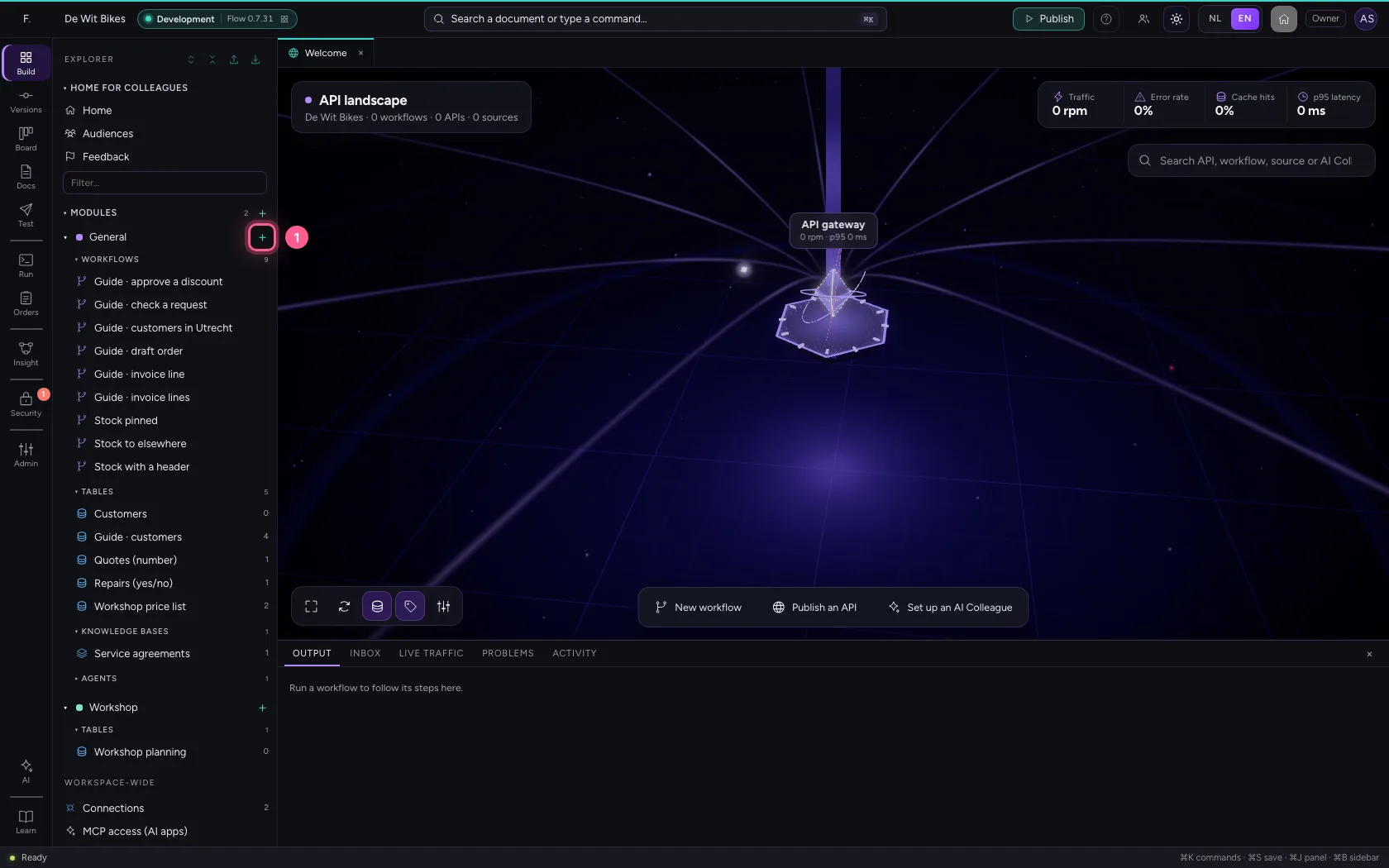
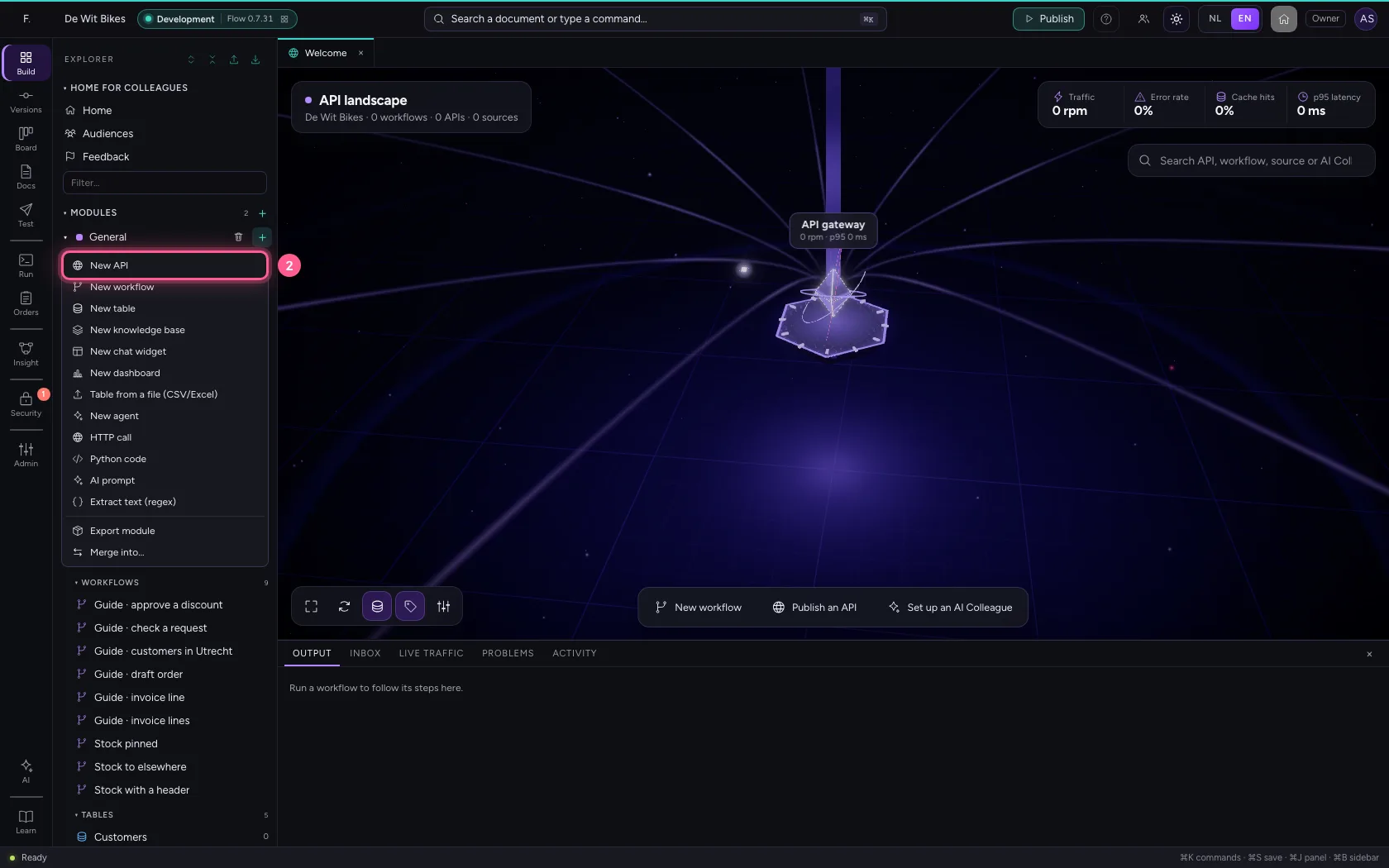
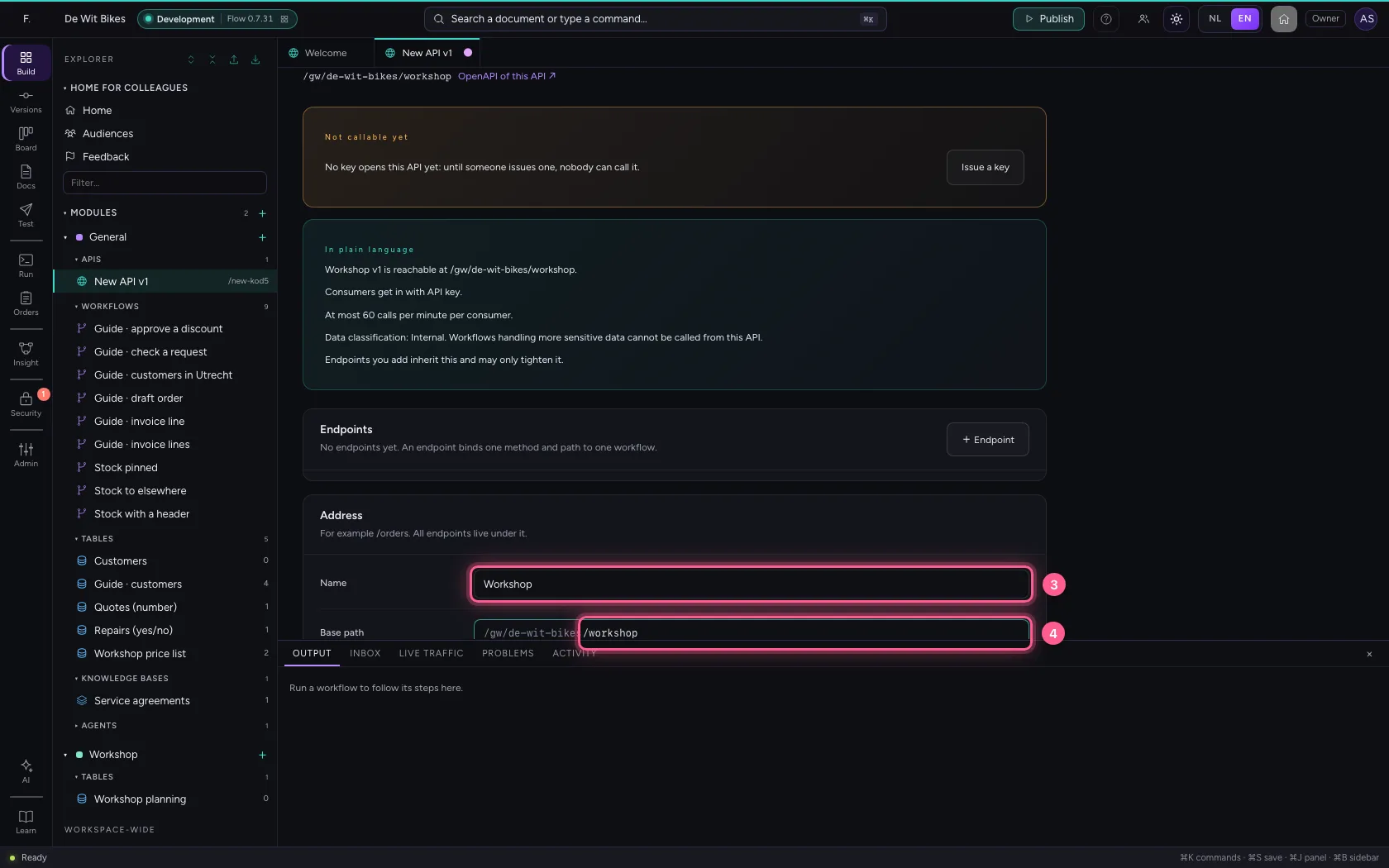
Click + next to General and choose New API. The base path comes before every endpoint; by default the API asks for an API key.
- Click Add to General
- Click New API
- In Name, type
Workshop - In Base path, type
/workshop
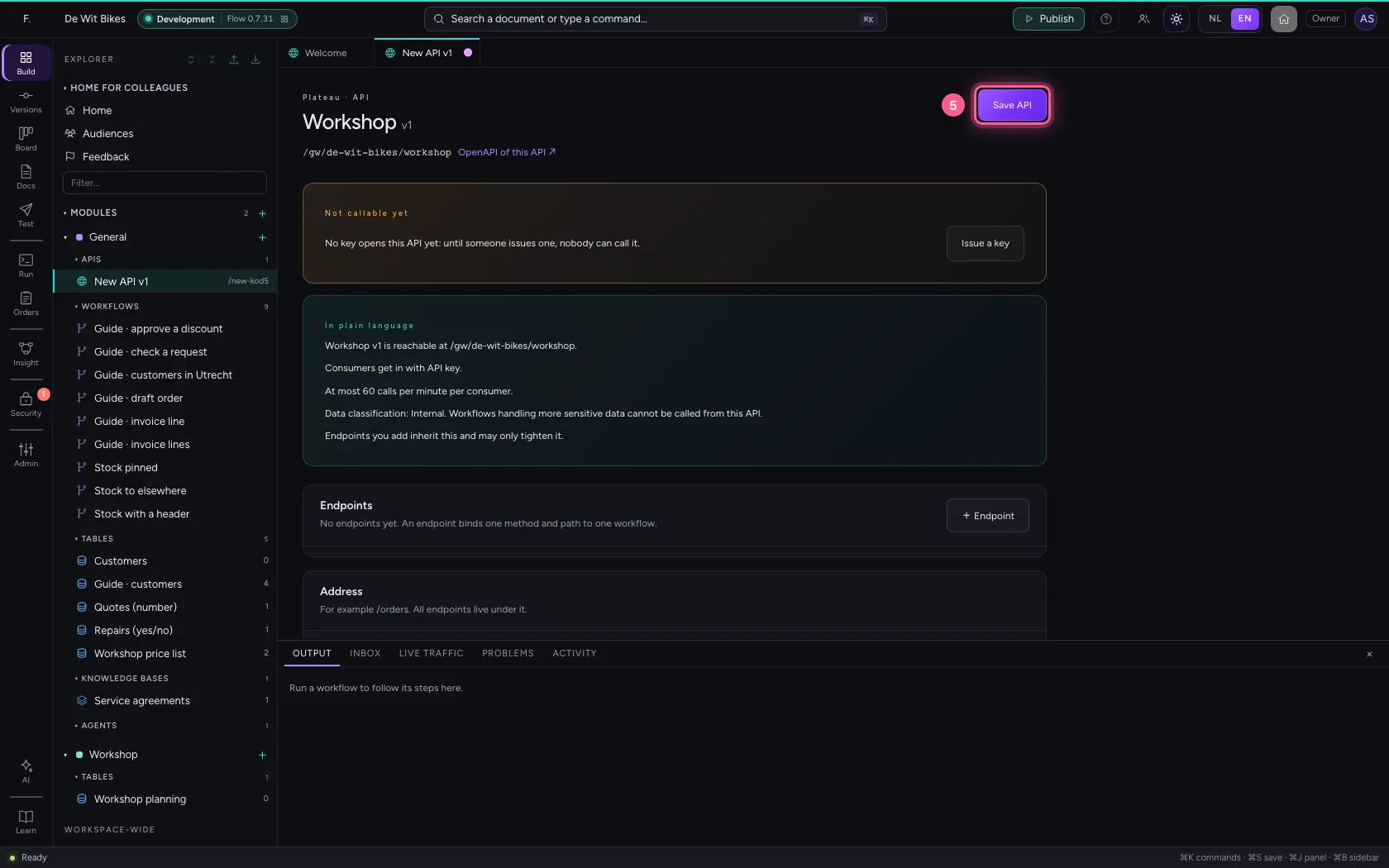
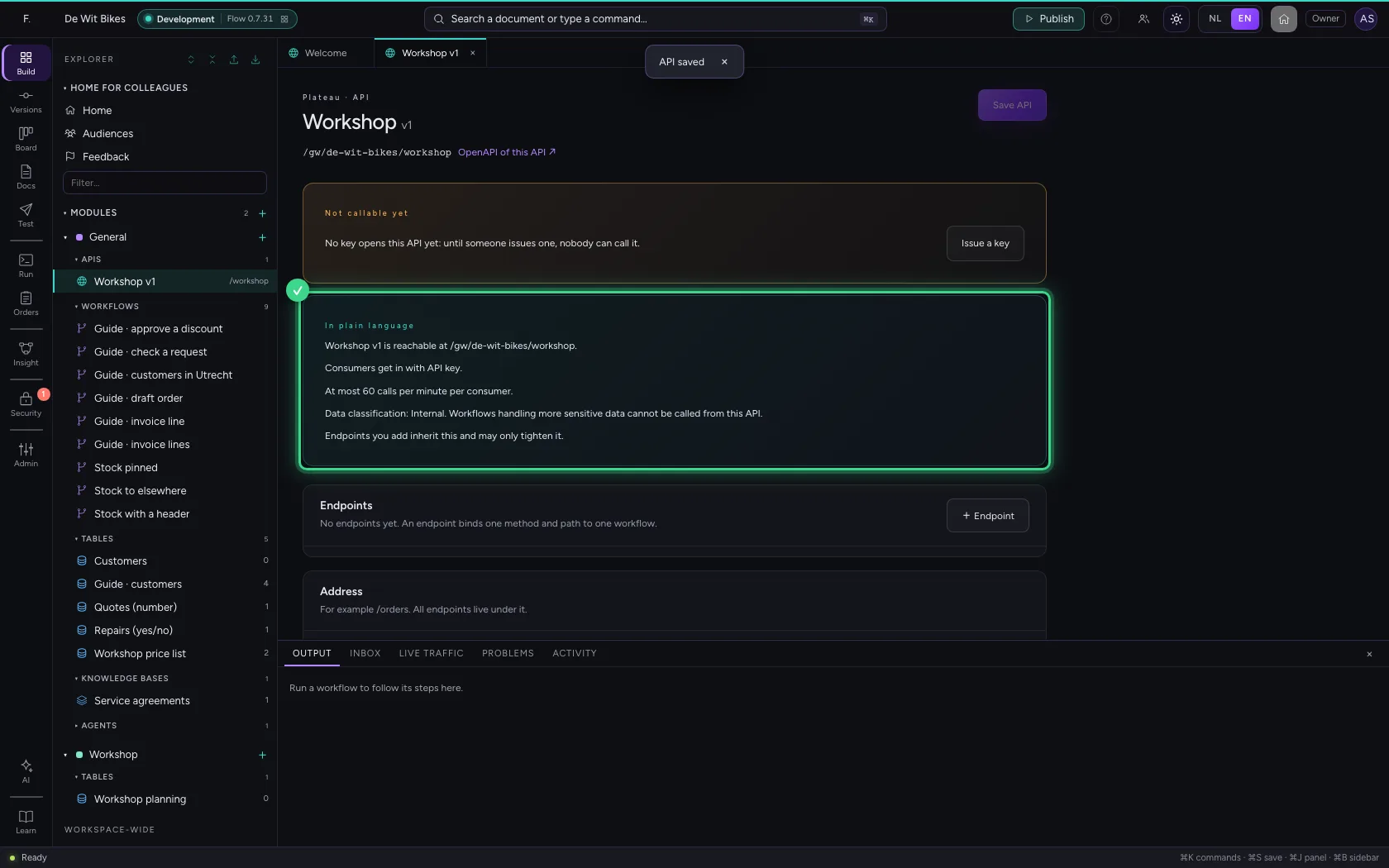
- Click Save API
Add a POST endpoint with a new workflow
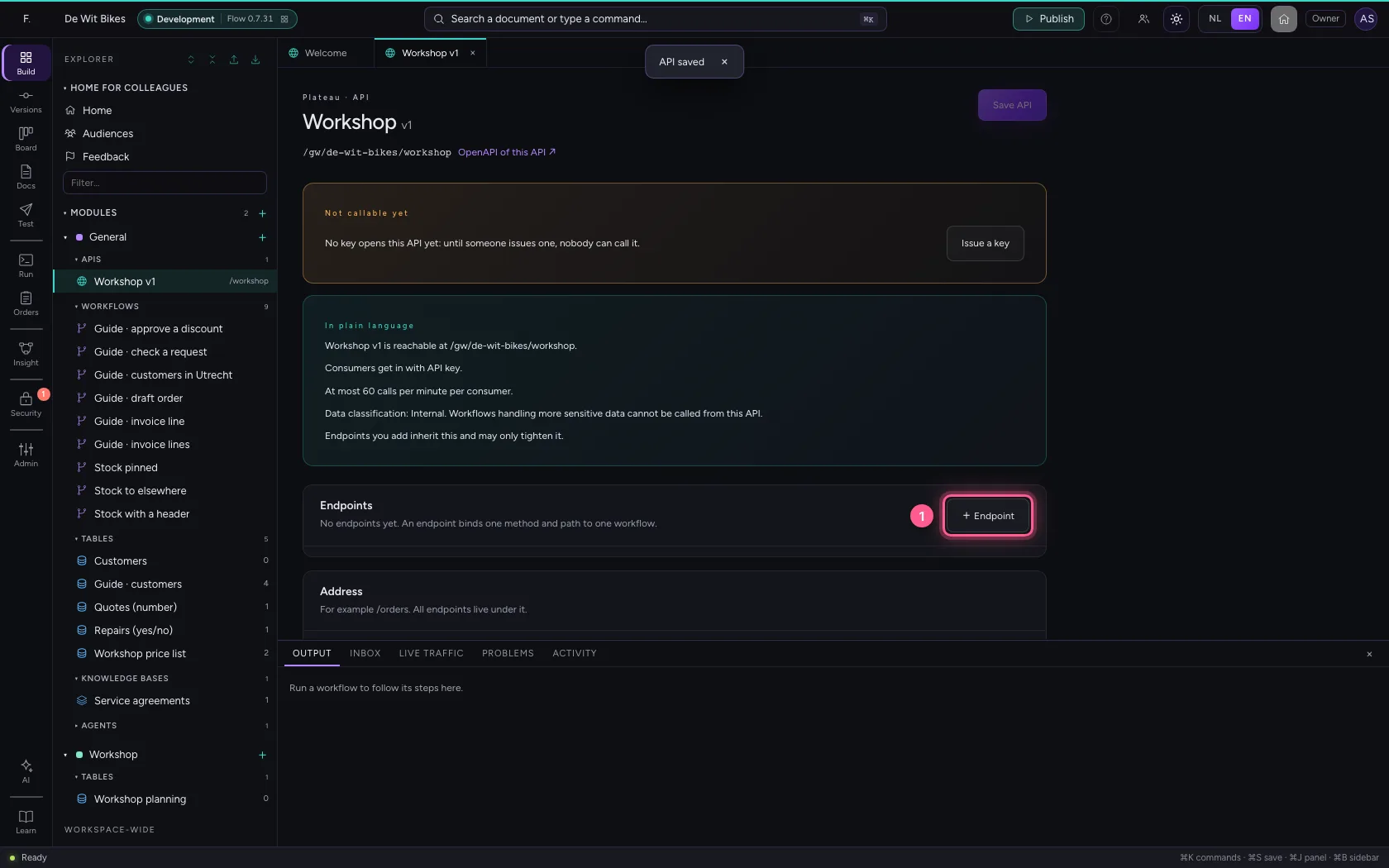
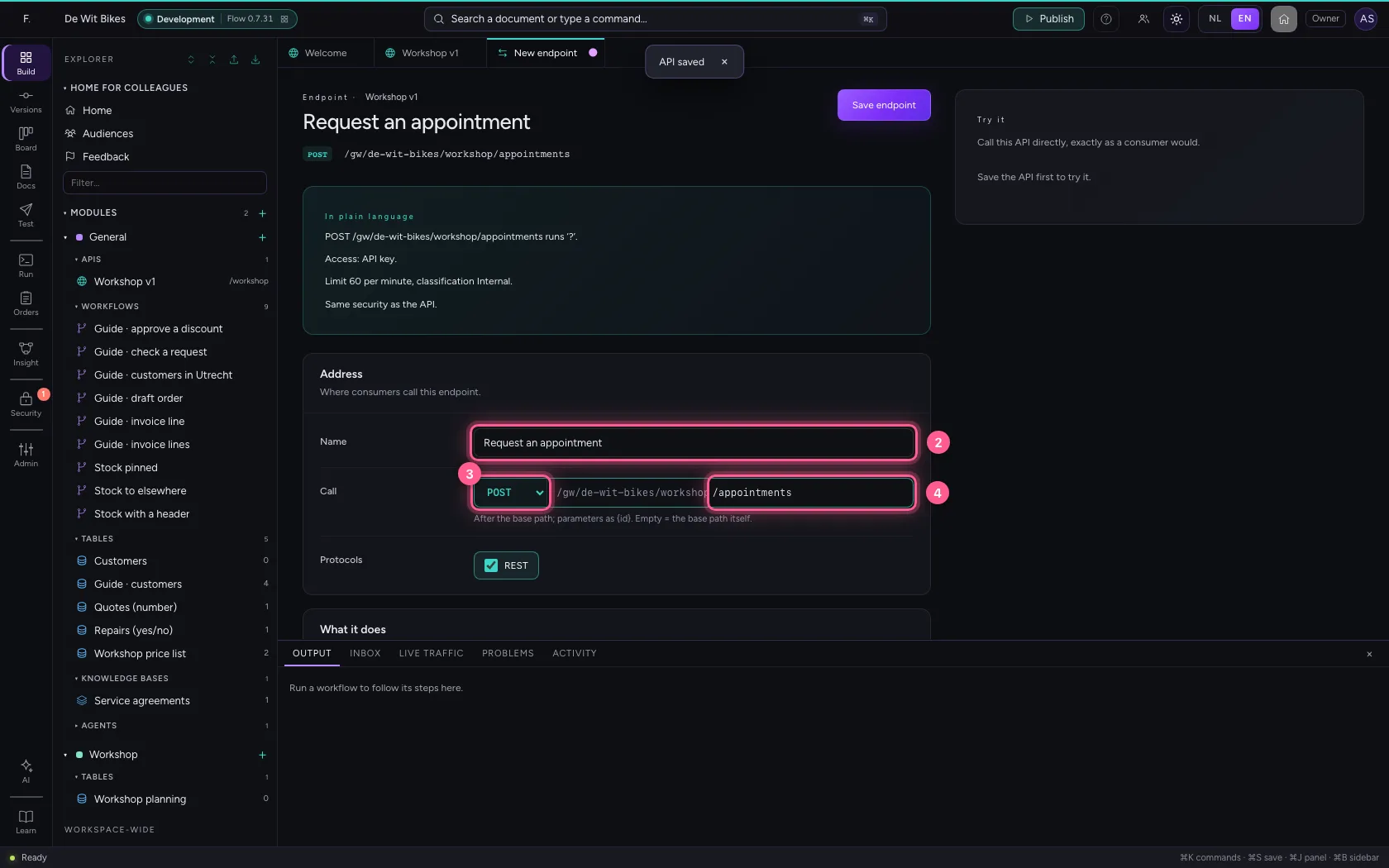
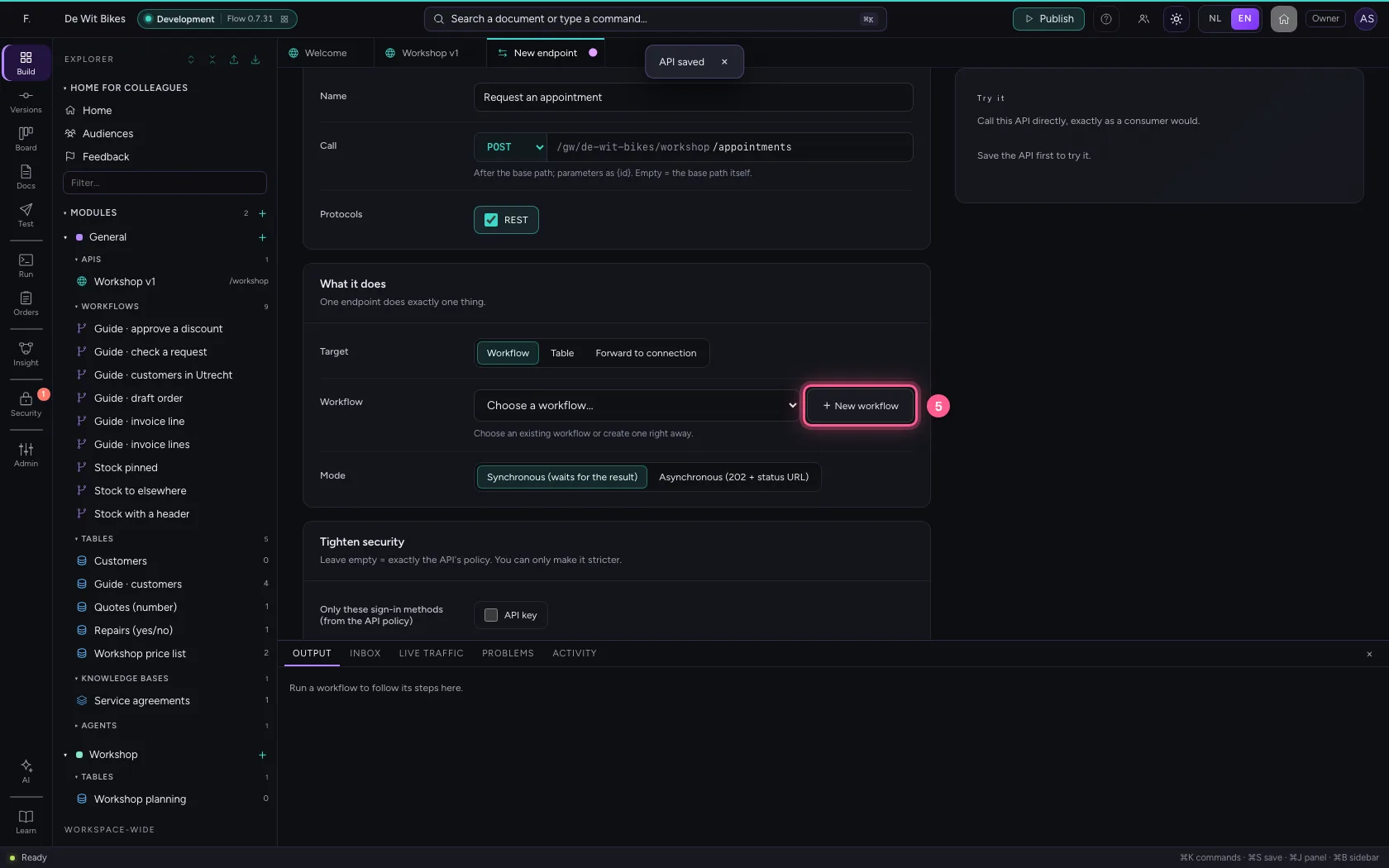
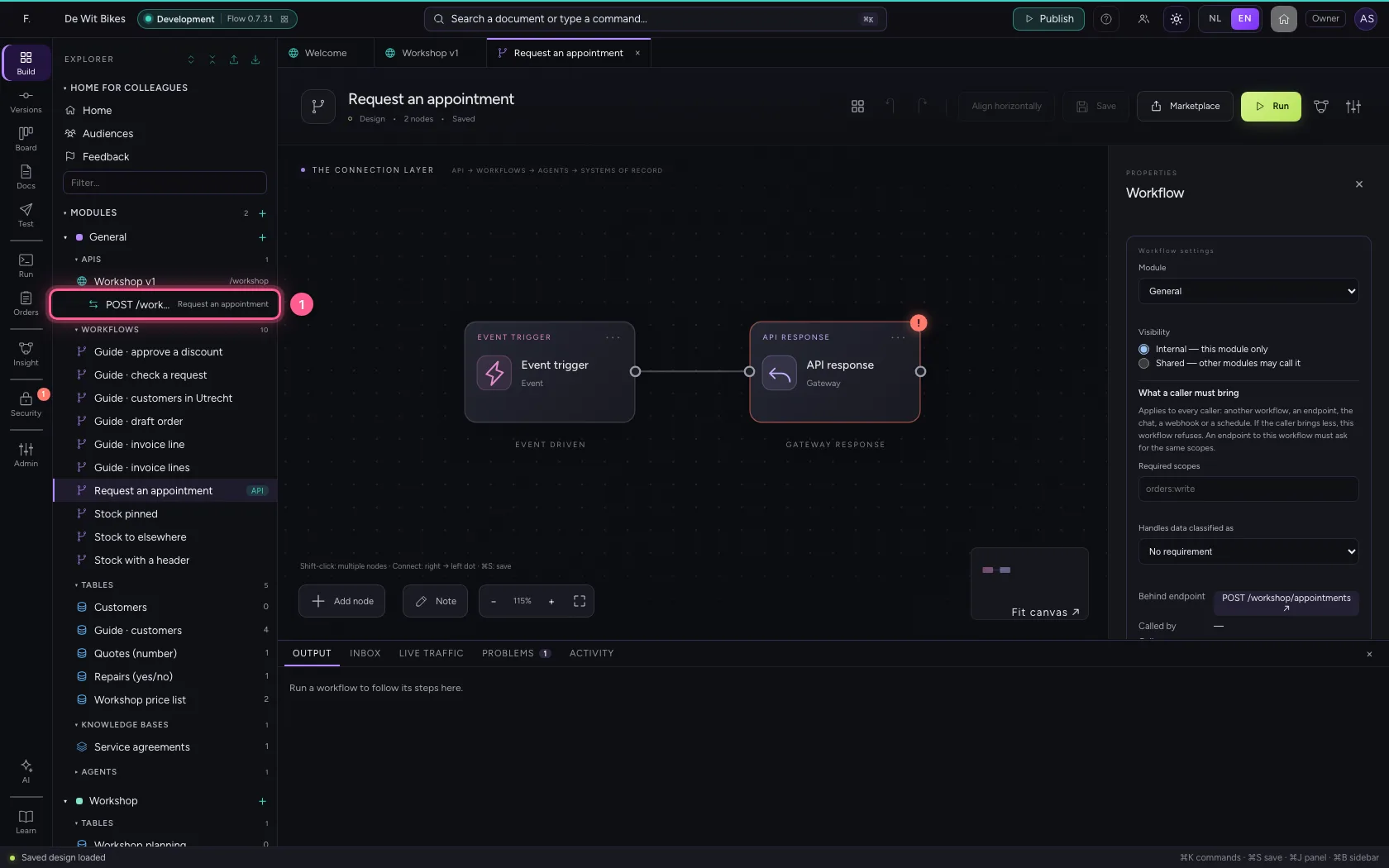
+ Endpoint, give it a name, method POST and a path. Under What it does choose Workflow, and click + New workflow. Flow creates the workflow (trigger → API response), links it and opens it.
- Click + Endpoint
- In Name, type
Request an appointment - In Method, choose POST
- In Path, type
/appointments
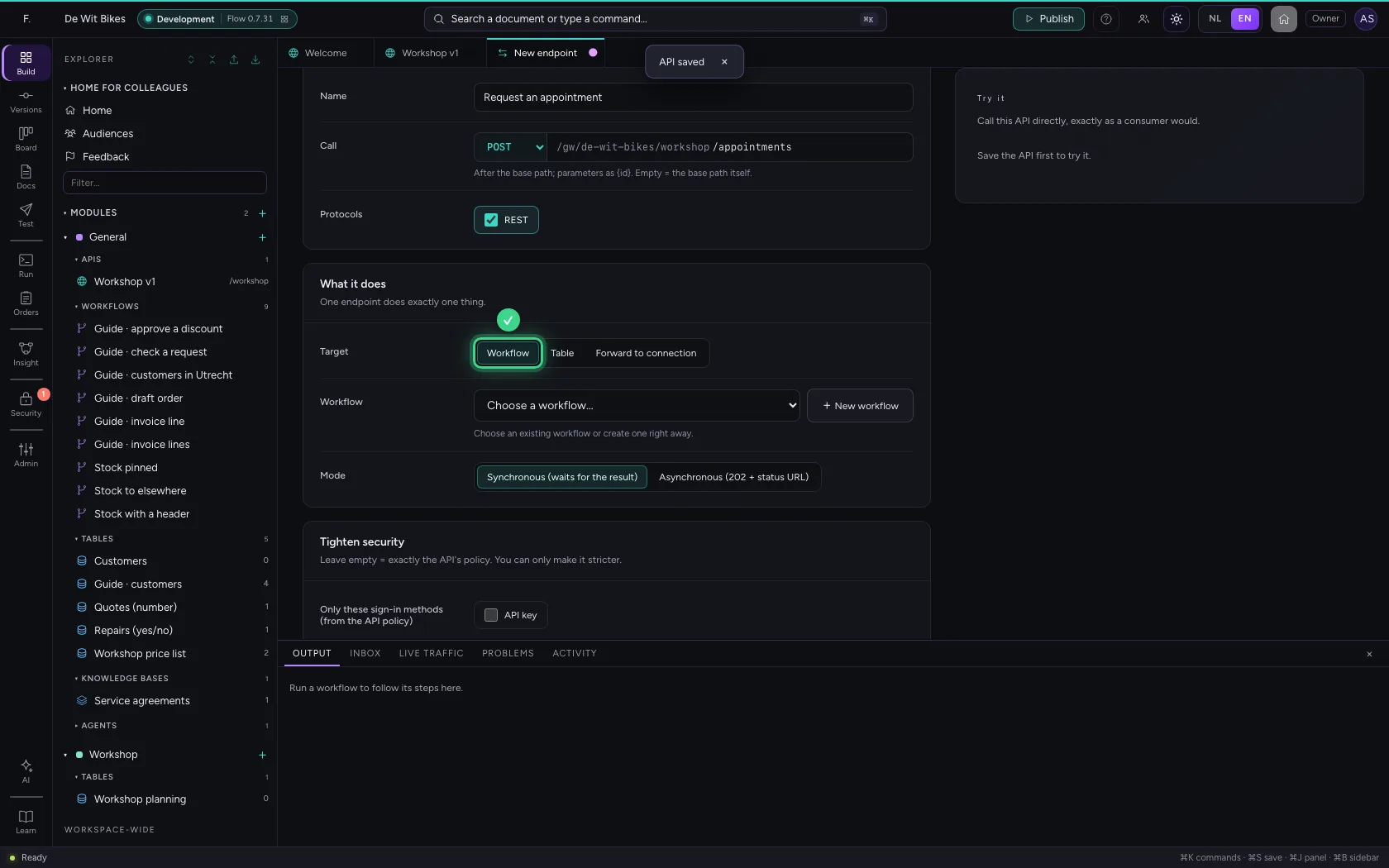
- Click + New workflow
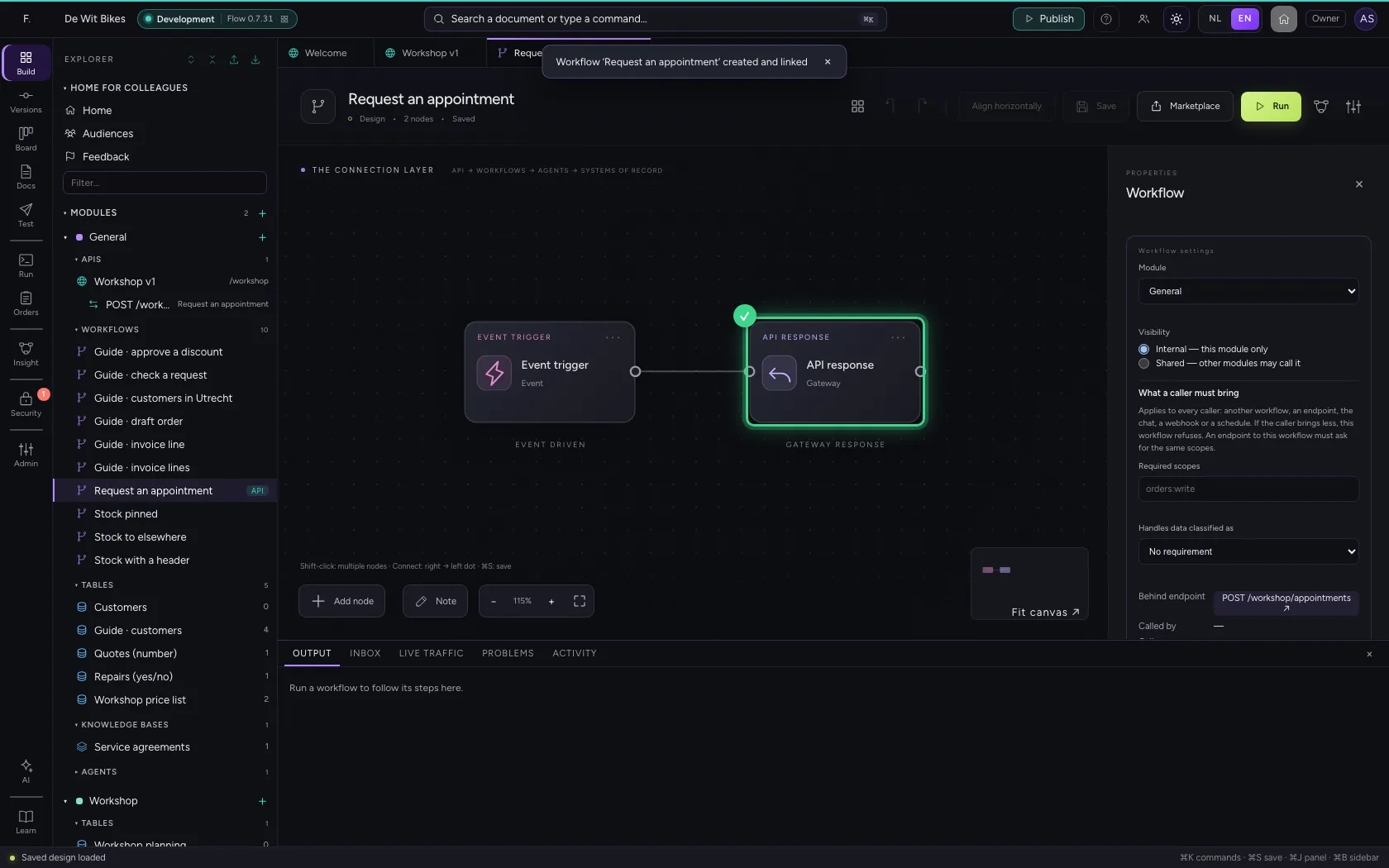
Decide the answer
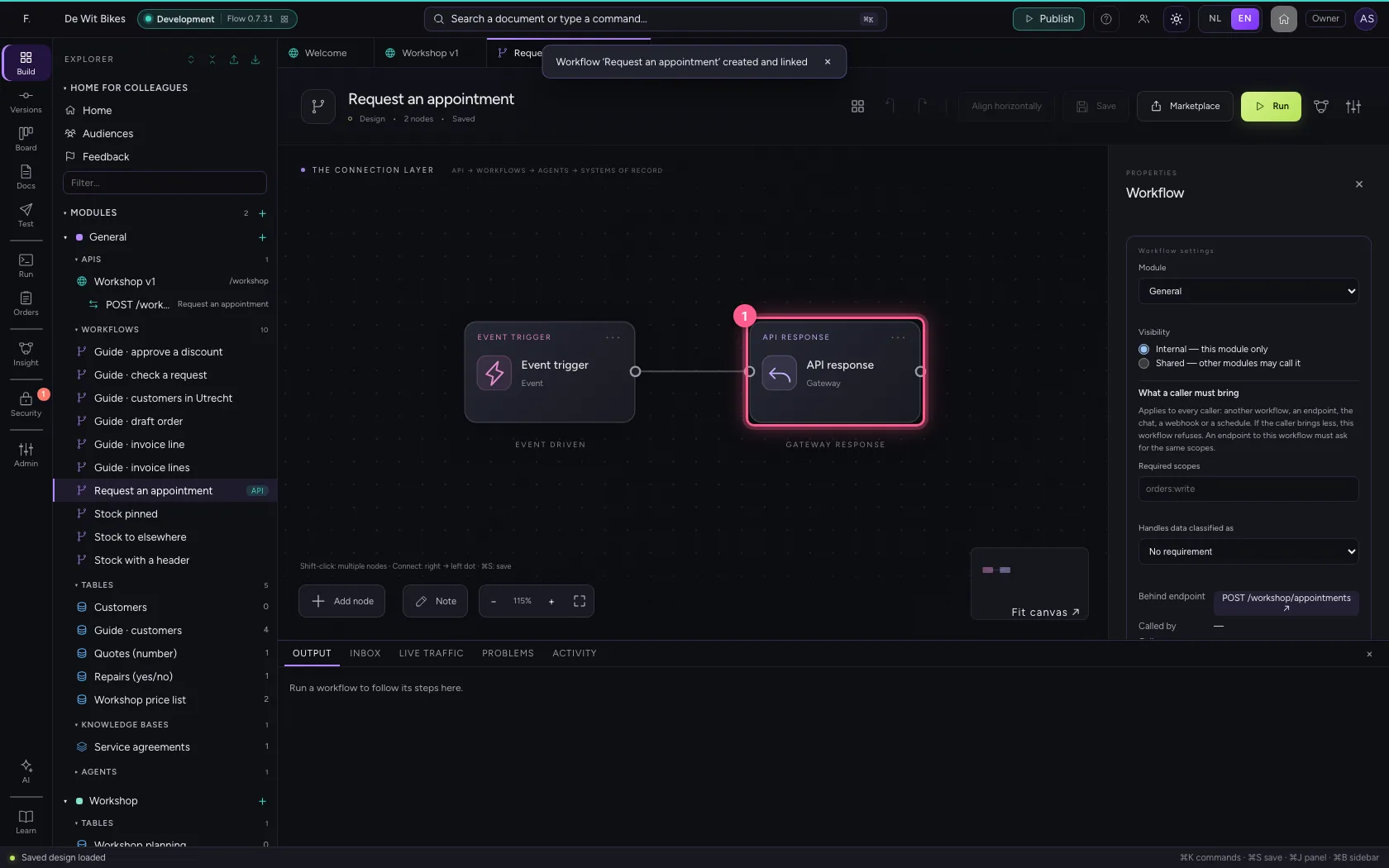
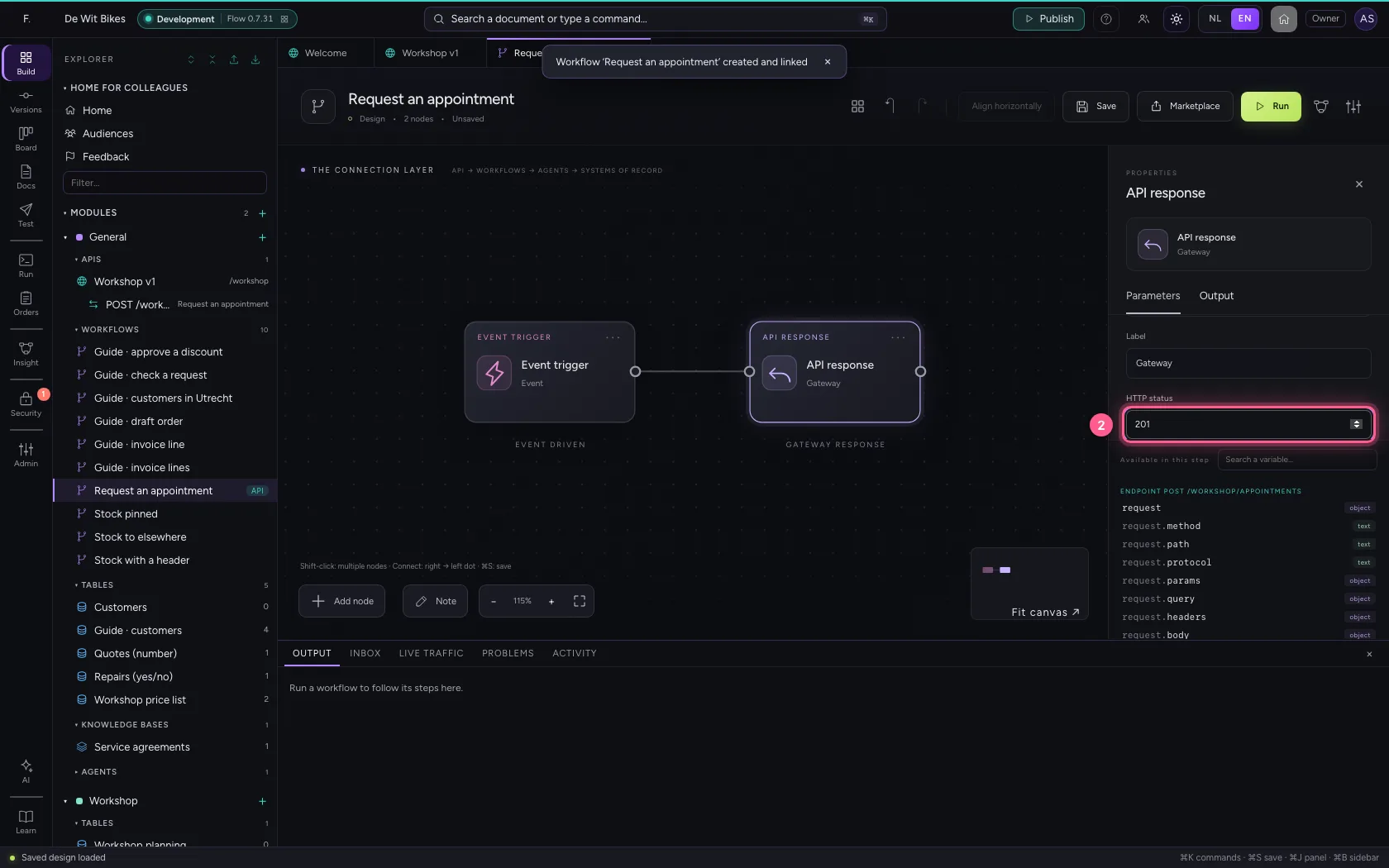
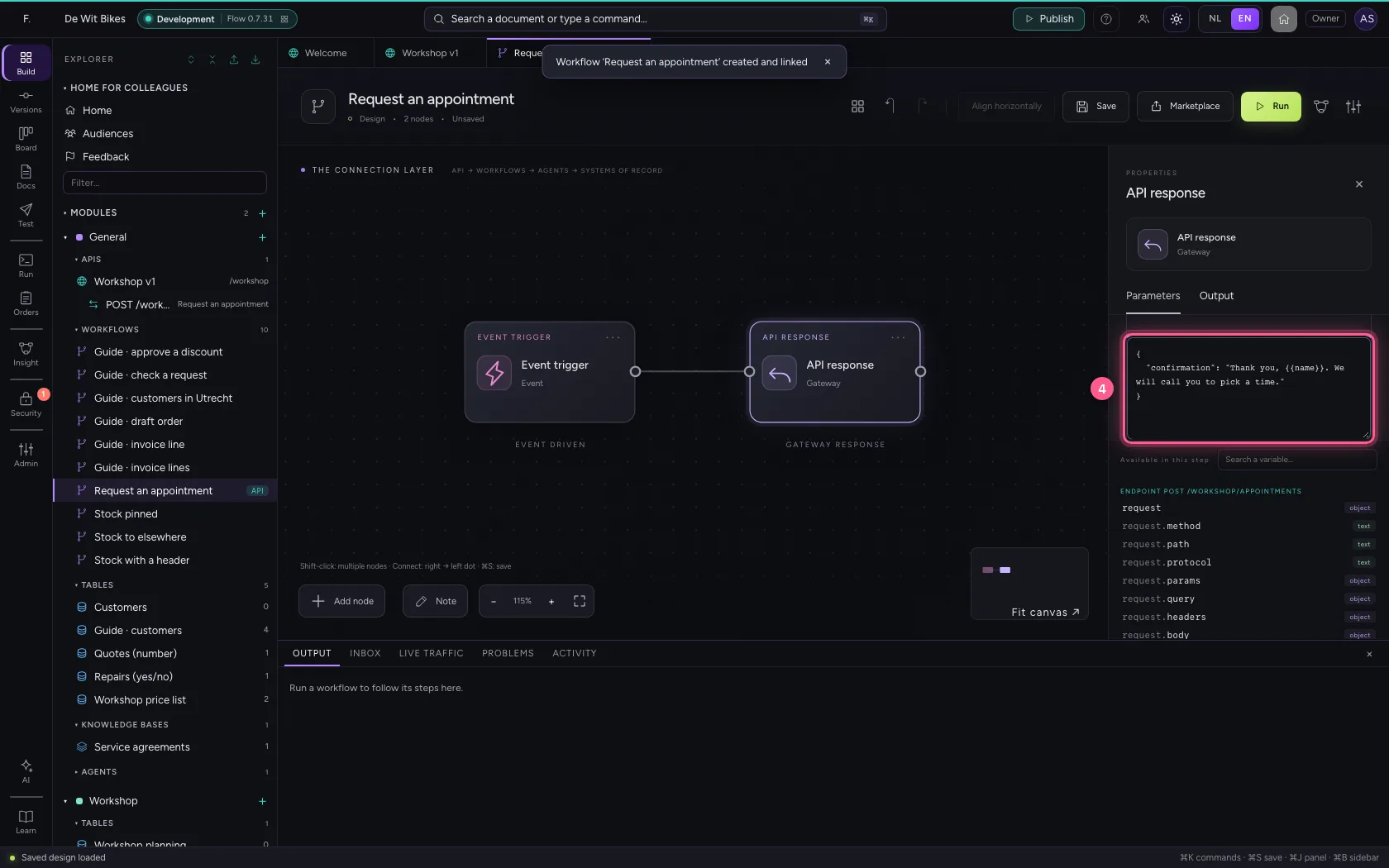
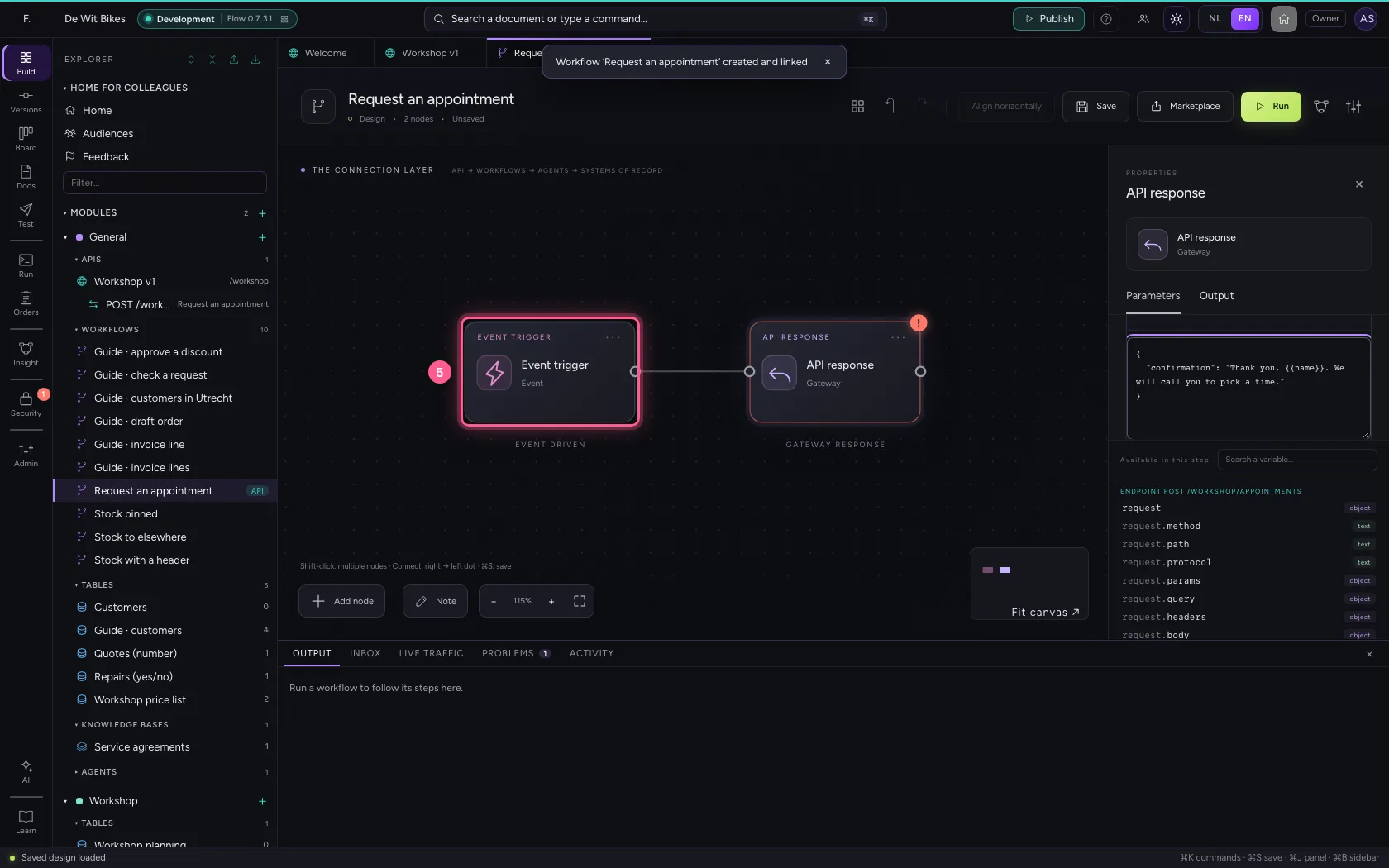
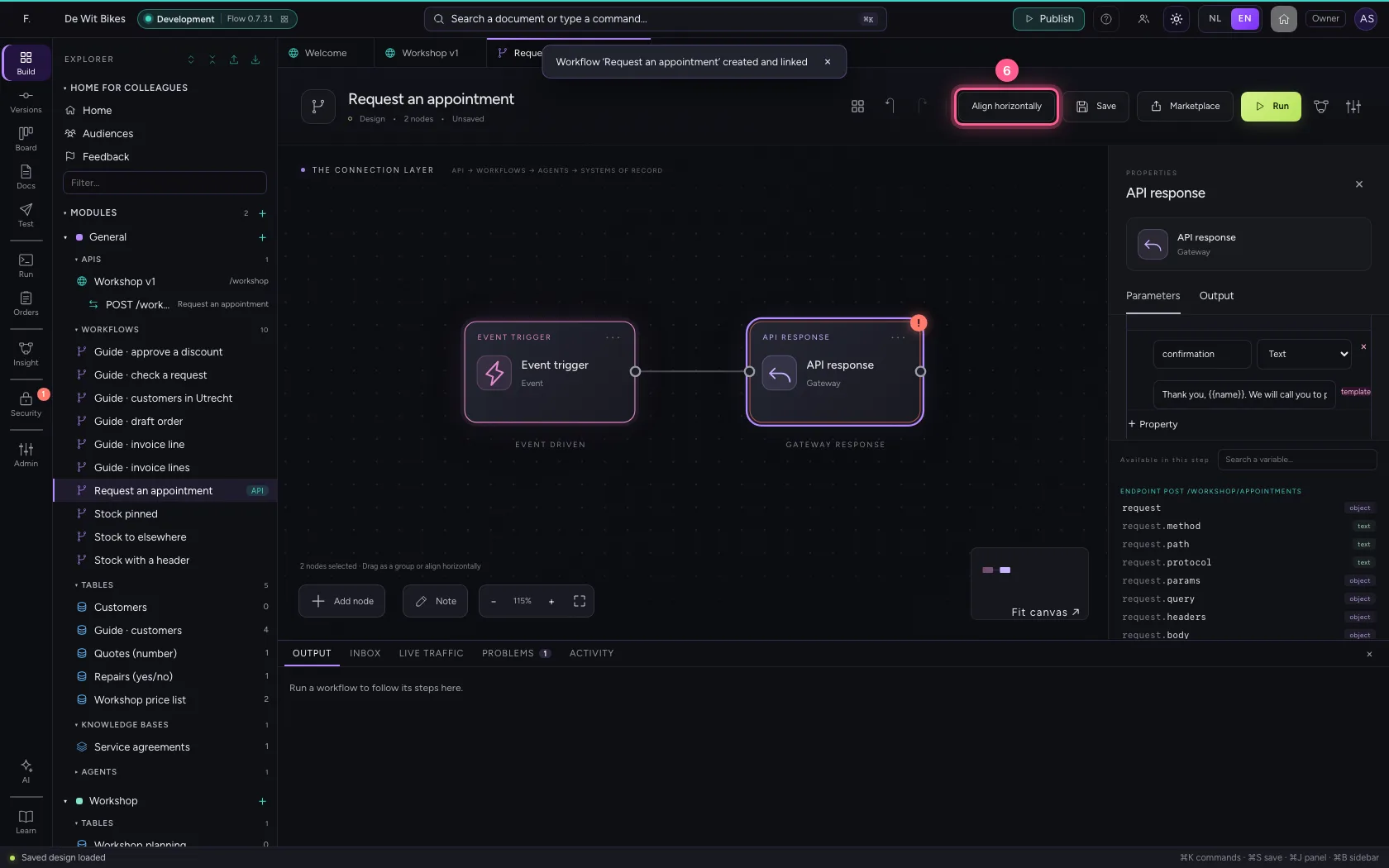
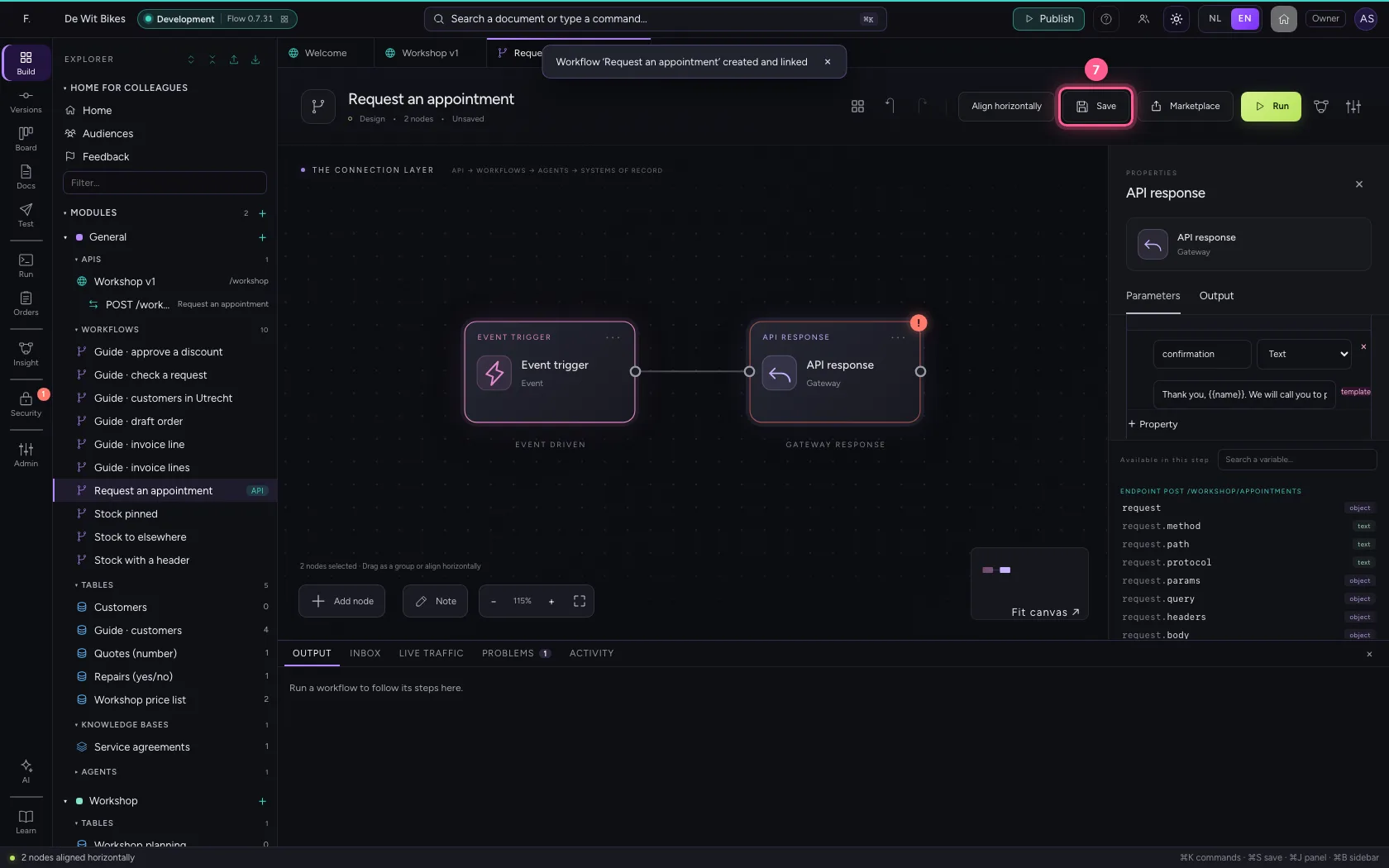
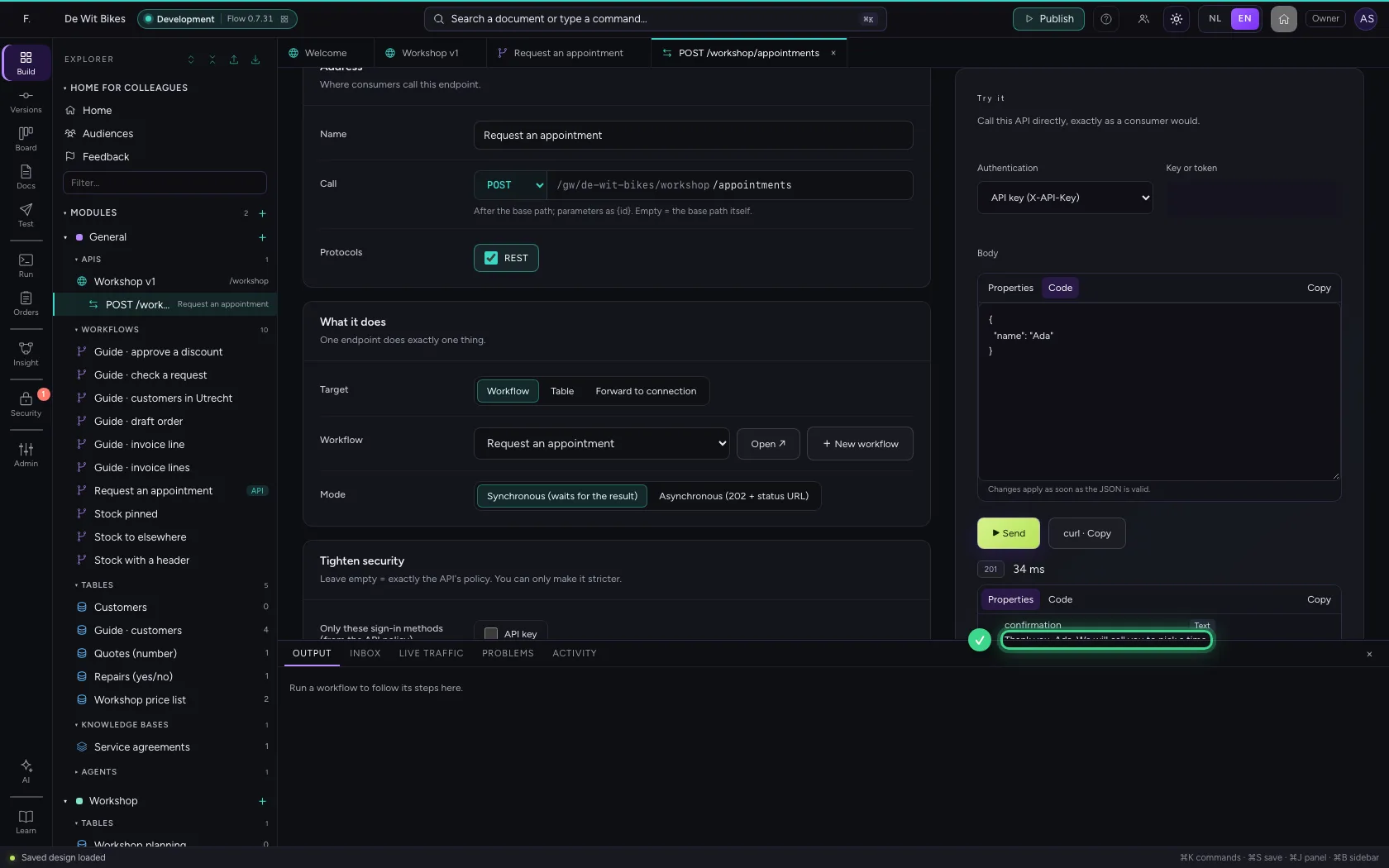
Fields from the request body are in the workflow as {{name}}. Click API response and set status 201 and a body that returns the name. Line up the steps and save.
- Click the step ‘API response’
- In HTTP status, type
201
- Click Code
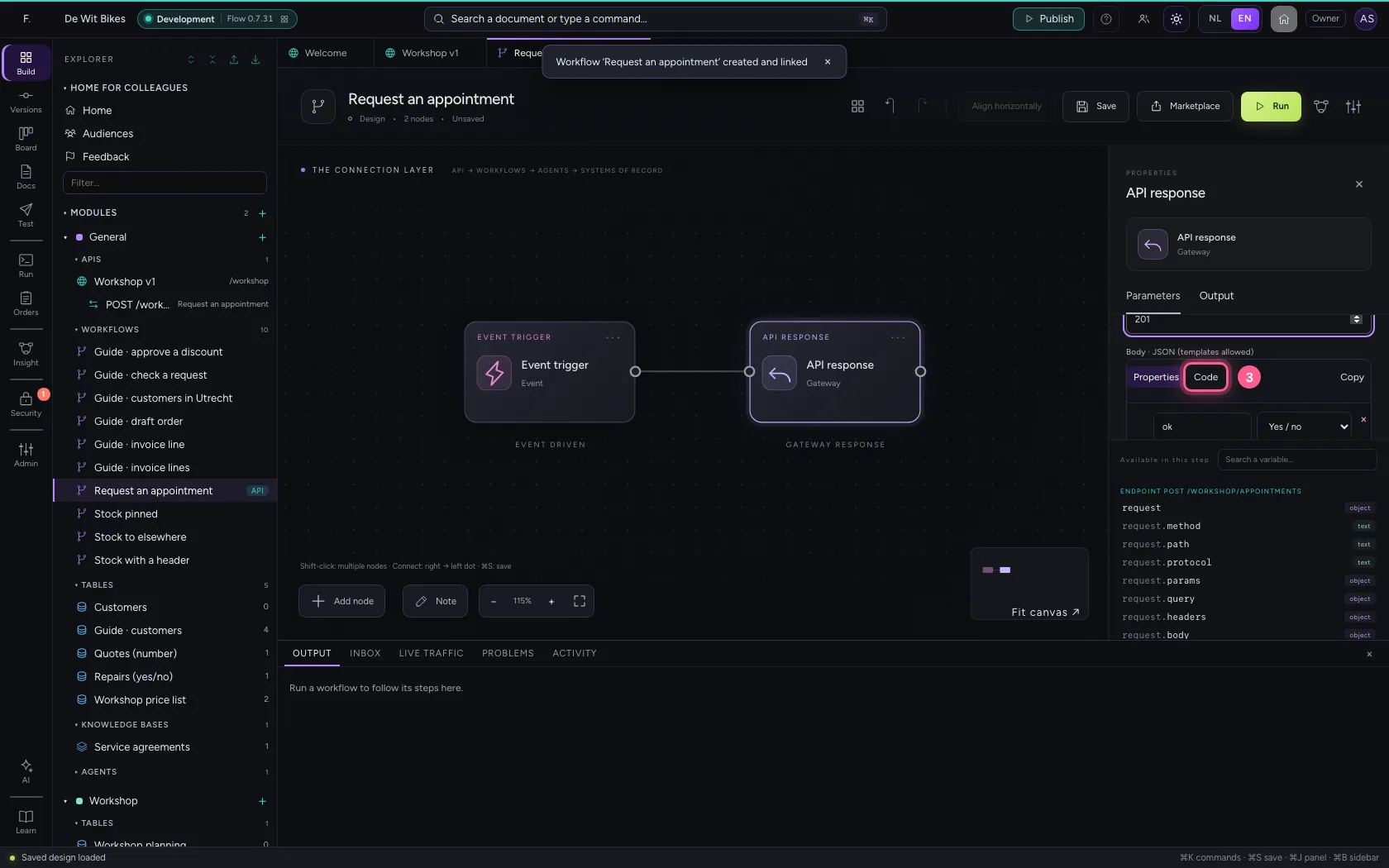
- In Body, type `{
- We will call you to pick a time."
- Click the step ‘Event trigger’
- Click Align horizontally
- Click Save
Call the endpoint
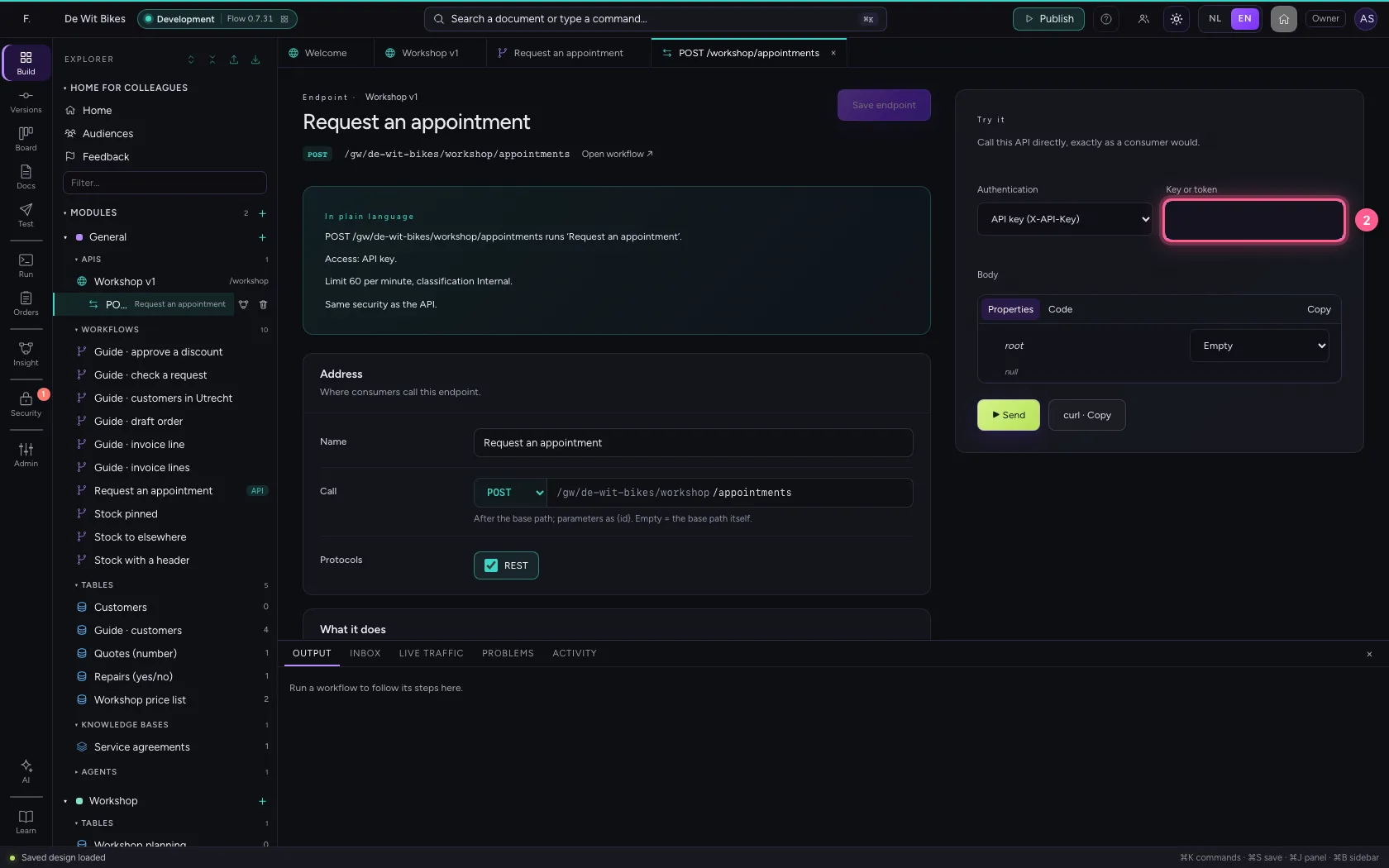
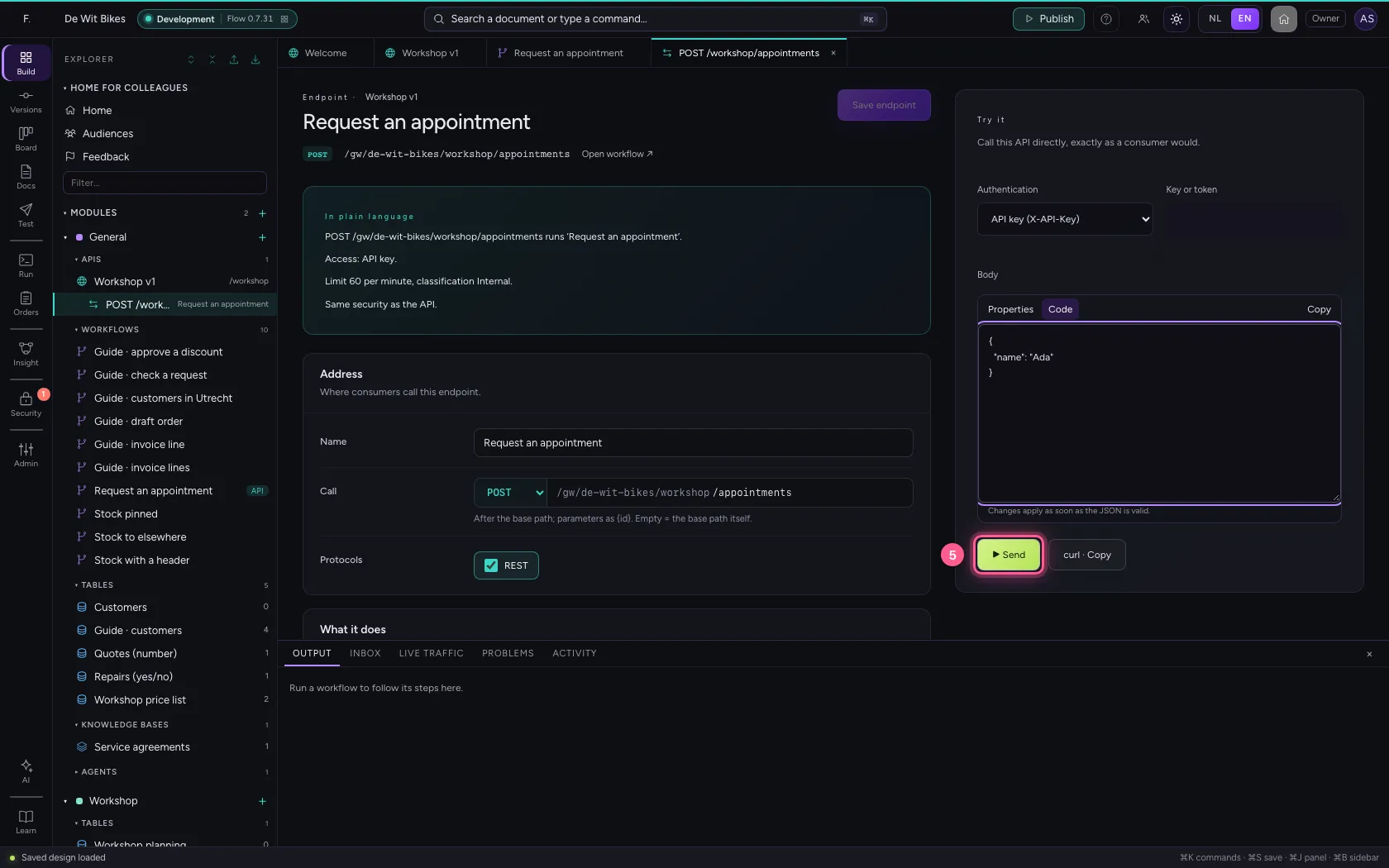
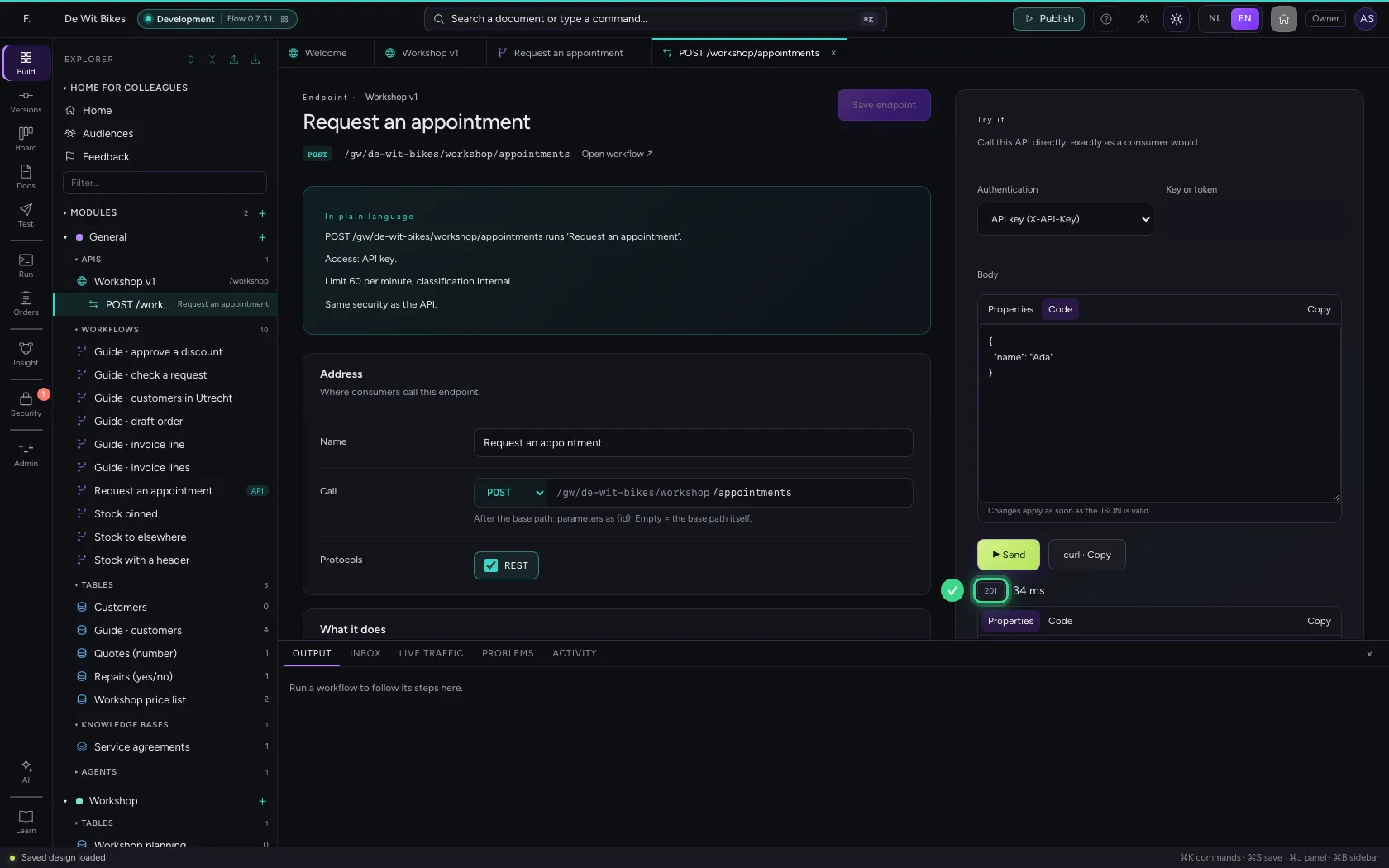
Open the endpoint in the explorer. On the right under Try it you call it like a consumer: with an API key that opens this API, and a body. You get the status code and your workflow's answer.
- Click the endpoint
- In Key or token, type
••••••••
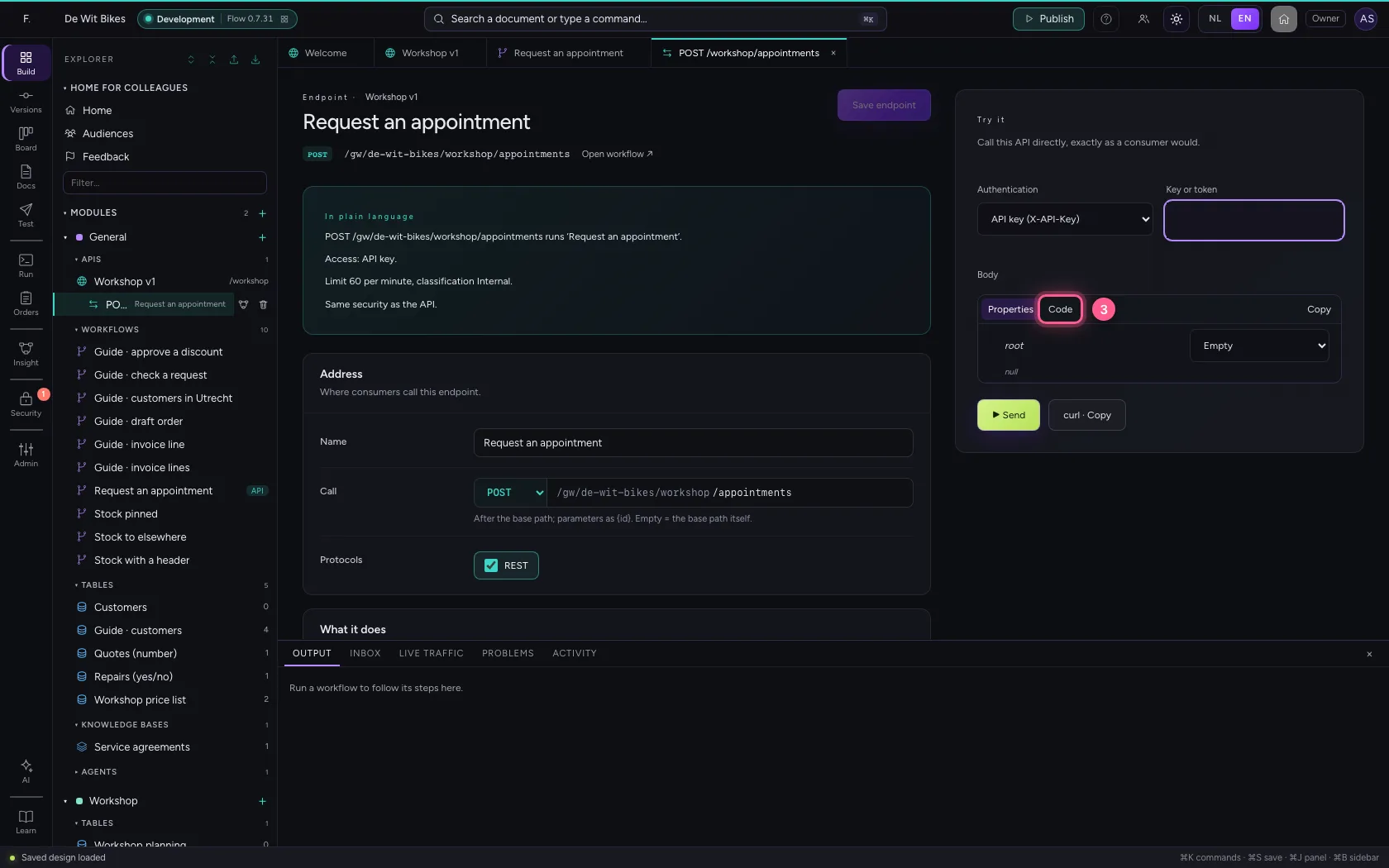
- Click Code
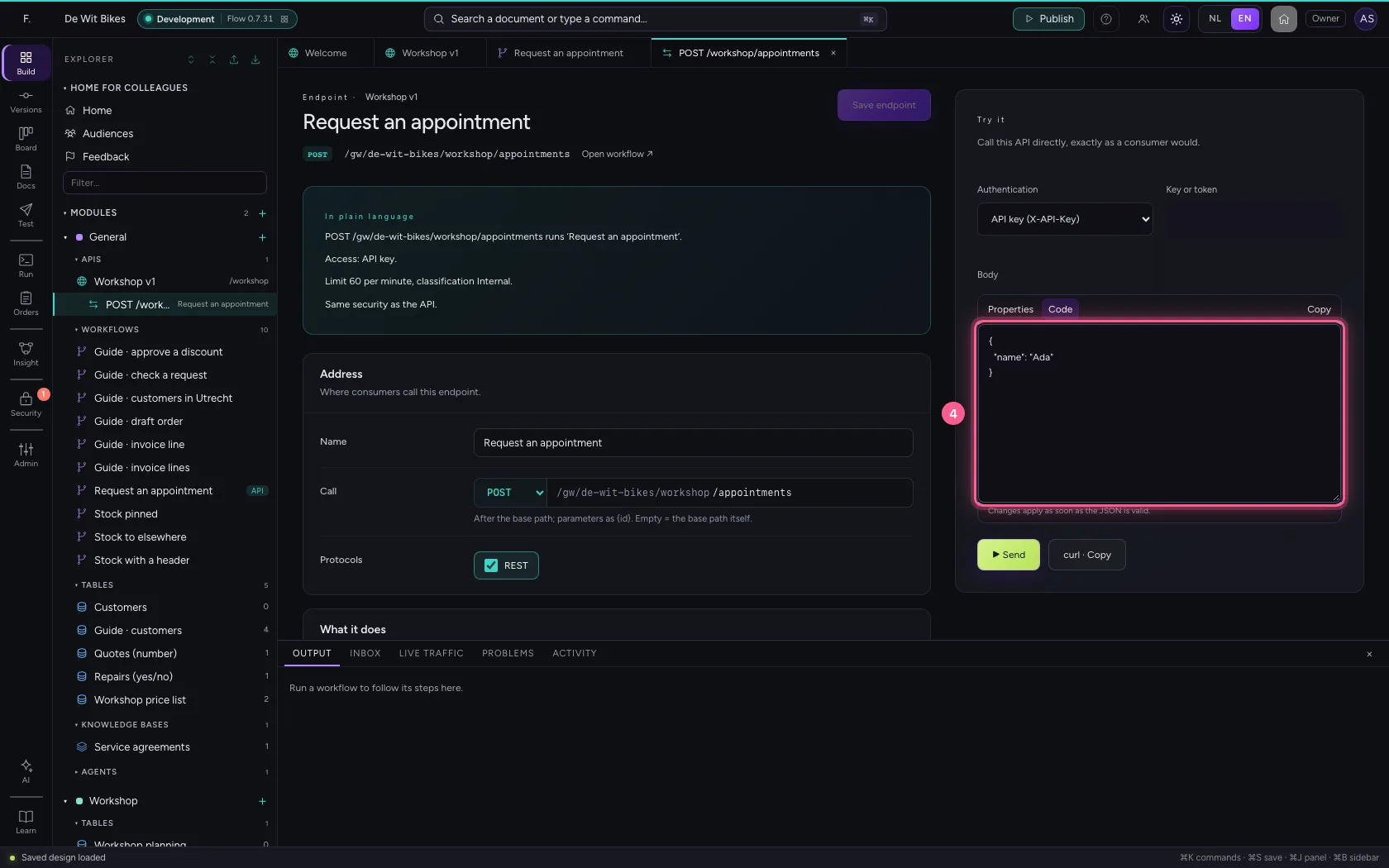
- In Body, type
{"name": "Ada"}
- Click ▶ Send
This guide was carried out step by step on 22 Oct 2026 by an automated test on Flow (version 3e563176).