A table as an API
Not every endpoint needs a workflow. You publish a table as an API in one go: list (with filters per column), get one row, add, update and delete — ordinary endpoints that inherit the API's policy. You choose which actions you offer, filter the list with a query string and add a row.
Open your development environment
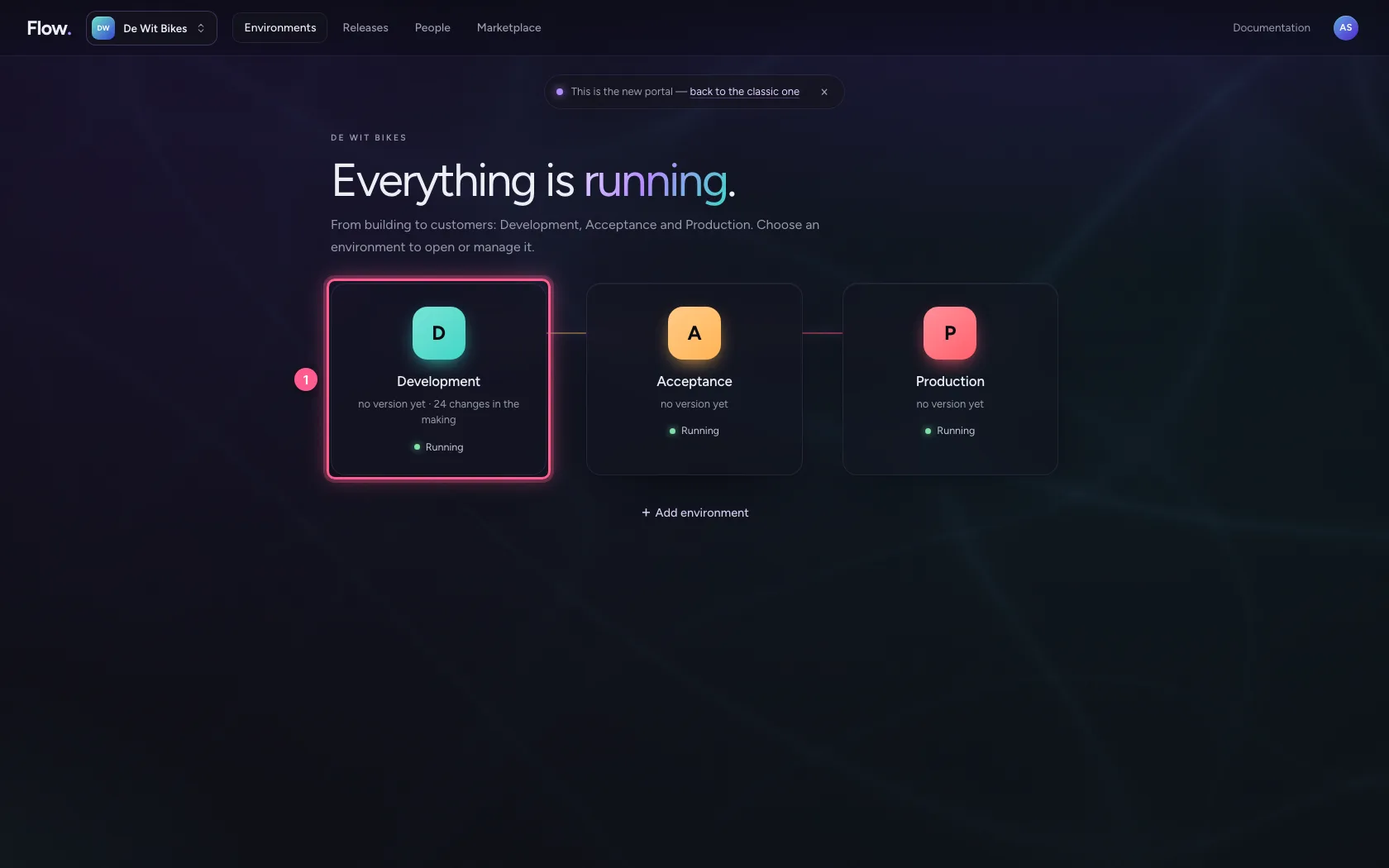
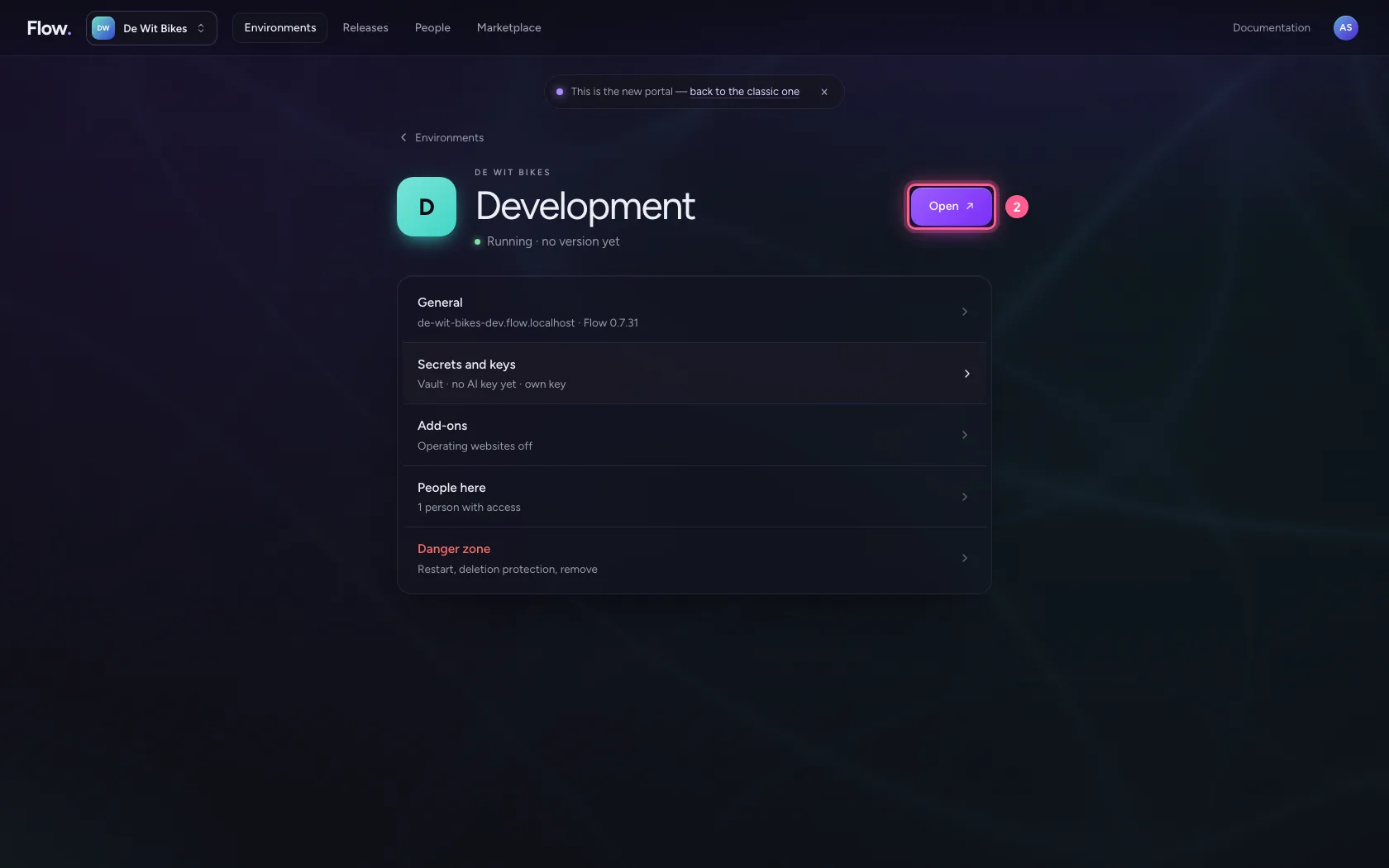
In the portal, under Environments, click Development, and there Open. Flow opens in a new tab and you are signed in straight away.
- Click Development
- Click Open ↗
Publish the table on an API
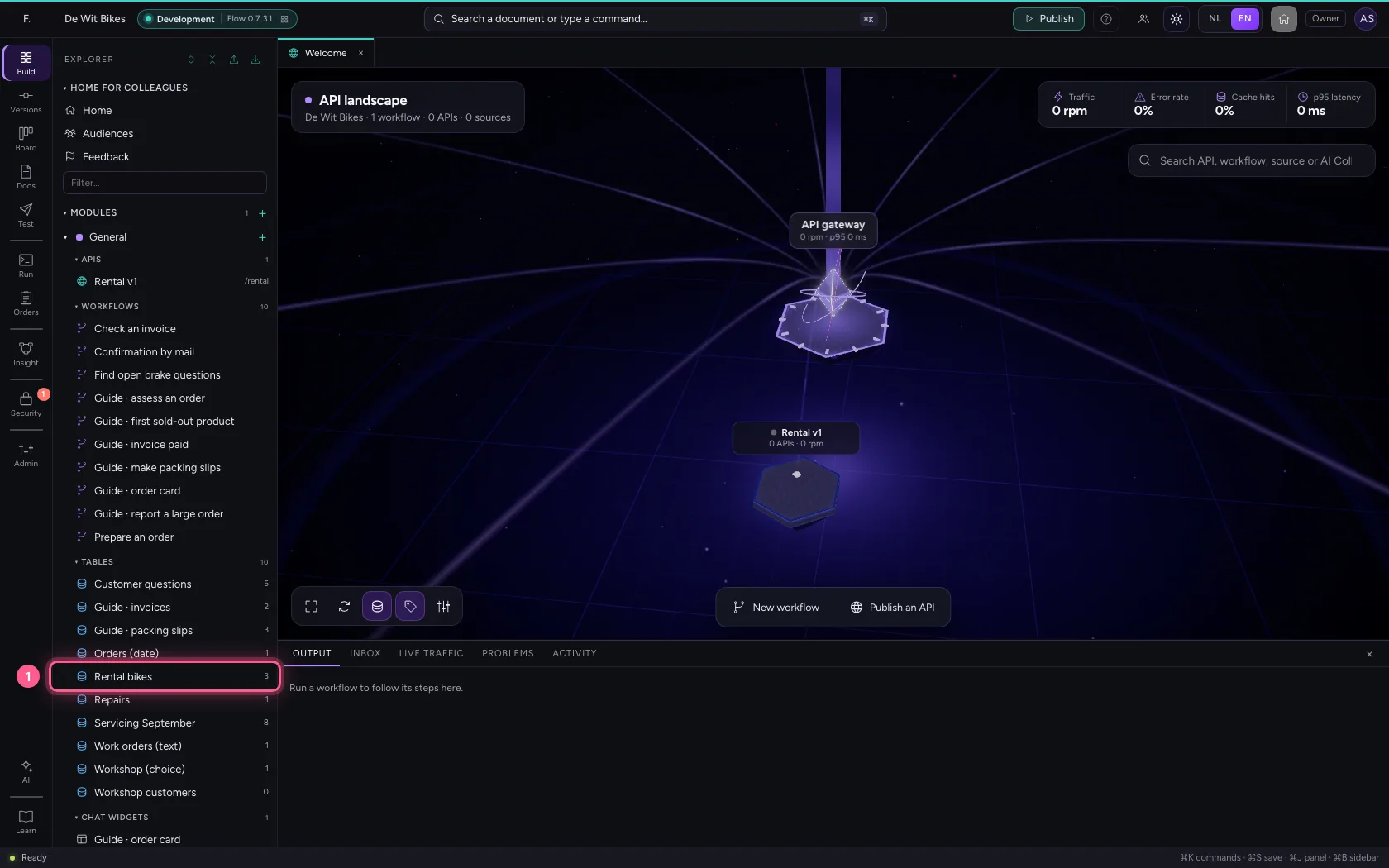
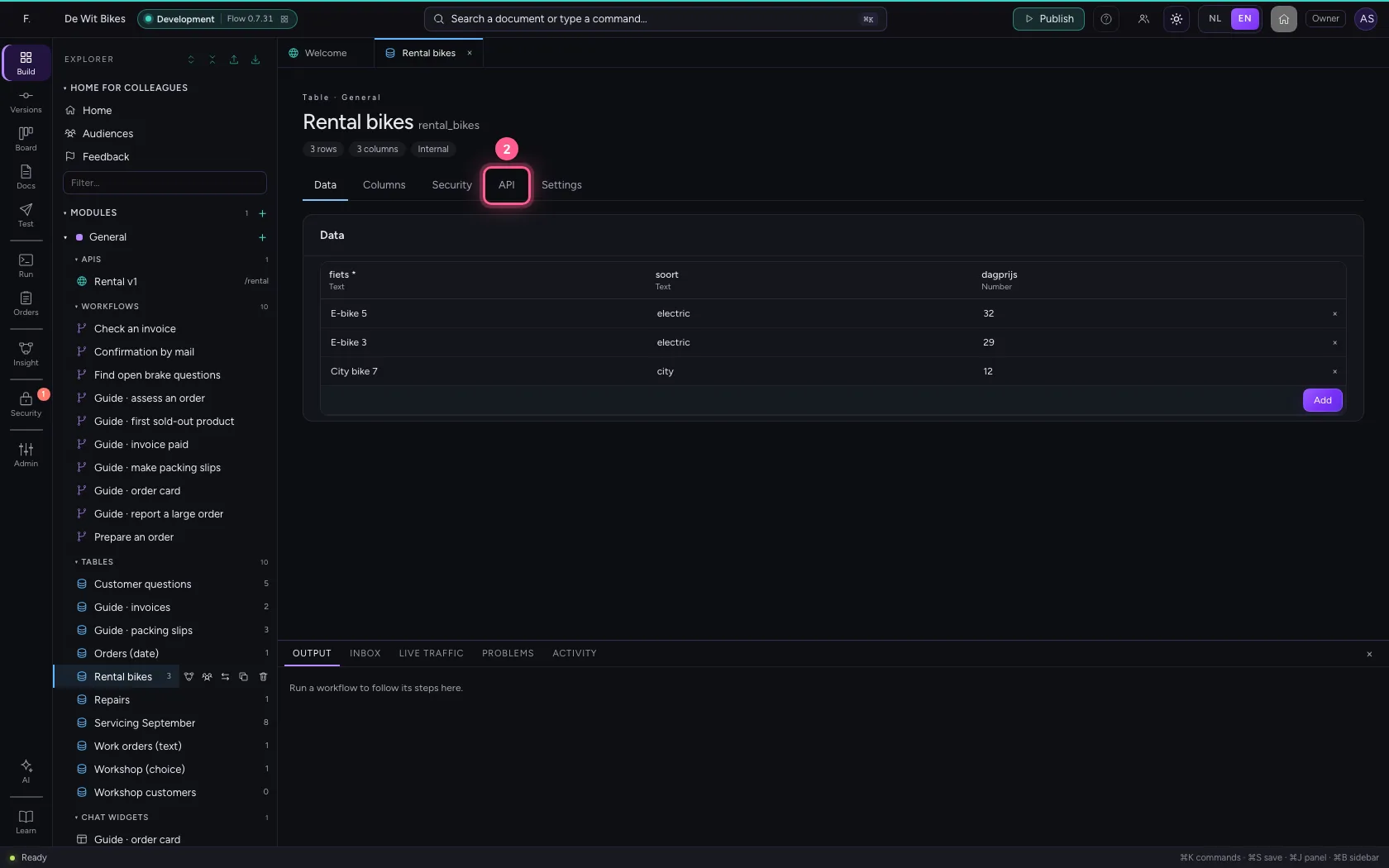
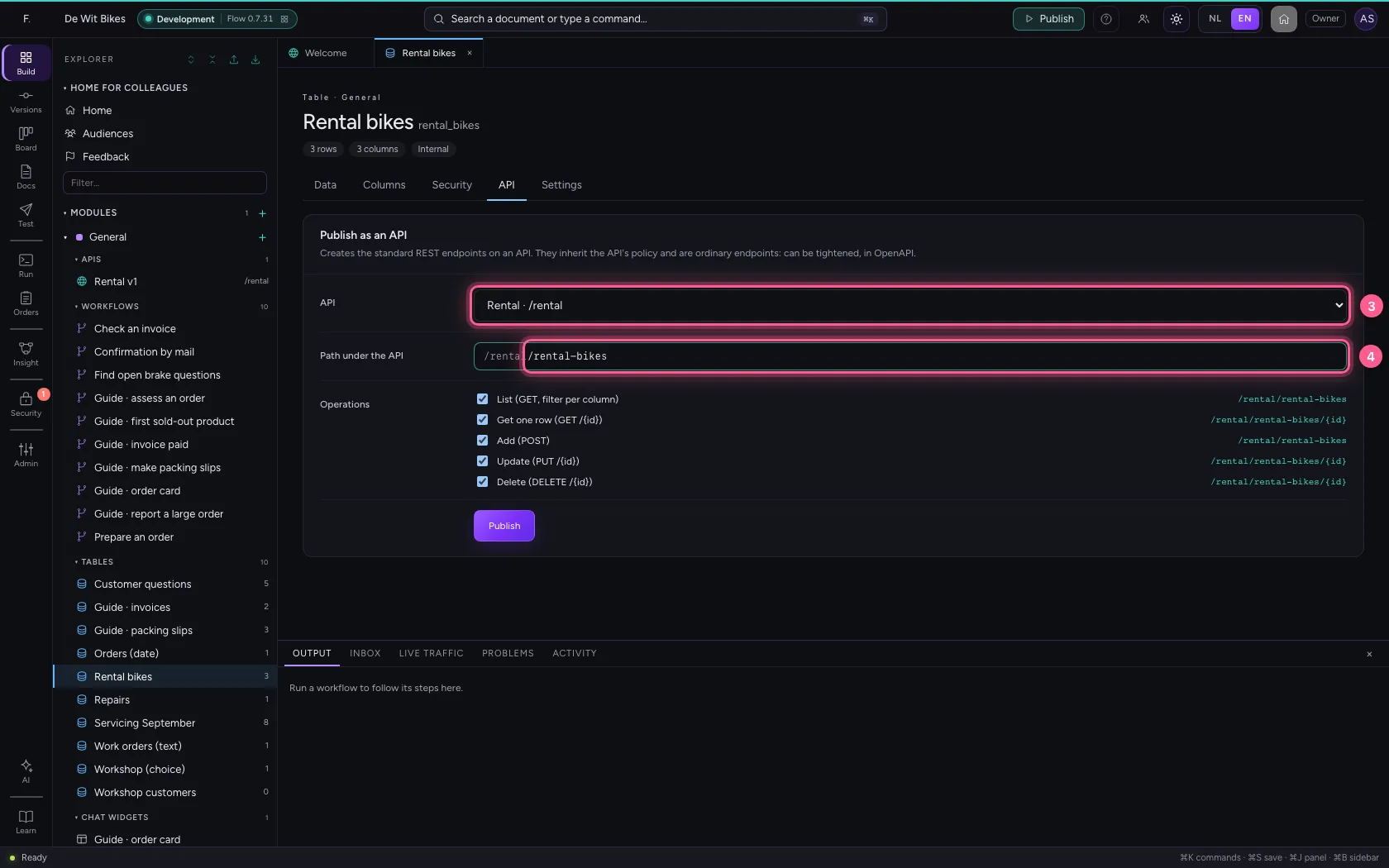
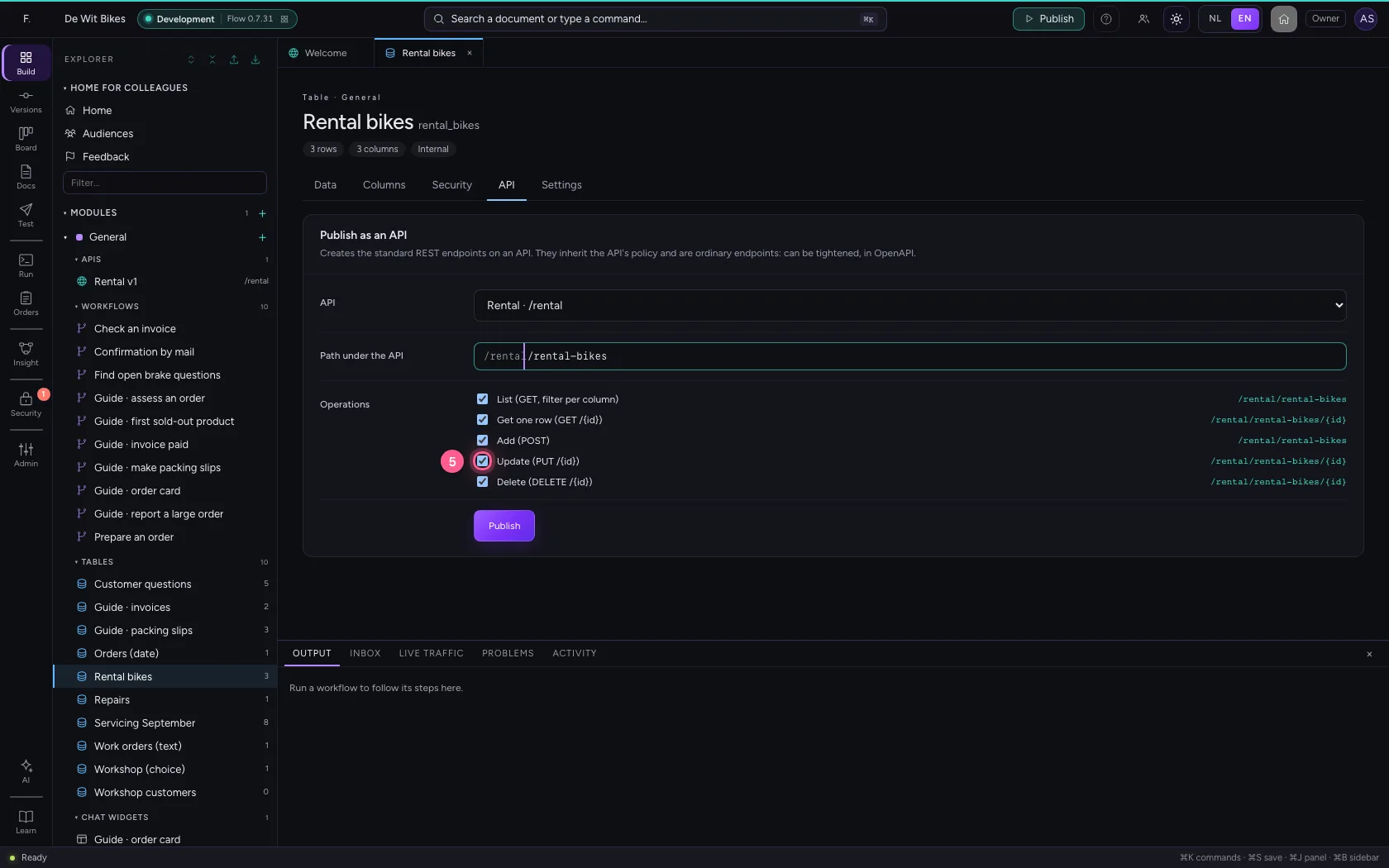
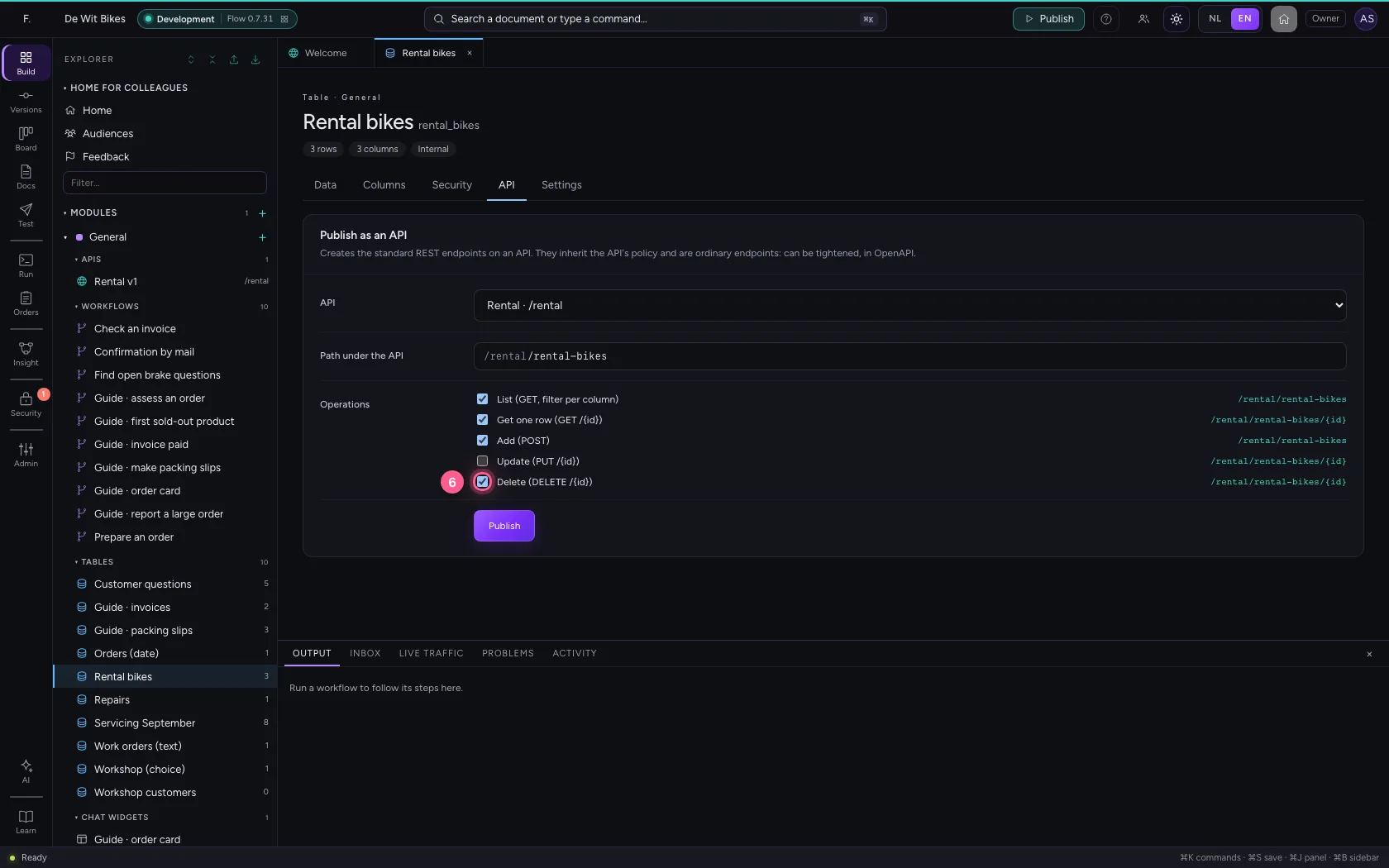
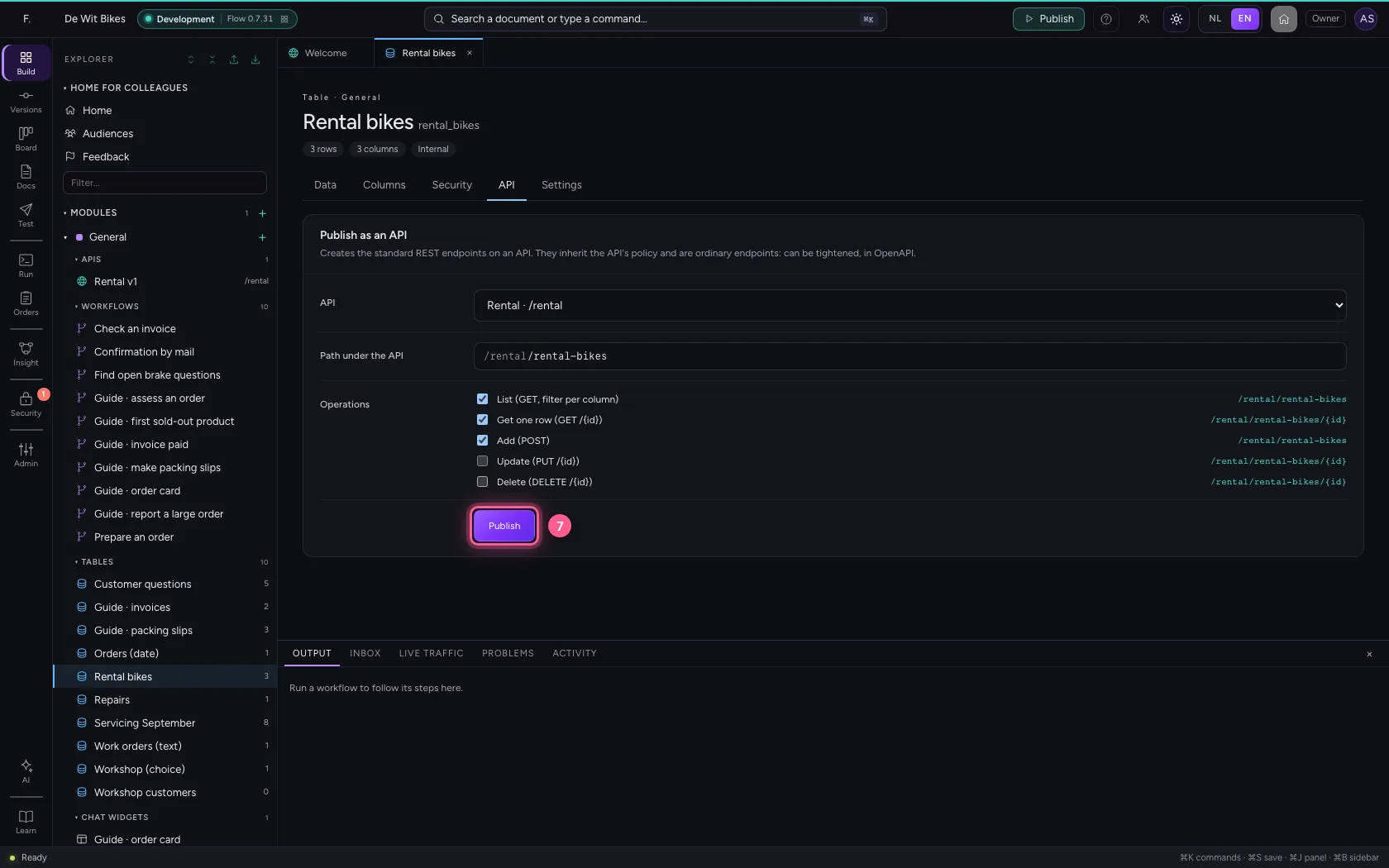
Open the table and choose the API tab. Choose the API, the path under it and which actions you offer: here only list, one row and add — untick update and delete. Publish creates the endpoints.
- Click the table
- Click API
- In API, choose Rental · /rental
- In Path under the API, type
/rental-bikes
- Click Update (PUT /{id}) /rental/rental-bikes/{id}
- Click Delete (DELETE /{id}) /rental/rental-bikes/{id}
- Click Publish
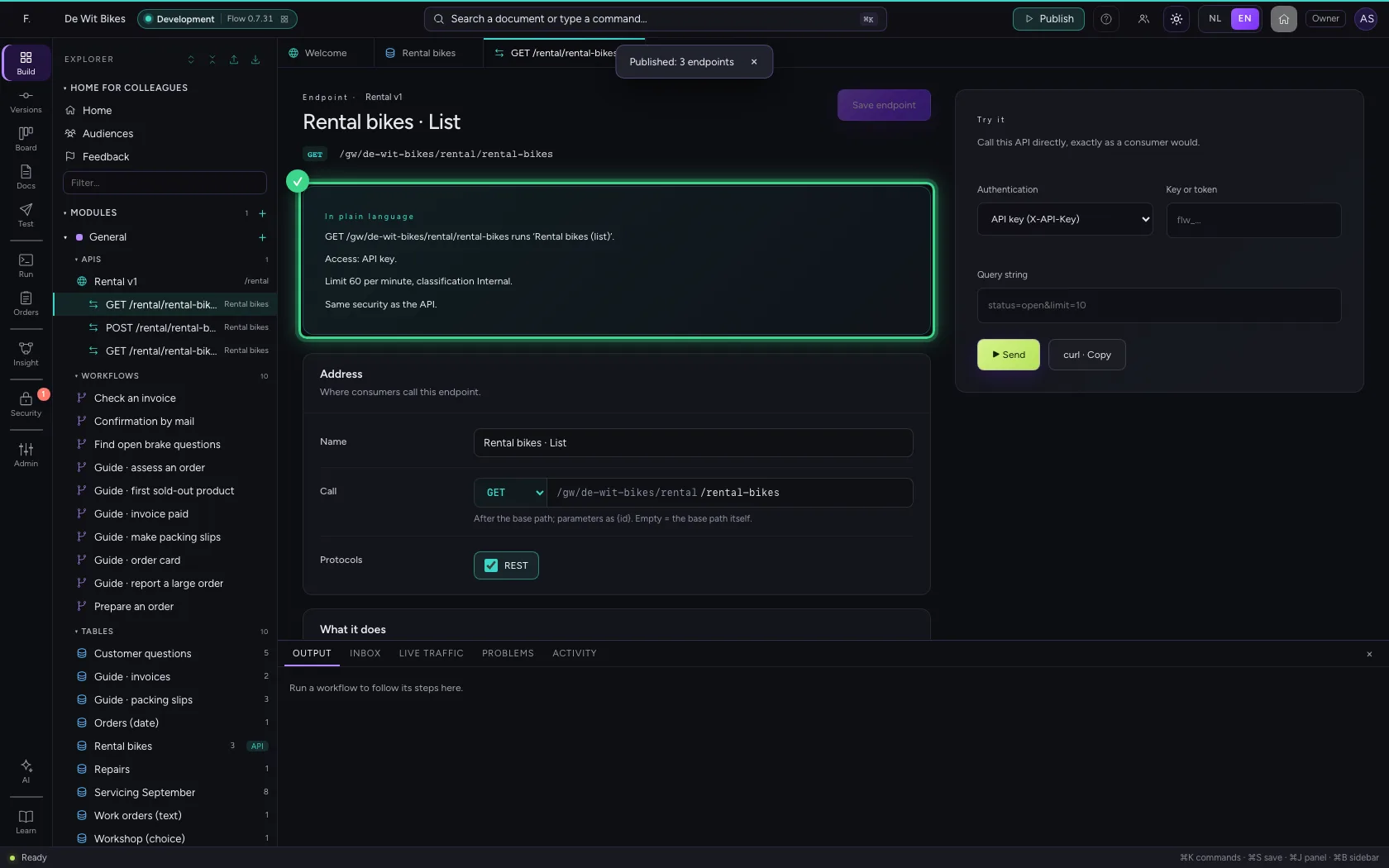
Ask for the list, filtered
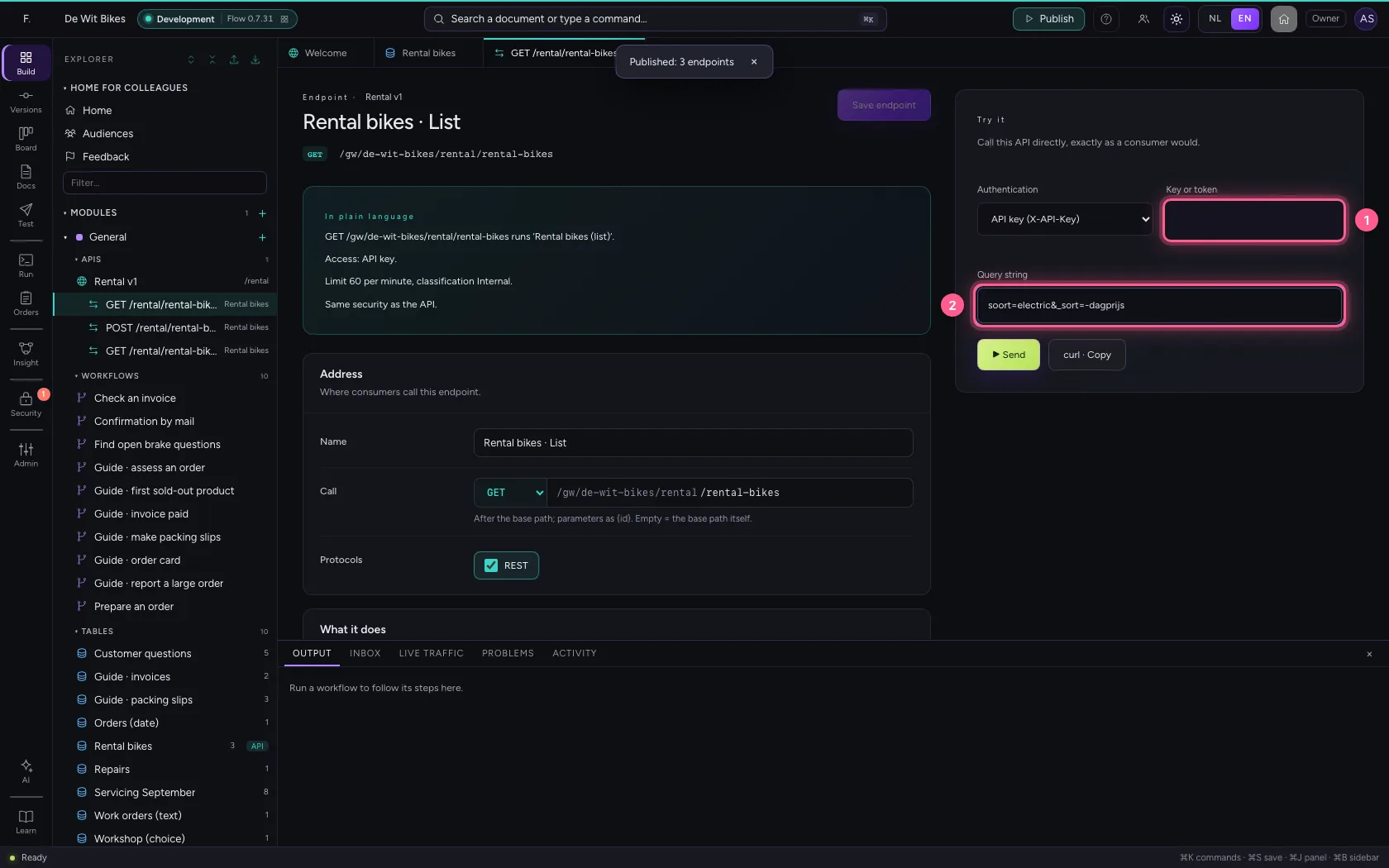
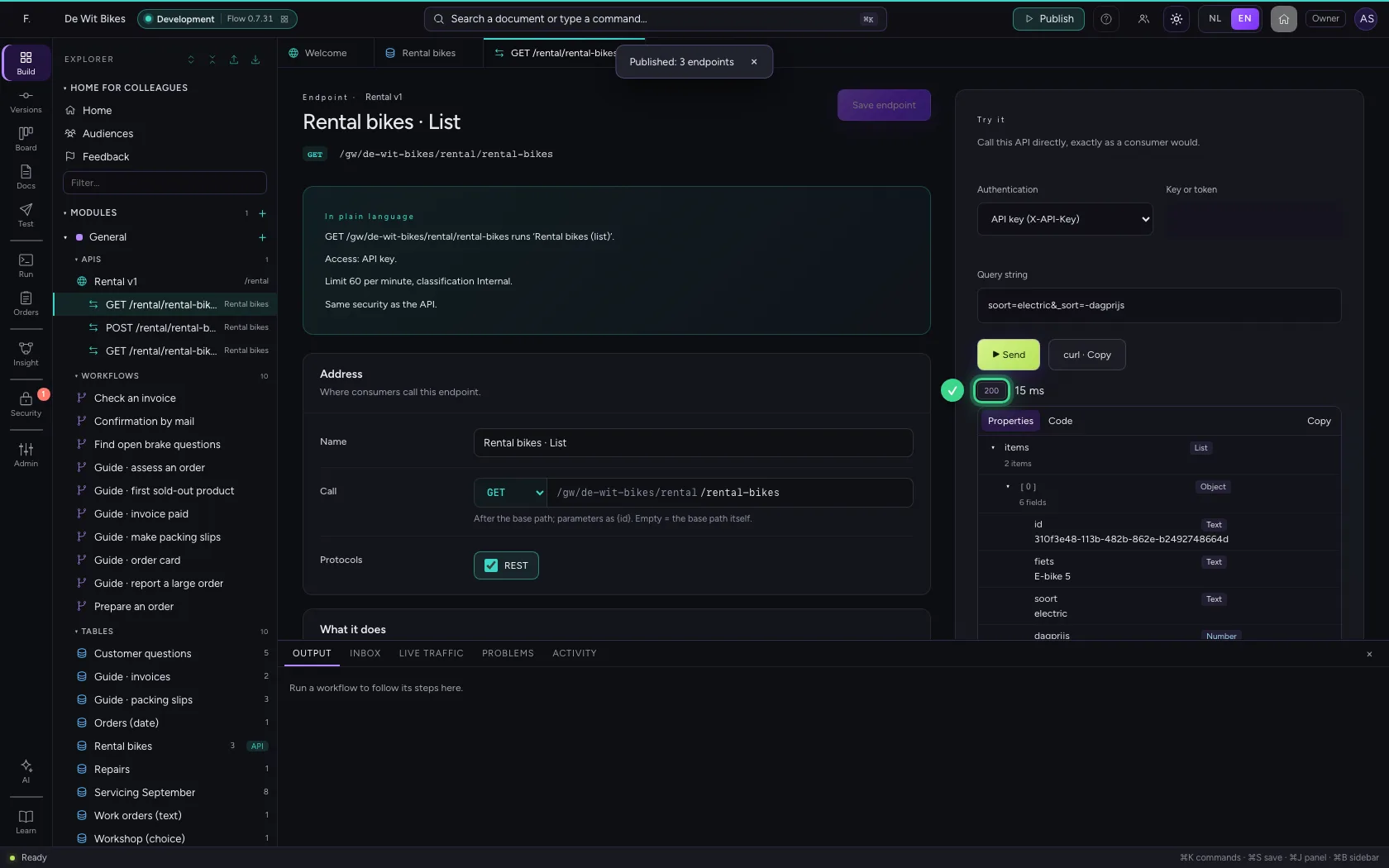
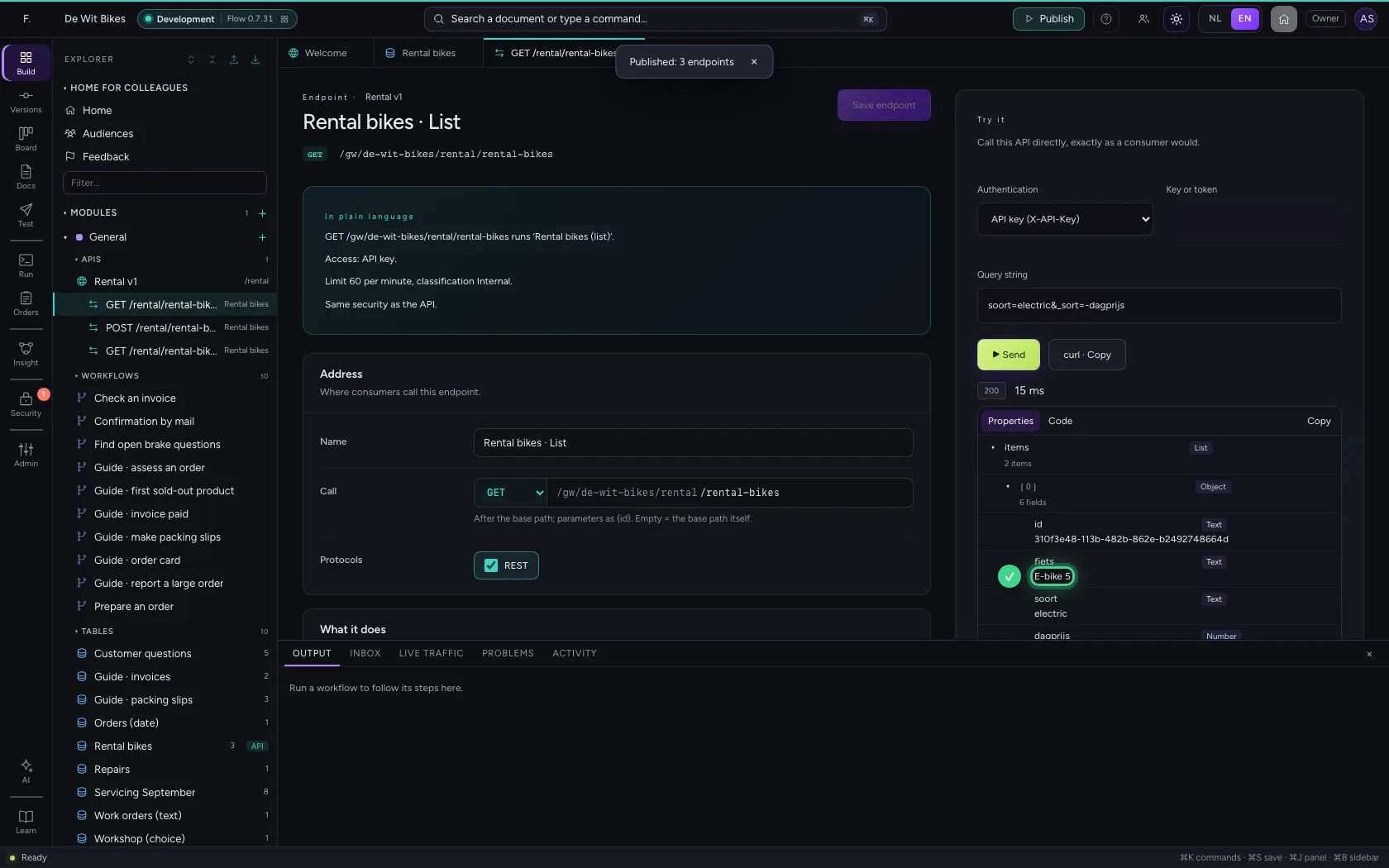
On the right under Try it you call the endpoint with an API key. In the query string you filter per column (soort=…), and with _sort and _limit you sort and limit. You get items and the total.
- In Key or token, type
•••••••• - In Query string, type
soort=electric&_sort=-dagprijs
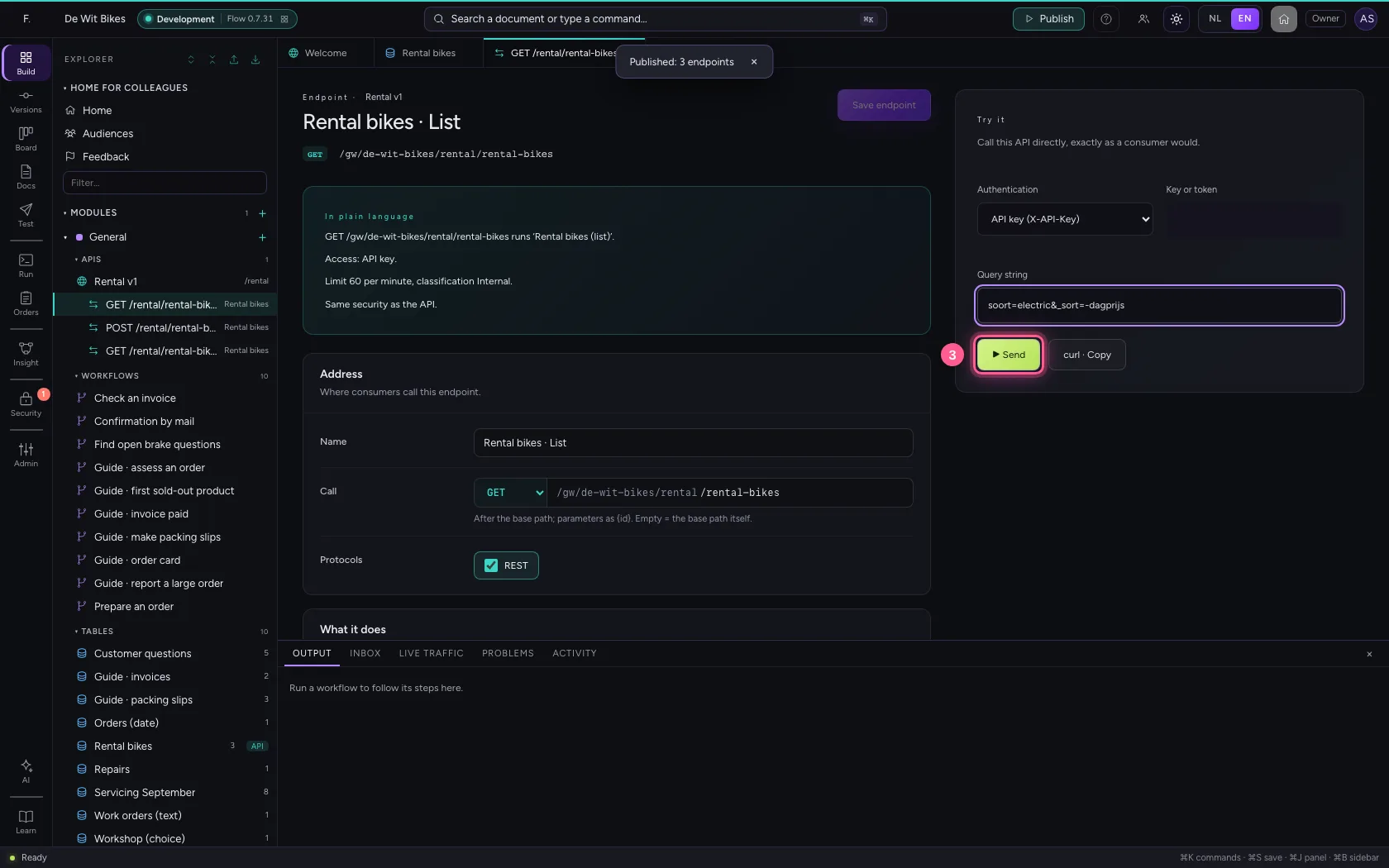
- Click ▶ Send
Add a row through the API
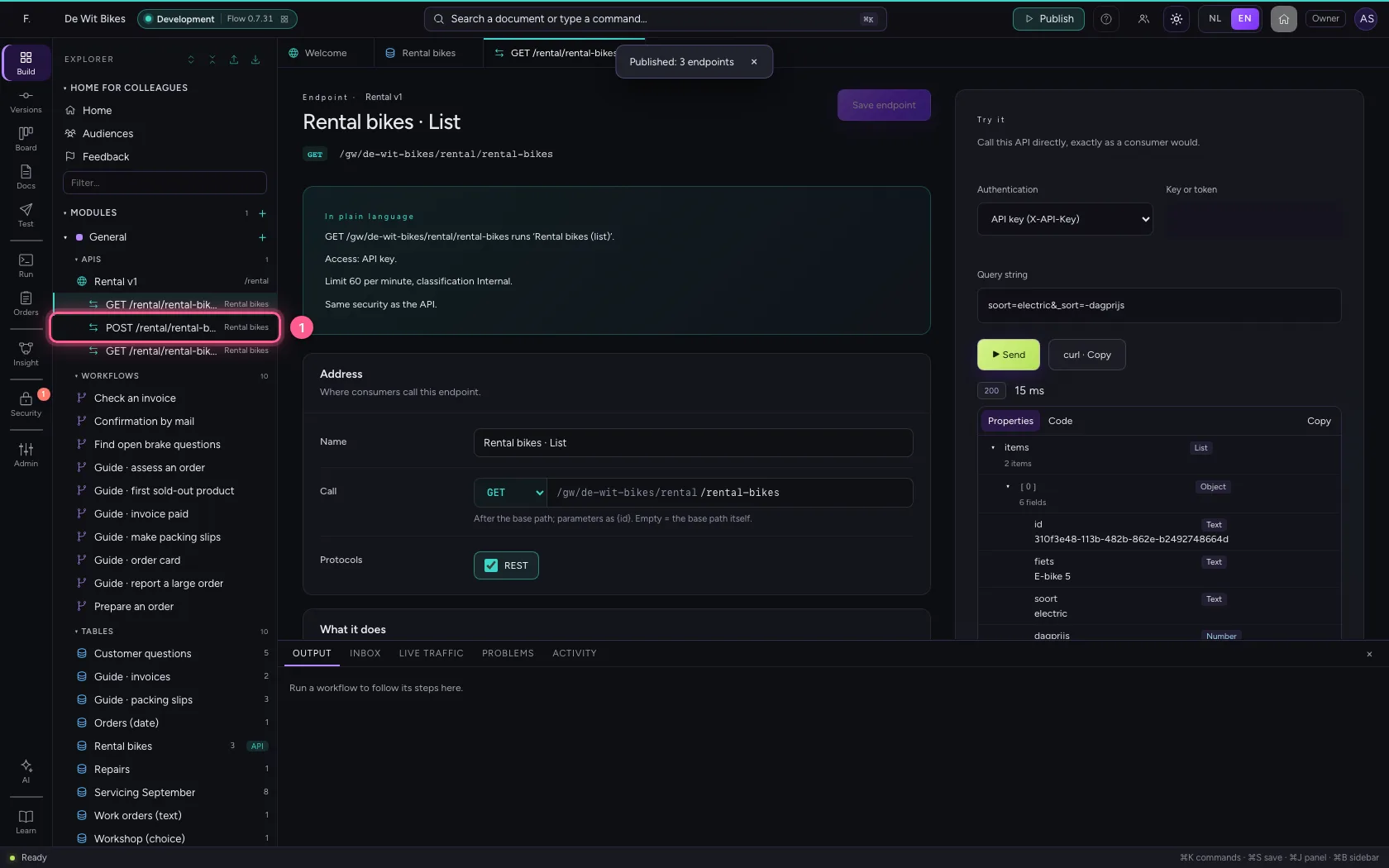
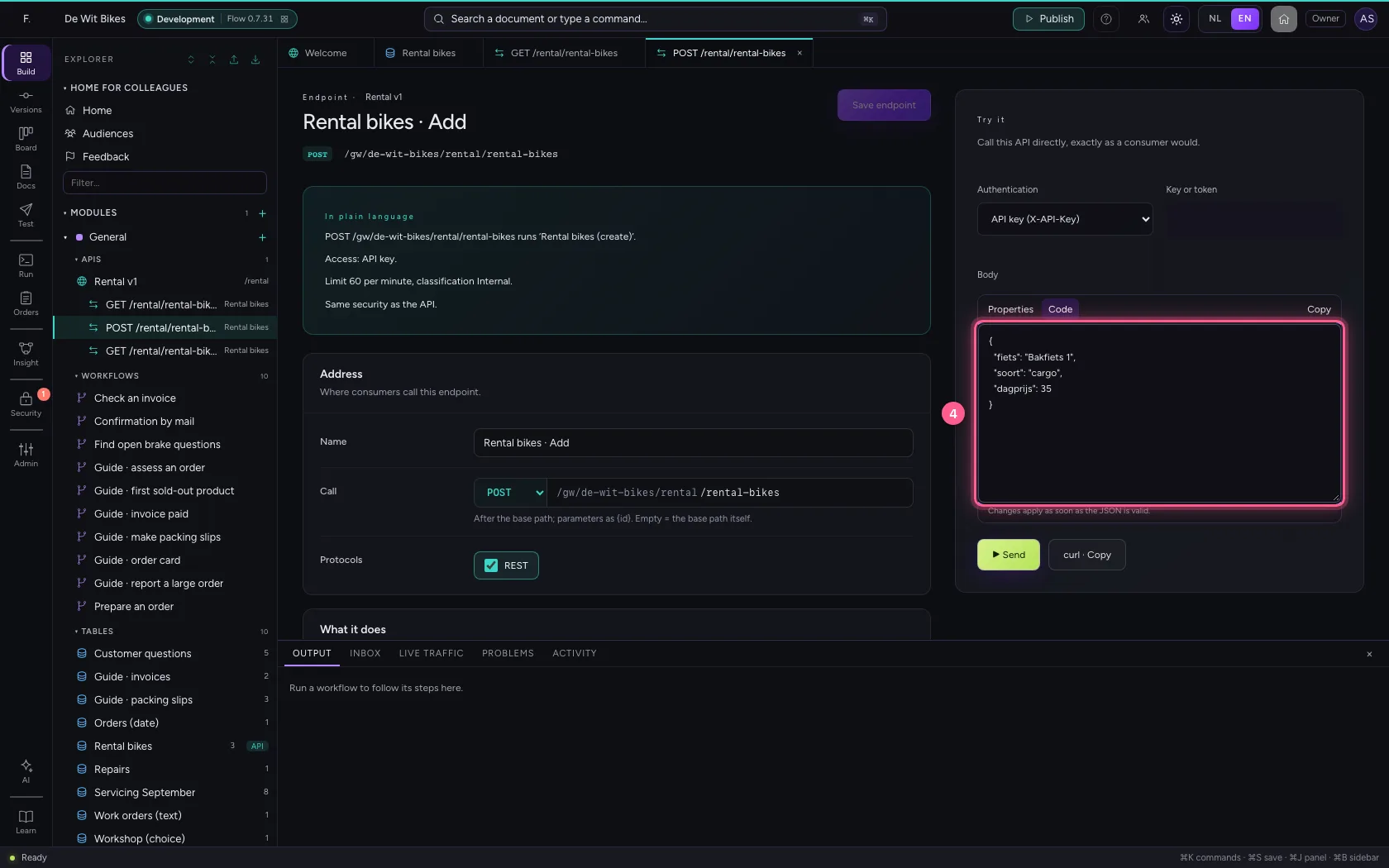
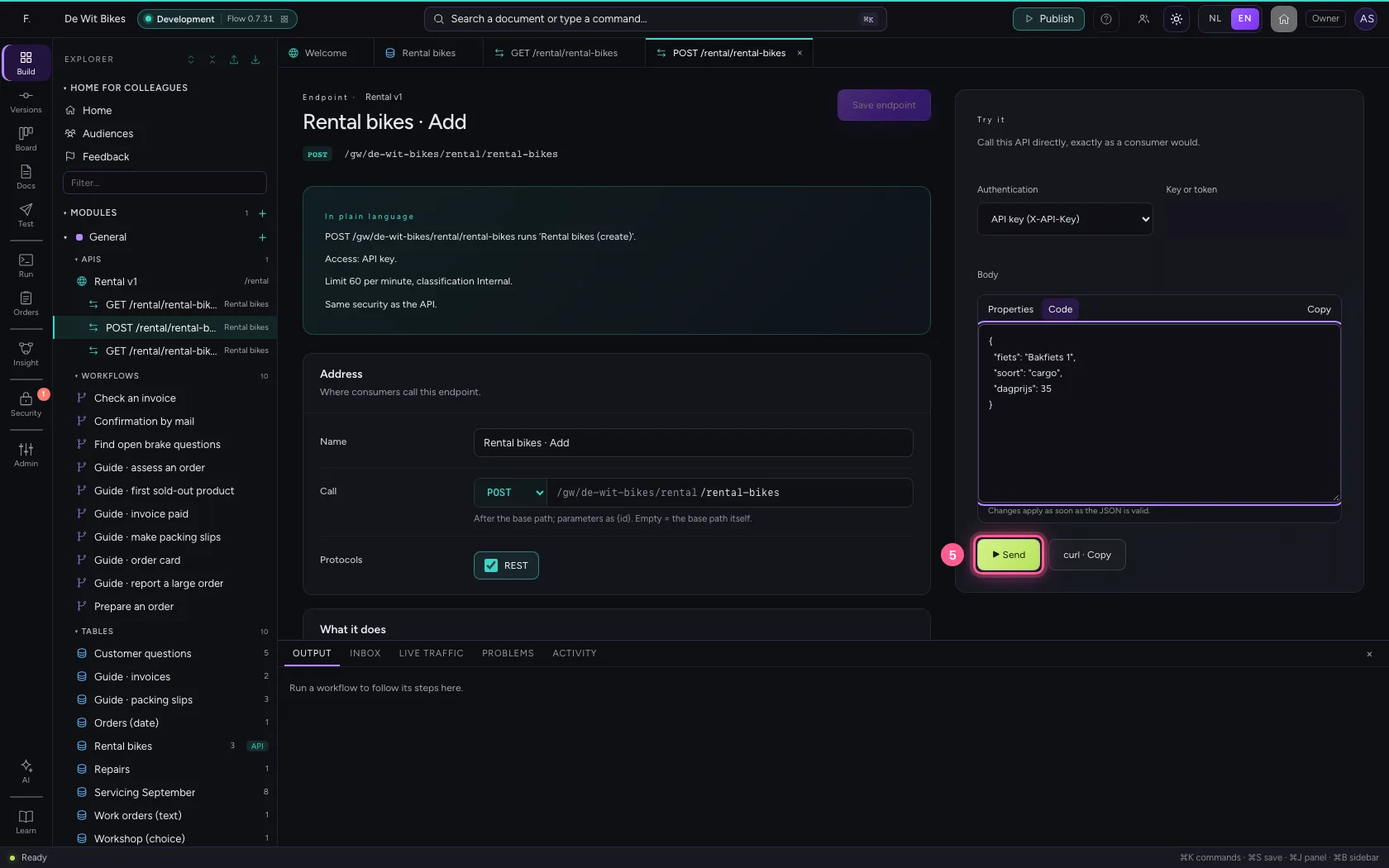
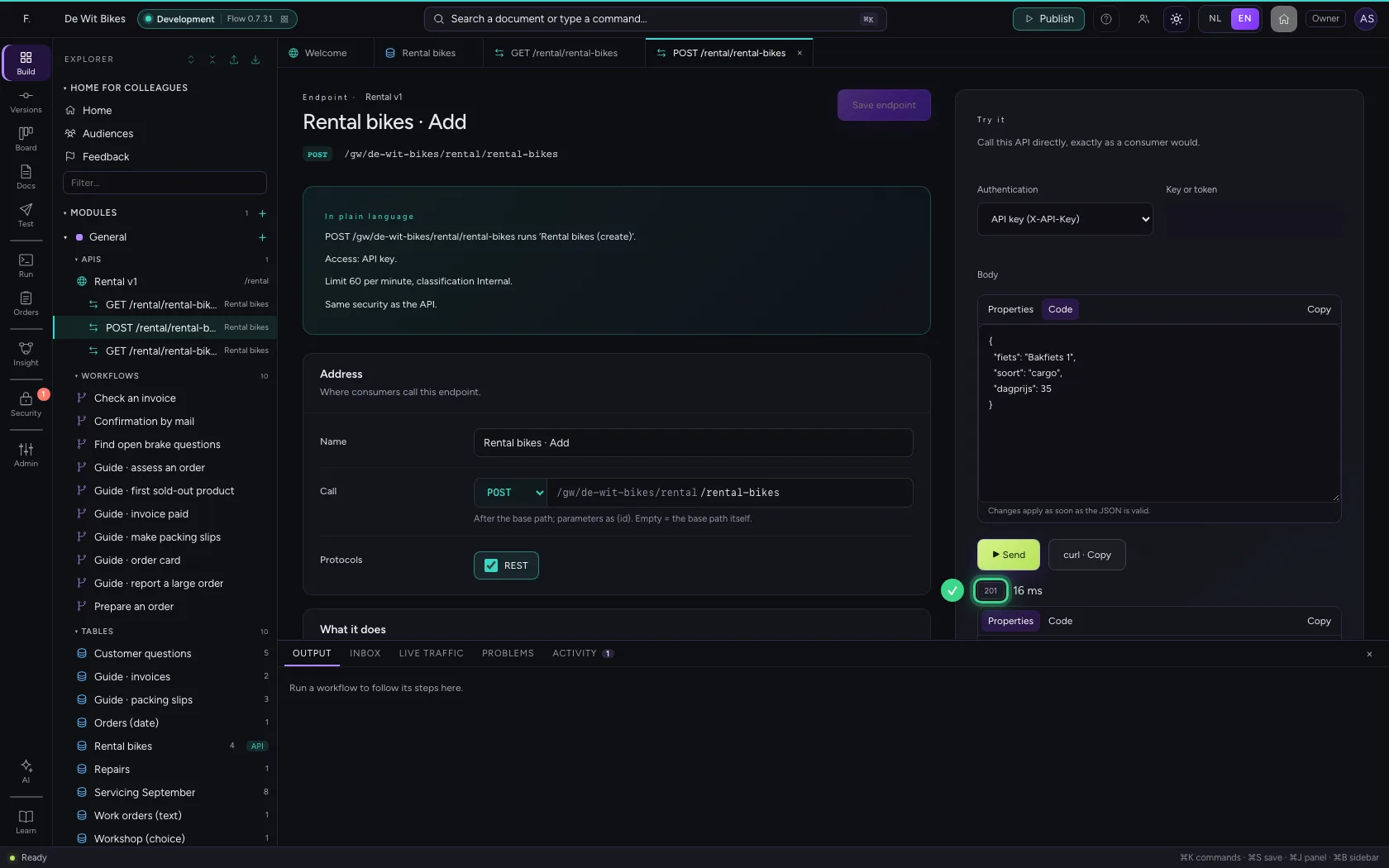
Open the POST endpoint (add) and send a row as JSON. Flow checks the columns: a required column that is missing or a wrong type gives 422, with per field what is wrong.
- Click the POST endpoint
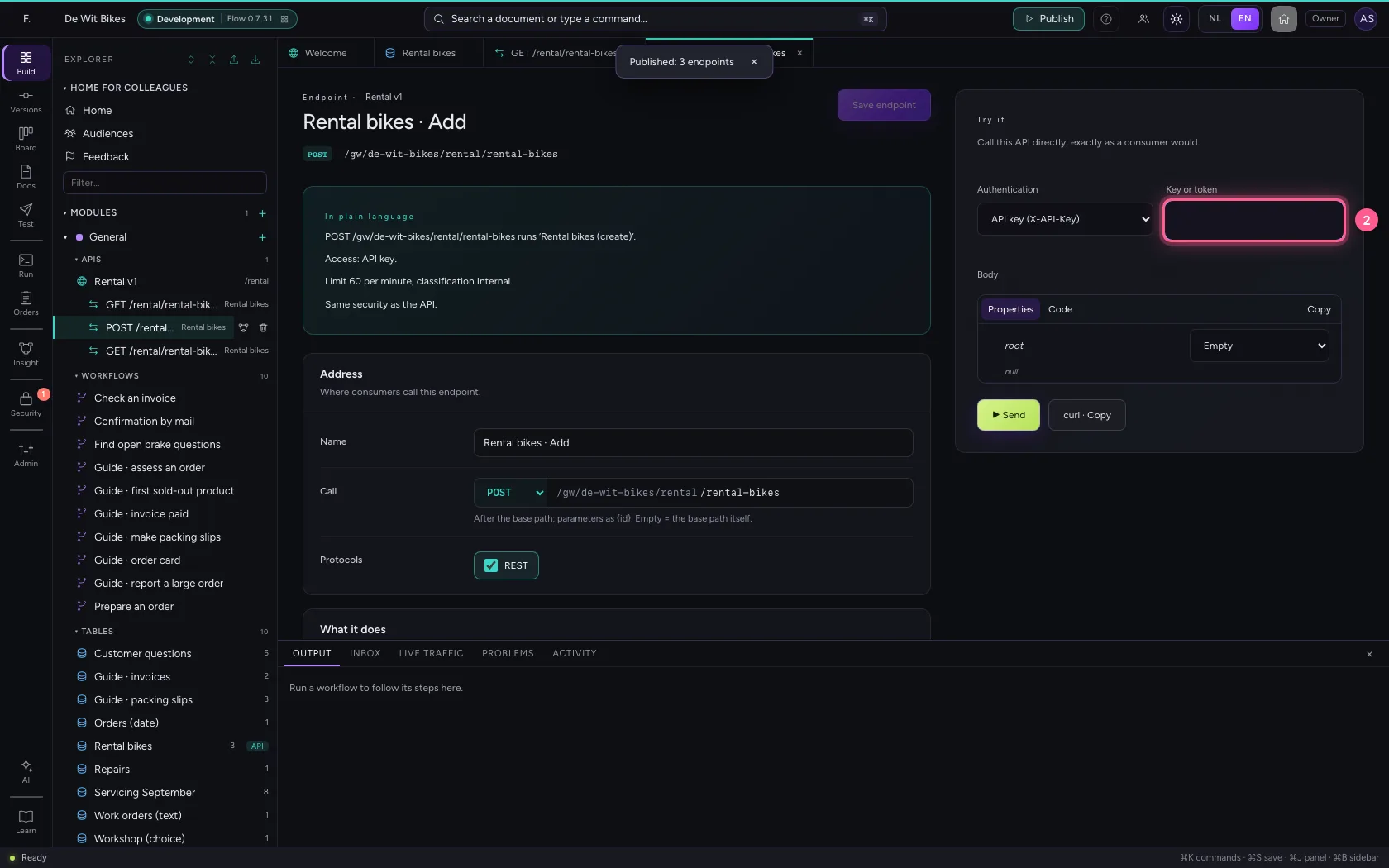
- In Key or token, type
••••••••
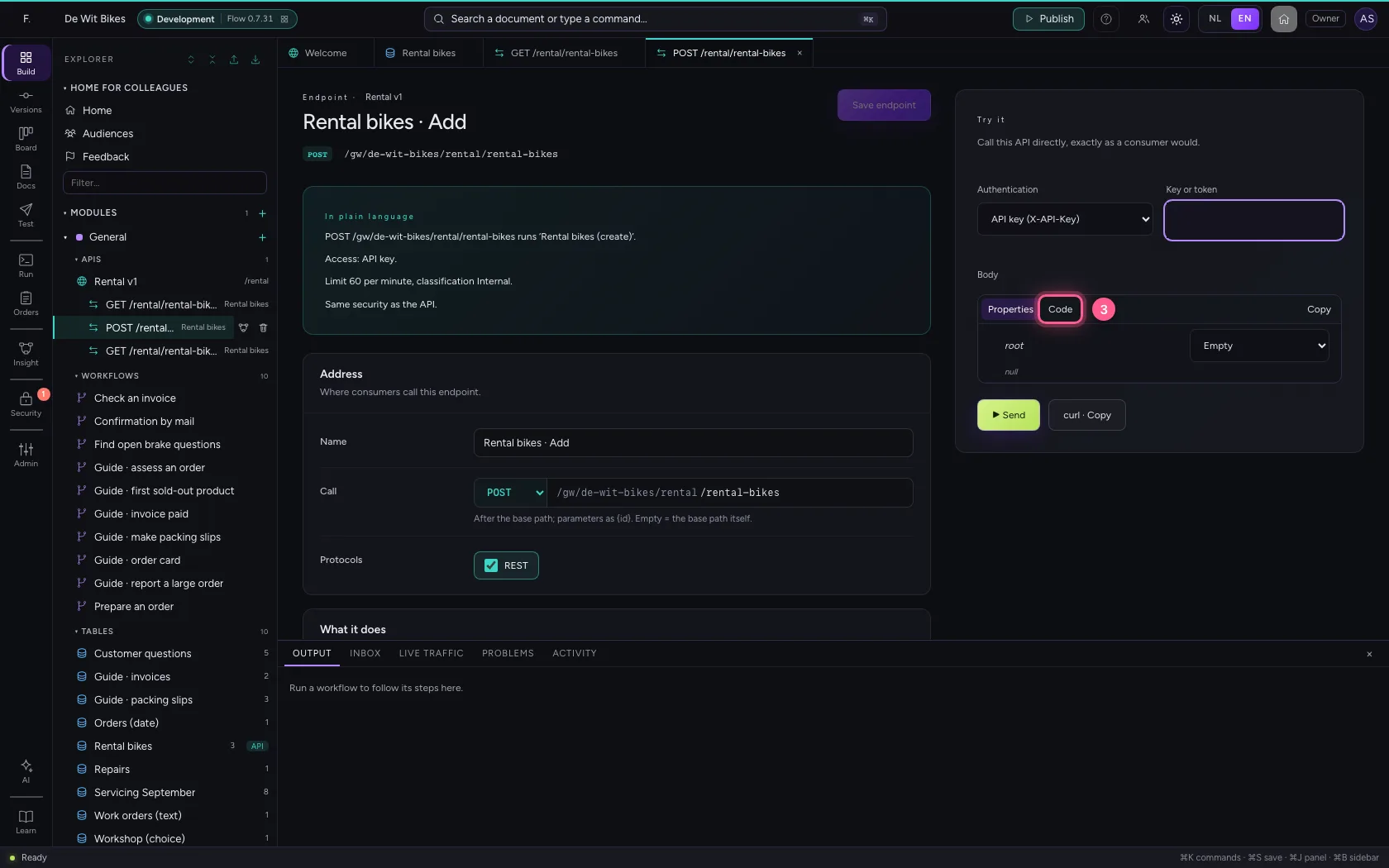
- Click Code
- In Body, type
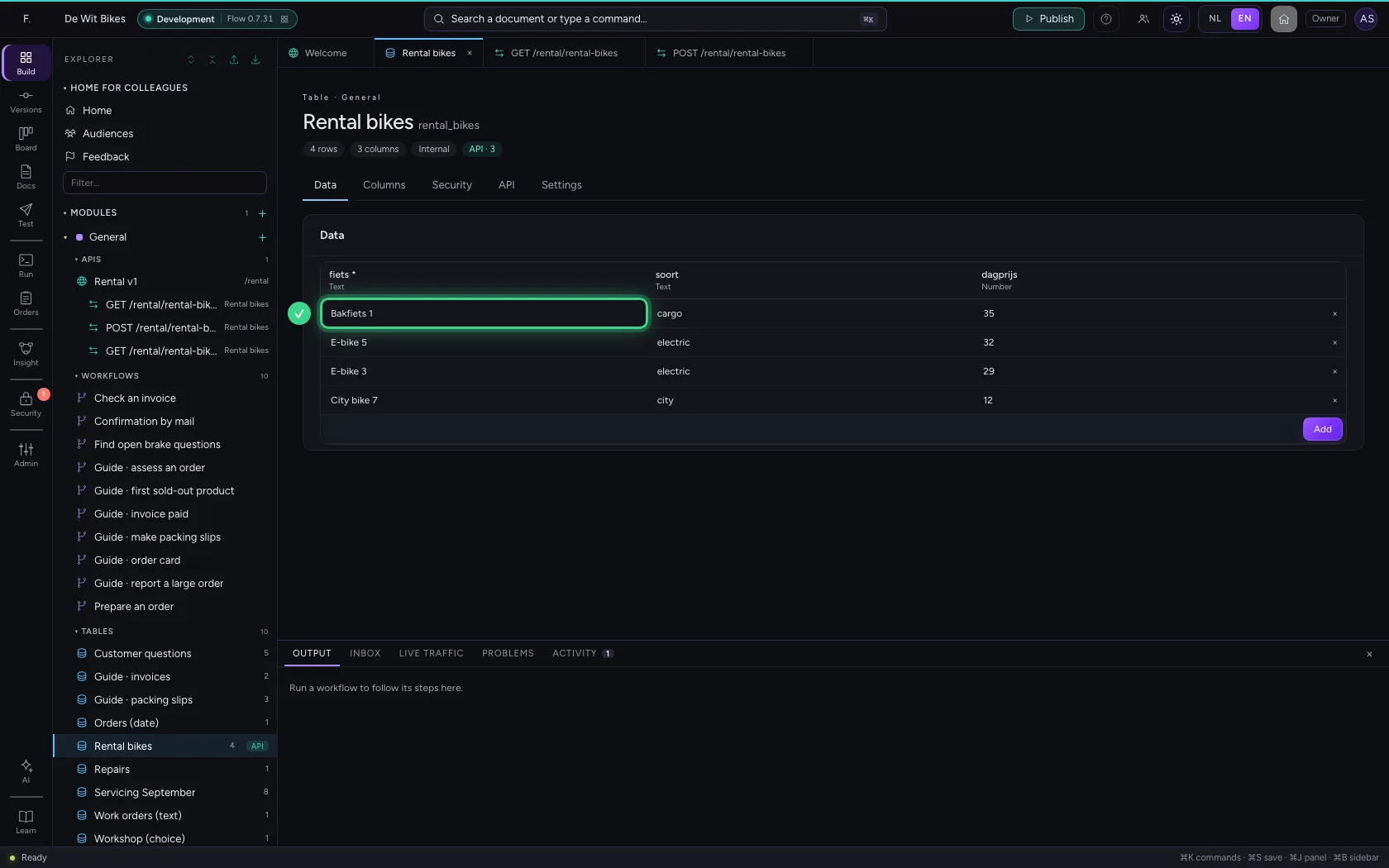
{"fiets": "Bakfiets 1", "soort": "cargo", "dagprijs": 35}
- Click ▶ Send
See the row in the table
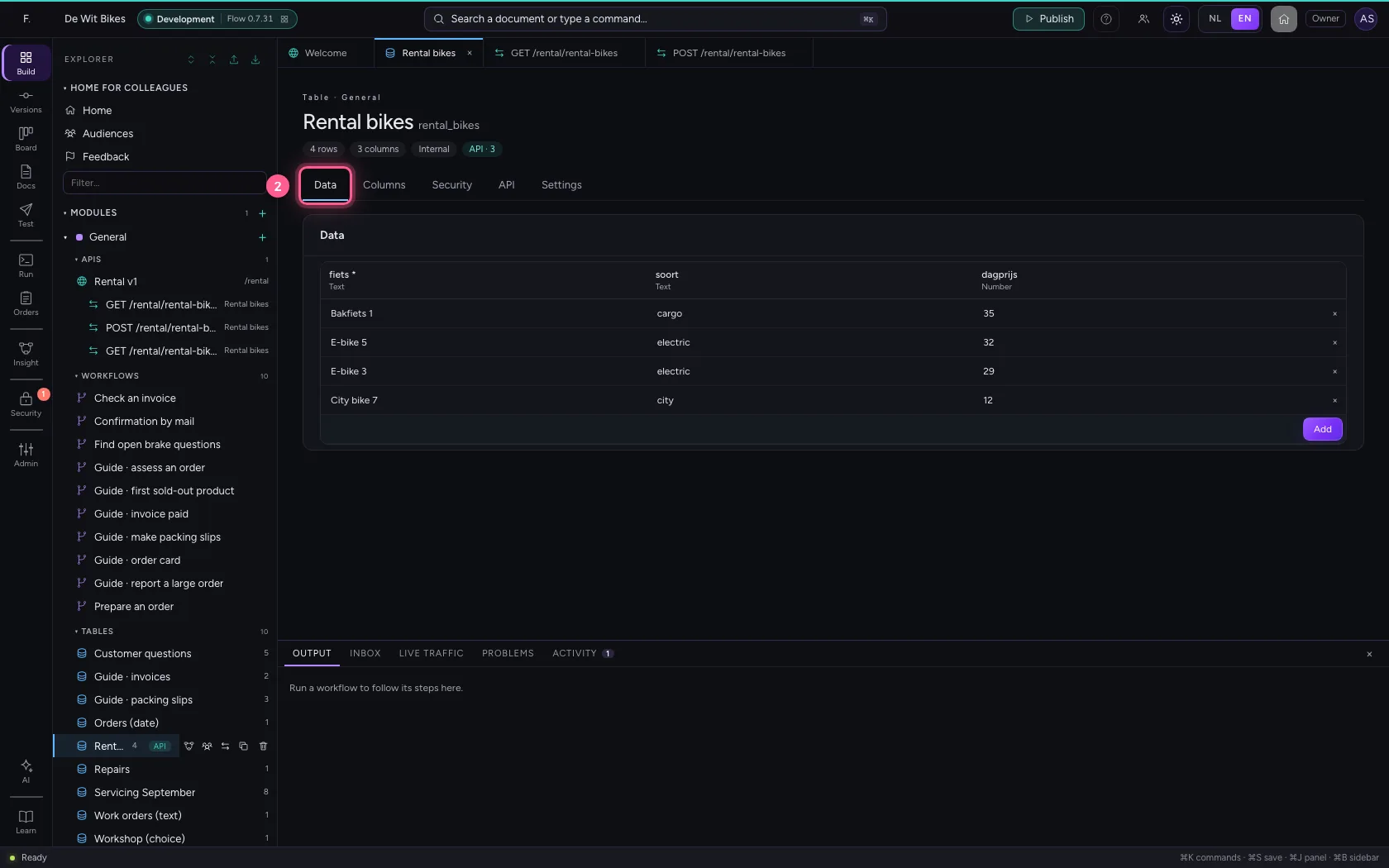
The new row is in the table straight away. At the top of the table you see how many endpoints offer it as an API.
- Click the table
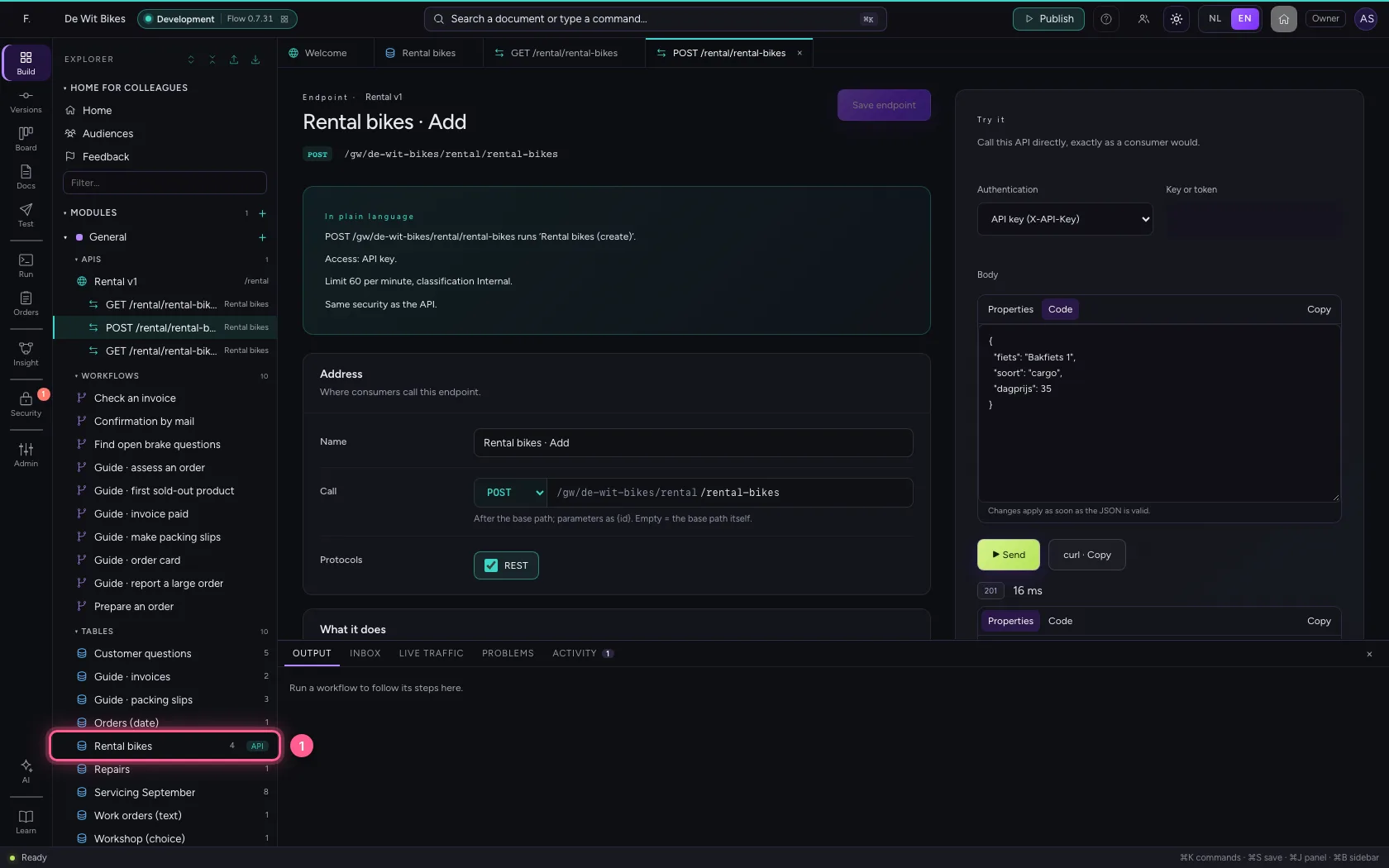
- Click Data
This guide was carried out step by step on 22 Oct 2026 by an automated test on Flow (version 3e563176).