Stop the loop and Next item
Inside a loop you sometimes do not want to finish everything. With Next item (continue) you skip the rest of this pass and go on with the next item. With Stop the loop (break) you stop altogether: the workflow continues after the loop. Both only exist inside a loop, usually after an If / Else. Here you look for the first product that is sold out.
Open Flow and create a workflow
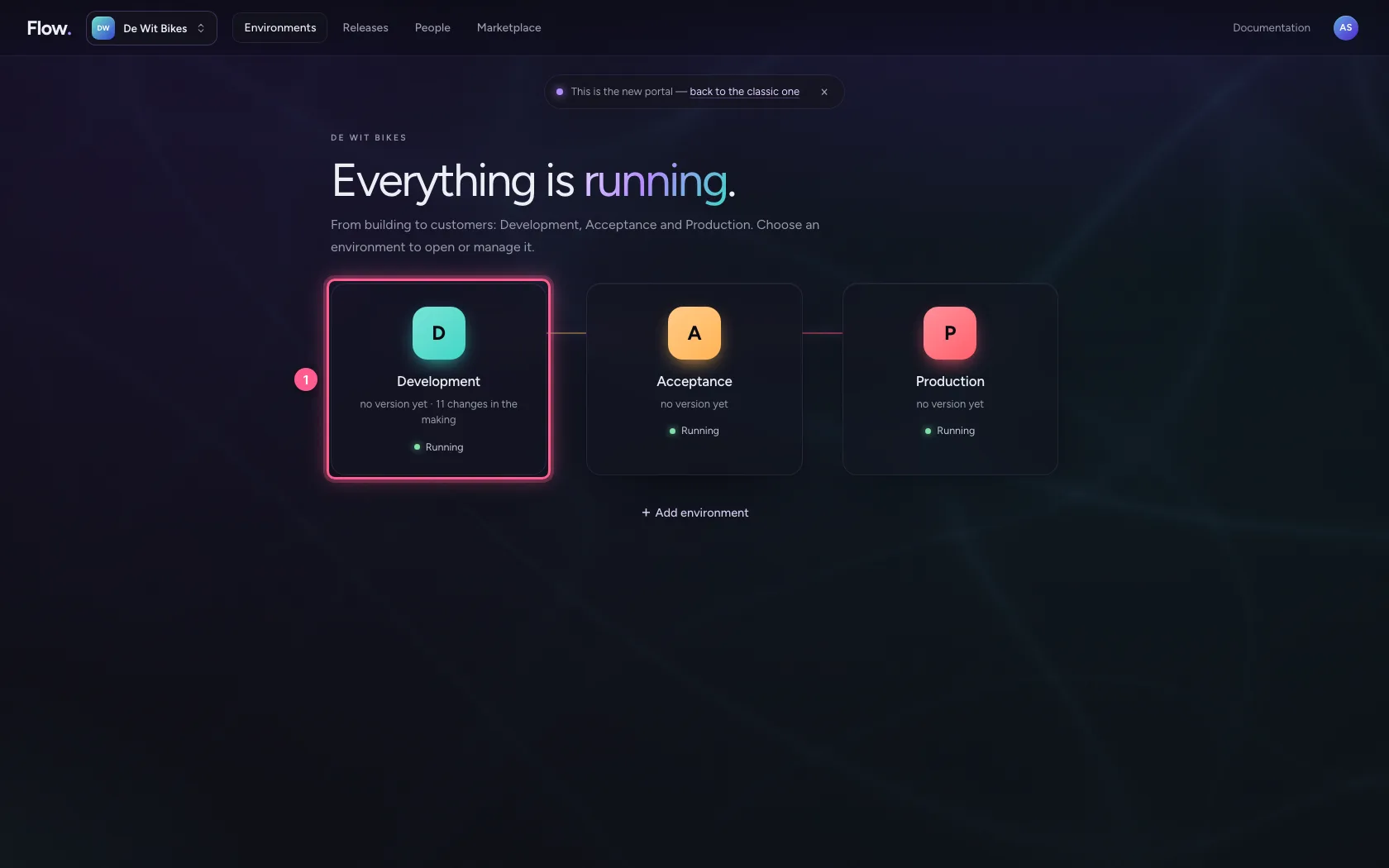
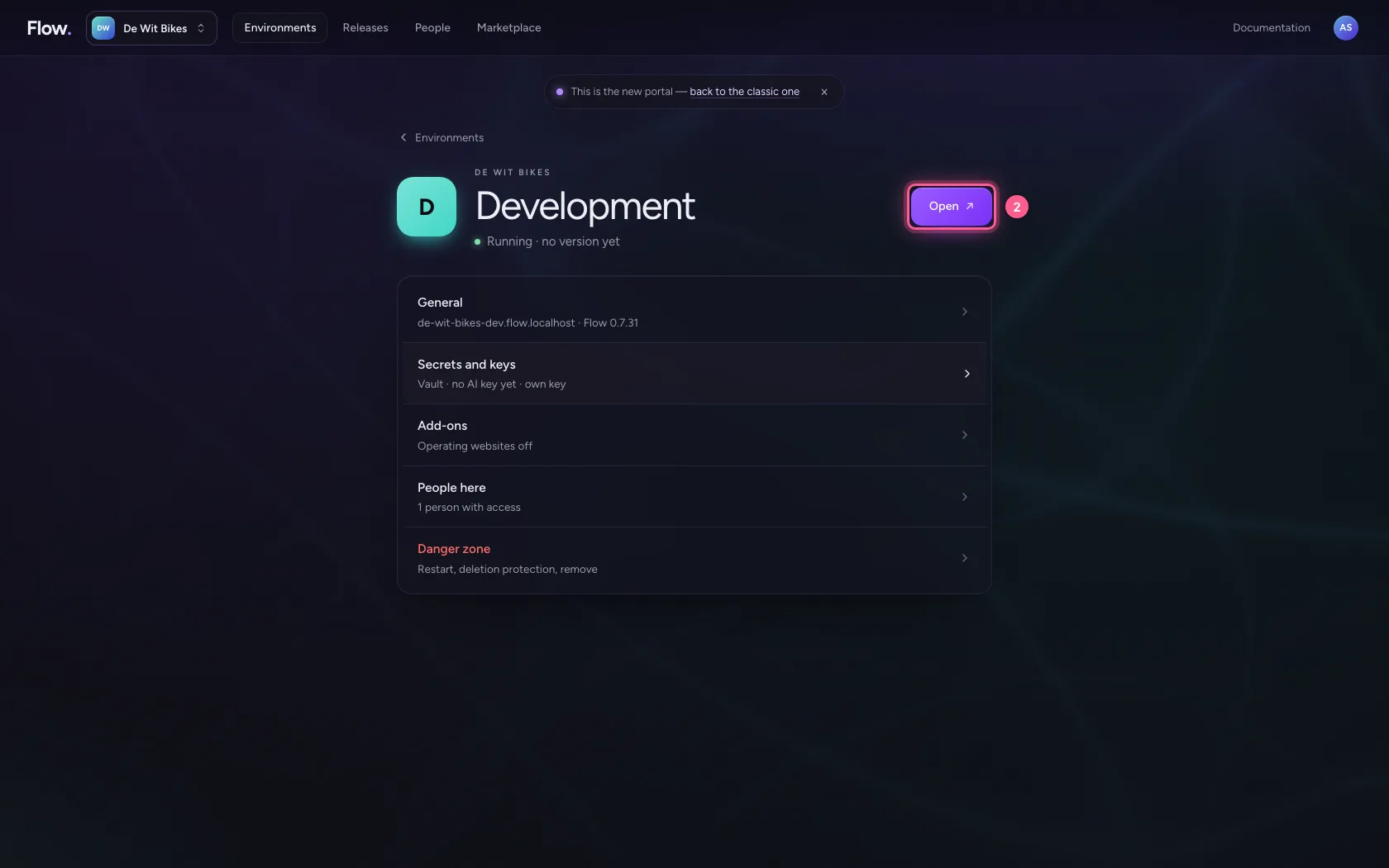
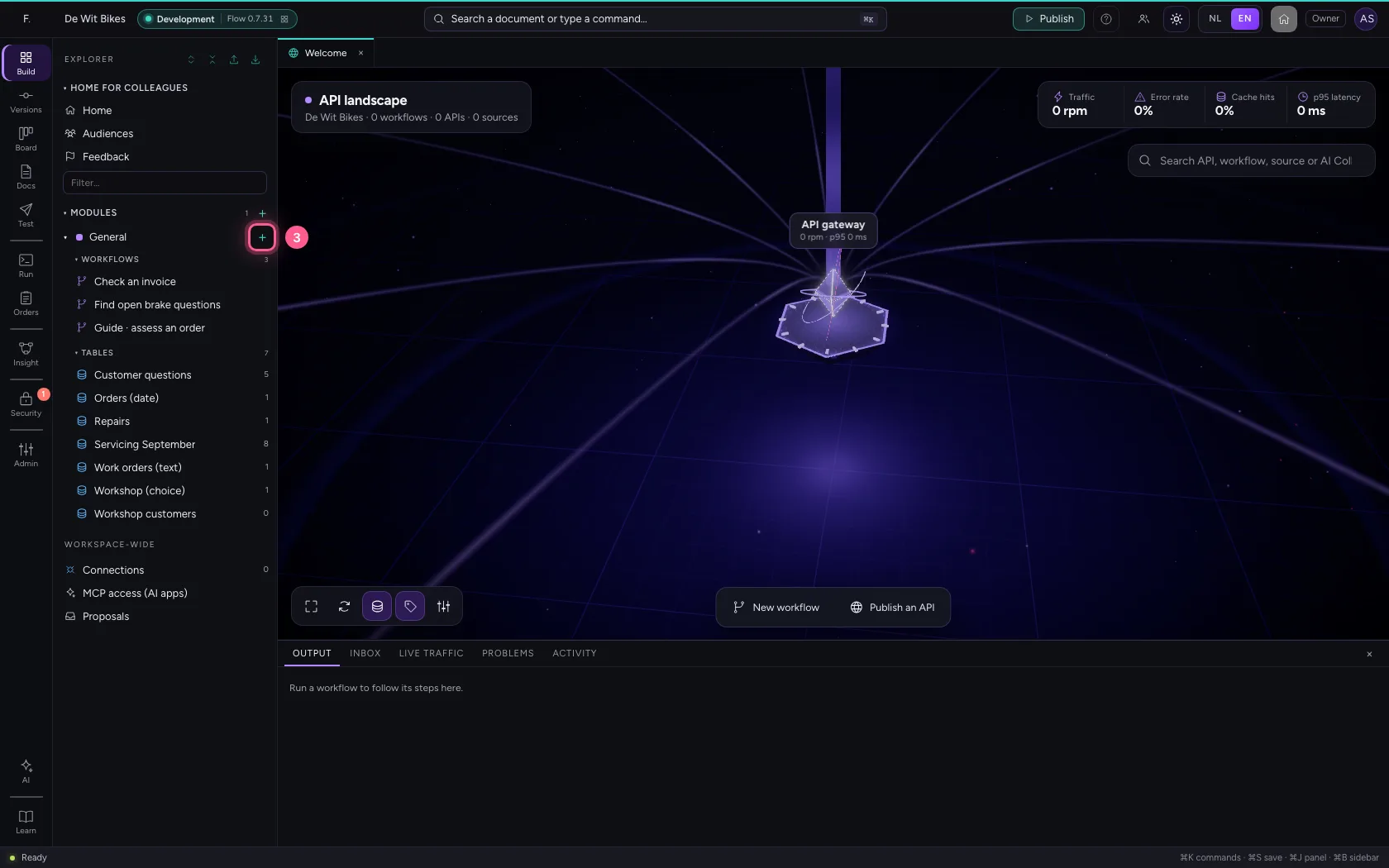
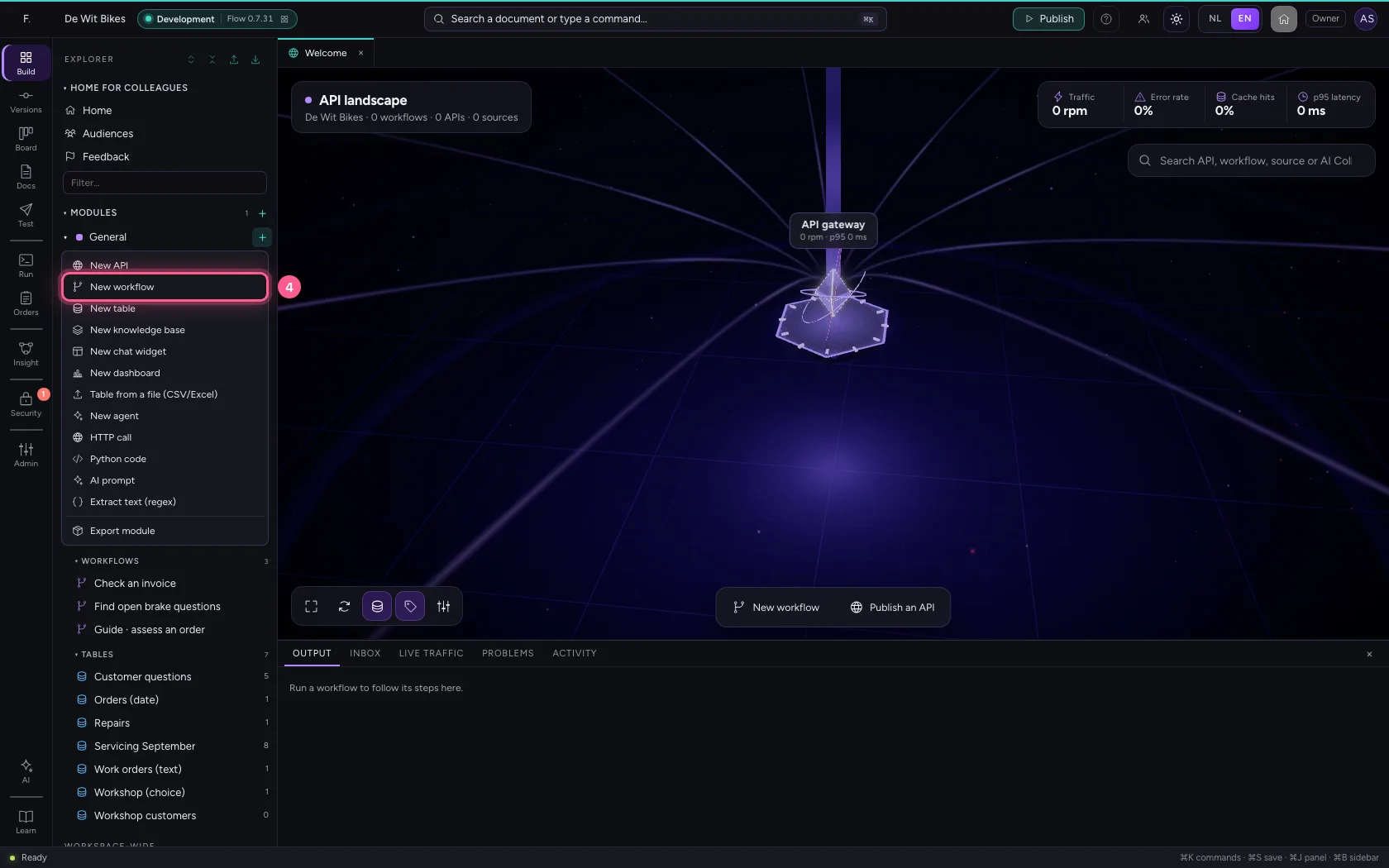
In the portal, under Environments, click Development and there Open; Flow opens in a new tab. There, click + next to General, choose New workflow and give it a name. A new workflow starts with an Event trigger: the point where it begins.
- Click Development
- Click Open ↗
- Click Add to General
- Click New workflow
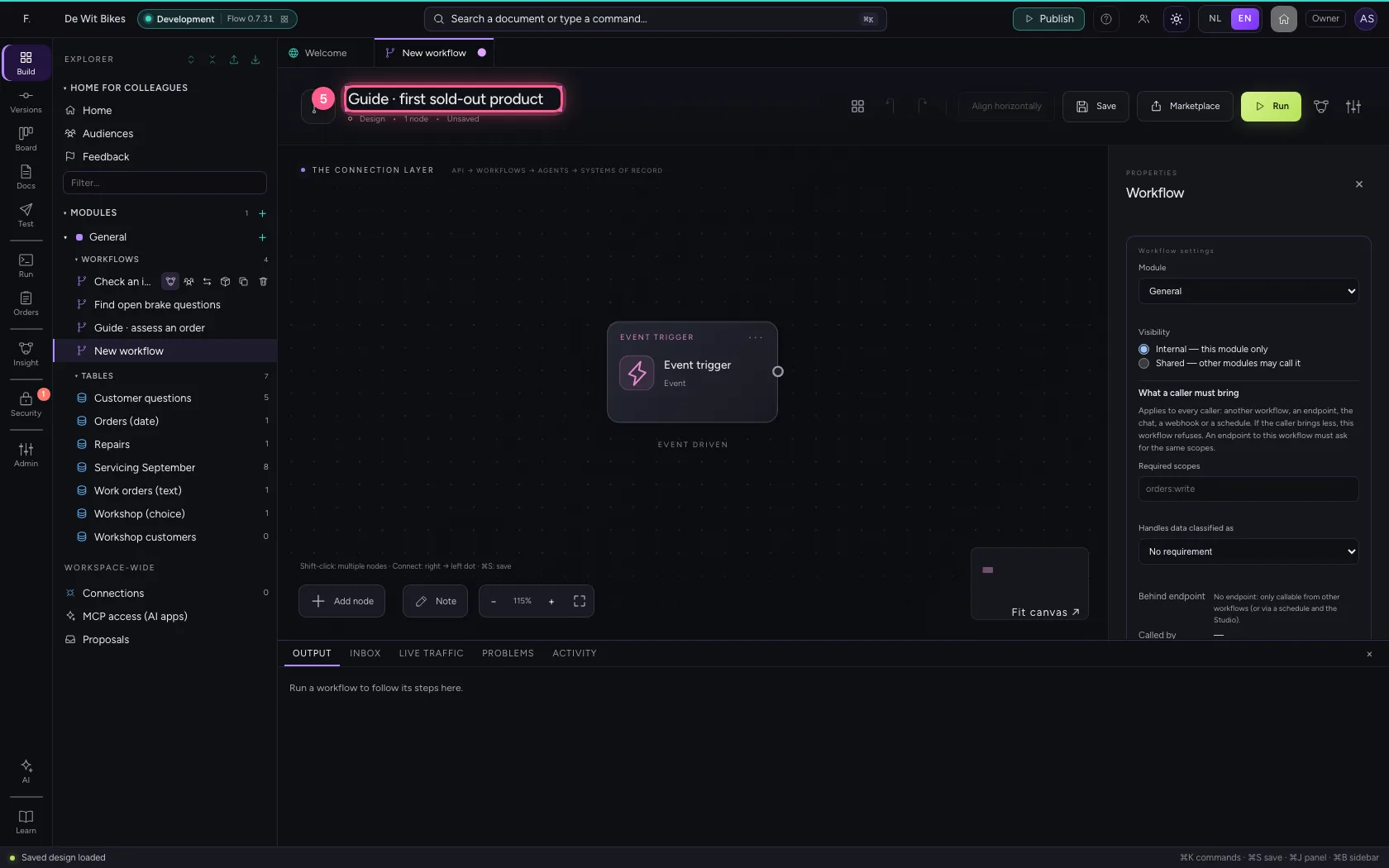
- In Workflow name, type
Guide · first sold-out product
A list of products and a loop
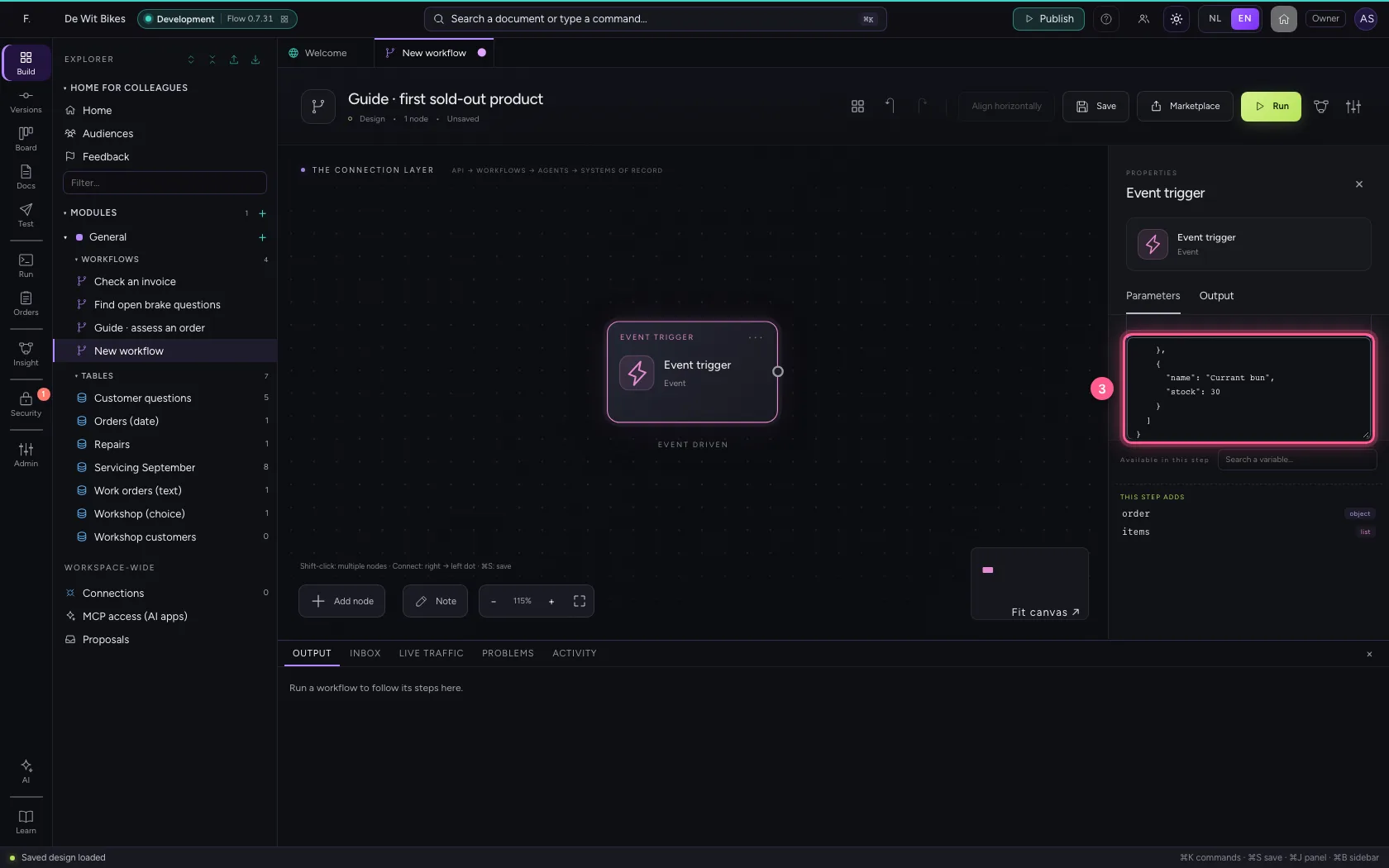
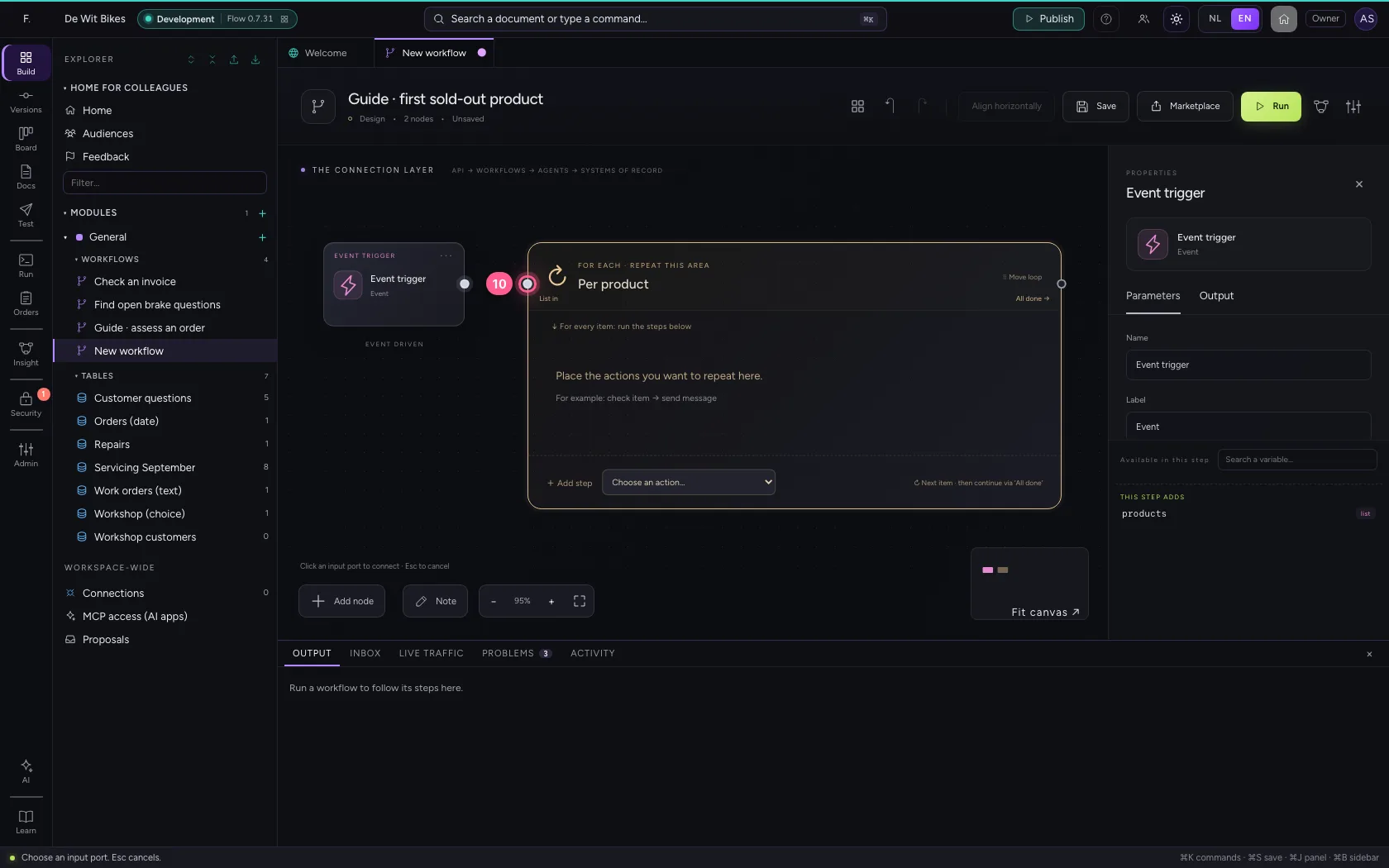
Put a list of products with their stock in the trigger's sample data. Add a Loop over products and call the current item product.
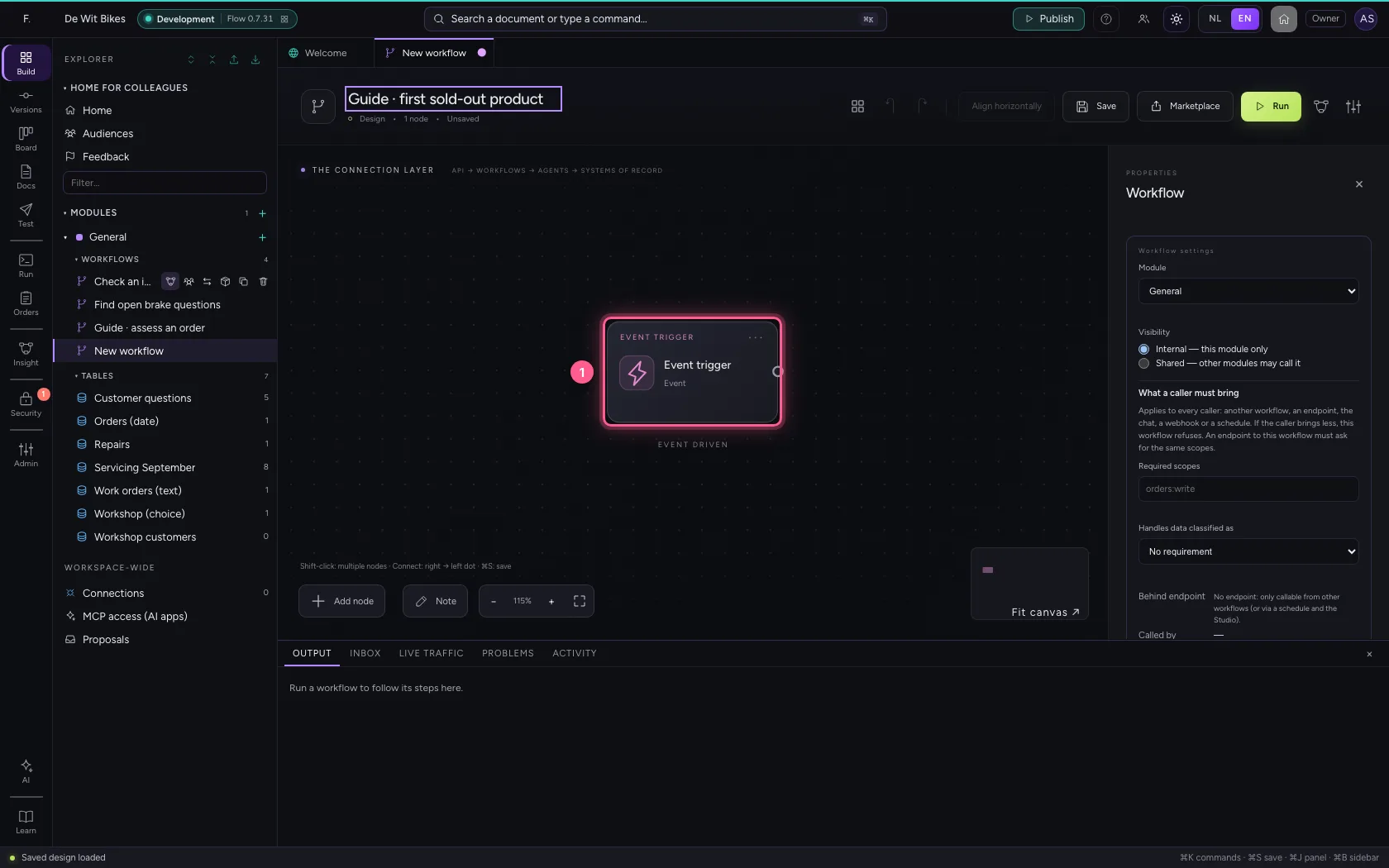
- Click the step ‘Event trigger’
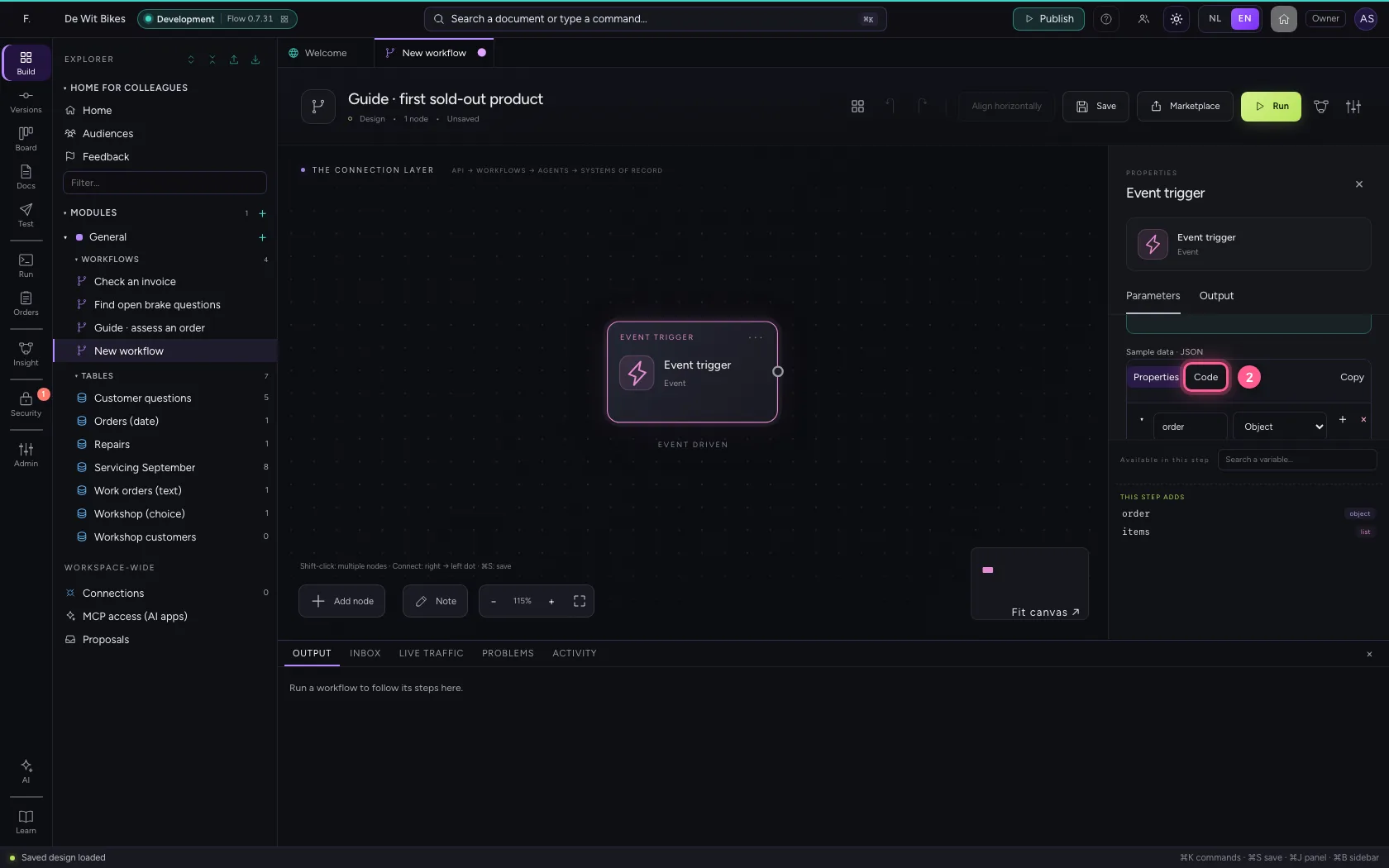
- Click Code
- In the sample data, type `{
- Click Add node
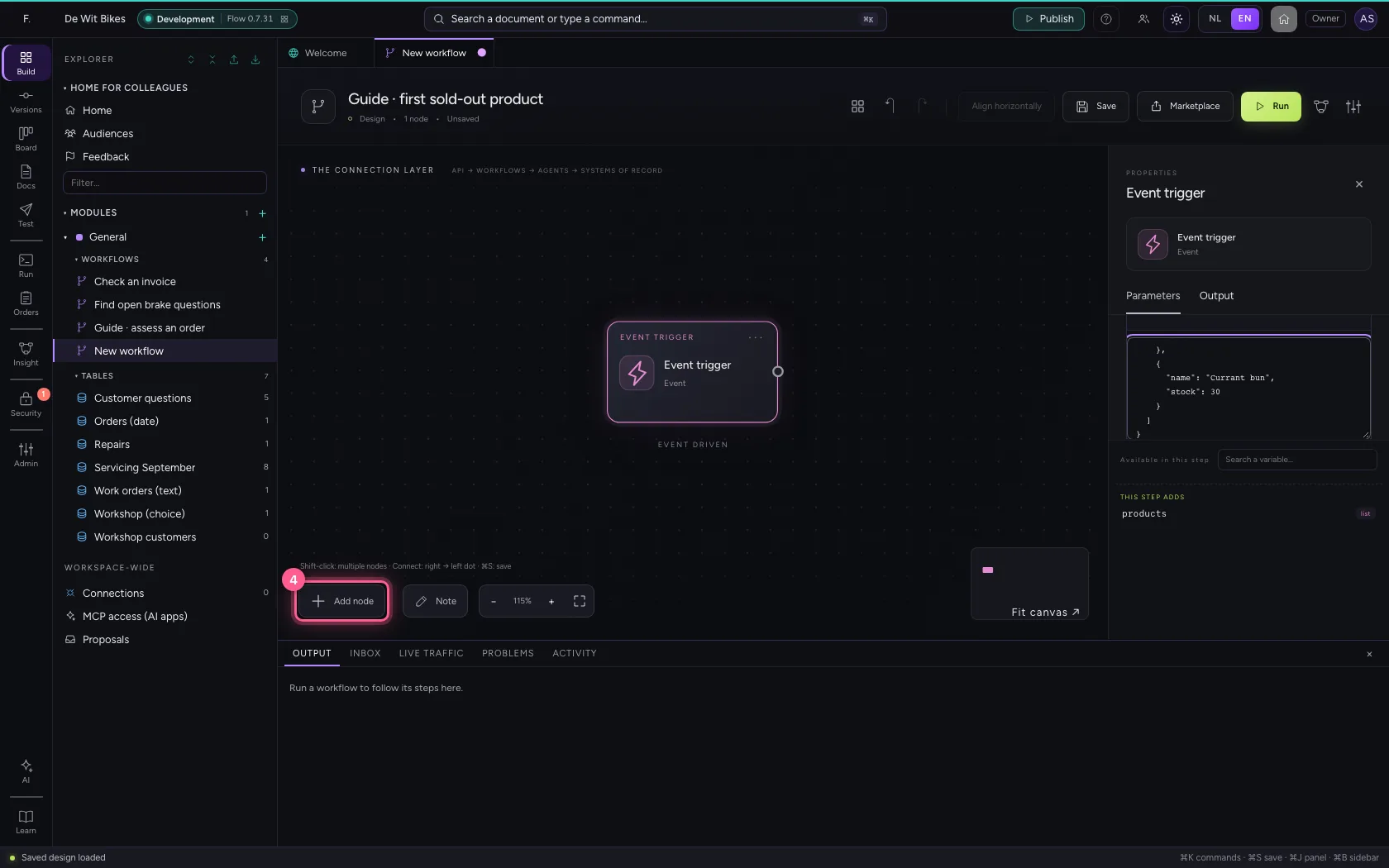
- Click Loop
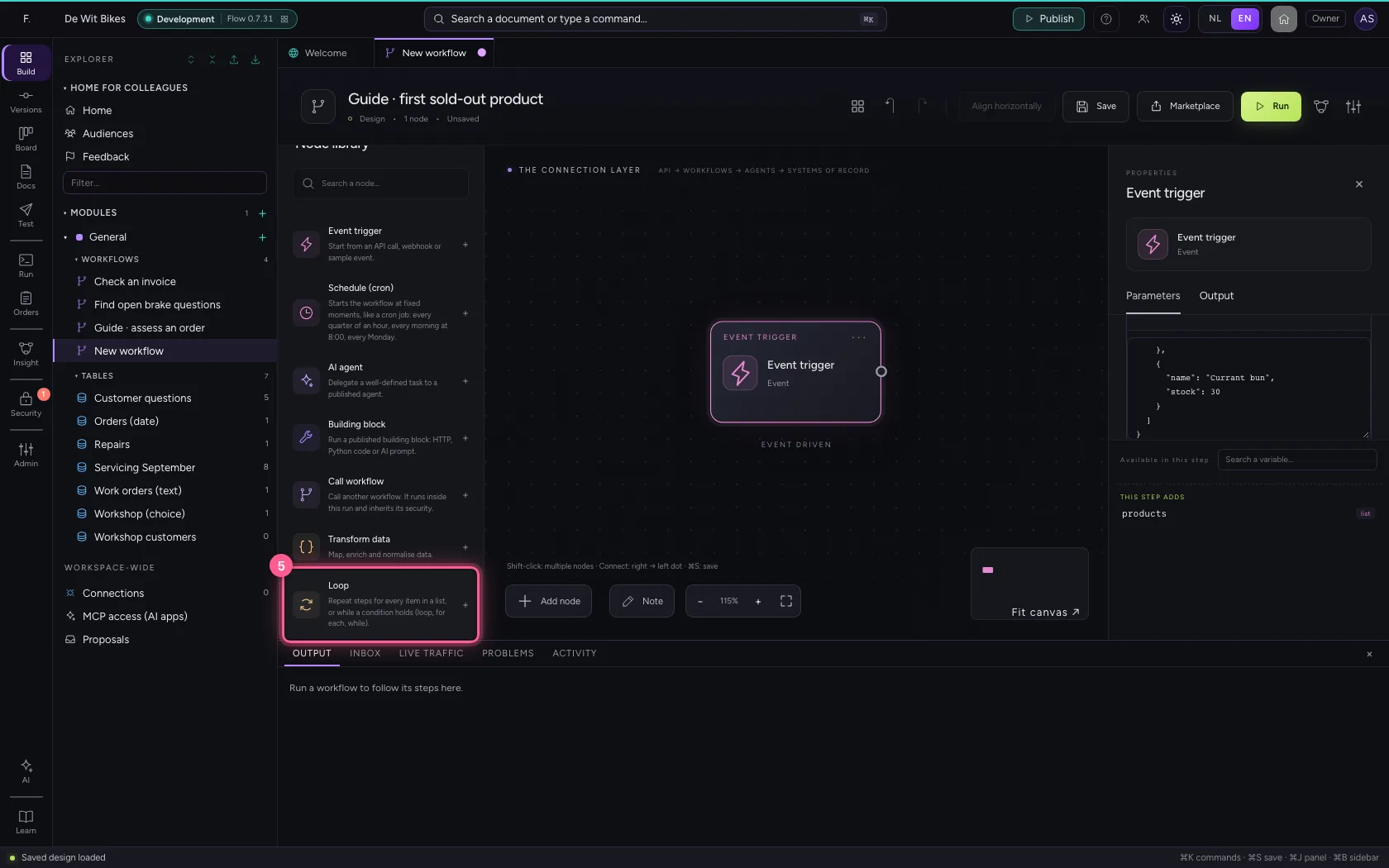
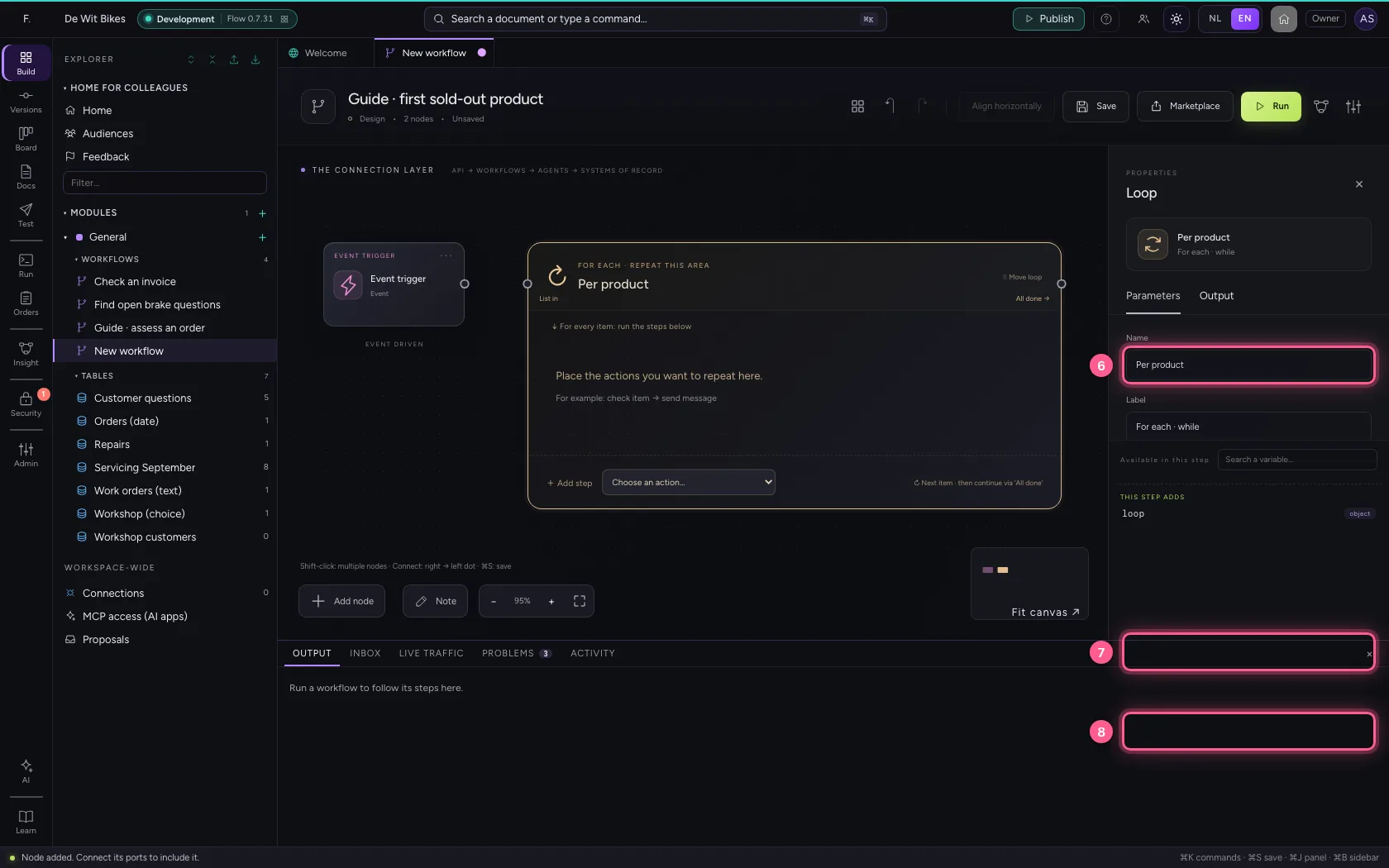
- In Name, type
Per product - In Which list do you want to process? The list comes from the previous node., type
products - In Name of the current item Steps read the item as {{product.naam}}., type
product
- Click the dot of ‘Event trigger’
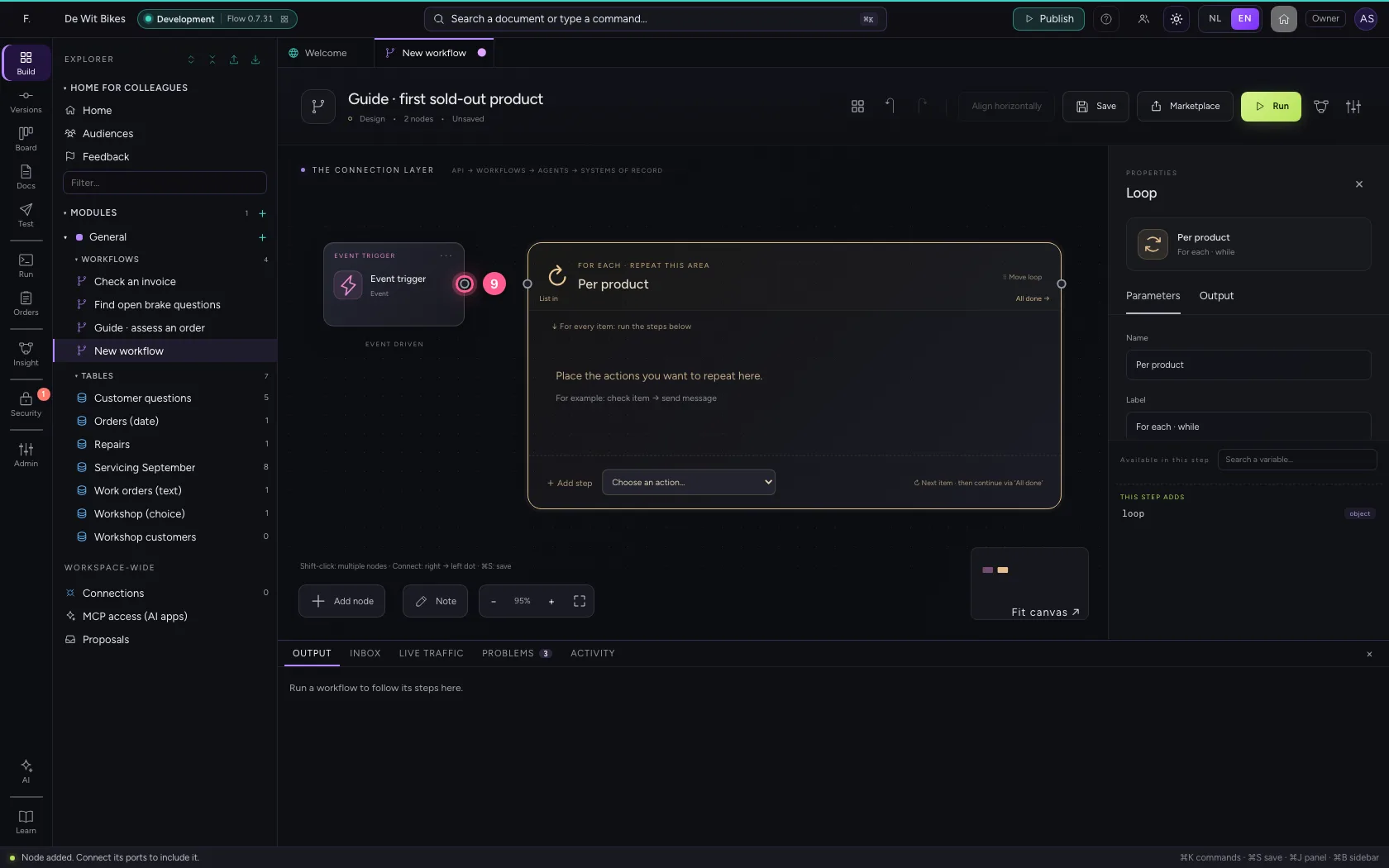
- Click the dot of ‘Per product’
A rule inside the loop
At the bottom of the loop, choose If / Else under Add step: is product.stock greater than 0?
- In Add step, choose If / Else
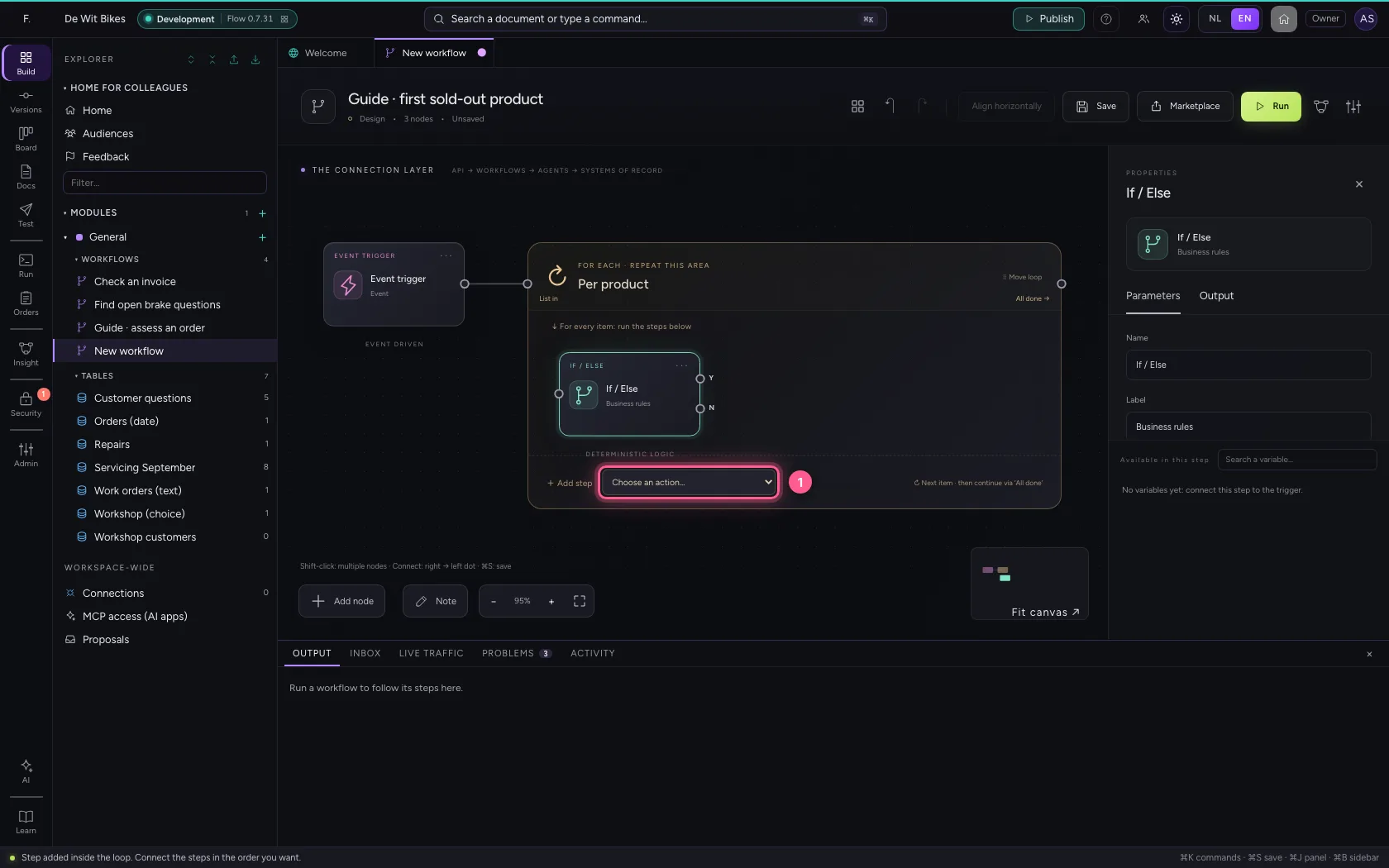
- In Name, type
In stock? - In Which field to check?, type
product.stock - In **Comparison Equals Does not equal Is greater than Is greater than or equal to Is **, choose Is greater than
- In Value, type
0
Yes: Next item
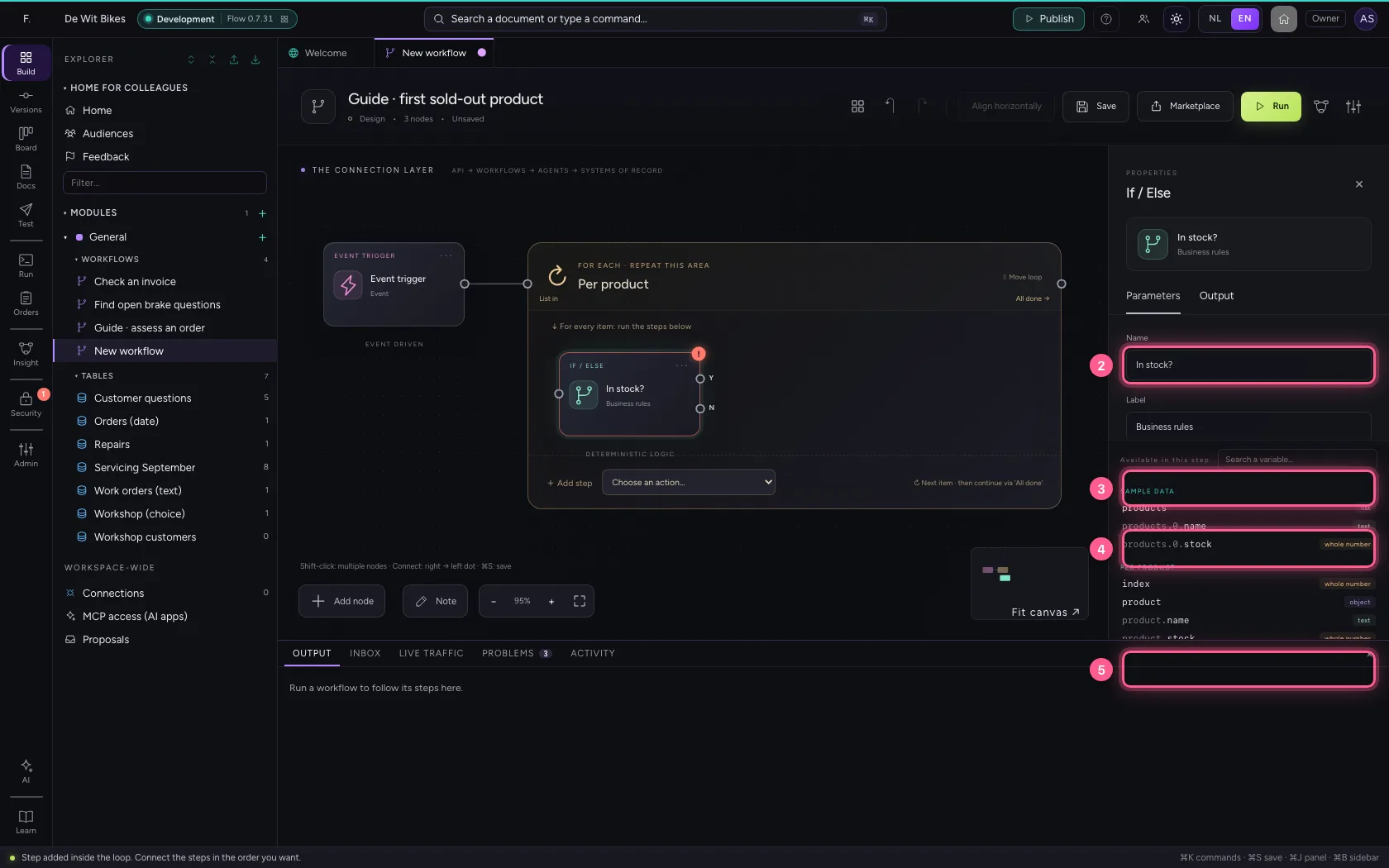
If the product is in stock, there is nothing to do: choose Next item under Add step and connect the Yes exit to it. Whatever would come after it in this pass is skipped.
- In Add step, choose Next item
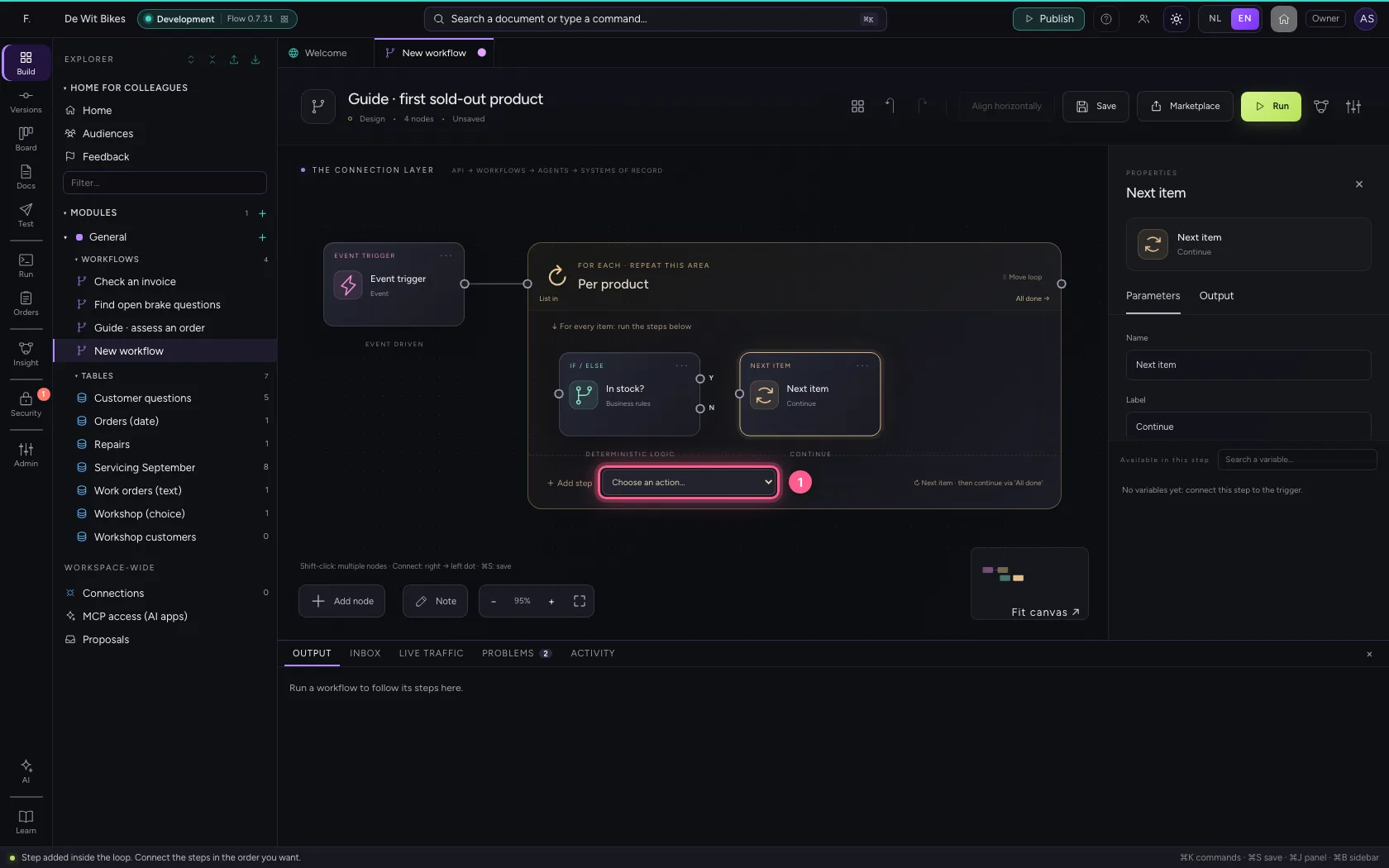
- Click exit Yes of ‘In stock?’
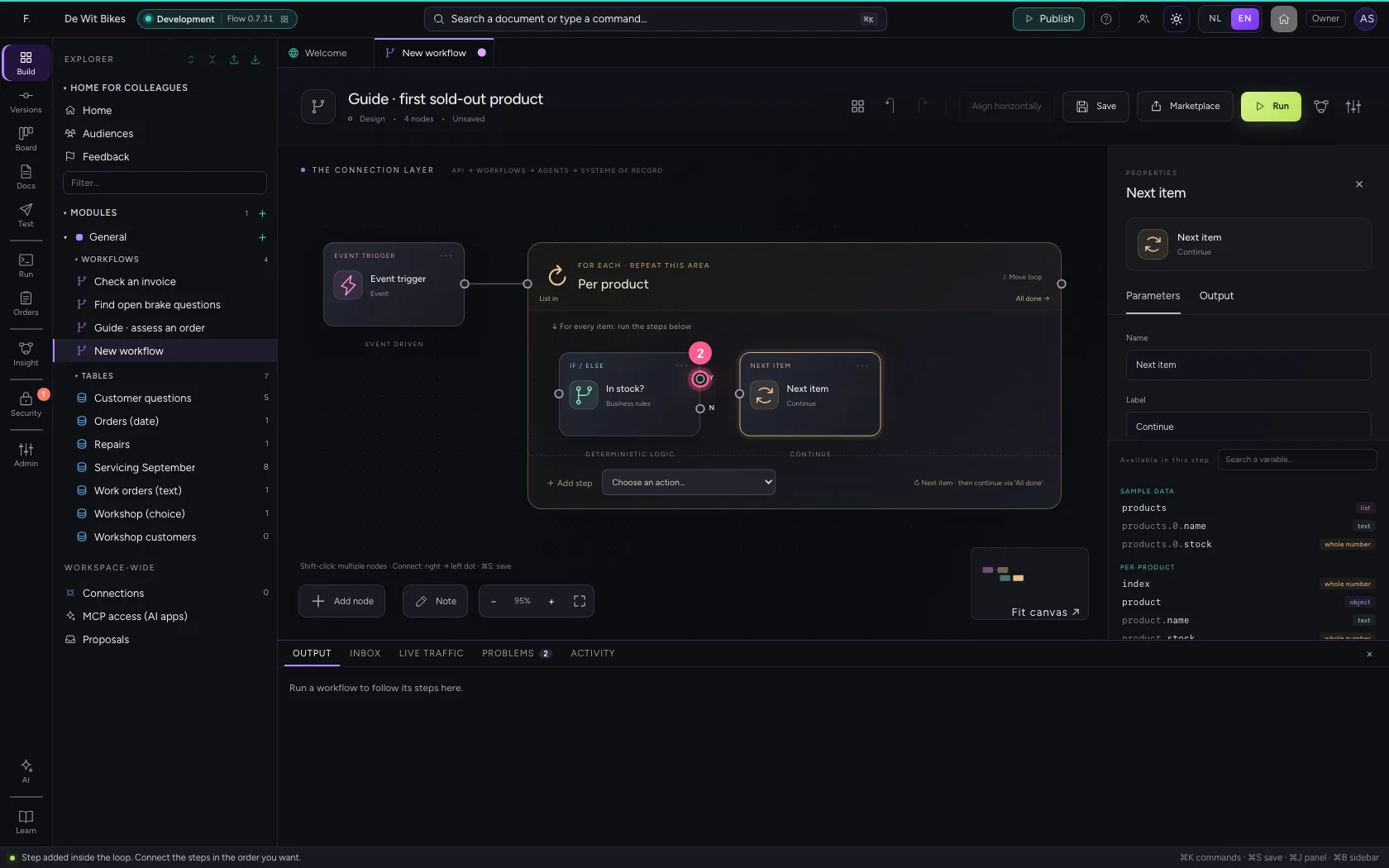
- Click the dot of ‘Next item’
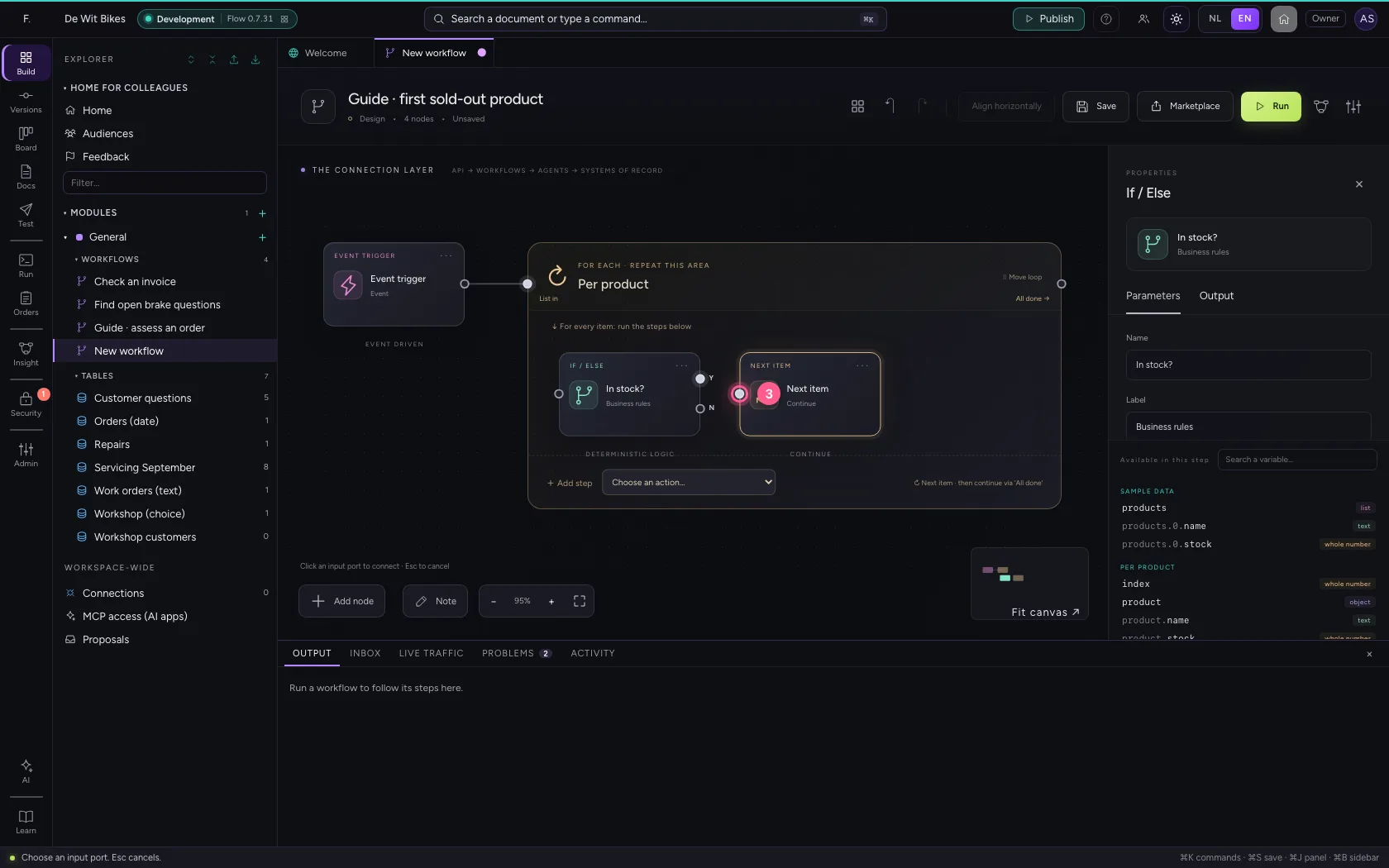
No: remember and Stop the loop
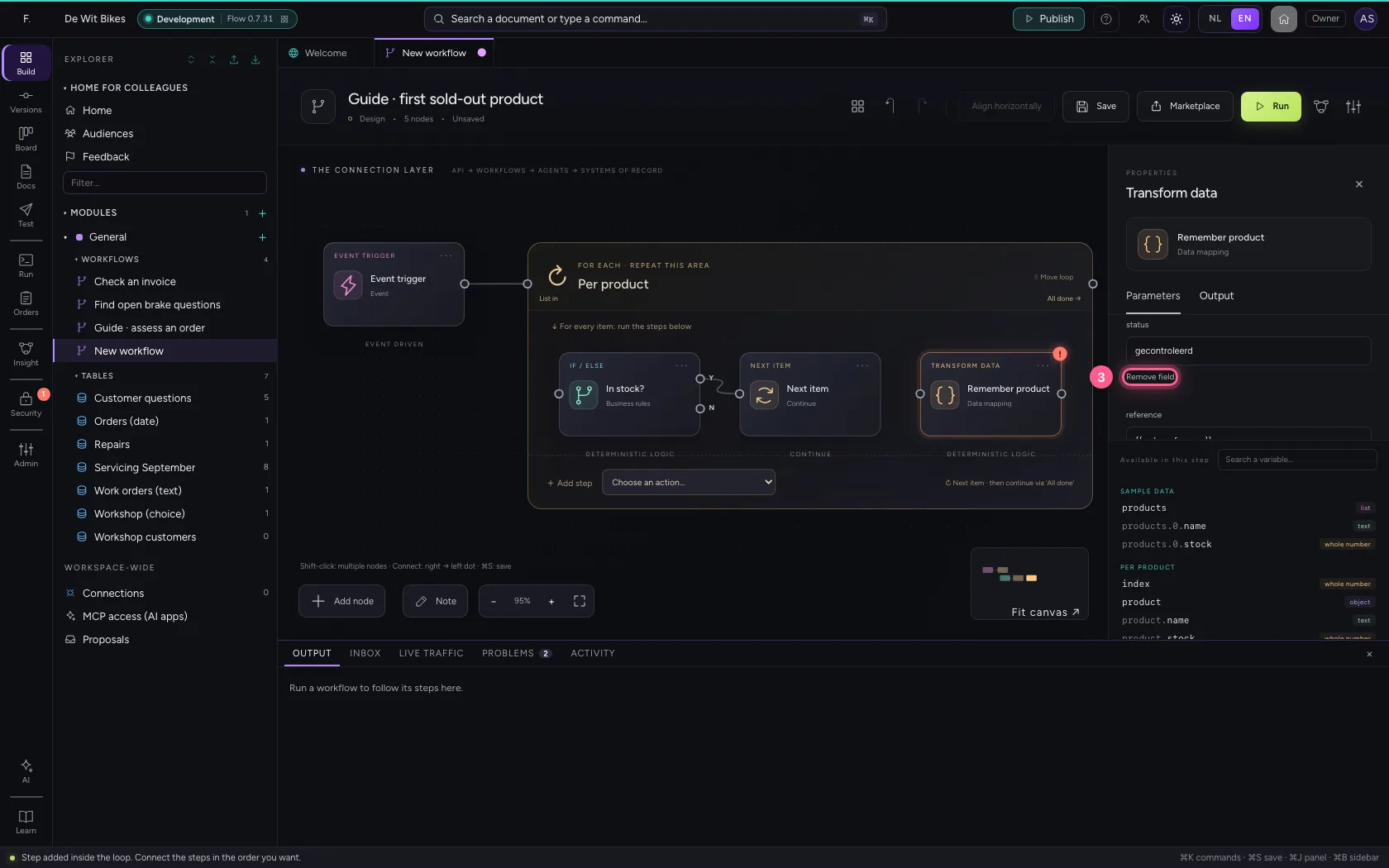
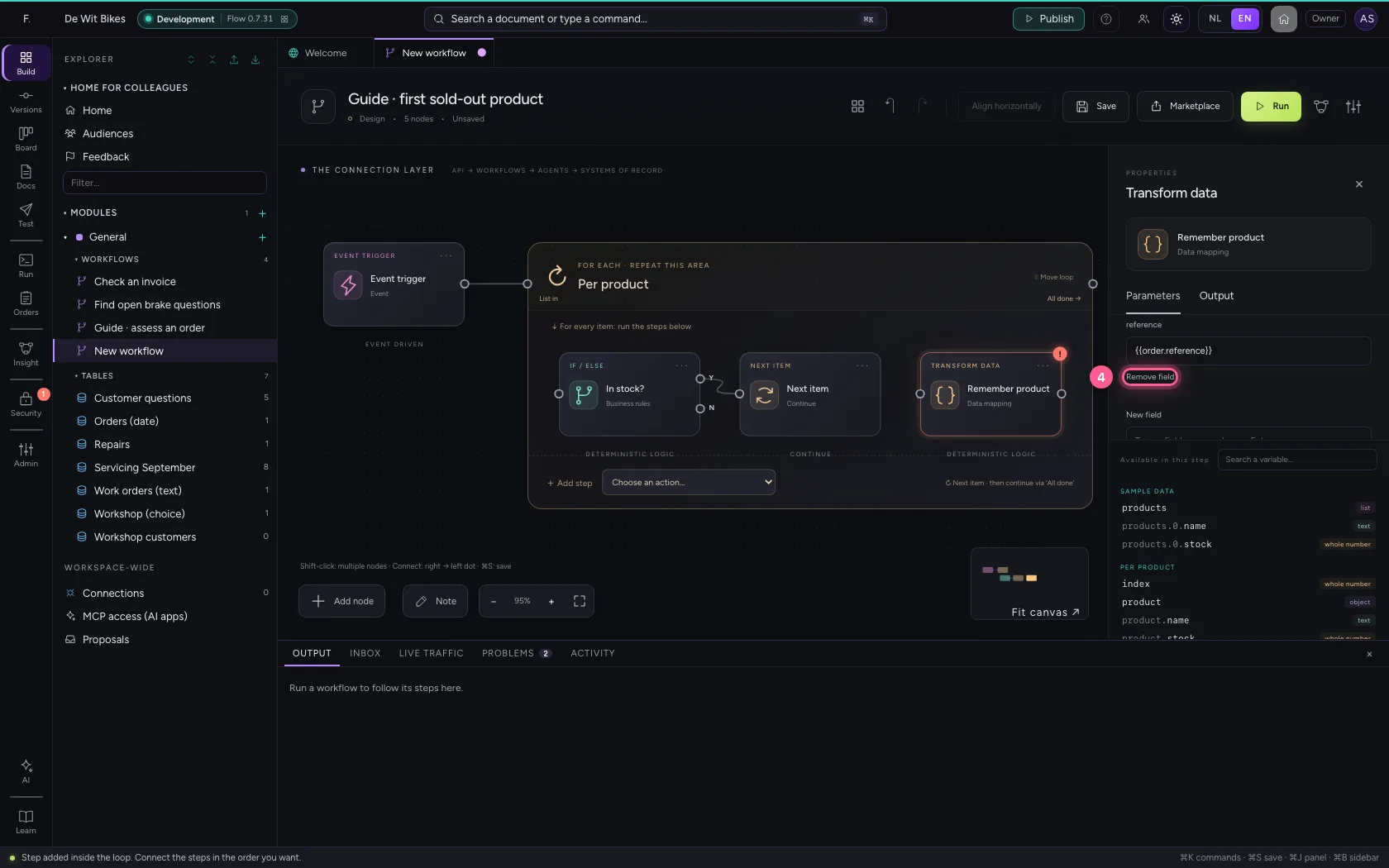
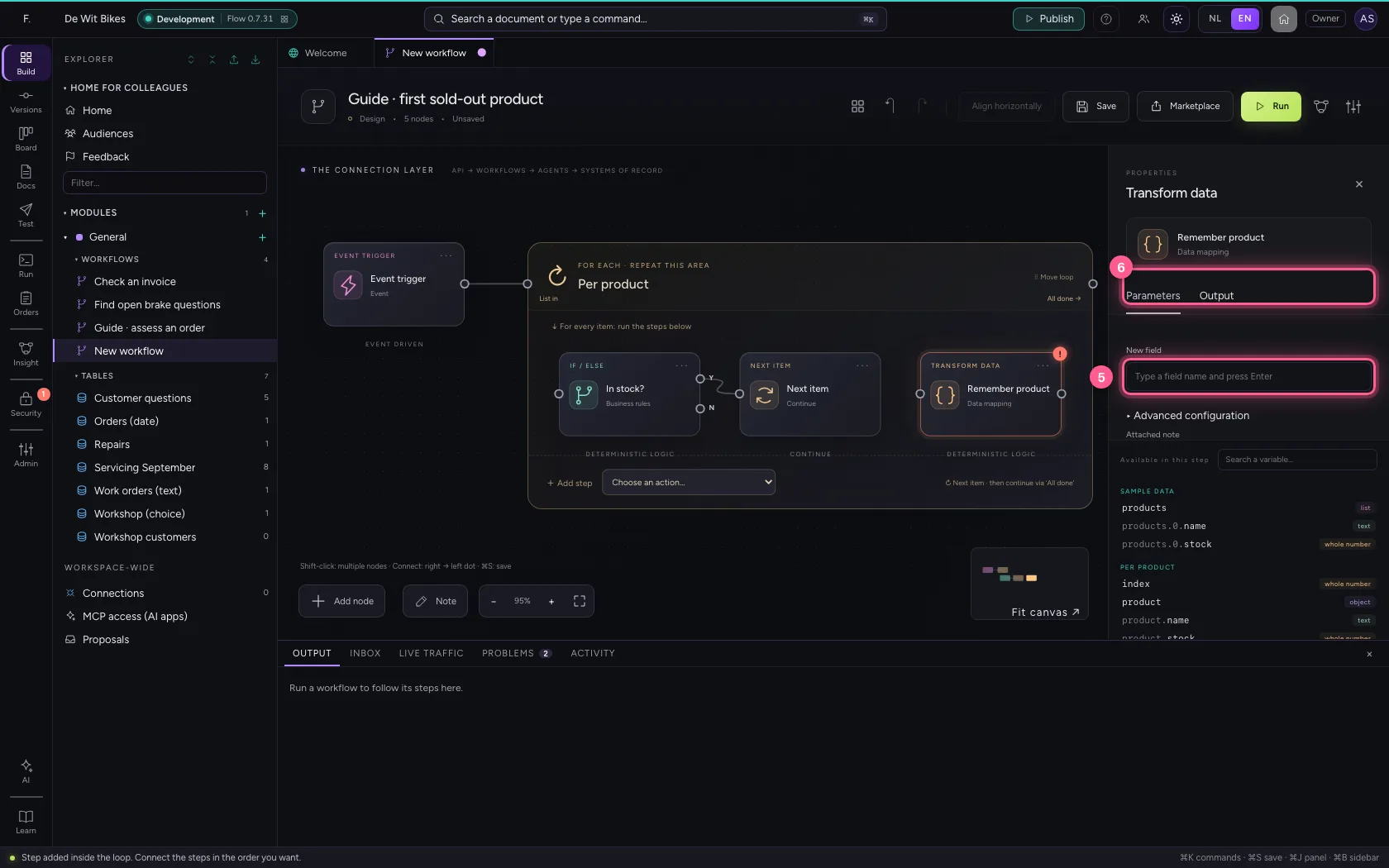
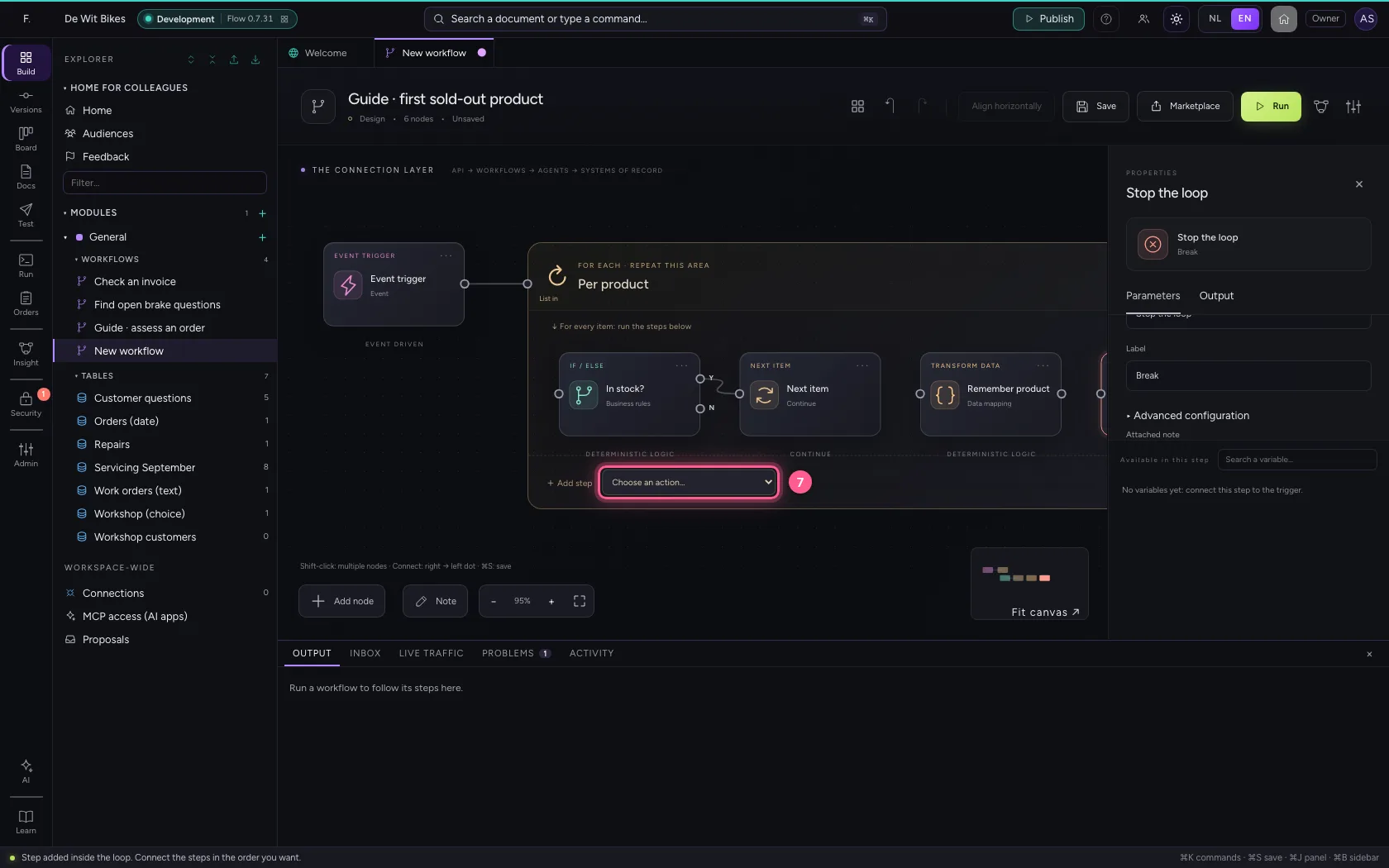
If the stock is 0, remember the name with Transform data (sold_out = {{product.name}}) and then choose Stop the loop. Connect No → Remember product → Stop the loop. The rest of the list is not looked at any more.
- In Add step, choose Transform data
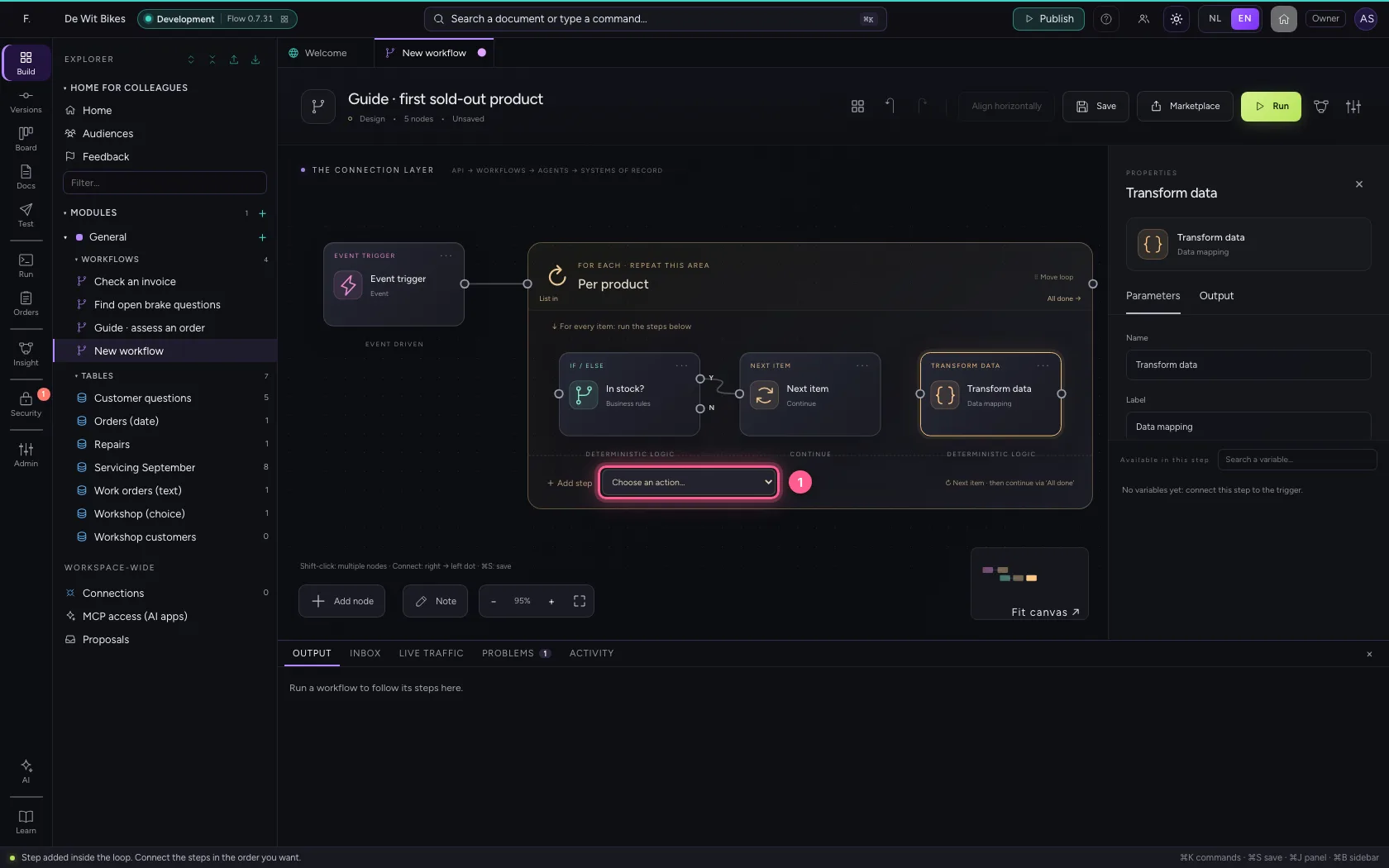
- In Name, type
Remember product
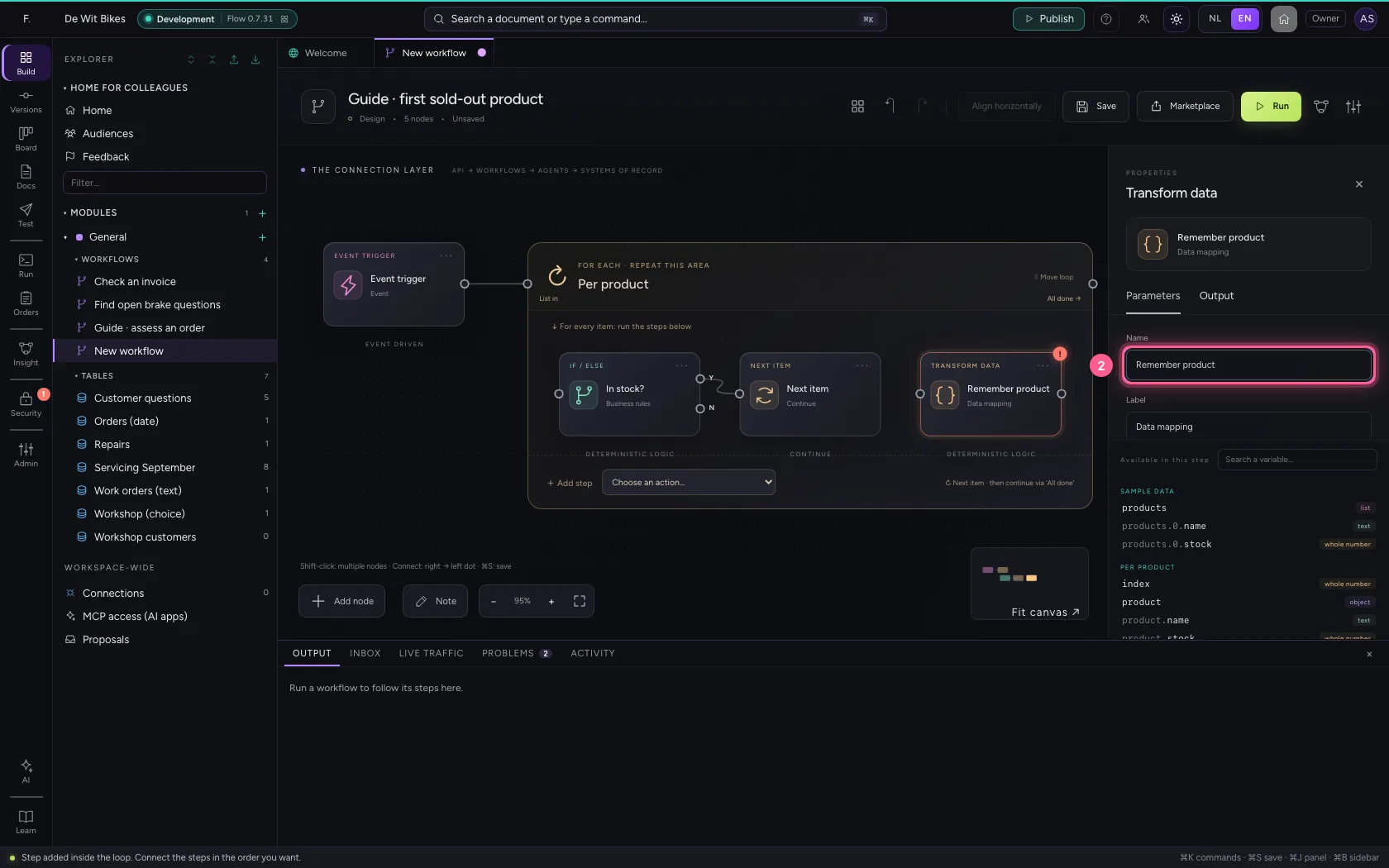
- Click Remove field
- Click Remove field
- In New field, type
sold_out - In sold_out, type
{{product.name}}
- In Add step, choose Stop the loop
- Click exit No of ‘In stock?’
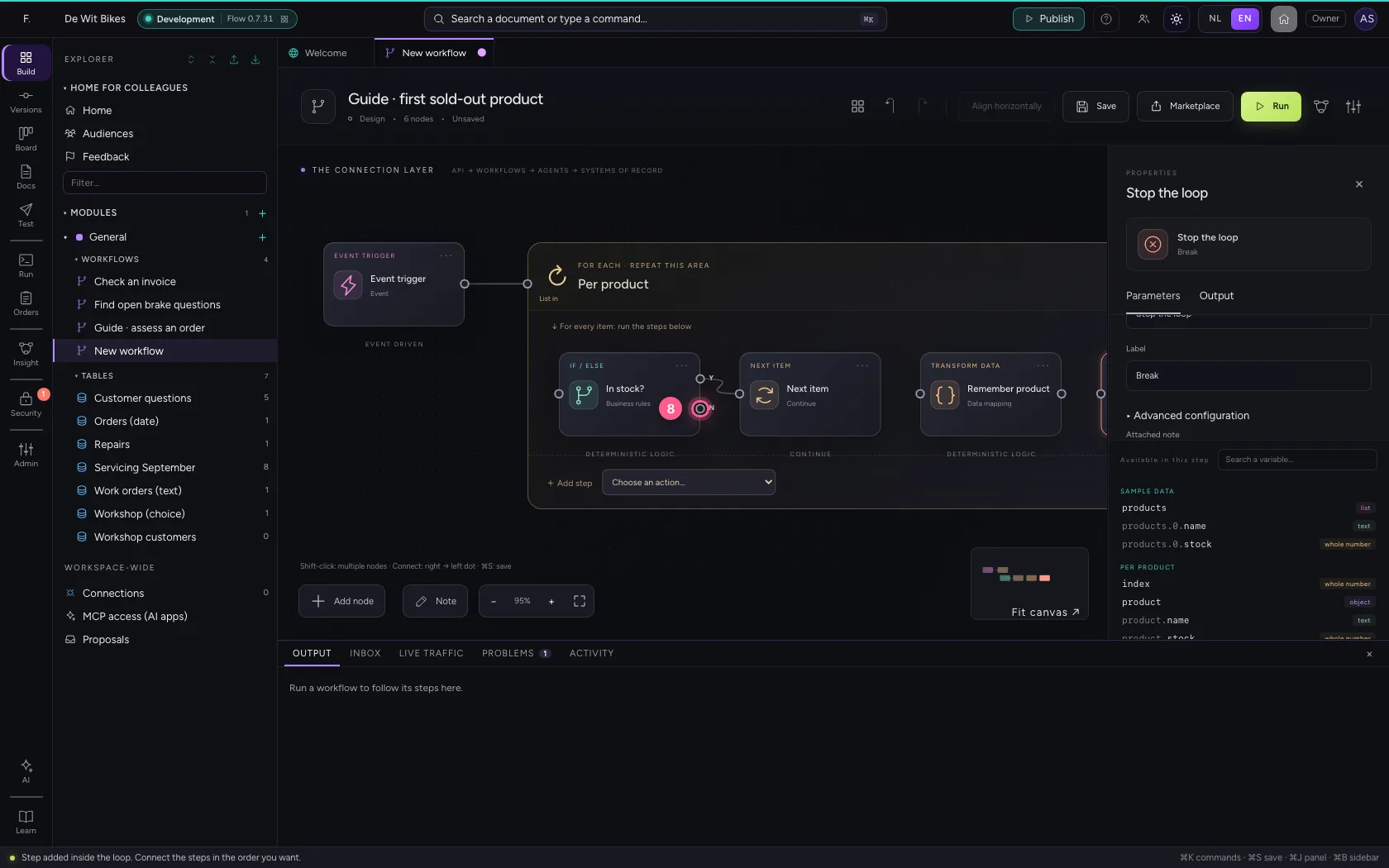
- Click the dot of ‘Remember product’
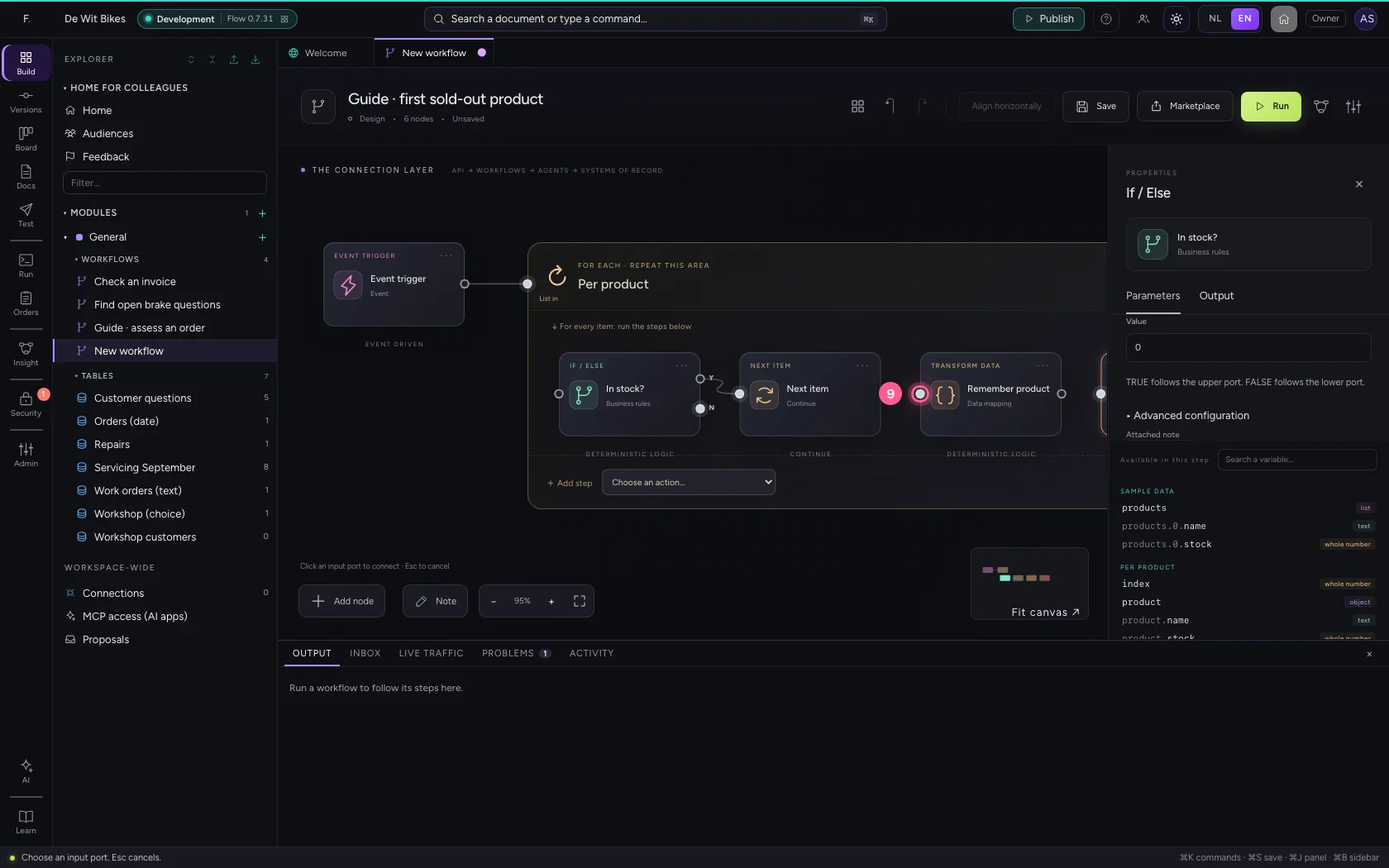
- Click the dot of ‘Remember product’
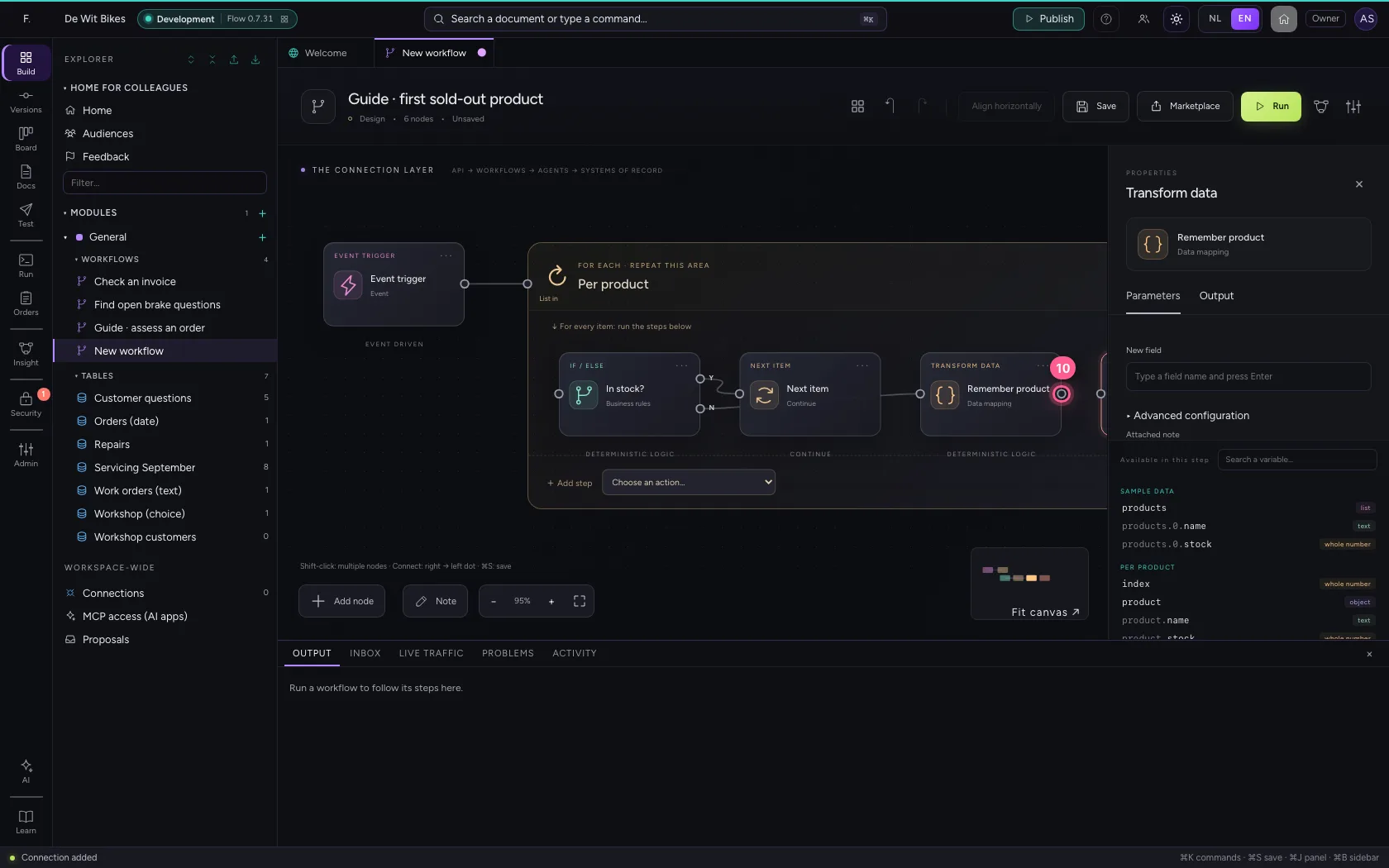
- Click the dot of ‘Stop the loop’
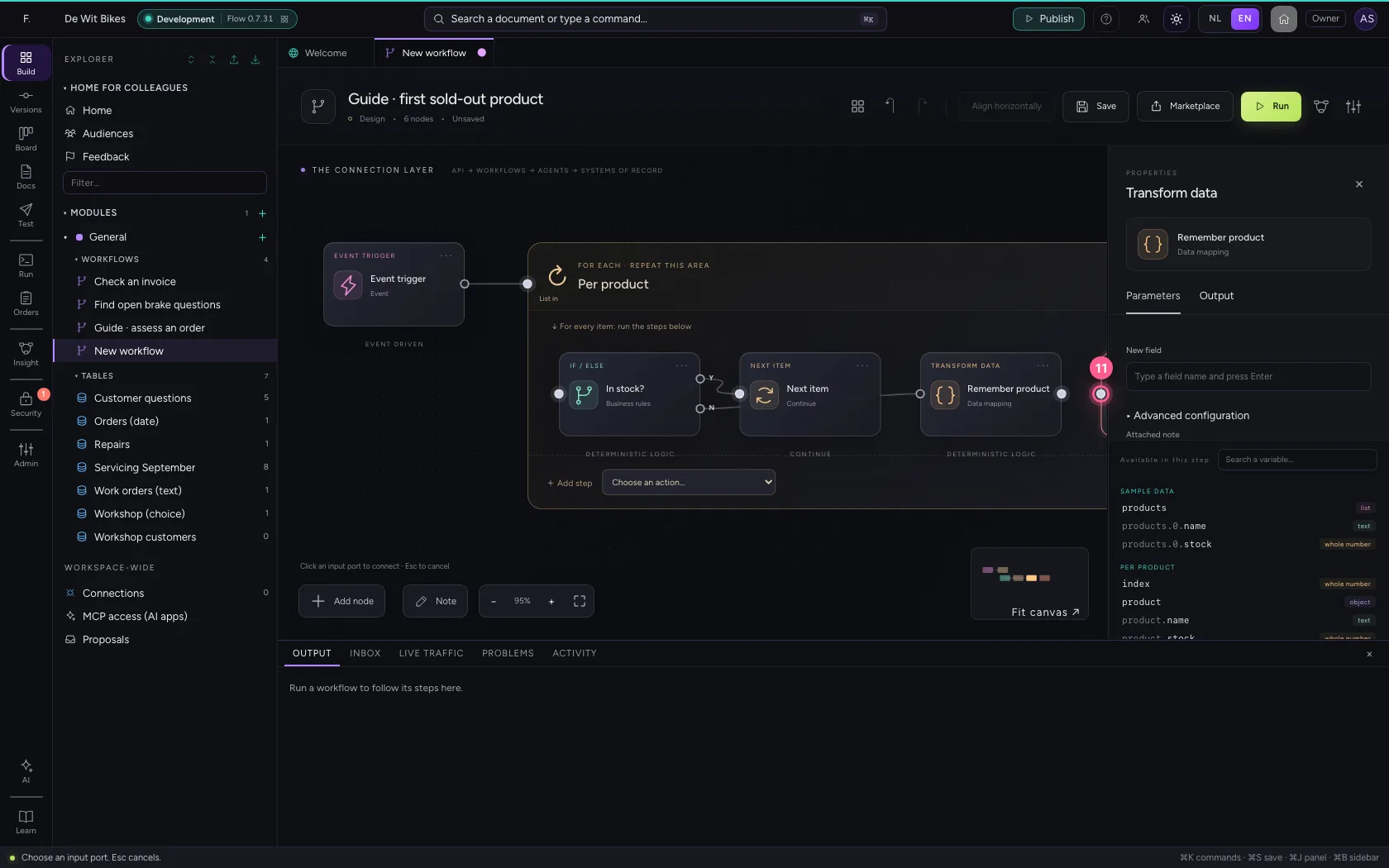
Put the steps in one line and save
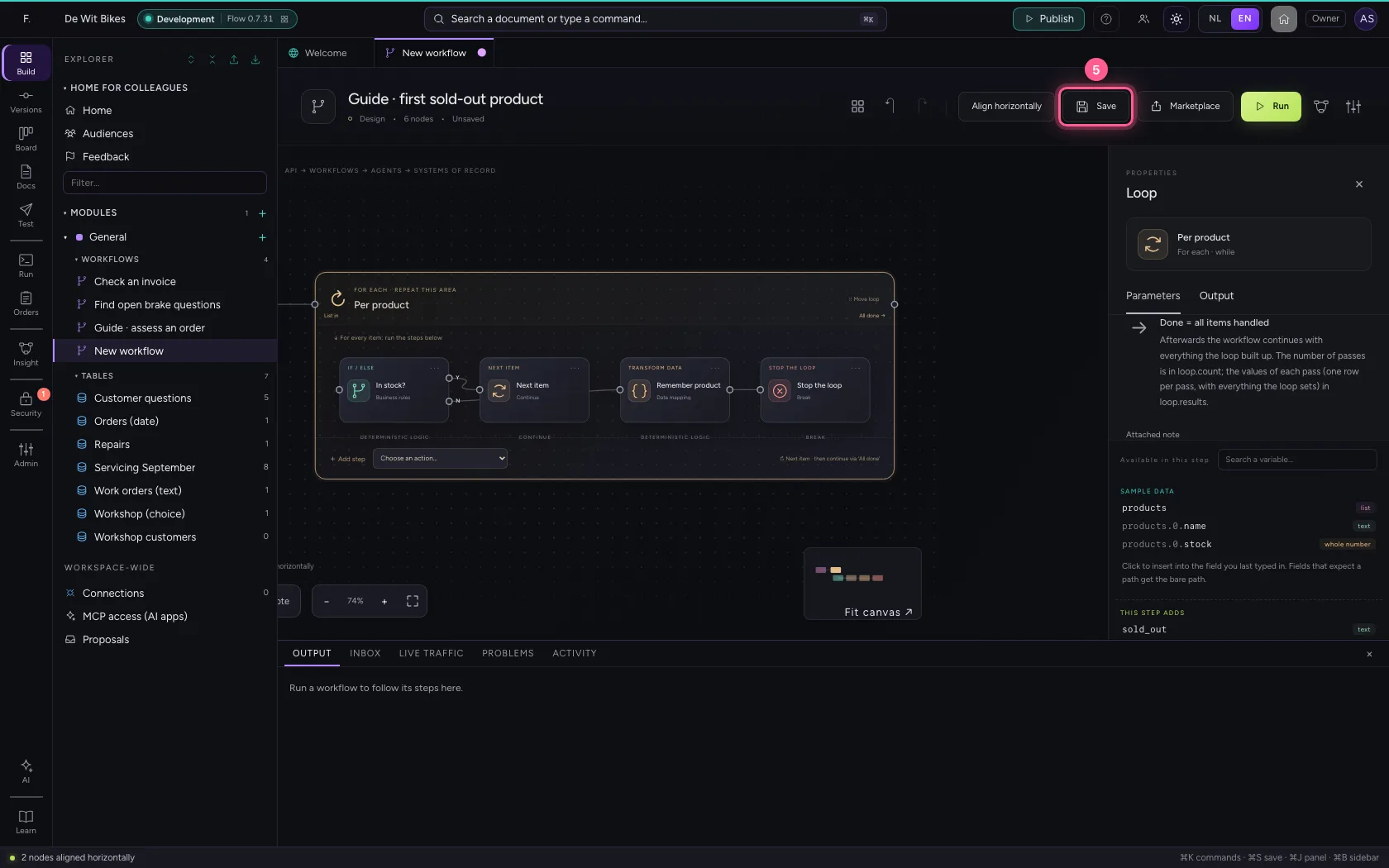
Select the steps (click the first, and the others while holding Shift) and click Align horizontally: they then stand in one line and you read the workflow from left to right; a branch (such as No of an If / Else) gets its own row below. Fit to view puts everything in sight; then Save.
- Click ‘Event trigger’
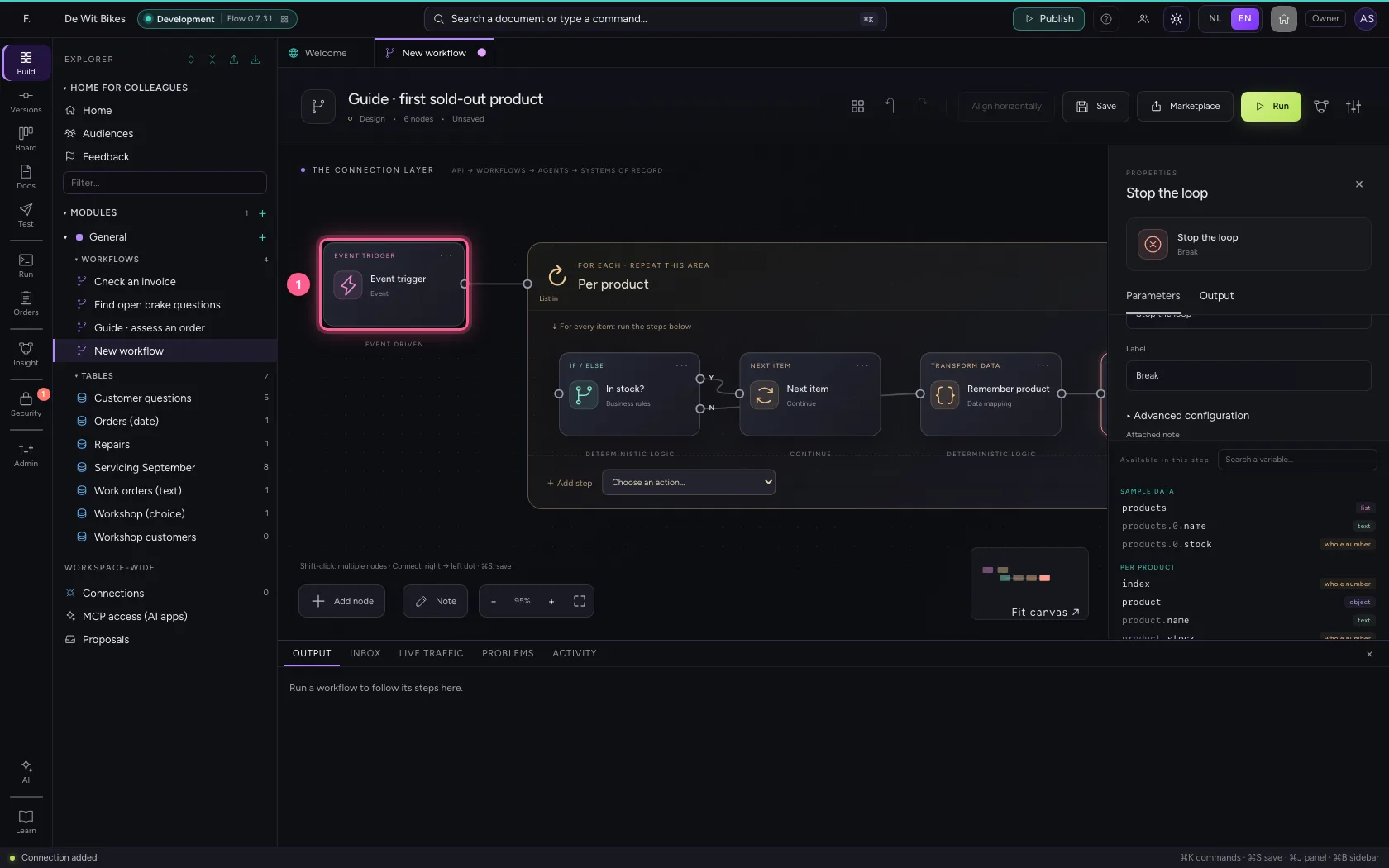
- Click ‘Per product’ while holding Shift
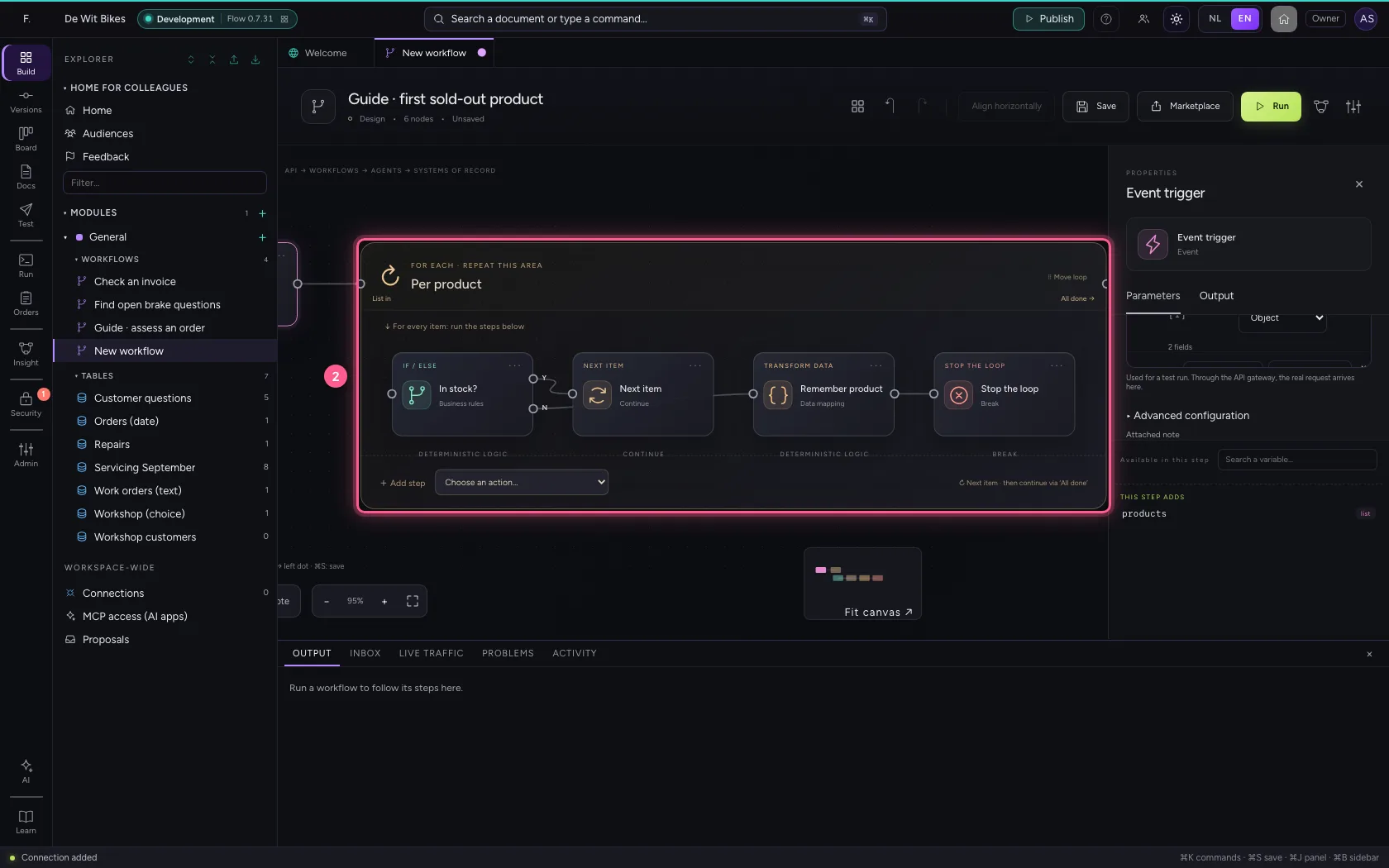
- Click Align horizontally
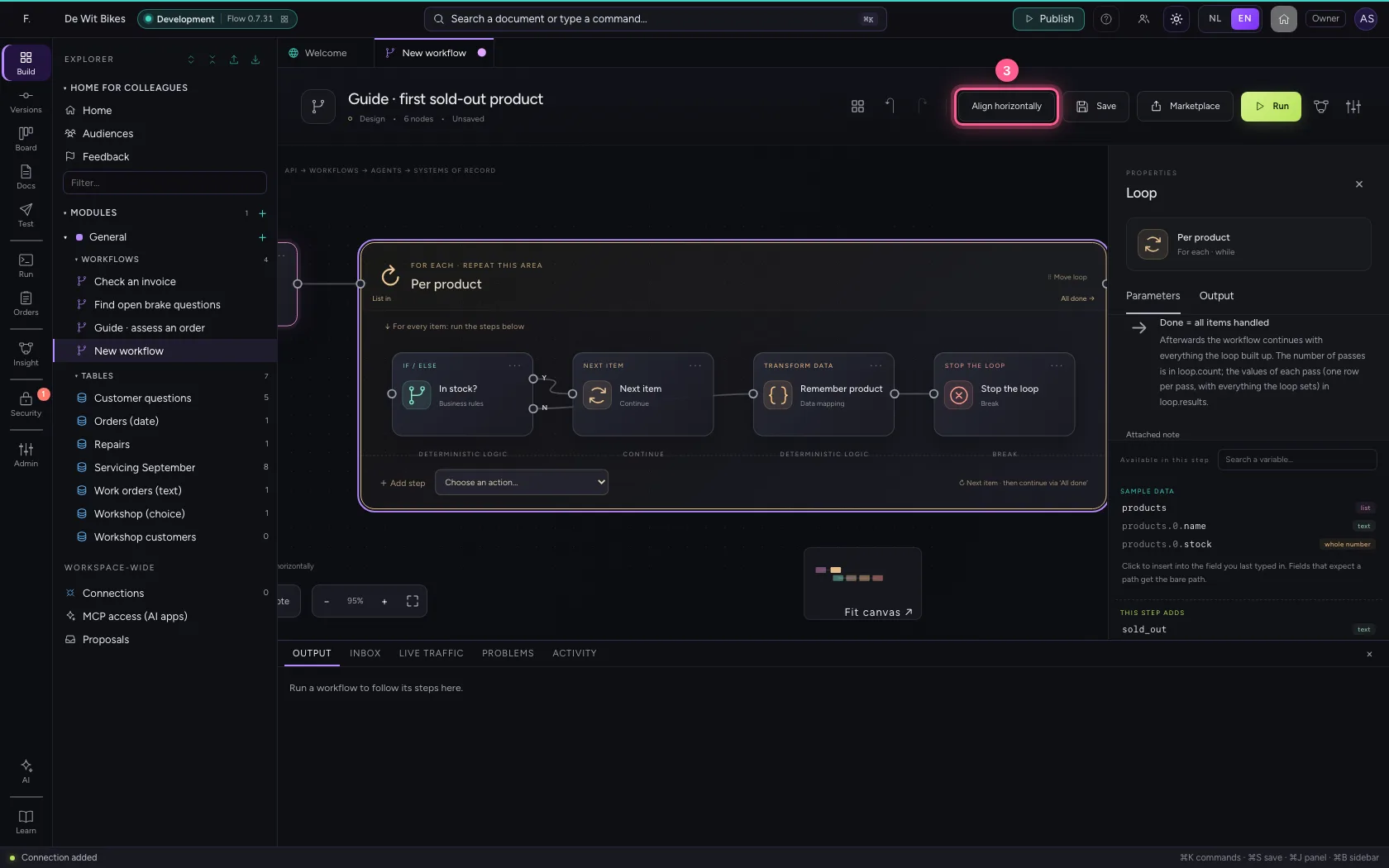
- Click Fit to view
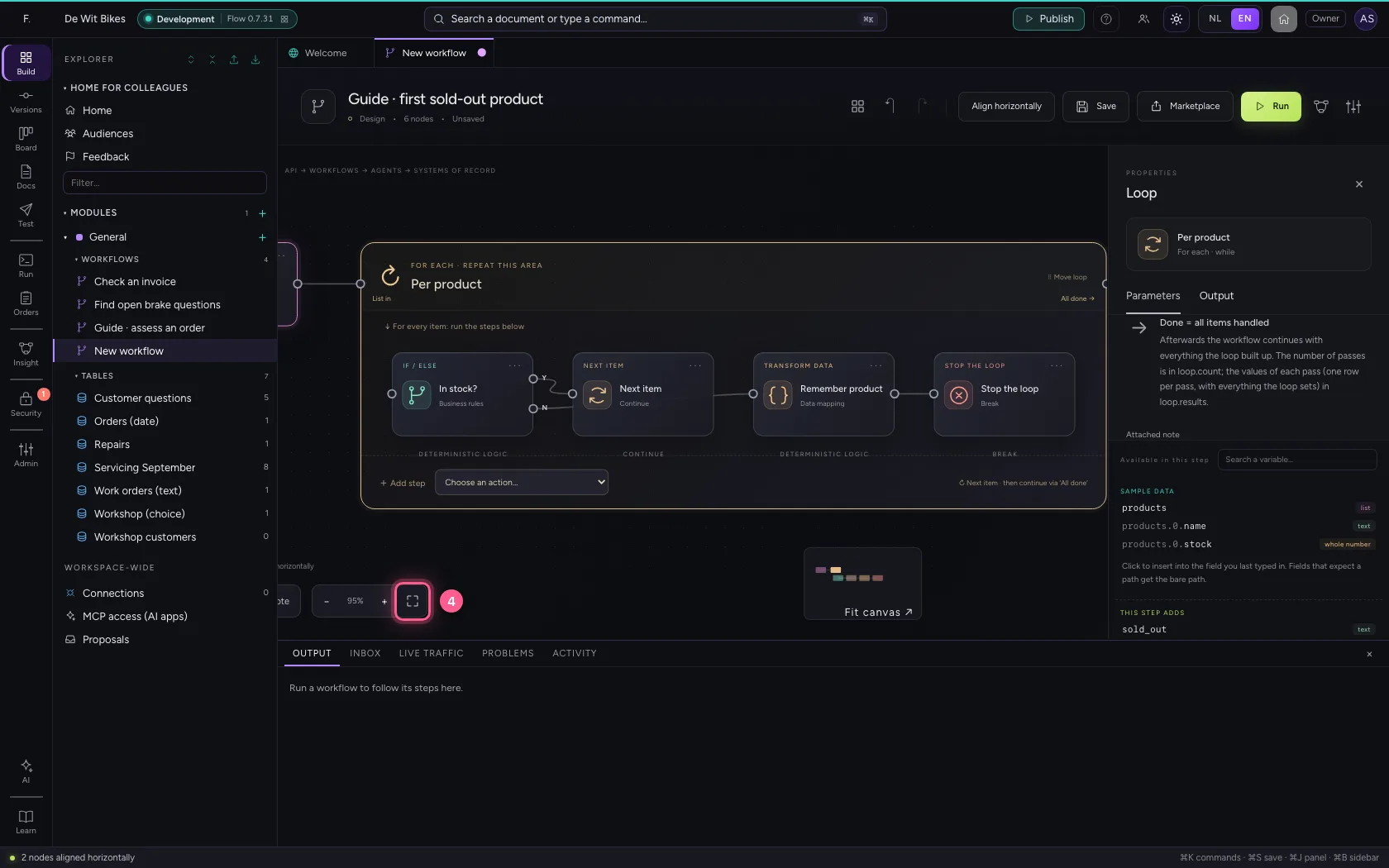
- Click Save
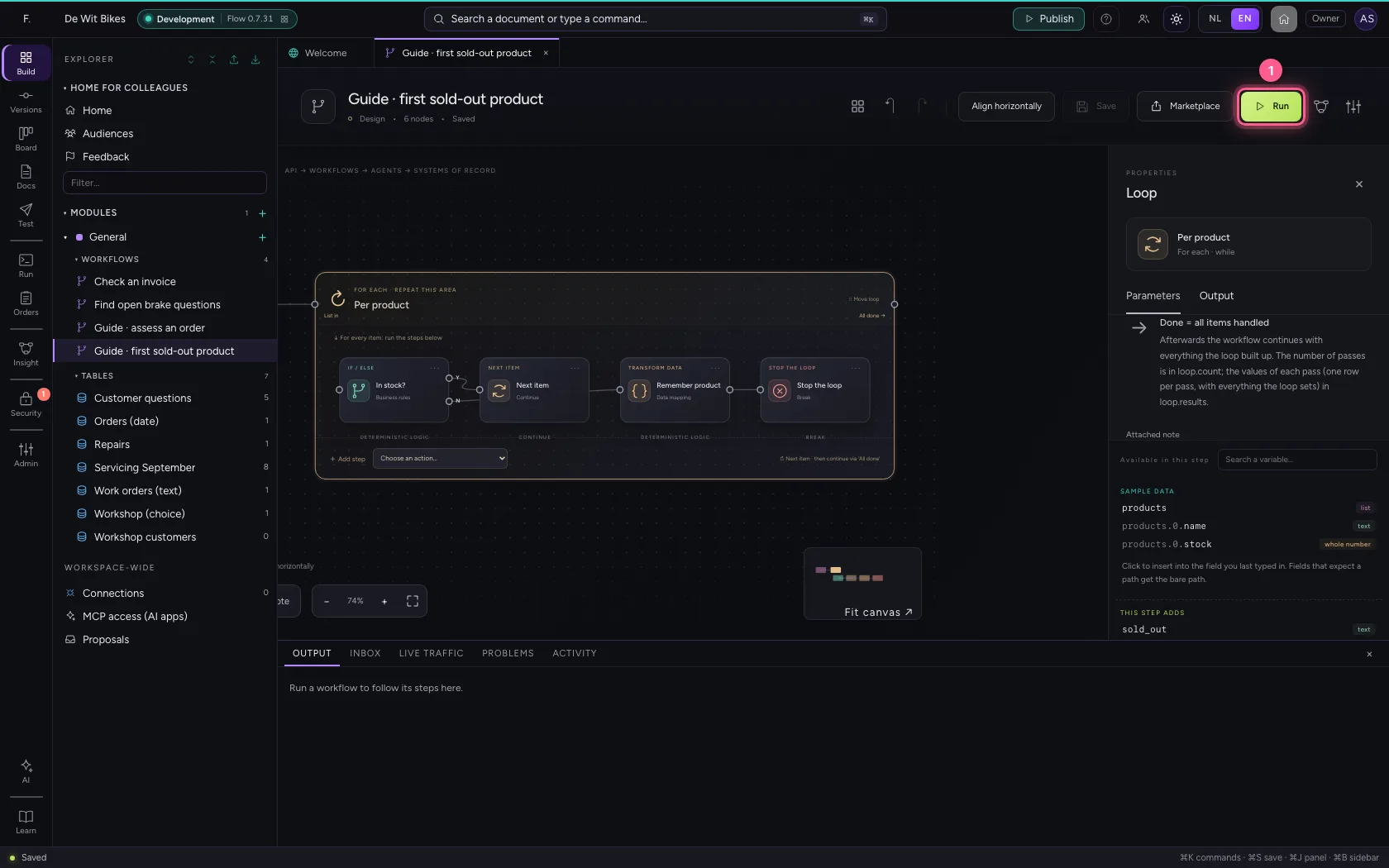
Run
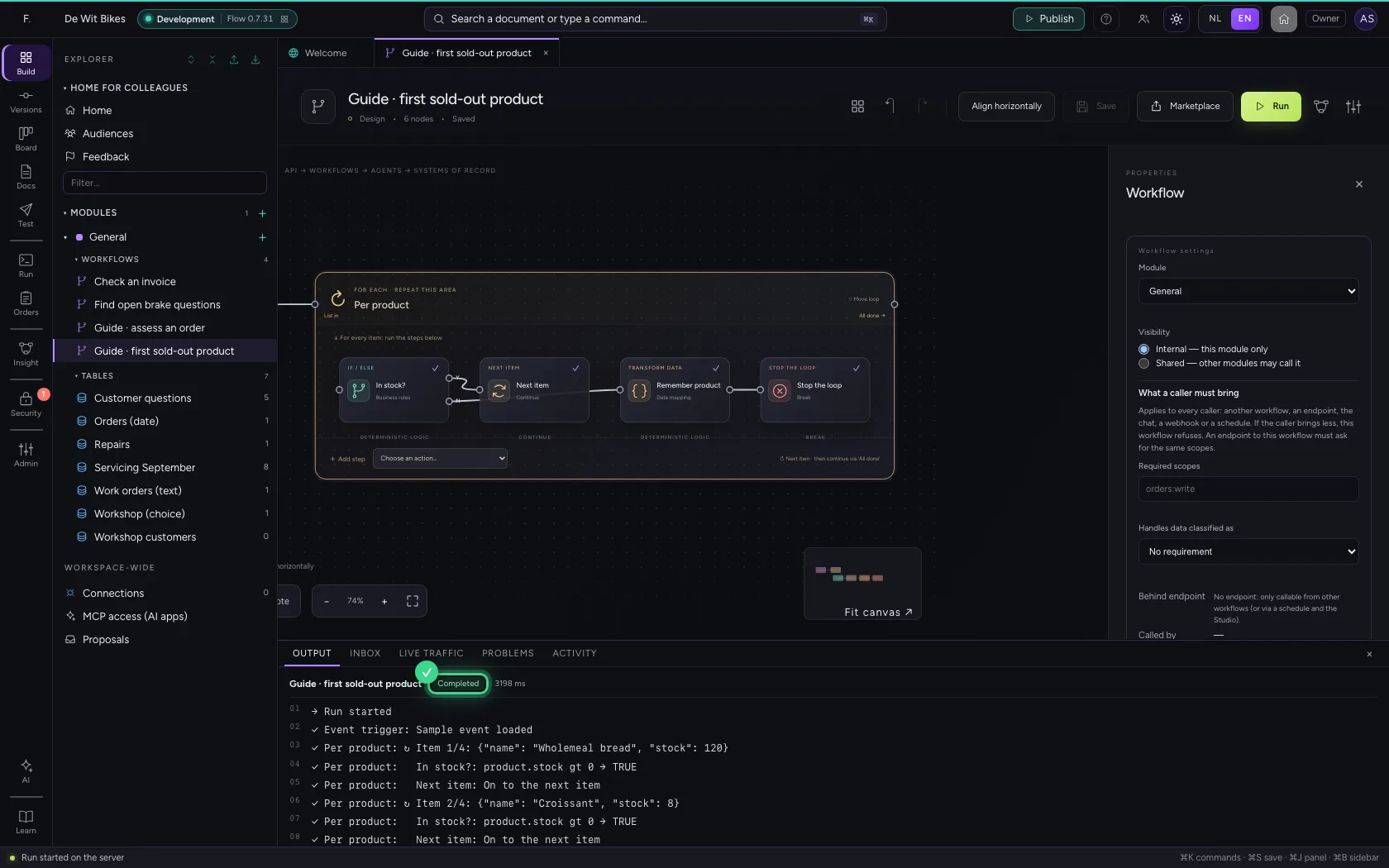
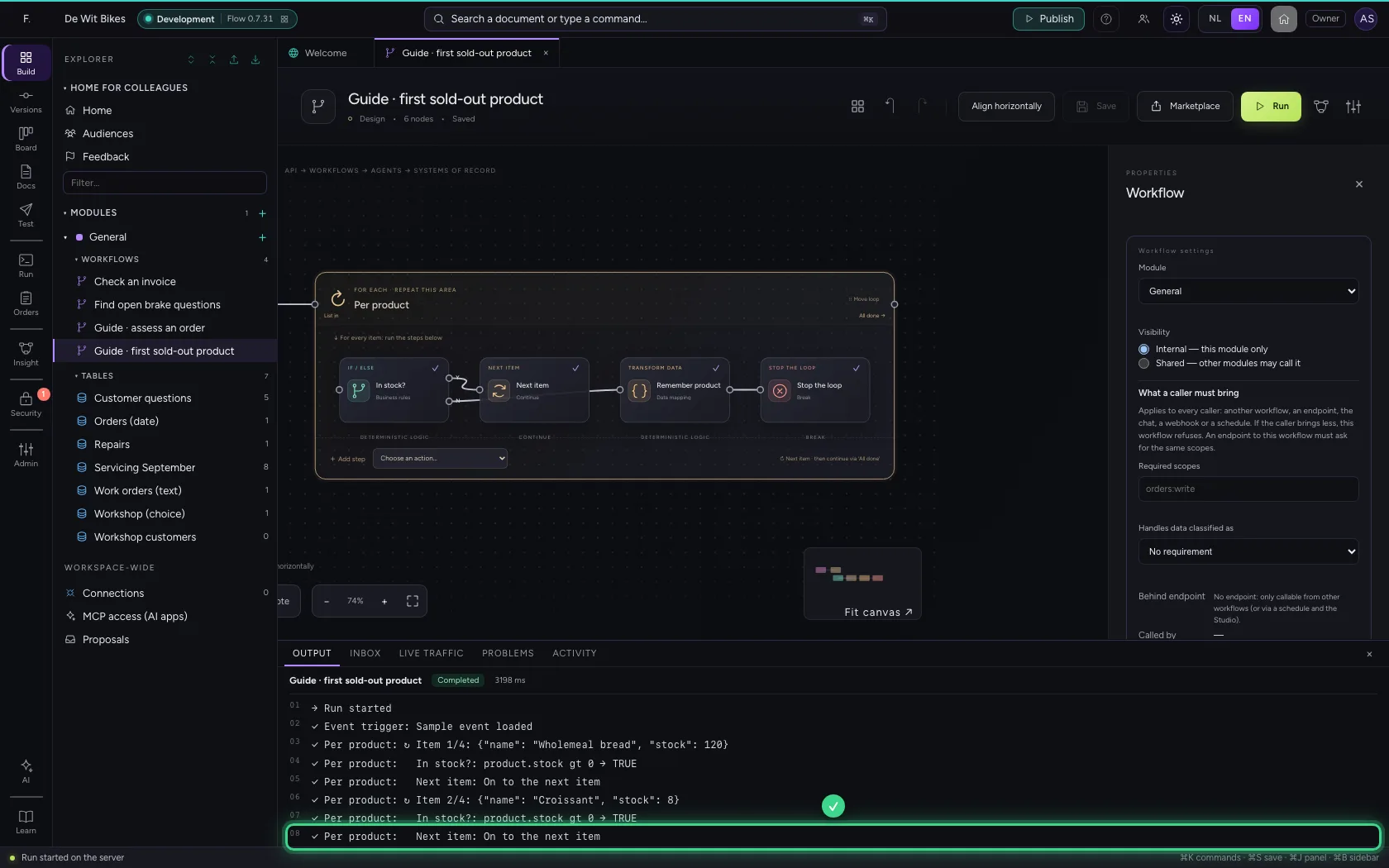
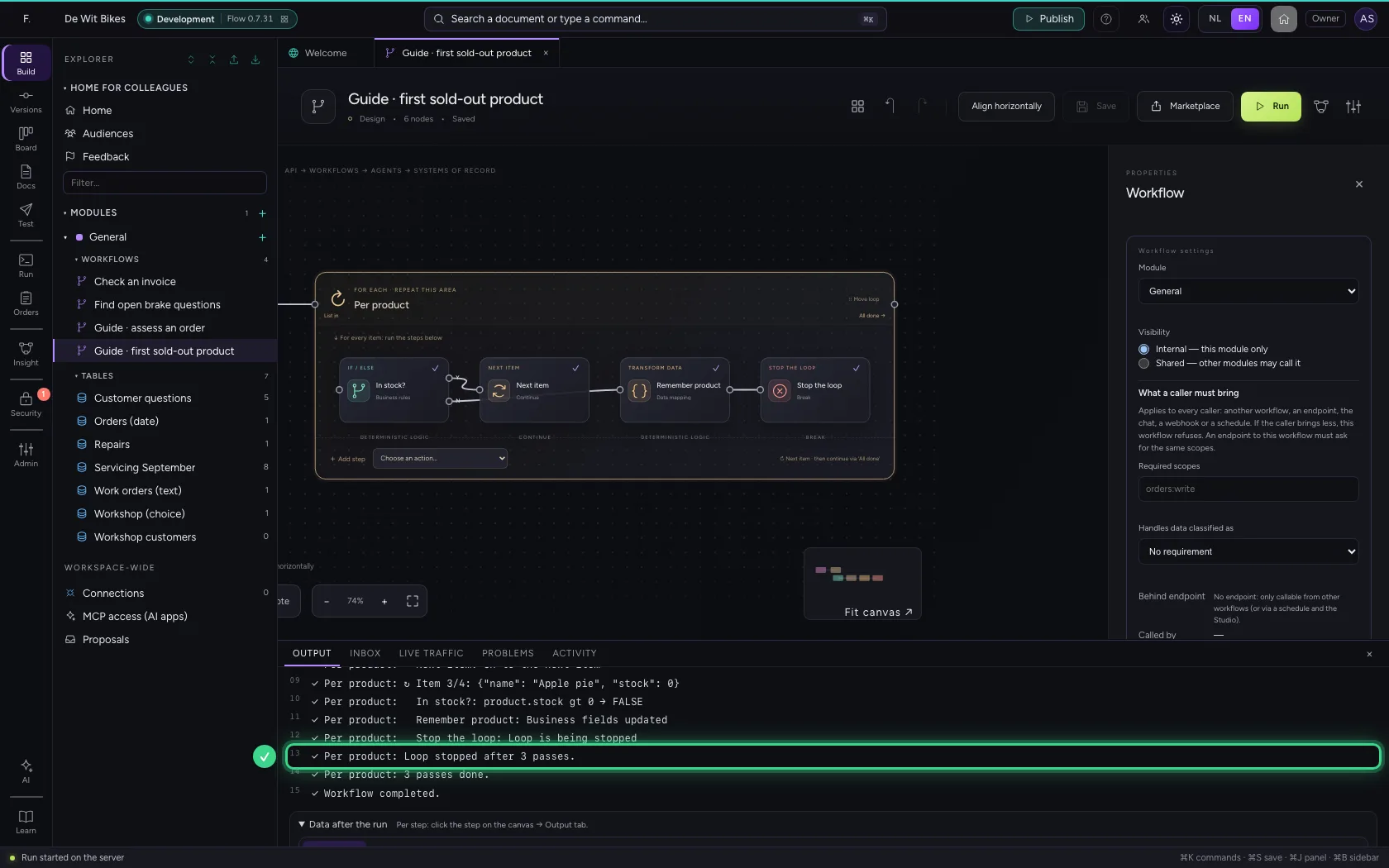
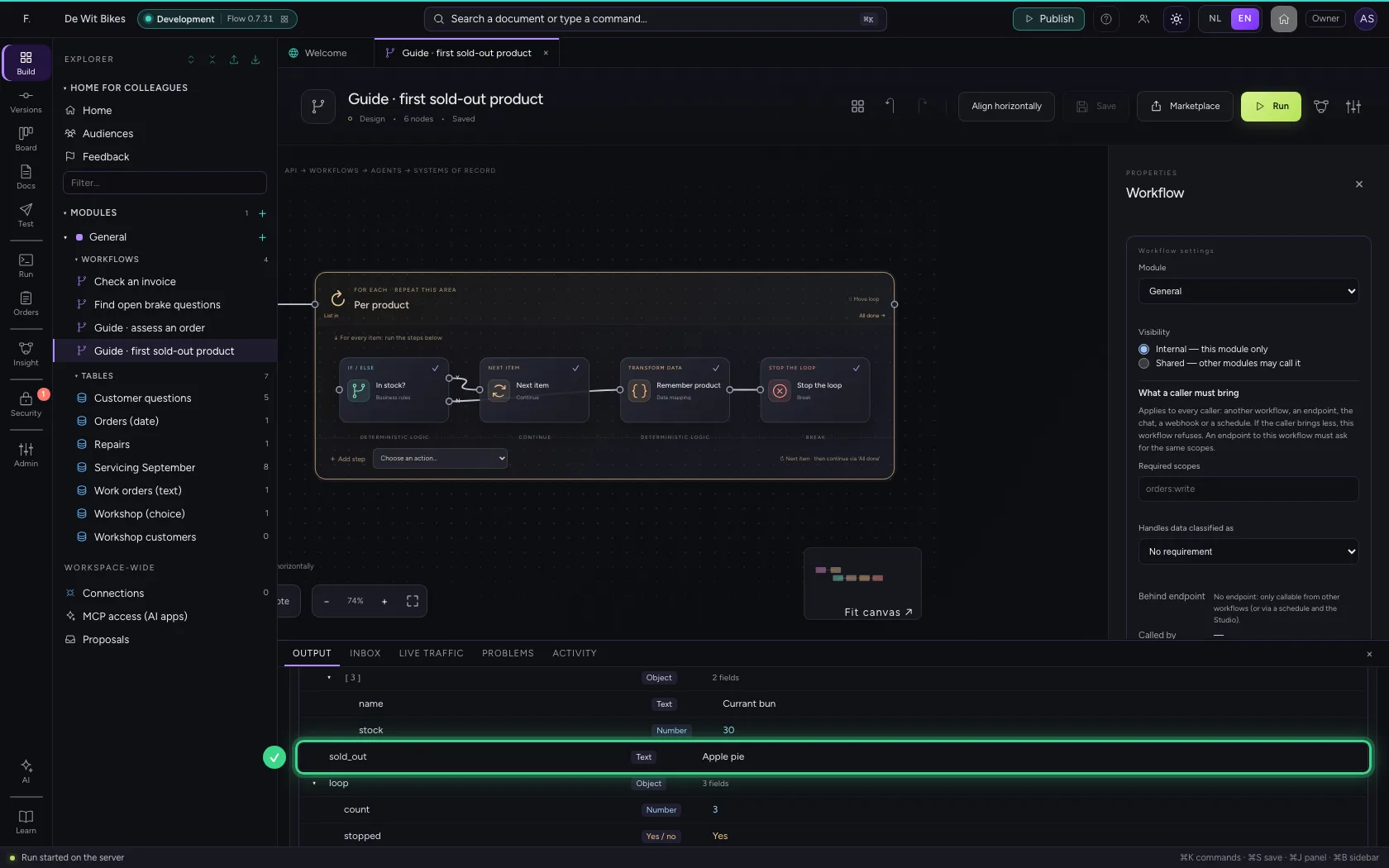
At the bread and the croissant the loop went on to the next item. At the apple pie it stopped: after three passes, the currant bun was not looked at. After the loop the product found is ready, and loop.stopped is true.
- Click Run
This guide was carried out step by step on 22 Oct 2026 by an automated test on Flow (version 3e563176).