Loop: repeat while a condition holds
Sometimes you do not know beforehand how often something must happen: an API that answers page by page, an attempt you repeat until it works. Then you set the Loop to While a condition holds. The condition is checked before every pass; a step inside the loop must eventually make it false.
Open Flow and create a workflow
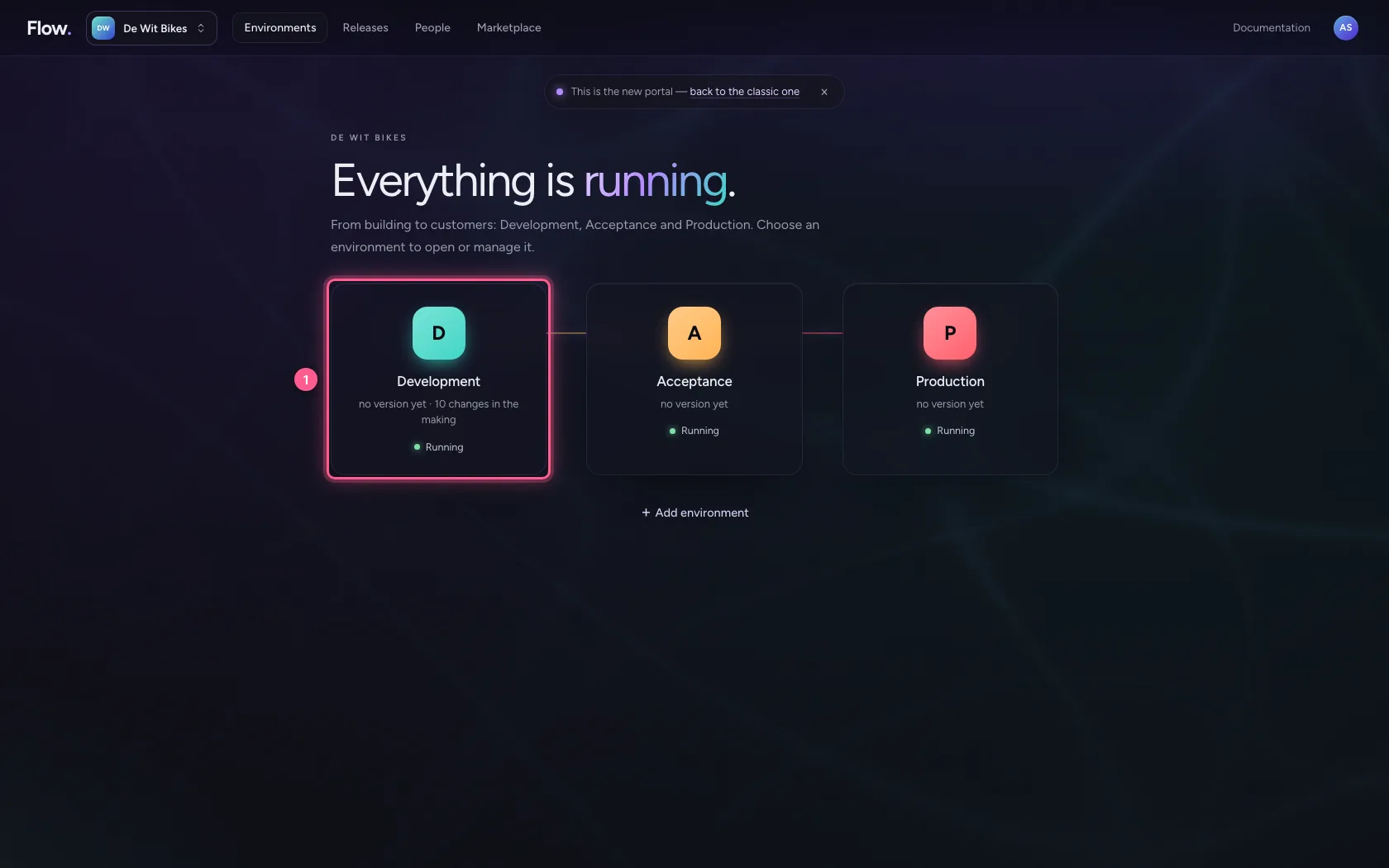
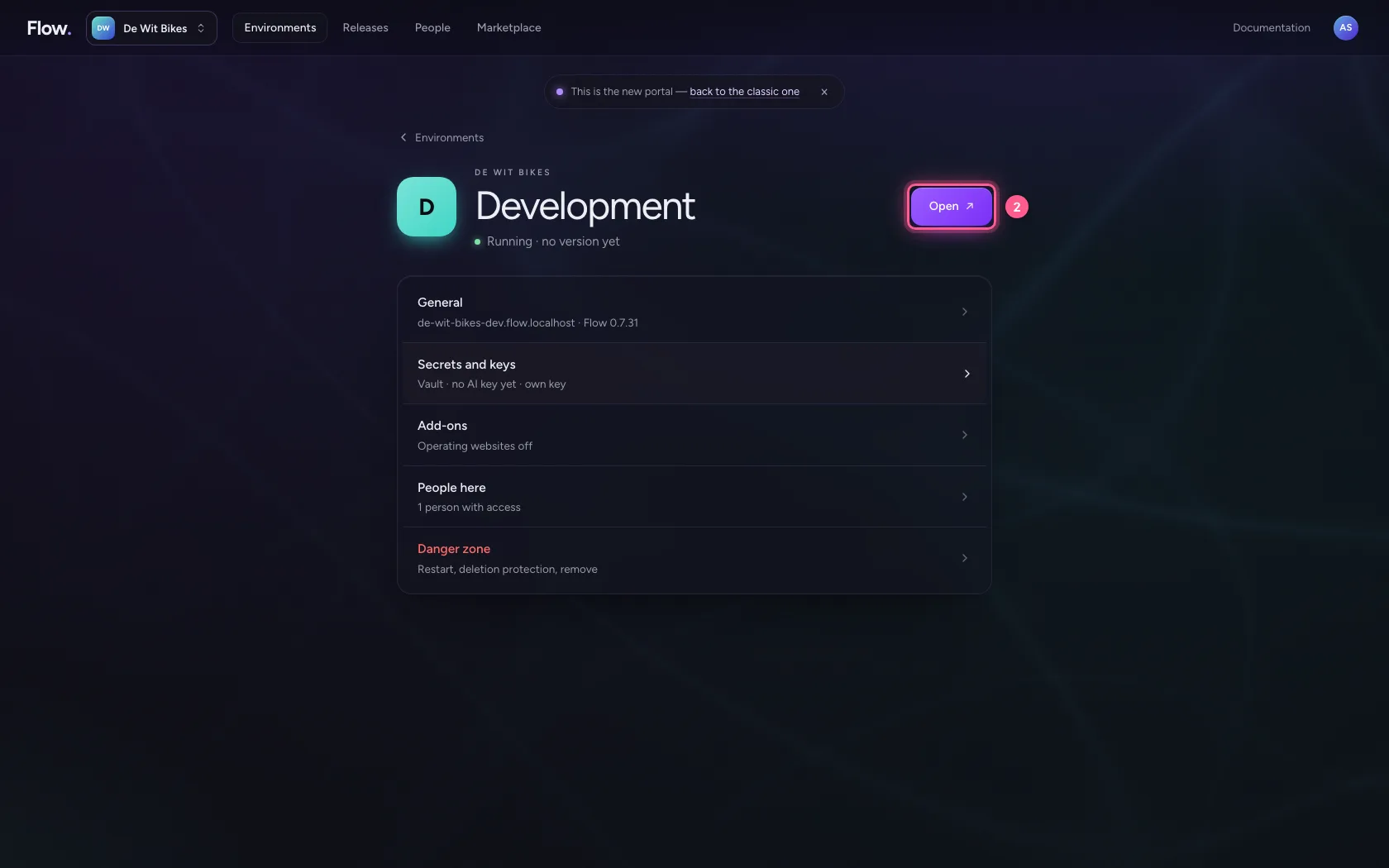
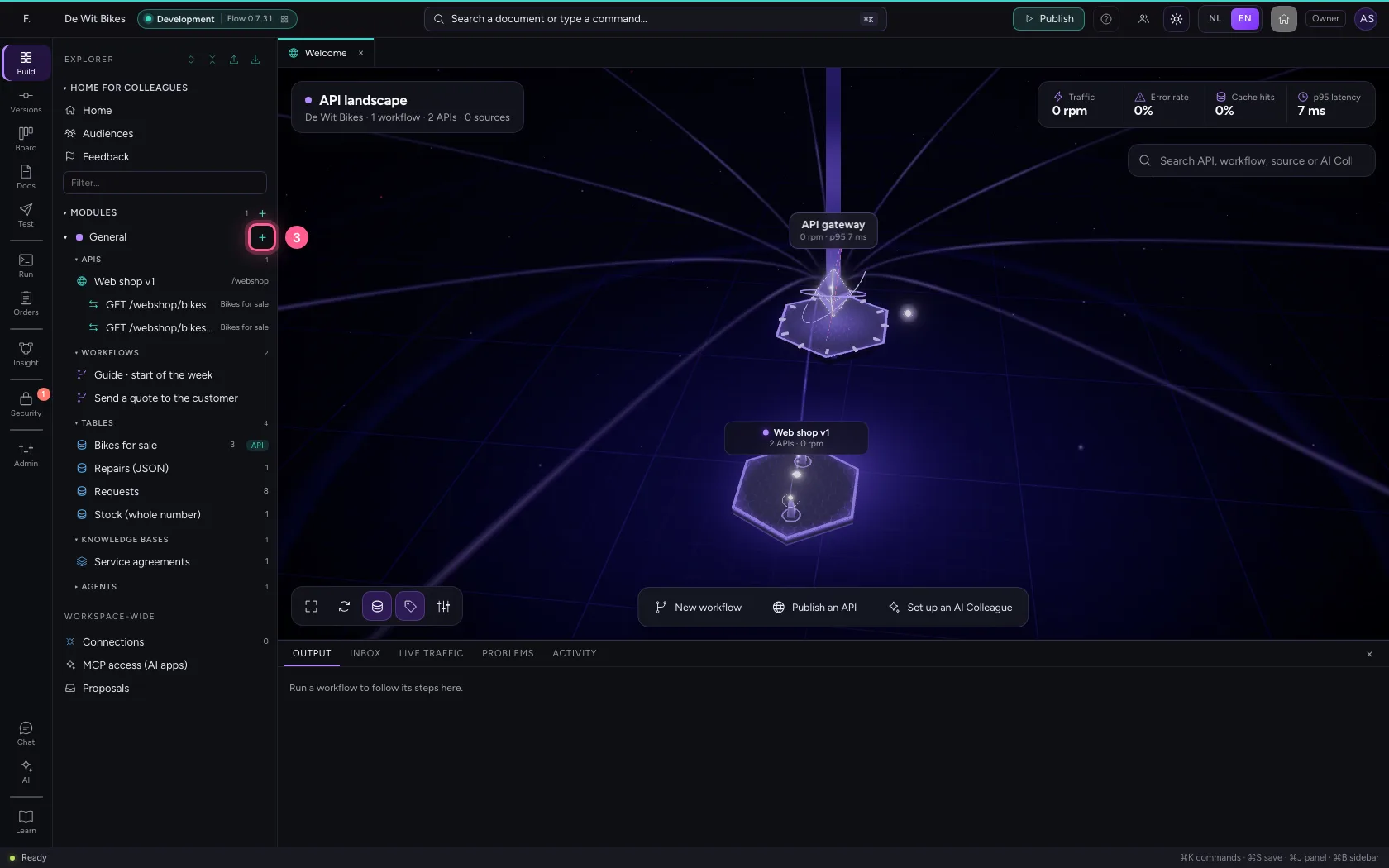
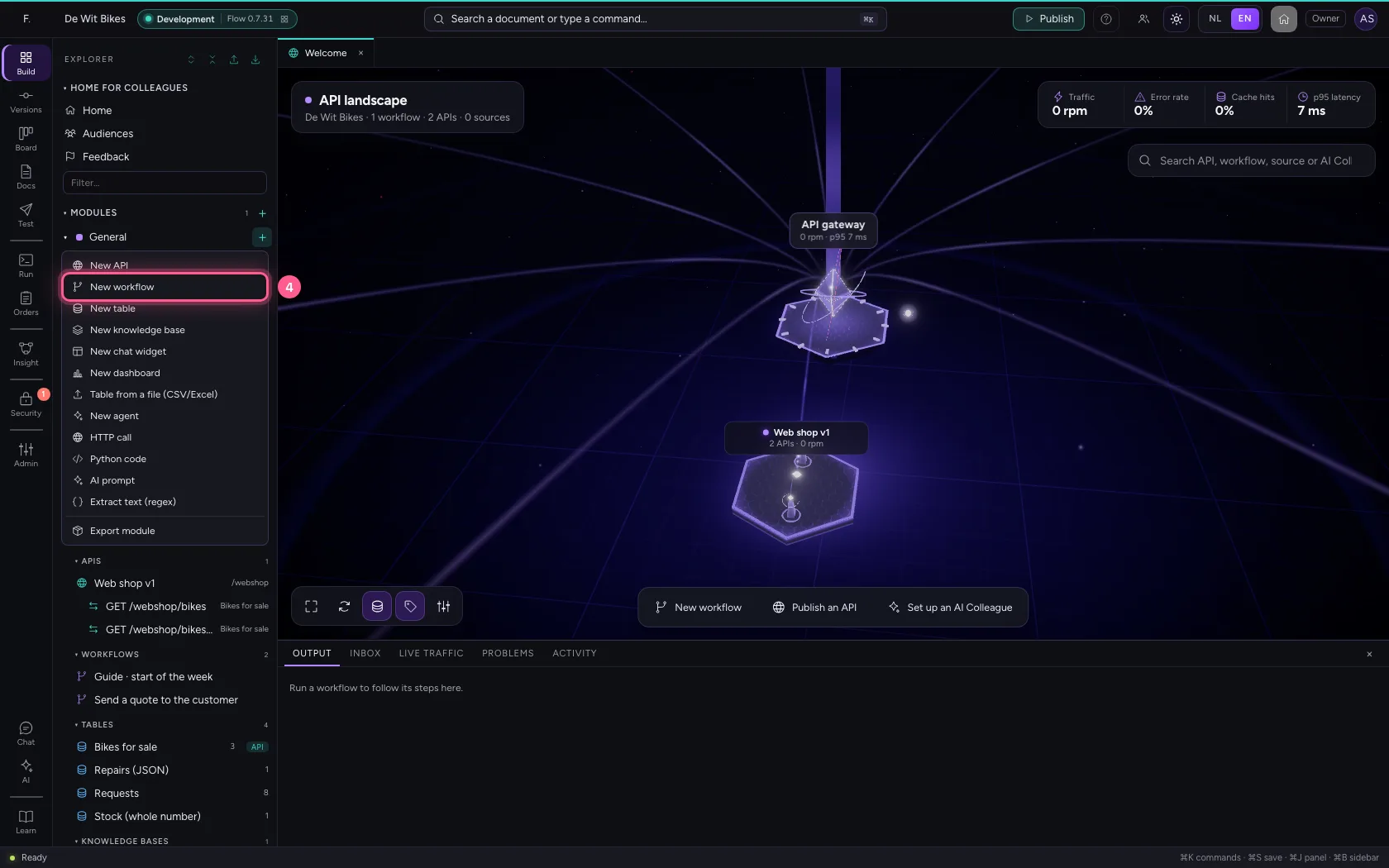
In the portal, under Environments, click Development and there Open; Flow opens in a new tab. There, click + next to General, choose New workflow and give it a name. A new workflow starts with an Event trigger: the point where it begins.
- Click Development
- Click Open ↗
- Click Add to General
- Click New workflow
- In Workflow name, type
Guide · page by page
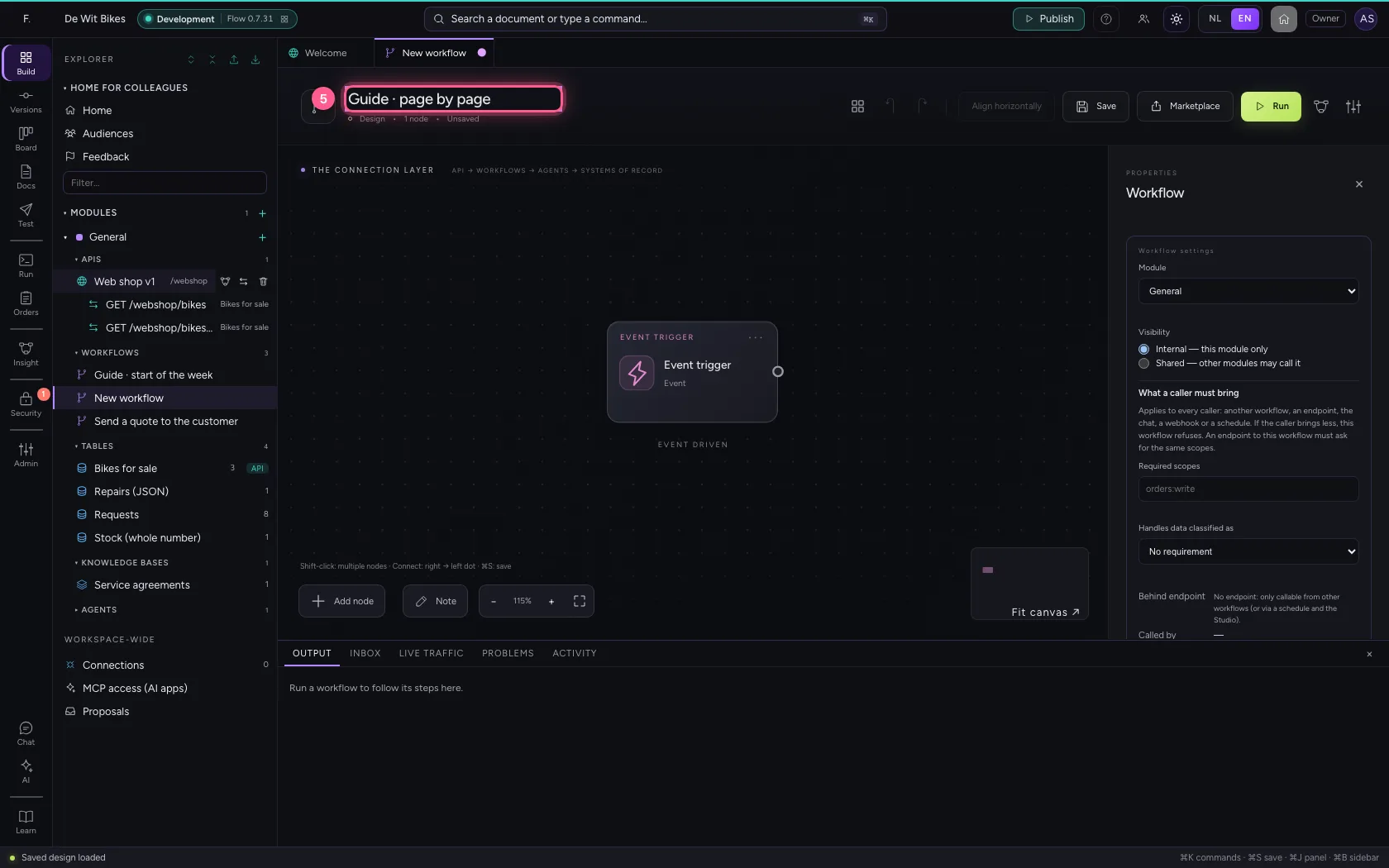
Start at page 1
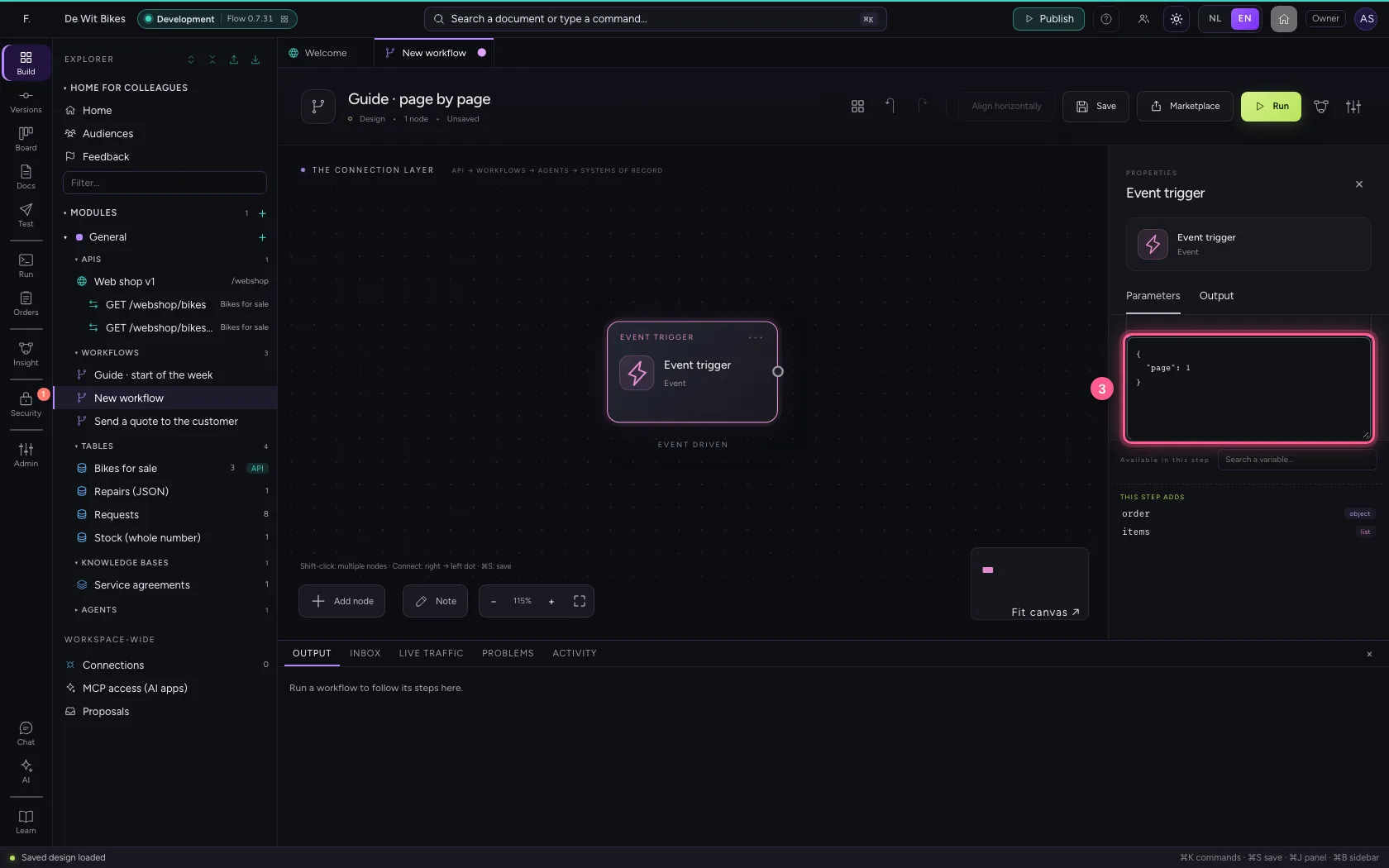
Put under the trigger's Sample data (Code) which page you start at. In this example there are three pages.
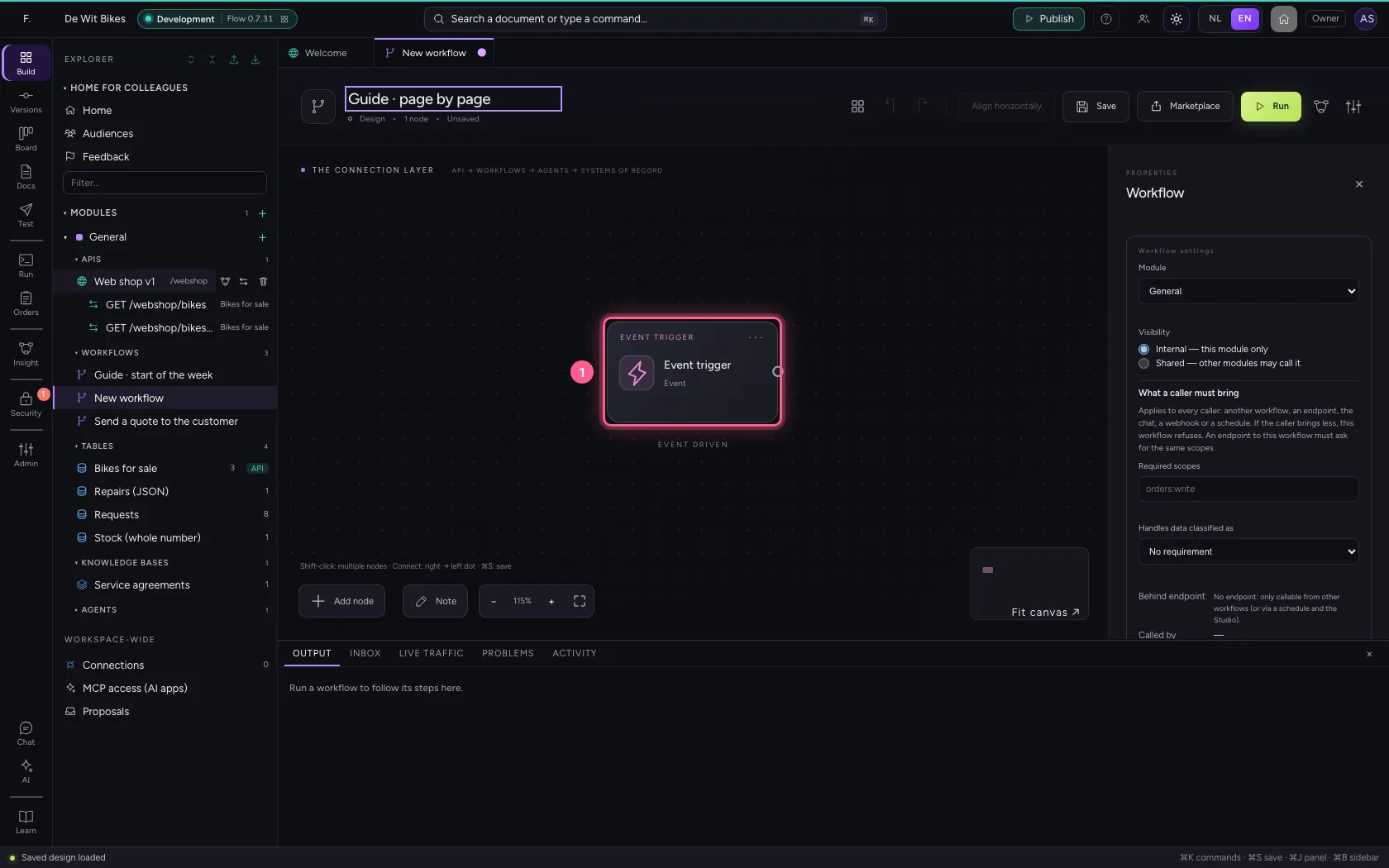
- Click the step ‘Event trigger’
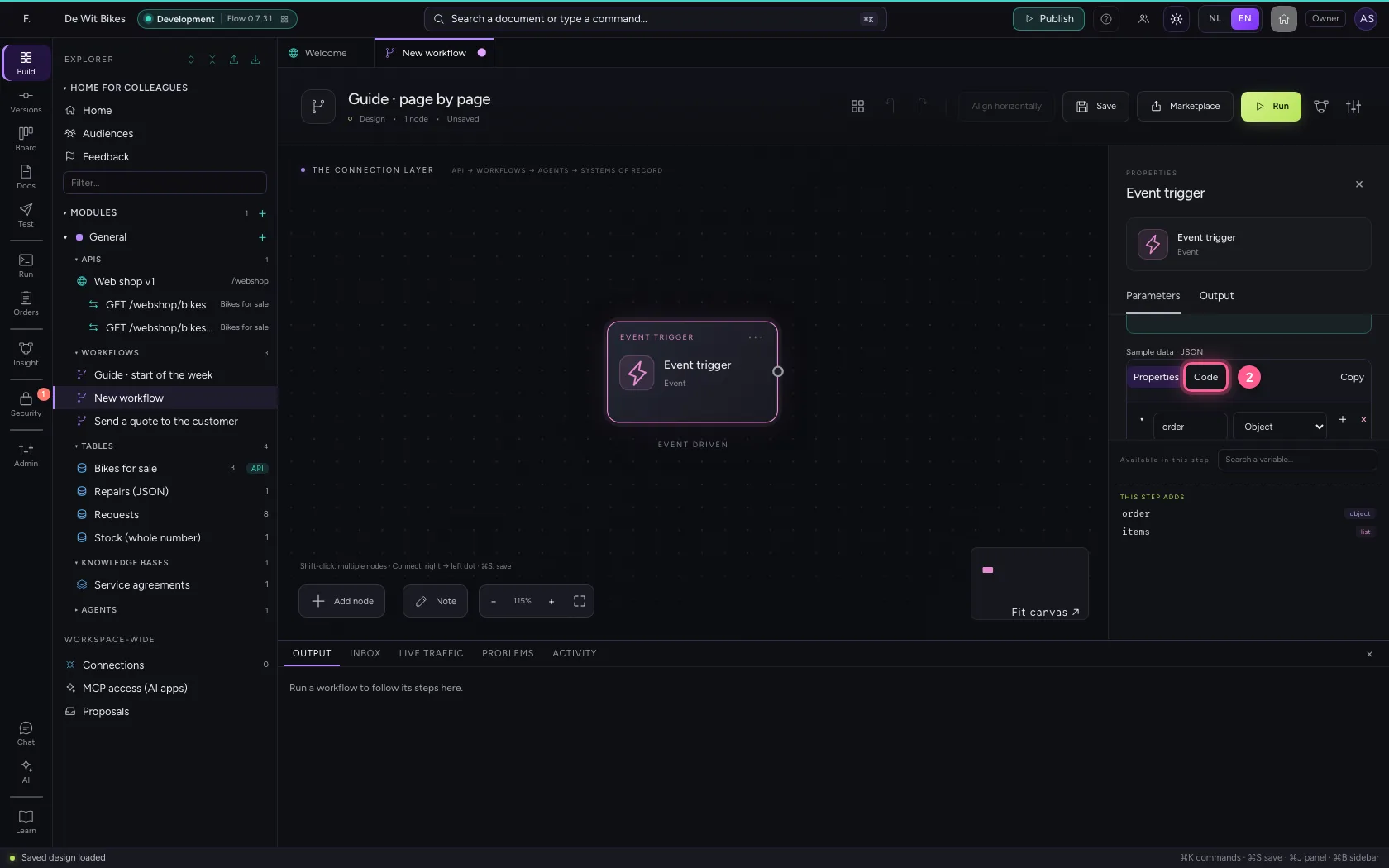
- Click Code
- In the sample data, type `{
A loop with a condition
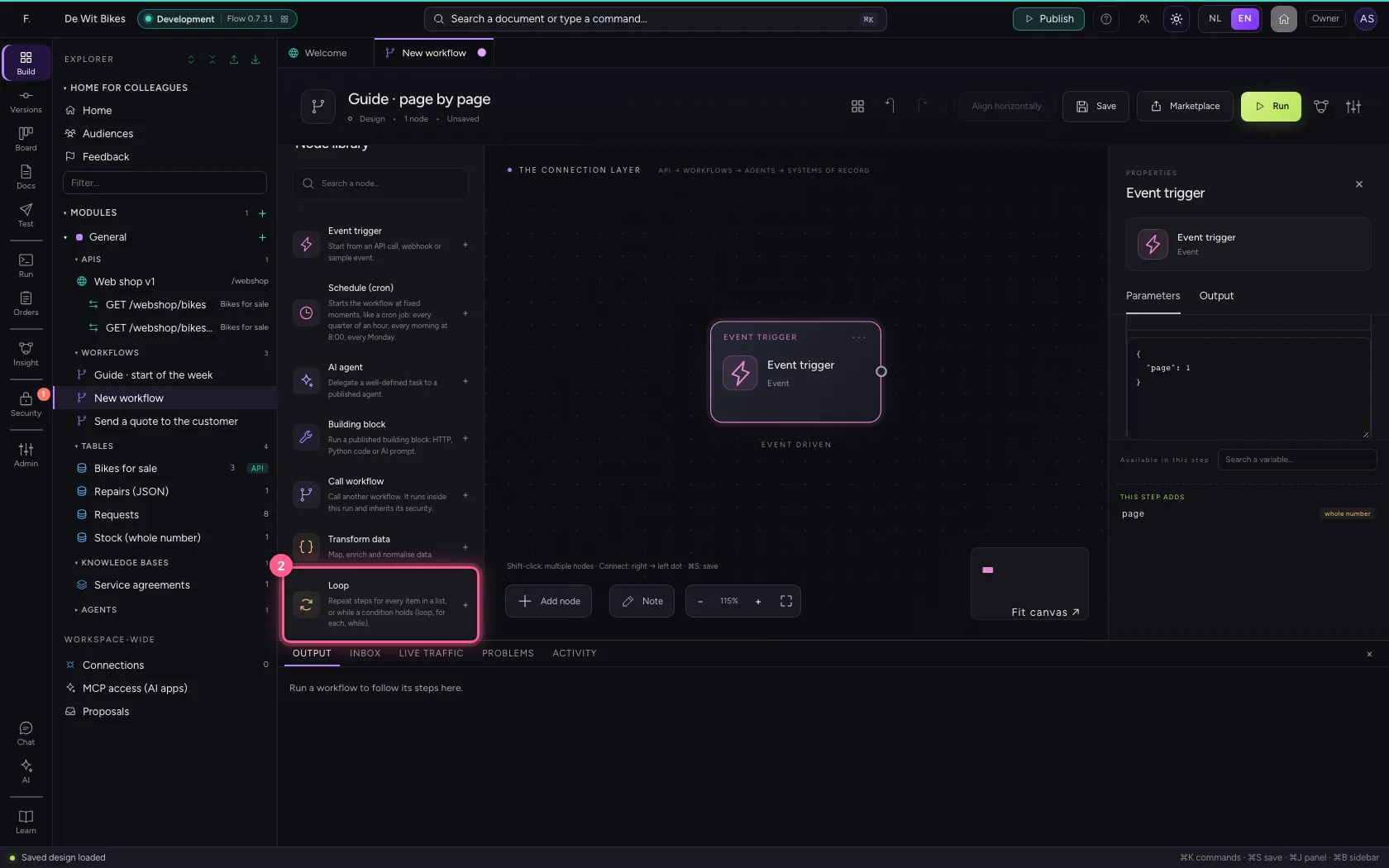
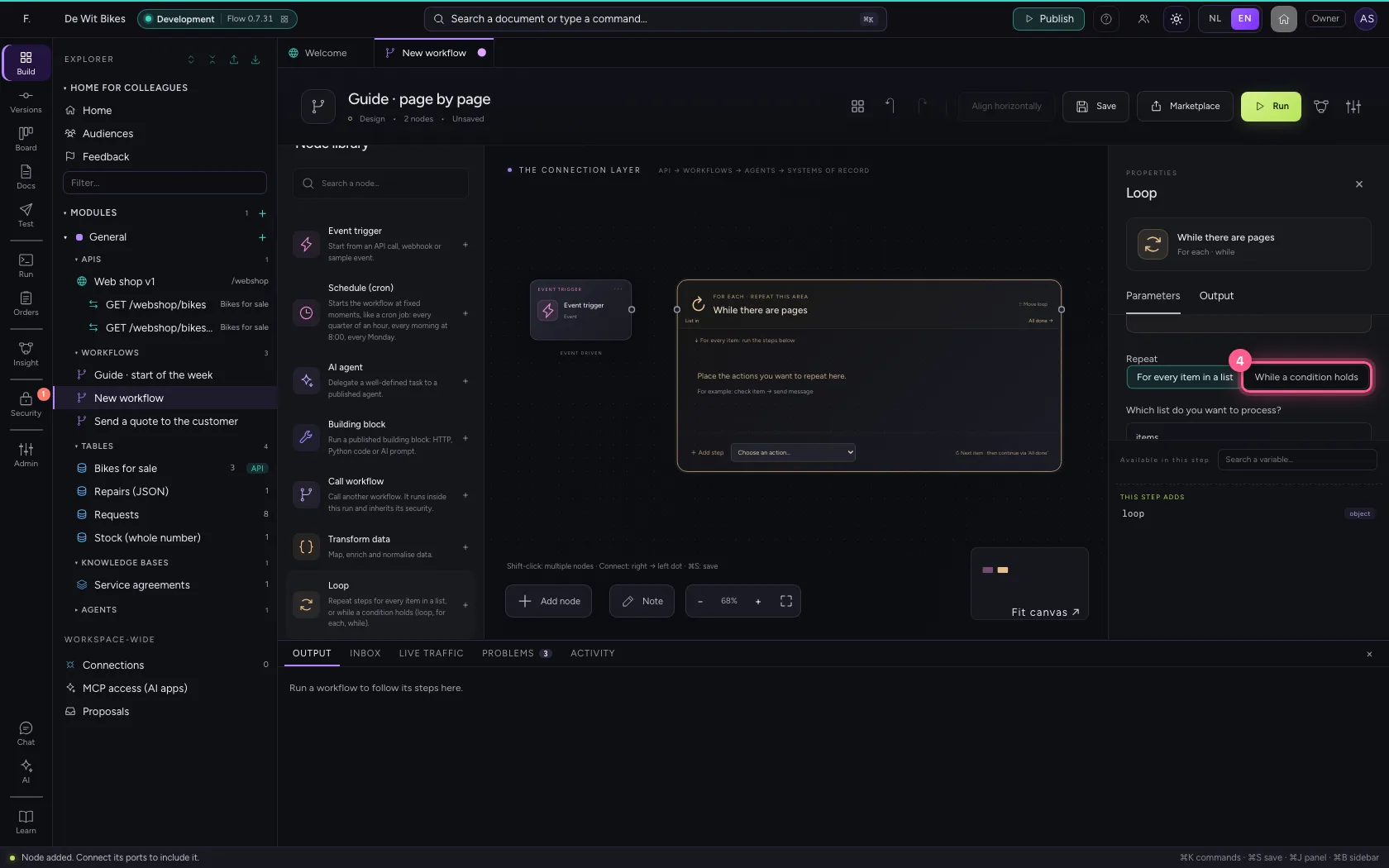
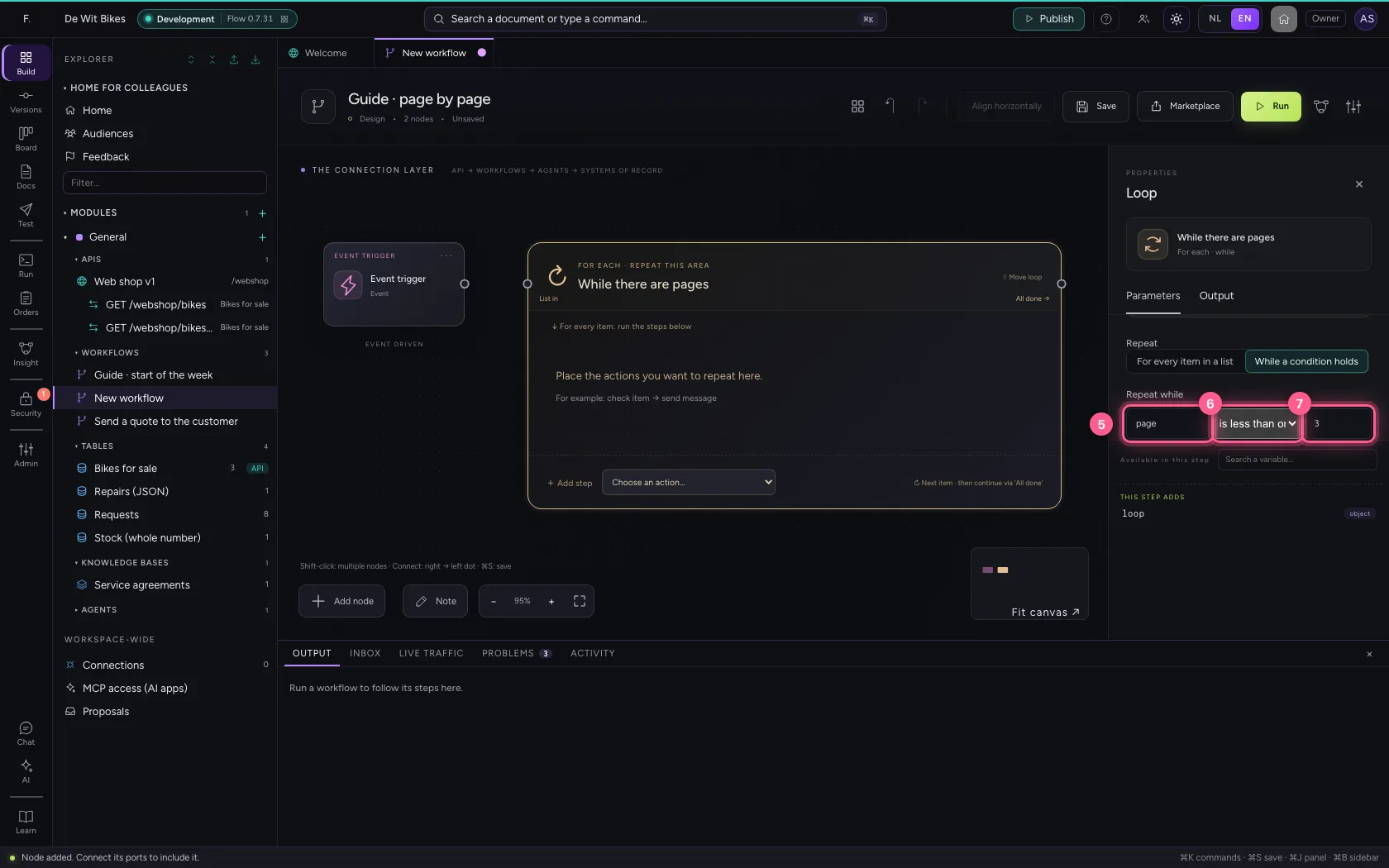
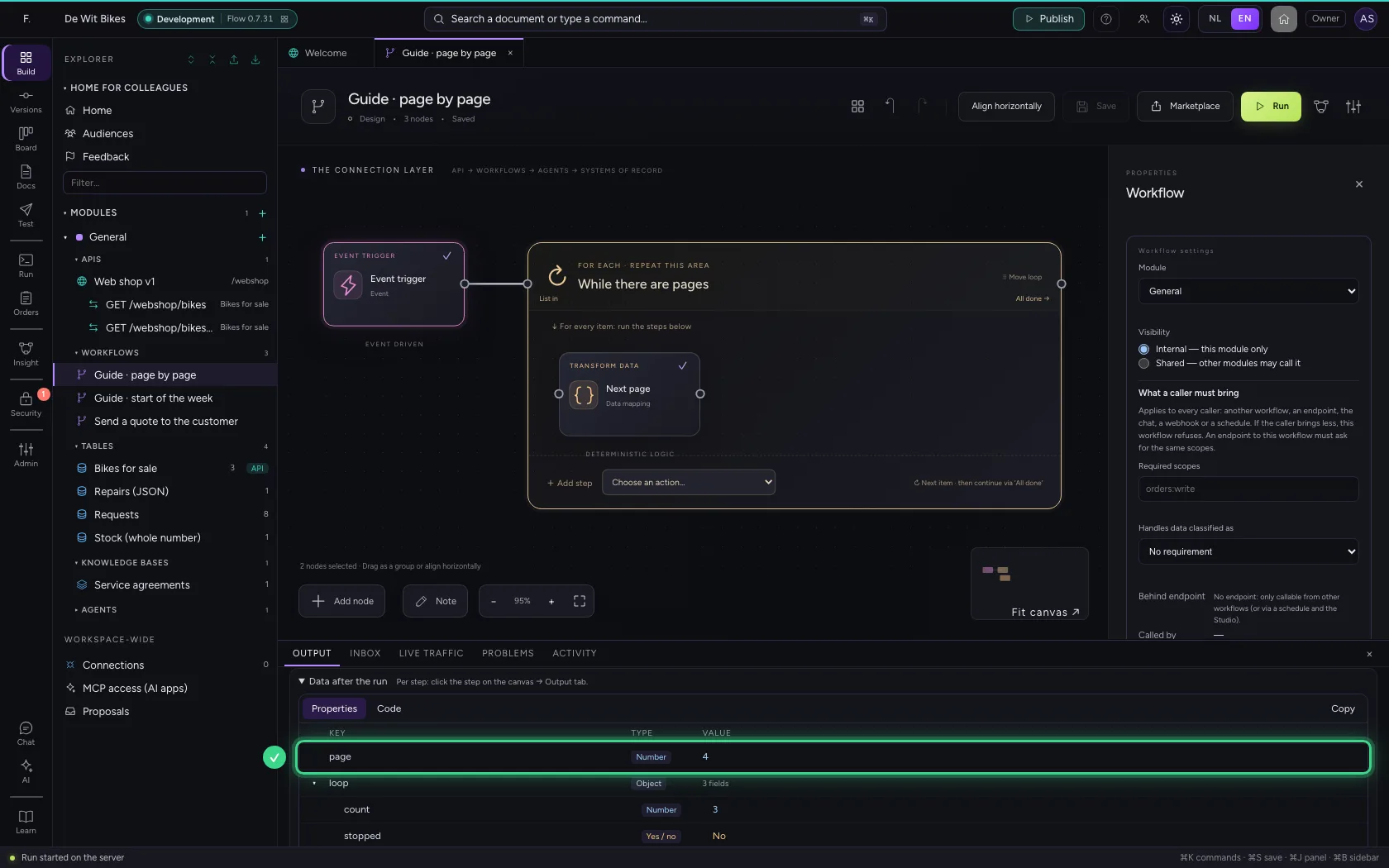
Add a Loop and choose While a condition holds under Repeat. Write the condition: page is less than or equal to 3. Under Maximum number of items is a safety limit: if the condition stays true by mistake, the loop stops there with a message.
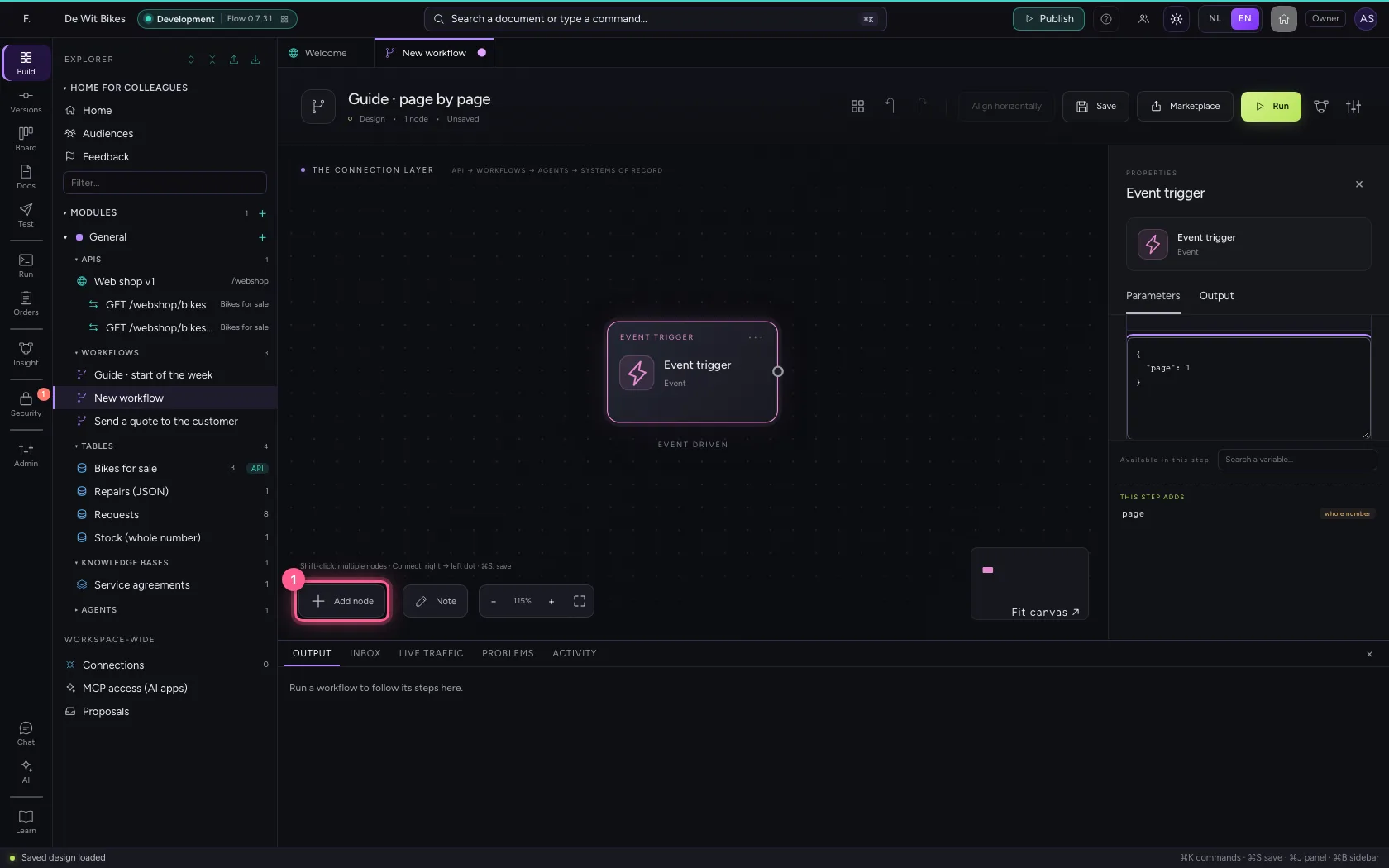
- Click Add node
- Click Loop
- In Name, type
While there are pages
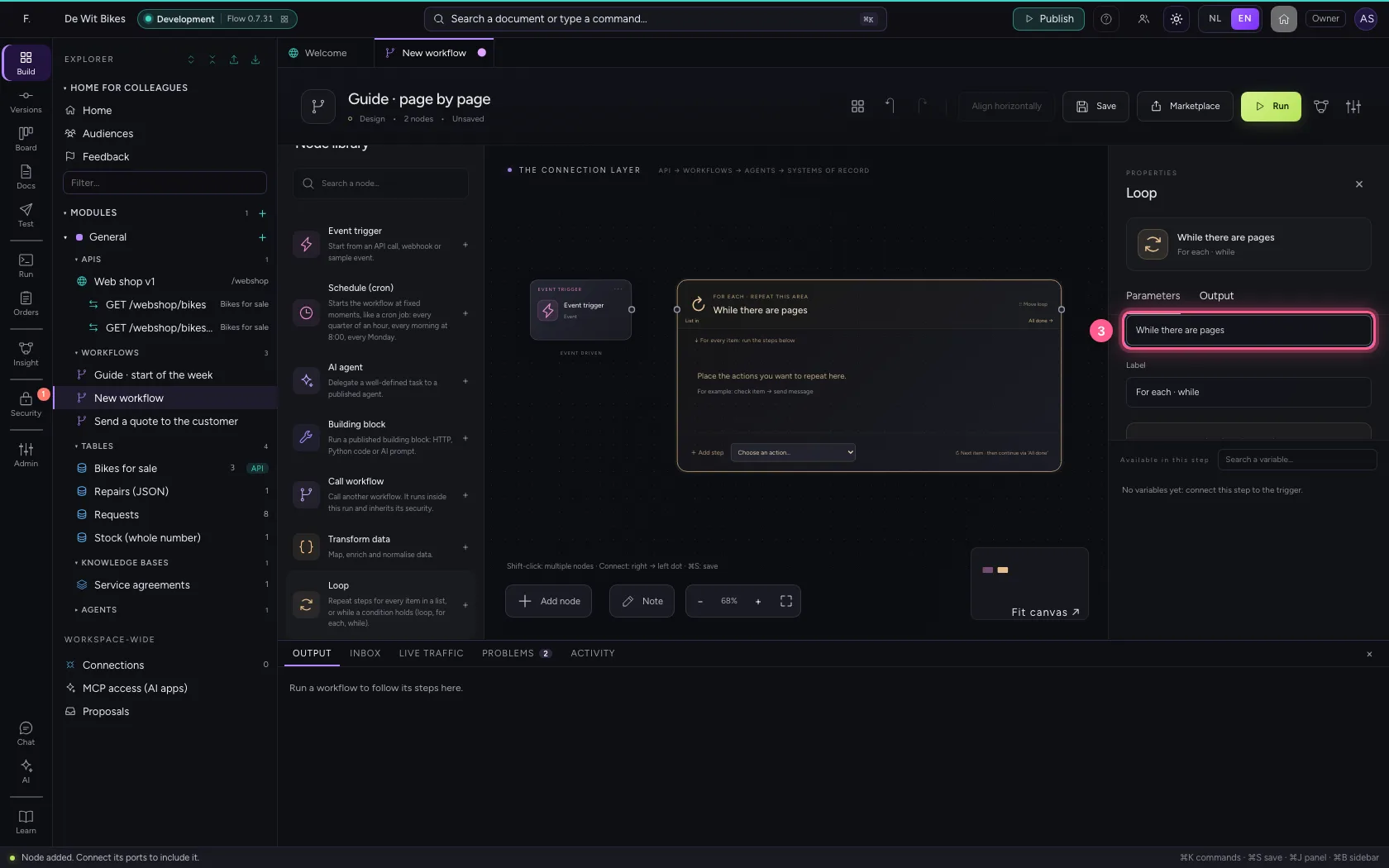
- Click While a condition holds
- In Which field to check?, type
page - In Comparison, choose is less than or equal to
- In Value, type
3
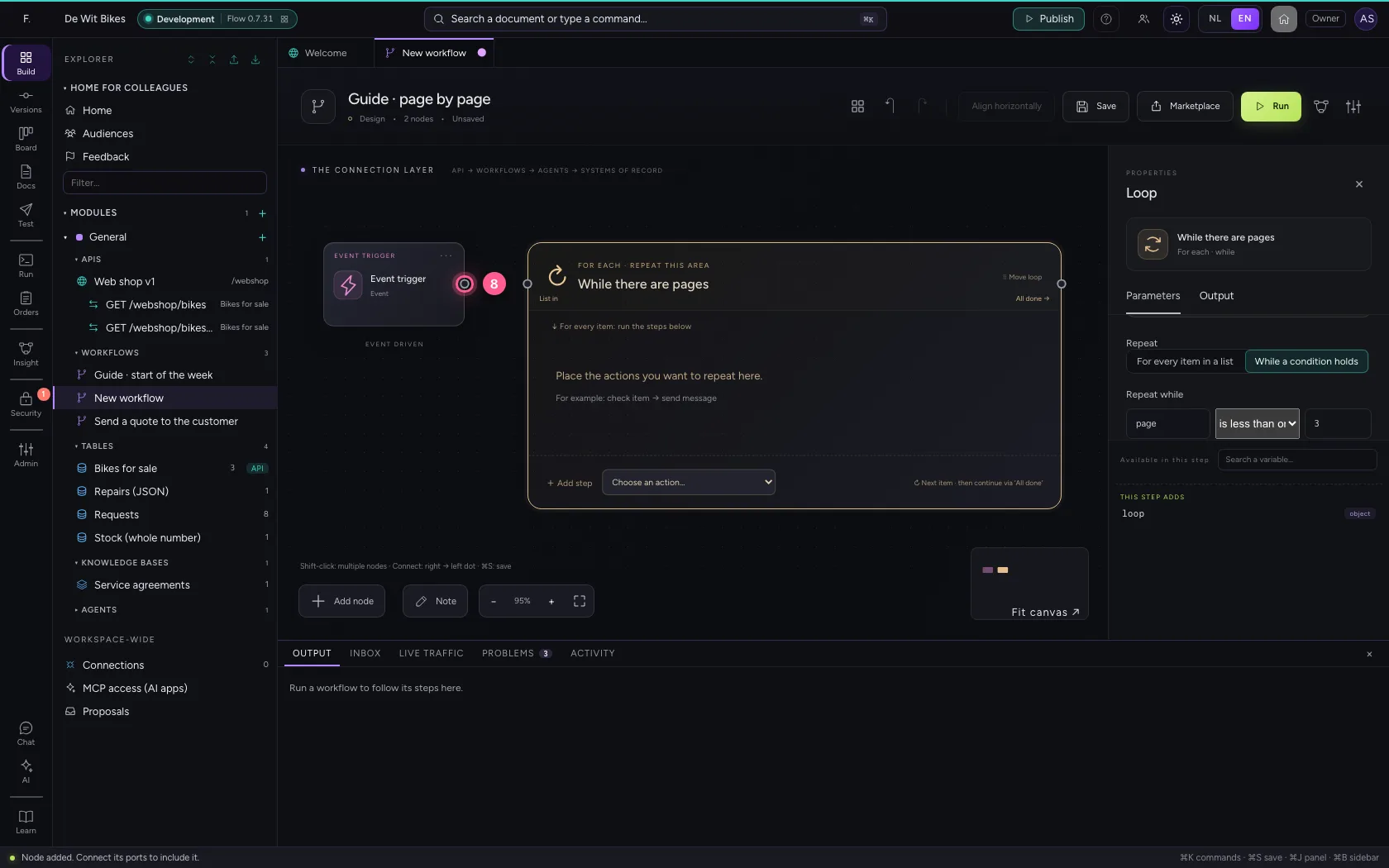
- Click the dot of ‘Event trigger’
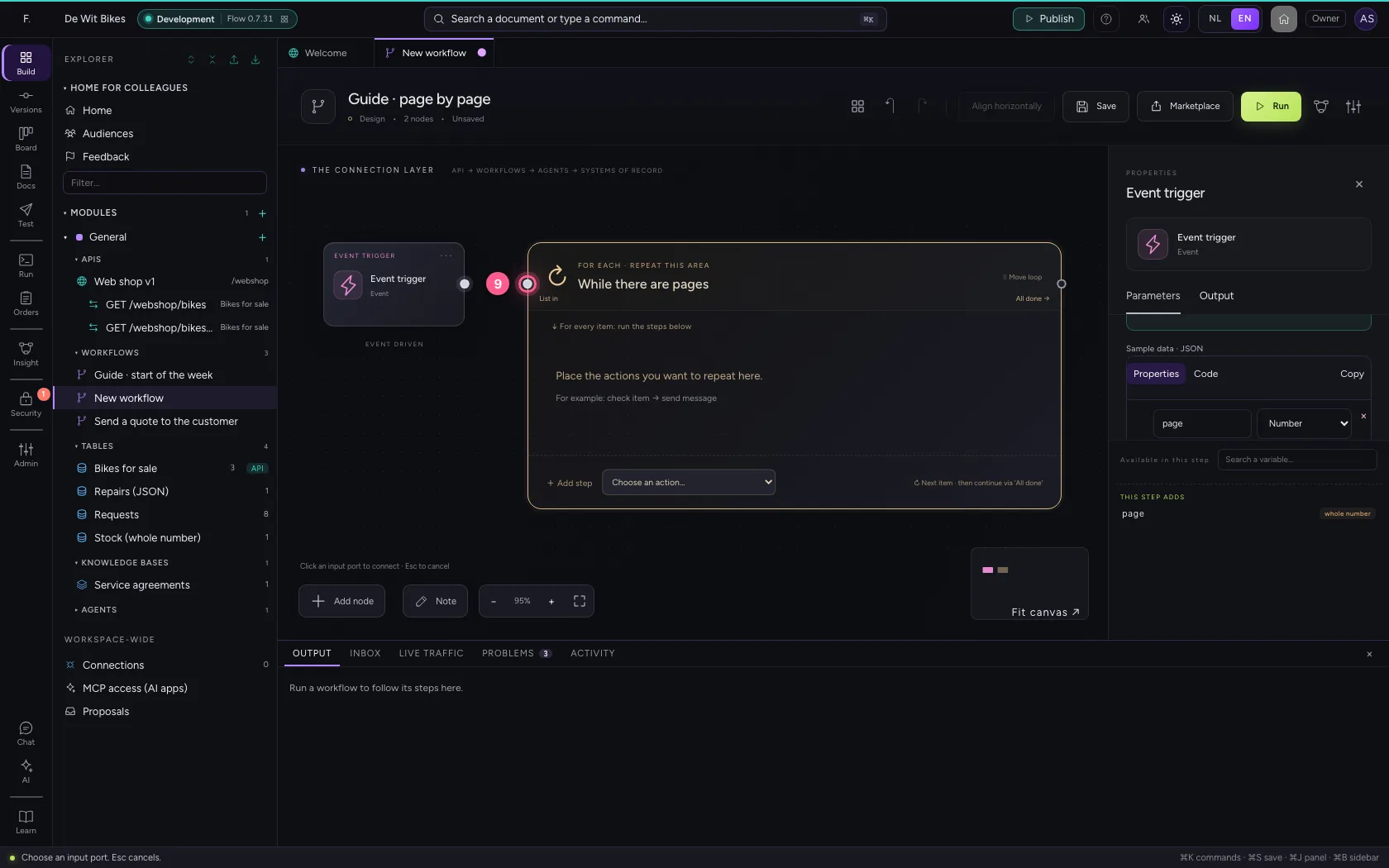
- Click the dot of ‘While there are pages’
Move the counter on
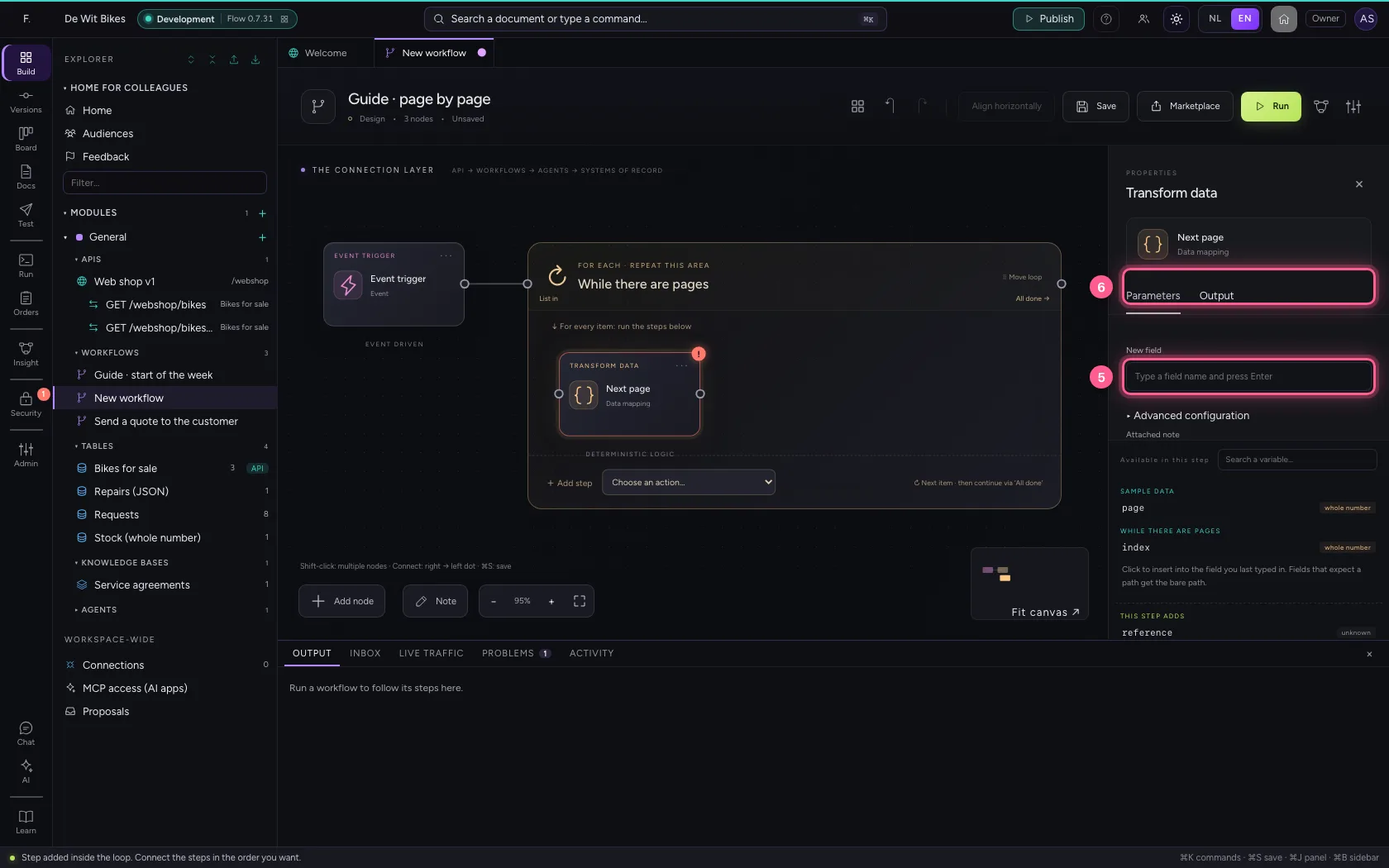
At the bottom of the loop, choose Transform data under Add step and set page to = page + 1. In real life you would also fetch the page here, with an HTTP request. Without this step page stays 1 and the loop only stops at the maximum.
- In Add step, choose Transform data
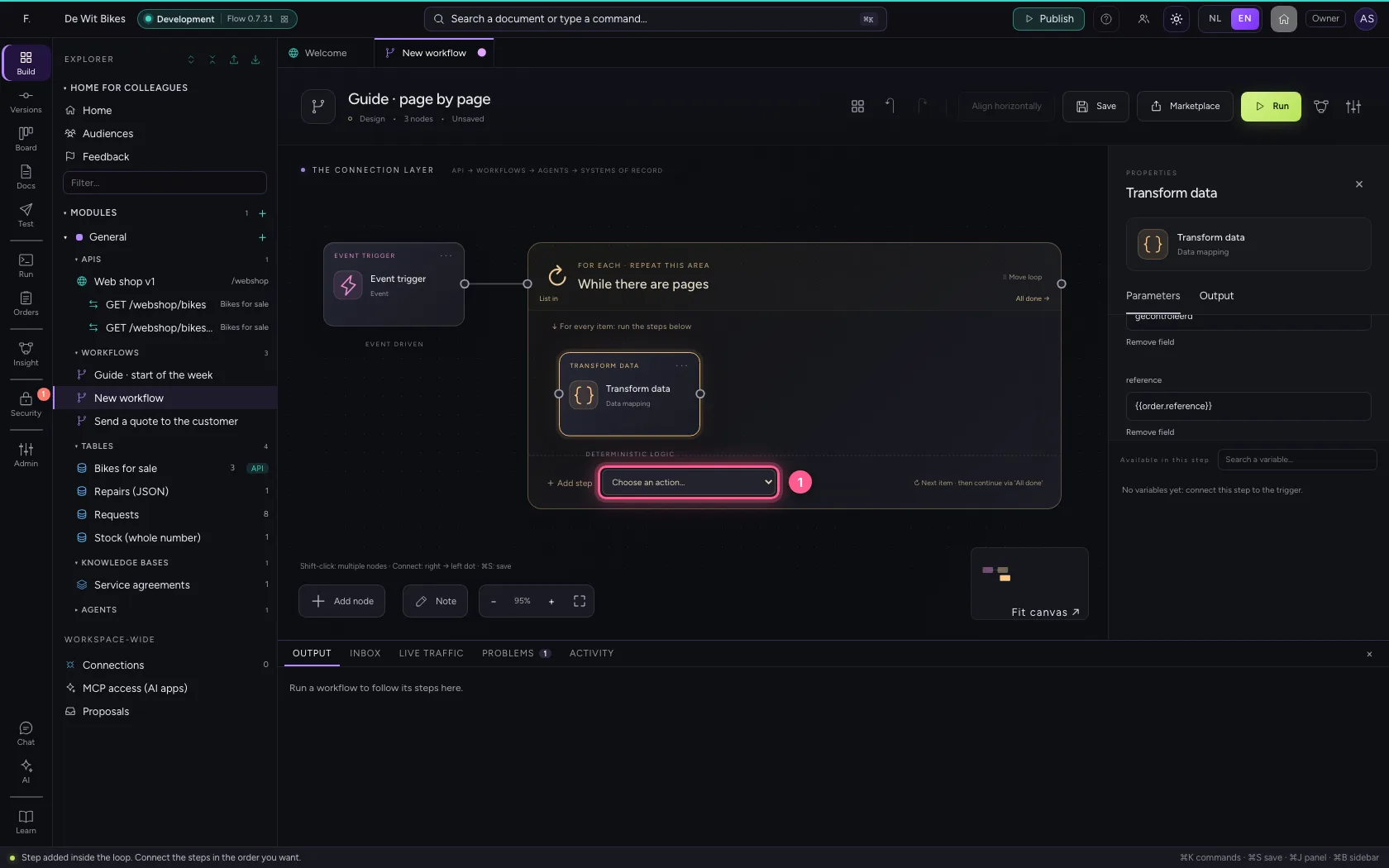
- In Name, type
Next page
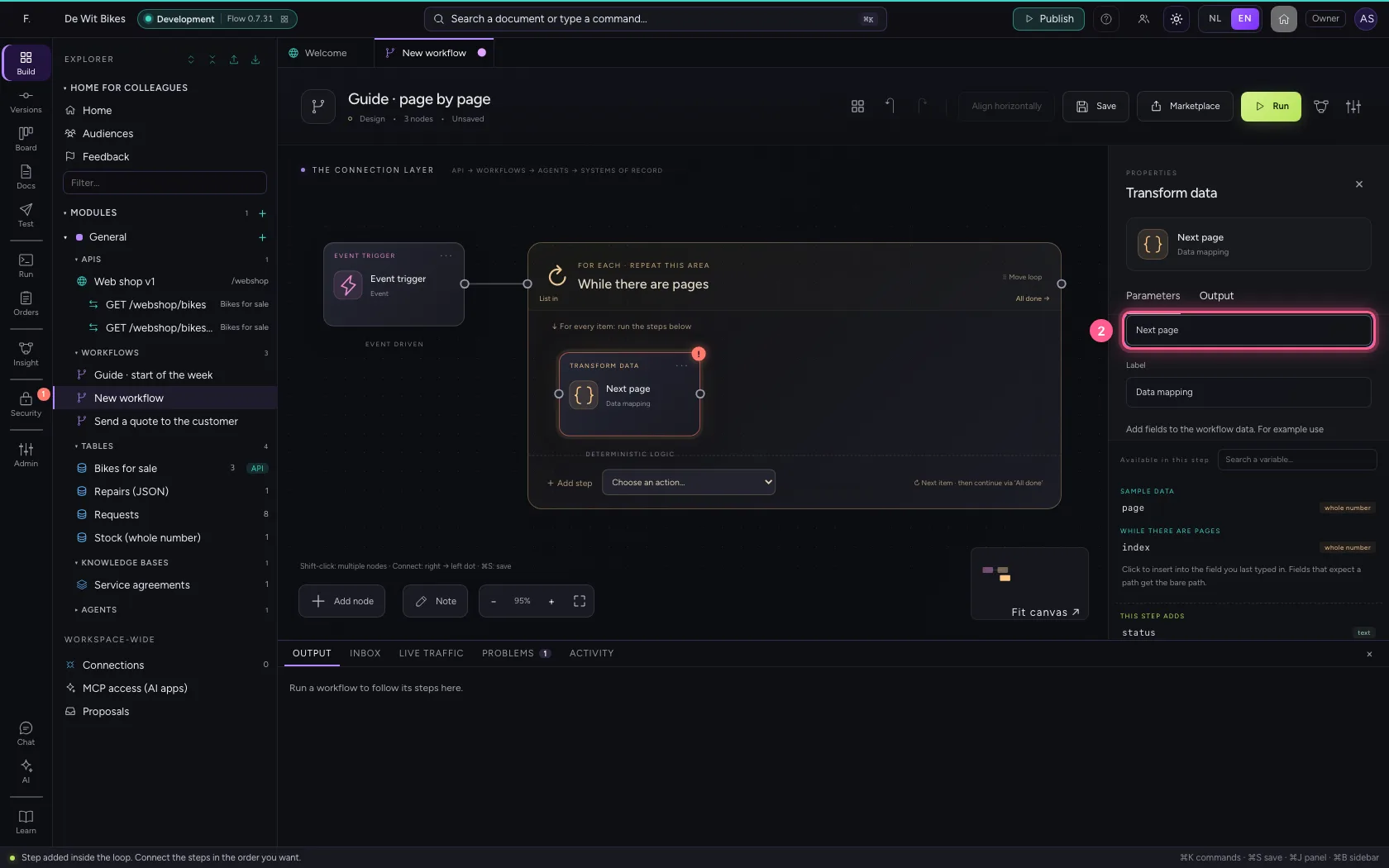
- Click Remove field
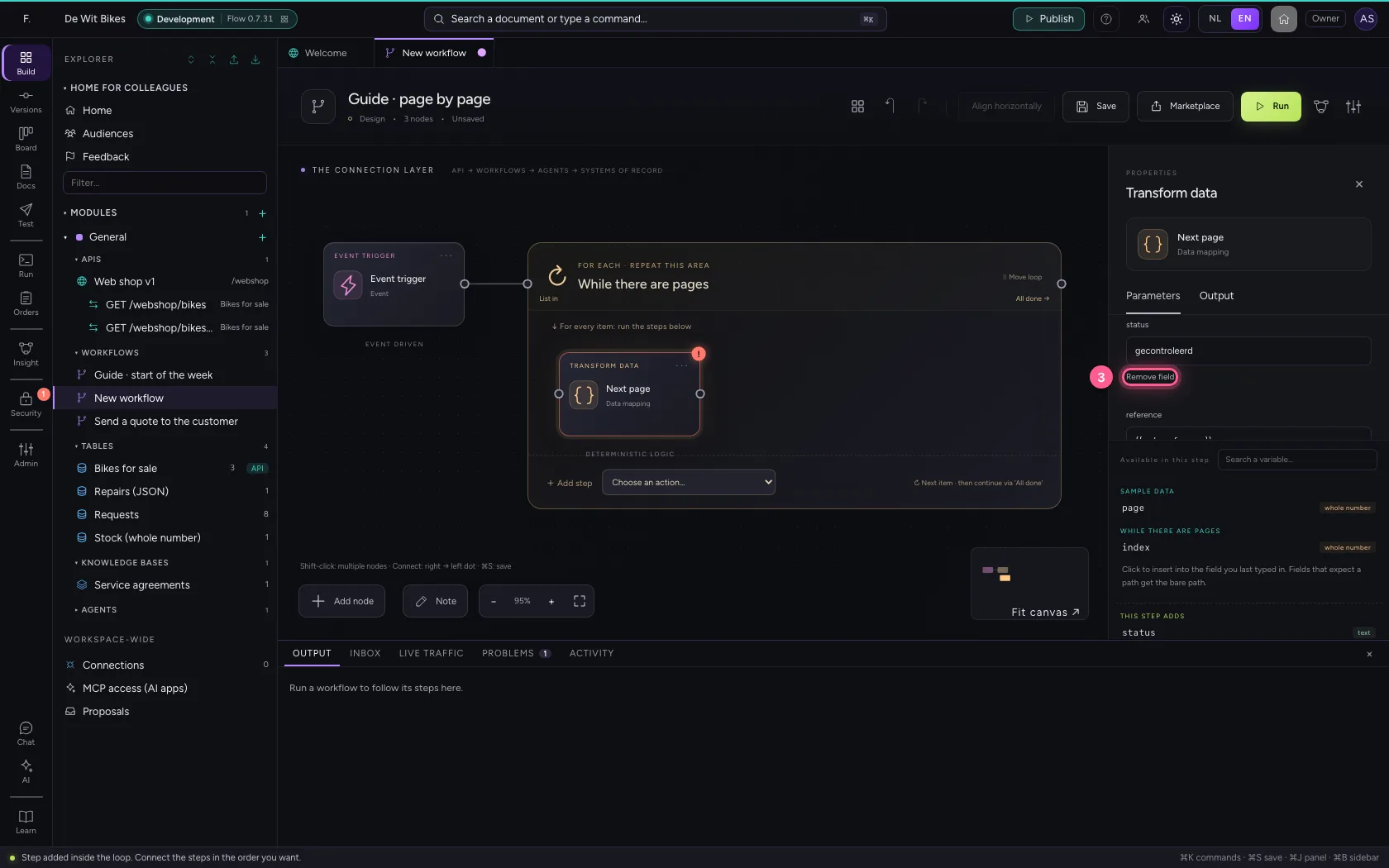
- Click Remove field
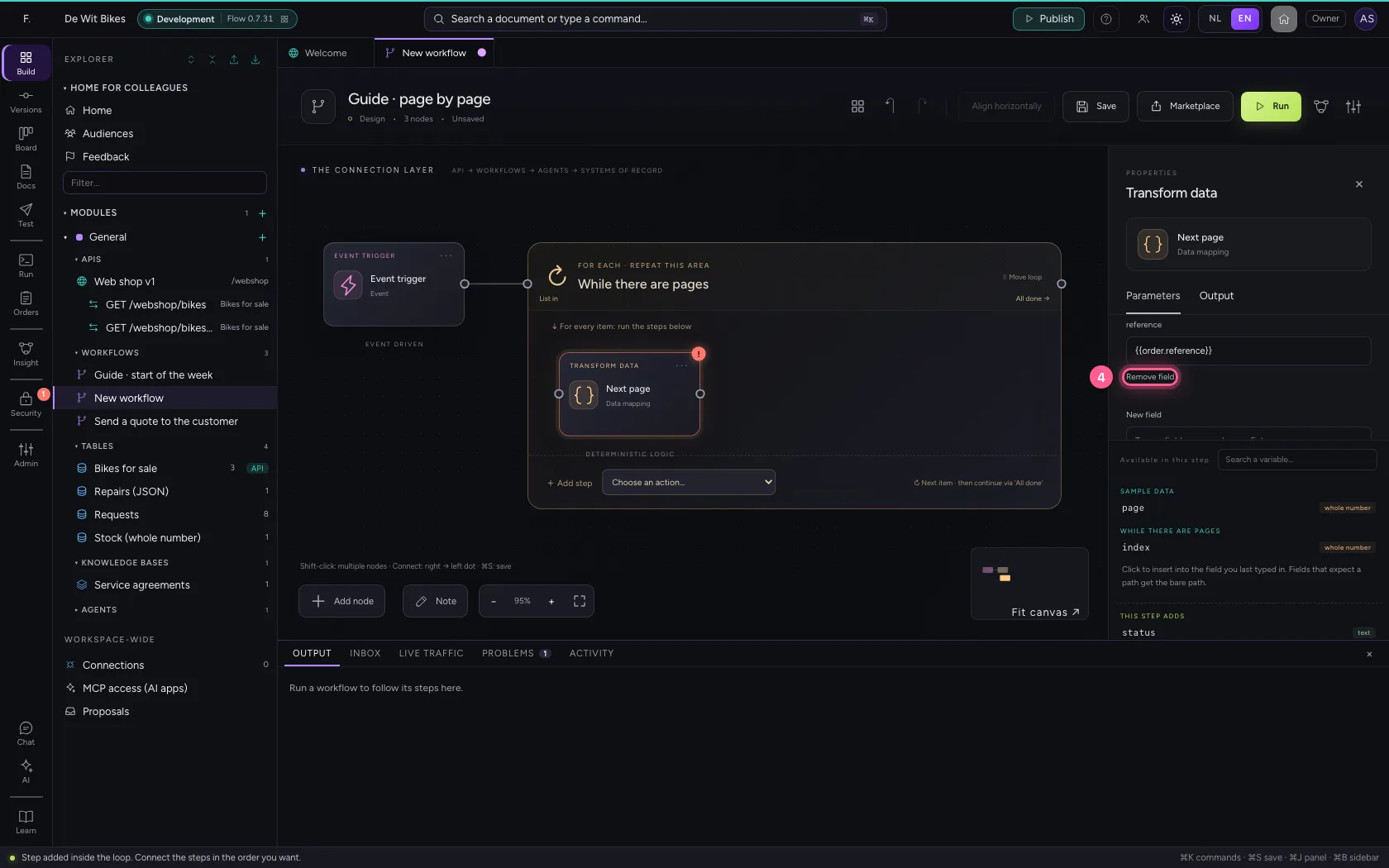
- In New field, type
page - In page, type
= page + 1
Put the steps in one line and save
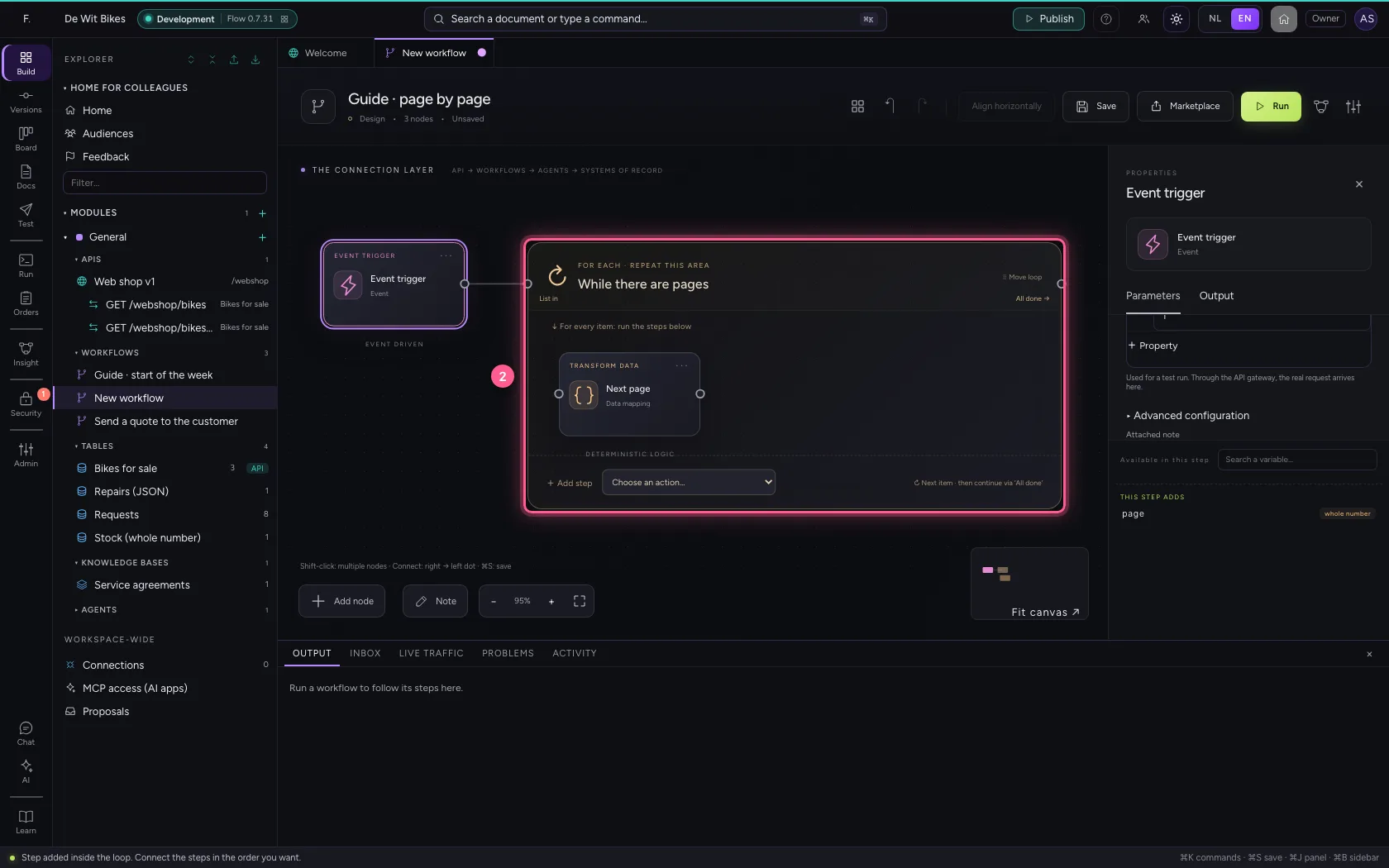
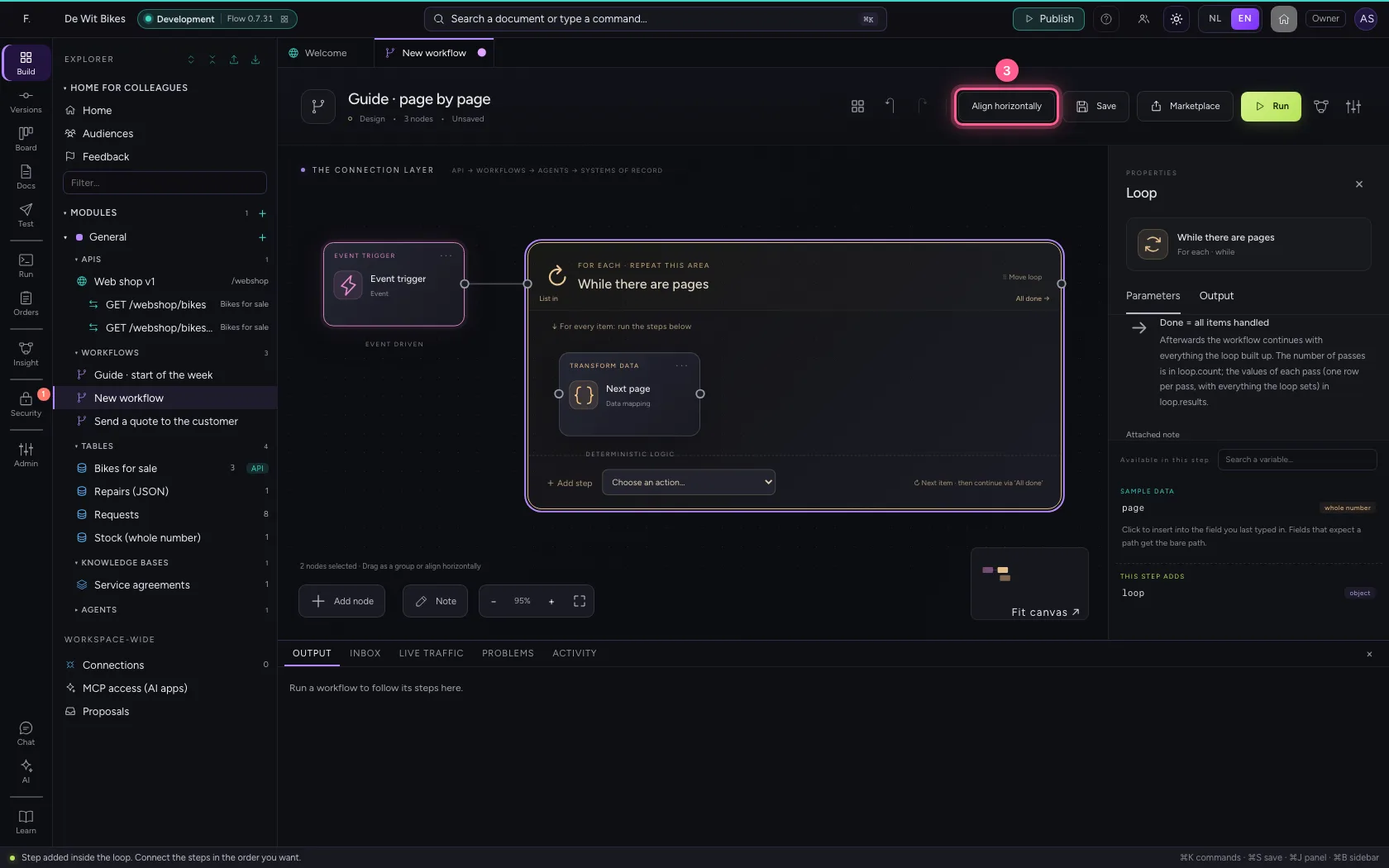
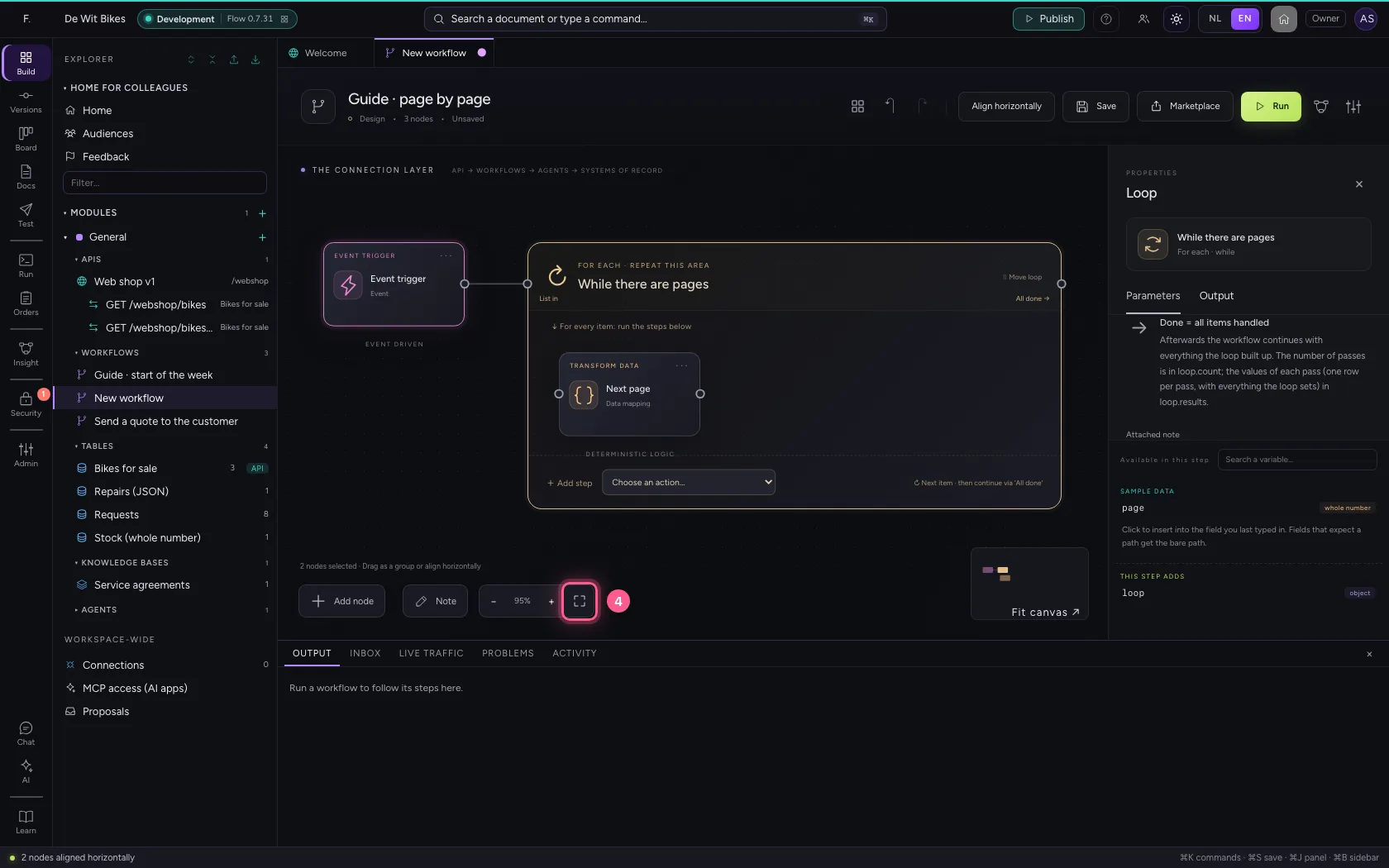
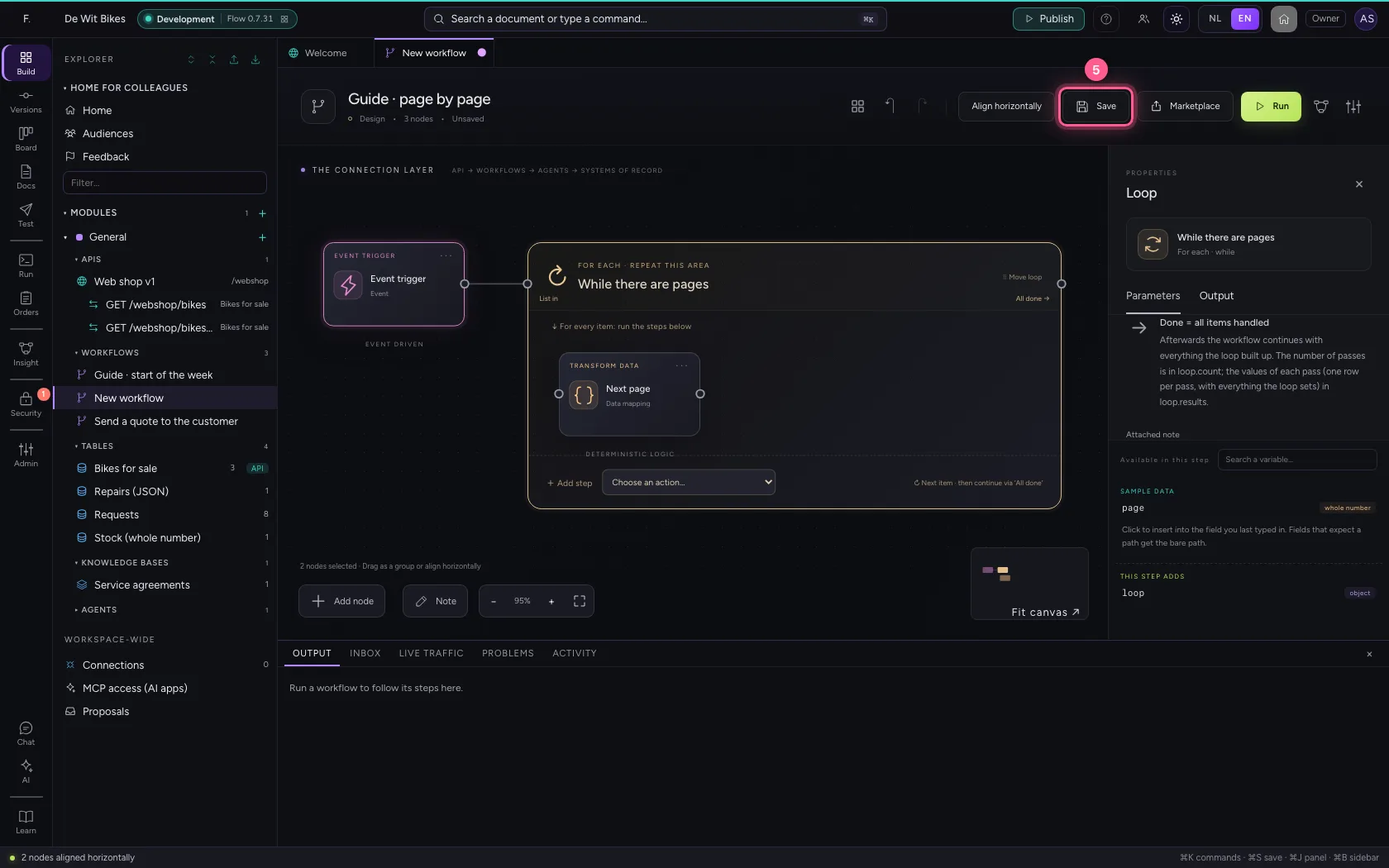
Select the steps (click the first, and the others while holding Shift) and click Align horizontally: they then stand in one line and you read the workflow from left to right; a branch (such as No of an If / Else) gets its own row below. Fit to view puts everything in sight; then Save.
- Click ‘Event trigger’
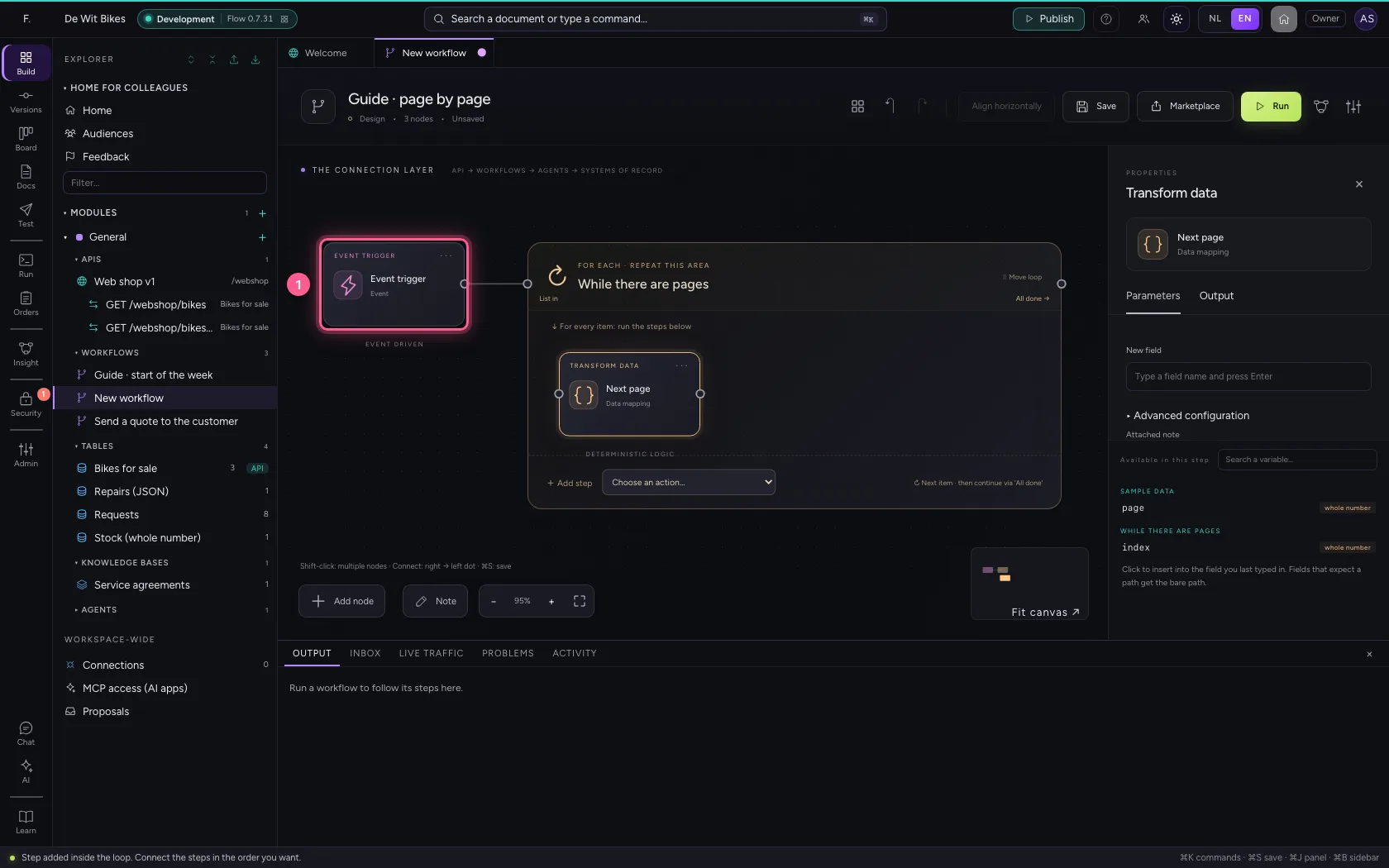
- Click ‘While there are pages’ while holding Shift
- Click Align horizontally
- Click Fit to view
- Click Save
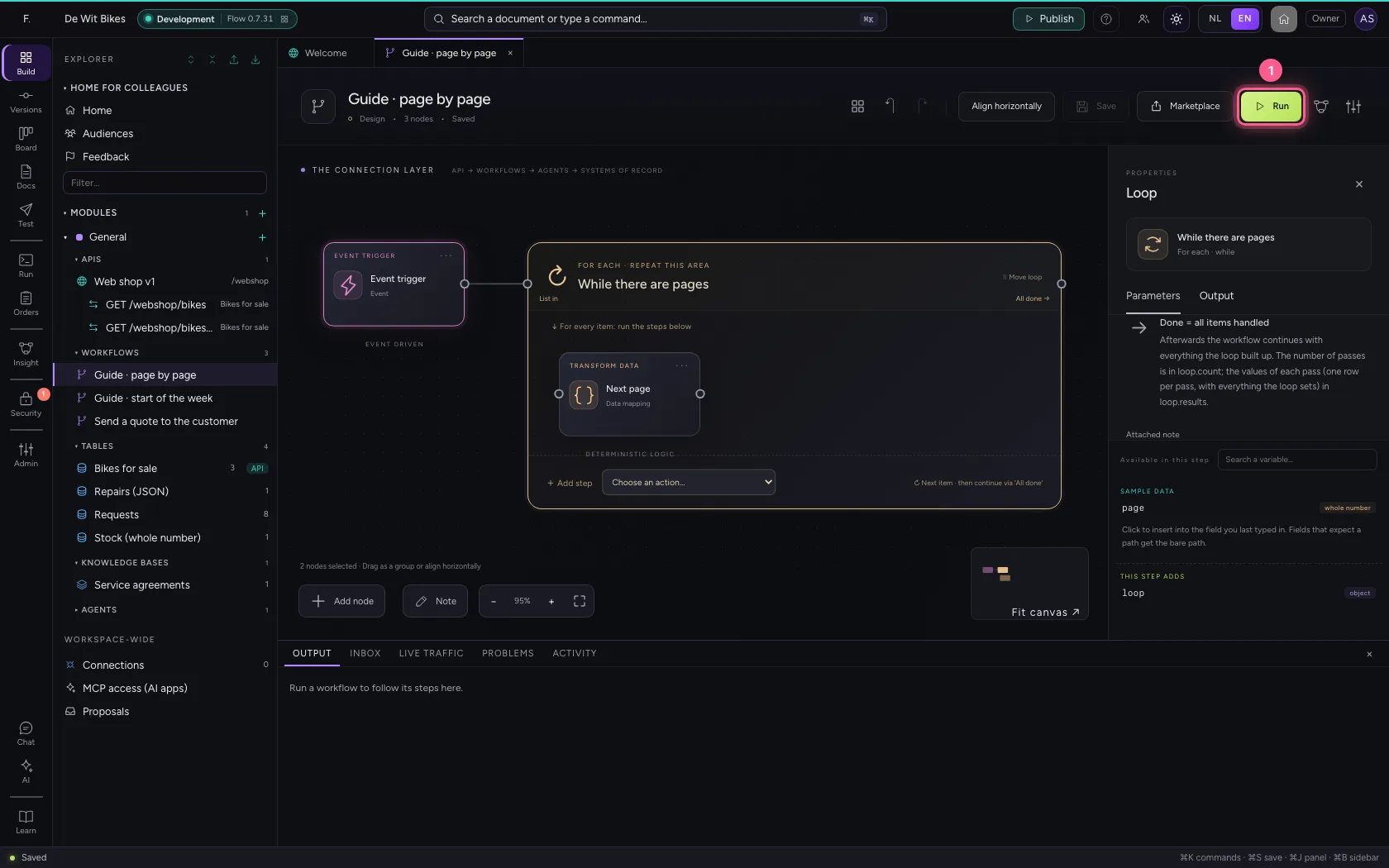
Run
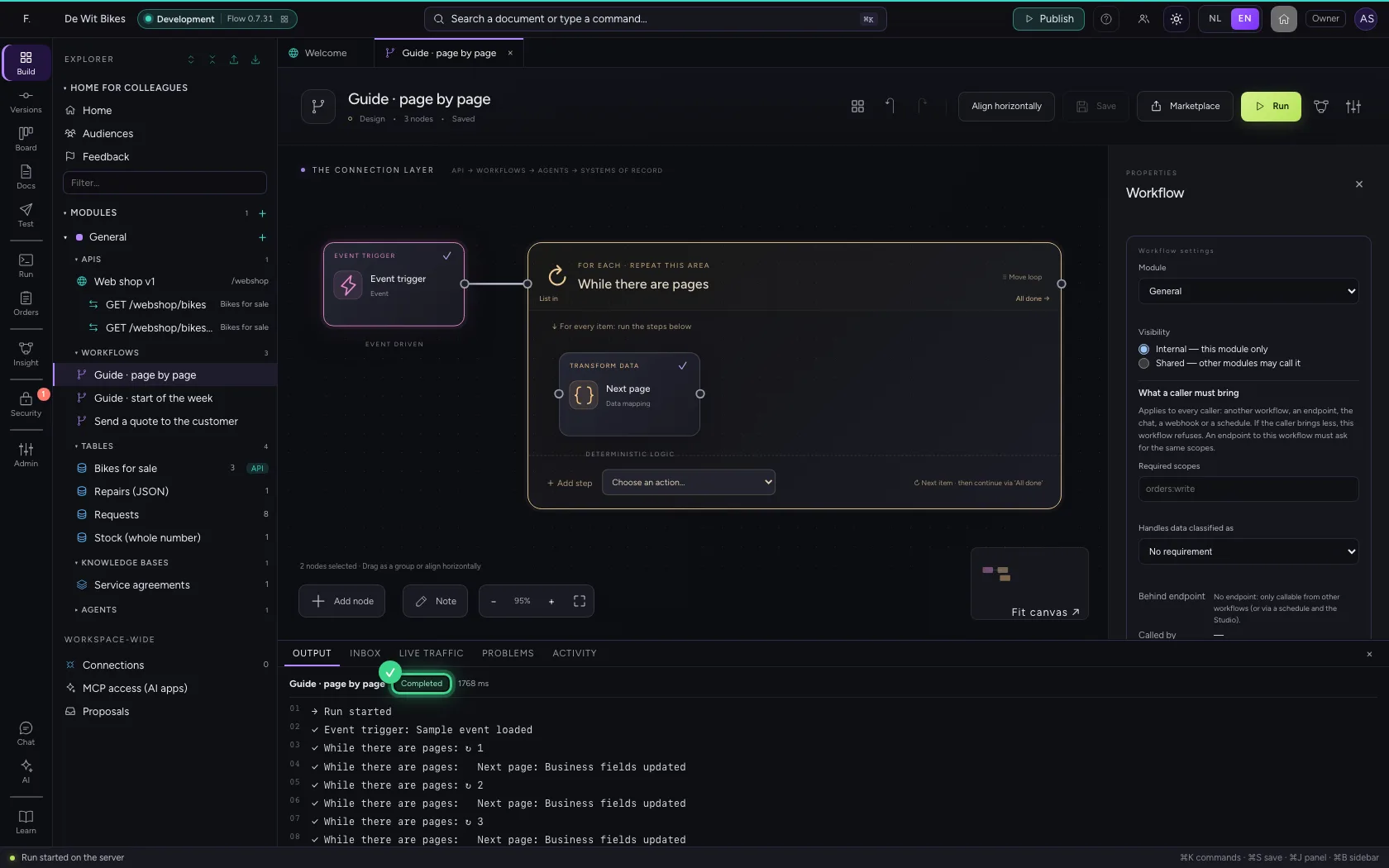
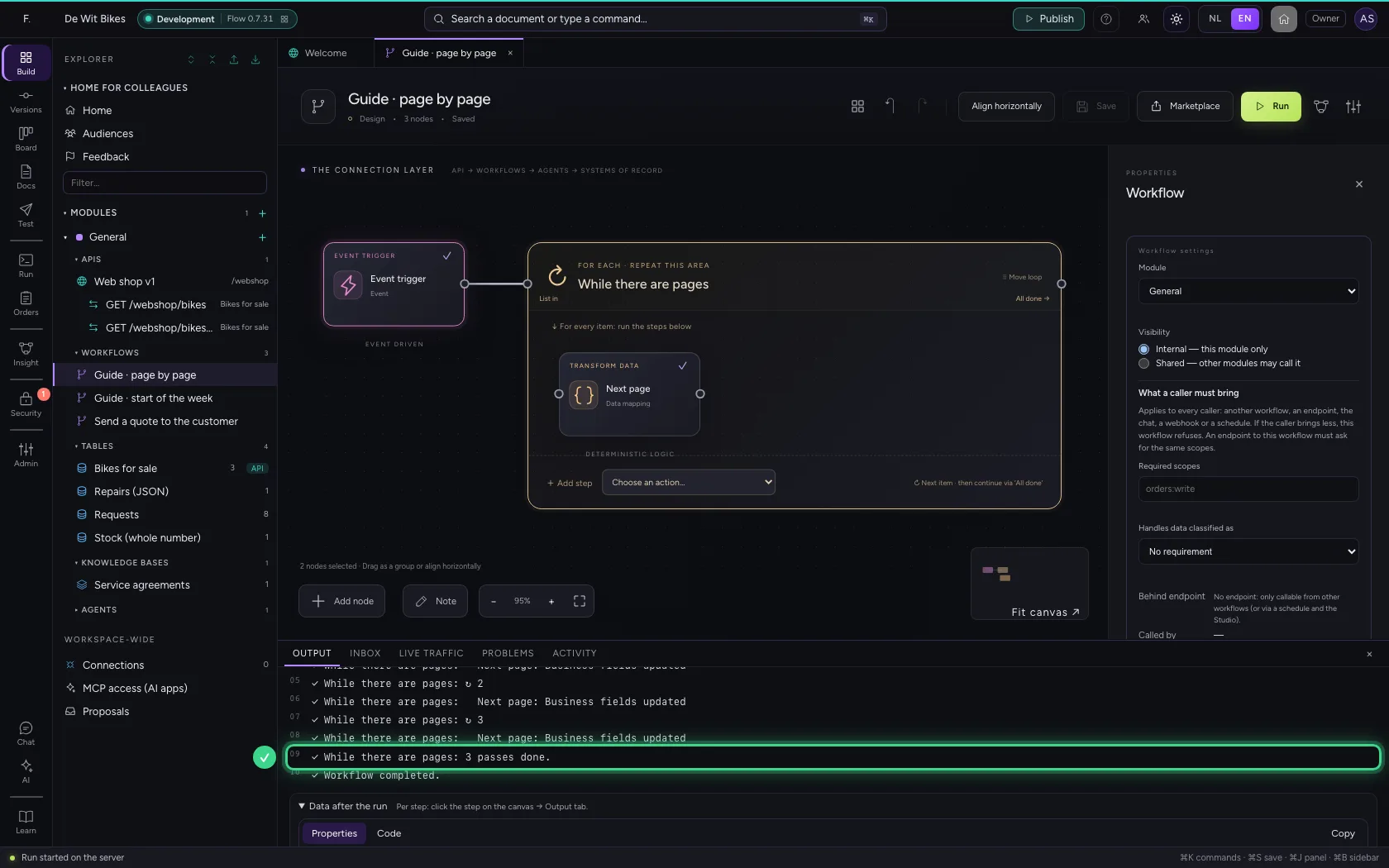
The loop ran three times: at page 1, 2 and 3. After that page was 4 and the condition no longer held.
- Click Run
This guide was carried out step by step on 22 Oct 2026 by an automated test on Flow (version 3e563176).