Work queue: work through row by row
A work queue works through the open rows of a Flow table one by one, the way a robot works through its in-tray. Per row it sets the status to busy, runs the steps inside the queue and sets the row to done, or to failed with the reason. One failed row does not hold up the rest; people see and fix it in the table itself.
Open Flow and create a workflow
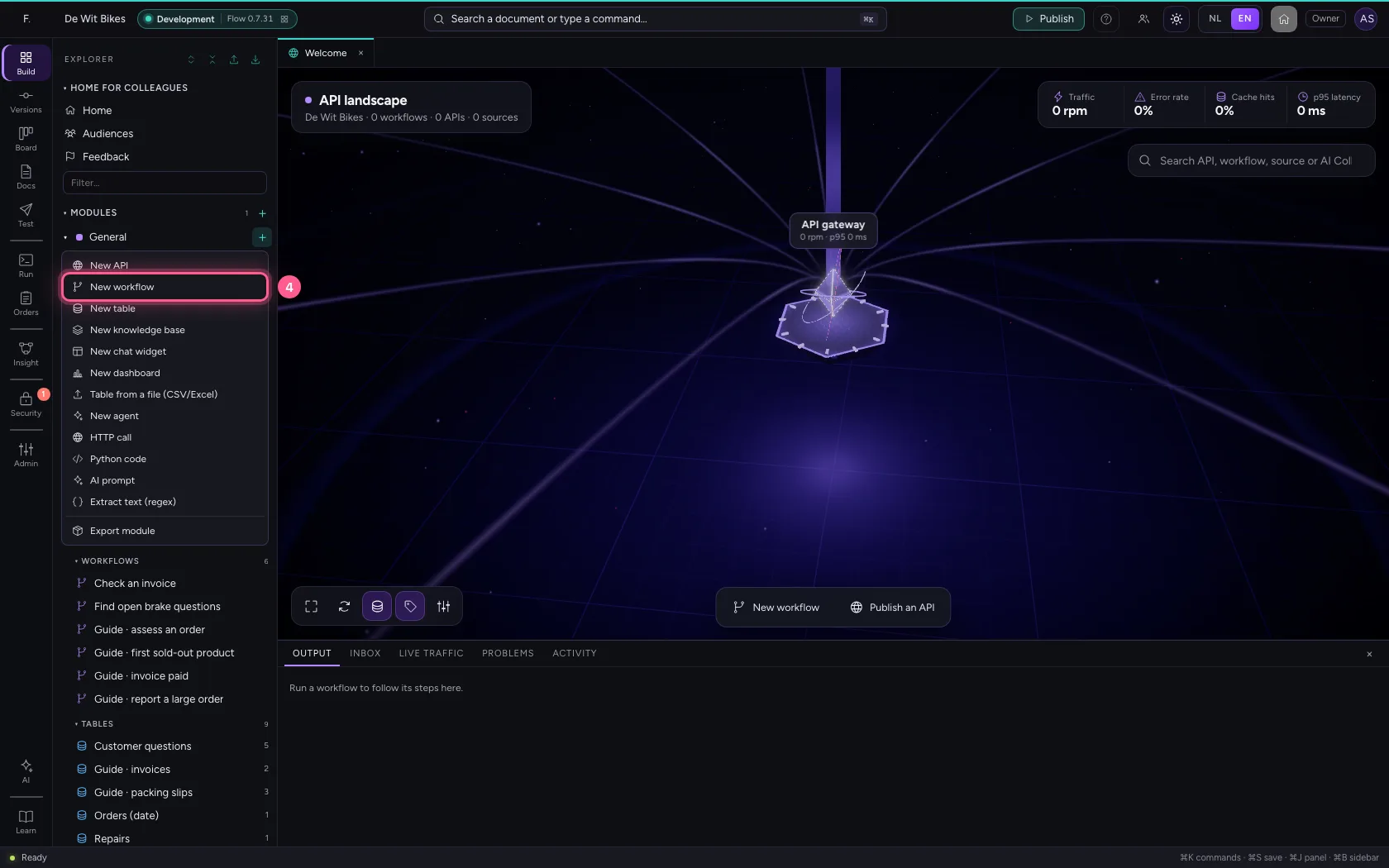
In the portal, under Environments, click Development and there Open; Flow opens in a new tab. There, click + next to General, choose New workflow and give it a name. A new workflow starts with an Event trigger: the point where it begins.
- Click Development

- Click Open ↗

- Click Add to General
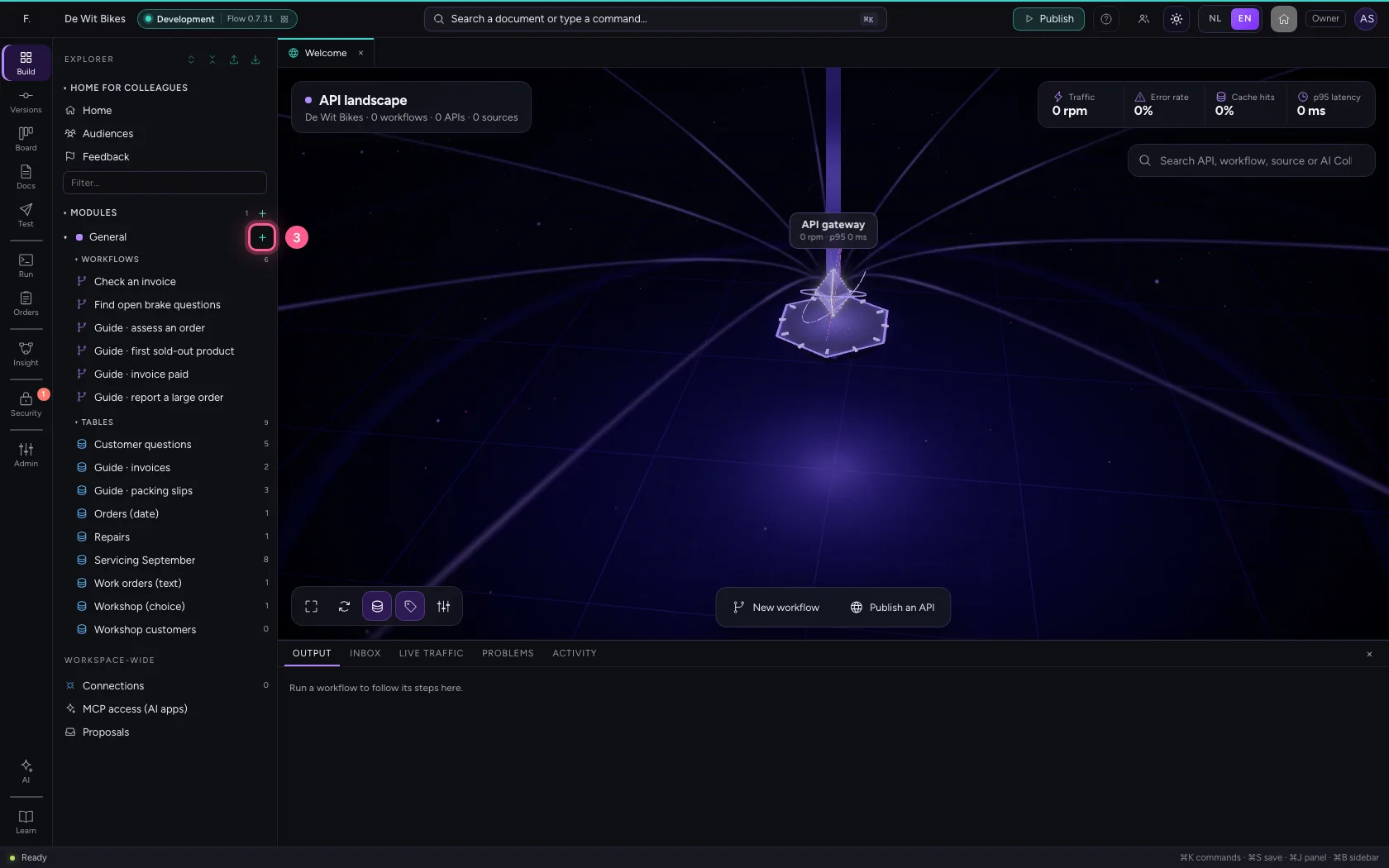
- Click New workflow
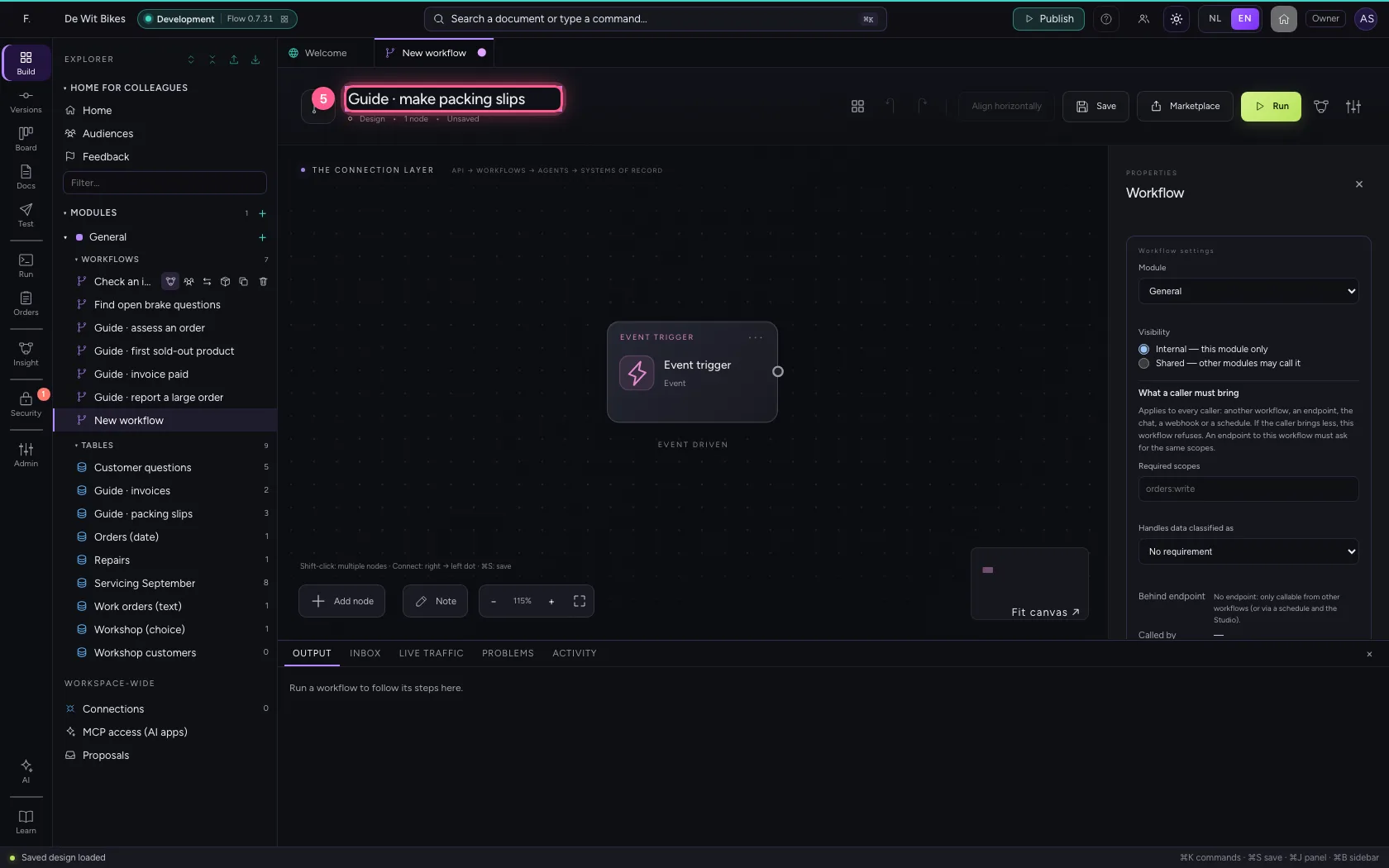
- In Workflow name, type
Guide · make packing slips
Choose the table and the statuses
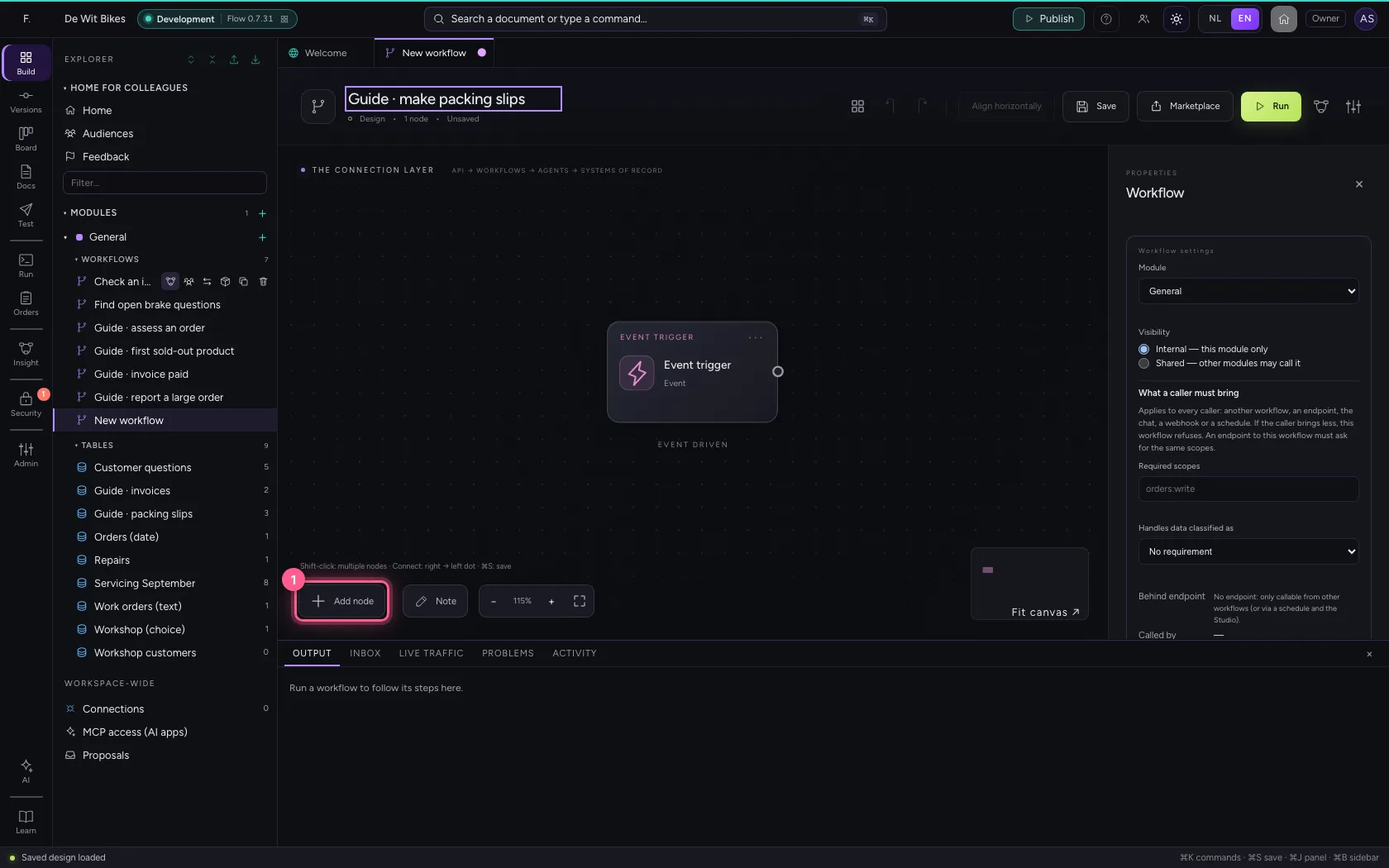
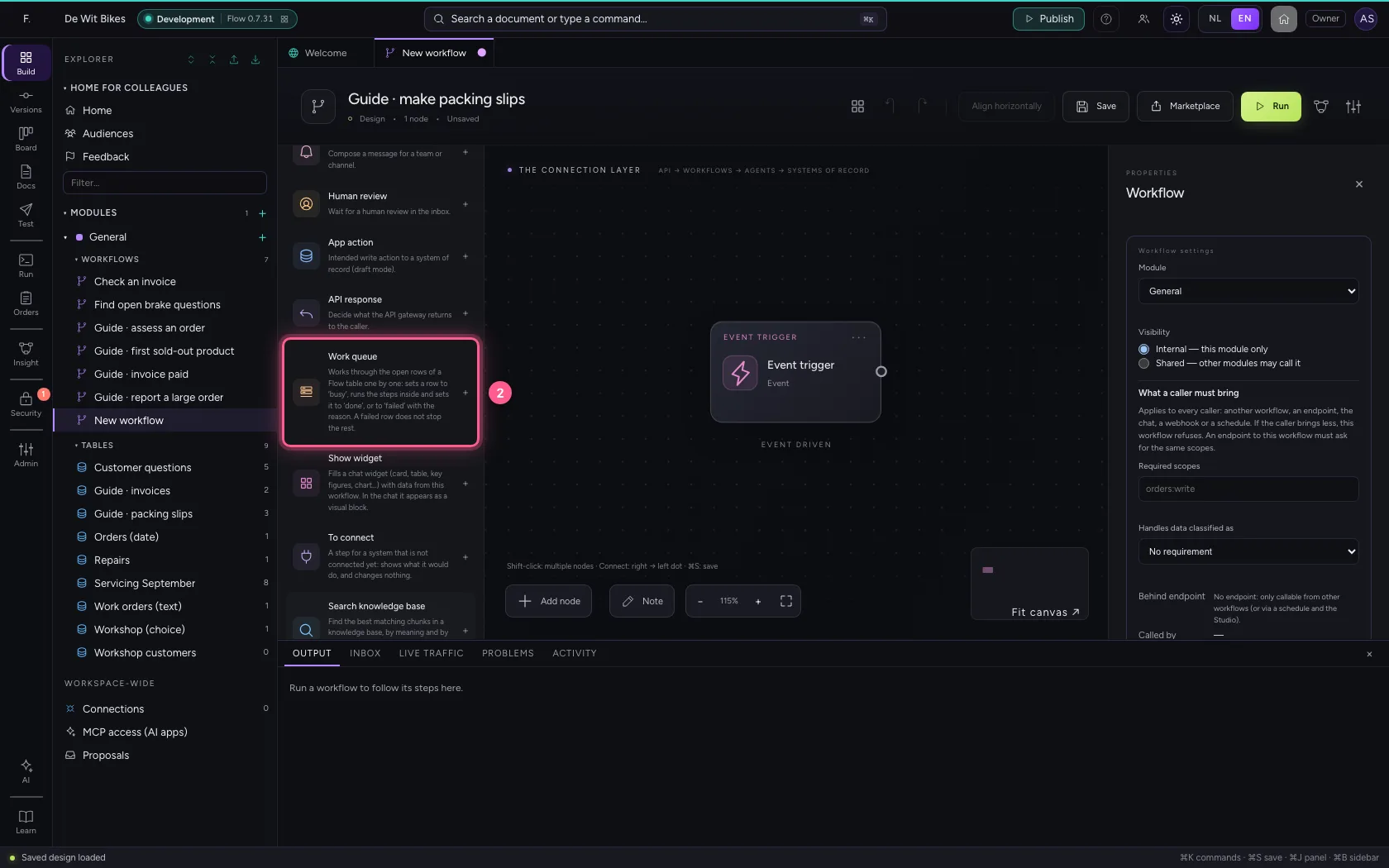
Choose Work queue in the library (with Flow's other steps) and choose the table. Say which column keeps the status and which values it has for to do, busy, done and failed. Under Column for the error message goes the reason when a row fails. In the steps, the row whose turn it is is called {{task}}.
- Click Add node
- Click Work queue
- In Name, type
Packing slips - In Table, choose Guide · packing slips
- In Value for ‘busy’, type
busy - In Value for ‘done’, type
done - In Value for ‘failed’, type
failed - In Column for the error message, type
error - In Name of the item, type
task
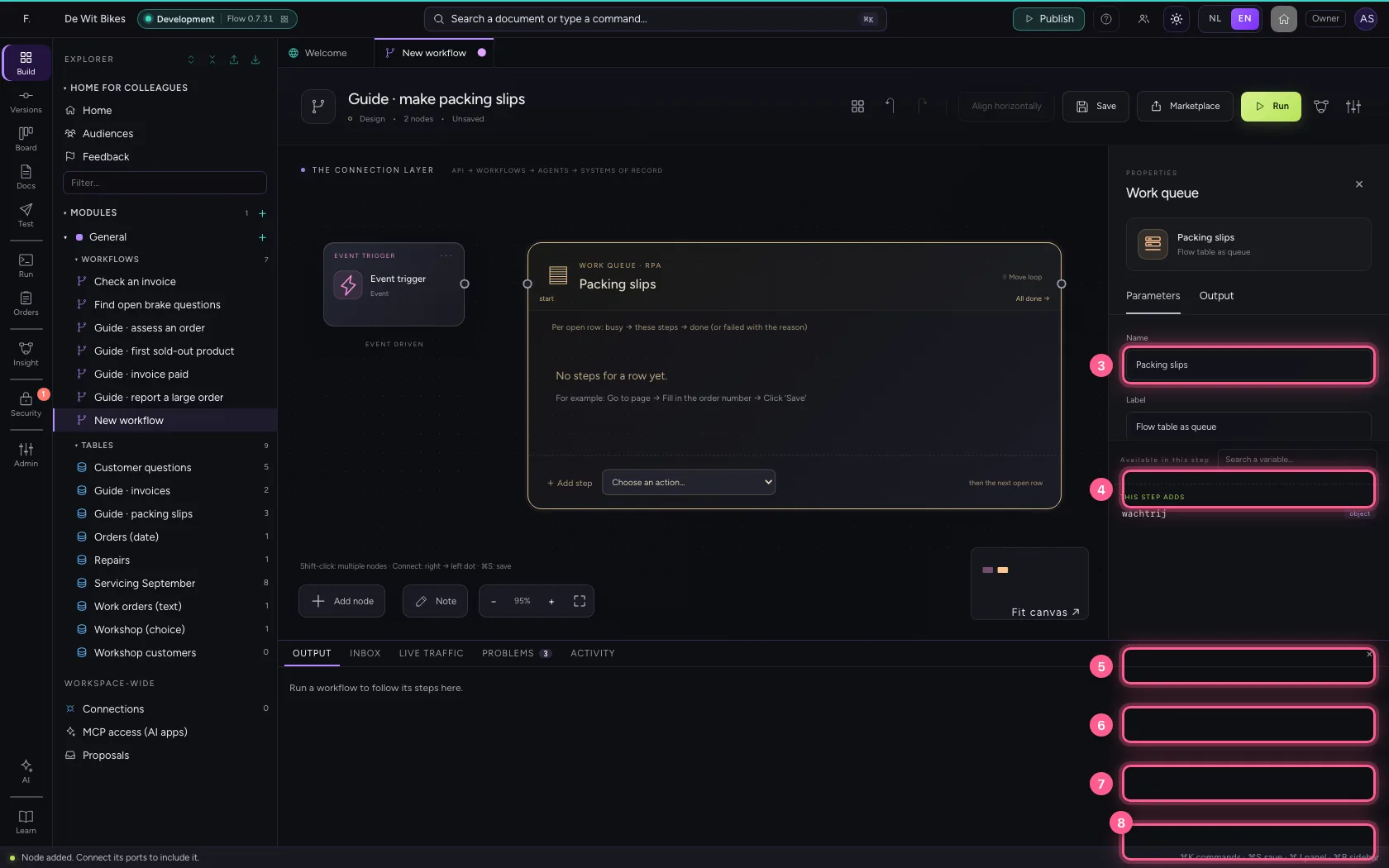
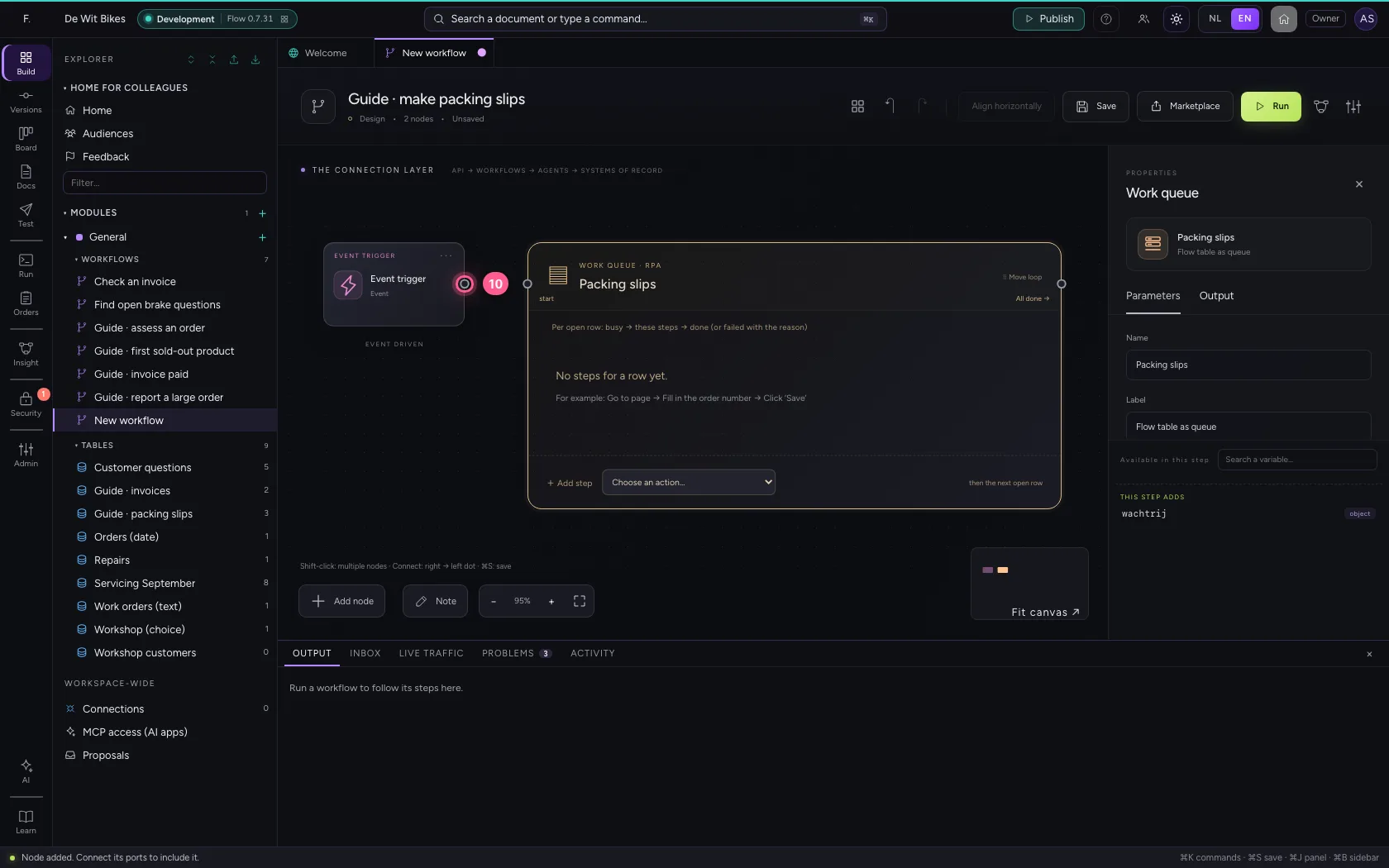
- Click the dot of ‘Event trigger’
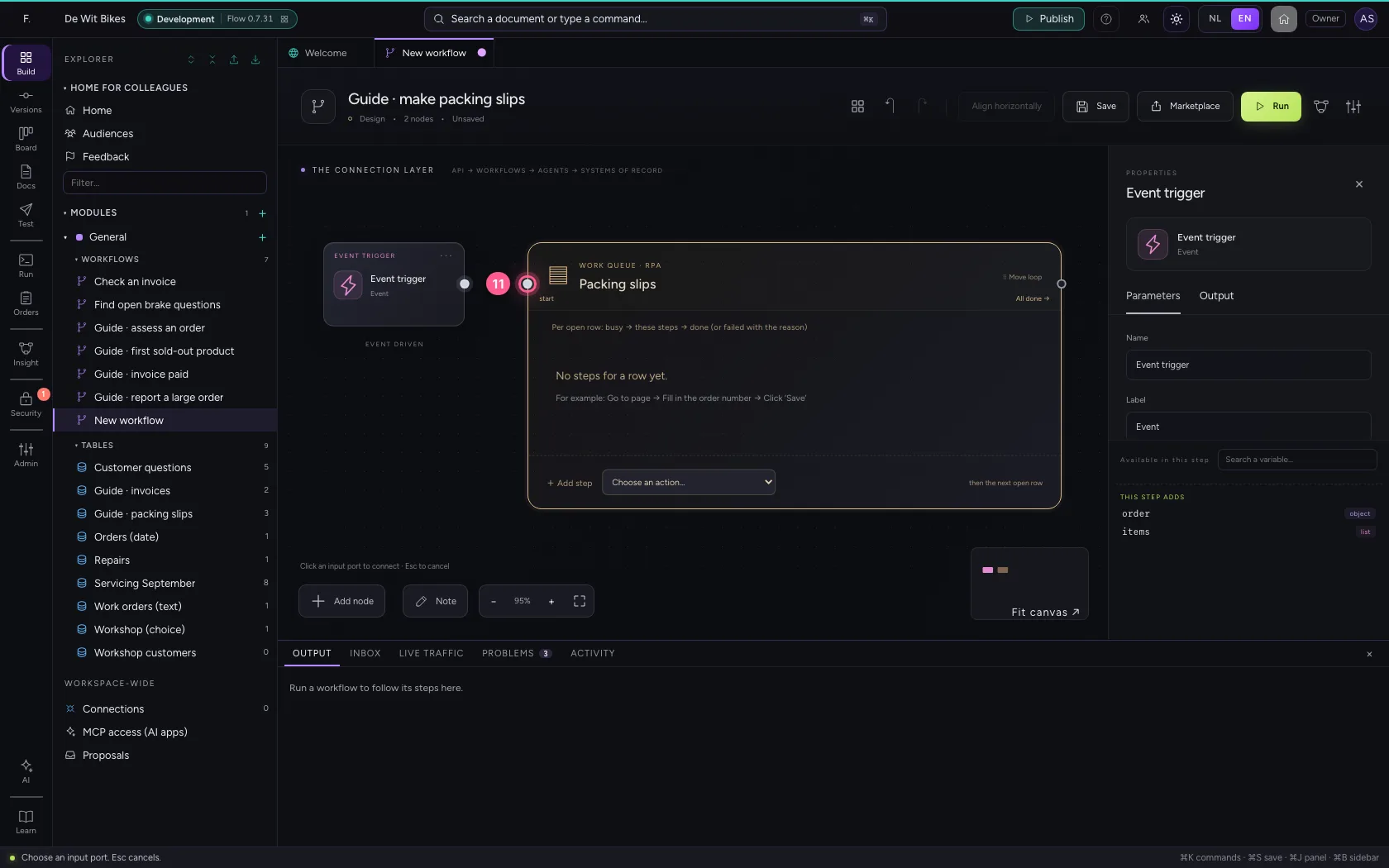
- Click the dot of ‘Packing slips’
What happens per row
At the bottom of the queue, choose a step under Add step; here Notification, with the order number from the row: {{task.order}}. In real life you make the packing slip here, for example with an HTTP request.
- In Add step, choose Notification
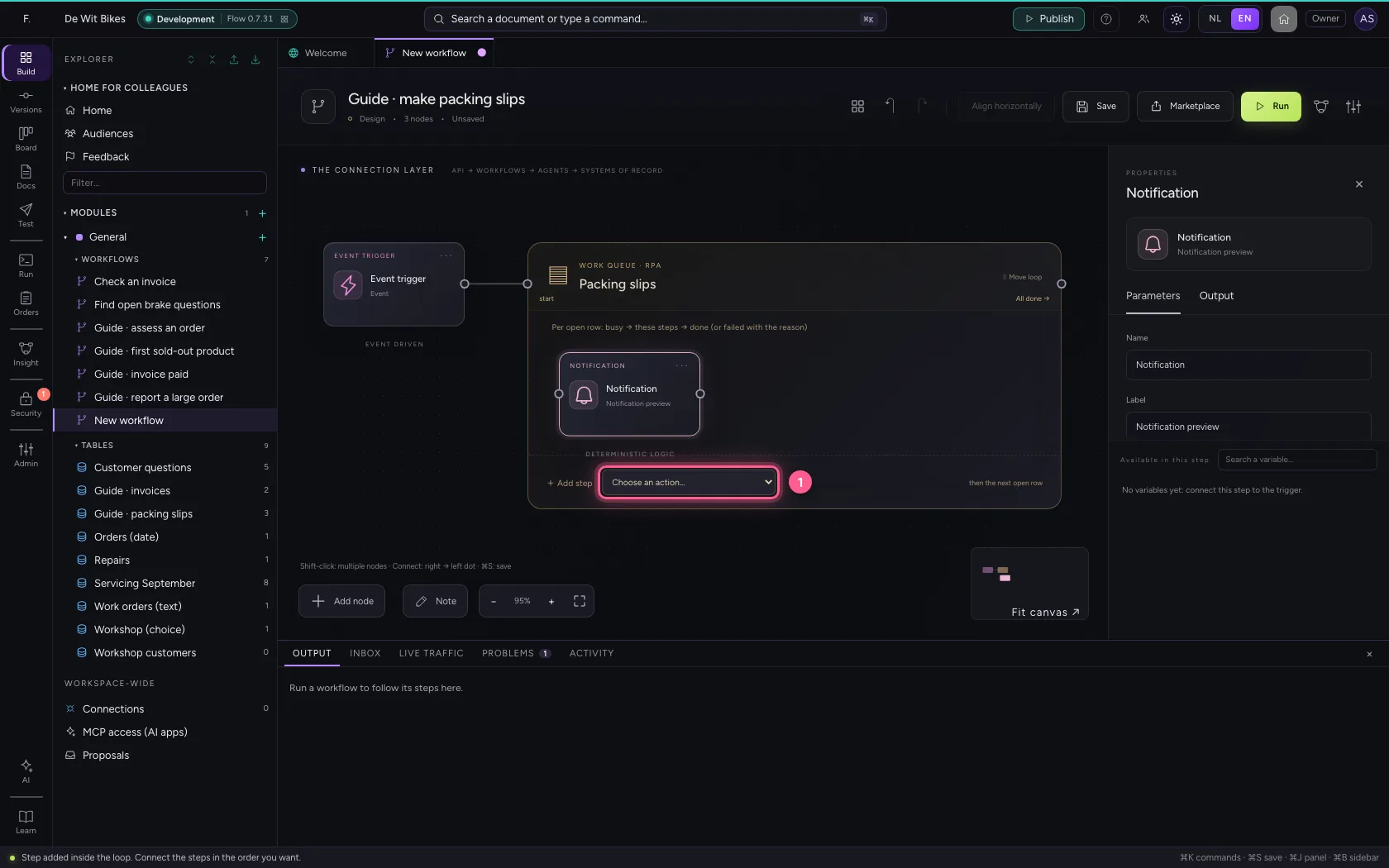
- In Name, type
Report packing slip - In Channel, type
Warehouse - In Message, type
Packing slip ready for {{task.order}}
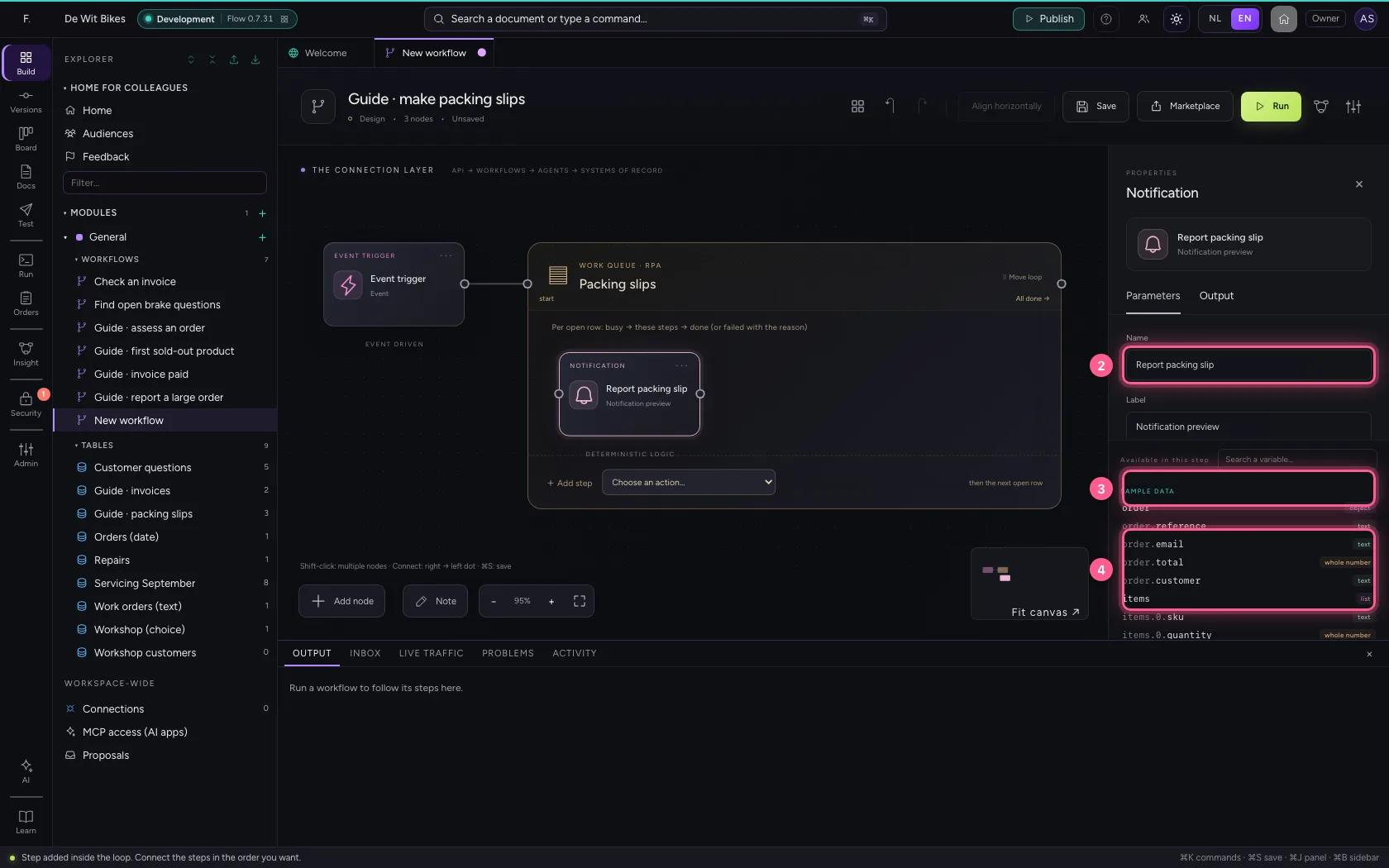
Put the steps in one line and save
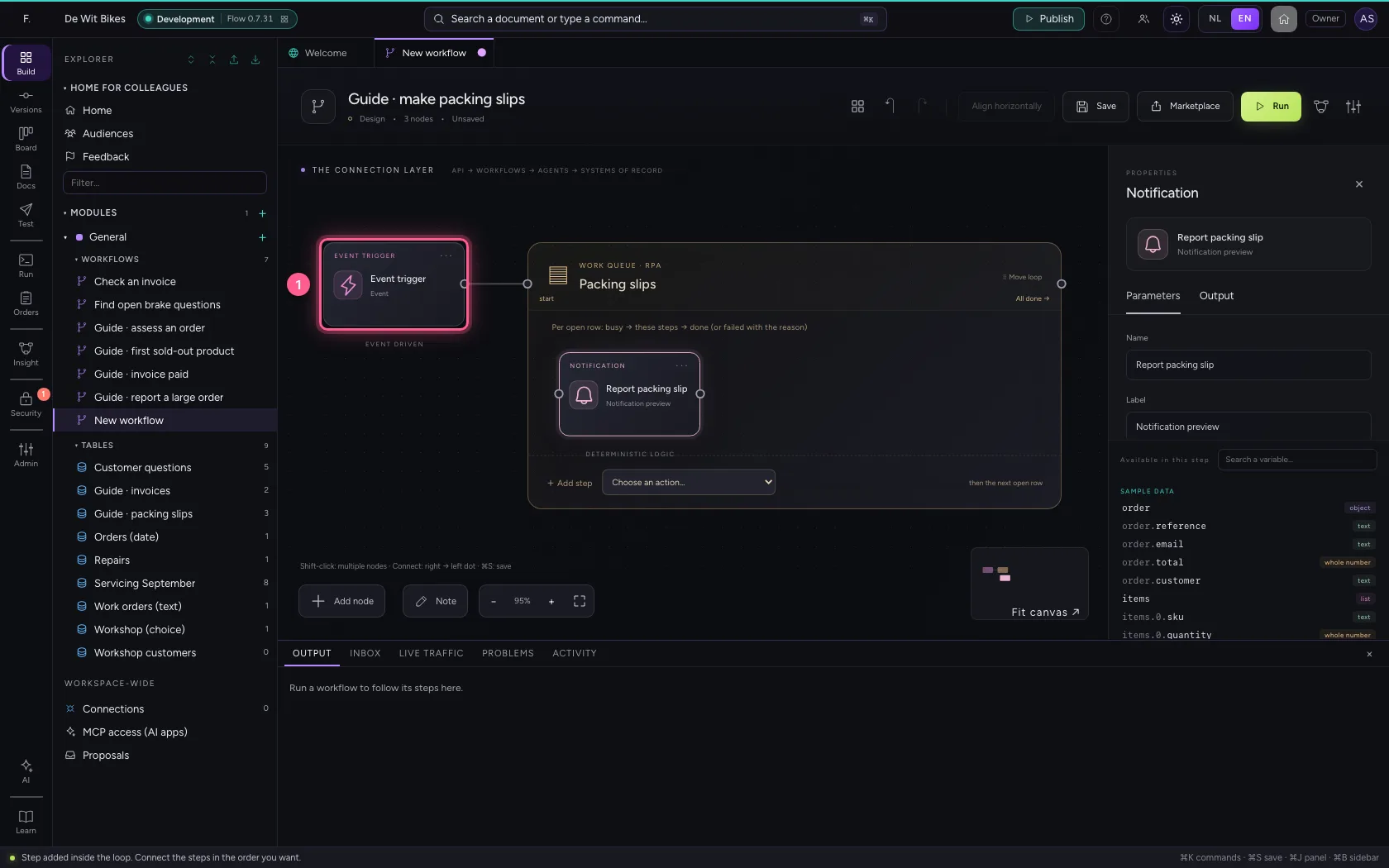
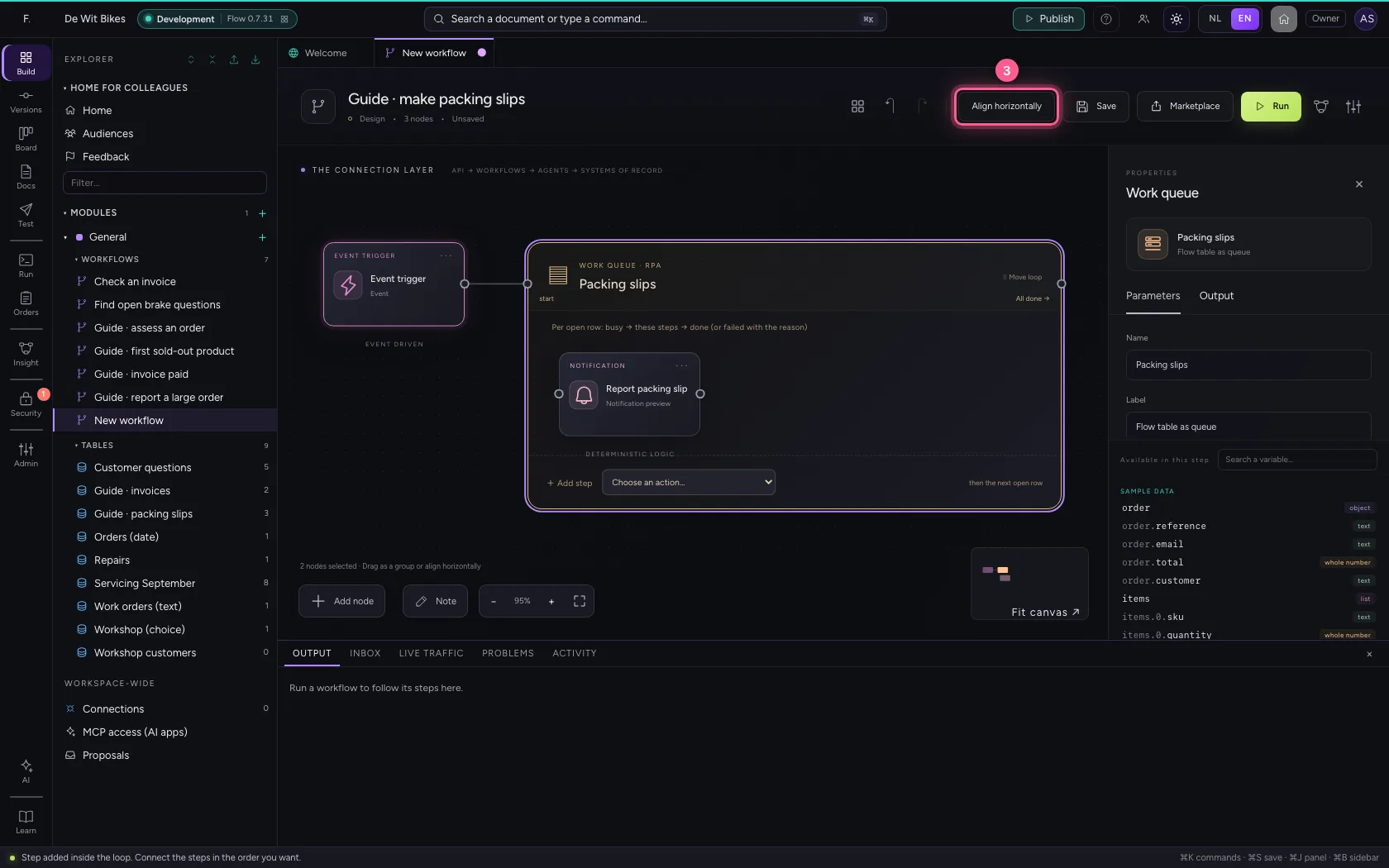
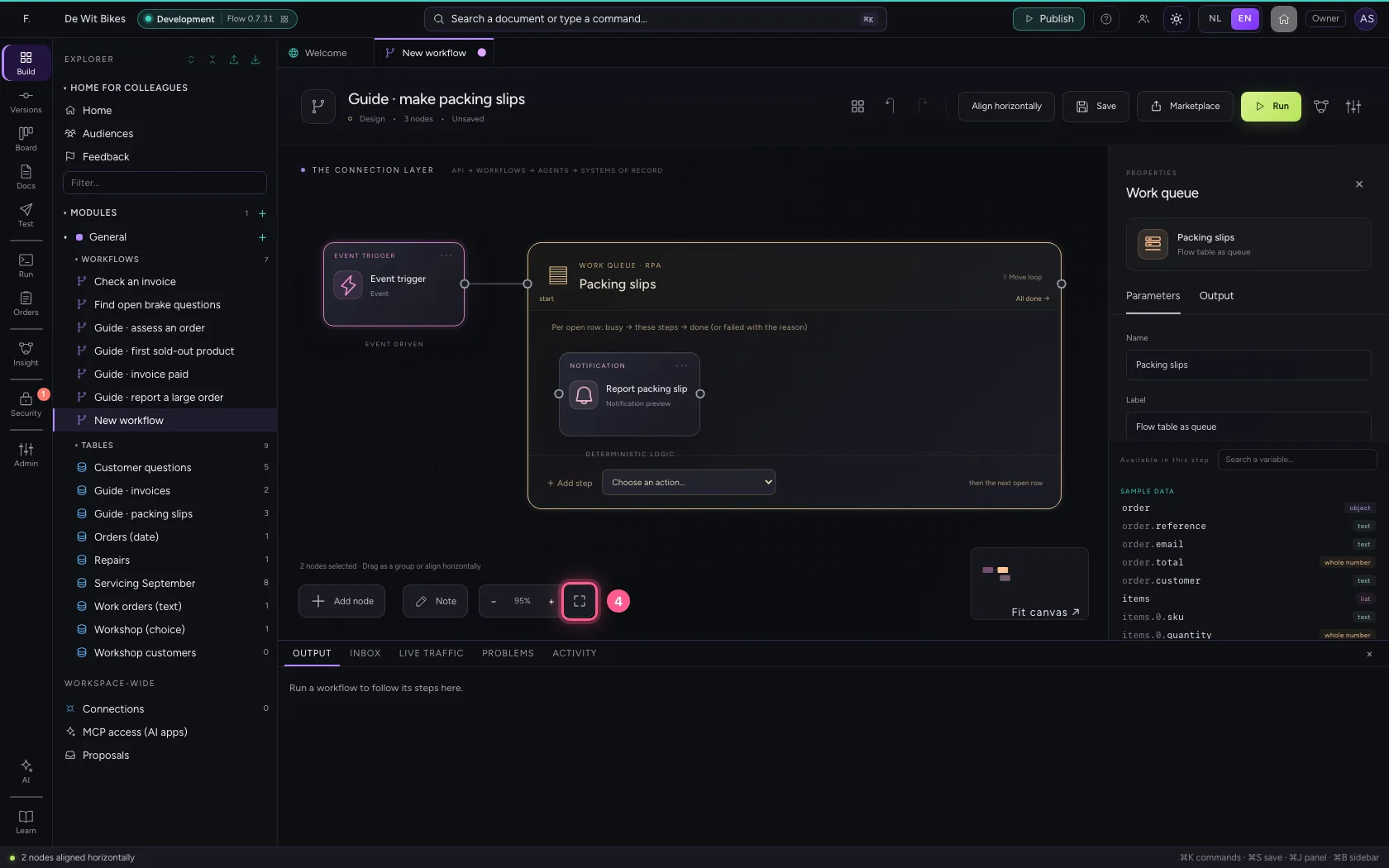
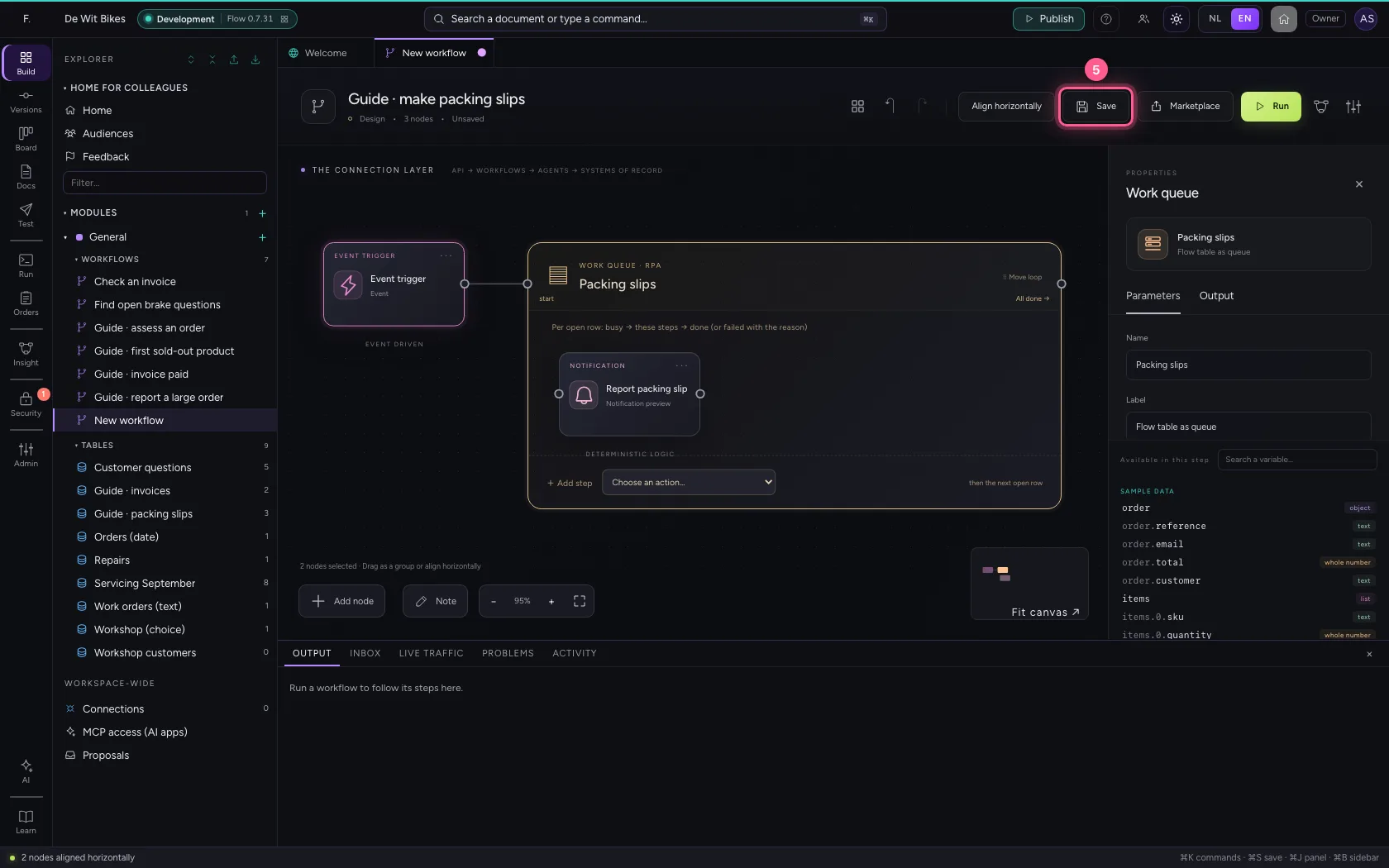
Select the steps (click the first, and the others while holding Shift) and click Align horizontally: they then stand in one line and you read the workflow from left to right; a branch (such as No of an If / Else) gets its own row below. Fit to view puts everything in sight; then Save.
- Click ‘Event trigger’
- Click ‘Packing slips’ while holding Shift
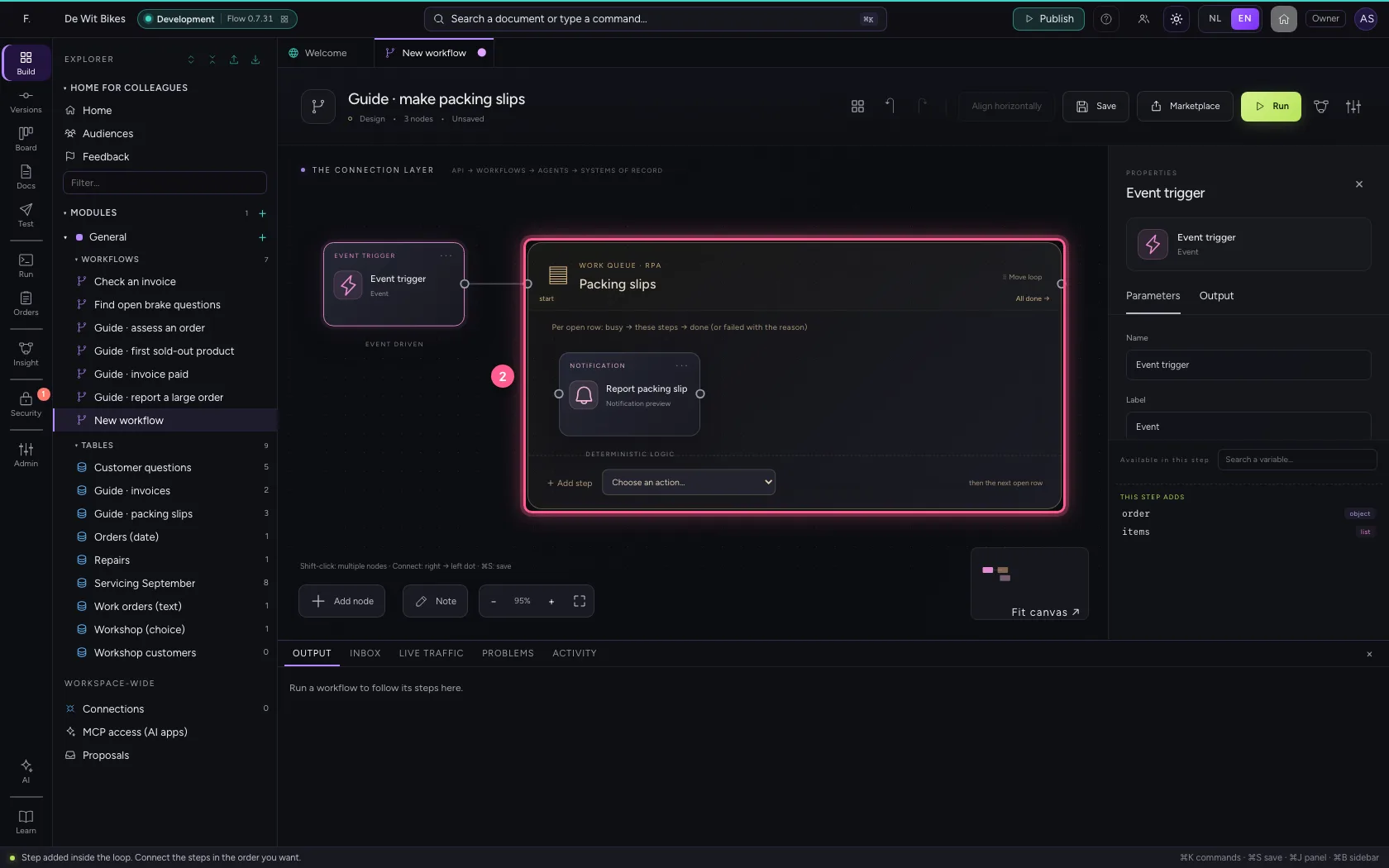
- Click Align horizontally
- Click Fit to view
- Click Save
Run and look in the table
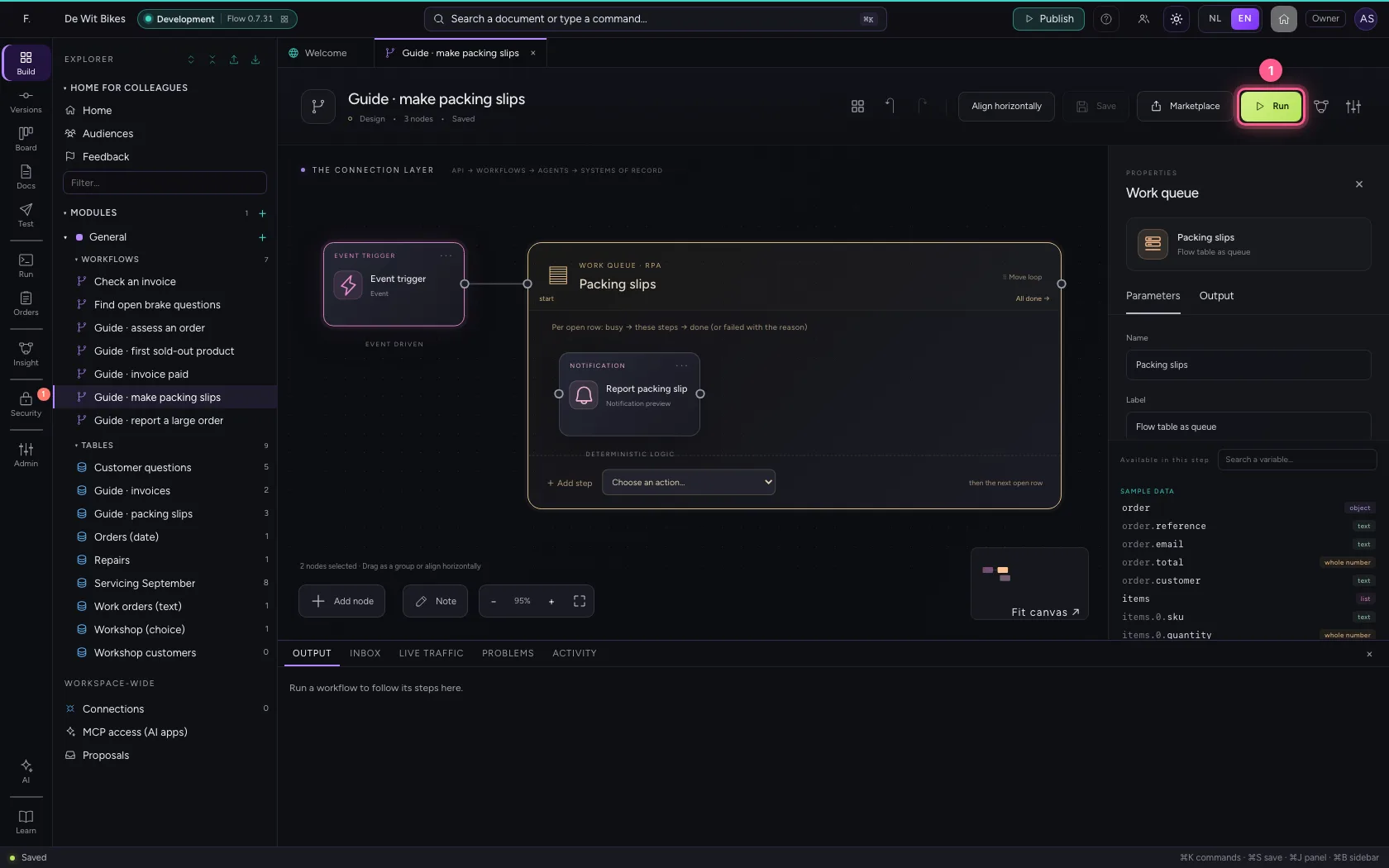
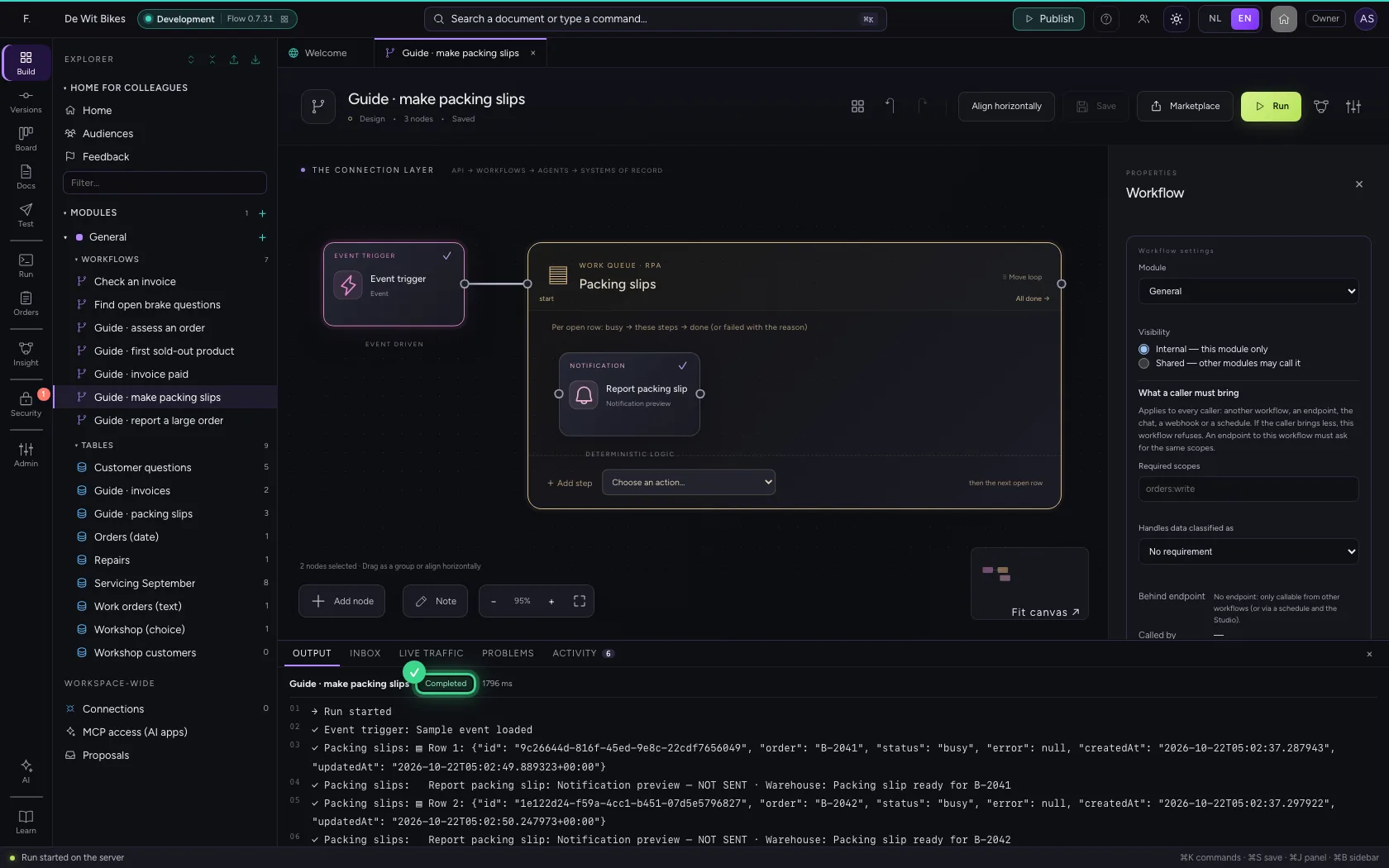
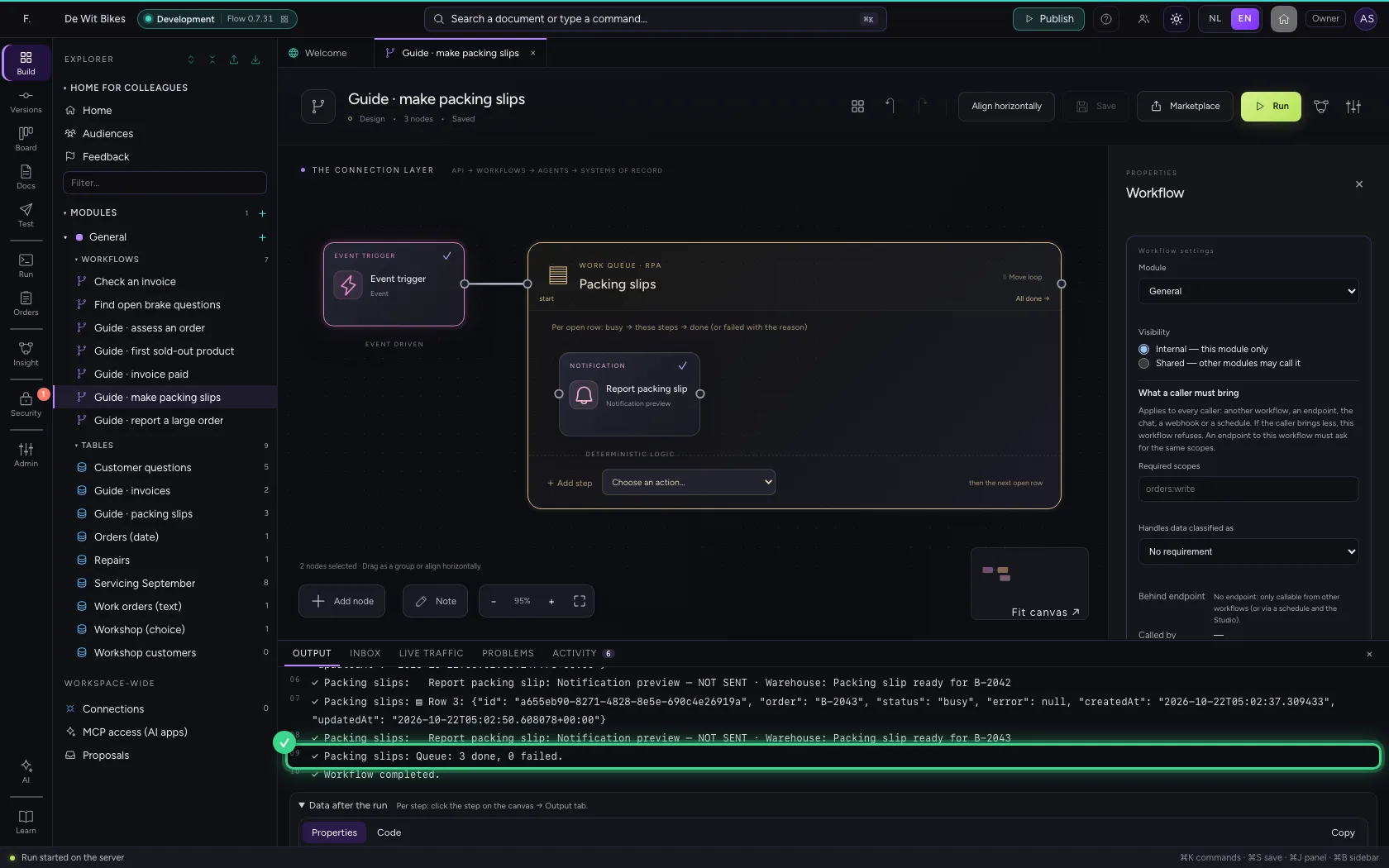
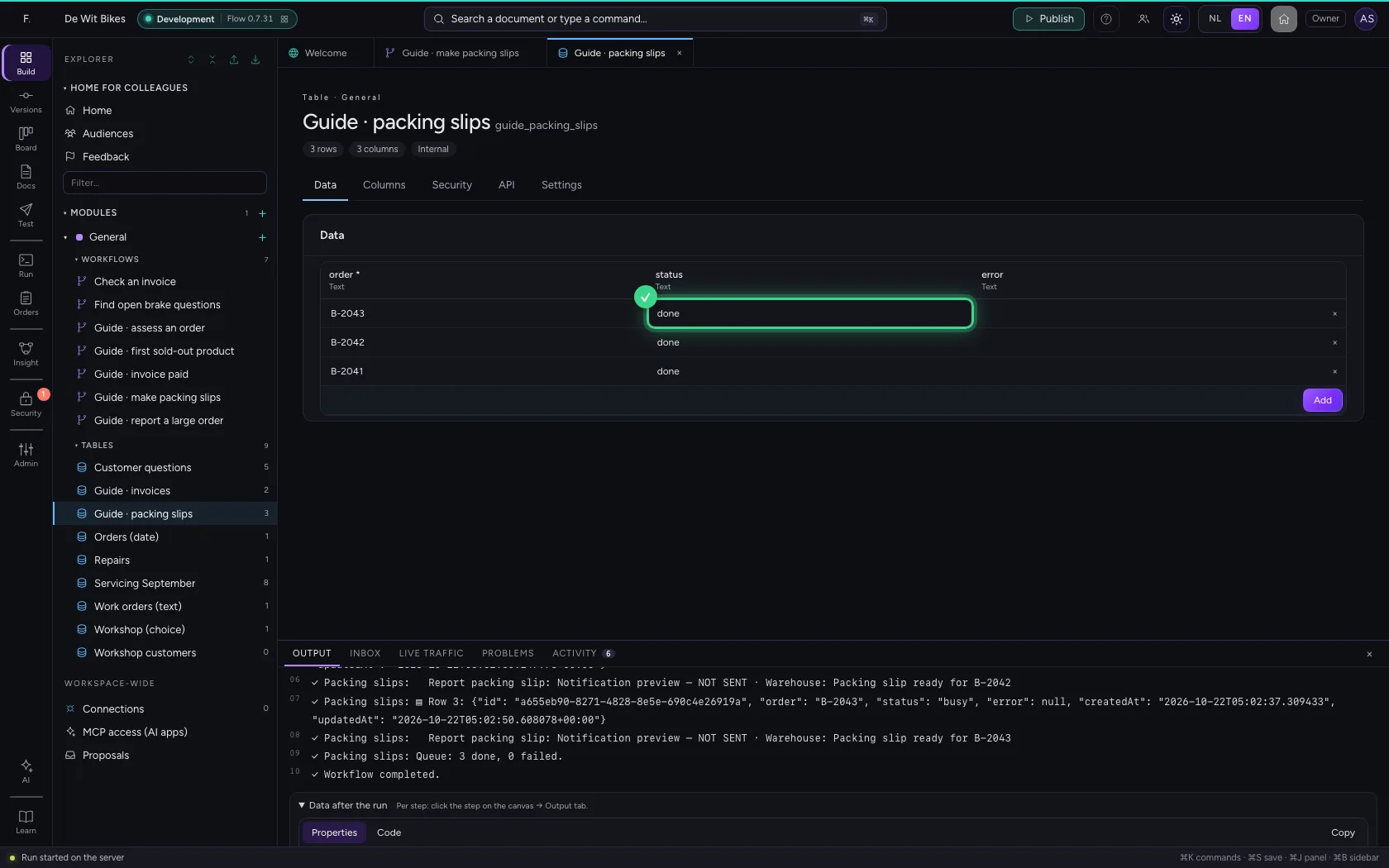
At the bottom you see every row whose turn it was, and at the end the count. In the table all three rows are now done; a next run finds no open rows any more.
- Click Run
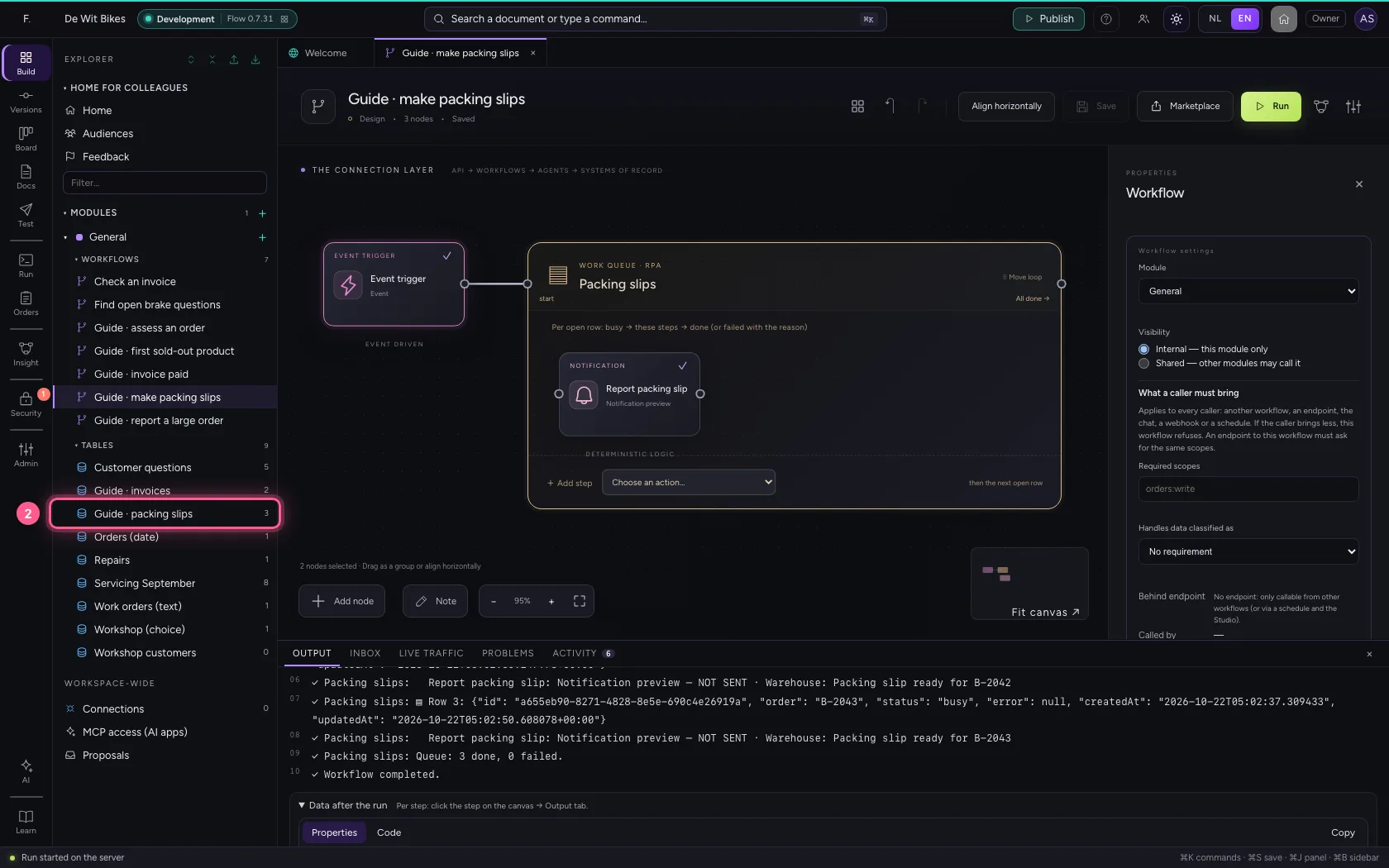
- Click the table
This guide was carried out step by step on 22 Oct 2026 by an automated test on Flow (version 3e563176).