App action: a write action as a draft
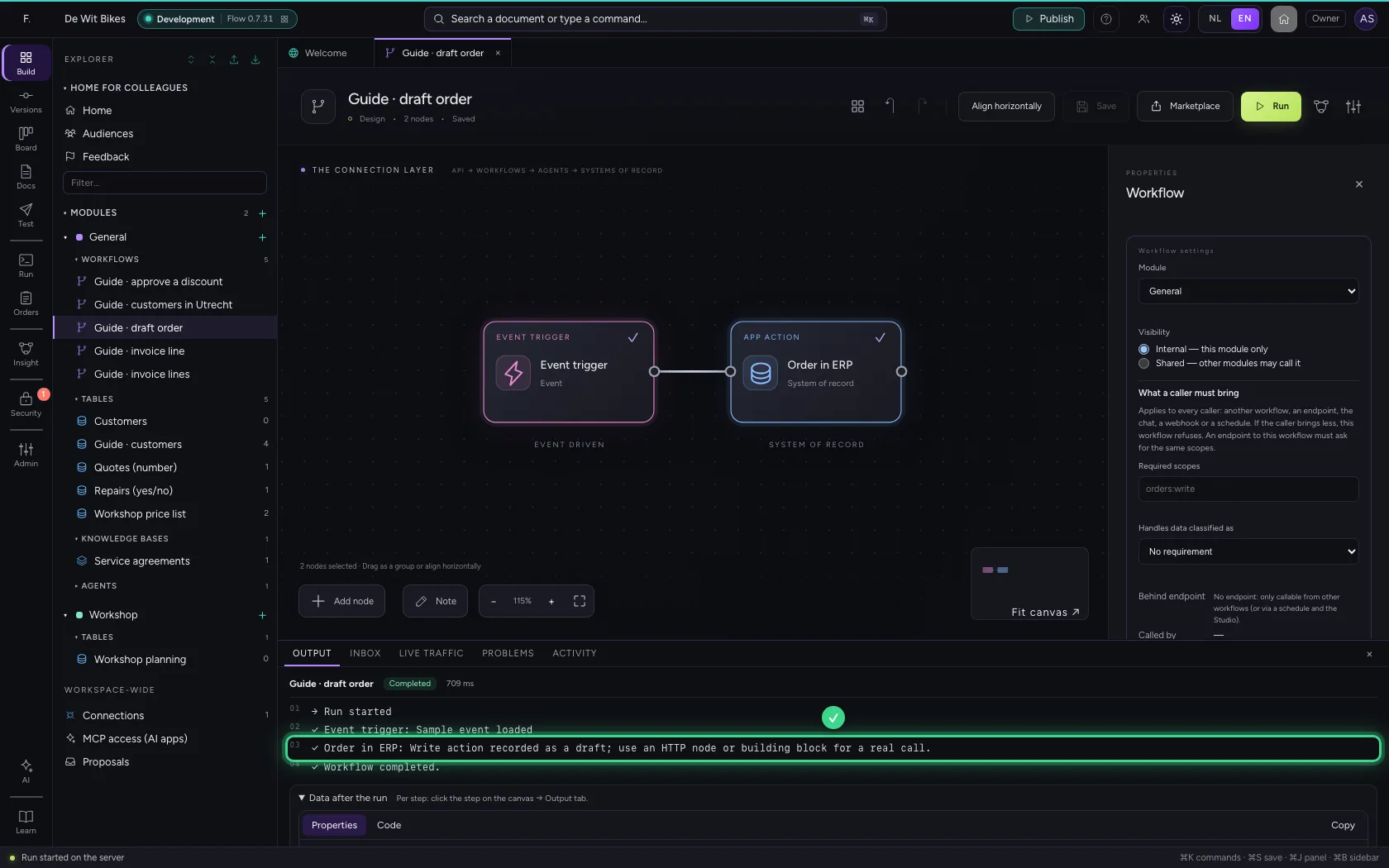
App action records what the workflow would want to do in a system of record (create an order, update a customer), without really doing it. You design and test the workflow end to end; the step shows which action is planned on which connection. For the real call you later replace it with an HTTP request or a building block.
Open Flow and create a workflow
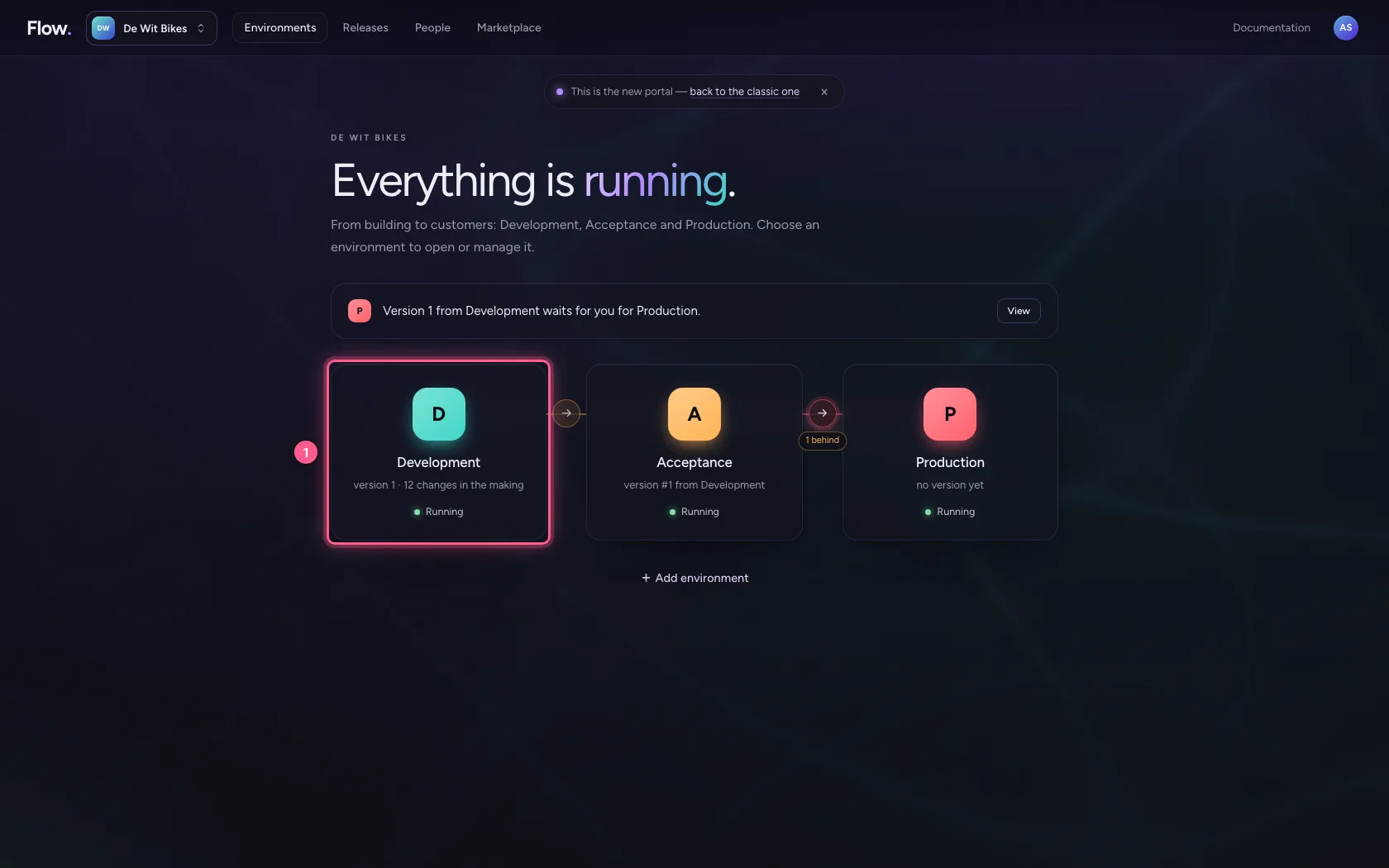
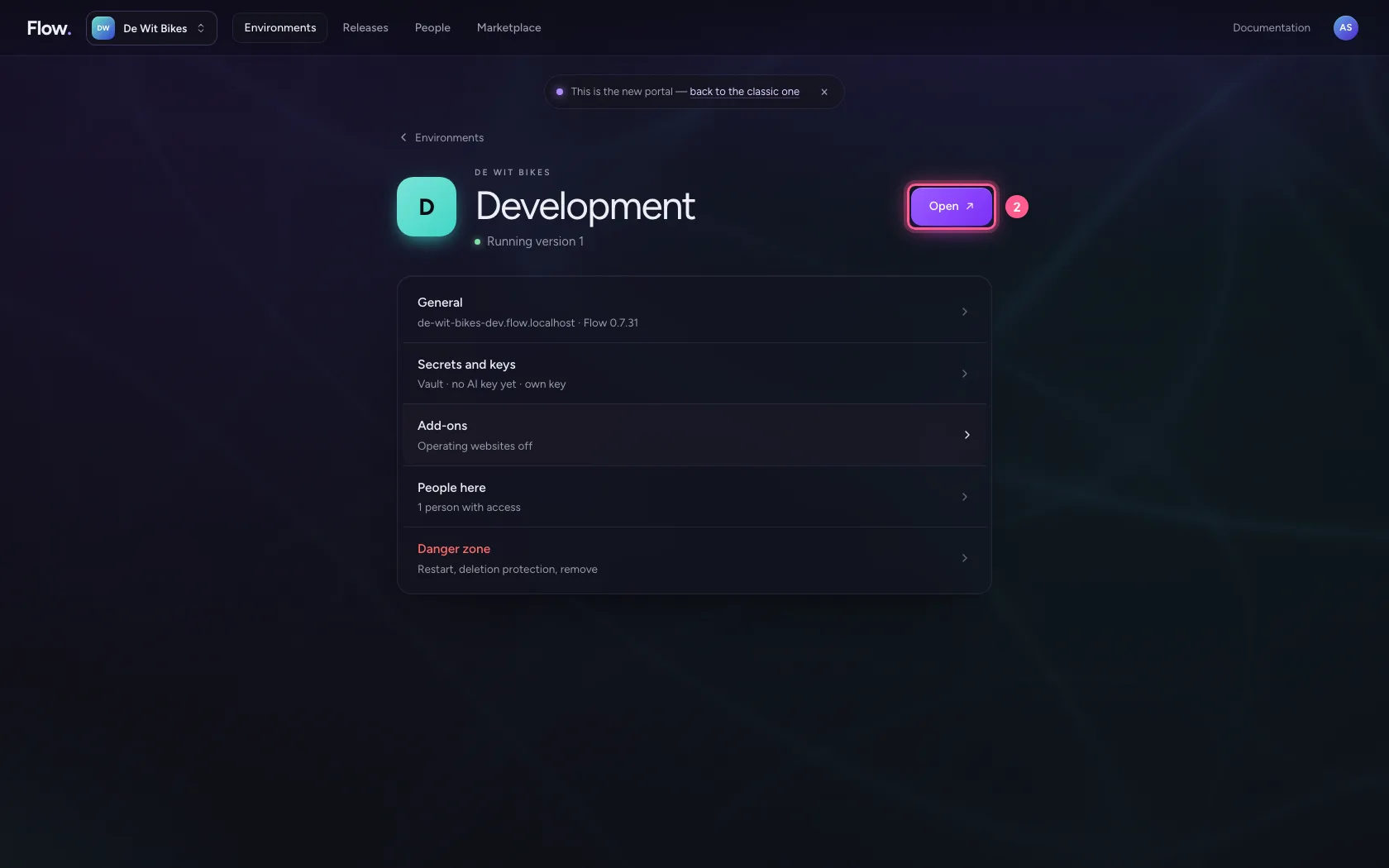
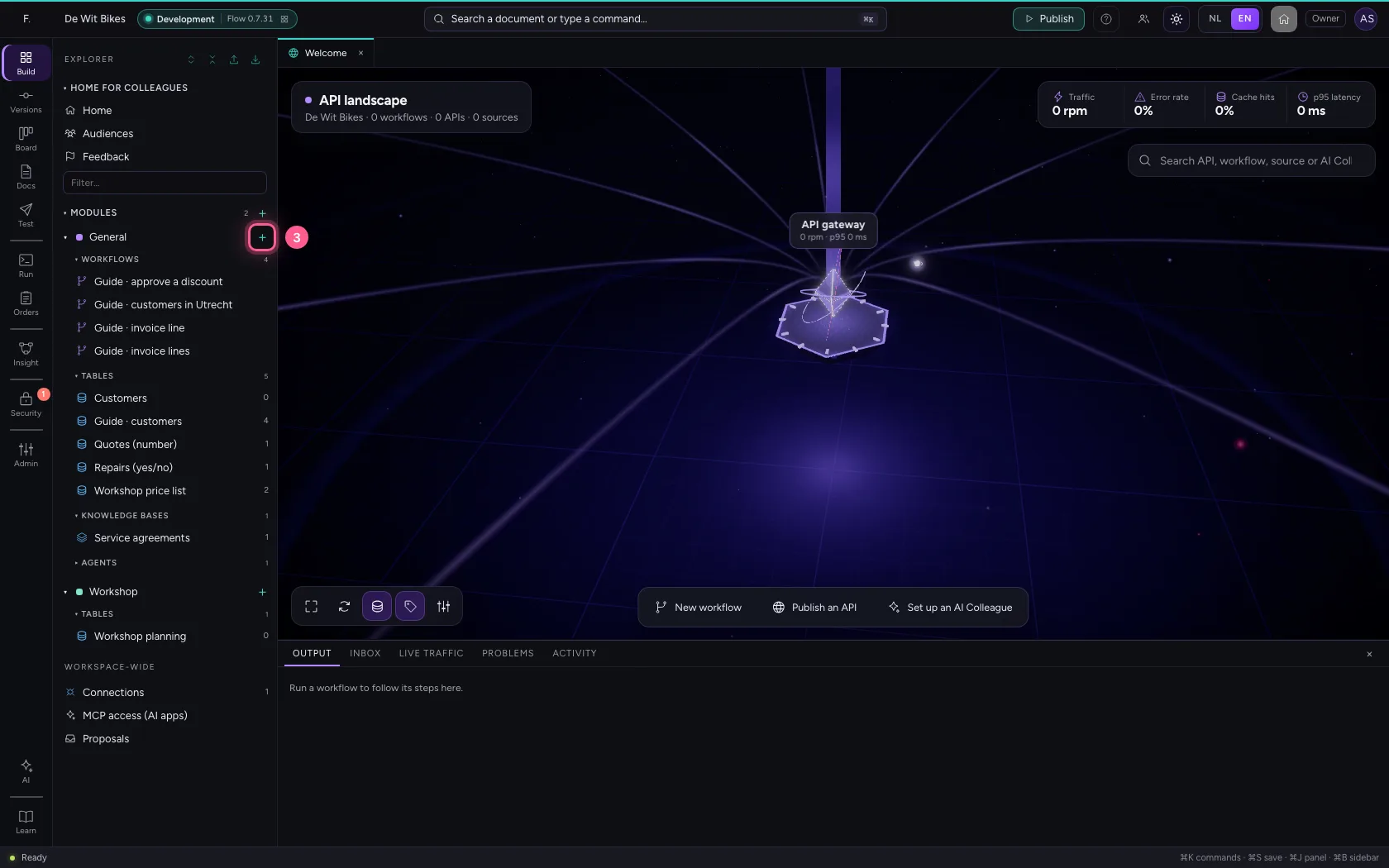
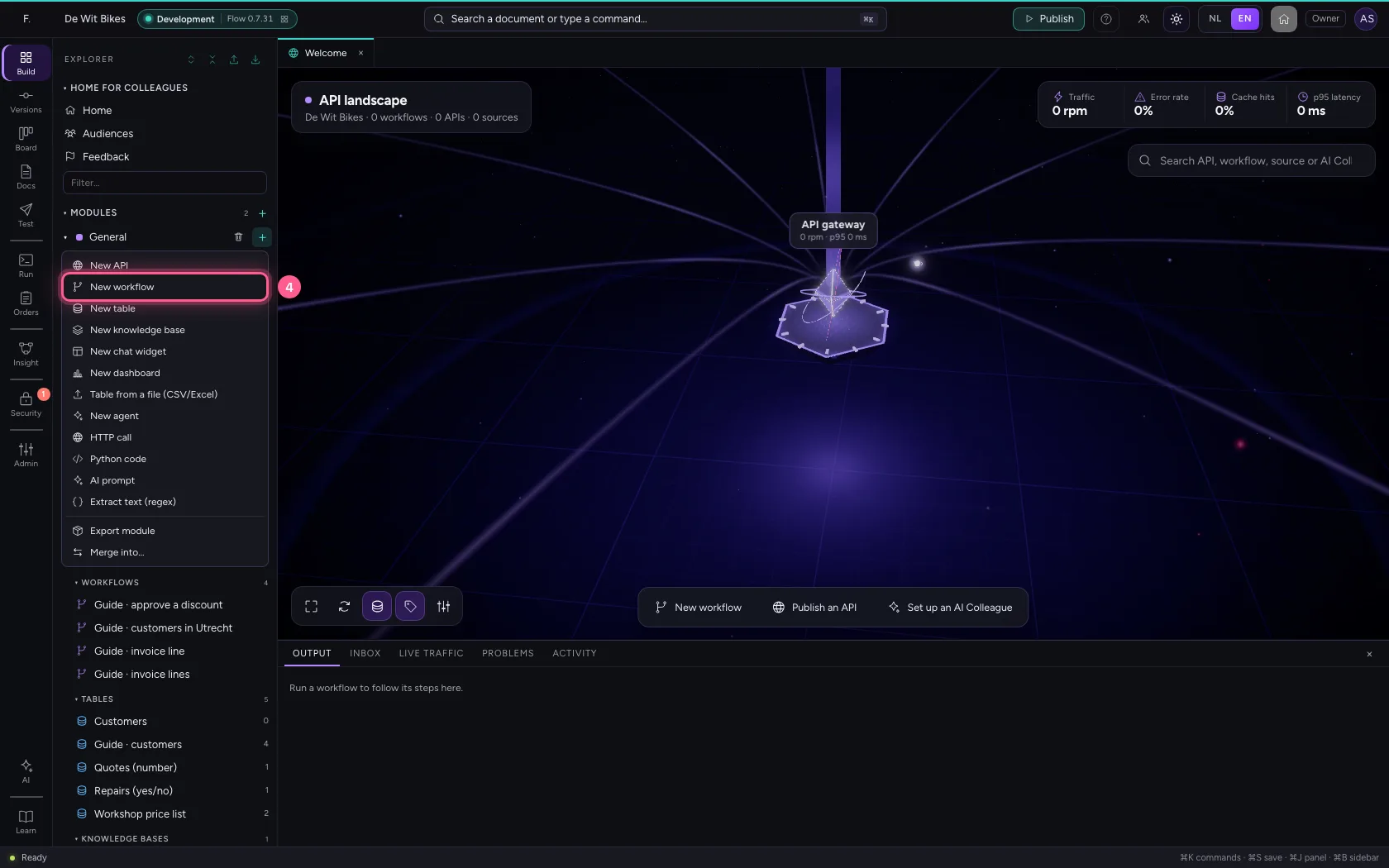
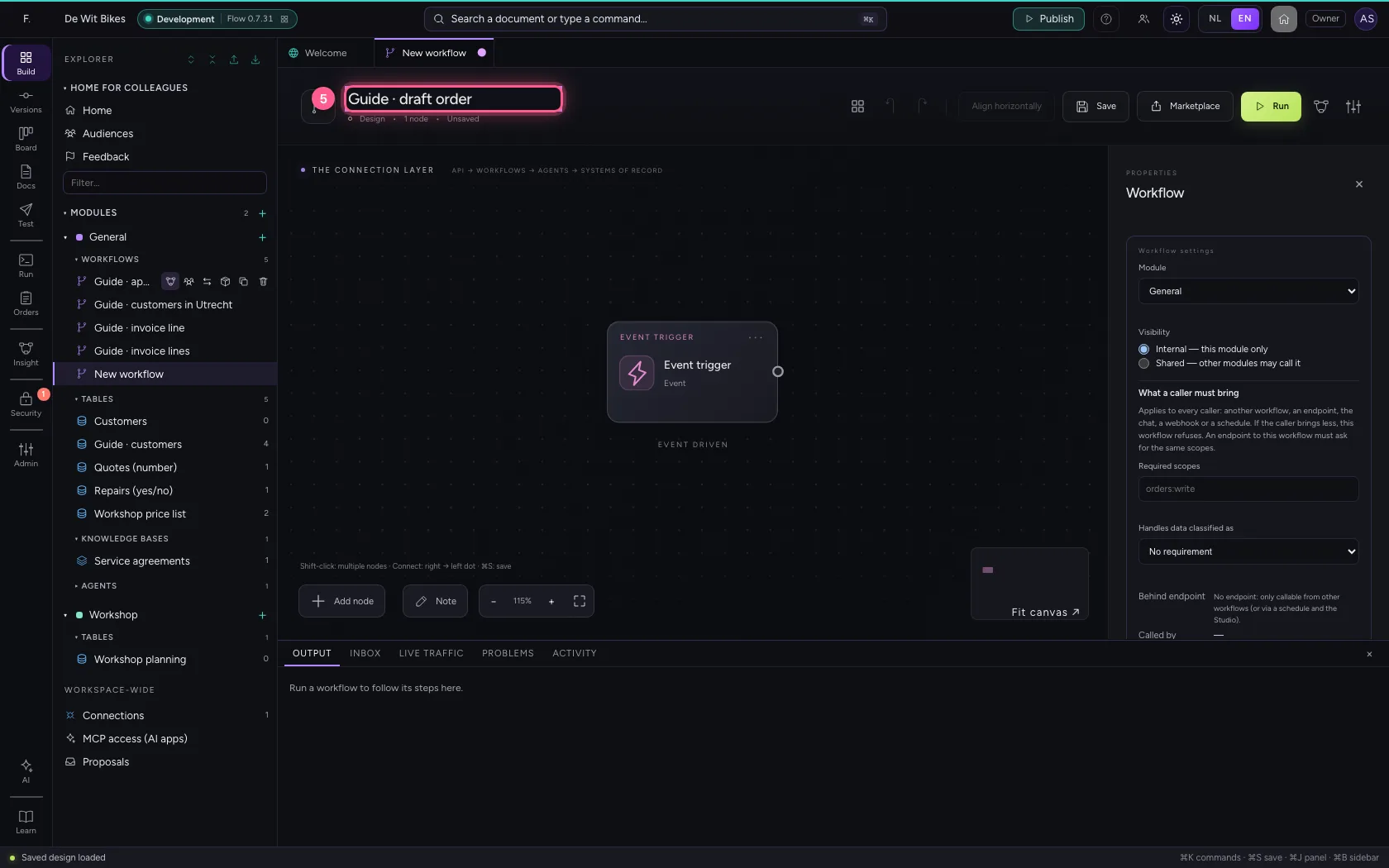
In the portal, under Environments, click Development and there Open; Flow opens in a new tab. There, click + next to General, choose New workflow and give it a name. A new workflow starts with an Event trigger: the point where it begins.
- Click Development
- Click Open ↗
- Click Add to General
- Click New workflow
- In Workflow name, type
Guide · draft order
Choose the system and the action
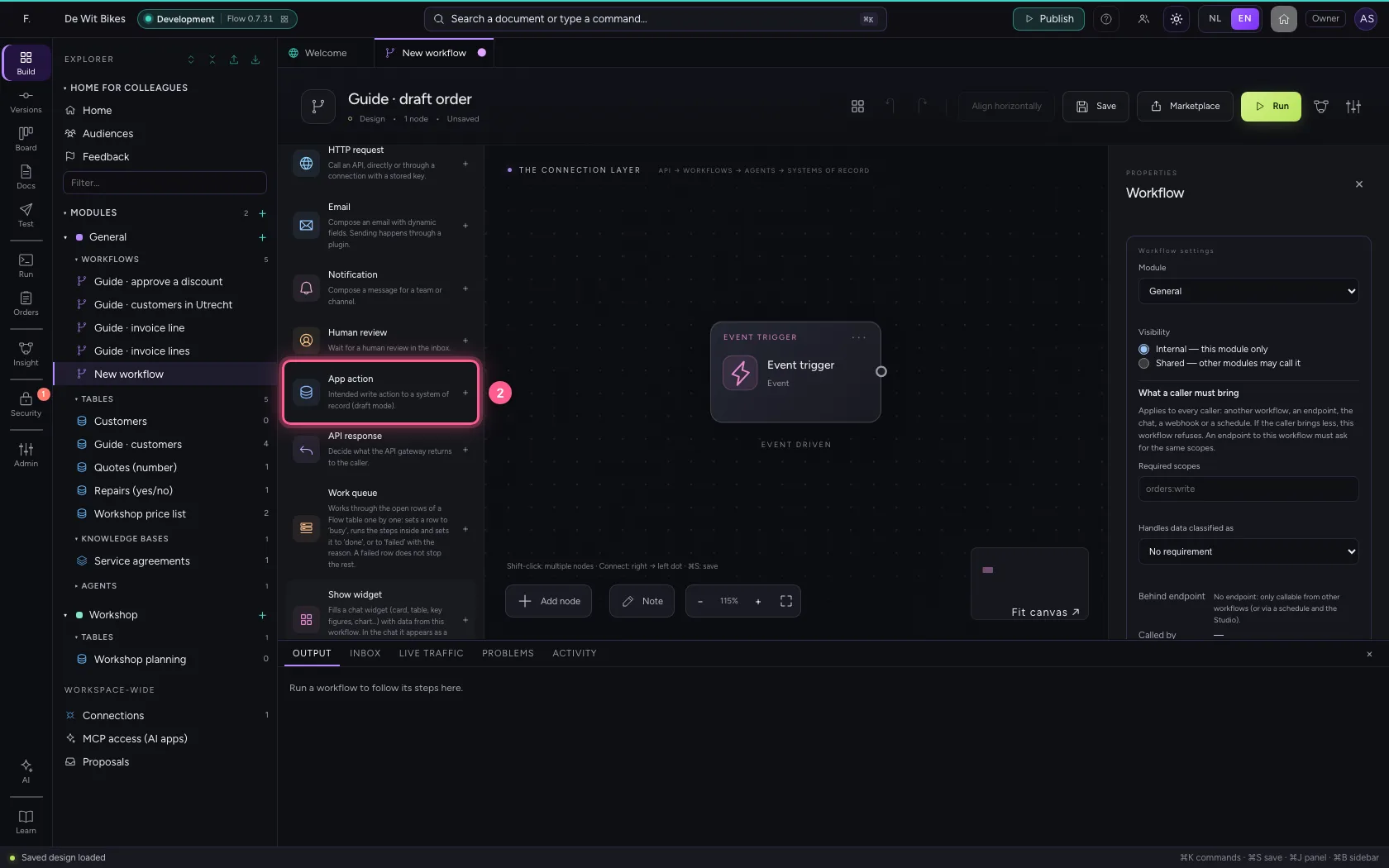
Add App action. Under Connection choose the system of record and write under Intended action what should happen, for example create_draft_order.
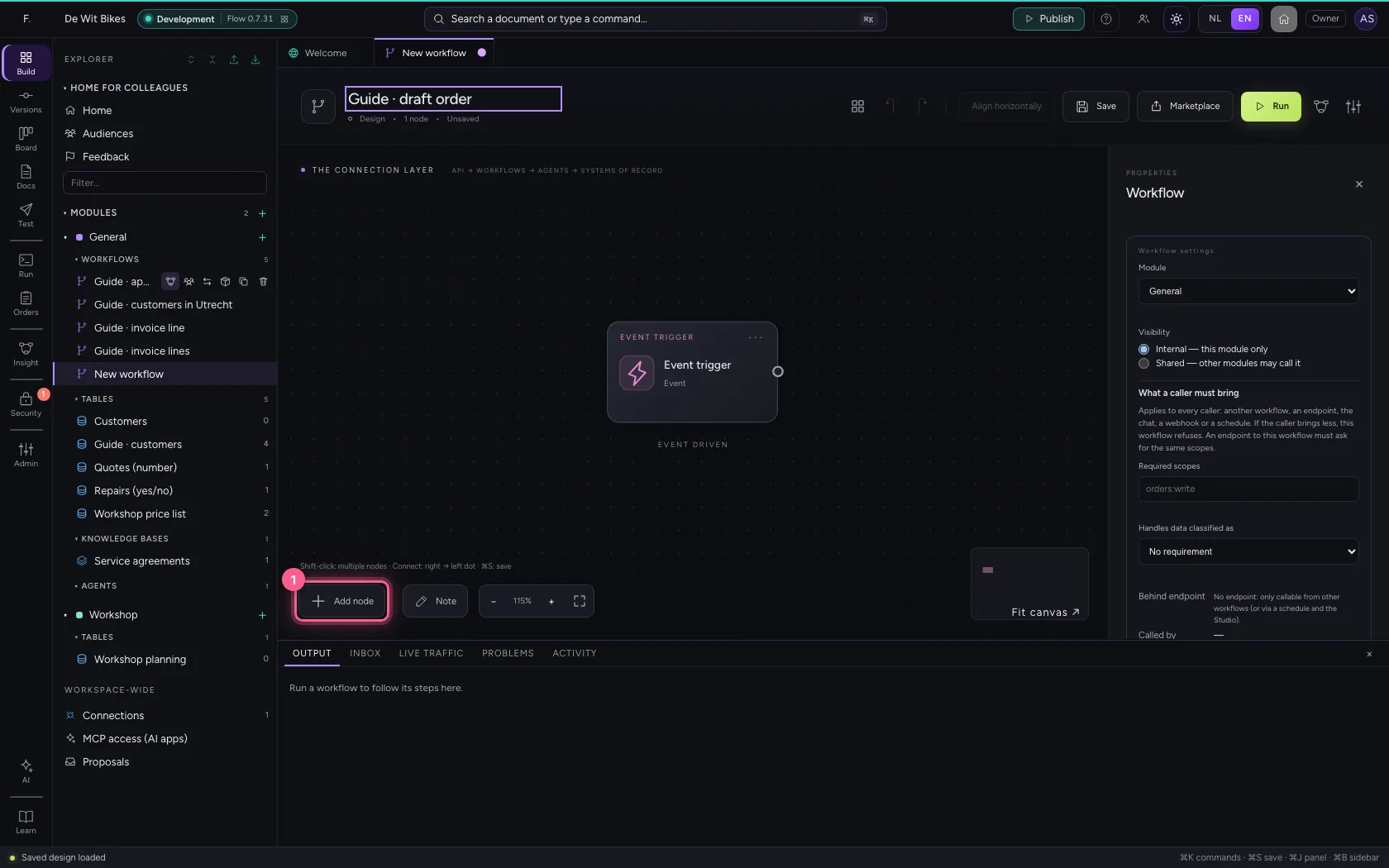
- Click Add node
- Click App action
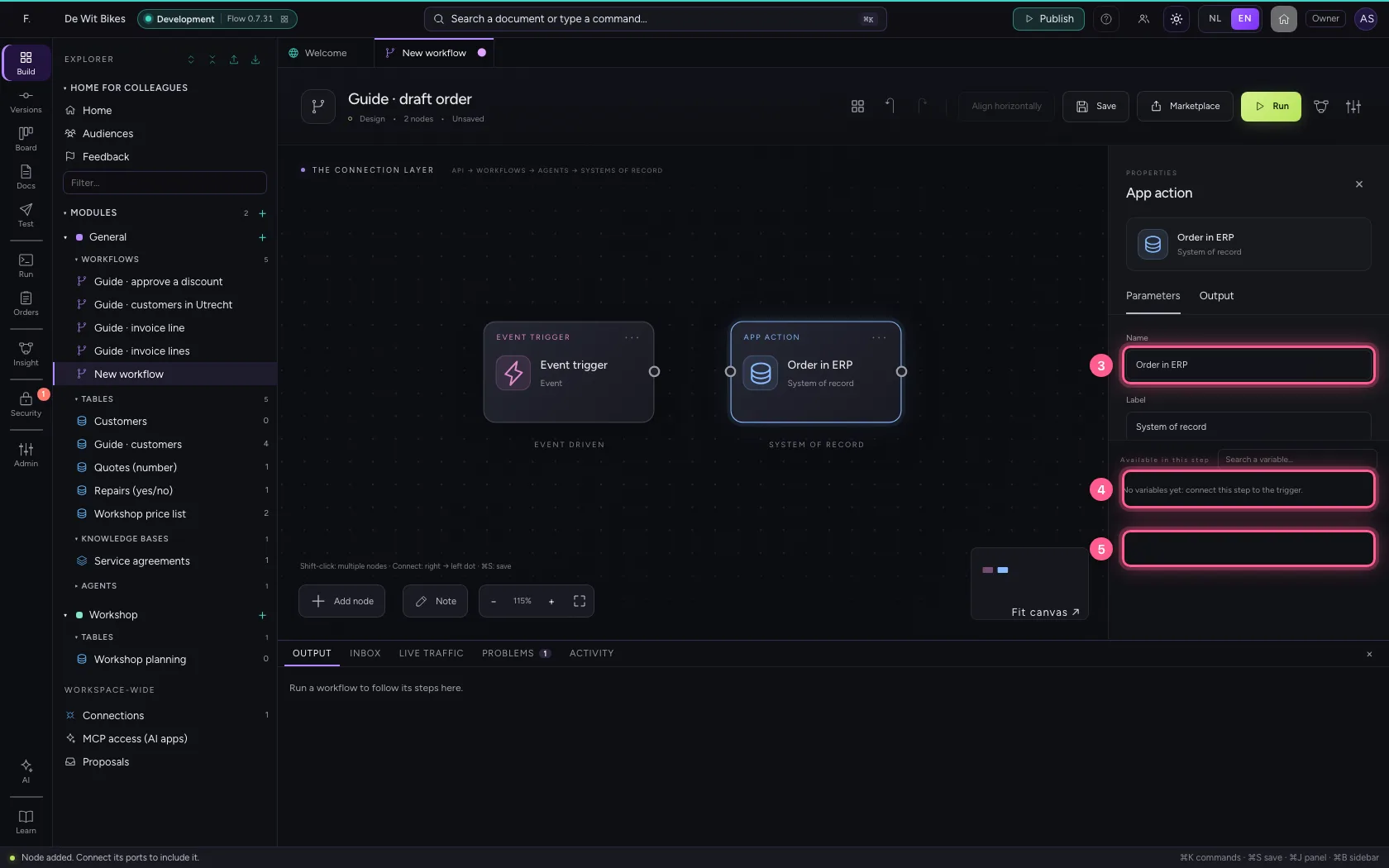
- In Name, type
Order in ERP - In Connection, choose Guide · ERP
- In Intended action, type
create_draft_order
- Click the dot of ‘Event trigger’
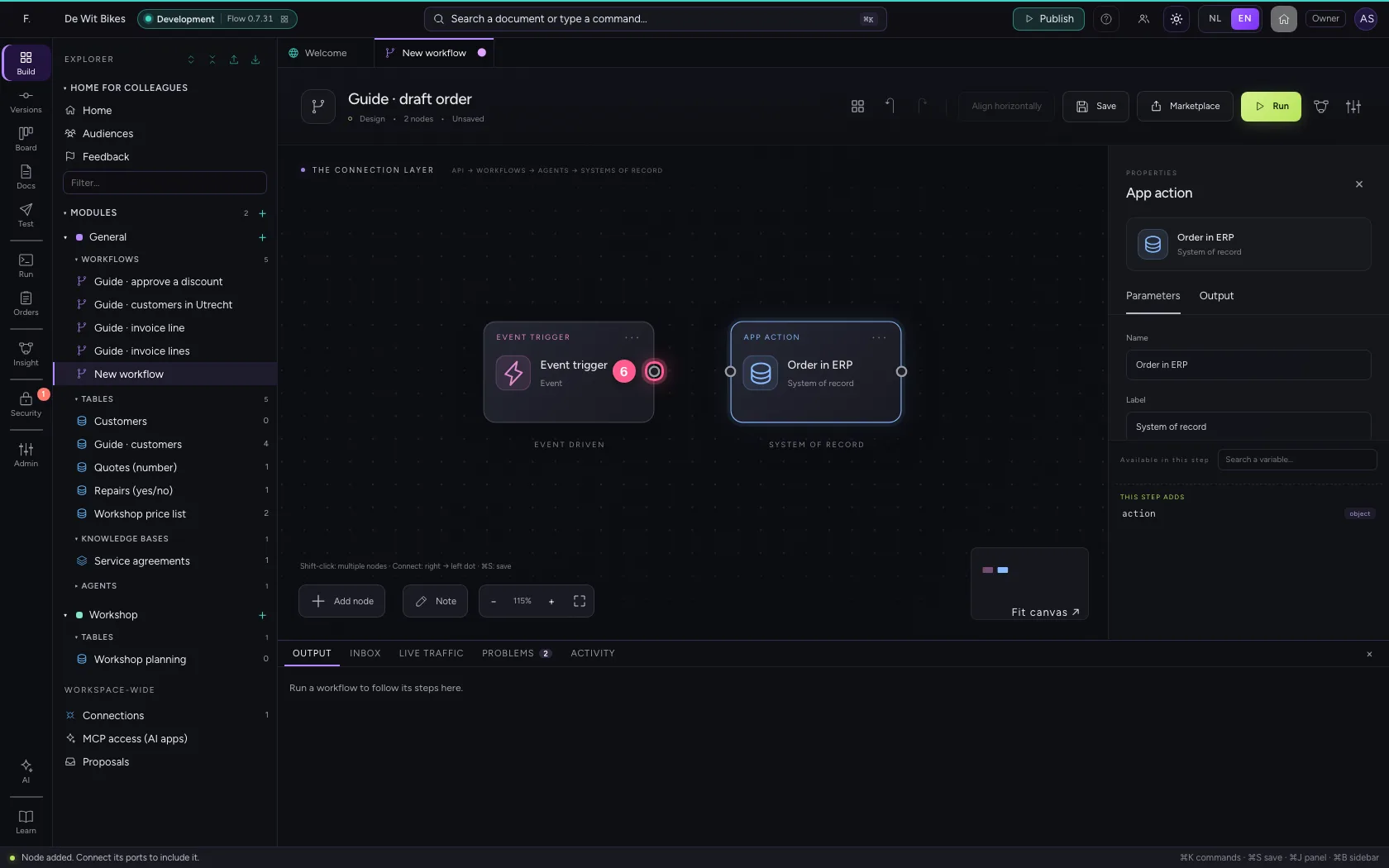
- Click the dot of ‘Order in ERP’
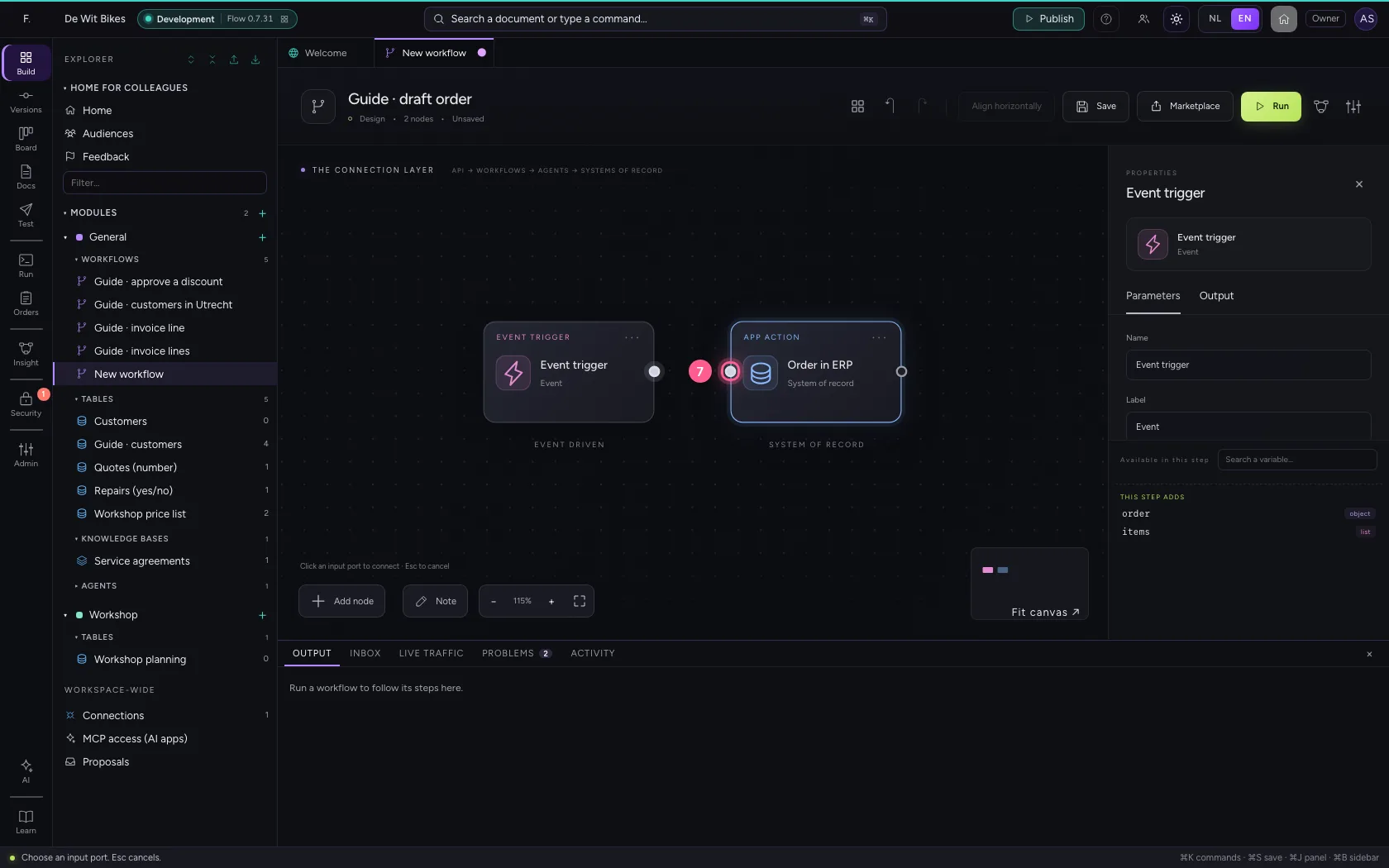
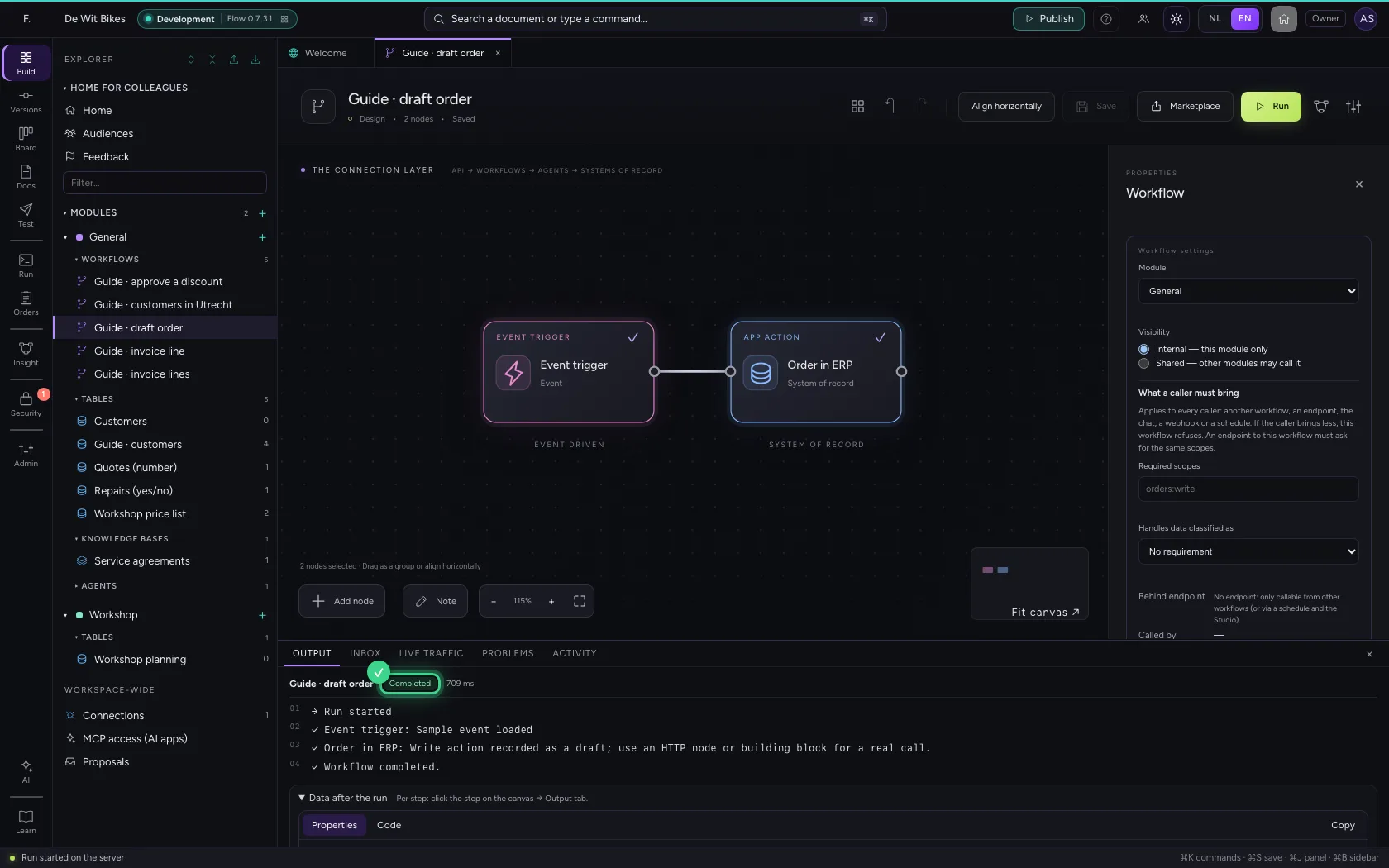
Put the steps in one line and save
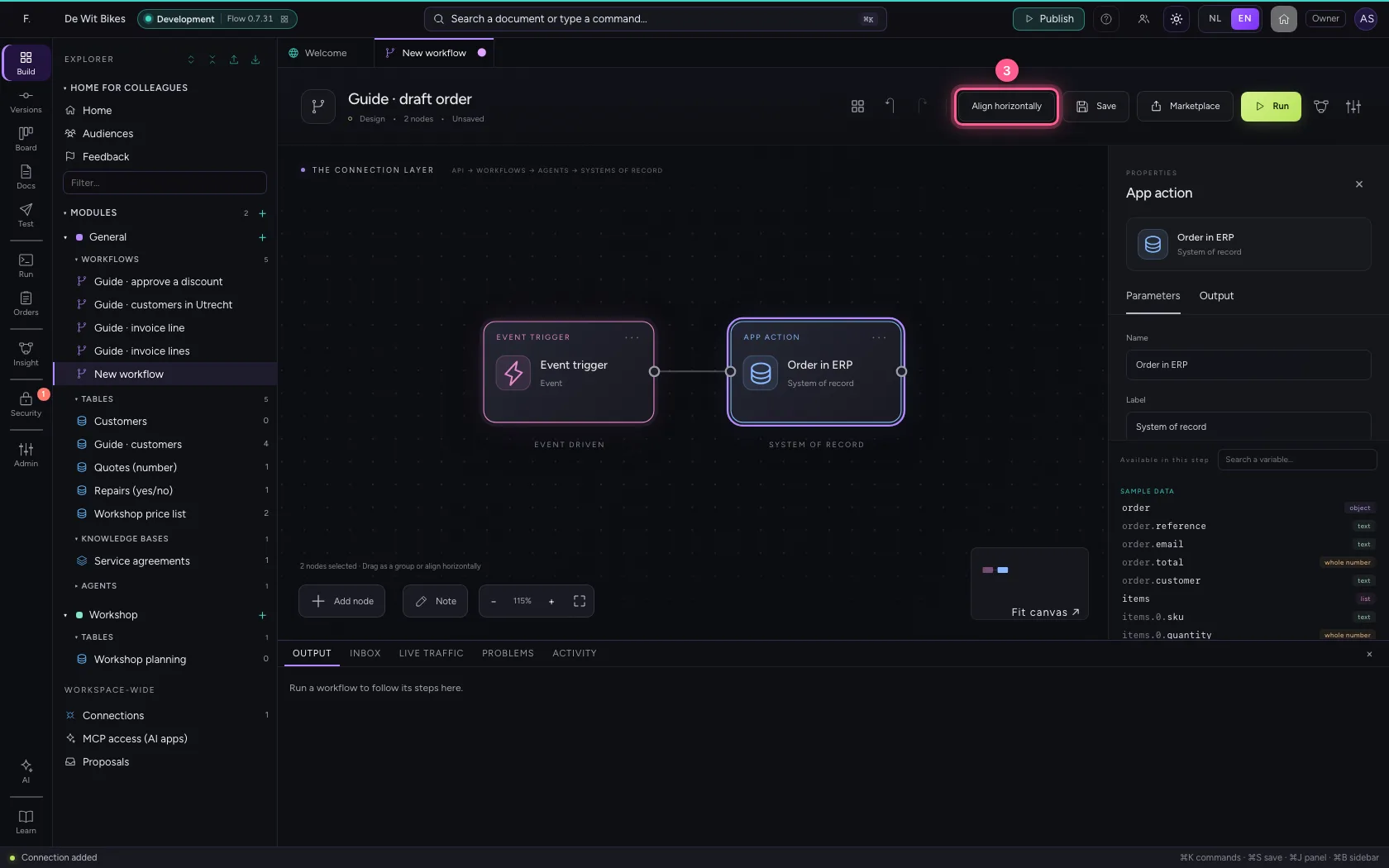
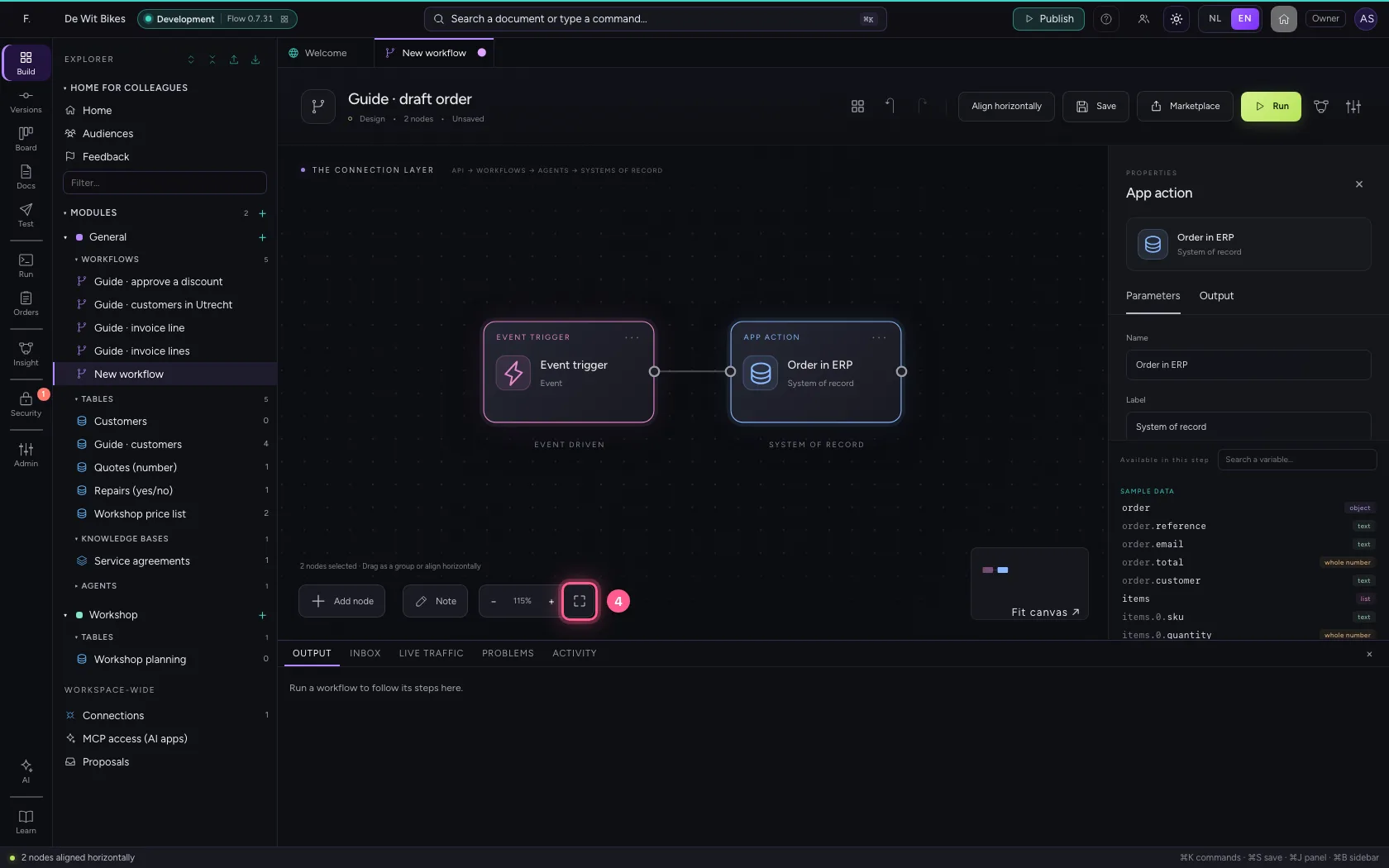
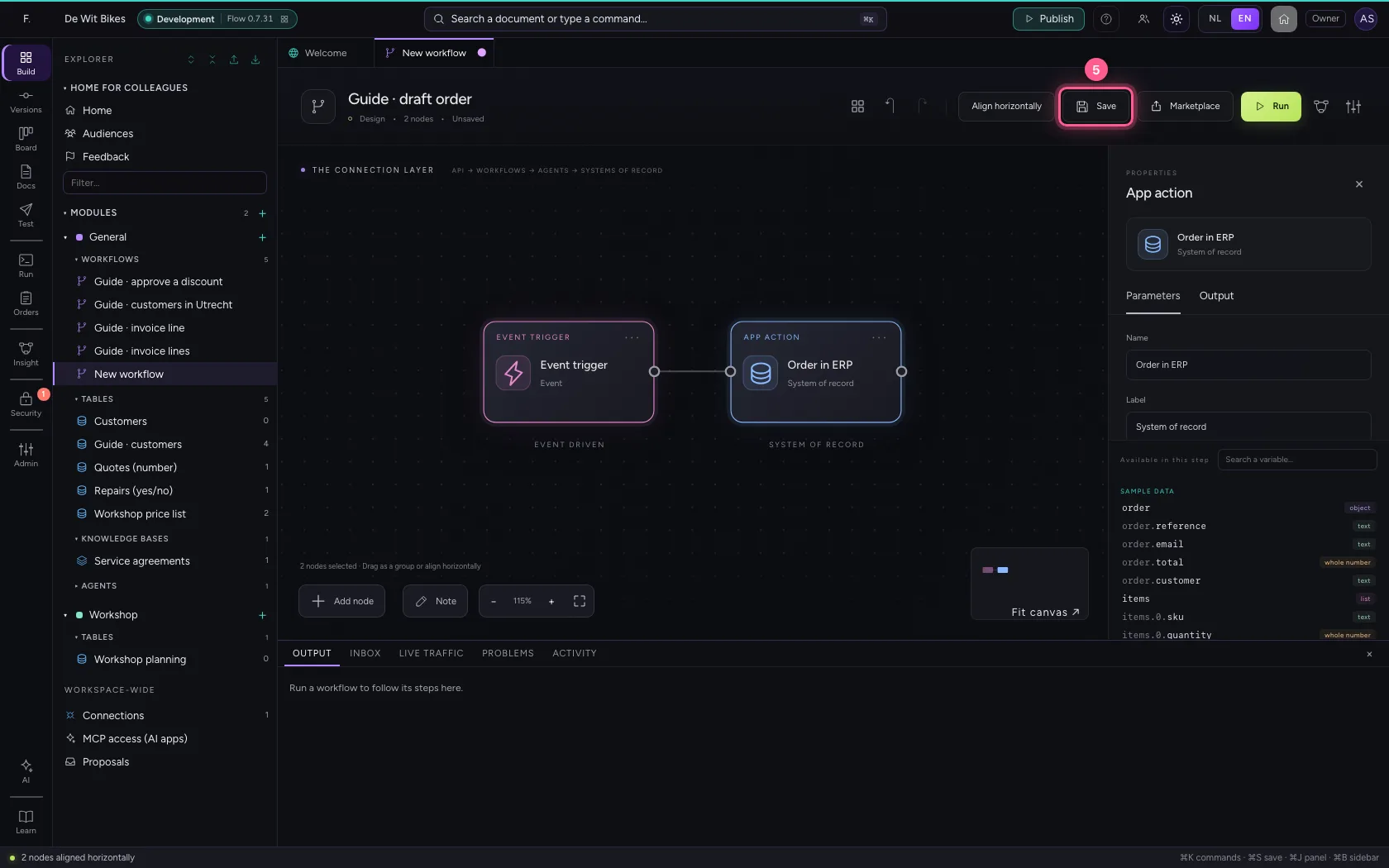
Select the steps (click the first, and the others while holding Shift) and click Align horizontally: they then stand in one line and you read the workflow from left to right; a branch (such as No of an If / Else) gets its own row below. Fit to view puts everything in sight; then Save.
- Click ‘Event trigger’
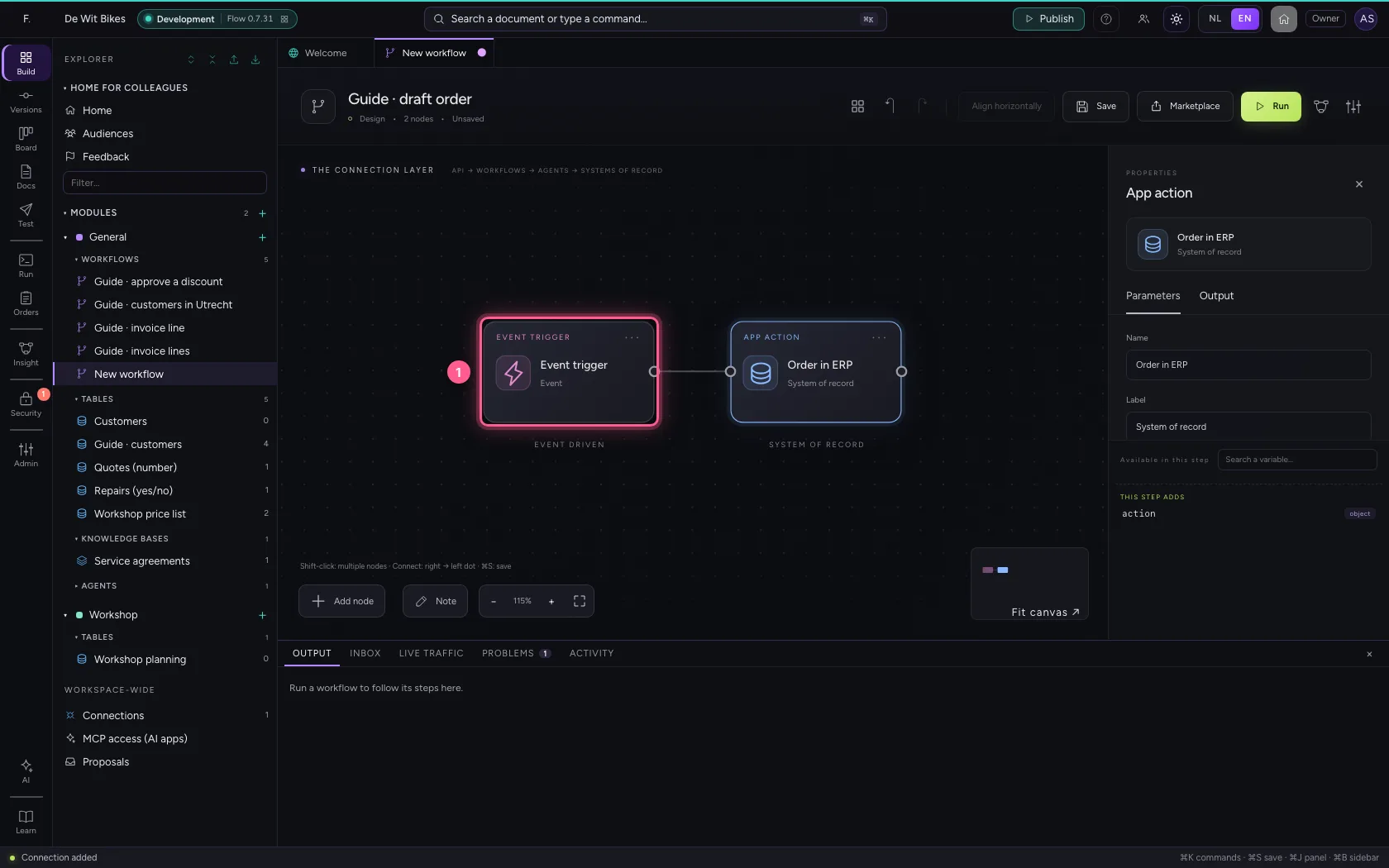
- Click ‘Order in ERP’ while holding Shift
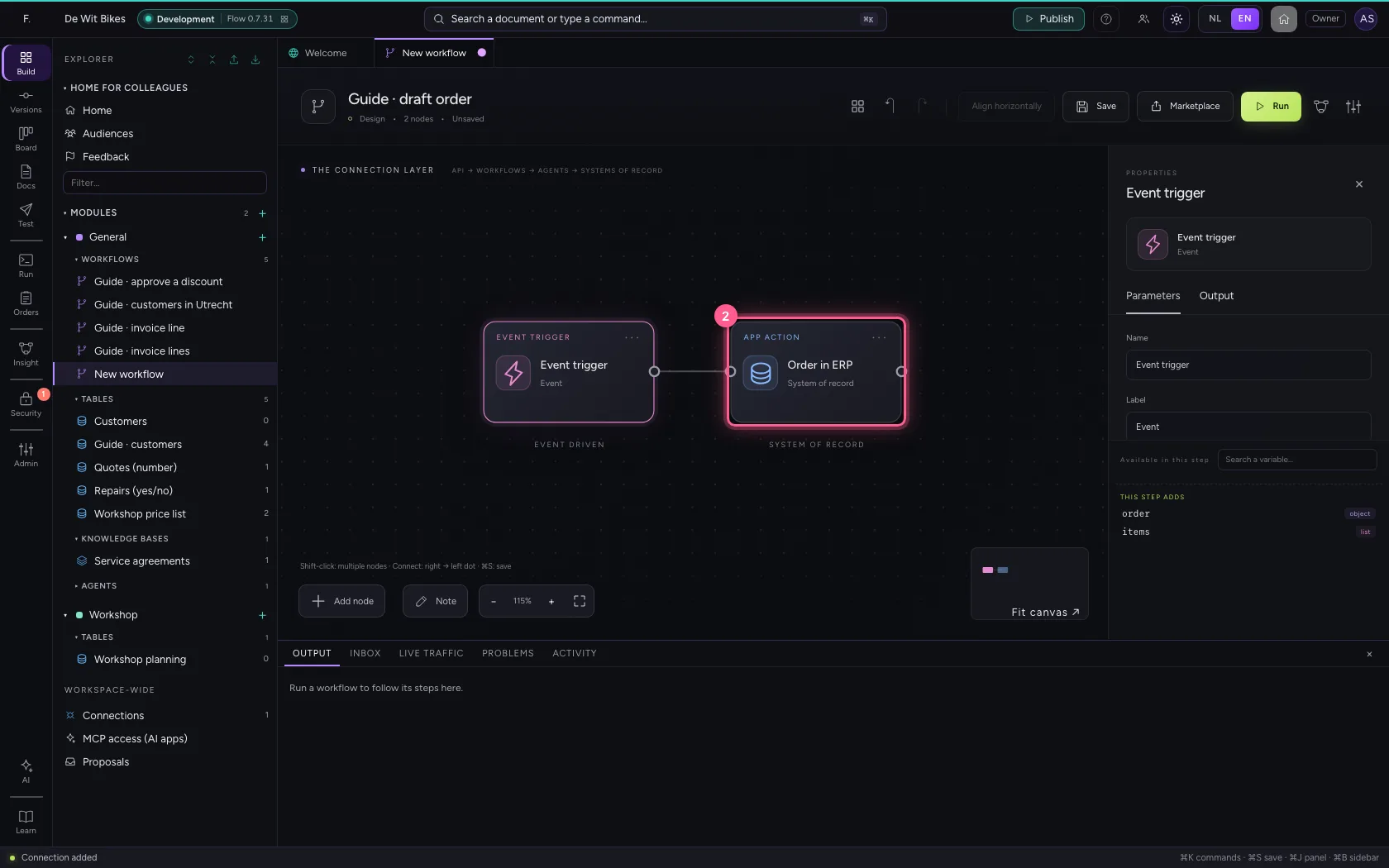
- Click Align horizontally
- Click Fit to view
- Click Save
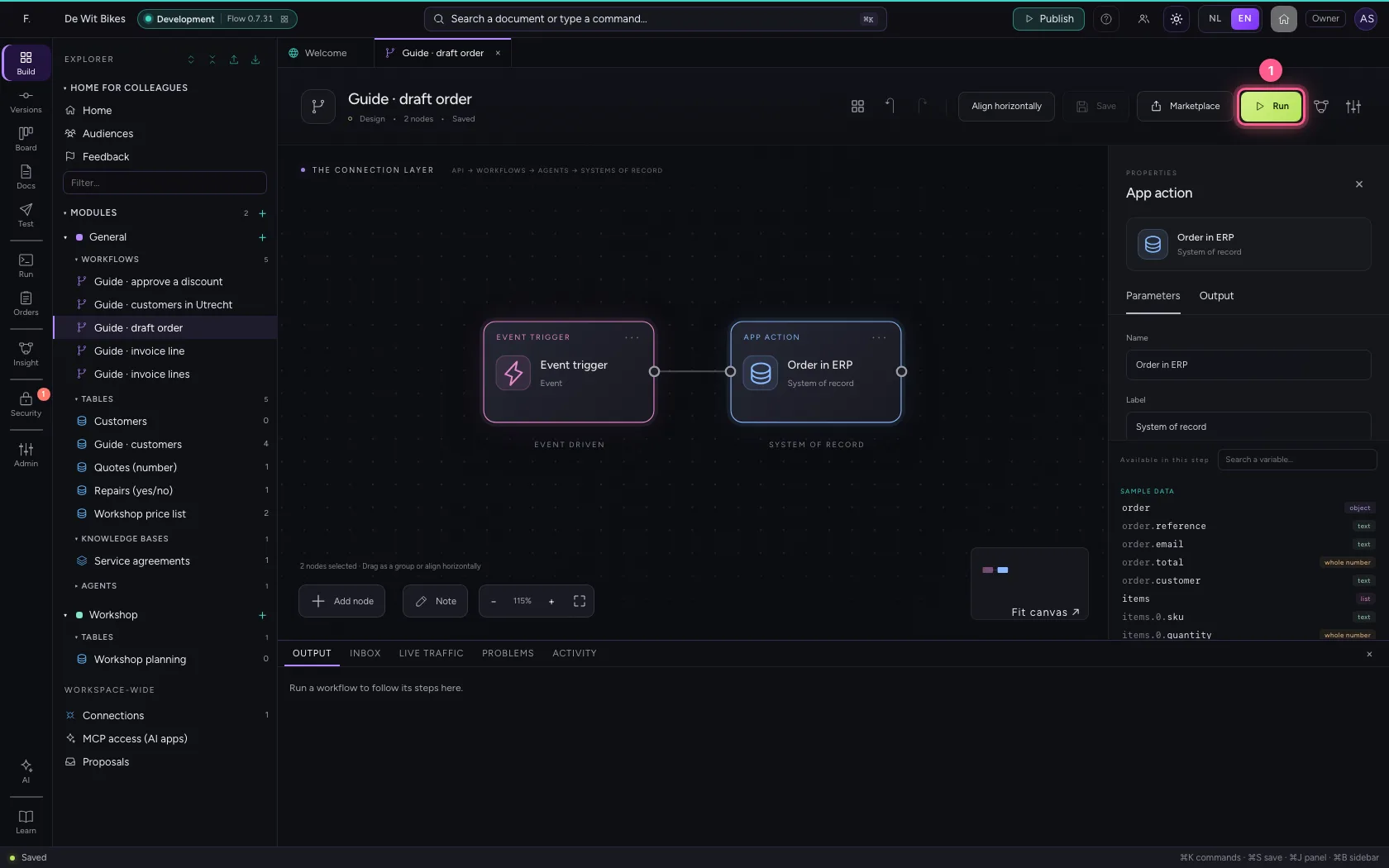
Run
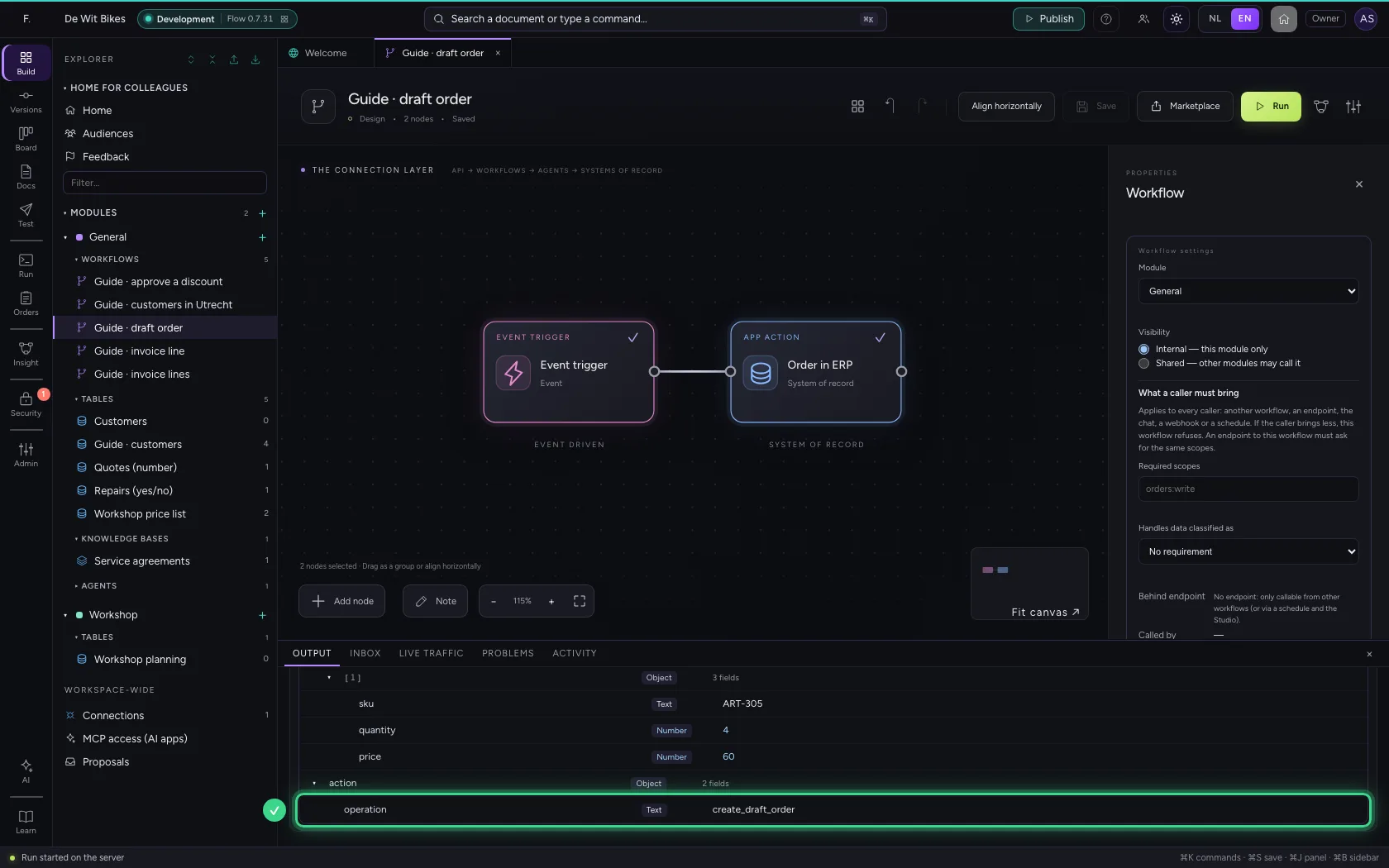
At the bottom you see the write action was recorded as a draft: nothing was sent to the system of record. Under Data after the run is action, with the operation and the status draft.
- Click Run
This guide was carried out step by step on 22 Oct 2026 by an automated test on Flow (version 3e563176).