The home together
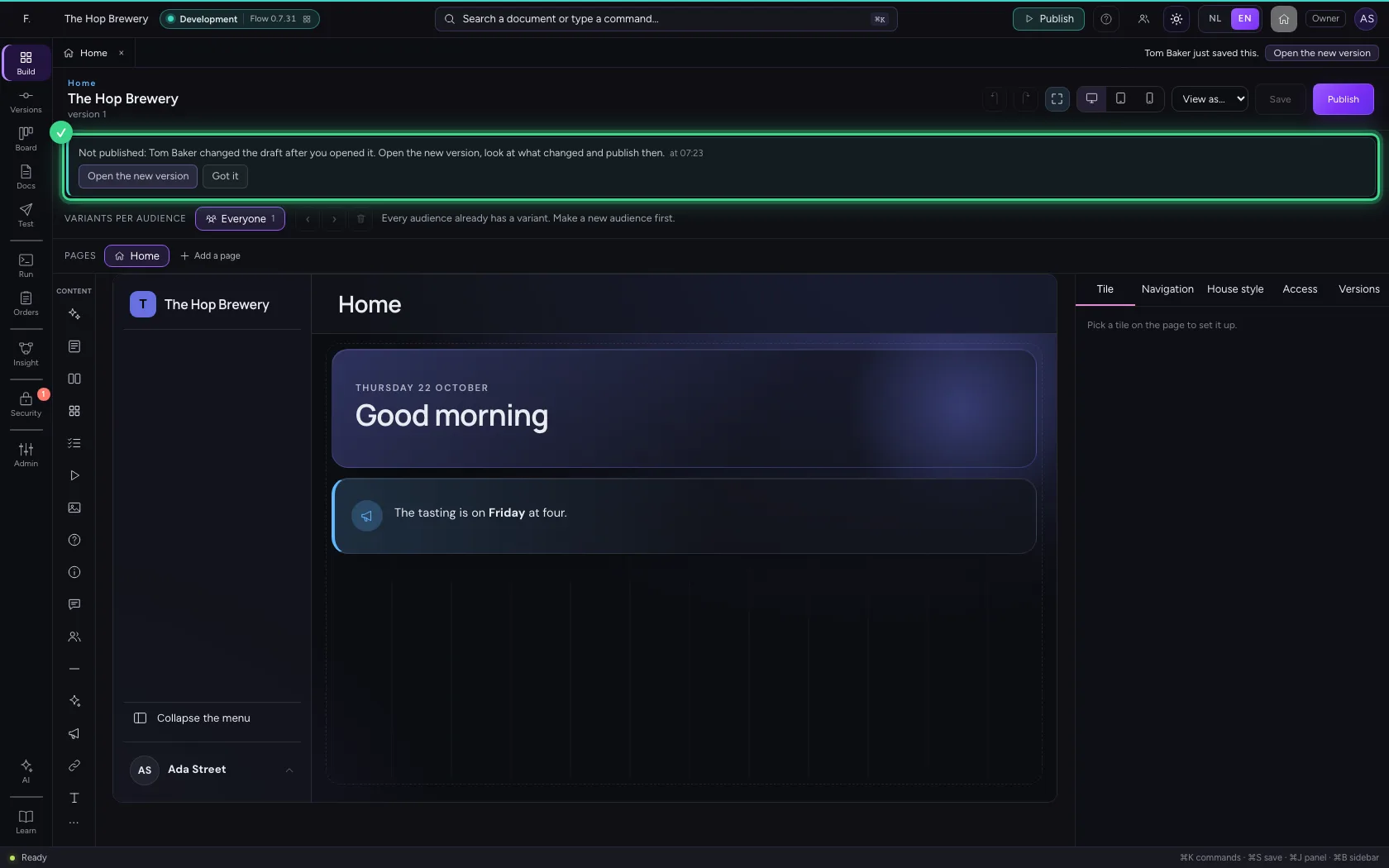
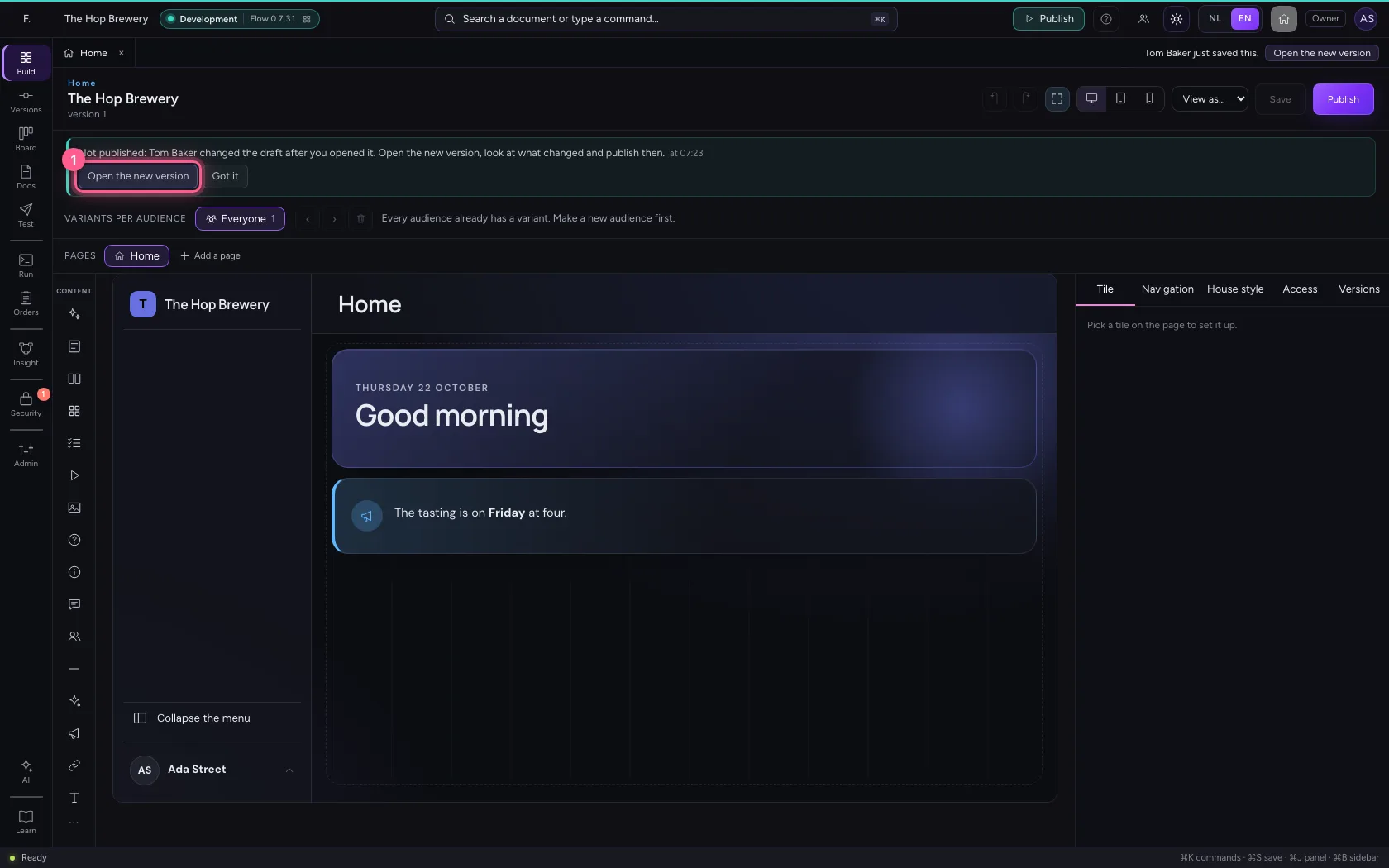
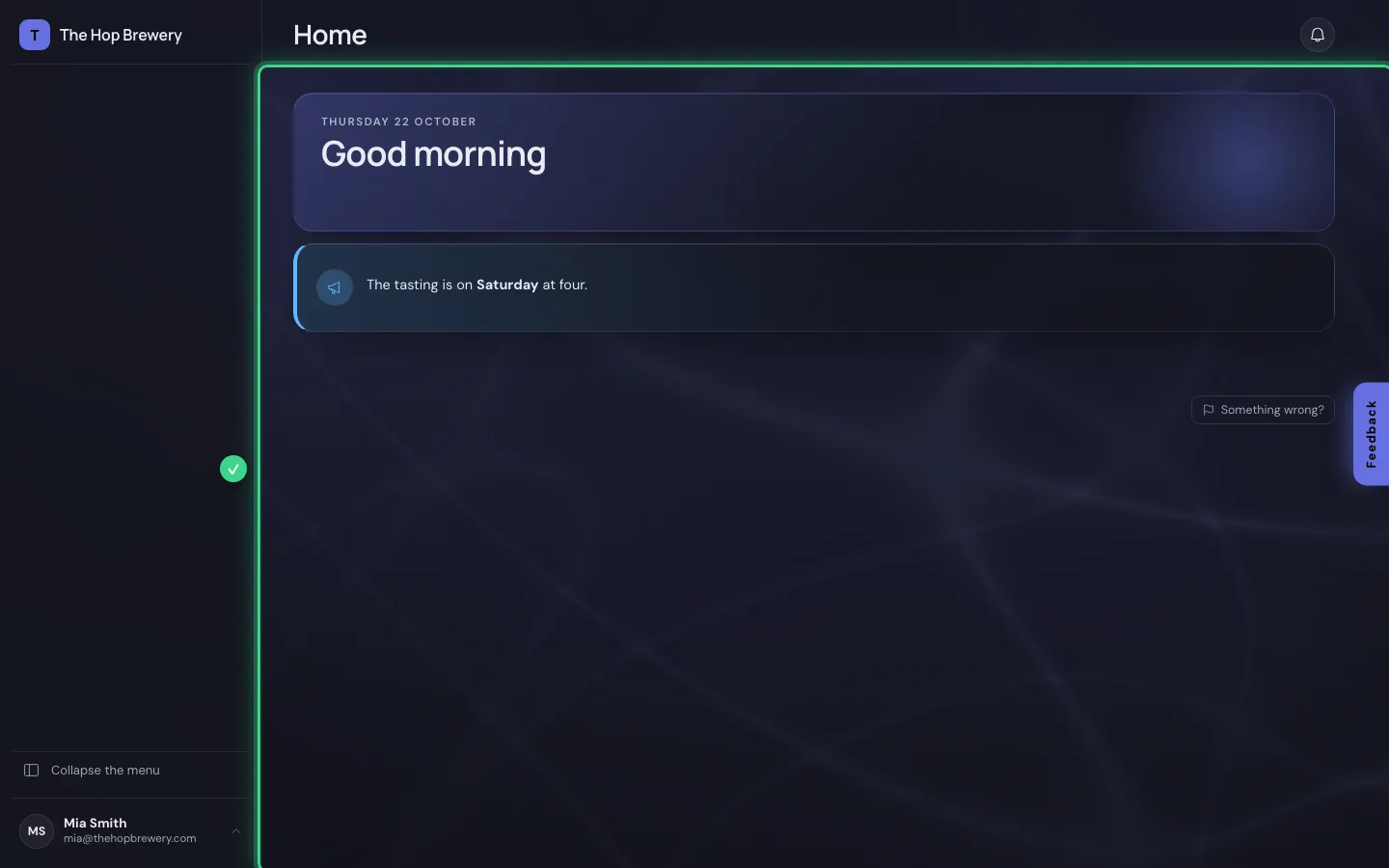
When two people build the home, publishing never goes over the other's work: when a colleague saved the home after you opened it, Flow asks you to open that version first. And colleagues reading the home at that moment calmly see that there is a new version; they choose when to look at it, the page never jumps under their eyes.
Open your development environment
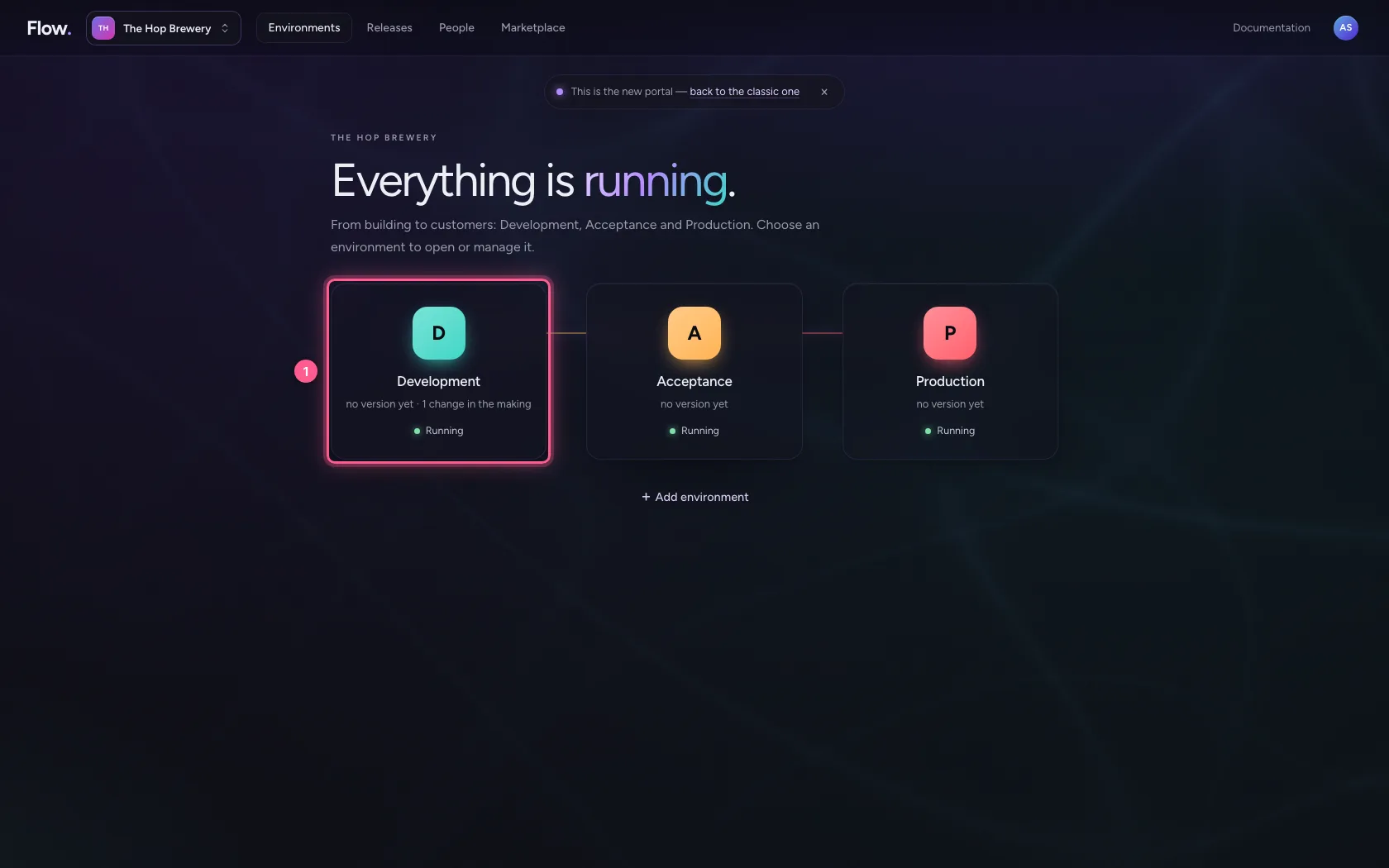
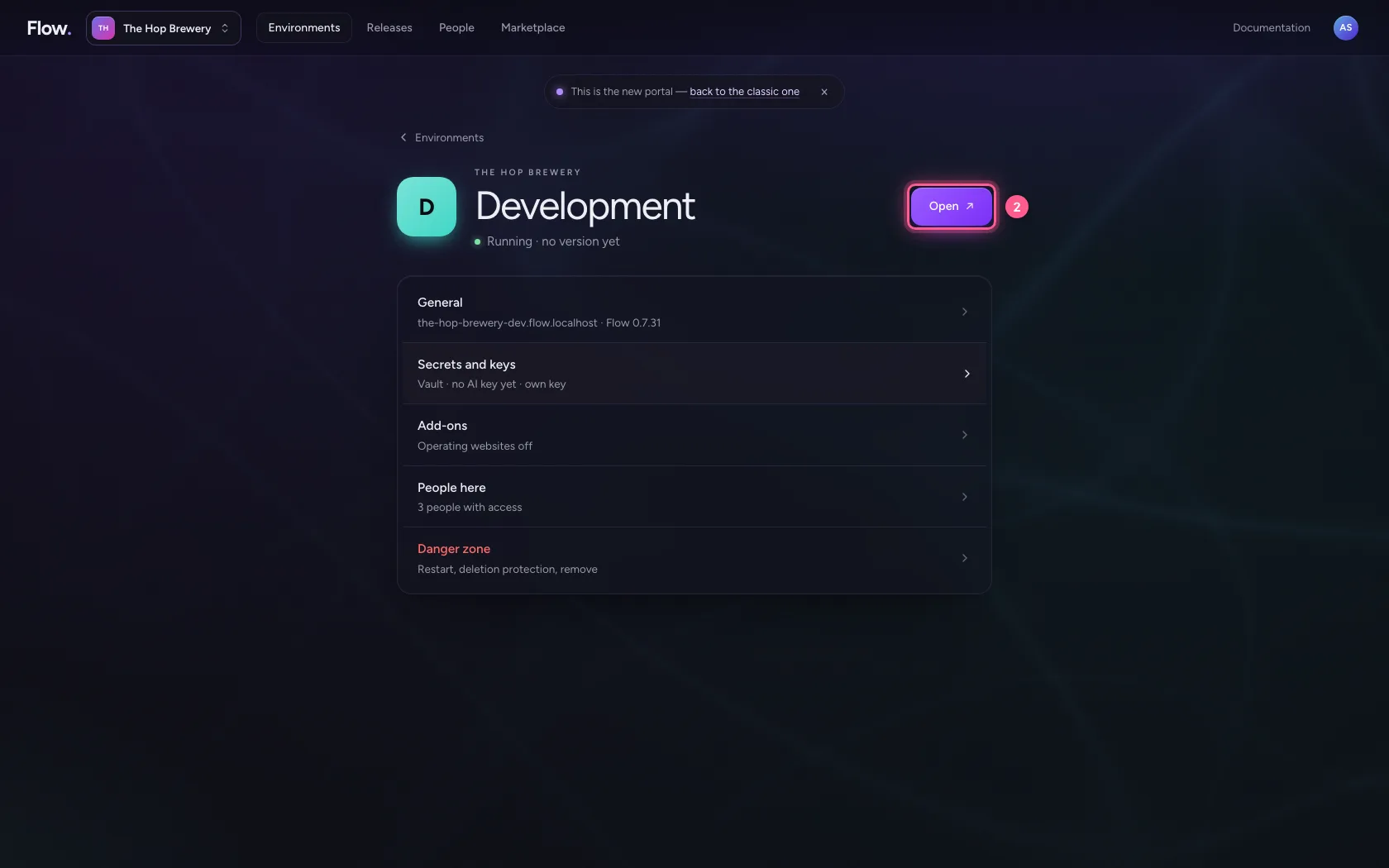
In the portal, under Environments, click Development, and there Open. Flow opens in a new tab and you are signed in straight away.
- Click Development
- Click Open ↗
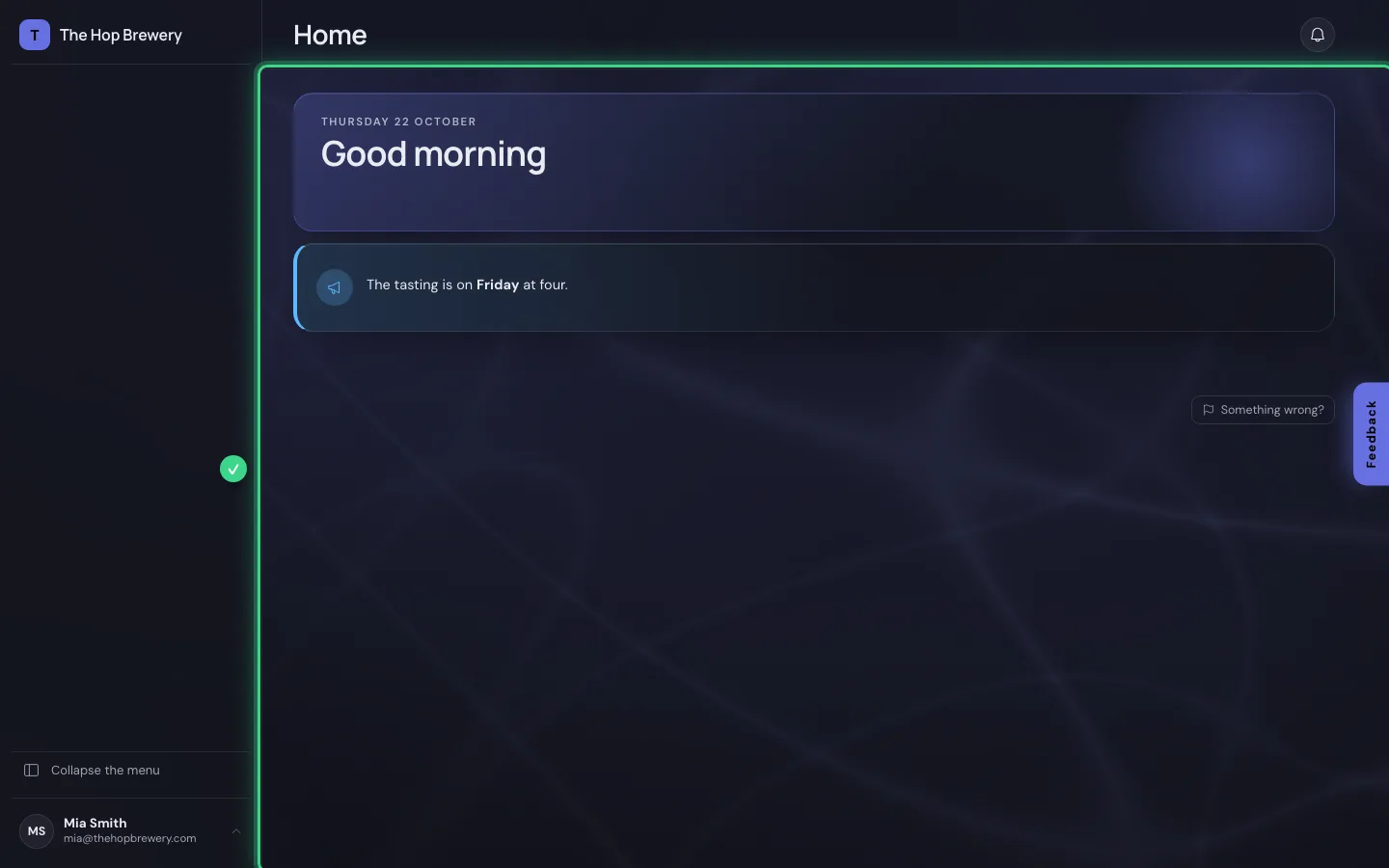
A colleague reads the home
This is Mia Smith's screen: the home as colleagues see it, with the notice about the tasting.
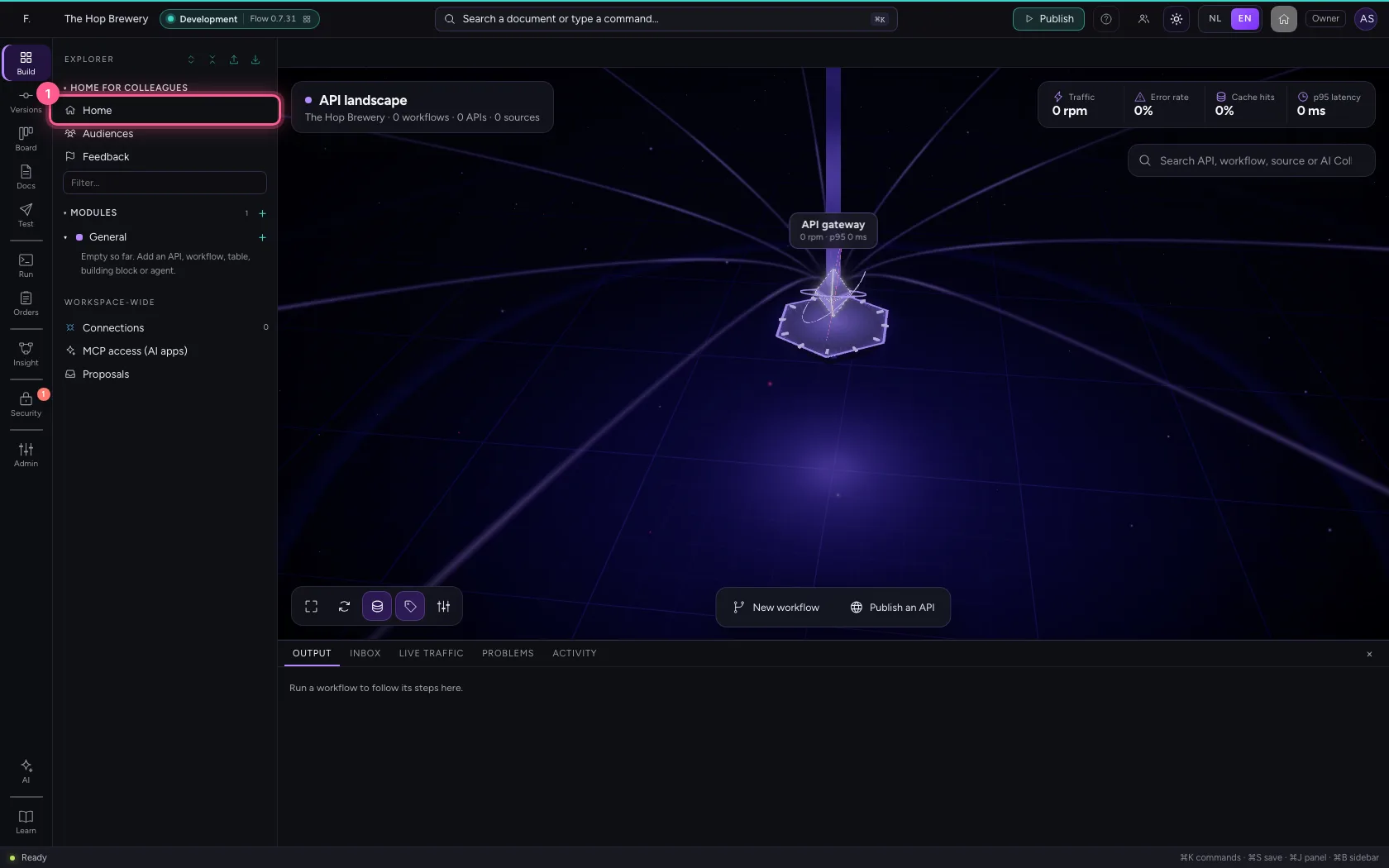
Open the home in the studio
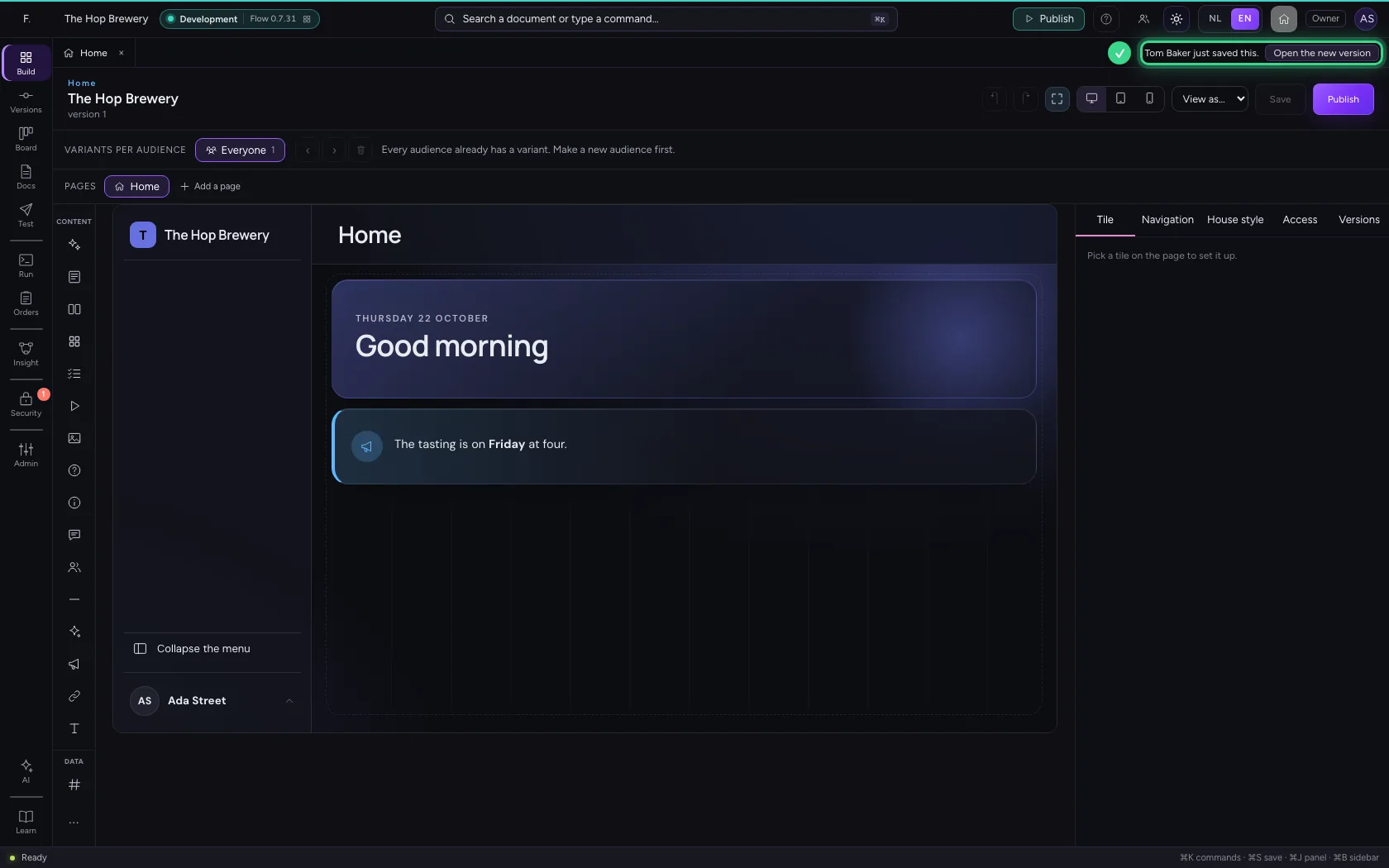
You change the home. Tom Baker works on it too: he moves the tasting to Saturday and saves.
- Click Home
Publishing after a colleague
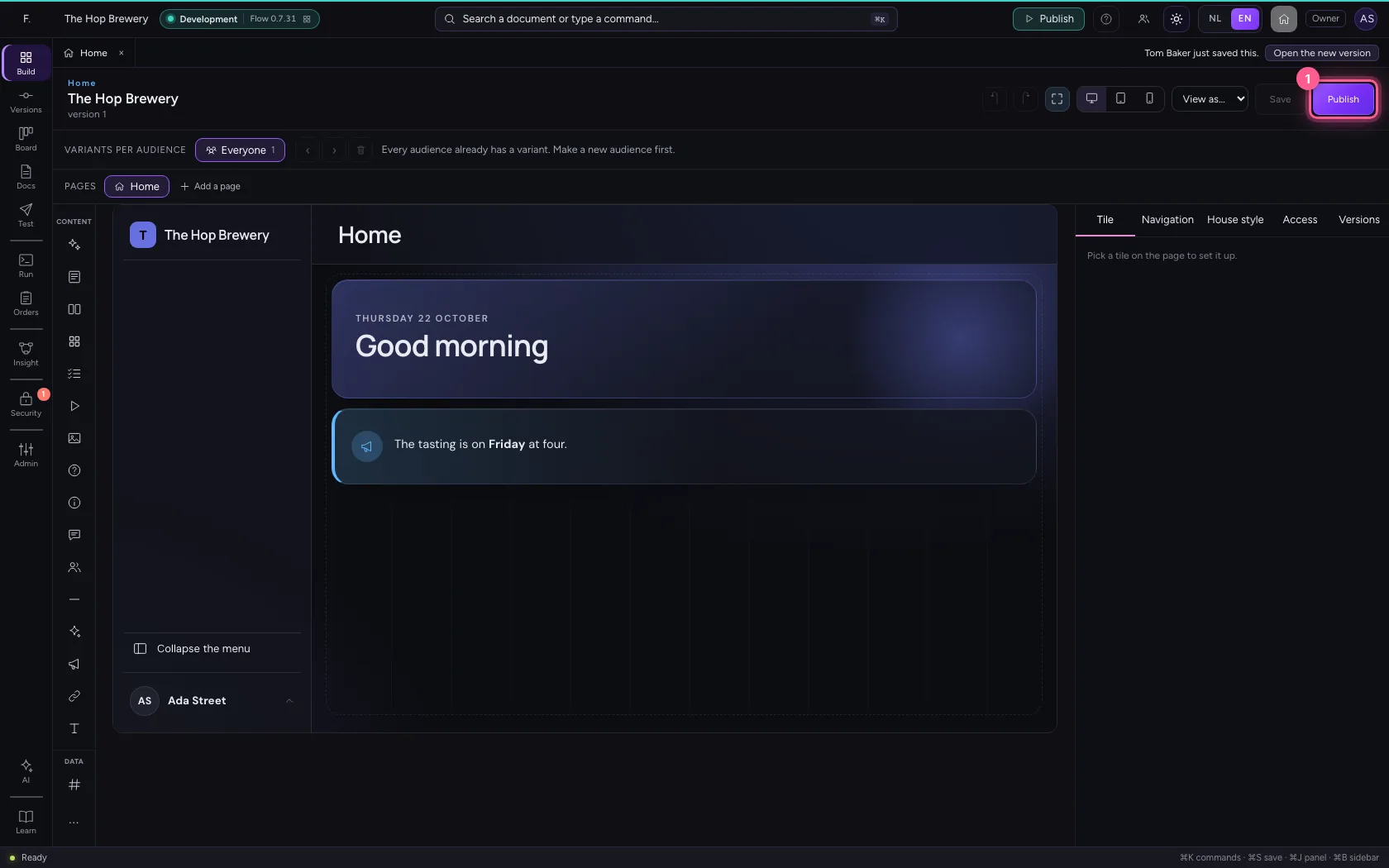
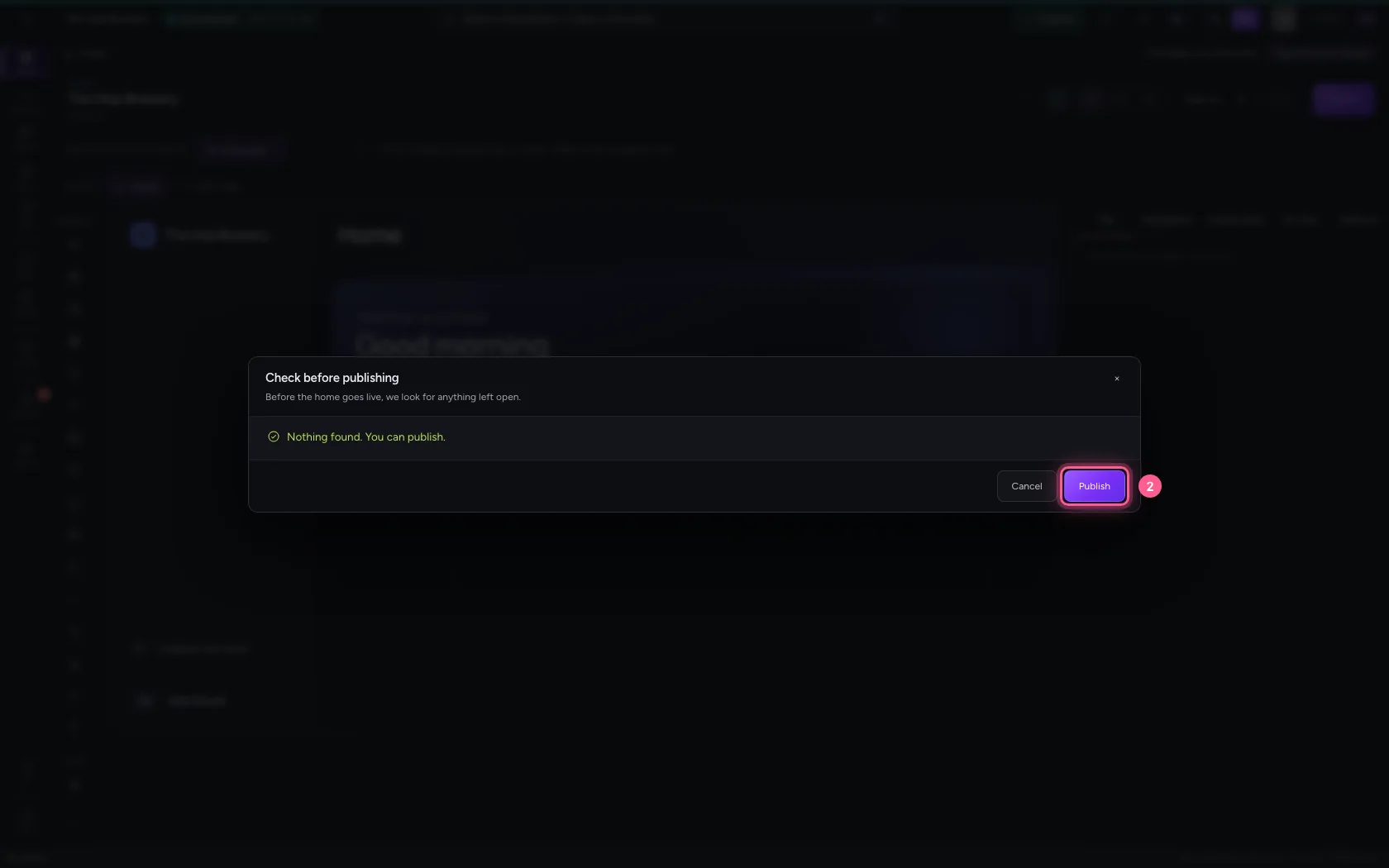
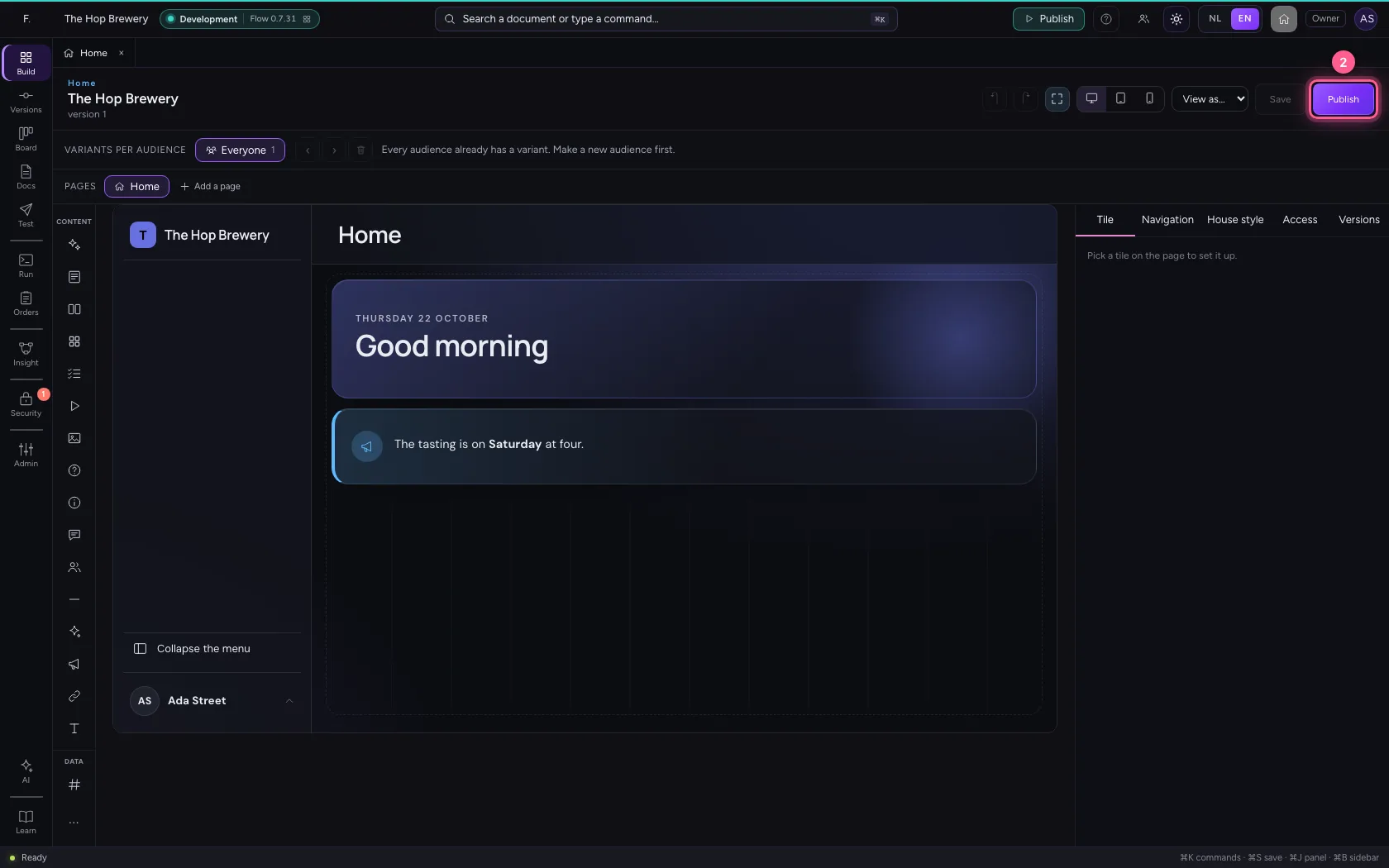
You press Publish. Tom Baker's work does not go live unseen under your name: Flow says who changed the draft after you opened it.
- Click Publish
- Click Publish
Open his version and publish
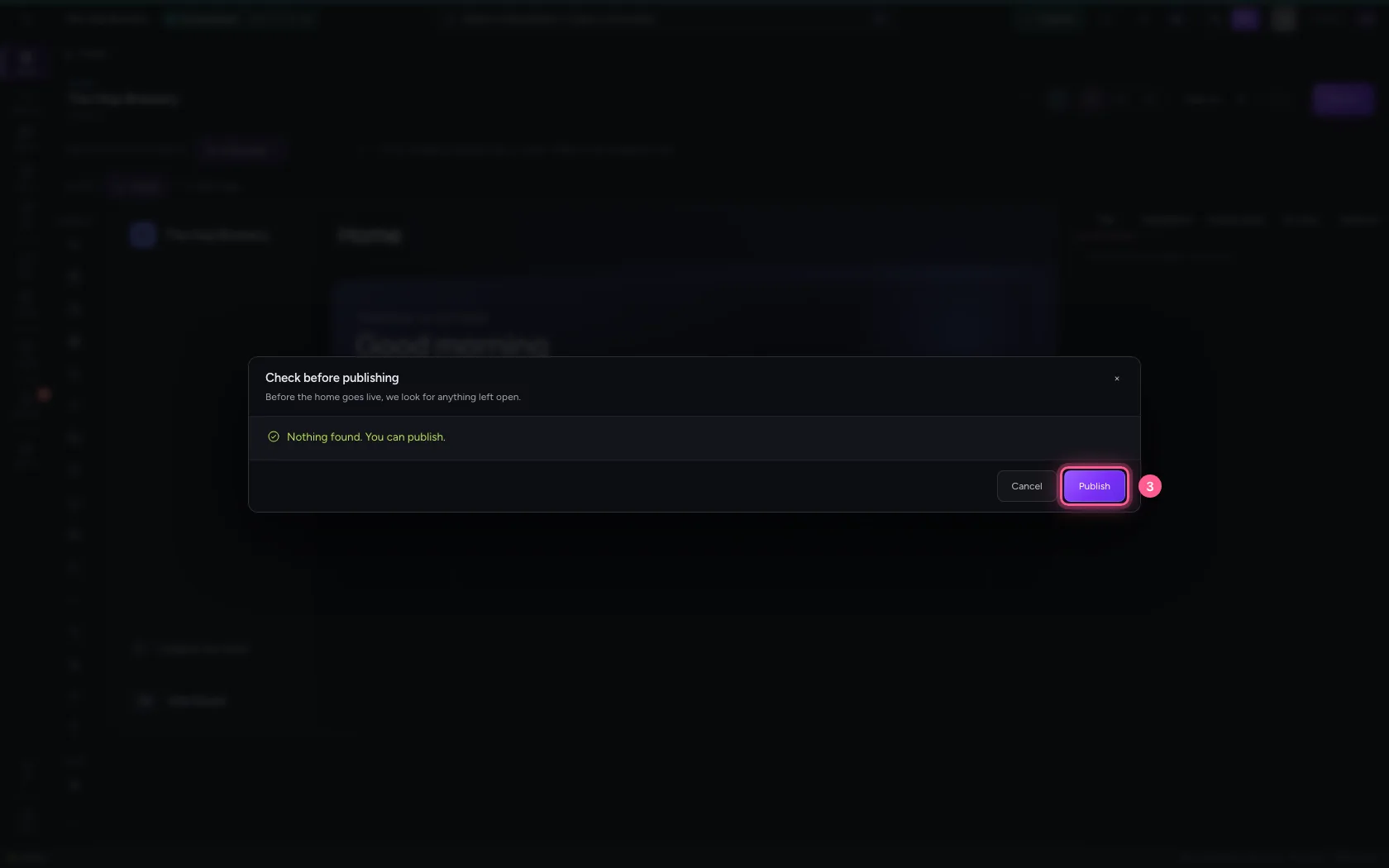
Open the new version shows what your colleague did. If it is right, you publish.
- Click Open the new version
- Click Publish
- Click Publish
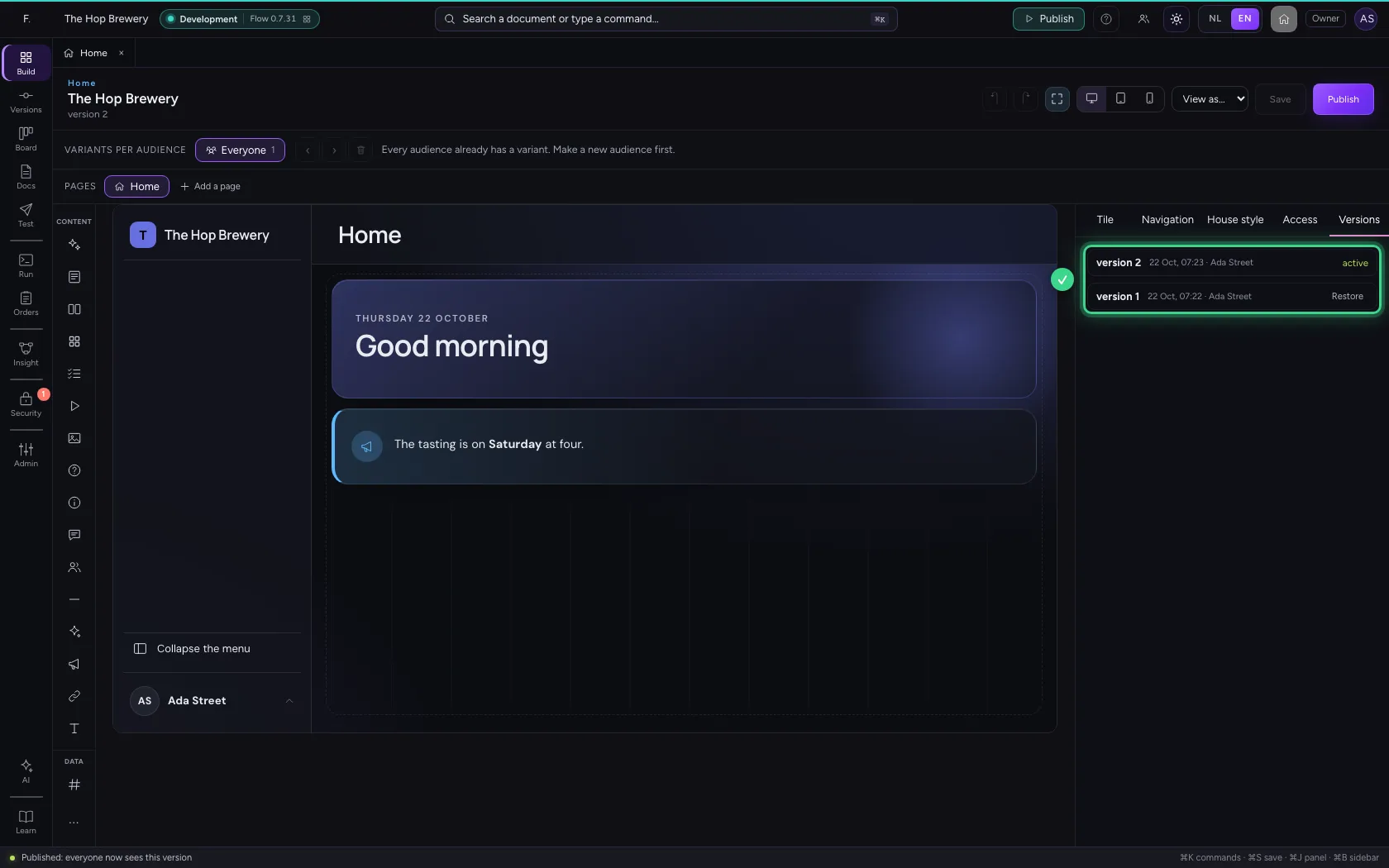
Your colleague sees there is a new version
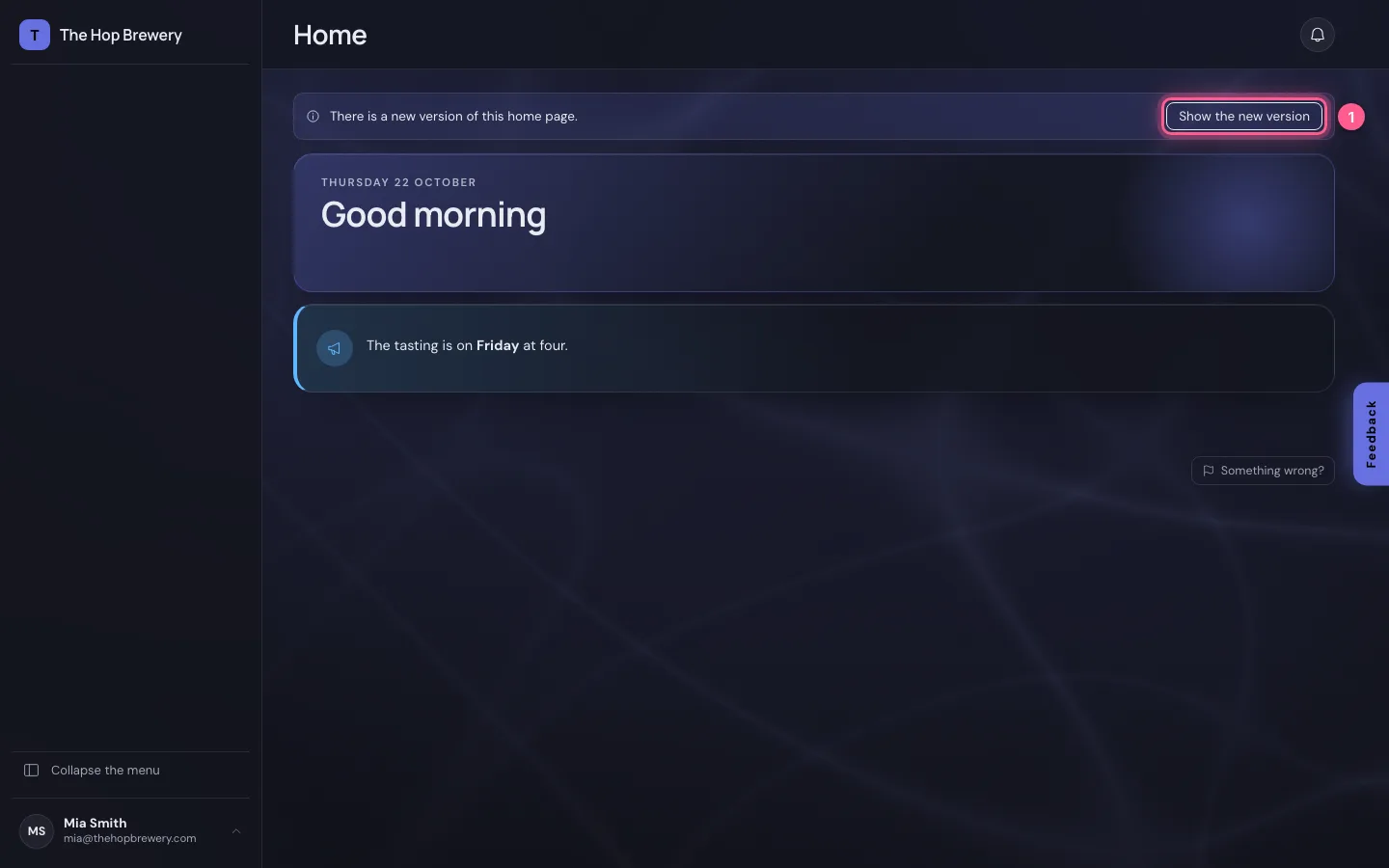
On Mia Smith's screen the page does not jump: a calm line says there is a new version (as soon as she comes back to the window, or within a minute). She chooses when to look at it.
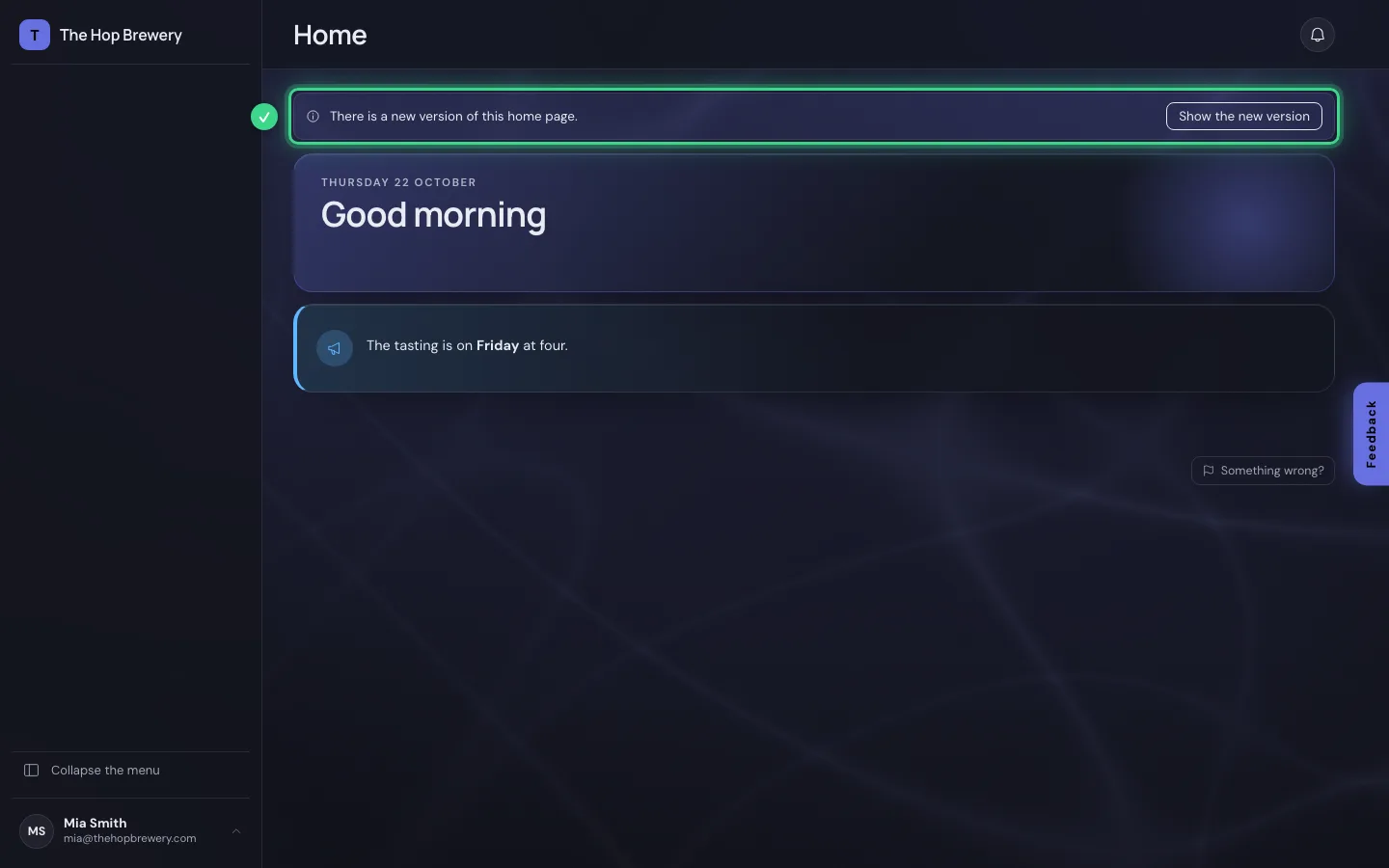
- Click Show the new version
This guide was carried out step by step on 22 Oct 2026 by an automated test on Flow (version 3e563176).