Let Claude Desktop build your home
With MCP access an AI app such as Claude Desktop builds the home for you: it starts from one of Flow's well-composed examples, sets the house style and the logo, lays out the tiles, has the security check done and publishes. It acts as you and can never do more than your role; changing rights and accepting a risk remain work for people.
Give Claude Desktop access
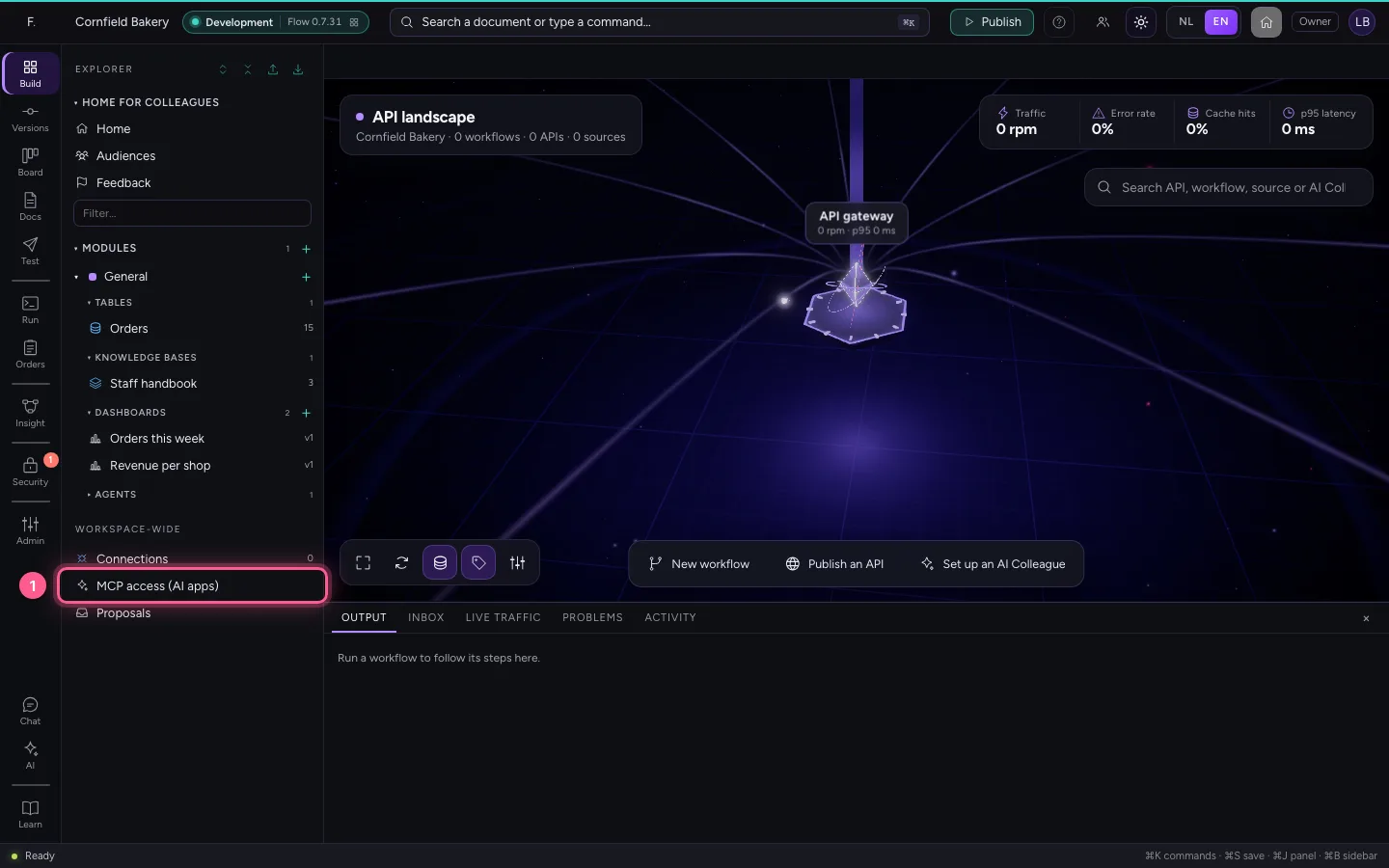
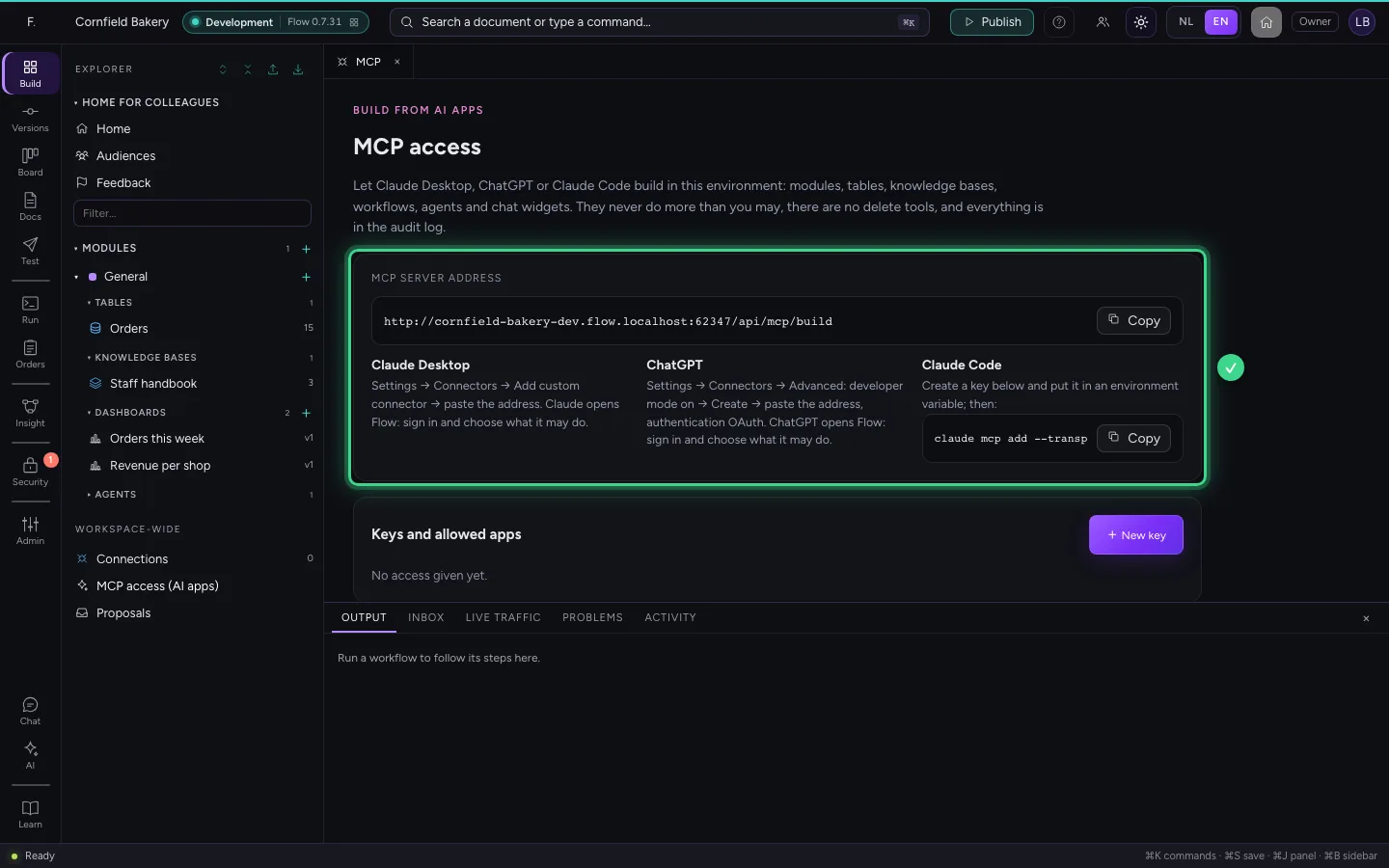
At the bottom of the explorer is MCP access (AI apps). Add the MCP server's address to Claude Desktop as a custom connector and choose Read and Build. The guide Building from Claude Desktop shows this step by step.
- Click MCP access (AI apps)
What Claude Desktop built, in the studio
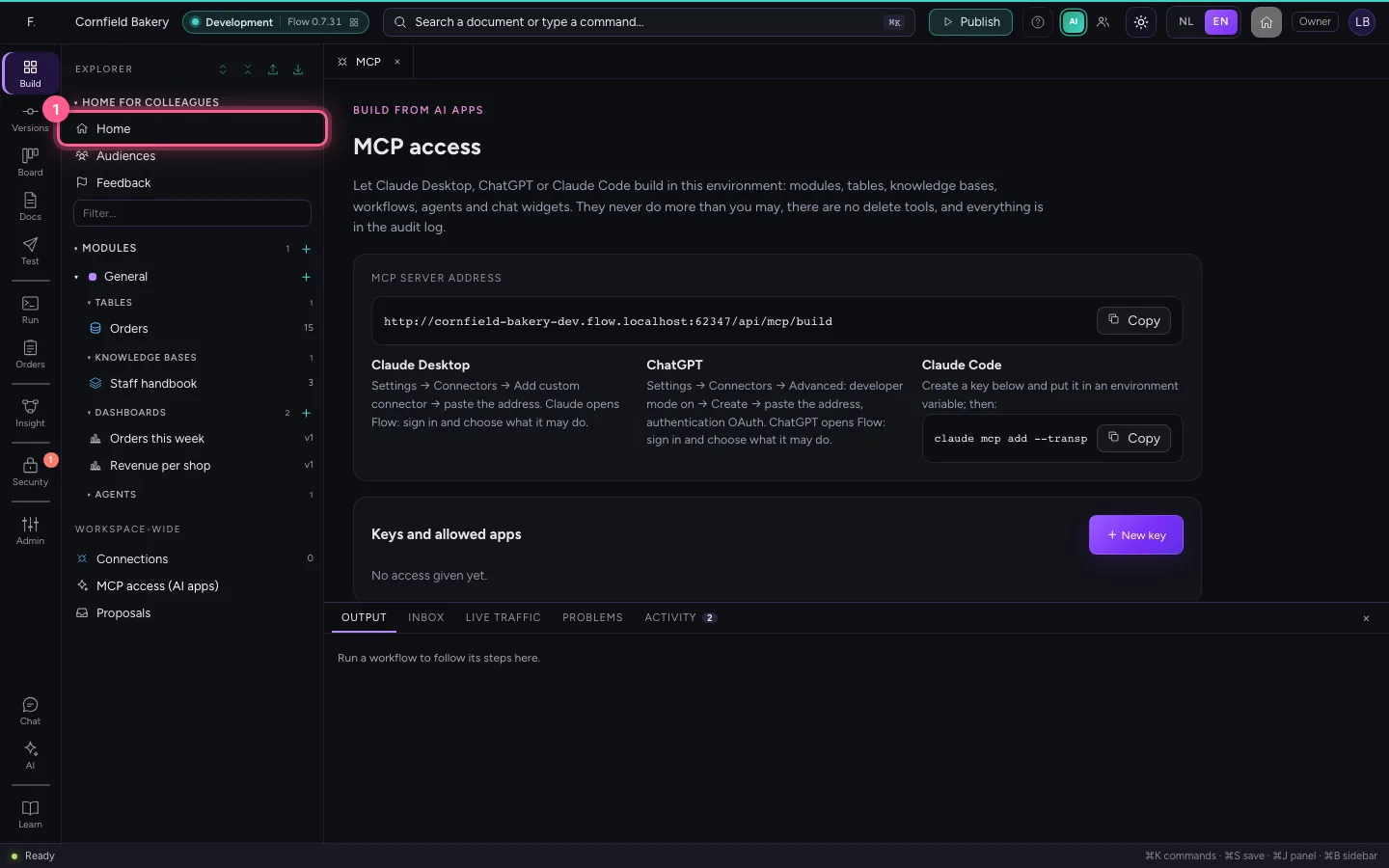
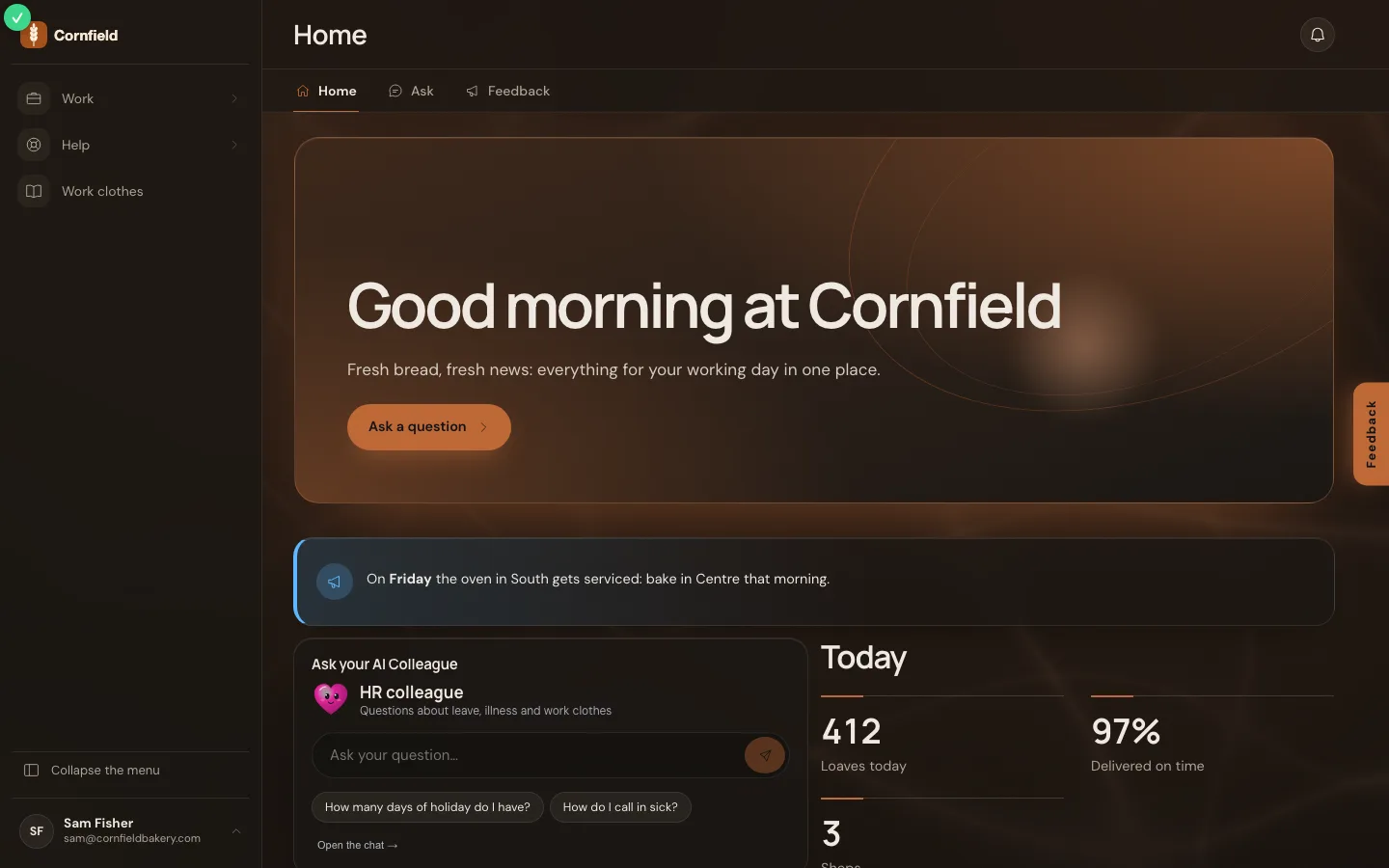
Claude Desktop started from the example Intranet start and made it the bakery's: a welcome, an announcement, the HR colleague's question box, key figures, quick links and a knowledge page in the side menu. It left out the positions or took them from the example; Flow lays the tiles out as the studio does. You can adjust everything here.
- Click Home
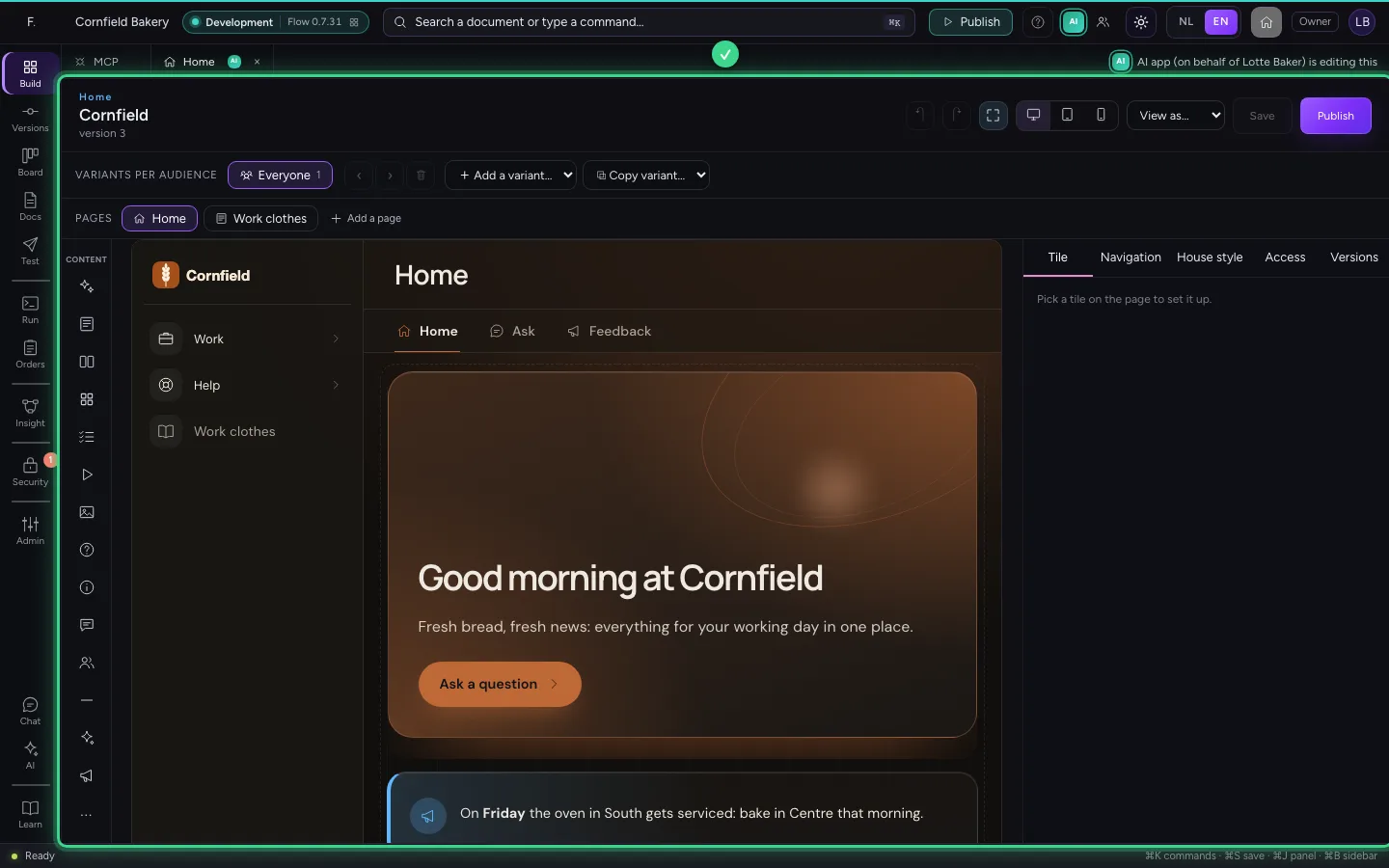
This is what an employee sees
A colleague signs in at the bakery's address and sees the home Claude Desktop published, with the logo, colours and fonts of the house style.
This guide was carried out step by step on 22 Oct 2026 by an automated test on Flow (version 3e563176).