Two owners in the portal
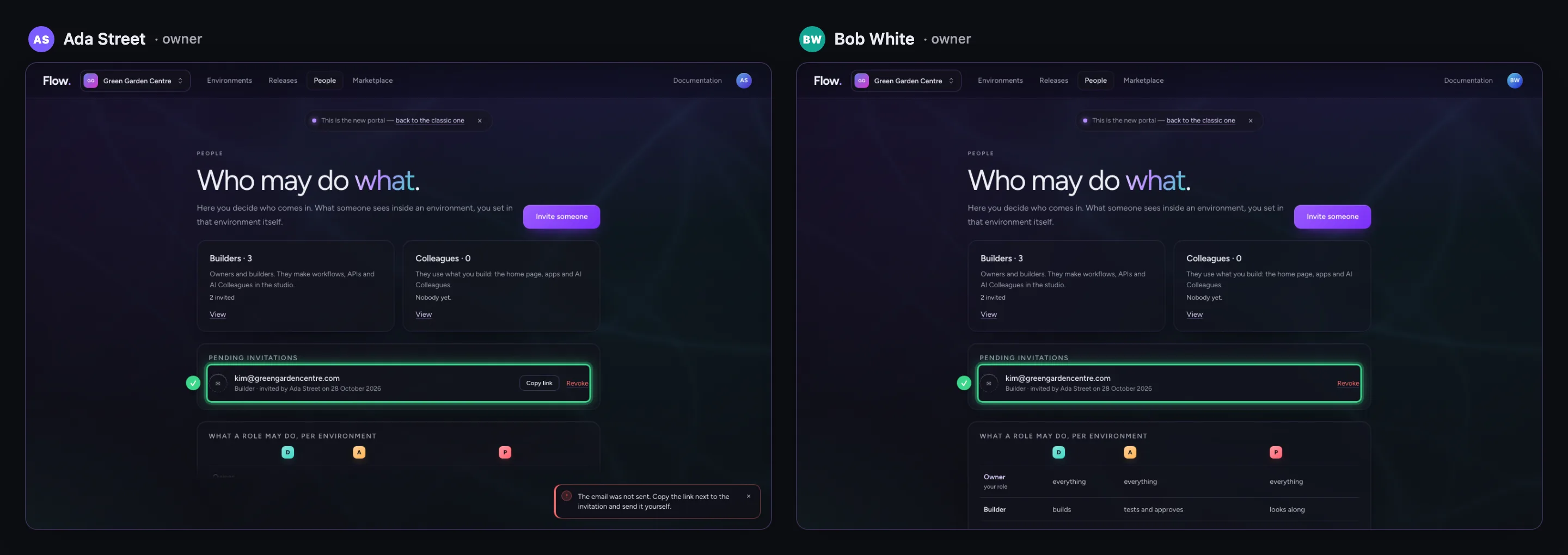
An organisation often has more than one owner, and they do not take turns. People follows what the other does by itself: an invitation from your fellow owner appears in your list, with who sent it. When the other was just ahead of you, the portal says so in plain words, with who and when — and nothing changes that you did not see. Whoever makes themselves less than an owner is asked first. Below you see both owners' screens side by side.
Invite someone
You open People and click Invite someone. Fill in the address, choose the role Builder and invite.
- Click People
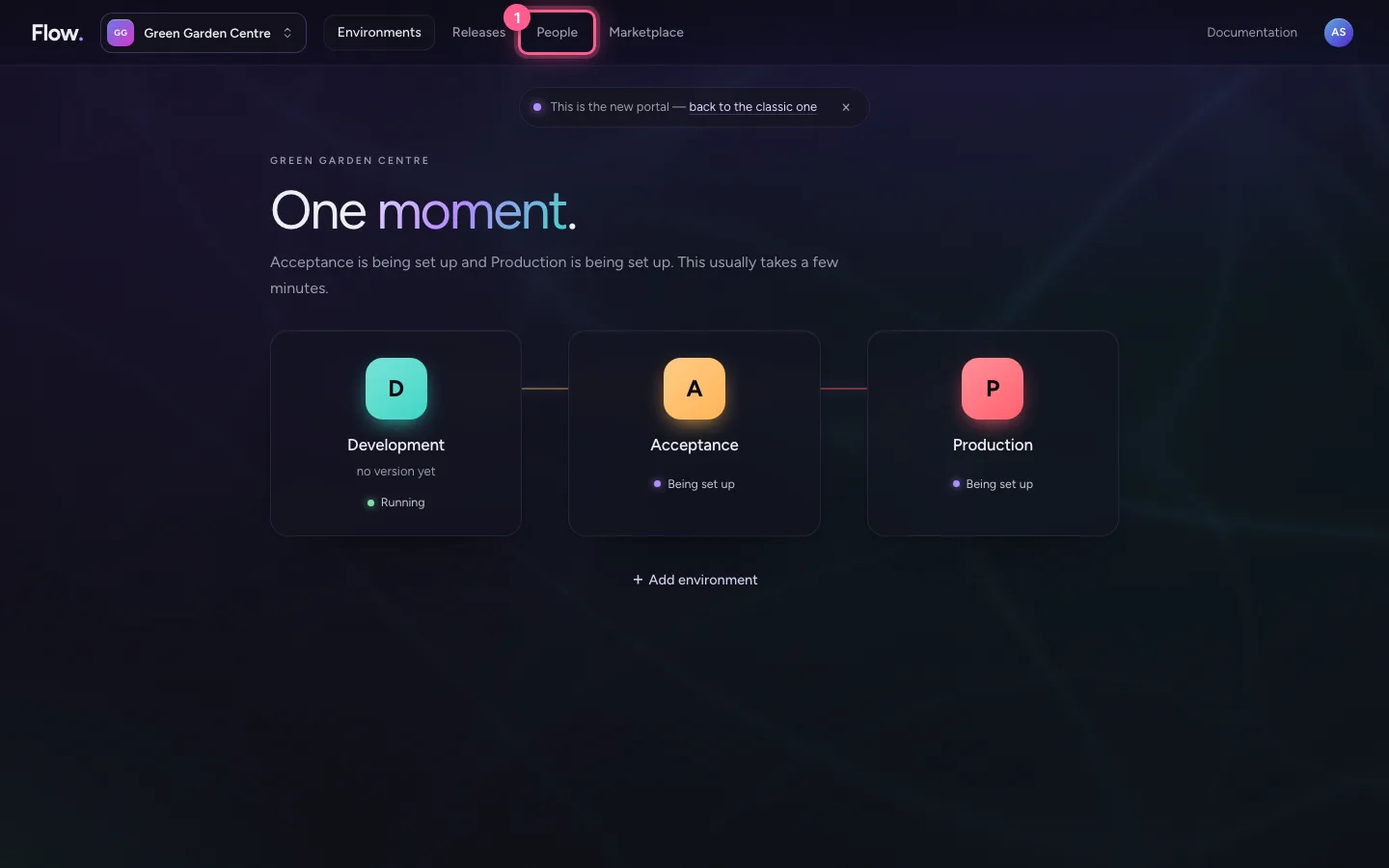
- Click Invite someone
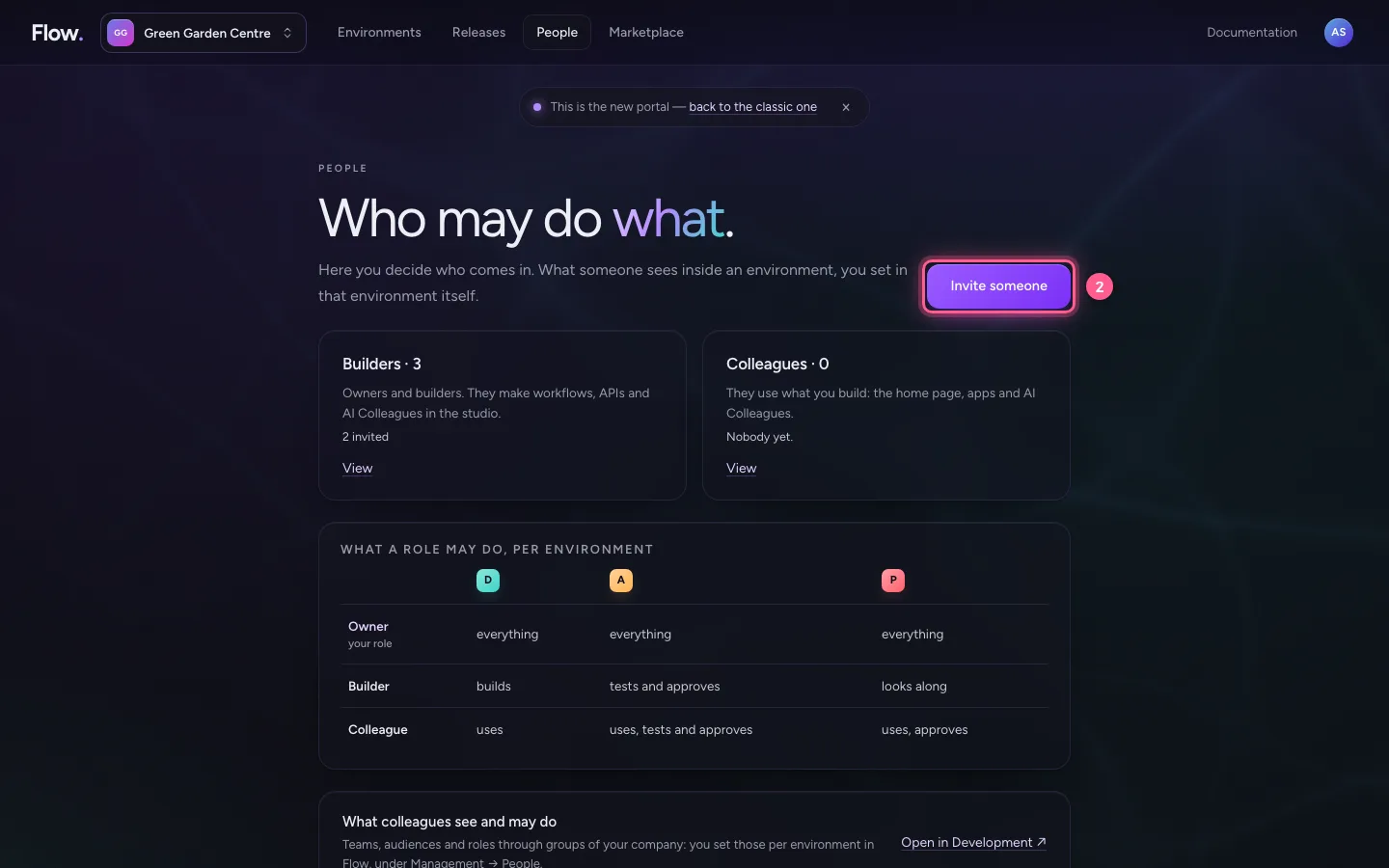
- In Email address, type
kim@greengardencentre.com - In Role, choose Builder
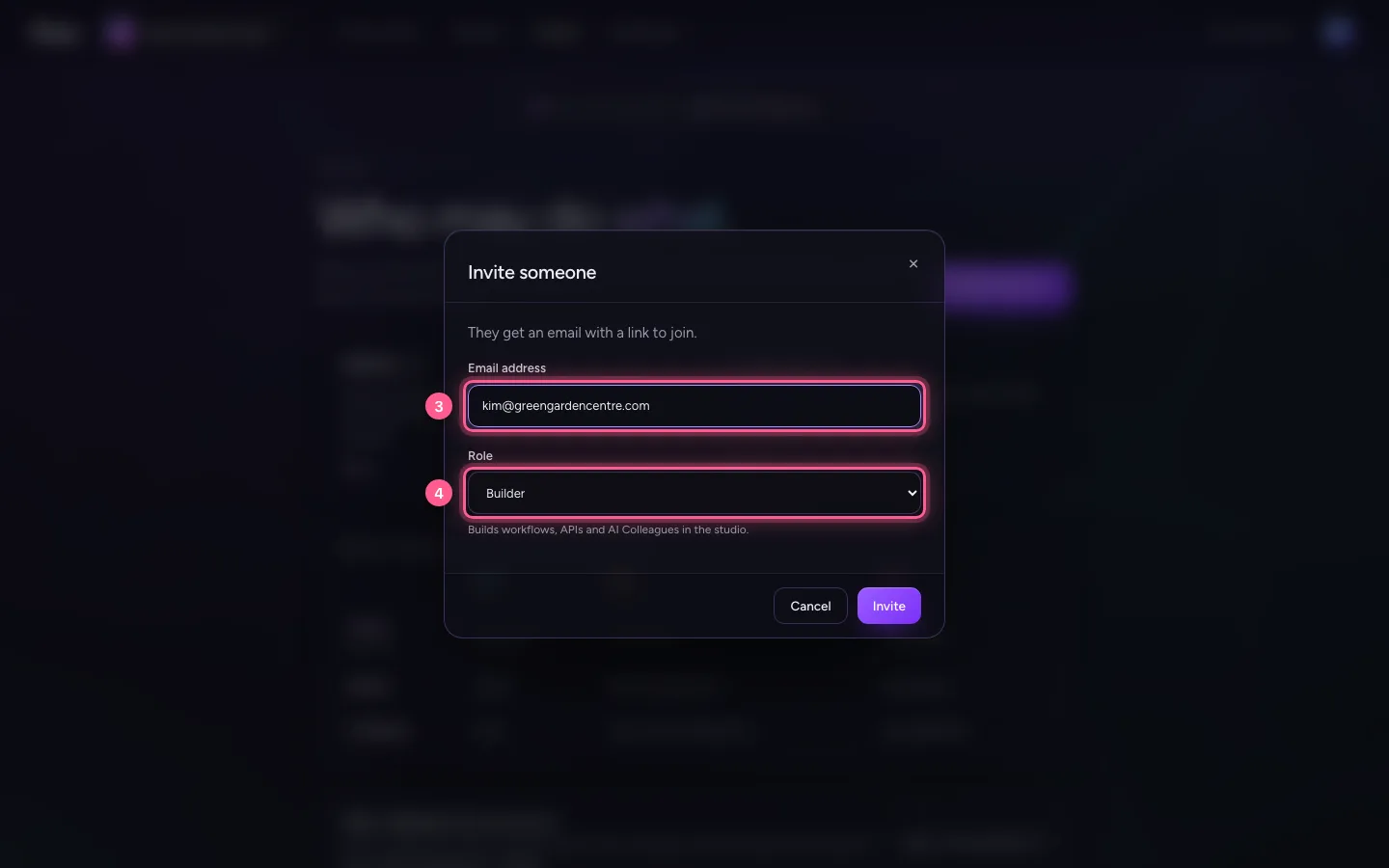
- Click Invite
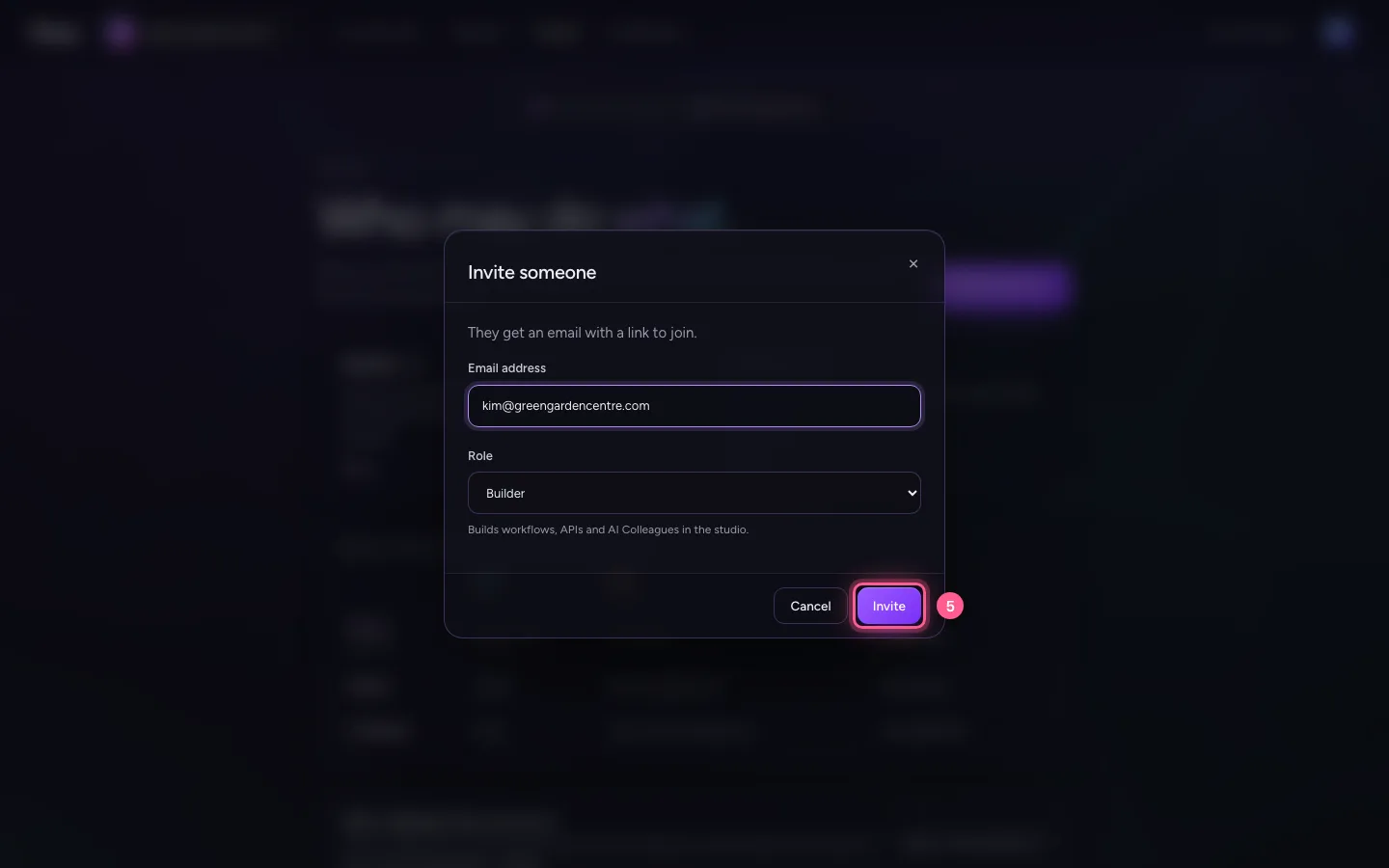
Your fellow owner sees it by itself
Bob already had People open. Without doing anything he sees the invitation in his list, with who sent it.
Inviting the same person twice
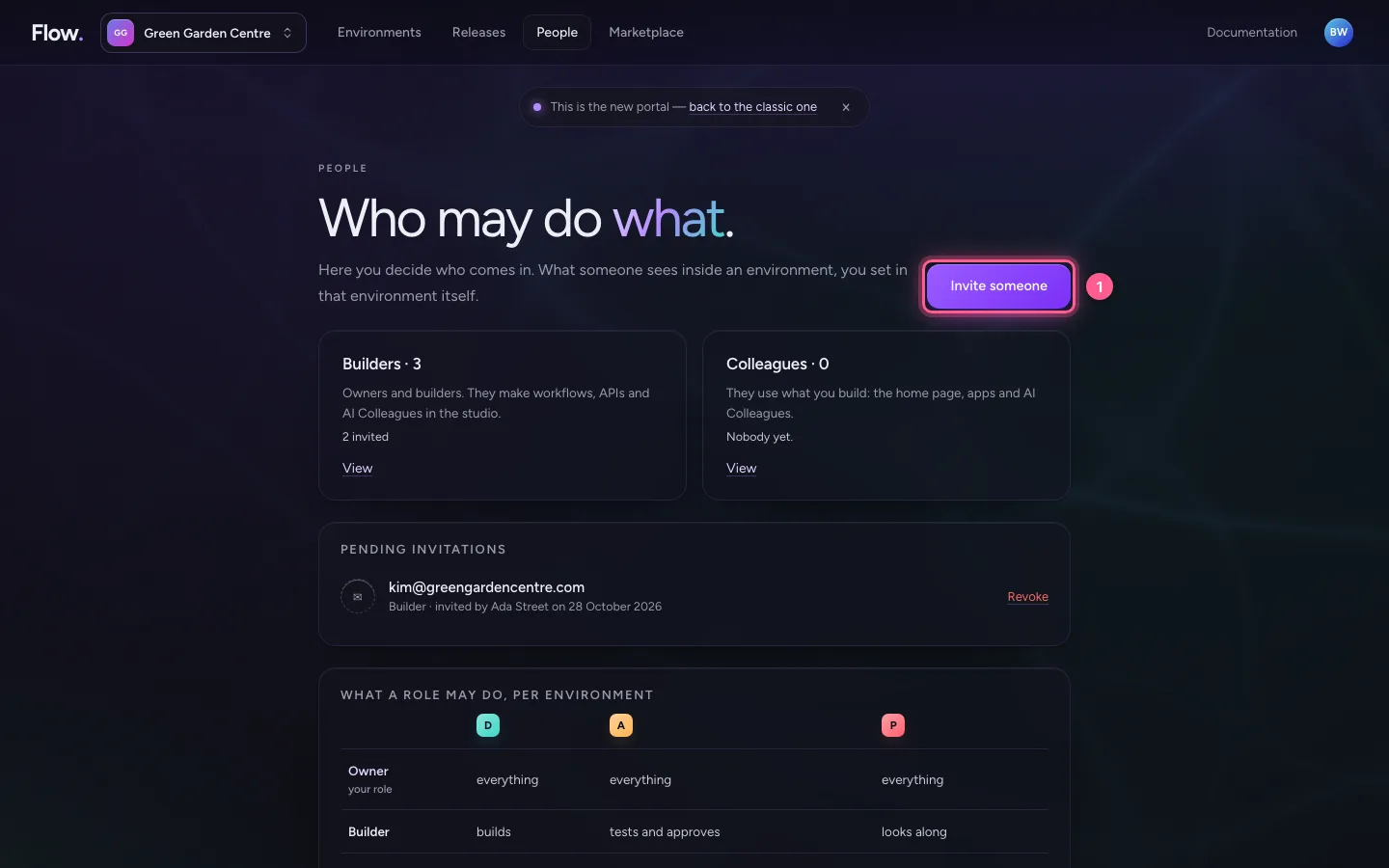
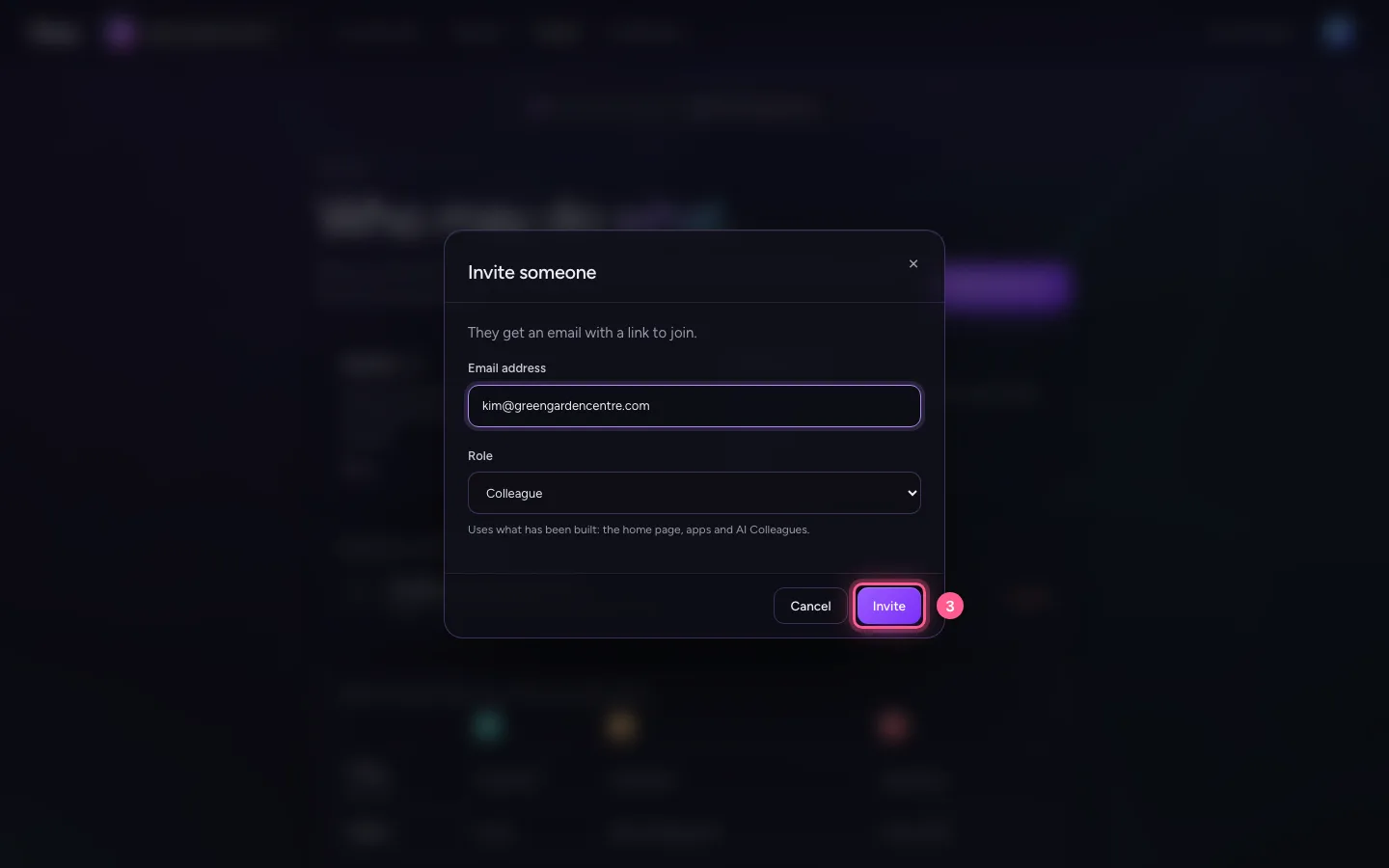
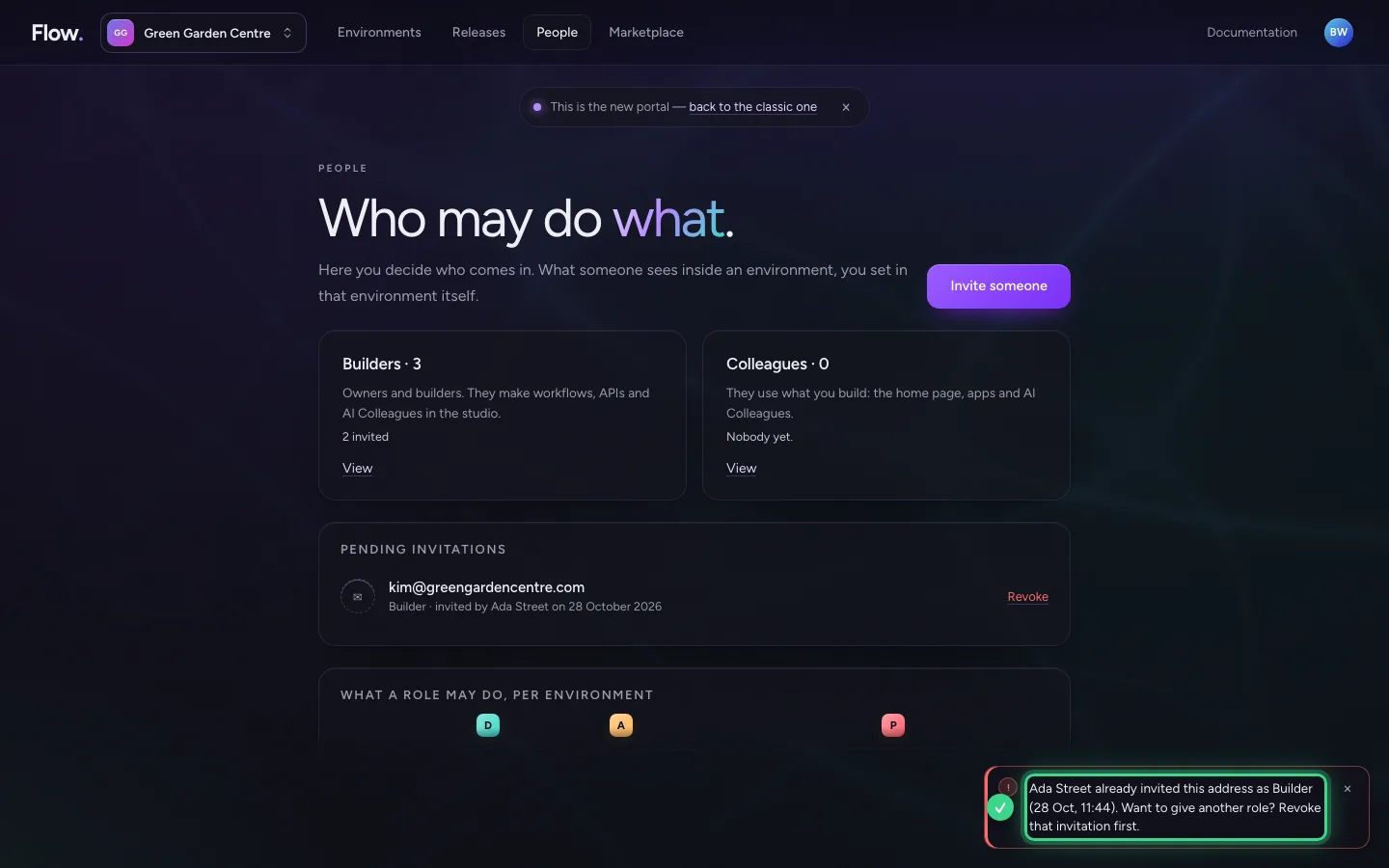
Bob wants to invite Kim too. The portal makes no second invitation, but says who invited her already, as what, and what he can do if he wants another role.
- Click Invite someone
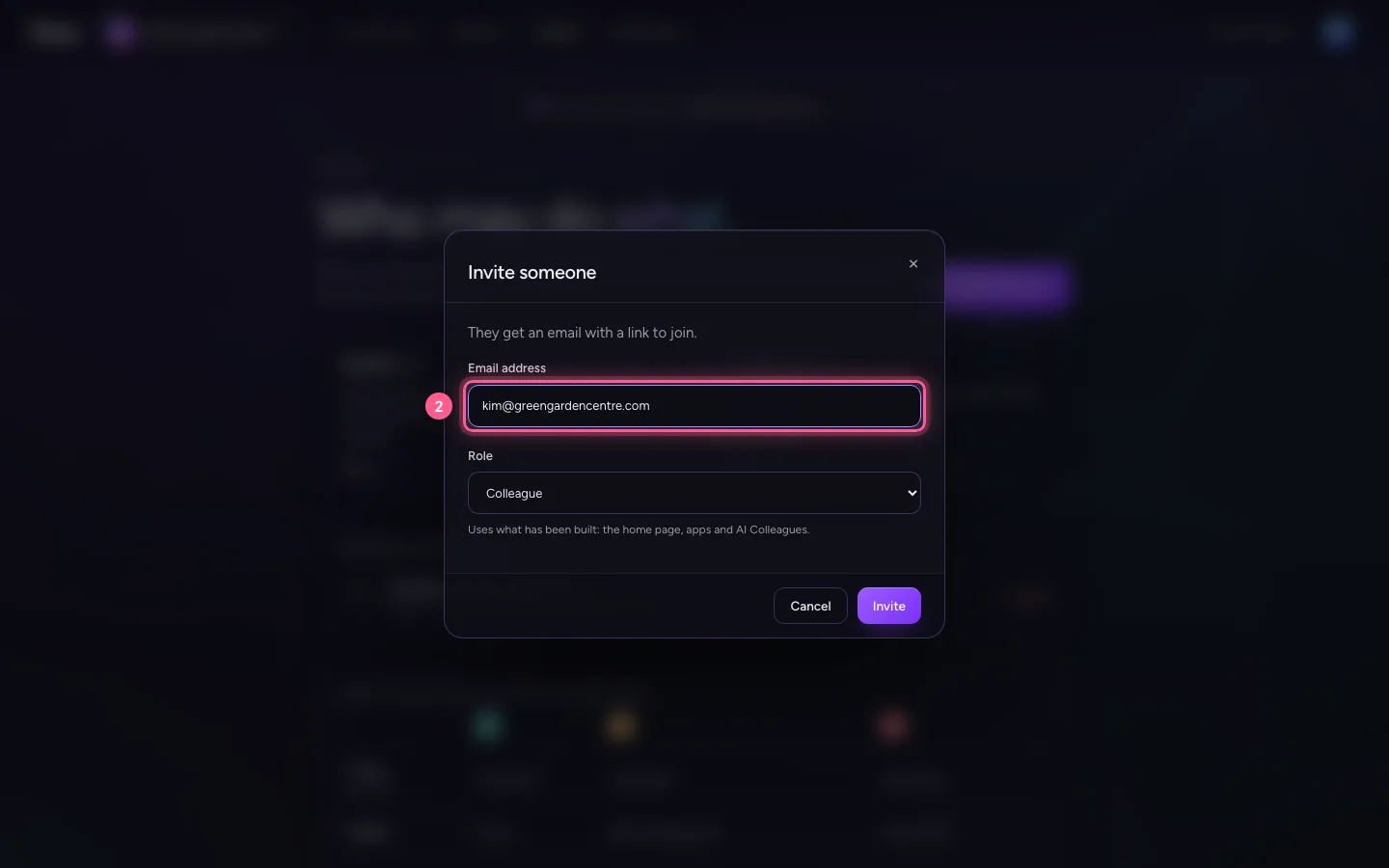
- In Email address, type
kim@greengardencentre.com
- Click Invite
A role on a page from before
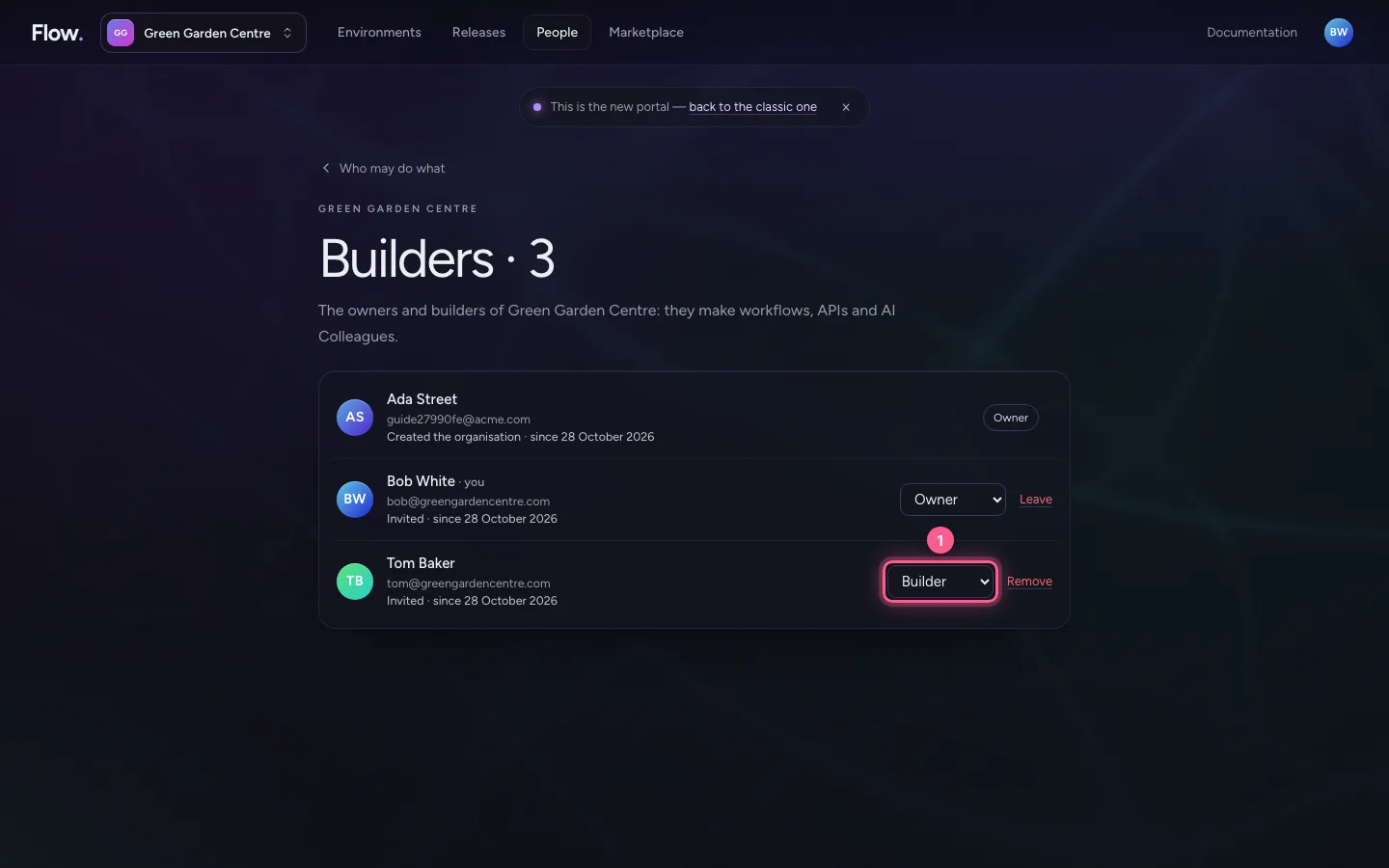
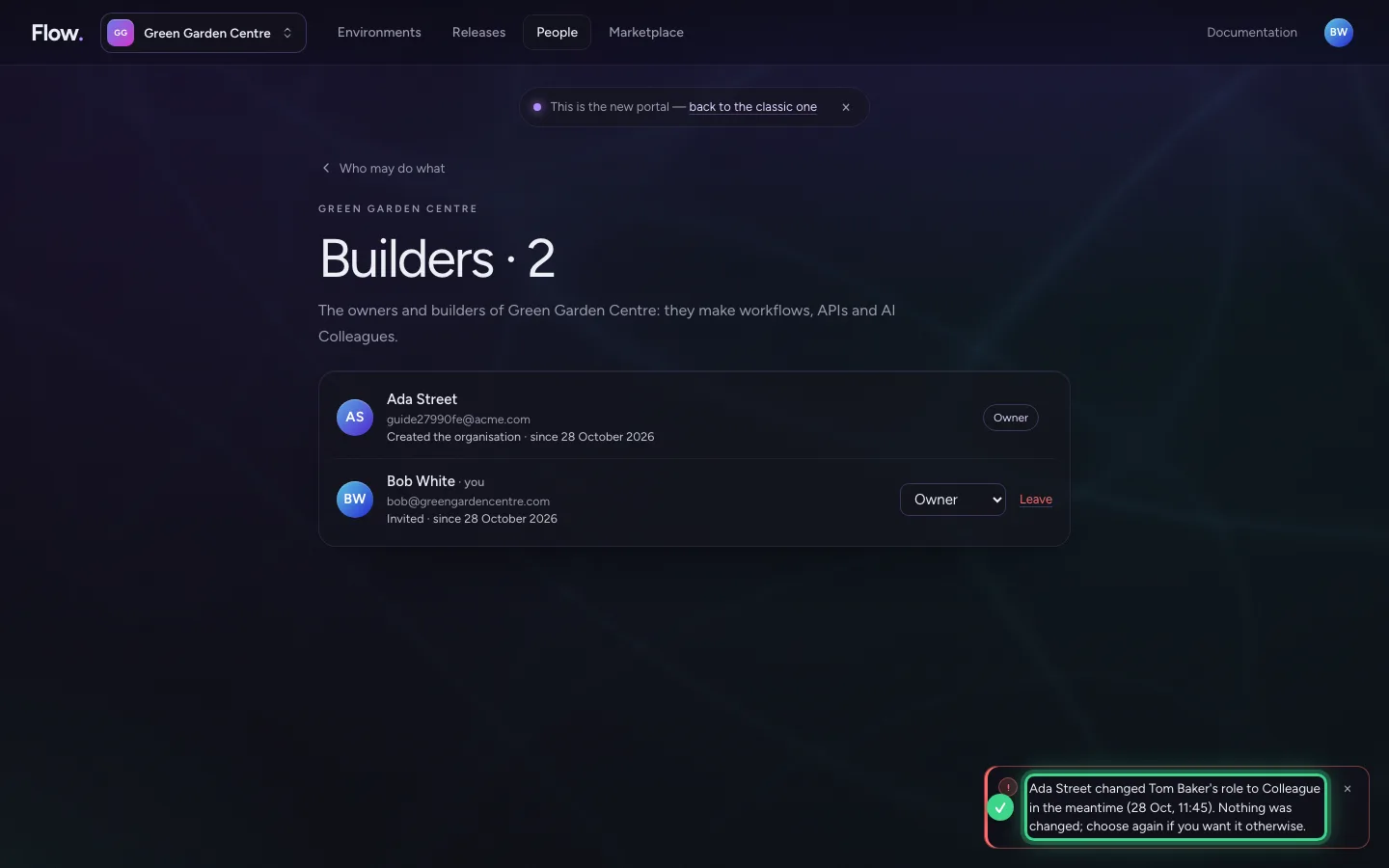
Bob opens the builders and sees Tom as Builder. Meanwhile you make Tom a colleague. Bob, on his page from before, makes Tom an owner: the portal does not carry it out, says who changed the role meanwhile and to what, and shows what holds now.
- Click Role of Tom Baker: Owner
Making yourself Builder
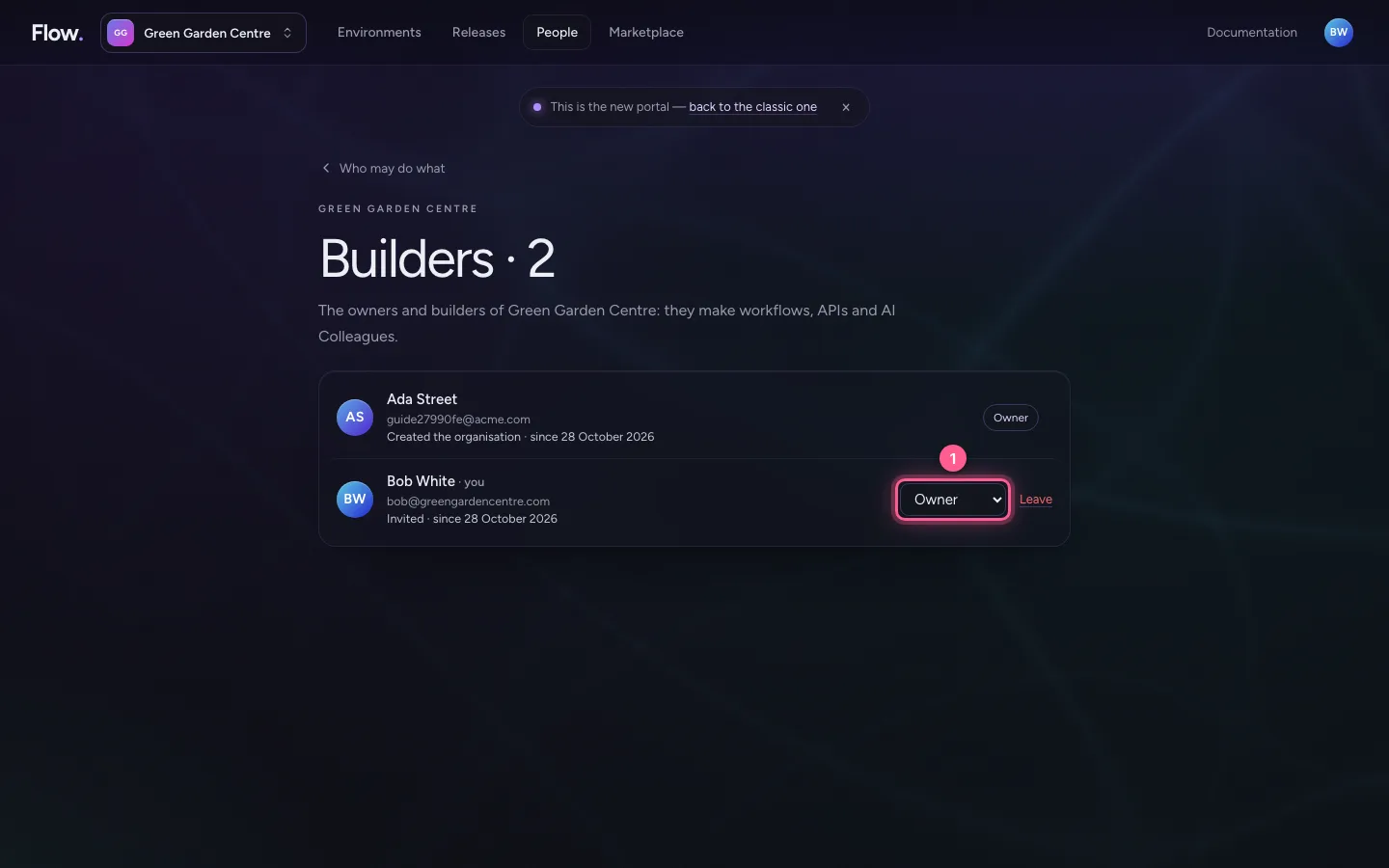
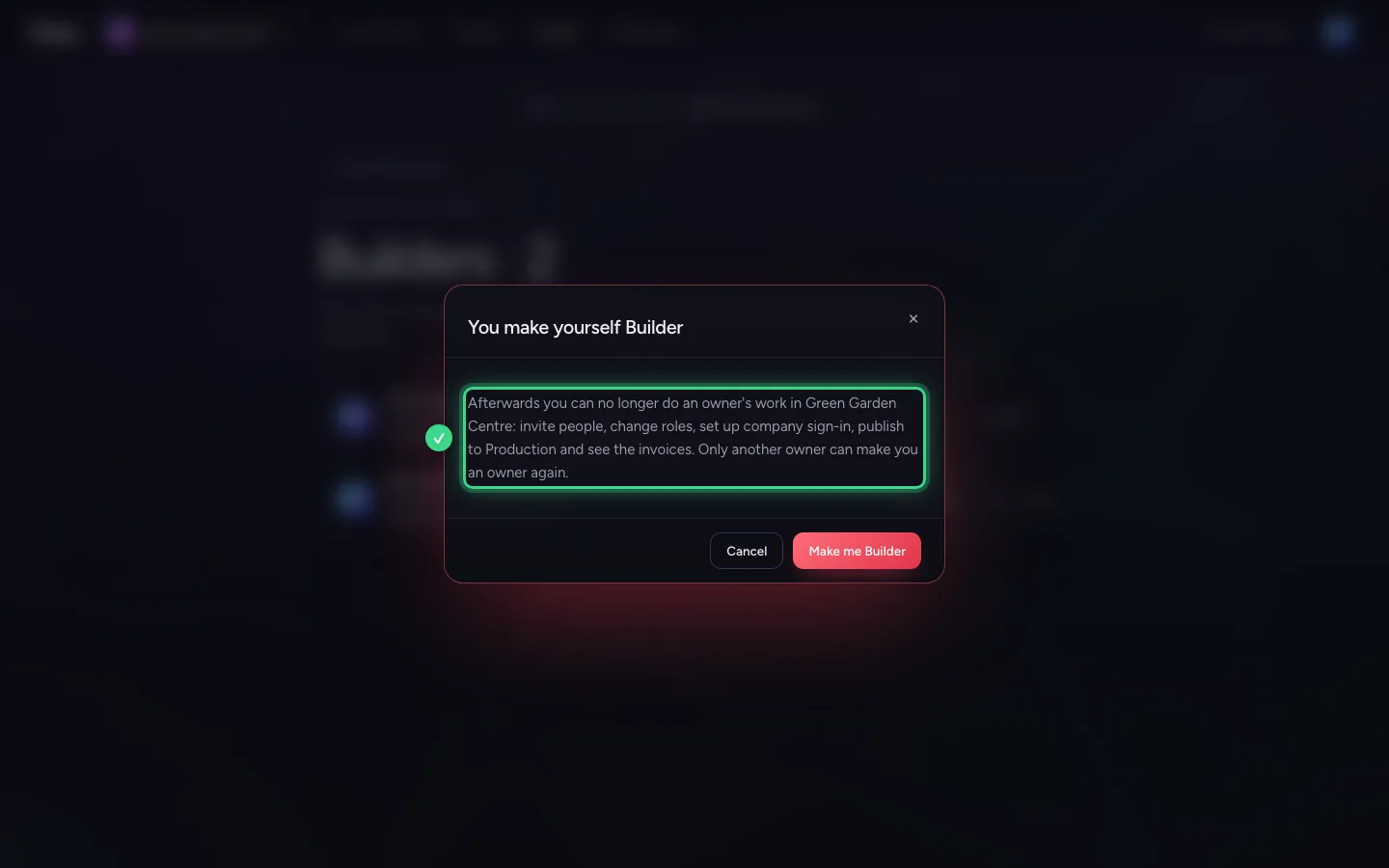
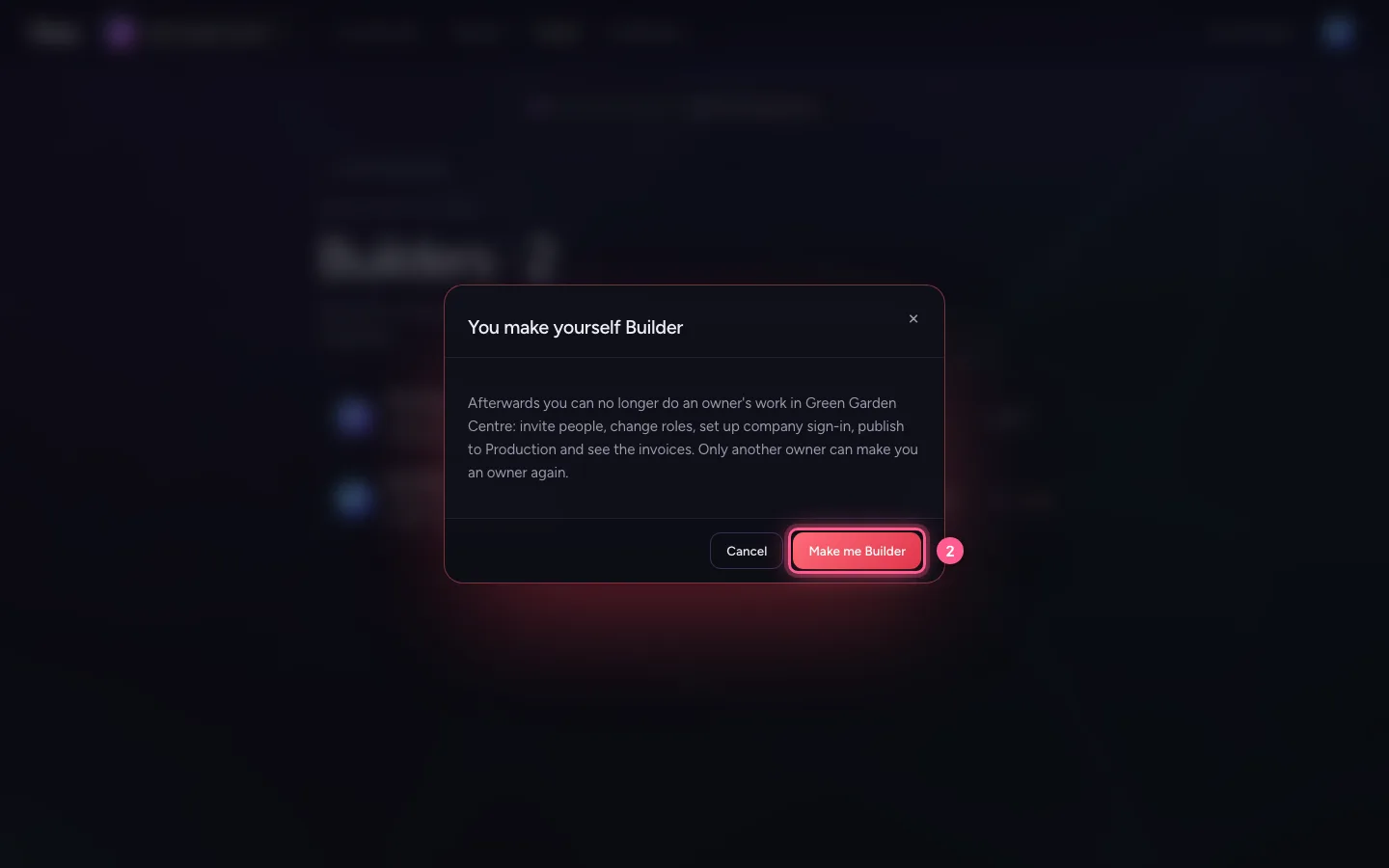
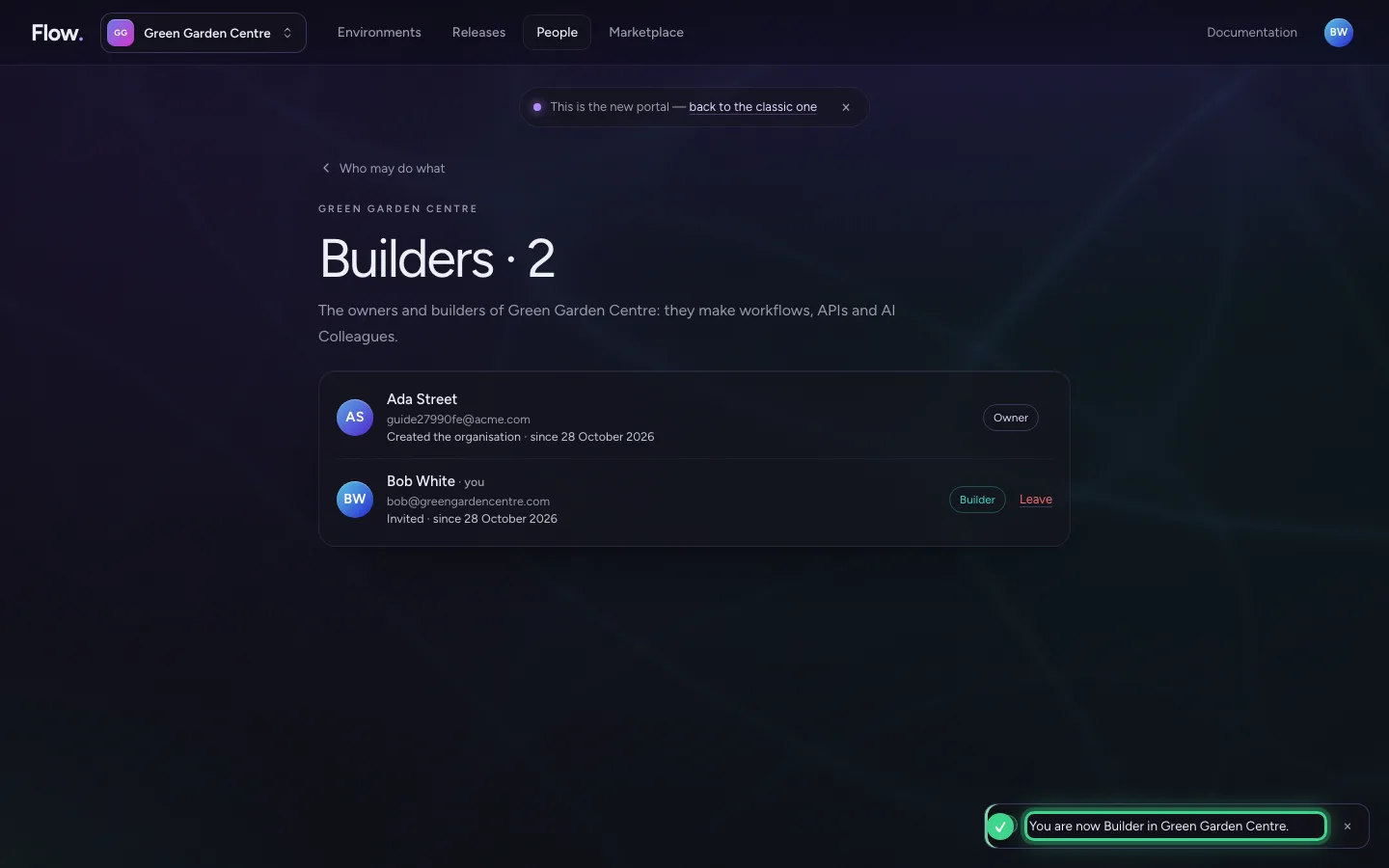
Bob no longer wants to be an owner and chooses the role Builder next to his own name. The portal asks first: what he can no longer do afterwards, and that only another owner can make him an owner again. Cancel leaves everything as it was; Bob confirms, and the portal follows his new role at once.
- Click Role of Bob White: Builder
- Click Make me Builder
This guide was carried out step by step on 28 Oct 2026 by an automated test on Flow (version 96971699).