Share a module through the marketplace
- Step 1 · Open your development environment
- Step 2 · Choose Marketplace on the module
- Step 3 · What: the name, what it does and this version
- Step 4 · For whom: your own organisation
- Step 5 · The check, then publish
- Step 6 · Find it in the marketplace
- Step 7 · Read what it does and what it asks
- Step 8 · Allow and install
- Step 9 · Installed, with updates
What you built well once, you do not want to build again in every environment or branch. You publish a module as a package in your organisation's own catalogue, with a version and a release note. Colleagues find it in the portal's marketplace, see what it asks and install it into Development; it then travels with the normal releases. Only the design goes along: no rows, no secrets, no conversations.
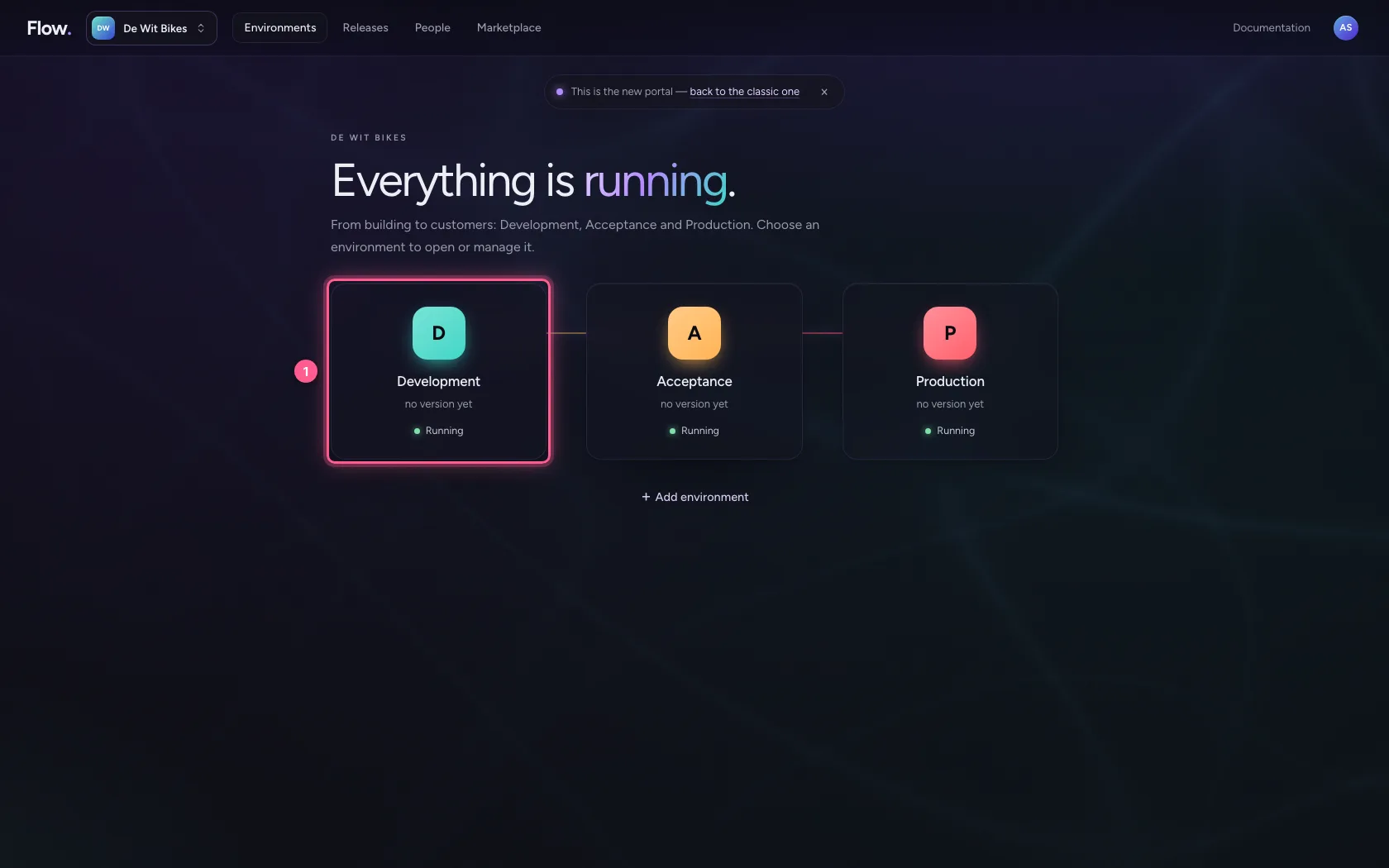
Open your development environment
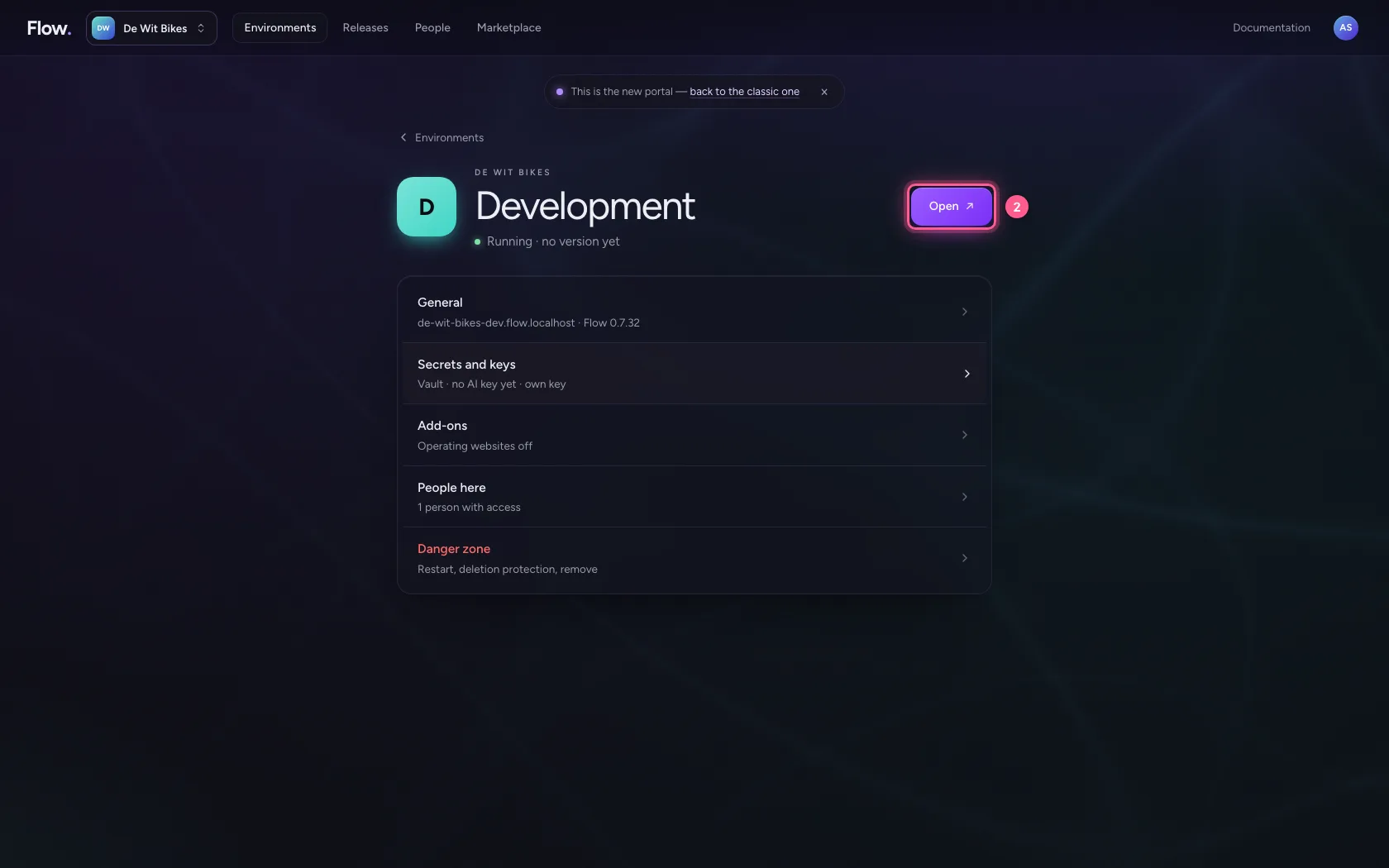
In the portal, under Environments, click Development, and there Open. Flow opens in a new tab and you are signed in straight away.
- Click Development
- Click Open ↗
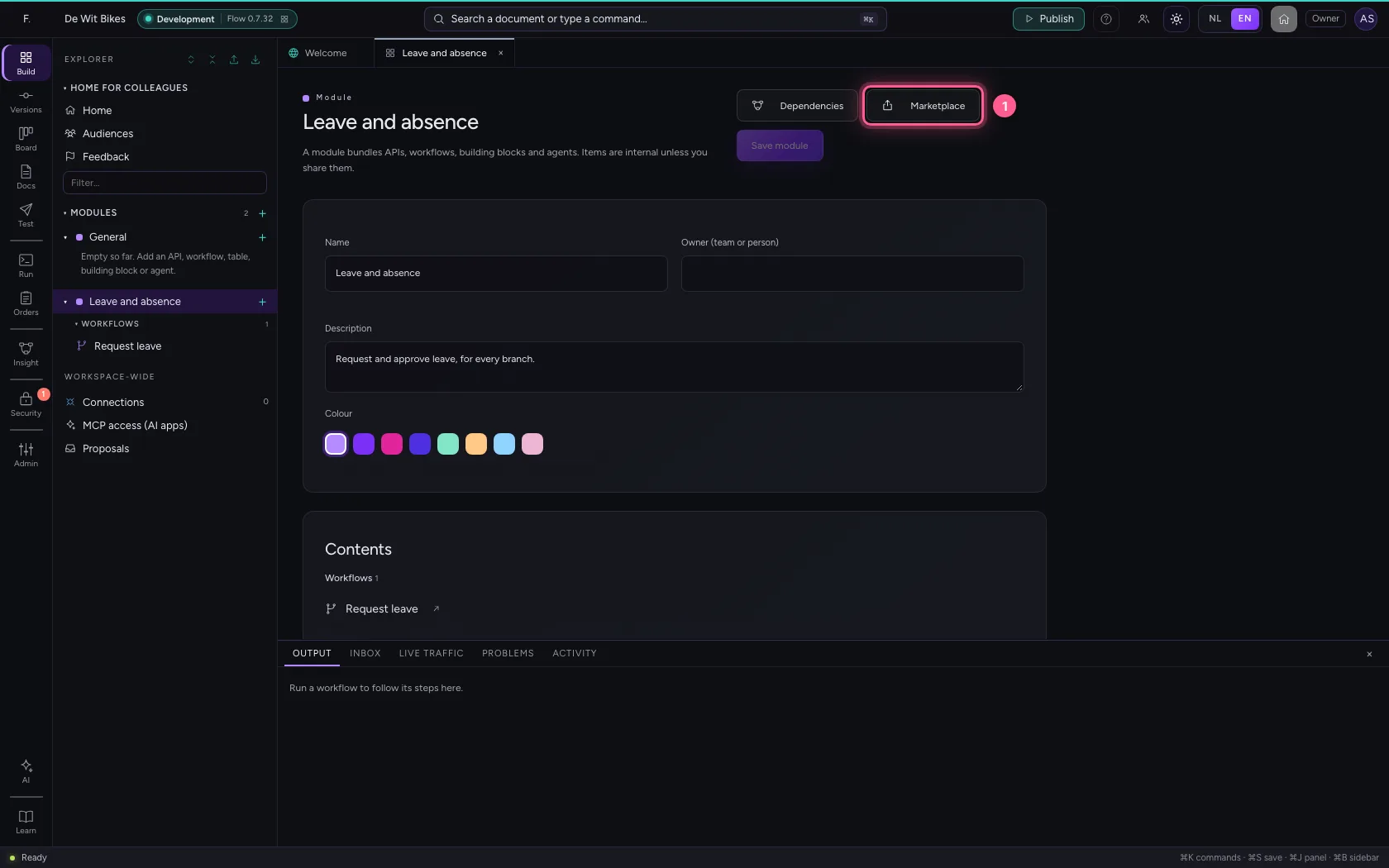
Choose Marketplace on the module
Open the module in the studio. At the top right is Marketplace: there Flow makes a package of it. You can do this for a module, a workflow and an AI Colleague.
- Click Marketplace
What: the name, what it does and this version
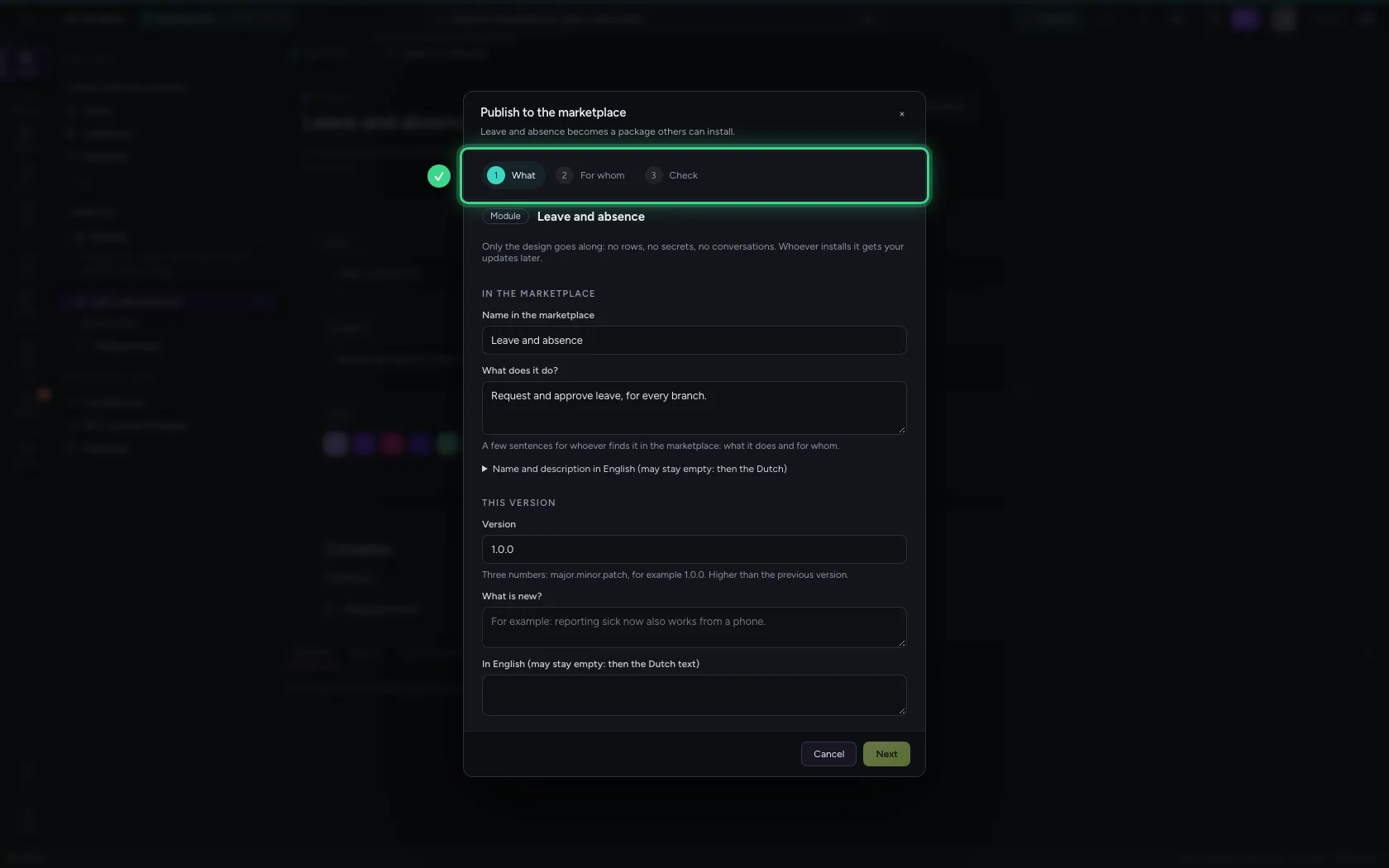
At the top is what it is called in the marketplace and what it does: that is what your colleagues read when they find it. Flow fills in the module's name and description; if the module has none, you write one here. An English text may be added, otherwise the Dutch one applies. Below is this version: three numbers (1.0.0), each next one higher, and in one sentence what is new.
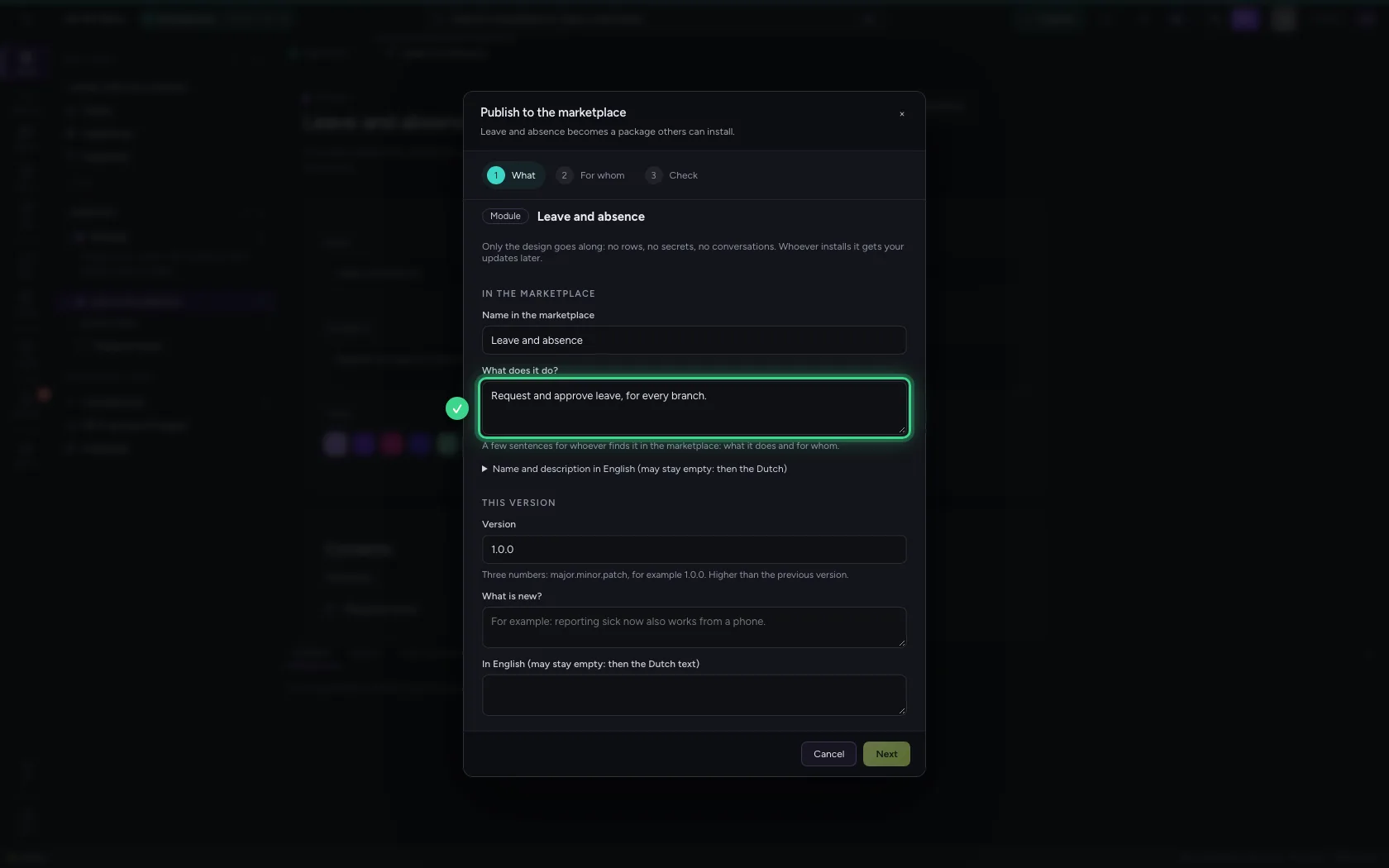
- In What is new?, type
First version: request and approve leave.
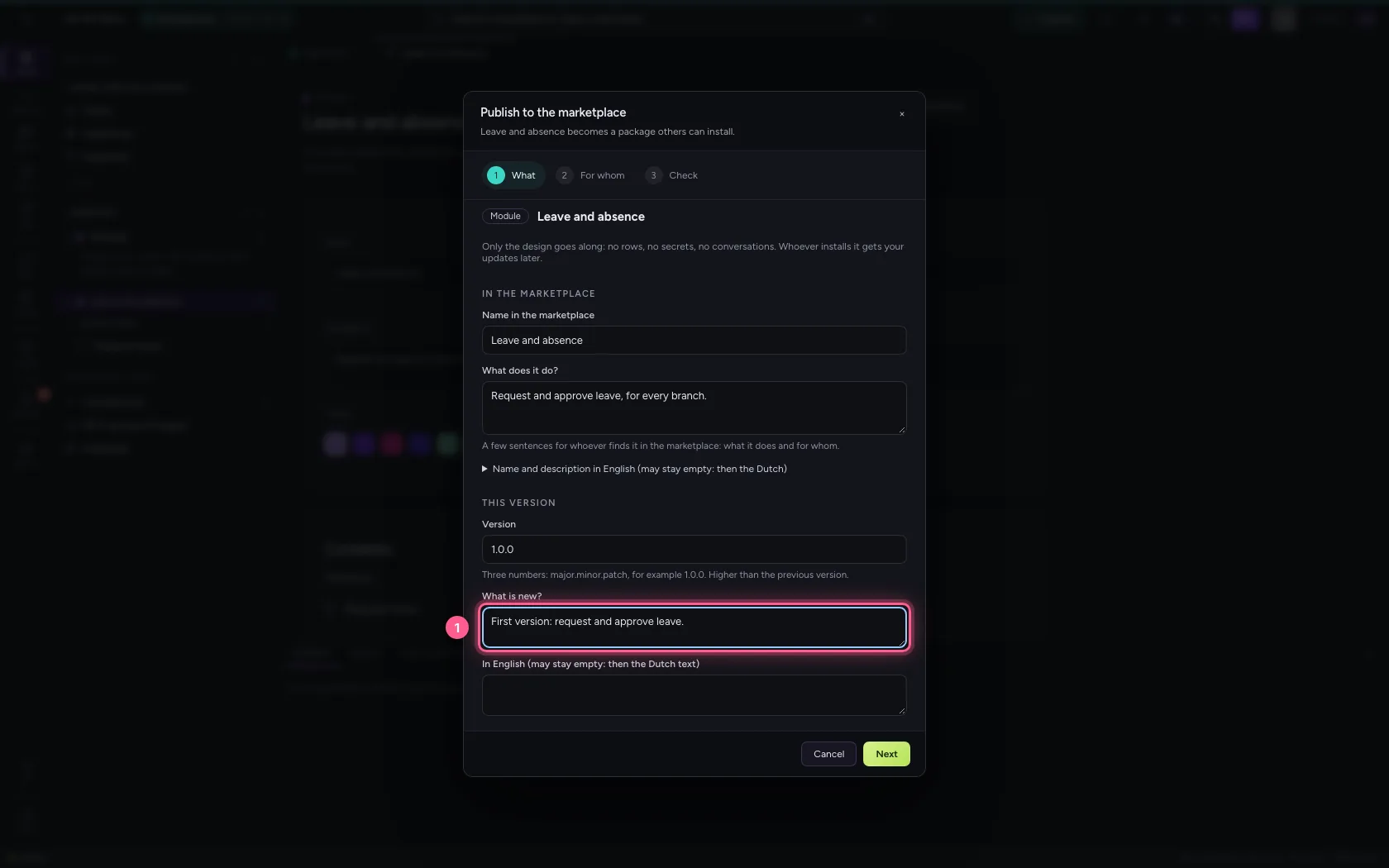
- Click Next
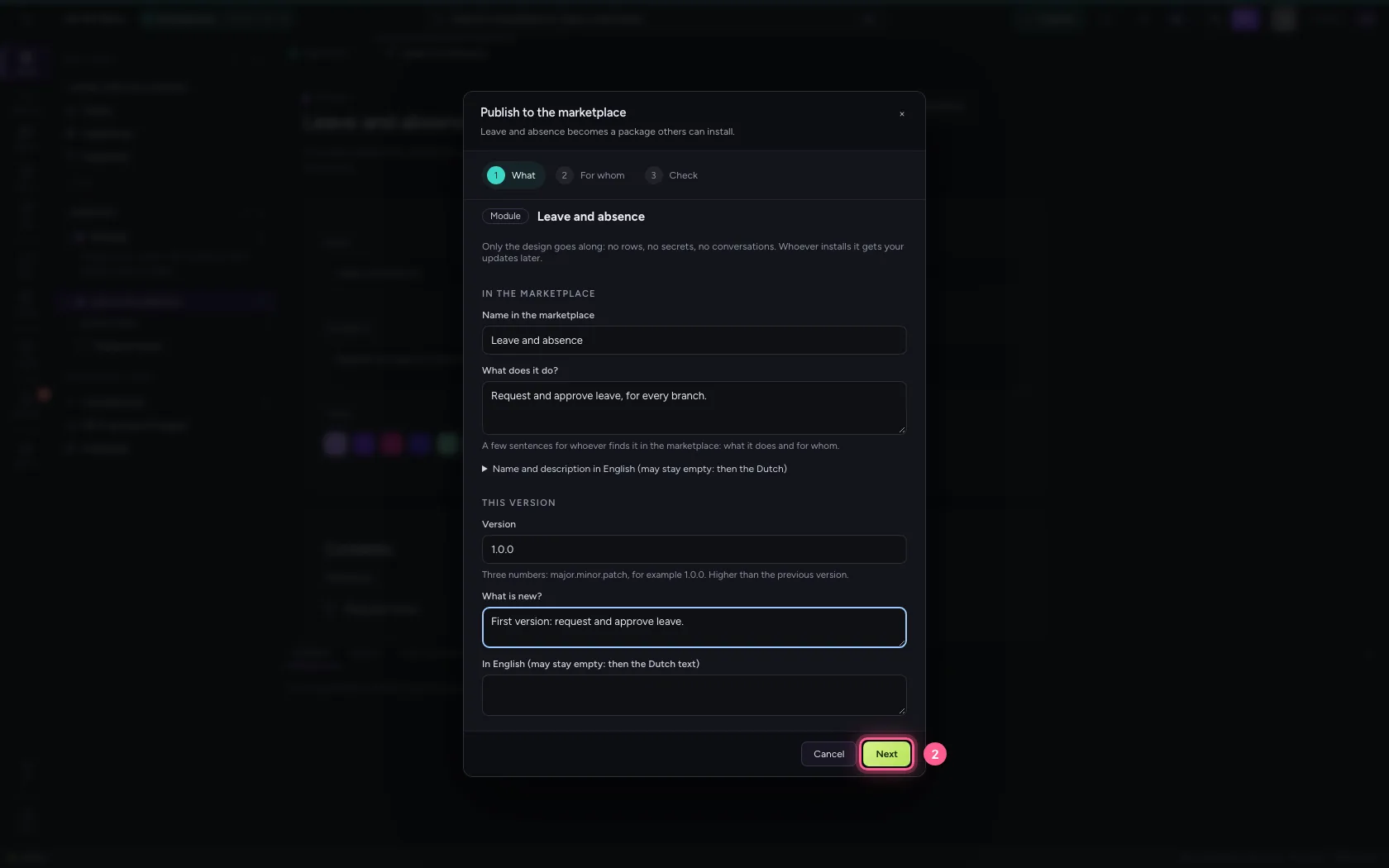
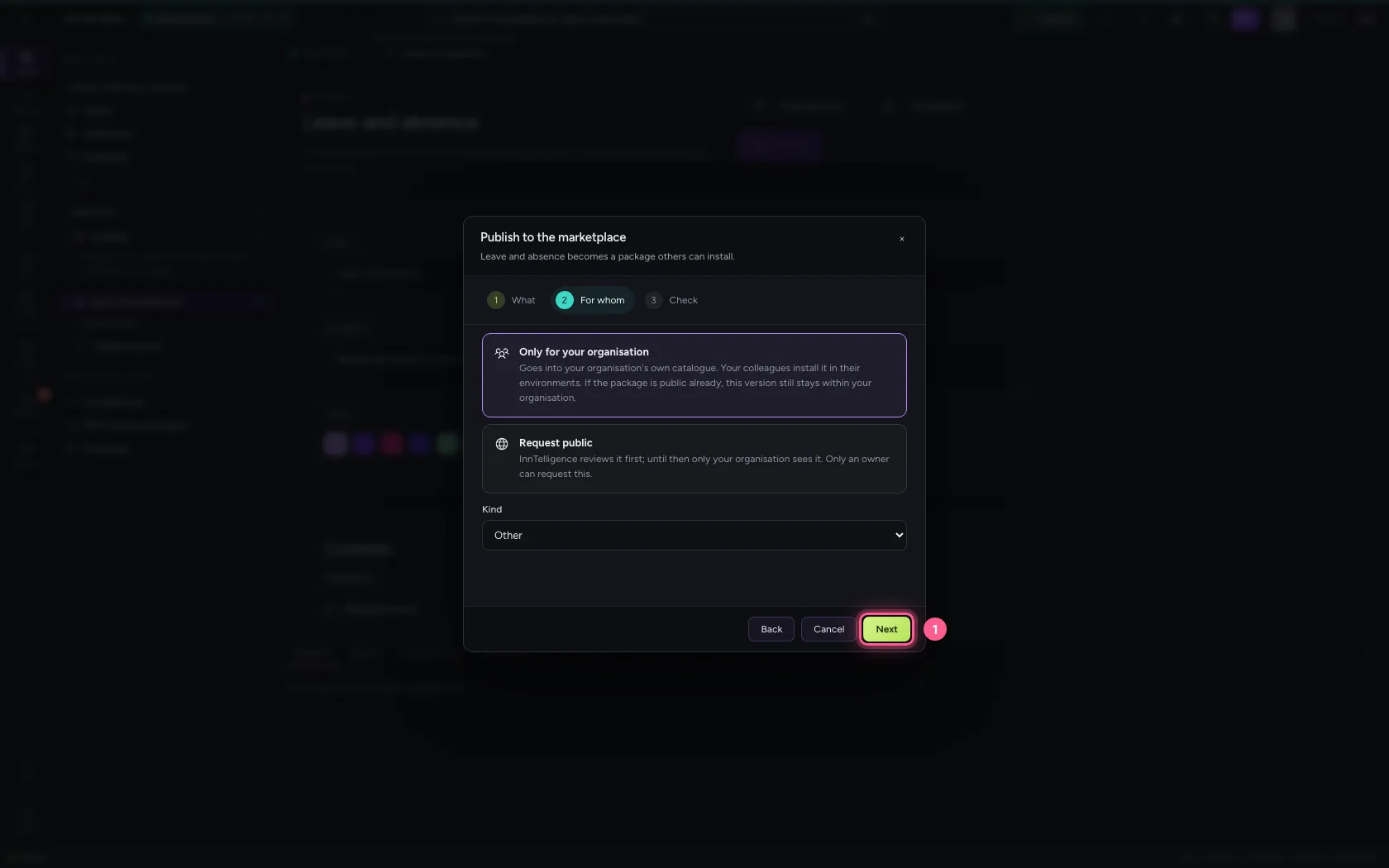
For whom: your own organisation
Privately it goes into your organisation's catalogue. An owner can request public: InnTelligence then reviews it first.
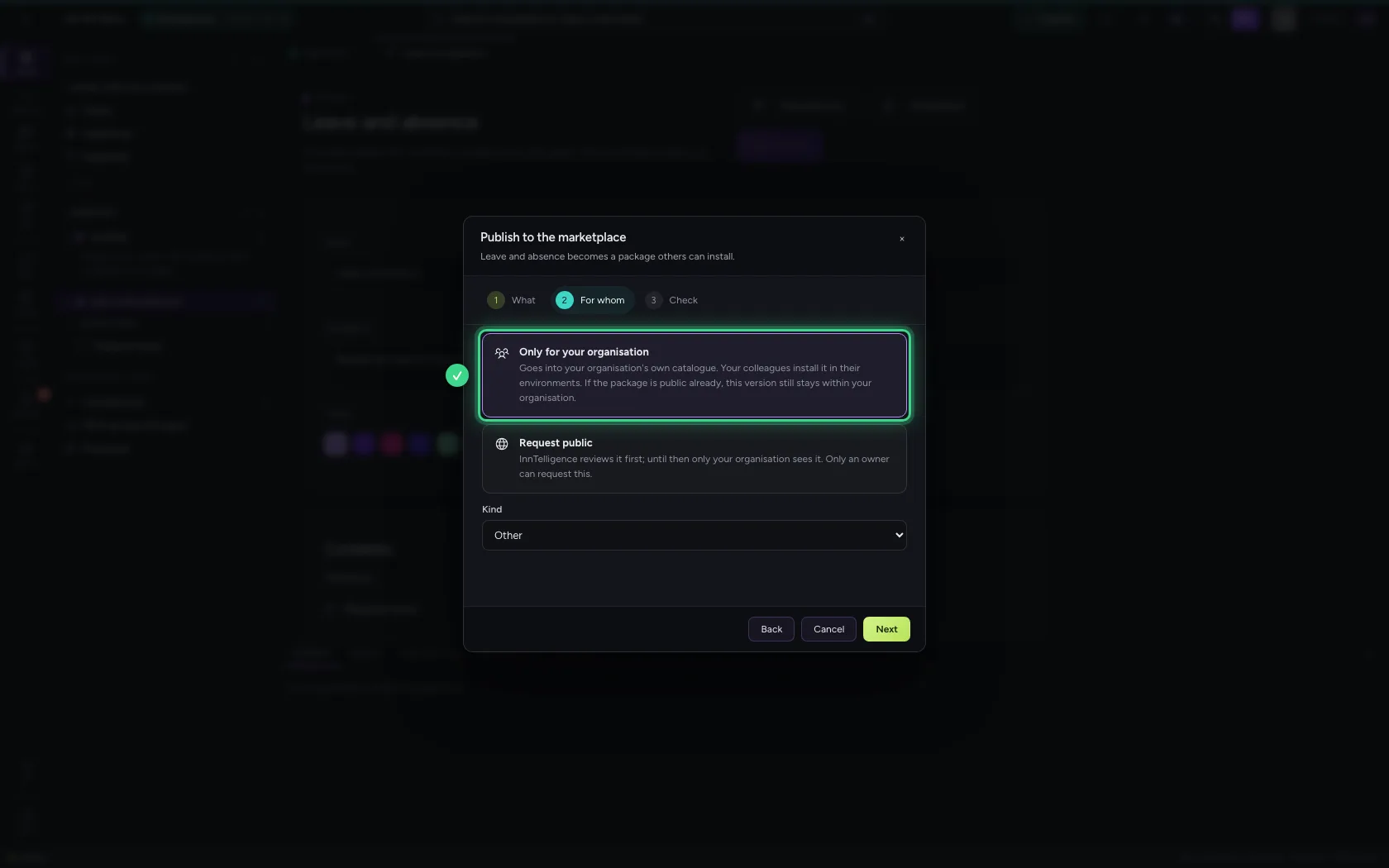
- Click Next
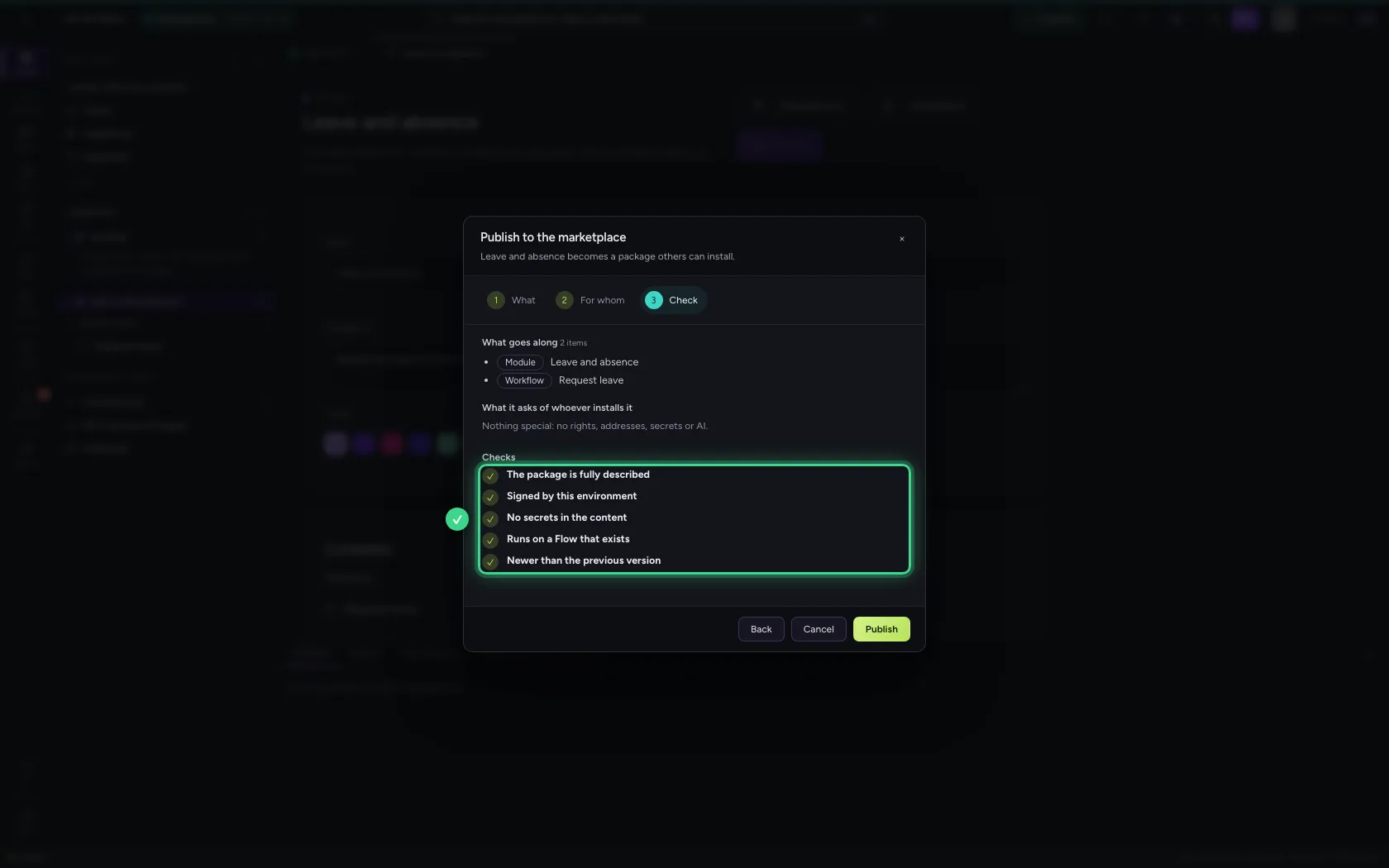
The check, then publish
Flow makes the package and the marketplace checks it: fully described, signed by this environment, no secrets in the content, a Flow version that exists, newer than the previous one. If a key or password is in it somewhere, the marketplace refuses it and says where.
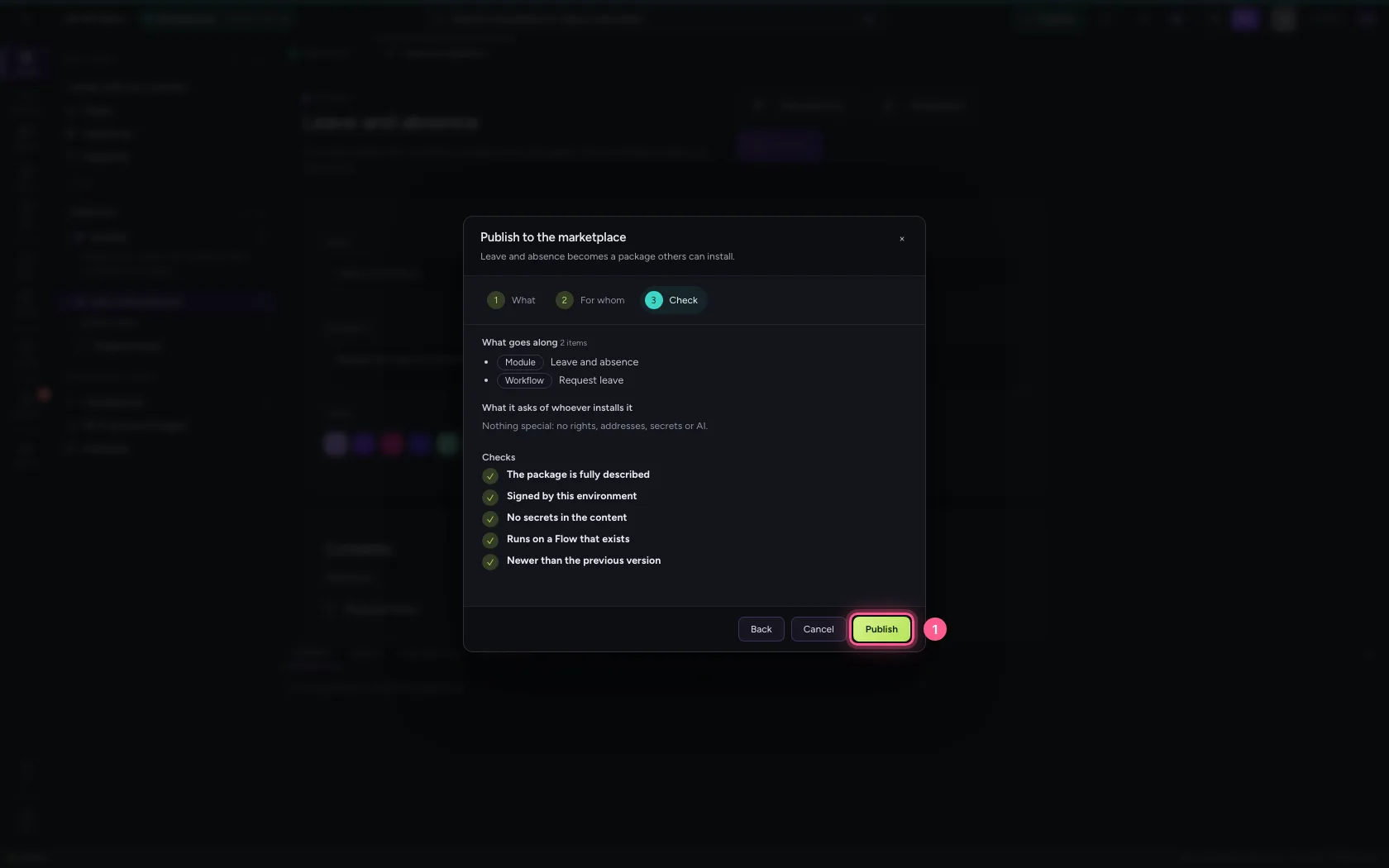
- Click Publish
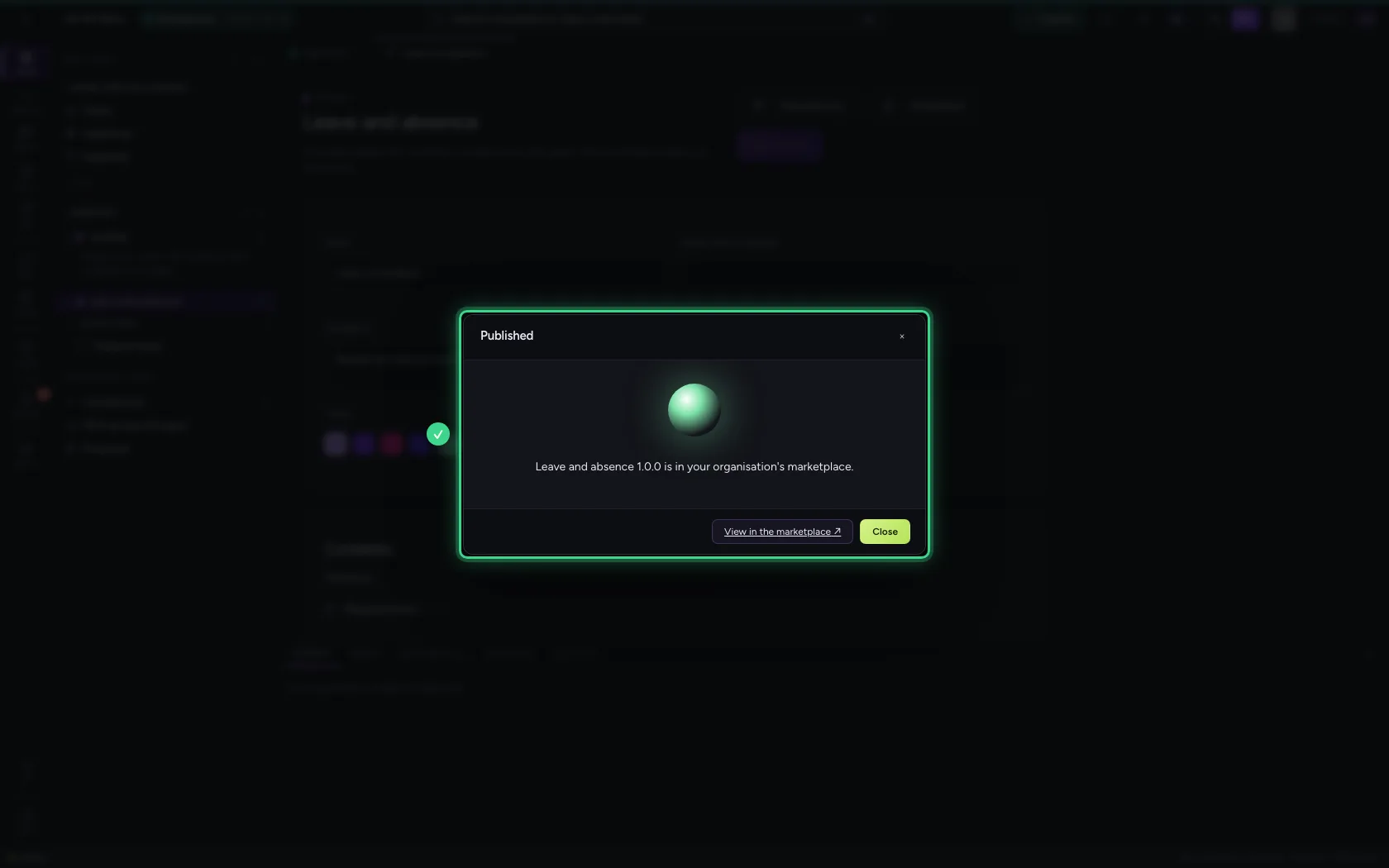
Find it in the marketplace
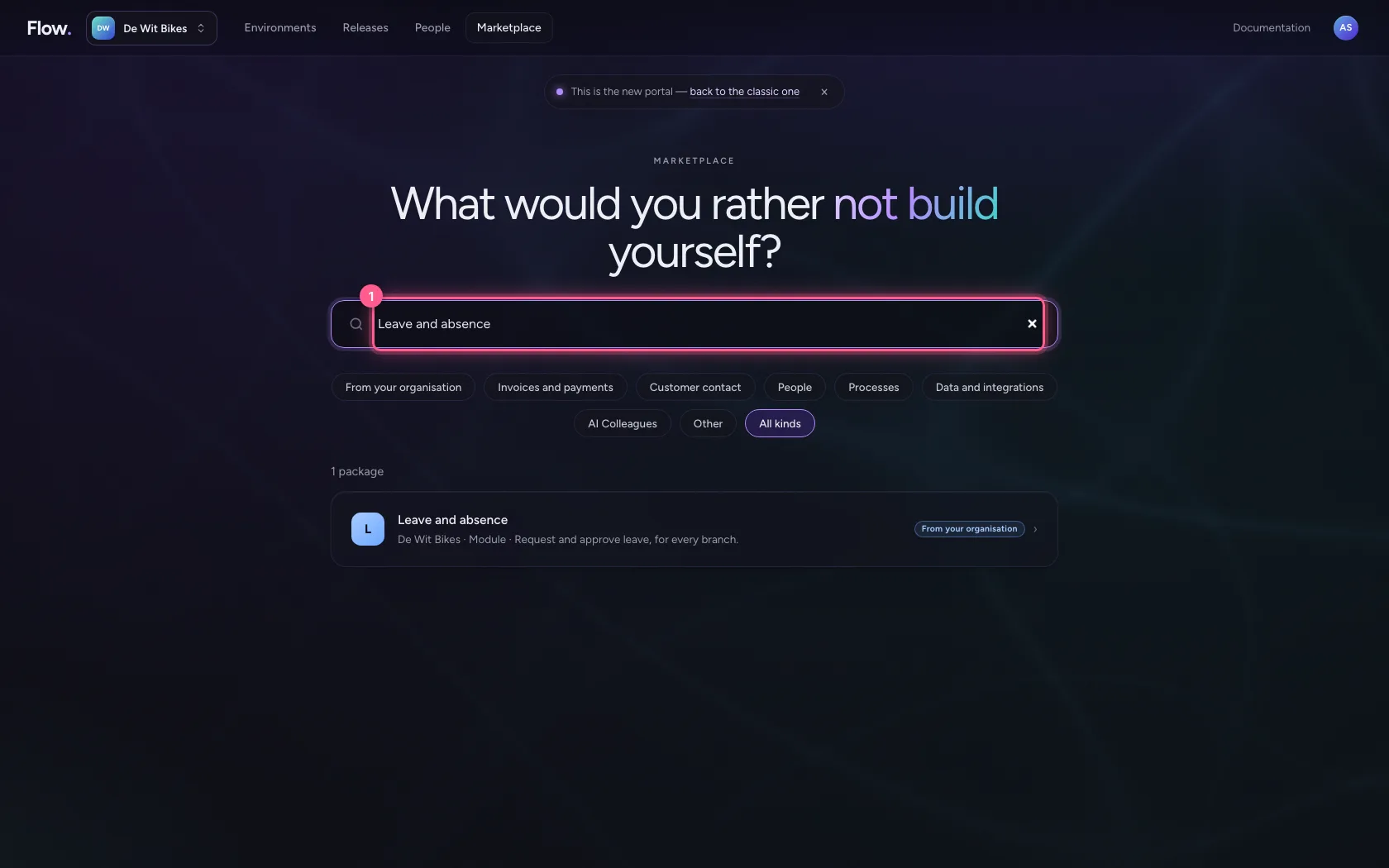
The portal has your organisation's Marketplace. Search for a word, or choose From your organisation.
- In Search the marketplace, type
Leave and absence
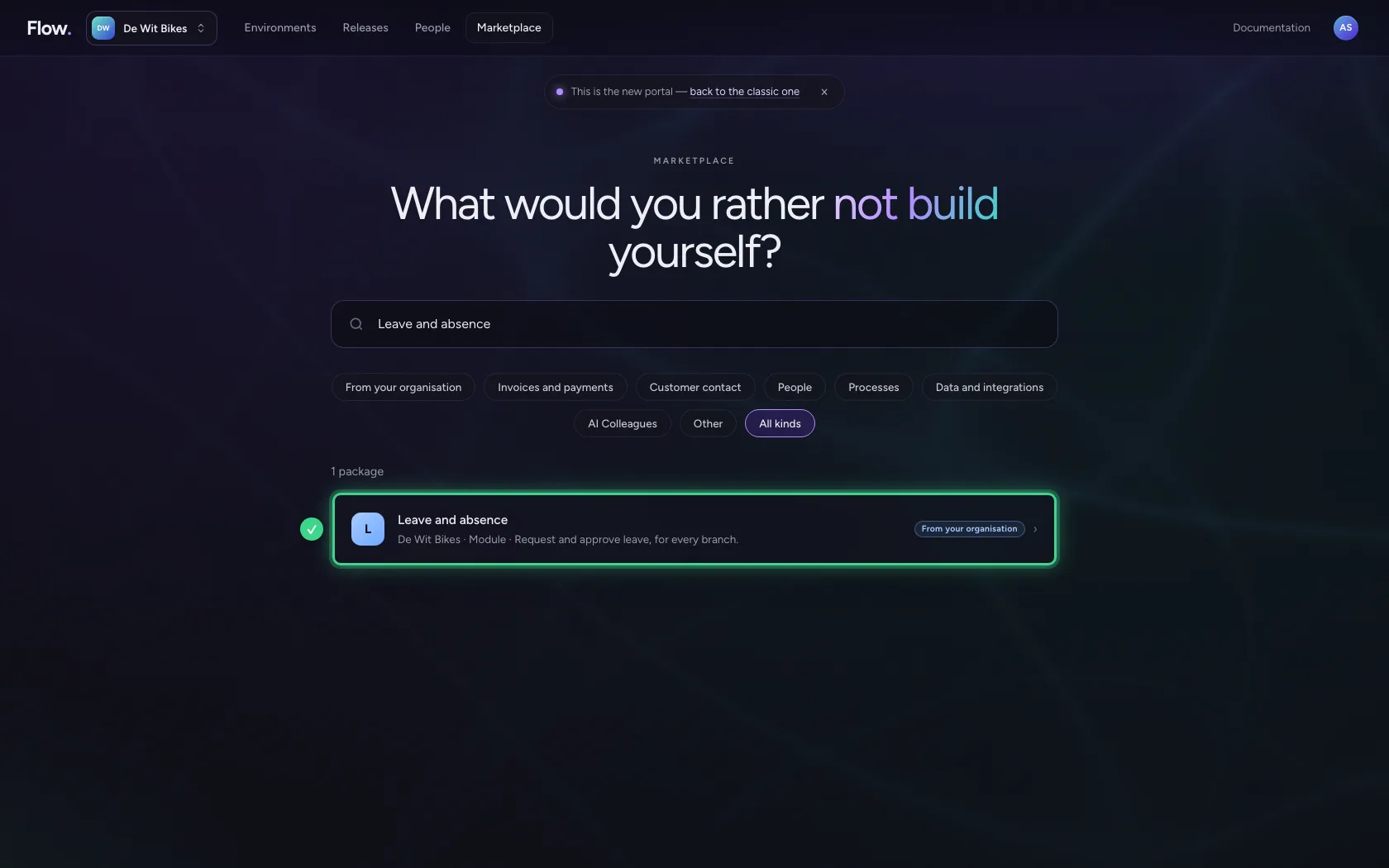
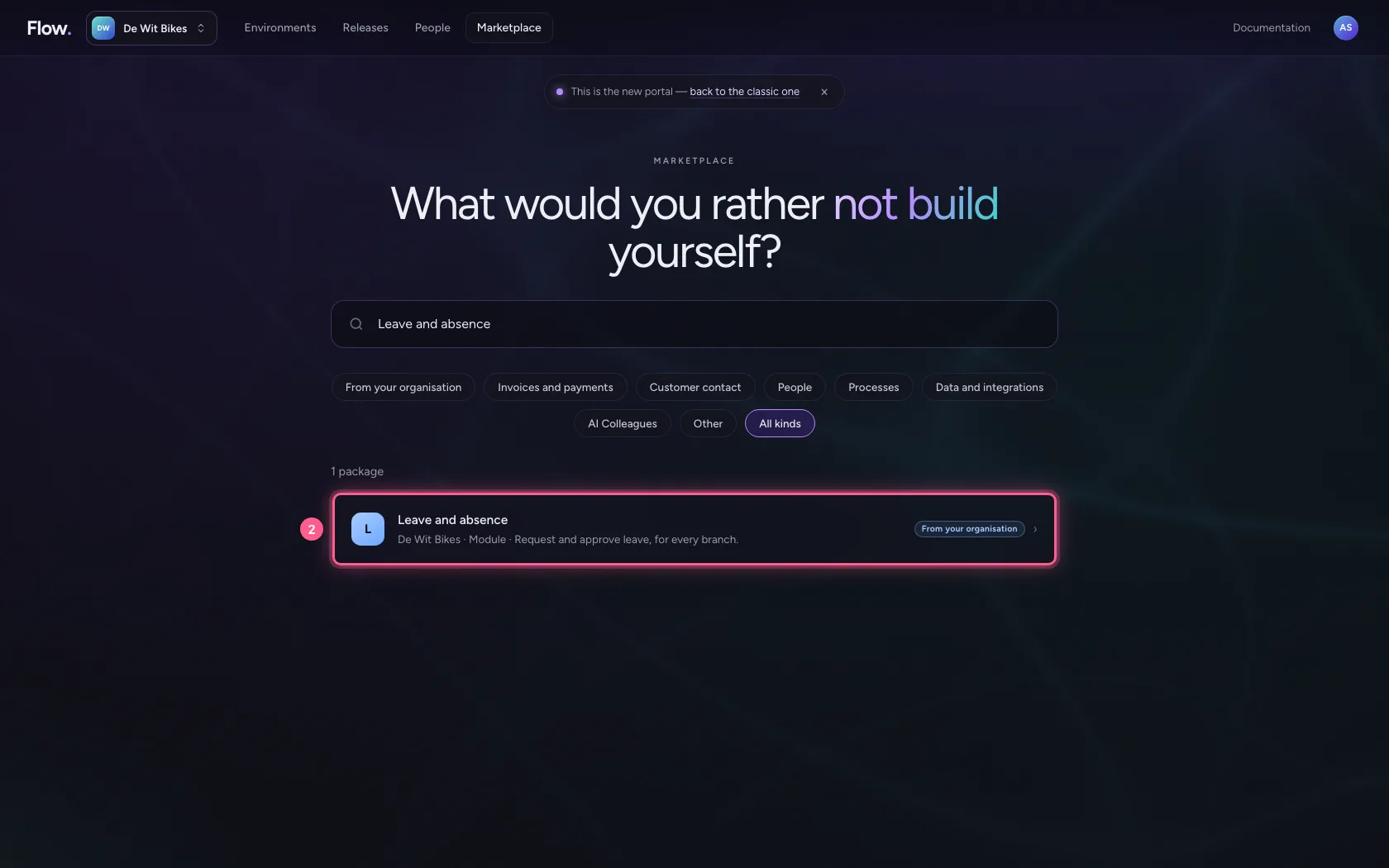
- Click L Leave and absence De Wit Bikes · Module · Request and approve leave, for every
Read what it does and what it asks
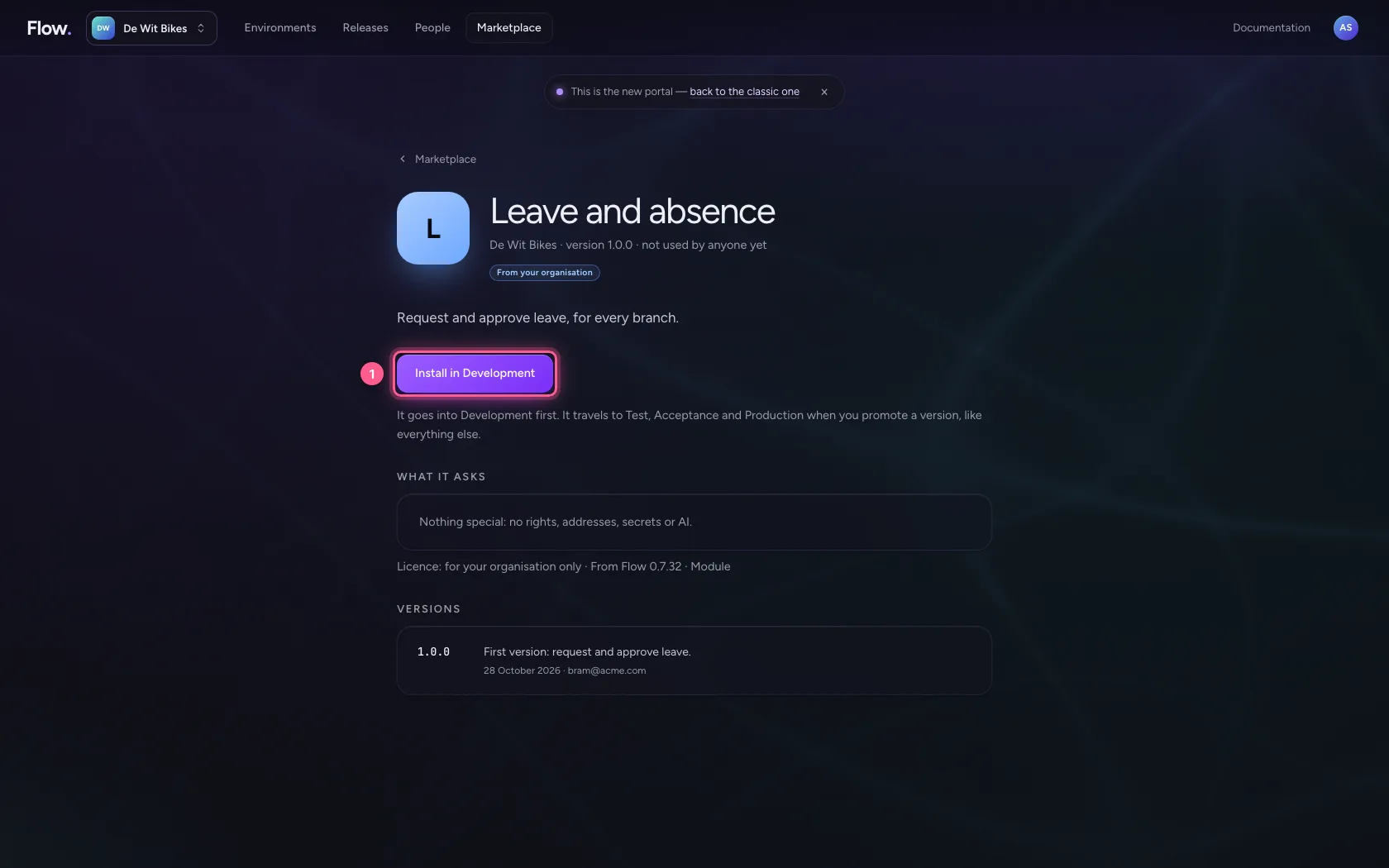
The package's page says what it does, who published it, the versions with their release notes and what it asks: rights in Flow, addresses it reaches, kinds of data, AI and secrets you put in your own vault.
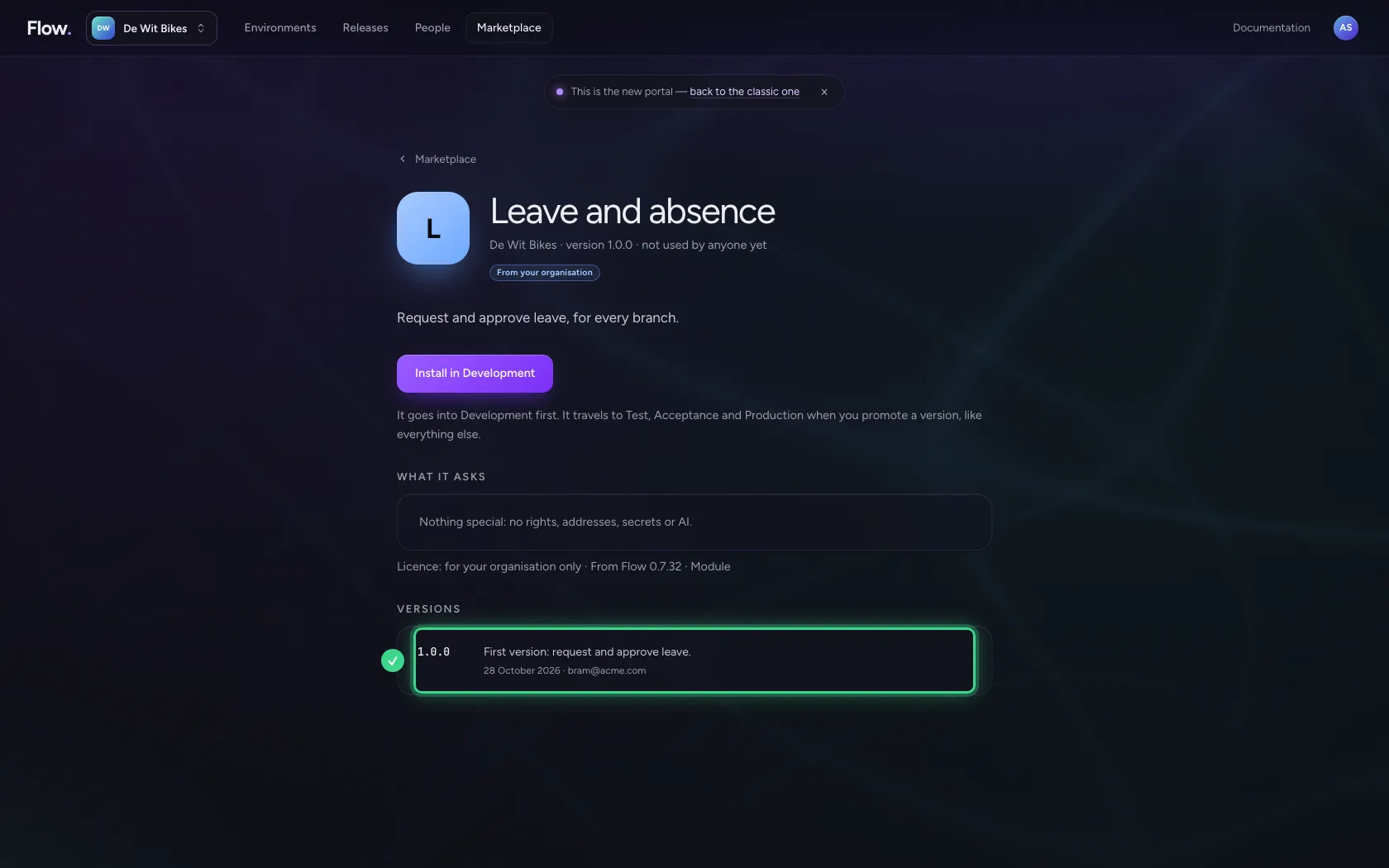
- Click Install in Development
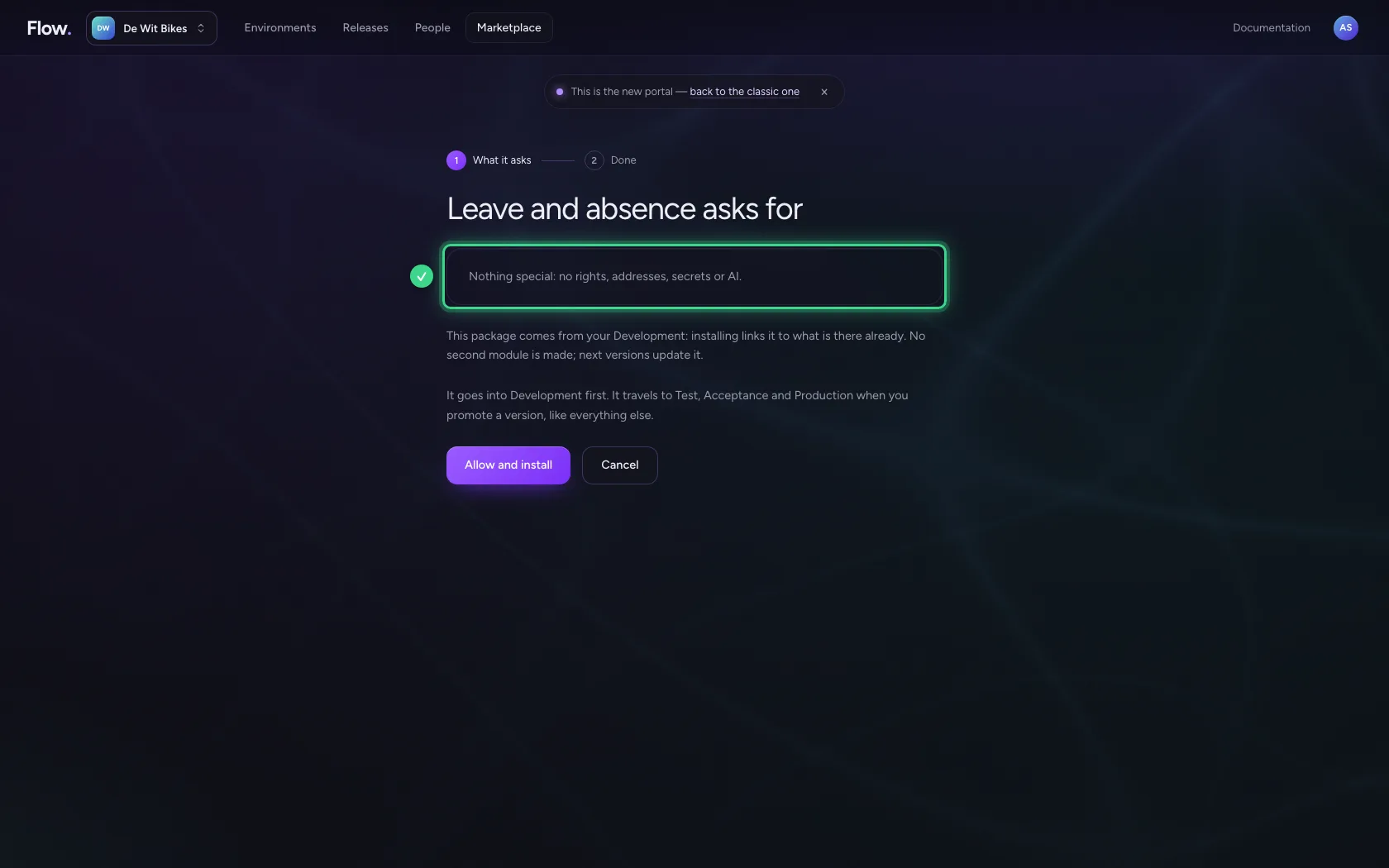
Allow and install
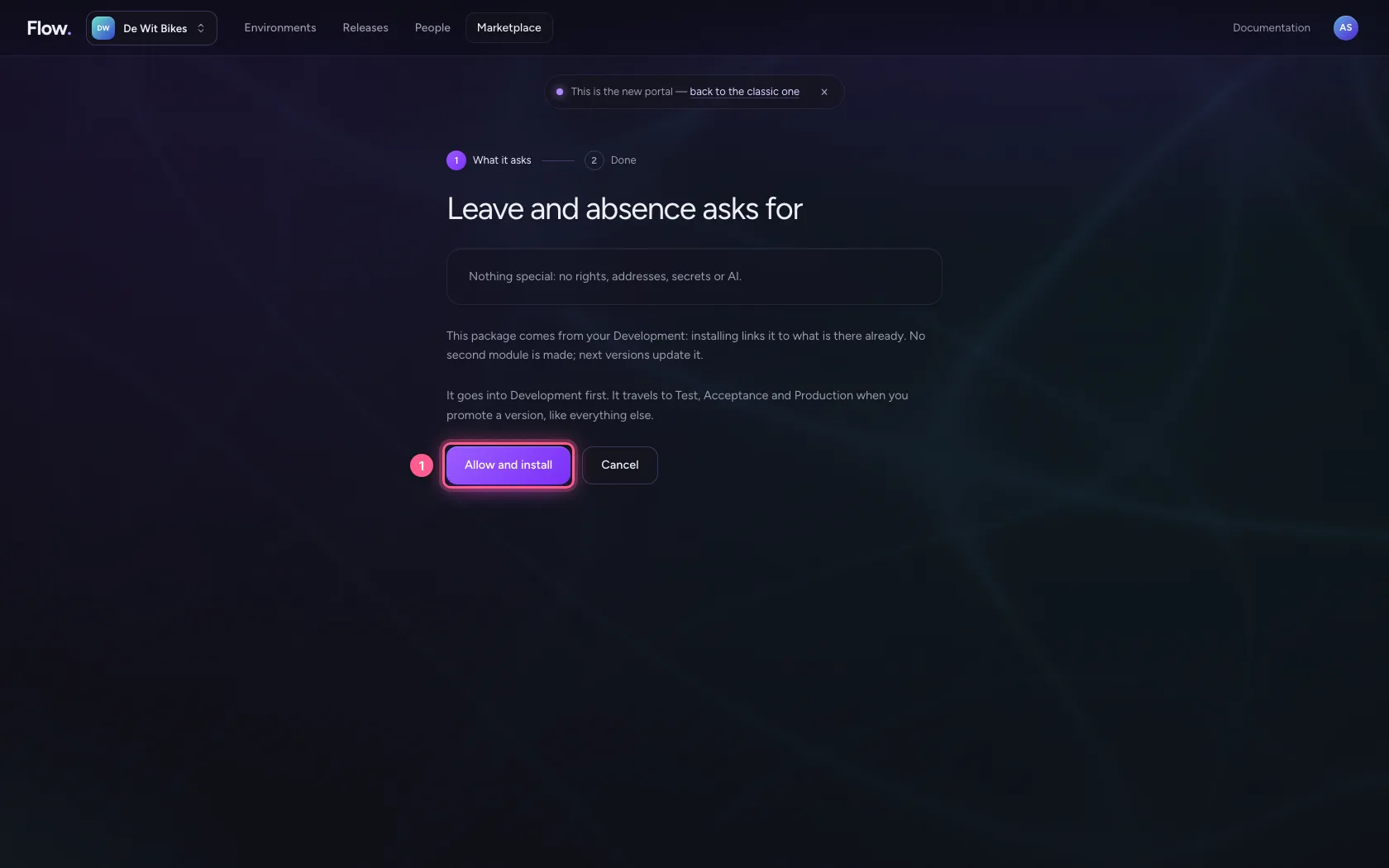
Before anything happens, you see once more what the package asks. It always goes into Development first; it travels to Test, Acceptance and Production when you promote a version, like everything else.
- Click Allow and install
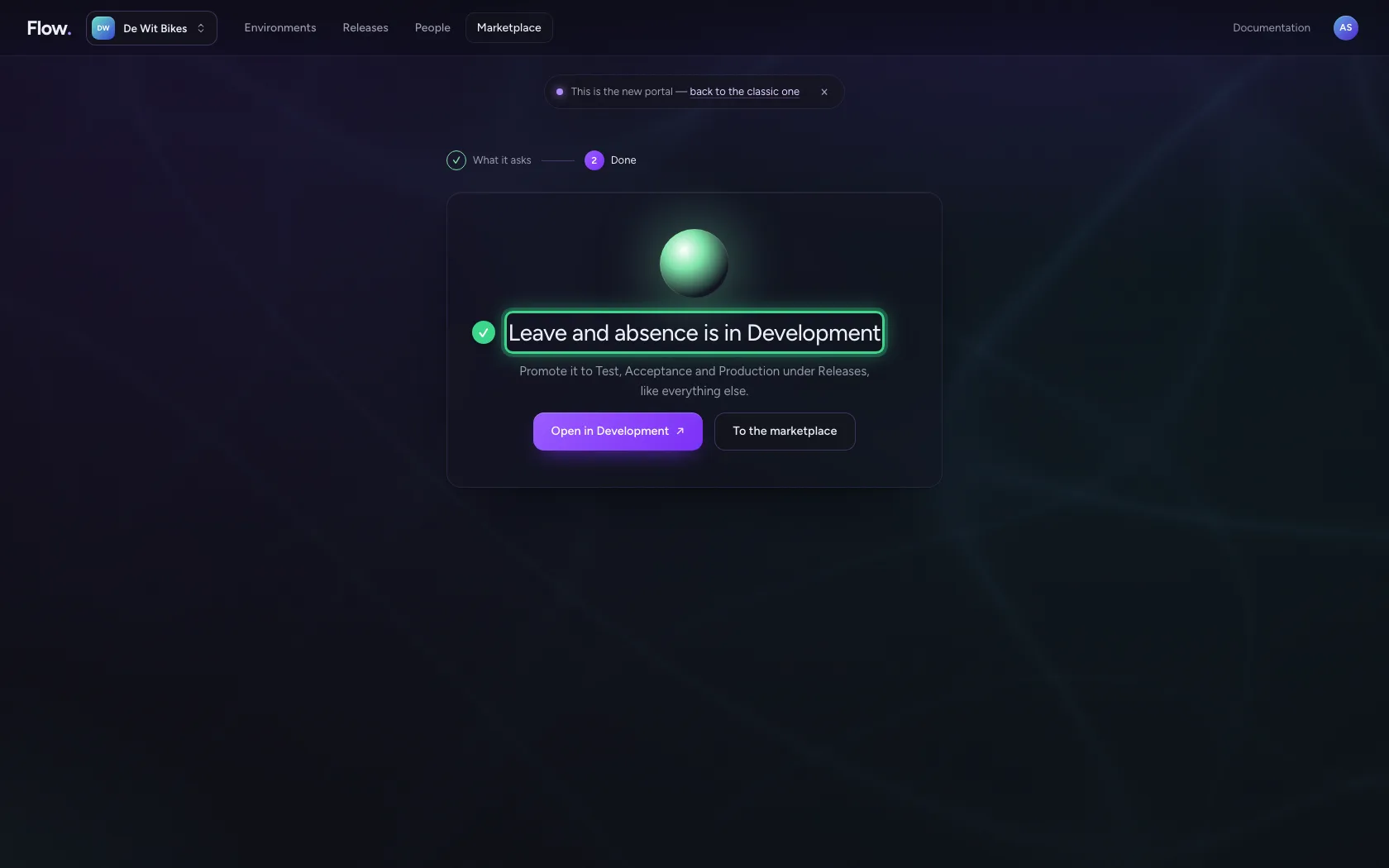
Installed, with updates
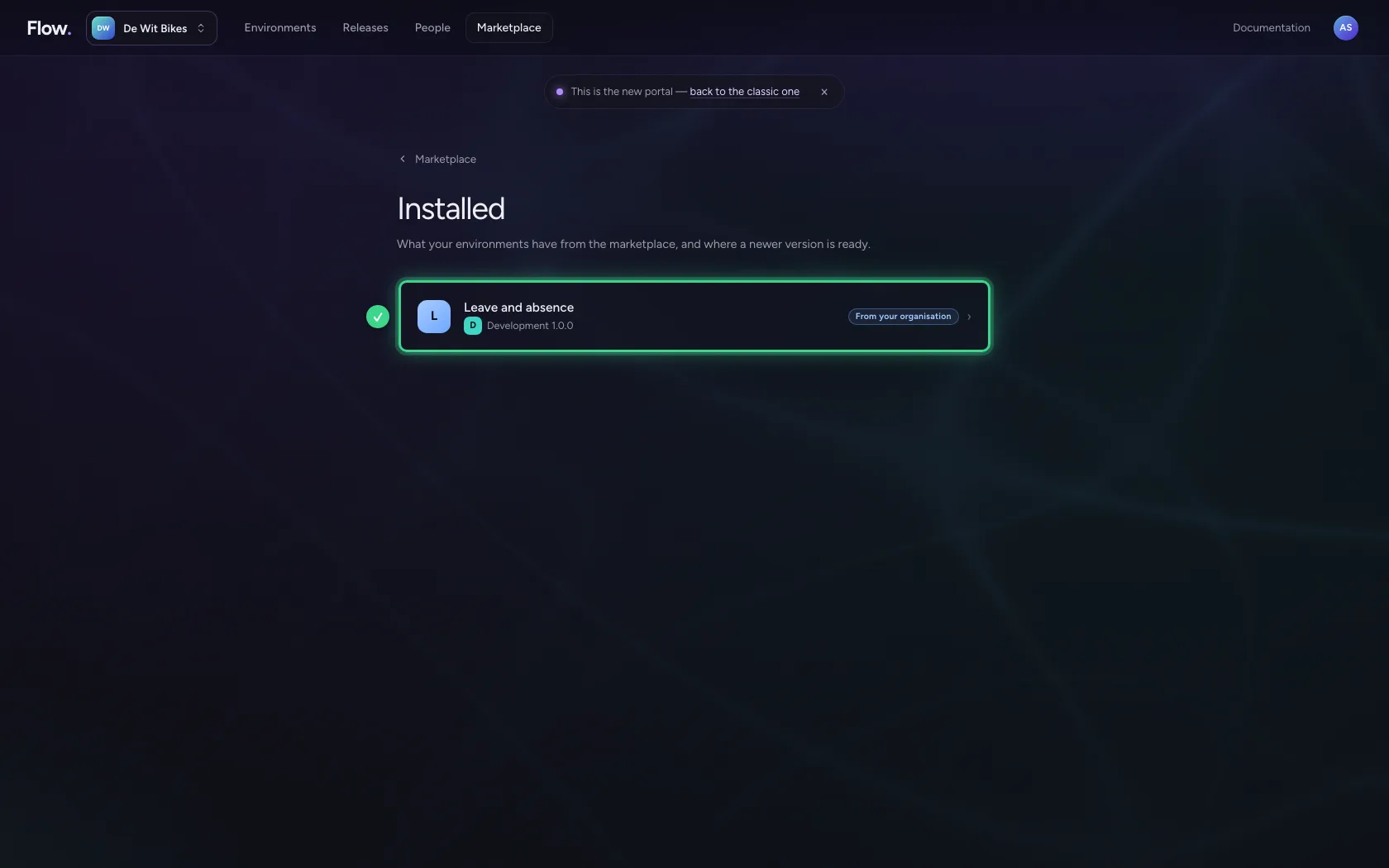
Under Installed you see per environment which version is there. When someone publishes a newer version, it says Update available here.
This guide was carried out step by step on 28 Oct 2026 by an automated test on Flow (version 96971699).