Governance profile and RACI
The governance profile sets down how projects run with you: the stages from request to evidence, who approves at which gate, which controls apply and who does what per stage (RACI). You change it in a draft, see straight away what changes and what goes wrong, and have the draft approved by security and management: two different people. Only then does the new version apply, and every decision is in the decision ledger.
Open the governance profile
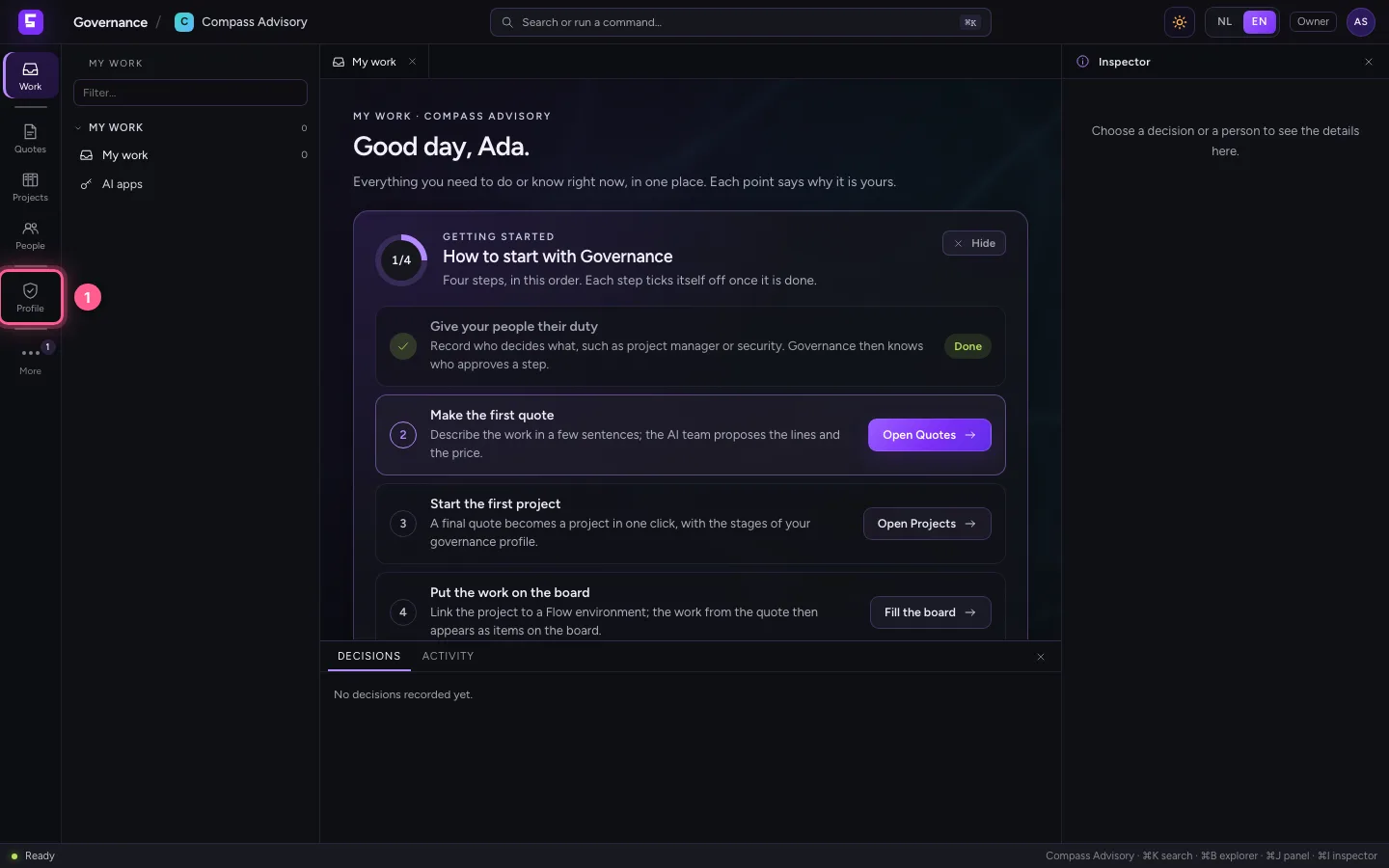
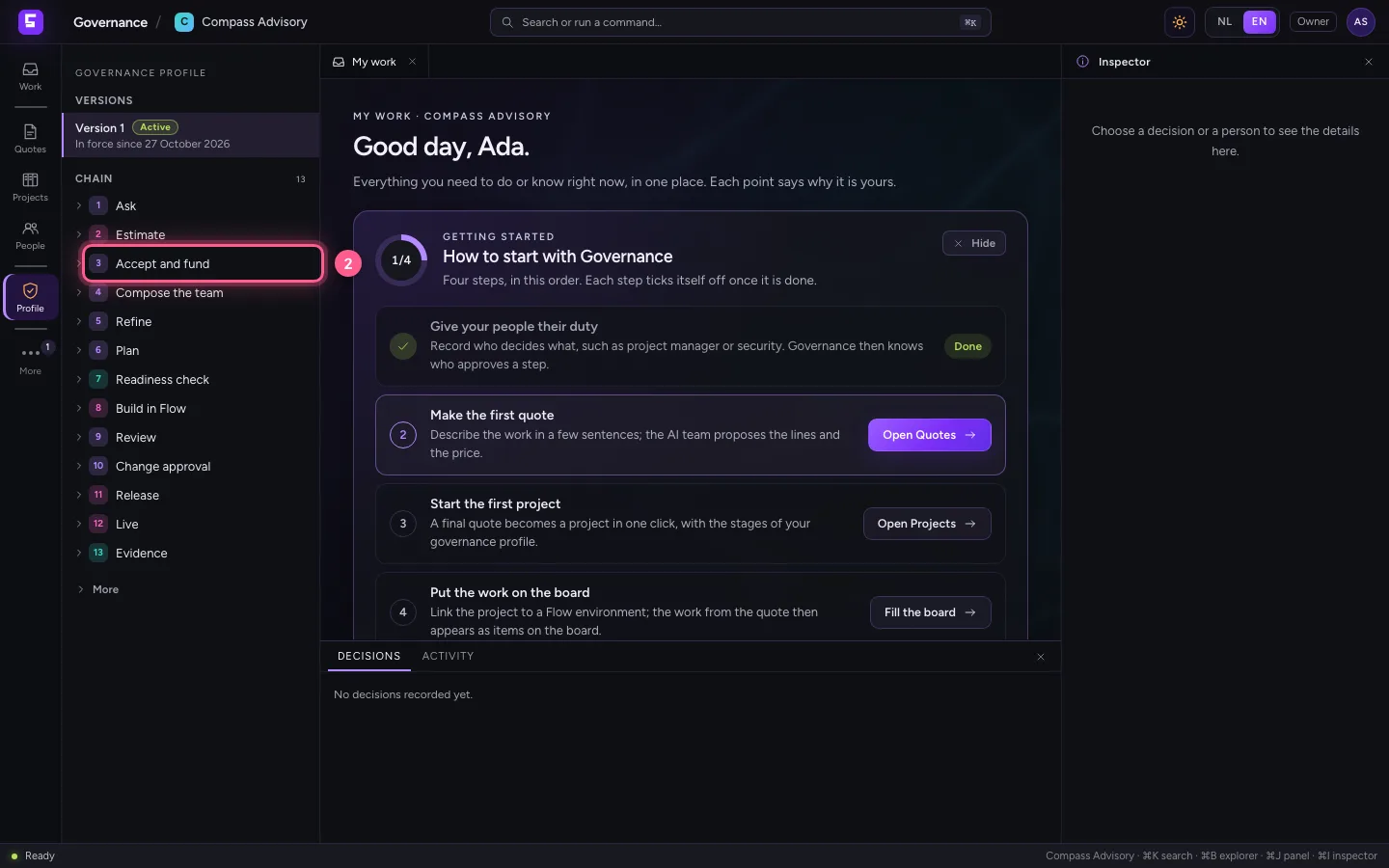
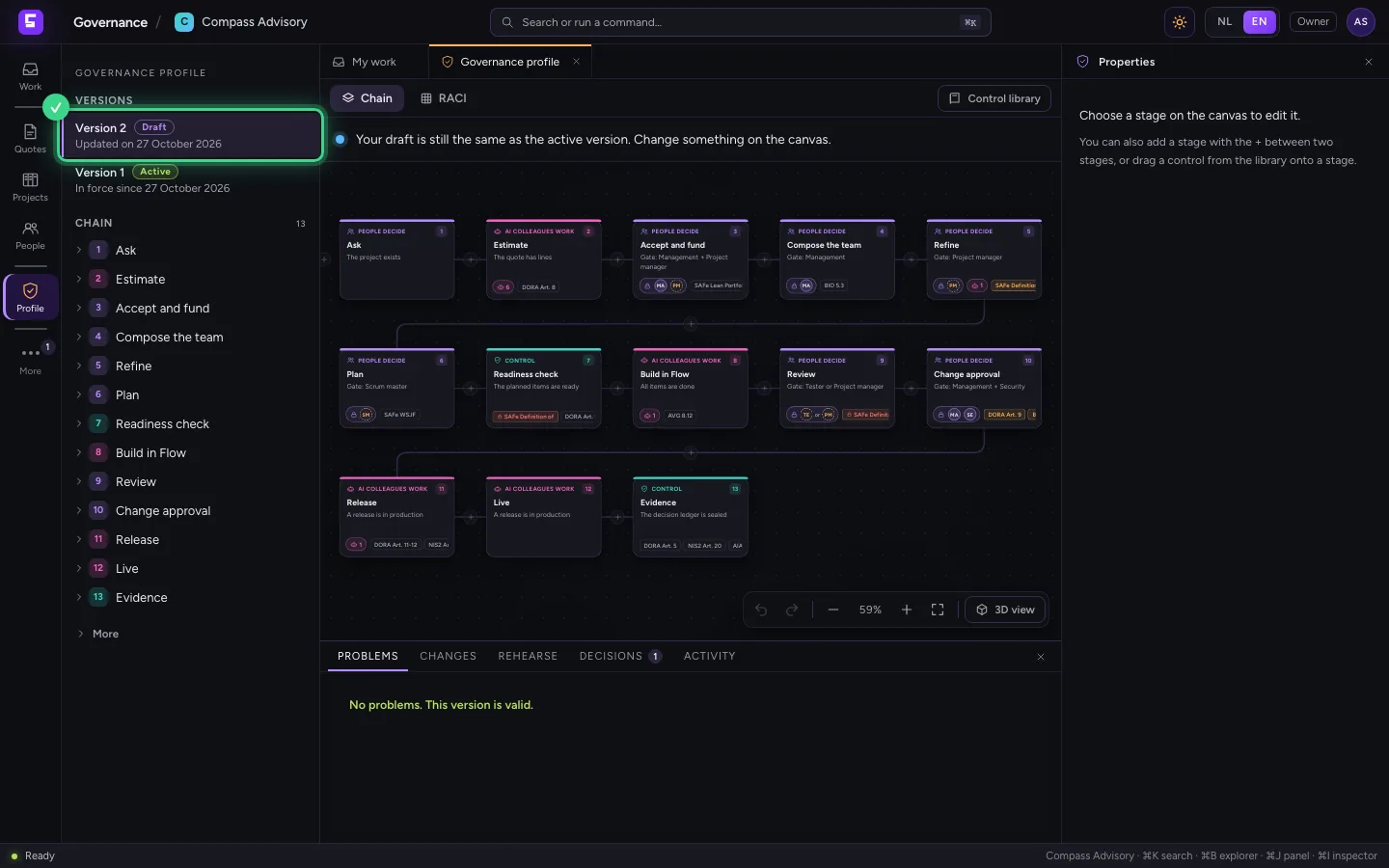
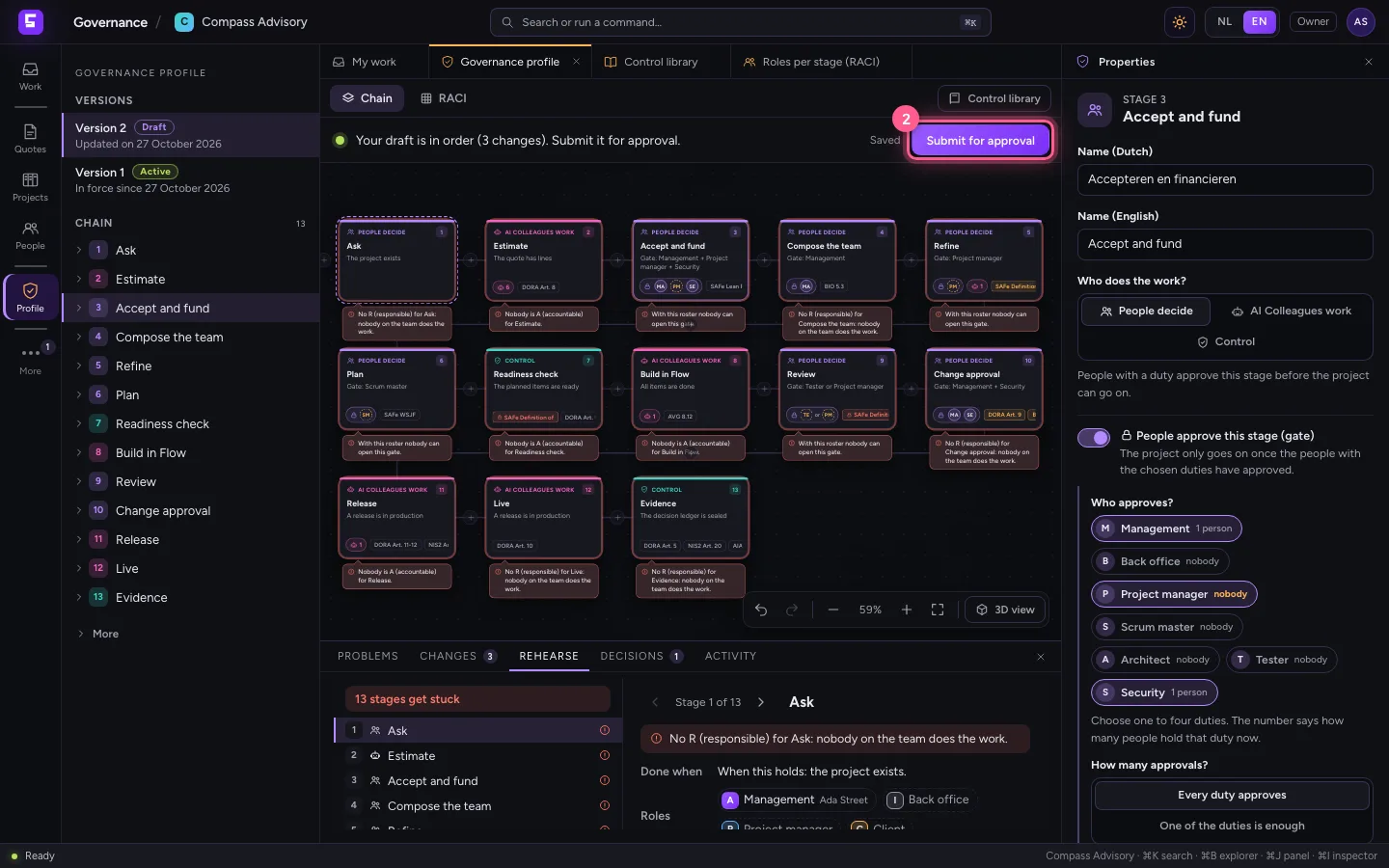
Open Governance from your organisation in the portal and sign in through the portal. Click Profile on the left and choose a stage in the explorer: in the middle is the chain, thirteen stages from Request to Evidence. Purple are stages where people decide (with a gate), pink where AI Colleagues do the work, green where controls guard the conditions.
- Click Profile
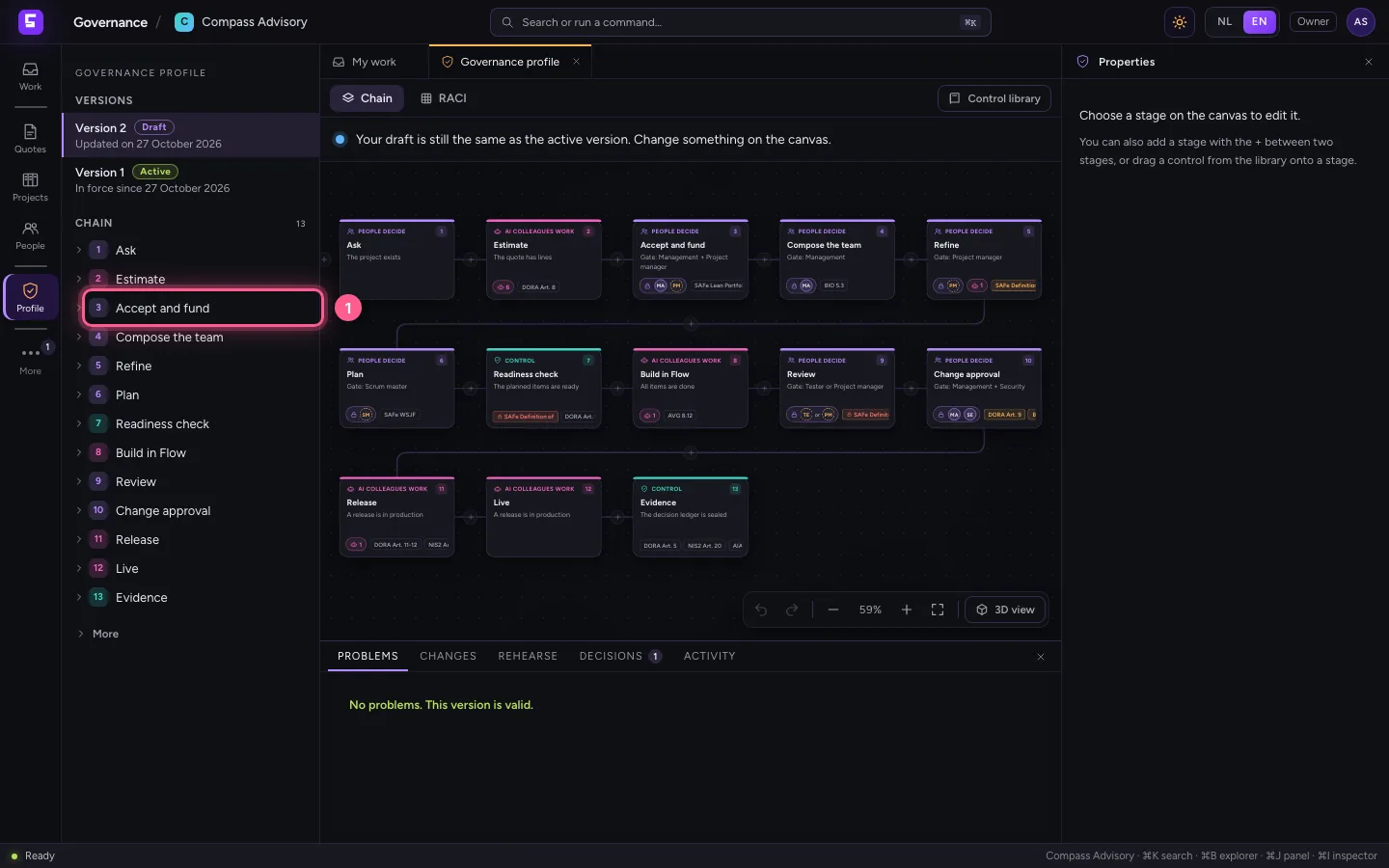
- Click 3 Accept and fund
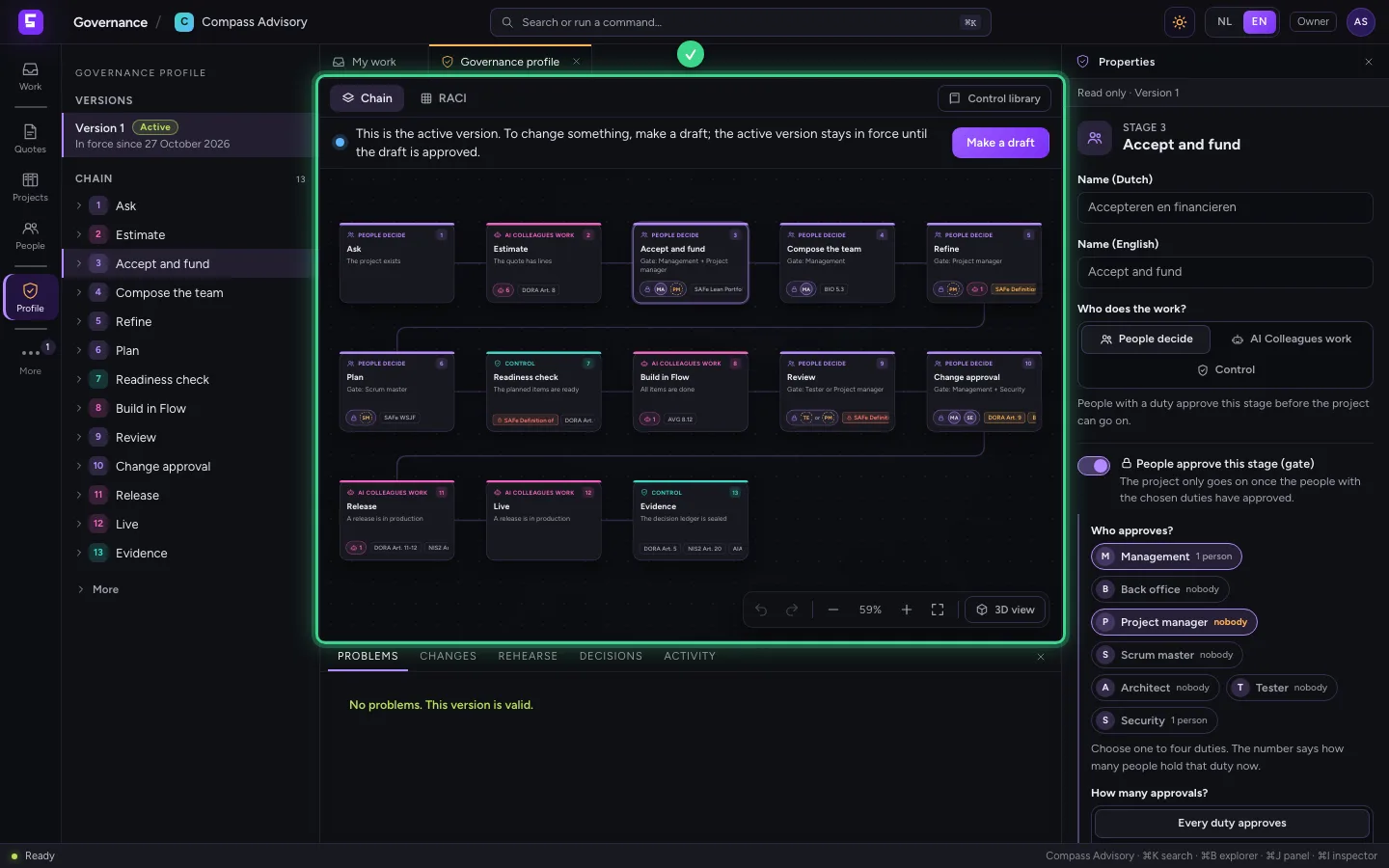
Make a draft
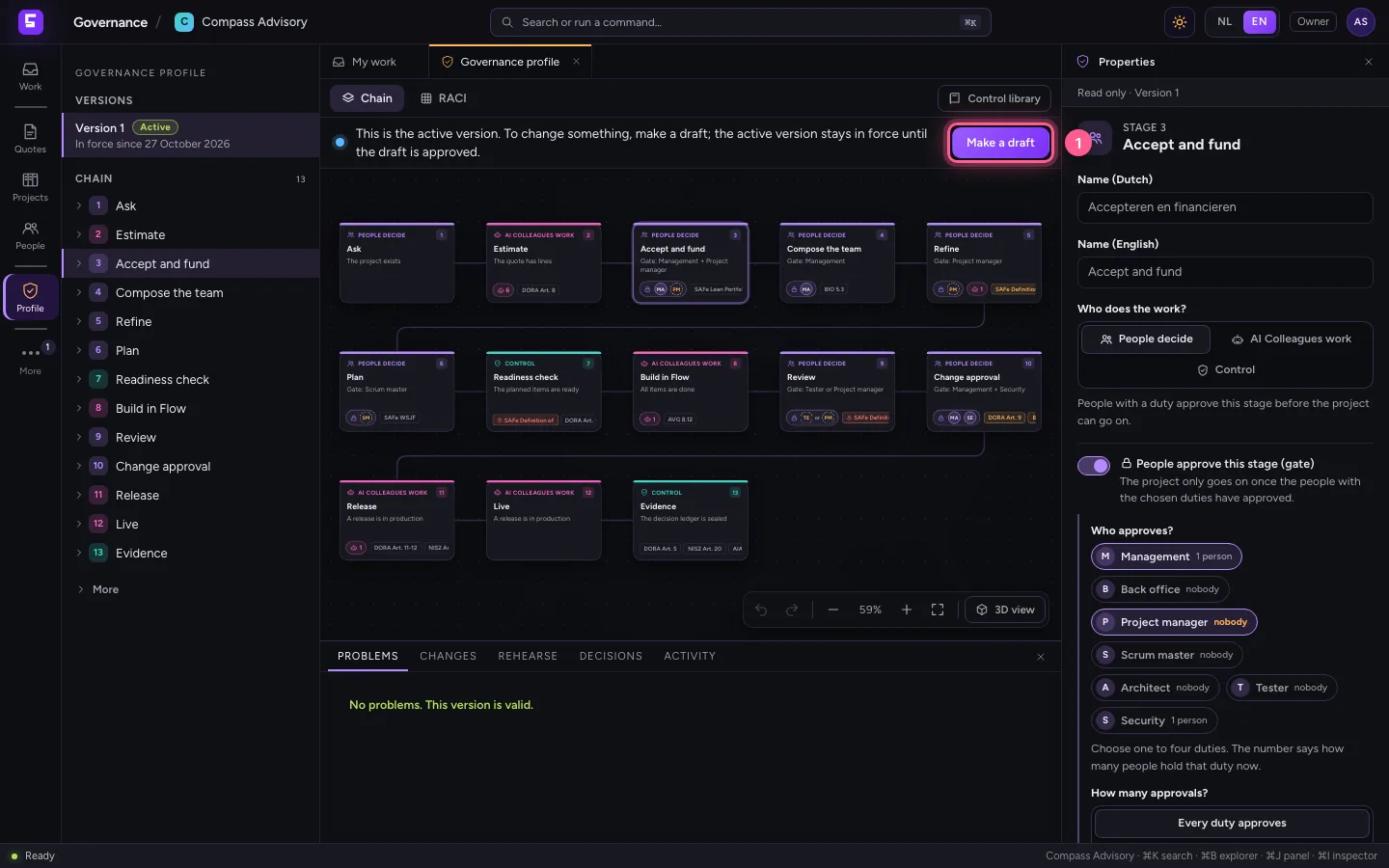
The active version never just changes. Click Make a draft: you work in a copy, version 2. The active version stays in force until the draft is approved.
- Click Make a draft
Give a gate one more approver
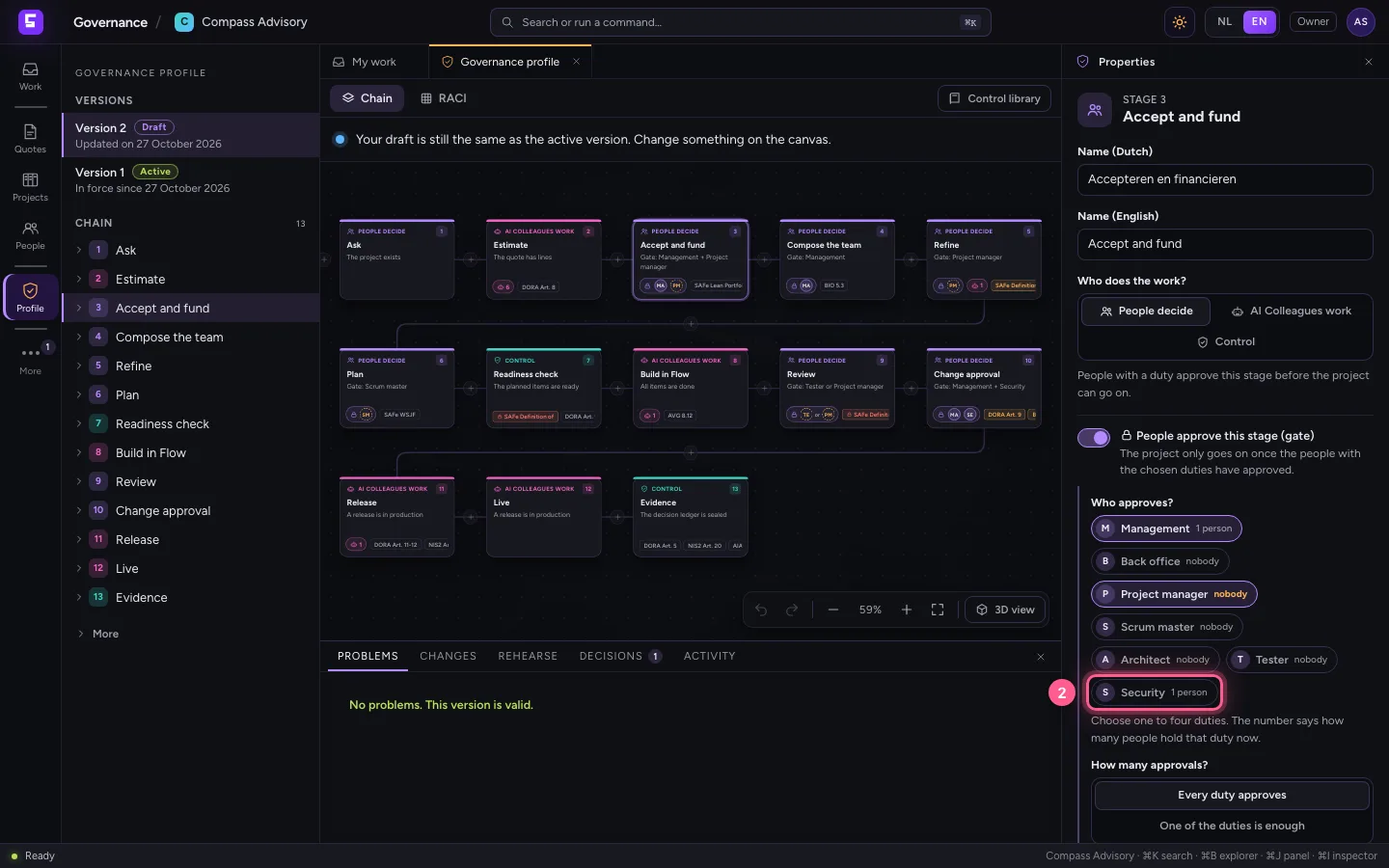
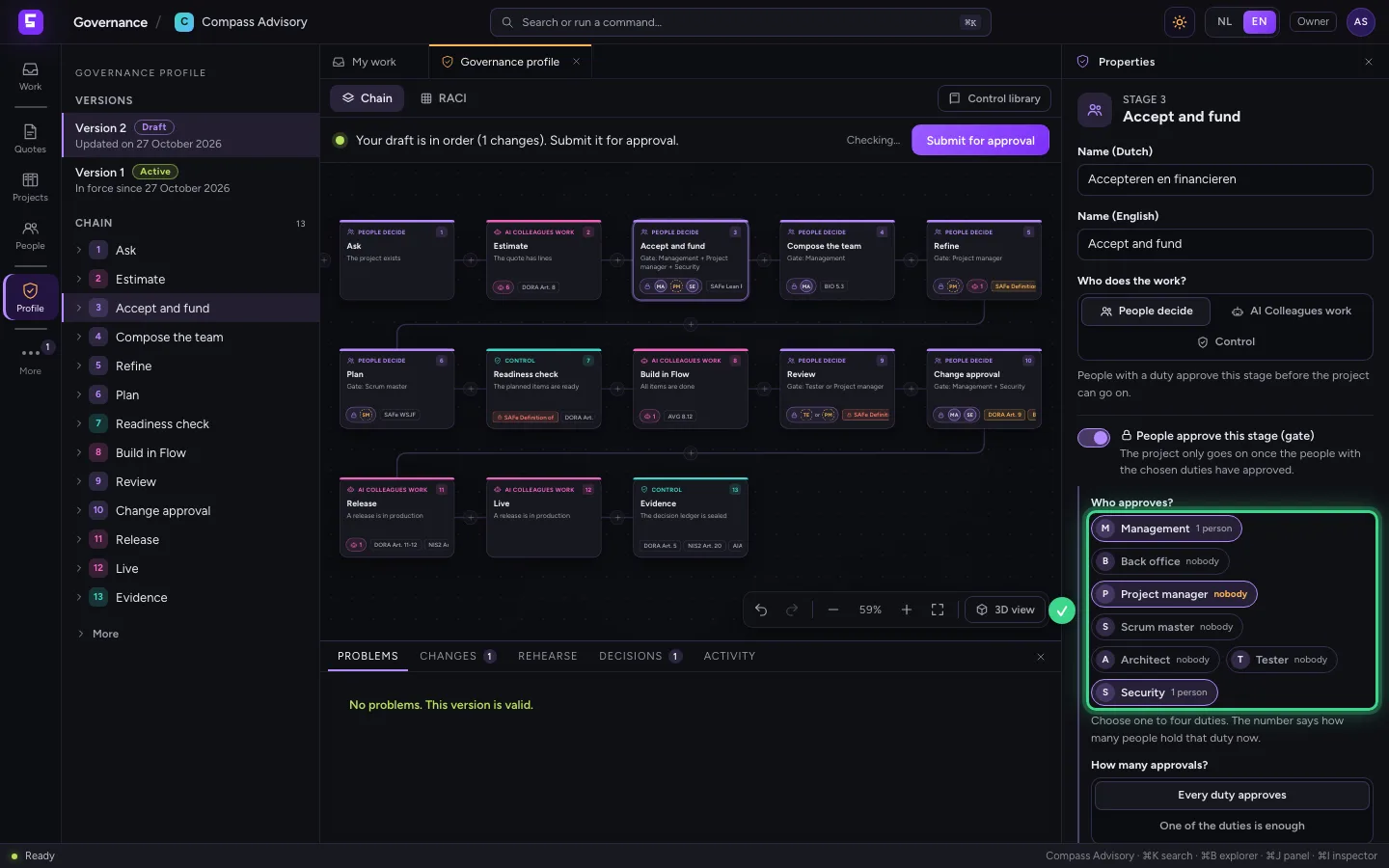
Choose the stage Accept and fund. In the inspector on the right is the gate: who approves, how many approvals, and whether it must be two different people. Click Security: from now on security looks along at every assignment you take on. The number says how many people hold that duty now.
- Click 3 Accept and fund
- Click Security
Put controls from the library on the chain
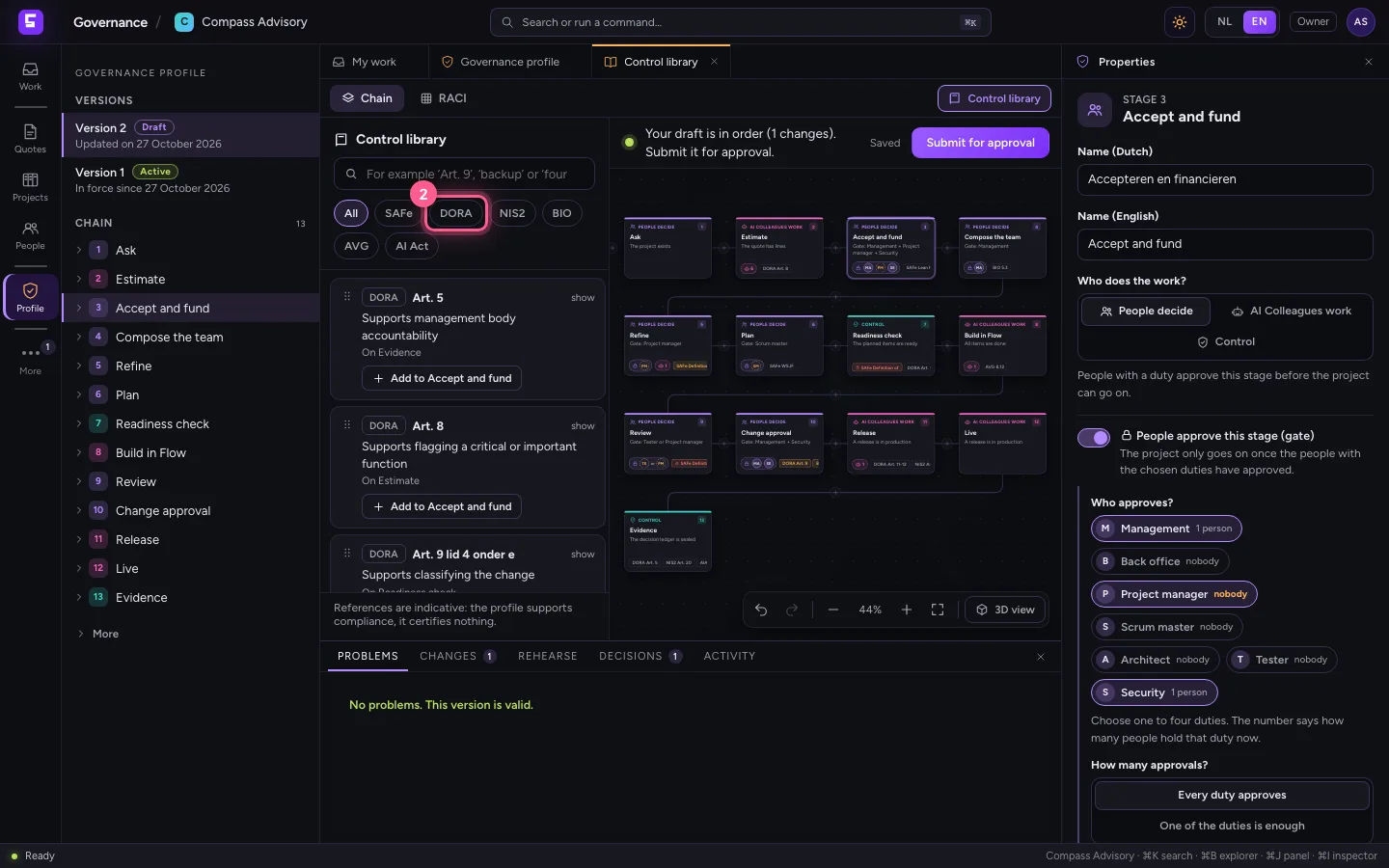
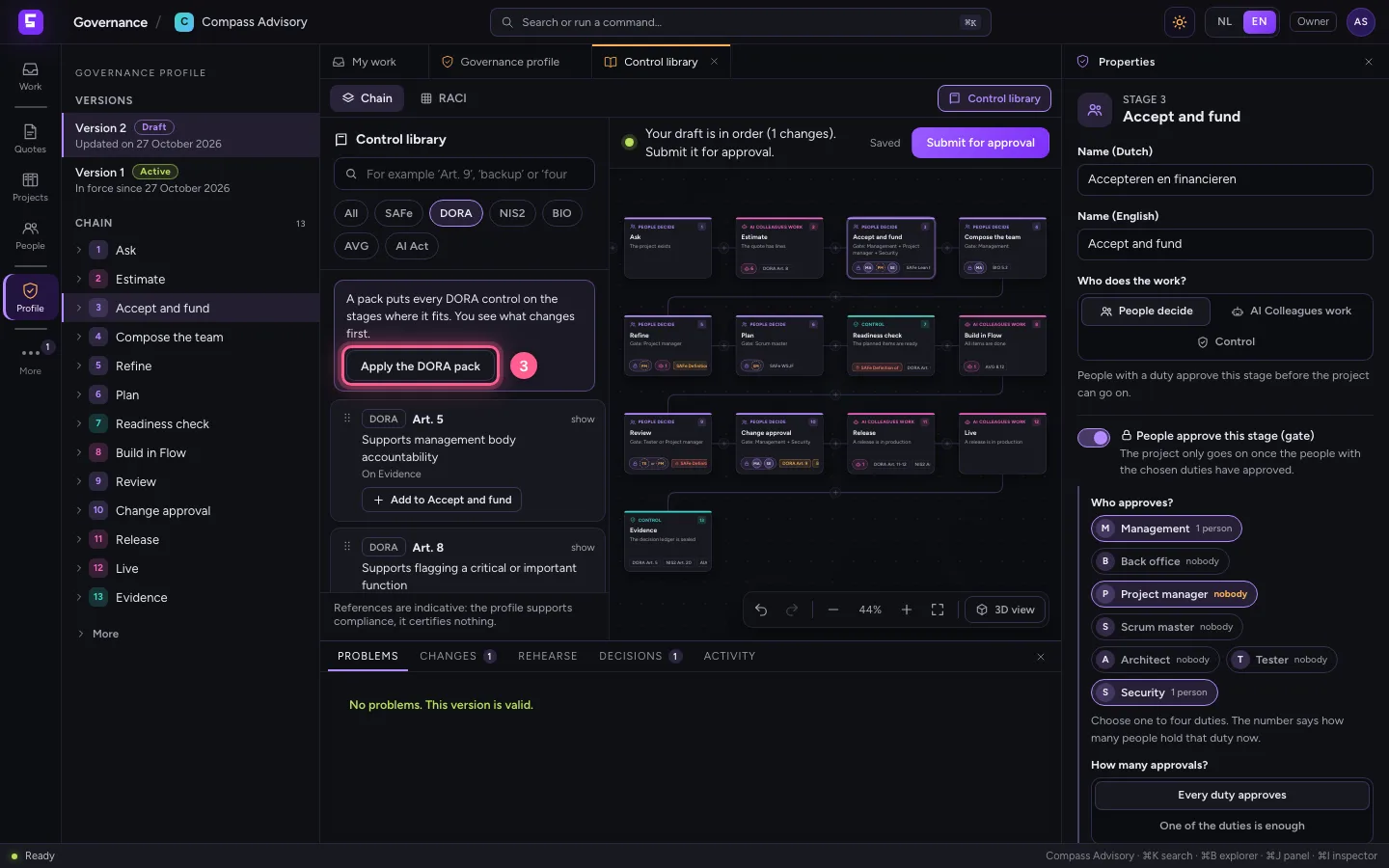
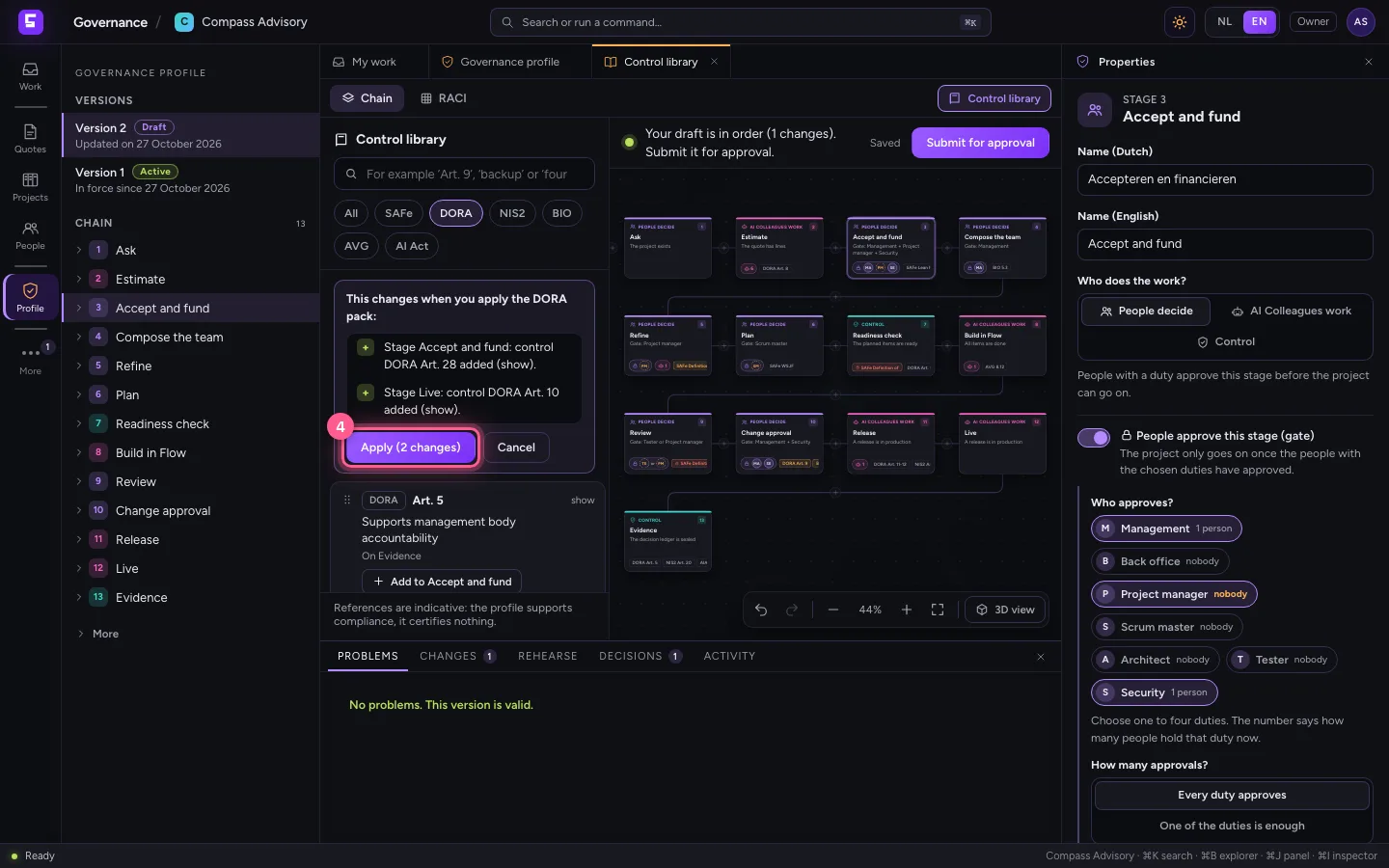
Click Control library: next to the chain you search controls by article or topic, from DORA, NIS2, the AI Act, the GDPR and more. Choose DORA and click Apply the DORA pack: first you see what changes, per stage. Only Apply puts it on the chain, and it can be undone in one go.
- Click Control library
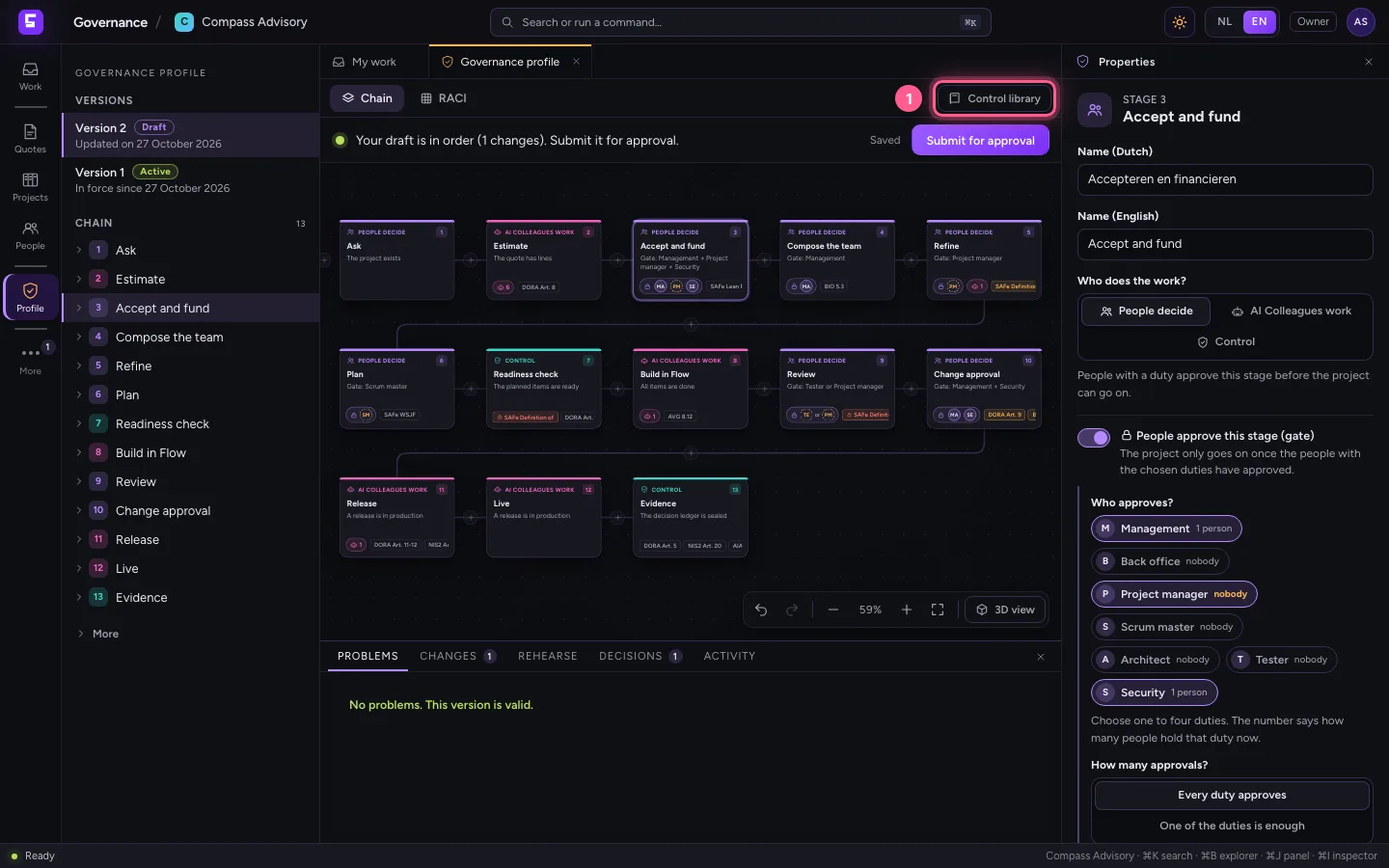
- Click DORA
- Click Apply the DORA pack
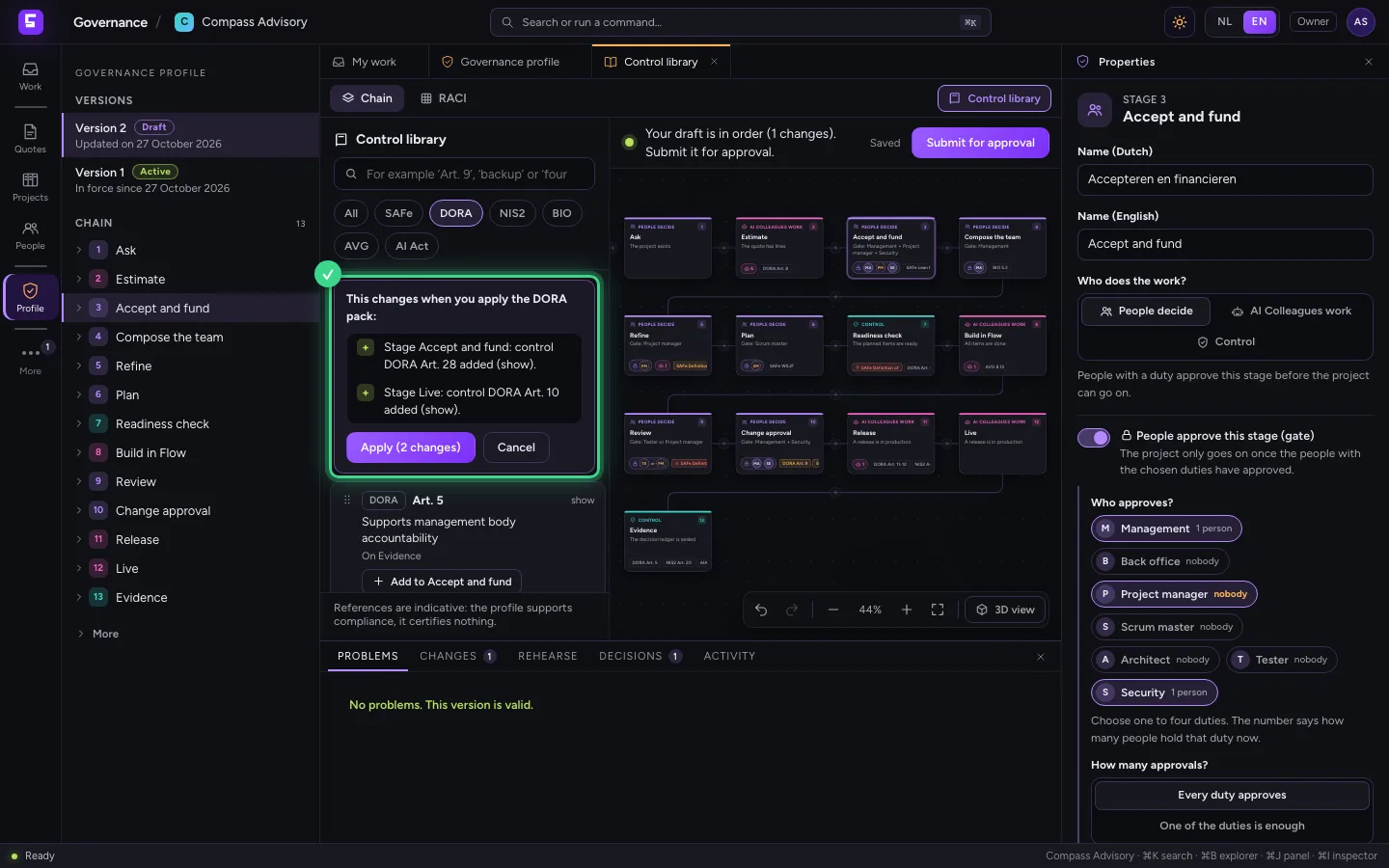
- Click Apply (2 changes)
Fix a RACI rule
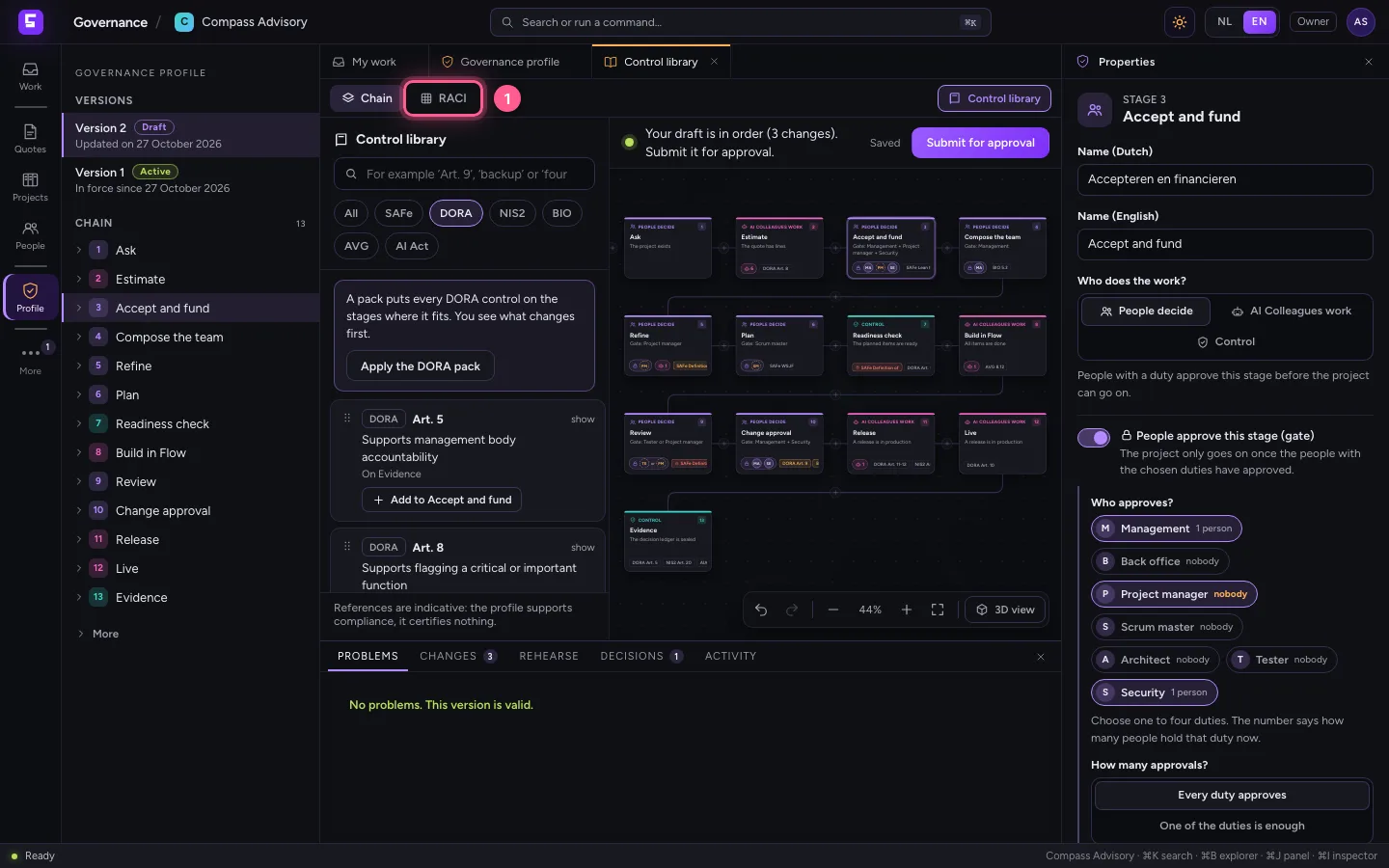
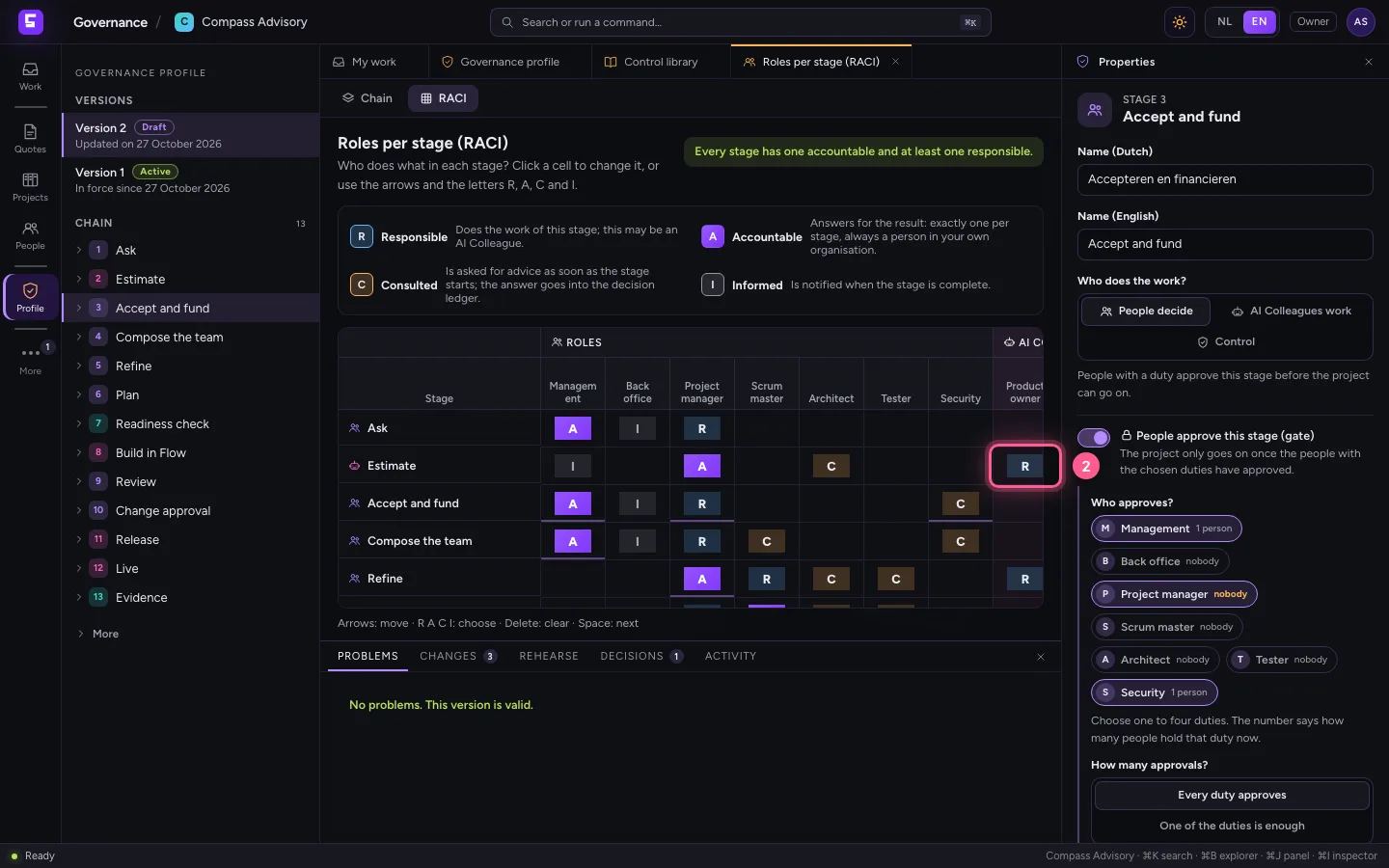
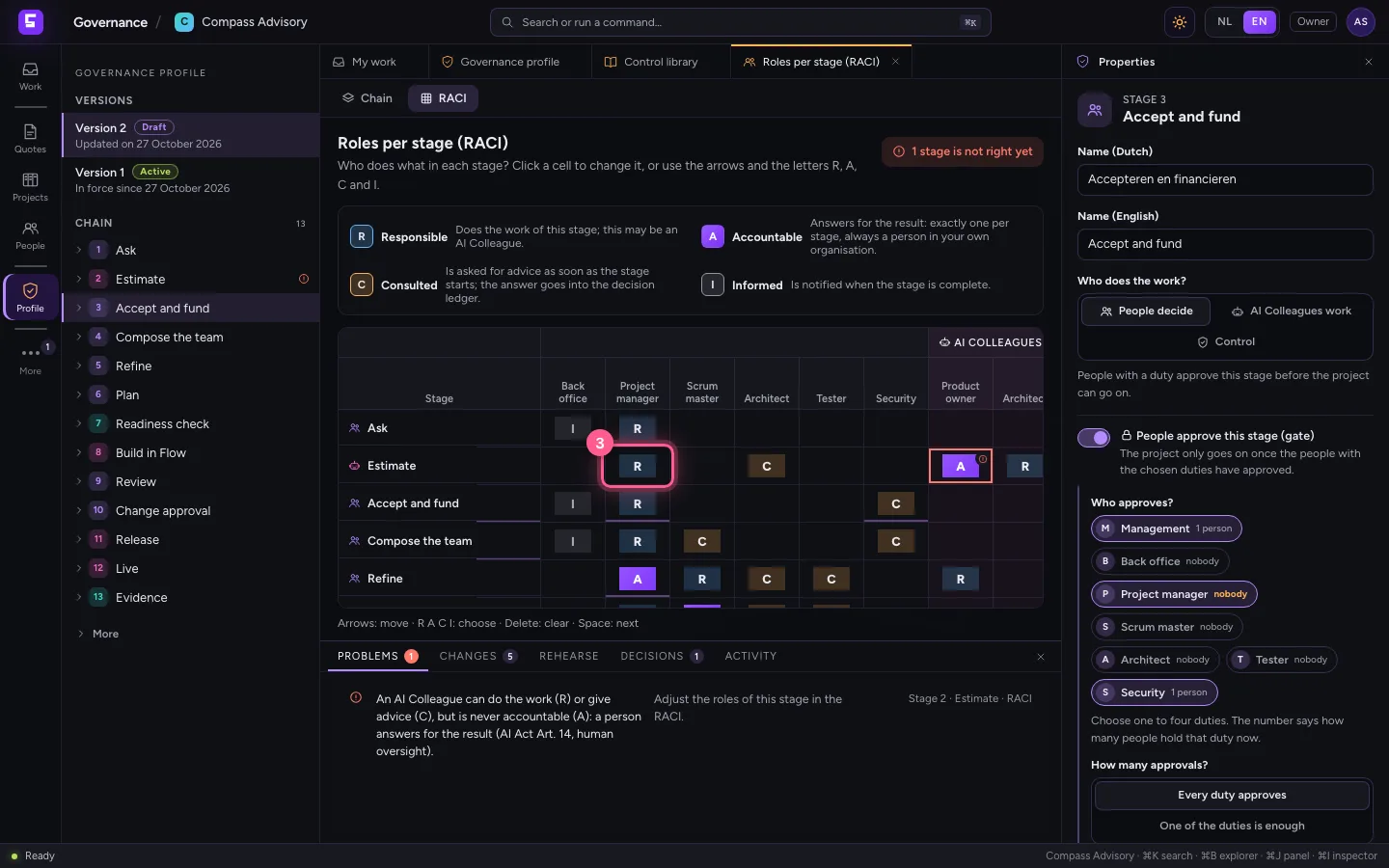
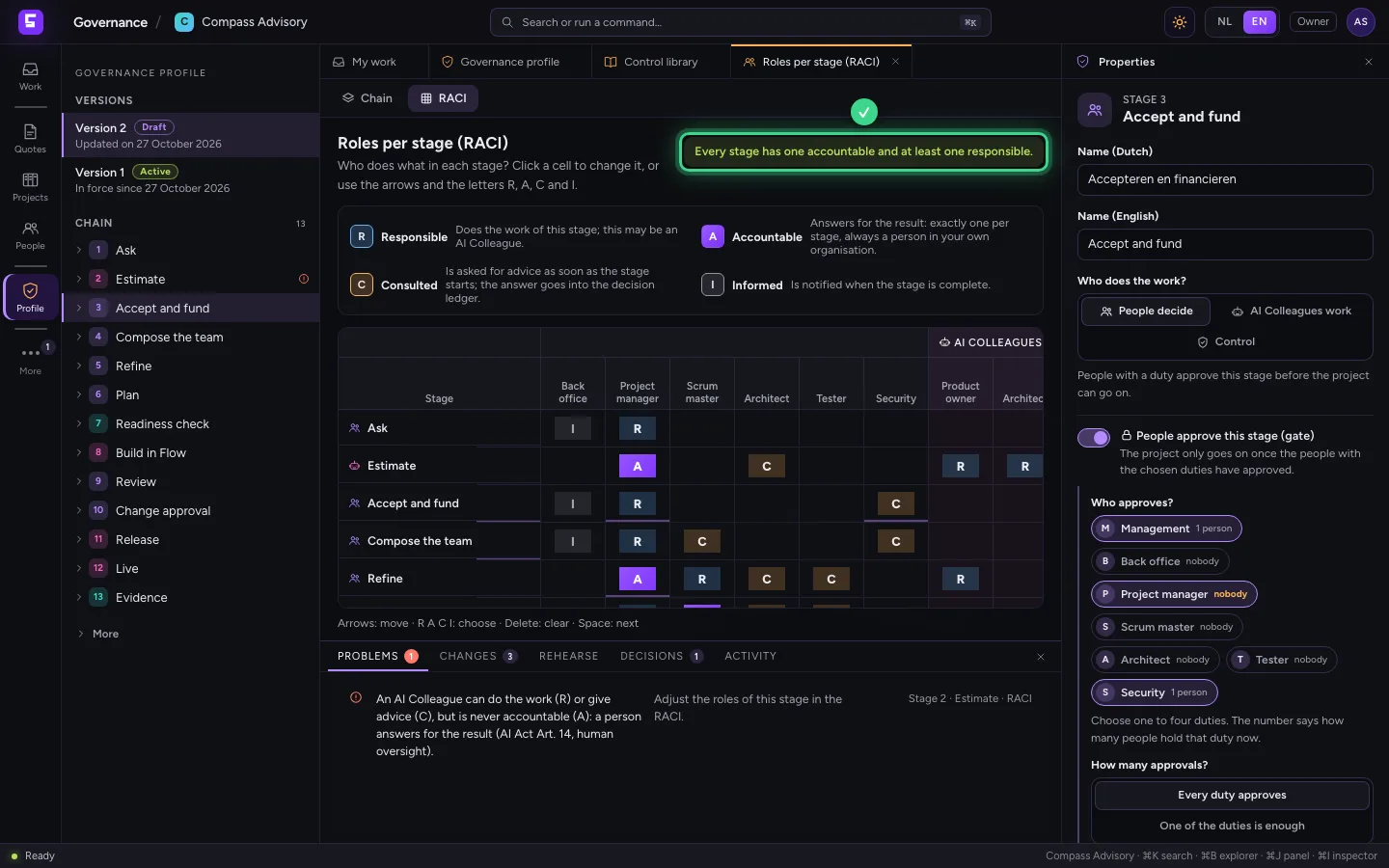
Click RACI at the top: per stage who carries it out (R), who is accountable (A), who is consulted (C) and who is kept informed (I). The matrix guards the rules. Make the AI Colleague Product owner accountable at Estimate (click the cell and type A) and the cell turns red: an AI Colleague is never accountable, and whoever has A belongs to the gate. Fix it: click the cell of Project manager and type A. The AI Colleague becomes responsible (R) again by itself.
- Click RACI
- Click Product owner (AI Colleague) at Estimate
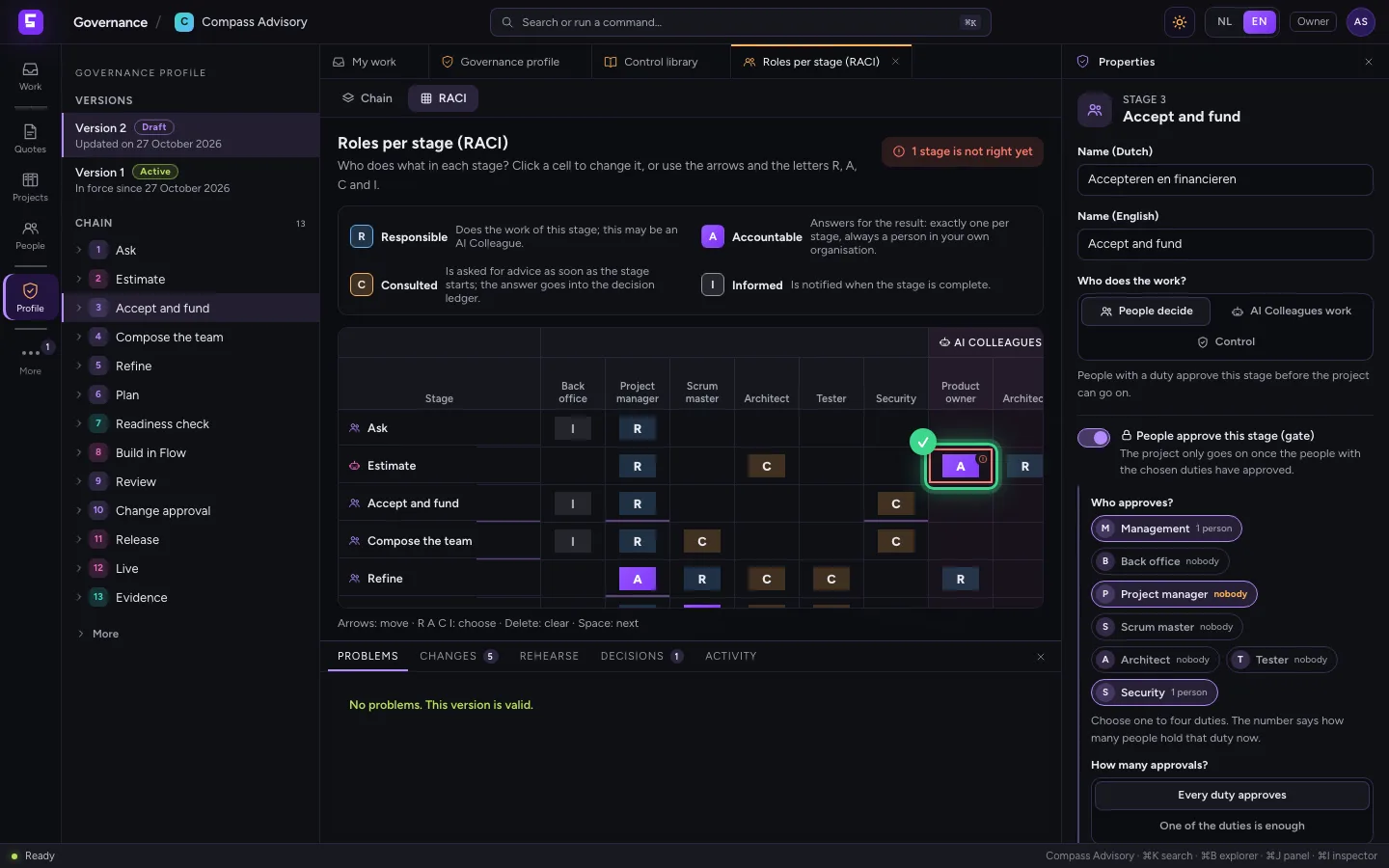
- Click Project manager at Estimate
Rehearse
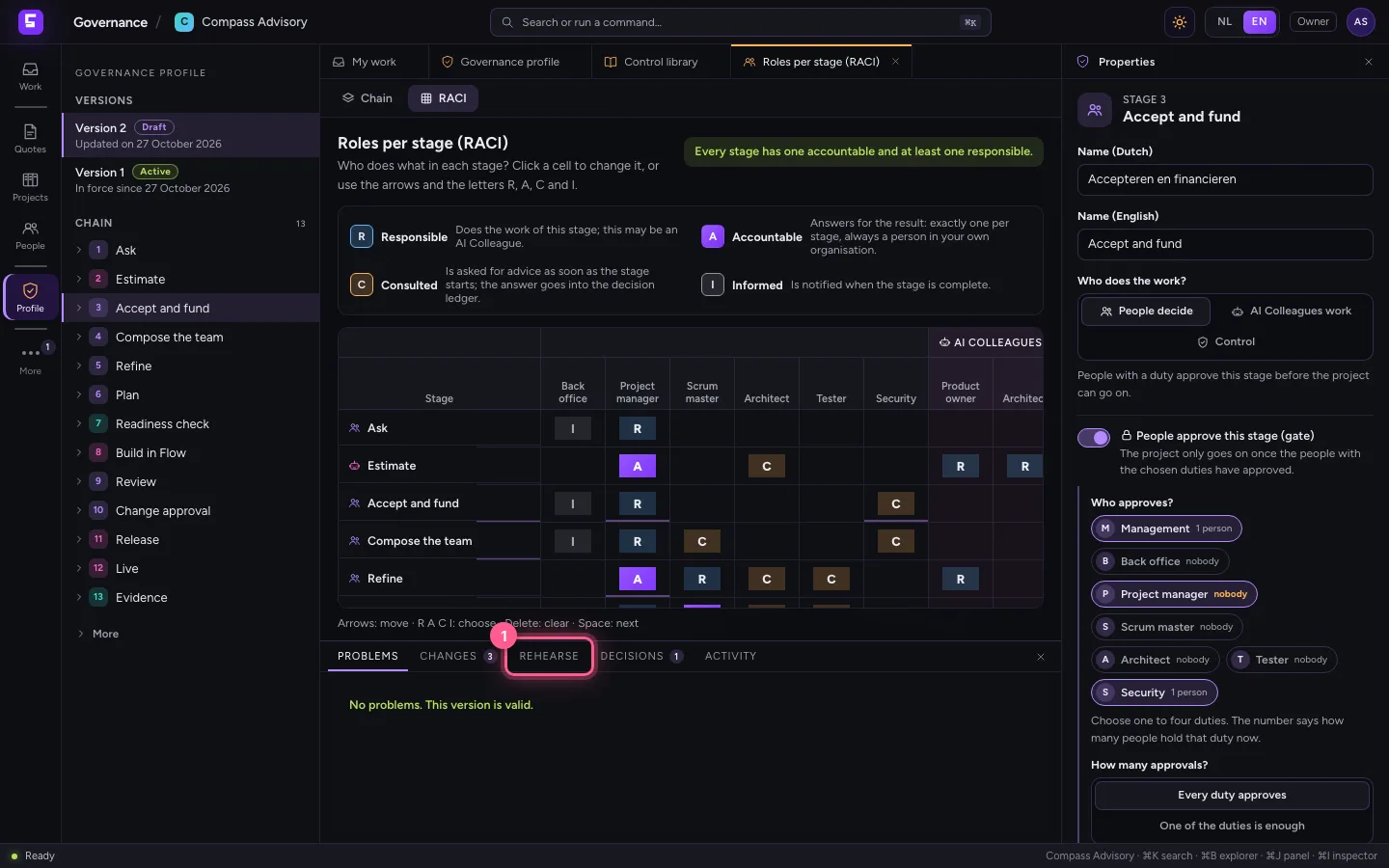
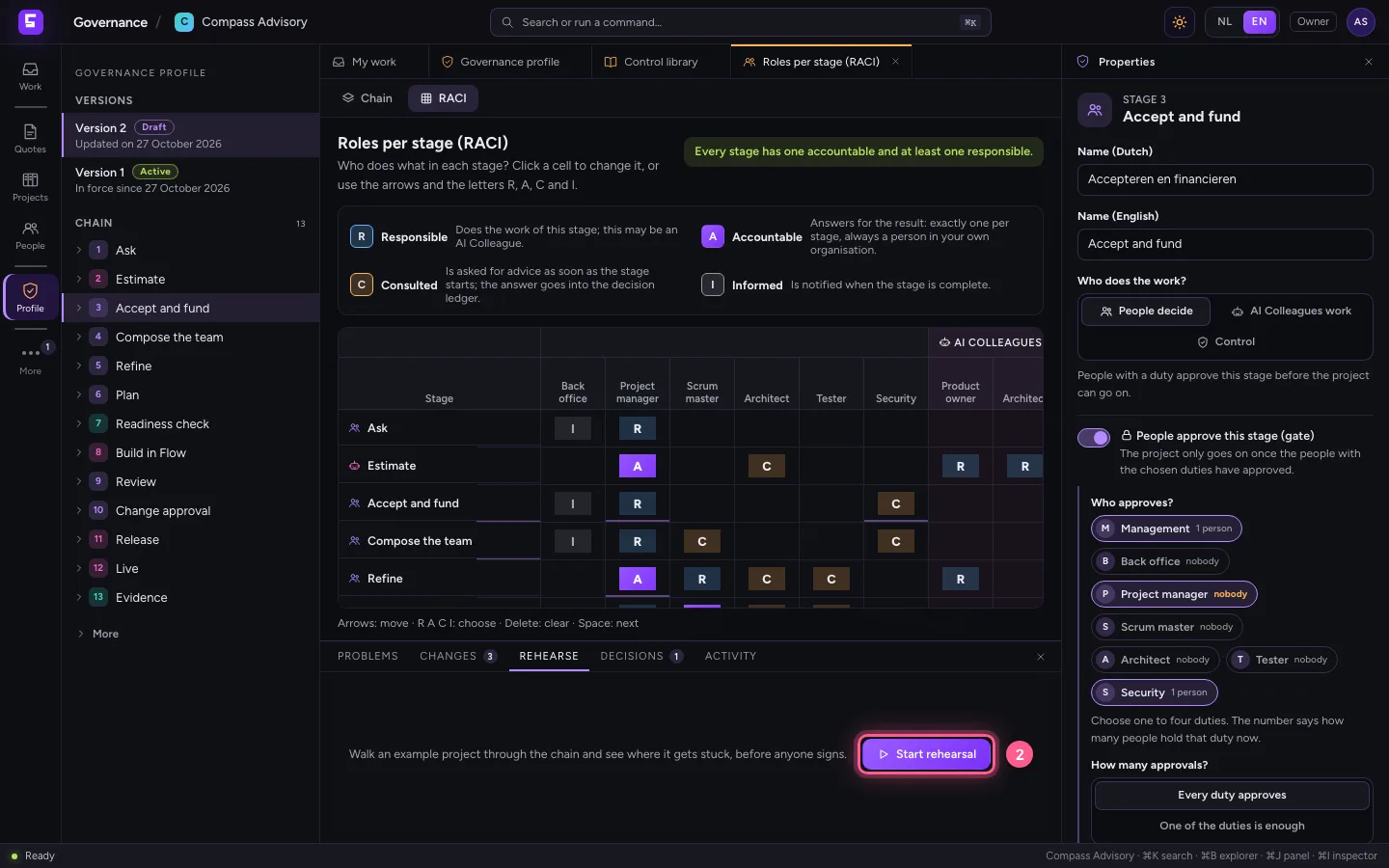
Open Rehearse at the bottom and click Start rehearsal. An example project runs through the chain with the people you have now, before anyone signs. Per stage you see whether it gets through and if not, who is missing. In a new organisation almost everything gets stuck: nobody holds the duties that do the work or open a gate yet, such as Project manager. With Example roster you try what happens when someone gets a duty, without changing anything.
- Click REHEARSE
- Click Start rehearsal
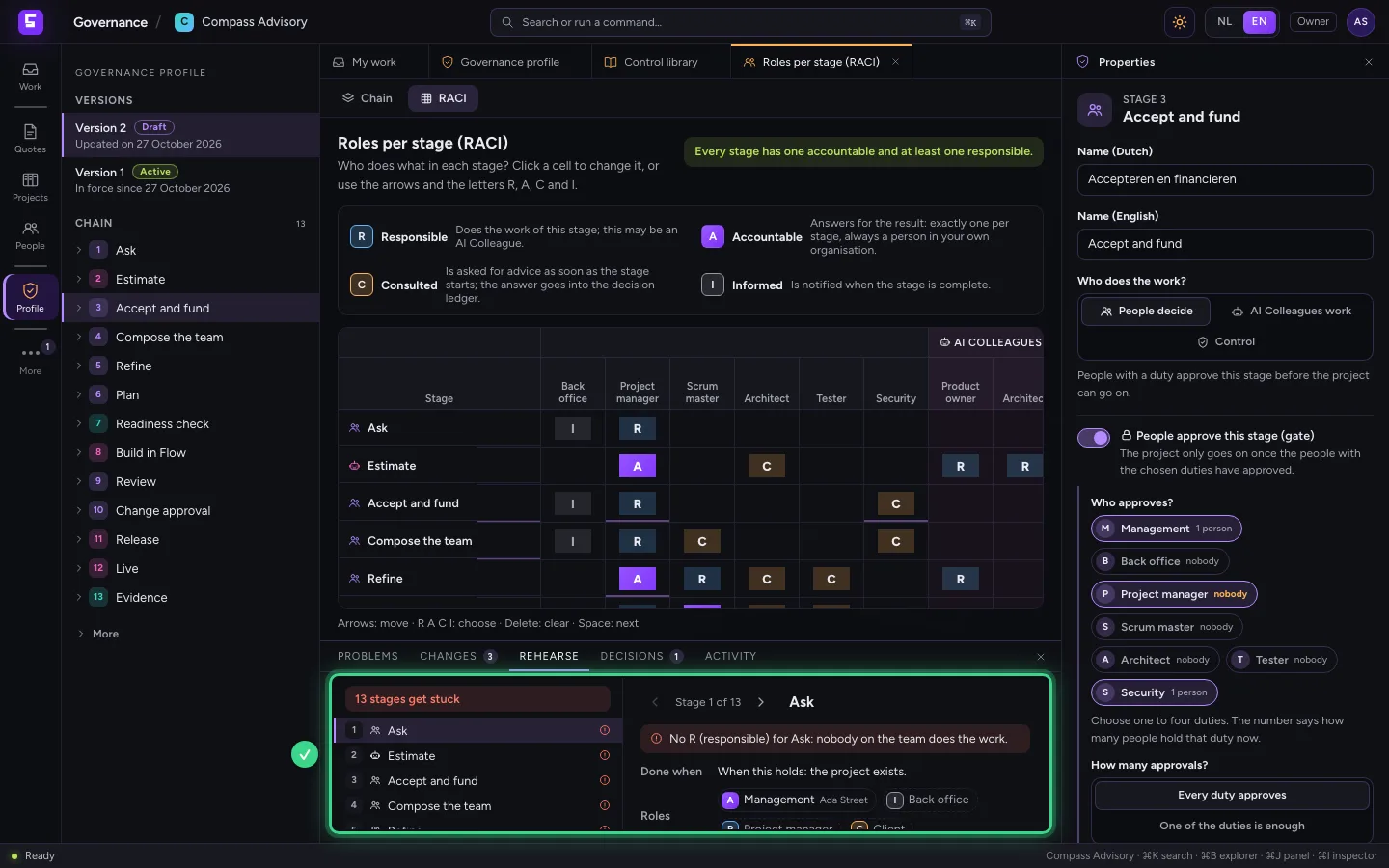
Submit the draft
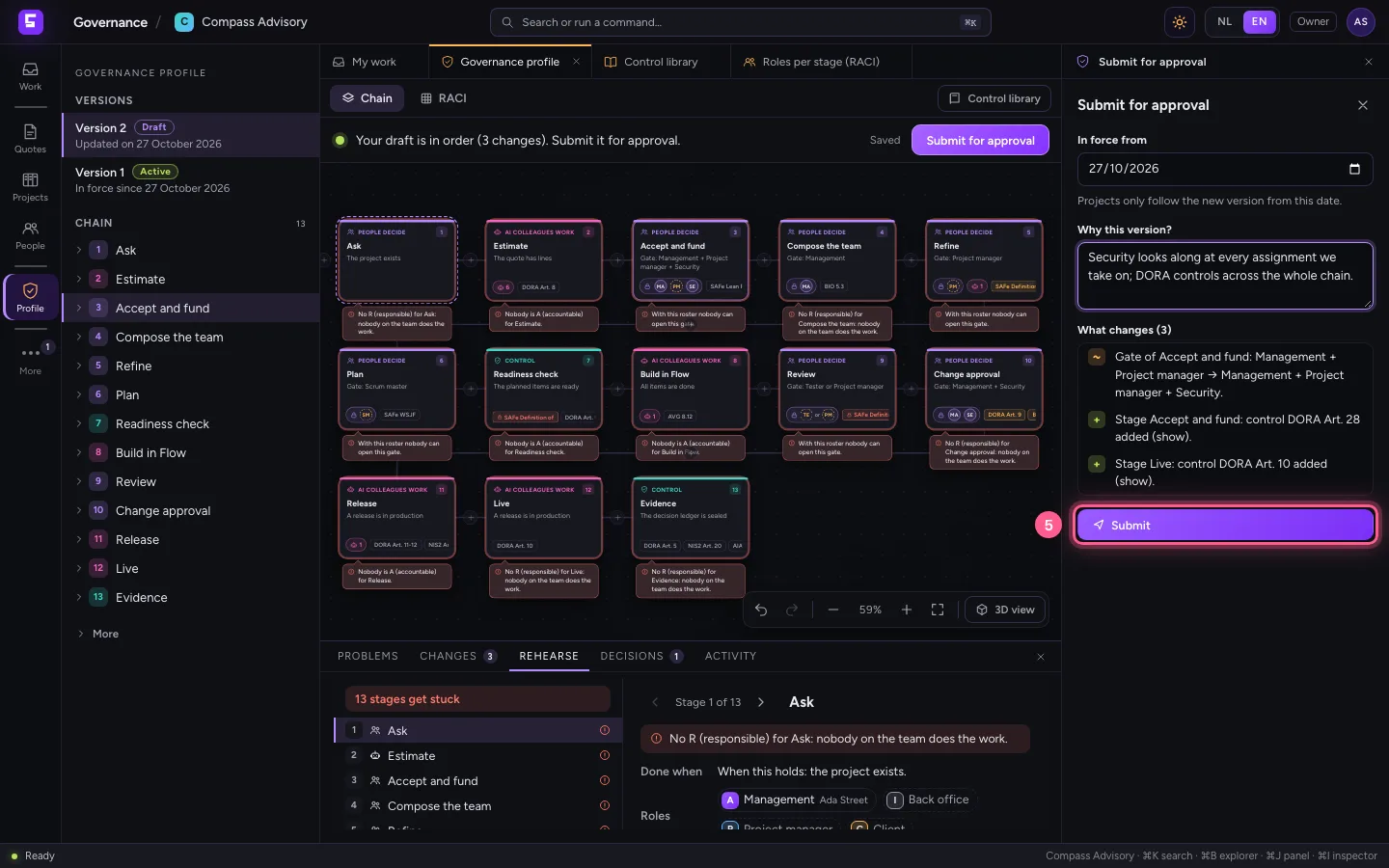
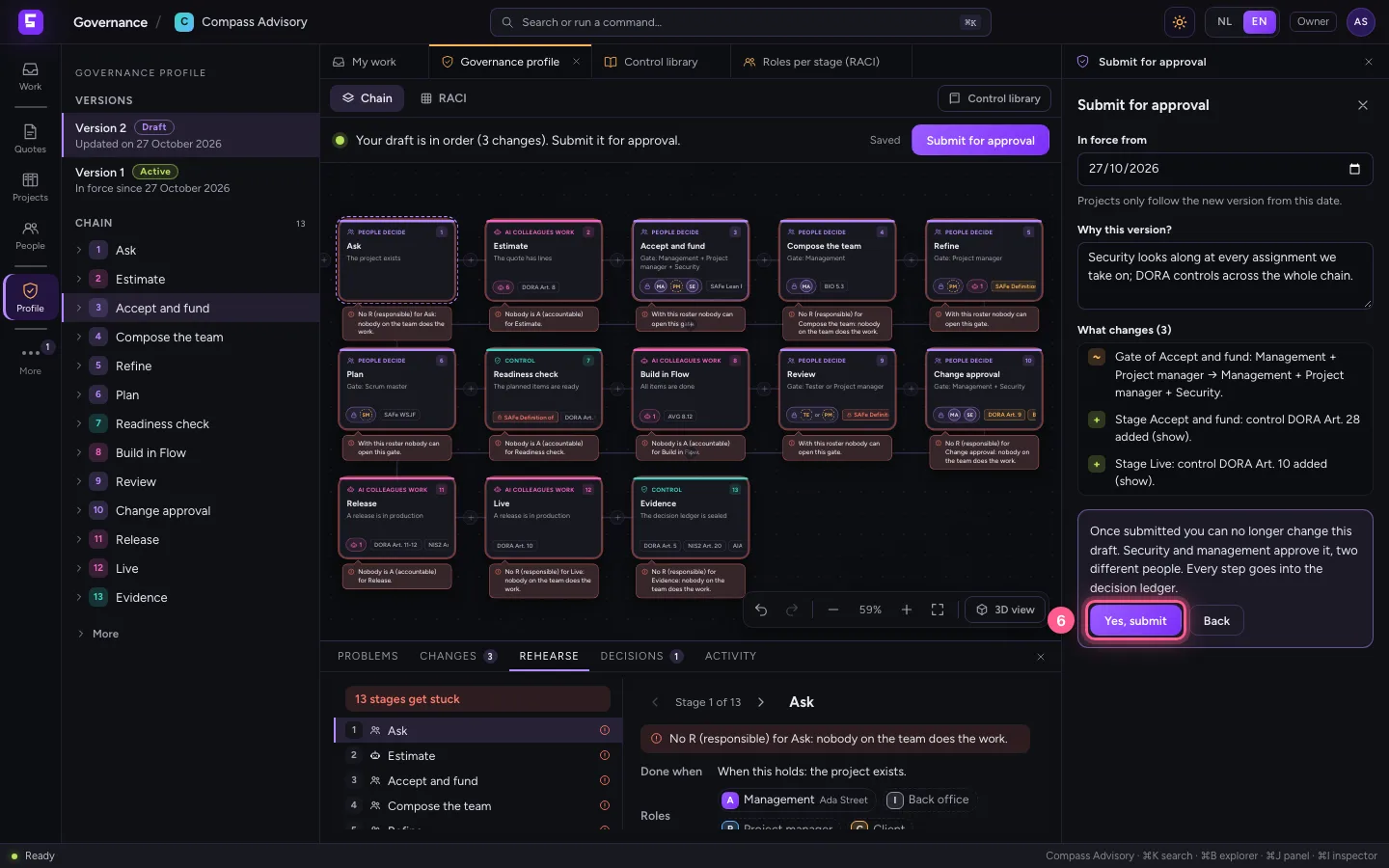
At the top, What next? says your draft is in order. Click Submit for approval. Choose from when the version applies, write in one sentence why, and click Submit. From then on the draft is fixed.
- Click Chain
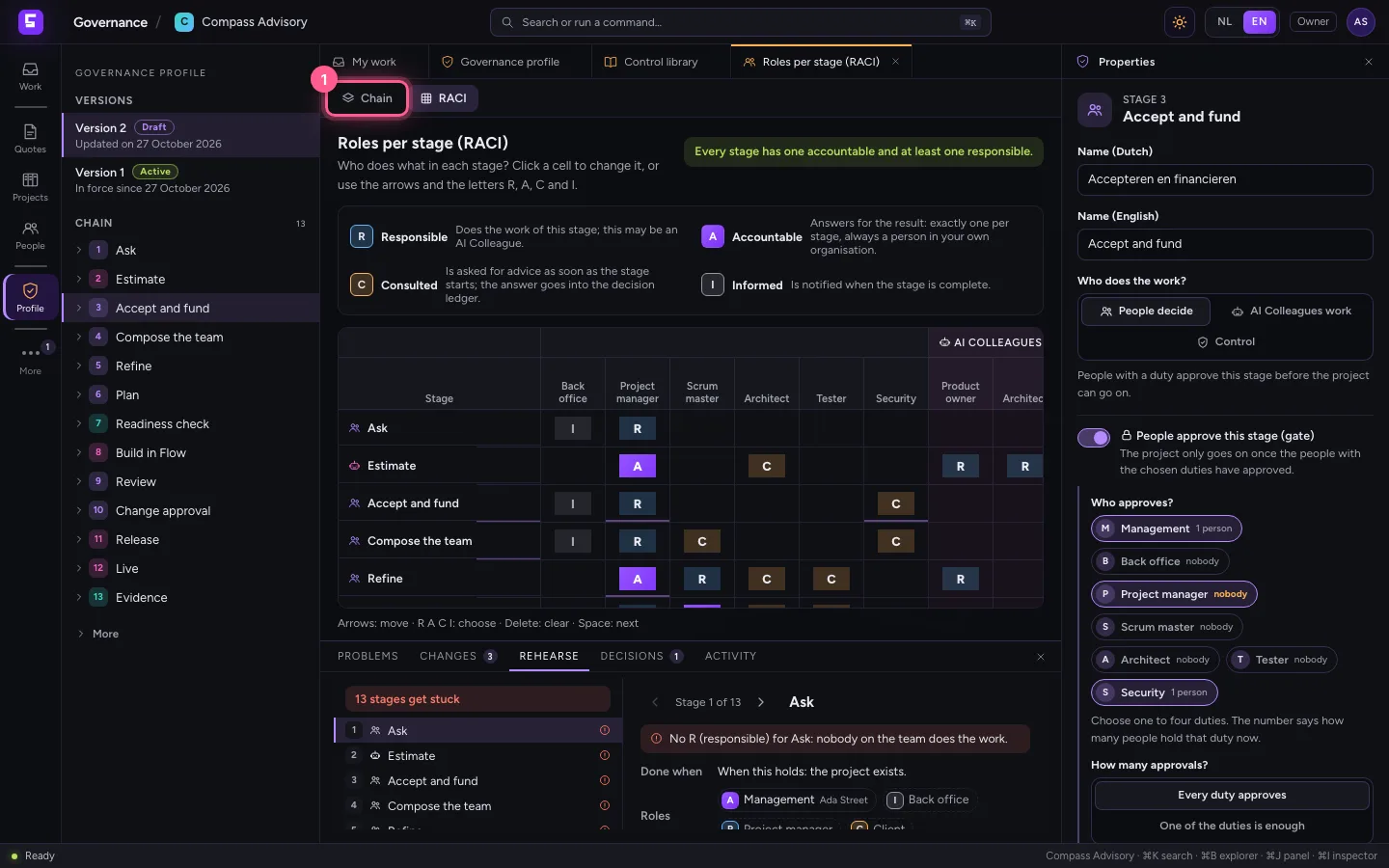
- Click Submit for approval
- In In force from, type
today - In Why this version?, type
Security looks along at every assignment we take on; DORA controls across the whole chain.
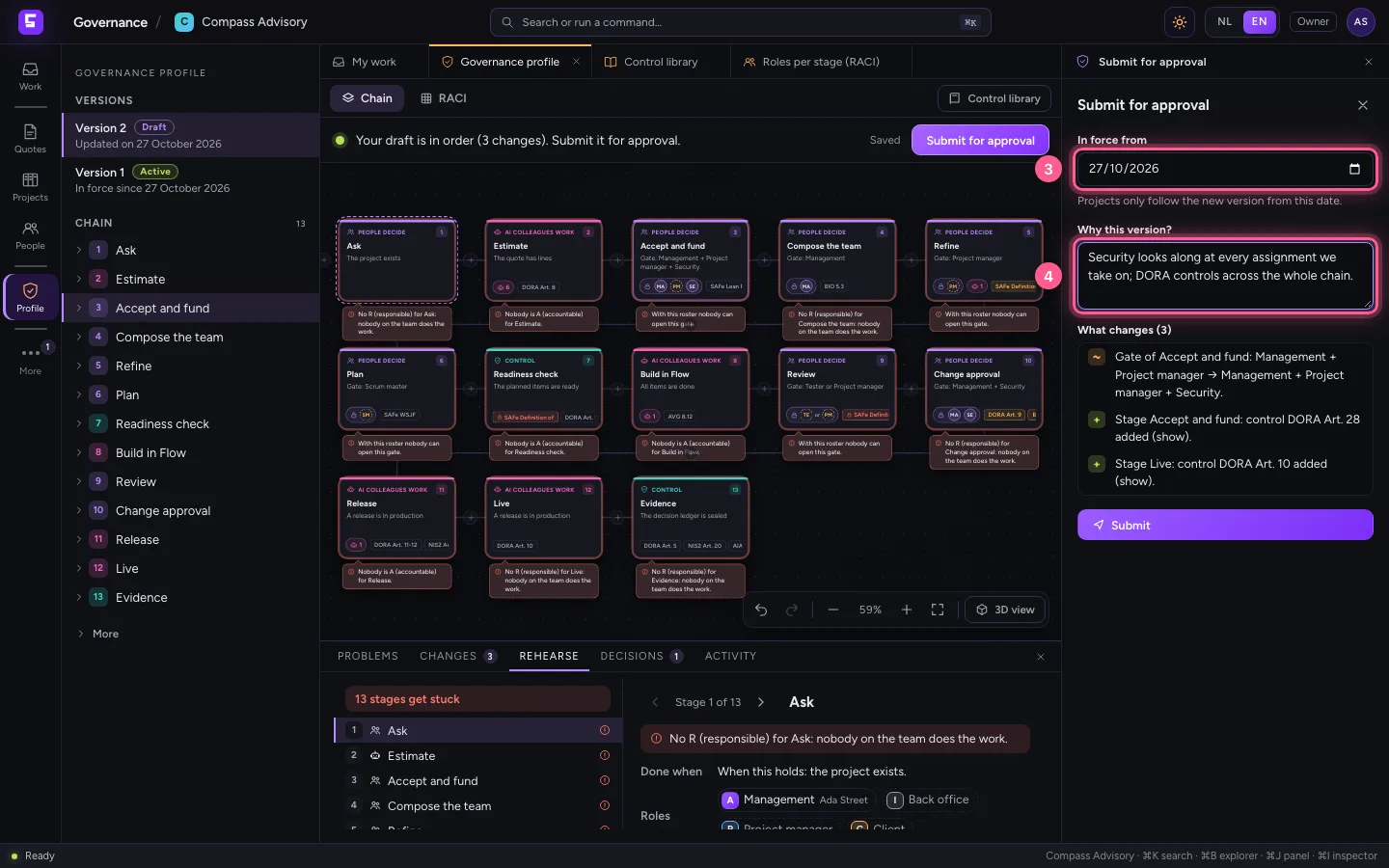
- Click Submit
- Click Yes, submit
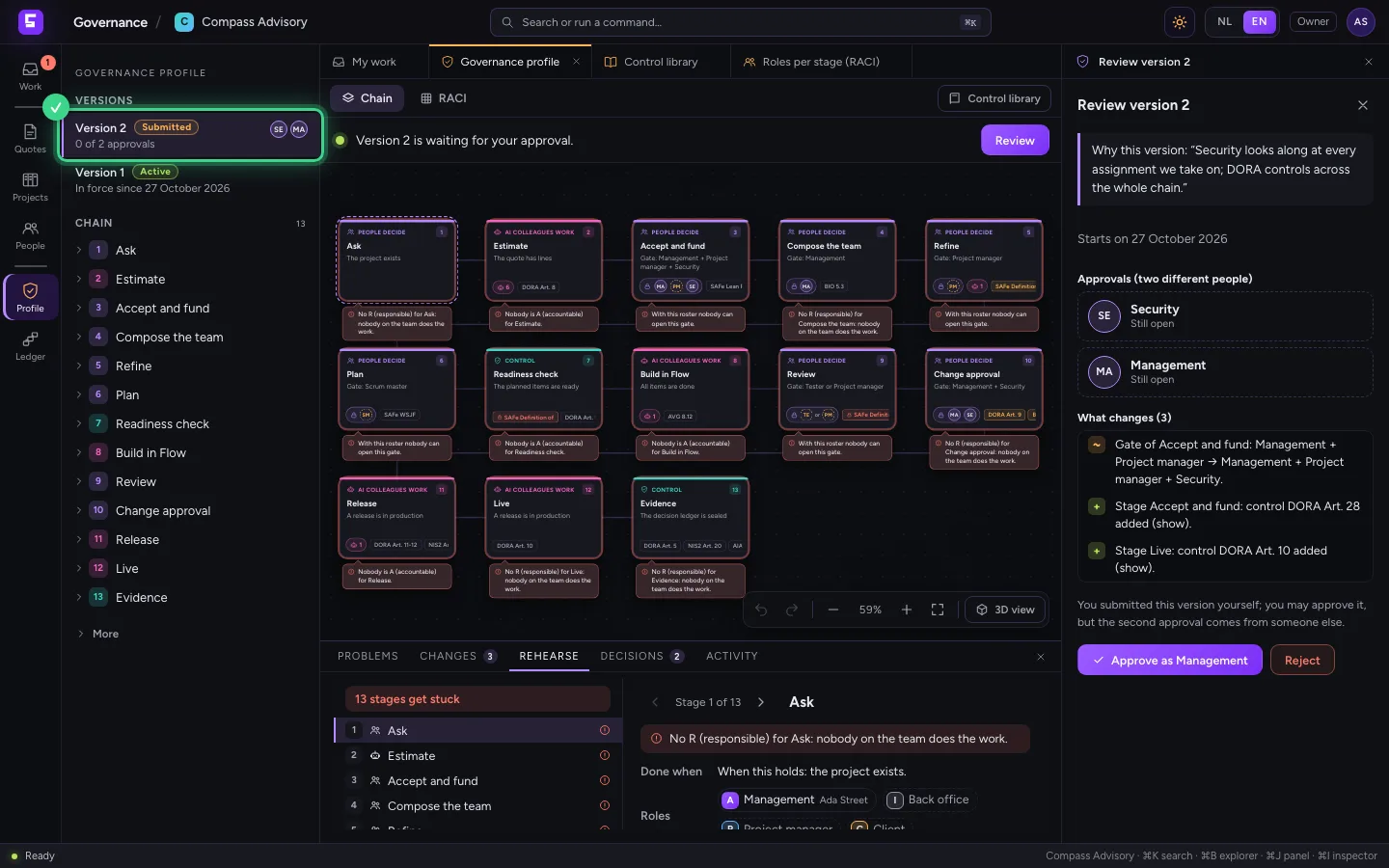
Approve as management
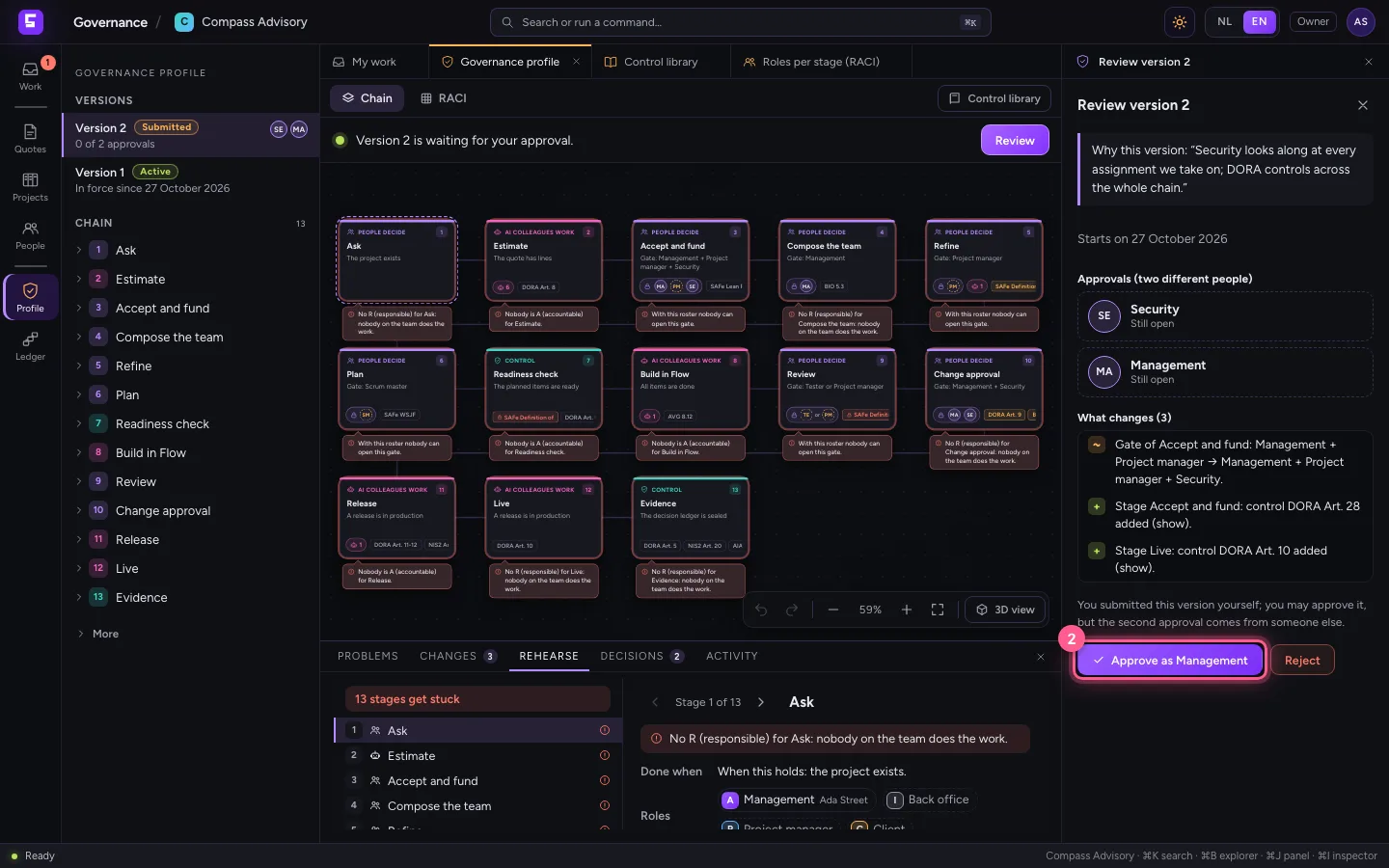
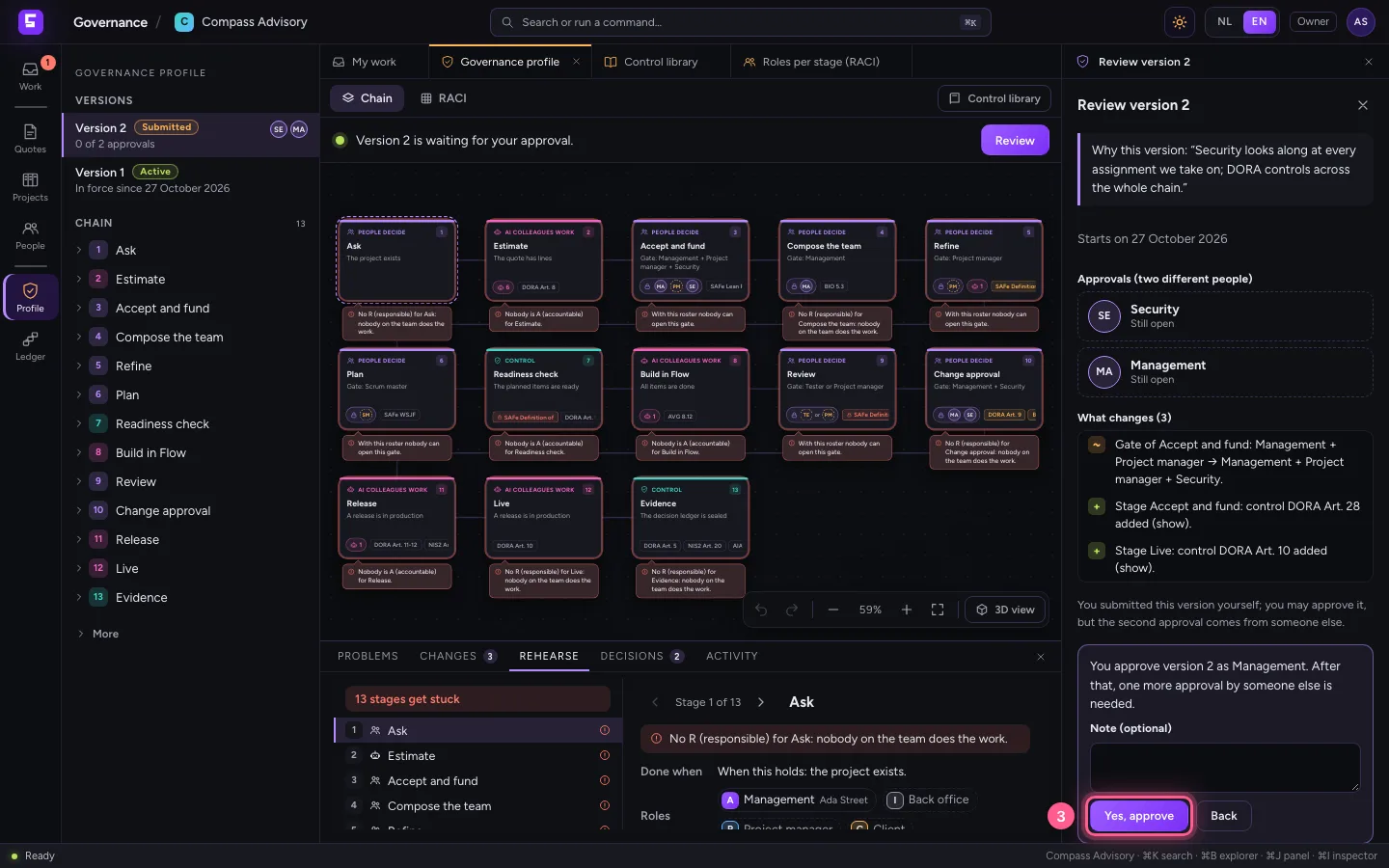
You hold the duty Management. In What next? click Review: you see why this version is needed and what changes. Click Approve as Management and confirm. You may approve your own draft, but the second approval must come from someone else.
- Click Review
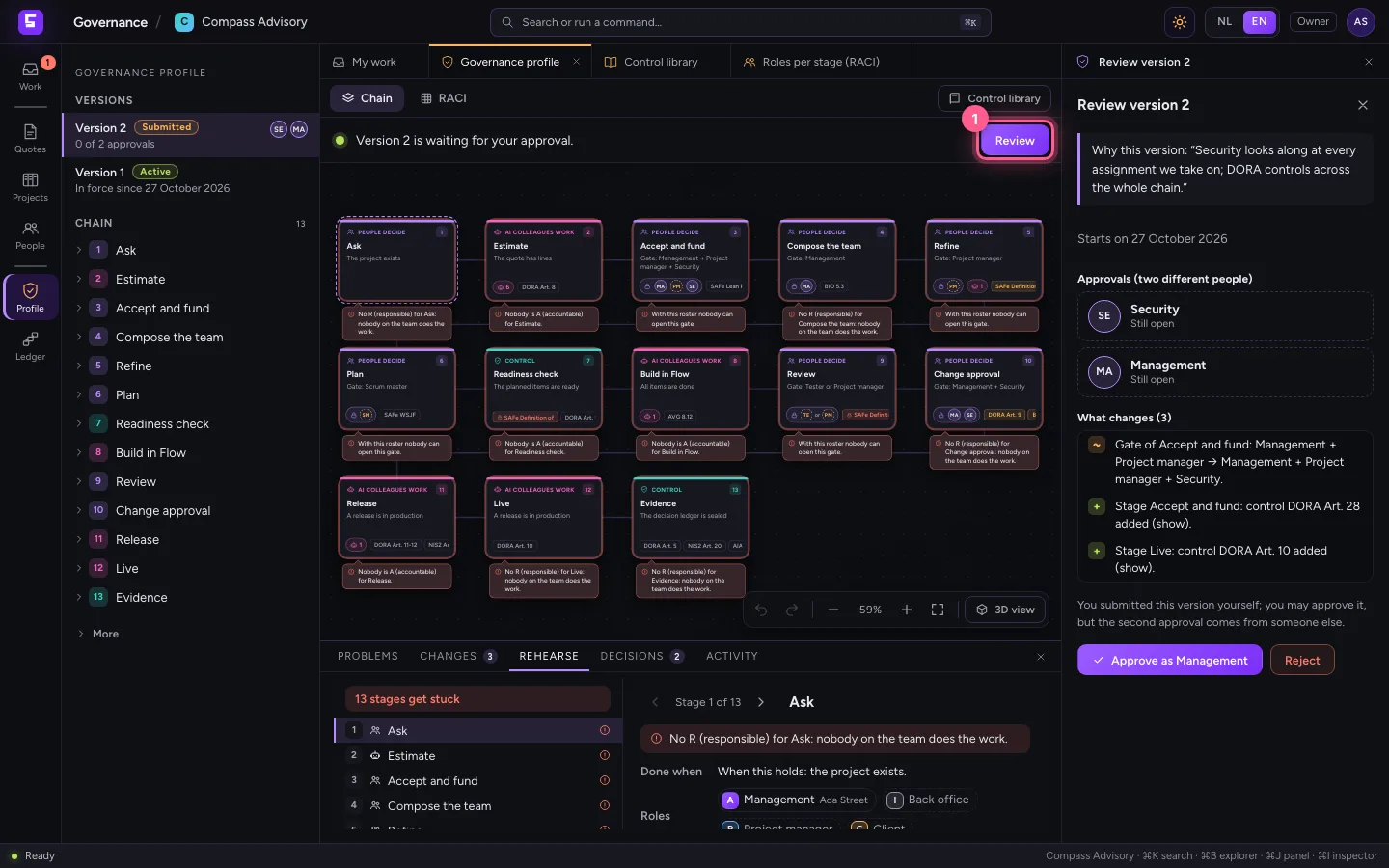
- Click Approve as Management
- Click Yes, approve
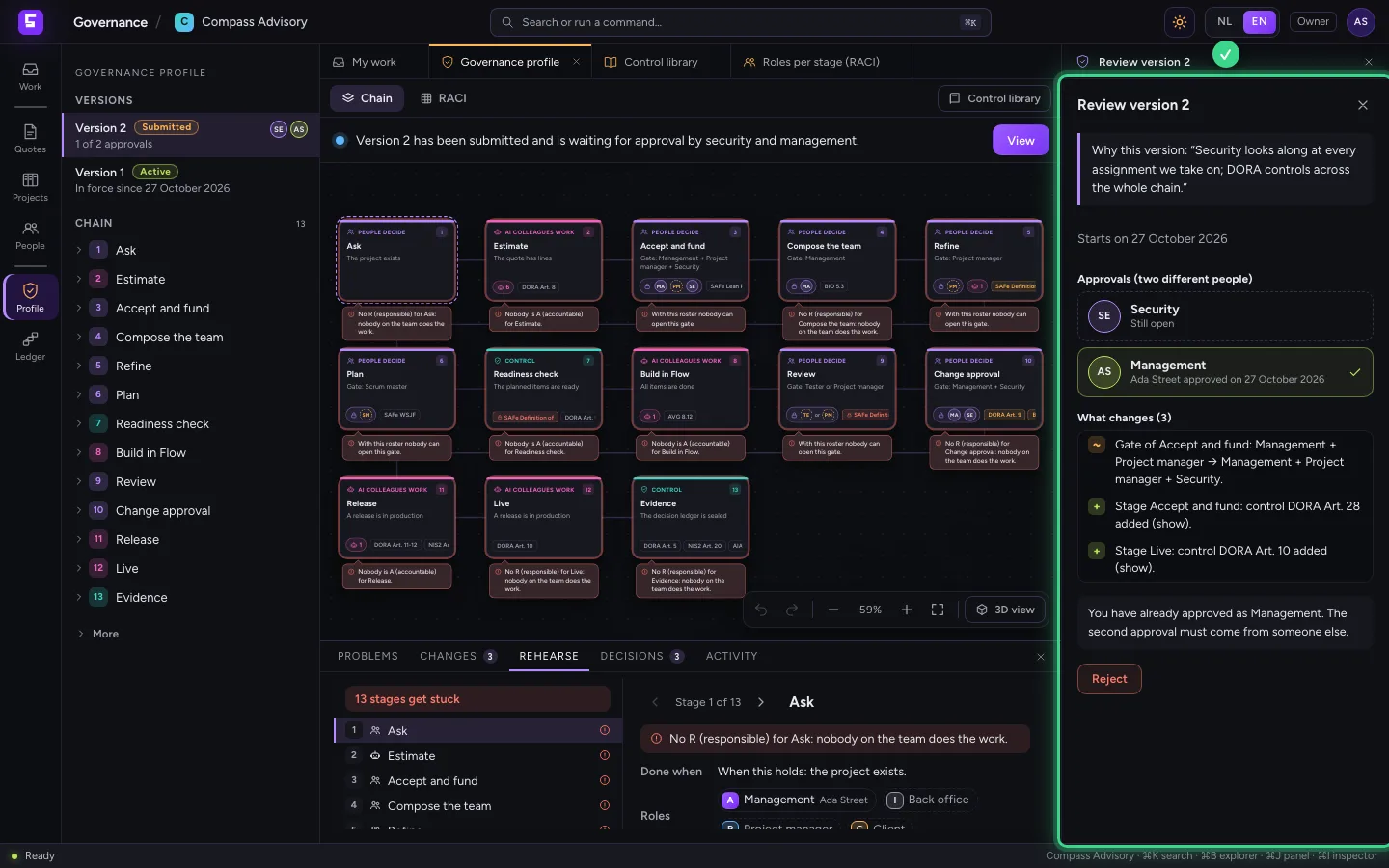
Security approves: the version applies
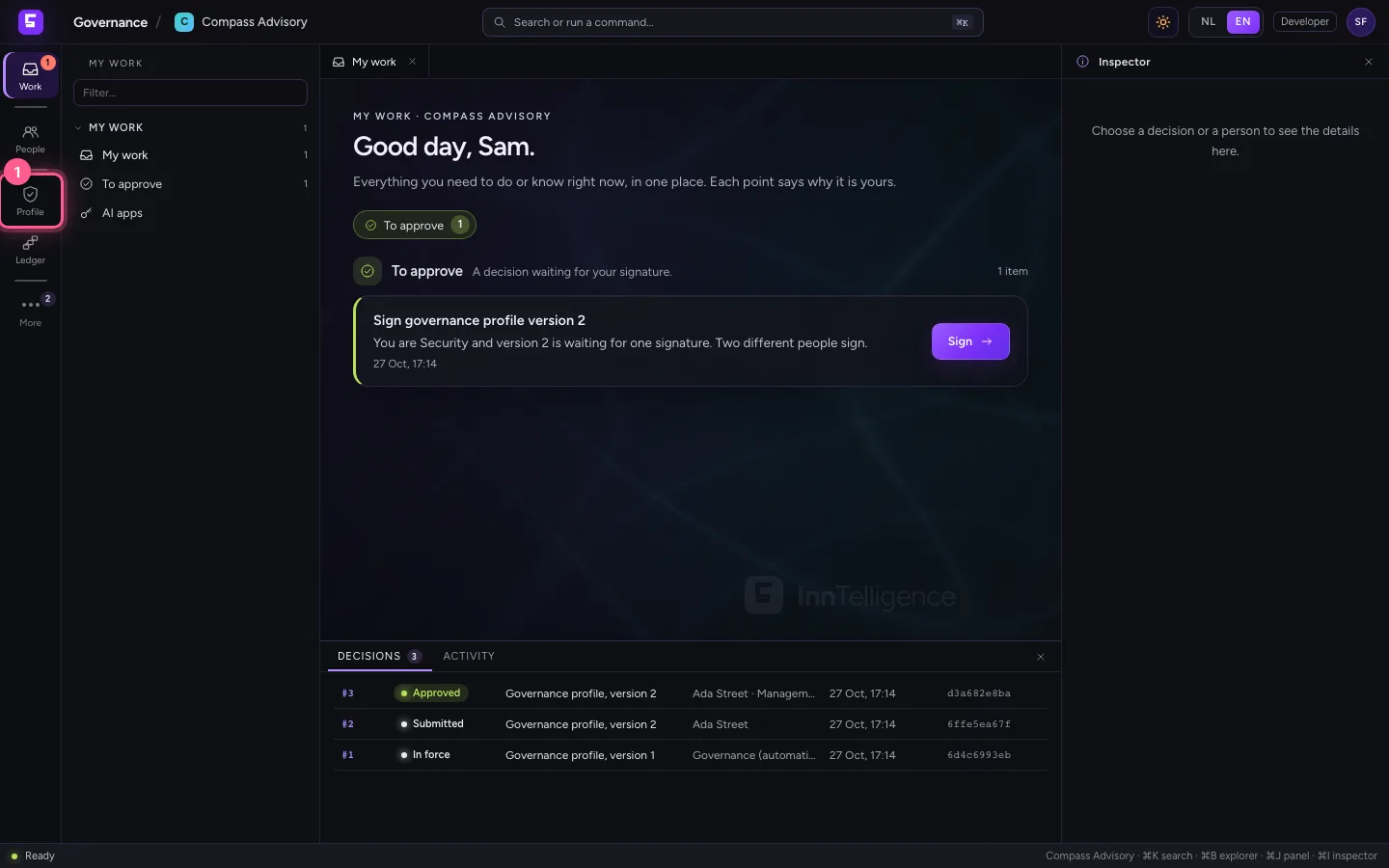
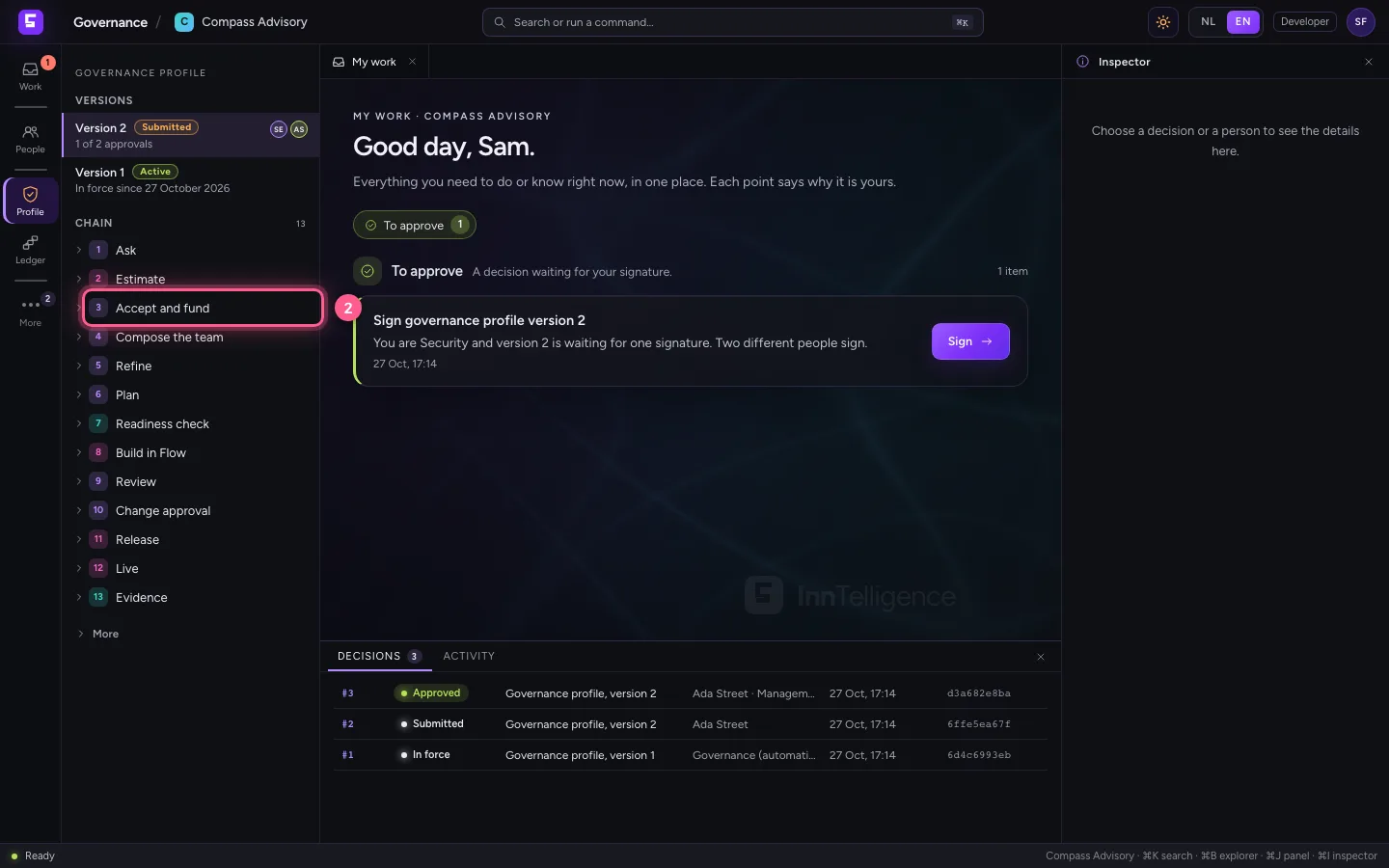
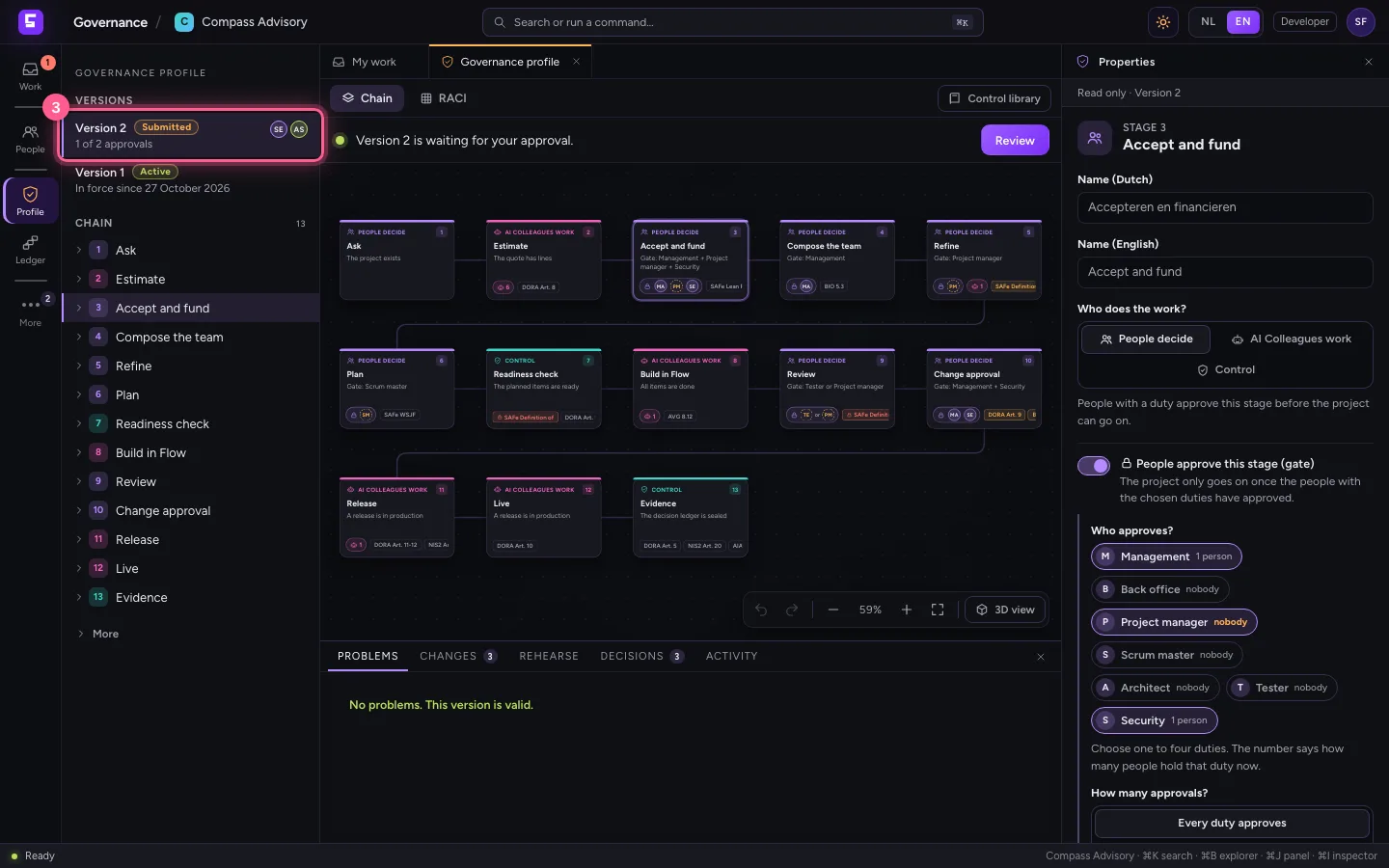
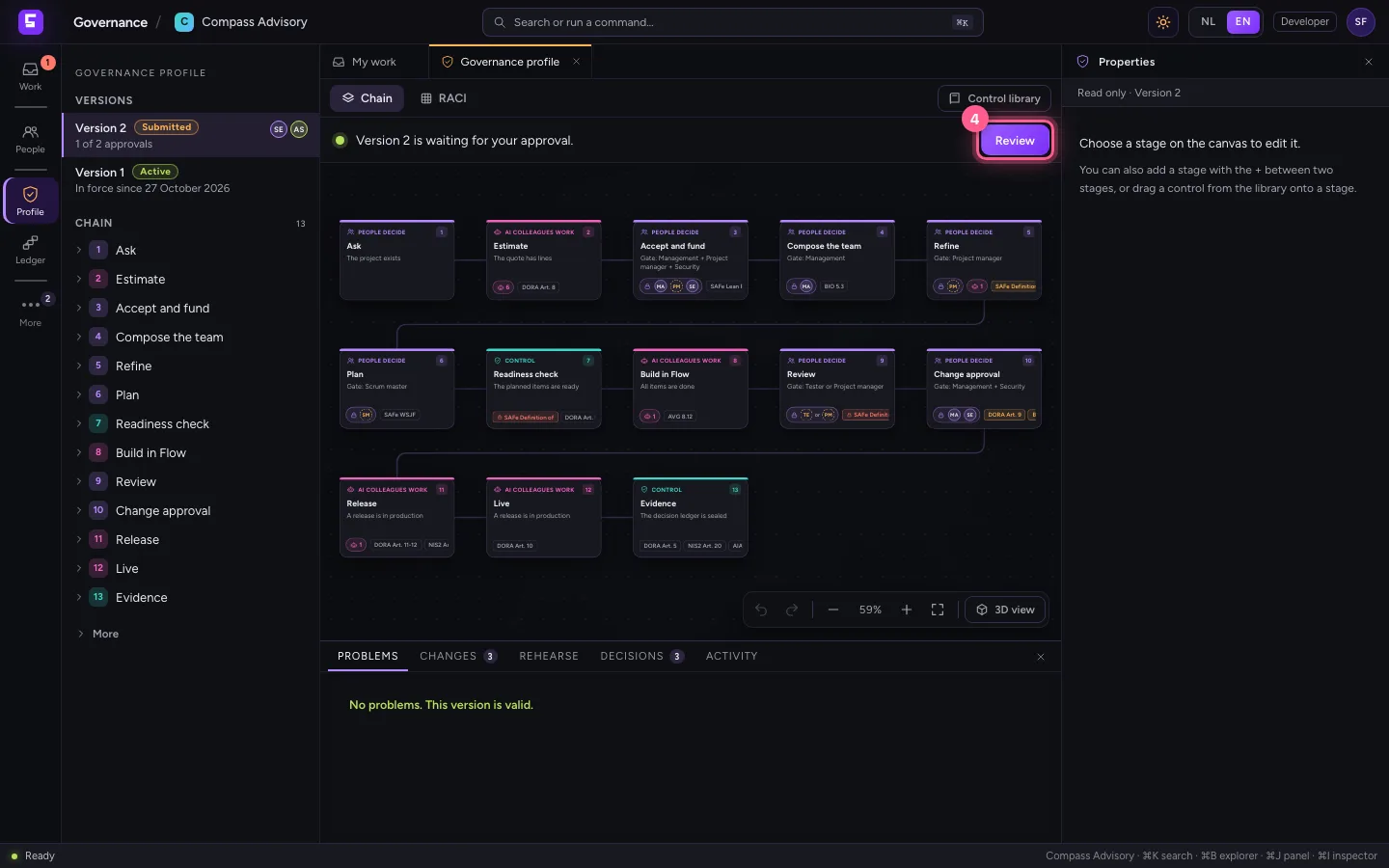
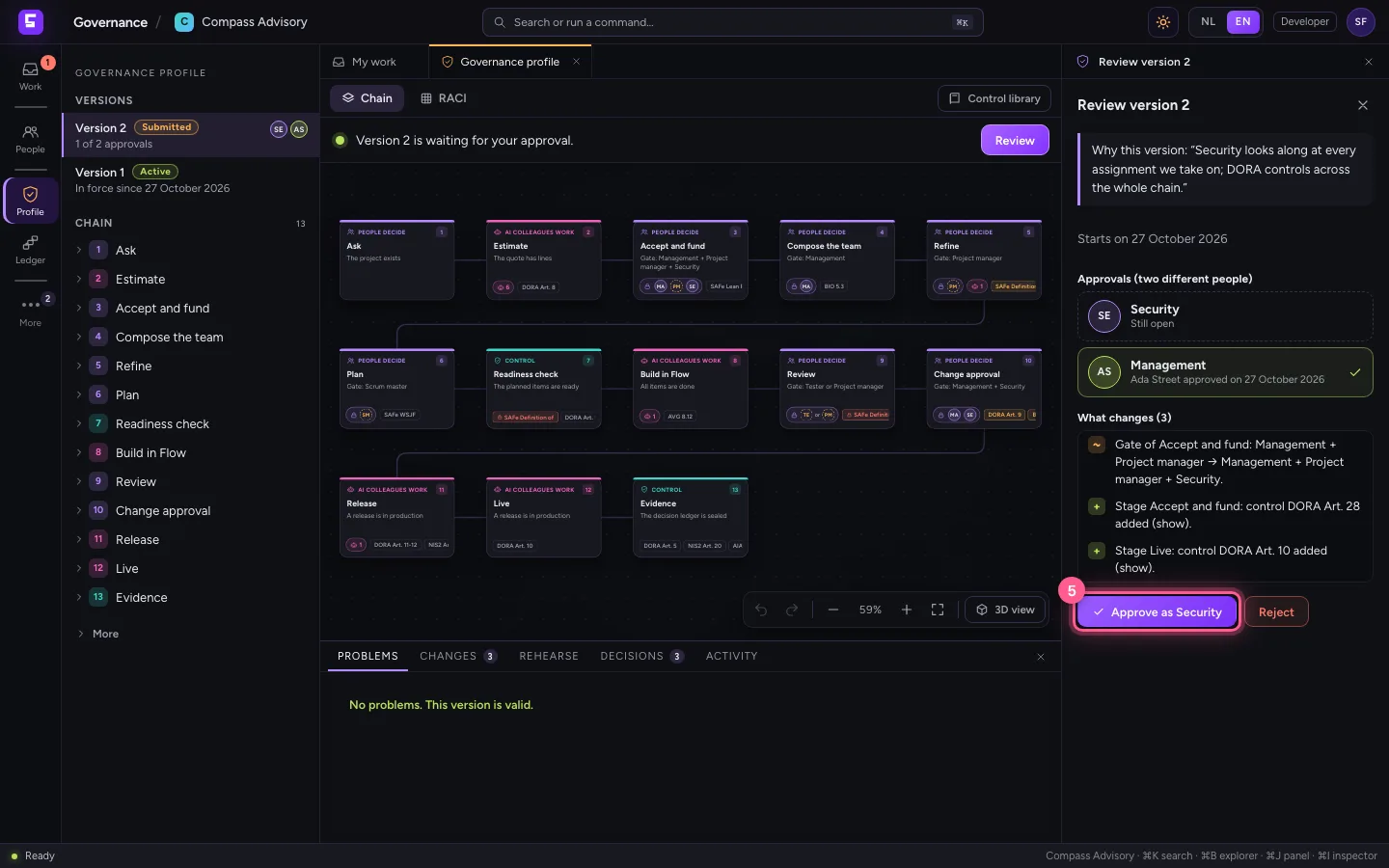
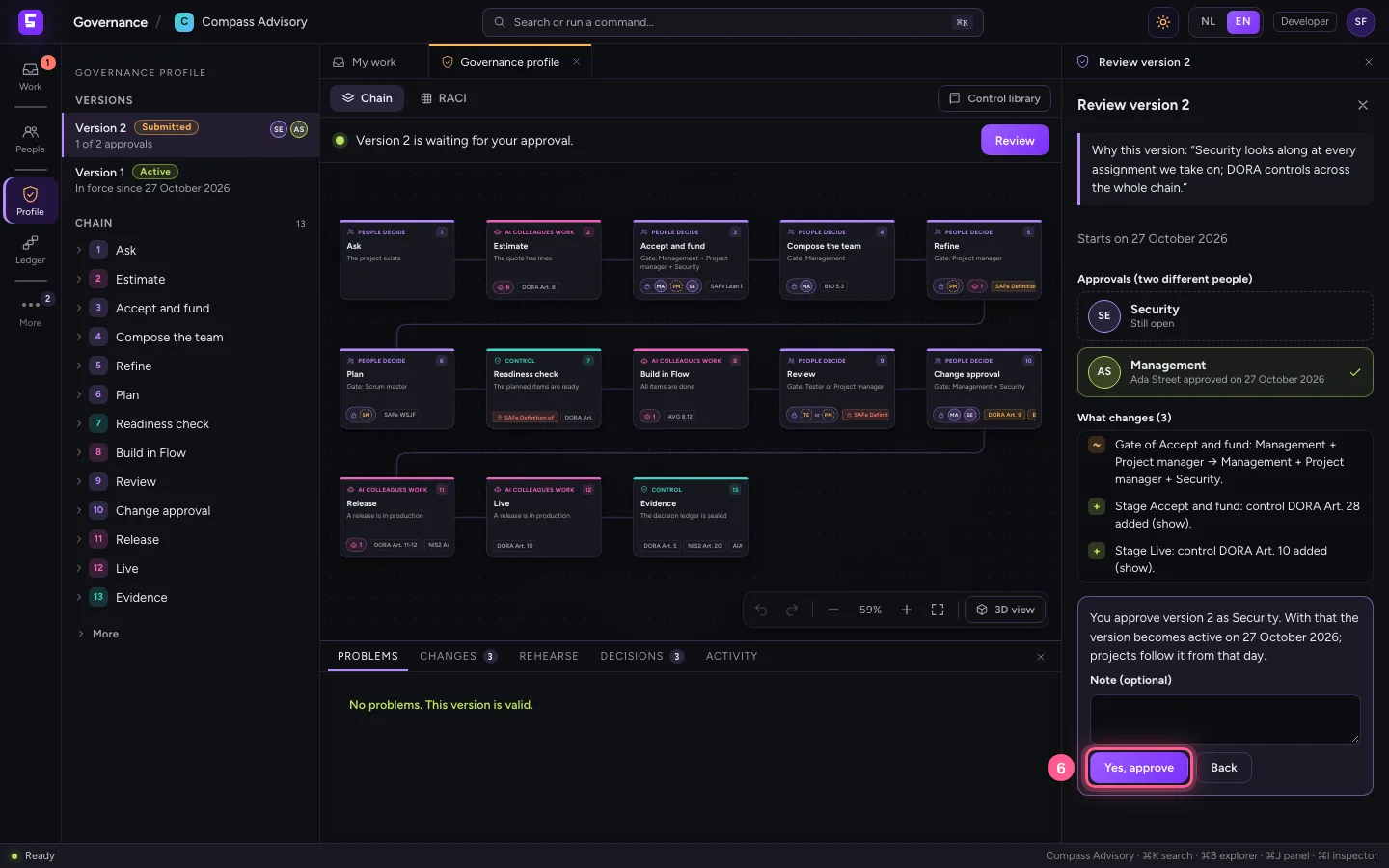
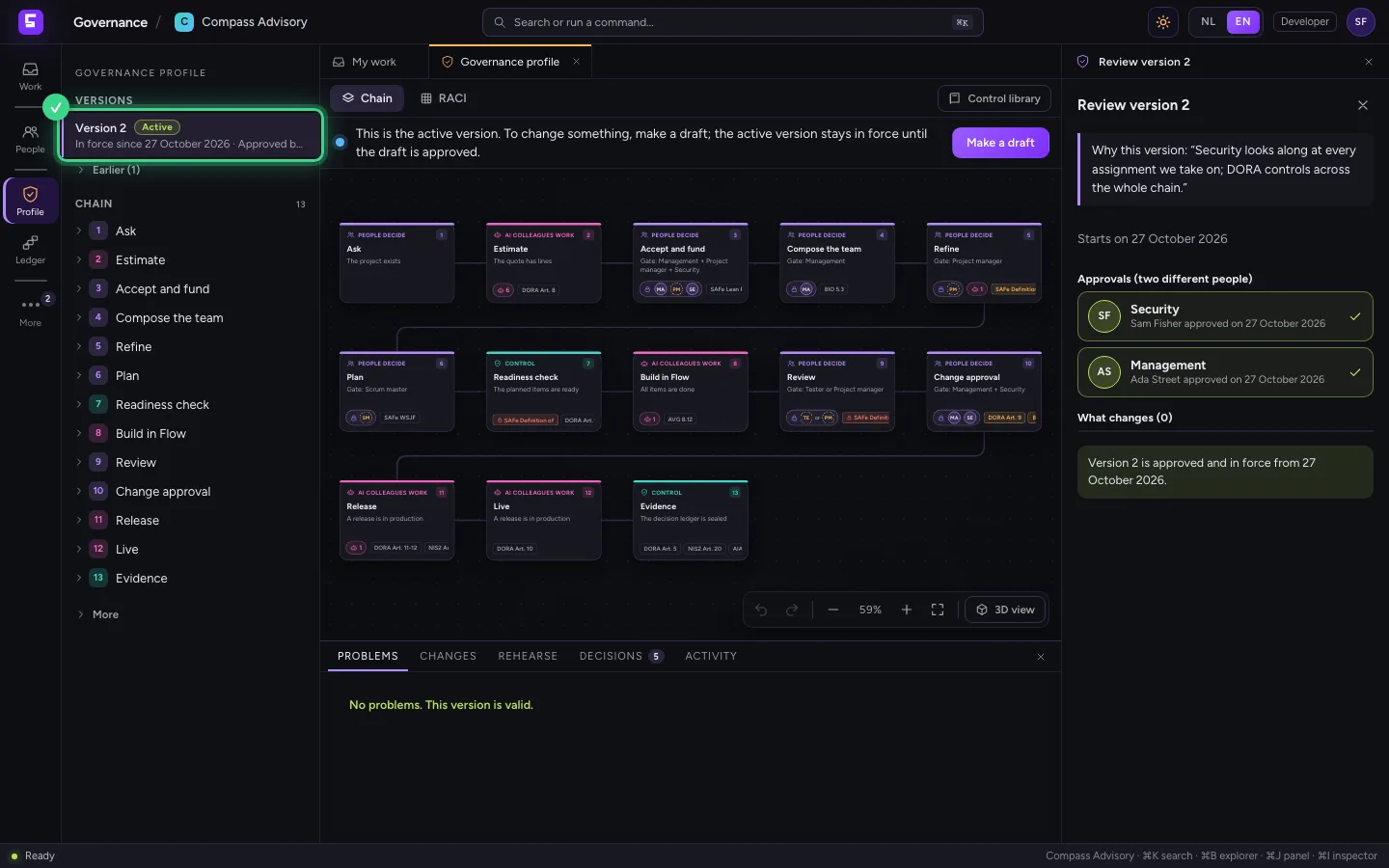
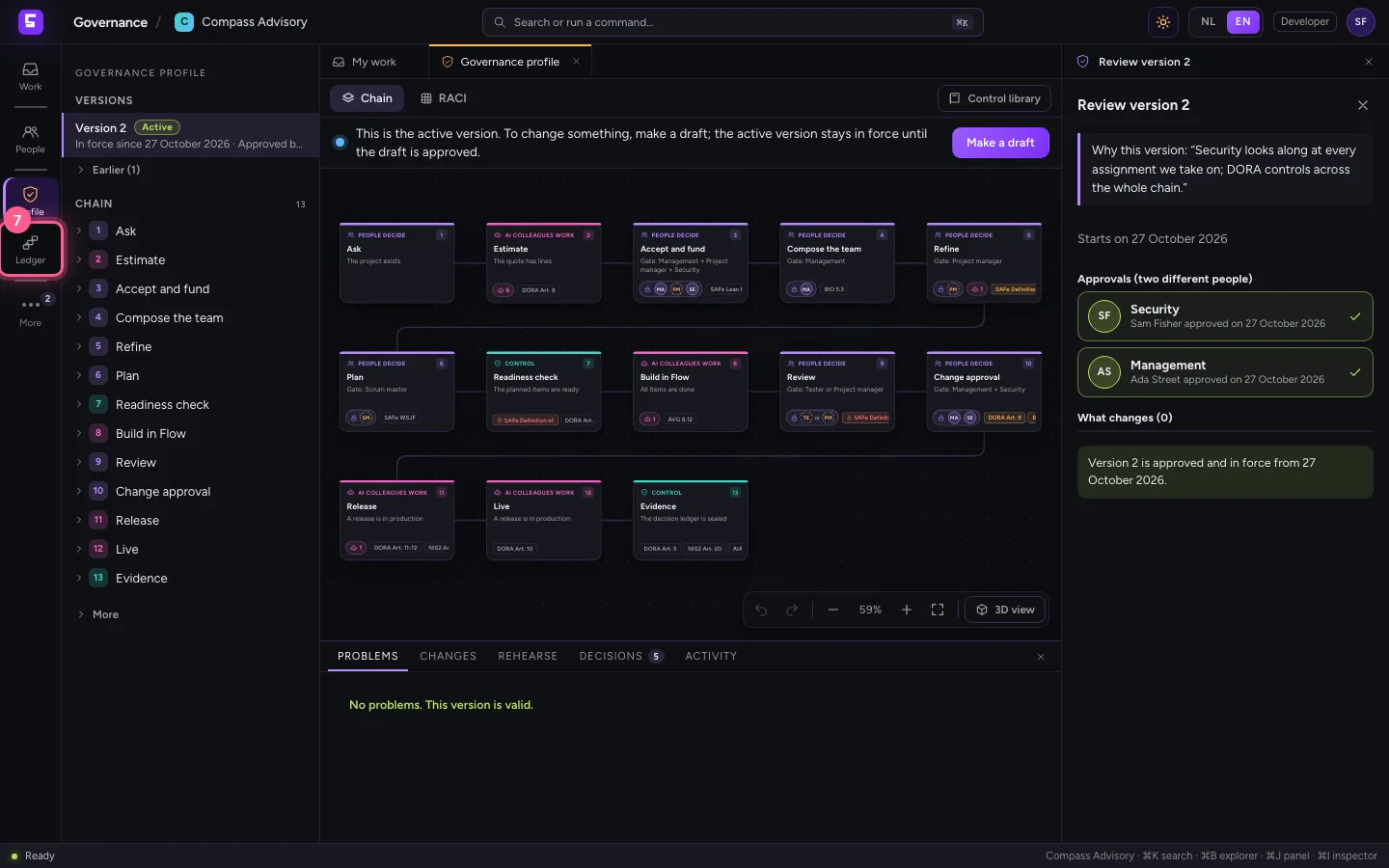
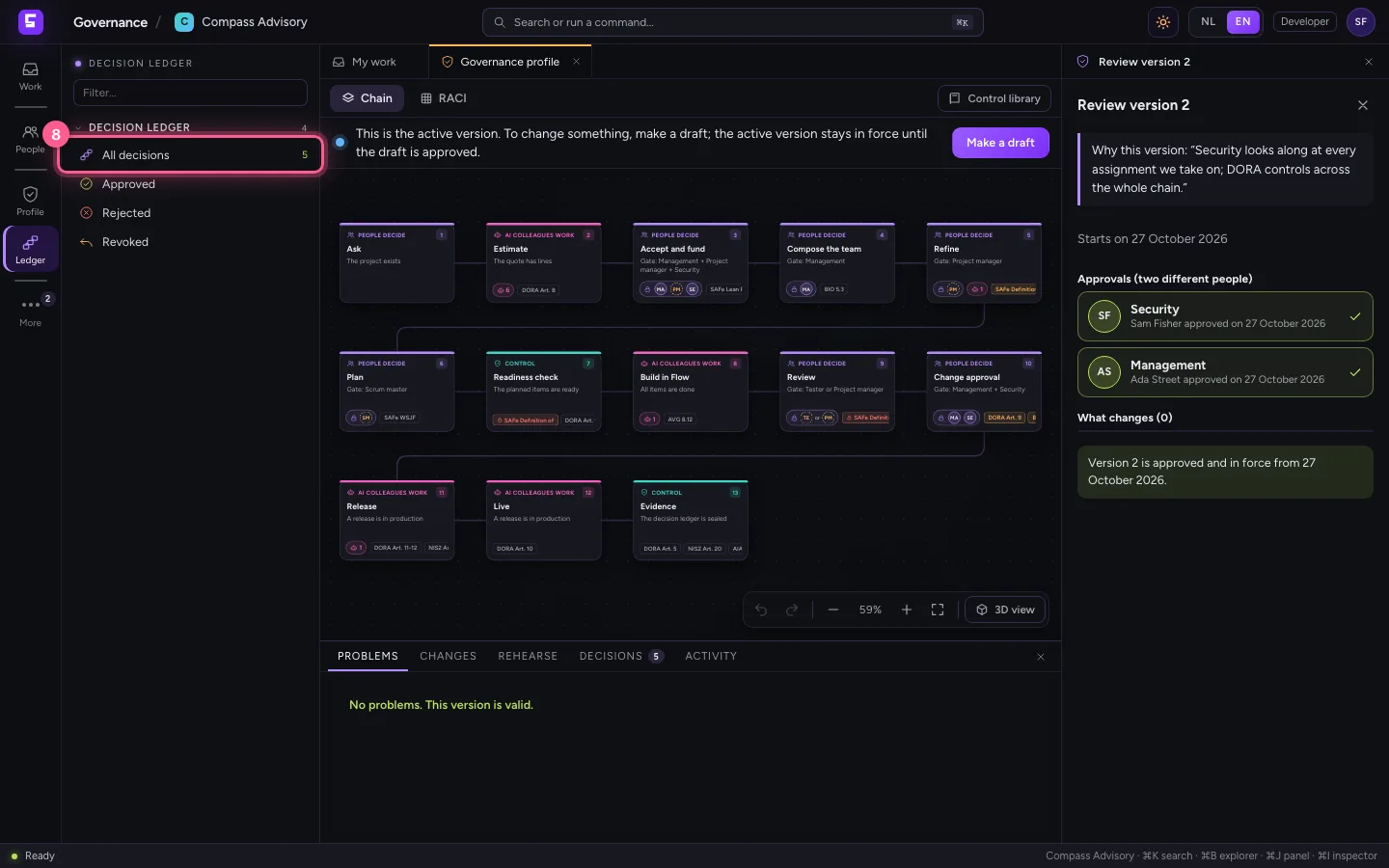
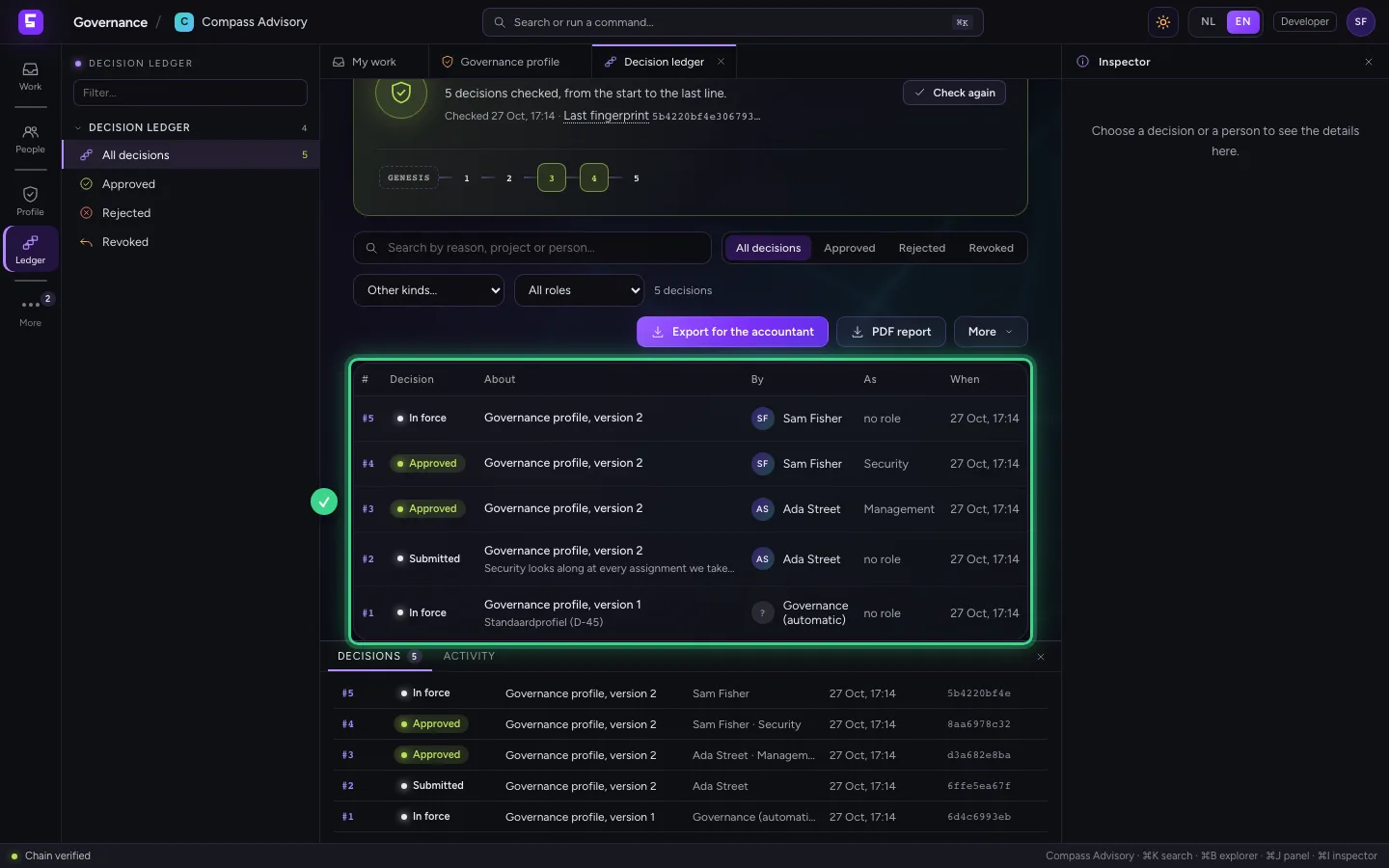
Sam holds the duty Security. At My work he sees that version 2 is waiting for him, opens the profile and approves as Security. With two approvals by two different people, version 2 is active from the chosen day. Both decisions are in the decision ledger, with who, when and as which duty.
- Click Profile
- Click 3 Accept and fund
- Click Version 2 Submitted 1 of 2 approvals SE AS
- Click Review
- Click Approve as Security
- Click Yes, approve
- Click Decisions
- Click All decisions 5
This guide was carried out step by step on 27 Oct 2026 by an automated test on Flow (version 7d21bad8).