Column: number
A Number column is for anything you calculate with that can have decimals: amounts, weights, kilometres. Flow stores it as a real number, so a workflow can calculate with it and you can sort and filter on it properly. You add an amount to a table of quotes.
Open your development environment
In the portal, under Environments, click Development, and there Open. Flow opens in a new tab and you are signed in straight away.
- Click Development

- Click Open ↗

Add a number column
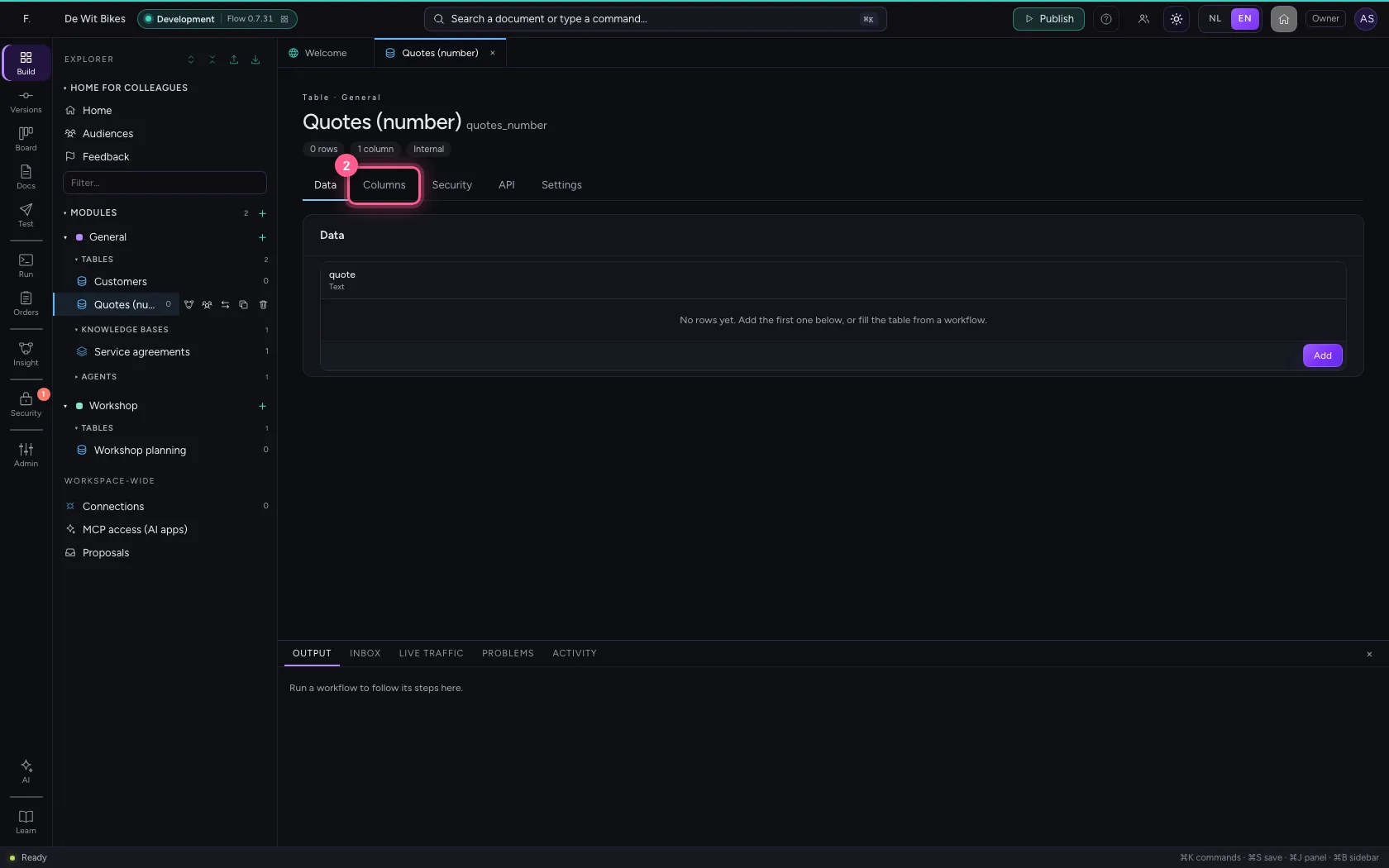
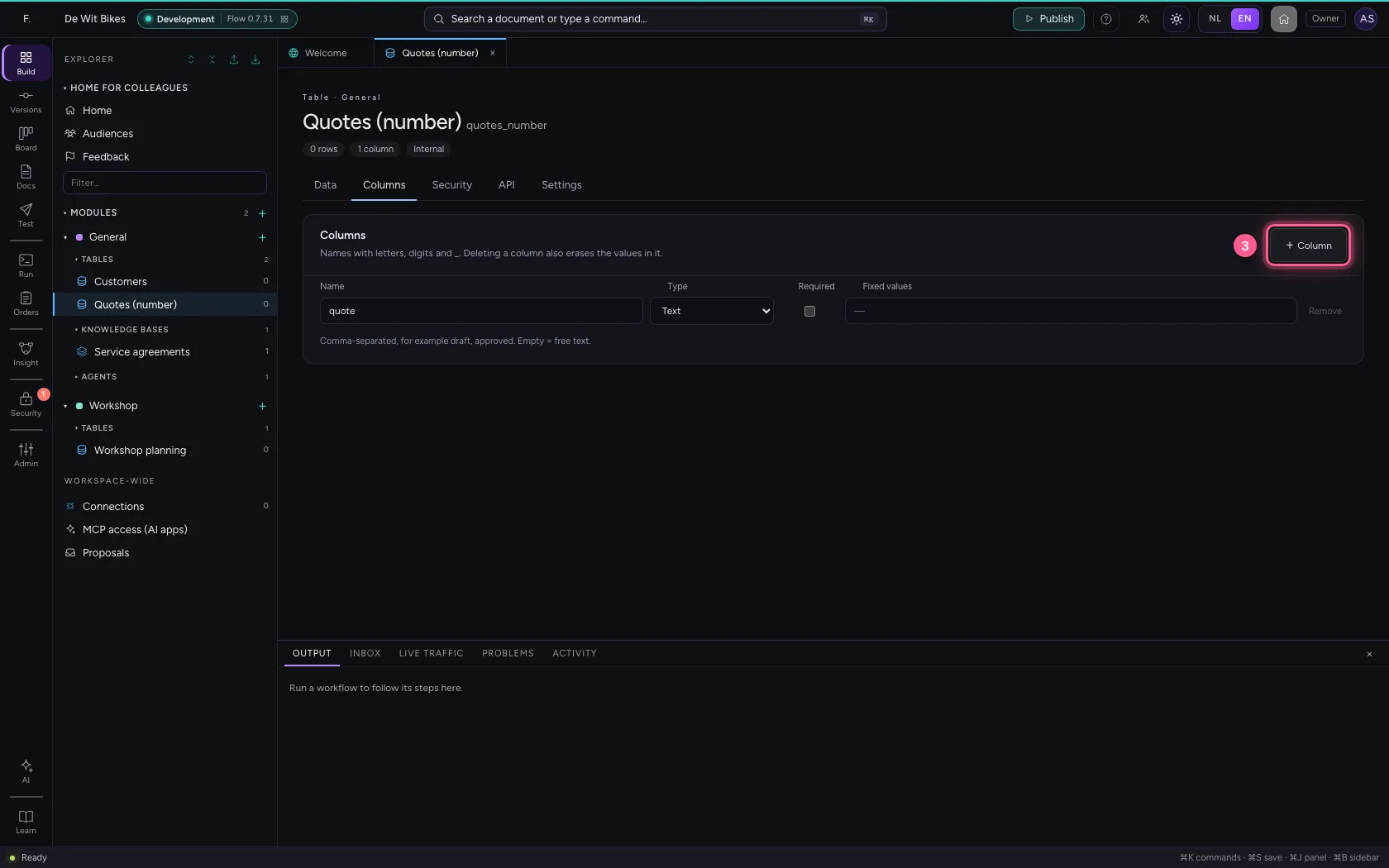
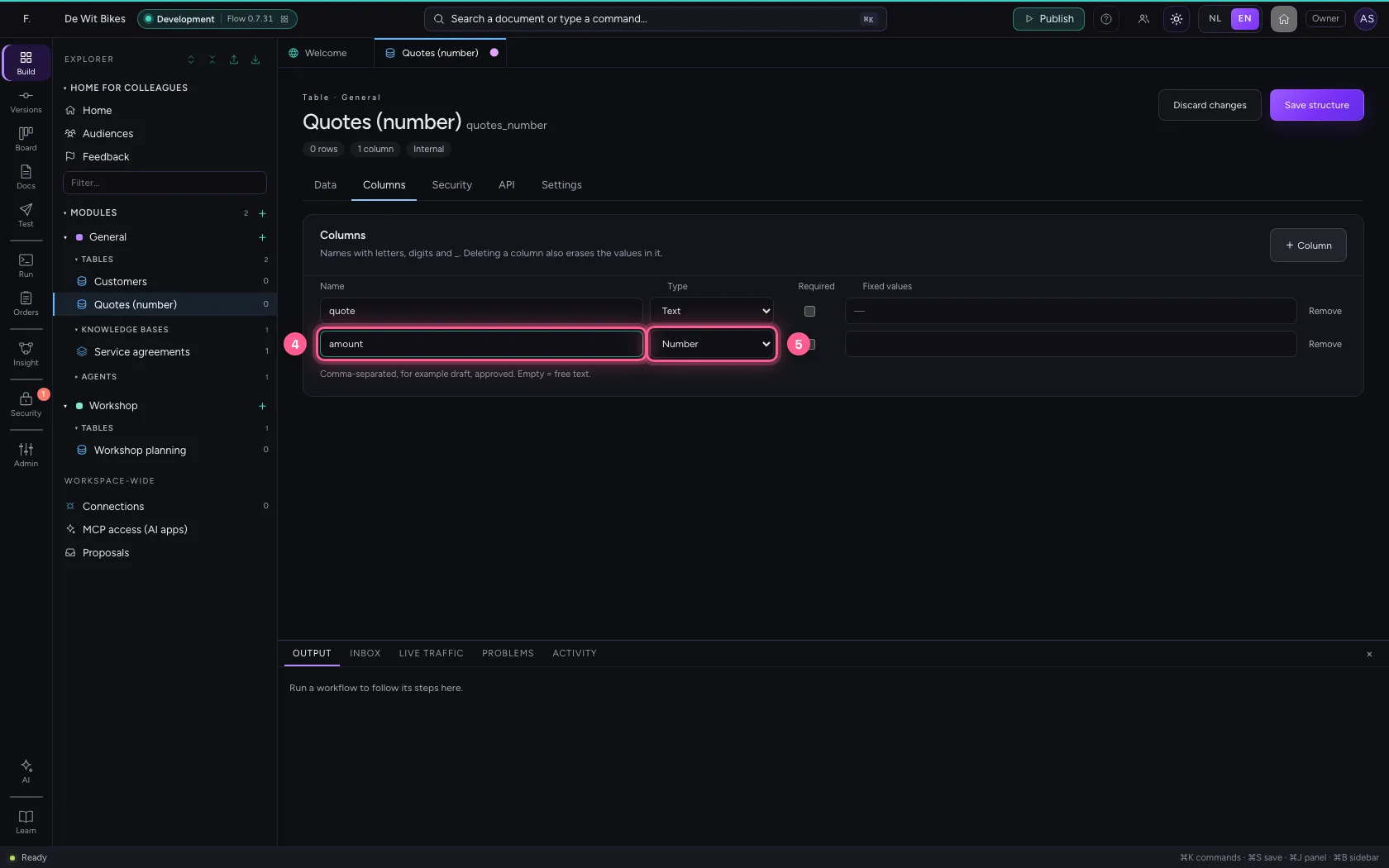
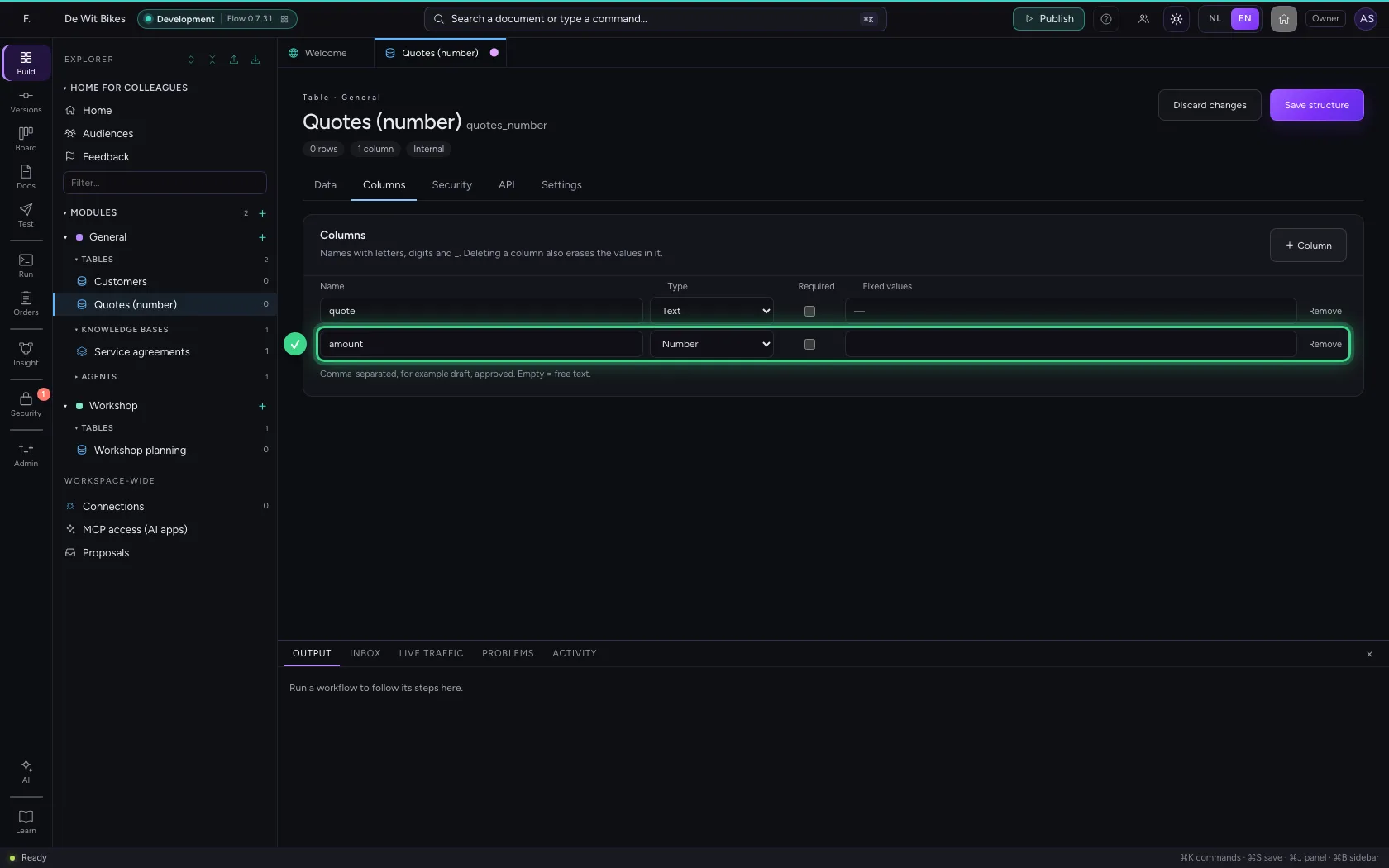
Open the table, go to Columns and click + Column. Give it a name and choose Number under Type. Use Number for amounts; for counts that are always whole, Whole number fits better.
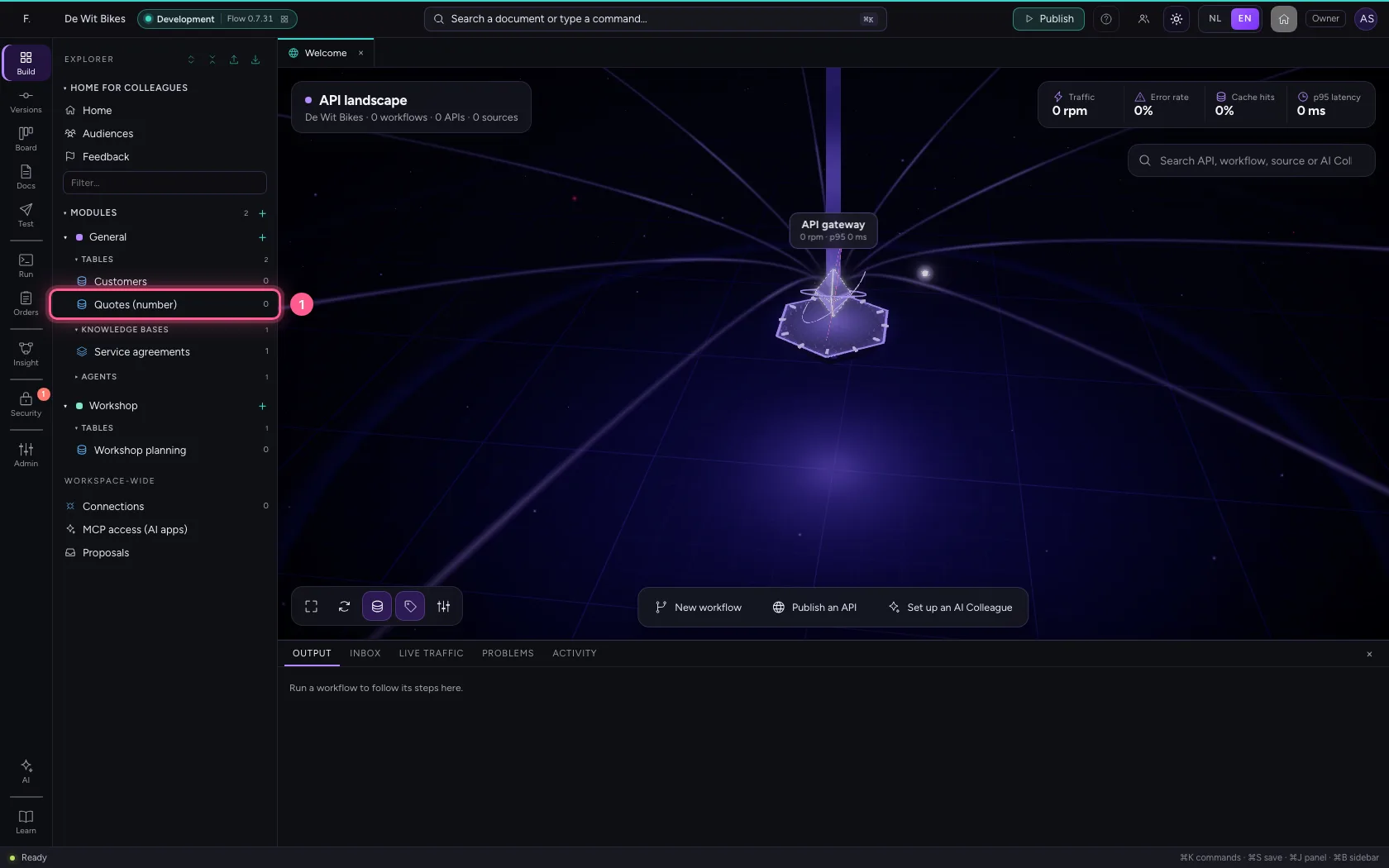
- Click the table ‘Quotes (number)’
- Click Columns
- Click + Column
- In Name, type
amount - In Type, choose Number
Save the structure
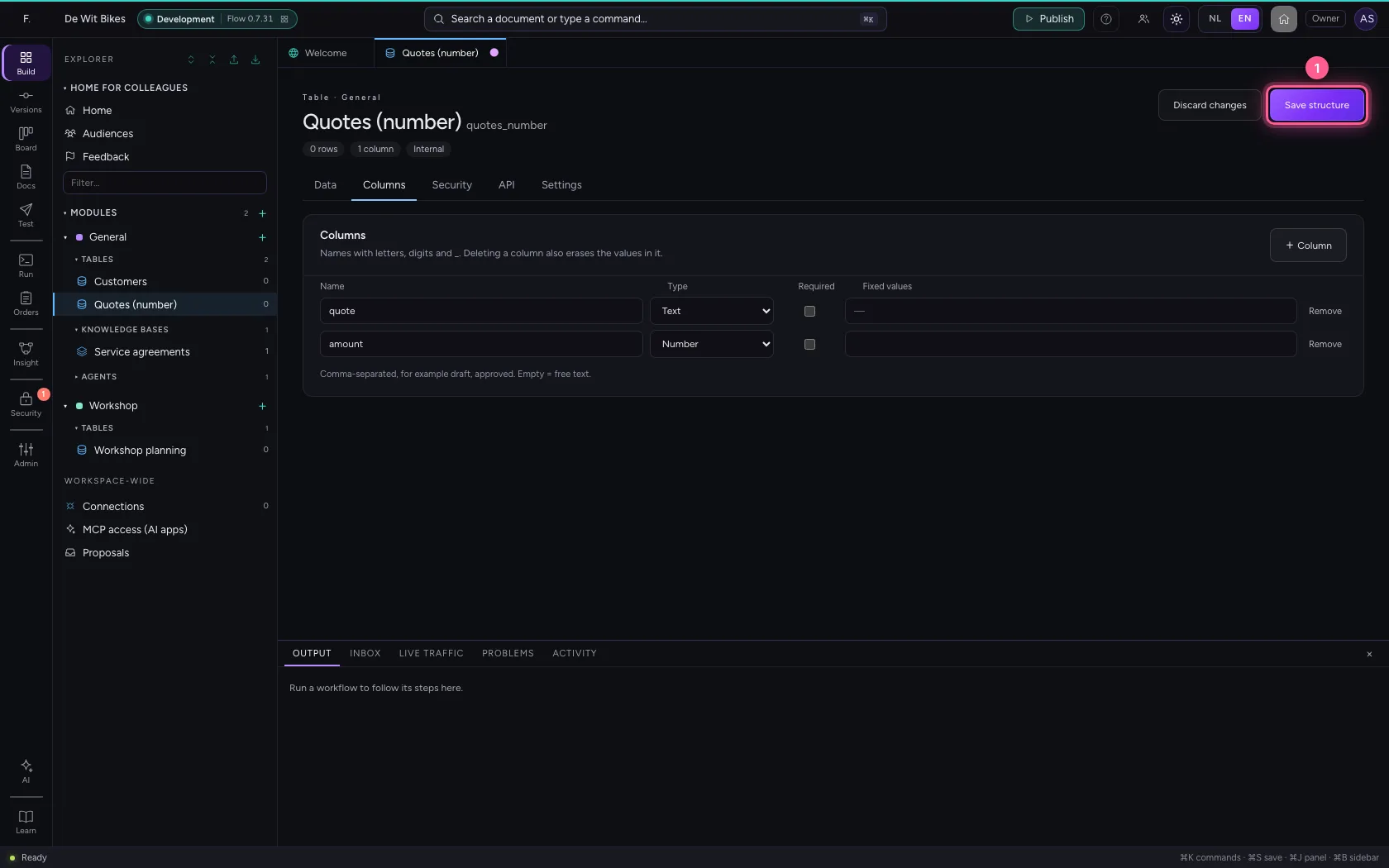
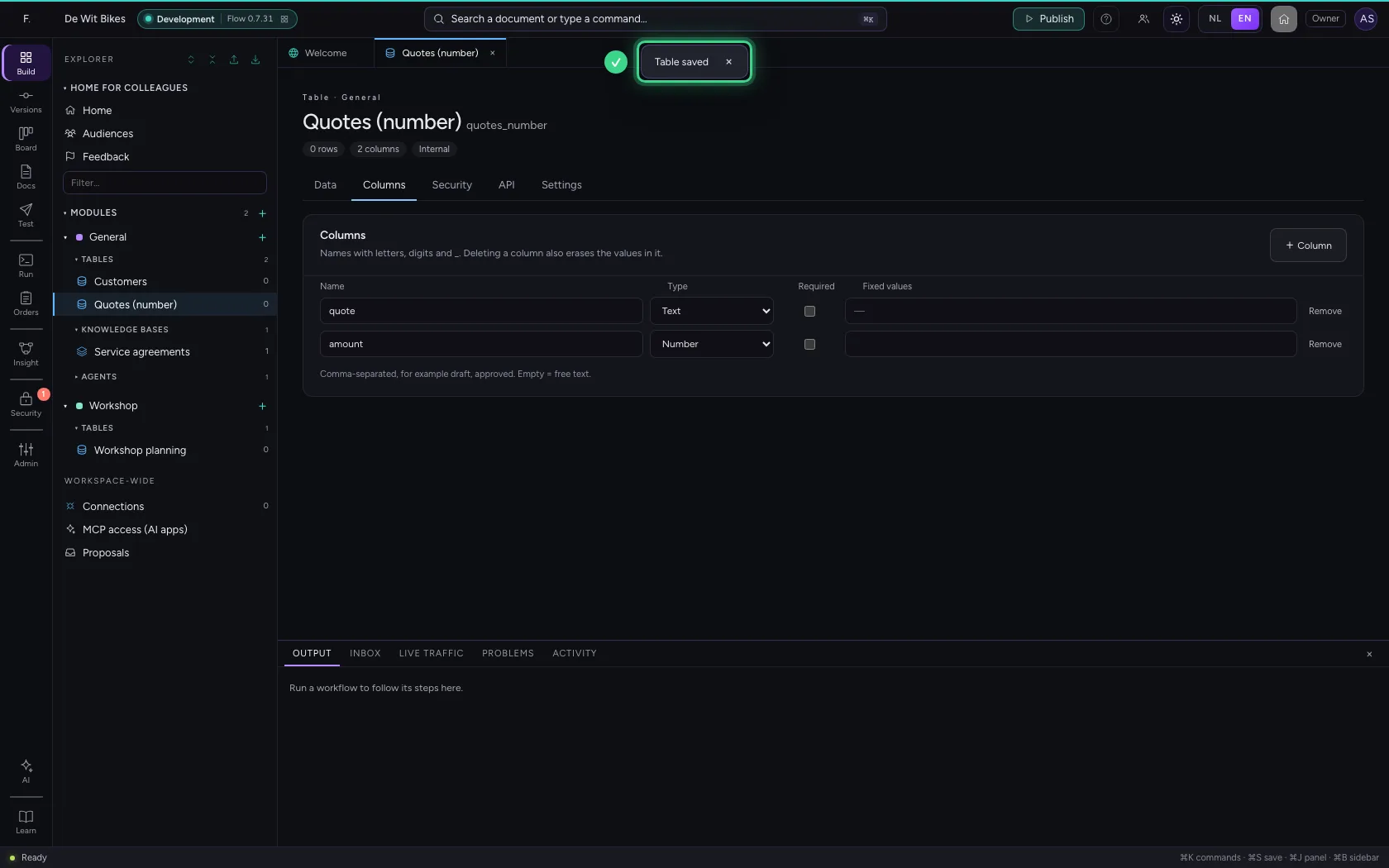
Save the columns; from then on the type applies to every row, also to rows a workflow or your API adds.
- Click Save structure
Fill in an amount
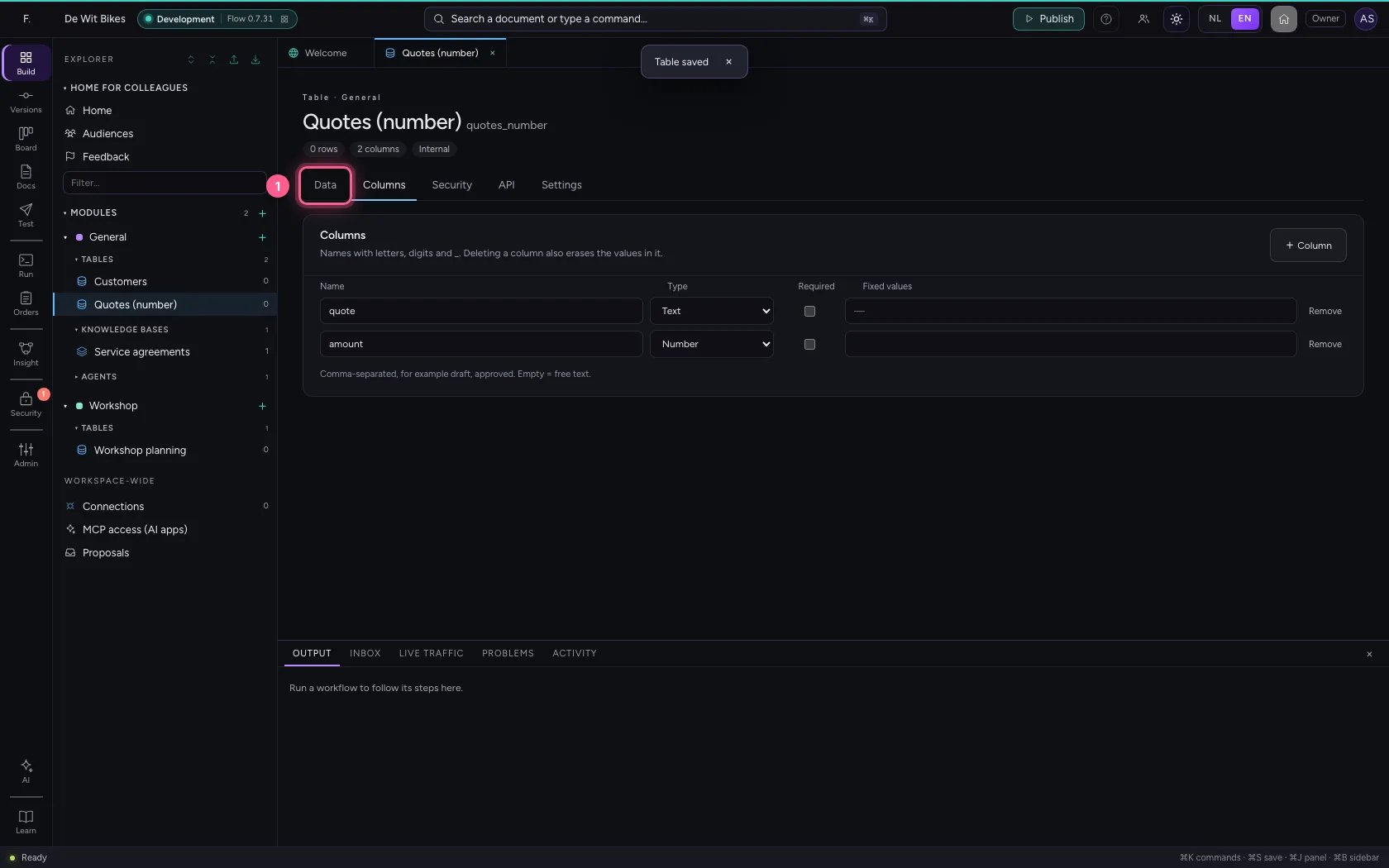
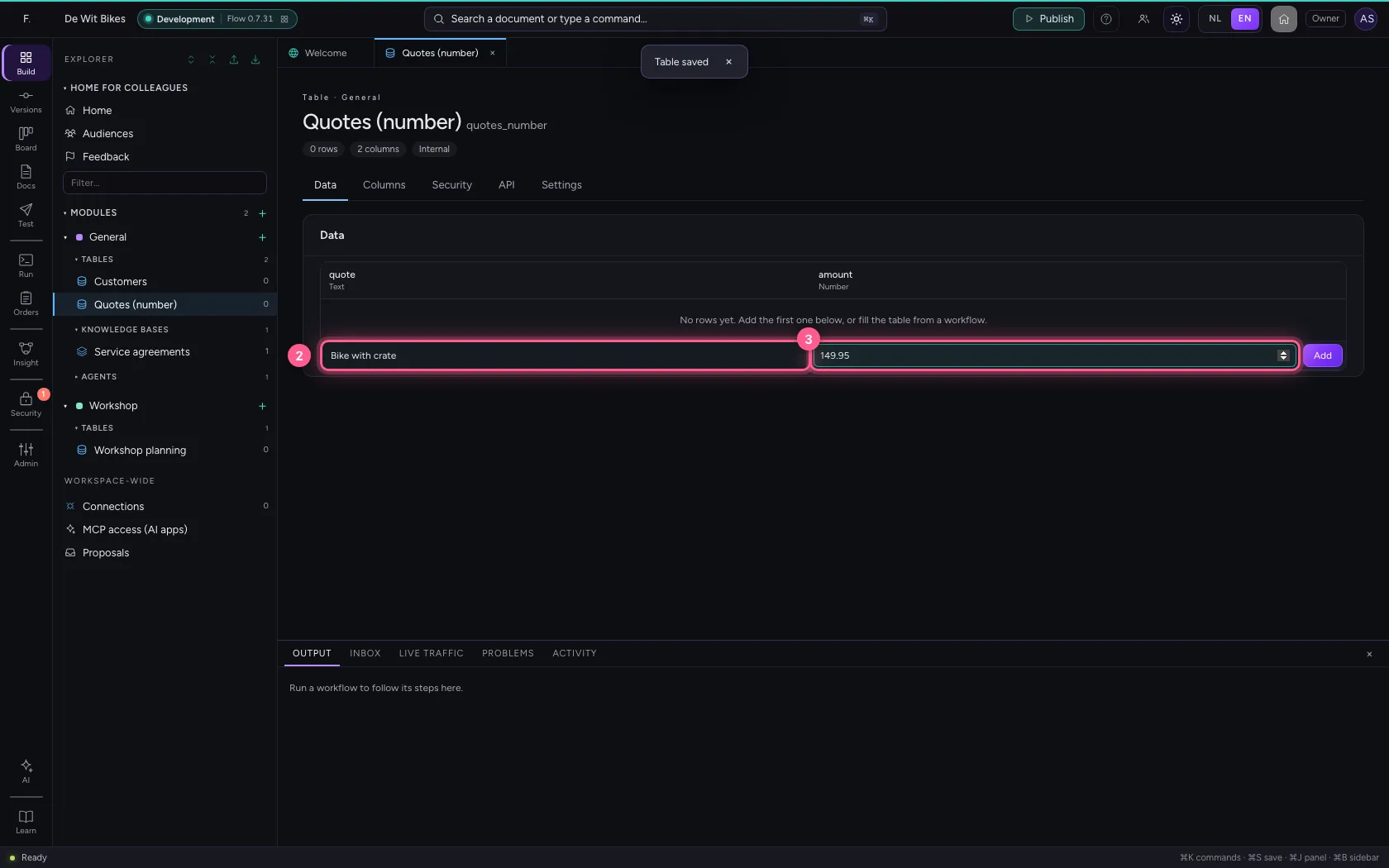
Under Data, the input of a number column is a number field: you cannot type letters in it. Decimals are allowed; your browser shows the number in your language (with a comma or a point).
- Click Data
- In quote, type
Bike with crate - In amount, type
149.95
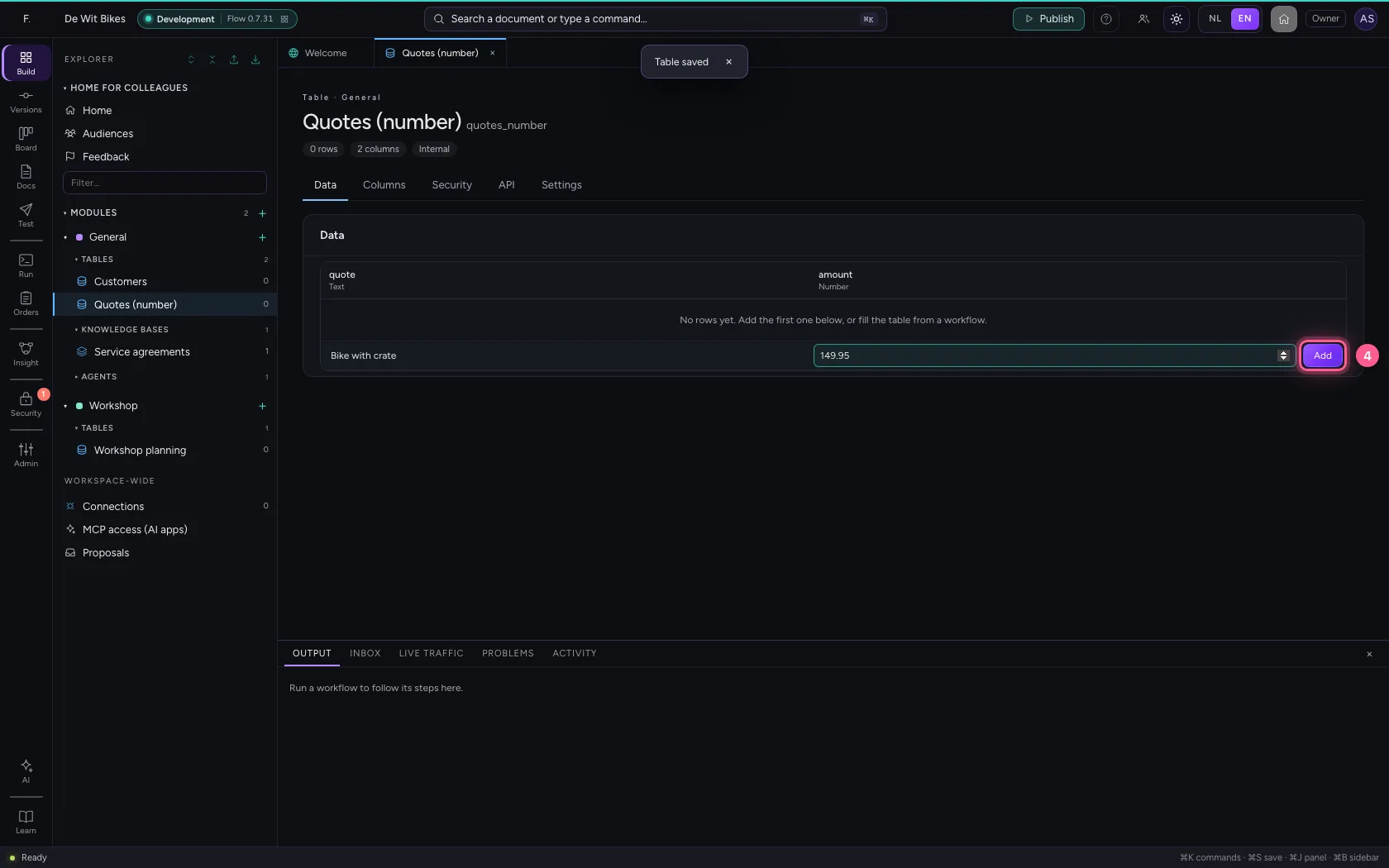
- Click Add
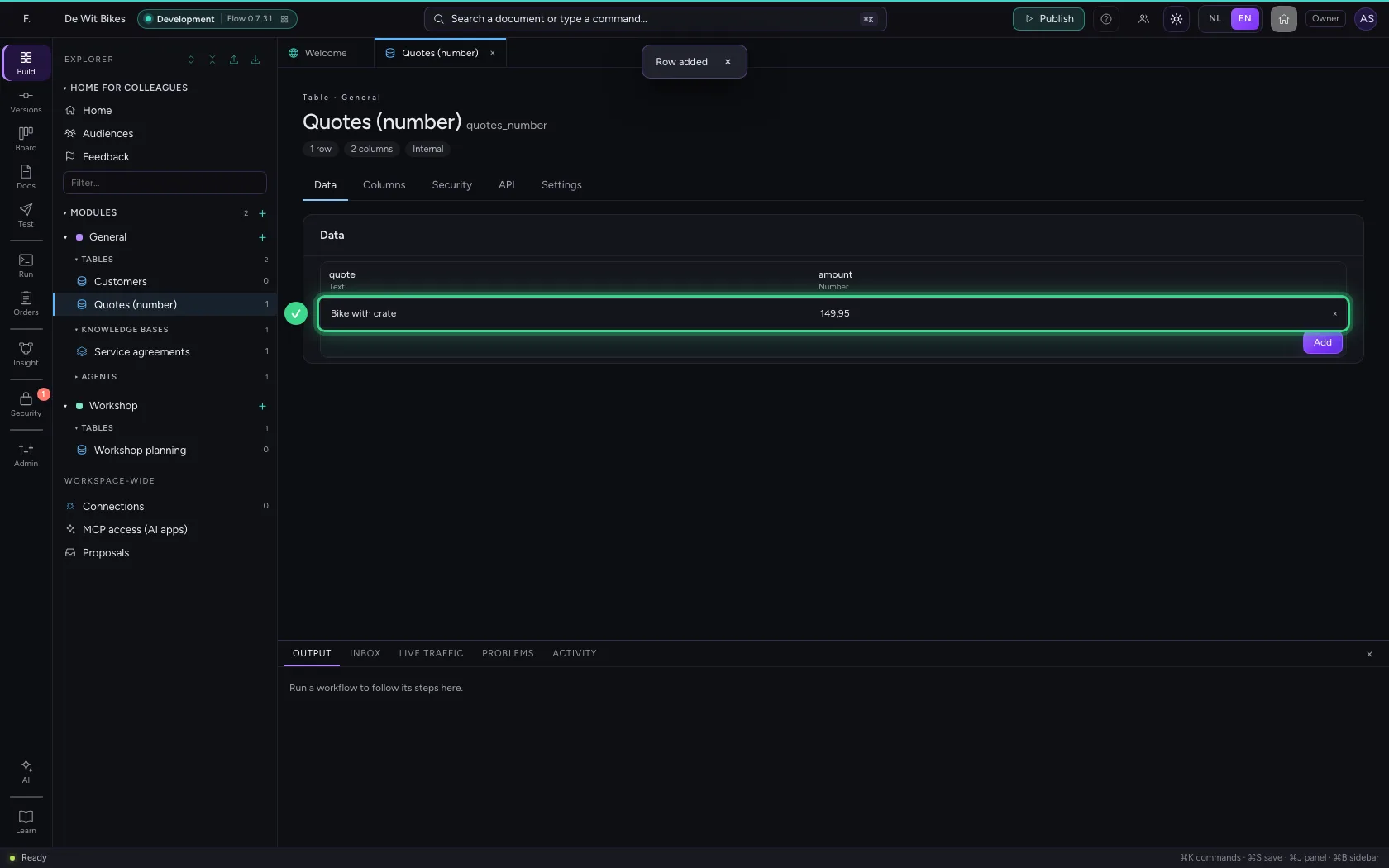
This guide was carried out step by step on 22 Oct 2026 by an automated test on Flow (version 3e563176).