Column: text
Text is the default kind of column: names, descriptions, licence plates, anything you do not calculate with. You add a required text column to a table of work orders, fill in a row and see what Flow does when the text is missing.
Open your development environment
In the portal, under Environments, click Development, and there Open. Flow opens in a new tab and you are signed in straight away.
- Click Development

- Click Open ↗

Add a text column
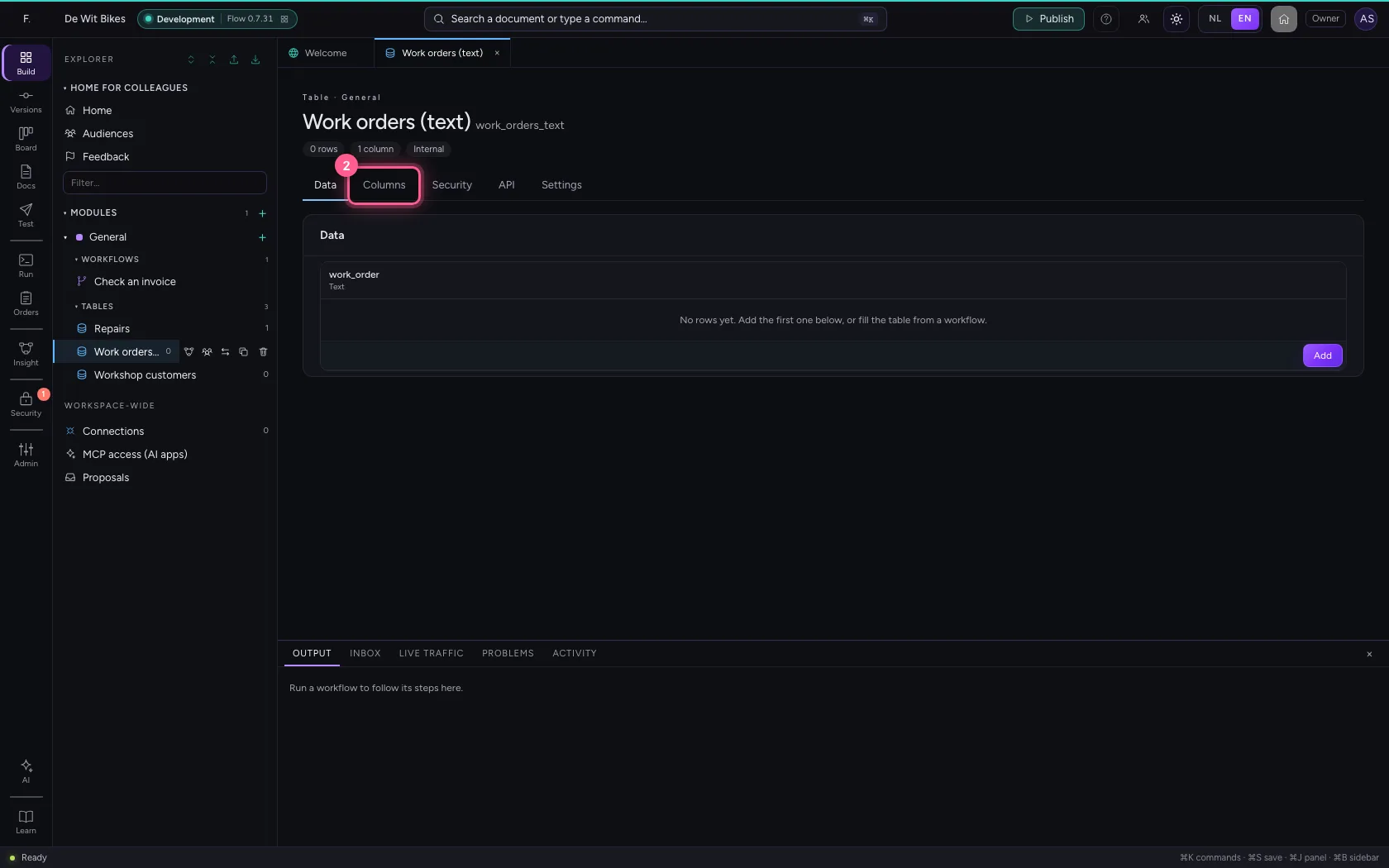
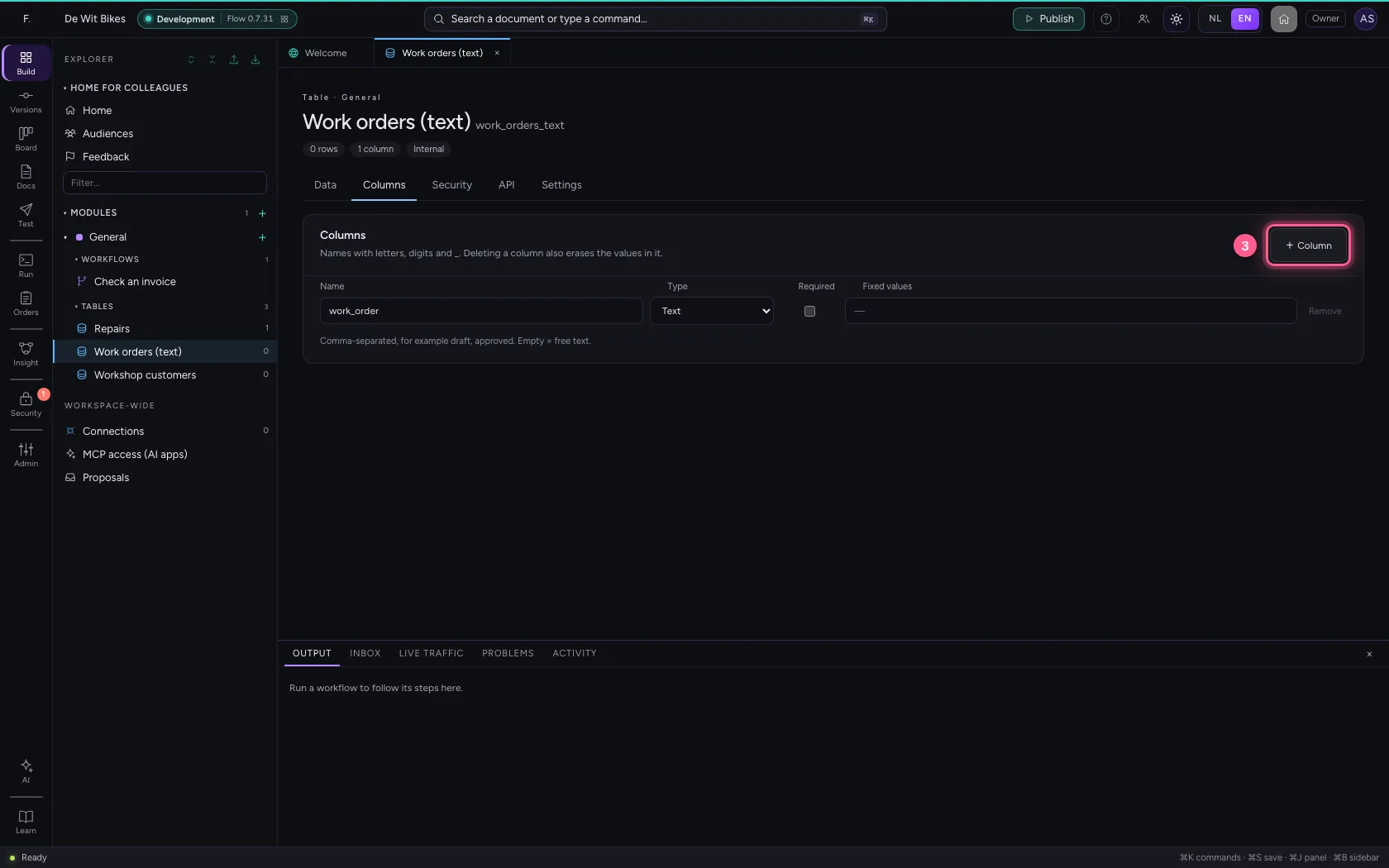
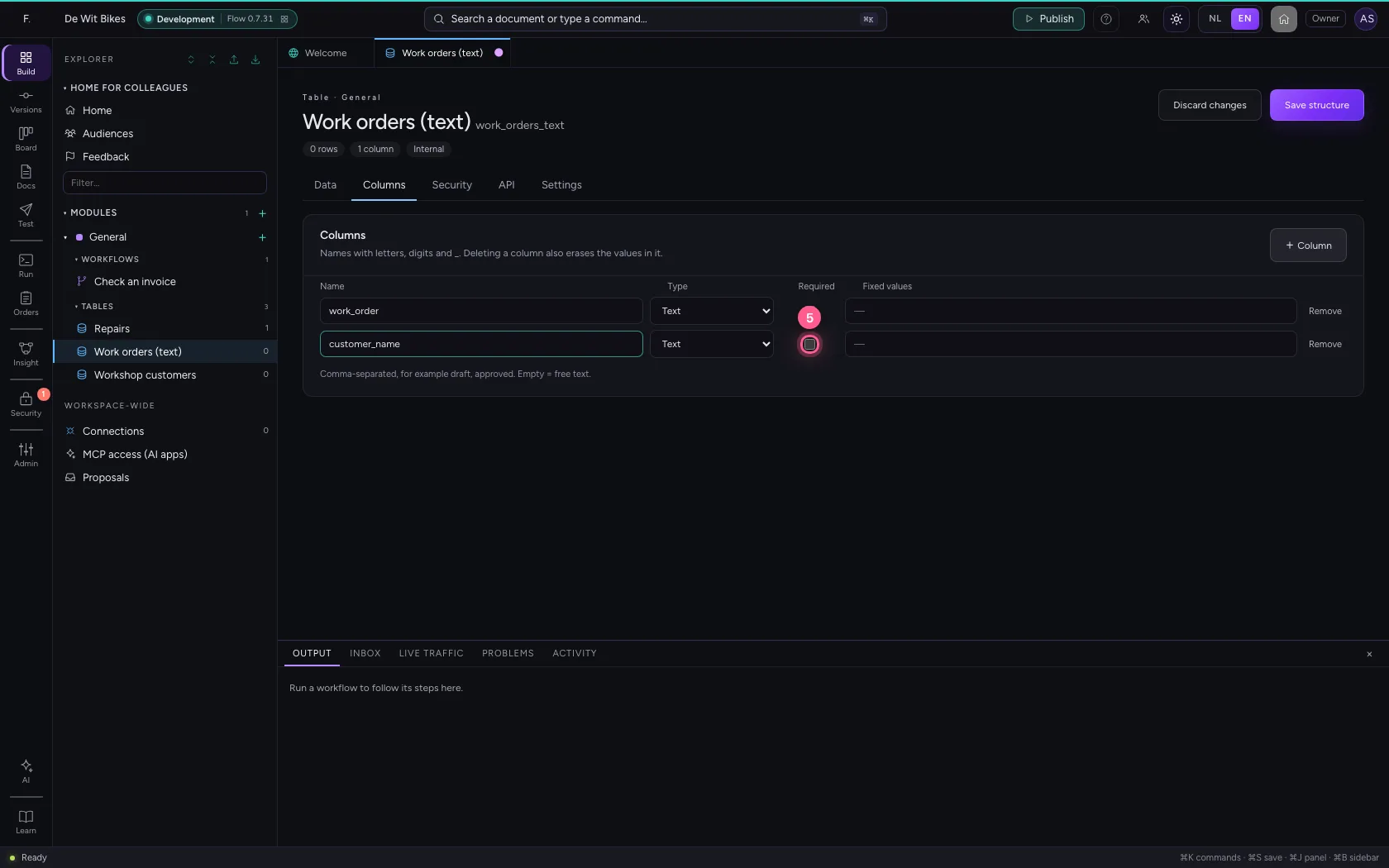
Open the table and go to Columns. + Column adds a column; its kind is Text straight away. A column name consists of letters, digits and _: if you type a space, Flow turns it into _ by itself. Tick Required when a row may never be without this value.
- Click the table ‘Work orders (text)’

- Click Columns
- Click + Column
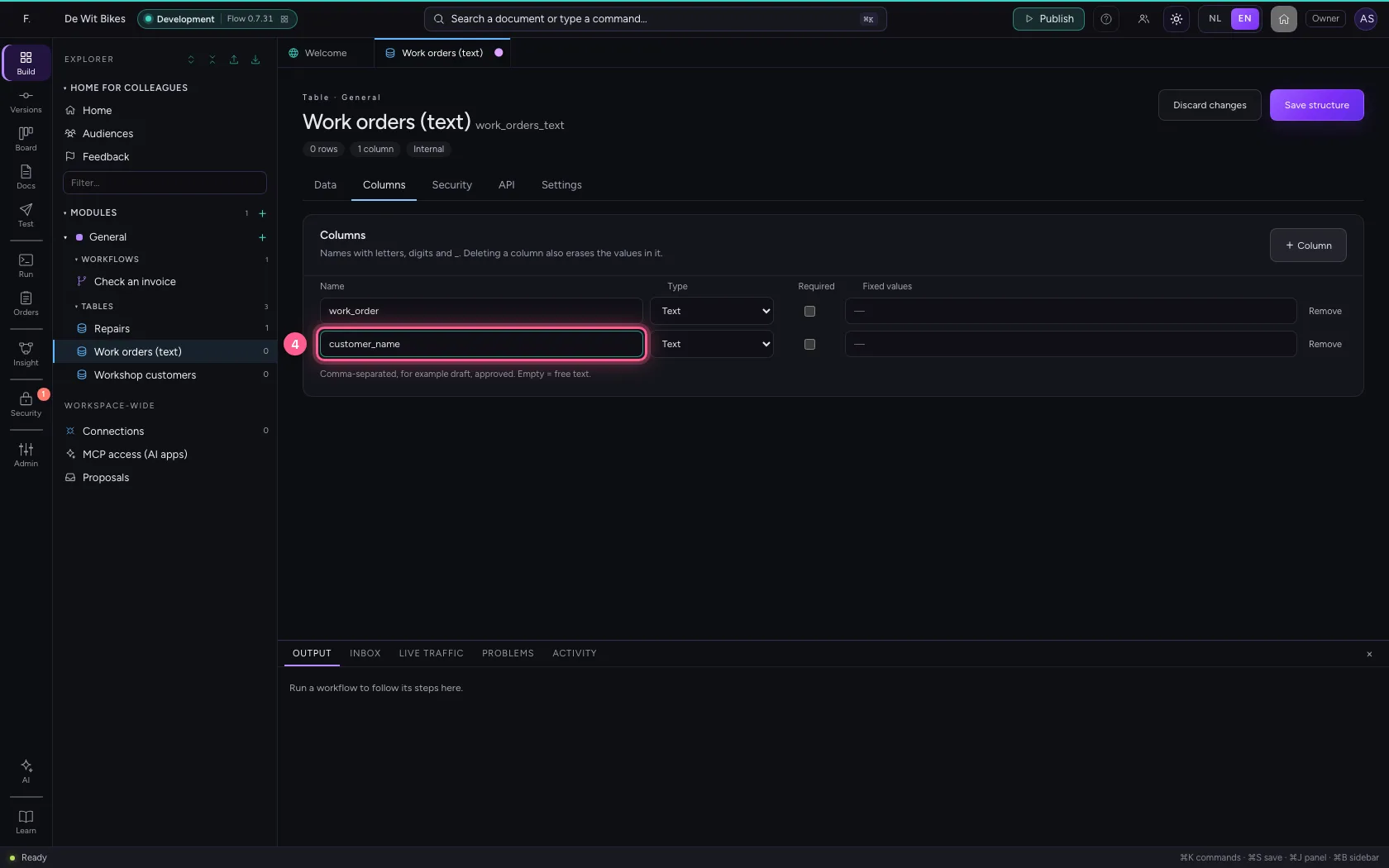
- In Name, type
customer name
- Click Required
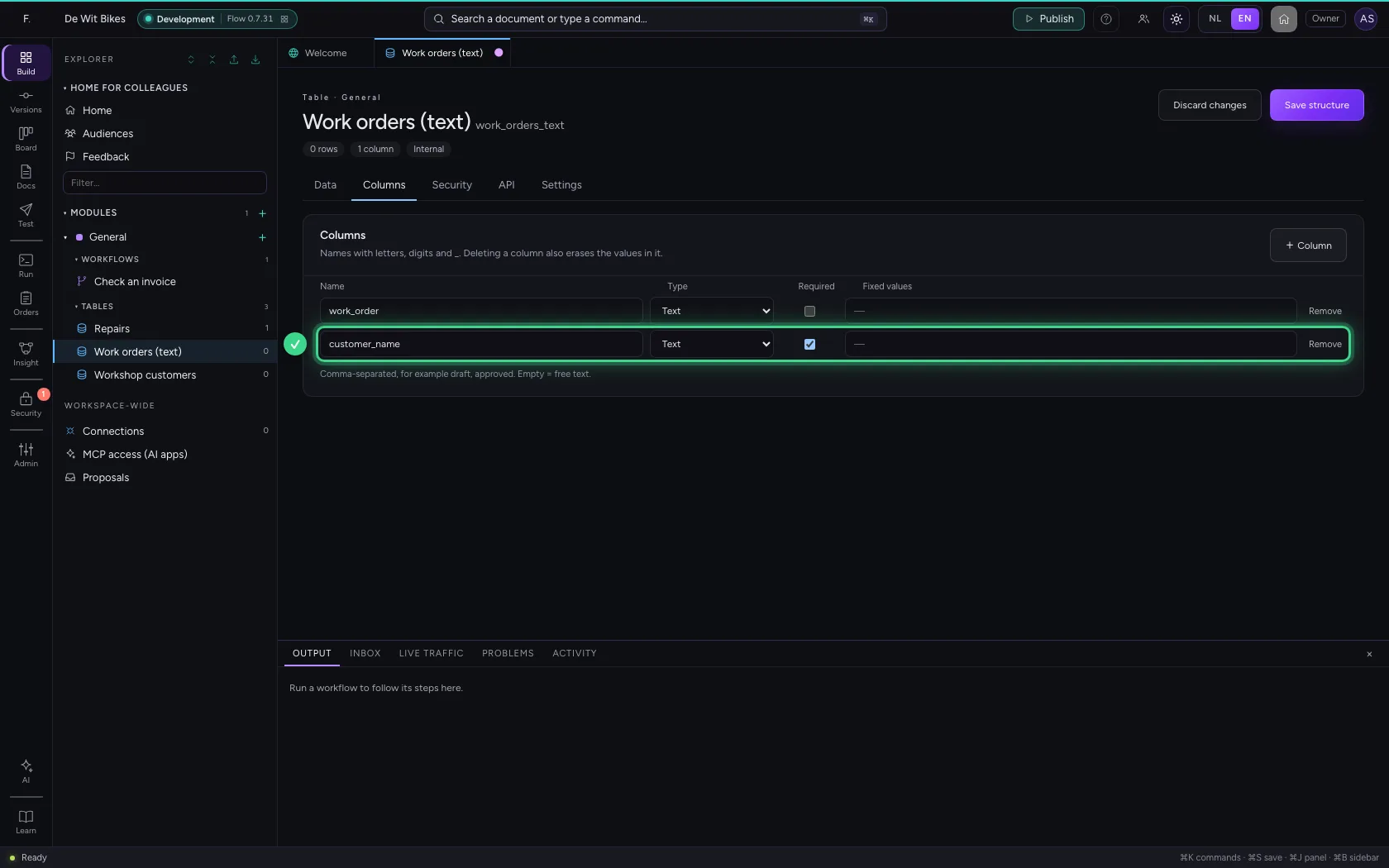
Save the structure
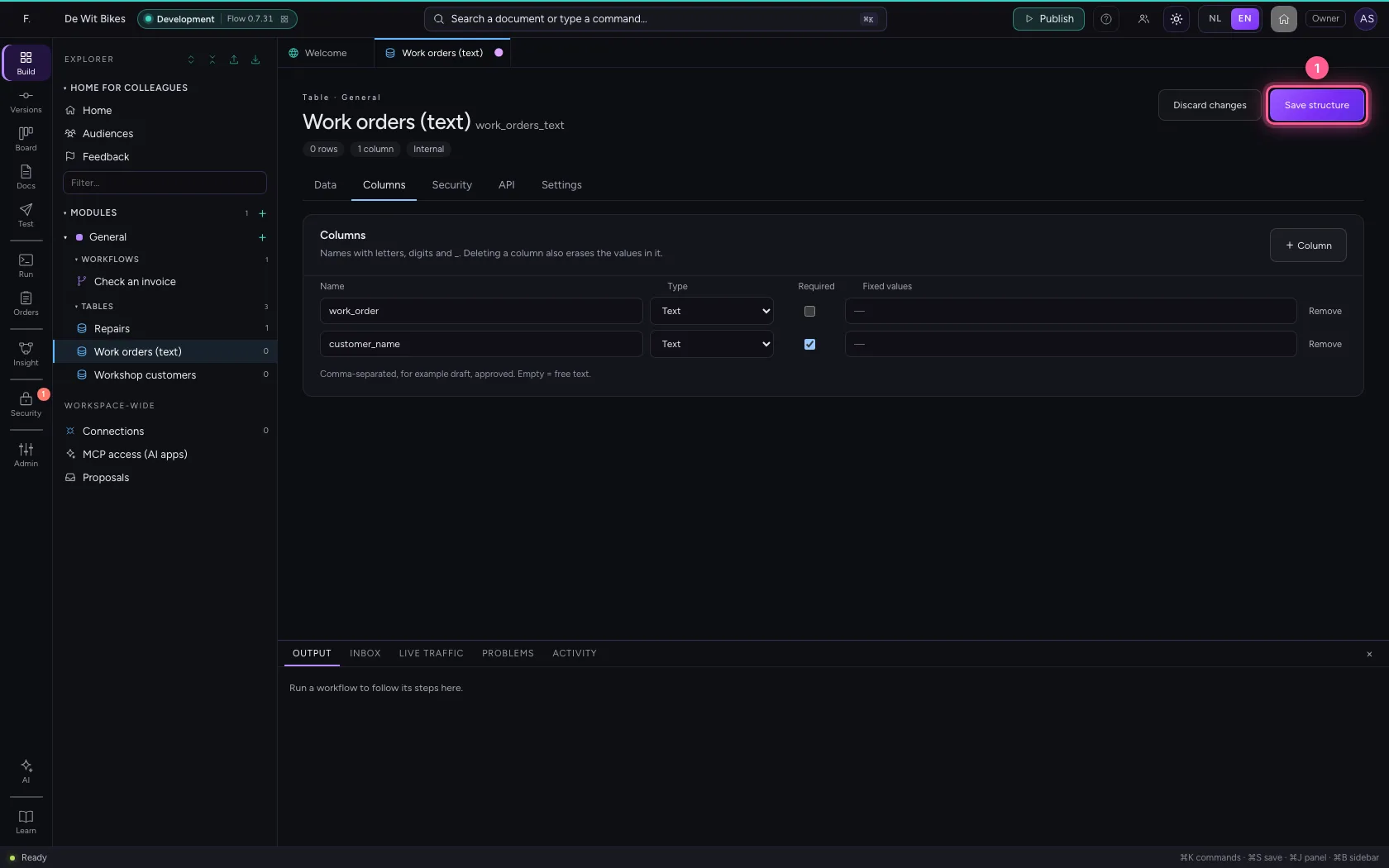
Only after Save structure does the column really exist. A required column you add later applies to new and changed rows; rows that were already there keep an empty value until you change them.
- Click Save structure
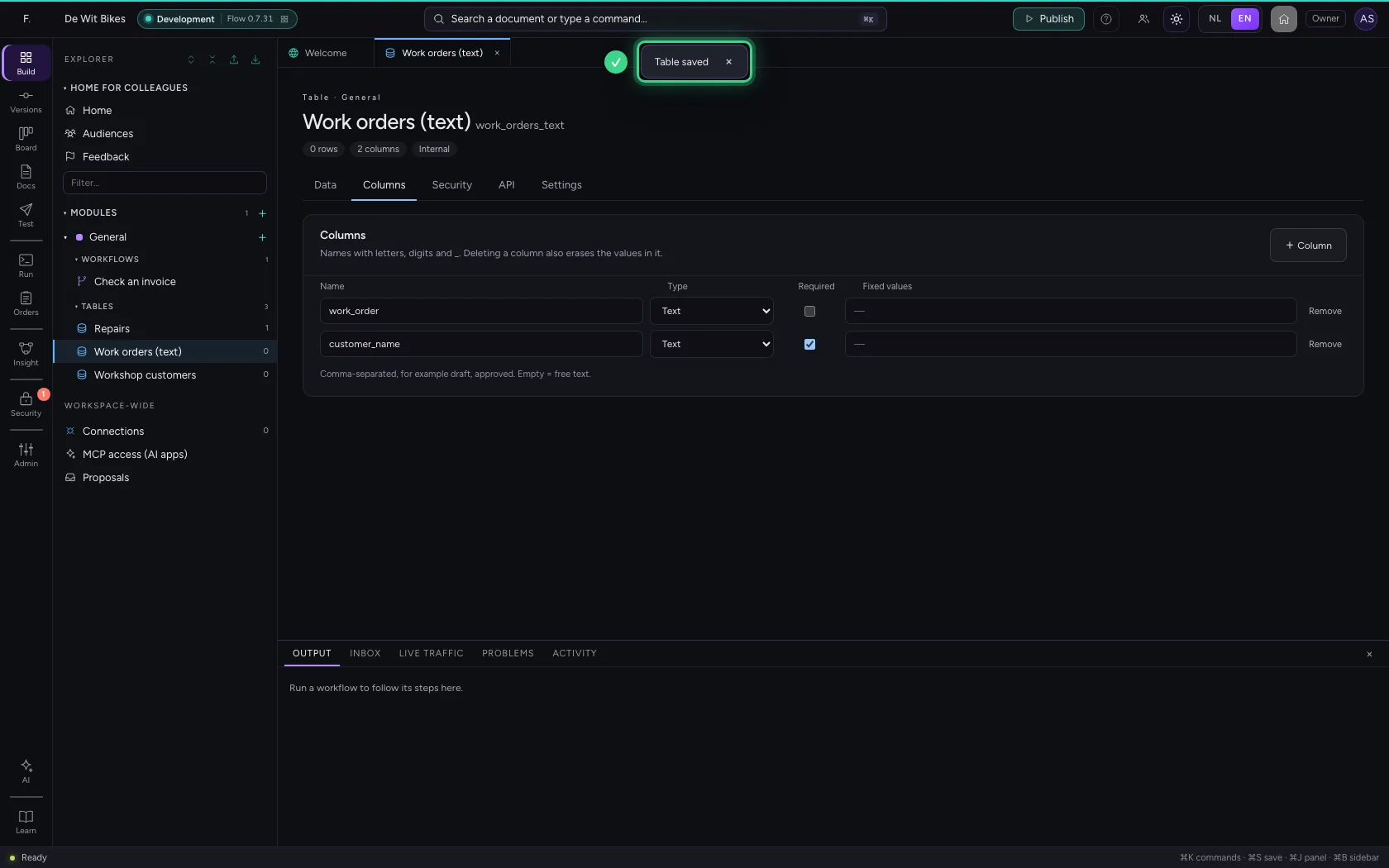
Fill in a row
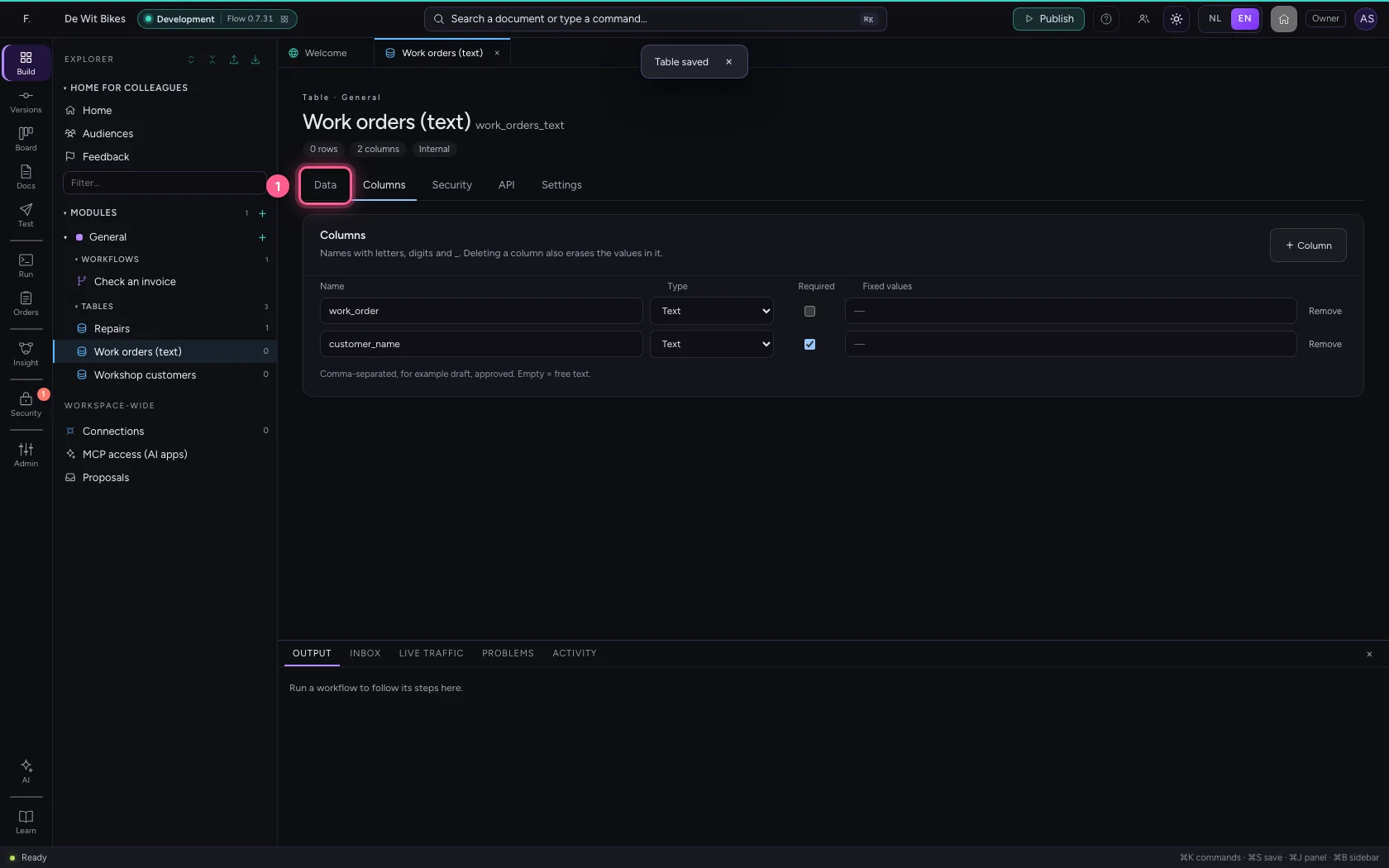
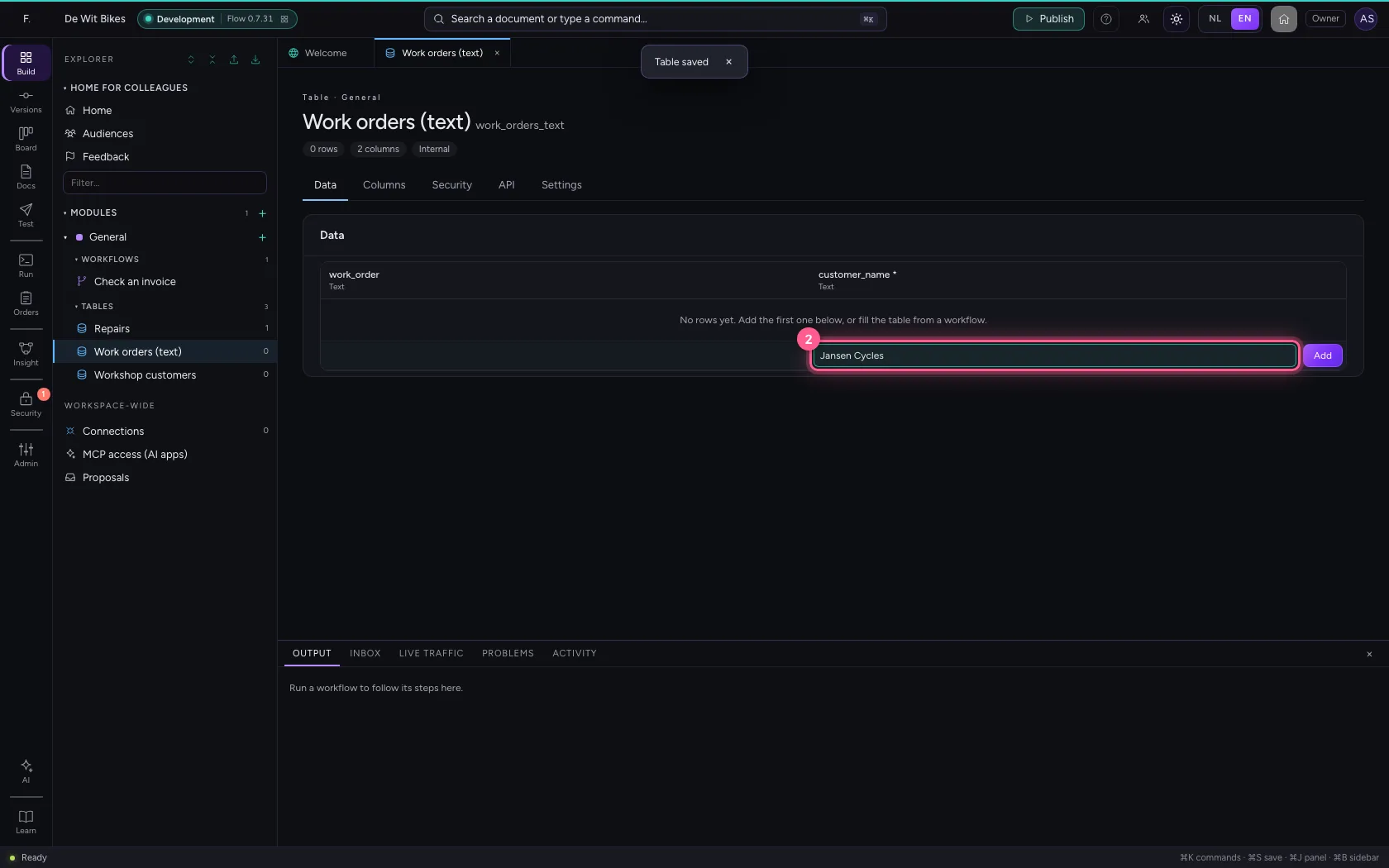
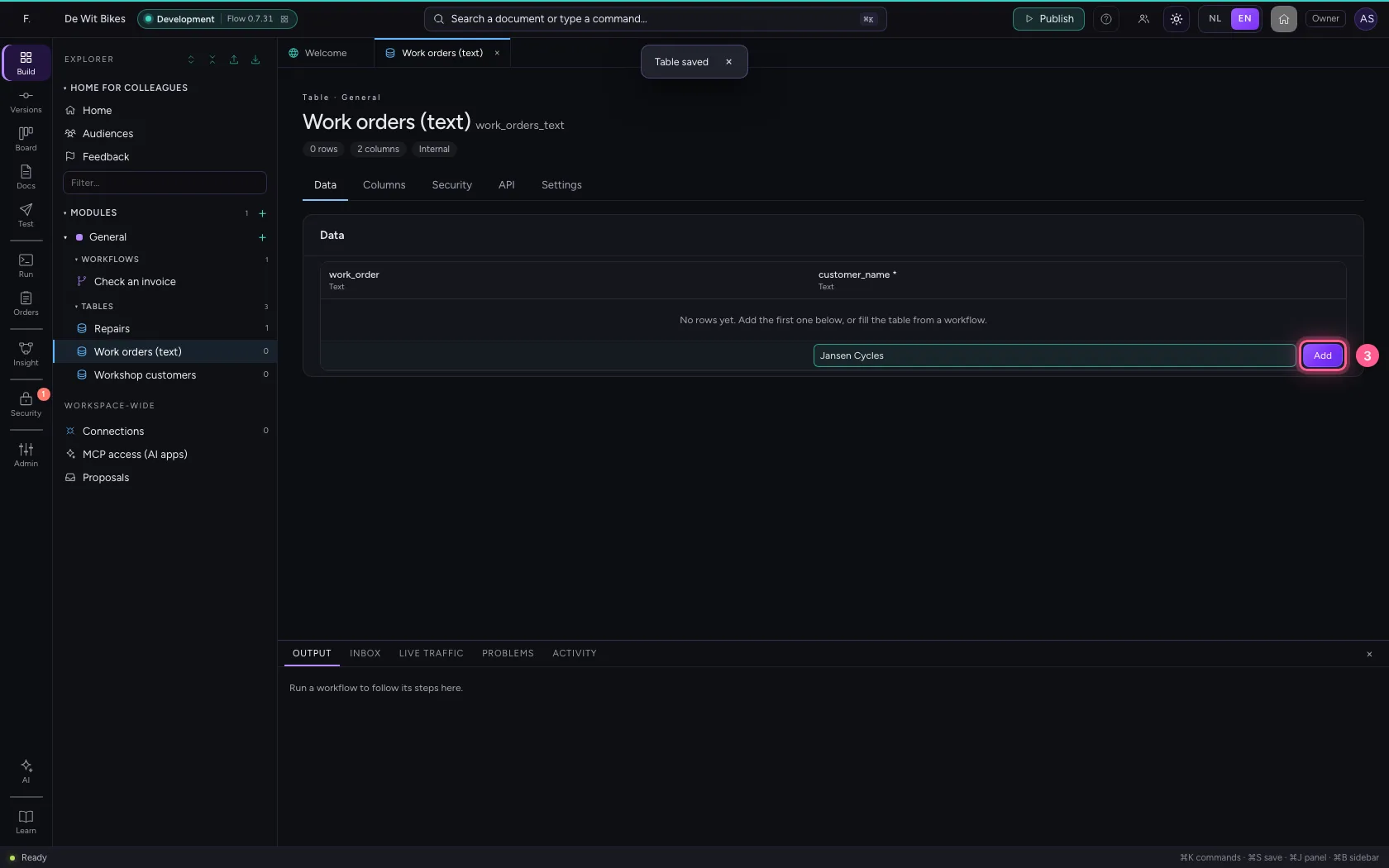
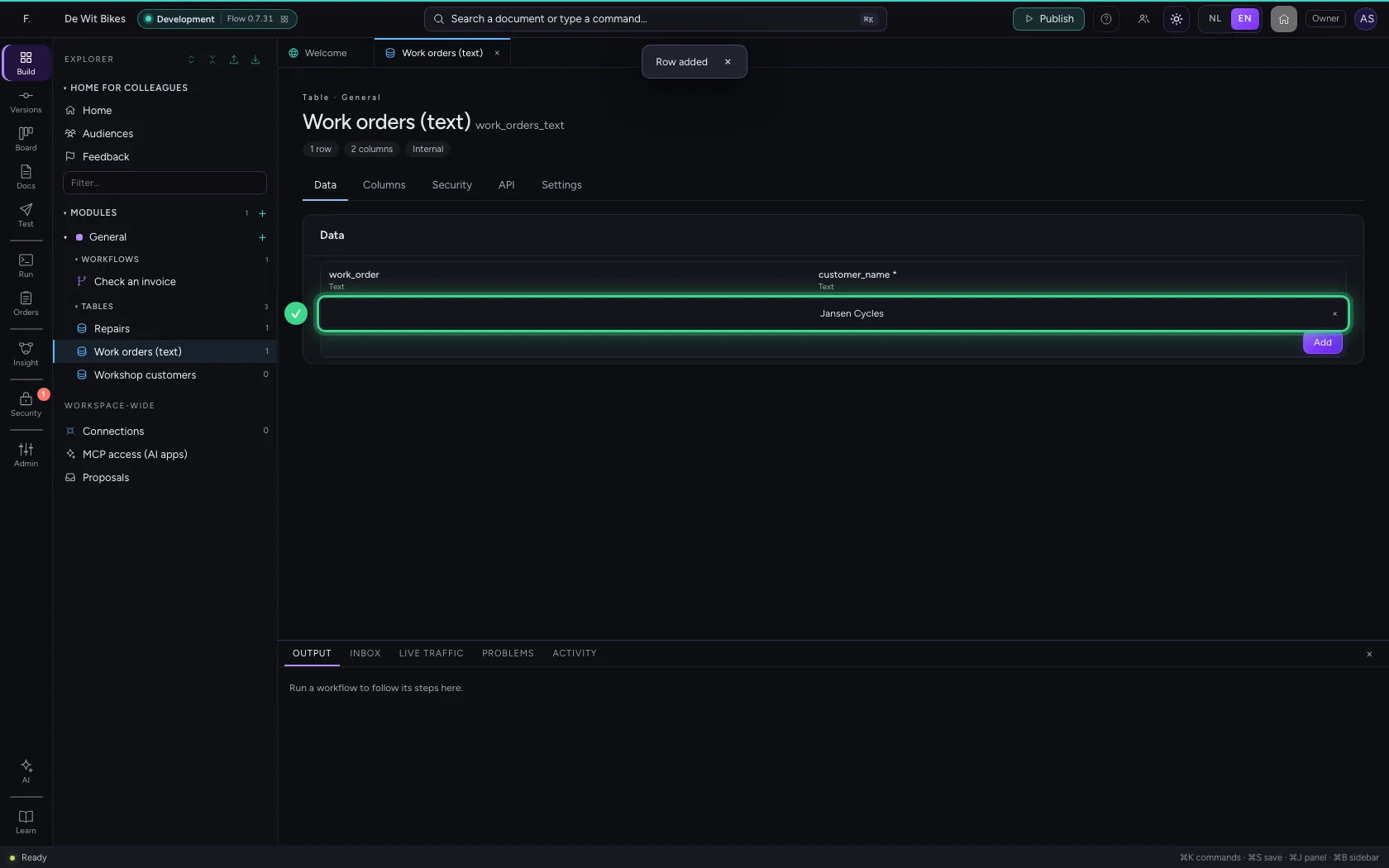
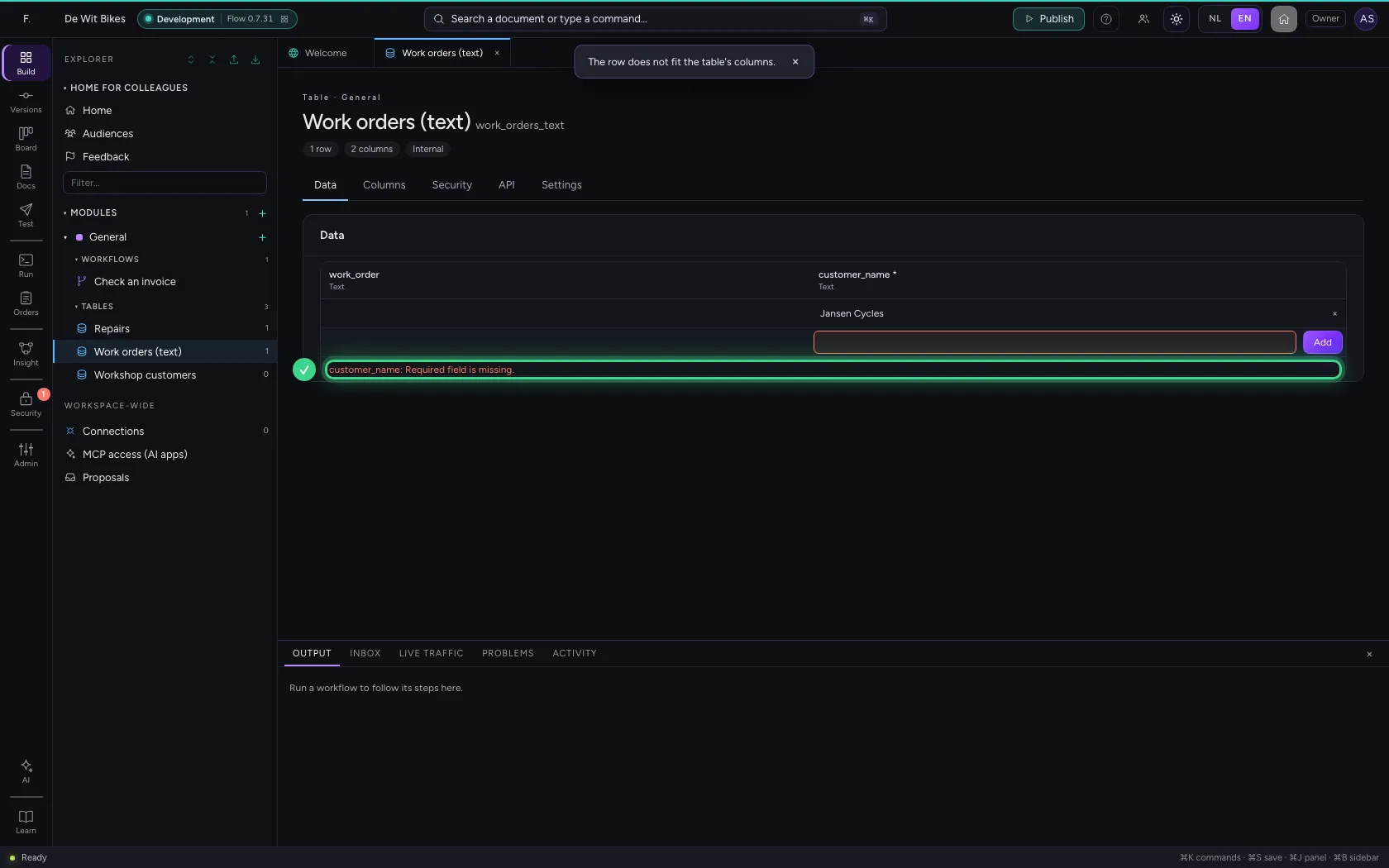
Under Data there is an empty line at the bottom for a new row. A required column has a * in its heading. Fill in the text and click Add.
- Click Data
- In customer_name, type
Jansen Cycles
- Click Add
No row without the required text
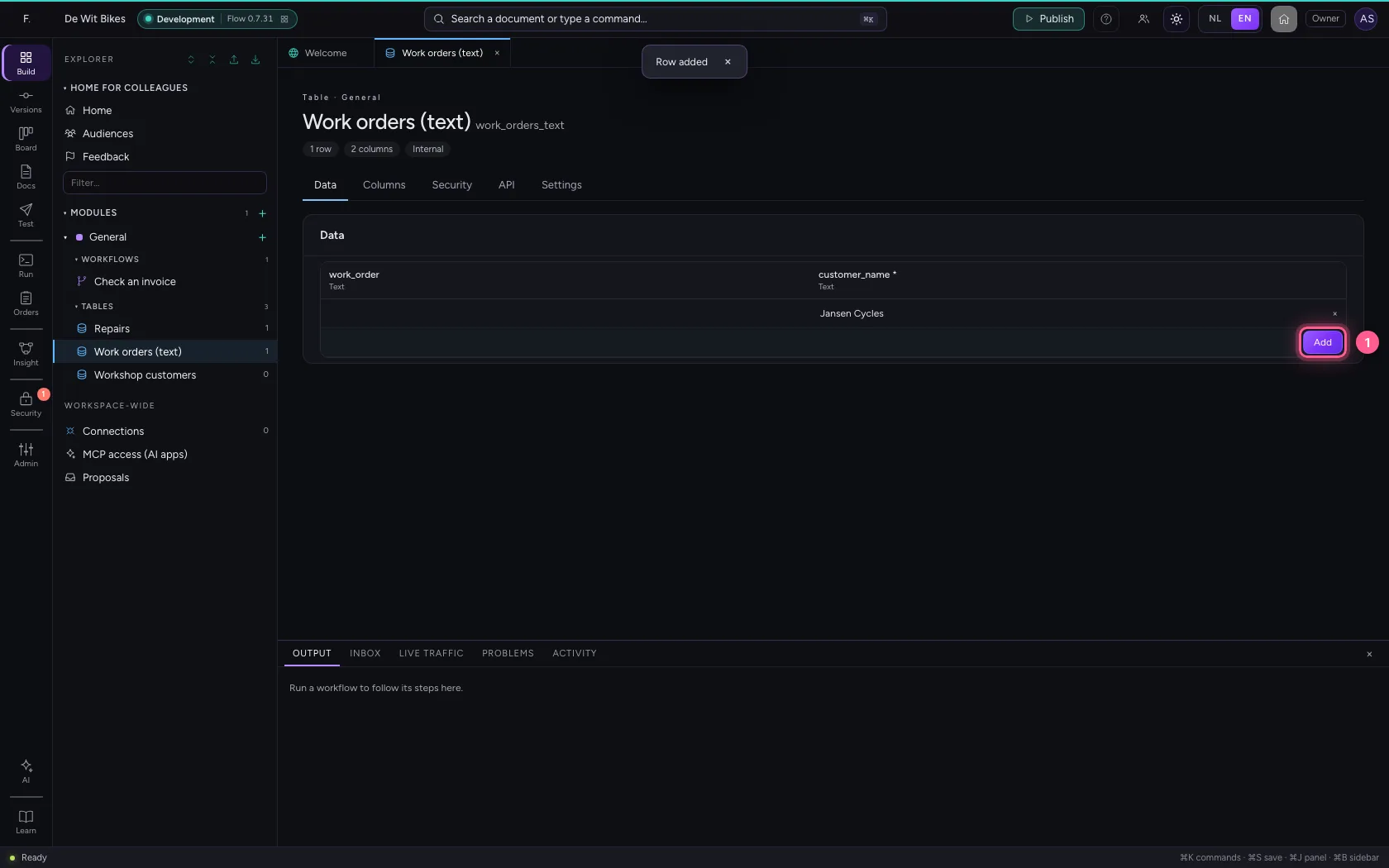
Click Add without filling in the customer. Flow refuses the row and says below the table which column is missing. That holds everywhere: a workflow or a consumer of your API cannot store such a row either.
- Click Add
This guide was carried out step by step on 22 Oct 2026 by an automated test on Flow (version 3e563176).