Your first dashboard from a table
- Step 1 · Open your development environment
- Step 2 · Create a dashboard
- Step 3 · Write a short introduction
- Step 4 · Put down a key figure: the revenue
- Step 5 · And another: the number of orders
- Step 6 · A bar chart: revenue per customer
- Step 7 · Make the chart wider with the keyboard
- Step 8 · A table with the orders
- Step 9 · Save and publish
A dashboard shows at a glance what your workflows and tables produce: key figures, charts and tables on a grid. You build it the way you will see it: tiles from the palette onto the grid, and per tile you choose in plain words where the data comes from and what you want to see. Here you make a sales overview of a table of orders.
Open your development environment
In the portal, under Environments, click Development, and there Open. Flow opens in a new tab and you are signed in straight away.
- Click Development

- Click Open ↗

Create a dashboard
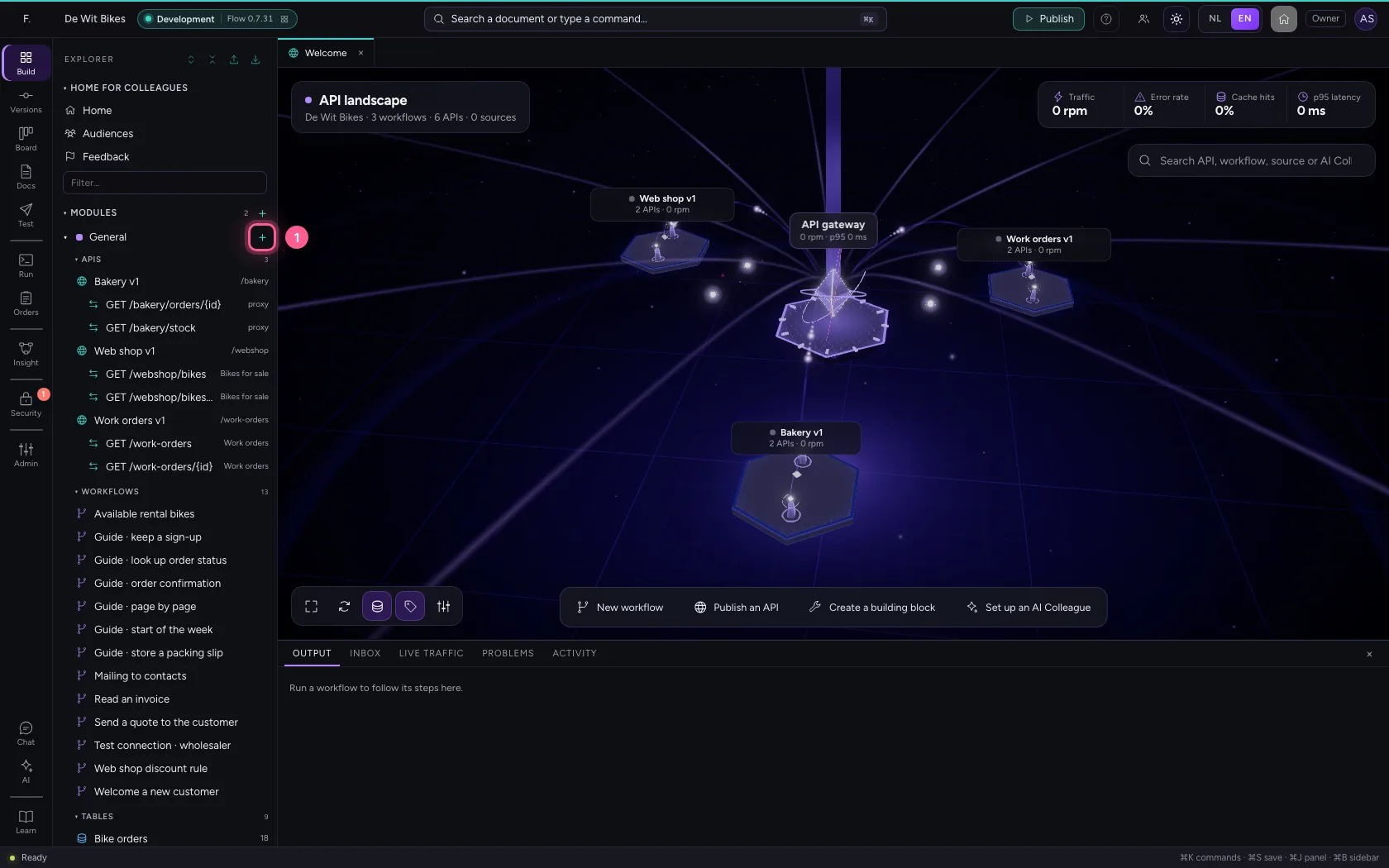
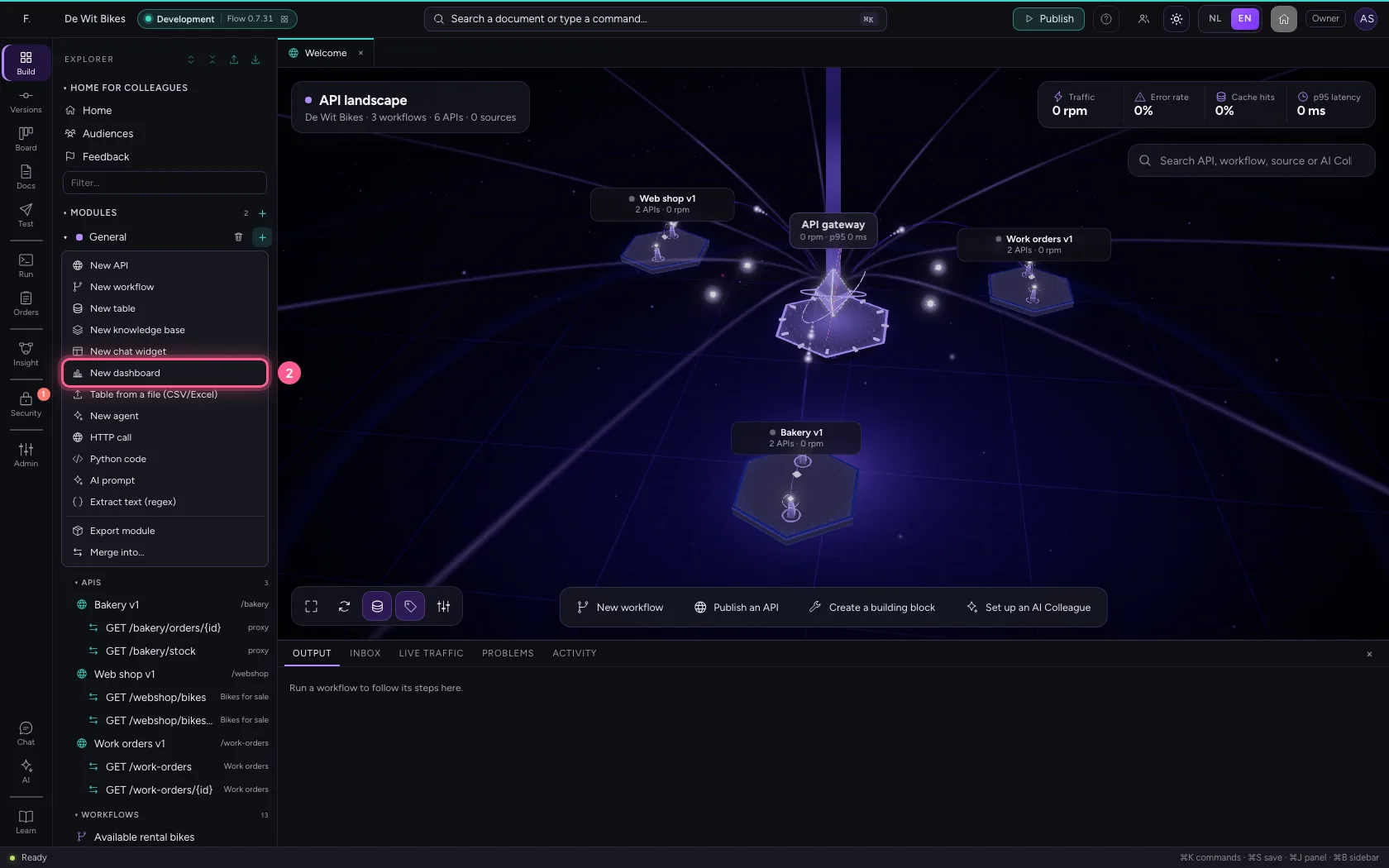
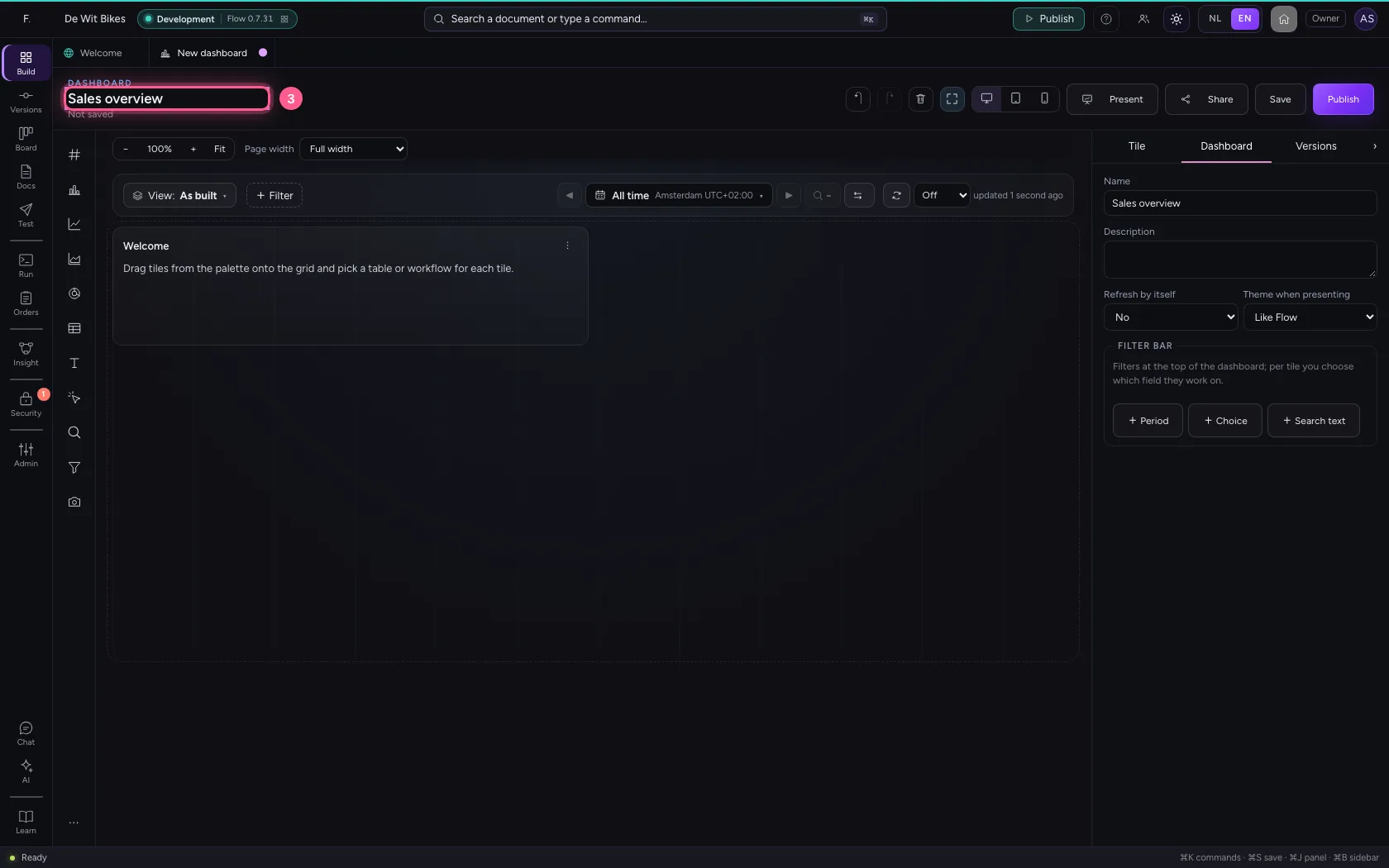
Click + next to General and choose New dashboard. The dashboard opens in its editor: the palette of tiles on the left, the grid in the middle, the properties on the right. The explorer and the bottom panel fold away so you have room (⌘⇧F brings them back). Give the dashboard a name.
- Click Add to General
- Click New dashboard
- In Dashboard name, type
Sales overview
Write a short introduction
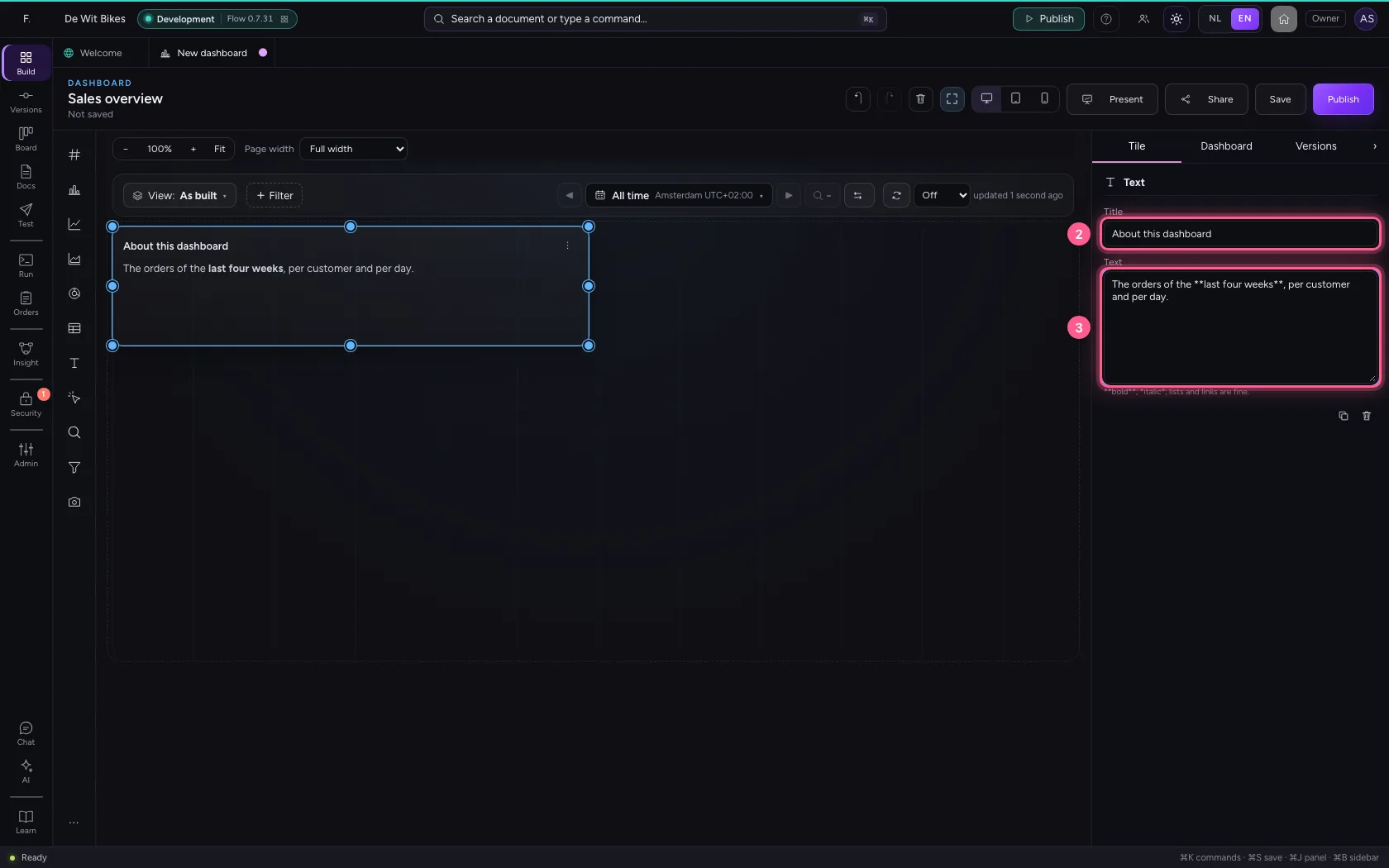
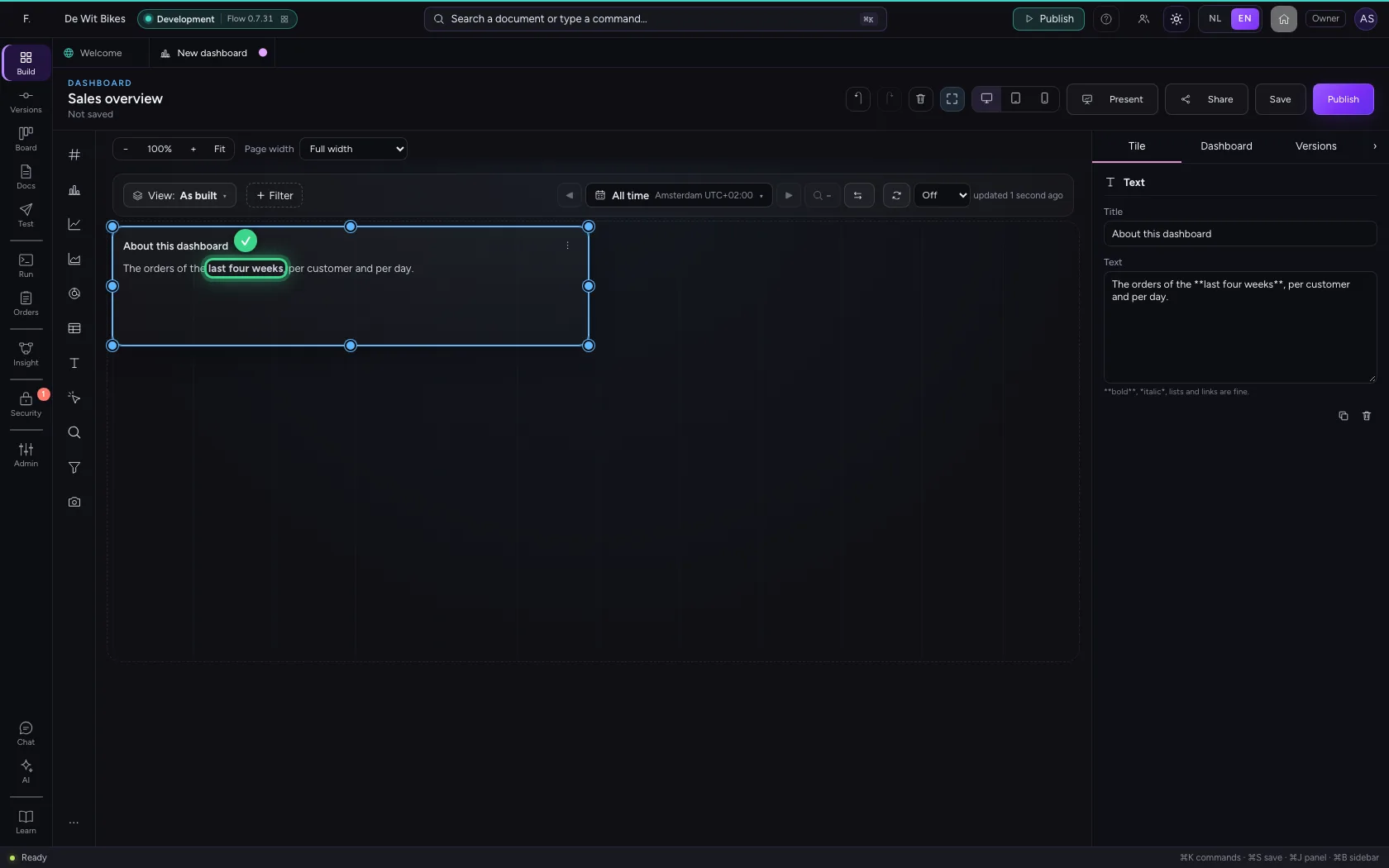
A new dashboard starts with a text tile. Click it and write on the right what the dashboard shows. Bold, italic, lists and links are fine.
- Click the text tile
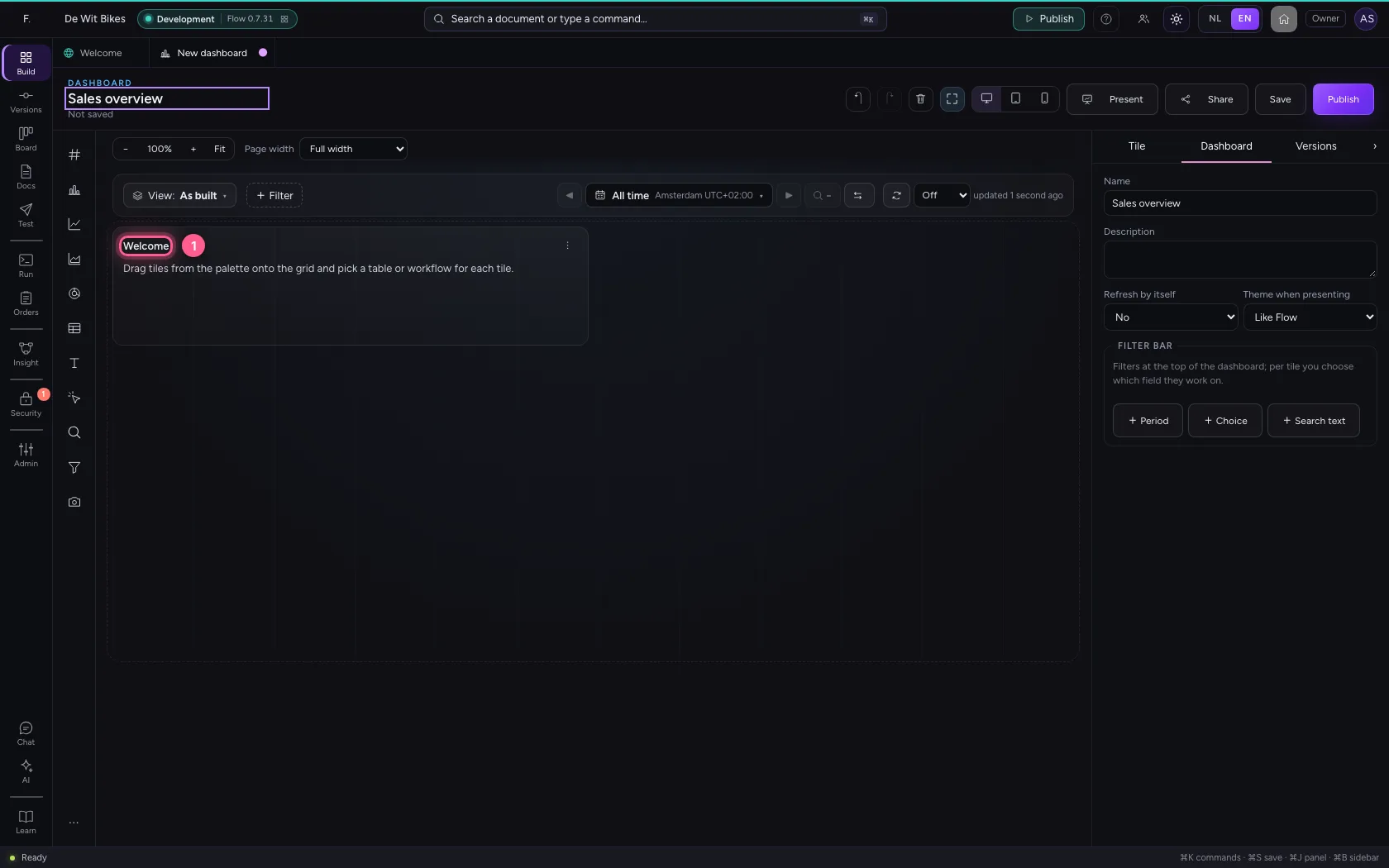
- In Title, type
About this dashboard - In Text, type
The orders of the **last four weeks**, per customer and per day.
Put down a key figure: the revenue
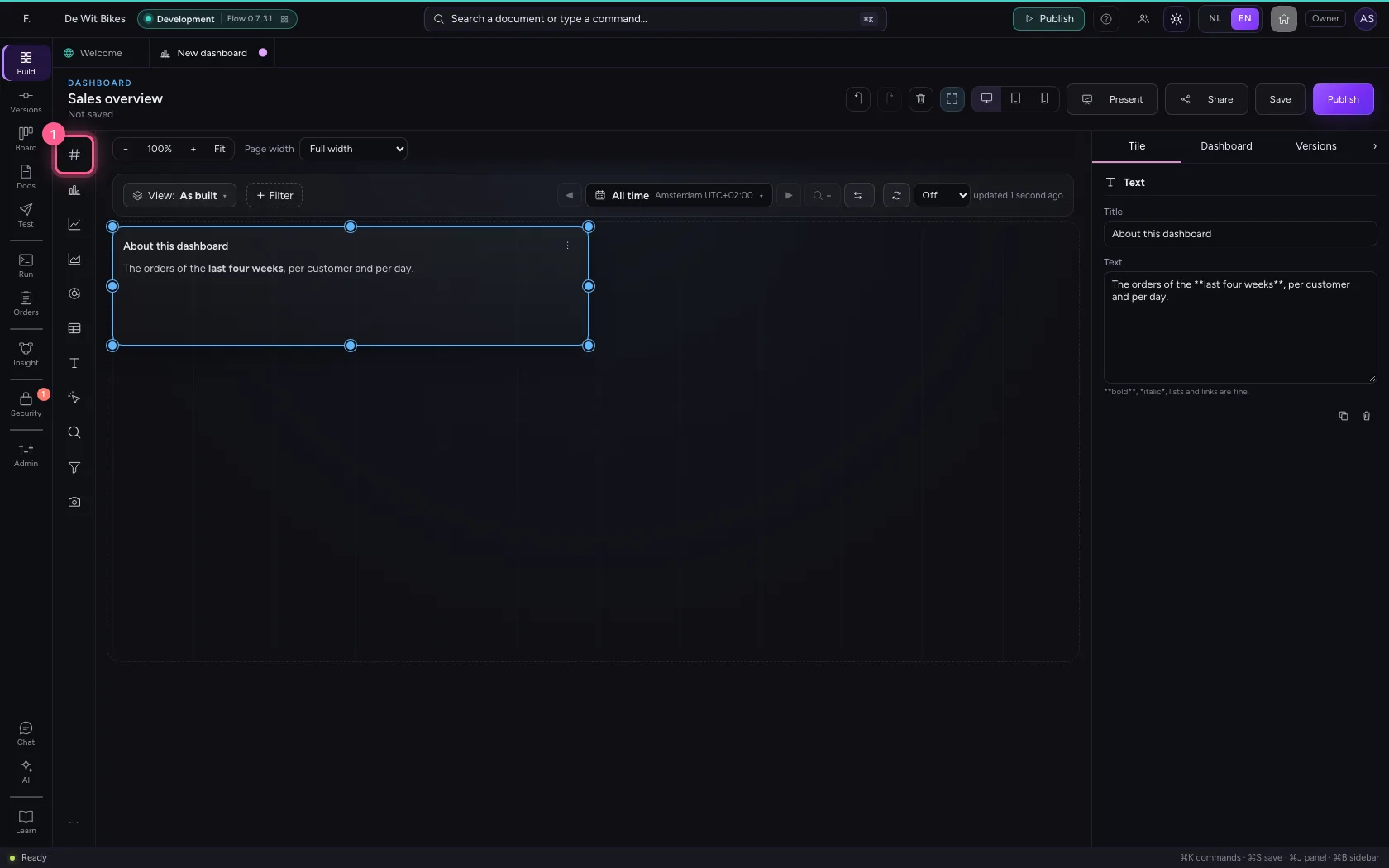
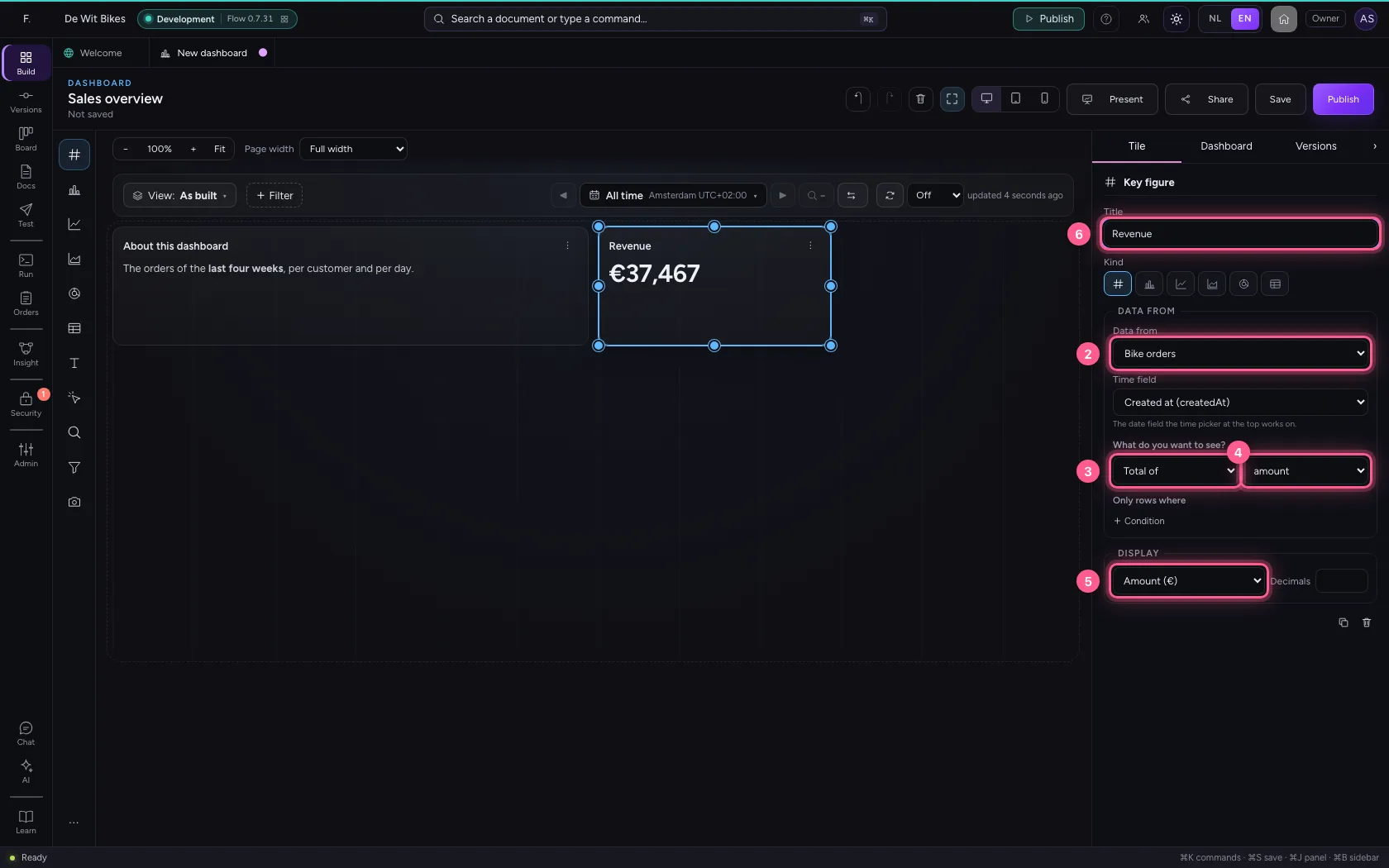
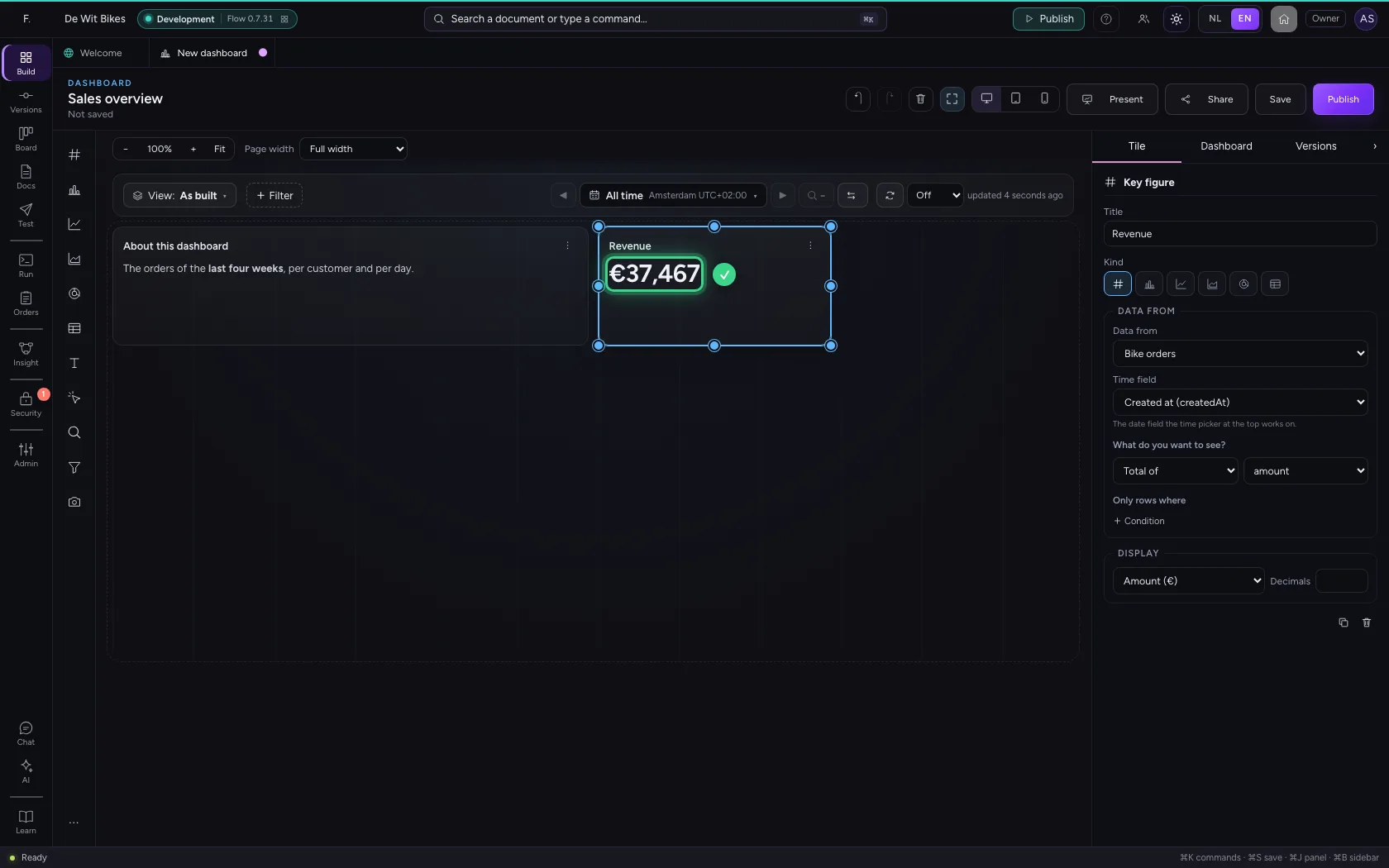
Click Key figure in the palette (or drag it to a spot on the grid). On the right, under Data from choose the table, and under What do you want to see? Total of the amount. Under Display choose Amount (€).
- Click Key figure
- In Data from, choose Bike orders
- In What do you want to see?, choose Total of
- In Choose a field, choose amount
- In Display, choose Amount (€)
- In Title, type
Revenue
And another: the number of orders
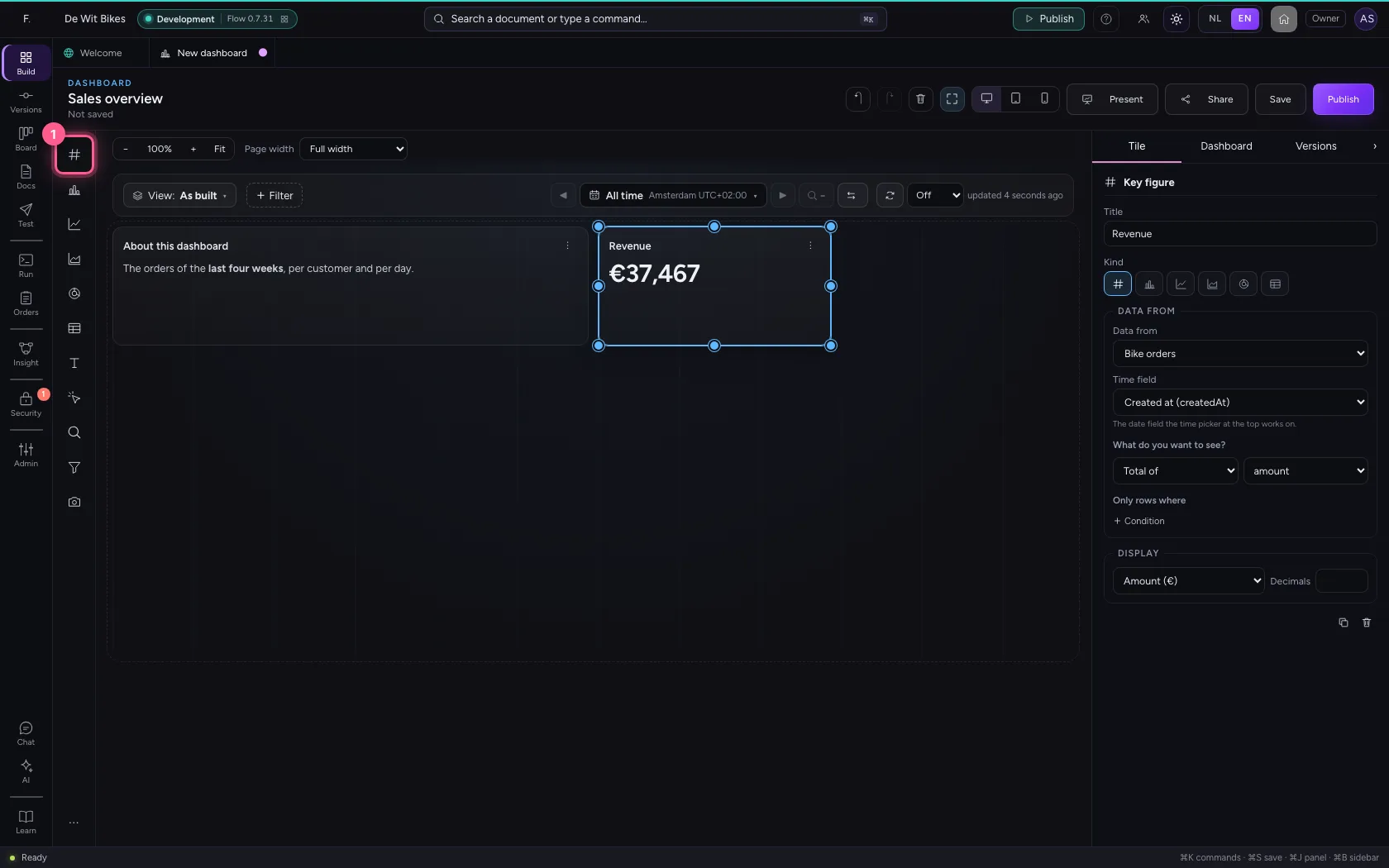
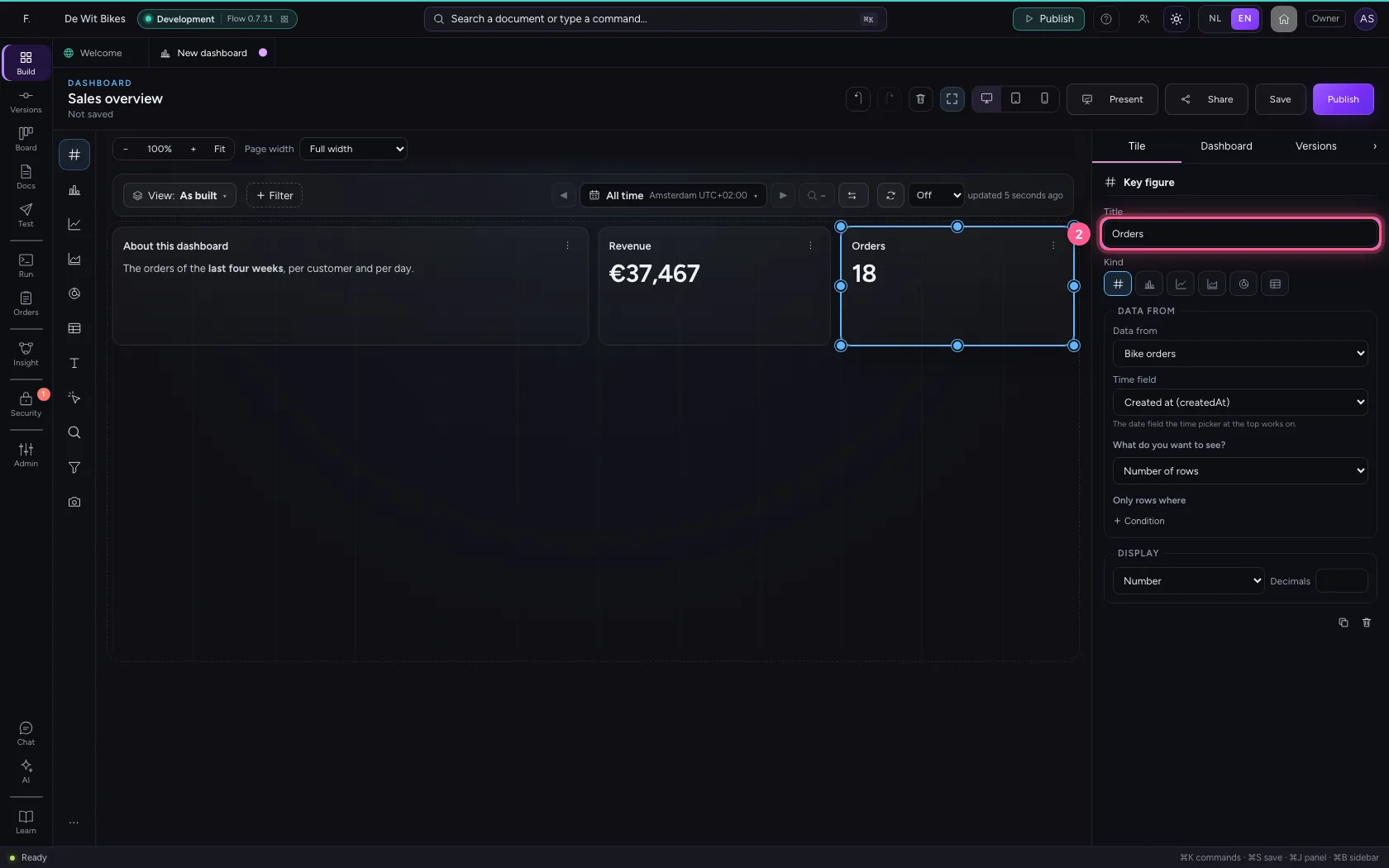
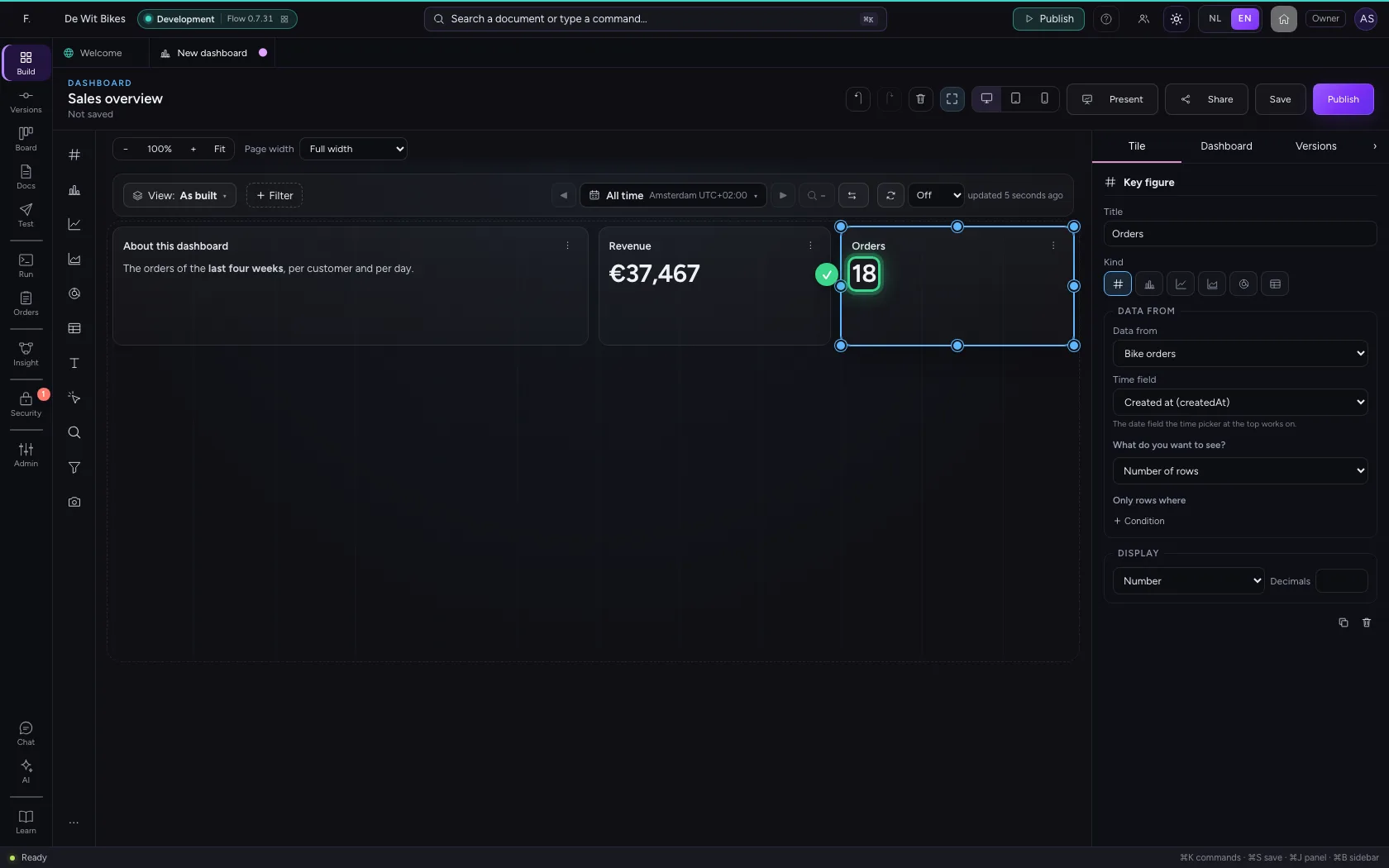
Another Key figure, on the same table. A new tile starts on the source the dashboard already uses, and counts the rows: exactly what you want here.
- Click Key figure
- In Title, type
Orders
A bar chart: revenue per customer
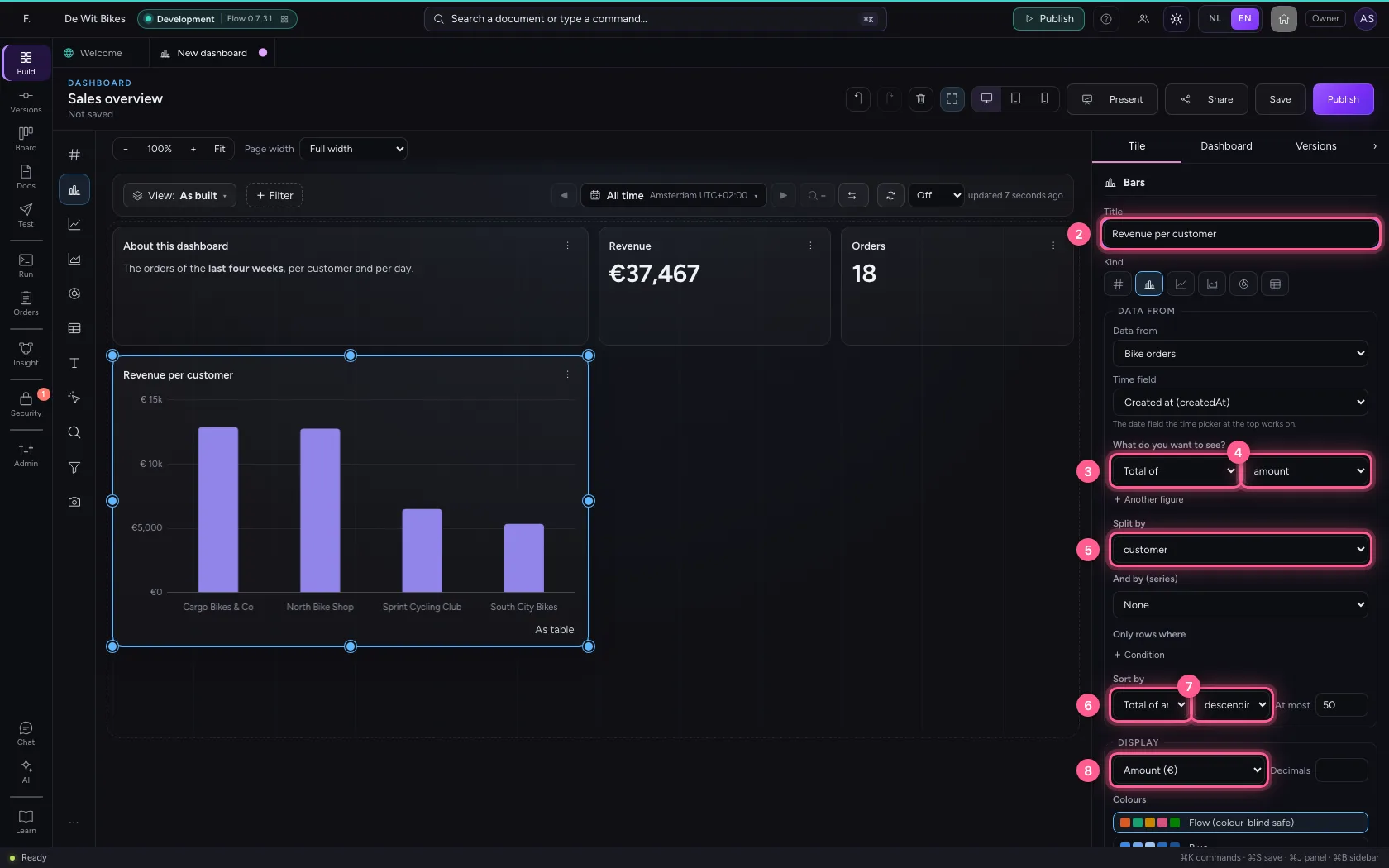
Click Bars. Choose Total of the amount, and under Split by the customer: one bar per customer. Sort by the revenue, descending, so the biggest customer comes first.
- Click Bars
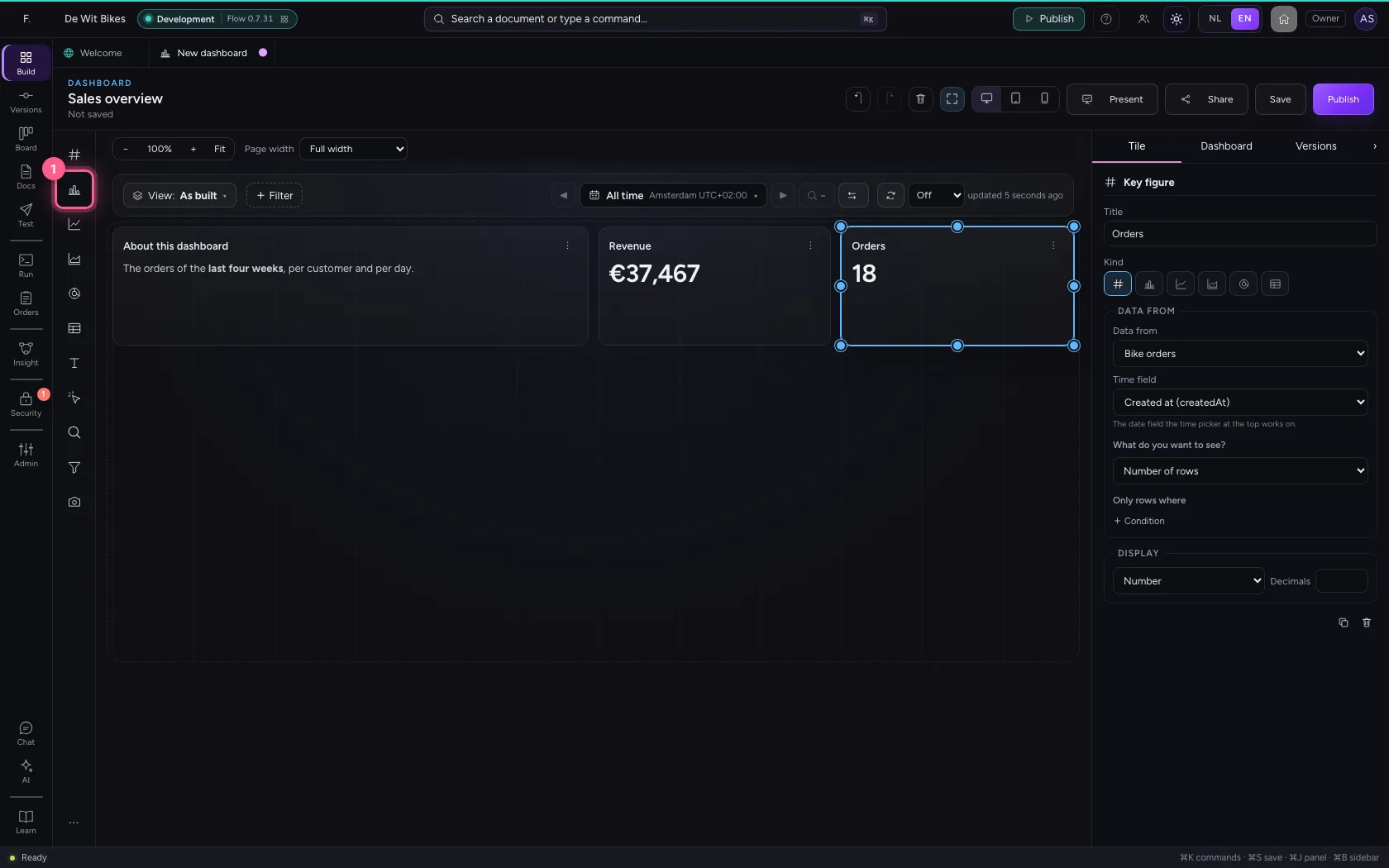
- In Title, type
Revenue per customer - In What do you want to see?, choose Total of
- In Choose a field, choose amount
- In Split by, choose customer
- In Sort by, choose Total of amount
- In ascending, choose descending
- In Display, choose Amount (€)
Make the chart wider with the keyboard
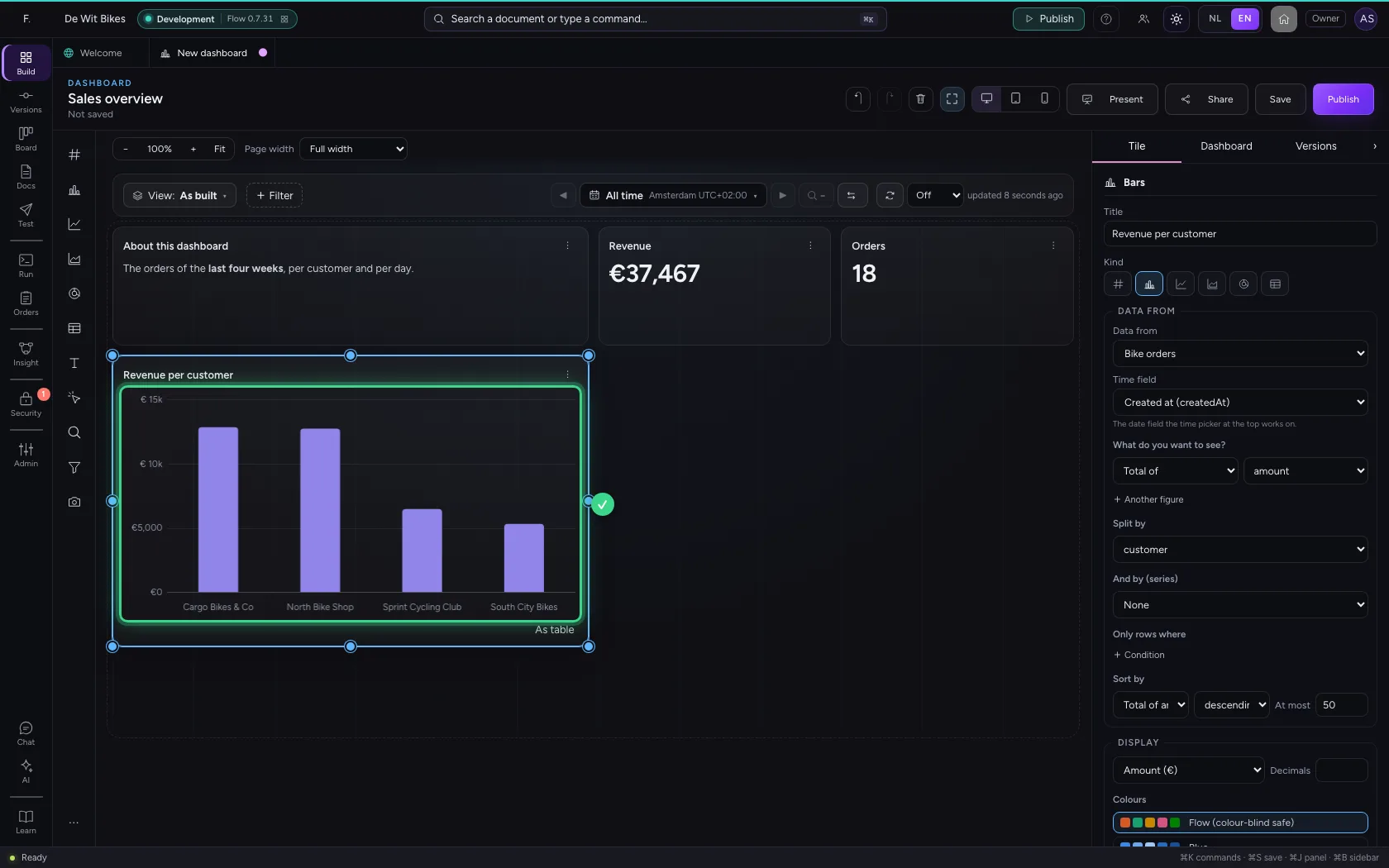
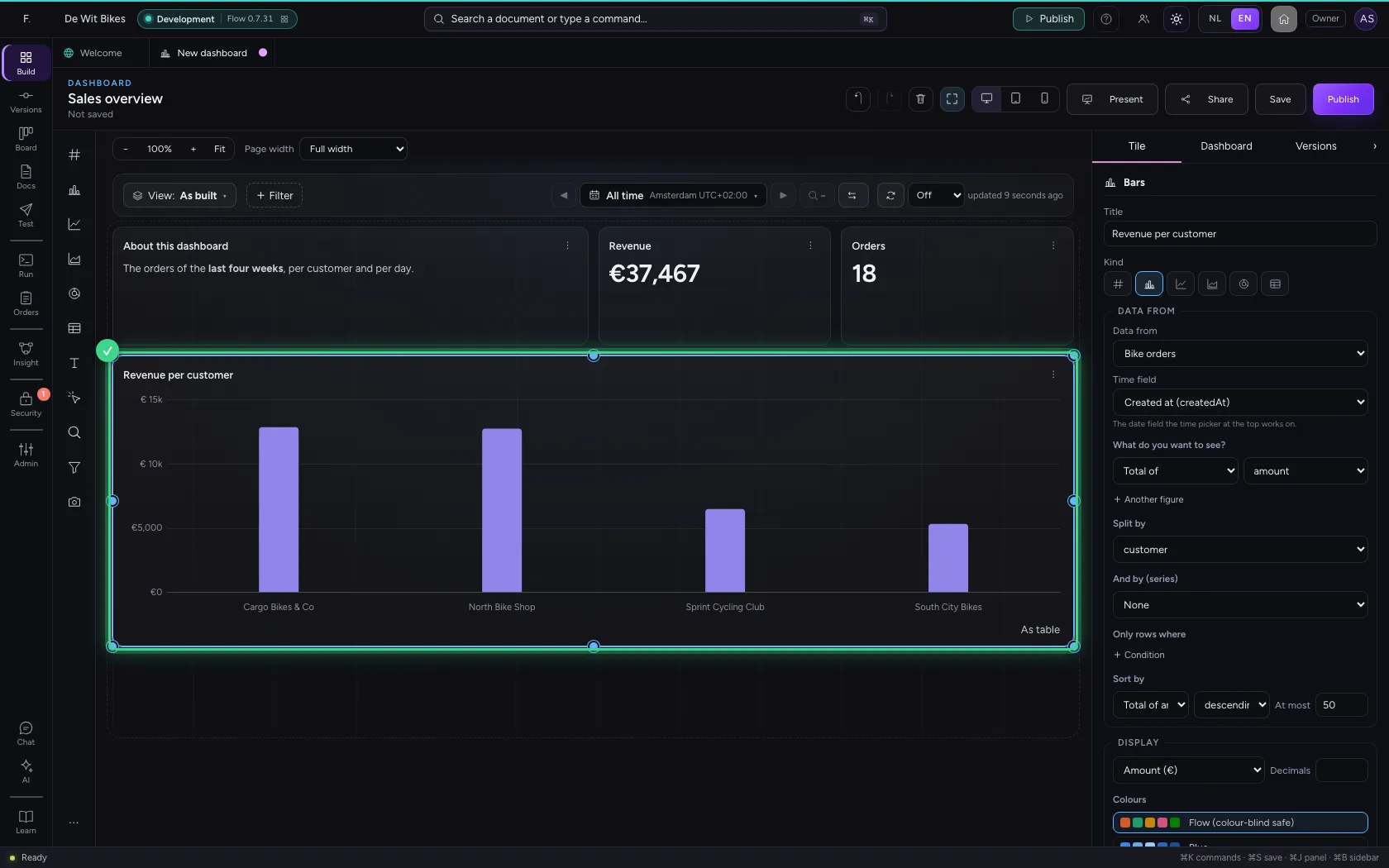
Drag a corner or edge of a chosen tile to make it bigger, or use the keyboard: Shift + right arrow makes the tile one column wider, an arrow alone moves it. The grid has twelve columns; Shift + → six times makes the chart as wide as the dashboard. ⌘Z undoes every step.
A table with the orders
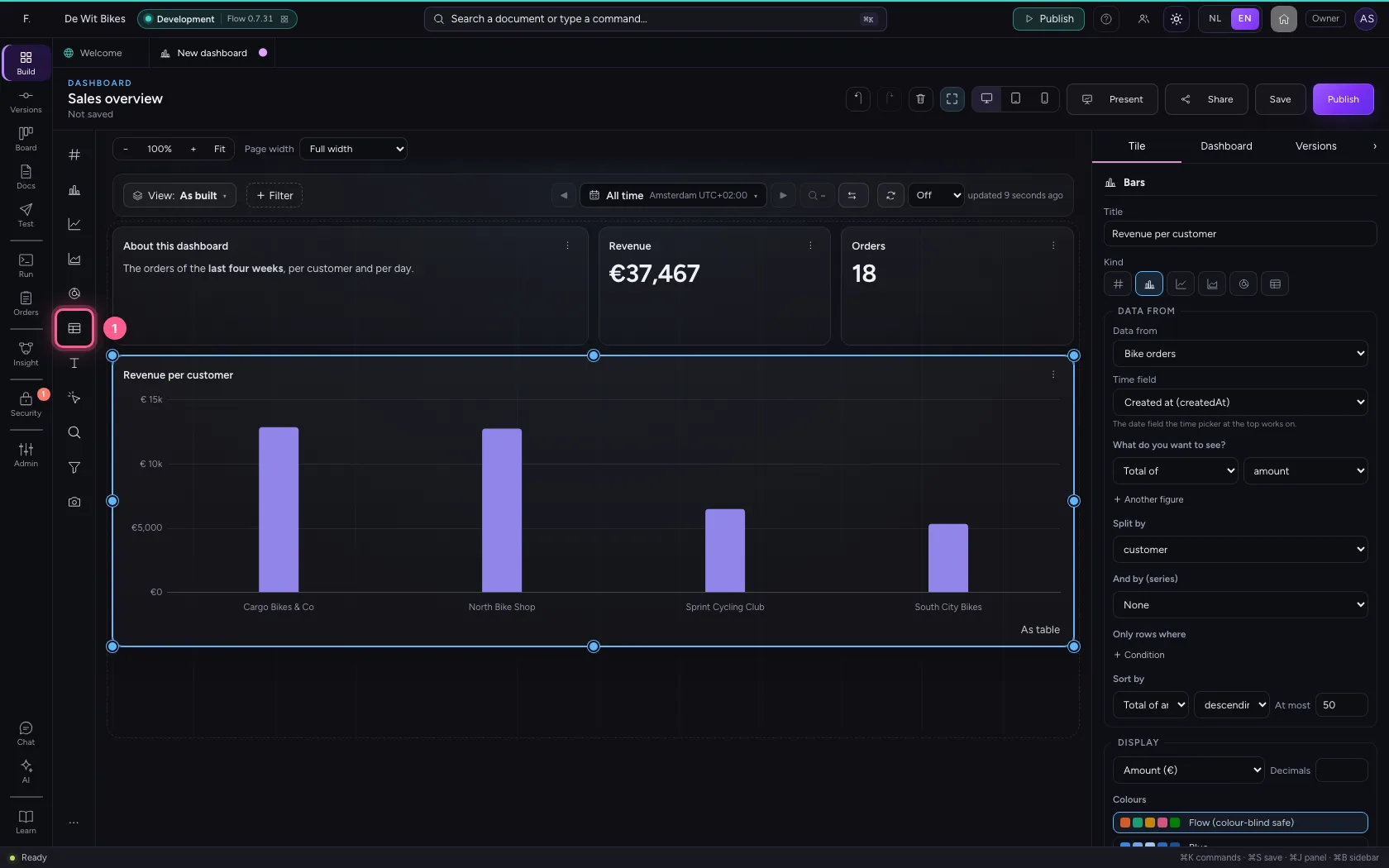
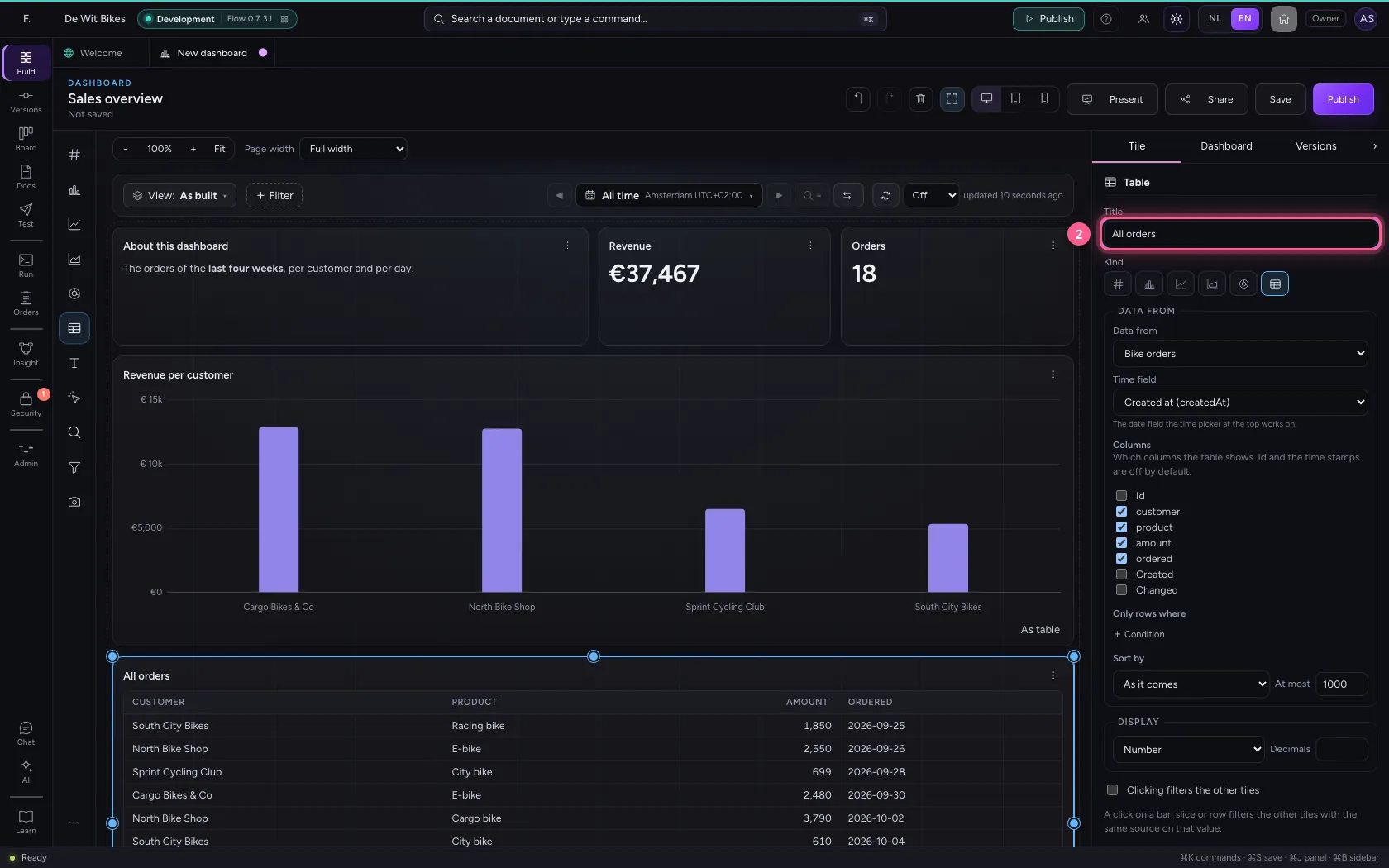
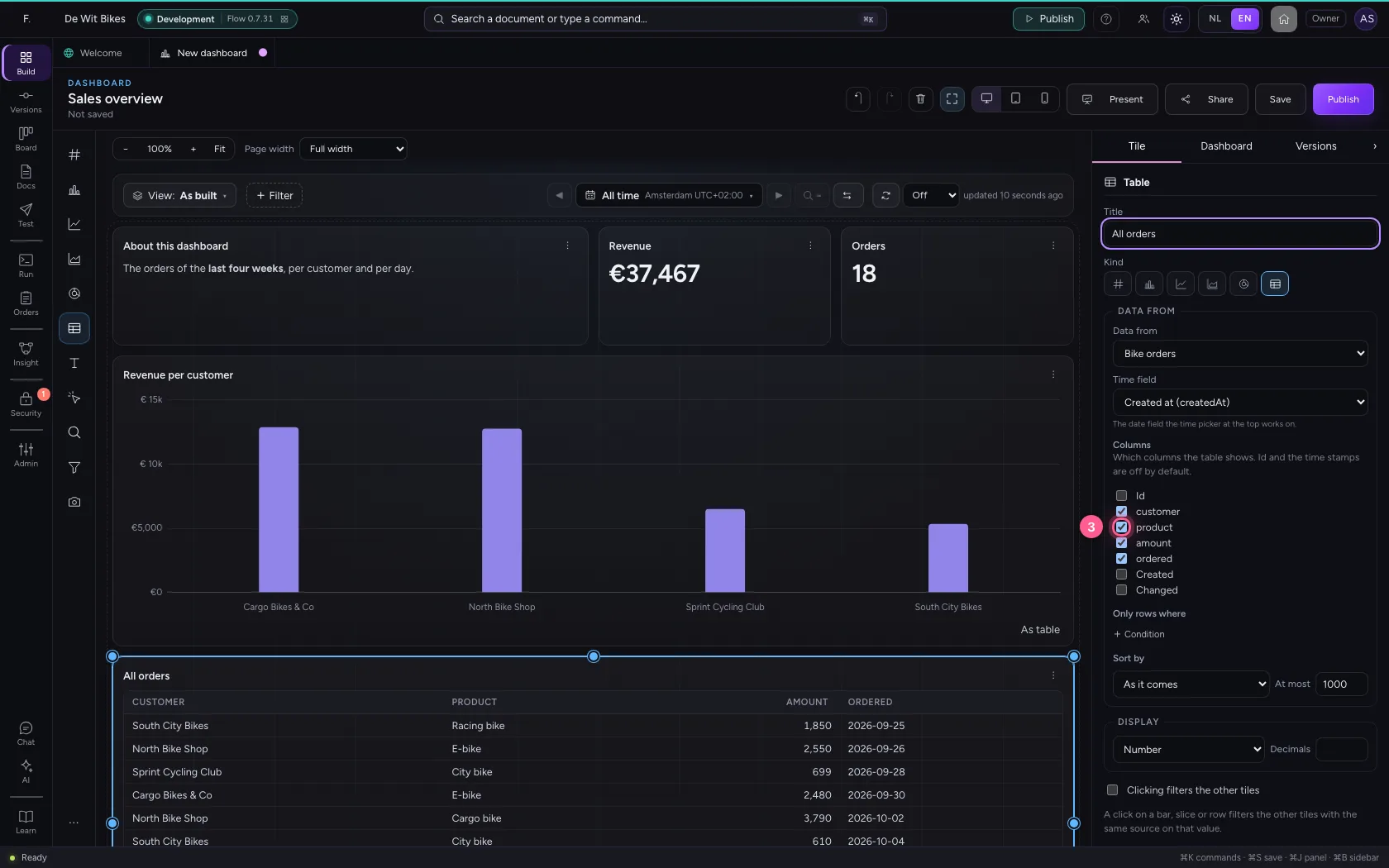
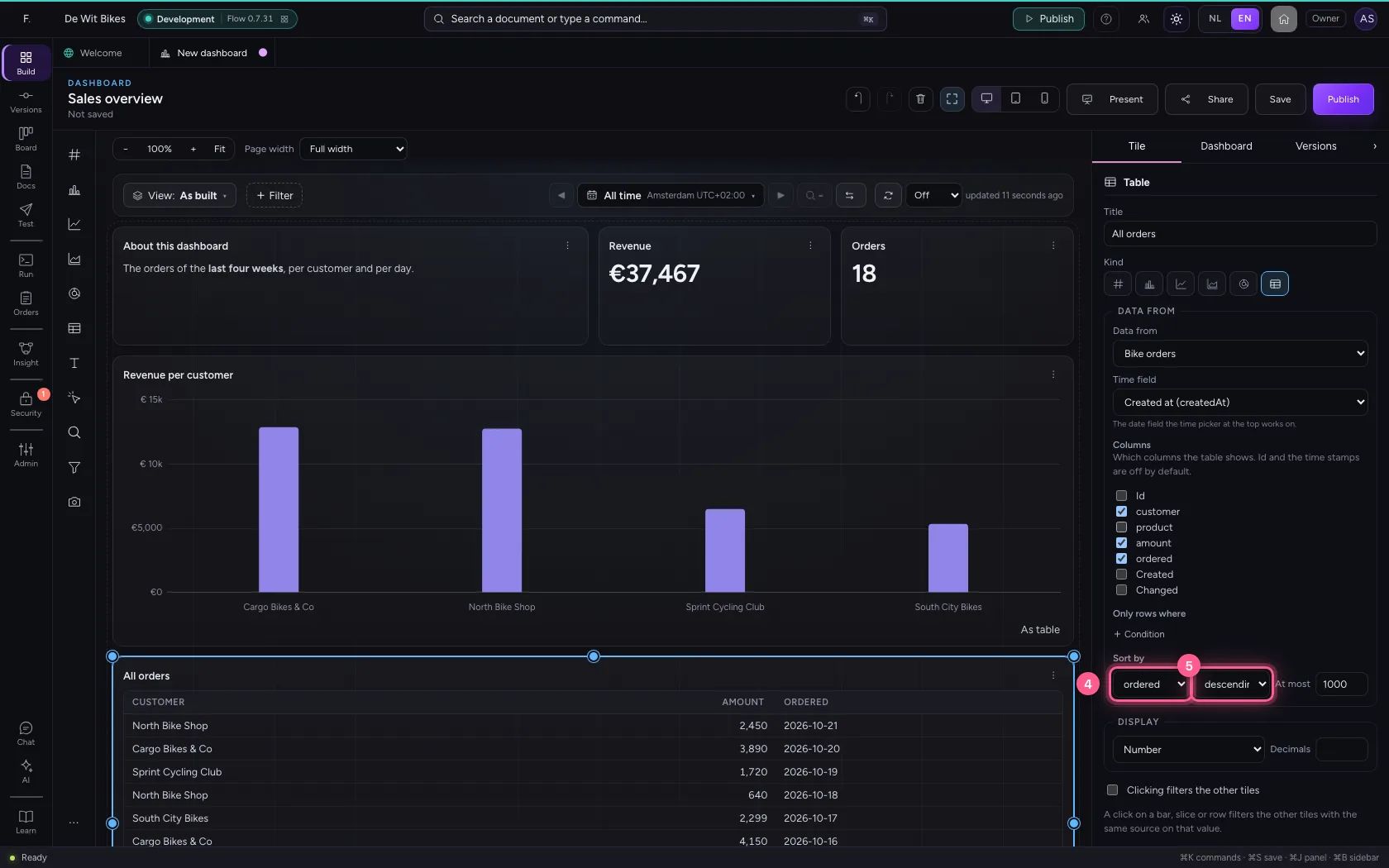
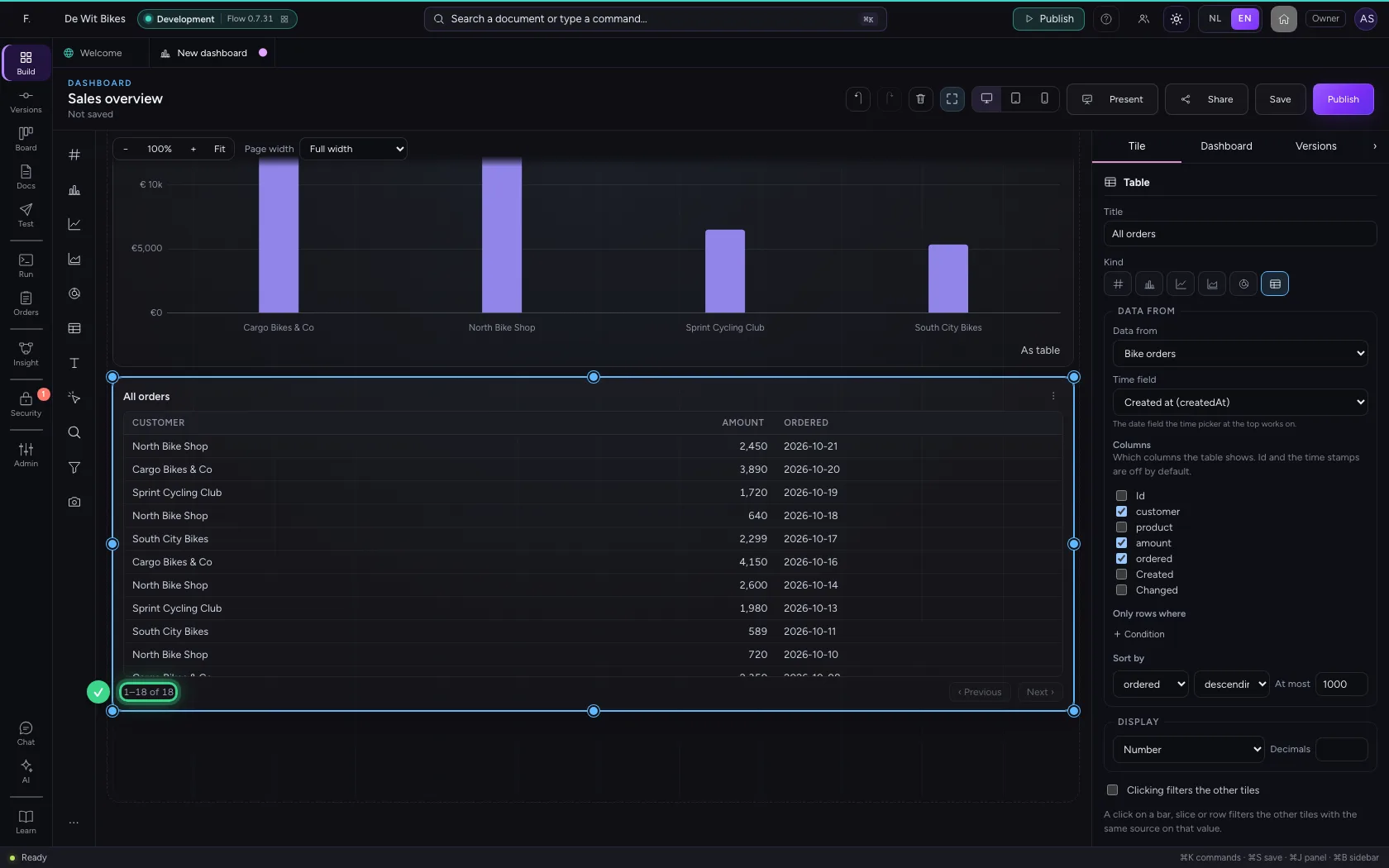
Click Table: the rows themselves, 50 per page and sortable by clicking a column header. Under Columns you tick what the table shows; the id and the time stamps (created, changed) are off by default. Switch the product off here, and sort by the order date, descending: the newest at the top.
- Click Table
- In Title, type
All orders
- Click the tick at product
- In Sort by, choose ordered
- In ascending, choose descending
Save and publish
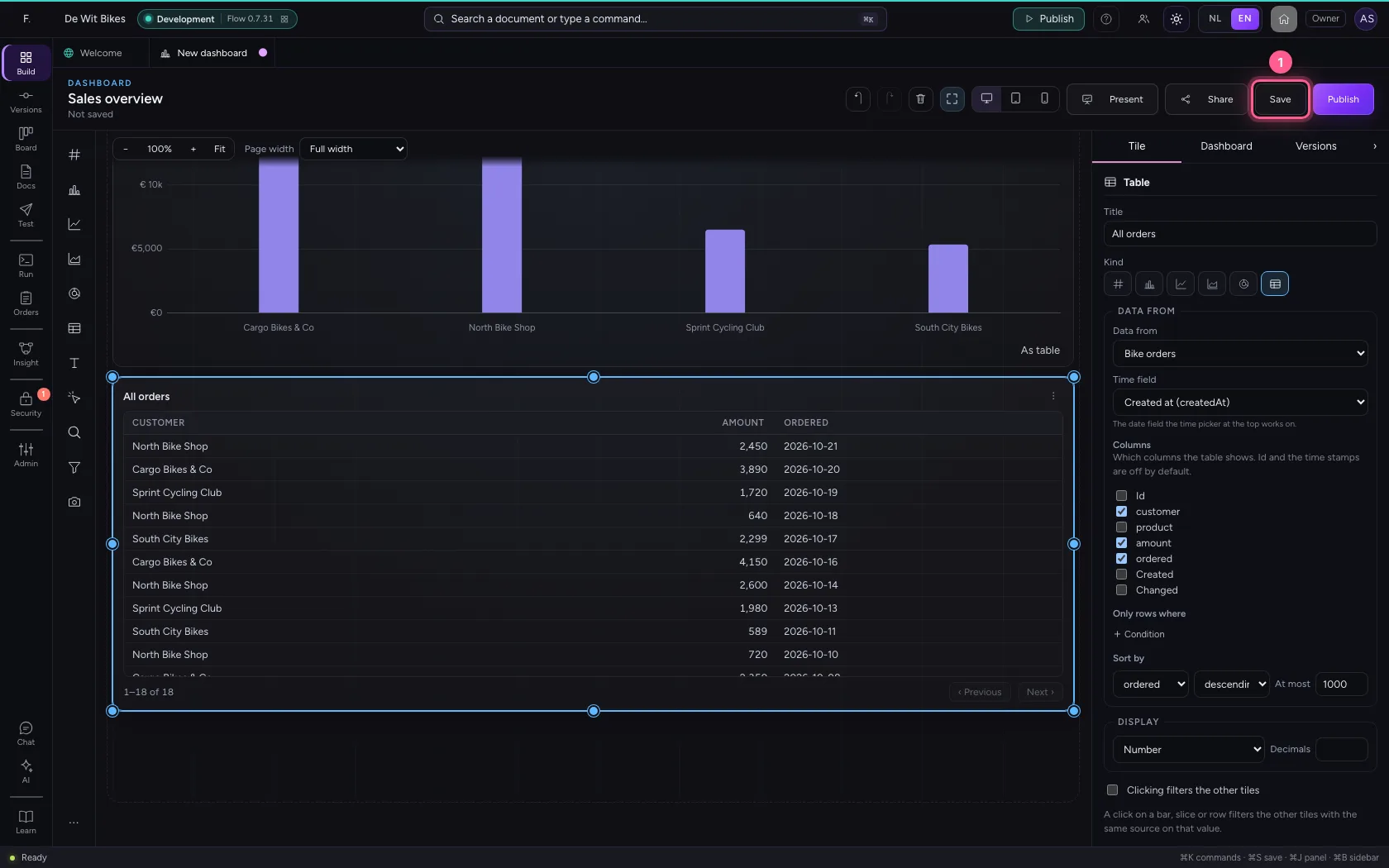
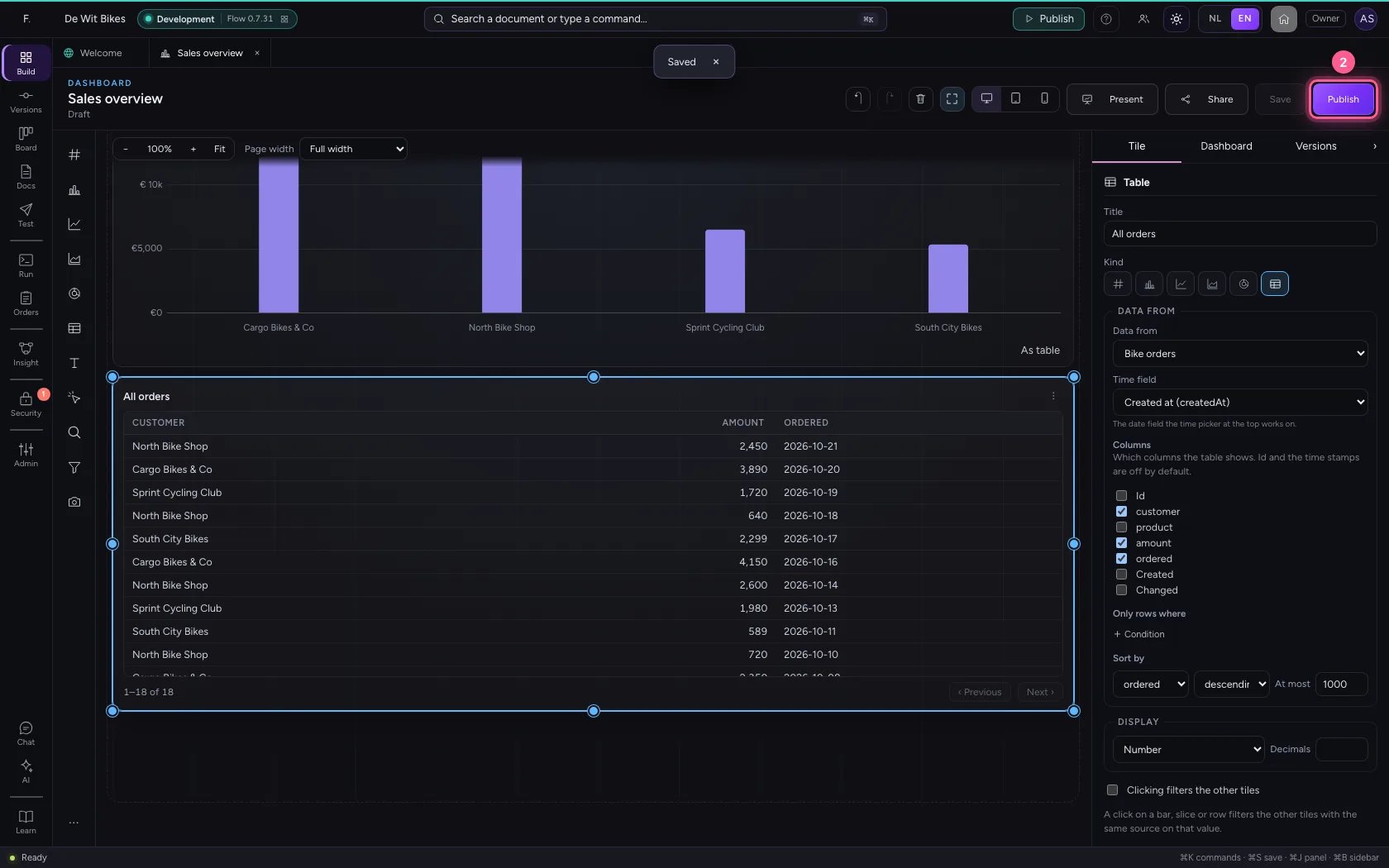
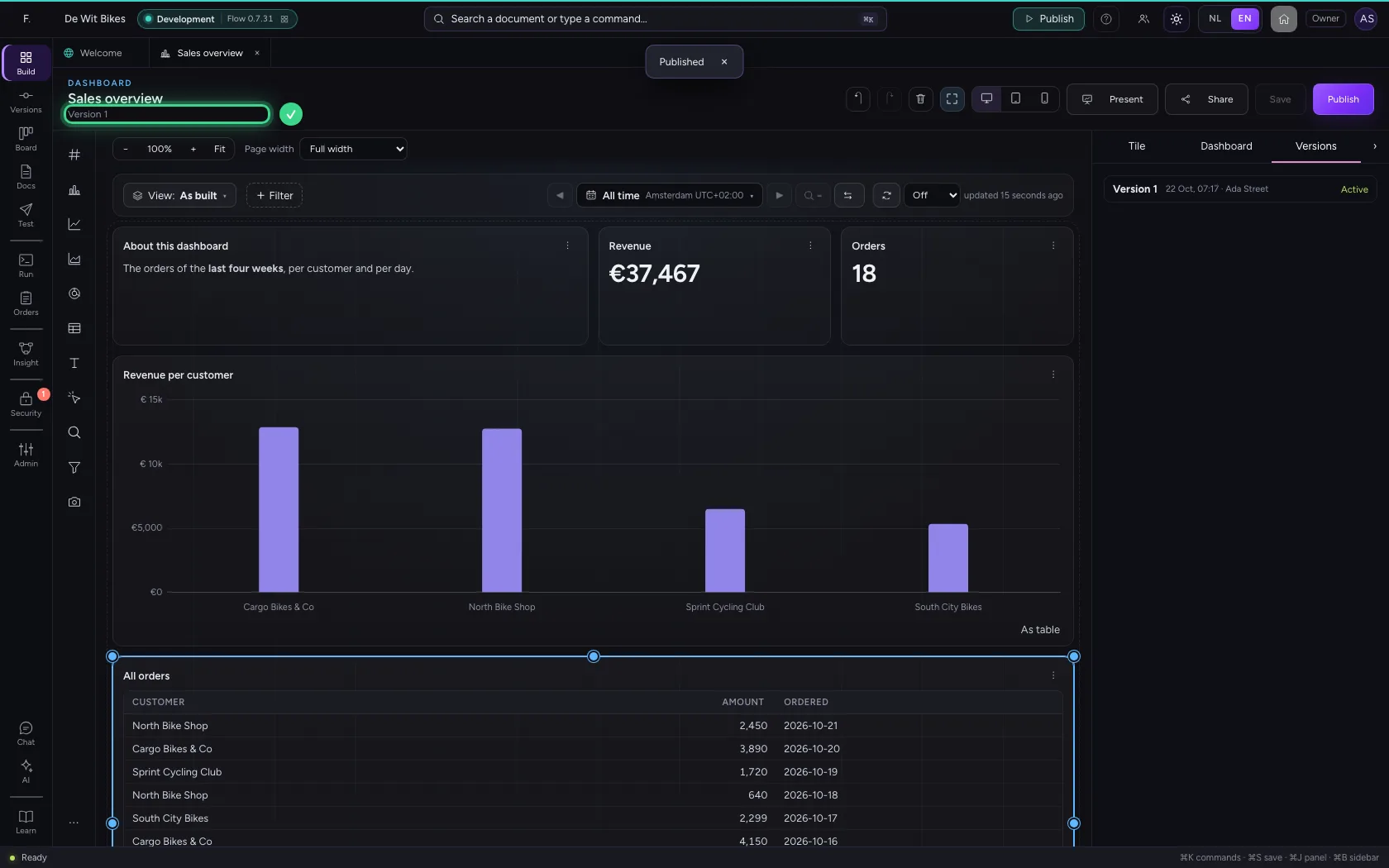
Save keeps your draft. Publish makes it version 1: colleagues you share the dashboard with always see the published version, never your work in progress. Under Versions you can restore an older version.
- Click Save
- Click Publish
This guide was carried out step by step on 22 Oct 2026 by an automated test on Flow (version 3e563176).