Filters and the time picker
A dashboard only becomes really useful when you can zoom in: only this week, only this customer, only the big orders. Every dashboard has a bar at the top for that: the time picker on the right, the builder's filters on the left, and + Filter for any field. A click on a bar filters the other tiles. Everything you choose is in the address, and what you need often you keep as a view.
Open your development environment
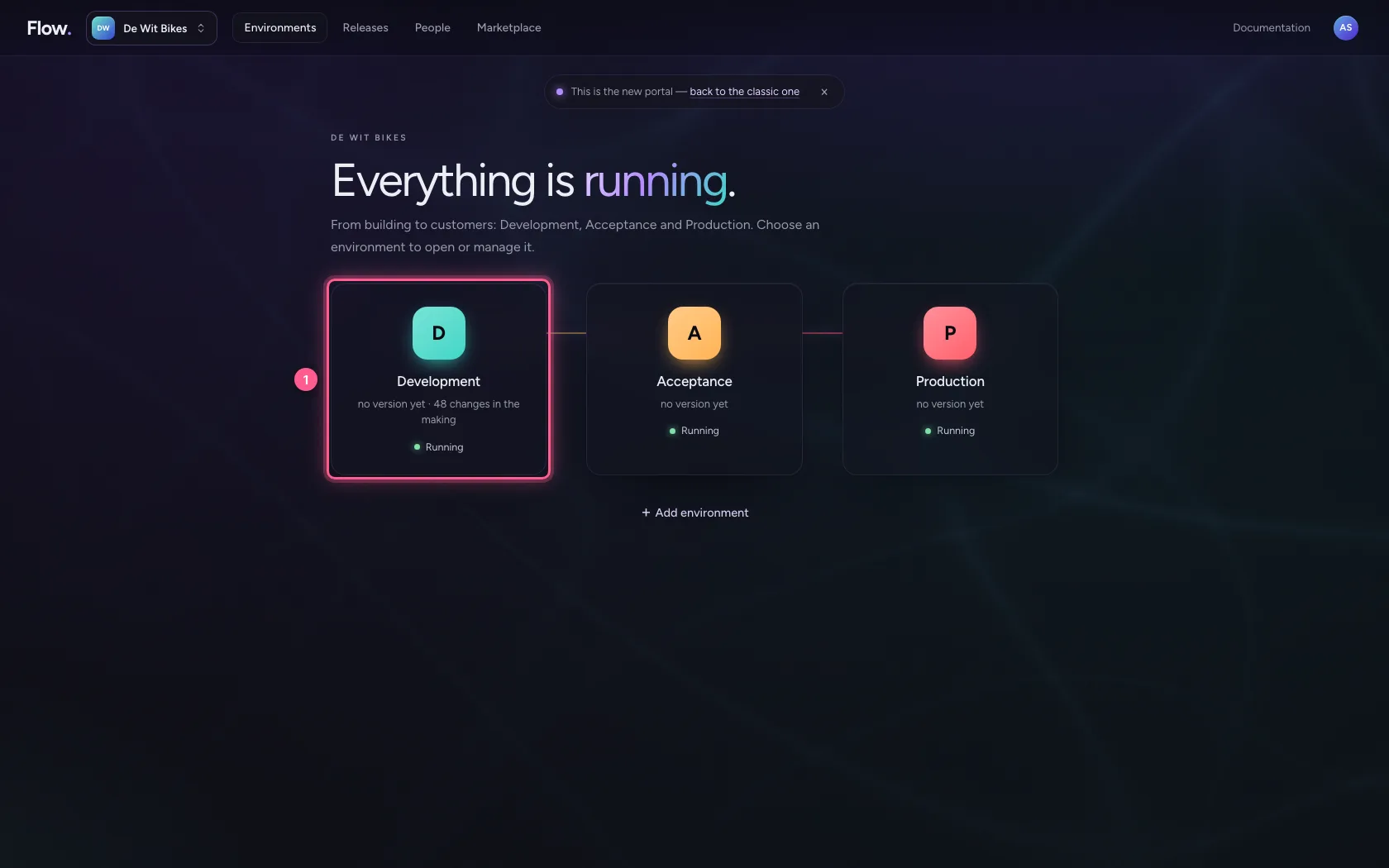
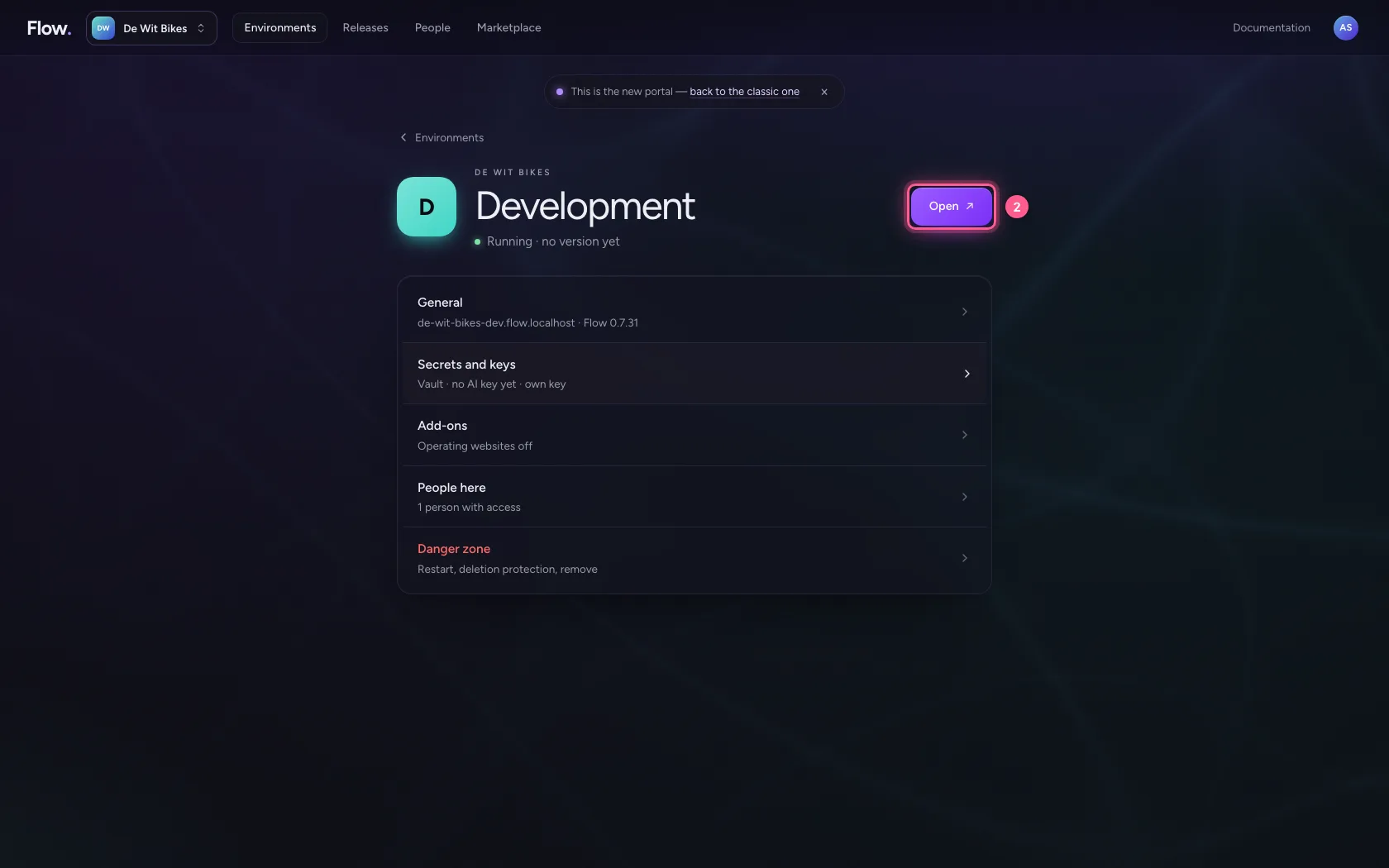
In the portal, under Environments, click Development, and there Open. Flow opens in a new tab and you are signed in straight away.
- Click Development
- Click Open ↗
Open the dashboard
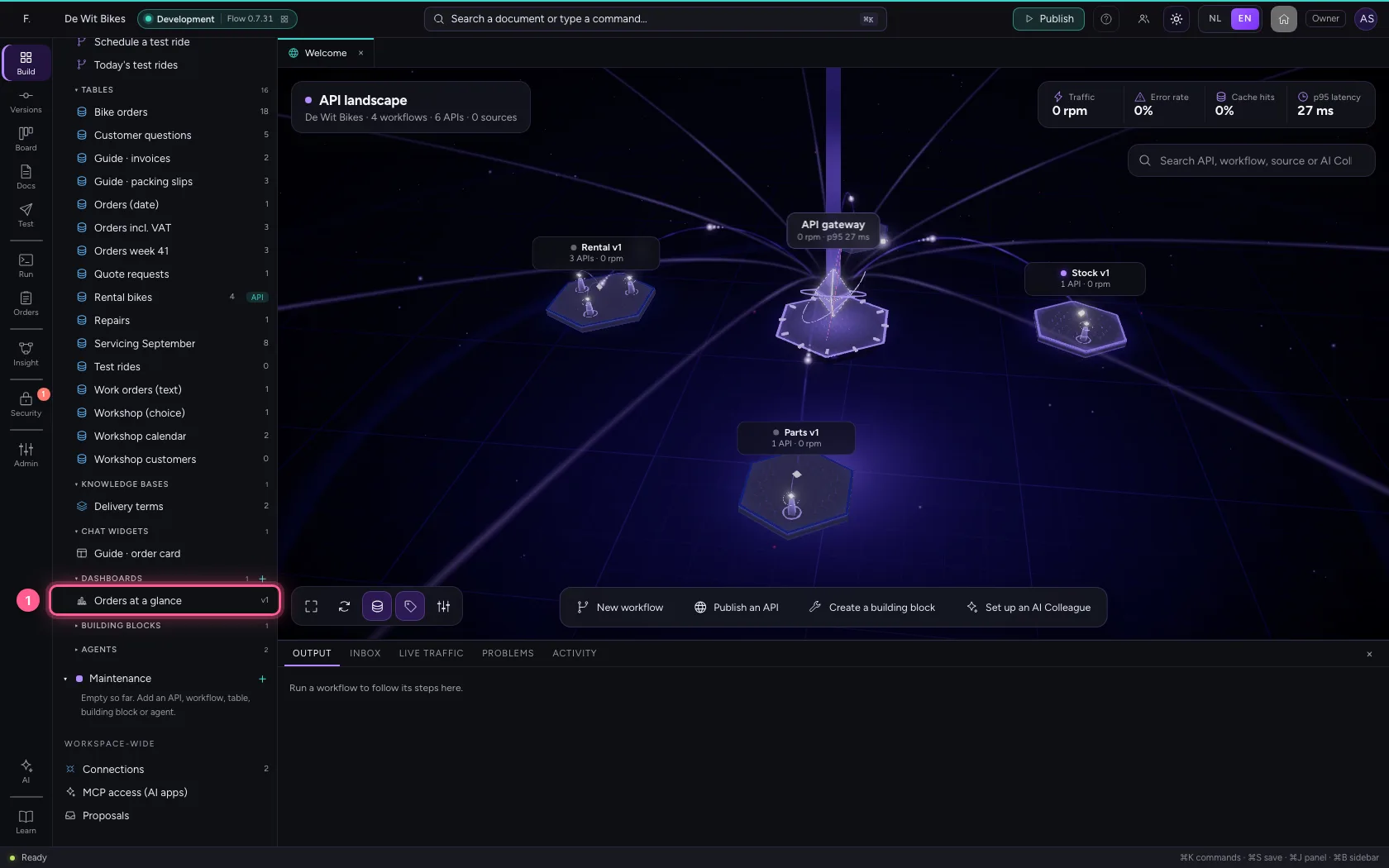
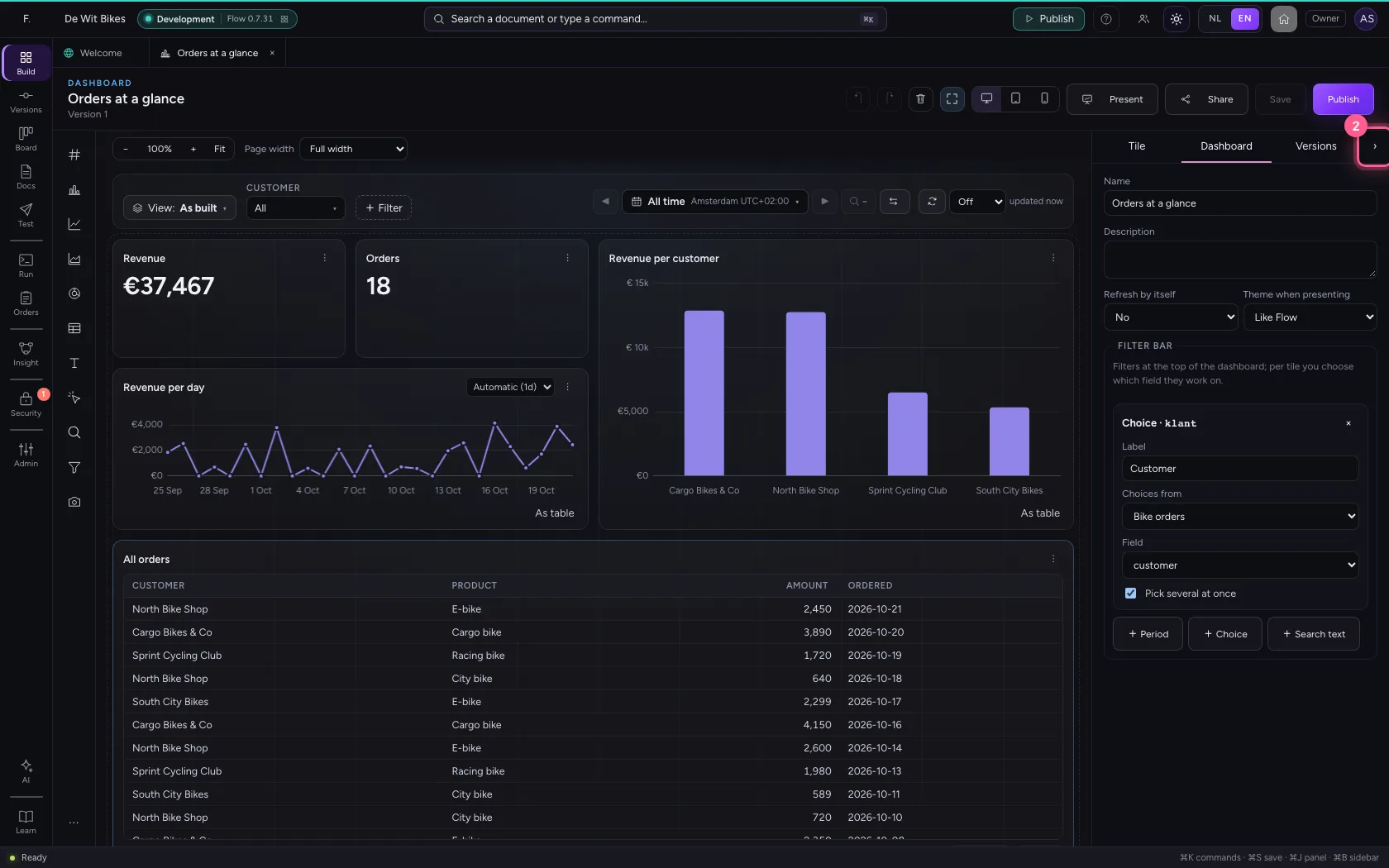
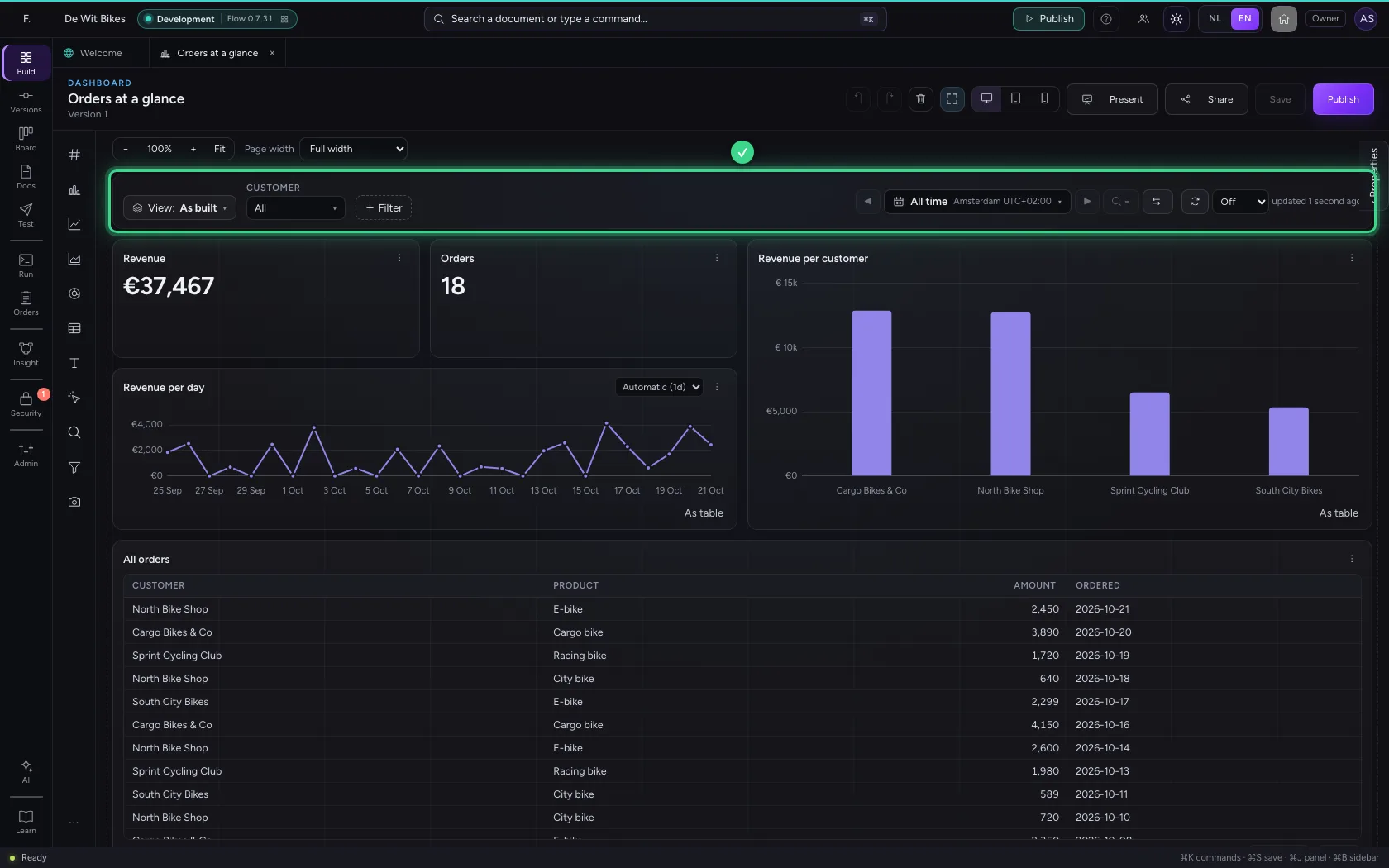
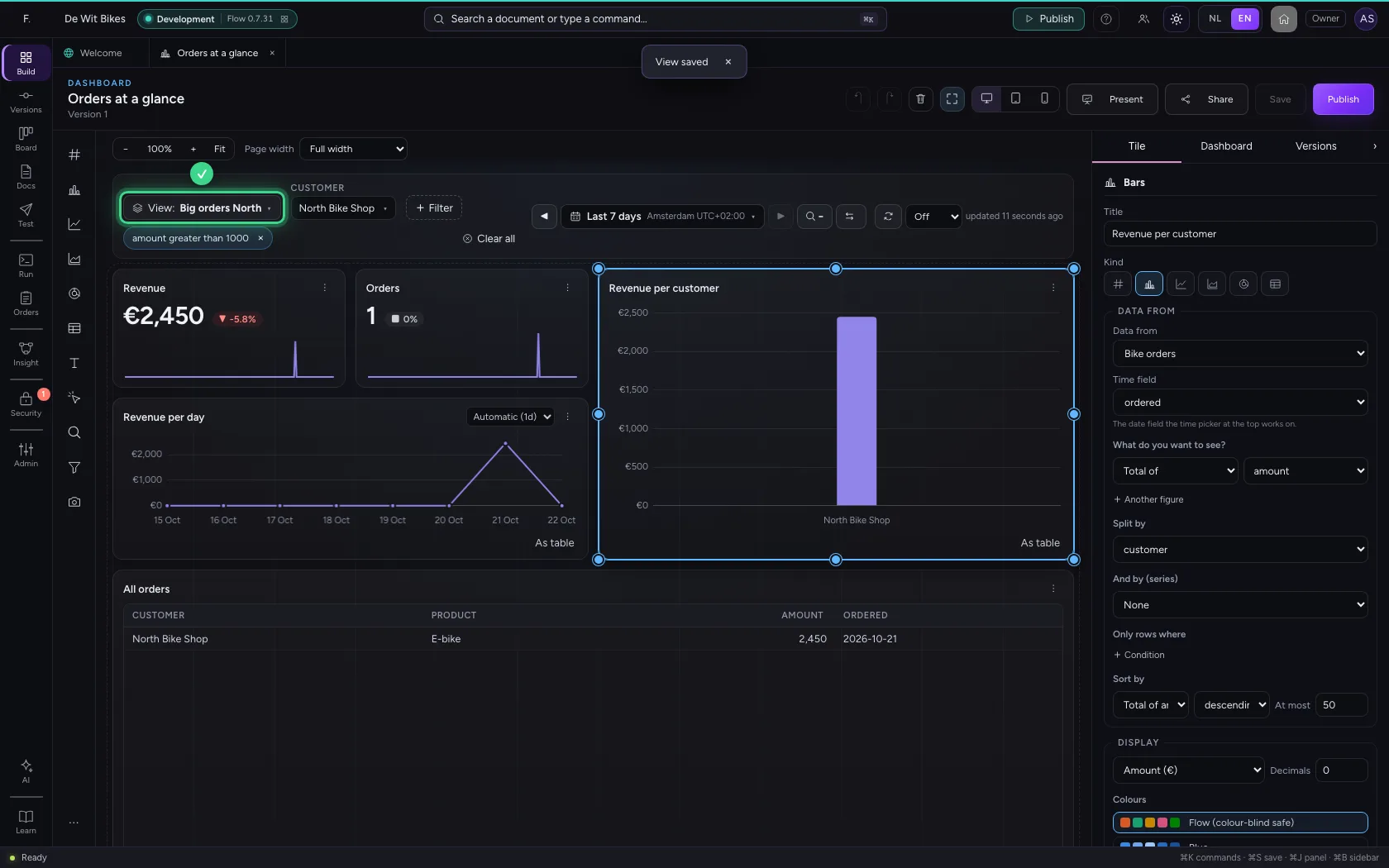
Click the dashboard in the explorer. At the top is the filter bar: on the left the view, the filter Customer the builder put there and + Filter; on the right the time picker and refreshing. Fold the properties on the right away for more room. Filtering works here exactly as for colleagues who look at the dashboard, and in the presentation.
- Click the dashboard ‘Orders at a glance’
- Click Fold the properties away
Choose a period
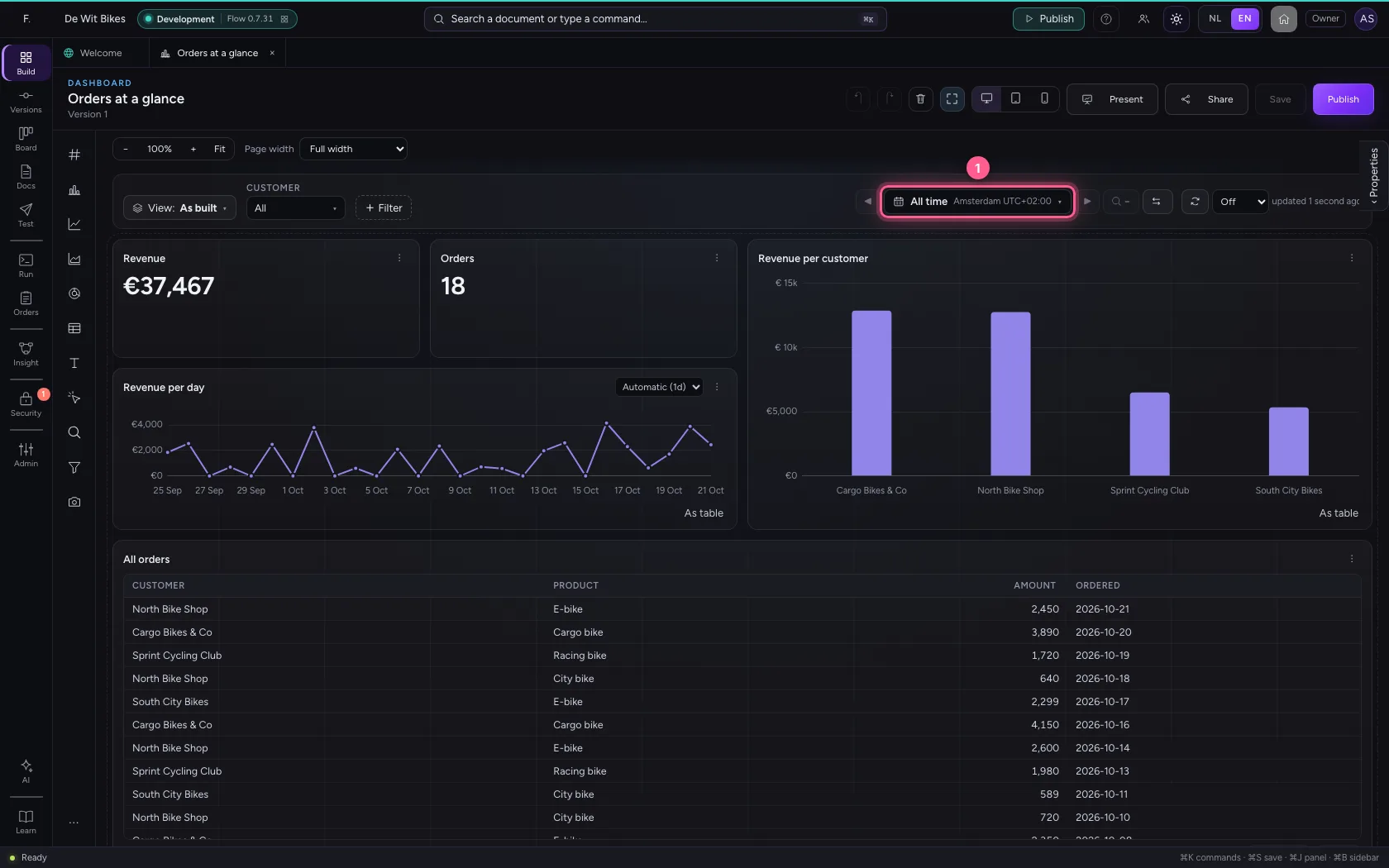
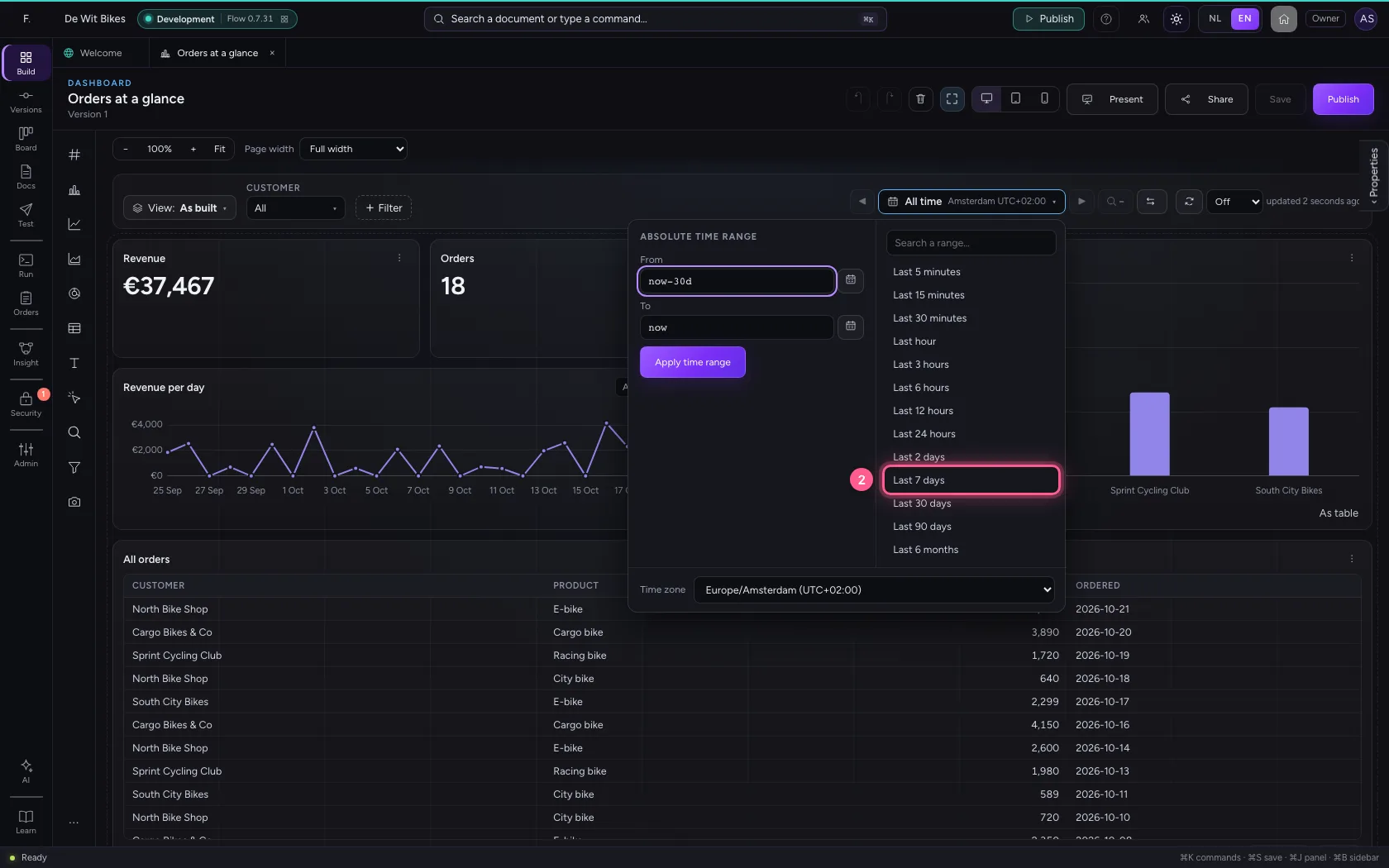
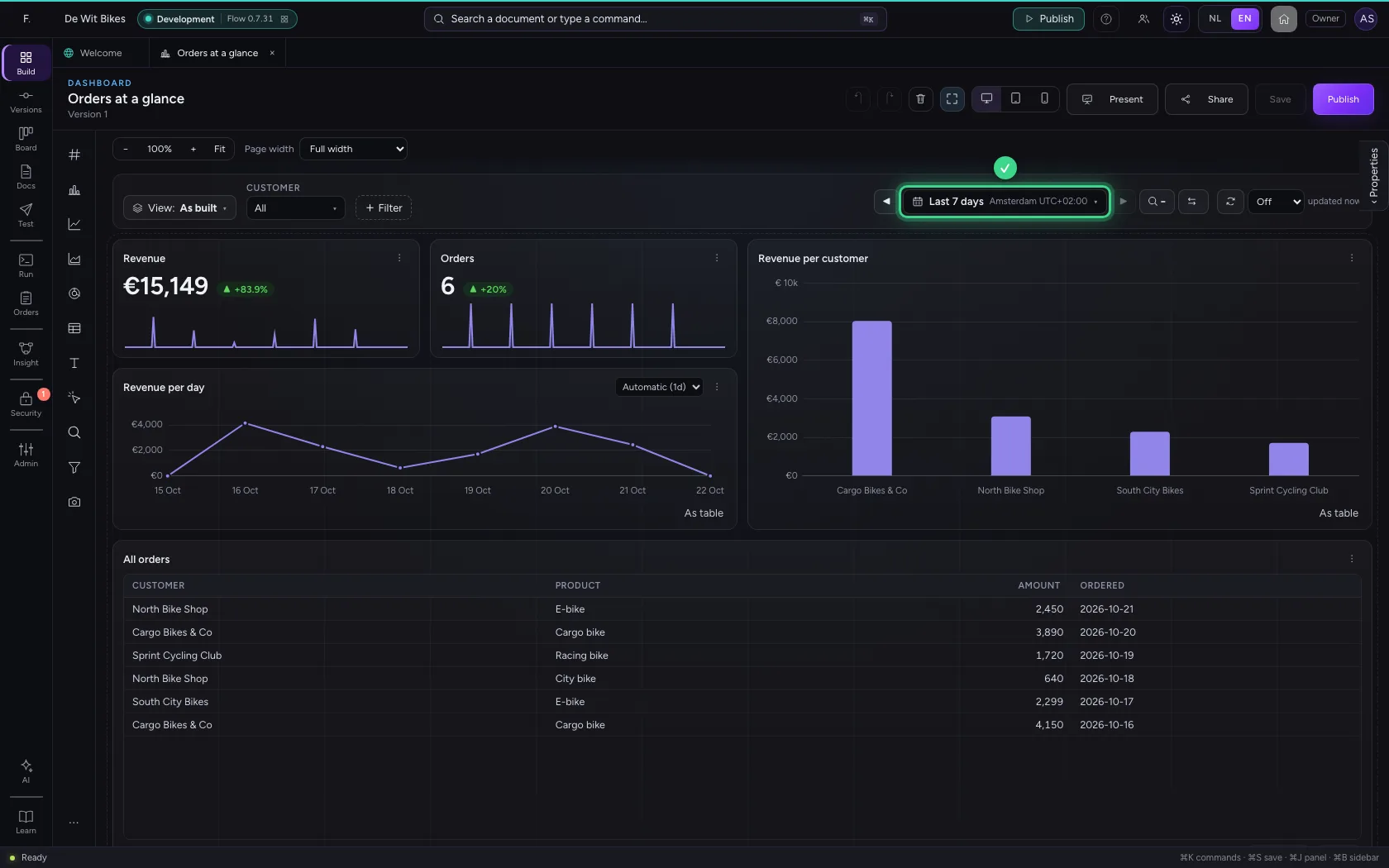
Click the time picker (now All time) and choose Last 7 days. Every tile then shows only the orders of those days: per tile the builder chose which date field the time works on (here the order date). At the top of the picker you can also type a range of your own, such as now-14d to now, or a date with a time; ◀ and ▶ move the period, and dragging across a time chart zooms in on that part.
- Click the time picker
- Click Last 7 days
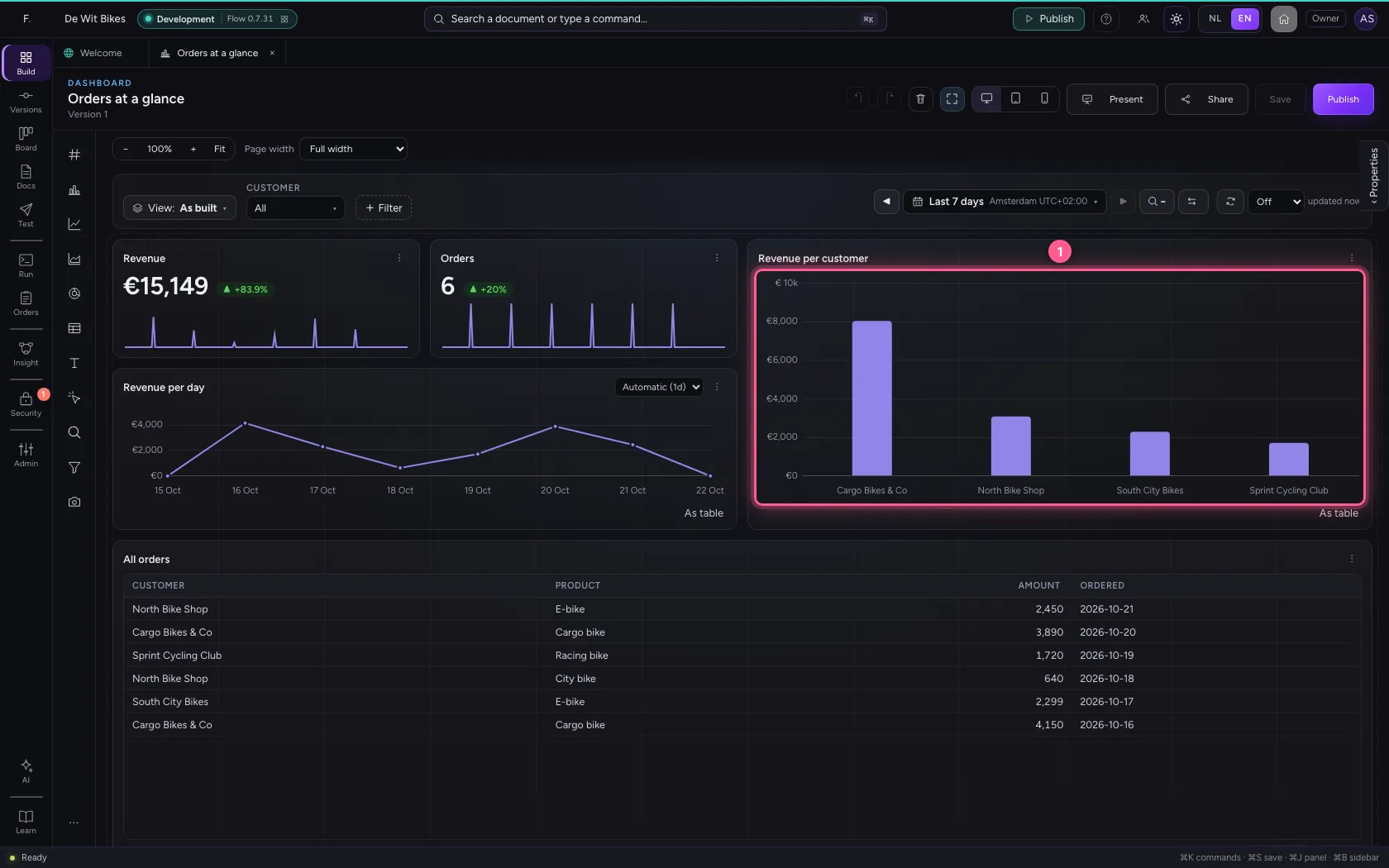
Click a bar
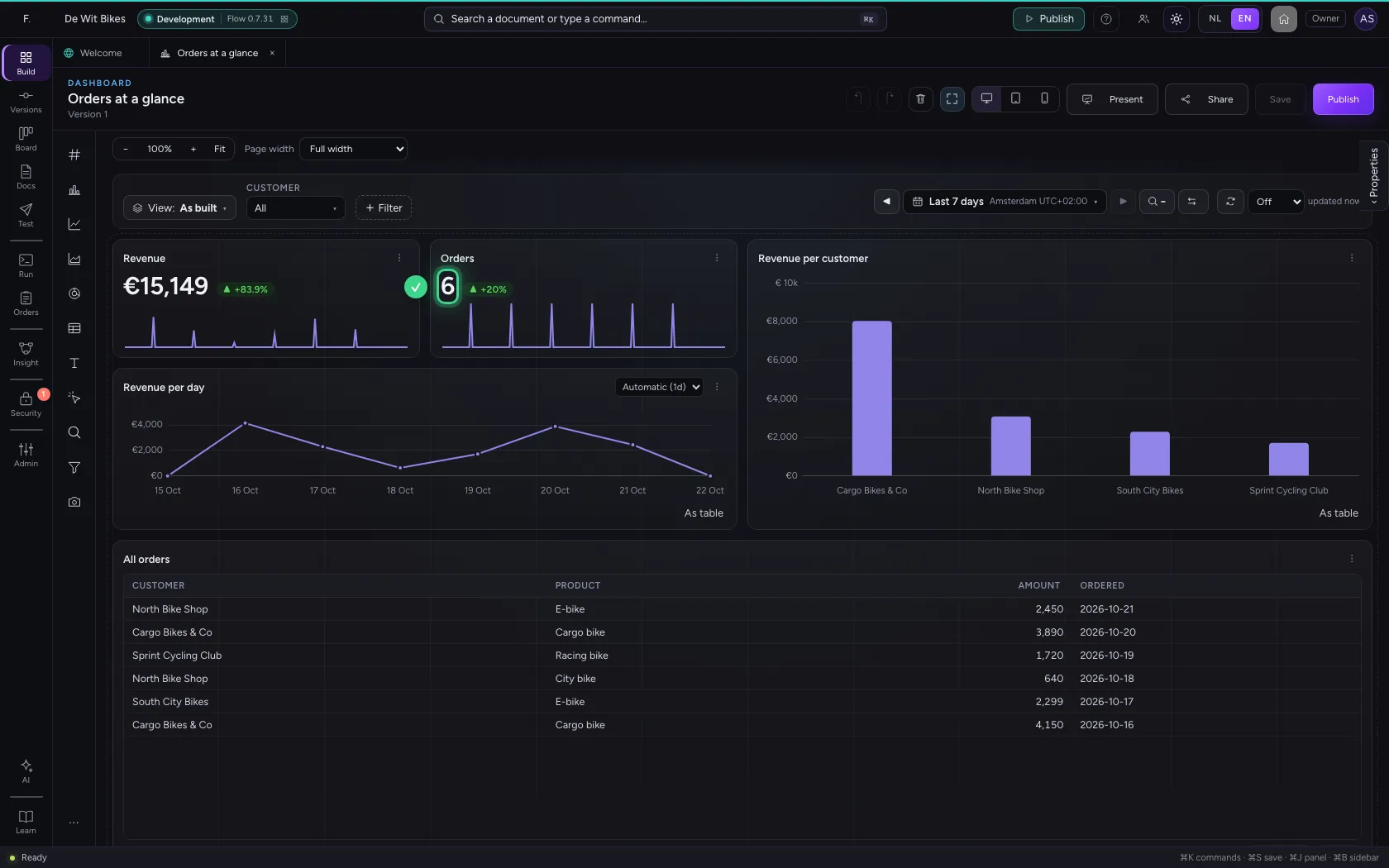
A click on a bar filters the other tiles on that value: here the biggest customer. A label with what you chose appears at the top; × takes it away again. Click another bar and it is added.
- Click the bar of the biggest customer
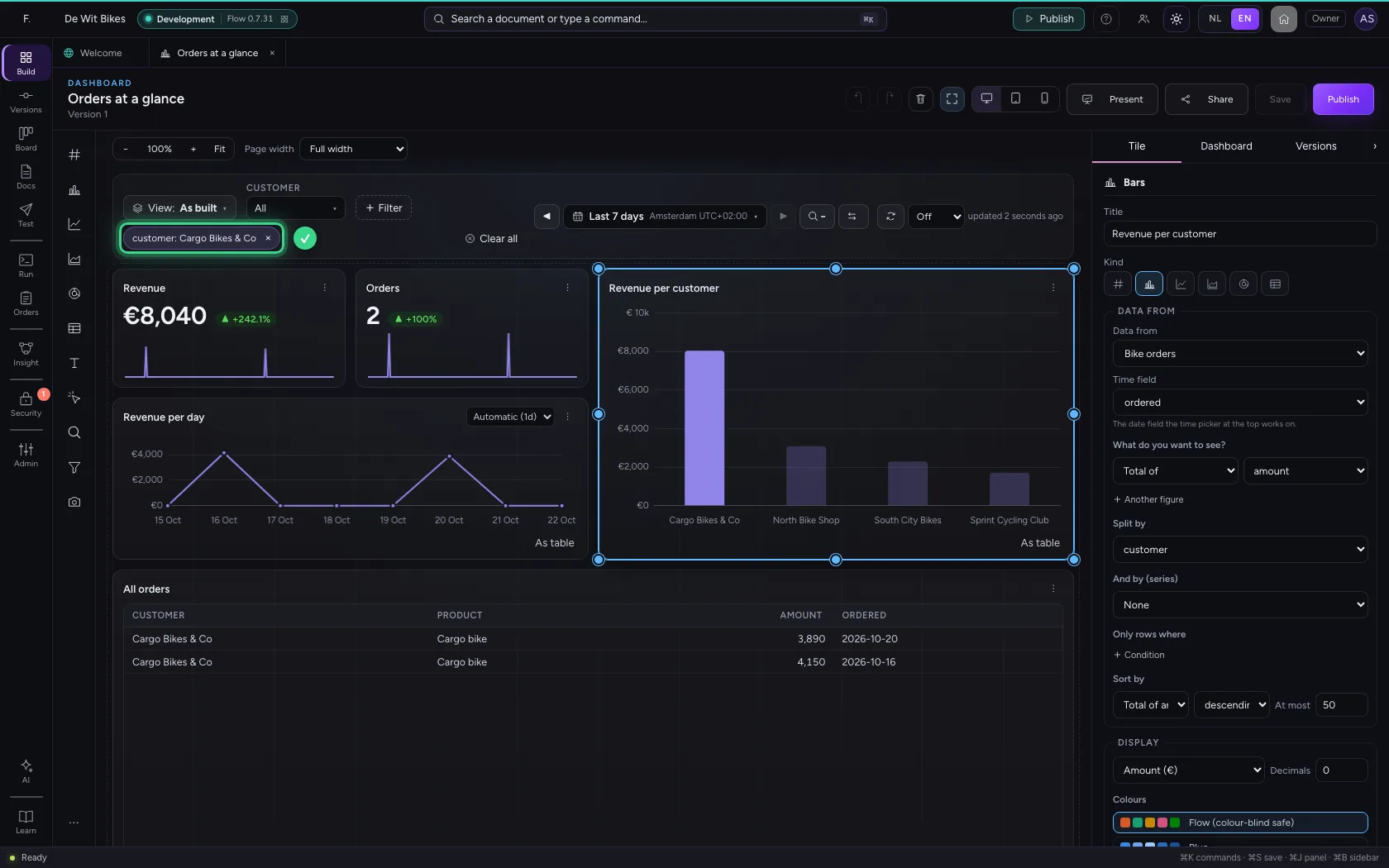
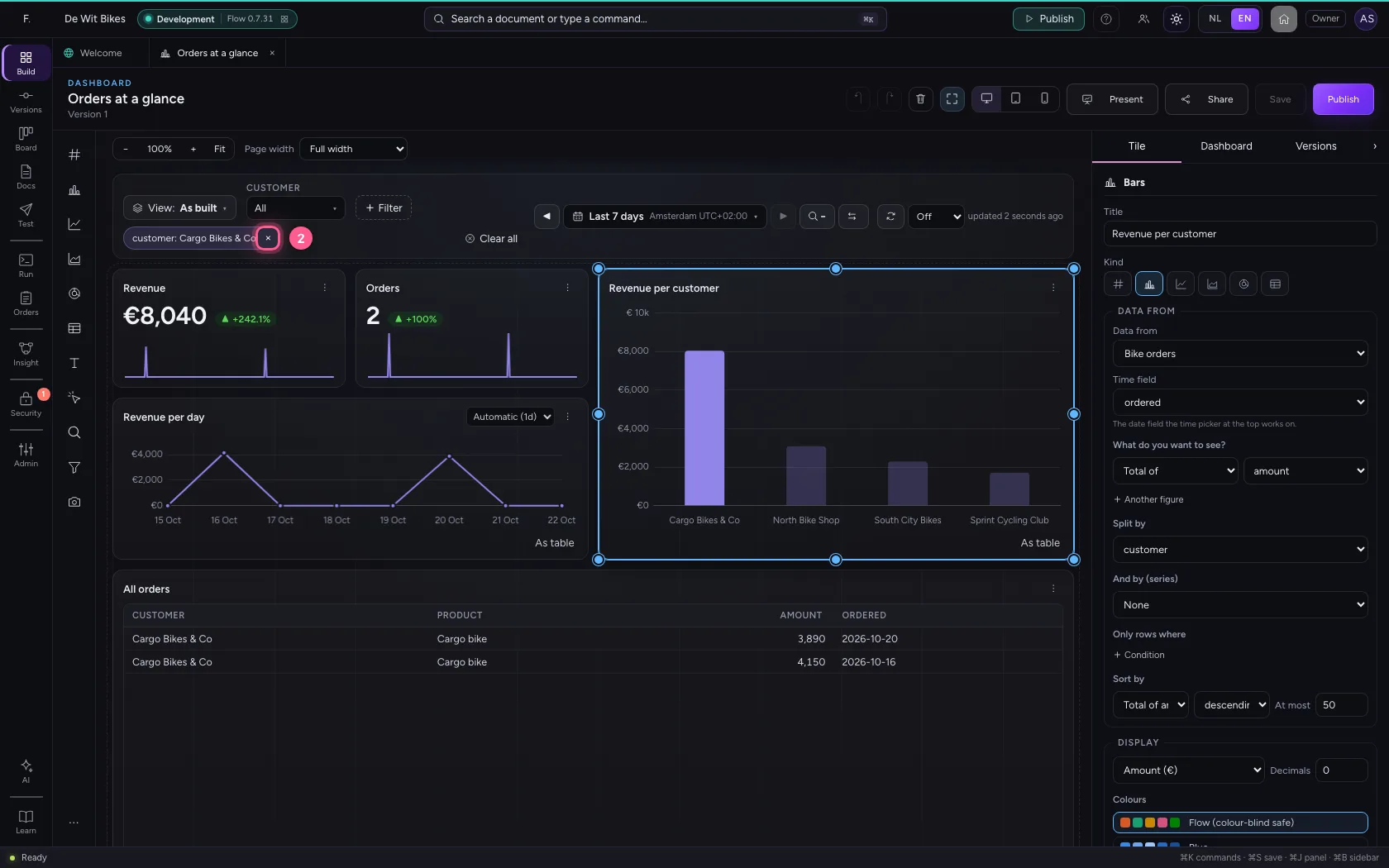
- Click × on the label
Choose a customer in the filter
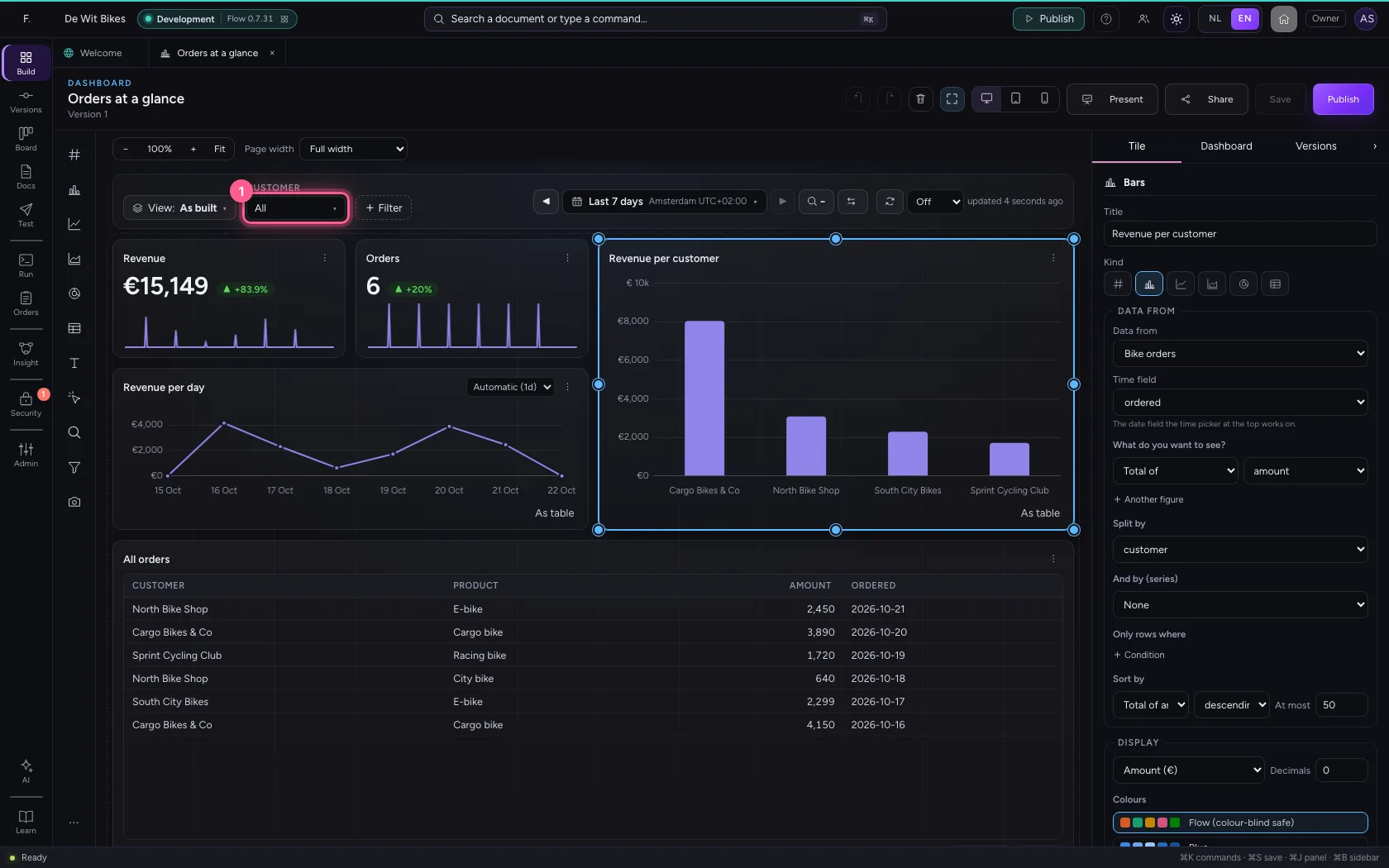
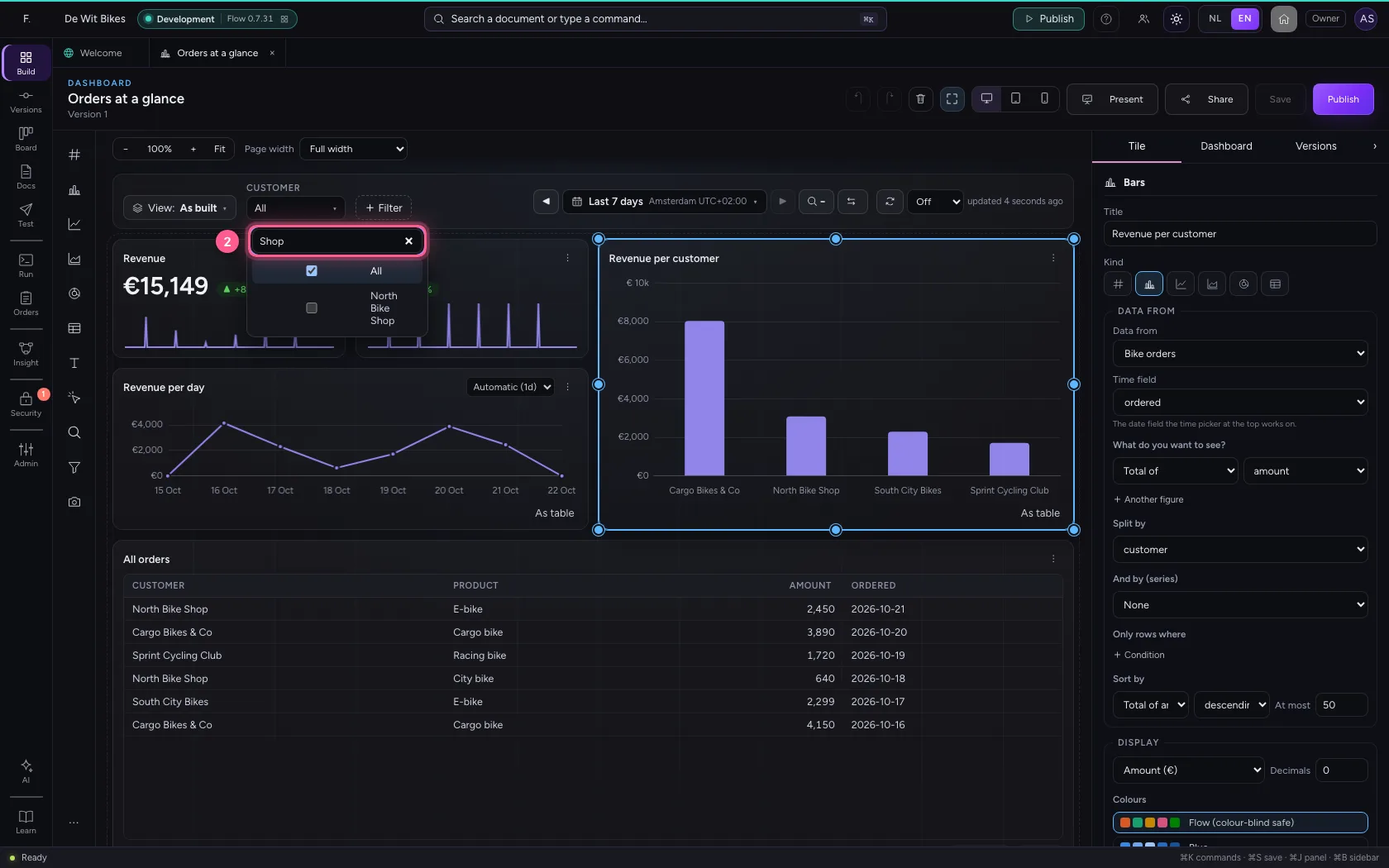
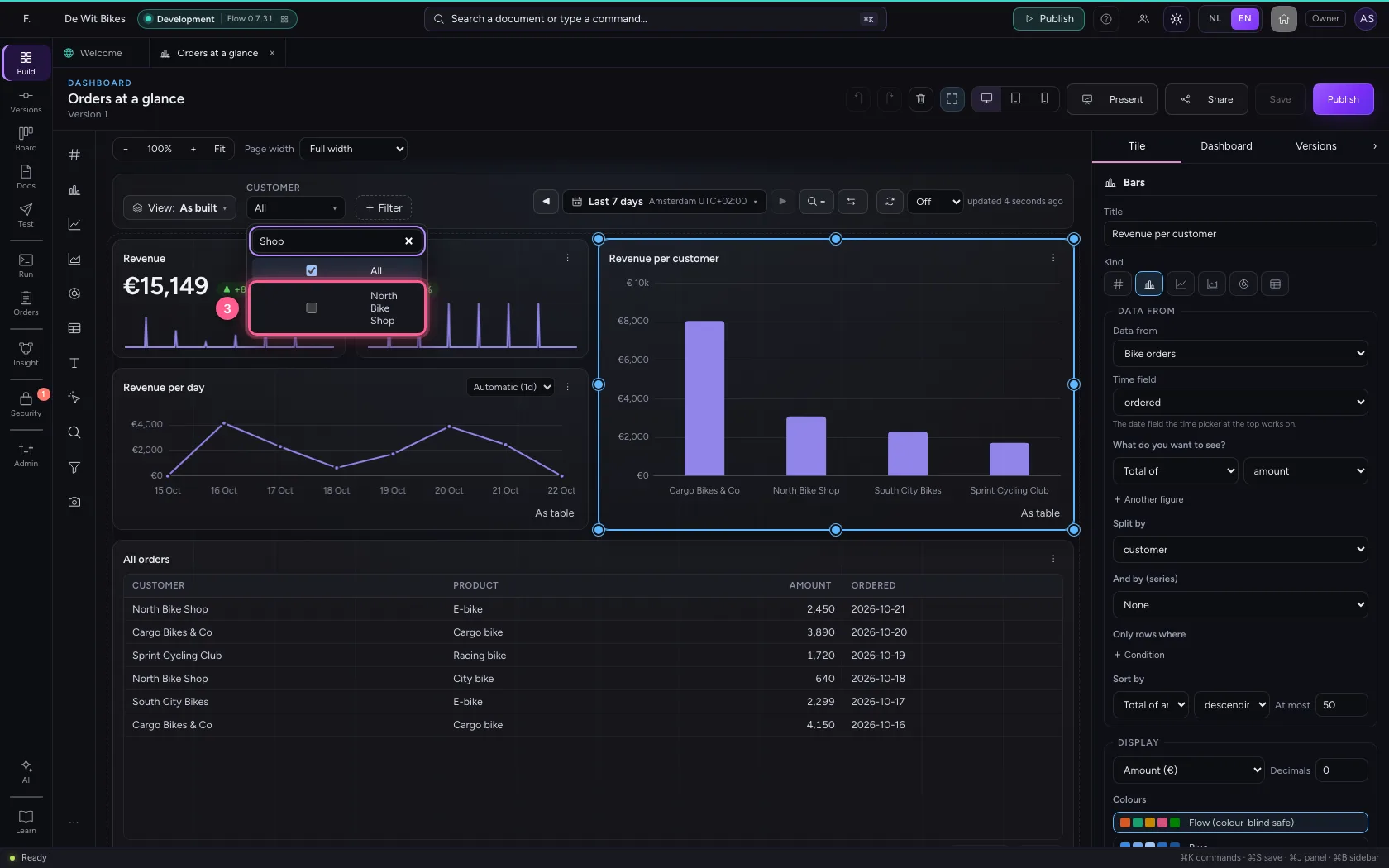
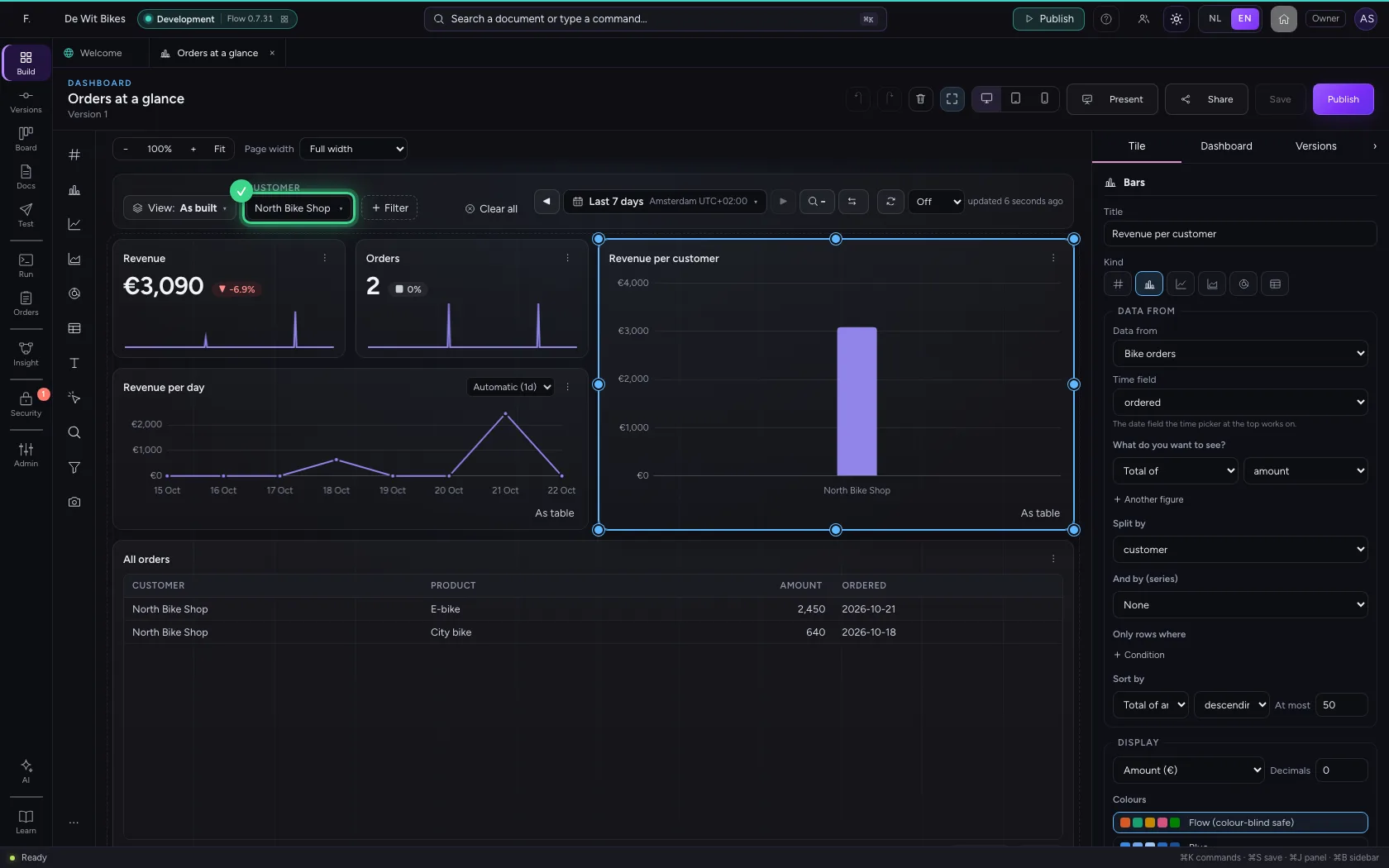
The builder put the filter Customer there. Click it, search and tick one or more customers; All turns it off again. The choices come from the table itself, so a new customer appears by itself.
- Click Customer
- In Search…, type
Shop
- Click North Bike Shop
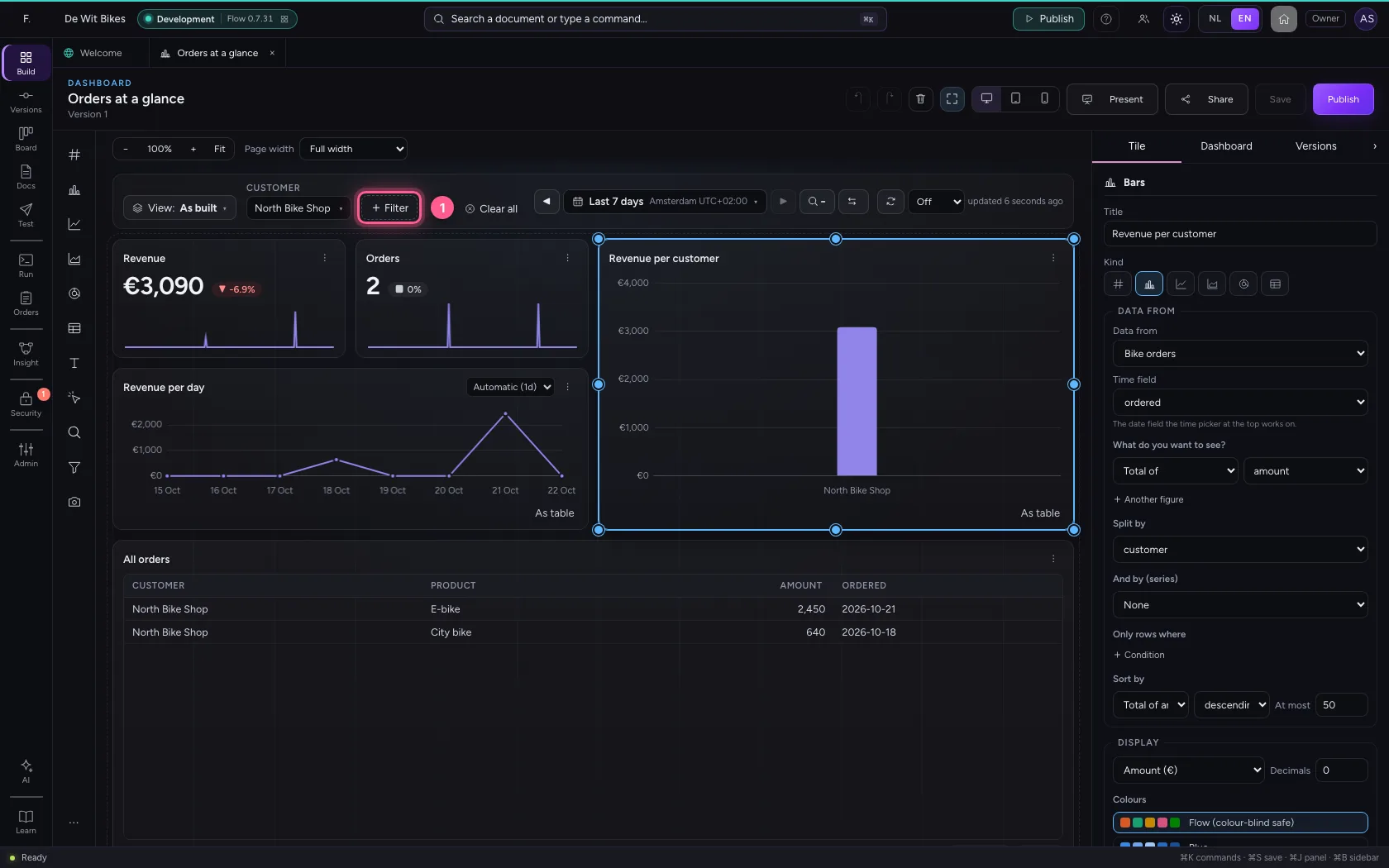
Filter on any field with + Filter
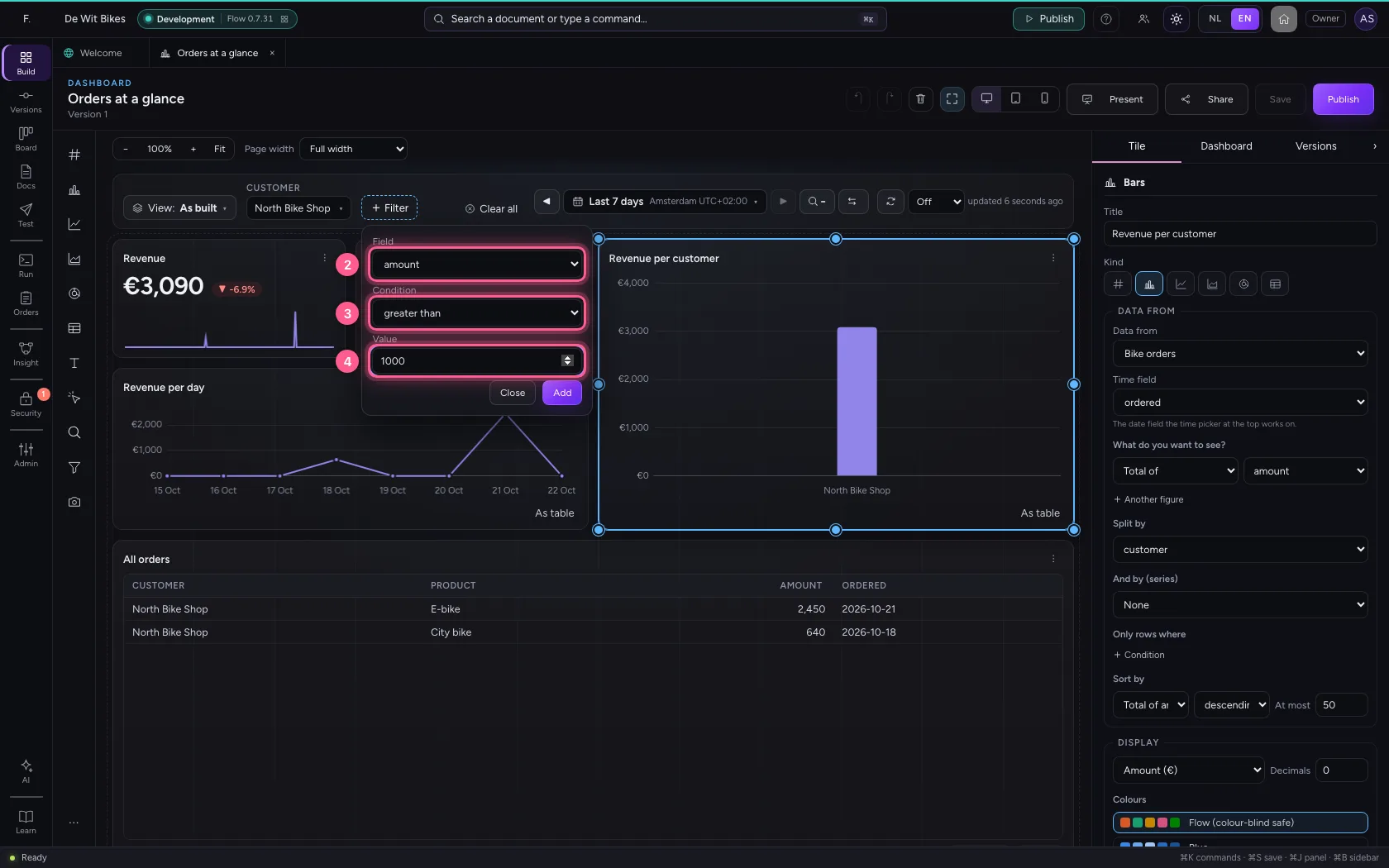
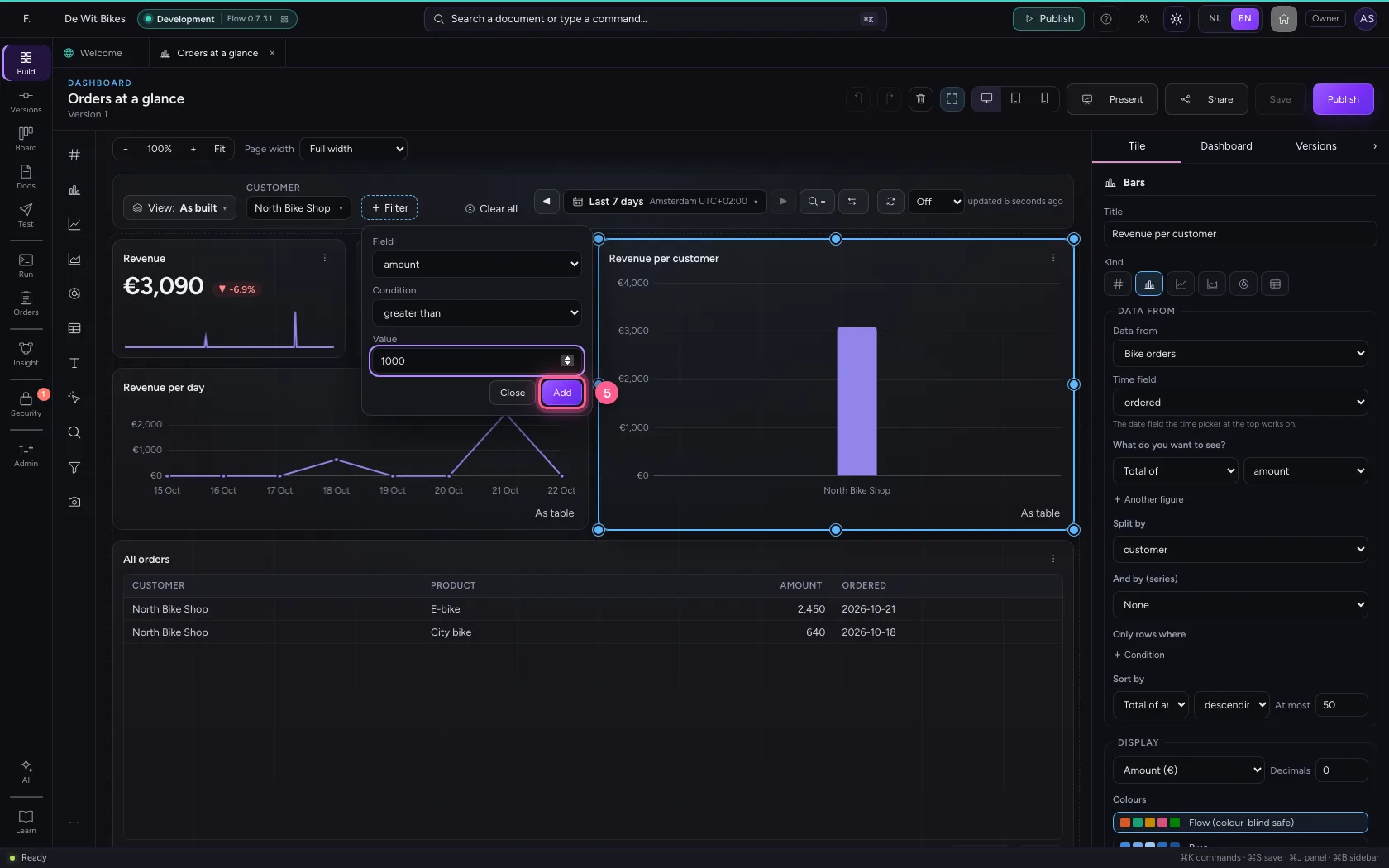
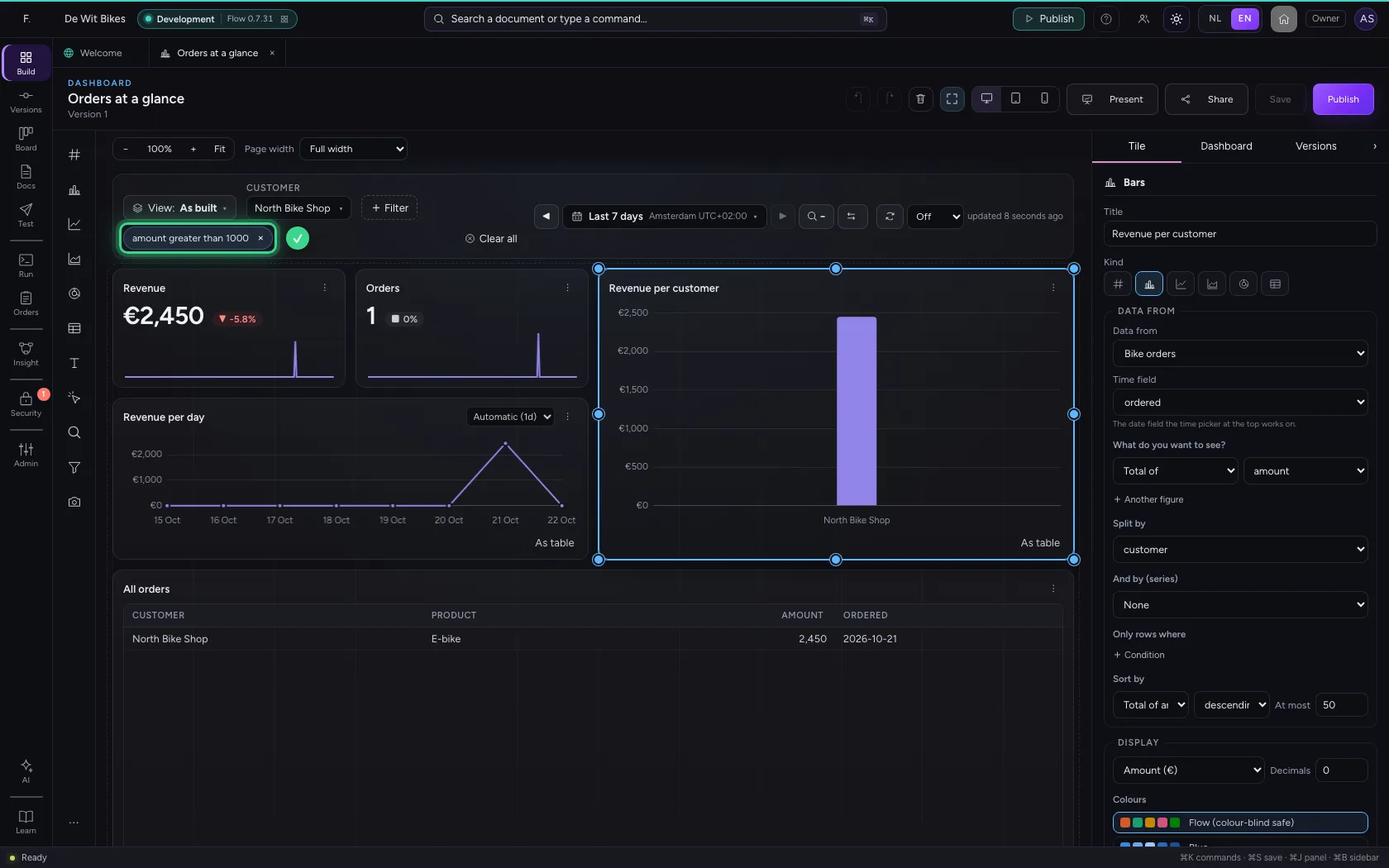
Missing a filter? With + Filter you choose a field, a condition and a value yourself, here: amount greater than 1000. The filter works on every tile that has that field and shows as a label in the bar. The table's rules still apply: you never see rows you may not see.
- Click + Filter
- In Field, choose amount
- In Condition, choose greater than
- In Value, type
1000
- Click Add
Keep it as a view
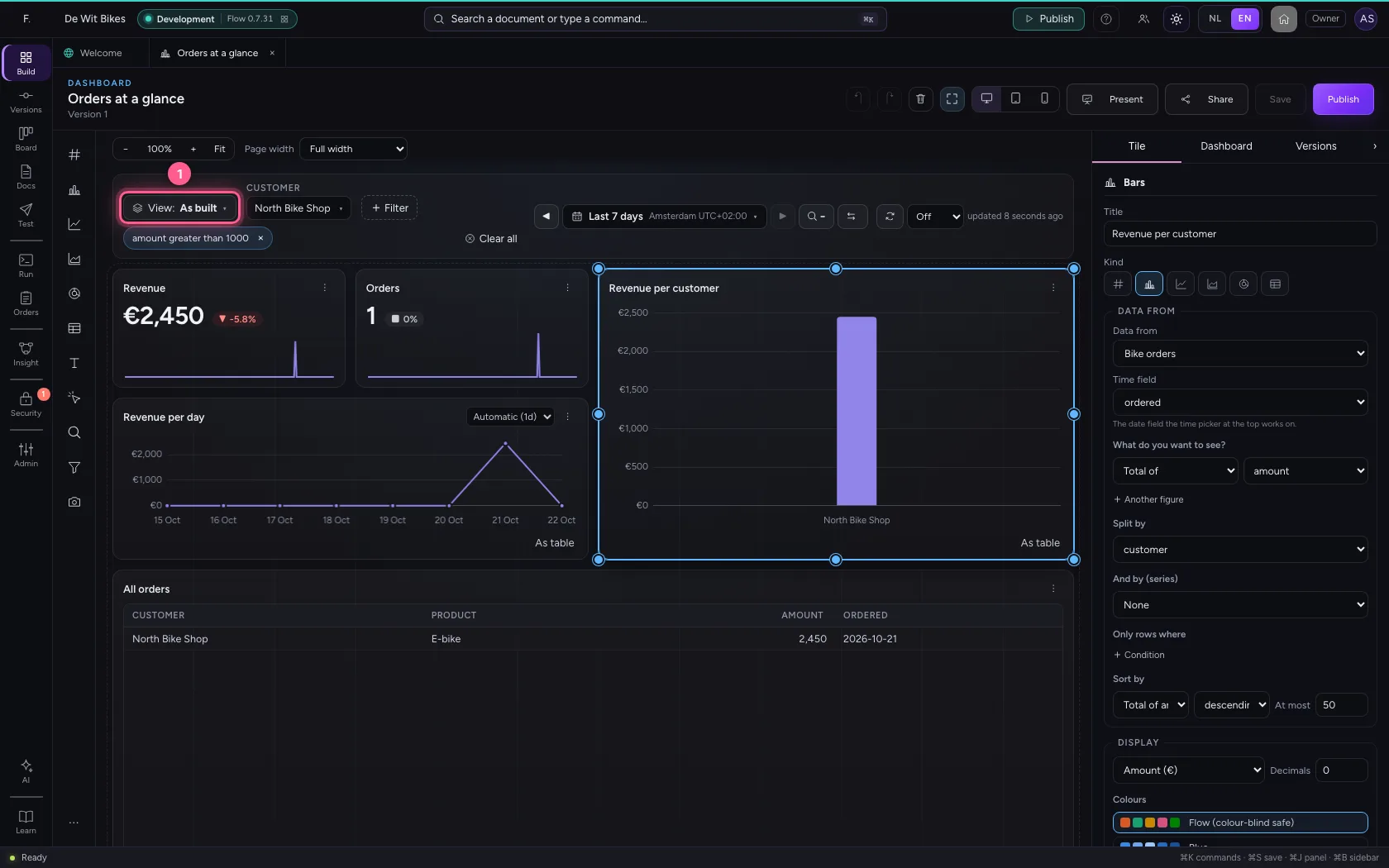
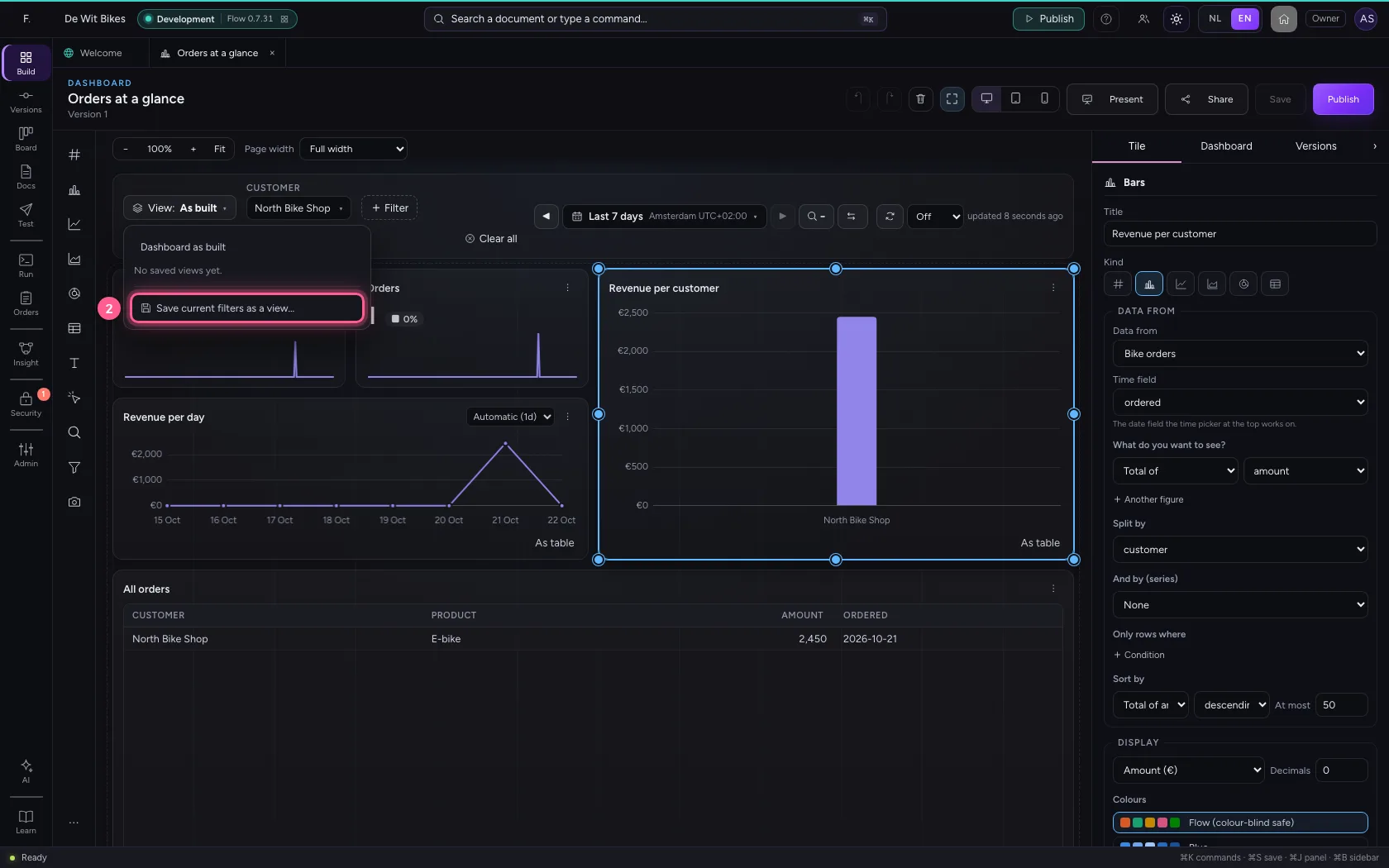
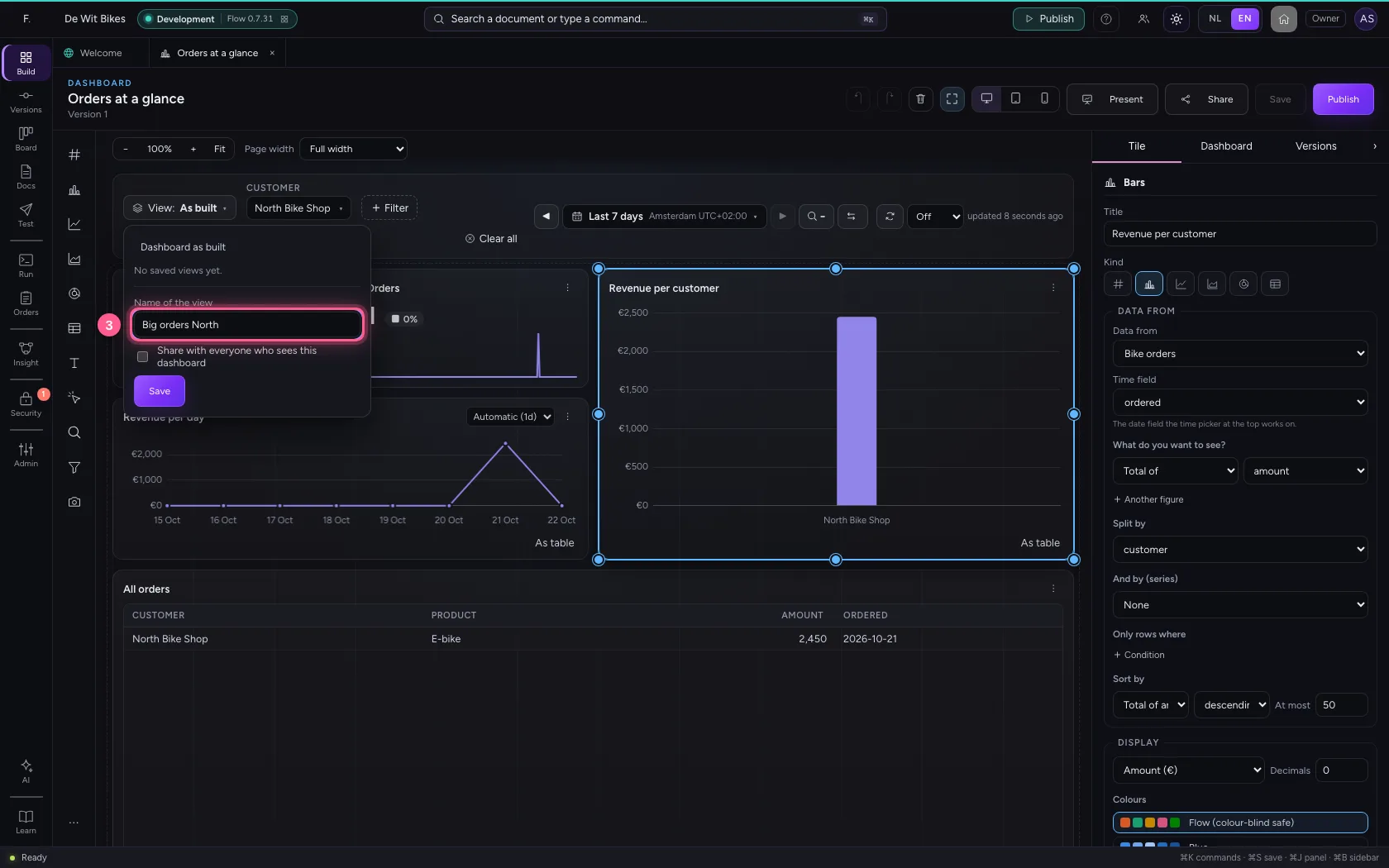
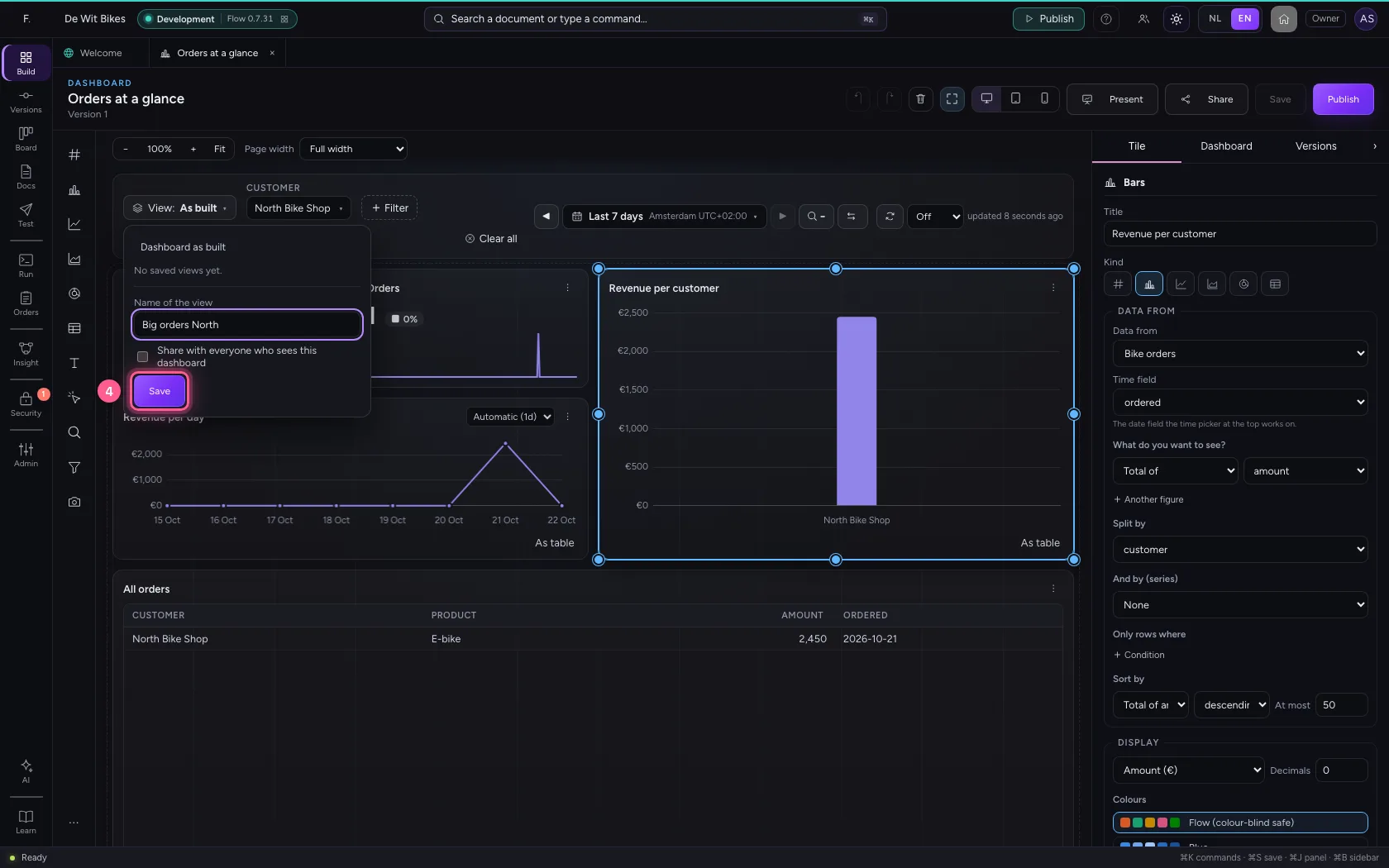
Need this choice more often? Open the View menu and choose Save current filters as a view. Give it a name; tick Share if everyone who sees the dashboard may use it. With ★ you make a view your default: it opens when you come back. Dashboard as built takes everything back to the start.
- Click View: As built ▾
- Click Save current filters as a view…
- In Name of the view, type
Big orders North
- Click Save
This guide was carried out step by step on 22 Oct 2026 by an automated test on Flow (version 3e563176).