If / Else: one rule, two ways
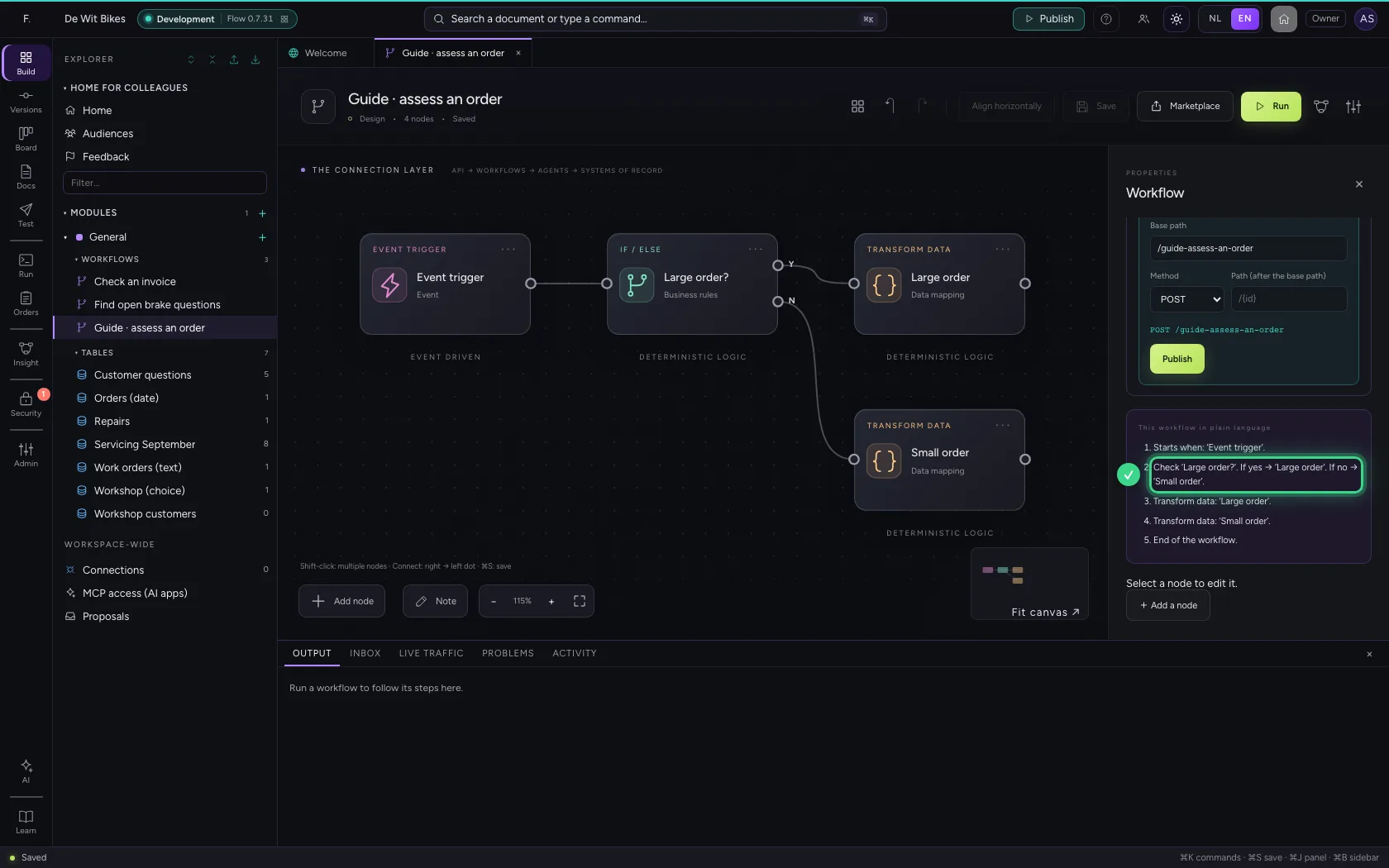
With If / Else you let the workflow choose. You write down one rule (which field, which comparison, which value) and connect the two exits: Yes when the rule holds, No when it does not. Then you read the workflow back in plain language, the way a colleague would explain it, and compare with another field instead of a fixed value.
Open Flow and create a workflow
In the portal, under Environments, click Development and there Open; Flow opens in a new tab. There, click + next to General, choose New workflow and give it a name. A new workflow starts with an Event trigger: the point where it begins.
- Click Development

- Click Open ↗

- Click Add to General
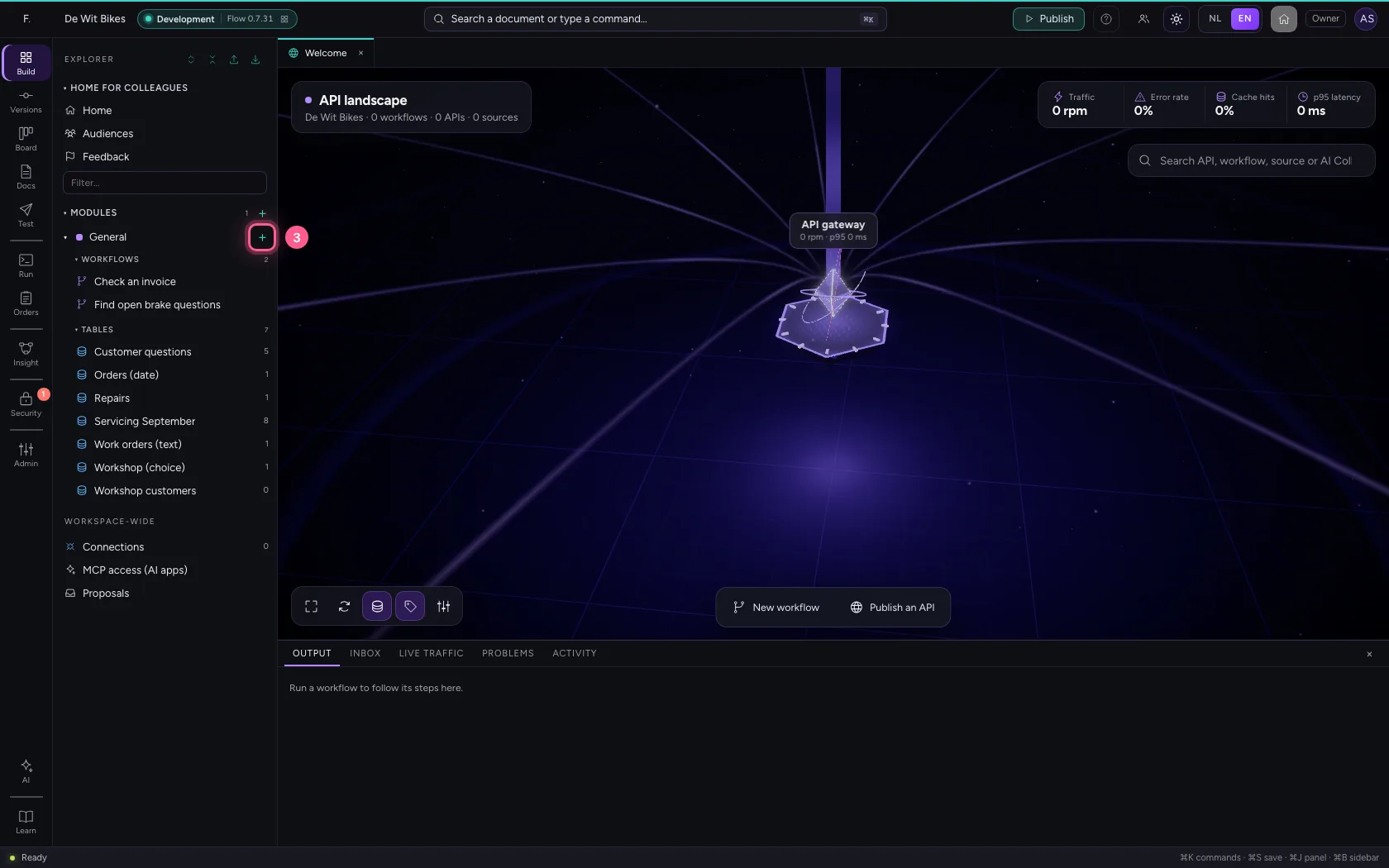
- Click New workflow
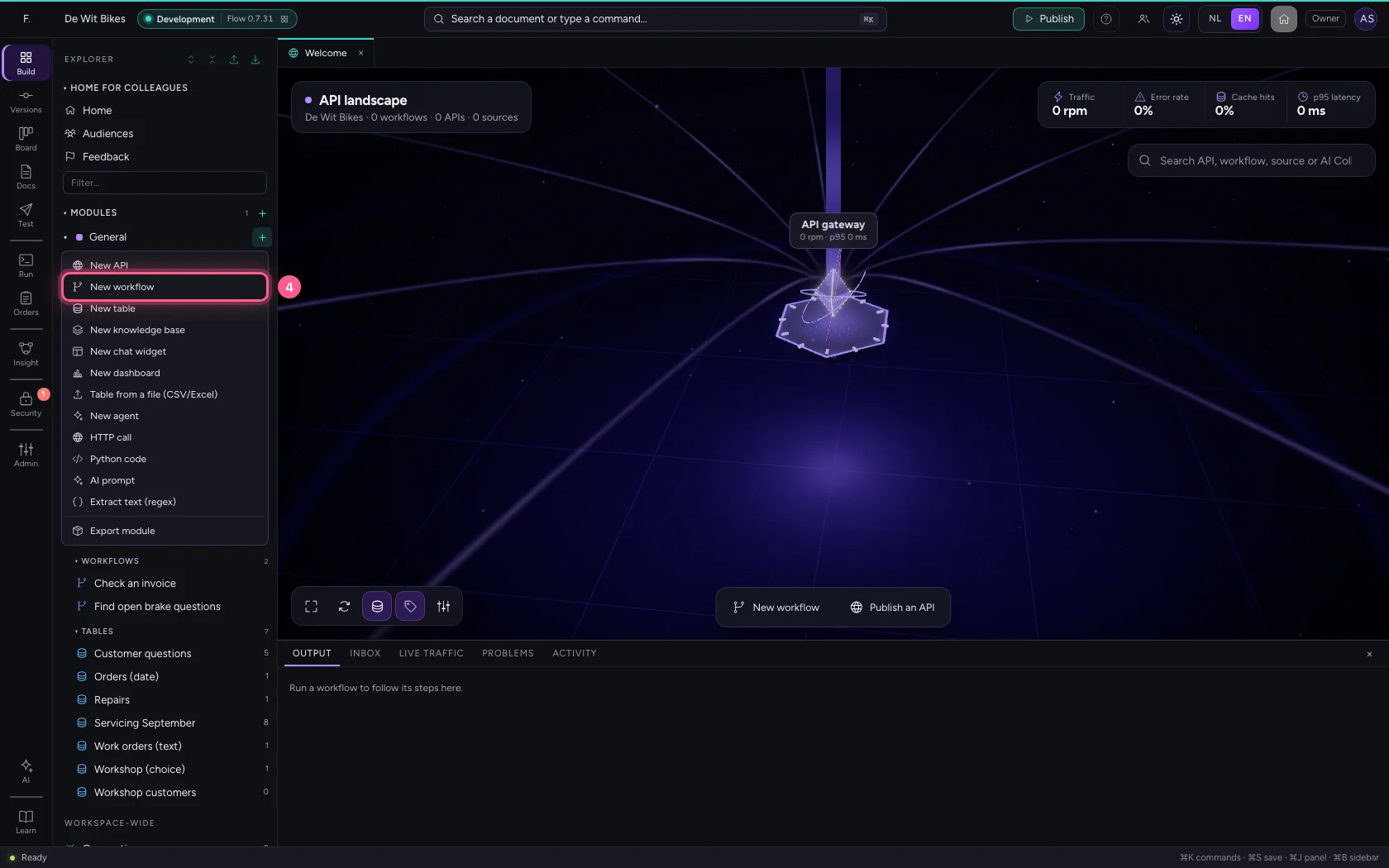
- In Workflow name, type
Guide · assess an order
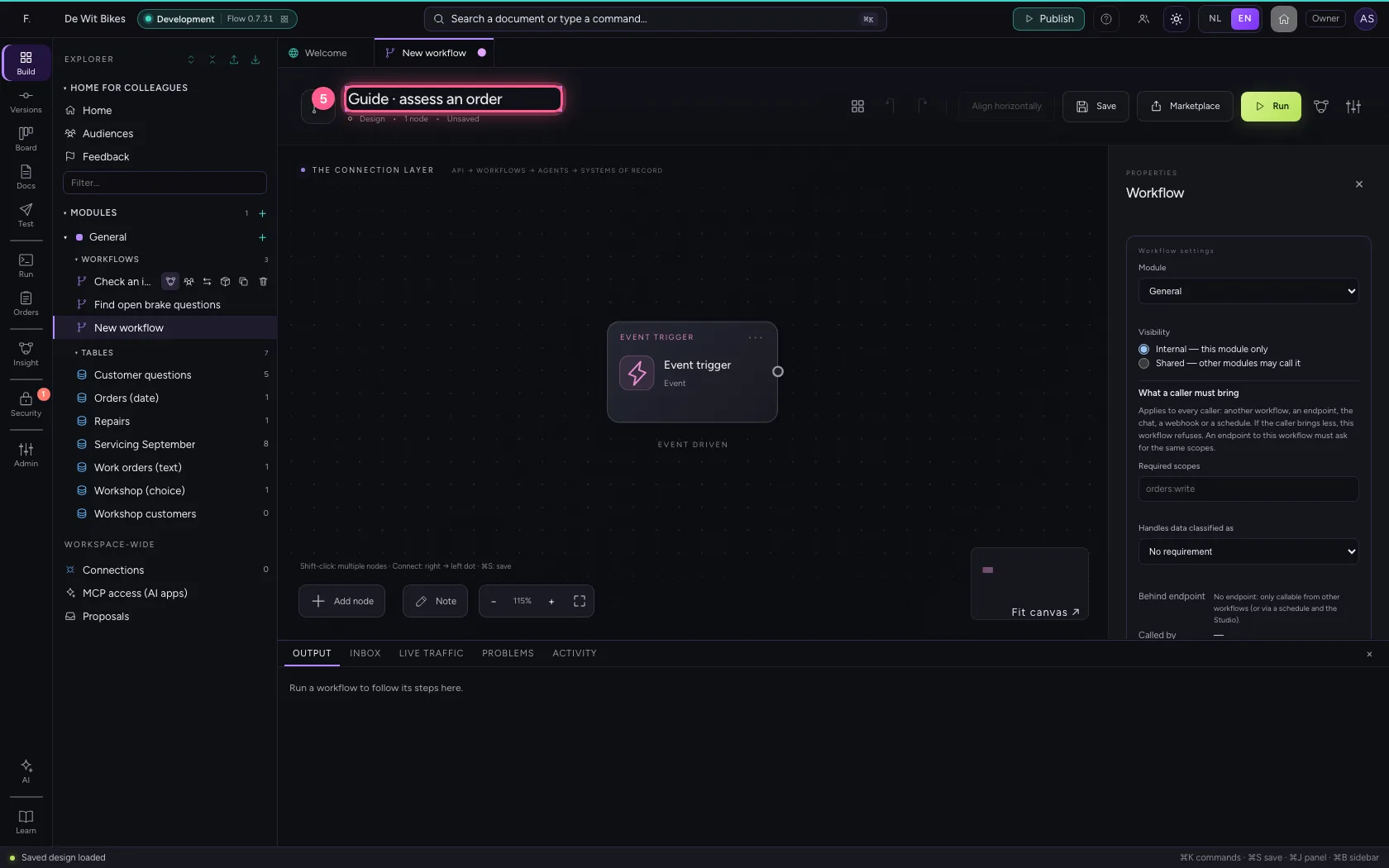
Give the trigger an order
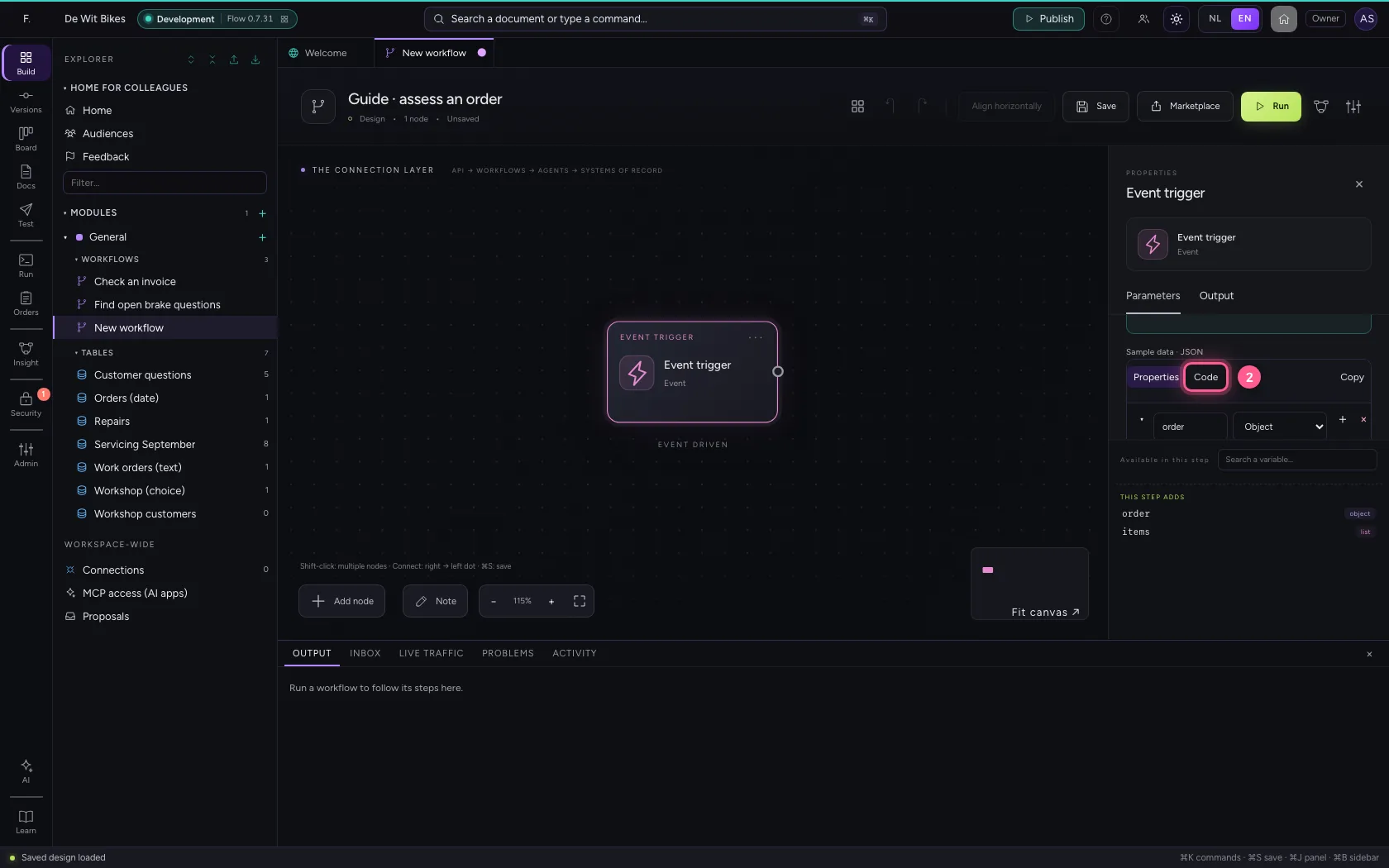
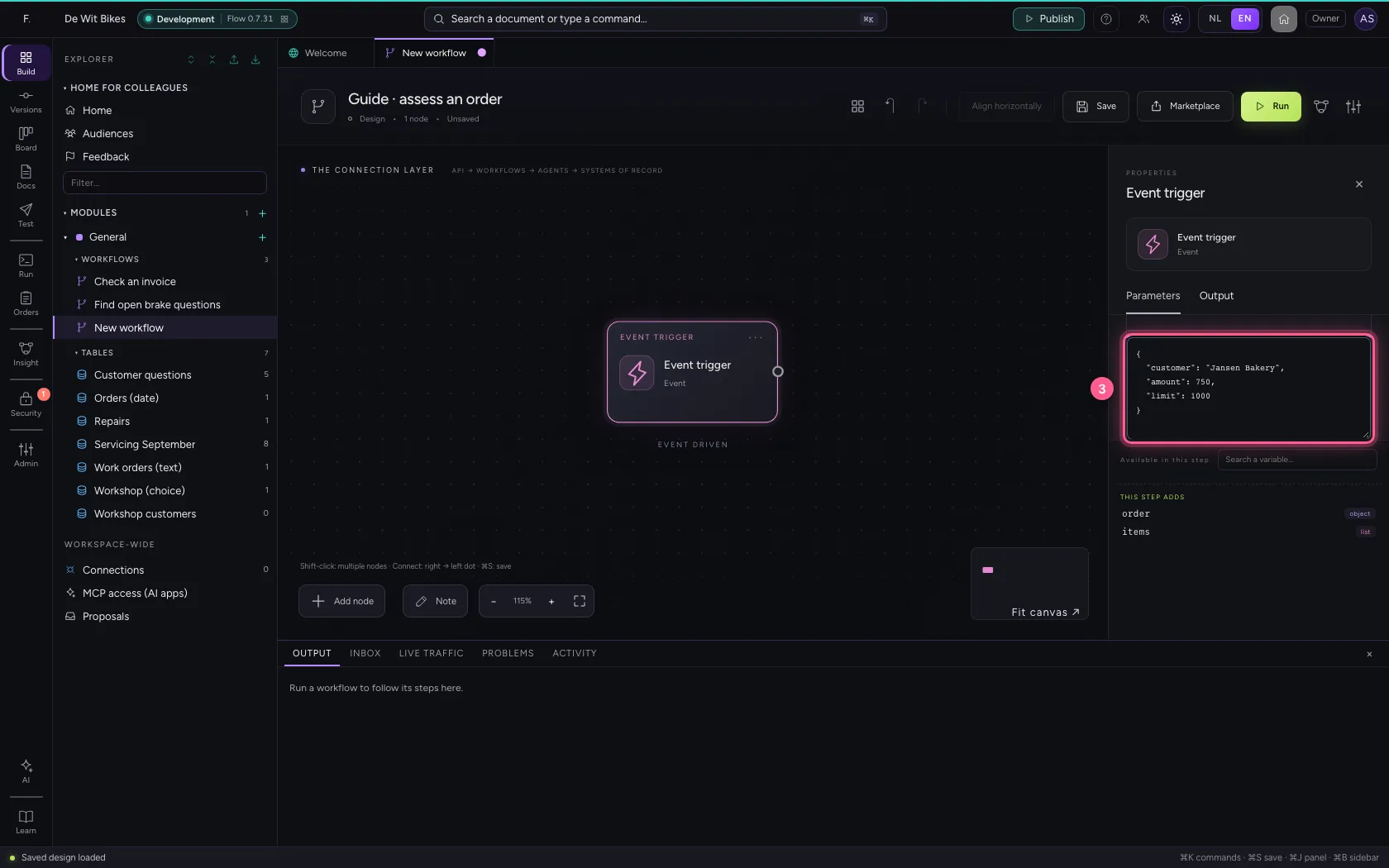
Click the Event trigger and put an order with an amount under Sample data (Code), and a limit we use at the end.
- Click the step ‘Event trigger’
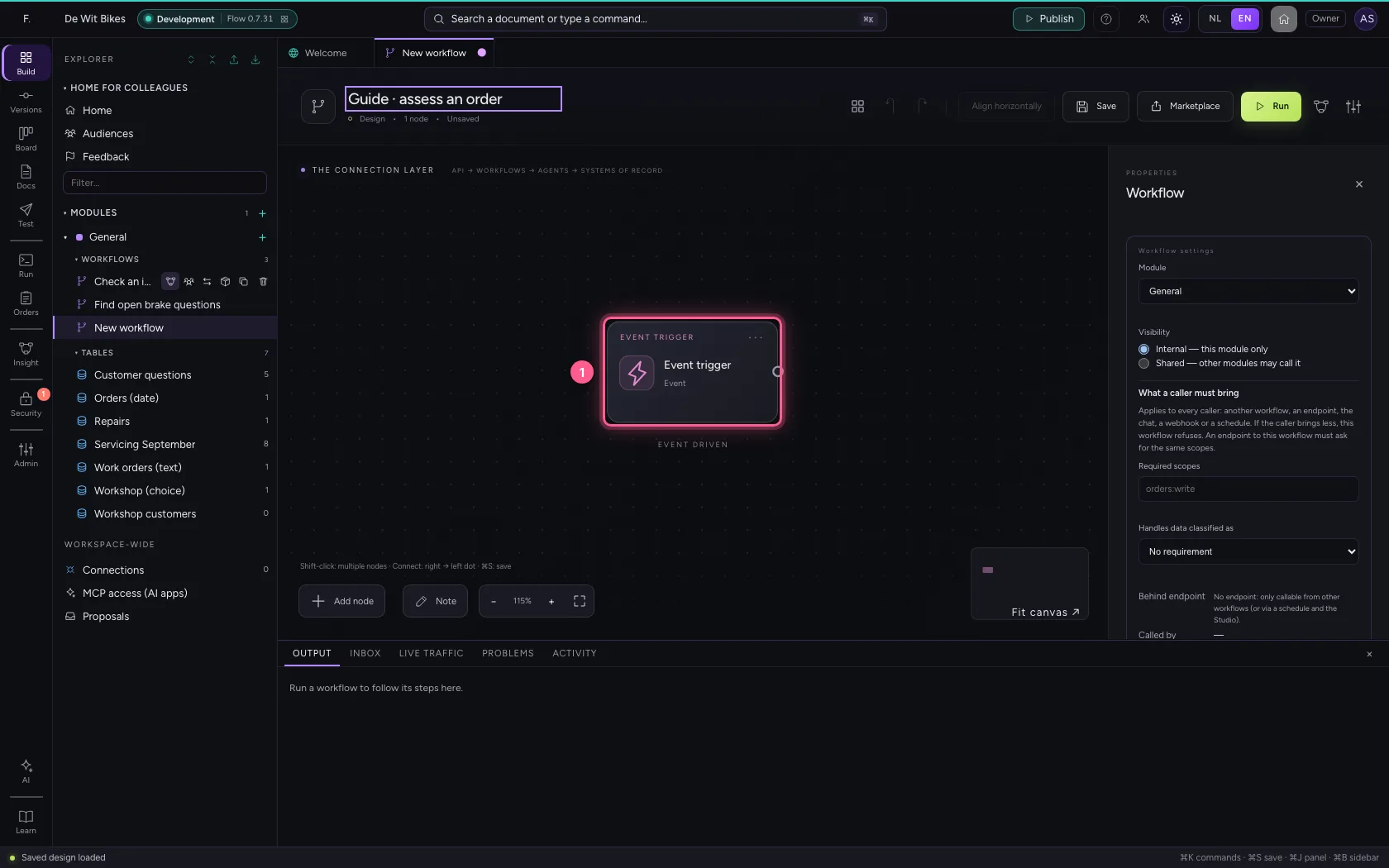
- Click Code
- In the sample data, type `{
Write the rule
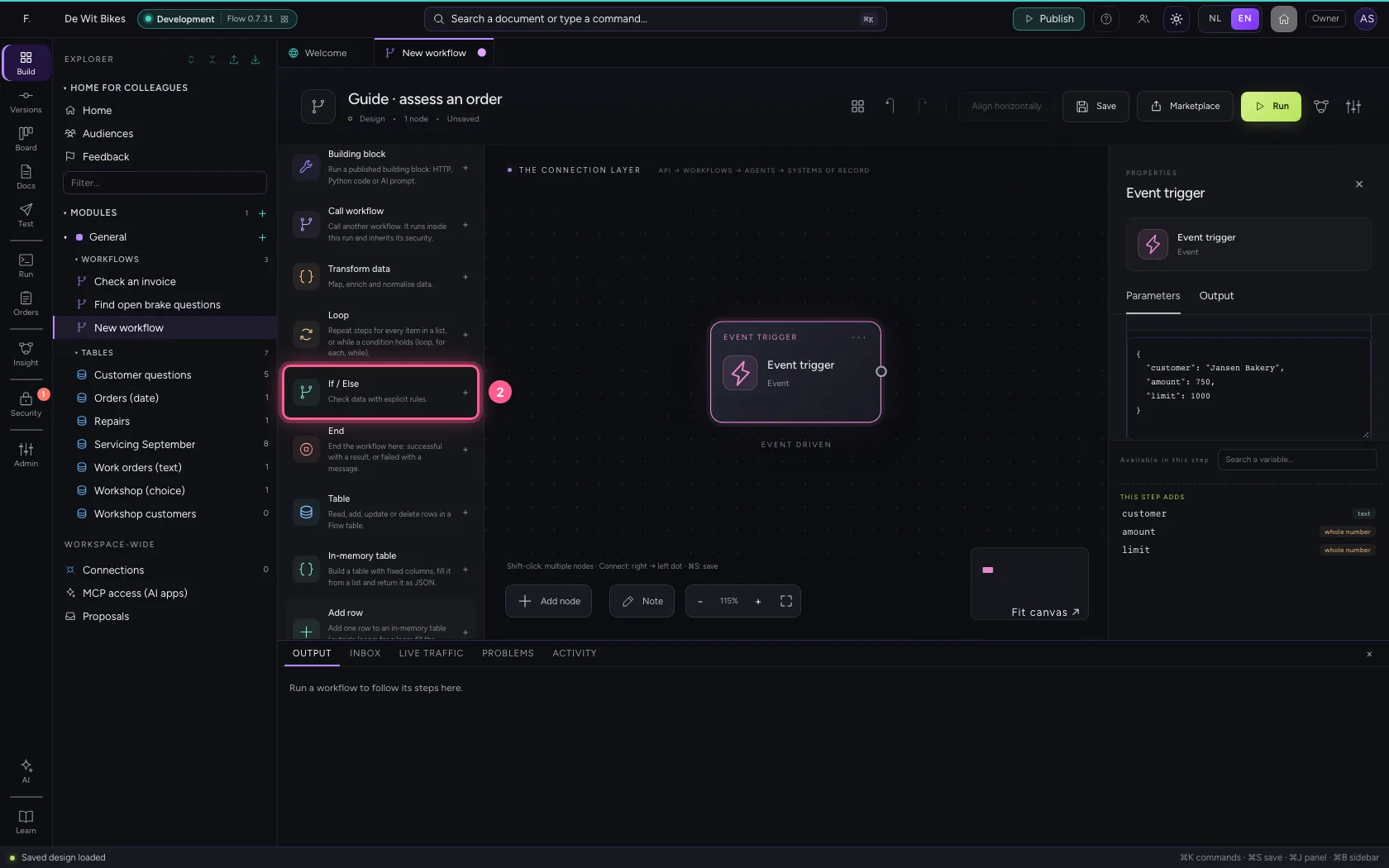
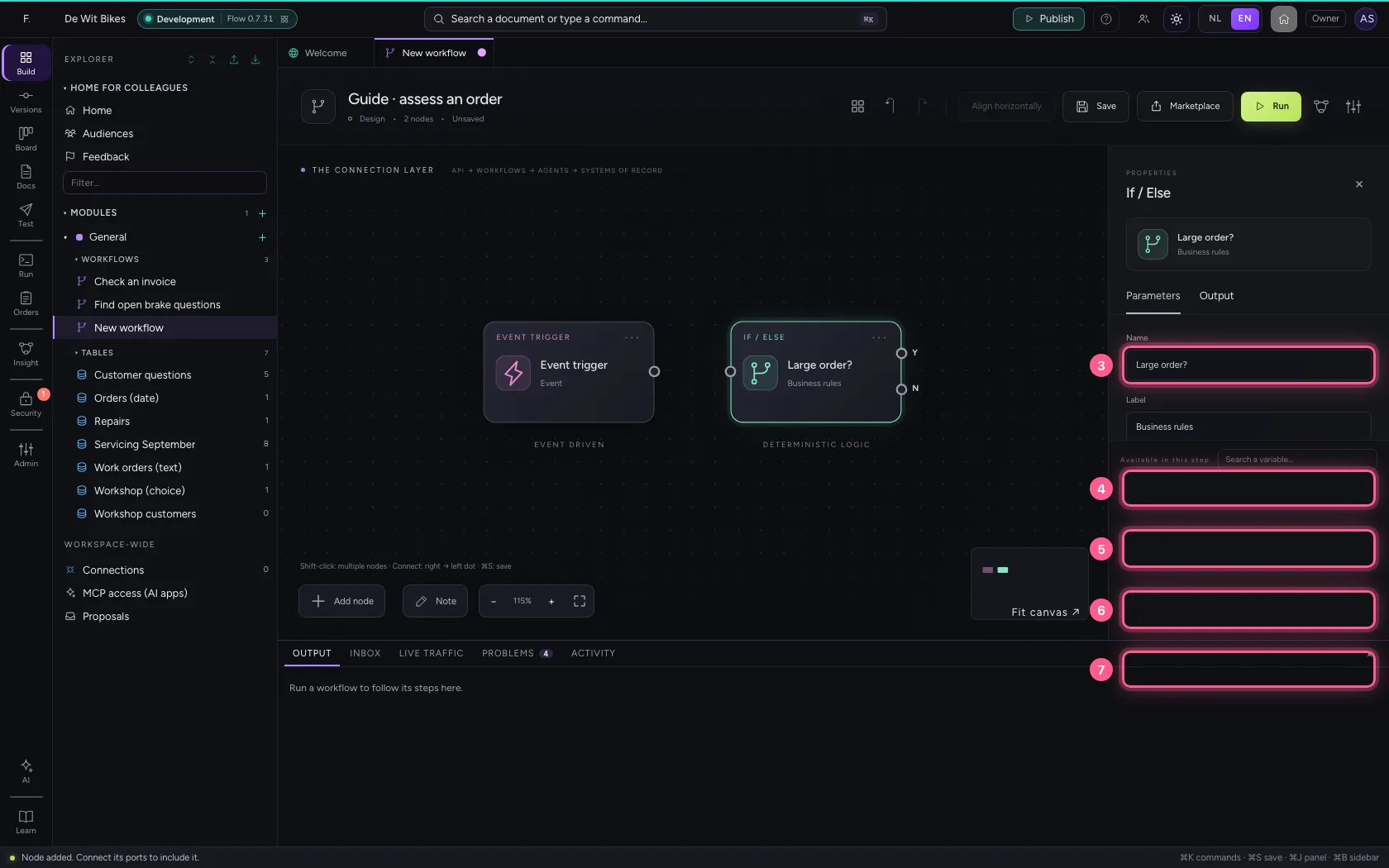
Add If / Else. Which field to check is the name of the field (without {{ }}), then the comparison and the value. Here: is the amount greater than or equal to 500? Choose Number as the value type, otherwise you compare text.
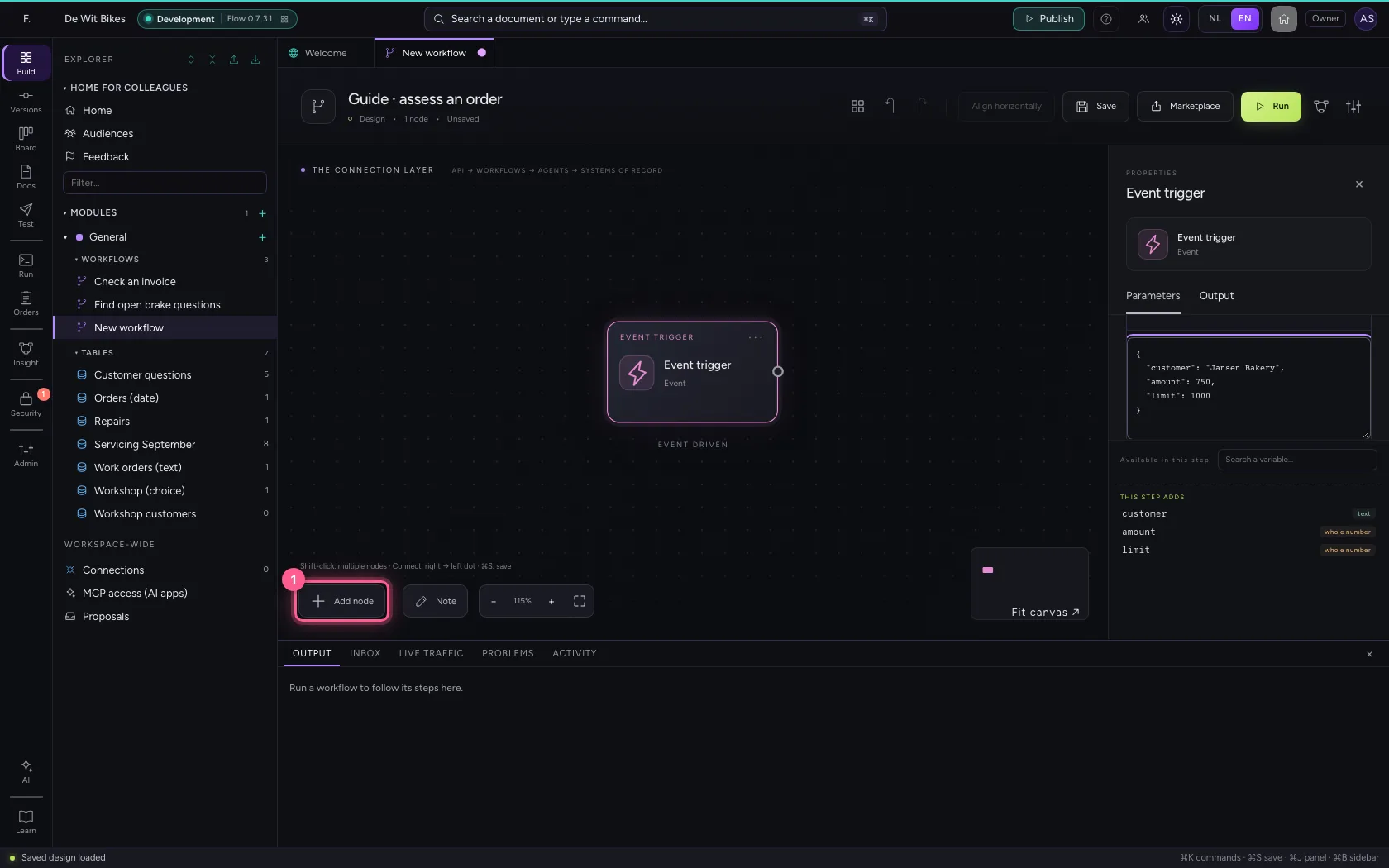
- Click Add node
- Click If / Else
- In Name, type
Large order? - In Which field to check?, type
amount - In **Comparison Equals Does not equal Is greater than Is greater than or equal to Is **, choose Is greater than or equal to
- In Value type Text Number Yes / no Field or calculation, choose Number
- In Value, type
500
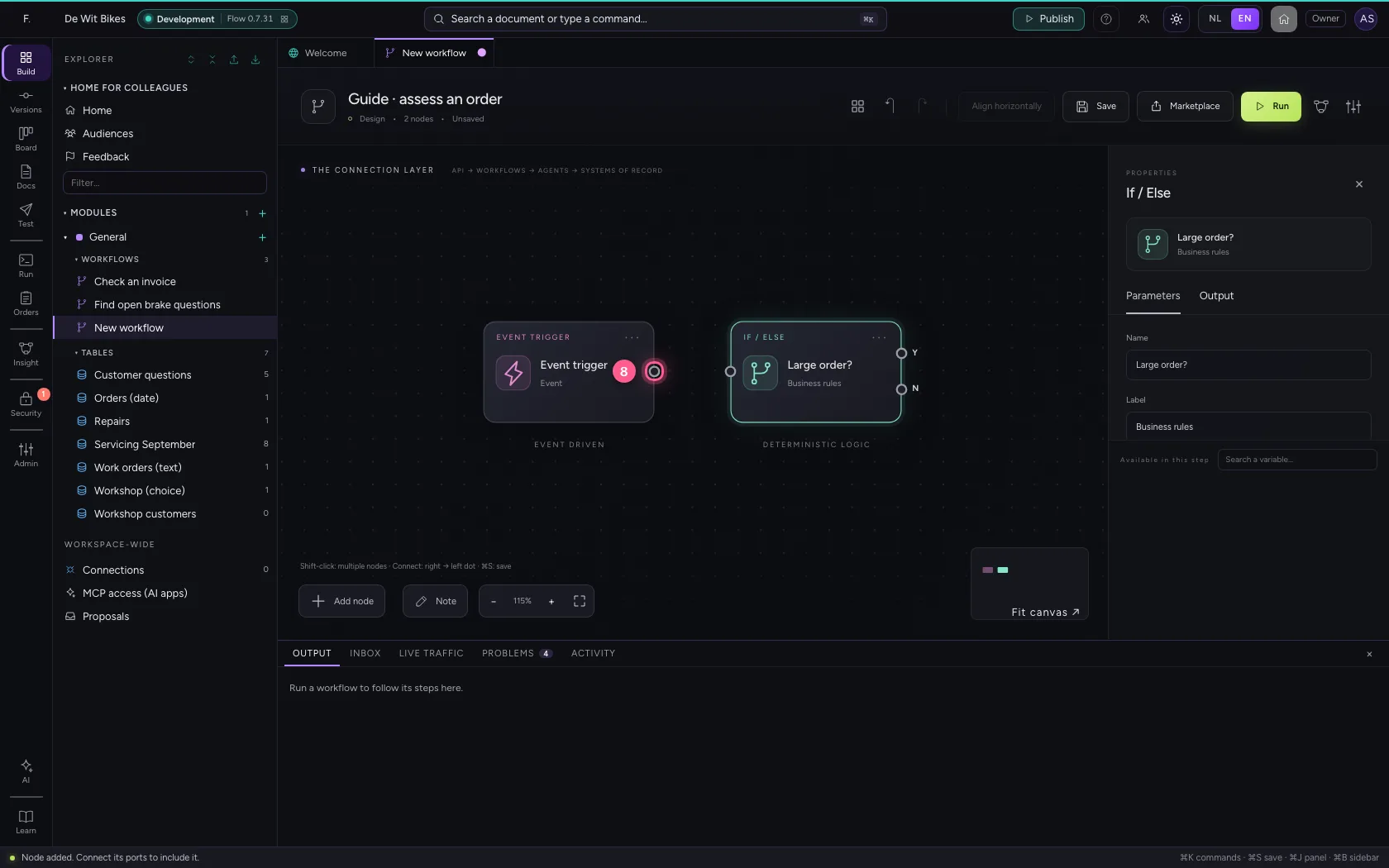
- Click the dot of ‘Event trigger’
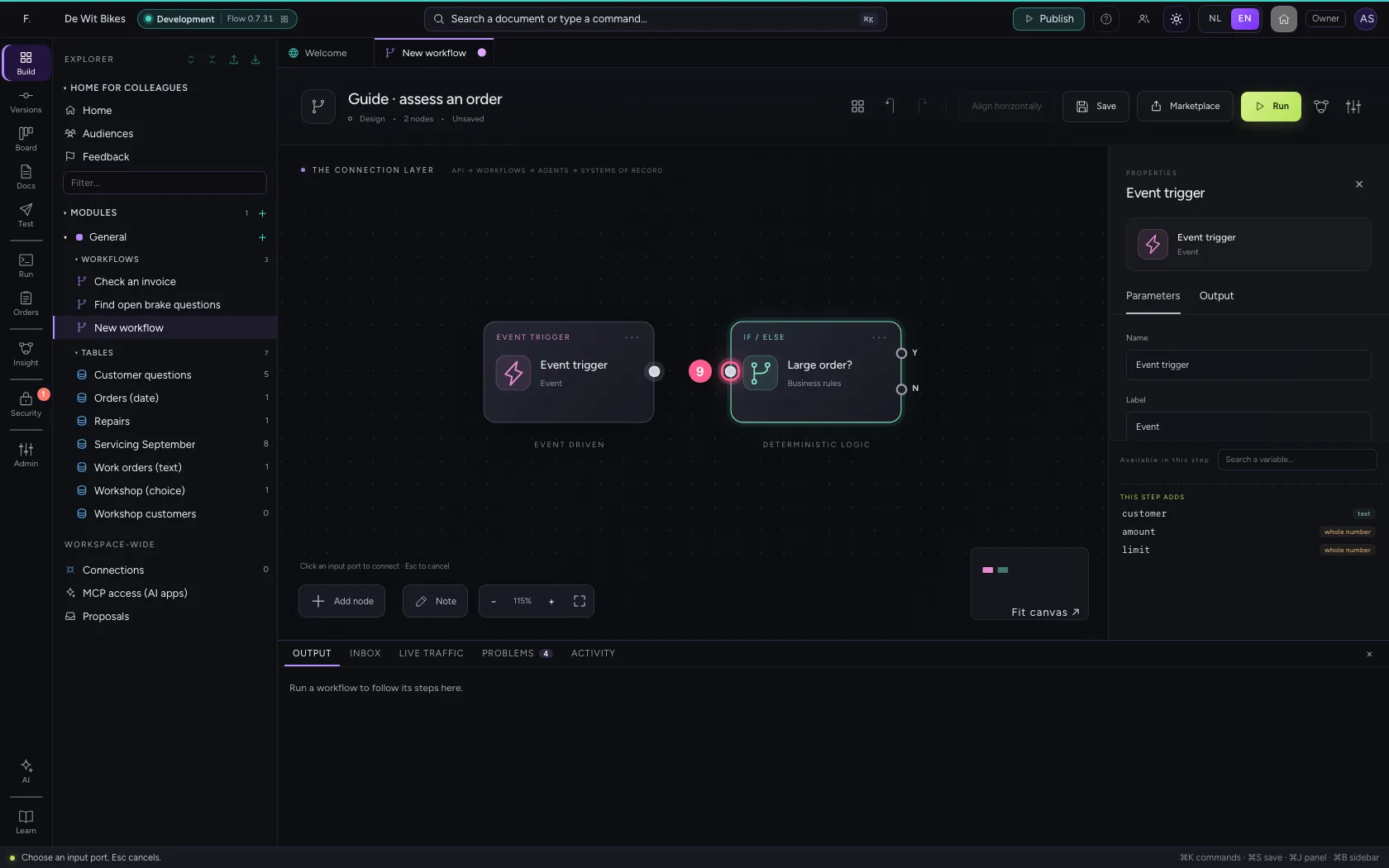
- Click the dot of ‘Large order?’
A step for Yes and one for No
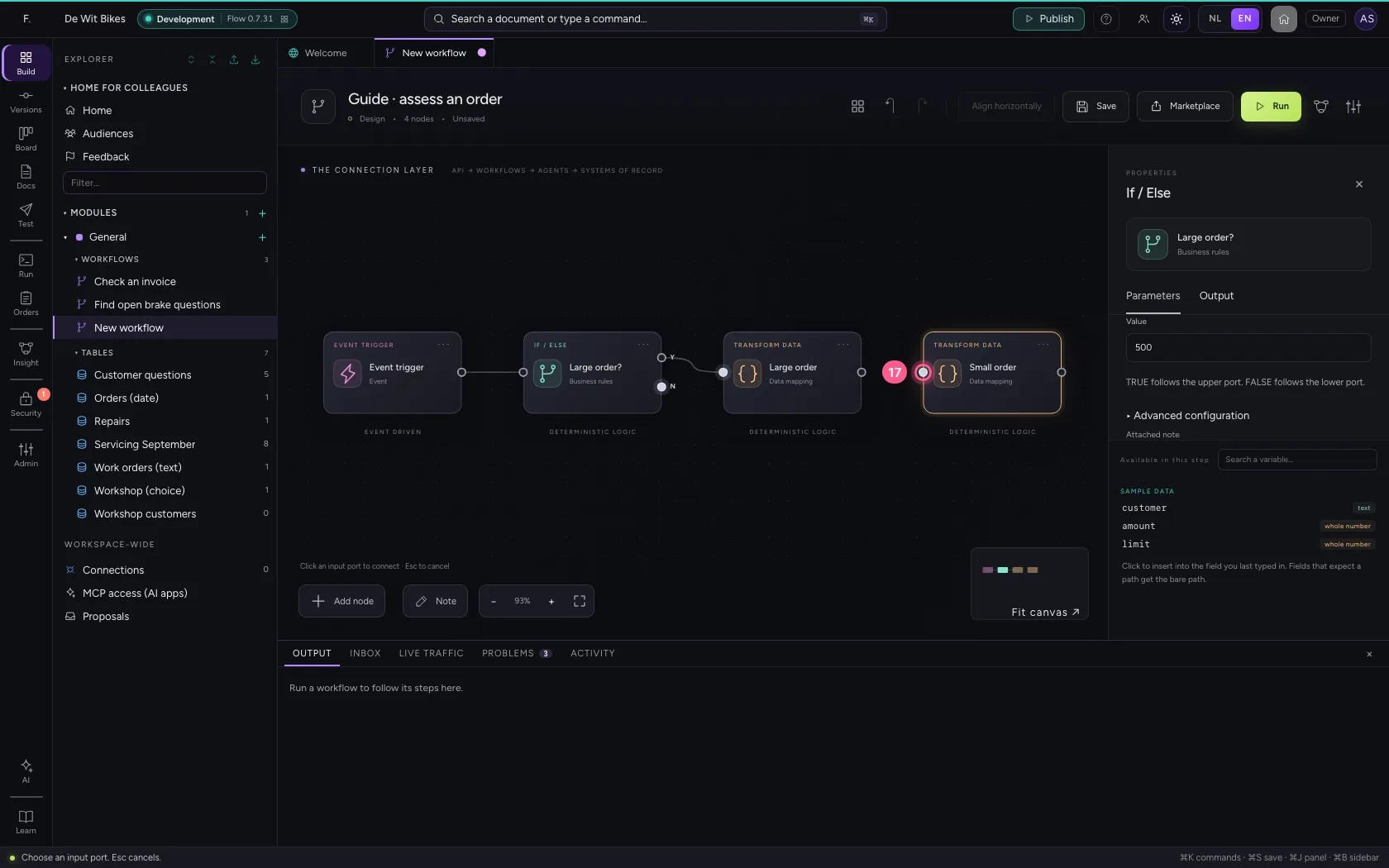
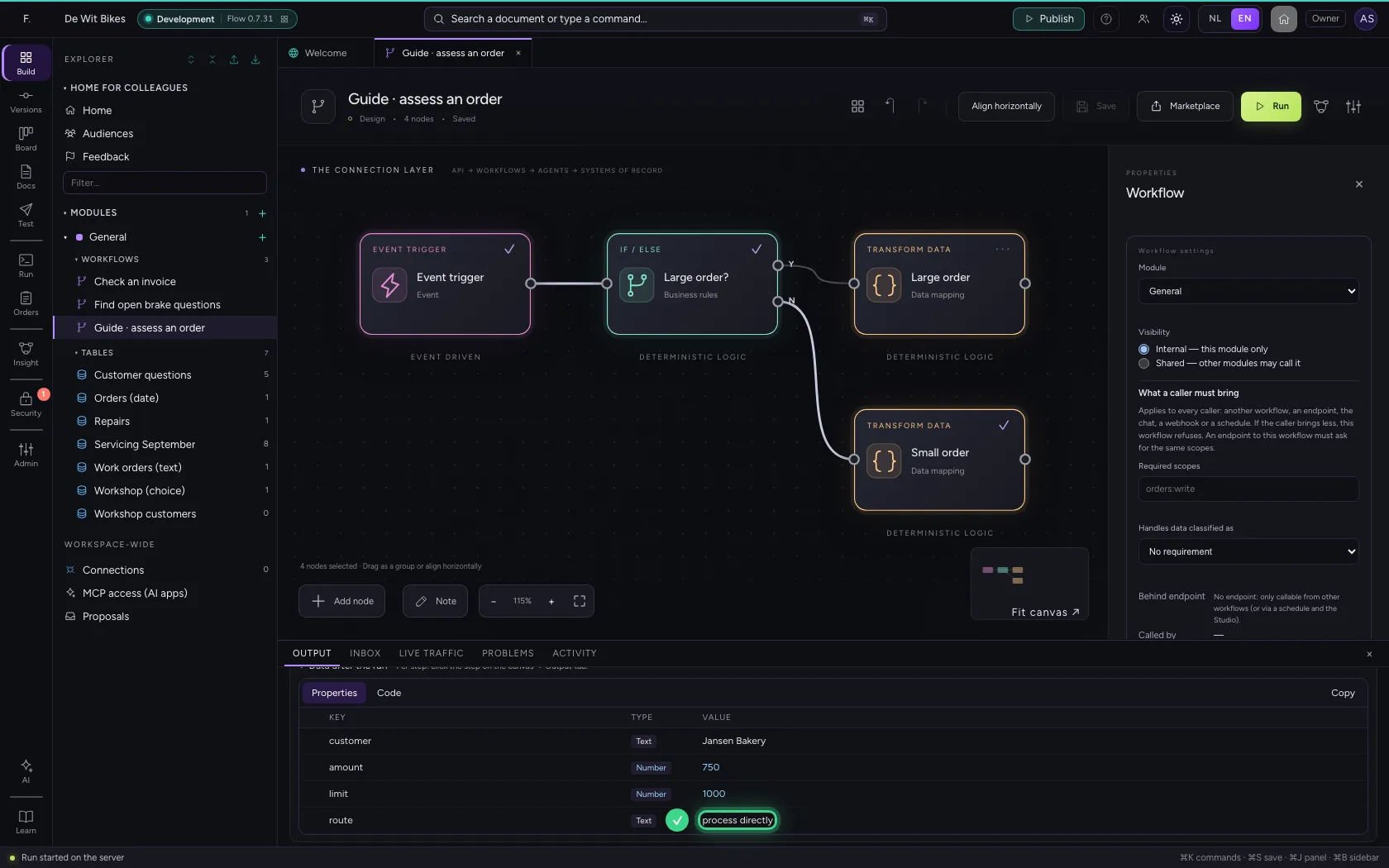
Add Transform data twice: one sets route to check by hand, the other to process directly. Connect the top exit (Yes) to the first and the bottom one (No) to the second.
- Click Add node
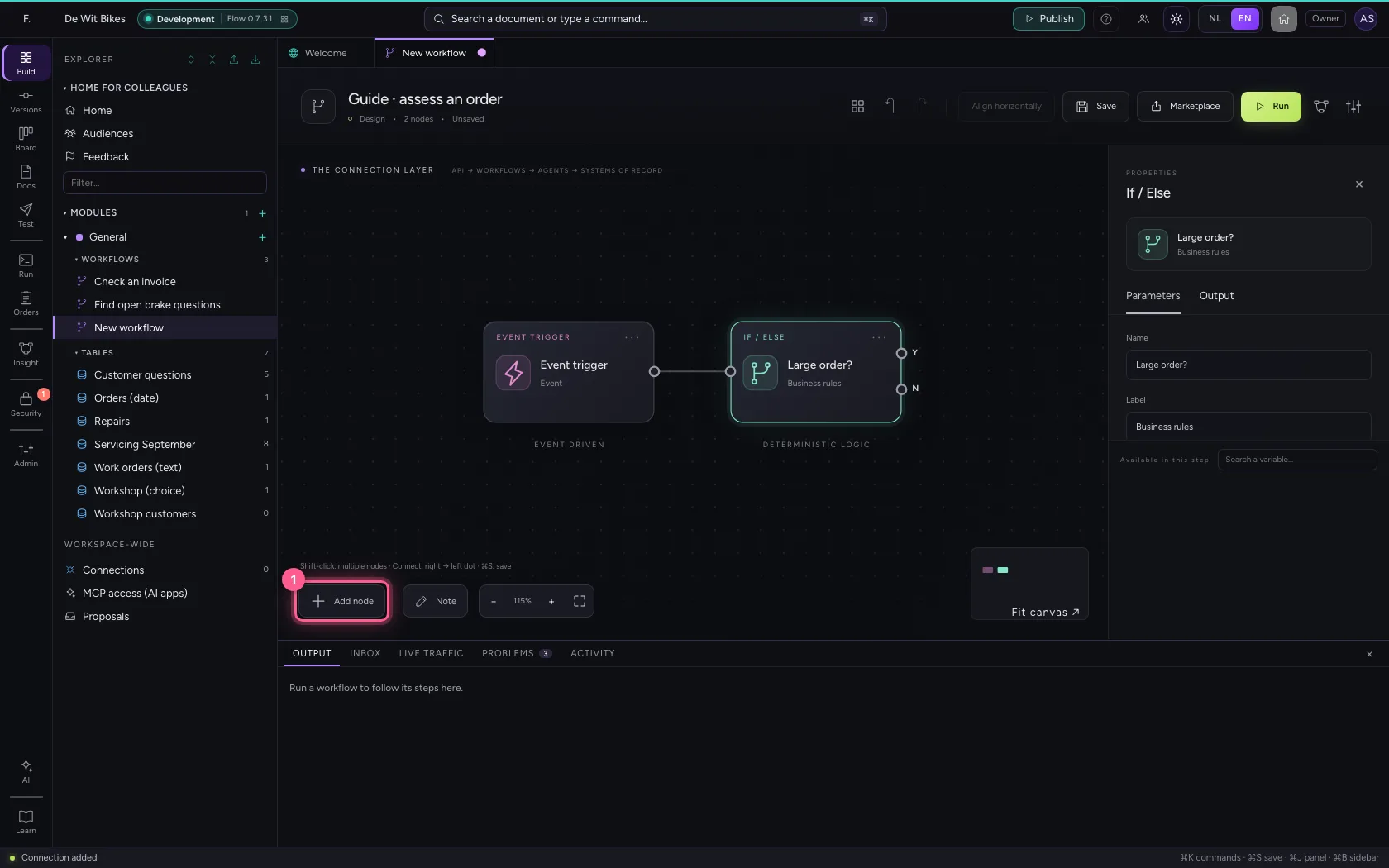
- Click Transform data
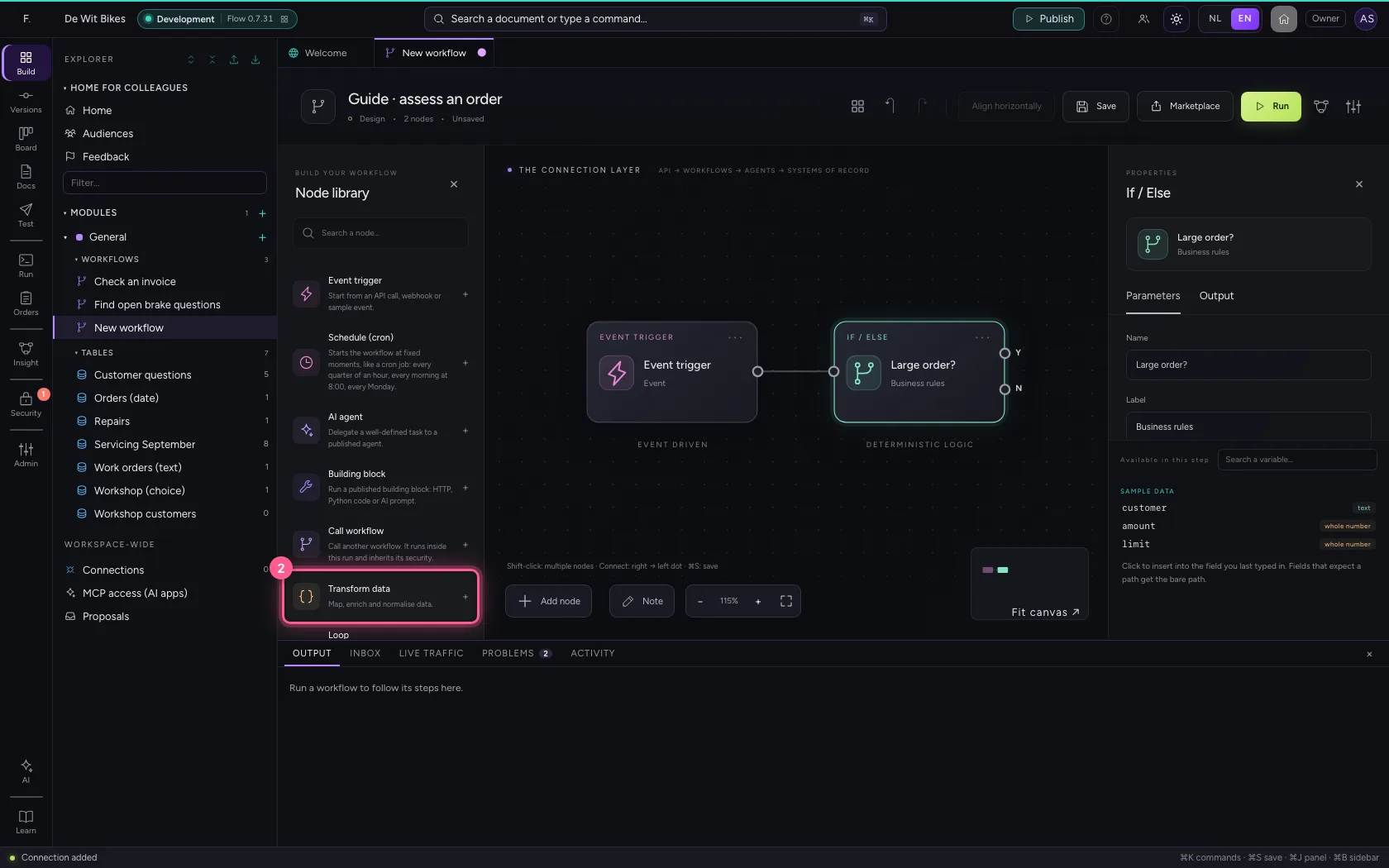
- In Name, type
Large order
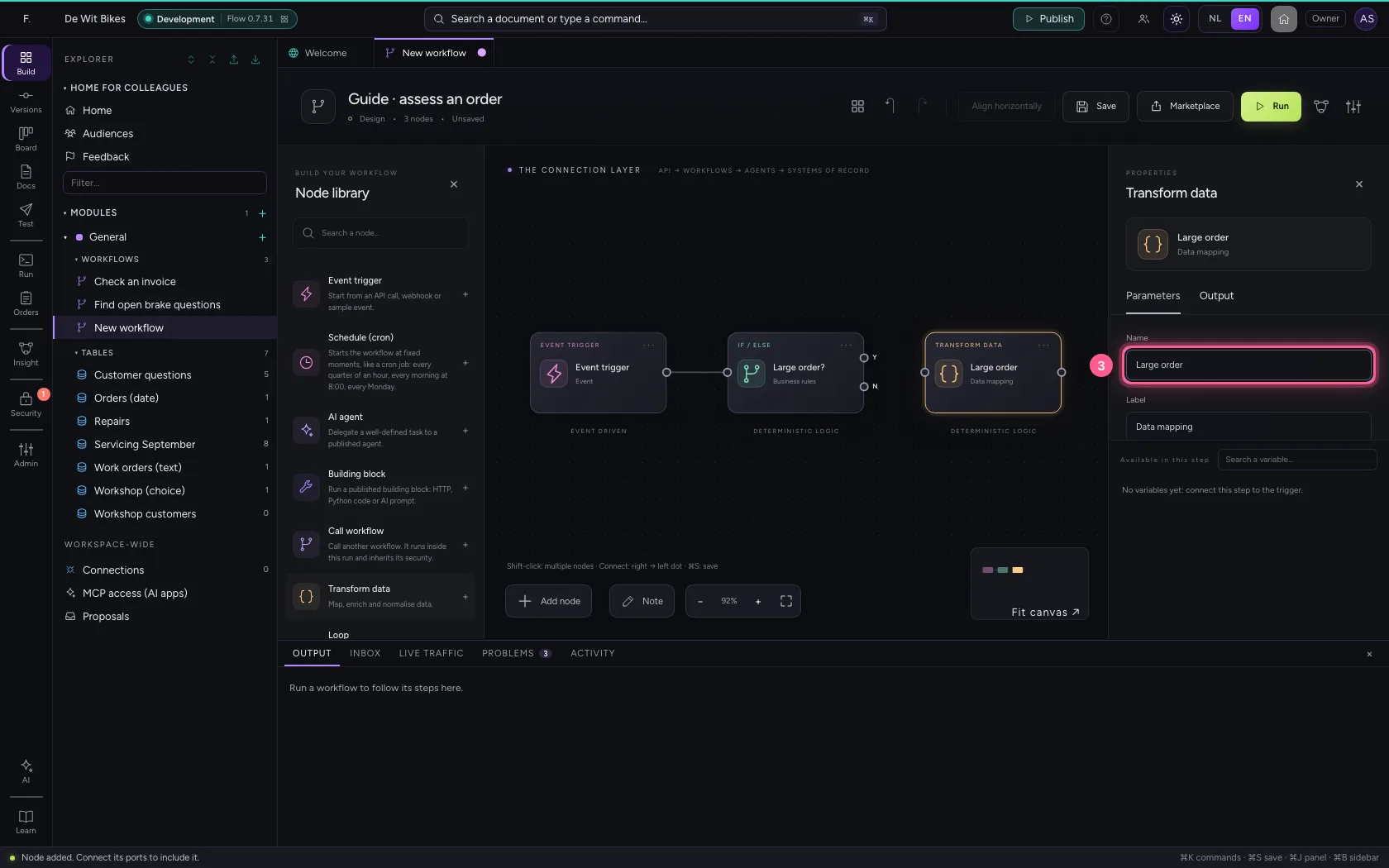
- Click Remove field
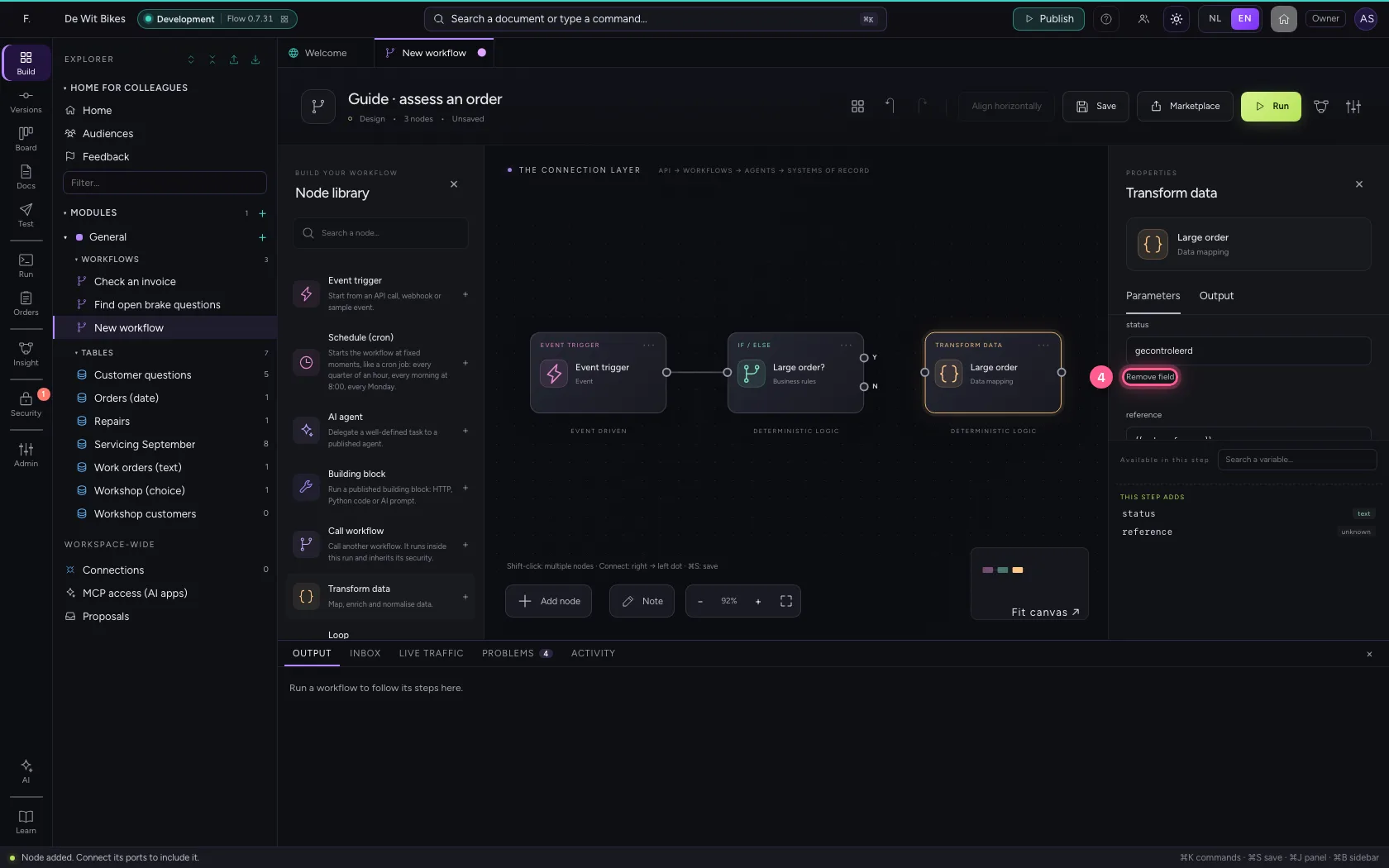
- Click Remove field
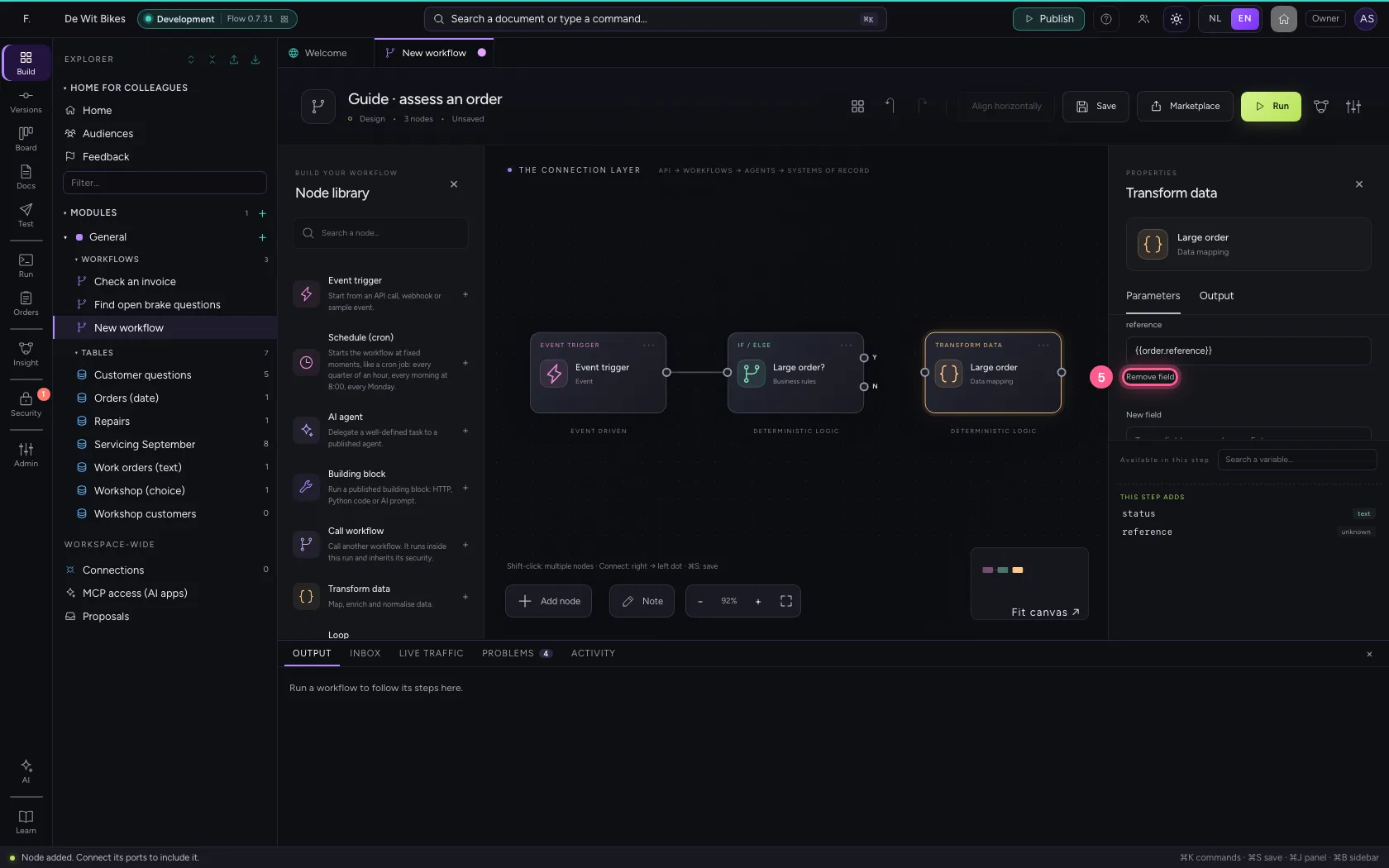
- In New field, type
route - In route, type
check by hand
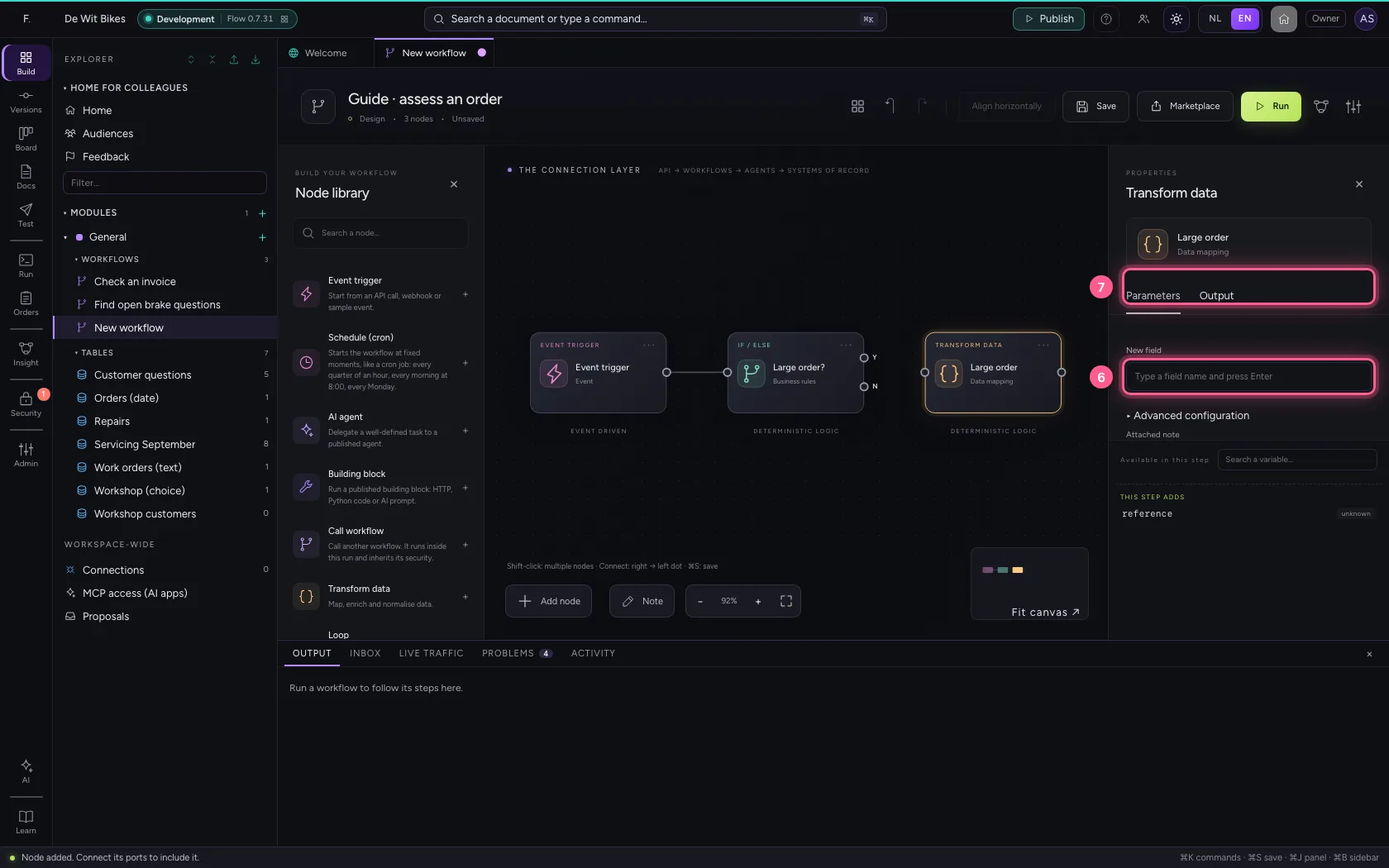
- Click Transform data
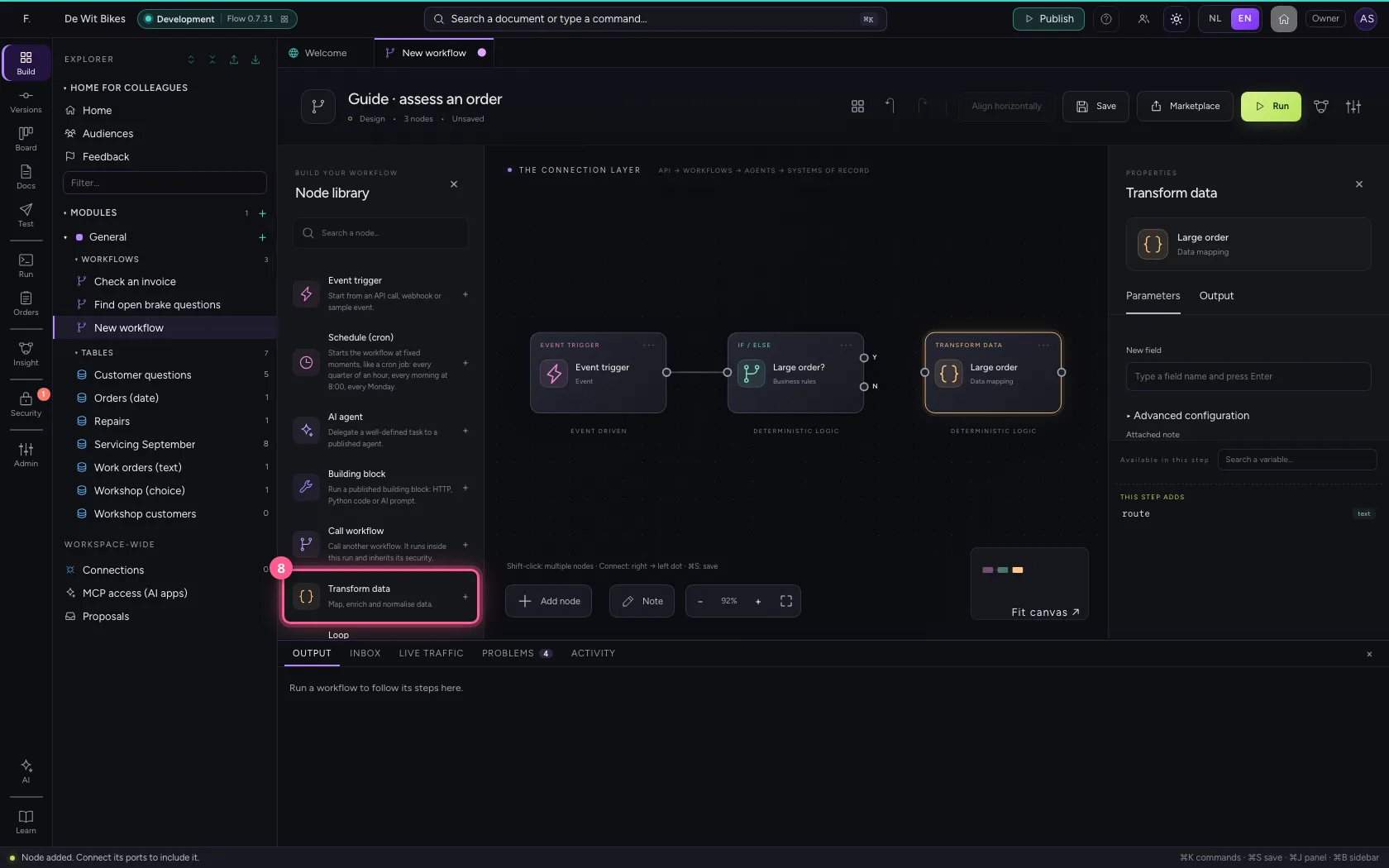
- In Name, type
Small order
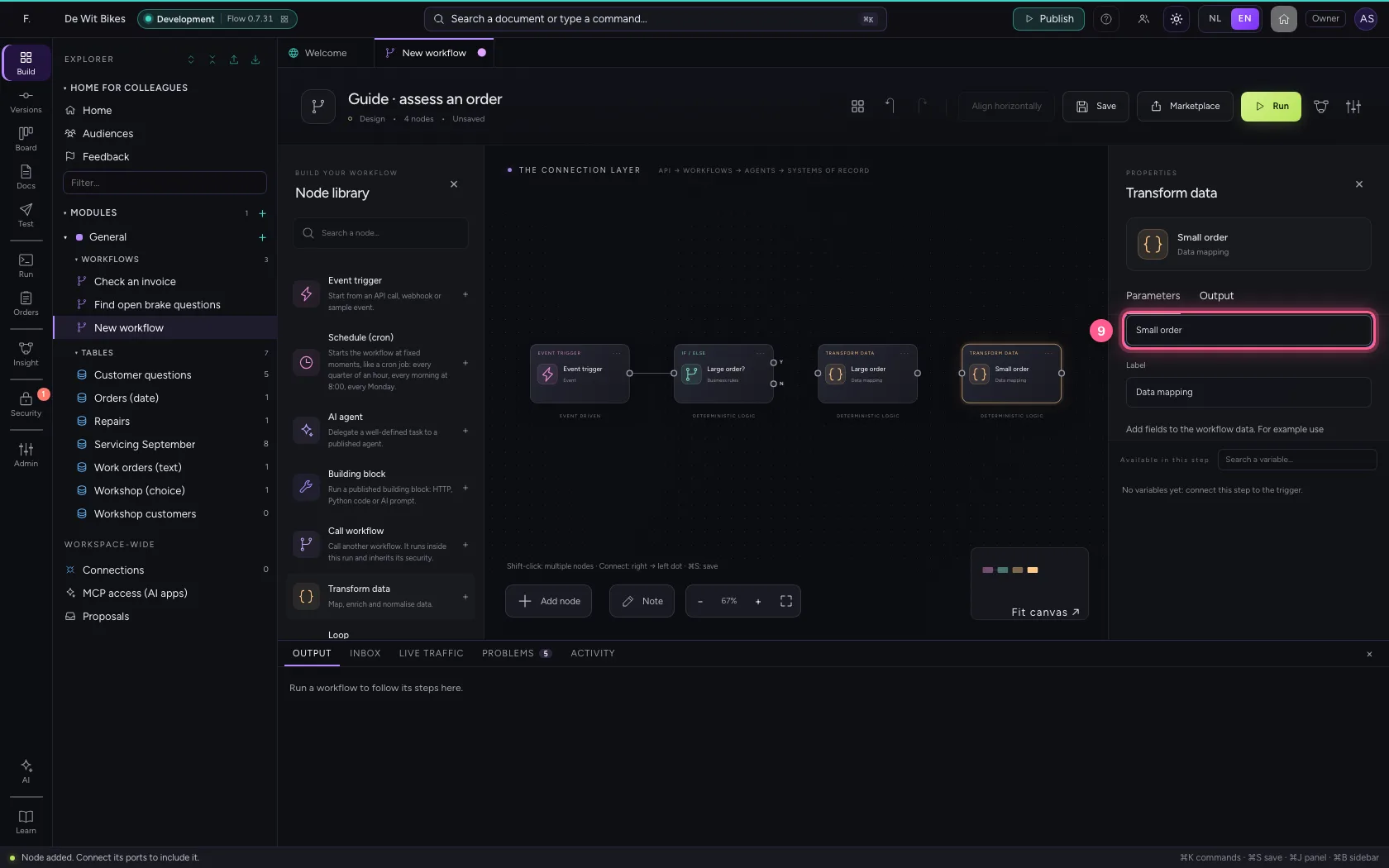
- Click Remove field
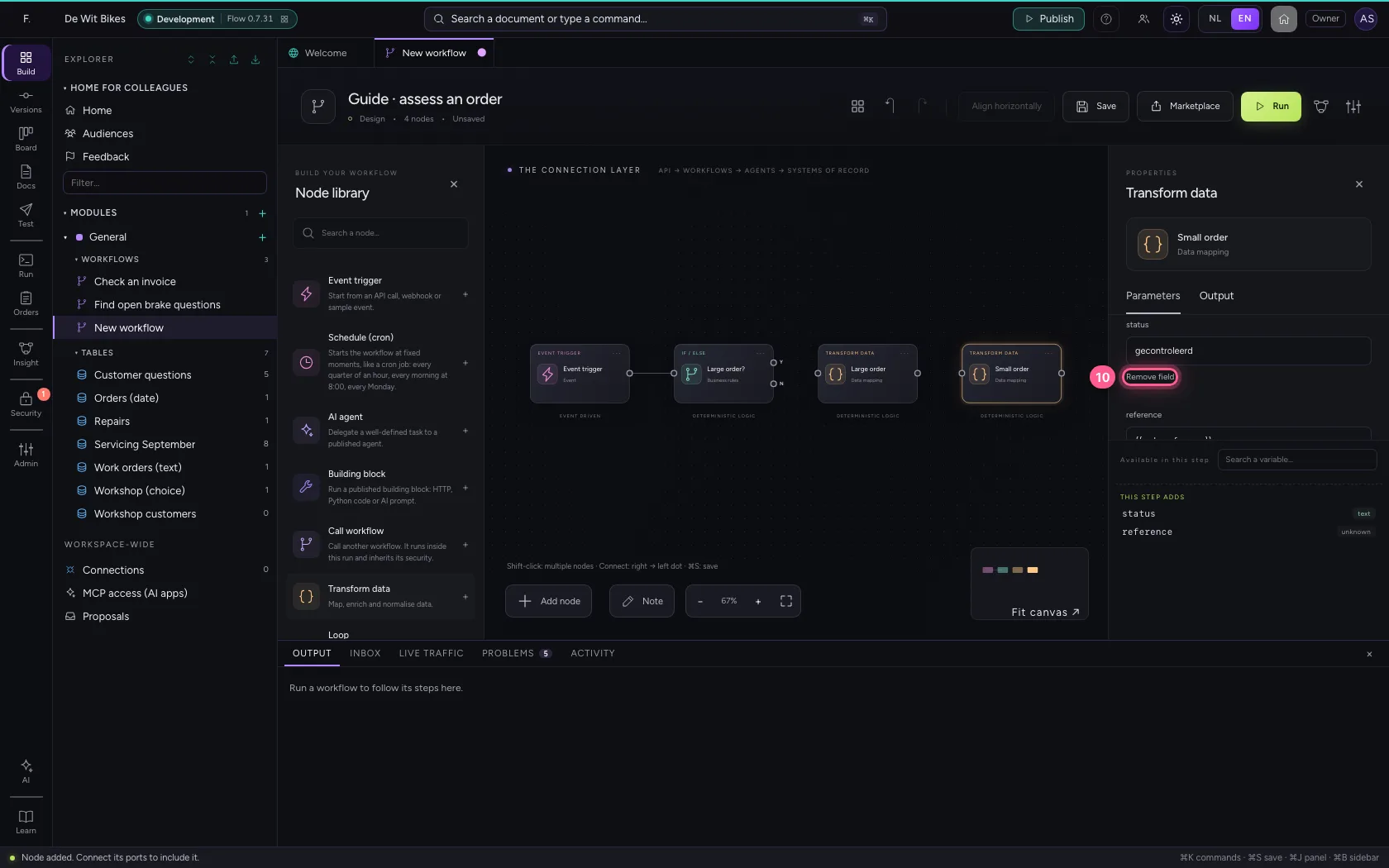
- Click Remove field
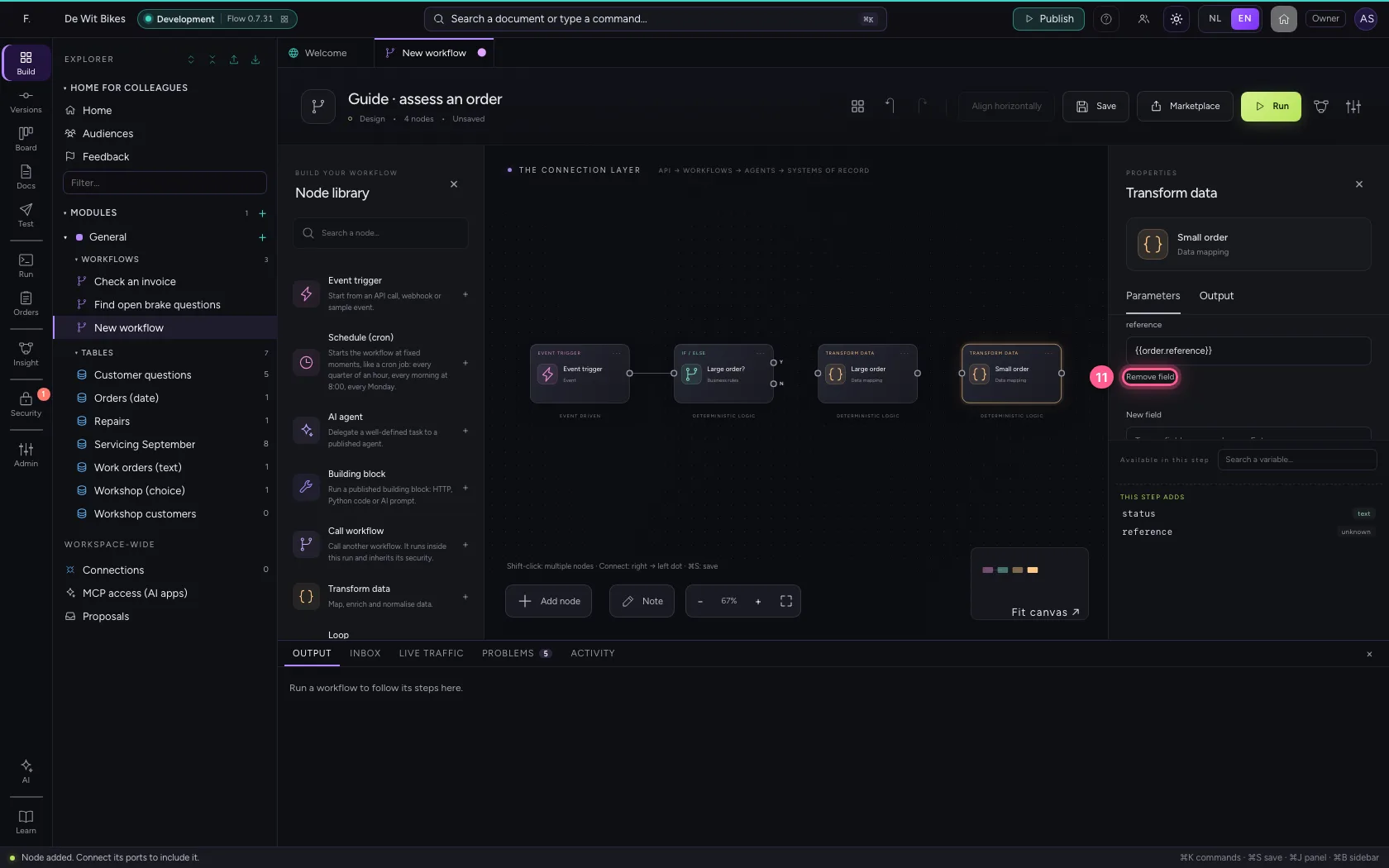
- In New field, type
route - In route, type
process directly
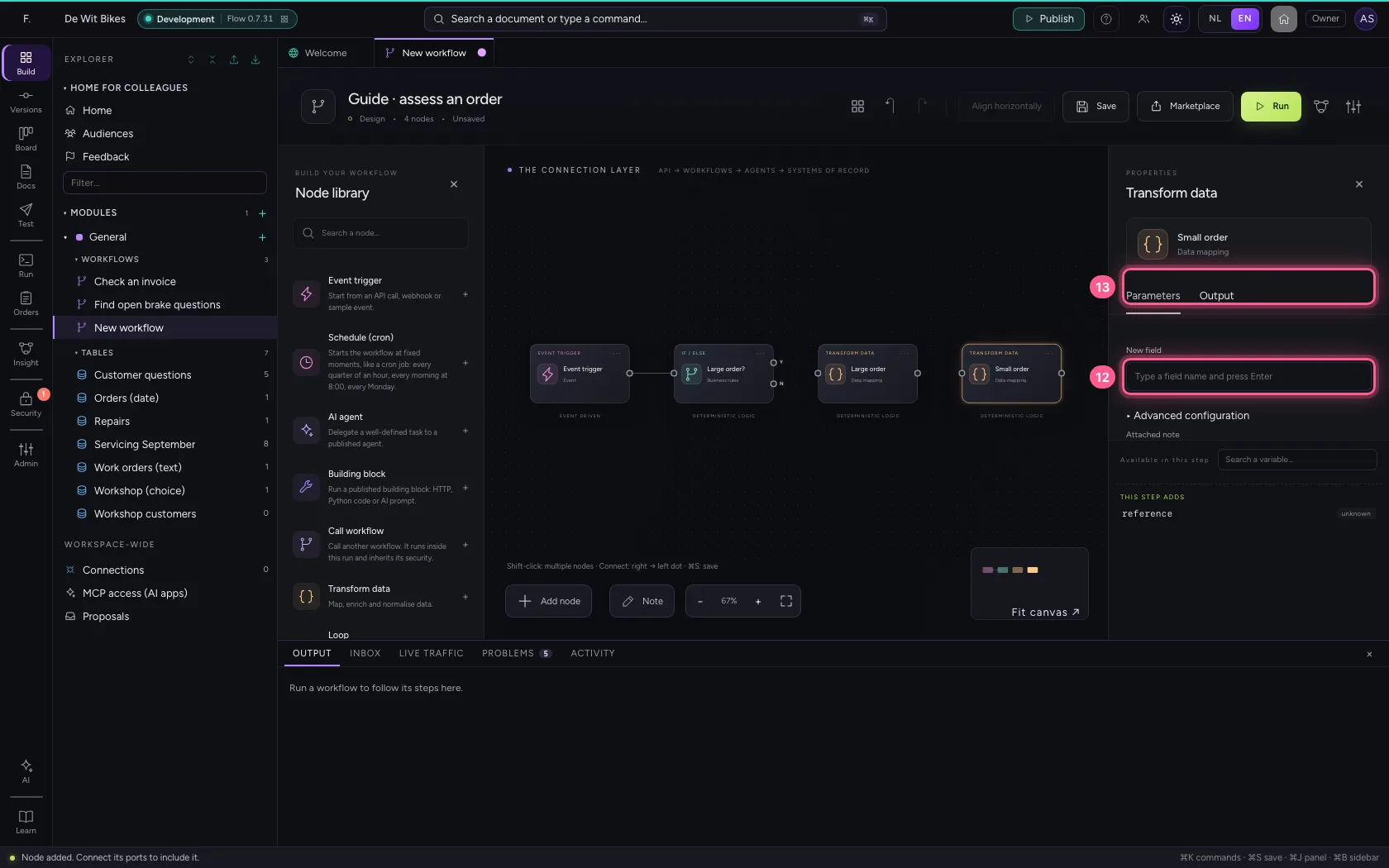
- Click exit Yes of ‘Large order?’
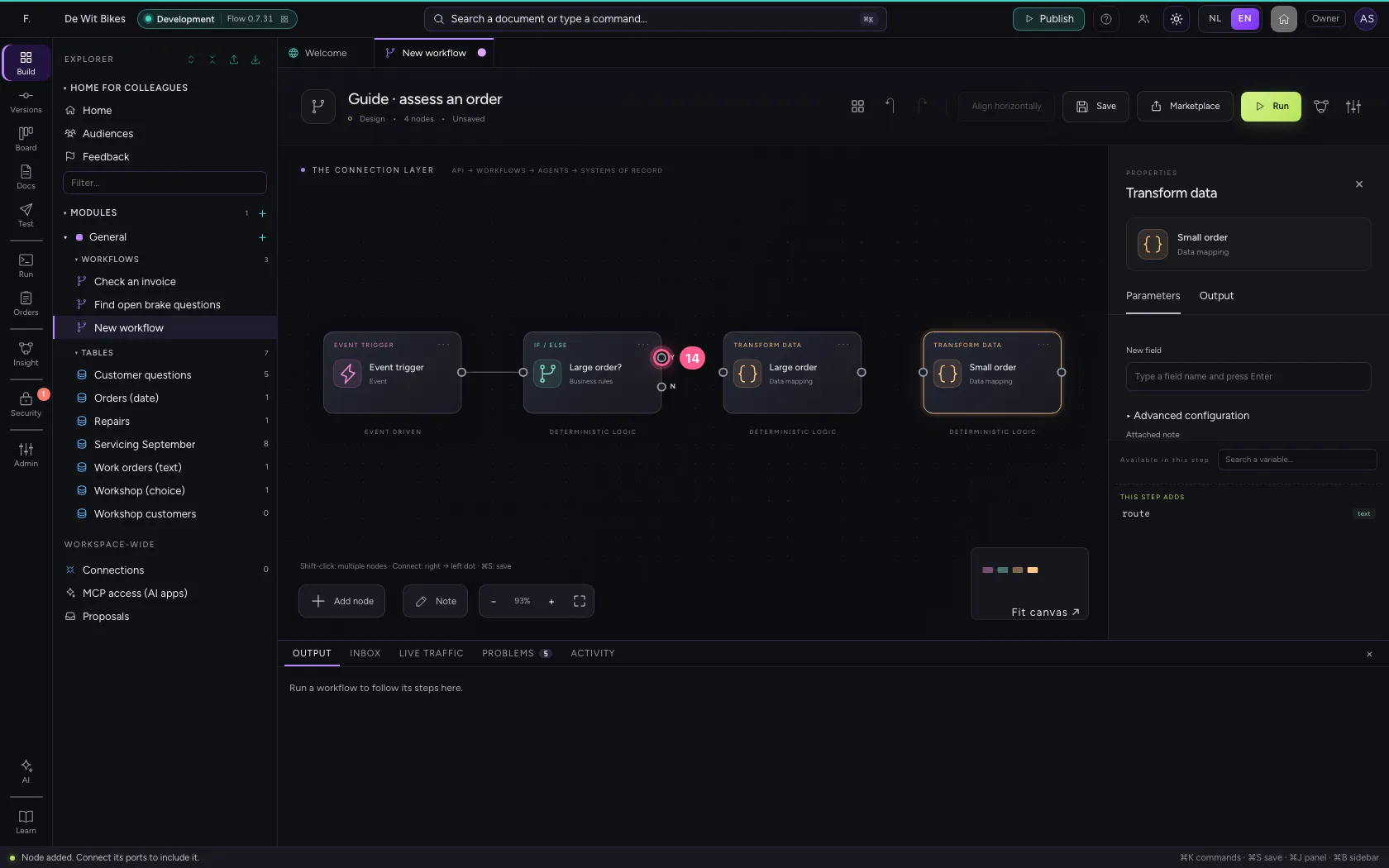
- Click the dot of ‘Large order’
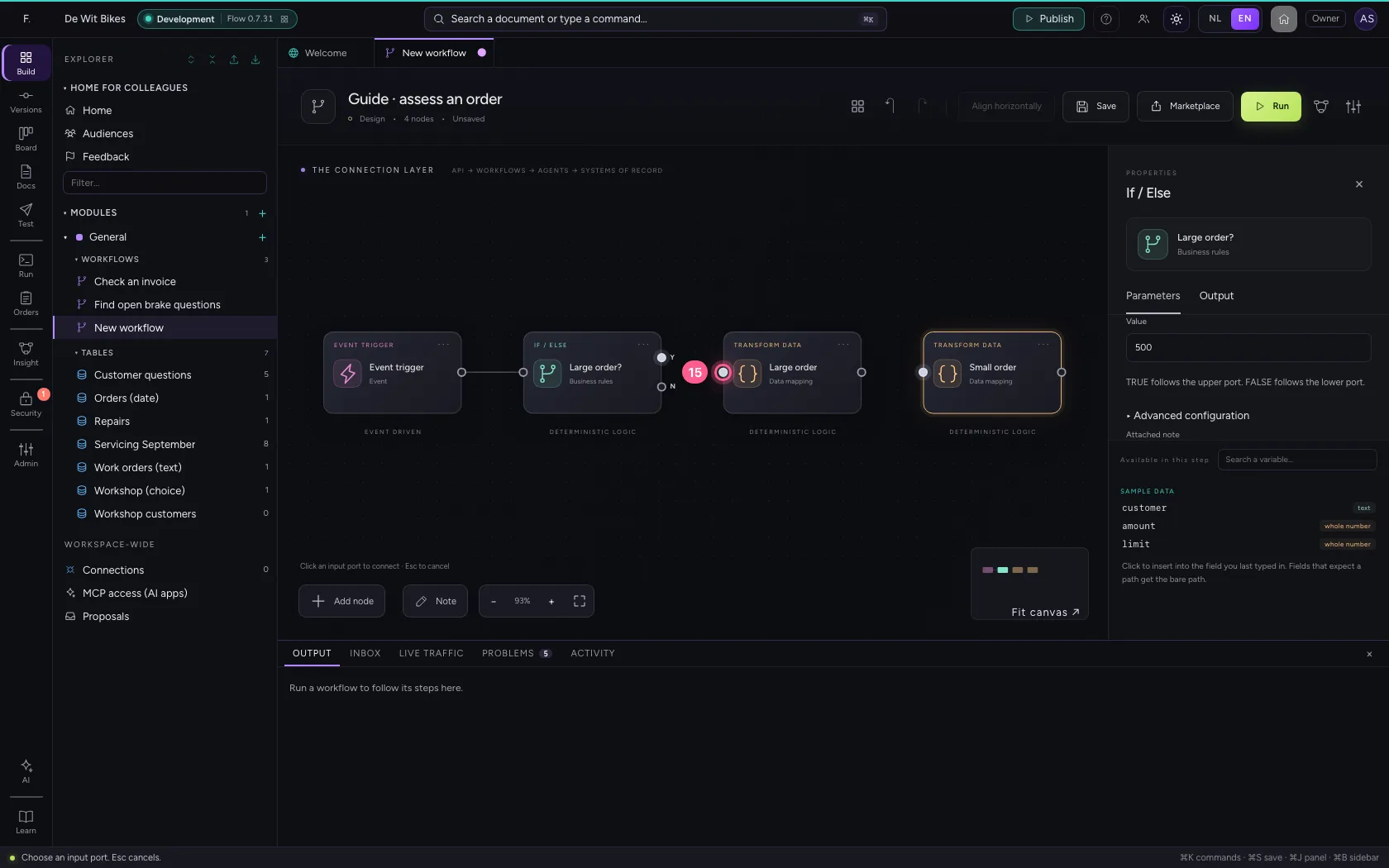
- Click exit No of ‘Large order?’
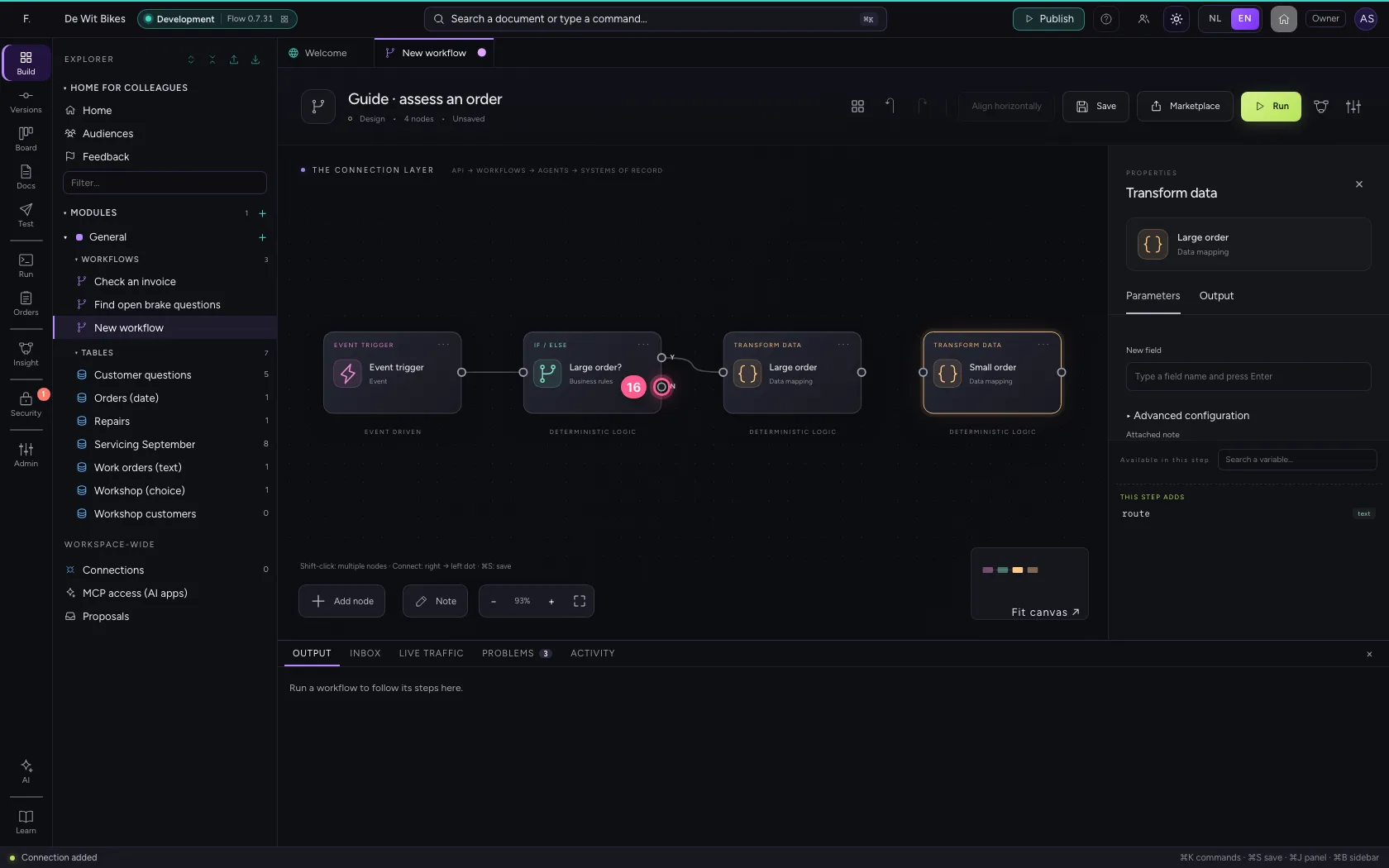
- Click the dot of ‘Small order’
In one line, save and read back
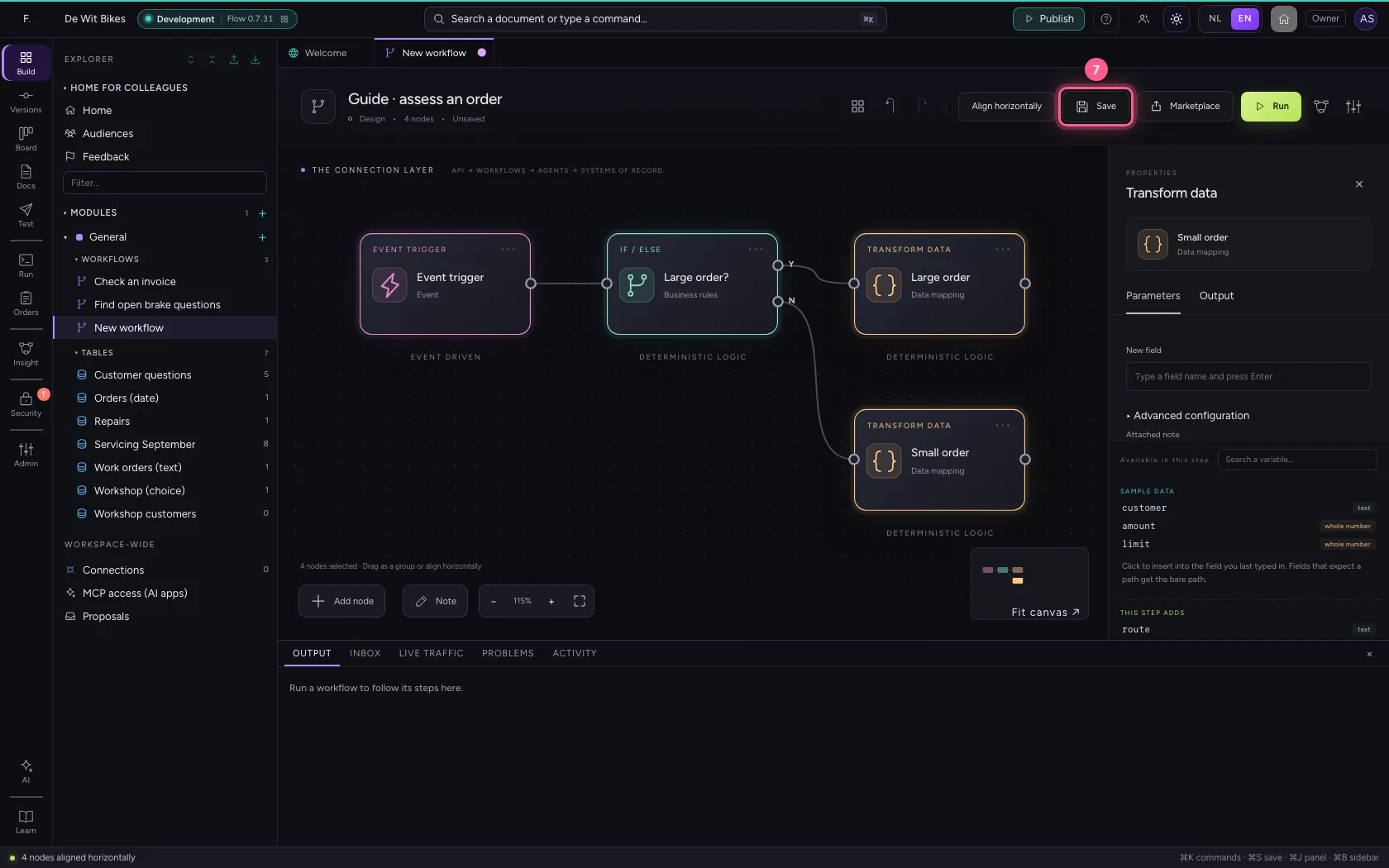
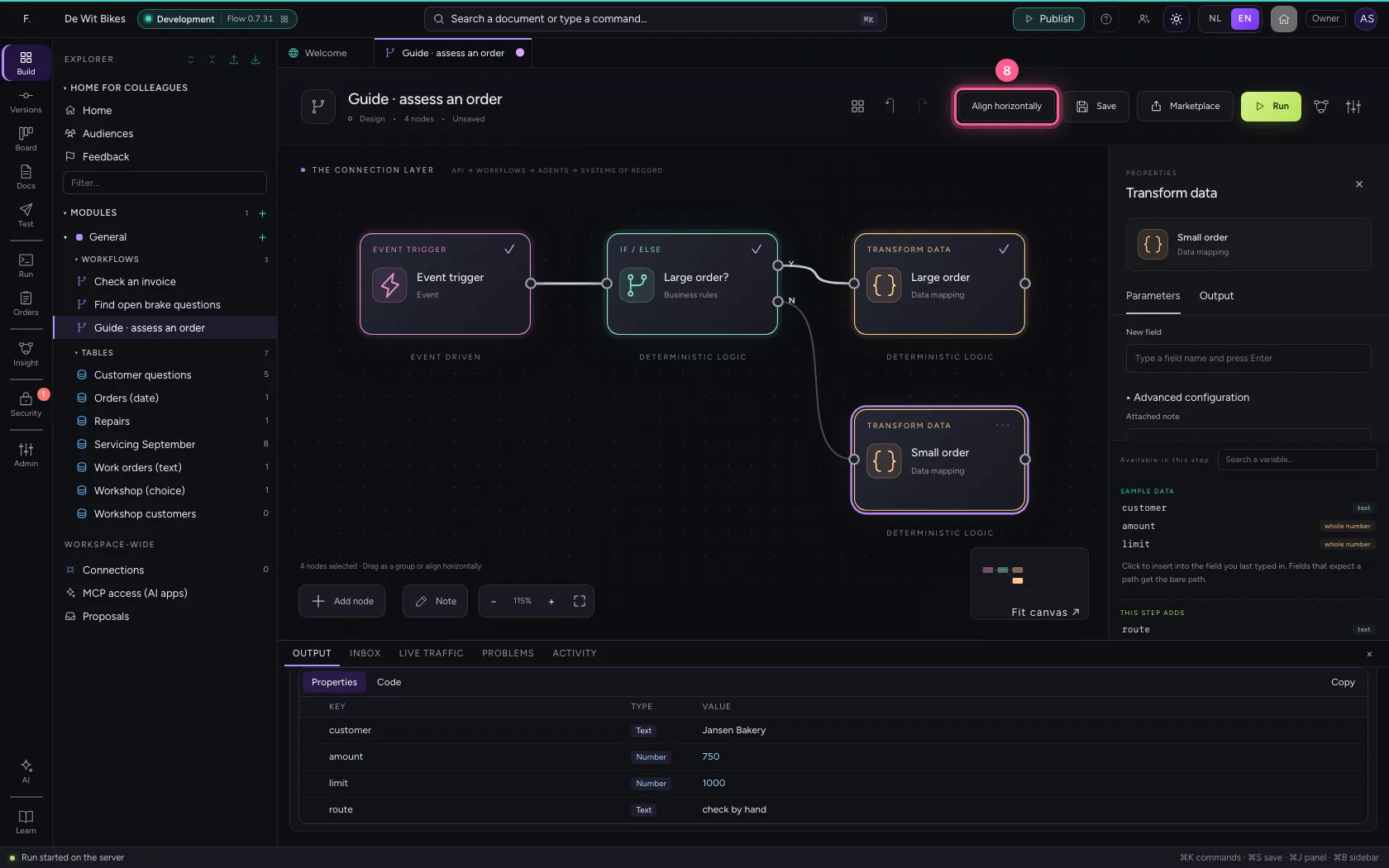
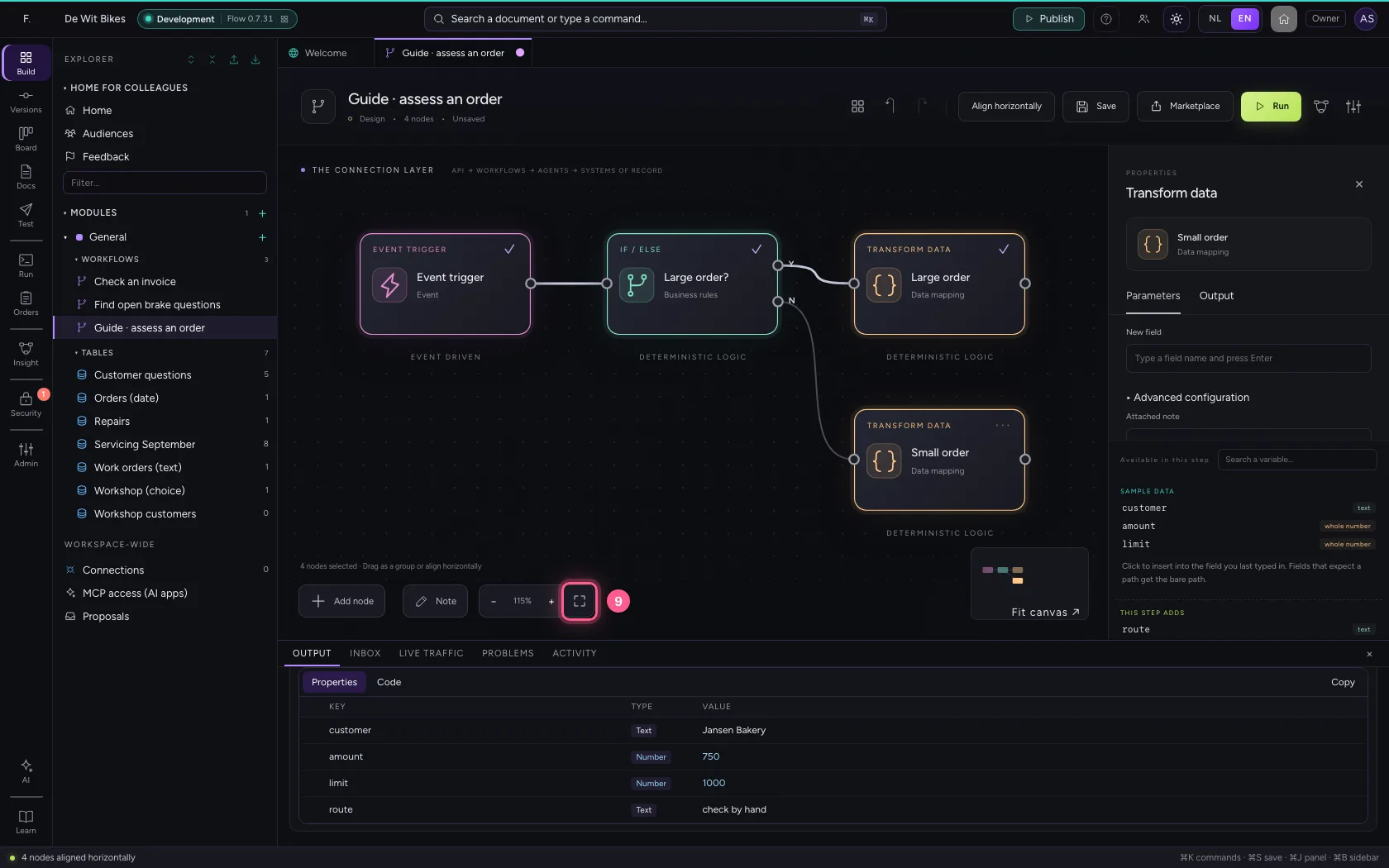
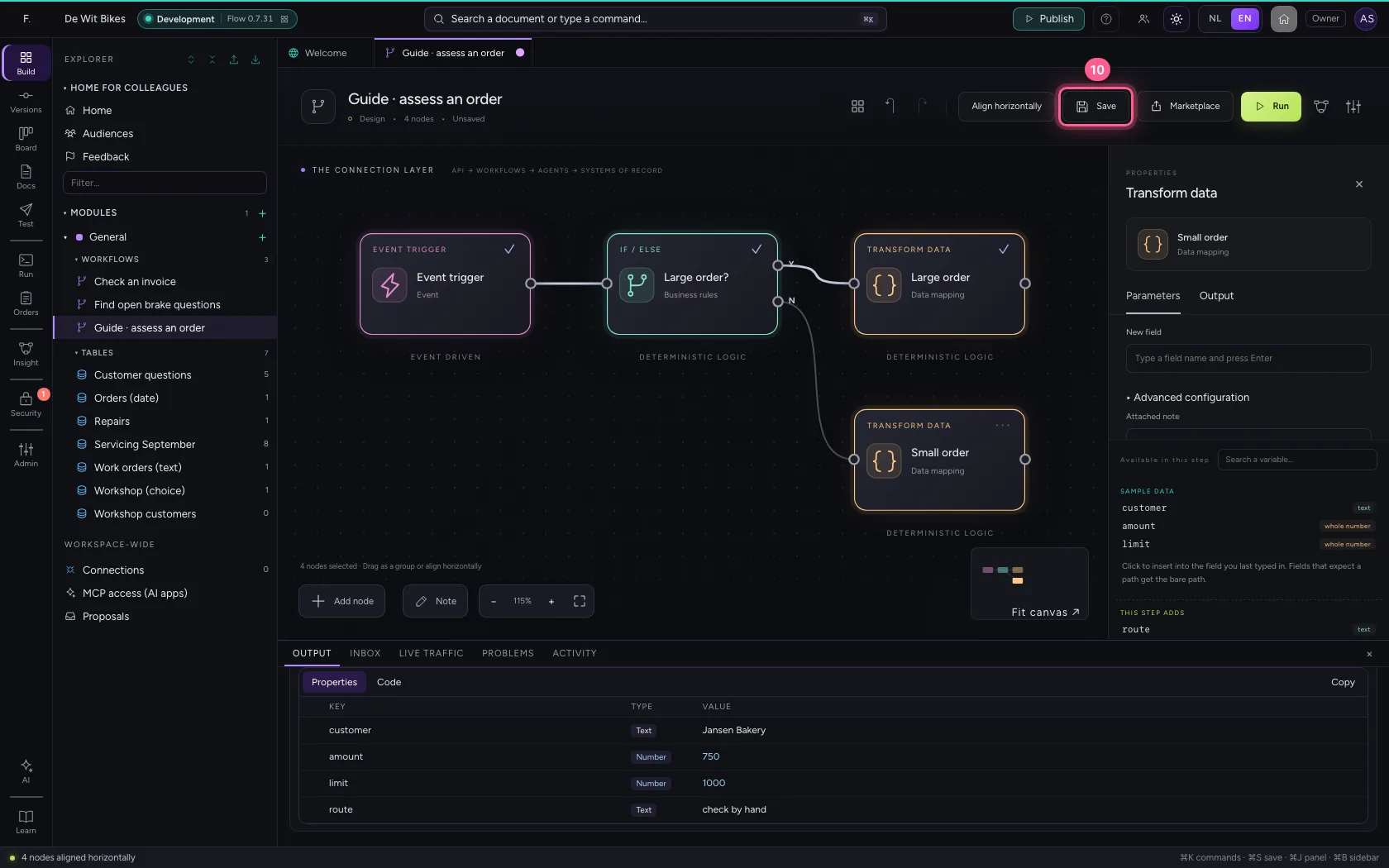
Select the steps (click the first, the rest with Shift), click Align horizontally, Fit to view and Save. Then press Esc: with no step selected, the properties panel shows the workflow in plain language. That is how you check it does what you mean.
- Click ‘Event trigger’
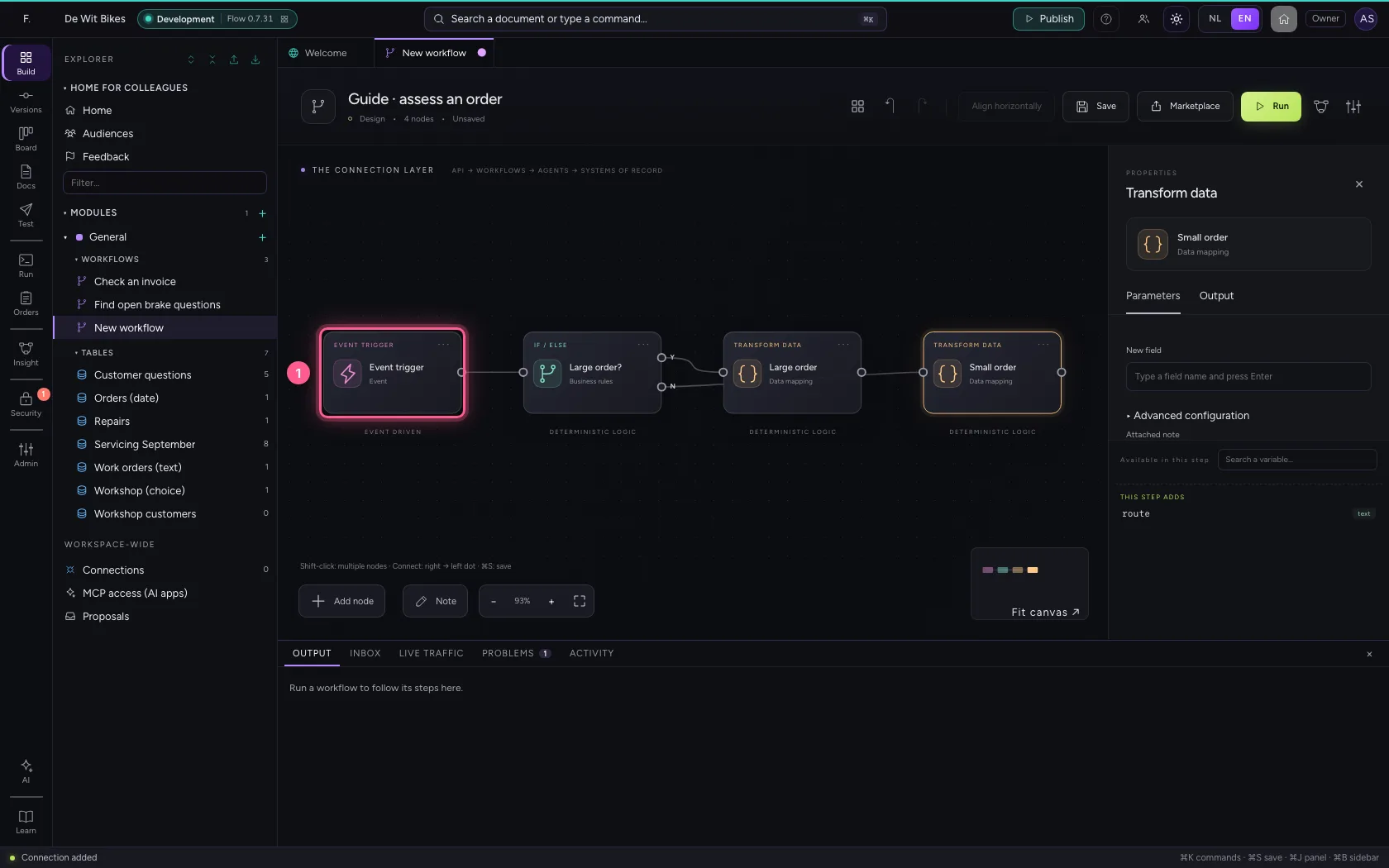
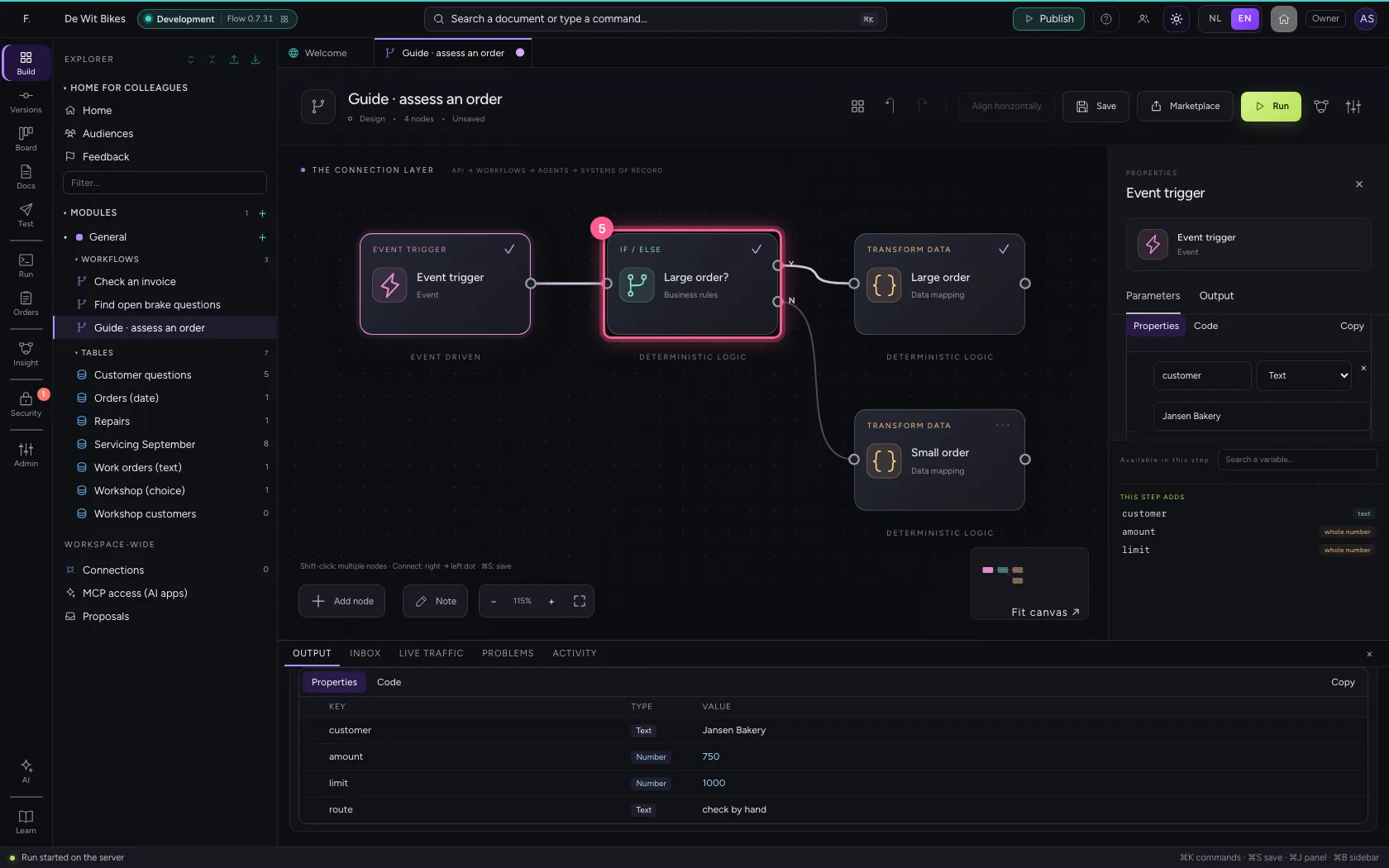
- Click ‘Large order?’ while holding Shift
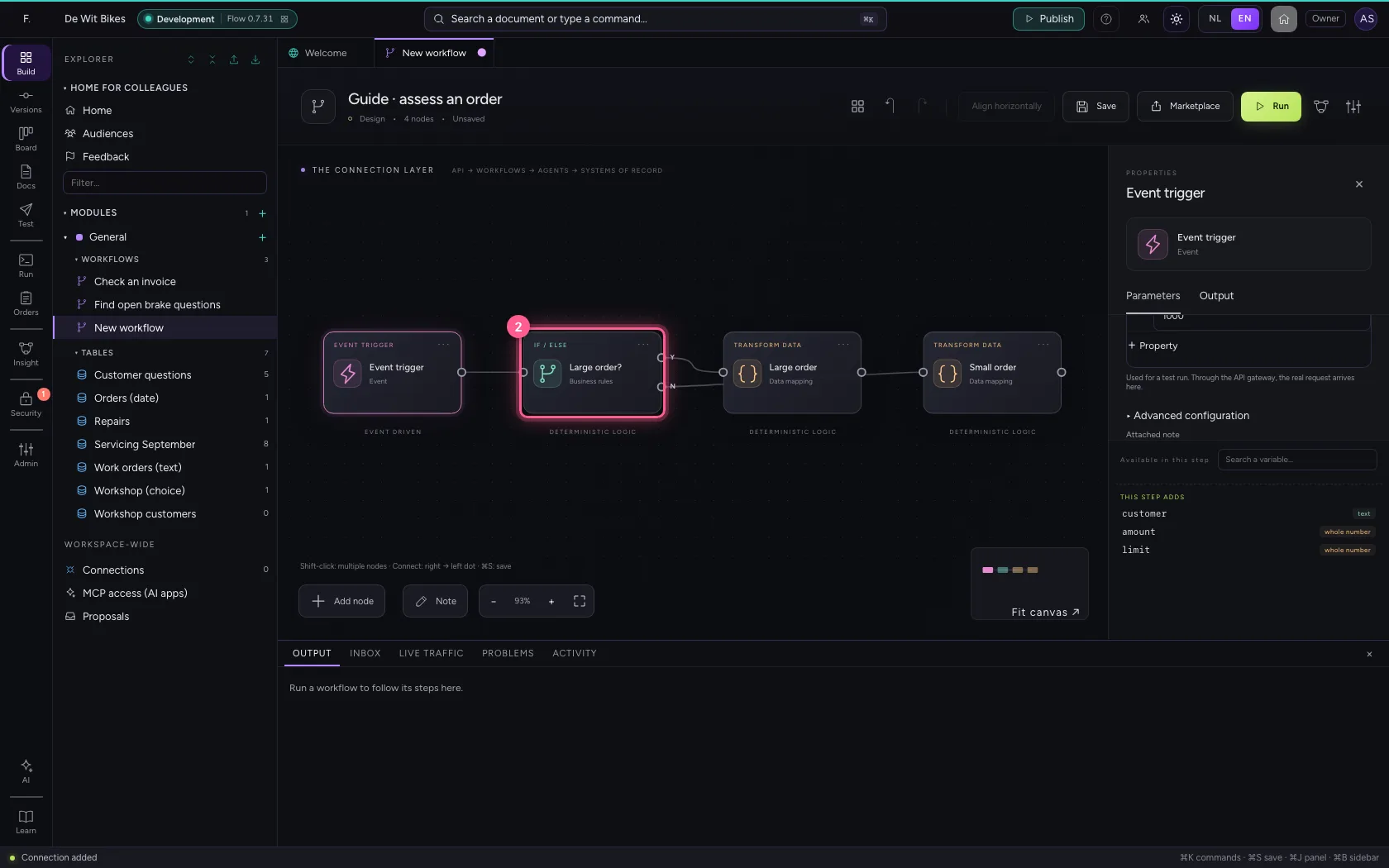
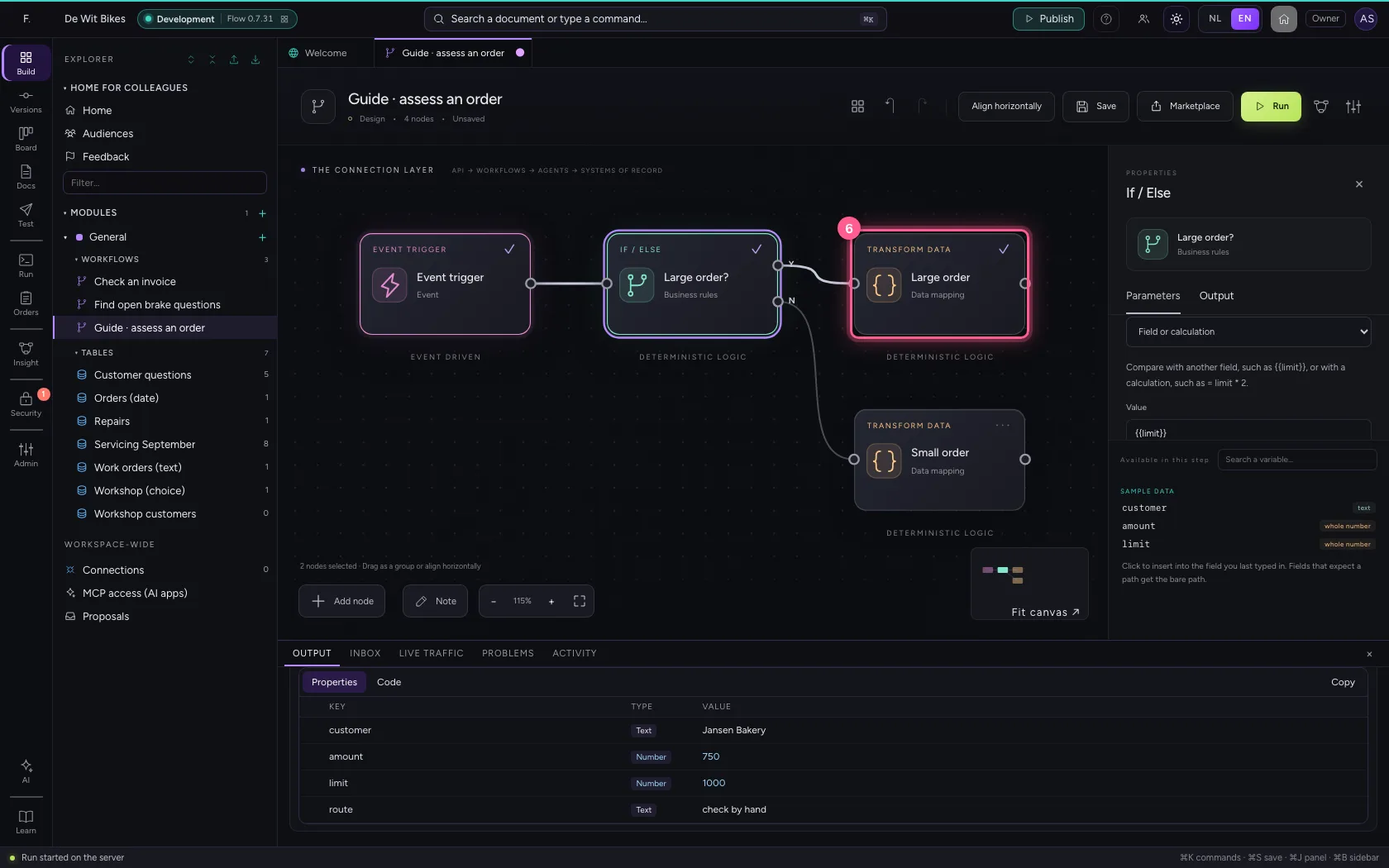
- Click ‘Large order’ while holding Shift
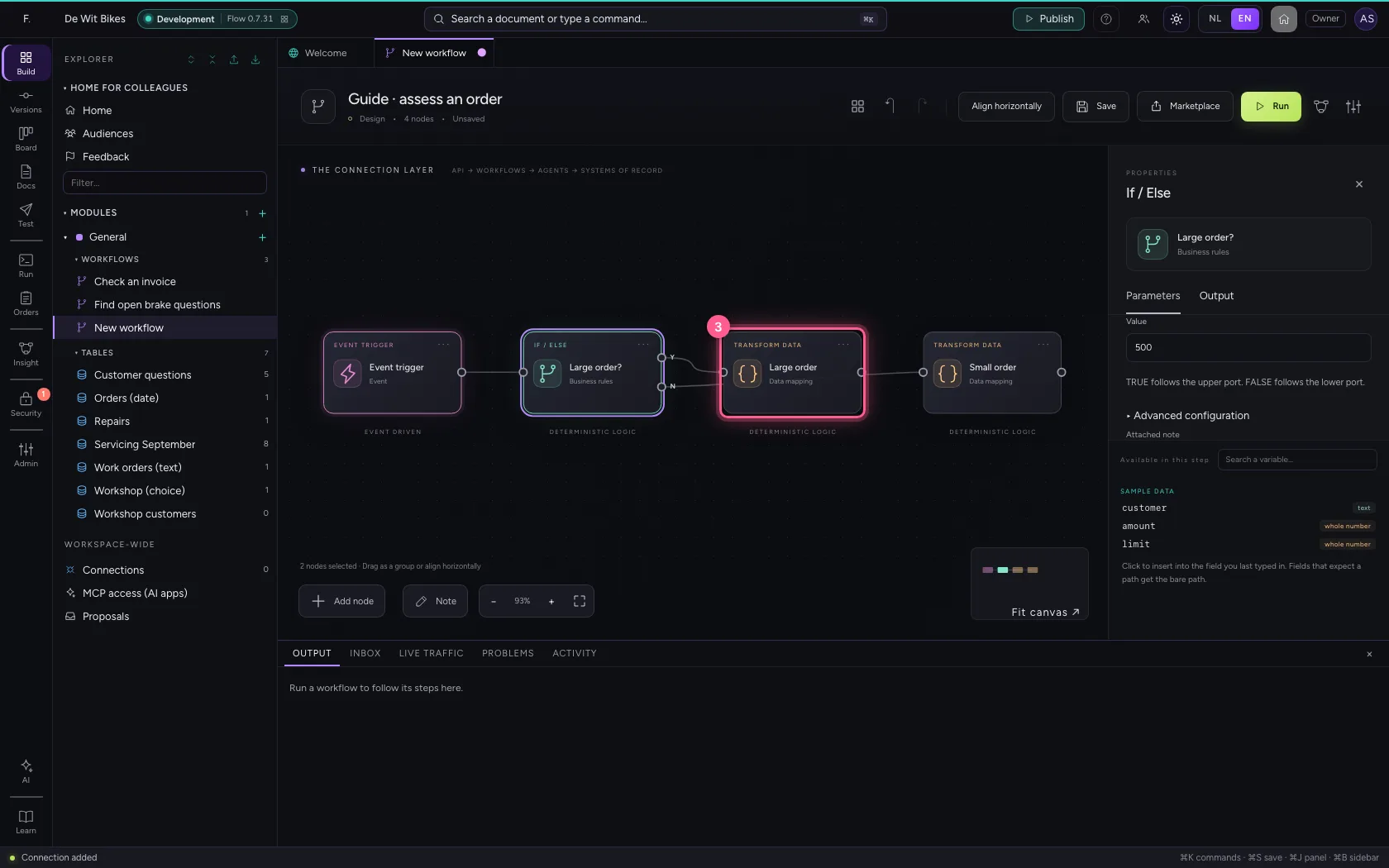
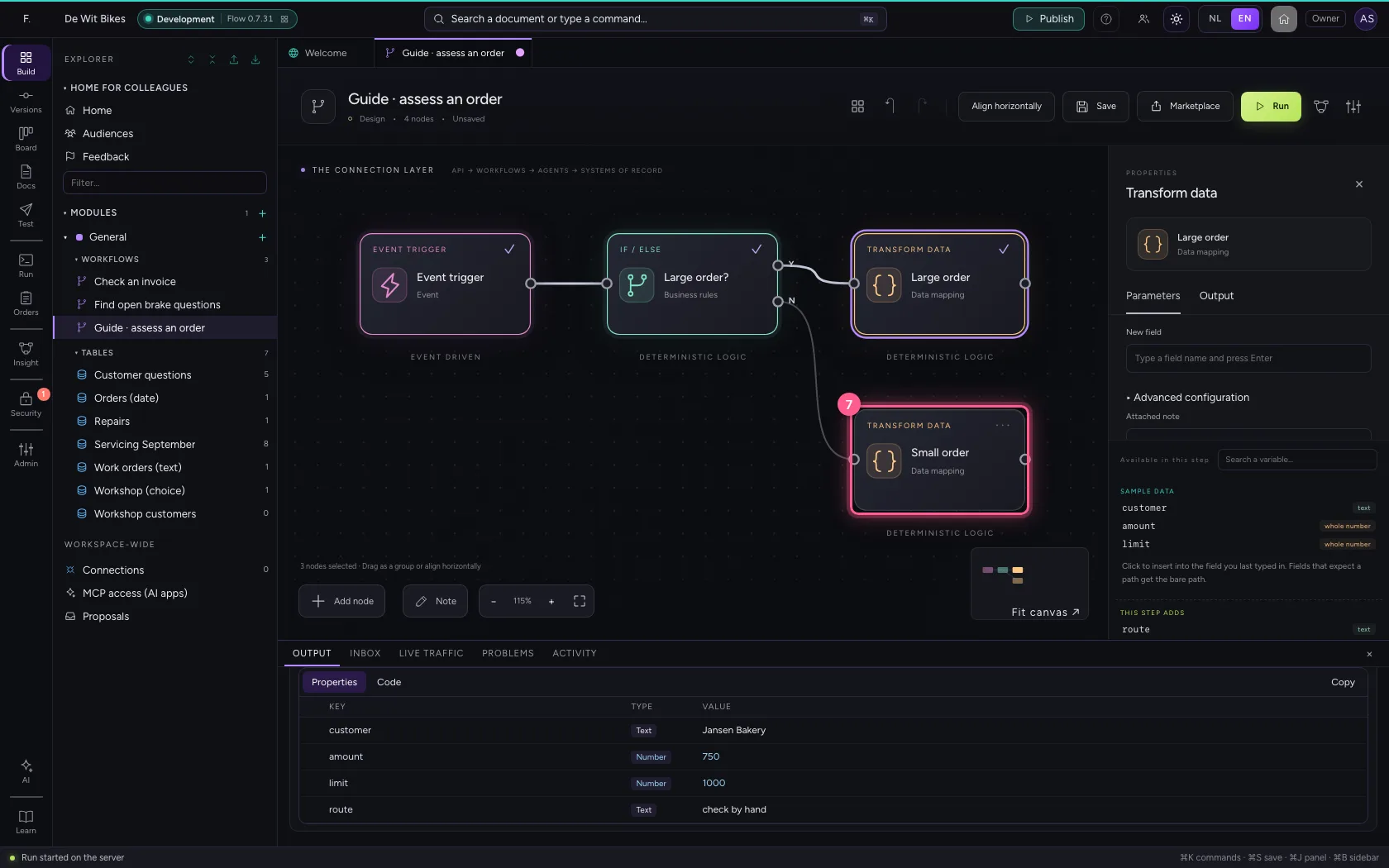
- Click ‘Small order’ while holding Shift
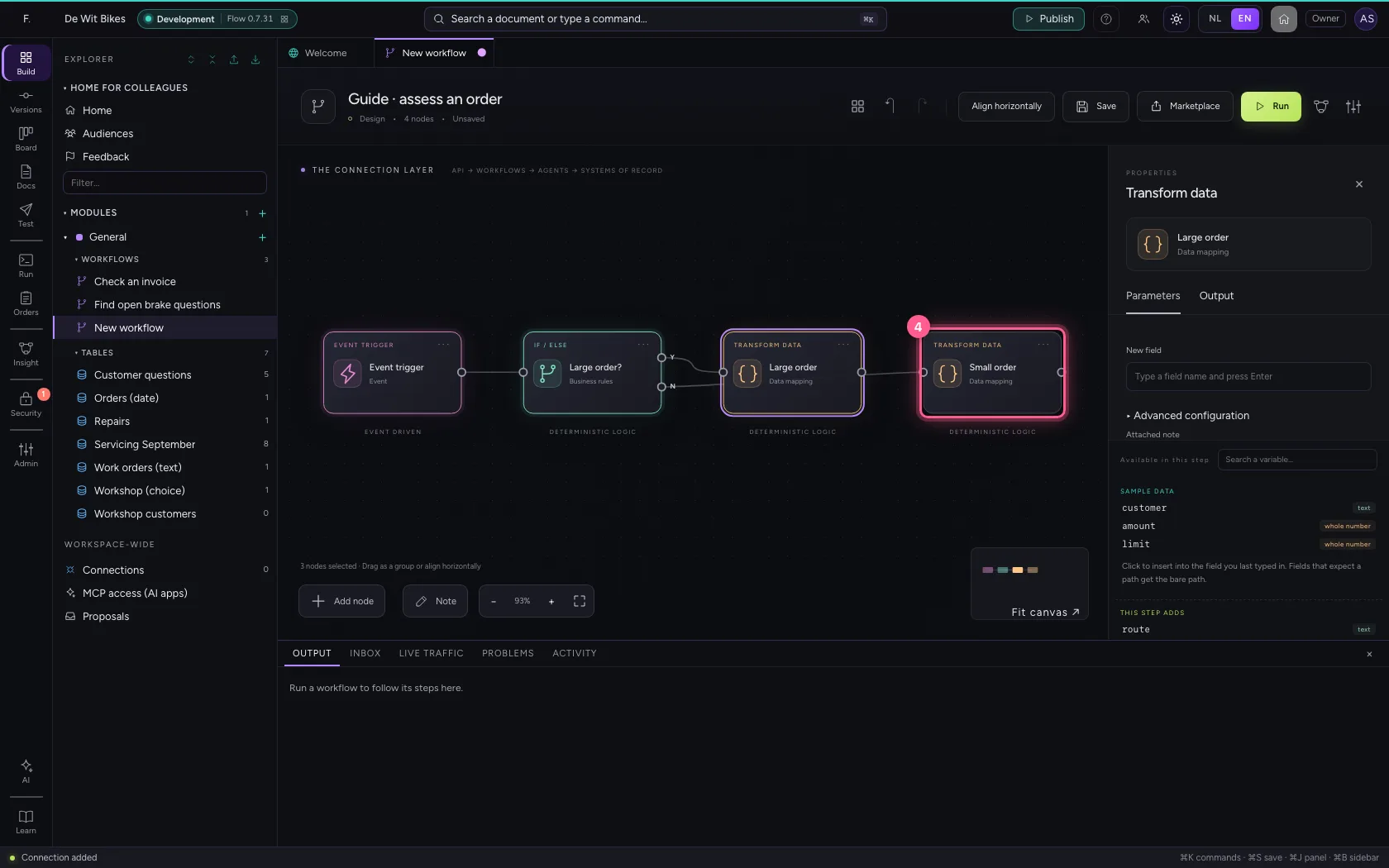
- Click Align horizontally
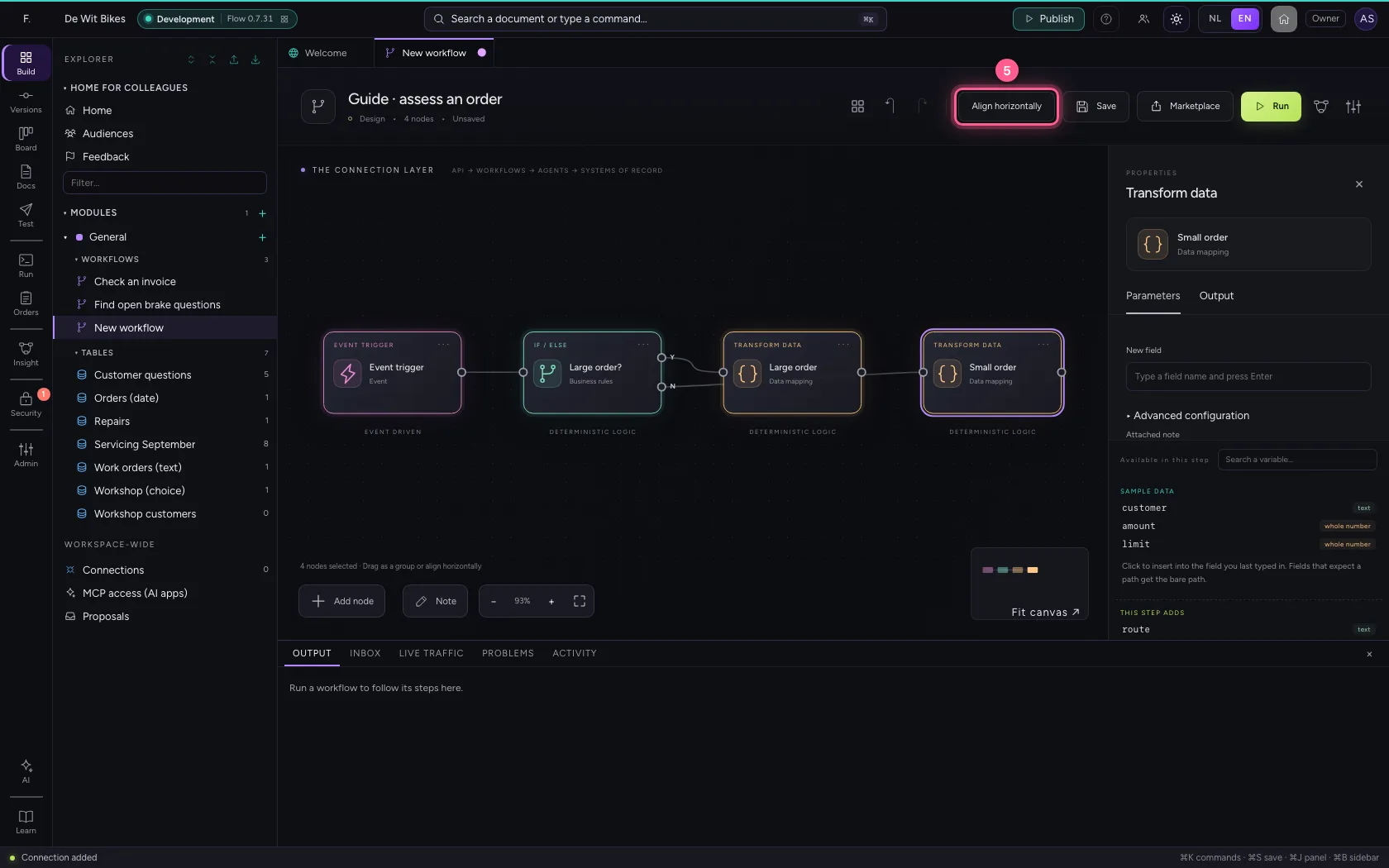
- Click Fit to view
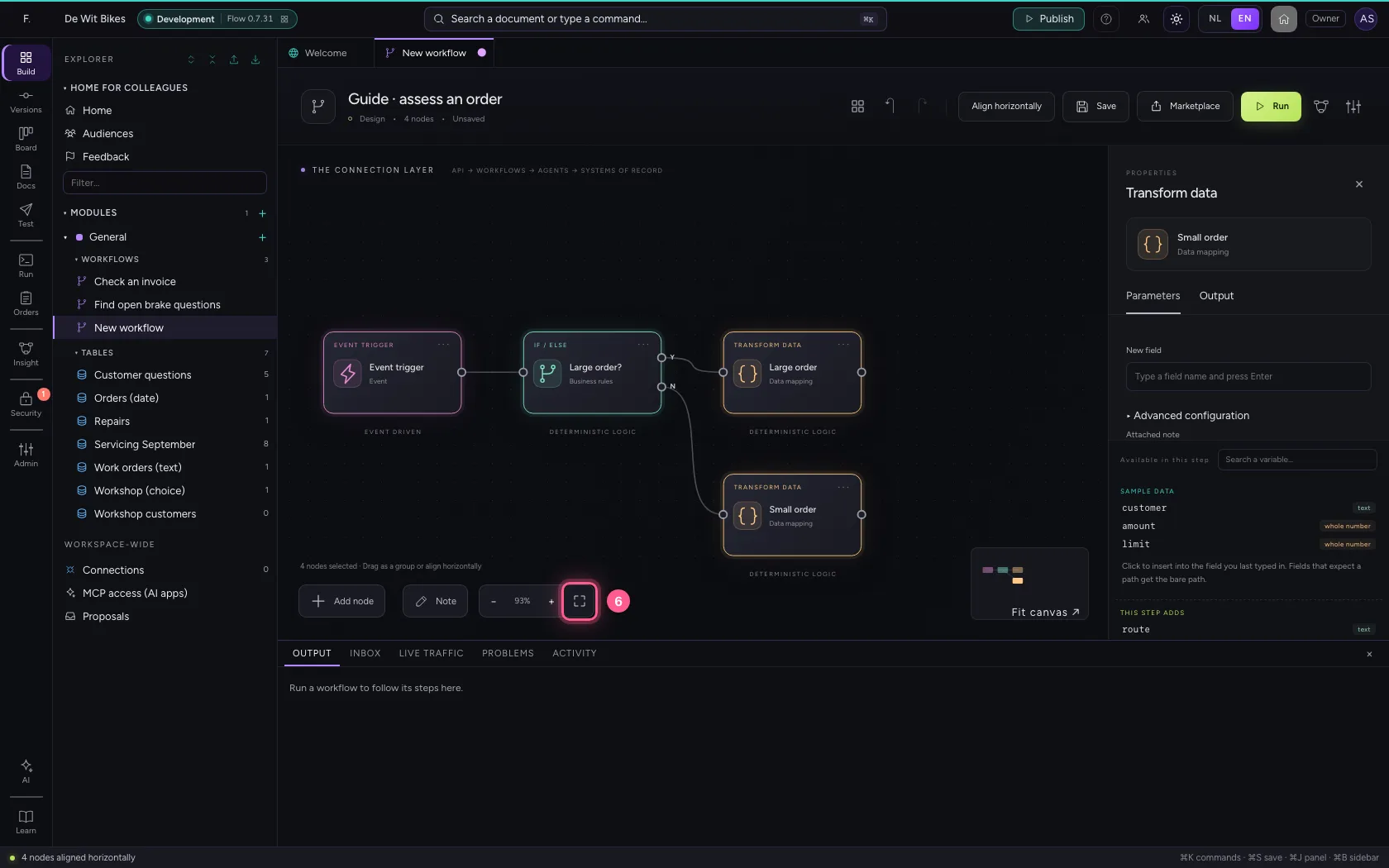
- Click Save
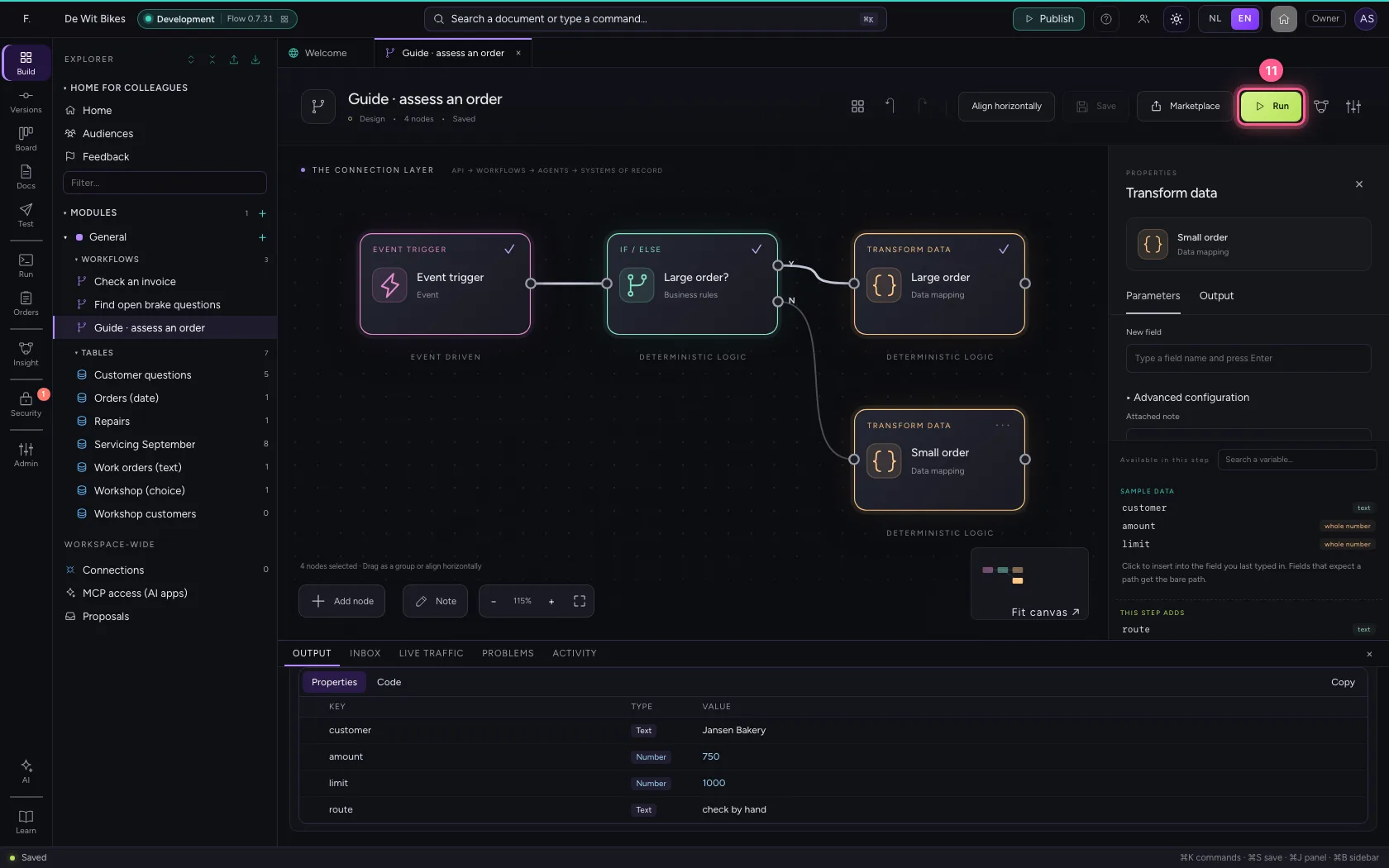
Run
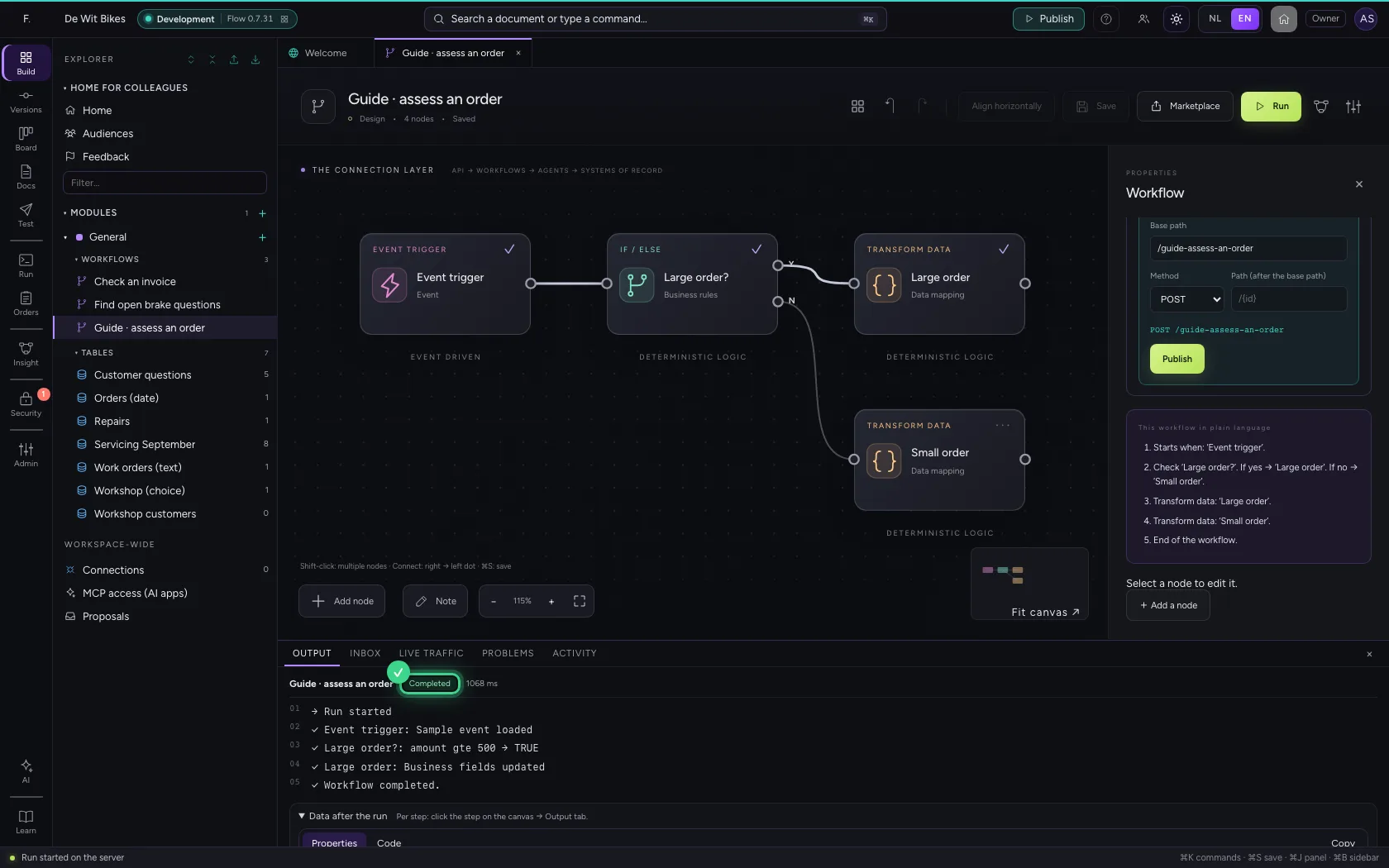
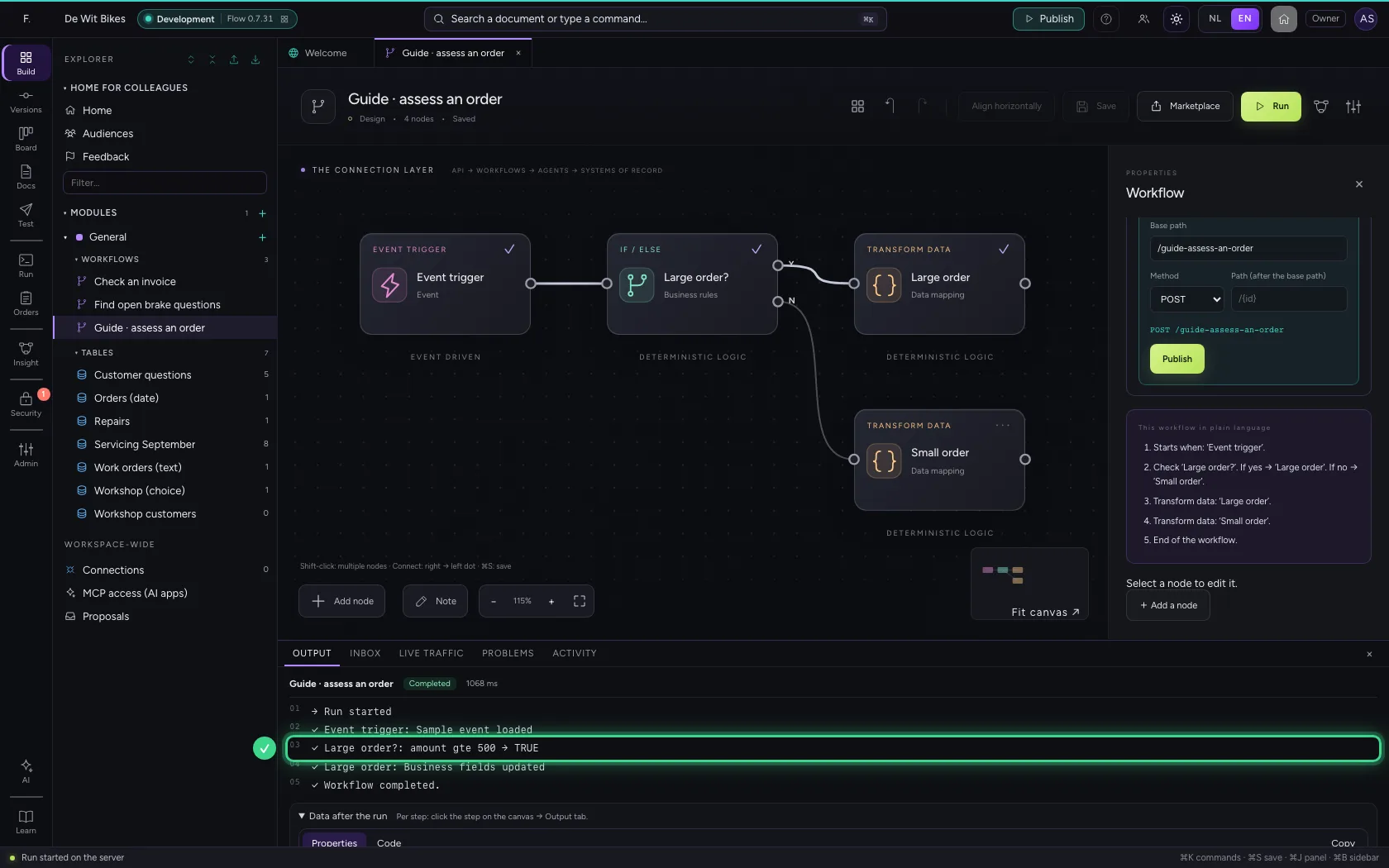
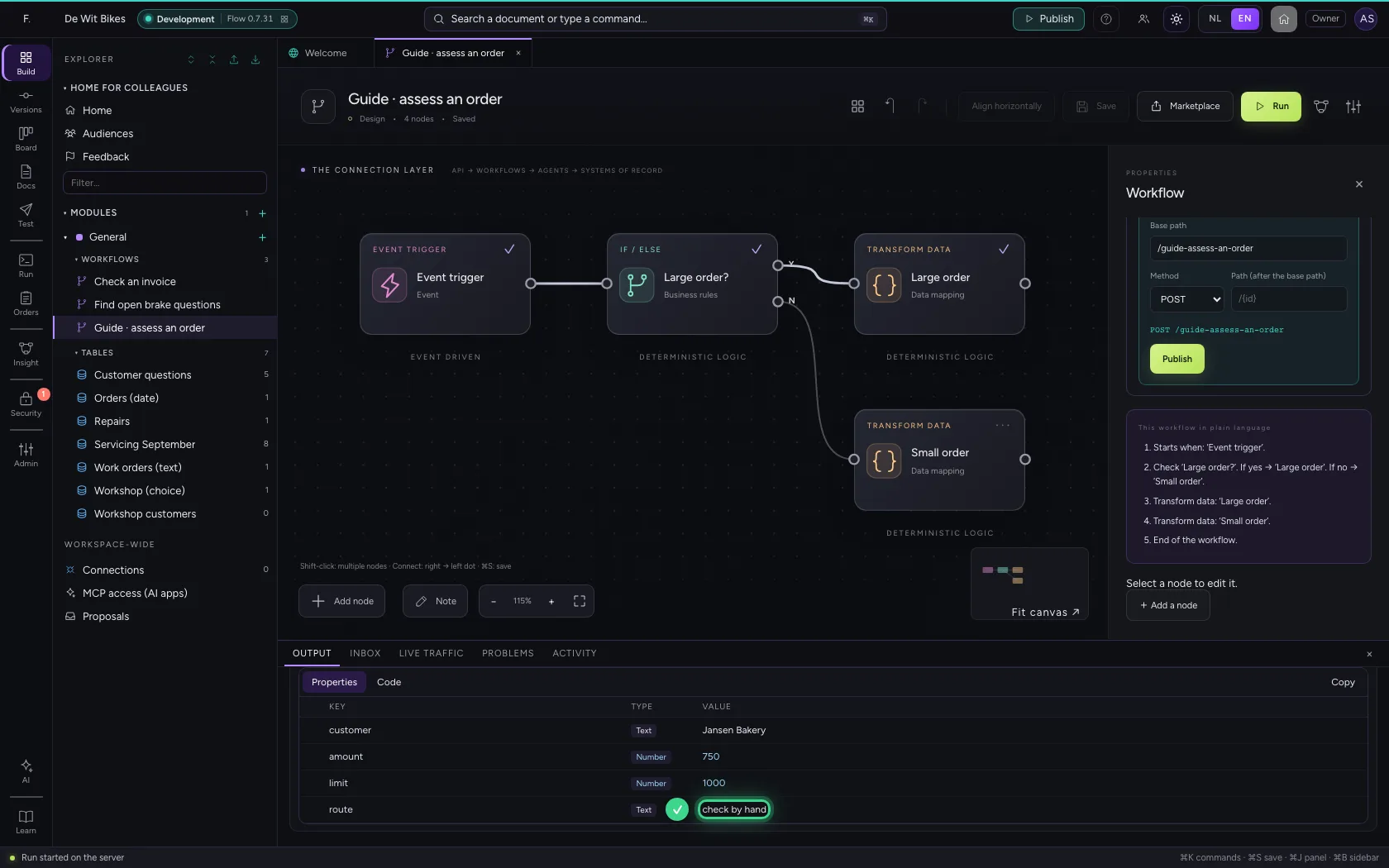
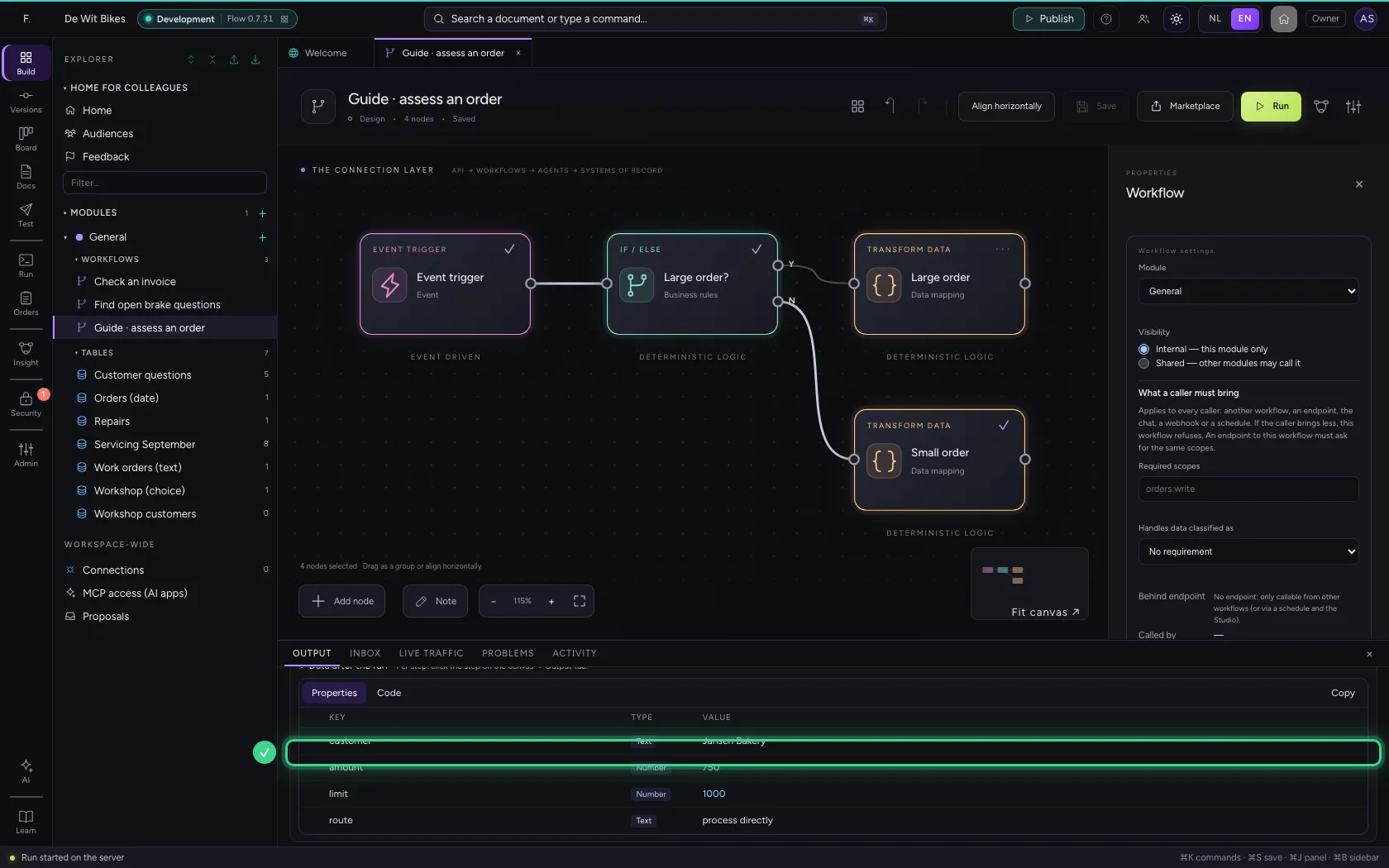
At the bottom you see which way the rule went: amount gte 500 → TRUE. Only the step on the Yes side ran; the other one was skipped.
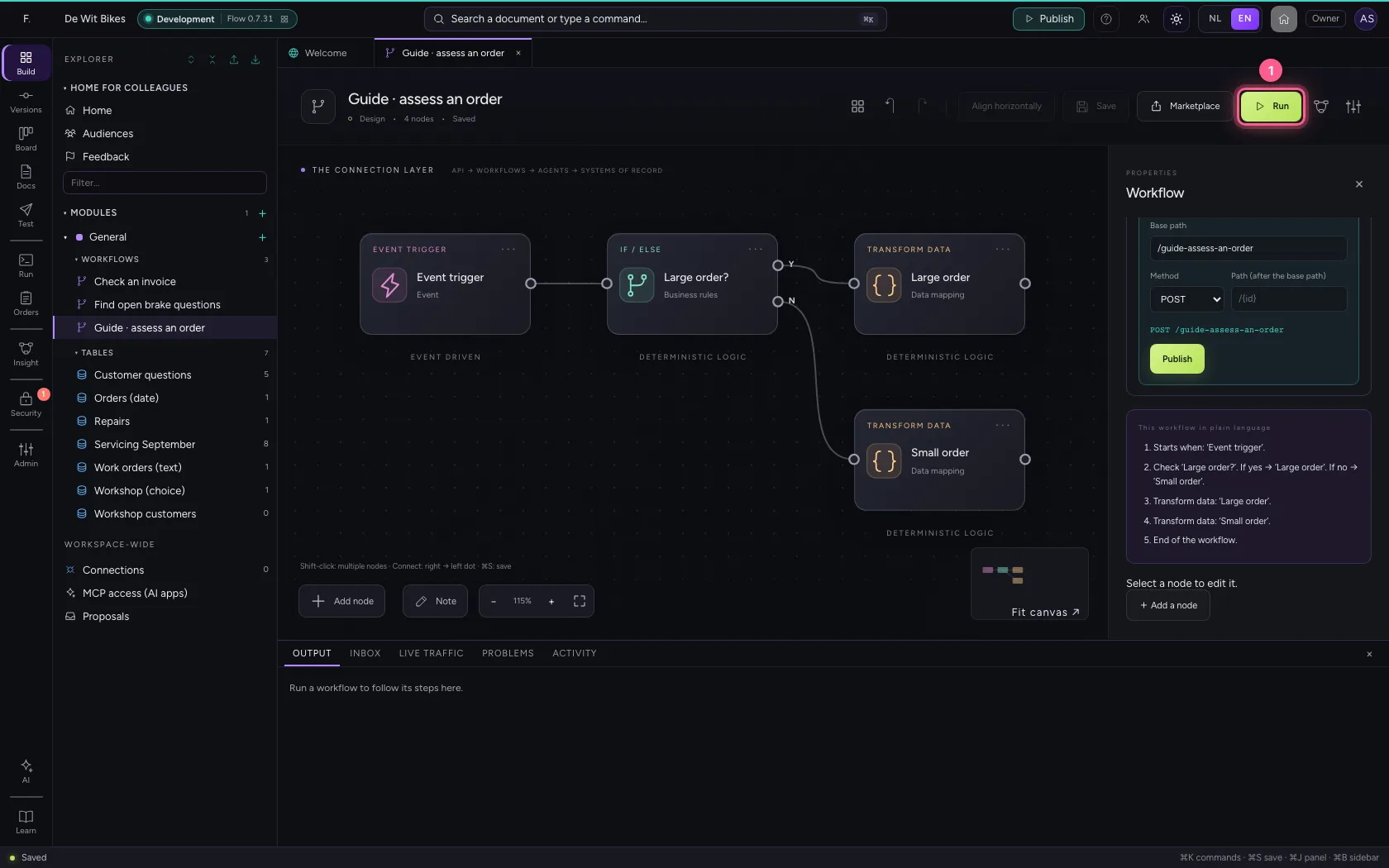
- Click Run
Compare with another field
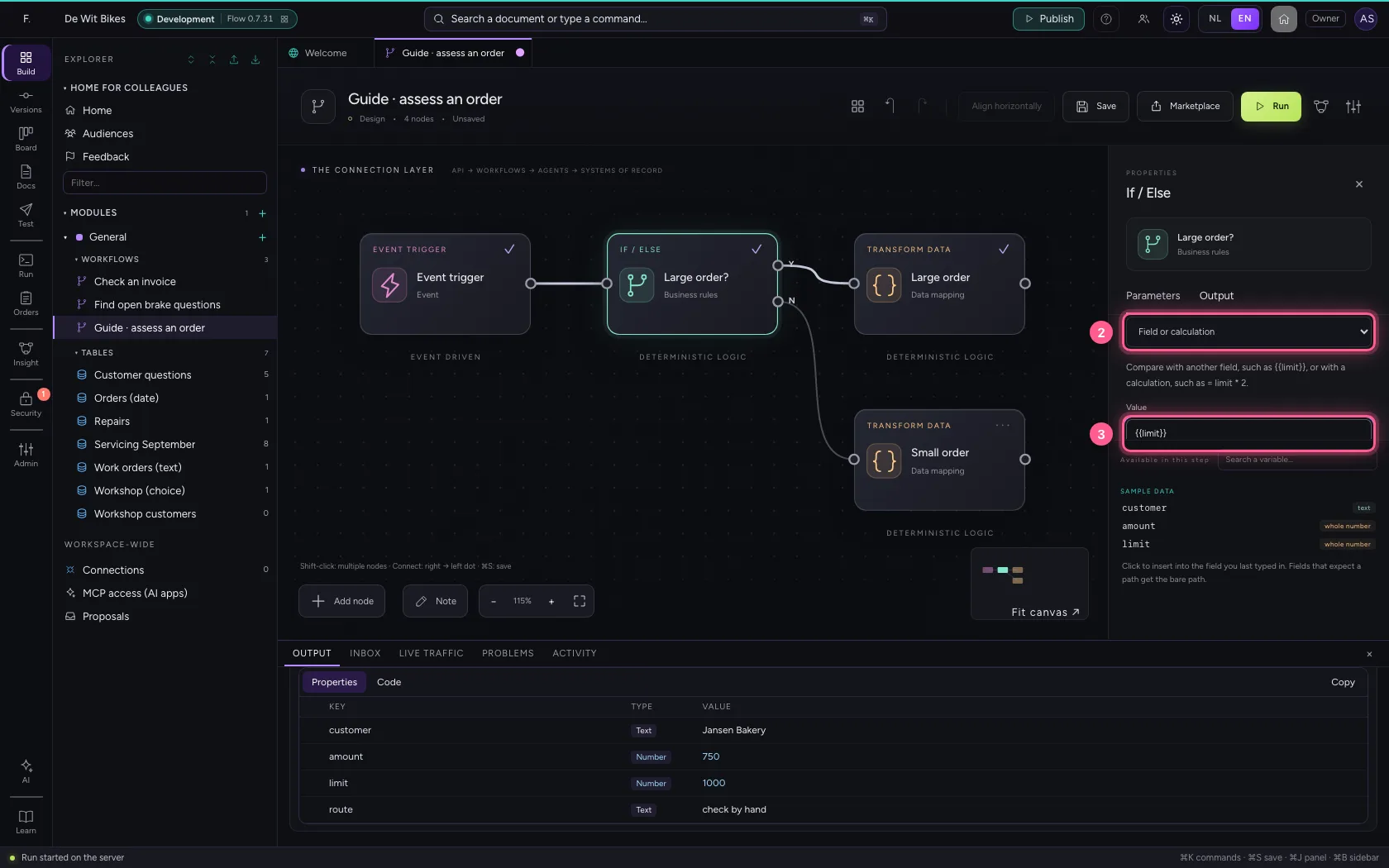
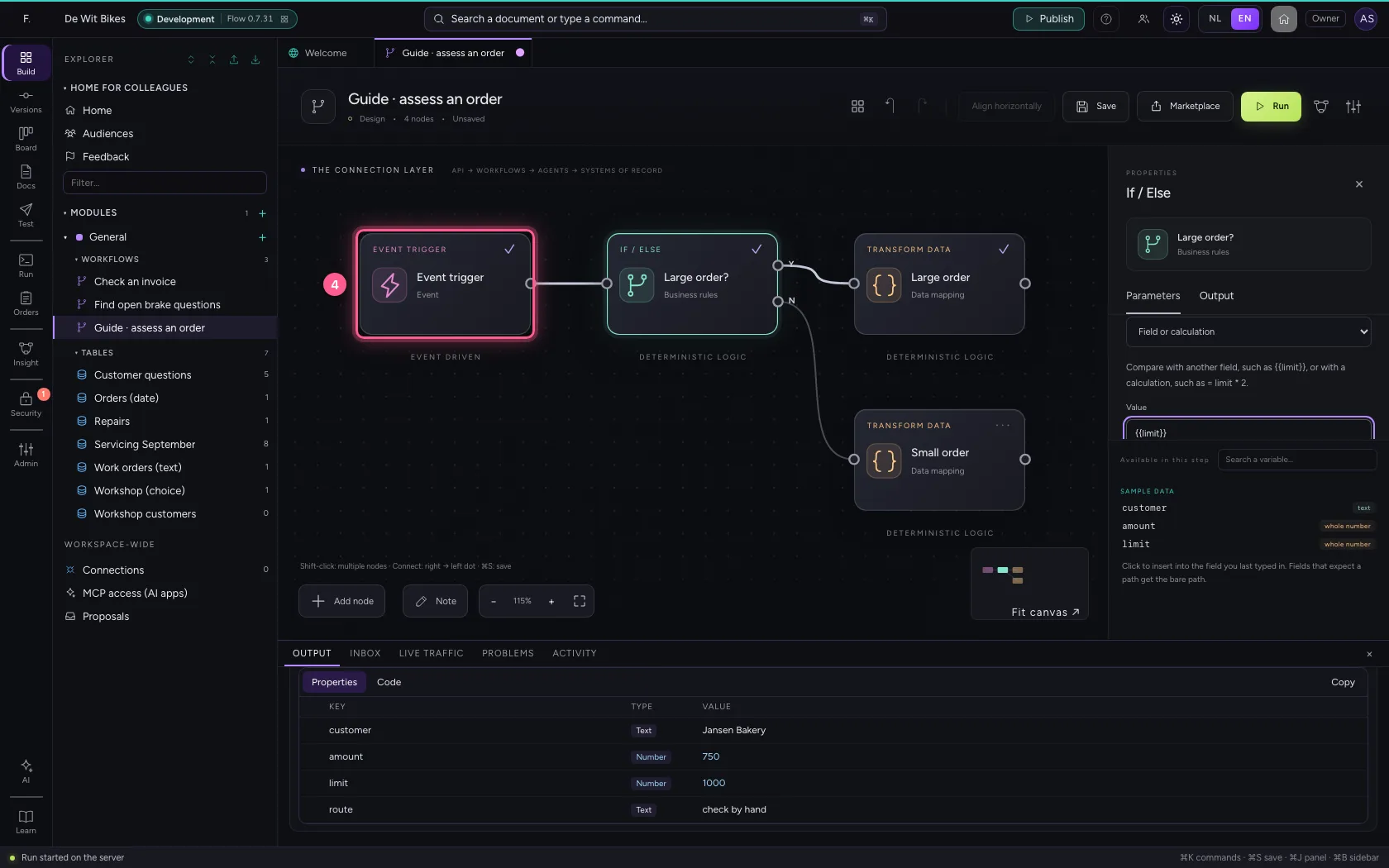
A fixed limit of 500 does not always fit: sometimes the limit is in the data itself (per customer, per department). Click the rule and choose Field or calculation as the value type. Type {{limit}}: the rule then compares with the field limit (1000) instead of a fixed value. A calculation works too, such as = limit * 2. Run again: 750 is not greater than 1000, so now the order goes the No way.
- Click the step ‘Large order?’
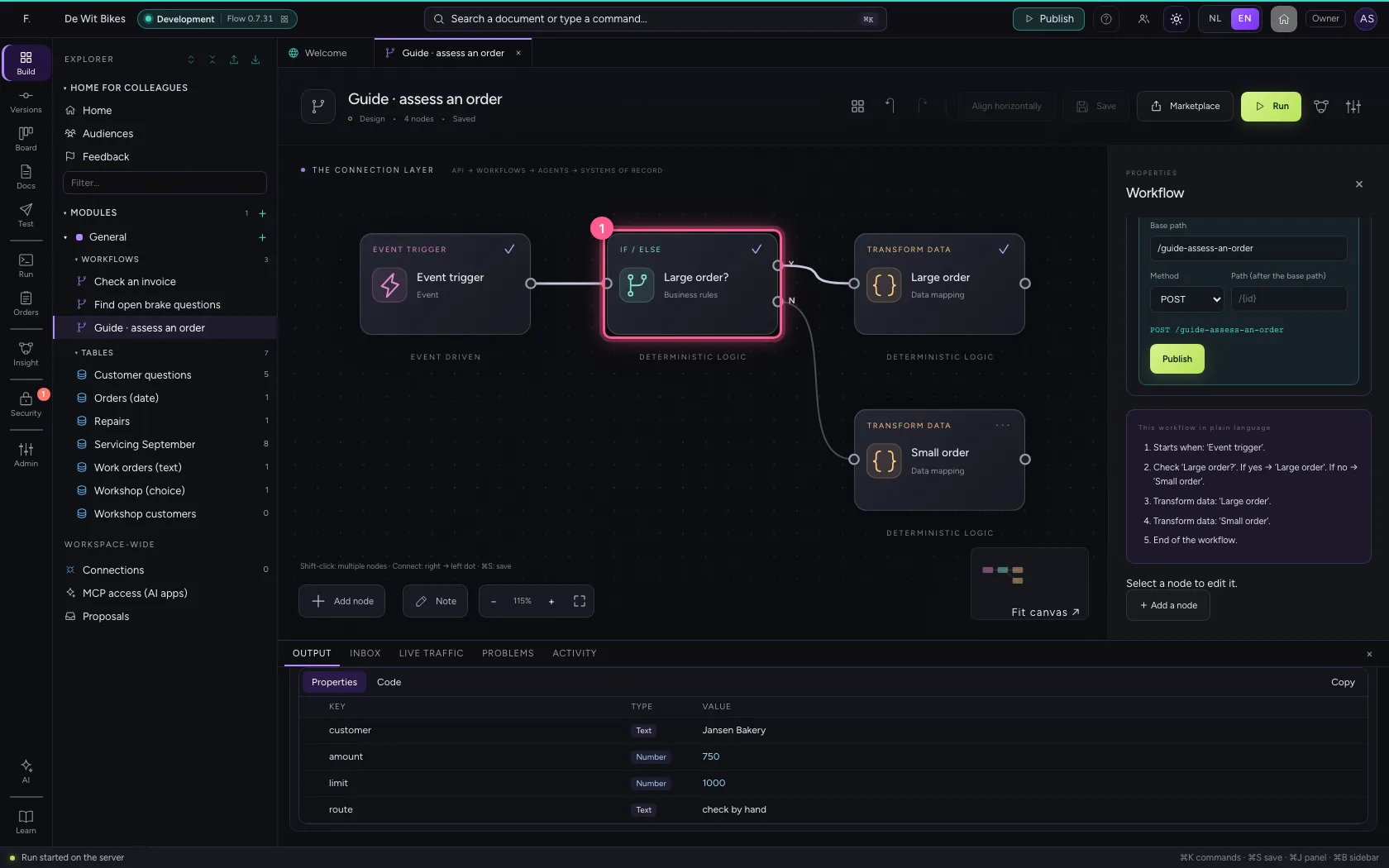
- In Value type Text Number Yes / no Field or calculation, choose Field or calculation
- In Value, type
{{limit}}
- Click ‘Event trigger’
- Click ‘Large order?’ while holding Shift
- Click ‘Large order’ while holding Shift
- Click ‘Small order’ while holding Shift
- Click Align horizontally
- Click Fit to view
- Click Save
- Click Run
This guide was carried out step by step on 22 Oct 2026 by an automated test on Flow (version 3e563176).