Schedule (cron): a workflow at fixed times
Not every workflow waits for a request. A weekly overview on Monday morning, a check every quarter of an hour, a clean-up every night: for that you start the workflow with a Schedule instead of an Event trigger. Flow then starts it by itself, at the times you set, even when nobody is signed in.
Open Flow and create a workflow
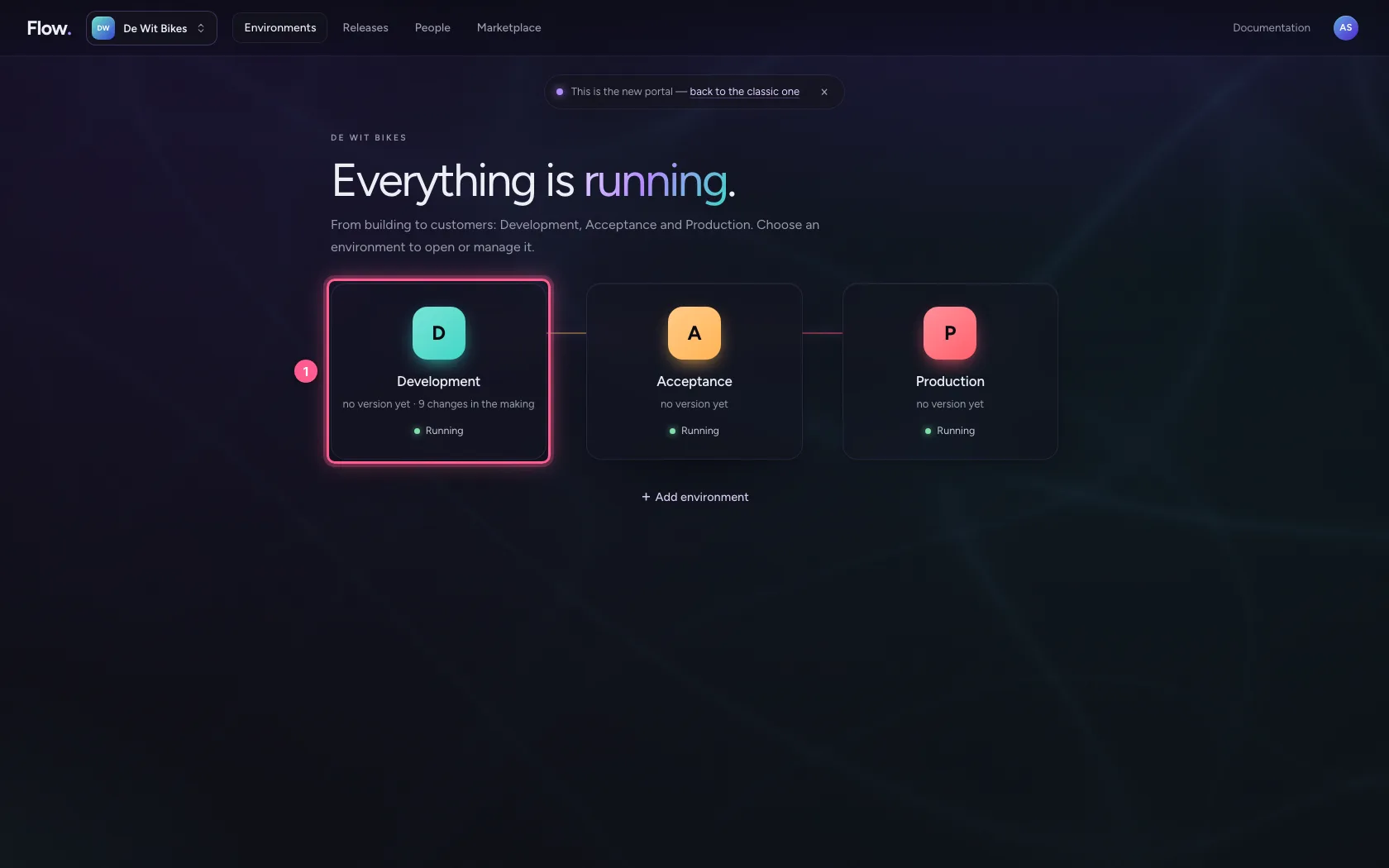
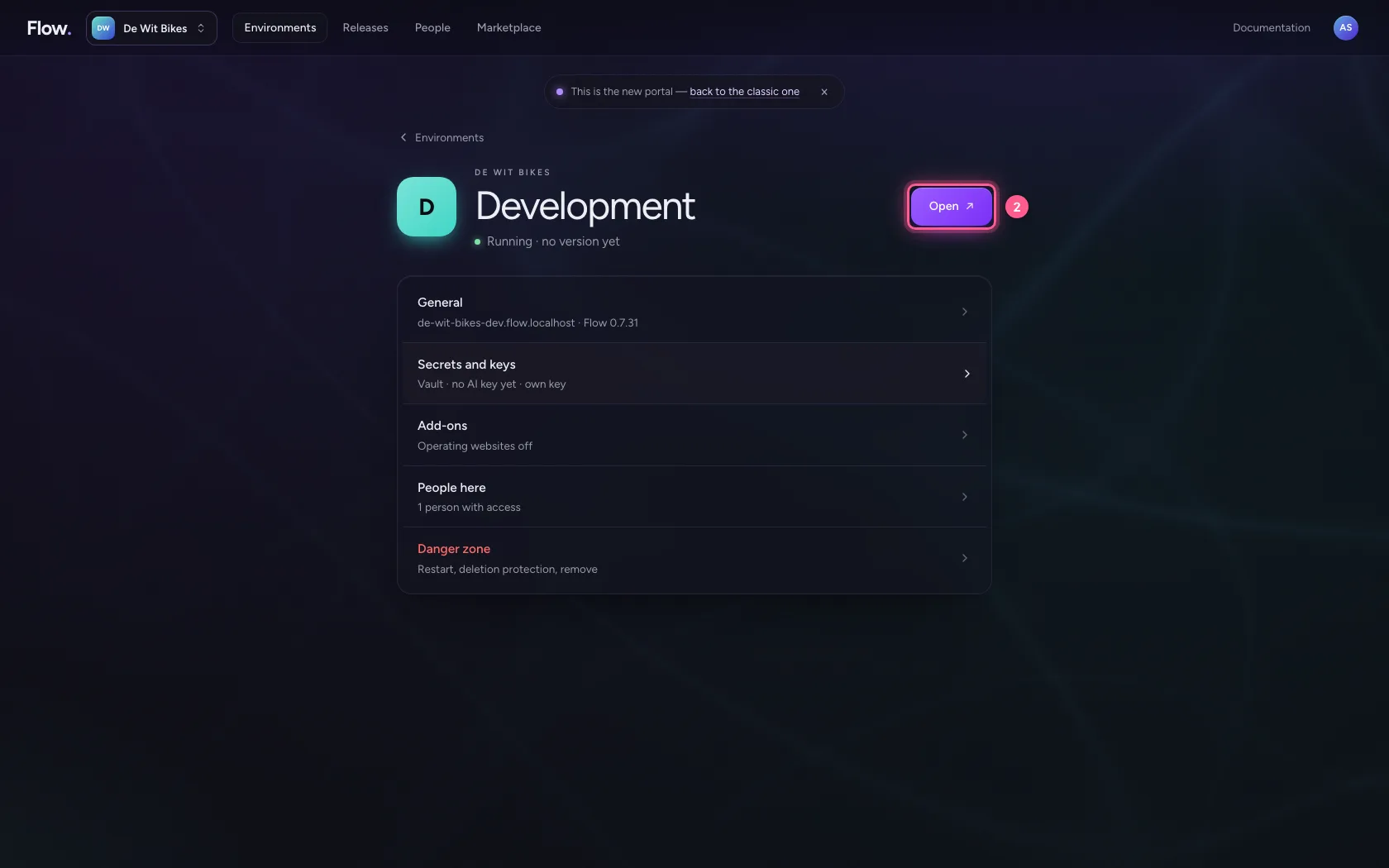
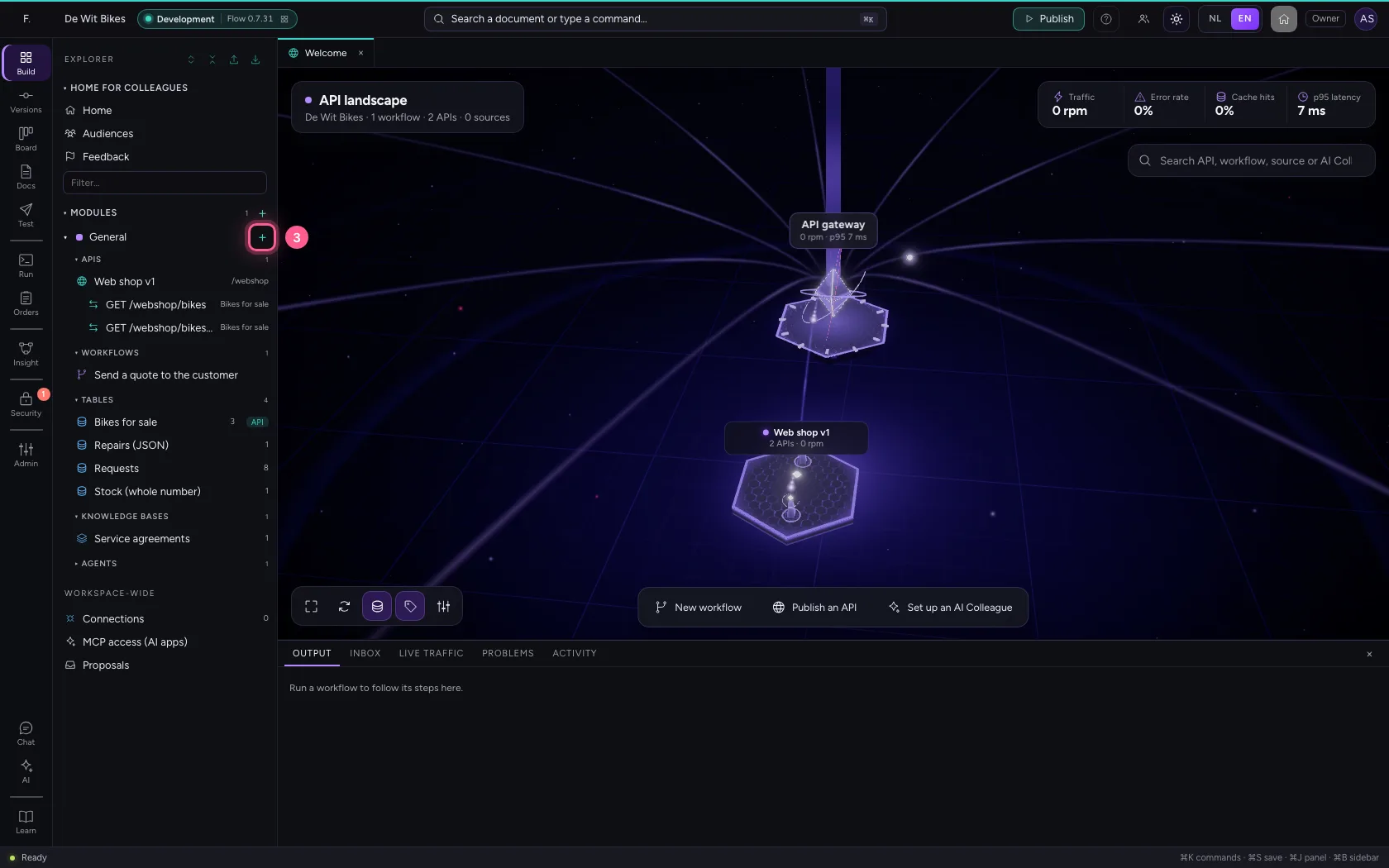
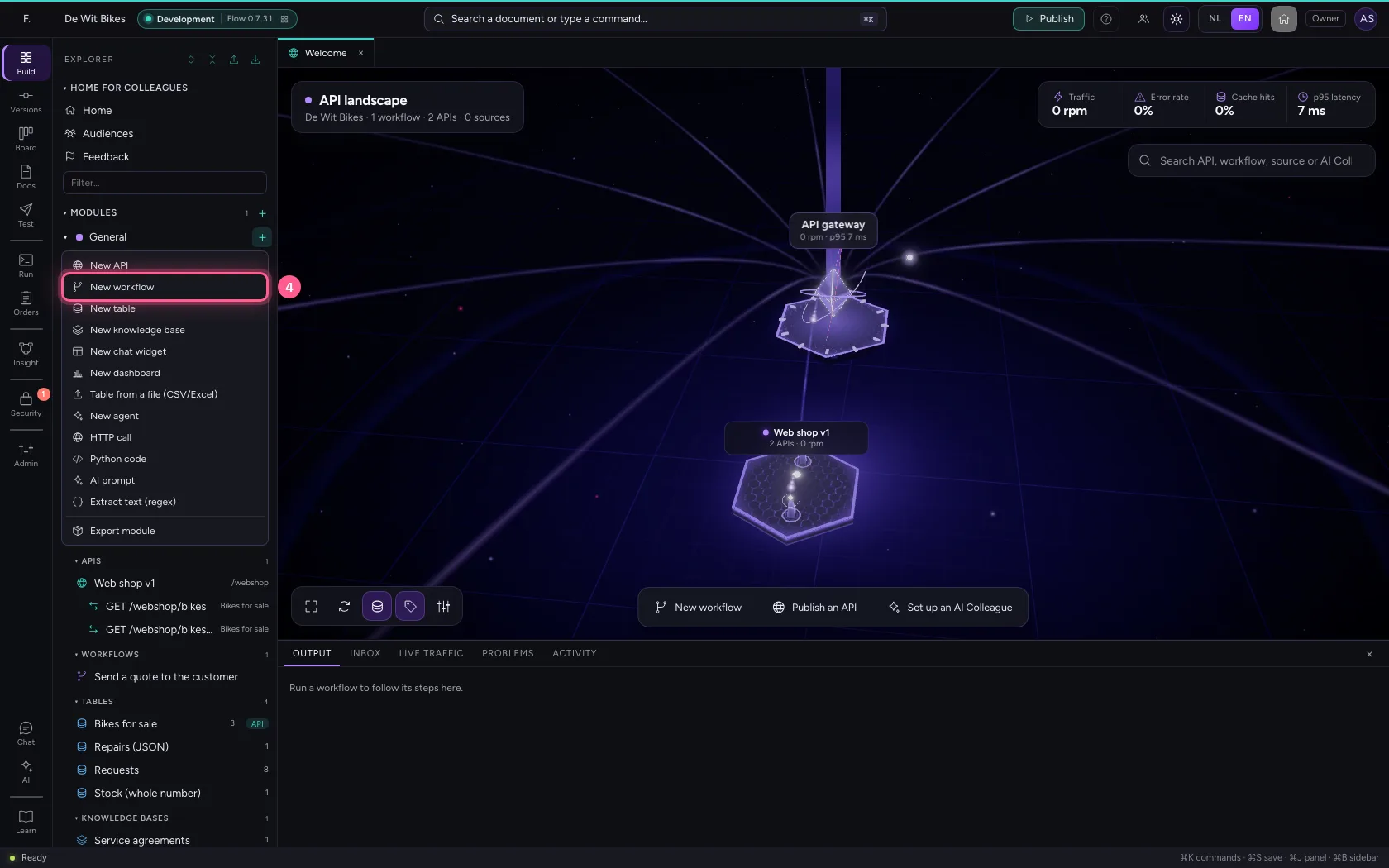
In the portal, under Environments, click Development and there Open; Flow opens in a new tab. There, click + next to General, choose New workflow and give it a name. A new workflow starts with an Event trigger: the point where it begins.
- Click Development
- Click Open ↗
- Click Add to General
- Click New workflow
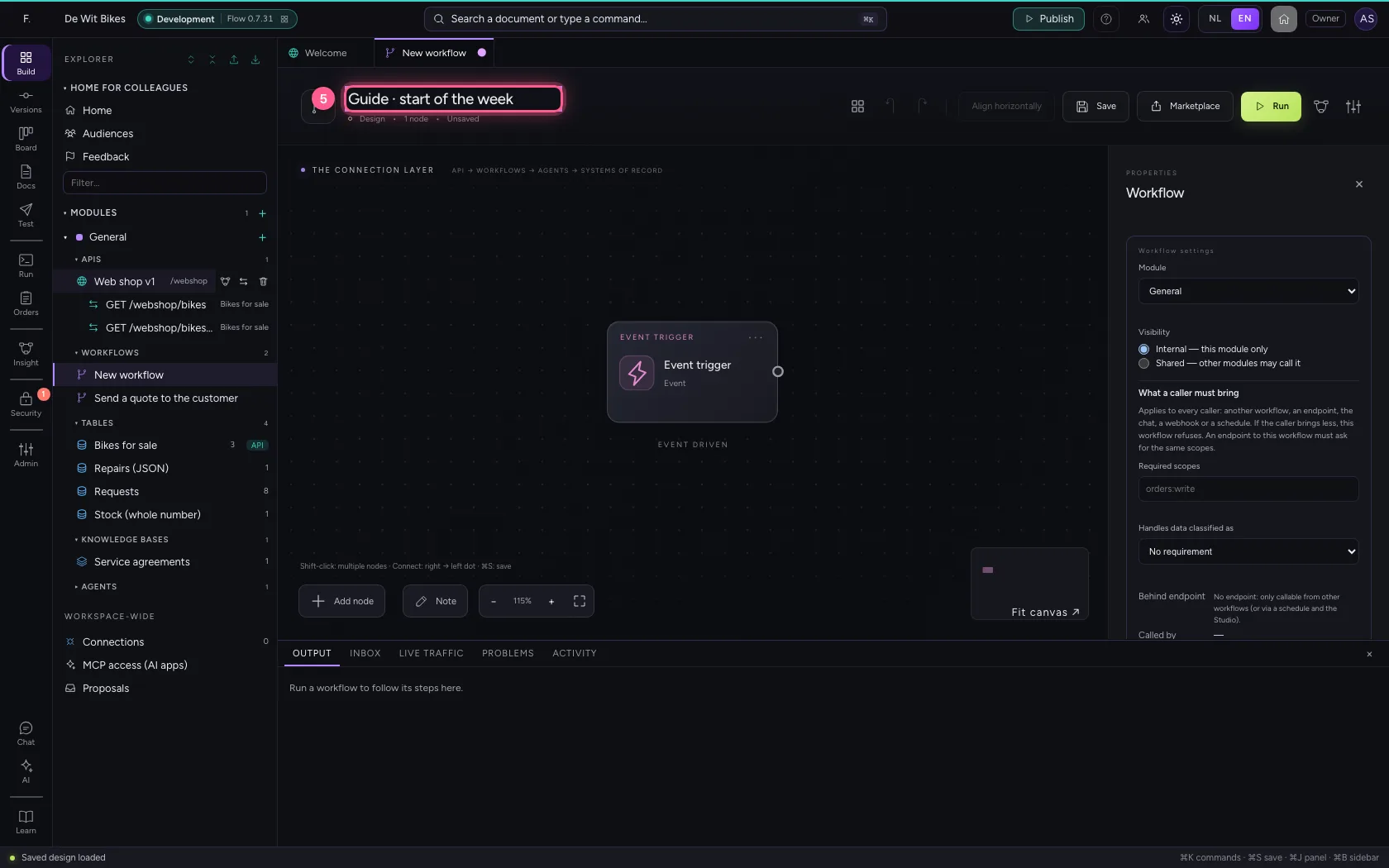
- In Workflow name, type
Guide · start of the week
Replace the trigger with a schedule
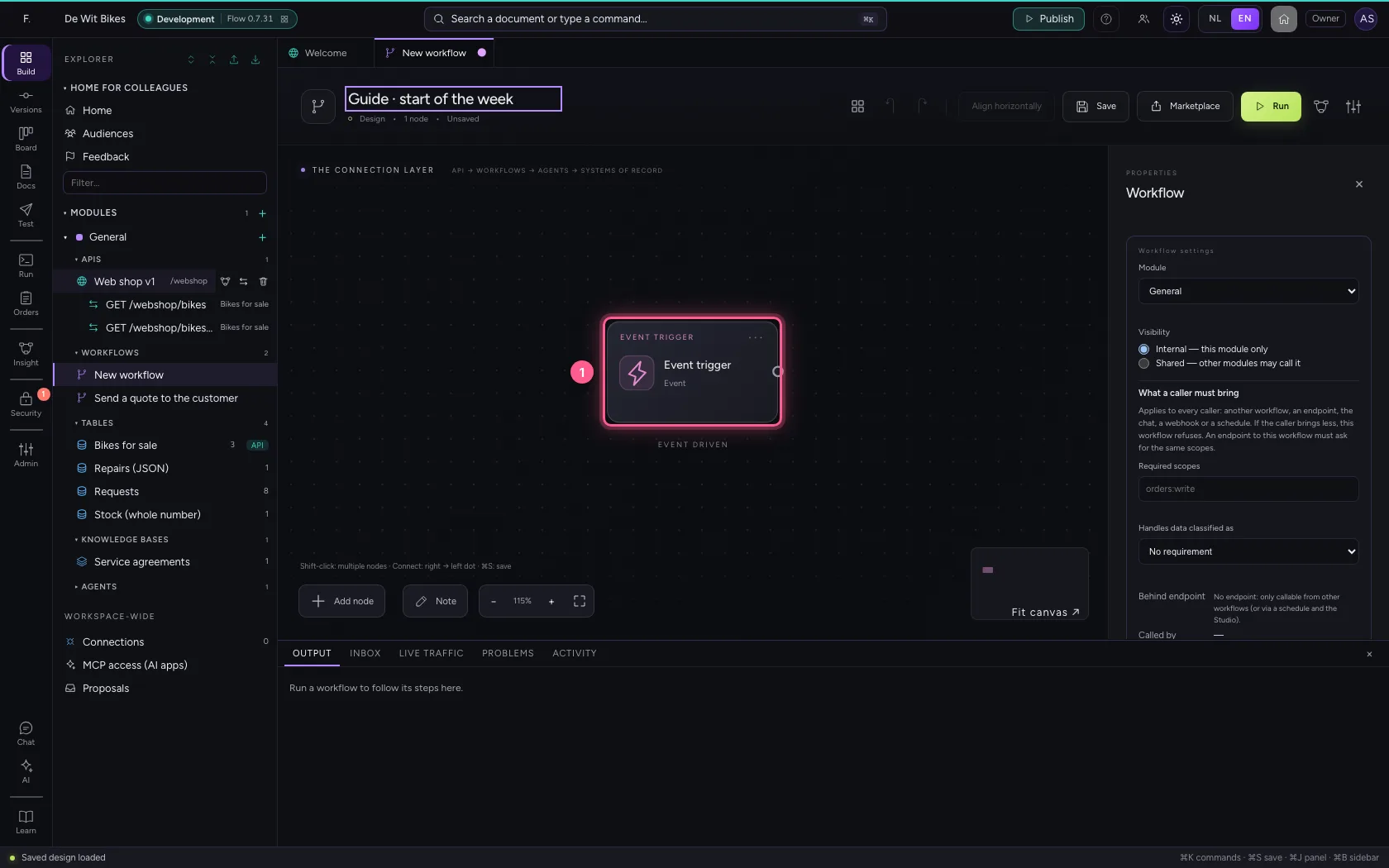
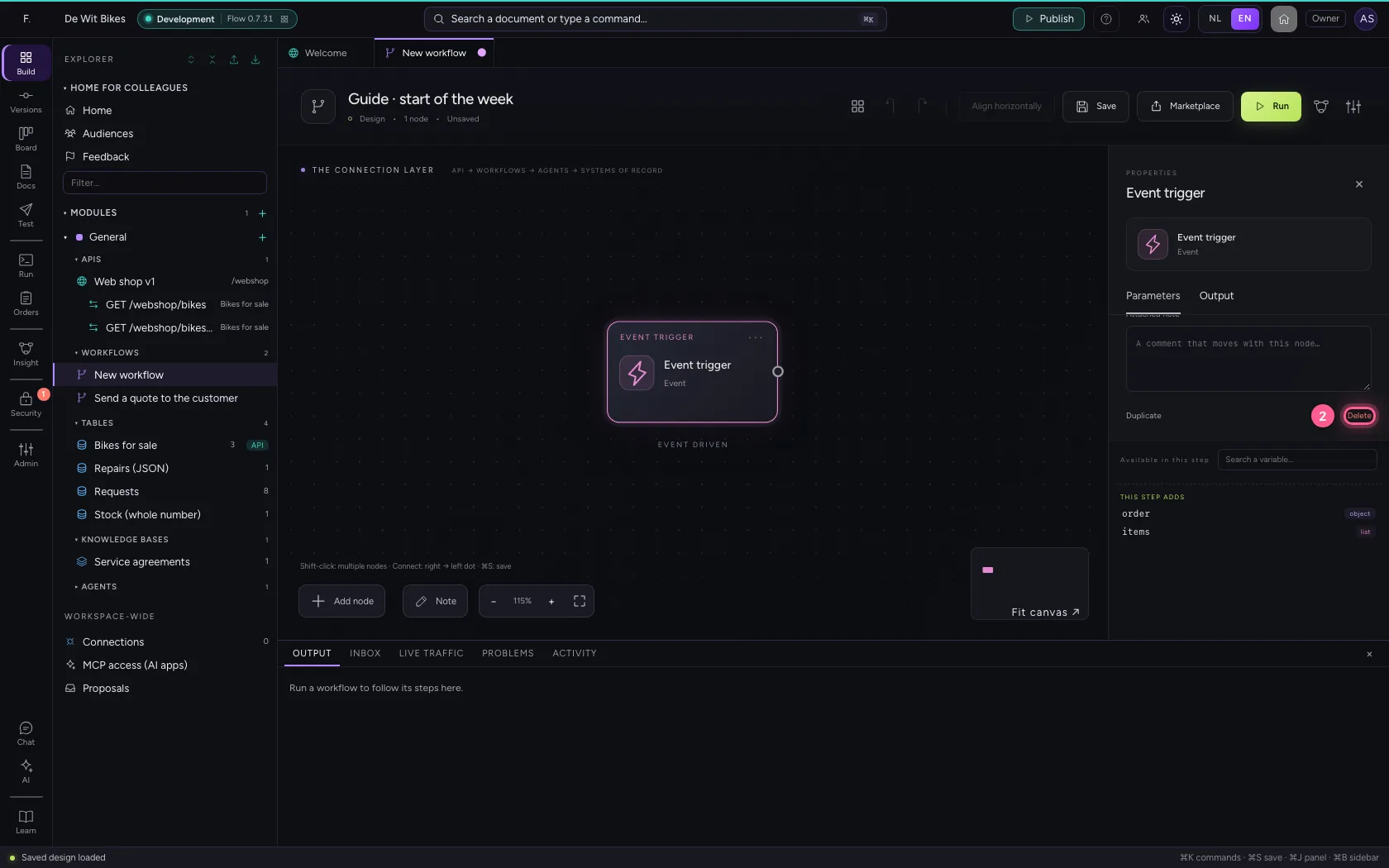
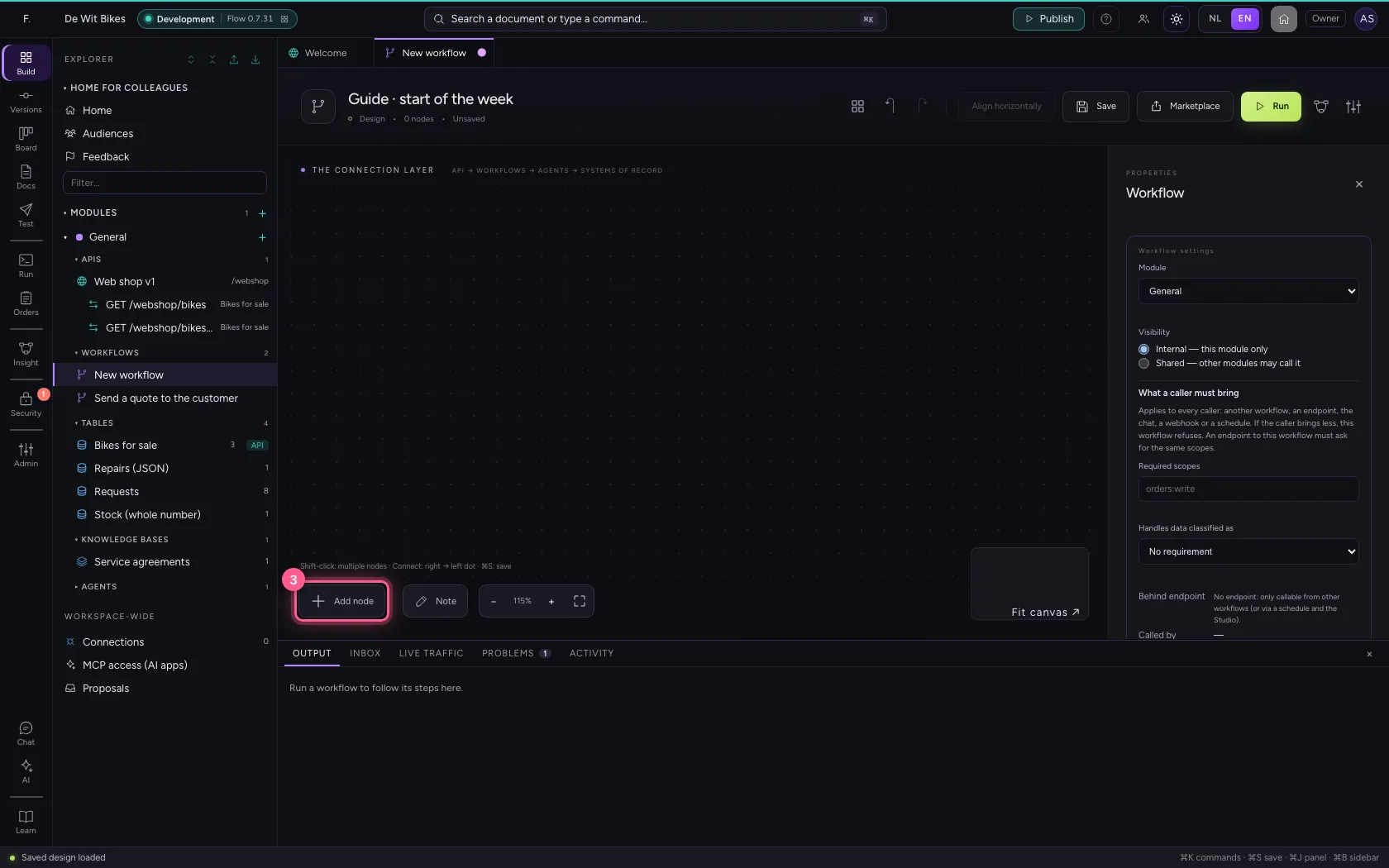
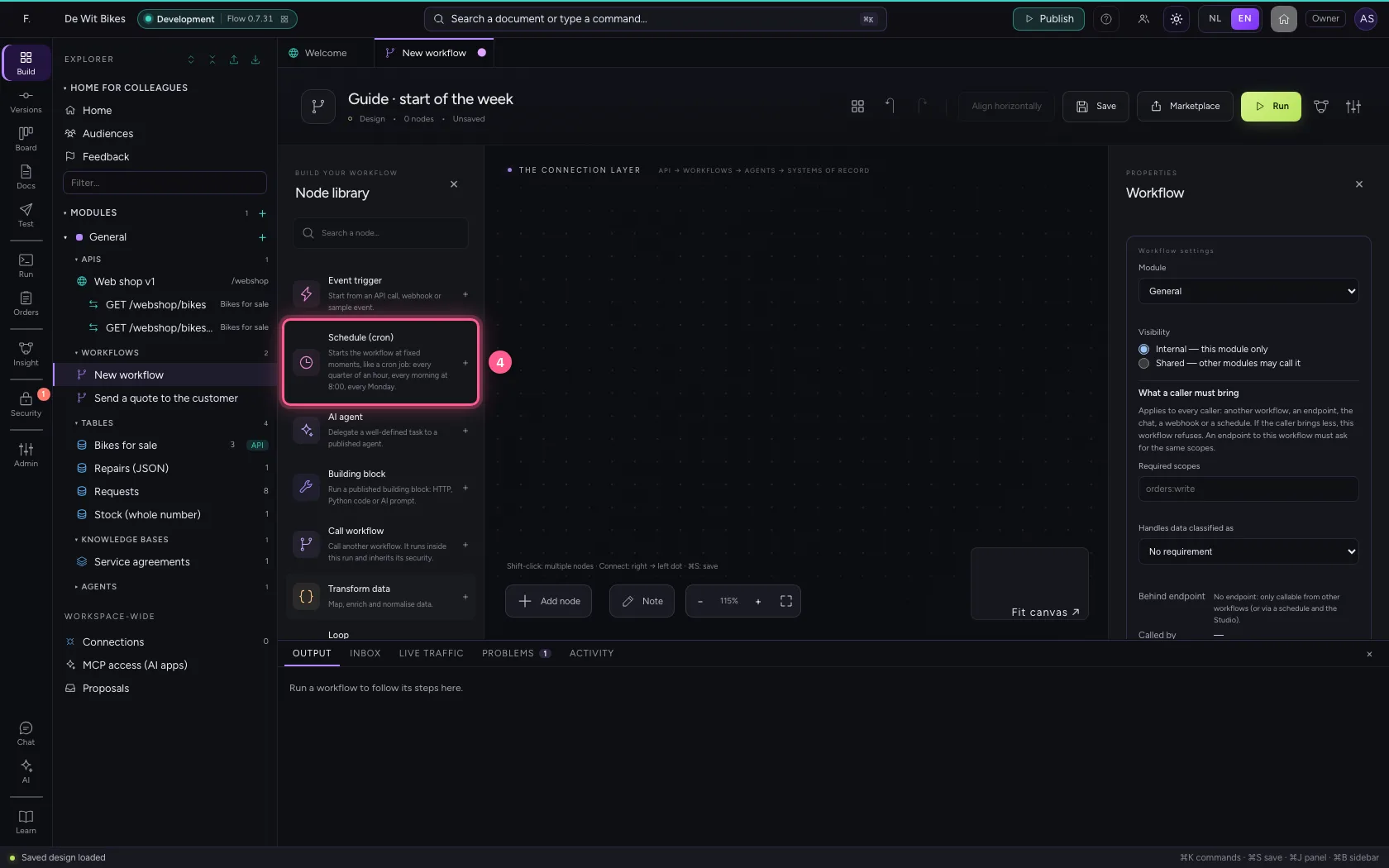
Click the Event trigger and choose Delete: a workflow has one starting point. Then choose Schedule (cron) in the library.
- Click the step ‘Event trigger’
- Click Delete
- Click Add node
- Click Schedule (cron)
Write when it starts
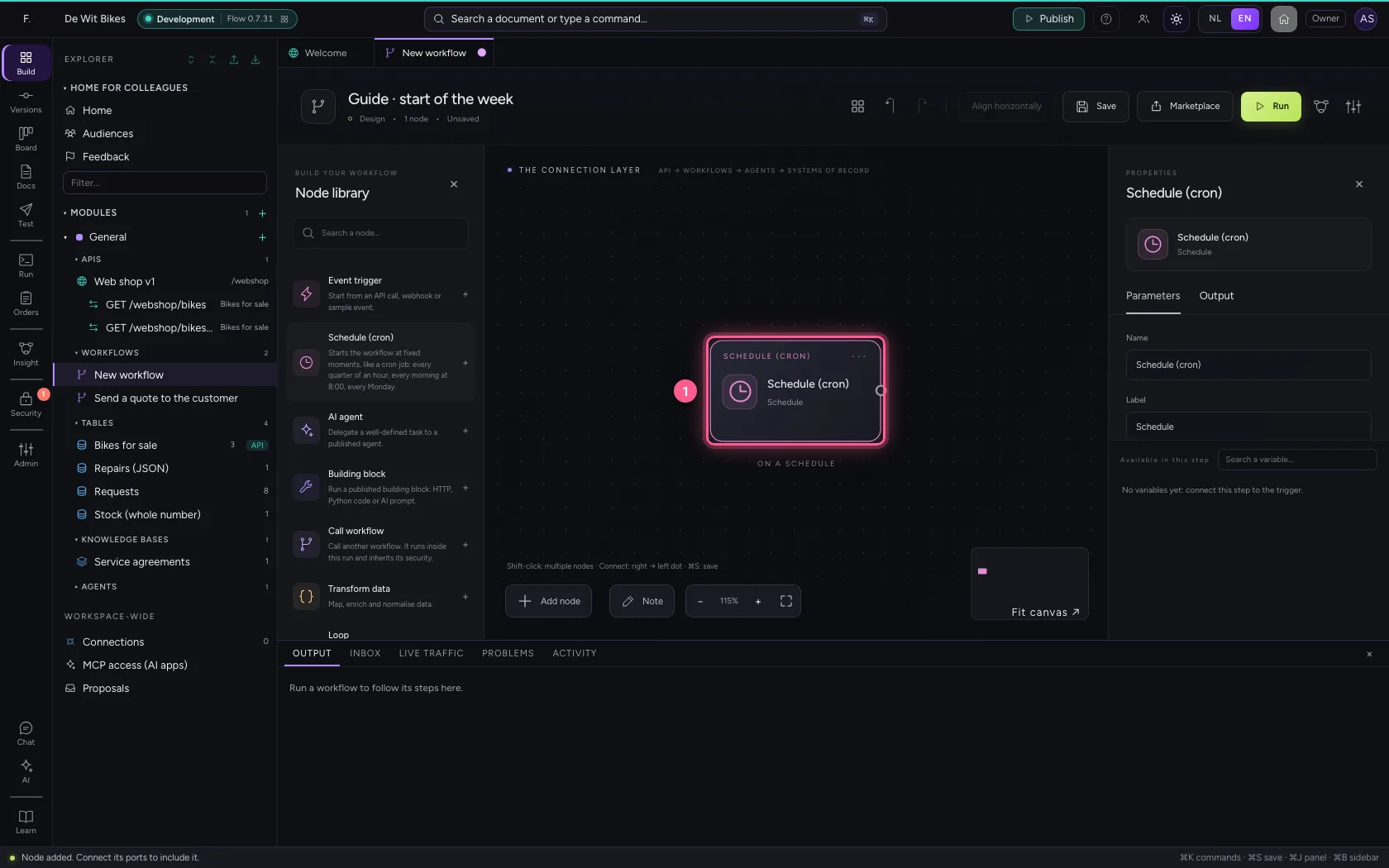
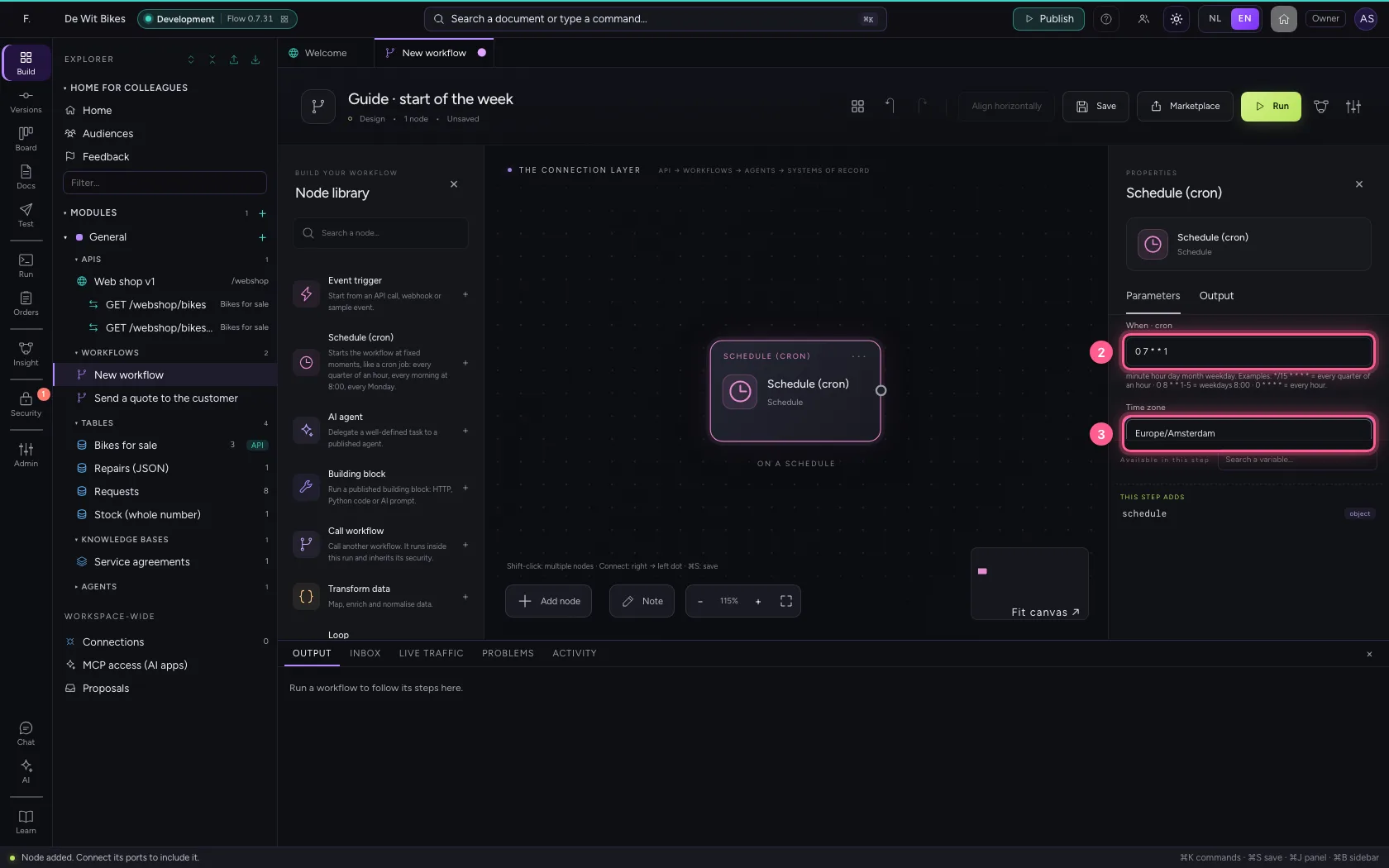
A cron schedule has five parts: minute, hour, day of the month, month and weekday. 0 7 * * 1 means: at 7:00 on Monday. A * means every. The time zone decides which seven o'clock; summer and winter time work out by themselves.
- Click the step ‘Schedule (cron)’
- In When · cron, type
0 7 * * 1 - In Time zone, type
Europe/Amsterdam
What happens when it fires
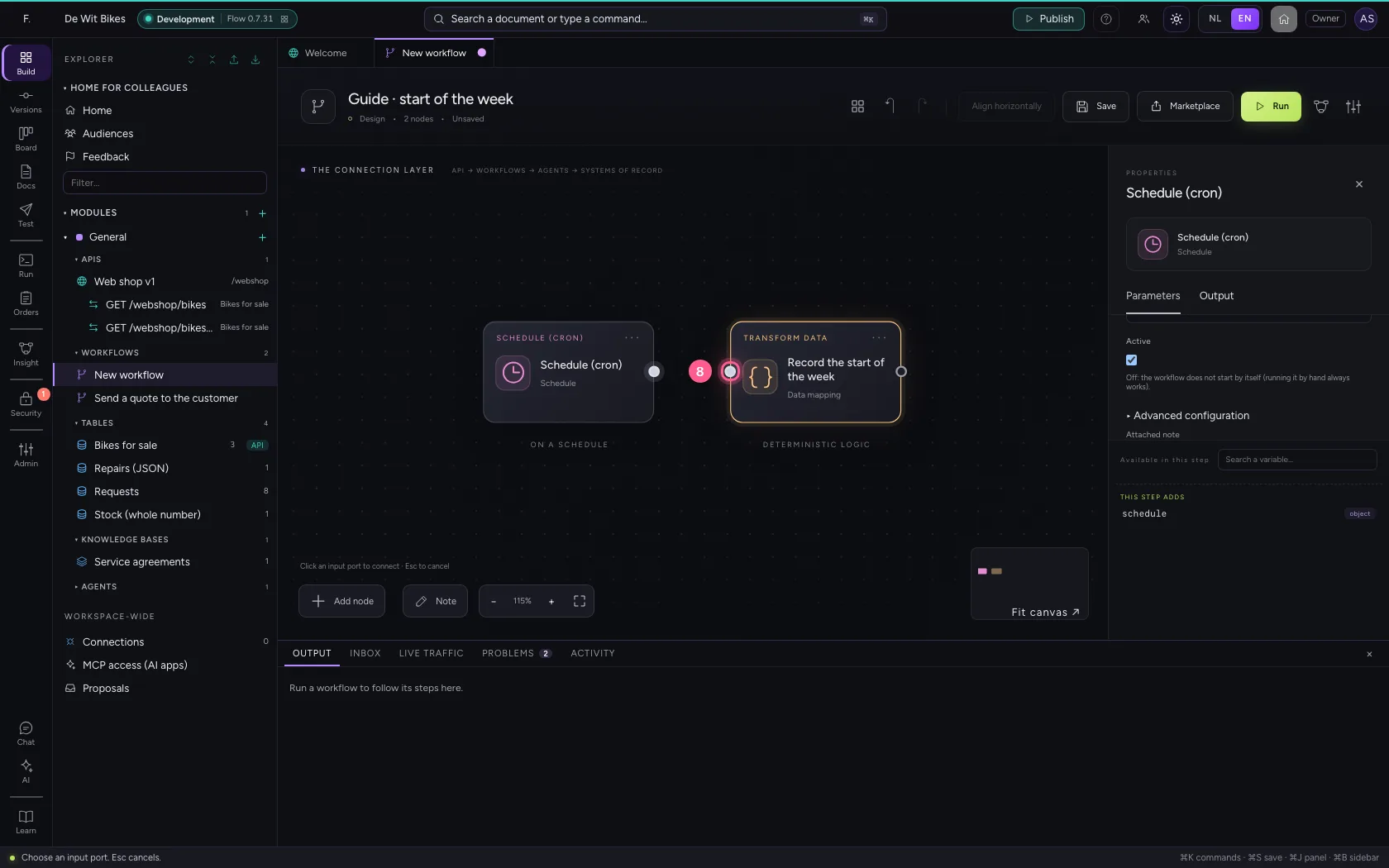
The schedule gives the workflow one variable: schedule, with the cron schedule and the moment it fired (schedule.firedAt). Add Transform data and record that moment; connect the schedule to it.
- Click Transform data
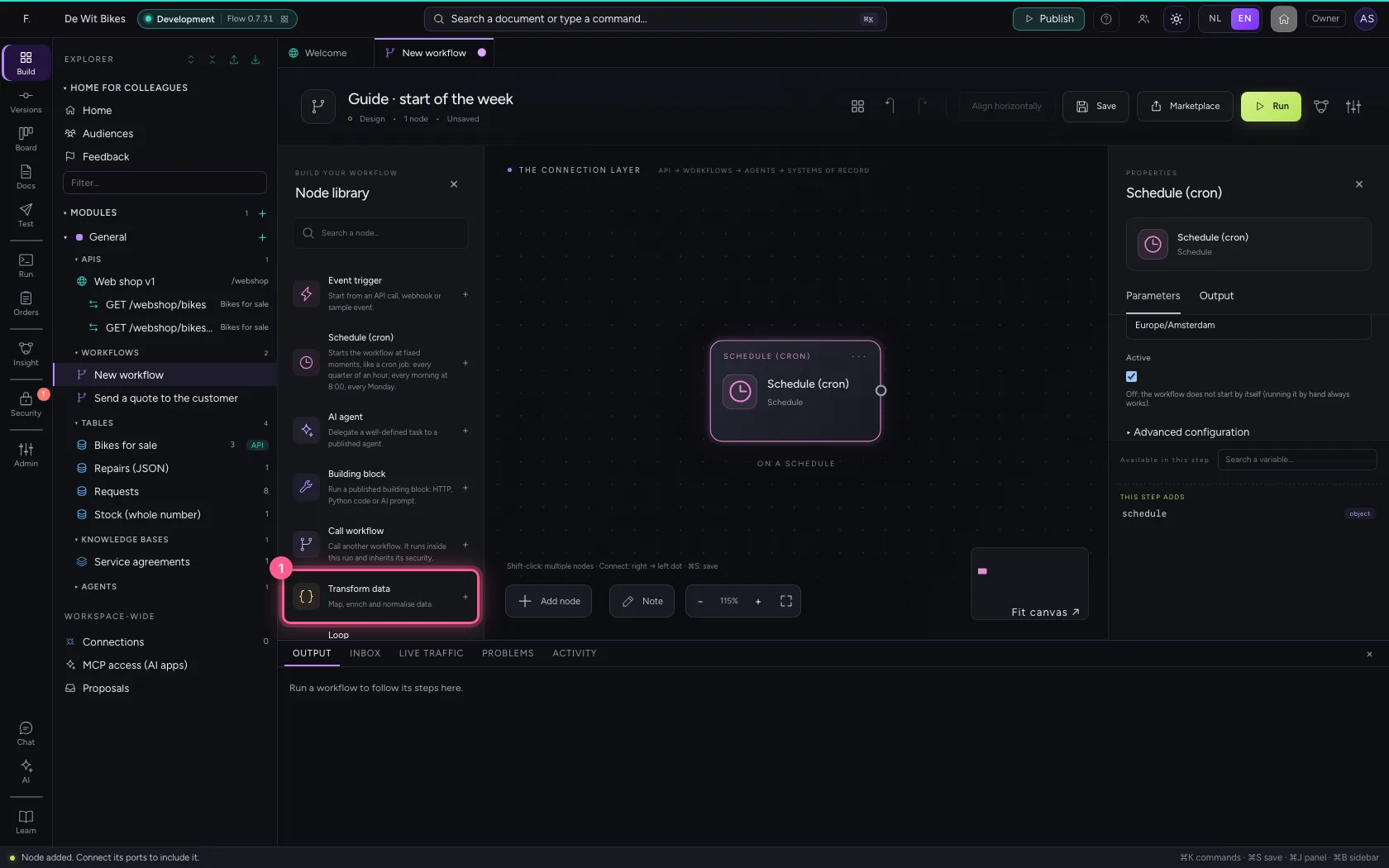
- In Name, type
Record the start of the week
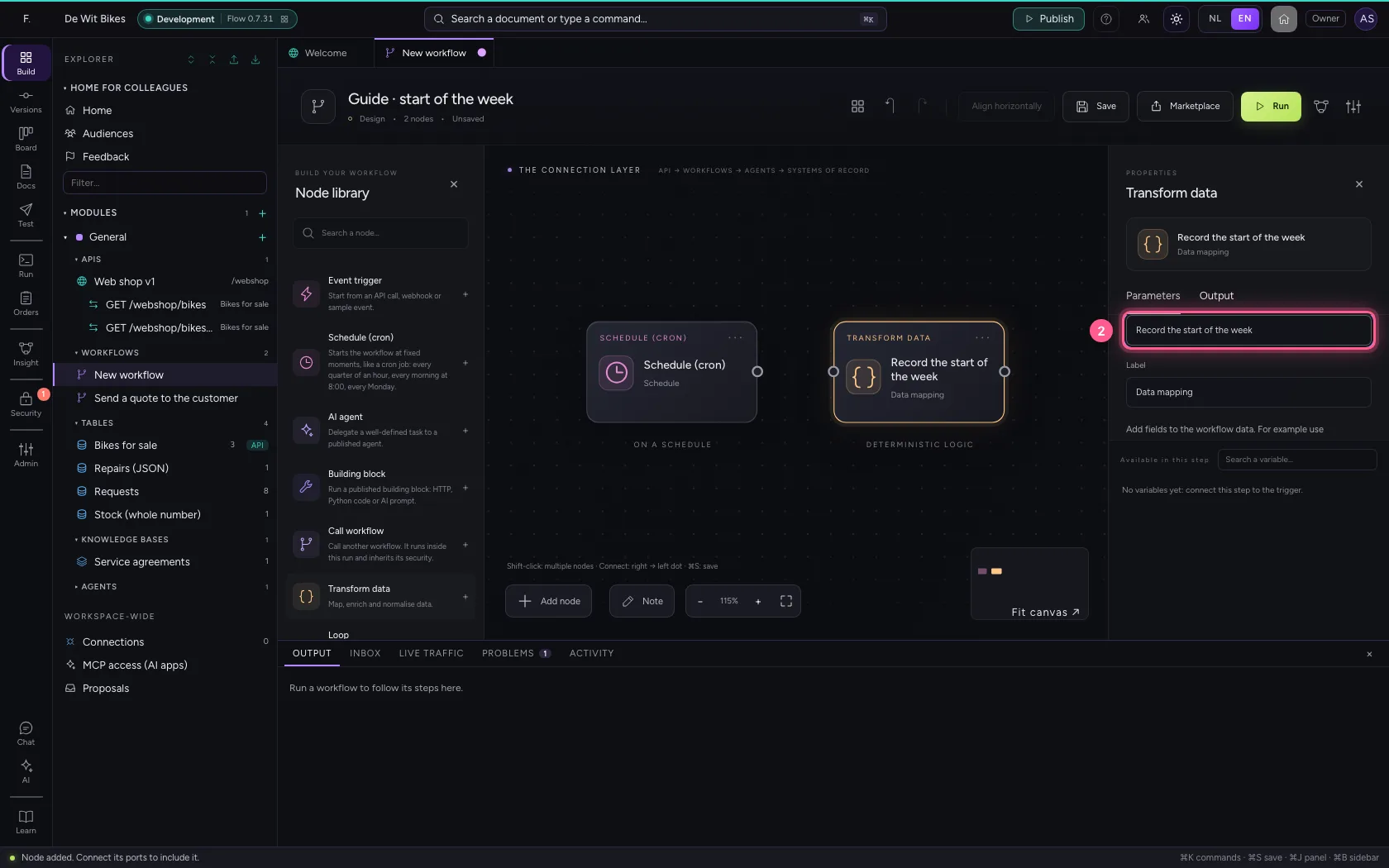
- Click Remove field
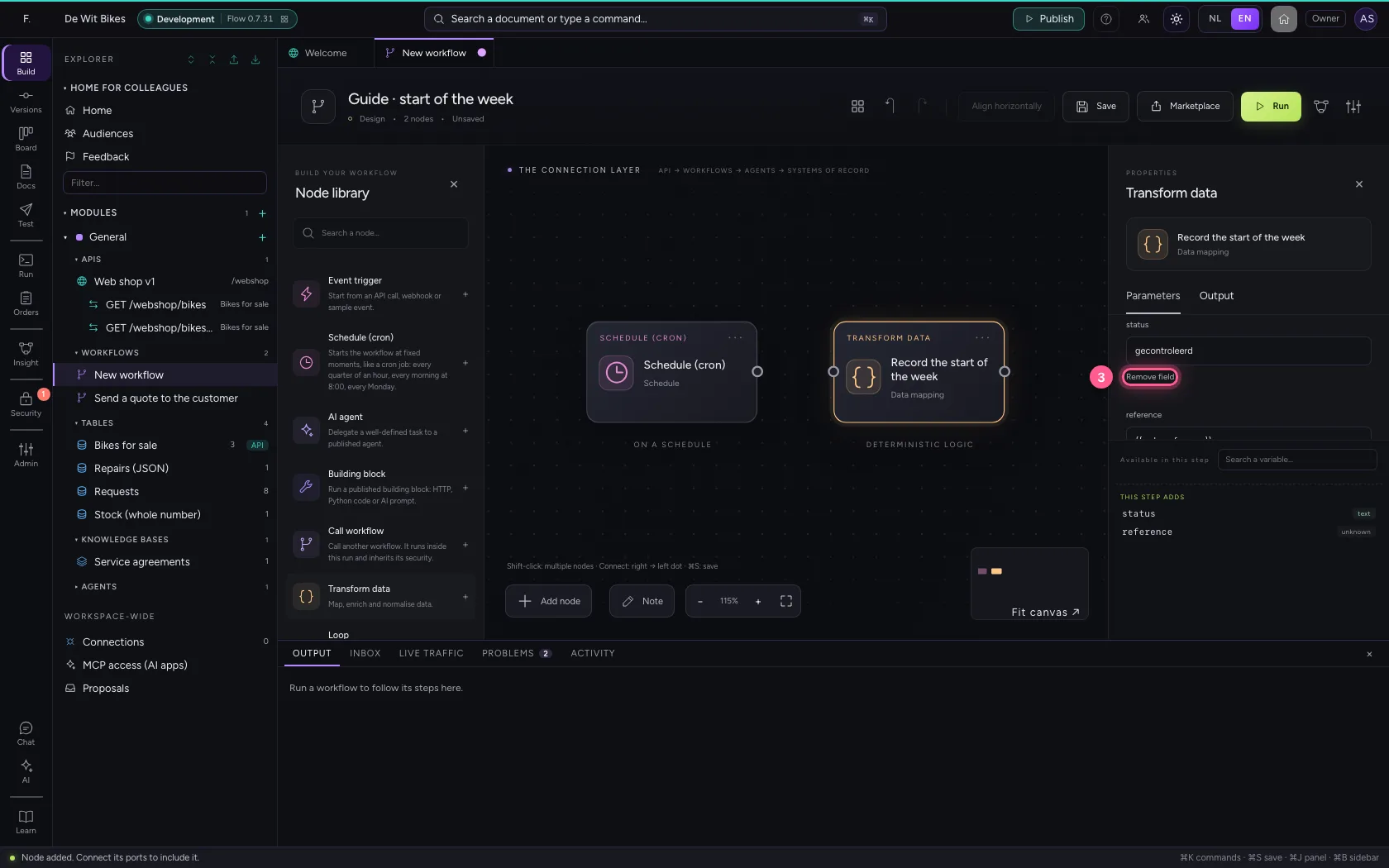
- Click Remove field
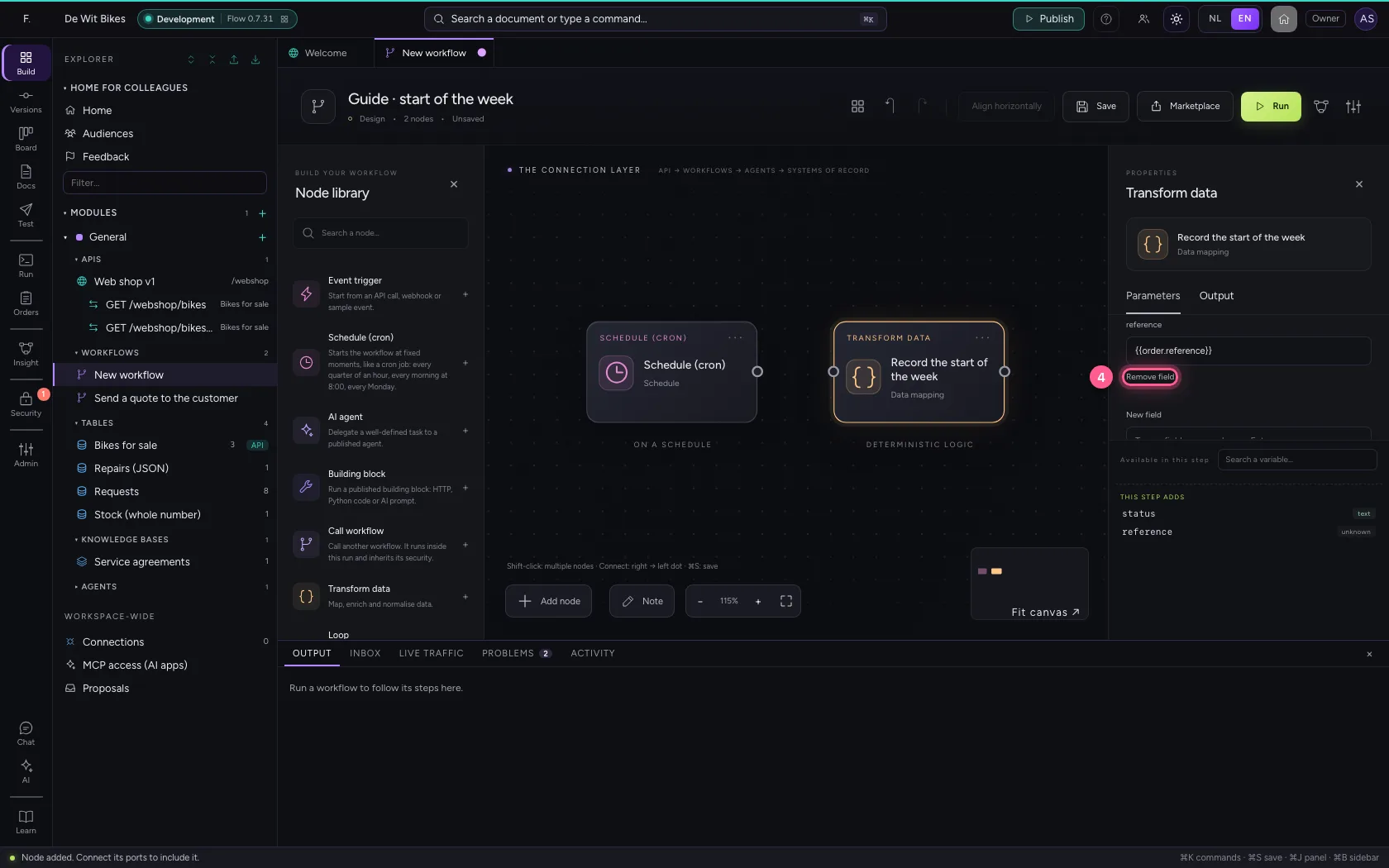
- In New field, type
started_at - In started_at, type
{{schedule.firedAt}}
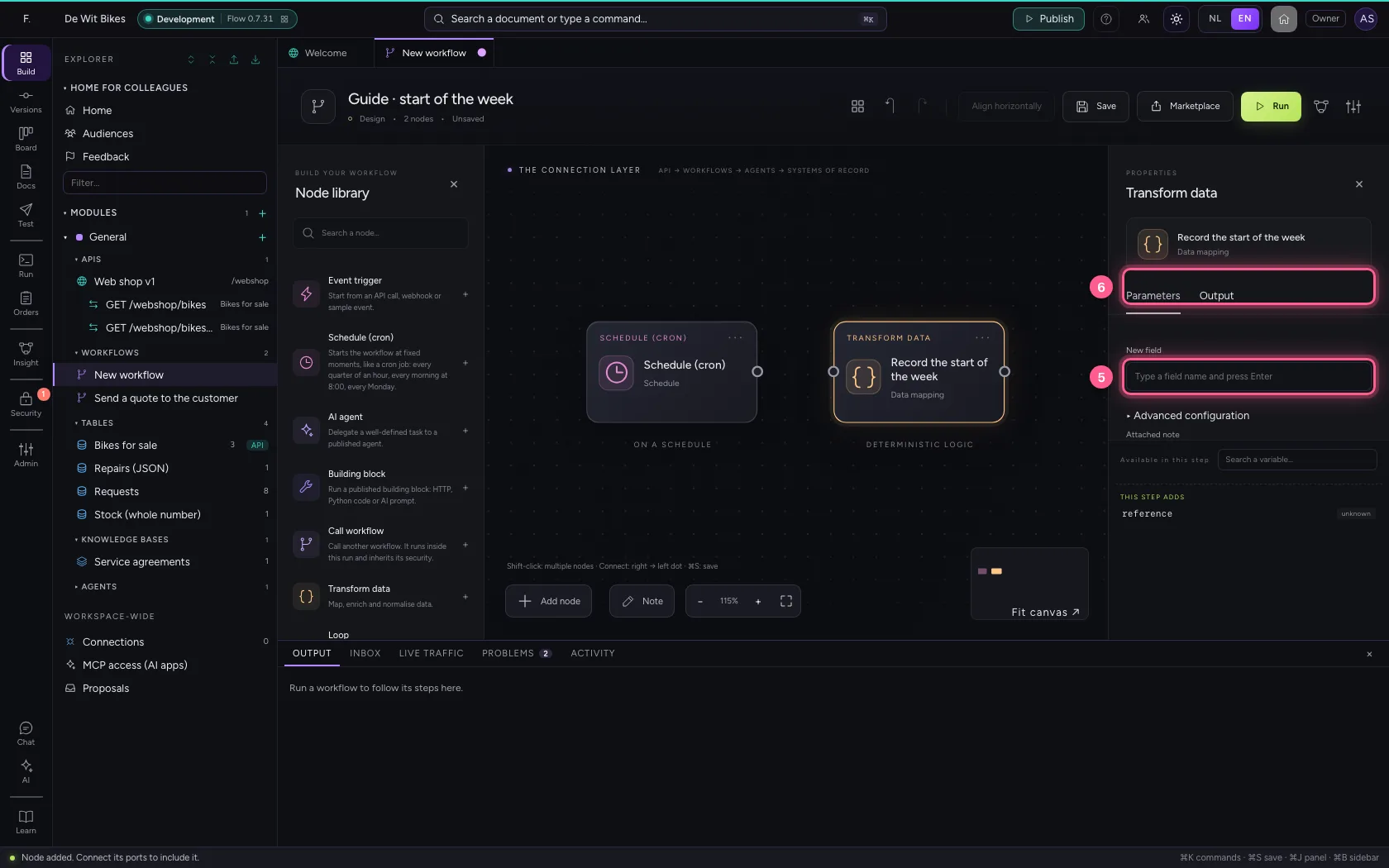
- Click the dot of ‘Schedule (cron)’
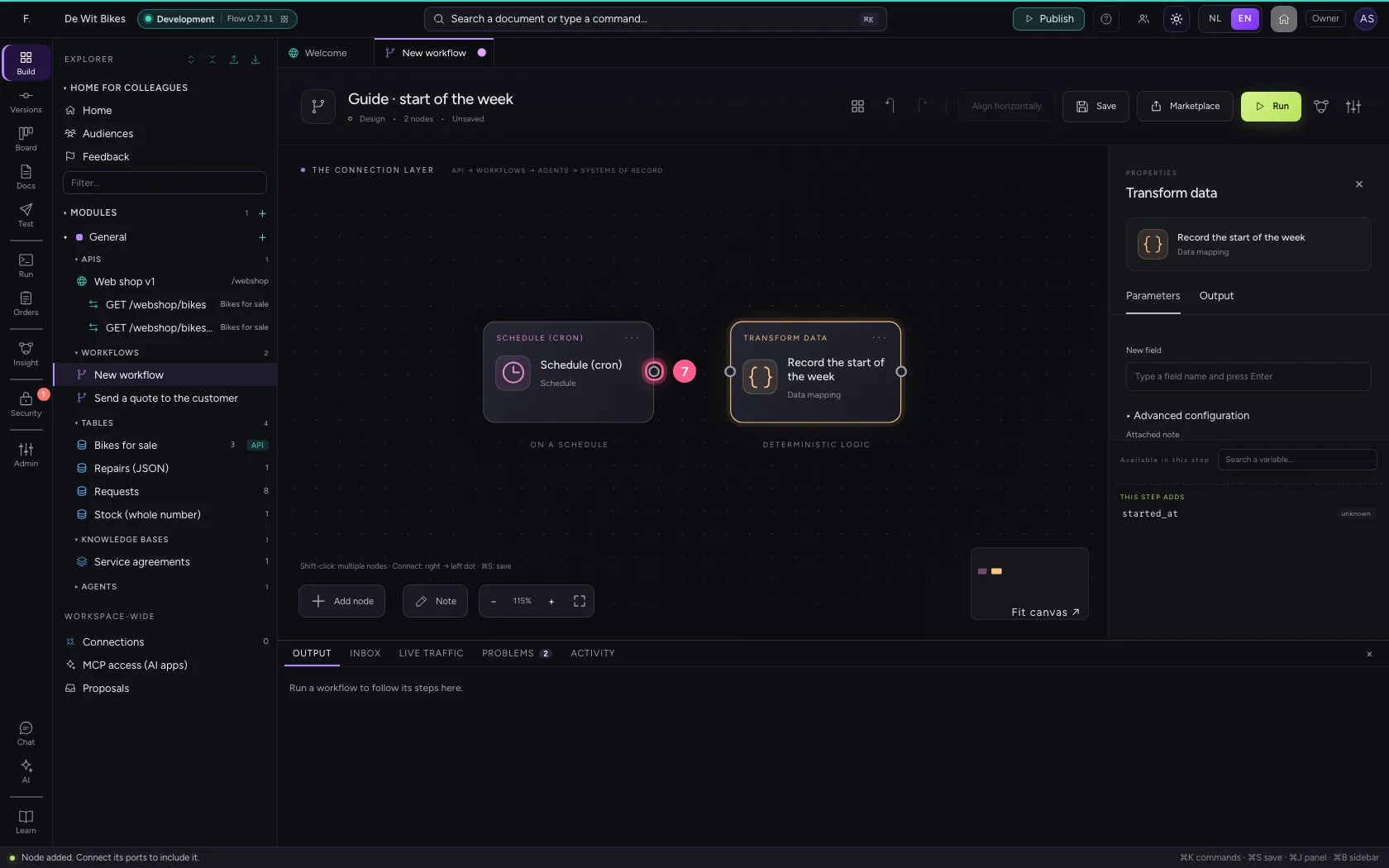
- Click the dot of ‘Record the start of the week’
Put the steps in one line and save
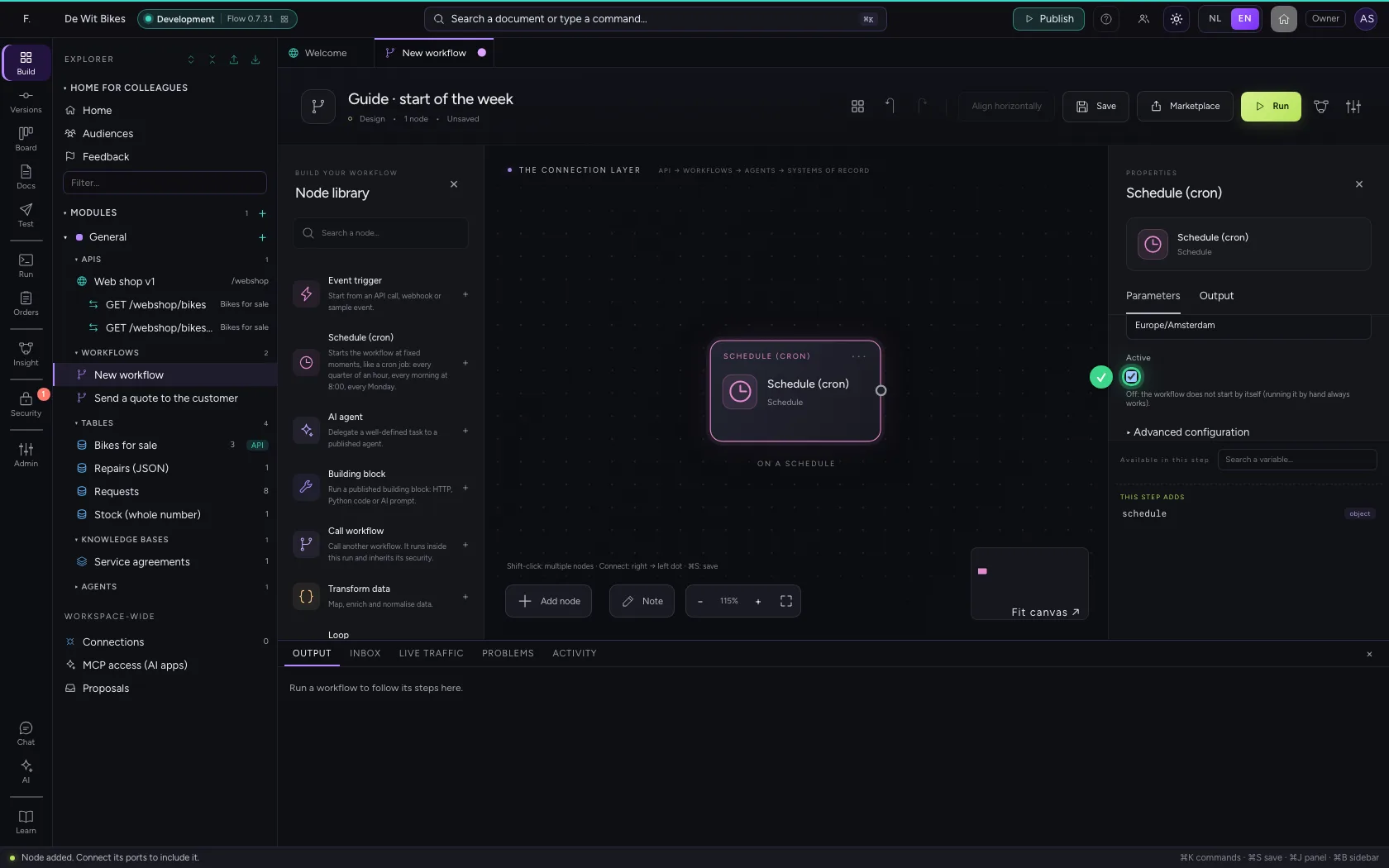
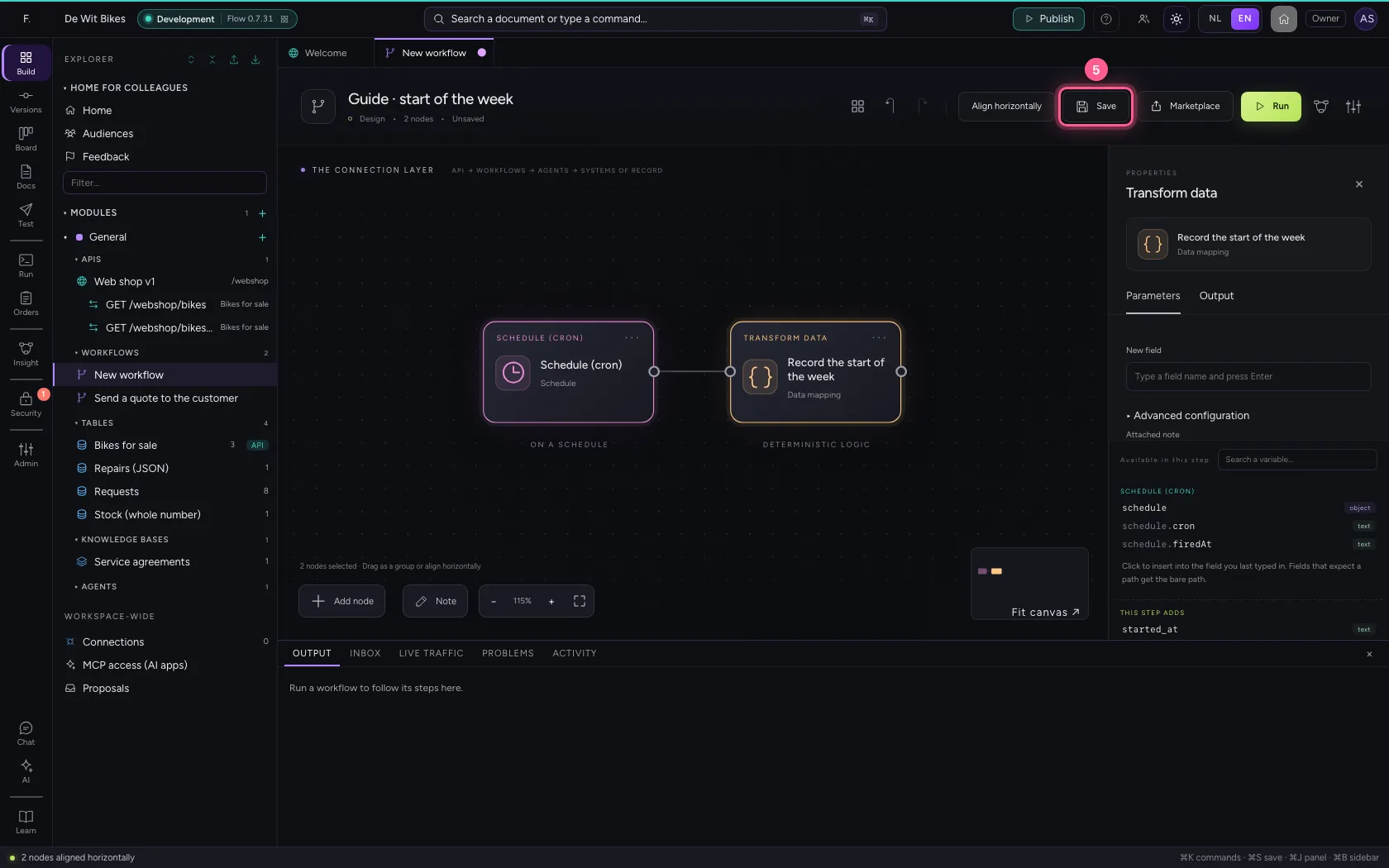
Select the steps (click the first, and the others while holding Shift) and click Align horizontally: they then stand in one line and you read the workflow from left to right; a branch (such as No of an If / Else) gets its own row below. Fit to view puts everything in sight; then Save. Saving also makes the schedule active.
- Click ‘Schedule (cron)’
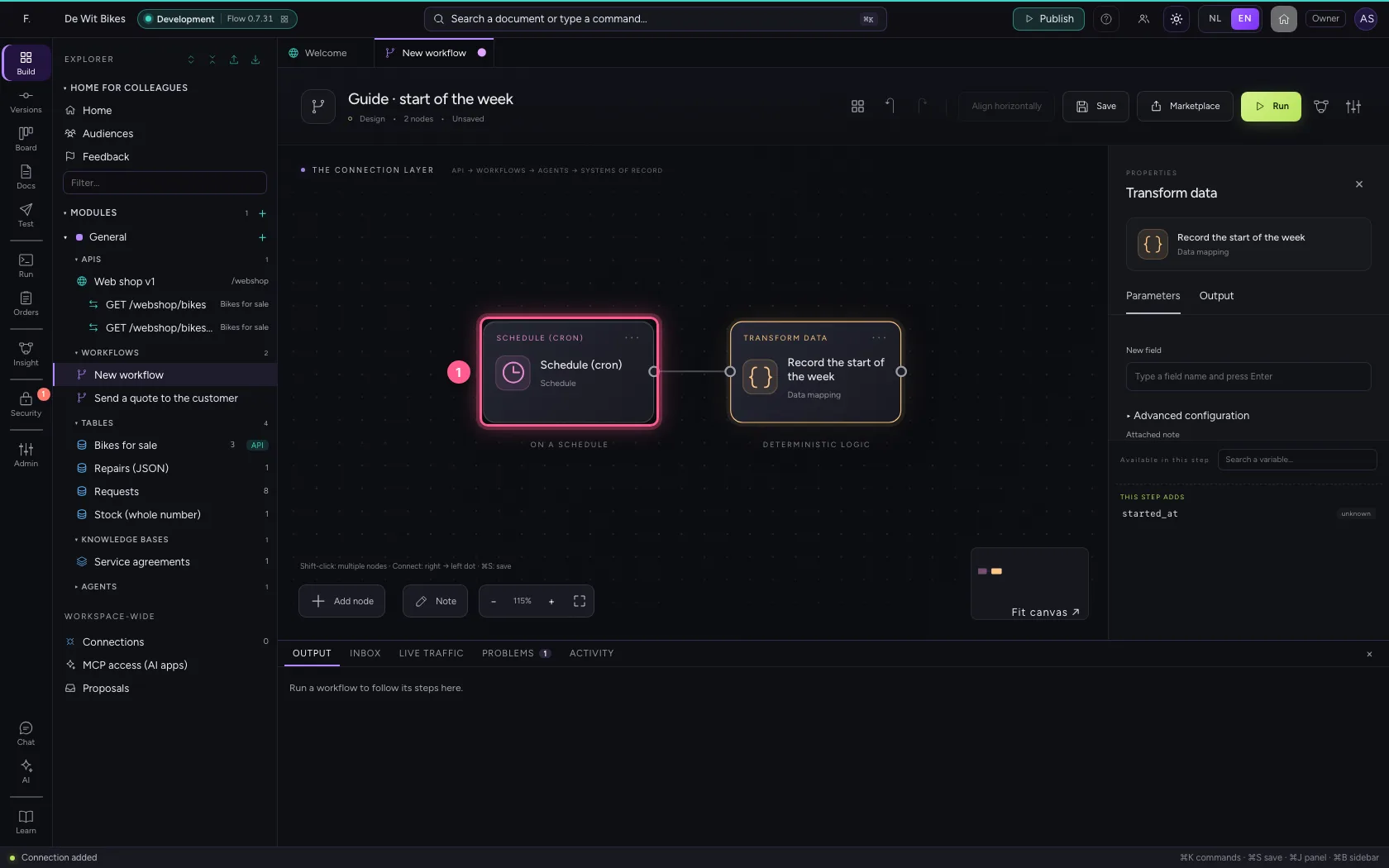
- Click ‘Record the start of the week’ while holding Shift
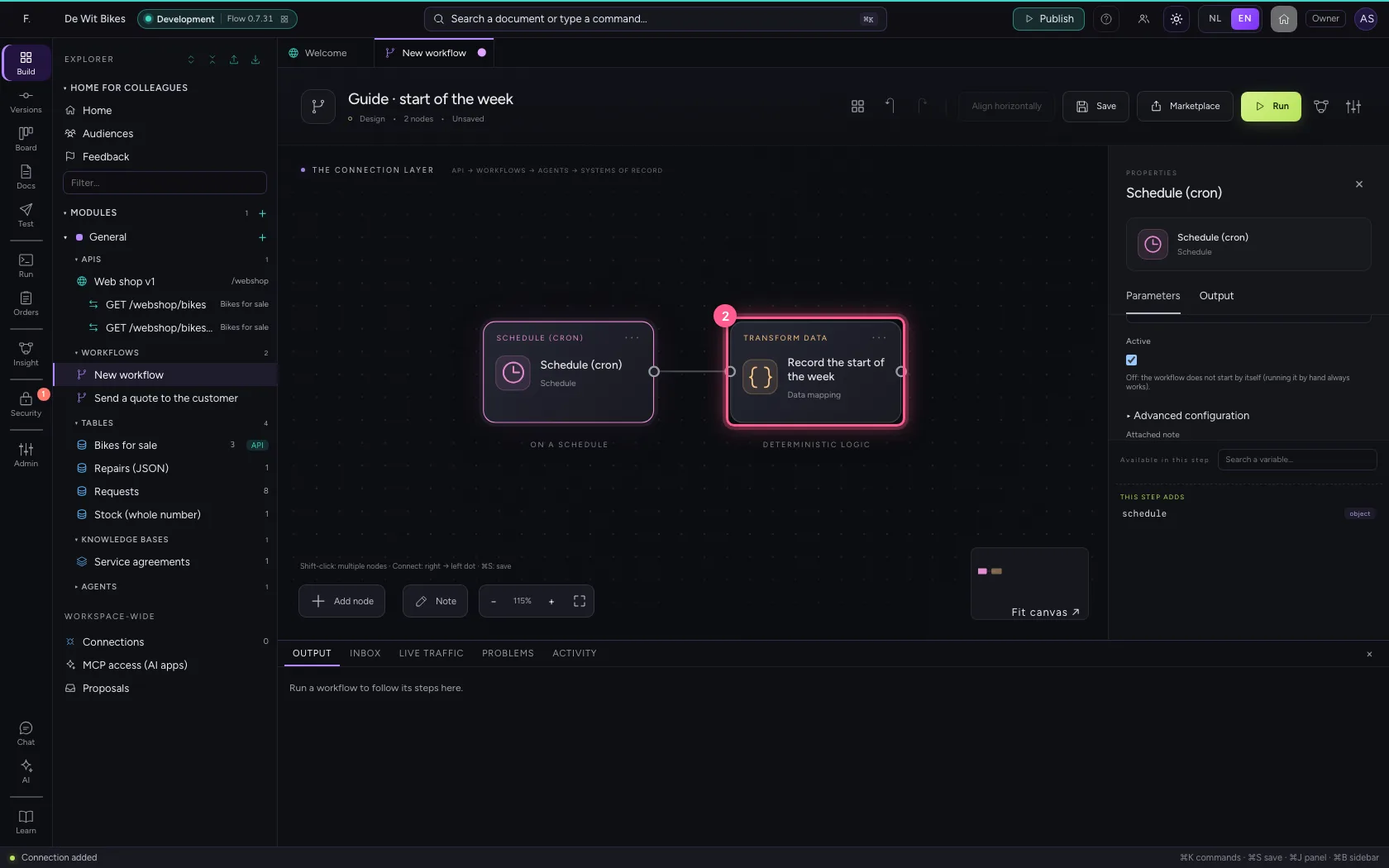
- Click Align horizontally
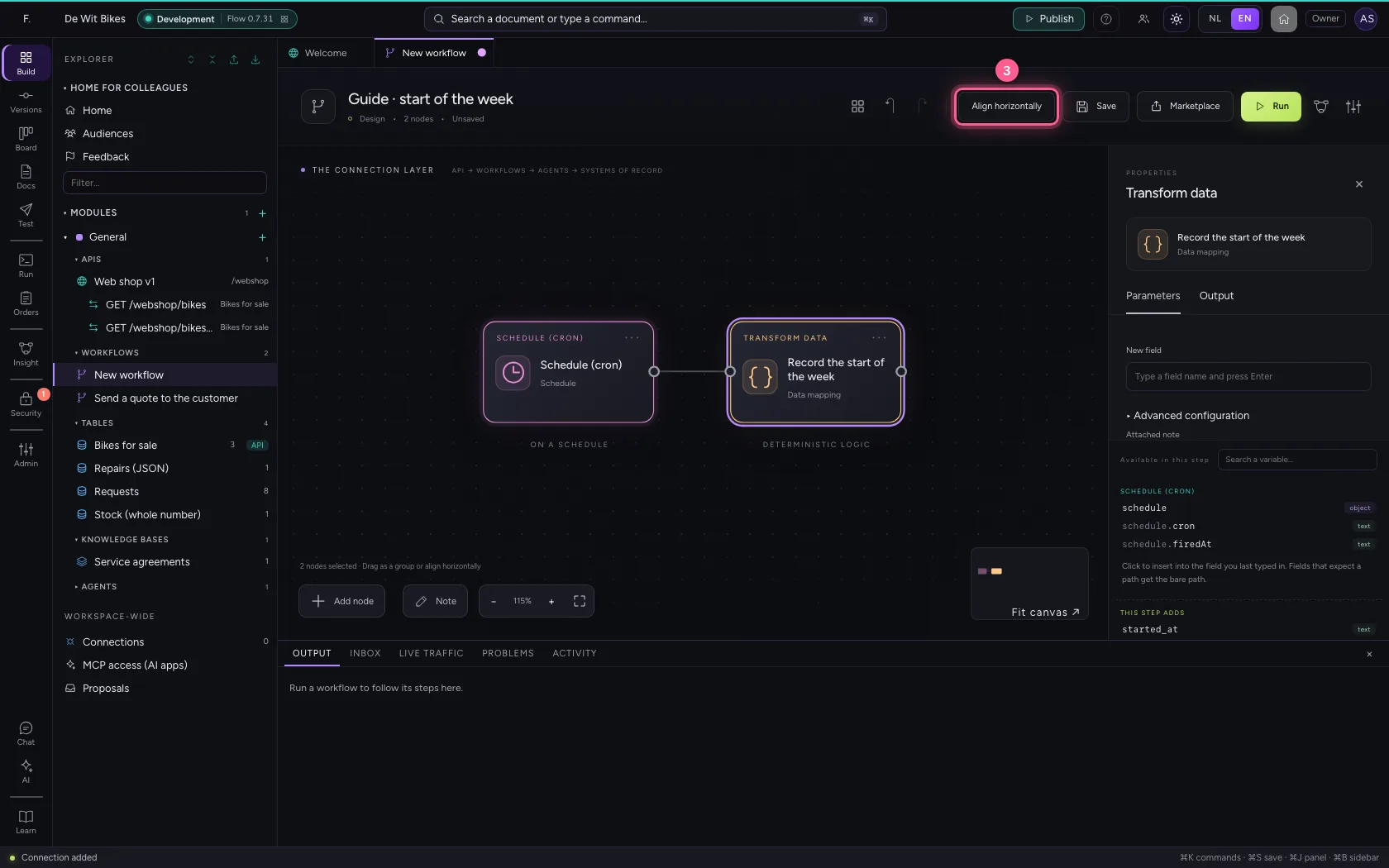
- Click Fit to view
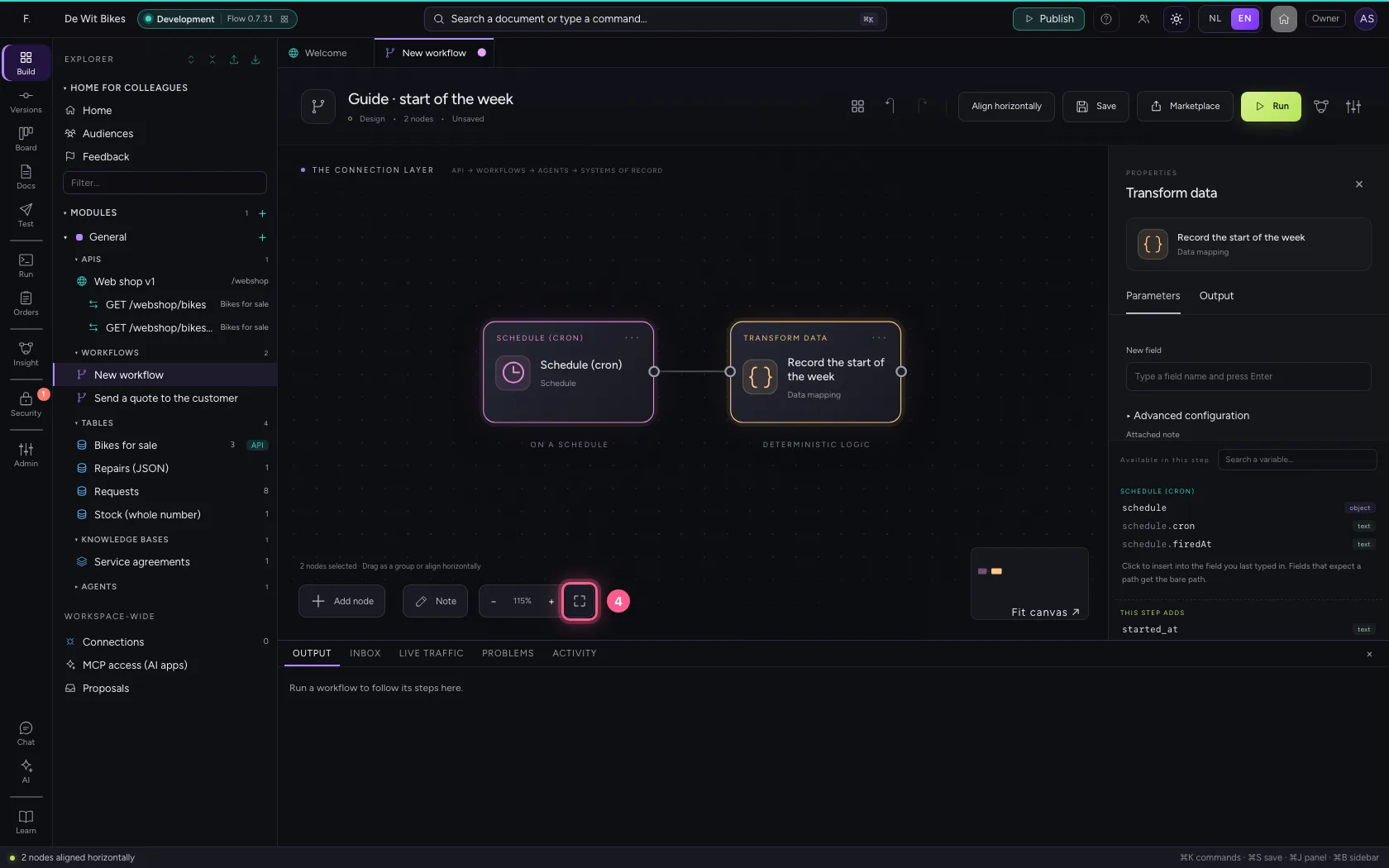
- Click Save
Test it by hand
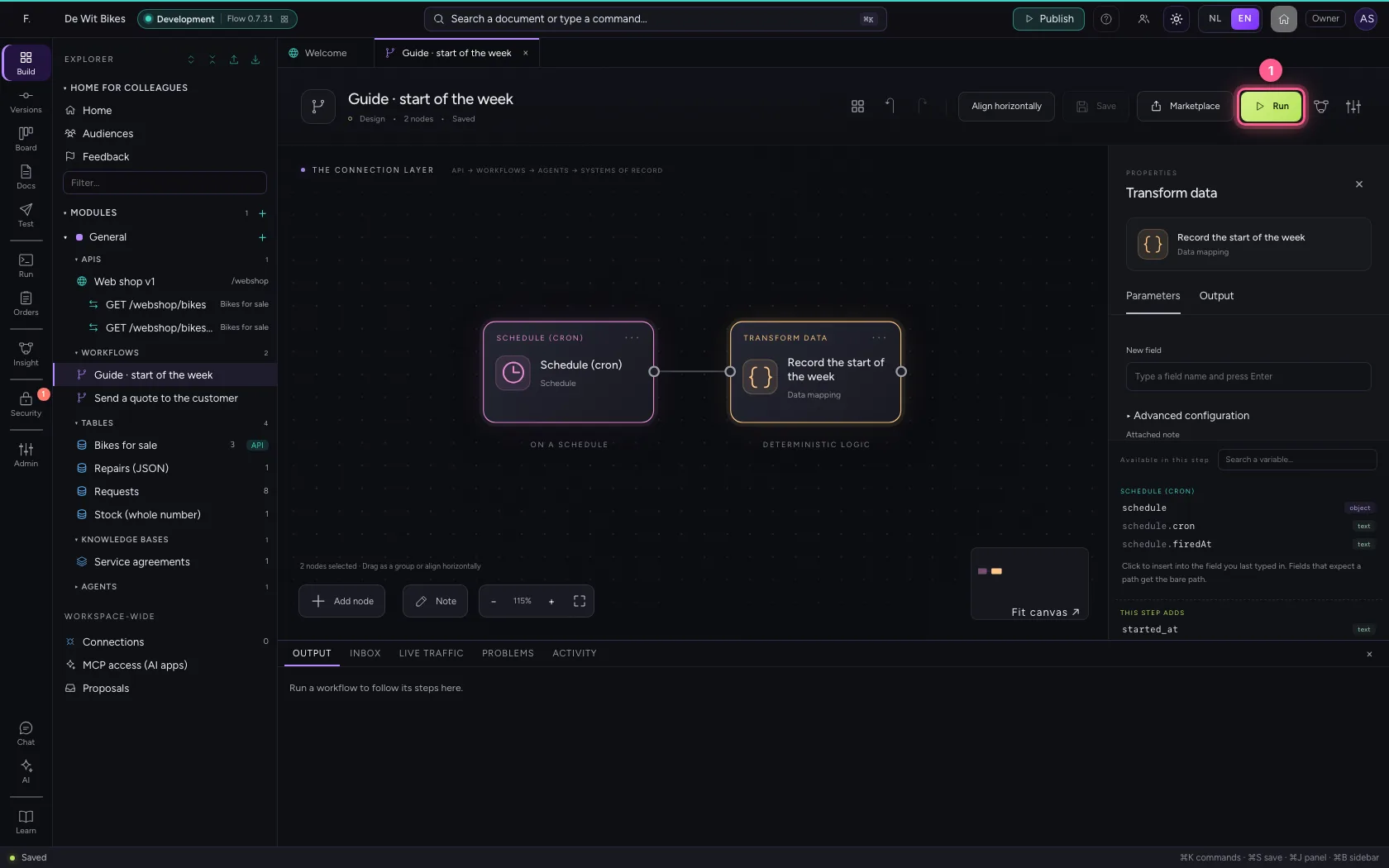
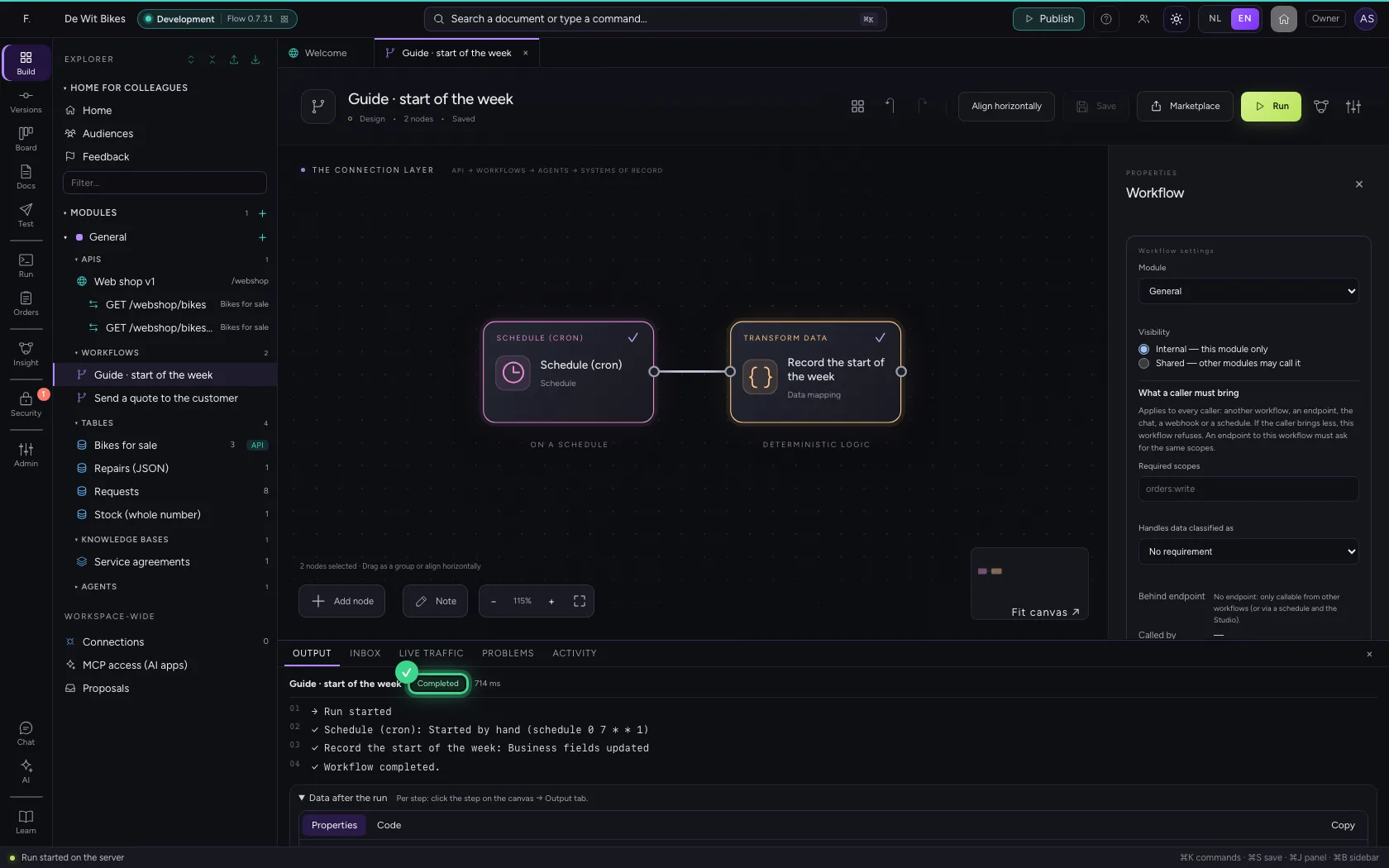
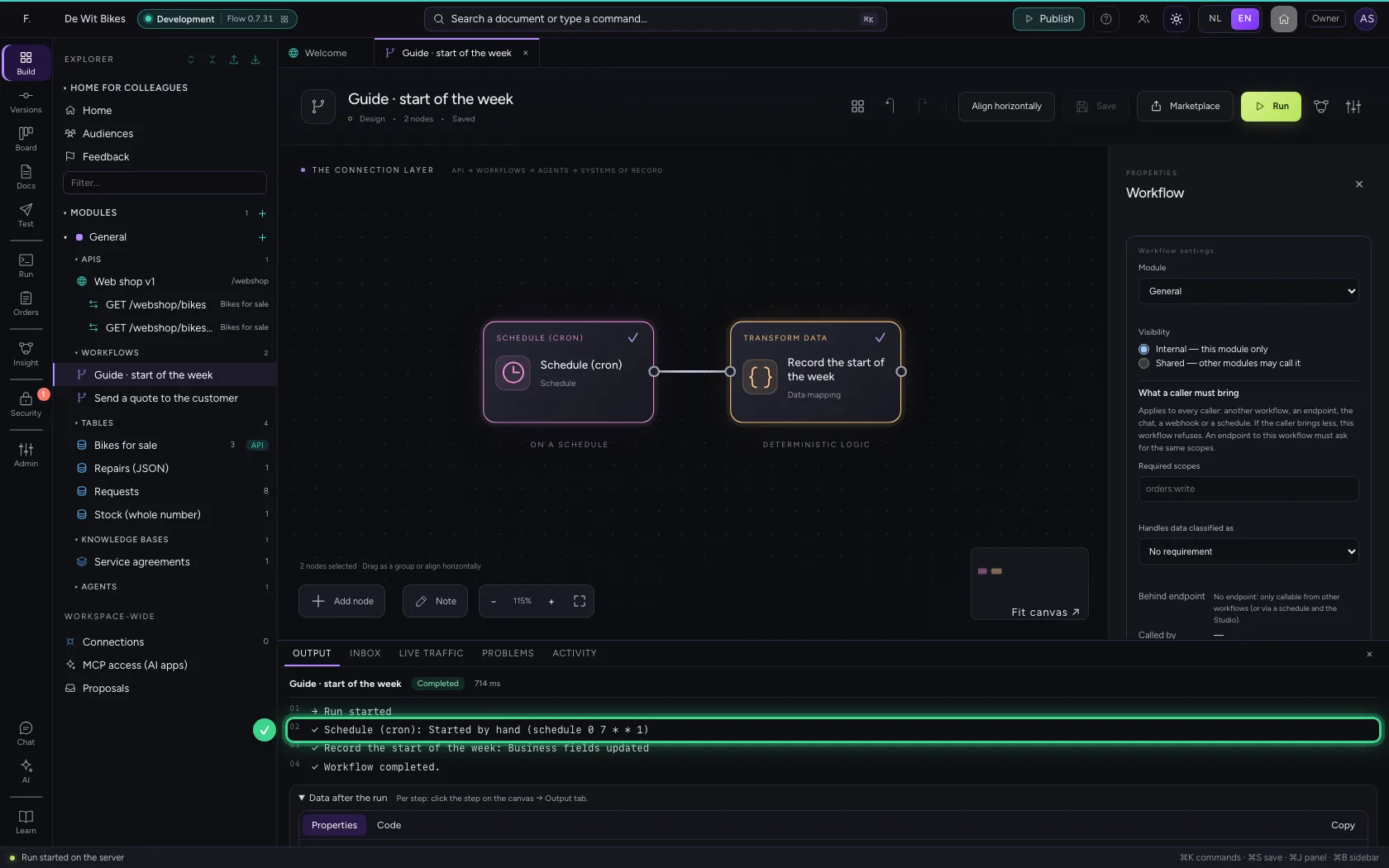
You do not have to wait until Monday: Run starts the workflow right now. At the bottom you see it was started by hand, with the schedule next to it.
- Click Run
This guide was carried out step by step on 22 Oct 2026 by an automated test on Flow (version 3e563176).