Transform data: make fields and calculate
Transform data puts new fields into the workflow's data: text with {{field}} in it, or a calculation that starts with =. You use it to get data into the shape the next step or the caller expects: compose a description, calculate VAT, rename a field.
Open Flow and create a workflow
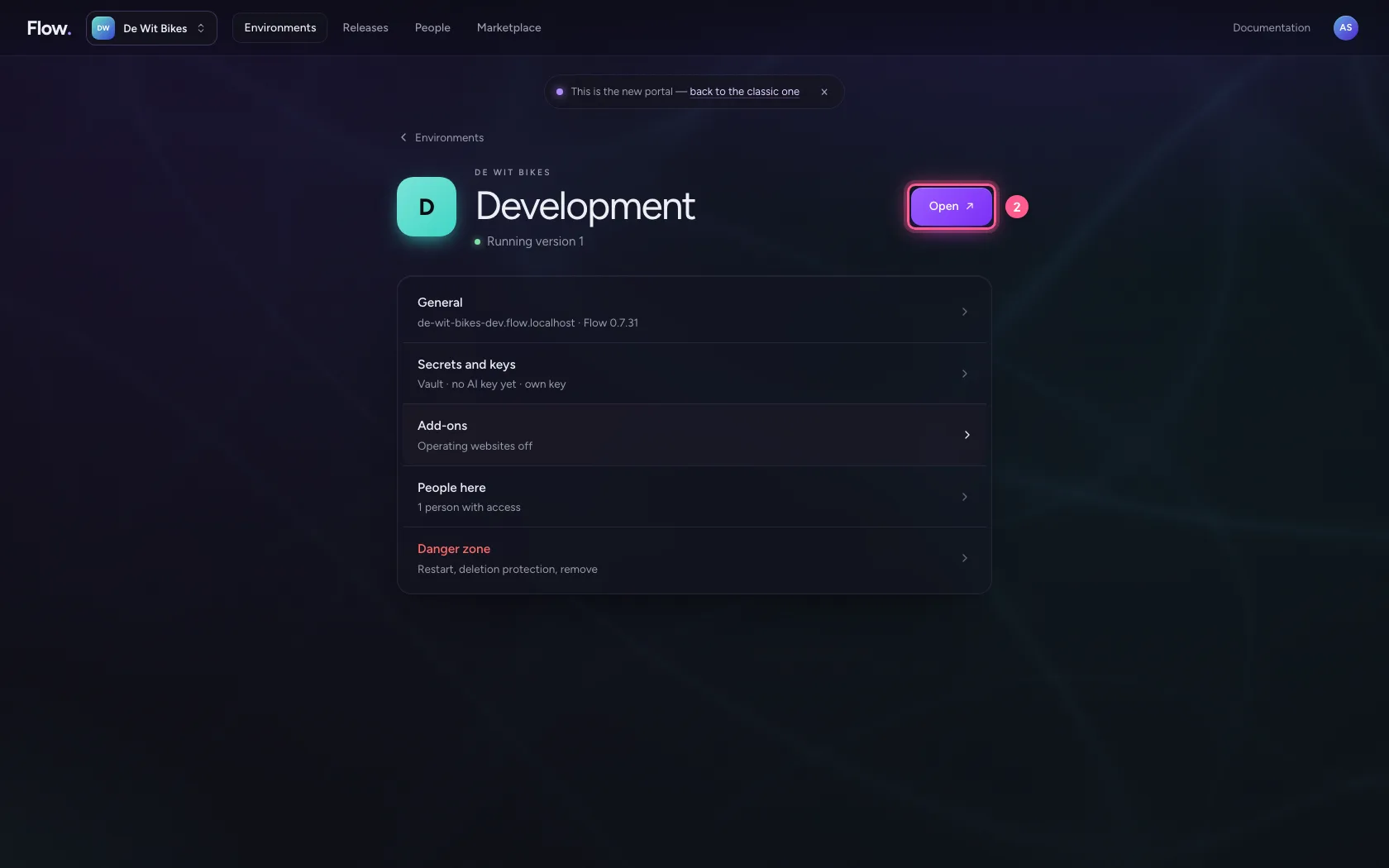
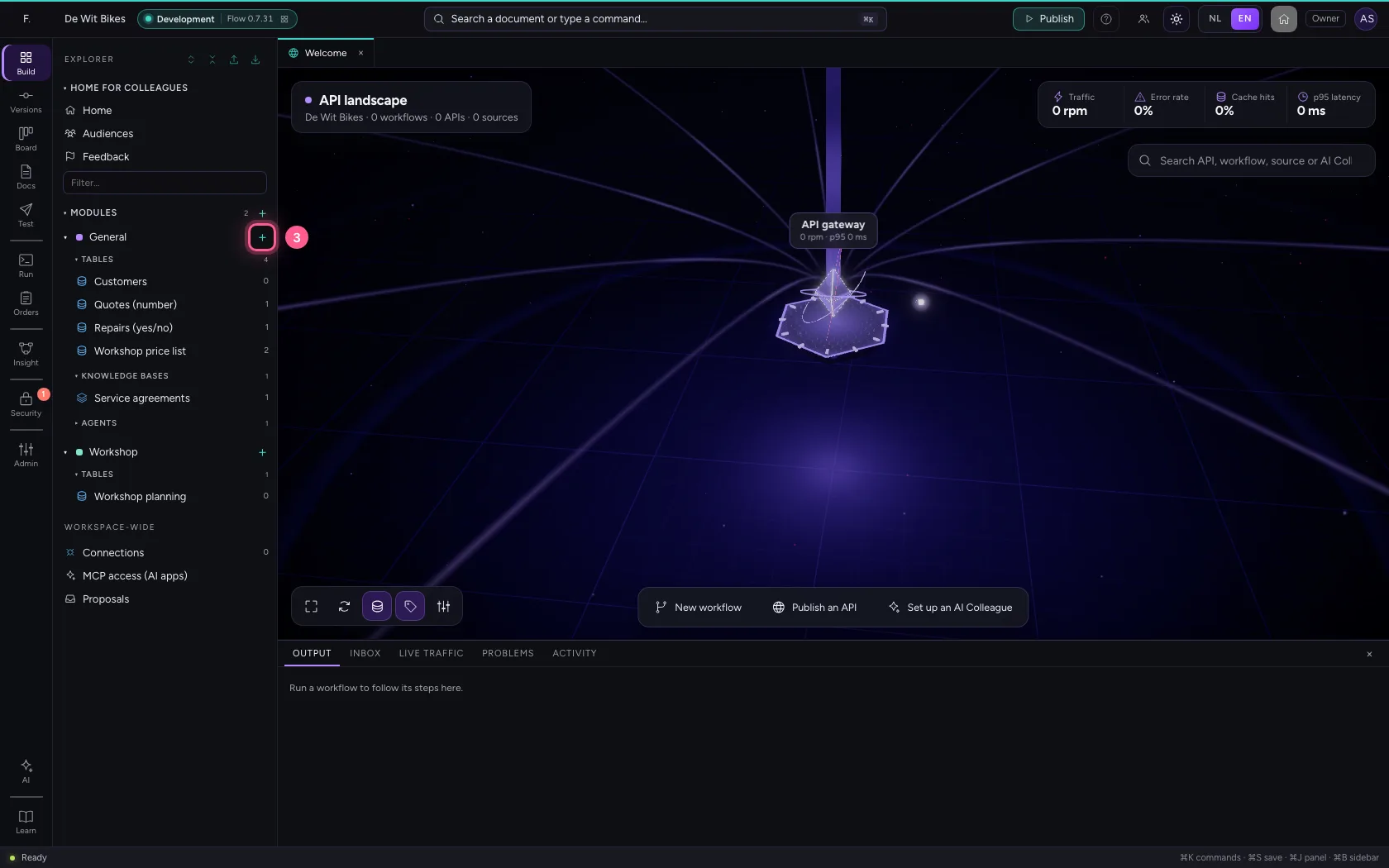
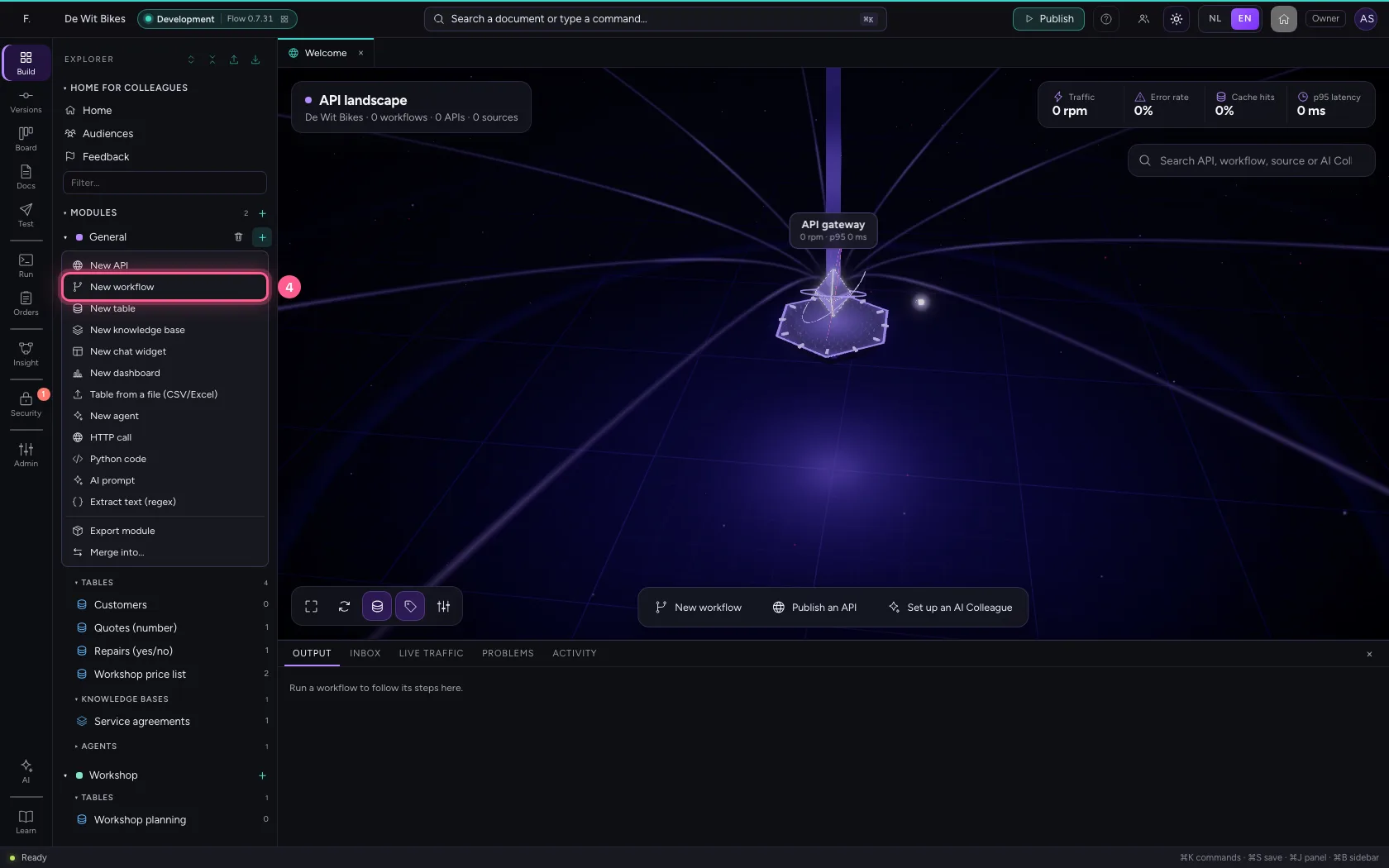
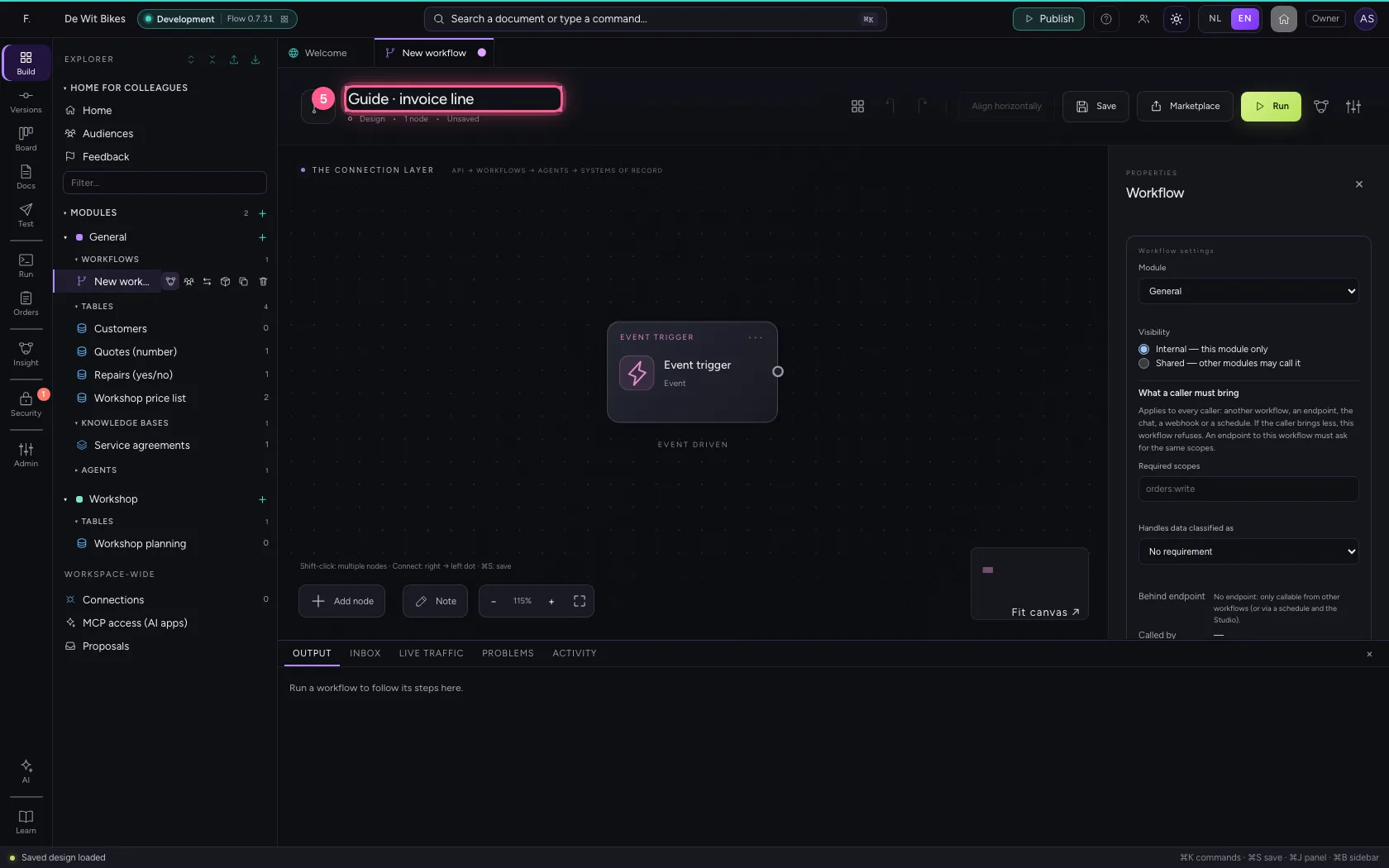
In the portal, under Environments, click Development and there Open; Flow opens in a new tab. There, click + next to General, choose New workflow and give it a name. A new workflow starts with an Event trigger: the point where it begins.
- Click Development

- Click Open ↗
- Click Add to General
- Click New workflow
- In Workflow name, type
Guide · invoice line
Give the trigger an order
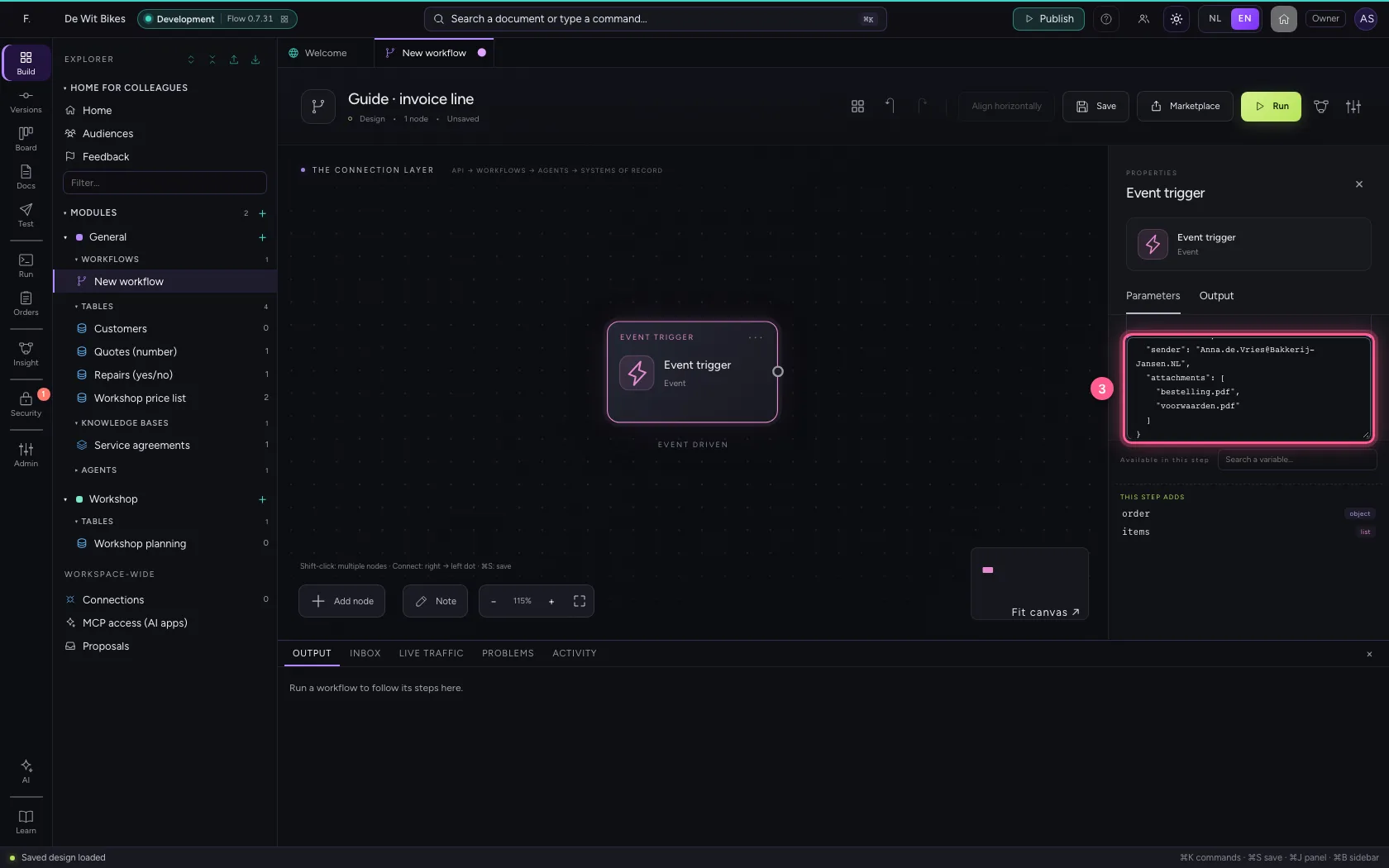
Put a customer, an amount without VAT, and the sender and attachments of the e-mail the order came in with under Sample data (Code).
- Click the step ‘Event trigger’
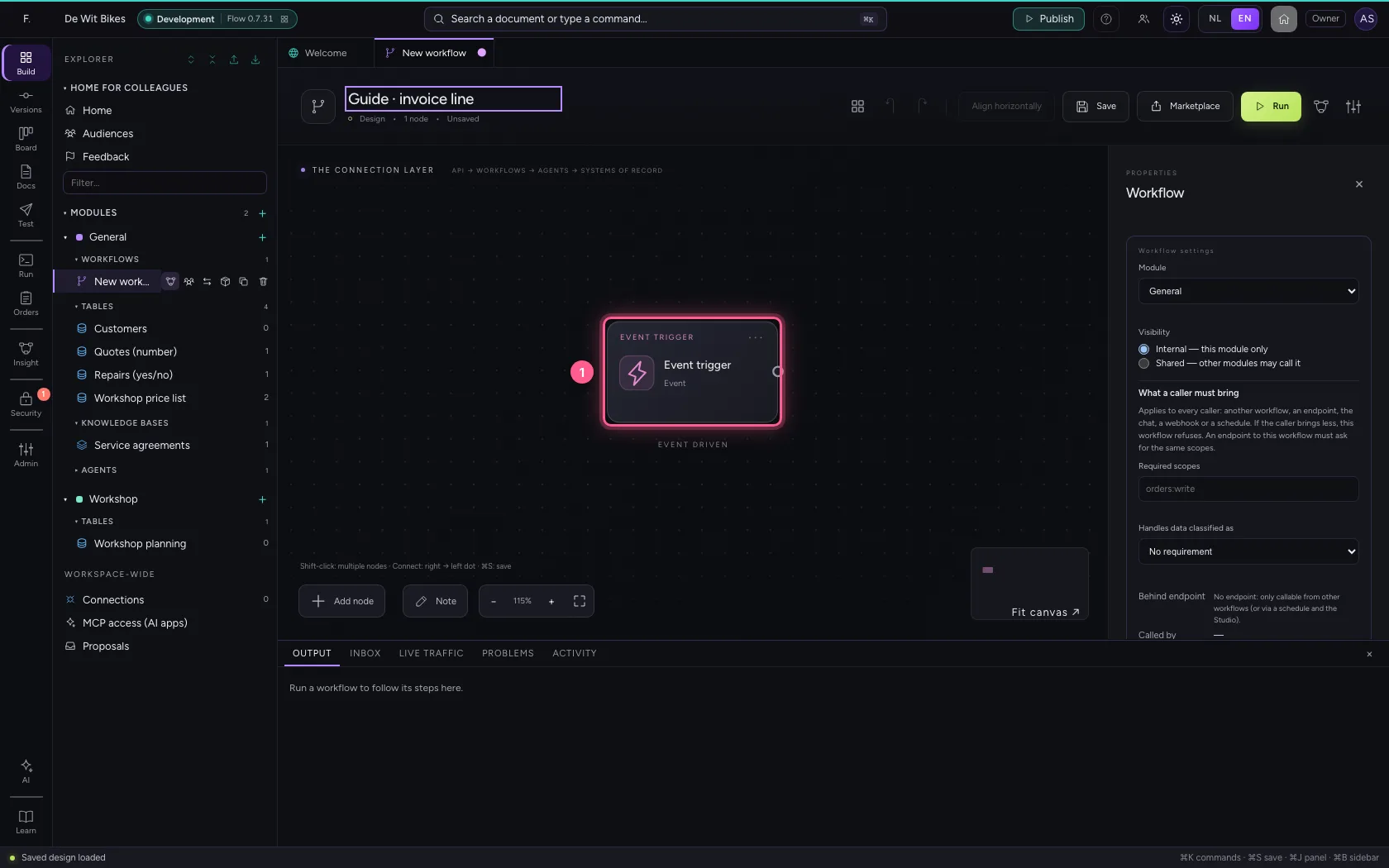
- Click Code
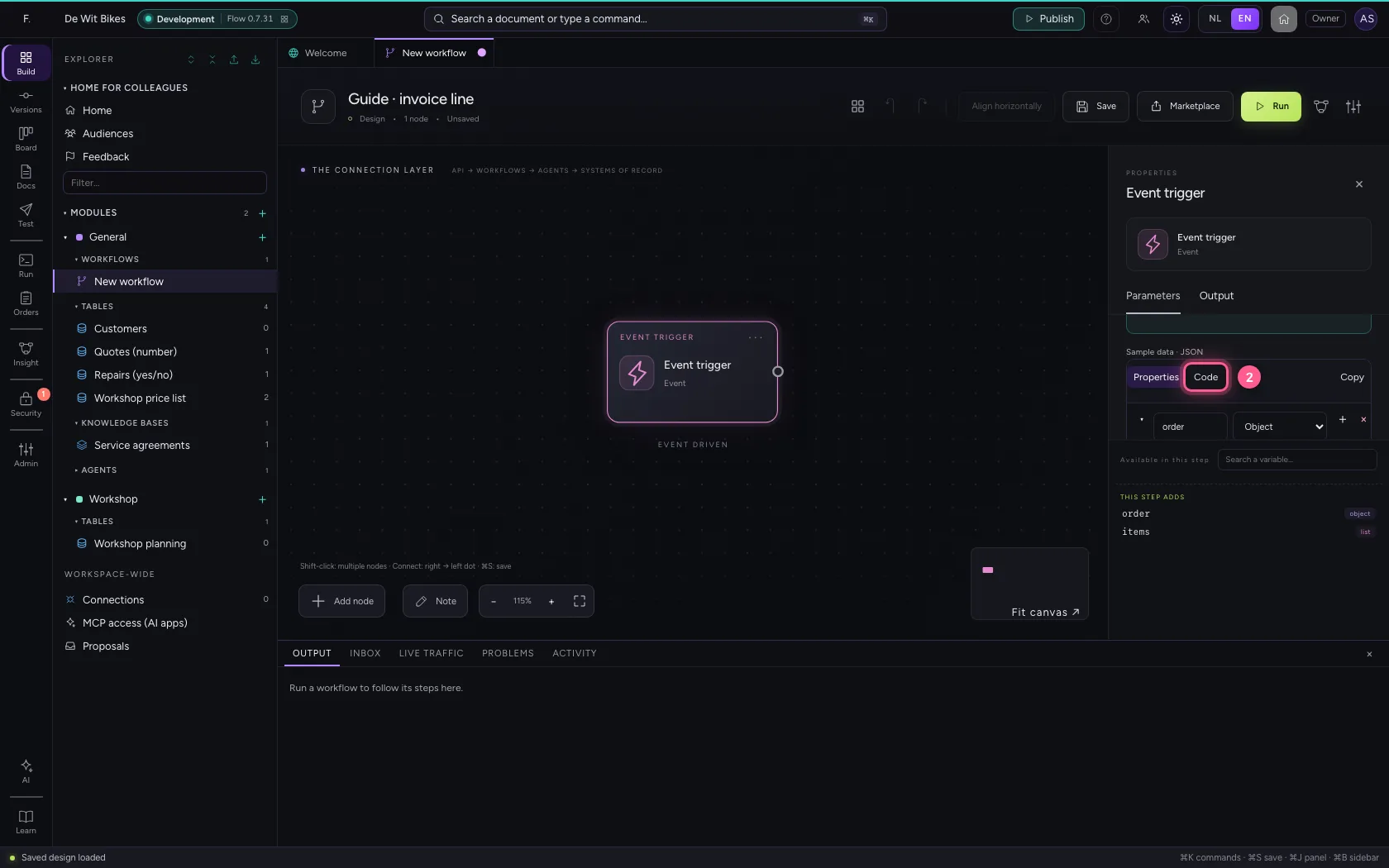
- In the sample data, type `{
Make the fields
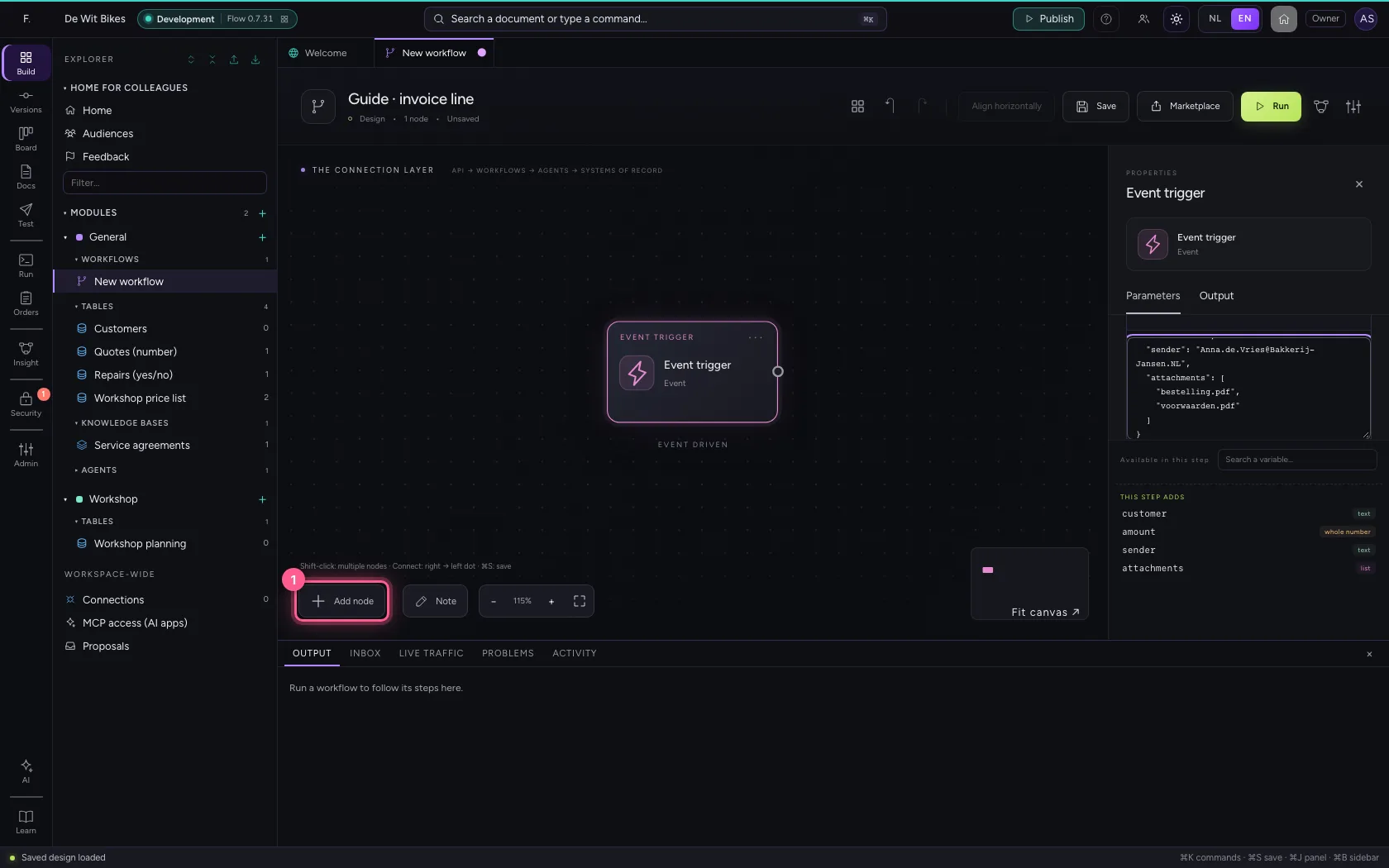
Add Transform data and remove the two example fields. Type a name under New field and press Enter; then fill in the value. Text with {{customer}} takes over the customer. A value that starts with = is a calculation: = round(amount * 1.21, 2) calculates the amount with 21% VAT, rounded to cents.
- Click Add node
- Click Transform data
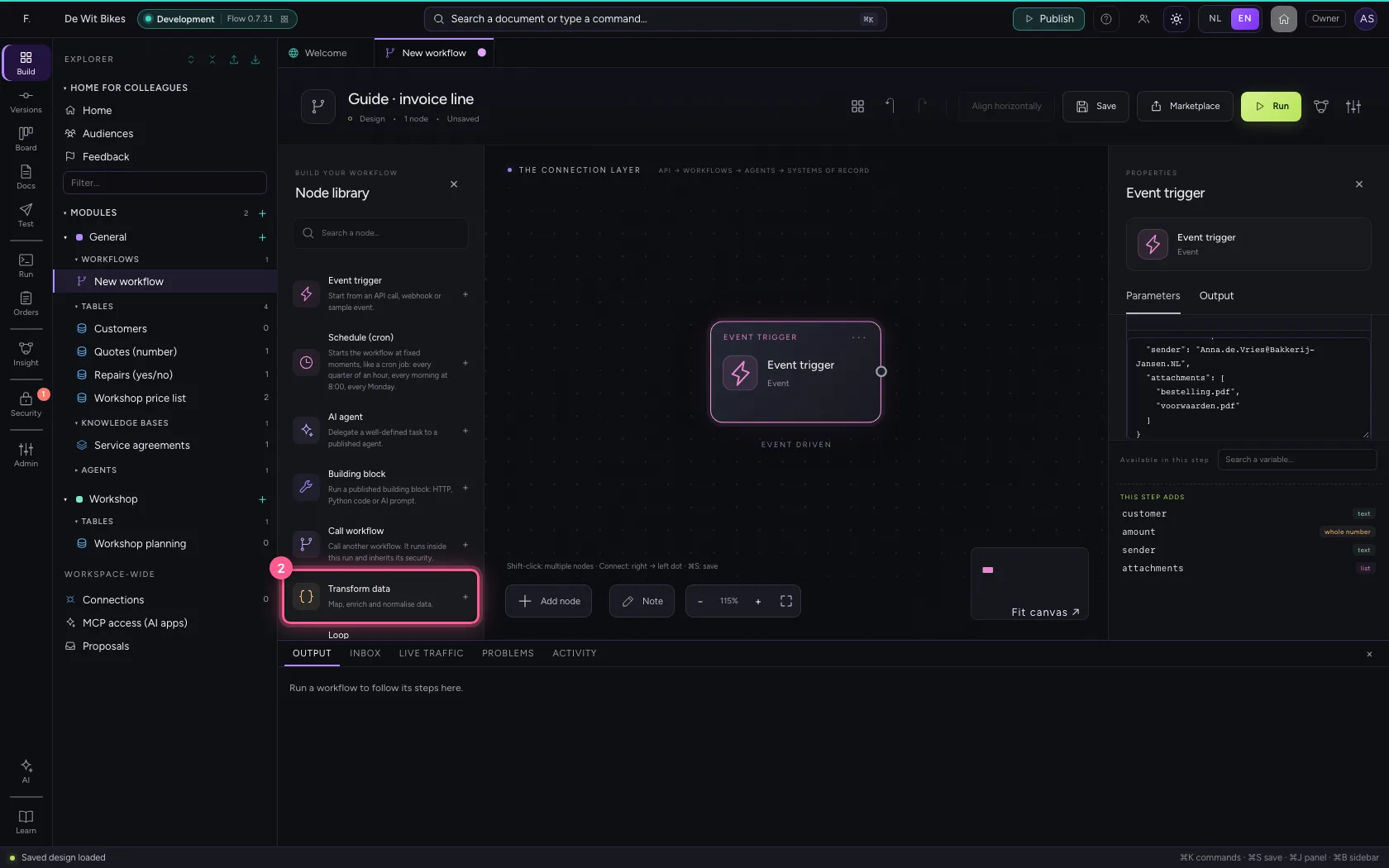
- In Name, type
Invoice line
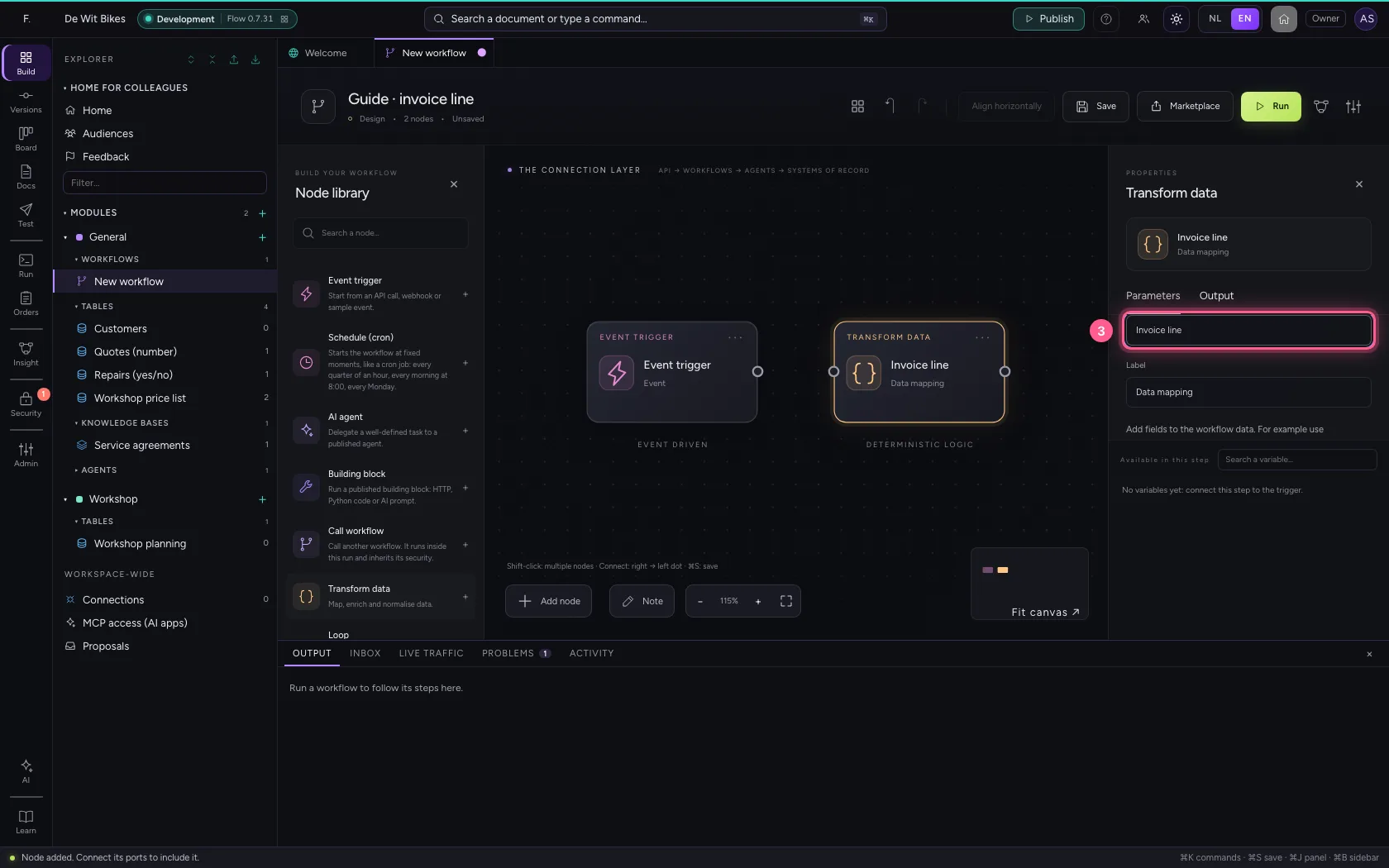
- Click Remove field
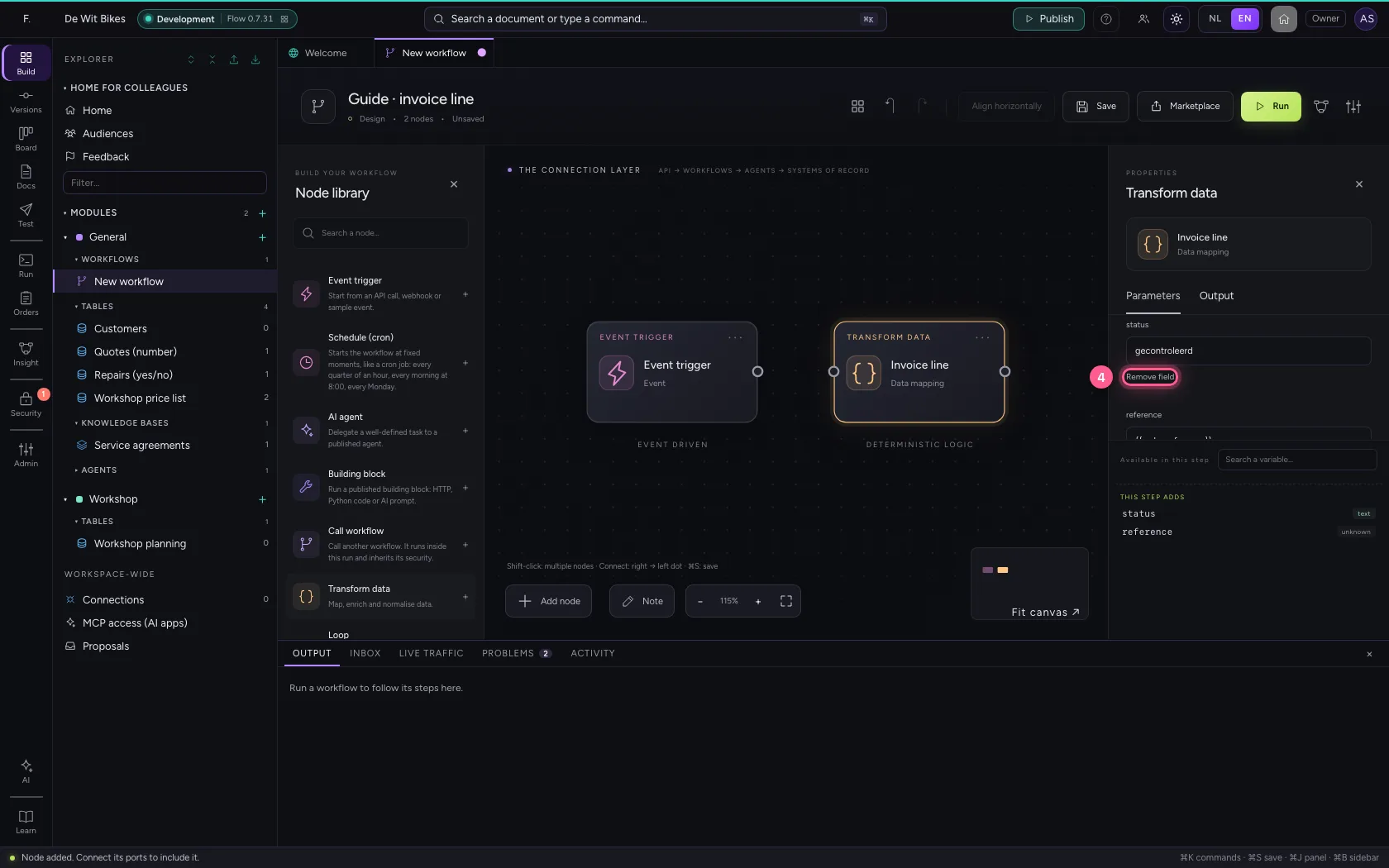
- Click Remove field
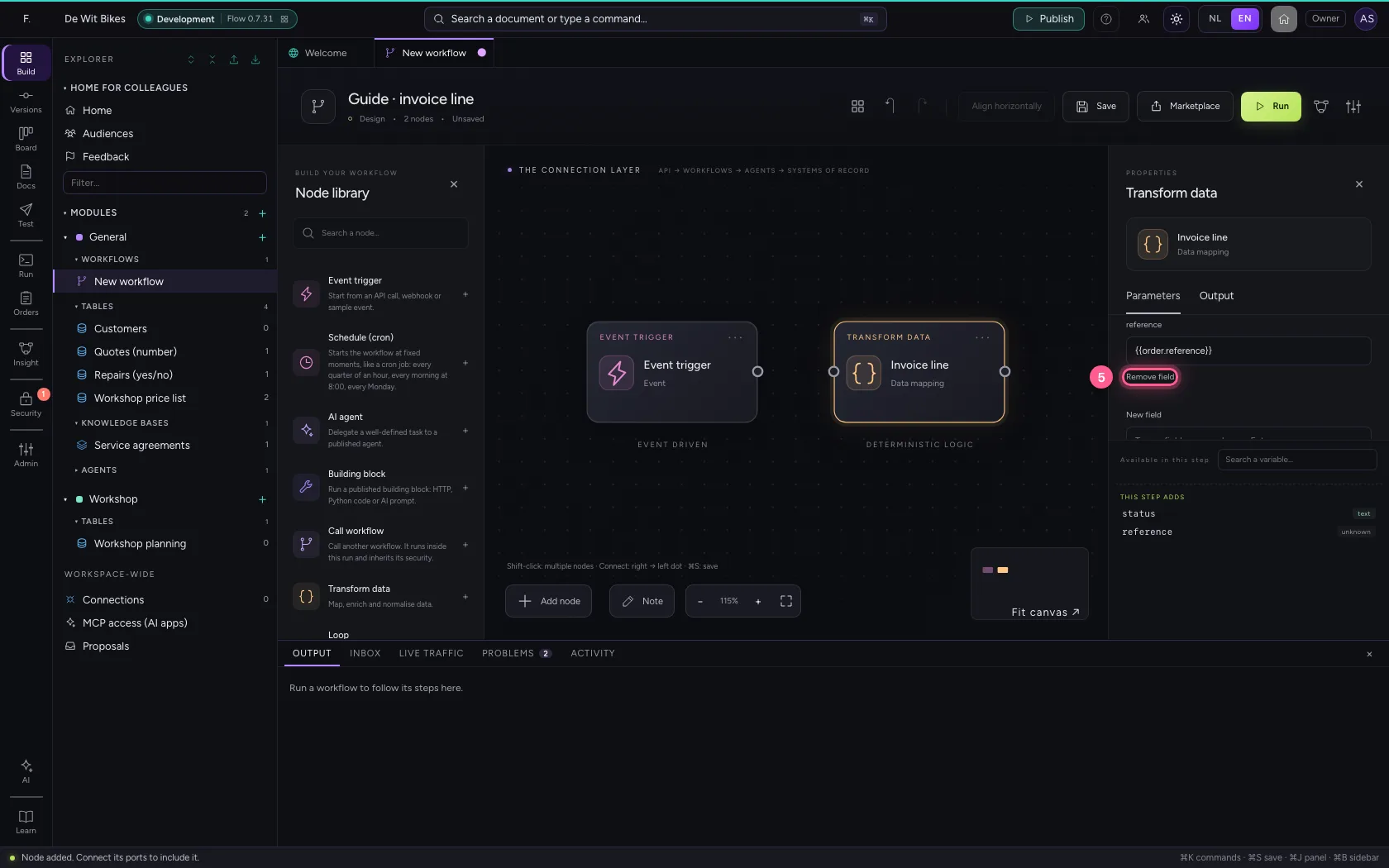
- In New field, type
description - In description, type
Order from {{customer}} - In New field, type
vat - In vat, type
= round(amount * 0.21, 2) - In New field, type
total - In total, type
= round(amount * 1.21, 2)
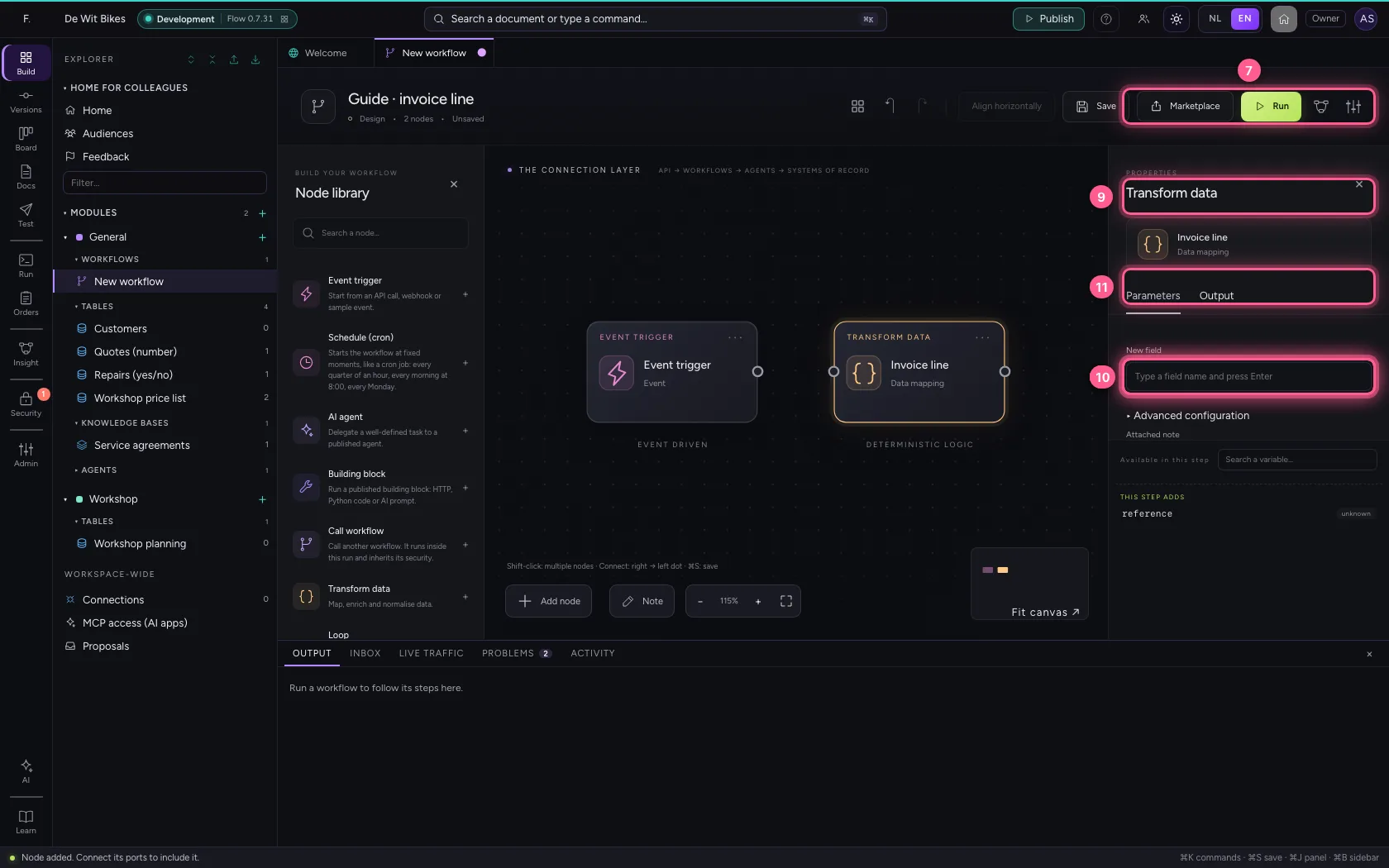
- Click the dot of ‘Event trigger’
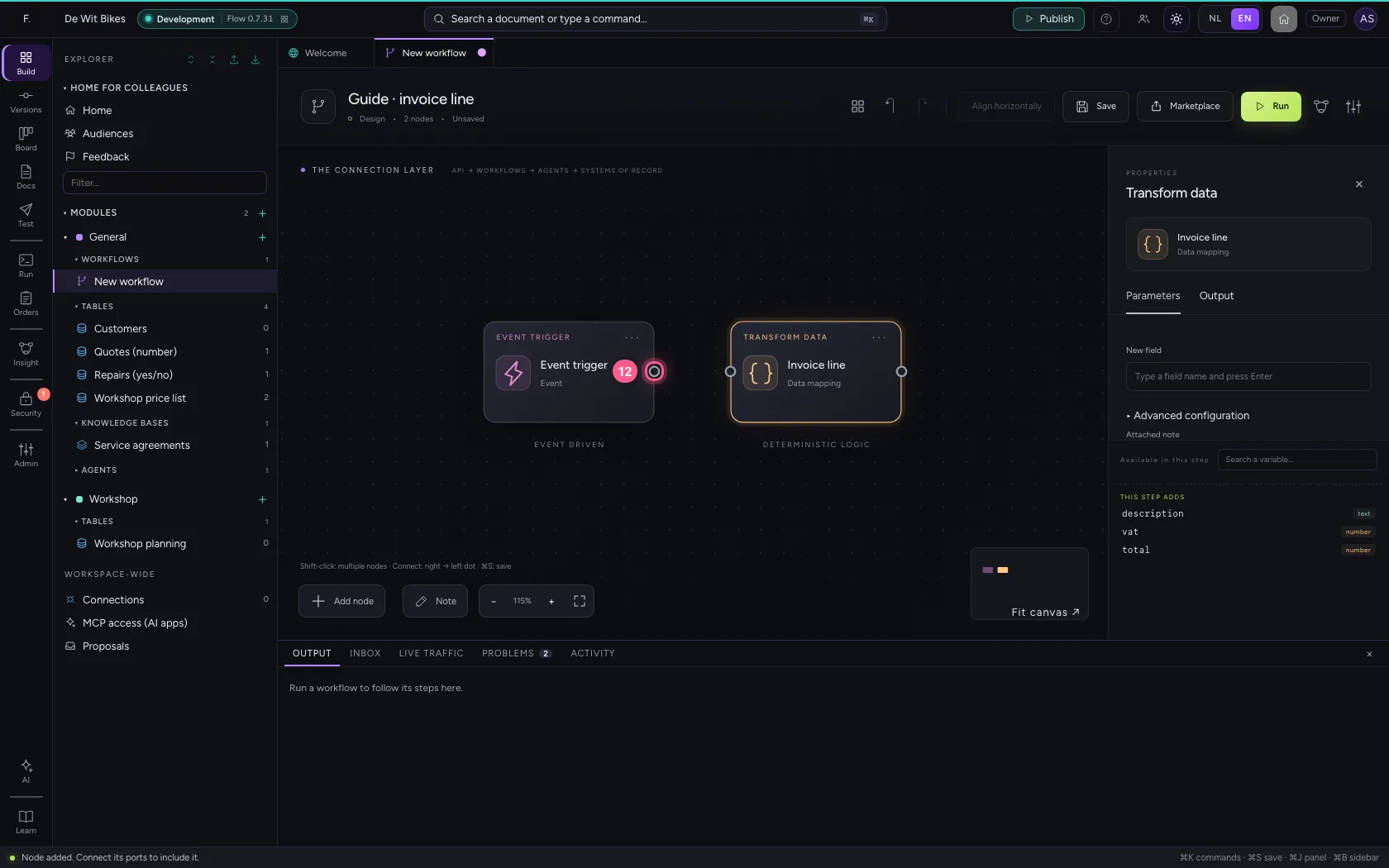
- Click the dot of ‘Invoice line’
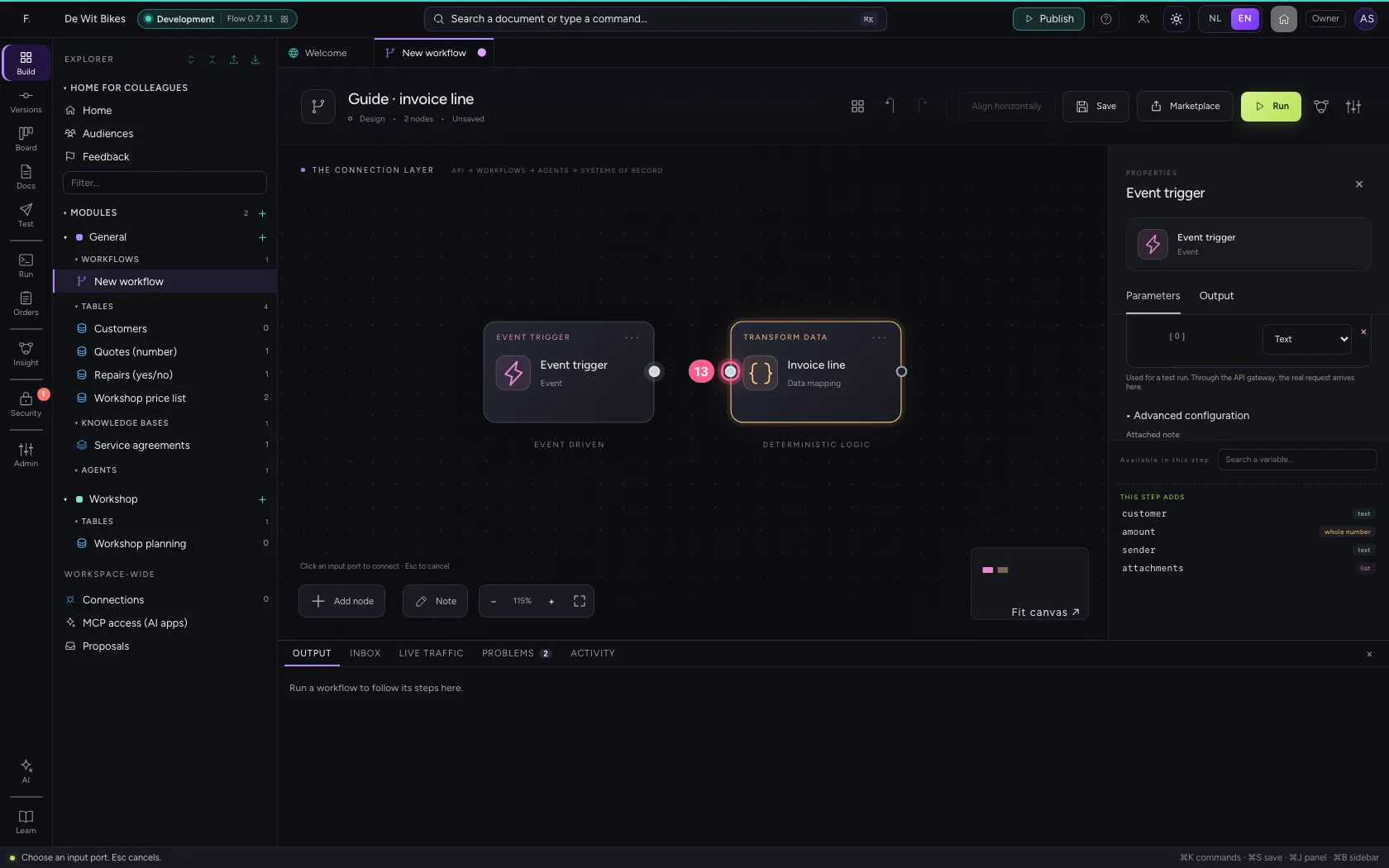
Put the steps in one line and save
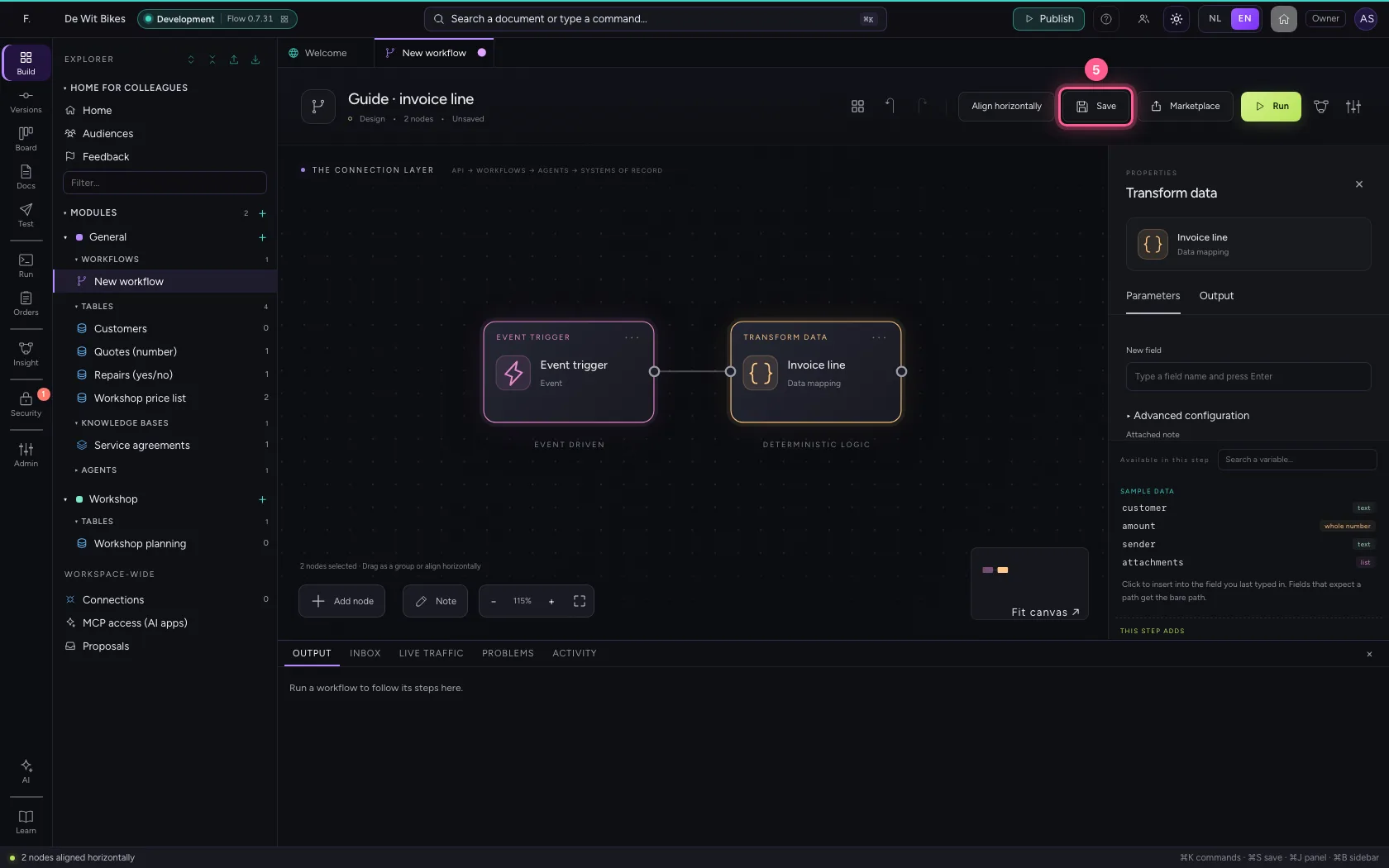
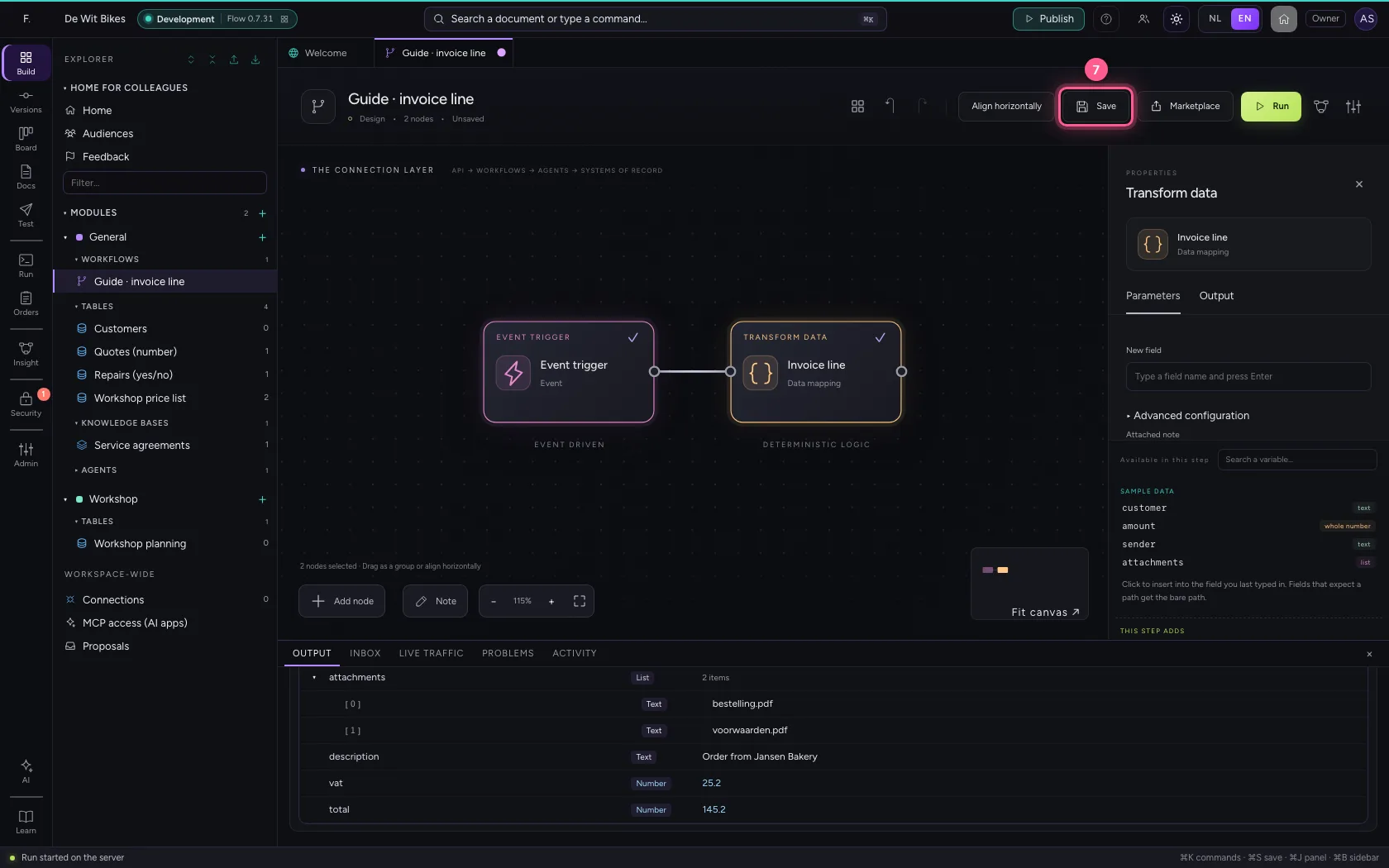
Select the steps (click the first, and the others while holding Shift) and click Align horizontally: they then stand in one line and you read the workflow from left to right; a branch (such as No of an If / Else) gets its own row below. Fit to view puts everything in sight; then Save.
- Click ‘Event trigger’
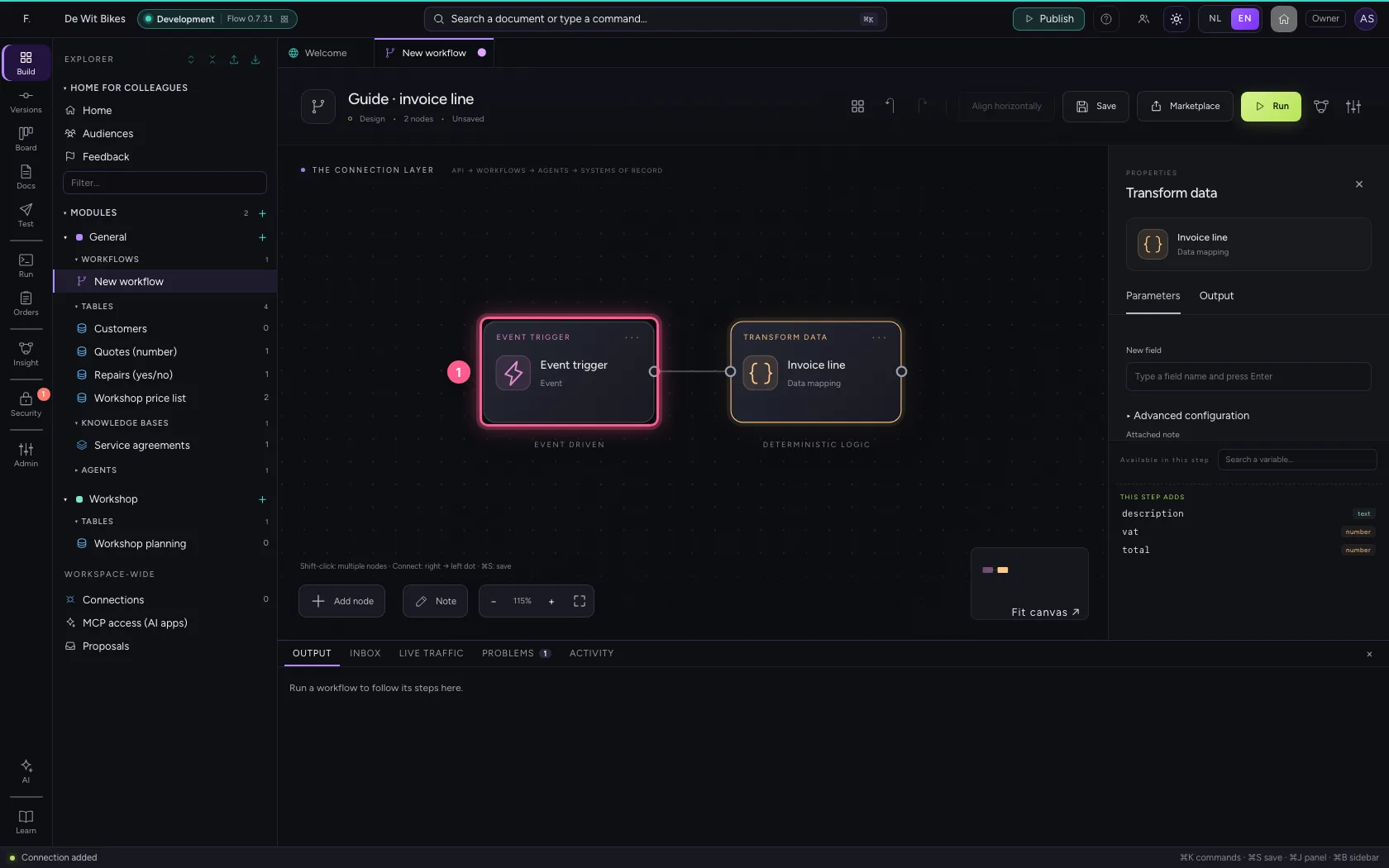
- Click ‘Invoice line’ while holding Shift
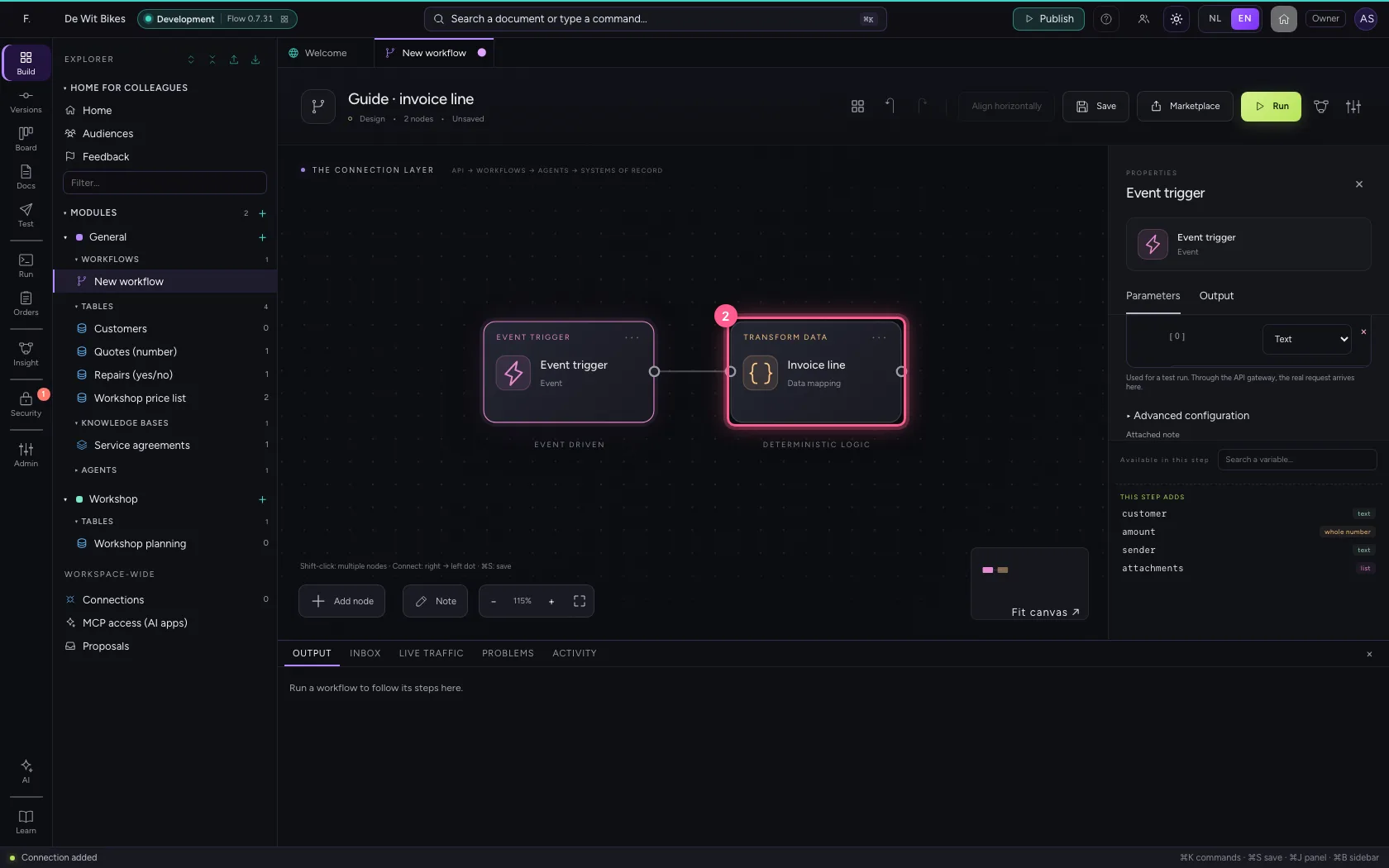
- Click Align horizontally
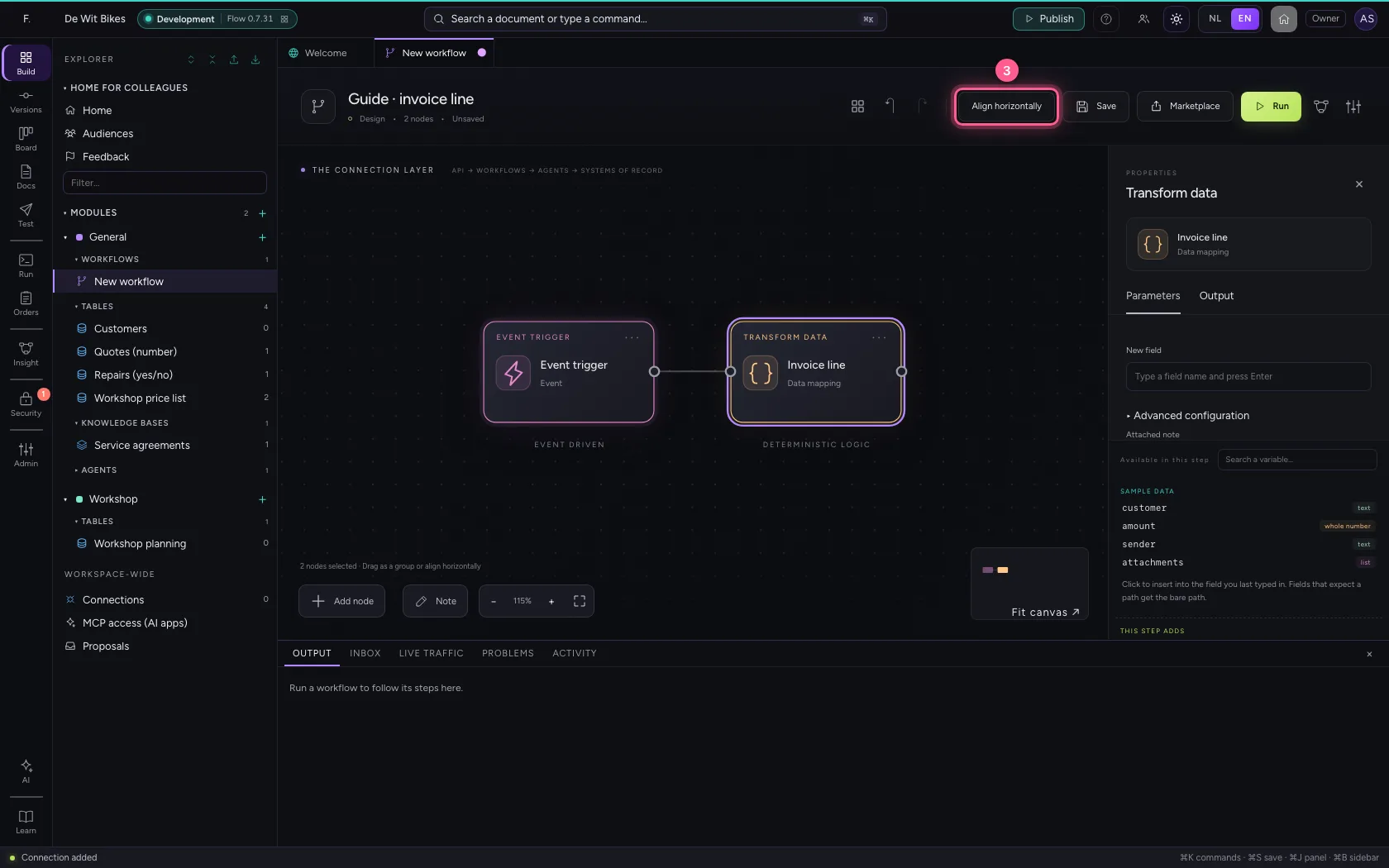
- Click Fit to view
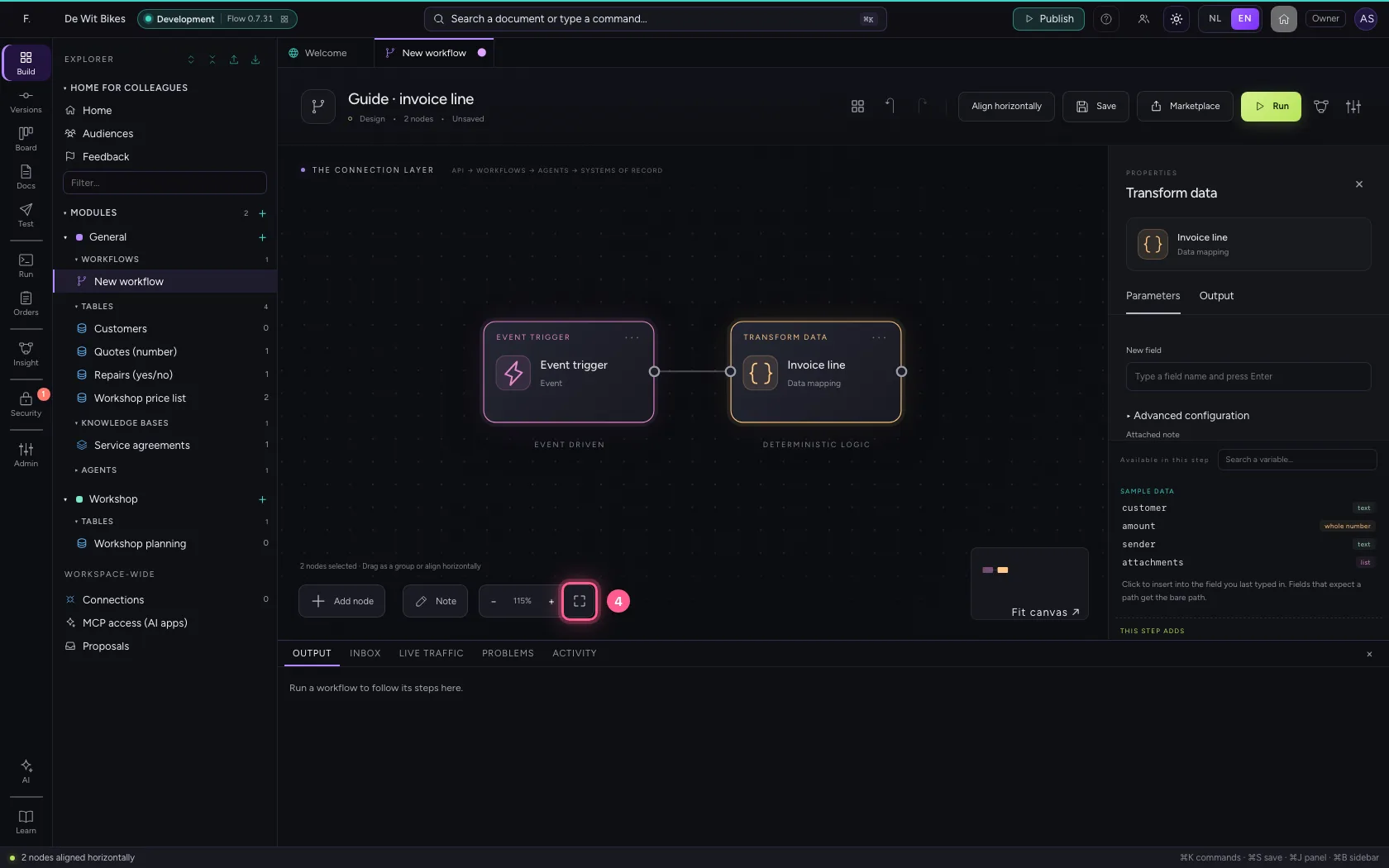
- Click Save
Run and look at the step's output
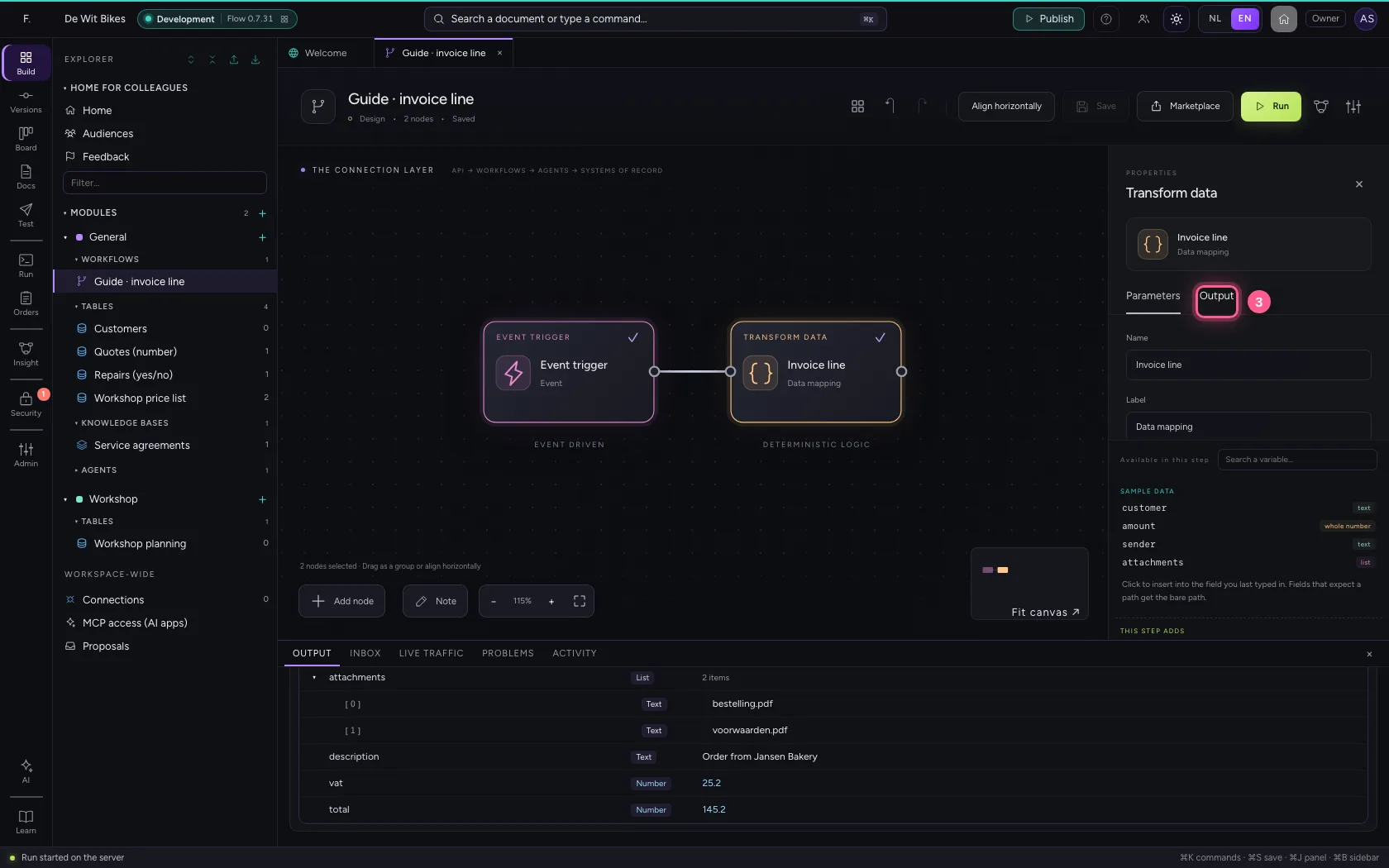
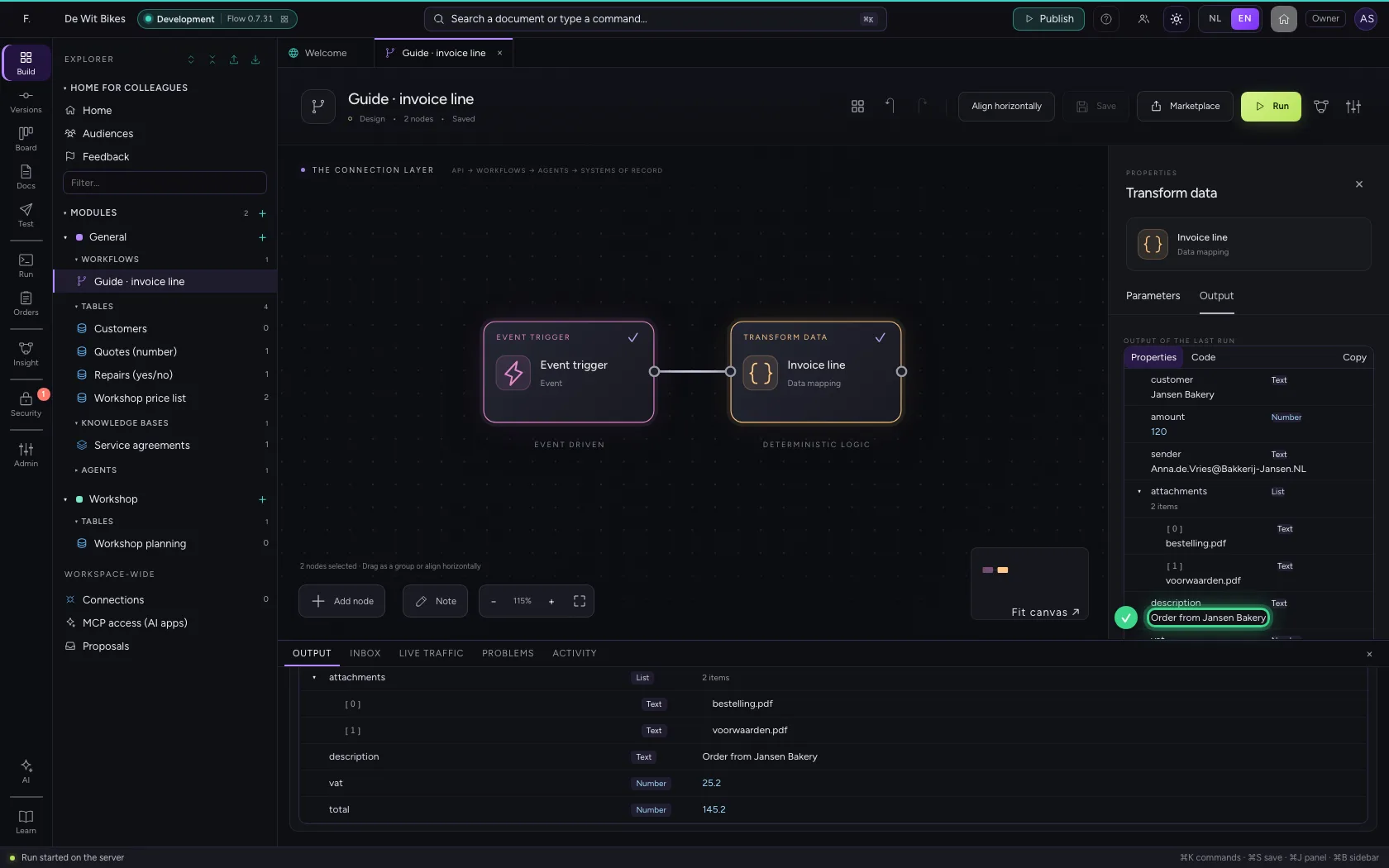
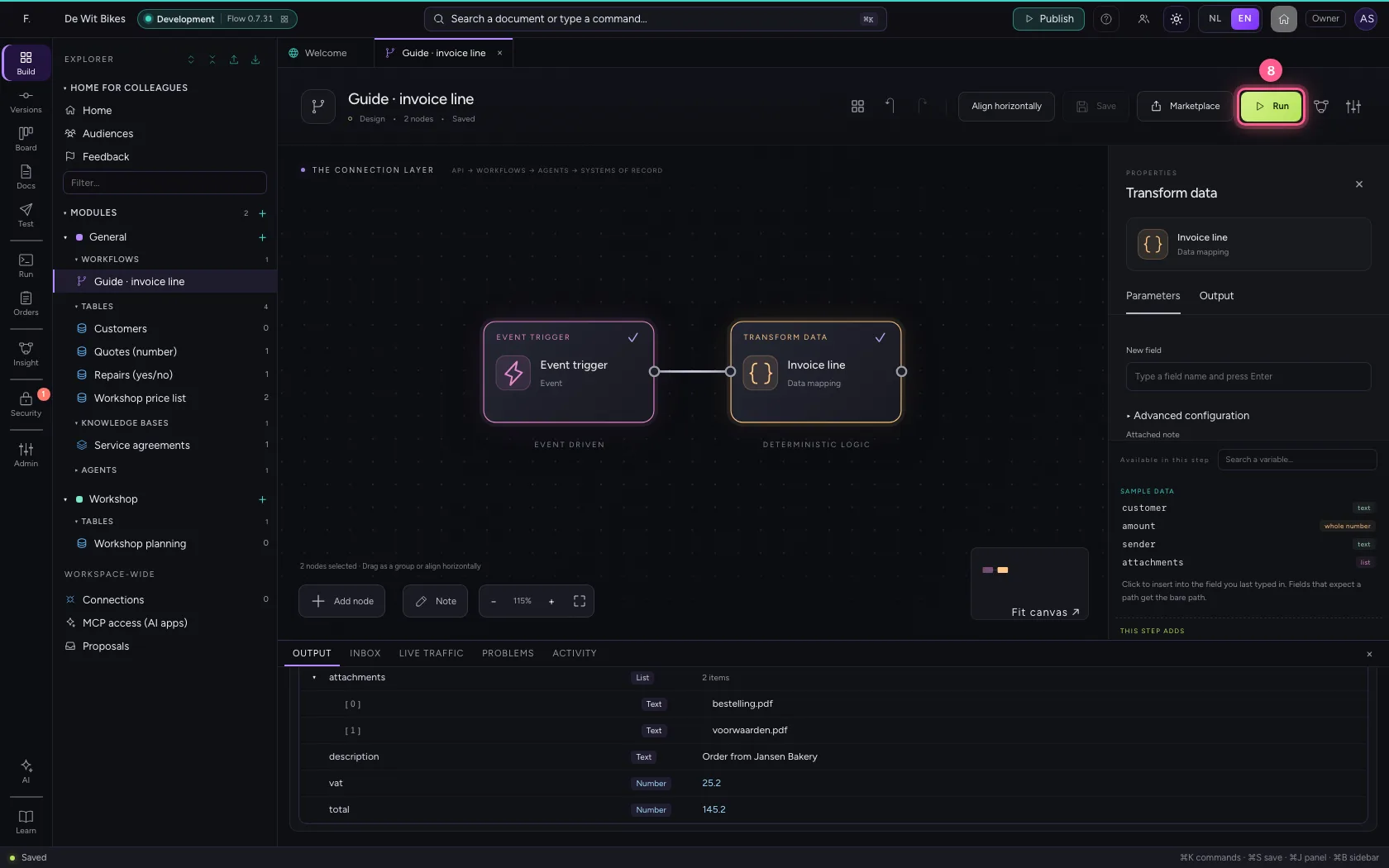
After Run, the bottom shows what the workflow had at the end. To know what one step produced, click the step and choose the Output tab: there is the data exactly as it was after that step.
- Click Run
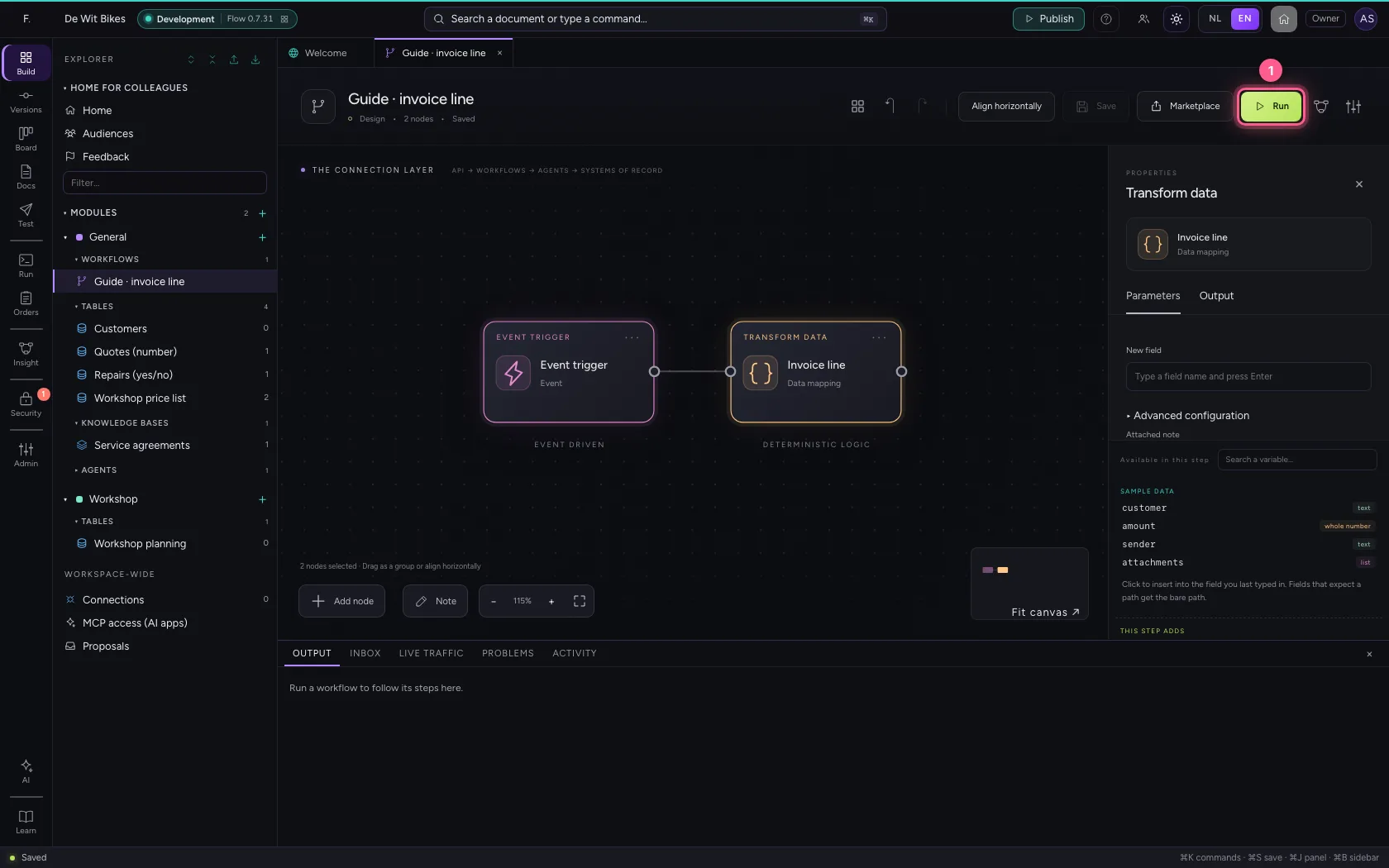
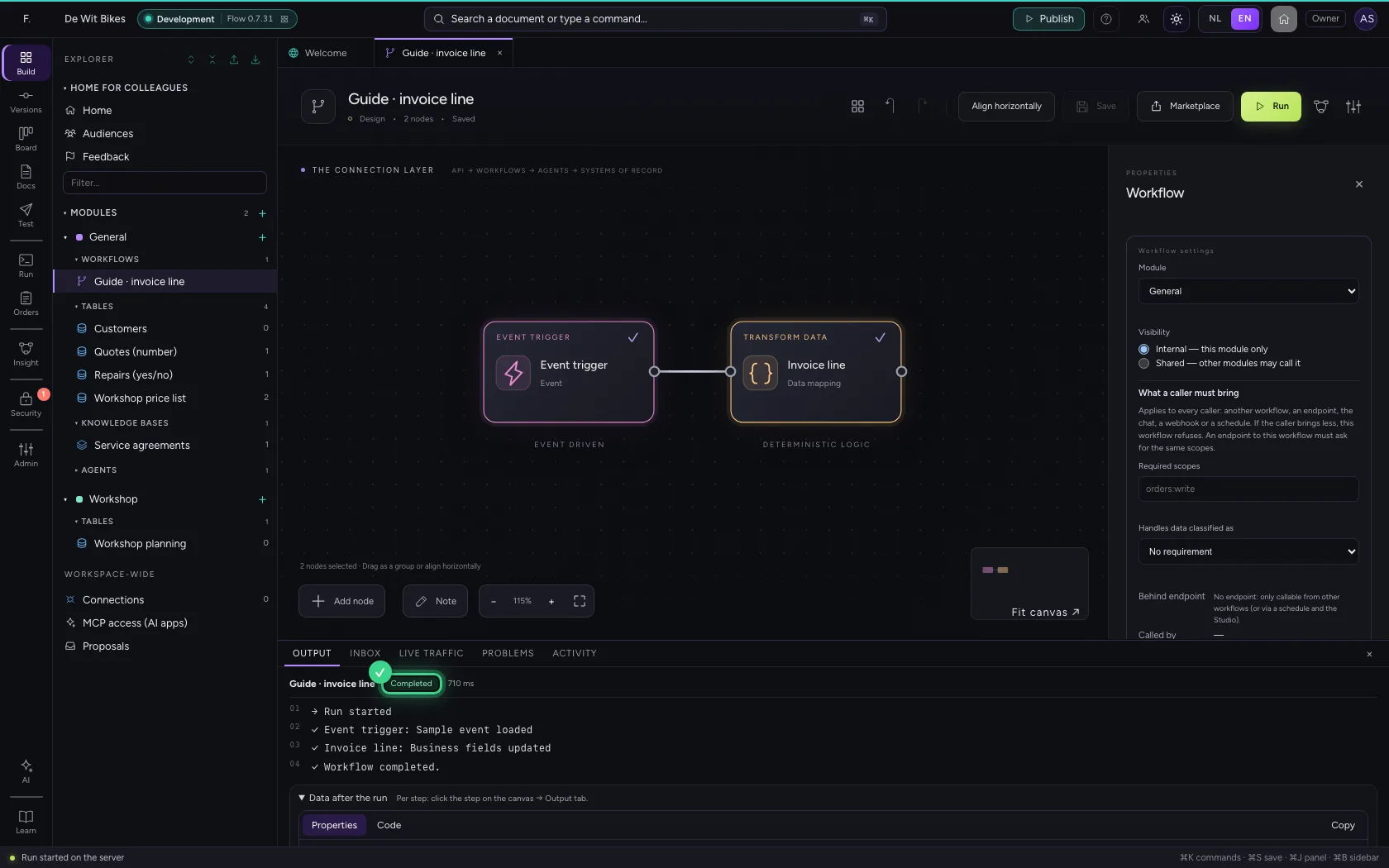
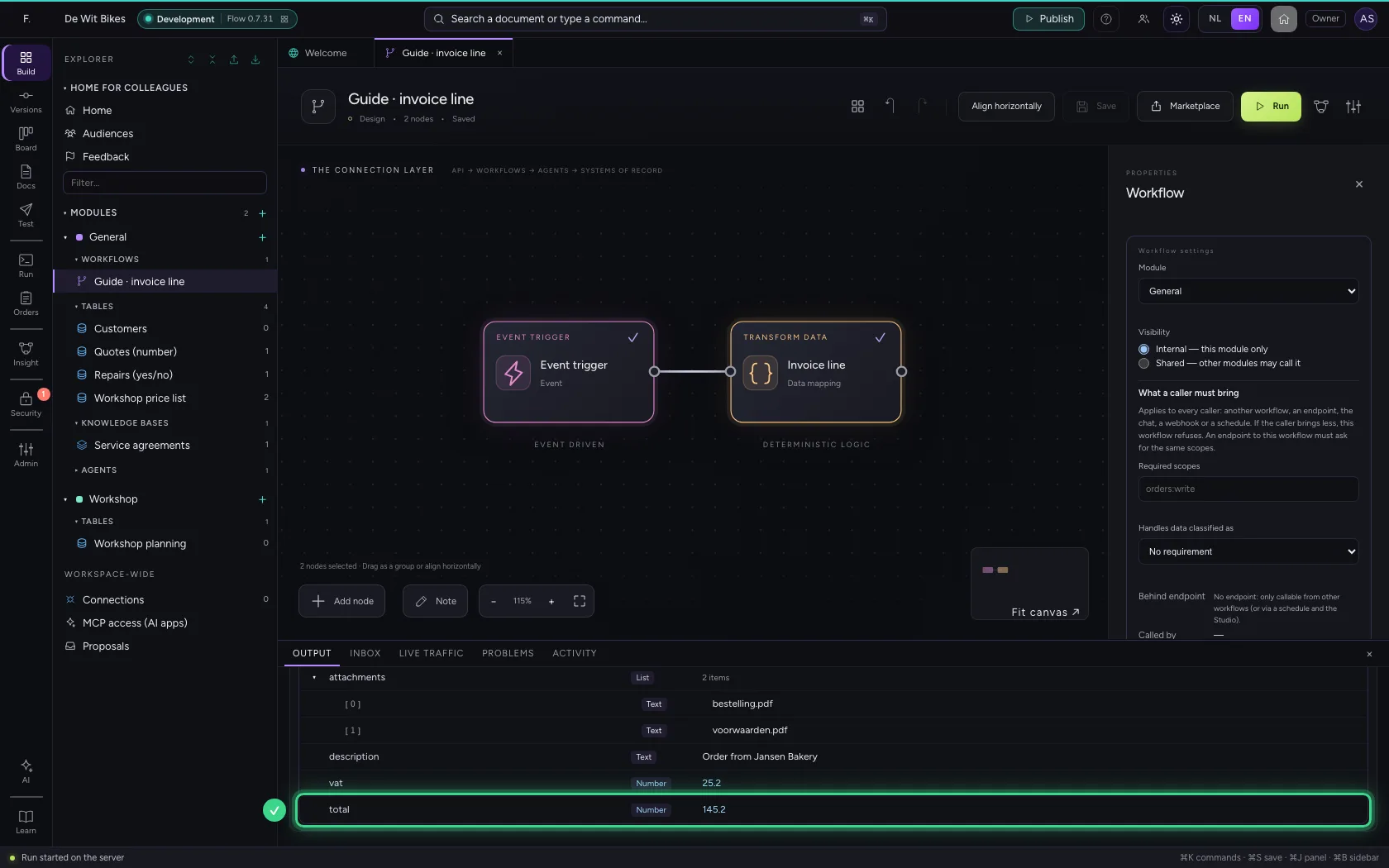
- Click the step ‘Invoice line’
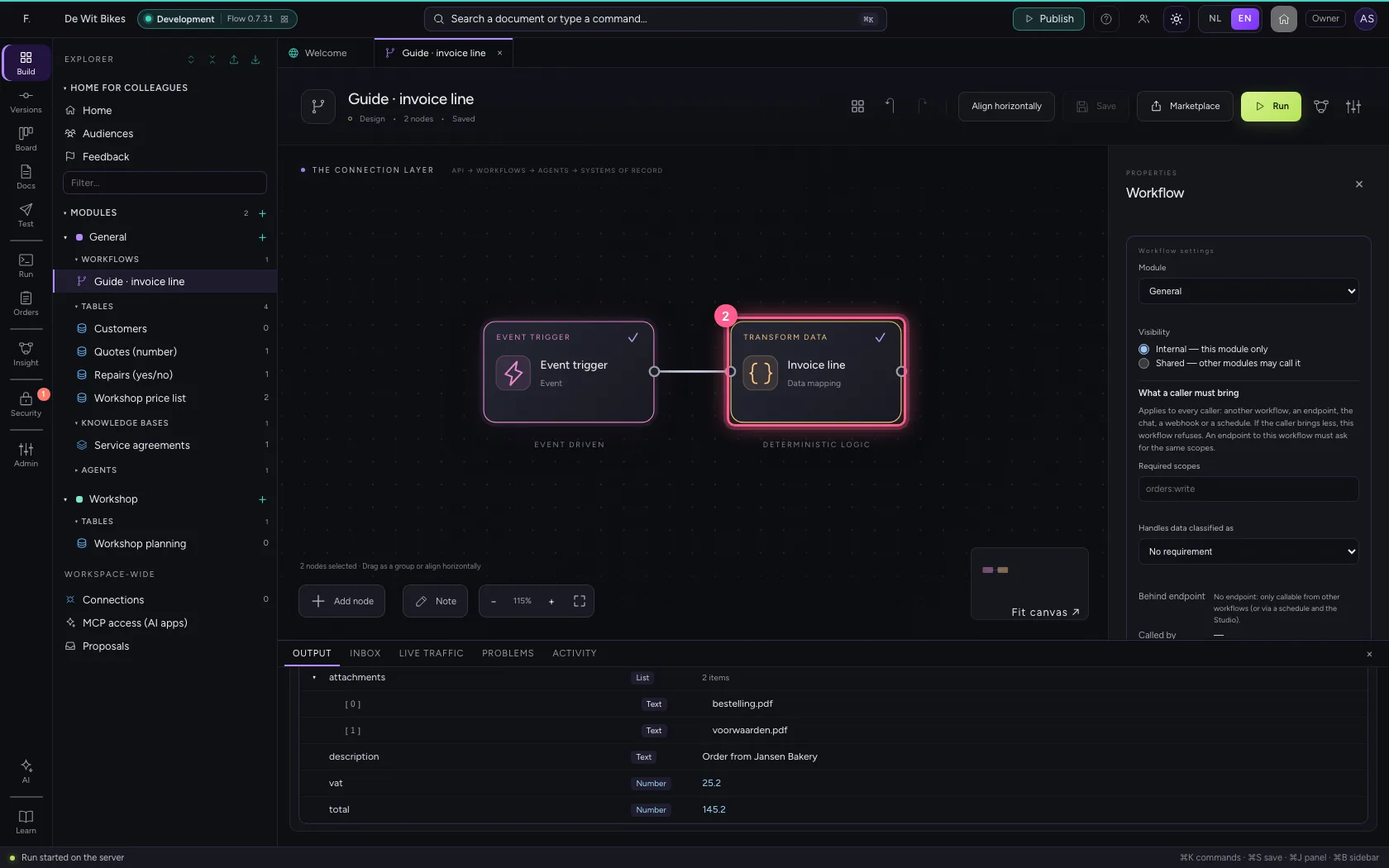
- Click Output
Clean up text with a calculation
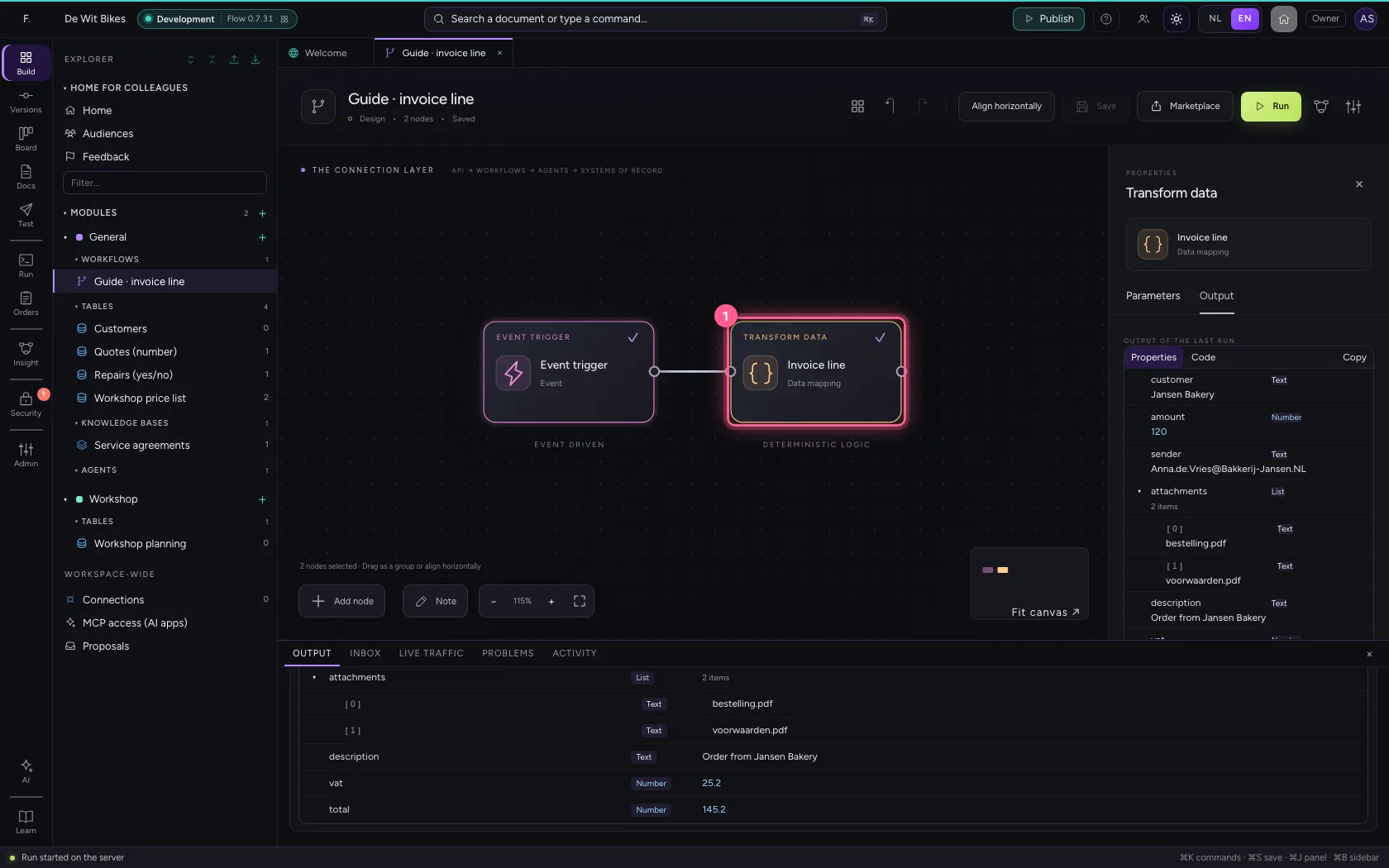
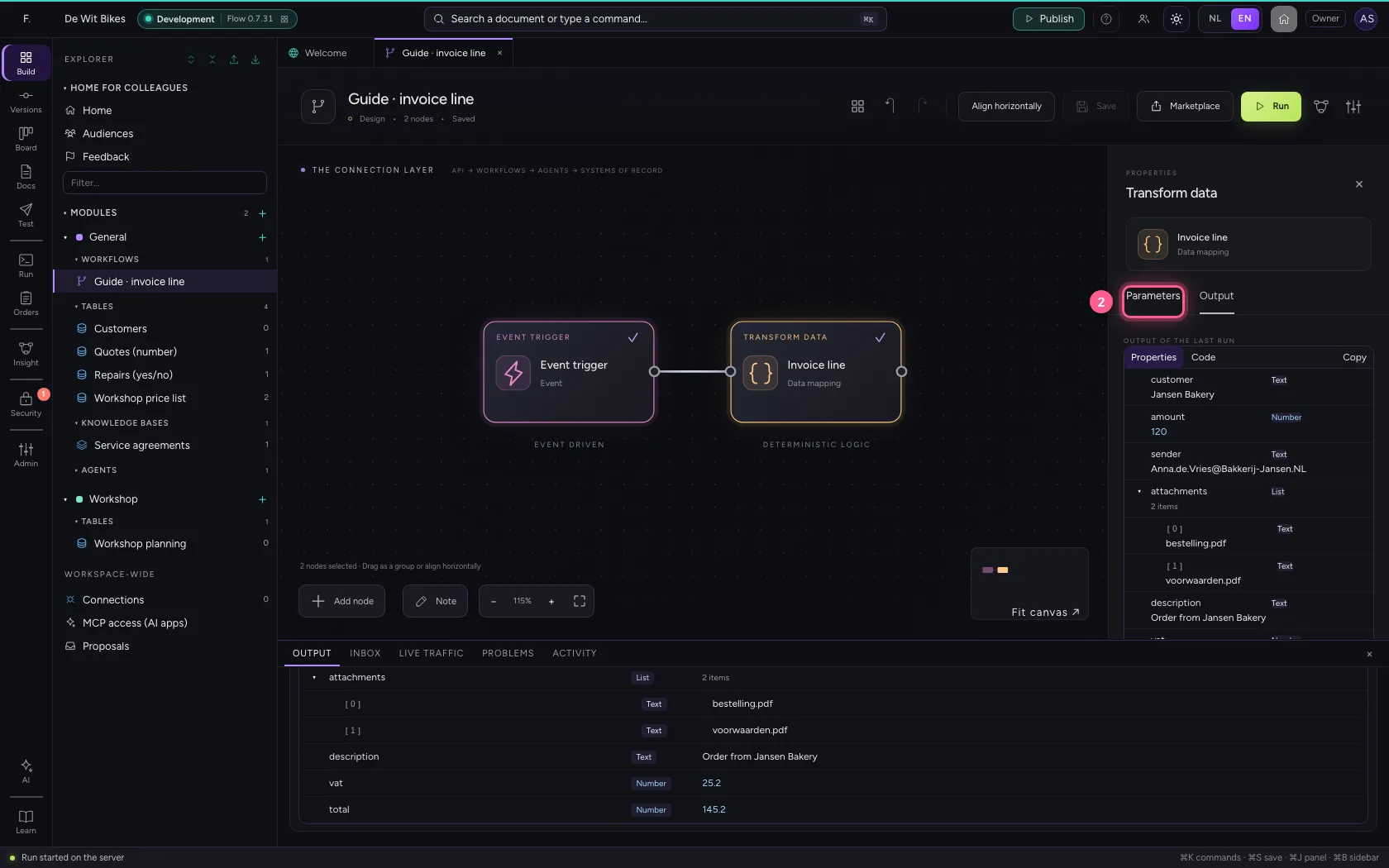
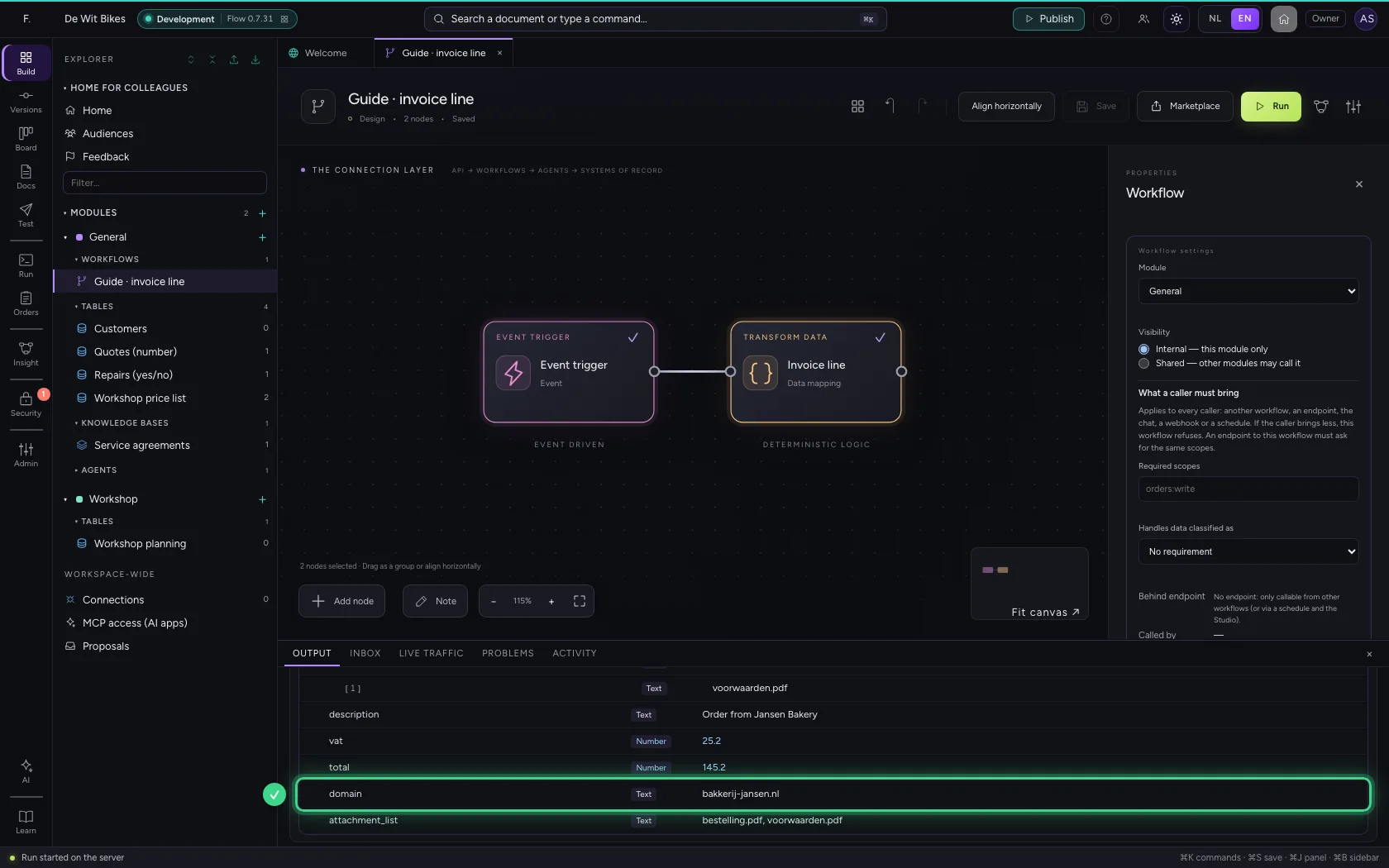
Calculations work with text too. Click Invoice line again and add two fields: = domain(sender) takes the domain from an e-mail address, in lower case (handy to look up a supplier or customer), and = ', '.join(attachments) turns a list into one line of text. These work as well: = sender.lower(), = trim(text), = text.replace('old', 'new') and = [a.upper() for a in attachments]. Fixed clean-ups belong in a calculation, not in an AI step: it is faster, free and always the same.
- Click the step ‘Invoice line’
- Click Parameters
- In New field, type
domain - In domain, type
= domain(sender) - In New field, type
attachment_list - In attachment_list, type
= ', '.join(attachments)
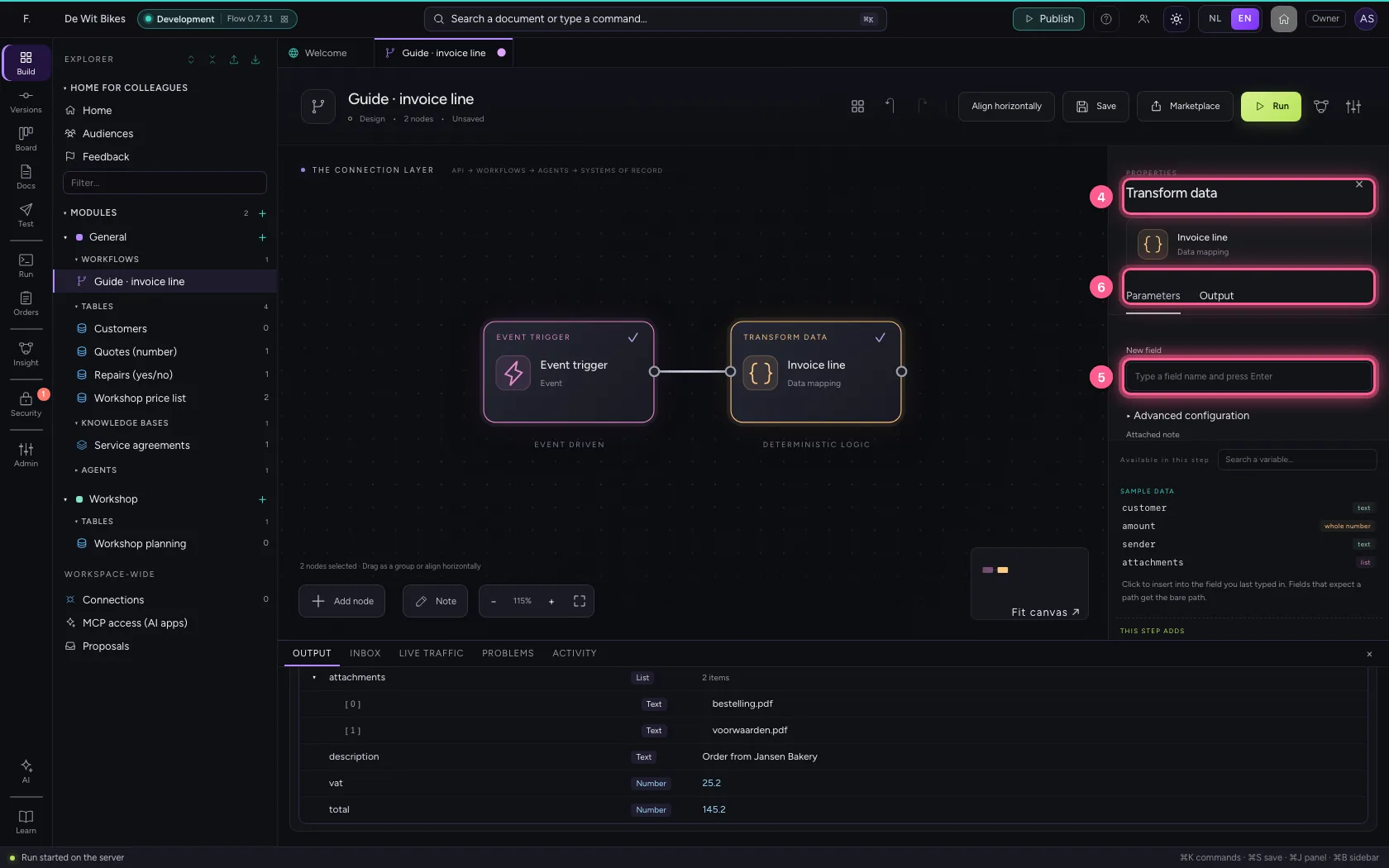
- Click Save
- Click Run
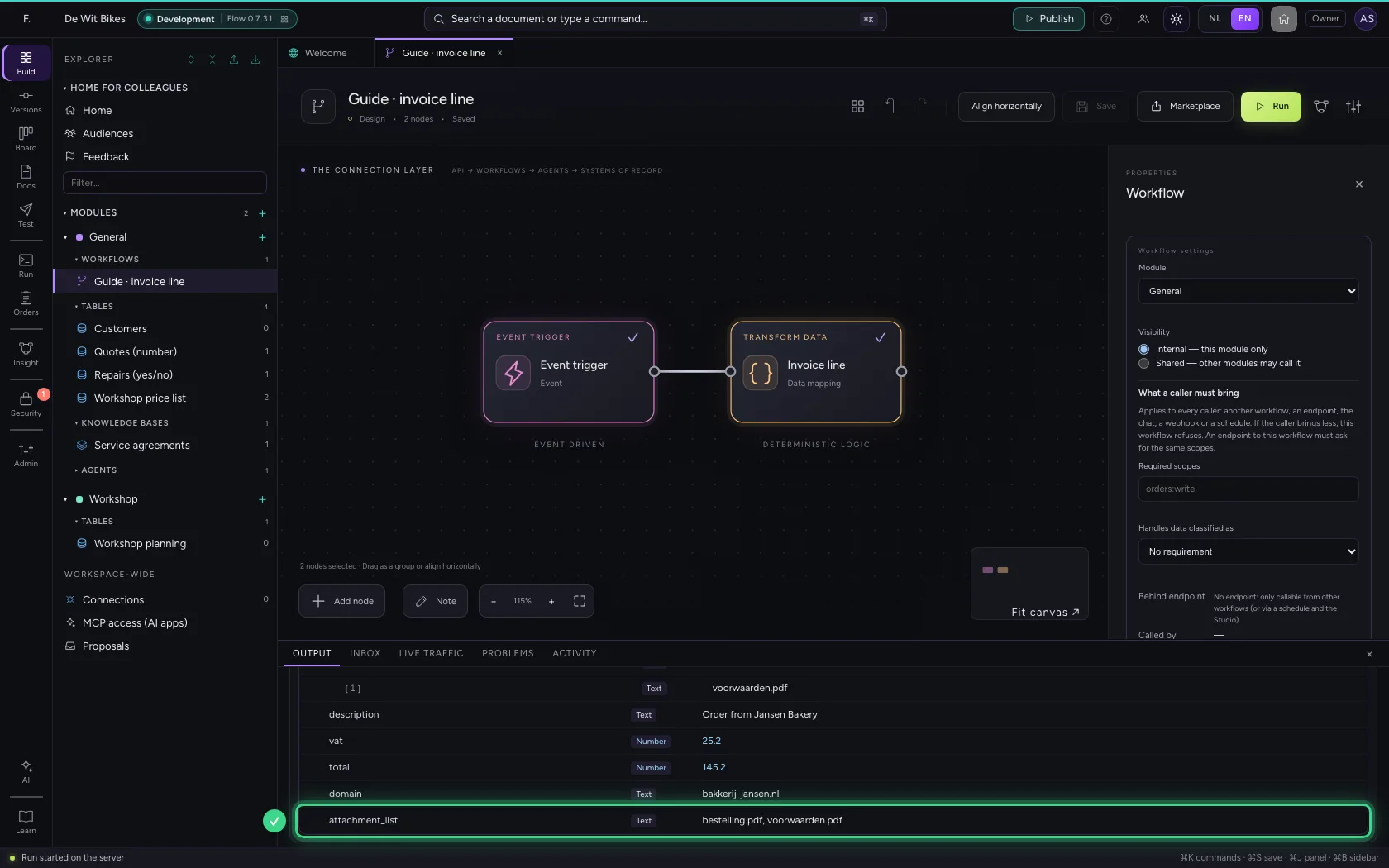
This guide was carried out step by step on 22 Oct 2026 by an automated test on Flow (version 3e563176).