Governance as an app
You can install Governance as an app on your computer or phone: in a window of its own, with its own icon and a quick start. The app keeps only the fixed parts of the screen; your data always stays on the server and is never stored on the device. There is nothing extra to install or manage.
Install Governance
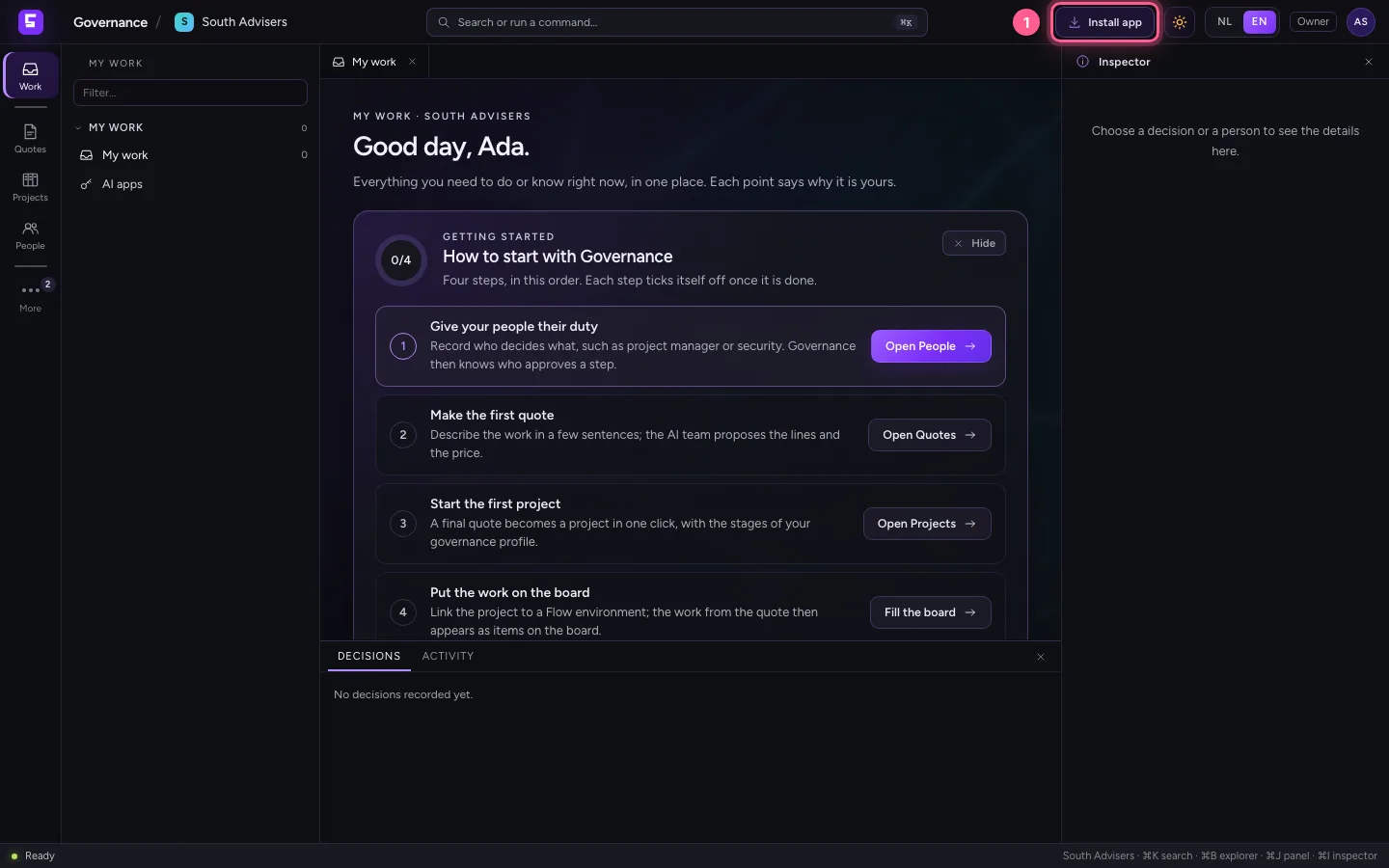
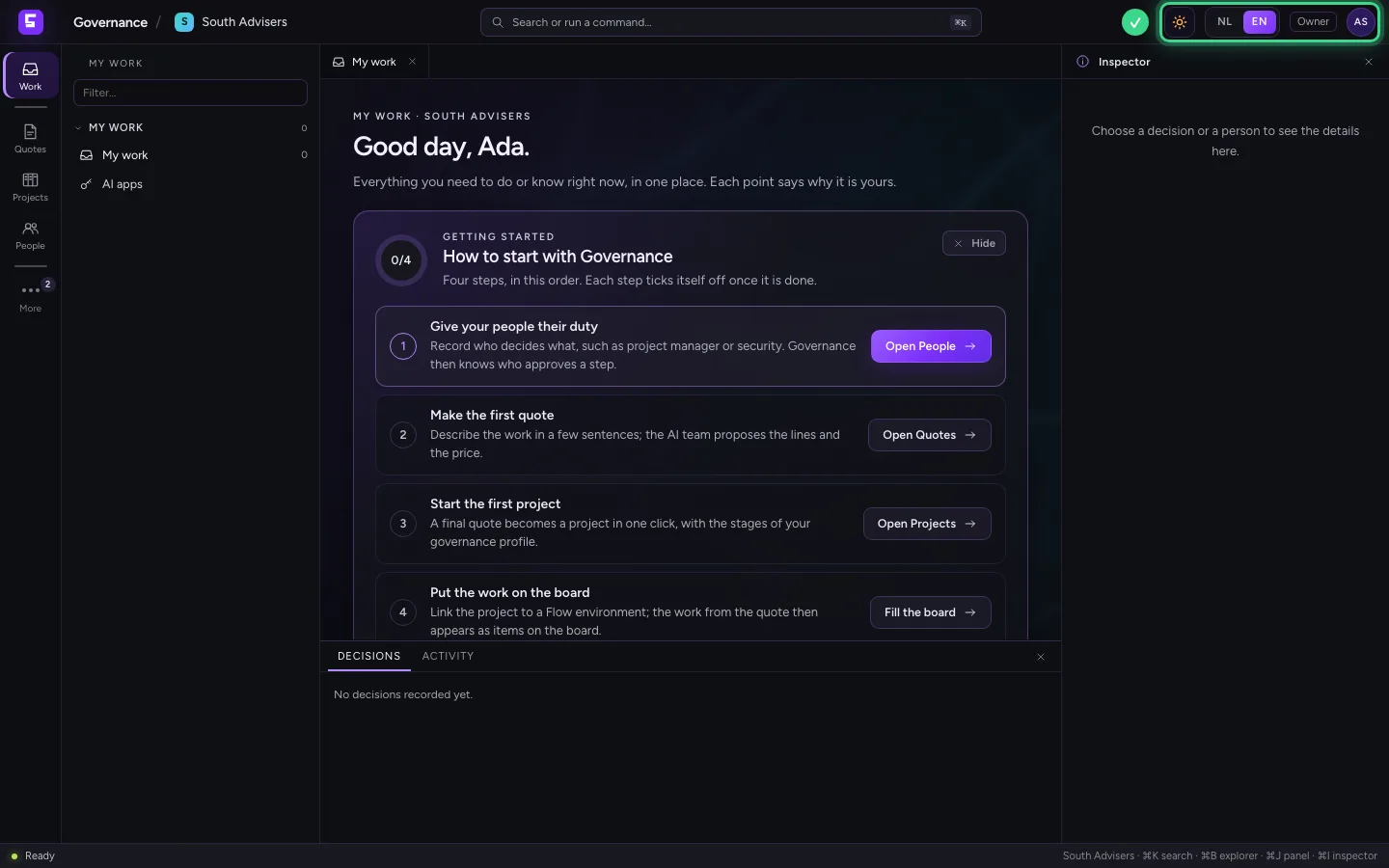
When your browser offers installation, the top bar shows the button Install app. Choose it and confirm in the browser's question. Governance is then among your apps and opens in a window of its own, straight on your organisation.
- Click Install app
A new version
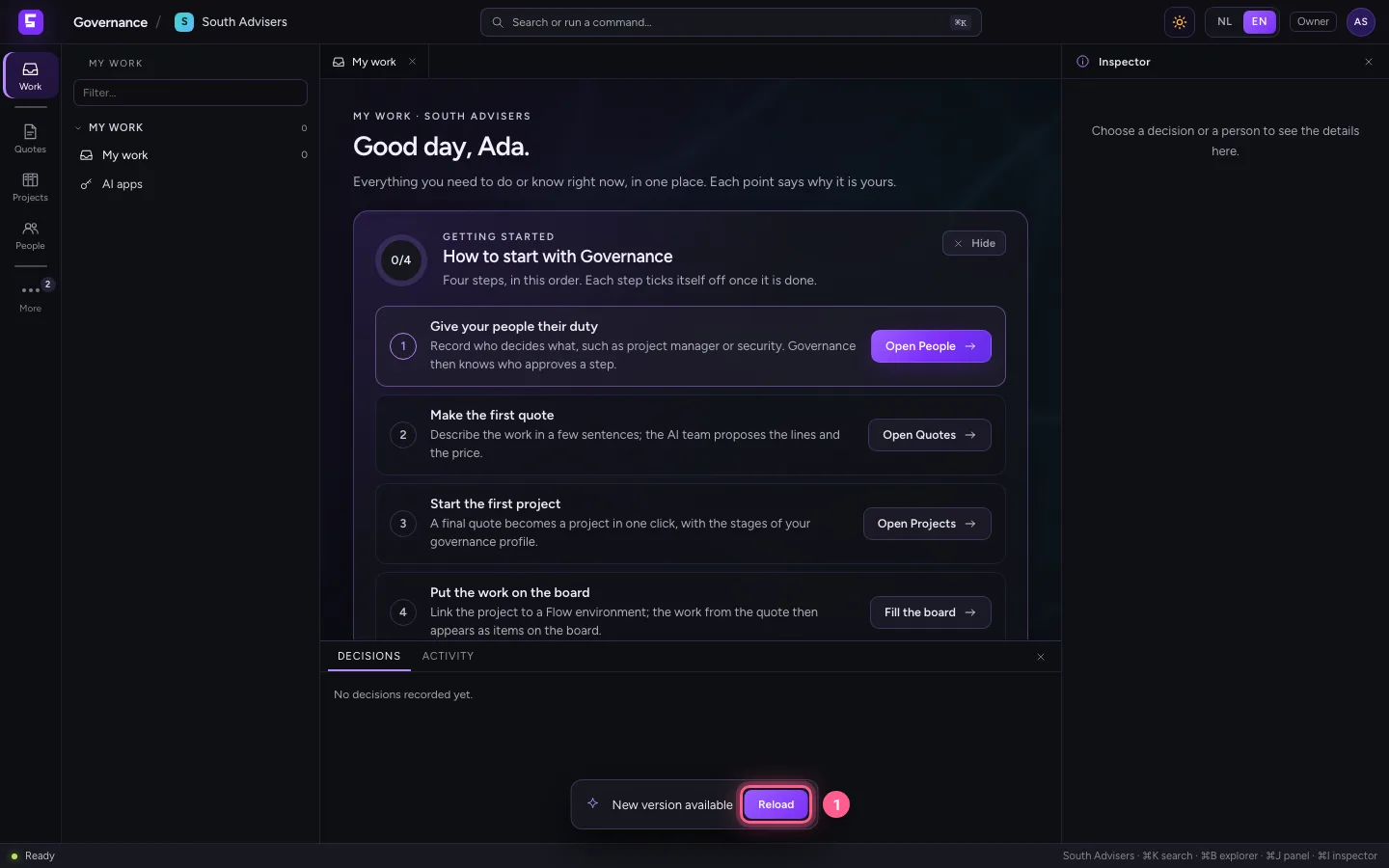
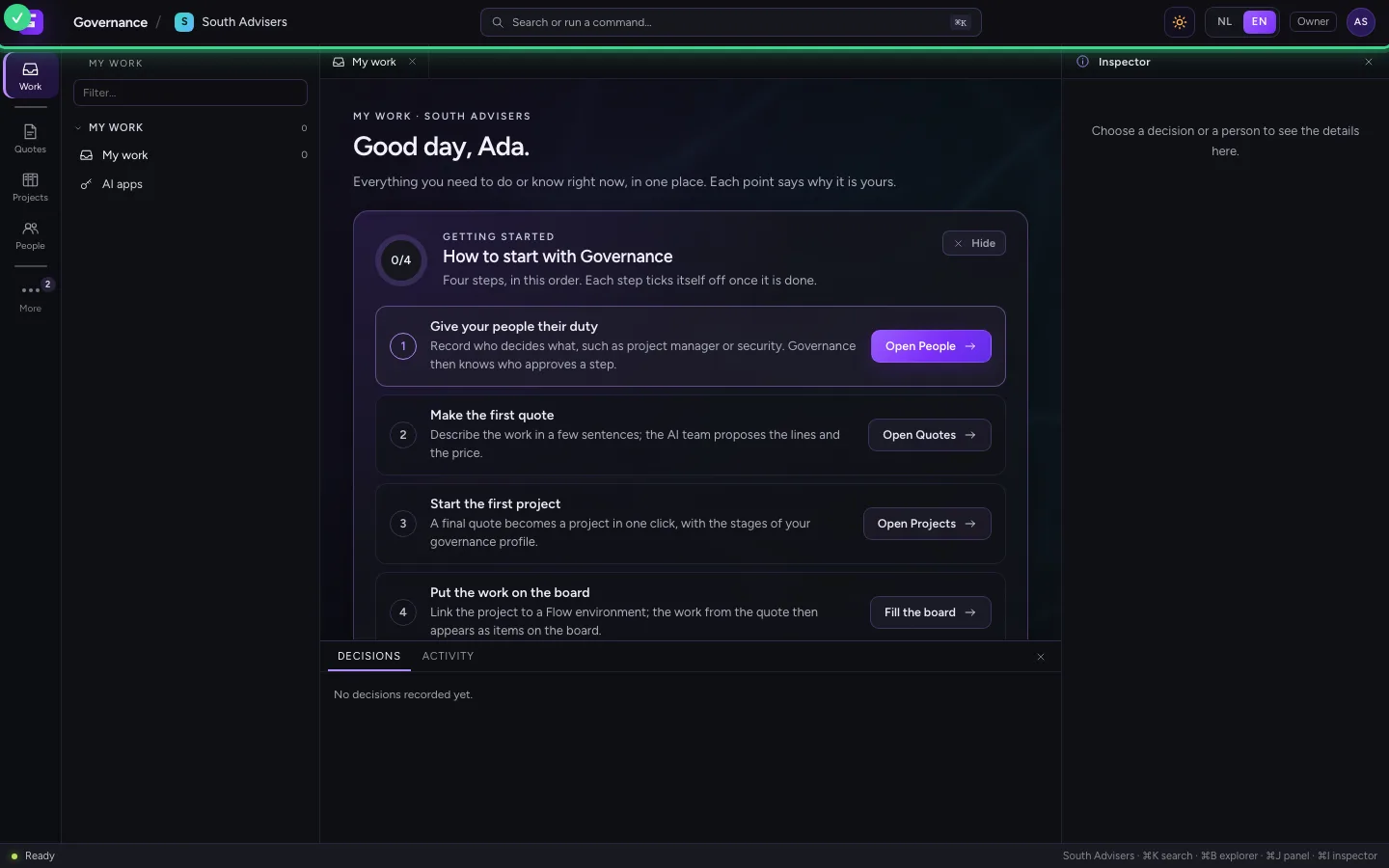
When a new version of Governance arrives while you work, New version available appears at the bottom. Choose Reload when it suits you: the screen loads again with the new version. What you saved already stays as it is.
- Click Reload
Without a connection
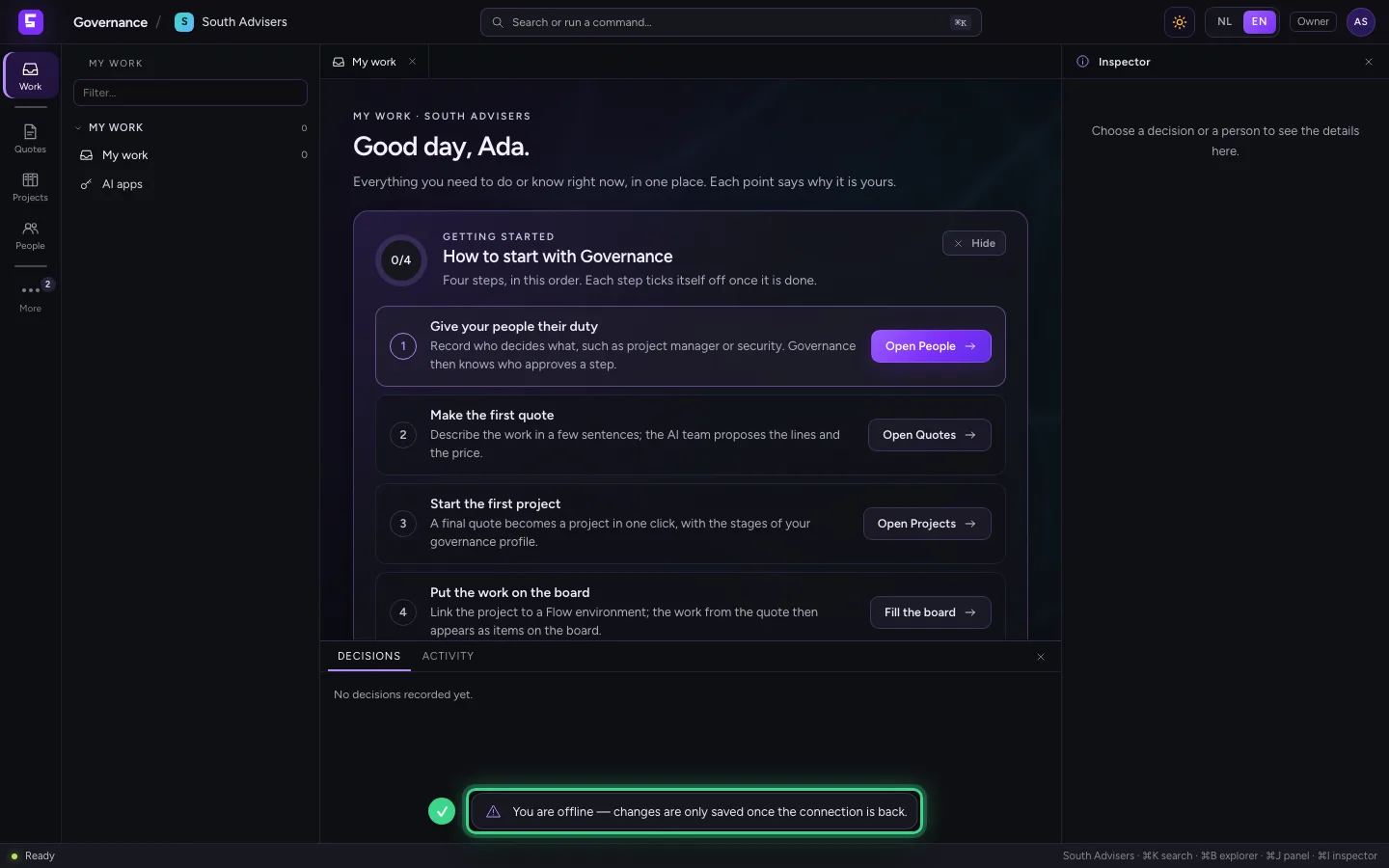
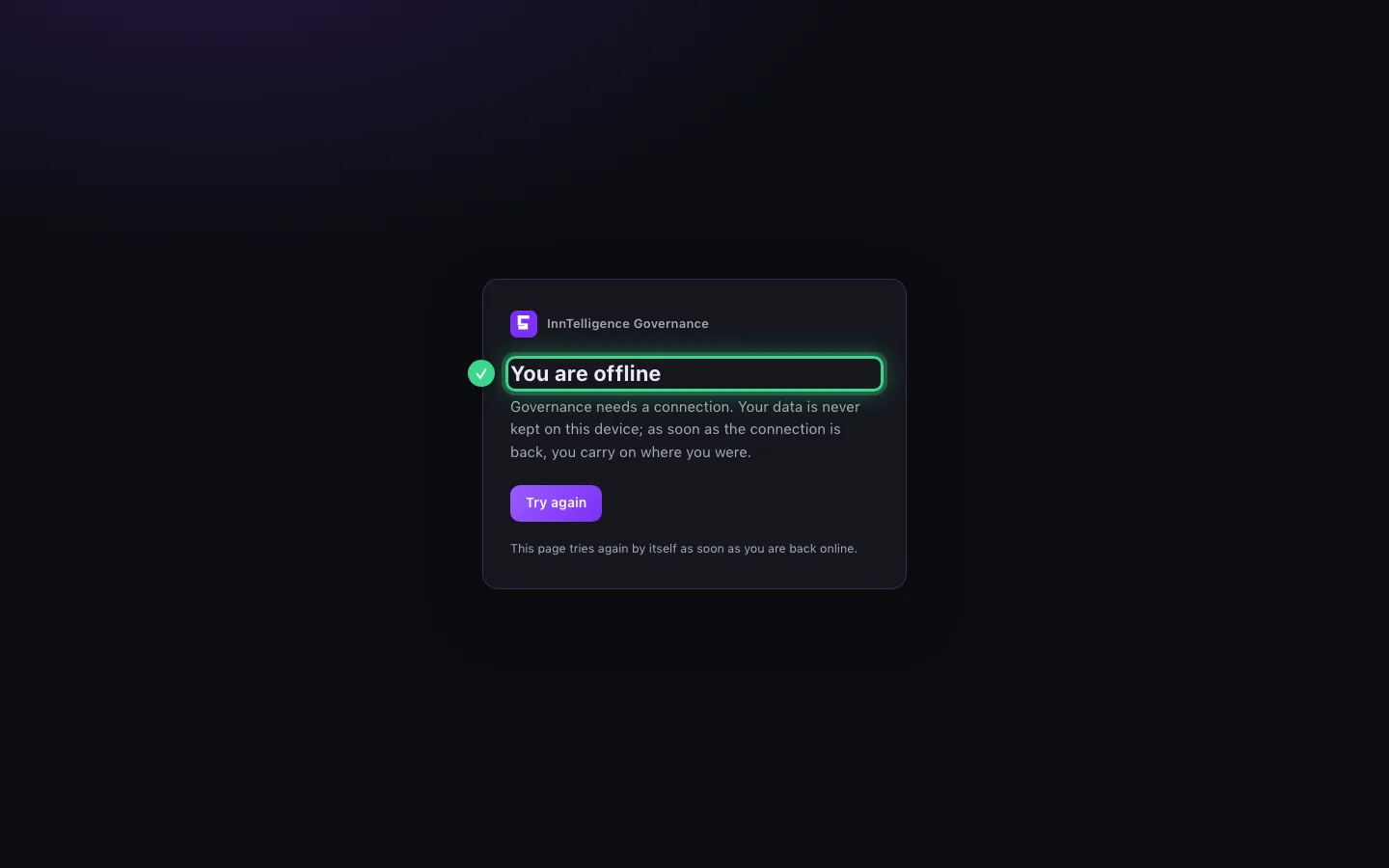
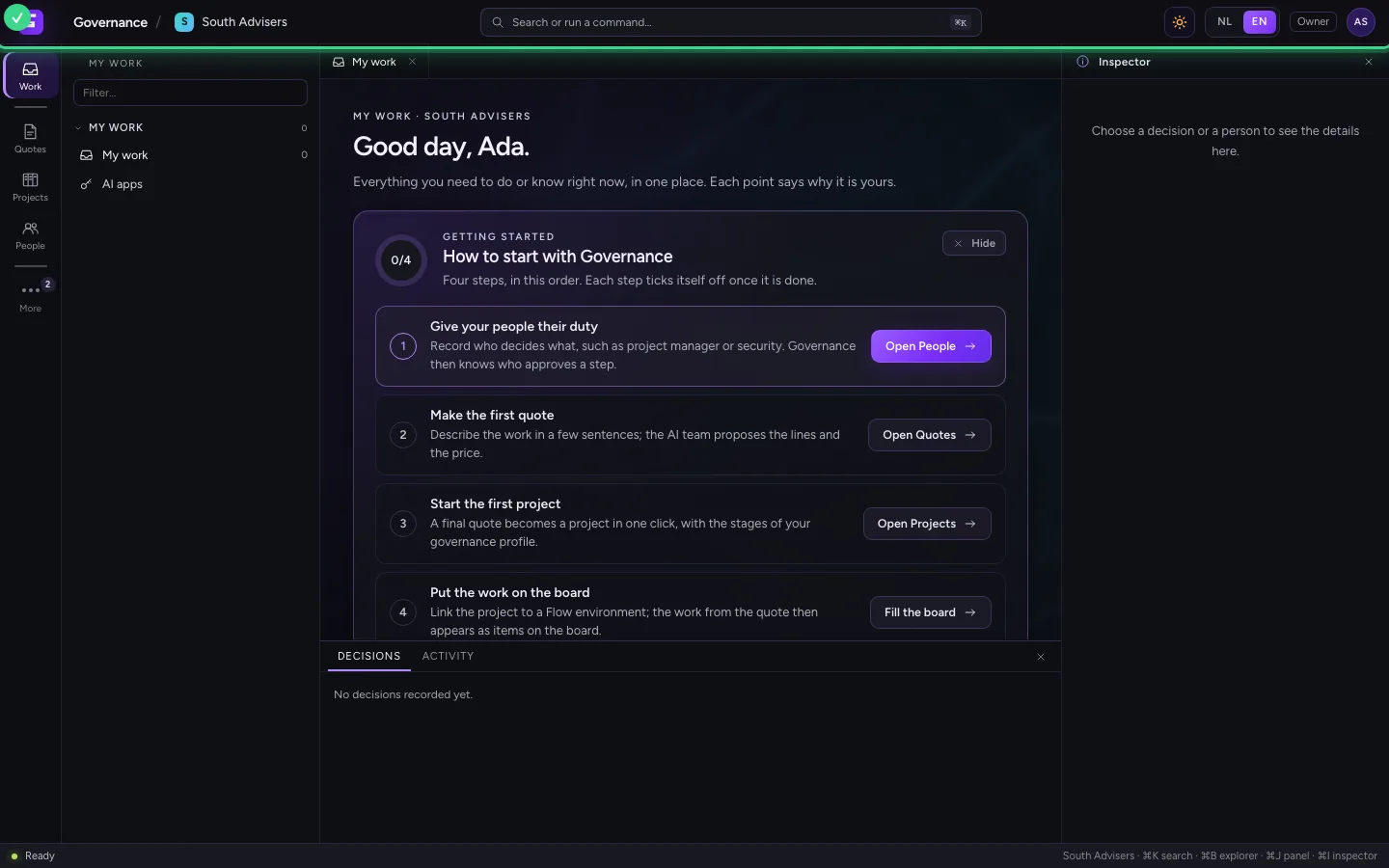
Governance works with the data on the server, so it needs a connection. When it drops, a notice at the bottom says changes wait until the connection is back. Open Governance without a connection and a page explains that; as soon as you are back online, it carries on by itself.
This guide was carried out step by step on 27 Oct 2026 by an automated test on Flow (version 7d21bad8).