Governance in Claude Desktop (MCP)
Connect Claude Desktop to Governance with just an address: you paste it as a connector, sign in through the portal and choose what the app may do. Then you ask Claude, for example, what is waiting for you today, or have it prepare a quote from a brief. The app works on your behalf, with exactly your rights, in one organisation. It never decides, and you revoke the access again with one click.
Open AI apps
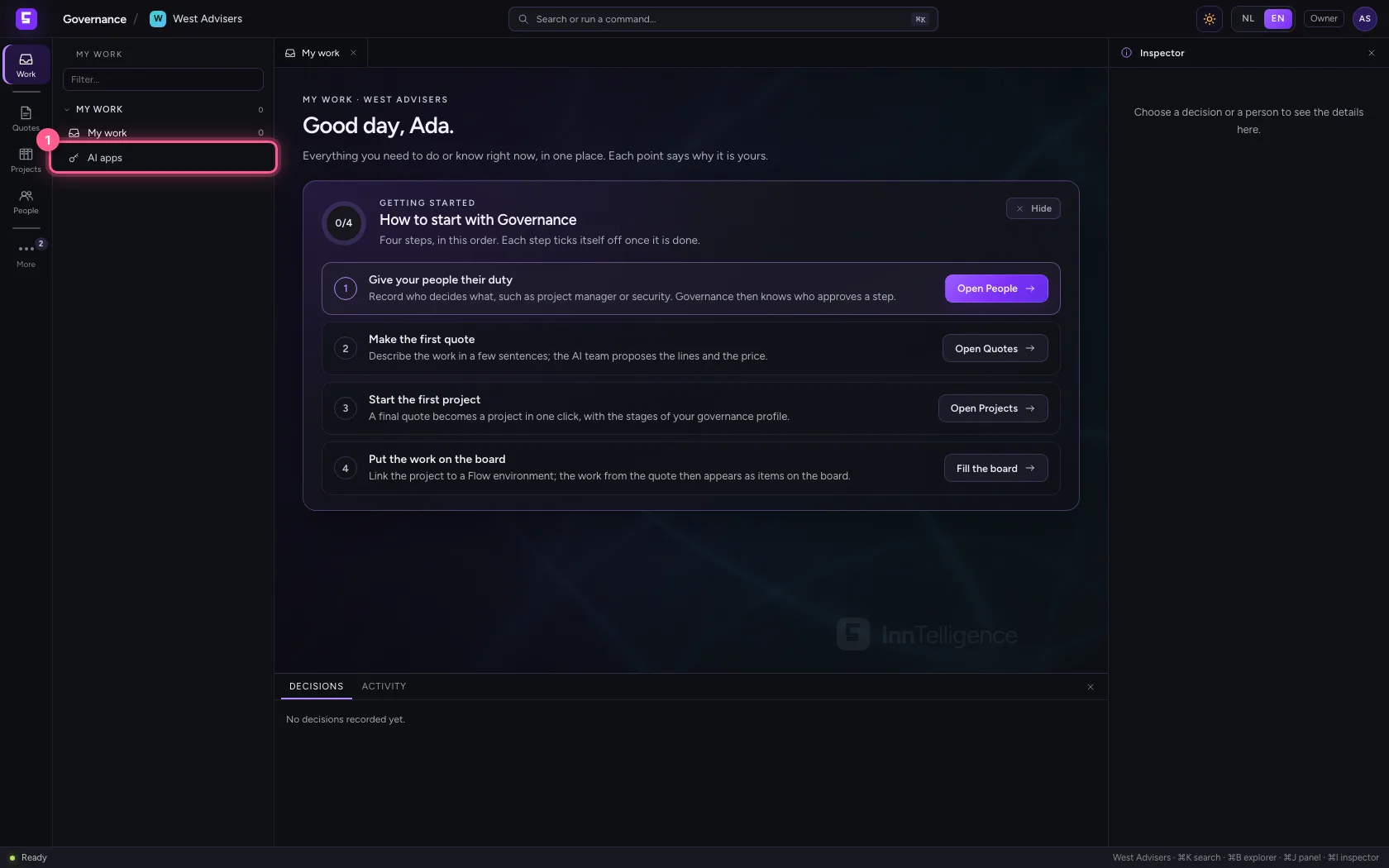
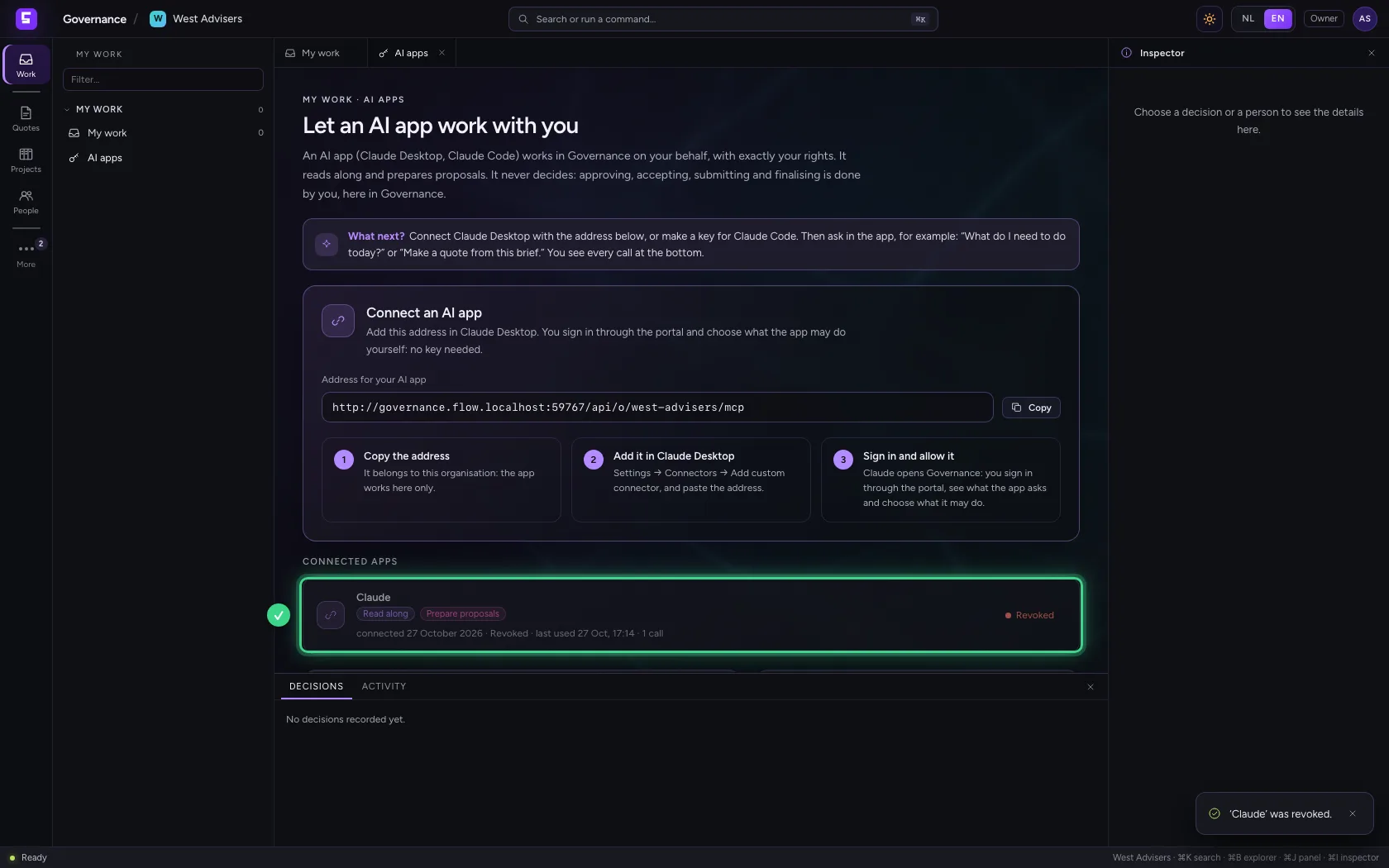
Under My work in the explorer you find AI apps. At the top is Connect an AI app: Governance's address for this organisation, with the three steps to add it in Claude Desktop. The address belongs to one organisation: an app you connect with it works there only.
- Click AI apps
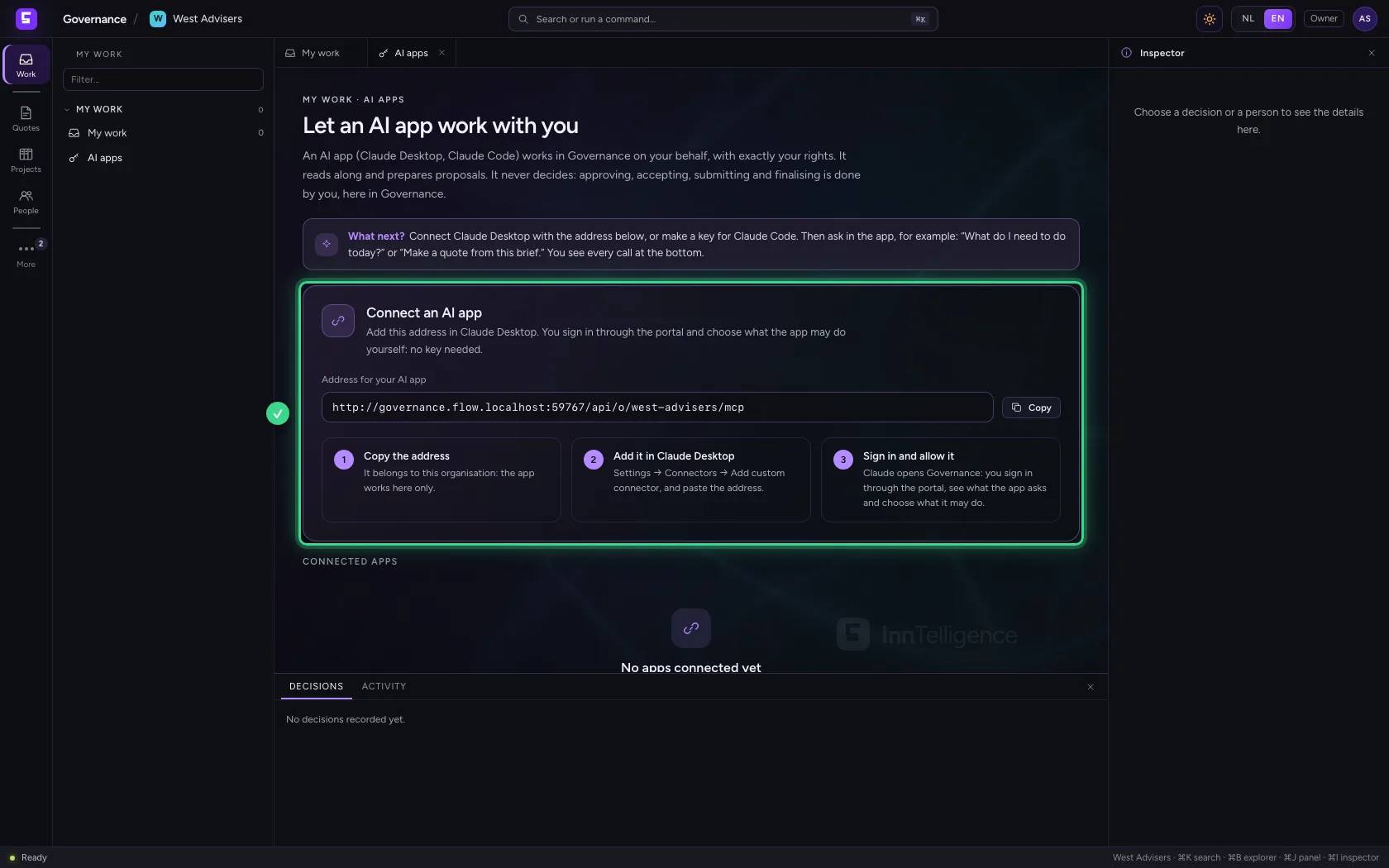
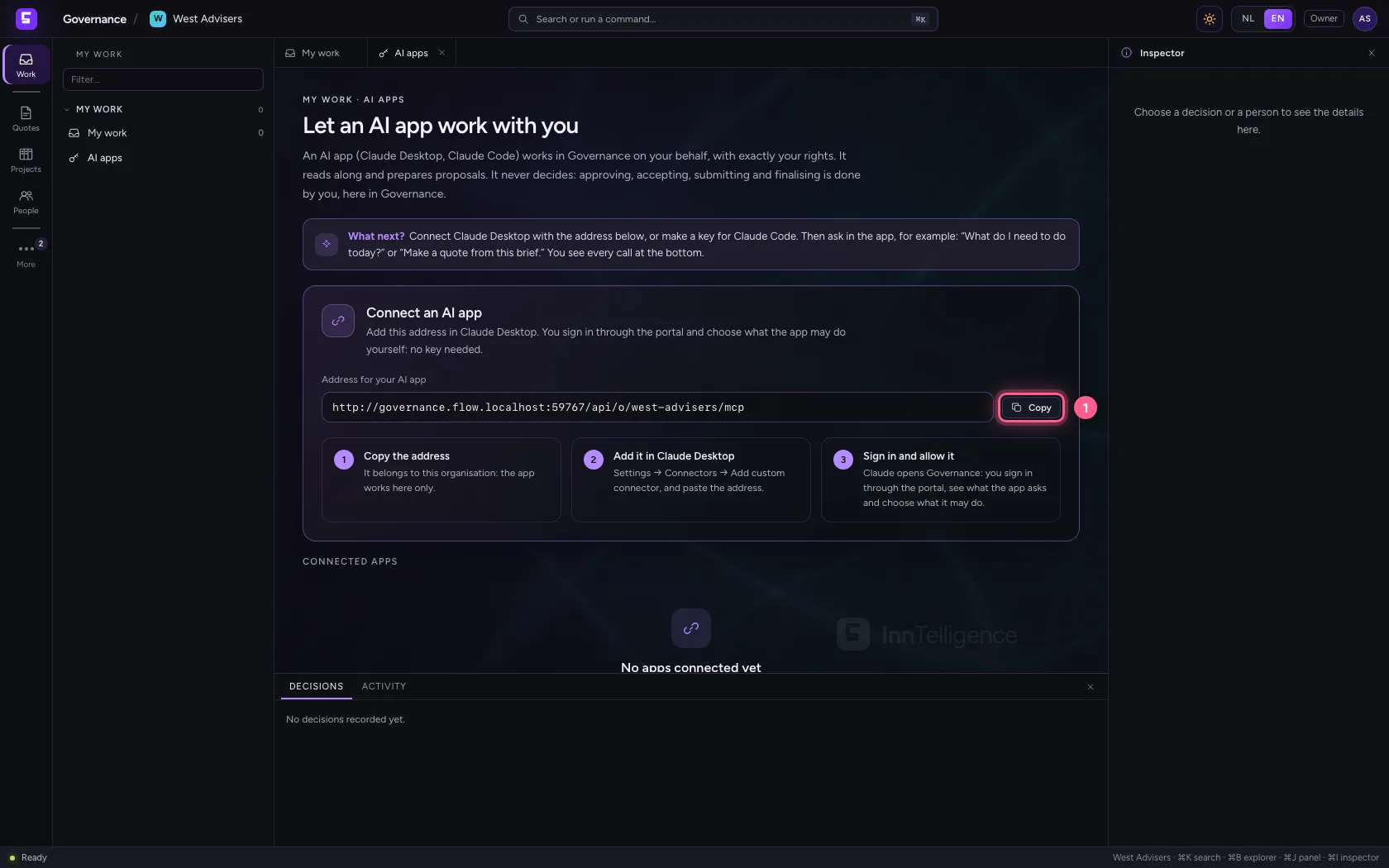
Copy the address and add it in Claude Desktop
Choose Copy. In Claude Desktop open Settings, then Connectors, and choose Add custom connector. Give it a name (for example Governance) and paste the address. No key is needed: Claude asks you to sign in.
- Click Copy

Choose what Claude may do
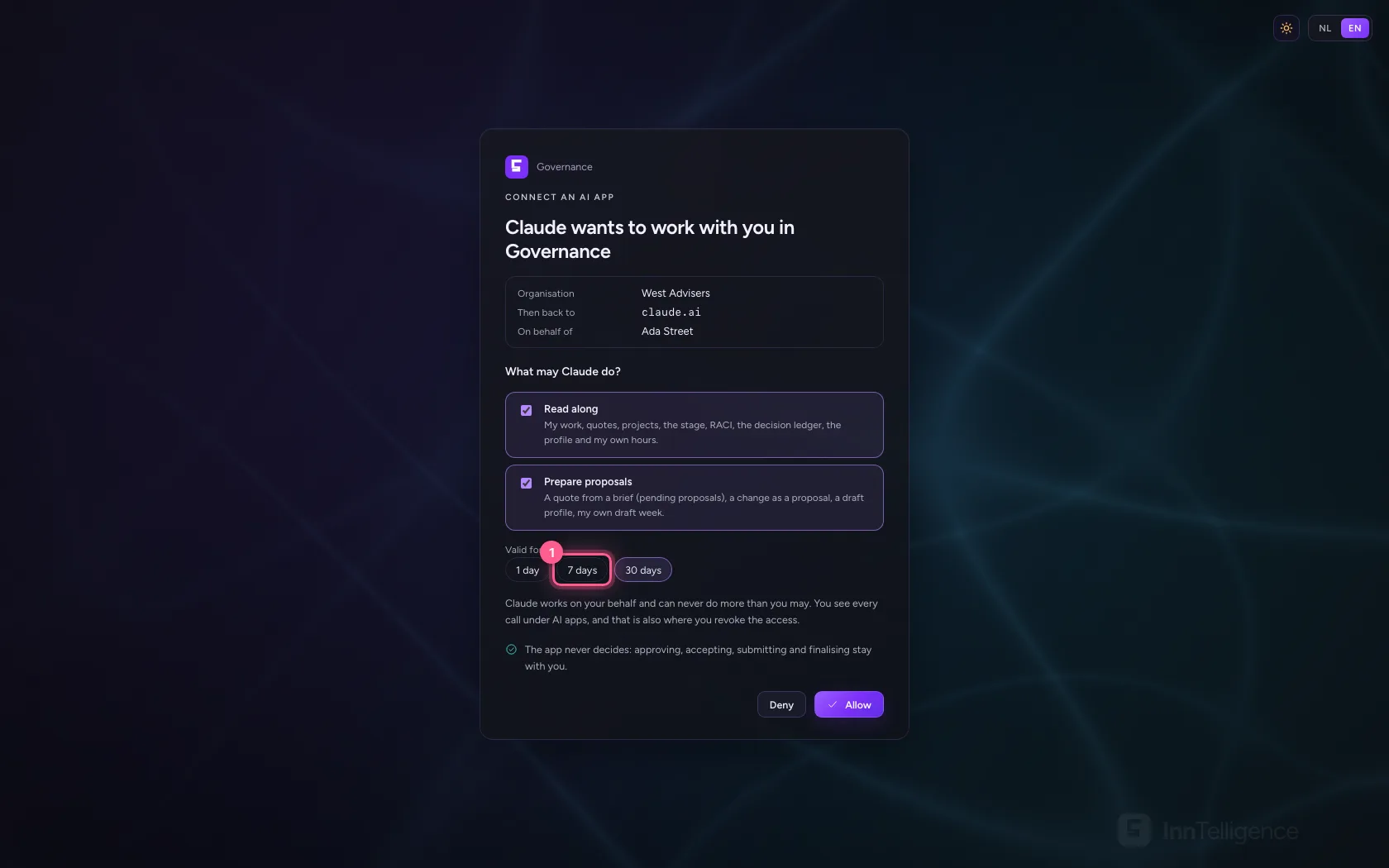
Claude opens Governance in your browser. If you are not signed in yet, you first sign in through the portal. Then you see who asks, in which organisation, where you go next and on whose behalf the app works. Read along lets Claude read your work, quotes, projects, the stage, the profile and the decision ledger; Prepare proposals lets it make drafts and proposals that you review yourself. Also choose how long the access lasts.
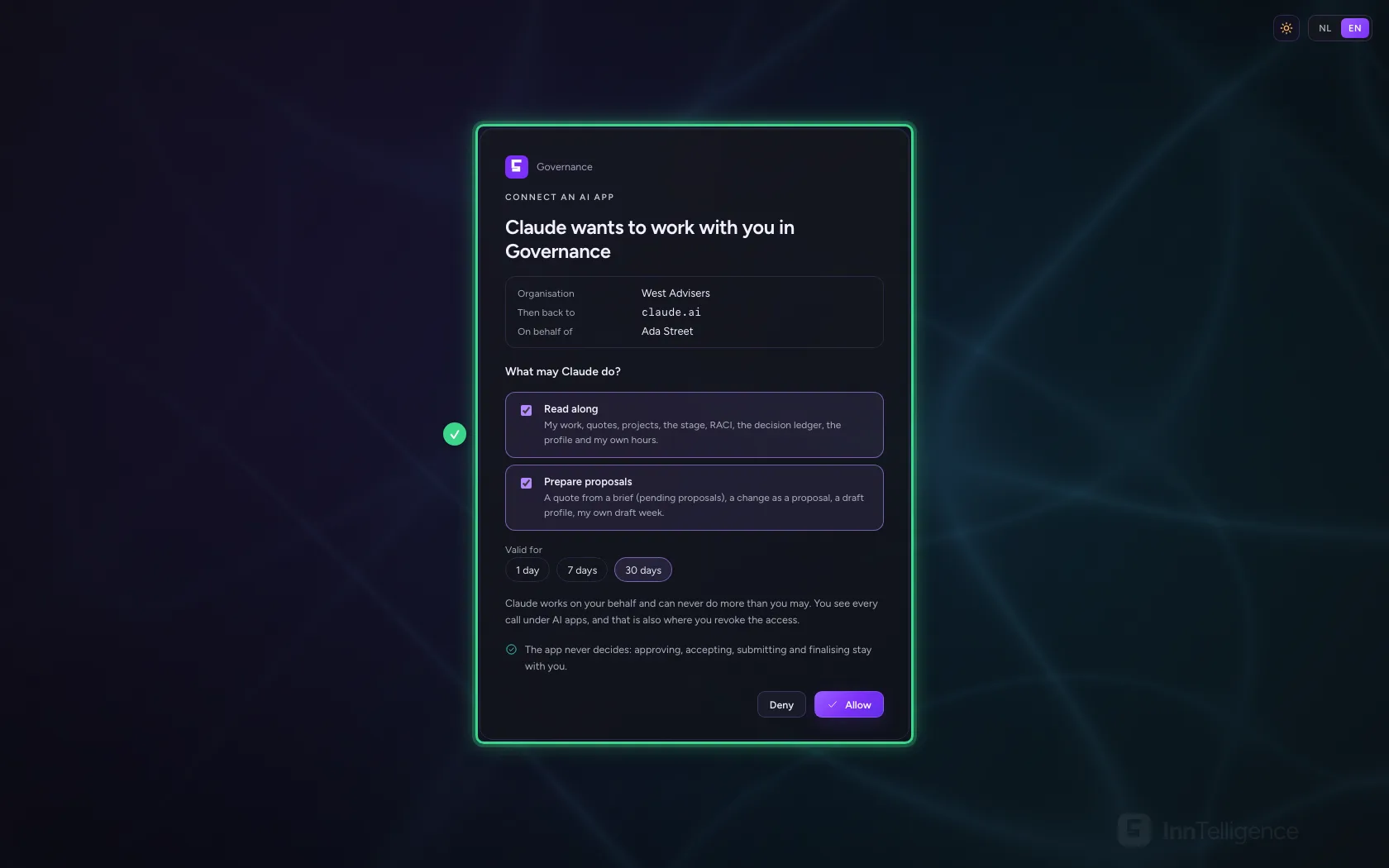
- Click 7 days
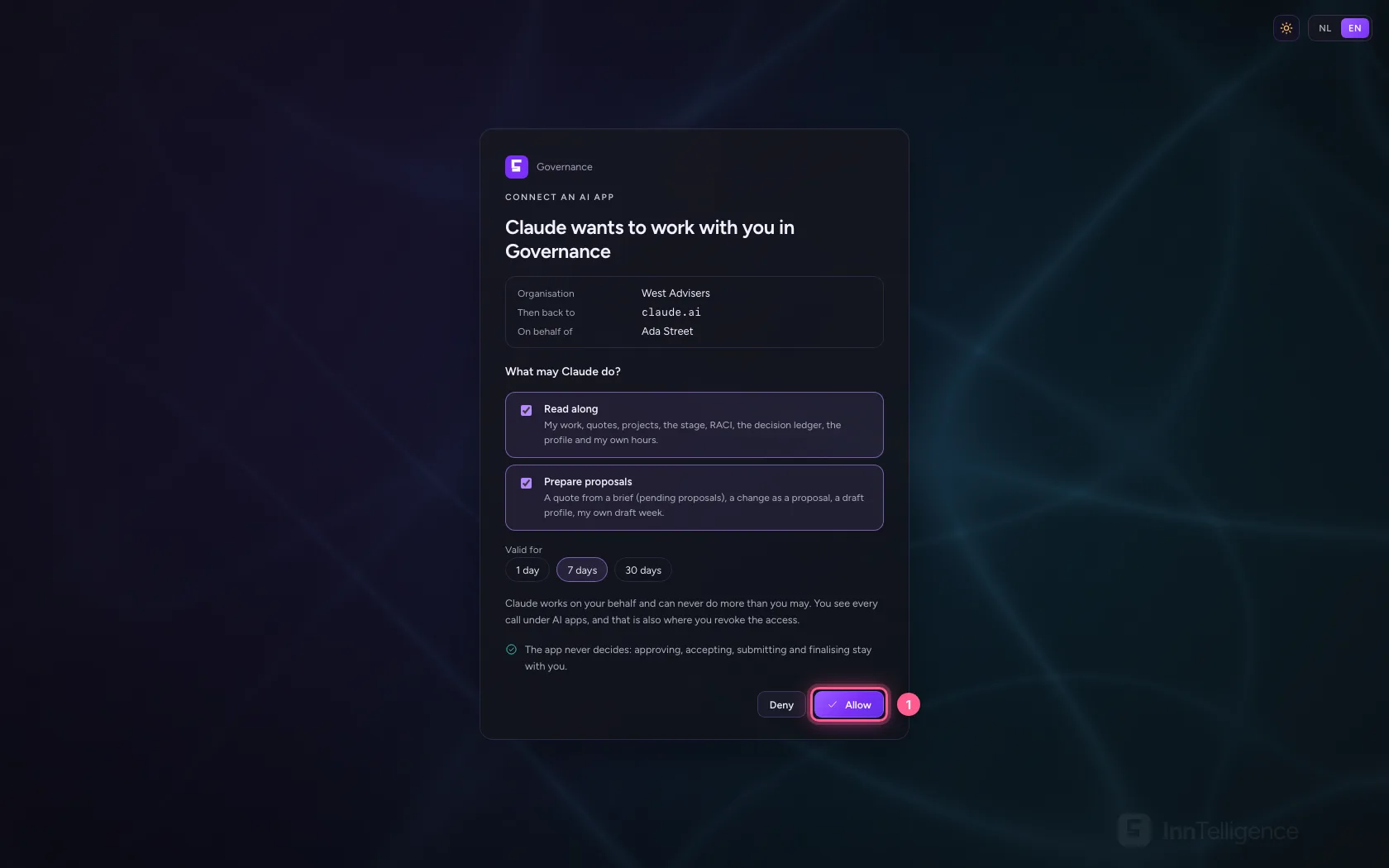
Allow it
Choose Allow. You go back to Claude, which can now work with Governance. Ask there, for example: What do I need to do today? Claude renews its access itself while it is valid; no key ever goes into a chat.
- Click Allow
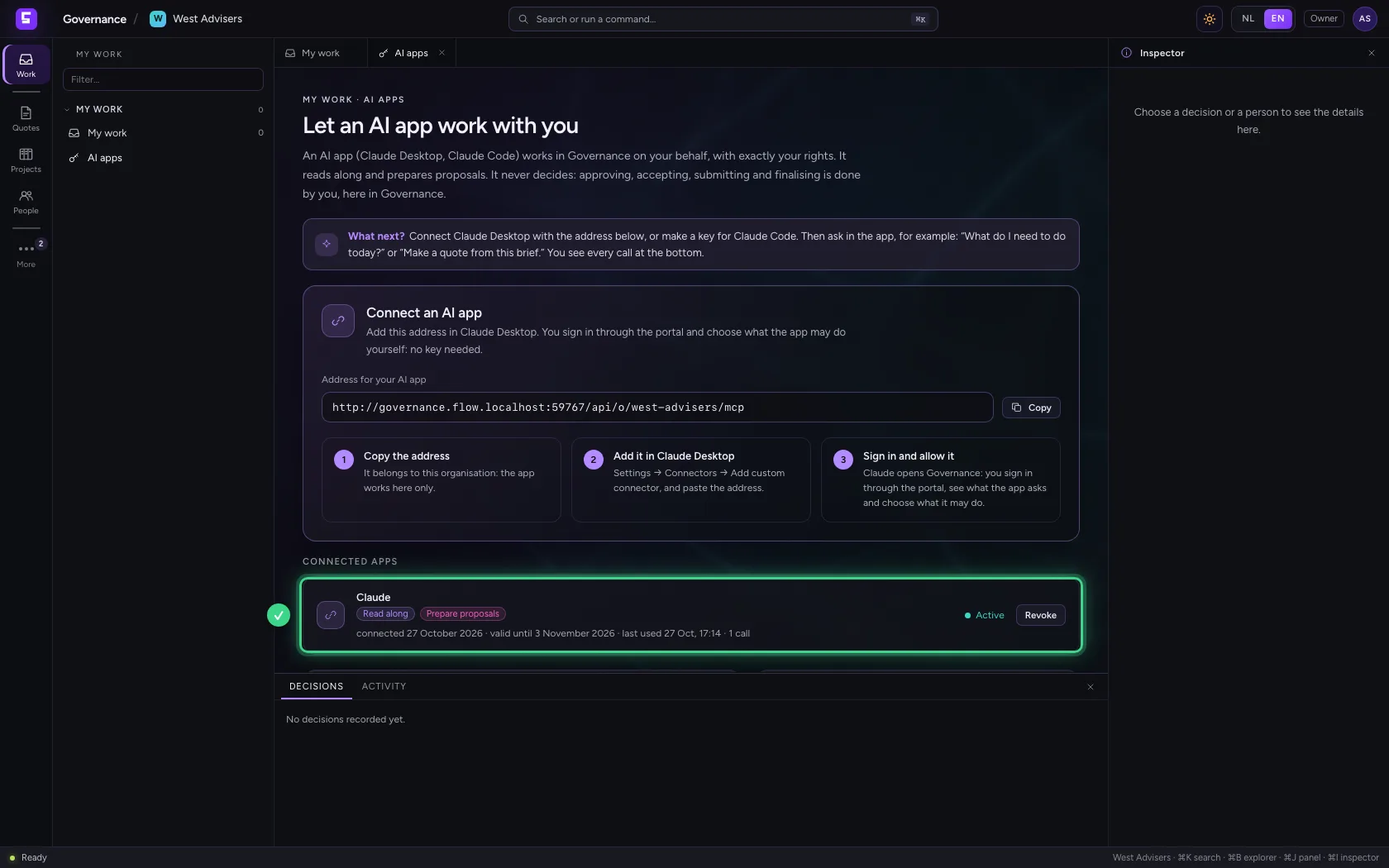
See the connected app
Back in Governance, Claude is listed under Connected apps: what it may do, since when, until when, when it last did something and how often. At the bottom of the page you find every call, and whether it worked.
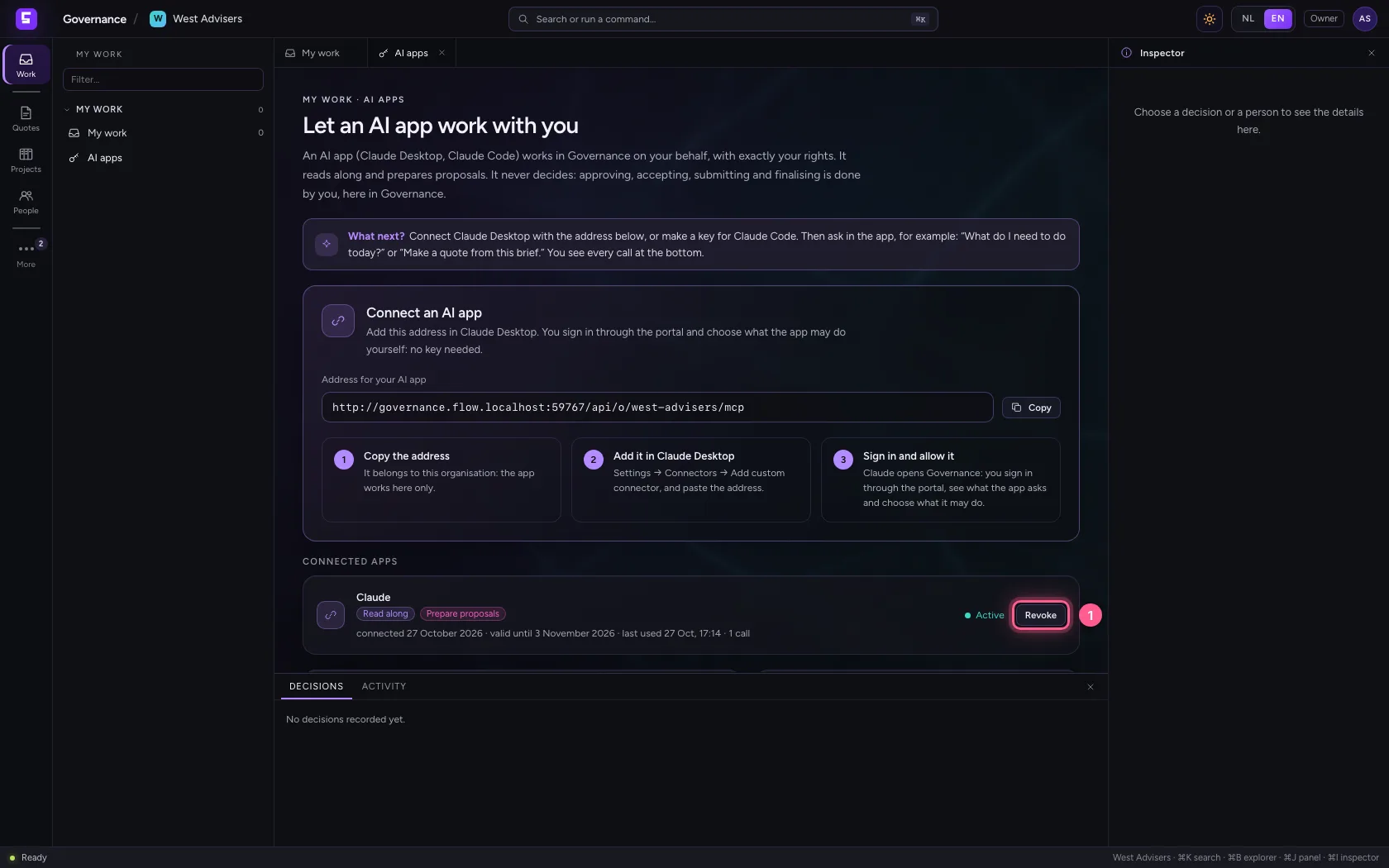
Revoke the access
Done, or no longer trust it? Choose Revoke. It works at once: Claude's next request is refused. If you want it again later, you add the address once more.
- Click Revoke
This guide was carried out step by step on 27 Oct 2026 by an automated test on Flow (version 7d21bad8).