Decision ledger and evidence
Every decision in Governance goes into the decision ledger: who decided, in which role, about what and why. Decisions are only added, never changed, and each decision carries the fingerprint of the one before it. That way the ledger checks itself, and an accountant or auditor can recompute that themselves with an export and a small script.
Open the decision ledger
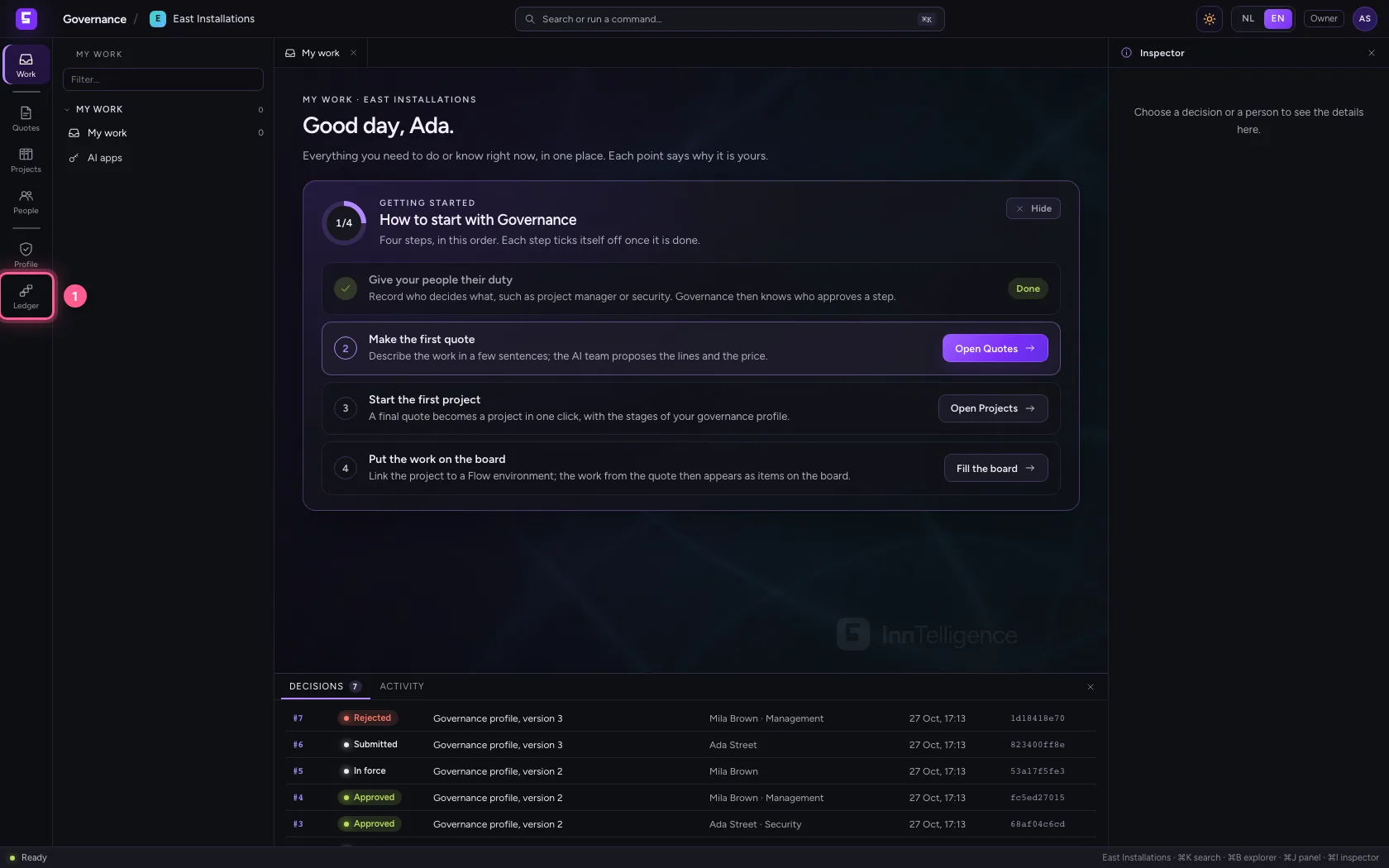
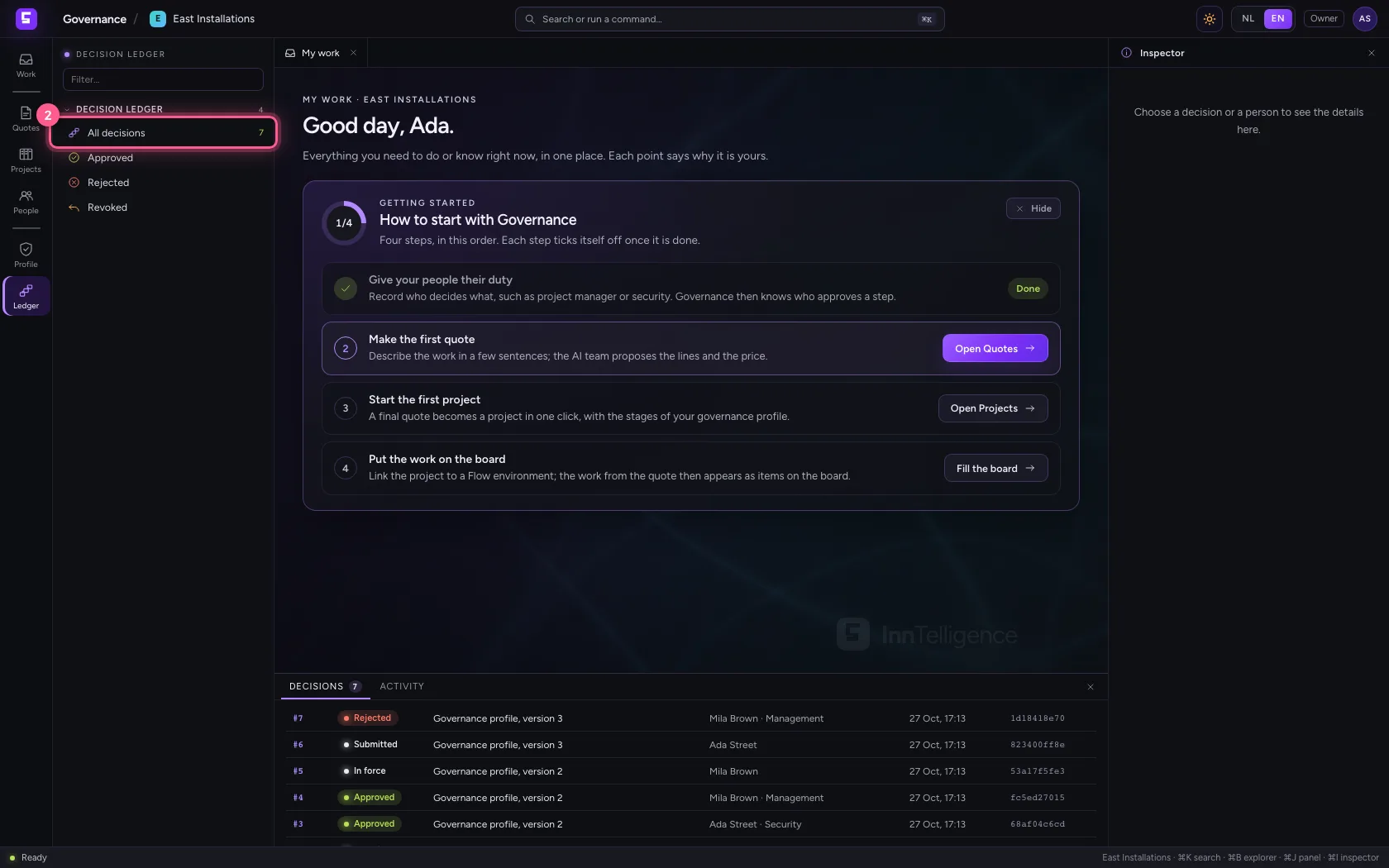
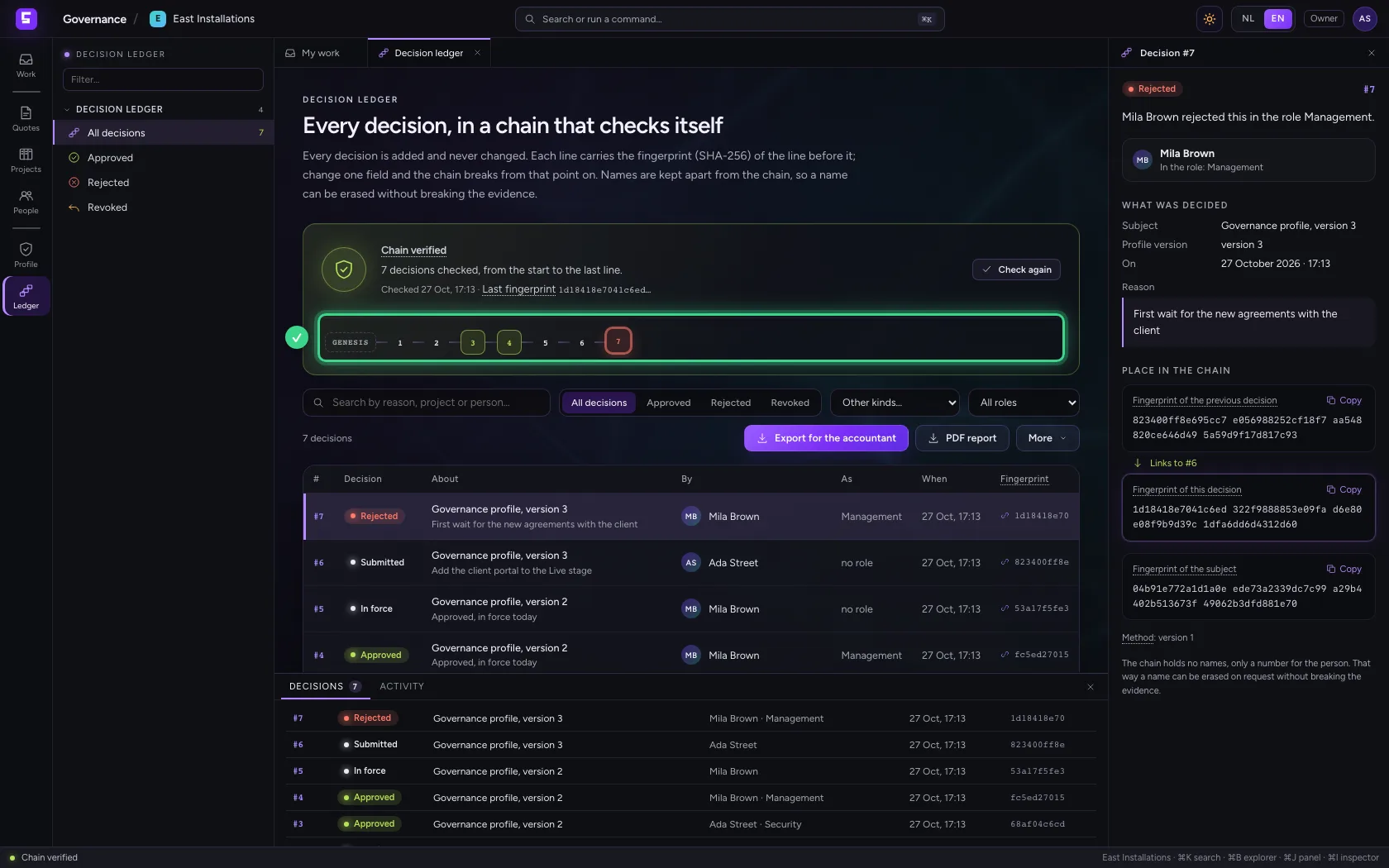
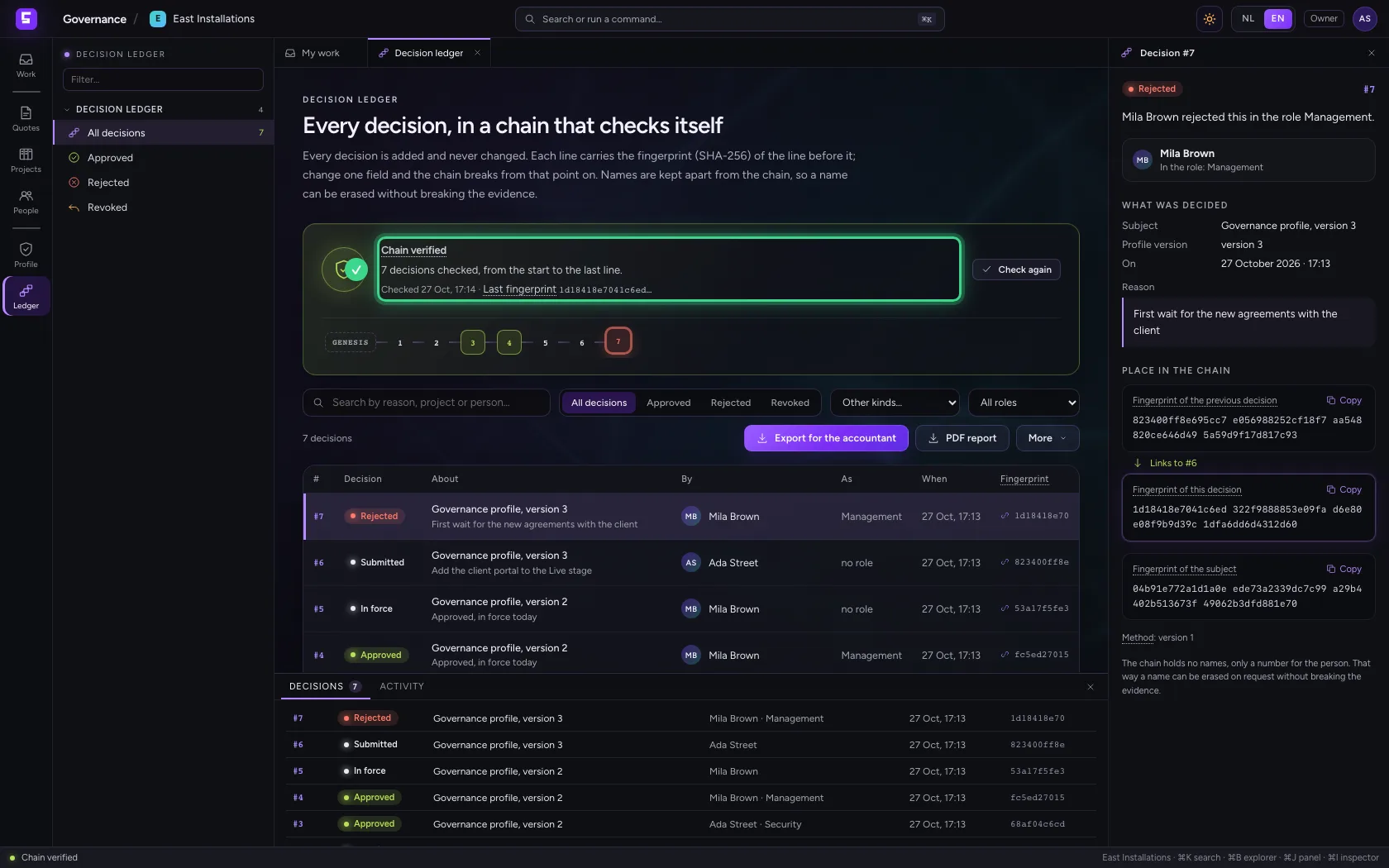
Choose Ledger in the left bar and then All decisions. At the top it says whether the chain holds: every time you open it, Governance recomputes every fingerprint, from the first decision to the last. Below are the decisions, newest first.
- Click Decision ledger
- Click All decisions 7
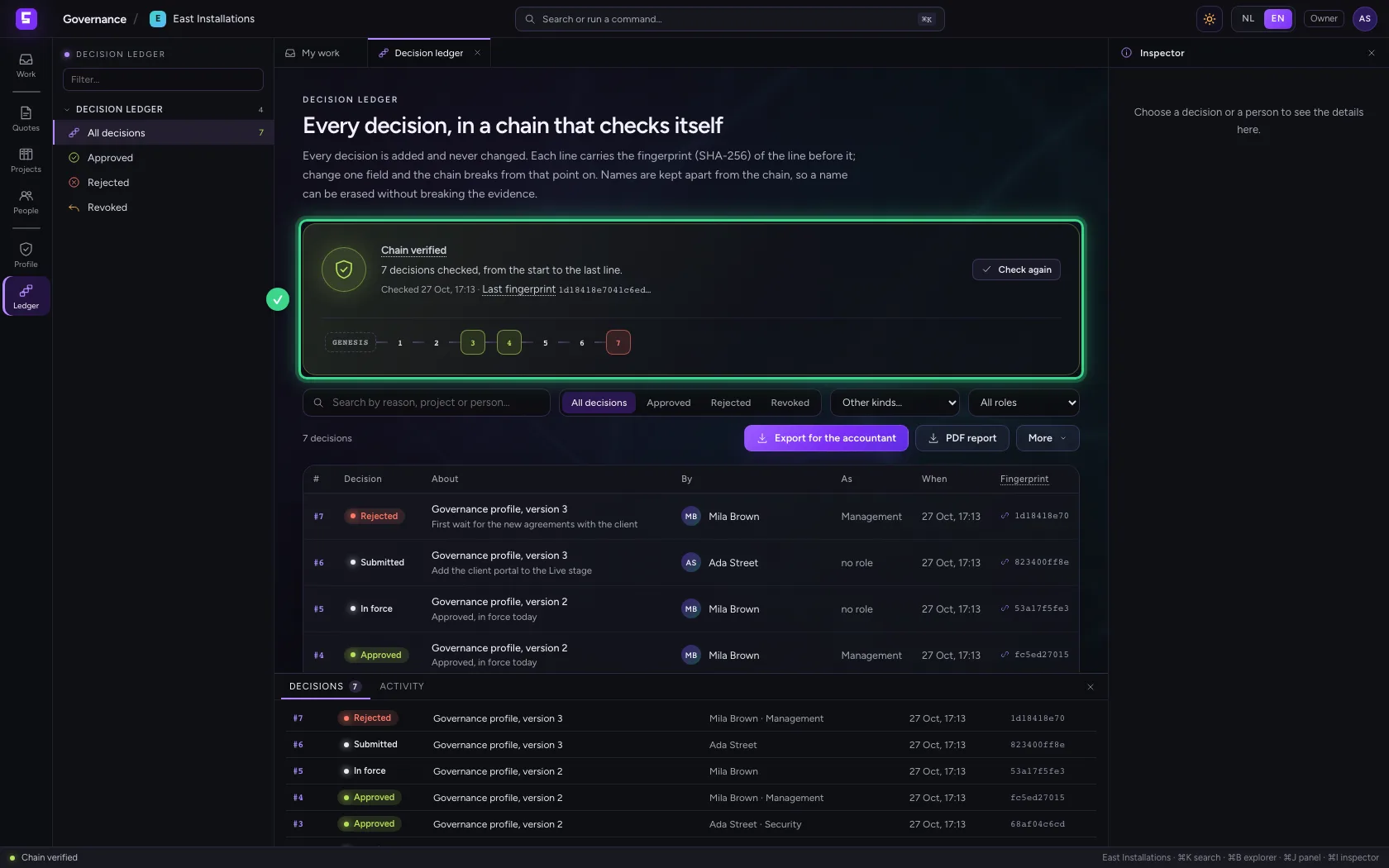
One decision in detail
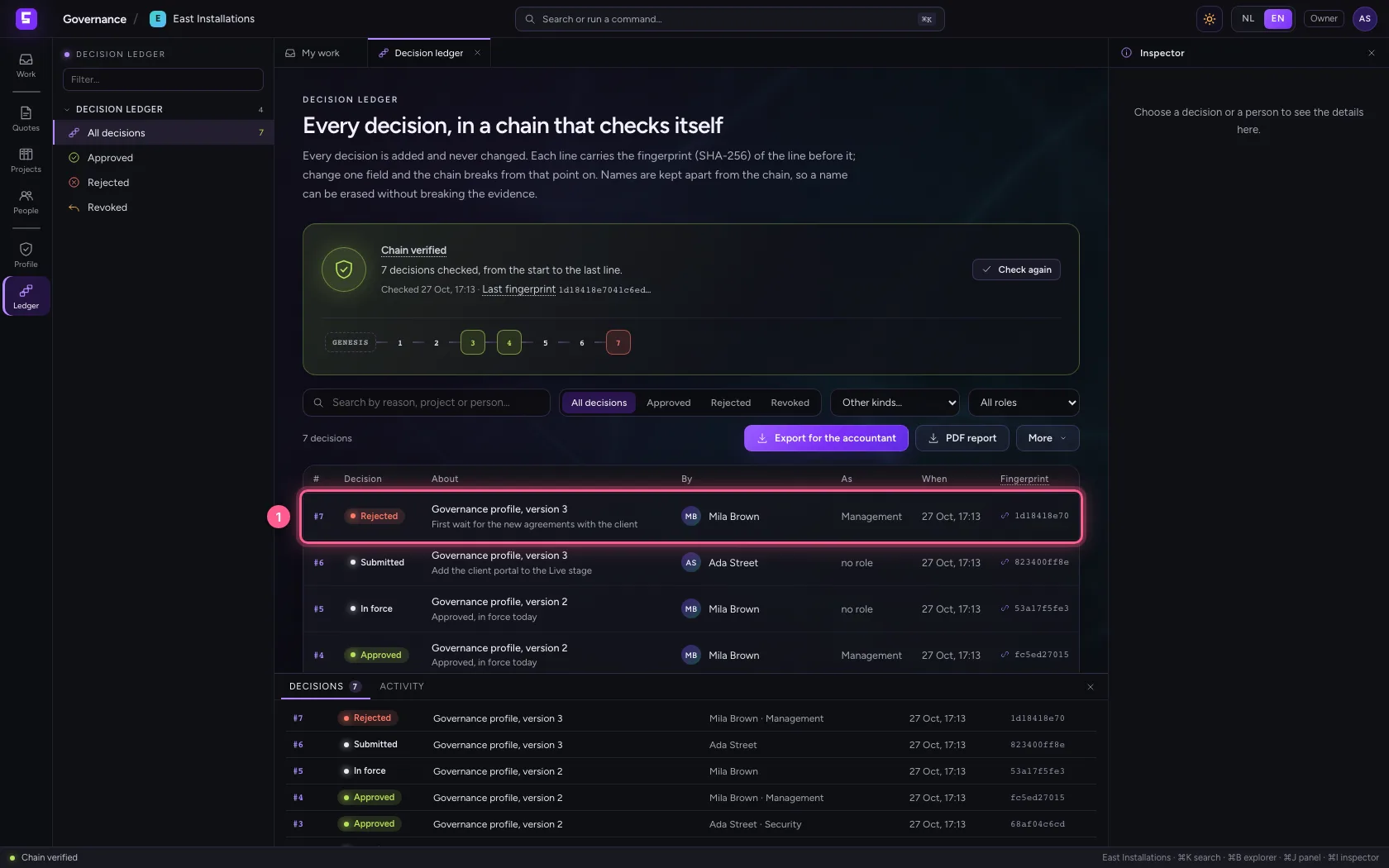
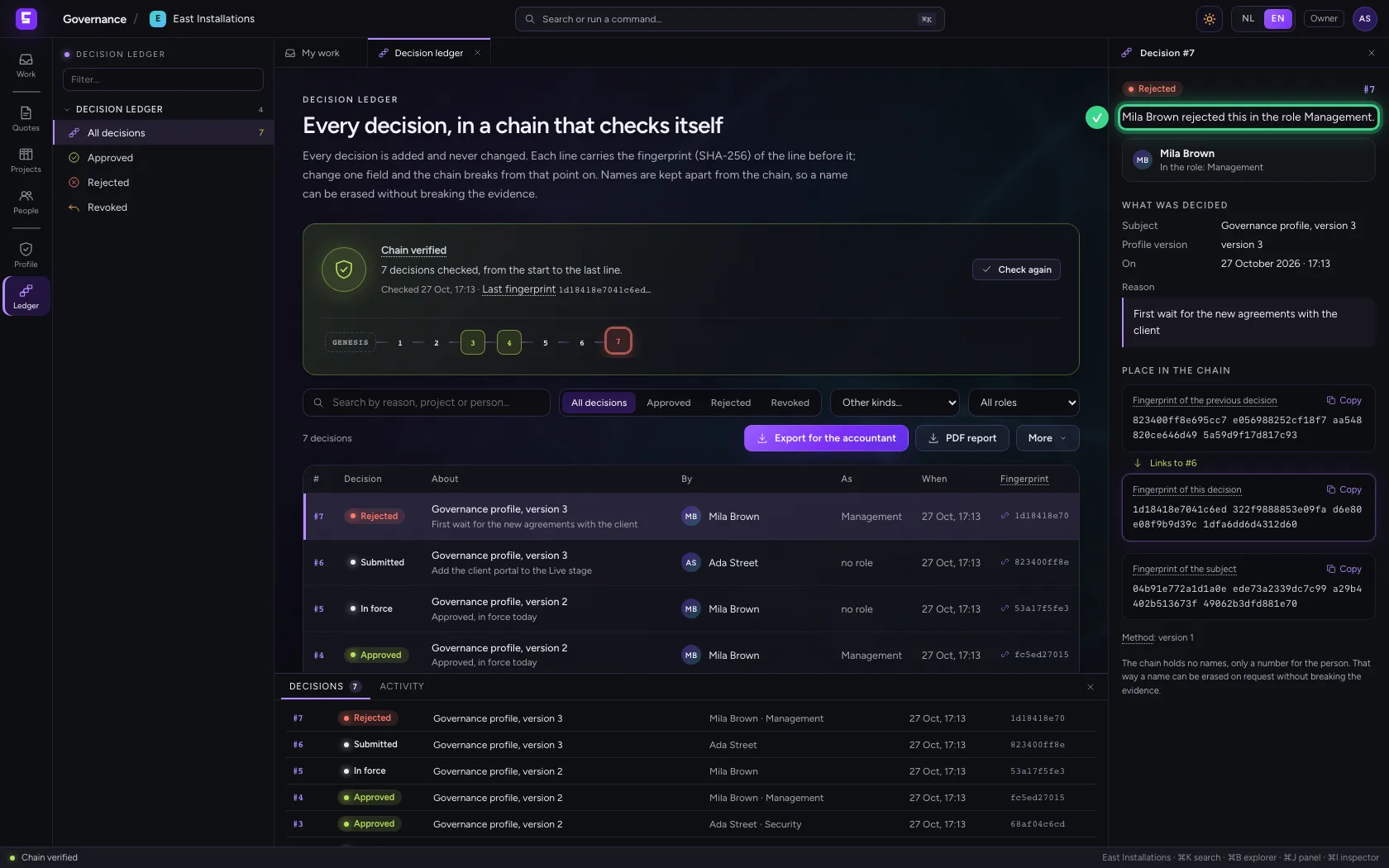
Click a decision. The inspector on the right says what was decided, by whom, in which role and for what reason. A rejection always has a reason. The chain itself holds no name, only a number for the person: that way a name can be erased on request without breaking the evidence.
- Click the decision Rejected
The place in the chain
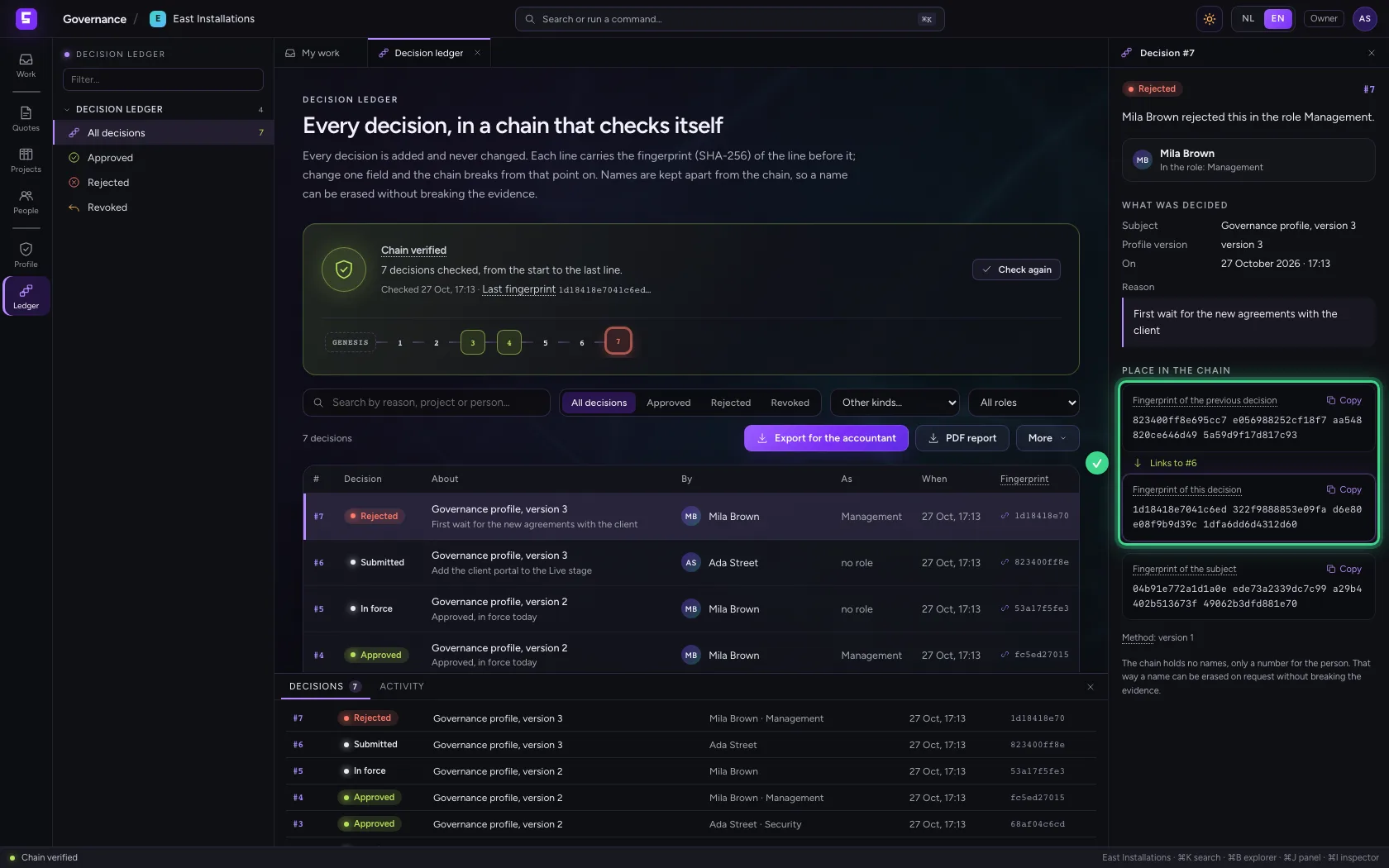
Under Place in the chain are two fingerprints: the previous decision's and this decision's. The fingerprint is computed from all the decision's data plus the previous fingerprint. Whoever changes even one character later gets a different result, and from that decision on the chain no longer holds.
Check the chain again
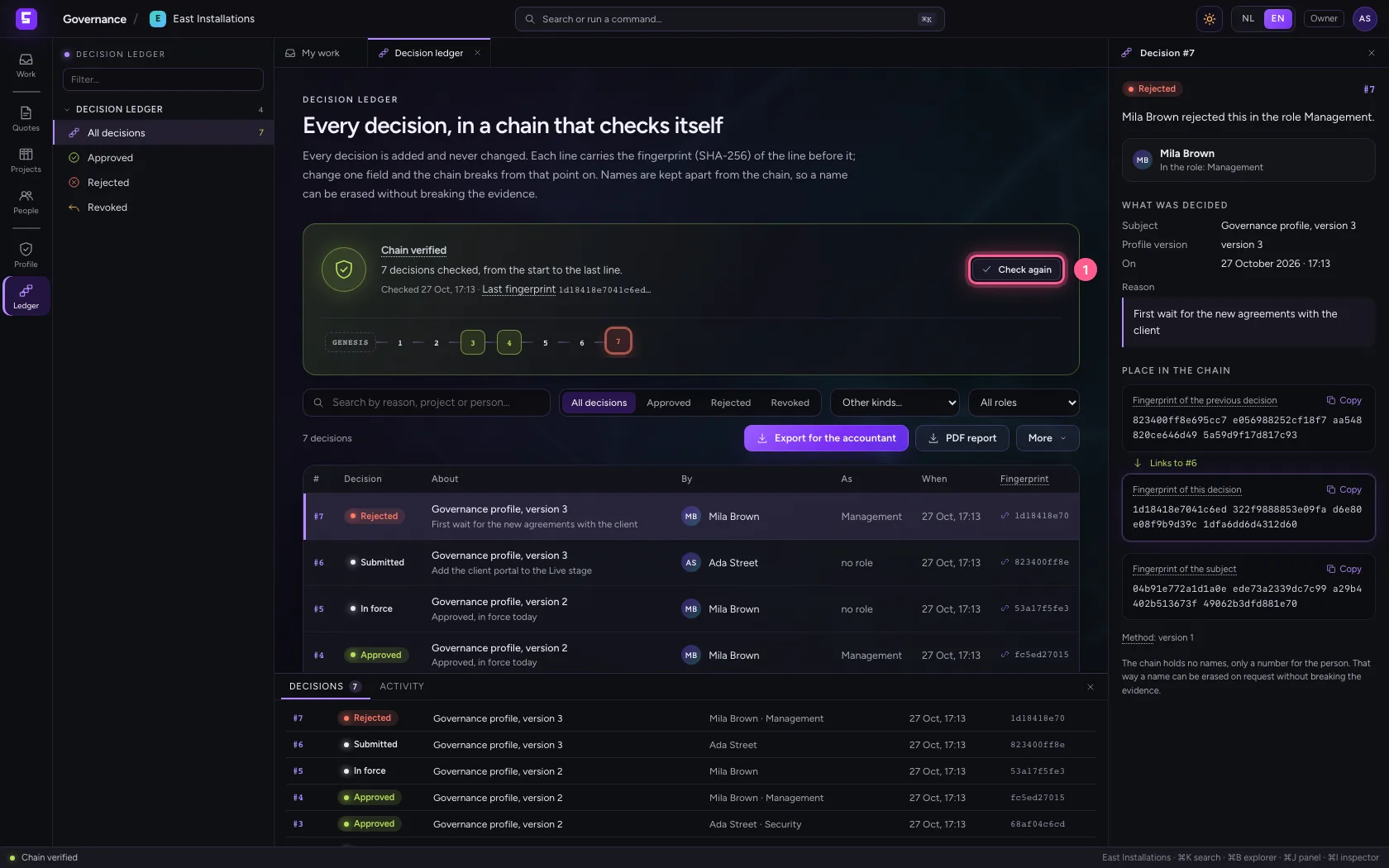
Check again recomputes the whole chain once more, right now. When something does not match, the ledger says from which decision, and what to do then.
- Click Check again
Search and filter
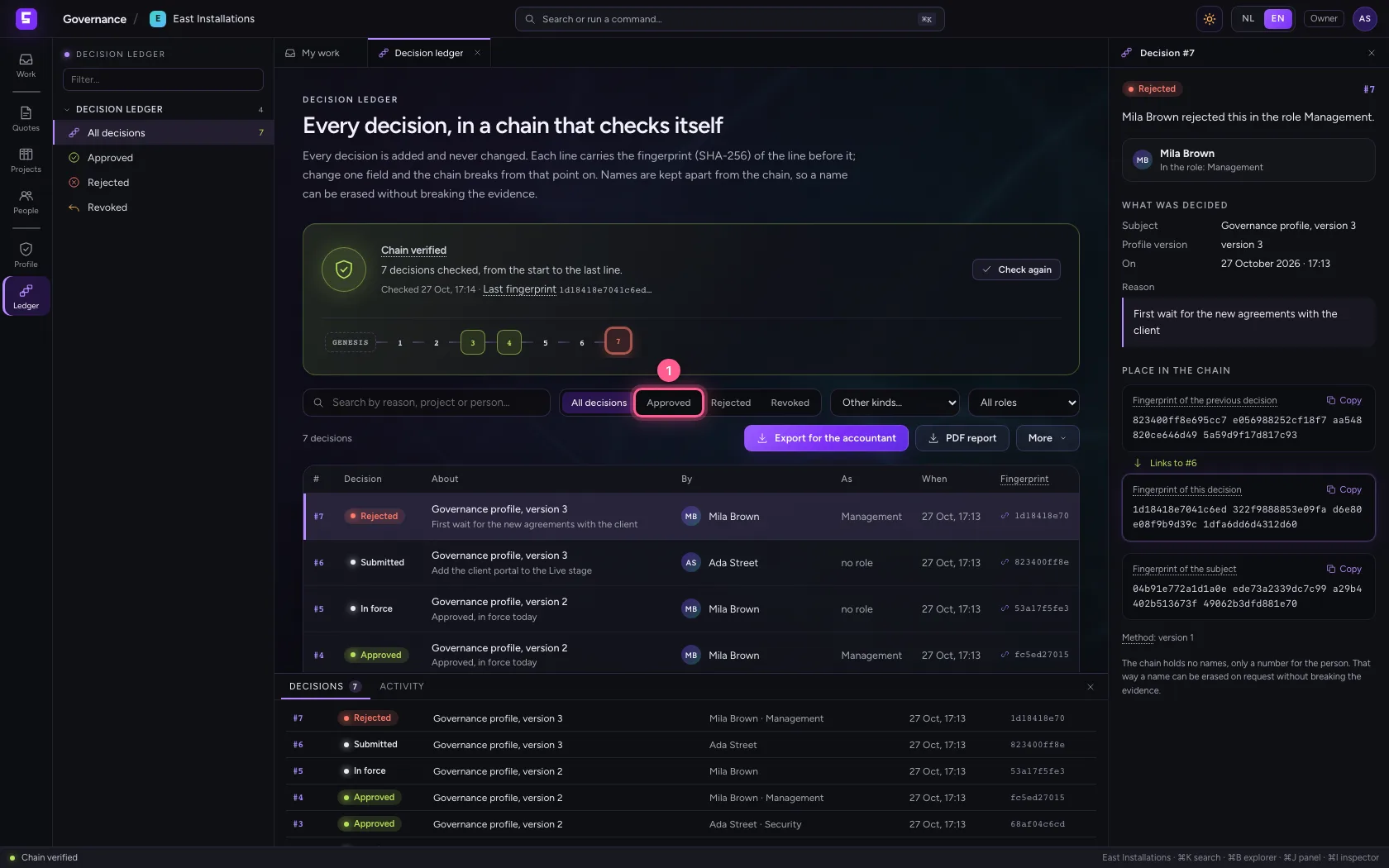
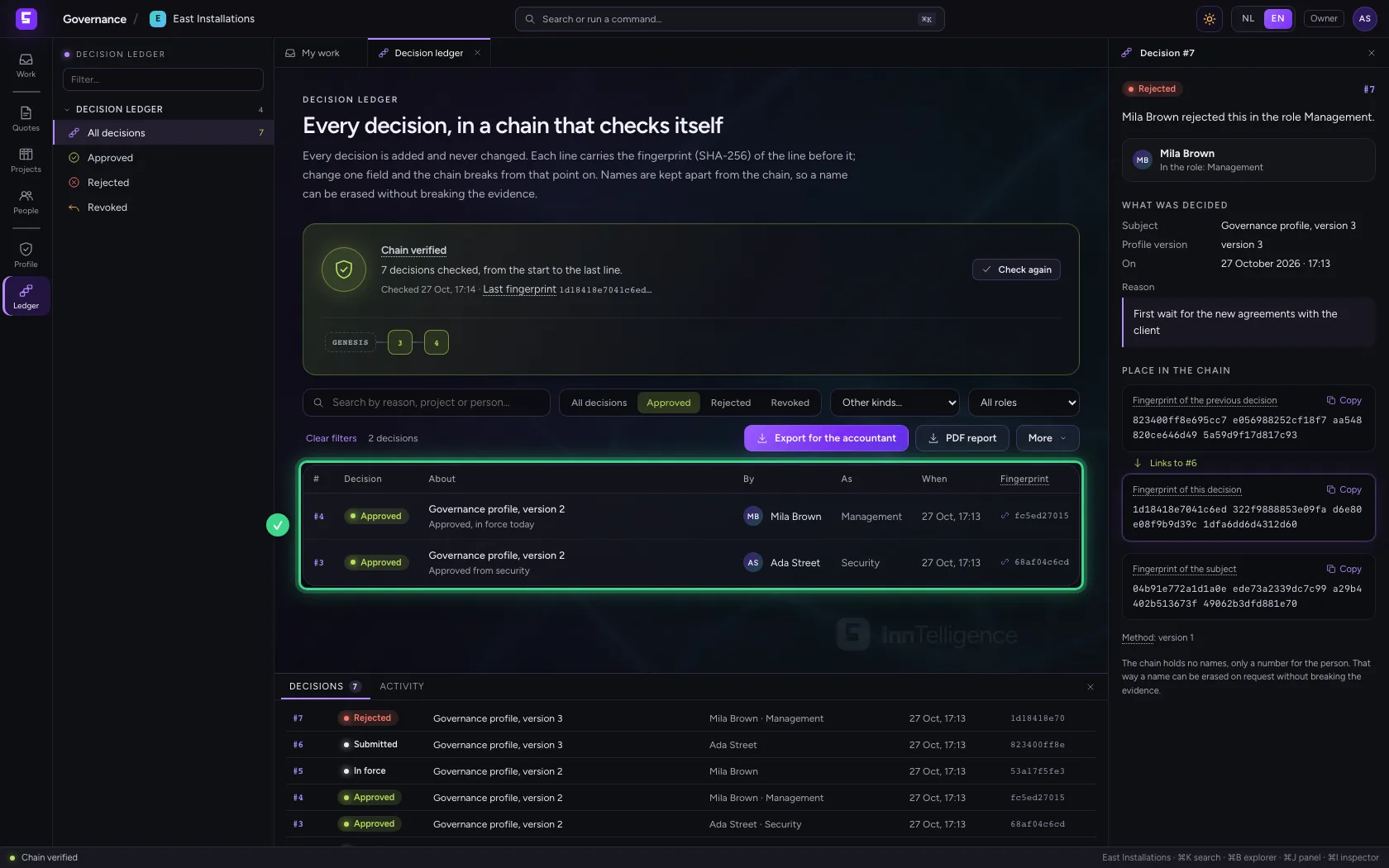
Choose Approved, Rejected or Revoked, or search on reason, project or person. Other kinds holds the rest: submitted, in force, advice given. Filters only change what you see: the check always covers the whole chain.
- Click Approved
Export for the accountant
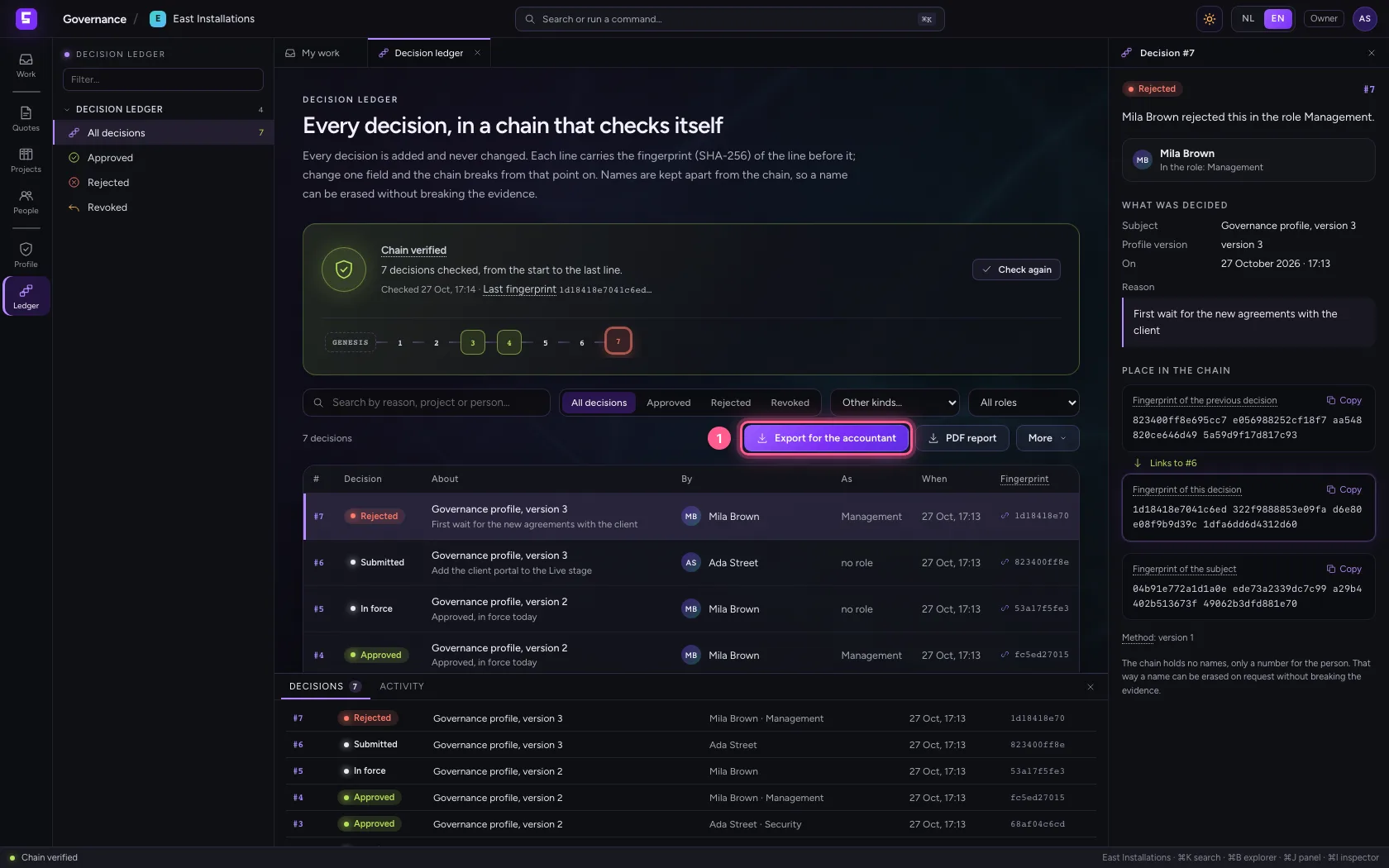
Export for the accountant gives the whole chain as a CSV file, with the verification report. An export always holds every decision, because only a whole chain can be recomputed.
- Click Export for the accountant
JSON and the verify script
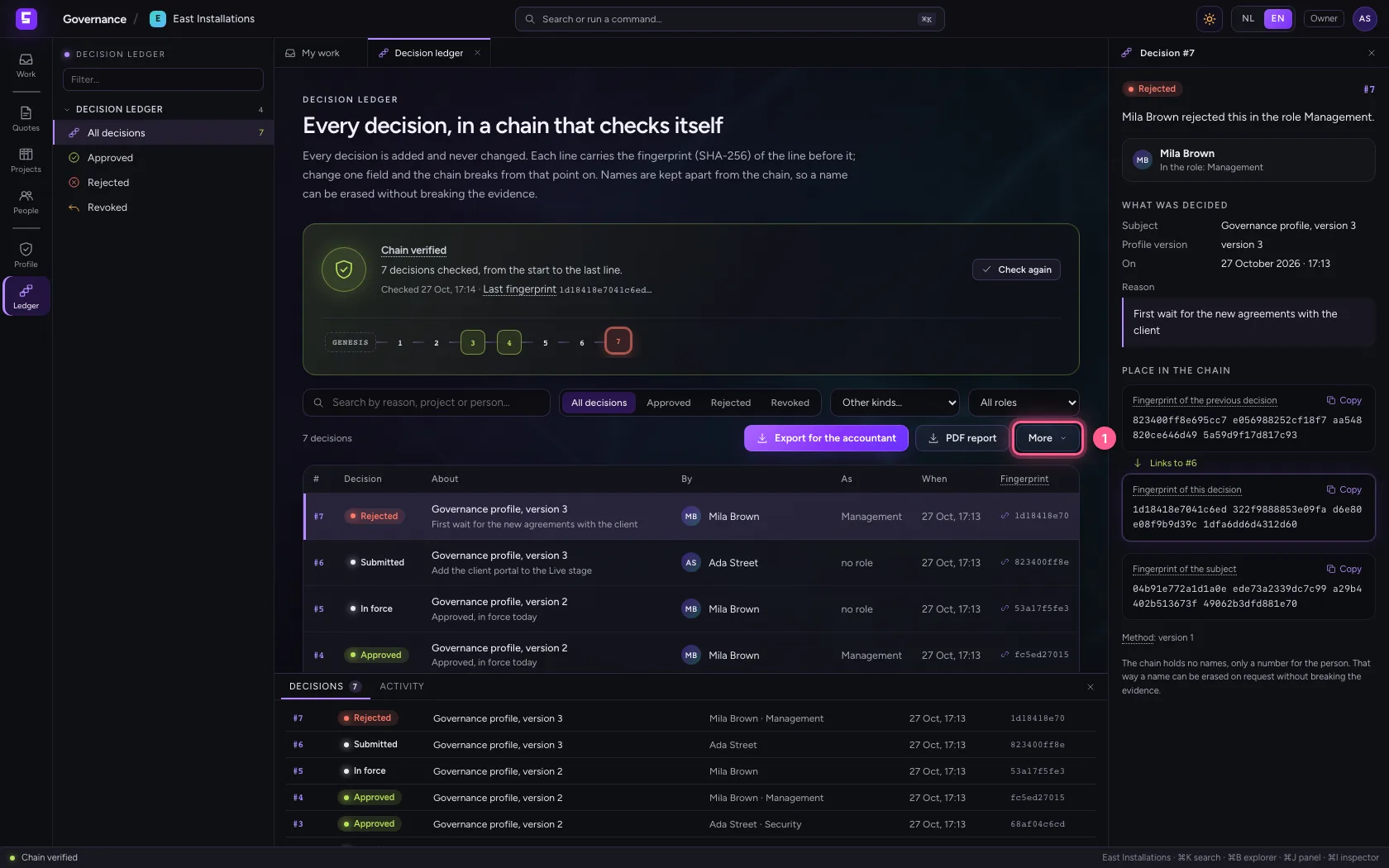
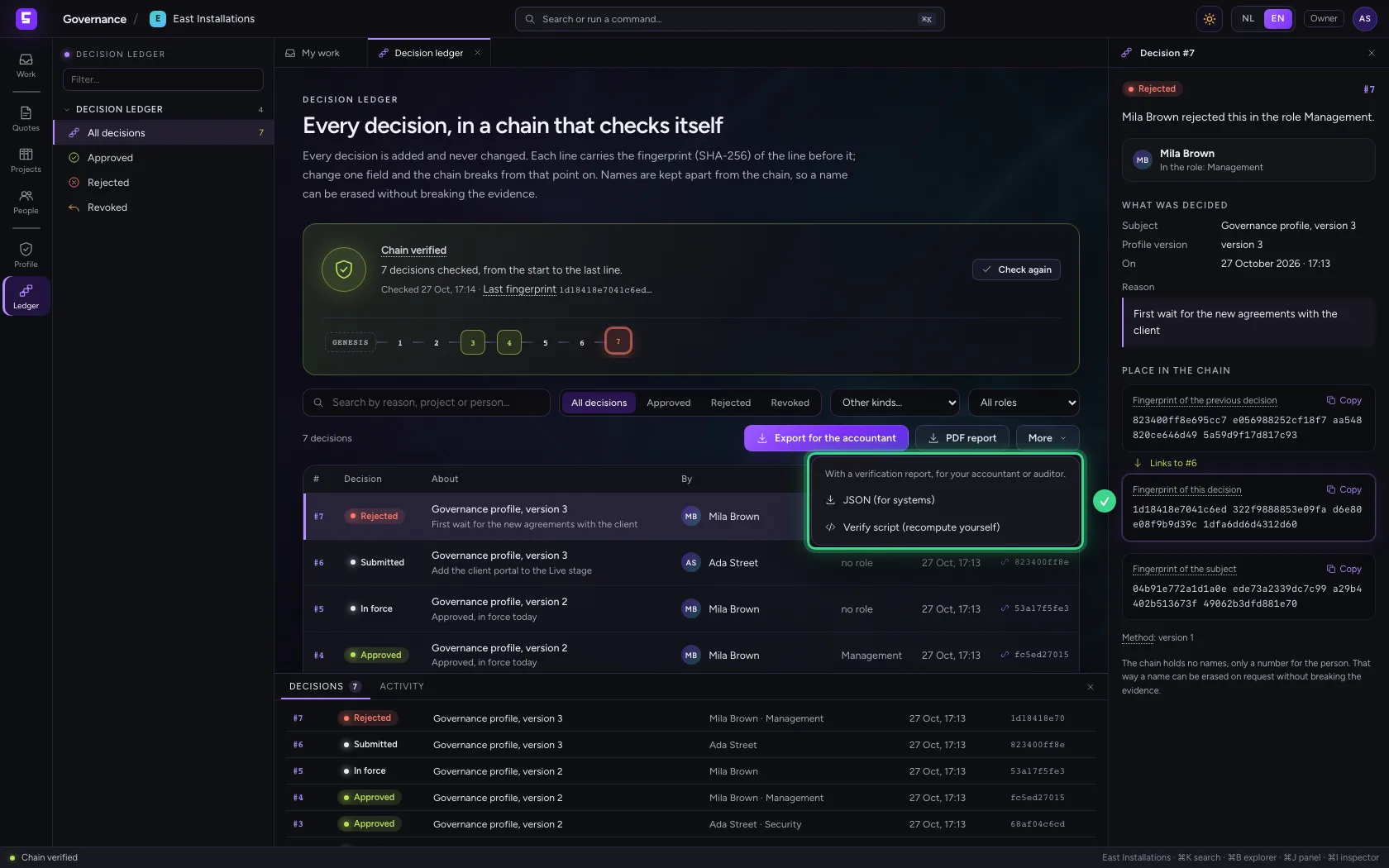
More holds the other formats: JSON, for systems, and the verify script. The script is small, uses only standard Python and follows exactly the same rules as Governance itself. That way an auditor does not have to take Governance's word for it.
- Click More
What an auditor does
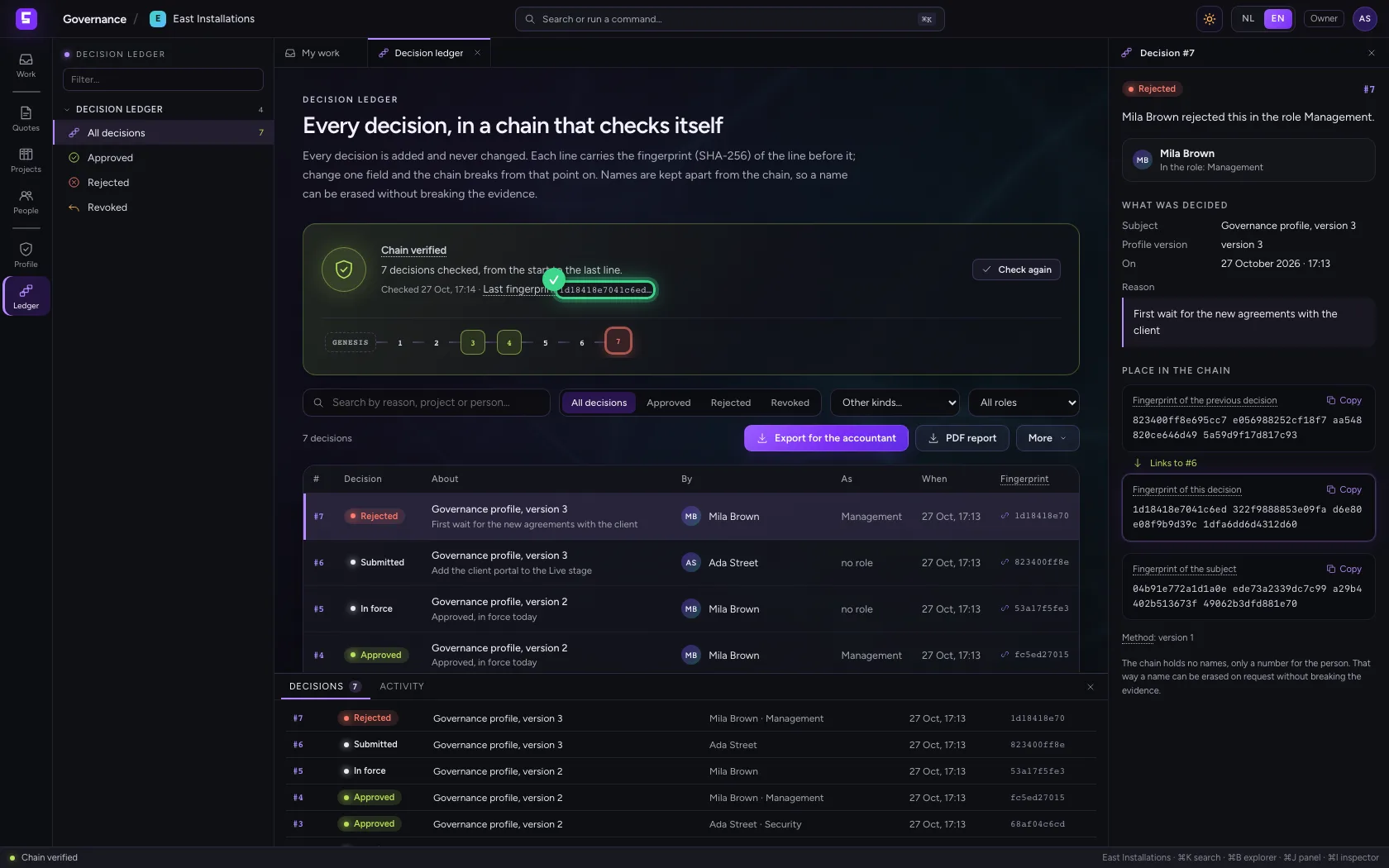
An auditor gets the role Auditor: read everything and export the decision ledger, change nothing. They download the JSON and the verify script and run the script on their own computer. The script recomputes every fingerprint and names the last one. They compare it with the last fingerprint Governance shows at the top of the ledger: when they are the same, nothing was removed or changed.
This guide was carried out step by step on 27 Oct 2026 by an automated test on Flow (version 7d21bad8).