Getting started with Governance
- Step 1 · Governance is on per organisation
- Step 2 · Switch Governance on
- Step 3 · Open Governance
- Step 4 · Sign in through the portal
- Step 5 · Getting started: four steps
- Step 6 · A left bar that grows
- Step 7 · An empty place says what it is for
- Step 8 · The step ticks itself off
- Step 9 · Put away and bring back
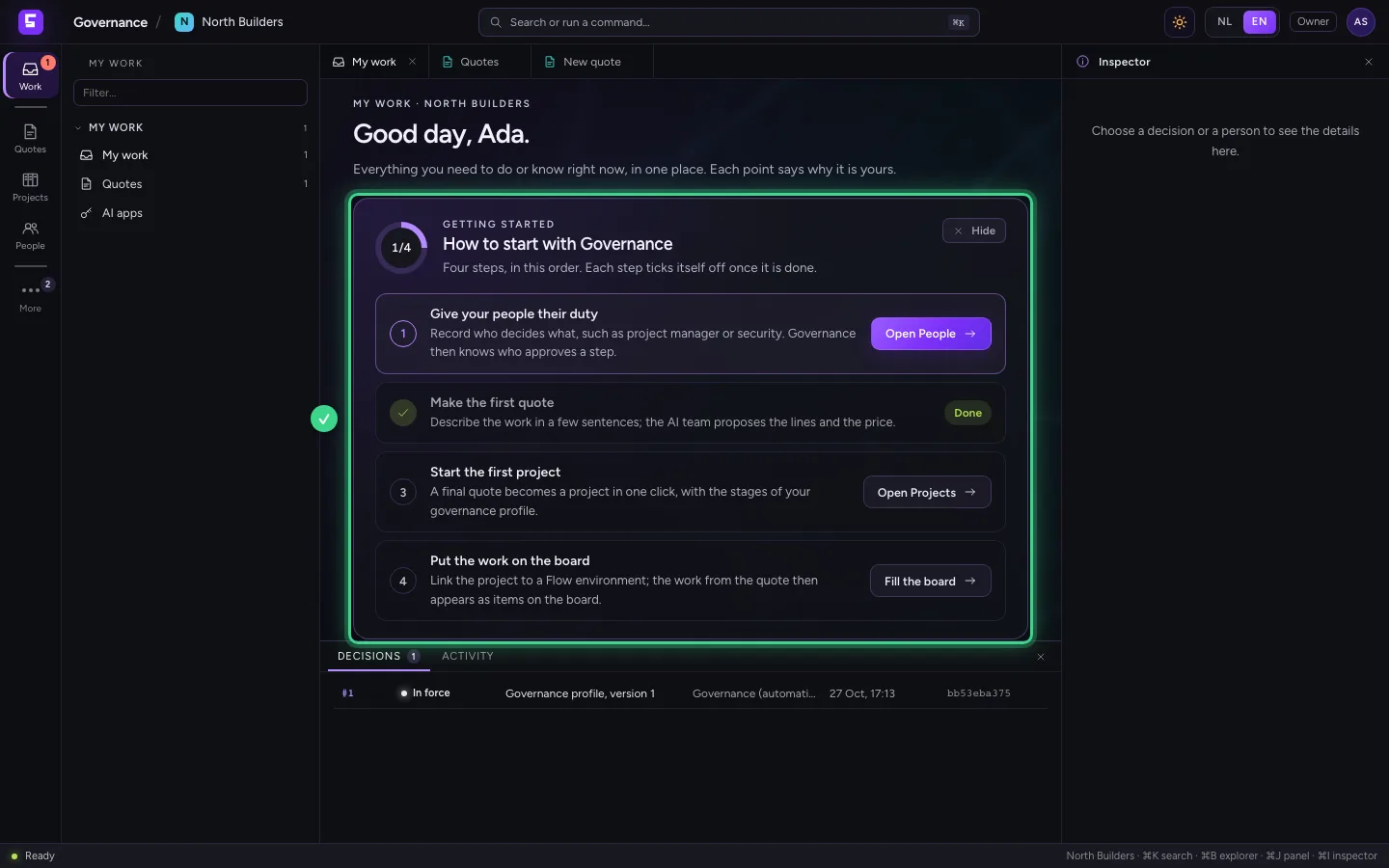
Governance brings quotes, projects, people and decisions together, next to your environments in Flow. It is on or off per organisation, and only the owner switches it on in the portal; after that everyone in the organisation opens it from the menu, with their own portal account. You start on My work, with a short list ‘Getting started’: four steps that tick themselves off. The left bar grows with what you use.
Governance is on per organisation
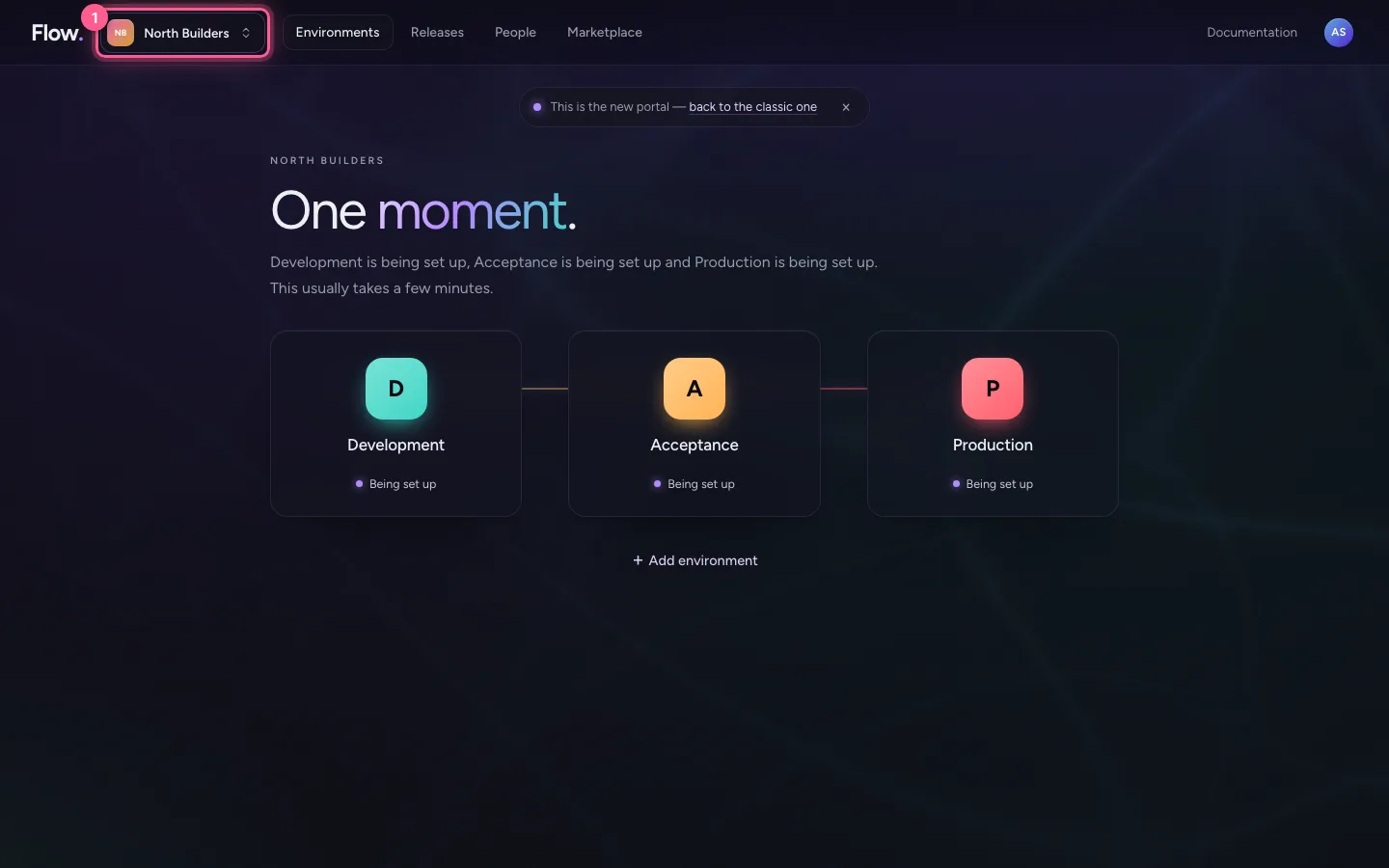
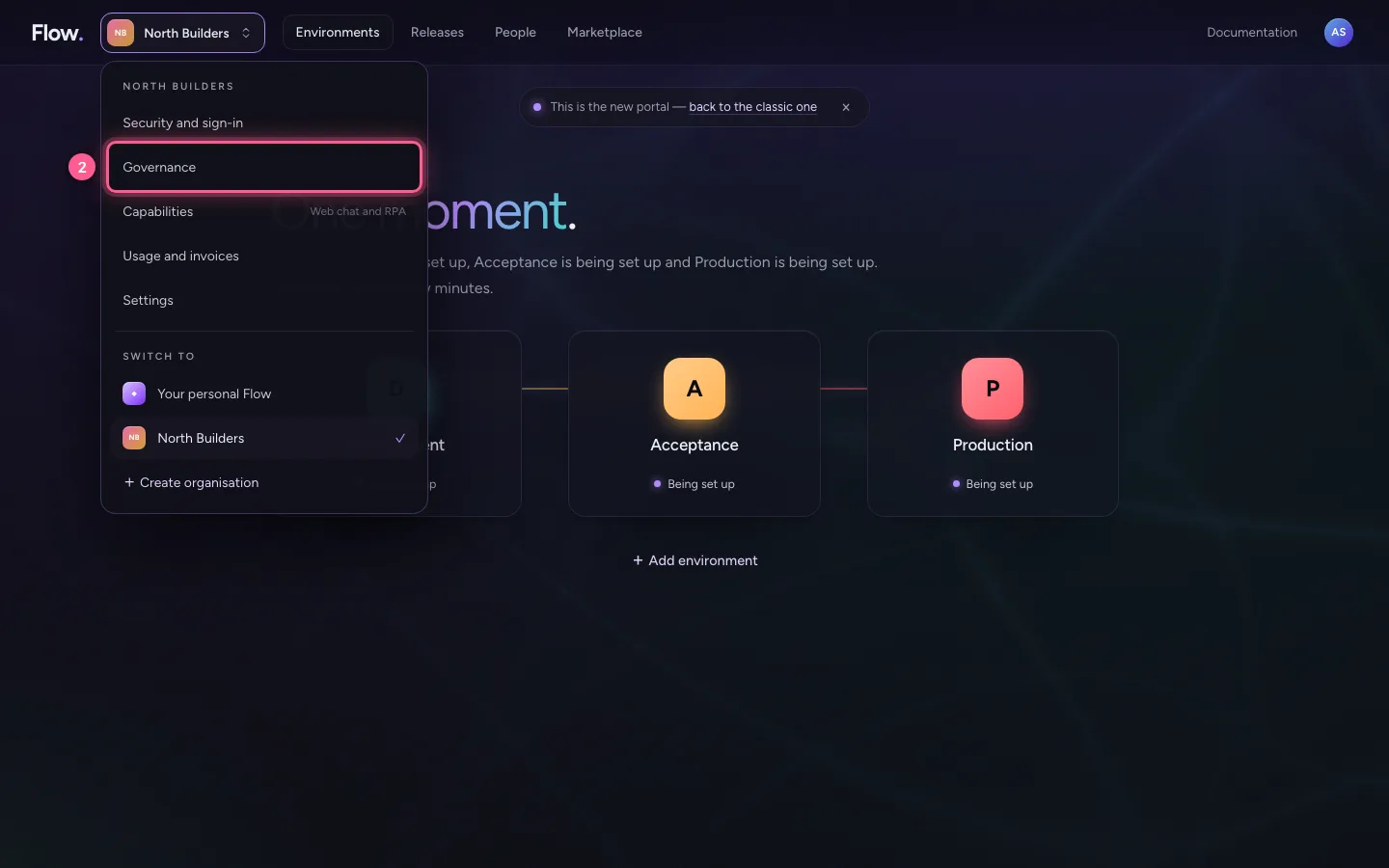
Click your organisation's name at the top left and choose Governance. There you read what Governance is and whether it is on. A new organisation starts with Off, and only the owner switches it on. A colleague who is not an owner reads here who can switch it on.
- Click North Builders
- Click Governance
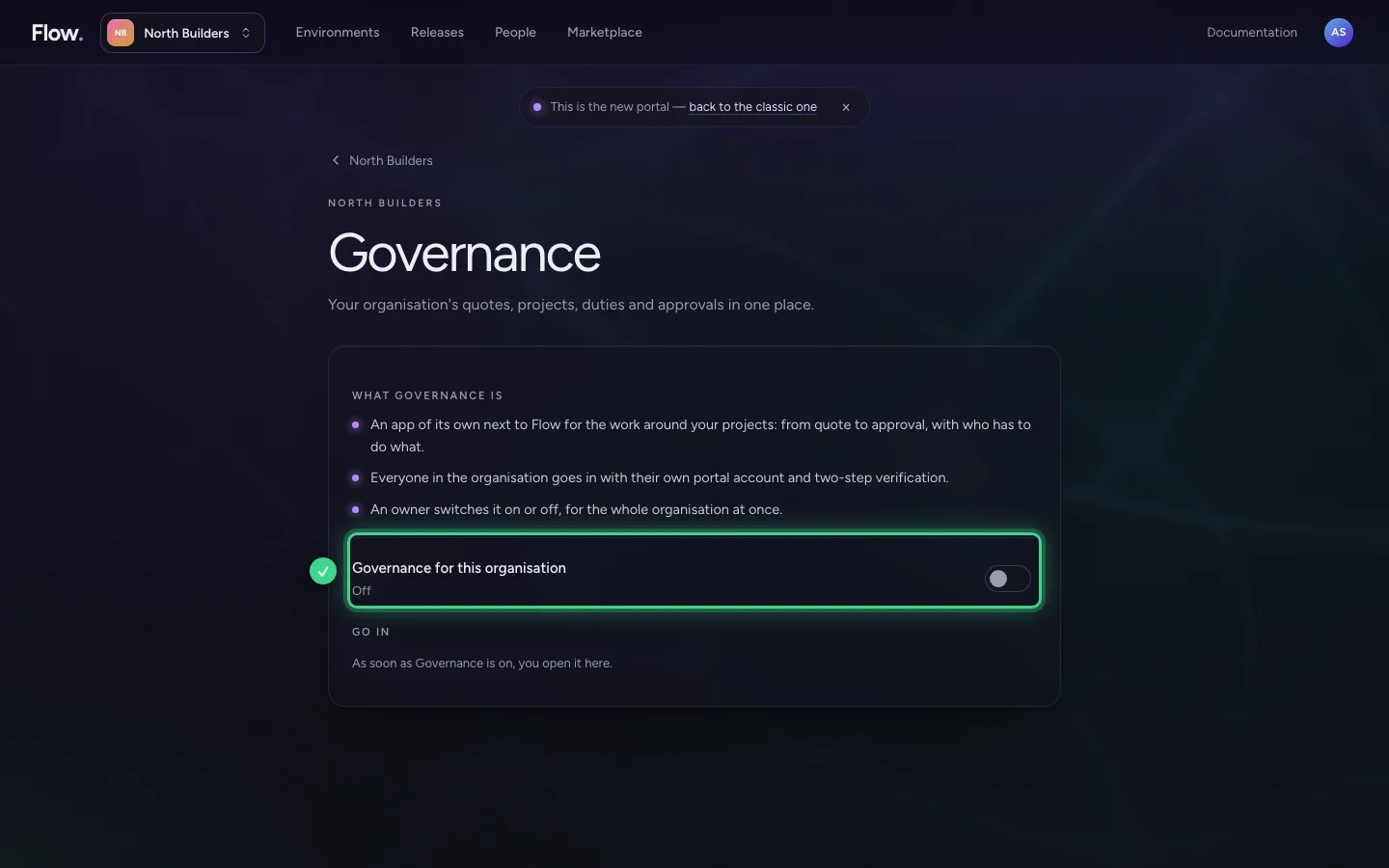
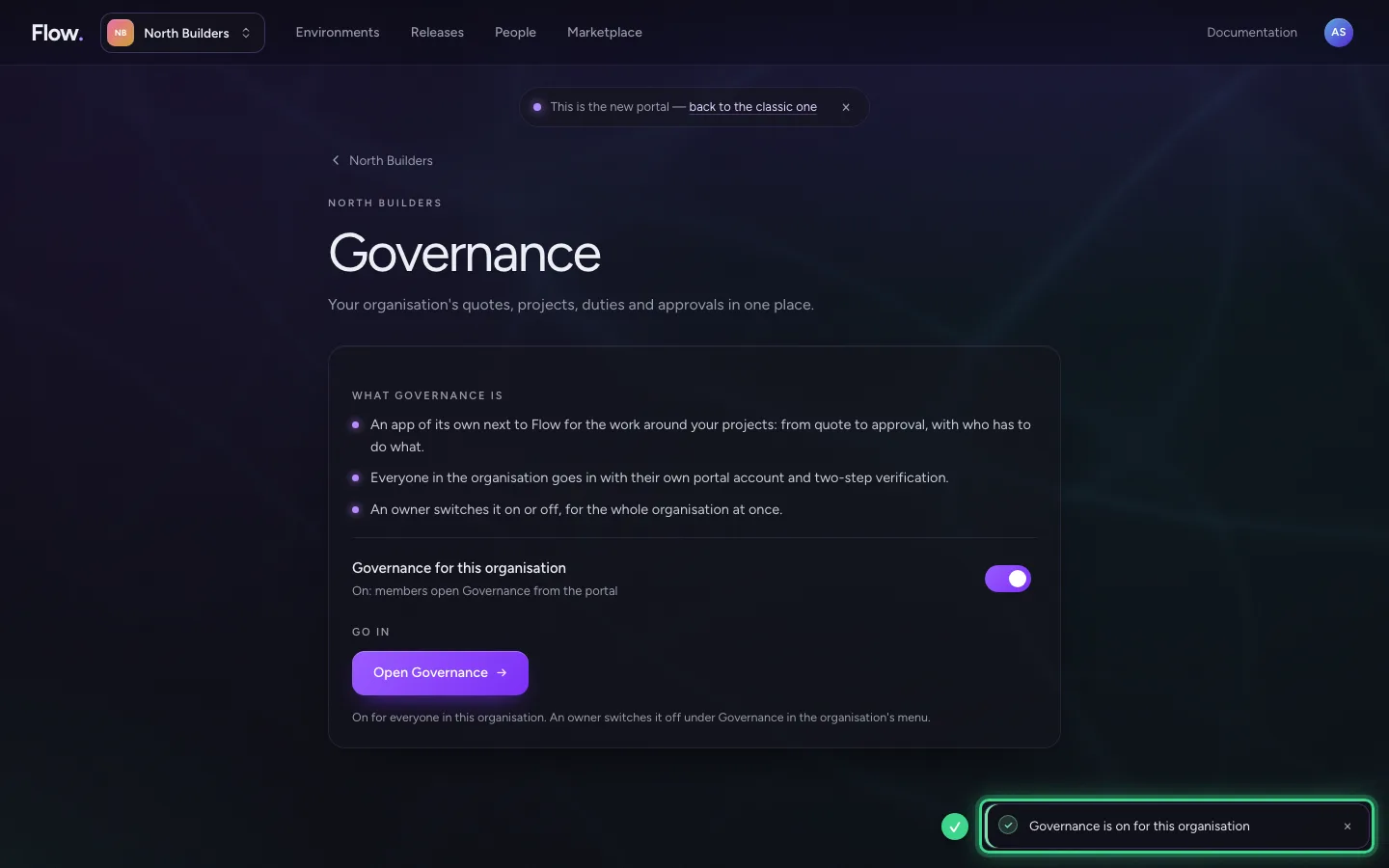
Switch Governance on
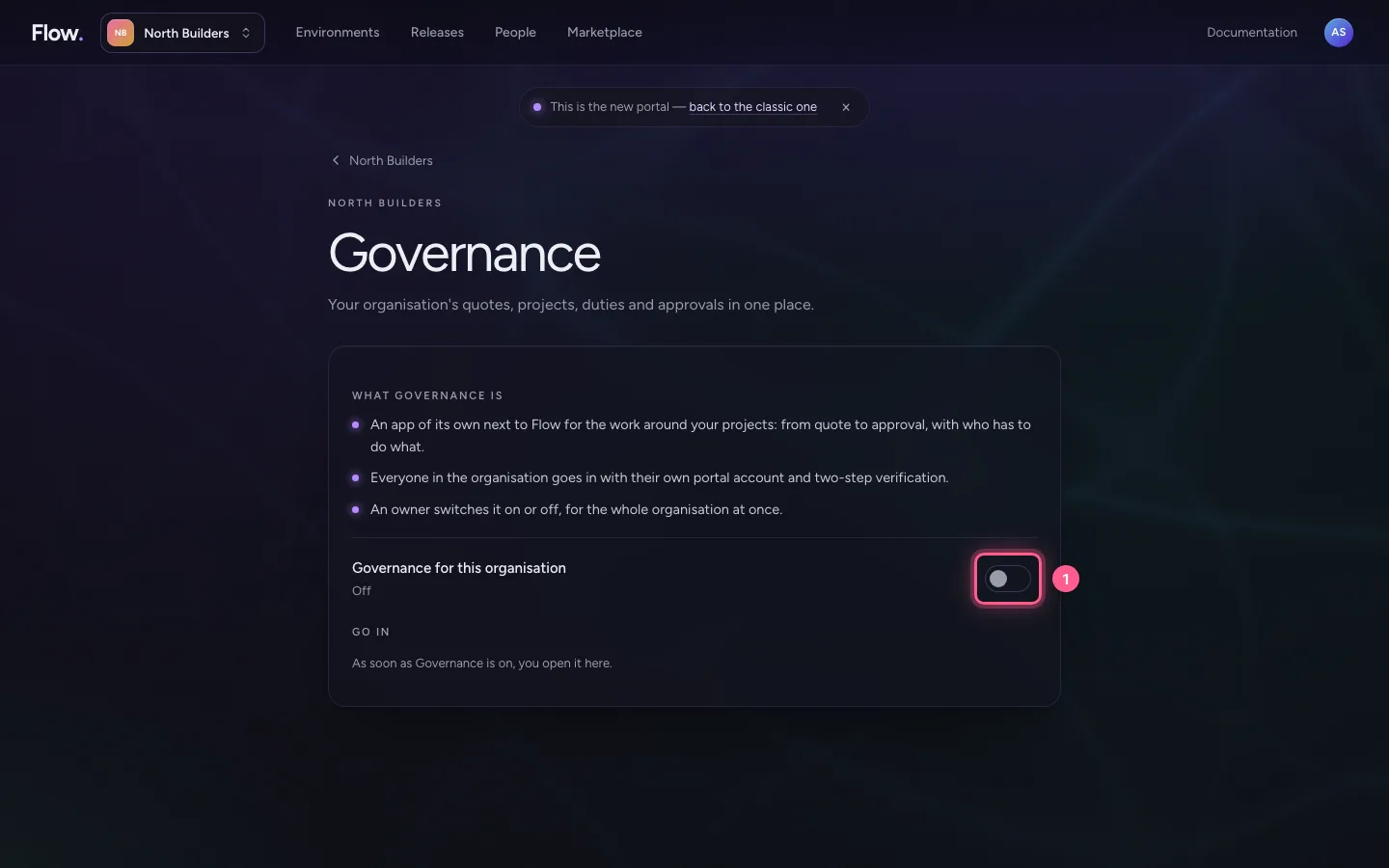
Switch it on. From now on everyone in your organisation can open Governance, with their own portal account and two-step verification. There is no separate password: Governance keeps none.
- Click Governance for this organisation
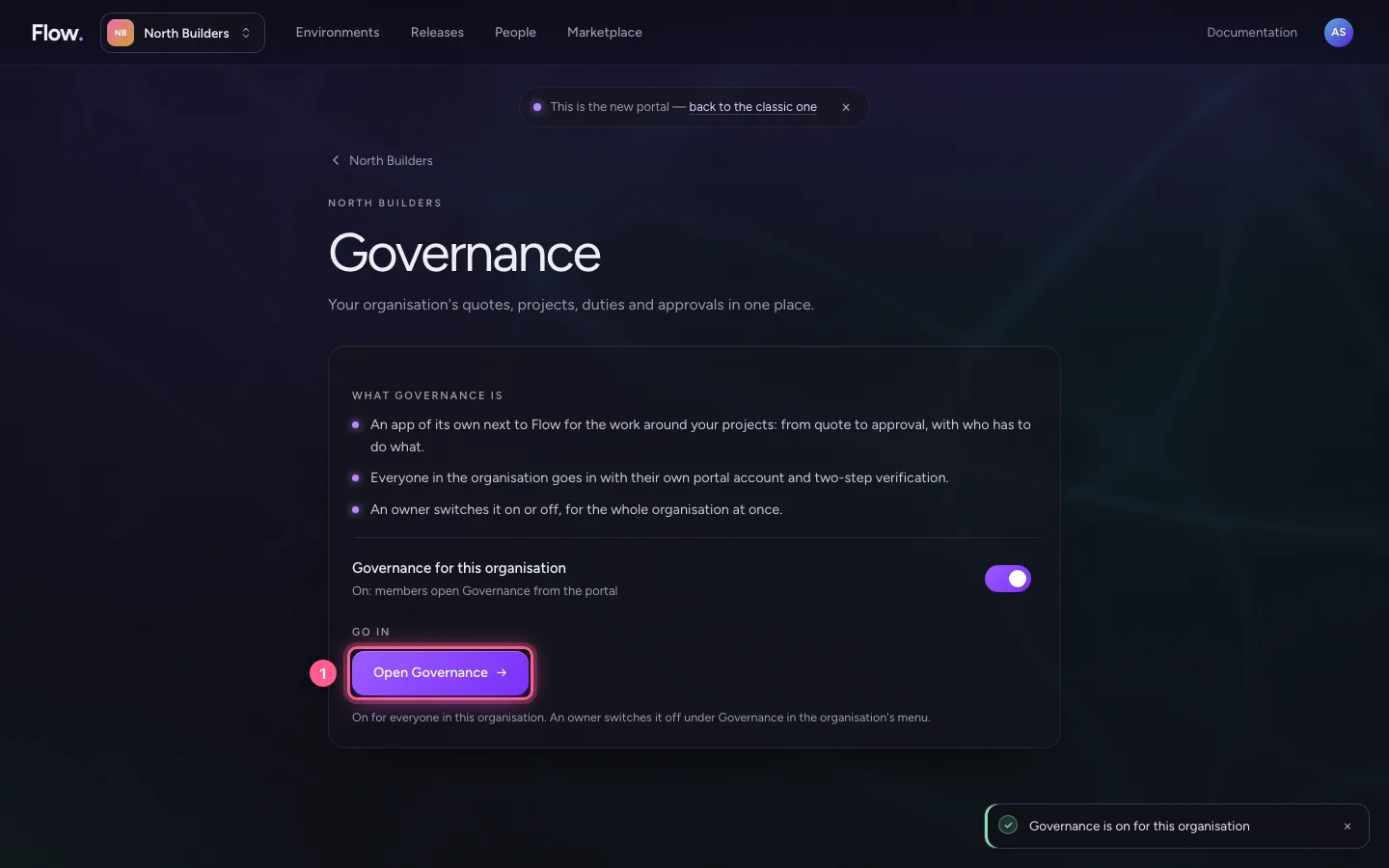
Open Governance
The same page now shows Open Governance, for you and for everyone in your organisation: they also find it behind the organisation's name, under Governance. Governance opens in the same tab.
- Click Open Governance

Sign in through the portal
Governance lets the portal check who you are: your account, your two-step verification and whether you are a member of an organisation with Governance. Already signed in to the portal? Then you go straight through. When someone is removed from the organisation, Governance closes for them within half a minute.
- Click Sign in through the portal


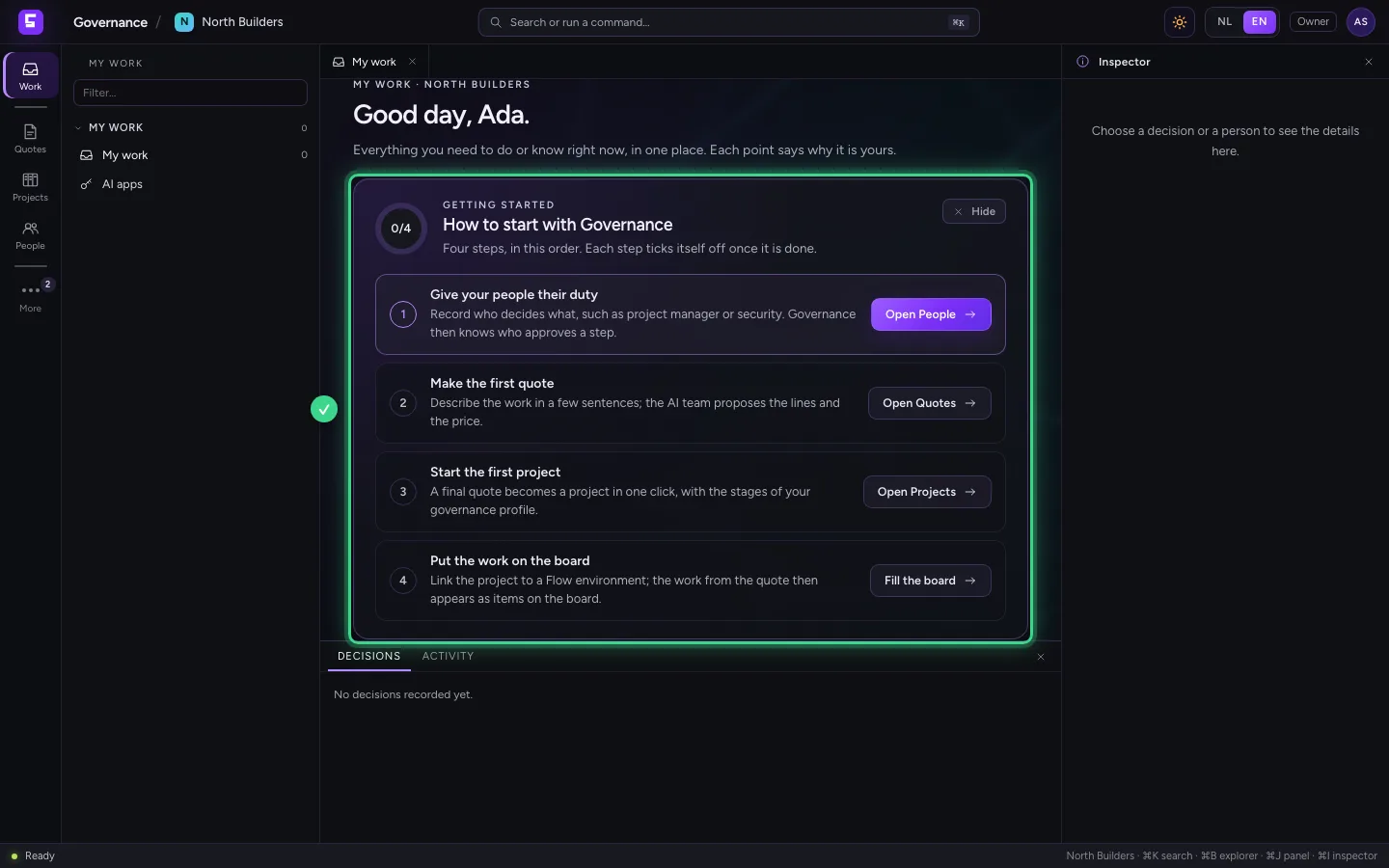
Getting started: four steps
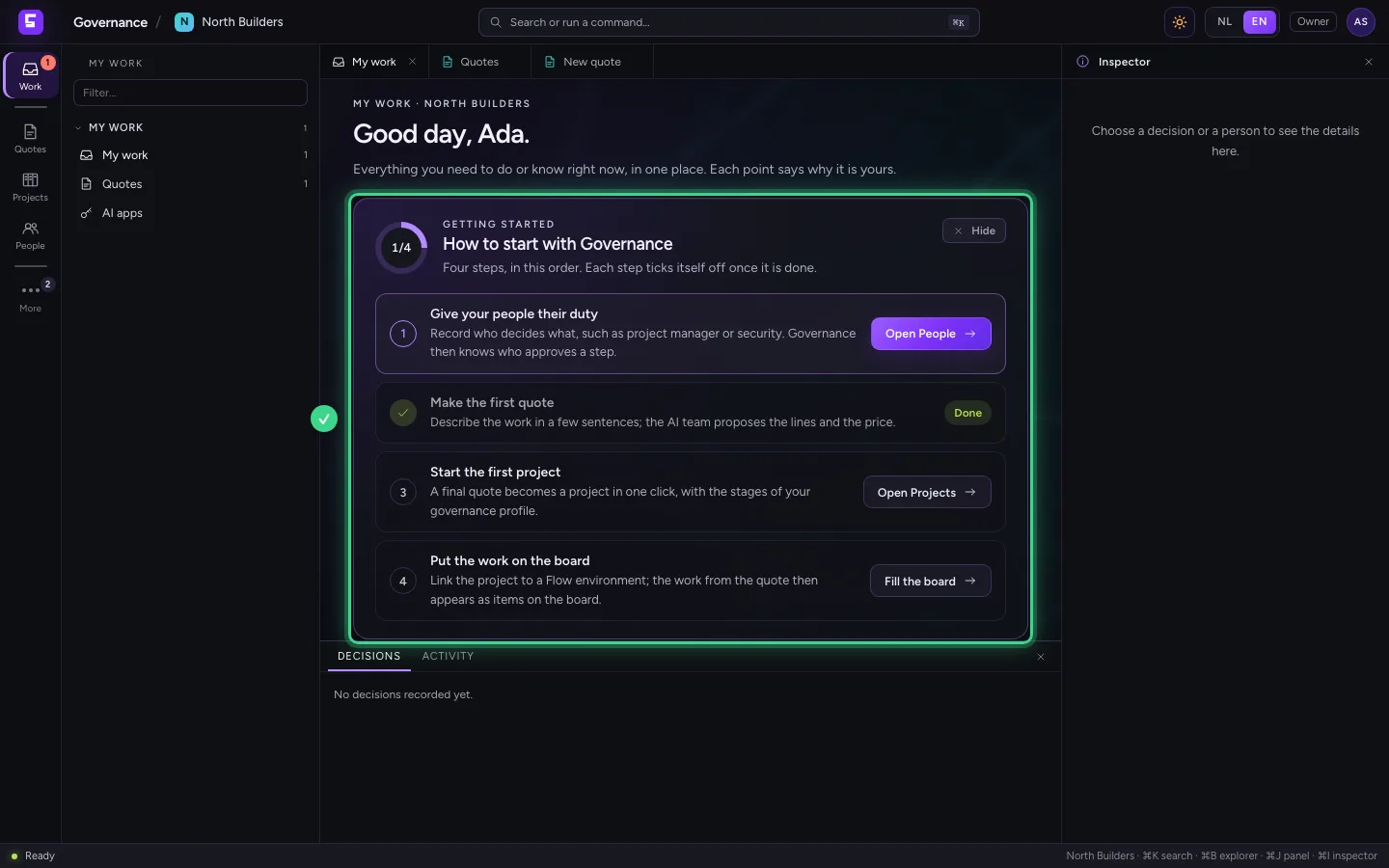
You start on My work. For a new organisation, Getting started is at the top: give your people their duty, make the first quote, start the first project and put the work on the board in Flow. Each step is one sentence and one button; the next step has the purple button. You only see the steps you may take yourself.
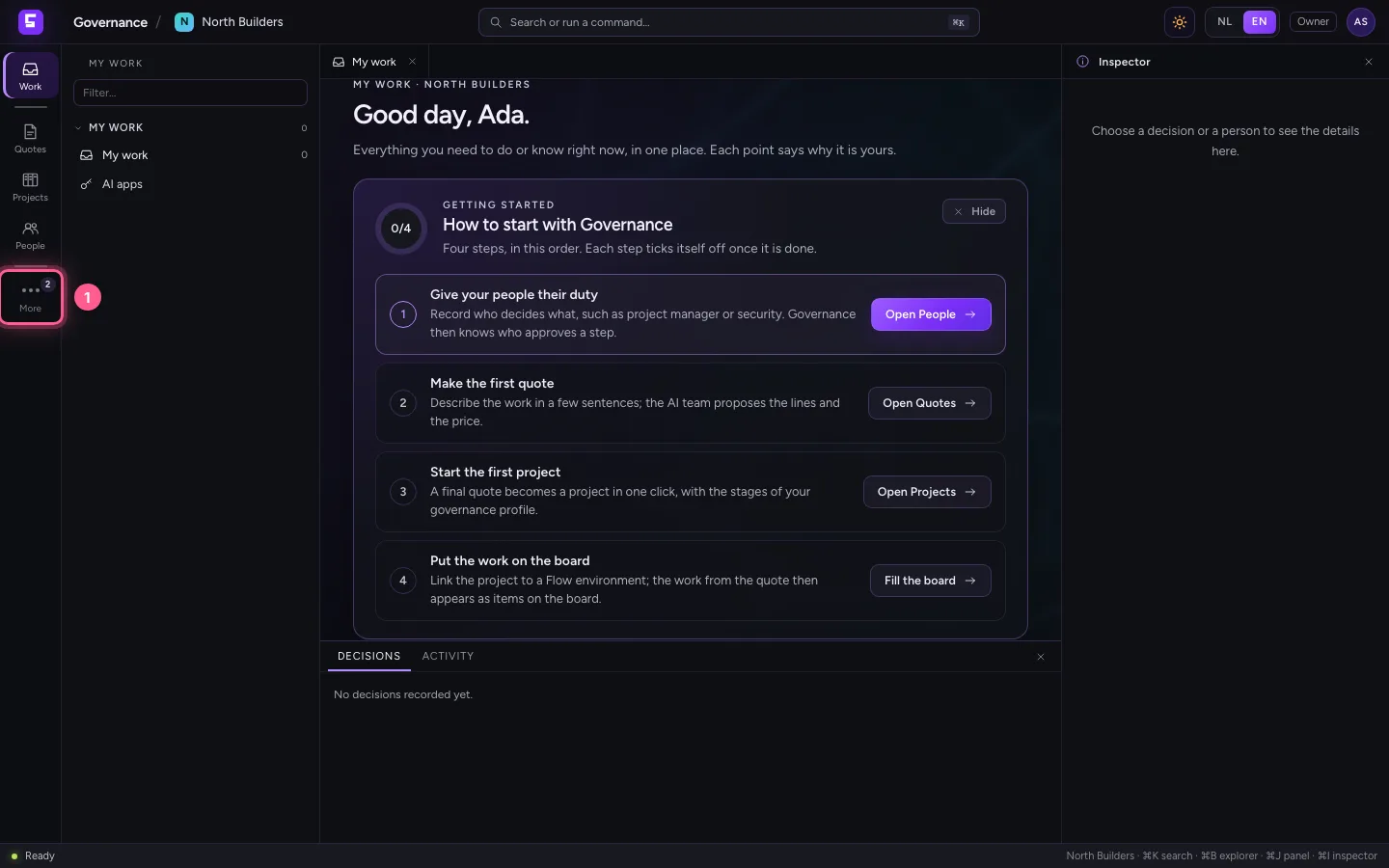
A left bar that grows
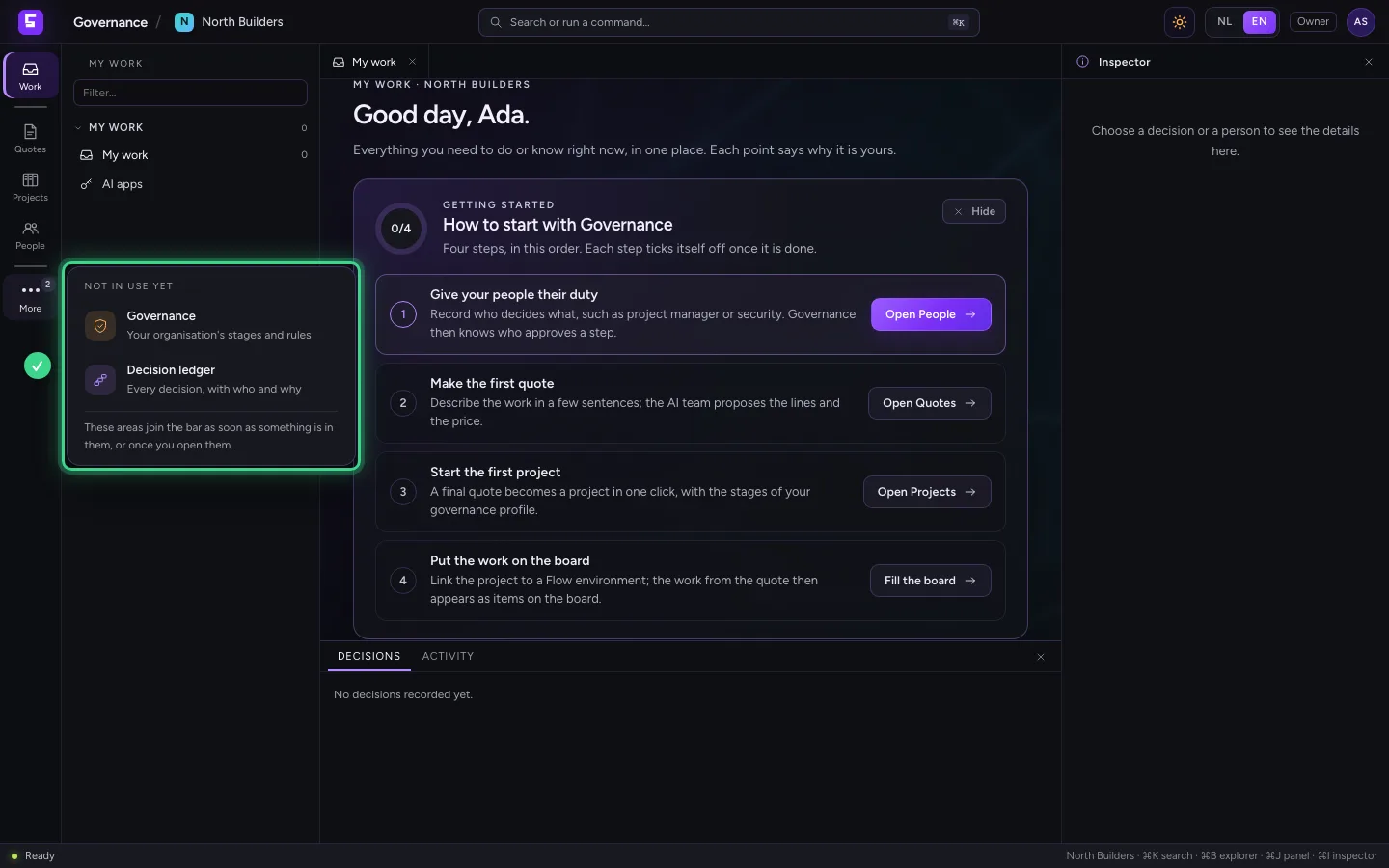
On the left are only the areas you need now: My work, Quotes, Projects and People. The governance profile and the decision ledger wait under More, until something is in them or you open them; then they stay in the bar. What you may use and already has something in it is always in the bar.
- Click More
An empty place says what it is for
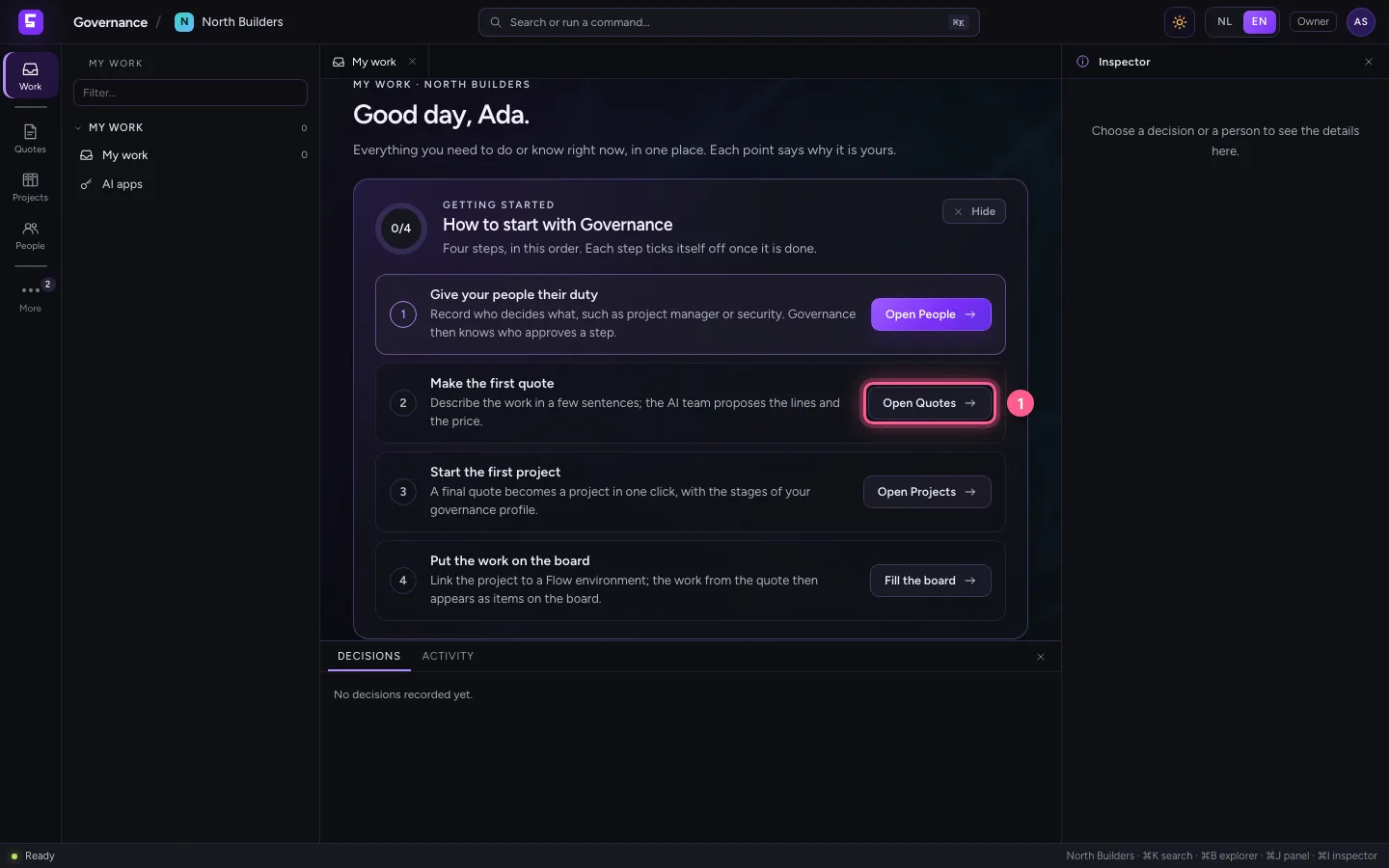
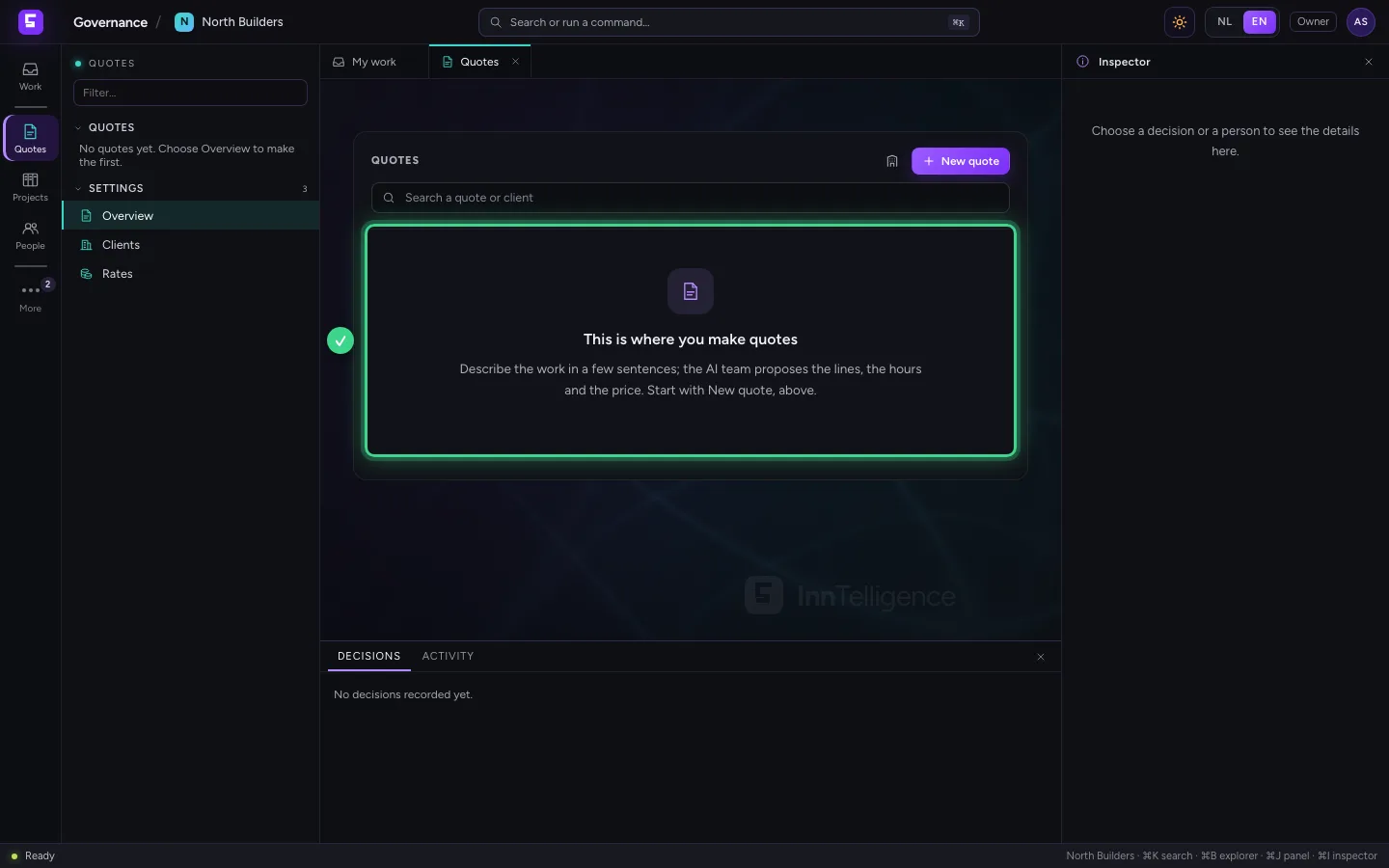
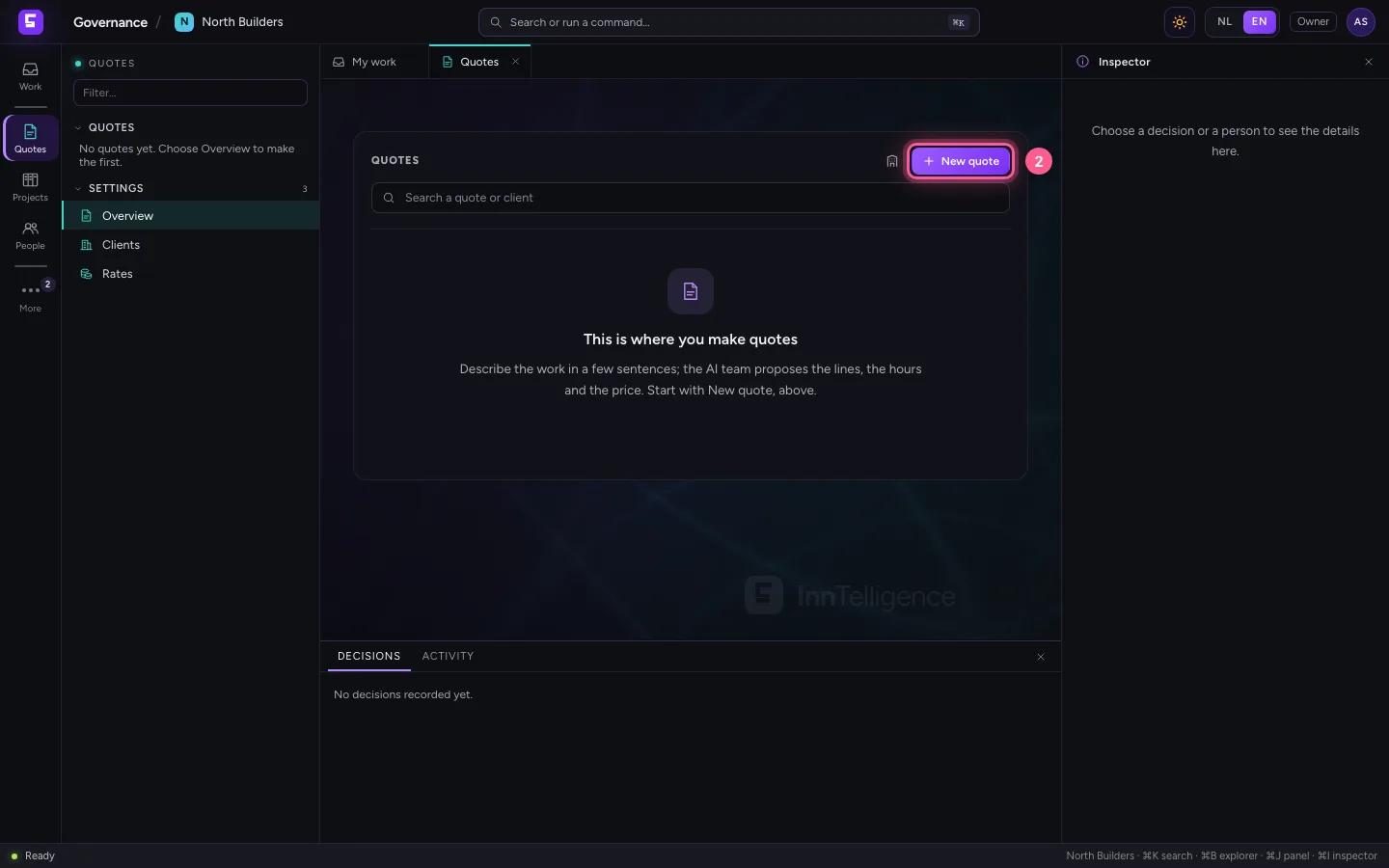
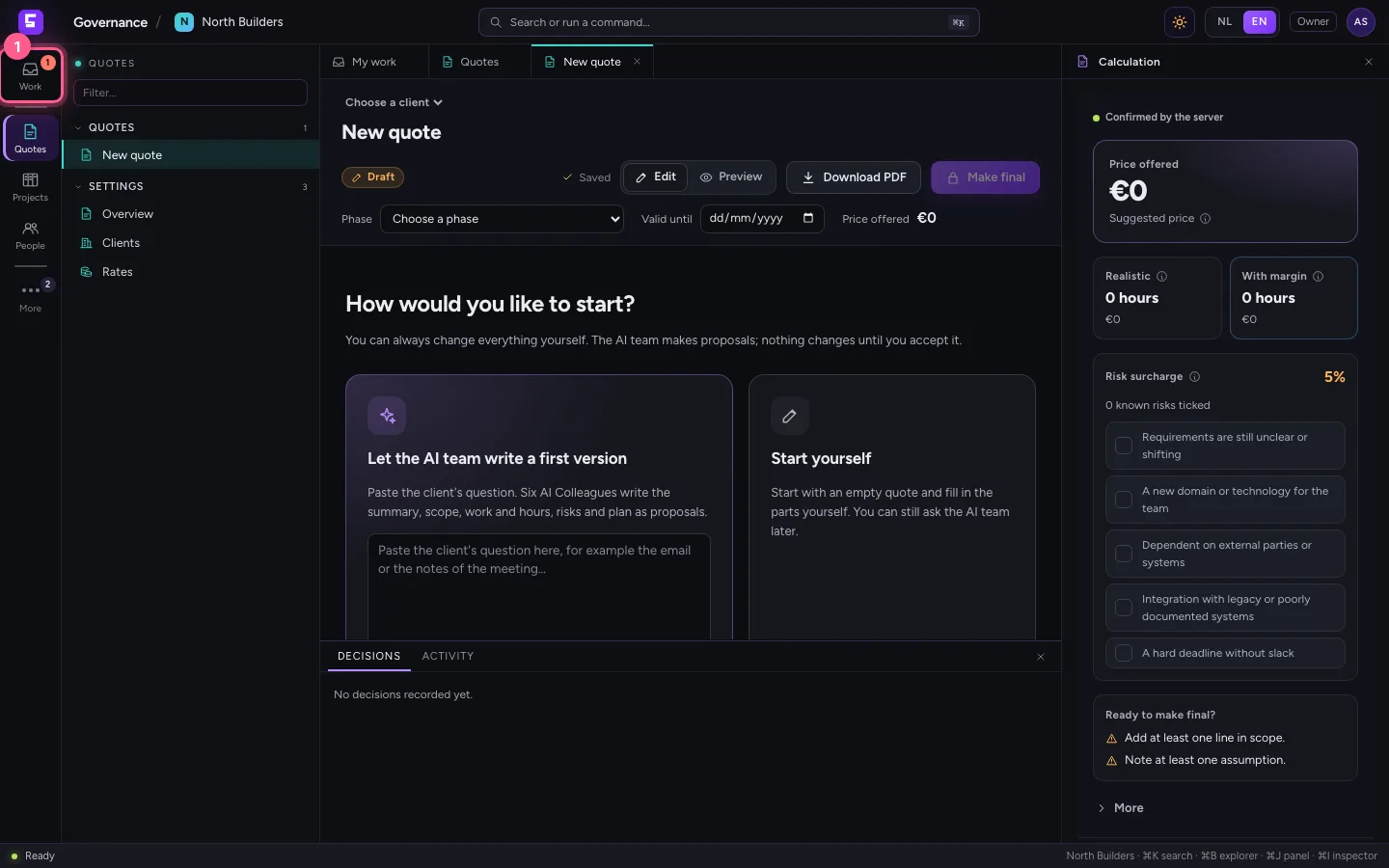
At the step Make the first quote, choose Open Quotes. As long as there is nothing yet, Quotes says in one sentence what it is for; the button New quote is right above it. Every empty area works this way.
- Click Open Quotes
- Click New quote
The step ticks itself off
Go back to My work. The quote exists, so the step says Done: Governance looks at what is really there, not at a tick you set. Once everything is done, the list goes away by itself.
- Click My work
Put away and bring back
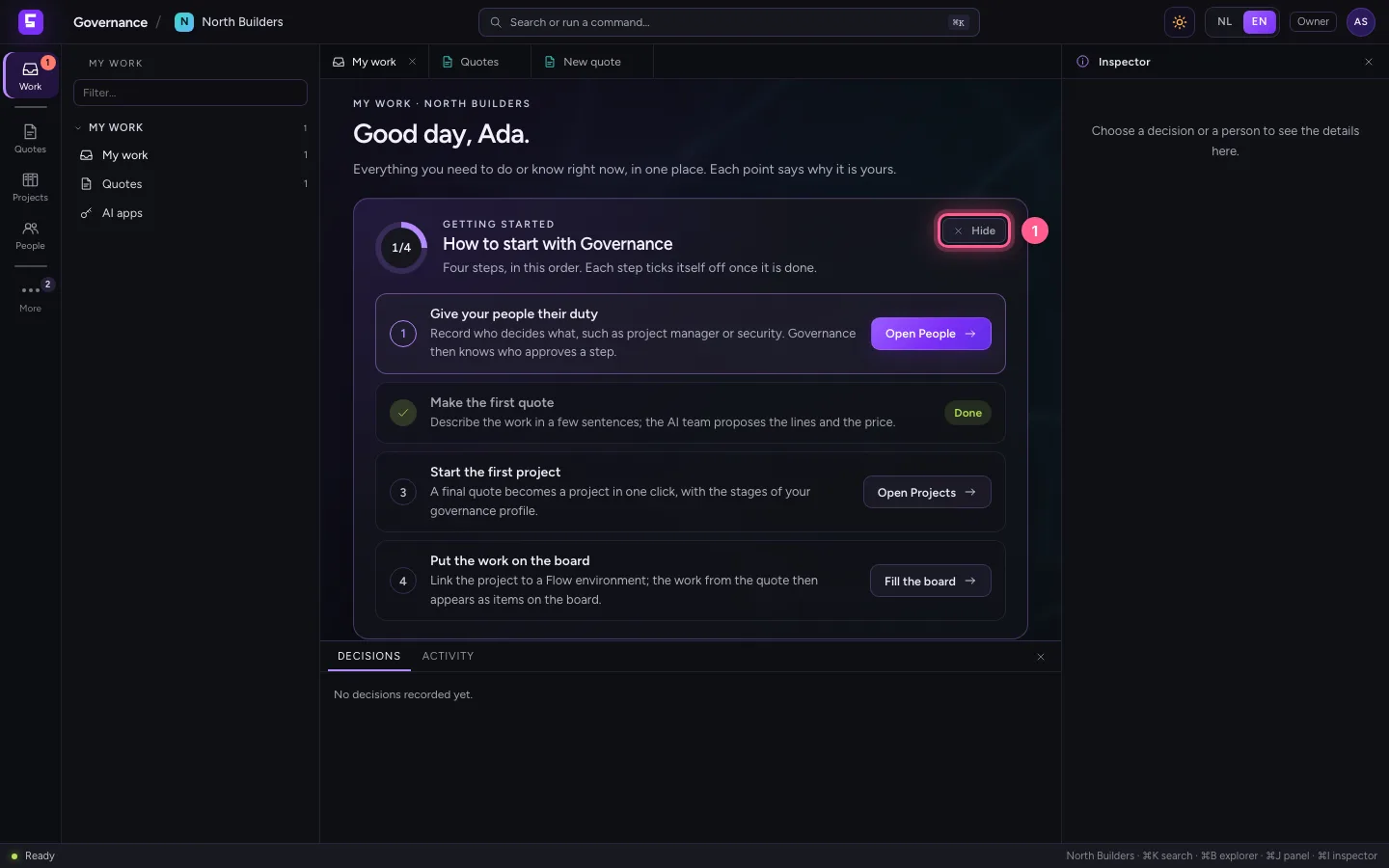
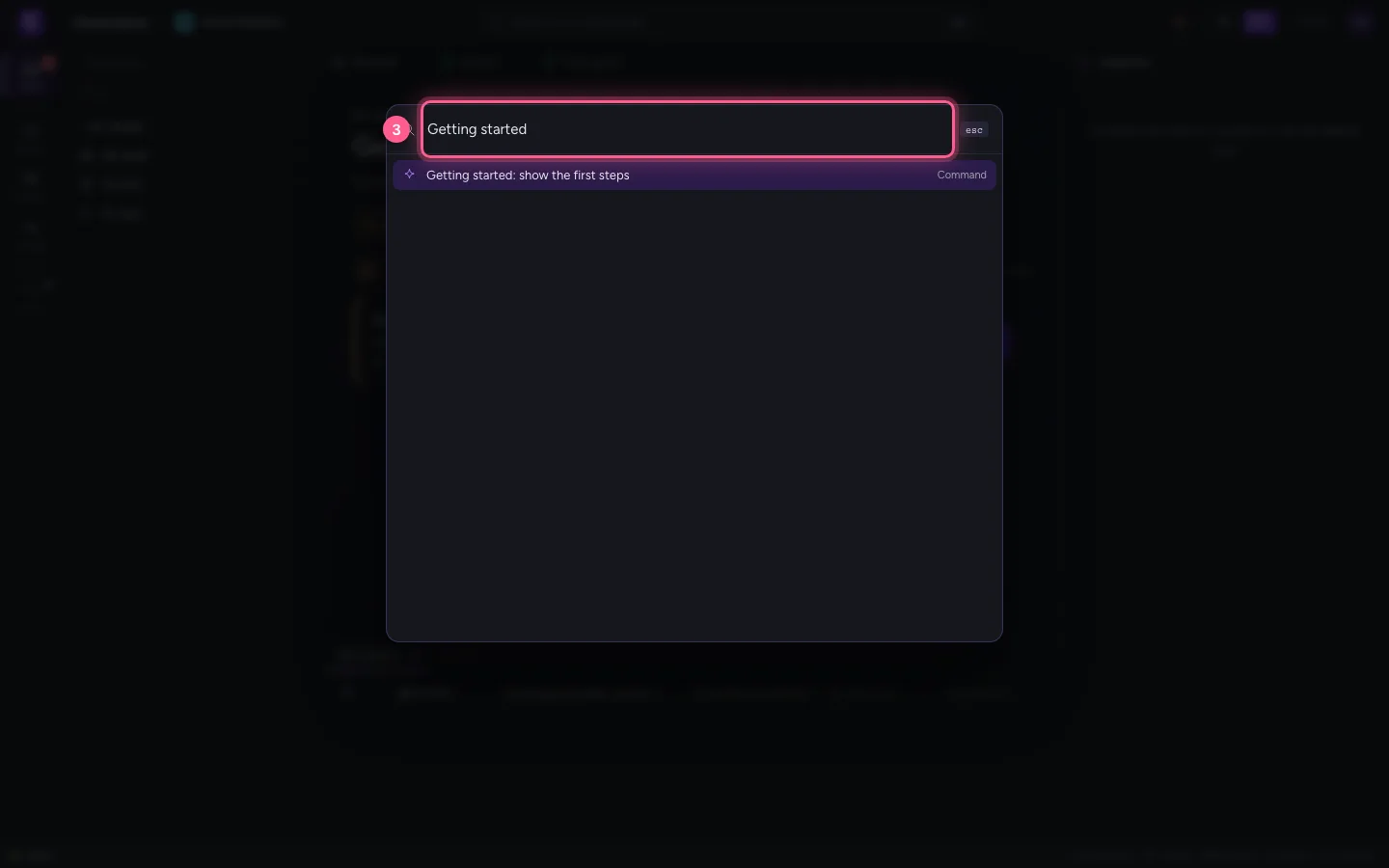
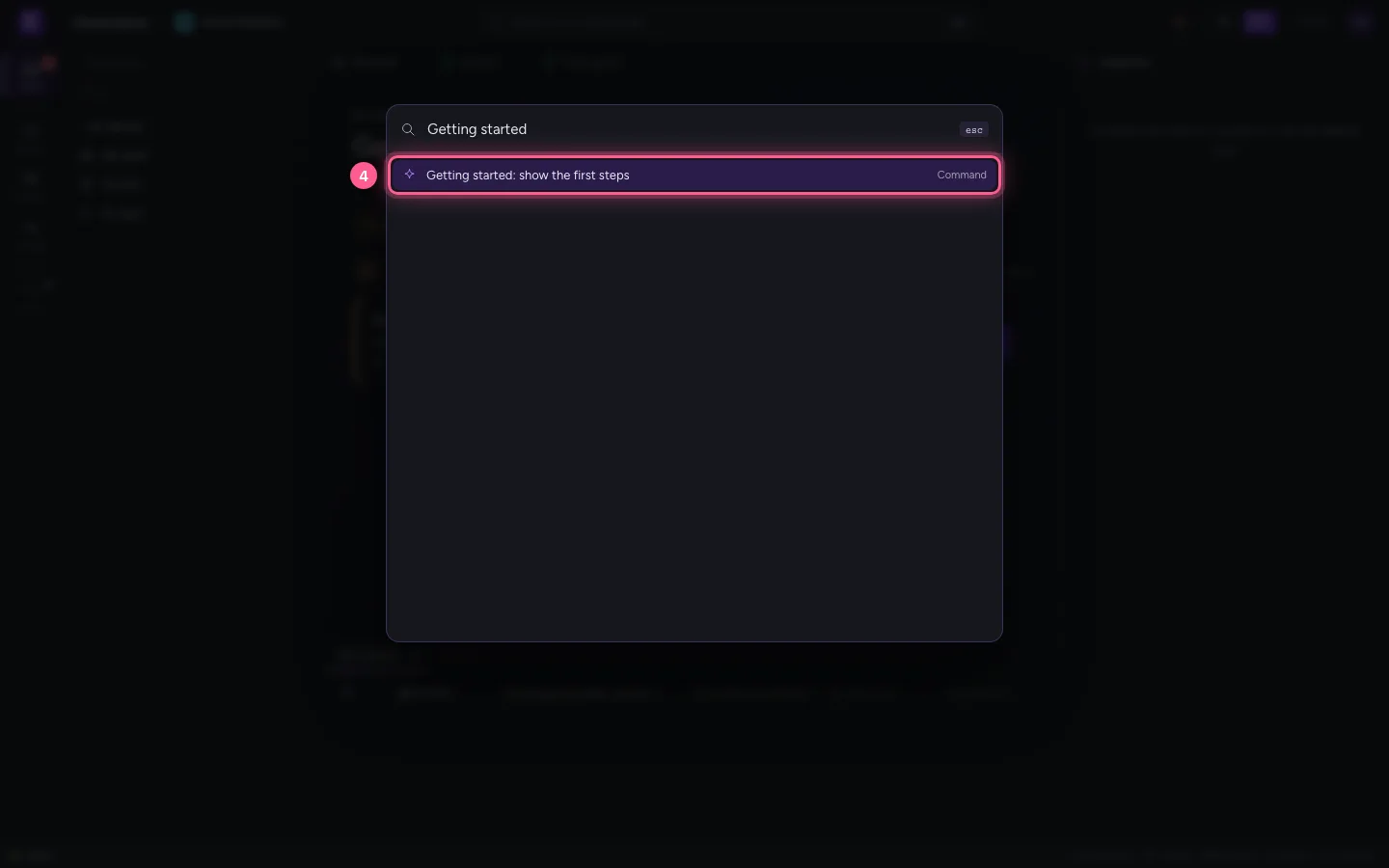
Don't need the list? Choose Hide; that only applies to you. You can always bring it back: open search with ⌘K and choose Getting started.
- Click Hide
- Click Search (⌘K)
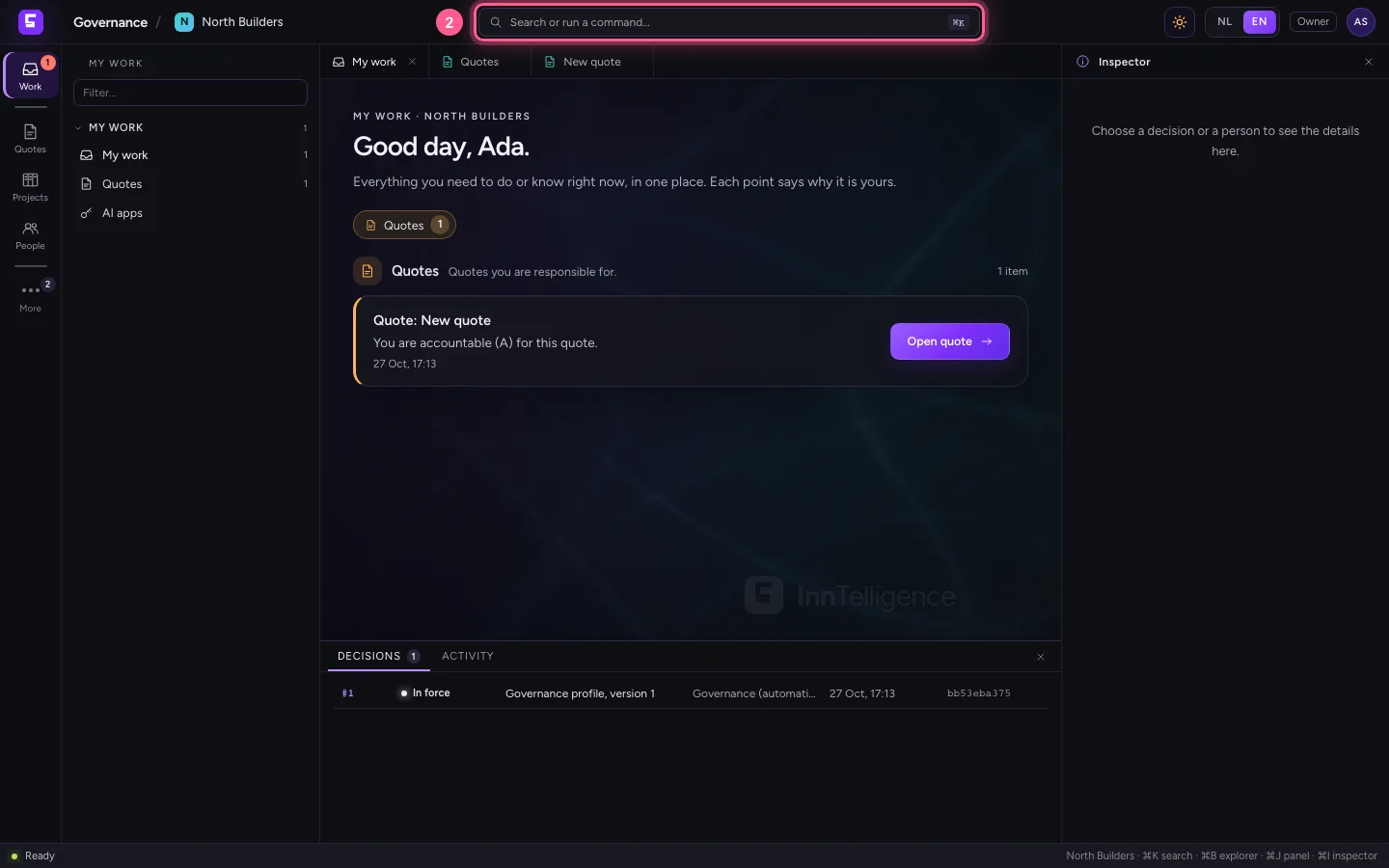
- In Search or run a command…, type
Getting started
- Click Getting started: show the first steps Command
This guide was carried out step by step on 27 Oct 2026 by an automated test on Flow (version 7d21bad8).