Knowledge base
A knowledge base keeps what you know yourselves — manuals, terms, agreements — in a way Flow can search. Flow cuts every document into chunks and makes them searchable by meaning and by words. Agents and workflows then use the knowledge base as a source. Here you create one, put a document in it and try it out in the notebook: search and ask a question.
Open your development environment
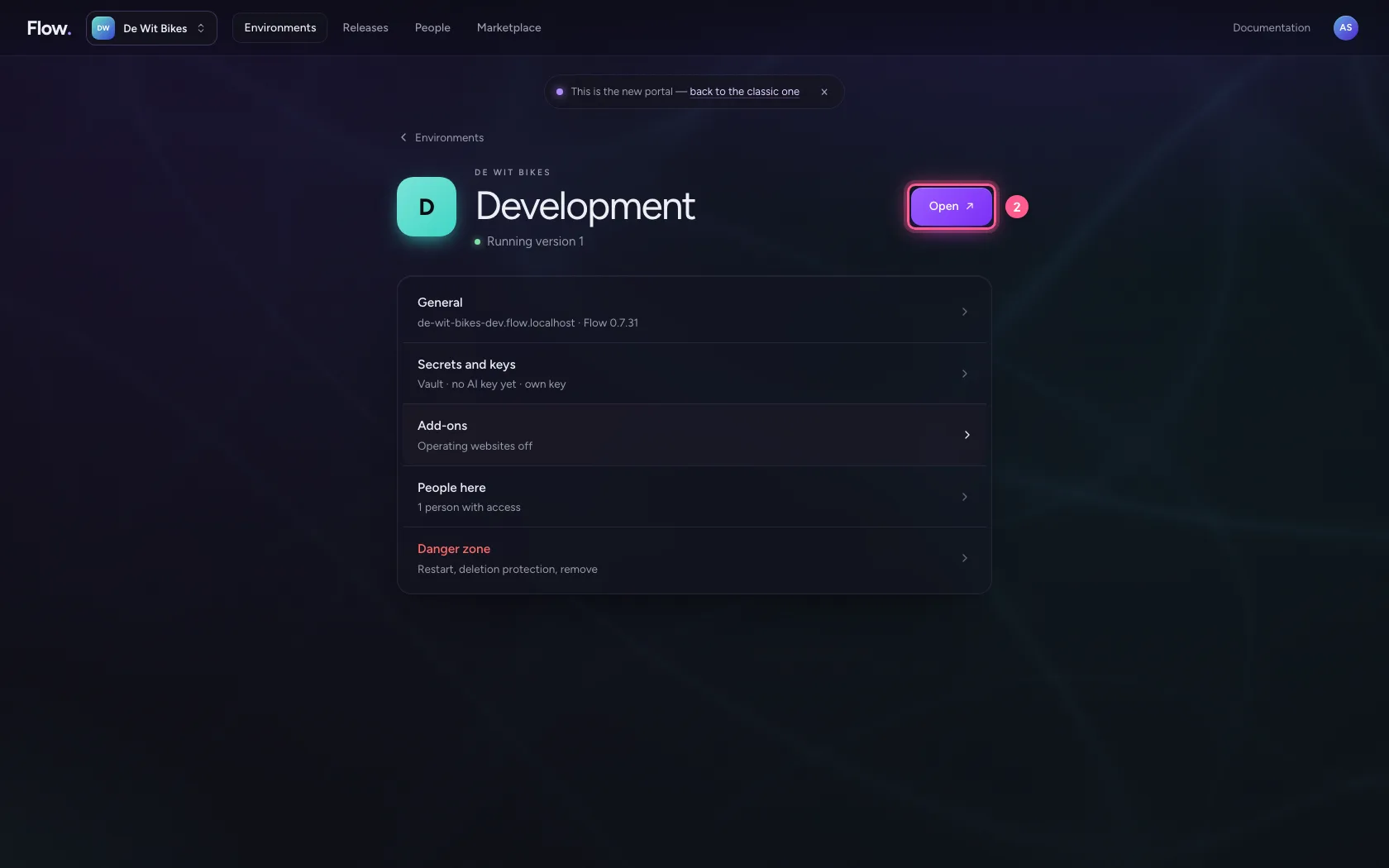
In the portal, under Environments, click Development, and there Open. Flow opens in a new tab and you are signed in straight away.
- Click Development

- Click Open ↗
Create a knowledge base
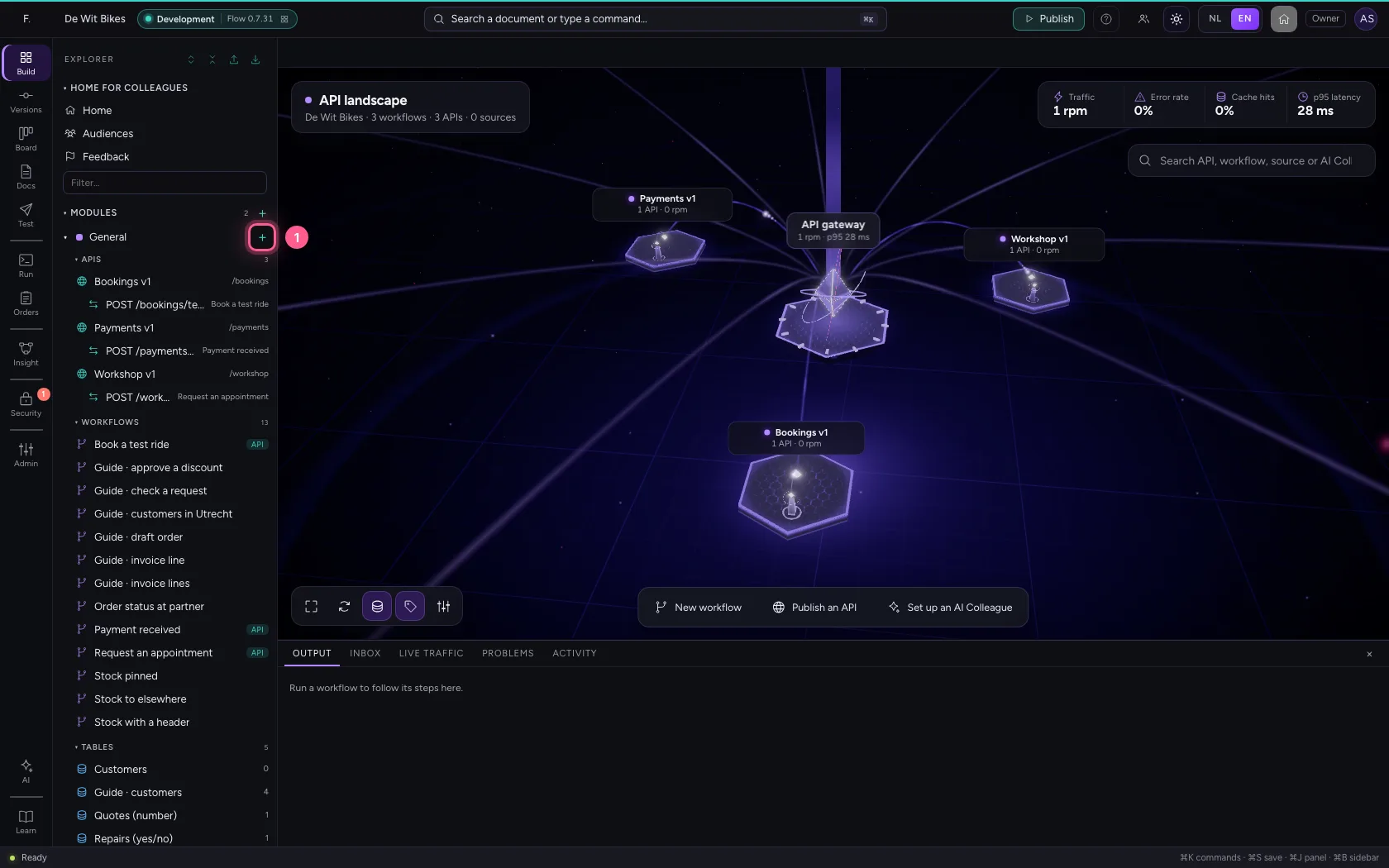
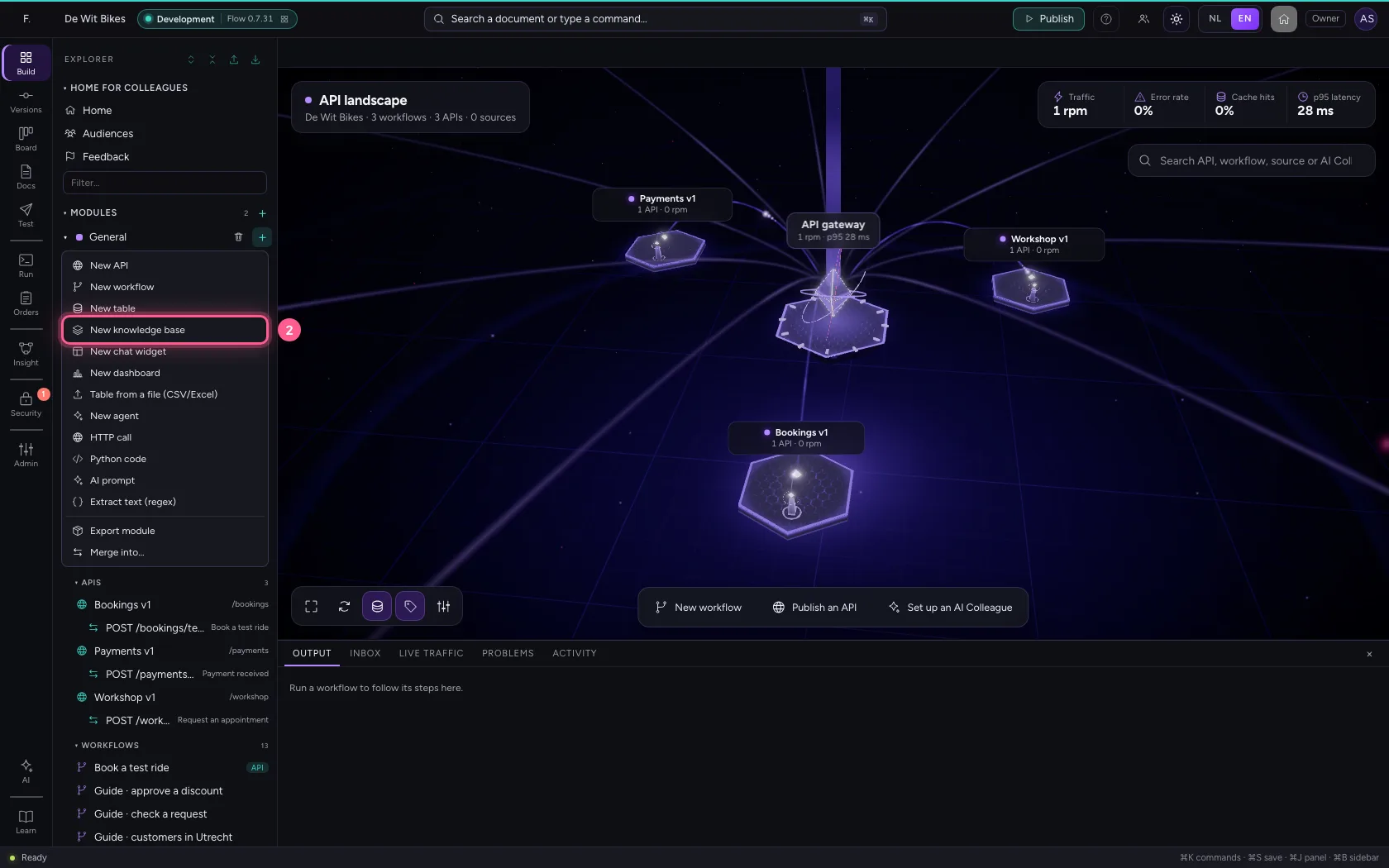
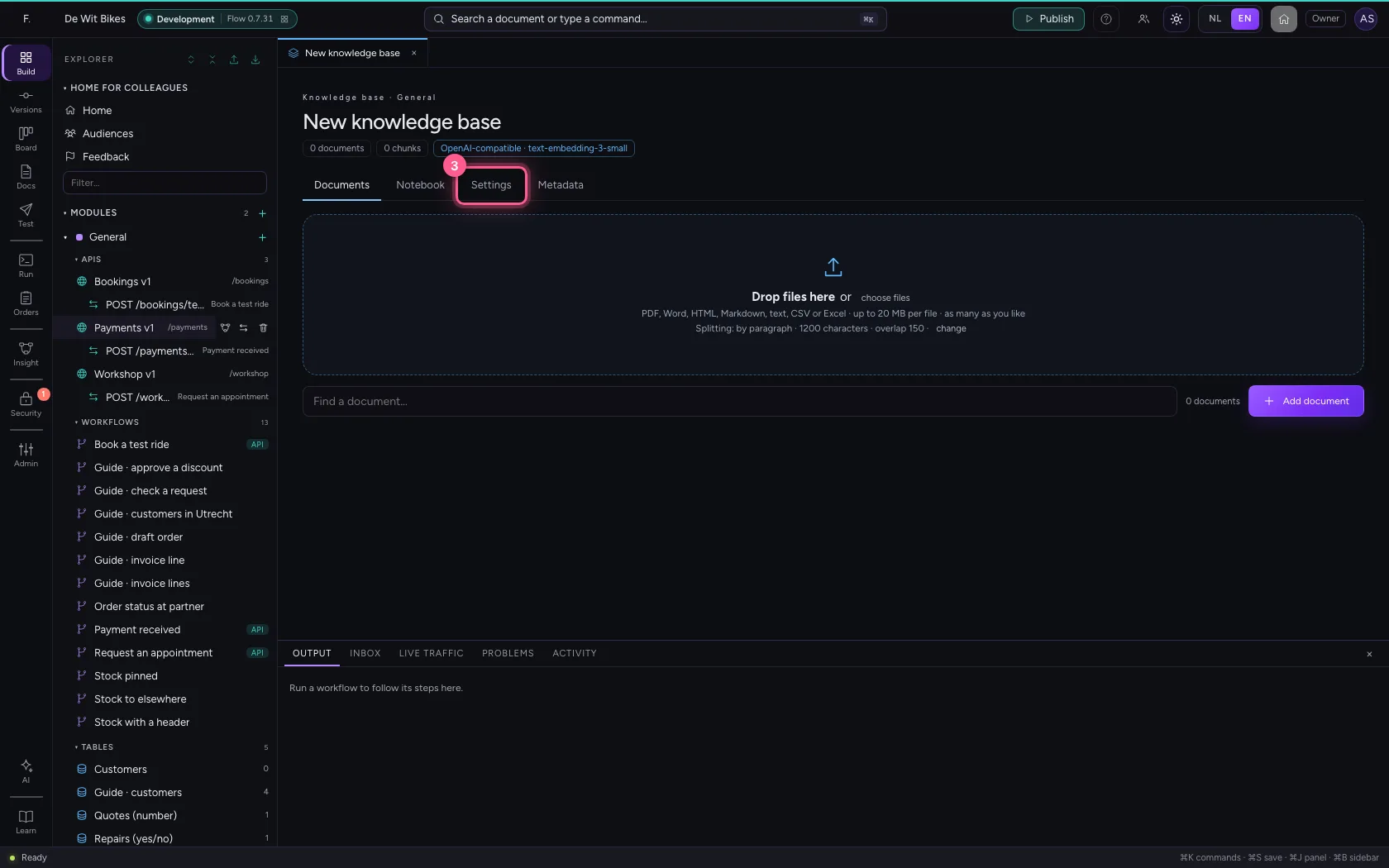
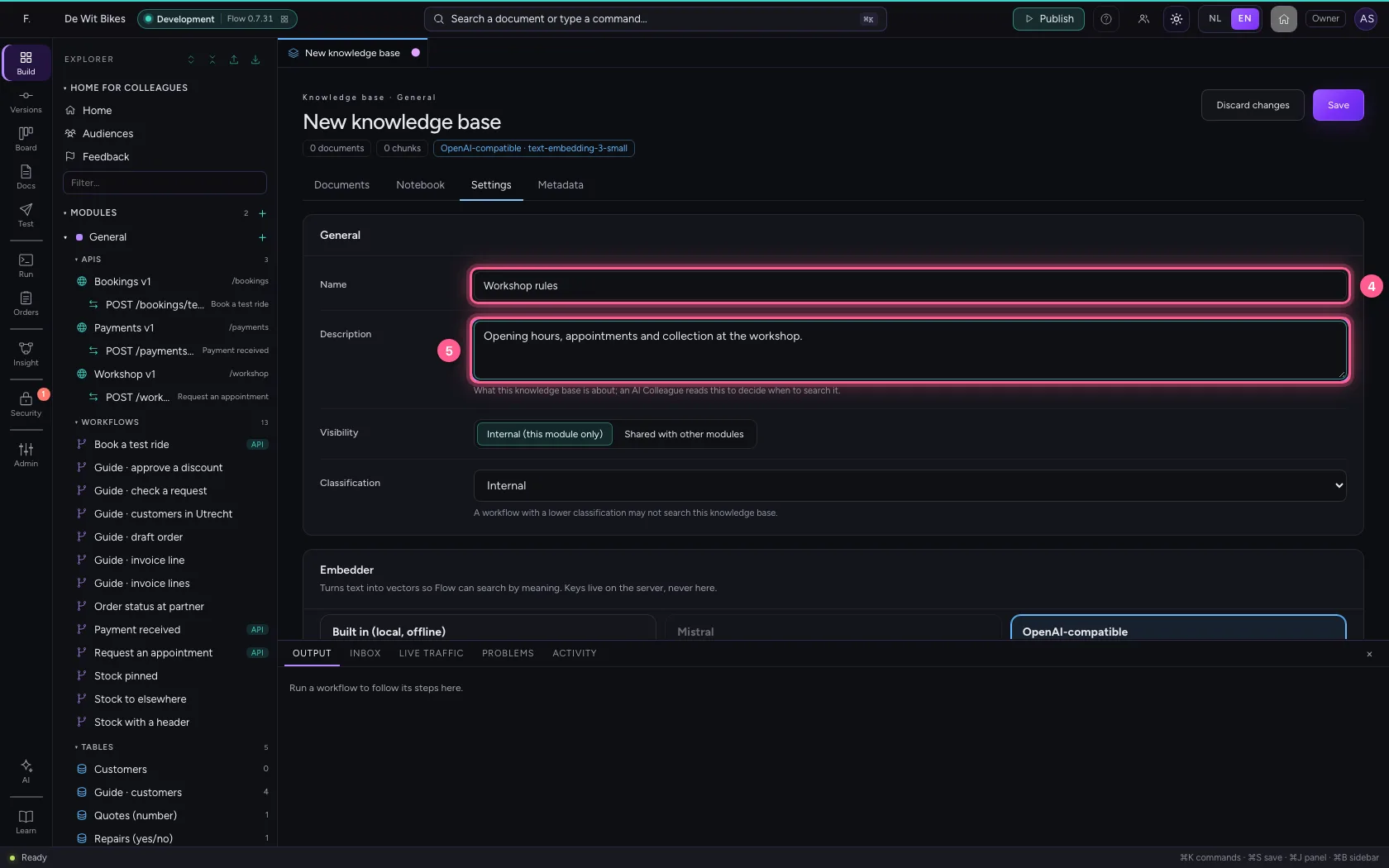
Click + next to General and choose New knowledge base. Under Settings, give it a name and a description. The description is not just for you: an agent reads it to decide when to search this knowledge base.
- Click Add to General
- Click New knowledge base
- Click Settings
- In Name, type
Workshop rules - In Description, type
Opening hours, appointments and collection at the workshop.
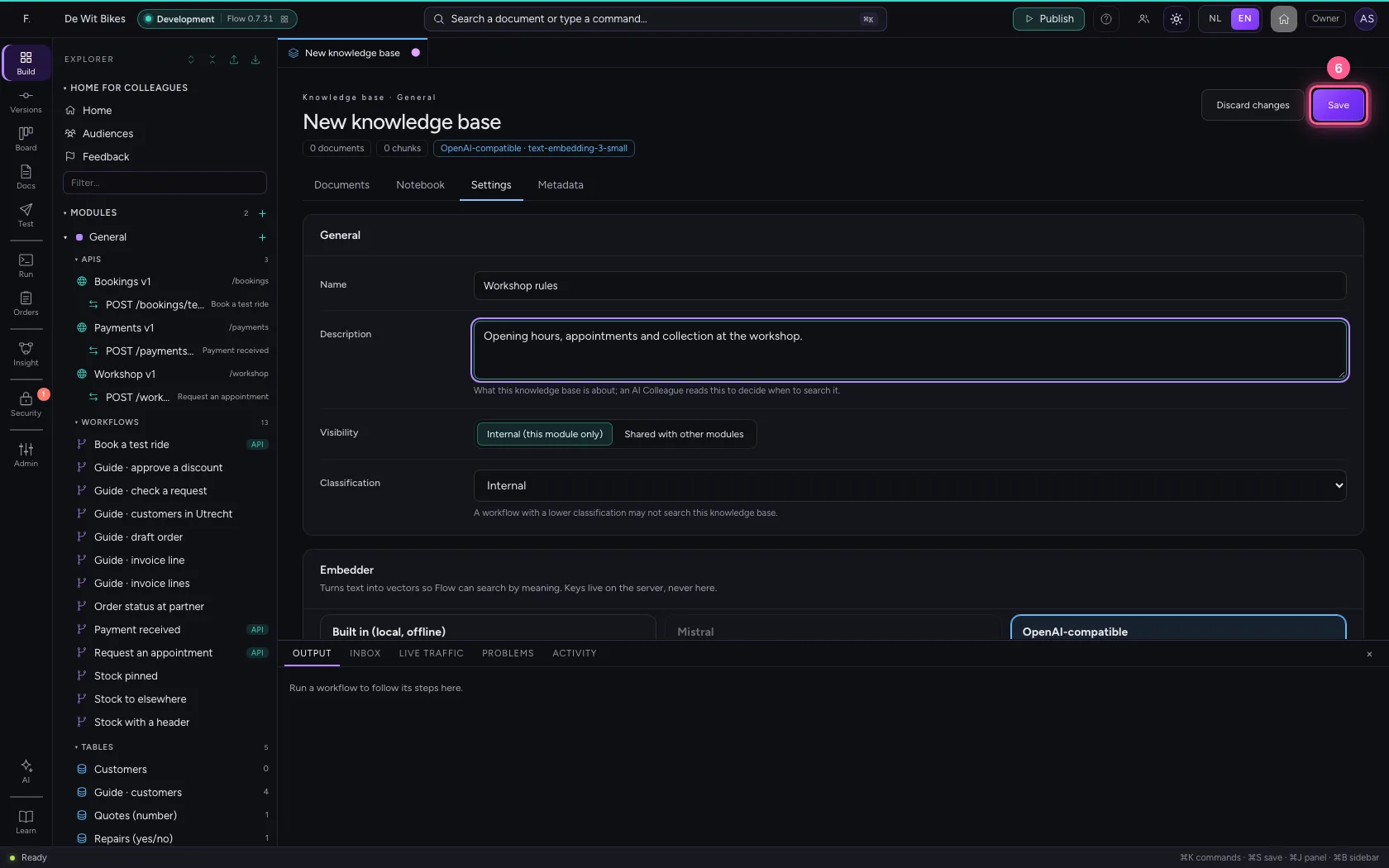
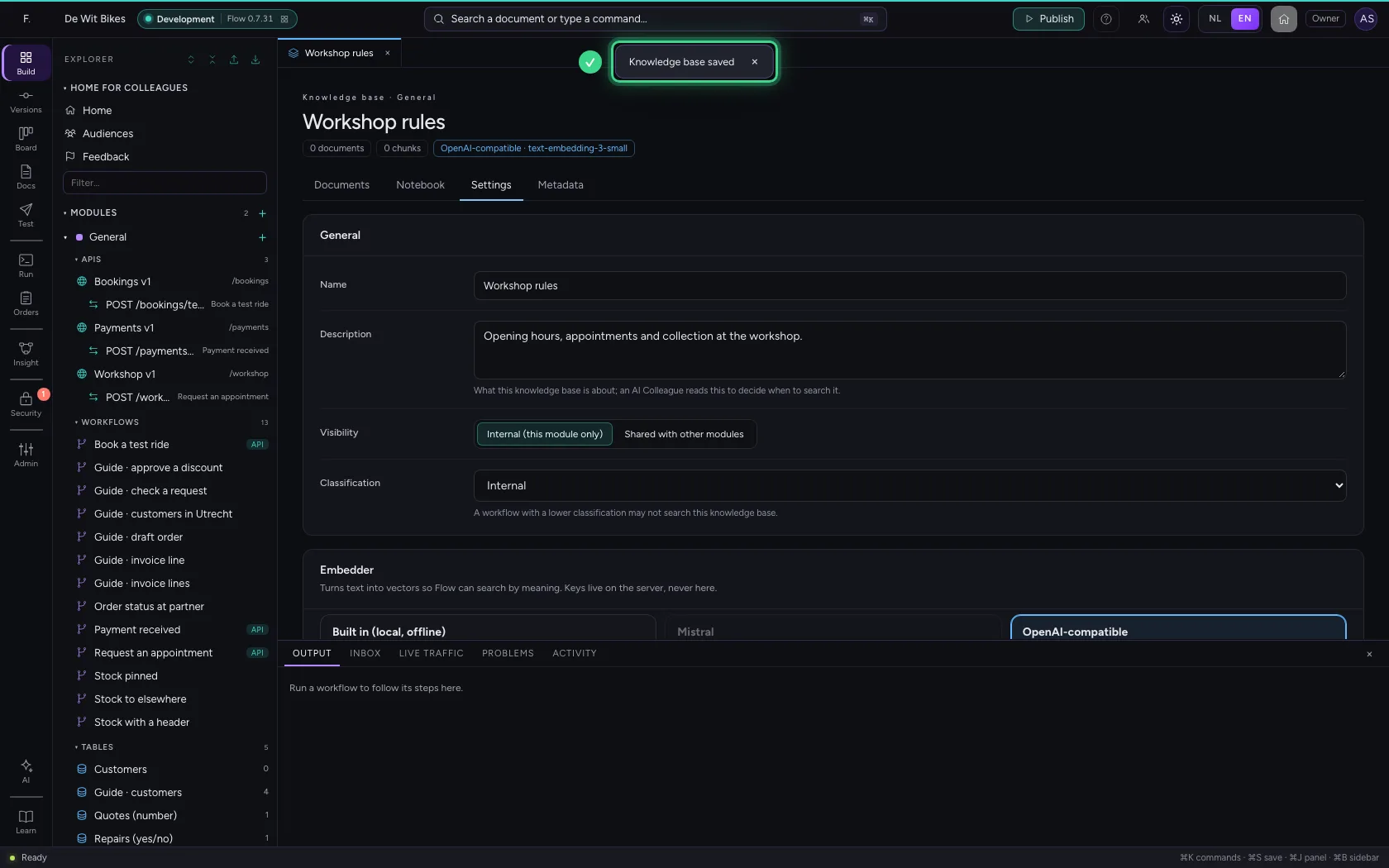
- Click Save
Put a document in it
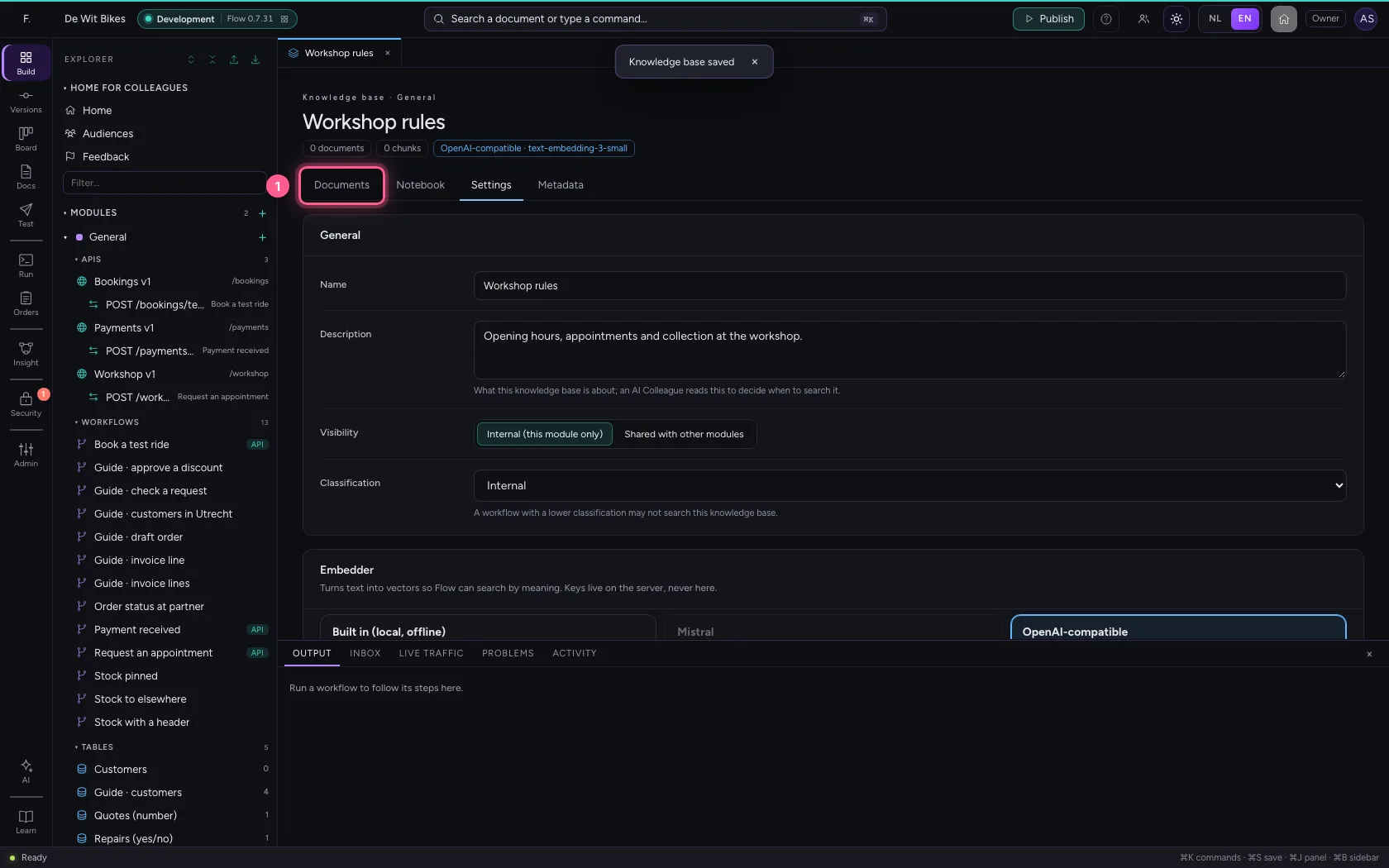
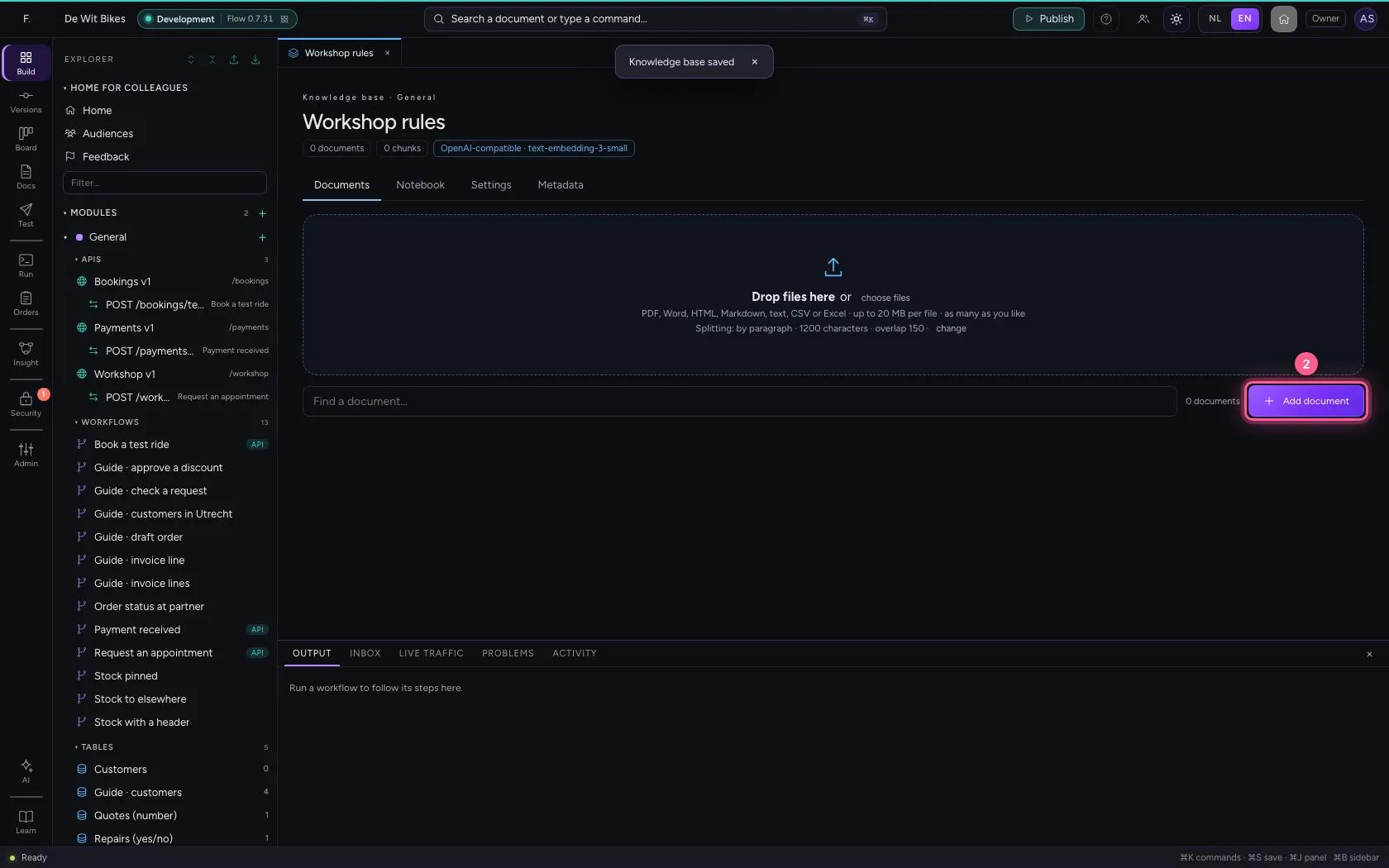
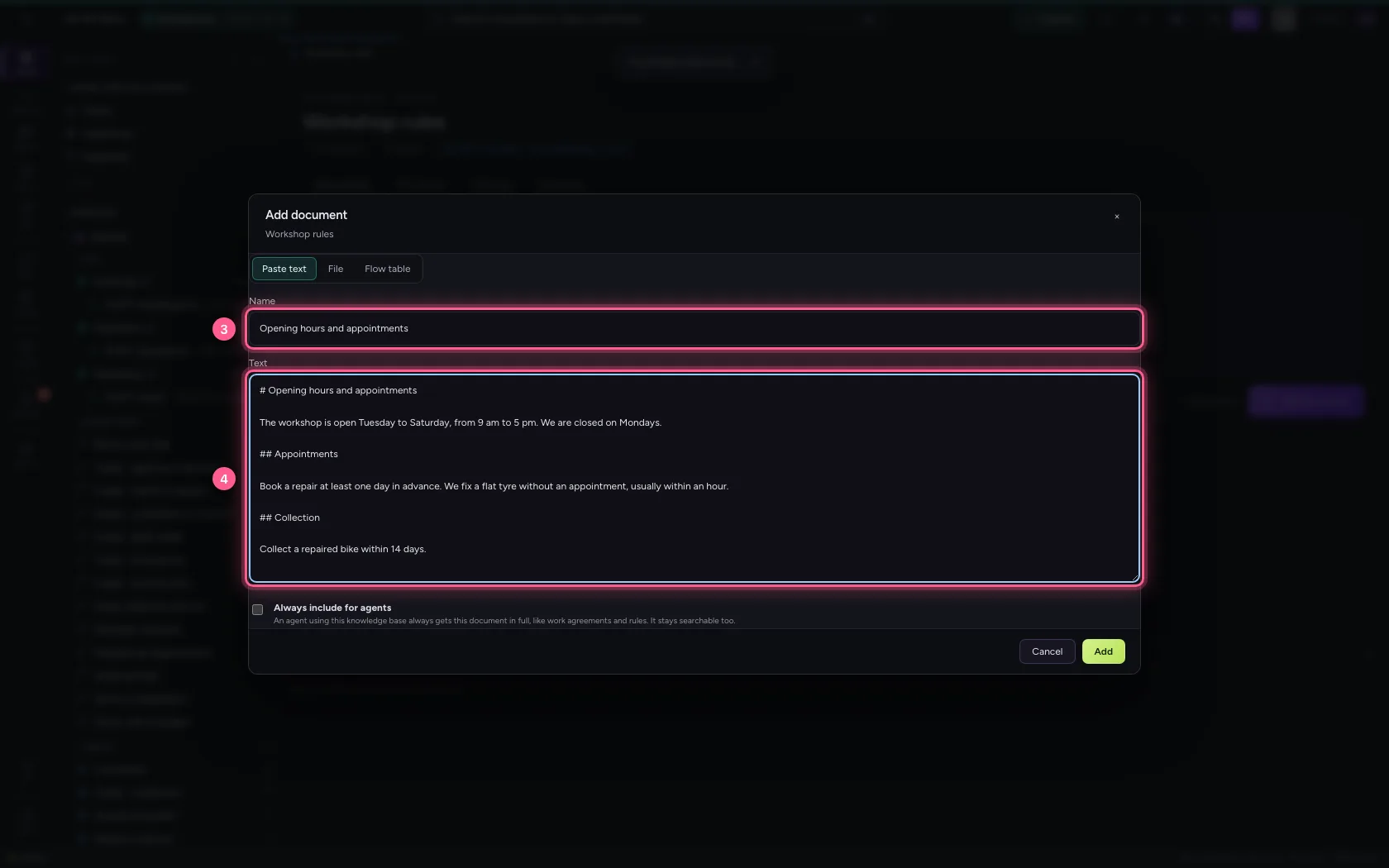
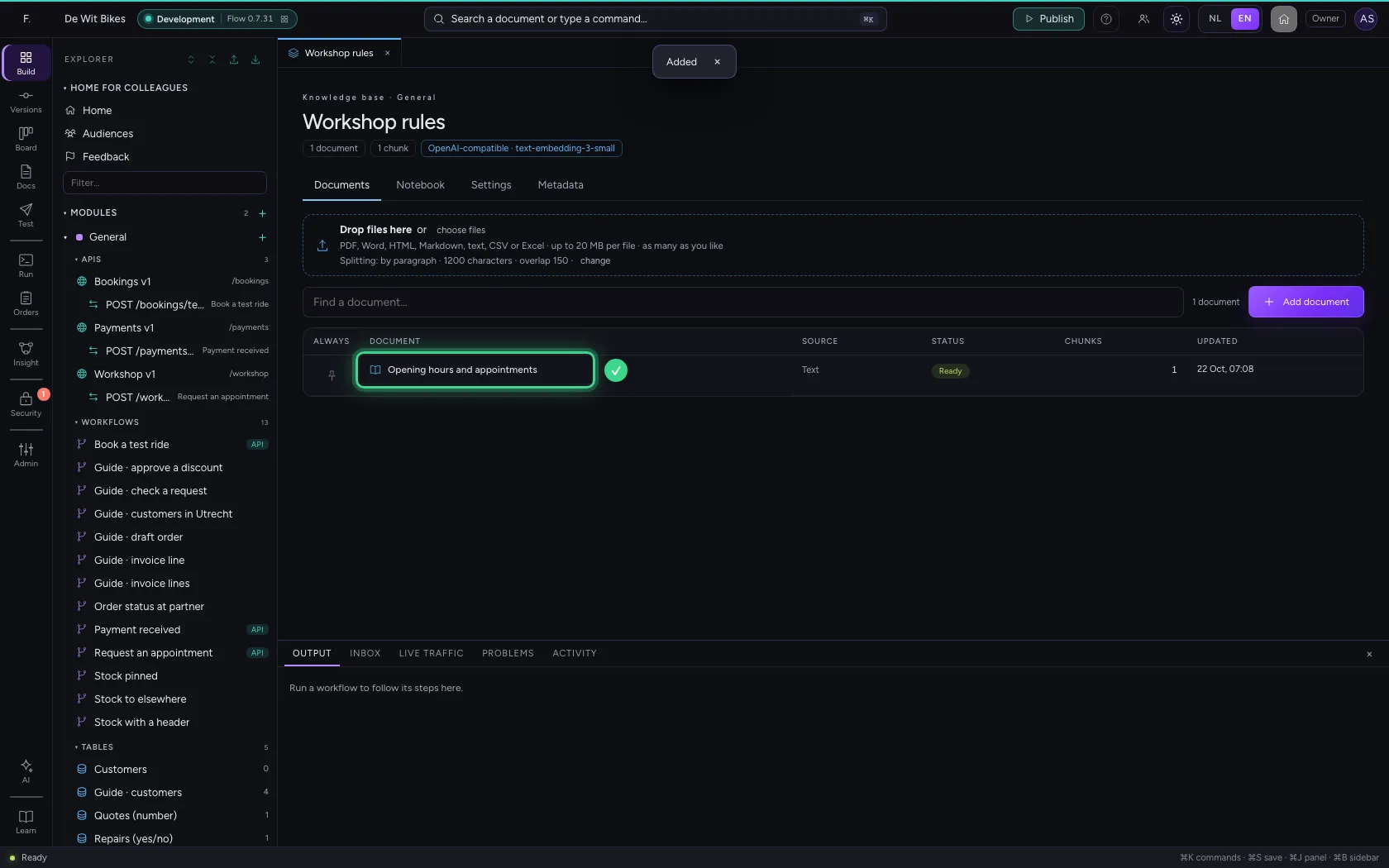
Under Documents, click Add document and paste a text. Dragging in a file works too: PDF, Word, Excel, HTML or CSV. Flow splits the document into chunks — for this text, by paragraph — and makes them searchable.
- Click Documents
- Click Add document
- In Name, type
Opening hours and appointments - In Text, type
the text on opening hours and appointments
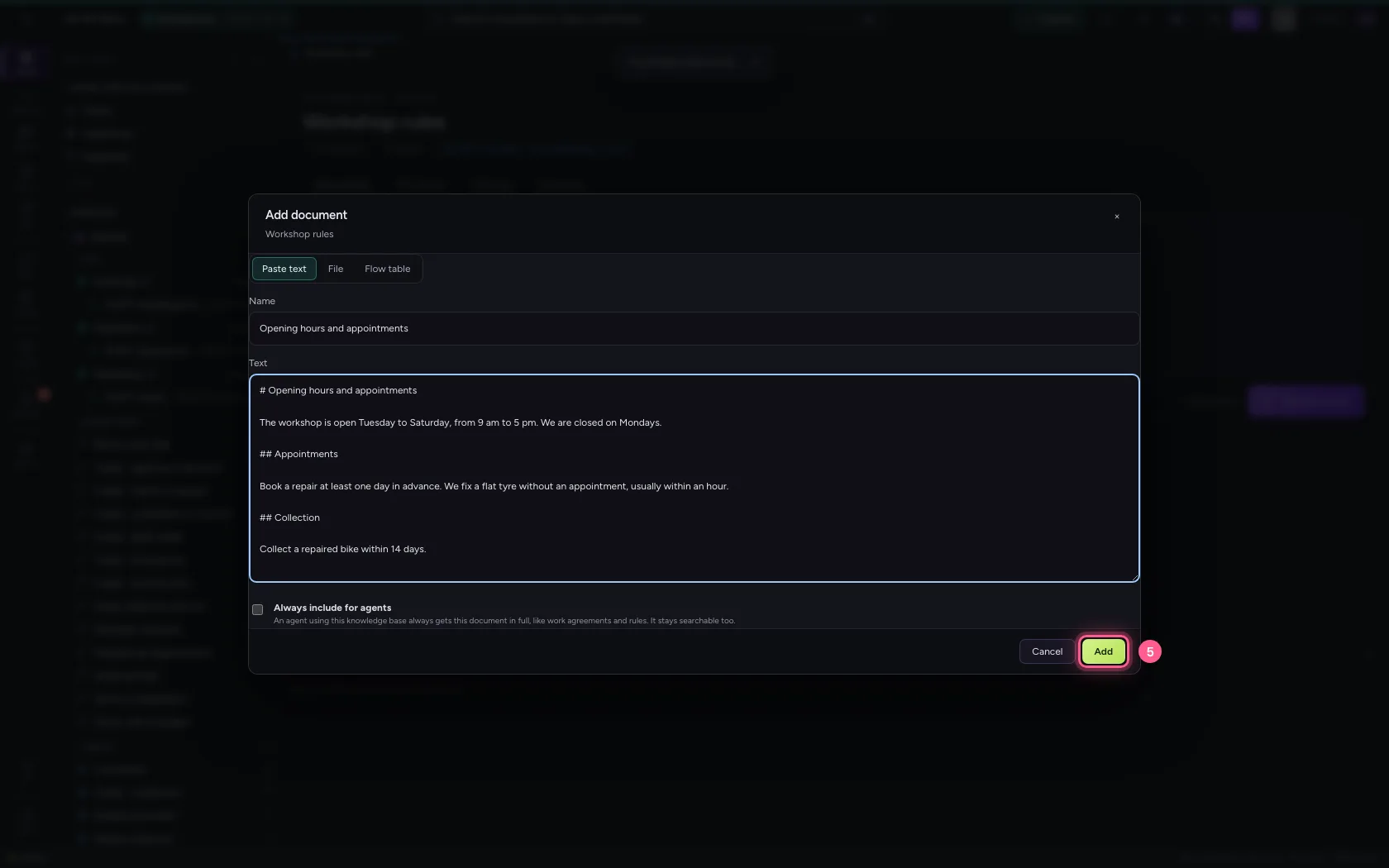
- Click Add
Search in the notebook
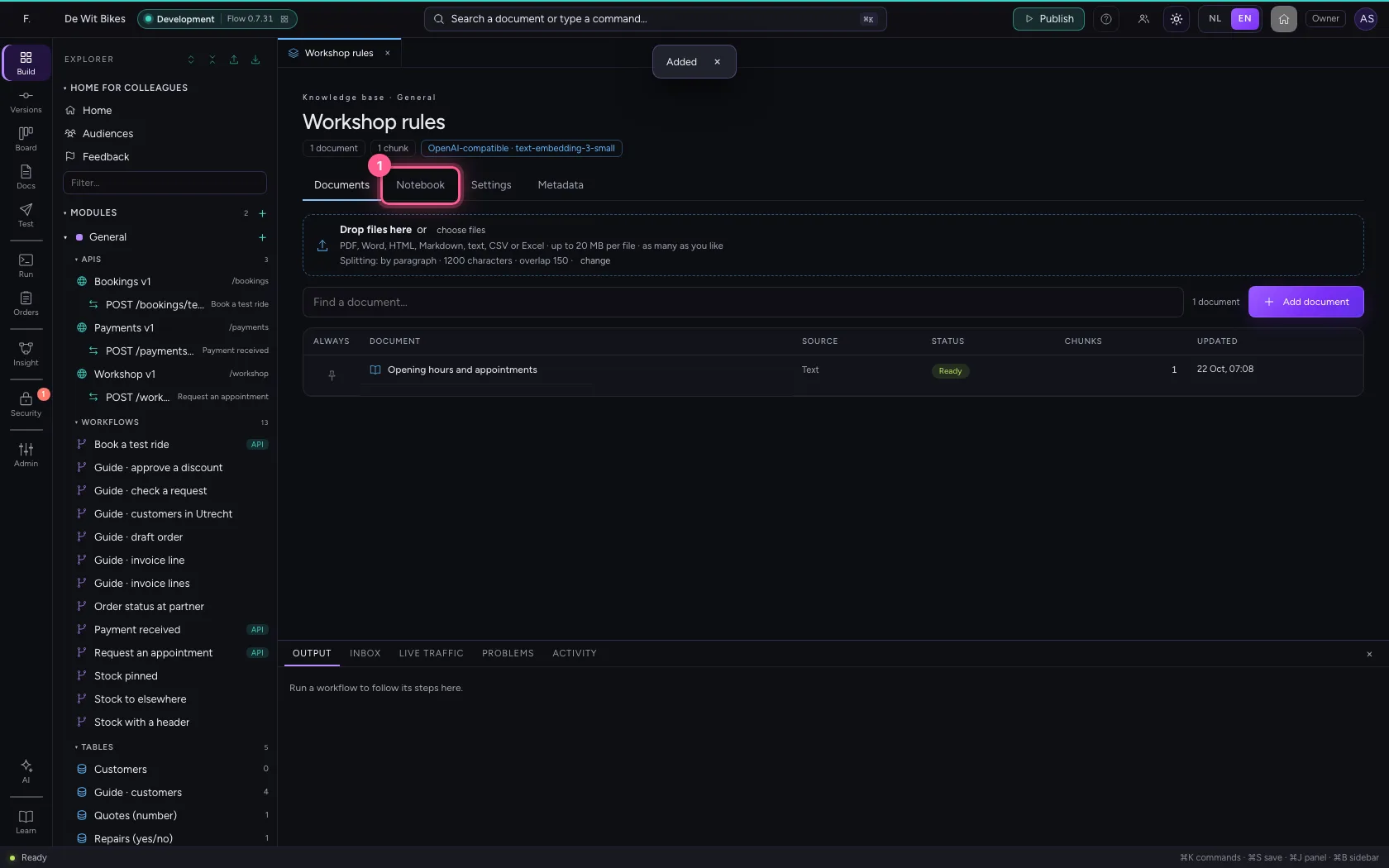
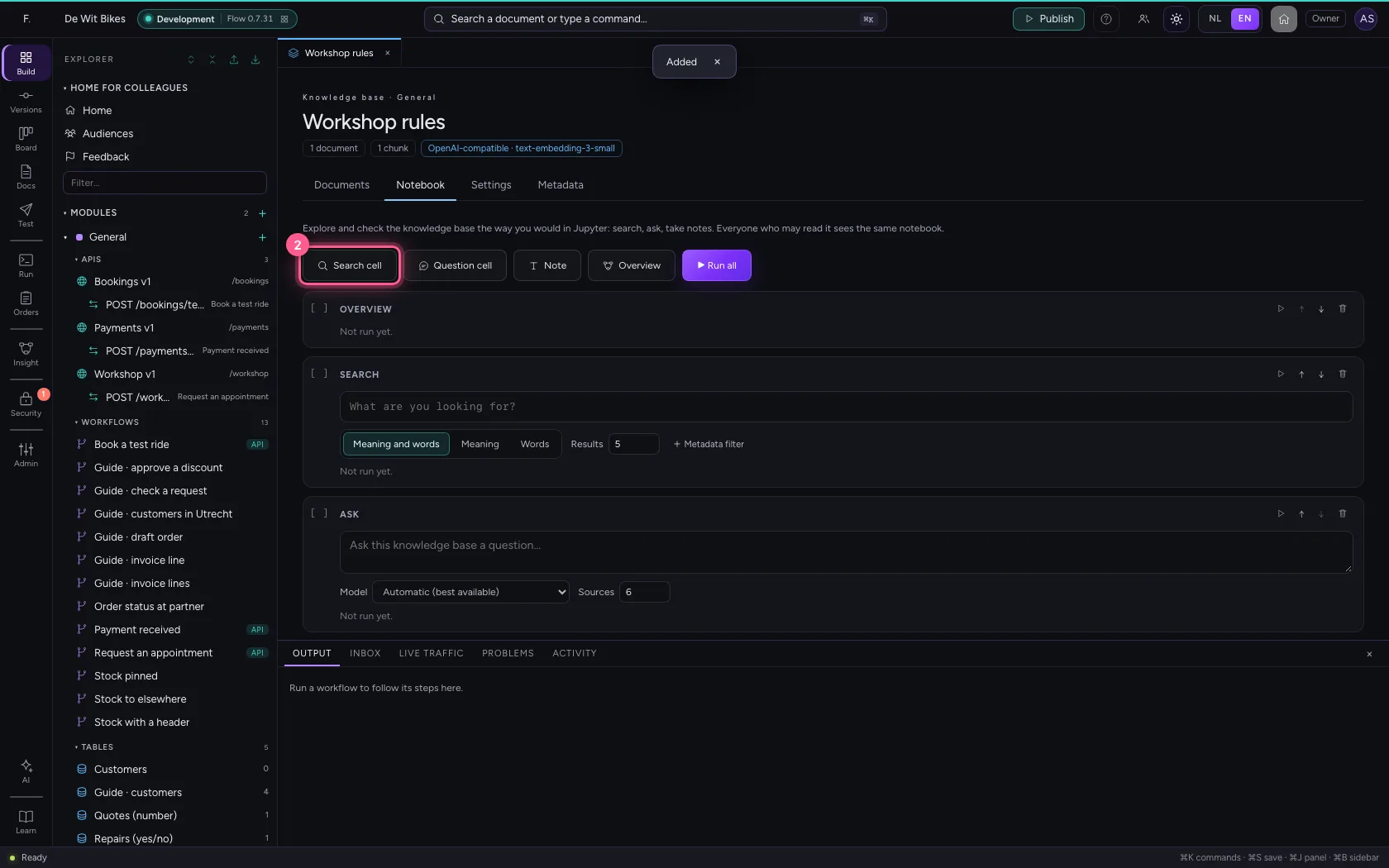
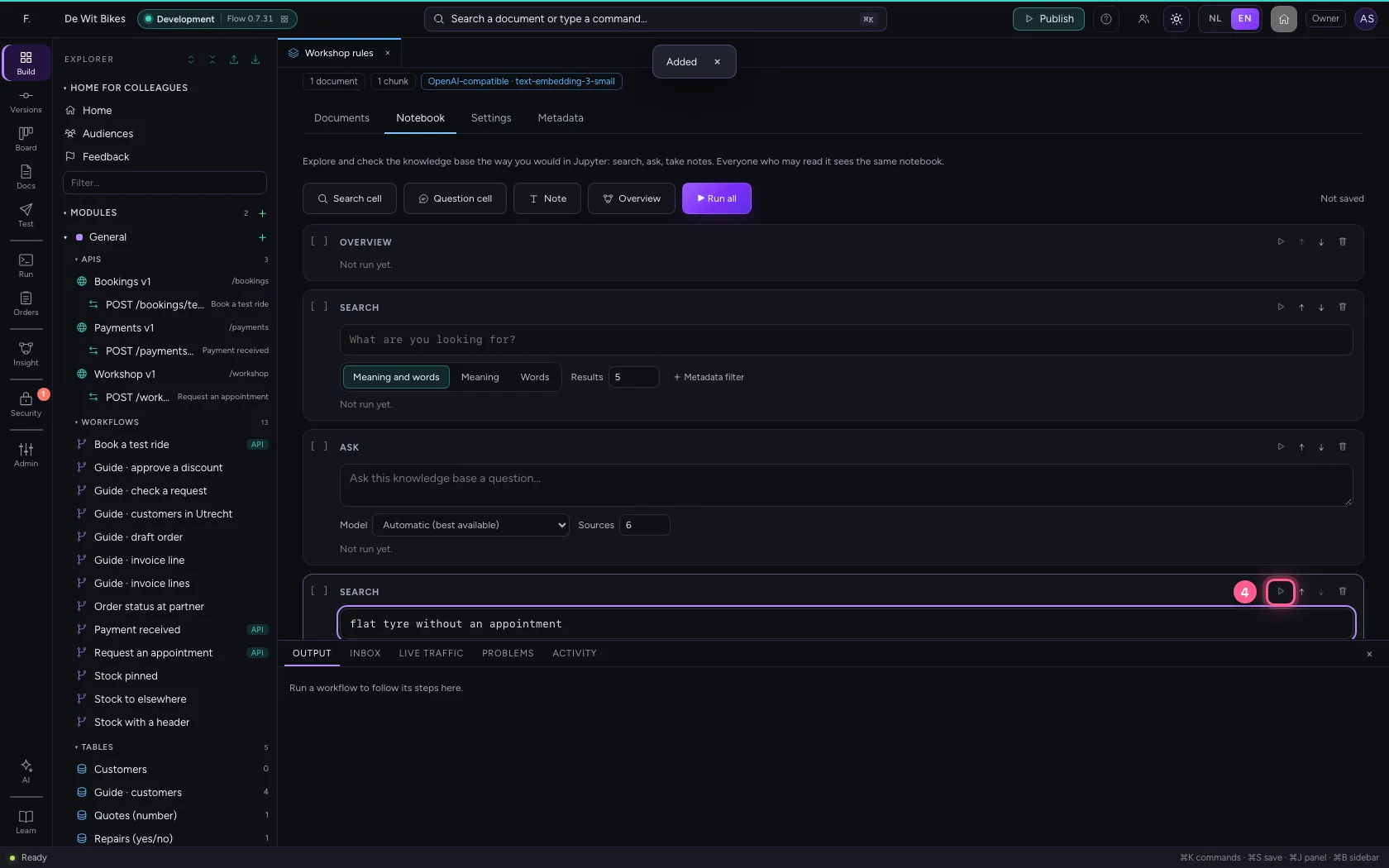
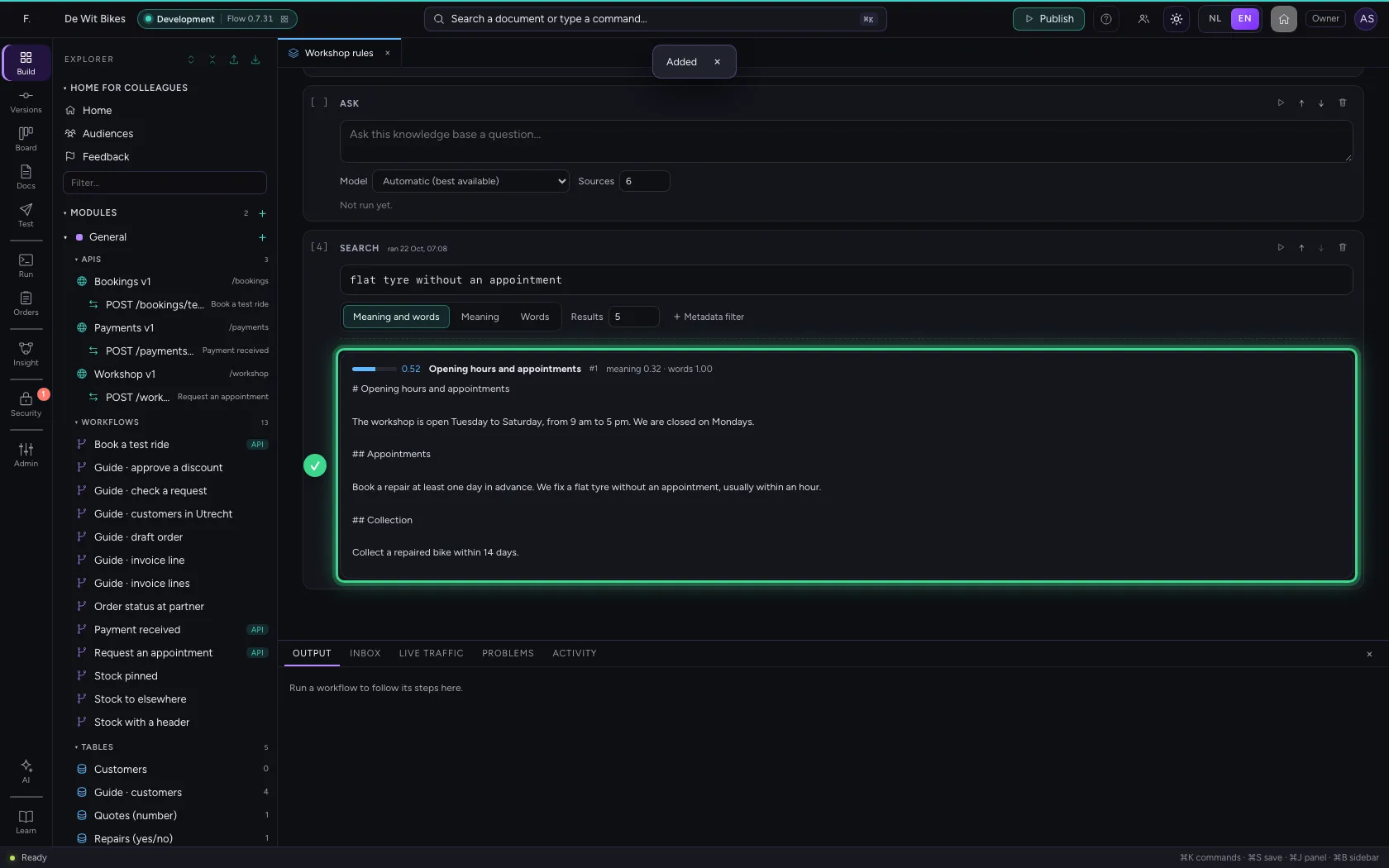
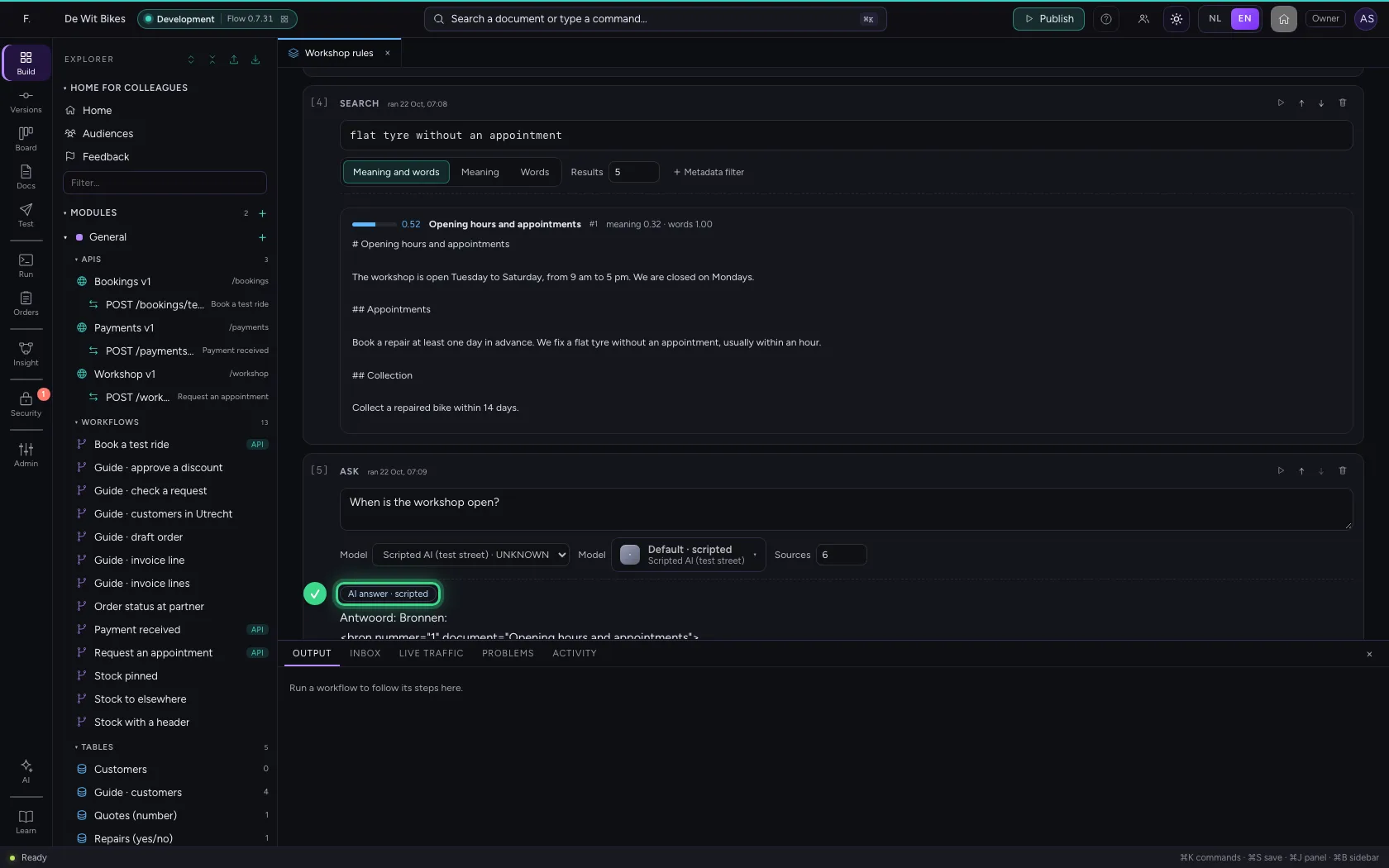
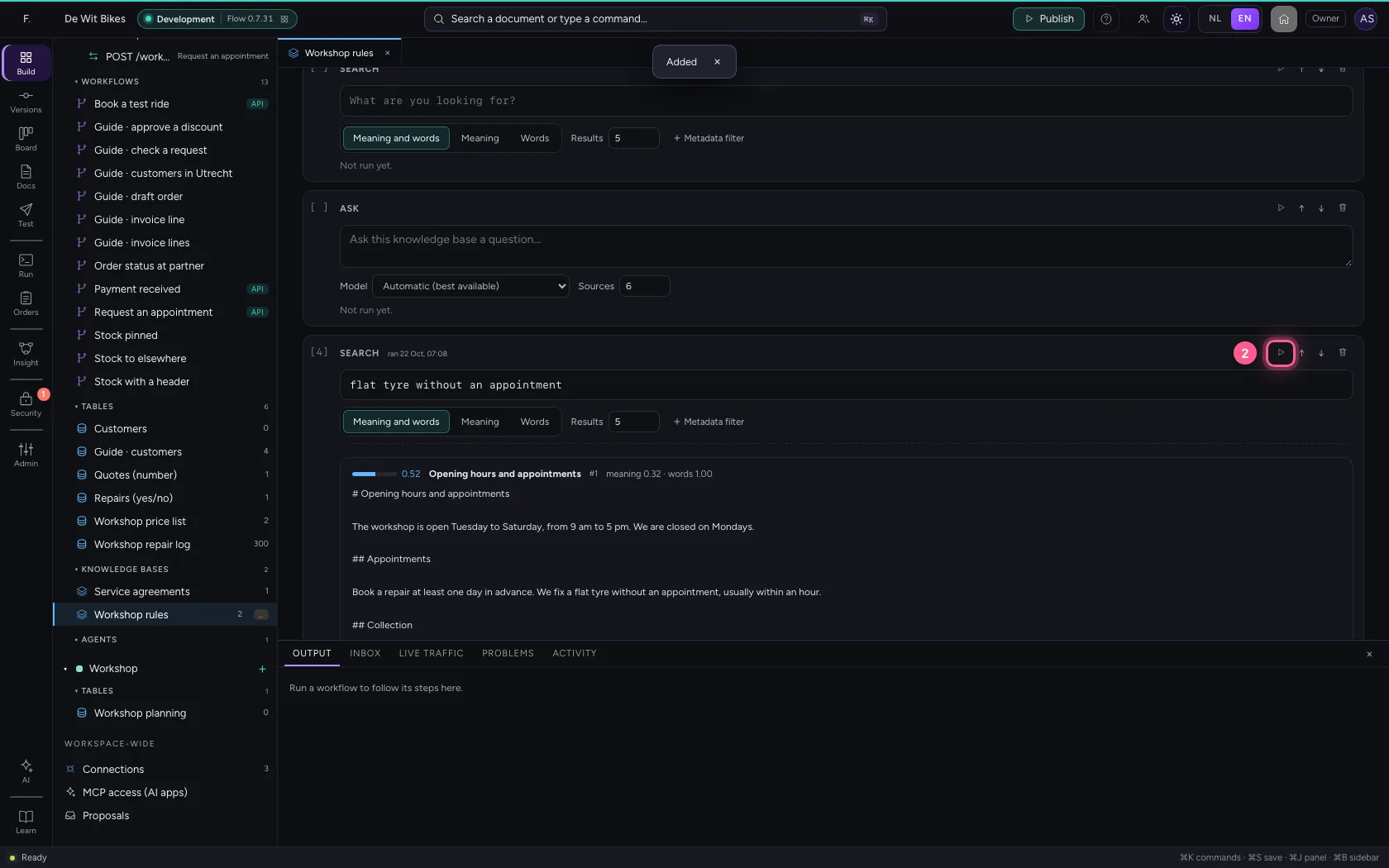
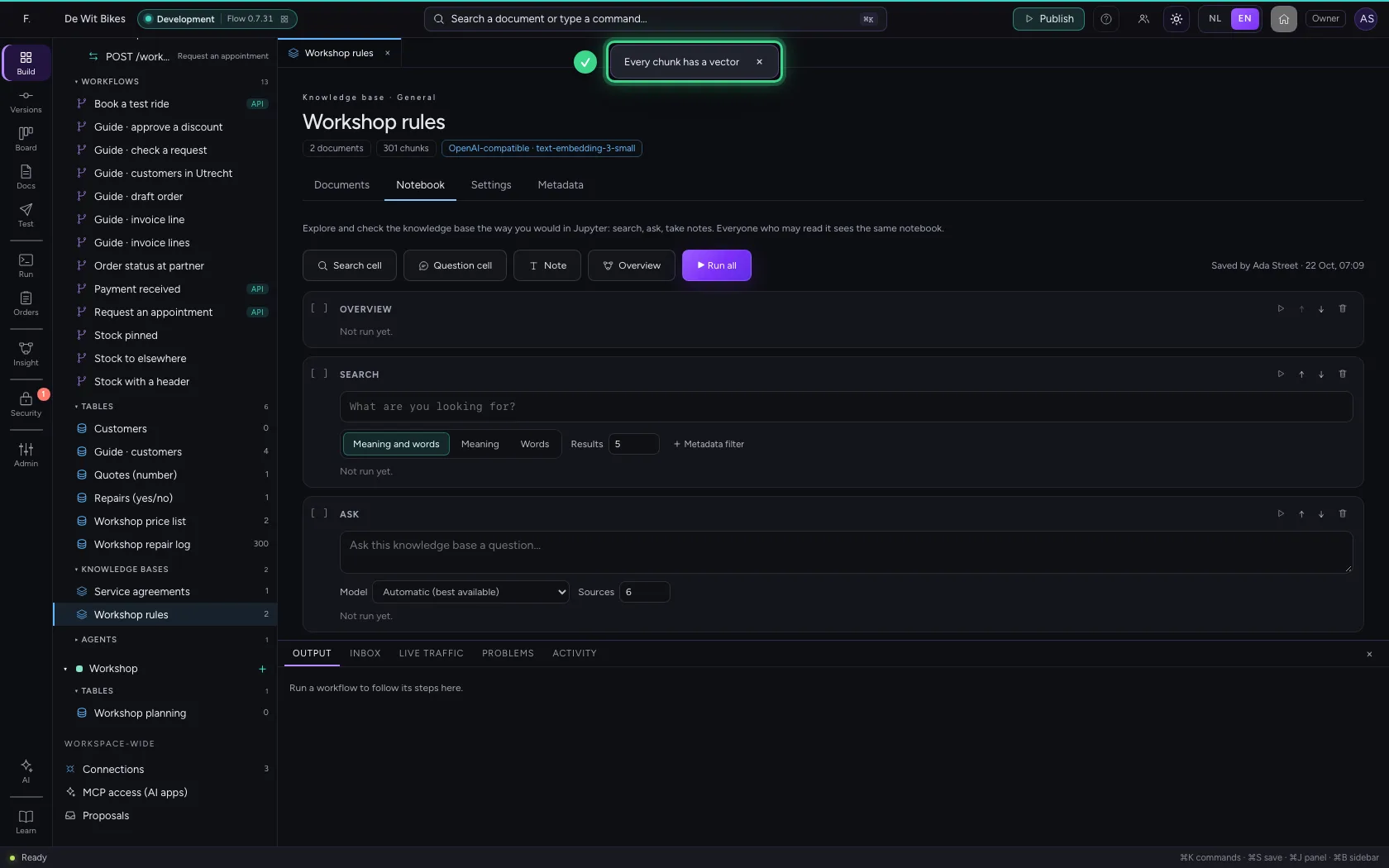
The Notebook is where you try things out: search, ask questions, take notes, as in Jupyter. Add a Search cell, type what you are looking for and run the cell. You see the best matching chunks, with their score and the document they come from.
- Click Notebook
- Click Search cell
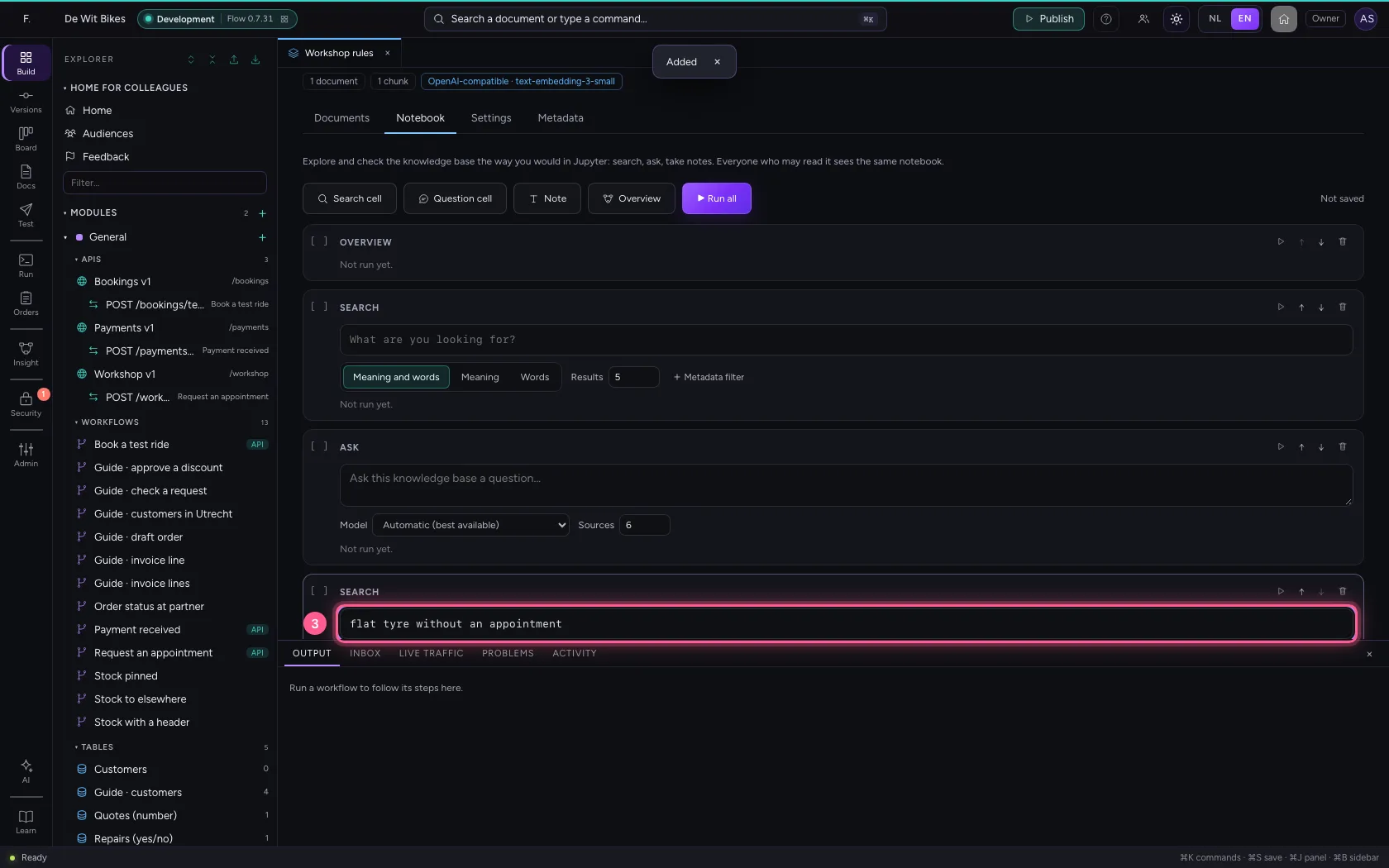
- In What are you looking for?, type
flat tyre without an appointment
- Click Run (⇧↵)
Ask a question
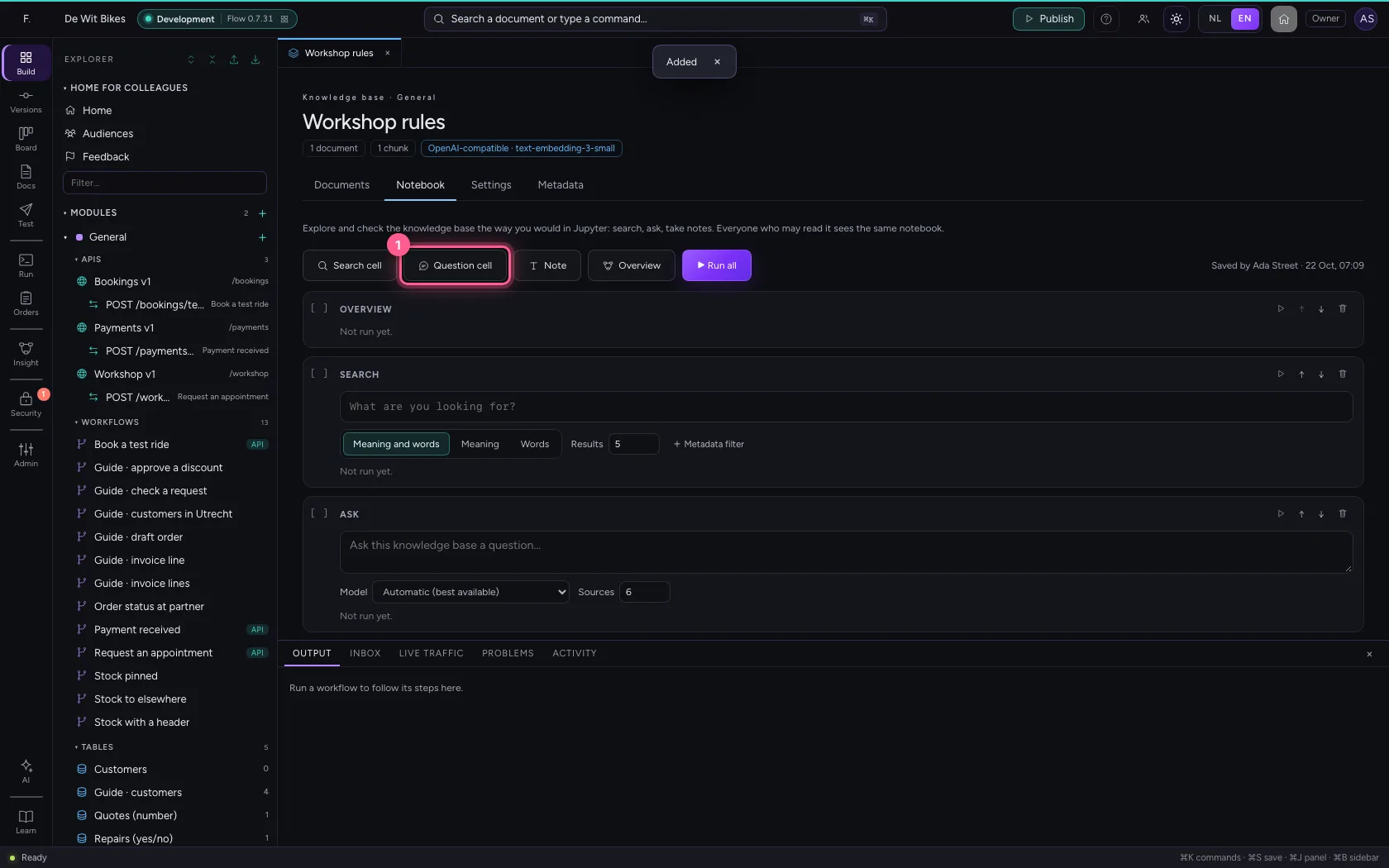
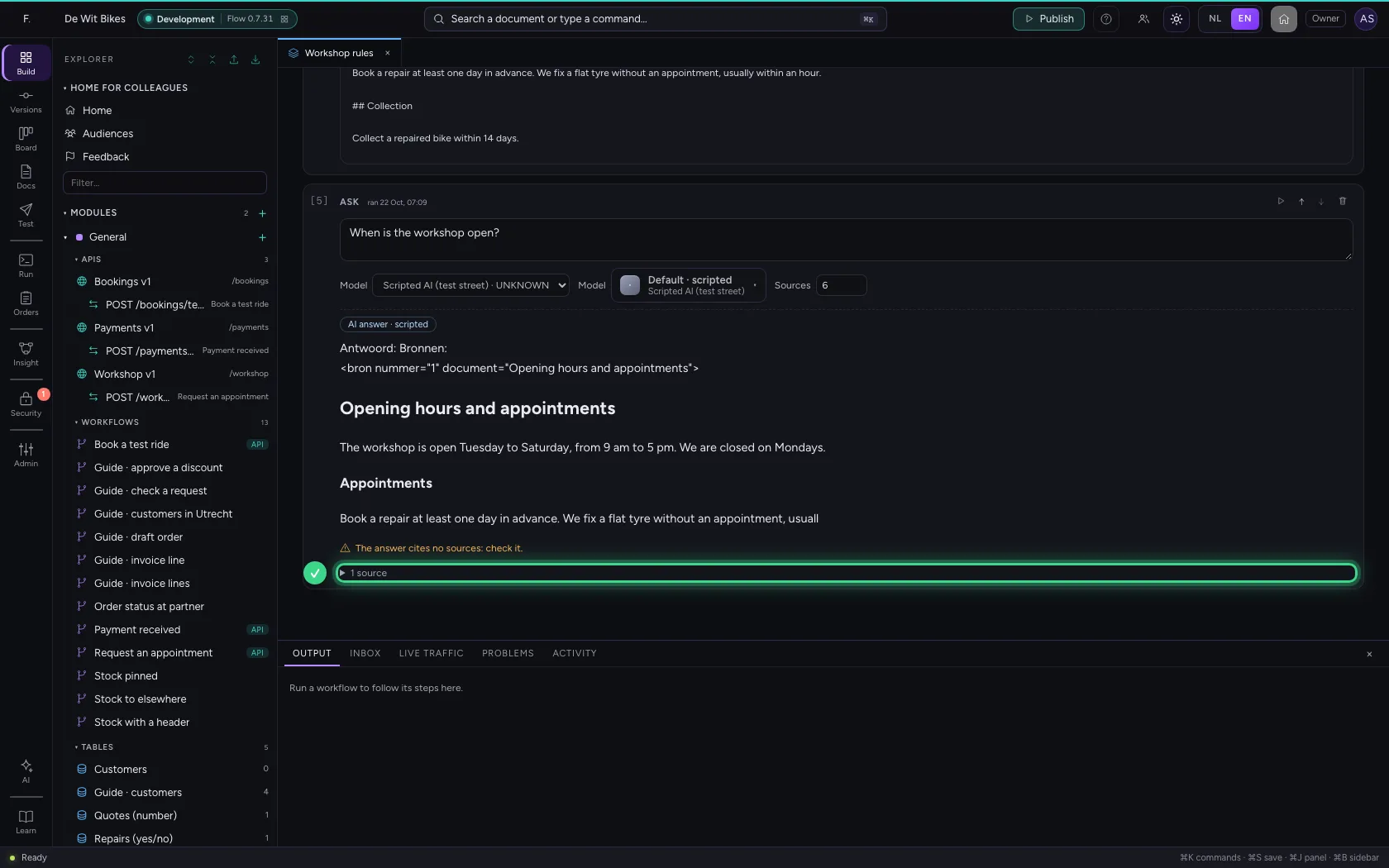
A Question cell first finds the best matching chunks and lets an AI model answer the question with them, with numbered sources. Choose the model; without one you get the best passages back. The notebook is kept: everyone who may read the knowledge base sees the same cells.
- Click Question cell
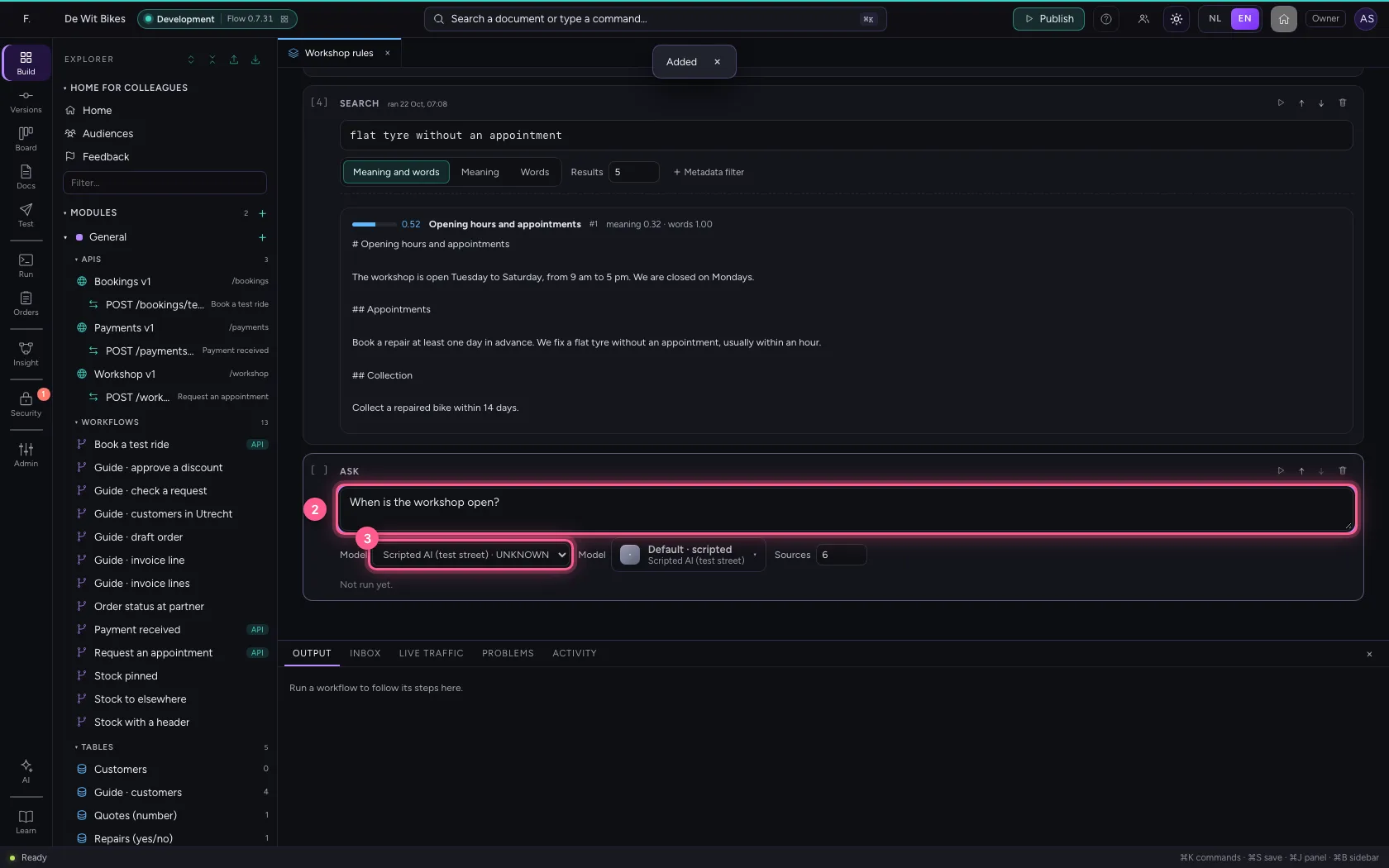
- In Ask this knowledge base a question…, type
When is the workshop open? - In **Model Automatic (best available) Anthropic Claude · US Mistral · EU OpenAI · US **, choose Scripted AI (test street) · UNKNOWN
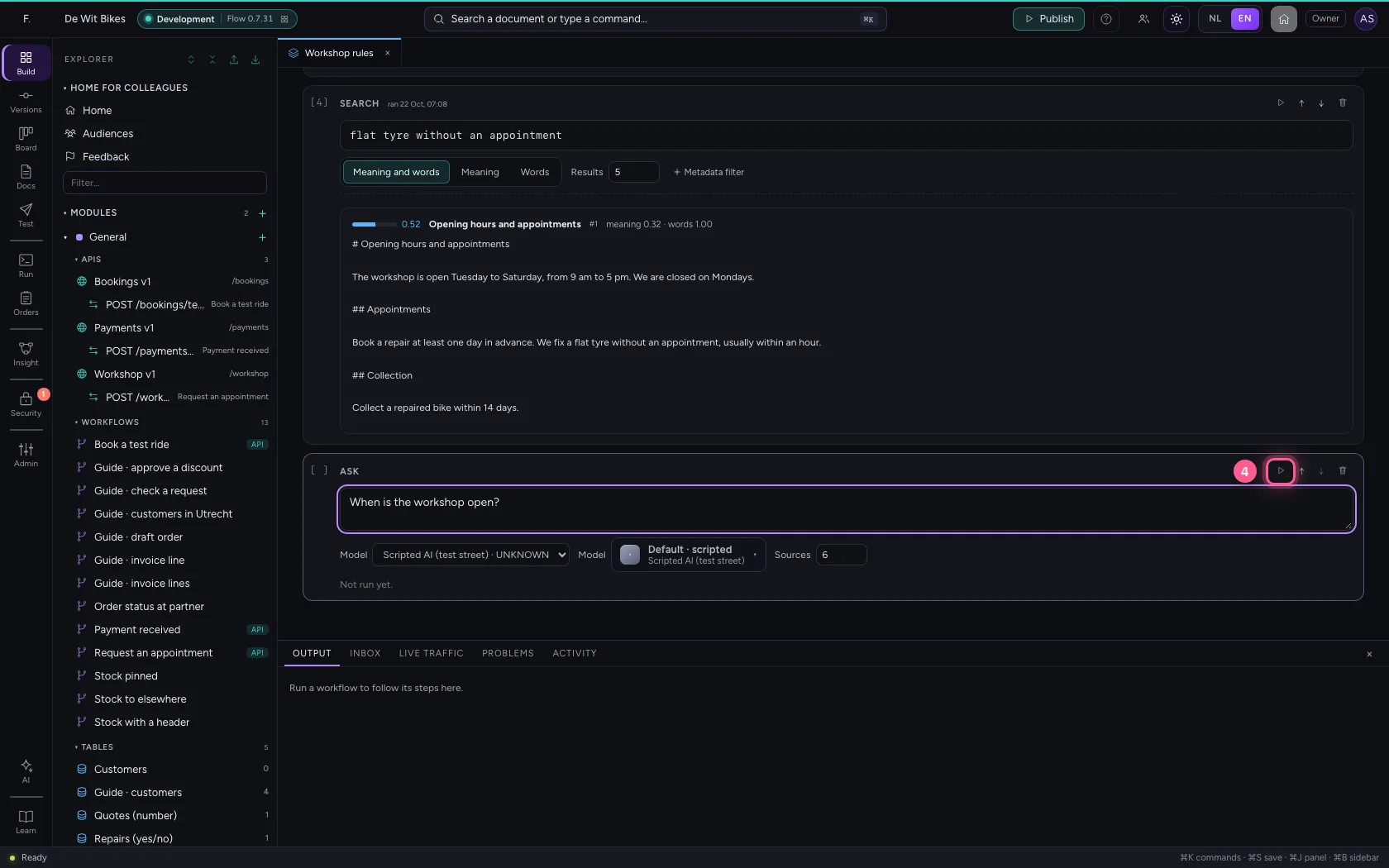
- Click Run (⇧↵)
Put a big table in it
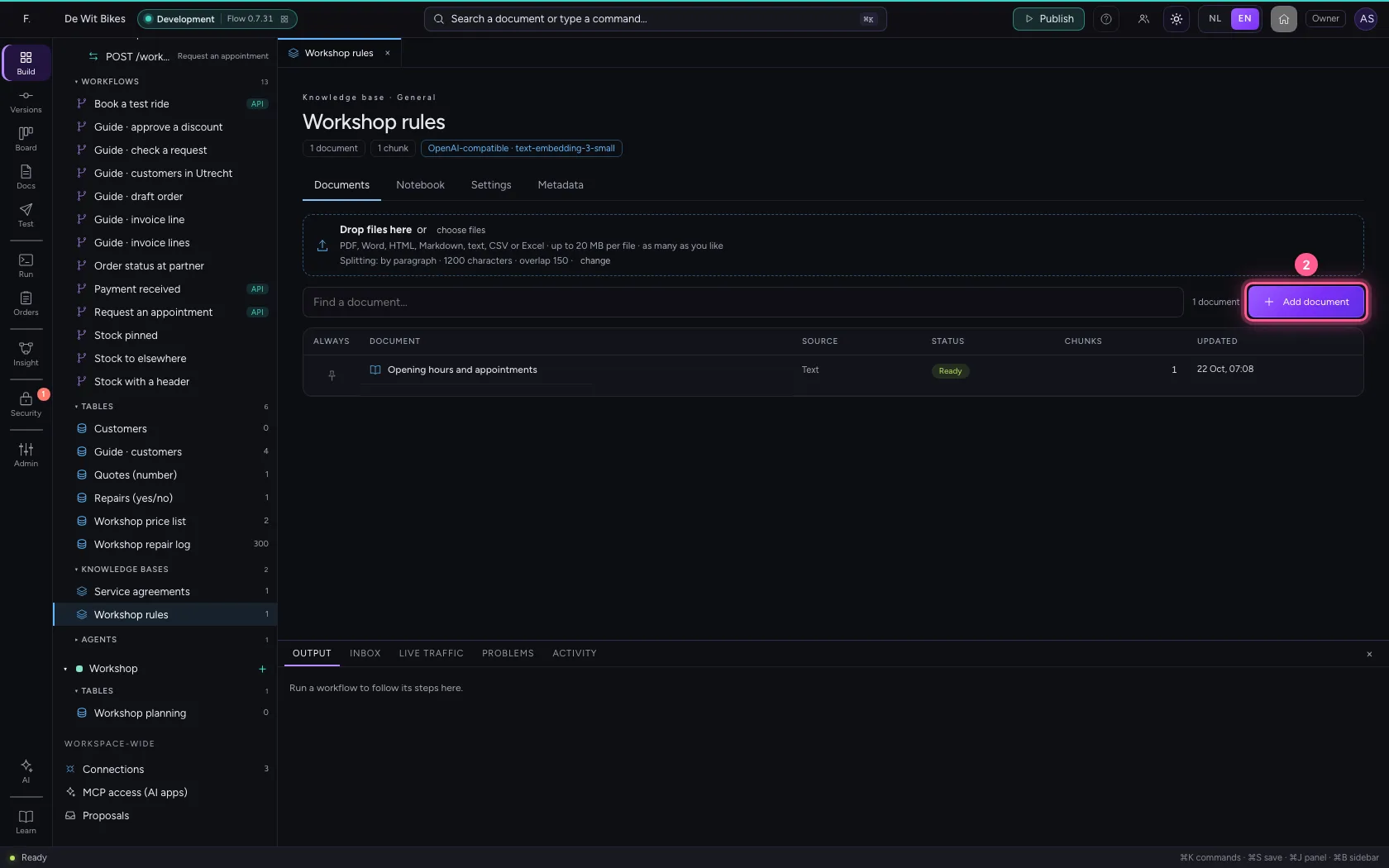
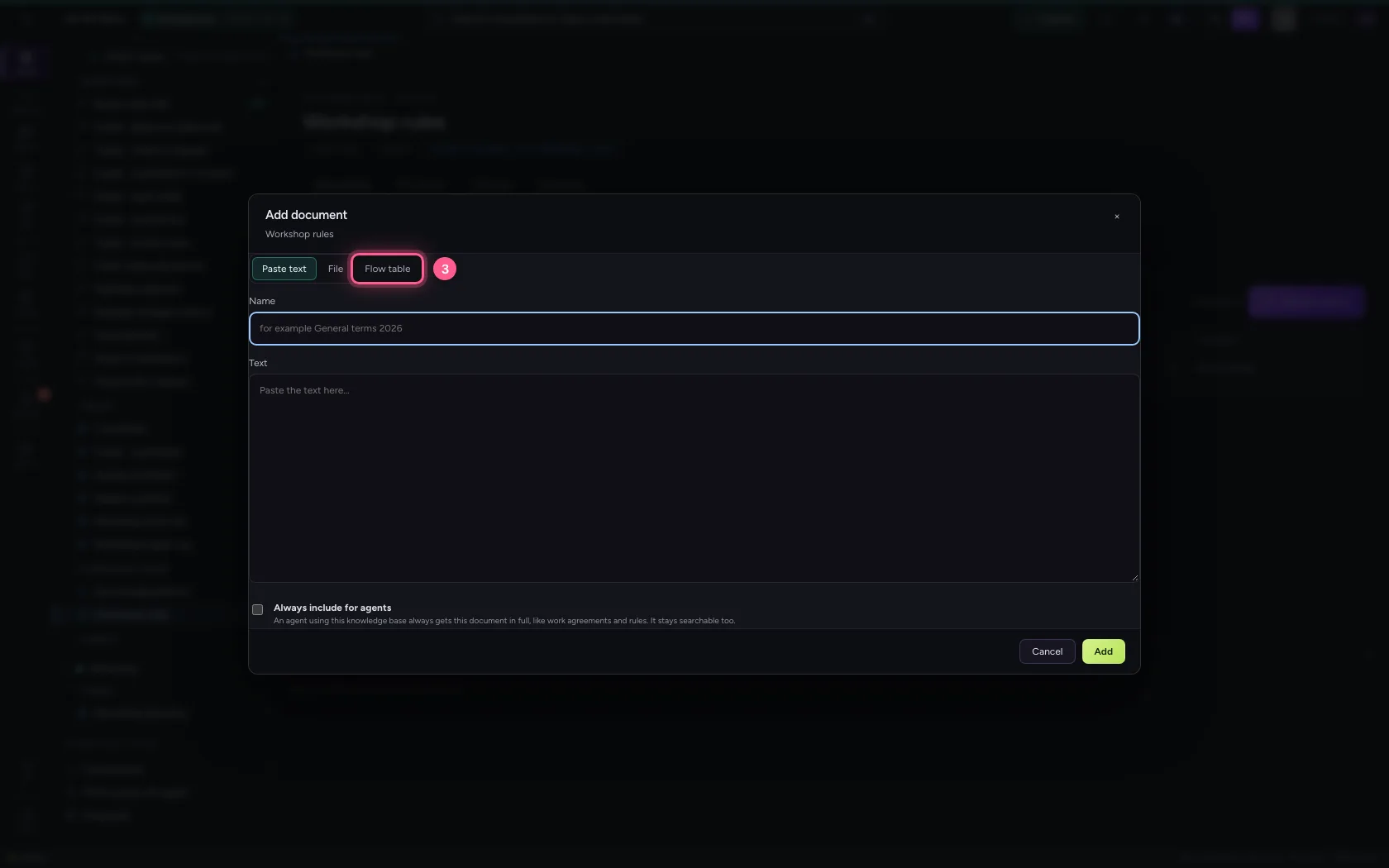
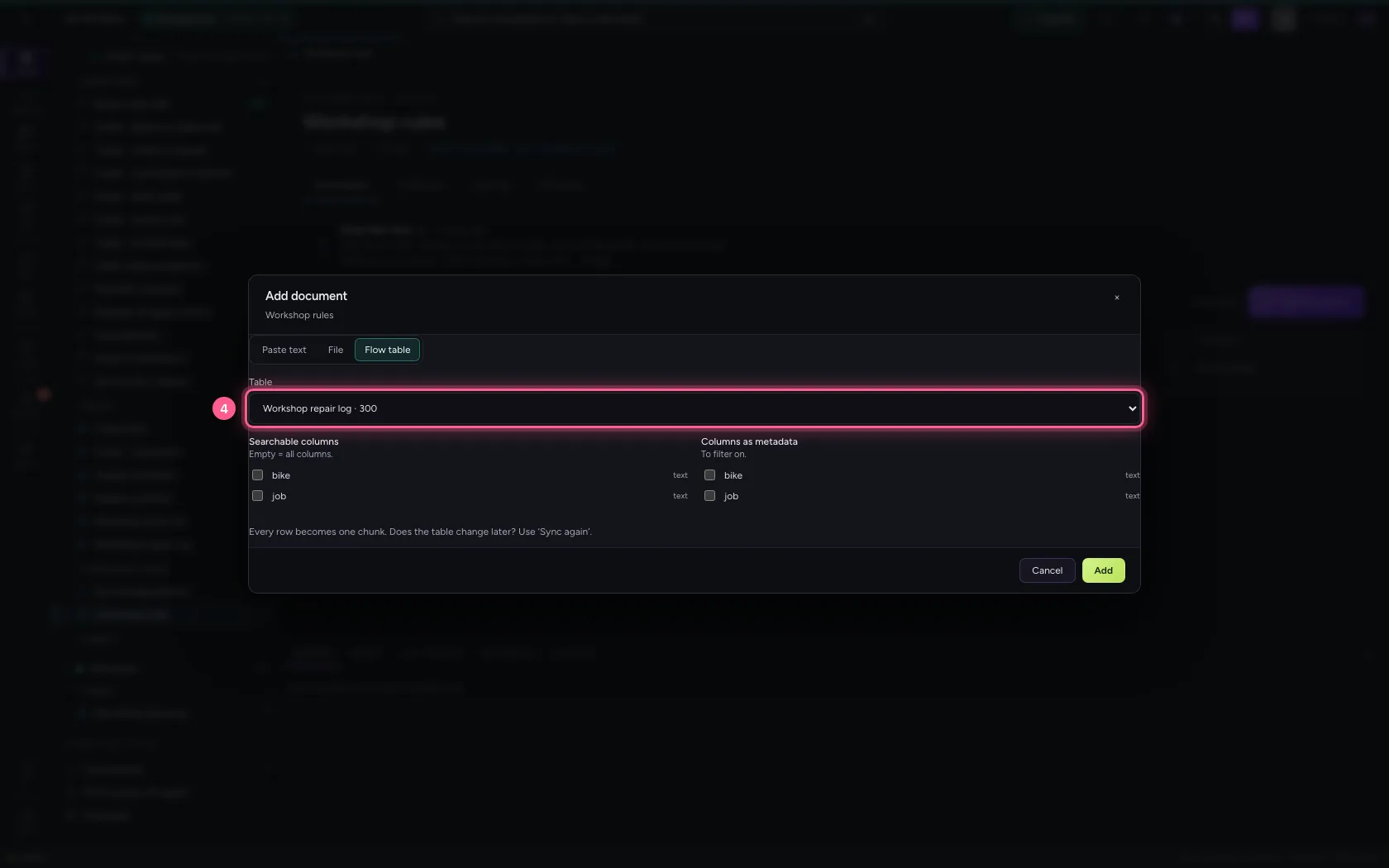
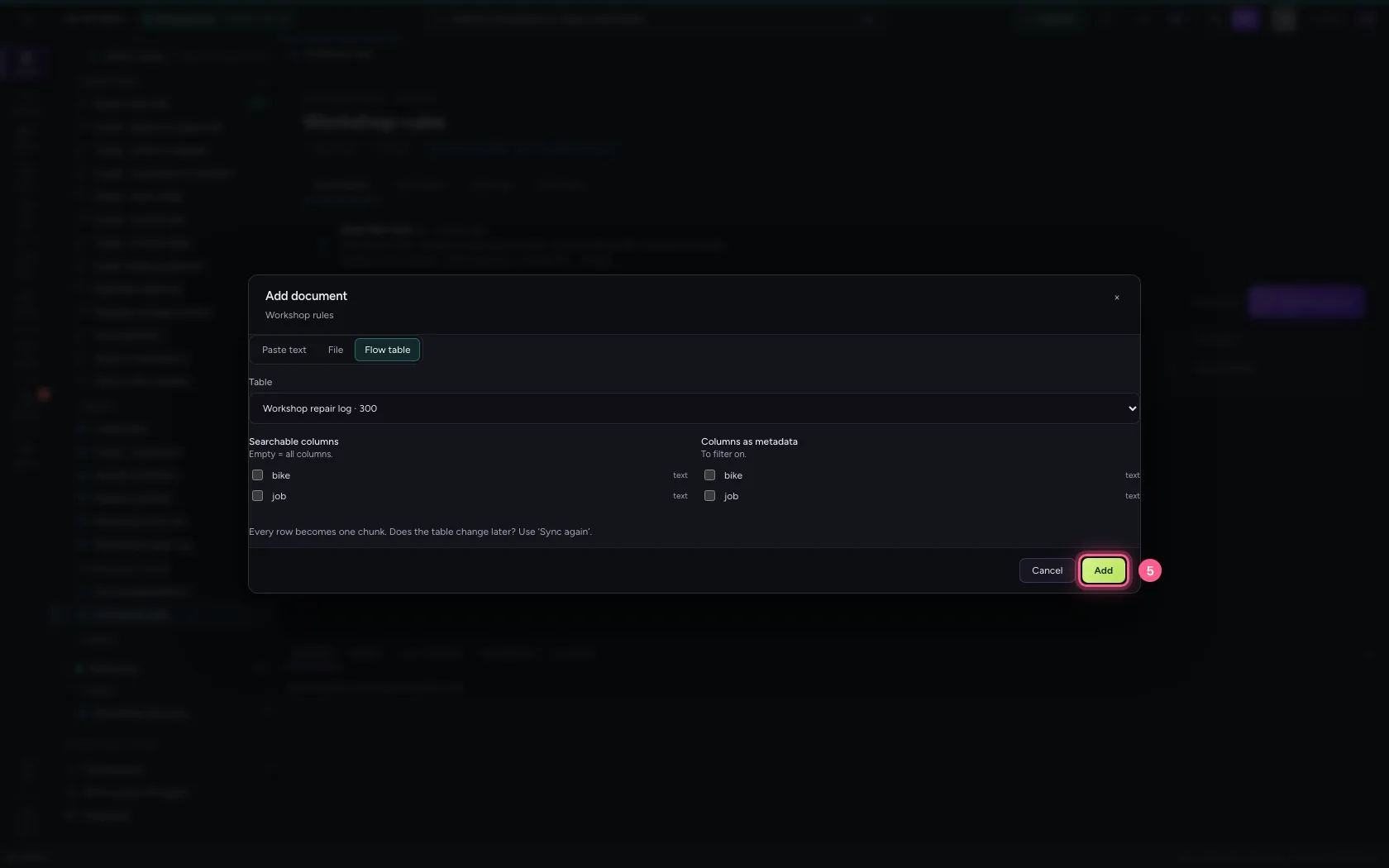
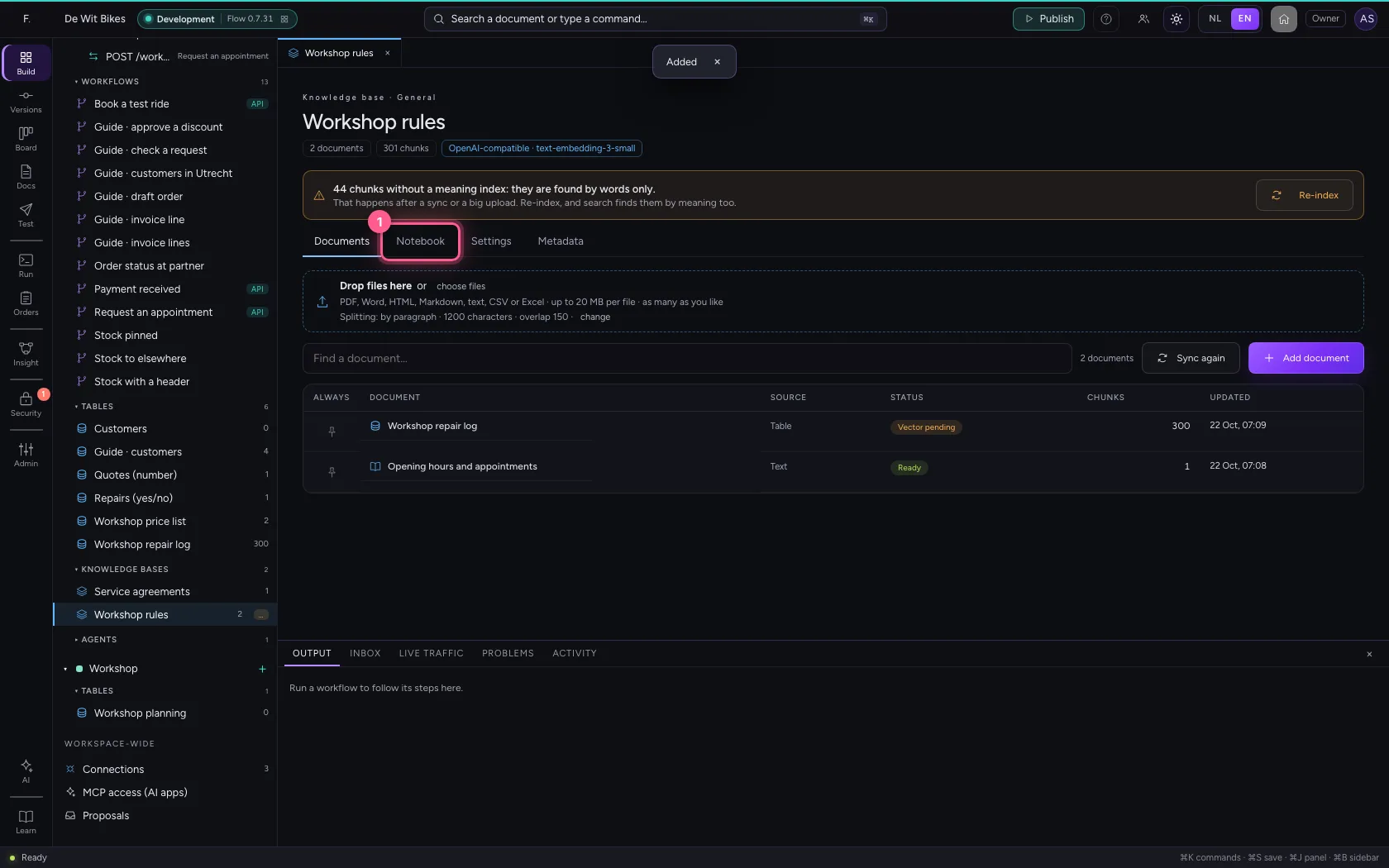
A Flow table can be a source too: every row becomes one chunk. Under Documents, choose Add document again, then Flow table, and choose the table. With many chunks at once — a big table or upload, or a sync with many new rows — Flow makes the first series of vectors straight away; the rest waits. Until they are there, search finds those chunks by words only, not by meaning. The knowledge base says so on every tab, with how many.
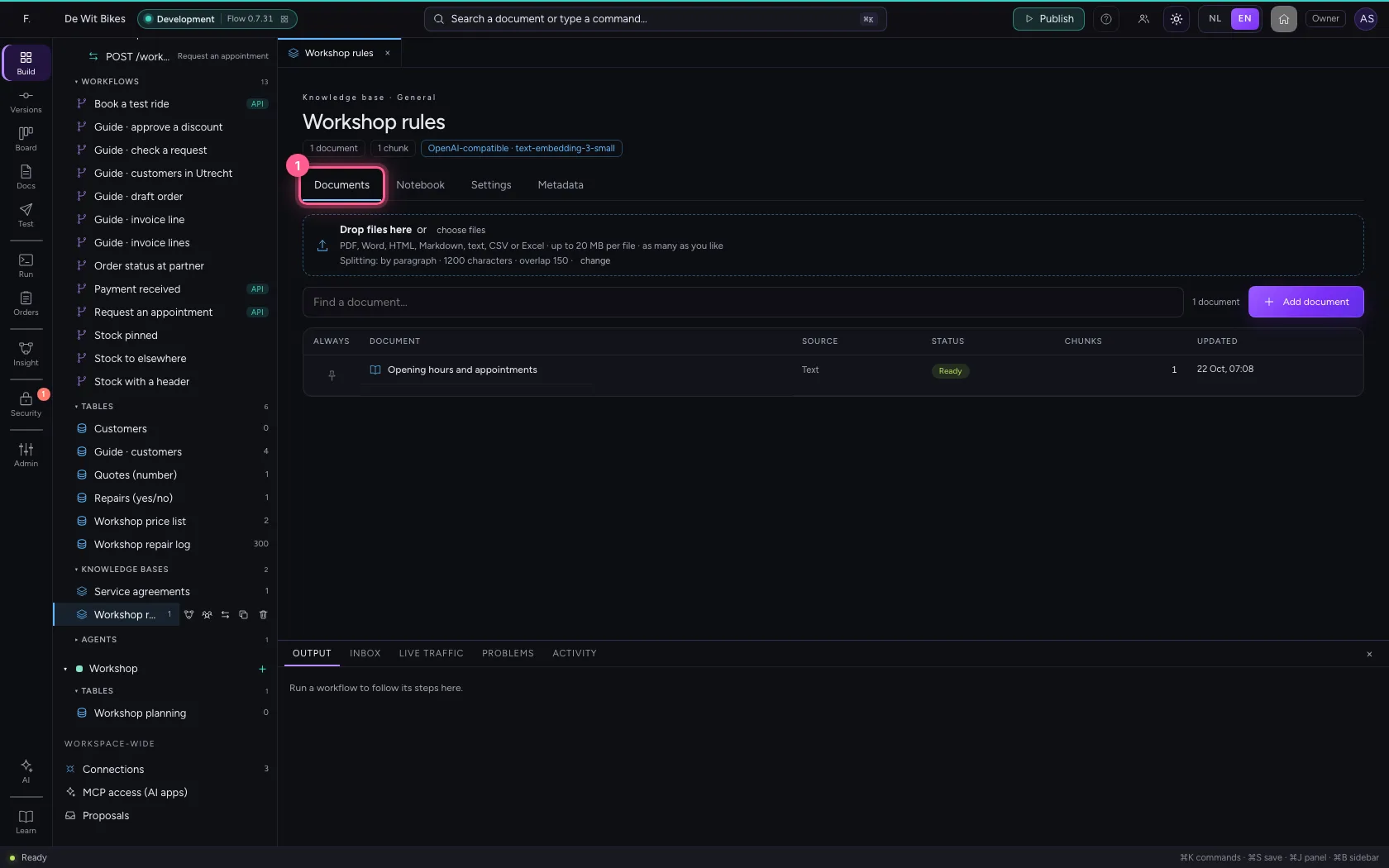
- Click Documents
- Click Add document
- Click Flow table
- In Table Choose a table… Customers · 0 Guide · customers · 4 Quotes (number) · 1 Re, choose Workshop repair log · 300
- Click Add
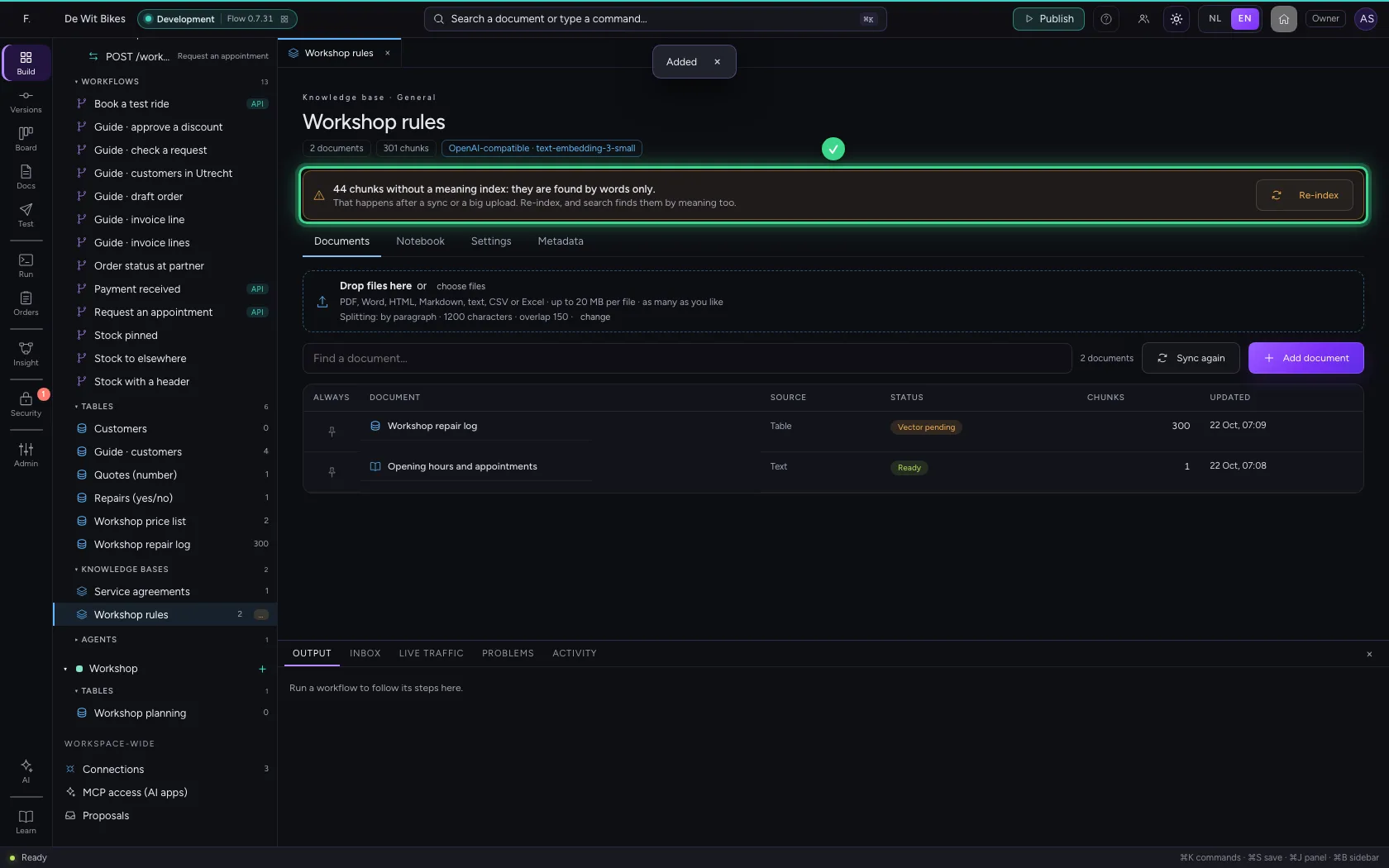
Search says so too
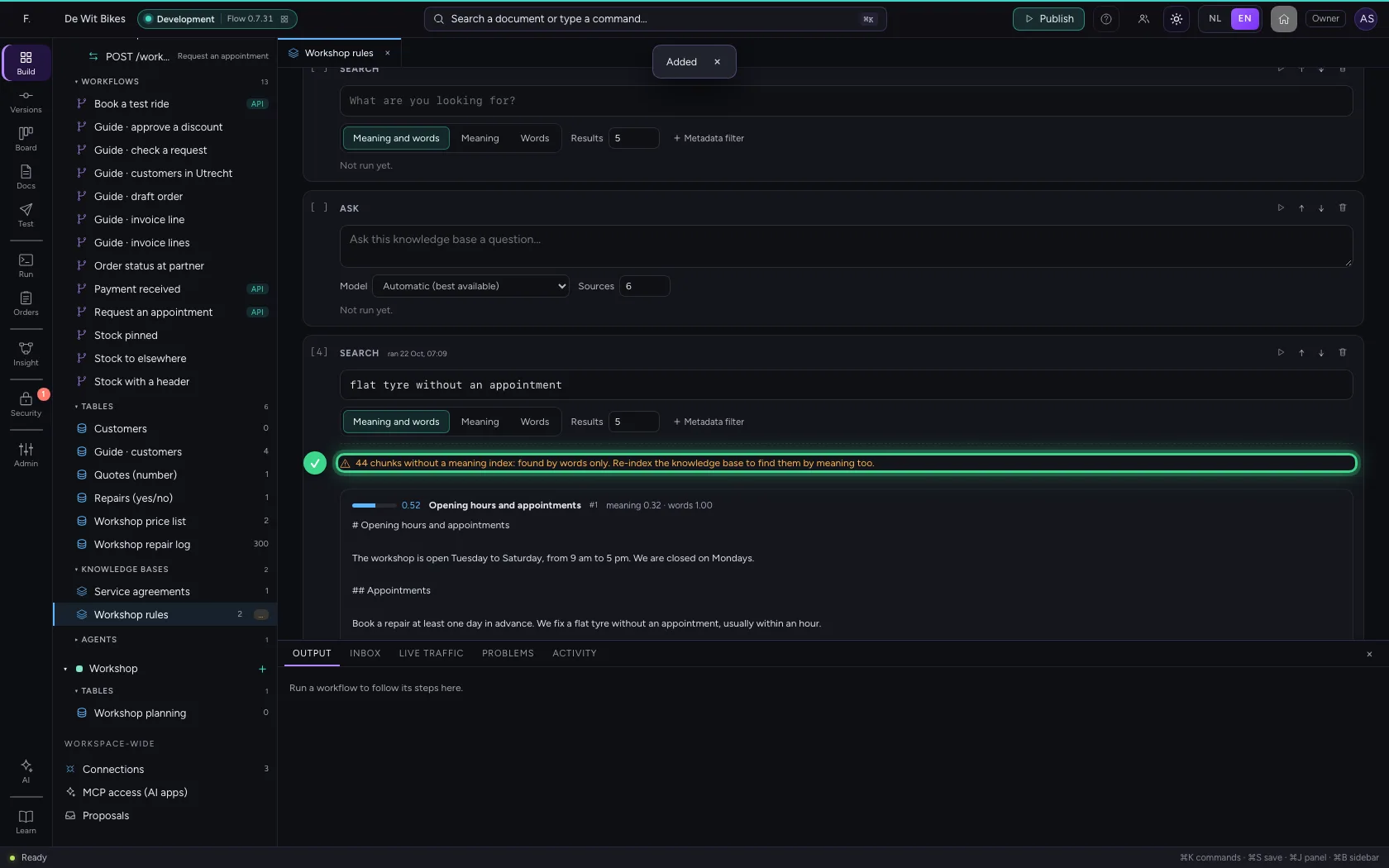
Run the search cell in the Notebook once more. Below the results it says how many chunks were searched by words only. An agent or workflow that searches this knowledge base gets the same warning; you see it in the agent's trace.
- Click Notebook
- Click Run (⇧↵)
Re-index
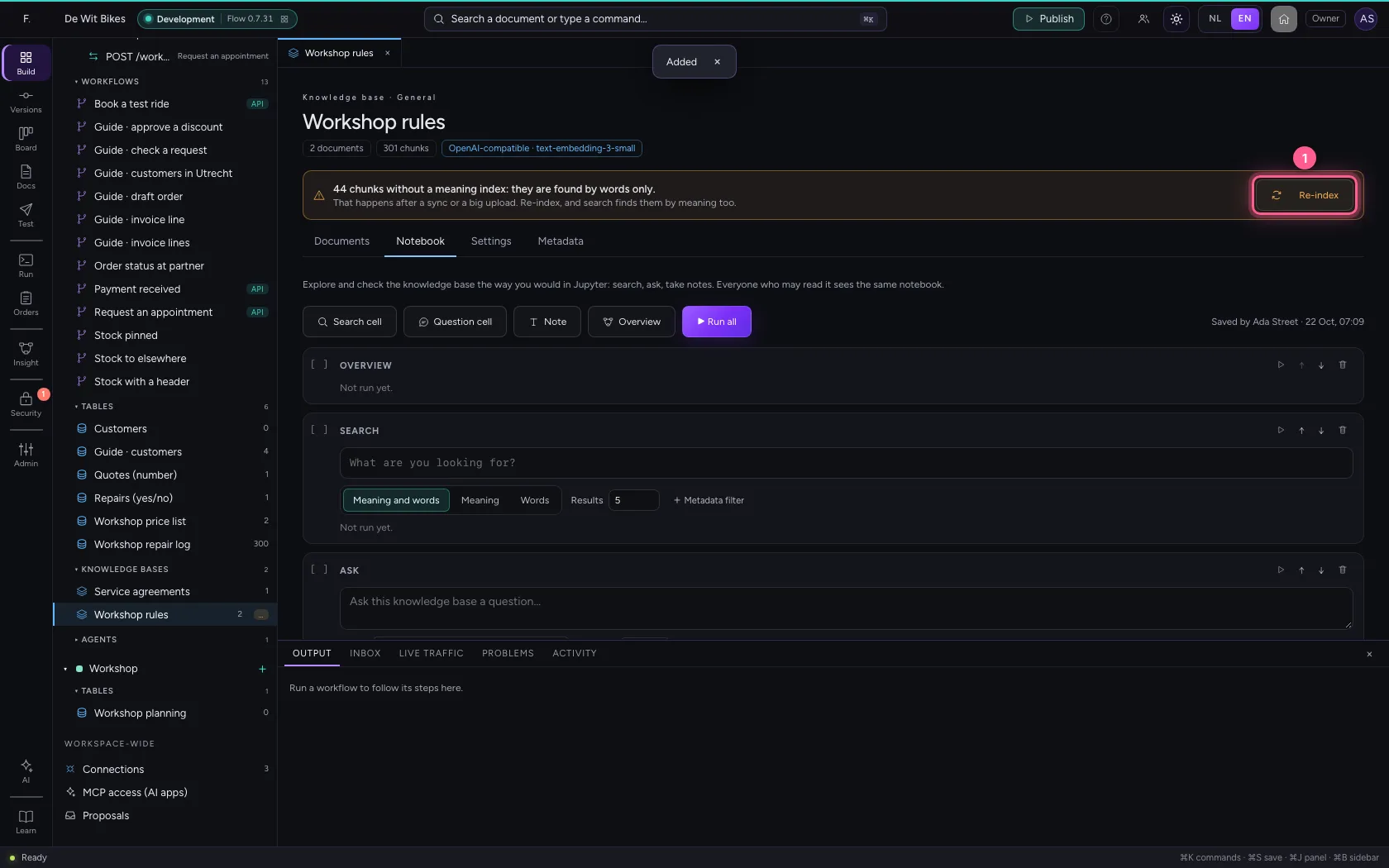
Choose Re-index in the notice. Flow makes the missing vectors, series after series, and counts down. Then the notice disappears: every chunk can be found by meaning again. When the embedder stops halfway, Flow says how many chunks are still waiting.
- Click Re-index
This guide was carried out step by step on 22 Oct 2026 by an automated test on Flow (version 3e563176).