Light or dark, Dutch or English
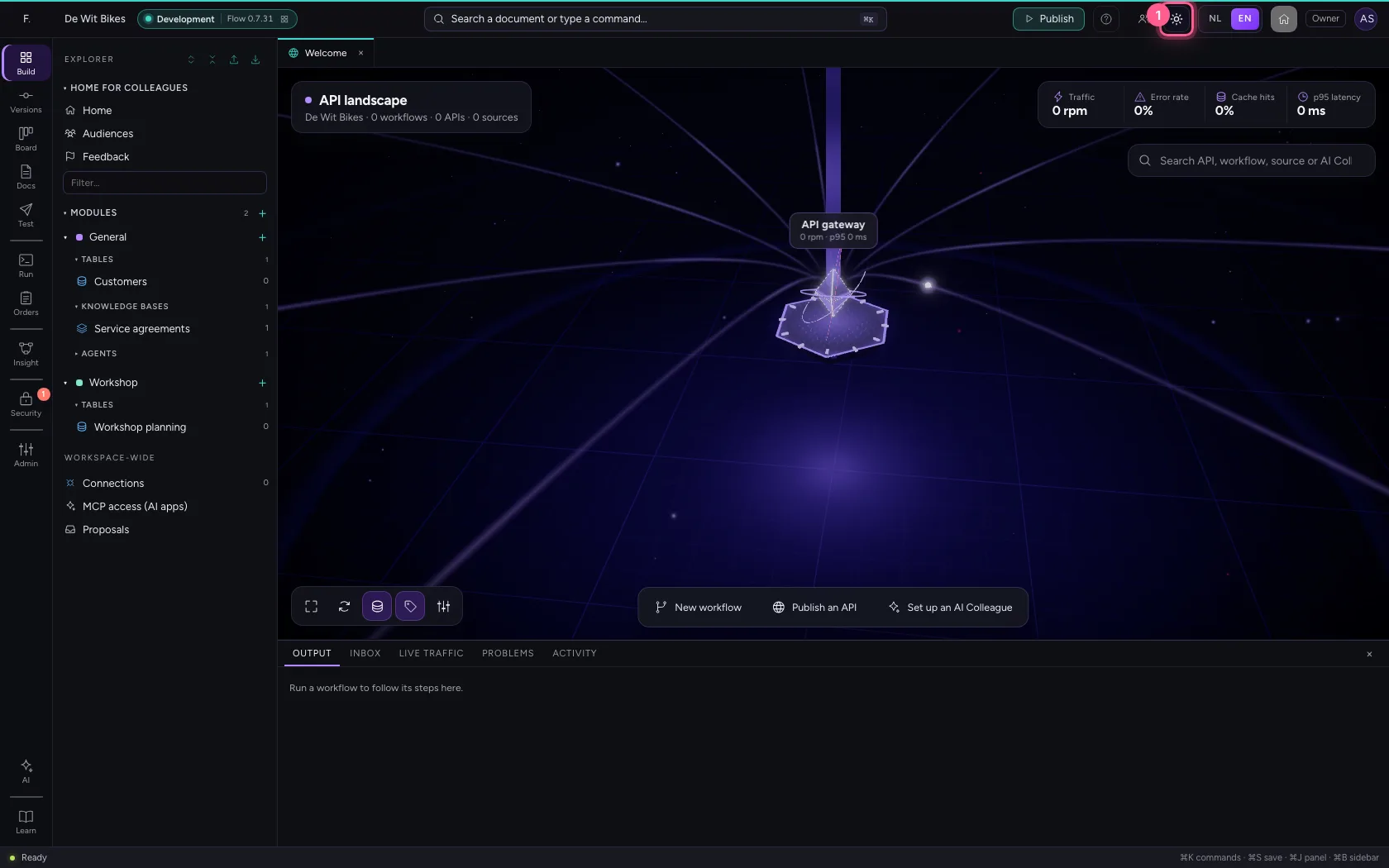
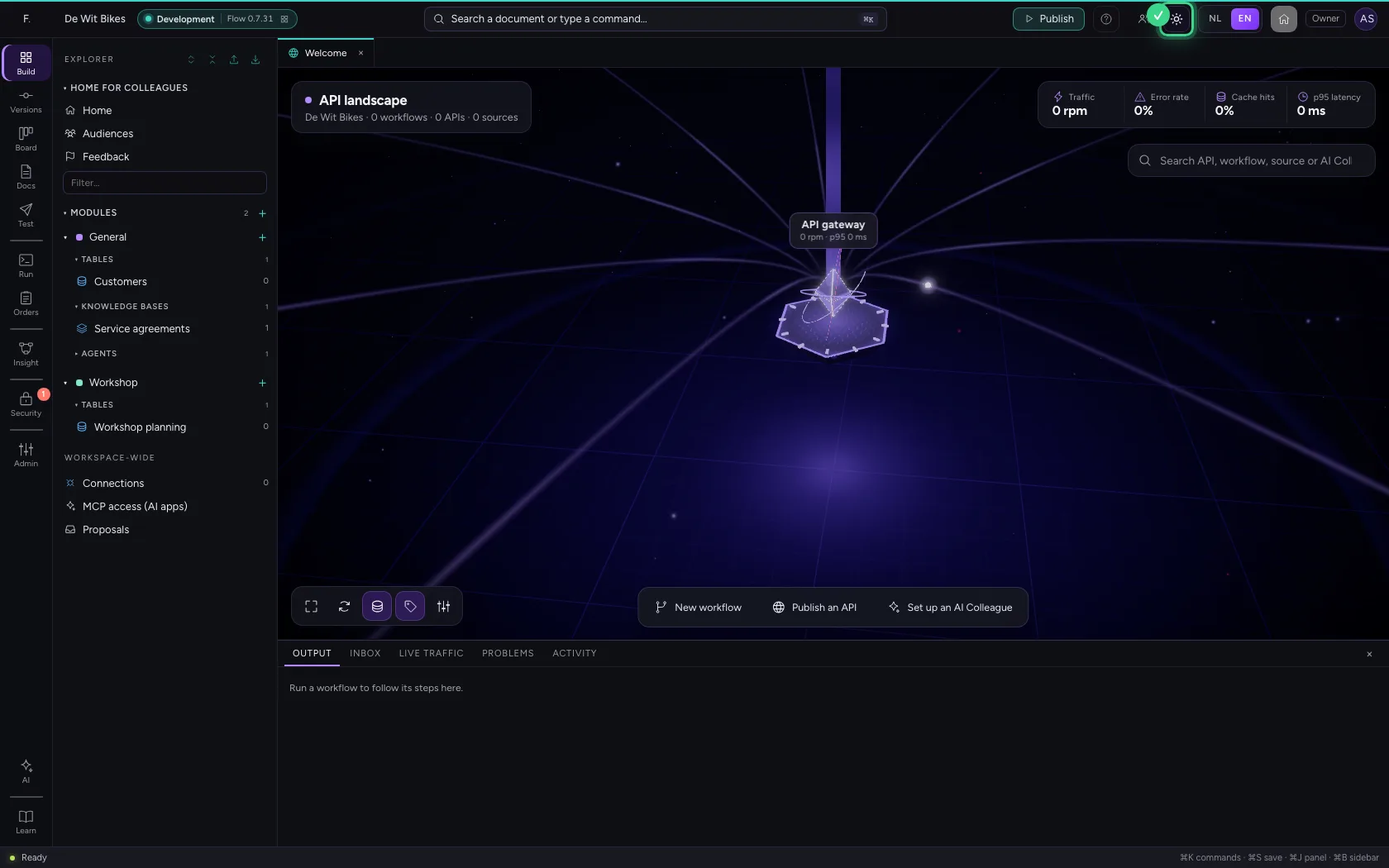
At the top right of Flow are two switches: the sun or moon for a light or dark look, and NL | EN for the language. Flow remembers your choice in this browser. The language applies to everything: buttons, messages from the server, plain-language explanations and error messages.
Open your development environment
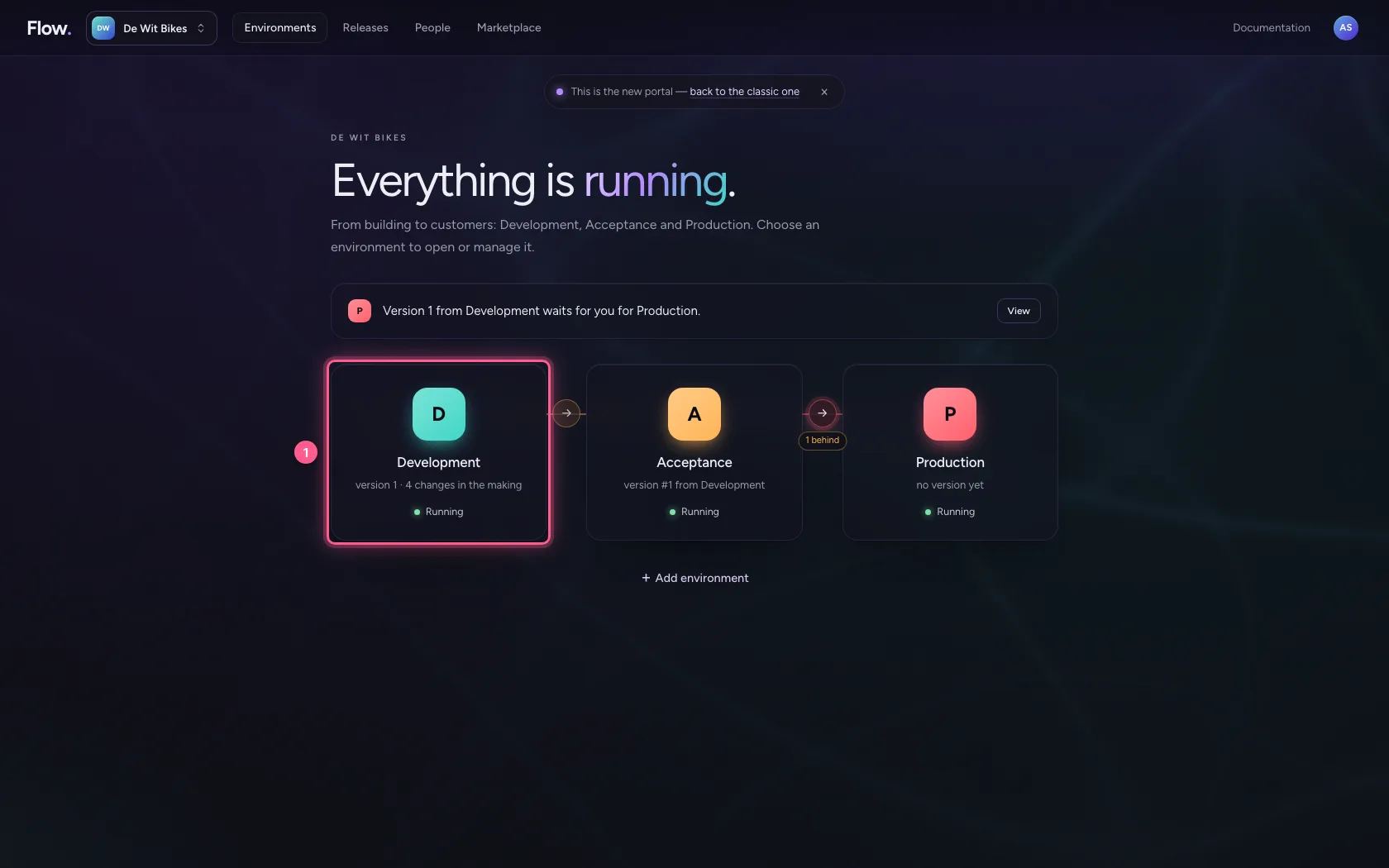
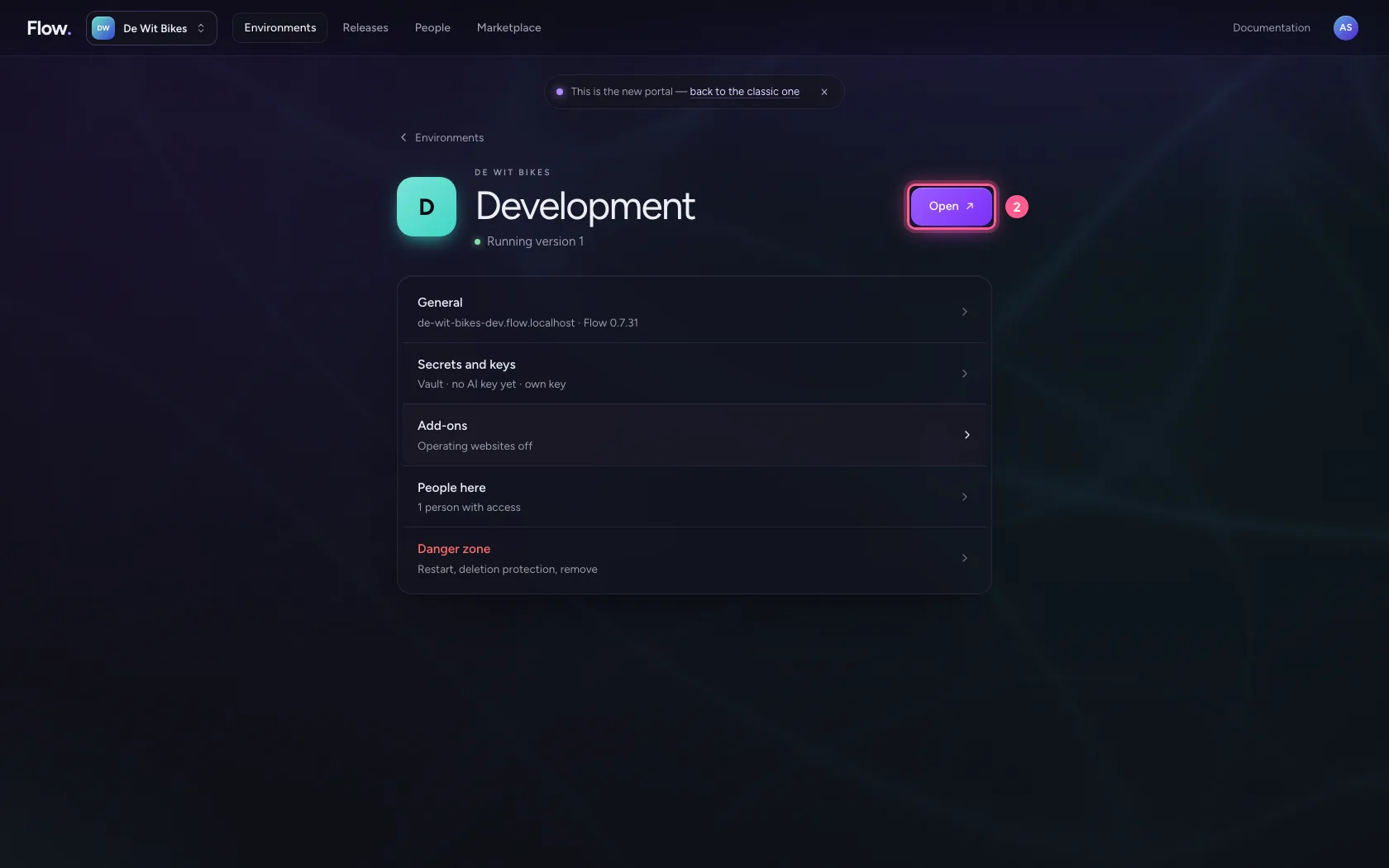
In the portal, under Environments, click Development, and there Open. Flow opens in a new tab and you are signed in straight away.
- Click Development
- Click Open ↗
Choose light or dark
Flow starts dark. Click the sun for the light look, pleasant in a bright room or on a projector; the moon takes you back. In this guide every screenshot is shown in the look you use yourself.
- Click the sun
Switch the language
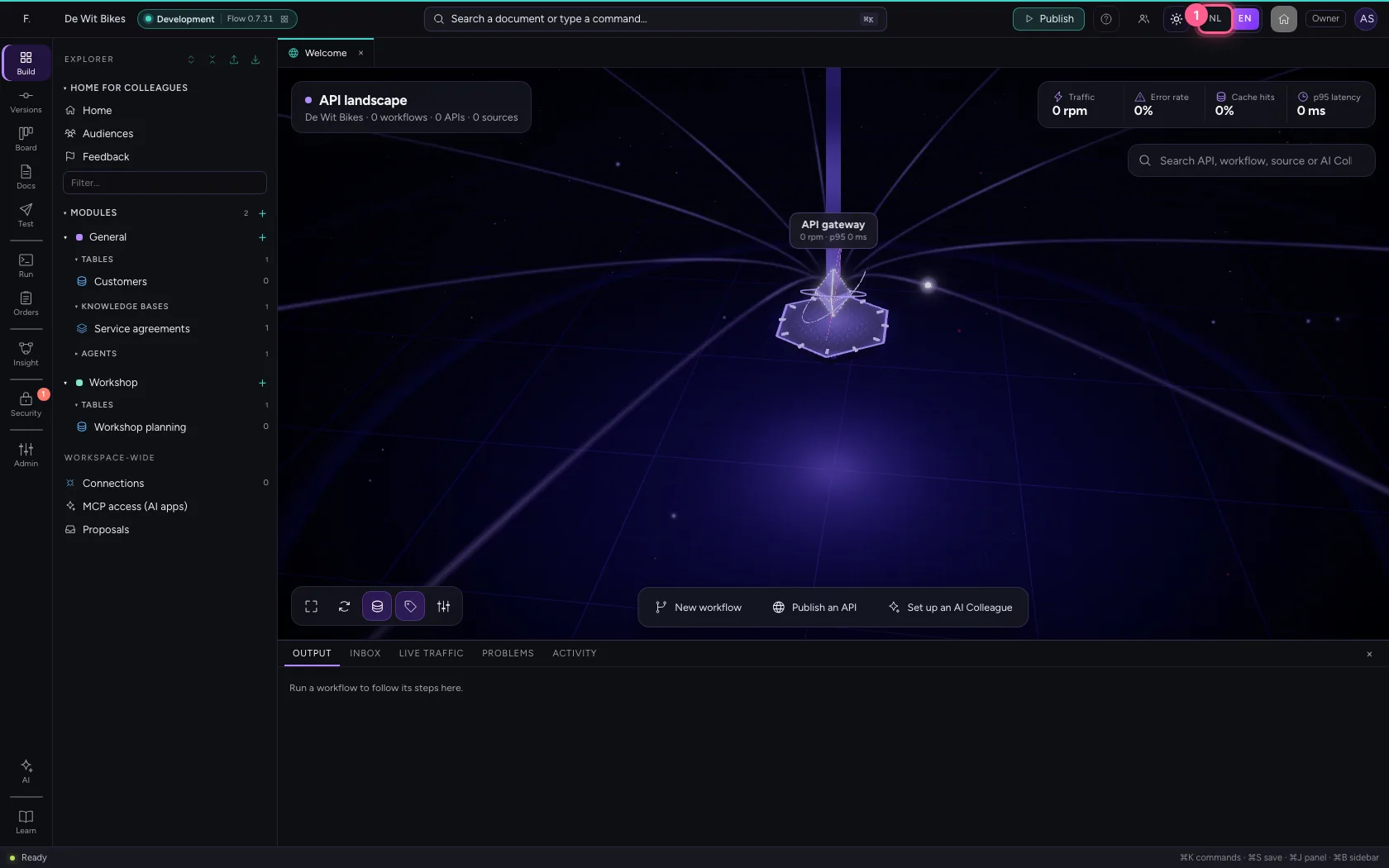
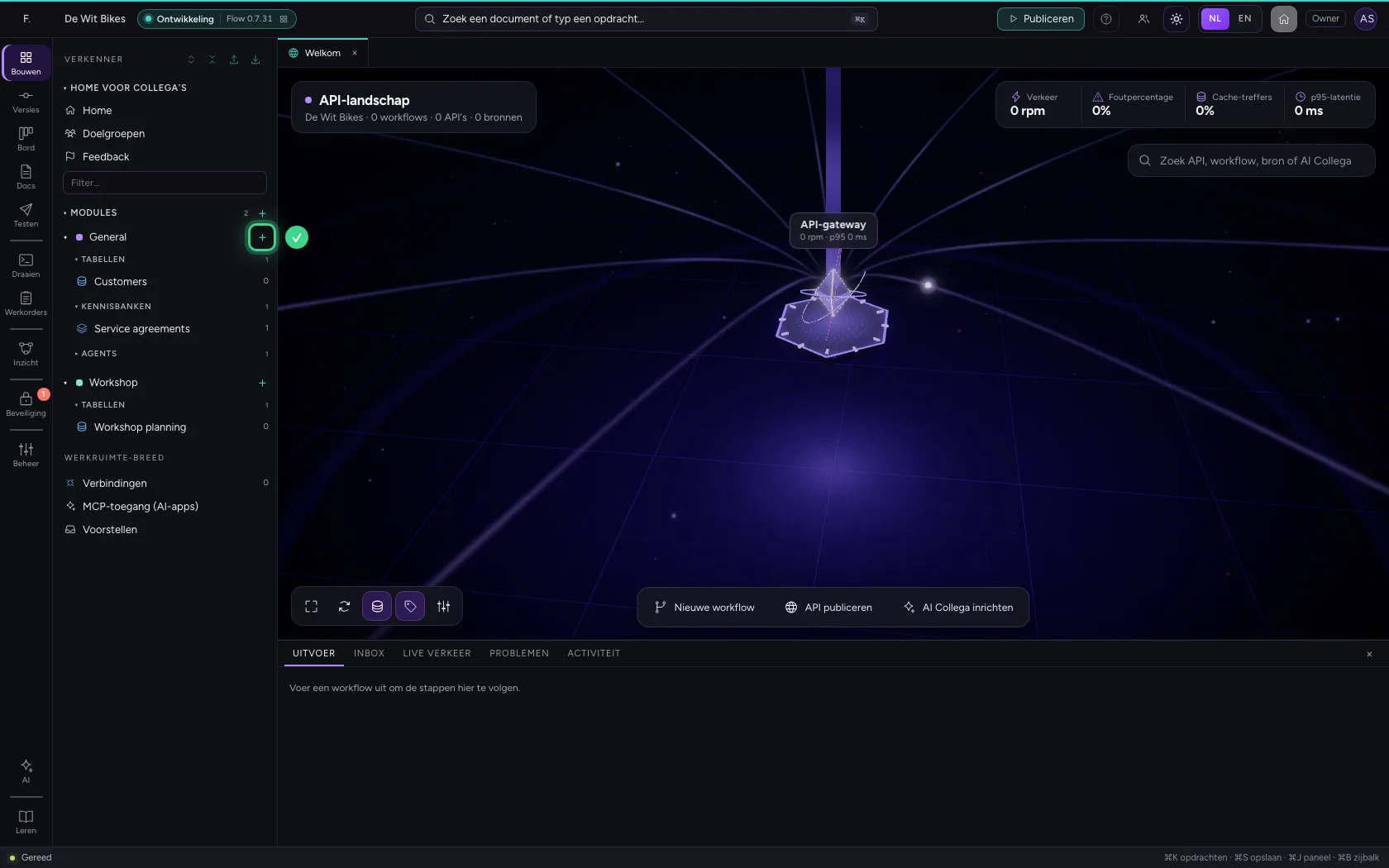
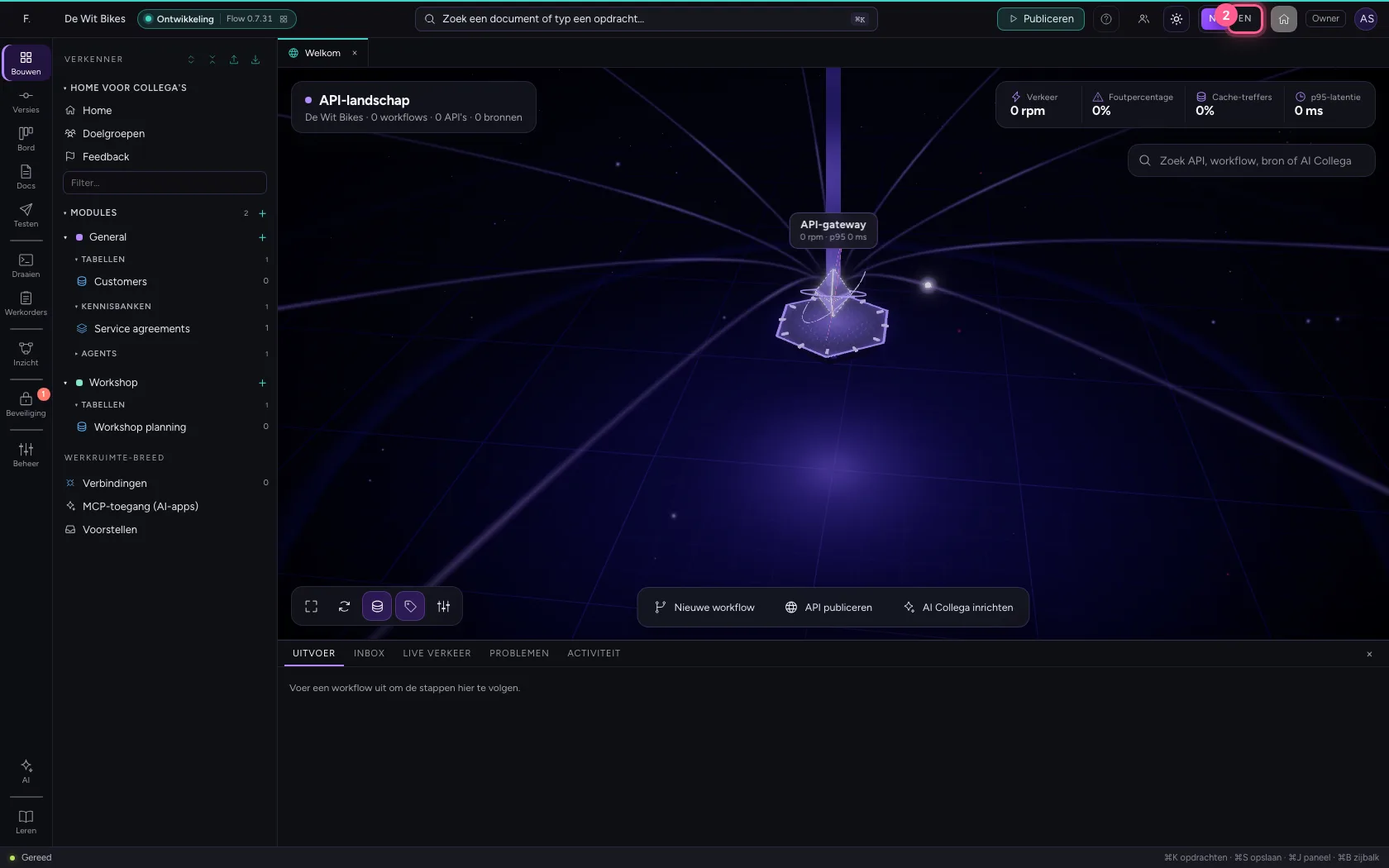
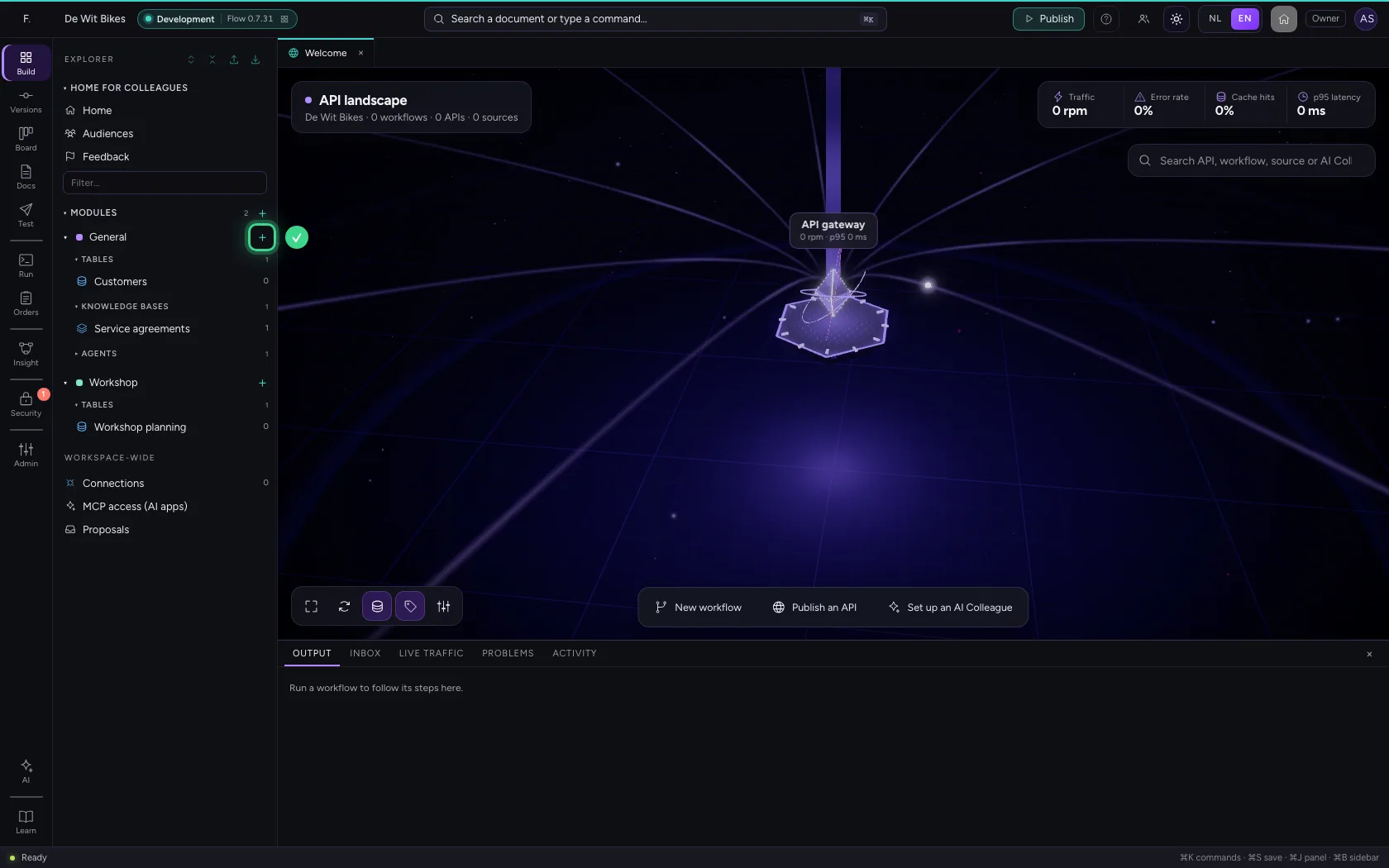
Click NL or EN. Everything switches straight away, including what the server says, without signing in again. Names you gave yourself, such as those of your tables and workflows, stay as they are.
- Click NL
- Click EN
This guide was carried out step by step on 22 Oct 2026 by an automated test on Flow (version 3e563176).